
NEMA EVSE CHARGING STATION USER MANUAL & INSTALLATION INSTRUCTIONS
|
|
|
- Debra Conley
- 10 years ago
- Views:
Transcription
1 NEMA EVSE CHARGING STATION USER MANUAL & INSTALLATION INSTRUCTIONS WALL-MOUNT POLE-MOUNT PEDESTAL BACK TO BACK GE EV Charging Station User Manual 1 of 86

2 CONTENTS 1 Important Safety and Grounding Instructions Safety and Compliance Grounding Instructions Installation Instruction Before Installing Safety Requirements Installation Overview and Specifications Pedestal Double Pedestal (Back to Back) Wall-Mounted Pole-Mounted Accessory Kits Replacement Kits RFID VFD Holding Socket Service Door Wiring Diagram User Manual Receiving Basic User Instructions Technical Data Additional Considerations EVSE Controller Settings Configuration Switch Settings Display fault messages Network Setup Instructions Definitions and Terms Firewall and Security Considerations Controller Configuration Introduction Prepare Service Laptop or PC EVSE Configuration Server Interface Recommended Network Designs for RFID Authentication Option 1: Stand-alone Network Configuration Option 2: Charging Station Network isolated from Customer Network with Host System in a DMZ Install EV100 RFID Host Application Software Setup Validation Setup without RFID Authentication Reset Controller to Factory Default Trouble Shooting Guide GE EV Charging Station User Manual 2 of 86

3 1 Important Safety and Grounding Instructions 1.1 Safety and Compliance WARNING: Read all the instructions before using this product. This device should be supervised when used around children. Do not put fingers into the electric vehicle connector. Do not use this product if the flexible power cord or EV cable are frayed, have broken insulation, or any other signs of damage. Do not use this product if the enclosure or the EV connector are broken, cracked, open, or show any other indication of damage. This document provides instructions for installation of EV Charging Station products listed in Table 11 in Section 3.3, and should not be used for any other product. Before installing the EVSE (Electric Vehicle Supply Equipment), you should review this manual carefully and consult with a licensed contractor, licensed electrician, or trained installation expert to ensure compliance with local building codes, climate conditions, safety standards and state and local electrical codes. The EVSE should be installed only by a licensed contractor, and/or a licensed electrician in accordance with all applicable state, local and national electrical codes and standards. The EVSE should be inspected by a qualified installer prior to initial use. Under no circumstances will compliance with the information in this manual relieve the user of his/her responsibility to comply with all applicable codes or safety standards. 1.2 Grounding Instructions The EVSE must be connected to a grounded, metal, permanent wiring system, or an equipment grounding conductor. This should be run with circuit conductors and connected to the equipment grounding bar or lead on the EVSE. Connections to the EVSE shall comply with all applicable electrical codes and ordinances. GE EV Charging Station User Manual 3 of 86

4 2 Installation Instruction 2.1 Before Installing Before any installation work is performed, study all drawings furnished by the supplier for the particular installation. These include arrangement drawings (front, end, and plan views), connections to the equipment that may be required to meet any local codes (such as mats, screens, or railings) is not furnished. 2.2 Safety Requirements Eye protection with appropriate glasses (especially when using the electrical drill). In the installation be sure to not connect directly to power distribution network cables without additional protection. Ensure that at all times when working, no power is connected. Use appropriate tools for each function. 2.3 Installation Overview and Specifications This document describes how to install any EVSE charging station family. It includes step-by-step instructions for installing the body assembly for the following stations: Pedestal Double Pedestal (Back to Back) Wall- Mounted Pole-Mounted To ensure that the EVSE is installed per Americans with Disabilities Act (ADA) Standards for Accessible Design guidelines, refer to code of federal regulations document 28 CFR Part 36, sections 4.2 (Space Allowance and Reach Ranges) and 4.4 (Protruding Objects). EVSE Torque Specification Table SCREW SIZE TORQUE TORQUE TOL UNC 13 in-lb +/- 2 in-lb UNF 30 in-lb +/- 5 in-lb 1/4-20 UNC 53 in-lb +/- 7 in-lb 1/2-13 UNC 48 in-lb +/- 7 in-lb M6 x 1 LIGUIDTIGHT FITTING 30 in-lb +/- 5 in-lb FUSE BLOCK LUGS, 8 AWG 40 in-lb +/- 5 in-lb FUSE BLOCK LUGS, 6 AWG 45 in-lb +/- 5 in-lb GROUND TERM. SCREWS, AWG 34 in-lb +/- 5 in-lb GROUND TERM. SCREWS, 8 AWG 38 in-lb +/- 5 in-lb 3/4" LOCKNUT HAND TIGHT + 1/4 TURN n/a - Table 1 - GE EV Charging Station User Manual 4 of 86

5 Tools Type Characteristics Slotted Screwdriver 3/16 or ¼ Phillips Screwdriver #2 Socket Socket sizes: 7/16, ¾ Electric Drill Wire stripper, hammer, and wall anchors Used in the wall mounted and pole mounted installations - Table 2 - Field cable size: Single Pedestal, Wall Mount and Pole Mount: Cu: 8 AWG, minimum 75 C wire Al: 6 AWG, minimum 75 C wire Double Pedestal: Cu: 8 AWG, minimum 90 C wire Al: 6 AWG, minimum 90 C wire 2.4 Pedestal Bill of materials WARNING: Make sure power to the EVSE is disconnected before performing any task ITEM DESCRIPTION QTY 1 Kiosk Pedestal Unit 1 2 Base Mounting Assembly 1 3 Kiosk Skirting 1 4 Base Mounting Template, NEMA 3R 1 5 Hex Nut, ½ SS 12 6 Star Washer, External Tooth, ½ SS 8 - Table 3 - GE EV Charging Station User Manual 5 of 86

6 Procedure Item 1 Item 5 & 6 Item 3 Item 4 Item 2 Figure 1: Exploded pedestal base assembly GE EV Charging Station User Manual 6 of 86

7 CONDUIT MOUNTING TEMPLATE CONCRETE Figure 2 BASE MOUNTING ASSEMBLY Figure 3 Locate area for pedestal location. WARNING: Make sure power to the EVSE is disconnected before performing any task Install two conduits, one for power, and one for communication (if required). Allow approximately 5 length for each conduit above the concrete level as shown in Figure 4. Cut as necessary to final dimensions. Route power conduit and communication conduit through the center of the hole in the mounting template, appropriately. Install base mounting assembly plate securely over conduits with mounting template and four 1/2-13 nuts. GE EV Charging Station User Manual 7 of 86

8 5.50 Figure 4 BASE MOUNTING ASSEMBLY DURING CONCRETE POUR. ALLOW MIN. 5 CONDUIT LENGTH ABOVE CONCRETE FLOOR LEVEL Adjust (4) ½-13 nuts to position height as shown in Figure 4. Pour concrete to level shown in Figure 4. Do not cover the ½-13 nuts with concrete. Remove mounting template from threaded rods, after concrete has cured. Do not remove the ½-13 nuts as they are used for leveling the skirt. GE EV Charging Station User Manual 8 of 86

9 CONDUIT KIOSK SKIRT ½-13 NUT, AND STAR WASHER Figure 5 PEDESTAL SKIRT INSTALLATION, AFTER CONCRETE POUR Install ½-13 nuts and star washers after lowering skirt over matching threaded rods over the ½-13 nuts. Use the bottom ½-13 nuts for leveling the skirt. Fasten nuts and skirt assembly to concrete base, as shown in Figure 5. Torque nuts per specification Table 1 GE EV Charging Station User Manual 9 of 86

10 ½-13 NUT AND ½ STAR WASHER CONCRETE LEVEL Figure 6 Figure 7 Open the door by pressing the round button on the door latch. Insert the Kiosk from top and install ½- 13 nuts and star washers after lowering skirt over matching threaded rods as shown in the Figures 6 and 7. Torque all the nuts as per the torque specification in Table 1 (recommended tool: 3/8 drive quick release ratchet & 13/16 socket). Connect L1 and L2 to the fuse block and ground wire to the ground bar shown in Figure 8. IMPORTANT: EV Charging Station is rated for V power only. The EVSE must be connected to a grounded, metal, permanent wiring system, or an equipment grounding conductor. This should be run with circuit conductors and connected to the equipment grounding bar or lead on the EVSE. Connections to the EVSE shall comply with all applicable electrical codes and ordinances. In case of RFID sensor, the communication cable is connected to the Ethernet connector on the controller as shown in Figure 9. GE EV Charging Station User Manual 10 of 86


11 Ground Bar Fuse Block Ground Bar Incoming Power Fuse Block Incoming Power Cables Connect at Bottom Terminals of Fuse Block Ground Wire Connects to Ground Bars Figure 8 : Power Wire and Ground Wire Connections for Pedestal GE EV Charging Station User Manual 11 of 86


12 Figure 9 : Ethernet Connection to Controller for Pedestal 2.5 Double Pedestal (Back to Back) Bill of materials ITEM DESCRIPTION QTY 1 Kiosk Pedestal Unit 1 2 Base Mounting Assembly 1 3 Kiosk Skirting 1 4 Base Mounting Template, 1 NEMA 3R 5 Hex Nut, ½ SS 12 6 Star Washer, External Tooth, ½ SS 8 - Table 4 - GE EV Charging Station User Manual 12 of 86

13 Procedure Item 1 Item 5 & 6 Item 3 Item 4 Item 2 Figure 10: Exploded double pedestal base assembly GE EV Charging Station User Manual 13 of 86

14 CONDUIT MOUNTING TEMPLATE CONCRETE Locate area for pedestal location BASE MOUNTING Figure 11 ASSEMBLY Figure 12 Locate area for double pedestal location. WARNING: Make sure power to the EVSE is disconnected before performing any task Install conduits for power wire and communication wire (if required). Allow approximately 5 length for each conduit above the concrete level as shown in Figure 13. Cut as necessary to final dimensions. Route power conduit and communication conduit through the center of the hole in the mounting template, appropriately. Install base mounting assembly plate securely over conduits with mounting template and four 1/2-13 nuts. GE EV Charging Station User Manual 14 of 86

15 5.50 Figure 13 BASE MOUNTING ASSEMBLY DURING CONCRETE POUR. ALLOW MIN. 5 CONDUIT LENGTH ABOVE CONCRETE FLOOR LEVEL Adjust (4) ½-13 nuts to position height as shown in Figure 13. Pour concrete to level shown in Figure 13. Do not cover the ½-13 nuts with concrete. Remove mounting template from threaded rods after concrete has cured. Do not remove ½-13 nuts as they are used for leveling the skirt. GE EV Charging Station User Manual 15 of 86

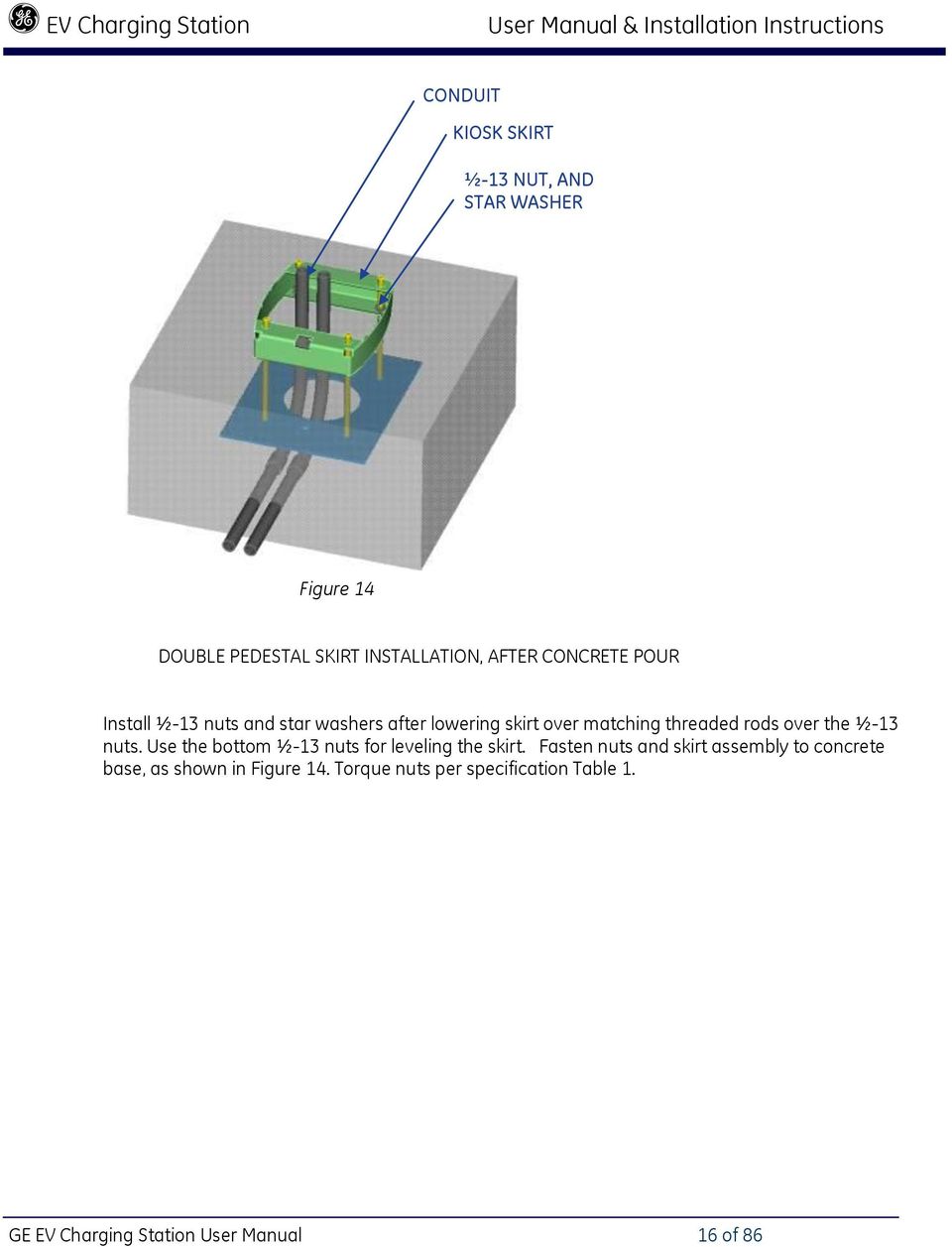
16 CONDUIT KIOSK SKIRT ½-13 NUT, AND STAR WASHER DOUBLE PEDESTAL SKIRT INSTALLATION, AFTER Figure 14 DOUBLE PEDESTAL SKIRT INSTALLATION, AFTER CONCRETE POUR Install ½-13 nuts and star washers after lowering skirt over matching threaded rods over the ½-13 nuts. Use the bottom ½-13 nuts for leveling the skirt. Fasten nuts and skirt assembly to concrete base, as shown in Figure 14. Torque nuts per specification Table 1. GE EV Charging Station User Manual 16 of 86
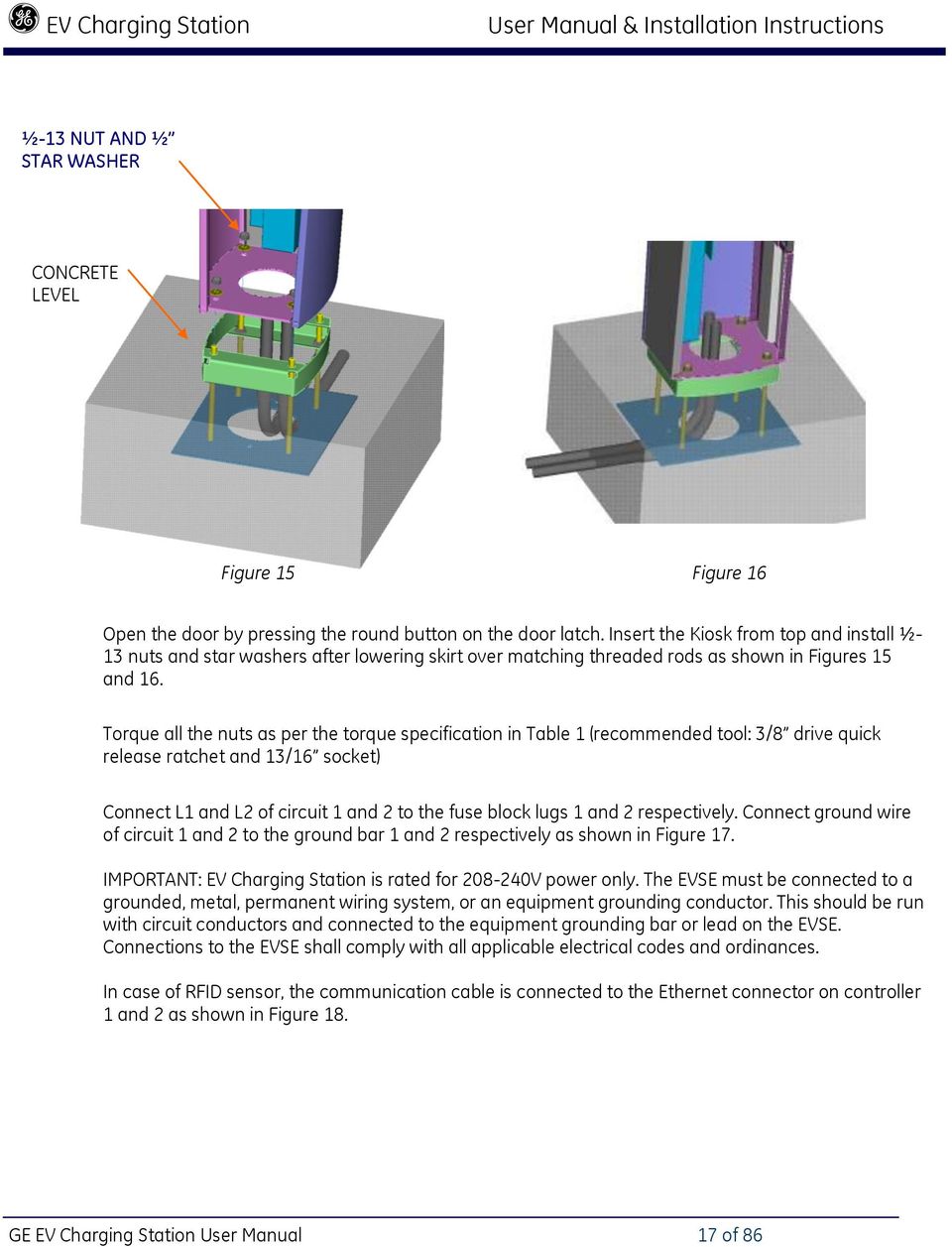
17 ½-13 NUT AND ½ STAR WASHER CONCRETE LEVEL Figure 15 Figure 16 Open the door by pressing the round button on the door latch. Insert the Kiosk from top and install ½- 13 nuts and star washers after lowering skirt over matching threaded rods as shown in Figures 15 and 16. Torque all the nuts as per the torque specification in Table 1 (recommended tool: 3/8 drive quick release ratchet and 13/16 socket) Connect L1 and L2 of circuit 1 and 2 to the fuse block lugs 1 and 2 respectively. Connect ground wire of circuit 1 and 2 to the ground bar 1 and 2 respectively as shown in Figure 17. IMPORTANT: EV Charging Station is rated for V power only. The EVSE must be connected to a grounded, metal, permanent wiring system, or an equipment grounding conductor. This should be run with circuit conductors and connected to the equipment grounding bar or lead on the EVSE. Connections to the EVSE shall comply with all applicable electrical codes and ordinances. In case of RFID sensor, the communication cable is connected to the Ethernet connector on controller 1 and 2 as shown in Figure 18. GE EV Charging Station User Manual 17 of 86

18 Fuse Blocks Ground Bars Incoming Power Fuse Block 1 Fuse Block 2 Ground Bar 2 Ground Bar 1 Incoming Power Cables Connect at Bottom Terminals of Fuse Blocks Ground Wires Connect to Ground Bars Figure 17 : Power Wire and Ground Wire Connections for Double Pedestal GE EV Charging Station User Manual 18 of 86


19 Controller 1 Controller 2 Figure 18: Ethernet Connection to Controller for Double Pedestal 2.6 Wall-Mounted Bill of materials ITEM DESCRIPTION CHARACTERISTICS QTY 1 Kiosk Unit Wall mounted 1 enclosure 2 Wall Bracket Assembly (4) ¼ -20 Weld 1 Stud 3 Hex. Nuts ¼ -20 Zinc Plated Steel 4 4 Sealing Washer, ¼ dia. Seals ¼ studs 4 5 Conduit Hub, ¾ Attach to ¾ 2 conduits/enclosure - Table 5 - Procedure WARNING: Make sure power to the EVSE is disconnected before performing any task Drill 6 holes in the wall as illustrated in Figure 19. Use the supplied wall-mounting bracket to ensure correct alignment. The height of the bottom hole from the floor should be between 19 to 25 to GE EV Charging Station User Manual 19 of 86


20 ensure meet UL and American Disability Act compliance. This will ensure the critical height shown in Figure 21. IMPORTANT: Exercise extreme caution when drilling holes in the wall. Make sure there are no electrical cables. Figure 19: Wall-Mount Bracket Holes Min: 19 Max: 25 Figure 20: Wall-Mount Bracket Fasten the wall bracket to the wall. Refer to Table 6 for recommended wall mounting fasteners. Supply two ¾ conduits (one for power cable and other one for communication cable) as per bracket drawing dimensions and connect supplied ¾ conduit hubs to conduits. If the communication cable and the corresponding conduit is not used, cover the hole with supplied NEMA 3R knockout plugs. Optionally, the power wire can be run through the bottom of the enclosure. See page 24. GE EV Charging Station User Manual 20 of 86

21 MIN: 18 MAX: 24 Figure 21: Wall Mount Installation, Critical Dimension GE EV Charging Station User Manual 21 of 86


22 Wall Mount EVSE Mounting Fasteners Fastener Type Supplier Part Number Qty Application Image 3/8" x 1-7/8" Concrete Anchor McMaster-Carr 96892A258 6 Concrete Wall Pre-drill hole dia. 3/8" 3/8" x 1-3/4" Concrete Hex Screw Tapcon LDT Concrete Wall Pre-drill hole dia. 5/16" 3/8" x 2" Hex Head Lag Bolt McMaster-Carr 95526A525 3 Stud Wall Pre-drill hole dia. 3/8" Hardwood (into wood stud) Pre-drill hole dia. 1/4" Softwood Hollow Wall Anchor Cobra Anchors TripleGrip 6 Drywall Pre-drill hole dia. 3/8" (into sheetrock) - Table 6 GE EV Charging Station User Manual 22 of 86

23 The cables must extend 16 to 24 above the wall surface, or according to local codes. Pull L1, L2 and ground wire into the enclosure assembly through the conduit hub. Similarly pull the communication cable into the enclosure assembly through the second conduit. IMPORTANT: EV Charging Station is rated for V power only. The EVSE must be connected to a grounded, metal, permanent wiring system, or an equipment grounding conductor. This should be run with circuit conductors and connected to the equipment grounding bar or lead on the EVSE. Connections to the EVSE shall comply with all applicable electrical codes and ordinances. Install the enclosure on the wall-mounting bracket. Insert the threaded portion of the conduit hub into the hole of the enclosure. Fasten the conduit hub using the nut. Fasten the enclosure to the wallmounting bracket using the self-sealing washers and nuts from inside the enclosure as indicated in Figure 22. Torque all the nuts as per the torque specification in Table 1. CONCRETE ANCHOR WALL-MOUNT BRACKET SLEEVE STUD ANCHOR WITH HEX NUT WALL-MOUNT UNIT (2) ¾ CONDUITS ¼-20 HEX NUT, ¼: SEALING WASHER ¾ CONDUIT HUB Figure 22: Wall-Mount Installation, Exploded View Connect L1, L2 to the fuse block and ground wire to the ground bar shown in Figure 23. GE EV Charging Station User Manual 23 of 86

24 In case of RFID sensor, the communication cable is connected to the Ethernet connector on the controller, just like the pedestal as shown in Figure 9. Ground Bar Fuse Block Incoming Power Cables Connect at Terminals of Fuse Block Ground Wire Connects to Ground Bar Figure 23: Power Wire and Ground Wire Connections for Wall Mount Field wiring entry from bottom: If this option is preferred, remove the two knockouts at the bottom of the enclosure and fill in the unused cable holes on the back of the enclosure using the spare NEMA 3R knockout plugs provided. See Figure 24. Assemble the supplied conduit hub in the bottom and make the conduit arrangement. GE EV Charging Station User Manual 24 of 86

25 Figure 24: Wall-Mount Conduit Installation Default (left) and Alternate (right) Fitting Locations 2.7 Pole-Mounted Bill of materials ITEM DESCRIPTION CHARACTERISTICS QTY 1 Kiosk Unit Pole-Mounted 1 2 Pole-bracket Assembly Bracket & ¾ Banding 1 3 Band Clamp ¾ Stainless Steel Clamp 2 4 Hex. Nuts ¼-20 Supplied with EVSE unit 4 5 Sealing Washers, ¼ Seals ¼ studs 4 6 Conduit Hub, ¾ Attach to ¾ conduits/enclosure 2 7 Conduit Nipple (Installer supplied) ¾ pipe size, 1.05 OD, NPTXNPT threaded both ends Nipple. Example: Metallic - McMaster Carr part 7727K225 or similar suitable plastic conduit nipple - Table 7-2 GE EV Charging Station User Manual 25 of 86
26 Procedure WARNING: Make sure power to the EVSE is disconnected before performing any task IMPORTANT: Possible pole diameters for these EVSE units are 8 to 12. Drill two holes of diameter 1 1/8 on the pole in the location shown in Figure 25. One hole is to bring the power cables and the other for communication cable into the enclosure. If the communication cable and the corresponding conduit is not used, cover the hole in the enclosure with the supplied NEMA 3R knockout plug and do not drill the corresponding hole in the pole. The height of the holes from the floor should be from 20 to 25 as shown in Figure 25 to meet UL and American Disability Act compliance. This ensures the critical height shown in Figure 26. IMPORTANT: Exercise extreme caution when drilling holes in the wall. Make sure there are no electrical cables. Figure 25: Pole mount drilling dimension GE EV Charging Station User Manual 26 of 86
27 Figure 26: Pole Mount Installation, Critical Dimension Optionally, the power wire can be run through the bottom of the enclosure. See page 29. Insert the threaded portion of the conduit hub into the enclosure hole and fasten the conduit hub using the nut. Connect ¾ conduit nipple (Installer supplied) with minimum 3 length up to 4 length to the conduit hub. Align the mounting bracket to the pole, ensuring the coupler opening in the bracket is centered over the hole in the pole bracket assembly as shown in Figure 27. Strap the pole bracket assembly to the pole by supplied ¾ by stainless steel banding as shown in the Figure 27. IMPORTANT: You must use a high tension-banding tool to install bands. (GE Part no: EVPMBAND) GE EV Charging Station User Manual 27 of 86

28 Figure 27 : Mounting bracket alighnment to the holes The cables must extend 16 to 24 above the pole surface, or according to local codes. Pull L1, L2 and ground wire into the enclosure assembly through the conduit hub. Similarly pull the communication cable into the enclosure assembly through the second conduit. Install the Kiosk pole mounted unit, using the nuts and sealing washers as shown in Figure 28. Torque all the nuts as per the torque specification in Table 1. GE EV Charging Station User Manual 28 of 86
29 Figure 28: Pole-Mount Installation, Exploded View IMPORTANT: EV Charging Station is rated for V power only. The EVSE must be connected to a grounded, metal, permanent wiring system, or an equipment grounding conductor. This should be run with circuit conductors and connected to the equipment grounding bar or lead on the EVSE. Connections to the EVSE shall comply with all applicable electrical codes and ordinances. Connect L1, L2 to the fuse block and ground wire to the ground bar shown in Figure 23. In case of RFID sensor, the communication cable is connected to the Ethernet connector on the controller, just like the pedestal as shown in Figure 9. Field wiring entry from bottom: If this option is preferred, remove the two knockouts at the bottom of the enclosure and fill in the unused cable holes on the back of the enclosure using the spare NEMA 3R knockout plugs provided. See Figure 30. Assemble the supplied conduit hub in the bottom and make the conduit arrangement. GE EV Charging Station User Manual 29 of 86
30 CONDUIT HUB PLUG Figure 29: Pole-Mount Conduit Using Side Fittings Installations Figure 30: Alternate Pole-Mount Conduit Installation Using Bottom Knockouts GE EV Charging Station User Manual 30 of 86
31 2.8 Accessory Kits The EV Charging Station offers the following accessory kits: Ordering Number EVRP01 EVRP02 EVRP03 EV100CD EVRCW50 EVRCG50 EVPMBAND Description RFID enrollment reader CM5321CL USB 13.45MHz RFID enrollment reader CM5325CL USB 125kHz RFID enrollment reader RP40 USB - universal CD with standalone SW EV100 Pack of 10 white RIFD cards Pack of 10 GE US RFID cards Pole mount strap installation kit - Table Replacement Kits The EV Charging Station offers the following replacement kits: GE EV Charging Station User Manual 31 of 86
32 Ordering Number EVDSCTL01 EVDSCTL02 EVDSCTL03 EVDSCTL04 EVDSCTL05 EVDSCTL06 EVDSCTL07 EVDSCTL08 EVDSLED01 EVDSLED02 EVDSLED03 EVDSRR01 EVDSVFD01 EVDSDR01 EVDSDR02 EVDSFIX01 EVDSSK01 EVDSCBL01-20 EVDSCBL02-20 EVDSCBL03-20 EVDSPD01 EVDSCT01 EVDSCR01 EVDSKIT01 EVDSKIT02 EVDSKIT03 EVDSKIT04 EVDSKIT05 EVDSKIT06 EVDSKIT07 EVDSKIT08 EVDSLBL01 EVDSMAN01 Description EVSE WALLMOUNT - BASIC - Controller Replacement + harness EVSE WALLMOUNT WITH RFID - Controller Replacement + harness EVSE POLEMOUNT BASIC - Controller Replacement + harness EVSE POLEMOUNT WITH RFID - Controller Replacement + harness EVSE OUTDOOR PEDESTAL BASIC - Controller Replacement + harness EVSE OUTDOOR PEDESTAL WITH RFID - Controller Replacement + harness EVSE OUTDOOR DOUBLE PEDESTAL BASIC - Controller Replacement + harness EVSE OUTDOOR DOUBLE PEDESTAL WITH RFID - Controller Replacement + harness LED Replacement - EVSE OUTDOOR PEDESTAL LED Replacement - EVSE WALLMOUNT/ POLE MOUNT LED - EVSE OUTDOOR DOUBLE PEDESTAL RFID Replacement VFD display replacement kit Service door wall-mount Service door pedestal Replacement Hardware Kit Holding Socket Inlet Replacement EVSE OUTDOOR PEDESTAL - Charging Cord Replacement EVSE OUTDOOR WALL MOUNT/ POLE MOUNT - Charging Cord Replacement EVSE OUTDOOR DOUBLE PEDESTAL - Charging Cord Replacement Replacement Protective Devices CT Replacement Contactor Replacement Wire harness replacement kit - EVSE WALLMOUNT - BASIC Wire harness replacement kit - EVSE WALLMOUNT - WITH RFID Wire harness replacement kit - EVSE POLEMOUNT - BASIC Wire harness replacement kit - EVSE POLEMOUNT - WITH RFID Wire harness replacement kit - EVSE OUTDOOR PEDESTAL - BASIC Wire harness replacement kit - EVSE OUTDOOR PEDESTAL - WITH RFID Wire harness replacement kit - EVSE OUTDOOR PEDESTAL DOUBLE PEDESTAL - BASIC Wire harness replacement kit - EVSE OUTDOOR DOUBLE PEDESTAL - WITH RFID Pack of labels EVSE User Manual and Installation instruction - Table 9 - The following replacement kits can be installed by the customer: RFID (EVDRR01) (except for double pedestal), VFD (EVDSVFD01) (except for double pedestal), holding socket inlet (EVDSSK01) (except for double pedestal) and service door (EVDSDR01 and EVDSDR02). Instructions for the installation of these kits are provided in the following sections. The remaining kits should be installed by a trained GE technician. GE EV Charging Station User Manual 32 of 86
33 2.9.1 RFID This section describes how to install the RFID hardware for Pedestal, Wall Mounted and Pole Mounted EVSE units only. For the Back to Back EVSE unit RFID upgrade, contact a GE representative by calling GE1STOP. WARNING: Make sure power to the EVSE is disconnected before performing any task If your unit already has RFID and you are replacing it, first remove the old RFID unit, then follow the instructions starting with Figure 33. If your EVSE unit does not already have an RFID reader, open the service door and the remove the metal plate and gasket (located below the VFD) shown in Figure 31 and 32. Figure 31: Metal plate, outside view GE EV Charging Station User Manual 33 of 86
34 Figure 32: Metal plate, inside view Next, attach the RFID mounting plate to the outside of the EVSE enclosure as shown in Figure 33 and 34, using the hardware provided with RFID. Figure 33: RFID mounting plate, outside view GE EV Charging Station User Manual 34 of 86
35 Figure 34: RFID mounting plate, inside view Slide the RFID cable through the open hole as shown in Figure 35, and attach the RFID to its mounting plate as shown in Figure 36 using the tamper-proof screw provided. Figure 35: RFID cable GE EV Charging Station User Manual 35 of 86
36 Figure 36: RFID tamper-proof screw Slide the threaded gland and seal over the RFID cable from the inside of the enclosure and screw it into the threaded hole. Then slide the RFID gland nut over the cable and screw it over the seal and threaded gland. Refer to Figure 37 and 38 below. GE EV Charging Station User Manual 36 of 86
37 Figure 37: RFID gland assembly Figure 38: RFID gland assembly GE EV Charging Station User Manual 37 of 86

38 Secure the individual wires in the RFID cable inside the provided Phoenix connector, as shown in Figures 39 and 40. Figure 39: RFID Phoenix Connector Figure 40: RFID wiring Attach the Phoenix connector to the controller in its designated location, as shown in Figure 41 and 42. Make sure to press the Phoenix collector fully into the female socket. GE EV Charging Station User Manual 38 of 86
39 Figure 41: RFID Connection Location Figure 42: RFID Connection Location GE EV Charging Station User Manual 39 of 86
40 Once the hardware installation is complete, refer to the software installation guide provided with the RFID package VFD WARNING: Make sure power to the EVSE is disconnected before performing any task This section describes how to install the VFD for Pedestal, Wall Mounted and Pole Mounted EVSE units only. For the Back to Back EVSE unit VFD replacement, contact a GE representative by calling GE1STOP. Open the service door and remove the VFD wire harness from the VFD as shown in Figure 43. Figure 43: Harness Connection to VFD If RFID has been provided, remove the RFID wire harness from the socket on the controller as shown in Figures 41 and 42. Next, remove the VFD/RFID mounting assembly by removing the eight 10/32 nuts as shown in Figure 44. GE EV Charging Station User Manual 40 of 86
41 Figure 44: 3 of 8 10/32 mounting nuts diplayed Remove the RFID unit (or the metal plate and gasket if no RFID has been provided) from the VFID mounting assembly as described in Section Install the new VFD/RFID mounting assembly, shown in Figure 45 and Figure 46. GE EV Charging Station User Manual 41 of 86
42 Figure 45: VFD/RFID mounting plate, front view Figure 46: VFD/RFID mounting plate, back view Re-attach the RFID unit or metal plate as described in Section Holding Socket WARNING: Make sure power to the EVSE is disconnected before performing any task This section describes how to install the holding socket for Pedestal, Wall Mounted and Pole Mounted EVSE units only. For the Back to Back EVSE unit holding socket replacement, contact a GE representative by calling GE1STOP. Open the service door and unplug the holding socket Phoenix connector from the controller as shown in Figure 47. Remove the holding socket wire from this Phoenix connector. The wire can be removed from the Phoenix connector by pressing in the small orange button on the connector, as shown in Figure 47. GE EV Charging Station User Manual 42 of 86
43 Figure 47: Holding Socket Phoenix Connection Remove the holding socket by unscrewing the four tamper-proof placement screws on the front face of the EVSE enclosure, shown in Figure 48. Figure 48: Holding Socket Tamper-Proof Screws GE EV Charging Station User Manual 43 of 86
44 After the old holding socket is removed, insert the replacement holding socket and tighten the placement screws. Re-connect the holding socket wire to the Phoenix connector, and re-connect the Phoenix connector to the controller Service Door WARNING: Make sure power to the EVSE is disconnected before performing any task Remove the service door. Remove the door ground wire from door ground stud, shown in Figure 49. Figure 49: Door Ground Connection Insert the new door and replace the ground wire to the door ground stud. GE EV Charging Station User Manual 44 of 86
45 2.10 Wiring Diagram The wiring diagram shown in Figure 50 is applicable for all NEMA EVSE units and is included as a reference. Figure 50: EVSE Wiring Diagram GE EV Charging Station User Manual 45 of 86
46 3 User Manual 3.1 Receiving Upon receipt of shipment, examine the package for damage that may have been sustained in transit. If the shipping container must be opened outdoors, take proper precautions to prevent the entrance of moisture. While unpacking, examine the product for broken, bent, or loose parts or other damage. If damage from shipment is evident, file a damage claim with the transportation company and notify the nearest sales office. GE EV Charging Station User Manual 46 of 86
47 3.2 Basic User Instructions Status Indicator Vacuum Fluorescent Display (VFD) RFID Reader SAE J1772 compliant connector Charging Cord Figure 51 : EVSE Basic Features Status Indicator: The status indicator at the top of the EVSE displays the state of the EVSE. The key to the colors displayed on the status indicator is shown on a label directly right of the EVSE handle. The EVSE can display the following different colors: Green (SOLID): EVSE available for charging BLINKING Green: EV connected, but not energized (charging is finished or vehicle not ready for charging) Amber (SOLID): EV charging and connector energized Red (SOLID): Fault EVSE GE EV Charging Station User Manual 47 of 86
48 Vacuum Fluorescent Display (VFD): The VFD serves to prompt the user to do certain things, such as connect to vehicle or return plug to socket. It also displays useful information such as charging time and fault information. RFID Reader The RFID is responsible for maintaining and processing authorization of users for the EV Charging Station, and is available as an option. When the RFID is idle, the RFID LED is red. Figure 52: EVSE while idle When the access card is waved in from of the RFID reader, it blinks green and beeps for 250 ms. See Figure 53 below. GE EV Charging Station User Manual 48 of 86
49 Figure 53: EVSE during card swipe After the access card is swiped, the RFID LED returns to red until authorization is successful. Once authorized, the RFID LED will return to green until the transaction is ended when the vehicle is disconnected. If authorization is denied, the RFID LED remains red and the VFD will display the denied message. Connecting to a Vehicle: Before connecting the EVSE to a vehicle, make sure the status indicator at the top of the EVSE is SOLID GREEN. The VFD should prompt the user to remove plug from socket and connect to vehicle. If the EVSE is displaying RED, then do not use the EVSE and contact GE technical support for assistance. If the EVSE status indicator is SOLID GREEN, then 1.When the EVSE handle is seated in the EVSE holder, press and hold the button on the EVSE handle and pull away from the EVSE holder until it is fully removed. The VFD should prompt the user to connect cable to vehicle. 2.Press and hold the button on the EVSE handle and insert into the vehicle s inlet socket. Release the button on the EVSE handle when fully connected to the vehicle inlet socket. Once the EVSE handle is connected to the vehicle, the status indicator will turn BLINKING GREEN or AMBER. BLINKING GREEN indicates that the vehicle is connected, but not ready to charge. GE EV Charging Station User Manual 49 of 86
50 AMBER indicates that the vehicle is charging. While charging, the VFD will display the amount of charging time elapsed and total energy drawn. Disconnect from Vehicle: The EVSE can be disconnected from the vehicle at any time. Press and hold the button on top of the EVSE handle and pull the EVSE handle away from the vehicle inlet socket. The VFD will prompt to replace the handle to the EVSE holder. Replace the EVSE handle on the holder by pressing and holding the button the EVSE handle. Release the button when the EVSE handle is fully connected to the EVSE holder. The EVSE status indicator will return to SOLID GREEN once the EVSE handle has been removed from the vehicle inlet and replaced to EVSE holder. Faults: When the status indicator has turned RED, the EVSE is indicating a fault. There are four types of faults that can occur: 1. Ground Fault 2. Contactor closed when not charging Fault 3. Self-Test Fault 4. Overvoltage/Undervoltage Faults 5. Overload fault Ground fault: The EVSE can detect the presence of ground faults with a threshold of ma during the charging cycle. Once a ground fault is detected, the EVSE will stop charging the vehicle and the status indicator will indicate RED. If the EVSE continues to detect ground faults and the vehicle remains plugged in, the EVSE will attempt to restart charging after 15 minutes. If 4 such attempts to restart charging have occurred, the EVSE will lockout the station. The lockout will prevent any vehicle from being charged until the plug has been disconnected from the vehicle. It is highly recommended that service personnel examine the EV (electric vehicle) and/or the EVSE cable to determine the cause of the multiple faults before re-energizing. If a ground fault is present immediately after the EVSE begins charging, the EVSE will stop charging and immediately lockout the station. The lockout will prevent any vehicle from being charged until the plug has been disconnected from the vehicle. Contactor closed when not charging Fault: The EVSE internally monitors itself to ensure that the EVSE is only supplying power to the EVSE handle when it is in a charging cycle. If the EVSE is supplying power to the EVSE handle in a non-charge cycle (status indicator is GREEN or FLASHING GREEN), the EVSE will lockout and the status indicator will indicate RED. The lockout will prevent any vehicle from being charged until power has been cycled on the EVSE. Self-Test Fault: GE EV Charging Station User Manual 50 of 86
51 The EVSE internally monitors its operating performance. If there is a failure of its performance, the status indicator on the EVSE will indicate RED and lockout. Overvoltage/Undervoltage Faults: The EVSE monitors line voltage and cuts power to the EV if the voltage goes out of range. After 1 minute the EVSE rechecks the voltage and will automatically re-enable charging if the voltage comes back within acceptable range. The status indicator will turn RED as long as charging is interrupted. Overload Fault: The EVSE monitors the current being drawn by the EV. If this current exceeds the capability of the EVSE fuse, charging will be interrupted and the status indicator will show turn RED. This fault can be cleared by disconnecting from the EV. 3.3 Technical Data The GE EV Charging Station has features which provide a robust and reliable solution for the needs of EV charging infrastructure. LED light to display charger status Option for a Radio Frequency Identification (RFID) reader: users will gain charging authorization by swiping RFID cards in front of the readers Ethernet network offered for RFID authorization service RFID software application registers usage of the EV Charging Station, enabling data collection, and will also monitor status of communication between RFID and EVSE Vacuum Fluorescent Display (VFD) screen showing greetings, instructions and charging station messages Nuisance tripping avoidance and auto re-closure Vehicle ground monitoring circuit Single phase metering, displayed on VFD GE EV Charging Station User Manual 51 of 86
52 Technical Characteristics SAE Compliant Level II per J1772 Vehicle Interface SAE J1772 EV connector Cable Length 20 cable AC Max Charging Power Output** 7.2 kw 30A) Voltage and Current Rating 30A AC Power Input VAC requiring only Line 1, Line 2 and Earth ground Short Circuit Rating 240 VAC Recommended Service Panel Breaker Pole, Wall, Single Pedestal: 2-pole 40A breaker on dedicated circuit Double Pedestal: (Qty. 2) 2-pole 40A breaker on dedicated circuit Ground Fault Protection Internal 20mA CCID with auto-re-closure, does not require a GFCI in service panel Cold Load Start Random start up between 0 and 15 minutes Local Area Network CAT5 Ethernet Network Communication Protocol TCP/IP Network Security GE recommends that network be VPN and Firewall protected Metering Accuracy 2% accurate on voltage and current; 4% accurate on power and energy RFID Reader ISO15693 compliant Display Screen Vacuum Fluorescent Display Standby Power 5W typ. Indoor Ventilation Signal provided to turn on facility fans Outdoor Rated Enclosure NEMA 3R Safety Compliance UL 2231, UL 2251, UL 2594, cul 2231, cul 2594, NEC 625, SAE J1772 Surge Protection 3000A EMI Compliance FCC Part 15 Class A Operating Temperature -30 C to +50 C ambient Operating Humidity Up to 95% non-condensing Approximate Shipping Weights Single Pedestal: 120 lb Single Pedestal: 160 lb Pole: 75 lb Wall: 75 lb Dimensions Single Pedestal: 57.6 H x 18.4 W x 20.9 D Double Pedestal: 57.6 H x 18.4 W x 28 D Wall: 31.5 H x 14.9 W x 11.2 D Pole: 31.5 H x 14.9 W x 11.2 D - Table 10 - **The maximum power consumption is determined by EVSE. The actual power consumption is determined by EV. GE EV Charging Station User Manual 52 of 86
53 Family Catalog Type Enclosure Output No. of Connectors Single Pedestal Double Pedestal Pole Wall NEMA 3R NEMA 3R NEMA 3R NEMA 3R V 30A 1 phase V 30A 1 phase V 30A 1 phase V 30A 1 phase 1 Yes 2 Yes 1 Yes 1 Yes - Table 11 - Single Phase Integrated Meter RFID Cat # No EVSN3 Yes EVSRN3 No EVDN3 Yes EVDRN3 No EVPN3 Yes EVPRN3 No EVWN3 Yes EVWRN3 3.4 Additional Considerations Physical Security Physical security is a necessary consideration in any installation of this type. There should be physical controls to reduce the probability of a malicious entity s chances of gaining access to any area of the system. Network, maintenance access and power connections should be secured with strong physical controls, i.e. all connections behind an access panel or door with a keyed lock to limit access. This door or access panel should be strong (metal as a suggestion) and the lock should be of a type that is not commonly available to the general public. All wiring should be enclosed in conduit meeting the local electrical and communications building codes. And all conduits should firmly attach to the secured box where communications would be terminated within the Charging Station. 3.5 EVSE Controller Settings Configuration Switch Settings Using the configuration dip-switch S6, the controller can be placed into the desired operational mode. GE EV Charging Station User Manual 53 of 86
54 S6 -Configuration Dip Switch Ethernet Connector J1 Figure 54: EVSE Controller The configuration dip switch has positions 1 thru 8. Switches 1 to 4 are set and locked by the manufacturer, and switch 5 is reserved for future use. Switches 6, 7 and 8 are set at installation of the EVSE into its operational environment. GE EV Charging Station User Manual 54 of 86
55 Pushed down on number side is the CLOSED position Figure 55: Dip Switch Settings (This picture depicts an example of all CLOSED dip switch positions. For correct settings, refer to below tables) The default settings per SKU are given in below table: Factory setting Factory setting Factory setting Factory setting reserved Language settings Config. server CLOSED CLOSED CLOSED OPEN CLOSED OPEN *) OPEN *) CLOSE **) *) Language Settings 6 position 7 position No Display or Set Language Via Config. Server Close Close Spanish Close Open French Open Close English Open Open **) Configuration Server CLOSE = Normal operation OPEN = Configuration server Display fault messages EVSE controller is capable of providing a full range of Fault troubleshooting options. When the controller experiences a fault it will display the brief fault description message as well as the specific fault code on the display. Fault codes: 0x Fault indicating that the unit has experienced a ground fault and is waiting the required amount of time (15 minutes) before it attempts to reclose the main contactor, clear the fault and continue charging. 0x Fault indicating that the controller has experienced the maximum allowed number of ground faults for a charge cycle.. To reset this fault simply disconnect the EVSE plug from the vehicle, and wait for at least 30 seconds. GE EV Charging Station User Manual 55 of 86
56 0x Fault indicating that the unit has experienced a Ground fault CT test failure, either during the powerup self-test or during charge cycle initialization self-test. Check the ground fault CT (current transformer), connections or the EVSE controller. Disconnecting from the vehicle will clear this fault. If it persists repeatedly the ground fault CT and EVSE controller circuit need to be checked. 0x Fault indicates that the EVSE controller has detected that the vehicle is drawing excessive current during the charge cycle so it has interrupted charging. To clear this fault, disconnect the EVSE plug from the vehicle. 0x Fault indicating that the unit E-stop jumper (J14 or J14A) is not installed. Check/install connector J14 or J14A on the controller. 0x Unit has failed a Pilot Diode self-test required per the SAEJ1772 / IEC standard. This is a feature which prevents tampering with the controller and the interlock connector. To clear this fault, disconnect from the vehicle and repeat. If fault persists, there is likely a problem with the vehicle s pilot interface. 0x Indicates an illegal Pilot transition state detected by the controller from the vehicle. This condition will automatically clear when the pilot returns to an appropriate state. Note: some vehicles may not comply with the SAE J1772 / IEC standard and go directly from state A to state C. To accommodate charging of such vehicles, use the non-sae compliant configuration setting on the configuration menu (see Section NON-SAEJ1772 configuration). 0x Controller has experienced 0V state feedback from the Vehicle which is an illegal state and it indicates an error from the vehicle. The fault will clear upon disconnection from the vehicle. 0x Controller has experienced an unknown Pilot voltage level during power up which is not compliant to the SAEJ1772 / IEC standard. This fault can only be cleared by cycling power to the EVSE. If this error persists, the EVSE needs to be serviced. 0x Controller is not detecting feedback from the Main contactor Aux. Connections at J11. Check for connections per the System level wiring diagram or a hardware fault with the contactor or the controller. This fault is cleared by disconnection of the EVSE plug from the vehicle. 0x Indicates an incorrect hardware configuration. Ensure that the controller is placed in the correct desired configuration using the Dip Switch (S6) and properly installed into the system. This fault can only be cleared by cycling power to the EVSE. GE EV Charging Station User Manual 56 of 86
57 0x Controller has detected that the contactor is still in Closed state after the controller issued a command to open the contactor. Check the Main contactor, system wiring or the controller. This fault can only be cleared by cycling power to the EVSE. With power removed, examine the contactor, the auxiliary feedback circuits, and the connections at J11. 0x Non-volatile memory (NVM) is used to store configuration settings and data which needs to be retained during power outages. The controller has detected an issue with NVM. Cycle power to the EVSE controller to attempt fault recovery. If fault persist, redefine the configuration settings by running the configuration server. Call service if repeating configuration set up does not clear the fault. 0x Controller has detected an Over voltage condition at the input supply voltage which exceeds the allowed range for EV charging. Recovery is automatic when the voltage returns to an appropriate range. There is a one minute delay before reclosing to prevent the possibility of contactor chattering for unstable line voltage conditions. 0x Controller has detected an Under voltage condition at the input supply voltage which is below the allowed range for EV charging. Recovery is automatic when the voltage returns to an appropriate range. There is a one minute delay before reclosing to prevent the possibility of contactor chattering for unstable line voltage conditions. 0x Controller has detected an out of range ambient temperature condition. To clear this fault the power must be removed and reapplied to the EVSE. If this error persists, the EVSE needs to be serviced. 0x Controller has detected an internal operation error and will require servicing. To clear this fault the AC voltage must be removed and reapplied to repeat the test. Repeated occurrence of this fault indicates need for a replacement control board. 0x The controller contains an IC (integrated circuit) which stores the globally unique MAC address which is required for the Ethernet operations. If the controller is not able to read this address it will set this fault. To clear and reattempt to read the MAC address, power to the EVSE must be removed and reapplied. Repeated occurrence of this fault indicates need for a replacement control board. GE EV Charging Station User Manual 57 of 86
58 4 Network Setup Instructions This chapter details design recommendations for a GE EV Charging Station Network Infrastructure. Network setup is required for installations that use RFID authentication. It is not required for EVSE that do not use RFID authentication. This section of the installation document covers the options for connecting the charging stations with a PC hosting the EV100 GE EV Charging Station Manager Application software. 4.1 Definitions and Terms Certain terms are used throughout this chapter; in order to avoid misinterpretation, several of the more commonly used terms are defined below. o CS: Charging Station. These are individual units that provide electrical charging services to vehicle at a time. (Double pedestal provides charging to two) o Host System/Host PC: The PC that runs the GE EV Charging Station Manager Application to manage authorization and collect data from the Charging Stations. o Firewall: A network security device that provides controlled access between two or more network segments, denying anything except approved communications between the various network segments. o DMZ: Demilitarized Zone. An isolated network segment attached to a separate connection point on a firewall. This segment is then granted specific access to or from any other Zone to control who/what can connect INTO the DMZ or what the system or systems within the DMZ can connect OUT to. o Switch: A network device that provides multiple connection points for attaching devices to an individual segment of a communications network. For the purpose of this document, they are Ethernet network switches. o NIC: Network Interface Card. A PC card with an RJ45 port that provides Ethernet connectivity. o Service laptop or PC: A laptop or PC used to configure individual EVSE stations via direct Ethernet connection (use a cross-connected cable) 4.2 Firewall and Security Considerations o Firewall. Any firewall used to provide isolation from the charging station network to any other network should, at a minimum, provide Statefull Packet Inspection. Anything less would not provide acceptable security and protection. SOHO firewalls are available that provide this capability but there are some which do not. GE EV Charging Station User Manual 58 of 86
59 Any firewall used for a DMZ environment should be a business class system (i.e. Cisco ASA, Checkpoint, SonicWall, etc) and provide a true DMZ capability. Typical SOHO firewalls do NOT provide true DMZ capabilities. GE supports the use of the Cisco ASA5505 firewall and provides settings for its use in this scenario. o Physical Security. Physical security is a necessary consideration in any installation of this type. There should be physical controls to reduce the probability of a malicious entity s chances of gaining access to any area of the system. Network, maintenance access and power connections should be secured with strong physical controls, i.e. all connections behind an access panel or door with a keyed lock to limit access. This door or access panel should be strong (metal as a suggestion) and the lock should be of a type that is not commonly available to the general public. All wiring should be enclosed in conduit meeting the local electrical and communications building codes. And all conduits should firmly attach to the secured box where communications would be terminated within the Charging Station. 4.3 Controller Configuration Introduction The Configuration Server Interface is used to make modifications to the network settings and to certain operation parameters of the charging station controller. The controller will boot into a default configuration. The network defaults will need to be changed in order to accommodate the decisions in choosing the stand-alone or fire-walled configuration and to avoid conflicts with the installation of subsequent controllers. Each EVSE needs to be configured individually using a service PC or laptop during the installation and setup of the controllers Prepare Service Laptop or PC In order to set up your service laptop or PC, make sure you have full Windows Administrator rights. Disable any firewalls and all other Ethernet and WiFi connections for the duration of the setup. Make sure no EVSE is connected or at least not powered during these setup changes. Then follow these steps to configure your TCP/IP settings for communication with the EVSE during setup. After the setup, you may want to set them back to your normal settings by undoing the same steps, enable WiFi connections and firewalls. 1. Open the network settings by going to Start > Control Panel > Network connections. GE EV Charging Station User Manual 59 of 86
60 Figure Right Click on Local Area Network and select to open the properties Window Right click, select Properties Figure Scroll through the protocols used by the local area connection to find the Internet Protocol (TCP/IP). Select this protocol by clicking on it and then click on the Properties button to open the window that will allow you to set the IP address and Subnet mask. Figure 58: TCP/IP settings on the test PC GE EV Charging Station User Manual 60 of 86

61 4. Click the Radio button to Use the following IP Address and then enter both the IP address and Subnet mask as shown. IP Address Subnet Mask Default Gateway Leave Blank 5. Click OK and Close both properties windows to save your settings *Note: Proxy Settings In Internet Explorer, open Tools > Internet Options, click on Connections tab and then LAN Settings : Enable Use automatic configuration script. Disable Automatically detect settings and Use a proxy server for your LAN as shown. Figure 59: LAN settings EVSE Configuration Server Interface This paragraph describes how to access the EVSE controller Configuration Server Interface and which settings can be made. In a networked environment, each EVSE needs to be configured according to the instructions given in this document, and depending on the type of network chosen. CAUTION: when manipulating the EVSE, always make sure the power to the EVSE is switched off before coming close or touching any parts of the interior. To configure each individual EVSE 1. Switch off EVSE main Circuit Breaker (Removing power from the EVSE). Connect the Ethernet test cable to the EVSE controller Ethernet port J1 and the other end to the service laptop Ethernet connector. GE EV Charging Station User Manual 61 of 86


62 2. It is recommended to use a crossed Ethernet cable for direct connectivity between the EVSE and the service laptop or PC. S6 - Configuration Dip Switch Ethernet Connector J1 Figure 60: EVSE Controller GE EV Charging Station User Manual 62 of 86

63 3. With the power removed, change the position of switch 8 on the S6 to: Switch 8 Open (Configuration server interface) Keep the other switches in their original position. This Dip-Switch configuration will enable the maintenance interface used during the initial installation of the EVSE. 4. Switch on EVSE main Circuit Breaker to power up the EVSE in configuration mode a. As long as the Ethernet connection is not active, the EVSE s light is red. b. As soon as the Ethernet connection is established, You should see the EVSE s light continuously go through a sequence of colors (green yellow red), each for 5 seconds to indicate that the unit is in configuration mode. Note that as long as the Ethernet connection is not active, the EVSE s light is red. 5. Make sure the service laptop or PC has been configured as explained in a previous chapter. 6. Check that the LAN connection is established to the service laptop or PC (Status Connected ) Check if the Status is Connected Figure On the service PC or laptop, open a browser window and type in the address bar the following address and press enter: Note: Should the EVSE in question previously have been assigned a different default EVSE IP address, enter here that IP address. Note: If you have forgotten the IP address of this EVSE, reset the controller. GE EV Charging Station User Manual 63 of 86
64 7. The Controller will invoke the following page: Figure 62: Configuration Server Entry Screen 8. Pressing the Enter Configuration button, the following page will load: GE EV Charging Station User Manual 64 of 86
65 Note: The default values normally need not be changed if the EVSE in question is used in a non- RFID authentication mode. Figure 63: Configuration server page with factory default values GE EV Charging Station User Manual 65 of 86
66 9. In the EVSE configuration page modify settings as required. The correct settings depend on the chosen network architecture and are described in a later chapter in detail. There are 3 options for configuration: No RFID Authentication (default) RFID authentication in standalone network (see later chapter) RFID authentication in firewalled network (see later chapter) After the desired settings were configured click on Save. The following page will load: Figure 64: Configuration Server Confirmation Page 10. Close the browser page and remove power to the EVSE controller. 11. Change the position of the S6 Dip-switch back to: Switch 8- Closed (Normal operation) Keep the other switches in their previous positions. This Dip-Switch configuration will enable the normal operation of the EVSE controller after powered up. GE EV Charging Station User Manual 66 of 86
67 4.4 Recommended Network Designs for RFID Authentication It is strongly recommended using one of below network settings, as those are providing necessary security levels for the Charging Station System network and other parts of the network Option 1: Stand-alone Network Configuration In this design the charging station network and its associated host system are not connected to the customer network at all. Optional remote service access to the host system is via a dial-up modem only. This provides the greatest protection to the customer network, as there is no communication between the customer network and the charging station network. Figure 65: Network Setup Option 1 Standalone Configuration Required Components: Host Application PC Cat 5 Network Cables Ethernet Switch Optional Modem (for remote service only, otherwise not required) Card reader, accessory from GE catalogue # EVRP01 (Note: only GE enrollment readers work with this application) EVSE Controller Settings Follow the instructions in the Controller Configuration section to set up each individual EVSE according to the following settings: GE EV Charging Station User Manual 67 of 86
68 EVSE IP Action required! On initial power up the EVSE IP address will default to This must be changed to an appropriate address based on the network configuration. Failure to change the IP address setting will impact the ability to bring up subsequent charging stations on the network due to IP address collisions. Assign IP addresses to the charging stations beginning with As additional charging stations are added increment the last octet, so that they are numbered in consecutive numbers. ( , , , and so on). All of the charging stations will use the same subnet mask with the default gateway setting as (blank). Note: It is recommended to keep track of the different IP settings for each EVSE by recording them on the form found on the final page of this document. Action required! Subnet Mask Set the Subnet Mask to Default Gateway Set the gateway to (blank) Fan wired with contactor EVSE owners with indoor installations who want to charge vehicles that require facility fans to be turned on must run signal connections to terminals 4 and 5 of the Power Terminal Block (PTB). The EVSE owner must follow electrical codes to ensure that proper ventilation is allocated for their facility. Non-compliant SAEJ1772 behavior Some earlier EV models equipped with a retrofit kit have a Pilot signal feedback that does not comply with the SAE-J1772 / IEC standard. By default, this option is not enabled. Should there be cars with retrofit kits to use this EVSE, check this box. After a power loss enable a random delay before charging resumes If there is a large number of EVSE on a local feed, consider setting this box to enable a gradual increase in load on resumption of power. Action required! Require Authorization for charging. RFID authentication requires this check box to be checked on all EVSE in the network. GE EV Charging Station User Manual 68 of 86
69 Note: In the case of any modification of the Require authentication for charging status, or after a reset or replacement of the controller, the Station ID must be modified to a new ID not previously used on this network to avoid transaction data to be lost. Host IP address. By default, the IP address is set to Unless there is a collision with another setup, it is recommended to keep this host address. Should this address change, the network PC will need to be configured accordingly in the TCP/IP settings, as explained later below. Action required! TCP Host Port & TCP Source Port. Change the value to 9500 for both the Host and Source Port to match the default value of the EV100 Application SW. Unless there is a collision by using this Port on the host PC, it is recommended to configure the EV100 application to use port 9500 (by default) and all EVSE in the network to also use port 9500 (factory default is 9000). Note: The port number on all EVSE in the network must match the port number defined during the EV100 Software installation. Enable DHCP Keep this option disabled at any time. Allow charging if communication is not established By default, this option is not selected. Checking this box will modify the behavior of the EVSE in the case of network loss: If unchecked, the EVSE will not allow charging of a car in the case of network communication failure between the EVSE and the Host PC. If checked, the EVSE will allow charging of a car despite of a network communication failure. Action required! Station ID information Fill in the Station ID information to distinguish EVSE from each other in the EV100 Application. It is important to give each EVSE a unique ID. IDs will appear in the EV100 Application in the format (e.g. Locality ID = 1, Facility ID = 12, Unit number = 9). GE EV Charging Station User Manual 69 of 86
70 Note: The Station ID information is how the EV100 application distinguishes between stations in the same network. Make sure you assign different values to each EVSE. Note: In the case of any modification of the Require authentication for charging status, or after a reset or replacement of the controller, the Station ID must be modified to a new ID not previously used on this network to avoid transaction data to be lost. After the desired settings were configured click on Save. Repeat this procedure for all EVSE in the network. Host PC Settings Figure 66 In order to set up your Host PC, make sure you have full Windows Administrator rights. Disable any firewalls and all other Ethernet and WiFi connections on this PC. Then follow these steps to configure your TCP/IP settings for communication with the EVSE during setup. The NIC on the host PC should be connected to the Charging Station Network Ethernet Switch. GE EV Charging Station User Manual 70 of 86
71 To configure the network settings on a PC running Windows XP or Windows 7, press the Start button and open the Control Panel. Select the Network Connections applet. Figure 67: Network Connections This displays the connections currently found on the PC. Select the icon for the Local Area Connection and double click to open the properties for this NIC. Figure 68: LAN Network Connection Scroll through the protocols used by the local area connection to find the Internet Protocol (TCP/IP). Select this protocol by clicking on it and then click on the Properties button to open the window that will allow you to set the IP address and Subnet mask. GE EV Charging Station User Manual 71 of 86

72 Figure 69: Network Settings Option 1 (See the Configuration Server Interface section) Click the Radio button to Use the following IP Address and then enter both the IP address and Subnet mask as shown. Set the Ethernet IP address, Subnet Mask, and Default Gateway to the following settings: Host IP Address Host Subnet Mask Host Default Gateway Leave Blank Click on OK and close both windows to save your settings. Note: The IP address above must match the Host IP address entered in the configuration page of all connected EVSE. By default, this is Note: Reboot PC to finalize with the configuration. GE EV Charging Station User Manual 72 of 86
73 4.4.2 Option 2: Charging Station Network isolated from Customer Network with Host System in a DMZ. In this design, the charging stations are isolated from the customer network and the host system is within a DMZ providing isolation from BOTH the Charging Station Network AND the Customer Network. This minimizes the risks of someone compromising the charging station network or the host system and using either to compromise or gain access to the customer network. The host system is within a DMZ providing isolation from both the charging station network and the customer network and communicates with the charging stations via a rule or access control list entry which allows communications between ONLY the host system and the charging stations. A rule or rules would be established to permit specific systems on the customer network to access the host system. Figure 70: Network Setup Option 2 Networked Configuration with DMZ This provides greater protection and isolation than the previous designs in this document. It s not perfect as the charging stations need to initiate some of the communications to the host system, so a rule or ACL will have to be in place on the firewall to allow this communications. But it also isolates that communications from the customer network. A properly configured firewall will provide greatly enhanced protection to the customer network. Required Components: Host Application PC Cat 5 Network Cables Ethernet Switch ASA5505 security plus firewall Card reader, accessory from GE catalogue # EVRP01 (Note: only GE enrollment readers work with this application) GE EV Charging Station User Manual 73 of 86
74 EVSE Controller Settings Follow the instructions in the Controller Configuration section to set up each individual EVSE according to the following settings: Action required! EVSE IP On initial power up the EVSE IP address will default to This must be changed to an appropriate address based on the network configuration. Failure to change the IP address setting will impact the ability to bring up subsequent charging stations on the network due to IP address collisions. Check with the local network administrator to determine which address ranges are currently in use at the site. It is necessary to select ranges for the charging stations that are distinct from those currently in use to avoid IP address conflicts. If the x.x. range is not in use the following settings should be implemented. Set the EVSE Ethernet IP address, Subnet Mask, and Default Gateway to the following settings: EVSE IP Address xx EVSE Subnet Mask EVSE Default Gateway Assign IP addresses to the charging stations beginning with As additional charging stations are added increment the last octet, so that they are numbered in consecutive numbers starting from 12. (Examples: , , , and so on). All of the charging stations will use the same subnet mask with the default gateway set to Alternatively, if that range is in use, on the assumption that the x. range is available use these alternate settings: EVSE IP Address xx EVSE Subnet Mask EVSE Default Gateway This alternate setting will require the assignment of IP addresses to the charging stations beginning with As additional charging stations are added increment the last octet, so that they are numbered as for example: , , , and so on. All of the charging stations will use the same subnet mask with the default gateway set to Note: It is recommended to keep track of the different IP settings for each EVSE by recording them on the form found on the final page of this document. Subnet Mask See above GE EV Charging Station User Manual 74 of 86
75 Default Gateway See above Fan wired with contactor EVSE owners with indoor installations who want to charge vehicles that require facility fans to be turned on must run signal connections to terminals 4 and 5 of the Power Terminal Block (PTB). The EVSE owner must follow electrical codes to ensure that proper ventilation is allocated for their facility. Non-compliant SAEJ1772 behavior Some earlier EV models equipped with a retrofit kit have a Pilot signal feedback that does not comply with the SAE-J1772 / IEC standard. By default, this option is not enabled. Should there be cars with retrofit kits to use this EVSE, check this box. After a power loss enable a random delay before charging resumes If there is a large number of EVSE on a local feed, consider setting this box to enable a gradual increase in load on resumption of power. Action required! Require Authorization for charging. RFID authentication requires this check box to be checked on all EVSE in the network. Note: In the case of any modification of the Require authentication for charging status, or after a reset or replacement of the controller, the Station ID must be modified to a new ID not previously used on this network to avoid transaction data to be lost. Action required! Host IP address By default, the IP address is set to , and needs to be changed to one of the following options, depending on which address range to use: in case of the EVSE IP range being xx in case of the EVSE IP range being xx Note: Make sure the Host PC is configured according to the same IP address settings as entered in the EVSE configuration server page. Action required! TCP Host Port & TCP Source Port. Change the value to 9500 for both the Host and Source Port to match the default value fo the EV100 Application SW. Unless there is a collision by using this Port on the host PC, it is GE EV Charging Station User Manual 75 of 86
76 recommended to configure the EV100 application to use port 9500 (by default) and all EVSE in the network to also use port 9500 (factory default is 9000). Note: The port number on all EVSE in the network must match the port number defined during the EV100 Software installation. Enable DHCP Keep this option disabled at any time. Allow charging if communication is not established By default, this option is not selected. Checking this box will modify the behavior of the EVSE in the case of network loss: If unchecked, the EVSE will not allow charging of a car in the case of network communication failure between the EVSE and the Host PC. If checked, the EVSE will allow charging of a car despite of a network communication failure. Action required! Station ID information Fill in the Station ID information to distinguish EVSE from each other in the EV100 Application. It is important to give each EVSE a unique ID. IDs will appear in the EV100 Application in the format (e.g. Locality ID = 1, Facility ID = 12, Unit number = 9). Note: The Station ID information is how the EV100 application distinguishes between stations in the same network. Make sure you assign different values to each EVSE. Note: In the case of any modification of the Require authentication for charging status, or after a reset or replacement of the controller, the Station ID must be modified to a new ID not previously used on this network to avoid transaction data to be lost. After the desired settings were configured click on Save. Repeat this procedure for all EVSE in the network. GE EV Charging Station User Manual 76 of 86


77 Figure 71 Host PC Settings: In order to set up your Host PC, make sure you have full Windows Administrator rights. Disable any firewalls and all other Ethernet and WiFi connections on this PC. Then follow these steps to configure your TCP/IP settings for communication with the EVSE. The NIC on the host PC should be connected to the ASA5505 firewall port number 0/6. A network cable connects port 0/0 on the firewall to port 1 on the Charging Station Network Ethernet Switch. To configure the network settings on a PC running Windows XP Press the Start button and open the Control Panel. Select the Network Connections applet. Figure 72: Network Connections GE EV Charging Station User Manual 77 of 86

78 This displays the connections currently found on the PC. Select the icon for the Local Area Connection and double click to open the properties for this NIC. Figure 73: LAN Network Connection Scroll through the protocols used by the local area connection to find the Internet Protocol (TCP/IP). Select this protocol by clicking on it and then click on the Properties button to open the window that will allow you to set the IP address and Subnet mask. Figure 74: Network Settings Option 2 (See the Configuration Server Interface section) Click the Radio button to Use the following IP Address and then enter both the IP address and Subnet mask as shown. GE EV Charging Station User Manual 78 of 86
79 Action required! Depending on the choice of IP address range above for the configuration of the EVSEs in the network, set the Ethernet IP address, Subnet Mask, and Default Gateway to the corresponding settings: IP Address Subnet Mask Default Gateway or IP Address Subnet Mask Default Gateway Click on OK and close both windows to save your settings. Note: Make sure the Host PC is configured according to the same IP address settings as entered in the EVSE configuration server page. Note: Reboot PC to finalize the configuration Install EV100 RFID Host Application Software. After the controller configuration of all EVSE and the host PC s TCP/IP setups have been completed, the Host Application EV100 for RFID authentication needs to be installed. GE strongly recommends using a clean PC with a fresh Windows XP or Windows 7 installation only, to avoid any interference with other installed software. In order to install EV100 application, make sure you have full Windows Administrator rights The detailed installation steps are defined in the manual provided with the application on CD 1. EV100 GE EV Charging Station Manager Application. For trouble shooting, please also refer to that manual. 1. Power up the network switch and keep it connected to the Host PC at all times during the SW installation and subsequent operation. Note: Make sure the switch is always powered and connected to the Host PC. In case of a direct connection from the EVSE to a Host PC without interposed Ethernet switch, the EVSE needs to be powered each time the Host PC is powered up, or the listener service is manually restarted. GE EV Charging Station User Manual 79 of 86
80 2. Install the SW It is strongly recommended to install the SW in the default location. - Insert CD 1 of the EV100 Application into the CD ROM and launch setup.exe - Follow instructions and keep default Port settings of Once finished with CD 1, insert CD 2 of the EV100 Application and launch setup.exe - Follow instructions and keep default port settings at 9500 (unless another port has been set up in the individual EVSE stations on the configuration server page) - Add optional field descriptions for user identification, such as phone number, address, etc. which shall be stored alongside the RFID identifier. - Driver Attributes Menu - - Software Driver Menu - - User Attributes Menu - - Software User Menu - Figure Setup Validation After the successful installation of the EVSE network and EV100 Software, validate the installation by following these steps: 1. Check that the EV100 Listener Service is running GE EV Charging Station User Manual 80 of 86
81 Note: A change of the Host PC IP address while the listener service is running requires a restart of the listener service or a reboot of the host PC. For detail instructions reach out to User Manual document included on CD Launch the EV100 Application Start the EV100 Application and log in. Default login is admin and the password admin. You should now see the stations appear in the list with a green status after at most 5 min. After at most 5min, all EVSE in the network should appear in the list. Check that all EVSE are present and listed with their correctly configured Station ID. Should one of the EVSE not appear in the list, power that station down and up again. Click on Home to refresh the screen at any time. 3. Enroll drivers Note: Users are user accounts for the EV100 application with associated login and password. Drivers are EV drivers and are enrolled for usage of the EVSE infrastructure and identify themselves with RFID cards. In order to enroll new drivers, follow these steps or detail instructions included in the Help>Add driver section - Plug in the enrollment card reader (accessory from GE, cat # EVRP01) into the USB port - Wait for the USB driver installation to successfully complete - Click on Add to open the Add New Driver dialog box - Click on OK then hold the RFID card of the new user in front of the enrolment reader for a few seconds. You should see a change in the LED on the reader itself and a hexadecimal number appear in the text field. Note: If the keyboard is set to French or Belgium keep the CAPSLOCK ON during card ID registration. Should the output of the reader in the text field include characters other than 0-9 and A-F, set the keyboard settings of Windows to US English. - Fill in the remaining information. - Add more drivers to the list. For more information, refer to the SW user manual or the help file. - You can close the application EV100, but keep the host PC connected and up and running at all times for the RFID authentication to work. 4. Check driver registration Any driver with a registered RFID card can now use the connected EVSE. GE EV Charging Station User Manual 81 of 86
82 To activate charging, hold the RFID card in front of the reader for 2-3 seconds. Upon successful authentication of that card, the reader LED will turn green after another small delay of 2-3 seconds. Note: For authentication to work, keep the host PC connected and up and running at all times. 4.5 Setup without RFID Authentication Some EVSE models are not equipped with an RFID reader and are not meant to be set up in a network environment. Even models with RFID can be used in a non-authentication mode. In both cases, the EVSE controller settings do not need to be modified from the default values. In order to disable the RFID authentication function from a previous networked setup, it is recommended to either reset the EVSE controller as explained in a later chapter, or to reset the values on the EVSE controller following the steps described in the Configuration Server Interface section, and set the parameters as shown. After the desired settings were configured click on Save. Note: It is recommended to keep track of the different IP settings for each EVSE by recording them on the form found on the final page of this document. Figure 76: Factory Default values GE EV Charging Station User Manual 82 of 86

83 4.6 Reset Controller to Factory Default Should you have inadvertently changed to a non-default IP setting and cannot remember the IP settings, or simply reverse to default configuration for other reasons, you can reset the controller to the factory default values by following these steps. Note: It is recommended to keep track of the different IP settings for each EVSE by recording them on the form found on the final page of this document. Follow the instructions below to reset the controller settings: 1. Switch off EVSE main breaker to remove power to the controller. 2. Short connector J21 pins 1, 2 and 3 with a conductive connector. 3. Switch on EVSE main breaker to supply power to the controller. 4. After a few seconds switch off EVSE main breaker to remove power to the controller. 5. Remove short from connector J21. Figure Switch on EVSE main breaker to supply power to the controller., 7. Reconfigure as desired via EVSE controller configuration server interface. See description in an earlier chapter. GE EV Charging Station User Manual 83 of 86
84 Note: In the case of a network installation with RFID authentication, after a reset of the controller, the Station ID must be modified to a new ID not previously used on this network to avoid transaction data to be lost. 4.7 Trouble Shooting Guide For assistance with EVSE troubleshooting, please refer to the following website: GE EV Charging Station User Manual 84 of 86
85 EVSE Settings for ID Locality: Facility: Unit Number: Print one page for each EVSE and keep this record in a safe location or inside the corresponding EVSE. GE EV Charging Station User Manual 85 of 86
86 * SAVE THESE INSTRUCTIONS* The instructions do not purport to cover all details or variations in equipment nor to provide for every possible contingency to be met in connection with installation, operation or maintenance. Should further information be desired or should particular problems arise which are not covered sufficiently for the purchaser s purposes, the matter should be referred to the GE company. GE Industrial Solutions 41 Woodford Ave. Plainville, CT DEH GE EV Charging Station User Manual 86 of 86
Electric Vehicle Charging Stations. Section 3. www.geindustrial.com
 Introduction...3-2 WattStation and WattStation Connect Overview, Features and Benefits...3-3 WattStation EV Charger Specifications and Ordering Information...3-4 Networked WattStation Wall Mount EV Charger
Outdoor 33.6W Dual Port Passive Power-over-Ethernet Midspan For External Security Cameras and Wireless Access Points
 Outdoor 33.6W Dual Port Passive Power-over-Ethernet Midspan For External Security Cameras and Wireless Access Points Features SELV Compliant No Detection Passive Injector Gigabit Compatible Full Protection
EVlink Electric Vehicle Charging Solutions Powering the Future of Sustainable Mobility
 EVlink Electric Vehicle Charging Solutions Powering the Future of Sustainable Mobility Catalog 2800CT1001 2014 Class 2800 CONTENTS Description............................................ Page 2 Outdoor
This equipment has been tested and found to comply with the limits for a Class B digital device, pursuant to part 15 of the FCC Rules.
 Power Max Level 2 Charging Station en Installation and Operating Instructions This equipment has been tested and found to comply with the limits for a Class B digital device, pursuant to part 15 of the
33.6W Power over Ethernet Waterproof Adapter PoE Plus Single Port Injector for Outdoor Application
 33.6W Power over Ethernet Waterproof Adapter PoE Plus Single Port Injector for Outdoor Application Features Compliant with the IEEE802.3at Standard -40 to +60 C Temperature Range Diagnostic LEDs Full Protection
Electric Vehicle Charging Solutions
 GE Energy Industrial Solutions Electric Vehicle Charging Solutions GE imagination at work The Electric Vehicle Picks up Speed Moving Power from the Grid to the Road Over the next five years, virtually
EVlink Electric Car Charging Stations Powering the Future of Sustainable Mobility
 EVlink Electric Car Charging Stations Powering the Future of Sustainable Mobility Catalog 2800CT1001 R09/15 2015 Class 2800 CONTENTS Description............................................ Page 2 Home
Contractors Guide Central Inverter System Installation
 Contractors Guide Central Inverter System Installation Step By Step Procedures 2,200 Watt/VA 6 Step Installation 1. Mount Bottom Cabinet 2. Mount Top Cabinet 3. Install Batteries 4. Install Conduit 5.
HP UPS R1500 Generation 3
 HP UPS R1500 Generation 3 Installation Instructions Part Number 650952-001 NOTE: The rating label on the device provides the class (A or B) of the equipment. Class B devices have a Federal Communications
LIEBERT VNSA Installation Sheet
 LIEBERT VNSA Installation Sheet Description The Liebert vnsa network switch is designed for connecting multiple Ethernet-ready devices and comes in various models. The unit may have: A Liebert icom display
OEM Manual MODEL 2350 ELECTRONIC DUAL CYLINDER SCALE
 OEM Manual MODEL 2350 ELECTRONIC DUAL CYLINDER SCALE Scaletron Industries, Ltd. Bedminster Industrial Park 53 Apple Tree Lane P.O. Box 365 Plumsteadville, PA 18949 USA Toll Free: 1-800-257-5911 (USA &
Electric Vehicle Charging Solutions Powering the Future of Sustainable Mobility
 Electric Vehicle Charging Solutions Powering the Future of Sustainable Mobility Catalog 2800CT1001R02/13 2013 Class 2800 CONTENTS Description............................................ Page 2 Indoor Charging
INSTALLATION INSTRUCTIONS
 LIGHTING CONTROL PANELS 4 AND 8 RELAYS INSTALLATION INSTRUCTIONS INSTALLATION OVERVIEW The installation instructions contained in this document are provided as a guide for proper and reliable installation.
OPL BASIC. Dosing System for Professional Laundry machines. Contents
 OPL BASIC Dosing System for Professional Laundry machines Contents 1 Getting Started. Page 2 2 Installation. Page 4 3 Set Up & Operation. Page 8 4 Maintenance & Accessories. Page 10 5 Troubleshooting Page
HMI display Installation Guide
 HMI display Installation Guide Product Description Specifications Important Information o Package Contents o Related Documents o Accessories Cautions and Warnings Mounting and Dimensions o BAC-DIS-ENC
USER MANUAL CHARGING STATIONS FOR ELECTRIC VEHICLES
 USER MANUAL CHARGING STATIONS FOR ELECTRIC VEHICLES 204.CAxxx 204.CBxxx 204.UBxxx 204.WBxxx MP36289 1 ZP90856-GB-6 INDICE 1 SYSTEM DESCRIPTION... 4 1.1 MODES OF OPERATION... 4 2 USER INTERFACE... 6 2.1
ReachFree ID Installation Instructions For Portal TI, Sentinel and C-Start. Unitec www.startwithunitec.com
 ReachFree ID Installation Instructions For Portal TI, Sentinel and C-Start Unitec www.startwithunitec.com Proprietary Information and Materials of Unitec, Inc. Such proprietary information and materials
Wiser Panel Meter, Model Number WISERCTPM200 Installer s Guide
 Instruction Bulletin EAV85226 08/2014 Wiser Panel Meter, Model Number WISERCTPM200 Installer s Guide Retain for future use. Product Description Kit Contents The Wiser Panel Meter is for use in energy management
5-port / 8-port 10/100BaseTX Industrial Ethernet Switch User Manual
 5-port / 8-port 10/100BaseTX Industrial Ethernet Switch User Manual Content Overview... 1 Introduction... 1 Features... 3 Packing List... 4 Safety Precaution... 4 Hardware Description... 5 Front Panel...
Express5800/120Ed. Rack Mount Kit Installation Procedures PN: 455-01607-001
 Express5800/120Ed Rack Mount Kit Installation Procedures PN: 455-01607-001 Proprietary Notice and Liability Disclaimer The information disclosed in this document, including all designs and related materials,
ATS Overhead Table Shelf System INSTRUCTION MANUAL
 ATS Overhead Table Shelf System INSTRUCTION MANUAL ATS Overhead Table Shelf System Instruction Manual Warranty Newport Corporation warrants this product to be free of defects in material and workmanship
Installation and Service Manual Level 2 AC Pow-R-Station Electric Vehicle Supply Equipment (EVSE)
 Installation and Service Manual Supply Equipment (EVSE) Contents Description Page 1. Important Safety Instructions- Please Read.. 2 2. Symbols and Definitions...2 3. About the Pow-R-Station EV Charging
Electric Vehicle Charging Stations. Section 3. www.geindustrial.com
 Introduction...3-2 Selection Guide...3-3 Commercial WattStation Overview, Features and Benefits...3-4 WattStation Pedestal EV Charger Specifications and Ordering Information...3-5 WattStation Wall Mount
Arecont Vision H.264 Color or Day/Night SurroundVideo Series Installation Manual
 0 P a g e H.264 Color or Day/Night SurroundVideo Installation Manual Inside the box: A. Arecont Vision SurroundVideo camera B. Mounting template C. RJ45 female to female coupler D. Hex key E. Security
Installation and service manual AC Level 2 electric vehicle supply equipment (EVSE)
 Instruction Manual IM0EV00002E Supersedes December 2013 Installation and service manual AC Level 2 electric vehicle supply equipment (EVSE) Contents Description Page Important safety instructions... 2
Installation. Smart-UPS VT MGE Galaxy 3500. Maintenance Bypass Panel. 10-40 kva 400 V
 Installation Smart-UPS VT MGE Galaxy 3500 Maintenance Bypass Panel 10-40 kva 400 V Contents Safety.................................................. 1 Save these instructions...................................
HM-W536 Install Guide
 HM-W536 Install Guide 9/13/2013 IMPORTANT SAFETY INSTRUCTIONS Warning - When using electrical devices, basic safety precautions should be followed to reduce the risk of fire, electrical shock or injury.
Mobile Data Power Model: MDP-25
 Mobile Data Power Model: MDP-25 Topic Section Features... 2 Operational Features Summary... 2 Back-up Battery Power Internal Charger Voltage Spike Protection RF Noise Filtering Warning of Imminent Loss
BUILT-IN DISHWASHER INSTALLATION INSTRUCTIONS
 BUILT-IN DISHWASHER INSTALLATION INSTRUCTIONS PLEASE READ COMPLETE INSTRUCTIONS BEFORE YOU BEGIN LEAVE INSTALLATION INSTRUCTIONS AND USER'S GUIDE WITH OWNER ALL ELECTRIC WIRING AND PLUMBING MUST BE DONE
How To Wire Wireline Cable To A Cell Phone (New Zealand)
 Installation Guide EnerNOC Site Server - S2 Installation Guide - AUS, NZ v 1.7 EnerNOC New Zealand Limited 2 Collina Terrace PO Box 12-202 Thorndon Wellington NZ 6144 +64 4 909 7546 1 Table of Contents
AC-115 Compact Networked Single Door Controller. Installation and User Manual
 AC-115 Compact Networked Single Controller Installation and User Manual December 2007 Table of Contents Table of Contents 1. Introduction...5 1.1 Key Features... 6 1.2 Technical Specifications... 7 2.
Installation. Smart-UPS VT and MGE Galaxy 3500. Maintenance Bypass Panel with Power Distribution (wall-mount) 10-30 kva 208 V
 Installation Smart-UPS VT and MGE Galaxy 3500 Maintenance Bypass Panel with Power Distribution (wall-mount) 10-30 kva 208 V Contents Safety... 1 SAVE THESE INSTRUCTIONS...............................
USER GUIDE TURBOCORD TM PORTABLE CHARGER 120V/240V: DUAL VOLTAGE. AeroVironment EV Solutions
 USER GUIDE TURBOCORD TM PORTABLE CHARGER 120V/240V: DUAL VOLTAGE AeroVironment EV Solutions 2013 AeroVironment, Inc. All rights reserved. AeroVironment, EV Solutions, and the AeroVironment logo are trademarks
2M IR Mini Dome Quick Installation Guide
 2M IR Mini Dome 2M IR Mini Dome Quick Installation Guide Please follow the installation steps below to set up 2M IR Mini Dome IP Camera. Check the package contents against the list below. See P.1 Physical
OASIS-PLUS 120V READ ALL INSTRUCTIONS BEFORE OPERATING READ ALL INSTRUCTIONS BEFORE OPERATING OZONE IS A POWERFUL OXIDIZER AND MUST BE USED WITH CARE
 OASIS-PLUS 120V INFORMATION & OPERATING INSTRUCTIONS READ ALL INSTRUCTIONS BEFORE OPERATING READ ALL INSTRUCTIONS BEFORE OPERATING OZONE IS A POWERFUL OXIDIZER AND MUST BE USED WITH CARE 56041852 WARNING:
Perle Protocol Transparent Media Converter Modules
 Perle Protocol Transparent Media Converter Modules Installation Guide C-4GPT-DSFP CM-4GPT-DSFP Part# 5500335-10 Overview This document contains instructions necessary for the installation and operation
INSTALLATION GUIDE. Card Reader & Controller with KIM Swipe Reader for Solitaire 850 / 950 / 850L Learnlok PK2930
 INSTALLATION GUIDE Card Reader & Controller with KIM Swipe Reader for Solitaire 850 / 950 / 850L Learnlok PK2930 Card Reader and Controller Model 3.5 with KIM Swipe Reader Table of Contents 1. Features..................................
Control Box Wiring For PRSstandard Tool
 888-680-4466 ShopBotTools.com Control Box Wiring For PRSstandard Tool Copyright 2016 ShopBot Tools, Inc. page 1 Copyright 2016 ShopBot Tools, Inc. page 2 Table of Contents Introduction:...5 Installation:...5
Lighting Controls ! WARNING RISK OF ELECTRIC SHOCK. Installation Instructions DESCRIPTION
 GE Lighting Installation Instructions Lighting Controls Centralized Lighting Control Panel Interior Catalog Number CLCINTxx DESCRIPTION The Centralized Lighting Control System is a small network of relay
MCR1900 Media Converter 19-Slot Chassis
 MCR1900 Media Converter 19-Slot Chassis Installation Guide Part #5500304-11 Copyright Statement This document must not be reproduced in any way whatsoever, either printed or electronically, without the
Short Range Wireless Switch System Handheld 8 Installation and Operations Guide
 Phone: (866) 701-1146 Fax: (425) 216-7558 www.remotecontroltech.com Short Range Wireless Switch System Handheld 8 Installation and Operations Guide Introduction... 2 Before Installation... 2 Receiver Installation...
Electric Vehicle Charging Station Products EVoReel Charge Cable Management Solutions
 Self-Retracts 30 ft. Charge Cable Length Electric Vehicle Charging Station Products EVoReel Charge Cable Management Solutions Safe, Convenient & Clean EV Charging The EVoReel cable management solutions
FCC COMPLIANCE STATEMENT FOR AMERICAN USERS
 FCC COMPLIANCE STATEMENT FOR AMERICAN USERS This equipment has been tested and found to comply with the limits for a CLASS A digital device, pursuant to Part 15 of the FCC Rules. These limits are designed
LevelOne IFE-0500 4-Port PoE + 1-Port TP Industrial Fast Ethernet Switch User Manual
 LevelOne IFE-0500 4-Port PoE + 1-Port TP Industrial Fast Ethernet Switch User Manual Ver. 1.0.0-0711 1 FCC Warning This Equipment has been tested and found to comply with the limits for a Class-A digital
Setting Up the Cisco IP Phone
 CHAPTER 3 This chapter includes this following topics, which help you install the Cisco IP Phone on an IP telephony network: Before You Begin, page 3-1 Installing the Cisco IP Phone, page 3-6 Adjusting
ELECTRIC METERING COMMERCIAL & INDUSTRIAL
 ELECTRIC METERING COMMERCIAL & 1.0 INDEX 1.0 INDEX 2.0 SCOPE 3.0 GENERAL REQUIREMENTS 4.0 METER LOCATIONS 5.0 UNDERGROUND TERMINATIONS 6.0 METERING TRANSFORMER ENCLOSURES 7.0 SINGLE CUSTOMER METER INSTALLATIONS
Installing the Tracer ZN517 Unitary Controller Ordering number: 4950 0496, 4950 0596
 Installing the Tracer ZN517 Unitary Controller Ordering number: 4950 0496, 4950 0596 Product overview The Tracer ZN517 controller is a field-installed, application-specific controller that provides directdigital
Duct Humidity Transmitter
 SDC-H Duct Humidity Transmitter Features Replaceable sensor element Humidity measurement for air ducts Minimum and maximum value memory 0 0V, 0 0mA or 0V, 4 0mA measuring signals selectable with jumpers
Moxa EtherDevice Switch
 Moxa EtherDevice Switch EDS-205 Hardware Installation Guide Third Edition, June 2008 2008 Moxa Inc., all rights reserved. Reproduction without permission is prohibited. P/N: 1802002050000 Overview The
Operating Instructions
 Operating Instructions Series L 000 Cord Reels Model Numbers: L 000 L 0 0 L 0 B L 0 X L 00 L A X L 0 L 0 0 L 00 L 0 L 0 B L 0 0 X L 00 L 0 A L 0 X IMPORTANT Read this manual carefully before installing,
Installation Guide. Wireless N Access Point EAP110/EAP120/EAP220
 Installation Guide Wireless N Access Point EAP110/EAP120/EAP220 CONTENTS Network Topology 01 Hardware Overview 02 Hardware Installation 05 1. Installation Requirements... 05 2. Mounting Bracket... 05
3.5 EXTERNAL NETWORK HDD. User s Manual
 3.5 EXTERNAL NETWORK HDD User s Manual Table of Content Before You Use Key Features H/W Installation Illustration of Product LED Definition NETWORK HDD Assembly Setup the Network HDD Home Disk Utility
Advantium 2 Plus Alarm
 ADI 9510-B Advantium 2 Plus Alarm INSTALLATION AND OPERATING INSTRUCTIONS Carefully Read These Instructions Before Operating Carefully Read These Controls Corporation of America 1501 Harpers Road Virginia
* DISCLAIMER: Contents. How to Use This Guide: COMMERCIAL INSTALL GUIDE 2
 COMMERCIAL INSTALL GUIDE 2 Contents How to Use This Guide: The first section of this guide is designed to assist you with the installation of your DECK Monitoring hardware. The revenue grade meter and
All work must conform to the National Electric Code, latest edition, and all other applicable codes and regulations.
 DIVISION 16 ELECTRICAL SECTION 16100 - ELECTRICAL PART 1 - GENERAL SCOPE All electrical work as shown on the drawings and as necessary to provide a complete electrical system. Include primary service,
INSTALLATION AND OPERATING INSTRUCTIONS For Model GL1 Gate Locks
 Securitron Magnalock Corp. www.securitron.com ASSA ABLOY, the global leader Tel 800.624.5625 [email protected] in door opening solutions INSTALLATION AND OPERATING INSTRUCTIONS For Model GL1 Gate
PS6500 Storage Arrays Rack Mount Instructions
 PS6500 Storage Arrays Rack Mount Instructions Part Number: R724M Rev. A01 Copyright 2010 Dell, Inc. All rights reserved. Dell is a trademark of Dell, Inc. EqualLogic is a registered trademark. All trademarks
AT&T. PARTNER Plus Door Phone. Installation and Operation Manual
 AT&T PARTNER Plus Door Phone Installation and Operation Manual Copyright 1990 AT&T All Rights Reserved Printed in U.S.A. CIC# 999-500-317 OII722050-051 Issue 1 October 1990 PARTNER Plus Door Phone is a
2013 Wireless Video Intercom INSTALLATION GUIDE
 2013 Wireless Video Intercom INSTALLATION GUIDE INDEX System configuration and wiring VL-SWD501 System Component.. 4 VL-SWD501EX wiring schematic diagram VL-SWD501EX wiring type and length... 5.... 6 Door
How to Set Up Your NSM4000 Appliance
 How to Set Up Your NSM4000 Appliance Juniper Networks NSM4000 is an appliance version of Network and Security Manager (NSM), a software application that centralizes control and management of your Juniper
430 Power/Electronics Replacement
 Replacing the main board WARNING Before proceeding, turn off the main power switch and unplug the power cord. Caution Make sure you are properly grounded with an ESD strap before continuing. The main printed
JNIOR. Overview. Get Connected. Get Results. JNIOR Model 310. JNIOR Model 312. JNIOR Model 314. JNIOR Model 410
 The INTEG is an Ethernet I/O (digital, analog) device that monitors and controls a small set of process signals. functions as both basic I/O for integration with another application or system AND as a
SP4-LOC SAFEPATH4 REMOTE MICROPHONE AND LOCAL OPERATOR CONSOLE
 SP4LOC SAFEPATH4 REMOTE MICROPHONE AND LOCAL OPERATOR CONSOLE INSTALLATION AND OPERATION MANUAL MASS NOTIFICATION SYSTEM Part Number: P84767 Rev. A Copyright 2006 Cooper Wheelock, Inc. All rights reserved.
Unpacking the Product. Rack Installation. Then, use the screws provided with the equipment rack to mount the firewall in the rack.
 About This Guide This guide contains step-by-step instructions for setting up the D-Link DFL-260E/860E Firewall. Please note that the model you have purchased may appear slightly different from those shown
RAY-MAX Integrated Solar Power Strip
 RAY-MAX Integrated Solar Power Strip 600008, 600009, 600010, 600208, 600209, 600210 Owner s Manual NEXTRONEX, INC. Revision Date: 10/27/14 Contents 1. Safety Instructions... 3 2. General Equipment Warnings...
Owner's/Installation Manual
 Owner's/Installation Manual Power Management Module (PMM) and Starter Kit NOTE: The starter kit must be purchased and installed prior to individual PMM usage. Model Numbers: 00686-0 PMM 00699-0 PMM WITH
Cooktop Low-Profile Ventilation Hoods
 INSTALLATION GUIDE Cooktop Low-Profile Ventilation Hoods Contents Wolf Cooktop Low-Profile Ventilation Hoods........ 3 Cooktop Low-Profile Hood Specifications.......... 4 Cooktop Low-Profile Hood Installation............
AMFA-27 AMFA-29. Operator s Manual & Installation Instructions. Rev. 2.5
 AMFA-27 AMFA-29 Operator s Manual & Installation Instructions Rev. 2.5 Date: 17 July, 2010 Permanently-connected, utility Interactive, single-phase, inverters Model AMFA-27 WIND TURBINE INVERTER (240 VAC
NEI-30 VEI-30 Dinion Infrared Imager NEI VEI Series. Quick Install Guide
 NEI-30 VEI-30 Dinion Infrared Imager NEI VEI Series en Quick Install Guide NEI-30 VEI-30 Dinion Infrared Imager Table of Contents en 3 Table of Contents 1 Planning 4 1.1 Hardware Requirements 4 1.2 Pre-installation
For Models #6-5001, #6-7501, #10-7501 & #10-12K1
 EmerGen Switch Manual Transfer Switch Manufactured by CONNECTICUT ELECTRIC SWITCH MFG. CO. 1-800-730-2557 OWNER S MANUAL & INSTALLATION INSTRUCTIONS For Models #6-5001, #6-7501, #10-7501 & #10-12K1 PLEASE
VS CONTROL PACK INSTALLATION INSTRUCTIONS
 VS CONTROL PACK INSTALLATION INSTRUCTIONS Hot Tub Works www.hottubworks.com 1-800-770-0292 [email protected] Congratulations! You have purchased and are about to install in your spa, the most
How To Power A Power Control On An Ip40 (Ipl) With A Power Supply (Iplug) With An Ip20 Controller (Iphones) With Power Control (Power Control) With No Antenna) With The Ip20 (Power)
 MODEL NUMBER: ISC910-1-0-GB-XX ISC911-5-0-GB-XX IXP20 CONTROLLER SPECIFICATIONS Working Environment Plastic Housing... Power ImproX IXP20 Controller INSTALLATION MANUAL Designed to work in an indoor (dry)
PT-6000 Power Tower INSTALLATION MANUAL SPECIFICATIONS
 PT-6000 Power Tower INSTALLATION MANUAL 10.5 9.75 12 22.75 10.75 MAXIMUM SOIL HEIGHT: DO NOT ALLOW FILL TO EXCEED THIS LEVEL! 11.5 4 4 13 Optional PT-BASE for new installations or when previous 2000/6000
Setting Up the Cisco Unified IP Phone
 CHAPTER 3 This chapter includes the following topics, which help you install the Cisco Unified IP Phone on an IP telephony network: Before You Begin, page 3-1 Understanding the Cisco Unified IP Phone 7962G
Installation Instructions
 READ BEFORE INSTALLING UNIT For Slider Casement Air Conditioners To avoid risk of personal injury, property damage, or product damage due to the weight of this device and sharp edges that may be exposed:
Back-UPS Pro 1300/1500 Installation and Operation
 Back-UPS Pro 1300/1500 Installation and Operation Inventory Safety Do not install the Back-UPS in direct sunlight, in excessive heat, humidity, or in contact with fluids. Connect the battery bu059a bu058a
WIND ALARM. Wind Speed Alarm. Wind Speed. Set Point 2. Set Point 1 NEW BEDFORD, MA 02745 USA
 Thank you for purchasing the Maximum wind speed alarm. The Maximum wind speed alarm is a dual set point wind speed indicator with a two digit LED display. It contains a yellow light to display one set
MAKING MODERN LIVING POSSIBLE. AK-SC255 On-Site Installation Guide DANFOSS ELECTRONIC CONTROLS & SENSORS
 MAKING MODERN LIVING POSSIBLE AK-SC255 On-Site Installation Guide DANFOSS ELECTRONIC CONTROLS & SENSORS How to Use This Guide Read this Guide completely as you install and start up your new AK-SC 255 controller.
PCS300 Universal IP Reporting Module V1.0
 PCS300 Universal IP Reporting Module V1.0 Reference and Installation Manual Patents: One or more of the following US patents may apply: 7046142, 6215399, 6111256, 6104319, 5920259, 5886632, 5721542, 5287111,
WARNING: FAILURE TO FOLLOW THESE RULES MAY RESULT IN SERIOUS PERSONAL INJURY CAUTION: INSTALLATION LOCATION:
 Revision Level: 01 Revision Date: 07/07/2011 Please read all instructions carefully to help ensure a correct and SAFE installation of your Second Wind Ultraviolet Germicidal Air Purifier. Failure to do
RMM2 Heat-Tracing Remote Monitoring Module for the Raychem NGC Control System Installation Instructions
 Heat-Tracing Remote Monitoring Module for the NGC Control System Installation Instructions Tools Required 3 mm slotted screwdriver 3/8 hex key (for -4X only) Approvals Nonhazardous locations Type NM LISTED
BBWX1 Satellite Weather Receiver. Installation and Maintenance Guide
 BBWX1 Satellite Weather Receiver Installation and Maintenance Guide Rev FUSA 15JUL2007 Table of Contents Safety Precautions 3 Disclaimer. 3 Contents of Package. 4 Tools Required..4 Installation General
AMPSEAL* Automotive Plug Connector and Header Assembly
 AMPSEAL* Automotive Plug Connector and Header Assembly Application Specification 24 SEP 97 Rev E All dimensions are given in millimeters unless otherwise specified. All dimensional tolerances are +0.2
Electric Panel Pump Control System. Operation, Maintenance and Installation Manual
 Manual No. 5EP-OM1-1 Electric Panel Pump Control System Operation, Maintenance and Installation Manual INTRODUCTION... 1 RECEIVING AND STORAGE... 1 DESCRIPTION OF OPERATION... 1 INSTALLATION... 2 SEQUENCE
Product and functional description
 Product and functional description The KNX / DALI gateway N 141/02 is a 4 MU wide, DINrail mounted KNX device with one DALI interface to which up to 64 DALI actuators (e.g. DALI ballasts) can be connected
Anthro Tablet Charging Cabinets
 Owner's Manual for Anthro Tablet Charging Cabinets Covers part numbers beginning TAB16 and TAB20. Components at a Glance The open views of the front and side of the cabinet below are for the TAB20 cabinet.
HP ProLiant DL380 G6 Carrier-Grade Server Read Before Install
 HP ProLiant DL380 G6 Carrier-Grade Server Read Before Install Carrier-Grade Instructions HP Part Number: AM275-9001A Published: July 2012 Edition: 3 Copyright 2009, 2012 Hewlett-Packard Development Company,
InnoMedia ESBC 9580-4B. Quick Install Guide. www.innomedia.com 1
 InnoMedia ESBC 9580-4B Quick Install Guide www.innomedia.com 1 Table of Contents Introduction 2 Package Contents 2 CAUTION 2 Installation 3 Wall-Mounting Instructions 5 Troubleshooting 6 Appendix A. LED
Co-location Interconnect Power Panel (CIPP) Installation Guide
 Co-location Interconnect Power Panel (CIPP) Installation Guide Document INS-97xxxxxxx This guide covers the following part numbers- Trimm 97xxxxxxx Series Table of Contents Section 1 - General Information...
USER S MANUAL. MaxPower 400-600 UPS. Uninterruptible Power System 28-2MAXPO0018
 USER S MANUAL MaxPower 400-600 UPS Uninterruptible Power System 28-2MAXPO0018 IMPORTANT SAFETY INSTRUCTIONS SAVE THESE INSTRUCTIONS This manual contains important instructions for models MaxPower 400 and
Broadway 3D Security System
 Broadway 3D Security System USER MANUAL v.1.1.0 Artec Group, Inc. 2012 Table of contents 1. General Information... 3 2. Delivery Package... 4 3.1. B3D BR... 5 3.2. B3D B... 6 3.3. B3D BM... 7 4. Integration
543-0032-00, 943-0032-00. User s Manual
 543-0032-00, 943-0032-00 User s Manual 1 Comfort Alert Diagnostics Faster Service And Improved Accuracy The Comfort Alert diagnostics module is a breakthrough innovation for troubleshooting heat pump and
CP2 Buried Cable Pedestal Initial & Rehab Installation Instructions
 Printing 3 March 2008 CP2 Buried Cable Pedestal Initial & Rehab Installation Instructions This instruction is intended for CP2 cable pedestal installations and replacements. The following tools will be
Draper Low Voltage, Remote Control, Serial and Network Wiring Guide
 Draper Low Voltage, Remote Control, Serial and Network Wiring Guide Copyright 2007 Draper Inc. Form LV-RC-Serial-Network_Wiring07 Print ed in U.S.A. Draper Low Voltage, Remote Control, Serial and Network
MTE SERIES RLW. World REACTORS USER MANUAL PART NO. INSTR 030 REL. 090930. 2009 MTE Corporation
 MTE SERIES RLW World REACTORS USER MANUAL PART NO. INSTR 030 REL. 090930 2009 MTE Corporation IMPORTANT USER INFORMATION NOTICE MTE Series RLW reactors are components designed to improve the reliability
Quick Start Guide. WAP371 Wireless AC/N Dual Radio Access Point with Single Point Setup Quick Start Guide. Cisco Small Business
 Quick Start Guide Cisco Small Business WAP371 Wireless AC/N Dual Radio Access Point with Single Point Setup Quick Start Guide Versión en Español para México en el CD Version en français sur CD Versione
AMERBRITE UNDERWATER WHITE LED POOL LAMP
 AMERBRITE UNDERWATER WHITE LED POOL LAMP FOR USE ONLY WITH PENTAIR AMERLITE LUMINAIRE INSTALLATION AND USER S GUIDE IMPORTANT SAFETY INSTRUCTIONS READ AND FOLLOW ALL INSTRUCTIONS SAVE THESE INSTRUCTIONS
Ceiling Fan Installation Instructions
 Ceiling Fan Installation Instructions 1525..series OWNER S MANUAL READ AND SAVE THESE INSTRUCTIONS Total fan wieght with light kit 1-1525-CUL-English INSTALLATION CH-545 Safety Tips WARNING: TO REDUCE
T7560A,B,C Digital Wall Module
 T7560A,B,C Digital Wall Module HONEYWELL EXCEL 5000 OPEN SYSTEM BEFORE INSTALLATION All wiring must comply with local electrical codes and ordinances or as specified on installation wiring diagrams. Digital