
HG659b Home Gateway. User Guide HUAWEI TECHNOLOGIES CO., LTD.
|
|
|
- Alan Glenn
- 10 years ago
- Views:
Transcription
1 HG659b Home Gateway User Guide HUAWEI TECHNOLOGIES CO., LTD.

2 HG659b Home Gateway V100R001 User Guide Issue _01 Huawei Technologies Co., Ltd. provides customers with comprehensive technical support and service. Please feel free to contact our local office or company headquarters. Huawei Technologies Co., Ltd. Address: Website: Huawei Industrial Base Bantian, Longgang Shenzhen People's Republic of China

3 Copyright Huawei Technologies Co., Ltd All rights reserved. No part of this manual may be reproduced or transmitted in any form or by any means without prior written consent of Huawei Technologies Co., Ltd. and its affiliates ("Huawei"). The product described in this manual may include copyrighted software of Huawei and possible licensors. Customers shall not in any manner reproduce, distribute, modify, decompile, disassemble, decrypt, extract, reverse engineer, lease, assign, or sublicense the said software, unless such restrictions are prohibited by applicable laws or such actions are approved by respective copyright holders. Trademarks and Permissions,, and are trademarks or registered trademarks of Huawei Technologies Co., Ltd. Other trademarks, product, service and company names mentioned may be the property of their respective owners. Notice Some features of the product and its accessories described herein rely on the software installed, capacities and settings of local network, and therefore may not be activated or may be limited by local network operators or network service providers. Thus, the descriptions herein may not exactly match the product or its accessories which you purchase. Huawei reserves the right to change or modify any information or specifications contained in this manual without prior notice and without any liability. DISCLAIMER ALL CONTENTS OF THIS MANUAL ARE PROVIDED AS IS. EXCEPT AS REQUIRED BY APPLICABLE LAWS, NO WARRANTIES OF ANY KIND, EITHER EXPRESS OR IMPLIED, INCLUDING BUT NOT LIMITED TO, THE IMPLIED WARRANTIES OF MERCHANTABILITY AND FITNESS FOR A PARTICULAR PURPOSE, ARE MADE IN RELATION TO THE ACCURACY, RELIABILITY OR CONTENTS OF THIS MANUAL. TO THE MAXIMUM EXTENT PERMITTED BY APPLICABLE LAW, IN NO EVENT SHALL HUAWEI BE LIABLE FOR ANY SPECIAL, INCIDENTAL, INDIRECT, OR CONSEQUENTIAL DAMAGES, OR LOSS OF PROFITS, BUSINESS, REVENUE, DATA, GOODWILL SAVINGS OR ANTICIPATED SAVINGS REGARDLESS OF WHETHER SUCH LOSSES ARE FORSEEABLE OR NOT. THE MAXIMUM LIABILITY (THIS LIMITATION SHALL NOT APPLY TO LIABILITY FOR PERSONAL INJURY TO THE EXTENT APPLICABLE LAW PROHIBITS SUCH A LIMITATION) OF HUAWEI ARISING FROM THE USE OF THE PRODUCT DESCRIBED IN THIS MANUAL SHALL BE LIMITED TO THE AMOUNT PAID BY CUSTOMERS FOR THE PURCHASE OF THIS PRODUCT.

4 Import and Export Regulations Customers shall comply with all applicable export or import laws and regulations and be responsible to obtain all necessary governmental permits and licenses in order to export, re-export or import the product mentioned in this manual including the software and technical data therein. Privacy Policy To better understand how we protect your personal information, please see the privacy policy at

5 Contents 1 Product Overview Ports and Buttons Indicators Hardware Installation Selecting an Installation Location Installing the HG659b on a DSL Broadband Service Installing the HG659b on a Fibre Broadband Service Installing USB Mobile Broadband on the HG659b Getting Started Setting Network Parameters Logging In to the Web Management Page Setting Network Access Parameters Configuring an Automatical Connection to Access the Internet Configuring a Wireless Account Wireless Connection Setup Enabling and Disabling the WLAN on the HG659b Using the WLAN Button Using the Web Management Page Setting Up a Wireless Connection Using the WPS Button Manually Setting Up a Wireless Connection On Windows XP On Windows Vista On Windows i

6 On Windows 8 Desktop On Windows 8 Mobile On Google Android On Apple Mac OS X On Apple ios Changing Your WLAN Name and Password USB Device USB Storage Device Connecting a USB Device Content Sharing Setting the FTP Access Permission Setting the Samba Access Permission Sharing a USB Printer IP Telephony Introduction to IP Telephony Configuring VoIP Placing a VoIP Call IPTV Introduction to IPTV Configure IPTV Advanced Configuration Parent Control Controlling Computer Internet Access Filtering Out Inappropriate Websites Configuring the DMZ Configuring the DLNA Configuring the Firewall ii

7 9 Maintenance Guide Changing the Web Management Page User Name and Password Restoring Default Settings Using the Configuration Tool Using the Reset Button Changing the Web Management Page IP FAQs Appendix Default Settings Technical Specifications For More Help iii

8 1 Product Overview 1.1 Ports and Buttons Number Port or Button Description 1 WPS Starts Wi-Fi protected setup (WPS) negotiation. 2 WLAN Enables or disables the WLAN function. 3 On/Off Powers the HG659b on or off. 4 Power Connects to a power adapter. 1

9 Number Port or Button Description 5 Reset Restores the HG659b to its default settings after you press and hold this button for 8 seconds to 10 seconds while the HG659b is powered on. CAUTION A reset will result in all custom data and settings being lost. Use with caution. 6 DSL Used to connect to the MODEM port on the splitter or connect to the telephone wall jack. 7 Phone1~ Phone2 8 LAN1 ~ LAN4 Connects to a telephone. Connects to Ethernet devices, such as computers, set-top boxes (STBs), and switches. 9 WAN Connects to an Ethernet device that provides Internet access, such as a fibre ONT, modem or switch. 10 USB Connects to a USB device, such as a USB storage device or a printer. CAUTION If you connect a USB device to the HG659b, verify that the input voltage and current of the USB device does not exceed 5 V/0.65 A. Otherwise, the HG659b may malfunction. 2

10 1.2 Indicators Indicator Status Description Power Steady on Off The HG659b is powered on. The HG659b is powered off or faulty. WAN Blinking A DSL connection is being activated. Internet Steady on Off Steady on A DSL connection has been set up and activated. A WAN connection has been set up. The HG659b is powered off. The WAN or DSL port is not connected. The HG659b is working in routing mode. The WAN connection is set up. No data is being transmitted. 3

11 Indicator Status Description WLAN VoIP Blinking Off Steady on Fast Blinking (2Hz) Slow Flashing (1Hz) Off Steady on Blinking Off The HG659b is working in routing mode. The WAN connection is set up. Data is being transmitted. The HG659b is working in bridge mode. The HG659b is working in routing mode, but the connection to the WAN has not been set up. The HG659b is powered off. The HG659b has WLAN enabled, but is not transmitting data. The HG659b has WLAN enabled, and data is being transmitted. The HG659b is attempting to connect to a wireless client over the WLAN using the WPS function. This process lasts for no longer than 120 seconds. The WLAN function is disabled. The HG659b is powered off. The HG659b is registered with a SIP server, but no data is being transmitted. The HG659b is registered with a SIP server, and data is being transmitted. The HG659b is not registered with a SIP server. The HG659b is powered off. 4

12 Indicator Status Description LAN1 ~ LAN4 Steady on Blinking Off The HG659b is connected to a device properly. Data is being transmitted between the HG659b and the device connected. No connection is set up on the port. The HG659b is powered off. USB Blinking The HG659b is being activated through USB modem. Data is being transmitted on the USB port. Steady on Off The HG659b is activated through USB modem. A portable storage device is connected to the USB port. The USB port is not connected. The HG659b is powered off. 5

13 2 Hardware Installation 2.1 Selecting an Installation Location Place the HG659b on a well-ventilated even surface without exposure to direct sunlight. For the best possible performance, take note of the following: Make sure there are no obstacles, such as concrete or wooden walls, between the computer and HG659b. Ensure that the computer and HG659b are far from electric appliances that generate strong magnetic or electric fields, such as microwave ovens. 6

14 2.2 Installing the HG659b on a DSL Broadband Service If you have subscribed to digital subscriber line (DSL) broadband, you can connect the HG659b to a telephone port for Internet access. Connect your devices in the sequence indicated in the following figure. 1. Telephone wall jack 2. DSL filter 3. Telephone 4. HG659b 5. Power adapter 6. Desktop computer 7. Set-top Box 8. Laptop computer 9. Mobile phone 10. Tablet When setting up the HG659b for the first time, connect the HG659b to a computer using an Ethernet cable. 7
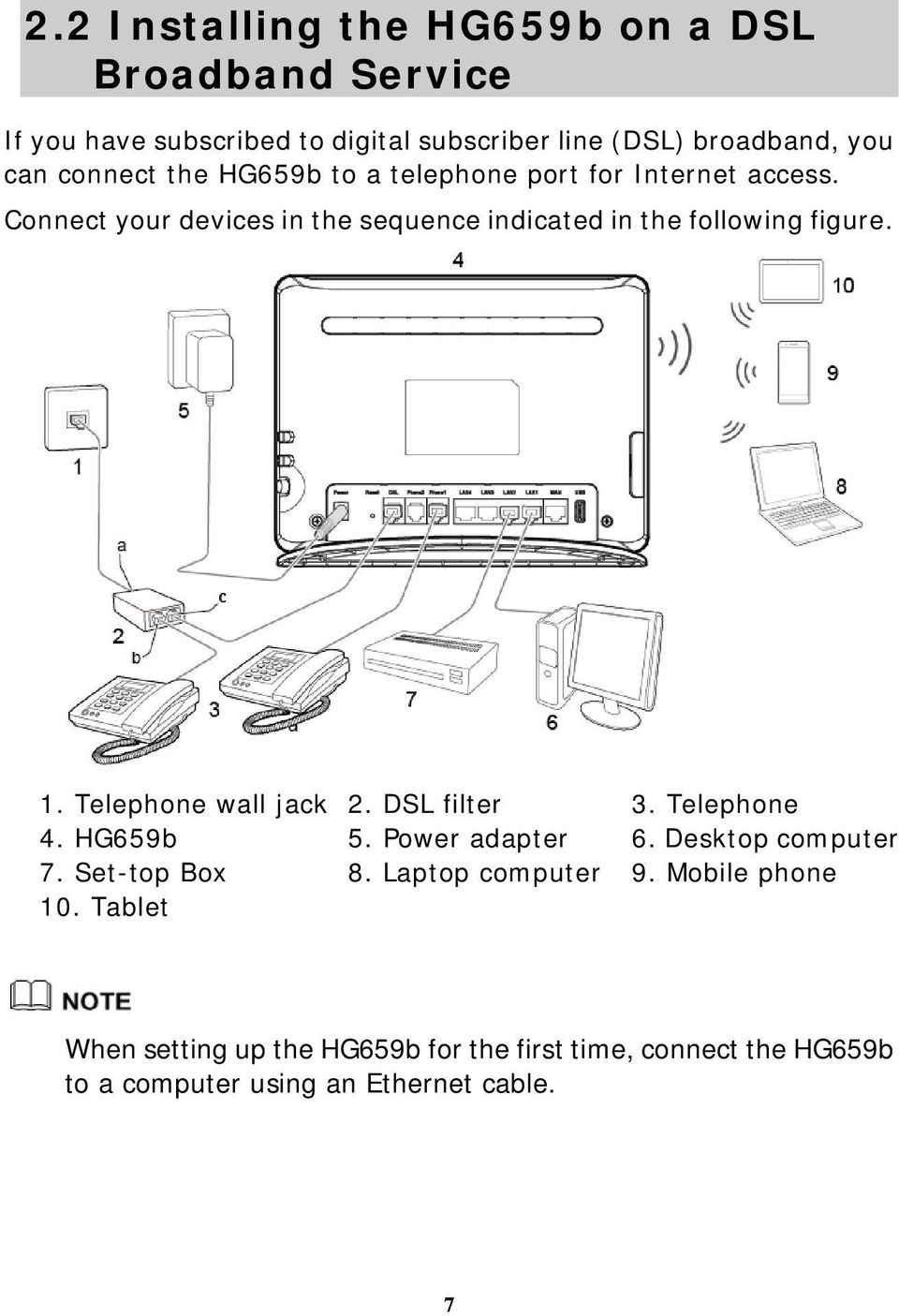
15 2.3 Installing the HG659b on a Fibre Broadband Service In some regions, broadband service is delivered by a Fibre connection. On this network, your HG659b gateway is directly connected to the Internet through the local fibre company optical termination point (ONT) installed in your premise. If you have subscribed to fibre broadband services, connect your HG659b WAN Ethernet port to your fibre company ONT using the blue Ethernet cable supplied. Connect your devices in the sequence indicated in the following figure. 1. Ethernet wall jack 2. HG659b 3. Power adapter 4. Desktop computer 5. Set-top Box 6. Telephone 7. Laptop computer 8. Mobile phone 9. Tablet 8

16 2.4 Installing USB Mobile Broadband on the HG659b If you wish to use 3G mobile broadband to access the Internet, plug in a supported 3G USB Mobile Broadband T-Stick into the USB interface in the rear of the HG659b. Connect your devices in the sequence indicated in the following figure. 1. Data card 2. HG659b 3. Power adapter 4. Desktop computer 5. Set-top Box 6. Telephone 7. Laptop computer 8. Mobile phone 9. Tablet Using 3G Mobile Broadband incurs mobile broadband data charges. Ensure your mobile broadband data plan is correct for your needs before using. 9

17 2.5 Getting Started To power on the HG659b, press its power button. After the HG659b is powered on, the HG659b indicator turns on. If the indicators do not behave as expected, ensure that everything is plugged in correctly. 10

18 3 Setting Network Parameters 3.1 Logging In to the Web Management Page The HG659b provides an intuitive web management page where you can view or set the HG659b parameters. Before you log in to the HG659b web management page, ensure that the computer used for the login is connected to the HG659b and has been configured to automatically obtain an IP address or assigned with a static IP address. Step 1 Open a browser. In the address box, enter and press Enter to access the web management page. Step 2 Enter the login user name (admin by default) and password (admin by default). Click Login. To protect against unauthorized access, change the user name and password after the first login. 3.2 Setting Network Access Parameters Configuring an Automatical Connection to Access the Internet The HG659b supports you to choose the proper connection mode automatically to access the Internet, meaning you do not need to install dial-up software or perform dial-up operations on your computer and just following the Start Wizard page. To set up an automatical connection to access the Internet: 11

19 Step 1 Log in to the web management page. Step 2 On the I want to... Connect to the Internet page, choose Connect automatically. Step 3 In the displayed dialog box, enter the user name and password that are provided by your service provider, and then click Next. The HG659b supports DSL/Ethernet/3G compliance uplink mode, meaning you can use the HG659b with a telephone port, a network interface on the wall or the data card for Internet access. Then check the status of the Internet indicator. When the Internet indicator turns green, you can access the Internet. The preceding operations need only be performed once. The next time you power on the computer, you can access the Internet without performing the same configurations Configuring a Wireless Account After you complete the preceding settings, click Set Up WLAN, you will see the I want to Set Up WLAN page used to configure the wireless account. The default SSID and WLAN Key printed on the HG659b's rear panel are unique and secure. If you do not want to change them, just turn the WLAN switch on. For security reasons or to make the password easy to remember, you can change the wireless network name and password as follows: Step 4 On the I want to Set Up WLAN page, choose the 2.4 GHz or the 5 GHz WLAN network. Step 5 Enter your desired SSID (WLAN name) and WLAN password. Step 6 Click Save. 12

20 4 Wireless Connection Setup 4.1 Enabling and Disabling the WLAN on the HG659b Using the WLAN Button Press the WLAN button in the HG659b to enable or disable the WLAN. To ascertain whether the WLAN is enabled, view the WLAN indicator. The WLAN function is enabled by default. You can enable or disable the WLAN as follows: Press the WLAN button (more than 1 second) the first time to disable WLAN. Press the WLAN button (more than 1 second) the second time to enable WLAN Using the Web Management Page Step 1 Log in to the web management page. Step 2 In the navigation tree, choose Home Network > WLAN Settings > Basic Settings. Step 3 On the Basic Settings page, enable or disable your WLAN, and click Save. 13

21 4.2 Setting Up a Wireless Connection Using the WPS Button Push the WPS button once to quickly set up a wireless connection between the HG659b and any WPS-capable device. The wireless device (laptop, tablet, or mobile phone) to connect to the HG659b is WPS-capable. The wireless network security mode of the HG659b is WPA2-PSK or WPA-PSK/WPA2-PSK, for the WPS function can be used only when the security mode of the WLAN is set to WPA2-PSK, or WPA-PSK/WPA2-PSK. Table 4-1 Security mode and description Security mode None WEP WPA-PSK WPA2-PSK WPA-PSK+ WPA2-PSK Description It is the open system authentication mode. In this mode all wireless devices can access the wireless network. Include the open system authentication and shared key authentication. When a wireless client accesses the wireless network, an encryption key is required for authentication. The WPA-PSK is a simplified WPA authentication mode that uses a pre-shared key. The WPA2-PSK is a simplified WPA2 (IEEE i) authentication mode, which is another authentication mode that uses a pre-shared key, and is a more robust security mode. Compatible with WPA-PSK and WPA2-PSK authentication mode. Before you set up a wireless connection using the WPS button, verify the following: 14
22 Step 1 Enable the HG659b s WPS function. 1. Log in to the web management page. 2. In the navigation tree, choose Home Network > WLAN Access. 3. Select Enable WPS to enable the WPS function. 4. In WPS configuration, click WPS by push button (PBC), and click Save. Step 2 Press the WPS button on the wireless device to start WPS negotiation. For details, see the user guide for the wireless device. Step 3 Within 2 minutes, press and hold the WPS button on the HG659b for 1 second or more. The WPS button indicator blinks. When the WPS button indicator on the HG659b is steady on, a connection between the HG659b and wireless device is set up. The WPS button indicator is on for 300 seconds. 15
23 4.3 Manually Setting Up a Wireless Connection The wireless configuration software provided by Windows is used as an example to describe how to set up a wireless connection. You can also use the tool built into the network adapter to set up a wireless connection. For details, see the network adapter's user guide. Before setting up a wireless connection, record the WLAN name and password of the HG659b. The default WLAN name and password are printed on the HG659b cover label. On Windows XP Step 1 Choose Start > Control Panel > Network and Internet Connections > Network Connections. Right-click Wireless Network Connection and choose View Available Wireless Networks from the shortcut menu. Step 2 From the wireless network list, select the WLAN provided by the HG659b. Click Connect. Step 3 In the displayed dialog box, enter the WLAN password and click Connect. Note that the WLAN password is case sensitive. Step 4 In the wireless network list, check the WLAN connection status. If the status is Connected, the computer is wirelessly connected to the HG659b. On Windows Vista Step 1 Choose Start > Control Panel > Network and Internet > Network and Sharing Center > Manage wireless networks. Step 2 In the Connecting to a network window, double-click the WLAN provided by the HG659b. 16
24 Step 3 In the displayed dialog box, enter the password and click Connect. Step 4 In the wireless network list, check the WLAN connection status. If the status is Connected, the computer is wirelessly connected to the HG659b. On Windows 7 Step 1 Choose Start > Control Panel > Network and Internet > Network and Sharing Center > Change adapter settings. Right-click Wireless Network Connection, and select Connect/Disconnect. Step 2 From the wireless network list, select the WLAN provided by the HG659b. Click Connect. Step 3 In the displayed dialog box, enter the WLAN password and click OK. Note that the WLAN password is case sensitive. Step 4 In the wireless network list, check the WLAN connection status. If the status is Connected, the computer is wirelessly connected to the HG659b. On Windows 8 Desktop Step 1 From the wireless network list on the right side of the desktop, select the SSID of the wireless network you want to connect to, and then click Connect. Step 2 In the displayed dialog box, enter the password and click Next. You can also press the WPS button on the access point or wireless router. Step 3 Choose whether to enable sharing and connect to devices on your network according to the wireless network environment. Step 4 Check the connecting status of the wireless network. Connected indicates that you have successfully connected to the wireless network. On Windows 8 Mobile Step 1 From the Home screen, touch > SETTINGS > WIFI. Step 2 Under SEETINGS WiFi, switch Wi-Fi to ON. Your phone then searches for WLANs within range. 17
25 Step 3 From the search results, touch the WLAN provided by the HG659b. Step 4 In the displayed dialog box, enter the WLAN password and touch done. Note that the WLAN password is case sensitive. Step 5 When connected is displayed under the HG659b's SSID, the device is connected to the wireless network. On Google Android 4 Step 1 From the Home screen, touch > Settings. Step 2 In WIRELESS & NETWORKS, switch Wi-Fi to ON. Your phone then scans for available Wi-Fi networks and displays them. Step 3 From the search results, touch the WLAN provided by the HG659b. Step 4 In the displayed dialog box, enter the WLAN password and touch Connect. Note that the WLAN password is case sensitive. Step 5 When Connected is displayed under the HG659b's SSID, the device is connected to the wireless network. On Apple Mac OS X Step 1 Click on the status bar on the Mac desktop. Choose Turn AirPort On from the displayed menu. The device then scans for available wireless networks within range. Step 2 From the search results, select the WLAN provided by the HG659b. Step 3 In the displayed dialog box, enter the WLAN password and click Join. Note that the WLAN password is case sensitive. Step 4 When a check mark appears next to the HG659b's SSID, the device is connected to the wireless network. On Apple ios Step 1 From the Home screen, touch Settings> Wi-Fi. Step 2 In Wi-Fi Networks, swith Wi-Fi to on. 18
26 Your phone then scans for available wireless networks within range. Step 3 From the search results, select the WLAN provided by the HG659b. Step 4 In the displayed dialog box, enter the WLAN password and click Join. Note that the WLAN password is case sensitive. Step 5 When a check mark appears next to the HG659b's SSID, the device is connected to the wireless network. 4.4 Changing Your WLAN Name and Password WLAN access requires the WLAN name and password. To improve your WLAN security, regularly change your WLAN name and password. Step 1 Log in to the web management page. Step 2 In the navigation tree, choose Home Network > WLAN Settings Step 3 On the Basic Settings page, enable your WLAN, and click Save. Step 4 On the WLAN Encryption page, enter your desired WLAN SSID and Key, and click Save. Step 5 In SSID and WPA Pre-Shared Key, enter your desired WLAN SSID and key. Step 6 Click Submit to save the settings. 19
27 5 USB Device 5.1 USB Storage Device USB storage devices use their USB ports to exchange data with other devices. You can connect a USB storage device to your HG659b and access the USB device from your computer. Both the USB drive and removable hard disk can connect to your HG659b. Your HG659b supports the following file systems for reading and writing. FAT32/FAT NTFS MAC OS Ext 2/3 5.2 Connecting a USB Device After you connect a USB device to your HG659b, computers or other devices connected to the HG659b network can access and share the data in or applications provided by the USB device. If you connect a USB device to the HG659b, verify that the input voltage and current of the USB device does not exceed 5 V/0.65 A. Otherwise, the HG659b may malfunction. You can connect the following USB devices to your HG659b: Spark USB Mobile Broadband T-Stick USB storage device USB printer 20
28 5.3 Content Sharing The HG659b supports a home storage function, you can read and write files on a storage device and access the removable storage device through the HG659b, and configure the HG659b through a FTP server or Samba server to access the portable storage device from the LAN or Internet Setting the FTP Access Permission Accessing to FTP Server Through the User Name and Password Step 1 Connect the mobile storage device to the HG659b's USB port. Step 2 Enable the FTP server, and configure the FTP server settings. 1. Log in to the web management page. 2. Choose Share > Storage Share. 3. In Service Settings, select Enable FTP for FTP server. 4. Click Save to save the settings. Step 3 Set the user name and password of the portable storage device 1. In Username and Password, enter a user name and password for the FTP server, and re-enter the password to confirm it. 2. In Directory mode, select Choose directory, and then click Choose Directory to choose a file sharing path. 3. In Privilege, select the desired right. 4. Select Enable account. 5. Click Save to save the settings. 21
29 Accessing to FTP server Anonymously Step 1 Connect the portable storage device to the HG659b's USB port. Step 2 Enable the FTP server. 1. Log in to the web management page. 2. Choose Share > Storage Share. 3. In Service Settings, select Enable FTP for FTP server. 4. Click Save to save the settings. Step 3 Enable anonymous users. 1. In FTP Anonymous Users, select Enable anonymous users. 2. In Directory mode, choose a file sharing path. 3. In Privilege, select the desired right. 4. Click Save to save the settings. Accessing a USB Storage Device Using FTP You can access a USB storage device through the FTP server. To access a USB storage device using FTP, connect the USB storage device to your HG659b and set the FTP login parameters. Step 1 Open a browser on your computer. Step 2 In the address box, enter ftp:// Press Enter. Step 3 In the Login dialog box, enter the login user name and password your set in the HG659b's Storage Share page (Anonymous users select the anonymous directly). Click Login. Once you pass the authentication, the directory of and files in the USB storage device will be displayed. 22
30 5.3.2 Setting the Samba Access Permission To prevent unauthorized users from accessing data stored in USB devices, you can set the Samba access permission for the HG659b. After this permission is set, only authorized users can access data stored in USB devices. Step 1 Connect the portable storage device to the HG659b's USB port. Step 2 Enable the samba server. 1. Log in to the web management page. 2. Choose Share > Storage Share. 3. In Service Settings, select Enable SAMBA for samba server. 4. Click Save to save the settings. Step 3 Set the user name and password of the portable storage device. 1. In Username and Password, enter a user name and password for the samba server, and re-enter the password to confirm it. 2. In Directory mode, choose a file sharing path. 3. In Privilege, select the desired right. 4. Click Save to save the settings. Accessing Data Using Samba Using Samba, you can securely and easily access data stored in USB devices by accessing shared network directories. You have connected a USB device to the HG659b and set its access permission. Step 4 On your computer, open a browser. 23
31 Step 5 Enter \\ in the address box, and then press Enter. If the access permission of the USB device is set, your identity will be authenticated. During the authentication, follow the onscreen instructions. When the authentication is successful, you will be able to access data stored in the USB device. 24
32 5.4 Sharing a USB Printer HG659b supports USB printers. After you connect a USB printer to your HG659b through the USB port, and install the printer s driver in your computer, you can access the printer from the Internet or internal network. Step 1 Connect the USB cable of the printer to the USB port on the HG659b. Step 2 Add a Network Printer. On Windows XP 1. Choose Start > Printers and Faxes. 2. Choose Add a printer. 3. In the Add Printer Wizard dialog box, click Next. 4. Choose A network printer, or a printer attached to another computer and click Next. 5. Choose Connect to a printer on the Internet or on a home or office network and enter the printer's address in the URL text box. myprinter is the customized name of the printer to add. Click Next. 6. Select the model of the printer you want or click Have Disk to manually install the printer drive. Click OK. 7. Determine whether to set the printer as the default printer. Click Next. 8. Click Finish. On Windows Vista 1. Choose Start > Control Panel > Hardware and Sound > 25
33 Printer. 2. Choose Add Printer. 3. Choose Add a network, wireless or Bluetooth printer. 4. The operating system will now attempt to independently make the printer connected locate. If the connected printer can not be found, click The printer that I want isn't listed. 5. Choose Select a shared printer by name and enter the printer address in the text box. myprinter is the customized name of the printer to add. Click Next. 6. Select the model of the printer you want or click Have Disk to manually install the printer drive. Click OK. 7. Determine whether to set the printer as the default printer. Click Next. 8. Click Finish. On Windows 7 1. Choose Start > Devices and Printers. 2. Choose Add a printer. 3. Choose Add a network, wireless or Bluetooth printer. 4. Select The printer that I want isn't listed to add a new one. 5. Choose Select a shared printer by name and enter the printer address in the text box. myprinter is the customized name of the printer to add. Click Next. 26
34 6. Select the model of the printer you want or click Have Disk to manually install the printer drive. Click OK. 7. Click Next. 8. Determine whether to set the printer as the default printer. Click Finish. On Windows 8 Desktop 1. Choose Start > Control Panel > Hardware and Sound > Devices and Printers. 2. Choose Advanced Printer Setup. 3. Choose Add a printer. 4. The operating system will now attempt to independently make the printer connected locate. If the connected printer can not be found, click The printer that I want isn't listed. 5. Choose Select a shared printer by name and enter the printer address in the text box. myprinter is the customized name of the printer to add. Click Next. 6. Select the model of the printer you want or click Have Disk to manually install the printer drive. Click Next. 7. Click Next. 8. Click Finish. On Mac OS X 1. Choose System Preferences > Print & Fax. 2. Click + to add a new printer. 27
35 3. Select IP Printer on the Printer Browser. 4. Set the printer information as follows: Protocol: Internet Printing Protocol-IPP Address: :631 Queue: printers/myhg659bprinter The printer name myhg659bprinter is the customized name of the printer, which can be any text string up to 40 characters. Print Using: Select a correct driver for the printer. 5. Click Add. Then check the status of new printer from Print & Fax, status should be shown ready. After you complete the preceding settings, open the files you want to print on your computer. Then you can choose the printer just installed to print your files. 6 IP Telephony 6.1 Introduction to IP Telephony IP telephony, namely voice over Internet Protocol (VoIP), is also called broadband telephony or Internet telephony. It utilizes Internet Protocol (IP) network technologies to implement voice communication. During a VoIP call, voice signals are digitized, encoded, packetized, and transmitted as packets over a network. On the receiving side, the packets are then decoded, and digital signals are converted to reproduce the original voice streams, which can be heard by the called party. Different from traditional PSTN calls, VoIP calls are transported over IP networks, meaning voice streams are 28
36 transmitted over users' existing broadband Internet. This makes full use of broadband resources. 6.2 Configuring VoIP The HG659b supports VoIP. You can place VoIP calls after your phone is connected to the Phone port on the HG659b. To use the HG659b to place VoIP calls, ask your network service provider to activate VoIP services for you. By default, your network service provider will have all related parameters, such as the VoIP account and address, set for you. You will not need to configure any settings to place VoIP calls. To configure voice services, do as follows: Step 1 Configure a VoIP provider. 1. Choose Telephony > VoIP to display the VoIP provider page. 2. Click New VoIP provider. 3. Enter the VoIP provider name provided by the service provider. 4. Enter the IP address or name of the SIP registrar server provided by the service provider in the Primary registrar text box. 5. Enter the port number of the SIP registrar server provided by the service provider in the primary registrar Port text box. If the service provider does not provide the port number, the default value should be used. 6. Enter the IP address or name of the SIP proxy server provided by the service provider in the Primary proxy text box. 7. Enter the port number of the SIP proxy server provided by 29
37 the service provider in the primary proxy Port text box. 8. Enter the home domain name of the SIP user in the SIP domain box. 9. Click Save to save the settings. Step 2 Configure a VoIP number. 1. Choose Telephony > VoIP > VoIP Numbers to display the VoIP configuration page. 2. Select the VoIP provider name from the drop-down list box. 3. Enter the SIP phone number. 4. Enter the SIP user name and password. 5. Click Save to save the settings. Step 3 Associate your telephone to the VoIP number. 1. Choose Telephony > Telephone to display the telephony page. 2. Associate your telephone to the VoIP number. 6.3 Placing a VoIP Call Once your network service provider has activated VoIP services for you, you will be assigned a VoIP account, which is also your VoIP call number. Before placing a VoIP call, ensure that the HG659b has connected to the network. When the call is stablished, your VoIP call number is displayed on the called party's phone. For VoIP call tariffs, contact your network service provider. 30
38 7 IPTV 7.1 Introduction to IPTV Internet Protocol Television (IPTV) is digital television delivered on your television (and not PC) through high speed internet (broadband) connection. In this service, channels are encoded in IP format and delivered to the TV through a set top box. 7.2 Configure IPTV The HG659b supports IPTV. You can watch IPTV from your network service provider after your STB is conneced to the LAN port on the HG659b. To use the HG659b to watch IPTV, ask your network service provider to activate IPTV services for you. By default, your network service provider will have all related parameters, such as the VLAN id, internet account and password, set for you. To configure voice services, do as follows: Step 1 Log in to the web management page. Step 2 Choose Internet > IPTV Service. Step 3 In IPTV Setup, select Enable IPTV. Step 4 In Access type, select your IPTV access type. Step 5 In LAN interface, select a LAN port for IPTV service. The LAN port which bound for IPTV service will not be used for internet access. Step 6 In Connection type, select your IPTV connection type. Step 7 In VPI/VCI, enter the VPI and VCI parameters provided by your IPTV service provider. 31
39 Step 8 Enable the VLAN and enter the VLAN id provided by your IPTV service provider. Step 9 Click Save. 8 Advanced Configuration 8.1 Parent Control Controlling Computer Internet Access Your HG659b provides time control function. With this function, you can set limits on the duration of Internet usage. You can confine Internet access to specific computers or deprive specific computers of Internet access. Step 1 Log in to the web management page. Step 2 In the navigation tree, choose Internet > Parental Control > Time Rules. Step 3 Click New time rule. Step 4 In Rule name, enter a new rule name you specified. Step 5 In Time allowed, set the time range that allowed to access the Internet. Step 6 Select the device you want to control. Step 7 Click Save Filtering Out Inappropriate Websites Use URL filtering to prevent certain websites from being accessed. Step 1 Log in to the web management page. Step 2 In the navigation tree, choose Internet > Parental Control > URL Fliter. Step 3 Click New URL fliter. Step 4 In URL, enter the website address you specified. Step 5 Select Manage devices manually, and select the device you want to apply to. 32
40 Step 6 Click Save. 8.2 Configuring the DMZ The HG659b supports Demilitarized Zone (DMZ), which is used to solve the problem that the external network equipped with a firewall cannot access the internal network server. After DMZ is enabled, the computer that is configured as a DMZ host is exposed to the Internet. For example, when building a server, you can configure the computer providing external services as a DMZ host, which helps protect other computers on the home network. To assign a computer or server to be a DMZ host: Step 1 Log in to the web management page. Step 2 In the navigation tree, choose Internet > Network Security. Step 3 Click DMZ. Step 4 In Host address, select or add a computer's IP address that assigned to be a DMZ host. Step 5 Select Enable DMZ. Step 6 Click Save to activate the DMZ host. 8.3 Configuring the DLNA You can play media files on a portable storage device using the DLNA function of the HG659b. To play media files on the portable storage device with Windows Media Player, do as follows: Step 1 Enable the DLNA function. 1. Log in to the web management page. 2. In the navigation tree, choose Internet > Multimedia Share. 3. Select the sharing directory mode you want to apply to. 33
41 4. Click Save. Step 2 Access your portable storage device using Windows Media Player. 1. Open the Windows Media Player on your computer. 2. In the navigation tree, choose Home Gateway Media Server. You can then select media files (such as music, video, photo) and enjoy them. 8.4 Configuring the Firewall The firewall can protect the terminal against malicious access on the WAN port and is used when the HG659b works in routing mode. To configure the firewall, do as follows: Step 1 Log in to the web management page. Step 2 In the navigation tree, choose Internet > Network Security > Firewall. Step 3 Select a firewall level for Firewall level. Step 4 Click Submit. Off: The firewall does not monitor or filter through any Internet activities. Low: The firewall monitors and filters through some Internet activities. If you play network games and access entertainment services often without connecting to computers on the home network, select this level. High: The firewall monitors and filters through all Internet activities. If you have high security requirements, select this level. 34
42 9 Maintenance Guide 9.1 Changing the Web Management Page User Name and Password The correct user name and password are required to log in to the web management page. Regular changes to the web management page user name and password can effectively prevent unauthorized users from logging in and modifying important parameters. Step 1 Log in to the web management page. Step 2 In the navigation tree, choose Maintain > Account Management. Step 3 Click Edit. Step 4 Enter your current password, and a new password. Re-enter the new password to confirm it. Step 5 Click Save. When modify password successfully, this page will jump to the login page, enter the new user name and password to log in. If you forget the password, you can press and hold the Reset button for 6 seconds or more, then the user name and password of the web management page will back to factory value. This operation will make your own configuration data lost, please perform this operation with caution. 9.2 Restoring Default Settings If you restore the HG659b to its default settings, all customized user data will be lost. Use this function only when necessary. 35
43 9.2.1 Using the Configuration Tool If the HG659b parameter settings were configured incorrectly, log in to the web management page to reload the default configuration file and restore the user to its default settings. Perform this operation with caution. After the user is restored to its default settings, all custom data and settings will be lost, and the password will be restored to user. Step 1 Log in to the web management page. Step 2 In the navigation tree, choose Maintain > Device Management. Step 3 In Factory Restore, click Reset. Step 4 In the displayed dialog box, click OK Using the Reset Button If you forget the login password to the web management page or could not access the web management page, use the Reset button on the HG659b rear panel to restore the HG659b to its default settings. Perform this operation with caution. After the HG659b is restored to its default settings, all custom data and settings will be lost, and the password will be restored to user. Step 1 Press the HG659b power button to power the HG659b on. Step 2 Press and hold the Reset button for 8 seconds to 10 seconds. The HG659b will restart, which will cause temporary network interruptions. After the HG659b is restored to its default settings, change the computer IP address so that it is in the same network segment as the default IP address. 36
44 9.3 Changing the Web Management Page IP To make the login IP address easy to remember or from avoiding the IP address of the router conflict with other device in your home, you can change the IP address of the router after logging in to the web management page. Step 1 Log in to the web management page. Step 2 Choose Home Network > LAN Interface. Step 3 Click LAN Interface Settings. Step 4 In IP address, enter the new IP address you specified, and then click Save. Step 5 In the displayed dialog box, click OK. After you change the IP address successfully, enter the new IP address for logging in. 37
45 10 FAQs How can I quickly restore the default settings of the HG659b? When the HG659b is powered on, press and hold the Reset button for 6 or more seconds, and then release it. The HG659b then automatically restarts and the default settings are restored. What can I do if I cannot access the HG659b configuration page? Step 1 Check the IP address of your computer and ensure that this IP address is in the same network segment as the HG659b LAN IP address. Step 2 Ensure that your Web browser does not use a proxy server. Step 3 Ensure that you have entered the valid user name and password used to access the HG659b configuration page. If the problem persists, restore the default settings of the HG659b. If my computer fails to connect to a WLAN after I press and hold the WPS button, what should I do? Step 1 Ensure that only one computer is connecting to the HG659b through the WPS function at one time. Step 2 On the HG659b, ensure that the wireless network function and the WPS function implemented through the PBC method are enabled. Step 3 Ensure that the security mode of the WLAN is set to WPA2-PSK or WPA-PSK+WPA2-PSK. Note that the WPS function of the HG659b is forcibly disabled if the WEP encryption is used for the WLAN. Step 4 Check the positions of the HG659b and computer. Ensure that they are far from electric appliances that generate strong magnetic or electric fields, such as microwave ovens, refrigerators, and cordless telephones. Step 5 Place the HG659b and the computer in an open space. Although radio signals can pass through obstacles, passing 38
46 through too many obstacles, such as walls and columns may negatively impact the transmission of WLAN radio signals. What can I do if I cannot access the Internet through a wireless network adapter? Step 1 Ensure that the power cables and telephone lines of the HG659b are connected properly. Step 2 Check whether the WLAN indicator of the HG659b is on. If the WLAN indicator is off, the WLAN function of the HG659b is disabled. If this is the case, enable the WLAN function. For details about how to enable the WLAN function, see section 5.1 "Enabling or Disabling the WLAN Function." Step 3 Look at the description of the wireless network adapter that is installed on the computer and check whether the wireless network adapter supports the b, g, or n protocols. If the wireless network adapter does not support the preceding protocols, replace it. Step 4 Check whether the driver for the wireless network adapter is installed on the computer properly. If the driver is installed improperly, re-install it. Step 5 Check whether the computer can receive signals from the WLAN. If the computer cannot detect a WLAN, place the computer close to the HG659b and ensure that no obstacles (such as cement or wooden walls) are present between the computer and the HG659b. Step 6 Check whether the computer accesses the WLAN of the HG659b successfully. Check the list of wireless network connections and ensure that the HG659b is connected to the WLAN. Step 7 Try to access different web sites to check whether the HG659b can access other web sites. 39
47 If the HG659b cannot access other web sites, restore to the default settings of the HG659b. If the problem persists, contact your service provider. How do I improve the transmission quality of wireless signals? Step 1 Check the positions of the HG659b and computer. Ensure that they are far from electric appliances that generate strong magnetic or electric fields, such as microwave ovens, refrigerators, and cordless telephones. Step 2 Place your HG659b in an open space. Although radio signals can pass through obstacles, passing through too many obstacles, such as cement or wooden walls may negatively impact the transmission of WLAN radio signals. Step 3 Place your computer close to your HG659b. If your computer is far from your HG659b, the transmission of radio signals may be negatively impacted. Step 4 Place your HG659b and computer in a different direction. Step 5 Avoid using your HG659b to access a WLAN during thunderstorms. I Often Need to Restart the HG659 to Display Web Pages. What Can I Do? Verify the following: Step 1 The HG659b and other devices such as telephones or fax machines are connected to the plain old telephone service (POTS) line through a digital subscriber line (DSL) filter. For details about how to install a DSL filter, see the description in the DSL filter manual. Step 2 Cables are securely connected to HG659b ports. Otherwise, network stability may suffer. Step 3 Your computer and the HG659b are far from electric appliances that generate strong magnetic or electric fields, such as microwave ovens, refrigerators, and cordless telephones. 40
48 If the problem persists, contact your Internet Service Provider. 41
49 11 Appendix 11.1 Default Settings Parameter Setting IP address of the LAN port Subnet mask of the LAN port User name used to log in to the web-based configuration utility Password used to log in to the web-based configuration utility SSID used to access wireless network WLAN key used to access wireless network DHCP server function WLAN function admin admin Check the label on the HG659b's rear panel Check the label on the HG659b's rear panel Enable Enable 42
50 11.2 Technical Specifications Item Power supply Ambient temperature for operation Dimensions (H W L) Weight (Not including the power adapter) Relative humidity for operation Specification 12 V DC, 2 A 0 C to 40 C (32 F to 104 F) About 232 mm 181 mm 35 mm < 350 g 5% to 95%, non-condensing WLAN standards b, g and n (2.4 GHz) Wireless transmission rates b Up to 11 Mbit/s g Up to 54 Mbit/s n Up to 300 Mbit/s 43
51 12 For More Help Please visit for recently updated hotline and address in your country or region. 44
52 HUAWEI TECHNOLOGIES CO., LTD. Huawei Industrial Base Bantian, Longgang Shenzhen People's Republic of China
HG659 Home Gateway. User Guide HUAWEI TECHNOLOGIES CO., LTD.
 HG659 Home Gateway User Guide HUAWEI TECHNOLOGIES CO., LTD. Product Overview...................................... 1 Ports and Buttons.................................................. Indicators.........................................................
HG630b Home Gateway. User Guide HUAWEI TECHNOLOGIES CO., LTD.
 HG630b Home Gateway User Guide HUAWEI TECHNOLOGIES CO., LTD. HG630b Home Gateway V100R001 User Guide Issue 202635_01 Huawei Technologies Co., Ltd. provides customers with comprehensive technical support
HUAWEI HG533 Home Gateway. User Guide HUAWEI TECHNOLOGIES CO., LTD.
 HUAWEI HG533 Home Gateway User Guide HUAWEI TECHNOLOGIES CO., LTD. HUAWEI HG533 Home Gateway V100R001 User Guide 202466_02 Huawei Technologies Co., Ltd. provides customers with comprehensive technical
HG658c Home Gateway. User Guide HUAWEI TECHNOLOGIES CO., LTD.
 HG658c Home Gateway User Guide HUAWEI TECHNOLOGIES CO., LTD. HG658c Home Gateway V100R001 User Guide Issue 01 Date 2012-10-19 Part Number 202537 Huawei Technologies Co., Ltd. provides customers with comprehensive
HG532s Home Gateway. User Guide HUAWEI TECHNOLOGIES CO., LTD.
 HG532s Home Gateway User Guide HUAWEI TECHNOLOGIES CO., LTD. HG532s Home Gateway V100R001 User Guide Issue 202506_02 Huawei Technologies Co., Ltd. provides customers with comprehensive technical support
HUAWEI HG256s. Home Gateway Quick Start
 HUAWEI HG256s Home Gateway Quick Start 1 Introduction The Front Panel of the HG256s The front panel of the HG256s provides the following indicators: One power indicator: POWER One Internet indicator: INTERNET
PT500 500Mbps Powerline Adapter. User Guide
 PT500 500Mbps Powerline Adapter User Guide PT500 500Mbps Powerline Adapter V100R001 User Guide 202593_04 Huawei Technologies Co., Ltd. provides customers with comprehensive technical support and service.
HUAWEI HG655a. Home Gateway Quick Start
 HUAWEI HG655a Home Gateway Quick Start 1 Introduction 1.1 Contents in the package HG655a Splitter Power Adapter Telephone Cables Ethernet Cable User CD-ROM General Public License Warranty Card 1 1.2 The
LET S GO. Get your Ultra Broadband ready Business gateway up and running
 LET S GO Get your Ultra Broadband ready Business gateway up and running CONTENTS BUSINESS GATEWAY ULTRA BROADBAND READY 1 2 3 4 5 6 7 8 9 10 11 12 13 14 15 Equipment Check 2 Getting Started 3 Setting Up
Part Number: 203285. HG253s V2 Home Gateway Product Description V100R001_01. Issue HUAWEI TECHNOLOGIES CO., LTD.
 Part Number: 203285 HG253s V2 Home Gateway Issue V100R001_01 HUAWEI TECHNOLOGIES CO., LTD. 2013. All rights reserved. No part of this document may be reproduced or transmitted in any form or by any means
Let s go. Get your Ultra Broadband ready modem up and running
 Let s go Get your Ultra Broadband ready modem up and running Contents TELECOM HOME MODEM ULTRA BROADBAND READY 1 2 3 4 5 6 7 8 9 10 11 12 13 14 15 16 Equipment Check 2 Getting Started 3 Setting Up Fibre
P-2302HWUDL-P1. Quick Start Guide. 802.11g Wireless VoIP Station Gateway. with Built-in DECT Base Station
 P-2302HWUDL-P1 802.11g Wireless VoIP Station Gateway with Built-in DECT Base Station Quick Start Guide Version 3.60 Edition 1 3/2007 Overview The P-2302HWUDL-P1 model is a router with IEEE 802.11g wireless
Network Installation Guide
 Network Installation Guide Before You Begin Make sure you installed ink cartridges and loaded paper as described on the Start Here sheet. Then follow the instructions in this guide to set up the printer
MN-700 Base Station Configuration Guide
 MN-700 Base Station Configuration Guide Contents pen the Base Station Management Tool...3 Log ff the Base Station Management Tool...3 Navigate the Base Station Management Tool...4 Current Base Station
Quick Start Guide. WRV210 Wireless-G VPN Router with RangeBooster. Cisco Small Business
 Quick Start Guide Cisco Small Business WRV210 Wireless-G VPN Router with RangeBooster Package Contents WRV210 Router Ethernet Cable Power Adapter Product CD-ROM Quick Start Guide Welcome Thank you for
User Manual. Page 2 of 38
 DSL1215FUN(L) Page 2 of 38 Contents About the Device...4 Minimum System Requirements...5 Package Contents...5 Device Overview...6 Front Panel...6 Side Panel...6 Back Panel...7 Hardware Setup Diagram...8
Using the Control Panel for Wireless Network Installation. WorkForce 600 Series Artisan 700 Series
 Using the Control Panel for Wireless Network Installation WorkForce 600 Series Artisan 700 Series Before You Begin Make sure you installed ink cartridges and loaded paper in the printer as described on
Network Installation Guide. WorkForce 600 Series Artisan 700 Series Artisan 800 Series
 Network Installation Guide WorkForce 600 Series Artisan 700 Series Artisan 800 Series Before You Begin Make sure you installed ink cartridges and loaded paper as described on the Start Here poster. Then
RESIDENTIAL GATEWAY. Model TG784n USER MANUAL
 RESIDENTIAL GATEWAY Model TG784n USER MANUAL version 2011 CONTENTS TECHINICAL SPECIFICATIONS HARDWARE SETUP LED BEHAVIOR INSTALLATION REQUIREMENTS EASY SETUP MANUAL SETUP WIRELESS CONFIGURATION PORT FORWARDING
The range of Wi-Fi coverage and usage. Hub Computers which can
 300Mbps Wireless LAN Repeater Quick Start Guide Version:MZK-EX300N_QIG-A_V1.1 In order to guarantee the correct usage of our products, this guide gives instructions on how to set and use our products.
DSL-2600U. User Manual V 1.0
 DSL-2600U User Manual V 1.0 CONTENTS 1. OVERVIEW...3 1.1 ABOUT ADSL...3 1.2 ABOUT ADSL2/2+...3 1.3 FEATURES...3 2 SPECIFICATION...4 2.1 INDICATOR AND INTERFACE...4 2.2 HARDWARE CONNECTION...4 2.3 LED STATUS
HG658 V2 Home Gateway User Guide
 HG658 V2 Home Gateway User Guide Contents 1 Product Overview 1 Supported Features 2 Ports and Buttons 3 Indicators 2 Hardware Installation 6 Selecting an Installation Location 6 Installing the HG658 V2
CPEi 800/825 Series. User Manual. * Please see the Introduction Section
 CPEi 800/825 Series User Manual * Please see the Introduction Section Contents Introduction...iii Chapter 1: CPEi 800/825 User Guide Overview... 1-1 Powerful Features in a Single Unit... 1-2 Front of the
VSG1432. User Setup Guide. 802.11n Wireless VDSL2 4-port Gateway. Default Login Details. www.zyxel.com. Firmware Version 1.10 Edition 1, 10/2011
 VSG1432 User Setup Guide 802.11n Wireless VDSL2 4-port Gateway Default Login Details IP Address http://192.168.1.254 Username admin Password telus Firmware Version 1.10 Edition 1, 10/2011 www.zyxel.com
DVG-2101SP VoIP Telephone Adapter
 This product can be set up using any current web browser, i.e., Internet Explorer 6 or Netscape Navigator 6.2.3. DVG-2101SP VoIP Telephone Adapter Before You Begin 1. If you purchased this VoIP Telephone
Front LEDs... 2 Rear Ports... 3 BASIC INSTALLATION... 4 Connecting Your Router... 5 Network Configuration... 6
 0 P a g e Table of contents Front LEDs... 2 Rear Ports... 3 BASIC INSTALLATION... 4 Connecting Your Router... 5 Network Configuration... 6 Gateway Configuration... 11 Accessing your gateway... 11 Displaying
NOTICE. All brand and product names are the trademarks of their respective owners. Copyright 2011 All rights reserved.
 X7N USER MANUAL NOTICE This document contains proprietary information protected by copyright, and this Manual and all the accompanying hardware, software, and documentation are copyrighted. No part of
Wireless Router Quick Start Guide Rev. 1.0a Model: WR300NQ
 Wireless Router Quick Start Guide Rev. 1.0a Model: WR300NQ 1 Step One: Hardware Connection 1. If you have xdsl Broadband internet access, connect your hardware as shown in the following diagram: 2. If
DI-634M. Check Your Package Contents. This product can be set up using any current web browser, i.e., Internet Explorer 6 or Netscape Navigator 7.
 This product can be set up using any current web browser, i.e., Internet Explorer 6 or Netscape Navigator 7. DI-634M 108G MIMO Wireless Router Before You Begin 1. If you purchased this router to share
Quick Installation Guide DSL-2750U/NRU. 3G/ADSL/Ethernet Router with Wi-Fi and Built-in Switch
 DSL-2750U/NRU 3G/ADSL/Ethernet Router with Wi-Fi and Built-in Switch BEFORE YOU BEGIN Delivery Package Router DSL-2750U/NRU Power adapter RJ-11 telephone cable Straight-through Ethernet cable (CAT 5E)
Wightman Telecom Wireless Router Quick Reference Booklet
 Wightman Telecom Wireless Router Quick Reference Booklet Thank you for choosing Wightman Internet. The information in this booklet will guide you through the process of connecting to the internet with
Network Installation Guide. WorkForce 610 Series Artisan 710 Series
 Network Installation Guide WorkForce 610 Series Artisan 710 Series Contents Before You Begin.......................................... 3 Choose Your Connection Type................................ 4 Wireless.............................................
Multifunctional Broadband Router User Guide. Copyright Statement
 Copyright Statement is the registered trademark of Shenzhen Tenda Technology Co., Ltd. Other trademark or trade name mentioned herein are the trademark or registered trademark of above company. Copyright
Quick Installation Guide of WLAN Broadband Router
 To avoid users without access right through your WLAN Broadband Router, suggest that use security mechanism like WEP, WPA or set ID/password for web configuration login IP address 192.168.1.254. Preparation
P-2612HNU-Fx. 802.11n ADSL2+ VoIP IAD DEFAULT LOGIN DETAILS. Firmware V3.00 Edition 1, 1/2010. Password: 1234 User Name: admin Password: 1234
 P-2612HNU-Fx 802.11n ADSL2+ VoIP IAD Firmware V3.00 Edition 1, 1/2010 DEFAULT LOGIN DETAILS IP Address: User Login: Administrator Login: http://192.168.1.1 User Name: user Password: 1234 User Name: admin
Networking. General networking. Networking overview. Common home network configurations. Wired network example. Wireless network examples
 Networking General networking Networking overview A network is a collection of devices such as computers, printers, Ethernet hubs, wireless access points, and routers connected together for communication
Link Link sys E3000 sys RE1000
 User Guide High Performance Extender Wireless-N Router Linksys Linksys RE1000 E3000Wireless-N Table of Contents Contents Chapter 1: Product Overview 1 Front 1 Top 1 Bottom 1 Back 2 Chapter 2: Advanced
P-870HN-51b. 802.11n VDSL2 4-port Gateway DEFAULT LOGIN DETAILS. Firmware v1.00 Edition 1, 9/2009. IP Address: http://192.168.1.1.
 P-870HN-51b 802.11n VDSL2 4-port Gateway Firmware v1.00 Edition 1, 9/2009 DEFAULT LOGIN DETAILS IP Address: http://192.168.1.1 Username: admin Password: 1234 www.zyxel.com Copyright 2009 ZyXEL Communications
BEC 6200WZL. 4G/LTE Cellular Broadband Router. Quick Start Guide
 BEC 6200WZL 4G/LTE Cellular Broadband Router Quick Start Guide 1 BEC 6200WZL 4G/LTE Cellular Broadband Router PLEASE READ THE QUICK START GUIDE AND FOLLOW THE STEPS CAREFULLY. THIS QUICK START GUIDE WILL
Installation. Note Please use only wired network connections to configure the router.
 Installation Note Please use only wired network connections to configure the router. Power down all your network devices, including your computer(s) and the Modem Router. If you currently use a modem,
Network Installation Guide. Artisan 810 Series
 Network Installation Guide Artisan 810 Series Before You Begin Make sure you installed ink cartridges and loaded paper as described on the Start Here sheet. Then follow the instructions in this guide to
WAP3205 v2. User s Guide. Quick Start Guide. Wireless N300 Access Point. Default Login Details. Version 1.00 Edition 2, 10/2015
 WAP3205 v2 Wireless N300 Access Point Version 1.00 Edition 2, 10/2015 Quick Start Guide User s Guide Default Login Details Web Address http://zyxelsetup Password www.zyxel.com 1234 Copyright 2014 ZyXEL
If no telephone is needed, please connect the LINE port of the Modem Router to the wall jack using the telephone line directly.
 Note Please use only wired network connections to configure the Router. Power down all of your network devices, including your computer(s) and the Modem Router. If you currently use a modem, disconnect
NETVIGATOR Wireless Modem Setup Guide. (TG789Pvn)
 NETVIGATOR Wireless Modem Setup Guide (TG789Pvn) Configure the NETVIGATOR Wireless Modem Make sure that system meets the following requirement prior to NETVIGATOR Wireless Modem usage: - Subscribers who
User Guide. E-Series Routers
 User Guide E-Series Routers Table of Contents Table of Contents Product overview E900/E1200/E1500/E2500/E3200 1 Back view 1 Bottom view 1 E4200 2 Top view 2 Back view 2 Setting Up Your E-Series Router
2 Setting Up the Hardware for a Wired Ethernet Network... 13. 3 Setting Up the Software for an Ethernet Network... 21
 Contents 1 Networking Basics............................................... 1 Selecting a network connection........................................ 2 Wired Ethernet network...........................................
NETGEAR genie Apps. User Manual. 350 East Plumeria Drive San Jose, CA 95134 USA. August 2012 202-10933-04 v1.0
 User Manual 350 East Plumeria Drive San Jose, CA 95134 USA August 2012 202-10933-04 v1.0 Support Thank you for choosing NETGEAR. To register your product, get the latest product updates, get support online,
Static Business Class HSI Basic Installation NETGEAR 7550
 Static Business Class HSI Basic Installation Table of Contents Multiple LAN Support... 3 Full BHSI Install Summary... 7 Physical Connections... 8 Auto Configuration... 9 Auto Configuration... 9 Gateway
The Gigaset SX762 WLAN dsl... 7
 First steps Contents Contents The Gigaset SX762 WLAN dsl.................. 7 Do your part for the environment (ECO)................................. 8 Local area networks with Gigaset products..................................
Prestige 623R-T. Quick Start Guide. ADSL Dual-link Router. Version 3.40
 Prestige 623R-T ADSL Dual-link Router Quick Start Guide Version 3.40 February 2004 Introducing the Prestige The Prestige 623R-T ADSL Dual-link Router is the ideal all-in-one device for small networks connecting
Contents. Section A Networking Basics... 1. 1 Learning the Basics... 3. Section B Wired Ethernet Networking... 17
 Contents Section A Networking Basics...................................... 1 1 Learning the Basics............................................. 3 Selecting a network connection........................................
Configuring the WT-4 for ftp (Infrastructure Mode)
 Introduction En Configuring the WT-4 for ftp (Infrastructure Mode) This document provides basic instructions on configuring the WT-4 wireless transmitter and a ftp server for transmission over an infrastructure
How To Connect To A Wireless Network On Your Computer (Wired) Or Ipv) On A Computer (Wireless) On Your Ipv Or Ipa (Wired Or Wireless) On An Ipv (Wired/Wired) On Pc Or Mac
 HI-SPEED INTERNET USER GUIDE Wireless Modem Router - 2704R 2013-11 VERSION 1-800-360-8555 TABLE OF CONTENTS 1. Installing Your Wireless Modem Router...4 1.1 Hardware Provided...4 1.2 Connecting Your Modem
DATA PROJECTOR XJ-A147/XJ-A247/XJ-A257 XJ-M146/XJ-M156 XJ-M246/XJ-M256. XJ-A Series. XJ-M Series. Network Function Guide
 DATA PROJECTOR EN XJ-A Series XJ-A147/XJ-A247/XJ-A257 XJ-M Series XJ-M146/XJ-M156 XJ-M246/XJ-M256 Network Function Guide In this manual, XJ-A Series and XJ-M Series refer only to the specific models listed
Notice Copyright Huawei Technologies Co., Ltd. 2009. All rights reserved. NO WARRANTY Trademarks and Permissions
 Notice Copyright Huawei Technologies Co., Ltd. 2009. All rights reserved. 1 No part of this document may be reproduced or transmitted in any form or by any means without prior written consent of Huawei
USER GUIDE AC2400. DUAL BAND GIGABIT Wi Fi ROUTER. Model# E8350
 USER GUIDE AC2400 DUAL BAND GIGABIT Wi Fi ROUTER Model# E8350 Table of Contents Product overview E8350..................................... 1 Setting Up Your E-Series Router Where to find more help.........................
GWA501 package contains: 1 Wireless-G Broadband Gateway 1 Power Adapter 1 Ethernet Cable 1 Manual CD 1 Quick Start Guide 1 Warranty/Registration Card
 Wireless-G Broadband Gateway GWA501 Quick Start Guide Read this guide thoroughly and follow the installation and operation procedures carefully to prevent any damage to the unit and/or any of the devices
BiPAC 7404V series. VoIP/(802.11g) ADSL2+ (VPN) Firewall Router. Quick Start Guide
 BiPAC 7404V series VoIP/(802.11g) ADSL2+ (VPN) Firewall Router Quick Start Guide VoIP/(802.11g) ADSL2+ (VPN) Firewall Router For more detailed instructions on configuring and using the Billion VoIP/(802.11g)
BiPAC 7800NL. Wireless-N ADSL2+ Firewall Router. Quick Start Guide
 BiPAC 7800NL Wireless-N ADSL2+ Firewall Router Quick Start Guide BiPAC 7800NL Wireless-N ADSL2+ Firewall Router Billion BiPAC 7800NL Wireless-N ADSL2+ Firewall Router PLEASE READ THE QUICK START GUIDE
Belkin Wireless Cable/DSL Gateway Router
 Belkin Wireless Cable/DSL Gateway Router User Manual F5D6230-3 Table of Contents Introduction................................................ 1-3 Knowing your Belkin Router....................................
Quick Start Guide. RV 120W Wireless-N VPN Firewall. Cisco Small Business
 Quick Start Guide Cisco Small Business RV 120W Wireless-N VPN Firewall Package Contents Wireless-N VPN Firewall Ethernet Cable Power Adapter Quick Start Guide Documentation and Software on CD-ROM Welcome
Quick Installation Guide DAP-1360. Wireless N 300 Access Point & Router
 DAP-1360 Wireless N 300 Access Point & Router BEFORE YOU BEGIN Delivery Package Access point DAP-1360 Power adapter DC 12V Ethernet cable (CAT 5E) (brochure). If any of the items are missing, please contact
Prestige 2602HW-C Series. Prestige 2602HWL-C Series
 Prestige 2602HW-C Series 802.11g Wireless ADSL VoIP IAD Prestige 2602HWL-C Series 802.11g Wireless ADSL VoIP IAD with Lifeline Quick Start Guide Version 3.40 3/2005 Prestige 2602HW Series Quick Start Guide
Broadband Router ESG-103. User s Guide
 Broadband Router ESG-103 User s Guide FCC Warning This equipment has been tested and found to comply with the limits for Class A & Class B digital device, pursuant to Part 15 of the FCC rules. These limits
NETWORK USER S GUIDE. Multi-Protocol On-board Ethernet Multi-function Print Server and Wireless Ethernet Multi-function Print Server
 Multi-Protocol On-board Ethernet Multi-function Print Server and Wireless Ethernet Multi-function Print Server NETWORK USER S GUIDE This Network User's Guide provides useful information of wired and wireless
Wonderful Communication, Mobile Life.
 Wonderful Communication, Mobile Life. Vodafone B970 3G Router from Vodafone User Guide Notice Copyright 2008 Huawei Technologies Co., Ltd. All Rights Reserved 1 No part of this manual may be reproduced
User s Manual. Copyright 2010 Vantec Thermal Technologies. All Rights Reserved.
 Copyright 2010 Vantec Thermal Technologies. All Rights Reserved. User s Manual Package Contents: 1 NextStar FX Gigabit NAS Adapter x1 2 AC Adapter x1 3 Installation Guide x1 4 Rubber Feet x4 5 User s CD
How To Use 1Bay 1Bay From Awn.Net On A Pc Or Mac Or Ipad (For Pc Or Ipa) With A Network Box (For Mac) With An Ipad Or Ipod (For Ipad) With The
 1-bay NAS User Guide INDEX Index... 1 Log in... 2 Basic - Quick Setup... 3 Wizard... 3 Add User... 6 Add Group... 7 Add Share... 9 Control Panel... 11 Control Panel - User and groups... 12 Group Management...
SATO Network Interface Card Configuration Instructions
 SATO Network Interface Card Configuration Instructions Table of Contents 1. Reset of wired/wireless interface card... 3 2. Installing the All-In-One Utility (recommended)... 4 3. Configuring wired/wireless
Quick Installation Guide
 V48.01 Model: FI8919W Quick Installation Guide Outdoor Pan/Tilt Wireless IP Camera For Windows OS ------- Page 1 For MAC OS ------- Page 15 ShenZhen Foscam Intelligent Technology Co., Ltd Quick Installation
NBG6815. User s Guide. AC2200 MU-MIMO Dual-Band Wireless Gigabit Router. Quick Start Guide. Default Login Details. Version 1.00 Edition 1, 02/2016
 NBG6815 AC2200 MU-MIMO Dual-Band Wireless Gigabit Router Version 1.00 Edition 1, 02/2016 Quick Start Guide User s Guide Default Login Details LAN IP http://192.168.1.1 Address (Router Mode) www.zyxel.comhttp://192.168.1.2
NETWORK USER S GUIDE. Multi-Protocol On-board Ethernet Multi-function Print Server and Wireless Ethernet Multi-function Print Server
 Multi-Protocol On-board Ethernet Multi-function Print Server and Wireless Ethernet Multi-function Print Server NETWORK USER S GUIDE This Network User's Guide provides useful information of wired and wireless
Thank you for choosing the HUAWEI EC5805 Wireless Modem (E5).
 Thank you for choosing the HUAWEI EC5805 Wireless Modem (E5). Note: Supported functions and actual appearance depend on the specific models you purchased. The following illustrations are provided for your
Quick Installation Guide DSL-2750U. 3G/ADSL/Ethernet Router with Wi-Fi and Built-in Switch
 DSL-2750U 3G/ADSL/Ethernet Router with Wi-Fi and Built-in Switch BEFORE YOU BEGIN Delivery Package Router DSL-2750U Power adapter DC 12V/1A RJ-11 telephone cable Ethernet cable (CAT 5E) Splitter (brochure).
NBG6816. User s Guide. Quick Start Guide. Simultaneous Dual-Band Wireless AC2350 Ultra HD Media Router. Default Login Details
 NBG6816 Simultaneous Dual-Band Wireless AC2350 Ultra HD Media Router Version 1.00 Edition 1, 03/2015 Quick Start Guide User s Guide Default Login Details LAN IP http://192.168.1.1 Address (Router Mode)
Home Wi-Fi Gateway Instructions
 Home Wi-Fi Gateway Instructions 1. Connect the gateway. Use the coaxial cable provided by BendBroadband to connect the cable port (A) to your cable outlet. 2. Connect your computer to the cable modem gateway
Installation. The product model shown in this QIG is TD-W8951ND, as an example.
 Installation Note The product model shown in this QIG is TD-W8951ND, as an example. Note Please use only wired network connections to configure the Router. Before cable connection, keep your hands dry.
Quick Start Guide. Cisco SPA232D Mobility Enhanced ATA
 Quick Start Guide Cisco SPA232D Mobility Enhanced ATA Package Contents Analog Telephone Adapter Ethernet Cable Phone Cable Power Adapter Quick Start Guide Product CD-ROM Welcome Thank you for choosing
Installation. If you currently use a modem, disconnect it now - the Modem Router will replace your current modem.
 Installation Note Please use only wired network connections to configure the Modem Router. If you currently use a modem, disconnect it now - the Modem Router will replace your current modem. Connect your
Network User s Guide
 Network User s Guide Multi-Protocol On-board Ethernet Multi-function Print Server and Wireless Multi-function Print Server This Network User s Guide provides useful information of wired and wireless network
Wireless Router Setup Manual
 Wireless Router Setup Manual NETGEAR, Inc. 4500 Great America Parkway Santa Clara, CA 95054 USA 208-10082-02 2006-04 2006 by NETGEAR, Inc. All rights reserved. Trademarks NETGEAR is a trademark of Netgear,
Broadband Phone Gateway BPG510 Technical Users Guide
 Broadband Phone Gateway BPG510 Technical Users Guide (Firmware version 0.14.1 and later) Revision 1.0 2006, 8x8 Inc. Table of Contents About your Broadband Phone Gateway (BPG510)... 4 Opening the BPG510's
NBG2105. User s Guide. Quick Start Guide. Wireless Mini Travel Router. Default Login Details. Version 1.00 Edition 1, 11/2012
 NBG2105 Wireless Mini Travel Router Version 1.00 Edition 1, 11/2012 Quick Start Guide User s Guide LAN IP Address Default Login Details 192.168.1.1 (Router Mode) 192.168.1.2 (Other Modes) Passwordwww.zyxel.com
Installation. The product model shown in this QIG is TD-W8961ND, as an example.
 Installation The product model shown in this QIG is TD-W8961ND, as an example. Please use only wired network connections to configure the router. Power down all your network devices, including your computer(s)
Using Cisco UC320W with Windows Small Business Server
 Using Cisco UC320W with Windows Small Business Server This application note explains how to deploy the Cisco UC320W in a Windows Small Business Server environment. Contents This document includes the following
Please use only wired network connections to configure the Router.
 Note Please use only wired network connections to configure the Router. Power down all of your network devices, including your computer(s) and the Modem Router. If you currently use a modem, disconnect
ADSL MODEM. User Manual V1.0
 ADSL MODEM User Manual V1.0 CONTENTS 1.OVERVIEW... 3 1.1 ABOUT ADSL... 3 1.2 ABOUT ADSL2/2+... 3 1.3 FEATURES... 3 2 SPECIFICATION... 4 2.1 INTERFACE INTRODUCTION... 4 2.1.1 INDICATOR AND INTERFACE...
N300 WiFi Range Extender
 Model EX2700 User Manual July 2014 202-11395-01 350 East Plumeria Drive San Jose, CA 95134 USA Support Thank you for selecting NETGEAR products. After installing your device, locate the serial number on
Chapter 3 Connecting the Router to the Internet
 Chapter 3 Connecting the Router to the Internet This chapter describes how to set up the router on your Local Area Network (LAN) and connect to the Internet. It describes how to configure your DG834GT
Thank you for choosing HUAWEI E5331 Mobile Wi-Fi
 Thank you for choosing HUAWEI E5331 Mobile Wi-Fi This guide briefly describes the functions of the E5331 Mobile Wi-Fi. Copyright Huawei Technologies Co., Ltd. 2012. All rights reserved. THIS DOCUMENT IS
N300 WiFi Range Extender WN2000RPT User Manual
 N300 WiFi Range Extender WN2000RPT User Manual December 2013 202-11333-01 350 East Plumeria Drive San Jose, CA 95134 USA Support Thank you for selecting NETGEAR products. After installing your device,
TP-LINK TD-W8901G. Wireless Modem Router. Advanced Troubleshooting Guide
 TP-LINK TD-W8901G Wireless Modem Router Advanced Troubleshooting Guide Released on 2009.09.25 Version 1.0 Content Summary... 3 Troubleshooting Flow Chart and Resolutions... 3 Check 1... 3 Check 2... 4
Linksys WAP300N. User Guide
 User Guide Contents Contents Overview Package contents 1 Back view 1 Bottom view 2 How to expand your home network 3 What is a network? 3 How to expand your home network 3 Where to find more help 3 Operating
EW-7438RPn V2 User Manual
 EW-7438RPn V2 User Manual 09-2013 / v1.0 CONTENTS I. Product Information... 1 I-1. Package Contents... 1 I-2. System Requirements... 1 I-3. LED Status... 1 I-4. Hardware Overview... 3 I-5. Safety Information...
Quick Installation Guide
 V2.01 IP Wired / Wireless Camera Quick Installation Guide (For Windows OS) Model: FI8602/FI8602W ShenZhen Foscam Intelligent Technology Co., Ltd Packing List Quick Installation Guide 1) IP CAMERA X 1 2)
1. Hardware Installation
 4 Port 10/100M Internet Broadband Router with USB Printer server Quick Installation Guide #4824904AXZZ0 1. Hardware Installation A. System Requirement Before you getting started, make sure that you meet
your Gateway Windows network installationguide 802.11b wireless series Router model WBR-100 Configuring Installing
 your Gateway Windows network installationguide 802.11b wireless series Router model WBR-100 Installing Configuring Contents 1 Introduction...................................................... 1 Features...........................................................
Connect Box. Manual. Installation, Tips & Tricks. More Power, More Joy.
 Connect Box Manual Installation, Tips & Tricks More Power, More Joy. upc cablecom GmbH Postfach 8021 Zürich upc-cablecom.ch Help Line: 0800 66 88 66 Table of Contents 1 Overview 6 Contact Information 6
Wireless N 300 Mini USB Adapter. Model # AWLL6086 User s Manual. Rev. 1.0
 Wireless N 300 Mini USB Adapter Model # AWLL6086 User s Manual Rev. 1.0 Table of Contents 1. Introduction...2 1.1 Package Contents...2 1.2 Features...2 2. Install the Wireless Adapter...3 3. Install the
SwannEye HD Security Camera Wi-Fi Connections Quick Setup Guide. Welcome! Lets get started.
 EN SwannEye HD Security Camera Wi-Fi Connections Quick Setup Guide Welcome! Lets get started. 1 1 Introduction 1 2 3 4 Congratulations on your purchase of this SwannEye HD Wi-Fi Security Camera from Swann!