
Thank you for choosing HUAWEI E5331 Mobile Wi-Fi
|
|
|
- Francis Rich
- 10 years ago
- Views:
Transcription
1 Thank you for choosing HUAWEI E5331 Mobile Wi-Fi This guide briefly describes the functions of the E5331 Mobile Wi-Fi. Copyright Huawei Technologies Co., Ltd All rights reserved. THIS DOCUMENT IS FOR INFORMATION PURPOSE ONLY, AND DOES NOT CONSTITUTE ANY KIND OF WARRANTIES. 1

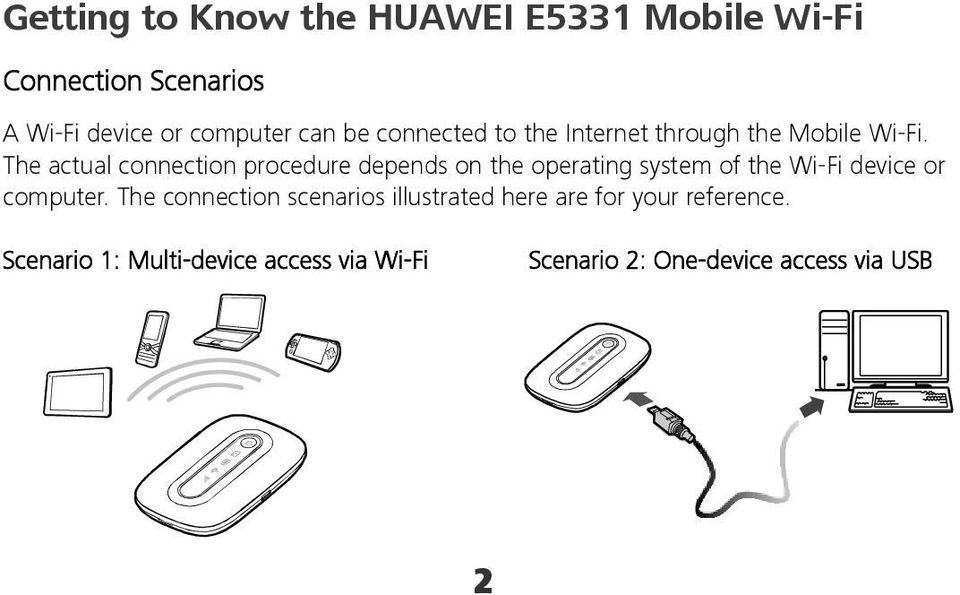
2 Getting to Know the HUAWEI E5331 Mobile Wi-Fi Connection Scenarios A Wi-Fi device or computer can be connected to the Internet through the Mobile Wi-Fi. The actual connection procedure depends on the operating system of the Wi-Fi device or computer. The connection scenarios illustrated here are for your reference. Scenario 1: Multi-device access via Wi-Fi Scenario 2: One-device access via USB 2
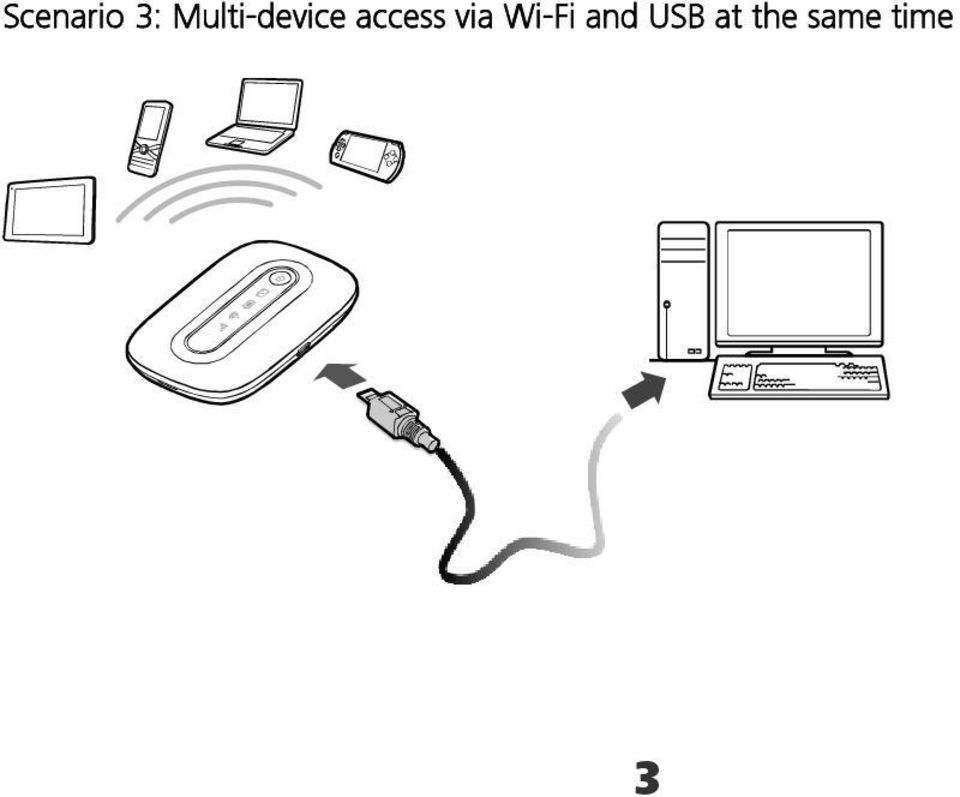
3 Scenario 3: Multi-device access via Wi-Fi and USB at the same time 3
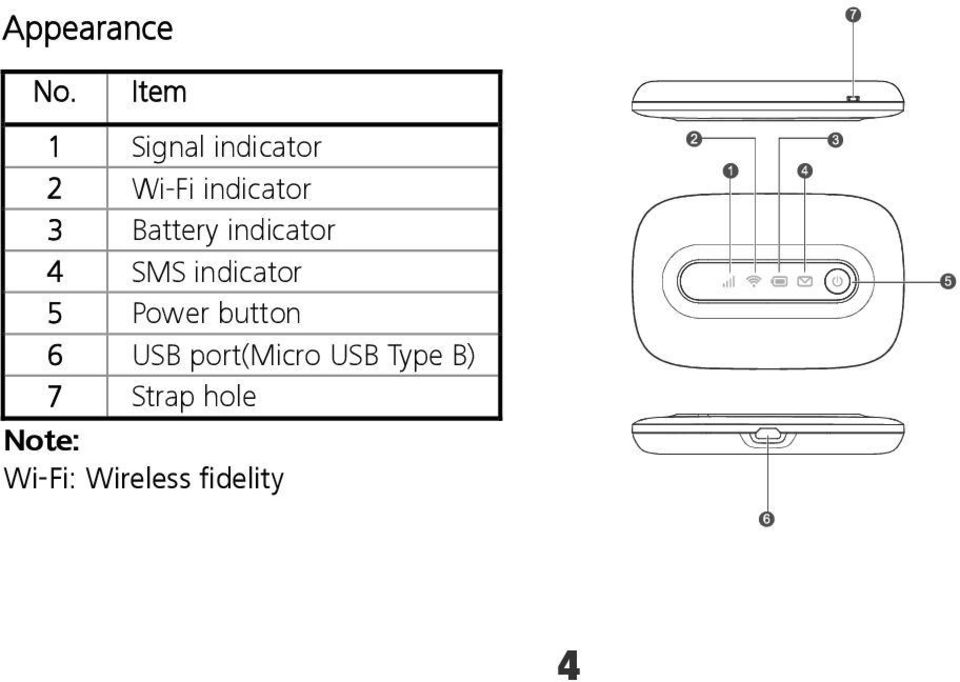
4 Appearance No. Item 1 Signal indicator 2 Wi-Fi indicator 3 Battery indicator 4 SMS indicator 5 Power button 6 USB port(micro USB Type B) 7 Strap hole Note: Wi-Fi: Wireless fidelity 4
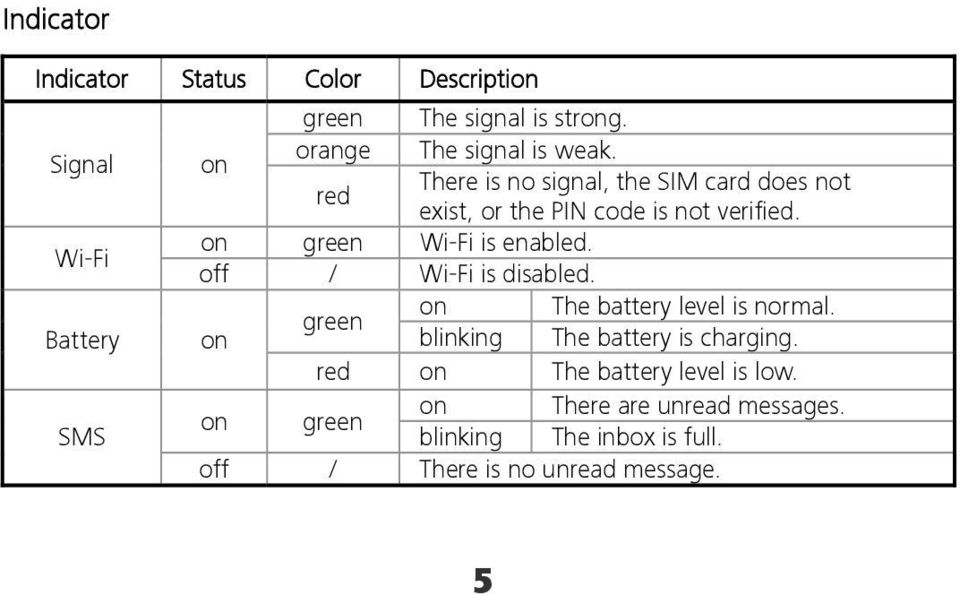
5 Indicator Indicator Status Color Description green The signal is strong. orange The signal is weak. Signal on There is no signal, the SIM card does not red exist, or the PIN code is not verified. Wi-Fi on green Wi-Fi is enabled. off / Wi-Fi is disabled. on The battery level is normal. green Battery on blinking The battery is charging. red on The battery level is low. on There are unread messages. on green SMS blinking The inbox is full. off / There is no unread message. 5
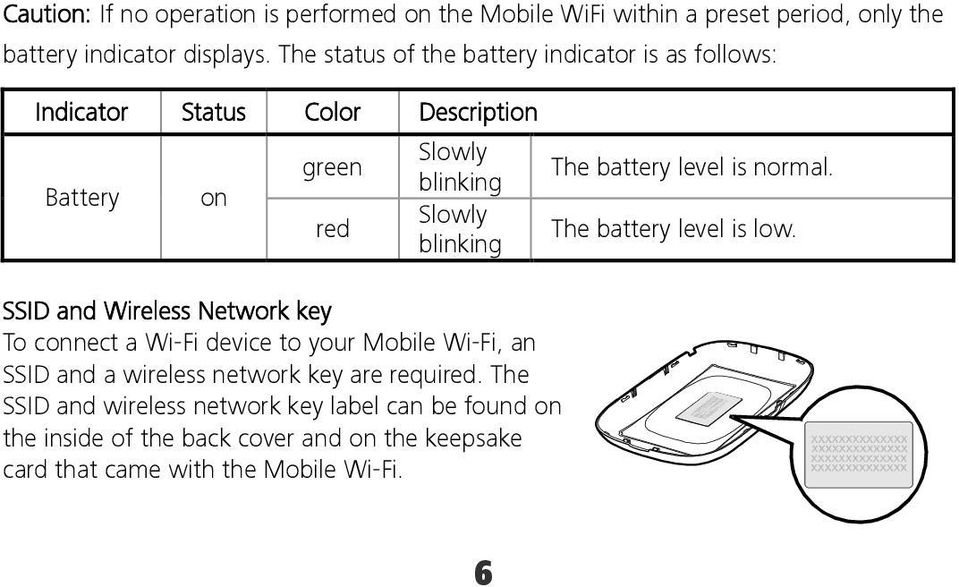
6 Caution: If no operation is performed on the Mobile WiFi within a preset period, only the battery indicator displays. The status of the battery indicator is as follows: Indicator Status Color Description Battery on green red Slowly blinking Slowly blinking SSID and Wireless Network key To connect a Wi-Fi device to your Mobile Wi-Fi, an SSID and a wireless network key are required. The SSID and wireless network key label can be found on the inside of the back cover and on the keepsake card that came with the Mobile Wi-Fi. The battery level is normal. The battery level is low. 6
7 Before You Start Installing the SIM Card and the Battery Caution: Do not use any SIM card that is not standard or is incompatible with the Mobile WiFi. Otherwise, the Mobile WiFi may be damaged. Insert the SIM card in the card slot. Be sure that the SIM card is facing in the right direction, as shown in figure 2, and then slide the SIM card into the slot

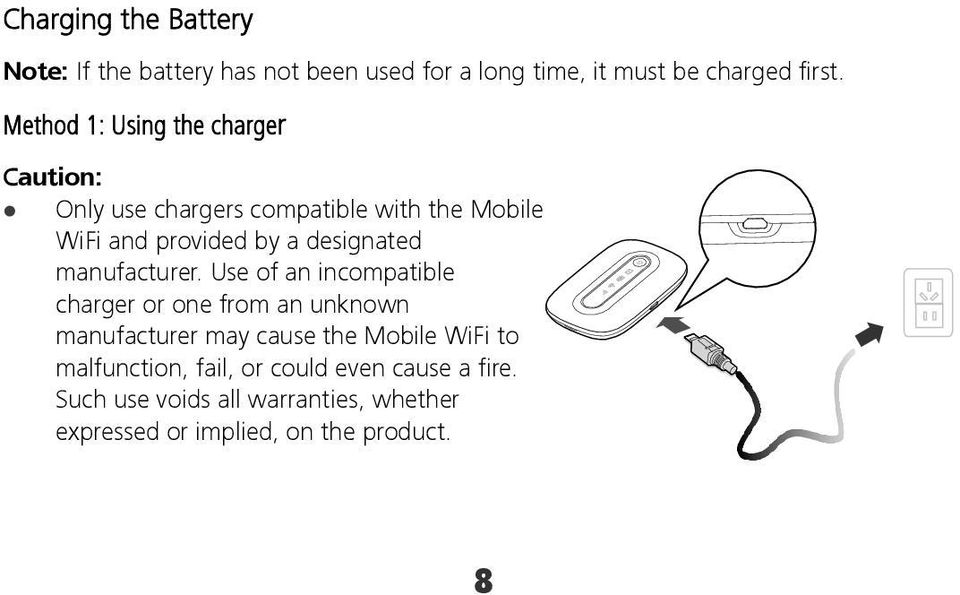
8 Charging the Battery Note: If the battery has not been used for a long time, it must be charged first. Method 1: Using the charger Caution: Only use chargers compatible with the Mobile WiFi and provided by a designated manufacturer. Use of an incompatible charger or one from an unknown manufacturer may cause the Mobile WiFi to malfunction, fail, or could even cause a fire. Such use voids all warranties, whether expressed or implied, on the product. 8
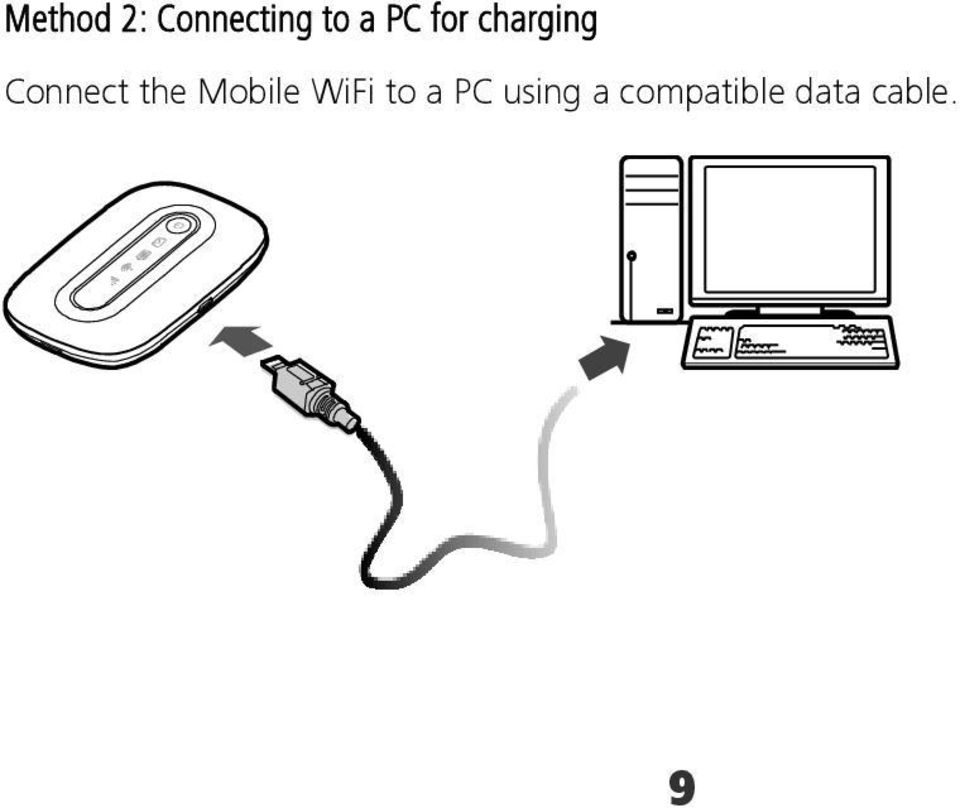
9 Method 2: Connecting to a PC for charging Connect the Mobile WiFi to a PC using a compatible data cable. 9
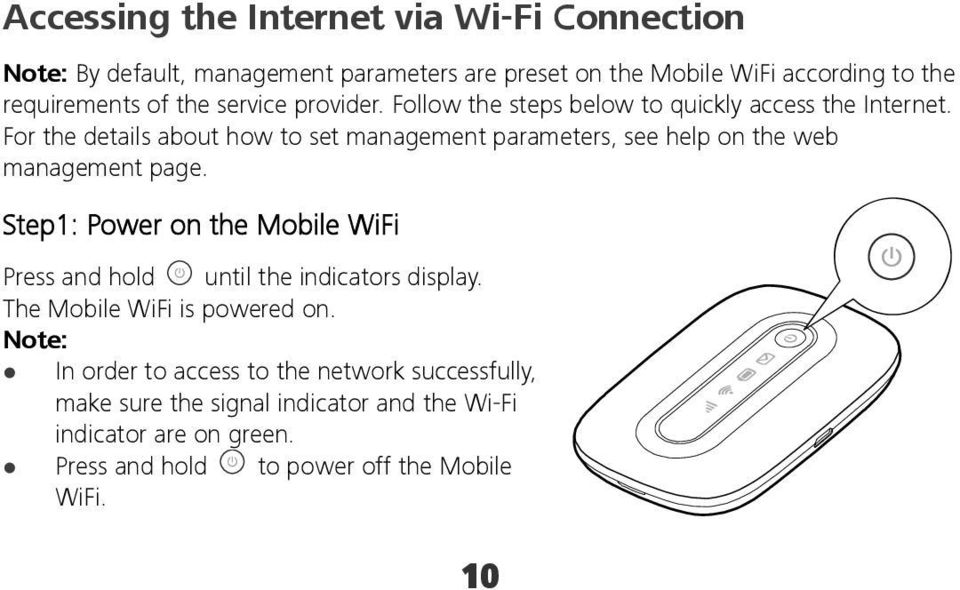
10 Accessing the Internet via Wi-Fi Connection Note: By default, management parameters are preset on the Mobile WiFi according to the requirements of the service provider. Follow the steps below to quickly access the Internet. For the details about how to set management parameters, see help on the web management page. Step1: Power on the Mobile WiFi Press and hold until the indicators display. The Mobile WiFi is powered on. Note: In order to access to the network successfully, make sure the signal indicator and the Wi-Fi indicator are on green. Press and hold to power off the Mobile WiFi. 10
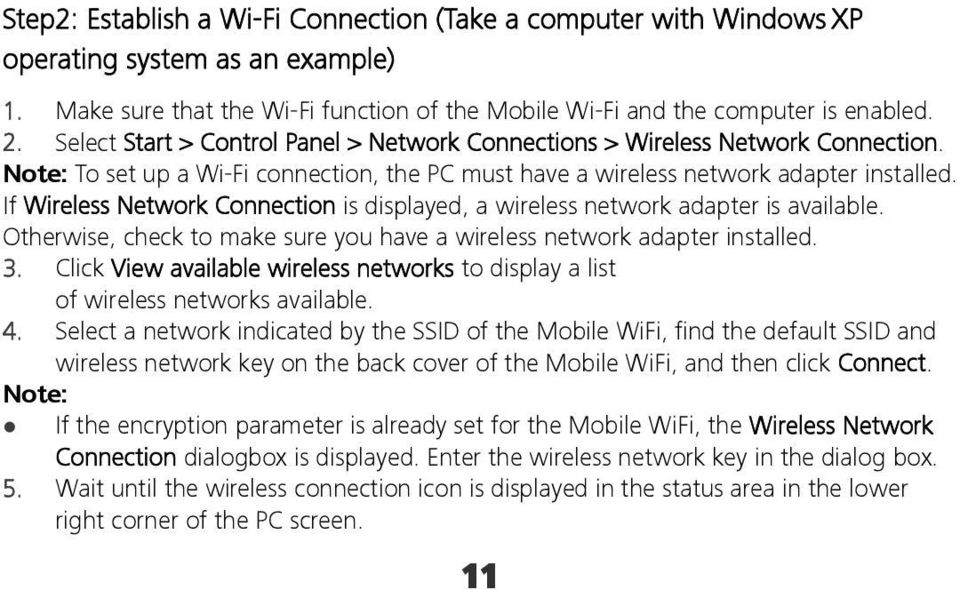
11 Step2: Establish a Wi-Fi Connection (Take a computer with Windows XP operating system as an example) 1. Make sure that the Wi-Fi function of the Mobile Wi-Fi and the computer is enabled. 2. Select Start > Control Panel > Network Connections > Wireless Network Connection. Note: To set up a Wi-Fi connection, the PC must have a wireless network adapter installed. If Wireless Network Connection is displayed, a wireless network adapter is available. Otherwise, check to make sure you have a wireless network adapter installed. 3. Click View available wireless networks to display a list of wireless networks available. 4. Select a network indicated by the SSID of the Mobile WiFi, find the default SSID and wireless network key on the back cover of the Mobile WiFi, and then click Connect. Note: If the encryption parameter is already set for the Mobile WiFi, the Wireless Network Connection dialogbox is displayed. Enter the wireless network key in the dialog box. 5. Wait until the wireless connection icon is displayed in the status area in the lower right corner of the PC screen. 11
12 Step3: Access the Internet After you establish a Wi-Fi connection successfully, you can access the Internet using the following modes. Mode Auto Manual Operations After the Mobile WiFi is powered on, it will connect to the Internet automatically. If there is no data transmission over a period of time, the Mobile WiFi automatically terminates the Internet connection. Launch the web management page and follow the prompts to connect to or disconnect from the network. 12

13 Note: Launch the web management page to select the mode for accessing the Internet. You can choose whether to enable the Mobile WiFi to connect to the Internet automatically even while you are roaming. If this function is disabled, the Mobile WiFi automatically disconnects from the Internet while you are roaming. To access the Internet, set up a connection manually. Accessing the Web Management Page 1. Make sure that the connection between the Mobile WiFi and the client is a proper one. 2. Start the Internet browser and enter or in the address bar. 3. Enter the password and log in to the web management page. Note: The default password is admin. 13
14 Daily Use Power Saving Mode If no operation is performed on the Mobile WiFi within a preset period, it will go to the standby mode. In this mode, the battery indicator blinks slowly in green, and the other indicators are off. If the Mobile WiFi is powered by the battery only, choose whether to enable the Mobile WiFi to turn off Wi-Fi automatically. If this function is enabled and no Wi-Fi devices access the Mobile WiFi for a preset period, the Mobile WiFi turns off Wi-Fi automatically. You can press any key to turn on Wi-Fi again. Validating the PIN Code If PIN code protection is enabled, log in to the web management page and follow the prompts to enter the correct PIN code. Both PIN and PUK are delivered with the SIM card. For details, consult your service provider. 14
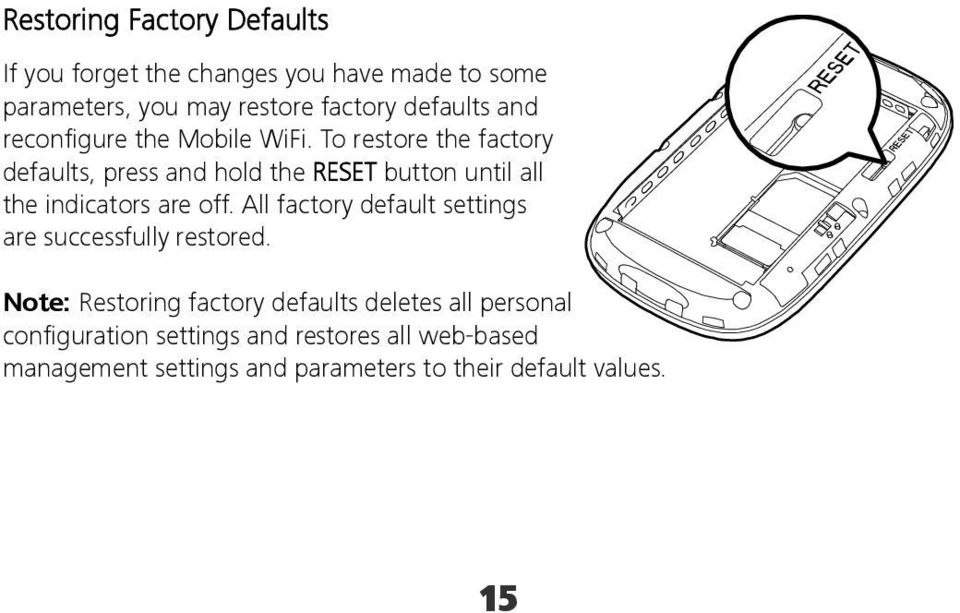
15 Restoring Factory Defaults If you forget the changes you have made to some parameters, you may restore factory defaults and reconfigure the Mobile WiFi. To restore the factory defaults, press and hold the RESET button until all the indicators are off. All factory default settings are successfully restored. Note: Restoring factory defaults deletes all personal configuration settings and restores all web-based management settings and parameters to their default values. 15
16 Example 1: Wi-Fi Connection to Game Machine (Sony PSP) 1. Turn on the PSP WLAN switch. 2. Select Settings > Network Settings. 3. Select Infrastructure Mode to connect to your local Wi-Fi access point. 4. Select New Connection to specify an easy to remember connection name. 5. Select Scan to detect all networks within range. The access point list is displayed. 6. Select a network indicated by the SSID of the Mobile WiFi. First press the button of your game machine to confirm the SSID and then press it again to input the wireless network key. 16
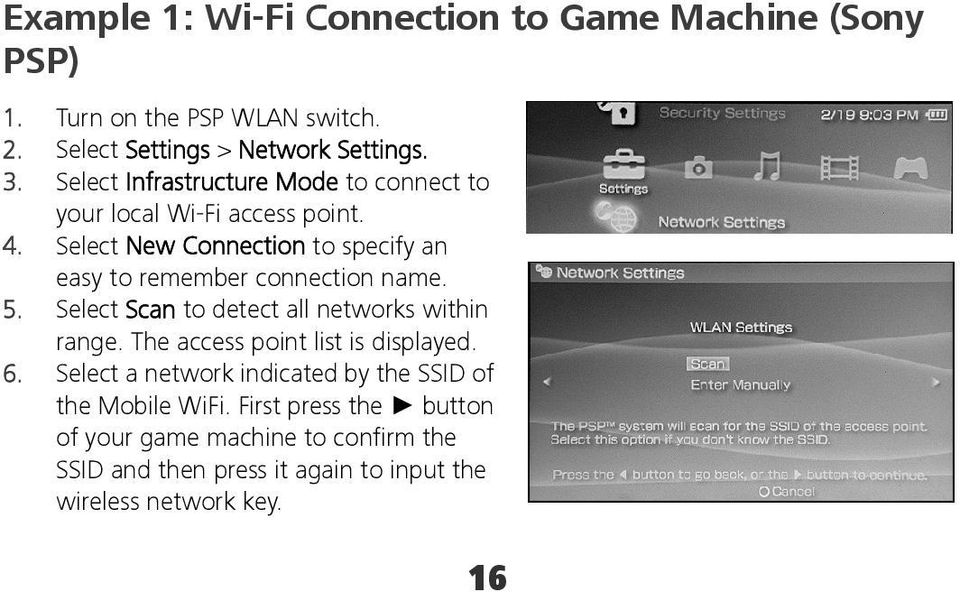
17 SSID: The Wi-Fi name of the Mobile WiFi. WEP: The wireless network key of the Mobile WiFi. The default SSID and wireless network key label are affixed to the Mobile WiFi. 7. Press the button of your game machine to continue, and then press the X button to save the settings. 8. Select Test Connection to check the connection. 9. Go to Internet Browser. 17

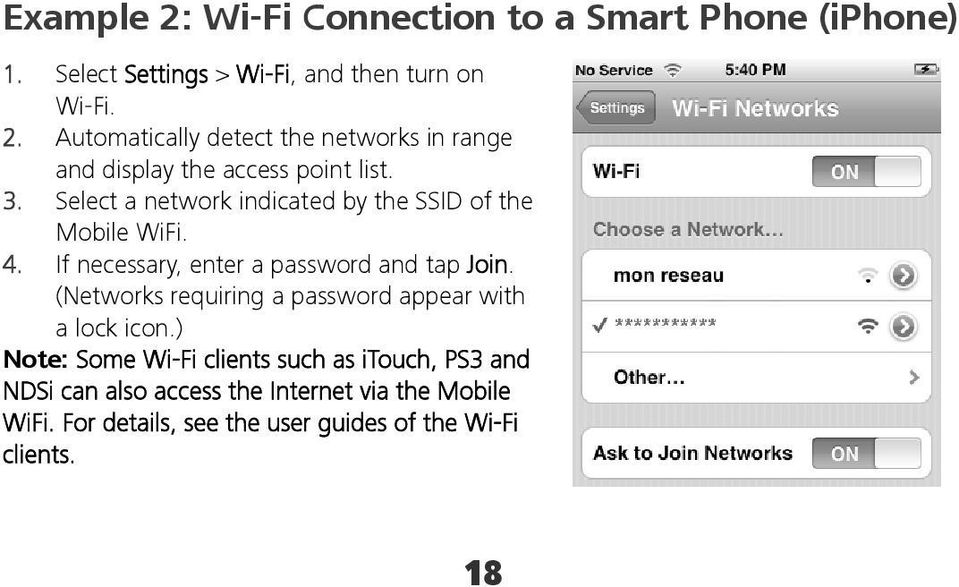
18 Example 2: Wi-Fi Connection to a Smart Phone (iphone) 1. Select Settings > Wi-Fi, and then turn on Wi-Fi. 2. Automatically detect the networks in range and display the access point list. 3. Select a network indicated by the SSID of the Mobile WiFi. 4. If necessary, enter a password and tap Join. (Networks requiring a password appear with a lock icon.) Note: Some Wi-Fi clients such as itouch, PS3 and NDSi can also access the Internet via the Mobile WiFi. For details, see the user guides of the Wi-Fi clients. 18
19 Tips Place your Mobile Wi-Fi where you get the strongest signal. The more windows a room has, the better the signal and upstairs will generally get a better signal. You can then be online wherever you like nearby. If the Mobile WiFi is placed in an environment with poor ventilation, it may overheat after extended use. When the Mobile WiFi overheats, it will switch off and disconnect from the network automatically to protect itself. If this happens, place the Mobile WiFi in a well-ventilated location, then restart the Mobile WiFi. If you are experiencing difficulties using the Mobile WiFi, try the following: See help on the web management page. Restart the Mobile WiFi. Restore the factory defaults. Contact your service provider. 19
20 Frequently Asked Questions (FAQ) What can I do if the Client cannot access the Internet? 5. Check and ensure that the Client is connected to the Mobile Wi-Fi properly. 6. Check the power status to ensure that the Mobile Wi-Fi is powered on. 7. Check the signal strength to ensure that the area is covered by the network. 8. Check that the network mode is correct. For details about network modes, see Mobile Network Settings on the management page. 9. You must configure the correct peer-peer protocol (PPP) user name and PPP password when you access the Internet through the Mobile Wi-Fi. Check whether the user name and the password are correct, and see Profile Management on the management page for details. 10. If the DHCP server is disabled and the Client obtains the IP address dynamically, the device cannot access the Internet either. In this case, you need to change the mode to manually assign an IP address. See DHCP Settings on the management page. 20

21 11. Check that the network adapter of your Client runs properly. 12. If the problem still persists, please consult you network operator. What can I do if the Client cannot access the WLAN? 13. If there are interferences or shields near the Mobile Wi-Fi, you can adjust the position of the Mobile Wi-Fi. 14. Check and record the following settings of your Client and your Mobile Wi-Fi: SSID, WEP type, and key. The SSID of the Client must be ANY or the same as that of the Mobile Wi-Fi. The WEP type and key of the Client must be the same as that of the Mobile Wi-Fi. Otherwise, you need to change the settings. 15. Check whether the WLAN MAC filter function is enabled on the Mobile Wi-Fi. If the function is enabled, ensure that all relevant parameters are set correctly. See WLAN MAC Filter on the web management page for more information. 21
22 What can I do if I forgot the default IP address of the management page? Restore the factory defaults and enter in the address bar. Version: V100R001_01 Part Number: 31010JKE 22
Thank you for choosing HUAWEI Mobile WiFi
 Thank you for choosing HUAWEI Mobile WiFi Supported functions and actual appearance depend on the specific models you purchased. The illustrations are provided for your reference only. For details about
Thank you for choosing the HUAWEI EC5805 Wireless Modem (E5).
 Thank you for choosing the HUAWEI EC5805 Wireless Modem (E5). Note: Supported functions and actual appearance depend on the specific models you purchased. The following illustrations are provided for your
Thank you for choosing Huwei E589 4G Mobile WiFi
 Thank you for choosing Huwei E589 4G Mobile WiFi This guide briefly describes the functions of your Huawei E589 4G Mobile WiFi. For more details, see help on the web management page. See Accessing the
Thank you for purchasing the Huawei E5332 Mobile WiFi. This quick start guide will help you to get started right away.
 Thank you for purchasing the Huawei E5332 Mobile WiFi. This quick start guide will help you to get started right away. You can connect your Huawei E5332 to the internet through any WiFi enabled device
Huawei E5220 Mobile Hotspot User Guide Contents
 Huawei E5220 Mobile Hotspot User Guide Contents Getting to Know Your Mobile WiFi... 2 Application Scenarios... 2 Appearance... 2 Indicator... 2 SSID and Wireless Network Encryption Key... 2 Installing
Thank you for purchasing the Mobile WiFi. This Mobile WiFi brings you a high speed wireless network connection.
 Thank you for purchasing the Mobile WiFi. This Mobile WiFi brings you a high speed wireless network connection. This document will help you understand your Mobile WiFi so you can start using it right away.
Thank you for purchasing the Mobile WiFi. This Mobile WiFi brings you a high speed wireless network connection.
 Quick Start Thank you for purchasing the Mobile WiFi. This Mobile WiFi brings you a high speed wireless network connection. This document will help you understand your Mobile WiFi so you can start using
VIVA 4G LTE Mini Router. Quick Start Guide
 VIVA 4G LTE Mini Router Quick Start Guide Thank you for choosing the VIVA 4G LTE Mini Router (hereinafter referred to as the E57) The supported functions and actual appearance are subject to the product
Quick Start. is a trademark of ETSI.
 TM Quick Start is a trademark of ETSI. Thank you for purchasing the Mobile WiFi. This Mobile WiFi brings you a high speed wireless network connection. This document will help you understand your Mobile
Thank you for purchasing the Mobile Wi-Fi. This Mobile Wi-Fi brings you a high speed wireless network connection.
 Thank you for purchasing the Mobile Wi-Fi. This Mobile Wi-Fi brings you a high speed wireless network connection. This document will help you understand your Mobile Wi-Fi so you can start using it right
Thank you for purchasing the Mobile WiFi. This Mobile WiFi brings you a high speed wireless network connection.
 Quick Start Thank you for purchasing the Mobile WiFi. This Mobile WiFi brings you a high speed wireless network connection. This document will help you understand your Mobile WiFi so you can start using
Thank you for purchasing the Mobile WiFi. This Mobile WiFi brings you a high speed wireless network connection.
 Quick Start Thank you for purchasing the Mobile WiFi. This Mobile WiFi brings you a high speed wireless network connection. This document will help you understand your Mobile WiFi so you can start using
HUAWEI HG256s. Home Gateway Quick Start
 HUAWEI HG256s Home Gateway Quick Start 1 Introduction The Front Panel of the HG256s The front panel of the HG256s provides the following indicators: One power indicator: POWER One Internet indicator: INTERNET
Thank you for purchasing the CPE. This CPE brings you a high speed wireless network connection.
 Thank you for purchasing the CPE. This CPE brings you a high speed wireless network connection. This document will help you understand your CPE so you can start using it right away. Please read this document
4G Router User Manual V1.0
 4G Router User Manual V1.0 Thank you for purchasing the 4G LTE Mobile WiFi. This device brings you a high speed wireless network connection. This document will help you understand your Mobile WiFi so you
4G LTE router: MIFI-4G
 4G LTE router: MIFI-4G 1. Introduction MIFI-4G is a multi-function device: WIFI router & power bank. It support 3G/4G internet, WIFI repeater and Ethernet, support 10 users simultaneously. Any terminal
HUAWEI HG533 Home Gateway. User Guide HUAWEI TECHNOLOGIES CO., LTD.
 HUAWEI HG533 Home Gateway User Guide HUAWEI TECHNOLOGIES CO., LTD. HUAWEI HG533 Home Gateway V100R001 User Guide 202466_02 Huawei Technologies Co., Ltd. provides customers with comprehensive technical
HG658c Home Gateway. User Guide HUAWEI TECHNOLOGIES CO., LTD.
 HG658c Home Gateway User Guide HUAWEI TECHNOLOGIES CO., LTD. HG658c Home Gateway V100R001 User Guide Issue 01 Date 2012-10-19 Part Number 202537 Huawei Technologies Co., Ltd. provides customers with comprehensive
User Guide Vodafone Pocket WiFi Pro. Designed by Vodafone
 User Guide Vodafone Pocket WiFi Pro Designed by Vodafone Welcome to the world of mobile communications 1 Welcome 2 Device overview 3 Getting started: setup 4 Getting started: use 5 Pocket WiFi online dashboard
Quickstart Guide Vodafone Mobile Wi-Fi R207
 Quickstart Guide Vodafone Mobile Wi-Fi R207 Welcome to the world of mobile communications 1 Welcome 2 Device overview 3 Getting started 5 Mobile Wi-Fi Web app 6 Web app overview 7 Current network panel
SwannEye HD Security Camera Wi-Fi Connections Quick Setup Guide. Welcome! Lets get started.
 EN SwannEye HD Security Camera Wi-Fi Connections Quick Setup Guide Welcome! Lets get started. 1 1 Introduction 1 2 3 4 Congratulations on your purchase of this SwannEye HD Wi-Fi Security Camera from Swann!
Mobile Broadband Manager Guide Huawei E8278
 Mobile Broadband Manager Guide Huawei E8278 What s mobile broadband? Mobile broadband means you can surf the internet when you re out and about. 4G mobile broadband is the same but using our glorious 4G
DATA PROJECTOR XJ-A147/XJ-A247/XJ-A257 XJ-M146/XJ-M156 XJ-M246/XJ-M256. XJ-A Series. XJ-M Series. Network Function Guide
 DATA PROJECTOR EN XJ-A Series XJ-A147/XJ-A247/XJ-A257 XJ-M Series XJ-M146/XJ-M156 XJ-M246/XJ-M256 Network Function Guide In this manual, XJ-A Series and XJ-M Series refer only to the specific models listed
Configuring the wireless security of your Linksys Wireless-N router through the web-based setup page
 Contents Configuring the wireless security of your Linksys Wireless-N router through the web-based setup page.. 2 Checking the Linksys router s wireless settings through the web-based setup page and adding
Quick Start Guide. Vodafone Mobile Wi-Fi Vodafone R201
 Quick Start Guide Vodafone Mobile Wi-Fi Vodafone R201 Welcome to the world of Vodafone Mobile Broadband 1 Introduction 2 Device Overview 3 Getting Started 7 Connecting To The Vodafone Mobile Wi-Fi Device
AC750 WiFi Range Extender
 Model EX6100 User Manual April 2014 202-11307-03 350 East Plumeria Drive San Jose, CA 95134 USA Support Thank you for selecting NETGEAR products. After installing your device, locate the serial number
N300 WiFi Range Extender
 Model EX2700 User Manual July 2014 202-11395-01 350 East Plumeria Drive San Jose, CA 95134 USA Support Thank you for selecting NETGEAR products. After installing your device, locate the serial number on
Home Station ADSL. You may also use the following address (regardless of whether you have changed the primary address or not):
 TABLE OF CONTENTS 1 Introduction 1 2 User interface overview 2 3 LAN and WLAN settings 8 4 Setting the Internet connection 11 5 Settings and status of devices connected to your router 13 6 Configure applications
Networking. General networking. Networking overview. Common home network configurations. Wired network example. Wireless network examples
 Networking General networking Networking overview A network is a collection of devices such as computers, printers, Ethernet hubs, wireless access points, and routers connected together for communication
Advanced Configuration Guide. Vodafone Mobile Wi-Fi Vodafone R201
 Vodafone Mobile Wi-Fi Vodafone R201 Table of Contents Welcome...3 1. Getting Started Initial Connection and Security Settings...4 1.1 Vodafone Mobile Wi-Fi Overview...5 1.1.1 System Requirements...5 1.1.2
Quickstart Guide Vodafone Mobile Wi-Fi R209-Z
 Quickstart Guide Vodafone Mobile Wi-Fi R209-Z Welcome to the world of mobile communications 1 Welcome 2 Device overview 3 Getting started 5 Mobile Wi-Fi Web app 6 Web app overview 7 Current network panel
User Guide Vodafone Mobile Wi-Fi R206-Z. Designed by Vodafone
 User Guide Vodafone Mobile Wi-Fi R206-Z Designed by Vodafone Welcome to the world of mobile communications 1 Welcome 2 Device overview 3 Getting started: Step 1 4 Getting started: Step 2 5 Mobile Wi-Fi
Quickstart Guide Vodafone Mobile Wi-Fi R216-Z
 Quickstart Guide Vodafone Mobile Wi-Fi R216-Z Welcome to the world of mobile communications 1 Welcome 2 Device overview 3 Getting started 5 Mobile Wi-Fi Web app 6 Web app overview 7 Current network panel
Sierra Wireless AirCard Watcher Help for Mac OS X
 Sierra Wireless AirCard Watcher Help for Mac OS X Sierra Wireless AirCard Watcher allows you to manage and monitor the connection between your modem and the network. With Watcher, you can: Determine signal
GETTING TO KNOW YOUR PRE-PAID TELSTRA WI-FI 4G
 GETTING TO KNOW YOUR PRE-PAID TELSTRA WI-FI 4G LET S GET THIS SHOW ON THE ROAD You must be excited about your brand new Pre-Paid Telstra Wi-Fi 4G. This guide will help you get connected as quickly and
User Guide Vodafone Mobile Wi-Fi R206-Z. Designed by Vodafone
 User Guide Vodafone Mobile Wi-Fi R206-Z Designed by Vodafone Welcome to the world of mobile communications 1 Welcome 2 Device overview 3 Getting started: Step 1 4 Getting started: Step 2 5 Mobile Wi-Fi
N600 WiFi USB Adapter
 Model WNDA3100v3 User Manual December 2014 202-11470-01 350 East Plumeria Drive San Jose, CA 95134 USA Support Thank you for selecting NETGEAR products. After installing your device, locate the serial
NETVIGATOR Wireless Modem Setup Guide. (TG789Pvn)
 NETVIGATOR Wireless Modem Setup Guide (TG789Pvn) Configure the NETVIGATOR Wireless Modem Make sure that system meets the following requirement prior to NETVIGATOR Wireless Modem usage: - Subscribers who
Advanced Configuration Guide. Vodafone Mobile Wi-Fi Vodafone R201
 Vodafone Mobile Wi-Fi Vodafone R201 Table of Contents Welcome... 3 1. Getting Started Initial Connection and Security Settings... 4 1.1 Vodafone Mobile Wi-Fi Overview... 5 1.1.1 System Requirements...
B890 4G LTE Smart Hub Getting Started Guide
 B890 4G LTE Smart Hub Getting Started Guide HUAWEI TECHNOLOGIES CO., LTD. Thank You for Purchasing the B890 4G LTE Smart Hub! Before You Begin What s in the Box : 1. B890 4G LTE Smart Hub 2. Power adapter
GETTING TO KNOW YOUR TELSTRA PRE-PAID 3G WI-FI
 GETTING TO KNOW YOUR TELSTRA PRE-PAID 3G WI-FI LET S GET THIS SHOW ON THE ROAD You must be excited about your brand new Telstra Pre-Paid 3G Wi-Fi. This guide will help you get connected as quickly and
125 8880 telstra.com/ppmbb visit a telstra store or partner GETTING TO KNOW YOUR
 FOR MORE INFORMATIoN: 125 8880 telstra.com/ppmbb visit a telstra store or partner GETTING TO KNOW YOUR Telstra PRE-paid 4G wi-fi LET S GET THIS SHOW ON THE ROad WHAT S INSIDE Your Telstra Pre-Paid 4G Wi-Fi
User Guide Vodafone Mobile Wi-Fi R210. Designed by Vodafone
 User Guide Vodafone Mobile Wi-Fi R210 Designed by Vodafone Welcome to the world of mobile communications 1 Welcome 2 Device overview 3 Getting started: Step 1 4 Getting started: Step 2 5 Mobile Wi-Fi web
TelkomInternet APN Device Settings
 TelkomInternet APN Device Settings Page 2 of 32 1. Telkom Devices 1.1. Huawei Mobile WiFi E5330 setting Switch the device on Connect the device using the USB cable Using your web browser, go to http://192.168.8.1
This guide is intended to help you troubleshoot problems connecting a wireless device to the Gogo Biz network.
 This guide is intended to help you troubleshoot problems connecting a wireless device to the Gogo Biz network. TABLE OF CONTENTS Windows Operating System... 3 Blackberry... 5 Android... 6 Apple Macbook...
10/2011 - English Edition 1. Quick Start Guide. NWA1100N-CE CloudEnabled Business N Wireless Access Point
 10/2011 - English Edition 1 Quick Start Guide NWA1100N-CE CloudEnabled Business N Wireless Access Point Package Contents - 1 x ZyXEL NWA1100N-CE Access Point - 2 x Detachable Antennas - 1 x Power Adapter
A6210 WiFi USB Adapter 802.11ac USB 3.0 Dual Band User Manual
 802.11ac USB 3.0 Dual Band User Manual August 2014 202-11373-01 350 East Plumeria Drive San Jose, CA 95134 USA Support Thank you for selecting NETGEAR products. After installing your device, locate the
Wi-Fi Router Huawei E5. User Guide
 Wi-Fi Router Huawei E5 User Guide 1 Content Modem Description Specification SW installation guide User manual Troubleshooting Terms 2 Modem Description Huawei E5830 HSDPA Wifi-router and a USB modem combined
Advanced Configuration Guide. Vodafone Mobile Broadband Sharing Dock Vodafone R101
 Vodafone R101 Table of Contents Welcome...3 1. Getting Started Initial Connection and Security Settings... 4 1.1 Overview... 5 System Requirements... 5 Device overview... 5 Sharing Dock and USB Stick LEDs...
USER GUIDE AC2400. DUAL BAND GIGABIT Wi Fi ROUTER. Model# E8350
 USER GUIDE AC2400 DUAL BAND GIGABIT Wi Fi ROUTER Model# E8350 Table of Contents Product overview E8350..................................... 1 Setting Up Your E-Series Router Where to find more help.........................
WLAN600 Wireless IP Phone Administrator s Guide
 WLAN600 Wireless IP Phone Administrator s Guide Trademark Acknowledgement All brand names are trademarks or registered trademarks of their respective companies. Disclaimer This document is supplied by
Quick Installation Guide DIR-620. Multifunction Wireless Router Supporting GSM, CDMA, WiMAX with Built-in 4-port Switch
 DIR-620 Multifunction Wireless Router Supporting GSM, CDMA, WiMAX with Built-in 4-port Switch BEFORE YOU BEGIN Delivery Package Multifunction wireless router DIR-620 Power adapter DC 5V/2.5A Ethernet cable
Easy Start Guide. Version 1.0 DSL8800GR(S) WIRELESS-N DUALBAND CONCURRENT GIGABIT ROUTER WITH BUILT-IN ADSL2+ MODEM
 Easy Start Guide Version 1.0 DSL8800GR(S) WIRELESS-N DUALBAND CONCURRENT GIGABIT ROUTER WITH BUILT-IN ADSL2+ MODEM Contents SECTION 1: Package Contents SECTION 2: Setting Up your Device Setup for ADSL
WRE6505. User s Guide. Quick Start Guide. Wireless AC750 Range Extender. Default Login Details. Version 1.00 Edition 1, 4 2014
 WRE6505 Wireless AC750 Range Extender Version 1.00 Edition 1, 4 2014 2.4G 5G Quick Start Guide User s Guide Default Login Details LAN IP Address 192.168.1.2 User Name admin www.zyxel.com Password 1234
Notice Copyright Huawei Technologies Co., Ltd. 2009. All rights reserved. NO WARRANTY Trademarks and Permissions
 Notice Copyright Huawei Technologies Co., Ltd. 2009. All rights reserved. 1 No part of this document may be reproduced or transmitted in any form or by any means without prior written consent of Huawei
USER GUIDE AC2600 MU-MIMO GIGABIT ROUTER. Model# EA8500
 USER GUIDE AC2600 MU-MIMO GIGABIT ROUTER Model# EA8500 Table of Contents Product overview EA8500.....................................1 Setting Up Your Router Where to find more help.........................
User Guide. E-Series Routers
 User Guide E-Series Routers Table of Contents Table of Contents Product overview E900/E1200/E1500/E2500/E3200 1 Back view 1 Bottom view 1 E4200 2 Top view 2 Back view 2 Setting Up Your E-Series Router
DRG700 Quick Installation Guide. This guide applies to all DRG700 models
 DRG700 Quick Installation Guide This guide applies to all DRG700 models Contents 1. DRG700 overview... 2. Installation... 3. Network setup... 4. Wireless setup... 5. Configuring your DRG700... 6. Troubleshooting...
Quick Installation Guide DSL-2750U. 3G/ADSL/Ethernet Router with Wi-Fi and Built-in Switch
 DSL-2750U 3G/ADSL/Ethernet Router with Wi-Fi and Built-in Switch BEFORE YOU BEGIN Delivery Package Router DSL-2750U Power adapter DC 12V/1A RJ-11 telephone cable Ethernet cable (CAT 5E) Splitter (brochure).
3G HOSTPOT USER GUIDE
 3G HOSTPOT USER GUIDE Safety Precautions Read the safety precautions carefully to ensure the correct and safe use of your wireless device. Do not switch on your device when the device use is prohibited
Frequently Asked Questions
 FAQs Frequently Asked Questions Connecting your Linksys router to the Internet 1 What computer operating systems does my Linksys router support? 1 Why can t I connect my computer or device to my router?
Quick Installation Guide DAP-1360. Wireless N 300 Access Point & Router
 DAP-1360 Wireless N 300 Access Point & Router BEFORE YOU BEGIN Delivery Package Access point DAP-1360 Power adapter DC 12V Ethernet cable (CAT 5E) (brochure). If any of the items are missing, please contact
Quick Installation Guide
 V48.01 Model: FI8919W Quick Installation Guide Outdoor Pan/Tilt Wireless IP Camera For Windows OS ------- Page 1 For MAC OS ------- Page 15 ShenZhen Foscam Intelligent Technology Co., Ltd Quick Installation
Quick Installation Guide DSL-2750U/NRU. 3G/ADSL/Ethernet Router with Wi-Fi and Built-in Switch
 DSL-2750U/NRU 3G/ADSL/Ethernet Router with Wi-Fi and Built-in Switch BEFORE YOU BEGIN Delivery Package Router DSL-2750U/NRU Power adapter RJ-11 telephone cable Straight-through Ethernet cable (CAT 5E)
Home Wi-Fi Gateway Instructions
 Home Wi-Fi Gateway Instructions 1. Connect the gateway. Use the coaxial cable provided by BendBroadband to connect the cable port (A) to your cable outlet. 2. Connect your computer to the cable modem gateway
User Guide Vodafone Pocket WiFi Extreme. Designed by Vodafone
 User Guide Vodafone Pocket WiFi Extreme Designed by Vodafone Welcome to the world of mobile communications 1 Welcome 2 Device overview 3 Getting started: setup 4 Getting started: use 5 Pocket WiFi online
User Guide Vodafone Mobile Wi-Fi R212. Designed by Vodafone
 User Guide Vodafone Mobile Wi-Fi R212 Designed by Vodafone Welcome to the world of mobile communications 1 Welcome 2 Device overview 3 Getting started: Step 1 4 Getting started: Step 2 5 Mobile Wi-Fi web
The Wireless LAN (Local Area Network) USB adapter can be operated in one of the two following networking configurations :
 SAGEM Wi-Fi 11g USB ADAPTER Quick Start Guide About this guide This Quick Start Guide describes how to install and operate your SAGEM Wi-Fi 11g USB ADAPTER. Please read this manual before you install the
Connecting your Aiki phone to a network
 Connecting your Aiki phone to a network Connect to mobile networks Depending on your carrier and service plan, your phone may connect automatically to your carrier s fastest available data network. Or
Quick Installation Guide
 Quick Installation Guide (For Windows & Mac OS) Outdoor Wireless IP Camera Package Contents V1.1 IP Camera Power Adapter Resource CD Ethernet Cable Mounting Bracket(except FI8919) Wi-Fi Antenna Quick Installation
PePWave Surf Series PePWave Surf Indoor Series: Surf 200, AP 200, AP 400
 PePWave Surf Series PePWave Surf Indoor Series: Surf 200, AP 200, AP 400 PePWave Surf Outdoor Series: Surf AP 200/400-X, PolePoint 400-X, Surf 400-DX User Manual Document Rev. 1.2 July 07 COPYRIGHT & TRADEMARKS
User Manual. PePWave Surf / Surf AP Indoor Series: Surf 200, E200, AP 200, AP 400. PePWave Mesh Connector Indoor Series: MC 200, E200, 400
 User Manual PePWave Surf / Surf AP Indoor Series: Surf 200, E200, AP 200, AP 400 PePWave Mesh Connector Indoor Series: MC 200, E200, 400 PePWave Surf AP Series: Surf AP 200-X, E200-X, 400-X PePWave Surf
Wireless Presentation System User s Manual
 Wireless Presentation System User s Manual (Model Name: WPS-Dongle) Version: 3.0 Date: August 19, 2009 Table of Contents 1. Overview...3 2. Quick Start...4 3. Windows Client Utility...7 3.1 Starting Program...7
NETGEAR genie Apps. User Manual. 350 East Plumeria Drive San Jose, CA 95134 USA. August 2012 202-10933-04 v1.0
 User Manual 350 East Plumeria Drive San Jose, CA 95134 USA August 2012 202-10933-04 v1.0 Support Thank you for choosing NETGEAR. To register your product, get the latest product updates, get support online,
WiFi-SB-L3 300M WiFi Router WiFi Bridge WiFi Repeater. WiFi Router WiFi Repeater WiFi Bridge WiFi-SB-L3 Quick Setting Guide
 300M WiFi Router WiFi Repeater WiFi Bridge WiFi-SB-L3 Quick Setting Guide 1 Chapter 1 Router Mode Quick Setup Guide 1. Let WiFi-SB-L3 be powered on. 2.Turn on wireless network connection, disabled local
HKBN Wi-Fi Service User Guide
 HKBN Wi-Fi Service User Guide Content 1. Device Requirements 2. Login Procedures and Auto Login Settings 3. Forget Username / Password 4. Manage Your Auto Login Setting at HKBN Website 5. Technical Support
User Guide HUAWEI UML397. Welcome to HUAWEI
 User Guide HUAWEI UML397 Welcome to HUAWEI 1 Huawei UML397 4G LTE Wireless Modem User Manual CHAPTER 1 BEFORE USING YOUR UML397 WIRELESS MODEM ABOUT THIS USER MANUAL...4 WHAT S INSIDE THE PRODUCT PACKAGE...4
DATA PROJECTOR XJ-A135/XJ-A145/XJ-A235/ XJ-A245
 DATA PROJECTOR XJ-A135/XJ-A145/XJ-A235/ XJ-A245 E Data Projector Wireless Function Guide Be sure to read the precautions in the User s Guide (Basic Operations) that comes with the Data Projector. Be sure
Linksys WAP300N. User Guide
 User Guide Contents Contents Overview Package contents 1 Back view 1 Bottom view 2 How to expand your home network 3 What is a network? 3 How to expand your home network 3 Where to find more help 3 Operating
LET S GO. Get your Ultra Broadband ready Business gateway up and running
 LET S GO Get your Ultra Broadband ready Business gateway up and running CONTENTS BUSINESS GATEWAY ULTRA BROADBAND READY 1 2 3 4 5 6 7 8 9 10 11 12 13 14 15 Equipment Check 2 Getting Started 3 Setting Up
TE100-P21/TEW-P21G Windows 7 Installation Instruction
 Hardware Installation TE100-P21/TEW-P21G Windows 7 Installation Instruction 1. Go to http://www.trendnet.com/downloads/ to download the Windows 7 Utility. Save the file to your desktop. 2. Right click
How To Use 1Bay 1Bay From Awn.Net On A Pc Or Mac Or Ipad (For Pc Or Ipa) With A Network Box (For Mac) With An Ipad Or Ipod (For Ipad) With The
 1-bay NAS User Guide INDEX Index... 1 Log in... 2 Basic - Quick Setup... 3 Wizard... 3 Add User... 6 Add Group... 7 Add Share... 9 Control Panel... 11 Control Panel - User and groups... 12 Group Management...
ALL0237R. Wireless N 300Mbit Access Point/Repeater. User s Manual
 ALL0237R Wireless N 300Mbit Access Point/Repeater User s Manual ALLNET ALL0237R User Manual Table of Contents About the Device... 3 Minimum System Requirements... 5 Package Contents... 5 Device Overview...
TPG MOBILE BROADBAND QUICK SETUP GUIDE
 TPG MOBILE BROADBAND QUICK SETUP GUIDE TPG USB E1762 Modem Thank you for choosing TPG Mobile Broadband and USB E1762 modem. This User Guide provides step by step instructions that will take you through
N600 Wireless Dual Band Gigabit Router WNDR3700v3 Setup Manual
 N600 Wireless Dual Band Gigabit Router WNDR3700v3 Setup Manual NETGEAR, Inc. 350 E. Plumeria Drive San Jose, CA 95134 USA May 2011 208-10774-02 v1.0 2011 by NETGEAR, Inc. All rights reserved. Trademarks
WELCOME. Thank you for choosing the Boost Mobile Wi-Fi. To get the most from your
 WELCOME Thank you for choosing the Boost Mobile Wi-Fi. To get the most from your device and to keep it in the best condition please read this manual thoroughly. The following parts are supplied in the
MN-700 Base Station Configuration Guide
 MN-700 Base Station Configuration Guide Contents pen the Base Station Management Tool...3 Log ff the Base Station Management Tool...3 Navigate the Base Station Management Tool...4 Current Base Station
Network Setup & Options
 3.0 Network Setup & Options 3.3 TABLE OF CONTENTS 3.1 INTRODUCTION... 5 3.2 DISABLING NETWORK SECURITY SETTINGS... 6 3.2.1 Aftermarket Internet Security and Firewalls... 6 3.2.2 Windows Firewall... 6
You may refer the Quick Installation Guide in the package box for more information.
 Hardware Installation: 1. Turn off your modem. 2. Use one Ethernet cable to connect your modem to WAN port (Blue) port of BR-6228nC. 3. Use another Ethernet cable to connect your PC to one LAN Port (Yellow)
Product Description. HUAWEI E5338 Mobile WiFi V200R001 HUAWEI TECHNOLOGIES CO., LTD. Issue 01. Date 2014-07-18
 HUAWEI E5338 Mobile WiFi V200R001 Issue 01 Date 2014-07-18 HUAWEI TECHNOLOGIES CO., LTD. Huawei Technologies Co., Ltd. provides customers with comprehensive technical support and service. Please feel free
Advanced Configuration Guide. Vodafone Mobile Broadband Sharing Dock Vodafone R101
 Vodafone R101 Table of Contents Welcome...3 1. Getting Started Initial Connection and Security Settings...4 1.1 Overview... 5 1.1.1 System Requirements... 5 1.1.2 Device overview... 5 1.1.3 Sharing Dock
2 Setting Up the Hardware for a Wired Ethernet Network... 13. 3 Setting Up the Software for an Ethernet Network... 21
 Contents 1 Networking Basics............................................... 1 Selecting a network connection........................................ 2 Wired Ethernet network...........................................
USING YOUR DMX PROFUSION
 Set Up Guide USING YOUR DMX PROFUSION io FOR 1 Connect 2 Set Up 3 Listen SIMPLE PERSONALIZED UNLIMITED ECONOMICAL LICENSED Welcome Thank you for choosing DMX to provide your Pandora listening experience
Troubleshooting Guide
 Troubleshooting Guide Before you start troubleshooting: Power down the Tooway modem for 60 seconds. Connect a computer directly (via Ethernet cable) to the Tooway modem Power the Tooway modem and wait
MiFi 5510L 90026642 - R1. User Guide
 MiFi 5510L 90026642 - R1 User Guide 2013 Novatel Wireless, Inc. All rights reserved. The information contained in this document is subject to change without notice and should not be construed as a commitment
HG659 Home Gateway. User Guide HUAWEI TECHNOLOGIES CO., LTD.
 HG659 Home Gateway User Guide HUAWEI TECHNOLOGIES CO., LTD. Product Overview...................................... 1 Ports and Buttons.................................................. Indicators.........................................................
Installation. N300 WiFi Range Extender Model WN3100RP
 Installation N300 WiFi Range Extender Model WN3100RP Getting Started The NETGEAR WiFi Range Extender increases the distance of a WiFi network by boosting the existing WiFi signal and enhancing the overall
DATA PROJECTOR XJ-A146/XJ-A246/XJ-A256
 DATA PROJECTOR XJ-A146/XJ-A246/XJ-A256 E Data Projector Wireless Function Guide Be sure to read the precautions in the Setup Guide that comes with the Data Projector. Be sure to keep all user documentation
WAP3205 v2. User s Guide. Quick Start Guide. Wireless N300 Access Point. Default Login Details. Version 1.00 Edition 2, 10/2015
 WAP3205 v2 Wireless N300 Access Point Version 1.00 Edition 2, 10/2015 Quick Start Guide User s Guide Default Login Details Web Address http://zyxelsetup Password www.zyxel.com 1234 Copyright 2014 ZyXEL
Experience Next-Generation WiFi
 Do More Experience Next-Generation WiFi Your new WiFi extender supports the 802.11ac networking standard. This new standard offers better speed, improved reliability, and more range than older WiFi networking