
Wireless Alarm System. Panic Button. User s Manual. Choice ALERT. Control all sensors, accessories and remote transmitters from one location
|
|
|
- Baldwin Willis
- 9 years ago
- Views:
Transcription
1 Wireless Alarm System Panic Button User s Manual Choice ALERT Control all sensors, accessories and remote transmitters from one location

2 Table of Contents Important Safeguards 4 Introduction 5 Activating the Battery 6 Assigning a Panic Button to a Device Location 6 Placement of the Panic Button 7 Mounting the Panic Button onto a Wall (using double sided tape strips) 7 Mounting the Panic Button onto a Wall (using screws/wall anchors) 8 Removing the Top Cover from the Mounting Plate 9 Attaching the Top Cover to the Mounting Plate 9 Low Battery Indication 9 Operating the Panic Button 9 To Erase a Panic Button 10 from a Control Center To Replace a Panic Button 10 To Replace the Battery 11 FCC Warning 12 Battery Warnings 13 Panic Button s F.A.Q s 13 2

3 Before connecting or operating the Panic Button, please read these instructions carefully and save this manual for future reference. Congratulations The GE Choice Alert Wireless Alarm System is one of the most affordable and expandable wireless alarm systems available. You ll discover that the system offers many features typically found in custom installed Alarm systems. The Choice Alert system is reliable and easy-to-use. With Choice Alert you can select from a line of Sensors, Accessories and Remote Transmitters; start small and expand as you need, or create a system that meets all your needs. The Choice Alert System is protected by Priority Code Selection technology which provides increased security and trouble-free wireless connections. It also guarantees the Control Center will only respond to signals from your Sensors and Remote transmitters in and around your home, and prevents anyone from tampering with your system. This user manual explains in simple steps how to install, use and care for your new Choice Alert Panic Button. If you have any questions or would like additional information please visit our web site or contact our Tech Support at

4 Important safeguards PreCautions 1. Do not attempt to disassemble the Panic Button, unless described in the user s manual. There are no user serviceable parts. 2. Handle with Care Avoid striking or shaking. Improper use or storage could damage the Panic Button. Modifying or tampering the device or its internal components can cause a malfunction and void the Panic Button s warranty. 3. If you feel the Panic Button or any part of the Choice Alert system is not operating correctly or as described, please contact Tech Support for assistance ( ). 4

5 Introduction The Panic Button is designed to be used indoors. When mounted properly in bedrooms, entrances, living rooms, family rooms or workshops it offers you a quick way to activate your alarm. When the button is pressed, it will transmit a signal to the Control Center to activate the Alarm Siren. Parts Check List Identify all the parts before proceeding. Panic Button 2 - Screws 2 - Plastic anchors 2- Double sided adhesive tape 5

6 Activating the Battery The Panic Button is packaged with the battery installed, but not activated. To activate the battery, you must remove the yellow battery isolation strip. Locate the yellow battery isolation strip on the side edge; pull to remove. When removed, the Panic Button will be active. Assigning a Panic Button to a Device Location The Control Center is designed to store up to four Remote transmitters, such the Panic Button. In order to ensure that the Panic Button will operate only with your Control Center, it must be assigned to one of the four device locations in the Control Center. 1. Press and hold the Learn button on the Control Center. You will hear a short beep, followed shortly by a long continuous beep. Release the Learn button. Step 1 Press and hold the Learn button for three seconds Step 2 Press and release the Device number Arm Armed Power Zone Input DC 12V - + Mute Learn Alert Chime Off Step 3 Activate the Panic Button. 2. On the Control Center, press and release one of the device numbers (1,2,3 or 4) that you want to assign the Panic Button. The LED for that device number will begin to flash. 6

7 3. Press and hold the Panic Button. The Control Center will sound a long beep and the LED will stop flashing. Release the Panic Button. This confirms the Panic Button has been assigned to the selected device number. Placement of the Panic button. The Panic Button is designed to be mounted indoors onto a wall, or it can lay on a flat surface (such as a night stand). If mounting to a wall, use the doublesided tape strips or the screws/wall anchors (both included). Note (1): Do not mount in an exterior location; the Panic Button is not weather resistant. Note (2): The Panic Button can transmit up to 150ft. However like all wireless devices, this distance is subject to conditions of the home. The number of walls and appliances between the Panic Button and the location of the Control Center can reduce the signal transmission distance. When selecting a placement, test the panic button at the location before mounting. Mounting the Panic Button onto a Wall (using double sided tape strips) Select a suitable location that provides protected, easy access. Be sure to test the device before mounting. Clean all mounting surfaces with a 50/50 mix of water and isopropyl alcohol, and allow to dry. Using the provided double sided tape strips, peel one side and firmly apply to the recessed areas on the back of the mounting plate. Peel the remaining side of the double sided tape and lightly mount to the wall. Once you are confident with the placement, press firmly to secure to the wall. 7

8 Mounting the Panic Button onto a Wall (using screws/wall anchors) you will need drill, 3/16 or 1/8 drill bit and a flat blade-type screwdriver. 1. Remove the top cover from the mounting plate. (See Removing the Top Cover from the Mounting Plate.) Set the top cover aside. 2. Select a suitable location that provides protected, easy access. Be sure to test the device before mounting. Use the bottom mounting plate as a template. Mark the two holes on the wall for the anchors and/or screws as shown. Please be sure to mark the center of the holes. 3(a). If mounting into drywall, use the plastic anchors. Using a 3/16 drill bit, drill holes and insert anchors for a snug fit. Align mounting plate holes to anchor holes, insert screws and screw in until plate has secure fit. Do not over-tighten screws. 8

9 (b). If mounting into a stud or wood surface, use a 1/8 drill bit, drill holes. Align mounting plate holes to drilled holes, insert screws and screw in until plate has secure fit. Do not over-tighten screws. Removing the Top cover from the Mounting Plate To remove the top cover, locate the snap latch at the bottom of the plate. Using a small flat blade-type screwdriver, gently push in on the latch. The top cover will separate from the mounting plate. Attaching the Top Cover to the Mounting Plate To secure top cover onto mounting plate, position cover over mounting plate and gently apply equal pressure to top cover. It will snap securely in place. Check all sides to ensure secure fit. Low Battery Indication The Panic Button has a low battery notification circuit. Under normal operation, the battery should last up to 24 months. When the battery reaches a low level, the LED will begin to flash slowly. It will continue to flash until battery is replaced or becomes exhausted. Operating the Panic Button Press the red Panic Button anytime you want to activate the alarm siren. Note: Once activated, the alarm siren cannot be deactivated from the Panic Button wall plate. The alarm siren can only be deactivated from the Control Center, Keychain Remote or Wireless Keypad. 9

10 To Replace a Panic Button If the Panic Button is lost or broken, you can either replace it with another Panic Button or remove it completely from the Control Center. To replace a Panic Button (with another Panic Button or any of the Remote transmitters) simply assign the new Panic Button to the specific device number. The new Panic Button will automatically replace the previous Panic Button. To Erase a Panic Button From a Control Center CAUTION: Erasing a Panic Button from the Control Center will also erase any sensors in the associated zone. Sensors will have to be added back to the zone (Refer to sensor manual or Control Center manual for specific instructions). To erase a Panic Button (or any Remote transmitter) from device number location in the Control Center, press and hold the Learn button and the device number at the same time on the Control Center until the Control Center sounds two beeps. Release both buttons. *NOTE: Some early production Control Center products were designed to allow replacement only. In this situation you will only be able to replace the remote transmitter with another. Contact Tech Support at option 4 to determine if your Control Center is an early production model. 10

11 To Replace the Battery Note: The Choice Alert system is range dependent, which means a Panic Button located closer to the Control Center may seem to have batteries that last longer than a Panic Button located farther away. As battery power reduces, the transmission distance reduces. 3V Battery 1. Remove the top cover (see Removing the Top cover from the Mounting Plate). Slide the battery out from the slot. You may need to push the battery from the back with a small screw driver. 2. Replace the old battery with a new 2032 (3v) battery. Be sure to match battery polarity. 4. Replace top cover. Description Battery Type Battery Life* Control Center (4) AAA 24 months Panic Button (1) months *maximum potential life based upon usage and location 11

12 FCC Warning Any unauthorized changes or modifications to the equipment would void the user s warranty and may conflict with both state and federal laws. The Choice Alert system complies with part 15 of the FCC rules. Operation is subject to the following conditions: 1) The Choice Alert system may not cause harmful interference. 2) The Choice Alert system may accept any interference received including interference that may cause undesired operation. NOTE: This equipment has been tested and found to comply with the limits for a Class B digital device, pursuant to Part 15 of the FCC Rules. These limits are designed to provide reasonable protection against harmful interference in a residential installation. This equipment generates, uses and can radiate radio frequency energy and, if not installed and used in accordance with the instructions, may cause harmful interference to radio communications. However, there is no guarantee that interference will not occur in a particular installation. If this equipment does cause harmful interference to radio or television reception, which can be determined by turning the equipment off and on, the user is encouraged to try to correct the interference by one or more of the following measures: Reorient or relocate the receiving antenna. Increase the separation between the equipment and receiver. Connect the equipment into an outlet on a circuit different from that to which the receiver is connected. Consult the dealer or an experienced radio/tv technician for help 12

13 WARNING! Risk of personal injury - Prolonged exposure to alarm siren may cause permanent hearing loss Battery Warnings! - Remove batteries before storing the Alarm or Sensor for extended periods - Batteries may leak harmful liquids or ignitable materials or explode causing injury and product damage - Do not mix old and new or other battery types - Replace all batteries at the same time - Replace fully discharged batteries immediately Panic Button F.A.Q. S Q. I bought a Panic Button and the Control Center will not recognize it. Why? A. First, make sure that the battery is new and has been correctly positioned (matching polarity). Confirm that the Panic Button has been correctly assigned to a device number on the Control Center. Q. If I put the Panic Button on Zone 4 will it still set off the alarm? A. The Panic Button is assigned to a device number instead of a zone. It will sound the alarm when assigned to any of the four device numbers. Q. I ve tried several times to erase a Panic Button from the device number memory but it still remains - What can I do? A. If you are unable to completely erase a Panic Button from the device number memory, you may have an older, early production Control Center. Early production versions only allowed for replacement of one remote transmitter with another. Contact Tech Support at for any questions. 13

14 WARNING Limitations of Alarm Products This product should be tested periodically to make sure it is working properly. The product, if used properly, may reduce the risk of burglary, robbery, or other adverse events. However, JASCO is not an insurer, this product is neither insurance nor a guarantee that such an event will be prevented, and users should protect themselves with proper insurance. JASCO makes no representation that this product cannot be compromised or circumvented, that it will provide an adequate warning, or that it will prevent any personal injuries, property damage, or other losses. Like any alarm product, including expensive commercial systems, it may be bypassed, it is subject to compromise, and it may fail to warn for a variety of reasons, including, but not limited to: improper installation or positioning; improper maintenance; tampering; dead or improperly installed batteries; sensing limitations; component failures; receivers; intrusions may be outside of a product s designed range and certain environmental conditions may impact performance and audible alarm signals may be outside of hearing range, muted by doors, walls, and floors, unheard by deep sleepers or the hearingimpaired, or overwhelmed by other sounds. 14

15 is a trademark of the General Electric Company and is used under license to Jasco Products Company LLC, 10 E. Memorial Road, Oklahoma City, OK This Jasco product comes with a 1 year limited warranty. Visit for details /18/09

Wireless Alarm System. Wireless Keypad. User s Manual. Choice ALERT. Control all sensors, accessories and remote transmitters from one location
 Wireless Alarm System Wireless Keypad User s Manual 1 2 3 4 Choice ALERT Control all sensors, accessories and remote transmitters from one location Table of Contents Important Safeguards 4 Introduction
Wireless Alarm System. Window/Door Sensor. User s Manual. Choice ALERT. Control all Sensors & accessories from one location
 45131 Wireless Alarm System Window/Door Sensor User s Manual Choice ALERT Control all Sensors & accessories from one location Table of Contents Important Safeguards 4 Introduction 5 Installation 6 Assigning
Wireless Alarm System. Alarm Siren. User s Manual. Choice ALERT. Control all Sensors & accessories from one location
 45136 Wireless Alarm System Alarm Siren User s Manual Low Batt On Armed ON/OFF LEARN Choice ALERT Control all Sensors & accessories from one location Table of Contents Important Safeguards 4 Introduction
Wireless Alarm System. Silent Alert. User s Manual. Choice ALERT. Control all Sensors & accessories from one location
 45137 Wireless Alarm System Silent Alert User s Manual Choice ALERT Control all Sensors & accessories from one location Table of Contents Important Safeguards 4 Introduction 4 Adding a Silent Alert to
LED Security Spotlight User Manual
 MOT ION-TR ACKING LED Security Spotlight User Manual www.jascoproducts.com 1-800-654-8483 2 TABLE OF CONTENTS Parts List 3 Questions? Missing Parts? 4 Installation (Wall mount) 6-9 Installation (Eave mount)
Wireless Indoor/ Outdoor Thermometer
 Wireless Indoor/ Outdoor Thermometer Owner s Manual Please read before using this equipment. ˆ Contents FCC Information... 3 FCC Declaration of Conformity... 5 Preparation... 5 Installing Batteries...
Installer Guide smart connect
 Installer Guide smart connect TM 7330 Wireless Remote Humidity Sensor Please read all instructions before proceeding. The wireless remote humidity sensor monitors the humidity passing through the return
Total Protection Alarm System
 www.skylinkhome.com Total Protection Alarm System MODEL: SC-10 101A073-001 AUG, 2005. CUSTOMER SERVICE 17 Sheard Avenue, Brampton, Ontario, Canada L6Y 1J3 Tel : (800) 304-1187 Fax : (800) 286-1320 Email
User Guide. Model: MAS-WA-SYS
 User Guide Model: MAS-WA-SYS CONTENTS Section : Getting started... 4. General system overview. Introduction to the system.3 Items included with the system.4 Introduction to the Wireless Alarm Panel.5 Introduction
Wireless Travel Mouse with 5-Buttons User Manual
 Wireless Travel Mouse with 5-Buttons User Manual Product Features 1. Radio frequency 27MHz wireless transmission 2. Use of 256 ID codes to prevent interference between several wireless mice being used
WIRELESS WATER LEAK DETECTOR
 ITEM #0422362 WIRELESS WTER LEK DETECTOR MODEL #ST812-2 Español p. XX REQUIRES: IRIS Smart Hub FOR FUTURE REFERENCE TTCH YOUR RECEIPT HERE ND SVE THIS MNUL Z-Wave is a registered trademark of Sigma Designs
ScreenLogic Wireless Connection Kit. Installation Guide. pool/spa control system
 pool/spa control system ScreenLogic Wireless Connection Kit Installation Guide P/N 520663 - Rev B 8 Technical Support Contact Technical Support at: Sanford, North Carolina (8 A.M. to 5 P.M.) Phone: (800)
SP1790JK 900MHz Wireless Indoor/Outdoor Speakers. User Manual INTRODUCTION FEATURES IMPORTANT SAFETY INFORMATION
 SP1790JK 900MHz Wireless Indoor/Outdoor Speakers INTRODUCTION This 900 MHz digital hybrid wireless speaker system uses the latest wireless technology that enables you to enjoy music and TV sound anywhere
2013 VTech Printed in China 91-009656-000 US
 Rechargeable Power Pack User s Manual 2013 VTech Printed in China 91-009656-000 US INTRODUCTION The Rechargeable Power Pack makes it easier than ever to keep the InnoTab 3 or InnoTab 3S charged and ready
ANT1100F Ultra-Thin Indoor HDTV Antenna
 ANT1100F Ultra-Thin Indoor HDTV Antenna User s Guide / Guide de l utilisateur / Guía del Usuario FCC Statement This device complies with part 15 of the FCC Rules. Operation is subject to the following
Security System Owner s Manual
 Security System Owner s Manual Interactive Technologies Inc. 2266 North 2nd Street North St. Paul, MN 55109 FCC Notices FCC Part 15 Information to the User Changes or modifications not expressly approved
RADIO CONTROLLED DIGITAL CLOCK MODELS 88905 / 88906
 RADIO CONTROLLED DIGITAL CLOCK MODELS 88905 / 88906 QUICK SETUP GUIDE IMPORTANT! INSTALL BATTERIES IN THE OUTDOOR TRANSMITTER BEFORE INSTALLING BATTERIES IN THE RADIO-CONTROLLED CLOCK. ALKALINE BATTERIES
Model: 616-146v2 Quick Setup Guide DC: 071015 Atomic Projection Alarm with Indoor and Outdoor Temperature
 Model: 616-146v2 Quick Setup Guide DC: 071015 Atomic Projection Alarm with Indoor and Outdoor Temperature Snooze/Backlight BUTTONS Time, Alarm with Snooze, & Calendar Projection Arm Rotates 180 Indoor/Outdoor
WPR400 Wireless Portable Reader
 P516-098 WPR400 Wireless Portable Reader User guide Para el idioma español, navegue hacia www.schlage.com/support. Pour la portion française, veuillez consulter le site www.schlage.com/support. Contents
25 Code GTO Digital Keypad
 2 Code GTO Digital Keypad Instructions for Wired and Wireless Installations (FM1-G only) Thank you for purchasing the GTO Digital Keypad. Be sure to read the directions carefully and completely. Before
Your Simple Guide to Battery. www.firstalertpro.com. Replacement. Customer Care: 1-800-852-0086. www.firstalertpro.
 Previous Menu Your Simple Guide to Battery www.firstalertpro.com Replacement p e t s ts ep -by Customer Care: 1-800-852-0086 FA/1565 9/00 www.firstalertpro.com Table of Contents: page Introduction...............................
On/Off Relay Switch and 3-Way Switch Kit
 45637/45638 Wireless Lighting Control On/Off Relay Switch and 3-Way Switch Kit marthome Control the On/Off status of permanently installed lighting, fans and more! www.lowes.com/iris 2012 JASCO Made in
Atomic Projection Alarm with Indoor and Outdoor Temperature
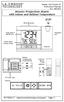 Model: WS-5220U-IT Instruction Manual DC: 082415 Atomic Projection Alarm with Indoor and Outdoor Temperature SNOOZE button Time, Alarm + WWVB Icon Projection arm Indoor Temp., Outdoor Temp. Battery Compartment
Model: 308-1412 Manual DC: 080215 WIRELESS COLOR FORECAST STATION
 Model: 308-1412 Manual DC: 080215 WIRELESS COLOR FORECAST STATION FRONT VIEW SENSOR TX141TH-Bv2 LED TX Sensor Battery Cover Sensor Battery Compartment 2 AA Buttons Battery Compartment 3 AAA BACK VIEW Battery
4.3-inch Back-Up Camera
 TM 4.-inch Back-Up Camera Model No.: PKC0BU4 Owner s Manual and Warranty Information Read these instructions completely before using this product. Retain this Owner s Manual for future reference. INTRODUCTION
THE NEW GENERATION IN TECHNOLOGY. NI-3103A Alarm Clock w/fm Radio ipod & iphone Docking. Operating Instructions
 THE NEW GENERATION IN TECHNOLOGY NI-3103A Alarm Clock w/fm Radio ipod & iphone Docking Operating Instructions Table of Contents Important Safeguards... 3 Parts... 6 Controls... 6 To Set Up... 7 ipod/iphone
PIR-1 Owner s Manual
 PIR-1 Owner s Manual PIR-1 Owner s Manual 2010 Universal Remote Control, Inc. The information in this manual is copyright protected. No part of this manual may be copied or reproduced in any form without
Solar Weather Station Model: BAR806 / BAR806A
 Solar Weather Station Model: BAR806 / BAR806A EN CONTENTS USER MANUAL Overview... 2 Front view... 2 Back view... 3 Remote sensor... 3 Getting started... 3 Solar panel... 3 Insert batteries... 4 Remote
INSTALLATION GUIDE ConnectLine TV Adapter Getting started
 INSTALLATION GUIDE ConnectLine TV Adapter Getting started PURPOSE OF THIS GUIDE READ THIS FIRST Before your hearing instruments can receive sound from the TV, the adapter must be connected to the TV and
Table of Contents Function Keys of Your RF Remote Control Quick Setup Guide Advanced Features Setup Troubleshooting
 Congratulations on your purchase of the AT&T U-verse TV Point Anywhere RF Remote Control. This product has been designed to provide many unique and convenient features to enhance your AT&T U-verse experience.
musical auto mirror day & night light Control Panel Features Mirror Features Front View Mirror Features Rear View B C Remote Receiver C
 Control Panel Features A Power, Low/High Volume Switch Note: The dual-mode night light and music can only be activated by pressing the buttons on the remote. A Mirror Features Front View B Dual-Mode Night
ST815 Illumination Sensor with LCD
 ST815 Illumination Sensor with LCD The Illumination Sensor with LCD (refer to as Illumination Sensor hereafter) is a Z-Wave TM enabled device which is fully compatible with any Z-Wave TM enabled network.
Mobile Emergency Response User Guide
 Mobile Emergency Response User Guide Table of Contents Introduction... 3 What s in the Box... 4 Mobile Emergency Response Features... 5 Connecting Your ADT Mobile Emergency Response System... 6 Using the
ENERGY AWARE. Monitor User Guide
 ENERGY AWARE Monitor User Guide Table of contents Introduction 3 How it works 4 Have you got everything? 4 Before you get started 5 Setting up your TREC Display 6 Pairing the TREC Display and Transmitter
AM/FM Emergency Weather Radio/Light With Hand Crank Back-Up Power
 VEC173 ONE YEAR LIMITED WARRANTY PROGRAM This limited warranty program is the only one that applies to this product, and it sets forth all the responsibilities of Vector Manufacturing, regarding this product.
SCREENLOGIC INTERFACE WIRELESS CONNECTION KIT
 SCREENLOGIC INTERFACE WIRELESS CONNECTION KIT FOR INTELLITOUCH AND EASYTOUCH CONTROL SYSTEMS INSTALLATION GUIDE IMPORTANT SAFETY INSTRUCTIONS READ AND FOLLOW ALL INSTRUCTIONS SAVE THESE INSTRUCTIONS Technical
Residential Gateway (RG) Battery Backup REV B
 Residential Gateway (RG) Battery Backup REV B Save this user manual This manual contains important instructions regarding the installation and operation of this device. Read this manual thoroughly before
Changes or modifications not expressly approved by Interlogix, Inc. can void the user s authority to operate the equipment.
 9-4 5 ) 7 ) 8 A HI E = @ = JA H 6 D A 2 A =? A A A F A H 1 FCC Notices FCC Part 15 Information to the User Changes or modifications not expressly approved by Interlogix, Inc. can void the user s authority
Weather Radio Alarm Clock
 1200093 User s Guide Weather Radio Alarm Clock Thank you for purchasing your Weather Radio Alarm Clock from RadioShack. Please read this user s guide before installing, setting up, and using your new weather
Model 70A00-1. GSM Cellular Communications Center
 Home Automation, Inc. Model 70A00-1 GSM Cellular Communications Center Operation Manual Document Number 70I00-1 Rev A August, 2009 Contents Description... 1 Use with security systems...1 Everyday use...2
User s Manual. 2010 VTECH Printed in China 91-002395-025-000
 User s Manual 2010 VTECH Printed in China 91-002395-025-000 INTRODUCTION When Skipper overhears King Julien insulting the penguins, a contest is proposed. Who is more popular, the penguins or the lemurs?
BIG GAMES HOME VIDEO ARCADE ASSEMBLY INSTRUCTIONS
 TM BIG GAMES HOME VIDEO ARCADE ASSEMBLY INSTRUCTIONS IN-HOME ASSEMBLY OF YOUR BIGGAMES HOME VIDEO ARCADE MAY BE AVAILABLE IN YOUR AREA FOR AN ADDITIONAL CHARGE. FOR INFORMATION, PLEASE CALL (800) 749-4345.
CA-125 Owner's Manual
 Remote Vehicle Control System CA-125 Owner's Manual Vehicle Security System With Remote Keyless Entry IMPORTANT NOTE: The operation of the Security and Convenience System as described in this manual is
Daily use. Never use alcohol or other solvents to clean any part of the loudspeakers!
 BeoLab 6002 Guide WARNING: To reduce the risk of fire or electric shock, do not expose this appliance to rain or moisture. Do not expose this equip ment to dripping or splashing and ensure that no objects
Introduction. Setting Up Your Remote Installing the Battery. Contents. System Requirements
 410-1680-001E / AMP09US 1 YEAR LIMITED WARRANTY: We pride ourselves on the quality of our products. For complete warranty details and a list of our worldwide offices, please visit www.targus. com. Features
USB Dual Handset Adapter for Nortel 1100-Series IP Phones
 1021 USB Dual Handset Adapter for Nortel 1100-Series IP Phones User Guide Document#: 90-00039 [email protected] [email protected] www.algosolutions.com Table of Contents Algo 1021 USB Dual
466-1936 Rev E October 2004 ZZZ*(6HFXULW\FRP. Part No: 60-883-95R. CareGard. User Guide
 ) *(6HFXULW\ 466-1936 Rev E October 2004 ZZZ*(6HFXULW\FRP Part No: 60-883-95R CareGard User Guide FCC Notices FCC Part 15 Information to the User Changes or modifications not expressly approved by GE Security
Portable Multiband Radio (120-0456A) Features Faxback Doc. # 56400
 (120-0456A) Features Faxback Doc. # 56400 Your RadioShack Portable Multiband Radio is an all-in-one radio system designed to provide high-quality sound. the multi-band tuner lets you listen to the radio,
CAUTION RISK OF ELECTRIC SHOCK DO NOT OPEN
 BeoLab 4 Guide CAUTION RISK OF ELECTRIC SHOCK DO NOT OPEN CAUTION: To reduce the risk of electric shock, do not remove cover (or back). No User-serviceable parts inside. Refer servicing to qualified service
SEC-ALARM200 WIRELESS ALARM SYSTEM
 SEC-ALARM200 WIRELESS ALARM SYSTEM - 1 - Safety precautions: CAUTION To reduce risk of electric shock, RISK OF ELECTRIC SHOCK this product should ONLY be DO NOT OPEN opened by an authorized technician
INSTRUCTION MANUAL PC5OO WITH PC5OORK KEYPAD
 INSTRUCTION MANUAL PC5OO WITH PC5OORK KEYPAD TABLE OF CONTENTS SYSTEM INFORMATION 2 INTRODUCTION 3 Test Your System Regularly...3 Important Notice...3 Glossary...3 BASIC OPERATION 4 Arming Your System...4
IMPORTANT SAFETY INSTRUCTIONS
 IMPORTANT SAFETY INSTRUCTIONS Before you install or use the apparatus, you must read and understand these Important Safety Instructions. At all times when using the apparatus you must follow these Important
PC Tab Security System INSTRUCTION MANUAL
 PC Tab Security System INSTRUCTION MANUAL This manual is intended as a Quick Start manual covering the basic functions that have been enabled on the alarm panel. The alarm panel is capable of extensive
Wireless Bluetooth Mouse User s Guide
 Wireless Bluetooth Mouse User s Guide Thanks for purchasing this 1000dpi Bluetooth Optical Mouse. This creative and easy-to-use Bluetooth Mouse will bring you a whole new wireless life experience. System
AIRAVE 2.5 User Guide
 AIRAVE 2.5 User Guide 2012 Sprint. Sprint and the logo are trademarks of Sprint. Other marks are trademarks of their respective owners. 911702 Rev. 51.13 Important Messages IMPORTANT: Sprint s policies
110244-003. PrintPAD CN3/4/3e/4e. User Guide
 110244-003 PrintPAD CN3/4/3e/4e User Guide TABLE OF CONTENTS PrintPAD CN3/4 & PrintPAD CN3e/4e Printer Views...1 Open View...1 Closed View...1 Using Batteries: General Guidelines...1 Installing and/or
mysensors mysensors Wireless Sensors and Ethernet Gateway Quick Start Guide Information to Users Inside the Box mysensors Ethernet Gateway Quick Start
 mysensors Information to Users mysensors Wireless Sensors and Ethernet Gateway Quick Start Guide This equipment has been tested and found to comply with the limits for a Class B digital devices, pursuant
RF Projection Barometer With Remote Thermo Sensor
 RF Projection Barometer With Remote Thermo Sensor Model No.: BAR338P (UK VERSION BAR338PU) User s Manual MAIN UNIT CONTROLS GB INTRODUCTION Congratulations on your purchasing the BAR338P RF Projection
Pad. Quick Start Guide
 Pad Quick Start Guide Copyright 2008 Mimio Congratulations on your mimio Pad purchase! mimio Pad is a 4 GHz wireless pad. To configure mimio Pad for use, install the mimio Studio software and plug the
WIRELESS SENSOR BATTERY REPLACEMENT INSTRUCTIONS For Safewatch Residential Control Panels
 www.adt.ca WIRELESS SENSOR For Safewatch Residential Control Panels Your ADT Safewatch QuickConnect, SafeWatch 3000 or Vista Series residential security system may be installed with wireless sensors, such
Changes or modifications not expressly approved by Interactive Technologies, Inc. can void the user s authority to operate the equipment.
 0 FCC Notices FCC Part 15 Information to the User Changes or modifications not expressly approved by Interactive Technologies, Inc. can void the user s authority to operate the equipment. FCC Part 15 Class
CAUTION RISK OF ELECTRIC SHOCK DO NOT OPEN
 BeoLab 4000 Guide CAUTION RISK OF ELECTRIC SHOCK DO NOT OPEN CAUTION: To reduce the risk of electric shock, do not remove cover (or back). No User-serviceable parts inside. Refer servicing to qualified
FTP-1000 Touchpad/Display. Installation Manual. Stay. Away. Disarm. Quick Exit
 FTP-1000 Touchpad/Display Installation Manual A B 1 2 3 4 5 6 7 8 9 0 * # Stay Away Disarm Quick Exit C D Copyright Disclaimer Trademarks and patents Intended use FCC compliance Copyright 2005, GE Security
D UTILISATION. Catch-Me-Kitty. 2011 VTech Printed in China 91-002585-003 美
 MANUEL User's Manual D UTILISATION Catch-Me-Kitty TM 2011 VTech Printed in China 91-002585-003 美 Dear Parent, Ever notice the look on your baby s face when they learn something new through their own discovery?
Owner s Manual. Not suitable for mobile applications. Important Safety Instructions 2. Quick Installation 3. Basic Operation 4. Storage & Service 7
 Register online today for a chance to win a FREE Tripp Lite product! www.tripplite.com/warranty Owner s Manual Internet Office & BC Personal UPS Systems Not suitable for mobile applications. Important
Introduction. Setting Up Your Remote Installing the Battery. Contents. System Requirements
 410-1681-001F / AMP13US 1 YEAR LIMITED WARRANTY: We pride ourselves on the quality of our products. For complete warranty details and a list of our worldwide offices, please visit www.targus.com. Features
Keys... 2-2 Master, submaster and valet key... 2-2 Key number... 2-2. Door locks... 2-3 Power door locking switches... 2-5
 Doors and locks Keys........................................................................... 2-2 Master, submaster and valet key..................................... 2-2 Key number...............................................................
ismartalarm Home Security System OWNER S MANUAL Système de sécurité domestique ismartalarm MANUEL DUPROPRIÉTAIRE
 ismartalarm Home Security System OWNER S MANUAL Système de sécurité domestique ismartalarm MANUEL DUPROPRIÉTAIRE ismartalarm Home Security System OWNER S MANUAL Table of Contents INTRODUCTION PACKAGE CONTENTS
Key. ➍ Micro USB Port ➎ Operating System Toggle Keys ➏ Foam Screen Protectors. ➊ On/Off switch ➋ Bluetooth Connect Button (flashes when searching)
 INSTRUCTION MANUAL ➏ ➋ ➊ Product Features ➎ ➍ ➌ Built-in wireless Bluetooth 3.0 keyboard Compatible across ios, Android, and Windows, enabling you to mix and match with devices Ultra-thin, lightweight
user s manual Battery Case model #: SPB3200 Battery Case Charger for Samsung Galaxy S 4
 user s manual model #: SPB3200 Charger for Samsung Galaxy S 4 What s Included Unpack the battery case and make sure all accessories are put aside so they will not be lost. hello. USB to Micro USB Cable
IN-OUT Thermometer with Cable Free Sensor and Clock
 IN-OUT Thermometer with Cable Free Sensor and Clock MODEL: RAR232 USER'S MANUAL INTRODUCTION Congratulations on your purchase of the RAR232 In-Out Thermometer with 433MHz cable free sensor and calendar
Atomic Alarm Clock model 13131W2
 Instruction Manual Atomic Alarm Clock model 13131W2 CONTENTS Unpacking Instructions... 2 Package Contents... 2 Product Registration... 2 Features & Benefits... 3 Clock Setup... 4 Atomic Clock... 5 Set
USER GUIDE CS50/55... WIRELESS OFFICE HEADSET SYSTEM
 USER GUIDE CS50/55... WIRELESS OFFICE HEADSET SYSTEM TABLE OF CONTENTS PACKAGE CONTENTS Package Contents Features Setup Setup - Handset Lifter (Optional) Charging Positioning Adjusting Fit Making/Answering/Ending
Dome Security Camera with IR night vision
 Dome Security Camera with IR night vision EN INSTRUCTION MANUAL 1 Before you begin Limited Warranty Terms & Conditions Swann Communications warrants this product against defects in workmanship and material
CS70 WARRANTY MAINTENANCE TECHNICAL SUPPORT
 WARRANTY Limited Warranty This warranty covers defects in materials and workmanship of products manufactured, sold or certified by Plantronics which were purchased and used in the United States. This warranty
Indoor/Outdoor Color Camera with Built-in 2.4 GHz Wireless Transmitter, plus X10 controlled power supply, and Video Receiver.
 Indoor/Outdoor Color Camera with Built-in 2.4 GHz Wireless Transmitter, plus X10 controlled power supply, and Video Receiver. OWNER'S MANUAL VR36A XC18A XM13A MODEL VK69A (INCLUDES XC18A CAMERA, XM13A
Wireless Security System. Wireless Security Camera. SI519 Instructions. SI513 Instructions. Read and save these instructions.
 Wireless Security System SI519 Instructions Wireless Security Camera SI513 Instructions Read and save these instructions. Dear Sharper Image Customer, Thank you for your purchase of a Sharper Image product.
CAUTION RISK OF ELECTRIC SHOCK DO NOT OPEN
 BeoLab 7-6 Guide CAUTION RISK OF ELECTRIC SHOCK DO NOT OPEN CAUTION: To reduce the risk of electric shock, do not remove cover (or back). No User-serviceable parts inside. Refer servicing to qualified
HWS100 Wireless Home Security System
 4902000 HWS100 Wireless Home Security System Owner s Manual WARNING: Security system devices cannot compensate for loss of life or property. Company is not responsible for any loss or intrusion. CONTENTS
WIRELESS STATUS MONITOR
 INSTALLATION INSTRUCTIONS WIRELESS STATUS MONITOR (WSM or AUWSM) The most current version of this document is available for download at: http://www.ir-swa.com P/N: M053-032-D Schlage 245 W. Roosevelt Road,
Owner s Manual. Two options for getting started:
 Owner s Manual Two options for getting started: 1 The Keychain Remote contains the SimpliSafe Easy Setup Wizard a software program that provides animated instructions and lets you customize your system
RC8021 Indoor Camera Installation Guide
 RC8021 Indoor Camera Installation Guide P/N: 957YL502GJ Document Version: 1.0 Copyright 2011. All Rights Reserved. All trademarks and trade names are the properties of their respective owners i Package
Optical Wireless Mouse. User s Manual
 Optical Wireless Mouse Model : OM4000W User s Manual 110935-109154 Rev. 061101 User s Record: To provide quality customer service and technical support, it is suggested that you keep the following information
User Guide. BLUETOOTH WIRELESS KEYBOARD for ipad
 BLUETOOTH WIRELESS KEYBOARD for ipad 410-2119-001A / AKB32US 1 YEAR LIMITED WARRANTY: We pride ourselves on the quality of our products. For complete warranty details and a list of our worldwide offices,
Jabra BIZ 2400 USB USER MANUAL
 Jabra BIZ 2400 USB USER MANUAL 1 2011 GN Netcom A/S. All Rights Reserved. This user guide is published by GN Netcom A/S. The information in this user guide is furnished for informational use only, is subject
Usage, Installation, Warranty and Service Information
 T13C Table Updater for Seating Management U S E R M A N UA L Usage, Installation, Warranty and Service Information Long Range Systems, LLC 4550 Excel Parkway, Suite 200 Addison, TX 75001 800.437.4996 www.lrsus.com
QUICK START GUIDE CX-MC200LE-VZ
 QUICK START GUIDE CX-MC200LE-VZ LTE/EV-DO Business-Grade Modem For use with Juniper Networks CX111 3G/4G Bridge with Enhanced Performance and Reliability GETTING READY TO USE YOUR CX-MC200LE-VZ MODEM Thank
ViviCam 25 Digital Camera User s Manual
 ViviCam 25 Digital Camera User s Manual 2010 Sakar International, Inc. All rights reserved. Windows and the Windows logo are registered trademarks of Microsoft Corporation. All other trademarks are the
User Guide for the Wireless Headset (HS-11W) 9235346 Issue 1
 User Guide for the Wireless Headset (HS-11W) 9235346 Issue 1 DECLARATION OF CONFORMITY We, NOKIA CORPORATION declare under our sole responsibility that the product HS-11W is in conformity with the provisions
Intelli-Time Alarm Clock model 13027
 Instruction Manual Intelli-Time Alarm Clock model 13027 CONTENTS Unpacking Instructions... 2 Package Contents... 2 Product Registration... 2 Features & Benefits... 3 Clock Setup... 4 Intelli-Time Clock...
Application and Instruction Manual Motion Activated Solar Powered LED Security Light with Camera MODEL: XP-2H38WC
 Application and Instruction Manual Motion Activated Solar Powered LED Security Light with Camera MODEL: XP-2H38WC Please do not return this item to the store. If you have any questions, please contact
WUA-0605 300Mbps Wireless USB Network Adapter
 WUA-0605 300Mbps Wireless USB Network Adapter User Manual V1.0 Certification FCC CE FCC Statement This equipment has been tested and found to comply with the limits for a Class B digital device, pursuant
Wireless Optical Travel Mouse
 Wireless Optical Travel Mouse User s Manual PLEASE READ THESE INSTRUCTIONS CAREFULLY BEFORE INSTALLING THIS DEVICE. Table of Contents FCC Statement Page 3 Introduction.. Page 6 Package Contents.. Page
InnoMedia ESBC 9380-4B. Quick Install Guide. www.innomedia.com 1
 InnoMedia ESBC 9380-4B Quick Install Guide www.innomedia.com 1 Table of Contents Introduction 2 Package Contents 2 CAUTION 2 Installation 3 Wall-Mounting Instructions 5 Troubleshooting 6 Appendix A. LED
Installation & Operation Manual
 GET CONNECTED Installation & Operation Manual DEVICE INTEGRATION AND CHARGING KIT TranzIt USB IS32 Note to Readers, The information contained within the following documentation is subject to change without
Aura SSD. for the 2013 Apple Mac Pro INSTALLATION GUIDE
 Aura SSD for the 2013 Apple Mac Pro INSTALLATION GUIDE TABLE OF CONTENTS 1. INTRODUCTION...1 1.1 SYSTEM REQUIREMENTS 1.2 PACKAGE CONTENTS 1.3 ABOUT THIS MANUAL 2. INSTALLATION...2 2.1 PREPARING THE MAC
StructureScan HD Module. Installation Guide ENGLISH. www.bandg.com www.simrad-yachting.com www.lowrance.com
 StructureScan HD Module Installation Guide ENGLISH www.bandg.com www.simrad-yachting.com www.lowrance.com Disclaimer As Navico is continuously improving this product, we retain the right to make changes
Alarm Clock USER GUIDE
 Alarm Clock USER GUIDE Jazwares, Inc. 2010 1 CONTENTS Please read the instructions along with the alarm clock carefully before you use it, so that you can operate it conveniently. WELCOME, Safety Tips