
Deploying Silver Peak VXOA Physical And Virtual Appliances with Dell EqualLogic Isolated iscsi SANs including Dell 3-2-1
|
|
|
- Nathan Hill
- 10 years ago
- Views:
Transcription
1 Deploying Silver Peak VXOA Physical And Virtual Appliances with Dell EqualLogic Isolated iscsi SANs including Dell Tech Note June 2012 This tech note describes the deployment of Silver Peak physical and virtual appliances with Dell EqualLogic isolated iscsi SANs including the Dell EqualLogic server and storage solution. 1 Page

2 Formatting Conventions... 3 Prerequisites... 3 Overview... 3 Figure 1: Isolated iscsi SAN Diagram... 3 Figure 2: Silver Peak Tunnel with Auto- Replication... 4 Network Diagram... 5 Figure 3: Network Diagram... 5 Example Configuration... 6 Figure 4: IP Addresses... 6 Silver Peak Configuration... 7 Figure 5: Silver Peak Configuration Wizard... 7 Figure 6: Appliance IP address and name... 7 Figure 7: Appliance date, time and password... 8 Figure 8: Deployment mode... 8 Figure 9: Apply management settings... 9 Figure 10: Wait for the system to reboot... 9 Figure 11: Login to the appliance Figure 12: Configure system Figure 13: Max WAN Bandwidth Figure 14: Deployment mode Figure 15: Dual homed router mode Figure 16: Assign appliance IP addresses and next- hop Figure 17: WAN next hop warning Figure 18: Tunnel configuration Figure 19: Adding a new tunnel Figure 20: Selecting route policy Figure 21: Creating a new route policy Conclusion Links Appendix A Silver Peak VXOA and Dell EqualLogic Configuration Sheet Page

3 Formatting Conventions Italic font used for words that require special attention or as a placeholder for information that must be user supplied. Monospaced font Command names and information displayed on a system console. Also used for file, path and directory names. Bold monospaced font Words and characters that the user must type. Typed characters are always in lowercase letters, unless the program is case- sensitive. Prerequisites Silver Peak VX or NX appliances version or later Silver Peak licenses IP address information for appendix A Read this entire document before beginning configuration Overview This document describes the configuration of Silver Peak physical and virtual appliances for Dell EqualLogic isolated iscsi SAN and deployments. For this deployment the iscsi SANs at the primary and secondary sites are isolated from the LAN and WAN router, Figure 1. Because the iscsi SAN is in an isolated subnet, EqualLogic Auto- Replication cannot be used unless changes are made to the network by connecting the iscsi SAN to the LAN or adding an additional connection from the WAN router to the iscsi SAN. In order to simplify replication deployments with an isolated iscsi SAN, Silver Peak physical or virtual appliances are used to optimize and route replication traffic across the WAN. Subnet B WAN Subnet C WAN Router WAN Router IP SAN Switch IP SAN Switch Primary EQ Array Secondary EQ Array Subnet A Subnet D Figure 1: Isolated iscsi SAN Diagram 3 Page

4 Because the Silver Peak appliances use a tunnel to communicate with each other, the iscsi SAN at each site will remain isolated from the LAN, maintaining security and stability, Figure 2. For additional security, IP SEC can be used to encrypt traffic between the Silver Peak appliances. Subnet B WAN Subnet C WAN Router WAN Router Silver Peak Silver Peak iscsi SAN Switch iscsi SAN Switch Primary EQ Array Secondary EQ Array Subnet A Subnet D Dell EqualLogic Auto-Replication Traffic Silver Peak Tunnel with Auto-Replication Traffic Figure 2: Silver Peak Tunnel with Auto- Replication When Silver Peak appliances are deployed with Dell EqualLogic Auto- Replication for a solution or isolated iscsi SAN, the Silver Peak appliance will become the default gateway for the EqualLogic arrays on the iscsi SAN. The Silver Peak appliances will forward all EqualLogic Auto- Replication traffic to the WAN router. The Silver Peak appliances will not forward traffic from the LAN to the iscsi SAN, only the traffic that is in the Silver Peak tunnel will be forwarded to the iscsi SAN. 4 Page

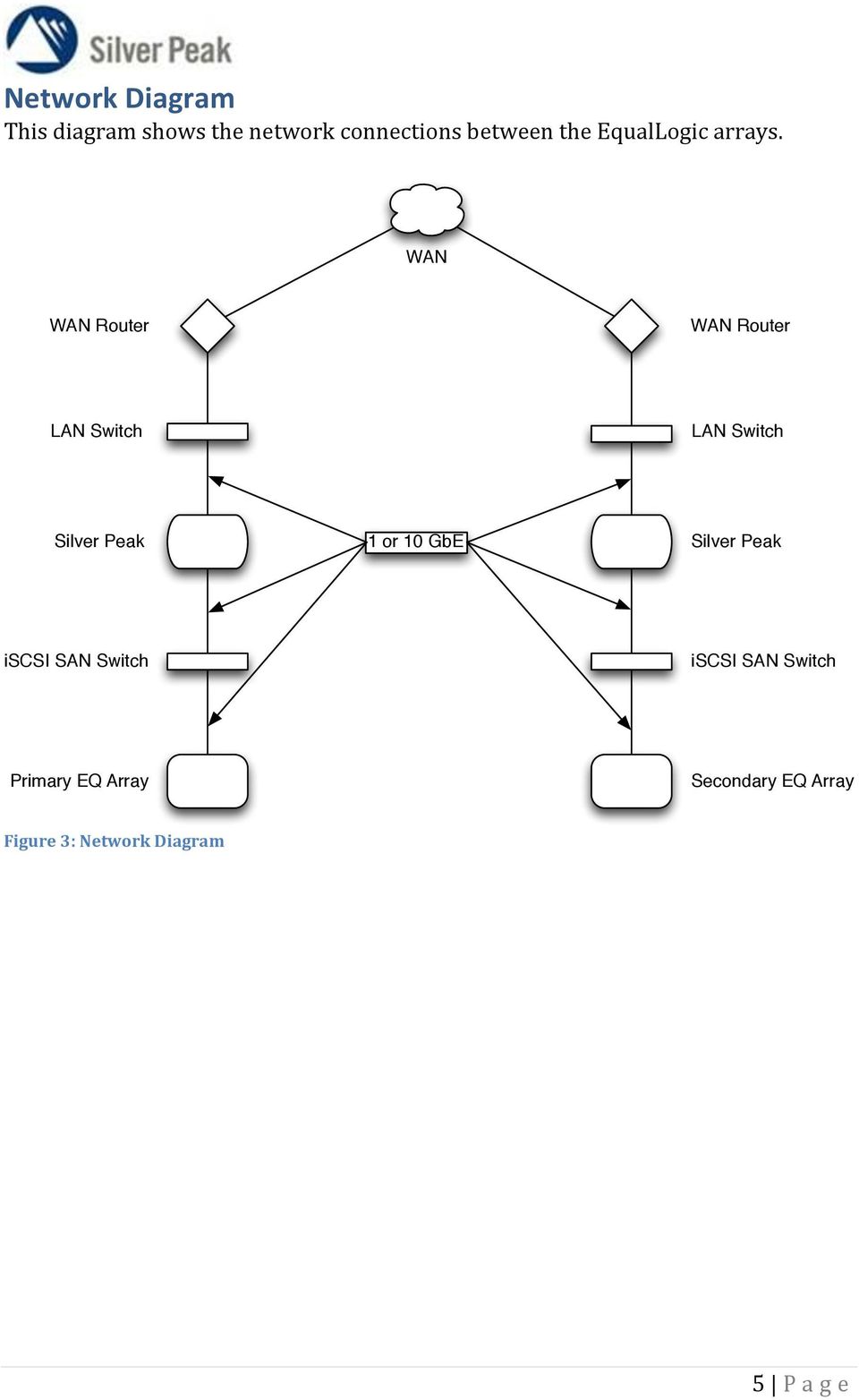
5 Network Diagram This diagram shows the network connections between the EqualLogic arrays. WAN WAN Router WAN Router Silver Peak 1 or 10 GbE Silver Peak iscsi SAN Switch iscsi SAN Switch Primary EQ Array Secondary EQ Array Figure 3: Network Diagram 5 Page
6 Example Configuration The following IP addresses are used for this example; note that this is only one side of the replication link. Both sides will need to be configured before replication can begin. The second site will have different IP addresses, but all of the components will be the same. It is possible to use a physical Silver Peak appliance at one site and a virtual Silver Peak appliance at the other site. WAN router /24 Silver Peak WAN /24 Silver Peak WAN0 Next- hop /24 Silver Peak mgmt /24 EqualLogic array /24 Silver Peak LAN /24 Silver Peak LAN0 Next- hop /24 (this address is non- functioning and should not be an actual device. If this address responds to a ping traffic will not be forwarded correctly.) WAN Router /24 Silver Peak SP WAN /24 Next-hop /24 SP LAN /24 Next-hop /24 iscsi SAN Switch Primary EQ Array /24 Figure 4: IP Addresses 6 Page

7 Silver Peak Configuration For the initial deployment of the Silver Peak appliances, please follow the Quick Start Guide located here: peak.com/support/user_docs.asp. Note that there is a separate quick start guide for physical and virtual appliances. After completing step 6 in the quick start guide, please return to this guide and start at Login and begin with the Silver Peak configuration wizard. The default user name and password is admin/admin. Figure 5: Silver Peak Configuration Wizard 2. Assign the appliance hostname and management IP address. Figure 6: Appliance IP address and name 7 Page

8 3. Set the date, time and management password. Figure 7: Appliance date, time and password 4. Select the finish now option, Apply management settings only - configure deployment mode later. Figure 8: Deployment mode 8 Page

9 5. Apply management settings and wait for the system to reboot. Figure 9: Apply management settings Figure 10: Wait for the system to reboot 9 Page

10 6. Login to the appliance. Figure 11: Login to the appliance 7. Select configure system. Figure 12: Configure system 8. Set System Bandwidth based on the amount of bandwidth available for replication. In some environments the bandwidth that is available for replication will be less than the total available WAN bandwidth. This setting will limit the maximum Silver Peak throughput. Figure 13: Max WAN Bandwidth 10 Page

11 9. Select Router for the deployment mode and click the advanced button. Figure 14: Deployment mode 10. Select dual homed and click OK. Figure 15: Dual homed router mode 11. Assign IP addresses for appliance interface IP1 and IP2 and wan0 and lan0 next hop. a. Assign an IP address to Appliance IP1 that is valid on the LAN, the wan0 Next- hop IP is the address of the WAN router or default gateway for the LAN. b. Assign an IP address to Appliance IP2 that is valid on the iscsi SAN, the lan0 Next- hop IP should be an address that is not in use on the iscsi SAN and will not respond to a ping. This address is just a placeholder and will not be used. If an address is used that is in use on the iscsi SAN, the Silver Peak tunnel will not activate and replication will fail. c. Ignore the warning for WAN Next- Hop Unreachable on lan0. The gw: field should list the IP address that was used for the LAN0 Next- hop, figure 17. If this error message is not present, an in- use IP address was entered into the lan0 Next- hop field and replication will fail. 11 Page

12 Figure 16: Assign appliance IP addresses and next- hop Figure 17: WAN next hop warning 12. Create a manual tunnel between Silver Peak appliances. a. Select Configuration>Tunnels Figure 18: Tunnel configuration b. Select Add and use the following settings: Name: use a name to describe where this tunnel goes, for example tunnel- to- remote- site- IP- SAN Admin: up MTU: 1500 Local IP: the local IP address for LAN0 Remote IP: the remote appliance IP address for LAN0 Auto Max BW: checked. Max BW can be set if replication traffic needs to be limited to a specific throughput. Min BW: 32 Mode: gre 12 Page

13 Figure 19: Adding a new tunnel 13. Because the two iscsi SANs are isolated from the LAN and WAN, a route policy must be added to the Silver Peak appliances in order to pass traffic between them. a. First select Configuration>Route Policy. Figure 20: Selecting route policy b. Select Add and use the following settings: Priority: 10 Protocol: ip Src Subnet: the local IP SAN subnet Dst Subnet: the remote IP SAN subnet Application: any DSCP: any Tunnel: use the tunnel that was created in step Page

14 Tunnel Down Action: Drop d. Select Apply If the tunnel between the Silver Peak appliances goes down replication will stop. Setting the Tunnel Down Action to Pass- Through will not change this. Setting the Tunnel Down Action to Drop is a reminder that replication will stop. Figure 21: Creating a new route policy 14. Use the local Silver Peak LAN0 IP address as the default IP gateway for each EqualLogic member. 15. Refer to the Dell EqualLogic documentation and configure replication to the remote site. Conclusion Silver Peak VXOA enables EqualLogic arrays on isolated iscsi SANs to replicate across significantly greater distances, using less bandwidth, and without any changes to the LAN or WAN router. Silver Peak VXOA helps maintain EqualLogic security and stability by keeping the iscsi SAN replication traffic isolated from the LAN through the use of tunnels between appliances. All of these benefits and deployment options are available with Silver Peak virtual and physical appliances. 14 Page

15 Links Silver Peak Documentation: peak.com/support/user_docs.asp Dell EqualLogic Product Documentation: n/equal_logic?c=us&cs=04&l=en&s=bsd&~ck=anavml 15 Page

16 Appendix A Silver Peak VXOA and Dell EqualLogic Configuration Sheet Local Site Silver Peak mgmt0: Replication Bandwidth: LAN Wan Router: LAN Subnet: Silver Peak WAN0: IP SAN IP SAN Subnet: Silver Peak LAN0: LAN0 Next- hop: Remote Site Silver Peak mgmt0: Replication Bandwidth: LAN Wan Router: LAN Subnet: Silver Peak WAN0: IP SAN IP SAN Subnet: Silver Peak LAN0: LAN0 Next- hop: WAN WAN Router WAN Router SP WAN0 interface SP WAN0 interface Silver Peak Silver Peak SP LAN0 interface SP LAN0 interface iscsi SAN Switch iscsi SAN Switch Primary EQ Array Secondary EQ Array 16 Page

VELOCITY. Quick Start Guide. Citrix XenServer Hypervisor. Server Mode (Single-Interface Deployment) Before You Begin SUMMARY OF TASKS
 If you re not using Citrix XenCenter 6.0, your screens may vary. VELOCITY REPLICATION ACCELERATOR Citrix XenServer Hypervisor Server Mode (Single-Interface Deployment) 2013 Silver Peak Systems, Inc. This
Required Virtual Interface Maps to... mgmt0. virtual network = mgmt0 wan0. virtual network = wan0 mgmt1. network adapter not connected lan0
 VXOA VIRTUAL APPLIANCES Microsoft Hyper-V Hypervisor Router Mode (Out-of-Path Deployment) 2013 Silver Peak Systems, Inc. Assumptions Windows 2008 server is installed and Hyper-V server is running. This
SILVER PEAK ACCELERATION WITH EMC VSPEX PRIVATE CLOUD WITH RECOVERPOINT FOR VMWARE VSPHERE
 VSPEX IMPLEMENTATION GUIDE SILVER PEAK ACCELERATION WITH EMC VSPEX PRIVATE CLOUD WITH RECOVERPOINT FOR VMWARE VSPHERE Silver Peak Abstract This Implementation Guide describes the deployment of Silver Peak
How to Setup PPTP VPN Between a Windows PPTP Client and the DIR-130.
 Note: DIR-130 FW: 1.21 How to Setup PPTP VPN Between a Windows PPTP Client and the DIR-130. This setup example uses the following network settings: D-Link Technical Support PPTP VPN Between Windows PPTP
Using a USB 3.0 Dual Gigabit Ethernet Bypass Adapter with VMware vsphere for VXOA
 Using a USB 30 Dual Gigabit Ethernet Bypass Adapter with VMware vsphere for VXOA Bridge Mode (In-Line Deployment) Router Mode (Out-of-Path Deployment) This document describes how to use a USB 30 Dual Gigabit
VPN PPTP Application. Installation Guide
 VPN PPTP Application Installation Guide 1 Configuring a Remote Access PPTP VPN Dial-in Connection A remote worker establishes a PPTP VPN connection with the head office using Microsoft's VPN Adapter (included
Required Virtual Interface Maps to... mgmt0. bridge network interface = mgmt0 wan0. bridge network interface = wan0 mgmt1
 VXOA VIRTUAL APPLIANCE KVM Hypervisor In-Line Deployment (Bridge Mode) 2012 Silver Peak Systems, Inc. Support Limitations In Bridge mode, the virtual appliance only uses mgmt0, wan0, and lan0. This Quick
VXOA AMI on Amazon Web Services
 2013 Silver Peak Systems, Inc. QUICK START GUIDE VXOA AMI on Amazon Web Services A Silver Peak Virtual Appliance (VX) can be deployed within an Amazon Web Services (AWS) cloud environment to accelerate
How To Load balance traffic of Mail server hosted in the Internal network and redirect traffic over preferred Interface
 How To Load balance traffic of Mail server hosted in the Internal network and redirect traffic over preferred Interface How To Configure load sharing and redirect mail server traffic over preferred Gateway
Installation of the On Site Server (OSS)
 Installation of the On Site Server (OSS) rev 1.1 Step #1 - Initial Connection to the OSS Having plugged in power and an ethernet cable in the eth0 interface (see diagram below) you can connect to the unit
2.0 Dual WAN Select Dual-WAN, you will see the following screen shot, Figure 0.1(Dual-WAN Screen Shot) Figure 0.1(Dual-WAN Screen Shot)
 Dual WAN Configuration 1.0 Login First login to Management UI, (192.168.1.1) default router IP You will be requiring entering the user name and password, which are both admin by default. Select System
Allworx Installation Course
 VPN Hello and welcome. In the VPN section we will cover the steps for enabling the VPN feature on the Allworx server and how to set up a VPN connection to the Allworx System from your PC. Page 1 VPN The
F-Secure Messaging Security Gateway. Deployment Guide
 F-Secure Messaging Security Gateway Deployment Guide TOC F-Secure Messaging Security Gateway Contents Chapter 1: Deploying F-Secure Messaging Security Gateway...3 1.1 The typical product deployment model...4
UTM - VPN: Configuring a Site to Site VPN Policy using Main Mode (Static IP address on both sites) i...
 Page 1 of 10 Question/Topic UTM - VPN: Configuring a Site to Site VPN Policy using Main Mode (Static IP address on both sites) in SonicOS Enhanced Answer/Article Article Applies To: SonicWALL Security
If you re not using Citrix XenCenter 6.0, your screens may vary. Required Virtual Interface Maps to... mgmt0. virtual network = mgmt0 wan0
 If you re not using Citrix XenCenter 6.0, your screens may vary. VXOA VIRTUAL APPLIANCES Citrix XenServer Hypervisor In-Line Deployment (Bridge Mode) 2012 Silver Peak Systems, Inc. Support Limitations
CREATING AN IKE IPSEC TUNNEL BETWEEN AN INTERNET SECURITY ROUTER AND A WINDOWS 2000/XP PC
 CREATING AN IKE IPSEC TUNNEL BETWEEN AN INTERNET SECURITY ROUTER AND A WINDOWS 2000/XP PC 1 Introduction Release date: 11/12/2003 This application note details the steps for creating an IKE IPSec VPN tunnel
Quick Start Guide. Citrix XenServer Hypervisor. Server Mode (Single-Interface Deployment) Before You Begin SUMMARY OF TASKS
 Quick Start Guide VX VIRTUAL APPLIANCES If you re not using Citrix XenCenter 6.0, your screens may vary. Citrix XenServer Hypervisor Server Mode (Single-Interface Deployment) 2013 Silver Peak Systems,
Trend Micro Email Encryption Gateway 5
 Trend Micro Email Encryption Gateway 5 Secured by Private Post Quick Installation Guide m Messaging Security Trend Micro Incorporated reserves the right to make changes to this document and to the products
Configuring IPsec VPN with a FortiGate and a Cisco ASA
 Configuring IPsec VPN with a FortiGate and a Cisco ASA The following recipe describes how to configure a site-to-site IPsec VPN tunnel. In this example, one site is behind a FortiGate and another site
Trend Micro Incorporated reserves the right to make changes to this document and to the products described herein without notice.
 Trend Micro Incorporated reserves the right to make changes to this document and to the products described herein without notice. Before installing and using the software, please review the readme files,
How To Configure Syslog over VPN
 How To Configure Syslog over VPN Applicable Version: 10.00 onwards Overview Cyberoam provides extensive logging capabilities for traffic, system and network protection functions. Detailed log information
DSL-G604T Install Guides
 Internet connection with NAT...2 Internet connection with No NAT, IP Un-number...6 Port Forwarding...12 Filtering & Firewall Setup...20 Access Control... 21 DMZ Setup... 26 Allow Incoming Ping... 27 How
SMC7004ABR Barricade Broadband Router Installation Instructions
 SMC7004ABR Barricade Broadband Router Installation Instructions SPECIAL NOTE: Part D Upgrading the Firmware in Your Barricade MUST occur in ALL installations for multiple VPN sessions to work!!! SPECIAL
How to setup PPTP VPN connection with DI-804HV or DI-808HV using Windows PPTP client
 How to setup PPTP VPN connection with DI-804HV or DI-808HV using Windows PPTP client Make sure your DI-804HV or DI-808HV is running firmware ver.1.40 August 12 or later. You can check firmware version
If you re not using VMware vsphere Client 5.1, your screens may vary.
 UNITY EdgeConnect If you re not using VMware vsphere Client 5.1, your screens may vary. VIRTUAL APPLIANCES VMware vsphere / vsphere Hypervisor 2015 Silver Peak Systems, Inc. In-Line Router Mode Before
GX-V. Quick Start Guide. Microsoft Hyper-V Hypervisor. Before You Begin SUMMARY OF TASKS. Before You Begin WORKSHEET VIRTUAL GMS SERVER
 Quick Start Guide GX-V VIRTUAL GMS SERVER Microsoft Hyper-V Hypervisor 2012 Silver Peak Systems, Inc. Before You Begin Windows 2008 server installed and Hyper-V is running Hyper-V management software is
Our target is an EqualLogic PS100 Storage Array with a portal address of
 iscsi Multi-Path I/O (MPIO) Example This is a example of how to create an MPIO connection to an iscsi target in a high performance environment. By high performance, we mean that we have an isolated VLAN
Wireless Router Quick Start Guide Rev. 1.0a Model: WR300NQ
 Wireless Router Quick Start Guide Rev. 1.0a Model: WR300NQ 1 Step One: Hardware Connection 1. If you have xdsl Broadband internet access, connect your hardware as shown in the following diagram: 2. If
Silver Peak WAN Optimization Appliances. Network Deployment Guide. VXOA 6.2 March 2015 PN 200059-001 Rev L
 Silver Peak WAN Optimization Appliances Network Deployment Guide VXOA 6.2 March 2015 PN 200059-001 Rev L Silver Peak NX Series Appliances Network Deployment Guide Silver Peak NX Series Appliances Network
This techno knowledge paper can help you if: You need to setup a WAN connection between a Patton Router and a NetGuardian.
 Problem: Patton / 240T WAN Setup Platform: NetGuardian 240T This TKP is a guide to setting up a PPP to T1 WAN connection between a Patton Model 2603 Router and a NetGuardian 240T. The example in this guide
Trend Micro Incorporated reserves the right to make changes to this document and to the products described herein without notice.
 Trend Micro Incorporated reserves the right to make changes to this document and to the products described herein without notice. Before installing and using the software, please review the readme files,
Networking Guide Redwood Manager 3.0 August 2013
 Networking Guide Redwood Manager 3.0 August 2013 Table of Contents 1 Introduction... 3 1.1 IP Addresses... 3 1.1.1 Static vs. DHCP... 3 1.2 Required Ports... 4 2 Adding the Redwood Engine to the Network...
Note: This case study utilizes Packet Tracer. Please see the Chapter 5 Packet Tracer file located in Supplemental Materials.
 Note: This case study utilizes Packet Tracer. Please see the Chapter 5 Packet Tracer file located in Supplemental Materials. CHAPTER 5 OBJECTIVES Configure a router with an initial configuration. Use the
Publish Cisco VXC Manager GUI as Microsoft RDS Remote App
 Publish Cisco VXC Manager GUI as Microsoft RDS Remote App This appendix provides a step-by-step guide to publish the Cisco Cisco VXC Manager GUI as a Microsoft Remote Desktop Services (RDS) RemoteApp application.
Deploying Windows Streaming Media Servers NLB Cluster and metasan
 Deploying Windows Streaming Media Servers NLB Cluster and metasan Introduction...................................................... 2 Objectives.......................................................
Setting up VPN connection: DI-824VUP+ with Windows PPTP client
 Setting up VPN connection: DI-824VUP+ with Windows PPTP client DI-824VUP+ (firmware 1.03 or higher) LAN IP: 192.168.0.1 Subnet Mask: 255.255.255.0 WAN IP: 203.111.91.1 Subnet Mask: 255.255.255.252 Default
How To Check If Your Router Is Working Properly
 Chapter 6 Using Network Monitoring Tools This chapter describes how to use the maintenance features of your RangeMax Dual Band Wireless-N Router WNDR3300. You can access these features by selecting the
Lab 4.4.8a Configure a Cisco GRE over IPSec Tunnel using SDM
 Lab 4.4.8a Configure a Cisco GRE over IPSec Tunnel using SDM Objective Scenario Topology In this lab, the students will complete the following tasks: Prepare to configure Virtual Private Network (VPN)
Enable VPN PPTP Server Function
 How to use VPN PPTP Server/Client on TW- EAV510/EAV510 AC Note: Please make sure that both LAN side networks are in different subnet. Enable VPN PPTP Server Function Go to Advanced Setup - > VPN - > PPTP
DEPLOYMENT GUIDE. This document gives a brief overview of deployment preparation, installation and configuration of a Vectra X-series platform.
 This document gives a brief overview of deployment preparation, installation and configuration of a Vectra X-series platform. Traffic Requirements The Vectra X-series platform detects threats and attacks
UIP1868P User Interface Guide
 UIP1868P User Interface Guide (Firmware version 0.13.4 and later) V1.1 Monday, July 8, 2005 Table of Contents Opening the UIP1868P's Configuration Utility... 3 Connecting to Your Broadband Modem... 4 Setting
Integration Guide. EMC Data Domain and Silver Peak VXOA 4.4.10 Integration Guide
 Integration Guide EMC Data Domain and Silver Peak VXOA 4.4.10 Integration Guide August 2013 Copyright 2013 EMC Corporation. All Rights Reserved. EMC believes the information in this publication is accurate
Balancing and Gateway Failover
 How To Add Active How or To Backup Add Gateway Active for Load or Backup Balancing and Gateway for Failover Load Balancing and Gateway Failover Applicable versions: 9.5.3 build 18 onwards Today organizations
F-SECURE MESSAGING SECURITY GATEWAY
 F-SECURE MESSAGING SECURITY GATEWAY DEFAULT SETUP GUIDE This guide describes how to set up and configure the F-Secure Messaging Security Gateway appliance in a basic e-mail server environment. AN EXAMPLE
How To Industrial Networking
 How To Industrial Networking Prepared by: Matt Crites Product: Date: April 2014 Any RAM or SN 6xxx series router Legacy firmware 3.14/4.14 or lower Subject: This document provides a step by step procedure
Setting up D-Link VPN Client to VPN Routers
 Setting up D-Link VPN Client to VPN Routers Office Unit: DI-804HV (firmware 1.41) LAN IP: 192.168.100.22 Subnet Mask: 255.255.255.0 WAN IP: 202.129.109.82 Subnet Mask: 255.255.255.224 Default Gateway:
Chapter 6 Using Network Monitoring Tools
 Chapter 6 Using Network Monitoring Tools This chapter describes how to use the maintenance features of your RangeMax Wireless-N Gigabit Router WNR3500. You can access these features by selecting the items
Silver Peak Virtual Appliances
 Silver Peak Virtual Appliances Frequently Asked Questions (FAQ) VX Installation This section addresses questions or problems you may encounter during Silver Peak VX installation. 1. I need to increase
Chapter 6 Basic Virtual Private Networking
 Chapter 6 Basic Virtual Private Networking This chapter describes how to use the virtual private networking (VPN) features of the FVG318 wireless VPN firewall. VPN communications paths are called tunnels.
Chapter 6 Using Network Monitoring Tools
 Chapter 6 Using Network Monitoring Tools This chapter describes how to use the maintenance features of your Wireless-G Router Model WGR614v9. You can access these features by selecting the items under
AlienVault Unified Security Management (USM) 4.15-5.x. Configuring High Availability (HA)
 AlienVault Unified Security Management (USM) 4.15-5.x Configuring High Availability (HA) USM v4.15-5.x Configuring High Availability (HA), rev 1 Copyright 2015 AlienVault, Inc. All rights reserved. The
1 You will need the following items to get started:
 QUICKSTART GUIDE 1 Getting Started You will need the following items to get started: A desktop or laptop computer Two ethernet cables (one ethernet cable is shipped with the _ Blocker, and you must provide
WiNG 5.X How To. Policy Based Routing Cache Redirection. Part No. TME-05-2012-01 Rev. A
 WiNG 5.X How To Policy Based Routing Cache Redirection Part No. TME-05-2012-01 Rev. A MOTOROLA, MOTO, MOTOROLA SOLUTIONS and the Stylized M Logo are trademarks or registered trademarks of Motorola Trademark
Best Practices: Pass-Through w/bypass (Bridge Mode)
 Best Practices: Pass-Through w/bypass (Bridge Mode) EdgeXOS Deployment Scenario: Bridge Pass-Through This document is designed to provide an example as to how the EdgeXOS appliance is configured based
Active Directory Management. Agent Deployment Guide
 Active Directory Management Agent Deployment Guide Document Revision Date: June 12, 2014 Active Directory Management Deployment Guide i Contents System Requirements...1 Hardware Requirements...1 Installation...3
EXINDA NETWORKS. Deployment Topologies
 EXINDA NETWORKS Deployment Topologies September 2005 :: Award Winning Application Traffic Management Solutions :: :: www.exinda.com :: Exinda Networks :: [email protected] :: 2005 Exinda Networks Pty Ltd.
Configuration Professional: Site to Site IPsec VPN Between Two IOS Routers Configuration Example
 Configuration Professional: Site to Site IPsec VPN Between Two IOS Routers Configuration Example Document ID: 113337 Contents Introduction Prerequisites Requirements Components Used Conventions Configuration
Deploying Secure Internet Connectivity
 C H A P T E R 5 Deploying Secure Internet Connectivity This chapter is a step-by-step procedure explaining how to use the ASDM Startup Wizard to set up the initial configuration for your ASA/PIX Security
QLogic 10GbE 3GCNA Lab
 QLogic 10GbE 3GCNA Lab Lab Overview Designed to provide an overview of the QLogic 8200 Series converged Network Adapter (CNA), this guide outlines the setup, installation, configuration and instructions
Multifunctional Broadband Router User Guide. Copyright Statement
 Copyright Statement is the registered trademark of Shenzhen Tenda Technology Co., Ltd. Other trademark or trade name mentioned herein are the trademark or registered trademark of above company. Copyright
How To Configure SSL VPN in Cyberoam
 How To Configure SSL VPN in Cyberoam Applicable Version: 10.00 onwards Overview SSL (Secure Socket Layer) VPN provides simple-to-use, secure access for remote users to the corporate network from anywhere,
NETFORT LANGUARDIAN MONITORING WAN CONNECTIONS. How to monitor WAN connections with NetFort LANGuardian Aisling Brennan
 NETFORT LANGUARDIAN MONITORING WAN CONNECTIONS How to monitor WAN connections with NetFort LANGuardian Aisling Brennan LANGuardian gives you the information you need to troubleshoot problems and monitor
SOFTWARE LICENSE LIMITED WARRANTY
 CYBEROAM INSTALLATION GUIDE VERSION: 6..0..0..0 IMPORTANT NOTICE Elitecore has supplied this Information believing it to be accurate and reliable at the time of printing, but is presented without warranty
GMS. 1 Create the virtual machine 2 Configure the virtual machine 3 Configure the virtual GMS server. Quick Start Guide. Microsoft Hyper-V Hypervisor
 Quick Start Guide GMS If you re not using Hyper-V 2012, your screens may vary. Microsoft Hyper-V Hypervisor 2013 Silver Peak Systems, Inc. Before You Begin Comply with the GMS Host System Requirements
Guide to the LBaaS plugin ver. 1.0.2 for Fuel
 Guide to the LBaaS plugin ver. 1.0.2 for Fuel Load Balancing plugin for Fuel LBaaS (Load Balancing as a Service) is currently an advanced service of Neutron that provides load balancing for Neutron multi
VPN Configuration Guide. Juniper Networks NetScreen / SSG / ISG Series
 VPN Configuration Guide Juniper Networks NetScreen / SSG / ISG Series equinux AG and equinux USA, Inc. 2009 equinux USA, Inc. All rights reserved. Under the copyright laws, this manual may not be copied,
Internet Access to a DVR365
 Configuration Details : Internet Access to DVR365 Page : 1 Internet Access to a DVR365 These instructions will show you how to connect your DVR365 to the internet via an ADSL broadband modem/router. The
IP Power Stone 4000 User Manual
 IP Power Stone 4000 User Manual Two Outlet Remote AC Power Controller Multi Link, Inc. 122 Dewey Drive Nicholasville, KY 40356 USA Sales and Tech Support 800.535.4651 FAX 859.885.6619 techsupport@multi
NXT Controller Manual IP Assignment in WAN Environments Application Note
 It is difficult to perform NXT controller IP address assignment and auto-configuration when controllers are on different subnets from the local PC (the PC from which the Doors.NET client is run). This
Drobo How-To Guide. What You Will Need. Configure Replication for DR Using Double-Take Availability and Drobo iscsi SAN
 This document shows you how to use Drobo iscsi SAN storage with Double-Take Availability to deliver replication and DR for servers and applications. Double-Take Availability from Vision Solutions performs
Configuring TheGreenBow VPN Client with a TP-LINK VPN Router
 Configuring TheGreenBow VPN Client with a TP-LINK VPN Router This chapter describes how to configure TheGreenBow VPN Client with a TP-LINK router. This chapter includes the following sections: Example
Device Interface IP Address Subnet Mask Default Gateway
 Felix Rohrer Topology Diagram Addressing Table Device Interface IP Address Subnet Mask Default Gateway S1 VLAN 99 192.168.99.11 255.255.255.0 192.168.99.1 S2 VLAN 99 192.168.99.12 255.255.255.0 192.168.99.1
NB6 Series Quality of Service (QoS) Setup (NB6Plus4, NB6Plus4W Rev1)
 NB6 Series Quality of Service (QoS) Setup (NB6Plus4, NB6Plus4W Rev1) NB6 Series and Quality of Service (QoS) The following Quality of Service (QoS) settings offer a basic setup example, setting up 3 devices
Optimizing Dell Compellent Remote Instant Replay with Silver Peak Replication Acceleration
 Optimizing Dell Compellent Remote Instant Replay with Silver Peak Replication Acceleration A Dell Technical White Paper Abstract This technical report details the benefits that Silver Peak s replication
Chapter 1 Configuring Internet Connectivity
 Chapter 1 Configuring Internet Connectivity This chapter describes the settings for your Internet connection and your wireless local area network (LAN) connection. When you perform the initial configuration
Establishing a VPN tunnel to CNet CWR-854 VPN router using WinXP IPSec client
 Establishing a VPN tunnel to CNet CWR-854 VPN router using WinXP IPSec client Generally speaking, remote users need to use a VPN client software for establishing a VPN connection to their home/work router
Network Load Balancing
 Network Load Balancing Step by Step installation of Network Load Balancing in Windows Server 2008 R2. Prerequisite for NLB Cluster 1. Log on to NODE1 Windows Server 2008 R2 system with a domain account
Barracuda Link Balancer Administrator s Guide
 Barracuda Link Balancer Administrator s Guide Version 1.0 Barracuda Networks Inc. 3175 S. Winchester Blvd. Campbell, CA 95008 http://www.barracuda.com Copyright Notice Copyright 2008, Barracuda Networks
V310 Support Note Version 1.0 November, 2011
 1 V310 Support Note Version 1.0 November, 2011 2 Index How to Register V310 to Your SIP server... 3 Register Your V310 through Auto-Provision... 4 Phone Book and Firmware Upgrade... 5 Auto Upgrade... 6
How To Set Up A Vpn Tunnel Between Winxp And Zwall On A Pc 2 And Winxp On A Windows Xp 2 On A Microsoft Gbk2 (Windows) On A Macbook 2 (Windows 2) On An Ip
 WINXP VPN to ZyWALL Tunneling 1. Setup WINXP VPN 2. Setup ZyWALL VPN This page guides us to setup a VPN connection between the WINXP VPN software and ZyWALL router. There will be several devices we need
Load Balancing McAfee Web Gateway. Deployment Guide
 Load Balancing McAfee Web Gateway Deployment Guide rev. 1.1.4 Copyright 2015 Loadbalancer.org, Inc. 1 Table of Contents About this Guide... 3 Loadbalancer.org Appliances Supported...3 Loadbalancer.org
HREP Series DVR DDNS Configuration Application Note
 HREP Series DVR DDNS Configuration Application Note DDNS enables your HREP Series DVR to be remotely accessed using a Dynamic DNS server, which is commonly used if a broadband connection does not have
Configuring SSL VPN on the Cisco ISA500 Security Appliance
 Application Note Configuring SSL VPN on the Cisco ISA500 Security Appliance This application note describes how to configure SSL VPN on the Cisco ISA500 security appliance. This document includes these
Deploying Silver Peak VXOA with EMC Isilon SyncIQ. February 2012. www.silver-peak.com
 Deploying Silver Peak VXOA with EMC Isilon SyncIQ February 2012 www.silver-peak.com Table of Contents Table of Contents Overview... 3 Solution Components... 3 EMC Isilon...3 Isilon SyncIQ... 3 Silver Peak
NetSpective Global Proxy Configuration Guide
 NetSpective Global Proxy Configuration Guide Table of Contents NetSpective Global Proxy Deployment... 3 Configuring NetSpective for Global Proxy... 5 Restrict Admin Access... 5 Networking... 6 Apply a
White Paper. Accelerating VMware vsphere Replication with Silver Peak
 Accelerating VMware vsphere Replication with Silver Peak Accelerating VMware vsphere Replication with Silver Peak Contents Overview...3 The Challenge of Replicating Over Distance...3 VMware vsphere Replication
Load Balancing Trend Micro InterScan Web Gateway
 Load Balancing Trend Micro InterScan Web Gateway Deployment Guide rev. 1.1.7 Copyright 2002 2015 Loadbalancer.org, Inc. 1 Table of Contents About this Guide... 3 Loadbalancer.org Appliances Supported...
Cisco Nexus 5548UP. Switch Configuration Guide for Dell PS Series SANs. A Dell Deployment and Configuration Guide
 Cisco Nexus 5548UP Switch Configuration Guide for Dell PS Series SANs Dell Storage Engineering October 2015 A Dell Deployment and Configuration Guide Revisions Date February 2013 October 2013 March 2014
N5 NETWORKING BEST PRACTICES
 N5 NETWORKING BEST PRACTICES Table of Contents Nexgen N5 Networking... 2 Overview of Storage Networking Best Practices... 2 Recommended Switch features for an iscsi Network... 2 Setting up the iscsi Network
VPN L2TP Application. Installation Guide
 VPN L2TP Application Installation Guide 1 Configuring a Remote Access L2TP VPN Dial-in Connection A remote worker establishes a L2TP VPN connection with the head office using Microsoft's VPN Adapter (included
Quick DDNS Quick Start Guide
 Quick DDNS Quick Start Guide DDNS 快 速 指 导 手 册 1 / 11 Before Use The device must be connected to the Internet, please check if the connection works properly. Please confirm Internet access port is open
Configuring SSH Sentinel VPN client and D-Link DFL-500 Firewall
 Configuring SSH Sentinel VPN client and D-Link DFL-500 Firewall I. Configuring D-Link DFL-500 Firewall 1. Connect your computer to the internal port of the DFL-500 Firewall 2. Change the computer IP address
VPN Configuration Guide. Cisco Small Business (Linksys) WRV210
 VPN Configuration Guide Cisco Small Business (Linksys) WRV210 2010 equinux AG and equinux USA, Inc. All rights reserved. Under copyright law, this configuration guide may not be copied, in whole or in
Chapter 2 Connecting the FVX538 to the Internet
 Chapter 2 Connecting the FVX538 to the Internet Typically, six steps are required to complete the basic connection of your firewall. Setting up VPN tunnels are covered in Chapter 5, Virtual Private Networking.
TechNote. Configuring SonicOS for Amazon VPC
 Network Security SonicOS Contents Overview... 1 System or Network Requirements / Prerequisites... 3 Deployment Considerations... 3 Configuring Amazon VPC with a Policy-Based VPN... 4 Configuring Amazon
Installing and Using the vnios Trial
 Installing and Using the vnios Trial The vnios Trial is a software package designed for efficient evaluation of the Infoblox vnios appliance platform. Providing the complete suite of DNS, DHCP and IPAM
Installation Guide July 2009
 July 2009 About this guide Edition notice This edition applies to Version 4.0 of the Pivot3 RAIGE Operating System and to any subsequent releases until otherwise indicated in new editions. Notification
Configure VPN between ProSafe VPN Client Software and FVG318
 Configure VPN between ProSafe VPN Client Software and FVG318 The following configuration is tested with: NETGEAR FVG318 with firmware version 1.0.41 NETGEAR ProSafe VPN Client Software version 10.5.1 Configure
External Device Management - Using SNMP - Enabling the Next Wave of Connectivity
 External Device Management - Using SNMP - 1 External Devices A location can comprise of many external devices like Access Points, routers etc. in addition to the PSC This aids in expanding the location
How To Set Up A Backupassist For An Raspberry Netbook With A Data Host On A Nsync Server On A Usb 2 (Qnap) On A Netbook (Qnet) On An Usb 2 On A Cdnap (
 WHITEPAPER BackupAssist Version 5.1 www.backupassist.com Cortex I.T. Labs 2001-2008 2 Contents Introduction... 3 Hardware Setup Instructions... 3 QNAP TS-409... 3 Netgear ReadyNas NV+... 5 Drobo rev1...