
How To Use An Inventory On A Workstation With A Mapo.Com (For Ahem)
|
|
|
- Joel Carpenter
- 5 years ago
- Views:
Transcription
1 Horizon Inventory User and Administrator Guide September 2012

2 SirsiDynix. All rights reserved. The processes and all the routines contained herein are the proprietary properties and trade secrets of SirsiDynix. Except as provided by license agreement, this manual shall not be duplicated, used or disclosed for any purpose or reason, in whole or in part, without the express written consent of SirsiDynix. The information in this document is subject to change without notice and should not be construed as a commitment by SirsiDynix. SirsiDynix grants the right of copying the enclosed material solely for the internal business use of the end user if (1) this document has been obtained by purchase or by license agreement in conjunction with SirsiDynix products, and (2) this copyright statement is included with each copy. All other copying or distribution is strictly prohibited. Use, duplication, or disclosure by the U.S. Government is subject to restrictions as set forth in sub-paragraph (b)(3) of the Rights in Technical Data and Computer Software clause in DFARS Rights for non-dod U.S. Government departments and Agencies are as set forth in FAR (c)(1,2). Sirsi, WebCat, Vizion, WorkFlows, Unicorn, UnicornECOLE, UnicornOASIS, UnicornSTILAS, Site Source, DRA, DRA Net, Inlex, MultiLIS, Taos, JurisLink, Corinthian, Dynix, URSA, Horizon, Remote Patron Authentication, and TeleCirc are trademarks of SirsiDynix. Other product and company names herein may be the trademarks of their respective owners. All titles, versions, trademarks, claims of compatibility, etc., of hardware and software products mentioned herein are the sole property and responsibility of the respective vendors. SirsiDynix makes no endorsement of any particular product for any purpose, nor claims responsibility for its operation and accuracy. This document is compatible with Horizon Information in this document may also be compatible with later versions. 09/2012
3 Contents About this guide v Summary of contents v Conventions used in this guide vi Symbols vi Mouse conventions vi Keyboard conventions vii Other conventions vii Possible differences between the software and this guide vii Documentation updates vii Comments and suggestions viii viii Chapter 1: Getting Started Horizon Basics Starting a Horizon Process Starting a Horizon Process Using a Mouse Starting a Horizon Process Using a Keyboard Customizing the Launcher Inventory basics Inventory Processes Overview of Tasks Chapter 2: Planning Inventory Planning Inventory Planning Which Devices to Use Chapter 3: Inventory Setup About Inventory Setup Choosing Whether to Report Items as Exceptions Choosing Whether to Report Items as Misshelved Viewing or Resetting Collection Inventory Counts Setting Up a Hand-held Computer for Inventory Setting up a Telxon unit Setting up a Percon unit Setting up a PocketCirc unit Chapter 4: Taking Inventory About Taking Inventory iii

4 Contents Taking Inventory on Shelving Cart Items Taking Inventory at a Workstation Taking Inventory with a Hand-held Computer Preparing to Use a Hand-held Computer Entering Barcodes with a Telxon Unit Entering Barcodes with a Percon Unit Entering Barcodes with a PocketCirc Device Uploading Data from a Hand-held Computer to Your Horizon Workstation Uploading Data from a Telxon Unit Uploading Data from a Percon Unit Uploading Data from a PocketCirc Unit Processing Uploaded Inventory Data in Horizon Processing Data from a Telxon Unit Processing Data from a Percon Unit Chapter 5: Resolving Inventory Issues About Resolving Inventory Issues Running the Inventory Exceptions Report Finding Missing Inventory Running the Missing Inventory Report Running the Inventory Statistics Report Index iv

5 About this guide Summary of contents The Inventory Guide is for all library personnel who do inventory and for system administrators who set up Horizon Inventory and any peripheral machines, such as Telxon, Percon, or PocketCirc hand-held computers. This guide explains how to set up Inventory, workstations, and hand-held computers to take inventory. It also explains how to use Inventory and hand-held computers to take inventory, process inventory data, and find and resolve inventory exceptions. All setup and administration-related topics that are specific to Inventory are covered in this guide, not in the System Administration Guide. For more information about this guide, see these topics: Summary of contents on page v Conventions used in this guide on page vi Possible differences between the software and this guide on page vii Documentation updates on page vii Comments and suggestions on page viii This guide contains these major sections: Chapter 1, Getting Started, on page 1 explains the basic information you need to begin using Inventory, and gives you an overview of this guide. Chapter 2, Planning Inventory, on page 7 explains some benefits of planning ahead. It gives some suggestions on planning for time, personnel, and other resources to make your inventory complete and accurate. It also suggests planning which items you want to count as exceptions, dividing collections into manageable groups to keep from being bogged down by too much information at once, choosing the methods and equipment you will use to collect the information, and developing a method to track progress. Chapter 3, Inventory Setup, on page 11 explains how the system administrator sets up Horizon Inventory tables to tally the inventory inputs and track exceptions. It also explains how to set up hand-held computers. Chapter 4, Taking Inventory, on page 19 explains how to record item barcodes and in which order to do Inventory tasks. (For example, you should count shelving cart items before shelved items. If you count shelved items before shelving cart items, then as the shelving cart items are put back on the shelves, those items placed where the inventory has already been counted are missed by the inventory and show up as missing from inventory counts.) v

6 About this guide Chapter 5, Resolving Inventory Issues, on page 41 explains how to run reports to show inventory exceptions and how to use those reports to find missing or misshelved inventory, items in the wrong collection, or any other exception. Index to the guide. Conventions used in this guide This guide uses terms, typefaces, and symbols to denote different kinds of information. Understanding these conventions can help you recognize the information you need more quickly. Symbols This guide uses these symbols: Symbol Description Tip This symbol indicates additional notes or helpful tips. Important This symbol indicates important information or warnings. Mouse conventions The following terms are used in this guide to describe actions you do with a mouse. Term Click Double-click Right-click Drag Choose Select Definition To place the mouse pointer on an icon, command, or button and quickly press and release the primary (usually the left) button once. To place the mouse pointer on an icon, command, or button and quickly press and release the primary mouse button twice. To place the mouse pointer on an icon, command, or button and quickly press and release the secondary (usually the right) button. To press and hold the primary mouse button while moving the mouse. To click a button or an option from a menu, group of options, or list. To click once on an option in a list so that the option is highlighted. In a field, you may drag the mouse over text to select that text. vi Inventory User and Administrator Guide

7 About this guide Keyboard conventions This guide refers to keys following the standard convention of 101-key keyboards. For example, Ctrl is the control key, Alt is the alternate key, Enter is enter or return. When you need to press two or more keys at the same time to do an action, the keys are connected with a plus sign (+). For example, Alt+H means to press and hold the Alt key while you also press H. Keys you press appear in bold type in steps. Text or numbers that you need to enter using the keyboard also appear in bold (for example, Type main in the Location field ). Other conventions In step-by-step instructions, the names of menus, buttons, fields, and other options appear in bold type (for example, the OK button or the Title field ). When you are instructed to choose an option from a menu, the menu and menu options are separated by the greater-than symbol (>). For example, choose File > Save means to choose the File menu then choose the Save option from the menu. This convention is also used to show the sequence of items you use on the navigation bar to open a form. Text in italics shows general information that you must replace with information that is specific to your system. For example, you would replace password with a specific password, such as 123gr@ndma. File and directory names, code examples, and computer output appear in Courier. Possible differences between the software and this guide The names, labels, and sample windows in this guide reflect the default settings that are delivered with most new installations. The settings on your system may be different from these defaults, depending on your library s implementation choices and the way your system administrator sets up your system. (For example, your system administrator can change labels and set up security to limit access to certain features.) Additionally, as you use the software, you can resize windows or customize your workspace. Consequently, your software environment may look and function differently than the environment described in the tasks in this guide. (For information about customizing and restoring window size or the Launcher workspace, see the Basics Guide.) Documentation updates Updates to this guide are posted to the customer support website between releases, as necessary. These updates provide corrections to unclear, incorrect, or incomplete information. They also provide documentation for enhancements that were not complete at the time the guide was first published. Possible differences between the software and this guide vii

8 About this guide You may access the customer support website at The customer support website requires a user name and password. If you do not already have a user name and password, contact your system administrator to receive one. Documentation updates are available as a PDF (Portable Document Format) file. To view a PDF file, you must install Adobe s Acrobat Reader on your workstation. You can download Acrobat Reader free of charge at Adobe s web site, Comments and suggestions SirsiDynix welcomes and appreciates your comments on its documentation. We want to know what you think about our manuals and how we can make them better. If you have comments about this guide, please send them to [email protected]. Be sure to include the title and version number of the guide and tell how you used it. Then tell us your feelings about its strengths and weaknesses and any recommendations for improvements. viii Inventory User and Administrator Guide

9 Chapter 1: Getting Started Horizon Basics This chapter provides you with the basic information you need to begin using Horizon Inventory. It gives you an overview of this guide, a review of some basic Horizon tasks and the Launcher interface, and an overview of Inventory. This chapter contains these sections: Horizon Basics on page 1 Inventory basics on page 5 This guide assumes that you have a basic knowledge of your Windows operating system, Horizon, and working in Horizon windows. At the minimum, you should know how to: Use a mouse or keyboard to do basic tasks, such as choosing menu options and buttons. Work with windows (selecting, moving, minimizing, restoring, maximizing, sizing, scrolling, closing, and so on). Work with dialog boxes. Log in to Horizon, change operators, and log off Horizon. Search for records on the Horizon system. Work in Horizon list and edit windows. If you do not know how to do these tasks, see the Windows online help, your Microsoft Windows manual, or the Horizon Basics Guide. Additionally, you need to understand how to use the Launcher environment. The Launcher is the framework that you use to open and navigate through the various Horizon processes. You can also use it as a tool to access some of your other desktop functions. The Launcher workspace starts automatically when you first log in to Horizon. It includes pop-up lists, toolbars, and a navigation bar that help you do tasks easily. You or your system administrator can customize toolbars, the navigation bar, and some other features of the Launcher environment. Here is an example of a Launcher workspace: 1
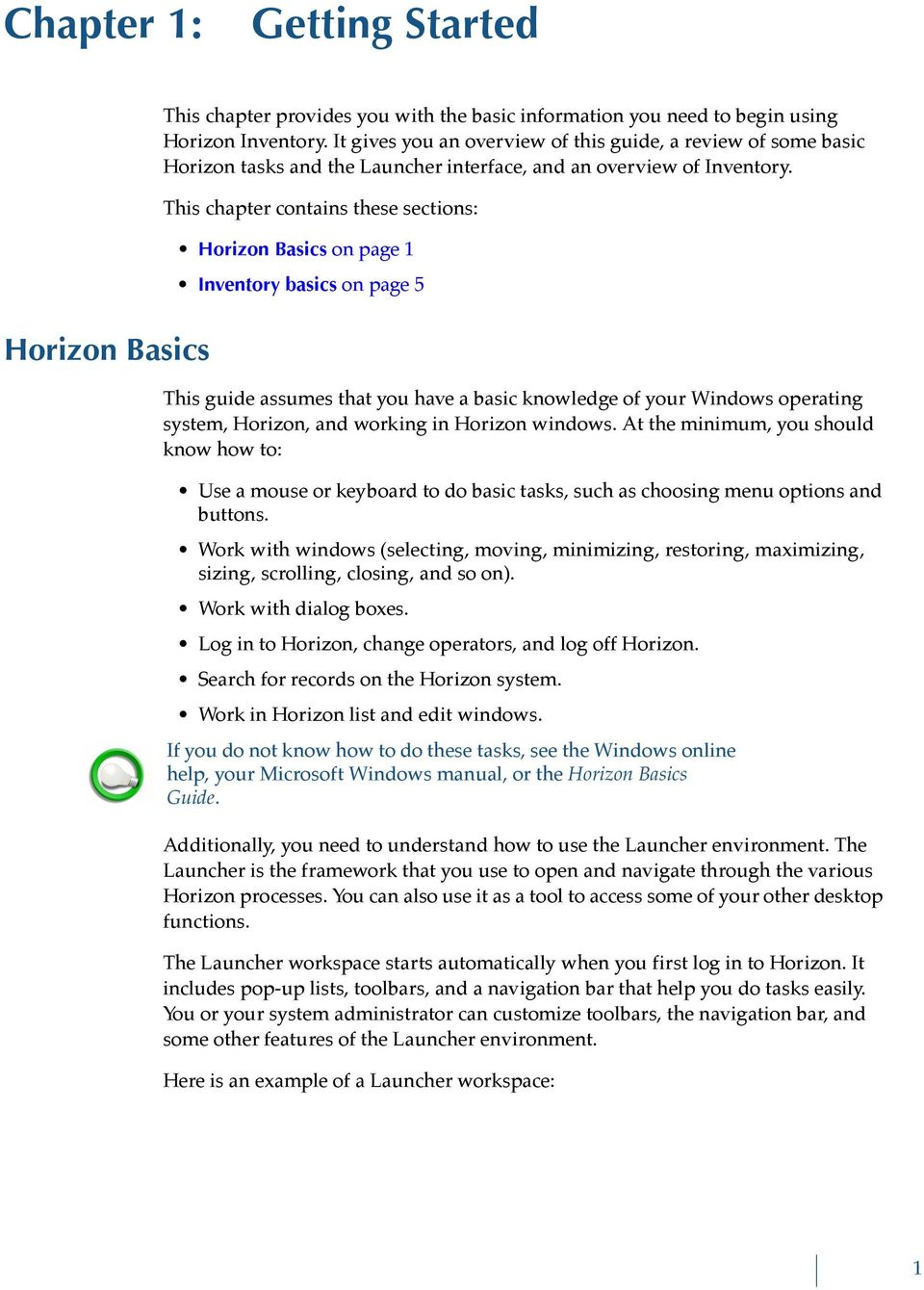
10 Chapter 1: Getting Started Figure 1-1: Launcher workspace For more information on working in the Launcher environment, see the Horizon Basics Guide. This section explains these topics: Starting a Horizon Process on page 2 Customizing the Launcher on page 4 Starting a Horizon Process When you do a task in Horizon, you must first start the process that lets you do the task. If you have already started several processes, you can activate the open process window that you want to use. The active window s title bar displays in a different color from other open windows. If the windows are displayed in a cascade, the active window moves to the front. If you cannot activate a different window, the currently active window needs attention before you can continue. You must either close the window, or cancel or finish its process. (For example, if the window is a search window, you must complete the search, cancel the search, or close the window before you can start a different process.) 2 Inventory User and Administrator Guide
11 Chapter 1: Getting Started Horizon lets you use several different methods to start most processes. The various tasks in this guide usually give only one or two of the methods. As you work with Horizon, you will discover which methods are most convenient for you. For example, if you work best using a mouse, you may choose to use the menu bar to start processes. If you prefer using a keyboard, you may choose to use keyboard shortcuts. Your security settings and Launcher configuration may affect the options that you can use to start some processes. (For more information, see your system administrator.) This section explains some of the methods you can use to start a process in Horizon. (For examples of some of these methods, see Figure 1-1 on page 2.) This section explains these topics: Starting a Horizon Process Using a Mouse on page 3 Starting a Horizon Process Using a Keyboard on page 3 Starting a Horizon Process Using a Mouse When you use the mouse to start a process, you click or double-click on a specific part of the Launcher workspace. Here are some of the ways you can use a mouse to start a process: Double-click on a process or tool on the navigation bar. The navigation bar stores processes and tools in folders. (For more information, see Horizon User Interface chapter of the Horizon Basics Guide.) Click on a toolbar button. You can use the toolbar to start a process only if you (or your system administrator) have added a button for that process. (For more information, see the Customizing the Toolbar chapter of the Launcher Configuration Guide.) Click on an option from the menu bar. Choose Window and the open window or record that you want to make active. Click on the window that you want. If you can see part of the window or record that you want to make active, click on the window. Use the Workbook view. Click on the tab of the open window or record that you want to make active. (For instructions on opening the Workbook, see the Horizon User Interface chapter of the Horizon Basics Guide.) Starting a Horizon Process Using a Keyboard When you use the keyboard to start a process, you press a certain sequence of keys. You must know the keystrokes that open the function that you want. If your navigation bar is open and is set up to display shortcuts, you can see the keystrokes listed there. (However, the navigation bar does not have to be open for you to use the shortcuts.) The drop-down menus on the menu bar also display several keyboard shortcuts. Your security settings may give you the rights to edit or create a shortcut. (For more information, see the Launcher Configuration Guide.) Horizon Basics 3

12 Chapter 1: Getting Started You can use the keyboard in these ways: Lead-in keys. A lead-in key focuses the cursor on a certain set of tasks from which you can choose. The F9 key focuses the cursor on the navigation bar, so that your next keystroke moves you through the folders of the navigation bar to find the process that you want to start. (You can use arrow keys, the first letter of the process that you want, or choose Find from the Edit menu to move to the process.) Predefined keyboard shortcuts. Windows and Horizon have certain default shortcuts that can help you in your work. You cannot change these shortcuts. (For example, F2 starts a New Search.) (For a list of the most common predefined keyboard shortcuts, see Shortcut Keys in the Horizon User Interface chapter of the Horizon Basics Guide.) User-defined keyboard shortcuts. You can create shortcuts that start Horizon processes when you customize the Launcher. (For more information, see the Launcher Configuration Guide.) You can also edit or create shortcuts for many of the functions in the MARC Editor. (For instructions, see Chapter 2, Customizing the MARC Editor, on page 11.) Press ALT+W. This activates the Window drop-down menu. Then type the number of the open window or record that you want to make active. Pressing ALT plus any underlined letter in the menu bar activates the drop-down menu for that menu option. Press CTRL+F6. This cycles through the open windows. Customizing the Launcher Depending on your security settings, you can customize your Launcher. (For instructions, see the Launcher Configuration Guide.) In general, you or your system administrator can customize the Launcher in these ways: Toolbars. You can create a new toolbar or modify an existing toolbar s appearance and design so that the toolbar shows only the processes you use frequently. Navigation bar. You can hide or add new folders, processes, and applications to the navigation bar, including third party products. You can also set up shortcuts for processes and applications on the navigation bar. Diacritics. You can add, delete, and edit the non-keyboard characters (such as the British pound or an accent mark) that are available on the Diacritic Shortcut Bar. You can also specify the shortcuts for each character. Background. You can choose what background displays in the Launcher workspace. Startup. You can choose the processes that start automatically, and which folders on the navigation bar open automatically, when you first log in to Horizon. Unless your security settings let you save changes that you make in the Launcher environment, the Launcher may revert to its default appearance when you log off. 4 Inventory User and Administrator Guide
13 Chapter 1: Getting Started Inventory basics The Inventory process gives your library a way to account for your holdings by collection. Inventory helps you maintain organized and complete collections by identifying misshelved or missing items. You need to determine the best plan for your inventory activity based on the size and number of your collections, the size of your library, and the number of people who will be involved in the inventory process. This section explains these topics: Inventory Processes on page 5 Overview of Tasks on page 5 Inventory Processes When you first install Horizon, the Inventory folder on the navigation bar contains these folders and processes: You may see only some of these Inventory processes on your navigation bar. Your security setup and Launcher configuration determine what processes are available on your navigation bar, and where they display. (For more information, see your system administrator or the Launcher Configuration Guide.) Overview of Tasks As you work in Inventory, you will do these basic tasks: Planning inventory. Before you actually start counting your library s items, plan how you will take inventory. If you plan well, your inventory taking will be more efficient. (For more information, see Planning Inventory on page 7.) Setting up for inventory. The system administrator must set up or update the collection code and item status tables so Horizon will record when your staff takes inventory for a particular collection. The system administrator must also set up the tables to establish if and how the system reports exceptions found during the inventory for a particular collection. If you use hand-held computers for your inventory, your system administrator must also set up those units. (For more information, see About Inventory Setup on page 11.) Inventory basics 5

14 Chapter 1: Getting Started Taking inventory. When you take inventory, you record the barcodes of a particular collection and upload them into the Horizon server for processing. (You can record barcodes by scanning them with a hand-held computer or by typing or scanning them into a workstation.) Horizon tracks these items so you account for everything including those items that the inventory process has found to be in the wrong place or missing. Once you determine which items are in the wrong place or missing, you can resolve those issues. (For more information, see About Taking Inventory on page 19.) Resolving inventory issues. After you take inventory, you must report and manage exceptions found during inventory. This includes tasks such as printing an Inventory Exceptions report, resolving exceptions, finding missing inventory, creating and printing missing inventory reports, and resolving missing inventory. (For more information, see About Resolving Inventory Issues on page 41.) 6 Inventory User and Administrator Guide

15 Chapter 2: Planning Inventory Planning Inventory This chapter explains how to plan inventory and gives suggestions for events and activities you should consider. This section compares workstations and hand-held computers to help you decide which equipment to use for each section of your library during inventory. This chapter contains these topics: Planning Inventory on page 7 Planning Which Devices to Use on page 8 You may want to create an plan before you take inventory. This plan can help you to inventory your collections completely and efficiently. You may want to follow these suggestions to develop an effective inventory plan: Create a schedule showing the order in which you will inventory your collection. Remember to include your smaller collections, special collections, and non circulating items. While planning your schedule, you may want to see how long you took for a previous inventory on the same collection. Decide which types of items will be listed as exceptions and how you will resolve those exceptions. (For example, some items your library might want to track as exception items would be misshelved items, items found but not cataloged, duplicate items, items marked for interlibrary loan that should have been shipped, and so forth.) Divide your large collections into manageable groups up to about 10,000 items. That way, you can resolve each group s exception items immediately, instead of waiting until the entire collection has been inventoried. To divide your larger collections into smaller groups, you might want to inventory items on a certain number of shelves or a certain range of call numbers, or use any other type of range that fits the way you do inventory in your library. Choose a method for collecting barcodes. You can use workstations, hand-held computers, or a combination of these. Leave enough time after entering each group of barcodes to print the Inventory Exceptions report and resolve any problems you find. The sooner you resolve the problems, the more likely that the items will still be on the shelves. You should resolve all the problems for one collection before starting inventory for another collection. 7
16 Chapter 2: Planning Inventory Because inventory involves many people, you might want to develop a method to monitor your inventory progress. (For example, you can create a chart that shows a group of call numbers and what has been completed for each section, such as the reports that have already been run.) Planning Which Devices to Use You can use workstations and hand-held computers to take inventory. You can choose either one for a particular task in the inventory process, based on its advantage in that setting. If you use the hand-held computer, you will also use the workstation to upload the barcodes from the hand-held computer and then transfer the information to the Horizon Inventory database. To take inventory, you enter the barcode information by using one or more of the devices in this table: Device Telxon Portable Transaction Computer (PTC) Percon Portable Data Terminal (PT 2000) Percon TopGun PocketCirc Windows Mobile device Barcode wand or other barcode reader Workstation Description A portable, hand-held computer, referred to in this document as Telxon unit. (For more information about using the Telxon unit, see Entering Barcodes with a Telxon Unit on page 25. See also the Telxon Manual.) A portable, hand-held computer, referred to in this document as Percon unit. (For more information about using the Percon unit, see Taking Inventory with a Hand-held Computer on page 24. See also the Percon PT 2000 & TopGun Portable Data Terminals User s Guide.) A laser module mounted on a Percon unit. TopGun can scan barcodes on flat, curved, or irregular surfaces at distances ranging from one inch to two feet. (For more information about using the TopGun, see Taking Inventory with a Hand-held Computer on page 24. See also the Percon PT 2000 & TopGun Portable Data Terminals User s Guide.) A portable, hand-held computer, referred to in this document as PocketCirc. When connected wirelessly to the network, this device functions like a workstation. When disconnected, functions much like the Telxon or Percon devices. A wand or reader attached to a workstation. Lets you enter barcodes directly into the Horizon database. (For more information, see Taking Inventory at a Workstation on page 21.) A keyboard is attached to a workstation. Lets you enter barcodes directly into the Horizon database. (For more information, see Taking Inventory at a Workstation on page 21.) 8 Inventory User and Administrator Guide
17 Chapter 2: Planning Inventory Workstations and hand-held computers have different advantages depending on the way your library is laid out and the way you plan to take inventory. The PocketCirc device acts like a workstation when connected wirelessly to the network, and like a standard hand-held when disconnected. This table compares workstation and hand-held computer inventory methods: Workstations and Online hand-held computers let you Wheel the terminal (or carry the hand-held computer) past the shelves or bring books to the terminal. (You might want to use this method if your library is small or only one person is taking inventory.) Enter as many barcodes as you want in a session. See exception messages immediately. (For example, if you enter the barcode of an item that belongs to another collection, a message tells you to which collection it belongs. You can immediately reshelve the item instead of waiting until the item appears on the Exceptions report.) Offline hand-held computers let you Walk past the shelves carrying the handheld computer. (You might want to do this if your library is large or several people are taking inventory at once.) Enter as many barcodes as the hand-held computer s memory can hold. Collect barcodes without being interrupted by exception messages. (You can still resolve problems when you print the Exceptions report.) Upload the barcodes from the hand-held computer to a Horizon workstation. Planning Which Devices to Use 9

18 Chapter 2: Planning Inventory 10 Inventory User and Administrator Guide

19 Chapter 3: Inventory Setup This chapter explains how the system administrator sets up Horizon Inventory tables to tally the inventory inputs and track exceptions. It also explains how to set up hand-held computers. Before library staff can take inventory, the system administrator must set up Inventory tables and defaults in Horizon. About Inventory Setup on page 11 Choosing Whether to Report Items as Exceptions on page 12 Choosing Whether to Report Items as Misshelved on page 14 Viewing or Resetting Collection Inventory Counts on page 15 Setting Up a Hand-held Computer for Inventory on page 17 About Inventory Setup Your library s cataloging staff marks incoming items with barcodes, collection codes, and call numbers that indicate information such as where the item belongs, title, author, publication date, and other such facts. (For more information about cataloging, see the Cataloging Guide.) This chapter assumes that you know how to use the Table Editor. (For more information, see Horizon Table Editor in the Getting Started chapter of the System Administration Guide.) Whenever you make a change to Horizon setup, you should exit Horizon and restart it on any workstation where you want the change to take effect. When you enter the items barcodes, collection codes, or call numbers marked on the items into the Horizon database, they become part of the record you use for tracking those items. Your system administrator must set up tables in the database to help track and report where the items should be and where they are. If you use hand-held computers for your inventory, your system administrator must also set up those units. Have your system administrator set up the correct passkeys and roles in Horizon security before you continue. (For more information about roles and passkeys, see Securing Horizon in the Security and Preferences chapter of the System Administration Guide.) Before you take inventory, your system administrator must set up parameters in these tables: 11

20 Chapter 3: Inventory Setup Item status. When the system administrator sets the parameters in the item status, Horizon uses those parameters to determine whether or not to report an item with a particular status as an exception. Collection. Lets you group related items. Collection inventory. Lets you assign the location and call number type for an inventory. A call number is a set of characters that describes such things as the location for an item and type of information in that item. Call number type refers to a system used to identify and track items in a library (for example, the Library of Congress or Dewey Decimal System). Collection Inventory is linked to the Collection table. Make sure any exceptions from previous inventories have been cleared before starting inventory. (For more information about how to do this, see Running the Inventory Exceptions Report on page 41.) This chapter explains these tasks: Choosing Whether to Report Items as Exceptions on page 12 Choosing Whether to Report Items as Misshelved on page 14 Viewing or Resetting Collection Inventory Counts on page 15 Setting Up a Hand-held Computer for Inventory on page 17 Choosing Whether to Report Items as Exceptions When you set up an item status, you determine which status will make Horizon report an item as an exception on the Inventory Exceptions report. (For instructions on setting up an item status, see Working with Item Statuses in the Circulation Setup Guide.) This table describes the exceptions that Horizon can report during your inventory: Exception Item not found Incorrect location Incorrect collection Incorrect call type Call number missing Invalid item status Item misshelved Description No item exists with this barcode. The item belongs in a different location. The item belongs in a different collection. The item call number type is different from the call number type specified for the inventory. The item does not have a call number. Item status is not Checked In ( i ) or Shelving Cart ( s ). The item is misshelved or the item you just recorded is misshelved. 12 Inventory User and Administrator Guide

21 Chapter 3: Inventory Setup Exception Previous item Next item Description The previous item on the shelf in relation to an item with an exception. The next item on the shelf in relation to an item with an exception. Other than Previous item and Next item, this table shows the hierarchy of exceptions as Horizon reports them. (For example, if an item has an incorrect location and is misshelved, Horizon would report only the incorrect location, because Horizon checks for location before checking for the misshelved exception.) To report item status exceptions 1 Open the item_status view in the Table Editor. Horizon displays the List Item Status window. 2 Choose the item status that you want to edit. Horizon displays the Edit Item Status window: (For a complete description of all the fields and options on this window, see Working with Item Statuses section in the Circulation Setup Guide.) 3 Do one of these options at the Inventory Action field: If you want to report an exception based on this item status, choose Reported. If you do not want to report an exception based on this item status, choose Not Reported. 4 Save your changes. Choosing Whether to Report Items as Exceptions 13
22 Chapter 3: Inventory Setup Choosing Whether to Report Items as Misshelved A collection lets you group related items to help you organize your inventory. While taking inventory, you may not want to have Horizon track misshelved items. This section explains how to set a collection not to report misshelved items. By default, all collections are set up to report misshelved items. Your library should review the collection codes before inventory to determine whether you want to keep the default setting or change it. (For instructions on setting up a collection, see Setting Up or Updating a Collection in the General Setup chapter of the System Administration Guide.) To choose whether to report items as misshelved 1 Open the collection view in the Table Editor. Horizon displays the List Collection Codes window. 2 Choose the collection you want to edit. Horizon displays the Edit Collection Codes window. 3 Click Page Down or resize the window to display the Misshelved Rpt box: (For a complete description of all the fields and options on this window, see Setting Up or Updating a Collection in the General Setup chapter of the System Administration Guide.) 4 Do one of these options: If you want items in this collection reported as misshelved on the Inventory Exceptions report, mark the Misshelved Rpt box. 14 Inventory User and Administrator Guide
23 Chapter 3: Inventory Setup If you do not want items in this collection reported as misshelved on the Inventory Exceptions report, unmark the Misshelved Rpt box. (For example, you would not track misshelved items while you take inventory of items on a shelving cart.) 5 Save your changes. Viewing or Resetting Collection Inventory Counts You start an inventory session by specifying the location, collection, and call number type for the set of items that you are inventorying. You do this in the Inventory process as the first task before you can enter any barcodes. You can view this information about an inventory in progress or a completed inventory: The start and finish date The completed date, if applicable The current and cumulative number of items inventoried The current and cumulative number of misshelved items The current and cumulative number of invalid barcodes The cumulative total fields are editable so that you can manually set the count back to zero. You must mark at least one inventory as Complete in Horizon before the Collection Codes Inventory group can display inventory information. However, marking an inventory as Complete does not finalize the Inventory cycle. To do this, you must run Find Missing Inventory. (For more information, see Finding Missing Inventory on page 44.) Before Horizon can add current inventory totals to the cumulative inventory totals and set the current totals to zero, you must do these things: Mark an inventory complete in Horizon. Run Find Missing Inventory so that Horizon considers the inventory finalized. Start a new inventory (for example, if inventory was completed last year and now this year s inventory session has started). Horizon then adds the previous inventory session s numbers to the cumulative totals. (For example, if your library has completed three different inventory sessions, the cumulative totals should show the grand total of all three inventory sessions.) To view or reset collection inventory counts 1 Open the collection view in the Table Editor. Horizon displays the List Collection Codes window. Viewing or Resetting Collection Inventory Counts 15
24 Chapter 3: Inventory Setup 2 Choose the collection whose inventory information you want to view or edit. Horizon displays the Edit Collection Codes window. 3 Click Page Down or resize the window to display the Inventory group: 4 View the information in these display-only fields: Field Started (date) Finished (date) Completed (date) Descriptions This field displays the date of the first entry for this inventory. This field displays the date of the last entry for this inventory. This field displays the date that you ran the Find Missing Inventory process. (For more information, see Finding Missing Inventory on page 5-6.) # Inventoried This field displays the total number of items for which you have entered barcodes during the currently on-going inventory or the most recently completed inventory. # Misshelved This field displays the total number of misshelved items that Horizon identified during the currently on-going inventory or the most recently completed inventory. # Invalid Status This field displays the total number of items with an invalid status that Horizon identified during the currently on-going inventory or the most recently completed inventory. 16 Inventory User and Administrator Guide
25 Chapter 3: Inventory Setup 5 If you want to, you can update these fields: In this field Cum. # Inventoried Cum. # Misshelved Cum. # Invalid Do this This field shows the cumulative number of inventoried items for the location, collection, and call number type. If your library does not want to track grand totals of inventoried items that include previous inventories, enter 0 (zero). This field shows the cumulative number of misshelved items for the location, collection, and call number type. If your library does not want to track grand totals of misshelved items that include previous inventories, enter 0 (zero). This field shows the cumulative number of invalid items for the location, collection, and call number type. If your library does not want to track grand totals of invalid items that include previous inventories, enter 0 (zero). 6 Save your changes. Setting Up a Hand-held Computer for Inventory If your library uses a hand-held computer to take inventory, you must use a computer that was pre-programmed by SirsiDynix and you must have a way to transfer the barcodes from the computer to the Horizon server. The hand-held computer must have the proper chip in it with the proper settings for inventory and the inventory transfer software must be in the workstation. This section describes how to set up the Telxon, Percon, and PocketCirc hand-held computers for inventory and how to set up a Horizon workstation (or the PocketCirc device) to receive and transfer inventory information to the Horizon server. This section shows the steps to set up each of these computers. Setting up a Telxon unit on page 17 Setting up a Percon unit on page 18 Setting up a PocketCirc unit on page 18 Setting up a Telxon unit To set up a Telxon unit 1 Make sure the Telxon unit has a chip with inventory software. 2 Set up the Telxon unit for inventory. (For instructions, see the Telxon Manual.) 3 Install the Telxon transfer software to the workstation and create an icon for the executable file on the Windows desktop. Setting Up a Hand-held Computer for Inventory 17
26 Chapter 3: Inventory Setup The executable file name for Telxon is telxon download for the PC.exe. 4 Make sure that the Telxon Inventory process is in the Inventory folder in the Horizon navigation bar. If the Telxon process is not in the Inventory folder, your system administrator can give you access to Inventory. (For more information, see the Launcher Configuration Guide or the System Administration Guide.) Setting up a Percon unit To set up a Percon unit 1 Make sure the Percon unit has a chip with inventory software. 2 Set up the Percon unit for inventory. If your Percon unit includes a TopGun, set up the TopGun, too. (For instructions, see the Percon PT 2000 & TopGun Portable Data Terminals User s Guide.) 3 Install the Percon transfer software to the workstation and create an icon for the executable file on the Windows desktop. The executable file name for Percon is ptfer.exe. 4 Make sure that the Percon Inventory process is in the Inventory folder in the Horizon navigation bar. If the Percon process is not in the Inventory folder, your system administrator can give you access to Inventory. (For more information, see the Launcher Configuration Guide or the System Administration Guide.) Setting up a PocketCirc unit To set up a PocketCirc unit 1 Make sure the PocketCirc unit has the software installed. (For instructions, see the PocketCirc Guide.) 2 Set up the PocketCirc unit, including the scanner. (For instructions, see the PocketCirc Guide.) 18 Inventory User and Administrator Guide
27 Chapter 4: Taking Inventory This chapter explains how to take inventory by scanning barcodes or by manually entering barcode numbers into Horizon Inventory. You can collect the barcode information either by using a workstation or hand-held computer or a combination of both. You can then use the barcode information to manage your library s inventory issues. About Taking Inventory About Taking Inventory on page 19 Taking Inventory on Shelving Cart Items on page 20 Taking Inventory at a Workstation on page 21 Taking Inventory with a Hand-held Computer on page 24 Uploading Data from a Hand-held Computer to Your Horizon Workstation on page 30 Processing Uploaded Inventory Data in Horizon on page 35 After your system administrator sets up Horizon, the workstation, and any handheld computers you use, you can start taking inventory. When you take inventory, Horizon checks the holdings in your collections to determine whether items are missing, misshelved, lost, and so forth. You can use Item Group Editor before starting your inventory to change items to a different, temporary collection code. (For more information on changing groups of items, see Using Item Group Editor in Appendix A of the Circulation Guide.) Taking inventory on a collection might take hours, days, or weeks, depending on the size of the collection and the number of problem items you find. This chapter explains these topics: Taking Inventory on Shelving Cart Items on page 20 Taking Inventory at a Workstation on page 21 Taking Inventory with a Hand-held Computer on page 24 Uploading Data from a Hand-held Computer to Your Horizon Workstation on page 30 Processing Uploaded Inventory Data in Horizon on page 35 19
28 Chapter 4: Taking Inventory Taking Inventory on Shelving Cart Items When you take inventory on a collection, whether you use a workstation or handheld computer, you should first take inventory on the items in that collection that are on the shelving cart. If you do, Horizon counts these items in your inventory even if you finish taking inventory on the entire collection before you have reshelved the items. You do not need to take inventory on items that are checked in and placed on the shelving cart after you start the inventory process. The system tracks these items and makes sure they are not considered missing. To take inventory on shelving cart items 1 If you have not already done so, choose not to track misshelved items on the Inventory Exceptions report. To do this, unmark the Misshelved Rpt box on the Edit Collection Codes window. Your system administrator might have to do this for you if you are not authorized to access the Horizon Table Editor. (For instructions, see Choosing Whether to Report Items as Misshelved on page 14.) Important: If you do not unmark Misshelved Rpt, all the items you inventory from the shelving cart will appear on the Inventory Exceptions report as misshelved items. 2 Do one of these options: If you use a workstation to count the shelving cart items, activate the Workstation Inventory process and enter the barcodes from the shelving cart items on your keyboard or scan the barcodes using your wand reader. The default location of this process is the Inventory folder on the navigation bar. (For more information about how to start taking inventory, see Taking Inventory at a Workstation on page 21.) If you use hand-held computers to take inventory, scan the barcodes with your hand-held computer and upload the barcode file to the workstation. (For more information, see Taking Inventory with a Hand-held Computer on page 24.) 3 If you do not want to track misshelved items for the rest of the collection, skip to step 4; otherwise, do the steps in this table: 3a Click Complete to finish the inventory of the shelving cart items. 3b Note the session ID number. 3c Click OK to return to the Profile Inventory window. 3d Exit Workstation Inventory. 3e Choose to track misshelved items on the Inventory Exceptions report. 20 Inventory User and Administrator Guide
29 Chapter 4: Taking Inventory To do this, mark the Misshelved Rpt box on the Edit Collection Codes window. (For more information, see Choosing Whether to Report Items as Misshelved on page 14.) Misshelved items for the rest of the collection will appear on the Inventory Exceptions report. 3f Take inventory on the rest of the collection. (For instructions, see Taking Inventory at a Workstation on page 21.) 4 When you finish taking inventory, click Complete. Horizon displays the Exceptions Message window. 5 When the session ID number displays, make note of it in case you need to print the Inventory Exceptions report just for that session. 6 Click OK. 7 Click Cancel in the Profile Workstation Inventory window. Taking Inventory at a Workstation You can take inventory from any workstation or PocketCirc unit (for more information about using this device to take inventory, see Entering Barcodes with a PocketCirc Device on page 27) that has access to the Horizon database. Horizon tallies items by collection. Input from a barcode reader or a keyboard goes directly to the Horizon Inventory database. When you take inventory on a workstation, Horizon sets the Start date to the date when you enter the first barcode for a collection. Horizon sets the Finish date to the date when you enter the last barcode for the same collection. If an inventory takes two days, the Start and Finish dates are the same on day one, but when you resume inventory the next day, Horizon updates the Finish date to that day s date. Taking inventory at a workstation offers several advantages. You can: Wheel the terminal (or carry the PocketCirc device) past the shelves or bring books to the terminal. Enter as many barcodes as you want in a session. Take immediate note of the exception messages. (For example, if you enter the barcode of an item that triggers an exception message, the message tells you whether the item has a different collection, location, call number type, or item status. You can immediately reshelve the item instead of waiting until the item appears on the Inventory Exceptions report.) To take inventory at a workstation 1 Start the Workstation Inventory process. The default location of this process is the Inventory folder on the navigation bar. Taking Inventory at a Workstation 21
30 Chapter 4: Taking Inventory Horizon opens the Workstation Inventory window, then displays the Profile Workstation window. 2 Complete or update these fields in the Profile Workstation Inventory window: In this field Location Collection Call No. Type Override Call No. Checks? Display misshelved messages? Display exception messages? Do this Enter the location of the collection for which you want to take inventory. For a list of valid locations, click Codes. (The Location field defaults to the location specified during login.) Enter the name of the collection. For a list of valid collection names, click Codes. Horizon sets the Call No. Type from the collection name. If you want to, enter an alternate call number type if your library has set the Call Type field in the item record to override the default call number type set in the collection record. (For more information on setting the default, see About Inventory Setup on page 11.) If you do not want Horizon to report exceptions for missing call numbers, incorrect call number types, and misshelved items, then mark this box; otherwise, leave this box blank. If you want Horizon to display a message when it encounters a misshelved item during the inventory process, mark this box; otherwise, leave this box blank. Note: If you choose to display misshelved messages, then when Horizon encounters a misshelved item, the system displays a message describing the problem. If you want Horizon to display these messages during the inventory process, mark this box; otherwise, leave this box blank. Note: If you choose to display exception messages, then when Horizon encounters an exception, the system displays a message describing the problem. 3 Click OK. 22 Inventory User and Administrator Guide
31 Chapter 4: Taking Inventory Horizon displays the Barcode Collection for Workstation Inventory window: 4 At the Barcode field, scan or enter the barcode or RFID tag for each item in the collection. 5 If your reader does not record a carriage return when you scan barcodes or if you enter the barcode information on the keyboard, do one of these options: Click Accept and press ENTER. Press ALT+A at the end of each barcode to add it to the database. 6 Do one of these options: Resolve exceptions immediately (recommended). (For example, if you find a misshelved item, reshelve it in its correct place.) Note: Resolving an exception immediately does not remove that exception from the report. (For instructions, see About Resolving Inventory Issues on page 41.) Wait and print the Inventory Exceptions report after the inventory session or after the entire inventory process for your library is complete, then resolve the exceptions on the report. (For more information, see Running the Inventory Exceptions Report on page 41.) 7 When you finish taking inventory for this collection, click Complete or press ALT+C. Horizon displays the ID number for the session. Taking Inventory at a Workstation 23
32 Chapter 4: Taking Inventory Note: If Horizon encounters an exception and writes it to the exception table, Horizon assigns a session ID number to that inventory session. If several people perform inventory on different ranges of the same collection at the same time, the session ID number helps your library staff focus on printing and resolving the exceptions that occur in their ranges. (For more information on printing and resolving inventory exceptions, see About Resolving Inventory Issues on page 41.) 8 Make a note of the session ID number in case you need to print the Inventory Exceptions report just for this session. 9 Click OK. Taking Inventory with a Hand-held Computer You can take inventory with a hand-held computer that reads barcodes, stores inventory information, and uploads the information to the Horizon database through a workstation. Two such devices are the Telxon Portable Transaction Computer (PTC) and the Percon Portable Data Terminal (PT 2000). (For more information on how to operate the Telxon unit, see the Telxon Manual. For more information on how to operate the Percon unit, see the Percon PT 2000 & TopGun Portable Data Terminals User s Guide.) After you take inventory with either of these units, you can upload the barcode information to a file on a Horizon workstation. Use either the Telxon Inventory process or the Percon Inventory process to upload and process the barcodes within Horizon. This information adds to any other inventory information you might have entered for a given collection, location, and call number type directly from a workstation or from other hand-held computers to make accurate totals of inventory. In a hand-held computer inventory, the computer sets the Start and Finish dates using the internal date when the first batch of barcodes are uploaded. As subsequent batches are uploaded, Horizon adjusts the Start and Finish dates according to the incoming internal hand-held computer dates. The Start date for the batch will ultimately be the earliest date linked to a given batch. The Finish date will be the last internal date from any uploaded barcodes for that batch. You can also use a PocketCirc device to read barcodes, store inventory information, and upload the information directly to the Horizon database. The device can be used in Offline mode in a way similar to the Telxon and Percon units or in Online mode similar to a regular workstation. (For more information on how to operate a PocketCirc device, see the Horizon PocketCirc Guide.) This section explains these topics: Preparing to Use a Hand-held Computer on page 25 Entering Barcodes with a Telxon Unit on page 25 Entering Barcodes with a Percon Unit on page 26 Entering Barcodes with a PocketCirc Device on page Inventory User and Administrator Guide
33 Chapter 4: Taking Inventory Preparing to Use a Hand-held Computer If you use hand-held computers for some or all of your inventory, consider these suggestions: Fully charge the batteries for the hand-held computers before taking inventory. If possible, have extra batteries available. If the extra batteries you have are rechargeable, charge those batteries before taking inventory. For the Telxon and Percon units, allow extra time for uploading barcodes to the workstation. Uploading barcodes takes about 15 to 20 minutes for every 500 barcodes. (Your results may vary.) If possible, use multiple hand-held computers. While one hand-held computer is uploading barcodes, you can enter barcodes with another. Plan enough time after your inventory session to print the Exceptions report. Resolve the problems for this group or collection on the same day that you enter the barcodes so you will be more likely to find the items on the shelves. Entering Barcodes with a Telxon Unit When you enter barcodes on a Telxon unit, you can collect up to 800 barcodes (500 is recommended for best results). When you finish entering barcodes, you must transfer the barcodes from the Telxon unit to the workstation for processing. Upload the barcodes as soon as possible so exceptions can be handled while the items can still be found. You must have at least a 2.6 version chip in the Telxon unit to use your Telxon unit for inventory. To enter barcodes with a Telxon unit 1 Press the ON/OFF button once to turn on the Telxon unit. 2 Go to the Telxon Main Menu. (For instructions, see the Telxon Manual.) 3 If necessary, do one of these options: If the Telxon unit shows that you are in Portable Circulation or Inventory, hold down EXIT until the Telxon unit beeps three times. Important: The alternate step below tells you to reset your Telxon unit. When you reset it, the data in the computer might be lost, so make sure you no longer need any barcodes that are still in memory before you reset the Telxon unit. If the Telxon unit has not been used before, or if you want to verify that you have the current version of the Telxon unit Operating System, reset the Telxon unit. (For instructions, see the Telxon Manual.) Taking Inventory with a Hand-held Computer 25
34 Chapter 4: Taking Inventory The Telxon unit momentarily displays the operating system and then displays the Telxon Main Menu: 4 Press 2 to choose Inventory. The Telxon unit displays the inventory menu. 5 To record inventory, press 1, or press an arrow key to choose Record inv and then press ENTER. The Telxon unit displays the current date and time and asks if they are correct. 6 Do one of these options: If the displayed date and time are correct, press Yes. If the displayed date or time is incorrect, press No. Then enter the correct date and time. The system displays the date and time you just entered and asks if they are correct. Press Yes. The Telxon unit displays how many barcodes you can enter before the memory is full. 7 Press ENTER. A barcode prompt displays. 8 Scan the barcode for the first item you want to count in the inventory. Note: After you scan each barcode, the Telxon unit displays the barcode prompt with the previous barcode underneath. 9 Continue scanning barcodes until you have scanned all the barcodes you want. Important: Plan enough time after your inventory session to print the Exceptions report. Resolve the problems for this group or collection on the same day that you enter the barcodes so you will be more likely to find the items on the shelves. 10 Press Exit when you finish entering barcodes. The Telxon unit displays the Inventory menu again. 11 Do one of these options: If you want to continue with the inventory later, turn off the Telxon unit, or leave the unit alone and it will turn itself off in about two minutes. If you want to upload the barcodes to the workstation, see Uploading Data from a Telxon Unit on page 30. Entering Barcodes with a Percon Unit When you enter barcodes on a Percon unit, you can collect up to 5,000, but for safety, SirsiDynix recommends that you collect only 500 before uploading. When you finish entering barcodes, you must transfer the barcodes from the Percon unit to the workstation for processing. 26 Inventory User and Administrator Guide
35 Chapter 4: Taking Inventory Before You Begin Before you take inventory with the Percon unit, reset it to make sure it does not have barcodes in memory from a previous inventory session. (For more information on resetting the Percon unit, see the Percon PT 2000 & TopGun Portable Data Terminals User s Guide.) To enter barcodes with a Percon unit 1 Press the 1/0 button to turn on the Percon unit. The Percon unit displays the Main Menu. 2 Press F3 to choose Inventory from the Main Menu. The Percon unit displays the Inventory menu. 3 Press F1 from the Inventory menu to start Inventory. 4 Scan the barcodes with the wand or Percon TopGun. (For more information on scanning barcodes, see the Percon PT 2000 & TopGun Portable Data Terminals User s Guide.) After you scan each barcode, the Percon unit displays the barcode number and leaves a blank line for the next barcode. 5 Continue to scan barcodes until you have as many as you want for the session. Important: Plan enough time after your inventory session to print the Exceptions report. Resolve the problems for this group or collection on the same day that you enter the barcodes so you will be more likely to find the items on the shelves. 6 When you have entered all the barcodes you want for this session, press F4 twice to return to the Main Menu. 7 Do one of these options: If you want to continue with inventory later, press the 1/0 button to turn off the Percon unit, or leave the unit alone and the Percon Auto-Off feature will turn off the Percon unit in about 10 minutes. (For instructions on changing the Auto-Off settings, see the Percon PT 2000 & TopGun Portable Data Terminals User s Guide.) If you want to upload the barcodes to the workstation, see Uploading Data from a Percon Unit on page 32. Entering Barcodes with a PocketCirc Device The PocketCirc device can be used in Online or Offline mode. In Online mode, transactions occur in real-time and are sent to the Horizon server immediately. In Offline mode, the device stores the transaction information for upload when the device is reconnected to the network through a wireless or cradle connection. Taking Inventory with a Hand-held Computer 27
36 Chapter 4: Taking Inventory When you enter barcodes on a PocketCirc unit in Offline mode, you can collect up to 5,000, but for safety, SirsiDynix recommends that you collect only 500 before uploading. To enter barcodes with a PocketCirc device 1 Turn on the PocketCirc device. 2 Start the PocketCircHz program. The PocketCirc main menu displays: 3 Select the Client Mode: Online or Offline. 4 Tap Login. The Login display appears. 5 Select the Location ID, and optionally the Workstation ID, and then tap OK. The program menu displays: 6 Tap the Inventory button. 28 Inventory User and Administrator Guide
37 Chapter 4: Taking Inventory The Inventory Item screen displays: 7 Select the Collection item from the list. 8 Scan the barcode for the first item you want to count in the inventory. If ncessary, tap Inv. The status and item information displays in the results list. Important: In Online mode, the system shows inventory results in real time. Errors are highlighted in red, and warnings are highlighted in yellow. The following figure shows a sample results list: 9 Continue scanning barcodes until you have scanned all the barcodes you want. 10 In Online mode, to see more information about a specific item, tap it in the results list to open an item description window. In Offline mode, to remove an item you scanned from the results list, tap it in the list and then tap Remove. 11 Tap OK when you finish entering barcodes. Taking Inventory with a Hand-held Computer 29
38 Chapter 4: Taking Inventory The PocketCirc device displays the program menu again. 12 If you are working in Offline mode, the inventory transactions are saved to the device and can be uploaded to the server when you reconnect the device to the network. See Uploading Data from a PocketCirc Unit on page -33. In Online mode, when you have finished processing all the files for this inventory session, run the exceptions reports and find missing inventory, as necessary. (For instructions, see About Resolving Inventory Issues on page 41.) Uploading Data from a Hand-held Computer to Your Horizon Workstation After you finish entering the barcodes into your hand-held computer, you upload the data to your Horizon workstation. After you upload the barcodes to the workstation, you use the Horizon Telxon or Percon function to process the data. (For more information, see Processing Uploaded Inventory Data in Horizon on page 35.) For PocketCirc, you can upload data collected when in Offline mode. TO do so, you connect in Online mode and upload the data directly to the Horizon server for processing. This section explains these topics: Uploading Data from a Telxon Unit on page 30 Uploading Data from a Percon Unit on page 32 Uploading Data from a PocketCirc Unit on page 33 Uploading Data from a Telxon Unit After you take inventory on the Telxon unit, you can upload the inventory data to your Horizon workstation. To upload data from a Telxon unit 1 Connect the Telxon unit to the COM port (usually COM1) on the back of the workstation by using a TLX-6 cable (if your COM port is 9-pin) or a TLX-7 cable (if your COM port is 25-pin). 2 On your workstation, start the Telxon Download Utility. To do this, double-click the icon that the system administrator created for the utility while setting up the Telxon unit for inventory. (For more information on where to find the icon, see your system administrator.) 30 Inventory User and Administrator Guide
39 Chapter 4: Taking Inventory Horizon displays the Telxon Download Utility window: 3 If necessary, enter a new file name in the Enter file name for Telxon file field. (For example, you might want to include numbers or other characters so you can distinguish this file from other files you create.) 4 Choose COM1 or COM2 in the Choose COM port field to match the COM port you connected with the Telxon unit. 5 Click the Inventory button in the Type of Transfer group. 6 Click Transfer. 7 Follow the prompts in the Telxon Transfer Utility window. 8 If the Telxon unit is not already at the Inventory menu, press EXIT once or twice. The Telxon unit displays the inventory menu: 9 To transfer inventory, press 2, or press an arrow key to select Send inv file and then press ENTER. The Telxon unit prompts you to Connect TELXON to A/B switch. (You have actually connected it directly to the workstation instead.) 10 On the Telxon unit, press ENTER three times to bypass the Connect TELXON to A/B switch message, to bypass the Be sure DYNIX is ready message, and to confirm that you are ready to send the data. Note: Your Telxon unit shows Be sure DYNIX is ready, but that does not affect the way that the Telxon unit operates and interacts with the Horizon system. If your Telxon unit does not show this message, contact SirsiDynix Customer Support (the unit might not have been pre-programmed at SirsiDynix). The Telxon unit uploads the data to the telxon directory on the workstation. 11 When the Telxon unit shows the transfer is complete, press ENTER to finish. Note: You might want to process the barcodes in Horizon before you delete the barcode file from your Telxon unit to make sure you do not need the file anymore. (For more information, see Processing Uploaded Inventory Data in Horizon on page 35.) Uploading Data from a Hand-held Computer to Your Horizon Workstation 31
40 Chapter 4: Taking Inventory Uploading Data from a Percon Unit After you take inventory on the Percon unit, you can upload the inventory data to your Horizon workstation. Your system administrator must install the Percon Portable File Transfer software to the workstation before you can upload the information from your Percon unit to the workstation. (For more information about installing the software, see Setting Up a Hand-held Computer for Inventory on page 17.) After you upload the information to the workstation, you can process the information on your Horizon server. To upload data from a Percon unit 1 Connect the Percon unit to the workstation by doing one of these options: Connect the cable provided with the Percon unit (15-pin to 9-pin) to the bottom of the Percon unit and the COM port on the back of the workstation. Connect the Percon unit (with the PT Dock Adapter attached) to the PT Dock. 2 On your workstation, start the Percon Portable File Transfer utility. To do this, double-click the icon on your desktop. (For more information on where to find the icon, see your system administrator.) Windows displays the Percon Portable File Transfer window. 3 Choose Options, Connect to open the communications port on the workstation. Windows displays -- Communications port opened. -- inside the Percon Portable File Transfer window. 4 Choose File, Receive to prepare the workstation for the transfer. Windows displays the File to Receive window: 5 Make note of the folder where the file will be stored so you can use that information to find the file when you process the information later. 6 Enter a file name in the File name field. 7 Press ENTER or click OK. 32 Inventory User and Administrator Guide
41 Chapter 4: Taking Inventory The Percon Pro F T displays a waiting message while it waits for the file to transfer. 8 Do one of these options: If the Percon unit already shows the Inventory menu, skip to step 10. If the Percon unit does not already show the Inventory menu, press F3 from the Main Menu to go to the Inventory menu. 9 On the Percon unit, press F2 to go to the Send menu. 10 On the Percon unit, press F3 to upload the barcodes to the workstation. The Percon unit displays Send Complete and the Percon Portable File Transfer window displays a file received message. 11 On the Percon unit, press F4 once or twice to return to the Main Menu. Note: You might want to process the barcodes in Horizon before you delete the file from your Percon unit to make sure you do not need the file anymore. (For more information, see Processing Uploaded Inventory Data in Horizon on page 35.) Uploading Data from a PocketCirc Unit After you take inventory on a PocketCirc device when in Offline mode, you can upload the inventory data to your Horizon server. To upload data from a PocketCirc unit 1 Connect the PocketCirc device to the network by doing one of these options: Connect the PocketCirc device to the cradle that is attached to a workstation. Connect thepocketcirc device using the built-in wireless capability. 1 Turn on the PocketCirc device. 2 On the device, start the PocketCircHz program. Uploading Data from a Hand-held Computer to Your Horizon Workstation 33
42 Chapter 4: Taking Inventory The PocketCirc main menu displays: 3 Select the Online Client Mode. 4 Tap Login. The Login display appears. 5 Select the Location ID, and optionally the Workstation ID, and then tap OK. The program displays a reminder message that there are unprocessed transactions stored on the device. Tap OK to close the prompt. The program menu displays: 6 Tap the Miscellaneous tab. 34 Inventory User and Administrator Guide
43 Chapter 4: Taking Inventory The miscellaneous menu displays: 7 Tap the Upload button. A Status window displays while the transactions are uploaded and processed. A message displays if there were any errors, prompting you to check the log on the Horizon server. 8 When you have finished processing all the files for this inventory session, run the exceptions reports and find missing inventory, as necessary. (For instructions, see About Resolving Inventory Issues on page 41.) Processing Uploaded Inventory Data in Horizon After you upload barcodes from a hand-held computer to a workstation, you must transfer the data to the Horizon server. This allows Horizon to process all the information from the inventory, regardless of the source. Once Horizon processes the files, you can generate reports and correct exceptions. For PocketCirc, the processing happens at the same time as uploading. See Uploading Data from a PocketCirc Unit on page 33 for more information. This section explains these topics: Processing Data from a Telxon Unit on page 35 Processing Data from a Percon Unit on page 37 Processing Data from a Telxon Unit You will use the Telxon Inventory process to transfer the uploaded file to the Horizon server. To process data from a Telxon unit 1 Start the Telxon Inventory process. The default location of this process is the Inventory folder on the navigation bar. Processing Uploaded Inventory Data in Horizon 35
44 Chapter 4: Taking Inventory Horizon opens the Telxon Inventory window, then displays the Profile Telxon Inventory window: 2 Complete or update these fields in the Profile Telxon Inventory window: In this field Location Collection Call No. Type Override Call No. Checks? Data File Do this Enter the location of the collection for which you want to process inventory data. For a list of valid locations, click Codes. (The Location field defaults to the location that you specified when you logged in.) Enter the name of the collection. For a list of valid collection names, click Codes. Horizon sets the Call No. Type from the collection name. If you want, enter an alternate call number type if your library has set the Call Type field in the item record to override the default call number type set in the collection record. (For more information on setting the default, see About Inventory Setup on page 11.) If you do not want Horizon to report exceptions for missing call numbers, incorrect call number types, and misshelved items, then mark this box; otherwise, leave this box blank. Enter the name of the file you uploaded from the Telxon unit to the workstation. If you need to browse for the file, click the Files button. 3 Click OK. 36 Inventory User and Administrator Guide
45 Chapter 4: Taking Inventory Horizon displays the Telxon Data File Processing window: 4 After the bar indicates 100 percent, click Close. 5 Do one of these options: If Horizon finds exceptions, the system displays an Exceptions Message window. When the session ID number displays, make note of it in case you need to print the Inventory Exceptions report just for that session, then click OK. If Horizon encounters no exceptions, Horizon returns to the Telxon Inventory workspace. Continue with step 7. 6 After Horizon has successfully processed the inventory file, erase the file from the Telxon unit. To do this, do these steps: 6a Press 3 at the Inventory menu on the Telxon unit. 6b Press YES to confirm the deletion. 7 If you want to process more files, choose File, Profile Telxon Inventory. 8 When you have finished processing all the files for this inventory session, run the exceptions reports and find missing inventory, as necessary. (For instructions, see About Resolving Inventory Issues on page 41.) Processing Data from a Percon Unit You will use the Percon Inventory process to transfer the uploaded file to the Horizon server. To process data from a Percon unit 1 Start the Percon Inventory process. The default location of this process is the Inventory folder on the navigation bar. Processing Uploaded Inventory Data in Horizon 37
46 Chapter 4: Taking Inventory Horizon opens the Percon Inventory window, then displays the Profile Percon Inventory window: 2 Complete or update these fields in the Profile Percon Inventory window: In this field Location Collection Call No. Type Override Call No. Checks? Data File Do this Enter the location of the collection for which you want to process inventory data. For a list of valid locations, click Codes. (The Location field defaults to the location specified during login.) Enter the name of the collection. For a list of valid collection names, click Codes. Horizon sets teh Call No. Type from the collection name. If you want, enter an alternate call number type if your library has set the Call Type field in the item record to override the default call number type set in the collection record. (For more information on setting the default, see About Resolving Inventory Issues on page 41.) If you do not want Horizon to report exceptions for missing call numbers, incorrect call number types, and misshelved items, mark this box; otherwise, leave this box blank. Enter the name of the file you uploaded from the Percon unit to the workstation. If you need to browse for the file, click the Files button. 3 Click OK. Horizon displays the Percon Data File Processing window: 38 Inventory User and Administrator Guide
47 Chapter 4: Taking Inventory 4 After the bar indicates 100 percent, click Close to close the window. 5 Do one of these options: If Horizon encounters exceptions, the system displays an Exceptions Message window. When the session ID number displays, make note of it in case you need to print the Inventory Exceptions report just for that session, then click OK. If Horizon encounters no exceptions, Horizon returns to the Percon Inventory workspace. Continue with step 7. 6 After Horizon has successfully processed the inventory file, erase the file from the Percon unit. To do this, do these steps: 6a Press F3 at the Inventory menu. 6b Press F3 again to confirm the deletion. 7 Do one of these options: If you want to process more files, choose File, Profile Percon Inventory. If you want to turn off the Percon unit, press the 1/0 button, or leave it alone and it will turn itself off after 10 minutes. 8 When you have finished processing all the files for this inventory session, run the exceptions reports and find missing inventory, as necessary. (For instructions, see About Resolving Inventory Issues on page 41.) Processing Uploaded Inventory Data in Horizon 39
48 Chapter 4: Taking Inventory 40 Inventory User and Administrator Guide
49 Chapter 5: Resolving Inventory Issues While you take inventory, certain items will show as missing, misshelved, or some other exception. This chapter explains how to decide if inventory issues are valid and how to work with reports to fix those issues. You do not have to complete the entire inventory for your library before you resolve inventory issues. About Resolving Inventory Issues on page 41 Running the Inventory Exceptions Report on page 41 Finding Missing Inventory on page 44 Running the Missing Inventory Report on page 47 Running the Inventory Statistics Report on page 49 About Resolving Inventory Issues After you take inventory and Horizon compiles the barcodes from all sources, you need to check for any exceptions or missing inventory. You can do this by running reports of exceptions discovered when you enter barcodes for your collections. Inventory call_type, collection, and location exceptions do not result in an item not being inventoried. If an item is found that does not belong to the current location, collection, or call type being inventoried, then the item is not really inventoried; it is found as misshelved. Therefore, these exceptions do not update the last_inventory_date (or Date) field because the item is not inventoried. You must re-inventory the item in the correct location, collection, or call type inventory, if applicable. This chapter explains these topics: Running the Inventory Exceptions Report on page 41 Finding Missing Inventory on page 44 Running the Missing Inventory Report on page 47 Running the Inventory Statistics Report on page 49 Running the Inventory Exceptions Report The Inventory Exceptions report contains the exceptions (problems or errors) that Horizon encounters as you take inventory of a collection. Exceptions fall into two categories: misshelved items and other. (For a description of exceptions, see Choosing Whether to Report Items as Exceptions on page 12.) 41
50 Chapter 5: Resolving Inventory Issues If your library chooses not to report misshelved items, then the report contains only the other exceptions. (For more information about misshelved items and other exceptions, see Viewing or Resetting Collection Inventory Counts on page 15.) Resolve exceptions as soon as possible after printing the report, while the items are more likely to be on the shelves. If you took inventory using a workstation, Horizon might have displayed exception messages, prompting the person taking inventory to resolve some or all the exceptions at that time. (For more information, see Taking Inventory at a Workstation on page 21.) To run the Inventory Exceptions report 1 Start the Report Inventory Exceptions process. The default location of this process is the Inventory folder on the navigation bar. Horizon opens the Inventory Exceptions window, then displays the Profile Inventory Exceptions window. 2 Complete or update these fields in the Profile Inventory Exceptions window: In this field Location Collection Call No. Type Session ID# Do this Enter the location for the collection, or click Codes for a list of valid locations. (The Location field defaults to the location specified during login.) Enter the name of the collection, or click Codes for a list of valid collection names. Horizon sets the call number type from the collection name. If the inventory occurred on a subset of the collection with a different call number type, enter the correct call number type to override the default. Enter the session ID number for which you want to report. This limits the report to those exceptions gathered for a particular inventory session. This is particularly useful for libraries where several people take inventory on different ranges of the same collection. Note: If you specify a session ID number when running the report, Horizon clears only the exceptions associated with that session ID number when you clear exceptions after running the exceptions report. If you specify no session ID number in this field when the report is generated and all the exceptions are displayed in the report, Horizon deletes all the exceptions for the inventory. 3 Click OK. Horizon shows the exceptions. 42 Inventory User and Administrator Guide
51 Chapter 5: Resolving Inventory Issues If Horizon finds no exceptions for the location, collection, call number type, and session ID number specified for the report, Horizon displays this window: 4 Click OK. 5 Do one of these options: To run a report with a different set of parameters, repeat steps 2 and 3. If you are finished running reports, close the Profile Inventory Exceptions window. If Horizon finds exceptions for the parameters specified, Horizon displays the Report of Inventory Exceptions window: 6 Do one of these options: Print the report. Running the Inventory Exceptions Report 43
52 Chapter 5: Resolving Inventory Issues Save the report. In the next step, you click the Clear button to delete exceptions from the exceptions table on your Horizon server. Once Horizon deletes the exceptions from the exceptions table, the system cannot retrieve them. 7 Click Clear to delete the exceptions from the table. Horizon displays this window: Horizon will delete all exceptions shown on the exceptions report. Be sure you want to do this before you click Yes. 8 Click Yes. 9 Continue with Finding Missing Inventory on page 44. Finding Missing Inventory You can identify which items were not inventoried by generating a report that shows the number and percentage of items that were not included in the inventory count or were not being circulated during the inventory. You must run this report before the system considers the inventory complete for a collection. You can use the Find Missing Inventory option in two ways: As you are still taking inventory, you can generate a report without resetting statuses. As you continue taking inventory on the same collection, you can generate another statistical report as often as you want. After you have finished taking inventory, you can run the Find Missing Inventory option without clicking the Stats Only button to change item statuses to mi (Missing Inventory). 44 Inventory User and Administrator Guide
53 Chapter 5: Resolving Inventory Issues When you are finished taking inventory on a collection, you can generate a final statistical report which updates item statuses. Horizon changes the status automatically by identifying which items were not included in the inventory count or were not being circulated during the inventory, then resets the item status on all those items with a status of i (Checked In) to mi (Missing Inventory) if that item also has one of these condition combinations: This condition Horizon has nothing recorded for the last inventory date. Horizon has nothing recorded for the last inventory date. The last inventory date is before the inventory start date. The last inventory date is before the inventory start date. and and and and Combined with this condition Horizon has nothing recorded for the last status update date. The last date the item s status was updated is before the inventory start date. The last date the item s status was updated is before the inventory start date. Horizon has no date recorded for the last status update date. Horizon does not change items with other statuses, such as l (Lost) or c (Claimed Returned), as those items would not have been expected to be on the shelf during inventory. To find missing inventory 1 Start the Find Missing Inventory process. The default location of this process is the Inventory folder on the navigation bar. Horizon opens the Find Missing Inventory window, then displays the Profile Find Missing Inventory window: Finding Missing Inventory 45
54 Chapter 5: Resolving Inventory Issues 2 Complete or update these fields in the Profile Find Missing Inventory window: In this field Location Collection Call No. Type Do this Enter the location for the collection. For a list of valid locations, click Codes. (The Location field defaults to the location specified during login.) Enter the name of the collection. For a list of valid collection names, click Codes. Horizon sets the Call No. Type from the collection name. Your library might have set the Call Type field in the item record to override the default call number type set in the collection record. If necessary, enter an alternate call number type. (For more information about setting the default, see About Inventory Setup on page 11.) 3 Do one of these options: If you want to see the statistical report without resetting item statuses, click Stats Only, then click OK to generate the report. If you are ready to get the final statistical report and reset statuses, then click OK to generate the report. Note: Run Find Missing Inventory without using the Stats Only button only after you take inventory on the entire collection; otherwise, the system will count the items on the shelf in the collection that were not counted as Missing Inventory and will change the item status to Missing. Horizon updates the item status of all the items in the database for that location, collection, and call number type combination. Horizon displays this window: 4 Click OK. 5 Take note of the missing item count. 6 Click Cancel to close the Find Missing Inventory window. 46 Inventory User and Administrator Guide
55 Chapter 5: Resolving Inventory Issues Running the Missing Inventory Report You can do a compound search for missing inventory by running the Missing Inventory report. This option searches for missing inventory based on settings your library set in Item Status and other criteria. You can do a compound search with Boolean operators to search on more than one criterion at a time. (For example, you can search for all items in a given location, collection, and call number type where the item status is mi [Missing Inventory] and the last date the item s status was updated is the complete date of the inventory.) Horizon changes the date of the item s last status update when it changes an item s status to mi. Horizon can use the date in this field to profile the search and limit those items with a status of mi that were changed because of the most current inventory. To run the Missing Inventory report 1 Start the Report Missing Inventory process. The default location of this process is the Inventory folder on the navigation bar. Horizon opens the Compound Search window: 2 Highlight the index you want to search. 3 Enter a search term in the Search for field. (For example, to display items from the biostax collection, enter biostax in the Search for field.) 4 If you want to do a compound search, use the steps in this table; otherwise, skip to step 5: Running the Missing Inventory Report 47
56 Chapter 5: Resolving Inventory Issues 4a Do one of these options: Mark AND to narrow a search. Mark OR to broaden a search. 4b Highlight a search index from the list of indexes. 4c Enter another search term in the Search for field. 4d If you want to add new results to the current ones, click Append List. 4e Repeat steps 1 through 4 in this table until your search string is complete. Horizon displays your search string as you enter it. You can enter up to 300 characters. Note: For the search to work best, leave the last search term of the series in the Search for field. 5 Click Search. Horizon displays the List Item Reporting window. 6 If necessary, do one or more of these tasks: To do this Change which columns Horizon sorts. Add or subtract columns from the view. Print a paper copy of the report on your system printer. Save the list to any file name you choose anywhere you have the proper rights. Save the group for future reference after you select which items from the list you want saved. Upload a previously saved group. Delete a previously created group. Do this Click Sort. (For more information, see Sorting a List Window in the Horizon User Interface chapter of the Horizon Basics Guide.) Click Display. (For more information, see Changing Columns in a List Window in the Horizon User Interface chapter of the Horizon Basics Guide.) Choose File, Print. (For more information on printing, see your Microsoft Windows guide.) Choose File, Save to File, then choose a path and enter a file name. (For more information, see Saving Data to a File in the Basic Tasks chapter of the Horizon Basics Guide.) Choose Group, Create Group. Choose Group, Retrieve Group. Choose Group, Delete Group. 48 Inventory User and Administrator Guide
57 Chapter 5: Resolving Inventory Issues Running the Inventory Statistics Report You can run the Inventory Statistics report to identify the number of items inventoried and the number of items that had incorrect statuses when inventoried. The report can also include the number of misshelved items if your library set up collections to do so. (For more information about setting Horizon to report misshelved items, see Choosing Whether to Report Items as Misshelved on page 14.) To run the inventory statistics report 1 Start the Inventory Statistics Report process. The default location of this process is the Inventory folder on the navigation bar. Horizon displays the List Inventory Statistics Report window. Note: If Horizon displays a Compound Search window, you need to complete a search to limit the number of items in the report. (For instructions, see Doing a Compound Search in the Searching chapter of the Horizon Basics Guide.) 2 If necessary, do one or more of these tasks: To do this Change which columns Horizon sorts. Add or subtract columns from the view. Print a paper copy of the report on your system printer. Save the list to any file name you choose anywhere you have the proper rights. Save the group for future reference after you select which items from the list you want saved. Upload a previously saved group. Delete a previously created group. Do this Click Sort. (For more information, see Sorting a List Window in the Horizon User Interface chapter of the Horizon Basics Guide.) Click Display. (For more information, see Changing Columns in a List Window in the Horizon User Interface chapter of the Horizon Basics Guide.) Choose File, Print. (For more information on printing, see your Microsoft Windows guide.) Choose File, Save to File, then choose a path and enter a file name. (For more information, see Saving Data to a File in the Basic Tasks chapter of the Horizon Basics Guide.) Choose Group, Create Group. Choose Group, Retrieve Group. Choose Group, Delete Group. Running the Inventory Statistics Report 49
58 Chapter 5: Resolving Inventory Issues 50 Inventory User and Administrator Guide
59 Index Symbols # Invalid Status field 16 # Inventoried field 16 # Misshelved field 16 Numerics 1/0 button Percon unit 27, 39 A ALT key using to add barcodes to database 23 to complete inventory 23 using to access menu bar shortcuts 4 using to activate an open process 4 Alternate call number type 22, 36, 42, 46 AND Boolean operator for missing inventory search 47 B Background changing for the Launcher workspace 4 Barcode adding to database 23 entering with hand-held computer 25, 26, 27 with Percon unit 26 with PocketCirc unit 27 with Telxon unit 25 maximum capacity for Percon unit 26 for PocketCirc unit 28 for Telxon unit 25 removing from memory Percon unit 27 scanning with Percon unit 27 with PocketCirc unit 29 with Telxon unit 26 with wand 27 uploading from Percon unit 32 from PocketCirc unit 33 from Telxon unit 30 time required 25 Barcode Collection for Workstation Inventory window 23 Barcode field 23 Barcode prompt Telxon unit 26 Barcode reader defined 8 Barcode wand defined 8 Basics Horizon 1 Be sure Dynix is ready message 31 Boolean operators for missing inventory search 47 C Cable for Percon unit 32 for Telxon unit 30 Call No. Type field 22, 36, 38, 42, 46 Call number exception reporting 22, 36, 38 Call number missing exception 12 Call number type alternate 22 editing 22, 36, 42, 46 examples 12 Choose COM port field 31 Claimed Returned ( c ) status 45 Codes setting up Item Status 12 Collection reporting misshelved items 14 view 15 Collection field 22, 36, 38, 42, 46 Collection inventory editing 15 Collection view 12, 14 collection_inventory view 12 COM port connecting to Telxon unit 30 Completed (date) field 16 Compound search for missing inventory 47 Compound Search window 47 Connect Telxon to A/B switch message 31 Cradle for PocketCirc unit 33 Cum. # Invalid field 17 Cum. # Inventoried field 17 51
60 Index Cum. # Misshelved field 17 Cumulative totals 15 D Data processing from hand-held computer 35 from Percon unit 37 from Telxon unit 35 uploading from Percon unit 32 from PocketCirc unit 33 from Telxon unit 30 Data File field 36, 38 Devices for taking inventory 8 Diacritic customizing shortcuts for 4 Display exception messages? field 22 Display misshelved messages? field 22 E Edit Collection Codes window 14, 16 Edit Item Status window 13 Editing collection inventory information 15 Enter file name for Telxon file field 31 Exception call number reporting 22, 36, 38 clearing 12 defined 41 deleting from Horizon 44 hierarchy 12 messages displaying 22 report running 41 reporting for a session 42 reporting item as 12 running report 41 types 12 F F2 button Percon unit 33 F3 button Percon unit 33, 39 F4 button Percon unit 27, 33 F9 function key using to access the navigation bar 4 Fields # Invalid Status 16 # Inventoried 16 # Misshelved 16 Barcode 23 Call No. Type 22, 36, 38, 42, 46 Choose COM port 31 Collection 22, 36, 38, 42, 46 Completed (date) 16 Cum. # Invalid 17 Cum. # Inventoried 17 Cum. # Misshelved 17 Data File 36, 38 Display exception messages? 22 Display misshelved messages? 22 Enter file name for Telxon file 31 File name 32 Finished (date) 16 Inventory Action 13 Location 22, 36, 38, 42, 46 Misshelved Rpt 14, 20, 21 Override Call No. Checks? 22, 36, 38 Search for 47, 48 Session ID# 42 Started (date) 16 Type of Transfer 31 Figures Launcher workspace 1 File name field 32 File to Receive window 32 Finish date of hand-held computer inventory 24 of workstation inventory 21 Finished (date) field 16 Folders on navigation bar 5 G Group Inventory 16 H Hand-held computer (<Emphasis>see also Percon unit, Telxon unit) advantages 9 inventory start and finish dates 24 Percon unit 26 PocketCirc unit 27 preparing to use 25 prerequisites 17 processing data from 35 setting up for inventory 17 taking inventory with 24 Telxon unit 25 uploading data to a workstation 30 using for large library 9 Horizon Launcher overview 1 list of basic tasks 1 52
61 Index I Incorrect call type exception 12 Incorrect collection exception 12 Incorrect location exception 12 Invalid item status exception 12 Inventory completing 23 counting shelving cart items 20 finding missing 44 issues resolving 41 managing 7 missing finding 44 finding with compound searches 47 printing report 48 running report 47 planning 7 processes 5 resolving issues 41 setting up 11 taking at workstation 21 overview 19 with hand-held computer 24 tasks 5 Inventory Action field 13 Inventory data uploaded from a Percon unit processing 37 uploaded from a Telxon unit processing 35 uploading to workstation 30 Inventory exception clearing 12 defined 41 Inventory Exceptions Report running 41 Inventory file on Telxon unit deleting 37 Inventory group 16 Inventory issues resolving overview 41 Inventory menu Percon unit 27 Telxon unit 26, 31 Inventory Statistics Report deleting a saved group 49 printing 49 running 49 saving as a file 49 saving as a group 49 uploading a saved group 49 Inventory-taking devices 8 Item reporting as an exception 12 reporting as misshelved 14 Item misshelved exception 12 Item not found exception 12 Item status Claimed Returned ( c ) 45 determining exceptions 12 Lost ( l ) 45 Missing Inventory ( mi ) 45, 47 resetting to missing ( mi ) 45 Item Status codes setting up to report inventory exceptions 12 item_status view setting up to report inventory exceptions 12 K Key ALT using to access menu bar shortcuts 4 using to activate an open process 4 F9 using to access the navigation bar 4 Keyboard keys ALT 23 L Launcher choosing the background for 4 customizing 4 defined 1 navigation bar on 5 sample workspace 1 Lead-in key defined 4 for accessing the navigation bar shortcuts 4 List Collection Codes window 15 Location field 22, 36, 38, 42, 46 Lost ( l ) status 45 M Main Menu Percon unit 27 Menu bar shortcuts on 4 using to activate an open process 3 Message Be sure Dynix is ready 31 Connect Telxon to A/B switch 31 Misshelved items displaying a message 22 reporting 14 Misshelved Rpt field 14, 20, 21 Missing inventory 53
62 Index finding 44 finding with compound search 47 printing report 48 resetting statuses 45 running report 47 statistics only 46 Missing Inventory ( mi ) status 45, 47 Missing Inventory Report deleting a saved group 48 printing 48 running 47 saving 48 statistics only 46 uploading a saved group 48 Mouse using to start a process 3 N Navigation bar choosing which folders open automatically 4 customizing 4 folders 5 using to start a process 3 Network connecting to PocketCirc unit 33 New user information 1 Next item exception 13 O OR Boolean operator for missing inventory search 47 Override Call No. Checks? field 22, 36, 38 Overview inventory tasks 5 P Passkeys setting up 11 Percon Data File Processing window 38 Percon Portable Data Terminal (PT2000) (<Emphasis>see Percon unit) Percon Portable File Transfer utility starting 32 Percon TopGun (<Emphasis>see Percon unit) Percon unit (<Emphasis>see also Hand-held computer) 1/0 button 27, 39 connecting to PT Dock 32 connecting to workstation 32 defined 8 entering barcodes with 26 F2 button 33 F3 button 33, 39 F4 button 27, 33 Inventory menu 27 Main Menu 27 maximum barcode capacity 26 processing data from 37 resetting 27 scanning barcodes 27 Send menu 33 turning off 27, 39 turning on 27 uploading data from 32 using wand to scan barcodes 27 PocketCirc unit connecting to network 33 entering barcodes with 27 maximum barcode capacity 28 scanning barcodes with 29 uploading data from 33 Previous item exception 13 Process activating 2 location 5 security for 5 Profile Find Missing Inventory window 45 Profile Inventory Exceptions window 42 Profile Percon Inventory window 38 Profile Telxon Inventory window 36 Profile Workstation Inventory window 22 PT Dock connecting to Percon unit 32 R Report of Inventory Exceptions window 43 Reports Inventory Exceptions running 41 Inventory Statistics printing 49 running 49 Missing Inventory printing 48 running 47 printing Inventory Statistics 49 Missing Inventory 48 running Inventory Exceptions 41 Inventory Statistics 49 Missing Inventory 47 Roles setting up 11 S Search for field 47, 48 Security processes 5 setting up roles and passkeys 11 54
63 Index Send menu Percon unit 33 Session ID number reporting exceptions 42 Session ID# field 42 Shelving cart items taking inventory on 20 Shortcut key customizing 4 lead-in 4 using to start a process 4 Start date of hand-held computer inventory 24 of workstation inventory 21 Started (date) field 16 Startup settings customizing 4 Statistics Report printing 49 running 49 saving as a file 49 Status item Claimed Returned ( c ) 45 determining exceptions 12 Lost ( l ) 45 Missing Inventory ( mi ) 45, 47 resetting to missing ( mi ) 45 T Tables setting up 11 Tasks inventory 5 Telxon Data File Processing window 37 Telxon Download Utility starting 30 Telxon Download Utility window 31 Telxon Portable Transaction Computer (PTC) (<Emphasis>see Telxon unit) Telxon unit (<Emphasis>see also Hand-held computer) barcode prompt 26 connecting to COM port 30 connecting to workstation 31 defined 8 inventory file deleting 37 Inventory menu 26, 31 maximum barcode capacity 25 operating system 25 processing data from 35 requirements 25 reset warning 25 scanning barcodes with 26 starting Telxon Download Utility 30 turning off 26 uploading data from 30 Time required for uploading barcodes 25 TLX-6 cable 30 TLX-7 cable 30 Toolbar customizing 4 using to start a process 3 Type of Transfer field 31 V View collection 15 Views collection 12, 14 collection_inventory 12 item_status 12 W Wand defined 8 scanning barcodes with Percon unit 27 Windows Barcode Collection for Workstation Inventory 23 Compound Search 47 Edit Collection Codes 14, 16 Edit Item Status 13 File to Receive 32 List Collection Codes 15 Percon Data File Processing 38 Profile Find Missing Inventory 45 Profile Inventory Exceptions 42 Profile Percon Inventory 38 Profile Telxon Inventory 36 Profile Workstation Inventory 22 Report of Inventory Exceptions 43 Telxon Data File Processing 37 Telxon Download Utility 31 Workbook view displaying in Horizon 3 using to activate a process 3 Workstation advantages of using 9 connecting to Percon unit 32 connecting to Telxon unit 31 defined 8 inventory start and finish dates 21 processing data uploaded to 35 taking inventory at 21 uploading data from Percon unit 32 from PocketCirc unit 33 from Telxon unit 30 55
64 Index using for small library 9 56
Horizon Inventory. User s and Administrator s Guide
 Horizon Inventory User s and Administrator s Guide Windows is a trademark of the Microsoft Corporation. Percon, PT 2000, PT Dock, and TopGun are trademarks or registered trademarks of PSC, Inc. Telxon
Cataloging User Guide
 Horizon 7.5.2 Cataloging User Guide September 2012 1995-2012 SirsiDynix. All rights reserved. The processes and all the routines contained herein are the proprietary properties and trade secrets of SirsiDynix.
Horizon Debt Collect. User s and Administrator s Guide
 Horizon Debt Collect User s and Administrator s Guide Microsoft, Windows, Windows NT, Windows 2000, Windows XP, and SQL Server are registered trademarks of Microsoft Corporation. Sybase is a registered
SirsiDynix Symphony 3.2 Reports Training Guide DOC-REPTGEN-S
 SirsiDynix Symphony 3.2 Reports Training Guide DOC-REPTGEN-S Publication Name: SirsiDynix Symphony 3.2 Reports Training Guide Publication Number: DOC-REPTGEN-S Version Number: SirsiDynix Symphony 3.2 Latest
2002 Blackbaud, Inc. This publication, or any part thereof, may not be reproduced or transmitted in any form or by any means, electronic, or
 041902 2002 Blackbaud, Inc. This publication, or any part thereof, may not be reproduced or transmitted in any form or by any means, electronic, or mechanical, including photocopying, recording, storage
MGC WebCommander Web Server Manager
 MGC WebCommander Web Server Manager Installation and Configuration Guide Version 8.0 Copyright 2006 Polycom, Inc. All Rights Reserved Catalog No. DOC2138B Version 8.0 Proprietary and Confidential The information
BIGPOND ONLINE STORAGE USER GUIDE Issue 1.1.0-18 August 2005
 BIGPOND ONLINE STORAGE USER GUIDE Issue 1.1.0-18 August 2005 PLEASE NOTE: The contents of this publication, and any associated documentation provided to you, must not be disclosed to any third party without
DigiDelivery Client Quick Start
 DigiDelivery Client Quick Start Installing the DigiDelivery Client To download and install the DigiDelivery client software: 1 Launch your Web browser and navigate to www.digidesign.com/digidelivery/clients.
CA VPN Client. User Guide for Windows 1.0.2.2
 CA VPN Client User Guide for Windows 1.0.2.2 This Documentation, which includes embedded help systems and electronically distributed materials, (hereinafter referred to as the Documentation ) is for your
How To Use Senior Systems Cloud Services
 Senior Systems Cloud Services In this guide... Senior Systems Cloud Services 1 Cloud Services User Guide 2 Working In Your Cloud Environment 3 Cloud Profile Management Tool 6 How To Save Files 8 How To
NDA-30141 ISSUE 1 STOCK # 200893. CallCenterWorX-Enterprise IMX MAT Quick Reference Guide MAY, 2000. NEC America, Inc.
 NDA-30141 ISSUE 1 STOCK # 200893 CallCenterWorX-Enterprise IMX MAT Quick Reference Guide MAY, 2000 NEC America, Inc. LIABILITY DISCLAIMER NEC America, Inc. reserves the right to change the specifications,
14.1. bs^ir^qfkd=obcib`qflk= Ñçê=emI=rkfuI=~åÇ=léÉåsjp=eçëíë
 14.1 bs^ir^qfkd=obcib`qflk= Ñçê=emI=rkfuI=~åÇ=léÉåsjp=eçëíë bî~äì~íáåö=oéñäéåíáçå=ñçê=emi=rkfui=~åç=lééåsjp=eçëíë This guide walks you quickly through key Reflection features. It covers: Getting Connected
How To Write Tvalue Amortization Software
 TimeValue Software Amortization Software Version 5 User s Guide s o f t w a r e User's Guide TimeValue Software Amortization Software Version 5 ii s o f t w a r e ii TValue Amortization Software, Version
Windows XP Pro: Basics 1
 NORTHWEST MISSOURI STATE UNIVERSITY ONLINE USER S GUIDE 2004 Windows XP Pro: Basics 1 Getting on the Northwest Network Getting on the Northwest network is easy with a university-provided PC, which has
Getting Started Guide. Chapter 14 Customizing LibreOffice
 Getting Started Guide Chapter 14 Customizing LibreOffice Copyright This document is Copyright 2010 2012 by its contributors as listed below. You may distribute it and/or modify it under the terms of either
PRACTICE CS. Getting Started. version 2015.2.x
 PRACTICE CS Getting Started version 2015.2.x TL 29553 (11/2/2015) Copyright Information Text copyright 2004 2015 by Thomson Reuters. All rights reserved. Video display images copyright 2004 2015 by Thomson
NETWORK PRINT MONITOR User Guide
 NETWORK PRINT MONITOR User Guide Legal Notes Unauthorized reproduction of all or part of this guide is prohibited. The information in this guide is subject to change without notice. We cannot be held liable
ERserver. iseries. Work management
 ERserver iseries Work management ERserver iseries Work management Copyright International Business Machines Corporation 1998, 2002. All rights reserved. US Government Users Restricted Rights Use, duplication
Tabs3, PracticeMaster, and the pinwheel symbol ( trademarks of Software Technology, Inc. Portions copyright Microsoft Corporation
 Tabs3 Trust Accounting Software Reseller/User Tutorial Version 16 for November 2011 Sample Data Copyright 1983-2013 Software Technology, Inc. 1621 Cushman Drive Lincoln, NE 68512 (402) 423-1440 http://www.tabs3.com
OnBase with Workflow
 Table of Contents with Workflow 9.2.0 User Manual February 2010 Page 1 of 55 2008 Northwoods Consulting Partners, Inc. ABOUT NORTHWOODS CONSULTING PARTNERS Northwoods Consulting Partners provides document
EMC Documentum Webtop
 EMC Documentum Webtop Version 6.5 User Guide P/N 300 007 239 A01 EMC Corporation Corporate Headquarters: Hopkinton, MA 01748 9103 1 508 435 1000 www.emc.com Copyright 1994 2008 EMC Corporation. All rights
Infor ERP BaanIV / Baan 5.0 / LN 6.1. User's Guide for Worktop 2.4
 Infor ERP BaanIV / Baan 5.0 / LN 6.1 User's Guide for Worktop 2.4 Copyright 2008 Infor All rights reserved. The word and design marks set forth herein are trademarks and/or registered trademarks of Infor
OnDemand. Getting Started Guide
 OnDemand Getting Started Guide Copyright Copyright 2009 ACS Technologies Group, Inc. All rights reserved. Reproduction of any part of this publication by mechanical or electronic means, including facsimile
Personal Call Manager User Guide. BCM Business Communications Manager
 Personal Call Manager User Guide BCM Business Communications Manager Document Status: Standard Document Version: 04.01 Document Number: NN40010-104 Date: August 2008 Copyright Nortel Networks 2005 2008
Time & Expense Entry WalkThrough
 PRACTICE CS Time & Expense Entry WalkThrough Version 2014.x.x TL 27573a (01/16/2015) Copyright Information Text copyright 2004-2015 by Thomson Reuters. All rights reserved. Video display images copyright
Avaya Network Configuration Manager User Guide
 Avaya Network Configuration Manager User Guide May 2004 Avaya Network Configuration Manager User Guide Copyright Avaya Inc. 2004 ALL RIGHTS RESERVED The products, specifications, and other technical information
Strategic Asset Tracking System User Guide
 Strategic Asset Tracking System User Guide Contents 1 Overview 2 Web Application 2.1 Logging In 2.2 Navigation 2.3 Assets 2.3.1 Favorites 2.3.3 Purchasing 2.3.4 User Fields 2.3.5 History 2.3.6 Import Data
Server Manual. For Administrators of Cameleon Version 4
 Server Manual For Administrators of Cameleon Version 4 Cameleon Version 4 Server Manual For Administrators of Cameleon Version 4 R4-07OCT04 Copyright 2004 360 Surveillance Inc. Camera Cameleon is a trademark
Data Retrieval. Chapter III. In This Chapter
 Chapter III. Data Retrieval In This Chapter This chapter gives you instructions for setting up and using TradingExpert Pro s automatic data retrieval system which is used for downloading end-of-day data
 Control Technology Corporation CTC Monitor User Guide Doc. No. MAN-1030A Copyright 2001 Control Technology Corporation All Rights Reserved Printed in USA The information in this document is subject to
Installation and Program Essentials
 CS PROFESSIONAL SUITE ACCOUNTING PRODUCTS Installation and Program Essentials version 2015.x.x TL 28970 3/26/2015 Copyright Information Text copyright 1998 2015 by Thomson Reuters. All rights reserved.
VERITAS NetBackup Microsoft Windows User s Guide
 VERITAS NetBackup Microsoft Windows User s Guide Release 3.2 Windows NT/95/98 May, 1999 P/N 100-001004 1994-1999 VERITAS Software Corporation. All rights reserved. Portions of this software are derived
Acrobat XI Pro Accessible Forms and Interactive Documents
 Contents 2 Types of interactive PDF Form Fields 2 Automatic Field Detection using the Acrobat Form Wizard 5 Creating a Form without the Forms Wizard 6 Forms Editing Mode 6 Selecting a New Form Field to
Getting Started Guide. Trimble Accubid Enterprise Software
 Getting Started Guide Trimble Accubid Enterprise Software Revision A August 2013 F Toronto Office Trimble Canada Ltd. 7725 Jane Street Concord, Ontario L4K 1X4 Copyright and Trademarks 2005-2013 Trimble
Division of School Facilities OUTLOOK WEB ACCESS
 Division of School Facilities OUTLOOK WEB ACCESS New York City Department of Education Office of Enterprise Development and Support Applications Support Group 2011 HELPFUL HINTS OWA Helpful Hints was created
Introduction to MS WINDOWS XP
 Introduction to MS WINDOWS XP Mouse Desktop Windows Applications File handling Introduction to MS Windows XP 2 Table of Contents What is Windows XP?... 3 Windows within Windows... 3 The Desktop... 3 The
How To Set Up Total Recall Web On A Microsoft Memorybook 2.5.2.2 (For A Microtron)
 Total Recall Web Web Module Manual and Customer Quick Reference Guides COPYRIGHT NOTICE Copyright 1994-2009 by DHS Associates, Inc. All Rights Reserved. All TOTAL RECALL, TOTAL RECALL SQL, TOTAL RECALL
PRACTICE CS. Getting Started. version 2014.1.x
 PRACTICE CS Getting Started version 2014.1.x TL 28088 (5/23/14) Copyright Information Text copyright 2004 2014 by Thomson Reuters. All rights reserved. Video display images copyright 2004 2014 by Thomson
Using Your Online Help System
 Using Your Online Help System GS-2993A Universal Imaging Corporation 502 Brandywine Parkway, West Chester, PA 19380 USA Tel: (610) 344-9410 Fax: (610) 344-9515 Copyright, Notices, and Trademarks 1998,
Module One: Getting Started... 6. Opening Outlook... 6. Setting Up Outlook for the First Time... 7. Understanding the Interface...
 2 CONTENTS Module One: Getting Started... 6 Opening Outlook... 6 Setting Up Outlook for the First Time... 7 Understanding the Interface...12 Using Backstage View...14 Viewing Your Inbox...15 Closing Outlook...17
Integrated Accounting System for Mac OS X and Windows
 Integrated Accounting System for Mac OS X and Windows Program version: 6.2 110111 2011 HansaWorld Ireland Limited, Dublin, Ireland Preface Books by HansaWorld is a powerful accounting system for the Mac
Introduction to Windows XP
 Introduction to Windows XP Academic Computing Support Information Technology Services Tennessee Technological University January 2003 1. What s new in XP New colorful interface. More stable than 9x/Me
Installation and Operation Manual Portable Device Manager, Windows version
 Installation and Operation Manual version version About this document This document is intended as a guide for installation, maintenance and troubleshooting of Portable Device Manager (PDM) and is relevant
Easy Scan Complete. Administrator User Guide. HealthStream Competency Cent. HealthStream, Inc. 209 10th Ave. South Suite 450 Nashville, TN 37203
 Easy Scan Complete Administrator User Guide HealthStream, Inc. 209 10th Ave. South Suite 450 Nashville, TN 37203 HealthStream Competency Cent Table of Contents Easy Scan Overview... 3 Gathering Data for
Table of Contents. GETTING STARTED...1 Technical Support...1 Scanner Configuration...2 Login and Select a Mode...4
 Barcode Scanner Table of Contents GETTING STARTED...1 Technical Support...1 Scanner Configuration...2 Login and Select a Mode...4 USING THE SCANNER...7 Basic Functionality...7 Shipping or Receiving Mode...8
13 Managing Devices. Your computer is an assembly of many components from different manufacturers. LESSON OBJECTIVES
 LESSON 13 Managing Devices OBJECTIVES After completing this lesson, you will be able to: 1. Open System Properties. 2. Use Device Manager. 3. Understand hardware profiles. 4. Set performance options. Estimated
MCCG PowerChart. Message Center Complete Manual. Hold the Ctrl key down & then left click on a link below to navigate to it:
 Hold the Ctrl key down & then left click on a link below to navigate to it: Table of Contents Overview of the Message Center Message Center Basics Working with the Message Journal Working with Documents
Computer Basics: Tackling the mouse, keyboard, and using Windows
 Computer Basics: Tackling the mouse, keyboard, and using Windows Class Description: Interested in learning how to use a computer? Come learn the computer basics at the Muhlenberg Community Library. This
Getting Started with Vision 6
 Getting Started with Vision 6 Version 6.9 Notice Copyright 1981-2009 Netop Business Solutions A/S. All Rights Reserved. Portions used under license from third parties. Please send any comments to: Netop
Compuprint 4247 Serial Matrix Printers
 Compuprint 4247 Serial Matrix Printers Remote Printer Management Utility for Serial Matrix Printers MAN10300-00.00 First edition (October 2011) This edition applies to the Compuprint 4247 printers and
Table of Contents. Welcome... 2. Login... 3. Password Assistance... 4. Self Registration... 5. Secure Mail... 7. Compose... 8. Drafts...
 Table of Contents Welcome... 2 Login... 3 Password Assistance... 4 Self Registration... 5 Secure Mail... 7 Compose... 8 Drafts... 10 Outbox... 11 Sent Items... 12 View Package Details... 12 File Manager...
Version 4.61 or Later. Copyright 2013 Interactive Financial Solutions, Inc. All Rights Reserved. ProviderPro Network Administration Guide.
 Version 4.61 or Later Copyright 2013 Interactive Financial Solutions, Inc. All Rights Reserved. ProviderPro Network Administration Guide. This manual, as well as the software described in it, is furnished
TimeValue Software Due Date Tracking and Task Management Software
 User s Guide TM TimeValue Software Due Date Tracking and Task Management Software File In Time Software User s Guide Copyright TimeValue Software, Inc. (a California Corporation) 1992-2010. All rights
SURPASS HOSTING SERVICE GETTING STARTED AND OPERATIONS GUIDE
 SURPASS HOSTING SERVICE GETTING STARTED AND OPERATIONS GUIDE Welcome To Surpass Hosting Service. This document contains instructions to help you get up and running with your new service. The instructions
User Guide QAD Customer Relationship Management. Introduction Sales Management Marketing Management Customer Service
 User Guide QAD Customer Relationship Management Introduction Sales Management Marketing Management Customer Service 78-0707B QAD CRM 6.1 September 2008 This document contains proprietary information that
HP EMAIL ARCHIVING SOFTWARE FOR EXCHANGE
 You can read the recommendations in the user guide, the technical guide or the installation guide for HP EMAIL ARCHIVING SOFTWARE FOR EXCHANGE. You'll find the answers to all your questions on the HP EMAIL
WebEx Meeting Center User s Guide
 WebEx Meeting Center User s Guide Version 8 Copyright WebEx Communications, Inc. reserves the right to make changes in the information contained in this publication without prior notice. The reader should
MAS 90. Installation and System Administrator's Guide 4WIN1010-02/04
 MAS 90 Installation and System Administrator's Guide 4WIN1010-02/04 Copyright 1998-2004 Best Software, Inc. All rights reserved. Rev 02 Contents Chapter 1 Introduction 1 How to Use This Manual 1 Graphic
Creating a Website with Publisher 2013
 Creating a Website with Publisher 2013 University Information Technology Services Training, Outreach, Learning Technologies & Video Production Copyright 2015 KSU Division of University Information Technology
Installation and Program Essentials
 CS PROFESSIONAL SUITE ACCOUNTING PRODUCTS Installation and Program Essentials version 2010.x.x TL 22538 (5/25/10) Copyright Information Text copyright 1998 2010 by Thomson Reuters/Tax & Accounting. All
Remote Desktop Services User's Guide
 Contents Remote Desktop Services Document Revision Control Revision Description Author DATE 1.0 Initial Release Karen M. Hess 3/24/2015 1.1 Added section for viewing mapped drives Karen M. Hess 4/15/2015
Getting Started with Web Based Data Reporting. November, 2005
 Getting Started with Web Based Data Reporting November, 2005 This is a brief overview describing how to use the Colorado EMS Data Collection web based reporting tool. It is not a comprehensive manual,
Outlook Email. User Guide IS TRAINING CENTER. 833 Chestnut St, Suite 600. Philadelphia, PA 19107 215-503-7500
 Outlook Email User Guide IS TRAINING CENTER 833 Chestnut St, Suite 600 Philadelphia, PA 19107 215-503-7500 This page intentionally left blank. TABLE OF CONTENTS Getting Started... 3 Opening Outlook...
VERITAS Backup Exec TM 10.0 for Windows Servers
 VERITAS Backup Exec TM 10.0 for Windows Servers Quick Installation Guide N134418 July 2004 Disclaimer The information contained in this publication is subject to change without notice. VERITAS Software
for Sage 100 ERP Business Insights Overview Document
 for Sage 100 ERP Business Insights Document 2012 Sage Software, Inc. All rights reserved. Sage Software, Sage Software logos, and the Sage Software product and service names mentioned herein are registered
LogMeIn Network Console Version 8 Getting Started Guide
 LogMeIn Network Console Version 8 Getting Started Guide April 2007 1. About the Network Console... 2 2. User Interface...2 3. Quick Start... 2 4. Network & Subnet Scans...3 5. Quick Connect...3 6. Operations...
DCA. Document Control & Archiving USER S GUIDE
 DCA Document Control & Archiving USER S GUIDE Decision Management International, Inc. 1111 Third Street West Suite 250 Bradenton, FL 34205 Phone 800-530-0803 FAX 941-744-0314 www.dmius.com Copyright 2002,
InfoPrint 4247 Serial Matrix Printers. Remote Printer Management Utility For InfoPrint Serial Matrix Printers
 InfoPrint 4247 Serial Matrix Printers Remote Printer Management Utility For InfoPrint Serial Matrix Printers Note: Before using this information and the product it supports, read the information in Notices
TAMUS Terminal Server Setup BPP SQL/Alva
 We have a new method of connecting to the databases that does not involve using the Texas A&M campus VPN. The new way of gaining access is via Remote Desktop software to a terminal server running here
Novell ZENworks Asset Management 7.5
 Novell ZENworks Asset Management 7.5 w w w. n o v e l l. c o m October 2006 USING THE WEB CONSOLE Table Of Contents Getting Started with ZENworks Asset Management Web Console... 1 How to Get Started...
AFN-StudentBillingTuitionManagementGuide-022205
 022205 2005 Blackbaud, Inc. This publication, or any part thereof, may not be reproduced or transmitted in any form or by any means, electronic, or mechanical, including photocopying, recording, storage
BNA ESTATE & GIFT TAX 706 PREPARER QUICK START GUIDE
 :::::::::::::::::::::::::::::::::::::::::::::::::::::::::::::::::::::::::::::::::::::::::::::::::::::::::::::::::::::::::::::::::::::::::: BNA ESTATE & GIFT TAX 706 PREPARER QUICK START GUIDE Version 2015.2
DocuPrint C3290 FS Features Setup Guide
 DocuPrint C3290 FS Features Setup Guide Adobe and PostScript are trademarks of Adobe Systems Incorporated in the United States and/or other countries. Apple, Bonjour, ColorSync, EtherTalk, Macintosh, and
SAS Task Manager 2.2. User s Guide. SAS Documentation
 SAS Task Manager 2.2 User s Guide SAS Documentation The correct bibliographic citation for this manual is as follows: SAS Institute Inc. 2015. SAS Task Manager 2.2: User's Guide. Cary, NC: SAS Institute
WatchDox for Windows. User Guide. Version 3.9.5
 WatchDox for Windows User Guide Version 3.9.5 Notice Confidentiality This document contains confidential material that is proprietary WatchDox. The information and ideas herein may not be disclosed to
... SphericallTM. Sphericall Desktop User Manual
 ................................... SphericallTM Sphericall Desktop User Manual ................................... Sphericall Desktop User Manual H T T P : / / W W W. S P H E R E C O M. C O M P A R T
Centran Version 4 Getting Started Guide KABA MAS. Table Of Contents
 Page 1 Centran Version 4 Getting Started Guide KABA MAS Kaba Mas Welcome Kaba Mas, part of the world-wide Kaba group, is the world's leading manufacturer and supplier of high security, electronic safe
TestDirector Version Control Add-in Installation Guide
 TestDirector Version Control Add-in Installation Guide Borland Software Corporation 100 Enterprise Way Scotts Valley, California 95066-3249 www.borland.com Borland Software Corporation may have patents
Legal Notes. Regarding Trademarks. 2012 KYOCERA Document Solutions Inc.
 Legal Notes Unauthorized reproduction of all or part of this guide is prohibited. The information in this guide is subject to change without notice. We cannot be held liable for any problems arising from
Studio 5.0 User s Guide
 Studio 5.0 User s Guide wls-ug-administrator-20060728-05 Revised 8/8/06 ii Copyright 2006 by Wavelink Corporation All rights reserved. Wavelink Corporation 6985 South Union Park Avenue, Suite 335 Midvale,
VERITAS NetBackup 6.0
 VERITAS NetBackup 6.0 Backup, Archive, and Restore Getting Started Guide for UNIX, Windows, and Linux N15278C September 2005 Disclaimer The information contained in this publication is subject to change
Quickstart Tutorial. Bradford Technologies, Inc. 302 Piercy Road, San Jose, California 95138 800-622-8727 fax 408-360-8529 www.bradfordsoftware.
 Quickstart Tutorial A ClickFORMS Tutorial Page 2 Bradford Technologies. All Rights Reserved. No part of this document may be reproduced in any form or by any means without the written permission of Bradford
www.dfcconsultants.com 800-277-5561 Microsoft Dynamics GP Audit Trails
 www.dfcconsultants.com 800-277-5561 Microsoft Dynamics GP Audit Trails Copyright Copyright 2010 Microsoft. All rights reserved. Limitation of liability This document is provided as-is. Information and
Content Author's Reference and Cookbook
 Sitecore CMS 6.2 Content Author's Reference and Cookbook Rev. 091019 Sitecore CMS 6.2 Content Author's Reference and Cookbook A Conceptual Overview and Practical Guide to Using Sitecore Table of Contents
http://docs.trendmicro.com/en-us/smb/hosted-email-security.aspx
 Trend Micro Incorporated reserves the right to make changes to this document and to the product described herein without notice. Before installing and using the product, review the readme files, release
WebEx Remote Access User s Guide
 About This Guide This guide introduces you to WebEx Remote Access and its features. This guide assumes that you have a user account for your Remote Access service. Note To obtain a user account, contact
Upgrading to Document Manager 2.7
 Upgrading to Document Manager 2.7 22 July 2013 Trademarks Document Manager and Document Manager Administration are trademarks of Document Logistix Ltd. TokOpen, TokAdmin, TokImport and TokExRef are registered
Creating a Web Site with Publisher 2010
 Creating a Web Site with Publisher 2010 Information Technology Services Outreach and Distance Learning Technologies Copyright 2012 KSU Department of Information Technology Services This document may be
Advanced Event Viewer Manual
 Advanced Event Viewer Manual Document version: 2.2944.01 Download Advanced Event Viewer at: http://www.advancedeventviewer.com Page 1 Introduction Advanced Event Viewer is an award winning application
Microsoft Migrating to Word 2010 from Word 2003
 In This Guide Microsoft Word 2010 looks very different, so we created this guide to help you minimize the learning curve. Read on to learn key parts of the new interface, discover free Word 2010 training,
WatchDox for Windows User Guide. Version 3.9.0
 Version 3.9.0 Notice Confidentiality This document contains confidential material that is proprietary WatchDox. The information and ideas herein may not be disclosed to any unauthorized individuals or
How To Use Excel 2010 On Windows 7 (Windows 7) On A Pc Or Mac) With A Microsoft Powerbook (Windows Xp) On Your Computer Or Macintosh (Windows) On Windows Xp (Windows 2007) On Microsoft Excel 2010
 ISBN 978-1-921780-70-7 CREATE AND PRODUCE SPREADSHEETS BSBITU202A/BSBITU304A Excel 2010 Supporting BSBITU202A Create and Use Spreadsheets and BSBITU304A Produce Spreadsheets in the Business Services Training
Contents. Hardware Configuration... 27 Uninstalling Shortcuts Black...29
 Contents Getting Started...1 Check your Computer meets the Minimum Requirements... 1 Ensure your Computer is Running in Normal Sized Fonts... 7 Ensure your Regional Settings are Correct... 9 Reboot your
CLIENT BOOKKEEPING SOLUTION. Tutorial. version 2007.x.x
 CLIENT BOOKKEEPING SOLUTION Tutorial version 2007.x.x TL 22537 (06/09/09) Copyright Information Text copyright 1997-2009 by Thomson Reuters/Tax & Accounting. All rights reserved. Video display images copyright
Using SSH Secure File Transfer to Upload Files to Banner
 Using SSH Secure File Transfer to Upload Files to Banner Several Banner processes, including GLP2LMP (Create PopSelect Using File), require you to upload files from your own computer to the computer system
TheFinancialEdge. Fast! Guide
 TheFinancialEdge Fast! Guide 101811 2011 Blackbaud, Inc. This publication, or any part thereof, may not be reproduced or transmitted in any form or by any means, electronic, or mechanical, including photocopying,
BMC Service Request Management 7.6.04 User s Guide
 BMC Service Request Management 7.6.04 User s Guide January 2011 www.bmc.com Contacting BMC Software You can access the BMC Software website at http://www.bmc.com. From this website, you can obtain information
Getting Started with WebEx Access Anywhere
 Getting Started with WebEx Access Anywhere This guide provides basic instructions to help you start using WebEx Access Anywhere quickly. This guide assumes that you have a user account on your meeting
Xerox 700 Digital Color Press with Integrated Fiery Color Server. Utilities
 Xerox 700 Digital Color Press with Integrated Fiery Color Server Utilities 2008 Electronics for Imaging, Inc. The information in this publication is covered under Legal Notices for this product. 45072726