
AMD FirePro W600. User Guide. Part Number: 51633_enu_1.1
|
|
|
- Magdalen Floyd
- 10 years ago
- Views:
Transcription
1 AMD FirePro W600 User Guide Part Number: 51633_enu_1.1

2 ii 2012 Advanced Micro Devices, Inc. All rights reserved. The contents of this document are provided in connection with Advanced Micro Devices, Inc. ( AMD ) products. AMD makes no representations or warranties with respect to the accuracy or completeness of the contents of this publication and reserves the right to discontinue or make changes to products, specifications, product descriptions, and documentation at any time without notice. No license, whether express, implied, arising by estoppel or otherwise, to any intellectual property rights is granted by this publication. Except as set forth in AMD s Standard Terms and Conditions of Sale, AMD assumes no liability whatsoever, and disclaims any express or implied warranty, relating to its products including, but not limited to, the implied warranty of merchantability, fitness for a particular purpose, or infringement of any intellectual property right. AMD s products are not designed, intended, authorized or warranted for use as components in systems intended for surgical implant into the body, or in other applications intended to support or sustain life, or in any other application in which the failure of AMD s product could create a situation where personal injury, death, or severe property or environmental damage may occur. AMD reserves the right to discontinue or make changes to its products at any time without notice. Trademarks AMD, the AMD Arrow logo, ATI, the ATI logo, AMD Athlon, AMD LIVE!, AMD Opteron, AMD Phenom, AMD Sempron, AMD Turion, AMD64, All-in-Wonder, AMD Avivo, AMD Catalyst, AMD CrossFire, AMD CrossFireX, AMD FirePro, AMD FireStream, AMD HyperMemory, AMD OverDrive, PowerPlay, AMD PowerXpress, AMD Radeon, Remote Wonder, SurroundView, Theater, The Ultimate Visual Experience, Vari-Bright, and combinations thereof are trademarks of Advanced Micro Devices, Inc. HyperTransport is a licensed trademark of the HyperTransport Technology Consortium. HDMI is a licensed trademark of HDMI Licensing, LLC. PCI Express and PCIe are registered trademarks of PCI-SIG Corporation. Linux is a registered trademark of Linus Torvalds. DirectX, Microsoft, Windows, and Windows Vista are registered trademarks of the Microsoft Corporation in the United States and/or other jurisdictions. OpenCL is a trademark of Apple Inc. used by permission by Khronos. Other names are for informational purposes only and may be trademarks of their respective owners. Dolby Laboratories, Inc. Manufactured under license from Dolby Laboratories. Dolby and the double-d symbol are registered trademarks of Dolby Laboratories Dolby Laboratories, Inc. All rights reserved. Rovi Corporation This device is protected by U.S. patents and other intellectual property rights. The use of Rovi Corporation's copy protection technology in the device must be authorized by Rovi Corporation and is intended for home and other limited pay-per-view uses only, unless otherwise authorized in writing by Rovi Corporation. Reverse engineering or disassembly is prohibited. Disclaimer While every precaution has been taken in the preparation of this document, Advanced Micro Devices, Inc. assumes no liability with respect to the operation or use of AMD hardware, software or other products and documentation described herein, for any act or omission of AMD concerning such products or this documentation, for any interruption of service, loss or interruption of business, loss of anticipatory profits, or for punitive, incidental or consequential damages in connection with the furnishing, performance, or use of the AMD hardware, software, or other products and documentation provided herein. Ensure that you have the latest documentation Advanced Micro Devices, Inc. All rights reserved. Trademarks AMD, the AMD Arrow logo, AMD Athlon, AMD FirePro, AMD Opteron, Catalyst Control Center, HydraVision, and combinations thereof are trademarks of Advanced Micro Devices, Inc. HDMI is a licensed trademark of HDMI Licensing, LLC. Pentium is a registered trademark of Intel Corporation or its subsidiaries in the United States and other countries. Linux is a registered trademark of Linus Torvalds. Windows and Windows Vista are registered trademarks of the Microsoft Corporation in the United States and/ or other jurisdictions. PCI Express and PCIe are registered trademarks of PCI-SIG. AMD FirePro W Advanced Micro Devices, Inc.

3 iii Other product names used in this publication are for identification purposes only and may be trademarks of their respective companies Advanced Micro Devices, Inc. AMD FirePro W600

4 iv Important Safety Instructions Note: This product is for use only with compatible UL-listed personal computers that have installation instructions detailing user installation of this class of product. Read all instructions before beginning installation. All safety and installation instructions should be read before the product is installed or operated. Retain all instructions. Safety, installation, and operating instructions should be retained for future reference. Heed all warnings. All warnings regarding the product and its operating instructions should be obeyed. Use appropriate grounding. Caution: For continued protection against the risk of electric shock and fire, install this accessory only in products equipped with a three-wire grounding plug, a plug having a third (grounding) pin. This is a safety feature. Do not remove the grounding pin of a three-pin plug. Attach product securely. All product-securing screws or fasteners should be completely tightened in order to provide continuous bonding between the product and the PC chassis, as appropriate. AMD FirePro W Advanced Micro Devices, Inc.

5 Contents Chapter 1 Getting Started System Requirements Performing a Quick Installation Before You Begin Installation Recording Serial Numbers Uninstalling Previous Drivers in Windows 7 or Windows Vista Chapter 2 Hardware Installation Installing a PCI Express Graphics Card Baseplate Connections Display Configurations Multiple Displays Using Adapters Chapter 3 Drivers and Software Installation AMD Drivers and Software Installing AMD Drivers and Software in Windows 7 or Windows Vista Chapter 4 Using the Control Center Software Control Center Overview Starting the Control Center Software Using the Control Center Help System Configuring a Display with Catalyst Pro Control Center Chapter 5 Reference Workstation Card Troubleshooting Computer does not boot up properly There is no display There are screen defects The screen image is off-center or there are odd colors The operating system warns that the graphics card isn't properly configured There are bus address or interrupt conflicts Workstation Customer Care Contact Information Disclaimer Workstation Warranty Service Advanced Micro Devices, Inc. AMD FirePro W600

6 vi Shipping Limitations Additional Accessories International Compliance Information FCC Compliance Information (USA) Industry Canada Compliance Statement (Canada) CE Compliance Information (European Union) Electrical Safety VCCI ITE Compliance Information (Japan) KC Certification Information (Korea) BSMI Certification Information (Taiwan) C-Tick (Australia and New Zealand) Product Environmental Compliance Waste Electrical and Electronic Equipment (WEEE) Directive Compliance (European Union) Appendix A Glossary - Workstation Products AMD FirePro W Advanced Micro Devices, Inc.

7 Chapter 1 Getting Started Before you begin installing your new AMD FirePro W600 graphics card, please make sure you have the proper system requirements and have completed the required preinstallation tasks as outlined in this chapter. 1.1 System Requirements Table 1 1 AMD FirePro W600 System Requirements Hardware AMD Athlon /AMD Opteron or IntelPentium 4/Xeon processor. 128 MB of system memory; 256 MB or more recommended for best performance. Motherboard with available 16 lane PCI Express connection slot Internet access for software installation. Operating System 32- or 64-bit Windows or 64-bit Windows Vista. 32- or 64-bit Linux Monitor DisplayPort display. DVI digital flat-panel (DFP) display. HDMI display (using third-party adapter). Note: This product is not tested or certified on Windows XP, which supports a maximum of two displays. 1.2 Performing a Quick Installation Experienced users and system administrators can follow these brief instructions for installing this AMD FirePro product. Other users should refer to the detailed installation instructions, starting with Chapter 2 Hardware Installation (p. 5). 1. Uninstall the drivers and software for any installed graphics card(s). Note: If you are using a motherboard containing an on-board graphics solution and do not intend to use it as part of a multiple monitor display, disable it. 2. Shut down and disconnect your computer system. 3. Remove any installed graphics card(s). 4. Install your new AMD FirePro graphics card. 5. Reassemble and connect your computer system Advanced Micro Devices, Inc. AMD FirePro W600

8 2 Getting Started 6. Install the AMD FirePro drivers and configuration software from the AMD Installation disc. 1.3 Before You Begin Installation Once you have determined that your system meets the minimum requirements, please perform the following tasks before installing your AMD FirePro W600 workstation graphics card Recording Serial Numbers The serial number and 102 part number on the graphics card are required for product registration and warranty (proof of purchase may be required). They are located on a sticker on the back of the graphics card and are shown in boldface and underlined in the illustration below. Record these numbers in the space provided below and retain for future use. 1. Remove the graphics card from packing. 2. Locate the white label on the back of the graphics card. 3. Record the serial number and 102 part number. Figure 1 1 Typical Serial Number and 102 Part Number Arrangement 1 Serial number (S/N) part number (P/N) Uninstalling Previous Drivers in Windows 7 or Windows Vista Follow these steps to uninstall the existing graphics card driver in Windows 7 or Windows Vista in preparation for installation of a new card. AMD FirePro W Advanced Micro Devices, Inc.

9 Getting Started 3 1. With the current graphics card still in the computer, close all open applications. 2. Click Start Control Panel. Double-click Programs and Features and then select the graphics card driver from the list of software programs. 3. Double-click Hardware and Sound and then double-click Device Manager. 4. Expand Display Adapter and then right-click the driver for the graphics card you are replacing. 5. In the shortcut menu that appears, click Uninstall. The driver for the old graphics card is uninstalled. 6. Turn off the system Advanced Micro Devices, Inc. AMD FirePro W600

10 4 Getting Started AMD FirePro W Advanced Micro Devices, Inc.

11 Chapter 2 Hardware Installation This chapter details how to install your AMD FirePro W600 card in your system. Note: AMD recommends that you install/upgrade all AMD FirePro hardware products in your system before you install/upgrade your drivers and the AMD Accelerated Parallel Processing (APP) Software Development Kit (SDK). 2.1 Installing a PCI Express Graphics Card Please read all installation instructions completely before you begin. If your computer has on-board graphics, you may need to disable it through the BIOS configuration. For more information, see your motherboard documentation. Note: Always handle a graphics card with care when adding or removing it from your system. Never twist or bend your card. Avoid interference from the card's fan housing with mechanical hinges or clips inside your system's chassis. Make sure that the PCIe card slot-locking mechanism on the motherboard is unlocked or open before inserting or removing a card. Please consult your motherboard manual for instructions, if necessary. 1. Turn off your computer, monitor(s), and other peripheral devices. 2. Unplug the computer's power cord, and then disconnect all cables from the back of the computer. Caution: Wait approximately 20 seconds after unplugging the power cord before disconnecting a peripheral cable or removing a component from the motherboard to avoid possible damage to the motherboard. 3. Remove the cover to your computer's case. Note: If necessary, consult your computer's manual for help in removing the cover. Caution: Static electricity can seriously damage computer components. Discharge your body's static electricity by touching the power supply or the metal surface of the computer chassis before you touch any components inside your computer's case to avoid damaging them Advanced Micro Devices, Inc. AMD FirePro W600


12 6 Hardware Installation 4. Unscrew or unfasten and remove any existing graphics card from your computer, if necessary. Caution: Make sure the PCIe card slot-locking mechanism is unlocked or open before trying to remove a graphics card. Failure to do so may damage the card and/ or the motherboard. This locking mechanism may be hidden from view by a card's fansink. Figure 2 1 Example PCIe Card Slot-locking Mechanism 5. Locate the appropriate slot and, if necessary, remove the metal back-plate cover. Make sure all internal cables are clear of the slot. 6. Align your AMD FirePro graphics card with the PCIe slot and press it in firmly until the card is fully seated. You may need to hold open the PCIe card slotlocking mechanism with your finger when you seat the card. 7. Screw in or fasten the graphics card securely. 8. If your card requires supplementary power and must be connected directly to the power supply, locate the appropriate power connector cable (or cables) from the power supply and connect it (or them) to the graphics card's supplementary power connector(s), which are usually located in the upper corner of the card. Note: Before installing a card that requires a supplementary power connection, make sure your existing power supply has such a connection available. 9. Make sure no internal cables are interfering with components inside the computer (for example, a cooling fan) and replace the computer cover. 10. Reconnect any cables that were disconnected during installation and plug in the computer's power cord. 11. Turn on the monitor, and then your computer. AMD FirePro W Advanced Micro Devices, Inc.

13 Hardware Installation 7 If you have properly installed your graphics card, operating system messages will appear and the boot procedure will proceed. Your monitor will be running in a basic (VGA) video mode. Higher refresh rates are not available at this stage of the installation. Once you have installed the AMD FirePro drivers and software, you can use the Windows Display Properties dialog to adjust your video settings and configure multiple monitors. Proceed to install the software and drivers for your AMD FirePro graphics card. 2.2 Baseplate Connections The following figures show the display connections available on your graphics card. Note: Baseplate may not appear exactly as depicted. Figure 2 2 AMD FirePro W600 Baseplate Connections 1 Mini-DisplayPort 2 Mini-DisplayPort 3 Mini-DisplayPort 4 Mini-DisplayPort 5 Mini-DisplayPort 6 Mini-DisplayPort 2.3 Display Configurations The following table lists options for attaching displays that are indirectly supported by the connections on your graphics card. For best graphics performance and quality, always use native connections, when available. Note: Adapters not provided with your graphics card can be purchased directly from AMD's Web site or through your local AMD resellers Advanced Micro Devices, Inc. AMD FirePro W600

14 8 Hardware Installation Display Configuration Card Connection Used Comments Mini DisplayPort display Mini DisplayPort connection DisplayPort display DFP (DVI) display HDMI display CRT (VGA) display Mini DisplayPort connection with Mini DisplayPort-to- DisplayPort connection Mini DisplayPort connection with Mini DisplayPort-to- DVI adapter (single- or dual-link) Mini DisplayPort connection with Mini DisplayPort-to- HDMI adapter Mini DisplayPort connection with Mini DisplayPort-to- VGA adapter DFP = digital flatpanel CRT = cathode ray tube (analog) display Note: Six mini DisplayPort-to- DVI adapter (single-link) adapters may be purchased separately as AMD part number If your graphics card includes a DisplayPort or Mini DisplayPort connection, you can the following types of DisplayPort-compliant adapters/dongles with your graphics card: Adapters Uses DisplayPort signals to transmit audio and video information between variants of the same connection type (for example, Mini DisplayPort to standard DisplayPort). Active dongles Allows connection from a DisplayPort connection to a non- DisplayPort display using DisplayPort signals. Passive dongles Allows connection from a DisplayPort connection to a non- DisplayPort display using non-displayport signals. The type of adapter/dongle used determines the number of displays that can be supported by your graphics card. In general, more displays can be supported with DisplayPort adapters and active dongles than with passive ones. Note: A list of compatible adapters/dongles for your graphics card can be found at: Multiple Displays Your AMD FirePro W600 graphics card provides display functionality for up to six displays through six Mini DisplayPort connections in Windows 7, Windows Vista, or Linux. The following table shows some examples of multiple display configurations; indicates an active adapter is used and (P) indicates a passive adapter is used. Display abbreviations are mdp = Mini DisplayPort, DP = DisplayPort, sdvi = single-link DVI, and ddvi = dual-link DVI. AMD FirePro W Advanced Micro Devices, Inc.

15 Hardware Installation 9 Table 2 1 Sample Display Configurations Sample Display Configuration mdp Connector mdp Connector mdp Connector mdp Connector mdp Connector mdp Connector Total Output mdp-mdpmdp-mdpmdp-mdp Native Native Native Native Native Native 6 DP-DP-DP-DP- DP-DP mdp to DP mdp to DP mdp to DP mdp to DP mdp to DP mdp to DP 6 ddvi-ddviddvi-ddviddvi-ddvi mdp to DVI mdp to DVI mdp to DVI mdp to DVI mdp to DVI mdp to DVI 6 VGA-VGA- VGA-VGA- VGA-VGA mdp to VGA mdp to VGA mdp to VGA mdp to VGA mdp to VGA mdp to VGA 6 mdp-mdp-dp- DP-dDVI-VGA Native Native mdp to DP mdp to DP mdp to DVI mdp to VGA 6 DP-DP-DP-DP- HDMI mdp to DP mdp to DP mdp to DP mdp to DP mdp to HDMI (P) No connection 5 ddvi-ddvi- ddvi-vga- HDMI mdp to DVI mdp to DVI mdp to DVI mdp to VGA mdp to HDMI (P) No connection 5 mdp-mdpmdp-ddvisdvi Native Native Native mdp to DVI mdp to DVI (P) No connection 5 sdvi-sdvi mdp to DVI (P) mdp to DVI (P) mdp to DVI (P) mdp to DVI (P) mdp to DVI (P) mdp to DVI (P) 6 HDMI-HDMI mdp to HDMI (P) mdp to HDMI (P) No connection No connection No connection No connection 2 Note: HDMI audio is limited to a single display (the last HDMI device connected). Adapters not included with your AMD FirePro W600 can be purchased directly from AMD s Web site ( or through your local AMD resellers. Active displays will supersede passive displays. For example, if you connect a DisplayPort display to a system that already has two passive single-link DVI displays, one of the single-link DVI displays will deactivate. Additional configuration information can be found at: A list of compatible adapters/dongles for AMD FirePro products can be found at: Important: Windows XP supports a maximum of two displays; for greater display functionality, you must use Windows 7, Windows Vista, or Linux. 2.4 Using Adapters Your AMD FirePro W600 product includes adapters to enable you to attach display types other than those included on the baseplate or cables Advanced Micro Devices, Inc. AMD FirePro W600

16 10 Hardware Installation Use the following procedure to attach a display using an adapter. 1. Turn off your computer and monitor. 2. Plug the adapter into the connection from the baseplate of your AMD FirePro product and tighten the thumbscrews (if there are any). 3. Connect your display's cable to the adapter and tighten the thumbscrews (if there are any). 4. Turn on your display first, then your computer. Use the Control Center application to configure the new display, should you need to do so. AMD FirePro W Advanced Micro Devices, Inc.

17 Chapter 3 Drivers and Software Installation This chapter describes the installation of the drivers and software associated with your AMD FirePro workstation graphics card. 3.1 AMD Drivers and Software Drivers are small but important programs that enable an operating system to communicate with a piece of hardware, such as a graphics card. When you install a new graphics card, you must also install the driver and configuration software the card requires to function properly. You also need to install (or reinstall) your AMD FirePro drivers when you have reinstalled or upgraded your operating system or when you install updated drivers from AMD's Web site. Note: When reinstalling drivers, always uninstall any previous drivers that are on your system, even if they are for the same graphics card. Always start "fresh." 3.2 Installing AMD Drivers and Software in Windows 7 or Windows Vista In order to install the drivers and software necessary for your AMD FirePro W600 card to function properly, the following must be true: You must download the correct driver from the AMD website Your AMD FirePro W600 card must be physically installed in your computer. Your operating system must be installed and operational. You must log in as a user with administrator rights. 1. Turn on your monitor and then turn on your computer. Wait for your operating system to boot up. You may receive a warning that the graphics driver failed to install. Close this dialog. 2. Run the Setup utility by doing the following: a. In the task bar, click the Start (Windows icon) button. The Start Menu opens. b. Select All Programs Accessories Run. The Run dialog appears Advanced Micro Devices, Inc. AMD FirePro W600

18 12 Drivers and Software Installation c. Select Browse and select setup.exe from the folder in which you have saved the driver download. setup.exe appears in the Open field of the Run dialog. d. Click OK. Note: The User Account Control dialog may appear; if so, click Continue. The Catalyst Install Manager dialog may prompt you to close all open applications; if so, do so. 3. In the Software Install dialog, click Install. 4. Click Next. The installation wizard will start. 5. Follow the wizard s on-screen instructions to complete the installation: Select Express to install typical drivers and software. Select Custom to choose individual software components for installation. Note: The Custom installation option is recommended for advanced users only. 6. Click Yes to the license agreement. 7. When installation is complete, select View Log to review installation details. Click Finish when are done; reboot your computer when prompted. Your computer will reboot. Proceed to configure your video settings and connect additional monitors, if necessary. AMD FirePro W Advanced Micro Devices, Inc.

19 Chapter 4 Using the Control Center Software 4.1 Control Center Overview The Control Center software application contains settings for configuring and finetuning your AMD product. Use it to manage desktops and displays, optimize your graphics processor for enhanced 3D application and video quality, and configure your CPU for improved power savings or system performance. You can also use the performance tools in the application to monitor and manage clock speed and memory use for your graphics card to ensure that your AMD product is configured and running as efficiently as possible. The application provides a Standard View for guided configuration and an Advanced View for quick and easy access to all available features and settings. It also provides a search feature for finding specific pages, as well as the ability to bookmark pages by pinning them within the application. The following is a list of common configuration tasks that can be completed using the application: Adding and removing displays Rotating displays Setting the main (primary) display Duplicating and extending desktops Arranging desktops Enabling and disabling 3D application and video settings More information on the application and its available features are provided through the comprehensive Control Center help system. Note: Feature availability varies between AMD products and operating systems. 4.2 Starting the Control Center Software To start the Control Center software application in Windows, use any of the following methods: 2012 Advanced Micro Devices, Inc. AMD FirePro W600

20 14 Using the Control Center Software Table 4 1 Control Center Access Routes in Windows Access Route Instructions Windows Desktop Windows Start Menu Windows Notification Area Desktop Shortcut 1. Right-click anywhere on the desktop. 2. From the shortcut menu that appears, click the Control Center option. 1. Click Start on the Windows task bar. 2. Click All Programs followed by the Control Center option. 1. Right-click the Control Center icon in the Windows Notification Area. 2. From the shortcut menu, click the Control Center option. If you chose to create a desktop shortcut to the Control Center application during the driver installation, double-click the shortcut. To start the application in Linux, type the command amdcccle in the terminal window. To start the application with superuser privileges, do any of the following: Log on as a superuser before running the command amdcccle. Run the command sudo amdcccle and provide the superuser password when prompted. Run the command amdxdg-su -c amdcccle and provide the superuser password when prompted. Note: Certain Control Center settings can only be changed with superuser privileges. 4.3 Using the Control Center Help System The help system that is available with the Control Center software application provides detailed usage information and tips for configuring your AMD product. The help system also provides conceptual information on the technologies that are available for your product. Use the following steps to access the help system. 1. Open the Control Center application. 2. Choose one of the following options: Set the mouse focus to the application window (by clicking the window) and press F1 on your keyboard. Click the Help button (shown as a question mark) located in the titlebar of each page within the application. Right-click the Control Center icon in the Windows taskbar notification area (system tray), and click Help. The help system opens to provide context-sensitive help for the current page or general usage information. AMD FirePro W Advanced Micro Devices, Inc.

21 Using the Control Center Software Configuring a Display with Catalyst Pro Control Center A display must be connected to your computer before it can be configured. The following is a basic procedure for configuring a display in Catalyst Pro Control Center's Advanced view. For detailed instructions and a complete list of configuration options, refer to the help system available with Catalyst Pro Control Center. Note: A simplified version of this procedure is available through the Catalyst Pro Control Center Basic view using the Setup my display configuration option in the Easy Setup Wizards Tab. 1. Open Catalyst Pro Control Center in the Advanced view. Note: For more information, see Starting the Control Center Software (p. 13). 2. Select the Desktops & Displays page. The Desktops & Displays page is the central location for configuring displays and arranging desktops (the workspace shown on a display). It contains a display palette and desktop arrangement area that you can use to select the display or desktop that you want to configure. Note: Depending on the version of Catalyst Pro Control Center and operating system you are running, the settings on the Desktops & Displays page may be found on the Displays Manager page instead. For more information about this page, refer to the help system available with Catalyst Pro Control Center. 3. Configure your displays as necessary: Change the primary display In the desktop arrangement area, right-click the desktop associated with the display that you want to set as primary, and click Make Primary. Enable a display In the display palette, right-click the display that you want to enable, and click Duplicate or Extend as appropriate. Click Duplicate to copy an existing desktop onto the selected display; you may need to select the display that you want to duplicate. Click Extend create a unique desktop for the selected display; this desktop can have its own background image, resolution, and refresh rate. View and change properties such as display size, refresh rate, color settings, and supported HDTV resolutions In the display palette, rightclick the display that you want to configure, and click Configure. In the property page that appears, modify the necessary settings. Caution: Choosing a refresh rate that your monitor does not support may damage your monitor. Consult your monitor's documentation, if necessary. To rotate your desktop In the desktop arrangement area, right-click the desktop that you want to rotate, and click Rotate. 4. Click Apply Advanced Micro Devices, Inc. AMD FirePro W600
22 16 Using the Control Center Software AMD FirePro W Advanced Micro Devices, Inc.
23 Chapter 5 Reference This chapter provides notices, troubleshooting tips, and customer care, warranty, and standards-compliance information. 5.1 Workstation Card Troubleshooting The following troubleshooting tips may help if you experience problems. More troubleshooting information can be found using the knowledgebase on the AMD Web site at Computer does not boot up properly. Verify that the installation instructions were properly followed. In particular, if external power is required, make sure that the external power cable (or cables) is properly connected. Check that the card is properly installed in your system and connected to your monitor. If you have problems during start-up, restart your computer in Safe Mode. Check the system configuration utility of your operating system for the interrupt assignments. Contact AMD s Customer Care or your local technical support There is no display. Make sure the card is seated properly in its slot. If external power is required, make sure that the external power cable (or cables) is properly connected to the card. Make sure that the monitor cable is securely fastened to the card. Make sure that the monitor and computer are plugged in and receiving power. If necessary, disable any built-in graphics capabilities on your motherboard. For more information, consult your computer s manual or manufacturer. Note: Some manufacturers do not allow the built-in graphics to be disabled or to become the secondary display. If your system has built-in graphics capabilities, make sure that you uninstall the associated driver to prevent conflicts with AMD graphics drivers Advanced Micro Devices, Inc. AMD FirePro W600
24 18 Reference Make sure that you selected the appropriate monitor when you installed your enhanced driver. Make sure that the display resolution and refresh rate settings you have selected are supported by the monitor you have connected There are screen defects. Make sure your monitor supports the resolution and horizontal (khz) and vertical (Hz) refresh rates as required by the graphics card. Check your current resolution, refresh rate, and color depth settings in the Settings and Monitor tabs in your Display Properties dialog. Caution: Ensure that both the graphics card and monitor support the resolution and refresh rates you select. Incompatible resolution/refresh rate selection may result in monitor damage. Refer to your monitor's documentation for recommended resolutions and refresh rates The screen image is off-center or there are odd colors. Try adjusting the brightness, sharpness, contrast, and color balance controls of your monitor. Try adjusting the centering and positioning controls of your monitor to position the picture on the screen. Set the monitor's RGB inputs (and sync switches, if this option is available) to 75 Ohms, with the sync set to external. DFP monitor users: Make sure that the DVI plug of your monitor data cable is digitalonly (DVI-D), not integrated analog/digital (DVI-I). Refer to your monitor's documentation and contact your supplier or the manufacturer of the DFP monitor for information on how to obtain a suitable data cable plug. If you need to use DisplayPort or Mini DisplayPort adapters other than the ones included with your graphics card, make sure that you use AMD Eyefinity validated dongles. For more information, see eyefinity-dongles.aspx The operating system warns that the graphics card isn't properly configured. Make sure that the display resolution and refresh rate settings you have selected are supported by the monitor you have connected. Check the driver installation and make sure that all software is correctly loaded corresponding to your operating system and applications. Reinstall the drivers for your graphics card. AMD FirePro W Advanced Micro Devices, Inc.
25 Reference There are bus address or interrupt conflicts. Make sure that the I/O and memory addresses reserved for the graphics board are not used by other hardware devices. The integrated on-board VGA controller of your AMD FirePro card uses the following addresses (hex): I/O Address: Standard VGA I/O: 3B0-3DF Memory Addresses: Video RAM: A000-BFFF, Video ROM: C000-C7FF You cannot change the addresses of your AMD FirePro card. In case of an address conflict, try to modify the I/O address of the add-on card that causes the conflict. To support the special graphics processor on the AMD FirePro card, the system BIOS should automatically assign a system interrupt to the slot where the card is installed. However, there may be problems if your graphics card does not receive an interrupt or a system interrupt is used for more than one device. In case of problems, check the system configuration utility of your operating system for the interrupt assignments. 5.2 Workstation Customer Care The AMD Customer Care Web site has number of helpful resources, including a knowledgebase of FAQs, warranty services, and the AMD FirePro Workstation Graphics Web Ticket Submission Page. The Web site is complimentary and available at all times. The address is support.amd.com Contact Information If you experience difficulties with your AMD FirePro product, you can contact AMD Customer Care in the following ways. The latest contact information and tips for faster service can be found on the AMD Global Technical Support page at Region North America (US/ Canada) Europe Contact Information (toll free) Monday - Thursday: 9:00AM - 5:30PM EST Friday: 9:00AM - 3:00PM EST Web Form Benelux: (toll free) +31-(0) Monday - Friday: 09:00-18:00 CET France: (toll free) +33-(0) Monday - Friday 09:00-18:00 CET Italy: (toll free) Monday - Friday: 09:00-18:00 CET Spain: Monday - Friday: 09:00-18:00 CET 2012 Advanced Micro Devices, Inc. AMD FirePro W600
26 20 Reference Region South America (Portuguese/ English/ Spanish) Asia Pacific: Contact Information Germany: 49 (0) (0) Monday - Friday: 09:00-18:00 CET Argentina: (toll free) Monday - Friday: 09:00-18:00 (GMT-3) Brazil: (toll free) Monday - Friday: 09:00-18:00 (GMT-3) Colombia: (toll free) Monday - Friday: 07:00-16:00 (GMT-5) Chile: (toll free) Monday - Friday: 08:00-17:00 (GMT-4) Australia (English) Monday - Friday: 11:30-19:00 AEST China (Simplified Chinese / English): Monday - Friday: 09:30-17:00 BJT Hong Kong (Traditional Chinese / English): United Kingdom: +44 (0) Monday - Friday: 08:00-17:00 GMT Mexico: (toll free) Monday - Friday: 07:00-16:00 (GMT-5) Peru: Monday - Friday: 07:00-16:00 (GMT- 5) Venezuela: Monday - Friday: 08:00-17:00 (GMT-4) Malaysia (English): Monday - Friday: 09:30-17:00 MYT New Zealand (English): Monday - Friday: 13:30-21:00 NZT Philippines (English): (PLDT service only) Monday - Friday: 09:30-17:00 PHT AMD FirePro W Advanced Micro Devices, Inc.
27 Reference 21 Region Contact Information India: Monday - Friday: 09:00-17:00 IST Online Warranty Request Indonesia (English): (Mobile: XL, Telkomsel, and M2 Only) Monday- Friday: 09:30-17:00 BORT Japan (English/Japanese): Monday Friday: 10:00 18:00 JST Korea (English): Singapore (English): Monday - Friday: 09:30-17:00 SST Taiwan (Chinese / English): Monday Friday: 09:30-17:00 TWT Thailand (English): Monday - Friday: 08:30-16:00 THA Landlines: When dialing, use phone with IDD; Mobile: AIS, DTAC, and TRUE MOVE only. Vietnam (English): (VNPT service only) Monday Friday: 08:30 16:00 VST Note: Customer Care telephone support lines are closed for regional statutory holidays. Written inquiries can be sent to: Advanced Micro Devices Inc. Attention: Customer Care 1 Commerce Valley Drive East Markham, Ontario L3T 7V9 CANADA This service is complimentary Disclaimer AMD Customer Care will work to resolve your issue and help you to get your product up and running. If your issue is not resolved, our technicians will determine whether the difficulty you are experiencing is the result of the product, whether your product contains a defect, and whether your product should be returned to AMD for warranty service. AMD Customer Care is unable to assist with refunds, returns, or exchange-specific inquiries. If resolving the problem being experienced is critical to your decision to keep the product, it is your responsibility to ensure that you know and are within the period of time your reseller will allow for refunds, returns, or exchange. AMD is not responsible for any expense incurred accessing Customer Care. It is expected that customers will review the expense associated with the available support options and will choose the method that best meets their needs and budget. AMD Customer Care reserves the right to limit support options for products that are not registered or are at End of Life Advanced Micro Devices, Inc. AMD FirePro W600
28 22 Reference 5.3 Workstation Warranty Service For warranty service instructions visit SupportWarrantyServices.aspx or contact one of our Customer Service Representatives Shipping Before shipping any unit for repair, obtain an RMA number for warranty service. When shipping your product, pack it securely, show the RMA and serial number of the product on the outside, and ship prepaid and insured. AMD will not be held liable for damage or loss to the product in shipment. Standard warranty service consists of repair upon receipt. AMD reserves the right to replace the product with a serviced product at their sole discretion at any time. You are responsible for the cost of shipping the product to AMD. AMD pays the cost of returning the product to you. Products which are repaired under warranty are guaranteed for the remainder of the original warranty period. Repairing or exchanging a product does not start a new warranty period. If, at the time of repair, a product is already out of warranty or within the last 90 days of the warranty period, AMD will guarantee the repair for the full 90 days. All other terms and conditions of the original warranty apply Limitations All warranties for this product, expressed or implied, will expire three (3) years from date of original purchase. All accompanying cables and accessories are warranted for 90 days. No warranties for this product, expressed or implied, shall extend to any person who purchases the product in a used condition. The liability of AMD in respect of any defective product will be limited to the repair or replacement of such product. AMD may use new or equivalent-to-new replacement parts. Defective product will be sent in for repair or replacement only. AMD makes no other representations or warranties as to fitness for a particular purpose, merchantability or otherwise in respect of the product. No other representations, warranties or conditions, shall be implied by statute or otherwise. In no event shall AMD be responsible or liable for any damages, including but not limited to the loss of revenue or profit, arising: From the use of the product, as a result of any event, circumstance, action or abuse beyond the control of AMD; whether such damages be direct, indirect, consequential, special or otherwise and whether such damages are incurred by the person to whom this warranty extends or a third party From the loss of use of the product, as a result of any event, circumstance, action or abuse beyond the control of AMD; whether such damages be direct, indirect, consequential, special or otherwise and whether such damages are incurred by the person to whom this warranty extends or a third party. AMD FirePro W Advanced Micro Devices, Inc.
29 Reference 23 Unauthorized repairs to an AMD board level product will void the warranty offered by AMD. AMD reserves the right to refuse to service any product which has been altered, modified, or repaired by non-amd service personnel. 5.4 Additional Accessories Additional and replacement cables, installation CDs, manuals, and other accessories for AMD products can be purchased from local AMD resellers or the online AMD store at International Compliance Information This section details the worldwide compliance information for this product, which is manufactured to be compliant in the regions where it is sold. AMD products are either Class A or Class B compliant and are indicated accordingly on the compliance label for each product. The following regulatory information applies to Class A and Class B products FCC Compliance Information (USA) Class A This device complies with Part 15 of the FCC Rules. Operation is subject to the following conditions: (1) this device may not cause harmful interference and (2) this device must accept any interference received, including interference that may cause undesired operation. Note: This equipment has been tested and found to comply with the limits for a Class A digital device, pursuant to Part 15 of the FCC Rules. These limits are design to provide reasonable protection against harmful interference when the equipment is operated in a commercial environment. This equipment generates, uses, and can radiate radio frequency energy and, if not installed and used in accordance with manufacturer's instructions, may cause harmful interference to radio communications. Operation of this equipment in a residential area is likely to cause harmful interference in which case, the user will be required to correct the interference at his own expense. Warning: Changes or modifications to this device not expressly approved by Advanced Micro Devices, Inc. could void the user's authority to operate the equipment. FCC Part 15, Subpart B, Class A Class B This product complies with FCC Rules Part 15. Operation is subject to the following conditions: This device may not cause harmful interference. This device must accept any interference received, including interference that may cause undesired operation Advanced Micro Devices, Inc. AMD FirePro W600
30 24 Reference This equipment has been tested and found to comply with the limits designed to provide reasonable protection against harmful interference in a residential installation. This equipment generates, uses and can radiate radio frequency energy and, if not installed and used in accordance with manufacturer's instructions, may cause harmful interference to radio communications. However, there is no guarantee that interference will not occur in a particular installation. If this equipment does cause harmful interference to radio or television reception, which can be determined by turning the equipment off and on, the user is encouraged to try to correct the interference by one or more of the following measures: Re-orient or relocate the receiving antenna. Increase the separation between the equipment and receiver. Connect the equipment to an outlet on a circuit different from that to which the receiver is connected. Consult the dealer or an experienced radio/tv technician for help. The use of shielded cables for connection of the monitor to the graphics card is required to ensure compliance with FCC regulations. Changes or modifications to this unit not expressly approved by the party responsible for compliance could void the user's authority to operate this equipment. Caution: Changes or modifications not expressly approved by the party responsible for compliance could void the user's authority to operate the equipment. FCC 15, Subpart B, Class B For further compliance information: Advanced Micro Devices, Inc. 1 AMD Place P.O. Box 3453 Sunnyvale, CA USA Tel: Industry Canada Compliance Statement (Canada) Class A This Class A digital apparatus complies with Canadian ICES-003. Cet appareil numérique de la Classe A est conforme à la norme NMB-003 du Canada. Class B This Class B digital apparatus complies with Canadian ICES-003. Cet appareil numérique de la Classe B est conforme à la norme NMB-003 du Canada CE Compliance Information (European Union) Class A AMD FirePro W Advanced Micro Devices, Inc.

31 Reference 25 Warning: This is a Class A product. In a domestic environment this product may cause radio interference in which case the user may be required to take adequate measures. EMC Directive 2004/108/EC CISPR 22/EN Class A: Limits and methods of measurement of radio disturbance characteristics of Information Technology Equipment. CISPR 24/EN Information Technology Equipment Immunity Characteristics Limits and Methods of Measurements Class B EMC Directive 2004/108/EC CISPR 22/EN Class B: Limits and methods of measurement of radio disturbance characteristics of Information Technology Equipment. CISPR 24/EN Information Technology Equipment Immunity Characteristics Limits and Methods of Measurements Electrical Safety Europe: The Low Voltage Directive 2006/95/EC EN Safety of Information Technology Equipment USA/Canada: UL (Information Technology Equipment Safety Part 1: General Requirements) CSA C22.2 No (Information Technology Equipment Safety Part 1: General Requirements) International: IEC (Information Technology Equipment Safety-Part 1: General Requirements) To meet UL safety requirements, the computer's maximum room temperature should not exceed 40. This product complies with the PCI Express 300W Electromechanical Specification please refer to the manufacturer for additional information. Other relevant input power data will also be available Advanced Micro Devices, Inc. AMD FirePro W600

32 26 Reference VCCI ITE Compliance Information (Japan) Class A Translation: This is a Class A product based on the standard of the VCCI Council. If this equipment is used in a domestic environment, radio interference may occur, in which case, the user may be required to take corrective actions. VCCI V-3 Class B Translation: This is a Class B product based on the standard of the VCCI Council. If this is used near a radio or television receiver in a domestic environment, it may cause radio interference. Install and use the equipment according to the instruction manual. VCCI V KC Certification Information (Korea) Class A AMD FirePro W Advanced Micro Devices, Inc.

33 Reference 27 Translation: "Class A" Equipment (Business purpose info/telecommunications equipment) As this equipment has undergone EMC registration for business purpose, the seller and/or buyer is asked to beware of this point and in case a wrongful sale or purchase has been made, it is asked that a change to household use be made. KN22 and KN24 Class B Translation: "Class B" Equipment (Household purpose info/telecommunications equipment) As this equipment has undergone EMC registration for household purpose, this product can be used in any area including residential area. KN22 and KN BSMI Certification Information (Taiwan) Class A Translation: This is a Class A Information Product, when used in residential environment, it may cause radio frequency interference, under such circumstances, the user may be requested to take appropriate countermeasures Advanced Micro Devices, Inc. AMD FirePro W600
34 28 Reference CNS13438 Class B CNS C-Tick (Australia and New Zealand) ACMA Australian Communications and Media Authority Radiocommunications Act 1992 (Australia) per notices of section 182 AS/ NZS CISPR Product Environmental Compliance This product may carry a marking similar to those below that indicates its level of compliance with China RoHS standards. For information on China RoHS, EU RoHS, or EU REACH compliance, please refer to Product Environmental Compliance on the AMD Web site. AMD FirePro W Advanced Micro Devices, Inc.

35 Reference Waste Electrical and Electronic Equipment (WEEE) Directive Compliance (European Union) This product was manufactured by Advanced Micro Devices, Inc Advanced Micro Devices, Inc. AMD FirePro W600
36 30 Reference AMD FirePro W Advanced Micro Devices, Inc.
37 Appendix A Glossary - Workstation Products 2D Acronym for two dimensional, a term applied to computer graphics that are flat. Typical desktop applications such as word processors, spreadsheet programs, or other programs that manipulate print or simple graphics (such as pictures or line art) are generally considered to be operating within a 2D environment, even when they include simple three dimensional elements, such as buttons. 3D Acronym for three dimensional, referring to computer graphics that appear to have volume and depth. Various modeling processes take the representation of a three dimensional object provided by the computer program and render it by using various lighting components, applying textures, and setting layers of transparency or opacity as required in order to produce a realistic representation of a threedimensional object on a two-dimensional display. Aspect Ratio The proportions of a display are expressed as a ratio of its width and height. Common ratios include 4:3 for TVs and CRTs, 5:4 for LCDs, and 16:9 for widescreen displays. Bit Depth Refers to the number of data bits required to store color information about a pixel. Larger bit depth means a greater range of color information is capable of being encoded into each pixel. For example, 1 binary bit of memory can only encode to either 0 or 1. So a graphical bit depth of 1 means that the display can only show two colors, the black and white of a monochrome display. Four-bit color depth is capable of displaying 16 colors because there are only 16 different combinations of 4 bits (0000, 0001, to 1111). Sixteen-bit color is capable of reproducing 65,536 colors, 24-bit color can display up to 16,777,216 individual colors, and 30-bit color can display up to one billion individual colors. Buffer A name referring to portions of on-board video memory. One large buffer is always used to display images to the screen; this is the display buffer. The rest of offscreen memory is typically used by applications as back buffers, z-buffers, and texture buffers. Catalyst Control Center Catalyst Control Center (CCC) is a graphical user application providing access to the display features contained within the installed AMD hardware and software. CCC can be used to fine-tune various graphics settings, enable or disable connected display devices, change the orientation of a desktop, and much more Advanced Micro Devices, Inc. AMD FirePro W600
38 32 Glossary - Workstation Products CRT Acronym for cathode ray tube, which is the main component of computer monitors and TVs. Color CRTs use three separate electron beams fired through a shadow mask and onto the back of the glass screen. The electron beams activate separate red, green, and blue values in various strengths in order to produce a colored image. DisplayPort DisplayPort is a digital display standard that became a VESA-approved standard in May HDMI is aimed primarily at the consumer electronic market, but DisplayPort was designed with computer displays in mind. It is scalable and extensible in terms of pixel depth and resolution, designed to work as a comprehensive solution both for PCs and notebooks, which currently use different signaling standards (DVI and LVDS). DisplayPort is designed as a long-term comprehensive replacement for VGA, providing a cost-effective, scalable, industry standard which will consolidate external (box-to-box) and internal (LCD panel) display connections. DVI Acronym for Digital Video Interface, a standard video connection used on many current computer displays. There are three types of DVI connections: DVI-A (analog), DVI-D (digital), and DVI-I (integrated, capable of either analog or digital). It supports high-bandwidth video signals over 160 Hz, so it is most often used for highresolution displays. Frame Buffer The portion of the memory buffer on the graphics card used to store the image being displayed. All rendering processes have been accomplished by this stage and this buffer contains only a one-to-one relationship of the data to be relayed to the display. Frames Per Second In terms of 3D graphics, refers to the rate at which the graphic processor can render new screens per second. Higher rates equals better, more naturalistic performance for such things as games set in a 3D environment. Sometimes abbreviated to fps. GPU GPU is an acronym for Graphics Processing Unit. The GPU powers the operations of a graphics card including support for 2D/3D and video. HDCP HDCP is an acronym for High-Bandwidth Digital Copy Protection. It is a form of digital rights management designed to protect copyright of signals being transported across DVI or HDMI connections. Several international regulatory bodies have recommended its incorporation into high-definition display and playback devices. HDMI HDMI is an acronym for High Definition Multimedia Interface. It is a 19-pin connector used for transferring combined digital audio and video. HDMI supports standard, enhanced, and high-definition digital video signals, and is designed for use with VCRs, DVD players, personal computers, and set-top boxes. A DVI adapter can be used to transfer the video signal to an HDMI -capable display, although audio must be transferred from a different route, as DVI output does not support audio. AMD FirePro W Advanced Micro Devices, Inc.
39 Glossary - Workstation Products 33 HydraVision HydraVision is AMD's multi-monitor management software, enabling users to manage the display of multiple windows and applications across two or more adjacent monitors. It also includes a range of productivity features designed to effectively manage applications in this environment. PCI Express (PCIe ) The successor standard to the PCI and AGP bus standards, with a significantly faster serial communications system, further opening up bandwidth for more communications between such peripherals as graphics cards and the computer s CPU. PCIe cards can come in several physical configurations, the fastest currently being X16, which is typically used for graphic cards, and X1, typically used for other peripherals, such as separate multimedia cards. Pixel All computer images are made up of tiny dots. Each individual dot is called a pixel, a word created from the term picture element. A pixel is the smallest indivisible unit of a digital image and can be only a single color. The size of the pixel depends on how the display resolution has been set. The smallest size a pixel can be is determined by the display s dot pitch, which is measured in millimeters (mm). Refresh Rate Also referred to as vertical refresh rate. This is the rate at which a monitor or television can redraw the screen from top to bottom. NTSC television systems have a refresh rate of approximately 60 Hz whereas computer displays typically have refresh rates of 75 Hz or more. At refresh rates of 70 Hz and lower, screen flicker is often noticeable. Rendering Rendering refers to the final drawing stages where the 2D image that appears on a display is derived from its 3D descriptions. What appears on the display may look three dimensional, but it is really just a 2D grid of pixels designed to appear that way. Resolution The resolution of any display is the number of pixels that can be depicted on screen as specified by the number of horizontal rows against the number of vertical columns. The default VGA resolution of many video cards is capable of displaying 640 rows of pixels by 480 columns. The typical resolution of current displays is set to higher values, such as (XGA), (SXGA), or (UXGA). VGA Connector A type of graphics connector, sometimes also called an analog connector. It is the most common type of video connector available, consisting of 15-pins set in three rows. VGA is an acronym for Video Graphics Array, which is also the name for the video resolution mode of 640x480 pixels, the lowest standard resolution supported by virtually all video cards Advanced Micro Devices, Inc. AMD FirePro W600
40 34 Glossary - Workstation Products AMD FirePro W Advanced Micro Devices, Inc.
AMD Radeon HD 6450. User Guide. Part Number: 137-41820-10
 AMD Radeon HD 6450 User Guide Part Number: 137-41820-10 ii 2010 Advanced Micro Devices Inc. All rights reserved. The contents of this document are provided in connection with Advanced Micro Devices, Inc.
SURROUNDVIEW Installation and Setup User s Guide
 SURROUNDVIEW Installation and Setup User s Guide P/N: 137-40593-10 04Jan26: PRELIMINARY 08 Copyright 2004, ATI Technologies Inc. All rights reserved. ATI and all ATI product and product feature names are
How To Install An Amd Firepro V4900 Graphics Card
 AMD FirePro V4900 User Guide Part Number: 137-50250-10 ii 2011 Advanced Micro Devices, Inc. All rights reserved. The contents of this document are provided in connection with Advanced Micro Devices, Inc.
AMD FirePro W7000 Graphics Accelerator
 AMD FirePro W7000 Graphics Accelerator User Guide Part Number: 52013_enu_1.0 ii 2012 Advanced Micro Devices Inc. All rights reserved. The contents of this document are provided in connection with Advanced
USB2VGA. Instruction Manual. USB to VGA Adapter. USB 2.0 to VGA External Multi Monitor Video Adapter
 USB to VGA Adapter USB2VGA Instruction Manual USB 2.0 to VGA External Multi Monitor Video Adapter FCC Compliance Statement This equipment has been tested and found to comply with the limits for a Class
USB to VGA Adapter USB2VGAE2. Instruction Manual. USB 2.0 to VGA Multi Monitor External Video Adapter
 USB to VGA Adapter USB2VGAE2 Instruction Manual USB 2.0 to VGA Multi Monitor External Video Adapter *Please ensure that the driver installation is complete prior to the physical installation of the USB
USB 2.0 VGA ADAPTER USER MANUAL
 USB 2.0 VGA ADAPTER USER MANUAL CONTENTS INTRODUCTION... 3 FEATURES... 3 SYSTEM REQUIREMENTS... 3 PACKAGE CONTENTS... 3 SUPPORTED COMMON DISPLAY RESOLUTION... 4 TECHNICAL SPECIFICATIONS... 4 INSTALLATION
Docking station for two laptops
 Docking station for two laptops USB3DDOCKFT DE: Bedienungsanleitung - de.startech.com FR: Guide de l'utilisateur - fr.startech.com ES: Guía del usuario - es.startech.com IT: Guida per l'uso - it.startech.com
ATI Radeon HD 5750/5770
 ATI Radeon HD 5750/5770 User Guide Part Number: 137-41688-10 ii 2009 Advanced Micro Devices Inc. All rights reserved. The contents of this document are provided in connection with Advanced Micro Devices,
User Guide USB 2.0 LAPTOP DOCKING STATION WITH VIDEO N2953
 USB 2.0 LAPTOP DOCKING STATION WITH VIDEO 410-1864-001B / ACP51US 1 YEAR LIMITED WARRANTY: We pride ourselves on the quality of our products. For complete warranty details and a list of our worldwide offices,
4 Port PCI Express Gigabit Ethernet PoE PSE Network Card
 4 Port PCI Express Gigabit Ethernet PoE PSE Network Card ST4000PEXPSE *actual product may vary from photos DE: Bedienungsanleitung - de.startech.com FR: Guide de l'utilisateur - fr.startech.com ES: Guía
HDMI or Component Standalone Capture Device 1080p
 HDMI or Component Standalone Capture Device 1080p USB2HDCAPS *actual product may vary from photos DE: Bedienungsanleitung - de.startech.com FR: Guide de l'utilisateur - fr.startech.com ES: Guía del usuario
ATI FireMV 2400/ATI FirePro 2450
 ATI FireMV 2400/ATI FirePro 2450 User Guide Part Number: 137-50054-30 ii 2008 Advanced Micro Devices Inc. All rights reserved. The contents of this document are provided in connection with Advanced Micro
In-Site Motion Webcam
 In-Site Motion Webcam User s Manual Model IC825C FCC STATEMENT IC825C This device complies with part 15 of FCC Rules. Operation is subject to the following two conditions: (1) this device may not cause
USB 3.0 to M.2 NGFF SSD Enclosure with UASP
 USB 3.0 to M.2 NGFF SSD Enclosure with UASP SM2NGFFMBU33 *actual product may vary from photos DE: Bedienungsanleitung - de.startech.com FR: Guide de l'utilisateur - fr.startech.com ES: Guía del usuario
INSTALL GUIDE Making Your Mobile Life Easier.
 Targus USB Bluetooth Adapter Making Your Mobile Life Easier. Visit our Web site at: www.targus.com Features and specifications are subject to change without notice 2005 Targus Group International, Inc.
USB to DVI Video Adapter
 USB2DVI Instruction Manual USB to DVI Video Adapter USB 2.0 to DVI External Multi Monitor Video Adapter FCC Compliance Statement This equipment has been tested and found to comply with the limits for a
USB 3.0 Mini Docking Station Adapter with Gigabit Ethernet and VGA
 USB 3.0 Mini Docking Station Adapter with Gigabit Ethernet and VGA USB31GEVG *actual product may vary from photos DE: Bedienungsanleitung - de.startech.com FR: Guide de l'utilisateur - fr.startech.com
USB to DVI-I Graphics Adapter CSV-2300D USER S MANUAL
 USB to DVI-I Graphics Adapter CSV-2300D USER S MANUAL 1 of 40 Table of contents Safety instructions 3 Copyright 4 Trademarks 4 Introduction 4 Features 5 Application 5 Package contents 6 System requirement
IDE ATA/133 Controller
 IDE ATA/133 Controller 2 Port PCI ATA-133 IDE Adapter Card PCIIDE2 Actual product may vary from photo FCC Compliance Statement This equipment has been tested and found to comply with the limits for a Class
Diamond II v2.3 Service Pack 4 Installation Manual
 Diamond II v2.3 Service Pack 4 Installation Manual P/N 460987001B ISS 26APR11 Copyright Disclaimer Trademarks and patents Intended use Software license agreement FCC compliance Certification and compliance
PCI USB 2.0 Card PCI225USB PCI225USB_LP PCI425USB PCI625USB2I. Instruction Manual. Actual product may vary from photo
 PCI USB 2.0 Card 2 Port High-Speed USB 2.0 PCI Card 2 Port High-Speed USB 2.0 Low-Profile PCI Card 4 Port High-Speed USB 2.0 PCI Card 6 Port High-Speed USB 2.0 PCI Card PCI225USB PCI225USB_LP PCI425USB
Wireless Internet Keyboard and Laser Mouse
 Wireless Internet Keyboard and Laser Mouse User s Manual Model KB1045LSR FCC STATEMENT KB1045LSR This device complies with part 15 of FCC Rules. Operation is subject to the following two conditions: (1)
PCI Express USB Card. PCI Express 4 Port USB 2.0 card PEX400USB2. Instruction Manual. Actual product may vary from photo
 PCI Express USB Card PCI Express 4 Port USB 2.0 card PEX400USB2 Actual product may vary from photo FCC Compliance Statement This equipment has been tested and found to comply with the limits for a Class
4 Port PCIe 2.0 SATA III 6Gbps RAID Controller
 4 Port PCIe 2.0 SATA III 6Gbps RAID Controller PEXSAT34SFF *actual product may vary from photos DE: Bedienungsanleitung - de.startech.com FR: Guide de l'utilisateur - fr.startech.com ES: Guía del usuario
SATA PCI Express Adapter PEXSATA22I
 SATA PCI Express Adapter PEXSATA22I FCC Compliance Statement This equipment has been tested and found to comply with the limits for a Class B digital device, pursuant to part 15 of the FCC Rules. These
Installation Guide USB Laptop KVM Switch GCS661U
 Installation Guide USB Laptop KVM Switch 1 GCS661U 2 Table of Contents Table of Contents 3 Package Contents 4 System Requirements 5 Overview 6 Before You Start 7 Software Installation 8 Hardware Installation
EPSON USB/Parallel Adapter User s Guide
 EPSON USB/Parallel Adapter User s Guide EPSON Stylus COLOR 440 EPSON Stylus COLOR 1520 EPSON Stylus COLOR 600 EPSON Stylus COLOR 3000 EPSON Stylus COLOR 640 EPSON Stylus Photo 700 EPSON Stylus COLOR 660
1789 Norwood Avenue Itasca, Illinois 60143-1095 630-893-1600 Customer Service: 1-800-945-4545 http://www.fellowes.com
 1789 Norwood Avenue Itasca, Illinois 60143-1095 630-893-1600 Customer Service: 1-800-945-4545 http://www.fellowes.com Australia Tullamarine, Vic. Benelux Vianen, NL Canada Markham, Ont. France Rennes,
TESLA C2050/2070 COMPUTING PROCESSOR INSTALLATION GUIDE
 TESLA C2050/2070 COMPUTING PROCESSOR INSTALLATION GUIDE TESLA C2050 INSTALLATION GUIDE NVIDIA Tesla C2050/2070 TABLE OF CONTENTS TABLE OF CONTENTS Introduction 1 About This Guide 1 Minimum System Requirements
Dell Statistica 13.0. Statistica Enterprise Installation Instructions
 Dell Statistica 13.0 2015 Dell Inc. ALL RIGHTS RESERVED. This guide contains proprietary information protected by copyright. The software described in this guide is furnished under a software license or
USB 3.0 to HDMI Adapter with 3-Port USB 3.0 Hub USB 3.0 to VGA Adapter with 3-Port USB 3.0 Hub
 USB 3.0 to HDMI Adapter with 3-Port USB 3.0 Hub USB 3.0 to VGA Adapter with 3-Port USB 3.0 Hub USB32HDEH3 / USB32VGAEH3 *actual product may vary from photos DE: Bedienungsanleitung - de.startech.com FR:
PCI Express Serial Card
 PCI Express Serial Card 1 Port 16650 PCI Express Serial Card 2 Port 16650 PCI Express Serial Card PEX1S550 PEX2S550 Actual product may vary from photo FCC Compliance Statement This equipment has been tested
IMATION SECURE SCAN. ck Start Guide. Imation Secure Scan
 IMATION SECURE SCAN Quick ck Start Guide Imation Corp 2012 Imation Secure Scan page 1 of 6 1 Unpacking your Imation Secure Scan The following items are contained inside the case: 1 2 Imation Secure Scan
Getting Started. rp5800, rp5700 and rp3000 Models
 Getting Started rp5800, rp5700 and rp3000 Models Copyright 2011 Hewlett-Packard Development Company, L.P. The information contained herein is subject to change without notice. Microsoft, Windows, and Windows
EPSON USB/Parallel Adapter User s Guide
 EPSON USB/Parallel Adapter User s Guide EPSON Stylus COLOR 440 EPSON Stylus COLOR 800 EPSON Stylus COLOR 600 EPSON Stylus COLOR 850 EPSON Stylus COLOR 640 EPSON Stylus COLOR 1520 EPSON Stylus Photo EX
USB 2.0 to VGA Quick Installation Guide
 Introduction USB 2.0 to VGA Quick Installation Guide The USB 2.0 to VGA allows you to connect an additional display to your desktop or notebook PC and use it as an extended desktop or as an additional
4 Port PCI Express Low Profile High Speed USB Card
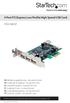 4 Port PCI Express Low Profile High Speed USB Card PEXUSB4DP DE: Bedienungsanleitung - de.startech.com FR: Guide de l'utilisateur - fr.startech.com ES: Guía del usuario - es.startech.com IT: Guida per
USB 2.0 to DVI External Video Adapter USB 2.0 to VGA External Video Adapter
 USB 2.0 to DVI External Video Adapter USB 2.0 to VGA External Video Adapter USB2DVIE2 USB2VGAE2 DE: Bedienungsanleitung - de.startech.com FR: Guide de l'utilisateur - fr.startech.com ES: Guía del usuario
3.5in Black USB 2.0 IDE SATA External Hard Drive Enclosure
 3.5in Black USB 2.0 IDE SATA External Hard Drive Enclosure UNI3510U2 UNI3510U2EB UNI3510U2EB UNI3510UEBGB *actual product may vary from photos DE: Bedienungsanleitung - de.startech.com FR: Guide de l'utilisateur
NVIDIA Graphics Card and Driver Installation Guide (Windows NT 4.0 and Windows 2000)
 NVIDIA Graphics Card and Driver Installation Guide (Windows NT 4.0 and Windows 2000) Revision 2.1 March 1, 2001 Published by NVIDIA Corporation 3535 Monroe Street Santa Clara, CA 95051 Copyright 2001 NVIDIA
ATI Radeon HD 3600 Series
 ATI Radeon HD 3600 Series User Guide Part Number: 037-41458-10 ii 2007 Advanced Micro Devices Inc. All rights reserved. The contents of this document are provided in connection with Advanced Micro Devices,
Release Notes: PowerChute plus for Windows 95 and Windows 98
 : PowerChute plus for Windows 95 and Windows 98 These release notes supplement the User s Guide: PowerChute plus, Version 5.0.2, for Windows 95 and Windows 98 (pc98ug.pdf) and the Installation Guide: PowerChute
Quick 1.3MP WebCam with Night Vision
 Quick 1.3MP WebCam with Night Vision Model #: WC1100BLU, WC1200RED WC1300BLK, WC1400YLW User s Manual PID # 031362/3/4/5-109281 Rev. 100524 All brand name and trademarks are the property of their respective
KVM Switch P74242-D. Belkin B.V. Boeing Avenue 333 1119 PH Schiphol-Rijk, The Netherlands +31 (0) 20 654 7300 +31 (0) 20 654 7349 fax. Belkin Ltd.
 KVM Switch Belkin Tech Support US: 310-898-1100, ext. 2263 800-223-5546, ext. 2263 UK: 0845 607 77 87 Australia: 1800 235 546 New Zealand: 0800 235 546 Singapore: 800 616 1790 Europe: www.belkin.com/support
VM-4 USB Desktop Audio Device Installation Guide
 VM-4 USB Desktop Audio Device Installation Guide THE POSSIBILITIES ARE ENDLESS. 9 Austin Drive, Marlborough, CT 06447 (860) 295-8100 www.essentialtel.com [email protected] Table of Contents Introduction...3
PCI Express FireWire & USB 2.0 card
 PCI Express FireWire & USB 2.0 card PCI Express Firewire 800 and USB 2.0 card PEX3U3F800 Actual product may vary from photo FCC Compliance Statement This equipment has been tested and found to comply with
Regulatory Compliance. IC Certification. FCC Certification. Declaration of Conformity
 VP6495 Regulatory Compliance This device complies with Part 15 of the FCC Rules. Operation is subject to the following two conditions: (1) This device may not cause harmful interference, and (2) This device
VM-8 USB Desktop Audio Device Installation Guide
 VM-8 USB Desktop Audio Device Installation Guide THE POSSIBILITIES ARE ENDLESS. 9 Austin Drive, Marlborough, CT 06447 (860) 295-8100 www.essentialtel.com [email protected] Table of Contents Introduction...3
P73474-F5U006-UNV-AM-man.qxd 9/18/00 10:10 AM Page 1
 P73474-F5U006-UNV-AM-man.qxd 9/18/00 10:10 AM Page 1 En 4-Port USB PCI Card User Manual Guide d utilisation de la carte PCI USB à quatre ports Manual de usuario para la tarjeta PCI USB de 4 puertos Placa
Wireless Optical Travel Mouse
 Wireless Optical Travel Mouse User s Manual PLEASE READ THESE INSTRUCTIONS CAREFULLY BEFORE INSTALLING THIS DEVICE. Table of Contents FCC Statement Page 3 Introduction.. Page 6 Package Contents.. Page
IEEE 802.11b WLAN PC Card
 IEEE 802.11b WLAN PC Card User s Guide Version: 1.3 August 2001 Please install the Utility/Driver first before inserting the PCMCIA Card. FCC Class B Radio Frequency Interference Statement The manufacturer
Installation Guide. APA-1460 SlimSCSI. PCMCIA-to-SCSI Host Adapter
 R Installation Guide APA-1460 SlimSCSI PCMCIA-to-SCSI Host Adapter Introduction This document explains how to install and use Adaptec s APA -1460 SlimSCSI PCMCIA-to-SCSI adapters. The SlimSCSI adapters
EPSON Network Image Express Card User s Guide
 Network Scan Server English EPSON Network Image Express Card User s Guide All rights reserved. No part of this publication may be reproduced, stored in a retrieval system, or transmitted in any form or
File Share Cable USER GUIDE. for Mac. www.targus.com/us/formac ONE YEAR LIMITED WARRANTY N2953
 N2953 USER GUIDE ACC9602US / 410-1486-001A www.targus.com/us/formac 2008 Manufactured or imported by Targus Group International, Inc. (for U.S. sales: 1211 North Miller Street, Anaheim, CA 92806 USA, for
PCI USB 2.0 Card. 3 Port PCI USB 2.0 Card PCI330USB2. Instruction Manual. Actual product my vary from photo
 PCI USB 2.0 Card 3 Port PCI USB 2.0 Card PCI330USB2 Instruction Manual Actual product my vary from photo FCC Compliance Statement This equipment has been tested and found to comply with the limits for
Duplex ID Card & License Scanner. User Guide
 Duplex ID Card & License Scanner User Guide CE Conformity and FCC Statement This equipment has been tested and found to comply with the limits of the European Council Directive on the approximation of
User s Manual. Bluetooth Calculator Keypad. Page
 User s Manual Bluetooth Calculator Keypad Page Regulatory Compliance This device complies with Part 15 of the FCC Rules. Operation is subject to the following two conditions: (1) This device may not cause
Instruction Guide. 2/4/6-port PCI USB 2.0 card PCI225USB PCI425USB PCI625USB2I. The Professionals Source For Hard-to-Find Computer Parts
 USB 2.0 CARD 2/4/6-port PCI USB 2.0 card PCI225USB PCI425USB PCI625USB2I Instruction Guide *PCI225USB shown * Actual product may vary from photo The Professionals Source For Hard-to-Find Computer Parts
USB 2.0 Peripheral Switch USER MANUAL US221A / US421A
 USB 2.0 Peripheral Switch USER MANUAL US221A / US421A FCC Information This equipment has been tested and found to comply with the limits for a Class B digital device, pursuant to Part 15 of the FCC Rules.
ENGLISH. Matrox TripleHead2Go. Digital Edition DP Edition Digital SE. User Guide (Windows version) 20020-301-0200 2012.10.18
 ENGLISH Matrox TripleHead2Go Digital Edition DP Edition Digital SE User Guide (Windows version) 20020-301-0200 2012.10.18 Contents About this user guide...4 Using this guide...4 More information...4 Overview...5
Targus USB Port Adapter USER S GUIDE. Making Your Mobile Life Easier. Making Your Mobile Life Easier.
 Targus USB Port Adapter Making Your Mobile Life Easier. Visit our Web site at: www.targus.com Features and specifications are subject to change without notice. 2002 Targus Corp. 400-0066-001A USER S GUIDE
2 Port USB Keyboard Mouse Switch Cable with File Transfer for PC and Mac
 2 Port USB Keyboard Mouse Switch Cable with File Transfer for PC and Mac SVKMS2 *actual product may vary from photos DE: Bedienungsanleitung - de.startech.com FR: Guide de l'utilisateur - fr.startech.com
Dell Statistica Document Management System (SDMS) Installation Instructions
 Dell Statistica Document Management System (SDMS) Installation Instructions 2015 Dell Inc. ALL RIGHTS RESERVED. This guide contains proprietary information protected by copyright. The software described
SMART Response PE. Quick Start Guide. Safety and Compliance Information...2. Compliance...2. What s in the Box?...3. Environmental Considerations...
 SMART Response PE Quick Start Guide Safety and Compliance Information...2 Compliance...2 What s in the Box?...3 Environmental Considerations...3 Installing the Clicker Batteries...3 Installing SMART Response
Quick Installation Guide TK-209K TK-409K
 Quick Installation Guide TK-209K TK-409K Table of of Contents Contents English... 1. Before You Start... 2. How to Connect... 3. Operation... 1 1 2 4 Troubleshooting... 5 Version 09.07.2006 1. Before You
LabelWriter. Print Server. User Guide
 LabelWriter Print Server User Guide Copyright 2010 Sanford, L.P. All rights reserved. 08/10 No part of this document or the software may be reproduced or transmitted in any form or by any means or translated
PCI Express USB 3.0 Controller Adapter Card
 PEXUSB3S2 Instruction Manual PCI Express USB 3.0 Controller Adapter Card 2-Port PCI Express SuperSpeed USB 3.0 Controller Adapter Card FCC Compliance Statement This equipment has been tested and found
Congratulations on your HomePortal purchase. To install your HomePortal and configure your home network, follow these steps.
 Notice to Users 2003 2Wire, Inc. All rights reserved. This manual in whole or in part, may not be reproduced, translated, or reduced to any machine-readable form without prior written approval. 2WIRE PROVIDES
PCI Express USB 2.0 Adapter Card
 PEXUSB400 Instruction Manual PCI Express USB 2.0 Adapter Card 4-Port (Independent) PCI Express to High Speed USB 2.0 Adapter Card FCC Compliance Statement This equipment has been tested and found to comply
Professional USB to Serial Adapter Hub with COM Retention
 Professional USB to Serial Adapter Hub with COM Retention ICUSB2321X ICUSB2322X ICUSB2324X *actual product may vary from photos *actual product may vary from photos DE: Bedienungsanleitung - de.startech.com
AVerMedia AVerKey imicro User s Manual
 FCC NOTICE This device has been tested and found to comply with the limits for a Class B digital device, pursuant to Part 15 of the FCC Rules. These limits are designed to provide reasonable protection
Targus Bluetooth Keyboard for Tablets
 1 BLUETOOTH KEYBOARD for Tablets 410-2153-001B / AKB33US 1 YEAR LIMITED WARRANTY: We pride ourselves on the quality of our products. For complete warranty details and a list of our worldwide offices, please
User Manual USB Laptop KVM Switch. GCS661U Part No. M1069
 User Manual USB Laptop KVM Switch 1 GCS661U Part No. M1069 2 Table of Contents User Notice 4 A Note About Terminology 5 Overview 6 Features 7 Package Contents 8 Requirements 9 Operating System Support
Laptop Docking Station - HDMI
 Laptop Docking Station - HDMI USB3VDOCKH *actual product may vary from photos DE: Bedienungsanleitung - de.startech.com FR: Guide de l'utilisateur - fr.startech.com ES: Guía del usuario - es.startech.com
SEE2 UV150 QUICK INSTALL GUIDE
 technologies SEE2 UV150 QUICK INSTALL GUIDE Easily Add A Display To Your Computer External VGA Video Card Windows Compatible Mac OS X Compatible Windows Compatible USB Mac 2.0 OS X Compatible Three Year
2 Port PCI to IDE Controller Card
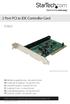 2 Port PCI to IDE Controller Card PCIIDE2 *actual product may vary from photos DE: Bedienungsanleitung - de.startech.com FR: Guide de l'utilisateur - fr.startech.com ES: Guía del usuario - es.startech.com
DMX USB PRO. User Manual. www.enttec.com
 DMX USB PRO User Manual www.enttec.com Firmware V1.43 February 2007 Package Contents Your DMX USB PRO package should contain these items: DMX USB PRO (Part No. 70304) Driver for Windows software on the
ATI Radeon HD 3800 Series
 ATI Radeon HD 3800 Series User Guide ii 2007 Advanced Micro Devices Inc. All rights reserved. The contents of this document are provided in connection with Advanced Micro Devices, Inc. ( AMD ) products.
Installation Guide. Wyse C Class Conversion to WES7. Wyse USB Firmware Tool TM Release 1.10. Issue: 102910 PN: 883887-17L Rev. B
 Installation Guide Wyse C Class Conversion to WES7 Wyse USB Firmware Tool TM Release 1.10 Issue: 102910 PN: 883887-17L Rev. B Copyright Notices 2010, Wyse Technology Inc. All rights reserved. This manual
Wormhole Switch JUC400
 For MAC & Windows OS Wormhole Switch JUC400 User Manual JUC400 Ver4.0 Required Environments Windows - OS: Windows 7 / Vista / XP / 2000 - Available USB port (USB 2.0 is recommended) - CPU: Intel Pentium
Scanner Wedge for Windows Software User Guide
 Scanner Wedge for Windows Software User Guide Contents INSTALLING THE SCANNER WEDGE SOFTWARE 2 ACTIVATING THE SCANNER CONNECTION 3 TRACING SCANNER OUTPUT 7 FORMATTING OUTPUT 9 SELECTING START-UP OPTIONS
Mercury Helios 2 ASSEMBLY MANUAL & USER GUIDE
 Mercury Helios 2 ASSEMBLY MANUAL & USER GUIDE TABLE OF CONTENTS INTRODUCTION...1 1.1 MINIMUM SYSTEM REQUIREMENTS 1.1.1 Apple Mac Requirements 1.1.2 PC Requirements 1.1.3 Supported PCIe Cards 1.2 PACKAGE
Serial ATA Hard Drive Enclosure
 SAT2510U2E SAT2510BU2E Instruction Manual Serial ATA Hard Drive Enclosure 2.5 esata/usb External Hard Drive Enclosure for Serial ATA Hard Drives FCC Compliance Statement This equipment has been tested
High Speed File Share Cable USER GUIDE
 High Speed File Share Cable USER GUIDE Visit our Website at www.targus.com/emea Features and specifications are subject to change without notice. 2008 Targus Group International, Inc. and Targus, Inc.
This guide explains how to install an Intel Solid-State Drive (Intel SSD) in a SATA-based desktop or notebook computer.
 Installation Guide This guide explains how to install an (Intel SSD) in a SATA-based desktop or notebook computer. The instructions include migrating your data from your current storage device (such as
USB 3.0 to Multi Monitor Video Adapter Quick Installation Guide
 USB 3.0 to Multi Monitor Video Adapter Quick Installation Guide Introduction The USB 3.0 to Multi Monitor Video Adapter allows you to connect a monitor, LCD or projector to your desktop or notebook computer
ATI Radeon HD 3800 Series
 ATI Radeon HD 3800 Series User Guide Part Number: 137-41424-20 ii 2007 Advanced Micro Devices Inc. All rights reserved. The contents of this document are provided in connection with Advanced Micro Devices,
USB-2.0 Mobile Mini Hub USER S GUIDE. Making Your Mobile Life Easier. Making Your Mobile Life Easier.
 USB-2.0 Mobile Mini Hub Making Your Mobile Life Easier. Visit our Web site at: www.targus.com Features and specifications are subject to change without notice. 2002 Targus Corp. 400-0093-001A USER S GUIDE
DataCenter 7280 3Gb/s SATA Host Adapter User Manual
 DataCenter 7280 3Gb/s SATA Host Adapter User Manual Revision: 1.1 Date: May 2011 HighPoint Technologies, Inc. Copyright... 3 Trademarks... 3 HighPoint Technologies, Inc.... 4 Highpoint DataCenter 7280
USB 3.0 to 3.5 SATA III Upright HDD Enclosure with UASP
 USB 3.0 to 3.5 SATA III Upright HDD Enclosure with UASP S3510BMU33B *actual product may vary from photos DE: Bedienungsanleitung - de.startech.com FR: Guide de l'utilisateur - fr.startech.com ES: Guía
Mini PCI Express FireWire Adapter Card
 MPEX1394B3 Instruction Manual Mini PCI Express FireWire Adapter Card 3-Port Mini PCI Express to 1394b FireWire Adapter Card Manual Revision:01/10/2011 For the most up-to-date information, please visit
WD VelociRaptor. User Manual. Internal Desktop
 WD VelociRaptor User Manual Internal Desktop WD Service and Support Should you encounter any problem, please give us an opportunity to address it before returning this product. Most technical support questions
TeamPoS2000-M Windows XP Pro Device Installation
 TeamPoS2000-M Windows XP Pro Device Installation 1. Install the target operating system. 2. Once Windows XP Pro is installed, a look at the Device Manager will show several devices not yet setup, as depicted
USB to IDE or SATA Adapter
 USB to IDE or SATA Adapter USB 2.0 to IDE or SATA Adapter Cable USB2SATAIDE Instruction Manual Actual product may vary from photo FCC Compliance Statement This equipment has been tested and found to comply