
DSL-2875AL. User Manual
|
|
|
- Andra Simon
- 10 years ago
- Views:
Transcription
1 DSL-2875AL User Manual

2 Table of Contents Table of Contents... 2 Product Overview... 3 Package Contents... 3 System Requirements... 3 Features... 4 Hardware Overview... 5 Front Panel... 5 Rear Panel... 6 Basic Installation... 7 Before You Begin... 7 Installation Notes... 7 Information you will need from your ADSL service provider... 9 Information you will need about this Router Information you will need about your LAN or computer Device Installation Power on Router Factory Reset Button Network Connections Getting Started How to connect to the Web User Interface Web User Interface Configuration Setup Category Wizard Internet Setup Wireless Setup LAN Setup Time and Date Mydlink TM Settings Advanced Category Advanced Wireless Virtual Server Port Trigger DMZ Parental Control IP & MAC Filtering DSL Line Settings Firewall DNS Dynamic DNS Network Tools Routing URL Redirect Maintenance Category Administrator Access Control System Settings Firmware Update Diagnostics System Log Status Category Device Info System Log Statistics Help Category Knowledge Base Networking Basics Wireless Basics Wireless Modes Wireless Security What is WPA? Frequently Asked Questions Technical Specifications Table of Contents Page 2

3 Product Overview Package Contents This product should contain all of the below mentioned items within its packaging: One DSL-2875ALWireless ADSL2+ Router One Power Adapter One CD containing the User Manual One twisted-pair telephone cable used for DSL connection One straight-through Ethernet cable One Quick Installation Guide If any of the above items are missing, please contact your reseller. Note: Using a power supply with a different voltage rating than the one included with the DSL-2875AL will cause damage to this product and void the warranty for this product. System Requirements Network Requirements: Ethernet Adapter at 10/100/1000Mbps. Wireless Adapter with IEEE n, a, or b/g Protocols. Web User Interface Requirements: Windows, Macintosh, or Linux-based Operating System. Internet Browser like Internet Explorer 7 or higher, Firefox 3.5 or higher, Safari 4 or higher, or Chrome 8 or higher. Internet Requirements: ADSL Internet Connection Service from an ISP. Product Overview Page 3

4 Features Faster Wireless Networking - The DSL-2875AL provides up to 300Mbps* for the 2.4GHz band and 450Mbps* for the 5GHz band wireless connection with other n wireless clients. This capability allows users to participate in real-time activities online, such as video streaming, online gaming, and real-time audio. Compatible with b and g Devices - The DSL-2875AL is still fully compatible with the IEEE b and IEEE g standards, so it can connect with existing b and g PCI, USB and Cardbus adapters. DHCP Support - Dynamic Host Configuration Protocol automatically and dynamically assigns all LAN IP settings to each host on your network. This eliminates the need to reconfigure every host whenever changes in network topology occur. Network Address Translation (NAT) - For small office environments, the DSL-2875AL allows multiple users on the LAN to access the Internet concurrently through a single Internet account. This provides Internet access to everyone in the office for the price of a single user. NAT improves network security in effect by hiding the private network behind one global and visible IP address. NAT address mapping can also be used to link two IP domains via a LAN-to-LAN connection. Precise ATM Traffic Shaping - Traffic shaping is a method of controlling the flow rate of ATM data cells. This function helps to establish the Quality of Service for ATM data transfer. High Performance - Very high rates of data transfer are possible with the router. Up to 24Mbps downstream bit rate using the G.dmt standard. (For ADSL2+) Full Network Management - The DSL-2875AL incorporates SNMP (Simple Network Management Protocol) support for web-based management and text-based network management via a Telnet connection. Easy Installation - The DSL-2875AL uses a web-based graphical user interface program for convenient management access and easy set up. Any common web browsing software can be used to manage this router. Maximum wireless signal rate derived from IEEE standard n specifications. Actual data throughput will vary. Network conditions and environmental factors, including volume of network traffic, building materials and construction, and network overhead, lower actual data throughput rate. Environmental factors will adversely affect wireless signal range. Product Overview Page 4

5 Hardware Overview Front Panel Number Description WPS - The light will flash while a WPS connection is being established. The light will light solid for 5 seconds if a successful WPS connection has been made. This is also the WPS button used to initiate the push-button WPS connection. Internet - Steady green light indicates a successful Internet connection. Steady red light indicates failed Internet connection. Dark if no WAN protocol is configured. DSL - Steady green light indicates a valid ADSL connection. This will light after the ADSL negotiation process has been settled. A blinking green light indicates activity on the WAN (ADSL) interface. 2.4GHz WLAN - Steady green light indicates the 2.4GHz WLAN is available. 5GHz WLAN - Steady green light indicates the 5GHz WLAN is available. LAN - A solid light indicates a valid link on startup. This light will blink when there is activity currently passing through the Ethernet port. A green light will be illuminated for a 10/100Mbps connection. Power - A steady green light indicates the unit is powered on. When the device is powered off this remains dark. During the Power-On Self-Test this light will be red. If this light remains red after the POST, a malfunction has occurred. Product Overview Page 5


6 Rear Panel Object Description Power Button - Push in to power-on the router. Push again to poweroff the router. Power Receptor - Receptor for the supplied power adapter. Ethernet Ports - Use the Ethernet ports to connect the router to your Ethernet LAN or Ethernet devices. Reset Button - Press and hold the button for seconds to restore the device to its original factory default settings. WPS Button If you use a Wi-Fi router compatible with WPS, press the WPS button to automatically configure the connection settings and security settings. ADSL Port - Use the DSL cable to connect to your telephone line (RJ-11 port). Product Overview Page 6

7 Basic Installation This section will walk you through the installation process. Placement of the router is very important. Do not place the router in an enclosed area such as a closet, cabinet, or in the attic or garage. Before You Begin Please read and make sure you understand all the prerequisites for proper installation of your new router. Have all the necessary information and equipment on hand before beginning the installation. Installation Notes In order to establish a connection to the Internet it will be necessary to provide information to the router that will be stored in its memory. For some users, only their account information (Username and Password) is required. For others, various parameters that control and define the Internet connection will be required. Low Pass Filters Since ADSL and telephone services share the same copper wiring to carry their respective signals, a filtering mechanism may be necessary to avoid mutual interference. A low pass filter device can be installed for each telephone that shares the line with the ADSL line. These filters are easy to install passive devices that connect to the ADSL device and/or telephone using standard telephone cable. Ask your service provider for more information about the use of low pass filters with your installation. Operating Systems The DSL-2875AL uses an HTML-based web interface for setup and management. The Web configuration manager may be accessed using any operating system capable of running web browser software, including Windows, Macintosh, and Linux-based Operating Systems. Web Browser Any common Web browser can be used to configure the router using the Web configuration management software. The program is designed to work best with more recently released browsers such as Internet Explorer 7 or higher, Firefox 3.5 or higher, Safari 4 or higher, or Chrome 8 or higher.. The Web browser must have JavaScript enabled. JavaScript is enabled by default on many browsers. Make sure JavaScript has not been disabled by other software (such as virus protection or web user security packages) that may be running on your computer. Ethernet Port (NIC Adapter) Any computer that uses the router must be able to connect to it through one of the Ethernet ports on the router. This connection is an Ethernet connection and therefore requires that your computer be equipped with an Ethernet port as well. Most notebook computers are now sold with an Ethernet port already installed. Likewise, most fully assembled desktop computers come with an Ethernet adapter as standard equipment. If your computer does not have an Ethernet port, you must install an Ethernet NIC adapter before you can use the router. If you must install an adapter, follow the installation instructions that come with the Ethernet NIC adapter. Basic Installation Page 7

8 Additional Software It may be necessary to install software on your computer that enables the computer to access the Internet. Additional software must be installed if you are using the device a simple bridge. For a bridged connection, the information needed to make and maintain the Internet connection is stored on another computer or gateway device, not in the router itself. If your ADSL service is delivered through a PPPoE or PPPoA connection, the information needed to establish and maintain the Internet connection can be stored in the router. In this case, it is not necessary to install software on your computer. It may however be necessary to change some settings in the device, including account information used to identify and verify the connection. All connections to the Internet require a unique global IP address. For bridged connections, the global IP settings must reside in a TCP/IP enabled device on the LAN side of the bridge, such as a PC, a server, a gateway device such as a router or similar firewall hardware. The IP address can be assigned in a number of ways. Your network service provider will give you instructions about any additional connection software or NIC configuration that may be required. Basic Installation Page 8

9 Information you will need from your ADSL service provider Username This is the Username used to log on to your ADSL service provider s network. Your ADSL service provider uses this to identify your account. Password This is the Password used, in conjunction with the Username above, to log on to your ADSL service provider s network. This is used to verify the identity of your account. WAN Setting / Connection Type These settings describe the method your ADSL service provider uses to transport data between the Internet and your computer. Most users will use the default settings. You may need to specify one of the following WAN Setting and Connection Type configurations (Connection Type settings listed in parenthesis): PPPoE/PPPoA (PPPoE LLC, PPPoE VC-Mux, PPPoA LLC or PPPoA VC-Mux) Static IP Address (1483 Routed IP LLC or 1483 Routed IP VC-Mux) Bridge Mode (1483 Bridged IP LLC or 1483 Bridged IP VC Mux) Modulation Type ADSL uses various standardized modulation techniques to transmit data over the allotted signal frequencies. Some users may need to change the type of modulation used for their service. The default DSL modulation (Autosense) used for the router automatically detects all types of ADSL, ADSL2, and ADSL2+ modulation. Security Protocol This is the method your ADSL service provider will use to verify your Username and Password when you log on to their network. Your router supports the PAP and CHAP protocols. VPI Most users will not be required to change this setting. The Virtual Path Identifier (VPI) is used in conjunction with the Virtual Channel Identifier (VCI) to identify the data path between your ADSL service provider s network and your computer. If you are setting up the router for multiple virtual connections, you will need to configure the VPI and VCI as instructed by your ADSL service provider for the additional connections. This setting can be changed in the WAN Settings window of the web management interface. VCI Most users will not be required to change this setting. The Virtual Channel Identifier (VCI) used in conjunction with the VPI to identify the data path between your ADSL service provider s network and your computer. If you are setting up the router for multiple virtual connections, you will need to configure the VPI and VCI as instructed by your ADSL service provider for the additional connections. This setting can be changed in the WAN Settings window of the web management interface. Basic Installation Page 9

10 Username Information you will need about this Router This is the Username needed access the router s web management interface. When you attempt to connect to the device through a web browser you will be prompted to enter this Username. The default Username for the router is admin. Password This is the Password you will be prompted to enter when you access the router s web management interface. The default Password is admin. LAN IP Addresses for the DSL-2875AL This is the IP address you will enter into the Address field of your web browser to access the router s configuration Graphical User Interface (GUI) using a web browser. The default IP address is This may be changed to suit any IP address scheme the user desires. This address will be the base IP address used for DHCP service on the LAN when DHCP is enabled. LAN Subnet Mask for the DSL-2875AL This is the subnet mask used by the DSL-2875AL, and will be used throughout your LAN. The default subnet mask is This can be changed later. Ethernet NIC Information you will need about your LAN or computer If your computer has an Ethernet NIC, you can connect the DSL-2875AL to this Ethernet port using an Ethernet cable. You can also use the Ethernet ports on the DSL- 2875AL to connect to other computer or Ethernet devices. DHCP Client status Your DSL-2875AL ADSL router is configured, by default, to be a DHCP server. This means that it can assign an IP address, subnet mask, and a default gateway address to computers on your LAN. The default range of IP addresses the DSL-2875AL will assign are from to Your computer (or computers) needs to be configured to obtain an IP address automatically (that is, they need to be configured as DHCP clients.) Once you have the above information, you are ready to setup and configure your DSL-2875AL ADSL router. Basic Installation Page 10

11 Device Installation The DSL-2875AL connects two separate physical interfaces, an ADSL (WAN) and an Ethernet (LAN) interface. Place the router in a location where it can be connected to the various devices as well as to a power source. The router should not be located where it will be exposed to moisture or excessive heat. Make sure the cables and power cord are placed safely out of the way so they do not create a tripping hazard. As with any electrical appliance, observe common sense safety procedures. The router can be placed on a shelf or desktop, ideally you should be able to see the LED indicators on the front if you need to view them for troubleshooting. The router must be used with the power adapter included with the device. Power on Router 1. Insert the AC Power Adapter cord into the power receptacle located on the rear panel of the router and plug the adapter into a suitable nearby power source. 2. Press the Power button into the on position. You should see the Power LED indicator light up and remain lit. 3. If the Ethernet port is connected to a working device, check the Ethernet LED indicators to make sure the connection is valid. The router will attempt to establish the ADSL connection, if the ADSL line is connected and the router is properly configured this should light up after several seconds. If this is the first time installing the device, some settings may need to be changed before the router can establish a connection. Factory Reset Button The router may be reset to the original factory default settings by using a ballpoint pen or paperclip to gently push down the reset button in the following sequence: 1. Press and hold the reset button while the device is powered on for seconds. 2. Hold the reset button for 5-8 seconds and release the reset button. Remember that this will wipe out any settings stored in flash memory including user account information and LAN IP settings. The device settings will be restored to the factory default IP address and the subnet mask is The default management username is admin and the default password is admin. Basic Installation Page 11

12 Connect ADSL Line Network Connections Use the ADSL cable included with the router to connect it to a telephone wall socket or receptacle. Plug one end of the cable into the ADSL port (RJ-11 receptacle) on the rear panel of the router and insert the other end into the RJ-11 wall socket. If you are using a low pass filter device, follow the instructions included with the device or given to you by your service provider. The ADSL connection represents the WAN interface, the connection to the Internet. It is the physical link to the service provider s network backbone and ultimately to the Internet. Connect Router to Ethernet The router may be connected to a single computer or Ethernet device through the Ethernet ports on the rear panel. Any connection to an Ethernet concentrating device such as a switch or hub must operate at a speed of 10/100/1000Mbps. When connecting the router to any Ethernet device that is capable of operating at speeds higher than 10Mbps, be sure that the device has auto-negotiation (NWay) enabled for the connecting port. Use standard twisted-pair cable with RJ-45 connectors. The RJ-45 ports on the router are a crossed port (MDI-X). Follow standard Ethernet guidelines when deciding what type of cable to use to make this connection. When connecting the router directly to a PC or server use a normal straight-through cable. You should use a crossed cable when connecting the router to a normal (MDI-X) port on a switch or hub. Use a normal straight-through cable when connecting it to an uplink (MDI-II) port on a hub or switch. The rules governing Ethernet cable lengths apply to the LAN to router connection. Be sure that the cable connecting the LAN to the router does not exceed 100 meters. Hub or Switch to Router Connection Connect the router to an uplink port (MDI-II) on an Ethernet hub or switch with a straight-through cable. If you wish to reserve the uplink port on the switch or hub for another device, connect to any on the other MDI-X ports (1x, 2x, etc.) with a crossed cable. Computer to Router Connection You can connect the router directly to an Ethernet adapter card (NIC) installed on a PC using the Ethernet cable provided. Basic Installation Page 12

13 Getting Started This section will show you how to set up and configure your new D-Link router using the Web-based configuration utility. Connect to the Router How to connect to the Web User Interface To configure the WAN connection used by the router it is first necessary to communicate with the router through its management interface, which is HTML-based and can be accessed using a web browser. The easiest way to make sure your computer has the correct IP settings is to configure it to use the DHCP server in the router. To access the web user interface, open a web-browser such as Internet Explorer and enter the IP address of the router ( ) into the address bar and press the Enter key on your keyboard. Type admin in the User Name field and admin in the Password field, and click the Login button to proceed. If you get a Page Cannot be Displayed error, please refer to the Troubleshooting section for assistance. Basic Installation Page 13

14 Web User Interface Configuration After successfully logging into the Web User Interface, the following page will be displayed. This page is divided into clickable components that make the configuration of this device easier and more understandable. The top menu lists out the Categories available for configuration. The categories available to configure on this device are Setup, Advanced, Maintenance, Status and Help. The left menu lists out the Pages available, for each individual category, for configuration. In this example, we observe the pages available in the Setup category. The pages available here are Wizard, Internet Setup, Wireless Setup, LAN Setup, Time and Date, and Mydlink TM Settings. At the Bottom is the Reboot Button which will restart the router. Web User Interface Configuration Page 14

15 Setup Category The Setup category is designed to assist the user with essential configurations, concerning the initial setup of this product. The following pages can be found in the Setup category:. Wizard - On this page we can configure services using D-Link setup wizard. Internet Setup - On this page we can configure services related to the Internet connectivity of this product. Wireless Setup - On this page we can configure services related to the Wireless connectivity of this product. LAN Setup - On this page we can configure the Local Area Network (LAN). Time and Date - On this page we can configure services related to time and date of this product. Mydlink TM Settings - On this page we can configure services related to mydlink TM settings of this product. Web User Interface Configuration Page 15


16 Wizard To access the Wizard page, click on the Setup menu link, at the top, and then click on the Wizard menu link, on the left. On this page the user can easily configure some essential settings available on this router by following a step-by-step wizard. Click on the Setup Wizard button to initiate the setup wizard. Web User Interface Configuration Page 16


17 Welcome to the Setup Wizard This wizard will guide user through a step-by-step wizard, divided into 7 steps, to configure this router and to connect to the Internet. Click the Next button to continue to the next page. Click the Cancel button to discard the changes made and return to the main page. Step 1: Set Your Password In this step, the user can configure the web user interface login password. Enter the Password and Verify Password here. Click the Prev button to discard the changes made and return to the previous page. Click the Next button to continue to the next page.. Click the Cancel button to discard the changes made and return to the main page. Click the Connect button to connect to the internet. Step 2: Select Your Time Zone In this step the user can configure the time zone settings that will be used by this router. Click the Prev to return to the previous page Click the Next to continue to the next page Click the Cancel to cancel the setup wizard Click the Connect button to connect to the internet. Web User Interface Configuration Page 17


18 Step 3: Setup Internet Connection In this step, the user can configure the Internet connection settings used by this router. In this section we can configure the following parameters. Country: In this drop-down menu, the user can select one of two country options. They are Australia and New Zealand. To manually configure this connection, the user can choose the third option called Other. Internet Service Provider: After selecting a country, in the previous option, a list of ISP connections will be available here. If your ISP is in the list, select it here and the correct parameters will be entered for the rest of the page. However, if your ISP is not listed here, you can choose the Other option. Protocol: Select the appropriate protocol to use here. Options to choose from are Dynamai IP Address, Static IP Address, PPPoE, PPPoA, and Bridge Mode. Connection Type: Select the appropriate connection type to use here. Options to choose from are VC-Mux and LLC. VPI: Enter the correct Virtual Path Identifier (VPI) value for your ISP here. VCI: Enter the correct Virtual Channel Identifier (VCI) value for your ISP here. MTU: Click the Prev button to discard the changes made and return to the previous page. Click the Next button to continue to the next page. Click the Cancel button to discard the changes made and return to the main page. Click the Connect button to connect to the internet. Web User Interface Configuration Page 18


19 On the next Page enter the PPPoE information provided to you by your ISP. Username: After choosing to use PPPoE or PPPoA this option will be available. Enter the ISP connection account username used here. Password: After choosing to use PPPoE or PPPoA this option will be available. Enter the ISP connection account password used here. Confirm Password: After choosing to use PPPoE or PPPoA this option will be available. Re-enter the ISP connection account username used here. Enable PPPoE Passthrough: Enable the PPPoE passthrough. Click the Prev to return to the previous page Click the Next to continue to the next page Click the Cancel to cancel the setup wizard Click the Connect button to connect to the internet. Web User Interface Configuration Page 19


20 Step 4: Name Your Wireless Network In this step, the user can name your Wireless for this router. Please enter an SSID to do so. The default name is D-Link DSL-2875AL. Please note that the length of the 5G SSID must be between 3 and 32 alphanumeric characters only including hyphens and spaces. In this section we can configure the following parameters. 2.4G Wireless Network Name (SSID): In this textbox, we can enter the wireless networks name (SSID) for the wireless network, hosted by this router. This name will be visible for all wireless clients to see before initiating a connection to this router. 5G Wireless Network Name (SSID): In this textbox, we can enter the wireless networks name (SSID) for the wireless network, hosted by this router. This name will be visible for all wireless clients to see before initiating a connection to this router. Click the Prev to return to the previous page Click the Next to continue to the next page Click the Cancel to cancel the setup wizard Click the Connect button to connect to the internet. Web User Interface Configuration Page 20


21 Step 5: Secure Your Wireless Network In this step, we can secure your wireless network for this router here. In this section we can configure the following parameters. BEST: Select this option if you re your wireless adapters SUPPORT WPA2. BETTER: Select this option if you re your wireless adapters SUPPORT WPA. GOOD: Select this option if you re your wireless adapters DO NOT SUPPORT WPA. NONE: Select this option if you do not want to activate any security features. Click the Prev button to discard the changes made and return to the previous page. Click the Next button to continue to the next page. Click the Cancel button to discard the changes made and return to the main page. Click the Connect button to connect to the internet. Step 6: Set Your Wireless Security Password In this step, we can set the wireless security password. In this section we can configure the following parameters. 2.4G Wireless Security Password: Enter the 2.4G wireless security password. 5G Wireless Security Password: Enter the 5G wireless security password. Click the Prev button to discard the changes made and return to the previous page. Click the Next button to continue to the next page. Click the Cancel button to discard the changes made and return to the main page. Click the Connect button to connect to the internet. Web User Interface Configuration Page 21

22 Step 7: Setup Mydlink TM Cloud Services In this step, we can setup mydlink TM cloud services. I Click the Prev button to discard the changes made and return to the previous page. Click the Next button to continue to the next page. Click the Cancel button to discard the changes made and return to the main page. Click the Connect button to connect to the internet. On the next Page register mydlink TM Cloud Services account. Click the Prev button to discard the changes made and return to the previous page. Click the Next button to continue to the next page. Click the Cancel button to discard the changes made and return to the main page. Click the Connect button to connect to the internet. On the next Page login mydlink TM Cloud Services account. In this section we can configure the following parameters. Address (Account Name): Enter the address (Account Name). Password: Enter the password. Web User Interface Configuration Page 22

23 Click the Login button to login the mydlink TM Cloud Services account. Click the Prev button to discard the changes made and return to the previous page. Click the Next button to continue to the next page. Click the Cancel button to discard the changes made and return to the main page. Click the Connect button to connect to the internet. On the next Page sign up mydlink TM Cloud Services account. In this section we can configure the following parameters. Address (Account Name): Enter the address (Account Name). Password: Enter the password. Confirm Password:Enter the confirm password. First Name:Enter the first name. Last Name:Enter the last name. Click the Sign Up button to sign up mydlink TM Cloud Services account. Click the Prev button to discard the changes made and return to the previous page. Click the Next button to continue to the next page. Click the Cancel button to discard the changes made and return to the main page. Click the Connect button to connect to the internet. Web User Interface Configuration Page 23
24 Internet Setup To access the Internet Setup page, click on the Setup menu link, at the top, and then click on the Internet Setup menu link, on the left. Web User Interface Configuration Page 24
25 You can manually configure the connection from this page. Please make sure you have your ISP's connection settings first if you manually configure the connection. Web User Interface Configuration Page 25
26 WAN Settings WAN Settings are settings that are used to connect to your ISP. These settings may be referred to as Public settings. Your ISP provides these settings to you. Please select the appropriate option to connect to your ISP. After selecting to use the Wan Settings, the WAN page needs to be completed, please be aware that the WAN page will change dependent on options chosen under WAN Settings. In this section, we can configure the following: WAN - PPPoE/PPPoA Select this option if your ISP requires you to use a PPPoA/PPPoE connection. This option is typically used for DSL services. Select PPPoA/PPPoE to obtain an IP address automatically for your PPPoA/PPPoE connection. Please enter the information accordingly. Please Note the image to the right shows PPPoE options. PPPoA WAN page may differ slightly. Web User Interface Configuration Page 26

27 IPV6 In this section we can configure the following parameters. DHCP IPV6 Mode: Select the DHCP IPV6 mode. DHCP PD Enable: Enable or disable the DHCP PD. MLD Proxy: Enable or disable the MLD proxy. Web User Interface Configuration Page 27
28 Alternate DNS server: Enter the alternate DNS Server address used here. Default Gateway / Interface: Select which interface s default gateway should be used for this entry. Click the Apply button to accept the changes made. Click the Cancel button to discard the changes made. Web User Interface Configuration Page 28

29 Wireless Setup To access the Wireless Setup page, click on the Setup menu link, at the top, and then click on the Wireless Setup menu link, on the left. On this page the user can configure services related to the Wireless Setup connectivity of this product. Services available for configuration are the following: Wireless Connection Setup Wizard Add Wireless Device With WPS (WI-FI Protected Setup) Wizard Manual Wireless Connection Options Web User Interface Configuration Page 29

30 Wireless Connection Setup Wizard Click the Wireless Connection Setup Wizard button to initiate the Wireless connection setup wizard. After clicking the Wireless Connection Setup Wizard button, the following page will be available. The service set identifier (SSID) or network name is case sensitive and must not exceed 32 characters, which may be any keyboard character. You should select the same SSID for all the APs that will be communicating with mobile wireless stations. Network Name (SSID) 2.4GHz: Enter the wireless network name (SSID), for the 2.4GHz frequency band, here. Network Name (SSID) 5GHz: Enter the wireless network name (SSID), for the 5GHz frequency band, here. Tick Box: Use the tick box to use WPA encryption instead of WEP. Welcome to the D-Link Wireless Security Setup Wizard Web User Interface Configuration Page 30

31 Please note that when using selecting your wireless security settings you have the following options WEP Make sure that all wireless devices on your network are using the same encryption level and key. WEP keys must consist of the letters "A" through "F" and the numbers "0" through "9". WPA Make sure that all wireless devices on your network are using the same encryption level and key. WEP keys must consist of the letters "A" through "F" and the numbers "0" through "9". Click the Next button to continue to the next step. Click the Prev button to return to the previous step. Click the Cancel button to discard the changes made and return to the main menu. Web User Interface Configuration Page 31

32 Save Your Wireless Security Password After assigning a security setting, the following page will be available showing your settings. Click the Save button to continue to save your settings. Click the Prev button to return to the previous step. Click the Cancel button to discard the changes made and return to the main menu. Add Wireless Device With WPS Wizard Click the Add Wireless Device with WPS button to initiate the Wi-Fi Protected Setup (WPS) setup wizard. After clicking the Add Wireless Device with WPS button, the following page will be available. Web User Interface Configuration Page 32

33 ADD WIRELESS DEVICE WITH WPS (WI-FI PROTECTED SETUP) In this section, we can configure the following: Auto: Select this option to automatically allow the router and the wireless client to connect to each other by means of WPS. Manual: Select this option to display the configured wireless settings. This information can then be configured of the wireless clients manually to initiate a wireless connection. Click the Next button to continue to the next step. Click the Cancel button to discard the changes made and return to the main menu. Connect Your Wireless Device After selecting the Auto option, in Step 1, the following page will be available. In this section, we can configure the following: PIN: Select this option to use the Personal Identification Number (PIN) method to connect the two devices. Enter the PIN number here. Enter the same PIN number at the wireless client software. PBC: Select this option to use the Push Button Configuration (PBC) method to connect the two devices. Click the Connect button to initiate the WPS connection. Click the Prev button to return to the previous step. After selecting the PIN option, the following page will be available. The router will allow 120 seconds for the WPS connection to initiate. After selecting the PBC option, in Step 2, the following page will be available. Press the WPS button on the wireless client to initiate the connection. The router will allow 120 seconds for the WPS connection to initiate. After successfully connecting the router and the wireless client, the page will return to the wireless setup page. Web User Interface Configuration Page 33

34 After selecting the Manual option, in Step 1, the following page will be available to provide information regarding manual setup. Click OK to continue. After clicking the OK button, the following page will be available. Web User Interface Configuration Page 34
35 In this section we can configure the following parameters. Enable Wireless: Tick this option to enable the wireless feature for the 2.4GHz band on this router. SSID The SSID or network name. It is case sensitive and must not exceed 32 characters, which may be any keyboard character. You shall have selected the same SSID for all the APs that will be communicating with mobile wireless stations. Hide SSID By activating the option Hide SSID, the SSID of the D-Link DSL-2875AL will be hidden. This offers some protection against intruders. Nevertheless you should always set up access rules based on the MAC addresses of the devices to protect your Wireless. WMM Enabling WMM can help control latency and jitter when transmitting multimedia content over a wireless connection. Security There are 4 types of security to be selected. To secure your Wireless Networks. None WEP Make sure that all wireless devices on your network are using the same encryption level and key. WEP keys must consist of the letters "A" through "F" and the numbers "0" through "9". WPA 802.1x: WPA RADIUS uses an external RADIUS server to perform user authentication. To use WPA RADIUS, enter the IP address of the RADIUS server, the RADIUS Port (default is 1812) and the shared secret from the RADIUS server. PSK: Is a special mode of WPA for home users without an enterprise authentication server and provides the same strong encryption protection. To use WPA Pre- Shared Key, enter a password in the WPA Shared Key field between 8 and 63 characters long. Web User Interface Configuration Page 35

36 WPA x: WPA2 RADIUS uses an external RADIUS server to perform user authentication. To use WPA2 RADIUS, enter the IP address of the RADIUS server, the RADIUS Port (default is 1812) and the shared secret from the RADIUS server. PSK: Is a special mode of WPA2 for home users without an enterprise authentication server and provides the same strong encryption protection. To use WPA2 Pre- Shared Key, enter a password in the WPA2 Shared Key field between 8 and 63 characters long. Cypher Type: options include, TKIP, AES or Both. Group Key Interval: Here we can Input the interval in seconds, default is 3600 seconds. WI-FI PROTECTED SETUP (ALSO CALLED WCN 2.0 IN WINDOWS VISTA) Enable Enable the Wi-Fi Protected Setup feature. PIN Shows the current value of the router's PIN. Generate New PIN Create a random number that is a valid PIN. This becomes the router's PIN. You can then copy this PIN to the user interface of the registrar. Web User Interface Configuration Page 36
37 Manual Wireless Connection Option If your wireless adapter doesn t support the WPS connection methods, we can configure the Wireless Connection manually here. Click on the Manual Wireless Connection Setup button to access the manual wireless connection setup page. After clicking the Manual Wireless Connection Setup button, the following page will be available. In this section we can configure the following parameters. Wireless Enable: Tick this option to enable the wireless feature on this router. Multiple SSID: Enter the Wireless name (SSID) here. This name will be available when wireless clients scan for available wireless networks. However, when the Hide Access Point option is enabled, this name will not be visible to wireless clients. HideSSID: Here we can choose to hide the Wireless SSID by selecting Enable to hide it and Disable to reveal it. WMF: Here we can enable or disable the Wireless Multimedia Forwarding (WMF) feature Mode: Here we can select which wireless modes to use. Options to choose from are B/G mixed, B only, G only, and G/N mixed. If you are not sure, select the B/G mixed option. Channel Width: Here we can select the wireless bandwidth range used. Option to choose from are 20MHz and Auto 20/40MHz. Extension Channel: Here we can select a extension wireless channel manually. Channel: Here we can select a wireless channel manually, or select the Auto option to allow the router to automatically select the channel with the least interference. Security: Here we can select security to use. Options to choose from are None, WEP-64Bits, WEP-128Bits, WPA, WPA2 and WPA/WPA 2. Cipher Type: Here we can select cipher type to use. Options to choose from are AES and Both,. Group Key Interval: Enter the group key interval. Web User Interface Configuration Page 37
38 WPA Type This router supports two type options available in the WPA Type. The types are the 802.1x and PSK Value. Web User Interface Configuration Page 38
39 PSK Enter the Psk network key. WI-FI Protected Setup (Also Called WCH 2.0 in Windows Vista) Enable: Enable the Wi-Fi Protected Setup feature. Current PIN : Shows the current value of the router's PIN. Wi-Fi Protected Status: Shows the Wi-Fi protected status. 5G Wireless Configuration Web User Interface Configuration Page 39
40 Wireless Basic WPA Type This router supports two type options available in the WPA Type. The types are the 802.1x and PSK Value. PSK Enter the Psk network key. Web User Interface Configuration Page 40

41 WI-FI Protected Setup (Also Called WCH 2.0 in Windows Vista) Enable: Enable the Wi-Fi Protected Setup feature. Current PIN : Shows the current value of the router's PIN. Wi-Fi Protected Status: Shows the Wi-Fi protected status. Web User Interface Configuration Page 41

42 LAN Setup To access the LAN Setup page, click on the Setup menu link, at the top, and then click on the LAN Setup menu link, on the left. On this page we can configure services related to the Local Area Network connectivity of this product. Web User Interface Configuration Page 42

43 In this section, the following parameters are available to configure: Router IP Address: Enter the local IP address for this router here. This IP address is also used to connect to this device s Web User Interface. Please note that after changing this IP address you ll be forced to log into the Web User Interface again, using the new IP address. Subnet Mask: Enter the subnet mask used here. In this section, the following parameters can be configured: Disable DHCP Server: Select this option to disable the DHCP Server option. Enable DHCP Server: Select this option to enable the DHCP Server option. DHCP IP Address Range: Enter the starting and ending IP address host number value for the DHCP Server pool here. DHCP Lease Time: select the DHCP lease time value used here. The Client Table will show the Host Name, IP Address, and MAC Address of each client computer. Web User Interface Configuration Page 43
44 Time and Date To access the Time and Date page, click on the Setup menu link, at the top, and then click on the Time and Date menu link, on the left. On this page we can configure services related to the Time and Date services used by this product. The Time Configuration option allows you to configure, update, and maintain the correct time on the internal system clock. From this section you can set the time zone that you are in and set the NTP (Network Time Protocol) Server. Daylight Saving can also be configured to automatically adjust the time when needed. Synchronize Time Select this option if you want to synchronize the router's clock to a Network Time Server over the Internet. If you are using schedules or logs, this is the best way to ensure that the schedules and logs are kept accurate. NTP Server Address Select a Network Time Server for synchronization. You can type in the address of a time server or select one from the list. If you have trouble using one server, select another. Time Zone Select your local time zone from pull down menu. Web User Interface Configuration Page 44

45 Mydlink TM Settings To access the Mydlink TM Settings page, click on the Setup menu link, at the top, and then click on the Mydlink TM Settings menu link, on the left. Web User Interface Configuration Page 45

46 Advanced Category The Advanced category is designed to assist the user with more advanced configurations, concerning the other features found on this product. The following pages can be found in the Advanced category: Advanced Wireless On this page the user can configure advanced services related to the Wireless connectivity of this product. Services available for configuration are WLAN Access Rules, Multiple WLAN SSIDs and WLAN Performance. Advanced Wireless On this page the user can configure advanced services related to the virtual server connectivity of this product. Port Trigger On this page the user can configure services related to the port triggering feature of this product. DMZ On this page the user can configure services related to the DMZ feature of this product. Parental Control On this page the user can configure services related to the parental control feature of this product. Services available for configuration are Time Restriction and URL Filtering. IP & MAC Filtering On this page the user can configure services related to the IP & MAC filtering feature of this product. DSL Line Settings On this page the user can configure services related to the DSL lins settings feature of this product. Firewall On this page the user can configure services related to the firewall feature of this product. DNS On this page the user can configure services related to the DNS feature of this product. Dynamic DNS On this page the user can configure services related to the Dynamic DNS feature of this product. Network Tools On this page the user can configure services related to the Network Tools available on this product. Services available for configuration are Port Mapping, Quality of Service, Queue Configuration, QoS Classification, UPnP, DSL Settings, and IGMP. Routing On this page the user can configure services related to the Routing feature of this product. Services available for configuration are Static Route, Default Gateway, and RIP. URL Redirect On this page the user can configure services related to the URL redirect feature of this product. Web User Interface Configuration Page 46
47 Advanced Wireless To access the Advanced Wireless page, click on the Advanced menu link, at the top, and then click on the Advanced Wireless menu link, on the left. On this page the user can configure advanced services related to the Wireless connectivity of this product. Services available for configuration are the following: WLAN Access Rules Multiple WLAN SSIDs WLAN Performance Web User Interface Configuration Page 47
48 2.4G WLAN Access Rules Without WLAN MAC access restriction, any WLAN client can join (authenticate with) a Wi-Fi network if they know the network name (also called the SSID) and perhaps a few other security parameters like encryption keys. When WLAN MAC access is enabled, however, the access point or router performs an additional check on a different parameter. Obviously the more checks that are made, the greater the likelihood of preventing network break-ins. To set up WLAN MAC access rules, you as a WLAN administrator must configure a list of clients that will be allowed to join the network. Web User Interface Configuration Page 48

49 5 G WLAN Access Rules Without WLAN MAC access restriction, any WLAN client can join (authenticate with) a Wi-Fi network if they know the network name (also called the SSID) and perhaps a few other security parameters like encryption keys. When WLAN MAC access is enabled, however, the access point or router performs an additional check on a different parameter. Obviously the more checks that are made, the greater the likelihood of preventing network break-ins. To set up WLAN MAC access rules, you as a WLAN administrator must configure a list of clients that will be allowed to join the network. Web User Interface Configuration Page 49

50 2.4G Multiple WLAN SSIDs The SSID is name of your WLAN. Try to avoid using standard term, e.g. WLAN, as SSID. The DSL-2875AL supports Multiple SSIDs so you can operate several WLAN in parallel. Web User Interface Configuration Page 50

51 5G Multiple WLAN SSIDs The SSID is name of your WLAN. Try to avoid using standard term, e.g. WLAN, as SSID. The DSL-2875AL supports Multiple SSIDs so you can operate several WLAN in parallel. 2.4G WLAN Performance Please note: The position of the DSL-2875AL may influence the performance, specially the range of the radio signal. Always change just one parameter and keep track of the effects. Threshold for Fragmentation Default value: Threshold for breaking down of data packets; measured in bytes. Data packets large than 2,346 bytes are broken down before transmission. Generally there is no need to change this value, except for a huge packet error rate. Change the value within the range between 256 and 2,346. Please note: Choosing a low value for fragmentation may result in bad data transfer rates. Web User Interface Configuration Page 51

52 5G WLAN Performance Please note: The position of the DSL-2875AL may influence the performance, specially the range of the radio signal. Always change just one parameter and keep track of the effects. Web User Interface Configuration Page 52
53 Virtual Server To access the Virtual Server page, click on the Advanced menu link, at the top, and then click on the Virtual Server menu link, on the left. On this page the user can configure advanced services related to the virtual server connectivity of this product. The DSL-2875AL externally acts as server. It receives the requests of remote users under its public IP address and forwards them automatically to the Virtual Server. So a client in your network behind NAT or firewall can provide services as a Virtual Server. You just have to enable specific ports or port ranges and protocols (UDP/TCP). File sharing or web services for e.g. HTTP, FTP or POP3 are possible. The private IP addresses of the servers in the local network remain safe. If you have a dynamic IP address, you may want to enable DynDNS additionally. A Virtual Server is defined as service port. All requests to this port of your external IP address are forwarded to a certain internal IP address, e.g. requests via FTP or POP3. Enable firewall SPI before use virtual server. Use the Virtual Server to forward hack attacks via HTTP to your HTTP server in the DMZ. Example You want to set up one FTP server, one Web server and an VPN server for your LAN. Add 3 new rules: Name of rule Protocol Start Port End Port IP Address FTP server TCP Web server TCP VPN server TCP Link the IP addresses (see last column) with the new rules accordingly. Add a Rule Input data. Click on the Apply" button. Web User Interface Configuration Page 53
54 Edit a Rule Click on the radio box in the list entry. Edit the rule in the top field Click on the Apply" button. Delete a Rule Click on the checkbox in the list entry. Confirm the warning dialog by clicking on the "Remove Selected" button. The rule will be deleted. Web User Interface Configuration Page 54
55 Port Trigger To access the Port Trigger page, click on the Advanced menu link, at the top, and then click on the Port Trigger menu link, on the left. On this page the user can configure services related to the port trigger feature of this product. In this section we can create a new port triggering rule. Enable Port Trigger: Enable or disable port trigger. Name: Enter the name of the port trigger. Trigger Port Start: Enter the starting trigger port number here. Trigger Port End: Enter the ending trigger port number here. Trigger Protocol Type: Select the trigger protocol used here. Options to choose from are All Protocol, TCP, and UDP. Open Port Start: Enter the starting open port number here. Open Port End: Enter the ending open port number here. Open Protocol Type: Select the open protocol used here. Options to choose from are All protocol, TCP, and UDP. Click the Apply button to accept the changes made. Web User Interface Configuration Page 55
56 DMZ To access the DMZ page, click on the Advanced menu link, at the top, and then click on the DMZ menu link, on the left. On this page the user can configure services related to the DMZ feature of this product. Web User Interface Configuration Page 56
57 Parental Control To access the Parental Control page, click on the Advanced menu link, at the top, and then click on the Parental Control menu link, on the left. On this page the user can configure services related to the parental control feature of this product. Web User Interface Configuration Page 57
58 IP & MAC Filtering To access the IP & MAC Filtering page, click on the Advanced menu link, at the top, and then click on the IP & MAC Filtering menu link, on the left. On this page the user can configure services related to the IP & MAC Filtering feature of this product. In this section we can create a new Inbound Filtering rule. Name: Enter the Inbound filtering rule name here. Protocol: Select the protocol used from the list. Options to choose from are ANY, TCP, UDP, and ICMP. Source IP address: Enter the source IP address here. Destination IP address: Enter the destination IP address here. Destination Port: Enter the destination port number here. Click the Apply button to accept the changes made. Web User Interface Configuration Page 58
59 DSL Line Settings To access the DSL Line Settings page, click on the Advanced menu link, at the top, and then click on the DSL Line Settngs menu link, on the left. On this page the user can configure services related to the DSL Line Settings feature of this product. Web User Interface Configuration Page 59
60 Firewall To access the Firewall page, click on the Advanced menu link, at the top, and then click on the Firewall menu link, on the left. On this page the user can configure services related to the Firewall feature of this product. Web User Interface Configuration Page 60
61 DNS To access the DNS page, click on the Advanced menu link, at the top, and then click on the DNS menu link, on the left. On this page the user can configure services related to the DNS feature of this product. If Obtain DNS server address automatically is selected, the Router will accept the last received DNS assignment from one of the PPPoA, PPPoE or DHCP enabled PVC(s) during the establishment of the connection. If Use the following DNS server addresses is selected, enter the Preferred and optional Alternate DNS server IP addresses. In this section we can configure the DNS Server Configuration. Obtain DNS server address automatically: Select this option to obtain DNS information automatically. Use the following DNSServer address: Select this option to use DNS IP addresses. Preferred DNS server: Enter the preferred DNS server IP address here. Alternate DNS server: Enter the alternate DNS server IP address here. Click the Apply button to accept the changes made. Web User Interface Configuration Page 61
62 Dynamic DNS To access the Dynamic DNS page, click on the Advanced menu link, at the top, and then click on the Dynamic DNS menu link, on the left. On this page the user can configure services related to the Dynamic DNS feature of this product. To use Dynamic DNS you have to register at a DDNS provider (dyndns.org ( or no-ip.com ( beforehand. With DDNS the dynamic IP address of your computer will be resolved to a permanent host name. Enable the "Dynamic DNS" option. Select the DNS Server. In the "User name" field enter the user name for your DDNS account. In the "Password" and "Confirm Password" fields enter the password for your DDNS account. In the "Hostname" field enter the hostname as set up for your DDNS account. Web User Interface Configuration Page 62

63 Network Tools To access the Network Tools page, click on the Advanced menu link, at the top, and then click on the Network Tools menu link, on the left. On this page we can use various Network tools to set up and administer the network. Web User Interface Configuration Page 63
64 The device (L2 switch) can make intelligent multicast forwarding (only) toward those Hosts, i.e. IPSTBs, etc., which request to join (as members of) a specific multicast group, i.e. an IPTV channel, etc., within the broadcast domain (same PVC/VLAN). As a result, it significantly reduces traffic flooding upon interfaces that are not registered as receivers of specific multicast groups. Web User Interface Configuration Page 64

65 This option will provide better service of selected network traffic over various technologies p Select this option to Activate/Deactivated the 802.1p IEEE 802.1p establishes eight levels of priority (0 ~ 7). Although network managers must determine actual mappings, IEEE has made broad recommendations. Seven is the highest priority which is usually assigned to network-critical traffic such as Routing Information Protocol (RIP) and Open Shortest Path First (OSPF) table updates. Five and six are often for delay-sensitive applications such as interactive video and voice. Data classes four through one range from controlled-load applications such as streaming multimedia and business-critical traffic - carrying SAP data, for instance - down to "loss eligible" traffic. Zero is used as a best-effort default priority, invoked automatically when no other value has been set. IP QoS Select this option to Activated/Deactivated the IP QoS on different types (IP ToS and DiffServ). IP QoS function is intended to deliver guaranteed as well as differentiated Internet services by giving network resource and usage control to the Network operator. Applications QoS Select this option to Activated/Deactivated the different application packets prioritized on the queues. VLAN Group QOS Select this option to Activated/Deactivated the 4094 VID on the 4 different queues. VID (VLAN ID) is the identification of the VLAN, which is basically used by the standard 802.1Q. It has 12 bits and allow the identification of 4096 (2^12) VLANs. Of the 4096 possible VIDs, a VID of 0 is used to identify priority frames and value 4095 (FFF) is reserved, so the maximum possible VLAN configurations are 4,094. Web User Interface Configuration Page 65

66 UPnP short for Universal Plug and Play is based on a series on standard network protocols and file formats. Via UPnP various device, e.g. stereo system, router, printer, can be controlled manufacturer spanning over an IP based network. Web User Interface Configuration Page 66
67 SNMP is short for Simple Network Management Protocol. This protocol provides functionality for controlling and monitoring networks. Trigger by defined events, e.g. errors, the protocol will inform the administrator in an appropriate way. Get Community Select to set the password for the incoming Get requests from the management station. Set Community Select to set the password for incoming Set requests from the management station. Web User Interface Configuration Page 67

68 TR-069 is a WAN management protocol. A bidirectional SOAP/HTTP based protocol it provides the communication between the ADSL router and an Auto Configuration Server (ACS). Web User Interface Configuration Page 68

69 Routing To access the Routing page, click on the Advanced menu link, at the top, and then click on the Routing menu link, on the left. Routing protocols specify the ways (routes) of data packets in your LAN and in the Internet. Normally all out-bound data packets from your LAN will be send via a gateway, e.g. the DSL-2875AL, to the server of your ISP and into the internet accordingly. As the internet is based on packet-switching protocols, the way for each data packet is determined on every network knot anew. Using Routing Tables you can assign routes for data packet into sub networks of your LAN. The Static Routing Method is simple and therefor often used. Each knot maintains a table with one line for every possible destination knot. Every line holds information about which connection is best, second, etc. and a weight. If a data packet has to be routed to a certain destination knot a connection according to the information is chosen, depending on the weight information as a chance to choose especially this connection. Web User Interface Configuration Page 69

70 In this section, the following parameters can be configured: Destination Address: Input the Destination Address. Destination Subnet Mask: Input Destination Subnet Mask. Gateway IP Address: Click either radio Button to input a gateway address or select from a drop down menu. Metric: Input routing metric here. In this section a list of static route entries will be displayed. Click the Add button to add a new entry. Select the Remove option and click the Remove button to remove the specific entry. Web User Interface Configuration Page 70

71 The routing information protocol (RIP) is one of the most commonly used interior gateway protocol (IGP) routing protocols on internal networks (and to a lesser extent, networks connected to the Internet), which helps routers dynamically adapt to changes of network connections by communicating information about which networks each router can reach and how far away those networks are. There is no need to activate this option normally. Web User Interface Configuration Page 71

72 URL Redirect To access the URL Redirect page, click on the Advanced menu link, at the top, and then click on the URL Redirect menu link, on the left. On this page the user can configure services related to the URL Redirect feature of this product. URL Redirect is to notify user the current URL is blocked by MAC filter or URL filter. Select this option to enable or disable the URL Redirect feature. Web User Interface Configuration Page 72
73 This page to notify the user of the current URL is blocked by MAC filter or URL filter. Web User Interface Configuration Page 73
74 Maintenance Category The Maintenance category is designed to assist the user with maintenance configurations for this product. The following pages can be found in the Maintenance category: Administrator Here you can change the password for the administrator. The username (admin) cannot be changed. Access Control On this page the user can configure access control for WAN and LAN interface of this product. System Settings All settings will be automatically saved to your DSL- 2875AL. There is no need to manually save or reboot. If you want to restart the device anyway, it is better done via the "Reboot" button. Firmware Update On this page the user can update the running firmware for this product. Diagnostics The diagnostics feature executes a series of test of your system software and hardware connections. Use the feature when working with your ISP to troubleshoot problems. System Log On this page we can view and initiate a firmware update for this router. The system Log allows you to configure local and remote, and to view the logs that have been created. Web User Interface Configuration Page 74

75 Administrator To access the Administrator page, click on the Maintenance menu link, at the top, and then click on the Administrator menu link, on the left. On this page we can configure the administrator settings of this router. In this section, the following parameters can be configured: Password: Enter the new Web UI login password here. Confirm Password: Enter the new Web UI login password here again to verify. Enable Captcha: Enable or disable the graphic login authentication for this router here. Click the Apply button to accept the changes made This login page to display the graphic login authentication for this router. Web User Interface Configuration Page 75
76 Access Control To access the Access Control page, click on the Maintenance menu link, at the top, and then click on the Access Control menu link, on the left. On this page the user can configure access control for WAN and LAN interface of this product. Web User Interface Configuration Page 76

77 In this section we can configure the access control account information. Access From: Specify the access interface for this router here. Access Rules: Enable or disable the access rules for this router here. IP Address: Enter the IP address for this router here, it specify which IP address can access the router. Access Control Services: Specify the access services for this router here, it includes services: HTTP, TELNET, SSH, FTP, TFTP, SNMP and PING. Click the Apply button to accept the changes made. Web User Interface Configuration Page 77
78 System Settings To access the System Settings page, click on the Maintenance menu link, at the top, and then click on the System Settings menu link, on the left. On this page the user can perform maintenance concerning the System. Services available for configuration are Save and System Reboot, Save Setting To Local Hard Drive, Backup and Restore Settings, Restore to Factory Default Settings. Web User Interface Configuration Page 78
79 Save and Reboot the Device: All settings will be automatically saved to the DSL- 2875AL. There is no need to manually save or reboot. Local Hard Driver. You will be prompted to select a location on your computer to put the file. The file type is bin and may be named anything you wish. Backup Settings: Once you have configured the router to your satisfaction, it is a good idea to back up the configuration file to your computer. To save the current configuration settings to your computer, click the Save button of Save Settings to Restore Settings: To load a previously saved configuration file, click the Browse button of Load Settings from Local Hard Driver and locate the file on your computer. Click the Upload Settings button to load the settings from your local hard drive. Confirm that you want to load the file when prompted. The router will reboot and begin operating with the configuration settings that have just been loaded Restore to Factory Default Settings: Restore the default settings if the DSL- 2875AL does not work properly after a abortive configuration Click on the "Restore" button. If the admin's passwort is lost you can no longer manage the DSL-2875AL. Use the restore switch at the back of the device. Warning! When you select to restore the Default Settings you will lose any settings defined before. Default Values IP address: User name: admin Password: admin Web User Interface Configuration Page 79
80 Firmware Update To access the Firmware Update page, click on the Maintenance menu link, at the top, and then click on the Firmware Update menu link, on the left. The Firmware update section can be used to update to the latest firmware code to improve functionality and performance. To update the firmware, follow these steps: Click the "Browse" button to locate the D-Link update file on your computer. Once you have found the file to be used, click the "update" button below to start the firmware update process. This can take a minute or more. Wait for the router to reboot. This can take another minute or more. Note: Some firmware updates reset the configuration options to the factory defaults. Before performing an update, be sure to save the current configuration from the Maintenance->System Settings screen. Web User Interface Configuration Page 80

81 Diagnostics To access the Diagnostics page, click on the Maintenance menu link, at the top, and then click on the Diagnostics menu link, on the left. The Diagnostic Test page shows the test results for the connectivity of the physical layer and protocol layer for both LAN and WAN sides. Web User Interface Configuration Page 81

82 In this section diagnostic tests are performed to test the connection to the Local Network interface and DSL Service Provider. This test will include testing the Ethernet, Wireless connections, ATM OAM, and Internet Connectivity of this router. Web User Interface Configuration Page 82

83 System Log To access the System Log page, click on the Maintenance menu link, at the top, and then click on the System Log menu link, on the left. On this page the user can View and Configure the System Log used by this product. In this section we can save the System Log file to the computer for this router, or clear the log info for this router. Web User Interface Configuration Page 83

84 In this section we can select the System Log Type option here. Options to choose from are Emergency, Alert, Critical, Error, Warning, Notice, Information, and Debug. In this section we can configure the Remote System Log Server for this router. Log Enable: Specify the Remote log state here. Options to choose from are Disable and Enable. Remote Log Server IP: Enter IPv4 or IPv6 IP address for the remote System log server. Click the Apply button to accept the changes made. After clicking the View Log button, the following page is available. Please refer to System Log of Status section. Web User Interface Configuration Page 84
85 Status Category The Status category is designed to assist the user with information display pages, concerning the configuration and behavior of this product. The following pages can be found in the Status category: Device Info On this page we can view General, WAN, LAN, and Wireless information about this router. System Log On this page we can view and configure the system log settings for this router. Statistics On this page we can view LAN, WAN and Wireless interface statistics for this router. Web User Interface Configuration Page 85
86 Device Info To access the Device Info page, click on the Status menu link, at the top, and then click on the Device Info menu link, on the left. This page displays the current information for the device. It will display what version of firmware you are currently running, as well as Ethernet and Wireless parameters. GENERAL This area shows the current time, uptime, adsl firmware version and firmware version of your device. INTERNET STATUS This area shows the status of all your WAN PVCs, including IP Address, DNS server address. WIRELESS LAN This area shows your wireless information, including SSID, security type, and MAC address. LAN This area shows your local network information including IP address and MAC address. Web User Interface Configuration Page 86

87 In this section, we can view general information about this router. Web User Interface Configuration Page 87
88 In this section, we can view information regarding the Internet Status connection of this router. In this section, we can view information regarding the 2.4g Wireless LAN connection of this router. In this section, we can view information regarding the 5G band wireless connection of this router. Web User Interface Configuration Page 88
89 In this section, we can view information regarding the LAN connection of this router. Web User Interface Configuration Page 89
90 System Log To access the System Log page, click on the Status menu link, at the top, and then click on the System Log menu link, on the left. System Log stores internal system information. The messages may be helpful when trouble shooting In this section we can view external log server state and IP address. Web User Interface Configuration Page 90

91 In this section we can view log information. First Page: Click the button, the log page will return to first page of the log information. Last Page: Click the button, the log page will return to last page of the log information. Previous: Click the button, the log page will return to previous page of the log information. Next: Click the button, the log page will return to next page of the log information. Refresh: Click the button; it will refresh the log information page. Web User Interface Configuration Page 91
92 Statistics To access the Statistics page, click on the Status menu link, at the top, and then click on the Statistics menu link, on the left. The Statistics page displays all of the LAN, WAN, Wireless packet transmit and receive statistics and ADSL statistics. Transmit The number of packets sent from the router. Receive The number of packets received by the router. Collision The number of packets that were dropped due to Ethernet collision (two or more devices attempting to use an Ethernet circuit at the same time). Error The number of transmission failures that cause loss of a packet. A noisy radiofrequency environment can cause a high error rate on the wireless LAN. ADSL Statistics Displays all of ADSL statistics information, including link down or on, downstream and upstream, type, line coding and so on. Web User Interface Configuration Page 92
93 In this section we can view Local Network, Wireless and WAN Statistics. WAN: Select WAN interface to view WAN Statistics. In this section we can view ADSL Line Status and Statistics. Web User Interface Configuration Page 93
94 Help Category The Help category is designed to assist the user with helpful information about every topic found on the web user interface of this product. The following pages can be found in the Help category: Menu On this page the user can navigate easily to any page throughout the menu structure to access help information. Setup On this page the user can read more about topics discussed in the Setup category. Advanced On this page the user can read more about topics discussed in the Advanced category. Maintenance On this page the user can read more about topics discussed in the Maintenance category. Status On this page the user can read more about topics discussed in the Status category. Web User Interface Configuration Page 94

95 Knowledge Base Networking Basics Check your IP address After you installed your new network or wireless adapter, by default, the TCP/IP settings should be set to obtain an IP address automatically from a DHCP server. By default the DHCP server option on your router is enabled. To verify your IP address, please follow the steps below: Click on the Windows Start button and open the Run application. In the Open box type cmd and click OK. At the command prompt, type in the command ipconfig and press Enter. This will display the IP address, Subnet Mask, and the Default Gateway of your adapter. If the address is , it means that your network adapter did not receive an IP address from the DHCP server. Check your adapter installation, security settings, and the settings on your router. Some firewall software programs may block a DHCP request on newly installed adapters. Knowledge Base Page 95

96 Statically Assign an IP address If you are not using a DHCP capable gateway/router, or you need to assign a static IP address, please follow the steps below: Click on the Windows Start button and navigate to the Control Panel > Network and Sharing Center and click on the Change Adapter Settings option on the left panel. Right-click on the Local Area Connection, which represents your network adapter, and select Properties. Select the Internet Protocol Version 4 (TCP/IPv4) option and click on the Properties button. Select Use the following IP address and enter an IP address that is on the same subnet as your router. For example: If your router is running on the IP address of , use any IP address from to Use the Subnet Mask of Set Default Gateway the same as the LAN IP address of your router. Set Preferred DNS server IP address the same as the LAN IP address of your router. The Secondary DNS is not needed at this stage. Click the OK button twice to return to the Network Connections window. Knowledge Base Page 96
97 Wireless Basics Wireless products are based on industry standards to provide easy-to-use and compatible high-speed wireless connectivity within your home, business or public access wireless networks. Strictly adhering to the IEEE standard, the wireless family of products will allow you to securely access the data you want, when and where you want it. You will be able to enjoy the freedom that wireless networking delivers. A wireless local area network (WLAN) is a cellular computer network that transmits and receives data with radio signals instead of wires. Wireless LANs are used increasingly in both home and office environments, and public areas such as airports, coffee shops and universities. Innovative ways to utilize WLAN technology are helping people to work and communicate more efficiently. Increased mobility and the absence of cabling and other fixed infrastructure have proven to be beneficial for many users. Wireless users can use the same applications they use on a wired network. Wireless adapter cards used on laptop and desktop systems support the same protocols as Ethernet adapter cards. Under many circumstances, it may be desirable for mobile network devices to link to a conventional Ethernet LAN in order to use servers, printers or an Internet connection supplied through the wired LAN. A Wireless Router is a device used to provide this link. What is Wireless? Wireless or Wi-Fi technology is another way of connecting your computer to the network without using wires. Wi-Fi uses radio frequency to connect wirelessly, so you have the freedom to connect computers anywhere in your home or office network. How does Wireless work? Wireless works similar to how cordless phone work, through radio signals to transmit data from one point A to point B. But wireless technology has restrictions as to how you can access the network. You must be within the wireless network range area to be able to connect your computer. There are two different types of wireless networks Wireless Local Area Network (WLAN), and Wireless Personal Area Network (WPAN). Wireless Local Area Network (WLAN) In a wireless local area network, a device called an Access Point (AP) connects computers to the network. The access point has a small antenna attached to it, which allows it to transmit data back and forth over radio signals. With an indoor access point as seen in the picture, the signal can travel up to 300 feet. With an outdoor access point the signal can reach out up to 30 miles to serve places like manufacturing plants, industrial locations, college and high school campuses, airports, golf courses, and many other outdoor venues. Wireless Personal Area Network (WPAN) Bluetooth is the industry standard wireless technology used for WPAN. Bluetooth devices in WPAN operate in a range up to 30 feet away. Compared to WLAN the speed and wireless operation range are both less than WLAN, but in return it doesn t use nearly as much power which makes it ideal for personal devices, such as mobile phones, PDAs, headphones, laptops, speakers, and other devices that operate on batteries. Knowledge Base Page 97
98 Who uses wireless? Wireless technology has become so popular in recent years that almost everyone is using it, whether it s for home, office, business, we have a wireless solution for it. Home Gives everyone at home broadband access. Surf the web, check , instant message, etc Gets rid of the cables around the house. Simple and easy to use. Small Office and Home Office Stay on top of everything at home as you would at office. Remotely access your office network from home. Share Internet connection and printer with multiple computers. No need to dedicate office space. Where is wireless used? Wireless technology is expanding everywhere not just at home or office. People like the freedom of mobility and it s becoming so popular that more and more public facilities now provide wireless access to attract people. The wireless connection in public places is usually called hotspots. Using a Wireless Cardbus Adapter with your laptop, you can access the hotspot to connect to Internet from remote locations like: Airports, Hotels, Coffee Shops, Libraries, Restaurants, and Convention Centers. Wireless network is easy to setup, but if you re installing it for the first time it could be quite a task not knowing where to start. That s why we ve put together a few setup steps and tips to help you through the process of setting up a wireless network. Tips Here are a few things to keep in mind, when you install a wireless network. Centralize your router or Access Point Make sure you place the router/access point in a centralized location within your network for the best performance. Try to place the router/access point as high as possible in the room, so the signal gets dispersed throughout your home. If you have a two-story home, you may need a repeater to boost the signal to extend the range. Knowledge Base Page 98
99 Eliminate Interference Place home appliances such as cordless telephones, microwaves, and televisions as far away as possible from the router/access point. This would significantly reduce any interference that the appliances might cause since they operate on same frequency. Security Don t let your next-door neighbors or intruders connect to your wireless network. Secure your wireless network by turning on the WPA or WEP security feature on the router. Refer to product manual for detail information on how to set it up. There are basically two modes of networking: Wireless Modes Infrastructure All wireless clients will connect to an access point or wireless router. Ad-Hoc Directly connecting to another computer, for peer-to-peer communication, using wireless network adapters on each computer, such as two or more wireless network Cardbus adapters. An Infrastructure network contains an Access Point or wireless router. All the wireless devices, or clients, will connect to the wireless router or access point. An Ad-Hoc network contains only clients, such as laptops with wireless Cardbus adapters. All the adapters must be in Ad-Hoc mode to communicate. Wireless Security This section will show you the different levels of security you can use to protect your data from intruders. The router offers wireless security options like WPA/WPA2 PSK/EAP. What is WPA? WPA (Wi-Fi Protected Access) is a Wi-Fi standard that was designed to improve the security features of WEP (Wired Equivalent Privacy). The 2 major improvements over WEP: Improved data encryption through the Temporal Key Integrity Protocol (TKIP). TKIP scrambles the keys using a hashing algorithm and, by adding an integritychecking feature, ensures that the keys haven t been tampered with. WPA2 is based on i and uses Advanced Encryption Standard (AES) instead of TKIP. User authentication, which is generally missing in WEP, through the extensible authentication protocol (EAP). WEP regulates access to a wireless network based on a computer s hardware-specific MAC address, which is relatively simple to be sniffed out and stolen. EAP is built on a more secure public-key encryption system to ensure that only authorized network users can access the network. WPA-PSK/WPA2-PSK uses a passphrase or key to authenticate your wireless connection. The key is an alpha-numeric password between 8 and 63 characters long. The password can include symbols (!?*&_) and spaces. This key must be the exact same key entered on your wireless router or access point. Knowledge Base Page 99
100 WPA/WPA2 incorporates user authentication through the Extensible Authentication Protocol (EAP). EAP is built on a more secure public key encryption system to ensure that only authorized network users can access the network. Knowledge Base Page 100
101 Frequently Asked Questions What can I do if my Router is not working correctly? There are a few quick steps you can take to try and resolve any issues: Check that all the cables are firmly connected at both ends. Check that all the corresponding LED indicators are on, especially the Power, DSL, and LAN LED indicators. For more information about LED indicators refer to the Front Panel on page 5. Ensure that the settings on the WAN Service page in the Web User Interface are the same as the settings that have been provided to you by your ISP. For more information refer to Internet Setup on page 24. Why can t I get an Internet connection? For ADSL ISP users, please contact your ISP to make sure the service has been enabled/connected by your ISP and that your ISP username and password are correct. What can I do if I forgot my web UI login password? If you forgot your password, you must reset your router. Unfortunately this process will change all your settings back to the factory defaults. To reset the router, locate the reset button (hole) on the rear panel of the unit. With the router powered on, use a paperclip to hold the button down for seconds. Release the button and the router will go through its reboot process. Wait about 30 seconds to access the router. The default IP address is When logging in, the username is admin and the password is admin. Knowledge Base Page 101
102 Technical Specifications Hardware Specifications LAN Interface: One 10/100Mbps LAN port DSL Interface: One RJ11 Internet port Wireless Interface (2.4Ghz): IEEE b/g/n Wireless Interface (5Ghz): IEEE a/n ADSL Data Transfer Rate G.dmt full rate downstream: up to 8 Mbps / upstream: up to 1 Mbps G.lite: ADSL downstream up to 1.5 Mbps / upstream up to 512 Kbps G.dmt.bis full rate downstream: up to 12 Mbps / upstream: up to 12 Mbps ADSL full rate downstream: up to 24 Mbps / upstream: up to 1 Mbps Operating Voltage Input: 100~240V (±10%), 50~60Hz Output: DC12V, 1.5A Temperature Operating: 32 o F~104 o F (0 o C~40 o C) Non-Operating: -4 o F~149 o F (-20 o C~65 o C) Humidity Operating: 10%~90% non-condensing Non-Operating: 5%~95% non-condensing ADSL Standards ANSI T1.413 Issue 2 ITU G (G.dmt) Annex A ITU G (G.lite) Annex A ITU G (G.hs) ADSL2 Standards ITU G (G.dmt.bis) Annex A ITU G (G.lite.bis) Annex A ADSL2+ Standards ITU G Annex A Wireless Frequency Range IEEE a: 5150 MHz~5350 MHz IEEE b: 2400 MHz~2497 MHz IEEE g: 2400 MHz~2497 MHz IEEE n: 2400 MHz~2497 MHz, 5150 MHz~5350 MHz Wireless Bandwidth Rate IEEE a: 54, 48, 36, 24, 18, 12, 9, and 6 Mbps IEEE b: 11, 5.5, 2, and 1 Mbps IEEE g: 54, 48, 36, 24, 18, 12, 9, and 6 Mbps IEEE an: 6.5 to 450 Mbps IEEE gn: 6.5 to 300 Mbps Wireless Channel Numbers IEEE a: Channels 36~64 Antenna Type IEEE b: Channels 1~11 (USA), 1~13 (Europe), 1~14 (Japan) IEEE g: Channels 1~11 (USA), 1~13 (Europe), 1~14 (Japan) IEEE n: Channels 1~11 (USA), 1~13 (Europe), 1~14 (Japan), Channels 36~64 Three Internal Antennas (Two 2.4 GHz Antennas, One 5 GHz Antenna) Wireless Security Technical Specifications Page 102
103 Certifications 64/128bit WEP, WPA/WPA2-Personal, WPA/WPA2-Enterprise, WPS (PIN & PBC) FCC P68/P15B, CE, A-tick. Dimensions & Weight 213 x 173 x 52 mm (8.39 x 6.81 x 2.05 in) grams (0.89 lbs) Technical Specifications Page 103
How To Set Up A Ds2870B Wireless Ds2+ Router With A Dsl-2870 B Wireless Dsl2+ And Ds-2850B Wireless Router With An Ipod And Dspo (Wired)
 Page 1 Table of Contents Table of Contents... 2 Product Overview... 4 Package Contents... 4 System Requirements... 4 Features... 5 Hardware Overview... 6 Front Panel... 6 Rear Panel... 7 Basic Installation...
Table of Contents. D-Link DSL-2640U User Manual 1
 Table of Contents D-Link DSL-2640U User Manual 1 Table of Contents PACKAGE CONTENTS... 4 SYSTEM REQUIREMENTS... 4 FEATURES... 5 HARDWARE OVERVIEW... 7 Connections... 7 LEDs... 8 INSTALLATION... 9 BEFORE
DSL-584T ADSL2+ Router User Guide
 DSL-584T ADSL2+ Router User Guide January 2006 ESL584TEU.A1G FCC Warning This device complies with part 15 of the FCC Rules. Operation is subject to the following two conditions: (1) This device may not
INSTALLATION... 6 DIAGNOSTICS...
 Table of Contents Table of Contents PACKAGE CONTENTS... 2 QUALITY OF SERVICE... 41 SYSTEM REQUIREMENTS... 2 Queue Config... 41 FEATURES... 3 QoS Classification... 42 HARDWARE OVERVIEW... 4 ROUTING... 43
Table of Contents. D-Link DSL-2730U User Manual 1
 Table of Contents D-Link DSL-2730U User Manual 1 Table of Contents PACKAGE CONTENTS... 4 SYSTEM REQUIREMENTS... 4 FEATURES... 5 HARDWARE OVERVIEW... 7 Connections... 7 LEDs... 8 INSTALLATION... 9 BEFORE
D-Link DSL-320B User Manual 2
 Table of Contents Table of Contents TABLE OF CONTENTS...2 PACKAGE CONTENTS...3 SYSTEM REQUIREMENTS...3 FEATURES...4 HARDWARE OVERVIEW...5 Connections...5 LEDs...6 INSTALLATION...7 BEFORE YOU BEGIN...7
Table of Content. D-Link DSL-3580L Series User Manual 1
 Table of Content D-Link DSL-3580L Series User Manual 1 Table of Content D-Link DSL-3580L Series User Manual 2 Table of Content PACKAGE CONTENTS... 5 SYSTEM REQUIREMENTS... 6 INTRODUCTION... 7 FEATURES...
Overview. Introduction
 Table of Contents Manual... 1 Overview... 3 Introduction... 3 Package Contents... 4 System Requirements... 4 Hardware Overview... 5 Rear Panel... 5 Front Pannel... 6 Features... 7 Configuration... 8 Log
DSL-2600U. User Manual V 1.0
 DSL-2600U User Manual V 1.0 CONTENTS 1. OVERVIEW...3 1.1 ABOUT ADSL...3 1.2 ABOUT ADSL2/2+...3 1.3 FEATURES...3 2 SPECIFICATION...4 2.1 INDICATOR AND INTERFACE...4 2.2 HARDWARE CONNECTION...4 2.3 LED STATUS
DSL-520T ADSL Router User Guide
 DSL-520T ADSL Router User Guide May 2006 ESL520TEU.A1G Table Of Contents BEFORE YOU START...1 Installation Overview...1 Setup Wizard...1 Packing List...1 Installation Notes...2 INTRODUCTION...5 Router
How to Configure a DIR-120 Broadband Router
 CONTENTS About This User s Guide...iv Before You Start...iv Installation Notes...v Installation Information...vi INTRODUCTION... 1 Router Description and Operation...1 Front Panel...3 Rear Panel...4 CONNECTING
Preface. Manual Revisions. Trademarks
 Preface D-Link reserves the right to revise this publication and to make changes in the content hereof without obligation to notify any person or organization of such revisions or changes. Manual Revisions
DSL-504T ADSL Router User s Guide
 DSL-504T ADSL Router User s Guide March 2005 651SL504T045 i FCC Warning This equipment has been tested and found to comply with the limits for a Class A digital device, pursuant to Part 15 of the FCC Rules.
Quick Installation Guide DSL-2750U/NRU. 3G/ADSL/Ethernet Router with Wi-Fi and Built-in Switch
 DSL-2750U/NRU 3G/ADSL/Ethernet Router with Wi-Fi and Built-in Switch BEFORE YOU BEGIN Delivery Package Router DSL-2750U/NRU Power adapter RJ-11 telephone cable Straight-through Ethernet cable (CAT 5E)
Nokia Siemens Networks. CPEi-lte 7212. User Manual
 Nokia Siemens Networks CPEi-lte 7212 User Manual Contents Chapter 1: CPEi-lte 7212 User Guide Overview... 1-1 Powerful Features in a Single Unit... 1-2 Front of the CPEi-lte 7212... 1-2 Back of the CPEi-lte
Table of Contents. Table of Contents
 Table of Contents Product Overview...4 Package Contents...4 System Requirements... 4 Introduction...5 Features... 7 Hardware Overview...8 Connections... 8 LEDs... 9 WPS LED/Button... 10 Installation...11
Table of Contents. D-Link DSL-2650U User Manual
 Table of Contents D-Link DSL-2650U User Manual i Table of Contents PACKAGE CONTENTS... 1 SYSTEM REQUIREMENTS... 1 FEATURES... 2 HARDWARE OVERVIEW... 3 Connections... 3 LEDs... 4 INSTALLATION... 5 BEFORE
Table of Contents. D-Link DSL-2520U User Manual 1
 Table of Contents D-Link DSL-2520U User Manual 1 Table of Contents PACKAGE CONTENTS... 3 SYSTEM REQUIREMENTS... 3 FEATURES... 4 HARDWARE OVERVIEW... 5 Connections... 5 LEDs... 6 INSTALLATION... 7 BEFORE
Building Networks For People. DIR-100 Ethernet Broadband Router User Manual
 Building Networks For People DIR-100 Ethernet Broadband Router User Manual CONTENTS About This User s Guide... iii Before You Start... iii Installation Notes... iv Installation Information... v INTRODUCTION...1
DSL-380T ADSL Modem User Guide
 DSL-380T ADSL Modem User Guide January 2006 ESL380TEU.A1G FCC Warning This device complies with part 15 of the FCC Rules. Operation is subject to the following two conditions: (1) This device may not cause
How To Set Up A D-Link Dir-610N Router
 Version 1.0 06/24/2013 User Manual Wireless N 150 Home Router Preface D-Link reserves the right to revise this publication and to make changes in the content hereof without obligation to notify any person
C2-010/C2-010-I ADSL2+ Router
 s C2-010/C2-010-I ADSL2+ Router User s Manual Rev: 1.3 2005/1210 No part of this publication may be reproduced in any form by any means without the prior written permission. Other trademarks or brand names
Table of Contents. Wireless Installation Considerations... 10
 Table of Contents Table of Contents Product Overview...4 Package Contents...4 System Requirements... 4 Introduction...5 Features... 6 Hardware Overview...7 Connections... 7 LEDs... 8 Wireless Installation
Table of Content. D-Link DSL-3580L User Manual 1
 Table of Content D-Link DSL-3580L User Manual 1 Table of Content PACKAGE CONTENTS... 4 SYSTEM REQUIREMENTS... 5 INTRODUCTION... 6 FEATURES... 7 HARDWARE OVERVIEW CONNECTIONS... 9 INSTALLATION... 11 BEFORE
NOTICE. All brand and product names are the trademarks of their respective owners. Copyright 2011 All rights reserved.
 X7N USER MANUAL NOTICE This document contains proprietary information protected by copyright, and this Manual and all the accompanying hardware, software, and documentation are copyrighted. No part of
Table of Contents. Table of Contents. D-Link DSL-526B User Manual 2
 Table of Contents Package Contents... 3 System Requirements... 3 Features... 4 Hardware Overview... 5 Connections... 5 Hardware Overview... 6 LEDs... 6 Installation... 7 Before You Begin... 7 Installation
Table of Content. D-Link DSL-2750B User Manual 1
 Table of Content D-Link DSL-2750B User Manual 1 Table of Content Table of Contents PACKAGE CONTENTS... 3 ADVANCED WIRELESS... 66 SYSTEM REQUIREMENTS... 4 ADVANCED LAN... 67 INTRODUCTION... 5 PORT MAPPING...
Table of Content. D-Link DSL-2640B User Manual 1
 Table of Content D-Link DSL-2640B User Manual 1 Table of Content Table of Contents PRODUCT OVERVIEW...3 PACKAGE CONTENTS...3 SYSTEM REQUIREMENTS...3 INTRODUCTION...4 FEATURES...5 HARDWARE OVERVIEW...6
ADSL MODEM. User Manual V1.0
 ADSL MODEM User Manual V1.0 CONTENTS 1.OVERVIEW... 3 1.1 ABOUT ADSL... 3 1.2 ABOUT ADSL2/2+... 3 1.3 FEATURES... 3 2 SPECIFICATION... 4 2.1 INTERFACE INTRODUCTION... 4 2.1.1 INDICATOR AND INTERFACE...
ENHWI-N3. 802.11n Wireless Router
 ENHWI-N3 802.11n Wireless Router Product Description Encore s ENHWI-N3 802.11n Wireless Router s 1T1R Wireless single chip can deliver up to 3x faster speed than of 802.11g devices. ENHWI-N3 supports home
Table of Contents. D-Link DSL-2500U User Manual 1
 Table of Contents D-Link DSL-2500U User Manual 1 Table of Contents PACKAGE CONTENTS...3 SYSTEM REQUIREMENTS...3 FEATURES...4 HARDWARE OVERVIEW...6 Connections...6 LEDs...7 INSTALLATION...8 BEFORE YOU BEGIN...8
Quick Installation Guide DAP-1360. Wireless N 300 Access Point & Router
 DAP-1360 Wireless N 300 Access Point & Router BEFORE YOU BEGIN Delivery Package Access point DAP-1360 Power adapter DC 12V Ethernet cable (CAT 5E) (brochure). If any of the items are missing, please contact
Table of Contents. D-Link DSL-2750U User Manual 1
 Table of Contents D-Link DSL-2750U User Manual 1 Table of Contents PACKAGE CONTENTS... 4 SYSTEM REQUIREMENTS... 4 FEATURES... 5 HARDWARE OVERVIEW... 7 Connections... 7 LEDs... 8 INSTALLATION... 9 BEFORE
Quick Installation Guide DSL-2750U. 3G/ADSL/Ethernet Router with Wi-Fi and Built-in Switch
 DSL-2750U 3G/ADSL/Ethernet Router with Wi-Fi and Built-in Switch BEFORE YOU BEGIN Delivery Package Router DSL-2750U Power adapter DC 12V/1A RJ-11 telephone cable Ethernet cable (CAT 5E) Splitter (brochure).
VDSL2/GigE Wireless 11n Gateway. Model #: T1200H, T2200H. User Manual. Ver 1.0. Solutions for the Digital Life
 VDSL2/GigE Wireless 11n Gateway Model #: T1200H, T2200H User Manual Ver 1.0 Solutions for the Digital Life Table of Contents Introduction 1 Minimum System Requirements 1 Features 2 Getting to Know the
DSL-502T ADSL Router User s Guide
 DSL-502T ADSL Router User s Guide (December 2004) 651SL502T045 FCC Warning This equipment has been tested and found to comply with the limits for a Class A digital device, pursuant to Part 15 of the FCC
User Manual DIR-632. Multifunction Wireless Router Supporting WiMAX, 3G GSM/CDMA with Built-in 8-port Switch
 DIR-632 Multifunction Wireless Router Supporting WiMAX, 3G GSM/CDMA with Built-in 8-port Switch October 2011 Contents Chapter 1. Introduction...5 Contents and Audience...5 Conventions...5 Document Structure...5
Product Overview... 1 Basic Installation... 5 Knowledge Base... 104 Web User Interface Configuration... 24 Technical Specifications...
 Product Overview... 1 Package Contents... 1 System Requirements... 1 Features... 2 Hardware Overview... 3 Front Panel... 3 Rear Panel... 4 Basic Installation... 5 Before You Begin... 5 Installation Notes...
WRE2205. User s Guide. Quick Start Guide. Wireless N300 Range Extender. Default Login Details. Version 1.00 Edition 1, 06/2012
 WRE2205 Wireless N300 Range Extender Version 1.00 Edition 1, 06/2012 Quick Start Guide User s Guide Default Login Details LAN IP Address http://192.168.1.2 User Name admin Passwordwww.zyxel.com 1234 Copyright
Table of Contents. Wireless Security...40 What is WEP?...40 Configure WEP...41 What is WPA?...42 Configure WPA-PSK (Personal)... 43.
 Table of Contents Table of Contents Product Overview...4 Package Contents...4 System Requirements... 4 Introduction...5 Features... 6 Hardware Overview...7 Connections... 7 LEDs...8 Configuration...9 Web-based
MN-700 Base Station Configuration Guide
 MN-700 Base Station Configuration Guide Contents pen the Base Station Management Tool...3 Log ff the Base Station Management Tool...3 Navigate the Base Station Management Tool...4 Current Base Station
CONCEPTRONIC C54BRS4A 802.11g Wireless Broadband Router
 CONCEPTRONIC C54BRS4A 802.11g Wireless Broadband Router About This Manual This manual provides descriptions of the Conceptronic C54BRS4A 802.11g Wireless Broadband Router, its hardware and software features,
Chapter 3 Connecting the Router to the Internet
 Chapter 3 Connecting the Router to the Internet This chapter describes how to set up the router on your Local Area Network (LAN) and connect to the Internet. It describes how to configure your DG834GT
Table of Content. D-Link DSL-2750B User Manual 1
 Table of Content D-Link DSL-2750B User Manual 1 Table of Content PACKAGE CONTENTS... 3 SYSTEM REQUIREMENTS... 4 INTRODUCTION... 5 FEATURES... 6 HARDWARE OVERVIEW... 7 CONNECTIONS... 7 HARDWARE OVERVIEW...
Table of Content. D-Link DSL-320B User Manual 1
 Table of Content D-Link DSL-320B User Manual 1 Table of Content... 3... 4... 6... 7 Connections... 7 LEDs... 8 PACKAGE CONTENTS SYSTEM REQUIREMENTS FEATURES HARDWARE OVERVIEW INSTALLATION... 9 BEFORE YOU
Quick Start Guide. WRV210 Wireless-G VPN Router with RangeBooster. Cisco Small Business
 Quick Start Guide Cisco Small Business WRV210 Wireless-G VPN Router with RangeBooster Package Contents WRV210 Router Ethernet Cable Power Adapter Product CD-ROM Quick Start Guide Welcome Thank you for
Table of Contents. D-Link DSL-2750U User Manual 1
 Table of Contents D-Link DSL-2750U User Manual 1 Table of Contents TABLE OF CONTENTS... 2 PACKAGE CONTENTS... 4 SYSTEM REQUIREMENTS... 4 FEATURES... 5 HARDWARE OVERVIEW... 7 Connections... 7 LEDs... 8
WHR-300HP2 User Manual
 AirStation WHR-300HP2 User Manual www.buffalotech.com 35020025-01 Contents Chapter 1 - Product Overview...6 Package Contents...6 Diagrams and Layout...6 Front Panel...6 Back Panel...8 Bottom...9 Chapter
USER GUIDE Cisco Small Business
 USER GUIDE Cisco Small Business WBPN Wireless-N Bridge for Phone Adapters December 2011 Cisco and the Cisco Logo are trademarks of Cisco Systems, Inc. and/or its affiliates in the U.S. and other countries.
Prestige 623R-T. Quick Start Guide. ADSL Dual-link Router. Version 3.40
 Prestige 623R-T ADSL Dual-link Router Quick Start Guide Version 3.40 February 2004 Introducing the Prestige The Prestige 623R-T ADSL Dual-link Router is the ideal all-in-one device for small networks connecting
Version 1.01 28/08/2014. User Manual. DAP-1665 Wireless AC1200 Dual Band Access Point DAP-1665
 Version 1.01 28/08/2014 User Manual DAP-1665 Wireless AC1200 Dual Band Access Point DAP-1665 Preface D-Link reserves the right to revise this publication and to make changes in the content hereof without
TP-LINK TD-W8901G. Wireless Modem Router. Advanced Troubleshooting Guide
 TP-LINK TD-W8901G Wireless Modem Router Advanced Troubleshooting Guide Released on 2009.09.25 Version 1.0 Content Summary... 3 Troubleshooting Flow Chart and Resolutions... 3 Check 1... 3 Check 2... 4
D-Link DSL-2760U USER S MANUAL
 1 TABLE OF CONTENTS... 2 ABOUT THIS USER S GUIDE... 4 INTRODUCTION... 4 PACKAGE CONTENTS... 5 SYSTEM REQUIREMENTS... 5 FEATURES AND BENEFITS... 6 HARDWARE OVERVIEW... 7 FRONT VIEW... 7 REAR VIEW (CONNECTIONS)...
Quick Installation Guide of WLAN Broadband Router
 To avoid users without access right through your WLAN Broadband Router, suggest that use security mechanism like WEP, WPA or set ID/password for web configuration login IP address 192.168.1.254. Preparation
Connecting to the Internet. LAN Hardware Requirements. Computer Requirements. LAN Configuration Requirements
 Connecting to the Internet LAN Hardware Requirements Computer Requirements LAN Configuration Requirements Installation Performed by Time Warner Cable Technician Connecting via Ethernet Connecting via USB
Version 1.0 03/05/2013. User Manual. Wireless AC750 Dual Band Cloud Router DIR-810L
 Version 1.0 03/05/2013 User Manual Wireless AC750 Dual Band Cloud Router DIR-810L Preface D-Link reserves the right to revise this publication and to make changes in the content hereof without obligation
Front LEDs... 2 Rear Ports... 3 BASIC INSTALLATION... 4 Connecting Your Router... 5 Network Configuration... 6
 0 P a g e Table of contents Front LEDs... 2 Rear Ports... 3 BASIC INSTALLATION... 4 Connecting Your Router... 5 Network Configuration... 6 Gateway Configuration... 11 Accessing your gateway... 11 Displaying
Prestige 660R-6x Read Me First
 Prestige 660R-6x Read Me First Prestige Rear Panel Connections DSL PORT CONNECTION Connect the DSL port on the Prestige to the wall jack using the included DSL cable (telephone wire). Connect the micro
Quick Installation Guide DSL-2640U. Wireless N 150 ADSL2+ Modem Router
 DSL-2640U Wireless N 150 ADSL2+ Modem Router BEFORE YOU BEGIN Delivery Package Wireless router DSL-2640U Power adapter DC 12V/0.5A RJ-11 telephone cable Straight-through Ethernet cable (CAT 5E) Splitter
N150 WiFi Router (N150R)
 Easy, Reliable & Secure N150 WiFi Router (N150R) User Manual 350 East Plumeria Drive San Jose, CA 95134 USA August 2012 202-11000-01 v1.0 Trademarks Brand and product names are trademarks or registered
DSL-360T ADSL Modem User s Manual
 DSL-360T ADSL Modem User s Manual (January 2004) 651D360T.015 DSL-360T DSL Modem User s Guide CE Mark Warning This is a Class B product. In a domestic environment, this product may cause radio interference
LW310V2 Sweex Wireless 300N Router
 LW310V2 Sweex Wireless 300N Router Please notice! On the included CD-ROM you will find the Setup Wizard. This easy install procedure will show you how to setup the router step-by-step. Do not expose the
Wireless Cable Gateway CG3100Dv3
 Wireless Cable Gateway CG3100Dv3 User Manual 350 East Plumeria Drive San Jose, CA 95134 USA October 2011 202-10942-01 v1.0 2011 NETGEAR, Inc. All rights reserved No part of this publication may be reproduced,
Table of Content. D-Link DSL-321B User Manual 1
 Table of Content D-Link DSL-321B User Manual 1 Table of Content... 3... 4... 6... 7 Connections... 7 LEDs... 8 PACKAGE CONTENTS SYSTEM REQUIREMENTS FEATURES HARDWARE OVERVIEW INSTALLATION... 9... 9...
EW-7438RPn V2 User Manual
 EW-7438RPn V2 User Manual 09-2013 / v1.0 CONTENTS I. Product Information... 1 I-1. Package Contents... 1 I-2. System Requirements... 1 I-3. LED Status... 1 I-4. Hardware Overview... 3 I-5. Safety Information...
N300 Wireless ADSL2+ Modem Router DGN2200M Mobile Edition
 N300 Wireless ADSL2+ Modem Router DGN2200M Mobile Edition User Manual 350 East Plumeria Drive San Jose, CA 95134 USA November 2011 202-10604-02 v1.0 2011 NETGEAR, Inc. All rights reserved No part of this
Building Networks For People. DIR-100 Triple Play Router User Manual
 Building Networks For People DIR-100 Triple Play Router User Manual CONTENTS Before You Start...iii Packing List...iii Installation Notes...iv Installation Information...v INTRODUCTION...1 Router Description
Linksys WAP300N. User Guide
 User Guide Contents Contents Overview Package contents 1 Back view 1 Bottom view 2 How to expand your home network 3 What is a network? 3 How to expand your home network 3 Where to find more help 3 Operating
HIGH PERFORMANCE WIRELESS ADAPTER
 Product User Guide 4x4 MIMO Wi-Fi 802.11n 5G High performance wireless adapter HIGH PERFORMANCE WIRELESS ADAPTER 1 Table of Content 1. PRODUCT OVERVIEW... 6 1.1 Introduction... 6 1.2 Application... 6 1.3
How To Set Up A Computer With A Network Connection On A Cdrom 2.5 (For A Pc) Or Ipad (For Mac) On A Pc Or Mac Or Ipa (For Pc) On An Ipad Or Ipro (
 Connect the supplied power-adapter to the power inlet port and connect it to a wall outlet. Then, the router automatically enters the self-test phase. During self-test phase, RNX-EasyN400 s Power LED will
Version 1.2 11/06/2012. User Manual. All-in-One Mobile Companion DIR-505
 Version 1.2 11/06/2012 User Manual All-in-One Mobile Companion DIR-505 Preface D-Link reserves the right to revise this publication and to make changes in the content hereof without obligation to notify
Version 1.01 12/09/2013. User Manual. DAP-1650 Wireless AC1200 Dual-band Gigabit Range Extender DAP-1650
 Version 1.01 12/09/2013 User Manual DAP-1650 Wireless AC1200 Dual-band Gigabit Range Extender DAP-1650 Table of Contents Product Overview... 4 Package Contents... 4 System Requirements... 5 Introduction...
Preface. Manual Revisions. Trademarks
 Preface D-Link reserves the right to revise this publication and to make changes in the content hereof without obligation to notify any person or organization of such revisions or changes. Manual Revisions
Wireless VDSL Modem Router. User Manual. Solutions for the Digital Life. Model #: V1000H. Ver 1.0
 Wireless VDSL Modem Router Model #: V1000H User Manual Ver 1.0 Solutions for the Digital Life Table of Contents Introduction 1 Minimum System Requirements 1 Features 1 Getting to Know the Modem Router
Quick Installation Guide DIR-620. Multifunction Wireless Router Supporting GSM, CDMA, WiMAX with Built-in 4-port Switch
 DIR-620 Multifunction Wireless Router Supporting GSM, CDMA, WiMAX with Built-in 4-port Switch BEFORE YOU BEGIN Delivery Package Multifunction wireless router DIR-620 Power adapter DC 5V/2.5A Ethernet cable
Link Link sys E3000 sys RE1000
 User Guide High Performance Extender Wireless-N Router Linksys Linksys RE1000 E3000Wireless-N Table of Contents Contents Chapter 1: Product Overview 1 Front 1 Top 1 Bottom 1 Back 2 Chapter 2: Advanced
your Gateway Windows network installationguide 802.11b wireless series Router model WBR-100 Configuring Installing
 your Gateway Windows network installationguide 802.11b wireless series Router model WBR-100 Installing Configuring Contents 1 Introduction...................................................... 1 Features...........................................................
Wireless Broadband Router. Manual
 Wireless Broadband Router Manual 1 Introduction... 4 Features... 4 Minimum Requirements... 4 Package Content... 4 Note... 4 Get to know the Broadband Router... 5 Back Panel... 5 Front Panel... 6 Setup
DSL- G604T Frequently asked Questions.
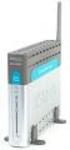 DSL- G604T Frequently asked Questions. Cannot get connection to the router.... 2 Router is not communicating with the ISP... 6 Router shows connected but cannot browse the Internet.... 6 Part of the web
Broadband Phone Gateway BPG510 Technical Users Guide
 Broadband Phone Gateway BPG510 Technical Users Guide (Firmware version 0.14.1 and later) Revision 1.0 2006, 8x8 Inc. Table of Contents About your Broadband Phone Gateway (BPG510)... 4 Opening the BPG510's
N150 Wireless ADSL2+ Modem Router N150RM
 Easy, Reliable & Secure N150 Wireless ADSL2+ Modem Router N150RM User Manual 350 East Plumeria Drive San Jose, CA 95134 USA December 2012 202-11139-01 v1.0 N150 WiFi Router (N150R) Trademarks Brand and
Please use only wired network connections to configure the Router.
 Note Please use only wired network connections to configure the Router. Power down all of your network devices, including your computer(s) and the Modem Router. If you currently use a modem, disconnect
Wireless Cable Gateway CG3300CMR
 Wireless Cable Gateway CG3300CMR User Manual 350 East Plumeria Drive San Jose, CA 95134 USA September 2012 202-11068-02 v1.0 2012 NETGEAR, Inc. All rights reserved. No part of this publication may be reproduced,
NBG6815. User s Guide. AC2200 MU-MIMO Dual-Band Wireless Gigabit Router. Quick Start Guide. Default Login Details. Version 1.00 Edition 1, 02/2016
 NBG6815 AC2200 MU-MIMO Dual-Band Wireless Gigabit Router Version 1.00 Edition 1, 02/2016 Quick Start Guide User s Guide Default Login Details LAN IP http://192.168.1.1 Address (Router Mode) www.zyxel.comhttp://192.168.1.2
2 Setting Up the Hardware for a Wired Ethernet Network... 13. 3 Setting Up the Software for an Ethernet Network... 21
 Contents 1 Networking Basics............................................... 1 Selecting a network connection........................................ 2 Wired Ethernet network...........................................
NBG6816. User s Guide. Quick Start Guide. Simultaneous Dual-Band Wireless AC2350 Ultra HD Media Router. Default Login Details
 NBG6816 Simultaneous Dual-Band Wireless AC2350 Ultra HD Media Router Version 1.00 Edition 1, 03/2015 Quick Start Guide User s Guide Default Login Details LAN IP http://192.168.1.1 Address (Router Mode)
ESR-9753 802.11b/g/n SOHO Router
 ESR-9753 is a 1T1R Wireless Single chip 11N Broadband Router that delivers up to 3x faster speeds than 802.11g devices. ESR-9753 supports home network with superior throughput and performance and unparalleled
Chapter 4 Customizing Your Network Settings
 . Chapter 4 Customizing Your Network Settings This chapter describes how to configure advanced networking features of the Wireless-G Router Model WGR614v9, including LAN, WAN, and routing settings. It
WiFi Cable Modem Router C3700
 User Manual Note: This document is for certification purposes only. Images are for position only and might differ from the actual product. October 2013 350 East Plumeria Drive San Jose, CA 95134 USA Support
Wifi Pan/Tilt IP Camera User Manual
 Wifi Pan/Tilt IP Camera User Manual Rev. 3.0 Software Version 3.00 May. 25 th.2009 Table of Contents 1. PRODUCT VIEWS...3 1.1. PRONT PANEL...3 1.2. BACK PANEL...3 1.3. ACCESSORIES...4 2. SETUP AND STARTUP...5
N600 Wireless Dual Band Gigabit Router WNDR3700v3 Setup Manual
 N600 Wireless Dual Band Gigabit Router WNDR3700v3 Setup Manual NETGEAR, Inc. 350 E. Plumeria Drive San Jose, CA 95134 USA May 2011 208-10774-02 v1.0 2011 by NETGEAR, Inc. All rights reserved. Trademarks
If no telephone is needed, please connect the LINE port of the Modem Router to the wall jack using the telephone line directly.
 Note Please use only wired network connections to configure the Router. Power down all of your network devices, including your computer(s) and the Modem Router. If you currently use a modem, disconnect
ESR-9750. (Go Green Series) Wireless-N Broadband Router / AP / Repeater. 2.4 GHz 802.11b/g/n 300 Mbps
 PRODUCT DESCRIPTION ESR-9750 is a Wireless 11N Broadband Router that delivers up to 6x faster speeds and 3x extended coverage than 802.11g devices. ESR-9750 supports home network with superior throughput
P-660R-TxC Series. ADSL2+ Access Router. Quick Start Guide
 P-660R-TxC Series ADSL2+ Access Router Quick Start Guide Version 3.40 Edition 1 2/2006 Overview The P-660R-TxC ADSL2+ access router is the ideal device for small networks connecting to the Internet via
PePWave Surf Series PePWave Surf Indoor Series: Surf 200, AP 200, AP 400
 PePWave Surf Series PePWave Surf Indoor Series: Surf 200, AP 200, AP 400 PePWave Surf Outdoor Series: Surf AP 200/400-X, PolePoint 400-X, Surf 400-DX User Manual Document Rev. 1.2 July 07 COPYRIGHT & TRADEMARKS
Wireless Router Setup Manual
 Wireless Router Setup Manual NETGEAR, Inc. 4500 Great America Parkway Santa Clara, CA 95054 USA 208-10082-02 2006-04 2006 by NETGEAR, Inc. All rights reserved. Trademarks NETGEAR is a trademark of Netgear,
User Manual. PePWave Surf / Surf AP Indoor Series: Surf 200, E200, AP 200, AP 400. PePWave Mesh Connector Indoor Series: MC 200, E200, 400
 User Manual PePWave Surf / Surf AP Indoor Series: Surf 200, E200, AP 200, AP 400 PePWave Mesh Connector Indoor Series: MC 200, E200, 400 PePWave Surf AP Series: Surf AP 200-X, E200-X, 400-X PePWave Surf
Wireless DSL Gateway GT704WG. User s Manual
 Wireless DSL Gateway GT704WG User s Manual Table of Contents 1 Introduction 1 Minimum System Requirements 1 Features 2 Getting to Know the Gateway 3 2 Performing a Quick Setup 7 Accessing Quick Setup Screens