
pco 2 Standard Application Pack Control Code: FLSTDMFC0A Version 1.2 s manual
|
|
|
- Avice Murphy
- 10 years ago
- Views:
Transcription
1 pco 2 Standard Application Pack Control Code: FLSTDMFC0A Version 1.2 s manual
2

3 We wish to save you time and money! We can assure you that the thorough reading of this manual will guarantee correct installation and safe use of the product described. IMPORTANT WARNINGS BEFORE INSTALLING OR HANDLING THE APPLIANCE PLEASE CAREFULLY READ AND FOLLOW THE INSTRUCTIONS DESCRIBED IN THIS MANUAL. The appliance that this software is dedicated to has been developed to operate risk-free and for a specific purpose, as long as: all the conditions specified and described in the installation and operation manual for the device in question are heeded. the installation, programming, operation and maintenance of the software are carried out according to the instructions contained in this manual and by qualified personnel; All other uses and modifications made to the device that are not authorised by the manufacturer are considered incorrect. Liability for injury or damage caused by the incorrect use of the device lies exclusively with the user.
4

5 CONTENTS 1 The program Main new features in version 1.2 release date 10/02/ Main characteristics Starting the unit The supervisor network Meaning of the pco² inputs / outputs Main settings Dead zone Proportional band Compressor management Fan management Special functions Compressor time bands Force devices Auxiliary probe management Energy consumption control function Calculate estimated efficiency function Using the GSM modem Electronic valve management Prevent high discharge pressure (G3) Alarm management Alarms with automatic reset Alarms with manual reset Semiautomatic alarms Alarm relay Alarm log User interface Display LEDs under the buttons Extetnal keypad Built-in terminal List of parameters pco² instrumrnt and accessory codes Glossary Supervisor communication variables Analogue variables Digital variables Integer variables Default configurations Possible configurations...45

6

7 1 THE PROGRAM 1.1 Main new features in version 1.2 release date 10/02/03 The number of fan stages has been increased from 5 to 16. Program compatible with the pco1 platform. The compressors can also be controlled with NTC temperature probes. Suction and discharge pressure saved together with the events in the alarm log. GSM modem management for remote connections and sending SMS (text) messages upon each alarm event. Control of the efficiency and the electrical consumption of the system. Indication of the electronic valve installed, with signal to the supervisor. Extended choice of refrigerants (for pressure temperature conversion). Management of a transducer able to measure refrigerant leaks into the environment, with corresponding alarm threshold. Increased number of languages available: Italian, English, French, German, Spanish. New high discharge pressure alarm prevent function. 1.2 Main characteristics The FLSTDMFC0A Refrigeration system application software for pco² / pco1 allows the management of a refrigeration system, with the following characteristics: display and control of the values measured; by external or built-in LCD terminal; system control with pressure probes or NTC pressure probes; management, according to the number of outputs available, of up to six compressors, each with up to three capacity-control steps (for a total of four outputs per compressor), and up to sixteen condensing fan steps; alarm management and consequent saving in the alarm log; availability of three levels of access to the screens; modification of the fundamental operating parameters (set point, differentials, alarm thresholds, time settings); programming of the time bands (variation of the set point according to time bands); multi-language management connection to a supervisor/telemaintenance serial line. send SMS (text) messages to cellular telephones. The program features some screens for setting the operating values, and others for configuring the unit, all of which are password-protected. 1.3 Starting the unit Selecting the language for displaying the screens The application software allows the language of the user interface to be changed at power on. The first screen, after the initial selftest, displays the current language, which can be changed by pressing ENTER. If no button is pressed, after a few seconds the main screen M0 is displayed (without changing the language) Initialising the parameters in the permanent memory The first time that the pco² is used the data in the permanent memory should be initialised to prevent the use of incorrect for the required control functions. For this reason, the first time the pco² is used, the program automatically initialises all the parameters. To perform the same procedure at any other time, follow these steps: 1. Turn the pco² on; after a certain time in which the check routine is run, the pco² will display the main screen, M0. During the first installation IGNORE the alarms, as these may be the result of incorrect data in the permanent memory. 2. Press the MENU + PROG buttons to display the password setting screen. This screen prevents access to the configuration branch by unauthorised persons. 3. Enter the password (default 1234), and press ENTER to confirm. 4. Move to the last row: INITIALISATION ->, and press ENTER. 5. Press the UP button. The screen V3 will be displayed. 6. Select the configuration model required; 7. Press ENTER and UP, the text PLEASE WAIT will be displayed for a few seconds; this mode deletes the permanent memory and enters the default values defined by Carel. The default values differ depending on the type of board used. If some standard values are not correct for the required application, the user can always change them by accessing the screen or from the supervisor, making the unit customisable according to the specific application. The fundamental parameters to be checked are: the number of devices and their configuration; the language used; the control parameters (Set Point, time settings, alarm thresholds, etc.). All the data set is stored in permanent memory, to prevent it being lost when the unit is not powered. Using the program WINLOAD, the permanent memory can be read and saved to file for subsequent programming. In this way, different configurations can be modified, read and saved for different models of unit using one board. 3

8 1.3.3 Hardware keys, PCO200KEY0 for pco2 / PCO100KEY0 The hardware keys can be used instead of a computer to download the application software to the pco2 board Downloading the program from the hardware key Connect the key to the pco2 pco1 and proceed as described below: 1. Switch off the pco2 pco1 and remove the expansion memory cover with a screwdriver 2. Position the selector on the key towards the key symbol. 3. Insert the key in the corresponding slot. 4. Press Up and Down at the same time and switch the board on. 5. Check that the red LED on the key comes on. 6. Wait until the copy message on the LCD disappears, then release the buttons and confirm by pressing Enter; the data transfer operation takes around 10 seconds. 7. Switch off the pco2 pco1, remove the key, replace the cover and switch the board on again. The board will now work with the program transferred from the key Downloading the program from a computer Obtain the kit code PC485KIT00 and the WinLOAD 32 program, and proceed as follows: 1. Connect the black converter (RS232/RS485) to the power supply using the transformer supplied in the kit, then connect the transformer to the mains. 2. Connect the converter to a free serial port on the computer using the serial cable supplied in the kit. 3. Connect the converter to connector J10 on the pco2 pco1 using a telephone cable (code S90CONN00*). 4. Start the WinLOAD32 program on the computer with the board off. 5. Enter in the COMM field the number of the serial port used on the PC (1 for COM1, 2 for COM2). 6. Enter the value 0 in the pco² ADD field. 7. Switch the board on. 8. Wait 15 seconds until the text OFF LINE becomes ON LINE in the bottom left of the WinLOAD32 screen, or until the yellow LED near the dipswitch on the board flashes; at this point, enter the actual value of the plan address of the board in the pco² ADD field (for stand alone applications pco² ADD =0). 9. In the WinLOAD32 program select Upload folder and the Application sub-folder. 10. Select the path with the source files of the application software. 11. Press CTRL, then click all of the IUP and BLB/BIN files, then release CTRL. 12. Click the UPLOAD button to start the file transfer procedure. This will last between around 1 and 5 minutes. 13. Wait until the text box shows Upload OK. 14. Disconnect the telephone cable between the board and the converter, connect the external display if envisaged, then switch the board on and off again Basic configuration According to the board used (SMALL, MEDIUM, or LARGE) and the number of inputs per compressor (screen C3), the number of compressors set can vary from 1 to 6, with between 1 and 3 capacity-control steps, for a total of 4 outputs per compressor, and between 1 and 16 fan steps. In addition, the compressors and the fans can be configured for phase-cutting speed controllers or inverters. The program checks the type of board (SMALL, MEDIUM or LARGE) that it is working with, and makes the inputs and outputs that can actually be used available. For the pco1 controllers, check that the dipswitches used on the board for the configuration of the type of analogue inputs are positioned correctly; for more information, please read the pco1 manual. Number of compressors and fans The first step involves accessing the screen C4 CONFIGURATION to set the number of compressors, fans and capacity-control steps to be managed and monitored. From external terminal: + ENTER MANUFACTURER PASSWORD Go to CONFIGURATION then press Use UP and DOWN to scroll the screens until reaching C4 The number of compressors to be controlled, managed by the intake probe, can be set by directly by the user (screen C4), keeping in mind the number of relay outputs available according to the model: 8 outputs for the Small; 13 outputs for the Medium; 18 outputs for the Large. The pco², depending on the board used, can manage from a minimum of 1 compressor to a maximum of 6, all with the same capacity, as well as the possibility to rotate operation. The number of condenser fans available ranges from 1 to 16, and can be set directly by the user (screen C4), with the possibility of rotating operation. After having set/modified the number of controlled devices on screen C4 (compressors, fans, capacity-control steps), it is recommended to update the configuration parameters for the outputs E0,E1,..,E9,Ea,Eb. 4

9 Output logic After having accessed screen C4, press once to return back one level Devices Input positions OUTPUT POSITIONS use premere to place the cursor on OUTPUT POSITIONS and press Associate the relays to the devices managed based on the selected configuration (C4). [The system will automatically search for the first free position in the digital outputs; otherwise the user can scroll the list using the UP - DOWN buttons] The user can decide which relays to use for the various devices (e.g. first a compressor then a capacity-control step then a fan and so on), also see manufacturer branch, unit configuration E, without needing to modify the electrical system and in any case freely deciding upon the use of the outputs. Once having completed this operation, proceed to the configuration of the digital inputs: NOTE: To configure the pco2 from the built-in terminal follow the procedure described, using the corresponding buttons. Input logic To go back one level, press MENU once. Devices INPUT POSITIONS Output positions then Associate the digital inputs to the previously configured devices so as to set the safety functions and the anomalous operation alarms. The user can decide if the inputs are normally closed (when an alarm is present the contact is open) or normally open (when an alarm is present the contact is closed) (screen G0). In addition the type of compressor safety devices connected to the inputs can be defined; the possible choices are as follows: A. general: one safety device only per compressor, not delayed with manual reset B. thermal overload + oil differential: one input dedicated to the thermal overload, not delayed with manual reset, and one input dedicated to the oil differential, delayed with manual reset C. thermal overload + high/low pressure switch: one thermal overload input, immediate with manual reset, while the pressure switch is immediate with reset set on the screen G2 D. thermal overload + oil differential + high/low pressure switch: includes all three types of alarm The user can decide which inputs to use for the various safety devices. Example: If input 6 is used for the compressor thermal overload switch, simply go to the screen D0, move to the row Thermal comp.1 ID:00 and choose number 6 from the possible free inputs. NOTE: the software does not allow two devices to be connected to the same input. To reverse two devices, a free input needs to be used (also see branch D, CONFIGURATION section). Language selection. The user can set the display language in two ways. The first is at power on, by pressing ENTER; this function can be disabled by setting the parameter on screen V3. The second is to change the language without re-starting the controller. To do this, from the main screen M0 press PROG ( for the built in terminal, press PROG and go to the row USER:! and then press ENTER), then enter the password (default 0); Screen P1 is displayed, press ENTER until the desired language is displayed. Currently the software manages five languages (Italian, English, French, German and Spanish). Unit On-Off. There are various ways to activate or deactivate the controller and the management of the various devices with related alarms (in order of priority): 1. from the alarms: the screen Pe can be used to select if a faulty probe alarm is to turn the unit off or not 2. from the supervisor: the screen Pe is used to enable shut-down from the supervisor 3. from digital input (if configured, C8) in addition to the screen G1, the logic can be selected 4. from the keypad : if enabled on the screen B1, pressing the ON-OFF button turns the unit on or off. For built-in terminals, to switch the unit on-off simply go to the main screen M1 (M_MAIN_MENU) and press the UP button, then select whether to switch the unit on or off 5. from screen B1: the unit can be turned off or on 5
![[The system will automatically search for the first free position in the digital outputs; otherwise the user can scroll the list using the UP - DOWN buttons] The user can decide which relays to use](/docs-images/40/690088/images/page_9.jpg "for the various devices (e.g.")
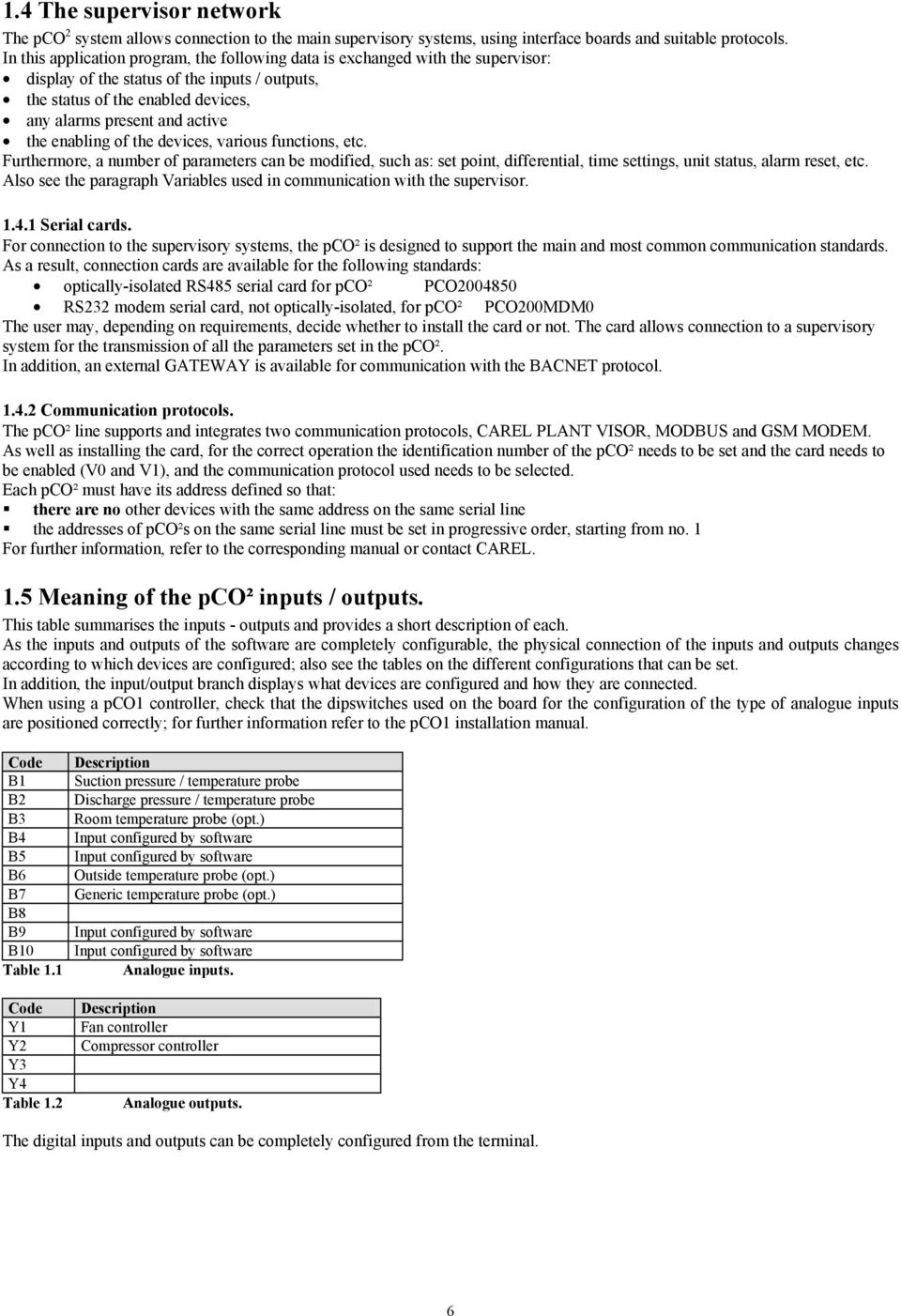
10 1.4 The supervisor network The pco 2 system allows connection to the main supervisory systems, using interface boards and suitable protocols. In this application program, the following data is exchanged with the supervisor: display of the status of the inputs / outputs, the status of the enabled devices, any alarms present and active the enabling of the devices, various functions, etc. Furthermore, a number of parameters can be modified, such as: set point, differential, time settings, unit status, alarm reset, etc. Also see the paragraph Variables used in communication with the supervisor Serial cards. For connection to the supervisory systems, the pco² is designed to support the main and most common communication standards. As a result, connection cards are available for the following standards: optically-isolated RS485 serial card for pco² PCO RS232 modem serial card, not optically-isolated, for pco² PCO200MDM0 The user may, depending on requirements, decide whether to install the card or not. The card allows connection to a supervisory system for the transmission of all the parameters set in the pco². In addition, an external GATEWAY is available for communication with the BACNET protocol Communication protocols. The pco² line supports and integrates two communication protocols, CAREL PLANT VISOR, MODBUS and GSM MODEM. As well as installing the card, for the correct operation the identification number of the pco² needs to be set and the card needs to be enabled (V0 and V1), and the communication protocol used needs to be selected. Each pco² must have its address defined so that: " there are no other devices with the same address on the same serial line " the addresses of pco²s on the same serial line must be set in progressive order, starting from no. 1 For further information, refer to the corresponding manual or contact CAREL. 1.5 Meaning of the pco² inputs / outputs. This table summarises the inputs - outputs and provides a short description of each. As the inputs and outputs of the software are completely configurable, the physical connection of the inputs and outputs changes according to which devices are configured; also see the tables on the different configurations that can be set. In addition, the input/output branch displays what devices are configured and how they are connected. When using a pco1 controller, check that the dipswitches used on the board for the configuration of the type of analogue inputs are positioned correctly; for further information refer to the pco1 installation manual. Code B1 B2 B3 B4 B5 B6 B7 B8 B9 B10 Table 1.1 Code Y1 Y2 Y3 Y4 Table 1.2 Description Suction pressure / temperature probe Discharge pressure / temperature probe Room temperature probe (opt.) Input configured by software Input configured by software Outside temperature probe (opt.) Generic temperature probe (opt.) Input configured by software Input configured by software Analogue inputs. Description Fan controller Compressor controller Analogue outputs. The digital inputs and outputs can be completely configured from the terminal. 6
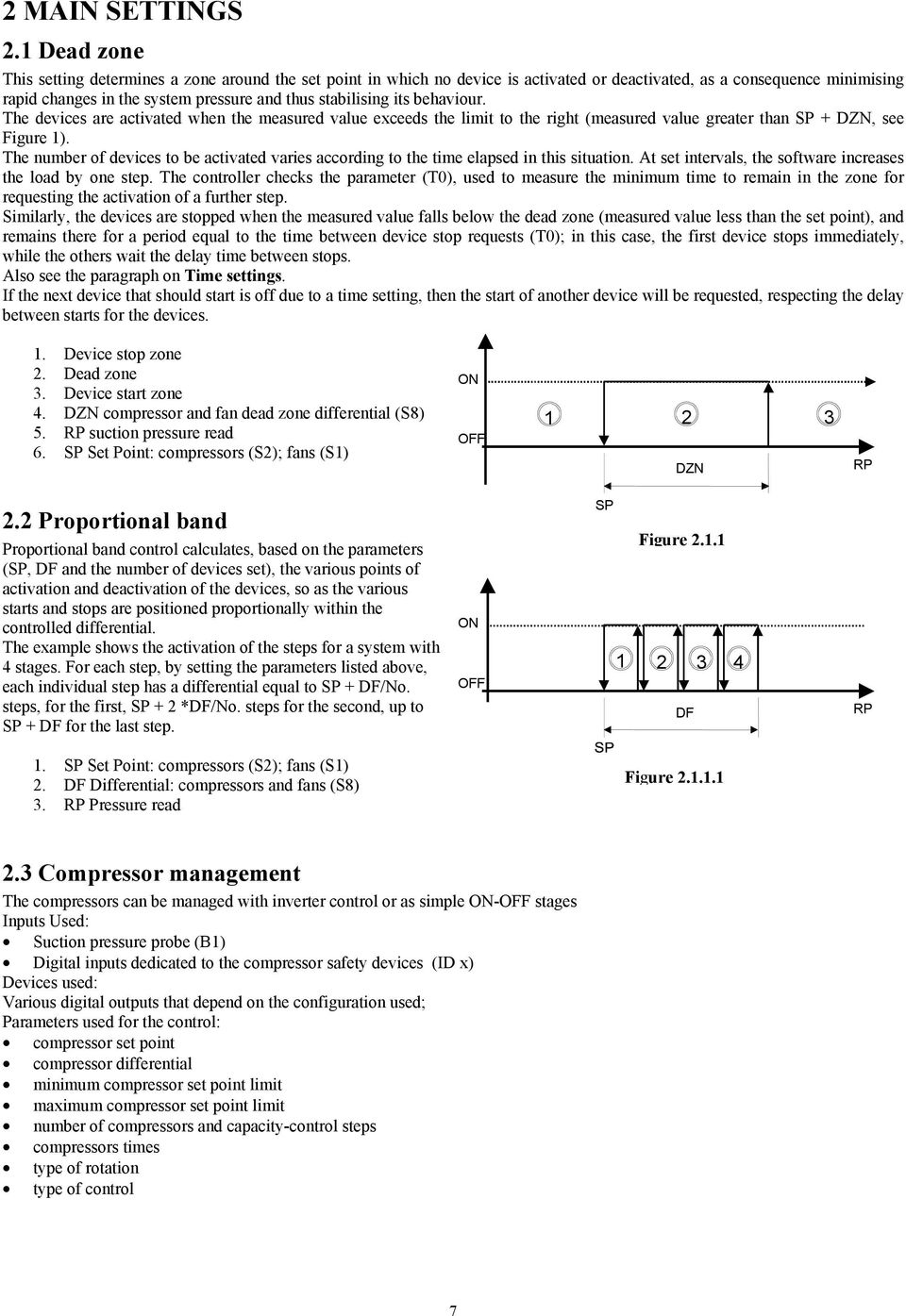
11 2 MAIN SETTINGS 2.1 Dead zone This setting determines a zone around the set point in which no device is activated or deactivated, as a consequence minimising rapid changes in the system pressure and thus stabilising its behaviour. The devices are activated when the measured value exceeds the limit to the right (measured value greater than SP + DZN, see Figure 1). The number of devices to be activated varies according to the time elapsed in this situation. At set intervals, the software increases the load by one step. The controller checks the parameter (T0), used to measure the minimum time to remain in the zone for requesting the activation of a further step. Similarly, the devices are stopped when the measured value falls below the dead zone (measured value less than the set point), and remains there for a period equal to the time between device stop requests (T0); in this case, the first device stops immediately, while the others wait the delay time between stops. Also see the paragraph on Time settings. If the next device that should start is off due to a time setting, then the start of another device will be requested, respecting the delay between starts for the devices. 1. Device stop zone 2. Dead zone 3. Device start zone 4. DZN compressor and fan dead zone differential (S8) 5. RP suction pressure read 6. SP Set Point: compressors (S2); fans (S1) ON OFF DZN RP 2.2 Proportional band Proportional band control calculates, based on the parameters (SP, DF and the number of devices set), the various points of activation and deactivation of the devices, so as the various starts and stops are positioned proportionally within the controlled differential. The example shows the activation of the steps for a system with 4 stages. For each step, by setting the parameters listed above, each individual step has a differential equal to SP + DF/No. steps, for the first, SP + 2 *DF/No. steps for the second, up to SP + DF for the last step. ON OFF SP 1 Figure DF 4 RP 1. SP Set Point: compressors (S2); fans (S1) 2. DF Differential: compressors and fans (S8) 3. RP Pressure read Figure Compressor management The compressors can be managed with inverter control or as simple ON-OFF stages Inputs Used: Suction pressure probe (B1) Digital inputs dedicated to the compressor safety devices (ID x) Devices used: Various digital outputs that depend on the configuration used; Parameters used for the control: compressor set point compressor differential minimum compressor set point limit maximum compressor set point limit number of compressors and capacity-control steps compressors times type of rotation type of control 7
12 2.3.1 Compressor management, without inverter Can be configured with or without capacity-control Parameters used for ON OFF control: number of capacity-control steps capacity-control step times compressor times Description of dead zone or proportional band operation. The compressors are managed by the unit based on Set Point and a differential, which can be set on the screen (S1) and on the value read by the intake probe. In the default configuration, dead zone control is activated - as set on the screen (G5) - with FIFO rotation (G5), respecting the various time settings (see the corresponding paragraph). For a description of dead zone or proportional band operation, please see the following paragraph Compressor management with inverter If the control is configured with an inverter, no capacity-control can be used Parameters used for inverter control: enable inverter inverter set point inverter step minimum compressor inverter opening Operating description: The compressor inverter can be activated on the screen (C5), if no capacity-control steps are configured on screen C4. A lower limit can be set for the inverter (G9). The inverter is managed as follows: case 1 - dead zone control The inverter is set on the first compressor, which will always be the first on and the last off. The control requires the setting of a differential (DZNI) for the control of the inverter (screen S6) from the inverter Set Point (SP) and the amount to increase the value by each second. The output of the inverter of compressor no. 1 starts increasing when the reading of the intake probe exceeds the inverter Set Point + the differential. A decrease occurs when the reading of the intake probe is below the value of the Set Point. In the zones between the SP and SP + DZNI, the output of the inverter is not changed. The output of the inverter is increased/decreased every second, by the value defined as the inverter step (screen S6) Caution: when the compressor inverter is enabled and is controlled outside of the dead zone, the compressors are started in the following way: - compressor 1, which is managed by the inverter, is activated as soon as there is a start request; 10 V - if the request remains, the output of compressor 1 inverter is increased; 2 - if the request is still present, and the output of the inverter reaches 10 Volts, the other compressors are requested, one 0 V at a time, with rotation (if selected) and respecting the time settings. DZNI RP For deactivation, the following occurs: - the output of the inverter is decreased; SP - when the output of the inverter reaches 0 Volt, the other compressors stop, one at a time, respecting the time Figure settings and rotation; - the last compressor to stop is no. 1. case 2 - proportional band control The control requires the setting of a set point and a differential (screens S3 and S9). When the value measured by the intake probe is less than or equal to the value of the inverter set point, the output of the inverter is 0 Volt. As the value measured by probe B1 moves away from the set point, the analogue output is increased in proportion to the deviation, until reaching 10 Volts, when the value measured is greater than or equal to the inverter set point + differential. 0 V V 10 V SP BLI Figure RP 8

13 2.3.3 Capacity-control parameters The capacity-control steps are a function of the compressors generally used to balance the working loads between the compressors. This is not valid for single cylinder compressors. For multi-cylinder compressors, on the other hand, applying the capacity-control steps distributes a percentage of the load inside the compressor (depending on requirements) to each cylinder. This allows a reduction in energy consumption and the repeated ON/OFF of the compressors, thus optimising the operation and life of the compressors. Number of capacity-control steps Manufacturer branch, configuration, screen C4 One, two or three capacity control steps can be selected, with a maximum of 4 relays per compressor. This parameter is displayed only if there is at least one free output per configured compressor, and if the Compressor Inverter functions have not been enabled at the same time. Capacity-control step logic Manufacturer branch, general parameters, screen G8 If capacity-control steps are used, this parameter selects the operating logic for the outputs dedicated to the capacity-control steps (normally energised or normally de-energised). Compressor start mode with capacity-control steps Manufacturer branch, general parameters, screen G7 If the parameter is set to CppCppCpp the software gives the precedence to the complete start of each compressor; while if set to CCCpppppp the software will first switch on all the compressors and then act on the capacity-control steps Compressor stop mode with capacity-control steps Manufacturer branch, general parameters, screen G7 If set to ppppppccc, when the compressors are being stopped, first all the capacity-control steps are deactivated and then the corresponding compressors are stopped. This procedure is useful when wanting to limit the number of compressor stops and starts, and consequently extend the compressor working life. If ppcppcppc is set, when the compressors are being stopped, priority goes to the complete stop of the individual compressor. so as to more frequently alternate which compressors are on (obviously only with FIFO rotation) Compressor and fan rotation This is a fundamental function used to balance the operating hours of the devices in the refrigeration system. It avoids wear and reduces maintenance on a specific device, by distributing operation evenly to the other devices configured. Manufacturer branch, general parameters, screens M G5 Gc Rotation can be DISABLED (number 1 is always turned on first, then 2 etc., while the highest number compressor always stops first), or FIFO rotation can be selected (the first on is the first off.) These screens are also used to select the type of compressor and fan control: dead zone (see Dead zone) or proportional band control (see Proportional band) can be selected Type of compressor control Manufacturer branch, general parameters, screen G6 Can be proportional or proportional plus integral (only in proportional band): Proportional control Based on the set point entered (screen S1), a proportional band is calculated, the width of which is equal to the differential set (screen S9). The positions of the control stages of the devices are calculated within this band, according to the number of compressors configured and any capacity-control steps. Proportional and integral control Proportional plus integral control uses the same parameters as for just proportional, calculating the device activation steps according to the set point, differential, and the integration time set (screen G6) The integration action is doubled if the conditions do not vary after the set time. Number of compressors forced on with probe 1 fault Manufacturer branch, general parameters, screen Gb. If the probe 1 failure or not connected alarm is activated, this parameter indicates the minimum number of compressors forced on. 9

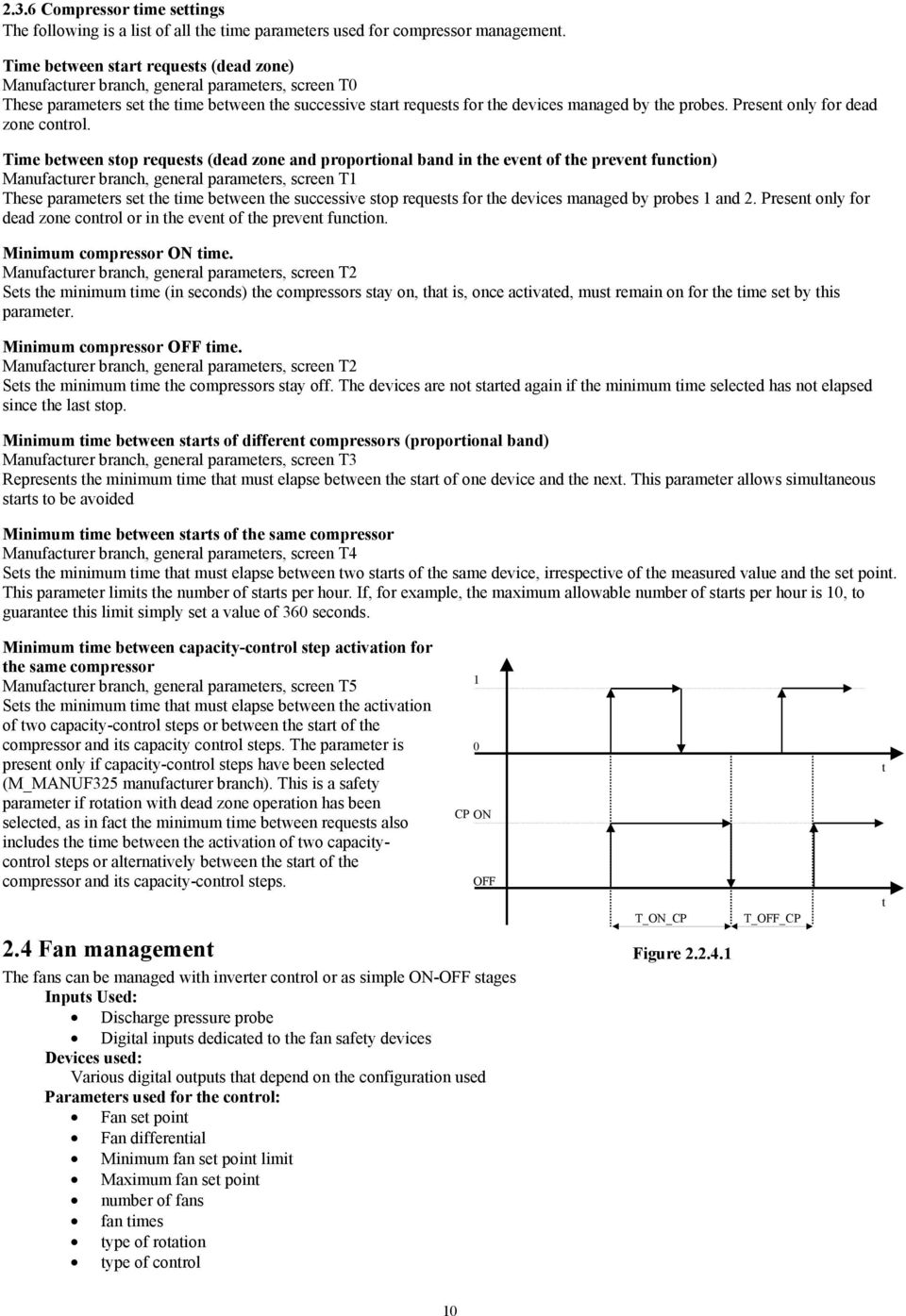
14 2.3.6 Compressor time settings The following is a list of all the time parameters used for compressor management. Time between start requests (dead zone) Manufacturer branch, general parameters, screen T0 These parameters set the time between the successive start requests for the devices managed by the probes. Present only for dead zone control. Time between stop requests (dead zone and proportional band in the event of the prevent function) Manufacturer branch, general parameters, screen T1 These parameters set the time between the successive stop requests for the devices managed by probes 1 and 2. Present only for dead zone control or in the event of the prevent function. Minimum compressor ON time. Manufacturer branch, general parameters, screen T2 Sets the minimum time (in seconds) the compressors stay on, that is, once activated, must remain on for the time set by this parameter. Minimum compressor OFF time. Manufacturer branch, general parameters, screen T2 Sets the minimum time the compressors stay off. The devices are not started again if the minimum time selected has not elapsed since the last stop. Minimum time between starts of different compressors (proportional band) Manufacturer branch, general parameters, screen T3 Represents the minimum time that must elapse between the start of one device and the next. This parameter allows simultaneous starts to be avoided Minimum time between starts of the same compressor Manufacturer branch, general parameters, screen T4 Sets the minimum time that must elapse between two starts of the same device, irrespective of the measured value and the set point. This parameter limits the number of starts per hour. If, for example, the maximum allowable number of starts per hour is 10, to guarantee this limit simply set a value of 360 seconds. Minimum time between capacity-control step activation for the same compressor Manufacturer branch, general parameters, screen T5 Sets the minimum time that must elapse between the activation of two capacity-control steps or between the start of the compressor and its capacity control steps. The parameter is present only if capacity-control steps have been selected (M_MANUF325 manufacturer branch). This is a safety parameter if rotation with dead zone operation has been selected, as in fact the minimum time between requests also includes the time between the activation of two capacitycontrol steps or alternatively between the start of the compressor and its capacity-control steps. 2.4 Fan management The fans can be managed with inverter control or as simple ON-OFF stages Inputs Used: Discharge pressure probe Digital inputs dedicated to the fan safety devices Devices used: Various digital outputs that depend on the configuration used Parameters used for the control: Fan set point Fan differential Minimum fan set point limit Maximum fan set point number of fans fan times type of rotation type of control 1 0 CP ON OFF T_ON_CP Figure T_OFF_CP t t 10
15 2.4.1 Fan management without inverter The fans are managed by the unit based on Set Point and a differential, which can be set on the screen (S1) and on the value read by the outlet probe. In the default configuration, proportional band control is activated, which can be set on the screen (Gc) with FIFO rotation (Gc), respecting the various time settings Fan management with inverter Parameters used: Fan inverter set point Fan inverter differential The fan inverter can be set on the screen (C5). A minimum value can be set for the inverter (G9) The management of the inverter depends on the type of control performed: case 1 - dead zone control The control requires a deviation to be set (S4) from the Set Point and the amount to increase the value by each second. Operation in this case is similar to the compressor inverter. case 2 - proportional band control When the value measured by probe 2 is lower than the value of the inverter Set Point (screen S4), the output of the inverter is 0 Volt. As the value measured by probe 2 moves away from the inverter set point, the analogue output is increased in proportion to the deviation, until reaching 10 Volts, when the value measured is greater than or equal to the inverter set point + inverter differential Fan parameters Fan rotation Manufacturer branch, general parameters, screen Gc Rotation can be DISABLED (number 1 is always turned on first, then 2 etc., while the highest number fan always stops first), or FIFO rotation can be selected (the first on is the first off.) Fan control Manufacturer branch, general parameters, screen Gc Dead zone (see Dead zone) or proportional band control (see Proportional band) can be selected. Number of fans forced on with probe 2 fault Manufacturer branch, general parameters, screen Gd If the probe 2 failure or not connected alarm is activated, this parameter indicates the minimum number of fans forced on Fan time settings Time between start requests (dead zone) Manufacturer branch, general parameters, screen T6 These parameters set the time between the successive start requests for the devices managed by the probes. Present only for dead zone control. Time between stop requests (dead zone) Manufacturer branch, general parameters, screen T6 These parameters set the time between the successive stop requests for the devices managed by the probes. Present only for dead zone control. Minimum time between starts of different fans Manufacturer branch, general parameters, screen T7 Represents the minimum time that must elapse between the start of one device and the next. This parameter allows simultaneous starts to be avoided. 11

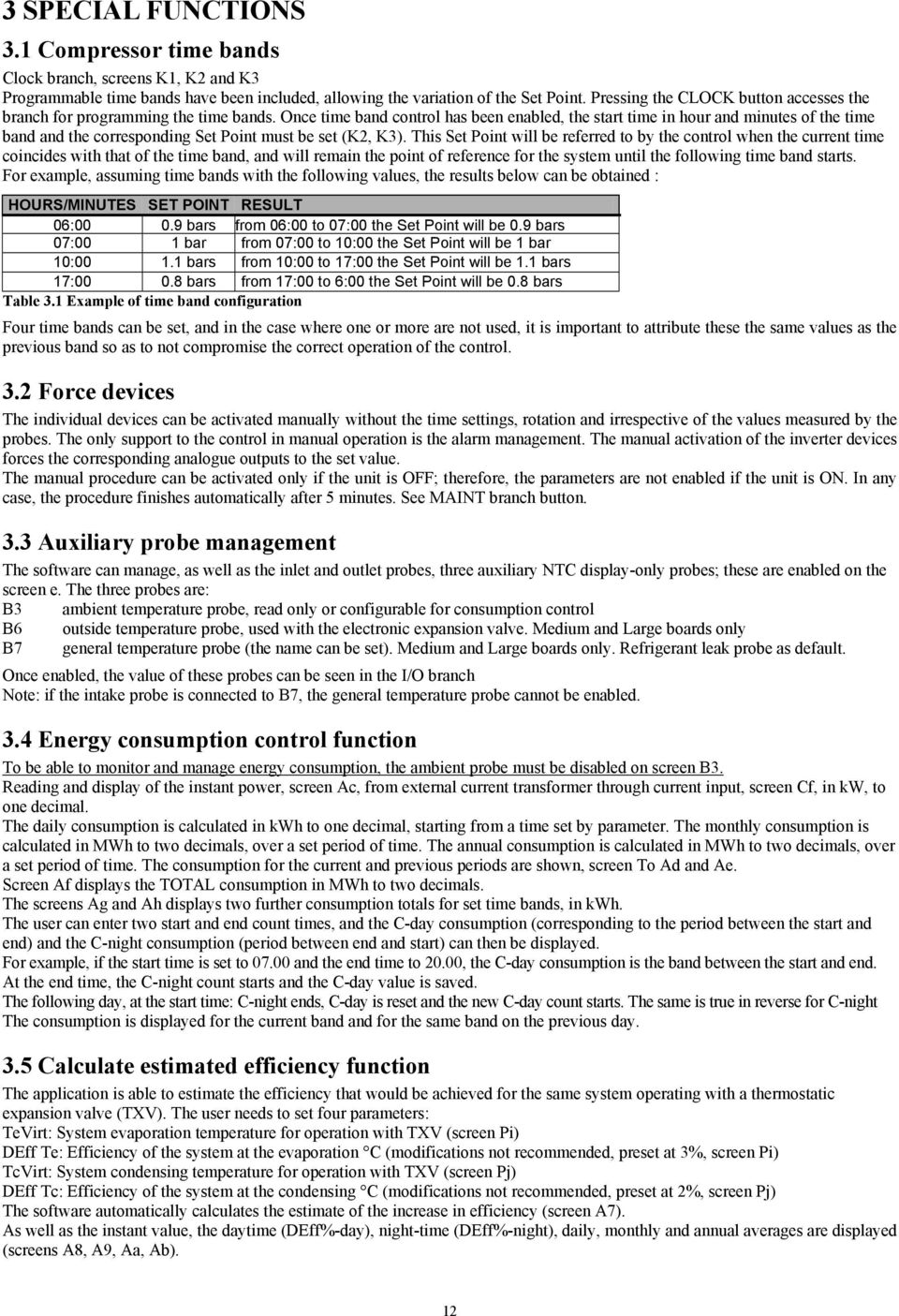
16 3 SPECIAL FUNCTIONS 3.1 Compressor time bands Clock branch, screens K1, K2 and K3 Programmable time bands have been included, allowing the variation of the Set Point. Pressing the CLOCK button accesses the branch for programming the time bands. Once time band control has been enabled, the start time in hour and minutes of the time band and the corresponding Set Point must be set (K2, K3). This Set Point will be referred to by the control when the current time coincides with that of the time band, and will remain the point of reference for the system until the following time band starts. For example, assuming time bands with the following values, the results below can be obtained : HOURS/MINUTES SET POINT RESULT 06: bars from 06:00 to 07:00 the Set Point will be 0.9 bars 07:00 1 bar from 07:00 to 10:00 the Set Point will be 1 bar 10: bars from 10:00 to 17:00 the Set Point will be 1.1 bars 17: bars from 17:00 to 6:00 the Set Point will be 0.8 bars Table 3.1 Example of time band configuration Four time bands can be set, and in the case where one or more are not used, it is important to attribute these the same values as the previous band so as to not compromise the correct operation of the control. 3.2 Force devices The individual devices can be activated manually without the time settings, rotation and irrespective of the values measured by the probes. The only support to the control in manual operation is the alarm management. The manual activation of the inverter devices forces the corresponding analogue outputs to the set value. The manual procedure can be activated only if the unit is OFF; therefore, the parameters are not enabled if the unit is ON. In any case, the procedure finishes automatically after 5 minutes. See MAINT branch button. 3.3 Auxiliary probe management The software can manage, as well as the inlet and outlet probes, three auxiliary NTC display-only probes; these are enabled on the screen e. The three probes are: B3 ambient temperature probe, read only or configurable for consumption control B6 outside temperature probe, used with the electronic expansion valve. Medium and Large boards only B7 general temperature probe (the name can be set). Medium and Large boards only. Refrigerant leak probe as default. Once enabled, the value of these probes can be seen in the I/O branch Note: if the intake probe is connected to B7, the general temperature probe cannot be enabled. 3.4 Energy consumption control function To be able to monitor and manage energy consumption, the ambient probe must be disabled on screen B3. Reading and display of the instant power, screen Ac, from external current transformer through current input, screen Cf, in kw, to one decimal. The daily consumption is calculated in kwh to one decimal, starting from a time set by parameter. The monthly consumption is calculated in MWh to two decimals, over a set period of time. The annual consumption is calculated in MWh to two decimals, over a set period of time. The consumption for the current and previous periods are shown, screen To Ad and Ae. Screen Af displays the TOTAL consumption in MWh to two decimals. The screens Ag and Ah displays two further consumption totals for set time bands, in kwh. The user can enter two start and end count times, and the C-day consumption (corresponding to the period between the start and end) and the C-night consumption (period between end and start) can then be displayed. For example, if the start time is set to and the end time to 20.00, the C-day consumption is the band between the start and end. At the end time, the C-night count starts and the C-day value is saved. The following day, at the start time: C-night ends, C-day is reset and the new C-day count starts. The same is true in reverse for C-night The consumption is displayed for the current band and for the same band on the previous day. 3.5 Calculate estimated efficiency function The application is able to estimate the efficiency that would be achieved for the same system operating with a thermostatic expansion valve (TXV). The user needs to set four parameters: TeVirt: System evaporation temperature for operation with TXV (screen Pi) DEff Te: Efficiency of the system at the evaporation C (modifications not recommended, preset at 3%, screen Pi) TcVirt: System condensing temperature for operation with TXV (screen Pj) DEff Tc: Efficiency of the system at the condensing C (modifications not recommended, preset at 2%, screen Pj) The software automatically calculates the estimate of the increase in efficiency (screen A7). As well as the instant value, the daytime (DEff%-day), night-time (DEff%-night), daily, monthly and annual averages are displayed (screens A8, A9, Aa, Ab). 12
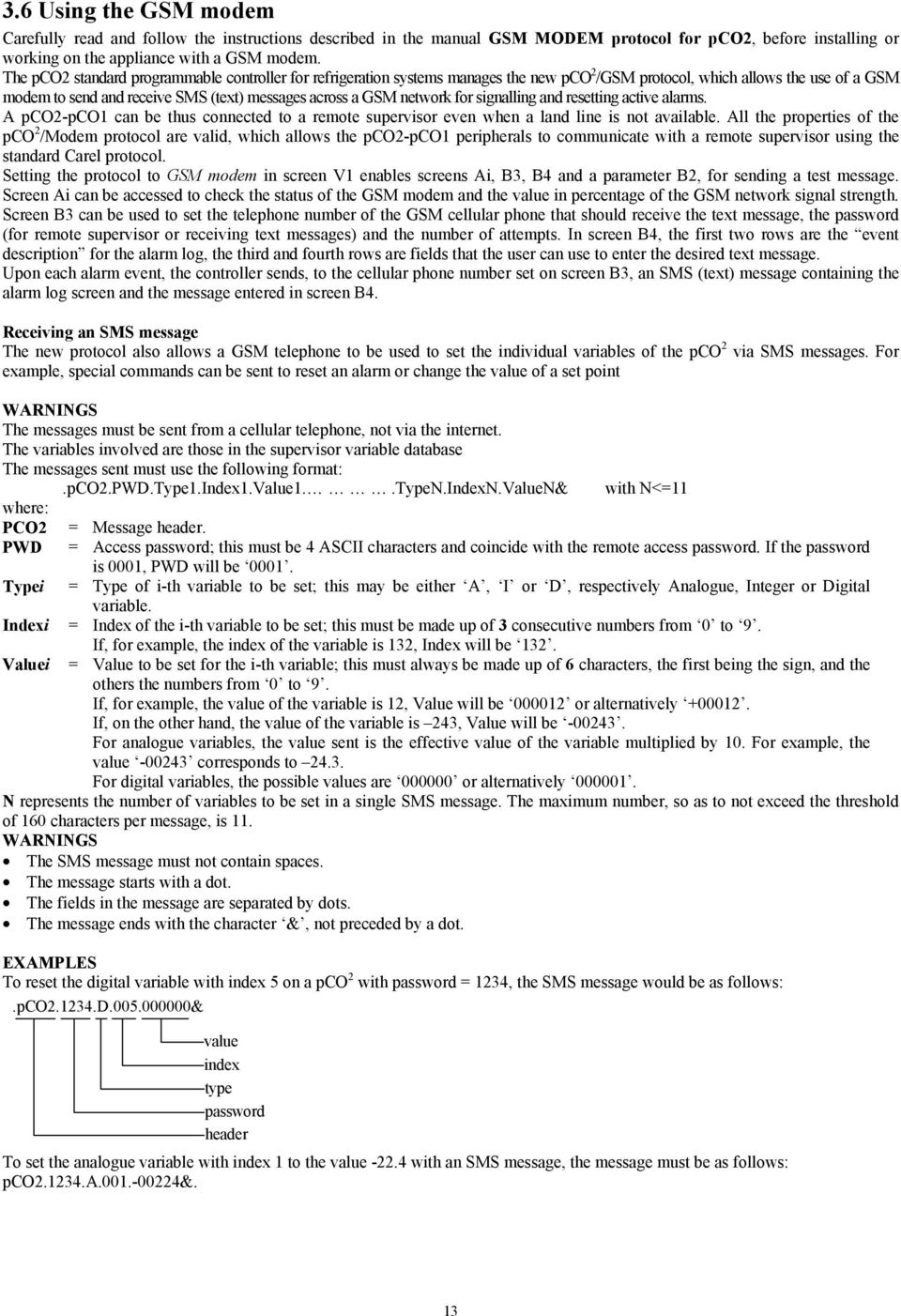
17 3.6 Using the GSM modem Carefully read and follow the instructions described in the manual GSM MODEM protocol for pco2, before installing or working on the appliance with a GSM modem. The pco2 standard programmable controller for refrigeration systems manages the new pco 2 /GSM protocol, which allows the use of a GSM modem to send and receive SMS (text) messages across a GSM network for signalling and resetting active alarms. A pco2-pco1 can be thus connected to a remote supervisor even when a land line is not available. All the properties of the pco 2 /Modem protocol are valid, which allows the pco2-pco1 peripherals to communicate with a remote supervisor using the standard Carel protocol. Setting the protocol to GSM modem in screen V1 enables screens Ai, B3, B4 and a parameter B2, for sending a test message. Screen Ai can be accessed to check the status of the GSM modem and the value in percentage of the GSM network signal strength. Screen B3 can be used to set the telephone number of the GSM cellular phone that should receive the text message, the password (for remote supervisor or receiving text messages) and the number of attempts. In screen B4, the first two rows are the event description for the alarm log, the third and fourth rows are fields that the user can use to enter the desired text message. Upon each alarm event, the controller sends, to the cellular phone number set on screen B3, an SMS (text) message containing the alarm log screen and the message entered in screen B4. Receiving an SMS message The new protocol also allows a GSM telephone to be used to set the individual variables of the pco 2 via SMS messages. For example, special commands can be sent to reset an alarm or change the value of a set point WARNINGS The messages must be sent from a cellular telephone, not via the internet. The variables involved are those in the supervisor variable database The messages sent must use the following format:.pco2.pwd.type1.index1.value1..typen.indexn.valuen& with N<=11 where: PCO2 = Message header. PWD = Access password; this must be 4 ASCII characters and coincide with the remote access password. If the password is 0001, PWD will be Typei = Type of i-th variable to be set; this may be either A, I or D, respectively Analogue, Integer or Digital variable. Indexi = Index of the i-th variable to be set; this must be made up of 3 consecutive numbers from 0 to 9. Valuei If, for example, the index of the variable is 132, Index will be 132. = Value to be set for the i-th variable; this must always be made up of 6 characters, the first being the sign, and the others the numbers from 0 to 9. If, for example, the value of the variable is 12, Value will be or alternatively If, on the other hand, the value of the variable is 243, Value will be For analogue variables, the value sent is the effective value of the variable multiplied by 10. For example, the value corresponds to For digital variables, the possible values are or alternatively N represents the number of variables to be set in a single SMS message. The maximum number, so as to not exceed the threshold of 160 characters per message, is 11. WARNINGS The SMS message must not contain spaces. The message starts with a dot. The fields in the message are separated by dots. The message ends with the character &, not preceded by a dot. EXAMPLES To reset the digital variable with index 5 on a pco 2 with password = 1234, the SMS message would be as follows:.pco d & value index type password header To set the analogue variable with index 1 to the value with an SMS message, the message must be as follows: pco a &. 13
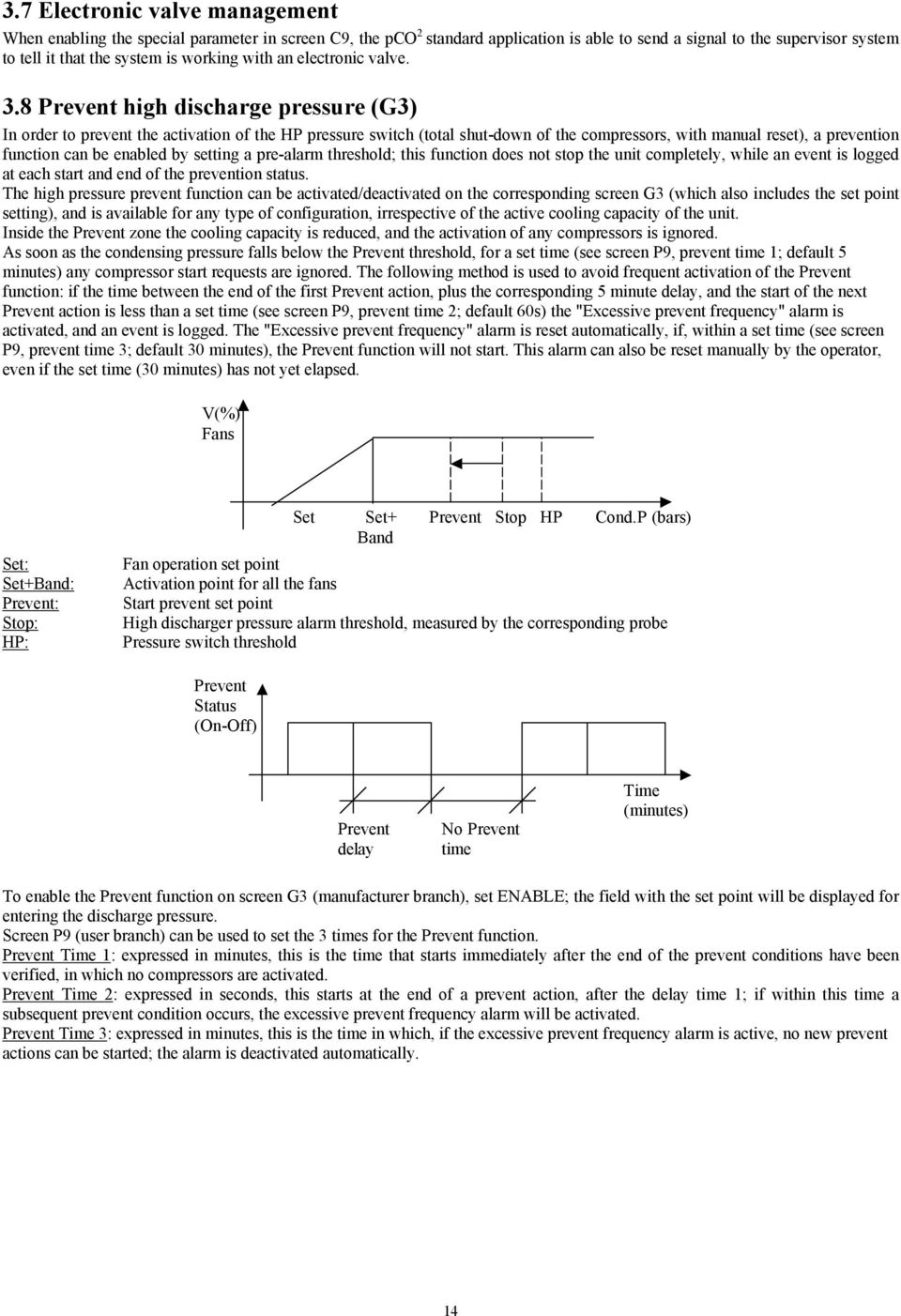
18 3.7 Electronic valve management When enabling the special parameter in screen C9, the pco 2 standard application is able to send a signal to the supervisor system to tell it that the system is working with an electronic valve. 3.8 Prevent high discharge pressure (G3) In order to prevent the activation of the HP pressure switch (total shut-down of the compressors, with manual reset), a prevention function can be enabled by setting a pre-alarm threshold; this function does not stop the unit completely, while an event is logged at each start and end of the prevention status. The high pressure prevent function can be activated/deactivated on the corresponding screen G3 (which also includes the set point setting), and is available for any type of configuration, irrespective of the active cooling capacity of the unit. Inside the Prevent zone the cooling capacity is reduced, and the activation of any compressors is ignored. As soon as the condensing pressure falls below the Prevent threshold, for a set time (see screen P9, prevent time 1; default 5 minutes) any compressor start requests are ignored. The following method is used to avoid frequent activation of the Prevent function: if the time between the end of the first Prevent action, plus the corresponding 5 minute delay, and the start of the next Prevent action is less than a set time (see screen P9, prevent time 2; default 60s) the "Excessive prevent frequency" alarm is activated, and an event is logged. The "Excessive prevent frequency" alarm is reset automatically, if, within a set time (see screen P9, prevent time 3; default 30 minutes), the Prevent function will not start. This alarm can also be reset manually by the operator, even if the set time (30 minutes) has not yet elapsed. V(%) Fans Set: Set+Band: Prevent: Stop: HP: Set Set+ Prevent Stop HP Cond.P (bars) Band Fan operation set point Activation point for all the fans Start prevent set point High discharger pressure alarm threshold, measured by the corresponding probe Pressure switch threshold Prevent Status (On-Off) Prevent delay No Prevent time Time (minutes) To enable the Prevent function on screen G3 (manufacturer branch), set ENABLE; the field with the set point will be displayed for entering the discharge pressure. Screen P9 (user branch) can be used to set the 3 times for the Prevent function. Prevent Time 1: expressed in minutes, this is the time that starts immediately after the end of the prevent conditions have been verified, in which no compressors are activated. Prevent Time 2: expressed in seconds, this starts at the end of a prevent action, after the delay time 1; if within this time a subsequent prevent condition occurs, the excessive prevent frequency alarm will be activated. Prevent Time 3: expressed in minutes, this is the time in which, if the excessive prevent frequency alarm is active, no new prevent actions can be started; the alarm is deactivated automatically. 14
19 4 ALARM MANAGEMENT The unit checks all the procedures of the individual alarms: action, delays, resets and corresponding signals. When an alarm is activated, it acts on the devices, if enabled, and simultaneously activates: the LED, the buzzer (on the external terminal), the corresponding screen and the corresponding event recording. To monitor the active alarm simply press the ALARM button, and use the UP/DOWN buttons to scroll any other active alarms. To reset the relay and delete the alarms in the memory, first display the alarm screen and then press the ALARM button again. The alarm from digital input arises when there is no voltage at the corresponding terminal if the parameter input logic is configured as normally closed. Manufacturer branch, general parameters, screen G0. Table 4.1 Alarms managed by the controller code alarm description action performed reset auto/man delay NOTES AL:011 thermal overload Klixon/generic compressor 1 OFF comp.1 manual no AL:012 thermal overload Klixon/generic compressor 2 OFF comp.2 manual no AL:013 thermal overload Klixon /generic compressor 3 OFF comp.3 manual no AL:014 thermal overload Klixon /generic compressor 4 OFF comp.4 manual no AL:015 thermal overload Klixon /generic compressor 5 OFF comp.5 manual no AL:016 thermal overload Klixon /generic compressor 6 OFF comp.6 manual no AL:021 high/low pressure switch comp.1 OFF comp.1 manual no AL:022 high/low pressure switch comp.2 OFF comp.2 manual no AL:023 high/low pressure switch comp.3 OFF comp.3 manual no AL:024 high/low pressure switch comp.4 OFF comp.4 manual no AL:025 high/low pressure switch comp.5 OFF comp.5 manual no AL:026 high/low pressure switch comp.6 OFF comp.6 manual no AL:031 oil differential comp.1 OFF comp.1 manual can be set AL:032 oil differential comp.2 OFF comp.2 manual can be set display only AL:033 oil differential comp.3 OFF comp.3 manual can be set display only AL:034 oil differential comp.4 OFF comp.4 manual can be set display only AL:035 oil differential comp.5 OFF comp.5 manual can be set display only AL:036 oil differential comp.6 OFF comp.6 manual can be set display only AL:041 low liquid level alarm / manual can be set display only AL:042 Suction pressure switch / manual AL:043 Max low pressure switch activation alarm / manual AL:044 General high pressure switch OFF Comp. AL:051 maintenance comp. 1 / manual no AL:052 maintenance comp. 2 / manual no AL:053 maintenance comp. 3 / manual no display only AL:054 maintenance comp. 4 / manual no display only AL:055 maintenance comp. 5 / manual no AL:056 maintenance comp. 6 / manual no AL:061 low discharge pressure pre-alarm all fans OFF automatic no AL:062 high discharge pressure pre-alarm all fans ON automatic can be set AL:063 low suction pressure pre-alarm all comp. OFF automatic can be set AL:064 high suction pressure pre-alarm all comp. ON automatic can be set AL:065 Suction probe broken alarm set no. comps. ON manual no AL:066 Discharge probe broken alarm set no. fans ON manual no AL:067 Probe B3 broken or not connected alarm / manual no AL:068 Probe B6 broken or not connected alarm / manual no AL:069 Probe B7 broken or not connected alarm / manual no AL:071 Configuration alarm, exceeded no. of digital inputs / automatic no AL:072 Configuration alarm, exceeded no. of devices / automatic no AL:073 Clock card broken or flat battery disable time bands manual no AL:081 Fan 1 thermal overload OFF fan 1 manual no AL:082 Fan 2 thermal overload OFF fan 2 manual no AL:083 Fan 3 thermal overload OFF fan 3 manual no AL:084 Fan 4 thermal overload OFF fan 4 manual no AL:085 Fan 5 thermal overload OFF fan 5 manual no AL:086 Fan 6 thermal overload OFF fan 6 manual no AL:087 Fan 7 thermal overload OFF fan 7 manual no AL:088 Fan 8 thermal overload OFF fan 8 manual no AL:089 Fan 9 thermal overload OFF fan 9 manual no AL:090 Fan 10 thermal overload OFF fan 10 manual no AL:091 Fan 11 thermal overload OFF fan 11 manual no AL:092 Fan 12 thermal overload OFF fan 12 manual no AL:093 Fan 13 thermal overload OFF fan 13 manual no AL:094 Fan 14 thermal overload OFF fan 14 manual no AL:095 Fan 15 thermal overload OFF fan 15 manual no 15

20 code alarm description action performed reset auto/man delay NOTES AL:011 thermal overload Klixon/generic compressor 1 OFF comp.1 manual no AL:012 thermal overload Klixon/generic compressor 2 OFF comp.2 manual no AL:013 thermal overload Klixon /generic compressor 3 OFF comp.3 manual no AL:014 thermal overload Klixon /generic compressor 4 OFF comp.4 manual no AL:015 thermal overload Klixon /generic compressor 5 OFF comp.5 manual no AL:016 thermal overload Klixon /generic compressor 6 OFF comp.6 manual no AL:021 high/low pressure switch comp.1 OFF comp.1 manual no AL:022 high/low pressure switch comp.2 OFF comp.2 manual no AL:023 high/low pressure switch comp.3 OFF comp.3 manual no AL:024 high/low pressure switch comp.4 OFF comp.4 manual no AL:025 high/low pressure switch comp.5 OFF comp.5 manual no AL:026 high/low pressure switch comp.6 OFF comp.6 manual no AL:031 oil differential comp.1 OFF comp.1 manual can be set AL:032 oil differential comp.2 OFF comp.2 manual can be set display only AL:033 oil differential comp.3 OFF comp.3 manual can be set display only AL:034 oil differential comp.4 OFF comp.4 manual can be set display only AL:035 oil differential comp.5 OFF comp.5 manual can be set display only AL:036 oil differential comp.6 OFF comp.6 manual can be set display only AL:041 low liquid level alarm / manual can be set display only AL:096 Fan 16 thermal overload OFF fan 16 manual no AL:097 Refrigerant gas leak into the environment / manual AL:098 Prevent in progress OFF compressors automatic no AL:099 Compressors off due to prevent OFF compressors manual no AL:097 Excessive prevent frequency / automatic no 4.1 Alarms with automatic reset When one or more automatic reset alarms are detected, these are signalled by: red LED below the ALARM button on; buzzer active (with external terminal) ; the alarm relay changes status (the logic can be set in the manufacturer branch, general parameters, screen G4), if enabled (manufacturer branch, unit configuration screen C6). Pressing the ALARM button silences the buzzer and displays the alarm codes. If the cause of the alarms is resolved, the devices that have shut-down will restart normal operation, and the status of the signal devices changes as follows: the alarm relay changes status; the buzzer, if not silenced by pressing the ALARM button, stops; the red LED below the ALARM button flashes. If, in this situation, new alarms are activated, the initial situation will return. The red LED flashing informs the user that there have been active alarms during the day and that the causes have now passed. To display the codes of the alarms that were activated, simply go to the alarm log (press the MENU or PROG button for the Built-In terminal, alarm log branch). 4.2 Alarms with manual reset When one or more manual reset alarms are detected, these are signalled by: red LED below the ALARM button on; buzzer active (with external terminal) ; the alarm relay changes status. Pressing the ALARM button silences the buzzer and displays the screens of the activated alarms. If the cause of the alarms is resolved, the red LED stays on to inform the user that alarms have been activated during the day, and to press the ALARM button to reset this situation. In this situation, the alarm relay remains in an alarm condition. If, in this situation, new alarms are activated, the initial situation will return. The devices remain off until the user deletes the alarm messages. The messages are deleted by pressing the ALARM button when the alarm messages are displayed. If the causes no longer exist, the status of the signal devices changes as follows: the alarm relay changes status (switches according to the set logic); the buzzer, if not silenced by pressing the ALARM button, stops; the red LED below the ALARM button goes off. If, on the other hand, the cause of the alarms is still present, the initial situation will return. 4.3 Semiautomatic alarms The low pressure switch alarm is a semiautomatic alarm. It acts as an alarm with automatic reset, however if it is activated at least 5 times within a set time (default 10 minutes), it becomes an alarm that must be reset manually. 16

21 4.4 Alarm relay The user may decide whether to configure the alarm relay simply by enabling it (C6) and entering the relay to assign to the alarm (Eb). If enabled, a delay time can be set (screen P5) between the activation of an alarm and the change in the status of the signal relay. If the time is set to 0, the activation of the alarm relay is immediate. 4.5 Alarm log To display the alarm log: press the PRINT button, or enter the Built in terminal by pressing the PROG button twice on the terminal, scroll the rows of the submenus until reaching the alarm log branch and press ENTER. All the activated alarms, attempts to reset them from the keypad, and black outs are automatically saved in the alarm log. A maximum of 300 events can be saved, all of which can be displayed on the Alarm log screen. The type of alarm, the time and date of the alarm and the number of events saved so far, as well as a progressive index number, are all indicated on the screen. When accessing the screen, the last active alarm is displayed. The UP and DOWN buttons can be used to check the previous alarms. Once the maximum number of alarms has been saved, the new events replace the oldest ones. The alarm log can be deleted from screen B2 in the maintenance branch (password-protected). Installing the default values also resets the log. 17
22 5 USER INTERFACE The loop of screens is divided into 4 categories. USER screens, not password-protected: these screens are in all the branches, except for prog and menu+prog and show the values read by the probes, the alarms, the operating hours of the devices, the time and the date, and can be used to set the temperature set point and the clock. They are indicated by the symbol! in the following table of parameters. USER screens, password-protected (0000, modifiable): these are accessed by pressing prog, and are used to set the main functions (times, set points, differentials) for the devices connected; the screens that refer to functions that are not available are not displayed. They are indicated by the symbol " in the following table of parameters. SERVICE screens, password-protected (0000, modifiable): these are accessed by pressing maint and are used to run periodical checks on the devices, calibrate the probes connected, modify the operating hours and manually operate the devices. They are indicated by the symbol # in the following table of parameters. MANUFACTURER screens, password-protected (1234, modifiable): these are accessed by pressing menu+prog and are used to configure the system, enable the main functions and select the devices connected. They are indicated by the symbol $ in the following table of parameters. The columns in the table below represent the loop of screens, with the first screen (A0, S0 ) being the one displayed when pressing the corresponding button, after which the arrow buttons can be used to scroll to the others. The codes (Ax, Bx, Cx ) are displayed in the top right corner of the screens, making them easy to identify. The meaning of the symbols!, " is explained in the previous paragraph. The symbol PSW indicates that the screens are password protected. + $ M0 $ A0 $ I0 $ K0 $ S0 PSW P0 PSW C0 $ M1 $ A1 $ I1 $ K1 $ S1 % P1 & C1 $ M2 $ A2 $ I2 $ K2 $ S2 % P2 CONF. DISP. IN OUT $ M3 $ A3 $ I3 $ K3 $ S3 % P3 ' C3 ' D0 ' E0 $ M4 $ A4 $ I4 $ K4 $ S4 % P4 ' C4 ' D1 ' E1 $ M5 $ A5 $ I5 PSW S5 % P5 ' C5 ' D2 ' E2 $ A6 $ I6 % S6 % P6 ' C6 ' D3 ' E3 $ A7 $ I7 % S7 % P7 ' C7 ' D4 ' E4 $ A8 $ I8 % S8 % P8 ' C8 ' D5 ' E5 $ A9 $ I9 % S9 % P9 ' C9 ' D6 ' E6 $ Aa $ Ia % Sa % Pa ' Ca ' D7 ' E7 $ Ab $ Ib % Pb ' Cb ' D8 ' E8 $ Ac $ Ic % Pc ' Cc ' D9 ' E9 $ Ad $ Id % Pb ' Cd ' Da ' Ea $ Ae $ Ie % Pe ' Ce ' Db ' Eb $ Af $ If % Pf ' Cf ' Dc $ Ag $ Ig % Pg ' Cg ' Dd $ Ah $ Ih % Ph ' Ch $ Ai $ Ii % Pi PARAM. ' G0 PSW B0 $ Il % Pj ' G1 ( B1 $ Im % Pk ' G2 ( B2 ' G3 ( B3 ' G4 ( B4 ' G5 ( B5 ' G6 ( B6 ' G7 ( B7 ' G8 ( B8 ' G9 ( B9 ' Ga ( Ba ' Gb ( Bb ' Gc ( Bc ' Gd ( Bd TIMES ' T0 ( Be ' T1 ( Bf ' T2 ( Bg ' T3 ( Bh ' T4 ( Bi ' T5 ( Bj ' T6 ( Bk ' T7 ( Bl INITIAL. ' V0 ( Bm ' V1 ( Bn ' V2 ( Bo ' V3 ( Bp ( Bq ( Br ( Bs 18
23 5.1 Display The display used is an LCD, with 4 rows x 20 columns. The values and operating information are presented in the form of successive screens. The user can move around the screens using the buttons on the terminal, described as follows: x Row0 Home Row1 Row2 Row3 If the cursor is positioned in the top left corner (Home) pressing the UP/DOWN buttons accesses the successive screens in the selected branch. If the screen includes fields to be set, then pressing the ENTER button moves the cursor to these fields. Inside the setting fields, the values can be modified, within the limits envisaged, by pressing the UP/DOWN buttons. Once the value required has been set, press the ENTER button to save it 5.2 LEDs under the buttons Three LEDs are located under the rubber buttons, and indicate respectively: ON/OFF button ALARM button ENTER button green LED - indicates that the instrument is on and in operation. On the built-in terminal, the ENTER button lights up. red LED - indicates the presence of an alarm situation; when flashing, the alarm condition is no longer present. yellow LED - on the external terminal indicates that the instrument is correctly powered green LED - on the built-in terminal, indicates that the instrument is on and in operation. 5.3 Extetnal keypad Layout of the buttons on the pco external terminal: MENU MAINT. PRINT I/O CLOCK SET PROG VERSION HEAT COOL ON/OFF ALARM UP DOWN ENTER 19
24 Table 5.1 Buttons on the external terminal Button MENU Description Pressed once returns to the main screen (M_mean_menu) Pressed again goes to the screens for accessing the various branches (m_menu_1) MAINT displays the values corresponding to the maintenance of the devices (operating hours of the devices and reset hour counter, accesses the manual operation procedure) PRINTER I/O displays the alarm log displays the status of the digital and analogue inputs and outputs and the input-output configuration CLOCK displays/sets the clock and of the time bands SET sets the Set Point and differentials PROG sets the various operating parameters (thresholds, delays etc.) + MENU+PROG INFO pressing these buttons at the same time accesses the unit's configuration displays the version of the software application and other information on the unit Table External silicon rubber buttons. 1. ON/OFF button: switches the unit on and off. The green LED on the button indicates if the unit is on; if the LED is off the unit is OFF 2. ALARM button: used to display the alarms, to perform manual resets and to silence the buzzer. If the button is lit (red) at least one alarm has been activated; if the LED is flashing, an alarm with automatic reset has passed. 3. The UP ARROW has two functions: Scroll the various screens when the cursor is in the top left of the Fig display If the cursor is inside a numeric field, the button increases or decreases the corresponding value. If the field is a selection, pressing the button displays the available options (not back-lit); 4. The DOWN ARROW: see the UP arrow 5. ENTER button: used to move the cursor around the screens and to save the values of the set parameters. The button is constantly back-lit (yellow), to indicate that the power is on. 20
25 5.4 Built-in terminal Layout of the buttons on the keypad for the version with built-in display: built-in terminal Table 5.2 Layout of the buttons on the built in terminal ALARM PROG ESC UP DOWN ENTER Table 5.3 Buttons on the built in terminal Button ALARM Description Has the same functions as the button on the external terminal UP- DOWN Have the same functions as on the external terminal ENTER ESC This button has the same functions as the button on the external terminal, while the LED under the button indicates that the unit is on Returns to the previous branch PROG Accesses the menu screens for entering the various sub-branches. The built in terminal, as can be seen from the figures in this paragraph, only has 6 buttons. To switch the unit on-off, go to screen M5 in the main branch; this is enabled only if a built in terminal is present. To access the branches of the software, press the PROG button on the built in terminal to enter a menu with two screens. Use the UP and DOWN buttons to move the cursor and highlight the various fields, displayed in capital letters. Pressing ENTER accesses the highlighted branch. The two screens allow access to the following branches: 1st Menu SET POINT 2nd Menu CONFIGURATION INPUTS/OUTPUTS TIME / DATA USER INFO MAINTENANCE ALARM LOG 21
26 6 LIST OF PARAMETERS This table contains the list of all the parameters that appear on the screens, with the corresponding description. Parameter: string that appears on the screen; Type: (R) read-only, (R/W) read/write; Pos.: position of the screen in the application, screen index; Description: synthetic description of the parameter; UOM: unit of measure of the value in question; Range: range of possible values for the parameter; Default: factory-set value of the parameter Note: column available for user notes. IMPORTANT: Not all the screens listed below will be displayed when scrolling the screens; enabling a certain type of configuration will mean that new screens are displayed that were previously not available. Table 6.1 Table of parameters Parameter Type Pos. Description UOM Range Default Note M0.1,...6 main menu loop, press menu button Inlet pres R M0 Pressure measured by the compressor intake sensor (suction), pressing ENTER displays the value in degrees Celsius or Fahrenheit. Outlet pres R M0 Pressure measured by the compressor outlet sensor (discharge) pressing ENTER displays the value in degrees Celsius or Fahrenheit Inlet temp R M0 Temperature measured by the compressor intake sensor (suction) pressing ENTER displays the value in degrees Celsius, Fahrenheit or bars Outlet temp R M0 Temperature measured by the compressor outlet sensor (discharge) pressing ENTER displays the value in degrees Celsius, Fahrenheit or bars Comp. status R M1 Display compressor status Fans status R M2 Display fan status bar bar Screen Cc Screen Cd C / F (-40 to +90) C C / F (-40 to +90) C Inverter status R M3 Fan inverter status % Fans Inverter status R M3 Compressor inverter status % Compressors Auxiliary probe Amb.temp R M4 Auxiliary room temperature probe C (-40 to +90) C Auxiliary probe Ext.temp. R M4 Auxiliary outside temperature probe C (-40 to +90) C Auxiliary probe (Configurable) R M4 Auxiliary probe (can be configured as temperature probe in C or gas leak sensor) C / ppm Unit status R M5 With the built-in terminal this screen describes the operation (1:OFF 1,2,...9 from alarm, 2:OFF from supervisor, 3:Restart after Blackout, 4:OFF from remote input, 5:OFF from button, 6:>>Manual operation<<, 7:Install default ","OFF from screen.) unit? R/W M5 Used to switch the unit on using a built in terminal No/Yes K0,k1,..,k4 clock loop, press clock button Change hour/date R/W K0 Hour, minutes setting (0-23), ( 0-59) Date R/W K0 Day, month, year setting (1-31), (1-12), ( 0-99) Daily time zones R/W K1 Enable time band with set point variation N / Y with setpoint variation enabled Schedule 1,2,..,4 00h 00m R/W K2 Setting for time band 1,2,...4 in hours and minutes (0-23), (0-59) Set 1,2,..,4 R/W K2 Set Point during time band (1,2,...4) min-max comp. set Clock not R K4 Display Installed 7 I0,I1,..,Im inputs / outputs loop, press i/o button Digital inputs (O)-open,(C)-close R I0 Status of digital inputs (C) = closed 01: 06: (O) = open 11: 16: Probes inputs Inlet pres. Outlet pres. R I1 Status of intake and outlet probes bar/ C / F 22 Screen Cc and Cd
27 Parameter Type Pos. Description UOM Range Default Note Freon type Auxiliary probe Amb.temp Auxiliary probe Ext.temp. Auxiliary probe Gas probe Probe input B3 Electrical absorpt. instant value Input b4 - b5 (O)-open,(C)-close b4 b5 Input b9 - b10 (O)-open,(C)-close b9 : b10 Digital outputs (O)-Open,(C)-Close 01: 06: 11: 16: Inverter 0ý1000 Y1 R I2 Status of auxiliary probe C (-40 to +90) C R I2 Status of auxiliary probe C (-40 to +90) C R I2 Status of auxiliary probe C / (-40 to ppm +90) C or screen Cg R I3 Display Probe B3: instant power consumption, if enabled kw Screen Cf R I4 Status of analogue inputs used as digital (C) = closed (O) = open R I5 Status of analogue inputs used as digital (LARGE board); (C) = closed, (O) = open R I6 Status of digital outputs (O) = open (C) = closed 23 C / O C / O O / C R I7 Fan inverter status Y2 R I7 Compressor inverter status Input/output Configuration Board Outputs config. relay k1,k2..k18: Inputs config. b4,b5,..,b6 Inputs config. ID1,ID2,..ID18 Inputs config. b9,b10 R I8 Display the type of board uses Small, Medium, Large R I9,Ia,. Configuration of relay outputs k1,k2,..k18.ie R If Configuration of inputs b4,b5,..b6 R Ig,Ih,..Il Configuration of inputs ID1, ID2,.. ID18 R Im Configuration of inputs b9,b10 S0,S1,..,Sc Set Point loop, press set point button Compressors Set. R S0 Displays if the compressors work in dead zone or proportional band mode and displays the operating Set Point Diff. R S0 Displays the compressor differential Fans Set. R/W S1 Fan set point setting bar / C min-max fan set Diff. R S1 Displays the fan differential Compressors Change Setpoint Comps. Inverter Change Setpoint Fans inverter Change Setpoint : Insert setpoint password Compressors inverter insert Offset R/W S2 Compressor set point setting bar / C min-max comp. set R/W S3 Compressor inverter set point setting bar / C min-max comp. set R/W S4 Fan inverter set point setting bar / C min-max fan set R/W S5 Enter Set Point password R/W S6 Compressor inverter offset setting bar / C min-max comp. set Step : R/W S6 Compressor inverter step setting V Fans inverter insert offset : R/W S7 Fan inverter offset setting bar / C min-max fan set Step : R/W S7 Fan inverter step setting V Change R/W S8 Compressor differential setting bar / C Comps.diff Fans diff R/W S8 Fan differential setting bar / C Change R/W S9 Compressor inverter differential setting bar / C Inverter diff. Comps.inv. Fans inv. R/W S9 Fan inverter differential setting bar / C Insert new R/W Sa Enter a new Set Point password
28 Parameter Type Pos. Description UOM Range Default Note password A0,A1,..,Ai B0,B1,..,Bs service loop, press service button Working Hours Compressor 1,2,..6 : R A0,A1 Displays the operating hours for the compressors 1,2,...6 Working Hours Fan 1,2,..16 : Delta Efficiency instant value Delta Efficiency Daily act Monthly act Yearly act Delta Efficiency Daily old Monthly old Yearly old Delta Efficiency 00:00 C-day 00:00 C-day act Delta Efficiency 00:00 C-day 00:00 C-day old C-night old Electrical absorption instant value Electr. absor. Daily act Monthly act Yearly act Electr. absor. Daily old Monthly old Yearly old Electrical absorption total Electr. absor. 00:00 C-day 00 C-day act Electr. absor. 00:00 C-day 00:00 C-day C-night GSM MODEM Status Start Initialization Field Insert maintenance password Keyborad On/Off enabled R A2,A3,. Displays the operating hours A6 for the fans hours hours R A7 Displays the instant efficiency value % R A8 Displays current daily, monthly and annual efficiency R A9 Displays previous daily, monthly and annual efficiency R Aa Indicates the time band in which the current daily efficiency percentage is calculated and displays the current daily efficiency percentage R Ab Indicates the time band in which the previous daily efficiency percentage is calculated and displays the previous daily efficiency percentage and the previous night efficiency percentage % % % % R Ac Displays the instant power consumption kw R Ad Displays power consumption for the current day (kw), month (kw) and year (MW) R Ae Displays power consumption for the previous day (kw), month (kw) and year (MW) kw, MW kw, MW R Af Displays the total power consumption (MW) MW R R R Ag Indicates the time band in which the current daily power consumption percentage is calculated and displays the current daily power consumption percentage Ah Indicates the time band in which the daily and night-time power consumption percentage is calculated and displays the daily power consumption percentage and night-time power consumption percentage Ai GSM modem: GSM status and signal reception, expressed as a percentage kw kw R/W B0 Enter maintenance password R/W B1 Enable Off from the keypad Y/N Yes Switch-Off unit R/W B1 Enable Off unit from the screen Y/N Yes Erase alarm R/W B2 Deletes alarm log Y/N N history memory Test invio sms : R/W B2 Used to send test SMS if the GSM modem is enabled Y/N N Number attempt R/W B3 Number of attempt to use the GSM modem. Displayed if GSM modem enabled Phone number R/W B3 GSM modem telephone number. Displayed if GSM modem enabled 20 digits can 0 be set by the user Password sms R/W B3 GSM modem password. Displayed if GSM enabled modem Event description: R/W B4 This screen is sent as an SMS. Displayed if GSM modem enabled Text can be set Maint. Alarm Compressors working hours threshold R/W B5 Max hour threshold of working compressors exceeded the threshold is activated a alarm Hours
29 Parameter Type Pos. Description UOM Range Default Note Maint. Alarm Fans working hours threshold Compressors time counters reset 1,2,..,6 Fans time counters reset 1,2,..,16 Electr. absor. Daily reset Monthly reset Yearly reset Electr. absor. Total reset R/W B6 Ma fan operating hour threshold, when exceeded an alarm is activated Hours R/W B7, Used to reset the compressor hour counter Y/N N R/W B8,B9 Used to reset the fan hour counter Y/N N R/W Ba Reset daily power consumption count, reset monthly power consumption count, reset annual power consumption count R/W Bb Reset total power consumption count Y/N N C-day reset R/W Bb Reset daily power consumption count Y/N N C-night reset R/W Bb Reset night-time power consumption count Y/N N Delta Efficiency R/W Bc Reset total efficiency Y/N N Total reset Last maintenance date R/W Bd Last maintenance date day month year (1-31) (0-23) (0-99) Freon type R/W Bd Freon setting 5 Unit type R/W Bd Type of board setting MT / LT Probes R/W Be Intake probe calibration bar calibration Inlet Outlet R/W Be Outlet probe calibration bar Probes R/W Bf Gas probe calibration ppm calibration Probe gas Probe ext R/W Bf Outside probe calibration C Devices forcing R Bg Manual operation of the devices Y/N N ends within 5 minutes Compressor1 R/W Bh,Bi, Manual operation of compressor 1,2,...6 Y/N N (compres.1,2,..,6)..,bm Unload 1 R/W Bh,Bi, Manual operation of capacity-control step Y/N N..,Bm compressor 1,2,...6 Unload 2 R/W Bh,Bi, Manual operation of capacity-control step Y/N N..,Bm compressor 1,2,...6 Unload 3 R/W Bh Manual operation of capacity-control step, compressor 1 Y/N N Force ON R/W Bn,Bo Manual operation of fan 1,2,...16 Y/N N Fan1,2,..,16: Status,..,Bq Forcing comp R/W Br Force the inverter to 100% (MANU.) or zero (AUTO.) AUTO AUTO Comps.inveter /MAX Fans inveter R/W Br Force the inverter to 100% (MANU.) or zero (AUTO.) AUTO AUTO /MAX Insert new password R/W Bs Enter a new maintenance password P0,P1,..,Pj programming loop, press PROGRAM button Insert program R/W P0 Enter user password password Current language R/W P1 Based on the configuration installed, the language used on the screens 5 Languages ENGLISH press ENTER to change language can be changed (ITALIAN, ENGLISH, FRENCH, GERMAN, SPANISH) Max comps.setp. R/W P2 Setting of the upper limit for the compressor Set Point bar / C (-95/+95) or 2.5 (-5/+70) Min comps.setp R/W P2 Setting of the lower limit for the compressor Set Point bar / C (-95/+95) or 0.1 (-5/+70) Max fans setp R/W P3 Setting of the lower limit for the fan Set Point bar / C (-95/+95) or 1.0 (0/+30) Min fans setp R/W P3 Setting of the upper limit for the fan Set Point bar / C (-95/+95) or 25.0 (0/+30) Alarms Oil diff. R/W P4 Oil differential (if configured) alarm delay at start s delays Startup Running R/W P4 Alarm dealt in stable operating conditions s Y/N N
30 Parameter Type Pos. Description UOM Range Default Note Alarms relay delay Auto->manual reset time change 5al R/W P5 Alarm relay delay s 1 R/W P5 On the fifth activation, within the set time, the alarm switches from automatic reset to manual reset. minutes 10 Inlet press.al. R/W P6 Intake probe alarm: high threshold setting bar / C (-95/+95) or 4.0 H. thres. (-5/+70) Diff R/W P6 Intake probe alarm: differential setting bar / C Delay R/W P6 Intake probe alarm: delay setting minutes Inlet press.al. R/W P7 Intake probe alarm: low threshold setting bar / C (-95/+95) or 0.5 L. thres. (-5/+70) Diff R/W P7 Intake probe alarm: differential setting bar / C Delay R/W P7 Intake probe alarm: delay setting minutes Outlet press.al R/W P8 Outlet probe alarm: high threshold setting bar / C (-95/+95) or 20.0 H. thres (0/+30) Diff R/W P8 Outlet probe alarm: differential setting bar / C Prevent timing R/W P9 Prevent high pressure function time 1 Minutes Time prevent1 Time prevent2 R/W P9 Prevent high pressure function time 2 Seconds Time prevent3 R/W P9 Prevent high pressure function time 3 minutes Outlet press.al. R/W Pa Outlet probe alarm: low threshold setting bar / C (-95/+95) or 2.0 L. thres. (0/+30) Diff. R/W Pa Outlet probe alarm: differential setting bar / C Delay R/W Pa Outlet probe alarm: delay setting minutes Liquid level al. R/W Pb Liquid level alarm delay S delay Alarm gas detec. R/W Pc Refrigerant leak alarm threshold ppm Threshold Different R/W Pc Refrigerant leak alarm differential ppm Delay R/W Pc Refrigerant leak alarm delay minutes Black out start. R/W Pd Start delay after a blackout. Y/N N delay enabled Delay time R/W Pd Used to set different restarting times for different units when power returns after a blackout s Swich OFF unit R/W Pe Enable Off from the supervisor Y/N N mode OFF by supervisor Probes faulty R/W Pe Enable Off when probe disconnected Y/N N Elect. absor start sampling Daily Monthly Elect. absor start sampling yearly Elect. absor Zone day start R/W Pf Start sampling daily, monthly power consumption hours, minutes, (0-23) (0-59) (0-31) R/W Pg Start sampling annual power consumption R/W Ph Start sampling power consumption, start hour Minute R/W start minutes Zone day end R/W Ph Start sampling power consumption, end hour Minute R/W end minutes Evaporator R/W Pi Evaporation temperature comp -265 set C Evap. temp. Evap. Delta Eff. R/W Pi Evaporator efficiency % Condenser R/W Pj Condensing temperature fan set C Cond. temp. 999 Cond. Delta Eff. R/W Pk Condenser efficiency % Insert new password R/W Pk Enter new user password
31 Parameter Type Pos. Description UOM Range Default Note Press MENU+PROGRAM, the cursor will be positioned on CONFIGURATION, press ENTER, the cursor will be positioned on DEVICES, press ENTER to display loop C1,2,..,Ch Insert R/W C0 Enter manufacturer password Manufacturer password Comp. inputs R/W C3 Setting of the type of safety devices for the compressors: 4 1 type selection Generic, oil differential thermal overload, thermal overload + high/low pressure switch, thermal overload + high/ low pressure switch + oil diff. Configuration R/W C4 Number of fans Fans number Comps. number R/W C4 Number of compressors Unloads number R/W C4 Number of capacity-control steps Comp. inverter R/W C5 Enable control of the compressors with inverter if configured without Y/N N No configurable capacity-control steps Fans inverter R/W C5 Enable control of the fans with inverter Y/N Y enabled Alarm relay R/W C6 Enable alarm relay Y/N Y enabled Clock board R/W C6 Enable clock card if pco1 Y/N Y enabled Enable inputs R/W C7 Enable inputs: general low pressure switch (automatic reset) and high Y/N Y pressure switch (manual reset) Gen.LP pressostat Gen.HP pressostat Enable inputs R/W C8 Enable unit On-Off from digital input, has priority over keypad Y/N N On/OFF by dig.in Liquid livel al. R/W C8 Enable liquid level alarm from digital input (display only). Y/N Y Enable expansion R/W C9 Enable electronic expansion valve Y/N N electronic valve Inlet probe R/W Ca Defines the type of intake probe, Carel NTC temperature probes, (50 - (4-20)mA type 100 C; R/T 10KW at 25 C), voltage (0-1)V, (0-10)V and current (0- NTC 20)mA, (4-20)mA Board In.wiring R/W Ca Defines the position of the intake probe: B1 or B7 only per boards Y/N N Medium or Large Outlet probe type NTC R/W Cb Defines the type of outlet probe, Carel NTC temperature probes, ( C; R/T 10KW at 25 C), voltage (0-1)V, (0-10)V and current (0-20)mA, (4-20)mA Board In.wiring R/W Cb Defines the position of the outlet probe: B2 or Bx only for Medium or Y/N N Large boards Inlet probe R/W Cc End scale setting for the intake probe bar -10.0/ range Min Max R/W Cc End scale setting for the intake probe bar -10.0/ Outlet probe R/W Cd End scale setting for the outlet probe bar -10.0/ range Min Max R/W Cd End scale setting for the outlet probe bar -10.0/ Probes enable R/W Ce Enable the auxiliary probes Y/N N B3 Ambient temp. B6 External temp R/W Ce Enable the auxiliary probes Y/N N B7 R/W Ce Enable the auxiliary probes Y/N N B3 Ele.absor. R/W Cf Enable probe B3 for power consumption Y/N N Probe range R/W Cf End scale settings Min Max R/W Cf End scale settings B7 gas detect. R/W Cg Enable probe B7 to detect refrigerant leaks Y/N Y Probe range R/W Cg Minimum and maximum end scale settings / Min Max R/W Cg Minimum and maximum end scale settings / Type of freon R/W Ch Type of freon uses: R22, R134a, NH3, R404a, R407C, R410A or none of these types 7 1 (4-20)mA 27
32 Parameter Type Pos. Description UOM Range Default Note Press MENU+PROGRAM, the cursor will be positioned on CONFIGURATION, press ENTER, position the cursor on INPUT POSITIONS, press ENTER and use UP/DOWN to scroll the screens in loop D1,D2,..,Dd Board DI wiring R/W D0,D1, Position of digital inputs used as safety devices 0-23 comp1 Overl...,D5 compressor 1,2,...6 Comp1 oil diff. R/W D0,D1, Position of digital inputs used as safety devices ,D5 compressor 1,2,...6 HP/LP press.c1 R/W D0,D1, Position of digital inputs used as safety devices ,D5 compressor 1,2,...6 Board DI wiring R/W D6,D7, Position of digital inputs used as safety devices, fans 1,2, Fan 1 overload Fan1,2,..,16..,Da Board d.i.wiring On/Off by digital input Board DI wiring Liquid livel alarm Board DI wiring Gen.LP press Gen.HP press R/W Db Position on the board of the On-Off digital input. Parameters visible only if enabled. R/W Dc Position on the board of the liquid level alarm. Parameters visible only if enabled. R/W Dd Position on the board of the high and low pressure switches. Parameters visible only if enabled. Press MENU+PROGRAM, the cursor will be positioned on CONFIGURATION, press ENTER, position the cursor on OUTPUT POSITIONS, press ENTER and use UP/DOWN to scroll the screens in loop E1,E2,..Eb Comp.1relay n 00 R/W E1,E2, Position on the board of the 0-(8-13-8) comps1,2,..,6..,e5 digital outputs, compressor 1,2,...6 Unload.1 relay ß R/W E1,E2, Position on the board of the digital outputs, capacity-control step 1 for 0-(8-13-8) comps1,2,..,6..,e5 compressor 1,2,...6 Unload.2 relay n R/W E1,E2, Position on the board of the digital outputs, capacity-control step 2 for 0-(8-13-8) comps1,2,..,6..,e5 compressor 1,2,...6 Unload.3 relay n R/W E1,E2, Position on the board of the digital outputs, capacity-control step 3 for 0-(8-13-8) comps1,2,..,6..,e5 compressor 1,2,...6 Board DO wiring R/W E6,E7, Position on the board of the digital outputs for fans 1,2, (8-13-8) Fan 1 relay n..,ea Fan1,2,..,16 Board DO wiring Alarm relay n R/W Eb Position on the board of the alarm digital output 0-(8-13-8) Press MENU+PROG, use UP/DOWN to move to PARAMETERS and press ENTER Digital inputs Logic =No alarm R/W G0 Setting of the logic of the digital inputs. Normally open: when there is no alarm the contact is open On/OFF by DI Logic =OFF unit Alarm pressostat High/Low comp reset type Prevent outlet pression R/W G1 Setting of the Remote off logic. Normally open: unit Off from digital input. R/W G2 Setting of the type of reset for the high/low pressure switch relating to the individual compressor. Automatic: when the alarm ends the compressor restarts. Visible if the parameters are enabled N.O./N.C N.O./N.C AUTOMATI C/MANUAL R/W G3 Enable high pressure prevent function DISABLED/ ENABLED Threshold: R/W G3 High pressure prevent function set point bar Alarm relay logic R/W G4 Logic of the alarm relay. Visible if the alarm relay is enabled NORMALL Y CLOSED / OPEN Comps.rotation R/W G5 Enable FIFO rotation (first on-first off) for the compressors. Disabled/Ena bled Comps.regulation R/W G5 Type of compressor control used: Proportional band or Dead zone Proportional band / Dead zone Compressors regulation type N.C. N.O. MANU AL ENABL ED NORM ALLY CLOSE D Enabled R/W G6 This screen is visible only if a Proportional band is set for the compressors. Type of control: (P) Proportional or (P+I) Proportional plus integral. P / P+I P R/W G6 If using the P+I, enter the integration time. s Integration time (only P+I) Comps.switch ON R/W G7 Compressor start mode CppCppCpp= switch on completely one compressor at a time CCCppppppp= first all the compressors then all the capacity-control steps Comps.switch OFF R/W G7 Compressor stop mode CppCppCpp= switch off completely one compressor at a time CCCppppppp= first all the compressors then all the capacity-control steps Dead zone CppCppCpp / CppCpp CCCpppppp Cpp CppCppCpp / CppCpp CCCpppppp Cpp
33 Unloaders Logic Parameter Type Pos. Description UOM Range Default Note R/W G8 Used to configure if the capacity-control solenoids are: normally energised (closed), de-energised(open) NORMALL Y CLOSED / OPEN Inverter minimum R/W G9 Minimum inverter opening. Screen visible if the inverters are enabled % opening Compressors Fans R/W G9 Minimum inverter opening. % PWM phase cutt. Triac max. R/W Ga If using the pco1 controller and the PWM outputs are enabled, this screen shows the max Triac value: voltage delivered by the triac to the electric fan motor corresponding to the maximum speed. It does not correspond to the effective voltage in volts applied, but to an internal unit of calculation inside the pco1. Triac min. R/W Ga Min Triac value: voltage delivered by the triac to the electric fan motor corresponding to the minimum speed. It does not correspond to the effective voltage in volts applied, but to an internal unit of calculation inside the pco1. Pulse width R/W Ga Amplitude of the impulse, which represents the duration of the triac impulse: this is the duration in milliseconds of the impulse applied to the triac Probe fault alarm forced compressors number R/W Gb If an intake probe fault or not connected alarm occurs, a number of compressors can be forced on. They are in any case controlled by the individual alarms and general pressure switches. NORM ALLY CLOSE D % % ms Fans rotation R/W Gc Enable FIFO rotation (first on-first off) for the fans. Disabled/ena bled Fans regolation R/W Gc Type of fan control used: Proportional band or Dead zone Proportional band / Dead zone Probe fault alarm forced fans number R/W Gd If an outlet probe fault or not connected alarm occurs, a number of fans can be forced on. They are in any case controlled by the individual alarms and general pressure switches. Press MENU+PROG, use UP/DOWN to move to TIMES and press ENTER Comps. switching on delay time in neutral zone R/W T0 These parameters are visible only if dead zone control is set for the compressors. Time between the request and the start of the compressors Comps.switch.off delay time in Minimum comps power-on time Minimum compressors power-off time Compressors min. time between different start Compressor Min. time between same start Unloaders Switching On delay time Fans switch. ON delay time Fans switch. OFF delay time Fans Min. time between different start R/W T1 Time between compressor stop request (Dead zone or prevent in proportional band) Disabled Proporti onal band s s R/W T2 Minimum compressor On time s R/W T2 Minimum compressor Off time s R/W T3 Minimum time between two starts of different compressors to avoid simultaneous starts s R/W T4 Minimum time between two effective starts of the same compressor s R/W T5 This parameter is visible only if the capacity-control steps are configured. Delay between the request and the effective activation of the capacity-control steps s R/W T6 Minimum time between two starts of the same fan. s R/W T6 Minimum time between two stops of the same fan. s R/W T7 Minimum time between fan start requests to avoid simultaneous starts s Press MENU+PROG, use UP/DOWN to move to INITIALISATION and press ENTER Supervisor Comunication speed R/W VO Supervisor configuration. Setting of the communication speed with the supervisory system. Identification R/W VO Supervisor configuration. Used to enter the identification number of the pco² board for the supervisor serial network 29 baud Protocol type R/W V1 Type of protocol: Carel Supervisor, Modbus Supervisor or GSM modem 1-3 Carel supervis or New passwords Manufacturer R/W V2 Used to change the access password for the manufacturer loop
34 Parameter Type Pos. Description UOM Range Default Note Maintenance R/W V2 Used to change the access password for the maintenance loop Program R/W V2 Used to change the access password for the user loop View language message to start Default values initialization R/W V3 Position Y displays the change language message at start-up. Position N does not display the change language message at start-up R/W V4 Used to delete the permanent memory and reset the default values N.B. This operation should be performed with the unit off On/Off Y/N Y On/Off Y/N N 30
35 7 PCO² INSTRUMRNT AND ACCESSORY CODES Table 7.1 Terminals with plastic container for panel installation Code Description PCOI000CBB LCD backlit display, 4x20 PCOI000CB0 LCD display, 4x20 Table 7.2 Terminals with plastic container for panel and wall installation Code Description PCOT000CB0 LCD display 4x20 PCOT00SCB0 LCD display 4x20, for connection to serial printer PCOT000CBB LCD backlit display, 4x20 Table 7.3 Control/interface card Code Description PCO2000AL0 LARGE with plug-in connectors PCO2000AM0 MEDIUM with plug-in connectors PCO2000AS0 SMALL with plug-in connectors PCO2000BL0 LARGE with plug-in connectors, built-in terminal PCO2000BM0 MEDIUM with plug-in connectors, built-in terminal PCO2000BS0 SMALL with plug-in connectors, built-in terminal PCO2003AL0 LARGE with plug-in connectors, 3 SSR PCO2002AM0 MEDIUM with plug-in connectors, 2 SSR PCO2001AS0 SMALL with plug-in connectors, 1 SSR Table 7.4 Plug-in connector kits Code Description PCO2CON0S0 Screw version for pco2 SMALL PCO2CON0M0 Screw version for pco2 MEDIUM PCO2CON0L0 Screw version for pco2 LARGE PCO2CON1S0 Spring version for pco2 SMALL PCO2CON1M0 Spring version for pco2 MEDIUM PCO2CON1L0 Spring version for pco2 LARGE PCO2CON3S0 Pitch header version for pco2 SMALL PCO2CON3M0 Pitch header version for pco2 MEDIUM PCO2CON3L0 Pitch header version for pco2 LARGE Table 7.5 Control-terminal connection cables Code Description S90CONN m cable, telephone connector S90CONN m cable, telephone connector S90CONN001 3m cable, telephone connector S90CONN003 6m cable, telephone connector TCONN6J000 T-device for pco and terminal connections Table 7.6 Options Code Description PC200MEM0 Flash memory expansion card for pco2 PCO200KEY0 Programming key card for pco2 PCO Optically-isolated RS485 serial connection card for pco2 PCO200MDM0 Non optically-isolated RS232 serial connection card for modem pco2 PCO20LFTT0 Serial interface LON FTT10 (*) PCO20L4850 Serial interface LON RS485 (*) PC485KIT00 RS485 - RS232 serial converter including serial cable for connection to PC PCO20DCDC0 Converter DC/DC 48Vdc / 24Vdc or 48Vdc / 30Vdc AXX Ferrite toroid (*) To make the card operative, it must be programmed by the user depending on the software that has been installed. 31
36 Table 7.7 Driver for electronic expansion valves Code Description EVD Driver for electronic expansion valve EVBAT00000 Rechargeable battery module, for EVD AXX Network filter for EVD driver AXX Ferrite toroid Table 7.8 Carel RS485 network (2 wires) Code Description IR32SER00E Serial card RS485 2 wires for IR32 refrigeration (old version) and universal IRDRSER00E Serial card RS485 for IRDR, IR96, MasterCella. PJOPZ48500 Additional optically-isolated RS485 module for PJ32 PCO Optically-isolated RS485 serial connection board for pco2 PCOSER4850 Serial card RS485 2 wires for pco MCHSMLSER0 RS 485 serial card / remote terminal interface for µchiller Compact PC485KIT00 Serial Converter RS485 - RS232 including serial cable for connection to PC PC485KITN0 Serial Converter RS232/RS485 without transformer 09C425A017 Transformer for PC485KITN0 Table 7.9 Accessories Code Description S90CONN m cable, telephone connector S90CONN m cable, telephone connector S90CONN001 3m cable, telephone connector S90CONN003 6m cable, telephone connector TCONN60000 T-device connection (**) (**)T-connectors with the possibility of an earth connection and screw connectors for shielded cable. 32
37 8 GLOSSARY Step: defines an area of the proportional band (pressure or temperature) inside which a device is on, and at the same time also defines the device on/off values. Set point: defines the working pressure (or temperature) value; the system starts or stops the devices until the pressure (or temperature) has reached the set point. Default: this term defines the values, for example, the temperature set point and proportional band, that are automatically used by the system if no modifications have been made by the user. Proportional band: defines a temperature band a few degrees away from the set point, inside which the system manages the control devices. Dead zone: defines a very small temperature band between the set point and the proportional band, inside which the devices are not activated. Differential: defines a pressure (or temperature) difference from the corresponding set point Branch loop: series of screens on the same subject. These can be accessed simply by pressing the arrow buttons; the branches are accessed by pressing one of the buttons on the terminal, which displays the first screen in the loop. Screen: defines the screen that is shown on the display; the program is made up of the screens described in the list of parameters Built-in: display housed on the backbone of the pco2 board Outlet - discharge: refers to the physical value (pressure or temperature) at the compressor outlet Intake - suction: refers to the physical value (pressure or temperature) at the compressor intake Manual: activation and deactivation of all the devices connected to the pco2 board outputs, from the corresponding screens and with the unit off Buffer (memory): memory on the pco2 used to save the default values set by Carel for all the parameters. Permanent memory when power is off. Buzzer: audible buzzer fitted on the external terminals; sounds a long beep in the event of alarms or a short beep if the parameter limits are exceeded when making the settings. The built-in terminals do not have a buzzer. Upload: the operation used to copy the application software from the computer or programming key to the flash memory on the pco1 pco2 board. TABLE OF ACRONYMS The following acronyms are used in the figures in the manual. NO. Acronym Meaning 1 SP Set point 2 RP Read-only parameter 3 DF Differential 4 DZN Dead Zone Differential 5 DFNI_CP Compressor Inverter Dead Zone Differential 6 DFNI_F Fan Inverter Dead Zone Differential 7 BL Proportional Band 8 BLI_CP Compressor Inverter Proportional Band 9 BLI_F Fan Inverter Proportional Band 10 T_ON_CP Minimum compressor on time 11 T_ON_CP Minimum compressor off time 33
38 9 SUPERVISOR COMMUNICATION VARIABLES The pco² can be connected to a local or remote supervisory/telemaintenance system used to control the unit. The accessories available for the pco² board include an optional serial communication card using the RS485 interface. In this version of the software, the baudrate can be set to: 1200, 2400, 4800, 9600 or bps. The variables sent and received by the supervisor are shown in the tables below, with reference to the following key: I Supervisor --> pco² D digital O Supervisor <-- pco² I integer I/O Supervisor <-> pco² A analogue 9.1 Analogue variables Flow Index Description O 1 Value of analogue input B1 O 2 Value of analogue input B2 O 3 Value of analogue output 1 O 4 Value of analogue output 2 I/O 5 Compressor set point I/O 6 Compressor differential I/O 7 Fan set point I/O 8 Fan differential O 9 Power supply to pco² board I/O 10 Maximum compressor set point I/O 11 Minimum compressor set point I/O 12 Maximum fan set point I/O 13 Minimum fan set point I/O 14 High suction alarm set point I/O 15 High suction alarm differential I/O 16 Low suction alarm set point I/O 17 Low suction alarm differential I/O 18 High discharge alarm set point I/O 19 High discharge alarm differential I/O 20 Low discharge alarm set point I/O 21 Low discharge alarm differential O 22 Compressor start point O 23 Compressor stop point I/O 27 Fan inverter set point I/O 28 Fan inverter differential I/O 30 Calibration probe 1 I/O 31 Calibration probe 2 I/O 32 Compressor inverter set point (proportional band) I/O 33 Inverter differential (proportional band) I/O 34 Evaporator inlet temperature I/O 35 Evaporator outlet temperature I/O 36 Evaporator input efficiency variation I/O 37 Evaporator outlet efficiency variation I/O 38 Current instant efficiency I/O 39 Current daily efficiency I/O 40 Current monthly efficiency I/O 41 Current annual efficiency I/O 42 Previous daily efficiency I/O 43 Previous monthly efficiency I/O 44 Previous annual efficiency O 45 Current daily efficiency with time band O 46 Previous daily efficiency with time band O 47 Previous night-time efficiency with time band O 48 instant consumption O 49 current daily power consumption hundreds O 50 current daily power consumption thousands O 51 current monthly power consumption thousands O 52 current monthly power consumption billions O 53 current annual power consumption thousands O 54 current annual power consumption billions 34
39 Flow Index Description O 55 previous daily power consumption hundreds O 56 previous daily power consumption thousands O 57 previous monthly power consumption thousands O 58 previous monthly power consumption billions O 59 previous annual power consumption thousands O 60 previous annual power consumption billions O 61 Total power consumption hundreds O 62 Total power consumption thousands O 63 Total power consumption billions O 64 Power consumption with time band hundreds O 65 Power consumption with time band thousands O 66 Daily power consumption hundreds O 67 Daily power consumption thousands O 68 Night-time power consumption hundreds O 69 Night-time power consumption thousands O 70 Start sampling daily power consumption hours O 71 Start sampling daily power consumption minutes O 72 Start sampling monthly power consumption O 73 Start sampling annual power consumption O 74 Power consumption zone start minutes O 75 Power consumption zone start hours O 76 Power consumption zone end minutes O 77 Power consumption zone end hours O 78 Evaporation temperature O 79 Evaporator efficiency O 80 Condensing temperature O 81 Condenser efficiency O 82 Value measured by the refrigerant leak sensor I/O 83 Gas refrigerant leak alarm set point I/O 84 Prevent high suction pressure set point 35
40 9.2 Digital variables Flow Index Description I/O 1 Modem card present O 2 Expansion card present O 3 Status of fan 1 O 4 Status of fan 2 O 5 Status of fan 3 O 6 Status of fan 4 O 7 Status of compressor 1 O 8 Status of capacity-control step 1 compressor 1 O 9 Status of capacity-control step 2 compressor 1 O 10 Status of compressor 2 O 11 Status of capacity-control step 1 compressor 2 O 12 Status of capacity-control step 2 compressor 2 O 13 Status of compressor 3 O 14 Status of capacity-control step 1 compressor 3 O 15 Status of capacity-control step 2 compressor 3 O 16 Status of compressor 4 O 17 Status of capacity-control step 1 compressor 4 O 18 Status of capacity-control step 2 compressor 4 O 19 Status of compressor 5 O 20 Status of capacity-control step 1 compressor 5 O 21 Status of capacity-control step 2 compressor 5 O 22 Status of compressor 6 O 23 Status of capacity-control step 1 compressor 6 O 24 Status of capacity-control step 2 compressor 6 O 25 Status of digital input 1 O 26 Status of digital input 2 O 27 Status of digital input 3 O 28 Status of digital input 4 O 29 Status of digital input 5 O 30 Status of digital input 6 O 31 Status of digital input 7 O 32 Status of digital input 8 O 33 Status of digital input 9 O 34 Status of digital input 10 O 35 Status of digital input 11 O 36 Status of digital input 12 O 37 Status of digital input 13 O 38 Status of digital input 14 O 39 Status of digital input 15 O 40 Status of digital input 16 O 41 Status of digital input 17 O 42 Status of digital input 18 O 43 Low pressure switch alarm O 44 High pressure switch alarm O 45 Status of expansion digital input no.1 O 46 Status of expansion digital input no.2 O 47 Status of expansion digital input no.3 O 48 Status of expansion digital input no.4 O 49 Status of expansion digital input no.5 O 50 Status of expansion digital input no.6 O 51 Status of expansion digital input no.7 O 52 Status of expansion digital input no.8 O 53 Thermal overload alarm compressor 1 O 54 Thermal overload alarm compressor 2 O 55 Thermal overload alarm compressor 3 O 56 Thermal overload alarm compressor 4 O 57 Thermal overload alarm compressor 5 O 58 Thermal overload alarm compressor 6 O 59 High/low pressure switch alarm compressor 1 O 60 High/low pressure switch alarm compressor 2 O 61 High/low pressure switch alarm compressor 3 36
41 Flow Index Description O 62 High/low pressure switch alarm compressor 4 O 63 High/low pressure switch alarm compressor 5 O 64 High/low pressure switch alarm compressor 6 O 65 Oil differential alarm compressor 1 O 66 Oil differential alarm compressor 2 O 67 Oil differential alarm compressor 3 O 68 Oil differential alarm compressor 4 O 69 Oil differential alarm compressor 5 O 70 Oil differential alarm compressor 6 O 71 Maintenance hours threshold exceeded alarm, compressor 1 O 72 Maintenance hours threshold exceeded alarm, compressor 2 O 73 Maintenance hours threshold exceeded alarm, compressor 3 O 74 Maintenance hours threshold exceeded alarm, compressor 4 O 75 Maintenance hours threshold exceeded alarm, compressor 5 O 76 Maintenance hours threshold exceeded alarm, compressor 6 O 77 Thermal overload alarm, fan 1 O 78 Thermal overload alarm, fan 2 O 80 Thermal overload alarm, fan 3 O 79 Thermal overload alarm, fan 4 O 81 Liquid level alarm O 82 Low general pressure switch alarm O 83 High general pressure switch alarm O 84 Low discharge pressure probe alarm O 85 High discharge pressure probe alarm O 86 Low suction pressure probe alarm O 87 High suction pressure probe alarm O 88 Exceeded number of inputs available alarm O 89 Exceeded number of devices available alarm O 90 Clock fault or battery discharged alarm O 91 Intake probe faulty or disconnected alarm O 92 Outlet probe faulty or disconnected alarm O 93 General alarm signal I/O 94 Mute buzzer I/O 95 Reset alarm relay I/O 96 Hour setting I/O 97 Minute setting I/O 98 Day setting I/O 99 Month setting I/O 100 Year setting O 101 Unit status I/O 102 Input logic I/O 103 Alarm relay logic I/O 104 Enable compressor inverter I/O 105 Enable fan inverter I/O 106 Enable ON/OFF from digital input I/O 108 Set default values I/O 110 Capacity-control step logic I/O 111 Select ON/OFF from supervisor I/O 112 Enable ON/OFF from supervisor I/O 113 Enable liquid level alarm O 114 Status of fan 5 O 115 Thermal overload alarm, fan 5 I/O 116 Enable On-Off from the keypad I/O 117 Enable alarm relay I/O 118 Enable to the delay start after Black-Out O 119 Status of digital output 1 O 120 Status of digital output 2 O 121 Status of digital output 3 O 122 Status of digital output 4 O 123 Status of digital output 5 O 124 Status of digital output 6 O 125 Status of digital output 7 O 126 Status of digital output 8 37
42 Flow Index Description O 127 Status of digital output 9 O 128 Status of digital output 10 O 129 Status of digital output 11 O 130 Status of digital output 12 O 131 Status of digital output 13 O 132 Status of digital output 14 O 133 Status of digital output 15 O 134 Status of digital output 16 O 135 Status of digital output 17 O 136 Status of digital output 18 O 137 Refrigerant leak in environment alarm I/O 138 Enable electronic expansion valve I/O 139 Enable outside temperature probe (electronic valve) O 140 Thermal overload, fan 5 O 141 Thermal overload, fan 6 O 142 Thermal overload, fan 7 O 143 Thermal overload, fan 8 O 144 Thermal overload, fan 9 O 145 Thermal overload, fan 10 O 146 Thermal overload, fan 11 O 147 Thermal overload, fan 12 O 148 Thermal overload, fan 13 O 149 Thermal overload, fan 14 O 150 Thermal overload, fan 15 O 151 Thermal overload, fan 16 O 152 Prevent alarm in progress O 153 Compressors off from prevent alarm O 154 Excessive prevent frequency alarm I/O 155 Enable prevent function O 156 Status of fan 5 O 157 Status of fan 6 O 158 Status of fan 7 O 159 Status of fan 8 O 160 Status of fan 9 O 161 Status of fan 10 O 162 Status of fan 11 O 163 Status of fan 12 O 164 Status of fan 13 O 165 Status of fan 14 O 166 Status of fan 15 O 167 Status of fan 16 38
43 9.3 Integer variables Flow Index Description I/O 11 Day setting I/O 12 Hour setting I/O 13 Minute setting I/O 14 Month setting I/O 15 Year setting I/O 16 Current hour I/O 17 Current minute I/O 18 Current month I/O 19 Current year O 20 Current day I/O 21 Oil differential alarm delay in stable operation I/O 22 Number of inputs per compressor I/O 23 Number of compressors I/O 24 Number of fans I/O 25 Number of capacity-control steps O 26 Status of analogue output 1 O 27 Status of analogue output 2 O 28 Type of board connected O 29 Unit status ("On","OFF from alarm","off from supervisor","restart from Blackout","OFF from remote input","off from keypad","manual operation","install.default","off from screen") O 30 Type of probe b1 connected O 31 Type of probe b2 connected O 32 Current bios version O 33 Current bios date O 34 Current boot version O 35 Current boot date I/O 36 Integration time I/O 37 Delay to call compressor starts (dead zone) I/O 38 Delay to call compressor stops (dead zone) I/O 39 Minimum compressor on time I/O 40 Minimum compressor off time I/O 41 Delay between starts of different compressors I/O 42 Delay between starts of same compressor I/O 43 Delay between capacity-control step starts I/O 44 Delay to call fan starts (dead zone) I/O 45 Delay to call fan stops (dead zone) I/O 46 Delay between starts of different fans I/O 47 Oil differential alarm delay at start I/O 48 Liquid level alarm delay I/O 49 Minimum compressor inverter opening I/O 50 Minimum fan inverter opening I/O 51 Number of compressors forced on with probe B1 faulty or disconnected I/O 52 Number of compressors forced on with probe B2 faulty or disconnected I/O 53 Compressor operating hour threshold (by 1000) O 54 More significant part, compressor 1 operating hours O 55 Less significant part, compressor 1 operating hours O 56 More significant part, compressor 2 operating hours O 57 Less significant part, compressor 2 operating hours O 58 More significant part, compressor 3 operating hours O 59 Less significant part, compressor 3 operating hours O 60 More significant part, compressor 4 operating hours O 61 Less significant part, compressor 4 operating hours O 62 More significant part, compressor 5 operating hours O 63 Less significant part, compressor 5 operating hours O 64 More significant part, compressor 6 operating hours O 65 Less significant part, compressor 6 operating hours O 66 More significant part, fan 1 operating hours O 67 Less significant part, fan 1 operating hours O 68 More significant part, fan 2 operating hours O 69 Less significant part, fan 2 operating hours O 70 More significant part, fan 3 operating hours 39
44 Flow Index Description O 71 Less significant part, fan 3 operating hours O 72 More significant part, fan 4 operating hours O 73 Less significant part, fan 4 operating hours I/O 74 Fan maintenance alarm threshold (by 1000) O 75 Application version O 76 More significant part, fan 5 operating hours O 77 Less significant part, fan 5 operating hours O 78 Minimum off time after restart from blackout O 79 Type of device connected to input 1 O 80 Type of device connected to input 2 O 81 Type of device connected to input 3 O 82 Type of device connected to input 4 O 83 Type of device connected to input 5 O 84 Type of device connected to input 6 O 85 Type of device connected to input 7 O 86 Type of device connected to input 8 O 87 Type of device connected to input 9 O 88 Type of device connected to input 10 O 89 Type of device connected to input 11 O 90 Type of device connected to input 12 O 91 Type of device connected to input 13 O 92 Type of device connected to input 14 O 93 Type of device connected to input 15 O 94 Type of device connected to input 16 O 95 Type of device connected to input 17 O 96 Type of device connected to input 18 O 97 Type of device connected to output 1 O 98 Type of device connected to output 2 O 99 Type of device connected to output 3 O 100 Type of device connected to output 4 O 101 Type of device connected to output 5 O 102 Type of device connected to output 6 O 103 Type of device connected to output 7 O 104 Type of device connected to output 8 O 105 Type of device connected to output 9 O 106 Type of device connected to output 10 O 107 Type of device connected to output 11 O 108 Type of device connected to output 12 O 109 Type of device connected to output 13 O 110 Type of device connected to output 14 O 111 Type of device connected to output 15 O 112 Type of device connected to output 16 O 113 Type of device connected to output 17 O 114 Type of device connected to output 18 40
45 10 DEFAULT CONFIGURATIONS The following tables show the configurations of inputs-outputs for some applications. Each configuration refers to the type of board used. For this reason, the instrument, thanks to its versatility, can be programmed in a number of modes, depedning on the common characteristics of the installation being managed: alarm relay; intake probe outlet probe general high pressure switch general low pressure switch. Note: these three configurations are set as default in the three types of board Example of SMALL configuration Table 10.1 Small refrigeration unit configuration 4 fans 3 compressors (1 generic input per compressor) (0 capacity-control steps) compressor inverter fan inverter liquid level alarm Table 10.2 analogue inputs connector code type of analogue input description J2 B1 universal analogue input 1* suction pressure probe J2 B2 universal analogue input 2* discharge pressure probe J2 GND common for analogue inputs J2 +VDC power supply to active probes, 21Vdc (I max = 200 ma) J3 B4 passive analogue input 4 (NTC, PT1000, ON/OFF) general low pressure switch J3 BC4 common for analogue input 4 J3 B5 passive analogue input 5 (NTC, PT1000, ON/OFF) general high pressure switch J3 BC5 common for analogue input 5 * NTC, 0-1V, 0-10V, 0-20mA, 4-20mA Table 10.3 Analogue outputs connector code type of analogue output description J4 VG power to optically-isolated analogue output, 24Vac/Vdc J4 VG0 power to optically-isolated analogue output, 0Vac/Vdc J4 Y1 analogue output no V fan inverter J4 Y2 analogue output no V compressor inverter Table 10.4 Digital inputs connector code type of digital input Description J5 ID1 digital input no. 1, 24Vac/Vdc thermal overload comp. 1 J5 ID2 digital input no. 2, 24Vac/Vdc thermal overload comp. 2 J5 ID3 digital input no. 3, 24Vac/Vdc thermal overload comp. 3 J5 ID4 digital input no. 4, 24Vac/Vdc Liquid level J5 ID5 digital input no. 5, 24Vac/Vdc Thermal overload-klixon, fan 4 J5 ID6 digital input no. 6, 24Vac/Vdc Thermal overload-klixon, fan 3 J5 ID7 digital input no. 7, 24Vac/Vdc Thermal overload-klixon, fan 2 J5 ID8 digital input no. 8, 24Vac/Vdc Thermal overload-klixon, fan 1 Table 10.5 Digital outputs connector code type of digital output Description J12 C1 common relays 1, 2, 3 J12 NO1 normally open contact, relay no. 1 Compressor 1 J12 NO2 normally open contact, relay no. 2 Compressor 2 J12 NO3 normally open contact, relay no. 3 Compressor 3 J12 C1 common relays 1, 2, 3 J13 C4 common relays 4, 5, 6 J13 NO4 normally open contact, relay no. 4 General alarm J13 NO5 normally open contact, relay no. 5 fan 4 J13 NO6 normally open contact, relay no. 6 fan 3 J13 C4 common relays 4, 5, 6 J14 C7 common relay no. 7 J14 NO7 normally open contact, relay no. 7 fan 2 J14 C7 common relay no. 7 J15 NO8 normally open contact, relay no. 8 fan 1 J15 C8 common relay no. 8 41
46 Example of MEDIUM configuration Table 10.6 Medium refrigeration unit configuration 4 fans 4 compressors (2 inputs per compressor) (1 capacity-control per compressor) fan inverter Liquid level alarm and On-Off from digital input Table 10.7 Analogue inputs connector code type of analogue input Description J2 B1 universal analogue input 1* suction pressure probe J2 B2 universal analogue input 2* discharge pressure probe J2 GND common for analogue inputs J2 +VDC power supply to active probes, 21Vdc (I max = 200 ma) J3 B4 passive analogue input 4 (NTC, PT1000, ON/OFF) general low pressure switch J3 BC4 common for analogue input 4 J3 B5 passive analogue input 5 (NTC, PT1000, ON/OFF) general high pressure switch J3 BC5 common for analogue input 5 * NTC, 0-1V, 0-10V, 0-20mA, 4-20mA Table 10.8 Analogue outputs connector code type of analogue output Description J4 VG power to optically-isolated analogue output, 24Vac/Vdc J4 VG0 power to optically-isolated analogue output, 0Vac/Vdc J4 Y1 analogue output no V fan inverter J4 Y2 analogue output no V compressor inverter Table 10.9 Digital inputs connector code type of digital input Description J5 ID1 digital input no. 1, 24Vac/Vdc thermal overload comp. 1 J5 ID2 digital input no. 2, 24Vac/Vdc thermal overload comp. 2 J5 ID3 digital input no. 3, 24Vac/Vdc thermal overload comp. 3 J5 ID4 digital input no. 4, 24Vac/Vdc thermal overload comp. 4 J5 ID5 digital input no. 5, 24Vac/Vdc oil differential 1 J5 ID6 digital input no. 6, 24Vac/Vdc oil differential 2 J5 ID7 digital input no. 7, 24Vac/Vdc oil differential 3 J5 ID8 digital input no. 8, 24Vac/Vdc oil differential 4 J5 IDC1 common for digital inputs for 1 to 8 J7 ID9 digital input no. 9, 24Vac/Vdc Liquid level J7 ID10 digital input no. 10, 24Vac/Vdc On-Off from digital input J7 ID11 digital input no. 11, 24Vac/Vdc Thermal overload-klixon, fan 4 J7 ID12 digital input no. 12, 24Vac/Vdc Thermal overload-klixon, fan 3 J7 IDC9 common for digital inputs from 9 to 12 J8 ID13 digital input 13, 24Vac/Vdc Thermal overload-klixon, fan 2 J8 IDC13 common for digital inputs 13 and 14 J8 ID14 digital input 14, 24Vac/Vdc Thermal overload-klixon, fan 1 Table Digital outputs connector code type of digital output Description J12 C1 common relays 1, 2, 3 J12 NO1 normally open contact, relay no. 1 Compressor 1 J12 NO2 normally open contact, relay no. 2 capacity-control step 1 compressor 1 J12 NO3 normally open contact, relay no. 3 Compressor 2 J12 C1 common relays 1, 2, 3 J13 C4 common relays 4, 5, 6 J13 NO4 normally open contact, relay no. 4 capacity-control step 1 compressor 2 J13 NO5 normally open contact, relay no. 5 Compressor 3 J13 NO6 normally open contact, relay no. 6 capacity-control step 1 compressor 3 J13 C4 common relays 4, 5, 6 J14 C7 common relay no. 7 J14 NO7 normally open contact, relay no. 7 Compressor 4 J14 C7 common relay no. 7 J15 NO8 normally open contact, relay no. 8 capacity-control step 1 compressor 4 J15 C8 common relay no. 8 J16 C9 common relay no. 9 J16 NO9 normally open contact, relay no. 9 General alarm 42
47 J16 NO10 normally open contact, relay no. 10 fan 4 J16 NO11 normally open contact, relay no. 11 fan 3 J16 C9 common relay no. 9 J17 NO12 normally open contact, relay no. 12 fan 2 J17 C12 common relay no. 12 J18 NO13 normally open contact, relay no. 13 fan 1 J18 C13 common relay no Example of LARGE configuration Table Large refrigeration unit configuration 4 fans 5 compressors (3 inputs per compressor) (1 capacity-control step per compressor) fan inverter Liquid level alarm Table analogue inputs connector code type of analogue input Description J2 B1 universal analogue input 1* suction pressure probe J2 B2 universal analogue input 2* discharge pressure probe J2 GND common for analogue inputs J2 +VDC power supply to active probes, 21Vdc (I max = 200 ma) J3 B4 passive analogue input 4 (NTC, PT1000, ON/OFF) general low pressure switch J3 BC4 common for analogue input 4 J3 B5 passive analogue input 5 (NTC, PT1000, ON/OFF) general high pressure switch J3 BC5 common for analogue input 5 J20- B9 passive analogue input 9 (NTC, PT1000, ON/OFF) Thermal overload-klixon, fan 1 J20- BC9 common analogue input 9 J20- B10 passive analogue input 10 (NTC, PT1000, ON/OFF) Thermal overload-klixon, fan 2 J20- BC10 common analogue input 10 * NTC, 0-1V, 0-10V, 0-20mA, 4-20mA Table Analogue outputs connector code type of analogue output Description J4 VG power to optically-isolated analogue output, 24Vac/Vdc J4 VG0 power to optically-isolated analogue output, 0Vac/Vdc J4 Y1 analogue output no V fan inverter J4 Y2 analogue output no V compressor inverter Table Digital inputs connector code type of digital input Description J5 ID1 digital input no. 1, 24Vac/Vdc thermal overload comp. 1 J5 ID2 digital input no. 2, 24Vac/Vdc thermal overload comp. 2 J5 ID3 digital input no. 3, 24Vac/Vdc thermal overload comp. 3 J5 ID4 digital input no. 4, 24Vac/Vdc thermal overload comp. 4 J5 ID5 digital input no. 5, 24Vac/Vdc thermal overload comp. 5 J5 ID6 digital input no. 6, 24Vac/Vdc oil differential 1 J5 ID7 digital input no. 7, 24Vac/Vdc oil differential 2 J5 ID8 digital input no. 8, 24Vac/Vdc oil differential 3 J5 IDC1 common for digital inputs for 1 to 8 J7 ID9 digital input no. 9, 24Vac/Vdc oil differential 4 J7 ID10 digital input no. 10, 24Vac/Vdc oil differential 5 J7 ID11 digital input no. 11, 24Vac/Vdc High-low pressure switch 1 J7 ID12 digital input no. 12, 24Vac/Vdc High-low pressure switch 2 J7 IDC9 common for digital inputs from 9 to 12 J8 ID13 digital input 13, 24Vac/Vdc High-low pressure switch 3 J8 IDC13 common for digital inputs 13 and 14 J8 ID14 digital input 14, 24Vac/Vdc High-low pressure switch 4 J19 ID15 digital input 15, 24Vac/Vdc High-low pressure switch 5 J19 IDC15 common for digital inputs 15 and 16 J19 ID16 digital input 16, 24Vac/Vdc Liquid level alarm J20 ID17 digital input 17, 24Vac/Vdc Thermal overload-klixon, fan 4 J20 ID18 digital input 18, 24Vac/Vdc Thermal overload-klixon, fan 3 J20 IDC17 common for digital inputs 17 and 18 43
48 Table Digital outputs connector code type of digital output Description J12 C1 common relays 1, 2, 3 J12 NO1 normally open contact, relay no. 1 compressor 1 J12 NO2 normally open contact, relay no. 2 capacity-control step 1 compressor 1 J12 NO3 normally open contact, relay no. 3 compressor 2 J12 C1 common relays 1, 2, 3 J13 C4 common relays 4, 5, 6 J13 NO4 normally open contact, relay no. 4 capacity-control step 1 compressor 2 J13 NO5 normally open contact, relay no. 5 compressor 3 J13 NO6 normally open contact, relay no. 6 capacity-control step 1 compressor 3 J13 C4 common relays 4, 5, 6 J14 C7 common relay no. 7 J14 NO7 normally open contact, relay no. 7 compressor 4 J14 C7 common relay no. 7 J15 NO8 normally open contact, relay no. 8 capacity-control step 1 compressor 4 J15 C8 common relay no. 8 J16 C9 common relay no. 9 J16 NO9 normally open contact, relay no. 9 compressor 5 J16 NO10 normally open contact, relay no. 10 capacity-control step 1 compressor 5 J16 NO11 normally open contact, relay no. 11 J16 C9 common relay no. 9 J17 NO12 normally open contact, relay no. 12 / J17 C12 common relay no. 12 J18 NO13 normally open contact, relay no. 13 / J18 C13 common relay no. 13 J21 NO14 normally open contact, relay no. 14 general alarm J21 C14 common relay no. 14 J21 NO15 normally open contact, relay no. 15 fan 4 J21 C15 common relay no. 15 J22 C16 common relay no. 16 J22 NO16 normally open contact, relay no. 16 fan 3 J22 NO17 normally open contact, relay no. 17 fan 2 J22 NO18 normally open contact, relay no. 18 fan 1 J22 C16 common relay no
49 11 POSSIBLE CONFIGURATIONS The following table shows the possible configurations for the devices in the refrigeration system. Note: the table does not envisage inputs for the liquid level alarm, Remote on-off and the output dedicated to the alarm relay. Key to the table CP : compressor. P : capacity-control. V : fan. TS : Type of board recommended. This may be small, medium or large. It should be remembered that a maximum of three safety devices are available for each compressor. The number in brackets indicates, for the size of board in question, the maximum number of safety inputs available per compressor. TU : total outputs used. CP P V TS TU SMALL SMALL SMALL SMALL SMALL SMALL SMALL SMALL SMALL SMALL SMALL SMALL SMALL SMALL SMALL SMALL SMALL SMALL SMALL SMALL SMALL SMALL SMALL SMALL SMALL SMALL SMALL SMALL SMALL MEDIUM SMALL SMALL SMALL SMALL(2) SMALL(2) SMALL(1) SMALL SMALL SMALL SMALL(2) SMALL(2) MEDIUM SMALL SMALL SMALL MEDIUM MEDIUM MEDIUM SMALL MEDIUM MEDIUM MEDIUM MEDIUM MEDIUM SMALL(2) SMALL(2) SMALL(2) 5 45 CP P V TS TU SMALL(1) SMALL(1) SMALL(1) SMALL(2) SMALL(2) SMALL(2) MEDIUM MEDIUM MEDIUM MEDIUM MEDIUM MEDIUM MEDIUM MEDIUM LARGE MEDIUM MEDIUM LARGE LARGE LARGE LARGE MEDIUM SMALL(1) SMALL(1) 6 SMALL(1) MEDIUM(2) 7 SMALL(1) MEDIUM(2) MEDIUM(2) SMALL(2) MEDIUM MEDIUM MEDIUM(1-2 ) MEDIUM(2) MEDIUM(2) MEDIUM MEDIUM LARGE LARGE LARGE LARGE LARGE LARGE LARGE SMALL(1) MEDIUM(2) SMALL(1) MEDIUM(2) SMALL(1) MEDIUM(2) SMALL(1) MEDIUM(2) MEDIUM(2) MEDIUM(1) 10 SMALL(1) MEDIUM(2) MEDIUM(2) 11
50 CP P V TS TU MEDIUM(2) MEDIUM(2) LARGE LARGE LARGE LARGE LARGE LARGE SMALL(1) MEDIUM(2) SMALL(1) MEDIUM(2) SMALL(1) MEDIUM(2) MEDIUM(1) LARGE(2) 9 CP P V TS TU MEDIUM(1) LARGE(2) MEDIUM(1) LARGE(2) MEDIUM(2) LARGE MEDIUM(2) LARGE LARGE LARGE(2) LARGE(2) LARGE(2) LARGE 18 Carel SpA reserves the right to make modifications or changes to its products without prior notice 46
51
52 CAREL S.p.A. Via dell Industria, Brugine - Padova (Italy) Tel. (+39) Fax (+39) [email protected] Agency: Carel code rel. 1.2, l 10/02/2003
Standard compressor packs Application software for pco 1, pco 2, pco 3, pco xs
 Standard compressor packs Application software for pco 1, pco 2, pco 3, pco xs User manual Manual version: 2.6 del 01/04/09 Programm code: FLSTDMFC0A LEGGI E CONSERVA QUESTE ISTRUZIONI READ AND SAVE THESE
Standard 1/3 compressor pack control Manual version: 1.0-21/10/94
 Application program for pco Standard 1/3 compressor pack control Manual version: 1.0-21/10/94 Program code: EPSTDEFC2A Rif.: 83EM pco controller for refrigeration EPSTDIFC2A ver. 1.002 (normally closed
User manual. Application program for pco 1, pco 2, pco 3. Standard Chiller Modular HP 1/4 Generic /Bitzer screw compressor and CAREL valve
 Standard Chiller Modular HP 1/4 Generic /Bitzer screw compressor and CAREL valve Application program for pco 1, pco 2, pco 3 User manual Manual Version: 1.4 dated 11/09/08 Program code: FLSTDmMSBE LEGGI
Standard air-conditioning units Manual version 1.2 April 11, 2003
 Application program for pco¹ and pco 2 Standard air-conditioning units Manual version 1.2 April 11, 2003 Program code: FLSTDMCZ0E To save time and money! The thorough reading of this manual will ensure
Firmware version: 1.10 Issue: 7 AUTODIALER GD30.2. Instruction Manual
 Firmware version: 1.10 Issue: 7 AUTODIALER GD30.2 Instruction Manual Firmware version: 2.0.1 Issue: 0.6 Version of the GPRS transmitters configurator: 1.3.6.3 Date of issue: 07.03.2012 TABLE OF CONTENTS
Monitoring Network DMN
 Monitoring Network DMN User Manual Table of contents Table of contents... 2 1. Product features and capabilities... 3 2. System requirements... 5 3. Getting started with the software... 5 3-1 Installation...
F453. TiF453. User guide 10/11-01 PC
 F453 TiF453 User guide 10/11-01 PC 2 TiF453 User guide Contents 1. Hardware and Software requirements 4 2. Installation 4 1.1 Minimum Hardware requirements 4 1.2 Minimum Software requirements 4 3. Fundamental
Standard 1/2 compressor chiller/heat pump
 Application program for pco Standard 1/2 compressor chiller/heat pump Manual version: 1.3-25/06/99 Program code: EPSTDEHP0A Rif.: 86EM Index Hardware architecture---------------------------------------------------------------------------------------------
Daker DK 1, 2, 3 kva. Manuel d installation Installation manual. Part. LE05334AC-07/13-01 GF
 Daker DK 1, 2, 3 kva Manuel d installation Installation manual Part. LE05334AC-07/13-01 GF Daker DK 1, 2, 3 kva Index 1 Introduction 24 2 Conditions of use 24 3 LCD Panel 25 4 Installation 28 5 UPS communicator
NX Series Inverters. HVAC Pocket Programming Guide
 NX Series Inverters HVAC Pocket Programming Guide HVAC Pocket Programming Guide HVAC Pocket Programming Guide / Contents This guide provides a single reference document for the user of NXL HVAC (product
User Manual Software for DSL Digital Speed Switch
 User Manual Software for DSL Digital Speed Switch Software version from 1.0.1 Baumer Hübner GmbH Max-Dohrn-Str. 2+4 D-10589 Berlin Phone +49 (0)30 690 03-0 Fax +49 (0)30 690 03-104 [email protected]
SMM. Installation Operation Maintenance
 SMM Configuration SMM Module for Scroll Units, H Generation Installation Operation Maintenance 1 0 L80 IM 022 GB SMM Configuration SMM Module for Scroll Units, H generation Foreword These installation,
HVAC-32A. Operation Manual. Specifications. Digital Multistage Air Conditioning Controller with inbuilt Outside Air Economy function
 Specifications Supply Voltage 240VAC @ 0.07Amps or 24VAC @ 0.380Amps Relays 240V @ 12A max (resistive) / Comp1,2,3, Aux Ht, Rv O/B) Fuses (Equipment) 15 Amps Maximum 3AG Control Range Minus 10 to 50C Control
How to read this guide
 How to read this guide The following shows the symbols used in this Quick start guide with descriptions and examples. Symbol Description Example P oint Reference Caution [ ] This symbol explains information
Indoor coil is too warm in cooling mode or too cold in heating mode. Reversing valve or coil thermistor is faulty
 Codes Room Air Conditioner range: Indoor unit alarm s If timer lamp flashes for 1 second on, 1 second off, this indicates pre heating on the coil during heating mode and is not an error. If timer lamp
Monitoring,Telemaintenance,... HACCP. Innovative Supermarket solutions. Tecnologia ed Evoluzione
 Monitoring,Telemaintenance,... HACCP Innovative Supermarket solutions Tecnologia ed Evoluzione For more compact systems, with the same management and control needs as larger areas, PlantWatch offers the
UPS Communicator. UPS Communicator English Manual Release 1.16 1
 UPS Communicator 1 License for use The use of the SOFTWARE manufactured by Legrand (the MANUFACTURER) is free of charge. By proceeding with its installation of his own free will, the USER (an individual
User Manual WatchPower
 User Manual WatchPower Management Software for Inverter Table of Contents 1. WatchPower Overview... 1 1.1. Introduction... 1 1.2. Features... 1 2. WatchPower Install and Uninstall... 1 2.1. System Requirement...
ViewPower. User s Manual. Management Software for Uninterruptible Power Supply Systems
 ViewPower User s Manual Management Software for Uninterruptible Power Supply Systems Table of Contents 1. ViewPower Overview... 2 1.1. Introduction...2 1.2. Structure...2 1.3. Applications...2 1.4. Features...2
GSM HOME SECURITY SYSTEM
 Cell /Mobile phone home security system GSM HOME SECURITY SYSTEM Model : GSM-120 TABLE OF CONTENTS 1. FEATURES... 1 2. APPLICATION... 2 3. SPECIFICATIONS... 3 4. FRONT PANEL & LAYOUT DESCRIPTION...6 5.
UM0272 User manual. Central Unit for Alarm System (CUAS) Evaluation Board. Introduction
 User manual Central Unit for Alarm System (CUAS) Evaluation Board Introduction The Central Unit for Alarm System (CUAS) Evaluation Board provides a complete reference system addressing the low- to middle-end
site monitoring Kit Site Monitoring Kit User Manual we prove it.
 site monitoring Kit 1 User Manual Site Monitoring Kit User Manual we prove it. 2 site monitoring Kit Content 1. Introduction 3 2. Content of the Site Monitoring Kit 4 3. Preparation 6 1. Positioning of
SNMP Web card. User s Manual. Management Software for Uninterruptible Power Supply Systems
 SNMP Web card User s Manual Management Software for Uninterruptible Power Supply Systems Table of Contents 1. Overview... 3 1.1 Introduction... 3 1.2 Features... 3 1.3 Overlook... 3 1.4 Installation and
SMS Alarm Messenger. Setup Software Guide. SMSPro_Setup. Revision 090210 [Version 2.2]
![SMS Alarm Messenger. Setup Software Guide. SMSPro_Setup. Revision 090210 [Version 2.2]](/thumbs/29/13662687.jpg "SMS Alarm Messenger. Setup Software Guide. SMSPro_Setup. Revision 090210 [Version 2.2]") SMS Alarm Messenger SMSPro_Setup Revision 090210 [Version 2.2] ~ 1 ~ Contents 1. How to setup SMS Alarm Messenger?... 3 2. Install the SMSPro_Setup software... 5 3. Connection Type... 6 4. Connection Port
SMS Alarm Messenger SMSPro_Setup Revision 090210 [Version 2.2] ~ 1 ~ Contents 1. How to setup SMS Alarm Messenger?... 3 2. Install the SMSPro_Setup software... 5 3. Connection Type... 6 4. Connection Port
INSTALLATION MANUAL. Address card EKAC10B
 INSTALLATION MANUAL 88 44 µchiller compact 70 64 4a 4b G G0 power supply G G0 power supply 50 5 50 5 4a 4b 5a 5b 4 5a 5b Installation manual READ THIS MANUAL ATTENTIVELY BEFORE STARTING UP THE UNIT. DO
Business/Home GSM Alarm System. Installation and User Manual
 Business/Home GSM Alarm System Installation and User Manual Brief Introduction: GSM 900/1800/1900 bands, can be used in most parts of the world Full duplex communication with the host Monitor the scene
LTM-1338B. Plus Communications Manual
 LTM-1338B Plus Communications Manual 2000. Best Power, Necedah, Wisconsin All rights reserved. Best Power The System Setup option from the Main Menu on the front panel is passwordprotected. The default
Page 1 S5.5 Monitoring Software Manual Rev 1.2 for Software Ver 1.0
 Trantec S5.5 Monitoring Software Manual Initial Setup Minimum PC Requirements 1.6 GHz CPU, 256 MB Memory, 1 available USB port, Windows XP Recommended PC >2.0 GHz CPU, 512 MB (XP) 1 GB (Vista) memory,
Part Number 129777-01 Revision A, January 1996. 3500 Monitoring System Rack Configuration and Utilities Guide
 Part Number 129777-01 Revision A, January 1996 3500 Monitoring System Rack Configuration and Utilities Guide Copyright 1995 Bently Nevada Corporation All Rights Reserved. No part of this publication may
CRE Monitor Instructions Manual
 CRE Monitor Instructions Manual CRE TECHNOLOGY believes that all information provided herein is correct and reliable and reserves the right to update at anytime. CRE TECHNOLOGY does not assume any responsibility
NOVA MULTI-MONITORING SOFTWARE. Instruction Manual
 NOVA MULTI-MONITORING SOFTWARE REMOTE OPERATION Precision Digital Corporation s Nova Multi-Monitoring software allows for the operation of common Nova control features remotely from a PC. Up to 30 Nova
NortechCommander Software Operating Manual MAN-00004 R6
 NortechCommander Software Operating Manual MAN-00004 R6 If the equipment described herein bears the symbol, the said equipment complies with the applicable European Union Directive and Standards mentioned
AC-115 Compact Networked Single Door Controller. Installation and User Manual
 AC-115 Compact Networked Single Controller Installation and User Manual December 2007 Table of Contents Table of Contents 1. Introduction...5 1.1 Key Features... 6 1.2 Technical Specifications... 7 2.
User s Guide for version 5 Page
 Network Management Interface Catalog VPi 32.15E For use with these ATS products: 7000 & 4000 Series (Group 5 Controller) Series 300 (Group 1 Controller), and 940, 962, 436, 434, 447, 448 (Group 6A/7A Control
Limited Service Fire Pump Controllers Features
 Must Be Installed Per Applicable Code and Manufacturers Recommendations Limited Service Fire Pump Controllers Features 1-1 FD20 Full Voltage - Limited Service with Plus Microprocessor Power I/O Board Transformers
How To Set Up An Inverter
 MAKING MODERN LIVING POSSIBLE SOLAR INVERTERS Installation Guide GSM Option Kit FLX series www.danfoss.com/solar Safety Safety Safety Message Types WARNING Safety information important for human safety.
Operating ambient temperature range: 5ºC to 50ºC Storage temperature range: -30ºC to 70ºC
 HOJA TÉCNICA 1400H101 Edición 01 (02 de 08) www.ako.es GENERAL TECHNICAL SPECIFICATIONS Temperature range: -50ºC to +99ºC type: NTC Total accuracy ( + controller): ±1ºC lead extension with cable AKO-15586:
Current Monitoring Kit QUICK START GUIDE
 Current Monitoring Kit QUICK START GUIDE Pico Technology EL040 Current Monitoring Kit Quick Start Guide CONTENTS 1 Introduction... 1 2 Kit contents... 3 3 Installation... 3 3.1 Connecting the system together...
Magellan All-in-one Wireless Security System
 Magellan All-in-one Wireless Security System MG6250 Console Version 1.0 Menu Programming Guide Introduction The MG6250 All-in-one Wireless Console is a two-partition, 64-zone wireless console, offering
Technical Information
 Date of last update: Oct-11 Ref: D7.8.4/1011/E Application Engineering Europe CORESENSE DIAGNOSTICS FOR STREAM REFRIGERATION COMPRESSORS CoreSense Diagnostics for Stream Refrigeration Compressors... 1
Site Monitor. Version 5.3
 Site Monitor Version 5.3 1 1 Table of contents 1 Table of contents... 2 2 Installation... 3 2.1 Components... 3 2.1.1 Monitoring Service... 3 2.1.2 Desktop User Interface... 3 2.1.3 Web User Interface...
Remote monitoring of Crouzet Millenium 3 Using Netbiter EasyConnect EC220 & Netbiter Argos
 Remote monitoring of Crouzet Millenium 3 Using Netbiter EasyConnect EC220 & Netbiter Argos HMS Industrial Networks AB Page 1 (37) History Revision Date Description Responsible 1.11 2012-09-26 Typos SDA
Current Monitoring Kit
 Current Monitoring Kit QUICK START GUIDE DO090-6 CONTENTS Issues: 1) 2.10.02 WP A4 format 2) 2.10.02 Added safety warning 3) 17.3.06 Word A5 format. S1: Removed relay modules. S2: Added MI010. S4.1: added
RGK60 RGK50 RGAM10 RGAM20 RGAM4 Generator set control units
 I123 GB 1207 RGK60 RGK50 RGAM10 RGAM20 RGAM4 Generator set control units CUSTOMIZATION SOFTWARE MANUAL List of contents Introduction... 2 Main window... 3 Device model selection... 3 Transmission of data
sip Sanyo Modbus Guide Technical Specification Pinouts, Cable Connections & Wiring Issue 2: February 2009 Synapsys Solutions Ltd, all rights reserved
 Sanyo Section : Section : Section : Section : Section : sip Modbus Guide Configuration Modbus Table Technical Specification Pinouts, Cable Connections & Wiring Alarm Fault Codes Issue : February 009 Section
ezsystem elab16m Project 1F: Alarm System (Full Project description)
 ezsystem elab16m Project 1F: Alarm System (Full Project description) ezsystem The aim of ezsystem is to enable Creativity and Innovation at an early age in a Problem Based Learning (PBL) approach. ezsystem
SNMP Web Management. User s Manual For SNMP Web Card/Box
 SNMP Web Management User s Manual For SNMP Web Card/Box Management Software for Off-Grid Inverter Version: 1.2 Table of Contents 1. Overview... 1 1.1 Introduction... 1 1.2 Features... 1 1.3 Overlook...
User manual Compact Web PLC WP240 series IEC-line
 User manual Compact Web PLC WP240 series IEC-line update: 09-01-2014 IEC-line by OVERDIGIT overdigit.com 1. General description The WP240 device is a PLC, programmable in IEC61131-3 language using CoDeSys
UPS Monitoring Software. User manual Borri Power Guardian
 UPS Monitoring Software User manual Borri Power Guardian For Microsoft Windows 8 Microsoft Windows Server 2012 Microsoft Windows 7 Microsoft Windows Server 2008 R2 Microsoft Windows VISTA Microsoft Windows
INSTALLATION OPERATING & MAINTENANCE MANUAL
 INSTALLATION OPERATING & MAINTENANCE MANUAL Basic Climatic TM Controller Ecologic English November 2002 CONTENTS PAGE GENERAL DESCRIPTION 3 USER INTERFACE 4 The keypad incorporated on the unit 4 The keypad
REGTRONIC OPERATING INSTRUCTIONS
 REGTRONIC OPERATING INSTRUCTIONS 1.FEATURES Electrical connection: M12 8-pin connector Preset pressure range 0.05-10 bar with possible full scale regulation. 10 100 mbar adjustable deadband Supply pressure:
Intelligent GSM Auto-Dial Alarm System
 Auto-dial Alarm System Intelligent GSM Auto-Dial Alarm System Profile For a better understanding of this product, please read this user manual thoroughly before using it. 2013.2.V1.0 Auto-dial Alarm System
User s Manual. Management Software for Inverter
 WatchPower User s Manual Management Software for Inverter Table of Contents 1. WatchPower Overview... 2 1.1. Introduction... 2 1.2. Features... 2 2. WatchPower Install and Uninstall... 2 2.1. System Requirement...
Inwall Room Temperature Unit
 Inwall Room Temperature Unit TM11B01KNX TM11B11KNX TM11B21KNX Product Handbook Product: Inwall Room Temperature Unit Order Code: TM11B01KNX TM11B11KNX TM11B21KNX Application Program ETS: TM11B_1KNX Inwall
Setting Up the ZigBee Ethernet Gateway
 Setting Up the ZigBee Ethernet Gateway MAN-01-00030-1.4 This manual describes how to install and set up ZigBee communication between a SolarEdge device (Inverters or Safety and Monitoring Interface) and
ABUS WIRELESS ALARM SYSTEM
 ABUS WIRELESS ALARM SYSTEM These installation instructions are published by Security-Center GmbH & Co. KG, Linker Kreuthweg 5, D-86444 Affing/Mühlhausen. All rights including translation reserved. Reproductions
ComTool Tool for managing parametric controllers
 ComTool Tool for managing parametric controllers User manual 2 IMPORTANT WARNINGS BEFORE INSTALLING OR HANDLING THE DEVICE PLEASE CAREFULLY READ AND FOLLOW THE INSTRUCTIONS DESCRIBED IN THIS MANUAL. The
THERMO KING TRUCK & TRAILER UNIT ALARM CODES THIS DOCUMENT SHOWS ALL CURRENT ALARM CODES FOR THERMO KING TRUCK AND TRAILER UNITS.
 THERMO KING TRUCK & TRAILER UNIT ALARM CODES THIS DOCUMENT SHOWS ALL CURRENT ALARM CODES FOR THERMO KING TRUCK AND TRAILER UNITS. NOT ALL CODES ARE POSSIBLE ON ANY INDIVIDUAL UNIT. IF THE ALARM APPLIES
Keep it Simple Timing
 Keep it Simple Timing Support... 1 Introduction... 2 Turn On and Go... 3 Start Clock for Orienteering... 3 Pre Start Clock for Orienteering... 3 Real Time / Finish Clock... 3 Timer Clock... 4 Configuring
KCU Communication. PC Software Installation and User s Guide For KCU-30 / KCU-40 / KCU-50 modules. System requirement: Windows XP or above
 KCU Communication PC Software Installation and User s Guide For KCU-30 / KCU-40 / KCU-50 modules System requirement: Windows XP or above KCU Communication PC Software User Guide TABLE OF CONTENTS SECTION
Technical Support Bulletin Nr. 11 Alarms Codes
 Technical Support Bulletin Nr. 11 Alarms Codes Contents! Introduction! Alarm Tables Index! Alarm Tables Introduction This document describes all the error messages that display on devices for commercial
LEN s.r.l. Via S. Andrea di Rovereto 33 c.s. 16043 CHIAVARI (GE) Tel. +39 0185 318444 - Fax +39 0185 472835 mailto: [email protected] url: http//www.len.
 MA511 General Index 1 INTRODUCTION... 3 1.1 HARDWARE FEATURES:... 4 2 INTERFACE... 5 2.1 KEYBOARD... 6 2.2 POWER ON... 7 2.3 POWER OFF... 7 2.4 DETECTOR CONNECTION... 7 2.5 DETECTOR SUBSTITUTION...7 3
IDS X-Series User Manual 700-398-01D Issued July 2012
 1 2 Contents 1. Introduction to the IDS X-Series Panels... 7 2. Before Operating Your Alarm System... 7 3. Understanding the Keypad LEDs... 8 3.1 Viewing Data on an LED Keypad... 12 3.1.1 LED Status Indicators...
OWNERS MANUAL. Status Monitor. for Windows 95, 98, ME, NT 4, 2000 & XP. SIGNALCRAFTERS TECH, INC. www.signalcrafters.com
 OWNERS MANUAL Status Monitor for Windows 95, 98, ME, NT 4, 2000 & XP SIGNALCRAFTERS TECH, INC. www.signalcrafters.com 57 Eagle Rock Avenue, East Hanover, NJ 07936 Tel: 973-781-0880 or 800-523-5815 Fax:
Using the UPSMON-Plus Monitoring Software
 Using the UPSMON-Plus Monitoring Software With UPSMON-Plus UPS Monitoring software, you can: Monitor battery level, load level, input and output current. Schedule daily, weekly, or monthly battery self
Tutorial: Configuring GOOSE in MiCOM S1 Studio 1. Requirements
 Tutorial: Configuring GOOSE in MiCOM S1 Studio 1. Requirements - Two (2) MiCOM Px4x IEDs with Version 2 implementation of IEC 61850 - Two (2) Cat 5E Ethernet cable - An Ethernet switch 10/100 Mbps - MiCOM
PITE 3921 Battery Monitoring System User Manual P-140606-V1.0
 User Manual P-140606-V1.0 4/F, Bldg A, Chiwan Industrial Park, Shaodi Rd., Chiwan, Shekou Area, Shenzhen, China TEL: +86-755-2680 5759 FAX: +86-755-2688 0310 www.pitetech.com 1 Catalog 1. INTRODUCTION...
Inwall 4 Input / 4 Output Module
 Inwall 4 Input / 4 Output Module IO44C02KNX Product Handbook Product: Inwall 4 Input / 4 Output Module Order Code: IO44C02KNX 1/27 INDEX 1. General Introduction... 3 2. Technical data... 3 2.1 Wiring Diagram...
HyperAccess Access Control System
 Control System We manufacture, an advanced PC based access control solution that will give you control over who has access to your building. With you can control access on hundreds of doors for up to 10,000
SFC-200 SERIES FIRE ALARM CONTROL PANELS. SFC-200 Series Fire Alarm Control Panels. Features. Description
 SFC-200 SERIES FIRE ALARM CONTROL PANELS SFC-200 Series Fire Alarm Control Panels Description Summit s SFC-200 Series fire alarm control panels consist of six and twelve zone models which are equipped
F454. Web Server. User Manual 05/12-01 PC
 F454 Web Server User Manual 05/2-0 PC 2 Web Server Contents Introduction and basic functions 5. Connection modes 6.. Connection to the data network 6..2 Remote connection 6.2 Using the Web Server with
Medical Vacuum Systems-PXMI
 Medical Vacuum Systems-PXMI Please read and save these instructions. Read carefully before attempting to assemble, install, operate or maintain the product described. Protect yourself and others by observing
Elvey is a leading distributor of electronic security equipment in Africa. Our vision is to assist in the protection of people and property by
 Elvey is a leading distributor of electronic security equipment in Africa. Our vision is to assist in the protection of people and property by providing quality, innovative products and solutions to the
Combi B PC software 8213X. Installation and operating instructions
 Combi B PC software 8213X Installation and operating instructions EN Table of Contents 1 Important notes... 3 2 Glossary of abbreviations and terms... 4 3 Symbols and special font types used... 5 4 Scope
WA Manager Alarming System Management Software Windows 98, NT, XP, 2000 User Guide
 WA Manager Alarming System Management Software Windows 98, NT, XP, 2000 User Guide Version 2.1, 4/2010 Disclaimer While every effort has been made to ensure that the information in this guide is accurate
Ademco Vista-20P/First Alert FA-168C Basic Commands
 Zones 64 total Ademco Vista-20P/First Alert FA-168C Basic Commands Wireless Yes, Zones 09 to 48 + 16 Keyfob Zones (Zones 49 to 64) Batteries Downloadable Partitions 2 12 volt Rechargable inside main Panel,
Short Form Catalogue. Alarm Systems. Reliable Supervision and Control
 Short Form Catalogue Alarm Systems Reliable Supervision and Control Alarm Monitors and Indicators The SELCO product range includes a number of alarm monitors and indicator panels for use in numerous applications.
UPS Monitoring and Management Software
 UPS Monitoring and Management Software LEN.MAN.SOF.141 Rev.1.00/2008 User s Guide: Easy-Mon X 1. Configuration Before Easy-Mon X software can display the electrical data of LEONICS UPS, user has to configure
Comdial Network Management System User Instructions
 Comdial Network Management System User Instructions GCA40 237.01 8/00 printed in U.S.A. Microsoft and Windows 95 are registered trademarks of Microsoft Corporation, Redmond WA. pcanywhere is a registered
DOMUSBOX. User guide. Index
 DOMUSBOX User guide Index Introduction... 2 1. Installing SEAV DOMUS... 4 1.1 Activating DomusBox... 4 1.2Drawing the environments in DomusWeb... 5 1.3Connecting DomusBox to the devices...9 1.4Configuration
PK5500 v1.1 Installation Instructions
 PK5500 v1.1 Installation Instructions 1 2 3 4 5 6 7 8 9 * 0 # WARNING: Please refer to the System Installation Manual for information on limitations regarding product use and function and information on
D-MAX WEB GUIDE CONTROLLER WITH OPERATOR INTERFACE PANEL QUICK START SETUP MANUAL
 1/1 D-MAX.D1 1A Manual S1 D-MAX OPERATOR INTERFACE (Application Home Screen Is Shown) D-MAX CONTROLLER 04/14/2008 2008 Fife Corporation. All rights reserved. Figure Sheet 2-249 This page is intentionally
Using your LED Plus keypad
 Using your LED Plus keypad System 238 System 2316 System 238i System 2316i Part Number 5-051-372-00 Rev B Thank you for purchasing this C&K alarm system Your system is one of the most powerful and advanced
User s Manual Network Management Card
 User s Manual Network Management Card RMCARD202 Intelligent Network Management Card allows a UPS system to be managed, monitored, and configured Version 1.0 E-K01-SNMP005-0 TABLE OF CONTENTS Introduction
Remote monitoring of Millenium 3 Logic Controller using Netbiter EasyConnect EC-220 & Netbiter Argos
 Remote monitoring of Millenium 3 Logic Controller using Netbiter EasyConnect EC-220 & Netbiter Argos (Remote monitoring of data in the Millenium 3 using SL-In/SL-Out function blocks) Your partner for industrial
WAMLocal. Wireless Asset Monitoring - Local Food Safety Software. Software Installation and User Guide BA/WAM-L-F
 Wireless Asset Monitoring - Local Food Safety Software BA/WAM-L-F Software Installation and User Guide System Overview The BAPI Wireless Asset Monitoring Local (WAM Local) Software receives temperature
1. Make sure that no client accounts are open. 2. Click on Setup, then click Modem. The Modem Setup window will appear.
 SECURITY SYSTEM MANAGEMENT SOFTWARE FOR WINDOWS WINLOAD MODEM SETUP The modem setup is a very important step in the connection process. If the modem setup is not properly completed communication between
Starting Guide - Poseidon 3265 First steps for remote monitoring with Poseidon & GSM
 Poseidon 3265 starting guide Poseidon 3265 Starting Guide - Poseidon 3265 First steps for remote monitoring with Poseidon & GSM 1) Connecting Poseidon 3265 1.1) Check DIP switches settings. For installation
How To Set A Timer On A Gg System
 ZONE ZONE 2 ZONE ZONE ZONE 5 ZONE 6 ZONE 7 ZONE Power PA XR2/ XR2+ Intruder alarm system Operating Instructions ZONE ZONE 2 ZONE ZONE ZONE 5 ZONE 6 ZONE 7 ZONE 0 2 5 6 7 9 Omit Prog Remote LED keypad 0
User Guide. rev. 08/11. RENTAL SALES SERVICE LOGISTICS www.quirksaustralia.com.au Toll free number: 1800 804 627
 User Guide rev. 08/11 RENTAL SALES SERVICE LOGISTICS www.quirksaustralia.com.au Toll free number: 1800 804 627 Acknowledgement Thank you for purchasing this Quirks Medisafe Refrigerator. This refrigerator
COMPUTHERM Q7 Programmable, digital room thermostat. Operating Instructions
 COMPUTHERM Q7 Programmable, digital room thermostat Operating Instructions GENERAL DESCRIPTION OF THE THERMOSTAT The COMPUTHERM Q7 type switched-mode room thermostat is suitable to regulate the overwhelming
APR-PRT3 Printer Module: C-Bus Programming Instructions
 APR-PRT3 Printer Module: C-Bus Programming Instructions We hope this product performs to your complete satisfaction. Should you have any questions or comments, please visit www.paradox.com and send us
Kokii BatteryDAQ. BMS Software Manual. Battery Analyzer Battery DAS
 Kokii BatteryDAQ BMS Battery Analyzer Battery DAS Updated: October 2008 Caution: High Voltage Exists on Battery Power and Sampling Connectors! Please refer to device installation and operation manual for
User and installation manual
 User and installation manual aquaero 5 The information contained in this manual is subject to change without prior notice. All rights reserved. Current as of April 2011 ENGLISH: PAGE 1 DEUTSCH: SEITE 13
Application Engineering
 Application Engineering February 2011 Electronic Unit Controller Table of Contents 1. Introduction and Features... 2 1.1 Technical Specifi cations... 3 1.2 Pressure Probe Error Bypass... 3 1.3 Bump Start...
BASLER ACE QUICK INSTALLATION GUIDE
 BASLER ACE QUICK INSTALLATION GUIDE Rev. 01 Quick installation Guide V1 1 Introduction The installation procedures in this guide assume that you want to get your camera operational and begin capturing
Using triggers and actions
 Using triggers and actions Important For Triggers and Actions to function correctly, the server PC must be running at all times. Triggers and Actions is a powerful feature. It can be used to report on
Standard air-conditioning units Manual version: 1.0-14/09/97
 Application program for pco Standard air-conditioning units Manual version: 1.0-14/09/97 Program code: EPSTDECZUA Rif.: 36 EM REGULATION AND MICROPROCESSOR-CONTROL MANUAL FOR AIR-CONDITIONING UNITS: 1.
GSM Gate Opener GSM Remote Switch RTU5015 User Manual
 GSM Gate, Barrier, Shutter, Garage Door and Door opener Open gate or garage door with a FREE call from your mobile phone! Remote switching machines with a FREE call from your mobile phone! GSM Gate Opener
PANASONIC TROUBLE SHOOTING GUIDE
 A General Guide To Room Style Products Pipework Pipe sizes and lengths should be as the relevant Technical Guide Both lines should be insulated No line accessories or oil traps should be fitted In cooling