
UPS Communicator. UPS Communicator English Manual Release
|
|
|
- Jack Hensley
- 10 years ago
- Views:
Transcription
1 UPS Communicator 1

2 License for use The use of the SOFTWARE manufactured by Legrand (the MANUFACTURER) is free of charge. By proceeding with its installation of his own free will, the USER (an individual or a company) accepts the risks that derive from the installation itself and from the subsequent use of the software program (the SOFTWARE) and of the relative documentation (the MANUAL). Guarantee The MANUFACTURER does not grant any form of guarantee, whether implicit or explicit, written or verbal, relative to the SOFTWARE or to the components that constitute the same. The USER takes on all risks that pertain to the use of the SOFTWARE and/or the MANUAL. The MANUFACTURER does not declare, guarantee or pledge: the quality and/or the performance of the SOFTWARE and/or the MANUAL that the functions of the SOFTWARE and/or the MANUAL will satisfy the requirements of the USER that the SOFTWARE will operate uninterruptedly that the SOFTWARE and/or the MANUAL are without errors or that any problems found may be solved. Any verbal or written information, assurances or advice offered by the MANUFACTURER, by its resellers, directors, executives, employees, agents or importers do not represent any guarantee. In no case will the MANUFACTURER, its employees, agents, or any other person involved in the development, the manufacture or the distribution of the SOFTWARE and/or the MANUAL, be responsible for any damages of any kind, including, by way of example, direct or indirect damage, accidental damage or consequential to personal injury, personal property, loss of profit, interruption of activity, loss of information, loss of text or data stored or used with the SOFTWARE, including the cost to restore or reproduce the text or the data or any other loss to property that derives from the use or the impossibility to use this SOFTWARE. This limitation of responsibility also applies should the USER or whoever else have advised the MANUFACTURER or its authorized representatives of the possibility of such damage, even should the damage be caused or derive from the ordinary, absolute, exclusive or partial negligence on the part of the MANUFACTURER or of its employees, agents, distributors or associates. Intellectual ownership rights The MANUFACTURER maintains all rights, ownership and interest relative to this SOFTWARE and to the relative manuals (either in paper or electronic format), including rights regarding copyright, registered brands, trademarks, ownership rights, patents, titles, codes and moral rights. Copyright The SOFTWARE and the MANUAL are subject to modifications without notice. The MANUFACTURER does not assume any obligations regarding this information. No part of the SOFTWARE or the MANUAL may be reproduced or transmitted in any form or by any electronic or mechanical means for any reason, without the written authorization of the MANUFACTURER. It is expressly forbidden to sell, rent or use the SOFTWARE and/or the MANUAL in any manner for profit. IT IS FORBIDDEN TO RETROENGINEER, DECOMPILE OR DISASSEMBLE THE SOFTWARE IN ANY WAY Copyright 2012 Legrand Any names of products present in the SOFTWARE and/or the MANUAL are trademarks registered by the respective companies. 2

3 Summary License for use What is UPS Communicator? UPS Server RS System: Remote Shell System UPS Diag Monitor Windows Installing UPS Communicator UPS Server Configuration System Section Shutdown Section Log & Data Section Mail Server Section Events Section Advanced Section Advanced System configuration Advanced Shutdown configuration Advanced RS System configuration Advanced Autonomy Calibration Test configuration RS System Configuration TCP/IP List Section Check UPS Server Section Scripts Section Log File Section UPS Diag Monitor utilisation Connecting and disconnecting to a UPS Server Monitoring the UPS Information Panel View Log file View Data file Operating data Input Data Output Data Batteries Hardware Information Input and Output Sine Waves UPS History List of Events Scheduling Send a shutdown command to <computer_name> Setting the UPS parameters and functions UPS Setup Input Output Batteries Clock Programming Enable Buzzer Battery test Autonomy Calibration Test
4 Reset Battery History Reset Events List System Shutdown UPS Server Script RS System Script Utility programmes UPS Binder LOG file viewer Linux Installing UPS Communicator UPS Server Configuration System Configuration menu Shutdown Configuration menu Log & Data menu Mail Server menu Events Configuration menu Advanced Configuration menu Advanced System Configuration menu Advanced Shutdown Configuration menu Advanced RS System Configuration menu Autonomy Calibration Test Configuration menu RS System Configuration TCP/IP List Configuration menu Set TCP/IP Listen Port menu Check UPS Server Configuration menu Scripts Files Overview menu LOG File Configuration menu UPS Diag Monitor utilisation Connecting and disconnecting to a UPS server Monitoring the UPS ( Read Data menu) UPS Info Read menu Main Data Read menu Input Data Read menu Output Data Read menu Battery Data Read menu Hardware Data Read menu UPS History Read menu Event List Read menu Execution of Tests and Actions ( Actions and Test menu) Scheduler menu Battery Test menu Autonomy Calibration Test menu Execute Server Shutdown menu Setting the UPS parameters ( UPS Setup menu) Input Data Set menu Output Data Set menu Battery Data Set menu Buzzer Set menu UPS Clock Set menu UPS History Reset menu Events List Reset menu System Shutdown

5 4. Customisation of messages to users RS232 connection cables Harviot Niky 400, 600, Niky 450, 650, 900, 1100E, 1500E, 2000E Niky 1100, 1500, Daker DK, Niky 1100 Plus, Niky 1500 Plus All others models F.A.Q General Topics Windows Linux Customer Service

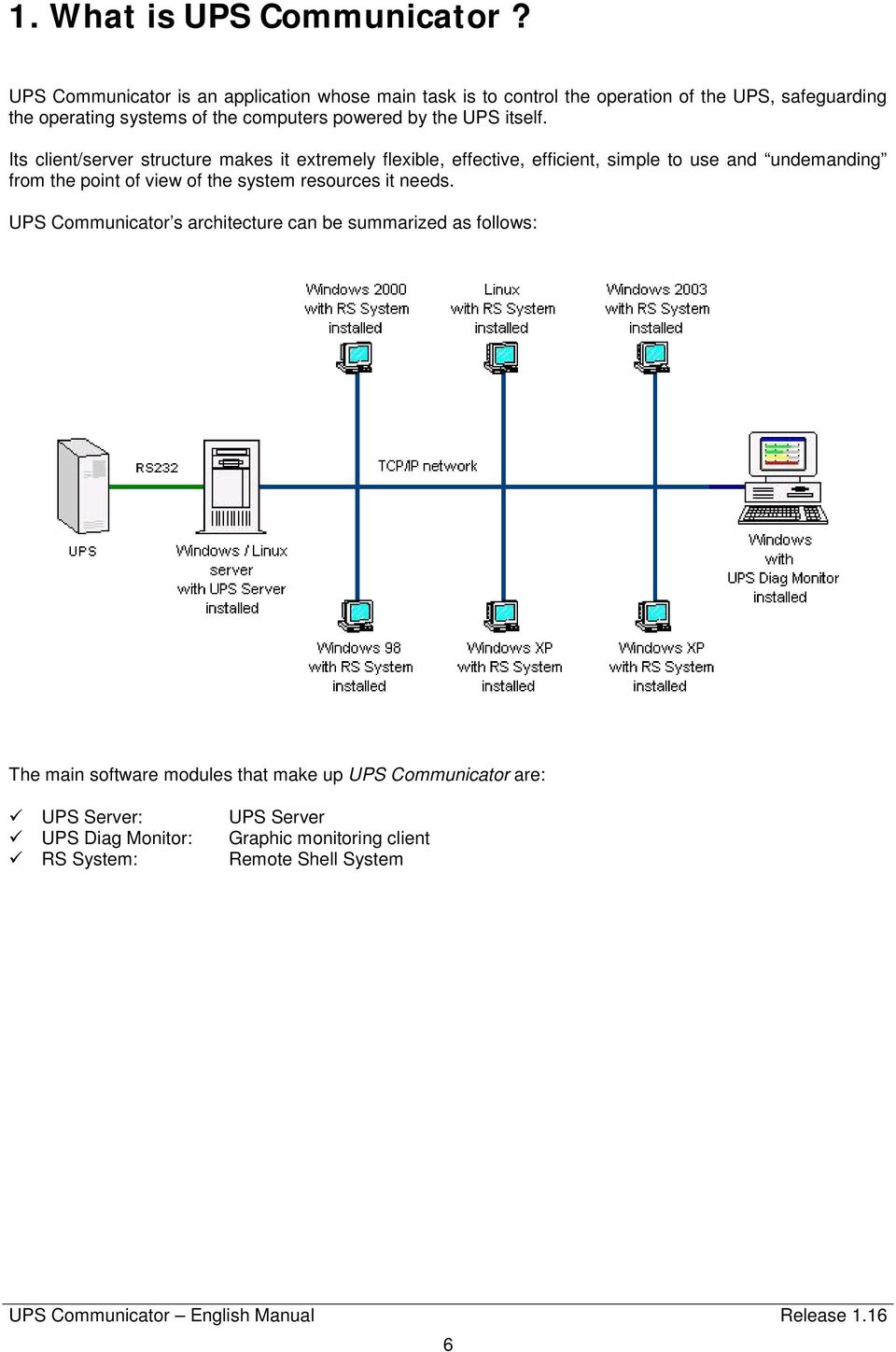
6 1. What is UPS Communicator? UPS Communicator is an application whose main task is to control the operation of the UPS, safeguarding the operating systems of the computers powered by the UPS itself. Its client/server structure makes it extremely flexible, effective, efficient, simple to use and undemanding from the point of view of the system resources it needs. UPS Communicator s architecture can be summarized as follows: The main software modules that make up UPS Communicator are: UPS Server: UPS Diag Monitor: RS System: UPS Server Graphic monitoring client Remote Shell System 6
7 1.1. UPS Server The UPS Server is the main module in all of the application and it runs as a background process. It has the task of receiving and interpreting the information coming from the UPS and of managing the configuration of its special settings and of events that could endanger the operating system in any way where it is installed. The main actions that it may undertake in case of need are: To record the event and the relative operating data on a Log file To warn operators by means of on-screen messages To send s To execute local programs To execute the shutdown of the local computer To execute the shutdown of remote computers (together with RS System) To execute remote programs (together with RS System) To send messages to the screens of remote operators (together with RS System) The UPS server also make this UPS data available to UPS Diag Monitor graphic clients by means of a coded system and TCP/IP protocol so that a full analysis of the UPS operating status is possible and its operating parameters and special functions, as supported by the UPS itself, can be set RS System: Remote Shell System When the need arises to install a UPS supplying more than one computer, it naturally leads to the requirement to envisage shutdown of all the computers in question. However, it would be difficult to connect each of these computers to the UPS via a separate RS232 cable. RS System is a utility which can be installed on a remote computer to enable its automatic shutdown, the displaying of messages or the execution of customized programs, by way of a command sent by the UPS server installed on the main computer. In a situation where one of the commands described must be executed, UPS server sends a coded command (exclusively via TCP/IP protocol) to each of the computers where the RS module has been installed. This first verifies the authorization of the UPS server for the sending of the command itself and then executes a customized script. RS System can also simply be used for sending popup messages, thus avoiding the problem of the transmission and reception of messages with Windows 9x/ME UPS Diag Monitor UPS Diag Monitor is the graphical tool that makes it possible to display and interact with all the UPS data further to connection to a UPS server (local or remote). 7

8 2. Windows 2.1. Installing UPS Communicator The software is very straightforward to install and does not demand any specific skills: administrator rights are only required for NT platforms (NT, 2000, XP, 2003). Procedure: 1. Select the language for installation. This affects: The installation program The software modules installed The help file and documentation 2. Accept the terms of the license 3. Select the destination folder: we recommend you to use the suggested default folder unless you have special requirements: C:\Program Files (x86)\legrand\ups Communicator\ 4. Select the modules to be installed: UPS Server ( Master mode): module for UPS management and communications UPS Diag Monitor: module for the display and settings of the UPS parameters RS System (Remote Shell Slave mode): module for the execution of shutdown, messages and remote programmes UPS Binder (Control Panel): the control panel used to access all the modules in the application Documentation (PDF format): this manual 5. Select the folder in the Run/Start menu that will contain the programme s shortcuts (icons). 6. Select whether to install the UPS Binder icon (control panel for the application) on your desktop and/or on the quick start bar. 7. Press the Install box to start copying the programme file. When the installation has been completed, the relative configuration programmes will automatically run according to the modules selected. A new folder will be created in the Run/Start menu (default: UPS Communicator) to contain all the shortcuts required. We recommend you restart your computer at the end of the installation procedure. 8

9 2.2. UPS Server Configuration In order to work correctly, the UPS server requires certain parameters: this information can be set using the configuration programme. The configuration parameters are divided up into categories that can be selected by clicking on the appropriate boxes located to the left of the main configuration programme window. After configuration has been completed, you are asked whether to restart the UPS server so that the modifications will become effective immediately, otherwise the modifications will take effect the next time the computer or UPS server is started up System Section Accurate setting of these parameters is essential in order to safeguard correct communications with the UPS. UPS Model This specifies the model of UPS interfaced with the computer. Make your selection by clicking on the Select box and then choosing the model from the list. Selecting the UPS model will restore the default settings for the autonomy data and any customised actions set in the Events section. Device for communications This enables you to specify the computer s communication device (RS232 port, USB) used for connection of the UPS. Location of UPS / Computer This specifies the actual location of the UPS or of the computer that it is interfaced with (for example: EDP room; office 2nd floor; etc ). Password for UPS Server configuration This is the password used to protect the configuration of the UPS Server. If specified, it is requested when the configuration programme is started. The password is optional. Password for UPS Diag Monitor This specifies the password used by the monitoring client in order to access certain special functions, such as UPS set-up, tests and programming of switching off and switching back on. The password is optional. Install as System Service This specifies the type of usage of the UPS server and, consequently, the method for starting up. Disabled: Enabled: used exclusively as a diagnostics programme for the UPS: does not start up automatically when the computer is started. used as a control programme for the automatic execution of shutdown: installed as a system service with automatic start up. 9

10 Shutdown Section The parameters of this section are needed for the management of UPS autonomy, system shutdown, the switching off and subsequent automatic restarting of the UPS. Enable System Shutdown Enables or disables the possibility for the UPS server to execute automatic system shutdown. If the application is used exclusively for UPS diagnostics, we recommend this setting be disabled. Type of autonomy management This gives you the possibility to manage the autonomy (provided this is permitted by the currently selected UPS) with two different and, in a certain way, opposite methods: Advanced: Fixed: the UPS server uses all the autonomy of the UPS except for the autonomy reserve and the time specified in the parameter Time required for shutdown. shutdown always starts x minutes after the UPS has switched over to battery power. N.B: shutdown always starts immediately when the autonomy reserve signal has been reached (batteries flat). Time needed for system shutdown Only visible if advanced management of autonomy has been specified. It indicates how long (in minutes) the computer needs to complete its shutdown procedure. If the parameter Enable UPS shutdown has been selected, we recommend setting the actual time needed for shutting down the computer plus one extra minute. Always execute shutdown after [m] in battery mode Only visible if fixed management of autonomy has been specified. It indicates how long, in minutes, shutdown of the computer will start after the UPS has switched over to battery power. Enable UPS shutdown This gives you the possibility to enable or disable the automatic switching off of the UPS at the end of computer shutdown. If switch on/switch off scheduling is used (see UPS Diag Monitor), this parameter must be enabled. Delay from start of system shutdown This gives you the possibility to specify after how many minutes the UPS should switch off, starting from the launch of the computer shutdown procedure. If advanced management of autonomy has been selected, the minimum amount that can be set is limited so that it is not possible to specify an amount of time below the setting for Time needed for shutdown in order to prevent the UPS switching off when the computer shutdown procedure is still running. Enable UPS restart Enables or disables the automatic switching on of the UPS after mains power has returned. If switch on/switch off scheduling is used (see UPS Diag Monitor), this parameter must be enabled. Delay from return of power This specifies how many seconds must pass after mains power has returned before the UPS automatically switches after being switched off because of a mains power failure. 10

11 Log & Data Section The parameters contained in this section refer to the recording of data by the UPS server. Enable recording of LOG file Enables or disables the writing on disk of UPS and external events. Maximum file size This gives you the possibility to specify the maximum size in bytes for the events file. Once this has been reached, the file is deleted and a new one is created. Enable recording of DATA file Enables or disables the writing on disk of the UPS and mains electricity operating specifications. Maximum file size This gives you the possibility to specify the maximum size in bytes of the operating specifications file. Once this has been reached, the file is deleted and a new one is created. Recording frequency This specifies the frequency, in seconds, of the writing of the operating specifications file. Selection of values for recording This gives you the possibility to select the specifications from a list (input voltage, output voltage, etc ) to be stored in the file Mail Server Section This section allows you to adjust the configuration of the programme s options for the sending of s. Sender s address This specifies the sender s address and is used to login to the SMTP server (if authentication is not required). Name or TCP/IP address of SMTP server Name or TCP/IP address of the mail server (SMTP) used to send s. TCP/IP port of SMTP server TCP/IP port used for connection to the SMTP server. Use SMTP authentication Enable this parameter if the mail server (SMTP) requires authentication and specify a valid login and password. 11

12 Events Section The parameters in this section control how the UPS server behaves based on UPS or external events. All the events already have default settings for a range of actions relating to the event in question. Events list This specifies the events managed by the UPS currently selected. The contents of this list may vary depending on the type of UPS selected. Preset activities for selected event Displays the list and order of execution of the actions set for the selected event. Move up and Move down Buttons These are used to increase or decrease the priority of execution of the selected action. Add, Edit Buttons These two buttons allow you to define a new action (or to alter its parameters) relating to the current event. The actions that can currently be implemented are as follows: Pop-up message: Write in LOG file: Execute local shutdown: Remote SHUTDOWN command: Remote MESSAGE command: Remote CUSTOM command [1, 2, 3]: Execute local programme: Send Write to Windows Event Viewer (#) displays a message on the monitor of a specified user (key in * to include all users in the domain / work group) describing the type of event that took place. stores the type of event that took place in the LOG file. executes the shutdown of the computer interfaced with the UPS. (##) executes the shutdown of a remote computer in the network. (##) sends a message to a remote computer in the network. (##) executes custom commands on a computer in the network. executes any executable file on the disk. (###) sends an internal or external to the specified address. write a log entry into the "Application" section of the Windows Event Viewer; user can select the log entry type (Information, Warning or Error). This feature is not supported by Windows 95/98/ME. Event ID Text 100 UPS Server starting on <device>; listening on TCP/IP <n> port 101 UPS Server stopped 102 Found <UPS model> 103 No UPS found 104 Communications between UPS and Server lost 105 Communications between UPS and Server restored 106 Power failure 107 Power restored 108 Battery low signal 109 UPS still in battery mode. Remaining 12

13 autonomy : <n> minutes 110 System shutdown in process System shutdown within <n> minutes 112 UPS overload 113 UPS overload terminated 114 UPS in Bypass mode 115 UPS no longer in Bypass mode 116 Maintenance Bypass activated 117 Maintenance Bypass deactivated 118 UPS temperature above limits 119 UPS temperature back within limits 120 Internal UPS failure 121 Internal UPS failure not more present (#) The sending of this type of message must be supported by the operating system and depends on the type of installation for the UPS server (see section System Install as system service ). (##) Requires installation and correct configuration of RS System on remote computers. (###) Requires a valid account with a SMTP server. Default Button Loads the default configuration for the combination of events/actions eliminating any modification made by the user. Load, Save Buttons Loads or saves a customised series of combinations of events/actions. This function is particularly useful in circumstances of multiple installations which are all identical, as you simply need to define a customised series of actions, save them on disk, copy them and load them onto the other installations without the need to repeat the configuration for this section each time. 13

14 Advanced Section The parameters contained in this section contain essential information for the correct running of the UPS Server therefore we advise you NOT to modify them Advanced System configuration Install as System Service This specifies the type of usage of the UPS server and, consequently, the method for starting up. Disabled: used exclusively as a diagnostics programme for the UPS: does not start up automatically when the computer is started. Enabled: used as a control programme for the automatic execution of shutdown: installed as a system service with automatic start up (the type of service depends on the operating system in use). Battery recharge time This specifies the total time, in seconds, required by the UPS in order to recharge the batteries after they have been completely discharged; it is set automatically when the UPS model is selected. We recommend leaving the default setting for this parameter unless a more batteries have been fitted than standard or if additional battery chargers have been installed. UPS Server TCP/IP listen port This is the TCP/IP port used for communications by the UPS server and the UPS Diag Monitor clients. The parameter can be altered should this port already be used by another programme in the system; in this case, however, you must do the same on the monitoring client during the request for connection to the UPS server. Broadcast Event execution frequency This is the frequency, in seconds, of the actions set for the option: Broadcast event - UPS still in battery mode to be carried out by the UPS server (these are normally messages to users notifying them of the time that remains before shutdown will start). The event will only be managed if the UPS is operating on battery power, further to an actual mains power failure, and if the Enable System Shutdown option has been enabled. UPS check rate This is the frequency, in seconds, of UPS interrogation by the UPS Server by way of the RS232 port; if a very low rate is set, the computer s performance may be affected and setting a very high rate may lead to small events being ignored (such as blackouts lasting a few seconds). We advise you to leave the default setting as this represents a good compromise between performance and monitoring continuity Advanced Shutdown configuration Allow shutdown execution from the UPS Diag Monitor This specifies if it is possible to send the computer shutdown command from UPS Diag Monitor. Warning time for scheduled shutdown If one or more scheduled shutdowns / restarts have been programmed, this allows you to determine how many minutes prior to the effective execution of the actual schedule, the actions associated with the Notification of scheduled shutdown within x minutes event will be carried out. 14

15 Advanced RS System configuration RS Client timeout connection Specifies, in seconds, the maximum time that the UPS Server dedicates to attempts to enter communications with a RS System module should it need to send a command (remote shutdown, messages, custom). Enable Check UPS Server function In normal situations, the UPS server sends commands to RS System, which then executes them (a typical application is the execution of the shutdown of remote computers). It could come to pass, however, that the UPS server shuts down (for example, due to the computer, where it is installed, being switched off in an irregular manner): in this case, the power cut could drain the UPS batteries causing it to shut down, subsequently switching off the power to any load, and thus invalidating the protection offered by RS System. This parameter lets you enable or neutralise the function for sending confirmation that the UPS Server UPS is operational to the RS System modules (must also be enabled in the configuration of the RS System modules). Check UPS Server TCP/IP port Specifies the TCP/IP port used by the UPS Server and the RS System modules for communications regarding the Check UPS Server function. Note: the TCP/IP port must be the same used for the configuration of the RS System modules Advanced Autonomy Calibration Test configuration To modify the parameters in this section, it will be necessary to switch the UPS Server off and restart the configuration programme. Total autonomy Represents the total available autonomy, in seconds, resulting from the calibration test. Load applied during the test This is the load, in a percentage format, applied to the UPS during the autonomy calibration test; the UPS Server uses this data to establish if the test is valid or if it should be repeated due to changes in the output load (for example if extra computers have been added). If the value shown is -1, this means a calibration test has never been carried or the user has deleted the results. Actual battery capacity Represents the percentage of actual charge of the batteries; this value is updated regularly by the UPS Server. Reset Test Results button This lets you delete the results of an Autonomy Calibration Test and reset all the values to their default settings as if no tests were ever conducted. 15

16 2.3. RS System Configuration The RS System configuration programme runs automatically at the end of installation or by clicking the appropriate icon. To ensure RS System will function correctly, you must complete the initial configuration so that the programme is able to install the RS client as system service (the type of service depends on the operating system in use) TCP/IP List Section This section is used for the configuration of the TCP/IP addresses of the computers enabled to send commands to the RS client. Computers authorised to send commands to the RS client Displays the list of the enabled TCP/IP addresses. Add, Edit, Delete buttons These are used, respectively, to add, modify or delete an TCP/IP address. Move up and Move down buttons These are used to move an TCP/IP address up or down with respect to another. TCP/IP listen port This is the TCP/IP port that the UPS server uses to communicate with the RS client Check UPS Server Section In normal situations, the UPS Server sends commands to RS System, which then executes them (a typical application is the execution of the shutdown of remote computers). It could come to pass, however, that the UPS server shuts down (for example, due to the computer, where it is installed, being switched off in an irregular manner): in this case, the power cut could drain the UPS batteries causing it to shut down, subsequently switching off the power to any load, and thus invalidating the protection offered by RS System. This section makes it possible to verify the presence of one or more UPS Servers at regular intervals and to execute a customised command should it fail to locate one or more UPS Servers. N.B: the command is also executed even if only one of the UPS servers, contained in the list of those enabled, fails to be located (see the TCP/IP Address Computers authorised to send commands to the RS client Section). Enable regular search Enables, or disables, the UPS server search Search frequency [m] This represents the frequency, shown in minutes, for the execution of the UPS server search. Attempts Should the UPS server search fail, this specifies how many attempts will be made before ascertaining that a particular UPS server cannot be located. TCP/IP Port The TCP/IP port used for the execution of the UPS server search. 16

17 Interval between attempts [s] The interval, shown in seconds, between one search and the next in case a UPS server is not found (see Retries). Verify connections button This is used to check the connections with the UPS servers. The result is displayed in a table, which provides the outcome and the number of attempts made, in addition to the TCP/IP addresses of the UPS servers. As this is a test, no consequential action will be taken, even if the outcome is negative. Execute in case of search failure This specifies which command should be executed in case of search failure. It is possible to specify any type of file than it is possible to run (*.com, *.exe, *.bat, *.cmd). We advise the association of a batch file (*.bat; *.cmd) to CUSTOM events in order to avoid problems in the transfer of parameters to the file to be executed and to simplify subsequent modifications to the command itself without having to restart the RS client each time Scripts Section The Scripts section is used to specify the programmes that must be run when one of the valid commands is received. Shutdown Script This specifies the file to execute should the shutdown command be received. Customised Script [#1, #2, #3] This specifies the file to execute should CUSTOM 1, 2 or 3 commands be received. This command enables execution of any file that it is possible to execute (*.com; *.exe; *.bat; *.cmd) and can be used for any function whatsoever. We advise the association of a batch file (*.bat; *.cmd) to CUSTOM events in order to avoid problems in the transfer of parameters to the file to be executed and to simplify subsequent modifications to the command itself without having to restart the RS client each time Log File Section This section determines the writing of the LOG file by the RS client. The LOG file makes it possible to keep a trace of all the server s activities, including reception of invalid commands or commands sent by unauthorised computers. Enable writing of LOG file Enables or disables the writing of the LOG file. Maximum file size This specifies the maximum size of the LOG file, in bytes. Once this has been reached, the file is deleted and a new one is created. Enable writing of Windows Event Viewer Enable or disable the writing of the log into the Application section of the Windows Event Viewer (Windows 95 / 98 / ME are not supported). Event ID Type Text 100 Information RS client started 101 Information RS client stopped 102 Warning Received SHUTDOWN command from <computer> 103 Information Received MESSAGE command from <computer> 104 Information Received CUSTOM 1 command from <computer> 105 Information Received CUSTOM 2 command from <computer> 17

18 106 Information Received CUSTOM 3 command from <computer> 107 Warning Received command from unauthorised computer: <computer> 108 Warning Search: UPS Server <computer> not found after <n> attempts 109 Error Received unknown command from <computer> 18

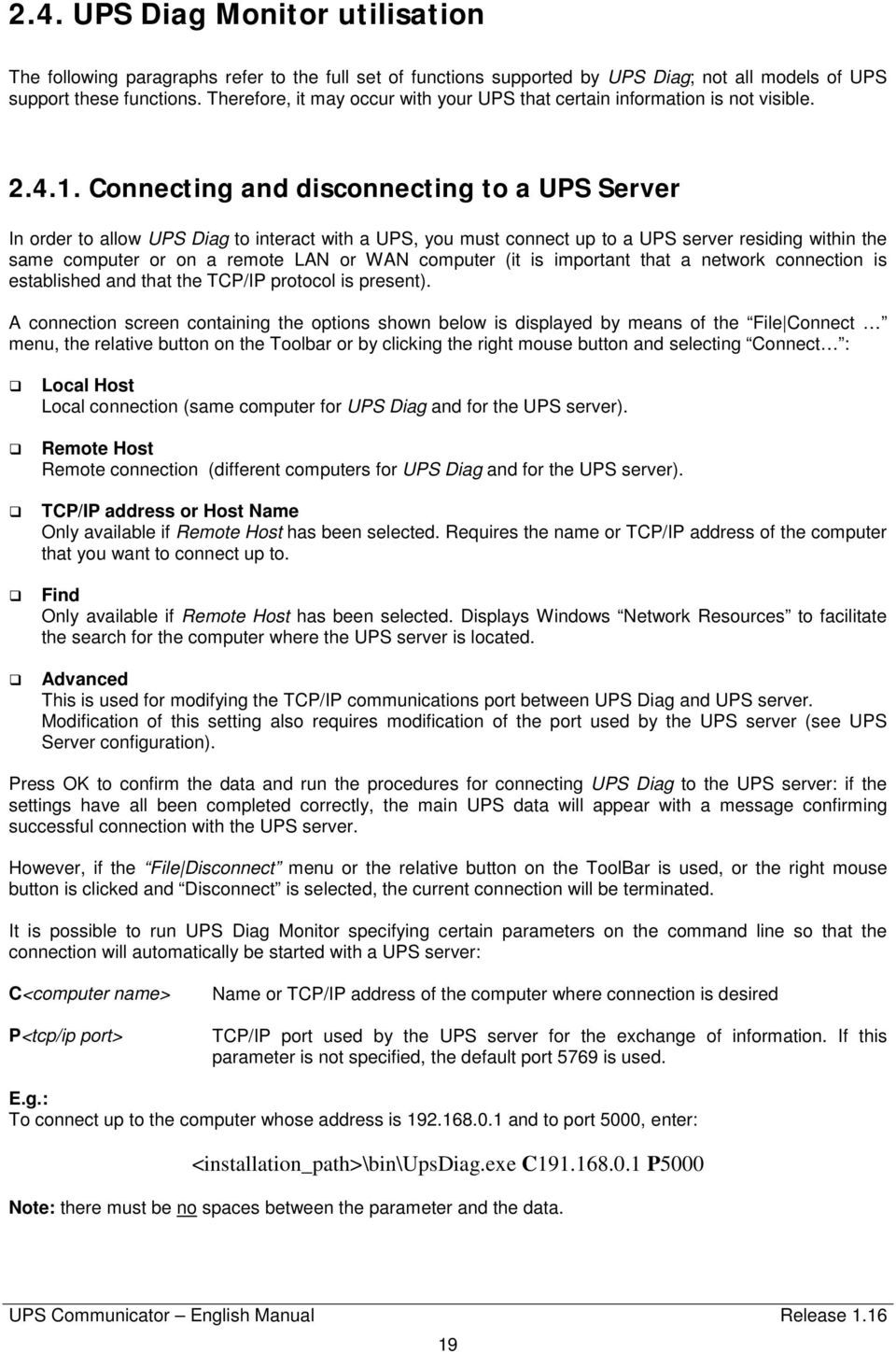
19 2.4. UPS Diag Monitor utilisation The following paragraphs refer to the full set of functions supported by UPS Diag; not all models of UPS support these functions. Therefore, it may occur with your UPS that certain information is not visible Connecting and disconnecting to a UPS Server In order to allow UPS Diag to interact with a UPS, you must connect up to a UPS server residing within the same computer or on a remote LAN or WAN computer (it is important that a network connection is established and that the TCP/IP protocol is present). A connection screen containing the options shown below is displayed by means of the File Connect menu, the relative button on the Toolbar or by clicking the right mouse button and selecting Connect : Local Host Local connection (same computer for UPS Diag and for the UPS server). Remote Host Remote connection (different computers for UPS Diag and for the UPS server). TCP/IP address or Host Name Only available if Remote Host has been selected. Requires the name or TCP/IP address of the computer that you want to connect up to. Find Only available if Remote Host has been selected. Displays Windows Network Resources to facilitate the search for the computer where the UPS server is located. Advanced This is used for modifying the TCP/IP communications port between UPS Diag and UPS server. Modification of this setting also requires modification of the port used by the UPS server (see UPS Server configuration). Press OK to confirm the data and run the procedures for connecting UPS Diag to the UPS server: if the settings have all been completed correctly, the main UPS data will appear with a message confirming successful connection with the UPS server. However, if the File Disconnect menu or the relative button on the ToolBar is used, or the right mouse button is clicked and Disconnect is selected, the current connection will be terminated. It is possible to run UPS Diag Monitor specifying certain parameters on the command line so that the connection will automatically be started with a UPS server: C<computer name> P<tcp/ip port> Name or TCP/IP address of the computer where connection is desired TCP/IP port used by the UPS server for the exchange of information. If this parameter is not specified, the default port 5769 is used. E.g.: To connect up to the computer whose address is and to port 5000, enter: <installation_path>\bin\upsdiag.exe C P5000 Note: there must be no spaces between the parameter and the data. 19
20 Monitoring the UPS Information Panel The information panel displays the main information regarding the UPS being monitored. UPS Model Name of the UPS. Family Identifies the product family. Nominal Power [VA] Nominal power according to current European standards, shown in Volt-Amperes. Nominal Power [W] Nominal power according to current European standards, shown in Watts. Number of Modules Installed Number of power boards fitted inside the UPS. Firmware version Number of the release of the microprocessor s internal firmware. Serial Number The serial number. The panel also displays whether you need to carry out a test in order to calibrate the effective autonomy of the UPS based on the load connected (See Autonomy Calibration Test) View Log file The display of the Log file is represented by a list of items, integrated with date and time, concerning events occurring outside the UPS recorded by the UPS server during its operation. This can be saved, printed or sent by View Data file The display of the Data file is represented by a list of the UPS operating specifications, which can be selected by means of the UPS server s configuration programme and integrated with date and time, recorded by the UPS server during its operation. This can be saved, printed or sent by . A chart can be generated from this file to represent the trend of these measurements over time. This is why the CSV extension is proposed when saving the file, to allow rapid analysis with Microsoft Excel. 20
![Nominal Power [W] Nominal power according to current European standards, shown in Watts. Number of Modules Installed Number of power boards fitted inside the UPS.](/docs-images/45/10505028/images/page_20.jpg "Firmware version Number of the release of the microprocessor s internal firmware. Serial Number The serial number.")
21 Operating data Displays the main, real time specifications of the UPS. UPS status Identifies the current operating status of the UPS. The possible statuses are: Mains UPS operating on mains power Battery UPS operating on battery power Reserve UPS operating on battery power but has low batteries Bypass UPS is in bypass mode for one of the following reasons: forced bypass off-line operation overload internal anomaly Autonomy Estimated useable autonomy for the UPS before execution of computer shutdown. Anomaly Description of a UPS operating anomaly, if any. The possible descriptions are: None Everything is OK Overload Load is too high for the UPS Overheating Temperature of one of the internal boards is above the threshold limit Internal anomaly Probable UPS fault Battery charger One of internal battery chargers is faulty Battery fault Batteries must be replaced Current load Percentage of connected load. Temperature Temperature inside the UPS. Battery charge Estimated percentage of battery charge Input Data Displays all the specifications in real time regarding the mains electricity supply to the UPS. Input voltage RMS voltage, shown in Volts, of the input line. Apparent input power Apparent power, shown in Volt-Amperes, absorbed by the input line. Active input power Active power, shown in Watts, absorbed by the input line. Input current RMS current, shown in Amperes, absorbed by the input line. Input peak current Peak current, shown in Amperes, absorbed by the input line (not to be confused with peaks of absorption). Stabiliser level Displays the stabiliser s centring value when the UPS is running on mains power. 21
22 Neutral Sensor enabled The neutral sensor is able to inhibit the operation of the UPS in circumstances where the neutral potential shifts excessively from that of earth. During installation, it is useful for verifying that the power supply plug has been inserted correctly into the power outlet and will prevent its operation in case of error. To start the UPS, simply invert the plug and switch it back on. The function is inhibited if this option is disabled. Neutral Sensor while running This shows whether the UPS must ignore any excessive shift of the neutral potential away from earth and only provide an acoustic warning signal (the UPS would normally switch over to battery power until fully discharged and then switch off). PLL enabled Normally, the UPS will tolerate fluctuations in input frequency within certain limits. If this parameter is disabled, the UPS will accept any input frequency but still supply the nominal output frequency of 50 Hz (or 60 Hz). Extended PLL range This specifies whether the UPS must extend the range of mains frequencies accepted (refer to the UPS instructions manual for further details) Output Data Displays all the UPS output specifications in real time: Output voltage RMS voltage, shown in Volts, supplied by the UPS. Apparent output power Apparent power, shown in Volt-Amperes, absorbed by the load connected. Active output power Active RMS power, shown in Watts, absorbed by the load connected. Output current RMS current, shown in Amperes, absorbed by the load connected. Output peak current Maximum repetitive peak current, shown in Amperes, absorbed by the load (not to be confused with peaks of absorption). Output voltage frequency The frequency, shown in Hertz, of the output voltage. Bypass enabled This shows the status of the UPS management of the automatic bypass. If this option is disabled, the bypass will never enter operation. Forced bypass This specifies whether the user has intentionally put the UPS into bypass. This function should only be used in special circumstances as the UPS and the load connected would switch off immediately if there were a power failure. Speed of bypass intervention Displays the setting for the intervention speed of the automatic bypass when required. Off-line mode This specifies whether the UPS is operating as a normal on-line UPS (with option disabled) or as a nonstabilised switchover UPS (with option enabled). 22
23 Load waiting mode Displays the status of the automatic switching on/off function of the UPS, which operates according to the switching on and switching off of its connected load. Threshold for load recognition Displays the power threshold, shown in Watts: the UPS will go into stand-by below this (if the Load Waiting Mode function has been enabled) due to the connected load being switched off Batteries Displays the voltage of the batteries in real time and the relative operating thresholds. Current value Current battery voltage, shown in Volts. Threshold for autonomy reserve The threshold, shown in Volts: the UPS will indicate that the batteries are low below this. Threshold for end of autonomy The threshold, shown in Volts: the UPS will switch off because of fully discharged batteries below this. Battery thresholds mode The two thresholds relating to the batteries (autonomy reserve and end of autonomy) are the collating data used by the UPS to establish the status of the charge of the batteries. These thresholds can be managed automatically by the UPS by way of its Automatic setting (when the connected load varies, these thresholds will also vary) or can be given permanent voltage settings by the user by way of its Fixed setting. Automatic battery test at UPS switch on This specifies whether the UPS must execute a battery test each time it is switched on provided mains power is present. Max operating time in battery mode If specified, this indicates the maximum time the UPS will be able to operate after a mains power failure. At the end of the set time, the UPS will automatically switch off unless the mains power supply has been restored. Max operating time after autonomy reserve If specified, this indicates the maximum time the UPS will be able to operate after the autonomy reserve signal has been given. At the end of the set time, the UPS will switch off immediately even if the mains power supply has been restored in the meantime. Autorestart after end of autonomy Shows whether the UPS has been enabled to switch back on automatically, after switching off due to a power failure, when the mains power supply has been restored. 23
24 Hardware Information Displays all the information relating to the UPS hardware in real time: this can be useful for diagnosing faults. Number of failed modules Identifies the number of UPS power boards, which have currently failed. Description of failed module Identifies the type of failure of one or more UPS power boards. The following descriptions are possible (including combinations of the same): Unknown Failure unknown Inverter Inverter P.F.C. Input voltage rectifier and booster Booster Battery voltage booster Overheat One power board or more has overheated Battery charger Battery charger A/D Vin, Iin, Vout and Iout converter Internal UPS data for exclusive use of the Service Centre. Positive and Negative BUS voltage Internal UPS data for exclusive use of the Service Centre Input and Output Sine Waves Chart format representation of the performance of the UPS input (or output) voltage and current in real time UPS History List of the cumulative operating data for the UPS. This data is continually updated and permanently stored in the UPS. Total UPS operating time Represents the total time of UPS operation. Total operating time in battery mode Represents the total time the UPS has been operating on battery power. Number of battery interventions Represents the number of times the UPS batteries have intervened. Complete battery discharges Represents the number of times the UPS has switched off due to fully discharged batteries (caused by lengthy power failures) or due to the setting chosen for the Max operating times. Number of bypass interventions Represents the total number of times the Bypass has intervened. Overheatings Represents the number of times that the temperature of one or more power boards has exceeded the set limit. Number of stabiliser interventions Represents the total number of times the stabiliser has intervened. 24
25 List of Events The list of events occurring during the operation of the UPS is continually updated and is stored permanently in the UPS memory. Some UPS models also memorise the date and time in addition to the type of event. The list of possible events is as follows: None No anomaly. Odd Turn Off UPS shutdown due to disconnection of the battery supply (during operation in battery mode or switching on). Memory Error! Error in the UPS internal memory. Contact your Service Centre. Battery Limit UPS shutdown due to complete batteries discharge caused by a prolonged absence of mains or attempt to switch on the UPS in battery mode after a shutdown due to complete battery discharge. Battery Charger Failure of the battery charger of one or more power boards. Overload UPS shutdown due to overload during battery operation. Long Overload Overload longer than 5 seconds while the UPS was operating in mains mode. The UPS switches to bypass mode and remains on bypass until the load returns within nominal range. Neutral Wrong Error in input neutral connection during start up. After about 10 seconds the UPS switches off. Neutral Wrong While Running Error in input neutral connection during operation. The UPS switches over to battery or it remains connected to the mains. Modules Number Microprocessor is not able to define how many power modules are installed inside the UPS. Contact your Service Centre. Programmed Battery Time Expired UPS shutdown at the end of the programmed Max. operating time in battery mode. Programmed Reserve Time Expired UPS shutdown at the end of the programmed Max. operating time after autonomy reserve. Earth Fault UPS shutdown due to the intervention of its internal electronic output differential device, which revealed a current leakage towards the earth. Load Waiting UPS shutdown due to a power failure while the UPS was in load waiting mode. HV Bus Runaway UPS shutdown due to a loss of control of the internal BUS high voltage. Contact your Service Centre. Output DC Level UPS shutdown due to the failure of one internal inverter. Contact your Service Centre. 25
26 Bad Wiring Error in UPS connection. Basically an attempt was made to feed the UPS through the output socket. Output Plug Removed UPS shutdown due to the disconnection of input/output connector. Hardware Fault: Failure of one or more of the electronic circuits on one or more of the power boards. The possible faults (including combinations of the same) are listed below; in any event, contact your Service Centre: Unknown Failure unknown Inverter Inverter P.F.C. Input voltage rectifier and booster Booster Battery voltage booster Overheat One power board or more has overheated Battery charger Battery charger The list of these events can be saved, printed or sent by Scheduling Scheduling options can be accessed through the Tools Scheduling menu and are the best way to optimise the use of the UPS and the load it is powering. There are three scheduling categories: Switch off /Restart: The switching off and subsequent (or not) restarting of the UPS Battery test: Battery test Autonomy calibration test: Test for the calibration of UPS autonomy The frequency of execution of each of the categories described above can be selected from the following: One shot: executed once only on a set date and time Daily: executed every day at a set time Weekly: executed every week on a set day and at a set time After selecting the options required, click on Add to add the new schedule to the list of current schedules. To delete an individual schedule, use the right mouse button to select it from the list and then click on Remove in the popup menu that will appear (One shot schedules are automatically eliminated after they have been executed or when the set day and time has passed if execution not possible). It is not possible to alter schedules: they must be deleted and a new one created. It is possible to delete all the schedules in a single category by selecting the category itself from the list using the right mouse button and then clicking on Remove in the popup menu that will appear. You must press Save for the modifications to take effect and be transferred to the UPS server, which will then manage them independently. You can check the result of the execution of each individual scheduling by controlling the UPS server s log file (if enabled). 26
27 N.B: UPS Switch off/restart must be enabled for scheduling to work correctly (see UPS Server Configuration Shutdown section ) Send a shutdown command to <computer_name> This enables execution of the shutdown of the computer connected to the UPS, provided this has been enabled in the configuration of the UPS server Setting the UPS parameters and functions UPS Setup UPS set-up is the system used to alter its operating parameters and enable certain special functions. If a password has been specified during the configuration of the UPS server, it must be entered in order to access this type of functions. The set-up window is divided into categories so that options are grouped together in a logical fashion. You must click on Save for any modification to take effect Input Settings for the operating parameters relating to the UPS input. Stabiliser Level This is used to modify the stabiliser s centring value when the UPS is running on mains power. Enable neutral sensor The neutral sensor is able to inhibit the operation of the UPS in circumstances where the neutral potential shifts excessively from that of earth. During installation, it is useful for verifying that the power supply plug has been inserted correctly into the power outlet and will block operation in case of error. To start the UPS, simply invert the plug and switch it back on. This function will be inhibited if this option has been disabled. Ignore neutral sensor while running If this function is enabled, the UPS is allowed to ignore any excessive shift of the neutral potential away from earth and will only provide an acoustic warning signal (the UPS would normally switch over to battery power until fully discharged and then switch off). Enable PLL Normally, the UPS will tolerate fluctuations in input frequency within certain limits. If this parameter is disabled, the UPS will accept any input frequency but still supply the nominal output frequency of 50 Hz (or 60 Hz). Extended PLL range This specifies whether the UPS must extend the range of mains frequencies accepted (refer to the UPS instructions manual for further details). This function is only operational if the Enable PLL function has been enabled). 27
28 Output Settings for the operating parameters relating to the UPS output. Output voltage This is used to set the output voltage for the UPS (within a pre-determined range). Output voltage frequency This parameter can be used to set the output frequency of the UPS to either 50 Hz or 60 Hz. If the Enable PLL parameter is set, the input will also be synchronised to accept the same frequency. Automatic recognition of input frequency This is used to automatically set the input/output frequency of the UPS according to the power supply line. Enable bypass This option is used to enable automatic UPS management of the bypass. Disabled bypass mode should only be used under special circumstances as the bypass will never enter operation with the possibility of UPS shutdown should there be an overload or internal failure. Forced bypass This is used to switch the bypass on permanently or to leave its management to the UPS (if the Enable bypass function has been enabled). This function should only be used in special circumstances as the UPS and the load connected will immediately switch off if there is a power failure. Speed of bypass intervention This option is used to set the speed for the intervention of the automatic bypass. Off-line operating mode This is used to select the UPS operating mode (only available for on-line UPS): Disabled: the UPS operates like a normal on-line UPS Enabled: the UPS goes into bypass and behaves like a non-stabilised switchover UPS, with mains efficiency of around 99% Load waiting mode This is used to enable or disable the automatic switching on/off function of the UPS so that it operates according to the switching on and switching off of the connected load. Threshold for load recognition This is to set the power threshold so that the UPS will go into stand-by below this limit (if the Load Waiting Mode function has been enabled) due to the connected load being switched off Batteries Used for setting the operating parameters relating to the batteries inside the UPS. Max. operating time in battery mode If this function is enabled, it allows a maximum time to be specified (in minutes and seconds) for the UPS to run on battery power. At the end of the set time, the UPS will automatically switch off unless the mains power supply has been restored. If the Autorestart after the end of autonomy option has been enabled, the UPS will automatically switch back on when mains power is restored. Max. operating time after autonomy reserve If this function is enabled, it allows a maximum time to be specified (in minutes and seconds) for the UPS to run in its autonomy reserve. At the end of this time, the UPS will switch off even if the mains power supply has been restored in the meantime. If the Autorestart after the end of autonomy option has been enabled, the UPS will automatically switch back on when mains power is restored. 28
29 Autorestart after end of autonomy If this function is enabled, the UPS can be set so it will automatically switch back on when the mains power supply has been restored if it switched off because of the complete discharging of its batteries or due to the settings for maximum operating times. Battery thresholds The two thresholds relating to the batteries (autonomy reserve and end of autonomy) are the collating data used by the UPS to establish the status of the charge of the batteries. These thresholds can be managed automatically by the UPS by way of its Automatic setting (when the connected load varies, these thresholds will also vary) or can be given permanent voltage settings by the user by way of the Fixed setting. If fixed settings are preferred, both thresholds can be set within predetermined limits: Autonomy reserve: below this threshold, the UPS will indicate that the batteries are low (Low Battery). End of autonomy: below this threshold, the UPS will switch off due to fully discharged batteries. Automatically execute a battery test when UPS is switched on: This enables the execution of a battery test each time the UPS is switched on, provided mains power is present (does not apply after switching off due to end of autonomy) Clock This is used to set the date and the time of the clock inside the UPS Programming For setting the operating parameters relating to the actual UPS programming (not to be confused with UPS server scheduling). These programming options are independently executed by the UPS and do not affect any external software for control and/or shutdown. They should, therefore, be used with extreme caution as they could result in unwelcome effects when power is being supplied to computers. Enable programming Enables or disables the execution of internal UPS programming options. Programming table This table grants access to the actual settings of the individual programming options. It is possible to programme the following actions: UPS switch off: UPS switching off (without shutdown of the computer) UPS restart: UPS switching on Battery test: Execution of a test of the batteries Calibration Test: Execution of a test of the calibration of the batteries (the UPS server does not take this result into consideration) A type can be specified for each action (i.e. the frequency of execution) and a series of values (parameters): One shot: Date and time of execution Daily: Time of execution Weekly: Day of the week and time of execution Monthly: Day of the month and time of execution Refer to the UPS manual for further information regarding programming. 29
30 Enable Buzzer This is used to silence (not permanently) or reactivate the acoustic warning signals provided by the UPS Battery test This executes a test to verify the efficiency of the batteries inside the UPS. The type of response depends on the model of UPS connected Autonomy Calibration Test This test is used to synchronise the data relating to the actual autonomy and battery capacity of the UPS with the UPS server. In effect, when the software is installed for the first time, the UPS server is not capable of recognising the actual autonomy of the UPS and therefore uses the default setting of 5 minutes. Executing this test (which should be repeated at least once every year) ensures this data is synchronised and updated to safeguard optimum operation of the UPS server. If the load varies ± 10% compared to the percentage of load applied at the time of the last test, the UPS Diag information panel will inform the user that the test should now be repeated. Test procedure: The UPS switches over to battery power (the user is not informed of this) and starts its internal counter The UPS waits for the autonomy reserve signal The UPS restores normal operation The time this took is memorised along with the percentage of load Notes on the procedure: The test must be executed with all the applied load switched on If the test is interrupted by the user, the new data for the autonomy will be the time taken until that moment At the end of the test, the batteries in the UPS will be discharged therefore the readings for autonomy and battery capacity will be zero. The UPS and the computer where the UPS server is installed must be left on until the batteries are fully recharged again Reset Battery History This is used to delete the history of the batteries, i.e.: Total operating time in battery mode Number of battery interventions Complete battery discharges This function should only be used after the batteries have been replaced or after contacting the Customer Service Centre because deletion of this information could jeopardize the rapid diagnosis of UPS problems Reset Events List This is used to delete the list of events stored in the UPS memory. This function should only be used after maintenance by an authorised service technician or after contacting the Customer Service Centre because deletion of this information could jeopardize the rapid diagnosis of UPS problems. 30
31 2.5. System Shutdown The programme Winshut.exe, contained in <installation_path>\bin\, is used by the UPS server and by RS System to execute the shutdown of the operating system. The syntax of the command is as follows: Winshut.exe [/F] [/O] [/R] [/T:xx] /F Forces the execution of shutdown (automatically closes all open or blocked programmes) without saving data. If this option is not used, programmes that are open may request data to be saved, or blocked programmes may not close, this cancelling the shutdown. /O Switches off the computer at the end of shutdown (the operating system and the hardware must support this function otherwise the operating system will restart the computer instead of shutting down). /R Executes reboot. This option takes priority over previously mentioned options and thus it has to be used very carefully. /T:xx Displays a warning message on the monitor with the countdown (in seconds and shown as xx): shutdown of the computer will start at the end of this. Use this parameter with caution as in effect it delays the start of shutdown UPS Server Script The LclDown.bat shutdown script, contained in the <installation path>\script\system folder makes it possible to specify the programme to be executed in order to obtain a local system shutdown. The original contents of the file is as OFF "<installation_path>\bin\winshut.exe" /F REM -- End of file -- N.B: shutdown is a process that should be completed as rapidly as possible, therefore we advise against the inclusion of programmes in this script. Refer to UPS server Configuration Events section for information relating to customisation of shutdown RS System Script The original contents of this script (RsDown.bat, contained in the < installation path >\Script\System folder) is as OFF "<installation_path>\bin\winshut.exe" /F /T:10 REM -- End of file -- As can be seen above, the script contains a single line of command. i.e. the start of the shutdown programme. N.B: shutdown is a process that should be completed as rapidly as possible, therefore we advise against the inclusion of programmes in this script. 31
32 2.6. Utility programmes UPS Binder UPS Binder is the control panel for the entire UPS Communicator package: it enables all the individual modules in the software to be managed from a single interface (certain limitations are possible with the NT platform) LOG file viewer The Log Viewer programme is a simple viewer used for the local display, searching and printing of the various LOG files without necessarily switching on the UPS Diag monitoring client. 32
33 3. Linux 3.1. Installing UPS Communicator The software is very simple to install and needs to be executed as a root user. Procedure: 8. Unzip the zip file downloaded off the Internet into a temporary folder (two files are obtained: one is the installation package with the extension.tar.gz, whilst the other is a document containing the instructions for unzipping the installation package) 9. Read the readme.txt file for instructions on unzipping the.tar.gz file 10. Run the setup programme contained in the folder created when the.tar.gz file was unzipped 11. Select the language (used for messaged to users and for the information regarding license and modules to be installed) 12. Confirm you accept the terms of the license 13. Select the modules to be installed: UPS Server ( Master mode): Module for UPS communications and management. Selection of this module also implicates installation of the UPS Diag Monitor monitoring module RS System (Remote Shell Slave mode): Module for executing shutdown, messages and programmes of remote computers 14. Decide whether to complete the configuration of the modules installed immediately (recommended) 15. Decide whether to start up all the modules installed immediately (only reply yes if configuration of the modules has been completed) 16. Decide whether to automatically run the modules installed when the computer is started up (recommended) 17. Finished. The application has been installed in: /usr/legrand/upscomm/ 33
34 3.2. UPS Server Configuration In order to work correctly, the UPS server requires certain parameters: this information can be set using the upscfg configuration programme located in /usr/legrand/upscomm/bin and which can only be run by the root user. The configuration parameters are divided into categories that can be selected from the main programme menu. The parameters must be saved at the end of configuration by means of the appropriate option in the menu: should the UPS server already be running, a message is displayed notifying you that the UPS server must be switched off and restarted System Configuration menu Accurate setting of these parameters is essential in order to safeguard correct communications with the UPS. UPS Model This specifies the model of UPS interfaced with the computer. Selecting the UPS model will restore the default settings for the autonomy data and any customised actions set in the Events Configuration section. Location of UPS / Computer This specifies the actual location of the UPS or of the computer that it is interfaced with (for example: EDP room; office 2nd floor; etc ). Device for communications This enables you to specify the computer s serial port used for connection of the UPS: /dev/ttys0 = COM1 /dev/ttys1 = COM2 Password for configuration This is the password used to protect the configuration of the UPS Server. If specified, it is requested when the configuration programme is started. The password is optional. Password for UPS Monitor This specifies the password used by the monitoring client in order to access certain special functions, such as UPS set-up, tests and programming of switching off and switching back on. The password is optional. 34
35 Shutdown Configuration menu The parameters of this section are needed for the management of UPS autonomy, system shutdown, the switching off and subsequent automatic restarting of the UPS. Enable System Shutdown Enables or disables the possibility for the UPS server to execute automatic system shutdown. If the application is used exclusively for UPS diagnostics, we recommend this setting be disabled. Autonomy management type This gives you the possibility to manage the autonomy (provided this is permitted by the currently selected UPS) with two different and, in a certain way, opposite methods: Advanced: Fixed: the UPS server uses all the autonomy of the UPS except for the autonomy reserve and the time specified in the parameter Time needed for system shutdown. shutdown always starts x minutes after the UPS has switched over to battery power. N.B: shutdown always starts immediately when the autonomy reserve signal has been reached (batteries flat). Time needed for system shutdown Only visible if advanced management of autonomy has been specified. It indicates how long (in minutes) the computer needs to complete its shutdown procedure. If the parameter Enable UPS shutdown has been selected, we recommend setting the actual time needed for shutting down the computer plus one extra minute. Execute shutdown after [m] in battery Only visible if fixed management of autonomy has been specified. It indicates how long, in minutes, shutdown of the computer will start after the UPS has switched over to battery power. Enable UPS shutdown This gives you the possibility to enable or disable the automatic switching off of the UPS at the end of computer shutdown. If switch on/switch off scheduling is used (see UPS Diag Monitor), this parameter must be enabled. Delay from start of system shutdown This gives you the possibility to specify after how many minutes the UPS should switch off, starting from the launch of the computer shutdown procedure. If advanced management of autonomy has been selected, the minimum amount that can be set is limited so that it is not possible to specify an amount of time below the setting for Time needed for system shutdown in order to prevent the UPS switching off when the computer shutdown procedure is still running. Enable UPS restart Enables or disables the automatic switching on of the UPS after mains power has returned. If switch on/switch off scheduling is used (see UPS Diag Monitor), this parameter must be enabled. Delay from return of power This specifies how many seconds must pass after mains power has returned before the UPS automatically switches after being switched off because of a mains power failure. 35
36 Log & Data menu The parameters contained in this section refer to the recording of data by the UPS server. Enable recording of LOG file Enables or disables the writing on disk of UPS and external events. Maximum file size This gives you the possibility to specify the maximum size in bytes for the events file. Once this has been reached, the file is deleted and a new one is created. Enable recording of DATA file Enables or disables the writing on disk of the UPS and mains electricity operating specifications. Maximum file size This gives you the possibility to specify the maximum size in bytes of the operating specifications file. Once this has been reached, the file is deleted and a new one is created. Recording frequency rate This specifies the frequency, in seconds, of the writing of the operating specifications file. Select data to be recorded This gives you the possibility to select the specifications from a list (input voltage, output voltage, etc ) to be stored in the file Mail Server menu This section allows you to adjust the configuration of the programme s options for the sending of s. Sender s address This specifies the sender s address and is used to login to the SMTP server (if authentication is not required). TCP/IP address of SMTP server Name or TCP/IP address of the mail server (SMTP) used to send s. TCP/IP port of SMTP server TCP/IP port used for connection to the SMTP server. Use SMTP authentication Enable this parameter if the mail server (SMTP) requires authentication and specify a valid login and password. 36
37 Events Configuration menu The parameters in this section control how the UPS server behaves based on UPS or external events. All the events already have default settings for a range of actions relating to the event in question. Possible events for current UPS This specifies the events managed by the UPS currently selected. The contents of this list may vary depending on the type of UPS selected. Configured jobs list for current event Displays the list and order of execution of the actions set for the selected event. Move job Up and Move job Down These are used to increase or decrease the priority of execution of the selected action. Insert job and Edit job Allow you to define a new action (or to alter its parameters) relating to the current event. The actions that can currently be implemented are as follows: Pop-up message: displays a message on the users console describing the type of event that took place. Write in LOG file: stores the type of event that took place in the LOG file. Execute local shutdown: executes the shutdown of the computer interfaced with the UPS. Remote SHUTDOWN command: executes the shutdown of a remote computer in the network. Remote MESSAGE command: sends a message to a remote computer in the network. Remote CUSTOM command [1, 2, 3]: executes custom commands on a computer in the network. Execute local programme: Send Delete job Deletes the option selected with relation to the current event. executes any executable file on the disk. sends an internal or external to the specified address. Reset Events to default Loads the default configuration for the combination of events/actions eliminating any modification made by the user. Load Events from file and Save Events to file Loads or saves a customised series of combinations of events/actions. This function is particularly useful in circumstances of multiple installations which are all identical, as you simply need to define a customised series of actions, save them on disk, copy them and load them onto the other installations without the need to repeat the configuration for this section each time. 37
38 Advanced Configuration menu The parameters contained in this section contain essential information for the correct running of the UPS Server therefore we advise you NOT to modify them Advanced System Configuration menu Battery recharge time This specifies the total time, in seconds, required by the UPS in order to recharge the batteries after they have been completely discharged; it is set automatically when the UPS model is selected. We recommend leaving the default setting for this parameter unless a more batteries have been fitted than standard or if additional battery chargers have been installed. UPS Server TCP/IP listen port This is the TCP/IP port used for communications by the UPS server and the UPS Diag Monitor clients. The parameter can be altered should this port already be used by another programme in the system; in this case, however, you must do the same on the monitoring client during the request for connection to the UPS server. Broadcast Event interval This is the frequency, in seconds, of the actions set for the option: Broadcast event - UPS still in battery mode to be carried out by the UPS server (these are normally messages to users notifying them of the time that remains before shutdown will start). The event will only be managed if the UPS is operating on battery power, further to an actual mains power failure, and if the Enable System Shutdown option has been enabled. UPS check rate (This is the frequency, in seconds, of UPS interrogation by the UPS Server by way of the RS232 port; if a very low rate is set, the computer s performance may be affected and setting a very high rate may lead to small events being ignored (such as blackouts lasting a few seconds). We advise you to leave the default setting as this represents a good compromise between performance and monitoring continuity Advanced Shutdown Configuration menu Allow shutdown from UPS Diag Monitor This specifies if it is possible to send the computer shutdown command from UPS Diag Monitor. Warning time for scheduled shutdown If one or more scheduled shutdowns / restarts have been programmed, this allows you to determine how many minutes prior to the effective execution of the actual schedule, the actions associated with the Notification of scheduled shutdown within x minutes event will be carried out. 38
39 Advanced RS System Configuration menu RS Client timeout connection Specifies, in seconds, the maximum time that the UPS Server dedicates to attempts to enter communications with a RS System module should it need to send a command (remote shutdown, messages, custom). Enable Check UPS Server function In normal situations, the UPS server sends commands to RS System, which then executes them (a typical application is the execution of the shutdown of remote computers). It could come to pass, however, that the UPS server shuts down (for example, due to the computer, where it is installed, being switched off in an irregular manner): in this case, the power cut could drain the UPS batteries causing it to shut down, subsequently switching off the power to any load, and thus invalidating the protection offered by RS System. This parameter lets you enable or neutralise the function for sending confirmation that the UPS Server UPS is operational to the RS System modules (must also be enabled in the configuration of the RS System modules). TCP/IP port for Check UPS Server Specifies the TCP/IP port used by the UPS Server and the RS System modules for communications regarding the Check UPS Server function. Note: the TCP/IP port must be the same used for the configuration of the RS System modules Autonomy Calibration Test Configuration menu To modify the parameters in this section, it will be necessary to switch the UPS Server off and restart the configuration programme. Total autonomy Represents the total available autonomy, in seconds, resulting from the calibration test. Load applied during the test This is the load, in a percentage format, applied to the UPS during the autonomy calibration test; the UPS Server uses this data to establish if the test is valid or if it should be repeated due to changes in the output load (for example if extra computers have been added). If the value shown is -1, this means a calibration test has never been carried or the user has deleted the results. Actual battery capacity Represents the percentage of actual charge of the batteries; this value is updated regularly by the UPS Server. Reset Test Results This lets you delete the results of an Autonomy Calibration Test and reset all the values to their default settings as if no tests were ever conducted. 39
40 3.3. RS System Configuration In order to work correctly, the RS client requires certain parameters: this information can be set using the rscfg configuration programme located in /usr/legrand/upscomm/bin and which can only be run by the root user. The configuration parameters are divided into categories that can be selected from the main programme menu. The parameters must be saved at the end of configuration by means of the appropriate option in the menu: should the RS client already be running, a message is displayed notifying you that the RS client must be switched off and restarted TCP/IP List Configuration menu This section is used for the configuration of the TCP/IP addresses of the computers enabled to send commands to the RS client. Insert, Edit, Delete These are used, respectively, to add, modify or delete an TCP/IP address Set TCP/IP Listen Port menu TCP/IP Listen Port This is the TCP/IP port that the UPS server uses to communicate with the RS client Check UPS Server Configuration menu In normal situations, the UPS server sends commands to RS System, which then executes them (a typical application is the execution of the shutdown of remote computers). It could come to pass, however, that the UPS server shuts down (for example, due to the computer, where it is installed, being switched off in an irregular manner): in this case, the power cut could drain the UPS batteries causing it to shut down, subsequently switching off the power to any load, and thus invalidating the protection offered by RS System. This section makes it possible to verify the presence of one or more UPS servers at regular intervals and to execute a customised command should it fail to locate one or more UPS servers. N.B: the command is also executed even if only one of the UPS servers, contained in the list of those enabled, fails to be located (see the Authorized TCP/IP List menu). Enable regular search Enables, or disables, the UPS server search Search frequency [m] This represents the frequency, shown in minutes, for the execution of the UPS server search. Attempts Should the UPS server search fail, this specifies how many attempts will be made before ascertaining that a particular UPS server cannot be located. 40
41 TCP/IP Port The TCP/IP port used for the execution of the UPS server search. Delay between attempts [s] The interval, shown in seconds, between one search and the next in case a UPS server is not found (see Attempts). Execute when search fails This specifies which file should be executed in case of search failure. Edit this file in order to insert commands you want to be executed. Verify connections This is used to check the connections with the UPS servers. The result is displayed in a table, which provides the outcome and the number of attempts made, in addition to the TCP/IP addresses of the UPS servers. As this is a test, no consequential action will be taken, even if the outcome is negative Scripts Files Overview menu The Scripts section is used for displaying which programmes must be run when one of the valid commands is received. To modify or enter customised commands, edit the relative script. Shutdown Script This specifies the file to execute should the shutdown command be received. Custom script [#1, #2, #3] This specifies the file to execute should CUSTOM 1, 2 or 3 commands be received. This command enables execution of any file that it is possible to execute and can be used for any function whatsoever LOG File Configuration menu This section determines the writing of the LOG file by the RS client. The LOG file makes it possible to keep a trace of all the server s activities, including reception of invalid commands or commands sent by unauthorised computers. Enable LOG file Enables or disables the writing of the LOG file. Max file size This specifies the maximum size of the LOG file, in bytes. Once this has been reached, the file is deleted and a new one is created. 41
42 3.4. UPS Diag Monitor utilisation UPS Diag Monitor can be started by running the diagtext programme located in /usr/legrand/upscomm/bin and which can only be run by the root user. The following paragraphs refer to the full set of functions supported by UPS Diag Monitor; not all models of UPS support these functions. Therefore, it may occur with your UPS that certain information is displayed as not available Connecting and disconnecting to a UPS server In order to allow UPS Diag Monitor to interact with a UPS, you must connect up to a UPS server residing within the same computer or on a remote LAN or WAN computer (it is important that a network connection is established and that the TCP/IP protocol is present). Host TCP/IP address TCP/IP address of the computer to connect up to (leave empty for connection to local computer). Host TCP/IP Port Enables variation of the TCP/IP port for communications between UPS Diag and the UPS server (leave empty for use of default port). If everything has been set correctly, the main menu will appear; otherwise an error message will be displayed Monitoring the UPS ( Read Data menu) Displays all the operating data for the UPS, divided according to category UPS Info Read menu Displays the data relating to the type of UPS connected. Model Name Name of the UPS. Family Name Identifies the product family. Apparent Nominal Power Nominal power according to current European standards, shown in Volt-Amperes. Active Nominal Power Nominal power according to current European standards, shown in Watts. Number of Installed Modules Number of power boards fitted inside the UPS. Firmware Version Number of the release of the microprocessor s internal firmware. Serial Number The serial number. 42
43 UPS/Computer Location The physical location of the UPS or the computer, as specified in the configuration of the UPS server Main Data Read menu Displays the main specifications of the UPS. UPS Status Identifies the current operating status of the UPS. The possible statuses are: Mains UPS operating on mains power Battery UPS operating on battery power Low Battery UPS operating on battery power but has low batteries Bypass UPS is in bypass mode for one of the following reasons: forced bypass off-line operation overload internal anomaly Current Anomaly Description of a UPS operating anomaly, if any. The possible descriptions are: None Everything is OK Overload Load is too high for the UPS Overheat Temperature of one of the internal boards is above the threshold limit Hardware Fault Probable UPS fault Battery Charger One of internal battery chargers is faulty Battery fault Batteries must be replaced Total Load Percentage of connected load. Autonomy Time Estimated useable autonomy for the UPS before execution of computer shutdown. Battery Capacity Estimated percentage of battery charge. Internal Temperature Temperature inside the UPS. Autonomy Calibration Test Status of the autonomy calibration test Input Data Read menu Displays all the specifications regarding the mains electricity supply to the UPS. Voltage RMS voltage, shown in Volts, of the input line. Apparent Power Apparent power, shown in Volt-Amperes, absorbed by the input line. Active Power Active power, shown in Watts, absorbed by the input line. 43
44 Current RMS current, shown in Amperes, absorbed by the input line. Peak Current Peak current, shown in Amperes, absorbed by the input line (not to be confused with peaks of absorption). Stabiliser Level Displays the stabiliser s centring value when the UPS is running on mains power. Neutral Sense enabled The neutral sensor is able to inhibit the operation of the UPS in circumstances where the neutral potential shifts excessively from that of earth. During installation, it is useful for verifying that the power supply plug has been inserted correctly into the power outlet and will prevent its operation in case of error. To start the UPS, simply invert the plug and switch it back on. The function is inhibited if this option is disabled. Neutral Sense while running This shows whether the UPS must ignore any excessive shift of the neutral potential away from earth and only provide an acoustic warning signal (the UPS would normally switch over to battery power until fully discharged and then switch off). PLL enabled Normally, the UPS will tolerate fluctuations in input frequency within certain limits. If this parameter is disabled, the UPS will accept any input frequency but still supply the nominal output frequency of 50 Hz (or 60 Hz). PLL extended lock range This specifies whether the UPS must extend the range of mains frequencies accepted (refer to the UPS instructions manual for further details) Output Data Read menu Displays all the UPS output specifications: Voltage RMS voltage, shown in Volts, supplied by the UPS. Apparent Power Apparent power, shown in Volt-Amperes, absorbed by the load connected. Active Power Active RMS power, shown in Watts, absorbed by the load connected. Current RMS current, shown in Amperes, absorbed by the load connected. Peak Current Maximum repetitive peak current, shown in Amperes, absorbed by the load (not to be confused with peaks of absorption). Frequency The frequency, shown in Hertz, of the output voltage. Mains Frequency Autoselect Displays whether the UPS automatically selects the UPS input/output frequency depending on the frequency of the power line. 44
45 Bypass enabled This shows the status of the UPS management of the automatic bypass. If this option is disabled, the bypass will never enter operation. Forced Bypass enabled This specifies whether the user has intentionally put the UPS into bypass. This function should only be used in special circumstances as the UPS and the load connected would switch off immediately if there were a power failure. Bypass Dip Speed Displays the setting for the intervention speed of the automatic bypass when required. Off Line Mode enabled This specifies whether the UPS is operating as a normal on-line UPS (with option disabled) or as a nonstabilised switchover UPS (with option enabled). Load Waiting Mode Displays the status of the automatic switching on/off function of the UPS, which operates according to the switching on and switching off of its connected load. Load Waiting Threshold Displays the power threshold, shown in Watts: the UPS will go into stand-by below this (if the Load Waiting Mode function has been enabled) due to the connected load being switched off Battery Data Read menu Displays the voltage of the batteries and the relative operating thresholds. Battery Voltage Current battery voltage, shown in Volts. Reserve Threshold The threshold, shown in Volts: the UPS will indicate that the batteries are low below this. Exhaust Threshold The threshold, shown in Volts: the UPS will switch off because of fully discharged batteries below this. Thresholds Mode The two thresholds relating to the batteries ( Reserve Threshold and Exhaust Threshold ) are the collating data used by the UPS to establish the status of the charge of the batteries. These thresholds can be managed automatically by the UPS by way of its Automatic setting (when the connected load varies, these thresholds will also vary) or can be given permanent voltage settings by the user by way of its Fixed setting. Auto Battery Test enabled This specifies whether the UPS must execute a battery test each time it is switched on provided mains power is present. Max Time on Battery If specified, this indicates the maximum time the UPS will be able to operate after a mains power failure. At the end of the set time, the UPS will automatically switch off unless the mains power supply has been restored. Max Time after Reserve If specified, this indicates the maximum time the UPS will be able to operate after the autonomy reserve signal has been given. At the end of the set time, the UPS will switch off immediately even if the mains power supply has been restored in the meantime. 45
46 Autorestart enabled Shows whether the UPS has been enabled to switch back on automatically, after switching off due to a power failure, when the mains power supply has been restored Hardware Data Read menu Displays all the information relating to the UPS hardware in real time: this can be useful for diagnosing faults. Faulty Modules Identifies the number of UPS power boards that have currently failed. Faulty type Identifies the type of failure of one or more UPS power boards. The following descriptions are possible (including combinations of the same): Unknown Failure unknown Inverter Inverter P.F.C. Input voltage rectifier and booster Booster Battery voltage booster Overheat One power board or more has overheated Battery charger Battery charger Vin, Iin, Vout, Iout A/D Converter Internal UPS data for exclusive use of the Service Centre. Positive, Negative BUS voltage Internal UPS data for exclusive use of the Service Centre UPS History Read menu List of the cumulative operating data for the UPS. This data is continually updated and permanently stored in the UPS. UPS operating time Represents the total time of UPS operation. Inverter operating time Represents the total time the UPS has been operating on battery power. UPS interventions Represents the number of times the UPS batteries have intervened. Battery full discharges Represents the number of times the UPS has switched off due to fully discharged batteries (caused by lengthy power failures) or due to the setting chosen for the Max Time on Battery and Max Time after Reserve parameters. Bypass/Stabiliser interv. Represents the total number of interventions of the Bypass or the stabiliser (depending on the type of UPS). Overheatings Represents the number of times that the temperature of one or more power boards has exceeded the set limit. 46
47 Event List Read menu The list of events occurring during the operation of the UPS is continually updated and is stored permanently in the UPS memory. Some UPS models also memorise the date and time in addition to the type of event. The list of possible events is as follows: None No anomaly. Odd Turn Off UPS shutdown due to disconnection of the battery supply (during operation in battery mode or switching on). Memory Error! Error in the UPS internal memory. Contact your Service Centre. Battery Limit UPS shutdown due to complete batteries discharge caused by a prolonged absence of mains or attempt to switch on the UPS in battery mode after a shutdown due to complete battery discharge. Battery Charger Failure of the battery charger of one or more power boards. Overload UPS shutdown due to overload during battery operation. Long Overload Overload longer than 5 seconds while the UPS was operating in mains mode. The UPS switches to bypass mode and remains on bypass till the load returns within nominal range. Neutral Wrong Error in input neutral connection during start up. After about 10 seconds the UPS switches off. Neutral Wrong While Running Error in input neutral connection during operation. The UPS switches over to battery or it remains connected to the mains. Modules Number Microprocessor is not able to define how many power modules are installed inside the UPS. Contact your Service Centre. Programmed Battery Time Expired UPS shutdown at the end of the programmed Maximum Time On Battery. Programmed Reserve Time Expired UPS shutdown at the end of the programmed Maximum Time After Reserve Threshold. Earth Fault UPS shutdown due to the intervention of its internal electronic output differential device, which revealed a current leakage towards the earth. Load Waiting UPS shutdown due to a power fail while the UPS was in load waiting mode. HV Bus Runaway UPS shutdown due to a loss of control of the internal BUS high voltage. Contact your Service Centre. Output DC Level UPS shutdown due to the failure of one internal inverter. Contact your Service Centre. 47
48 Bad Wiring Error in UPS connection. Basically an attempt was made to feed the UPS through the output socket. Output Plug Removed UPS shutdown due to the disconnection of input/output connector. Hardware Fault : Failure of one or more of the electronic circuits on one or more of the power boards. The possible faults (including combinations of the same) are listed below; in any event, contact your Service Centre: Unknown Failure unknown Inverter Inverter P.F.C. Input voltage rectifier and booster Booster Battery voltage booster Overheat One power board or more has overheated Battery charger Battery charger Execution of Tests and Actions ( Actions and Test menu) Actions and tests that can be executed on the UPS or on the UPS server Scheduler menu Scheduling options are the best way to optimise the use of the UPS and the load it is powering. There are three scheduling categories: Shutdown/Restore: the switching off and subsequent (or not) restarting of the UPS Battery Test: battery test Autonomy Calibration Test: test for the calibration of UPS autonomy The frequency of execution of each of the categories described above can be selected from the following: Once: executed once only on a set date and time Daily: executed every day at a set time Weekly: executed every week on a set day and at a set time After setting the necessary data, select the Save configuration menu so that the modifications will take effect and be transferred to the UPS server, which will manage them independently. It is not possible to alter schedules: they must be deleted and a new one created. You can check the result of the execution of each individual scheduling by controlling the UPS server s log file (if enabled). N.B: UPS Switch off/restart must be enabled for scheduling to work correctly (see UPS Server Configuration Shutdown section ) Battery Test menu This executes a test to verify the efficiency of the batteries inside the UPS. The type of response depends on the model of UPS connected. 48
49 Autonomy Calibration Test menu This test is used to synchronise the data relating to the actual autonomy and battery capacity of the UPS with the UPS server. In effect, when the software is installed for the first time, the UPS server is not capable of recognising the actual autonomy of the UPS and therefore uses the default setting of 5 minutes. Executing this test (which should be repeated at least once every year) ensures this data is synchronised and updated to safeguard optimum operation of the UPS server. If the load varies ± 10% compared to the percentage of load applied at the time of the last test, the UPS Diag information panel will inform the user that the test should now be repeated. Test procedure: The UPS switches over to battery power (the user is not informed of this) and starts its internal counter The UPS waits for the autonomy reserve signal The UPS restores normal operation The time this took is memorised along with the percentage of load Notes on the procedure: The test must be executed with all the applied load switched on If the test is interrupted by the user, the new data for the autonomy will be the time taken until that moment At the end of the test, the batteries in the UPS will be discharged therefore the readings for autonomy and battery capacity will be zero. The UPS and the computer where the UPS server is installed must be left on until the batteries are fully recharged again Execute Server Shutdown menu This enables execution of the shutdown of the computer connected to the UPS, provided this has been enabled in the configuration of the UPS server Setting the UPS parameters ( UPS Setup menu) UPS set-up is the system used to alter its operating parameters and enable certain special functions. If a password has been specified during the configuration of the UPS server, it must be entered in order to access this type of functions. The set-up window is divided into categories so that options are grouped together in a logical fashion Input Data Set menu Settings for the operating parameters relating to the UPS input. Stabiliser Level This is used to modify the stabiliser s centring value when the UPS is running on mains power. Enable Neutral Sense The neutral sensor is able to inhibit the operation of the UPS in circumstances where the neutral potential shifts excessively from that of earth. During installation, it is useful for verifying that the power supply plug has been inserted correctly into the power outlet and will block operation in case of error. To start the UPS, simply invert the plug and switch it back on. This function will be inhibited if this option has been disabled. 49
50 Ignore Neutral Sense while running If this function is enabled, the UPS is allowed to ignore any excessive shift of the neutral potential away from earth and will only provide an acoustic warning signal (the UPS would normally switch over to battery power until fully discharged and then switch off). Enable PLL Normally, the UPS will tolerate fluctuations in input frequency within certain limits. If this parameter is disabled, the UPS will accept any input frequency but still supply the nominal output frequency of 50 Hz (or 60 Hz). Extend PLL lock range This specifies whether the UPS must extend the range of mains frequencies accepted (refer to the UPS instructions manual for further details). This function is only operational if the PLL enabled function has been enabled) Output Data Set menu Settings for the operating parameters relating to the UPS output. Voltage [V] This is used to set the output voltage for the UPS (within a pre-determined range). Frequency This parameter can be used to set the output frequency of the UPS to either 50 Hz or 60 Hz. If the PLL enabled parameter is set, the input will also be synchronised to accept the same frequency. Mains Frequency Autoselect This is used to automatically set the input/output frequency of the UPS according to the power supply line. Enable Bypass This option is used to enable automatic UPS management of the bypass. Disabled bypass mode should only be used under special circumstances as the bypass will never enter operation with the possibility of UPS shutdown should there be an overload or internal failure. Forced Bypass This is used to switch the bypass on permanently or to leave its management to the UPS (if the Bypass enabled function has been enabled). This function should only be used in special circumstances as the UPS and the load connected will immediately switch off if there is a power failure. Bypass Dip Speed This option is used to set the speed for the intervention of the automatic bypass. OFF Line Mode This is used to select the UPS operating mode (only available for on-line UPS): No: the UPS operates like a normal on-line UPS Yes: the UPS goes into bypass and behaves like a non-stabilised switchover UPS, with mains efficiency of around 99% Load Waiting Mode This is used to enable or disable the automatic switching on/off function of the UPS so that it operates according to the switching on and switching off of the connected load. Load Waiting Threshold [W] This is to set the power threshold so that the UPS will go into stand-by below this limit (if the Load Waiting Mode function has been enabled) due to the connected load being switched off. 50
51 Battery Data Set menu Used for setting the operating parameters relating to the batteries inside the UPS. Automatic Battery Thresholds The two thresholds relating to the batteries ( Reserve Threshold and Exhaust Threshold ) are the collating data used by the UPS to establish the status of the charge of the batteries. These thresholds can be managed automatically by the UPS by way of its Automatic setting (when the connected load varies, these thresholds will also vary) or can be given permanent voltage settings by the user by way of the Fixed setting. If fixed settings are preferred, both thresholds can be set within predetermined limits: Reserve Threshold: below this threshold, the UPS will indicate that the batteries are low (Low Battery). Exhaust Threshold: below this threshold, the UPS will switch off due to fully discharged batteries. Automatic Battery Test at UPS start-up This enables the execution of a battery test each time the UPS is switched on, provided mains power is present (does not apply after switching off due to end of autonomy). Max Time on Battery If this function is enabled, it allows a maximum time to be specified for the UPS to run on battery power. At the end of the set time, the UPS will automatically switch off unless the mains power supply has been restored. If the Autorestart enabled option has been enabled, the UPS will automatically switch back on when mains power is restored. Max Time after Reserve If this function is enabled, it allows a maximum time to be specified for the UPS to run in its autonomy reserve. At the end of this time, the UPS will switch off even if the mains power supply has been restored in the meantime. If the Autorestart enabled option has been enabled, the UPS will automatically switch back on when mains power is restored. Enable Autorestart If this function is enabled, the UPS can be set so it will automatically switch back on when the mains power supply has been restored if it switched off because of the complete discharging of its batteries or due to the settings for Max Time on Battery and Max Time after Reserve parameters Buzzer Set menu This is used to silence in a non-permanent manner ( Mute ) or restore ( Unmute ) the acoustic warning signals provided by the UPS UPS Clock Set menu This is used to set the date and the time of the clock inside the UPS UPS History Reset menu This is used to delete the history of the batteries, i.e.: Inverter operating time UPS interventions Battery full discharges This function should only be used after the batteries have been replaced or after contacting the Customer Service Centre because deletion of this information could jeopardize the rapid diagnosis of UPS problems. 51
52 Events List Reset menu This is used to delete the list of events stored in the UPS memory. This function should only be used after maintenance by an authorised service technician or after contacting the Customer Service Centre because deletion of this information could jeopardize the rapid diagnosis of UPS problems System Shutdown The shutdown command used for all the Linux distributions is as follows: /sbin/init 0 Should use of a different command be required, the shutdown scripts must be modified, for UPS Server: and for RS System: /usr/legrand/upscomm/script/system/lcldown.sh /usr/legrand/upscomm/script/system/rsdown.sh Please note: as shutdown is a process that must be concluded as rapidly as possible, it is important to avoid the inclusion of programs that take time in this script. 4. Customisation of messages to users The messages sent to users or by are contained in a file and can be modified at will. A message file is customised by following the steps below: Close all open modules of UPS Communicator. Use a normal ASCII editor to edit the language.msg file (where language stands for the language currently in use) contained in <install_directory>\languages. The messages file supports certain parameters used to customise the text or to provide more detailed information: #UPSNAME# #COMPUTER# #LOCATION# #COMMDEVICE# #TIMELEFT# #LISTENPORT# #DOWNWARNING# ^ UPS model. Name of the computer interfaced to the UPS. Location of the UPS / computer (if specified in the configuration). Communication device (RS232 port, USB, Network Card) used by the computer Actual remaining time, shown in minutes, before the start of shutdown. TCP/IP port used by the server for communications with the monitoring client. Remaining time (minutes) before programmed shutdown. Return (CR + LF). 52
53 5. RS232 connection cables 5.1. Harviot 550 DB 25 female PC DB 9 female UPS DB 9 male Niky 400, 600, 850 DB 25 female PC DB 9 female UPS RJ11 Contacts side
54 5.3. Niky 450, 650, 900, 1100E, 1500E, 2000E DB 25 female PC DB 9 female UPS DB 9 male Niky 1100, 1500, 1800 DB 25 female PC DB 9 female UPS DB 9 male Daker DK, Niky 1100 Plus, Niky 1500 Plus DB 25 femmina PC DB 9 femmina UPS DB 9 maschio
55 5.6. All others models DB 25 female PC DB 9 female UPS DB 9 male
56 6. F.A.Q General Topics Q: My computer won t switch on automatically when the UPS switches back on. A: There are several factors that could affect the automatic switch-on of your computer. The main causes are listed below: In your computer s bios, the option automatic switch on when power restored hasn t been enabled (the exact wording varies from bios to bios, so consult your computer s manual for this). Some motherboards will not allow the computer to be switched back on if the shutdown caused it to physically switch off (power down). To solve the problem, at the end of the shutdown procedure you have to get display of the message It s now safe to switch off your computer (consult the manual for your operating system for further details on how this modification is done). The automatic switch on function has not been implemented: try updating the computer s bios. Consult the F.A.Q. in the Windows section for issues connected to Windows Q: If I shut down when the serial cable is connected, the computer reboots instead of switching off. A: This problem only applies to UPS using a complete pin-to-pin cable: open one of the two connectors on the serial cable and cut all the wires that are not needed for communications (consult chapter 5. RS232 connection cables ) Windows Q: Windows 2003: the computer completes shutdown, switches off (power down) but does not automatically switch back on when the UPS switches back on. A: This could be caused by various factors: Check the General Topics section in the F.A.Q. Windows 2003 Server has a bug preventing you from setting shutdowns in order to protect the computer from being physically switched off. To solve the problem: Install Service Pack 1. From your Windows desktop, click on Start, then Run and type in gpedit.msc (without inverted commas). Select the following items from the menu tree at the left hand side in the new window that opens: Local Computer Policy, Computer Configuration, Administrative Templates, System Double click on the parameter Do not turn off system power after a Windows system shutdown has occurred at the right hand side of the window, click on the Setting tab, select Enabled and confirm. 56
57 6.3. Linux Q: When I try to run the installation programme, I get the following error message: runtime error - segmentation fault at address xxxxxx A: Some versions of kernel 2.6.x have a problem in managing virtual memory so you have to enable the legacy VA Layout. This is done as follows: Edit the file /etc/sysctl.conf and add the following parameter: vm.legacy_va_layout = 1 Restart the computer 57
58 7. Customer Service Legrand Via Rodano, Reggio Emilia Italy [email protected] WebSite: 58
PowerPanel Business Edition USER MANUAL
 USER MANUAL Rev. 0.9 2007/10/26 Copyright 2006-2007 Cyber Power Systems, Inc. All rights reserved. PowerPanel Business Edition USER S MANUAL PowerPanel Business Edition provides power management Services.
ViewPower. User s Manual. Management Software for Uninterruptible Power Supply Systems
 ViewPower User s Manual Management Software for Uninterruptible Power Supply Systems Table of Contents 1. ViewPower Overview... 2 1.1. Introduction...2 1.2. Structure...2 1.3. Applications...2 1.4. Features...2
NEC Express5800 Series NEC ESMPRO AlertManager User's Guide
 NEC Express5800 Series NEC ESMPRO AlertManager User's Guide 7-2006 ONL-4152aN-COMMON-128-99-0606 PROPRIETARY NOTICE AND LIABILITY DISCLAIMER The information disclosed in this document, including all designs
User Manual WatchPower
 User Manual WatchPower Management Software for Inverter Table of Contents 1. WatchPower Overview... 1 1.1. Introduction... 1 1.2. Features... 1 2. WatchPower Install and Uninstall... 1 2.1. System Requirement...
User s Manual. Management Software for Inverter
 WatchPower User s Manual Management Software for Inverter Table of Contents 1. WatchPower Overview... 2 1.1. Introduction... 2 1.2. Features... 2 2. WatchPower Install and Uninstall... 2 2.1. System Requirement...
SNMP Web Management. User s Manual For SNMP Web Card/Box
 SNMP Web Management User s Manual For SNMP Web Card/Box Management Software for Off-Grid Inverter Version: 1.2 Table of Contents 1. Overview... 1 1.1 Introduction... 1 1.2 Features... 1 1.3 Overlook...
Temperature & Humidity SMS Alert Controller
 Temperature & Humidity SMS Alert Controller Version 7 [Windows XP/Vista/7] GSMS THR / GSMS THP Revision 110507 [Version 2.2.14A] ~ 1 ~ SMS Alarm Messenger Version 7 [Windows XP/Vista/7] SMS Pro series
SNMP Web card. User s Manual. Management Software for Uninterruptible Power Supply Systems
 SNMP Web card User s Manual Management Software for Uninterruptible Power Supply Systems Table of Contents 1. Overview... 3 1.1 Introduction... 3 1.2 Features... 3 1.3 Overlook... 3 1.4 Installation and
Installation and Configuration User's Guide
 Dell UPS Management Software Installation and Configuration User's Guide www.kesintisizservis.com Notes NOTE: A NOTE indicates important information that helps you make better use of your software. Information
Sentry Bulldog Shutdown Management Software (For UNIX Series)
 Sentry Bulldog Shutdown Management Software (For UNIX Series) User Manual Table of Contents Introduction...4 Sentry Bulldog Installation...5 Sentry Bulldog Services...6 Sentry Bulldog Monitor...7 Networking...8
User s Manual UPS SERIES. Network Interface Card UPS-IPCARD. I-00453 Rev B
 User s Manual UPS SERIES Network Interface Card UPS-IPCARD I-00453 Rev B TABLE OF CONTENTS INTRODUCTION............................................................. 3-4 INSTALLATION GUIDE.......................................................
Table of Contents MONITORING SOFTWARE USER MANUAL
 Table of Contents MONITORING SOFTWARE USER MANUAL 1.Installations & Settings... 2 1.1. Note... 2 1.2. Installation... 2 1.3. Un-install EnerSolis Monitoring Software from Your Computer 6 2. Function Explanations...
User s Manual PowerPanel Shutdown Service Graceful Shutdown and Notification service to ensure power protection of your computer
 User s Manual PowerPanel Shutdown Service Graceful Shutdown and Notification service to ensure power protection of your computer Revision 1.1 TABLE OF CONTENTS INTRODUCTION... 1 INSTALLATION GUIDE... 2
SentryPlus. Shutdown Management Software for Windows. User s Manual
 SentryPlus Shutdown Management Software for Windows User s Manual Table of Contents Introduction...3 SentryPlus Features...3 SentryPlus Installation...4 SentryPlus Setup...4 SentryPlus Service...5 SentryPlus
User s Manual Network Management Card
 User s Manual Network Management Card RMCARD202 Intelligent Network Management Card allows a UPS system to be managed, monitored, and configured Version 1.0 E-K01-SNMP005-0 TABLE OF CONTENTS Introduction
PROMISE ARRAY MANAGEMENT (PAM) for
 PROMISE ARRAY MANAGEMENT (PAM) for FastTrak SX4030, SX4060 and S150 SX4-M User Manual Version 1.1 PAM for FastTrak SX4030, SX4060 and S150 SX4-M User Manual Copyright 2004 Promise Technology, Inc. All
UPS Monitoring Software. User manual Borri Power Guardian
 UPS Monitoring Software User manual Borri Power Guardian For Microsoft Windows 8 Microsoft Windows Server 2012 Microsoft Windows 7 Microsoft Windows Server 2008 R2 Microsoft Windows VISTA Microsoft Windows
About This Guide SolarEdge Configuration Tool Software Guide. About This Guide
 About This Guide 3 About This Guide This user guide is intended for Photovoltaic (PV) system owners, installers, technicians, maintainers, administrators and integrators who are authorized to configure
Virtual CD v10. Network Management Server Manual. H+H Software GmbH
 Virtual CD v10 Network Management Server Manual H+H Software GmbH Table of Contents Table of Contents Introduction 1 Legal Notices... 2 What Virtual CD NMS can do for you... 3 New Features in Virtual
SPC-1. Single Point Controller. Operation Manual
 SPC-1 Single Point Controller Operation Manual NOTICE: PPM Technology Limited shall not be liable for errors that may appear herein or for incidental or consequential damages in connection with or arising
VM-8 USB Desktop Audio Device Installation Guide
 VM-8 USB Desktop Audio Device Installation Guide THE POSSIBILITIES ARE ENDLESS. 9 Austin Drive, Marlborough, CT 06447 (860) 295-8100 www.essentialtel.com [email protected] Table of Contents Introduction...3
Keep it Simple Timing
 Keep it Simple Timing Support... 1 Introduction... 2 Turn On and Go... 3 Start Clock for Orienteering... 3 Pre Start Clock for Orienteering... 3 Real Time / Finish Clock... 3 Timer Clock... 4 Configuring
CashFlow Programming Module CPM
 CashFlow Programming Module CPM Installation & User Guide GB REV G4 08/08/2006 Table of Content Table of Content... 2 CashFlow Programming Module (CPM)... 4 What is a CPM?... 4 CPM Identification... 4
Daker DK 1, 2, 3 kva. Manuel d installation Installation manual. Part. LE05334AC-07/13-01 GF
 Daker DK 1, 2, 3 kva Manuel d installation Installation manual Part. LE05334AC-07/13-01 GF Daker DK 1, 2, 3 kva Index 1 Introduction 24 2 Conditions of use 24 3 LCD Panel 25 4 Installation 28 5 UPS communicator
VM-4 USB Desktop Audio Device Installation Guide
 VM-4 USB Desktop Audio Device Installation Guide THE POSSIBILITIES ARE ENDLESS. 9 Austin Drive, Marlborough, CT 06447 (860) 295-8100 www.essentialtel.com [email protected] Table of Contents Introduction...3
Network Management Card. User Manual
 User Manual 1 Contents Contents 2 Chapter 1 Overview 3 1.1 NMC package contents 4 1.2 NMC CD Resources 4 1.3 Features 4 1.4 NMC Applications 5 Chapter 2 NMC parameters setting via serial COM port 6 2.1
User s Guide for version 5 Page
 Network Management Interface Catalog VPi 32.15E For use with these ATS products: 7000 & 4000 Series (Group 5 Controller) Series 300 (Group 1 Controller), and 940, 962, 436, 434, 447, 448 (Group 6A/7A Control
Before You Start 1 Overview 2 Supported Devices 4 Public (User LAN) and Private (APC LAN) Networks 5. Initial Configuration Requirements 6
 Contents Introduction 1 Before You Start 1 Overview 2 Supported Devices 4 Public (User LAN) and Private (APC LAN) Networks 5 Initial Configuration Requirements 6 Overview 6 Setup Wizard 7 Status, Alarm,
UPS Monitoring Software User Manual. Emily2
 Table of Contents 1. Installation & Settings... 2 1.1 Note... 2 1.2 Installation Instructions... 2 1.3 Instructions on Removing Emily2 Program... 5 2. Function Descriptions... 7 UPS Monitoring Software
EasyMP Monitor Operation Guide Ver.4.40
 EasyMP Monitor Operation Guide Ver.4.40 2 Notations Used in This Guide The following table shows the symbols used in this manual, along with descriptions of what they mean. Caution q s Indicates procedures
OfficeServ Link. User Guide. Version 2.1 June 2005
 OfficeServ Link User Guide Version 2.1 June 2005 OfficeServ Link Version 2.1 User Guide This manual should be read before the installation and operation of the OfficeServ Link Software. COPYRIGHT This
User Manual. Thermo Scientific Orion
 User Manual Thermo Scientific Orion Orion Star Com Software Program 68X637901 Revision A April 2013 Contents Chapter 1... 4 Introduction... 4 Star Com Functions... 5 Chapter 2... 6 Software Installation
Using the UPSMON-Plus Monitoring Software
 Using the UPSMON-Plus Monitoring Software With UPSMON-Plus UPS Monitoring software, you can: Monitor battery level, load level, input and output current. Schedule daily, weekly, or monthly battery self
DOMUSBOX. User guide. Index
 DOMUSBOX User guide Index Introduction... 2 1. Installing SEAV DOMUS... 4 1.1 Activating DomusBox... 4 1.2Drawing the environments in DomusWeb... 5 1.3Connecting DomusBox to the devices...9 1.4Configuration
PowerPanel Personal Edition User Manual. User Manual. PowerPanel Personal Edition. Rev. 9 2015/12/2
 User Manual PowerPanel Personal Edition Rev. 9 2015/12/2 ELECTRONIC END USER LICENSE AGREEMENT FOR CYBERPOWER POWERPANEL PERSONAL EDITION NOTICE TO USER: THIS IS A CONTRACT. BY INSTALLING THIS SOFTWARE
Setup and Configuration Guide for Pathways Mobile Estimating
 Setup and Configuration Guide for Pathways Mobile Estimating Setup and Configuration Guide for Pathways Mobile Estimating Copyright 2008 by CCC Information Services Inc. All rights reserved. No part of
User s Manual. Management Software for Uninterruptible Power Supply Systems
 PowerShield NetGuard User s Manual Management Software for Uninterruptible Power Supply Systems Table of Contents 1. NetGuard Overview...2 1.1. Introduction...2 1.2. Structure...2 1.3. Applications...3
QUICK INSTALLATION GUIDE
 QUICK INSTALLATION GUIDE (v. 1.1) WARNING: This is a class A product. In a domestic environment this product may cause radio interference
PowerPanel Personal Edition User Manual. User Manual. PowerPanel Personal Edition. Rev. 6 2012/02/24
 User Manual PowerPanel Personal Edition Rev. 6 2012/02/24 ELECTRONIC END USER LICENSE AGREEMENT FOR CYBERPOWER POWERPANEL PERSONAL EDITION NOTICE TO USER: THIS IS A CONTRACT. BY INSTALLING THIS SOFTWARE
Nortel Networks Call Center Reporting Set Up and Operation Guide
 Nortel Networks Call Center Reporting Set Up and Operation Guide www.nortelnetworks.com 2001 Nortel Networks P0919439 Issue 07 (24) Table of contents How to use this guide... 5 Introduction...5 How this
ViewPower User Manual
 ViewPower User Manual Management Software for Uninterruptible Power Supply Systems Table of Contents 1. ViewPower Overview... 1 1.1. Introduction... 1 1.2. Structure... 1 1.3. Applications... 1 1.4. Features...
Cart Interface Installation & Control Board Manual for M38 XP and RX Carts and Legacy M39 Carts
 Rubbermaid Medical Solutions Cart Interface Installation & Control Board Manual for M38 XP and RX Carts and Legacy M39 Carts REVISED FEBRUARY 25, 2010 Filename: Cart Interface Installation & Control Board
SysPatrol - Server Security Monitor
 SysPatrol Server Security Monitor User Manual Version 2.2 Sep 2013 www.flexense.com www.syspatrol.com 1 Product Overview SysPatrol is a server security monitoring solution allowing one to monitor one or
Dell Network Management Card. User's Guide. w w w. d e l l. c o m s u p p o r t. d e l l. c o m
 Dell Network Management Card User's Guide w w w. d e l l. c o m s u p p o r t. d e l l. c o m Notes and Warnings NOTE: A NOTE indicates important information that helps you make better use of your software.
1 Getting Started. Before you can connect to a network
 1 Getting Started This chapter contains the information you need to install either the Apple Remote Access Client or Apple Remote Access Personal Server version of Apple Remote Access 3.0. Use Apple Remote
Features Reference. About Unified Communication System. Before Using This Machine. Starting a Meeting. What You Can Do During the Meeting
 Features Reference About Unified Communication System Before Using This Machine Starting a Meeting What You Can Do During the Meeting Leaving a Meeting Managing Address Book Changing Network Configuration
User's Reference Guide for PowerAlert UPS Management Software Version 10.2 for Windows
 User's Reference Guide for PowerAlert UPS Management Software Version 10.2 for Windows 1111 W. 35th Street Chicago, IL 60609 USA (773) 869-1234 www.tripplite.com Table of Contents A QUICK GUIDE TO POWERALERT
System Galaxy Technical Guide CONFIGURATION AND OPERATION
 System Galaxy Technical Guide CONFIGURATION AND OPERATION GCS Event Log Distributor Service Software Version 10.2 (or later) Document Date May 2014 Document Rev. 1.4 Information in this document is subject
F453. TiF453. User guide 10/11-01 PC
 F453 TiF453 User guide 10/11-01 PC 2 TiF453 User guide Contents 1. Hardware and Software requirements 4 2. Installation 4 1.1 Minimum Hardware requirements 4 1.2 Minimum Software requirements 4 3. Fundamental
Accounting Manager. User Guide A31003-P1030-U114-2-7619
 Accounting Manager User Guide A31003-P1030-U114-2-7619 Our Quality and Environmental Management Systems are implemented according to the requirements of the ISO9001 and ISO14001 standards and are certified
User s Manual. Management Software for ATS
 ATS Monitor User s Manual Management Software for ATS Table of Contents 1. ATS Monitor Overview... 2 2. ATS Monitor Install and Uninstall... 2 2.1. System Requirement... 2 2.2. Software Install... 2 2.3.
NETWORK PRINT MONITOR User Guide
 NETWORK PRINT MONITOR User Guide Legal Notes Unauthorized reproduction of all or part of this guide is prohibited. The information in this guide is subject to change without notice. We cannot be held liable
TSM Studio Server User Guide 2.9.0.0
 TSM Studio Server User Guide 2.9.0.0 1 Table of Contents Disclaimer... 4 What is TSM Studio Server?... 5 System Requirements... 6 Database Requirements... 6 Installing TSM Studio Server... 7 TSM Studio
Maintaining the Content Server
 CHAPTER 7 This chapter includes the following Content Server maintenance procedures: Backing Up the Content Server, page 7-1 Restoring Files, page 7-3 Upgrading the Content Server, page 7-5 Shutting Down
Develop a Dallas 1-Wire Master Using the Z8F1680 Series of MCUs
 Develop a Dallas 1-Wire Master Using the Z8F1680 Series of MCUs AN033101-0412 Abstract This describes how to interface the Dallas 1-Wire bus with Zilog s Z8F1680 Series of MCUs as master devices. The Z8F0880,
Firmware version: 1.10 Issue: 7 AUTODIALER GD30.2. Instruction Manual
 Firmware version: 1.10 Issue: 7 AUTODIALER GD30.2 Instruction Manual Firmware version: 2.0.1 Issue: 0.6 Version of the GPRS transmitters configurator: 1.3.6.3 Date of issue: 07.03.2012 TABLE OF CONTENTS
LTM-1338B. Plus Communications Manual
 LTM-1338B Plus Communications Manual 2000. Best Power, Necedah, Wisconsin All rights reserved. Best Power The System Setup option from the Main Menu on the front panel is passwordprotected. The default
PowerPanel Business Edition User s Manual
 PowerPanel Business Edition User s Manual Rev. 19 2015/06/30 ELECTRONIC END USER LICENSE AGREEMENT FOR CYBERPOWER POWERPANEL BUSINESS EDITION NOTICE TO USER: THIS IS A CONTRACT. BY INSTALLING THIS SOFTWARE
CentreWare Internet Services Setup and User Guide. Version 2.0
 CentreWare Internet Services Setup and User Guide Version 2.0 Xerox Corporation Copyright 1999 by Xerox Corporation. All rights reserved. XEROX, The Document Company, the digital X logo, CentreWare, and
CRE Monitor Instructions Manual
 CRE Monitor Instructions Manual CRE TECHNOLOGY believes that all information provided herein is correct and reliable and reserves the right to update at anytime. CRE TECHNOLOGY does not assume any responsibility
Server Management Agent for Windows User s Guide. Server Management 2.0 and Higher
 Server Management Agent for Windows User s Guide Server Management 2.0 and Higher March 2008 . unisys imagine it. done. Server Management Agent for Windows User s Guide Server Management 2.0 and Higher
CPEi 800/825 Series. User Manual. * Please see the Introduction Section
 CPEi 800/825 Series User Manual * Please see the Introduction Section Contents Introduction...iii Chapter 1: CPEi 800/825 User Guide Overview... 1-1 Powerful Features in a Single Unit... 1-2 Front of the
QIAsymphony Management Console User Manual
 April 2012 QIAsymphony Management Console User Manual For use with software version 4.0 Sample & Assay Technologies Trademarks QIAGEN, QIAsymphony, Rotor-Gene (QIAGEN Group). InstallShield (Informer Technologies,
Troubleshooting File and Printer Sharing in Microsoft Windows XP
 Operating System Troubleshooting File and Printer Sharing in Microsoft Windows XP Microsoft Corporation Published: November 2003 Updated: August 2004 Abstract File and printer sharing for Microsoft Windows
Ambient Temperature In Range Probe X
 List of Events This section lists all events that are written to the Event Log. Some of these events can be configured through the Configuring Events to Take Actions page, and these are listed in the first
Belkin. Automatic Power Management Software. User s Manual
 Belkin Automatic Power Management Software User s Manual Table of Contents Belkin... 1 Automatic Power Management Software... 1 User s Manual...1 Table of Contents...i Chapter 1 Belkin Automatic Power
Monitoring Network DMN
 Monitoring Network DMN User Manual Table of contents Table of contents... 2 1. Product features and capabilities... 3 2. System requirements... 5 3. Getting started with the software... 5 3-1 Installation...
Printer Driver Installation Manual
 Printer Driver Installation Manual Copyrights Any unauthorized reproduction of the contents of this document, in part or whole, is strictly prohibited. Limitation of Liability SATO Corporation and its
PowerPanel Business Edition User s Manual
 PowerPanel Business Edition User s Manual Rev. 20 2015/08/18 ELECTRONIC END USER LICENSE AGREEMENT FOR CYBERPOWER POWERPANEL BUSINESS EDITION NOTICE TO USER: THIS IS A CONTRACT. BY INSTALLING THIS SOFTWARE
Ethernet. Customer Provided Equipment Configuring the Ethernet port.
 Installing the RDSP-3000A-NIST Master Clock. Ethernet Connect the RJ-45 connector to a TCP/IP network. Equipment The following equipment comes with the clock system: RDSP-3000A-NIST Master Clock Module.
System Release Notes Express5800/320LB System Release Notes
 System Release Notes Express5800/320LB System Release Notes PN: 455-01681-004 2 Proprietary Notice and Liability Disclaimer The information disclosed in this document, including all designs and related
Flowlink Pro Server Software Installation Guide
 Flowlink Pro Server Software Installation Guide Part #69-2543-274 ii Flowlink Pro Server Installation Guide COPYRIGHT 2006, 2014 Teledyne Isco, Inc. 4700 Superior St., Lincoln, Nebraska, U.S.A. 68504 Phone:
OPENUPS. 6-30V Intelligent Uninterruptible Power Supply. Installation Guide. Version 1.0f P/N OPENUPS-06
 OPENUPS 6-30V Intelligent Uninterruptible Power Supply Installation Guide Version 1.0f P/N OPENUPS-06 Before you start Please take a moment and read this manual before you install the OPENUPS. Often times,
Iridium Extreme TM Satellite Phone. Data Services Manual
 Iridium Extreme TM Satellite Phone Data Services Manual Table of Contents 1 OVERVIEW... 1 2 HOW IT WORKS... 1 3 BEFORE INSTALLING... 2 4 USB DRIVER INSTALLATION... 3 5 MODEM INSTALLATION AND CONFIGURATION...
Infinity C Reference Guide
 1 2! Infinity C Reference Guide Table of Contents Components... 1 Hardware Setup... 5 SmartDrive Configuration... 12 Startup... 15 Login... 16 System Configuration... 19 DICOM Setup... 20 Monitoring Status...
SMS Database System Quick Start. [Version 1.0.3]
![SMS Database System Quick Start. [Version 1.0.3]](/thumbs/27/10030198.jpg "SMS Database System Quick Start. [Version 1.0.3]") SMS Database System Quick Start [Version 1.0.3] Warning ICP DAS Inc., LTD. assumes no liability for damages consequent to the use of this product. ICP DAS Inc., LTD. reserves the right to change this manual
SMS Database System Quick Start [Version 1.0.3] Warning ICP DAS Inc., LTD. assumes no liability for damages consequent to the use of this product. ICP DAS Inc., LTD. reserves the right to change this manual
EasyMP Monitor Operation Guide Ver.4.53
 EasyMP Monitor Operation Guide Ver.4.53 2 Notations Used in This Guide The following table shows the symbols used in this manual, along with descriptions of what they mean. q s Indicates additional information
Avalanche Remote Control User Guide. Version 4.1.3
 Avalanche Remote Control User Guide Version 4.1.3 ii Copyright 2012 by Wavelink Corporation. All rights reserved. Wavelink Corporation 10808 South River Front Parkway, Suite 200 South Jordan, Utah 84095
IP POWER 9258 USER MANUAL IP POWER 9258 USER MANUAL
 IP POWER 9258 USER MANUAL USER MANUAL IP POWER 9258 Version: X.X 2005.11-1 - VER. X.X, Warning: Any changes to this equipment without permission may cause damages to your equipment! This equipment has
WA Manager Alarming System Management Software Windows 98, NT, XP, 2000 User Guide
 WA Manager Alarming System Management Software Windows 98, NT, XP, 2000 User Guide Version 2.1, 4/2010 Disclaimer While every effort has been made to ensure that the information in this guide is accurate
Citrix EdgeSight for Load Testing User s Guide. Citrx EdgeSight for Load Testing 2.7
 Citrix EdgeSight for Load Testing User s Guide Citrx EdgeSight for Load Testing 2.7 Copyright Use of the product documented in this guide is subject to your prior acceptance of the End User License Agreement.
DSG SoftPhone & USB Phone Series User Guide
 DSG SoftPhone & USB Phone Series User Guide Table of Contents Overview Before You Start Installation Step 1. Installing DSG SoftPhone Step 2. Installing USB Phone Step 3. System Check First Time Use Step
Liebert MultiLink. User Manual - Fundamental & Advanced
 Liebert MultiLink User Manual - Fundamental & Advanced TABLE OF CONTENTS 1.0 WHAT IS LIEBERT MULTILINK?..............................................2 1.1 How Does Liebert MultiLink Work?.............................................
Additional Requirements for ARES-G2 / RSA-G2. One Ethernet 10 Base T/100 Base TX network card required for communication with the instrument.
 TA Instruments TRIOS Software Installation Instructions Installation Requirements Your TRIOS Instrument Control software includes all the components necessary to install or update the TRIOS software, as
Kokii BatteryDAQ. BMS Software Manual. Battery Analyzer Battery DAS
 Kokii BatteryDAQ BMS Battery Analyzer Battery DAS Updated: October 2008 Caution: High Voltage Exists on Battery Power and Sampling Connectors! Please refer to device installation and operation manual for
BioStar Config Guide V1.0
 BioStar Config Guide V1.0 Suprema Inc. 16F Parkview Tower 6 Jeongja, Bundang Seongnam 463-863 Korea www.supremainc.com Last edited: 27 December 2011 This document is copyright 27 December 2011 by Suprema
unisys Server Management Agent for Windows User s Guide imagine it. done. Server Management 2.1 and Higher October 2008 3839 6412 003
 unisys imagine it. done. Server Management Agent for Windows User s Guide Server Management 2.1 and Higher October 2008 3839 6412 003 NO WARRANTIES OF ANY NATURE ARE EXTENDED BY THIS DOCUMENT. Any product
COMSPHERE 6700 SERIES NETWORK MANAGEMENT SYSTEM
 COMSPHERE 6700 SERIES NETWORK MANAGEMENT SYSTEM SECURITY MANAGER FEATURE SUPPLEMENT Document No. 6700-A2-GB41-30 February 1998 Copyright 1998 Paradyne Corporation. All rights reserved. Printed in U.S.A.
Addonics T E C H N O L O G I E S. NAS Adapter. Model: NASU2. 1.0 Key Features
 1.0 Key Features Addonics T E C H N O L O G I E S NAS Adapter Model: NASU2 User Manual Convert any USB 2.0 / 1.1 mass storage device into a Network Attached Storage device Great for adding Addonics Storage
Netwatch Installation For Windows
 Netwatch Installation For Windows Netwatch is a program designed to monitor a Powerware UPS unit using the ConnectUPS-Web or Bestlink-Web interfaces and MGE UPS unit using the Network Management Card over
DAS202Tools v1.0.0 for DAS202 Operating Manual
 DAS202Tools v1.0.0 for DAS202 Operating Manual DAT102Tools 1.0.0 Manual Table of context 2 Table of Contents 1 General Information... 3 2 PC... Configuration Requirements 3 3 Software Installation... 3
EasyMP Monitor Operation Guide Ver.4.50
 EasyMP Monitor Operation Guide Ver.4.50 Notations Used in This Guide The following table shows the symbols used in this manual, along with descriptions of what they mean. Attention s Indicates procedures
USB3.0 Docking Station. User Manual (DA-70546)
 USB3.0 Docking Station User Manual (DA-70546) Foreword Congratulations on your purchase of our product! We will show you a new storage concept with safety and convenience It is our pleasure to give you
About This Guide SolarEdge Configuration Tool Software Guide. About This Guide
 Version 2.0 About This Guide 2 About This Guide This user guide is intended for Photovoltaic (PV) system owners, installers, technicians, maintainers, administrators, and integrators who are authorized
Power Log PC Application Software
 Power Log PC Application Software Users Manual May 2007 Rev. 1, 5/08 2007-2008 Fluke Corporation. All rights reserved. Specifications are subject to change without notice. All product names are trademarks
User Guide Terminal Service Plus
 User Guide Terminal Service Plus Terminal Service Plus product range is the greatest offering of the world market today! It is a powerful and the easiest way to publish any of your Windows application
Backup Assistant. User Guide. NEC NEC Unified Solutions, Inc. March 2008 NDA-30282, Revision 6
 Backup Assistant User Guide NEC NEC Unified Solutions, Inc. March 2008 NDA-30282, Revision 6 Liability Disclaimer NEC Unified Solutions, Inc. reserves the right to change the specifications, functions,
Table of contents TABLE OF CONTENTS... 2 ABOUT THIS MANUAL... 3 IMPORTANT NOTES... 3 PICO LOGGING APPLICATION... 5 ABOUT THE PICO LOGGING PC
 1 Table of contents TABLE OF CONTENTS... 2 ABOUT THIS MANUAL... 3 IMPORTANT NOTES... 3 PICO LOGGING APPLICATION... 5 ABOUT THE PICO LOGGING PC APPLICATION... 5 WHERE TO GET A HOLD OF THE PICO LOGGING APPLICATION...
Galleon 6-10K Online UPS. Voltronic Power Technology Corporation
 Galleon 6-10K Online UPS Voltronic Power Technology Corporation Features Galleon online UPS series delivers optimal power quality, provides superior power management, resolves utility power protection
User Guide Online Backup
 User Guide Online Backup Table of contents Table of contents... 1 Introduction... 2 Adding the Online Backup Service to your Account... 2 Getting Started with the Online Backup Software... 4 Downloading