
ALIBI IP Camera Software User Manual
|
|
|
- Cornelius May
- 10 years ago
- Views:
Transcription
1 ALIBI IP Camera Software User Manual Products: ALI-IPU Series, ALI-IPV Series, ALI-IPZ5030 Series cameras PLEASE READ THIS MANUAL BEFORE USING YOUR CAMERAS, and always follow the instructions for safety and proper use. Save this manual for future reference. ALI-IPU-V30xxR_CM 7/30/14

2 CAUTION NOTE FCC Caution: To assure continued compliance, use only shielded interface cables when connecting to computer or peripheral devices. Any changes or modifications not expressly approved by the party responsible for compliance could void the user s authority to operate this equipment. This equipment has been tested and found to comply with the limits for a Class A digital device, pursuant to Part 15 of the FCC Rules. These limits are designed to provide reasonable protection against harmful interference when the equipment is operated in a commercial environment. This equipment generates, uses, and can radiate radio frequency energy and, if not installed and used in accordance with the instruction manual, may cause harmful interference to radio communications. LEGAL NOTICE Observint Technologies (Observint) products are designed to meet safety and performance standards with the use of specific Observint authorized accessories. Observint disclaims liability associated with the use of non-observint authorized accessories. The recording, transmission, or broadcast of any person s voice without their consent or a court order is strictly prohibited by law. Observint makes no representations concerning the legality of certain product applications such as the making, transmission, or recording of video and/or audio signals of others without their knowledge and/or consent. We encourage you to check and comply with all applicable local, state, and federal laws and regulations before engaging in any form of surveillance or any transmission of radio frequencies. Alibi and the Alibi logo are trademarks of Observint. Microsoft, Windows, and Internet Explorer are either registered trademarks or trademarks of Microsoft Corporation in the United States and/or other countries. Android is a trademark of Google Inc. Use of this trademark is subject to Google Permissions. Apple, iphone, ipod touch, and ipad are registered trademarks of Apple Inc. Other trademarks and trade names may be used in this document to refer to either the entities claiming the marks and names or their products. Observint disclaims any proprietary interest in trademarks and trade names other than its own. No part of this document may be reproduced or distributed in any form or by any means without the express written permission of Observint, Inc by Observint Technologies. All Rights Reserved N. Mopac Expressway, Building 300, Austin, TX For Sales and Support, contact your distributor. ii

3 SAFETY INSTRUCTIONS Regulatory information FCC information FCC compliance: This equipment has been tested and found to comply with the limits for a digital device, pursuant to part 15 of the FCC Rules. These limits are designed to provide reasonable protection against harmful interference when the equipment is operated in a commercial environment. This equipment generates, uses, and can radiate radio frequency energy and, if not installed and used in accordance with the instruction manual, may cause harmful interference to radio communications. Operation of this equipment in a residential area is likely to cause harmful interference in which case the user will be required to correct the interference at his own expense. FCC conditions This device complies with part 15 of the FCC Rules. Operation is subject to the following two conditions: 1. This device may not cause harmful interference. 2. This device must accept any interference received, including interference that may cause undesired operation. Preventive and Cautionary Tips Before connecting and operating your cameras, please be advised of the following: Ensure environmental conditions meet factory specifications. Major shocks or jolts to the unit as a result of dropping it may cause damage to the sensitive electronics within the unit. Use the device in conjunction with an UPS if possible. Safety Instructions Read these instructions and keep them in a safe place for future reference. Please refer all work related to the installation of this product to qualified service personnel or system installers. Do not operate the appliance outside of its specified temperature, humidity or power source ratings. Install the unit away from heat sources such as radiators, heat registers and stoves. Installation of the unit near consumer electronics devices, such as stereo receiver/amplifiers and televisions, is permitted as long as the air surrounding the terminal does not exceed the above mentioned temperature range. Handle the camera with care. Do not drop or shake, as this may damage it. Do not use strong or abrasive detergents when cleaning the surfaces of this product. When dirt is hard to remove, use a mild detergent and wipe gently. Save your system configuration. Distributing, copying, disassembling, reverse compiling, reverse engineering, and exporting, in violation of export laws, the software provided with this product is expressly prohibited. ALIBI IP Camera Software User Manual iii

4 TABLE OF CONTENTS Table of Contents SECTION 1 Overview...i 1.1 Typical application configurations... i Camera is managed by an NVR Camera uses network device for video storage Camera is managed by a VMS PC requirements...3 SECTION 2 Network Connection Locating cameras on the network - using Alibi Discover Restore Default Password...6 SECTION 3 Remote Access Remote login Remote Live View screen Playback screen Remote Log screen Remote SETUP screen Local Setup menu Camera Setup menus...18 SECTION 4 Camera Setup Menus System Setup menus Device Information Time Settings Maintenance DST (Daylight Savings Time) Service Network menus TCP/IP Port DDNS SNMP X QoS FTP UPnP...33 iv

5 TABLE OF CONTENTS NAT Video/Audio menus Video ROI PTZ menus Basic menu Limit menu Initial Position menu Park Action menu Privacy Mask menu Scheduled Tasks menu Clear Config menu Smart Tracking menu Prioritize PTZ menu Image menus Display Settings OSD Settings Text Overlay Privacy Mask Security menus User RTSP Authentication Anonymous Visit IP Address Filter Events menus Motion Detection Video Tampering Alarm Input Alarm Output Exception Storage menus Record Schedule Storage Management NAS Snapshot...71 ALIBI IP Camera Software User Manual v

6 vi

7 SECTION 1: OVERVIEW SECTION 1 Overview Congratulations on purchasing your new ALIBI IP camera! Your camera includes the following key features: General Megapixel CMOS progressive scan sensor High definition video streaming Dual-stream video support Video stream compression using H.264 standard. 3D-DNR noise reduction Wide dynamic range (WDR) Backlight compensation IR sensors for night vision Dual power capable - Power over Ethernet (PoE) or 12 Vdc Weatherproof IP66 rated Vandal proof Mobile surveillance PTZ functionality (ALI-IPZ models only) 1.1 Typical application configurations Your Alibi IP can function well in many different network configurations. The most common configurations are: Camera is installed on an IP network and managed by a Network Video Recorder (NVR) Camera is installed on an IP network and uses a network based storage device, such as a NAS or SMB/CIFS server, to archive recorded video and screen captures. The camera is managed by a PC with an Internet browser. Camera is installed on an IP network and connected directly by a PC with a Video Management System (VMS). Since the Alibi camera is an IP based device, several other application configurations are also possible. Important considerations Alibi cameras do not contain internal storage for video recording. Therefore, storage for this data must be in an external device such as an Network video Recorder (NVR), a Network Attached Storage device (NAS or SMB/CIFS device), or a PC with a Video Management System (VMS) that stores recorded video. Security devices on your network should be configured with static (fixed) IP addresses whenever possible. Using fixed IP addresses for these devices greatly simplifies the communication between the components of your security system. Alibi cameras include a web interface that enables remote access to the camera through an Internet browser such as Microsoft Internet Explorer, Mozilla Firefox, Google Chrome, and Apple Safari. With this interface, you can watch live video and perform all camera configuration functions. You can also play back recorded video, download recordings, perform screen captures, and other functions. This document uses the web interface to show all functions of the camera. ALIBI IP Camera Software User Manual i

8 SECTION 1: OVERVIEW Camera is managed by an NVR The most typical application for the camera is to be installed with a compatible NVR. With the NVR, the camera can be installed anywhere on a LAN that is accessible to the NVR. With the Alibi ALI-NVR30 Series NVRs, the camera can be either installed on the LAN, or connected directly to the NVR s built-in Ethernet switch and be configured automatically. Router Camera LAN LAN NVRr Camera uses network device for video storage Cameras that do not include internal data storage can be installed on an IP network and configured to store recorded video a network based storage device, such as a Network Attached Storage (NAS) device, or a device using Server Message Block (SMB) or Common Internet File System (CIFS) protocol. With this configuration, the camera is managed through a PC with an Internet browser and access to the LAN where the camera is installed, and recorded video can be played back either through the camera, or by direct access to the recorded video files on the storage device. Router Camera LAN LAN LAN IE NFS or SMB/CIFS Storage PC with browser 2

9 SECTION 1: OVERVIEW Camera is managed by a VMS Cameras installed on a network can be managed through a PC with Video Management System (VMS) software. In this configuration, storage of recorded video usually occurs internally in the PC. VMS software is not provided with your camera. Router Camera LAN LAN VMS PC with VMS 1.2 PC requirements The PC you use to connect to your camera with an Internet browser should meet the following requirements: Operating System: Microsoft Windows XP SP1 and above, Windows Vista, 7, Server 2003, Server 2008 (32 bit) CPU: Intel Pentium IV 3.0 GHz or faster RAM: 1GB or more Display: resolution or higher Internet Browser: Microsoft Internet Explorer 7 and newer, Apple Safari 5.02 and newer, Mozilla Firefox 3.5 and newer, Google Chrome 8 and newer ALIBI IP Camera Software User Manual 3

10 SECTION 2: NETWORK CONNECTIONS SECTION 2 Network Connection Alibi cameras use a standard RJ45 10/100BASE-T Ethernet interface to communicate with other devices. The Ethernet interface also supports Power over Ethernet (PoE). Whenever possible, configure the components of your security equipment on the LAN with static (fixed) IP addresses. Cameras should be installed on the same Ethernet subnetwork (subnet) that contains the NVR or PC with VMS used to manage them, or contains a network storage device for saving recordings. 2.1 Locating cameras on the network - using Alibi Discover The Alibi Discover Tool is used to discover Alibi cameras and NVRs/DVRs installed on the LAN and change their network settings. The tool is provided on the software CD with your camera. To use the tool: 1. Insert the software CD provided with your camera into an optical drive on the Microsoft Windows computer you will use to access your camera on the LAN. 2. On the CD, find the folder that contains the Alibi Discover Tool. 3. Copy the files in the folder to a new directory on your computer. The files should appear as shown in the directory shown below. 4. To open the Alibi Discover Tool, double click the file Alibi Discover Tool.exe. The tool will automatically discover Alibi cameras and recorders installed on the network. In the screen shown above, an ALI-IPV3030R camera was discovered. This camera, although installed on a subnet other than the one implied by its IP address is shown, is still found by the tool. 4

11 SECTION 2: NETWORK CONNECTIONS 5. To change the network settings of the camera to be compatible with the subnet where it is installed, do the following: a. Click the device to highlight it. Notice that the network parameters are populated in the frame on the right. ALIBI IP Camera Software User Manual 5

12 SECTION 2: NETWORK CONNECTION b. Modify the network settings to values compatible with the subnet where it is installed. c. Enter the admin password for the device in the password field. By default, the admin user password for Alibi cameras is d. Click the Save button. The new IP address, port, etc. settings will appear in the list with the device you modified. 6. Close the Alibi Discover Tool by clicking the Close icon ( T ) in the upper-right corner of the screen Restore Default Password The Alibi Discover Tool includes a feature in the lower right corner of the screen labeled Restore Default Password. This feature is a Support-only tool that allows them to reset the password if it was changed and lost. At this time, it is only used for Alibi domestyle cameras, and Alibi NVRs and DVRs. If you lost the password for any of these devices, contact your Support organization for assistance. If you are using an Alibi bullet-style camera, you can reset the camera to its default configuration (including the password) by pressing the RESET button on the back of the camera. 6

13 SECTION 3: REMOTE ACCESS SECTION 3 Remote Access When is connected to a local network (LAN), you can access it from another computer on the LAN through Microsoft Internet Explorer. If using IE 10 or higher, you must configure it for Compatibility mode for the IP address you are logging into. When connecting to an Alibi camera, you must enter a User Name and Password. Note that some user permissions disallow features remote access to the camera. When logging into the camera from a remote computer for the first time, you must install a plug-in program named WebComponents. The procedure for installing the program using Internet Explorer 11 is shown below. Subsequent log ins do not require you to reinstall WebComponents. 3.1 Remote login To access the camera from a computer on the LAN: 1. Open the Microsoft Internet Explorer browser on your compute and enter the IP address of the camera in the URL field. In the example below, the IP address of the camera is ALIBI IP Camera Software User Manual 7

14 SECTION 3: REMOTE ACCESS 2. In the login window, enter your User Name and Password in the appropriate fields, then click Login. The default User Name and Password for Alibi cameras is admin and If this is the first time you are logging into a camera at this IP address AND you are using Internet Explorer 10 or newer, you must configure it for Compatibility mode: a. In Internet Explorer, click the Tools icon (located to the right of the tabs), then select Compatibility View settings from the drop-down menu. Tools icon b. In the Compatibility View Settings window, ensure that the IP address of your camera is in the Add this website field, then click Add. 8

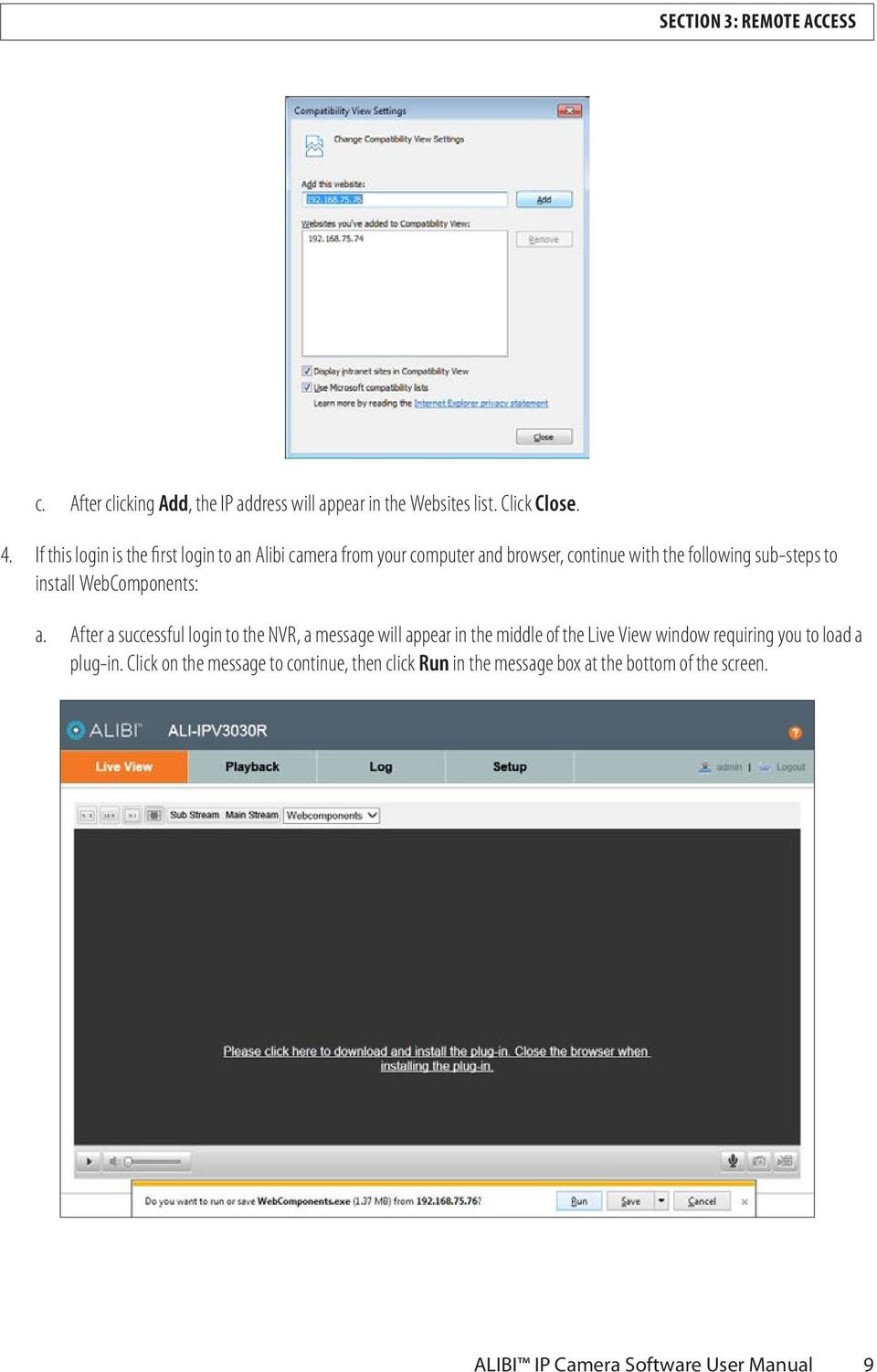
15 SECTION 3: REMOTE ACCESS c. After clicking Add, the IP address will appear in the Websites list. Click Close. 4. If this login is the first login to an Alibi camera from your computer and browser, continue with the following sub-steps to install WebComponents: a. After a successful login to the NVR, a message will appear in the middle of the Live View window requiring you to load a plug-in. Click on the message to continue, then click Run in the message box at the bottom of the screen. ALIBI IP Camera Software User Manual 9
16 Some computer security software may attempt to block you from running WebComponents.exe. If necessary, open the Internet Explorer downloads list, right click on the WebComponents.exe file name, then click Run Anyway. NOTE b. In the Setup - WebComponents window opens, click Next to continue. Installing the WebComponents plugin may require that you close the browser. Follow the on-screen instructions, then restart your browser after the installation is finished. c. Allow the plug-in installation to complete. When the following window appears, click Finish. 10

17 SECTION 3: REMOTE ACCESS 3.2 Remote Live View screen After logging into the camera, the Live View - Main stream window initially appears. In this screen, you can: Change the viewing options. Click the appropriate button to select a 4:3 or 16:9 aspect ratio, full size (X1 button), and Sub Stream or Main Stream. Live View options Screen select tabs Live View image Logout button Capture, Record, Enable e-ptz icons Live view displays for PTZ cameras have additional controls. A PTZ control panel can be opened and closed by clicking the PTZ panel button. ALIBI IP Camera Software User Manual 11

18 SECTION 3: REMOTE ACCESS PTZ control panel PTZ panel open/close For cameras with PTZ capability, click the PTZ control panel button to open the frame shown above on the right. Each PTZ camera can be configured to include up to 128 Presets, each of which can be quickly set and called. Presets are used to quickly reposition the camera for specific views (pan, tilt, zoom, focus). The list of Presets is presented beneath the control panel on the right side of the screen. 12

19 SECTION 3: REMOTE ACCESS Capture the screen or start and stop recording. Captures and recordings are saved on the local HDD as configured in Local Setup menu. Switch from window mode to full screen mode by double clicking anywhere in the Live View video window. To return to window mode, double click anywhere. For cameras with Audio capability, select Mute and adjust the audio volume. 3.3 Playback screen Open the Playback screen by clicking the Playback tab. The Playback screen allows you to review video recorded from one camera or several cameras concurrently. Also, video can be downloaded to your local computer. Play motion controls Audio play / mute Start/Stop Clipping Capture Download Recording Zoom Images Timeline (drag to reposition) Playback timestamp Record legend Expand / contract timeline ALIBI IP Camera Software User Manual 13

20 SECTION 3: REMOTE ACCESS To playback recorded video: Click the day on the calendar when the video was recorded. In the example above, February 5, 2014 was selected. Click the Search button. Recorded video is indicated by a colored band on the timeline. The color legend is shown below the timeline. You can expand or contract the timeline with the icons on the right. At the bottom of the screen, drag the timeline left or right to position the video clip you want to play at the yellow Playback timestamp line. In the play controls, click the Play button ( u )to begin playing video. When the video is playing, the Play button changes to a Pause button ( ; ). Use the Audio play / mute controls to adjust the audio level (audio capable cameras only). To save a portion of recorded video While playing back video, advance the playback to the beginning of the portion of the video you want to save. Click the Start / Stop clipping icon (black scissors). The icon will change to a Stop clipping icon (red scissors). When the playback the end of the portion you want to save, clip the Stop clipping icon. Playback the video clip you saved. The clip is saved to the location on your local HDD specified in the Setup (tab) Local Setup menu. See Local Setup menu on page 17 for more information. To download a video recording In the Playback screen, Click the Download recording icon. In the options on the right panel, select the type of recording you want to download, the Start Time and the End Time when the recording was made. Click the Search button. A list of video recordings meeting the search criterion is shown in the window. NOTE: Video recordings that are larger than the Record File Size selected on the Setup (tab) Local Setup menu (see Local Setup menu on page 17) appear in the list as multiple video segments. 14

21 SECTION 3: REMOTE ACCESS Check the box(es) for the video recording(s) you want to download, then click the Download button. The progress of the download(s) is indicated in the column on the right. Playback the video recording you downloaded. The recording is saved to the location on your local HDD specified in the Setup (tab) Local Setup menu. See Local Setup menu on page 17 for more information. To download images In the Playback screen, Click the Download images icon. In the options on the right panel, select the type of images you want to download, the Start Time and the End Time when the recording was made. Click the Search button. A list of video images meeting the search criterion is shown in the window. Check the box(es) for the image(s) you want to download, then click the Download button. The progress of the download(s) is indicated in the column on the right. ALIBI IP Camera Software User Manual 15
22 SECTION 3: REMOTE ACCESS Open the image(s) you downloaded. The image(s) is saved to the location on your local HDD specified in the Setup (tab) Local Setup menu. See Local Setup menu on page 17 for more information. 3.4 Remote Log screen Open the Log screen by clicking Log in the screen header. The camera log report is created by specifying a search criteria using the menu in the right frame (or using the default options), then clicking the Search button. The search criteria menu includes filters to search for Major and Minor type events, and specify the start and end time of the report. 16
23 SECTION 3: REMOTE ACCESS: Log reports can be saved in either text or Excel formats by clicking the Save Log icon. 3.5 Remote SETUP screen Open the Configuration screen by clicking the Configuration tab. The Configuration menus are organized in two sections: one for Local Setup, and one for Camera Setup. The Local Setup section defines the Live View Parameters, Record File (local PC) Settings, and Picture and Clip Settings. Camera Setup includes all configurable features of the camera, including the System, Network, Storage locations, etc. Users who log into the camera through the remote connection may or may not be allowed to view or change the configuration of the local settings or camera, depending on the permissions granted to their user name by admin user Local Setup menu The local configuration includes parameters of Live View, Record Files (local PC settings), and Picture and Clip Settings. The record files and captured pictures are created using your web browser and saved on the PC running the browser. To open the Local Setup screen, go to Setup tab Local Setup. Configuration settings are defined below: Live View Parameters: Set the protocol type and live view performance. Protocol Type: Select either TCP, UDP, MULTICAST or HTTP. TCP: Ensures complete delivery of streaming data and better video quality. Real-time transmission is affected. UDP: Provides real-time audio and video streams. HTTP: Allows the same quality as of TCP without setting specific ports for streaming under some network environments. ALIBI IP Camera Software User Manual 17
24 MULTICAST: See TCP/IP settings for more information. Live View Performance: Set the live view performance to Shortest Delay, Real Time, Balanced or Best Fluency. Rules: Reserved for future use. Image Format: Select the file format for captured images (JPEG or BMP). Record File Settings: Set the saving path of the recorded video files. Valid for the record files you recorded with the web browser. Record File Size: Select the segment size of the manually recorded and downloaded video files. Options are 256MB, 512MB or 1GB. Save record files to: Set the saving path for the manually recorded video files. Save downloaded files to: Set the saving path for the downloaded video files in playback mode. Picture and Clip Settings: Set the saving paths on your PC of the captured pictures and clipped video files with the web browser. Save snapshots in live view to: Set the saving path of the manually captured pictures in Live View mode. Save snapshots when playback to: Set the saving path of the captured pictures in playback mode. Save clips to: Set the saving path of the clipped video files in playback mode Camera Setup menus Camera Setup menus are described in SECTION 4 Camera Setup Menus on page
25 SECTION 4 Camera Setup Menus Camera Setup menus that appear when accessing Alibi cameras through a web browser present the complete set of configuration options. These options are organized in a tree of menus as shown below. Camera Setup System Device Information Time Settings Maintenance DST Service Network TCP/IP Port DDNS SNMP 802.1X Qos FTP UPnP NAT Video/Audio Video ROI PTZ* Basic Limit Initial Position Park Position Privacy Mask Scheduled Tasks Clear Config Smart Tracking Prioritize PTZ Image Display Settings OSD Settings Text Overlay Privacy Mask Security User RSTP Authentication Anonymous Visit IP Address Filter Events Motion Detection Video Tampering Alarm Input Alarm Output Exception Storage Record Schedule Storage Management NAS Snapshot ALIBI IP Camera Software User Manual 19
26 NOTE * The PTZ submenu appears only in cameras with PTZ capabilities, such as the ALI-IPZ5030 series cameras. 4.1 System Setup menus Device Information The Device Information screen shows the basic information for the device, including the Device Name and Device No. (number), model, serial number, software versions, and other features. To open the Device Information screen, go to Setup tab System Device Information In the Device information screen, you can change the Device Name and number by editing the fields, then clicking Save Time Settings Use the Time Settings screen to set the correct time and date in the camera. Because video recordings and captures are time stamped with this information, the correct date and time is important if the files become evidence of some event. To open the Time Settings menu, go to Setup tab System Time Settings 20
27 Select the Time Zone from the drop-down menu. In some system applications, the monitoring system (NVR, VMS) may be in a different time zone from the camera. Select the time zone that best supports your system objectives. Time Sync. You can synchronize the clock in your camera either from an NTP server, by setting it manually, or synchronizing it with your computer. NTP: Synchronizing Time by NTP Server. a. Check the checkbox to enable the NTP function. b. Configure the following settings: Server Address: IP address of NTP server. NTP Port: Port of NTP server. Interval: The time interval between the two synchronizing actions with NTP server. NOTE If the camera is connected to a public network, use a NTP server that has a time synchronization function, such as the server at the National Time Center (IP address: ). If the camera is set in an isolated network, NTP software can be used to establish a NTP server for time synchronization. Manual Time Sync.: Set the camera clock manually or synchronize the clock in your PC. a. Check the checkbox to enable the NTP function. b. Do one of the following: ALIBI IP Camera Software User Manual 21
28 * Enter the preferred time in the Set Time field, then click Save. * Check the Sync. with computer time box, then click Save. NOTE After setting the time in the camera, open the DST tab to setup the Daylight Savings Time configuration for the camera Maintenance The Maintenance screen includes the camera-related maintenance functions. To open the Maintenance screen, go to Setup tab System Maintenance Reboot Click Reboot to restart the camera. When you reboot the camera, now configuration parameters are changed. Restore Click Restore to reset all configuration parameters, except the IP network settings and user information, to their factory default values. 22
29 Default Click Default to reset all configuration parameters, INCLUDING the IP network settings and user information, to their factory default values. The network IP address is reset to Export Click Export to save the camera configuration file for Import later if necessary. You can also export the configuration and use it to quickly configure other cameras using the Import feature. Import Config. File Click Browse to locate a previously saved camera configuration file to import, then click Import. The import status is shown on the line below. Remote Upgrade (Firmware) NOTE Firmware upgrade should ONLY be performed if recommended by your Support organization. You can upgrade in the camera either by browsing to the directory where the firmware upgrade file exists, or specifying the full path to the upgrade file. To upgrade firmware: 1. In the Remote Upgrade section of the Maintenance screen, click the drop-down list, then select either Firmware or Firmware Directory. In the example below, Firmware was selected. ALIBI IP Camera Software User Manual 23
30 2. Click Browse, then browse to the firmware file (for Firmware) or the directory where the firmware file exists (for Firmware Directory). 3. Click Upgrade. 4. Wait until the upgrade process completes. (1 ~ 10 minutes), then log into your camera. (You can use the camera again when the upgrade finishes.) 5. Power off the camera. 6. Power on the camera again, then open the Device Information screen. Go to Setup tab System Device Information 7. Verify that the screen shows the new Firmware Version is installed DST (Daylight Savings Time) Use the DST menu to configure the Daylight Savings Time mode for the camera. To setup the camera automatically adjust the clock for DST: 1. Open Time Settings interface: Go to Setup tab System DST 2. Check the DST box, then set the Start Time and End Time using the options in the drop down lists. 3. Click Save Service The Service menu allows you enable or disable the IR light and Telnet. Depending on the camera model, other options may be present. To open the Service menu, go to Setup tab System Service 24
31 In the the Service menu, check or uncheck the boxes for the items you want to enable or disable, then click Save. 4.2 Network menus TCP/IP TCP/IP settings must be properly configured before you operate the camera over network. The camera supports both the IPv4 and IPv6. Both versions may be configured simultaneously without conflicting to each other, and at least one IP version should be configured. Steps: 1. Open TCP/IP settings interface: Go to Setup tab Network TCP/IP ALIBI IP Camera Software User Manual 25
32 2. Configure the basic network settings, including the NIC Type, IPv4 or IPv6 Address, IPv4 or IPv6 Subnet Mask, IPv4 or IPv6 Default Gateway, MTU settings and Multicast Address. Notes The valid value range of MTU is 500 ~ Multicast sends a stream to the multicast group address and allows multiple clients to acquire the stream simultaneously by requesting a copy from the multicast group address. Before using this function, you must enable the Multicast function of your router. 3. Click Save. The camera must reboot for new settings to take effect Port You can change the HTTP, RTSP HTTPS and Server port numbers the camera will use. To change any of these settings: 1. Open Network Port settings interface: Go to Setup tab Network Port 26
33 2. Edit the HTTP, RTSP HTTPS and/or Server port numbers you want to change. HTTP Port: The default port number is 80, and can be changed to any port range 1024 to RTSP Port: The default port number is 554. HTTPS Port: The default port number is 443, and can be changed to any port range 1024 to Server Port: The default server port number is Click Save. The camera must reboot for new settings to take effect DDNS Registration on the DDNS server is required before configuring the DDNS settings of the camera. Steps 1. Open Network DDNS settings interface: Go to Setup tab Network DDNS ALIBI IP Camera Software User Manual 27
34 2. Check the Enable DDNS checkbox to enable this feature (see above). 3. Select one of the DDNS Type. Options are DynDNS, IPServer, and NO-IP. For IPServer, you must configure the camera with a static IP address, subnet mask, gateway and preferred DNS. These values can be obtained from your Internet Service Provider (ISP). i. In the Server Address field, enter static IP address of the computer that runs the IP Server software. ii. Click Save. For DynDNS: i. Enter Server Address of DynDNS (e.g. members.dyndns.org). ii. iii. iv. In the Domain text field, enter the domain name obtained from the DynDNS website. Enter the User Name and Password registered on the DynDNS website. Click Save. For NO-IP: 28
35 i. Enter Server Address field with the Server Address. ii. iii. iv. In the Domain text field, enter the domain name obtained from the NO-IP website. Enter the User Name and Password registered on the NO-IP website. Click Save SNMP You can set the SNMP function to acquire camera status, parameters and alarm information and manage the camera remotely when it is connected to the network. Before setting the SNMP, please download the SNMP software and manage to receive the camera information via SNMP port. By setting the Trap Address, the camera can send the alarm event and exception messages to the surveillance center. Note: The SNMP version you select should be the same as that of the SNMP software. And you also need to use the different version according to the security level you required. SNMP v1 provides no security and SNMP v2 requires password for access. SNMP v3 provides encryption. When using SNMP v3, HTTPS protocol must be enabled. ALIBI IP Camera Software User Manual 29
36 X IEEE 802.1X is an IEEE Standard for Port-based Network Access Control (PNAC). It is part of the IEEE group of networking protocols. It provides an authentication mechanism to devices wishing to attach to a LAN or WLAN. The 802.1X mechanism requires an authenticator (authentication device), and typically an authentication server. The authenticator is a network device, such as an Ethernet switch or wireless access point; and the authentication server is typically a host running software supporting the RADIUS and EAP protocols. The authentication server must be configured to verify the credentials (user name and password) from the camera. 1. Open Network 802.1X settings interface: Go to Setup tab Network 802.1X 30
37 1. Check the Enable IEEE 802.1X box to enable the feature. 2. Configure the 802.1X settings, including EAPOL version, user name and password. The EAPOL version must be identical with that of the router or the switch. 3. Enter the user name and password to access the server. 4. Click Save. A reboot is required for these settings to be in effect QoS QoS (Quality of Service) can help solve network delay and network congestion problems by configuring the priority of sent data. To open the QoS screen, go to Setup tab Network QoS To configure QoS: 1. Edit the DSCP fields for Video/Audio DSCP, Event/Alarm DSCP and Management DSCP. The valid value range of the DSCP is Larger DSCP values have higher priority. NOTE DSCP refers to the Differentiated Service Code Point. The DSCP value is used in the IP header to indicate the priority of the data. ALIBI IP Camera Software User Manual 31
38 2. Click Save. The settings are applied when the camera is rebooted FTP The FTP feature can be used to upload captured pictures to an FTP server. Picture captures can be triggered by events or a timing snapshot. To open the FTP screen, go to Setup tab Network FTP 1. To use FTP, enter the following parameters: FTP Server Address: Enter the IP address of the FTP server you want to use. FTP server Port number. The default value of the FTP port is 21. User Name: User name you use to authenticate access to the server. Password and Confirm: Enter both fields with the password of the User Name. Directory Structure: In the Directory Structure field, select the root directory, parent directory or child directory. When the parent directory is selected, you have the option to use the Device Name, Device Number or Device IP for the name of the directory; and when the Child Directory is selected, you can use the Camera Name or Camera No. as the name of the directory. Upload Type: To enable uploading the captured picture to the FTP server. Anonymous: Check the Anonymous box to enable the anonymous access to the FTP server. Use this option when access to the FTP Server does not require a User Name and Password. The anonymous access function must be supported by the FTP server. 2. Click Save. NOTE To upload the captured pictures to FTP server, you must enable continuous snapshot or event-triggered snapshot on Snapshot screen. To upload the captured pictures to FTP server, you must select Enable Timing Snapshot or Event -Triggered Snapshot on the Setup (tab) Storage Snapshot screen. 32
39 4.2.8 UPnP Universal Plug and Play (UPnP ) is a networking architecture that provides compatibility among networking equipment, software and other hardware devices. The UPnP protocol allows devices to connect seamlessly and to simplify the implementation of networks in the home and corporate environments. With the function enabled, you don t need to configure the port mapping for each port, and the camera is connected to the Wide Area Network via the router. To open the UPnP screen, go to Setup tab Network UPnP Check the Enable UPnP box to use this feature, edit the Friendly Name field if necessary, then click Save to retain your settings. You can verify UPnP functionality by opening a file browser, then looking at the items listed in the Network directory The feature is used to send an message to up to three address when specific events occur within the camera. The menu is used to configure the sender s server, user name and password, and the receiver(s) address(es). Events that activate alerts are configured in other menus. The camera must be configured for Internet access to connect to your server. Configure TCP/IP settings before configuring your preferences. To open the menu, go to Setup tab Network ALIBI IP Camera Software User Manual 33
40 1. Configure the following settings: Sender: The name of the sender. Sender s Address: The address of the sender. SMTP Server: The SMTP Server IP address or host name (e.g., smtp.263xmail.com). SMTP Port: The SMTP port. The default TCP/IP port for SMTP is 25 (not secured). The the SSL SMTP port is 465. Enable SSL: Check the checkbox to enable SSL if it is required by the SMTP server. Attached Image: Check this box if you want to send with an image. Interval: The interval is the time between two s sent wiht attached pictures. Authentication (optional): If your server requires authentication, check this box to use authentication to connect to this server. You must specify your User Name and Password. Choose Receiver: Select the receiver to which the is sent. Up to 3 receivers can be configured. Receiver: The name of the user to be notified. Receiver s Address: The address of user to be notified. 2. Click Save. 34
41 NAT The NAT menu enables you to specify the external port and IP address for HTTP, RTSP and a server port. You can enable port mapping in either Auto or Manual modes. This feature is disabled in Alibi cameras for corporate network security concerns. 4.3 Video/Audio menus Video The Video menu is used to setup the Main Stream video transmission settings, and Sub Stream settings for dual stream cameras. In this example, the camera has two streams: Main Stream (Normal) and Sub Stream. The configuration parameters for both are the same, but the capabilities of the two streams are much different. To open the Video menu, go to Setup tab Video/Audio Video ALIBI IP Camera Software User Manual 35
42 1. Select the Stream Type of the camera you want to configure. Main Stream is usually for recording and live viewing with good bandwidth, and Sub Stream should be used for live viewing when the bandwidth is limited. 2. Configure the following settings for your preferred performance: V ideo Type: Select the stream type to video stream or video and audio composite stream (for cameras with audio capability). For cameras with audio, the audio signal is recorded only when the Video Type is Video & Audio. Resolution: Select the resolution of the video output. Bitrate Type: Select either Constant or Variable. Video Quality: When bitrate type is selected as Variable, you can select one of six levels of video quality. Higher video quality requires more network bandwidth. Frame Rate: Set the frame rate to 1/16 ~ 25 fps. The frame rate is the rate at which video frames the are sent to the receiving device, or the rate at which the video stream is recorded. A higher frame rate produces a smother image with higher quality throughout, but requires more network bandwidth. Max. Bitrate: Set the maximum bitrate to 32 ~ Kbps. The higher value corresponds to the higher video quality at a cost of higher network bandwidth. Video Encoding: When the Stream Type of the camera is Main Stream, the Video Encoding standard can be set to H.264. When the Stream Type of the camera is Sub Stream, the Video Encoding standard can be set to H.264 or MJPEG. Profile: The profile for this camera is Main Profile. No other profiles are selectable. I Frame Interval: Set the I-Frame interval to 1~400. The I-frame interval represents the rate at which the entire video frame is transmitted (refreshed) when using a video compression technology such as H.264. SVC: Scalable video coding is an extension of the H.264/AVC standard. The technology encodes the video signal with layers; the basic layer and several enhanced layers and it is adaptive to the network condition to transfer different video streams. For example, when the bandwidth is limited, only the basic layer data is encoded and transferred. You can enable the function when you want to see the video with several terminals, such as the mobile phone with 3G network, or the personal computer with IP network ROI ROI (Region of Interest) encoding allows you to identify the important areas of the image and apply more compression resources to improve the quality of that area instead of the lesser important background. The ROI area may appear more focused, while the background area is less focused. The ROI feature is available on only some cameras. There are two types of ROI encoding: Fixed Region: Fixed region encoding is the ROI encoding for a manually configured area. And you can choose the Image Quality Enhancing level for ROI encoding, and you can also name the ROI area. Dynamic Tracking (not Fixed Region): Dynamic tracking refers to the ROI defined by intelligent analysis such as human face detection. You can choose the Image Quality Enhancing level for the ROI encoding. To open the ROI menu, go to Setup tab Video/Audio ROI 36
43 To define the ROIs: 1. Click the Draw Area button. 2. Using your mouse, drag a rectangle over the region of interest on the image. 3. Click the Stop Drawing button. 4. Choose the stream type to set the ROI encoding (Main Stream or Sub Stream). 5. Choose the ROI type. Check the Fixed Region box for Fixed Region encoding. Clear the box for Dynamic Tracking. If you enabled Fixed Region, you can also select the Region number (1.. 3), the ROI Level (Image Quality Enhancing level) and enter a Region Name. If Fixed Region is not enabled (i.e. Dynamic Tracking), select the the ROI Level (Image Quality Enhancing level). 6. Click Save. 7. Repeat the steps above to define additional regions. You can define up to three ROI regions. ALIBI IP Camera Software User Manual 37
44 4.4 PTZ menus PTZ sub-menus appear in the Settings display only when connecting to a PTZ capable camera Basic menu Use the Basic menu to configure proportional pan, preset freezing, preset speed, and other elementary camera functions. To open the Basic menu, go to Setup tab PTZ Basic 1. Configure the following settings: Basic Parameters: Enable/disable proportional pan and preset freezing, set the preset speed, keyboard control speed, and auto scan speed. Proportional Pan: Enabling this function causes the pan/tilt speeds to change according to the amount of zoom. When using high zoom, the pan/tilt speed slows to keeping the image from moving too fast on the Live View image display. Preset Freezing: This function enables the Live View to switch from one scene defined by a preset to another, without showing the middle areas between these two to ensure the surveillance efficiency. It can also reduce bandwidth usage. Note: Preset freezing function is not in effect when calling a pattern. Preset Speed: You can set the speed of a defined preset from 1 to 8. Keyboard Control Speed: Define the speed of PTZ control by a keyboard as Low, Normal or High. Auto Scan Speed: The dome provides 5 scan modes: auto scan, tilt scan, frame scan, random scan and panorama scan. The scan speed can be set from level 1 to 40. PTZ OSD: Set the on-screen PTZ status display duration. 38
45 Zoom Status: Set the OSD zooming status duration to 2 seconds, 5 seconds, 10 seconds, Always Close or Always Open. PT Status: Set the azimuth angle display duration while panning and tilting to 2 seconds, 5 seconds, 10 seconds, Always Close or Always Open. Preset Status: Set the preset name display duration while calling the preset as 2 seconds, 5 seconds, 10 seconds, Always Close or Always Open. Power-off Memory: When the camera restarts after a power off, it can resume the previous PTZ status or actions it was performing a specified time period before the power-off. You can set it to resume the status or actions it was performing 30 seconds, 60 seconds, 300 seconds or 600 seconds before power-off. 2. Click Save to save your settings Limit menu The camera can be configured to only move only within limits of motion left, right, up, and down. To open the Limit menu, go to Setup tab PTZ Limit 1. Click the checkbox of Enable Limit, then choose the limit type as Manual Stops or Scan Stops. Manual Stops: When manual limit stops are set, you can operate the PTZ control panel manually only in the limited surveillance area. Scan Stops: When scan limit stops are set, the random scan, frame scan, auto scan, tilt scan, and panorama scan is performed only within the limited surveillance area. ALIBI IP Camera Software User Manual 39
46 NOTE Set the Manual Stops limits before setting Scan Stops limits. When you set these two limit types at the same time, Manual Stops is valid and Scan Stops is invalid. 2. Click the PTZ control buttons to determine the left/right/up/down limit stops; you can also call the defined presets and set them as the limits of the dome. 3. Click Set to save the limit stops, or click Clear to clear the limit stops Initial Position menu The initial position is the origin of PTZ coordinates. It can be the factory default initial position, or you can customize the initial position according to your needs. To customize the position, use the procedure below. To open the Initial Position menu, go to Setup tab PTZ Initial Position 1. Click the PTZ control buttons to point the camera at the initial target after startup. You can also call a predefined Preset position and set the Initial Position to that target. 2. Do one of the following: Click Set to save the position. Click Clear to set the initial position to the factory default. Click Goto to point the camera at the current Initial Position. 40
47 4.4.4 Park Action menu The Park Action feature configures the camera to start a perform a predefined park action (scan, preset, pattern, etc.) automatically after a period of inactivity (park time). To open the Park Action menu, go to Setup tab PTZ Park Action 1. Check the box to Enable Park Action. 2. Set the Park Time. Park Time is the length in seconds of inactivity of the camera before it begins park actions. 3. Open the Action Type drop down list, then click to select the action you want to perform. 4. Click Save to save your settings Privacy Mask menu Privacy mask allow you to cover selected areas on the Live View image to prevent them from being live viewed and recorded. To open the Privacy Mask menu, go to Setup tab PTZ Privacy Mask ALIBI IP Camera Software User Manual 41
48 Masked area over ATM keypad 1. Use the PTZ control buttons to display the area you want to cover with a privacy mask. 2. Click Draw Area, then click and drag the mouse across the area of the live video you want to mask. A semi-transparent box with red squares on each corner will appear on the screen. 3. Drag the red corner squares as needed to form a polygon over the area you want to cover. 4. Click Stop Drawing to complete the drawing. You can also click Clear All to clear the areas you setup without saving them. 5. Click Add to save the privacy mask. The mask will be listed in the at the bottom of the menu. In the list, you can name the mask, select a mask color, and enter an active zoom ratio. 6. Check the Enable Privacy Masks box to enable this function. The semi-transparent polygon will become opaque. 7. To change the shape or position, or delete the mask you created, click the mask entry in the list. A red border with red squares in each corner will appear in the around the mask you picked. Drag the corners to change the shape, or click Delete to remove the mask. 8. Repeat this procedure outlined above to configure additional privacy masks on the live video image. You can configure up to 24 privacy masks on the same image Scheduled Tasks menu You can configure the camera to automatically perform certain different actions during different time periods. 42
49 To open the Scheduled Tasks menu, go to Setup tab PTZ Scheduled Tasks 1. Check the select box to Enable Scheduled Task. 2. Set the Park Time. The park time is the period of inactivity before the camera begins the scheduled task. 3. Set the schedule and task details: a. Click the Edit Tasks button to edit the task schedule. b. Click a tab at the top of the window shown above to choose the day you want to schedule a task on. ALIBI IP Camera Software User Manual 43
50 c. Click All Day to set the schedule as all day, or click Customize and enter a Start Time and End Time for each task. If you selected Customize: i. Click the Start Time field for Period 1, then enter the start time hour and minutes when you want to start the task. Press Enter on your keyboard to set the time. ii. Set the End Time field for Period 1 the same way. d. Open the Task Type drop down list for Period 1, then select the task you want to perform during that period. If you selected Patrol, Pattern or Preset, also select the (preconfigured) Task Type ID in the right column. e. If you selected Customize in sub-step c above, configure additional time periods, with different tasks, if needed. The time periods you configure must not overlap. f. If you want to copy the schedule you created to other days of the week, check the boxes at the bottom of the window for days you want to copy the schedule to, then click Copy. g. To save the schedule you specified, click OK. A scheduled task is indicated in the timetable shown below. 4. To revise the schedule you created, click Edit Tasks, then follow the example outlined in step 3 to make changes Clear Config menu Use this sub-menu to clear your PTZ configurations, including all presets, patrols, patterns, privacy masks, PTZ limits and scheduled tasks. 44
51 To open the Clear Config menu, go to Setup tab PTZ Clear Config 1. In the menu above, check the boxes for the items you want to clear. 2. Click Save to clear the settings Smart Tracking menu This function is used to configure the camera to automatically track the moving objects it detects. Not all the camera models support this feature. To open the Smart Tracking menu, go to Setup tab PTZ Smart Tracking ALIBI IP Camera Software User Manual 45
52 1. Check the Enable Smart Tracking box to enable this feature. 2. Click the PTZ buttons to select an object. 3. Click Set Zoom Ratio to set the current zoom ratio as the tracking zoom ratio. 4. Set the tracking duration. The camera will stop tracking when the duration ends. The duration can range from 0 to 300 seconds. NOTE Setting the duration to 0 means that there s no duration when the camera tracks (i.e., endless) Prioritize PTZ menu In network configurations where a PTZ camera is controlled by both a Network (LAN) based controller (such as a remote login from a browser) and an RS485 joystick controller connection, this submenu is used to assign priority to either the Network connection or the RS485 connection. An additional parameter in the menu, Delay, is used to set the time, in seconds, that the un-prioritized controller (Network or LAN) must wait before it can issue commands to the camera after the prioritized network issues a command. To open the Prioritize PTZ menu, go to Setup tab PTZ Prioritize PTZ 1. Open the Prioritize PTZ drop down list, then select the network you want to prioritize: Network or RS In the Delay field, enter the delay, in seconds, that the un-prioritized network must wait before it can issue a command to the camera after the prioritized camera issues the command. 3. Click Save to retain your settings. 46
53 4.5 Image menus Display Settings The Display Settings menu includes the image-related configurable parameters for the camera. It contains several sub-menus such as Image Adjustment, Exposure Settings, Day/Night Switch, etc. that can be opened or closed for compactness. Additionally, several adjustments can be seen in the Live View image on the menu. To open the Display Settings menu, go to Setup tab Image Display Settings Configurable parameters include: Switch Day and Night: Select either Auto-Switch or Scheduled-Switch. If using Auto-Switch, open the Day/Night Switch submenu to select the Sensitivity, Filtering Time, and Smart IR feature ON or OFF. If using Scheduled Switch, set the Start Time and End Time of the switch, then open the Day/Night Switch submenu to select the Smart IR feature ON or OFF. Also, click the Common, Day and Night tabs to set the Saturation, Hue, Brightness, Contrast and Sharpness for Day and for Night modes. ALIBI IP Camera Software User Manual 47
54 Image Adjustment submenu: Open the Image adjustment submenu to set the Saturation, Hue, Brightness, Contrast and Sharpness of the video image. Each parameter can be set to a level of 0 ~ 100 either by moving the slider or entering the value in the box on the right. The effect of the adjustment will appear in the Live View image in the menu. Exposure Settings submenu: In this submenu, set the following for the best performance: Iris Mode: Select Auto or Manual. Some cameras may not offer both options. Exposure Time: Value ranges from 1/3 to 1/100,000s. The nominal value is 1/150. Adjust it according to the lightening condition. Gain: Set the gain to show the optimal brightness level. Day/Night Switch submenu: You can set the Day/Night switch to Day, Night, Auto, or Schedule. The option you select determines the submenu options. Day or Night: These options both have one parameter: Smart IR. Auto: If you select Auto switch, you can set the sensitivity (0.. 7), filtering time and Smart IR. Schedule: Use Schedule to set that Start Time and End Time for the switch. Smart IR is also selectable. Backlight Settings: Backlight settings include BLC Area (Off, Up, Down Left Right Center), the area to control, and WDR (Wide Dynamic Range) ON or OFF. White Balance: White Balance selection is used to correct colors in the image depending on the lighting source. You can also set the white balance manually (MWB), using Automatic White Balance (AWB1), and lock the white balance setting (Locked WB). Image Enhancement: Options in this submenu include Digital Noise Reduction (DNR) ON or OFF. If ON, yo can also adjust the level of noise reduction. Video Adjustment: Video Adjustment includes: Mirror: Mirror adjustment enables you to flip the image (Up/Down), flip Left/Right (reflect or Center). Rotate: Rotate rotates the image +90 degrees. Rotate and Mirror can be used to adjust the image in any orientation. Video Standard: Select 50 Hz for PAL format, 60 Hz for NTSC format. Capture Mode: To make a complete use of the 16:9 aspect ratio, you can enable the capture mode when you use the camera in a narrow view scene. 48
55 When installing the camera, turn the camera to the 90 degrees or rotate the 3-axis lens to 90 degrees, then set the capture mode to the screen size option you prefer OSD Settings With OSD Settings, you can label the screen for easy recognition of the view (Camera Name) and the timestamp (time and date format), a mode option (flashing or constant) and text size. To open the OSD Settings menu, go to Setup tab Image OSD Settings 1. Check the corresponding box to select the display of camera name, date or week if needed. 2. Edit the Camera Name if needed. 3. From the drop-down lists, select the preferred Time Format, Date Format, Display Mode and OSD Size. 4. Drag the text boxes to the locations on the screen that won t obscure useful information in the image. 5. Click Save Text Overlay The Text Overlay feature enables you to add useful information, other than Camera Name and Date (see OSD Settings on page 49) to the image. To open the Text Overlay menu, go to Setup tab Image Text Overlay ALIBI IP Camera Software User Manual 49
56 1. Check the box in front of the label number on the right side of the window, then enter the text field you want to display. In the image above, box 1 is checked, and the label is Ceiling Camera. 2. Drag the text box to the location on the image where you want it displayed. 3. Click Save. 4. Repeat the steps above for the text labels, as needed. You can add up to four labels to one image Privacy Mask The Privacy Mask feature allows you to block areas of the live video image to prevent it from being viewed or recorded. To open the Privacy Mask menu, go to Setup tab Image Text Overlay 50
57 1. Check the Enable Privacy Mask box of to enable this feature. 2. Click the Draw Area button. 3. Using the mouse, drag a box across the areas you want to block. In the screen above, two boxes were created. The boxes are shown as grayed-out areas. You can create up to four privacy masks. To clear any box and start again, click Clear All. 4. Click Stop Drawing to complete masking the image. 5. Click Save. 4.6 Security menus User The User menu is used to create and delete user accounts, and change passwords. To use this menu, you must log into the camera with the admin user credentials. In the User menu, you can create either of two levels of users: Operator and User. Each level has a different subset of permissions that are configurable. A third account level, Administrator, has one user name, admin, that cannot be deleted and has all permissions enabled. This account level is not configurable, but the admin password can be (and should be) changed from its default value, To open the User menu, go to Setup tab Security User Change the admin password 1. To change the admin password, click the User Name admin, then click the Modify button. A Modify User window will open. ALIBI IP Camera Software User Manual 51
58 2. Enter the new admin password in the Password and Confirm fields. 3. Click OK to save the settings. Record the new password and save it in a secure location. To create a new user 1. In the User menu, click Add. 2. In the User Name field, enter a unique user name. You can enter most keyboard characters to compose the name. 3. In the Level drop-down list, select either Operator or User. 4. Check and/or uncheck the boxes for the Basic and Camera permissions you want to grant or restrict the user. 5. Click OK to save your settings. 52
59 To delete a user 1. To delete a user, click the User Name in the User menu to highlight it. 2. Click the Delete button, then click OK in the pop-up confirmation window RTSP Authentication RTSP Authentication can be disabled to allow anyone to access the video stream using RTSP protocol with the IP address of the camera. The default setting is Basic authentication (requires credentials). To open the RTSP Authentication menu, go to Setup tab Security RTSP Authentication To disable RTSP authentication, open the Authentication drop-down list, then select Disable. Click Save to retain this setting Anonymous Visit The Anonymous Visit feature can be enabled to allow anyone to enter the camera menus without entering a User Name and Password. Currently, this feature is not implemented in Alibi cameras. ALIBI IP Camera Software User Manual 53
60 4.6.4 IP Address Filter The IP Address Filter feature allows you to either restrict direct access to the camera from a browser to specific IP addresses (Allowed) or block specific access from specific IP addresses (Forbidden). To open the IP Address Filter menu, go to Setup tab Security IP Address Filter To use this menu: 1. Check the Enable IP Address Filter box. 2. In the IP Address Filter Type field, open the drop-down list and select either: Allowed: To enable clients at only specific at IP address to access the camera. Forbidden: To block clients from specific IP addresses to access the camera. 3. Click Add. 4. In the pop-up menu (see above), enter the IP address of the client computer to identify, then click OK. 5. Repeat the above two steps for each IP address that apply to the filter type you selected. 6. Click Save to retain your settings. 54
61 To delete an IP address you entered Click (highlight) the IP address in the list that you want to delete, then click Delete. To delete all IP address you entered, click Clear. To modify an IP address you entered 1. Click (highlight) the IP address in the list that you want to modify, then click Modify. 2. In the pop-up window, edit the IP address as needed. 3. Click OK to save the new address. 4.7 Events menus Motion Detection Normally, motion detection recording is performed by an NVR or VMS device that monitors the video stream from the camera and is configured to record when motion is sensed. However, for configurations where the camera is not monitored by an NVR or VMS, it can be configured to perform motion detection and write video segments, capture data and log data directly to an online storage device such as a NAS (Network Attached Storage). Use this menu to perform motion detection recording when the video segments and other data is saved to an online storage device. To open the Motion Detection menu, go to Setup tab Event Motion Detection ALIBI IP Camera Software User Manual 55
62 To use motion detection recording: 1. Check either or both boxes for Enable Motion Detection or Enable Dynamic Analysis for Motion. 2. The area of the image where motion is sensed is indicated by a red grid. For efficient utilization of the processor in the camera, select only the area of the image where motion should be sensed: a. Click Clear All to reset the motion detection area. b. Click Draw Area. c. Using the mouse, drag a rectangle across the area of the image where you want to sense for motion. You can select multiple areas. d. Click Stop Drawing when finished. e. Move the Sensitivity slider left or right to reduce or increase the sensitivity for motion detection. (Usually, this adjustment is performed later when it is better understood how the camera responds to motion sensing.) 3. In the Arming Schedule section of the window, click the Edit button. 56
63 4. In the Edit Schedule Time window, you can arm the camera for eight periods of motion detection sensing for every day of the week. Click the Start and End Time for a day and period, then edit the field for then time. Note that periods cannot overlap. In the example above, one period was setup for Monday, then copied to every other day of the week. 5. When finished setting up the schedule, click OK. The Arming schedule configured above is shown in the screen. Below. For the Arming Schedule to be applied correctly: The clock in the camera must be set. See Time Settings on page 20 for more information. The Record Schedule of the Storage device must be configured. See Record Schedule on page 51. ALIBI IP Camera Software User Manual 57
64 6. If you want to send an when motion is detected, or upload a screen capture to an FTP server, check the appropriate box. Note that the configuration (see on page 33) and FTP server configuration (see FTP on page 32) must also be setup. 7. Click Save to retain your settings Video Tampering The Video Tampering feature is used to configure the camera to generate an alarm when the lens is covered. To configure video tampering, you must designate an area that is sensed for video tampering, then setup a schedule when the camera senses for that condition. To open the Video Tampering menu, go to Setup tab Event Video Tampering 1. Check the Enable Video Tampering box. 2. Click Draw Area. 3. Using the mouse, drag a rectangle across the area of the image where you want to sense for video tampering. After drawing the rectangle, you can reposition it with the mouse. 4. Click Stop Drawing. 5. In the Arming Schedule section of the window, click the Edit button. The Edit Schedule Time window will open. 58
65 6. In the Edit Schedule Time window, you can arm the camera for eight periods of tamper detection sensing for every day of the week. Click the Start and End Time for a day and period, then edit the field for then time. Note that periods cannot overlap. In the example above, one period was setup for Monday, then copied to every other day of the week. 7. When finished setting up the schedule, click OK. The Arming schedule configured above is shown in the screen below. For the Arming Schedule to be applied correctly: The clock in the camera must be set. See Time Settings on page 20 for more information. The Record Schedule of the Storage device must be configured. See Record Schedule on page 51. ALIBI IP Camera Software User Manual 59
66 8. If you want to send an when motion is detected, check the box. Note that the configuration (see on page 33) must also be setup. 9. Click Save to retain your settings Alarm Input The Alarm Input feature is used to configure the camera to generate an alarm when a state change is detected on the camera alarm input terminals. The alarm input terminals can be configured for Normally Open (NO) or Normally Closed (NC). The alarm is armed only when enabled in the Arming Schedule. When an input alarm is sensed when enabled in the Arming Schedule, the camera can send an alert or upload the alarm information to an FTP server, if selected in the menu. To open the Alarm Input menu, go to Setup tab Event Alarm Input 60
67 1. In the Alarm Input menu, open the drop Alarm Input No. drop down list and select the alarm input you want to configure. 2. In the Alarm Name field, enter a descriptive name for the alarm. 3. In the Alarm Type field, select either NC (for normally closed alarm sensor) or NO (for a normally open alarm sensor). 4. Check the box(es) for the Linkage Method you prefer to use when the alarm occurs, if needed. 5. For cameras with multiple alarm inputs, you can copy the configuration you setup for this alarm input to other alarm inputs by checking the appropriate boxes in the Copy to Alarm section. 6. In the Arming Schedule section of the window, click the Edit button. 7. In the Edit Schedule Time window, you can arm the camera for eight periods of motion detection sensing for every day of the week. Click the Start and End Time for a day and period, then edit the field for then time. Note that periods cannot overlap. In the example above, one period was setup for Monday, then copied to every other day of the week. 8. When finished setting up the schedule, click OK. The Arming schedule configured above is shown in the screen below. ALIBI IP Camera Software User Manual 61
68 For the Arming Schedule to be applied correctly: The clock in the camera must be set. See Time Settings on page 20 for more information. The Record Schedule of the Storage device must be configured. See Record Schedule on page If you want to send an when motion is detected, or upload a screen capture to an FTP server, check the appropriate box. Note that the configuration (see on page 33) and FTP server configuration (see FTP on page 32) must also be setup. 10. Click Save to retain your settings Alarm Output The Alarm Output feature is used to configure the camera to generate an alarm output when an alarm input occurs during its Arming Schedule. To open the Alarm Output menu, go to Setup tab Event Alarm Output 62
69 1. In the Alarm Output menu, open the drop Alarm Output drop down list and select the alarm output you want to configure. 2. In the Alarm Name field, enter a descriptive name for the alarm. 3. In the Delay field, open the drop down list and select duration of the alarm output is active. You can select either 5, 10, or 30 seconds, 1, 2, 5, or 10 minutes, or Manual. 4. For cameras with multiple alarm outputs, you can copy the configuration you setup for this alarm output to other alarm outputs by checking the appropriate boxes in the Copy to Alarm section. 5. In the Arming Schedule section of the window, click the Edit button. ALIBI IP Camera Software User Manual 63
70 6. In the Edit Schedule Time window, you can arm the camera for eight periods of motion detection sensing for every day of the week. Click the Start and End Time for a day and period, then edit the field for then time. Note that periods cannot overlap. In the example above, one period was setup for Monday, then copied to every other day of the week. 7. When finished setting up the schedule, click OK. The Arming schedule configured above is shown in the screen below. For the Arming Schedule to be applied correctly: 64
71 The clock in the camera must be set. See Time Settings on page 20 for more information. The Record Schedule of the Storage device must be configured. See Record Schedule on page If you want to send an when motion is detected, or upload a screen capture to an FTP server, check the appropriate box. Note that the configuration (see on page 33) and FTP server configuration (see FTP on page 32) must also be setup. 9. Click Save to retain your settings Exception Exception types are certain abnormal events that are sensed by the camera. When these events occur, the camera can send an alert signaling that some maintenance action may be required. The exception types are shown in the screen below. NOTE: To use this feature, the configuration must be setup. See on page 33 for more information. To open the Exception menu, go to Setup tab Event Exception 1. In the Exception menu, open the Exception Type drop-down list and select the condition you want to be informed of. 2. Check the Send box. 3. Click Save. 4. Repeat the steps above for other exception types you want to be informed of. ALIBI IP Camera Software User Manual 65
72 4.8 Storage menus Record Schedule The Recording Schedule feature configures the camera to record video either continuously, when motion detection occurs, when an alarm occurs, or when motion detection and/or an alarm occurs. Also, the camera can be configured to the time before and/or the time after any recording event is scheduled. To open the Record Schedule menu, go to Setup tab Storage Record Schedule 5. In the record schedule menu: a. Open the Pre-record drop-down lost and select your preferred pre-record time. Pre-record time is the time you set to start recording before the scheduled time or the event. For example, if an alarm triggers recording at 10:00, and the pre-record time is set as 5 seconds, the camera starts to record at 9:59:55. b. Open the Post-record drop-down lost and select your preferred post-record time. Post-record time is the time you set to stop recording after the scheduled time or the event. For example, if an alarm triggered recording ends at 11:00, and the post-record time is set as 5 seconds, the camera records until 11:00:05. c. Open the Overwrite drop-down list and select Yes or No. Overwrite is the action taken when the storage device is full. If you select Yes, the oldest files on the disk are overwritten with the newest data. 6. Check the Enable Record Schedule box. 66
73 7. Click Edit to open the Edit Schedule window will open. In the Edit Schedule window, you can select up to 8 periods for each weekday when different kinds of recording will occur. The times you select cannot overlap. 8. To edit the record schedule: a. Click the tab for the day of the week you want to schedule. b. Select the bullet for All Day or Customize. i. Of you selected All Day, open the drop-down list and select the kind of recording you want to perform. ii. If you selected Customize, click the Start Time field for Period 1, then enter the start time hours and minutes. Repeat for the End Time field, then in the Record Type column,open the drop-down list and select the recording type for this period. Repeat this step for other periods for the day, if needed. c. If you want to copy the schedule of the day you configured to other days, check the boxes for the days you want to copy the schedule to, then click Copy. d. Repeat steps a through c above, if needed. e. Click OK to save the schedule you established. ALIBI IP Camera Software User Manual 67
74 In the schedule shown above, the Record Schedule was setup by clicking All Day, Motion Detection (from the drop-down list), Copy to Week checkbox,,copy button, OK button. 9. In the Record Schedule window, click Save Storage Management In the Storage Management menu, you can prepare external storage for use (Format), and set the percentages of Pictures (Captures) and Video recordings across the storage device. This menu is only useful after the you configured an external storage device (NAS NFS or SMB/CIFS) to save video data and captures (see NAS on page 55 for more information). To open the Storage Management menu, go to Setup tab Storage Storage Management 68
75 1. Check the box for the HDD you want to configure. NOTE If the Status of the HDD is Offline, the HDD is not recognized. Check the settings on the NAS menu. See NAS on page In the HDD Device List, if the Status external storage device (HDD) you added shows an Uninitialized status: a. Click the Format button to format the HDD. Format performs a full format of the HDD (erases all data from the disk). b. Wait until Format completes before continuing. When Format completes, the HDD status will change to Normal. 3. Edit the percentages of the HDD allocated for Picture and Record data as needed. 4. Click Save NAS Use the NAS menu to identify network storage devices the camera will use to save video and capture data. These devices can be a NFS (Network File Server) or a SMB/CIFS (Server Message Block / Common Internet File System) device. SMB/CIFS requires user authentication, whereas NFS does not. To open the NAS menu, go to Setup tab Storage NAS ALIBI IP Camera Software User Manual 69
76 1. To add a NAS device: a. Click an unused HDD No. in the list (see above). b. Enter the Server Address (IP address of the server), the File Path in the entry fields. c. In the Mounting Type drop-down list, select either NFS or SMB/CIFS (for the device type you want to add). d. If you select SMB/CIFS in the type field, enter the User Name and Password for the device. See below. 2. Click Save. 3. Repeat steps 1 and 2 above to add additional devices as needed. 4. Open the Storage Management menu. Go to Setup tab Storage Storage Management 70
77 5. Verify that the status of the device you added appears in the HDD Device List, and that Status of the device is something other than Offline. (It may take up a few minutes for the device to appear in the list.) If the Status is Offline, check your settings in the NAS menu, and assure that the device is recognizable and online in the network Snapshot Use the Snapshot menu to configure periodic and event-triggered screen captures of video from the camera. Screen captures are save to the NAS storage device you configured, to an FTP server with the Upload Picture option is selected (see FTP on page 32), and can be attached to when events occur. Snapshots can be downloaded using the camera s Playback features (see 3.3 Playback screen on page 13). To open the Snapshot menu, go to Setup tab Storage Snapshot 1. To enable a Timing snapshot (snapshots are taken after every interval of time and saved): a. Check the Enable Timing Snapshot box. b. Open the Quality drop-down list and select either Low, Medium or High. c. Select the Interval (time between snapshots). The Interval can be in milliseconds, seconds, minutes, or days. d. Click Save. 1. To enable an Event-Triggered snapshot (snapshots are when an event, such as Motion Detection occurs): ALIBI IP Camera Software User Manual 71
78 a. Check the Enable Event-Triggered Snapshot box. b. Open the Quality drop-down list and select either Low, Medium or High. c. Select the Interval (time between snapshots). The Interval range can be 1000 ms ~ ms. d. Click Save. 72
BlackHawk for MAC Software User Guide
 BlackHawk for MAC Software User Guide Products: BLK-DH2 Series and BLK-HD Series DVRs Please read this manual before using your software, and always follow the instructions for safety and proper use. Save
TruVision IP Camera Configuration Manual
 TruVision IP Camera Configuration Manual Firmware 4.X.X P/N 1072627A-EN REV 1.0 ISS 11APR13 Copyright Trademarks and patents Manufacturer Contact information Customer support 2013 UTC Fire & Security Americas
TENVIS Technology Co., Ltd. User Manual. For H.264 Cameras. Version 2.0.0
 TENVIS Technology Co., Ltd User Manual For H.264 Cameras Version 2.0.0 Catalogue Basic Operation... 3 Hardware Installation... 3 Search Camera... 3 Get live video... 5 Camera Settings... 8 System... 8
Multi-Site 4200. Remote Viewing Software. User Guide
 Multi-Site 4200 Remote Viewing Software User Guide Document 800-12064V1 Rev A 09/2012 User Guide Revisions Issue Date Revisions A 07/2012 New document. V1 Rev A 09/2012 Updated the description of the
Network Fisheye Camera
 Network Fisheye Camera User Manual V5.0.9 UD.6L0201D1372A01 Thank you for purchasing our product. If there are any questions, or requests, please do not hesitate to contact the dealer. This manual applies
How To Set Up Flir Cloud Client For Pc Or Mac Or Mac (For Pc Or Ipad) On A Pc Or Pc Or Mouse (For Mac) On An Iphone Or Ipa) On Pc Or Tv (For Ipa
 Instruction Manual FLIR Cloud Services Client Instruction Manual FLIR Cloud Services Client #LX400018; r. 2.0/14567/14568; en-us iii Table of contents 1 Setting up FLIR Cloud Client for PC or Mac...1
Quick Start Guide. Plug n Play NVR DS-7604NI-E1/4P DS-7608NI-E2/8P. www.hikvision.com/en/us
 Quick Start Guide Plug n Play NVR DS-7604NI-E1/4P DS-7608NI-E2/8P Note: For more information refer to the complete User Manual located on the CD-ROM OVERVIEW 1. Overview 2. Main Menu Layout 3. Formatting
IP Camera (L series) User manual 2013-05 V1.1
 Dear users, the configuration for this camera is professional, so please read the user manual carefully before using the camera. IP Camera (L series) User manual 2013-05 V1.1 Statement If the user manual
ALL-CAM2398-EP. 1,3MP Outdoor PTZ IP-Cam. User Manual
 ALL-CAM2398-EP 1,3MP Outdoor PTZ IP-Cam User Manual Default-IP via DHCP Username & Password: admin DISCLAIMER STATEMENT Underwriters Laboratories Inc. ( UL ) has not tested the performance or reliability
1.3 CW-720IR. 720P Day/Night Wireless IPCAM. 1.3M Resolution and Quality Enhancement 64GB. Audio. IR for. Two-Way
 CW-720IR 720P Day/Night Wireless IPCAM Easy Plug-n-Play Installation H.264 and MJPEG Encoder 30fps at 1280x1024 / 1280x720 IR LED for Day/Night Surveillance WDR, LDC, De-Fog Function Two-Way Motion, and
Wireless Day / Night Cloud Camera TV-IP751WIC (v1.0r)
 (v1.0r) TRENDnet s Wireless Day / Night Cloud Camera, model, takes the work out of viewing video over the internet. Previously to view video remotely, users needed to perform many complicated and time
IP Wireless / Wired Camera NIGHT VISION & REMOTE PAN/TILT ROTATE. User Manual
 IP Wireless / Wired Camera NIGHT VISION & REMOTE PAN/TILT ROTATE User Manual WELCOME This model IP Camera is an integrated wireless IP Camera solution. It combines a high quality digital Video Camera with
DS-7200HWI-SH/A Series DVR. Technical Specification
 DS-7200HWI-SH/A Series DVR Technical Specification Notices The information in this documentation is subject to change without notice and does not represent any commitment on behalf of HIKVISION. HIKVISION
Wireless PTZ Cloud Camera TV-IP851WC (v1.0r)
 (v1.0r) TRENDnet s Wireless PTZ Cloud Camera, model, takes the work out of viewing video over the internet. Previously to view video remotely, users needed to perform many complicated and time consuming
Wifi Pan/Tilt IP Camera User Manual
 Wifi Pan/Tilt IP Camera User Manual Rev. 3.0 Software Version 3.00 May. 25 th.2009 Table of Contents 1. PRODUCT VIEWS...3 1.1. PRONT PANEL...3 1.2. BACK PANEL...3 1.3. ACCESSORIES...4 2. SETUP AND STARTUP...5
This section will focus on basic operation of the interface including pan/tilt, video, audio, etc.
 Catalogue Basic Operation... 2 For Internet Explorer... 2 For Other Non-IE Web Browsers... 5 Camera Settings... 6 System... 6 About... 6 PT Setting... 7 Backup and Restore Setup... 8 NTP Setting... 8 System
2-series Network Camera User Manual
 2-series Network Camera User Manual UD.6L0201D1158A02 User Manual of Network Camera 1 Thank you for purchasing our product. If there are any questions, or requests, please do not hesitate to contact the
How To Use A Wireless Pan & Tilt Camera On A Pc Or Mac Or Ipad (For Pc) For Free (For Mac) For A Week (For A Week) For $99.99) For Two Weeks (For Ipad)
 User Manual Wireless Pan & Tilt Camera CIPCAMPTIWL v1.0 Index 1 INTRODUCTION... 4 1.1 THE PACKAGE INCLUDES... 4 1.2 FUNCTION AND FEATURES... 4 1.3 TECHNICAL SPECIFICATIONS... 4 2 APPEARANCE AND INTERFACE...
ACS CLIENT SOFTWARE USER MANUAL
 ACS CLIENT SOFTWARE USER MANUAL 1 ACS USER GUIDE 1.1 System Requirement Recommended System Requirement OS CPU VGA RAM HDD WindowXP, Vista Pentium 4, 2Ghz 1024*768, 64MB 24bit color graphic card 1GB 20MB
IR-Cut. Day/Night. Filter
 FE-201DM 2MP Fisheye Indoor PoE Dome Camera Maximum 15fps@1440x1440 H.264 MPEG4 and MJPEG Encoder Hardware Dewarp via Fisheye Processor Minimum 0.1 Lux for Night Vision ROI (Region of Interest) with e-ptz
Central Management Software CV3-M1024
 Table of Contents Chapter 1. User Interface Overview...5 Chapter 2. Installation...6 2.1 Beginning Installation...6 2.2 Starting the CMS software...10 2.3 Starting it from the Start menu...10 2.4 Starting
B Series Robot Model. IP Camera 2013-7 V4.18. User Manual
 B Series Robot Model IP Camera 2013-7 V4.18 User Manual Index 1 INTRODUCTION... 3 2 APPEARANCE AND INTERFACE... 5 3 VISIT IP CAMERA FROM LAN... 6 4 VISIT IP CAMERA FROM WAN... 10 5 OTHER SETTINGS... 12
mydlink One-bay Standalone NVR
 Product Highlights Concurrent Viewing Record and view real-time video from up to nine cameras in the office or remotely over the Internet Easy Setup and Configuration mydlink technology enables easy setup
NVMS-1200. User Manual
 NVMS-1200 User Manual Contents 1 Software Introduction... 1 1.1 Summary... 1 1.2 Install and Uninstall... 1 1.2.1 Install the Software... 1 2 Login Software... 3 2.1 Login... 3 2.2 Control Panel Instruction...
User Manual of Web Client
 User Manual of Web Client 1 Index Chapter 1 Software Installation... 3 Chapter 2 Begin to Use... 5 2.1 Login and Exit... 5 2.2 Preview Interface Instruction... 6 2.3 Preview Image... 7 Chapter 3 Playback...
User s Manual of DVR DVS Remote Client Software V 4.0.1
 User s Manual of DVR DVS Remote Client Software V 4.0.1 Index Version description...4 1 Introduction...8 2 Software Install, Uninstall and use...9 2.1 Install remote client software ver4.0.1...9 2.2 Uninstall
PC-ZViewer User Manual
 PC-ZViewer User Manual For further help, please visit www.zmodo.com Contents Preface... 3 Statement... 3 Intended Reader... 3 Terms in this Manual... 3 Software Introduction... 3 Operating Environment...
Megapixel PoE Day / Night Internet Camera TV-IP572PI (v1.0r)
 (v1.0r) PRODUCT OVERVIEW The Megapixel PoE Day / Night Internet Camera, model TV- IP572PI, transmits real-time Megapixel video over the Internet. Record crisp video in complete darkness for distances of
1. Central Monitoring System Software
 1. Central Monitoring System Software 1-1. General information CMS program is an application with which users not only watch and control remote DVRs, but also receive video/audio data or alarm signals
NVMS - 1000 USER MANUAL. Version 2.1.0
 NVMS - 1000 USER MANUAL Version 2.1.0 Contents 1 Software Introduction... 1 1.1 Summary... 1 1.2 Operation Environment... 1 1.3 Install and Uninstall... 2 1.3.1 Install the Software... 2 1.3.2 Uninstall
IP 67. IR-Cut. Day/Night. Filter
 FE-501OD 5MP Fisheye Outdoor IP67 PoE Camera Maximum 15fps@1920x1920 H.264 MPEG4 and MJPEG Encoder Hardware Dewarp via Fisheye Processor Minimum 0.1 Lux for Night Vision ROI (Region of Interest) with e-ptz
2-Megapixel Sony Progressive CMOS Sensor with Super Wide Dynamic Range and High Frame Rate
 SD-2020 2-Megapixel 20X Optical Zoom Speed Dome IP Camera 1/2.8" Sony Progressive CMOS Sensor Full HD 1080p + D1 Real-Time at Dual Streaming Up to 20x Optical Zoom Up to 30 fps @ 1080p Full HD Weather-Proof
SeeTec ExpansionPackage
 SeeTec ExpansionPackage Contents Contents 1 SeeTec WebClient...1 1.1 System requirements... 2 1.1.1 Server requirements for Apache HTTP Server, SeeTec TranscodingEngine (STE) and SeeTec ApplicationGateway
LOREX CLIENT Remote Software 4.0
 LOREX CLIENT Remote Software 4.0 Instruction Manual English Version 2.0 MODEL: L20WD800 Series www.lorexcctv.com Copyright 2008 LOREX Technology Inc. Table of Contents Table of Contents Software Installation...
Network Camera. User Manual V5.1.0 UD.6L0201D1221A01
 Network Camera User Manual V5.1.0 UD.6L0201D1221A01 This manual applies to the network camera (V5.1.0). Thank you for purchasing our product. If there are any questions, or requests, please do not hesitate
Quick Start Guide. Hybrid DVR DS-90xxHFI-ST, DS-90xxHWI-ST Series. NVR DS-96xxNI-ST/RT Series. Plug n Play NVR DS-77xxNI-SP Series
 Quick Start Guide Hybrid DVR DS-90xxHFI-ST, DS-90xxHWI-ST Series NVR DS-96xxNI-ST/RT Series Plug n Play NVR DS-77xxNI-SP Series Note: For more information refer to the complete User Manual located on the
Amcrest 960H DVR Quick Start Guide
 Amcrest 960H DVR Quick Start Guide Welcome Thank you for purchasing our Amcrest 960H DVR! This quick start guide will help you become familiar with our DVR in a very short time. Before installation and
Network Video Recorder Quick Operation Guide
 Network Video Recorder Quick Operation Guide UD.6L0202B1283A01 TABLE OF CONTENTS NVR Pre-Installation... 2 NVR Installation... 2 Hard Disk Installation... 2 Front Panel... 4 Rear Panel... 5 Specifications...
1. Central Monitoring System Software
 1. Central Monitoring System Software 1-1. General information CMS program is an application with which users not only watch and control remote DVRs, but also receive video/audio data or alarm signals
Firmware User s Manual
 Firmware User s Manual Table of Contents Recommended PC Specifications 4 Preparation 5 Connect the Equipment... 5 Configure the IP Addresses... 5 Access the Camera... 9 Live View 12 Login... 12 Live View...
POWERED BY. EPCOM Slim Line. Powered by Hikvision. Technical Specification
 POWERED BY EPCOM Slim Line Powered by Hikvision Notices The information in this documentation is subject to change without notice and does not represent any commitment on behalf of HIKVISION. HIKVISION
IP camera User Manual
 IP camera User Manual Safety Instructions These instructions are intended to assist users with the operation of the IP camera and also to instruct on how to avoid dangerous situations or damage to the
MAC CMS User Manual 1
 1 TABLE OF CONTENTS Chapter 1. Overview... 4 Chapter 2. Starting CMS Client... 4 2.1 User Registration... 4 2.2 Wizard for Importing Device... 4 2.3 User Login... 9 2.4 Control Panel and Main Menu Bar
Wireless Pan&Tilt Network Camera. User Manual CIPCAMPTIWL V2.0
 Wireless Pan&Tilt Network Camera User Manual CIPCAMPTIWL V2.0 1 Installation Environment Keep away from the places for high-temperature, heat source and direct sunlight; Keep away from water and when get
Network Camera. User Manual. v1.0 V1.0.0
 Network Camera User Manual v1.0 V1.0.0 Thank you for purchasing our product. If there are any questions, or requests, please do not hesitate to contact the dealer. This manual may contain several technical
PoE-2600HD. 355 Pan. 90 Tilt. PoE. 802.3af PoE H.264 2.0 Mega-Pixel PT IP Camera 16 :9 FPS H.264
 -2600HD 802.3af H.264 2.0 Mega-Pixel PT IP Camera T he -2600HD is the high-end pan tile network camera with day and night function and it supports up to 15 meters IR. It is the smallest 2.0 Megapixels
Recording. http://www.qnap.com/nvr/compatibilityx01.html. Smart recording (depending on the camera models)
 VS-2108L Hardware Spec. CPU Marvell 1.6GHz DRAM 512MB DDRIII RAM Flash Memory 512MB Hard Disk Drive 2 x 3.5" SATA I/II hard disk drive (HDD) NOTE: 1. The system is shipped without hard disk drives. 2.
FI8910W Quick Installation Guide. Indoor MJPEG Pan/Tilt Wireless IP Camera
 Model: FI8910W Quick Installation Guide (For Windows OS) (For MAC OS please go to page 17) Indoor MJPEG Pan/Tilt Wireless IP Camera Black White Package Contents IP Camera FI8910W with IR-Cut.x 1 DC Power
ivms-4200 Client Software Quick Start Guide V1.02
 ivms-4200 Client Software Quick Start Guide V1.02 Contents 1 Description... 2 1.1 Running Environment... 2 1.2 Surveillance System Architecture with an Performance of ivms-4200... 3 2 Starting ivms-4200...
CX Series. Video Recording Server. Quick Start Guide CX784 / CX788 / CX7816. Version 1.05.00
 CX Series Video Recording Server CX784 / CX788 / CX7816 Quick Start Guide Version 1.05.00 Contents 1.Introduction...1 1.1.Packages Contents...1 1.2.Hardware Features...2 1.3.Functional Features...4 1.4.Hard
Network Camera. User s Guide Software Version 1.3 Before operating the unit, please read this manual thoroughly and retain it for future reference.
 4-194-204-14 (1) Network Camera User s Guide Software Version 1.3 Before operating the unit, please read this manual thoroughly and retain it for future reference. SNC-CH110/CH210 SNC-DH110/DH110T/DH210/DH210T
Network Camera. User s Guide Software Version 1.2 Before operating the unit, please read this manual thoroughly and retain it for future reference.
 4-194-204-13 (1) Network Camera User s Guide Software Version 1.2 Before operating the unit, please read this manual thoroughly and retain it for future reference. SNC-CH110/CH210 SNC-DH110/DH110T/DH210/DH210T
H.264 HD IP Cameras INSTRUCTION MANUAL
 H.264 HD IP Cameras INSTRUCTION MANUAL Executive Summary The video compression engine of the H.264 HD (high definition) IP camera provides high video quality, 720P resolution, bandwidth efficiency, and
VMS A1 Client Software. User Manual (V2.0)
 VMS A1 Client Software User Manual (V2.0) Contents Chapter 1 Overview...4 1.1 Description...4 1.2 Running Environment...4 1.3 Function Modules...5 Chapter 2 Live View...7 2.1 User Registration and Login...7
CMS-DH CENTRAL MANAGEMENT SOFTWARE
 CMS-DH CENTRAL MANAGEMENT SOFTWARE CMS-DH is a central management software that allows you to view and manage up to 300 DH200 series DVRs. System Requirements Your system must meet the system requirements
1. Central Monitoring System Software
 1. Central Monitoring System Software 1-1. General information CMS program is an application with which users not only watch and control remote DVRs, but also receive video/audio data or alarm signals
Network Video Recorder. Operation Manual
 Network Video Recorder Operation Manual Content 1 Product Description... 1 1.1 Product Overview... 1 1.2 Specification... 1 2 Product Structure Introduction... 2 2.1 Back Interface... 2 2.2 Front Panel...
WN-200HD. 2 Mega-Pixels. 2.0 Mega Pixel Wireless 150Mbps IPCamera. High Quality 2.0 MegaPixel Image. Full Feature 150Mbps Wireless N Camera
 2.0 Mega Pixel Wireless 150Mbps IPCamera S till couldn't find a way to watch your children or the elders when you are in busy or on duty? Or just need an easy solution for monitoring your office, store
Quick-Start Guide. Remote Surveillance & Playback SUPER DVR MONITORING SOFTWARE. For use on Q-See s QSDT series of PC Securitiy Surveillance Cards
 Quick-Start Guide SUPER DVR MONITORING SOFTWARE Remote Surveillance & Playback For use on Q-See s QSDT series of PC Securitiy Surveillance Cards 2 CONFIGURING ROUTER FOR REMOTE ACCESS REMOTE SURVEILLANCE
User Manual ivms-4200 Client Software. Version 1.02
 User Manual ivms-4200 Client Software Version 1.02 TABLE OF CONTENTS Chapter 1. Overview... 3 Chapter 2. Starting ivms-4200... 3 2.1 User Registration... 3 2.2 Wizard for Importing Device... 3 2.3 User
Network Camera. User Manual
 Network Camera User Manual Thank you for purchasing our product. If there are any questions, or requests, please do not hesitate to contact the dealer. This manual may contain several technical incorrect
ivms-4200 Client Software User Manual Version 1.02
 ivms-4200 Client Software User Manual Version 1.02 Contents Chapter 1. Overview... 3 1.1 Description... 3 1.2 Running Environment... 3 Chapter 2. Starting ivms-4200... 4 2.1 User Registration... 4 2.2
IP EQUIPMENT WEB. User manual
 IP EQUIPMENT WEB User manual V1.0 Thank you for purchasing our products,please contact with us anytime if you have any question or requirement. It is possible that there might be inaccurate places, inconsistencies
FB-500A User s Manual
 Megapixel Day & Night Fixed Box Network Camera FB-500A User s Manual Quality Service Group Product name: Network Camera (FB-500A Series) Release Date: 2011/7 Manual Revision: V1.0 Web site: Email: www.brickcom.com
GRAND MEGA PIXEL IP CAMERA. User s Manual INDEX
 INDEX GRAND MEGA PIXEL IP CAMERA 1.3 Mega Pixel Digital Recording/ Video & Audio Transmission User s Manual ISSUE:0705, 2009 1. Package Contents.... 1 2. Introduction.... 1 3. System Requirements......
20M IR Mega-Pixel CMOS Network Camera. JNC-V2428M-PoE. User s Manual. Date: 7/02/2010 Firmware Version: V3.2.70
 20M IR Mega-Pixel CMOS Network Camera JNC-V2428M-PoE User s Manual Date: 7/02/2010 Firmware Version: V3.2.70 Content Content...1 1. Preface...2 2. Product Specifications...2 3. Product Installation...4
ENR-2000 Series. User s Manual. For V4.00.02 Firmware 2014/01/29
 ENR-2000 Series User s Manual For V4.00.02 Firmware 2014/01/29 Legal Notice Disclaimer The information contained in this document is intended for general information purposes. ACTi Corporation shall not
1.3 CW-720. 1280x720 Pixels. 640x480 Pixels. 720P Wireless 150Mbps IPCAM. High Quality 720P MegaPixel Image
 CW-720 720P Wireless 150Mbps IPCAM 30FPS at 1.3 Mega Mode 30FPS at 720P Mode 150Mbps Wireless-B/G/N Use 10X Times Less Storage with H.264 Video Compression Micro SD Card Slot for Local Storage ios and
User Manual V1.0. Remote Software
 User Manual V1.0 Notice: The information in this manual was current when published. The manufacturer reserves the right to revise and improve its products. All specifications are therefore subject to change
SkyIPCam 250W Wireless Network Camera. Model # AIC250W. User s Manual
 SkyIPCam 250W Wireless Network Camera Model # AIC250W User s Manual Ver. 1B Table of Contents 1. Introduction... 4 2. Getting Started... 5 3. Installing the Setup Wizard... 6 4. Gathering Information...
IE Operating Instruction Manual
 IE Operating Instruction Manual June. 5. 2013 1 contents 1. Brief introduction of IE browsing operation... 3 1.1. Installation of plug-ins and login... 3 2. IE menu introduction... 4 2.1 Home... 4 2.2
ADTVision (ios) Mobile Client Software User Manual (V1.6)
 ADTVision (ios) Mobile Client Software User Manual (V1.6) Thank you for purchasing our product. This manual applies to ADTVision (ios) mobile client software, please read it carefully for the better use
ibaby Monitor Model: M3s User Manual
 ibaby Monitor Model: M3s User Manual Index 1 Introduction...3 1.1 The package contents...3 1.2 Product Features...3 1.3 Product Specifications...4 2 Appearance and Interface...5 2.1 Appearance...5 2.2
ALI-IPU30 Series IP Bullet Cameras Quick Installation Guide
 ALI-IPU30 Series IP Bullet Cameras Quick Installation Guide This document guides you through the basic steps to install and configure the ALI-IPU30 Series cameras, including the ALI-IPU3013R and ALI-IPU3030R.
VS-100. PoE. H.264 PoE Video Server. H.264 Compression H.264 DI/DO. Compression Rate Comparison MJPEG MPEG4 H.264.
 H.264 Video Server T he AirLive is a one channel video server for easily upgrade your old CCTV camera to a network-enabled IP camera and hence convert your local surveillance system into a global one.
WIRED/WIRELESS IP CAMERA USER MANUAL V1.0
 WIRED/WIRELESS IP CAMERA USER MANUAL V1.0 CATALOGUE 1.DESCRIPTION OF PRODUCT -------------------------------------------------------------------------1 1.1 Packing ------------------------------------------------------------------------------------------------------2
Dear users, the configuration for this camera is professional, so please read the user manual carefully before using the camera. 2012-11 V4.
 Dear users, the configuration for this camera is professional, so please read the user manual carefully before using the camera. IP Camera (B series) User manual 2012-11 V4.19 Statement If the user manual
DS-7600NI-SE/P Series NVR. Technical Specification
 DS-7600NI-SE/P Series NVR Technical Specification Notices The information in this documentation is subject to change without notice and does not represent any commitment on behalf of HIKVISION. HIKVISION
2MP H.264/ MPEG-4/ MJEPG
 2-MegaPixel Outdoor 30fps 25 meter IR IPCAM T he is a high-end 2.0 MegaPixel (MP) network camera which designs for professional outdoor surveillance and security applications. This 2.0MP IP camera offers
IPCam Client User Manual For X10 IP Camera models XX34A, XX36A, XX39A, XX40A
 IPCam Client User Manual For X10 IP Camera models XX34A, XX36A, XX39A, XX40A Contents 1. INSTALLATION... 3 2. SOFTWARE OPERATION... 5 2.1. Login... 5 2.2. For Multi-windows... 6 2.3. System Settings...
Dual Bay Home Media Store. User Manual
 Dual Bay Home Media Store User Manual CH3HNAS2 V1.0 CONTENTS Chapter 1: Home Page... 3 Setup Wizard... 3 Settings... 3 User Management... 3 Download Station... 3 Online User Manual... 3 Support... 3 Chapter
TL-SC3130G Wireless 2-Way Audio Surveillance Camera
 TL-SC3130G Wireless 2-Way Audio Surveillance Camera REV: 2.0.3 1910010494 COPYRIGHT & TRADEMARKS Specifications are subject to change without notice. is a registered trademark of TP-LINK TECHNOLOGIES CO.,
ibaby monitor Model: M3 User Manual The manufacturer is not responsible for any legal liability caused by negligence.
 ibaby monitor Model: M3 User Manual The manufacturer is not responsible for any legal liability caused by negligence. Index 1 INTRODUCTION... 4 1.1 PACKAGE CONTENTS... 4 1.2 FUNCTION AND FEATURES... 4
AirCam PoE-2600HD. 355 Pan. 90 Tilt. PoE. 802.3af PoE H.264 2.0 Mega-Pixel PT IP Camera 16 :9 FPS H.264
 AirCam -2600HD 802.3af H.264 2.0 Mega-Pixel PT IP Camera T he AirCam -2600HD is the high-end pan tile network camera with day and night function and it supports up to 15 meters IR. It is the smallest 2.0
C n o t n e t n e t n s
 Preface Thank you for choosing our product, for a better understanding of the product, we recommend you read the instruction and safety information before use. Notice: This user manual is an operation
1.3 MEGAPIXEL WIRELESS NETWORK CAMERA SERIES
 1.3 MEGAPIXEL WIRELESS NETWORK CAMERA SERIES ADVANCED NETWORK SETUP Please read instructions thoroughly before operation and retain it for future reference. n812_813_network_v1.3 IMPORTANT SAFEGUARD All
JKW-IP. IP Video Entry System. QuikStart Guide
 1210 JKW-IP IP Video Entry System QuikStart Guide This is an abbreviated instruction manual for installation purposes. Please see the JKW-IP Installation Manual and JKW-IP Operation Manual for complete
How To Set Up A Network Camera On A Network Cable Extender (Rj45) With A Network Cam (Cms) On A Pc Or Mac) With An Ipad Or Ipad (For Awn) With The Power Cable (
 OUTDOOR IR NETWORK CAMERA SERIES Installation Guide Please read instructions thoroughly before operation and retain it for future reference. TABLE OF CONTENTS 1. OVERVIEW... 1 1.1 Package Content... 1
Third Party Domain Name Settings
 Validity Queries: Check the validity of embedded domain name. Now you can use http:// Domain name + HTTP Port to access the camera via internet. Take hostname camera.myfoscam.org and HTTP Port no. 88 for
CHAPTER 2: USING THE CAMERA WITH THE APP
 TABLE OF CONTENTS OVERVIEW... 1 Front of your camera... 1 Back of your camera... 2 ACCESSORIES... 3 CHAPTER 1: Navigating the Mobile Application... 4 Device List: How to Use this Page... 4 My Messages:
E13. 5MP Cube with Basic WDR, Fixed lens Hardware User s Manual. (PoE) Ver. 2012/10/22
 E13 5MP Cube with Basic WDR, Fixed lens Hardware User s Manual (PoE) Ver. 2012/10/22 Table of Contents 0. Precautions 3 1. Introduction 4 Package Contents... 4 Features and Benefits... 5 Safety Instructions...
AXIS Camera Station Quick Installation Guide
 AXIS Camera Station Quick Installation Guide Copyright Axis Communications AB April 2005 Rev. 3.5 Part Number 23997 1 Table of Contents Regulatory Information.................................. 3 AXIS Camera
Stand Alone Type. Digital Video Recorder USER S MANUAL. (Real time recording 8 & 16 CH DVR) Revision Date : 2010. 6. 30.
 Stand Alone Type Digital Video Recorder USER S MANUAL (Real time recording 8 & 16 CH DVR) Revision Date : 2010. 6. 30. INDEX 1. Front Panel - - - - - - - - - - - - - - - - - - - - - - - - - - - - - - -
ImagineWorldClient Client Management Software. User s Manual. (Revision-2)
 ImagineWorldClient Client Management Software User s Manual (Revision-2) (888) 379-2666 US Toll Free (905) 336-9665 Phone (905) 336-9662 Fax www.videotransmitters.com 1 Contents 1. CMS SOFTWARE FEATURES...4
OPERATION MANUAL. MV-410RGB Layout Editor. Version 2.1- higher
 OPERATION MANUAL MV-410RGB Layout Editor Version 2.1- higher Table of Contents 1. Setup... 1 1-1. Overview... 1 1-2. System Requirements... 1 1-3. Operation Flow... 1 1-4. Installing MV-410RGB Layout
IP-200PHD-24. 2 Mega-Pixels. 2.0 Mega Pixel Passive PoE IPCamera. High Quality 2.0 MegaPixel Image. Easy to Install. 1600x1200 Pixels.
 2.0 Mega Pixel Passive PoE IPCamera S till couldn't find a way to watch your children or the elders when you are in busy or on duty? Or just need an easy solution for monitoring your office, store or garage?
Media Server Installation & Administration Guide
 Media Server Installation & Administration Guide Smarter Surveillance for a Safer World On-Net Surveillance Systems, Inc. One Blue Hill Plaza, 7 th Floor, PO Box 1555 Pearl River, NY 10965 Phone: (845)
Using Zistos PNSC over BGAN
 Using Zistos PNSC over BGAN Self powered Field Surveillance and Monitoring Version 01 12 th November 2009 1 Contents 1 Overview 1 2 Applications 1 3 Features & Benefits 1 4 Network Diagram 2 5 Connecting
4-CH Hybrid Digital Video Recorder
 4-CH Hybrid Digital Video Recorder Key Features Hardware Embedded, highly-reliable standalone HDVR Supports 4-ch BNC connectors Supports dual local display (VGA and HDMI) Supports 3.5" SATA x 1 HDD Supports