
CX Series. Video Recording Server. Quick Start Guide CX784 / CX788 / CX7816. Version
|
|
|
- Lester West
- 9 years ago
- Views:
Transcription

1 CX Series Video Recording Server CX784 / CX788 / CX7816 Quick Start Guide Version
2 Contents 1.Introduction Packages Contents Hardware Features Functional Features Hard Disk Installation Local Operation (CCTV / VGA Monitor) Icons Description (OSD) Menu Overview (OSD) View Live Video (OSD) Recording (OSD) Playback (OSD) Footage Extraction (OSD) Remote Operation (Network) Network Configuration (Network) Icons Description (Network) Menu Overview (Network) Setup TCP/IP (Network) View Live Video (Network) Recording (Network) Playback (Network) Footage Extraction (Network) Reference...16 Notice: Signal Communications Limited reserves the right to make improvements to the product described in this manual at any time and without notice. This manual is copyrighted. All rights are reserved. This manual should not be copied, reproduced or translated in whole or part without prior consent from Signal Communications Limited. TeleEye is a trademark of Signal Communications Limited and is registered in China, European Communities, Hong Kong, US and other countries. All other trademarks are the property of their respective owners. Copyright (c) 2010 Signal Communications Limited (A member of TeleEye Group). All rights reserved. Release Version Limits of Liability and Disclaimer of Warranty Content
3 Signal Communications Limited has taken care in preparation of this manual, but makes no expressed or implied warranty of any kind and assume no responsibility for errors or omissions. No liability is assumed for incidental or consequential damages in connection with or arising out of the use of the information or accessories contained herein. Features and specifications are subject to change without prior notice. Content
4 Quick Start Guide PAGE 1 1.Introduction TeleEye CX Series is a range of simple to use yet feature rich 4-, 8- and 16-channel video recording servers suitable for small to medium sized surveillance applications. When using with TeleEye Multi-site Software, videos from up to 16 sites can be monitored and recorded Packages Contents After removing the package, make sure you have the following items: Package contents Description TeleEye CX Video Recording Server Package contents Description Software CD Quick Start Guide Power Adaptor Warranty Card Registration Code Sheet Alarm/Switch Port Connector (9 Pins) & Cover HDD Screws Straight-through Ethernet Cable HDD Recommendation List Remote Control and AAA Batteries Packages Contents
5 Quick Start Guide PAGE Hardware Features Front View Notification LEDs 2. Main control buttons Sequential screen mode Menu / back Power Recording Event * only for CX788 and CX7816 # only for CX7816 Recording FULL/QUAD/3x3*/H EX # screen mode 3. Menu control / Local playback control / PTZ control buttons Buttons Menu Mode Playback Mode PTZ Mode Cursor Up Pause Tilt Up Cursor Down Stop Tilt Down Cursor Left Rewind Pan Left Cursor Right Forward Pan Right Enter Play Hardware Features

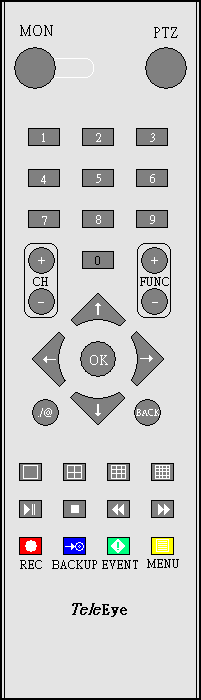
6 Quick Start Guide PAGE Back View Alarm / switch Port 2. VGA output 3. Audio In/Out Port, PA 4. NC (Not available for use) 5. Video Input Connectors 6. Power on / off 7. Power input (12V DC) 8. RS 485 In/Out Port 9. USB Port 10. Ethernet Socket (10/100 Base-T) 11. Video Output Connector Remote Control Remote control buttons 1. Show PTZ option menu 2. Number pad (for camera selection / data entry) 3. Next(+) / previous(-) page 4. Menu control / PTZ control 5. Back (for menu) 6. Screen mode FULL QUAD 3x3 HEX 7. Local playback control buttons Play / Pause Stop Rewind Forward 8. Start / stop recording 9. Backup (Footage extraction) 10. Event Status Menu 11. Menu Hardware Features
7 Quick Start Guide PAGE Functional Features surelink, support both static and dynamic IP Sophisticated event management Flexible connections: LAN, ADSL, mobile network, etc. Triplex operation: simultaneous video monitoring, recording & playback Video motion detection Motion driven recording Auto alarm dial back * Connection authentication Compatibility with popular telemetry protocols Web-based video monitoring Programmable video recording Data retention * WX-M16 / CMS software required 1.4. Hard Disk Installation 1. Take out the screws. 2. Pull up the cover. Hard Disk Installation
8 Quick Start Guide PAGE 5 3. Put the hard disk into the CX video recording server and connect it to the cables. 3.1 For CX784 and CX For CX7816 Hard Disk Installation
9 Quick Start Guide PAGE 6 2.Local Operation (CCTV / VGA Monitor) 2.1. Icons Description (OSD) When you observe video from CCTV monitor or VGA monitor, icons may be shown on the video. Each of the icons has special meaning. Please find their meanings from the table summary in next page. Icon Representation Alarm event Motion event Video loss event Disk usage alert Recording HDD available event Schedule recording Audio channel 1 Audio channel 2 Icon Representation Playback Pause in playback Forward in playback Backward in playback Fast forward in playback Fast backward in playback Step forward in playback Step backward in playback 2.2. Menu Overview (OSD) OSD Menu Overview Exit Playback 1. View Log 2. Search Date 3. Search Time 4. Cameras 5. Search Footage Extraction 1. Backup To DVD 2. Backup to USB Flash Recording 1. Recording 2. Disk Mode 3. Quality 4. Image Size 5. Audio Channel 6. Audio Quality 7. Schedule Recording 8. Recover Recording Live Audio Channel Event Status 1. Event Status Menu Overview (OSD) 2. Event Log 3. Connection Log 4. Setting Log 5. Operation Log Scan / Format 1. Scan Hard Disk 2. Format Hard Disk 3. Format USB Flash Switch Control Lock Keys 1. Lock Keys 2. Auto Key Lock Setup 1. Video Camera Setting Local Monitoring VGA Setting OSD Color Video Format Sensitivity Boost 2. Audio Audio CH 1 Installed
10 Quick Start Guide PAGE 7 Audio CH 2 Installed Motion PA Installed Video Loss 3. Switches Disk Usage Switch 1 setting HDD Available 4. Date / Time 7. Server Time Sync Enabled Server Name Time Zone Registration Checking PRI Time Server Build-in Web Server SEC Time Server External Keyboard DNS Setting Password Protection Level Update Date / Time Upgrade 5. Connection Maintenance Log Backup TCP / IP 8. Password 3G USB Modem 9. Setting Import / Export Throughput Import From USB IP Filtering Export To USB USB COM 10. Restore Factory Setting 6. Event Handler Language Alarm Shut Down 2.3. View Live Video (OSD) 1. Turn on your CX video recording server and cameras 2. Turn on your monitor 3. Select screen mode and cameras by using main control panel buttons on CX video recording server or number pads and screen mode buttons on remote controller 4. Enable the sequential mode by holding the sequential screen mode button for 3 seconds and stop it by pressing camera button Sequential screen mode FULL/QUAD/3x3*/H EX # screen mode FULL QUAD 3x3* HEX # * only for CX788 and CX7816 # only for CX7816 View Live Video (OSD)
11 Quick Start Guide PAGE Recording (OSD) Manual Recording 1. Press [Menu] button select [RECORDING] 2. Set all the configurations needed 3. Press [Rec] button on the front panel 4. Select [START RECORDING] 5. During recording, press [Rec] button again for stopping it Schedule Recording 1. Press [Menu] button select [RECORDING] 2. Select [SCHEDULE RECORDING] 3. Select the day by pressing [ ] or [ ] button on the front panel 4. Press on [OK] button to pop out OPTION menu and select [ADD] to add schedule 4.1. Normal recording Set the [TYPE] to REC Set the configurations 4.2. Motion recording Please refer to (4. Reference) in this guide 5. Select [APPLY] 6. Press [Rec] button on front panel 7. Select [START SCHEDULE RECORDING] 8. During schedule recording, press [Rec] button again for stopping it 2.5. Playback (OSD) 1. Press [Menu] button select [PLAYBACK] 2. Search log for playback (by 2.1 or 2.2) 2.1. View by log Select [VIEW LOG] Select a log by using [ ] or [ ] button on the front panel Press [OK] button and select [PLAY] 2.2. Search by date or time Playback (OSD)
12 Quick Start Guide PAGE Select [SEARCH DATE] to set date Select [SEARCH TIME] to set time Select [SEARCH] 3. Press local playback control buttons on the CX to control playback process 4. Press main control buttons on the CX to change the view mode in local CCTV video playback if needed 2.6. Footage Extraction (OSD) Back up to USB flash 1. Insert the USB flash device to the CX 2. Press [Menu] button select [FOOTAGE EXTRACTION] select [ BACKUP TO USB FLASH] 3. Set the mode for extraction 4. Set the start date, start time, backup period, backup max size and password protection 5. Select [START BACKUP] 6. Unplug the USB flash device after footage extraction finished Back up to external DVD 1. Connect the external DVD device to the CX s USB connector 2. Press [Menu] button select [FOOTAGE EXTRACTION] select [ BACKUP TO DVD] 3. Set the mode for extraction 4. Set the start date, start time, backup period, backup max size and password protection 5. Select [START BACKUP] Footage Extraction (OSD)
13 Quick Start Guide PAGE 10 3.Remote Operation (Network) 3.1. Network Configuration (Network) PC Requirements: CPU: Intel Pentium Dual-Core 2.2GHz or above Memory: 1GB or above OS: Windows XP or Windows Vista Home/Business Other Requirements: Java: Sun Microsystems Java 2 runtime Version or above IE: Windows Internet Explorer Version 6 or above There are Ethernet and 3G networks. The following shows the configuration through Ethernet network. For the 3G network configuration, please refer to (4. Reference) in this guide. Configuration: Through Ethernet network Ethernet port Network Switch / router Internet Network Configuration (Network)
14 Quick Start Guide PAGE Icons Description (Network) Icons Description Logout Show menu panel Recording Playback Screen mode selection panel 1. Quad screen 2. 3x3 screen 3. Hex screen 4. Full screen Camera selection panel Event status panel 1. Alarm event 2. Video loss event 3. Motion event 4. Disc event 5. Clear event Icons Description (Network)
15 Quick Start Guide PAGE 12 Icons Description Menu panel Setting 2. Audio 3. PTZ 4. View log 5. Advanced 6. Footage extraction 7. Switch Event icons on screen 1. Motion 2. Playback 3. Video loss Icons on log panel 1. Next page 2. Previous page Icons on PTZ panel 1. Tilt up 2. Pan left 3. Tilt down 4. Pan right 5. Zoom in 6. Zoom out 7. Focus near 8. Focus far 9. Open iris 10. Close iris 11. Washer 12. Wiper 13. Expand panel 14. Shrink panel Icons Description (Network)
16 Quick Start Guide PAGE 13 Icons Description Icons on audio panel Mute Audio level low 3. Audio level medium 4. Audio level high 5. Audio channel 1 6. Audio channel 2 7. Audio on/off 8. PA Icons on playback panel 1. Rewind 2. Play/pause 3. Stop 4. Forward 5. Fast forward 3.3. Menu Overview (Network) Menu Overview Recording Playback Screen Mode Selection Panel 1. Quad Screen 2. 3x3 Screen 3. Hex Screen 4. Full Screen Camera Selection Panel Event Status Panel 1. Alarm 2. Video loss 3. Motion 4. Disc 5. Clear Event Menu 1. Setting 2. Audio 3. PTZ 4. View Log 5. Advanced 6. Footage Extraction 7. Switch Logout Menu Overview (Network)
17 Quick Start Guide PAGE Setup TCP/IP (Network) To setup TCP/IP, please follow either of the methods below By OSD menu 1. Press [Menu] button select [SETUP] [CONNECTION] [TCP/IP] 2. Select NO for [Auto IP] if you want to change IP address, mask or gateway. Modify the corresponding fields 3. Wait for the system to save the setting or exit from [MAIN MENU] to save the settings By IP Setup Utility 1. Install TeleEye IP Setup Utility software by the software CD..NET framework is needed for IP Setup Utility operation. You can find.net framework installer in the software CD. 2. Run IP Setup Utility. 3. Find your CX video recording server according to the serial number provided by your provider. 4. Make sure the gateway is the same as your router. 5. To assign another IP address, mask or gateway, click to uncheck Obtain an IP address automatically and enter the corresponding information. 6. Click on [Apply] to save the changes. Setup TCP/IP (Network)
18 Quick Start Guide PAGE View Live Video (Network) 1. Enter IP address plus port number in this format (e.g. or surelink address in web browser address bar 2. Enter password. Default password can be found in the given registration code sheet. 3. Press [Connect] button 4. Use screen mode selection panel and/or camera selection panel to view video Remarks: If the cross logo is shown at the top left hand corner of the web page, it implies the Java JVM is not installed in the computer. Please follow method 1 or method 2 to install it. Method 1: Install the Java JVM through the software CD in the package Method 2: Download the Java JVM through and install it View Live Video (Network)
19 Quick Start Guide PAGE Recording (Network) Manual Recording 1. Click on [Recording] button 2. Select Manual Recording 3. During manual recording, press [Rec] button again for stopping it Scheduled Recording 1. Go to [Menu] [Server Setting] [Recording] [Scheduled Recording] 2. Click on [Add] to add a schedule recording 3. Select Normal Recording to add a new schedule or select Motion Recording to add a schedule that will record video only when motion event is triggered 4. Go back to main panel and press on [Recording] button 5. Select Scheduled Recording 6. During schedule recording, press [Rec] button again for stopping it 3.7. Playback (Network) 1. Press [Playback] button 2. Choose a log entry or enter date and time on the bottom of the panel 3. Click on [Play] button to start playback 4. Use playback control panel, camera selection panel and screen mode selection panel to control playback process 3.8. Footage Extraction (Network) 1. Go to [Menu] [Footage extraction] 2. Click [Browse] to select a path 3. Select cameras, mode and start time 4. Select end time or specify the extraction size 5. Click on [Start Extraction] 6. Open the extraction folder and double click TPPlayer.exe 4.Reference For advanced operations, please refer to the CX Supplementary Guide in the software CD. Reference
Quick user guide for the Vista Quantum 960H range of DVRs, models included
 Quantum 960H DVR range Quick User guide Quick user guide for the Vista Quantum 960H range of DVRs, models included QX960H08-xxx QX960H16-xxx QP960H04-xxx QP960H08-xxx QP960H16-xxx Full manual found on
User Manual V1.0. Remote Software
 User Manual V1.0 Notice: The information in this manual was current when published. The manufacturer reserves the right to revise and improve its products. All specifications are therefore subject to change
DIGICLIENT 8.0 Remote Agent Software
 DIGICLIENT 8.0 Remote Agent Software MODEL: D17800 Series Instruction Manual English Version 1.0 Copyright 2007 Digimerge Technologies Inc Table of Contents Table of Contents About the DigiClient 8.0...
How To Set Up Flir Cloud Client For Pc Or Mac Or Mac (For Pc Or Ipad) On A Pc Or Pc Or Mouse (For Mac) On An Iphone Or Ipa) On Pc Or Tv (For Ipa
 Instruction Manual FLIR Cloud Services Client Instruction Manual FLIR Cloud Services Client #LX400018; r. 2.0/14567/14568; en-us iii Table of contents 1 Setting up FLIR Cloud Client for PC or Mac...1
AXIS Camera Station Quick Installation Guide
 AXIS Camera Station Quick Installation Guide Copyright Axis Communications AB April 2005 Rev. 3.5 Part Number 23997 1 Table of Contents Regulatory Information.................................. 3 AXIS Camera
Stand Alone Type. Digital Video Recorder USER S MANUAL. (Real time recording 8 & 16 CH DVR) Revision Date : 2010. 6. 30.
 Stand Alone Type Digital Video Recorder USER S MANUAL (Real time recording 8 & 16 CH DVR) Revision Date : 2010. 6. 30. INDEX 1. Front Panel - - - - - - - - - - - - - - - - - - - - - - - - - - - - - - -
AXIS 262+ Network Video Recorder
 31433/EN/R4/0803 Complete Network Video Recording Solution Complete Network Video Recording Solution Picture this: A simple and reliable, plug-and-play video surveillance system for hotels, shops, banks,
Central Management System (CMS) USER MANUAL
 Central Management System (CMS) USER MANUAL LEGAL INFORMATION Reproduction, transfer, distribution or storage of part or all of the contents in this document in any form without the prior written permission
Appendix A. CMS(Client Management Software)
 Appendix A. CMS(Client Management Software) A-1. Install CMS for Windows PC CMS is a program for communication between DVR and PC to control signal and video. Insert the enclosed CD, and go to CD-ROM Drive
Network Video Recorder. Operation Manual
 Network Video Recorder Operation Manual Content 1 Product Description... 1 1.1 Product Overview... 1 1.2 Specification... 1 2 Product Structure Introduction... 2 2.1 Back Interface... 2 2.2 Front Panel...
Amcrest 960H DVR Quick Start Guide
 Amcrest 960H DVR Quick Start Guide Welcome Thank you for purchasing our Amcrest 960H DVR! This quick start guide will help you become familiar with our DVR in a very short time. Before installation and
Quick Start Guide. DVR DS-7200HWI-SH Series DVR. www.hikvision.com. First Choice For Security Professionals
 Quick Start Guide DVR DS-7300HWI-SH Series DVR DS-7200HWI-SH Series DVR NOTE: For more detailed information, refer to the User s Manual on the CD-ROM. You must use your PC or MAC to access the files. www.hikvision.com
ivms-4200 Client Software Quick Start Guide V1.02
 ivms-4200 Client Software Quick Start Guide V1.02 Contents 1 Description... 2 1.1 Running Environment... 2 1.2 Surveillance System Architecture with an Performance of ivms-4200... 3 2 Starting ivms-4200...
Access to remote DVR from IE USER S MANUAL CONTENT
 Access to remote DVR from IE CONTENT... 2 Preface... 2 1. Introduction... 2 2. System requirement and executing environment... 2 2.1. Supported operating System:... 2 2.2. Hardware requirement (recommend):...
User Manual of Web Client
 User Manual of Web Client 1 Index Chapter 1 Software Installation... 3 Chapter 2 Begin to Use... 5 2.1 Login and Exit... 5 2.2 Preview Interface Instruction... 6 2.3 Preview Image... 7 Chapter 3 Playback...
User s Manual of DVR DVS Remote Client Software V 4.0.1
 User s Manual of DVR DVS Remote Client Software V 4.0.1 Index Version description...4 1 Introduction...8 2 Software Install, Uninstall and use...9 2.1 Install remote client software ver4.0.1...9 2.2 Uninstall
ivms-5200 Professional Web Manager User Manual
 ivms-5200 Professional Web Manager User Manual UD.6L0202D1651A01 Hikvision ivms-5200 Professional Web Manager User Manual This manual, as well as the software described in it, is furnished under license
i -CEN S USER S Manual 2007. 08. 13.
 i -CEN S i -CEN'S USER S Manual 2007. 08. 13. i -CEN S Table of Contents Overview of i-cen S software... 4 1 Introduction of i-cen S... 4 2 Key Features... 5 3 Key Benefits... 5 4 System Specification...
1. Central Monitoring System Software
 1. Central Monitoring System Software 1-1. General information CMS program is an application with which users not only watch and control remote DVRs, but also receive video/audio data or alarm signals
ivms-4200 Intelligent Video Management System Quick Start Guide
 ivms-4200 Intelligent Video Management System Quick Start Guide Notices The information in this documentation is subject to change without notice and does not represent any commitment on behalf of HIKVISION.
1. Central Monitoring System Software
 1. Central Monitoring System Software 1-1. General information CMS program is an application with which users not only watch and control remote DVRs, but also receive video/audio data or alarm signals
NVMS - 1000 USER MANUAL. Version 2.1.0
 NVMS - 1000 USER MANUAL Version 2.1.0 Contents 1 Software Introduction... 1 1.1 Summary... 1 1.2 Operation Environment... 1 1.3 Install and Uninstall... 2 1.3.1 Install the Software... 2 1.3.2 Uninstall
Table of Contents. Chapter1. Introduction...1. 1.1 Before Installation... 1 1.2 System Requirements... 1
 Table of Contents Chapter1. Introduction...1 1.1 Before Installation... 1 1.2 System Requirements... 1 Chapter2. IVS-110 1-Channel Internet Video Server...2 2.1 Package Content... 2 2.2 Physical Installation...
Ultra Thin Client TC-401 TC-402. Users s Guide
 Ultra Thin Client TC-401 TC-402 Users s Guide CONTENT 1. OVERVIEW... 3 1.1 HARDWARE SPECIFICATION... 3 1.2 SOFTWARE OVERVIEW... 4 1.3 HARDWARE OVERVIEW...5 1.4 NETWORK CONNECTION... 7 2. INSTALLING THE
REMOTE AGENT USER S MANUAL
 REMOTE AGENT USER S MANUAL Revision Date : 2006.10.02. 0 INDEX CHAPTER 1. Installation-------------------------------------------------------- 2 CHAPTER 2. Function introduction------------------------------------------------
NVMS-1200. User Manual
 NVMS-1200 User Manual Contents 1 Software Introduction... 1 1.1 Summary... 1 1.2 Install and Uninstall... 1 1.2.1 Install the Software... 1 2 Login Software... 3 2.1 Login... 3 2.2 Control Panel Instruction...
ACS CLIENT SOFTWARE USER MANUAL
 ACS CLIENT SOFTWARE USER MANUAL 1 ACS USER GUIDE 1.1 System Requirement Recommended System Requirement OS CPU VGA RAM HDD WindowXP, Vista Pentium 4, 2Ghz 1024*768, 64MB 24bit color graphic card 1GB 20MB
ImagineWorldClient Client Management Software. User s Manual. (Revision-2)
 ImagineWorldClient Client Management Software User s Manual (Revision-2) (888) 379-2666 US Toll Free (905) 336-9665 Phone (905) 336-9662 Fax www.videotransmitters.com 1 Contents 1. CMS SOFTWARE FEATURES...4
1. Central Monitoring System Software
 1. Central Monitoring System Software 1-1. General information CMS program is an application with which users not only watch and control remote DVRs, but also receive video/audio data or alarm signals
NetClient software user manual
 NetClient software user manual 1-1. General information Net Client is an application which provides users not only viewing and controling remote DVRs, but also receiving realtime event data or alarm signals
DVR-4TL/8TL/16TL Setup Guide
 Package Content DVR-4TL/8TL/16TL Setup Guide Inspect the DVR s packaging. Make sure that the DVR-4TL/8TL/16TL is packed properly. Remove all items from the box and make sure it contains the following items.
Multi-Site 4200. Remote Viewing Software. User Guide
 Multi-Site 4200 Remote Viewing Software User Guide Document 800-12064V1 Rev A 09/2012 User Guide Revisions Issue Date Revisions A 07/2012 New document. V1 Rev A 09/2012 Updated the description of the
EV-1000 Series DVR. Quick Operation Guide. Version 1.0.0
 EV-1000 Series DVR Quick Operation Guide Version 1.0.0 Thank you for purchasing our product. If there is any question or request, please do not hesitate to contact dealer. This manual is applicable to
KViewCenter Software User Manual 2012 / 04 / 20 Version 2.2.1.0
 KViewCenter Software User Manual 2012 / 04 / 20 Version 2.2.1.0 Table of Contents Chapter 1. KViewCenter Interface... 5 1.1. Log in.... 5 1.2. Log out... 5 1.3. Control Panel... 6 1.4. Control Panel (Preview
INSTALLATION GUIDE. AXIS Camera Station
 INSTALLATION GUIDE AXIS Camera Station About this Guide This guide is intended for administrators and users of the AXIS Camera Station, and is applicable for software release 3.50 and later. It covers
How To Use A Pew V.V.V (Windows) V.A.1.1 (Windows 8) (Windows 7) (Powerpoint) (For Windows) (Win Xp) (V.A) (Amd)
 VIDEO VIEWER USER MANUAL Please read instructions thoroughly before operation and retain it for future reference. Video_viewer_V1.0 LEGAL INFORMATION Reproduction, transfer, distribution or storage of
A quick user guide for your LX Apollo DVR
 A quick user guide for your LX Apollo DVR The LX Apollo series of DVR s is designed specially for the security and surveillance field and is an outstanding digital surveillance product. It has an embedded
Network Video Recorder Quick Operation Guide
 Network Video Recorder Quick Operation Guide UD.6L0202B1119A01 Thank you for purchasing our product. If there is any question or request, please do not hesitate to contact dealer. This manual is applicable
Manual Client Management Software HDR50-CMS
 Manual Client Management Software HDR50-CMS HDR50-CMS (Client Management Software) A-1. Install HDR50-CMS for Windows PC HDR50-CMS is a program for communication between DVR and PC to control signal and
LOREX CLIENT Remote Software 4.0
 LOREX CLIENT Remote Software 4.0 Instruction Manual English Version 2.0 MODEL: L20WD800 Series www.lorexcctv.com Copyright 2008 LOREX Technology Inc. Table of Contents Table of Contents Software Installation...
Mobile Surveillance. User Manual
 Mobile Surveillance User Manual Contents 1 Network Configuration... 1 1.1 Access Device via WLAN... 1 1.2 Access Device via 3G Network... 1 2 By Phones with iphone OS... 2 2.1 Installation Instruction...
USER GUIDE. Ethernet Configuration Guide (Lantronix) P/N: 2900-300321 Rev 6
 KRAMER ELECTRONICS LTD. USER GUIDE Ethernet Configuration Guide (Lantronix) P/N: 2900-300321 Rev 6 Contents 1 Connecting to the Kramer Device via the Ethernet Port 1 1.1 Connecting the Ethernet Port Directly
Quick Start Guide NVR DS-7104NI-SL/W NVR. www.hikvision.com. First Choice For Security Professionals
 Quick Start Guide NVR DS-7104NI-SL/W NVR NOTE: For more detailed information, refer to the User s Manual on the CD-ROM. You must use your PC or MAC to access the files. www.hikvision.com Quick Start 1.
BlackHawk for MAC Software User Guide
 BlackHawk for MAC Software User Guide Products: BLK-DH2 Series and BLK-HD Series DVRs Please read this manual before using your software, and always follow the instructions for safety and proper use. Save
Network Video Recorder. User s Manual v1.0.0. Model: SVR-504/508/516/516+
 User s Manual v1.0.0 Model: SVR-504/508/516/516+ Table of Contents Product Description 6 Install Hard Disk 7 Hardware Illustration 10 I/O Ports and RS-485 12 LEDs Definition 13 Connect to the NVR 15 2
RSM Web Gateway RSM Web Client INSTALLATION AND ADMINISTRATION GUIDE
 RSM Web Gateway RSM Web Client INSTALLATION AND ADMINISTRATION GUIDE Installation and Administration Guide RSM Web Client and RSM Web Gateway 17 August, 2004 Page 1 Copyright Notice 2004 Sony Corporation.
1 DVR 670 Series firmware version 2.1.2 (date 2014-06-17)
 Video Recorder 670 Series 1 DVR 670 Series firmware version 2.1.2 (date 2014-06-17) File name: 600rtseries_2.1.2_140617.bin - When a unit detects a HDD error, the DVR will automatically reboot so that
Multi-Profile CMOS Infrared Network Camera
 Multi-Profile CMOS Infrared Network Camera Quick Start Guide About multi-profile Multi-profile stands for simultaneously video stream. The Network Camera and Video Server can generate MPEG4 and MJPEG streaming
Network Projector Operation Guide
 Network Projector Operation Guide Table of contents Preparation...3 Connecting the projector with your computer...3 Wired connection... 3 Wireless connection (for selective models)... 4 QPresenter...7
C n o t n e t n e t n s
 Preface Thank you for choosing our product, for a better understanding of the product, we recommend you read the instruction and safety information before use. Notice: This user manual is an operation
DVS Net (Integration)
 DVS Net (Integration) Installation and User s Guide Ver 11.10.x Digital Video Security System Digital Video Recorder www.tuniss.com PLEASE CALL TUNISS COMPUTER AT: 650-401-6138 FOR ANY QUASTIONS REGARDING
DVR4C Remote Viewer Operation Manual Table of Contents EN 3 1. OVERVIEW...5 1.1 MINIMUM PC REQUIREMENTS...5 2. INSTALLING THE PROGRAM...
 DVR4x4RemoteViewer.book Page 3 Tuesday, February 15, 2005 9:19 AM DVR4C Remote Viewer Operation Manual Table of Contents EN 3 1. OVERVIEW...5 1.1 MINIMUM PC REQUIREMENTS...5 2. INSTALLING THE PROGRAM...5
Central Management Software CV3-M1024
 Table of Contents Chapter 1. User Interface Overview...5 Chapter 2. Installation...6 2.1 Beginning Installation...6 2.2 Starting the CMS software...10 2.3 Starting it from the Start menu...10 2.4 Starting
VMS A1 Client Software. User Manual (V2.0)
 VMS A1 Client Software User Manual (V2.0) Contents Chapter 1 Overview...4 1.1 Description...4 1.2 Running Environment...4 1.3 Function Modules...5 Chapter 2 Live View...7 2.1 User Registration and Login...7
Network Video Recorder Quick Operation Guide
 Network Video Recorder Quick Operation Guide UD.6L0202B1283A01 TABLE OF CONTENTS NVR Pre-Installation... 2 NVR Installation... 2 Hard Disk Installation... 2 Front Panel... 4 Rear Panel... 5 Specifications...
LOREX CLIENT 2.2 Integrated Remote Agent Software
 LOREX CLIENT 2.2 Integrated Remote Agent Software Instruction Manual English Version 1.0 MODEL: L15LD420 / L17LD420 Series Copyright 2008 LOREX Technology Inc. www.lorexcctv.com Table of Contents Table
Digital Video Recorder Client and Network Manual V1.1 Table of Contents
 Table of Contents I. PC Client S/W User s Manual...2 1. Introduction of.avh Files Player...2 1.1 Introduction of Function Keys...3 1.2 Specific Operation...3 2. Introduction of DVR Network Remote Client...5
Network Camera & Video Server. Professional Solutions for
 Network Camera & Video Server Professional Solutions for IP and Mobile Surveillance Applications TeleEye NX Series is a complete portfolio of professional and practical network camera and video server
Remote Client Program... 3. Web Client... 39
 Remote Client / Web Client USER MANUAL T Series Digital Video Recorder Remote Client Program... 3 Remote Client Program Installation... 4 Remote Client... 6 Main Window... 6 Site Registration... 7 Group
Multi Client (Integration)
 Multi Client (Integration) Installation and User s Guide Ver 12.10.x *All contents of this document may change without prior notice. INDEX 1. Index 01 2. Introduction 02 3. Installation 03 4. Using Multi
Network Video Recorder
 Network Video Recorder XC-4CH-NVR-1TB and XC-8CH-NVR-2TB Username: admin Password: 12345 Quick Operation Guide XC-4CH-NVR-1TB and XC-8CH-NVR-2TB quick guide TABLE OF CONTENTS NVR Pre-Installation... 2
PePWave Surf Series PePWave Surf Indoor Series: Surf 200, AP 200, AP 400
 PePWave Surf Series PePWave Surf Indoor Series: Surf 200, AP 200, AP 400 PePWave Surf Outdoor Series: Surf AP 200/400-X, PolePoint 400-X, Surf 400-DX User Manual Document Rev. 1.2 July 07 COPYRIGHT & TRADEMARKS
SEC-PCC10 SEC-PCC20 SEC-PCC30 PCI SECURITY CARD
 SEC-PCC10 SEC-PCC20 SEC-PCC30 PCI SECURITY CARD ADVANCED ENGLISH MANUAL 0 Installation 1. Turn off the PC s power and unplug the power cable. 2. Open the PC s cover and plug the capture card into an empty
CMS-DH CENTRAL MANAGEMENT SOFTWARE
 CMS-DH CENTRAL MANAGEMENT SOFTWARE CMS-DH is a central management software that allows you to view and manage up to 300 DH200 series DVRs. System Requirements Your system must meet the system requirements
QSD2316L DVR User s Manual
 QSD2316L DVR User s Manual H.264-200 FPS /240 FPS 16-channel digital video recorder All rights reserved Rev 062408 QSD2316L DVR User s Manual CAUTION Please read this user manual carefully to ensure that
ENR-2000 Series. User s Manual. For V4.00.02 Firmware 2014/01/29
 ENR-2000 Series User s Manual For V4.00.02 Firmware 2014/01/29 Legal Notice Disclaimer The information contained in this document is intended for general information purposes. ACTi Corporation shall not
User Manual. IP Camera Recorder. www.allthings.com.au
 User Manual IP Camera Recorder I. Preface IP Camera Recorder is a 36 Channel Camera recording software which supports IP Camera, and Camera Server. Users use this software to monitor real-time Camera,
Quick-Start Guide. Remote Surveillance & Playback SUPER DVR MONITORING SOFTWARE. For use on Q-See s QSDT series of PC Securitiy Surveillance Cards
 Quick-Start Guide SUPER DVR MONITORING SOFTWARE Remote Surveillance & Playback For use on Q-See s QSDT series of PC Securitiy Surveillance Cards 2 CONFIGURING ROUTER FOR REMOTE ACCESS REMOTE SURVEILLANCE
ALI-NVR3004P, ALI-NVR3008P Embedded Network Video Recorder Quick Setup Guide
 ALI-NVR3004P, ALI-NVR3008P Embedded Network Video Recorder Quick Setup Guide This quick setup guide provides instructions to initially setup and use your new network video recorder. For additional information
TCP/IP MODULE CA-ETHR-A INSTALLATION MANUAL
 TCP/IP MODULE CA-ETHR-A INSTALLATION MANUAL w w w. c d v g r o u p. c o m CA-ETHR-A: TCP/IP Module Installation Manual Page Table of Contents Introduction...5 Hardware Components... 6 Technical Specifications...
CMS Pro. User`s Manual. Professional Central Monitoring Software. Full-featured Enterprise Class Surveillance Solution MADE IN KOREA
 Professional Central Monitoring Software CMS Pro Full-featured Enterprise Class Surveillance Solution User`s Manual MADE IN KOREA M11131CMSProDR This document contains preliminary information and is subject
Chapter 4 Control Center
 Chapter 4 Control Center Control Center is a central monitoring station solution (CMS) that provides the CMS operator with these major features: Access to client DVRs (See Remote DVR) Access to remote
IDIS Solution Suite. Streaming Service. Software Manual. Powered by
 Solution Suite Software Manual Streaming Service Powered by Before reading this manual This Operation Manual provides instructions for using Solution Suite, a network integration solution enabling remote
2CH MJPEG VIDEO WEB SERVER
 25 Video Web Server 2CH MJPEG VIDEO WEB SERVER User s s Manual Please read instructions thoroughly before operation and retain it for future reference. CPN103_V1.1 Thank-You Note Before You Get Start First
IP Camera Centralization Management. Client Application. (IPCMonitor) Feb, 2013 Version 1.9. User Manual
 IP Camera Centralization Management Client Application (IPCMonitor) Feb, 2013 Version 1.9 User Manual INDEX 1 Introduction...3 2 Computer Requirement...3 3 Installation...4 4 Devices list...4 4.1 Adding
GV-Keyboard. User's Manual V2.0
 GV-Keyboard User's Manual V2.0 Before attempting to connect or operate this product, please read these instructions carefully and save this manual for future use. 2007 GeoVision, Inc. All rights reserved.
PowerVideo Plus. EverFocus Central Management Software. for Networked Video Devices Management. User s Manual
 EverFocus Central Management Software for Networked Video Devices Management User s Manual Copyright EverFocus Electronics Corp. Release Date: January, 2013 Copyright 2012 EverFocus Electronics Corp. All
3.5 EXTERNAL NETWORK HDD. User s Manual
 3.5 EXTERNAL NETWORK HDD User s Manual Table of Content Before You Use Key Features H/W Installation Illustration of Product LED Definition NETWORK HDD Assembly Setup the Network HDD Home Disk Utility
3.5 LAN HDD Enclosure User s Manual
 3.5 LAN HDD Enclosure User s Manual NOTE: 1. USB and LAN can t be used at the same time. 2. HDD should be formatted as FAT32. Please check Disk utility section in this manual. 3. For internet FTP usage,
IDIS Solution Suite. Backup Service. Software Manual. Powered by
 Solution Suite Software Manual Backup Service Powered by Before reading this manual This Operation Manual provides instructions for using Solution Suite, a network integration solution enabling remote
SMS Remote Software User Manual. Pro Series & Contender Series DVRs
 SMS Remote Software User Manual Pro Series & Contender Series DVRs Table of Contents Chapter 1 Overview 1 1.1 In This Manual 1 1.2 Overview 1 1.3 SMS Features 1 1.4 Product Information 1 1.5 System Requirements
Quick Start Guide. Hybrid DVR DS-9000 Series Hybrid DVR DS-7600 Series Hybrid DVR. NVR DS-9600 Series NVR
 Quick Start Guide Hybrid DVR DS-9000 Series Hybrid DVR DS-7600 Series Hybrid DVR NVR DS-9600 Series NVR Analog DVR DS-9100 Series DS-8100 Series DS-7300 Series DS-7200 Series NOTE: For more detailed information,
Chapter 1 Installing the Gateway
 Chapter 1 Installing the Gateway This chapter describes how to set up the wireless voice gateway on your Local Area Network (LAN), connect to the Internet, and perform basic configuration. For information
HDCVI Series DVR Quick Start Guide
 HDCVI Series DVR Quick Start Guide Version 1.1.0 Welcome Thank you for purchasing our HDCVI DVR! This quick start guide will help you become familiar with our HDCVI DVR in a very short time. Before installation
SMS (Server Management Software) Digital Video Recorder. User s Manual
 SMS (Server Management Software) Digital Video Recorder User s Manual Contents 1 - Introduction 2 1.1 About this manual 2 1.2 Configuration 2 1.3 SMS Functions 2 1.4 Product Information 2 1.5 System Requirements
MDMS Multiple Device Monitor System v1.0 User Manual
 MDMS Multiple Device Monitor System v1.0 User Manual Copyright 2014 All rights reserved. No part of this document may be reproduced, republished, or retransmitted in any form or by any means whatsoever,
Professional Surveillance System User s Manual
 Professional Surveillance System User s Manual \ 1 Content Welcome...4 1 Feature...5 2 Installation...6 2.1 Environment...6 2.2 Installation...6 2.3 Un-installation...8 3 Main Window...9 3.1 Interface...9
Enterprise Management Suite
 Light Version 02.01V 0 Tale of Contents II. INSTALLING... 4 III.EXECUTING EMS... 6 IV. FEATURES... 7 1. EMS Overview... 7 1. Online/Offline button... 7 2. Device Manager... 8 3. Tree... 10 4. EMS Log...
SMS (Server Management Software) Digital Video Recorder. User s Manual
 SMS (Server Management Software) Digital Video Recorder User s Manual 1 SMS User s Guide Table of Contents Chapter 1 Overview.....03 1.1 In This Manual..03 1.2 Overview 03 1.3 SMS Features...03 1.4 Product
IPC series IP camera user manual
 IPC series IP camera user manual 1. Product introduction IPC series IP camera applied embedded RTOS system design, Dual-core T architecture 32-bit TI Da Vinci chip (DSP), Super storage capability, which
ENLTV-FM3. PCI TV Tuner Adapter with FM Radio. User s Guide
 ENLTV-FM3 PCI TV Tuner Adapter with FM Radio User s Guide User s Notice No part of this manual, including the products and software described in it, may be reproduced, transmitted, transcribed, stored
IDIS Solution Suite. Backup Service. Software Manual. Powered by
 Solution Suite Software Manual Backup Service Powered by Before reading this manual This Operation Manual provides instructions for using Solution Suite, a network integration solution enabling remote
DS-7608NI-S Series NVR. Technical Manual
 DS-7608NI-S Series NVR Technical Manual Notices The information in this documentation is subject to change without notice and does not represent any commitment on behalf of HIKVISION. HIKVISION disclaims
Movie Cube. User s Guide to Wireless Function
 Movie Cube User s Guide to Wireless Function Table of Contents 1. WLAN USB Adapter Connection...3 2. Wireless Setup...4 2.1 Infrastructure (AP)...5 2.2 Peer to Peer (Ad Hoc)...7 2.3 Settings for PC...8
Additional Requirements for ARES-G2 / RSA-G2. One Ethernet 10 Base T/100 Base TX network card required for communication with the instrument.
 TA Instruments TRIOS Software Installation Instructions Installation Requirements Your TRIOS Instrument Control software includes all the components necessary to install or update the TRIOS software, as
Instruction for IE network monitor
 Instruction for IE network monitor This system features a built-in browser-based software that allows you to access your system remotely over your local area network (LAN) or over the Internet (WAN) using
INTELLECT TM Software Package
 AxxonSoft INTELLECT TM Software Package Quick Start Guide Version 1.0.0 Moscow 2010 1 Contents CONTENTS... 2 1 INTRODUCTION... 3 1.1 Document purpose... 3 1.2 Purpose of the Intellect software package...
ivms-4200 Client Software User Manual Version 1.02
 ivms-4200 Client Software User Manual Version 1.02 Contents Chapter 1. Overview... 3 1.1 Description... 3 1.2 Running Environment... 3 Chapter 2. Starting ivms-4200... 4 2.1 User Registration... 4 2.2
HANTZ + PARTNER The Upgrade Company! www.hantz.com
 Quick Start Guide X3000 HD Network Media Player X3000 HD NETWORK MEDIA PLAYER POWER HANTZ + PARTNER The Upgrade Company! www.hantz.com A Get to know your HELIOS X3000 Thank you for purchasing the HELIOS
Central Management System
 Central Management System Software Installation Guide Ver. 1.5.0.101115.001 ... ii System Introduction... 3 Client/Server Architecture...3 System Requirements... 4 System Setup...4 Multiple Monitor Configuration...5