
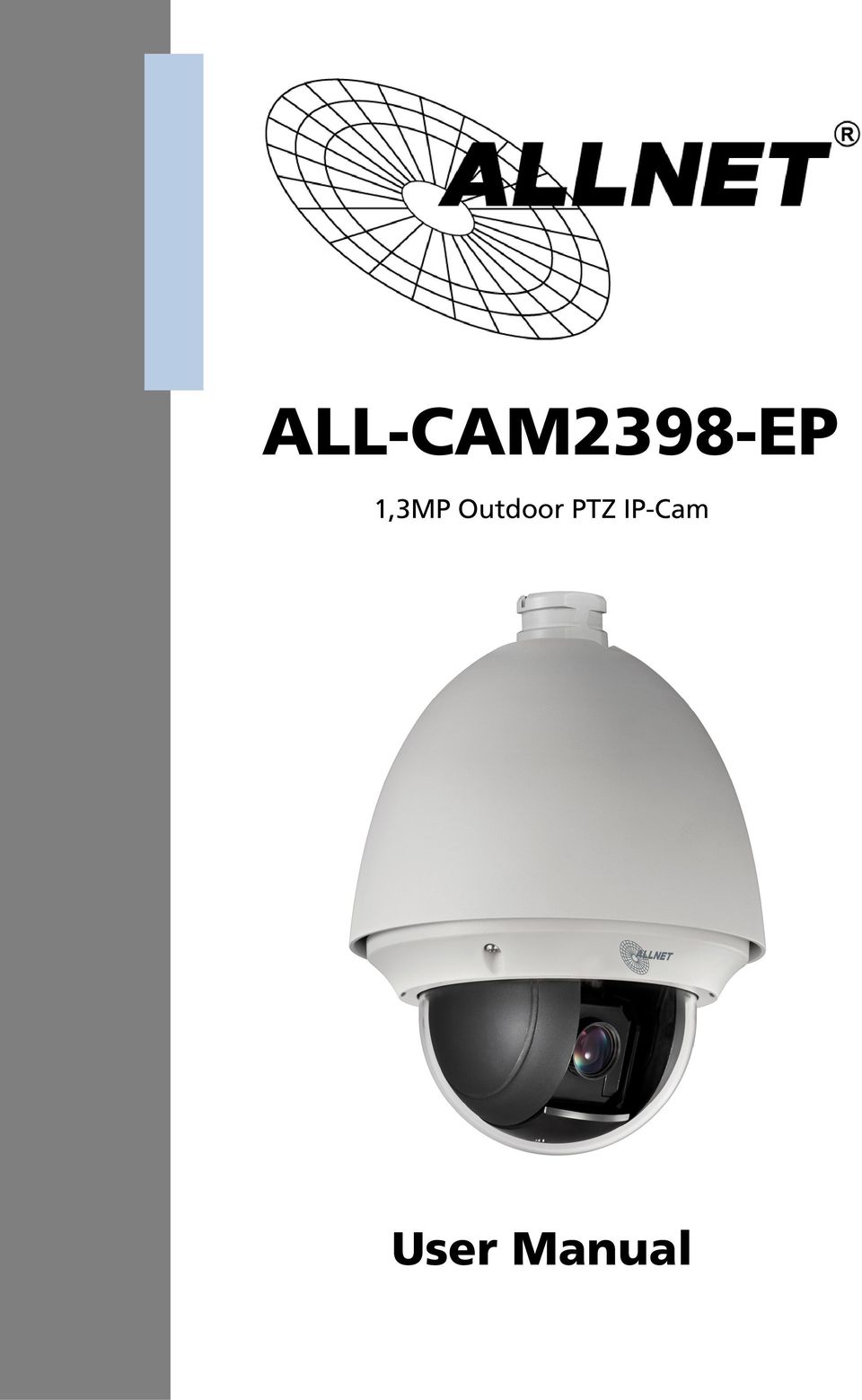
ALL-CAM2398-EP. 1,3MP Outdoor PTZ IP-Cam. User Manual
|
|
|
- June Norris
- 9 years ago
- Views:
Transcription
1 ALL-CAM2398-EP 1,3MP Outdoor PTZ IP-Cam User Manual
2 Default-IP via DHCP Username & Password: admin DISCLAIMER STATEMENT Underwriters Laboratories Inc. ( UL ) has not tested the performance or reliability of the security or signaling aspects of this product. UL has only tested for fire, shock or casualty hazards as outlined in UL s Standard(s) for Safety, UL UL Certification does not cover the performance or reliability of the security or signaling aspects of this product. UL MAKES NO REPRESENTATIONS, WARRANTIES OR CERTIFICATIONS WHATSOEVER REGARDING THE PERFORMANCE OR RELIABILITY OF ANY SECURITY OR SIGNALING RELATED FUNCTIONS OF THIS PRODUCT.

3 Regulatory Information FCC Information FCC compliance: This equipment has been tested and found to comply with the limits for a digital device, pursuant to part 15 of the FCC Rules. These limits are designed to provide reasonable protection against harmful interference when the equipment is operated in a commercial environment. This equipment generates, uses, and can radiate radio frequency energy and, if not installed and used in accordance with the instruction manual, may cause harmful interference to radio communications. Operation of this equipment in a residential area is likely to cause harmful interference in which case the user will be required to correct the interference at his own expense. FCC Conditions This device complies with part 15 of the FCC Rules. Operation is subject to the following two conditions: 1. This device may not cause harmful interference. 2. This device must accept any interference received, including interference that may cause undesired operation. EU Conformity Statement This product and - if applicable - the supplied accessories too are marked with "CE" and comply therefore with the applicable harmonized European standards listed under the Low Voltage Directive 2006/95/EC, the EMC Directive 2004/108/EC, the RoHS Directive 2011/65/EU. 2012/19/EU (WEEE directive): Products marked with this symbol cannot be disposed of as unsorted municipal waste in the European Union. For proper recycling, return this product to your local supplier upon the purchase of equivalent new equipment, or dispose of it at designated collection points. For more information see: /66/EC (battery directive): This product contains a battery that cannot be disposed of as unsorted municipal waste in the European Union. See the product documentation for specific battery information. The battery is marked with this symbol, which may include lettering to indicate cadmium (Cd), lead (Pb), or mercury (Hg). For proper recycling, return the battery to your supplier or to a designated collection point. For more information see: 2

4 Safety Instruction These instructions are intended to ensure that the user can use the product correctly to avoid danger or property loss. The precaution measure is divided into Warnings and Cautions : Warnings: Serious injury or death may be caused if any of these warnings are neglected. Cautions: Injury or equipment damage may be caused if any of these cautions are neglected. Warnings Follow these safeguards to prevent serious injury or death. Cautions Follow these precautions to prevent potential injury or material damage. Warnings: Please adopt the power adapter which can meet the safety extra low voltage (SELV) standard. The power consumption cannot be less than the required value. Do not connect several devices to one power adapter as an adapter overload may cause over-heating and can be a fire hazard. When the product is installed on a wall or ceiling, the device should be firmly fixed. To reduce the risk of fire or electrical shock, do not expose the indoor used product to rain or moisture. This installation should be made by a qualified service person and should conform to all the local codes. Please install blackouts equipment into the power supply circuit for convenient supply interruption. If the product does not work properly, please contact your dealer or the nearest service center. Never attempt to disassemble the product yourself. (We shall not assume any responsibility for problems caused by unauthorized repair or maintenance.) 3

5 Cautions: Make sure the power supply voltage is correct before using the product. Do not drop the product or subject it to physical shock. Do not install the product on vibratory surface or places. Do not expose it to high electromagnetic radiating environment. Do not aim the lens at the strong light such as sun or incandescent lamp. The strong light can cause fatal damage to the product. The sensor may be burned out by a laser beam, so when any laser equipment is being used, make sure that the surface of the sensor not be exposed to the laser beam. For working temperature, please refer to the specification manual for details. To avoid heat accumulation, good ventilation is required for a proper operating environment. While shipping, the product should be packed in its original packing. Please use the provided glove when open up the product cover. Do not touch the product cover with fingers directly, because the acidic sweat of the fingers may erode the surface coating of the product cover. Please use a soft and dry cloth when clean inside and outside surfaces of the product cover. Do not use alkaline detergents. Improper use or replacement of the battery may result in hazard of explosion. Please use the manufacturer recommended battery type. 4

6 Table of Contents Chapter 1 Overview System Requirement Functions... 8 Chapter 2 Network Connection Setting the Network Speed Dome over the LAN Wiring over the LAN Detecting and Changing the IP Address Setting the Network Speed Dome over the WAN Static IP Connection Dynamic IP Connection Chapter 3 Access to the Network Speed Dome Accessing by Web Browsers Accessing by Client Software Chapter 4 Live View Live View Page Starting Live View Recording and Capturing Pictures Manually Operating PTZ Control PTZ Control Panel Setting / Calling a Preset Setting / Calling a Patrol Setting / Calling a Pattern Configuring Live View Parameters Chapter 5 PTZ Configuration Configuring Initial Position Configuring Basic PTZ Parameters Configuring PTZ Limit Stops Configuring Scheduled Tasks Configuring Park Actions Configuring Privacy Mask Clearing PTZ Configurations Chapter 6 Speed Dome Configuration Configuring Local Parameters Configuring Time Settings Configuring Network Settings Configuring TCP/IP Settings Configuring Port Settings

7 6.3.3 Configuring PPPoE Settings Configuring DDNS Settings Configuring SNMP Settings Configuring 802.1X Settings Configuring QoS Settings Configuring FTP Settings Configuring UPnP Settings Configuring NAT (Network Address Translation) Settings Configuring Settings Configuring Platform Access Settings Configuring HTTPS Settings Configuring Video and Audio Settings Configuring Video Settings Configuring Audio Settings Configuring ROI Settings Configuring Image Settings Configuring Display Settings Configuring OSD Settings Configuring Text Overlay Settings Configuring and Handling Alarms Configuring Motion Detection Configuring Video Tampering Alarm Configuring External Alarm Input Configuring Alarm Output Handling Exception Detecting Audio Exception Chapter 7 Record Settings Configuring NAS Settings Configuring Recording Schedule Configuring Snapshot Settings Chapter 8 Playback Chapter 9 Log Searching Chapter 10 Others Managing User Accounts Configuring RTSP Authentication Configuring Anonymous Visit Configuring IP Address Filter Security Service Viewing Device Information Maintenance Rebooting the Speed Dome

8 Restoring Default Settings Importing/Exporting Configuration File Upgrading the System Appendix Appendix 1 SADP Software Introduction Appendix 2 Port Mapping CE Declaration of Conformity GPL

9 Chapter 1 Overview 1.1 System Requirement System requirement of web browser accessing is as follows: Operating System: Microsoft Windows XP SP1 and above version / Vista / Win7 / Server 2003 / Server bits CPU: Intel Pentium IV 3.0 GHz or higher RAM: 1G or higher Display: resolution or higher Web Browser: Internet Explorer 7.0 and above version, Apple Safari 5.02 and above version, Mozilla Firefox 5 and above version and Google Chrome8 and above versions. 1.2 Functions The functions vary depending on the models of speed dome. Limit Stops The dome can be programmed to move within the limit stops (left/right, up/down). Scan Modes The dome provides 5 scan modes: auto scan, tilt scan, frame scan, random scan and panorama scan. Presets A preset is a predefined image position. When the preset is called, the dome will automatically move to the defined position. The presets can be added, modified, deleted and called. Label Display The on-screen label of the preset title, azimuth/elevation, zoom, time and dome name can be displayed on the monitor. The displays of time and speed dome name can be programmed. Auto Flips In manual tracking mode, when a target object goes directly beneath the dome, the video will automatically flips 180 degrees in horizontal direction to maintain continuity of tracking. This function can also be realized by auto mirror image depending on different camera models. Privacy Mask This function allows you to block or mask certain area of a scene, for preventing the personal privacy from recording or live viewing. A masked 8

10 area will move with pan and tilt functions and automatically adjust in size as the lens zooms telephoto and wide. 3D Positioning In the client software, use the left key of mouse to click on the desired position in the video image and drag a rectangle area in the lower right direction, then the dome system will move the position to the center and allow the rectangle area to zoom in. Use the left key of mouse to drag a rectangle area in the upper left direction to move the position to the center and allow the rectangle area to zoom out. Proportional Pan/Tilt Proportional pan/tilt automatically reduces or increases the pan and tilt speeds according to the amount of zoom. At telephoto zoom settings, the pan and tilt speeds will be slower than at wide zoom settings. This keeps the image from moving too fast on the live view image when there is a large amount of zoom. Auto Focus The auto focus enables the camera to focus automatically to maintain clear video images. Day/Night Auto Switch The speed domes deliver color images during the day. And as light diminishes at night, the speed domes switch to night mode and deliver black and white images with high quality. Slow Shutter In slow shutter mode, the shutter speed will automatically slow down in low illumination conditions to maintain clear video images by extending the exposure time. The feature can be enabled or disabled. Backlight Compensation (BLC) If you focus on an object against strong backlight, the object will be too dark to be seen clearly. The BLC (Backlight Compensation) function can compensate light to the object in the front to make it clear, but this causes the over-exposure of the background where the light is strong. Wide Dynamic Range (WDR) The wide dynamic range (WDR) function helps the camera provide clear images even under back light circumstances. When there are both very bright and very dark areas simultaneously in the field of view, WDR balances the brightness level of the whole image and provide clear images with details. This feature varies depending on speed dome models. White Balance (WB) White balance can remove the unrealistic color casts. White balance is the white rendition function of the camera to adjust the color temperature according to the environment automatically. 9

11 Patrol A patrol is a memorized series of pre-defined preset function. The scanning speed between two presets and the dwell time at the preset are programmable. Pattern A pattern is a memorized series of pan, tilt, zoom, and preset functions. By default the focus and iris are in auto status during the pattern is being memorized. Power Off Memory The dome supports the power off memory capability with the predefined resume time. It allows the dome to resume its previous position after power is restored. Scheduled Task A time task is a preconfigured action that can be performed automatically at a specific date and time. The programmable actions include: auto scan, random scan, patrol 1-8,pattern 1-4, preset 1-8,frame scan, panorama scan, tilt scan, day, night, reboot, PT adjust, Aux Output, etc. Park Action This feature allows the dome to start a predefined action automatically after a period of inactivity. User Management The dome allows you to edit users with different levels of permission, in the admin login status. Multiple users are allowed to access and control the same network speed dome via network simultaneously. 3D Digital Noise Reduction Comparing with the general 2D digital noise reduction, the 3D digital noise reduction function processes the noise between two frames besides processing the noise in one frame. The noise will be much less and the video will be clearer. 10

12 Chapter 2 Network Connection Before you start: If you want to set the network speed dome via a LAN (Local Area Network), please refer to Section 2.1 Setting the Network Speed Dome over the LAN. If you want to set the network speed dome via a WAN (Wide Area Network), please refer to Section 2.2 Setting the Network Speed Dome over the WAN. 2.1 Setting the Network Speed Dome over the LAN Purpose: To view and configure the speed dome via a LAN, you need to connect the network speed dome in the same subnet with your computer, and install the SADP or client software to search and change the IP of the network speed dome. For the detailed introduction of SADP, please refer to Appendix Wiring over the LAN The following figures show the two ways of cable connection of a network speed dome and a computer: Purpose: To test the network speed dome, you can directly connect the network speed dome to the computer with a network cable as shown in Figure 2-1. Refer to the Figure 2-2 to set the network speed dome over the LAN via a switch or a router. Network Cable Figure 2-1 Connecting Directly

13 Network Cable Speed Dome Switch or Router PC Figure 2-2 Connecting via a Switch or a Router Detecting and Changing the IP Address You need the IP address to visit the network speed dome. 1. To get the IP address, you can choose either of the following methods: Use SADP, a software tool which can automatically detect the online network speed domes in the LAN and list the device information including IP address, subnet mask, port number, device serial number, device version, etc., shown in Figure 2-3. Use the client software to list the online devices. Please refer to the user manual of client software for detailed information. 2. Change the IP address and subnet mask to the same subnet as that of your computer. 3. Enter the IP address of network speed dome in the address field of the web browser to view the live video. The default user name is admin, and password is admin. For accessing the network speed dome from different subnets, please set the gateway for the network speed dome after you logged in. For detailed information, please refer to Section Configuring TCP/IP Settings. 12

14 Figure 2-3 SADP Interface 2.2 Setting the Network Speed Dome over the WAN Purpose: This section explains how to connect the network speed dome to the WAN with a static IP or a dynamic IP Static IP Connection Before you start: Please apply a static IP from an ISP (Internet Service Provider). With the static IP address, you can connect the network speed dome via a router or connect it to the WAN directly. Connecting the network speed dome via a router 1. Connect the network speed dome to the router. 2. Assign a LAN IP address, the subnet mask and the gateway. Refer to Section Detecting and Changing the IP Address for detailed IP address configuration of the speed dome. 3. Save the static IP in the router. 4. Set port mapping, E.g., 80, 8000 and 554 ports. The steps for port mapping vary depending on different routers. Please call the router manufacturer for assistance with port mapping. 13

15 Refer to Appendix 2 for detailed information about port mapping. 5. Visit the network speed dome through a web browser or the client software over the internet. Figure 2-4 Accessing the Speed Dome through Router with Static IP Connecting the network speed dome with static IP directly You can also save the static IP in the speed dome and directly connect it to the internet without using a router. Refer to Section Detecting and Changing the IP Address for detailed IP address configuration of the speed dome. Figure 2-5 Accessing the Speed Dome with Static IP Directly Dynamic IP Connection Before you start: Please apply a dynamic IP from an ISP. With the dynamic IP address, you can connect the network speed dome to a modem or a router. Connecting the network speed dome via a router 1. Connect the network speed dome to the router. 2. In the speed dome, assign a LAN IP address, the subnet mask and the gateway. Refer to Section Detecting and Changing the IP Address for detailed LAN configuration. 3. In the router, set the PPPoE user name, password and confirm the password. 4. Set port mapping. E.g. 80, 8000 and 554 ports. The steps for port mapping vary depending on different routers. Please call the router 14

16 manufacturer for assistance with port mapping. Refer to Appendix 2 for detailed information about port mapping. 5. Apply a domain name from a domain name provider. 6. Configure the DDNS settings in the setting interface of the router. 7. Visit the speed dome via the applied domain name. Connecting the network speed dome via a modem Purpose: This speed dome supports the PPPoE auto dial-up function. The speed dome gets a public IP address by ADSL dial-up after the speed dome is connected to a modem. You need to configure the PPPoE parameters of the network speed dome. Refer to Section Configuring PPPoE Settings for detailed configuration. Figure 2-6 Accessing the Speed Dome with Dynamic IP The obtained IP address is dynamically assigned via PPPoE, so the IP address always changes after rebooting the speed dome. To solve the inconvenience of the dynamic IP, you need to get a domain name from the DDNS provider (E.g. DynDns.com). Please follow below steps for normal domain name resolution and private domain name resolution to solve the problem. Normal Domain Name Resolution Figure 2-7 Normal Domain Name Resolution 15

17 1. Apply a domain name from a domain name provider. 2. Configure the DDNS settings in the DDNS Settings interface of the network speed dome. Refer to Section Configuring DDNS Settings for detailed configuration. 3. Visit the speed dome via the applied domain name. Private Domain Name Resolution Figure 2-8 Private Domain Name Resolution 1. Install and run the IP Server software in a computer with a static IP. 2. Access the network speed dome through the LAN with a web browser or the client software. 3. Enable DDNS and select IP Server as the protocol type. Refer to Section Configuring DDNS Settings for detailed configuration. 16

18 Chapter 3 Access to the Network Speed Dome 3.1 Accessing by Web Browsers 1. Open the web browser. 2. In the address field, input the IP address of the network speed dome, e.g., and press the Enter key to enter the login interface. 3. Select English as the interface language on the top-right of login interface. 4. Input the user name and password and click. The default user name is admin, password is admin. Figure 3-1 Login Interface 5. Install the plug-in before viewing the live video and operating the speed dome. Please follow the installation prompts to install the plug-in.

19 Figure 3-2 Download and Install Plug-in Figure 3-3 Install Plug-in (2) Figure 3-4 Install Plug-in (3) 18

20 You may have to close the web browser to install the plug-in. Please reopen the web browser and log in again after installing the plug-in. 3.2 Accessing by Client Software The product CD contains the client software. You can view the live video and manage the speed dome with the client software. Follow the installation prompts to install the client software and WinPcap. The configuration interface and live view interface of client software are shown below. Figure 3-5 ALL-VMS Control Panel 19

21 Figure 3-6 ALL-VMS Live View Interface If you use third party VMS software, please contact technical support of our branch for camera firmware. For detailed information about client software of our company, please refer to the user manual of the software. This manual mainly introduces accessing to the network speed dome by web browser. 20
22 4.1 Live View Page Chapter 4 Live View Purpose: The live video page allows you to view live video, capture images, realize PTZ control, set/call presets and configure video parameters. Log in the network speed dome to enter the live view page, or you can click view page. on the menu bar of the main page to enter the live
23 Descriptions of the live view page: Menu Bar Live View Parameters Click to show or hide PTZ control panel PTZ control Live view window Preset/patrol/pattern Toolbar Figure 4-1 Live View Page Menu Bar: Click each tab to enter Live View, Playback, Log and Configuration page respectively. Live View Window: Display the live video. Toolbar: Operations on the live view page, e.g., live view, capture, record, audio on/off, two-way audio, etc. PTZ Control: Panning, tilting, focusing and zooming actions of the speed dome. The lighter, wiper, one-touch focus and lens initialization control. Preset/patrol/pattern: Set and call the preset/patrol/pattern for the speed dome. Live View Parameters: Configure the image size and stream type of the live video. 4.2 Starting Live View In the live view window as shown in Figure 4-2, click start the live view of the speed dome. on the toolbar to 22
24 Figure 4-2 Start Live View Table 4-1 Descriptions of the Toolbar Icon Description Icon Description Live view on Manually capture the Manual recording off Audio on and adjust volume Two-way audio off Live view off Manual recording on Mute Two-way audio on 3D zoom Before using the two-way audio or recording with audio functions, please set the Stream Type to Video & Audio referring to Section Configuring Video Settings. Full-screen Mode: You can double-click on the live video to switch the current live view into full-screen or return to normal mode from the full-screen. 3D Positioning: 1. Click on the tool bar of live view interface. 2. Operate the 3D positioning function: Left click a position of the live video. The corresponding position will be moved to the center of the live video. Hold down the left mouse button and drag the mouse to the lower right on the 23
25 live video. The corresponding position will be moved to the center of the live video and zoomed in. Hold down the left mouse button and drag the mouse to the upper left on the live video. The corresponding position will be moved to the center of the live video and zoomed out. Please refer to the following sections for more information: Configuring remote recording in Section 7.2 Configuring Recording Schedule. Setting the image quality of the live video in Section 6.1 Configuring Local Parameters and Section Configuring Video Settings. Setting the OSD text on live video in Section Configuring OSD Settings. 4.3 Recording and Capturing Pictures Manually In the live view interface, click on the toolbar to capture the live pictures or click to record the live video. The local saving paths of the captured pictures and clips can be set in the Configuration > Local Configuration interface. To configure remote automatic recording, please refer to Section 7.2 Configuring Recording Schedule. The captured image will be saved as a JPEG file in your computer. 4.4 Operating PTZ Control Purpose: In the live view interface, you can use the PTZ control buttons to control panning, tilting and zooming PTZ Control Panel On the live view page, click to show the PTZ control panel or click to hide it. 24
26 Click the direction buttons to control the pan/tilt movements. Click the zoom/iris/focus buttons to realize lens control. Figure 4-3 PTZ Control Panel Table 4-2 Descriptions of PTZ Control Panel Button Description Zoom in/out Focus near/far Iris Open/Close Adjust speed of pan/tilt movements Setting / Calling a Preset Purpose: A preset is a predefined image position. For the defined preset, you can click the calling button to quickly view the desired image position. Setting a Preset: 1. In the PTZ control panel, select a preset number from the preset list. Figure 4-4 Setting a Preset 2. Use the PTZ control buttons to move the lens to the desired position. Pan the speed dome to the right or left. Tilt the speed dome up or down. 25
27 Zoom in or out. Refocus the lens. 3. Click to finish the setting of the current preset. 4. You can click to delete the preset. You can configure up to 256 presets. Calling a Preset: In the PTZ control panel, select a defined preset from the list and click to call the preset. Figure 4-5 Calling a Preset For convenient preset selection, refer to the following steps to navigate to the preset you want. 1. Select any preset from the list. 2. Click the preset number you need on the keyboard. The following presets are predefined with special commands. You can only call them but not configure them. For instance, preset 99 is the Start auto scan. If you call the preset 99, the speed dome starts auto scan function. Table 4-3 Special Presets Special Special Function Preset Preset Function 33 Auto flip 93 Set limit stops manually 34 Back to initial position 94 Remote reboot 35 Call patrol 1 96 Stop a scan 36 Call patrol 2 97 Start random scan 37 Call patrol 3 98 Start frame scan 38 Call patrol 4 99 Start auto scan 26
28 39 IR cut filter in 100 Start tilt scan 40 IR cut filter out 101 Start panorama scan 41 Call pattern Call patrol 5 42 Call pattern Call patrol 6 43 Call pattern Call patrol 7 44 Call pattern Call patrol 8 45 One-touch patrol 106 Fan On 92 Start to set limit stops 107 Fan Off 108 Fan On By Temperature Control Figure 4-6 Special Preset When you calling preset 45 (one-touch patrol), the speed dome patrols from the preset 1 to 32. Before you enable this function, please set the preset 1 to 32 first Setting / Calling a Patrol Purpose: A patrol is a memorized series of preset function. It can be configured and called on the patrol settings interface. There are up to 8 patrols for customizing. A patrol can be configured with 32 presets. Before you start: Please make sure that the presets you want to add into a patrol have been defined. Setting a Patrol: 1. In the PTZ control panel, click to enter the patrol settings interface. 2. Select a patrol number from. 3. Click to enter the adding interface of preset as shown in Figure
29 Figure 4-7 Adding Presets 4. Configure the preset number, patrol time and patrol speed. Name Description Patrol Time It is the duration staying on one patrol point. The speed dome moves to another patrol point after the patrol time. Patrol Speed It is the speed of moving from one preset to another. 5. Click to save a preset into the patrol. 6. Repeat the steps from 3 to 5 to add more presets. 7. Click to save all the patrol settings. Calling a Patrol: In the PTZ control panel, select a defined patrol from click to call the patrol as shown in Figure 4-8. and Figure 4-8 Calling a Preset 28
30 Buttons on the Patrols interface: Buttons Description Save a patrol Call a patrol Stop a patrol Enter the adding interface of preset Modify a preset Delete a preset Delete all the presets in one patrol Setting / Calling a Pattern Purpose: A pattern is a memorized series of pan, tilt, zoom, and preset functions. It can be called on the pattern settings interface. There are up to 4 patterns for customizing. Setting a Pattern: 1. In the PTZ control panel, click to enter the pattern settings interface. 2. Select a pattern number from the list as shown in Figure 4-9. Figure 4-9 Patterns Settings Interface 3. Click to enable recording the panning, tilting and zooming actions. 4. Use the PTZ control buttons to move the lens to the desired position after the information of PROGRAM PATTERN REMAINNING MENORY(%) is displayed on the screen. Pan the speed dome to the right or left. Tilt the speed dome up or down. Zoom in or out. 29
31 Refocus the lens. 5. Click to save all the pattern settings. Buttons on the Patterns interface: Buttons Description Start to record a pattern. Stop recording a pattern. Call the current pattern. Stop the current pattern. Delete the current pattern. These 4 patterns can be operated separately and with no priority level. When configuring and calling the pattern, proportional pan is valid; the limit stops and auto flip will be invalid; and the 3D positioning operation is not supported. 4.5 Configuring Live View Parameters Main stream/sub-stream: You can select or as the stream type of live viewing. The main stream is with a relatively high resolution and needs much bandwidth. The sub-stream is with a low resolution and needs less bandwidth. The default setting of stream type is. Please refer to Section Configuring Video Settings for more detailed parameter settings of the main stream and sub-stream respectively. Image Size: You can scale up/down the live view image by clicking. the image size can be 4:3, 16:9, original or auto. 30
32 Chapter 5 PTZ Configuration 5.1 Configuring Initial Position Purpose: The initial position is the origin of PTZ coordinates. It can be the factory default initial position. You can also customize the initial position according to your own demand. Customize an Initial Position: 1. Enter the Initial Position Configuration interface: Configuration > Advanced Configuration > PTZ > Initial Position Figure 5-1 PTZ Configuration 2. Click the PTZ control buttons to find a position as the initial position of the dome; you can also call a defined preset and set it as the initial position of the dome. 3. Click Set to save the position. Call/delete an Initial Position: You can click to call the initial position. You can click to delete the initial position and restore the factory default
33 initial position. 5.2 Configuring Basic PTZ Parameters Purpose: You can configure the basic PTZ parameters, including proportional pan, preset freezing, preset speed, etc. 1. Enter the Basic PTZ Parameter Configuration interface: Configuration > Advanced Configuration > PTZ > Basic Figure 5-2 Basic PTZ Configuration Interface 2. Configure the following settings: Basic Parameters: Enable/disable proportional pan and preset freezing, set the preset speed, keyboard control speed, and auto scan speed. Proportional Pan: If you enable this function, the pan/tilt speeds change according to the amount of zoom. When there is a large amount of zoom, the pan/tilt speed will be slower for keeping the image from moving too fast on the live view image. Preset Speed: You can set the speed of a defined preset from 1 to 8. Keyboard Control Speed: Define the speed of PTZ control by a 32
34 keyboard as Low, Normal or High. Auto Scan Speed: The dome provides 5 scan modes: auto scan, tilt scan, frame scan, random scan and panorama scan. The scan speed can be set from level 1 to 40. Max. Tilt-angle: The Max. angle that the speed dome can revolve in the tilt direction is adjustable. The values are (0-90), (-1-90), (-2-90), (-3-90), (-4-90) and (-5-90). The angle range varies depending on the models of speed dome. Auto Flip: You can enable/disable the auto flip function. Zooming Speed: The speed of zooming is adjustable. PTZ OSD: Set the on-screen display duration of the PTZ status. Zoom Status: Set the OSD duration of zooming status as 2 seconds, 5 seconds, 10 seconds, Always Close or Always Open. PT Status: Set the azimuth angle display duration while panning and tilting as 2 seconds, 5 seconds, 10 seconds, Always Close or Always Open. Preset Status: Set the preset name display duration while calling the preset as 2 seconds, 5 seconds, 10 seconds, Always Close or Always Open. Power-off Memory: The dome can resume its previous PTZ status or actions after it restarted from a power-off. You can set the time point of which the dome resumes its PTZ status. You can set it to resume the status of 30 seconds, 60 seconds, 300 seconds or 600 seconds before power-off. 3. Click to save the settings. 5.3 Configuring PTZ Limit Stops Purpose: The dome can be programmed to move within the configurable limit stops (left/right, up/down). 1. Enter the Limit Configuration interface: Configuration > Advanced Configuration > PTZ > Limit 33
35 Figure 5-3 Configure the PTZ Limit 2. Click the checkbox of Enable Limit and choose the limit type as manual stops or scan stops. Manual Stops: When manual limit stops are set, you can operate the PTZ control panel manually only in the limited surveillance area. Scan Stops: When scan limit stops are set, the random scan, frame scan, auto scan, tilt scan, panorama scan is performed only in the limited surveillance area. Manual Stops of Limit Type is prior to Scan Stops. When you set these two limit types at the same time, Manual Stops is valid and Scan Stops is invalid. 3. Click the PTZ control buttons to find the left/right/up/down limit stops; you can also call the defined presets and set them as the limits of the dome. 4. Click Set to save the limits or click Clear to clear the limits. 5.4 Configuring Scheduled Tasks 34
36 Purpose: You can configure the network dome to perform a certain action automatically in a user-defined time period. 1. Enter the Scheduled Task Settings interface: Configuration> Advanced Configuration> PTZ > Scheduled Tasks Figure 5-4 Configure Scheduled Tasks 2. Check the checkbox of Enable Scheduled Task. 3. Set the Park Time. You can set the park time (a period of inactivity) before the dome starts the scheduled tasks. 4. Set the schedule and task details. (1) Click to edit the task schedule. 35
37 Figure 5-5 Edit the Schedule and Task Type (2) Choose the day you want to set the task schedule. (3) Click All Day to set the schedule as all day; or click Customize and input the Start Time and End Time for each task, and click Enter on your keyboard to enter the time. (4) Choose the task type from the drop-down list. You can choose scan, preset, pattern and etc. Figure 5-6 Task Types (5) After you set the scheduled task, you can copy the task to other days (Optional). (6) Click to save the settings. 36
38 The time of each task can t be overlapped. Up to 10 tasks can be configured for each day. 5. Click to save the settings. 5.5 Configuring Park Actions Purpose: This feature allows the dome to start a predefined park action (scan, preset, pattern and etc.) automatically after a period of inactivity (park time). Scheduled Tasks function is prior to Park Action function. When these two functions are set at the same time, only the Scheduled Tasks function takes effect. 1. Enter the Park Action Settings interface: Configuration > Advanced Configuration> PTZ > Park Action Figure 5-7 Set the Park Action 2. Check the checkbox of Enable Park Action. 3. Set the Park Time as the inactivity time of the dome before it starts the park actions. 4. Choose Action Type the from the drop-down list. Figure 5-8 Action Types 5. Click to save the settings. 37
39 5.6 Configuring Privacy Mask Purpose: Privacy mask enables you to cover certain areas on the live video to prevent certain spots in the surveillance area from being live viewed and recorded. 1. Enter the Privacy Mask Settings interface: Configuration > Advanced Configuration> PTZ > Privacy Mask Figure 5-9 Draw the Privacy Mask 2. Click the PTZ control buttons to find the area you want to set the privacy mask. 3. Click ; click and drag the mouse in the live video window to draw the area. 4. You can drag the corners of the red rectangle area to draw a polygon mask. 5. Click to finish drawing or click to clear all of the areas you set without saving them. 6. Click to save the privacy mask, and it will be listed in the 38
40 Privacy Mask List area; you can select a mask and click delete it from the list. to Figure 5-10 Privacy Mask List 7. Check the checkbox of Enable Privacy Mask to enable this function. You are allowed to draw up to 2 areas on the same image. 5.7 Clearing PTZ Configurations Purpose: You can clear PTZ configurations in this interface, including all presets, patrols, patterns, privacy masks, PTZ limits and scheduled tasks. 1. Enter the Clearing Configuration interface: Configuration > Advanced Configuration> PTZ > Clear Config 2. Check the checkbox of the items you want to clear. 3. Click to clear the settings. 39
41 Chapter 6 Speed Dome Configuration 6.1 Configuring Local Parameters The local configuration refers to the parameters of the live view and other operations using the web browser. 1. Enter the Local Configuration interface: Configuration > Local Configuration Figure 6-1 Local Configuration Interface 2. Configure the following settings: Live View Parameters: Set the protocol type, stream type, image size and live view performance. Protocol Type: TCP, UDP, MULTICAST and HTTP are selectable. TCP: Ensures complete delivery of streaming data and better video quality, yet the real-time transmission will be affected. UDP: Provides real-time audio and video streams. HTTP: Allows the same quality as of TCP without setting specific ports for streaming under some network environments. MULTICAST: It s recommended to select the protocol type to when using the Multicast function. For other
42 information about Multicast, refer to Section Configuring TCP/IP Settings. Live View Performance: Set the live view performance to Shortest Delay, or Auto. Please set Live View Performance as Best Fluency for the high frame rate speed dome. Rules: You can enable or disable the rules of dynamic analysis for motion here. Image Format: The captured pictures can be saved as different format. JPEG and BMP are available. Record File Settings: Set the saving path of the video files. Record File Size: Select the packed size of manually recorded and downloaded video files. The size can be set to 256M, 512M or 1G. Save record files to: Set the saving path for the manually recorded video files. Save downloaded files to: Set the saving path for the downloaded video files in interface. Picture and Clip Settings: Set the saving paths of the captured pictures and clipped video files. Save snapshots in live view to: Set the saving path of the manually captured pictures in interface. Save snapshots when playback to: Set the saving path of the captured pictures in interface. Save clips to: Set the saving path of the clipped video files in interface. You can click clips and pictures. to change the directory for saving video files, 3. Click to save the settings. 6.2 Configuring Time Settings Purpose: You can follow the instructions in this section to configure the time which can be displayed on the video. There are Time Zone, Time Synchronization, 41
43 Daylight Saving Time(DST) functions for setting the time. Time Synchronization consists of auto mode by Network Time Protocol(NTP) server and manual mode. To enter the Time Settings interface: Configuration > Basic Configuration > System > Time Settings Or Configuration > Advanced Configuration > System > Time Settings Figure 6-2 Time Settings Configuring Time Synchronization by NTP Server (1) Check the radio button to enable the NTP function. (2) Configure the following settings: Server Address: IP address of NTP server. NTP Port: Port of NTP server. Interval: The time interval between the two synchronizing actions by NTP server. It can be set from 1 to minutes. Figure 6-3 Time Sync by NTP Server 42
44 You can click Test to make sure that the NTP server is connected. If the speed dome is connected to a public network, you should use a NTP server that has a time synchronization function, such as the server at the National Time Center (IP Address: ). If the speed dome is set in a customized network, NTP software can be used to establish a NTP server for time synchronization. Configuring Time Synchronization Manually (1) Check the Manual Time Sync radio button. (2) Click to set the system time from the pop-up calendar. (3) Click to save the settings. You can also check the Sync with local time checkbox to synchronize the time of the speed dome with the time of your computer. Figure 6-4 Time Sync Manually Select the Time Zone Purpose: When the speed dome is taken to another time zone, you can use the Time Zone function to adjust the time. The time will be adjusted according to the original time and the time difference between the two time zones. From the Time Zone drop-down menu as shown in Figure 6-5, select the Time Zone in which the speed dome locates. 43
45 Figure 6-5 Time Zone Settings Configuring Daylight Saving Time (summer time) Purpose: If there is the habit of adjusting clocks forward in your country in certain time period of a year, you can turn this function on. The time will be adjusted automatically when the Daylight Saving Time(DST) comes. (1) Enter the DST interface by Configuration > Advanced Configuration > System > DST (2) Check to enable the DST function. (3) Set the date of the DST period. (4) Click to save the settings. Figure 6-6 DST Settings 6.3 Configuring Network Settings Configuring TCP/IP Settings Purpose: TCP/IP settings must be properly configured before you operate the speed dome over network. IPv4 and IPv6 are both supported. 44
46 1. Enter TCP/IP Settings interface: Configuration > Basic Configuration > Network > TCP/IP Or Configuration > Advanced Configuration > Network > TCP/IP Figure 6-7 TCP/IP Settings 2. Configure the NIC settings, including the IPv4(IPv6) Address, IPv4(IPv6) Subnet Mask and IPv4(IPv6) Default Gateway. 3. Click to save the above settings. You can click Test to make sure that the IP address is valid. If the DHCP server is available, you can check to automatically obtain an IP address and other network settings from that server. The valid value range of Maximum Transmission Unit(MTU) is 500 ~ The default value is The Multicast sends a stream to the multicast group address and allows multiple clients to acquire the stream at the same time by requesting a copy from the multicast group address. Before utilizing this function, you have to enable the Multicast function of your router and configure the gateway of the network speed dome. If the DNS server settings are required for some applications (e.g., sending ), you should properly configure the Preferred DNS Server and Alternate DNS server. 45
47 Figure 6-8 DNS Server Settings The router must support the route advertisement function if you select Route Advertisement as the IPv6 mode Configuring Port Settings Purpose: If there is a router and you want to access the speed dome through Wide Area Network (WAN), you need to forward the 3 ports for the speed dome. 1. Enter the Port Settings interface: Configuration > Basic Configuration > Network > Port Or Configuration > Advanced Configuration > Network > Port Figure 6-9 Port Settings 2. Set the HTTP port, RTSP port and port of the speed dome. HTTP Port: The default port number is 80. RTSP Port: The default port number is 554. HTTPS Port: The default port number is 443. Server Port: The default port number is Click to save the settings. 46
48 6.3.3 Configuring PPPoE Settings Purpose: If you have no router but only a modem, you can use Point-to-Point Protocol over Ethernet (PPPoE) function. 1. Enter the PPPoE Settings interface: Configuration >Advanced Configuration > Network > PPPoE Figure 6-10 PPPoE Settings 2. Check the Enable PPPoE checkbox to enable this feature. 3. Enter User Name, Password, and Confirm password for PPPoE access. The User Name and Password should be assigned by your ISP. 4. Click to save and exit the interface Configuring DDNS Settings Purpose: If your speed dome is set to use PPPoE as its default network connection, you can use the Dynamic DNS (DDNS) for network access. Before you start: Registration on the DDNS server is required before configuring the DDNS settings of the speed dome. 1. Enter the DDNS Settings interface: Configuration > Advanced Configuration > Network > DDNS 47
49 Figure 6-11 DDNS Settings 2. Check the Enable DDNS checkbox to enable this feature. 3. Select DDNS Type. Three DDNS types are selectable: IPServer, HiDDNS, NO-IP and DynDNS. DynDNS: (1) Enter Server Address of DynDNS (e.g. members.dyndns.org). (2) In the Domain text field, enter the domain name obtained from the DynDNS website. (3) Enter the Port of DynDNS server. (4) Enter the User Name and Password registered on the DynDNS website. (5) Click to save the settings. Figure 6-12 DynDNS Settings IP Server: (1) Enter the Server Address of the IP Server. 48
50 (2) Click to save the settings. The Server Address should be entered with the static IP address of the computer that runs the IP Server software. For the IP Server, you have to apply a static IP, subnet mask, gateway and preferred DNS from the ISP. Figure 6-13 IPServer Settings HiDDNS: (1) Enter the Server Address: (2) Enter the Domain name of the camera. The domain is the same with the device alias in the HiDDNS server. (3) Click to save the settings. Figure 6-14 HiDDNS Settings NO-IP: (1) Enter Server Address of NO-IP. (2) In the Domain text field, enter the domain name obtained from the NO-IP website. (3) Enter the Port of NO-IP server. (4) Enter the User Name and Password registered on the NO-IP website. (5) Click to save the settings. 49
51 6.3.5 Configuring SNMP Settings Purpose: You can use SNMP to get speed dome status and parameters related information. Before you start: Before setting the SNMP, please use the SNMP software and manage to receive the speed dome information via SNMP port. By setting the Trap Address, the speed dome can send the alarm event and exception messages to the surveillance center. The SNMP version you select should be the same as that of the SNMP software. 1. Enter the SNMP Settings interface: Configuration > Advanced Configuration > Network > SNMP 50
52 Figure 6-15 SNMP Settings 2. Check the corresponding version checkbox (,, ) to enable the feature. 3. Configure the SNMP settings. The configuration of the SNMP software should be the same as the settings you configure here. 4. Click to save and finish the settings Configuring 802.1X Settings Purpose: The speed dome supports IEEE 802.1X standard. IEEE 802.1X is a port-based network access control. It enhances the security level of the LAN. When devices connect to this network with IEEE 802.1X standard, the authentication is needed. If the authentication fails, the devices don t connect to the network. The protected LAN with 802.1X standard is shown as follows: Authenticator Authentication Server 51
53 Figure 6-16 Protected LAN Before connecting the Network Camera to the protected LAN, please apply a digital certificate from a Certificate Authority. The network camera requests access to the protected LAN via the authenticator (a switch). The switch forwards the identity and password to the authentication server(radius server). The switch forwards the certificate of authentication server to the network camera. If all the information is validated, the switch allows the network access to the protected network. 1. Connect the network camera to your PC directly with a network cable. 2. Enter the 802.1X Settings interface: Configuration > Advanced Configuration > Network > 802.1X Figure X Settings 3. Check the Enable IEEE 802.1X checkbox to enable it. 4. Configure the 802.1X settings, including user name and password. The EAP-MD5 version must be identical with that of the router or the switch. 5. Enter the user name and password (issued by the CA) to access the server. 6. Click to finish the settings. The camera reboots when you save the settings. 7. After the configuration, connect the camera to the protected network. 52
54 6.3.7 Configuring QoS Settings Purpose: QoS (Quality of Service) can help solve the network delay and network congestion by configuring the priority of data sending. 1. Enter the QoS Settings interface: Configuration >Advanced Configuration > Network > QoS Figure 6-18 QoS Settings 2. Configure the QoS settings, including video / audio DSCP, event / alarm DSCP and Management DSCP. The valid DSCP value ranges from 0 to 63. The DSCP value is bigger, the priority is higher. 3. Click to save the settings. Make sure that you enable the QoS function of your network device (such as a router). It will ask for a reboot for the settings to take effect Configuring FTP Settings Purpose: You can set a FTP server and configure the following parameters for uploading captured pictures. 1. Enter the FTP Settings interface: Configuration >Advanced Configuration > Network > FTP 53
55 Figure 6-19 FTP Settings 2. Configure the FTP settings, including server address, port, user name, password, directory and upload type. Setting the directory in FTP server for saving files: In the Directory Structure field, you can select the root directory, parent directory and child directory. Root directory: The files will be saved in the root of FTP server. Parent directory: The files will be saved in a folder in FTP server. The name of folder can be defined as shown in following Figure Figure 6-20 Parent Directory Child directory: It is a sub-folder which can be created in the parent directory. The files will be saved in a sub-folder in FTP server. The name of folder can be defined as shown in following Figure Figure 6-21 Child Directory Upload type: To enable uploading the captured picture to the FTP server. 54
56 3. Click to save the settings. 4. You can click Test to confirm the configuration. If you want to upload the captured pictures to FTP server, you also have to enable the continuous snapshot or event-triggered snapshot in Snapshot interface. For detailed information, please refer to the Section 7.3 Configuring Snapshot Settings Configuring UPnP Settings Universal Plug and Play (UPnP ) is a networking architecture that provides compatibility among networking equipment, software and other hardware devices. The UPnP protocol allows devices to connect seamlessly and to simplify the implementation of networks in the house and corporate environments. With the function enabled, you don t need to configure the port mapping for each port, and the camera is connected to the Wide Area Network via the router. 1. Enter the UPnP settings interface. Configuration >Advanced Configuration > Network > UPnP 2. Check the checkbox to enable the UPnP function. You can edit the Friendly Name of the speed dome. This name can be detected by corresponding device, such as a router. Figure 6-22 Configure UPnP Settings Configuring NAT (Network Address Translation) Settings 1. Set the port mapping mode: 55
57 To port mapping with the default port numbers: Choose To port mapping with the customized port numbers: Choose And you can customize the value of the port number by yourself. 2. Click to save the settings Configuring Settings Purpose: The system can be configured to send an notification to all designated receivers if an alarm event is detected, e.g., motion detection event, video loss, tamper-proof, etc. Before you start: Please configure the DNS Server settings under Basic Configuration > Network > TCP/IP or Advanced Configuration > Network > TCP/IP before using the function. 1. Enter the Settings interface: Configuration > Advanced Configuration > Network > 56
58 Figure Settings 2. Configure the following settings: Sender: The name of the sender. Sender s Address: The address of the sender. SMTP Server: The SMTP Server IP address or host name (e.g., smtp.263xmail.com). SMTP Port: The SMTP port. The default TCP/IP port for SMTP is 25. Enable SSL: Check the checkbox to enable SSL if it is required by the SMTP server. Attached Image: Check the checkbox of Attached Image if you want to send s with attached alarm images. 57
59 Interval: The interval refers to the time between two actions of sending attached pictures. Authentication (optional): If your server requires authentication, check this checkbox to use authentication to log in to this server and enter the login user name and password. Receiver: Select the receiver to which the is sent. Up to 2 receivers can be configured. Receiver: The name of the user to be notified. Receiver s Address: The address of user to be notified. (Optional: click Test to make sure that the server can send out.) 3. Click to save the settings Configuring Platform Access Settings When you need to connect the speed dome to a certain platform, please enter the Platform Access interface to configure the settings. To enter the interface: Configuration > Advanced Configuration > Network > Platform Access Figure 6-24 Platform Access Configuring HTTPS Settings Purpose: HTTPS is consisted by SSL&HTTP. It is used for encryption transmission, identity authentication network protocol which enhances the security of WEB accessing. To Create Self-signed Certificate: 1. Click on the left of Create Self-signed Certificate. 2. In the pop-up interface, input the Country, Hostname/IP, Validity, 58
60 Password, etc.. Click OK. The Self-signed Certificate information is displayed under Installed Certificate. If you need to disable this certificate, click Delete on the right of Installed Certificate. To Install Authoritative Certificate: For more secure HTTPS access, you can purchase an authoritative certificate from a CA (Certificate Authority). Install this certificate to the device. 1. Click on the left of Create Certificate Request. 2. In the pop-up interface, input the Country, Hostname/IP, Validity, Password, etc.. Click OK. To access the speed dome via HTTPS: 1. Open the web browser. 2. Input the IP address of the network speed dome and press the Enter key to enter the login interface. Notes: The default port number of HTTPS is 443. The port value ranges from 1 to When the port number is the default number 443, the format of the URL is address, eg., When the port number is not the default number 443, the format of the URL is address:port number, eg., Figure 6-25 HTTPS Settings 59
61 6.4 Configuring Video and Audio Settings Configuring Video Settings 1. Enter the Video Settings interface: Configuration >Basic Configuration > Video / Audio > Video Or Configuration > Advanced Configuration > Video / Audio > Video Figure 6-26 Configure Video Settings 2. Select the Stream Type of the speed dome to main stream (normal) or sub-stream. The main stream is usually for recording and live viewing with good bandwidth, and the sub-stream can be used for live viewing when the bandwidth is limited. Refer to the Section 6.1 Configuring Local Parameters for switching the main stream and sub-stream for live viewing. 3. You can customize the following parameters for the selected main stream or sub-stream: Video Type: Select the stream type to video stream, or video & audio composite stream. The audio signal will be recorded only when the Video Type is 60
62 Video & Audio. Resolution: Select the resolution of the video output. Bitrate Type: Select the bitrate type to constant or variable. Video Quality: When bitrate type is selected as Variable, 6 levels of video quality are selectable. Frame Rate: The frame rate is to describe the frequency at which the video stream is updated and it is measured by frames per second (fps). A higher frame rate is advantageous when there is movement in the video stream, as it maintains image quality throughout. Max. Bitrate: Set the max. bitrate to 32~12288Kbps. The higher value corresponds to the higher video quality, but the higher bandwidth is required. Video Encoding: The Video Encoding standard can be set to H.264. I Frame Interval: Set the I-Frame interval from 2 to 250. SVC: SVC(Scalable video coding technology) is for storing videos when the bandwidth is limited. To use this function, a specified H.264 encoding storage device is necessary. Smoothing: This function is valid only when the Bitrate Type is Constant. The value ranges from (clear)0 to 100(smoothing). 4. Click to save the settings Configuring Audio Settings 1. Enter the Audio Settings interface Configuration > Basic Configuration > Video / Audio > Audio Or Configuration > Advanced Configuration > Video / Audio > Audio 61
63 Figure 6-27 Audio Settings 2. Configure the following settings. Audio Encoding: G.722.1, G.711ulaw, G.711alaw, MP2L2 and G.726 selectable. Audio Input: When an intercom is connected to the speed dome, you need to set this option to LineIn. When a microphone is connected to the speed dome, you need to set this option to MicIn. Input Volume: Slid the bar to turn up/down the volume. The value ranges from 0 to Click to save the settings Configuring ROI Settings Before you start: ROI (Region of Interest) encoding is used to enhance the quality of images which are specified in advance. Stream Type: You can set the ROI function for main stream or sub stream. Select a stream type and then configure the ROI settings. Fixed Region: The fixed region encoding is the ROI encoding for the manually configured area. And you can choose the Image Quality Enhancing level for ROI encoding, and you can also name the ROI area. 1. Select a Region No.. 2. Check the check box of Enable under Fixed Region. 3. Click and draw a red frame in the live view image. 4. Adjust the ROI level from 1 to 6. The higher the value, the better image quality in the red frame. 5. Enter a Region Name and click Save to save the settings. 62
64 Figure 6-28 Region of Interest 6.5 Configuring Image Settings Configuring Display Settings Purpose: You can set the image quality of the speed dome, including brightness, contrast, saturation, sharpness, etc. The parameters in Display Settings interface vary depending on the models of speed dome. You can double click the live view to enter full screen mode and double click it again to exit. 1. Enter the Display Settings interface: 63
65 Configuration > Basic Configuration> Image> Display Settings Or Configuration > Advanced Configuration> Image> Display Settings 2. Set the image parameters of the speed dome. Figure 6-29 Display Settings Image Adjustment Brightness This feature is used to adjust brightness of the image. The value ranges from 0 to 100. Contrast This feature enhances the difference in color and light between parts of an image. The value ranges from 0 to 100. Saturation This feature is used to adjust color saturation of the image. The value ranges from 0 to 100. Sharpness Sharpness function enhances the detail of the image by sharpening the edges in the image. The value ranges from 0 to
66 This function varies depending on the models of speed dome. Exposure Settings Exposure Mode The Exposure Mode can be set to Auto, Iris Priority, Shutter Priority, Manual. Auto: The iris, shutter and gain values will be adjusted automatically according to the brightness of the environment. Iris Priority: The value of iris needs to be adjusted manually. The shutter and gain values will be adjusted automatically according to the brightness of the environment. Figure 6-30 Manual Iris Shutter Priority: The value of shutter needs to be adjusted manually. The iris and gain values will be adjusted automatically according to the brightness of the environment. Figure 6-31 Manual Shutter Gain Priority: The value of gain needs to be adjusted manually. The shutter and iris values will be adjusted automatically according to the brightness of the environment. Figure 6-32 Manual Gain Manual: In Manual mode, you can adjust the values of Gain, Shutter, Iris manually. This function varies depending on the models of speed dome. Limit Gain This feature is used to adjust gain of the image. The value ranges from 0 to
67 Slow Shutter This function can be used in underexposure condition. It lengthens the shutter time to ensure full exposure. The slow shutter value can be set to Low, Normal and High. Figure 6-33 Slow Shutter Focus Settings Focus Mode The Focus Mode can be set to Auto, Manual, Semi-auto. Auto: The speed dome focuses automatically at any time according to objects in the scene. Semi-auto: The speed dome focuses automatically only once after panning, tilting and zooming. Manual: In Manual mode, you need to use on the control panel to focus manually. Min. Focus Distance This function is used to limit the minimum focus distance. The value can be set to 1.5m, 3m, 6m, 10cm and 50cm. The minimum focus value varies depending on the models of speed dome. Day/Night Switch Day/Night Switch The Day/Night Switch mode can be set to Auto, Day and Night. Auto: In Auto mode, the day mode and night mode can switch automatically according to the light condition of environment. The switching sensitivity can be set to Low, Normal, High. Figure 6-34 Auto Mode Sensitivity 66
68 Day: In Day mode, the speed dome displays color image. It is used for normal lighting conditions. Night: In Night mode, the image is black and white. Night mode can increase the sensitivity in low light conditions. Schedule: In Schedule mode, you can set the time schedule for day mode as shown in Figure The rest time out of the schedule is for night mode. This function varies depending on the models of speed dome. Figure 6-35 Day Night Schedule IR Light Mode IR light mode can be set to Auto and Manual. Auto: The brightness of the infrared light will be adjusted automatically. IR Light Sensitivity value ranges from 0 to 100. Trigger Mode can be set to Camera or Photosensitive. Manual: you need to adjust the brightness value of infrared light manually. IR Light Bright value ranges from 0 to 100. Only the IR speed domes support IR Light Mode. When the IR Light Mode is auto, the day/night mode is adjusted automatically according to the IR Light Mode. Manually setting the day/night mode is invalid. When the IR Light Mode is manual and the IR Light Bright is 0, you can set the day/night mode manually. When the IR Light Mode is manual and the IR Light Bright is not 0, the night mode is set as the default mode. Manually setting the day/night mode is invalid. Backlight Settings BLC If there s a bright backlight, the subject in front of the backlight appears silhouetted or dark. Enabling BLC(back light compensation) function can 67
69 correct the exposure of the subject. But the backlight environment is washed out to white. WDR (Wide Dynamic Range) The wide dynamic range (WDR) function helps the camera provide clear images even under back light circumstances. When there are both very bright and very dark areas simultaneously in the field of view, WDR balances the brightness level of the whole image and provide clear images with details. You can enable or disable the WDR function as shown in Figure The wide dynamic level ranges from 0 to 100. Figure 6-36 WDR This function varies depending on the models of speed dome. HLC HLC (High Light Compensation) makes the camera identify and suppress the strong light sources that usually flare across a scene. This makes it possible to see the detail of the image that would normally be hidden. White Balance The White Balance mode can be set to Auto, MWB, Outdoor, Indoor, Fluorescent Lamp, Sodium Lamp and Auto-Track. Auto: In Auto mode, the camera retains color balance automatically according to the current color temperature. Manual White Balance: In MWB mode, you can adjust the color temperature manually to meet your own demand as shown in Figure Figure 6-37 Manual White Balance Outdoor You can select this mode when the speed dome is installed in outdoor environment. Indoor You can select this mode when the speed dome is installed in indoor environment. Fluorescent Lamp 68
70 You can select this mode when there are fluorescent lamps installed near the speed dome. Sodium Lamp You can select this mode when there are sodium lamps installed near the speed dome. Auto-Track In Auto-Track mode, white balance is continuously being adjusted in real-time according to the color temperature of the scene illumination. This function varies depending on the models of speed dome. Image Enhancement 3D Digital Noise Reduction You can enable or disable the 3D Digital Noise Reduction function as shown in Figure The level ranges from 0 to 100. Figure D Digital Noise Reduction This function varies depending on the models of speed dome. Video Adjustment Mirror If you turn the MIRROR function on, the image will be flipped. It is like the image in the mirror. The flip direction can be set to OFF or CENTER. This function varies depending on the models of speed dome. Video Standard You can set the Video Standard to 50hz(PAL) or 60hz(NTSC) according to the video system in your country. This function varies depending on the models of speed dome. Capture Mode You can disable this function or set the value as 1280*720@30fps or 1280*960@30fps. This function varies depending on the models of speed dome. 69
71 Other Lens Initialization The lens operates the movements for initialization when you check the check box of Lens Initialization. Zoom Limit You can set Zoom Limit value to limit the maximum value of zooming. The value can be set to 20, 40, 80, 160 and 320. This function varies depending on the models of speed dome Configuring OSD Settings Purpose: The speed dome supports following on screen displays: Time: Supports for time display. Camera Name: Identifies the name of speed dome. You can customize the on screen display of time. 1. Enter the OSD Settings interface: Configuration > Advanced Configuration > Image > OSD Settings Figure 6-39 OSD Settings 2. Check the corresponding checkbox to select the display of speed dome name, date or week if required. 3. Edit the speed dome name in the text field of Camera Name. 4. Select from the drop-down list to set the time format, date format, display mode, OSD size and Font color. 70
72 5. You can use the mouse to click and drag the text frame in the live view window to adjust the OSD position. Figure 6-40 Adjust OSD Location 6. Click to activate above settings Configuring Text Overlay Settings Purpose: You can customize the text overlay. 1. Enter the Text Overlay Settings interface: Configuration > Advanced Configuration > Image > Text Overlay 2. Check the checkbox in front of textbox to enable the on-screen display. 3. Input the characters in the textbox. 4. Use the mouse to click and drag the red text frame in the live view window to adjust the text overlay position. 5. Click. There are up to 4 text overlays configurable. When the video resolution is 1080p, only one text overlay is supported. When PTZ direction, preset OSDs are 71
73 displayed, the text overlay is disabled. Figure 6-41 Text Overlay Settings 6.6 Configuring and Handling Alarms Purpose: This section explains how to configure the network speed dome to respond to alarm events, including motion detection, video tampering and exception. These events can trigger the alarm actions, such as Notify Surveillance Center, Send , Trigger, etc. For example, when motion detection is triggered, the network speed dome sends a notification to an address Configuring Motion Detection Purpose: Motion detection is a feature which can trigger alarm actions and actions of recording videos when the motion occurred in the surveillance scene. 1. Set the Motion Detection Area. (1) Enter the motion detection settings interface Configuration > Advanced Configuration> Events > Motion Detection 72
74 (2) Check the checkbox of Enable Motion Detection. Figure 6-42 Enable Motion Detection (3) Click. Click and drag the mouse on the live video image to draw a motion detection area. You can draw up to 8 motion detection areas on the same image. (4) Click to finish drawing. You can click to clear all of the areas. (5) Move the slider to set the sensitivity of the detection. 2. Set the Arming Schedule for Motion Detection. (1) To edit the arming schedule as shown in Figure 6-44, click in Figure
75 Figure 6-43 Arming Schedule (2) Choose the day you want to set the arming schedule as shown in Figure (3) Click to set the time period for the arming schedule. (4) After you set the arming schedule, you can click to copy the schedule to other days (Optional). (5) Click to save the settings. The time of each period can t be overlapped. Up to 8 periods can be configured for each day. 74
76 Figure 6-44 Arming Time Schedule 3. Set the Alarm Actions for Motion Detection. Purpose: You can specify the linkage method when an event occurs. The following contents are about how to configure the different types of linkage method. Figure 6-45 Linkage Method Check the checkbox to select the linkage method. Notify surveillance center, send , upload to FTP, trigger channel and trigger alarm output are selectable. Notify Surveillance Center 75
77 Send an exception or alarm signal to remote management software when an event occurs. Send Send an with alarm information to a user or users when an event occurs. To send the when an event occurs, you need to refer to Section Configuring Settings to set the parameters. Upload to FTP Capture the image when an alarm is triggered and upload the picture to a FTP server. You need a FTP server and set FTP parameters first. Refer to Section Configuring FTP Settings for setting FTP parameters. Trigger Channel Record a video when an event occurs. You have to set the recording schedule to realize this function. Please refer to Section 7.2 Configuring Recording Schedule for settings the recording schedule Configuring Video Tampering Alarm Purpose: You can configure the speed dome to trigger the alarm actions when the lens is covered. 1. Enter the video tampering Settings interface: Configuration > Advanced Configuration > Events > Video Tampering 76
78 Figure 6-46 Tampering Alarm 2. Check Enable Video Tampering checkbox to enable the tampering detection. 3. Set the tampering area. Refer to Step 1 Set the Motion Detection Area in Section Configuring Motion Detection. 4. Click to edit the arming schedule for tampering. The arming schedule configuration is the same as the setting of the arming schedule for motion detection. Refer to Step 2 Set the Arming Schedule for Motion Detection in Section Configuring Motion Detection. 5. Check the checkbox to select the linkage method taken for the tampering. Notify surveillance center, send and trigger alarm output are selectable. Please refer to Step 3 Set the Alarm Actions for Motion Detection in Section Configuring Motion Detection. 6. Click to save the settings Configuring External Alarm Input 77
79 1. Enter the Alarm Input Settings interface: Configuration > Advanced Configuration> Events > Alarm Input: 2. Choose the alarm input No. and the Alarm Type. The alarm type can be NO (Normally Open) and NC (Normally Closed). 3. Edit the name in to set a name for the alarm input (optional). Figure 6-47 Alarm Input Settings 4. Click to set the arming schedule for the alarm input. Refer to Step 2 Set the Arming Schedule for Motion Detection in Section Configuring Motion Detection. 5. Check the checkbox to select the linkage method taken for the alarm input. Refer to Step 3 Set the Alarm Actions for Motion Detection in Section Configuring Motion Detection. 6. You can also choose the PTZ linking for the alarm input. Check the relative checkbox and select the No. to enable Preset Calling, Patrol 78
80 Calling or Pattern Calling. 7. You can copy your settings to other alarm inputs. 8. Click to save the settings. Figure 6-48 Linkage Method Configuring Alarm Output 1. Enter the Alarm Output Settings interface: Configuration>Advanced Configuration> Events > Alarm Output 2. Select one alarm output channel in the Alarm Output drop-down list. 3. Set a name in for the alarm output (optional). 4. The Delay time can be set to 5sec, 10sec, 30sec, 1min, 2min, 5min, 10min or Manual. The delay time refers to the time duration that the alarm output remains in effect after alarm occurs. 5. Click to enter the Edit Schedule Time interface. The time schedule configuration is the same as the settings of the arming schedule for motion detection. Refer to Step 2 Set the Arming Schedule for Motion Detection in Section Configuring Motion Detection. 79
81 6. You can copy the settings to other alarm outputs. 7. Click to save the settings. Figure 6-49 Alarm Output Settings Handling Exception The exception type can be HDD full, HDD error, network disconnected, IP address conflicted and illegal login to the speed domes. 1. Enter the Exception Settings interface: 80
82 Configuration > Advanced Configuration> Events > Exception 2. Check the checkbox to set the actions taken for the Exception alarm. Refer to Step 3 Set the Alarm Actions Taken for Motion Detection in Section Configuring Motion Detection. Figure 6-50 Exception Settings 3. Click to save the settings Detecting Audio Exception Purpose: When you enable this function and audio exception occurs, the alarm actions will be triggered. 1. Enter the video audio exception detection interface: Configuration > Advanced Configuration > Events > Audio Exception Detection Figure 6-51 Audio Exception Detection 81
83 2. Check Enable under Audio Input Exception checkbox to enable the audio input exception detection. 3. Check Enable under Sudden Change of Sound Intensity checkbox to enable the sudden change detection. Sensitivity: Range [1-100], the smaller the value the more severe the sound change will trigger the detection. Sound Intensity Threshold: Range [1-100], it can filter the sound in the environment, the louder the environment sound, the higher the value should be. You can adjust it according to the actual environment. 4. Click to edit the arming schedule. The arming schedule configuration is the same as the setting of the arming schedule for motion detection. Refer to Step 2 Set the Arming Schedule for Motion Detection in Section Configuring Motion Detection. 5. Check the checkbox to select the linkage method taken for audio exception. Notify surveillance center, send , trigger alarm output, etc. are selectable. Please refer to Step 3 Set the Alarm Actions for Motion Detection in Section Configuring Motion Detection. 6. Click to save the settings. 82
84 Chapter 7 Record Settings Before you start: To configure record settings, please make sure that you have the network storage device within the network or the Micro SD card inserted in your speed dome. 7.1 Configuring NAS Settings Before you start: The network disk should be available within the network and properly configured to store the recorded files, log files, etc. 1. Add the network disk (1) Enter the NAS (Network-Attached Storage) Settings interface: Configuration > Advanced Configuration > Storage > NAS (2) Select the NAS type as NFS or SMB/CIFS. If you select SMB/CIFS, you need to enter the User Name and Password. Figure 7-1 Select NAS Type (3) Enter the IP address of the network disk. The default NFS storage format of file path is /dvr/test as shown in Figure 7-2. And the default SMB/CIFS storage format of file path is /test. (4) Click Test to make sure that the NAS is connected successfully.(optional) Figure 7-2 Add Network Disk The network disk file path name share is user-defined while creating the DVR network storage. Please refer to the User Manual of NAS for creating the file path. (5) Click to add the network disk.
85 After having saved successfully, you need to reboot the speed dome to activate the settings. 2. Initialize the added network disk. (1) Enter the HDD Settings interface (Advanced Configuration > Storage > Storage Management), in which you can view the capacity, free space, status, type and property of the disk. (2) If the status of the disk is Uninitialized as shown in Figure 7-3, check the corresponding checkbox to select the disk and click to start initializing the disk. Figure 7-3 Initialize Disk Figure 7-4 Initializing When the initialization completed, the status of disk will become Normal as shown in Figure 7-5. Figure 7-5 View Disk Status Quota: In Storage Management interface, you can predefine the storage space for storing the pictures and videos by configuring the Percentage of Picture and Percentage of Record manually. Up to 8 NAS disks can be connected to the speed dome. To initialize and use the SD card after insert it to the speed dome, please refer to the steps of NAS disk initialization. 84
86 7.2 Configuring Recording Schedule Purpose: There are two kinds of recording for the speed domes: manual recording and scheduled recording. For the manual recording, refer to Section 4.4 Recording and Capturing Pictures Manually. In this section, you can follow the instructions to configure the scheduled recording. By default, the record files of scheduled recording are stored in the SD card (if supported) or in the network disk. 1. Enter the Record Schedule Settings interface: Configuration > Advanced Configuration> Storage > Record Schedule Figure 7-6 Recording Schedule Interface 2. Check the checkbox of Enable Record Schedule to enable scheduled recording. 3. Set the record parameters of the speed dome. Figure 7-7 Record Parameters 85
87 Pre-record: The time you set to start recording before the scheduled time or the event. For example, if an alarm triggers recording at 10:00, and the pre-record time is set as 5 seconds, the speed dome starts to record at 9:59:55. The Pre-record time can be configured as No Pre-record, 5 s, 10 s, 15 s, 20 s, 25 s, 30 s or not limited. The pre-record time changes according to the video bitrate. Post-record: The time you set to stop recording after the scheduled time or the event. For example, if an alarm triggered recording ends at 11:00, and the post-record time is set as 5 seconds, the speed dome records until 11:00:05. The Post-record time can be configured as 5 s, 10 s, 30 s, 1 min, 2 min, 5 min or 10 min. Overwrite: If you enable his function and the HDD is full, the new record files overwrite the oldest record files automatically. The Pre-record and Post-record parameters vary depending on the speed dome model. 4. Click to edit the record schedule. Figure 7-8 Record Schedule 86
88 5. Choose the day to set the record schedule. (1) Set all-day record or segment record: If you want to configure the all-day recording, please check the All Day checkbox. If you want to record in different time sections, check the Customize checkbox. Set the Start Time and End Time. The time of each segment can t be overlapped. Up to 8 segments can be configured. (2) Select a Record Type. The record type can be Normal, Motion Detection, Alarm, Motion Alarm, Motion & Alarm. Normal If you select Normal, the video will be recorded automatically according to the time of the schedule. Record Triggered by Motion Detection If you select Motion Detection, the video will be recorded when the motion is detected. Besides configuring the recording schedule, you have to set the motion detection area and check the checkbox of Trigger Channel in the Linkage Method of Motion Detection Settings interface. For detailed information, please refer to the Step 1 Set the Motion Detection Area in the Section Configuring Motion Detection. Record Triggered by Alarm If you select Alarm, the video will be recorded when the alarm is triggered via the external alarm input channels. Besides configuring the recording schedule, you have to set the Alarm Type and check the checkbox of Trigger Channel in the Linkage Method of Alarm Input Settings interface. For detailed information, please refer to Section Configuring External Alarm Input. Record Triggered by Motion & Alarm If you select Motion & Alarm, the video will be recorded when the motion and alarm are triggered at the same time. Besides configuring the recording schedule, you have to configure the settings on the Motion Detection and Alarm Input Settings interfaces. Please refer to Section and Section for detailed information. Record Triggered by Motion Alarm If you select Motion Alarm, the video will be recorded when the external alarm is triggered or the motion is detected. Besides configuring the recording schedule, you have to 87
89 configure the settings on the Motion Detection and Alarm Input Settings interfaces. Please refer to Section and Section for detailed information. Figure 7-9 Edit Record Schedule (3) Check the checkbox and click to copy settings of this day to the whole week. You can also check any of the checkboxes before the date and click. (4) Click to save the settings and exit the Edit Record Schedule interface. 6. Click to save the settings. 7.3 Configuring Snapshot Settings Purpose: You can configure the scheduled snapshot and event-triggered snapshot. You can upload the captured pictures to a FTP server. Basic Settings 88
90 1. Enter the Snapshot Settings interface: Configuration > Advanced Configuration > Storage > Snapshot 2. Check the Enable Timing Snapshot checkbox to enable continuous snapshot. Check the Enable Event-triggered Snapshot checkbox to check event-triggered snapshot. 3. Select the quality of the snapshot. 4. Set the time interval between two snapshots. 5. Click to save the settings. Uploading to FTP Please make sure that the FTP server is online. You can follow below configuration instructions to upload the snapshots to FTP. Upload continuous snapshots to FTP 1) Configure the FTP settings and check checkbox in FTP Settings interface. Please refer to Section Configuring FTP Settings for more details to configure FTP parameters. 2) Check the Enable Timing Snapshot checkbox. 3) Click Edit to set the snapshot schedule. Refer to Step 2 Set the Arming Schedule for Motion Detection in Section Configuring Motion Detection. Upload event-triggered snapshots to FTP 1) Configure the FTP settings and check checkbox in FTP Settings interface. Please refer to Section Configuring FTP Settings for more details to configure FTP parameters. 2) Check checkbox in Motion Detection Settings or Alarm Input interface. Please refer to Step 3 Set the Alarm Actions Taken for Motion Detection in Section Configuring Motion Detection, or Step 4 Configuring External Alarm Input in Section Configuring Motion Detection. 89
91 3) Check the Enable Event-triggered Snapshot checkbox. Figure 7-10 Snapshot Settings 90
92 Chapter 8 Playback Purpose: This section explains how to view the remotely recorded video files stored in the network disks or SD cards. Task 1: To play back the video files 1. Click on the menu bar to enter playback interface. Figure 8-1 Playback Interface 2. Select the date and click. Figure 8-2 Search Video 3. Click to play the video files found on this date.
93 The toolbar on the bottom of Playback interface can be used to control playing process. Figure 8-3 Playback Toolbar Table 8-1 Description of the buttons Button Operation Button Operation Play Pause / Capture a picture Start/Stop clipping video files Stop Speed down Speed up Display playback status / Audio on and adjust volume/mute Download video files Download captured pictures Playback by frame You can choose the file paths locally for downloaded playback video files and pictures in Local Configuration interface. Please refer to Section 6.1 Configuring Local Parameters for details. Drag the progress bar with the mouse to locate the exact playback point. You can also input the time and click in the Set playback time field. You can also click progress bar. to locate the playback point to zoom out/in the Figure 8-4 Set Playback Time 92
94 Figure 8-5 Progress Bar The different colors of the video on the progress bar stand for the different video types as shown in Figure 8-6. Figure 8-6 Video Types Task 2: To download the video files 1. Click on the playback interface. The pop-up menu is shown in Figure Set the start time and end time. Click Search. The corresponding video files are listed on the left. Figure 8-7 Video Downloading interface 3. Check the checkbox in front of the video files that you need to download. 4. Click to download the video files. The progress ratio You can click displays the downloading ratio of the video file. to stop the downloading. 93
95 The total number displays the amount of the video files. The video files are not all listed on one page. You can click to turn pages. Task 3: To download the captured pictures 1. Click on the playback interface. The pop-up menu is shown in Figure Set the linkage type of capturing the pictures as timing, alarm, motion, etc.. 3. Set the start time and end time. Click Search. The corresponding picture files are listed on the left. 4. Check the checkbox in front of the files that you need to download. 5. Click to download the files. Figure 8-8 Picture Downloading interface 94
96 Chapter 9 Log Searching Purpose: The operation, alarm, exception and information of the speed dome can be stored in log files. You can also export the log files on your demand. Before you start: Please configure network storage for the speed dome or insert a SD card in the speed dome. 1. Click on the menu bar to enter log searching interface. Figure 9-1 Log Searching Interface 2. Set the log search conditions to specify the search, including the Major Type, Minor Type, Start Time and End Time as shown in Figure Click to search log files. The matched log files will be displayed on the Log interface. Figure 9-2 Log Searching
97 4. To export the log files, click to save the log files in your computer. 96
98 Chapter 10 Others 10.1 Managing User Accounts Enter the User Management interface: Configuration >Basic Configuration> Security > User Or Configuration > Advanced Configuration> Security > User The admin user has access to create, modify or delete other accounts. Up to 32 user accounts can be created. Figure 10-1 User Information Add a User 1. Click to add a user. 2. Input the new User Name, select Level and input Password. The level indicates the permissions you give to the user. You can define the user as Operator or User. 3. In the Basic Permission field and Camera Configuration field, you can check or uncheck the permissions for the new user. 4. Click to finish the user addition.
99 Figure 10-2 Add a User Modify a User 1. Left-click to select the user from the list and click. 2. Modify the User Name, Level or Password. 3. In the Basic Permission field and Camera Configuration field, you can check or uncheck the permissions. 4. Click to finish the user modification. 98
100 Figure 10-3 Modify a User Delete a User 1. Left-click the user name you want to delete and click. 2. Click on the pop-up dialogue box to delete the user. Figure 10-4 Delete a User 99
101 10.2 Configuring RTSP Authentication Purpose: You can specifically secure the stream data of live view. 1. Enter the RTSP Authentication interface: Configuration> Advanced Configuration> Security > RTSP Authentication Figure 10-5 Authentication 2. Select the RTSP Authentication type basic or disable in the drop-down list to enable or disable the RTSP authentication. 3. Select the WEB Authentication type basic or digest in the drop-down list. 4. Click to save the settings Configuring Anonymous Visit When you enable this function, you can log into the camera without a username and password. In login interface, check the Anonymous checkbox and click Login to enter the camera as shown in Figure Figure 10-6 Anonymous Login Figure 10-7 Login Interface 100
102 10.4 Configuring IP Address Filter With this function on, the camera allows certain IP addresses whether to log in or not. Filter Type Description Forbid the IP addresses added in the IP Forbidden Address Filter interface to log in. Allow only the IP addresses added in the IP Allowed Address Filter interface to log in. Figure 10-8 IP Address Filter 10.5 Security Service You can enable/disable the Telnet/SSH function in the interface: Configuration > Advanced Configuration> Security > Security Service Figure 10-9 Security Service 10.6 Viewing Device Information Enter the Device Information interface: Configuration > Basic Configuration> System > Device Information Or Configuration > Advanced Configuration> System > Device 101
103 Information In the Device Information interface, you can edit the Device Name. Other information of the network speed dome, such as Model, Serial No., Firmware Version, Encoding Version, Number of Channels, Number of HDDs, Number of Alarm Input and Number of Alarm Output are displayed. The information cannot be changed in this menu. It is the reference for maintenance or modification in future. Figure Device Information 10.7 Maintenance Rebooting the Speed Dome 1. Enter the Maintenance interface: Configuration > Basic Configuration> System > Maintenance Or Configuration > Advanced Configuration> System > Maintenance: 2. Click to reboot the network speed dome. Figure Reboot the Device 102
104 Restoring Default Settings 1. Enter the Maintenance interface: Configuration > Basic Configuration> System > Maintenance Or Configuration > Advanced Configuration> System > Maintenance 2. Click or to restore the default settings. Clicking restores all the parameters to default settings including the IP address and user information. Please use this button with caution. Figure Restore Default Settings Importing/Exporting Configuration File 1. Enter the Maintenance interface: Configuration > Basic Configuration> System > Maintenance Or Configuration > Advanced Configuration> System > Maintenance 2. Click to select the local configuration file and then click to start importing configuration file. You need to reboot the speed dome after importing configuration file. 3. Click and set the saving path to save the configuration file in local storage. 103
105 Figure Import/Export Configuration File Upgrading the System 1. Enter the Maintenance interface: Configuration > Basic Configuration> System > Maintenance Or Configuration > Advanced Configuration> System > Maintenance 2. Select Firmware or Firmware Directory. Firmware: when you select Firmware, you need to find the firmware in your computer to upgrade the device. Firmware Directory: You need to find the directory where the firmware locates. The device can find the firmware in the directory automatically. 3. Click to select the local upgrade file and then click to start remote upgrade. The upgrading process will take 1 to 10 minutes. Please don't disconnect power of the speed dome during the process. The speed dome reboots automatically after upgrading. Figure Remote Upgrade 104
106 Appendix Appendix 1 SADP Software Introduction Description of SADP SADP (Search Active Devices Protocol) is a kind of user-friendly and installation-free online device search tool. It searches the active online devices within your subnet and displays the information of the devices. You can also modify the basic network information of the devices using this software. Search active devices online Search online devices automatically After launch the SADP software, it automatically searches the online devices every 15 seconds from the subnet where your computer locates. It displays the total number and information of the searched devices in the Online Devices interface. Device information including the device type, IP address and port number, etc. will be displayed. Figure A.1.1 Searching Online Devices Device can be searched and displayed in the list in 15 seconds after it went online; it will be removed from the list in 45 seconds after it went offline. Search online devices manually You can also click to refresh the online device list manually. The newly searched devices will be added to the list.
107 You can click or on each column heading to order the information; you can click to expand the device table and hide the network parameter panel on the right side, or click network parameter panel. Modify network parameters to show the 1. Select the device to be modified in the device list and the network parameters of the device will be displayed in the Modify Network Parameters panel on the right side. 2. Edit the modifiable network parameters, e.g. IP address and port number. 3. Enter the password of the admin account of the device in the Password field and click to save the changes. Figure A.1.2 Modify Network Parameters Restore default password 1. Contact our technical engineers to get the serial code. Serial code is a series of characters combined by the start time and the serial number of the device. 106
108 2. Input the code in the Serial code field and click to restore the default password. 107
109 Appendix 2 Port Mapping The following settings are for TP-LINK router (TL-R410). The settings vary depending on different models of routers. 1. Select the WAN Connection Type, as shown below: Figure A.2.1 Select the WAN Connection Type 2. Set the LAN parameters of the router as in the following figure, including IP address and subnet mask settings. Figure A.2.2 Set the LAN parameters 3. Set the port mapping in the virtual severs of Forwarding. You need to forward ports 80, 8000, 8200~8210 and 554 for a speed dome. You can change 80, 8000 and 554 ports value in the speed dome with web
110 browser or client software. In the speed dome, the 8200~8210 ports change with the 8000 port with a constant value of 200. E.g. if the 8000 port is changed to 8005, then the 8200~8210 ports should be changed to 8205~8215. Example: When the speed domes are connected to the same router, you can forward the ports of a speed dome as 80, 8000, 8200~8210 and 554 with IP address , and the ports of another speed dome as 81, 8001, 8201~8211 and 555 with IP Refer to the steps as below: 1. As the settings mentioned above, forward the port 80, 8000, 8200~8210 and 554 for the network speed dome at Forward the port 81, 8001, 8201~8211 and 555 for the network speed dome at Enable ALL or TCP protocols. 4. Check the Enable checkbox and click. Figure A.2.3 Port Mapping The port of the network speed dome cannot conflict with other ports. For 109
111 example, some web management port of the router is 80. Change the speed dome port if it is the same as the management port. ALLNET GmbH Computersysteme declares that the device ALL-CAM2398-EP is in compliance with the essential requirements and other relevant provisions of Directive 2004/108/EC. The Declaration of conformity can be found under this link: 110
112 GPL Declaration for ALLNET products DISCLAIMER_OF_WARRANTY This Program is free software; you can redistribute it and/or modify it under the terms of the GNU General Public License as published by the Free Software Foundation; version 2 of the License. This Program is distributed in the hope that it will be useful, but WITHOUT ANY WARRANTY; without even the implied warranty of MERCHANTABILITY or FITNESS FOR A PARTICULAR PURPOSE. See the GNU General Public License for more details. You should have received a copy of the GNU General Public License along with this Program; if not, write to the Free Software Foundation, Inc., 59 Temple Place, Suite 330, Boston, MA USA. The full text of the GNU General Public License version 2 is included with the software distribution in the file LICENSE.GPLv2 NO WARRANTY BECAUSE THE PROGRAM IS LICENSED FREE OF CHARGE, THERE IS NO WARRANTY FOR THE PROGRAM, TO THE EXTENT PERMITTED BY APPLICABLE LAW. EXCEPT WHEN OTHERWISE STATED IN WRITING THE COPYRIGHT HOLDERS AND/OR OTHER PARTIES PROVIDE THE PROGRAM "AS IS" WITHOUT WARRANTY OF ANY KIND, EITHER EXPRESSED OR IMPLIED, INCLUDING, BUT NOT LIMITED TO, THE IMPLIED WARRANTIES OF MERCHANTABILITY AND FITNESS FOR A PARTICULAR PURPOSE. THE ENTIRE RISK AS TO THE QUALITY AND PERFORMANCE OF THE PROGRAM IS WITH YOU. SHOULD THE PROGRAM PROVE DEFECTIVE, YOU ASSUME THE COST OF ALL NECESSARY SERVICING, REPAIR OR CORRECTION. IN NO EVENT UNLESS REQUIRED BY APPLICABLE LAW OR AGREED TO IN WRITING WILL ANY COPYRIGHT HOLDER, OR ANY OTHER PARTY WHO MAY MODIFY AND/OR REDISTRIBUTE THE PROGRAM AS PERMITTED ABOVE, BE LIABLE TO YOU FOR DAMAGES, INCLUDING ANY GENERAL, SPECIAL, INCIDENTAL OR CONSEQUENTIAL DAMAGES ARISING OUT OF THE USE OR INABILITY TO USE THE PROGRAM (INCLUDING BUT NOT LIMITED TO LOSS OF DATA OR DATA BEING RENDERED INACCURATE OR LOSSES SUSTAINED BY YOU OR THIRD PARTIES OR A FAILURE OF THE PROGRAM TO OPERATE WITH ANY OTHER PROGRAMS), EVEN IF SUCH HOLDER OR OTHER PARTY HAS BEEN ADVISED OF THE POSSIBILITY OF SUCH DAMAGES. Written Offer for Source Code For binaries that you receive from ALLNET GmbH Computersysteme on physical media or within the download of the offered firmware that are licensed under any version of the GNU General Public License (GPL) or the GNU LGPL, you can receive a complete machine-readable copy of the source code by sending a written request to: ALLNET GmbH Computersysteme Maistrasse Germering Your request should include: (i) the name of the covered binary, (ii) the version number of the ALLNET product containing the covered binary, (iii) your name, (iv) your company name (if applicable) and (v) your return mailing and address (if available). We may charge you a nominal fee to cover the cost of the media and distribution. Your request must be sent within three (3) years of the date you received the GPL or LGPL covered code. For your convenience, some or all of the source code may also be found at: 111
113 LICENSE.GPLv2 GNU GENERAL PUBLIC LICENSE Version 2, June 1991 Copyright (C) 1989, 1991 Free Software Foundation, Inc. 51 Franklin Street, Fifth Floor, Boston, MA , USA Everyone is permitted to copy and distribute verbatim copies of this license document, but changing it is not allowed. Preamble The licenses for most software are designed to take away your freedom to share and change it. By contrast, the GNU General Public License is intended to guarantee your freedom to share and change free software--to make sure the software is free for all its users. This General Public License applies to most of the Free Software Foundation's software and to any other program whose authors commit to using it. (Some other Free Software Foundation software is covered by the GNU Library General Public License instead.) You can apply it to your programs, too. When we speak of free software, we are referring to freedom, not price. Our General Public Licenses are designed to make sure that you have the freedom to distribute copies of free software (and charge for this service if you wish), that you receive source code or can get it if you want it, that you can change the software or use pieces of it in new free programs; and that you know you can do these things. To protect your rights, we need to make restrictions that forbid anyone to deny you these rights or to ask you to surrender the rights. These restrictions translate to certain responsibilities for you if you distribute copies of the software, or if you modify it. For example, if you distribute copies of such a program, whether gratis or for a fee, you must give the recipients all the rights that you have. You must make sure that they, too, receive or can get the source code. And you must show them these terms so they know their rights. We protect your rights with two steps: (1) copyright the software, and (2) offer you this license which gives you legal permission to copy, distribute and/or modify the software. Also, for each author's protection and ours, we want to make certain that everyone understands that there is no warranty for this free software. If the software is modified by someone else and passed on, we want its recipients to know that what they have is not the original, so that any problems introduced by others will not reflect on the original authors' reputations. Finally, any free program is threatened constantly by software patents. We wish to avoid the danger that redistributors of a free program will individually obtain patent licenses, in effect making the program proprietary. To prevent this, we have made it clear that any patent must be licensed for everyone's free use or not licensed at all. The precise terms and conditions for copying, distribution and modification follow. GNU GENERAL PUBLIC LICENSE TERMS AND CONDITIONS FOR COPYING, DISTRIBUTION AND MODIFICATION 0. This License applies to any program or other work which contains a notice placed by the copyright holder saying it may be distributed under the terms of this General Public License. The "Program", below, refers to any such program or work, and a "work based on the Program" means either the 112
114 Program or any derivative work under copyright law: that is to say, a work containing the Program or a portion of it, either verbatim or with modifications and/or translated into another language. (Hereinafter, translation is included without limitation in the term "modification".) Each licensee is addressed as "you". Activities other than copying, distribution and modification are not covered by this License; they are outside its scope. The act of running the Program is not restricted, and the output from the Program is covered only if its contents constitute a work based on the Program (independent of having been made by running the Program). Whether that is true depends on what the Program does. 1. You may copy and distribute verbatim copies of the Program's source code as you receive it, in any medium, provided that you conspicuously and appropriately publish on each copy an appropriate copyright notice and disclaimer of warranty; keep intact all the notices that refer to this License and to the absence of any warranty; and give any other recipients of the Program a copy of this License along with the Program. You may charge a fee for the physical act of transferring a copy, and you may at your option offer warranty protection in exchange for a fee. 2. You may modify your copy or copies of the Program or any portion of it, thus forming a work based on the Program, and copy and distribute such modifications or work under the terms of Section 1 above, provided that you also meet all of these conditions: a) You must cause the modified files to carry prominent notices stating that you changed the files and the date of any change. b) You must cause any work that you distribute or publish, that in whole or in part contains or is derived from the Program or any part thereof, to be licensed as a whole at no charge to all third parties under the terms of this License. c) If the modified program normally reads commands interactively when run, you must cause it, when started running for such interactive use in the most ordinary way, to print or display an announcement including an appropriate copyright notice and a notice that there is no warranty (or else, saying that you provide a warranty) and that users may redistribute the program under these conditions, and telling the user how to view a copy of this License. (Exception: if the Program itself is interactive but does not normally print such an announcement, your work based on the Program is not required to print an announcement.) These requirements apply to the modified work as a whole. If identifiable sections of that work are not derived from the Program, and can be reasonably considered independent and separate works in themselves, then this License, and its terms, do not apply to those sections when you distribute them as separate works. But when you distribute the same sections as part of a whole which is a work based on the Program, the distribution of the whole must be on the terms of this License, whose permissions for other licensees extend to the entire whole, and thus to each and every part regardless of who wrote it. Thus, it is not the intent of this section to claim rights or contest your rights to work written entirely by you; rather, the intent is to exercise the right to control the distribution of derivative or collective works based on the Program. In addition, mere aggregation of another work not based on the Program with the Program (or with a work based on the Program) on a volume of a storage or distribution medium does not bring the other work under the scope of this License. 113
115 3. You may copy and distribute the Program (or a work based on it, under Section 2) in object code or executable form under the terms of Sections 1 and 2 above provided that you also do one of the following: a) Accompany it with the complete corresponding machine-readable source code, which must be distributed under the terms of Sections interchange; or, and 2 above on a medium customarily used for software b) Accompany it with a written offer, valid for at least three years, to give any third party, for a charge no more than your cost of physically performing source distribution, a complete machine-readable copy of the corresponding source code, to be distributed under the terms of Sections 1 and 2 above on a medium customarily used for software interchange; or, c) Accompany it with the information you received as to the offer to distribute corresponding source code. (This alternative is allowed only for noncommercial distribution and only if you received the program in object code or executable form with such an offer, in accord with Subsection b above.) The source code for a work means the preferred form of the work for making modifications to it. an executable work, complete source code means all the source code for all modules it contains, plus any associated interface definition files, plus the scripts used to control compilation and installation of the executable. However, as a special exception, the source code distributed need not include anything that is normally distributed (in either source or binary form) with the major components (compiler, kernel, and so on) of the operating system on which the executable runs, unless that component itself accompanies the executable. If distribution of executable or object code is made by offering access to copy from a designated place, then offering equivalent access to copy the source code from the same place counts as distribution of the source code, even though third parties are not compelled to copy the source along with the object code. 4. You may not copy, modify, sublicense, or distribute the Program except as expressly provided under this License. Any attempt otherwise to copy, modify, sublicense or distribute the Program is void, and will automatically terminate your rights under this License. However, parties who have received copies, or rights, from you under this License will not have their licenses terminated so long as such parties remain in full compliance. 5. You are not required to accept this License, since you have not signed it. However, nothing else grants you permission to modify or distribute the Program or its derivative works. These actions are prohibited by law if you do not accept this License. Therefore, by modifying or distributing the Program (or any work based on the Program), you indicate your acceptance of this License to do so, and all its terms and conditions for copying, distributing or modifying the Program or works based on it. 6. Each time you redistribute the Program (or any work based on the Program), the recipient automatically receives a license from the original licensor to copy, distribute or modify the Program subject to these terms and conditions. You may not impose any further restrictions on the recipients' exercise of the rights granted herein. You are not responsible for enforcing compliance by third parties to this License. 7. If, as a consequence of a court judgment or allegation of patent infringement or for any other reason (not limited to patent issues), conditions are imposed on you (whether by court order, agreement or otherwise) that contradict the conditions of this License, they do not excuse you from the conditions 114 For
116 of this License. If you cannot distribute so as to satisfy simultaneously your obligations under this License and any other pertinent obligations, then as a consequence you may not distribute the Program at all. For example, if a patent license would not permit royalty-free redistribution of the Program by all those who receive copies directly or indirectly through you, then the only way you could satisfy both it and this License would be to refrain entirely from distribution of the Program. If any portion of this section is held invalid or unenforceable under any particular circumstance, the balance of the section is intended to apply and the section as a whole is intended to apply in other circumstances. It is not the purpose of this section to induce you to infringe any patents or other property right claims or to contest validity of any such claims; this section has the sole purpose of protecting the integrity of the free software distribution system, which is implemented by public license practices. Many people have made generous contributions to the wide range of software distributed through that system in reliance on consistent application of that system; it is up to the author/donor to decide if he or she is willing to distribute software through any other system and a licensee cannot impose that choice. This section is intended to make thoroughly clear what is believed to be a consequence of the rest of this License. 8. If the distribution and/or use of the Program is restricted in certain countries either by patents or by copyrighted interfaces, the original copyright holder who places the Program under this License may add an explicit geographical distribution limitation excluding those countries, so that distribution is permitted only in or among countries not thus excluded. In such case, this License incorporates the limitation as if written in the body of this License. 9. The Free Software Foundation may publish revised and/or new versions of the General Public License from time to time. Such new versions will be similar in spirit to the present version, but may differ in detail to address new problems or concerns. Each version is given a distinguishing version number. If the Program specifies a version number of this License which applies to it and "any later version", you have the option of following the terms and conditions either of that version or of any later version published by the Free Software Foundation. If the Program does not specify a version number of this License, you may choose any version ever published by the Free Software Foundation. 10. If you wish to incorporate parts of the Program into other free programs whose distribution conditions are different, write to the author to ask for permission. For software which is copyrighted by the Free Software Foundation, write to the Free Software Foundation; we sometimes make exceptions for this. Our decision will be guided by the two goals of preserving the free status of all derivatives of our free software and of promoting the sharing and reuse of software generally. NO WARRANTY 11. BECAUSE THE PROGRAM IS LICENSED FREE OF CHARGE, THERE IS NO WARRANTY FOR THE PROGRAM, TO THE EXTENT PERMITTED BY APPLICABLE LAW. EXCEPT WHEN OTHERWISE STATED IN WRITING THE COPYRIGHT HOLDERS AND/OR OTHER PARTIES PROVIDE THE PROGRAM "AS IS" WITHOUT WARRANTY OF ANY KIND, EITHER EXPRESSED OR IMPLIED, INCLUDING, BUT NOT LIMITED TO, THE IMPLIED WARRANTIES OF MERCHANTABILITY AND FITNESS FOR A PARTICULAR PURPOSE. THE ENTIRE RISK AS TO THE QUALITY AND PERFORMANCE OF THE PROGRAM IS WITH YOU. 115 SHOULD THE PROGRAM PROVE DEFECTIVE, YOU ASSUME THE COST OF ALL NECESSARY SERVICING, REPAIR OR CORRECTION.
117 12. IN NO EVENT UNLESS REQUIRED BY APPLICABLE LAW OR AGREED TO IN WRITING WILL ANY COPYRIGHT HOLDER, OR ANY OTHER PARTY WHO MAY MODIFY AND/OR REDISTRIBUTE THE PROGRAM AS PERMITTED ABOVE, BE LIABLE TO YOU FOR DAMAGES, INCLUDING ANY GENERAL, SPECIAL, INCIDENTAL OR CONSEQUENTIAL DAMAGES ARISING OUT OF THE USE OR INABILITY TO USE THE PROGRAM (INCLUDING BUT NOT LIMITED TO LOSS OF DATA OR DATA BEING RENDERED INACCURATE OR LOSSES SUSTAINED BY YOU OR THIRD PARTIES OR A FAILURE OF THE PROGRAM TO OPERATE WITH ANY OTHER PROGRAMS), EVEN IF SUCH HOLDER OR OTHER PARTY HAS BEEN ADVISED OF THE POSSIBILITY OF SUCH DAMAGES. END OF TERMS AND CONDITIONS How to Apply These Terms to Your New Programs If you develop a new program, and you want it to be of the greatest possible use to the public, the best way to achieve this is to make it free software which everyone can redistribute and change under these terms. To do so, attach the following notices to the program. It is safest to attach them to the start of each source file to most effectively convey the exclusion of warranty; and each file should have at least the "copyright" line and a pointer to where the full notice is found. author> <one line to give the program's name and a brief idea of what it does.> Copyright (C) <year> <name of This program is free software; you can redistribute it and/or modify it under the terms of the GNU General Public License as published by the Free Software Foundation; either version 2 of the License, or (at your option) any later version. This program is distributed in the hope that it will be useful, but WITHOUT ANY WARRANTY; without even the implied warranty of MERCHANTABILITY or FITNESS FOR A PARTICULAR PURPOSE. See the GNU General Public License for more details. You should have received a copy of the GNU General Public License along with this program; if not, write to the Free Software Foundation, Inc., 51 Franklin Street, Fifth Floor, Boston, MA , USA Also add information on how to contact you by electronic and paper mail. If the program is interactive, make it output a short notice like this when it starts in an interactive mode: Gnomovision version 69, Copyright (C) year name of author Gnomovision comes with ABSOLUTELY NO WARRANTY; for details type `show w'. This is free software, and you are welcome to redistribute it under certain conditions; type `show c' for details. The hypothetical commands `show w' and `show c' should show the appropriate parts of the General Public License. Of course, the commands you use may be called something other than `show w' and `show c'; they could even be mouse-clicks or menu items--whatever suits your program. You should also get your employer (if you work as a programmer) or your school, if any, to sign a "copyright disclaimer" for the program, if necessary. Here is a sample; alter the names: Yoyodyne, Inc., hereby disclaims all copyright interest in the program `Gnomovision' (which makes passes at compilers) written by James Hacker. 116
118 <signature of Ty Coon>, 1 April 1989 Ty Coon, President of Vice This General Public License does not permit incorporating your program into proprietary programs. If your program is a subroutine library, you may consider it more useful to permit linking proprietary applications with the library. If this is what you want to do, use the GNU Lesser General Public License instead of this License. LICENSE.LGPLv2.1 GNU LESSER GENERAL PUBLIC LICENSE Version 2.1, February 1999 Copyright (C) 1991, 1999 Free Software Foundation, Inc. 51 Franklin Street, Fifth Floor, Boston, MA USA Everyone is permitted to copy and distribute verbatim copies of this license document, but changing it is not allowed. [This is the first released version of the Lesser GPL. It also counts as the successor of the GNU Library Public License, version 2, hence the version number 2.1.] Preamble The licenses for most software are designed to take away your freedom to share and change it. By contrast, the GNU General Public Licenses are intended to guarantee your freedom to share and change free software--to make sure the software is free for all its users. This license, the Lesser General Public License, applies to some specially designated software packages--typically libraries--of the Free Software Foundation and other authors who decide to use it. You can use it too, but we suggest you first think carefully about whether this license or the ordinary General Public License is the better strategy to use in any particular case, based on the explanations below. When we speak of free software, we are referring to freedom of use, not price. Our General Public Licenses are designed to make sure that you have the freedom to distribute copies of free software (and charge for this service if you wish); that you receive source code or can get it if you want it; that you can change the software and use pieces of it in new free programs; and that you are informed that you can do these things. To protect your rights, we need to make restrictions that forbid distributors to deny you these rights or to ask you to surrender these rights. These restrictions translate to certain responsibilities for you if you distribute copies of the library or if you modify it. For example, if you distribute copies of the library, whether gratis or for a fee, you must give the recipients all the rights that we gave you. You must make sure that they, too, receive or can get the source code. If you link other code with the library, you must provide complete object files to the recipients, so that they can relink them with the library after making changes to the library and recompiling it. And you must show them these terms so they know their rights. We protect your rights with a two-step method: (1) we copyright the library, and (2) we offer you this license, which gives you legal permission to copy, distribute and/or modify the library. To protect each distributor, we want to make it very clear that there is no warranty for the free library. Also, if the library is modified by someone else and passed on, the recipients should know that what they have is not the original version, so that the original author's reputation will not be affected by problems that might be introduced by others. Finally, software patents pose a constant threat to the existence of any free program. We wish to make 117
119 sure that a company cannot effectively restrict the users of a free program by obtaining a restrictive license from a patent holder. Therefore, we insist that any patent license obtained for a version of the library must be consistent with the full freedom of use specified in this license. Most GNU software, including some libraries, is covered by the ordinary GNU General Public License. This license, the GNU Lesser General Public License, applies to certain designated libraries, and is quite different from the ordinary General Public License. We use this license for certain libraries in order to permit linking those libraries into non-free programs. When a program is linked with a library, whether statically or using a shared library, the combination of the two is legally speaking a combined work, a derivative of the original library. The ordinary General Public License therefore permits such linking only if the entire combination fits its criteria of freedom. The Lesser General Public License permits more lax criteria for linking other code with the library. We call this license the "Lesser" General Public License because it does Less to protect the user's freedom than the ordinary General Public License. It also provides other free software developers Less of an advantage over competing non-free programs. These disadvantages are the reason we use the ordinary General Public License for many libraries. However, the Lesser license provides advantages in certain special circumstances. For example, on rare occasions, there may be a special need to encourage the widest possible use of a certain library, so that it becomes a de-facto standard. To achieve this, non-free programs must be allowed to use the library. A more frequent case is that a free library does the same job as widely used non-free libraries. In this case, there is little to gain by limiting the free library to free software only, so we use the Lesser General Public License. In other cases, permission to use a particular library in non-free programs enables a greater number of people to use a large body of free software. For example, permission to use the GNU C Library in non-free programs enables many more people to use the whole GNU operating system, as well as its variant, the GNU/Linux operating system. Although the Lesser General Public License is Less protective of the users' freedom, it does ensure that the user of a program that is linked with the Library has the freedom and the wherewithal to run that program using a modified version of the Library. The precise terms and conditions for copying, distribution and modification follow. Pay close attention to the difference between a "work based on the library" and a "work that uses the library". The former contains code derived from the library, whereas the latter must be combined with the library in order to run. GNU LESSER GENERAL PUBLIC LICENSE TERMS AND CONDITIONS FOR COPYING, DISTRIBUTION AND MODIFICATION 0. This License Agreement applies to any software library or other program which contains a notice placed by the copyright holder or other authorized party saying it may be distributed under the terms of this Lesser General Public License (also called "this License"). Each licensee is addressed as "you". A "library" means a collection of software functions and/or data prepared so as to be conveniently linked with application programs (which use some of those functions and data) to form executables. The "Library", below, refers to any such software library or work which has been distributed under these terms. A "work based on the Library" means either the Library or any derivative work under copyright law: that is to say, a work containing the Library or a portion of it, either verbatim or with modifications and/or translated straightforwardly into another language. (Hereinafter, translation is included without limitation in the term "modification".) "Source code" for a work means the preferred form of the work for making modifications to it. For a 118
120 library, complete source code means all the source code for all modules it contains, plus any associated interface definition files, plus the scripts used to control compilation and installation of the library. Activities other than copying, distribution and modification are not covered by this License; they are outside its scope. The act of running a program using the Library is not restricted, and output from such a program is covered only if its contents constitute a work based on the Library (independent of the use of the Library in a tool for writing it). Whether that is true depends on what the Library does and what the program that uses the Library does. 1. You may copy and distribute verbatim copies of the Library's complete source code as you receive it, in any medium, provided that you conspicuously and appropriately publish on each copy an appropriate copyright notice and disclaimer of warranty; keep intact all the notices that refer to this License and to the absence of any warranty; and distribute a copy of this License along with the Library. You may charge a fee for the physical act of transferring a copy, and you may at your option offer warranty protection in exchange for a fee. 2. You may modify your copy or copies of the Library or any portion of it, thus forming a work based on the Library, and copy and distribute such modifications or work under the terms of Section 1 above, provided that you also meet all of these conditions: a) The modified work must itself be a software library. b) You must cause the files modified to carry prominent notices stating that you changed the files and the date of any change. c) You must cause the whole of the work to be licensed at no charge to all third parties under the terms of this License. d) If a facility in the modified Library refers to a function or a table of data to be supplied by an application program that uses the facility, other than as an argument passed when the facility is invoked, then you must make a good faith effort to ensure that, in the event an application does not supply such function or table, the facility still operates, and performs whatever part of its purpose remains meaningful. (For example, a function in a library to compute square roots has a purpose that is entirely well-defined independent of the application. Therefore, Subsection 2d requires that any application-supplied function or table used by this function must be optional: if the application does not supply it, the square root function must still compute square roots.) These requirements apply to the modified work as a whole. If identifiable sections of that work are not derived from the Library, and can be reasonably considered independent and separate works in themselves, then this License, and its terms, do not apply to those sections when you distribute them as separate works. But when you distribute the same sections as part of a whole which is a work based on the Library, the distribution of the whole must be on the terms of this License, whose permissions for other licensees extend to the entire whole, and thus to each and every part regardless of who wrote it. Thus, it is not the intent of this section to claim rights or contest your rights to work written entirely by you; rather, the intent is to exercise the right to control the distribution of derivative or collective works based on the Library. In addition, mere aggregation of another work not based on the Library with the Library (or with a work based on the Library) on a volume of a storage or distribution medium does not bring the other work under the scope of this License. 119
121 3. You may opt to apply the terms of the ordinary GNU General Public License instead of this License to a given copy of the Library. To do this, you must alter all the notices that refer to this License, so that they refer to the ordinary GNU General Public License, version 2, instead of to this License. (If a newer version than version 2 of the ordinary GNU General Public License has appeared, then you can specify that version instead if you wish.) Do not make any other change in these notices. Once this change is made in a given copy, it is irreversible for that copy, so the ordinary GNU General Public License applies to all subsequent copies and derivative works made from that copy. library. This option is useful when you wish to copy part of the code of the Library into a program that is not a 4. You may copy and distribute the Library (or a portion or derivative of it, under Section 2) in object code or executable form under the terms of Sections 1 and 2 above provided that you accompany it with the complete corresponding machine-readable source code, which must be distributed under the terms of Sections 1 and 2 above on a medium customarily used for software interchange. If distribution of object code is made by offering access to copy from a designated place, then offering equivalent access to copy the source code from the same place satisfies the requirement to distribute the source code, even though third parties are not compelled to copy the source along with the object code. 5. A program that contains no derivative of any portion of the Library, but is designed to work with the Library by being compiled or linked with it, is called a "work that uses the Library". Such a work, in isolation, is not a derivative work of the Library, and therefore falls outside the scope of this License. However, linking a "work that uses the Library" with the Library creates an executable that is a derivative of the Library (because it contains portions of the Library), rather than a "work that uses the library". The executable is therefore covered by this License. Section 6 states terms for distribution of such executables. When a "work that uses the Library" uses material from a header file that is part of the Library, the object code for the work may be a derivative work of the Library even though the source code is not. Whether this is true is especially significant if the work can be linked without the Library, or if the work is itself a library. The threshold for this to be true is not precisely defined by law. If such an object file uses only numerical parameters, data structure layouts and accessors, and small macros and small inline functions (ten lines or less in length), then the use of the object file is unrestricted, regardless of whether it is legally a derivative work. (Executables containing this object code plus portions of the Library will still fall under Section 6.) Otherwise, if the work is a derivative of the Library, you may distribute the object code for the work under the terms of Section 6. Any executables containing that work also fall under Section 6, whether or not they are linked directly with the Library itself. 6. As an exception to the Sections above, you may also combine or link a "work that uses the Library" with the Library to produce a work containing portions of the Library, and distribute that work under terms of your choice, provided that the terms permit modification of the work for the customer's own use and reverse engineering for debugging such modifications. You must give prominent notice with each copy of the work that the Library is used in it and that the Library and its use are covered by this License. You must supply a copy of this License. If the work during execution displays copyright notices, you must include the copyright notice for the Library among them, as well as a reference directing the user to the copy of this License. Also, you must do one of these things: a) Accompany the work with the complete corresponding machine-readable source code for the Library including whatever changes were used in the work (which must be distributed under Sections 1 and 2 above); and, if the work is an executable linked with the Library, with the 120
122 complete machine-readable "work that uses the Library", as object code and/or source code, so that the user can modify the Library and then relink to produce a modified executable containing the modified Library. (It is understood that the user who changes the contents of definitions files in the Library will not necessarily be able to recompile the application to use the modified definitions.) b) Use a suitable shared library mechanism for linking with the Library. A suitable mechanism is one that (1) uses at run time a copy of the library already present on the user's computer system, rather than copying library functions into the executable, and (2) will operate properly with a modified version of the library, if the user installs one, as long as the modified version is interface-compatible with the version that the work was made with. c) Accompany the work with a written offer, valid for at least three years, to give the same user the materials specified in Subsection 6a, above, for a charge no more than the cost of performing this distribution. d) If distribution of the work is made by offering access to copy from a designated place, offer equivalent access to copy the above specified materials from the same place. e) Verify that the user has already received a copy of these materials or that you have already sent this user a copy. For an executable, the required form of the "work that uses the Library" must include any data and utility programs needed for reproducing the executable from it. However, as a special exception, the materials to be distributed need not include anything that is normally distributed (in either source or binary form) with the major components (compiler, kernel, and so on) of the operating system on which the executable runs, unless that component itself accompanies the executable. It may happen that this requirement contradicts the license restrictions of other proprietary libraries that do not normally accompany the operating system. Such a contradiction means you cannot use both them and the Library together in an executable that you distribute. 7. You may place library facilities that are a work based on the Library side-by-side in a single library together with other library facilities not covered by this License, and distribute such a combined library, provided that the separate distribution of the work based on the Library and of the other library facilities is otherwise permitted, and provided that you do these two things: a) Accompany the combined library with a copy of the same work based on the Library, uncombined with any other library facilities. This must be distributed under the terms of the Sections above. b) Give prominent notice with the combined library of the fact that part of it is a work based on the Library, and explaining where to find the accompanying uncombined form of the same work. 8. You may not copy, modify, sublicense, link with, or distribute the Library except as expressly provided under this License. Any attempt otherwise to copy, modify, sublicense, link with, or distribute the Library is void, and will automatically terminate your rights under this License. However, parties who have received copies, or rights, from you under this License will not have their licenses terminated so long as such parties remain in full compliance. 9. You are not required to accept this License, since you have not signed it. However, nothing else grants you permission to modify or distribute the Library or its derivative works. These actions are prohibited by law if you do not accept this License. Therefore, by modifying or distributing the Library (or any work based on the Library), you indicate your acceptance of this License to do so, and all its terms and conditions for copying, distributing or modifying the Library or works based on it. 121
123 10. Each time you redistribute the Library (or any work based on the Library), the recipient automatically receives a license from the original licensor to copy, distribute, link with or modify the Library subject to these terms and conditions. You may not impose any further restrictions on the recipients' exercise of the rights granted herein. You are not responsible for enforcing compliance by third parties with this License. 11. If, as a consequence of a court judgment or allegation of patent infringement or for any other reason (not limited to patent issues), conditions are imposed on you (whether by court order, agreement or otherwise) that contradict the conditions of this License, they do not excuse you from the conditions of this License. If you cannot distribute so as to satisfy simultaneously your obligations under this License and any other pertinent obligations, then as a consequence you may not distribute the Library at all. For example, if a patent license would not permit royalty-free redistribution of the Library by all those who receive copies directly or indirectly through you, then the only way you could satisfy both it and this License would be to refrain entirely from distribution of the Library. If any portion of this section is held invalid or unenforceable under any particular circumstance, the balance of the section is intended to apply, and the section as a whole is intended to apply in other circumstances. It is not the purpose of this section to induce you to infringe any patents or other property right claims or to contest validity of any such claims; this section has the sole purpose of protecting the integrity of the free software distribution system which is implemented by public license practices. Many people have made generous contributions to the wide range of software distributed through that system in reliance on consistent application of that system; it is up to the author/donor to decide if he or she is willing to distribute software through any other system and a licensee cannot impose that choice. This section is intended to make thoroughly clear what is believed to be a consequence of the rest of this License. 12. If the distribution and/or use of the Library is restricted in certain countries either by patents or by copyrighted interfaces, the original copyright holder who places the Library under this License may add an explicit geographical distribution limitation excluding those countries, so that distribution is permitted only in or among countries not thus excluded. In such case, this License incorporates the limitation as if written in the body of this License. 13. The Free Software Foundation may publish revised and/or new versions of the Lesser General Public License from time to time. Such new versions will be similar in spirit to the present version, but may differ in detail to address new problems or concerns. Each version is given a distinguishing version number. If the Library specifies a version number of this License which applies to it and "any later version", you have the option of following the terms and conditions either of that version or of any later version published by the Free Software Foundation. If the Library does not specify a license version number, you may choose any version ever published by the Free Software Foundation. 14. If you wish to incorporate parts of the Library into other free programs whose distribution conditions are incompatible with these, write to the author to ask for permission. For software which is copyrighted by the Free Software Foundation, write to the Free Software Foundation; we sometimes make exceptions for this. Our decision will be guided by the two goals of preserving the free status of all derivatives of our free software and of promoting the sharing and reuse of software generally. NO WARRANTY 122
124 15. BECAUSE THE LIBRARY IS LICENSED FREE OF CHARGE, THERE IS NO WARRANTY FOR THE LIBRARY, TO THE EXTENT PERMITTED BY APPLICABLE LAW. EXCEPT WHEN OTHERWISE STATED IN WRITING THE COPYRIGHT HOLDERS AND/OR OTHER PARTIES PROVIDE THE LIBRARY "AS IS" WITHOUT WARRANTY OF ANY KIND, EITHER EXPRESSED OR IMPLIED, INCLUDING, BUT NOT LIMITED TO, THE IMPLIED WARRANTIES OF MERCHANTABILITY AND FITNESS FOR A PARTICULAR PURPOSE. THE ENTIRE RISK AS TO THE QUALITY AND PERFORMANCE OF THE LIBRARY IS WITH YOU. SHOULD THE LIBRARY PROVE DEFECTIVE, YOU ASSUME THE COST OF ALL NECESSARY SERVICING, REPAIR OR CORRECTION. 16. IN NO EVENT UNLESS REQUIRED BY APPLICABLE LAW OR AGREED TO IN WRITING WILL ANY COPYRIGHT HOLDER, OR ANY OTHER PARTY WHO MAY MODIFY AND/OR REDISTRIBUTE THE LIBRARY AS PERMITTED ABOVE, BE LIABLE TO YOU FOR DAMAGES, INCLUDING ANY GENERAL, SPECIAL, INCIDENTAL OR CONSEQUENTIAL DAMAGES ARISING OUT OF THE USE OR INABILITY TO USE THE LIBRARY (INCLUDING BUT NOT LIMITED TO LOSS OF DATA OR DATA BEING RENDERED INACCURATE OR LOSSES SUSTAINED BY YOU OR THIRD PARTIES OR A FAILURE OF THE LIBRARY TO OPERATE WITH ANY OTHER SOFTWARE), EVEN IF SUCH HOLDER OR OTHER PARTY HAS BEEN ADVISED OF THE POSSIBILITY OF SUCH DAMAGES. END OF TERMS AND CONDITIONS How to Apply These Terms to Your New Libraries If you develop a new library, and you want it to be of the greatest possible use to the public, we recommend making it free software that everyone can redistribute and change. You can do so by permitting redistribution under these terms (or, alternatively, under the terms of the ordinary General Public License). To apply these terms, attach the following notices to the library. It is safest to attach them to the start of each source file to most effectively convey the exclusion of warranty; and each file should have at least the "copyright" line and a pointer to where the full notice is found. author> <one line to give the library's name and a brief idea of what it does.> Copyright (C) <year> <name of This library is free software; you can redistribute it and/or modify it under the terms of the GNU Lesser General Public License as published by the Free Software Foundation; either version 2.1 of the License, or (at your option) any later version. This library is distributed in the hope that it will be useful, but WITHOUT ANY WARRANTY; without even the implied warranty of MERCHANTABILITY or FITNESS FOR A PARTICULAR PURPOSE. See the GNU Lesser General Public License for more details. You should have received a copy of the GNU Lesser General Public License along with this library; if not, write to the Free Software Foundation, Inc., 51 Franklin Street, Fifth Floor, Boston, MA USA Also add information on how to contact you by electronic and paper mail. You should also get your employer (if you work as a programmer) or your school, if any, to sign a "copyright disclaimer" for the library, if necessary. Here is a sample; alter the names: Yoyodyne, Inc., hereby disclaims all copyright interest in the library `Frob' (a library for tweaking knobs) written by James Random Hacker. <signature of Ty Coon>, 1 April 1990 Ty Coon, President of Vice That's all there is to it! 123
2-series Network Camera User Manual
 2-series Network Camera User Manual UD.6L0201D1158A02 User Manual of Network Camera 1 Thank you for purchasing our product. If there are any questions, or requests, please do not hesitate to contact the
Network Fisheye Camera
 Network Fisheye Camera User Manual V5.0.9 UD.6L0201D1372A01 Thank you for purchasing our product. If there are any questions, or requests, please do not hesitate to contact the dealer. This manual applies
aseries A13B Mini Bullet Camera User Manual
 aseries A13B Mini Bullet Camera User Manual Thank you for purchasing our product. If there are any questions, or requests, please do not hesitate to contact the dealer. This manual applies to the MicroView
Network Bullet Camera. Quick Operation Guide KNC-p3BR28V12IR
 Network Bullet Camera Quick Operation Guide KNC-p3BR28V12IR Thank you for purchasing our product. If there are any questions, or requests, please do not hesitate to contact the dealer. About This Document
Camera. Network Bullet Camera. Quick Operation Guide UD.6L0201B1307A01
 Camera Network Bullet Camera Quick Operation Guide UD.6L0201B1307A01 1 Thank you for purchasing our product. If there are any questions, or requests, please do not hesitate to contact the dealer. About
Network Camera. Quick Operation Guide V4.0.1
 Network Camera Quick Operation Guide V4.0.1 Thank you for purchasing our product. If there are any questions, or requests, please do not hesitate to contact the dealer. This manual applies to DS-2CD8253F-EI(Z),
Network Camera. User Manual. v1.0 V1.0.0
 Network Camera User Manual v1.0 V1.0.0 Thank you for purchasing our product. If there are any questions, or requests, please do not hesitate to contact the dealer. This manual may contain several technical
ALIBI IP Camera Software User Manual
 ALIBI IP Camera Software User Manual Products: ALI-IPU Series, ALI-IPV Series, ALI-IPZ5030 Series cameras PLEASE READ THIS MANUAL BEFORE USING YOUR CAMERAS, and always follow the instructions for safety
Network Camera. User Manual V5.1.0 UD.6L0201D1221A01
 Network Camera User Manual V5.1.0 UD.6L0201D1221A01 This manual applies to the network camera (V5.1.0). Thank you for purchasing our product. If there are any questions, or requests, please do not hesitate
Network Camera. User Manual V5.2.0 UD.6L0201D1514A01
 Network Camera User Manual V5.2.0 UD.6L0201D1514A01 Thank you for purchasing our product. If there are any questions, or requests, please do not hesitate to contact the dealer. This manual applies to Network
Multi-Site 4200. Remote Viewing Software. User Guide
 Multi-Site 4200 Remote Viewing Software User Guide Document 800-12064V1 Rev A 09/2012 User Guide Revisions Issue Date Revisions A 07/2012 New document. V1 Rev A 09/2012 Updated the description of the
Network Camera. User Manual V5.0 UD.6L0201D1001A01. http://www.hikvision.com. Hikvision Digital Technology Co., Ltd.
 Network Camera User Manual V5.0 UD.6L0201D1001A01 Hikvision Digital Technology Co., Ltd. http://www.hikvision.com 1 This manual is applied to the following camera models: Type Box camera I Dome camera
Network Camera. User Manual
 Network Camera User Manual Thank you for purchasing our product. If there are any questions, or requests, please do not hesitate to contact the dealer. This manual may contain several technical incorrect
TruVision IP Camera Configuration Manual
 TruVision IP Camera Configuration Manual Firmware 4.X.X P/N 1072627A-EN REV 1.0 ISS 11APR13 Copyright Trademarks and patents Manufacturer Contact information Customer support 2013 UTC Fire & Security Americas
Network Camera. User Manual V3.0.0. Hangzhou Hikvision Digital Technology Co., Ltd. http://www.hikvision.com 2010-04
 Network Camera User Manual V3.0.0 Hangzhou Hikvision Digital Technology Co., Ltd. http://www.hikvision.com 2010-04 Thank you for purchasing our product. If there are any questions, or requests, please
TENVIS Technology Co., Ltd. User Manual. For H.264 Cameras. Version 2.0.0
 TENVIS Technology Co., Ltd User Manual For H.264 Cameras Version 2.0.0 Catalogue Basic Operation... 3 Hardware Installation... 3 Search Camera... 3 Get live video... 5 Camera Settings... 8 System... 8
How To Use A Wireless Pan & Tilt Camera On A Pc Or Mac Or Ipad (For Pc) For Free (For Mac) For A Week (For A Week) For $99.99) For Two Weeks (For Ipad)
 User Manual Wireless Pan & Tilt Camera CIPCAMPTIWL v1.0 Index 1 INTRODUCTION... 4 1.1 THE PACKAGE INCLUDES... 4 1.2 FUNCTION AND FEATURES... 4 1.3 TECHNICAL SPECIFICATIONS... 4 2 APPEARANCE AND INTERFACE...
VMS A1 Client Software. User Manual (V2.0)
 VMS A1 Client Software User Manual (V2.0) Contents Chapter 1 Overview...4 1.1 Description...4 1.2 Running Environment...4 1.3 Function Modules...5 Chapter 2 Live View...7 2.1 User Registration and Login...7
ImagineWorldClient Client Management Software. User s Manual. (Revision-2)
 ImagineWorldClient Client Management Software User s Manual (Revision-2) (888) 379-2666 US Toll Free (905) 336-9665 Phone (905) 336-9662 Fax www.videotransmitters.com 1 Contents 1. CMS SOFTWARE FEATURES...4
IP EQUIPMENT WEB. User manual
 IP EQUIPMENT WEB User manual V1.0 Thank you for purchasing our products,please contact with us anytime if you have any question or requirement. It is possible that there might be inaccurate places, inconsistencies
Bullet Camera. Installation Guide. Hangzhou Hikvision Digital Technology Co., Ltd. http://www.hikvision.com
 Bullet Camera Installation Guide Hangzhou Hikvision Digital Technology Co., Ltd. http://www.hikvision.com 1 Thank you for purchasing our product. If there are any questions, or requests, please do not
B Series Robot Model. IP Camera 2013-7 V4.18. User Manual
 B Series Robot Model IP Camera 2013-7 V4.18 User Manual Index 1 INTRODUCTION... 3 2 APPEARANCE AND INTERFACE... 5 3 VISIT IP CAMERA FROM LAN... 6 4 VISIT IP CAMERA FROM WAN... 10 5 OTHER SETTINGS... 12
Wireless Pan&Tilt Network Camera. User Manual CIPCAMPTIWL V2.0
 Wireless Pan&Tilt Network Camera User Manual CIPCAMPTIWL V2.0 1 Installation Environment Keep away from the places for high-temperature, heat source and direct sunlight; Keep away from water and when get
Quick Operation Guide of Network Video Recorder. Quick Start Guide
 Quick Start Guide TABLE OF CONTENTS NVR Pre-Installation...6 NVR Installation...6 HDD Installation...7 Main Features...9 Typical Application...10 Front Panel and Rear Panel...11 Accessing by Web Browser...13
PC-ZViewer User Manual
 PC-ZViewer User Manual For further help, please visit www.zmodo.com Contents Preface... 3 Statement... 3 Intended Reader... 3 Terms in this Manual... 3 Software Introduction... 3 Operating Environment...
Wifi Pan/Tilt IP Camera User Manual
 Wifi Pan/Tilt IP Camera User Manual Rev. 3.0 Software Version 3.00 May. 25 th.2009 Table of Contents 1. PRODUCT VIEWS...3 1.1. PRONT PANEL...3 1.2. BACK PANEL...3 1.3. ACCESSORIES...4 2. SETUP AND STARTUP...5
E13. 5MP Cube with Basic WDR, Fixed lens Hardware User s Manual. (PoE) Ver. 2012/10/22
 E13 5MP Cube with Basic WDR, Fixed lens Hardware User s Manual (PoE) Ver. 2012/10/22 Table of Contents 0. Precautions 3 1. Introduction 4 Package Contents... 4 Features and Benefits... 5 Safety Instructions...
IP Camera (L series) User manual 2013-05 V1.1
 Dear users, the configuration for this camera is professional, so please read the user manual carefully before using the camera. IP Camera (L series) User manual 2013-05 V1.1 Statement If the user manual
User Manual of Web Client
 User Manual of Web Client 1 Index Chapter 1 Software Installation... 3 Chapter 2 Begin to Use... 5 2.1 Login and Exit... 5 2.2 Preview Interface Instruction... 6 2.3 Preview Image... 7 Chapter 3 Playback...
NVMS - 1000 USER MANUAL. Version 2.1.0
 NVMS - 1000 USER MANUAL Version 2.1.0 Contents 1 Software Introduction... 1 1.1 Summary... 1 1.2 Operation Environment... 1 1.3 Install and Uninstall... 2 1.3.1 Install the Software... 2 1.3.2 Uninstall
Network Camera. User s Guide Software Version 1.3 Before operating the unit, please read this manual thoroughly and retain it for future reference.
 4-194-204-14 (1) Network Camera User s Guide Software Version 1.3 Before operating the unit, please read this manual thoroughly and retain it for future reference. SNC-CH110/CH210 SNC-DH110/DH110T/DH210/DH210T
Megapixel PoE Day / Night Internet Camera TV-IP572PI (v1.0r)
 (v1.0r) PRODUCT OVERVIEW The Megapixel PoE Day / Night Internet Camera, model TV- IP572PI, transmits real-time Megapixel video over the Internet. Record crisp video in complete darkness for distances of
MAC CMS User Manual 1
 1 TABLE OF CONTENTS Chapter 1. Overview... 4 Chapter 2. Starting CMS Client... 4 2.1 User Registration... 4 2.2 Wizard for Importing Device... 4 2.3 User Login... 9 2.4 Control Panel and Main Menu Bar
Wireless Day / Night Cloud Camera TV-IP751WIC (v1.0r)
 (v1.0r) TRENDnet s Wireless Day / Night Cloud Camera, model, takes the work out of viewing video over the internet. Previously to view video remotely, users needed to perform many complicated and time
IP camera User Manual
 IP camera User Manual Safety Instructions These instructions are intended to assist users with the operation of the IP camera and also to instruct on how to avoid dangerous situations or damage to the
How To Set Up Flir Cloud Client For Pc Or Mac Or Mac (For Pc Or Ipad) On A Pc Or Pc Or Mouse (For Mac) On An Iphone Or Ipa) On Pc Or Tv (For Ipa
 Instruction Manual FLIR Cloud Services Client Instruction Manual FLIR Cloud Services Client #LX400018; r. 2.0/14567/14568; en-us iii Table of contents 1 Setting up FLIR Cloud Client for PC or Mac...1
ivms-4500 (Android) Mobile Client Software User Manual (V3.1)
 ivms-4500 (Android) Mobile Client Software User Manual (V3.1) UD.6L0202D1111A01 Thank you for purchasing our product. This manual applies to ivms-4500 (Android) V3.1 mobile client software; please read
ivms-4200 Client Software Quick Start Guide V1.02
 ivms-4200 Client Software Quick Start Guide V1.02 Contents 1 Description... 2 1.1 Running Environment... 2 1.2 Surveillance System Architecture with an Performance of ivms-4200... 3 2 Starting ivms-4200...
ivms-4200 Client Software User Manual Version 1.02
 ivms-4200 Client Software User Manual Version 1.02 Contents Chapter 1. Overview... 3 1.1 Description... 3 1.2 Running Environment... 3 Chapter 2. Starting ivms-4200... 4 2.1 User Registration... 4 2.2
IR-Cut. Day/Night. Filter
 FE-201DM 2MP Fisheye Indoor PoE Dome Camera Maximum 15fps@1440x1440 H.264 MPEG4 and MJPEG Encoder Hardware Dewarp via Fisheye Processor Minimum 0.1 Lux for Night Vision ROI (Region of Interest) with e-ptz
IP CAMERA OR-224i USER MANUAL. MODEL: OR-224i MINIATURE BULLET IP CAMERA 2013/8/12
 IP CAMERA OR-224i USER MANUAL MODEL: OR-224i MINIATURE BULLET IP CAMERA 2013/8/12 IMPORTANT SAFETY INSTRUCTIONS 1. Read these instructions. 2. Keep these instructions. 3. Heed all warnings. 4. Follow all
IP Wireless / Wired Camera NIGHT VISION & REMOTE PAN/TILT ROTATE. User Manual
 IP Wireless / Wired Camera NIGHT VISION & REMOTE PAN/TILT ROTATE User Manual WELCOME This model IP Camera is an integrated wireless IP Camera solution. It combines a high quality digital Video Camera with
This section will focus on basic operation of the interface including pan/tilt, video, audio, etc.
 Catalogue Basic Operation... 2 For Internet Explorer... 2 For Other Non-IE Web Browsers... 5 Camera Settings... 6 System... 6 About... 6 PT Setting... 7 Backup and Restore Setup... 8 NTP Setting... 8 System
Network Camera. User s Guide Software Version 1.2 Before operating the unit, please read this manual thoroughly and retain it for future reference.
 4-194-204-13 (1) Network Camera User s Guide Software Version 1.2 Before operating the unit, please read this manual thoroughly and retain it for future reference. SNC-CH110/CH210 SNC-DH110/DH110T/DH210/DH210T
1.3 MEGAPIXEL WIRELESS NETWORK CAMERA SERIES
 1.3 MEGAPIXEL WIRELESS NETWORK CAMERA SERIES ADVANCED NETWORK SETUP Please read instructions thoroughly before operation and retain it for future reference. n812_813_network_v1.3 IMPORTANT SAFEGUARD All
Box Camera Series Hardware Manual
 Encoder Firmware V4.06.09 User s Manual Box Camera Series Hardware Manual D21 (D21F / D21V) D22 (D22F / D22V) E21 (E21F / E21V) E22 (E22F / E22V) E23, E24, E25 2013/08/27 Table of Contents Precautions...
NVMS-1200. User Manual
 NVMS-1200 User Manual Contents 1 Software Introduction... 1 1.1 Summary... 1 1.2 Install and Uninstall... 1 1.2.1 Install the Software... 1 2 Login Software... 3 2.1 Login... 3 2.2 Control Panel Instruction...
BlackHawk for MAC Software User Guide
 BlackHawk for MAC Software User Guide Products: BLK-DH2 Series and BLK-HD Series DVRs Please read this manual before using your software, and always follow the instructions for safety and proper use. Save
ACS CLIENT SOFTWARE USER MANUAL
 ACS CLIENT SOFTWARE USER MANUAL 1 ACS USER GUIDE 1.1 System Requirement Recommended System Requirement OS CPU VGA RAM HDD WindowXP, Vista Pentium 4, 2Ghz 1024*768, 64MB 24bit color graphic card 1GB 20MB
How To Set Up A Network Camera On A Network Cable Extender (Rj45) With A Network Cam (Cms) On A Pc Or Mac) With An Ipad Or Ipad (For Awn) With The Power Cable (
 OUTDOOR IR NETWORK CAMERA SERIES Installation Guide Please read instructions thoroughly before operation and retain it for future reference. TABLE OF CONTENTS 1. OVERVIEW... 1 1.1 Package Content... 1
Wireless PTZ Cloud Camera TV-IP851WC (v1.0r)
 (v1.0r) TRENDnet s Wireless PTZ Cloud Camera, model, takes the work out of viewing video over the internet. Previously to view video remotely, users needed to perform many complicated and time consuming
User Manual ivms-4200 Client Software. Version 1.02
 User Manual ivms-4200 Client Software Version 1.02 TABLE OF CONTENTS Chapter 1. Overview... 3 Chapter 2. Starting ivms-4200... 3 2.1 User Registration... 3 2.2 Wizard for Importing Device... 3 2.3 User
Contents. Introduction 3. Installation 4
 VMS User Manual Contents Introduction 3 Installation 4 Minimum Recommended Requirements 4 Login 4 Main Window 5 Menu Items 5 Toolbar Items 6 Play Bar Items 7 Configuration 8 Add network cameras/ digital
Quick Start Guide. Plug n Play NVR DS-7604NI-E1/4P DS-7608NI-E2/8P. www.hikvision.com/en/us
 Quick Start Guide Plug n Play NVR DS-7604NI-E1/4P DS-7608NI-E2/8P Note: For more information refer to the complete User Manual located on the CD-ROM OVERVIEW 1. Overview 2. Main Menu Layout 3. Formatting
VFS24/32HDIP. Public Display IP Monitor User Manual
 VFS24/32HDIP Public Display IP Monitor User Manual 2 Contents Before You Begin...4 Side Panel Control buttons...6 Connections...7 OSD Function...7 LCD monitor Mounting Guide...9 Getting started... 10 Power
SkyIPCam 250W Wireless Network Camera. Model # AIC250W. User s Manual
 SkyIPCam 250W Wireless Network Camera Model # AIC250W User s Manual Ver. 1B Table of Contents 1. Introduction... 4 2. Getting Started... 5 3. Installing the Setup Wizard... 6 4. Gathering Information...
IP 67. IR-Cut. Day/Night. Filter
 FE-501OD 5MP Fisheye Outdoor IP67 PoE Camera Maximum 15fps@1920x1920 H.264 MPEG4 and MJPEG Encoder Hardware Dewarp via Fisheye Processor Minimum 0.1 Lux for Night Vision ROI (Region of Interest) with e-ptz
ADTVision (ios) Mobile Client Software User Manual (V1.6)
 ADTVision (ios) Mobile Client Software User Manual (V1.6) Thank you for purchasing our product. This manual applies to ADTVision (ios) mobile client software, please read it carefully for the better use
Network Camera. User Manual V3.0.1. Hikvision Digital Technology Co., Ltd. http://www.hikvision.com
 Network Camera User Manual V3.0.1 Hikvision Digital Technology Co., Ltd. http://www.hikvision.com 1 Thank you for purchasing our product. If there are any questions, or requests, please do not hesitate
Quick-Start Guide. Remote Surveillance & Playback SUPER DVR MONITORING SOFTWARE. For use on Q-See s QSDT series of PC Securitiy Surveillance Cards
 Quick-Start Guide SUPER DVR MONITORING SOFTWARE Remote Surveillance & Playback For use on Q-See s QSDT series of PC Securitiy Surveillance Cards 2 CONFIGURING ROUTER FOR REMOTE ACCESS REMOTE SURVEILLANCE
1.3 CW-720IR. 720P Day/Night Wireless IPCAM. 1.3M Resolution and Quality Enhancement 64GB. Audio. IR for. Two-Way
 CW-720IR 720P Day/Night Wireless IPCAM Easy Plug-n-Play Installation H.264 and MJPEG Encoder 30fps at 1280x1024 / 1280x720 IR LED for Day/Night Surveillance WDR, LDC, De-Fog Function Two-Way Motion, and
User Manual (V1.03) UD.6L0201D1056A01
 ivms-4200 PCNVR User Manual (V1.03) UD.6L0201D1056A01 Thank you for purchasing our product. If there is any question or request, please do not hesitate to contact the dealer. This manual applies to ivms-4200
Amcrest 960H DVR Quick Start Guide
 Amcrest 960H DVR Quick Start Guide Welcome Thank you for purchasing our Amcrest 960H DVR! This quick start guide will help you become familiar with our DVR in a very short time. Before installation and
IE Operating Instruction Manual
 IE Operating Instruction Manual June. 5. 2013 1 contents 1. Brief introduction of IE browsing operation... 3 1.1. Installation of plug-ins and login... 3 2. IE menu introduction... 4 2.1 Home... 4 2.2
MJPEG Camera Client User Manual
 MJPEG Camera Client User Manual CONTENTS User Manual 1 WELCOME... 3 1.1Features... 3 1.2Installation Requirements... 3 1.3 Software Installation... 3 2 Software Operation... 5 2.1 Tab bar... 6 2.2 Device
Instruction for IE network monitor
 Instruction for IE network monitor This system features a built-in browser-based software that allows you to access your system remotely over your local area network (LAN) or over the Internet (WAN) using
Network Video Recorder. Operation Manual
 Network Video Recorder Operation Manual Content 1 Product Description... 1 1.1 Product Overview... 1 1.2 Specification... 1 2 Product Structure Introduction... 2 2.1 Back Interface... 2 2.2 Front Panel...
Index. 4.1 INTERNET CONNECTION...13 4.2 PORT FORWARDING...13 4.3 DDNS...14 4.3.1 Manufacturer s DDNS...14 4.3.2 Third Party DDNS...
 "This product is meant for providing convenience for baby monitoring. The manufacturer is not responsible for any legal liability caused by negligence. " ibaby Monitor Model: M3 User Manual Index 1 INTRODUCTION...4
1CH VIDEO SERVER INSTALLATION GUIDE. Please read instructions thoroughly before operation and retain it for future reference.
 314Z 1CH VIDEO SERVER INSTALLATION GUIDE Please read instructions thoroughly before operation and retain it for future reference. x931_931a_v1.1 314Z 1CH VIDEO SERVER INSTALLATION GUIDE Please read instructions
ivms-4200 Client Software User Manual (V2.0.0)
 ivms-4200 Client Software User Manual (V2.0.0) UD.6L0201D1034A01 Contents Chapter 1 Overview... 3 1.1 Description... 3 1.2 Running Environment... 3 1.3 Function Modules... 3 1.4 Updates Instruction...
User s Manual of DVR DVS Remote Client Software V 4.0.1
 User s Manual of DVR DVS Remote Client Software V 4.0.1 Index Version description...4 1 Introduction...8 2 Software Install, Uninstall and use...9 2.1 Install remote client software ver4.0.1...9 2.2 Uninstall
Network Setup Guide. 1 Glossary. 2 Operation. 1.1 Static IP. 1.2 Point-to-Point Protocol over Ethernet (PPPoE)
 Network Setup Guide 1 Glossary 1.1 Static IP Computers are communicated and recognized by their own unique IP addresses over the Internet. Static IP provided by your ISP (Internet Service Provider) means
5 Inch Network Medium Speed Dome User Manual V2.0.0
 5 Inch Network Medium Speed Dome User Manual V2.0.0 2010-01 1 Thank you for purchasing our product. If there is any question or request, please do not hesitate to contact dealer. This manual is applicable
C n o t n e t n e t n s
 Preface Thank you for choosing our product, for a better understanding of the product, we recommend you read the instruction and safety information before use. Notice: This user manual is an operation
DVS Net (Integration)
 DVS Net (Integration) Installation and User s Guide Ver 11.10.x Digital Video Security System Digital Video Recorder www.tuniss.com PLEASE CALL TUNISS COMPUTER AT: 650-401-6138 FOR ANY QUASTIONS REGARDING
CDVS-7000 Series Remote Software Users Guide
 CDVS-7000 Series Remote Software Users Guide Crest Electronics, Inc. Version 12.1005 Remote Surveillance Program The remote surveillance program enables users of the Crest 7000 series DVRs to connect remotely
LOREX CLIENT Remote Software 4.0
 LOREX CLIENT Remote Software 4.0 Instruction Manual English Version 2.0 MODEL: L20WD800 Series www.lorexcctv.com Copyright 2008 LOREX Technology Inc. Table of Contents Table of Contents Software Installation...
Professional Surveillance System User s Manual
 Professional Surveillance System User s Manual \ 1 Content Welcome...4 1 Feature...5 2 Installation...6 2.1 Environment...6 2.2 Installation...6 2.3 Un-installation...8 3 Main Window...9 3.1 Interface...9
Dear users, the configuration for this camera is professional, so please read the user manual carefully before using the camera. 2012-11 V4.
 Dear users, the configuration for this camera is professional, so please read the user manual carefully before using the camera. IP Camera (B series) User manual 2012-11 V4.19 Statement If the user manual
How To Use Hvs Pc Client Software On A Pc Or Mac Or Ipa (For Acedo) With A Tvc (For Mac) Or Ipc (Fordee) (For An Ipc) (Powerbook) (Windows
 Hills Video Security CCTV PC Client User Manual V1.1 Contents Chapter 1 Overview... 3 1.1 Description... 3 1.2 Running Environment... 3 1.3 Function Modules... 4 1.4 Updates Instruction... 6 Chapter 2
Firmware User s Manual
 Firmware User s Manual Table of Contents Recommended PC Specifications 4 Preparation 5 Connect the Equipment... 5 Configure the IP Addresses... 5 Access the Camera... 9 Live View 12 Login... 12 Live View...
Guarding Expert (Android Tablet) Mobile Client Software User Manual (V3.1)
 Guarding Expert (Android Tablet) Mobile Client Software User Manual (V3.1) UD.6L0202D1080A01 Thank you for purchasing our product. This manual applies to Guarding Expert (Android Tablet) mobile client
DVR-4TL/8TL/16TL Setup Guide
 Package Content DVR-4TL/8TL/16TL Setup Guide Inspect the DVR s packaging. Make sure that the DVR-4TL/8TL/16TL is packed properly. Remove all items from the box and make sure it contains the following items.
Encoder Firmware V4.10.07 User s Manual. Encoder Firmware. A1D-310-V4.12.09-AC User s Manual 2012/06/25. www.acti.com
 Encoder Firmware V4.10.07 User s Manual Encoder Firmware A1D-310-V4.12.09-AC User s Manual 2012/06/25 1 Table of Contents 1. Recommended PC Specification 4 2. Preparation before setup 5 Connect to device
storageoptions.com/support 1
 storageoptions.com/support 1 HomeGuard IP Camera Instruction Manual CAUTION RISK OF ELECTRIC SHOCK DO NOT OPEN TO REDUCE THE RISK OF ELECTRIC SHOCK, DO NOT REMOVE THE COVER. NO USER SERVICABLE PARTS INSIDE.
storageoptions.com/support 1
 storageoptions.com/support 1 HomeGuard IP Camera Instruction Manual v2 CAUTION RISK OF ELECTRIC SHOCK DO NOT OPEN TO REDUCE THE RISK OF ELECTRIC SHOCK, DO NOT REMOVE THE COVER. NO USER SERVICABLE PARTS
Remote Client Program... 3. Web Client... 39
 Remote Client / Web Client USER MANUAL T Series Digital Video Recorder Remote Client Program... 3 Remote Client Program Installation... 4 Remote Client... 6 Main Window... 6 Site Registration... 7 Group
WIRED/WIRELESS IP CAMERA USER MANUAL V1.0
 WIRED/WIRELESS IP CAMERA USER MANUAL V1.0 CATALOGUE 1.DESCRIPTION OF PRODUCT -------------------------------------------------------------------------1 1.1 Packing ------------------------------------------------------------------------------------------------------2
OPERATION MANUAL. MV-410RGB Layout Editor. Version 2.1- higher
 OPERATION MANUAL MV-410RGB Layout Editor Version 2.1- higher Table of Contents 1. Setup... 1 1-1. Overview... 1 1-2. System Requirements... 1 1-3. Operation Flow... 1 1-4. Installing MV-410RGB Layout
UC2 Video Surveillance Client. User Manual V1.0.6
 UC2 Video Surveillance Client User Manual V1.0.6 MODIFY STEPS VERSION WRITER STATUS DESCRIPTION DATE V1.0.3 BRIAN A Add access mode function 2011-4-11 V1.0.4 BRIAN A Add PTZ and user role and so on 2011-4-23
H.264 HD IP Cameras INSTRUCTION MANUAL
 H.264 HD IP Cameras INSTRUCTION MANUAL Executive Summary The video compression engine of the H.264 HD (high definition) IP camera provides high video quality, 720P resolution, bandwidth efficiency, and
User Manual V1.0. Remote Software
 User Manual V1.0 Notice: The information in this manual was current when published. The manufacturer reserves the right to revise and improve its products. All specifications are therefore subject to change
CMS-DH CENTRAL MANAGEMENT SOFTWARE
 CMS-DH CENTRAL MANAGEMENT SOFTWARE CMS-DH is a central management software that allows you to view and manage up to 300 DH200 series DVRs. System Requirements Your system must meet the system requirements
MJPEG INDOOR SERIES B E F OR E Y OU B E GIN. WiFi indoor IP Camera
 MJPEG INDOOR SERIES WiFi indoor IP Camera B E F OR E Y OU B E GIN Please unpack the box carefully and identify that all the parts are present. The Camera is suitable for indoor use. Check the voltage of
Quick Start Guide. Hybrid DVR DS-90xxHFI-ST, DS-90xxHWI-ST Series. NVR DS-96xxNI-ST/RT Series. Plug n Play NVR DS-77xxNI-SP Series
 Quick Start Guide Hybrid DVR DS-90xxHFI-ST, DS-90xxHWI-ST Series NVR DS-96xxNI-ST/RT Series Plug n Play NVR DS-77xxNI-SP Series Note: For more information refer to the complete User Manual located on the
CHAPTER 2: USING THE CAMERA WITH THE APP
 TABLE OF CONTENTS OVERVIEW... 1 Front of your camera... 1 Back of your camera... 2 ACCESSORIES... 3 CHAPTER 1: Navigating the Mobile Application... 4 Device List: How to Use this Page... 4 My Messages:
User Manual. IP Camera. For further help, please visit www.zmodo.com 1
 User Manual IP Camera For further help, please visit www.zmodo.com 1 Preface Preface Dear customer, Thank you for purchasing our products. If there are any questions, or requests, please do not hesitate
IPCam Client User Manual For X10 IP Camera models XX34A, XX36A, XX39A, XX40A
 IPCam Client User Manual For X10 IP Camera models XX34A, XX36A, XX39A, XX40A Contents 1. INSTALLATION... 3 2. SOFTWARE OPERATION... 5 2.1. Login... 5 2.2. For Multi-windows... 6 2.3. System Settings...