
Phocos CXCOM for CX and CXN Instruction Manual
|
|
|
- Tiffany Oliver
- 10 years ago
- Views:
Transcription
1 Phocos CXCOM for CX and CXN Instruction Manual

2 Contents 1. System Requirements Setting up the Phocos CX/CXN Charge Controller Menu Installing the Drivers for the Phocos CXI Installing the Software The Software State of Charge Controller and Current Values General Datalogger values Datalogger data from last week, last month and last year System Performance Saving Data Load and Save data to download it again in the software The Charge Controller Settings Menu Setting Nightlight Functions Use the help Removing Phocos CXCOM Technical Support Questions...35 Page 2 of 35

3 1. System Requirements Windows XP This software runs with Windows XP. You need 6 MB free memory Windows 98, 2000 and Me If you are using Windows98, Windows2000 or Windows Me, you must install the Microsoft.Net Framework. You can find and download.net Framework at following URL: Your system may require Microsoft Internet Explorer 6.0 in order to download the.net Framework. You can download Internet Explorer 6.0 at following URL: 5E5D-48F5-B02B-20B602228DE6 Page 3 of 35

4 2. Setting up the Phocos CX/CXN Charge Controller Menu Program the Phocos CX/CXN Charge Controller according to the following diagrams. First, push and hold the button on the charge controller until you see Picture 1. Then short push the button repeatedly until you see Picture 8. With each push of the button, the display will change as shown on the Picture on the right. Picture 1. Picture 2. Picture 3. Picture 4. Picture 5. Picture 6. Picture 7. Picture 8. If you see this picture push and hold the button until you see one of the following Picture: 8.1, 8.2 or 8.3 (see below). Next, push and hold the button until you see the picture flashing. Then short push the button repeatedly until you see Picture 8.3 Page 4 of 35

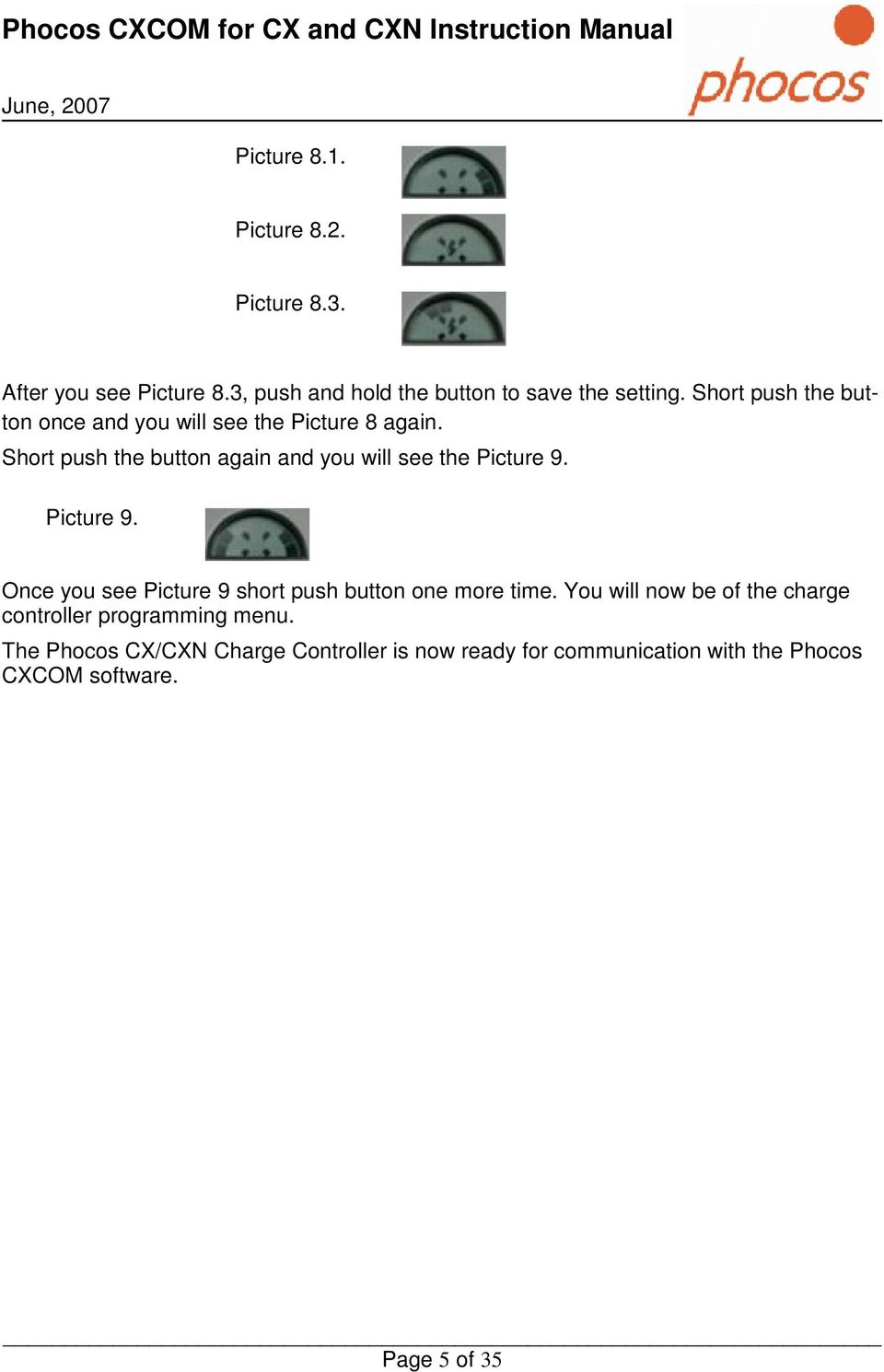
5 Picture 8.1. Picture 8.2. Picture 8.3. After you see Picture 8.3, push and hold the button to save the setting. Short push the button once and you will see the Picture 8 again. Short push the button again and you will see the Picture 9. Picture 9. Once you see Picture 9 short push button one more time. You will now be of the charge controller programming menu. The Phocos CX/CXN Charge Controller is now ready for communication with the Phocos CXCOM software. Page 5 of 35
6 3. Installing the Drivers for the Phocos CXI In order to install drivers, you must connect the Phocos CXI cable to a USB port of your computer. To install drivers for the Phocos CXI cable it is not necessary to connect to the Phocos CX/CXN charge controller to the interface cable. You only need to connect the interface cable with the USB port of your computer. To install the drivers for the Phocos CXI, use the installation guide on the CD-Rom. The installation guide is located in the following folder: \Phocos CXI driver\installationsguide.pdf Page 6 of 35


7 4. Installing the Software To install the software you have to start setup.exe on the CD-Rom. Follow the instructions of the setup. Step 1: Install the Microsoft.NET Framework Open setup.exe and you will see the following picture if Microsoft.NET Framework is not currently installed on your computer. If Microsoft.Net Framework is already installed, look into step 2 of the installation. Click to Yes and the next window will appear. Microsoft.NET Framework installation is executing now. Page 7 of 35


8 Click I agree if you agree with license terms of Microsoft.NET Framework. Then, click Install to continue software installation. Microsoft.NET Framework setup is installing components now. Page 8 of 35


9 Finish of the.net Framework installation with a message. Now the Microsoft.NET Framework is installed on your computer. You must start the setup.exe again to install the Phocos CXCOM software. Step 2: Start the setup.exe to install the software Start setup and you will see the picture below. Click Next and you will get to the next window. Page 9 of 35

10 In this window you can choose the folder the software should be installed to your computer. At the bottom of the window choose Everyone that all users can start the software. Page 10 of 35


11 The window below shows to you that the installation is ready to begin. Click Next. Page 11 of 35


12 Phocos CXCOM software is being installed now. Page 12 of 35

13 Phocos CXCOM software has been successfully installed. The software has now been installed on your computer. A shortcut icon will be added to the desktop and the Windows start menu. Double click the Phocos CXCOM icon on the desktop and the software will run. Page 13 of 35

14 5. The Software Choose the Comport and connect the Charge Controller. The CX and CXN have different Interfaces you can see in the pictures. CX: CXI Interface Fig 5.1: Interface Phocos CX Chargecontroller Connect the Phocos CXI cable with any USB Port on your computer and the other end with the Phocos CX Charge Controller Interface as shown in Fig CXN: CXI Interface CXT Interface Fig 5.2: Interface Phocos CXN Chargecontroller Connect the Phocos CXI cable with any USB Port on your computer and the other end with the CXI-CXN adapter which is the same box as the CXI. The other end you must connect with the left bush of the CXN, as you can see in picture 5.2. Page 14 of 35

15 Now, open the Start menu on your desktop. Select Control Panel, then System, Hardware, then Device Manager. You will find a window, as depicted in fig 5.3. There, you will see the Comport connector which is now installed on your computer. You must set this Comport connector in the software as shown in the next step (Figure 5.4). Fig.5.3: Check the ComPort at the Device Control Page 15 of 35

16 Double click the Phocos CXCOM icon on your computer desktop to run the Phocos CXCOM software. Click Comport on the menu bar at the top and set the correct port number. If your Comport number is higher then 15, choose manual. Then, input your comport number. Or you can click automatic and the software will search for the right comport automatically for you. Fig.5.4: ComPort setting Page 16 of 35

17 5.2 State of Charge Controller and Current Values You can switch between the different windows of the program by clicking on the buttons on the left side of the screen. (i.e. Status, Current Values,, Menu Setting, Night Light). If you click on Status you will see the Status window. Click on Read from Charge Controller and the window shows you some important details about the system as shown in Fig Fig.5.5: State display from the controller Battery type: Liquid Lead Acid or GEL Battery voltage The voltage when the charge controller should disconnect the load from the battery to protect it from deep discharge (Low Voltage Disconnect) Acoustic buzzer that sounds when the battery becomes empty Load settings for the nightlight function Button lock (the charge controller menu button is locked or not) Here you can see load on or off at the charge controller at the moment and if the charge controller knows it is currently NIGHT or DAY Page 17 of 35

18 Click on button Current Values to see the current status of system as shown in Fig Fig.5.6: Current data of the charge controller Explaining the Data in the Current Value window Battery Information: Battery voltage in V is the current battery voltage Battery state of charge (SOC) in % SOC voltage change effected by setting adaptive in V End of Charge Voltage in V The Battery Charge mode (BOOST = 14.4V/28.8V or EQUAL= 14.8V/29.6V) Page 18 of 35

19 Other Information: Version number of the Phocos CX/CXN Controller Number of hours since beginning of the night Length of the last night in hours Temperature in C Present Current Data: Nominal current of the Phocos CX/CXN Charge Controller Excess energy available (energy of PV generator which the system can t use at the moment) Photovoltaic current in percent of the nominal current Load current in percent of the nominal current 5.3 Loading Datalogger data You can see the Datalogger data of the charge controller if you click one of the following windows buttons: Datalogger Shows general data for the datalogger. Last Week Shows data for the last seven days (last week). Last Month Shows data for the last four weeks (last month). Last Year Shows data for the last twelve months (last year). Page 19 of 35

20 5.3.1 General Datalogger values You can see the Datalogger data when you click on Datalogger. Fig.5.7: Data of the chargecontroller Datalogger If you click Read from Charge Controller, you can download the current saved data from the Charge Controller Datalogger. Battery Information: Number of low battery load disconnects (these are the disconnects to save the battery from deep discharge) Weeks / Months without a fully charged battery Amperehours: Amperehours to the load and coming from the solar generator Other Information: Average state of charge of the battery in the morning Number of days since the last time the Datalogger was cleared (recording days) Page 20 of 35

21 5.3.2 Datalogger data from last week, last month and last year The windows Last Week, Last Month and Last Year display the same information at different resolutions. Explanation based on data from last week. Fig.5.8: Data last week If you look into the Last Week window you will see two buttons at the bottom of the window. There you can toggle between data and diagrams. Page 21 of 35
22 Explaining of the data: Maximum battery voltage each day Minimum battery voltage each day State of battery charge in % of the battery in the morning State of battery charge in % of the battery in the evening PV amperehours each day Load amperehours each day Excess energy produced by the solar generator each day Maximum current of the solar generator each day Maximum current of the load each day An empty battery on this day will shown you this icon: A fully charged battery on this day will shown you this icon: Failures such as overtemperature, overcurrent etc. are indicated by this icon: Page 22 of 35
23 Click on the diagram button to look at four different diagrams created from stored data. Examples are shown in Fig. 5.9 and Fig Fig.5.9: Diagram min. and max. battery voltage each day Page 23 of 35
24 Figure 5.10 is an example of the diagram depicting the battery state of charge (SOC) each day. The blue bars show the battery SOC in the evening. The orange bars show the battery SOC in the morning. Fig.5.10: Battery state of charge each day The data for Last Month and Last Year can also be obtained. These diagrams will be displayed by using the weekly or monthly averages for most data. The min and max voltage diagram and min and max currents diagram are displayed as the minimum and maximum values for battery voltage and current flow values for each week or month. Page 24 of 35
25 5.4 System Performance Click on System Performance and you will see a window similar to Fig Fig.5.11: System Performance The System Performance informs you how well the load was supported by energy produced by the system. The following questions are answered: Is the PV generator able to supply the system with enough energy to power the load(s)? Is the battery being handled well enough to ensure maximum lifetime? Is the energy reserve capacity (battery) large enough to power the system? Page 25 of 35
26 Average data about the system: If you click Average data in the System Performance window, you can view average data and possible disturbances in the system. Fig.5.12: Average data Page 26 of 35
27 5.5 Saving Data You also have the ability to save data from the datalogger to a Microsoft Excel TM (.csv) or a text (.txt) file. For this feature, click save as Excel file or save as txt. Fig.5.13: Save data To save as an Excel or text file, first click search path and choose a path in the opened window. After this, click ok, then click Take File Path. The path will be shown to you. Now you must give the file a name. You can also save more details like battery capacity and/or power of solar generator. Page 27 of 35
28 5.6 Load and Save data to download it again in the software You are able to reload data which you have saved before. Fig.5.14: Load data To do this you must click on the Load data window from the menu on the left. Choose the file you would like to view and click load. Page 28 of 35
29 5.7 The Charge Controller Settings Menu The Menu Settings: Set the battery voltage that the charge controller should disconnect the load to protect the battery (Low Voltage Disconnect). State of battery charge buzzer on or off (when this function is on a buzzer beep by the different charge states of the battery) Lock the menu button (This feature allows you to disable the menu button on the controller) Select the appropriate battery type (GEL/AGM or liquid lead acid) Set load on or off (function only possible by the CXN and only when no night light function is activated) Fig.5.15: Menu settings Page 29 of 35
30 5.8 Setting Nightlight Functions You have three options when setting the nightlight function. This is the feature that can switch the load on during a period of time at night. The load will be switched off during the day. Load on/off as a period of time before sunrise (hours), a period of time after sundown (hours) or set a specific time for load on/off Load on the whole night No nightlight function (This selection allows you to turn the load on/off manually using the menu button on the controller) Load on hours before sunrise / hours after sundown Fig.5.16: Setting nightlight function by hours before sunrise or hours after sundown In this function you must set the hours before sunrise and hours after sundown when the load should be switched on. After this, click Send to Charge Controller. Then click Read from Charge Controller in order to verify that your settings have been changed. Page 30 of 35
31 Setting Times for Sunrise and Sundown For this function, you must first set the time of sunrise and sundown. Then, choose the time when you want the load switched on. Fig.5.17: Setting times for sunrise/sundown Page 31 of 35
32 Setting Controller for Load on in Morning or Evening Fig.5.18: Setting the time for load on/off Page 32 of 35
33 5.9 Use the help If you have problems, use the help function on the menu bar. Fig.5.19: Help menu Page 33 of 35

34 6. Removing Phocos CXCOM To remove the software from your computer, go to Start menu setting Control Panel Add or remove programs, select Phocos CXCOM then click the Remove button. Click Yes, then wait for about 1 minute, the Phocos CXCOM software will be removed from your system. Page 34 of 35
35 7. Technical Support Questions If you have any questions about the software, please contact: Phocos AG Magirus-Deutz Str. 12 D Ulm Germany [email protected] Page 35 of 35
SoundLAB Software Download Software from the Bogen website: www.bogen.com/software
 SPLM DIGITAL SOUND PRESSURE LEVEL METER SoundLAB Software INSTALLATION & INSTRUCTION MANUAL Download Software from the Bogen website: www.bogen.com/software Specifications are subject to change without
Table of Contents. 1. Overview... 3. 1.1 Materials Required. 3 1.2 System Requirements. 3 1.3 User Mode 3. 2. Installation Instructions..
 Table of Contents 1. Overview..... 3 1.1 Materials Required. 3 1.2 System Requirements. 3 1.3 User Mode 3 2. Installation Instructions.. 4 2.1 Installing the On Call Diabetes Management Software. 4 2.2
XConsole GUI setup communication manual September 2010.
 XConsole GUI setup communication manual September 2010. XConsole is compatible with Microsoft XP, Vista and Windows 7. The software will also work if using Boot camp on a Mac. IMPORTANT NOTES: - Do NOT
Ash Capture Control User Guide
 Ash Capture Control User Guide Revision 1.4 Table of Contents Software Installation... 3 Hardware Installation... 6 System Block Diagram... 7 Using Ash Capture Control... 8 Launching the Application...
ScanShell.Net Install Guide
 ScanShell.Net Install Guide Please install the software first - DO NOT PLUG IN THE SCANNER The scanner has been carefully packaged to avoid damage during transportation. Before operating the scanner, please
SA-9600 Surface Area Software Manual
 SA-9600 Surface Area Software Manual Version 4.0 Introduction The operation and data Presentation of the SA-9600 Surface Area analyzer is performed using a Microsoft Windows based software package. The
Guide to Installing BBL Crystal MIND on Windows 7
 Guide to Installing BBL Crystal MIND on Windows 7 Introduction The BBL Crystal MIND software can not be directly installed on the Microsoft Windows 7 platform, however it can be installed and run via XP
SOFTWARE INSTALLATION INSTRUCTIONS
 AUDITGARD LGA Electronic Combination Lock SOFTWARE INSTALLATION INSTRUCTIONS Implementation Package The AuditGard Software implementation package includes: 707013 AuditGard Software Install CD 42145 Programming/Audit
Manual. EN Appendix. Blue Solar PWM Pro setup and monitoring software
 Manual EN Appendix Blue Solar PWM Pro setup and monitoring software EN Appendix Contents 1. Region and language settings 2 2. Download the software 2 3. UnRAR the software 2 4. Install the software 3
Windows XP.. ELITE Firmware Update procedures.. v1.41
 Windows XP.. ELITE Firmware Update procedures.. v1.41 Download and Extract the ELITE update. Note.. Please ensure you are logged in to Windows as an Administrator before carrying out the instructions in
Model SL355 Noise Dosimeter/Datalogger
 Model SL355 Noise Dosimeter/Datalogger Software Help Guide Software Introduction The SL355 Noise Dosimeter software allows for setup and retrieval of recorded data in the Noise Dosimeter. A total of 20
User Manual WatchPower
 User Manual WatchPower Management Software for Inverter Table of Contents 1. WatchPower Overview... 1 1.1. Introduction... 1 1.2. Features... 1 2. WatchPower Install and Uninstall... 1 2.1. System Requirement...
Page 1 S5.5 Monitoring Software Manual Rev 1.2 for Software Ver 1.0
 Trantec S5.5 Monitoring Software Manual Initial Setup Minimum PC Requirements 1.6 GHz CPU, 256 MB Memory, 1 available USB port, Windows XP Recommended PC >2.0 GHz CPU, 512 MB (XP) 1 GB (Vista) memory,
Installing USB Drivers With Microsoft Windows XP
 Installing USB Drivers With Microsoft Windows XP Legal Notice No part of this guide may be reproduced, transmitted, transcribed, stored in a retrieval system, or translated into any computer language,
JVC Monitor Calibration 2 User's Guide
 JVC Monitor Calibration 2 User's Guide Table of Contents 1. What is JVC Monitor Calibration 2? 2. System Requirement 3. Installation (JVC Monitor Calibration 2) 4. Uninstall 5. Installation (EyeOne Display
EPSON Stylus COLOR 740. USB Software Installation Guide (Windows 98/iMac ) USB Setup Guide (imac)
 EPSON Stylus COLOR 740 TM USB Software Installation Guide (Windows 98/iMac ) USB Setup Guide (imac) This guide includes USB setup instructions for your imac computer, as well as software installation instructions
Handheld LPC Utility Software for Windows. Operation Manual
 Handheld LPC Utility Software for Windows MODEL S388-70 Operation Manual Read this manual carefully and understand the warnings described in this manual before operating the product. Keep this manual handy
Virtual Office Remote Installation Guide
 Virtual Office Remote Installation Guide Table of Contents VIRTUAL OFFICE REMOTE INSTALLATION GUIDE... 3 UNIVERSAL PRINTER CONFIGURATION INSTRUCTIONS... 12 CHANGING DEFAULT PRINTERS ON LOCAL SYSTEM...
Using Remote Web Workplace Version 1.01
 Using Remote Web Workplace Version 1.01 Remote web workplace allows you to access your Windows XP desktop through Small Business Server 2003 from a web browser. 1. Connect to the Internet in your remote
PLUS TV ANALOG USB STICK Installation Manual
 PLUS TV ANALOG USB STICK Installation Manual Contents V1.2 Chapter 1 : PLUS TV ANALOG USB STICK Hardware Installation...2 1.1 Package Contents...2 1.2 System Requirements...2 1.3 Hardware Installation...2
Software Repair Assistant Manual for DuraXV
 Software Repair Assistant Manual for DuraXV 2015 Kyocera Corporation. All rights reserved. KYOCERA is a registered trademark of Kyocera Corporation. All other trademarks are the property of their respective
Table of Contents. System Requirement of MP3 Player:... 4. Connection and Downloading... 7. Downloading DRM10 Files... 8.
 Table of Contents Instructions... 1 Precautions... 2 System requirements... 4 System Requirement of MP3 Player:... 4 Introduction... 5 Features... 5 Charging the Battery... 6 Connection and Downloading...
User s Manual. Management Software for Inverter
 WatchPower User s Manual Management Software for Inverter Table of Contents 1. WatchPower Overview... 2 1.1. Introduction... 2 1.2. Features... 2 2. WatchPower Install and Uninstall... 2 2.1. System Requirement...
1.0. User s Guide & Manual USB 2.0 FLASH DRIVE
 1.0 USB 2.0 FLASH DRIVE User s Guide & Manual Index Introduction 1 CHAPTER1 Features & Specifications 2 CHAPTER2 System Requirements 4 CHAPTER3 Getting Started Installation of the Windows 98SE Driver 5
USB DRIVER INSTALLATION GUIDE
 USB DRIVER INSTALLATION GUIDE Use these instructions to install the USB drivers and Microsoft synchronization software for your Pathfinder 6057 printer. You need these utilities for your printer and computer
ezsystem elab16m Project 1F: Alarm System (Full Project description)
 ezsystem elab16m Project 1F: Alarm System (Full Project description) ezsystem The aim of ezsystem is to enable Creativity and Innovation at an early age in a Problem Based Learning (PBL) approach. ezsystem
AIM SOFTWARE AND USB DRIVER INSTALLATION PROCEDURE
 AIM SOFTWARE AND USB DRIVER INSTALLATION PROCEDURE CONTENTS AIM software and USB Driver installation Chapter 1 Installing AIM software and AIM USB driver... 2 Chapter 2 Installation under Microsoft Windows
PITE 3921 Battery Monitoring System User Manual P-140606-V1.0
 User Manual P-140606-V1.0 4/F, Bldg A, Chiwan Industrial Park, Shaodi Rd., Chiwan, Shekou Area, Shenzhen, China TEL: +86-755-2680 5759 FAX: +86-755-2688 0310 www.pitetech.com 1 Catalog 1. INTRODUCTION...
Thuraya XT-DUAL. Software Upgrade Manual
 Thuraya XT-DUAL Software Upgrade Manual Version 1 / February 2012 1. INTRODUCTION... 3 2. SOFTWARE UPGRADE WITH WINDOWS 7... 4 2.1 Installation of the Upgrader Package... 4 2.2 Manual detection (optional
Trax Attendance Manager Full Installation (Windows XP, 32 bit Windows Vista, or 32 bit Windows 7)
 Trax Attendance Manager Full Installation (Windows XP, 32 bit Windows Vista, or 32 bit Windows 7) NOTE: There are separate instructions for 64 bit Windows Vista, 64 bit Windows 7, and clients in Canada.
Config software for D2 systems USER S MANUAL
 DT-CONFIG SOFTWARE Config software for D2 systems USER S MANUAL CONTENTS 1. Introductions ------------------------------------------------------------------- 3 2. System Requirement and Connection ----------------------------------------
COMBOGARDPRO. 39E Electronic Combination Lock SOFTWARE INSTALLATION INSTRUCTIONS
 COMBOGARDPRO 39E Electronic Combination Lock SOFTWARE INSTALLATION INSTRUCTIONS IMPLEMENTATION PACKAGE The ComboGard Pro Software implementation package includes: 707012 ComboGard Pro Software Install
DUKANE Intelligent Assembly Solutions
 PC Configuration Requirements: Configuration Requirements for ipc Operation The hardware and operating system of the PC must comply with a list of minimum requirements for proper operation with the ipc
Client Program Installation Guide
 Siku Quanshu (Wenyuange Edition) Online Subscription Services Client Program Installation Guide 1. System Requirements The minimum requirements of the Siku Quanshu (Wenyuange Edition) Online Subscription
User Manual. Thermo Scientific Orion
 User Manual Thermo Scientific Orion Orion Star Com Software Program 68X637901 Revision A April 2013 Contents Chapter 1... 4 Introduction... 4 Star Com Functions... 5 Chapter 2... 6 Software Installation
SAPIP GUI INSTALLATION. Table of Contents
 QUICK START GUIDE SAPIP GUI INSTALLATION Table of Contents 1. Install CSU cable driver for SapIP..2-3 2. Check for pre-requisite for SAPIP GUI install......2 3. Check for pre-requisite for SAPIP GUI install...2-6
INF-USB2 and SI-USB Quick Start Guide
 INF-USB2 and SI-USB Quick Start Guide Please follow these instructions carefully. DO NOT connect the INF-USB2 or SI-USB module to your computer before running the setup program. After running Setup and
IMPORTANT! CPD 8424R1
 IMPORTANT! You need to reinstall EPSON Image Authentication System (IAS) on your camera if it was installed before your camera was repaired. Please see your EPSON Image Authentication System User s Guide
SubCue Analyzer Software - Introduction
 SubCue Analyzer Software - Introduction The SubCue Analyzer is a tool to initialize and download the temperature data from implantable SubCue Dataloggers. To begin, open the SubCue Analyzer program from
USB Driver Installation for Windows XP
 USB Driver Installation for Windows XP USB Serial Converter Driver Installation for Windows XP CAUTION: You must use the drivers on the CD-ROM supplied with your USB Device. DO NOT download drivers from
3M Occupational Health and Environmental Safety 3M E-A-Rfit Validation System. Version 4.2 Software Installation Guide (Upgrade) 1 P age
 3M Occupational Health and Environmental Safety 3M E-A-Rfit Validation System Version 4.2 Software Installation Guide (Upgrade) 1 P age Contents Important Information Read First... 3 Software Download...
ScanWin Installation and Windows 7-64 bit operating system
 ScanWin Installation and Windows 7-64 bit operating system In order to run the ScanWin Pro install and program on Windows 7 64 bit operating system you need to install a Virtual PC and then install a valid,
If you are not using a network environment (i.e. USB connection only) If you are using the printer in a network environment
 This document describes how to setup the printer when you are using an operating system equipped with Windows Firewall such as Windows XP Service Pack 2. Make sure that you read the
1. System Requirements
 BounceBack Ultimate 14.2 User Guide This guide presents you with information on how to use BounceBack Ultimate 14.2. Contents 1. System Requirements 2. BounceBack Pre-Installation 3. How To Install The
PN-T321 LCD MONITOR. USB Flash Drive Media Tool OPERATION MANUAL
 PN-T321 LCD MONITOR USB Flash Drive Media Tool OPERATION MANUAL Contents Introduction...2 Installing/Uninstalling the Software...3 System Requirements...3 Installing the Software...3 Uninstalling...3 Using
The FlexiSchools Online Order Management System Installation Guide
 The FlexiSchools Online Order Management System Installation Guide FlexiSchools May 2012 Page 1 of 18 Installation Pack Welcome to the FlexiSchools system. You will have received a disc containing: Sato
Installation Guide and Machine Setup
 Installation Guide and Machine Setup Page 1 Browser Configurations Installation Guide and Machine Setup The first requirement for using CURA is to ensure that your browser is set up accurately. 1. Once
QUICK START GUIDE. SG2 Client - Programming Software SG2 Series Programmable Logic Relay
 QUICK START GUIDE SG2 Client - Programming Software SG2 Series Programmable Logic Relay SG2 Client Programming Software T he SG2 Client software is the program editor for the SG2 Series Programmable Logic
Important Notes for WinConnect Server VS Software Installation:
 Important Notes for WinConnect Server VS Software Installation: 1. Only Windows Vista Business, Windows Vista Ultimate, Windows 7 Professional, Windows 7 Ultimate, Windows Server 2008 (32-bit & 64-bit),
Use Remote Desktop capabilities to Access your Work PC from home over VPN
 Use Remote Desktop capabilities to Access your Work PC from home over VPN With Remote Desktop on Windows XP Professional, you can have access to a Windows session that is running on your computer when
4cast Client Specification and Installation
 4cast Client Specification and Installation Version 2015.00 10 November 2014 Innovative Solutions for Education Management www.drakelane.co.uk System requirements The client requires Administrative rights
Midland BT Updater BTUpdater Program Program file (x86) ), Midland
 Midland BT Updater After you downloaded the BT Updater setup application from the web site, double click on it and follow the installation procedure. The BTUpdater application is automatically installed
Data Logging Software and Cable Bundle Model DL-SC3 User Manual. Overview
 Data Logging Software and Cable Bundle Model DL-SC3 User Manual Overview Eco Sensors Digital Products are capable of transmitting data to a computer via an RS-232 serial connection. Eco Sensors DL-SC3
CANON FAX L360 SOFTWARE MANUAL
 CANON FAX L360 SOFTWARE MANUAL Before You Begin the Installation: a Checklist 2 To ensure a smooth and successful installation, take some time before you begin to plan and prepare for the installation
LOREX CLIENT Remote Software 4.0
 LOREX CLIENT Remote Software 4.0 Instruction Manual English Version 2.0 MODEL: L20WD800 Series www.lorexcctv.com Copyright 2008 LOREX Technology Inc. Table of Contents Table of Contents Software Installation...
Barco service bulletin
 Serial Number: InfoT621 Date: 15/07/2005 Product: icon H600 Priority code*: D 1. ICON FIRMWARE V1.10 AND NETWORK SOFTWARE V1.31 1.1 Introduction CAUTION: First read following notes on V1.10 implications!
How to Download Images Using Olympus Auto-Connect USB Cameras and Olympus Master
 How to Download Images Using Olympus Auto-Connect USB Cameras and Olympus Master Introduction Auto-Connect USB is a feature that allows Olympus digital cameras to emulate a Hard disk drive when connected
USB DRIVER INSTALLATION GUIDE
 USB DRIVER INSTALLATION GUIDE Use these instructions to install the USB and Microsoft ActiveSync synchronization software for your Monarch Pathfinder Ultra Platinum 6039 printer and computer to communicate.
SOFTWARE GUIDE PM1405 DATA PROCESSING SOFTWARE
 SOFTWARE GUIDE PM1405 DATA PROCESSING SOFTWARE Equipment Software Manufacturer Survey meter РМ1405 "РМ1405 Software" Polimaster Copyright Polimaster 2015. All rights reserved. According Copyright protection
BlueSolar Pro Remote Panel For BlueSolar PWM-Pro charge controllers 12/24V 5, 10, 20, 30A Article number SCC900300000
 Manual EN BlueSolar Pro Remote Panel For BlueSolar PWM-Pro charge controllers 12/24V 5, 10, 20, 30A Article number SCC900300000 Contents EN 1.Important safety instructions... 2 2. Installation... 2 3.Product
PlusTV HD USB 315 Installation Manual
 PlusTV HD USB 315 Installation Manual Contents V1.0 Chapter 1: PlusTV HD USB 315 Hardware Installation...2 1.1 Package Contents...2 1.2 System Requirements...2 1.3 Hardware Installation...2 Chapter 2:
ViewPower. User s Manual. Management Software for Uninterruptible Power Supply Systems
 ViewPower User s Manual Management Software for Uninterruptible Power Supply Systems Table of Contents 1. ViewPower Overview... 2 1.1. Introduction...2 1.2. Structure...2 1.3. Applications...2 1.4. Features...2
Software Upgrade Assistant Manual for DuraXV
 Software Upgrade Assistant Manual for DuraXV 2015 Kyocera Corporation. All rights reserved. KYOCERA is a registered trademark of Kyocera Corporation. All other trademarks are the property of their respective
PP8X Printer Driver Installation Instruction
 PP8X Printer Driver Installation Instruction Pinnacle Technology Corp. CONTENTS 1 BT Device Installation... 1 2 Printer Driver Installation... 6 3 How to Know the Connecting Port... 10 4 How to Configure
PCLinq2 Hi-Speed USB Bridge-Network Cable. Quick Network Setup Guide
 PCLinq2 Hi-Speed USB Bridge-Network Cable Congratulations! Quick Network Setup Guide For Windows 98/ME/2000/XP Congratulations for installing the PCLinq2 Hi-Speed USB Bridge-Network Cable. This Quick Network
ShopStream Connect Software Download and Installation Instructions
 R ShopStream Connect Software Download and Installation Instructions This document contains instructions for downloading ShopStream Connect software from the internet and installing it on a personal computer
LPT1 Printer Connector. External Power Supply Connector Power Indicator
 AXIS 1650 Set-up Instructions Page 3 Unpack box Verify that you have all the items listed below: LPT1 Printer Connector Network Indicator Ethernet Connector External Power Supply Connector Power Indicator
USB 2.0 Peripheral Switch USER MANUAL US221A / US421A
 USB 2.0 Peripheral Switch USER MANUAL US221A / US421A FCC Information This equipment has been tested and found to comply with the limits for a Class B digital device, pursuant to Part 15 of the FCC Rules.
This Quick User Guide helps you install and get started with IRISCard Anywhere 5 and IRISCard Corporate 5 scanners.
 This Quick User Guide helps you install and get started with IRISCard Anywhere 5 and IRISCard Corporate 5 scanners. The software delivered with these scanners is: - Cardiris Pro 5 and Cardiris Corporate
Installing the Gerber P2C Plotter USB Driver
 Installing the Gerber P2C Plotter USB Driver 1 You can install a Gerber P2C plotter using a USB connection and communicate with it using compatible design software. The following procedures describe installing
LCD MONITOR TOUCH PANEL DRIVER 2 OPERATION MANUAL. for Mac. Version 1.0 PN-L703A/PN-70TA3/PN-L703B/PN-70TB3/PN-L603A/PN-60TA3/PN-L603B/PN-60TB3
 LCD MONITOR TOUCH PANEL DRIVER 2 OPERATION MANUAL for Mac Version 1.0 Applicable models PN-L703A/PN-70TA3/PN-L703B/PN-70TB3/PN-L603A/PN-60TA3/PN-L603B/PN-60TB3 Contents Introduction...3 System Requirements...3
1. System Requirements
 BounceBack Data Transfer 14.2 User Guide This guide presents you with information on how to use BounceBack Data Transfer 14.2. Contents 1. System Requirements 2. Attaching Your New Hard Drive To The Data
Getting to Know Your Mobile Internet Key
 Thank you for choosing the Huawei E3276 4G LTE Mobile Internet Key. With your Mobile Internet Key, you can enjoy a full high speed Internet experience on the go. This guide shows you how to set-up and
Maxtor OneTouch User's Guide
 EXTERNAL HARD DRIVE Maxtor OneTouch User's Guide TM II P/N:20259600 i Contents 1 Introduction................................................. 1 Maxtor OneTouch II Drive Components............................
Fusion. User s Guide: Updating the Fusion s Image
 Fusion User s Guide: Updating the Fusion s Image The Fusion s operating system and sound-set (called the image for short) are upgradeable and allow us to make many improvements even after the Fusion has
EDMS Operation Manual. 1. Install the USB Driver. 1.3 Click next
 EDMS Operation Manual 1. Install the USB Driver 1.1 If this is your first time using the gauge, when you connect the gauge to the PC, a driver installation window may appear or the driver will install
How To Upgrade A Yarvik Gotab Tablet To Android 4.0 (For Android) 4.2.2 (For Ipad) 4Th Generation (For Microsoft) 4S) 4G (For Zemmer) 4
 TAB420/424/460/461/464 GOTAB XERIOS 10 TABLET ANDROID 4.0 UPGRADE INSTRUCTIONS Page 1 of 9 BEFORE YOU START: BACKUP IMPORTANT DATA! Upgrading your Yarvik tablet to Android 4.0 will erase all user settings,
Please read and understand this instruction manual thoroughly before using this product.
 Please read and understand this instruction manual thoroughly before using this product. For Mini-Z MR-03VE Series models VE Manager Software Manual Instruction Manual This product is used to connect Mini-Z
Free GMATPrep Test-Preparation Software Download and Installation Instructions
 Welcome! Welcome to the GMATPrep application. The GMATPrep test-preparation software was designed by the people who created the GMAT exam, to help you get ready to take the test. It includes practice questions
Firmware & Software update procedures Amicroe TouchTAB IV.
 Firmware & Software update procedures Amicroe TouchTAB IV. Important note: The steps & procedures outlined below may be of assistance if you are experiencing difficulties with your Amicroe TouchTAB 9.7
BIODEX. ATOMLAB 500/WIPE TEST COUNTER DATA MANAGER SOFTWARE Version 1.10 (and higher). OPERATION MANUAL 086-333
 ATOMLAB 500/WIPE TEST COUNTER DATA MANAGER SOFTWARE Version 1.10 (and higher). OPERATION MANUAL 086-333 BIODEX Biodex Medical Systems, Inc. 20 Ramsey Road, Shirley, New York, 11967-4704, Tel: 800-224-6339
Caplio Utility for Windows
 Caplio Utility for Windows Operation Manual English To ensure correct use of the product, read this manual carefully before use. Keep the manual handy for future use. Introduction Thank you for purchasing
Winlead Dialer Software Users Manual Addendum 3 Installing Winlead Dialer Software on the Windows 2000 System
 Winlead Dialer Software Users Manual Addendum 3 Installing Winlead Dialer Software on the Windows 2000 System Copyright 2002 by Winlead Dialer Software 1.0 - Install Guide for Winlead Dialer Software Software
HDD Password Tool. User s Manual. English
 HDD Password Tool User s Manual English 1 Table of Contents Chapter 1: Introduction... 3 Trademarks... 3 Chapter 2: Required Operating System... 5 - HDD Password Tool for Windows... 5 - HDD Password Tool
Backup/Restore application
 Backup/Restore application (for use with a PC) OPERATION MANUAL for the SL-5600 1 Conditions for Using the Backup/Restore Application Software Sharp Corporation (hereafter referred to as Sharp), under
User Guide HUAWEI UML397. Welcome to HUAWEI
 User Guide HUAWEI UML397 Welcome to HUAWEI 1 Huawei UML397 4G LTE Wireless Modem User Manual CHAPTER 1 BEFORE USING YOUR UML397 WIRELESS MODEM ABOUT THIS USER MANUAL...4 WHAT S INSIDE THE PRODUCT PACKAGE...4
Installer Assistance Windows XP
 GearBox/TonePort Setup Installer Assistance Windows XP Welcome to the GearBox installation assistance document. This installation process will install the GearBox software, and optionally, device drivers
Analyzer 2.0. Installation Guide. Contents
 Analyzer 2.0 Analyzer 2.0 is a comprehensive suite of tools designed to help you analyze complex aqueous and multisolvent electrolyte solution chemistry, thermophysical properties, phase behavior and corrosion
Screen Capture. User s Guide. For ClassPad Series. http://edu.casio.com. http://edu.casio.com/products/classpad/ http://edu.casio.
 For ClassPad Series E Screen Capture User s Guide CASIO Education website URL http://edu.casio.com ClassPad website URL http://edu.casio.com/products/classpad/ ClassPad register URL http://edu.casio.com/dl/
TEMP MONITOR_S2 Software operation instructions
 Tu Sitio de Automatización! TEMP MONITOR_S2 Software operation instructions 1. Installation / Remove 1.1 The minimum hardware requirements for Temp Monitor_S2 software is: Windows 98 / 2000 / XP / Vista
Colorfly Tablet Upgrade Guide
 Colorfly Tablet Upgrade Guide (PhoenixSuit) 1. Downloading the Firmware and Upgrade Tool 1. Visit the official website http://www.colorful.cn/, choose 产 品 > 数 码 类 > 平 板 电 脑, and click the product to be
Weston Public Schools Virtual Desktop Access Instructions
 Instructions for connecting to the Weston Schools Virtual Desktop Environment Notes: You will have to have administrator permission on your computer in order to install a VMWare Client application which
Super Pro Net TM Network Key Installation and Operation
 March 4, 2015 Super Pro Net TM Network Key Installation and Operation Installation Overview RoadEng software can be protected against unlicensed use on a network with SafeNet s Super Pro Net TM hardware
Inserting the SIM card in the MobiGater device. Connecting the MobiGater Device
 WWW.MOBIGATER.COM 2 Inserting the SIM card in the MobiGater device There is a small cover on the bottom side of the MobiGater device Move the cover in the direction from? to. Move the SIM card holder in
Imation Clip USB 2.0 Flash Drive. Imation Drive Manager Software. User s Manual
 Imation Clip USB 2.0 Flash Drive Imation Drive Manager Software User s Manual Contents Introduction... 3 Features... 3 System Requirements... 4 Handling and Operating Recommendations... 4 Driver Installation...
Centran Version 4 Getting Started Guide KABA MAS. Table Of Contents
 Page 1 Centran Version 4 Getting Started Guide KABA MAS Kaba Mas Welcome Kaba Mas, part of the world-wide Kaba group, is the world's leading manufacturer and supplier of high security, electronic safe
OPN_DL UTILITY SOFTWARE. INSTALLATION AND USER GUIDE - v2.03
 OPN_DL UTILITY SOFTWARE INSTALLATION AND USER GUIDE - v2.03 Electronic Reading Systems Ltd 14 Wolseley Business Park Kempston Beds MK42 7PW Tel: 01234 855300 Fax: 01234 855446 CONTENTS 1.0 INTRODUCTION
Ultra Thin Client TC-401 TC-402. Users s Guide
 Ultra Thin Client TC-401 TC-402 Users s Guide CONTENT 1. OVERVIEW... 3 1.1 HARDWARE SPECIFICATION... 3 1.2 SOFTWARE OVERVIEW... 4 1.3 HARDWARE OVERVIEW...5 1.4 NETWORK CONNECTION... 7 2. INSTALLING THE
RDC-7 Windows XP Installation Guide
 RDC-7 Windows XP Installation Guide CONTENTS 1. End User License Agreement...3 2. Important notes...4 3. Customer support...4 4. Installing the USB driver...4 I. Prior to installation...4 II. Installation
iloq P10S.10/20 Programming device User's Guide
 iloq P10S.10/20 Programming device User's Guide CONTENTS CONTENTS... 2 GENERAL... 3 USING THE PROGRAMMING DEVICE... 5 Starting the programming device... 5 Programming of locks... 5 Programming of keys...