
NVR Network Video Recording Software
|
|
|
- Myles Hancock
- 10 years ago
- Views:
Transcription
1 NVR Network Video Recording Software User Manual Models SW-IP32 SW-IP16 SW-IP8 Please carefully read these instructions before using this product Save this manual for future use 1

2 ii

3 iii Surveillix NVR Server Software Manual Manual Edition 27177AI JUNE 2009 Printed in USA No part of this documentation may be reproduced in any means, electronic or mechanical, for any purpose, except as expressed in the Software License Agreement. Toshiba shall not be liable for technical or editorial errors or omissions contained herein. The information in this document is subject to change without notice. THE INFORMATION IN THIS PUBLICATION IS PROVIDED AS IS WITHOUT WARRANTY OF ANY KIND. THE ENTIRE RISK ARISING OUT OF THE USE OF THIS INFORMATION REMAINS WITH RECIPIENT. IN NO EVENT SHALL TOSHIBA BE LIABLE FOR ANY DIRECT, CONSEQUENTIAL, INCIDENTAL, SPECIAL, PUNITIVE, OR OTHER DAMAGES WHATSOEVER (INCLUDING WITHOUT LIMITATION, DAMAGES FOR LOSS OF BUSINESS PROFITS, BUSINESS INTERRUPTION OR LOSS OF BUSINESS INFORMATION), EVEN IF TOSHIBA HAS BEEN ADVISED OF THE POSSIBILITY OF SUCH DAMAGES AND WHETHER IN AN ACTION OR CONTRACT OR TORT, INCLUDING NEGLIGENCE. This software and documentation are copyrighted. All other rights, including ownership of the software, are reserved to DVR Support Center. TOSHIBA, and Surveillix are registered trademarks of TOSHIBA CORPORATION in the United States and elsewhere; Windows, and Windows XP are registered trademarks of Microsoft Corporation. All other brand and product names are trademarks or registered trademarks of the respective owners. The following words and symbols mark special messages throughout this guide: WARNING: Text set off in this manner indicates that failure to follow directions could result in bodily harm or loss of life. CAUTION: Text set off in this manner indicates that failure to follow directions could result in damage to equipment or loss of information.

4 iv

5 v Table of Contents PREFACE... 1 About This Guide... 1 Technician Notes... 1 INTRODUCTION... 3 Product Description... 3 Features... 3 NVR Software Requirements... 4 NVR Software Specifications... 5 GETTING STARTED... 7 NVR Contents... 8 NVR BASICS... 9 Installing the Software Installing NERO Burning Rom Installing the NVR Software Registering the NVR Software Locating the System ID Obtaining the Unlock Code Unlocking the Upgrade Display Screen Live Camera Options Camera View Recording Status Indicator Special Recording Screen Division Buttons SETUP OPTIONS Setup Overview Camera Setup Network Video Connecting a Network Device Connecting Manually Connecting with Camera Finder Assigning a Network Device to a Channel Unlocking New Network Device Camera Configuration Displaying More Columns Accessing the Configuration Menu Motion Setup Create a Motion Area Activating an Alarm on a Motion Event Regular Interval Recording Schedule Setup Recording Schedule Sensor Schedule Create a Recording Schedule Create a Sensor Schedule Scheduling Alarm Events... 27

6 vi Emergency Agent Schedule Special Day Schedule Creating/Editing a Special Day Schedule Deleting a Special Day Schedule System Restart Setup Create System Restart Schedule General Setup Voice Warning Connecting to a Wide Screen Display Hybrid Sensor Setup Volume Auto Sequence Setting Create Custom Auto Sequence Network Setup Information Administrative Setup Disk Management Setting Up DDNS Enable DDNS Set the IP Address User Management Add a New User User Rank Changing the Administrator Password Default Administrator Password Log Management Setup Log Management Options Status Check / General Users Storage Check Recording Data Check SMART Information SMART Alert Alarm Event Instant Recording Activate Instant Recording Searching Instant Recorded Video SEARCH Search Overview Play Controls Adjust the Brightness of an Image Zooming in on an Image Zooming in on a Portion of an Image Open Video from a Saved Location Time Sync Clean Image Performing a Basic Search Printing an Image Daylight SAVIng Time... 46

7 vii Save to JPG or AVI Bookmarks Modify Bookmarks Single Clip Backup Single Clip Backup Using Bookmark Data Index Search Performing an Index Search Index Search Results Display Preview Search Performing a Preview Search Graphic Search Performing a Graphic Search Object Search Performing an Object Search Motion Search Performing a Motion Search Audio Playback Search in Live BACKING UP VIDEO DATA Backup Overview Nero Express General Screen Overview Performing a General Backup Clip Screen Overview Performing a Clip Backup Scheduled Screen Overview Performing a Scheduled Backup Specifying Scheduled Backup Drives LAN / ISDN / PSTN CONNECTIONS LAN Overview Connecting to a LAN Using TCP/IP Configuring TCP/IP Settings WEB VIEWER web viewer overview Configuring the Server for Remote Connection Connecting to a DVR Using Web Viewer Closing the Web Viewer INCLUDED SOFTWARE SETUP Emergency Agent Overview Configuring the DVR Configuring the Client PC Setup Window Emergency Agent Window Filter Event List Add Items to Alarm Confirm List Search Alarm Window View Recorded Video Export Video Remote Software Overview... 74

8 viii Remote Software Setup Installing Remote Software Create a New Remote Connection Configuring the DVR Configuring the Server for Remote Connection Digital Verifier Overview Installing the Digital Verifier Using the Digital Verifier Backup Viewer Overview Installing Backup Viewer Loading Video from DVD or Hard Drive SCS Overview Configuring the Server for Remote Connection Connecting to a DVR... 79

9 1 PREFACE ABOUT THIS GUIDE This manual is a setup and maintenance guide that can be used for reference when setting up the NVR and for troubleshooting when a problem occurs. Only authorized personnel should attempt to repair this unit. Toshiba reserves the right to make changes to the NVRs represented by this manual without notice. The following text mark special messages throughout this guide: NOTE: Text set off in this manner indicates topics of interests that can help the user understand the product better. TIP: Text set off in this manner indicates topics and points of interests that can be helpful when using or settings up the NVR. TECHNICIAN NOTES WARNING: Only authorized technicians trained by Toshiba should attempt to repair this NVR. All troubleshooting and repair procedures that may be shown are for reference and minor repair only. Because of the complexity of the individual components and subassemblies, no one should attempt to make repairs at the component level or to make modifications to any printed wiring board. Improper repairs can create a safety hazard. And any indications of component replacement or printed wiring board modifications may void any warranty. WARNING: To reduce the risk of electrical shock or damage to the equipment: Do not disable the power grounding plug. The grounding plug is an important safety feature. Plug the power cord into a grounded (earthed) electrical outlet that is easily accessible at all times. Disconnect the power from the computer by unplugging the power cord either from the electrical outlet or the computer. CAUTION: To properly ventilate your system, you must provide at least 3 inches (7.6 cm) of clearance at the front and back of the NVR.
10 2

11 3 INTRODUCTION PRODUCT DESCRIPTION Toshiba s NVR Software is the next great step in surveillance. The NVR Software has been designed for use on non-proprietary hardware and existing IT infrastructures, making it a cost effective next generation surveillance package. The NVR Software allows users to connect to up to 16 network cameras and/or network video encoders per server. The Surveillix NVR software comes pre-configured for fast and seamless integration with non-proprietary hardware. Designed for Windows XP and Vista, the NVR Software offers the unparalleled stability, security, and ease of use of a Surveillix NVR, but on a PC platform. The NVR Software allows for multiple users to simultaneously connect through any network connection for instantaneous live viewing, digital search, and off site video storage. Users can also connect remotely through DSL, Cable Modems, ISDN, or 56K dialup. This NVR Software enables users to establish recording schedules, create motion detection zones, and use PTZ controls for each of the system's cameras. Searching and indexing your video archive has never been easier, video can now be found, viewed, and exported in a number of file formats with just a few clicks and can all be done on a PC or existing IT infrastructure. FEATURES Toshiba s Surveillix NVR Software includes the following features: PAN / TILT / ZOOM Controls on supported Network Cameras Simultaneous Search, Playback and Backup Up to 32 Network Cameras Multiple Levels of Security Access Advanced POS and ATM support Continuous, Motion Detection and Alarm Recording Modes Video Signal Loss Detection Records at the Encoding Resolution of the Network Camera Digital Signature Support for Tamper Proof Exporting Works with Computers Running Windows XP and Vista Fully integrates with Toshiba s Surveillix NVRs and DVRs Fully Compatible with Toshiba s Line of Network Cameras

12 4 NVR SOFTWARE REQUIREMENTS Recommended Workstation/Server for NVR Software Total Cameras / Video Input 8/16 32 Type & Number or Processors: Intel Q GHz+ Core 2 Quad X Intel Q GHz+ Core 2 Quad X Operating System: Microsoft Windows Vista X X Microsoft Windows XP Professional, SP2 X X File System: NTFS File System X X Memory: 2GB, DDR2 SDRAM Memory, 400Mhz,ECC X 3GB, DDR2 SDRAM Memory, 400Mhz,ECC X CD-ROM AND DVD Read-Write Devices: 16X(or more) CD-RW / DVD+RW/+R X X Graphics Cards: 128MB PCI / PCIe / AGP Graphics adapter X X Keyboard and Mouse: Entry Level, PS/2 / USB Keyboard and PS/2 / USB Mouse X X Speakers: Internal Chassis Speaker and External Speakers X X Soundcard: Microsoft DirectX Compatible Soundcard X X Network Adaptor: 1000Mbit Ethernet Network Adaptor X X Internet Browser: Microsoft Internet Explorer 6+ X X Backup Software: Nero 6 OEM/Standard/Ultra X X Display Adapter Settings: 32-Bit Color Setting X X Minimum Resolution of 1024X768 X X

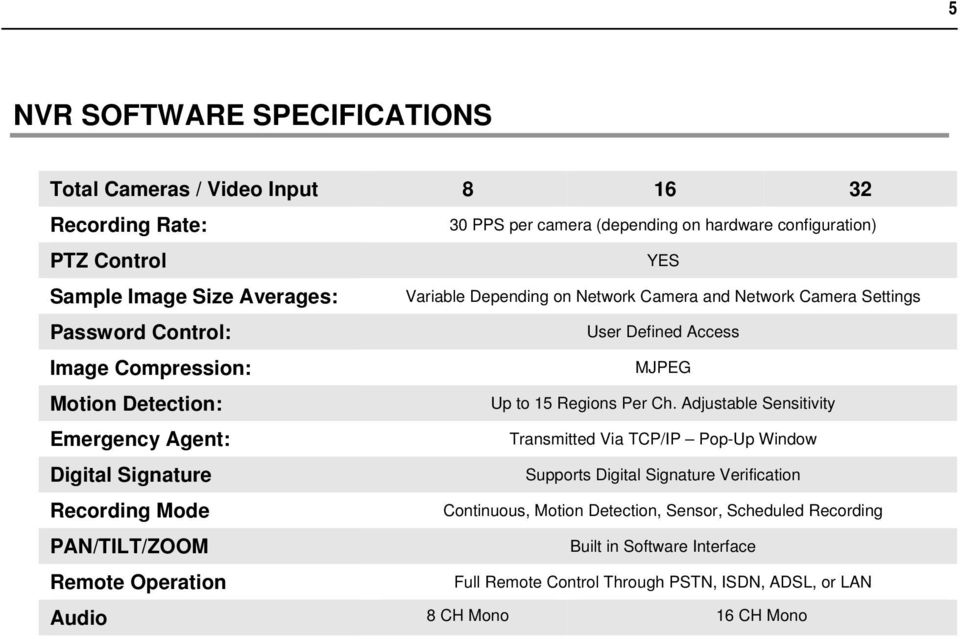
13 5 NVR SOFTWARE SPECIFICATIONS Total Cameras / Video Input Recording Rate: PTZ Control Sample Image Size Averages: Password Control: Image Compression: Motion Detection: Emergency Agent: Digital Signature Recording Mode PAN/TILT/ZOOM Remote Operation 30 PPS per camera (depending on hardware configuration) YES Variable Depending on Network Camera and Network Camera Settings User Defined Access MJPEG Up to 15 Regions Per Ch. Adjustable Sensitivity Transmitted Via TCP/IP Pop-Up Window Supports Digital Signature Verification Continuous, Motion Detection, Sensor, Scheduled Recording Built in Software Interface Full Remote Control Through PSTN, ISDN, ADSL, or LAN Audio 8 CH Mono 16 CH Mono
14 6

15 7 GETTING STARTED This chapter includes the following information: Software CD Contents

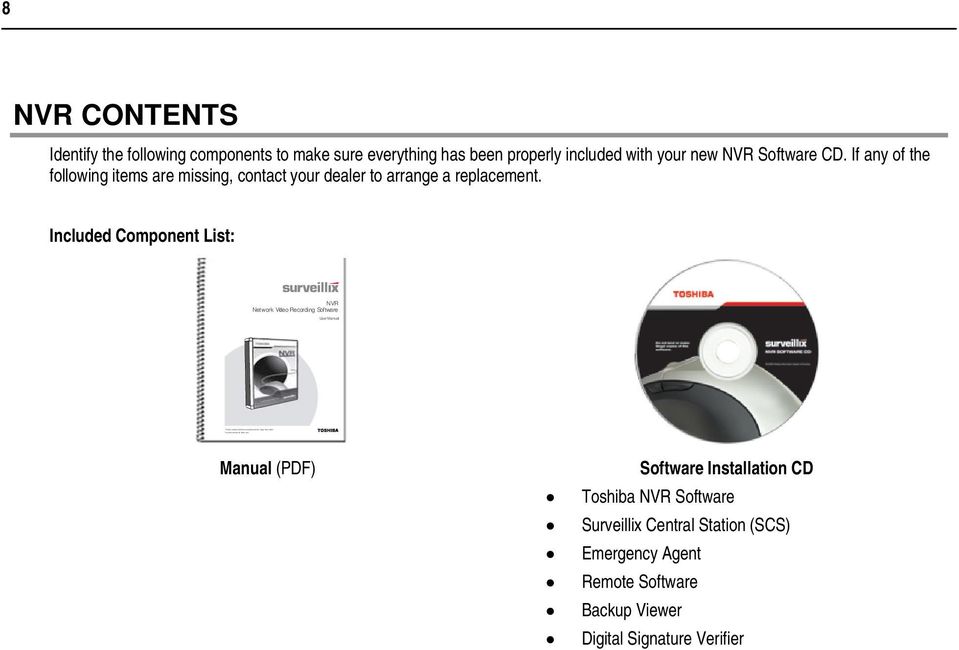
16 Please carefully read these instructionsbefore using this product. Savethismanual for future use. 1 8 NVR CONTENTS Identify the following components to make sure everything has been properly included with your new NVR Software CD. If any of the following items are missing, contact your dealer to arrange a replacement. Included Component List: NVR Network Video Recording Software User Manual Manual (PDF) Software Installation CD Toshiba NVR Software Surveillix Central Station (SCS) Emergency Agent Remote Software Backup Viewer Digital Signature Verifier
17 9 NVR BASICS This chapter includes the following information: Installing the NVR Software Registering the NVR Software Becoming familiar with the Display screen Defining Screen Divisions

18 10 INSTALLING THE SOFTWARE Installing NERO Burning Rom The NVR Software has been designed to work with Nero Burning Software Version 6. When installed, Nero 6 will enable backup to the CD ROM directly within the NVR Software. Without Nero 6 installed, video data may still be backed up but must be saved locally first and then copied to a CD using a separate application outside the NVR Software. CAUTION: NERO Burning Rom must be installed on the PC prior to installing the NVR Software. Failure to do so will compromise the backup features. To Install Nero 6 and enable CD Backup using the NVR Software: 1. Insert the NERO CD 2. Follow the on-screen instructions. 3. Restart the system. Installing the NVR Software CAUTION: NERO Burning Rom must be installed on the PC prior to installing the NVR Software. Failure to do so will compromise the backup features. To install the NVR software: 1. Insert the NVR Software CD into the CD/DVD Drive. 2. Follow the on-screen instructions. 3. When prompted select the Server or Workstation type of installation. Server: Preferred installation for systems with video cards equipped with less than 128 MB of video ram or systems running Windows Server Disables live video display. Workstation: Preferred installation for systems with a video card equipped with 128 MB or more of video ram. Enables live video display. 4. Click Finish to complete the installation and close all open windows.

19 11 Registering the NVR Software Have the following information available before registering. Software Serial Number: That product Serial Number is the unique number that Toshiba provided with the purchase software. System ID: The System ID is a unique code generated using the MAC address of the computer running the software. The following steps illustrate how to obtain a unique System ID. Locating the System ID 1. From the Display screen, click Setup. 2. Click Network Cameras. 3. Click the License tab. 4. Click Copy to copy the System ID. Obtaining the Unlock Code 1. Open an Internet browser and go to: 2. Type the Product Serial Number that was provided by Toshiba. 3. Type the System ID generated by the DVR. 4. Click Submit.
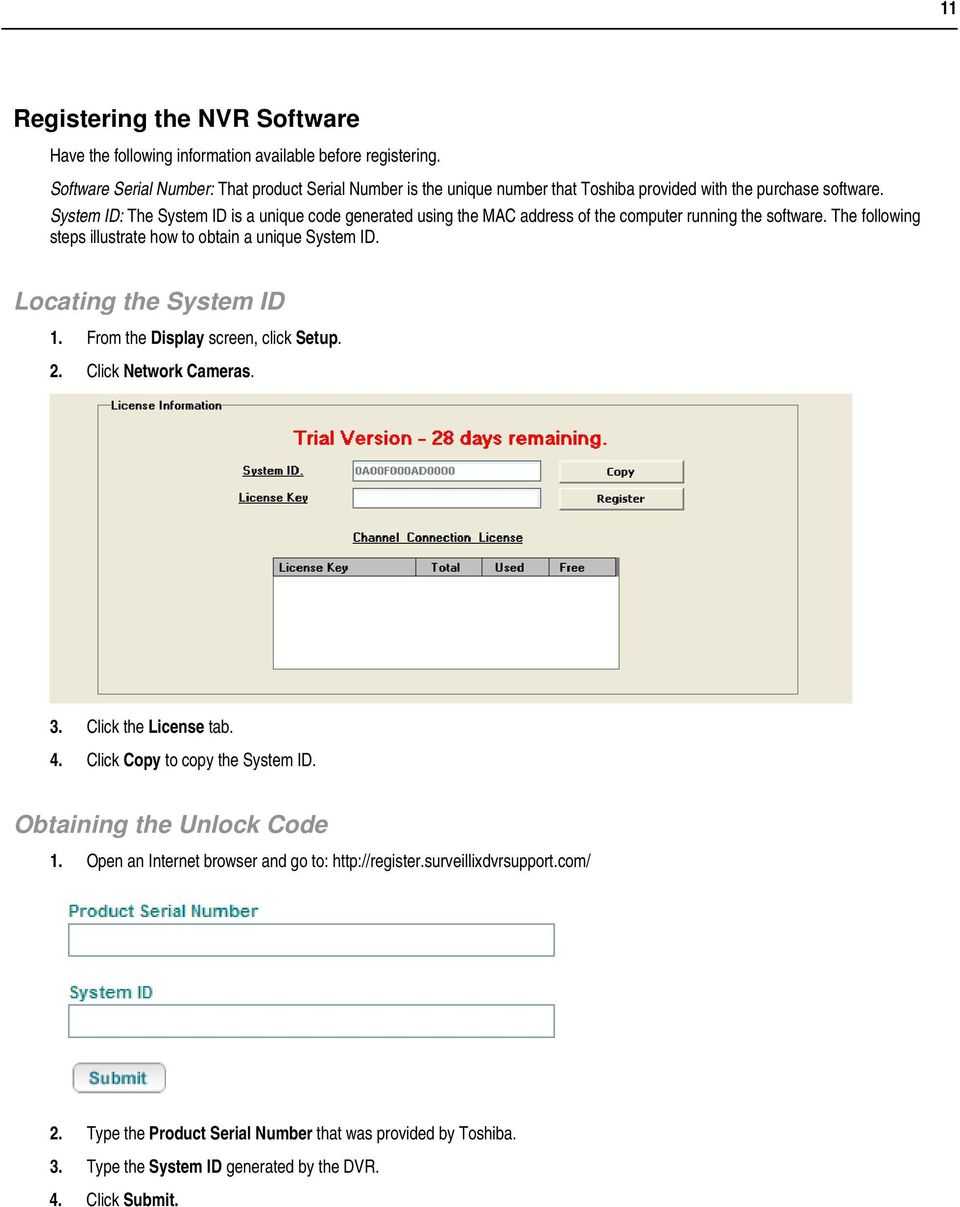
20 12 5. Verify the information. 6. Click Next if the information provided is correct. 7. Once validated, the user will be provided with the Unlock Code. 8. Print the page and save for later reference. Unlocking the Upgrade 1. Return to Setup > Network Cameras > License. 2. Enter the Unlock Code generated by the Surveillix Registration Site into the License Key box. 3. Click Register and confirm that the new License Key is listed in the Channel Connection License box. 4. Click OK.

21 13 DISPLAY SCREEN Each time the DVR starts, the program defaults to the Display screen. The following diagram outlines the buttons and features used on the Display screen. You should become familiar with these options as this is the screen that will be displayed the majority of the time. Opens: Search Display Backup Center PTZ Controller Screen Division buttons Opens Setup Display Current Date / Time Sensor Status Relay Outputs Open TV Out Options Live Camera Options Right-click a camera on the Display screen to display these options: Full Screen Instant Recording Search In Live
22 14 CAMERA VIEW Recording Status Special Recording Type INSTANT Camera No. and Name Recording Status Indicator The camera status for each camera is displayed in the upper right corner on the Video Display Area. The following are the different states for each camera: Recording Motion Detection Display Displayed when the camera is currently being recorded to the DVR. Displayed when a camera (set up for motion detection) detects motion. Displayed when the camera is currently not being recorded to the DVR. Special Recording There are two types of DVR Special Recording. Text is displayed on the camera indicating what type of Special Recording is activated. SENSOR INSTANT Sensor is displayed when a sensor, associated with a given camera, is activated. Instant Recording is a manual activation of the recording for the selected camera. Regardless of the recording method, Instant Recording will start the camera recording and also flag the video for future searches using the Index Search feature. INSTANT is displayed when a user activates the instant recording option. Double Right-Click the video display to activate and deactivate the Instant Recording option.
23 15 SCREEN DIVISION BUTTONS The Screen Division menu allows you to view cameras in groups such as two by two, three by three and four by four. The button options are shown below. 1st Four Cameras View Displays cameras 1-4 in the Video Display Area. To return to a different Multi-Camera View, select a different Screen Division option from the Screen Division menu. 2nd Four Cameras View Displays cameras 5-8 in the Video Display Area. To return to a different Multi-Camera View, select a different Screen Division option from the Screen Division menu. 3rd Four Cameras View Displays cameras 9-12 in the Video Display Area. To return to a different Multi-Camera View, select a different Screen Division option from the Screen Division menu. 4th Four Cameras View Displays cameras in the Video Display Area. To return to a different Multi-Camera View, select a different Screen Division option from the Screen Division menu. 1st Nine Cameras View Displays cameras 1-9 in the Video Display Area. To return to a different Multi-Camera View, select a different Screen Division option from the Screen Division menu. 2nd Nine Camera View Displays cameras 8-16 in the Video Display Area. To return to a different Multi-Camera View, select a different Screen Division option from the Screen Division menu. Multi-Camera View Displays a group of cameras within the Video Display Area. All Camera View Displays all 16 cameras within the Video Display Area. Multi-Camera View Displays a group of cameras within the Video Display Area. Multi-Camera View Displays a group of cameras within the Video Display Area. Full Screen The Full Screen Option allows you to view the Video Display Area using the entire viewable area on the monitor. When this is selected, no menu options are visible. You can activate the Full Screen Option by clicking on the Full Screen button within the Screen Division menu. You can deactivate Full Screen mode by right clicking on the screen. Auto Sequence Sequences through the Screen Divisions sets. For example, selecting the 1A and then the Loop button will sequence through 1A, 2A, 3A, 4A and then repeat. This option is not available for the 7, 10 and 13 screen divisions.
24 16 NOTES:
25 17 SETUP OPTIONS This chapter includes the following information: Setup Overview Camera Setup Motion Frame Setup Schedule Sensor Network Information Administrative
26 18 SETUP OVERVIEW The Setup options allow you to optimize your DVR by adjusting things like camera names, reboot schedules, recording schedules and more. It is extremely important that you setup your DVR correctly for several reasons. Recording Schedules By optimizing the recording schedule you can increase the amount of pertinent recorded video that is saved on the DVR and keep it longer. You can optimize the type of recording done by adding motion detection to this as well, again increasing the amount of useful video. DVR Access By setting up the access passwords you can tightly control the types of access an individual may have. This ensures the security and integrity of the DVR. Camera Naming By naming each camera you can easily identify the location and any other pertinent information that may be helpful simply by viewing it on the Video Display Area.
27 19 CAMERA SETUP Define Camera Name Selected Camera Display Select Camera Selected Camera Display Sensor Connection Enable Network Device PTZ Setup Network Device Registration Online Registration Camera Name Selects the camera to be edited. Displays the live camera feed from the camera selected. Specify which sensors are currently in use. Enables setup and use of Network Camera and PTZ Functionality. Opens the Network Device Setup menu. Opens the Registration menu for entering Unlock Codes to activate the software. Opens the Online Registration menu for activating pre-registered software. Specify a name for each camera.
28 20 NETWORK VIDEO Connected Devices Automatic Camera Finder Supported IP Camera Manufacturers ACTi Arecont Vision Axis Brans D-Link IQeye Lumenera Mobotix Panasonic Pixord Samsung Securgen Sony Stardot Toshiba VivoTek Connecting a Network Device Connecting Manually 1. From the Display screen, click Setup. 2. Click Network Video. 3. Click the Add/Remove Device tab. 4. Select your network device from the Device Type list. 5. Type a Device Name. 6. Type the IP/URL address, Port, User ID and Password of the device. 7. Click Add.
29 21 Connecting with Camera Finder 1. From the Display screen, click Setup. 2. Click the Network Video tab. 3. Click the Add/Remove Device tab. 4. Click Find Cameras to automatically find all connected Network cameras. 5. Select the check box next to the desired camera. 6. Click Get Device. 7. Type the User ID and Password of the device. 8. Click Update. Assigning a Network Device to a Channel 1. From the Display screen, click Setup. 2. Click Network Video. 3. Click the Channel Setup tab. 4. Click an available channel on the Channel List. 5. Type the desired Position Name. 6. Select the appropriate network device added previously. 7. If the device has PTZ capabilities, select the PTZ Camera check box to enable. 8. If supported, select the Use Network Camera Motion Detection check box. 9. Click Apply, then click Exit Setup. Unlocking New Network Device Follow the instructions above in NVR Basics for registering the NVR software to unlock any additional network devices.
30 22 Camera Configuration The Camera Configuration tab displays information on all cameras (analog and network) connected to the Surveillix DVR Displaying More Columns The Camera Configuration tab can be customized to display the information you use most. Click Select Column to add or remove specific columns. Capture FPS Record FPS Schedule Manufacturer Model IP Address Port Number Resolution Frame Rate Codec Quality GOP PTZ Accessing the Configuration Menu Use the Surveillix interface to access basic network device menu functions. 1. From the Display screen, click Setup. 2. Click Network Video. 3. Click the Channel Setup tab. 4. Highlight the desired channel. 5. Click Setup Network Device.
31 23 MOTION SETUP The DVR allows the user to adjust several different Motion Settings and create motion detection areas. Display full screen video pop up on motion event Beep on motion event Display full screen video pop up on sensor event Schedule recording at a regular specified interval Reduces Analog Signal Noise from Motion Detection Create a Motion Area 1. Click Motion in Setup. 2. Select a camera from the Select Camera list. 3. Select the Detect Detail Motion Area check box. 4. Click Clear. 5. Click Advanced Motion Area Setup. 6. Click a Motion Detection Area shape button. 7. Drag the mouse over the camera image. Note To create a polygon shape, click the mouse at each point and double-click to close the shape. 8. Click OK. 9. Move the sliders to adjust motion sensitivity and the noise filter. 10. Define the pre-alarm and post-alarm recording time for a motion event. Pre Alarm 0 > 50 Seconds [The number of seconds the DVR records before motion is detected] Post Alarm (MOTION) 0 > 50 Seconds [The number of seconds the DVR records after motion is detected]
32 24 Activating an Alarm on a Motion Event 1. In the Motion Setup window, select a camera to edit from the Camera list. 2. Create a motion area. 3. Select the Alarm Output check box. 4. Select a Control Output to activate for the selected camera. 5. Select an Alarm Duration time when a motion event occurs. Regular Interval Recording Regular Interval Recording allows users to record a single frame every few minutes or hours when there is no motion. This option is only available when Motion recording or Sensor recording is selected in the recording schedule. To enable Regular Interval Recording: 1. Select the Regular Interval Recording check box. 2. Specify how often to take an image when no motion is occurring. Users can go as little as one image per second.
33 25 SCHEDULE SETUP Recording Schedule The Recording Schedule window allows the user to create different recording schedules based on the day, time, and type of recording desired. In addition, this window contains the System Restart options that allow the user to perform basic system maintenance by automatically scheduling the DVR to restart periodically. Recording Schedule Window Single Day Selection / Multi Day Selection Open Restart Setup Window Create Special Day Recording Schedules Recording Mode Options Emergency IP Setup
34 26 Sensor Schedule The Sensors will supersede all other types of recording modes (Motion and Continuous). Regardless of the recording schedule of a particular camera, if a sensor event occurs the associated cameras will begin recording as a Sensor Event. Sensor Recordings will be flagged and searchable using the Index Search Mode. Cameras are associated to sensors in the Camera Setup menu. Sensor Schedule Window Single Day Selection / Multi Day Selection Open Restart Setup Window Create Special Day Sensor Schedules Alarm Options Emergency IP Setup
35 27 Create a Recording Schedule 1. Select a day to begin creating the schedule for -or- click Single Day Selection, enabling Multi Day Selection, to create the same schedule for multiple days. 2. Highlight the Time-Blocks within the Recording Schedule window for the camera(s) selected to schedule. Once the desired Time-Blocks are highlighted, click a Recording Mode button. The Time-Blocks should now appear Blue for Motion, Yellow for Continuous and White for No Recording. Note Leave cameras recording with Sensor Detection set to No Recording for the specified time block(s). Create a Sensor Schedule 1. Click Schedule and then and then select the Sensor option. Select a single day or click Single Day Selection to include multiple days in the schedule. 2. Highlight the Time-Blocks within the Recording Schedule window for the sensor(s) to enable and schedule. Once the time blocks are highlighted click Enable. The time block will now appear red. Scheduling Alarm Events There are three types of Alarm Events: ALARM EVENT: This option logs the Alarm Events on the local server. CENTRAL STATION: This option sends a Map Alarm to Central Station software such as SCS Multi-Site Management. EMERGENCY AGENT: This option sends the Alarm Event to the Emergency Agent software. Motion can be designated as an alarm event. Often motion does not need to be treated as an Alarm event. Ex: During work hours, motion that occurs is expected and should not be treated as an alarm. However, after business hours, any motion that occurs could be treated as an alarm. 1. Click Schedule on the Setup screen. 2. Select either Recording or Sensor. 3. Highlight time blocks in the schedule that have been set to Motion (or Sensor) and click the desired Event buttons (Alarm Event, Central Station, Emergency Agent). A corresponding letter will display in the selected time blocks. Emergency Agent Schedule Video recording triggered by motion or sensor events can be sent to the Emergency Agent software. 1. Enable the Emergency Agent Event. (see Scheduling Alarm Events above). 2. Enter the IP Address of a PC running the Emergency Agent software under Emergency IP. 3. Select the check box next to the IP Address to enable it. Only one IP Address is supported at a time. 4. Enter the recording duration (in seconds) in the Emergency Time box. Tip See the Emergency Agent chapter for detailed information on setting up the Emergency Agent software.
36 28 Special Day Schedule The user can create days that have a unique recording schedule. If necessary create these on days that are not typical such as Holidays, Special Events, etc. Date Bar Special Day Mode / Normal Day Mode Configured Special Days List Creating/Editing a Special Day Schedule 1. Click Normal Day Mode to enable the Special Day Mode. 2. Select a day by typing the date or clicking the arrow to the right of the Date Bar. 3. Highlight the time-blocks within the Recording Schedule window for the camera(s) selected. Once the desired Time-Blocks are highlighted, click a Recording Mode button. 4. When finished creating the schedule the Save Special Day. Note The special day should now appear as a date in the Special Day Schedule. Deleting a Special Day Schedule 1. Select a date from the Special Days list. 2. Click Delete Special Day.
37 29 System Restart Setup System Restart Setup allows the user to define a schedule wherein the DVR automatically restarts according to specified parameters. Create System Restart Schedule 1. Click Schedule on the Setup screen. 2. Click Restart Setup. 3. Select the day(s) of the week to schedule an automatic system restart and select the check box to enable shut down. Note This step alone does not trigger the DVR to restart, only to shut down. 4. Specify the time of day to schedule the system restart. 5. Select the Restart option. Note If Off is selected, the DVR will shut down at the specified time but not restart.
38 30 GENERAL SETUP Adjust / Mute Volume Function Beep on Login Fail Sequence Setting Display Options Use Full Screen Display Size Enables the DVR to beep continuously in response to a failed login attempt. Only an authorized login will stop the beeping. Allows the video out picture to automatically cycle through channels at a set speed. Example:.Cycle through channels 1-6 at four-second intervals. Stretch the Surveillix interface to use the full monitor screen. Select from available monitor display sizes. Use to correctly display video on wide screen monitors. Voice Warning The DVR allows users to play a sound file when either a Motion event or Sensor event occurs. This file can be a custom created sound file that is unique to the application. The selected WAV file is played through speakers attached to the DVR. Open Sound File Test 1. Click the Open Sound File icon to browse for a WAV file. The selected file will display in the box on the left. 2. Click the Test icon to verify the audio file. 3. Select Motion Event and/or Sensor Event to trigger the audio file.
39 31 Connecting to a Wide Screen Display 1. Click Exit on the Display screen and select Exit in Windows Mode. 2. Right-click the Desktop and select Properties. 3. Click the Settings tab. 4. Drag the Screen Resolution bar to the proper resolution of the connected display. Tip Refer to the display documentation for the proper resolution settings. 5. Click OK and confirm the change. 6. Double-click the Surveillix Server icon on the Desktop. 7. Click Setup on the Display screen and then click General. 8. Under Display Settings, select the Use Full Screen check box and then select the correct resolution from the Display Size list. 9. Click Apply. Hybrid Sensor Setup This interface is used to link Hard Contact Sensor Inputs from supported Network Devices to the DVR Software. Volume The volume control allows fine tuning of the volume settings on the DVR. Volume Options: Slider Controls Used to adjust the literal volume for the respective devices listed. Mute Check Box Select the mute check box to mute volume on any of the device columns or select the Mute All check box to mute all audio on the DVR.
40 32 Auto Sequence Setting Auto Sequencing is available either in the Display screen when Auto Sequencing has been enabled or when a Spot-Monitor out signal is used to display on a spot monitor. Auto Sequencing conveniently displays video channels at specified intervals and sequences through each selected channel. Screen Division Options Enable Sequencing Enable All Cameras Select interval between switching cameras Custom Mode Skip 0 FPS Channel Create non-standard screen divisions Sequence skips cameras with no video signal Create Custom Auto Sequence 1. Open General setup and click Sequence Setting. 2. Click individual cameras in the left pane or click Select All to include all cameras in the sequence. 3. Select an Interval time (in seconds) to display each screen in the sequence. 4. Select screen division options for appropriate cameras.
41 33 NETWORK SETUP Network Setup allows the user to adjust settings such as Ports, setup emergency PPP information for use with the Emergency Agent and enable Remote Access. Settings for Video Sent to Remote Client Use with Emergency Agent Use with Remote Connections Enable RS-232 Keyboards (PTZ) Transport Rate Web Viewer (idvr) A bandwidth throttle based on percentage of free network. Enables/Disables access to the DVR using the Web Viewer interface. Between DVR and Remote Client
42 34 INFORMATION The Information display allows users to define the site code necessary for connecting to remote software, save comments relative to the DVR and store tech support and contact number information. Total HDD /Available HDD Space Current Server Software Version User-Defined Contact Numbers Enter comments Site Code A user-specified unique identification name used by other DVR software to identify the DVR. (Remote, Emergency Agent, SCS, Digital Signature Verifier)
43 35 ADMINISTRATIVE SETUP Select Date Log Data Display Export Log Data (1 to 7 days) Disk Management The Disk Management window is a native Windows function. This window displays the partition scheme and health status of the Hard Disk Drives in the DVR. This window is often used to troubleshoot a DVR, or verify the amount of Hard Drive storage installed. For more information about Disk Management, consult a Windows XP manual.
44 36 Setting Up DDNS Dynamic Domain Name System (DDNS) is a service that provides a static address to simplify remote connection to the DVR. This service is most useful for installations where the WAN (public) IP address is dynamic (changes from time to time). Most public IP addresses are dynamic unless a static address has been specifically ordered from the internet service provider. Enable DDNS To enable this functionality of the DVR, follow the steps below: 1. Click Setup on the Display screen and log in as Administrator if prompted. 2. Click Administrative. 3. Click Program Management (Etc) and enter the Administrator password when prompted. 4. Click Show to the right of The agent program for DDNS. 5. Select the Enable DDNS check box. 6. Enter the ID, Password, and Hostname specified on the DDNS document shipped with your DVR. Note Ensure the DVR has an IP address by setting it statically. The Network settings may need to be changed. If you are not sure of the correct values, contact the individual or department responsible for network administration at the site. Set the IP Address To set the IP address of the DVR, follow the steps below: 1. On the Display screen, click Exit and choose Restart in Windows Mode. 2. Right-click My Network Places and click Properties. 3. On the General tab, click Internet Protocol (TCP/IP) and then click Properties. 4. Select Use the following IP address. 5. Enter the following values (or as specified by the department responsible for network administration). a. IP Address: The first three sets of numbers should match the router s local IP address and the last set should be a unique number between b. Subnet Mask: This should match the router s setting (commonly for 192.X addresses and for 10.X addresses). c. Default Gateway: This is the router s internal IP address. Once DDNS is configured, the router the DVR connects to will need to be configured to forward ports 80 and 4000 to the IP address of the DVR. For further instruction on this process, visit Select the correct model of router, and follow the instructions. Once DDNS and port forwarding have been configured, the DVR will be accessible from any remote site by entering the HOSTNAME into the address bar of Internet Explorer or the IP Address field in the Remote Software.
45 37 User Management The User Management Console allows the administrator to create, edit, and delete user accounts. Each user account can be assigned different privileges to limit the usage of the DVR system. Users can be given administrator privileges by enabling all rights, however only the true administrator account can log into the User Management Console. Enable Auto Log Off Log Off User after x Minute(s) of Inactivity* *Auto Log Off affects all users Note The Delete User button immediately deletes the user use cautiously. Add a New User 1. From the Display screen, click Administrative. 2. Click User Management. 3. Click Add User to open the User window. 4. Enter a User Name and Password. 5. Enable appropriate Permissions. 6. Select Cameras and Audio channels to hide from the user. 7. Assign a User Rank. 8. Click OK to save changes and close the window.
46 38 User Rank The User Ranking structure allows the option to assign a privilege system (1-10 where one has the most rights) to users of the DVR Software. For example. Since only one user is allowed to use the PTZ controls at any one time, an administrator with a higher rank can kick another user out and take control of the PTZ. The User Rank option affects: SETUP ACCESS - The DVR Software can only have 1 user accessing Setup at any given time. A user with a higher rank will kick another user out and then open Setup. NOTE: User settings will NOT be saved when a user with a higher ranking logs in. PTZ CONTROL - The DVR SOFTWARE can only have 1 user using the PTZ controls at any given time. A user with a higher rank will kick another user out and then open the PTZ controls. 1. From the Display screen, click Setup. 2. Click Administrative. 3. Click User Management. 4. Enter the Administrator password and click OK. 5. Select a user from the Select User box and click Update User. 6. Set the user s rank using the User Rank list and click OK to save changes. Changing the Administrator Password 1. Inside Administrative setup, click User Management. When the prompt appears, click Change Password. 2. Enter the new password and click OK. Default Administrator Password The default administrator login is: User: Administrator Password: <blank> Log Management The Log Management window provides the user the options to overwrite log files or schedule log deletion. Setup Log Management Options 1. From the Administrative setup display click Log Management. 2. Select the check box to enable the Log File Overwrite Option. Set Log Overwrite a. Select Overwrite and define the size of the log file cache. Set Log Cache Size a. Select Do Not Overwrite and define the number of days to maintain log files. Manually Delete Log Files a. Select the type(s) of log file to delete. System Log, Event Log, Alarm Log. b. Click Delete All. 3. Click OK to save the settings and close the window.
47 39 Status Check / General 1. Click Setup on the Display screen. 2. Click Administrative. 3. Click Status Check/ . 4. Select the Enable Alarm check box. 5. Enter a From Name and Address. Note This name and address will appear in the From line of the alert message. 6. Enter the SMTP information for the From account. Contact the administrator for this information if necessary. 7. If using a secondary account select the Use Secondary SMTP check box and complete the SMTP information. 8. Click Test to check settings. 9. Click Apply when finished. Users 1. Set up the General tab first. 2. Click the Users tab. 3. Select the type of Event to send on. 4. Enter the User Name and Address of an recipient. 5. Click Add. 6. Repeat for additional recipients and types of events. Note A separate notification for each type of event must be set up for a single recipient to receive notifications for each type of event. 7. Click Apply when finished.
48 40 Storage Check 1. Set up the General and Users tabs first. (see above) 2. Select the Use Storage Check check box. 3. Define the number of minutes. 4. Select an Alert Option, Beep or Popup Message, if desired. 5. Click Apply. Recording Data Check 1. Setup the General and Users tabs first. (see above) 2. Select the Recording Data Check check box. 3. Define the number of hours between data checks. 4. Select the Action Method. 5. Click Apply.
49 41 SMART Information The SMART Information tab displays Hard Drive information. SMART Alert 1. Setup the General and Users tabs first. (see above) 2. Select the Enable SMART Alarm. 3. Define the number hours between SMART checks. 4. Select the type of SMART event to trigger an action. 5. Define the maximum HDD temperature. 6. Select an action method. 7. Click Apply. Alarm Event 1. Setup the General and Users tabs first. (see above) 2. Select the Use Alarm check box. 3. Define the number of minutes between recording data checks. 4. Select Motion and/or Sensor to send and alert on that type of event. 5. Click Apply. 6. Click Close to return to the Administration tab.
50 42 INSTANT RECORDING The Instant Recording feature allows users to manually initiate recording on a specific camera, overriding the current schedule. When Instant Recording is activated the DVR flags the clip as an event so Instant Recording instances can be found using the Index Search Instant Recording can be used, for example, when a suspicious object or person is detected and the user wants to flag that section of video for easy retrieval at a later date. Activate Instant Recording 1. From the Display screen, double right-click the camera on which to enable instant recording. An INSTANT label will be placed on the upper right corner of the video. 2. To turn the Instant Recording option off, double right-click the camera a second time. Searching Instant Recorded Video 1. From the Display screen click Search. 2. Click Index Search. 3. Select the Instant Recording option. See the Search chapter for more information.
51 43 SEARCH This chapter includes the following information: Search Overview Daylight Saving Time Index Search Preview Search Graphic Search Motion Search
52 44 SEARCH OVERVIEW The DVR has several options that allow the user to easily search through, and find, a particular section of video. From Motion/Sensor indexing to calendar views highlighting days with recorded video; the DVR is equipped to help the user quickly find a specific video or event. The following chapter describes how to use the DVR Search features. Screen Division buttons Hour/Minute Control Bar Calendar button Play Controls Current Date/Time Playback Date/Time Audio Channels Camera Select buttons Note Audio Channel buttons are only viewable when one camera is selected. Play Controls Rewind Stop Play Back Frame Rewind Moves video back one frame Rewinds video Stop Stops video playback Play Plays video Back Frame Forward Frame Forward Frame Moves video forward one frame
53 45 Adjust the Brightness of an Image 1. Select an image to adjust by double-clicking on the desired image. Multiple images cannot be adjusted at one time. 2. Move the Brightness slide bar to the right or left to adjust the brightness. 3. Reset the Brightness by moving the slider back to the center of the bar. Zooming in on an Image 1. Select an image to adjust by double-clicking on the desired image. Multiple images cannot be adjusted at one time. 2. Move the Zoom slide bar to the right or left to zoom in or out of an image. 3. Reset the Zoom by moving the slider back to its original position on the bar. Zooming in on a Portion of an Image 1. Right-click the area of interest on the image and select Zoom. - or Double-right-click the image. 2. Repeat to zoom in further. 3. Continue clicking the right mouse button and the image zoom will cycle back to the original size. Open Video from a Saved Location Previously saved video clips or backup files can be searched for content. Find file by date and time or by name. 1. Click Open to search for the saved file. 2. Select a file from the list of saved clips and backup files or search by start hour. 3. Click OK to open the saved file. Time Sync The Time Sync option synchronizes a single channel of video to playback in real time. Ordinarily the video may playback slower or faster depending on several factors, including how many PPS recorded and number of cameras playing at the same time. 1. Select a single image to synchronize by double-clicking on an image. 2. Click Time Sync. The video will now playback in real time. Clean Image The DVR is capable of recording video using one of three different resolutions. When using the 720 x 480 resolution, two fields are mixed. Because of the timing gap between the two fields, according to the standardized image rules, after image might occur to high speed moving images. The Surveillix DVR allows the user to remove this by clicking the Clean Image button.
54 46 PERFORMING A BASIC SEARCH There are several different types of searches that can be performed on the DVR. The most basic involves selecting the date, time, camera, and clicking play. 1. Click the Calendar button to select a date. 2. Select a time by clicking the up and down arrows to the right of the time display. 3. Click OK. 4. Select one or more cameras. 5. Click Play. Video can be played forwards, backwards, or frame-by-frame. PRINTING AN IMAGE 1. Using the Search screen, locate a frame to print. Note Only one camera can be selected at a time for this function to work. 2. Click Print. A Print Options window appears. Depending on the printer being used, there may be several printing options available. Refer to the printer manual for more information. 3. Click Print to print the selected images. Note The message NO DEFAULT PRINTERS INSTALLED will display if no printer is installed. DAYLIGHT SAVING TIME The DVR automatically adjusts for Daylight Saving Time changes. When the hour jumps forward no video is lost because an hour is skipped. However when the hour falls back there is a duplicated hour that under normal circumstances would be recorded over. The Surveillix DVR actually records both hours and allows the user to select which hour to play if the need arises. To access the lost hour : 1. From the Search screen, click the Calendar button. 2. Select the date when Daylight Saving time lost an hour. The Daylight Saving option appears. 3. To play back the lost hour, select the Daylight Saving check box and enter the repeated hour in the time box. 4. Click OK to confirm the date and begin playing the video using standard search features.
55 47 SAVE TO JPG OR AVI The DVR can export single images in a JPG Image file format and save video clips in an AVI format. Both JPG and AVI file formats are the most commonly used graphical formats today. Virtually every computer offers some type of support for these file formats which make them the most ideal formats to use. JPG AVI Optimized for compressing full-color or grayscale photographic images, JPG images are 24-bit (16.7 million color) graphics. Use JPG to export a single image or frame. AVI image data can be stored uncompressed, but it is typically compressed using a Windows-supplied or third party compression and decompression module called a codec. AVI is used to export a video clip. 1. From the Search screen, click Save. 2. Select the Export Type: Image File (JPG) or AVI File. Note Different image format types provide different filesizes, quality and compatibility. Image File a. Select Quality (50>100). When size is not an issue, set the quality to 100. AVI File a. Enter the duration (seconds) to record. Although 100 is the longest time displayed, a longer recording may be entered manually. b. Select a Compression Codec. Each codec provides different levels of quality, compatibility and file-size. c. Select Quality - 50>100. When size is not an issue, set quality to Click Export to save file. The Cancel button exits the window without exporting file.
56 48 Bookmarks Use bookmarks to mark a video clip during a search. Export bookmarked data using the Clip Backup feature. 1. Perform a search for the desired video. 2. Stop playback at the beginning of the desired clip. 3. Right-click the video and select Start Bookmark. 4. Click the play button to continue playback. 5. Stop playback at the end of the desired clip. 6. Right-click the video at the desired end point and select End Bookmark. 7. Type a name to identify the bookmark in the Title box. 8. Enter a memo or notes in the More Information box. 9. You may also select additional channels to include video at different locations recorded at the same time. 10. Click Create. Modify Bookmarks You can modify a previously created bookmark to change the start or end time of the clip, add additional comments, change the title, or add additional cameras. 1. From the Search screen, click Graphic Search and then click Bookmark. 2. On the calendar, select the date the desired bookmarks were created. 3. Select the desired bookmark from the list. 4. Make the desired change. 5. Click Modify. 6. When the modification is complete, click Cancel to close the window.
57 49 Single Clip Backup Along with the Save option, a single camera backup option is also included with the Surveillix software. The single Camera or Clip Backup allows the user to backup a single camera without having to backup multiple cameras at a given time. The Clip Backup option gives the users the ability to choose a backup time frame, choose a specific camera, add memos, and even make a copy for the Backup Viewer if needed. 1. From the Search screen, click Save. 2. Select the drive from the file tree to save data to. (Hard disk drive, removable drive (USB), CD/DVD drive) 3. Select cameras from the list. 4. Define the Start and End time of the backup clip. 5. Select the Include Viewer check box to include a copy of the proprietary Backup Viewer Software to view the clip on virtually any Windows machine. 6. Click Add Memo to include additional information. 7. Click Backup to start the backup. Note If backing up to a removable USB device click the Unplug or Eject Hardware button after backup is complete to safely remove the device. Single Clip Backup Using Bookmark Data 1. From the Search screen, click the Save button. 2. Select the drive from the file tree to save data to. (Hard disk drive, removable drive, CD/DVD drive). 3. Click Use Bookmark Data. 4. On the calendar, select the date the desired bookmarks were created. 5. Select the desired bookmark from the list and click OK. Note To include multiple bookmarks in a clip backup, select the Multi Backup check box before selecting the desired bookmarks. 6. Select the BV Copy check box to include a copy of the proprietary Backup Viewer software to view the clip on virtually any Windows machine. 7. Click Add Memo to include additional information. 8. Click Backup to start the backup. Note If backing up to a removable USB device click the Unplug or Eject Hardware button after backup is complete to safely remove the device.
58 50 INDEX SEARCH Using the Index Search can greatly decrease the amount of time spent searching through saved video. The Index Search allows a user to perform a search based on criteria such as Sensor, Motion and Instant Record events Performing an Index Search 1. Click the Calendar button on the Search screen to select the date to search. 2. Click Index Search. 3. Select the cameras and sensors to include in the search. 4. Select the Select Time check box to define a specific period. 5. Select an event type to search (Sensor, Motion, Instant Record) or select the All Event option. 6. Click OK. There may be a delay while results are returned. Results will be displayed in a column on the left side of the screen Each line represents a segment of video. If no results are found, NO IMAGE FOUND will appear in the column. 7. Once the results are displayed, double-click any one to play the associated video. 8. Once the desired image is found, apply it to the Main Search by clicking the Close button at the bottom of the results column. Index Search Results Display Image Display Area Event Recorded on Camera # Time Event Occurred Event Type: M Motion S Sensor I Instant Record
59 51 PREVIEW SEARCH Preview Search can be used in a number of circumstances to quickly find an exact moment where an event, such as a theft, occurred. The Preview Search gives a 24 Hour visual overview of a single camera by separating a 24 hour period (1 day) into 24 images, one image for each hour of the day. The search can then be further narrowed down into ten minute increments and one minute increments by selecting one of the images displayed. These example images show how the Preview Search functions. The first screen that appears has 24 images displayed. Each image represents the first second of each hour. If there is no image recorded during that period then nothing will be displayed. When an hour is selected (by double-clicking on the image), a new screen appears with 6 images. Each of these images represents a 10 minute segment of video within the selected hour. Once a 10 minute segment is selected (by double-clicking on the image) the final screen appears which breaks down that 10 minute segment into 1 minute increments (10 images). 1 Day (24 Hours) 1 Hour Increments Minute Increments Hour 10 Minutes 10 Minute Increments 1 Minute Increments
60 52 Performing a Preview Search 1. Select a single camera by either turning off all cameras but one or double-clicking a displayed image. 2. Click Preview Search. 24 images display. If there is no recorded video during a portion of the day, No Image will be displayed where the image should be. 3. Refine the search by double-clicking on an image to select it. 6 images display. If needed, return to the previous 24-image view by right-clicking on an image. 4. Refine the search by double-clicking on an image to select it. 10 images display. If needed, return to the previous 6-image view by right-clicking on an image. 5. Double-click an image to select the 1-minute segment of video to play. A single image displays. If needed, return to the previous 10-image view by right-clicking on an image. 6. Use the Play controls to play the video of the selected segment. 7. To exit out of the Preview search with the current image still selected, click Preview Search again to clear it. GRAPHIC SEARCH The Graphic Search option displays video in graph format. Hours 0-23 (24 hours) Cameras Recording Block Performing a Graphic Search 1. Click Graphic Search and then click Recording Status on the Search screen. 2. Click the calendar icon to select a day. 3. Click on an area of the blue recording block. Only one camera can be displayed at a time. 4. Recorded video from the corresponding camera and time block will display above. 5. Use the mouse or arrow buttons to move through recording blocks and view video.
61 53 OBJECT SEARCH Object Search is a powerful search utility that is used to search a region on the video for any motion changes. Results are neatly displayed and can be viewed quickly. Performing an Object Search 1. Perform a Basic Search. See the instructions on Performing a Basic Search. 2. Select a single camera, either by turning off all cameras but one or by double-clicking a displayed image. 3. Click Object Search on the Search screen. 4. Click and drag the mouse on the video display to define a motion region area. Resize by pulling on the small square boxes located on the outer perimeter of the area. 5. Click Start Search, the Object Search Filter Information window will open 6. Select an End date/time. One hour is the default setting. 7. Adjust the sensitivity if necessary. 8. Click OK. 9. Select a motion event from the search results list displayed on the right 10. Click Apply to Main Search to display the selected image in the main Search screen and to use play controls 11. To start a new object search using the original image, click Reload First Frame. 12. To exit Object Search without selecting an image, click Cancel.
62 54 MOTION SEARCH The Motion Search provides a dynamic display of the levels of motion in recorded video. Adjust the level of motion to only play clips of video at or above that level. Tip To enable motion data to be saved for Motion search, ensure that you select the following settings: On the Motion setup page under Motion Regions, select the Detect Detail Motion Area check box. On the General setup page under Display, select the Motion Detect on Continuous Recording check box. Note Motion Search is only available for newly recorded video; it is not compatible with video recorded prior to version 3.6. Camera Information Motion Tolerance Level Timeline Performing a Motion Search 1. From the Search screen select a camera. Motion Search can only be performed on one camera at a time. 2. Click Graphic Search and then click Motion Search. 3. Click the calendar icon to select a day. 4. Adjust the motion level line. 5. Adjust the timeline display settings. 6. Click the play button to start playback. Tip You can drag the blue line on the Timeline or motion level box to adjust the time. AUDIO PLAYBACK Audio is played back at 48,000Hz. To play audio with the video: 1. Select a single camera by turning off all cameras but one using the Camera Select buttons. The audio buttons will be displayed. 2. Select a single audio channel to play. When an audio channel is selected, the Time Sync button will be automatically selected. 3. Click Play.
63 55 SEARCH IN LIVE The Search in Live feature allows users to review events immediately while monitoring live video. Pause, rewind, and resume live video within seconds of an alarm event or suspicious activity. 1. Move the mouse cursor over the desired live video display on the Live Display screen. 2. Press the scroll button on the mouse. 3. The search in live Controls will display at the bottom of the image. 4. Use the controls to pause, rewind, move frame-by-frame or resume playing as desired.
64 56 NOTES:
65 57 BACKING UP VIDEO DATA This chapter includes the following information: Overview Saving Video to a DVD Saving Video from a Single Camera Scheduling Regular Video Backup
66 58 BACKUP OVERVIEW The Backup Center allows you to back up recorded video data from multiple dates and times to one or more locations including the DVD-RW drive, Network Storage Locations, and External Hard Drives. The DVR can easily backup important video data to an internal or external media location. The most commonly used forms of this are CD-R/RWs, External USB or FireWire Hard Drives, and Network Drives. Every DVR comes equipped with a DVD-RW drive, USB port, and Network Adapter. The DVR is capable of performing a backup to multiple CD/DVDs when the file sizes exceed the capacity of a single disk. You may also specify multiple locations for backup as well as the order they are recorded to. The DVR backs up video data using a proprietary compression format that can only be read by the DVR Backup Program. This ensures the integrity of the data. Throughout the backup process the DVR will continue recording without interruption. This is the result of the tremendous multiplexing power of the DVR, which allows it to perform virtually all functions without disrupting the recording process. Nero Express The DVR uses Windows XP Embedded running Nero Express 7.0 to write data to the DVD-RW Drive. This solution allows the DVR software to read and write data to the DVD-RW Drive without formatting the disk first. CAUTION: Although many features are available within Nero, it is highly recommended that you do NOT use any features other than those necessary for the standard backup of video data as outlined in this section, loss of information or software instability may result.
67 59 General Screen Overview The General Backup Screen is used for performing bulk backup of video recorded by all cameras for a selected period, or periods, to a specified storage location. Calendar Select Additional Drive/Folder Define Drive Priority Select Remote Network Location Hour / Minutes Backup Status Fixed HDD Recording data displays in hourly (24 horizontal columns) and 10-minute (6 vertical cells) segments. Green cells indicate time with recorded video. Red cells indicate time selected for backup. Displays the size of all video currently selected for backup, the available size of the media currently selected for backup to, and the dates and times of video currently selected for backup. Display all Hard Drives Performing a General Backup 1. Click Backup on the Display screen. 2. Select the date or dates to back up using the calendar. Dates highlighted in blue contain recorded data. 3. Select the blocks of time to back up using the Hour/Minute grid. Blocks of time with recorded video are highlighted in green. Blocks of time selected for backup are highlighted in red. 4. Select the backup drive or drives under Select Backup Media, or click Network Drive, or Browse. When selecting the CD-RW Drive you must specify the number of CDs to use for backup. 5. Click Backup Order to set the backup order. 6. Select the Include Viewer check box to include the Backup Viewer Application. 7. Click Start Backup to begin the backup process. A progress bar will be displayed in the lower right corner of the Display screen.
68 60 Clip Screen Overview The Clip Screen is used for backing up video recorded by individual cameras for a selected period of time to a specified storage location Performing a Clip Backup 1. Click Backup on the Display screen. 2. Click the Clip tab at the top of the Backup Center window. 3. Set the Start Time and End Time under Time Setup. 4. Select the cameras to back up in the Channel Selection box. 5. Select the Backup Drive to save the backup video to. 6. Select the Include Viewer check box to include the Backup Viewer Application. 7. Enter pertinent clip information into the Clip Information section in the Description box. 8. Click Backup to begin the backup process. A progress bar will be displayed in the lower right corner of the Display screen.
69 61 Scheduled Screen Overview The Scheduled Backup Screen is used for performing bulk backup of video recorded by all cameras for a selected period, on a regular scheduled basis (1-24 hours). The Scheduled Backup Screen is similar to the General Backup Screen. Performing a Scheduled Backup 1. Click Backup on the Display screen. 2. Click the Schedule tab at the top of the Backup Center window. 3. Select the blocks of time to back up using the Hour/Minute Grid. Blocks of time with recorded video are highlighted in green. Blocks of time selected for backup are highlighted in red. 4. Set the Backup Time to perform the backup. 5. Set the Repeat Backup Time to specify the number of hours between backup procedures (between 1 and 24 hours). 6. Select the Backup Drive to save the backup video to using the Select Backup Media menu or the Network Drive button. To save to a local drive or partition you must first rename the location Backup. 7. Check the Overwrite on Disk Full check box to overwrite previous scheduled backups when the disk becomes full. 8. Click Save Backup Setting to save the current backup setting and return to the Display screen. Specifying Scheduled Backup Drives In order to use the Scheduled Backup feature one or more storage drives or partitions connected to the DVR must be labeled as a backup drive. 1. Exit and restart in Windows mode. 2. Double click the My Computer icon on the DVR desktop. A file menu will be displayed. 3. Right click on the drive to specify as a backup drive for Scheduled Backup and click Rename. Rename the drive to Backup. Repeat this process for all drives to use for Scheduled Backup. To remove a drive from use for Scheduled Backup, change its name to something other than Backup. 4. Restart the application and return to the Schedule tab in the Backup Center window.
70 62 NOTES:
71 63 LAN / ISDN / PSTN CONNECTIONS This chapter includes the following information: Overview Configuring TCP/IP Settings Connecting to a LAN LAN / ISDN / PSTN Connections
72 64 LAN OVERVIEW The DVR can be easily connected to a Local Area Network (LAN) and uses Microsoft s powerful and secure Windows XP Embedded operating system. This allows for easy and well-documented instructions on setting up LAN connections no matter what type of LAN you want to use. A LAN is a group of computers and other devices dispersed over a relatively limited area and connected by a communications link that allows one device to interact with any other on the network. There are many reasons why using Microsoft Windows XP Embedded is superior to other platforms when running on a LAN. The number one reason is security. Windows XP Embedded is based on NT technology, which, historically has boasted the most reliable and secure Operating System in the world. Running the DVR on a secure network is important to prevent unwanted users from gaining access to confidential information. Unwanted users can compromise the integrity of the confidential data being stored and viewed, and in extreme circumstances can cause irreparable damage to the network. Since connecting the DVR to a network can be extremely complex (depending on the network), this Surveillix DVR manual will cover only the basics. It is suggested that the DVR administrator consult the Vendor or IT Administrator before attempting to create or connect to a LAN. CONNECTING TO A LAN USING TCP/IP The networking options of the DVR can create and edit all Network settings available on Windows XP Embedded. The DVR comes equipped with a 10/100 Network Interface Card (NIC). This card uses a standard RJ-45 connector. Configuring TCP/IP Settings 1. On the Display screen, click Exit and select Restart in Windows Mode. 2. Right-click the My Network Places icon located on the desktop and select Properties. 3. Right-click Local Area Connections and select Properties. 4. Select the Internet Protocol (TCP/IP) by clicking on it once. Once it is highlighted, click Properties. 5. Select Use the Following IP Address option. Enter the IP Address and Subnet mask appropriate for the network. It is recommended to contact the Network Administrator for appropriate IP settings. Example: a. Common IP addresses are b. Common Subnet masks are Note In order to connect to the DVR through a remote LAN connection, a static IP address must be assigned. If the network assigns the IP address automatically (DHCP), contact the Network Administrator for help assigning a static IP address. 6. If the network requires you to specify the DNS information, enter it now by selecting the appropriate DNS options. 7. When finished configuring the TCP/IP settings click OK to close the Internet Protocol (TCP/IP) Properties window. 8. Click OK to close the Local Area Connection Properties window. 9. It may be required to restart Windows for the changes to take effect. Restart windows by clicking START on the desktop and clicking Restart.
73 65 WEB VIEWER This chapter includes the following information: Overview Configuring the Web Viewer
74 66 WEB VIEWER OVERVIEW The DVR allows you to access video using Microsoft Internet Explorer 7. Highlights: View Live Video from most computers Username and Password protected Easy to use graphical interface Basics: 75 users can access the Web DVR simultaneously. The Web Viewer is an easy, secure way to view live video from virtually any computer with an internet connection using Microsoft Internet Explorer. In order to log in to the DVR server, a user account must be made for the user. This ensures that only authorized personnel are allowed to log in. In addition, each user can be assigned different privileges that allow them or deny them access to different functions. For example, a user can be granted access to only view cameras 4, 8 and 16. Screen Division buttons Enable/Disable Camera Display Activate Commands
75 67 Configuring the Server for Remote Connection 1. Click Setup on the main display screen. 2. Click Network. 3. Clear the Disable Remote Control check box. You should now be allowed to adjust port settings if necessary. NOTE: If you are using a Firewall, it may be necessary to adjust the port settings on both the DVR and the Firewall. Contact the Network Administrator for more information. 4. Select the Web Viewer (idvr) check box. 5. Click Apply. 6. Make sure a User account is created. Without a user account, the Administrator account must be used. 7. The DVR server is now ready to receive incoming connections. Connecting to a DVR Using Web Viewer 1. Open Microsoft Internet Explorer. 2. Enter the IP address of the DVR into the Address Bar. 3. When attempting this for the first time on a computer a window will open and you will be asked to accept an Active X installation. Select Yes to this. NOTE: If you receive a message saying Internet Explorer security settings do not allow you to download Active X components then you will need to adjust the browser security settings. One way to do this is to add the IP address of the DVR to the trusted sites list inside Internet Explorer settings. Contact the System administrator for additional help with adjusting Internet Explorer settings. 4. When the Web Viewer finishes loading, select one or more cameras (or select a screen division button). 5. Click GO! 6. A login window will appear. Enter the Username and Password of an authorized user. 7. The cameras will display. Closing the Web Viewer To exit the Web Viewer close Internet Explorer.
76 68
77 69 INCLUDED SOFTWARE SETUP This chapter includes the following information: Emergency Agent Overview Remote Software Overview Digital Verifier Backup Viewer
78 70 EMERGENCY AGENT OVERVIEW The Emergency Agent software is a utility that streams video across a Local Area Network to a Client PC when an alarm is detected on the DVR. The video that streams across can be stopped, played forwards and backwards, in slow motion or real speed. The utility is loaded at startup and placed in the taskbar. It constantly monitors for a signal from the DVR. When an alarm signal is detected the Emergency Agent Image Viewer window opens and starts playing the video from the camera associated to the alarm. Configuring the DVR To enable the Emergency Agent on the DVR follow these steps: 1. Enter Setup and confirm you are in the Camera Setup menu. 2. Select a camera and then associate sensor(s) to that camera using the Sensor Connection check boxes. 3. Click the Network Setup button and make sure that Disable Remote Control is cleared. Note The Emergency Agent uses one port to transfer the data through (the Emergency Port). The port can be adjusted inside the Network Setting menu if necessary. It is recommended that the default setting should be used unless the port must be changed. 4. Click the Schedule Setup button. Enter the IP Address of the computer running the Emergency agent software. 5. Click the box next to the IP Address to enable it. 6. Select the Sensor radio button. 7. Create a schedule for the appropriate sensor 8. Click Apply. Configuring the Client PC All configurations take place in the Emergency Agent window on the Client PC for descriptions and locations of the buttons and features of the Emergency Agent window refer to the Emergency Agent window section later in this chapter. 1. Open the Emergency Agent window on the Client PC - Start >All Programs > Surveillix > Emergency Agent > Emergency Agent 2. Right Click in the DVR list and select New. Enter the DVR Code, DVR Name, and IP Address of the DVR to connect to in the Site Edit window that opens. Click OK 3. Click the Options menu and select Setup. 4. Confirm that the Network Port in the Setup window is set to the same number as the Emergency Port in Network Settings on the DVR. If the numbers are different adjust the Network Port on the client PC to match the DVR. 5. Click the OK button 6. Restart the Client PC
79 71 Setup Window Network Port Save Directory Notice Options Indicates the port which the Emergency Agent uses to listen for incoming events. This number should be changed to the same number as is set in the Emergency Port in Network Settings on the DVR. Sets the location that recorded video footage is saved to. Configuration settings for activating an audible indicator or popup window when the Emergency Agent receives an event. EMERGENCY AGENT WINDOW Zoom Thumbnails Video Display DVR List Event Level Event Type Event List Edit Memo Save Memo Level Buttons Memo Text Box Filter Event List 1. Select a DVR from the DVR List in the Filter Options section. 2. Select the Date to include. 3. Select the type of Events to include. 4. Select the event levels (Review, Dismiss, Critical, Default). 5. Click the On button to display filtered event listings.
80 72 Add Items to Alarm Confirm List 1. From the Option menu, click Setup. 2. Type the desired text in the box below the Alarm Confirmation List. NOTE: The items in the Alarm Confirmation List will be available on a list under Status Setting in main Emergency Agent screen. 3. Click Add. 4. Click OK to save changes and close the window.
81 73 SEARCH ALARM WINDOW Video Display Play Controls Go to Next Event Alarm Event Information Go to Previous Event Export Quality Digital Signature View Recorded Video 1. Double-click an event listing to open the Search Alarm window. 2. Use the play controls to locate the desired video. It may be necessary to reduce the overall size of an AVI file; for example, to to someone. AVI file sizes can be reduced by reducing the image quality. However, reducing the image quality causes the AVI video to appear more pixilated. When size is not an issue, setting quality to 100 is highly recommended. Adds a digital signature to the exported JPG image for use with the Digital Signature Verifier to verify integrity of exported images and prevent tampering. 3. Select the Continue Playing check box to watch all recorded events. When cleared, playback stops at the end of the alarm event. 4. Select the Same Camera check box to watch all events recorded by a single camera. 5. Click Apply after making any changes. Export Video 1. Double-click an event listing to open the Search Alarm window. 2. Use the play controls to locate the desired video. 3. Click the Rewind button to return to the beginning or desired spot in the video. 4. Click the Stop button. 5. Select the Export Option JPG or AVI. Save JPG: a. Select the Digital Signature check box to embed a digital signature in a JPG file. b. Click the Export button. Save AVI a. Reduce Export Quality only if necessary to reduce the size of the file. b. Click the Export button.
82 74 REMOTE SOFTWARE OVERVIEW The DVR was specifically designed to be fully operated and maintained remotely. It connects using the standard TCP/IP protocol thorough connection types such as DSL, Cable Mode, T1, ISDN, 56K Modem, LAN, and more. The Surveillix Remote software allows you to view live video, search through archived video, export images and video clips and have virtually full Setup control. Surveillix Remote Software is Microsoft Vista compatible. Highlights: Search archived video View live video Export images and video clips Control relay outputs Setup administration Basics: The DVR can have up to 5 simultaneous remote connections. Each user can perform functions on the DVR and will not affect the other users. The only exceptions to this are accessing Setup and controlling a PTZ camera. Only one user is allowed to access setup or control a PTZ camera at any given time. The pictures per second passed to the Remote Client vary greatly depending on the connection type and speed. In order to log in to the DVR server, a user account must be made for the user. This ensures that only authorized personnel are allowed to log in. In addition, each user can be assigned different privileges that allow them or deny them access to different functions. For example, a user can be denied Searching and Setup privileges and only granted access to view cameras 4, 8 and 16. It is highly recommended that users not be granted Setup privileges since this can pose a security risk. Only properly authorized Administrators should have access to Setup. The Remote software operates virtually the same way as the DVR itself. The appearance of it matches the DVR almost identically; however, there are a few minor differences. Some search features are not available (such as the Index and Object Searches) as well as some Setup options.
83 75 Remote Software Setup Installing Remote Software 1. On the client computer, insert the Surveillix Software CD into the CD-ROM. The CD should play automatically. 2. When prompted, select the Install Remote Software option. Follow the installation instructions carefully. 3. When the software finishes installing, close any open installation windows. Create a New Remote Connection DVR Site List Import/Export saved configurations Selected Site Information 1. Select Start > Programs > Surveillix > Remote > Surveillix Remote Center. The Surveillix Remote Software opens and the Local Connection window opens. 2. Click New to open the Site Info window. 3. Select the Site Type and enter a Site Name. The Site Name will be the name displayed inside the connection box to help identify the unit. 4. Enter the IP Address of the DVR server. By default the DVR is set to connect using DHCP. 5. Enter the Center Port. This setting is specified on the server. 6. Click OK. 7. Click on the newly created connection and enter the login username and password. (case sensitive) 8. Click Connect.
84 76 Configuring the DVR In order to access the DVR remotely, the DVR Server must be setup to allow remote connections. Time Out Value Center Port Image Port Search Port Specifies a value (in seconds) to wait for a signal from the Surveillix Remote Client. If a signal is not received by that time, the connection is dropped. Used to transfer the connection data. Used to transfer the image data. Used to transfer the search data. Configuring the Server for Remote Connection 1. Enter Setup on the DVR. 2. Click Network to open the Network menu. 3. Clear the Disable Remote Control check box. You should now be allowed to adjust port settings if necessary. Note 4. Click OK. If you are using a Firewall, it may be necessary to adjust the port settings on both the DVR and the Firewall. Contact the Network Administrator for more information. 5. Make sure a user account is created (See Creating a New User in the Setup Section). Without a user account, the Administrator account must be used. 6. The DVR server is now ready to receive incoming connections.
85 77 DIGITAL VERIFIER OVERVIEW JPG images and AVI video files that are exported from the Digital Video Recorder are automatically embedded with a digital signature. Digital Signatures are a way to verify the authenticity of the images to ensure that they have not been tampered with or edited in any way. Included on the Software Installation DVD supplied with the DVR is the Digital Signature Verification program. This program can be installed on any computer and loads an image in question. Installing the Digital Verifier 1. Insert the Software Installation CD into the CD-ROM. (Do not install on the DVR.) 2. Select the Digital Verifier option to begin installation. 3. When the Welcome screen appears, click Next. 4. When the Setup Complete window appears click Finish. Installation is complete. Using the Digital Verifier 1. Open the Digital Verification program by selecting Start > Programs > Surveillix > Digital Verifier > Digital Signature Verifier. 2. Click the Browse button to load the JPG image. 3. Enter the Site Code of the DVR that the image was originally extracted from. (The Site Code is specified in the Information Setup menu) 4. Click Verify to continue or Close to close the window without verifying. If the image has not been tampered with, a blue square will appear around the image with the message Original image file. If the image has been tampered with, a red square will appear around the image with the message Entire image changed or wrong SITE CODE.
86 78 BACKUP VIEWER OVERVIEW The Backup Viewer allows you to play back the exported video in its proprietary format. Video saved in this format is extremely difficult to tamper with and therefore is the ideal solution when law enforcement and the legal department are involved. This video cannot be read by any other viewer. The Backup Viewer operates essentially like the Search portion of the DVR software. For detailed explanations of these functions, refer to the chapter on Search Options in this manual. Installing Backup Viewer 1. Insert the Software Installation DVD into the DVD-ROM. (Do not install on the DVR.) 2. Select the Backup Viewer option to begin installation. When the Welcome screen opens, click Next. 3. Read the License Agreement and select the appropriate radio button to accept the terms of the license agreement. Click Next. 4. Select Yes to install the POS component or select No for a basic install. Click Next. Note The POS component is only necessary when connecting to a server running the POS Upgrade. 5. When the Choose Destination Location window opens click Next. This will install Backup Viewer in the default destination folder. 6. Select the shortcuts to install, or clear all boxes for no shortcuts. Click Next. 7. When the InstallShield Wizard Complete window appears click Finish. Setup is now complete. Loading Video from DVD or Hard Drive 1. Open the Backup Viewer program: Start > Programs > Surveillix > Backup Viewer > Backup Viewer. 2. Click Open. The Total Backup Search window will open. a. For DVD-ROM data, select the appropriate DVD-ROM drive letter from the Backup Media box. b. For hard drive data, select either an attached hard drive from the Backup Media box or select the Open Folder icon to browse to a specific directory. Note Once selected, available video data will be displayed in the Choose Start Hour box. 3. Click on the desired time to select it. 4. Click OK. The video will now load into the Backup Viewer.
87 79 SCS OVERVIEW SCS software is Network DVR Management Software; a powerful utility that allows 100 or more DVRs to be controlled using one computer. This software allows you to view live video, search saved video, edit and configure setup on each DVR, and import maps of buildings and other locations. The SCS software was specifically designed as an enterprise software solution. Highlights: View Live Video from most computers Username and Password protected Easy to use graphical interface Basics: In order to log in to the DVR server, a user account must be made for each user. This ensures that only authorized personnel are allowed to log in. In addition, each user can be assigned different privileges that allow them or deny them access to different functions. Configuring the Server for Remote Connection 1. Enter Setup on the DVR. 2. Click the Network Setup Button. 3. Uncheck the Disable Remote Control option. You should now be allowed to adjust port settings if necessary. NOTE: If you are using a Firewall, it may be necessary to adjust the port settings on both the DVR and the Firewall. Contact the Network Administrator for more information. 4. Click OK. 5. Make sure a user account is created. Without a user account, the Administrator account must be used. 6. The DVR server is now ready to receive incoming connections. Connecting to a DVR Refer to the Setup section of the SCS Manual for information on using the SCS Software.
NVR Network Video Recording Software
 NVR Network Video Recording Software User Manual Models SWIP-32 SWIP-16 SWIP-8 Please carefully read these instructions before using this product Save this manual for future use 1 ii iii Surveillix NVR
IPSe - NVSe Network Video Recorder
 IPSe - NVSe Network Video Recorder Software Manual model no. IPSe8-X IPSe16-X IPSe32-X NVSe8-X NVSe16-X NVSe32-X NVSe64-X Please carefully read these instructions before using this product. Save this manual
User Manual V1.0. Remote Software
 User Manual V1.0 Notice: The information in this manual was current when published. The manufacturer reserves the right to revise and improve its products. All specifications are therefore subject to change
Radius Multi-Site Management Software
 Radius Multi-Site Management Software User Manual model no. SW-RADIUS 27492AE 27492AE Please carefully read these instructions before using this product. Save this manual for future use. ii 27492AE OpenEye
AXIS Camera Station Quick Installation Guide
 AXIS Camera Station Quick Installation Guide Copyright Axis Communications AB April 2005 Rev. 3.5 Part Number 23997 1 Table of Contents Regulatory Information.................................. 3 AXIS Camera
LOREX CLIENT Remote Software 4.0
 LOREX CLIENT Remote Software 4.0 Instruction Manual English Version 2.0 MODEL: L20WD800 Series www.lorexcctv.com Copyright 2008 LOREX Technology Inc. Table of Contents Table of Contents Software Installation...
CDVS-7000 Series Remote Software Users Guide
 CDVS-7000 Series Remote Software Users Guide Crest Electronics, Inc. Version 12.1005 Remote Surveillance Program The remote surveillance program enables users of the Crest 7000 series DVRs to connect remotely
FVMS. Network Video Management Software. Installation Manual. DRMU000840 April 2005 Rev. H
 FVMS Network Video Management Software Installation Manual DRMU000840 April 2005 Rev. H ISSUE DATE REVISIONS A October 2003 Initial Release (PCN 1602) B November 2003 Added instructions for loading software
How To Set Up Flir Cloud Client For Pc Or Mac Or Mac (For Pc Or Ipad) On A Pc Or Pc Or Mouse (For Mac) On An Iphone Or Ipa) On Pc Or Tv (For Ipa
 Instruction Manual FLIR Cloud Services Client Instruction Manual FLIR Cloud Services Client #LX400018; r. 2.0/14567/14568; en-us iii Table of contents 1 Setting up FLIR Cloud Client for PC or Mac...1
Stand Alone Type. Digital Video Recorder USER S MANUAL. (Real time recording 8 & 16 CH DVR) Revision Date : 2010. 6. 30.
 Stand Alone Type Digital Video Recorder USER S MANUAL (Real time recording 8 & 16 CH DVR) Revision Date : 2010. 6. 30. INDEX 1. Front Panel - - - - - - - - - - - - - - - - - - - - - - - - - - - - - - -
DVSe, XVSe, XVSv Digital Video Recorder
 DVSe, XVSe, XVSv Digital Video Recorder Software Manual model no. XVSv16-240V-X XVSe16-480-X DVSe8-240-X DVSe16-240-X DVSe16-480-X DVSe32-480-X Please carefully read these instructions before using this
Remote Client Program... 3. Web Client... 39
 Remote Client / Web Client USER MANUAL T Series Digital Video Recorder Remote Client Program... 3 Remote Client Program Installation... 4 Remote Client... 6 Main Window... 6 Site Registration... 7 Group
ACS CLIENT SOFTWARE USER MANUAL
 ACS CLIENT SOFTWARE USER MANUAL 1 ACS USER GUIDE 1.1 System Requirement Recommended System Requirement OS CPU VGA RAM HDD WindowXP, Vista Pentium 4, 2Ghz 1024*768, 64MB 24bit color graphic card 1GB 20MB
BlackHawk for MAC Software User Guide
 BlackHawk for MAC Software User Guide Products: BLK-DH2 Series and BLK-HD Series DVRs Please read this manual before using your software, and always follow the instructions for safety and proper use. Save
SCS Surveillix Central Station Software
 SCS Surveillix Central Station Software User Manual Please carefully read these instructions before using this product. Save this manual for future use. 1 EXPLANATION OF GRAPHICAL SYMBOLS WARNING: Text
DVS Net (Integration)
 DVS Net (Integration) Installation and User s Guide Ver 11.10.x Digital Video Security System Digital Video Recorder www.tuniss.com PLEASE CALL TUNISS COMPUTER AT: 650-401-6138 FOR ANY QUASTIONS REGARDING
Preface Version 1.0 (1808. rev. 2)
 A brand that is integrated into Samsung s network products, stands for a convenient world (Polis) made safe (Polis) through Samsung s superior network performance (Internet protocol). With products, clear
DVR4C Remote Viewer Operation Manual Table of Contents EN 3 1. OVERVIEW...5 1.1 MINIMUM PC REQUIREMENTS...5 2. INSTALLING THE PROGRAM...
 DVR4x4RemoteViewer.book Page 3 Tuesday, February 15, 2005 9:19 AM DVR4C Remote Viewer Operation Manual Table of Contents EN 3 1. OVERVIEW...5 1.1 MINIMUM PC REQUIREMENTS...5 2. INSTALLING THE PROGRAM...5
NetClient software user manual
 NetClient software user manual 1-1. General information Net Client is an application which provides users not only viewing and controling remote DVRs, but also receiving realtime event data or alarm signals
DIGICLIENT 8.0 Remote Agent Software
 DIGICLIENT 8.0 Remote Agent Software MODEL: D17800 Series Instruction Manual English Version 1.0 Copyright 2007 Digimerge Technologies Inc Table of Contents Table of Contents About the DigiClient 8.0...
CMS-DH CENTRAL MANAGEMENT SOFTWARE
 CMS-DH CENTRAL MANAGEMENT SOFTWARE CMS-DH is a central management software that allows you to view and manage up to 300 DH200 series DVRs. System Requirements Your system must meet the system requirements
Quick Start Guide NVR DS-7104NI-SL/W NVR. www.hikvision.com. First Choice For Security Professionals
 Quick Start Guide NVR DS-7104NI-SL/W NVR NOTE: For more detailed information, refer to the User s Manual on the CD-ROM. You must use your PC or MAC to access the files. www.hikvision.com Quick Start 1.
CX Series. Video Recording Server. Quick Start Guide CX784 / CX788 / CX7816. Version 1.05.00
 CX Series Video Recording Server CX784 / CX788 / CX7816 Quick Start Guide Version 1.05.00 Contents 1.Introduction...1 1.1.Packages Contents...1 1.2.Hardware Features...2 1.3.Functional Features...4 1.4.Hard
C n o t n e t n e t n s
 Preface Thank you for choosing our product, for a better understanding of the product, we recommend you read the instruction and safety information before use. Notice: This user manual is an operation
Multi-Site Management Software
 Multi-Site Management Software Version 4 Software Manual RADIUS SW-RADIUS www.openeye.net OpenEye RADIUS Version 4.05 - User Manual Manual Edition 29677AC FEBRUARY 2011 2000-2011, OPENEYE All Rights Reserved
Multi-Site 4200. Remote Viewing Software. User Guide
 Multi-Site 4200 Remote Viewing Software User Guide Document 800-12064V1 Rev A 09/2012 User Guide Revisions Issue Date Revisions A 07/2012 New document. V1 Rev A 09/2012 Updated the description of the
SMS (Server Management Software) Digital Video Recorder. User s Manual
 SMS (Server Management Software) Digital Video Recorder User s Manual 1 Table of Contents Chapter 1 Overview.....03 1.1 In This Manual..03 1.2 Overview 03 1.3 SMS Features...03 1.4 Product Information..03
Multi Client (Integration)
 Multi Client (Integration) Installation and User s Guide Ver 12.10.x *All contents of this document may change without prior notice. INDEX 1. Index 01 2. Introduction 02 3. Installation 03 4. Using Multi
Network Video Recorder. Operation Manual
 Network Video Recorder Operation Manual Content 1 Product Description... 1 1.1 Product Overview... 1 1.2 Specification... 1 2 Product Structure Introduction... 2 2.1 Back Interface... 2 2.2 Front Panel...
1. Central Monitoring System Software
 1. Central Monitoring System Software 1-1. General information CMS program is an application with which users not only watch and control remote DVRs, but also receive video/audio data or alarm signals
Central Management Software CV3-M1024
 Table of Contents Chapter 1. User Interface Overview...5 Chapter 2. Installation...6 2.1 Beginning Installation...6 2.2 Starting the CMS software...10 2.3 Starting it from the Start menu...10 2.4 Starting
1. Central Monitoring System Software
 1. Central Monitoring System Software 1-1. General information CMS program is an application with which users not only watch and control remote DVRs, but also receive video/audio data or alarm signals
How To Use The Workstation Program On A Pc Or Mac Or Macbook Or Macintosh (Aero) With A Computer Or Ipa (A2) With An Ipa Or Ipad (A3) With The Powerpoint 2.
 Mirasys NVR 6.1 User s Guide CONTENTS Contents... 2 Before you start... 3 Introduction... 6 Logging in... 9 User interface... 13 Navigator... 16 Cameras... 25 Video outputs... 41 Digital outputs... 46
PowerVideo Plus. EverFocus Central Management Software. for Networked Video Devices Management. User s Manual
 EverFocus Central Management Software for Networked Video Devices Management User s Manual Copyright EverFocus Electronics Corp. Release Date: January, 2013 Copyright 2012 EverFocus Electronics Corp. All
VMS A1 Client Software. User Manual (V2.0)
 VMS A1 Client Software User Manual (V2.0) Contents Chapter 1 Overview...4 1.1 Description...4 1.2 Running Environment...4 1.3 Function Modules...5 Chapter 2 Live View...7 2.1 User Registration and Login...7
SEC-PCC10 SEC-PCC20 SEC-PCC30 PCI SECURITY CARD
 SEC-PCC10 SEC-PCC20 SEC-PCC30 PCI SECURITY CARD ADVANCED ENGLISH MANUAL 0 Installation 1. Turn off the PC s power and unplug the power cable. 2. Open the PC s cover and plug the capture card into an empty
NVMS - 1000 USER MANUAL. Version 2.1.0
 NVMS - 1000 USER MANUAL Version 2.1.0 Contents 1 Software Introduction... 1 1.1 Summary... 1 1.2 Operation Environment... 1 1.3 Install and Uninstall... 2 1.3.1 Install the Software... 2 1.3.2 Uninstall
NVMS-1200. User Manual
 NVMS-1200 User Manual Contents 1 Software Introduction... 1 1.1 Summary... 1 1.2 Install and Uninstall... 1 1.2.1 Install the Software... 1 2 Login Software... 3 2.1 Login... 3 2.2 Control Panel Instruction...
1. Central Monitoring System Software
 1. Central Monitoring System Software 1-1. General information CMS program is an application with which users not only watch and control remote DVRs, but also receive video/audio data or alarm signals
Appendix A. CMS(Client Management Software)
 Appendix A. CMS(Client Management Software) A-1. Install CMS for Windows PC CMS is a program for communication between DVR and PC to control signal and video. Insert the enclosed CD, and go to CD-ROM Drive
Manual Client Management Software HDR50-CMS
 Manual Client Management Software HDR50-CMS HDR50-CMS (Client Management Software) A-1. Install HDR50-CMS for Windows PC HDR50-CMS is a program for communication between DVR and PC to control signal and
Central Management System (CMS) USER MANUAL
 Central Management System (CMS) USER MANUAL LEGAL INFORMATION Reproduction, transfer, distribution or storage of part or all of the contents in this document in any form without the prior written permission
i -CEN S USER S Manual 2007. 08. 13.
 i -CEN S i -CEN'S USER S Manual 2007. 08. 13. i -CEN S Table of Contents Overview of i-cen S software... 4 1 Introduction of i-cen S... 4 2 Key Features... 5 3 Key Benefits... 5 4 System Specification...
SMS (Server Management Software) Digital Video Recorder. User s Manual
 SMS (Server Management Software) Digital Video Recorder User s Manual Contents 1 - Introduction 2 1.1 About this manual 2 1.2 Configuration 2 1.3 SMS Functions 2 1.4 Product Information 2 1.5 System Requirements
ImagineWorldClient Client Management Software. User s Manual. (Revision-2)
 ImagineWorldClient Client Management Software User s Manual (Revision-2) (888) 379-2666 US Toll Free (905) 336-9665 Phone (905) 336-9662 Fax www.videotransmitters.com 1 Contents 1. CMS SOFTWARE FEATURES...4
REMOTE AGENT USER S MANUAL
 REMOTE AGENT USER S MANUAL Revision Date : 2006.10.02. 0 INDEX CHAPTER 1. Installation-------------------------------------------------------- 2 CHAPTER 2. Function introduction------------------------------------------------
ivms-4200 Client Software Quick Start Guide V1.02
 ivms-4200 Client Software Quick Start Guide V1.02 Contents 1 Description... 2 1.1 Running Environment... 2 1.2 Surveillance System Architecture with an Performance of ivms-4200... 3 2 Starting ivms-4200...
SMS (Server Management Software) Digital Video Recorder. User s Manual
 SMS (Server Management Software) Digital Video Recorder User s Manual 1 SMS User s Guide Table of Contents Chapter 1 Overview.....03 1.1 In This Manual..03 1.2 Overview 03 1.3 SMS Features...03 1.4 Product
Amcrest 960H DVR Quick Start Guide
 Amcrest 960H DVR Quick Start Guide Welcome Thank you for purchasing our Amcrest 960H DVR! This quick start guide will help you become familiar with our DVR in a very short time. Before installation and
How To Use A Pew V.V.V (Windows) V.A.1.1 (Windows 8) (Windows 7) (Powerpoint) (For Windows) (Win Xp) (V.A) (Amd)
 VIDEO VIEWER USER MANUAL Please read instructions thoroughly before operation and retain it for future reference. Video_viewer_V1.0 LEGAL INFORMATION Reproduction, transfer, distribution or storage of
Chapter 4 Control Center
 Chapter 4 Control Center Control Center is a central monitoring station solution (CMS) that provides the CMS operator with these major features: Access to client DVRs (See Remote DVR) Access to remote
Additional Requirements for ARES-G2 / RSA-G2. One Ethernet 10 Base T/100 Base TX network card required for communication with the instrument.
 TA Instruments TRIOS Software Installation Instructions Installation Requirements Your TRIOS Instrument Control software includes all the components necessary to install or update the TRIOS software, as
ENLTV-FM3. PCI TV Tuner Adapter with FM Radio. User s Guide
 ENLTV-FM3 PCI TV Tuner Adapter with FM Radio User s Guide User s Notice No part of this manual, including the products and software described in it, may be reproduced, transmitted, transcribed, stored
Quick-Start Guide. Remote Surveillance & Playback SUPER DVR MONITORING SOFTWARE. For use on Q-See s QSDT series of PC Securitiy Surveillance Cards
 Quick-Start Guide SUPER DVR MONITORING SOFTWARE Remote Surveillance & Playback For use on Q-See s QSDT series of PC Securitiy Surveillance Cards 2 CONFIGURING ROUTER FOR REMOTE ACCESS REMOTE SURVEILLANCE
A&H Software House Inc. Web: www.luxriot.com Email: [email protected]. Luxriot
 A&H Software House Inc. Web: www.luxriot.com Email: [email protected] Luxriot Luxriot Product Features Luxriot is equipped with Unique, Advanced and Industry Standard Surveillance Features: Luxriot is
user s manual MultiViewer Network Software For Novus Digital Multiplexers series NV-DVR900 / NV-DVR1600
 user s manual MultiViewer Network Software For Novus Digital Multiplexers series NV-DVR900 / NV-DVR1600 TABLE OF CONTENTS 1. FOREWORD...3 1.1 Main characteristics...3 1.2 PC Hardware & Software Requirements...4
LOREX CLIENT 2.2 Integrated Remote Agent Software
 LOREX CLIENT 2.2 Integrated Remote Agent Software Instruction Manual English Version 1.0 MODEL: L15LD420 / L17LD420 Series Copyright 2008 LOREX Technology Inc. www.lorexcctv.com Table of Contents Table
Digital Sentry DS ControlPoint
 O P E R A T I O N Digital Sentry DS ControlPoint C3674M-I (5/11) 2 C3674M-I (5/11) C3674M-I (5/11) 3 Contents Description...........................................................................................................
ENR-2000 Series. User s Manual. For V4.00.02 Firmware 2014/01/29
 ENR-2000 Series User s Manual For V4.00.02 Firmware 2014/01/29 Legal Notice Disclaimer The information contained in this document is intended for general information purposes. ACTi Corporation shall not
<User s Guide> Plus Viewer. monitoring. Web
 Plus Viewer 1 < Plus Viewer (web ) > 1-1 Access Method The user can access the DVR system through the web. 1 Enter the IP for the DVR system in the address field of the web browser. 2 The
CompleteView Alarm Client User Manual. CompleteView Version 4.3
 CompleteView Alarm Client User Manual CompleteView Version 4.3 Table of Contents Introduction...1 Overview... 2 System Requirements... 2 Configuration...3 Starting the Alarm Client... 3 Menus... 3 File
IP Camera Centralization Management. Client Application. (IPCMonitor) Feb, 2013 Version 1.9. User Manual
 IP Camera Centralization Management Client Application (IPCMonitor) Feb, 2013 Version 1.9 User Manual INDEX 1 Introduction...3 2 Computer Requirement...3 3 Installation...4 4 Devices list...4 4.1 Adding
LG Network Client Program
 OWNER S MANUAL LG Network Client Program Please read this manual carefully before operating your set and retain it for future reference. MODELS LRH7160D Series LRH7080D Series LRD5160 Series LRD5080 Series
INSTALLATION GUIDE. AXIS Camera Station
 INSTALLATION GUIDE AXIS Camera Station About this Guide This guide is intended for administrators and users of the AXIS Camera Station, and is applicable for software release 3.50 and later. It covers
SMS Remote Software User Manual. Pro Series & Contender Series DVRs
 SMS Remote Software User Manual Pro Series & Contender Series DVRs Table of Contents Chapter 1 Overview 1 1.1 In This Manual 1 1.2 Overview 1 1.3 SMS Features 1 1.4 Product Information 1 1.5 System Requirements
A quick user guide for your LX Apollo DVR
 A quick user guide for your LX Apollo DVR The LX Apollo series of DVR s is designed specially for the security and surveillance field and is an outstanding digital surveillance product. It has an embedded
JKW-IP. IP Video Entry System. QuikStart Guide
 1210 JKW-IP IP Video Entry System QuikStart Guide This is an abbreviated instruction manual for installation purposes. Please see the JKW-IP Installation Manual and JKW-IP Operation Manual for complete
RASplus (Remote Administration System)
 RASplus (Remote Administration System) Digital Video Recorder Software User Guide Document 900.0857 Rev 1.01 Revisions Issue Date Revisions 1.00 New document. 1.01 Minor changes. Rev 1.01 ii Document 900.0857
OPERATION MANUAL. MV-410RGB Layout Editor. Version 2.1- higher
 OPERATION MANUAL MV-410RGB Layout Editor Version 2.1- higher Table of Contents 1. Setup... 1 1-1. Overview... 1 1-2. System Requirements... 1 1-3. Operation Flow... 1 1-4. Installing MV-410RGB Layout
User Manual. IP Camera Recorder. www.allthings.com.au
 User Manual IP Camera Recorder I. Preface IP Camera Recorder is a 36 Channel Camera recording software which supports IP Camera, and Camera Server. Users use this software to monitor real-time Camera,
Access to remote DVR from IE USER S MANUAL CONTENT
 Access to remote DVR from IE CONTENT... 2 Preface... 2 1. Introduction... 2 2. System requirement and executing environment... 2 2.1. Supported operating System:... 2 2.2. Hardware requirement (recommend):...
INTELLECT TM Software Package
 AxxonSoft INTELLECT TM Software Package Quick Start Guide Version 1.0.0 Moscow 2010 1 Contents CONTENTS... 2 1 INTRODUCTION... 3 1.1 Document purpose... 3 1.2 Purpose of the Intellect software package...
ivms-4200 Client Software User Manual Version 1.02
 ivms-4200 Client Software User Manual Version 1.02 Contents Chapter 1. Overview... 3 1.1 Description... 3 1.2 Running Environment... 3 Chapter 2. Starting ivms-4200... 4 2.1 User Registration... 4 2.2
AXIS Camera Station User s Manual
 AXIS Camera Station User s Manual AXIS Camera Station User s Manual 1 Regulatory Information About This Document This manual is intended for administrators and operators of AXIS Camera Station and is applicable
Professional Surveillance System User s Manual
 Professional Surveillance System User s Manual \ 1 Content Welcome...4 1 Feature...5 2 Installation...6 2.1 Environment...6 2.2 Installation...6 2.3 Un-installation...8 3 Main Window...9 3.1 Interface...9
V.I.P. Kit. Video Insight Pilot Kit. (Video Insight Pilot Kit).
 V.I.P. Kit (Video Insight Pilot Kit). Video Insight Pilot Kit Please follow these instructions and everything should go very smoothly. Before you begin, you will need to establish (or obtain from your
Monitor Wall 4.0. Installation and Operating Manual
 Monitor Wall 4.0 en Installation and Operating Manual Monitor Wall 4.0 Table of Contents en 3 Table of Contents 1 Introduction 4 1.1 About this Manual 4 1.2 Conventions in this Manual 4 1.3 Minimum Installation
AXIS 262+ Network Video Recorder
 31433/EN/R4/0803 Complete Network Video Recording Solution Complete Network Video Recording Solution Picture this: A simple and reliable, plug-and-play video surveillance system for hotels, shops, banks,
Ultra Thin Client TC-401 TC-402. Users s Guide
 Ultra Thin Client TC-401 TC-402 Users s Guide CONTENT 1. OVERVIEW... 3 1.1 HARDWARE SPECIFICATION... 3 1.2 SOFTWARE OVERVIEW... 4 1.3 HARDWARE OVERVIEW...5 1.4 NETWORK CONNECTION... 7 2. INSTALLING THE
PC-ZViewer User Manual
 PC-ZViewer User Manual For further help, please visit www.zmodo.com Contents Preface... 3 Statement... 3 Intended Reader... 3 Terms in this Manual... 3 Software Introduction... 3 Operating Environment...
How To Use Senior Systems Cloud Services
 Senior Systems Cloud Services In this guide... Senior Systems Cloud Services 1 Cloud Services User Guide 2 Working In Your Cloud Environment 3 Cloud Profile Management Tool 6 How To Save Files 8 How To
Getting Started. rp5800, rp5700 and rp3000 Models
 Getting Started rp5800, rp5700 and rp3000 Models Copyright 2011 Hewlett-Packard Development Company, L.P. The information contained herein is subject to change without notice. Microsoft, Windows, and Windows
CMS Pro. User`s Manual. Professional Central Monitoring Software. Full-featured Enterprise Class Surveillance Solution MADE IN KOREA
 Professional Central Monitoring Software CMS Pro Full-featured Enterprise Class Surveillance Solution User`s Manual MADE IN KOREA M11131CMSProDR This document contains preliminary information and is subject
idvr-pro Viewer Software for Mac User Manual ver 0.1
 idvr-pro Viewer Software for Mac User Manual ver 0.1 1 Contents 1. Introduction... Error! Bookmark not defined. 1.1 Summary... Error! Bookmark not defined. 2. Install... Error! Bookmark not defined. 2.1
Network Video Recorder Quick Operation Guide
 Network Video Recorder Quick Operation Guide UD.6L0202B1283A01 TABLE OF CONTENTS NVR Pre-Installation... 2 NVR Installation... 2 Hard Disk Installation... 2 Front Panel... 4 Rear Panel... 5 Specifications...
Avigilon Control Center Web Client User Guide
 Avigilon Control Center Web Client User Guide Version: 4.12 Enterprise OLH-WEBCLIENT-E-E-Rev2 Copyright 2013 Avigilon. All rights reserved. The information presented is subject to change without notice.
Professional Surveillance System User s Manual
 Professional Surveillance System User s Manual Version 4.06 Table of Contents 1 OVERVIEW AND ENVIRONMENT... 1 1.1 Overview... 1 1.2 Environment... 1 2 INSTALLATION AND UPGRADE... 2 2.1 Installation...
IDIS Solution Suite. Backup Service. Software Manual. Powered by
 Solution Suite Software Manual Backup Service Powered by Before reading this manual This Operation Manual provides instructions for using Solution Suite, a network integration solution enabling remote
MAC CMS User Manual 1
 1 TABLE OF CONTENTS Chapter 1. Overview... 4 Chapter 2. Starting CMS Client... 4 2.1 User Registration... 4 2.2 Wizard for Importing Device... 4 2.3 User Login... 9 2.4 Control Panel and Main Menu Bar
Enterprise Management Suite
 Light Version 02.01V 0 Tale of Contents II. INSTALLING... 4 III.EXECUTING EMS... 6 IV. FEATURES... 7 1. EMS Overview... 7 1. Online/Offline button... 7 2. Device Manager... 8 3. Tree... 10 4. EMS Log...
Microsoft BackOffice Small Business Server 4.5 Installation Instructions for Compaq Prosignia and ProLiant Servers
 Integration Note October 2000 Prepared by OS Integration Engineering Compaq Computer Corporation Contents Introduction...3 Requirements...3 Minimum Requirements...4 Required Information...5 Additional
CompleteView Alarm Client User s Manual. Version 3.8
 CompleteView Alarm Client User s Manual Version 3.8 Table Of Contents Introduction... 1 Overview... 2 System Requirements... 2 Configuration... 3 Starting the Alarm Client... 3 Menus... 3 File Menu...
User s Manual of DVR DVS Remote Client Software V 4.0.1
 User s Manual of DVR DVS Remote Client Software V 4.0.1 Index Version description...4 1 Introduction...8 2 Software Install, Uninstall and use...9 2.1 Install remote client software ver4.0.1...9 2.2 Uninstall
Network Video Recorder Quick Operation Guide
 Network Video Recorder Quick Operation Guide UD.6L0202B1119A01 Thank you for purchasing our product. If there is any question or request, please do not hesitate to contact dealer. This manual is applicable
ActiView. Visual Presenter Image Software User Manual - English
 ActiView Visual Presenter Image Software User Manual - English Date: 05/02/2013 Table of Contents 1. Introduction... 3 2. System Requirements... 3 3. Install ActiView - Windows OS... 4 4. Install ActiView
KViewCenter Software User Manual 2012 / 04 / 20 Version 2.2.1.0
 KViewCenter Software User Manual 2012 / 04 / 20 Version 2.2.1.0 Table of Contents Chapter 1. KViewCenter Interface... 5 1.1. Log in.... 5 1.2. Log out... 5 1.3. Control Panel... 6 1.4. Control Panel (Preview
How to Remotely View Security Cameras Using the Internet
 How to Remotely View Security Cameras Using the Internet Introduction: The ability to remotely view security cameras is one of the most useful features of your EZWatch Pro system. It provides the ability
User Manual ivms-4200 Client Software. Version 1.02
 User Manual ivms-4200 Client Software Version 1.02 TABLE OF CONTENTS Chapter 1. Overview... 3 Chapter 2. Starting ivms-4200... 3 2.1 User Registration... 3 2.2 Wizard for Importing Device... 3 2.3 User
IDIS Solution Suite. Backup Service. Software Manual. Powered by
 Solution Suite Software Manual Backup Service Powered by Before reading this manual This Operation Manual provides instructions for using Solution Suite, a network integration solution enabling remote