
Pediatric Fitting Guide
|
|
|
- Evan Henderson
- 10 years ago
- Views:
Transcription
1 Pediatric Fitting Guide October 2013 / Phonak Target 3.2 This guide aims to provide a detailed introduction to Phonak Target Junior Mode for hearing care professionals who fit children of all ages. Introduction... 2 Junior Mode defaults... 2 Applying Junior mode... 2 Audiogram... 3 Connecting the hearing instruments... 3 RECD... 3 Acoustic parameters... 4 Accessories... 5 Fitting... 5 Feedback and real ear test... 5 AudiogramDirect... 6 Basic tuning... 6 Fine tuning... 6 Adding or changing program structure... 7 Verification assistant... 7 Program options... 9 SoundRecover... 9 TK/Gain DataLogging Device options Follow up fitting Setting up additional programs using Junior mode (0-18 years) Junior Roger/FM+M as startup Overview of Junior mode defaults Easy Roger/FM+M with Phonak hearing instruments... 11


2 Introduction For children with any level of hearing loss, it is essential to have access to all speech cues in both quiet and noisy environments in order to develop age-appropriate speech and language. The combination of the dedicated pediatric hearing aid family, Phonak Sky Q, with cutting edge Roger technology can overcome even the most challenging listening situations. In this guide, detailed instructions are provided on how Junior Mode optimizes the settings of Phonak Sky Q hearing instruments with Roger technology to overcome even the most challenging listening situations and easily perform verification. Junior Mode defaults Prior to the first fitting using Phonak Target, it is recommended to review the Junior Mode defaults. There are new age ranges 0-3, 4-8, 9-12 and years to allow for more flexible and efficient pediatric fittings. These defaults have been reviewed by the Phonak Pediatric Advisory Board, which includes pediatric audiology specialists and key opinion leaders from around the world and reflects the latest research evidence to truly meet the unique listening needs of children. To view the current defaults, go to [Phonak Target setup] and click on [Junior mode]. Under [Defaults] there are topics [Fitting formula], [Program manager], [Program options], [Device options], [Datalogging] that can be accessed. Defaults can be changed to suit your personal fitting philosophy if necessary. Each topic has a drop down menu that enables to personalize settings for all future pediatric fittings. Junior Mode settings can be restored to the original Junior Mode defaults. Click on [Junior mode] and then click on [Reset defaults]. Applying Junior mode Information such as date of birth that is entered into NOAH or in standalone software will trigger a junior mode fitting prompt with the recommended age. Click [Apply junior mode] to begin the fitting or change the age range that best reflects the needs of the individual. Phonak Target Pediatric Fitting Guide 2

3 Audiogram The audiogram can be enlarged and viewed. Click on [Client] and then [Audiogram] to view the audiogram. To enlarge the audiogram, click on [Client view]. If desired, the speech spectrum and sound samples can be layered over the audiogram and then printed to support a variety of use cases such as counseling parents/caregivers. Click on [Overlay with speech spectrum] or [Overlay with pictograms]. Connecting the hearing instruments Select how you wish to program the hearing instruments [NOAHlink] / [icube] / [HI-PRO] via the drop down menu located centrally at the top of the main screen. Please use fresh batteries in the hearing instruments when using an icube. Click [Connect] to establish the connection to the hearing instruments. Note: When hearing instruments are initially connected, a notification to attach a tamperproof solution will appear for individuals between 0-3 years. If a connected hearing instrument does not have a tamperproof solution available, a different notification will appear. RECD RECD values can be accessed via [Client] then [RECD]. Different RECD values can be used in Phonak Target: [Use entered] these are the measured RECD values entered from verification equipment. To enter an RECD measured on an external verification device, manually click on the graph or import it from NOAH by clicking [RECD history]. [Use estimated] this is not recommended for children and not available in Junior Mode. It is an estimated RECD based upon the characteristics on an adult ear and the results of the feedback test. [Use average] these are the average earmold RECD values based upon the age of the individual and algorithm (i.e. DSLv5 or NAL-NL2) used. Phonak Target Pediatric Fitting Guide 3
![Click on [Overlay with speech spectrum] or [Overlay with pictograms].](/docs-images/40/4696353/images/page_3.jpg "Connecting the hearing instruments Select how you wish to program the hearing instruments [NOAHlink] / [icube] / [HI-PRO] via the drop down menu located centrally at the top of the main screen.")
4 Acoustic parameters For optimal pre-calculation, it is very important the coupling and acoustic parameters of the hearing instruments match those entered into Phonak Target. Once hearing instruments are connected, the [Acoustic parameters] screen will automatically pop up. The defaults for individuals between 0-3 years of age are hook, standard tubing, and occluded regardless of level of hearing loss. If you wish to access the [Acoustic parameters] screen at any time during a fitting, click on [Instruments], then [Acoustic parameters]. Please verify or change the coupling options as needed so they correspond to the fitting. Phonak Target Pediatric Fitting Guide 4

5 Accessories Under [Instruments] then [Accessories], select the devices that will be used. Most devices do not need any additional programming. However, access to the direct audio input (DAI) for use with Roger or FM technology will require the addition of a separate program. Details on how to set up additional programs can be found in the section on Setting up additional programs using Junior mode (0-18 years). Fitting Feedback and real ear test If a child can sit quietly, it is recommended to run the feedback test prior to making any fine tuning adjustments. To run the feedback test, go to [Fitting] and then [Feedback & real ear test]. The test can be run in both ears consecutively without stopping or one ear at a time. When the feedback test is complete, click on [Apply] to view the results. The measured feedback results are displayed as a solid purple line. The red/blue curves represent the available gain for a 50 db speech input that can be viewed in Real ear, 2cc or insertion gain. If the child moved or the feedback test was interrupted, the results can be discarded by clicking on the trash can and repeated. Phonak Target Pediatric Fitting Guide 5

6 AudiogramDirect AudiogramDirect can be accessed in the tab [Fitting] > [AudiogramDirect]. It is only recommended for use with older children and does not replace diagnostic audiologic assessments. Basic tuning Basic tuning can be accessed via [Fitting] and then [Basic tuning]. Basic tuning allows for adjustments of Fitting formula, Gain level, Occlusion compensation, and Compression setting. Fine tuning Fine tuning can be accessed via [Fitting] then [Fine tuning]. Gain adjustments for the G50, G65, and G80 curves as well as the MPO can be made via [Gain & MPO]. Phonak Target Pediatric Fitting Guide 6
![Basic tuning Basic tuning can be accessed via [Fitting] and then [Basic tuning].](/docs-images/40/4696353/images/page_6.jpg "Basic tuning allows for adjustments of Fitting formula, Gain level, Occlusion compensation, and Compression setting.")
7 Adding programs or changing program structure From the [Gain & MPO] screen, click on [Open program manager]. Here the startup program, program structure, and streaming programs can be customized. To add programs, click on [+ Add programs ]. Verification assistant Verification systems are not always consistent with the types of stimuli available and how the output results are displayed. The wide variety of signal processing schemes, gain and compression variables, frequency lowering, and noise management algorithms in hearing instruments also impact the verification of the gain and MPO settings. As a result, the displayed output results may not always be an accurate representation of true function leading to misinterpretation and/or unnecessary fine tuning. To address these challenges, Phonak Target introduces a helpful Verification assistant to simplify and streamline the verification process. Verification assistant is available as a default when using Junior Mode or when enabled in Phonak Target setup. The Verification assistant can be accessed via [Fine tuning], [Gain & MPO] and then clicking on [Verification assistant]. The assistant will then guide you through a series of steps. Step 1 [Preparation]: This step starts with confirming the acoustic parameters and coupling being applied to the fitting. Phonak Target Pediatric Fitting Guide 7

8 Step 2 [Type]: The next step will determine whether Testbox or REM verification will be performed. If Testbox is chosen, the RECDs being applied to the fitting will be highlighted. For REM, there are some helpful hints listed. Note: it is recommended for Testbox verification that the RECD values are confirmed and match your verification equipment. Step 3 [Program]: Choose the program that will be active during verification and indicate whether the adjustments will be applied to the active program or to all programs. Step 4 [Verification]: This step will deactivate all adaptive features of the hearing instruments and allow for adjustment of gain and MPO. Note: SoundRecover will be deactivated by default to correspond to the current verification protocol for frequency lowering by the University of Western Ontario. When an instrument is muted or unmuted, a watermark can be seen above the curve display (i.e. Muted or Speech). The speech watermark serves as a reminder of the recommended input signal to optimize target matching. The available curve displays correlate with the type of verification being performed. Test Box will show either a 2cc Real or 2cc Gain curves while Real Ear will show insertion gain or Real Ear SPL output curves. Click [OK] to confirm any adjustments made and return to the standard fitting mode. SoundRecover will be reactivated at default. If there is a need to discard any adjustments made during verification, click [Cancel]. Phonak Target Pediatric Fitting Guide 8
![Step 3 [Program]: Choose the program that will be active during verification and indicate whether the adjustments will be applied to the active program or to all programs.](/docs-images/40/4696353/images/page_8.jpg "Step 4 [Verification]: This step will deactivate all adaptive features of the hearing instruments and allow for adjustment of gain and MPO.")
9 Program options SoundCleaning features such as NoiseBlock, WindBlock, EchoBlock, SoundRelax can be activated, deactivated, or changed in strength under [Fine tuning] and [Program options]. SoundRecover To adjust or activate/deactivate SoundRecover under [Fine Tuning], click on the [SoundRecover] tab. For more advanced adjustment options, click on [Show extended tool]. This will allow for individual adjustments of the cut-off frequency and compression ratio. For further information on verifying SoundRecover, please refer to: Pediatric verification considerations for instruments with SoundRecover (non-linear frequency compression) using the latest Audioscan Verfit tests by Glista, D. and Scollie, S., National Centre for Audiology, University of Western Ontario, Canada TK/Gain 20 The amplification of very soft (G20) input sounds can be adjusted with this tuning tool. An increase of gain for very soft input sounds lowers the threshold knee point (TK) and vice versa. Select the values with the cursor to adjust them. Underneath the gain values the TK values are shown for each channel. The gain / output curve for very soft input sounds is shown in the curve display. Phonak Target Pediatric Fitting Guide 9

10 DataLogging DataLogging can provide information about which listening environments the child has been in and for how long. Some examples of the type of information DataLogging can provide include average hours of daily use, breakdown of the automatic and additional programs and volume adjustments. This is a very useful tool for determining whether adjustments need to be made at a follow-up appointment or further counseling is needed. To access data logging information, go to [Fitting] and [DataLogging]. Device options Device options allow for adjustments to functions such as manual controls, volume control, signals and alerts, start-up delay and DataLogging. Go to [Fitting], [Device options], and click on [Manual controls]. The program button and volume control defaults can be changed in the drop down menu. The volume steps (relevant for older children) can be adjusted under [Device options], [Volume]. Follow up fitting For any follow up fitting, once instruments are connected, the fitting session always starts in the [Gain & MPO] screen under [Fine tuning]. Setting up additional programs using Junior mode (0-18 years) Junior Roger/FM+M as startup In Junior Mode (0-18 years), the [Junior Roger/FM+M] program is automatically set as the Startup program. The hearing instrument will be in the Junior Roger/FM+M program every time it is switched on. Remarks: Junior Roger/FM+M does not allow for microphone attenuation as this reduces awareness of surrounding sounds through the hearing instrument microphones and may pose a serious risk in a variety of situations such as school, in the car, play areas, or traffic. The mic part of this program is an exact replica of the calm omnidirectional program. Therefore, this Junior Roger/FM+M program is suitable for children who need access to wireless communication systems such as Roger or FM regularly. Phonak Target Pediatric Fitting Guide 10

11 Overview of Junior mode defaults Program Structure Start up 0-3 years 4-8 years 9-12 years years Junior Roger/FM+M Junior Roger/FM+M Junior Roger/FM+M SoundFlow Disabled Disabled Enabled Enabled Junior Roger/FM+M Program 1 Acoustic Phone- DuoPhone Speech in Noise- UltraZoom N/A StereoZoom Program 2 N/A N/A N/A N/A Push Button Disabled Disabled Enabled Enabled EasyPhone Disabled Enabled-DuoPhone Enabled-DuoPhone Enabled-DuoPhone Volume Control Disabled Disabled Enabled Enabled Because access to the phone is an important aspect of social communication, a binaural acoustic phone program called DuoPhone is available as a default across all age ranges, however, access to it differs based upon age. For the 0-3 years age range, DuoPhone is only accessible via the push button or via remote control. For the rest of the age ranges, DuoPhone is set up as an automatic phone program called EasyPhone. For Phonak Sky Q 90 products, a manual program that uses Binaural VoiceStream Technology - called Speech in Wind is available. Reviewed by the Advisory Board for having the benefits of making speech more available in windy environments, this feature can be added to the program structure of a child s hearing instrument. As long as a child can manage a push button, this feature can be used with children as young as 4 years old. To add Speech in Wind, click on [Fine tuning] and select Speech in Wind. The program will then be added to the program structure. When SoundFlow is enabled, Phonak Sky Q 90 instruments also have access to auto StereoZoom (Speech in Loud Noise).This feature will be activated automatically as part of SoundFlow. For the year age range, StereoZoom is also added as a manual program for Phonak Sky Q 70 instruments that do not have access to auto StereoZoom. Easy Roger/FM with Phonak hearing instruments Although Easy Roger/FM is not a default recommendation in Junior mode, it can be used only when SoundFlow is activated. Easy Roger/FM is available only if [SoundFlow] is enabled. This means that the hearing instrument can start-up in SoundFlow and with Easy Roger/FM activated, it will automatically switch to [Junior Roger/FM+M] when a transmitter is sending a signal to an attached receiver that is in the range. To set-up a hearing instrument to have access to Easy Roger/FM, make sure the [SoundFlow] program is active. Click on [Fitting], [Fine tuning], and open [program manager]. Under [Additional programs], ensure that the box for Easy Roger/FM is checked. Phonak Target Pediatric Fitting Guide 11

12 Manufacturer: Phonak AG Laubisrütistrasse 28 CH-8712 Stäfa Switzerland Phonak Target Pediatric Fitting Guide /V1.00/ Printed in XXXX Phonak AG All rights reserved

4.2. Desktop Fitting Guide. Content. August 2015
 4.2 August 2015 Desktop Fitting Guide This guide provides you with a detailed introduction to latest hearing instrument fitting with Phonak Target. www.phonakpro.com/target_guide Please also find the [News]
Phonak Naída Q. Product information
 Phonak Naída Q Product information Phonak Naída Q is the most complete, water resistant power portfolio covering moderate to profound hearing losses. It includes three models, available in four performance
instruction guide Version 2.2 Table of contents
 instruction guide Version 2.2 Table of contents Programming in Unitron TrueFit software................................. 2 Main menu........................................................... 3 Tool bar
360 Programming Guide
 360 Programming Guide TABLE OF CONTENTS Toolbar......................... 2 Status Bar....................... 2 FastTrack by Ufit................ 3 FastTrack Client Screen.......... 3 FastTrack Instruments
Using Your Fitting Software This guide provides comprehensive, task-based information about all the fitting software features.
 Gravity Fitting Software User's Manual part #: S0273-01 Rev A Using Your Fitting Software This guide provides comprehensive, task-based information about all the fitting software features. You may access
Everybody has the right to
 Everybody has the right to good hearing The Guide TO Hearing satisfaction for more people Beltone was founded on the act of helping a friend to enjoy life more. Since 19, we have provided knowledge, tools,
Prescriptive Fitting Algorithms: New and Improved! Michelle Mattingly, Au.D. and Lisa Perhacs, Au.D.
 1 Prescriptive Fitting Algorithms: New and Improved! Michelle Mattingly, Au.D. and Lisa Perhacs, Au.D. TM 2 What is the goal of a prescriptive algorithm? Optimize audibility Optimize speech intelligibility
Step-by-Step RECD Guide
 Precision Audiometric Instruments www.medrx-usa.com Step-by-Step RECD Guide The RECD task involves 4 steps: 1 - Complete Calibration of the Speakers and Probe Tube 2 - Measure an Ear Response 3 - Perform
ReSound Aventa 3.7 fitting software supports all ReSound instruments built on the ReSound Range, Range II and Smart Range chips.
 Fitting guide 1 This fitting guide gives an overview of how to fit ReSound LiNX wireless hearing instruments with ReSound Aventa 3.7. A ReSound LiNX 988 wireless binaural fitting is depicted. Not all features
Testing FM Systems on the FP35 Hearing Aid Analyzer -1-
 Testing FM Systems on the FP35 Hearing Aid Analyzer -1- Testing FM Systems on the FP35 Hearing Aid Analyzer Introduction This workbook describes how to test FM systems with the FP35 Hearing Aid Analyzer
Wow Your Patients. Quick and Effective Hearing Aid Demonstration
 Wow Your Patients Quick and Effective Hearing Aid Demonstration Barbara J. Madden, Au.D. Doctor of Audiology Director of Audiology at Riddle Hospital/Main Line Health System in Media, Pennsylvania, USA
ASU Speech & Hearing Clinic Hearing Aid Services
 ASU Speech & Hearing Clinic Hearing Aid Services Thank you for considering the ASU Speech & Hearing Clinic for your hearing healthcare needs. The purchase and fitting of hearing instruments is a very important
Integrating best practice in hearing care
 Integrating best practice in hearing care Accurate fi t t i n g, easy verification True DSL Targets for accurate target transparency SPLogram view for easy fit-to-target verification EasyRECD for adjusting
Phonak Audéo Q. Small package. Big performance.
 Phonak Audéo Q Small package. Big performance. Interact We believe every voice is important. Voices are our connection to the world and allow us to interact with loved ones, friends and the people around
Guidelines for Fitting Hearing Aids to Young Infants. Version 2.0. February 2014
 Guidelines for Fitting Hearing Aids to Young Infants Version 2.0 February 2014 Rachel Feirn 1 (Editor) 1 Formerly of Children s Hearing Centre, University Hospitals Bristol, UK These guidelines were originally
Summary Table Voluntary Product Accessibility Template
 PLANTRONICS VPAT 8 Product: Call Center Polaris Headsets (Non-HAC) Over the Head Noise Canceling: P101N, P61N Over the Head Voice Tube: P101, P61 Over the Ear Voice Tube: P41 In the Ear Noise Canceling:
A Hearing Aid Primer
 A Hearing Aid Primer Includes: Definitions Photographs Hearing Aid Styles, Types, and Arrangements WROCC Outreach Site at Western Oregon University This hearing aid primer is designed to define the differences
FREQUENTLY ASKED QUESTIONS
 FREQUENTLY ASKED QUESTIONS TABLE OF CONTENTS Section 1 Section 2 Section 3 Section 4 Section 5 Section 6 Section 7 Section 8 Section 9 Section 10 Wireless Connectivity...2 Ear-to-Ear...3 Streaming...4
interviewscribe User s Guide
 interviewscribe User s Guide YANASE Inc 2012 Contents 1.Overview! 3 2.Prepare for transcribe! 4 2.1.Assign the audio file! 4 2.2.Playback Operation! 5 2.3.Adjust volume and sound quality! 6 2.4.Adjust
AI Audio 2 (SoundMAX High Definition Audio utility)
 AI Audio 2 (SoundMAX High Definition Audio utility) The ADI High Definition Audio CODEC provides 8-channel audio capability through the SoundMAX audio utility with AudioESP software to deliver the ultimate
The Essentials of Fitting Hearing Aids to Babies
 The Essentials of Fitting Hearing Aids to Babies Marlene P. Bagatto, Au.D., Ph.D. 1 ABSTRACT Fitting hearing aids to infants requires special consideration at each stage of the process. In the assessment
Summary Table Voluntary Product Accessibility Template
 PLANTRONICS VPAT 8 Product: Call Center Polaris Headsets (Non-HAC) Over the Head Noise Canceling: P101N, P61N Over the Head Voice Tube: P101, P61 Over the Ear Voice Tube: P41 In the Ear Noise Canceling:
GeoVision Setup. Once all the settings for Windows are completed and you have all the hard drives setup you can install GeoVision.
 GeoVision Setup Once all the settings for Windows are completed and you have all the hard drives setup you can install GeoVision. Start in order beginning with the drivers. When you install the drivers
Expanding Performance Leadership in Cochlear Implants. Hansjuerg Emch President, Advanced Bionics AG GVP, Sonova Medical
 Expanding Performance Leadership in Cochlear Implants Hansjuerg Emch President, Advanced Bionics AG GVP, Sonova Medical Normal Acoustic Hearing High Freq Low Freq Acoustic Input via External Ear Canal
Summary Table Voluntary Product Accessibility Template
 PLANTRONICS VPAT 7 Product: Call Center Hearing Aid Compatible (HAC) Polaris Headsets Over the Head Noise Canceling: P161N, P91N, P51N, P251N Over the Head Voice Tube: P161, P91, P51, P251 Over the Ear
Savia ArtTM. Product Line. Product information
 Product information avia ArtTM Product Line avia Art is a complete new product line with a broad spectrum of innovations. The authentic sound quality is possible due to an intelligent combination of two
Programming Guide. http://www.reecominc.com. Model: R-1630C
 Programming Guide S.A.M.E Digital Weather / All Hazards Alert Radio CEA-2009-A Certified Alert Receiver Model: R-1630C Public Alert Certified Reecom Electronics Inc. http://www.reecominc.com Features:
Programming a New Bilateral Recipient with Naída CI Q70
 Programming a New Bilateral Recipient with Naída CI Q70 Connect the Recipient s Equipment and Open SoundWave (Version 2.2 or later) Create the Patient File Select New in the Action Pane, enter the required
Wisconsin Department of Health & Family Services Division of Disability and Elder Services Bureau of Aging & Long Term Care Resources
 Waiver Wise Technical Assistance for the Community Options Program Waiver COP-W Wisconsin Department of Health & Family Services Division of Disability and Elder Services Bureau of Aging & Long Term Care
Boost the performance of your hearing aids. Phonak wireless accessories
 Boost the performance of your hearing aids Phonak wireless accessories Phonak hearing aids are high performance solutions aimed at reconnecting people to the beauty of sound. Although new technologies
Nucleus Fitting Software 1.2. User Guide
 Nucleus Fitting Software 1.2 User Guide Contents Get started... 4 Symbols used in this guide... 4 Introduction... 5 System requirements... 6 Connect a sound processor... 6 Connect a remote assistant...
Reader ExSilent Q - v.2.0. ExSilent Q - Reader
 ExSilent Q - Reader This reader has been put together as a reference document for instructors of audiologists or dispensers who will be working with the ExSilent Q hearing aid. It can also be used as a
Boost the performance of your hearing aids. Phonak wireless add-ons
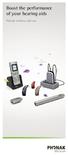 Boost the performance of your hearing aids Phonak wireless add-ons Modern hearing aid technology makes hearing and understanding in most situations enjoyable. But when you re on the phone, watching TV
Accessibility-MiVoice-Business.docx Page 1
 Accessibility Standards MiVoice Business Mitel products are designed with the highest standards of accessibility. Below is a table that outlines how the MiVoice Business conforms to section 508 of the
5th Congress of Alps-Adria Acoustics Association NOISE-INDUCED HEARING LOSS
 5th Congress of Alps-Adria Acoustics Association 12-14 September 2012, Petrčane, Croatia NOISE-INDUCED HEARING LOSS Davor Šušković, mag. ing. el. techn. inf. [email protected] Abstract: One of
Dialog 4220 Lite/Dialog 4222 Office
 Dialog 4220 Lite/Dialog 4222 Office System telephones for MD110 Communication System User Guide Flinders University Table of Contents Description 2 Incoming Calls... 10 Outgoing Calls... 12 During Calls
Stream Boost: All About That Bass
 Carreen Pederson, M.A., & Alyson Gruhlke, Au.D. Stream Boost is an automatic feature that activates hearing aid settings optimized for high-quality streamed audio. Stream Boost settings are not part of
Contents Contents Contents Overview Charging your headset Wearing the headset Powering on the headset Connecting your headset for dictation
 1 Contents Contents Contents 2 Overview 3 Charging your headset 4 Wearing the headset 4 Powering on the headset 4 Connecting your headset for dictation 5 The adapter 5 Adjusting your computer's audio settings
CHAPTER 2: USING THE CAMERA WITH THE APP
 TABLE OF CONTENTS OVERVIEW... 1 Front of your camera... 1 Back of your camera... 2 ACCESSORIES... 3 CHAPTER 1: Navigating the Mobile Application... 4 Device List: How to Use this Page... 4 My Messages:
Unilateral (Hearing Loss in One Ear) Hearing Loss Guidance
 Unilateral (Hearing Loss in One Ear) Hearing Loss Guidance Indiana s Early Hearing Detection and Intervention Program Before universal newborn hearing screening, most children with unilateral hearing loss
OTICON RIA pro OTICON RIA
 product information Oticon Ria is built on the new Inium platform and is our best performing hearing solution in the essential category. The audiological features in Ria provide users essential listening
LSR4300 Control Center Software
 LSR4300 Control Center Software User Guide Updated for version 2.0 software Table Of Contents Introduction...3 System Requirements...4 Installation...4 Launching The Software...5 Reference...7 Main Screen...7
Manual Analysis Software AFD 1201
 AFD 1200 - AcoustiTube Manual Analysis Software AFD 1201 Measurement of Transmission loss acc. to Song and Bolton 1 Table of Contents Introduction - Analysis Software AFD 1201... 3 AFD 1200 - AcoustiTube
DIAGNOSTIC TESTING GUIDELINES for Audiology
 DIAGNOSTIC TESTING GUIDELINES for Audiology In 1999, the Illinois legislature passed the Hearing Screening for Newborns Act. By December 31, 2002, hospitals delivering babies were required to provide hearing
Questions and Answers for Parents
 Questions and Answers for Parents There are simple, inexpensive tests available to detect hearing impairment in infants during the first days of life. In the past, most hearing deficits in children were
Summary Table Voluntary Product Accessibility Template. Criteria Supporting Features Remarks and explanations
 Plantronics VPAT 1 Product: Call Center Hearing Aid Compatible (HAC) Headsets Operated with Amplifier Models M12, MX10, P10, or SQD: Over the Head Noise Canceling: H161N, H91N, H51N, H251N Over the Head
Phonak Wireless Communication Portfolio
 Phonak Wireless Communication Portfolio Product information The accessories of the Phonak Wireless Communication Portfolio offer great benefits in difficult listening situations and unparalleled speech
JBL CINEMA BASE. Home Cinema 2.2 all-in-one soundbase for television OWNER S MANUAL
 JBL CINEMA BASE Home Cinema 2.2 all-in-one soundbase for television OWNER S MANUAL JBL CINEMA BASE TABLE OF CONTENTS INTRODUCTION 1 DESCRIPTION AND FEATURES 1 JBL CINEMA BASE TOP PANEL CONTROLS 2 JBL CINEMA
VPAT 1 Product: Call Center Hearing Aid Compatible (HAC) Headsets Operated with Amplifier Models M12, MX10, P10, or SQD:
 Plantronics VPAT 1 Product: Call Center Hearing Aid Compatible (HAC) Headsets Operated with Amplifier Models M12, MX10, P10, or SQD: Over the Head Noise Canceling: H161N, H91N, H51N Over the Head Voice
PRODUCT INFORMATION oticon ALtA PRo oticon ALtA
 PRODUCT INFORMATION oticon ALtA PRo oticon ALtA Oticon Alta is built on the Inium platform and is our best performing hearing solution with our most advanced technologies. The audiology in Alta provides
How To Fit A Super Power Hearing Instrument
 Max Powered by Era Hearing matters Meet Max Max is a new Super Power hearing instrument from Unitron. Max believes in fighting over-amplification and protecting long term hearing health. Max believes that
CONTENTS. Zulu User Guide 3
 Copyright Lightspeed Aviation, Inc., 2008. All rights reserved. Lightspeed Aviation is a trademark and Zulu and FRC are registered trademarks of Lightspeed Aviation, Inc. Bluetooth is a registered trademark
Q-Cam Professional V 1.1 User Manual
 Q-Cam Professional V 1.1 User Manual Introduction QCam Professional is a remote monitoring application designed primarily for the remote monitoring and auxiliary control of IP video cameras. It allows
Understanding the DriveRack PA. The diagram below shows the DriveRack PA in the signal chain of a typical sound system.
 Understanding the DriveRack PA The diagram below shows the DriveRack PA in the signal chain of a typical sound system. The diagram below shows all the pieces within a sound system that the DriveRack PA
Memcom Emergency Telephone
 Memcom Emergency Telephone Installation Guide Ref No. 450 900 (GB) Version 2 + + Simple wiring for quick installation + + Integrated LCD display shows you what you have programmed + + All code based programming
BSCAN DW VOX SAVE BEEP CHANNEL CALL VOX
 The World in Communication Content 2 ALAN 441 transceivers 2 1 user instructions 8 CHANNELS PMR446 TRANSCEIVER Congratulations on your purchase! ALAN 441 is a new generation PMR 446 transceiver which may
Digital Voice Services Residential User Guide
 Digital Voice Services Residential User Guide 2 P a g e * Feature Access Codes *11 Broadworks Anywhere (pulling call to alternate phone) *62 Access Voicemail *72 Call Forwarding Always Activation *73 Call
User Guide PUSH TO TALK PLUS. For Android
 User Guide PUSH TO TALK PLUS For Android PUSH TO TALK PLUS For Android Contents Introduction and Key Features...4 PTT+ Calling to Individuals and Groups...4 Supervisory Override...4 Real-Time Presence...4
SHORETEL CALL MANAGER Installation Instructions:
 SHORETEL CALL MANAGER Installation Instructions: Before you begin: Ensure you have an updated copy of your Operating system including Direct X9.0 or higher. You can download this update free of charge
Welcome to the GreatCall Family.
 pms2603 pms1235 pms226 pms298 How-To Guide Welcome to the GreatCall Family. Thank you for choosing the Jitterbug. At GreatCall, we ve made it easy for you to stay Orange - pms 143 connected to friends
mydlink DCS-930L/932L Cloud Cam Advanced Settings Setup Guide
 mydlink DCS-930L/932L Cloud Cam Advanced Settings Setup Guide Table of Contents Step 1: Login to the mydlink Web Portal Step 2: Access the mydlink Device Advanced Settings Step 3: Login to the Cloud Cam
SL1100 Digital Call Logger User Guide
 SL1100 Digital Call Logger User Guide NDA-31389 Issue 1.01 NEC Corporation reserves the right to change the specifications, functions, or features at any time without notice. NEC Corporation has prepared
Behind-the-Ear hearing aids
 Behind-the-Ear hearing aids User Guide Manufacturer: Phonak AG Laubisrütistrasse 28 CH-8712 Stäfa Switzerland EU Representative: Phonak GmbH D-70736 Fellbach-Oeffingen Germany www.phonak.com 0459 029-0471-02/V1.00/2010-12/A+W/FO
Manufacturer: Phonak AG Laubisrütistrasse 28 CH-8712 Stäfa Switzerland. www.phonak.com. 029-1004-02/V1.00/2009-12/A+W Printed in Switzerland
 Manufacturer: Phonak AG Laubisrütistrasse 28 CH-8712 Stäfa Switzerland www.phonak.com! 029-1004-02/V1.00/2009-12/A+W Printed in Switzerland Phonak AG All rights reserved User Guide Contents 1. Welcome
Software version 1.1 Document version 1.0
 Software version 1.1 Document version 1.0 1 RDNET PROTOCOL OVERVIEW... 2 1.1 Network description... 2 1.2 Connection topology... 2 2 SOFTWARE BASIC OPERATIONS... 3 2.1 Main View elements... 3 2.2 Scanning
Hearing Solutions. Feature Chart 4 Feature Summary 6. Feature Chart 14 Feature Summary 16
 HEARING SOLUTIONS catalog 13 Hearing Solutions 3 Series Feature Chart 4 Feature Summary 6 Wi Series Feature Chart 14 Feature Summary 16 Xino Xino Feature Chart 24 Xino Feature Summary 26 Xino Tinnitus
The following information can be output as speech: status of the teacher / student connection. time markers of the timers.
 1 V2 software 1.1 Update from V1 to V2 Additional files must be installed when updating from software version 1 to version 2. In version 2.xx, the volume settings are stored in the model memory. The volume
Streamer and remote control. User Guide
 Streamer and remote control User Guide Manufacturer: Phonak AG Laubisrütistrasse 28 CH-8712 Stäfa Switzerland EU Representative: Phonak GmbH Max-Eyth-Strasse 20 D-70736 Fellbach-Oeffingen Germany www.phonak.com
1. What is the main difference between the X3 micro and other Bluetooth headsets? 3. How does the X3 micro use the Bluetooth technology?
 X3 Micro FAQ X3 Micro General 1. What is the main difference between the X3 micro and other Bluetooth headsets? 2. What is included in the X3 micro package? 3. How does the X3 micro use the Bluetooth technology?
Step 1: Select the Start Menu, then Control Panel.
 Part of the Adobe Connect 9 software includes functionality to support full audio in addition to chat areas, shared spaces, and video. The technology that makes this possible is Voice- Over-IP (VOIP).
Search keywords: Connect, Meeting, Collaboration, Voice over IP, VoIP, Acoustic Magic, audio, web conferencing, microphone, best practices
 Title: Acoustic Magic Voice Tracker II array microphone improves operation with VoIP based Adobe Connect Meeting URL: www.acousticmagic.com By: Bob Feingold, President, Acoustic Magic Inc. Search keywords:
SUMMARY TABLE VOLUNTARY PRODUCT ACCESSIBILITY TEMPLATE
 Date: 1 May 2009 Name of Product: Polycom VVX1500 Telephone Company contact for more Information: Ian Jennings, [email protected] Note: This document describes normal operational functionality.
Gigaset DX800A all in one New and updated functions
 Gigaset DX800A all in one / en / A31008-xxxx-xxxx-x-xxxx / DX800A-aio-III-ReleaseNotesIVZ.fm / 08.11.2011 Gigaset DX800A all in one New and updated functions Gigaset DX800A all in one New and updated functions
2100 Series VoIP Phone
 2100 Series VoIP Phone Installation and Operations Manual Made in the USA 3 Year Warranty N56 W24720 N. Corporate Circle Sussex, WI 53089 RP8500SIP 800-451-1460 262-246-4828 (fax) Ver. 4 www.rathmicrotech.com
Audio Help for Webinar Attendees. GoToWebinar User Guide. Virtual Operating System (VMware, Parallels, etc.)
 Virtual Operating System (VMware, Parallels, etc.) An error message will appear if you are attempting to join a Webinar using VoIP through a virtualized operating system, such as VMware, Parallels, etc.
mini box User s Manual
 mini box User s Manual Version. Updated: 0/0/4 04 Cox Communications, Inc. Table of Contents Chapter : Introduction... About This Manual... Chapter : Installing & Activating Your mini box... 4 Connecting
Summary Table Voluntary Product Accessibility Template. Not Applicable- Not a web-based application. Supports. Not Applicable
 PLANTRONICS VPAT 1 Product: Call Center Hearing Aid Compatible (HAC) Headsets Summary Table Section 1194.21 Software Applications and Operating Systems Section 1194.22 Web-based internet information and
Call Recorder Oygo Manual. Version 1.001.11
 Call Recorder Oygo Manual Version 1.001.11 Contents 1 Introduction...4 2 Getting started...5 2.1 Hardware installation...5 2.2 Software installation...6 2.2.1 Software configuration... 7 3 Options menu...8
VideoMate V200/V200F Analog Standalone TV Box Start Up Guide
 VideoMate V200/V200F Analog Standalone TV Box Start Up Guide Compro Technology, Inc. www.comprousa.com 1 Table of Contents About This Guide... 3 VideoMate V200/V200F TV Box Contents... 4 Install V200/V200F
Zipit Chat. Functional Specification / User Manual
 Zipit Chat Functional Specification / User Manual 1 Table of Contents 1. Zipit Chat Overview... 4 How to download... 4 Supported version... 4 2. Functionalities... 4 Get Started... 4 Login... 7 Payment
VoIP Audio Setup - PC Users
 VoIP Audio Setup - PC Users To select and test your Mic & Speakers settings 1. Right-click the icon in the PC system tray and select Preferences. 2. Select Audio. Microphone Setup - It is recommended that
Your Digital Adapter Easy Setup Guide
 Your Digital Adapter Easy Setup Guide Connect with the future of TV You re about to step up to a world of even better picture and sound, and this Easy Setup Guide is here to help every step of the way.
Appendix A. CMS(Client Management Software)
 Appendix A. CMS(Client Management Software) A-1. Install CMS for Windows PC CMS is a program for communication between DVR and PC to control signal and video. Insert the enclosed CD, and go to CD-ROM Drive
Getting Started on the PC and MAC
 Getting Started on the PC and MAC Click on the topic you want to view. Download the Desktop App Download the ios or Android App Desktop App Home Screen Home Screen Drop Down Menu Home Screen: Upcoming
A quick user guide for your LX Apollo DVR
 A quick user guide for your LX Apollo DVR The LX Apollo series of DVR s is designed specially for the security and surveillance field and is an outstanding digital surveillance product. It has an embedded
1. Installing The Monitoring Software
 SD7000 Digital Microphone Monitor Software manual Table of Contents 1. Installing The Monitor Software 1.1 Setting Up Receivers For Monitoring 1.2 Running The Application 1.3 Shutdown 2. The Detail Monitoring
Case Study THE IMPORTANCE OF ACCURATE BEHAVIOURAL TESTING IN INFANT HEARING AID FITTINGS
 Case Study THE IMPORTANCE OF ACCURATE BEHAVIOURAL TESTING IN INFANT HEARING AID FITTINGS Andrea Kelly, PhD, MNZAS Auckland District Health Board Suzanne Purdy, PhD, MNZAS University of Auckland Asymmetrical
MA33 & MA55. PC Based Audiometers. The ideal choice for health care professionals on the go. www.maico-diagnostics.com. by Maico Diagnostics
 PC Based Audiometers by Maico Diagnostics MA33 & MA55 The ideal choice for health care professionals on the go 6 4 MA33 Pictured www.maico-diagnostics.com Portable - PC Based Audiometers Our PC based Audiometers
2 Session buttons. 1 Phone Screen
 1 Phone Screen 2 Session buttons Shows information about your phone, including directory number (extension), call information (for example caller ID, icons for an active call or call on hold) and available
DVB-T 730. User s Manual
 EPG Program Reservation There are 10 program timers to bring up reminder for a reserved program. 20 seconds before the start of the reserved program, a pop-up window will remind viewer. If no further instruction,
SmartFocus Article 1 - Technical approach
 SmartFocus Article 1 - Technical approach Effective strategies for addressing listening in noisy environments The difficulty of determining the desired amplification for listening in noise is well documented.
Using Telephony Quick Reference Guide for Moderators
 Using Telephony Quick Reference Guide for Moderators The Telephony feature in Blackboard Collaborate enables you to conduct your audio communications with other session attendees via a combination of VoIP
T1 QUICK START GUIDE
 T1 QUICK START GUIDE 1 T1 Quick Start Guide: English Microphones Indicator Light Multi- Function Button (MFB) Charging Port 2 Charge Your T1 Your T1 has been given an initial partial charge to get started,
Digital Voice Services User Guide
 Digital Voice Services User Guide 2 P a g e * Feature Access Codes *11 Broadworks Anywhere (pulling call to alternate phone) *62 Access Voicemail *72 Call Forwarding Always Activation *73 Call Forwarding
VPAT Summary. VPAT Details. Section 1194.22 Web-based Internet information and applications - Detail
 Date: October 8, 2014 Name of Product: System x3755 M3 VPAT Summary Criteria Status Remarks and Explanations Section 1194.21 Software Applications and Operating Systems Section 1194.22 Web-based Internet
WHITE PAPER VoIP Networks August 2013. Keys to Minimizing Echo in VoIP Networks
 WHITE PAPER VoIP Networks August 2013 Keys to Minimizing Echo in VoIP Networks Table of Contents Executive Summary 3 Section 1: The Challenge 4 Minimizing Echo in VoIP Systems Section 2: The Opportunity
S4 USER GUIDE. Read Me to Get the Most Out of Your Device...
 S4 USER GUIDE Read Me to Get the Most Out of Your Device... Contents Introduction 4 Remove the Protective Cover 5 Charge Your S4 5 Pair the S4 with your Phone 6 Install the S4 in your Car 8 Using the Handsfree