
Groove Management Server
|
|
|
- Lynne Harper
- 10 years ago
- Views:
Transcription
1 Groove Management Server Version 3.1 Domain Administrator s Guide
2 Copyright Copyright , Groove Networks, Inc. All rights reserved. You may not reproduce or distribute any part of this document in any form or by any means, without the written permission of Groove Networks, Inc., nor may you use it to create derivative works. Groove Networks, Groove, the interlocking circles design, Groove Virtual Office, and groove.net are registered trademarks of Groove Networks, Inc. Other product or company names may be the trademarks of their respective owners. Use of Groove Networks, Inc. software is subject to the terms of a license agreement and applicable export and import restrictions. Restricted rights for U.S. government users. This product includes software used under license from third parties, including those parties identified by the following notices. Copyright International Business Machines Corporation and others. All rights reserved. VcardParser.cpp Copyright Apple Computer, Inc., AT&T Corp., International Business Machines Corporation and Siemens Rolm Communications Inc. Outside In ActiveX Control 2002 IntraNet Solutions Chicago, Inc. All rights reserved. This software is based in part on the work of the Independent JPEG Group. ACME Labs Freeware Copyright 2000 by Jef Poskanzer <[email protected]>. All rights reserved. Groove Management Server Domain Administrator s Guide Copyright ii

3 Table of Contents Copyright ii Table of Contents iii Overview of Domain Administration 1 Administrative Architecture 1 Management Server Functionality 2 Groove User Management 3 User and Device Policy Setting 3 Groove License Provisioning 4 Relay Server Provisioning 4 XMPP Proxy Server Provisioning 5 Domain Administration and Role Assignment 5 Password/Smart Card Login Reset and Data Recovery 5 Groove Account Backup 5 Groove Usage Monitoring 6 Hosting Groove Components 6 Groove Client Auditing 6 The Management Server Domain Administrator s Guide 6 Getting Started 8 Before You Begin 8 Accessing the Administrative Web Site 9 Accessing the Management Server Administrative UI 10 Getting Help 10 Changing Administrative Preferences 11 Setting Up a Groove Management System 11 Distributing Activation Keys 14 Managing Groove Domains 17 Overview of Management Domains 17 Completing Domain Configuration 18 Viewing and Editing Management Domain Properties 20 Configuring Management Domain Affiliation 22 Setting Up Cross-Domain Certification 23 PKI Basics 24 Cross-Certifying Management Domains 25 Changing Reset/Recovery Private Keys and Key Locations 27 Groove Management Server Domain Administrator s Guide Table of Contents iii

4 Migrating Users to Another Domain 28 Adding, Editing and Deleting Templates 29 Creating Management Server Templates 30 Editing Management Server Templates 31 Deleting Management Server Templates 31 Editing Administrator Roles 31 Managing Groove Users 33 Overview of Groove User Management 34 Managing Domain Member Groups 35 Adding Groups 35 Viewing and Editing a Group 36 Viewing Domain Groups 38 Viewing Group Members 38 Deleting a Group 39 Adding Groove Users to a Domain Group 39 Adding an Individual Member to a Domain Group 39 Adding Multiple Members from an.xml File 41 Adding Multiple Members from a.csv File 42 Importing Members from a Directory 44 Enabling Groove Activation 47 Sending an Activation Key from the Management Server 48 Sending an Activation Key Via Personal 49 Provisioning Managed Groove Users 49 Viewing Domain Members 50 Viewing and Editing Domain Member Information 52 Finding Domain Members 55 Moving Domain Members to Another Group 56 Exporting Domain Members 57 Disabling and Enabling Domain Members 58 Disabling Domain Members 58 Enabling Domain Members 58 Deleting Domain Members 59 Backing Up and Restoring User Account Data 60 Backing Up Account Data 60 Restoring Account Data 61 Purging Member Relay Queues 63 Creating an LDAP Search String 64 Initiating Client Contact With a Management Server 67 Managing Identity Policies 68 Overview of Identity Policy Templates 69 Creating Identity Policy Templates 69 Editing Policy Template Names 69 Cloning Policy Templates 70 Changing Identity Policy Templates 70 Changing Identity Policy Templates for a Group 70 Groove Management Server Domain Administrator s Guide Table of Contents iv

5 Changing Identity Policy Templates for a Group Member 71 Deleting Policy Templates 71 Viewing and Editing Identity Policies 71 Automatically Managing Devices During Identity Activation 72 Controlling Login Credential Reset and Data Recovery (for Groove 3.0f or Later) 73 Resetting Groove Login Credentials (for Groove 3.0f or later) 74 Administer-Driven Reset of Groove Login Credentials 75 Automatic Reset of Groove Login Credentials 77 Client Login Credential Reset 77 Customizing Reset Instructions (for Groove 3.0f or later) 78 Setting Up Data Recovery on Managed Devices (for Groove 3.0f or later) 79 Data Recovery Fundamentals 79 Recovering User Data (using the Data Recovery Tool) 80 Managing User Interaction with Unauthenticated Identities 83 Authenticated vs. Unauthenticated Groove Identities 83 Setting Up Peer Authentication 83 Setting the Default Workspace Version 86 Specifying Enterprise PKI Certificates 87 Setting Time Limit on Valid PKI Certificates 87 Enabling Groove-XMPP Communications 88 Member Policies 89 Security Policies 90 Managing Device Policies 93 Overview of Device Management 94 Registering User Devices with the Management Server 94 Overview of Device Registration 95 Registering Devices in a Management Domain 95 Deleting Managed Devices from a Domain 96 Creating Device Policy Templates 96 Changing Device Policy Templates 97 Changing Device Policy Templates for a Group 97 Changing Device Policy Templates for a Group Member 97 Administering Device Templates 98 Viewing and Editing Device Policies 98 Customizing Component Policies for Devices 99 Component Policy Basics 99 Customizing Component Install Policies 100 Editing Component Policies 104 Deleting Component Install Policies 105 Managing Groove Platform Upgrades 105 Prevent Platform Upgrade 106 Allow Platform Upgrade To Current Version 107 Allow Platform Upgrade To Interim Version 108 Allow Platform Upgrade and Limited New Tools 110 Allow Platform Upgrade But No New Tools 111 Groove Management Server Domain Administrator s Guide Table of Contents v
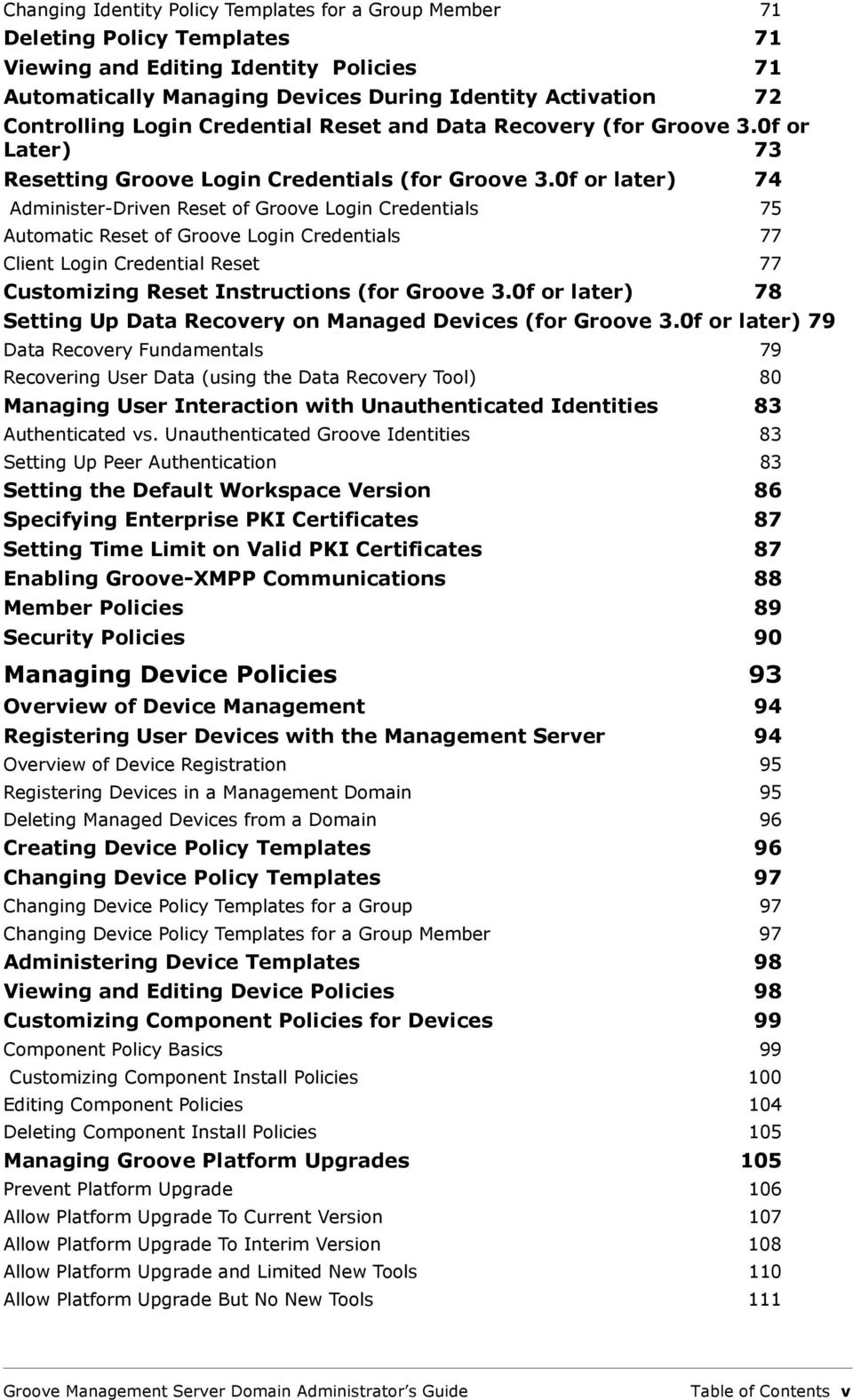
6 Controlling Login Credential Reset and Data Recovery 112 Resetting Groove Login Credentials for Managed Devices 113 Administering Centralized Reset of Login Credentials 113 Client Reset of User Login Credentials 115 Customizing Reset Instructions for Managed Devices 116 Setting Up Data Recovery on Managed Devices 117 Data Recovery Fundamentals 117 Recovering User Data (using the Data Recovery Tool) 119 Controlling Groove Tool Usage on Managed Devices 121 Restricting Tool Usage 121 Tool Usage Recovery After Restriction is Removed 123 Limiting Groove Bandwidth Usage for Devices 124 Overview of Groove Bandwidth Policy 124 Setting Groove Bandwidth Limit 125 Enabling Groove Client Auditing 126 Supporting an Onsite Groove Component Server 127 Account Policies 128 Client Policies 128 Security Policies 131 Usage Policies 134 Audit Server Policies 135 Managing Groove Product Licenses 138 Overview of License Provisioning 138 Adding Groove Licenses to a Domain 139 Adding a License Set to a Domain 140 Adding Groove Domain Licenses to a Set 140 Editing License Set Names 141 Viewing Domain Licenses 141 Viewing Licenses in a Set 141 Viewing License Information 141 Finding License Users 142 Changing License Sets 142 Changing License Sets for a Group 142 Changing License Sets for a Group Member 143 Deleting Licenses from a Domain 143 Deleting Licenses from a Set 143 Deleting License Sets 144 Distributing Licenses to Unmanaged Users 144 Viewing Licenses from Unmanaged Users 145 Revoking Licenses from Unmanaged Users 146 Adding More Seats to a License Package 146 Using the Enterprise License Pack 147 Managing Groove Servers 148 Overview of Server Provisioning 148 Relay Server Provisioning 149 Groove Management Server Domain Administrator s Guide Table of Contents vi
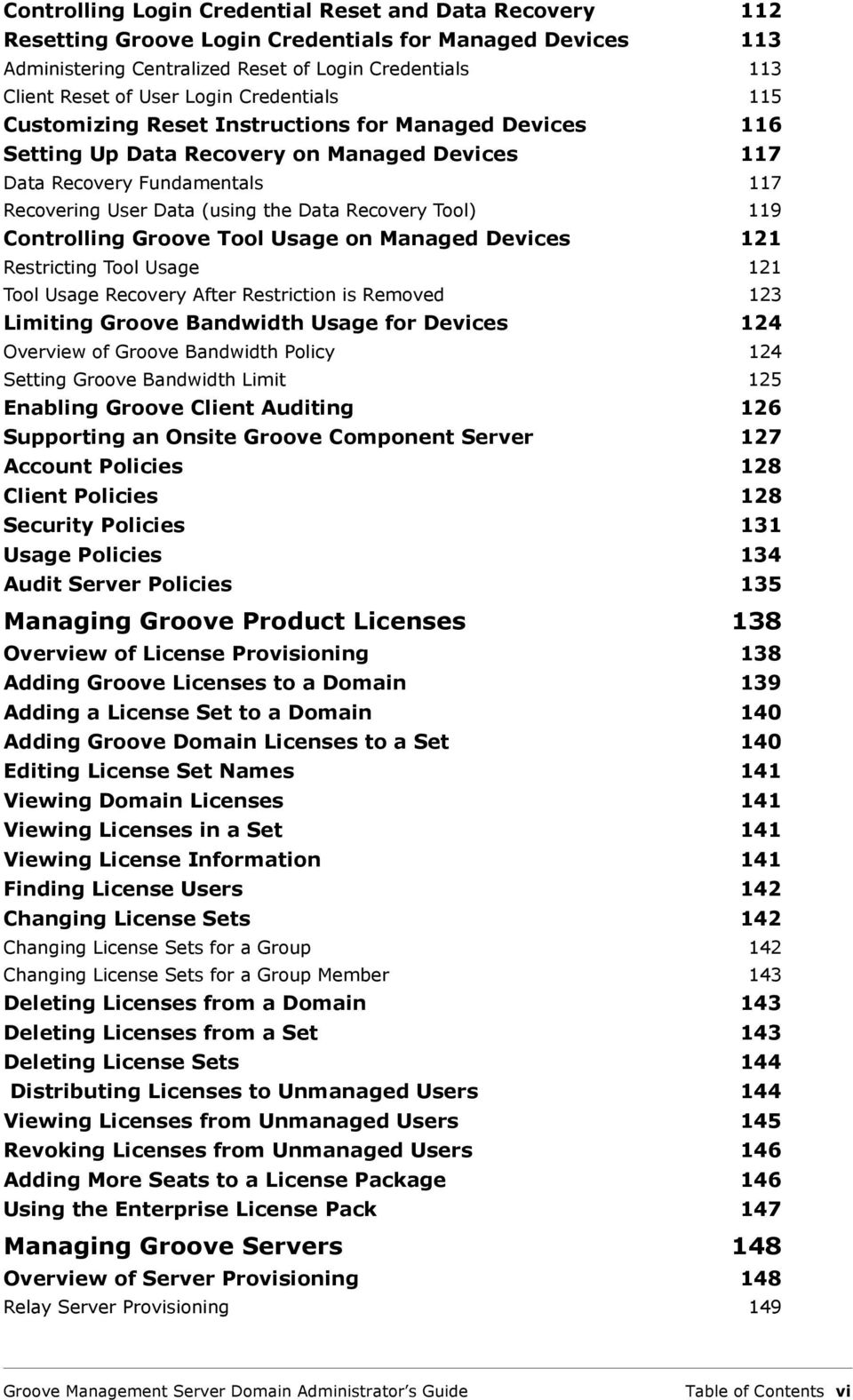
7 XMPP Proxy Server Provisioning 149 Registering a Server with a Management Domain 149 Overview of Server Registration 150 Exchanging Server Keys 150 Adding a Server Set to a Domain 152 Adding Groove Domain Servers to a Set 152 Editing Server Set Names 153 Viewing Domain Servers 154 Viewing Servers in a Set 154 Editing Server Properties 155 Finding Server Users 156 Changing Server Sets 156 Changing Server Sets for a Group 157 Changing Server Sets for a Group Member 157 Deleting Servers from a Domain 157 Removing Servers from a Set 158 Deleting Server Sets 158 Locking out and Re-enabling an Onsite Server 159 Reordering Servers in a Set 159 Synchronizing an Onsite Server 159 Viewing Groove Domain Reports 161 Viewing Reports 161 Filtering Reports 162 Exporting Reports 163 Domain Reports 163 Audit Log 164 Member Usage 166 Tool Usage Report 168 Workspace Usage 170 License Set Usage 172 Member Activity 173 Sample Report Filters 177 Show Audit Events for a User During Past Week 178 Show Audit Log Events for Administrator in Date Range 178 Show Most-Used Tools 178 Show Members Whose Account Has Never Been Backed Up 179 Show Members Who Used Groove Since the Last Backup Date 179 Show Members with Managed Account on Multiple Devices 179 Show Members with Accounts on Unmanaged Device 179 Troubleshooting 181 Domain Administration Problems 181 Groove User Problems 183 Data Recovery Problems 184 Appendix A. Groove Component Versions 186 Appendix B. Management Server Keys and Certificates 191 Groove Management Server Domain Administrator s Guide Table of Contents vii
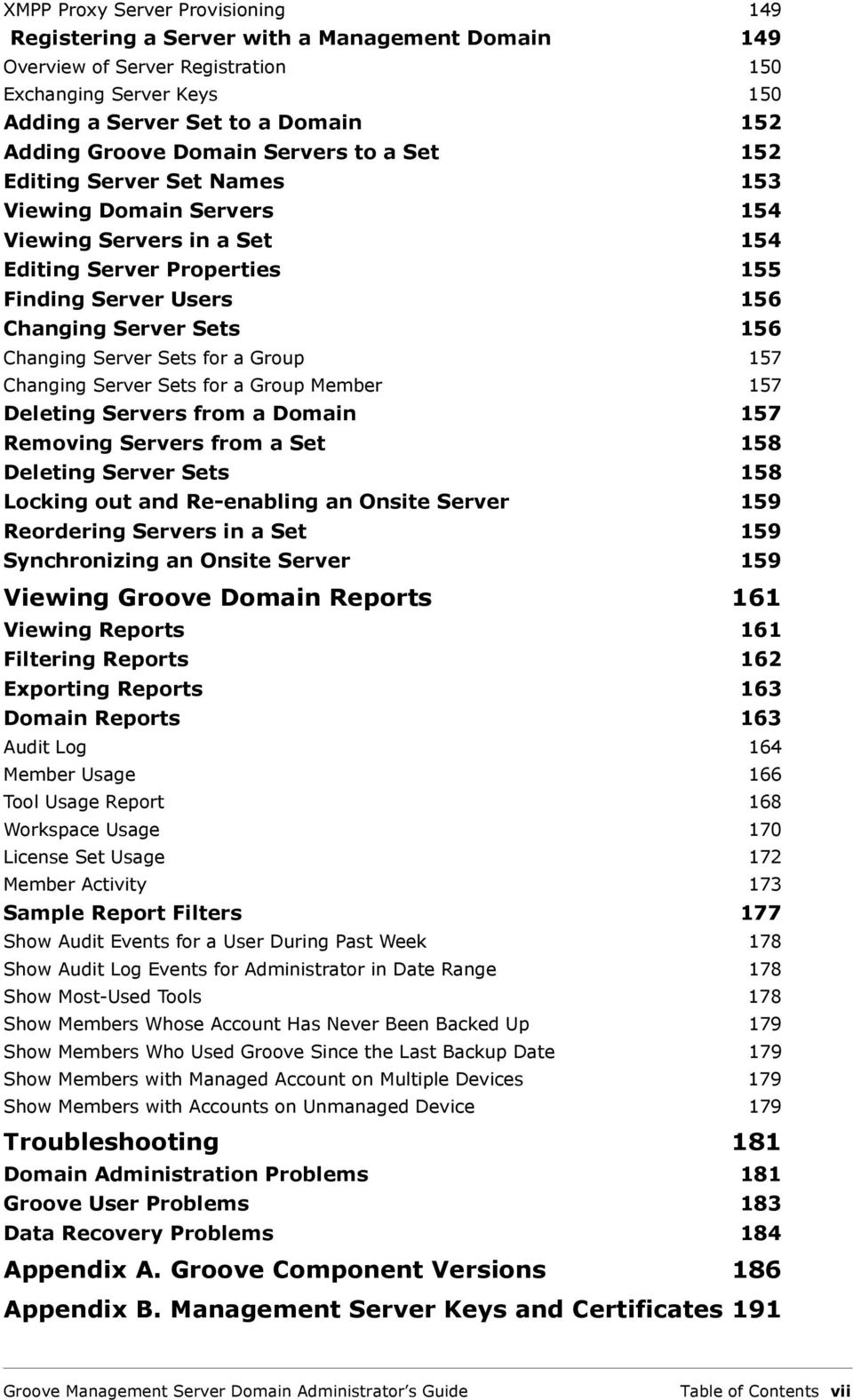
8 Glossary 193 End User License Agreement 198 Index 211 Groove Management Server Domain Administrator s Guide Table of Contents viii

9 Overview of Domain Administration The Enterprise Management Server (EMS) and Groove Hosted Management Services are Web-based applications designed to facilitate the provisioning and management of Groove users in an enterprise. EMS runs on servers operated by an enterprise while the Groove Hosted Management Services application runs on servers operated by Groove Networks. The option employed at an organization depends on its IT practices and objectives. Regardless of the management server hosting option, Groove administrators and clients communicate with the management server via its Web site which provides both an administrative and a client interface. The management interface, secured by its underlying IIS configuration, allows administrators to assemble Groove users, define Groove usage and security policies, distribute Groove product licences, and deploy relay servers. The client interface allows Groove users to access policies, product licenses, and relay server assignments, and to report Groove usage statistics. This overview provides summary information on the following topics: Administrative Architecture Management Server Functionality The Management Server Domain Administrator s Guide Administrative Architecture The management server s Web-based administrative interface is the interactive component of the system. From this interface, administrators can manage users, set Groove usage and device policies, distribute Groove product licences, and assign relay servers within the organizational unit a management domain. This administrative interface of the management server is accessible from a URL, defined during management server installation. This management server administrative interface consists of a navigation pane and the main display window where a set of tabs and tools let administrators access tasks associated with a selected item in the navigation tree. Groove Management Server Domain Administrator s Guide Overview of Domain Administration 1
10 The navigation tree consists of the elements described in the following table: Navigation Tree Hierarchy Domains Member groups and subgroups Identity Policy Templates Description Management domains defined on the server. Each domain consists of member groups, policies templates, license sets, and relay server sets. Pages for creating member groups and for creating, editing, or deleting domain member contact information. Pages for adding, editing, and deleting identity policy templates - collections of identity policies, including: Member policy templates Security policy templates Device Policy Templates Pages for adding, editing, and deleting device policy templates - collections of devices policies, including: Account policy templates Client policy templates Security policy templates Audit Server policy templates (EMS only) License Sets Relay Server Sets Pages for configuring a license set s properties (name and description), adding and deleting license sets to and from a domain group, and adding or deleting licenses within a set. Pages for configuring a relay set s properties (name and description), adding and deleting relay sets to and from a domain group, and adding or deleting relay servers within a set. Management Server Functionality Groove management servers, whether onsite or Groove Networks-hosted, enable centralized control of Groove usage. Supported by a Standard Query Language (SQL) database that stores most of its data, the management server helps maintain productive workflow and collaboration. While Groove clients periodically connect to the management server to receive provisioning updates and report usage information, administrators connect through a dedicated Web interface to perform tasks essential to managing Groove use on a corporate scale. Onsite management servers must be installed and configured appropriately by a server administrator, as described in the Groove Management Server Administrator s Guide. Once the server is in place, management domain-level administrators can use it to set up the management environment. The following sections briefly describe the scope of domain management tasks that can be conducted from hosted or onsite management servers: Groove User Management User and Device Policy Setting Groove License Provisioning Groove Management Server Domain Administrator s Guide Overview of Domain Administration 2

11 Relay Server Provisioning XMPP Proxy Server Provisioning Domain Administration and Role Assignment Password/Smart Card Login Reset and Data Recovery Groove Account Backup Groove Usage Monitoring Groove Client Auditing Groove User Management Groove users must each have a managed identity in a domain group in order to be provisioned with usage and security policies, Groove licenses, and relay servers. If administrators need to set policies on Groove devices, as well as user policies, they can register the Groove user device(s) in a management server domain. Any server or domain-level administrator can create domain groups and populate them with users. The following sections introduce user and device administration: User Management Device Management User Management Once Groove is installed on user devices, domain administrators begin the Groove management process by entering user contact information in domain groups on the management server. When this is complete, they send activation keys to each intended member of the group. Users apply these keys to their accounts, resulting in the creation of a managed, provisioned identity for each group member. To facilitate the task of entering contact information for large numbers of users, administrators can import user specifications from an.xml or.csv file. Or, if a corporate LDAPbased directory server is installed onsite, the necessary user information can be imported or integrated from a defined data point on the directory server. Device Management An important aspect of managing Groove users is managing the devices they use for work. Managed devices are subject to specific security policies (such as password creation rules and component download restrictions) while unmanaged devices are not. Device management involves the distribution of Groove account, client, and security policies to devices defined for managed identities. Devices running Groove must be registered with the management server in order to be managed and subject to device policies. Registration is accomplished by downloading a management server registry key to devices associated with managed domain members. Policies become effective on target devices, as soon as the device users activate Groove. Activating Groove on target devices automatically updates Windows registries with the management server key. User and Device Policy Setting The management server provides templates of default usage and security policies that Groove Management Server Domain Administrator s Guide Overview of Domain Administration 3

12 apply to domain group members and any associated devices that are registered on the server. Administrators can modify the policies set in these templates or create new templates, then apply the templates to designated management domain groups or users. These policies apply only to managed Groove users and devices - those defined on the management server as belonging to a specific management domain group. Policies do not affect unmanaged Groove users. The following sections summarize the policy options in each category: Identity Policies Device Policies Identity Policies User identity policy templates cover the following aspects of Groove use: Member policy templates - Client account backup scheduling, client access to XMPP messaging, and identity publishing. Security policies - Peer authentication and, if enterprise PKI is in effect at an enterprise, the use of specified identity authentication certificates. Device Policies User device policy templates cover the following aspects of Groove use: Account policies - Multiple account creation, importing accounts, use of only managed identities from this domain on devices in this domain. Client policies - Component installation and bandwidth usage. Security Policies - Password or smart card login, password creation and reset if used, smart card login and reset if used, account lockout after repeated failed login attempts, enhanced private key protection, and Web services availability. Audit Server Policies - Audit server URL, logging periodicity, selected account events, and selected tool events (available for Enterprise Management Server only). Groove License Provisioning Managed Groove users need licenses for managed versions of Groove Virtual Office (formerly Groove Workspace). Once an enterprise has purchased the necessary licenses and made them available on a corporate network, administrators can add them to management server license sets for assignment to specific domain groups or users. Domain administrators can add and delete license sets in a management domain, and add and delete licenses within a license set. Relay Server Provisioning Relay servers are a fundamental part of Groove peer-to-peer communications. In a managed environment dedicated relay servers installed onsite at an enterprise or hosted by Groove Networks help ensure timely, uninterrupted message transfer between Groove peers regardless of their location or status (online or offline) on the network. Once an enterprise has installed at least one relay server onsite or engaged Groove-hosted relay services, administrators can add relay servers to relay server sets for assignment to specific management domain groups or users. Domain administrators can add and delete relay Groove Management Server Domain Administrator s Guide Overview of Domain Administration 4

13 server sets in a management domain, and add and delete relay servers within a set. XMPP Proxy Server Provisioning As of version 3.1, Groove Virtual Office provides public XMPP proxy servers to enable Groove client communication with Jabber and other XMPP clients. In a managed environment, an enterprise can install Groove XMPP proxy servers onsite, allowing administrators to provision Groove domain members to private XMPP servers similar to the way they provision users to dedicated relay servers. In addition, a management server identity policy determines whether domain members can access any Groove XMPP Proxy Servers (public or onsite). Domain Administration and Role Assignment Domains defined by server administrators (or Groove Networks, hosted management services are employed) are the top management unit on the server. Each domain consists of user groups and subgroups, as well as a collection of user and device policy templates, Groove license sets, and relay server sets. At the top management domain level, administrators can view Groove usage reports, and add, edit, or delete management server templates. In addition, if the management server administrator has enabled Role Based Access Control (RBAC) on the server, domain administrators can define roles for peer administrators or for those limited to Groove user, license, data recovery, or report management. Password/Smart Card Login Reset and Data Recovery In the event that a managed user is removed from a management domain or forgets a Groove password or smart card login, resetting the user s password or smart card login credentials may be necessary. To prepare for this eventuality, the domain (or server) administrator can set a device policy that allows for reset proceedings.the management server supports a centralized approach to resetting a user passphrase or smart card login. Providing that device security policies allow, administrators can respond to individual user requests for password or smart card login reset, by verifying user identity and granting (or denying) the request. If the request is granted, users can reset their own password without further administrative involvement. In addition, the management server provides a utility that domain administrators can use to access data that would otherwise be irretrievable without the user s password. Groove data that is normally stored encrypted with the managed user's password (known only to that user) is also encrypted with the administrator s public key. The data recovery program enables the domain administrator to use a corresponding private key to recover the device owner s Groove data or reset the user password. Groove Account Backup The management server lets administrators set an identity policy that enables automatic account backup at specified intervals for users in a selected domain. Backed up information includes user contacts, workspace lists, identities and contact information, licenses and identity policies. Without a backup system in effect, lost or corrupted user account data is irretrievable. Groove Management Server Domain Administrator s Guide Overview of Domain Administration 5

14 Groove Usage Monitoring When a managed identity or device exists on a Groove client, the Groove software periodically reports statistics on Groove usage, providing information about managed user activities, Groove workspaces, and Groove tools being used. Administrators can view Groove usage statistics via the management server administrative Web site. Usage statistics include the amount of time users spend in a particular workspace, use a specific tool, or create workspaces. Audit log reports are also available that log domain events, such as the addition of a new group to a domain. Hosting Groove Components If Groove s Component Server is installed onsite, administrators can set a device policy that directs Groove clients to that server for Groove component downloads. Groove Client Auditing If the Groove Audit Server is part of the management server installation, the management server can be configured to cause managed clients to log Groove user activities. Management server device policies specify which groove events are tracked and uploaded to management server databases. Client audit logs are collected onto a SQL server, and from them administrators can generate formatted reports using third-party reporting tools, such as Crystal Reports. The Management Server Domain Administrator s Guide This Groove Management Server Domain Administrator s Guide provides instructions for using Groove management services, whether onsite server or hosted by Groove Networks. This Guide has the following sections: Overview - Describes management server s role in managing Groove and its functionality. Getting Started - Provides a recommended procedure for initial deployment of Groove users and devices at an enterprise. Managing Groove Users - Provides instructions for creating domain member groups, provisioning managed users, and administering Groove usage. Setting Groove Identity Policies - Provides instructions for customizing managed user policies. Setting Groove Device Policies - Provides instructions for customizing managed device policies. Managing Groove Product Licenses - Provides instructions for managing Groove licenses and provisioning managed users with Groove licenses. Managing Groove Servers - Provides instructions for managing Groove servers such as Enterprise Relay Servers and XMPP Proxy Servers, and for provisioning managed users with access to these. Managing Groove Domains - Provides instructions for configuring Groove management domains and domain administrator roles. Groove Management Server Domain Administrator s Guide Overview of Domain Administration 6

15 Monitoring Groove Usage - Provides instructions for accessing and reading Groove usage reports. Troubleshooting - Lists common problems related to the management server and suggests ways to address them. Glossary - Defines terms used in this Guide. Appendices - Provide information about Groove component versions and other supplementary material Groove Management Server Domain Administrator s Guide Overview of Domain Administration 7
16 Getting Started Groove management servers enable administrators to set up a system for overseeing Groove usage in an enterprise. This document provides instructions for using the administrative Web interface provided by your onsite Groove Enterprise Management Server (EMS) or by Groove Hosted Management Services to manage Groove users and devices at your company. The setup process involves meeting the necessary software and information requirements, accessing the management server administrative Web site, defining Groove users to the management server, and, finally provisioning them with usage and security policies, product licenses, and relay servers. The following sections describe details of this process: Before You Begin Accessing the Administrative Web Site Setting Up a Groove Management System Distributing Activation Keys Before You Begin Review the checklists in this section before accessing the management server administrative Web site. Note: The instructions in this guide assume that you have full access to the domain portion of the administrative Web site. If your server administrator has enabled Role Based Access Control, you must have the role of Server Manager or Domain Administrator. Some options may not be available to you if you have any other role. As a domain administrator, you need the expertise in the following areas: General Groove use User account management Product license distribution and maintenance Software usage and security policies Software usage monitoring Also make sure of the following: Groove Management Server Domain Administrator s Guide Getting Started 8

17 You understand the basic functionality provided by the management server. For more information, see the Overview of Domain Administration earlier in this guide. If you are using the Enterprise Management Server installed at your site, the EMS software is installed on your system as described in the Groove Enterprise Management Server Administrator s Guide and you know the Universal Resource Locator (URL) of your company s EMS Web site. The Internet Explorer 5.5 (or later) browser is installed with Frames, Cookies, and JavaScript enabled. Groove version 3.0 (or later) is installed on your user s computers. See the Groove Software Deployment Administrator s Guide for information about deploying Groove software in an enterprise. Note: The management server supports Groove version 1.3 (or later) but many policies and other management server features, including user provisioning with specific relay servers, are available only for the latest version of Groove. If you intend to utilize one or more onsite relay servers, the relay server is installed and configured as described in the Groove Enterprise Relay Server Administrator s Guide. Note that onsite relay servers require onsite management servers. If your user contact information originates from a corporate directory server, your management server administrator has defined and configured the directory server on your management server, as described in the Groove Enterprise Management Server Administrator s Guide. Note that directory server integration is possible only if an Enterprise Management Server is installed at your site. You have on hand your login name and password for the management server if required. If you are using the Enterprise Management Server, this information is determined by your company s Web site authentication system. If you are using Groove Hosted Management Services, this information is determined by login requirements of the Groove-hosted management server Web site. You have on hand the path name of the directory where your company s Groove license files (.pkg files) reside. You consider the possibility of Groove user device management, which is strongly recommended although not required. Device management lets you set various Groove usage and security policies, including those that govern the types and sources of Groove components that can be downloaded onto these devices. Accessing the Administrative Web Site The sections below provide instructions for accessing and using the management server administrative Web site: Accessing the Management Server Administrative UI Getting Help Changing Administrative Preferences Groove Management Server Domain Administrator s Guide Getting Started 9

18 Accessing the Management Server Administrative UI To access the management server administrative interface, do the following: 1. From a Windows PC, open an IE Web browser. 2. If you are accessing a local Enterprise Management Server from your own site, go to the URL of the Enterprise Management Server, defined by the management server administrator. If you are accessing Management Services from the Groove Networks Web site, go to 3. Log in to the management server using your administrator login name and password (determined by your company s Web site authentication scheme if you are using the Enterprise Management Server). The management server home page appears, with a domain list on the left and a main window showing a set of tabs. Notice the page s following characteristics (which may vary, depending on the role your server administrator has assigned to you): The main window reflects the current selection in the navigation pane. A navigation tree appears in the pane on the left, listing the management domain(s) defined on this server. At least one member group appears in the navigation pane under each management domain. At least one Groove identity and device policy template, license set, and relay server set, appears in the navigation pane under each management domain. A tool bar at the top of the main window contains icons appropriate for the task being performed on the current tab. When the management domain is the current selection, a set of domain tabs appears - Reports, , and Roles, with the Reports tab in the foreground. Note: If, instead of domain tabs, a domain setup window appears, requiring information, fill in the fields as described in Completing Domain Configuration in the Managing Domains section of this guide. Then you can start using the domain management pages. You are now ready to begin populating a server domain group with members and provisioning those members, as described below. Getting Help To get help using Management Services, follow these guidelines: Click the Help link in the upper left of a management server administrative Web page to access management services Help. Go to (or the Groove EMS product CD) for a printable.pdf version of the Groove Management Server Domain Administrator s Guide. For server-level information, see the Groove Enterprise Management Server Administrator s Guide. Groove Management Server Domain Administrator s Guide Getting Started 10

19 For specific information about installing the Groove client in an enterprise, see the Groove Software Deployment Administrator s Guide. Changing Administrative Preferences You can change administrative Web page preferences (such as setting a home page) by using the Preferences link next above the left navigation pane. Changes apply only to the administrator who set the preferences; they do not affect other administrative logins. To edit administrative preferences, follow these steps: 1. Go to the EMS administrative Web interface and click the Preferences link at the top of the current page. An image of your left navigation pane appears in the dialog box. 2. To change the default number of list items that appear on any list page, select a number from the Display drop-down box. The initial default setting is to display 25 items per page. 3. To select a start (or home) page, select an item from the Start Page tree which will appear when you start the EMS administrative Web interface. 4. Click OK. Your changes should take effect immediately. Setting Up a Groove Management System A domain is the top-level management unit of Groove deployment on the management server. It contains one or more groups of Groove users (members). Your management server administrator creates domains; you or anyone with management domain-level permissions (if Role Based Access Control is configured on your server) can create domain groups and subgroups. The management server provides an initial top-level domain group, within which you can create other groups and subgroups. Note: Administrators with limited roles (roles other than Server or Domain administrator) may not be able to see certain pages or fields discussed in this guide. Initial administrator roles are set by the management server administrator as part of the management server installation and configuration process. However, domain administrators can edit the roles of domain-level or limited domain-level administrators, as described in Editing Administrator Roles in the Managing Domains section of this guide. The procedure below outlines the basic steps necessary to create an initial user management system, following a recommended sequence. Where necessary, you can link to other sections of the guide that provide more detail. You may want to begin by performing a trial run with a sample user base and minimal customization. To add Groove users to a Groove management domain and provision with them policies, licenses, and relay servers, follow this basic recommended procedure: 1. Startup and log into the management administrative Web site as described in the Accessing the Administrative Web Site section of this guide. At least one domain appears in the navigation tree in the pane to the left of the main window. Groove Management Server Domain Administrator s Guide Getting Started 11
20 2. Select a management domain in the navigation pane. If an administrator has fully configured the domain, a set of tabs (for Reports, , and Roles) appears in the main window allowing you to perform various domain tasks described later in this guide. Proceed to the next step. If a No Roles tab appears, along with a message referring you a server or domain administrator for domain access, ask the appropriate administrator to assign you an administrative role. Then return here to continue with this procedure. If a domain setup window appears, requiring information, fill in the fields as described in Completing Domain Configuration in the Managing Domains section of this guide. Then return here to continue with this procedure. 3. To apply management server device policies (that control client password entry and component downloading, for example) to Groove user devices, register each device with the management server as follows: Note: Registering devices with the management server is highly recommended. a. Download the device management registry key from the management server to a client-accessible location, by selecting the default device policy template in the navigation pane, then selecting Download Device Management Key in the tool bar. (See Registering User Devices with the Management Server in the Managing Device Policies section of this guide for details). b. Install the management server registry key on each user device that you want to manage in the domain. Each registered device appears with a Type of Managed in the Member Information page of the member(s) with which it is associated, as described in Viewing Domain Members, in the Managing Groove Users section of this guide. For information about centralized deployment of device management keys via MSI transforms, see the Groove Software Deployment Administrator s Guide. 4. Consider customizing the identity policy template in the domain. Initial defaults are usually based on minimal security requirements. For details about specifying identity policies, see Viewing and Editing Identity Policies in the Managing Identity Policies section of this guide. Note: If you want the management server to automatically backup domain member accounts, make sure to configure the account backup policy on the Member Policies tab, as described in Backing Up and Restoring User Account Data in the Managing Groove Users section of this guide. 5. Consider customizing the device policy template in the domain. Initial defaults are usually based on minimal security requirements. For details about specifying device policies, see Viewing and Editing Device Policies in the Managing Device Policies section of this guide. In considering device policy settings, note the following: To enact any device policies, make sure you installed device registry keys on each user device, as described earlier in this procedure. If you want to allow for Groove password resetting and data recovery, make sure to set the device settings accordingly on the Security Policies tab, as described in the Resetting Groove Login Credentials for Managed Devices Groove Management Server Domain Administrator s Guide Getting Started 12
21 and Setting Up Data Recovery on Managed Devices, in the Managing Device Policies section of this guide. If a Groove Audit Server is installed at your site and you want to enable the client auditing, make sure to set the device settings accordingly on the Audit Policies tab, as described in the Enabling Groove Client Auditing section of this guide. If a Groove Component Server is installed at your site, make sure to specify the server accordingly on the Advanced Install Properties page of the Client Policies tab, as described in Supporting an Onsite Groove Component Server in the Managing Device Policies section of this guide. 6. Add Groove licenses to a domain license set, as follows: Note: This step is required. Omitting this step will restrict your managed users to installing the Preview version of Groove Virtual Office instead of the professional version necessary for Groove use in an enterprise. a. Select the domain s License Sets heading in the navigation pane. The License Sets page appears with two tabs: License Sets and Licenses on the bottom of the page. The License Sets tab shows an initial default license set that does not yet contain licenses. b. If you are using an onsite Enterprise Management Server, import a Groove license (product package) to the domain by clicking the Licenses tab, selecting Add License in the tool bar, and browsing to the file location of your organization s Groove license files. (See Adding Groove Licenses to a Domain in the Managing Groove Licenses section of this guide for details.) If you are using Groove Hosted Management Services, you can skip this step, which is handled by Groove Networks. c. Add a Groove license to the default license set by selecting the set from the navigation panel, selecting Add License in the tool bar and selecting the license from the Add License window, as described in Adding Groove Domain Licenses to a Set in the Managing Groove Licenses section of this guide. 7. If you are using an onsite Enterprise Management Server, to assign specific Groove servers, including Relay and XMPP Proxy servers, to a domain server set, follow these steps: a. Select the domain s Server Sets heading in the navigation pane. The Server Sets page appears with two tabs: Server Sets and Servers at the bottom of the page. The Server Sets tab shows an initial default server set that does not yet contain servers. b. Add the Groove server ID file to the domain by clicking the Servers tab, selecting Add Server in the tool bar, selecting Onsite Relay Server, Hosted Relay Server, or XMPP Proxy Server from the drop-down menu, and entering the required information. (See Registering a Server with a Management Domain in the Managing Servers section of this guide for details). This server is automatically added to the initial default server set. 8. To enter user contact information in the domain (if your server manager has not already performed this step using a corporate directory server), follow the sub-steps below. If user data has already been integrated into management server member Groove Management Server Domain Administrator s Guide Getting Started 13
22 groups from a corporate directory server, skip this series of sub-steps and proceed to next main step. a. Select the initial domain group created for you, called Members. The Members page appears with two tabs: Members and Groups. You can add members directly to this group, but creating subgroups, as advised in the next step, is the more practical and recommended approach, particularly if you are integrating an onsite directory server with the management server. b. Add a group to Member Groups by selecting it, clicking the Groups tab, selecting Add Group in the tool bar, and filling in the dialog box as described in Adding Groups in the Managing Groove Users section of this guide. c. Select a domain group in the navigation pane, selecting Add Members in the tool bar, and select one of the Add Member options, as described in Adding Groove Users to a Domain Group in the Managing Users section of this guide. 9. Accept the default domain group provisioning with policies, licenses, and relay servers, or edit them by clicking the group in the navigation pane and editing its properties, as described in Provisioning Managed Groove Users in the Managing Users section of this guide. 10. Send activation keys to domain members, as described in Enabling Groove Activation in the Managing Users section of this guide. To perform various domain-level tasks, use the domain tabs and the following table for guidance: Domain Tabs Reports Roles Descriptions Allows you to view Groove domain usage reports for users, workspaces, and tools, as described in Viewing Reports in the Managing Reports section of this guide. Allows you to add, edit, and delete management server templates, as described in Adding, Editing and Deleting Templates in the Managing Domains section of this guide. Allows you to configure domain-level administrator roles, as described in Editing Administrator Roles, in the Managing Domains section of this guide. Distributing Activation Keys To facilitate deployment of Groove Virtual Office (formerly Groove Workspace) in your domain, the latest Groove version should already be installed on user machines before you send them containing their domain member activation keys. When you are ready for users to come online in your management domain and you have sent them the that contains their identity activation keys, they must each install the activation key in Groove. As an alternative to manual client activation, the management server offers an Auto-Activation feature. See your server administrator or the Groove Enterprise Management Administrator s Guide for information about automating Groove activation. Groove user devices must be connected to the management server for Groove activation to Groove Management Server Domain Administrator s Guide Getting Started 14
23 succeed. When a Groove user applies a managed identity activation key to a PC, Groove contacts the management server (for example, groove.net if you are using Groove Hosted Management Services), authenticates the user, and downloads the appropriate user information and domain licenses to the user s machine. It also downloads identity policies and any relay server assignments associated with the domain. If device management keys are included in the installation process, device policies are also downloaded. To activate their new identities, users must first start up Groove Virtual Office. Subsequent steps vary somewhat, depending on which version of Groove the user is running. The following table provides some guidelines: User Scenario The user is starting up a licensed version of Groove 2.0+ on a managed device for the first time The user is starting up Groove 2.0+ on an unmanaged device for the first time The user already has Groove Preview 2.0 running on their managed device The user already has Groove Preview 2.0 running on their unmanaged device What User Should do 1. Double-click the Groove icon to start up the Product Activation Wizard which guides the user through the domain member activation process. 2. Copy the administrator-supplied Activation Key into the Wizard text boxes when prompted to do so. 1. Double-click the Groove icon to start up the Product Activation Wizard which guides the user through the domain member activation process. 2. Get the proper name for the management server (activation server) from the or administrator and copy it into the Wizard text box when prompted to do so. 1. Start up Groove, then click the Activate Product option in the Help menu to start the Product Activation Wizard The wizard guides the user through the domain member activation process. 2. If prompted, choose whether to create the new managed identity or convert an existing identity to a managed identity. The display of this prompt depends on the administrator s device policies. 1. Start up Groove, then click the Activate Product option in the Help menu to start the Product Activation Wizard. The wizard guides the user through the domain member activation process. 2. When prompted, get the proper name for the management server (activation server) from the or administrator and copy it into the Wizard text box when prompted to do so. 3. A prompt will ask the user whether to create a new managed identity or to make an existing identity managed. Auto Activation will activate Groove 1. Make sure that Groove client devices are registered with a management domain, as described in Registering User Devices with the Management Server of this guide. 2. See your server administrator or the Groove Enterprise Management Server Administrator s Guide for information about using Auto Activation. In supporting Groove users, bear in mind the following factors pertaining to activation keys and managed identity creation: All identities in an account containing a managed identity will have access to whatever licenses are associated with that managed identity. Groove Management Server Domain Administrator s Guide Getting Started 15
24 Users cannot install the same activation key and identity data into more than one account. Trying to do so will cause a message to appear, stating that the identity has already been installed. Users must get a new activation key from the administrator if they install the activation key and identity data into the wrong account or need to delete the account where the managed identity resides for any reason. Once activated, an activation key cannot be re-used or re-sent for any reason, even if the account in which the identity resided has been destroyed. You must create new identity information and send a new activation key to a user if the user has lost domain membership for any reason. If your device policies allow, the Product Activation Wizard gives users the choice of converting an existing identity to the new managed identity, based on the identity information that you entered for them. The original identities existing Groove spaces and contact lists remain intact. If a user does not yet have a Groove account, the Groove domain activation process creates a user account. This identity is the default for that account. If a user has one or more existing Groove accounts, the domain activation process prompts the user to choose whether to create a new account or to use a specified existing account. If the user chooses the new account option, the managed identity will become the default identity in that account. If the user specifies an existing account, that account will have multiple identities, the existing one(s) and the new one which becomes the default. As described in the previous bullet, the user can convert an existing identity to the new managed identity if your device policies allow. Groove is now launched on the user s device and the user is a member of the management domain, with access to the licenses and allegiance to policies associated with that domain. Note: For administrators of Groove-hosted services: Groove licenses reside on a Groove Network server and are accessed via Groove Networks Web site at If your company uses proxy servers to control traffic out to the internet and the user has not logged into the network, the Groove client will trap any login request from the proxy and display a login window during the domain activation process. The user should enter the customary name and password in order to proceed smoothly. If a user ignores this login, the activation process will fail. If activation fails for any reason and the Groove client (user s device) cannot communicate with the server to perform activation, the Groove client automatically tries again within an hour. Groove Management Server Domain Administrator s Guide Getting Started 16
25 Managing Groove Domains Management domains are organizational units defined on the management server. This document provides information about the ongoing administration of Groove management domains via the Enterprise Management Server (EMS) or Groove-Hosted Management Services. For specific information about initial domain configuration, see Setting Up a Groove Management System in the Getting Started section of this guide. The sections below describe the following domain-based tasks: Overview of Management Domains Completing Domain Configuration Viewing and Editing Management Domain Properties Configuring Management Domain Affiliation Setting Up Cross-Domain Certification Changing Reset/Recovery Private Keys and Key Locations Migrating Users to Another Domain Adding, Editing and Deleting Templates Editing Administrator Roles Overview of Management Domains Management domains are organizational units that contain groups of managed Groove users, templates of identity and device policies, and sets of licenses and relay servers. Management server administrator create domains, as described in the Groove Management Server Administrator s Guide. Each domain has one top-level group, within which you can add other groups and subgroups. You use management domains to manage Groove users and devices. See Managing Domain Member Groups in the Managing Users section of this guide for more information about groups. Clicking on a completely configured domain in the navigation pane of the management server administrative Web interface, displays tabs where you perform basic domain-level tasks, as described in the table below. If a domain is not yet fully configured, a pop-up domain setup window appears asking for the required information, as described in Com- Groove Management Server Domain Administrator s Guide Managing Groove Domains 17
26 pleting Domain Configuration later in this section. Domain Tabs Reports Roles Descriptions Allows you to view Groove domain usage reports for users, workspaces, and tools, as described in Viewing Reports in the Managing Reports section of this guide. Allows you to add, edit, and delete management server templates, as described in Adding, Editing and Deleting Templates, later in this section. Allows you to configure domain-level administrator roles, as described in Editing Administrator Roles, later in this section. Note: Changes or updates to user contact information apply to all members of a Groove management domain and to their Groove workspace contacts. To manage network traffic, the management server distributes these changes to Groove clients over time. Therefore, these changes may not take effect immediately. Depending on the number of Groove clients affected, the propagation can take up to several days (for example, up to 4 days for about 5,000 users). Domain-wide changes include the following: Management domain affiliation Domain name Group name Relay server set Completing Domain Configuration The management server provides an initial default domain. If a server administrator did not complete initial domain configuration, clicking the domain in the navigation pane on the left displays a domain setup window, instead of the domain tabs (Reports, Directory Integration, and Roles). You cannot use the domain to provision Groove users until you supply information in the required fields. To complete management domain configuration, follow these steps: 1. Go to the management server administrative Web site and select a domain from the navigation pane on the left. If a set of domain tabs (Reports, s, Roles) appears, domain configuration is complete and you do not need to perform this procedure. 2. If a domain setup window appears, fill in the fields described in the following table, then click OK. Add Domain Fields* Explanations Domain Setup Domain Name The name of the domain, supplied automatically for the initial domain. This name is used in the management server user interface to refer to the domain. You can edit this field, if necessary. Groove Management Server Domain Administrator s Guide Managing Groove Domains 18
27 Add Domain Fields* Description Identity Authentication Settings (cannot be undone) Explanations Optional. A description of the domain which you can supply. Required. Click one of the following radio buttons, depending on your company s security policies. Or accept the default of Groove PKI. Use Enterprise PKI to authenticate member s identities - Select this option if your organization has an existing Public Key Infrastructure (PKI) system that you want to use with the management server. Use Groove PKI to authenticate member s Identities - Select this option if you do not have a corporate PKI system in place or you prefer to use Groove s application-specific PKI system. Note: This decision cannot be undone after you click the OK button. Default: Use Groove PKI Certificate Authority name Required if the Use Groove PKI option is selected above. Enter a unique, fully qualified, registered Domain Name Service (DNS) name. Password or Smartcard Reset Setup If the Use Enterprise PKI option is selected above, this field does not apply. Private Key Name Accept the default name for the password/smart card reset private key, or edit it as necessary. The default name is based on the creation date and time (such as Jan PM Key). When you click the OK button in this dialog box, the management server generates a private key on the server or in a designated file location, as specified below. This key decrypts user data that is protected by a corresponding reset public key, allowing administrators to reset Groove passwords or smart card logins, and recover user data on managed Groove device. See Resetting Groove Login Credentials for Managed Devices and Setting Up Data Recovery on Managed Devices in the Managing devices section of this guide, for more information about resetting user passwords and recovering user data. Note: Enabling password reset and data recovery also involves setting the appropriate policies for management domain devices as described in Managing Device Policies later in this guide. Create Private Key Password Required. Enter a password to protect access to the password/ smart card reset private key. This is the administrative password used to reset a user s Groove password. Note: If you lose your private key file, you must regenerate it and reset the policy. The private key always remains passwordprotected. Verify Private Key Password Verify the private key password that you entered. Groove Management Server Domain Administrator s Guide Managing Groove Domains 19
28 Add Domain Fields* Remember Private Key Password Explanations Available if you are storing the private key on the management server. Select this option if you want the management server to remember the private key password that you supplied, simplifying the password reset process (described in Resetting Groove Login Credentials for Managed Devices in the Managing Device Policies section of this guide). Default: checked (enabled) Private key storage options Required. Select a private key storage option: Store private key on the management server - Stores the password reset private key on the management server. Save private key to a file - Displays a browse Window where you can browse to and specify a file location for the password reset private key. Default: Store private key on the management server. Viewing and Editing Management Domain Properties Your management server administrator creates domains on the management server. You (or anyone with a server or domain administrator role in an RBAC-supported environment) can view domain information and edit a domain s configurable properties, as described in the following sections. To edit management domain properties, follow these steps: 1. Go to the management server administrative Web site and select a domain from the navigation pane on the left. 2. Select Domain Properties in the tool bar. The domain Properties page appears. 3. From the domain Properties page, edit the fields shown in the following table as necessary, then click OK:. Domain Properties Fields Explanations Domain Setup Domain Name Description Certificate Authority (CA) name Specifies the name of the domain. The management server supplies an initial domain name, which you can edit as needed. Displays an optional description of the domain. You can edit this description as needed Information only. Appears if the Groove PKI option is selected. The CA name assigned to the domain by the server administrator during domain creation, if Groove PKI is the chosen identity authentication system. Groove Management Server Domain Administrator s Guide Managing Groove Domains 20
29 Domain Properties Fields Representation of Affiliation Explanations Determines the level of information displayed in domain members Groove contact information, as follows: Show member s domain only - Display s each managed user s name, followed by the management domain of which the user is a member. Show member s position with the domain/group hierarchy - Displays each managed user name, followed by the management domain/group/subgroup... of which the user is a member. Device Management Remove devices from domain after days of inactivity The number of days of inactivity after which the management server removes managed devices from the domain. Default: 90 Password or Smart Card Reset Setup Store Key on Server Appears if the private key file is stored in a specified file. Lets you change the storage location for the password/smart card reset private key from a network location to the management server. Clicking this button displays a pop-up window with the key name, a browse box to enter the source directory location, and a prompt for the private key password, along with an option to remember the password. Move Key to File Appears if the private key file is stored on the management server. Lets you change the storage location for the password/smart card reset private key from the management server to a specified file on your network. Clicking this button displays a pop-up window that displays a standard Save dialog box where you can browse to a target directory location on your network. Note that moving the private key to a file deletes it from the management server. Download data recovery tool for Groove version Specifies the version of Groove for which you want to download a data recovery tool. This tool allows you to access managed user data on a managed device when a user has left the company or forgotten their password (providing that device security policies allow). Clicking the Download button displays a pop-up window that lets you download and install the data recovery tool (DataRecoveryAdminTool.exe) for the specified Groove version to the current device. Or, you can save the program file (DataRecoveryTool30.exe, which contains the data recovery tool and its associated system files) to a specified directory location. You install the data recovery tool.exe file to the Groove client device where you intend to restore Groove data. See Setting Up Data Recovery on Managed Devices in the Managing Groove Devices section of this guide for detailed information about recovering Groove data. Default: 3.0 Groove Management Server Domain Administrator s Guide Managing Groove Domains 21
30 Domain Properties Fields Change Private Key Password Change Key Explanations If the password/smart card reset private key resides on the management server, this button lets you change the private key password. Clicking the button displays a pop-up window that lets administrators specify and confirm a new password for the password/smart card reset private key. Generates another password/smart card reset private key on the management server or in a designated directory location, as specified in this domain Properties page. The new private key has a default name that includes the date, distinguishing it from previous keys. Cross Domain Certification (available for Groove PKI only) Download Domain Certificate Add Foreign Domain s Certificate Delete Certificates Appears only if Groove PKI is the identity authentication method. Downloads the selected domain s certificate from the management server to a specified directory location on the local device. You can then send this key to another domain administrator to set up cross-domain trust. See Setting Up Cross- Domain Certification later in this section for information about setting up cross-domain certification with trusted domains. Appears only if Groove PKI is the identity authentication method. Uploads a foreign domain certificate from a specified location to the management server. When you click the OK button, the certificate name appears in the list at the bottom of the Domain Properties page. Appears only if Groove PKI is the identity authentication method. Deletes selected cross-domain certificates. Select entries in the certificate list to mark them for deletion. Then click Delete Certificates. Color Key Information only. Appears only if Groove PKI is the identity authentication method. Inside the organization - Color that identifies management domain members from within your organization. Outside the organization - Color that identifies Groove users from trusted domains outside the organization. Certificate list Appears only if Groove PKI is the identity authentication method. Lists cross-domain certificates. The certificate name, description, and download date appear for each entry. A Delete button following each certificate lets you delete certificates. Note that you cannot delete your own (self-trust) certificate. Configuring Management Domain Affiliation The management server domain Properties page lets you control how domain members appear in Groove contact lists. By default, the domain member s domain name appears, followed by the associated domain; no group information is included. The affiliation setting applies to the entire management domain and all groups in the domain. Groove Management Server Domain Administrator s Guide Managing Groove Domains 22
31 Note: Changing the affiliation setting may result in significant added network traffic and disruption of Groove operation as this change is propagated to all Groove contacts associated with managed members of this domain. Be sure to communicate this information to managed Groove users before making this change. To configure management domain affiliation, follow these steps: 1. Go to the management server administrative Web site and select a domain from the navigation pane. 2. Click the Domain Properties button. The domain Properties page appears. 3. From the domain Properties page, select one of the following affiliation representation options to specify how domain member entries should appear in Groove contact lists: Show member s domain only - Displays the member s managed identity name, followed by the member s domain. For example, JDow/XYZCorp. This is the default setting. Show member s position within the domain/group hierarchy - Displays the member s managed identity name, followed by the member s group and domain. For example, JDow/R&D/XYZXYZCorp. 4. To change the number of inactive days before Groove removes users from the searchable directory of domain members, edit the value in the Remove members from searchable directory of domain members after days of inactivity. 5. Click OK. Setting Up Cross-Domain Certification The management service s cross certification feature lets you extend trusted collaboration beyond a single domain, to domains that may or may not belong to your organization. The management server and Groove clients support cross certification using a scheme called Public Key Infrastructure (PKI) cross certification. Management server s cross certification applies only in the context of Groove PKI (not third-party, enterprise PKI). Setting up cross certification requires that two administrators from different domains - both of which use Groove PKI as their identity authentication scheme - exchange and cross-register domain certificates (certificate files that contain public keys that identify one domain to another). Once cross certification has occurred, text color distinguishes the members in the certified domain as certified. Note that this process does not prevent certified and uncertified Groove users from communicating but simply informs users of the certification status of their contacts. You can strengthen security by setting an identity policy that controls how certified users in your domain interact with uncertified users. For information about setting a policy for handling uncertified Groove users, see Managing User Interaction with Unauthenticated Identities in the Managing Identity Policies section of this guide. Note: To utilize cross-domain management, you must add users to a domain or group to make them managed. For information about adding users, see Adding Groove Users to a Domain Group in the Managing Groove Users section of this guide. Groove Management Server Domain Administrator s Guide Managing Groove Domains 23
32 Note: You cannot cross-certify with a foreign domain that has the same domain name as yours. This condition may result any time an administrator does not obtain a registered DNS name. Domain names must be unique to the domain. If you discover duplicate domain names, this condition must be corrected by assigning properly registered DNS names. PKI Basics This section provides the following information and procedures: PKI Basics Cross-Certifying Management Domains Public Key Infrastructure (PKI) refers to the set of hardware, software, people, policies and procedures necessary to create, manage, store, distribute, and revoke certificates based on public key cryptography. The characteristic operation of PKI is known as certification (the issuance of certificates). PKI certification provides a framework for the security feature known as authentication (proof of identification). Understanding the role of PKI in software management involves the following basic terms: Certification Authority (CA) - An authority that Groove users trust to create and issue certificates (that contain public keys). In a managed Groove environment, the management server is the certificate authority. As such, it creates and manages the certificates for managed users. Certificate - A data structure containing a domain or Groove user s public key and related identification information, which is digitally signed with the private key of the CA that issued it. The certificate securely binds together the information that it contains; any attempt to tamper with it will be detected by Groove. If Groove PKI is used in the domain configuration, the management server and Groove implement PKI according to the following process: 1. The server administrator creates a domain certificate for a management server domain, during management domain creation. 2. The domain administrator sends activation keys and associated identity information to Groove users to give them domain membership. 3. Groove users install the activation keys, automatically uploading the associated identity information and public key to the management server. 4. EMS generates and signs each user certificate with the domain's certificate (using the domain s private key to bind the user s public key to the user s associated identity information). EMS then sends to each domain member the appropriate signed user certificate, giving each user a managed identity with domain membership. Note: Management server identity policies governing certificate revocation apply to enterprise PKI authentication only, not to Groove PKI. Third-party enterprises may implement PKI differently. Groove or Enterprise PKI is stipulated for the managed environment during management domain creation. In the context of Groove PKI, if Groove accepts (validates) a contact s management Groove Management Server Domain Administrator s Guide Managing Groove Domains 24
33 domain (for example, if the Groove user is a member of the contact s domain), text color distinguishes contacts as follows: Contacts from the same organization as the user, under either of the following conditions: Contact is in the same domain as the user Contact is in a domain that has been cross-certified with the user s domain and is in the same organization. Contacts from an outside organization whose domain has been cross-certified with the user s domain (according to the procedure outlined below in Cross-Certifying Management Domains ). Again, third-party enterprises distinguish users as their PKI implementation dictates. Certified users (both Groove or enterprise PKI environments) are marked in the following places in the Groove client user interface: Contacts tab in the Groove launchbar Contacts tool Contact Properties window Member List Notifier, whenever a contact name is displayed, such as when a message is received Message and Invitation windows in the From field, when reading a message or invitation Message and Invitation windows in the To field, when sending a message or invitation to a single user More contacts list Message History Groove checks if the contact belongs to a management domain and, if so, displays its authentication status and domain when a user hovers over the name. In addition, the contact s domain and digital fingerprint appear in the list accessible from the Groove Contact Properties window. The window also displays an Authentication As: check-box, so that if the contact is not already certified, a user can manually authenticate the person by contacting the individual outside of Groove (by phone, for example), verifying the associated digital fingerprint, then check-marking the checkbox to indicate that authentication took place. Cross-Certifying Management Domains The following procedure shows how to set up cross-domain certification between two domains, both of which use Groove PKI identity authentication (specified during domain creation). This process has two parts: you send your domain certificate to the administrator of an external domain so that external domain members can establish trust with your domain, and you import a certificate from the external domain. You can also set up cross certification in one direction only; Domain A can trust Domain B without Domain B trusting Domain A. Groove Management Server Domain Administrator s Guide Managing Groove Domains 25
34 Note: Cross certification is appropriate only when administrators from cooperating domains trust each other, to the extent of securely maintaining proper bindings between each others user public keys and contact information. This section provides instructions for the following tasks: Exchanging Domain Certificates Viewing Cross-Certified Domains Deleting Cross-Certified Domains Exchanging Domain Certificates Cross-domain certification (and the following procedure) apply only in the context of Groove PKI (not third-party, enterprise PKI). To exchange certificates and set up mutual cross-domain trust with an administrator from a remote domain, follow these steps: 1. Go to the management server administrative Web site and select a management domain from the navigation pane (DomainA, for example). 2. Select Domain Properties in the tool bar. The domain Properties page appears. 3. Make sure that the Groove PKI identity authentication option is selected. 4. In the window s Cross Domain Certification section, click the Download button to download the certificate (containing the domain public key) for the local domain (DomainA). A File Download pop-up window appears. For a summary of management server keys, see Appendix B. Management Server Keys and Certificates of this guide. 5. Click the Save this file to disk option, then click OK. A Save As pop-up window appears. 6. Accept the path and default name of domainname.cer (in this case DomainA.cer) or edit them, then click OK. This saves the local domain certificate file in a local directory. This is the file that each administrator sends the other in order to set up cross-domain management. 7. Go to the location of your local DomainA certificate file, copy the file, and send it via or Groove to the administrator of the remote domain (DomainB, for example). 8. Request the remote DomainB administrator to send you the DomainB certificate by performing the procedure just described. 9. When you receive a certificate from the remote DomainB administrator, save it in a directory on your local computer. 10. Authenticate the remote domain (DomainB, for example) as follows: a. Contact the remote DomainB administrator by telephone or in person and make sure that you trust the person whom you are contacting. b. View the certificate you received by opening the Windows Certificate Viewer, double-clicking the domainnameb.cer file, and checking the certificate s digital fingerprint (the certificate's hash or thumbprint as shown in the Windows Certificate Viewer). Ask the remote administrator to do the same and to report the fingerprint. It should match what you see on your screen. Groove Management Server Domain Administrator s Guide Managing Groove Domains 26
35 Then, reverse the procedure and report your DomainA certificate s fingerprint to the remote administrator. 11. Return to the Cross Domain Certification portion of the Domain Properties page and click the Add Foreign Domain s Certificate button. The cross certification popup window appears. 12. In the File location field, enter the path and file name of the remote DomainB.cer file, clicking the Browse button if necessary. 13. Click the OK button. You have now set up cross-domain certification with the collaborating administrator. Cross-certified domains appear in the domain list in the lower half of the page. Contacts from cross-certified domains appear on the Groove client in a different color from local domain contacts, as shown in the Color Key section of the domain Properties page. Viewing Cross-Certified Domains To view a domain and its cross-certified domains, follow these steps: 1. Select the domain in the management server Web site navigation pane. 2. Select Domain Properties in the tool bar. Cross-certified domains are listed in the lower half of the page. Each entry includes the domain name, a description of the domain (as defined by the server administrator), and the date of certification. Deleting Cross-Certified Domains To delete a cross-certified domain and its certificates from the management server, follow these steps: 1. Go to the management server administrative Web site and select a domain from the navigation pane and click the Domain Properties button. The domain Properties page appears with any cross-certified domains listed at the bottom. 2. In the Cross Domain Certification portion of the domain Properties page, click the Delete button for cross-certified domain(s) that you want to delete. Changing Reset/Recovery Private Keys and Key Locations The device template Domain Properties page lets you change password/smart card login private keys and key locations. Default key names include a key creation date to help distinguish keys on the management server. To replace the private key for password/smart card login reset and data recovery, follow these steps: 1. Go to the management server administrative Web site and select a domain. 2. Select Domain Properties in the tool bar. The domain Properties page appears. 3. To change the reset/recovery private key location from a specified file to a management server directory, in the domain Properties page, click the Store Key on Server button. A Store Key on Server pop-up window appears. To change the private key location from the management server to a specified directory and file, in the domain Properties page, click the Move Key to File button. Groove Management Server Domain Administrator s Guide Managing Groove Domains 27
36 A Save pop-up window appears where you specify a file location for the private key, then click OK. 4. From the Store Key on Server pop-up window, browse to the target file location on the management server (the default is C:), enter a private key password, and click OK. To change the private key location from the management server to a specified file, enter a file location in the text box and click OK. This removes the key from the management server and places it in the specified location on your network. 5. To replace the private key, click the Change Key button. A new private key with a default name that includes the date will be added to the management server or specified file location. 6. If the key is stored on the management server and you want to change the private key password, click the Change Private Key Password button. 7. Click OK. Make sure to keep labeled copies of reset/recovery private keys in a known secure location. You may need access to these old private keys (for example, if you need to recover client data but the client has an older version of the data recovery certificate). Migrating Users to Another Domain If you are changing from Groove Hosted Management Services to an onsite Enterprise Management Server, you must create a new domain group structure on your newly installed server. Once you have done this, you migrate your managed Groove users, group by group, to the newly defined management domain groups. The migration must be performed on each group and subgroup in order to preserve the policy templates, license sets, and relay server sets assigned to each group. This section provides a basic migration procedure for use whenever you need to migrate users from one domain to another. Currently, this procedure must be performed manually and involves the Groove-hosted Web site, the onsite Enterprise Management Server, and on the Groove client devices. Before you begin, ask your management server administrator to create a new domain on the Enterprise Management Server so that you can have a destination domain for migrating your users. To migrate users from one domain to another, follow these steps for each group and subgroup in the domain, starting with the smallest subgroup: 1. Log into the Enterprise Management Server administrative Web site and re-create the group hierarchy from your hosted management environment on your onsite management server. See Adding Groups in the Managing Users section of this guide, for information about creating domain groups. 2. Log into the Groove Hosted Management Server administrative Web site and, from the navigation pane, select a group in the domain from which you want to migrate users. Groove Management Server Domain Administrator s Guide Managing Groove Domains 28
37 3. Configure two identity and device policies as follows in order to avoid disabling devices and identities during the domain transition: Select the appropriate identity policy template, click the Member Policies tab and UNcheck the following policy (if it is selected): Identity may only be used on a managed device, then click OK. For the same device policy template, click the Account Policies tab and UNcheck the following policy (if it is selected): Members can only use managed identities from this domain on devices in this domain, then click OK. Note: Remember to allow time for clients to be updated with policy changes. 4. Export each group member list from the domain, as described in Exporting Domain Members in the Managing Users section of this guide. 5. Log into to your Enterprise Management Server administrative Web site and select a group in the target management domain. (Your server administrator should have already created this domain.) 6. Select the appropriate identity and device templates and UNcheck the two policies specified in step 2 (if these policies are checked). 7. Use the domain group member list to add the users to the new domain group on the management server, as described in Adding Multiple Members from an.xml File in the Managing Groove Users section of this guide. 8. From any device, log into the management server, select the new domain group, and download the EMS registry keys, as described in Registering User Devices with the Management Server in the Managing Device Policies section of this guide. Apply these keys to the Windows registries of all the devices that you intend to manage in the new domain group. 9. Restart the client devices to update their Windows registries with the management server device information (and completely shut down Groove). 10. From the management server, send managed identity activation keys to each user to add that you are migrating the new domain, as described in Adding Multiple Members from an.xml File in the Managing Groove Users section of this guide. 11. Launch Groove on each client device. 12. On each client device, click Help from the Groove Home page and select Activate Product. 13. Copy the 25-character activation key for each managed identity from the into the activation key field. 14. Click Finish to activate Groove on the device. 15. If you wish, reset the device and identity policies that you turned off earlier in this procedure. Adding, Editing and Deleting Templates The management server administrative interface lets you send to accompany the identity activation key that you send Groove users to give them domain membership. It also lets you send to accompany the account backup file that you send users to Groove Management Server Domain Administrator s Guide Managing Groove Domains 29
38 restore an account. You can also create and save your own templates to use as the defaults for these messages. The tab allows you to create and save templates, edit templates, or delete them. The following sections explain how to accomplish the following management tasks: Creating Management Server Templates Editing Management Server Templates Deleting Management Server Templates Creating Management Server Templates The domain tab lets server and domain administrators create templates for the that the management server sends to users to activate their domain identity or to accompany a backed up account file. You also have the option of saving this as a default template. To create and save new management server templates, follow these steps: 1. Go to the management server administrative Web site and select a management domain from the navigation pane. 2. Click the tab. The Manage page appears with a list of previously defined templates. 3. Select Add in the tool bar. The Add window appears. 4. Fill in the fields as shown in the following table, then click OK. Only the Save As field is required to save this ; all fields are required to send: Create Activation Key Fields Type Values Select one of the following types from the drop-down menu: Activation - sent to users to accompany Groove activation keys. Account Restoration - sent to users to accompany a file that contains backed up account information needed to restore the user account. Save as Required Field. Enter the name of the message that you want to create. You can then use this any time you want to send a Groove user a managed identity (or account backup file). For example, you could enter: MyCompany Groove . Note: When you enter a name in this field to save an edited , clicking the OK button renames the edited to the new name, rather than creating a copy and saving it under the new name. From Subject Enter your address (such [email protected]) if desired. Enter the subject of the , such as Managed Identity Activation. Groove Management Server Domain Administrator s Guide Managing Groove Domains 30
39 Create Activation Key Fields Body Values Enter the desired text explaining that you are sending an activation key that will give them a new identity that allows them to access the Groove licenses and tools used at your company. When this message goes out as default , the management server automatically includes the activation key, management server name, and new identity name. Make this the default for this activty Select this option to make this message the default for distributing activation keys (or account backup files). This message will replace the current default . Leaving this checkbox unchecked allows you to save this for editing or future use but does not substitute for the current default . Editing Management Server Templates To edit management server templates that you have created and saved, follow these steps: 1. Go to the management server administrative Web site and select a management domain from the navigation pane. 2. Click the tab. The Manage page appears with a list of templates. 3. Click the template that you want to edit. The Edit page appears. 4. In the Edit page, edit the fields as described above in the table of Create Activation Key Fields above. 5. Click OK. Deleting Management Server Templates To delete specific management server templates, follow these steps: 1. Go to the management server administrative Web site and select a management domain from the navigation pane. 2. Click the tab. The Manage page appears with a list of templates. 3. Select the templates that you want to delete (click the top box to select all the templates) 4. Select Delete in the tool bar. 5. Click OK. Editing Administrator Roles If the management server administrator has set up role-based access control (RBAC) and you are assigned a role of Domain Administrator, you can edit other administrator roles from the domain Roles tab. Note that you cannot edit your own role. To edit administrator roles, follow these steps: Groove Management Server Domain Administrator s Guide Managing Groove Domains 31
40 1. Go to the Enterprise Management Server administrative Web site and select a domain from the navigation pane. 2. Click the Roles tab. A list of currently-defined administrators, including their name and role, appears. 3. Click the administrator name that you want to edit. The Edit Administrator page appears, showing a list of roles for the selected administrator. 4. Select the roles that you want to assign to the selected administrator, then click OK. Roles provide access to various parts of the management server s administrative Web site, as summarized in the following table.: Domain-level Administrator Roles Domain Administrator Member Administrator License Administrator Support Administrator Report Administrator No Role Descriptions Allows full access to all domain-level administration for the selected domain. Allows access to management domain member administration only, within the selected domain. Allows access to Groove license administration only, within the selected domain. Allows access to Groove password/smart card login reset administration only, within the selected domain. Allows access to Groove usage reports for the selected domain. Displays the domain (scope) in the navigation pane of the management serve administrative Web site, along with a message instructing the user to see their server or domain administrator to gain domain access. Groove Management Server Domain Administrator s Guide Managing Groove Domains 32
41 Managing Groove Users This document provides information about the ongoing management of Groove users via the Enterprise Management Server or Groove Hosted Management Services. Once you add Groove users to a management domain, making them domain members, as described in Distributing Activation Keys in the Getting Started section of this guide, you can use the management server to oversee user identity information, Groove licenses, identitybased security policies, relay server usage, and other aspects of Groove use. The information here assumes that you are familiar with the information in Getting Started. The following sections provide instructions for common member management tasks: Overview of Groove User Management Managing Domain Member Groups Adding Groove Users to a Domain Group Enabling Groove Activation Provisioning Managed Groove Users Viewing Domain Members Viewing and Editing Domain Member Information Finding Domain Members Moving Domain Members to Another Group Exporting Domain Members Disabling and Enabling Domain Members Deleting Domain Members Backing Up and Restoring User Account Data Purging Member Relay Queues Creating an LDAP Search String Initiating Client Contact With a Management Server For information about Groove user identity policy settings and how to change them, see Managing Identity Policies, later this guide. For information about managing authenticated and unauthenticated Groove users, see Managing User Interaction with Unauthenticated Identities, later in this guide Groove Management Server Domain Administrator s Guide Managing Groove Users 33
42 Overview of Groove User Management Groove user management via a management server requires users to be members of a management domain defined on the server. You enter users into a management domain by adding their contact information to a domain group. Adding members to a domain group is basically a two-step process. First, you enter identity information for each user, then you supply them with a Groove activation package. This process gives users membership in a management domain group, conferring access to Groove usage policies, licenses, and relay servers. The activation contains a Groove identity activation key, the user s managed identity, and the management server name (to enable client communication with the management server). You can create the to accompany the identity activation information as described in Adding, Editing and Deleting Templates in the Managing Domains section of this guide. Once a user receives the that contains a managed Groove identity activation key, the user must install the activation key and management server name into the Groove Virtual Office (formerly Groove Workspace) application. At that time, Groove typically does the following, depending on client setup: Creates a new account (or allows the user to convert an old account to a new managed account). Creates a new managed identity for the user, based on the identity information associated with the activation key that you provided. Or, if domain device policies allow, Groove gives the user the option of converting an existing identity into a new managed identity, using the identity information that you provided. Downloads usage policies, product licenses and tools, and relay assignments to client machines. You can add domain members individually, from an.xml file, or by importing from an onsite corporate directory server, depending on the size of your user base. The table below can help you choose. User Deployment Method Add individual users manually. Add multiple users from an.xml file. Import user information from an onsite LDAP-based directory server. User Base Size Up to 50 users 50 to 200 users More than 200 users The following sections provide instructions for each user deployment method: Adding an Individual Member to a Domain Group Adding Multiple Members from an.xml File Importing Members from a Directory if a directory server is installed at your site. Groove Management Server Domain Administrator s Guide Managing Groove Users 34
43 Note: In a Role Based Access Control (RBAC) environment, you must have the role of Server or Domain Administrator to administer users at the group level. Editing individual members requires a role of Server, Domain, or Member administrator. Once you have added Groove users to a domain group, you can search for them as described in Finding Domain Members, edit their properties as described in Viewing and Editing Domain Member Information, and otherwise manage them. The main management activities appear in the Manage Members drop-down menu in the tool bar and include the following: Moving members as described below in Moving Domain Members to Another Group Exporting Members as described below in Exporting Domain Members Disabling and enabling members as described below in Disabling and Enabling Domain Members Deleting members, as described in Deleting Domain Members Managing Domain Member Groups Groups are subsets of management domains. For example, your company domain may contain a development group, a sales group, and a finance group. You must define at least one group for each management domain in order to create a management environment of Groove users, policies, licenses, and relay servers. An initial top-level group is defined for each new management domain and you can create groups and subgroups within it. Every domain contains at least one user template, device policy template, license set, and relay set which are assigned to domain groups by default. But can modify these templates and sets, and change the assignments for specified groups, subgroups, or individual group members. The sections below describe the following group-related tasks: Adding Groups Viewing and Editing a Group Viewing Domain Groups Viewing Group Members Deleting a Group Adding Groups The management server provides a top-level group for each management domain. You can create groups and subgroups within this group, as recommended, or you can add members directly to this top-level group (equivalent to adding members directly to the domain). To create a group, follow these steps: 1. Go to the management server administrative Web site and select a management domain group (such as Members) from the navigation pane on the left. The Groove Management Server Domain Administrator s Guide Managing Groove Users 35
44 Members and Groups tabs appear where you perform group-level tasks, as described in the following table: Domain Tabs Members Groups Descriptions Lists the members in the selected group and allows you to add, provision, move, export, and delete group members, as described in this Managing Groove Users section of the guide. Lists groups in the selected domain or group, and allows you to add, edit, and delete domain groups, as described above in Managing Domain Member Groups. 2. Click the Groups tab. 3. From the Groups tab, select Add group in the tool bar. The Group Setup window appears. 4. In the Name field of the Group Setup window, type the name of the group that you want to create. 5. If you wish, type a group description in the Description text box. 6. Accept the default identity and device policy templates, license set, and relay server set, or select another choice from one of the scrolling lists, as needed. For more information about these selections, see the corresponding sections in this guide: Managing Identity Policies, Managing Device Policies, Managing Groove Product Licenses, Managing Groove Servers. Note: In order to enact device policies, make sure that managed Groove devices are registered with the management server, as described in Registering User Devices with the Management Server in the Managing Device Policies section of this guide. 7. Click the OK button. The group now appears under the selected domain in the domain list on the left-side navigation window and on the domain Groups tab. 8. To add members to a group, select the group in the navigation pane, select Add Members in the tool bar, and choose an option, as described in Adding Groove Users to a Domain Group in the Managing Groove Users section of this guide. Viewing and Editing a Group The group Properties page displays information about a selected group, some of which you can edit. From a group s Properties page, you can rename a group or change its assigned identity and device policy templates, license set, or relay server set. Note: Changing the group name may result in significant added network traffic and disruption of Groove operation as this change is propagated to all Groove contacts associated with managed members of this domain. Be sure to communicate this information to managed Groove users before making this change. To edit group properties, follow these steps: 1. Go to the management server administrative Web site and click the top-level domain group (Members), in the navigation pane. Subgroups appear in the main window. Groove Management Server Domain Administrator s Guide Managing Groove Users 36
45 2. To edit a group in the main window, click the group. The Group Properties window appears for the selected group, with fields as described in the table below. 3. To edit the top-level group, select Group Properties in the tool bar. The Group Properties window appears, with fields as described in the table below. 4. Edit the value in the Name and Description text boxes as needed. 5. Change the selected identity policy template, device policy template, license set, or relay server set in the drop-down menus, as needed. 6. Click OK. Group Properties Field Descriptions Group Setup Name Description Specifies an editable group name. Specifies an editable description of the group, if any. Default Settings Identity Policy Template Device Policy Template License Set Relay Server Set Override settings for all members and subgroups Contains a collection of identity policy settings that govern this group. You can view and edit the settings in this template, as described in Viewing and Editing Identity Policies of this guide. Or, you can assign another template to the group by select it from the drop-down menu. Contains a collection of device policy settings that govern this group. You can view and edit the settings in this template, as described in Viewing and Editing Device Policies of this guide. Or, you can assign another template to the group by selecting it from the drop-down menu. Contains a set of licenses provisioned to this group. You can view and edit this license set, as described in Managing Groove Product Licenses of this guide. Or, you can assign another set to the group by selecting it from the drop-down menu. Contains an ordered set of relay servers provisioned to this group. You can view and edit this relay server set, as described in Managing Groove Servers of this guide. Or, you can assign another set to the group by selecting it from the drop-down menu. Specifies whether the current group settings apply to all subgroups and members. Select this option enables the override. Leaving the box unchecked applies group settings to the current group only (not to its child groups). To apply group settings (license sets, relay server sets, and policy templates) to an entire domain, configure the domain s top-level group and select this option. Directory Integration Settings (Appears only if automatic directory server integration is used.) Groove Management Server Domain Administrator s Guide Managing Groove Users 37
46 Group Properties Name Field Descriptions Information only. Specifies the name of the directory server integration point, defined by the management server administrator to be the source of integrated member information. The presence of the directory integration name and related information on this page indicates that members have been automatically integrated with the management server. From Information only. Specifies the point of integration from the directory server hierarchy. This point indicates the location on the directory server from which member identities have been integrated into this group. To (on the Synchronization Options page only) Search Filter (on the group Properties page only) Information only. Specifies the point of integration on the target management server (the member group defined on the second page of the integration wizard). Information only. Displays the search filter, if specified. Viewing Domain Groups To view groups in a domain, do the following: 1. Go to the management server administrative Web site and select the domain in the navigation pane. A single top-level group (Members) appears below the domain. 2. Click the top-level group. The Members tab appears. 3. Click the Groups tab. The names and descriptions of groups within the selected group appear in the main window and in the domain group hierarchy in the navigation pane. 4. To see subgroups, click their parent group. Viewing Group Members To view the members of a group, follow these steps: 1. Go to the management server administrative Web site and select a management domain group from the navigation pane. 2. Click the Members tab. Group member names appear in the main window, along with their activation status, address, date of last member modification, directory status, and last account backup date. 3. To search for members in the group, do one of the following: To search for named members, enter the member s full name, first name, last name, or address. Wild-card strings are acceptable. For example, you could enter jon to look for entries containing the string jon. Then click the Search button. Groove Management Server Domain Administrator s Guide Managing Groove Users 38
47 Deleting a Group To search for members of a certain status (active or pending), click the Advanced Search button, enter a search string in the search field if desired (as described in Finding Domain Members ), then click the Search button. Search results appear in the main window. To delete a group and all its members, follow these steps: 1. Go to the management server administrative Web site and select a management group from the navigation pane. 2. Click the Groups tab. 3. Select the groups that you want to remove. 4. Select Delete Group the tool bar. A confirmation pop-up window appears. 5. If you are satisfied that deleting the group deletes the group members, click OK. Caution:Removing a group removes all users and registered devices that you defined for this group. Adding Groove Users to a Domain Group In order to manage Groove users at your company, you add them to a management domain group. Domain group membership subjects members to identity policies governing Groove use, gives access to Groove product licenses and tools, and assigning managed relay servers. These policies, licenses, and relay assignments do not apply to any previously existing Groove accounts that the user may have. Note that a managed identity can be a member of only one domain or group. If your management server administrator has already integrated Groove user information from an onsite directory server with an onsite Enterprise Management Server, you may not need to add users to a domain group. See your server administrator or the Groove Enterprise Management Server Administrator s Guide for more information about automatic integration of user data. Note: In a Role Based Access Control (RBAC) environment, you must have the role of Server or Domain Administrator to administer users at the group level. Editing individual members requires a role of Server, Domain, or Member administrator. The following sections provide background information and instructions for adding Groove users to a group: Adding an Individual Member to a Domain Group Adding Multiple Members from an.xml File Adding Multiple Members from a.csv File Importing Members from a Directory Adding an Individual Member to a Domain Group The simplest way to add users to a domain group, making them domain members, is to enter identity information for each user manually. However, this is time consuming if you Groove Management Server Domain Administrator s Guide Managing Groove Users 39
48 are adding more than a few members. For information about adding multiple members from a file or directory, see the procedures for Adding Multiple Members from an.xml File or Importing Members from a Directory. To add individual users to a domain group, follow these steps: 1. Go to the management server administrative Web site and select a management domain group from the navigation pane. The Members and Groups tabs appear. 2. From the Members tab, click Add members in the tool bar. A list of user deployment options appears. 3. Click Add Single Member, then click Next. The Add Members/Select Members Settings page appears. 4. From the Select Member Settings page, accept the default policy templates, license sets, and relay server sets or change them, as described in the sections listed in following table: For information about: Editing or changing identity policy templates Editing or changing license sets Editing or changing relay server sets See this section of the guide: Managing Identity Policies You can set device policies later, once the user has activated Groove and any associated device keys, as described in the Managing Device Policies section of this guide. Managing Groove Product Licenses Managing Groove Servers 5. Click Next. The Add Members/Add Single Member page appears. 6. From the Add Single Member page, type the user data into the fields to create a user s identity. This data will appear in the user s Groove Contact Properties. The following fields are required: Full name - The user s full name. - The user s address. 7. To save this member s information and create another member in the domain group, click the Save and Create Another button to repeat the above process. 8. When you finish adding member information, click the Finish button. This process makes the user a domain group member and lists the user on the domain group Members tab with a Pending Member icon. Repeat the previous steps for each additional user. Now that you have supplied the identity information for a user, you must send to the user an activation key which is associated with the identity information. Once the activation key is installed in the user s Groove software, Groove will authenticate the user and create a managed identity based on the associated identity information. 9. Send activation to Groove users manually in your own message, or from the Members page, as described below in Enabling Groove Activation Groove Management Server Domain Administrator s Guide Managing Groove Users 40
49 Adding Multiple Members from an.xml File You can facilitate the process of creating domain members by adding multiple users to a domain from an.xml file. This is useful when you need to create managed identities for numerous users. You can also use this feature to download a member list to a new domain that you exported from an existing domain. See the Exporting Domain Members in the Managing Groove Domains section of this guide for details about exporting. For information about adding multiple users from a.csv file, see Adding Multiple Members from a.csv File below. To add multiple users to a management domain from an.xml file, follow these steps: 1. Go to the management server administrative Web site and select a management domain group from the navigation pane. The Members and Groups tabs appear. 2. From the Members tab, click Add members in the tool bar. A list of user deployment options appears. 3. Click Add Multiple Members (XML), then click Next. The Add Members/Select Members Settings page appears. 4. From the Select Member Settings page, accept the default policy templates, license sets, and relay server sets or change them, as described in the sections listed in following table: For information about: Editing or changing identity policy templates Editing or changing license sets Editing or changing relay server sets See this section of the guide: Managing Identity Policies You can set device policies later, once the user has activated Groove and any associated device keys, as described in Managing Device Policies. Managing Groove Product Licenses Managing Groove Servers 5. Click Next. The Add Multiple Members page appears. 6. Create an xml file using the template provided, as follows: a. Right-click the Download Template button and enter a location for the.xml file (ImportMembersTemplate.xml). b. Open the.xml file template in Notepad or other text editor and scroll to the <Member> section at the end of the file, which should look similar to the following: <Member> <FullName>FullName</FullName> <FirstName>FirstName</FirstName> <LastName>LastName</LastName> < > </ > <Title>Title</Title> Groove Management Server Domain Administrator s Guide Managing Groove Users 41
50 <Company>Company</Company> <Street>Street</Street> <City>City</City> <State>State</State> <Zip>Zip</Zip> <Country>Country</Country> <Phone>Phone</Phone> <Fax>Fax</Fax> <Cell>Cell</Cell> </Member> 7. Supply at least a FullName and address for the user by replacing the corresponding strings between the angle-bracket <> pairs. For example: <Member> <FullName>BenSmith</FullName> <FirstName>FirstName</FirstName> <LastName>LastName</LastName> < >[email protected]</ > <Title>Title</Title> <Company>Company</Company> <Street>Street</Street> <City>City</City> <State>State</State> <Zip>Zip</Zip> <Country>Country</Country> <Phone>Phone</Phone> <Fax>Fax</Fax> <Cell>Cell</Cell> </Member> 8. Copy and paste the Member section of the XML file to enter additional members. 9. Save the file. 10. In the File Location field of the Add Multiple Members page, browse to the.xml file that you want to import. 11. Click Next. The Review Members window appears with a scrolling list of members about to be created. You can control the number of users that appear in the view by selecting a value in the Display drop-down menus, then navigate through the views by clicking the directionals at the top and bottom of the page. 12. Click Finish. This process enters the user identity information. Now that you have supplied the identity information for each user, you must send them activation keys which are associated with each user s identity information. Once the activation key is installed in a user s Groove software, Groove will authenticate each user and create a managed identity based on the associated identity information. 13. Send activation to Groove users manually in your own message, or from the Members page, as described below in Enabling Groove Activation Adding Multiple Members from a.csv File You can facilitate the process of creating domain members by adding multiple users to a Groove Management Server Domain Administrator s Guide Managing Groove Users 42
51 domain from a.csv file. This is useful when you need to create managed identities for numerous users. You can also use this feature to download a member list to a new domain that you exported from an existing domain. See the Exporting Domain Members in the Managing Groove Domains section of this guide for details about exporting. For information about adding multiple users from an.xml file, see Adding Multiple Members from an.xml File above. To add multiple users to a management domain from a.csv file, follow these steps: 1. Go to the management server administrative Web site and select a management domain group from the navigation pane. The Members and Groups tabs appear. 2. From the Members tab, click Add members in the tool bar. A list of user deployment options appears. 3. Click Add Multiple Members (CSV), then click Next. The Add Members/Select Members Settings page appears. 4. From the Select Member Settings page, accept the default policy templates, license sets, and relay server sets or change them, as described in the sections listed in following table: For information about: Editing or changing identity policy templates Editing or changing license sets Editing or changing relay server sets See this section of the guide: Managing Identity Policies You can set device policies later, once the user has activated Groove and any associated device keys, as described in Managing Device Policies. Managing Groove Product Licenses Managing Groove Servers 5. Click Next. The Add Multiple Members page appears. 6. Create a csv file using the template provided, as follows: Note: If you decide to use your own.csv file instead of the template, be sure to define at least 4 columns (or up to 10 if you want to include all the columns used in the template. Also, use a comma to delimit each field, including empty fields that occur between values, and delimit each record (row) with a carriage return. Use the following information for guidance. a. Right-click the Download Template button and enter a location for the.xml file (ImportMembersTemplate.csv). b. Open the.csv file template in Excel or other.csv editor. An Excel-like table appears with the following 10 columns: Full Name First Name Last Name Address Groove Management Server Domain Administrator s Guide Managing Groove Users 43
52 Job Title Company Street City State Postal Code c. To use the template (or your own.csv file), follow these guidelines: Type the user information into the two required fields: Full name and address, and any additional fields. Enter one user record in each row, using text characters, NOT Uni-code. If you use a comma(,) or space ( ) in a field, enclose the field in double quotation marks. Enclose double quotation marks ( ) with single quotation marks. For example: "Full,Name",First'Name,"Last""Name",Organization;'unknown When you are finished, delete the top row of column titles. d. Save the.csv file. 7. In the File Location field of the Add Multiple Members page, browse to the.csv file that you want to import. 8. Click Next. The Review Members window appears with a scrolling list of members about to be created. You can control the number of users that appear in the view by selecting a value in the Display drop-down menus, then navigate through the views by clicking the directionals at the top and bottom of the page. 9. Click Finish. This process enters the user identity information. Now that you have supplied the identity information for each user, you must send them activation keys which are associated with each user s identity information. Once the activation key is installed in a user s Groove software, Groove will authenticate each user and create a managed identity based on the associated identity information. 10. Send activation to Groove users manually in your own message, or from the Members page, as described below in Enabling Groove Activation Importing Members from a Directory If your server administrator registered an LDAP-based directory with the Enterprise Management Server, you can import users from a corporate directory into a domain group, making them domain members. Microsoft Active Directory, IPlanet, and Lotus Domino R5 (or greater) are supported and recommended directory formats. If your management server configured a directory server integration point to bring user information into management server domains automatically, users will already be listed in your domain, so you do no not need to import them. The following sections provide background and instructions for working with directory server user information: Working with Imported/Integrated Members Importing Members for a Directory Groove Management Server Domain Administrator s Guide Managing Groove Users 44
53 Working with Imported/Integrated Members The Enterprise Management Server lets administrators import or automatically integrate users into a management server domain. Any domain-level administrator can import users from an LDAP directory server once a server administrator has configured it as described in the Enterprise Management Server Administrator s Guide. However, user import is not necessary if the server administrator has set up an integration point for automatic integration of user information from the directory. The following rules apply to members imported into EMS from a directory server: You cannot edit a member's vcard or contact information (including name, address, phone number) if the user information originated from a directory server. A user can be imported only once into a domain. Therefore, a user cannot be imported into more than one group in a domain. EMS uses an internal mapping scheme, shown in the table below, to automatically convert a copy of your corporate user directory into an EMS-compliant format for importing. Table of EMS-to-LDAP Attribute Mapping. EMS Active Directory IPlanet Domino Full Name cn cn cn First Name givenname givenname givenname Last Name sn sn sn title title title title mail mail mail orgphone telephonenumber telephonenumber telephonenumber orgcell mobile mobile mobile orgfax facsmiletelephonenumber Fax facsimiletelephonenumbe r Company company o o orgstreet street street officestreetaddress orgstate st st st orgcity l l l orgcountry c c c orgpostalcode postalcode postalcode postalcode Importing Members for a Directory This section describes how to import Groove user information to the management server from an onsite LDAP directory server, properly configured with the management server Groove Management Server Domain Administrator s Guide Managing Groove Users 45
54 by a server administrator. Before you begin this procedure, have the following information on hand: Directory name that you want to import. Directory login name and password with at least read-only access to the required user attributes. To import users from a directory, follow these steps: 1. Go to the management server administrative Web site and select a management domain group from the navigation pane. The Members and Groups tabs appear. 2. From the Members tab, click Add members in the tool bar. A list of user deployment options appears. 3. Click Import Member from Directory Server, then click Next. The Add Members/ Select Members Settings page appears. 4. From the Select Member Settings page, accept the default policy templates, license sets, and relay server sets or change them, as described in the sections listed in following table: For information about: Editing or changing identity policy templates Editing or changing license sets Editing or changing relay server sets See this section of the guide: Managing Identity Policies You can set device policies later, once the user has activated Groove and any associated device keys, as described in Managing Device Policies. Managing Groove Product Licenses Managing Groove Servers 5. Click Next twice. The Import Members From Directory Server page appears. 6. Fill in the directory login and Search Criteria fields, as shown in the following table:. Directory Login and Search Criteria Fields and Buttons Directory Server Display Search for Descriptions Select the directory name from the drop-down menu (supplied to the management server by the server administrator). Select the number of users to display per page from the drop-down menu. To look for a specific full name string, enter it in this field. Leaving the Full Name and Custom Filter fields blank, allows you to import or display all users in the directory. The system treats your entry as a wild card. For example, if you enter jon, the system searches for all full names that contain the string jon. Asterisks (*) are interpreted as characters. Groove Management Server Domain Administrator s Guide Managing Groove Users 46
55 Directory Login and Search Criteria Fields and Buttons Enter Custom Filter Descriptions To use an LDAP search filter (that will override any value in the Search for text box), enter a value in this Custom Filter field. For information about entering an LDAP search filter, see Creating an LDAP Search String below. Note: You must have Read rights to all attributes in your search string. Display Matching Users To preview a list of matching users first, and then import information for selected users, do the following: 1. Click the Display Matching Users button. A scrolling list of the users about to be imported appears in the window, with a green mark in the Status column indicating previously imported members. 2 Select the users that you want to import. Clicking the top checkbox selects all users. 3 Click the Import Selected Users button (or Finish). The selected users appear in the domain group Members list with a Directory Status of Imported. Import Matching Users To import information for users that match the search criteria now, click the Import Matching Users button to submit the search criteria. The selected users appear in the domain group Members list with a Directory Status of Imported. Now that you have supplied the identity information for each user, you must send them activation keys which are associated with each user s identity information. Once the activation key is installed in a user s Groove software, Groove will authenticate each user and create a managed identity based on the associated identity information. 7. Send activation to Groove users manually in your own message, or from the Members page, as described below in Enabling Groove Activation. Enabling Groove Activation Once Groove identities have been defined in a management domain group, as described above in Adding Groove Users to a Domain Group, the managed identities must be activated on Groove clients. Any server or domain administrator can initiate this process by sending domain members an activation key in an message. In addition, the management server s Auto-Activation feature is available to automate the process. Consult your server administrator or the Groove Enterprise Management Administrator s Guide for information about automating Groove activation. The sections below provide instructions for manual activation using the management server or personal . You can send out Groove activation keys, using the management server Members page or your own message, as described in the following sections: Sending an Activation Key from the Management Server Sending an Activation Key Via Personal Groove Management Server Domain Administrator s Guide Managing Groove Users 47
56 Sending an Activation Key from the Management Server To send a Groove identity activation key to Groove users from the management server, do the following: 1. Go to the management server administrative Web site and select a management domain group from the navigation pane. The Members tab appears, showing a list of added domain group members. 2. From the Members tab, select target recipients for the (clicking the top checkbox selects all users). 3. Select Send Activation Key in the tool bar. The Send Activation Key window appears, with an form, showing any default . The activation key, management server host name, and managed identity name do not appear in the default text but are automatically appended to the that the user receives. 4. Fill in the fields on the default page as shown in the following table:. User Fields Select From Subject Body Explanations Select an message from the drop-down menu. Enter your address. Enter the subject of this . Enter the content, accept the default , or edit the displayed template as necessary. For information about creating management server templates, see Adding, Editing and Deleting Templates in the Managing Domains section of this guide. The activation key and the name of the management server (activation server) are automatically appended to this . Allow this to be saved Save As If you want to save your changes, select this option. Default: unchecked Available only if Allow this to be saved is enabled. Accept the supplied name to change the existing template, or enter a new name to save changes in a new template (added to the Select drop-down list for future use). Make this the default for this activity Available only if Allow this to be saved is enabled. Select this option to make this message the default template for distributing activation keys. This template will replace the current default template. Leaving this checkbox unchecked allows you to save this for editing or future use but does not substitute for the current default template. 5. Click the Send button when you are finished. This sends the , along with the following items: Activation key - Activating this key on a Groove client device creates a managed identity (or converts an existing identity), and downloads domain licenses, identity policies, and any domain relay assignments. Groove Management Server Domain Administrator s Guide Managing Groove Users 48
57 Identity name - Specifies the user s new identity name. Activation server - Specifies the management server name that the Groove client uses to contact the management server for updates and reporting. You have now distributed activation keys to Groove users. Upon receipt of an activation key, users apply the activation keys to their Groove devices. This creates a managed identity for each user and makes these users domain members. On the Members page, status for these users changes from Pending to Active. An envelope icon in the right-most column of the page indicates defined users who have not yet activated their managed identities. For more information about distributing activation keys to users, see the section Distributing Activation Keys in the Getting Started section of this guide. Sending an Activation Key Via Personal In order to distribute a Groove user activation key yourself, rather than ing from the management server, you must retrieve the user s activation key. To retrieve a user activation key for personal distribution to users, follow these steps: 1. Go to the management server administrative Web site and select a management domain group from the navigation pane. The Members tab appears, showing a list of added domain group members. 2. From the Members page, click the member s name. The Member Details window appears, with a Member Information tab displaying the user identity information, including the member s activation key. 3. Copy the activation key to a safe place, and note the server name and identity name. 4. Click OK. 5. Deliver the activation key, the management server (activation server) name, and the identity name to the user in an message or other transfer method. Upon receipt of an activation key, users apply the activation keys to their Groove devices, as described above at the end of the Sending an Activation Key from the Management Server procedure. Provisioning Managed Groove Users The management server administrative Web interface lets you provision Groove users with user and device policies, Groove licenses, and relay servers whenever you create a domain group or add a user to a group. Once you add licenses to, and register devices and relay servers with a domain, as outlined in Setting Up a Groove Management System in the Getting Started section of this guide, the management server applies templates of default identity and device policies, and sets of licenses and relay servers to the domain group or user being defined. You can change templates or sets for a selected domain group or member by editing the group or member s properties, as follows: Groove Management Server Domain Administrator s Guide Managing Groove Users 49
58 To edit a group s properties, select a domain group in the management server navigation pane, select Group Properties in the tool bar, and select the desired identity template, device template, license set, and/or relay set from the drop-down menus. To edit an individual s properties, select a domain group in the management server navigation pane, click a member on the Members tab, and select the desired identity template, device template, license set, and/or relay set from the drop-down menus. For more information about templates and sets, see the sections listed in the following table: For information about: Editing or changing identity policy templates Editing or changing device policy templates Editing or changing license sets Editing or changing relay sets See this section of the guide: Managing Identity Policies Managing Device Policies Managing Groove Product Licenses Managing Groove Servers Viewing Domain Members The Members tab lets you display status and identification information for all or specific members of a domain group or subgroup. The page also provides tools for sending activation keys to selected users, moving or deleting selected members, and exporting selected member identity contacts. To view a list of managed users in a domain group, follow these steps: 1. Go to the management server administrative Web site and select a management domain group or subgroup from the navigation pane. The Members tab displays the members list for the select group. 2. To search for specific members, use the Advanced Search and Search buttons as described below in Finding Domain Members. 3. From the Display drop-down menu (above and below the members list), accept the default or select another value for the number of users displayed per page. You can use the directioinals at the top and bottom of the list to navigate between screenfulls. Groove Management Server Domain Administrator s Guide Managing Groove Users 50
59 4. Click the Search button. The list of members appears as specified.the list displays the following columns of information: Members List Columns Status Values Icons specify the domain membership status of each user, as follows: Active - Groove users who have applied their activation keys and associated identity information to Groove client, making them domain or group members. Pending - Groove users for whom you have entered identity information but who have not yet activated their managed identities. If you need to resend an activation key, select the user and click Send identity to selected member from the pull-down menu, then click the Submit button to resend. An envelope icon indicates that an activation has been sent to a pending user (but the user has not yet applied the activation key). Right-clicking the icon displays the date and time that the was sent. The time value reflects the time zone of the management server. Once the user activates their managed identity, the user status changes to Active and the icon disappears. The absence of an icon for a Pending user indicates that no activation has been sent. Deleted - Domain/group members whom you have deleted from the domain or group, as described below in Deleting Domain Members. Disabled - Groove users that you have temporarily disabled (suspended), as described below in Disabling and Enabling Domain Members Full name address Last modified Specifies the user s full display name. Specifies the user s address. Displays the date and time that the last modification to the user record. The time value reflects the time zone of the management server. Activation state Groove Management Server Domain Administrator s Guide Managing Groove Users 51
60 Members List Columns Directory Status Values If a member was imported to the domain from a directory server (as described in Importing Members from a Directory of this guide), specifies member status on the directory server as follows: Imported - Indicates that the member was imported from a directory server (with or without synchronization enabled) Disabled - Indicates that an imported member was disabled on the directory server (regardless of its management server state). Deleted - Indicates that an imported member was deleted from the directory server (regardless of its management server state). For members that were not imported to the domain from a directory server, the column value is blank. Last Account Backup Date If you set an identity policy to schedule automatic user account backup, specifies the time of last backup. For information about scheduling account backup, see the section below, Backing Up Account Data. Viewing and Editing Domain Member Information You can access and modify information about a specific domain member from the Member Information pages. This page also displays devices - managed or unmanaged - associated with the user. Note: Note: In a Role Based Access Control (RBAC) environment, you must have the role of Server or Domain Administrator to administer users at the group level. Editing individual members requires a role of Server, Domain, or Member administrator. You cannot edit a member's information (such as name, address, phone number) if the member was imported or integrated from a corporate directory server. To view or change information about a member, follow these steps: 1. Go to the management server administrative Web site and select a management domain group or subgroup from the navigation pane. The Members tab displays the members list for the select group. 2. To search for a specific user or category of user, use the Advanced Search and Search buttons, as described above in Finding Domain Members. Groove Management Server Domain Administrator s Guide Managing Groove Users 52
61 3. From the Members tab, click the member name for which you want details. The Member Information page appears, displaying information for the selected user as described in the following table: Domain Member Information Fields User identity information fields Values Specifies the full name, address, and other identity information that comprise this domain member s contact information. These fields are editable for users that were added to the domain directly or from an XML file. These fields are not editable for users that were imported to the domain from a directory server. Custom fields, created by the server administrator when integrating with an onsite directory server, appear below the identity contact fields (below the Fax field). Reset Password or Smart Card Login Displays the Reset Password or Smart Card login window so you can reset a Groove password or smart card login, upon user request and providing that Groove device policies allow. For more information about resetting Groove passwords or smart card logins, see Resetting Groove Login Credentials for Managed Devices in the Managing Device Policies section of this guide. Digital fingerprint Activation server Activation key Date activated Domain Group Identity Policy Template Information only. Specifies the digital fingerprint associated with the domain member s managed identity. Information only. Specifies the name of the management server from which the Groove activation key was sent to this user. Information only. Specifies the Groove activation key sent to this user by the domain administrator. Information only. Specifies the date that the user activated Groove. Information only. Specifies the domain of which the user is a member. Information only. Specifies the group of which the user is a member. Lists the Groove identity policy templates available for this domain. You can change the template for the specified user by selecting another template from the drop-down menu. For more information about identity policy templates, see the Managing Identity Policies section of this guide. Groove Management Server Domain Administrator s Guide Managing Groove Users 53
62 Domain Member Information Fields License Set Values Lists the Groove license sets available for this domain. You can change the set for the specified user by selecting another license server set from the drop-down menu. For more information about license sets, see the Managing Groove Product Licenses section of this guide. Relay Server Set Lists the Groove relay server sets available for this domain. You can change the set for the specified user by selecting another relay server set from the drop-down menu. For more information about relay server sets, see the Managing Groove Servers section of this guide. Advanced Relay Server Settings Displays the Advance Relay Server Settings window where you can purge the queues on selected relay servers in the set for the specified user. For more information about purging queues, see Purging Member Relay Queues below. Devices with this Identity Lists the managed and unmanaged devices associated with this domain member, as described in the Devices with this Identity - Columns table below. For more information about managing devices, see Registering User Devices with the Management Server in the Managing Device Policies section of this guide. Devices with this Identity - Columns Name Values Lists the managed and unmanaged devices associated with this domain member. For more information about managing devices, see Registering User Devices with the Management Server in the Managing Device Policies section of this guide. Version Last Used Type The Groove version running on the device. The date that Groove was last used on the device. The type of device - Managed (defined on the management server) or Unmanaged (not subject to management server device policies). Groove Management Server Domain Administrator s Guide Managing Groove Users 54
63 Devices with this Identity - Columns Device Policy Template Values A drop-down menu of device policy templates appears for each managed device, so you can view or change the assigned template. Note: The assigned device policy template affects all users of a managed device (if more than one user has an account on the device). Therefore, changing the device policy template for one user affects all other users of that device. 4. Change the editable information on this page as necessary. 5. When you are finished, click Apply to save your changes without closing the window or OK to save and close. Finding Domain Members You can search for members in a domain or group by first name, last name, or address. 1. Go to the management server administrative Web site and select a management domain group or subgroup from the navigation pane. The Members tab displays the members list for the select group. 2. To search for specific members, enter a search string for the name of the user that you want to find, using wild cards (without asterisks). For example, to search for all user names containing mac, enter the string mac. 3. To search all the groups in a domain, select the Search domain checkbox. Leaving the box unchecked, limits the search to the selected group. 4. To restrict the search to a specific user category, from the Members tab, click the Advanced Search button and fill in the fields as shown in the following table: Advanced Search Fields: Text box Descriptions Lets you enter a search string for the domain member name that you want to find (for example, John Doe). Wild cards (without asterisk) are acceptable. For example, enter mac to search for all names containing with mac. Groove Management Server Domain Administrator s Guide Managing Groove Users 55
64 Advanced Search Fields: Drop-down menu options Descriptions Restricts the search to one of the following domain member categories: Active, pending, and disabled members - Displays active, pending, and disabled domain group members, as described for the individual items below. Active members - Displays Groove users who have activated their managed dainties, making them domain group members. Pending members - Displays Groove users in this domain or group for whom you have entered identity information that has not yet been activated on the Groove client. Disabled members - Displays Groove users that you have temporarily disabled (suspended), as described below in Disabling and Enabling Domain Members. Deleted members - Displays Groove users that you have deleted from the domain group, as described below in Deleting Domain Members. Default: Active, pending, and disabled members Search domain Searches all groups in the domain, regardless of what is selected (when enables) or limits the search to the selected group (disabled). Default: checked (enabled) 5. Click the Search button. Moving Domain Members to Another Group The management server interface allows you to move domain group members from one group to another within the same domain. If a directory server is installed at your site, note the following when moving members: You cannot perform a move if either the source or target group of the move, or any parent group originates from an LDAP directory server integration point. Assigned license sets, relay server sets, and policy templates remain unchanged when members who originated from an LDAP directory server integration point along with the directory structure move from one group to another. To move members from one group to another, follow these steps: 1. Go to the management server administrative Web site and select a management domain group or subgroup in the navigation pane from which you want to move members. The Members tab displays the members list for the select group. 2. From the Members page, use the Display and Search controls as needed (as described above in Viewing Domain Members ). 3. From the Members page, select the group members that you want to move (clicking the top checkbox selects all members in the list). Groove Management Server Domain Administrator s Guide Managing Groove Users 56
65 4. Click the Manage Members drop-down list in the tool bar and select Move Members. The Move Members window appears. 5. In the Move Members window, select the group into which you want to move the selected members. 6. To move the members into a new group (with the same policy templates, license sets, and relay sets as the parent group), click the New Group button and enter a new group name. 7. To apply the policy templates, license set, and relay server set of the target group to the moved members, select the option: Change member s setting to match the group they will be moved into. To retain the moved members original templates and sets, uncheck this option. 8. Click OK. This moves the selected members into the selected or new group. Exporting Domain Members The domain group Members pages let you export domain group members to an.xml or a.csv file. You can then use this file to add multiple members to another domain. The following columns of domain member information are exported (empty fields appear as blank values in the exported file): A. Full Name (required for import) B. First Name C. Last Name D. (required for import) E. Title F. Company G. Street H. City I. State J. Postal Code K. Country L. Phone M. Fax N. Cell O. Activation Key (For information only; not used for import) P. Group Name (For information only; not used for import) Q. Status (For internal system use only; not used for import) R. Type (For internal system use only; not used for import) To export domain group members to a file, follow these steps: 1. Go to the management server administrative Web site and select a management domain group from the navigation pane. 2. Click the Members tab. A list of group members appears, based on the default search criteria. Groove Management Server Domain Administrator s Guide Managing Groove Users 57
66 3. From the Members page, use the Display and Search controls as needed, as described above in Viewing Domain Members. 4. Click the Manage Members drop-down list in the tool bar and select Export Members. An Export pop-up window appears. 5. If you want to export only selected the members, select those members. 6. Choose the option of Selected items, or accept the default option of All items. 7. Select CSV or XML as a target file type, then click OK. A Save pop-up window appears. 8. Enter the file location for saving the.xml file, then click OK. You can now import this.xml file to another domain using the Add Multiple Members link, as described above in Adding Multiple Members from a.csv File or Adding Multiple Members from an.xml File. Disabling and Enabling Domain Members You can suspend members of a domain group by temporarily disabling them, then reenabling them as necessary. The following sections provide instructions for: Disabling Domain Members Enabling Domain Members Disabling Domain Members You can suspend selected members from a domain group via the Disable member option in the Managing Users drop-down list in the Member tool bar. Note: If a directory server is installed at your site, imported members that have been disabled on the directory server appear as Disabled in the Directory Status column, regardless of their management server state. To temporarily disable members in a domain group, follow these steps: 1. Go to the management server administrative Web site and select a management domain group from the navigation pane. 2. Click the Members tab. A list of group members appears, based on the default search criteria. 3. From the Members page, use the Display and Search controls as needed, as described above in Viewing Domain Members. 4. Select the members that you want to disable (clicking the top checkbox selects all members in the list). 5. Click the Manage Members drop-down list in the tool bar and select Disable Members. Enabling Domain Members To re-enable members that you have disabled from a domain group, follow these steps: 1. Go to the management server administrative Web site and select a management domain group from the navigation pane. Groove Management Server Domain Administrator s Guide Managing Groove Users 58
67 2. Click the Members tab. A list of group members appears, based on the default search criteria. 3. To change the search criteria (for example, to display disabled members), use the Advanced Search button and search text box, as described above in Finding Domain Members and click the Search button. 4. Select the members that you want to enable (clicking the top checkbox selects all members in the list). 5. Click the Manage Members drop-down list in the tool bar and select Enable Members. Deleting Domain Members The management server interface allows you to delete domain group members. Deleting a member disables the identity on the Groove client. If a directory server is installed at your site, note the following when deleting members: Members that were imported from the directory to a management server domain (not automatically integrated from a directory server integration point) will be deleted. Members that were automatically integrated from a directory server integration point without the directory data structure will be deleted but they will reappear as Pending users. You can then decide to re-instate them with new activation , or delete them. User information that was integrated from a directory server integration point with data structure synchronization cannot be deleted using the management server interface. Warning: The member deletion operation is NOT reversible. Once you delete a member from a domain group, you can no longer access their data unless you set a data recovery device policy that allows you to do so. You must set a data recovery policy for managed devices in order for administrators to recover data from members previously removed from the domain. For information about setting up a data recovery policy, see Setting Up Data Recovery on Managed Devices in the Managing Groove Device Policies section of this guide. Note: In a Role Based Access Control (RBAC) environment, you must have the role of Server or Domain Administrator to delete domain members. To delete members from a domain group, follow these steps: 1. Go to the management server administrative Web site and select a management domain group or subgroup in the navigation pane from which you want to move members. The Members tab displays the members list for the select group. 2. From the Members page, use the Display and Search controls as needed, as described above in Viewing Domain Members. 3. From the Members page, select the group members that you want to delete (clicking the top checkbox selects all members in the list). Groove Management Server Domain Administrator s Guide Managing Groove Users 59
68 4. Click the Manage Members drop-down list in the tool bar and select Delete Members. 5. Click OK to confirm the deletion. This deletes the selected members from the management server and any associated Groove workspaces. Backing Up and Restoring User Account Data If a Groove user loses a managed account or the account is corrupted, you cannot retrieve the account information or the user s workspace data unless you have a backup system in effect. To prevent permanent loss of valuable data, you can define a policy for your domain that allows the management server to backup account data for managed users in the domain at periodic intervals. The backed up account is then available for restoration to the user via if an account is lost or corrupted. User accounts consist of user identity information, domain management settings, and the worspace list associated with that account, all of which is saved during Groove s account backup. User accounts do not include Groove workspace data. Groove users can retrieve workspace data from other workspace members, using the workspace list as a reference, along with the Groove Fetch capability. The following sections describe the two parts of this task: Backing Up Account Data Restoring Account Data Backing Up Account Data To avoid the consequences of lost or corrupted user account data, scheduling regular backup of account data is wise practice. The management server lets you set an identity policy that enables automatic account backup at specified intervals for users in a selected domain. Backed up information includes user contacts, the user s workspace list, identities and contact information, licenses and identity policies. To minimize user disruption, the management server starts the backup at a specified interval, once a logged-in Groove user has logged into Groove and Groove has been idle for 15 minutes. A notifier appears on Groove user screens indicating when a managed account backup is in progress and when it is complete. Note: Groove workspaces are not backed up directly. Groove users can retrieve workspaces from other active workspace members by using the workspace list and the Groove Fetch capability. To set a identity policy to enable automatic backup of account data, follow these steps: 1. Go to the management server administrative Web site and click an identity policy template in the navigation pane. The Member Policies tab appears. 2. On the Member Policies page, enter a value in the Backup account every [ ] day(s) field to specify the number of days between server backups of user account data. Groove Management Server Domain Administrator s Guide Managing Groove Users 60
69 3. Select Save Changes in the tool bar. Any domain group or member to whom you assign this identity policy template will be subject to the policy you just defined. The server now saves user accounts at the interval you defined. You restore account data as described in the next section. Note: Groove domain user accounts are backed up only if the accounts account users are logged in and systems have been idle for 15 minutes. If at the time of backup a user is not logged in, that account will not be backed up. Restoring Account Data Once you have enabled a user account backup policy for managed identities in the domain, as described in the previous section Backing Up Account Data, you can restore a user s account if it is lost or damaged. When restoring a lost or damaged account, the available version will be as of the last version saved; any data added to the account after the last backup interval will be lost. Therefore, if an account resides on multiple devices and you believe that one of these devices contains a more recent version of the account (than the backed-up version), restore the account from that device instead of restoring the backed up account. To restore a managed user s backed up account, follow these steps: 1. Go to the management server administrative Web site and select a domain group in the navigation pane, then click the Members tab. The Members page appears. 2. Use the Search boxes to display the desired member(s). 3. Click the member whose account you want to restore. The Member Information page appears. 4. From the Member Information page, click the Restore Account tab. The Restore Account page appears. If the backup policy is in effect and accounts have been backed up, the page lists the backed up accounts as described in the table below. If the backup policy is not in effect or if no accounts are backed up, the entry No accounts backed up appears in place of the account information.: Restore Account Fields Name Last backup Description The name of the domain member who owns the account. The date of the most recent account backup Groove Management Server Domain Administrator s Guide Managing Groove Users 61
70 Restore Account Fields Description Status The status of the account, as follows: Normal - Indicates that the account is valid. This account has expired - Indicates that the account has not been backed up within 60 days of its Last backup date. You cannot download an expired account. However, all restoration functionality remains in case you still want to restore the account, as is, on the client. Note: For information about how to restore an expired account, contact Groove Networks Support Device Name Size Download Name of the device on which the account was backed up. Size (in megabytes) of the backed up account. A link that allows you to download an account to a specified file for use outside of the management server. 5. To download the backed-up user account to a file for future use, click the Download button and specify a directory path and file name (<identity>.grv>) for where to save it. Note: You must import the backup file within 60 days of its last backup date. Contact Groove Networks Support for help in restoring expired accounts 6. Enter or edit the fields, as described in the table below. Account Restoration Fields Select To From Subject Body Allow this to be saved Description Specifies the account backup templates available. The initial default account backup appears as Original account restoration . Specifies the destination (member s address) of the for the account restoration . Specifies your domain administrator address. Specifies the subject of the . Displays the default template, if any. Accept the default , or edit the displayed template as necessary. For information about creating management server templates, see Adding, Editing and Deleting Templates in the Managing Domains section of this guide. Lets you edit the fields and save them. Default: unchecked Groove Management Server Domain Administrator s Guide Managing Groove Users 62
71 Account Restoration Fields Save As Description Available only if Allow this to be saved is enabled. Accept the supplied name to change the existing template, or enter a new name to save changes in a new template (added to the Select drop-down list for future use). Make this the default for this activity Available only if Allow this to be saved is enabled. Select this option to make this message the default template for distributing account backup files. This template will replace the current default template. Leaving this checkbox unchecked allows you to save this for editing or future use but does not substitute for the current default template. 7. When you are ready to send the account restoration , click the Send button to send and save the as is, along with the backed up account. Or, to save the without sending, click the Apply button to save without closing the window, or OK to save and close. Once the client receives this , the client can follow the instructions to restore the account. You create, edit, and delete account restoration s, as described in Adding, Editing and Deleting Templates in the Managing Domains section of this guide. Purging Member Relay Queues In the event that a managed user s relay queue becomes or is expected to become overloaded (for example from large file downloads), you can purge a domain group member s relay queues from onsite relay servers via the Member Information page. Purging the message queues permanently deletes all queued instant messages, Groove invitations, and workspace updates for the account associated with the selected managed identity on the specified relay server. Purged instant messages and invitations can never be recovered. However, the Groove Dynamics Manager component on the Groove client can recover workspace updates even after they are purged, if necessary to update a workspace. To purge a managed user s relay queues on a specific onsite relay server, follow these steps: 1. Go to the management server administrative Web site and select a management domain group or subgroup from the navigation pane. The Members tab displays the members list for the select group. 2. To search for a specific user or user category, use the Advanced Search and Search buttons, as described in Finding Domain Members above. 3. From the Members tab, click a member name. The Member Information page appears, displaying information for the selected user. 4. From the Member Information page, click the Advanced Relay Server Settings button. The Advanced Relay Server settings page appears with a drop-down menu of Groove Management Server Domain Administrator s Guide Managing Groove Users 63
72 registered relay servers, indicating Onsite or Hosted. You can only purge relay queues on onsite Enterprise Relay Servers. 5. From the Advanced Relay Server Settings page, click the purge button for any onsite relay servers whose queues you want to purge for the specified user. Clicking the button purges the appropriate queues. 6. Click OK to exit. For more information about relay queues, see the Groove Enterprise Relay Server Administrator s Guide. Creating an LDAP Search String The Import Members From a Directory Server feature, accessible from the Add Members page, allows you to add users to a management domain by importing user information from a corporate LDAP-based directory installed at your site. The process provides two main search options: one that lets you search for users in the directory by full name, and another that lets you enter a Lightweight Directory Access Protocol (LDAP) search filter that overrides any full name. This section provides details about entering a custom search filter. See Importing Members from a Directory above for information about importing user information from a directory and accessing the Custom Filter field. EMS maps the supported directory attributes as shown in Table 1 below. Note: The directory attribute names shown in the table may vary, depending on which directory server version you are running. Groove Management Server Domain Administrator s Guide Managing Groove Users 64
73 Table 1. EMS to LDAP Attribute Mapping EMS/Groove Contact Properties Active Directory IPlanet Domino Full Name cn cn cn First Name given Name given Name given Name Last Name sn sn sn title title title title mail mail mail orgphone telephonenumber telephonenumber telephonenumber orgcell mobile mobile mobile orgfax facsmiletelephonenumber Fax facsimiletelephonenumber Company company o o orgstreet street street officestreetaddress orgstate st st st orgcity l l l orgcountry c c c orgpostalcode postalcode postalcode postalcode Unique Identifier (not in Groove Contact Properties) objectguid nsuniqueid UID Note: You must have at least Read rights to all attributes in your search string. To enter a simple LDAP search string in the Custom Filter field, use the following basic format: (<filtercomp>(<attribute><filtertype><value>)(<attribute><filtertype><value>))... where <filtercomp> = An optional boolean operator, entered as a prefix to the search string, as shown in the following table: <filtercomp> & Definition And Or! Not Groove Management Server Domain Administrator s Guide Managing Groove Users 65
74 <attribute> = An attribute from the LDAP directory table. For example, in an Active Directory table, o is an attribute representing the organization (or company) to which an employee belongs. See Table 1. EMS to LDAP Attribute Mapping above for a list of Active Directory, iplanet, and Domino directory attributes. <filtertype> = Any of the following symbols: <filtertype> Definition = Equals ~= Approximately > Greater than < Less than <value> = An attribute value from the LDAP directory. Note that subfilters can be nested within filters. The following table shows some sample search filters for each directory type.: Search Expression Search for all employees who work for any of the XYZ companies. <attribute><filtertype><value> Search for an employee whose full name is John Doe. <attribute><filtertype><value> Search for all employees except for John Doe and Jane Brown. (<filtercomp>(<filtercomp>(<attribute><filtert ype><value>))(<filtercomp>(attribute><filtert ype><value>))) Search for all employees whose full name begins with A or B. (<filtercomp>(<filtercomp>(<attribute><filtert ype><value>))(<filtercomp>(attribute><filtert ype><value>)))> Search for an employee who works for XYZ Corp. and whose last name is Doe or whose full name is John D. Sample Filters Active Directory, iplanet, Domino: o=xyz* Active Directory, iplanet, or Domino: cn=john Doe Active Directory, iplanet, or Domino: (&(!(cn=john Doe))(!(cn=Jane Brown))) Active Directory, iplanet, or Domino: ( (cn=a*)(cn=b*)) Active Directory, iplanet, or Domino: (&(o=xyz Corp.)( (sn=doe)(cn=john D*))) (<filtercomp>(<attribute><filtertype><value> )(<filtercomp(<attribute><filtertype><value>) (<attribute><filtertype><value>))) Groove Management Server Domain Administrator s Guide Managing Groove Users 66
75 Search Expression Search for all employees that are members of a specified group (such as Groove*) defined on the directory server. (<filtercomp>(<attribute><filtertype><value> )(<attribute><filtertype><value>)) Sample Filters Active Directory: (&(objectclass=group)(cn=groove*)) iplanet: (&(objectclass=groupofuniquenames)(cn=gro ove*)) Domino: (&(objectclass=groupofnames)(cn=groove*)) (&(objectclass=dominogroup)(cn=groove*)) Initiating Client Contact With a Management Server Once a Groove identity or a device is designated as managed in the Groove client software, Groove polls the management server periodically (generally, every 5 hours) for updates to products and policies, and to report statistics. If you want to force client contact with the management server so that users can receive updates within a polling interval, users can manually initiate management server communications from Groove. To manually initiate client communications with the management server (between automatic polling events), Groove users can do the following: 1. From Groove Virtual Office, click the Help drop-down menu and select About Groove. 2. Click the Licenses button at the bottom of the window. 3. Click the Refresh button. Groove Management Server Domain Administrator s Guide Managing Groove Users 67
76 Managing Identity Policies Identity-based usage and security policies set a foundation for Groove user management. The identity policy template assigned to a user - directly or via the user s domain group - applies to all devices where the user s managed account resides. Identity policies govern Groove user practices and security. Device-based policies which apply to managed user devices registered with a management domain, offer an added level of control to Groove usage and security management. See Managing Device Policies of this guide for details about using device policies. The following sections describe identity policies and how to customize them to best advantage: Overview of Identity Policy Templates Creating Identity Policy Templates Editing Policy Template Names Cloning Policy Templates Changing Identity Policy Templates Deleting Policy Templates Viewing and Editing Identity Policies Automatically Managing Devices During Identity Activation Controlling Login Credential Reset and Data Recovery (for Groove 3.0f or Later) Resetting Groove Login Credentials (for Groove 3.0f or later) Customizing Reset Instructions (for Groove 3.0f or later) Setting Up Data Recovery on Managed Devices (for Groove 3.0f or later) Managing User Interaction with Unauthenticated Identities Setting the Default Workspace Version Specifying Enterprise PKI Certificates Setting Time Limit on Valid PKI Certificates Enabling Groove-XMPP Communications Member Policies Security Policies Groove Management Server Domain Administrator s Guide Managing Identity Policies 68
77 Overview of Identity Policy Templates The management server provides templates of default policies (identity and device-based) which take effect at once after a user activates a managed Groove identity. Identity policies apply to the managed identity on any devices on which the user s managed account resides. You can modify identity policies, and change or add new templates at any time, but examining and customizing the defaults is a wise first step in setting up a management environment. Collections of identity policy settings reside in identity policy templates which you can assign to domain groups, subgroups, and individual users. The same is true for device policy settings, described in the Managing Device Policies section of this guide. The management server s default identity policy template, with its set of default settings, is applied to domain groups by default. Enacting policies requires Groove users to be members of a management domain or group. See Adding Groove Users to a Domain Group in the Managing Users section of this guide for information about adding users to a domain group. Note: In a Role Based Access Control (RBAC) environment, you must have the role of Server or Domain Administrator to administer policy templates at the group level. Assigning templates to individual members requires a role of Server, Domain, or Member administrator. Creating Identity Policy Templates The management server provides an initial default identity policy template that contains default policy settings appropriate for typical Groove use in an enterprise. You can create additional templates at any time, using the Add Templates tool from the Identity Policy Templates page. Note: In a Role Based Access Control (RBAC) environment, you must have the role of Server or Domain Administrator to add policy templates. To create a policy template, follow these steps: 1. Go to the management server administrative Web site and from the navigation pane, select the Identity Policy Templates heading for a domain. A list of templates appears in the main window. 2. Select Add Template in the tool bar. The Add Template window appears. 3. In the Add Template window, enter a template name and optional description in the corresponding fields. 4. Click OK. The new template appears in the list on the Policy Templates page and in the navigation pane. Clicking the template in the navigation pane lets you view the template s default policy settings and edit them. Editing Policy Template Names To edit a policy name and description, follow these steps: Groove Management Server Domain Administrator s Guide Managing Identity Policies 69
78 1. Go to the management server administrative Web site and select the Identity (or Device) Policy Templates heading in the navigation pane. A list of templates appears in the Templates window. 2. Click the template in the list (or click the template in the navigation pane, then click the template Properties button). The template Properties window appears. 3. In the Edit Template Properties window, edit the policy tool name and description as needed. 4. Click OK. Cloning Policy Templates You can clone a template and save it as a new template with another name, by using the Clone Template button available with each template. To clone a template, follow these steps: 1. Go to the management server administrative Web site and select the Identity (or Device) Policy Templates heading in the navigation pane. A list of templates appears in the Templates window. 2. Click the Clone Template button next to the template that you want to copy. The Clone Template window appears. 3. From the Clone Template window, enter a new template name and optional description in the appropriate fields. 4. Click OK. You can now use the cloned template as a basis for a new policy template without overwriting the original. Changing Identity Policy Templates The management server provides a default identity policy template that applies to managed identities in a domain group. This initial template contains identity policy settings appropriate for typical Groove use in an enterprise. If you have defined additional identity policy templates (as described in Creating Identity Policy Templates ), you can change default template assignments for any group or member, as described in the following sections: Changing Identity Policy Templates for a Group Changing Identity Policy Templates for a Group Member Note: Note: In a Role Based Access Control (RBAC) environment, you must have the role of Server or Domain Administrator to change policy templates at the group level; a role of Server, Domain, or Member Administrator is required to change templates for an individual member. For information about editing identity policies in a template, see Viewing and Editing Identity Policies later in this chapter. Changing Identity Policy Templates for a Group To change identity policy templates for a group, follow these steps: Groove Management Server Domain Administrator s Guide Managing Identity Policies 70
79 1. Go to the management server administrative Web site and select a management domain group in the navigation pane. 2. Select Group Properties in the tool bar. 3. From the group Properties page, select the desired policy template from the Identity Policy Template drop-down menu. 4. To apply this change to all subgroups and members of this group, select the option, Override settings for all members and subgroups. Otherwise, to leave subgroup and member template assignments as is, leave the option unchecked. 5. Click OK. Changing Identity Policy Templates for a Group Member To change identity policy templates for a group member, follow these steps: 1. Go to the management server administrative Web site and navigate the domain tree until the member whose template you want to change appears in the main screen display list. 2. From the main screen, click the member name. The Member Information page appears. 3. From the member Properties page, select the desired policy template from the Identity Policy Template drop-down menu. 4. Click Apply to save your changes without closing, or OK to change and close. Deleting Policy Templates You can delete policy templates only if no groups or individual members are assigned to them. You cannot delete the last template. To delete selected policy templates, follow these steps: 1. Go to the management server administrative Web site and select the Identity (or Device) Policy Templates heading in the navigation pane. A list of templates appears in the Templates window. 2. Select the templates that you want to delete (clicking the top box selects all templates in the list). 3. Select Delete Template in the tool bar. If a template cannot be deleted because it is assigned to a group or member, as message appears indicating this condition. To delete assigned templates, make sure they are not assigned to any group or member. For information about reassigning templates, Changing Identity Policy Templates or Changing Device Policy Templates, as appropriate. Viewing and Editing Identity Policies Identity policies are grouped into templates which apply to a domain group or to an individual identity. Most of these policies concern the security of company resources. Examine the templates that contain these policy settings to make sure that they are adequate for your organization and change them if necessary. Groove Management Server Domain Administrator s Guide Managing Identity Policies 71
80 Note: In a Role Based Access Control (RBAC) environment, you must have the role of Server or Domain Administrator to edit policies. To edit identity policies, follow these steps: 1. Go to the management server administrative Web site and click an identity policy template in the navigation pane. Two identity policy tabs appear, as described briefly in the following table and in detail in the sections below: Identity Policy Tabs Descriptions Member Policies Account backup scheduling Identity publishing Security Policies Peer authentication Identity authentication (applies only if enterprise PKI is the chosen identity authentication method) 2. Click the tab for the policies that you want and edit them as necessary. 3. Select Save Changes in the tool bar to submit your changes. Automatically Managing Devices During Identity Activation As of EMS version 3.0f, you can set an identity policy that allows the management server to automatically register Groove user devices with a management domain when users activate their managed identity. With the policy in effect, upon identity activation, a new device is assigned a device policy template from the domain member group of which the identity is a member. Note: The management server version 3.0f or later automatically handles the required device management key update. Earlier versions of the management server require administrators to download the device management key from the selected device policy template. To automatically add a device to a management domain during Groove identity activation, follow these steps: 1. Go to the management server administrative Web site and from the navigation pane, select an identity policy template for the management domain that contains the Groove users and devices that you want to activate. 2. From the Member Policies tab, go to the Device Management Policies section and select the policy to Automatically manage devices at activation. See Member Policies below for more information about this policy setting. 3. If you are using a pre-3.0f version of the management server, download the device management key as described above in Registering Devices in a Management Domain in the Managing Device Policies section in this guide. 4. If you want to manage devices of all managed Groove identities on a team that may extend beyond the bounds of a management domain, you can specify a Windows domain to which the team user devices belong, as follows: a. Select the option, For user [devices] in the following Windows domains. Groove Management Server Domain Administrator s Guide Managing Identity Policies 72
81 b. Enter a full Windows domain name (such as xyzsales.com) in the text box, (which is case-insensitive). c. Click the Add button to allow automatic activation for all Groove users in the specified domains. Each Windows domain entered appears in the Windows Domain list when you click Add. You can remove a domain from the list by selecting it and clicking the Remove button. 5. If you do not want to specify Windows domains but want to be sure that devices of all managed Groove identities are managed, be sure to select the companion policy, Identities may only be used on a managed device in this domain. 6. Click Save Changes in the tool bar. Note: Note: When users are NOT members of a listed Windows domain, and attempt to activate their new managed identity, a dialog box appears asking them to allow or reject device management. If the option, Identities may only be used on a managed device in this domain. is enabled, they will be warned that rejecting device management will prevent activation of their managed identity. If an automatic device activation attempt fails, it will appear as an event in the EMS audit log. See Audit Log in the Viewing Domain Reports section of this guide for more information about reports. Controlling Login Credential Reset and Data Recovery (for Groove 3.0f or Later) In order to reset a lost password or smart card login, or to recover data for managed Groove users, you must set up the appropriate management policy and make sure your users open their managed Groove accounts before a user s password is lost. As of version 3.0f of the management server, this management policy applies to managed users of Groove version 3.0f or later. For information about setting equivalent policies in environments with users running Groove 3.0e or earlier, see Controlling Login Credential Reset and Data Recovery in the Managing Device Policies section of this guide. Note: In a Role Based Access Control (RBAC) environment, you must have the role of Server Administrator of Domain Administrator to recover user data and reset passwords or smart card logins. To configure a domain to allow resetting of passwords or smart card logins, and/or data recovery (for Groove 3.0f or later clients), follow these steps. 1. Go to the management server administrative Web site, and select a domain in the navigation pane. 2. Select an identity policy template in the navigation pane. 3. Click the Security Policies tab. 4. Scroll to the Password or Smart Card Login section and select one of the following reset/recovery options (see the Security Policies section below for more information on device security policies): Automatic reset (and data recovery) - Allows automatic reset of user passwords/smart card logins and recover of workspace data (providing that the Groove Management Server Domain Administrator s Guide Managing Identity Policies 73
82 data recovery key and password, defined on the Domain Properties page, are stored on the management server). Manual reset (and data recovery) - Allows manual (administrator-controlled) resetting of login credentials and recovering data. Data recovery - Allows data recovery but not resetting of login credentials. None - Prohibits resetting of login credentials and recovering data. See Controlling Login Credential Reset and Data Recovery (for Groove 3.0f or Later) and Setting Up Data Recovery on Managed Devices (for Groove 3.0f or later) below for information about resetting managed Groove user passwords/ smart card logins and recovering user data, respectively. 5. Click OK to submit your policy edits. This policy will be disseminated to each managed identity in the domain the next time the user connects to the management server. Upon receiving the policy, each managed account encrypts its on-disk data in the data recovery public key 6. Make sure that users open their managed accounts to receive the policy as soon as possible. This must be done before a password is lost, in order to retrieve data and/ or reset a password. For detailed instructions about resetting user passwords, see the following section, Resetting Groove Login Credentials (for Groove 3.0f or later). Resetting Groove Login Credentials (for Groove 3.0f or later) A password or smart card login is associated with each Groove user account. In a managed environment, a password and smart card login private key created during domain creation by the server administrator enables the resetting of Groove passwords or smart card logins. As of version 3.0f or later of the management server, an identity policy allows login credential reset for managed users running Groove 3.0f or later, as described in the following sections. If you are using a 3.0e or earlier version of the management server and/or management domain members are running Groove 3.0e or earlier, a device policy controls login credential reset. For information about resetting login credentials in environments with users running Groove 3.0e or earlier, see Resetting Groove Login Credentials for Managed Devices in the Managing Identity Policies section of this guide. Note: Upgrade all managed identities in a domain to Groove 3.0f or later before trying to use the login credential reset policies available on the 3.0f management server Identity Policy pages. In environments running version 3.0f or later of the Groove management server, you can configure your Groove management environment to control reset of Groove login credentials (passwords and smart card logins) in one of the following ways: Users reset their Groove login credentials upon receipt of permission-granting sent to them automatically from the management server after they request a password or login change from Groove Virtual Office, as described in Automatic Reset of Groove Login Credentials. Groove Management Server Domain Administrator s Guide Managing Identity Policies 74
83 Administrators enable managed users to reset Groove login credentials upon request, as described in Administer-Driven Reset of Groove Login Credentials. Administrator reset Groove login credentials locally on managed user devices, as described in Setting Up Data Recovery on Managed Devices (for Groove 3.0f or later). The following sections cover the administrative and client aspects of resetting a user password or smart card login: Administer-Driven Reset of Groove Login Credentials Automatic Reset of Groove Login Credentials Client Login Credential Reset Administer-Driven Reset of Groove Login Credentials Before you begin, make sure to enable the device policy that enables password/smart card login reset, as described above in Controlling Login Credential Reset and Data Recovery (for Groove 3.0f or Later). In addition, the Groove user must have accessed their managed account in order to activate the device policy. Allowing reset of a forgotten Groove user password or smart card login involves the reset private key, generated during domain creation by the server administrator. Therefore, you need the password for the reset private key (and the private key file itself if it's not stored on the server), obtainable from your server administrator. To centrally control Groove user login credential reset, you configure the management server and Groove clients so that the necessary private key is available on the management server (or in a specified file from which you can upload it temporarily to the management server) when users need to reset their own passwords. When a domain member clicks the Forgot your password? link in the Groove Login window of Groove and notifies an administrator of this request, the administrator can use the management server s Member Information page to grant the request. Before you begin, be aware of the following requirements and considerations: For users of Groove 3.0f or later, make sure to enable an identity policy that enables password/smart card login reset, as described above in Controlling Login Credential Reset and Data Recovery (for Groove 3.0f or Later) above. Verify that Groove users have accessed their managed account to activate the reset policy. Allowing reset of a forgotten Groove user password or smart card login involves the reset private key, generated during domain creation by the server administrator. Therefore, you need the password for the reset private key (and the private key file itself if it's not stored on the server), obtainable from your server administrator. If you want to review and customize the reset instructions that will be sent to users requesting the reset, do so from the Security Policies tab of any Device Policy template in the domain, as described below in Customizing Reset Instructions (for Groove 3.0f or later). In a Role Based Access Control (RBAC) environment, you must have the role of Server, Domain, or Support Administrator to reset passwords or smart card logins. Groove Management Server Domain Administrator s Guide Managing Identity Policies 75
84 To enable administrators to grant login credential reset permission to a managed user of Groove 3.0f or later, follow these steps: 1. When a domain member clicks the Reset Password or Smart Card Login button from Groove and notifies you of the request (by phone or other method), go to the management server administrative Web site and in the navigation pane, click the domain group of which the user is a member. The Members tab appears with a list of group members. See the Client Login Credential Reset below for information about client 2. From the Members tab, click the name of the member requesting the reset. The Member Information window appears. 3. From the Member Information window, click the Reset Password or Smart Card Login button (available when a member has clicked the Request Reset button from Groove). The Reset Password or Smart Card Login window appears that includes a Reset Access Code and a form for resetting the user password or smart card login. If the reset private key (generated by the server administrator during domain creation) resides in a specified file (instead of on the management server), the Reset form includes a File location text box. If the option to Remember private key login credentials has been enabled on the domain setup page and the private key is stored on the management server, a short form appears that does not involve using the reset private key. 4. If a File location text box appears, browse to the file location of the reset private key. 5. Confirm with the user that the Reset Access Code on the management server matches the Reset Access Code in Groove s Request Reset window on the user s device. Note: Make sure to verify that the user who requested the password or smart card login reset is authorized to use the Groove account. 6. If the access code on the Reset Password page does not match the user's access code, press the Refresh Access Code button to check if a new access code is available. Note that refreshing the screen discards any unsaved changes to the user information or password reset form. Therefore, a pop-up message appears allowing you to click OK to proceed and refresh the screen, or Cancel to cancel the refresh. 7. Select the option, I confirm I have verified the member s identity and the password reset access code. 8. Click OK. This action attempts to open the user s secret key file using the private key password or smart card login that you entered. If the key is in a specified file, it is uploaded to the management server at this time. If the private key password or smart card login is valid, a Reset confirmation pop-up window appears. Otherwise, an error message window appears. 9. Click OK to accept the confirmation, or to accept the error and correct your entry. The user s screen automatically refreshes and displays a form that allows them to enter a new password or select new smart card login certificates. You can customize the text instructions in this form as described in Customizing Reset Instructions (for Groove 3.0f or later) below. Groove Management Server Domain Administrator s Guide Managing Identity Policies 76
85 Automatic Reset of Groove Login Credentials As of version 3.0f of the Groove management server, you can set a policy that allows the server to automatically process managed user requests for password or smart card login reset, providing that users are running Groove 3.0f or later. When a domain member clicks the Reset Password or Smart Card Login button from Groove, the management server will automatically send them an containing a temporary password and instructions for using it (as does groove.net for unmanaged users) To enable automatic reset of Groove login credentials in environments running versions 3.0f or later of the management server with Groove 3.0f users, follow these steps: 1. Consider the Before You Begin checklist in Administer-Driven Reset of Groove Login Credentials above. 2. Ensure that all domain members have upgraded to Groove 3.0f. 3. Ensure that the option to remember the private key password/smart card login, has been enabled on the domain setup page and the private key is stored on the management server. 4. Go to the identity policy template for your domain and, from the Security Policies tab, select the Automatic password/smart card login reset option. See Controlling Login Credential Reset and Data Recovery (for Groove 3.0f or Later) above for more details about setting this option. Now, when a domain member clicks the Reset Password or Smart Card Login button from Groove, the management server will automatically send them an containing a temporary password and instructions for using it (as does groove.net for unmanaged users). See the Client Login Credential Reset below for information about client actions. Client Login Credential Reset Managed users running Groove on managed devices in a domain are subject to administrative control over their password/smart card login reset capability. Once you set up the management environment to enable users to reset their Groove passwords, as described above in Administer-Driven Reset of Groove Login Credentials, users must request permission to reset their password or smart card login (if they have forgotten it, for example). Note: Users should be prepared to authenticate themselves out of band to the domain administrator when requesting a password/smart card login reset. The Groove user request for password/smart card login reset permission involves the following steps: 1. A managed Groove user assigned to an identity policy that has the reset password or reset smart card login policy enabled, requests a password by clicking the Forgot your password? or Request Smartcard Login Reset link on the Groove login window. This displays a Request Password Reset or Request Smart Card Login Reset pop-up window that contains the user s password reset or smart card login access code along with instructions to contact the administrator. If the user defined a password hint and a hint pop-up window appears with a Request Reset button, the user, reminded by the hint, can try logging in again. Groove Management Server Domain Administrator s Guide Managing Identity Policies 77
86 2. The user contacts the domain administrator (by phone, for example) and verifies identity to the domain administrator by citing the reset access code in the Request Reset window. This code should match what appears for the user in the administrator s Members Information/Reset Password or Smart Card Login window on the management server. 3. The user presses the Request Reset button. Clicking Request Reset refreshes the Request Password/Smart Card Login Reset window, generates a reset request entry in the management server audit log, and displays a Reset Password or Reset Smart Card Login button in the management server s Member Information page for this user. Clicking the Cancel button cancels the request and returns to the Groove login window. 4. The administrator responds to the reset request, as described in Administer-Driven Reset of Groove Login Credentials. 5. If a New Password window appears on the client screen, along with instructions, the user enters a new password, confirms it, and clicks OK. Groove opens the user s managed account. If a New Smart Card Login window appears, along with instructions, the user selects new certificates and clicks OK. Groove opens the user s managed account. For information about customizing reset instructions, see Customizing Reset Instructions (for Groove 3.0f or later) below. Customizing Reset Instructions (for Groove 3.0f or later) The policies that govern resetting of login credentials include a feature that lets you edit the instructions that managed users receive after requesting a password or smart card login reset (as described above in Client Login Credential Reset ). For example, you may want to include the administrator s Help desk phone number for the user call when a reset is necessary. In environments using version 3.0f or later of the management server, with managed users of Groove 3.0f or later, you access this feature from the identity policies Security Policy tab by clicking the Edit Reset Settings button. For information about customizing reset instructions for managed users with Groove 3.0e or earlier, see Customizing Reset Instructions for Managed Devices in the Managing Device Policies section of this guide. To customize the password/smart card login password reset instructions sent to managed users of Groove 3.0f or later who request a reset, follow these steps: 1. Go to the management server administrative Web site and in the navigation pane, click a domain identity template that you want to edit. 2. Click the Security Policies tab. 3. Scroll to the Password or Smart Card Login section and click the Customize Manual Reset Instructions button. A scrollable text window appears. 4. Edit the default text as necessary. 5. Click OK. The edited text will appear above the password reset access code in the client s Request Reset message. Groove Management Server Domain Administrator s Guide Managing Identity Policies 78
87 6. Select Save Changes in the tool bar. Setting Up Data Recovery on Managed Devices (for Groove 3.0f or later) Groove workspace and account data reside on Groove user devices and are protected with each user s password or smart card login. This means that, by default, if a user leaves the company or forgets a password (or smart card login), no one can access that user s workspaces without knowing the user s password. The management server and the Data Recovery Tool that supports it enable you to reset a user s password or smart card login and restore data on managed devices in the domain. Note: The data recovery procedure is designed to reset user login credentials or gain access to a user s existing data; it does not restore data that has been corrupted or destroyed. For information about other options for resetting Groove passwords or smart card logins, see Controlling Login Credential Reset and Data Recovery (for Groove 3.0f or Later) above. For information about backing up and restoring user accounts, see Backing Up and Restoring User Account Data in the Managing Users section of this guide. For information about setting up data recovery for managed identities with Groove 3.0f or later, see in the Managing Identity Policies section of this guide. The data recovery process begins with setting a management server device policy to allow data recovery, then using the management server s Data Recovery tool to restore data on a client device. The tool gives access to a data recovery private key, generated during mandating creation by the management server administrator. The following sections provide background information and instructions for restoring user passwords, smart card logins, and/or data: Data Recovery Fundamentals Recovering User Data (using the Data Recovery Tool) Data Recovery Fundamentals Groove protects each user account with the user s Groove account password or smart card login. Account data includes identity, contact, and workspace data, as well as private and secret keys generated locally by Groove (for example, when Groove user accounts, identities, or workspaces are created). The password/smart card login protection scheme applies to both managed and unmanaged accounts. This means that by default administrators cannot access any account information, whether managed or unmanaged. However, under certain conditions, for example if a user on a managed device loses or forgets a password or smart card login, or leaves the company, an administrator may need to access a user s Groove data. The management server provides a means of recovering data without knowing the user s original password or smart card login. Management server identity policies provides options for two levels of data recovery: Groove Management Server Domain Administrator s Guide Managing Identity Policies 79
88 The first level, limited data recovery (without password reset), enables administrative access to the user's workspace data only, rather than complete access to the user's account. This level prevents an administrator from accessing the user's private cryptographic information, such as the user's private and secret keys. It thus also prevents the administrator from being able to impersonate the user (sending Groove instant messages and workspace updates on behalf of the user). Because administrators cannot gain full entry to the user's account after this type of data recovery, they must copy the workspaces from a user's account into another location (into another account or a directory on disk) for future use or reference. This level limits administrative access, providing protection against misuse through impersonation while allowing limited recovery of the user's data. The second level, password reset, enables administrators to reset a user s password or smart card login, enabling complete access to a user's account and workspace data, including access to the user's private cryptographic information. Because administrators with this level of access can impersonate users, this level of access should be used judiciously. Administrators considering this access level must weigh the risk of misuse through impersonation against the benefit of allowing user accounts to be reactivated. Both data recovery levels require the use of a data recovery key pair: a public key contained in a certificate (.cer) file and a private key contained in a password/smart card-protected private key store (.xml) file. These keys are created during domain creation by the management server administrator. The data recovery public key is encapsulated in a data recovery policy and disseminated to all the managed devices governed by the policy. When a Groove user is governed by a data recovery policy, Groove encrypts user account data and passwords/smart card logins with the data recovery public key. If limited data recovery is the chosen policy level, only the non-private cryptographic information in the account is encrypted with the data recovery public key. If password/smart card login reset is the chosen policy level, both the non-private and the private cryptographic information of the account are encrypted. The data recovery administrator uses the corresponding data recovery private key (generated during domain creation) to decrypt and gain access - limited or full - to the user's account, without knowing the user's original Groove password. This feature is implemented using public key cryptographic protocols. Thus, an administrator can gain access to an account only if the account was first encrypted with a data recovery public key, and only the correct corresponding data recovery private key (to which only the data recovery administrator has access) allows access to the account. Recovering User Data (using the Data Recovery Tool) Before you begin the data recovery process, be sure to set your management domain device policies to allow data recovery, as described above in, Controlling Login Credential Reset and Data Recovery (for Groove 3.0f or Later). Then you can use the Groove data recovery tool on a client device to recover a user s public workspace data or to reset the user s password which provides complete access to all the user s Groove data. If you want only to allow users to reset their passwords, consider using the centralized procedure described above in Resetting Groove Login Credentials (for Groove 3.0f or later). Groove Management Server Domain Administrator s Guide Managing Identity Policies 80
89 Note: In a Role Based Access Control (RBAC) environment, you must have the role of Server or Support Administrator to use the data recovery tool described in the procedure below. To recover user data and/or reset a user s login credentials, follow these steps: Note: Make sure that Groove is not running on the client device where you are trying to restore data. 1. From the client device where you are trying to restore data, open a browser and go to the management server administrative Web site. 2. Select Domain Properties in the tool bar. The domain properties page appears. 3. In the Password or Smart Card Reset Setup section of the page, use the Download data recovery tool for Groove version option to specify the Groove version installed on managed user devices, and click the Download button. A standard Save As pop-up window appears. 4. In the Save As window, browse to the network location where you want to store the data recovery tool. This generates the Data Recovery tool, DataRecoveryAdminTool.exe (and its associated system files), which enables you to restore the password and/or data on a client machine. 5. Run the Data Recovery Tool, DataRecoveryAdminTool.exe, from its current location to create the data recovery certificate and keys. The Recovery page appears. Note: Do not try to run the.exe file from a remote location; you must download and run it from the client PC. 6. Choose a data recovery option as follows: Reset Password - To reset the user s password and restore full access to all workspaces and account data, providing that your policy allows resetting a user s password. Recover Workspace Data - To copy the workspace information into another location. If you need to reactivate the workspaces in their new location, you must ask the workspace owners to invite you into them or invite them yourself. If your policy allows only recovery of workspace data (not resetting the password), only the second option is available to you; an error will appear if you set the first option. 7. Edit the following fields, then click Next: a. In the Private Key File field, enter the.xml file path for the private key file (that was generated during initial set up of this feature). b. In the Administrator password - Enter the administrator private key password that was originally defined. 8. If you chose the Reset Password option, the Reset Password page appears. Proceed as follows: a. In the Account Name field, select the name of the managed account that you want to restore. b. In the New Password field, enter a new pass phrase, then enter it again in the Groove Management Server Domain Administrator s Guide Managing Identity Policies 81
90 Confirm new password field. c. Click Finish. A completion pop-up window appears. d. Click OK to exit. e. Launch Groove and log into the user s account after entering the new password when prompted. 9. If you chose the Recover Workspace Data option, the Recovery page appears. Proceed as follows: a. Choose one of the following output options, as described in the following table: Recovery Options Export spaces into new account Descriptions Choose this option to copy the selected workspaces to a new Groove account, then do the following: 1. Click the Next button to display a page where you enter the account name and password of the new account. 2 Enter the information, then click Next again to select a workspace. 3 Click the Finish button. Export spaces into existing account Choose this option to copy selected workspaces into another existing account on the device, then do the following: 1. Click the Next button to display a page where you select an existing name and its correct password. 2 Enter the information, then click Next again to select workspaces. 3 Click the Finish button. Export spaces into directory on disk Choose this option to copy the selected workspaces into a specified directory, then do the following: 1. Click the Next button to display a page where you select a directory path and an optional password for each space. 2 Click Next again to select workspaces. 3 Click the Finish button. b. When the completion pop-up appears, click OK. 10. If you saved the workspace(s) in an account, launch Groove and open the specified account. 11. If you exported the workspace(s) to disk, restore the space(s) on the Groove client as follows: a. From the client device, launch Groove. b. Go to My Spaces. c. From the File menu, choose Restore Workspace or Open Workspace Archive (depending on which Groove version you are using). The Restore pop-up window appears. d. Browse the location where you saved the workspace(s). e. Enter the password defined in the Recovery options of the Data Recovery tool. f. Click OK. The workspace appears in the list of workspaces. Groove Management Server Domain Administrator s Guide Managing Identity Policies 82
91 Managing User Interaction with Unauthenticated Identities Domain member contact lists can include both authenticated and unauthenticated contacts, though this distinction may not be immediately apparent to users. Management server identity policies, allow you to specify how user authenticity is indicated in managed user contact lists. The following sections provide information and instructions for determining the level of peer authentication: Authenticated vs. Unauthenticated Groove Identities Setting Up Peer Authentication Authenticated vs. Unauthenticated Groove Identities Groove supports two types of authentication: manual authentication and certification. Manually authenticated contacts are those whose identity has been verified out-of-band (by checking their digital fingerprints, for example). Certified contacts are those whose identity has been validated by a certificate issued by a management domain administrator. Text color distinguishes contacts in managed user contact lists, as summarized in the following table for each authentication type: Groove PKI Enterprise PKI The contact is a member of the user s management domain. The contact is a member of a domain that is cross-certified with the user s management domain (as described in the Managing Groove Domains section of this guide). The contact is personally (manually) authenticated by the user. The contact is not authenticated. The contact is certified. The contact is personally (manually) authenticated by the user. The contact is not authenticated. You can control how your users interact with unauthenticated identities by setting up a peer security policy. When a domain member attempts one of the actions listed in the Peer Action table below, the appropriate warning or prevention policy goes into effect as described. Setting Up Peer Authentication Establishing peer authentication in a managed Groove environment occurs mainly via a single identity policy that defines peer authentication for all members using the specified identity policy template. To set up a peer authentication policy, follow these steps: 1. Go to the management server administrative Web site and click an identity policy template in the navigation pane. The Member Policies tab appears. 2. Click the Security Policies tab. Groove Management Server Domain Administrator s Guide Managing Identity Policies 83
92 3. Go to the Peer Authentication Policy section of the Security Policy page and select one the options, described in the following table: Peer Authentication Policy Options Do not warn members about communicating with any contacts Warn members before they communicate with contacts that have neither been administratorcertified nor manually authenticated by the user. Only allow communications with administrator-certified contacts. Descriptions* When this option is in effect, Groove will not display warnings indicating communications with an unauthenticated identity. This option displays an Authenticate pop-up window, prompting to users to authenticate any unauthenticated identity. When this option is in effect, Groove allows communications among certified identities only. *See the Peer Action table below for descriptions of these options in various contexts. 4. Select Save Changes in the tool bar to submit your changes. Any domain group or member to whom you assign this identity policy template will be subject to the policy you just defined. The table below summarizes the effect of each policy in various Groove contexts. Peer Action Peer Security Policy Effect* Sending an instant message or workspace (.grv) invitation (including light chat and MS Instant Messages), or replying to or forwarding an instant message. Do not warn or restrict members when communicating with any contacts. - No effect. Warn member before communicating with contacts that have been neither administratorcertified nor manually authenticated by the member. - If any recipients are unauthenticated, Groove displays an Authenticate pop-up window, prompting the sender to authenticate unauthenticated users in the invite list. The sender may or may not choose to do so. Only allow members to communicate with administrator-certified contacts. - If any recipients are uncertified, Groove displays a popup window listing the uncertified users and explaining that communication with those users will not occur. Groove Management Server Domain Administrator s Guide Managing Identity Policies 84
93 Peer Action Peer Security Policy Effect* Confirming workspace invitations. Do not warn or restrict members when communicating with any contacts. - No effect. Warn member before communicating with contacts that have been neither administratorcertified nor manually authenticated by the member. - If an unauthenticated user accepts an invitation, Groove displays a confirmation pop-up window to the inviter. If the inviter confirms the acceptance, an Authenticate pop-up window appears, prompting the inviter to manually authenticate the user. The inviter may or may not choose to do so. Only allow members to communicate with administrator-certified contacts. - If an uncertified user accepts an invitation.grv file from a managed user, the invitation will nevertheless be declined and the workspace will not be downloaded. Opening a workspace. Do not warn or restrict members when communicating with any contacts. - No effect. Warn member before communicating with contacts that have been neither administratorcertified nor manually authenticated by the member. - If any workspace members are unauthenticated, Groove displays an Authenticate pop-up window, prompting the user who is opening the workspace to manually authenticate unauthenticated users. The workspace opener may or may not choose to do so. Only allow members to communicate with administrator-certified contacts. - If any recipients are uncertified, Groove displays popup window (upon user navigation to the workspace) explaining that x members of the space are uncertified. Creating a workspace. Do not warn or restrict members when communicating with any contacts. - No effect. Warn member before communicating with contacts that have been neither administratorcertified nor manually authenticated by the member. - If any recipients of the invitation.grv are unauthenticated, Groove displays an Authenticate pop-up window, prompting the inviter to manually authenticate unauthenticated users in the invite list. The workspace creator may or may not choose to do so. Only allow members to communicate with administrator-certified contacts. - If any recipients of the invitation.grv are uncertified, Groove displays a pop-up window stating that x recipients are uncertified and prevents those users from entering the space. Groove Management Server Domain Administrator s Guide Managing Identity Policies 85
94 Peer Action Peer Security Policy Effect* Fetching a workspace Do not warn or restrict members when communicating with any contacts. - No effect. Warn member before communicating with contacts that have been neither administratorcertified nor manually authenticated by the member. - If the workspace member who is the source of the fetch is unauthenticated, Groove displays an Authenticate pop-up window, prompting the fetcher to manually authenticate the user. The workspace fetcher may or may not choose to do so. Only allow members to communicate with administrator-certified contacts. - When a managed user attempts to fetch a workspace from an uncertified user, Groove displays a popup window explaining that the workspace member who is the source of the fetch is uncertified. The managed user must fetch from a certified workspace member. Instantiating a Co-Edit session. Users must be workspace members before initiating a co-edit session, so no additional authentication checking is necessary since that has already occurred when the workspace was created or opened the workspace. *In this table, authenticated generally means manually authenticated or certified; unauthenticated means neither manually authenticated nor certified Setting the Default Workspace Version When a Groove user begins the workspace creation process, the user can choose which version of Groove to use. You can set an identity management policy that restricts managed users assigned to a specific identity policy template to a specified Groove version. The default Groove policy is the current version (such as 3.0). If your managed users have not yet upgraded to version to the current version and you want to discourage creation of new version workspaces, you can change the default workspace version to an older version (such as 2.5). However, in changing the default version to a pre-2.5 option, be aware that domain-wide updates to contacts associated with managed members in pre-2.5 workspaces may slow considerably and possibly disrupt Groove operation. To change the default workspace version, follow these steps: 1. Go to the management server administrative Web site and click an identity policy template in the navigation pane. The Member Policies tab appears. 2. On the Member Policies page, select a value in the Default version for new workspaces drop-down menu. 3. Click the Save Changes button. Any domain group or member to whom you assign this identity policy template will be subject to the policy you just defined. Groove Management Server Domain Administrator s Guide Managing Identity Policies 86
95 Specifying Enterprise PKI Certificates If enterprise PKI is your chosen identity authentication method, specified during domain creation, you can control which member identity authentication certificates are available to managed users by setting an identity policy accordingly. To limit member identity authentication certificate choices to those signed by specific Certification Authorities (those certificates who s certificate chain contains a specific Certification Authority, or CA), follow these steps: 1. Go to the management server administrative Web site and click an identity policy template in the navigation pane. The Member Policies tab appears. 2. Click the Security Policies tab. 3. From the Security Policies page, add identity authentication certificates to the template as follows: a. Click the Add CA Certificate button. A file download window appears so you can download an CA certificate file. b. Browse to the location of your company s identity authentication certificates and click OK to download the file to the template. The CA certificate appears in the certificate list, along with its issuer name. You can click the certificate name to view its contents. 4. Repeat the Add CA Certificate step for each CA certificate that you want to download. 5. To delete any unwanted CA certificates from the management server, click the Delete Certificate button next to the CA certificate that you want to delete. 6. If necessary, edit the value in the field: Consider an Identity authentication certificate invalid if revocation status has not been updated days. See the table below in Security Policies for more information about this field. 7. Select Save Changes in the tool bar to submit your changes. Any domain group or member to whom you assign this identity policy template will be subject to this identity authentication policy. Setting Time Limit on Valid PKI Certificates If enterprise PKI is your chosen identity authentication method, specified during domain creation, you can control when identity authentication certificates become invalid - after a number of days during which revocation status was unavailable. To specify when an identity authentication certificate becomes invalid, follow these steps: 1. Go to the management server administrative Web site and click an identity policy template in the navigation pane. The Member Policies tab appears. 2. Click the Security Policies tab. 3. From the Security Policies page, edit the value in this field: Consider an identity authentication certificate invalid if revocation status has not been updated in days field. Groove Management Server Domain Administrator s Guide Managing Identity Policies 87
96 4. Select Save Changes in the tool bar to submit your changes. Any domain group or member to whom you assign this identity policy template will be subject to this identity authentication policy. Enabling Groove-XMPP Communications As of version 3.1, Groove Virtual office provides public XMPP proxy servers to enable Groove client communication with Jabber and other XMPP clients. In a managed environment, an enterprise can install Groove XMPP Proxy Servers onsite, allowing administrators to provision Groove domain members to private XMPP servers, similar to the way users can be provisioned to dedicated relay servers. A management server identity policy determines whether domain members can access any Groove-XMPP proxy servers. For detailed information about installing and configuring Groove XMPP Proxy Servers onsite, see the Enterprise Relay Server Administrator s Guide. Note: Jabber (and other XMPP) users are handled like and other non-groove users in Groove user contact lists - Groove does not authenticate them and may display a message indicating that these users have a lower level of security. If you are concerned about the lack of authentication of XMPP contacts, or the lack of a warning when sending instant messages to unauthenticated contacts, consider disabling the management server identity policy that controls XMPP integration. To control whether Groove management domain members can access Groove XMPP proxy servers that enable Groove-XMPP communications, follow these steps: 1. Go to the management server administrative Web site and click an identity policy template in the navigation pane. The Member Policies tab appears. 2. On the Member Policies page, enable Groove-XMPP communications by selecting the policy: Allow Groove client to use XMPP messaging. To prohibit managed Groove users in the domain group from utilizing Groove XMPP proxy servers, uncheck this policy. For more information about this field, see the table in Member Policies below. 3. Click the Save Changes button. Any domain group or member to whom you assign this identity policy template will be subject to the policy you just defined. 4. If you chose to allow XMPP messaging and you have installed a Groove XMPP server in your enterprise, provision users to this server by defining a Server set within the domain group and assigning users to it, similar to way you would provision users to relay servers. For information about provisioning managed Groove users to XMPP proxy servers, see Managing Groove Servers in this guide. Groove Management Server Domain Administrator s Guide Managing Identity Policies 88
97 Member Policies The following table describes Member identity policy settings: Member Identity Policy Settings Backup account every [] day(s) (maximum 7) Descriptions Specifies how often the management server will automatically back up user accounts for managed identities in the domain. Enter a number from 1 to 7 in the text box to specify the number of days between backups. Leaving the text box empty disables this policy and accounts will not be backed up. To restore a backed-up account to a user, use the Members details page to send the user along with the information necessary for restoring the account. For more information about backing up and restoring user accounts, see Backing Up and Restoring User Account Data in the Managing Users section of this guide. Default: blank Allow Groove client to use XMPP messaging Specifies whether domain members can access Groove XMPP proxy servers that enable Jabber and other XMPP-based communications. The policy controls use of public Groove Networks-hosted XMPP proxy servers as well as any installed onsite at an enterprise. Default: enabled (checked) Default version for new workspaces Overrides the default Groove workspace compatibility option, available to managed Groove identities during workspace creation. The default compatibility option for Groove clients is the current version of Groove Virtual Office. Identity Publishing Policies To override this default setting (changing it to 2.5, for example) select the Default version option, then select another Groove version from the drop-down menu. Leave the option unchecked to accept the current Groove version default. For more information about changing the Groove workspace version, see Setting the Default Workspace Version above. Default: client default Prohibit publishing of vcard to management server directory Specifies that EMS should NOT publish the managed identity contact information (vcard) of domain group members to the EMS local directory of domain members. Selecting this option prohibits vcard publication in the management server member directory. Leaving the option unchecked allows vcard publication in the member directory. Default: unchecked Groove Management Server Domain Administrator s Guide Managing Identity Policies 89
98 Member Identity Policy Settings Allow publishing of vcard to groove.net directory Descriptions Specifies that EMS can publish the managed identity contact information (vcard) of domain group members to the groove.net public directory on the groove.net Web site. Device Management Policies Selecting this option allows vcard publication in the groove.net directory. Leaving the option unchecked prevents vcard publication on groove.net. Default: unchecked Identities may only be used on a managed device in this domain Specifies that managed identities in the selected domain can only be used on managed devices. Selecting this option sets the restriction. Leaving the option unchecked allows managed identities to be used on any device, managed or not. Note: If no managed device is associated with a user, enabling this policy will prevent such users from accessing their managed identities. Default: unchecked Automatically manage devices at activation Enables the management server to automatically activate Groove user devices upon activation of managed user identities. To extend application of this policy outside a management domain, you can specify Windows Domains by selecting For users in the following Windows domains:, entering a Windows domain name in the text box, then clicking the Add button. To remove a Windows domain, select it from the Windows Domains list and click the Remove button. See Automatically Managing Devices During Identity Activation above for details about using this policy. Security Policies The following table describes Security identity policy settings:. Security Identity Policy Settings Descriptions Peer Authentication Policies Groove Management Server Domain Administrator s Guide Managing Identity Policies 90
99 Security Identity Policy Settings Options Descriptions Specifies how the management server handles client communication with unauthenticated identities. In a Groove PKI environment, unauthenticated identities are those that are not domain members, not certified via the management server s cross-domain management feature, and not manually authenticated. In an enterprise PKI environment, unauthenticated identities are those that are neither certified nor manually authenticated. Identity Authentication Certificates Select one the following options to designate how the Groove client handles unauthenticated identities in a workspace created in a managed Groove account: Do not warn members about communicating with unauthenticated identities. Warn members before they communicate with unauthenticated identities. User Prevent members from communicating with uncertified identities. For more information about peer authentication, see Managing User Interaction with Unauthenticated Identities above. Default: Do not warn members Limit members identity authentication certificate choices to certificates signed by the following CAs: If the selected domain was created with enterprise PKI, you can use this policy to limit member identity authentication certificate choices to those signed by specific Certification Authorities in an enterprise PKI environment. Use the Add CA Certificate tool to add allowed CA certificates to the current identity policy template. You can click the Delete Certificate button next to any CA certificate you that want to delete from the management server list. Specified certificate names and associated issuers appear in the certificate list. With this policy in effect, for identity authentication, managed users may only attach to their contacts those certificates whose chain contains one of these CAs. For more information about peer authentication, see Specifying Enterprise PKI Certificates above. Consider an identity authentication certificate invalid if revocation status has not been updated in days If the selected domain was created with enterprise PKI, specifies the number of days that may pass before a certificate is considered invalid because its updated revocation status has been unavailable (for example, when a managed user is offline for an extended period). Default: 90 Password/Smart Card Login Reset Policies (Groove Virtual Office 3.0f or later) Groove Management Server Domain Administrator s Guide Managing Identity Policies 91
100 Security Identity Policy Settings Reset options (as of EMS 3.0f for use with Groove Virtual Office 3.0f or later) Descriptions Lets you set one of the following reset options: Automatic reset (and data recovery) - Allows automatic reset of user passwords/smart card logins and recover of workspace data. With this option enabled, users who request a credential reset from Groove receive an (from the onsite or hosted management server, or from groove.net) supplying them with a temporary password. Note: This option requires that the data recovery key and password, defined on the Domain Properties page, are stored on the management server. Manual reset (and data recovery) - Allows administratorcontrolled reset of managed user passwords/smart card logins and recovery of workspace data on managed devices. Data recovery - Allows recovery of managed users workspace data on managed devices but prohibits reset of user passwords/smart Card logins. None - Prevents reset of managed user passwords/smart card logins or recovery of member data on managed devices. Default (for new domains): Automatic reset (and data recovery). Customize Manual Reset Instructions (as of EMS 3.0f for use with Groove Virtual Office 3.0f or later) Available only if you have already downloaded a data recovery certificate, as described in Setting Up Data Recovery on Managed Devices (for Groove 3.0f or later) below. Displays a window that lets you edit the password reset instructions that managed Groove users receive in response to a password reset request. For information about customizing reset instructions, see Customizing Reset Instructions (for Groove 3.0f or later) above. Groove Management Server Domain Administrator s Guide Managing Identity Policies 92
101 Managing Device Policies Device-based installation and security policies set a foundation for Groove device management. The device policy template assigned to a user - directly or via the user s domain group - applies to specific managed user devices only; it does not affect unmanaged devices also running Groove. Once you add Groove devices to a management domain, you can use the management server to oversee Groove password creation, device-based security policies, data recovery, and other aspects of Groove use on a given device. The sections below describe device policies and how to customize them to best advantage: Overview of Device Management Registering User Devices with the Management Server Creating Device Policy Templates Changing Device Policy Templates Administering Device Templates Viewing and Editing Device Policies Customizing Component Policies for Devices Managing Groove Platform Upgrades Controlling Login Credential Reset and Data Recovery Resetting Groove Login Credentials for Managed Devices Customizing Reset Instructions for Managed Devices Setting Up Data Recovery on Managed Devices Controlling Groove Tool Usage on Managed Devices Limiting Groove Bandwidth Usage for Devices Enabling Groove Client Auditing Supporting an Onsite Groove Component Server Account Policies Client Policies Security Policies Usage Policies Audit Server Policies Groove Management Server Domain Administrator s Guide Managing Device Policies 93
102 Overview of Device Management Device polices add another tier of control to Groove identity policies (described in Managing Identity Policies, earlier in this guide). Groove devices are associated with users at the time of managed identity activation. The devices are unmanaged - unaffected by management device policies - until an administrator explicitly makes them managed. You can modify device policies, and change or add new templates at any time, but examining and customizing the defaults is a wise first step in setting up a management environment. As with identity policies, collections of device policy settings reside in device policy templates which you can assign to domain groups, subgroups, and individual users. A device policy template assigned to a user - directly or via the user s domain group - applies to all devices where the user s managed account resides. The management server s default device policy template, with its collection of default settings, is applied to domain groups by default. However, none of these settings take effect unless specific devices are registered with a management domain. Applying device policies to managed user PCs requires a preparatory step to bind user devices to a domain: a management domain registry key must be installed on each user device that you want to manage. You can access the key using the Download Device Management Key tool available from any of the domain s device templates. You then deploy the key to client devices individually or via a centralized software deployment system. Once device registries are updated and associated managed Groove identities are activated, the devices become subject to the policies set in the device policy template to which their associated users are assigned - directly or via domain groups. Note: In a Role Based Access Control (RBAC) environment, you must have the role of Server or Domain Administrator to administer policy templates at the group level. Assigning templates to individual members requires a role of Server, Domain, or Member administrator Registering User Devices with the Management Server You can manage Groove devices (user computers) by updating their Windows registries with a management server key from a device policy template for a domain. This key binds the device to a management domain and makes it eligible for device policies defined in templates for that domain. You must manage your Groove devices if you want to set device-based policies, including the following: Groove user account practices Groove component installation Groove bandwidth usage Groove password creation Groove client auditing The following sections provide background and instructions for registering devices in a management domain: Groove Management Server Domain Administrator s Guide Managing Device Policies 94
103 Overview of Device Registration Registering Devices in a Management Domain Deleting Managed Devices from a Domain Overview of Device Registration Adding devices to a Groove management domain consists of downloading a registry key to every client device that you want to manage. This registry key file (.reg file), accessible from any management server device policy page, contains management server registry settings that are added to the Windows registry of each client device. The management server recognizes registered devices as managed and under domain jurisdiction. One device registry key is associated with all device policy templates in a domain. Therefore, centralized device key deployment is a practical approach. However, a specific device can be registered from only one device policy template. Attempting to register a device from a second policy template results in overwriting the device management settings from the original template. While you can register user devices at any time, registering them during initial management server setup is preferable because it allows you to enforce initial Groove password requirements; password creation policies are device polices and so can be applied only to managed devices. You can view users and their devices on the Members Properties page, as described in Viewing and Editing Domain Member Information in the Managing Groove Users section of this guide. Registering Devices in a Management Domain You can register devices in a management domain manually, as described below, or you can set an identity policy that allows automatic device management registration for Groove users upon identity activation. For information about automatically adding a device to a management domain, see Automatically Managing Devices During Identity Activation in the Managing Identity Policies section of this guide. To add a device to a management domain, follow these steps: 1. From any client device, go to the management server administrative Web site, and select a device policy template. The first tab of the device template appears. 2. From the selected device template, click the Download Device Management Key button. A File Download pop-up window appears. 3. Click the Open button, then OK to download the management server registry key (contained in a.reg file) to the local device. Or, click the Save button, enter a directory location, then click Save to save the registry settings to a.reg file for subsequent distribution, using a centralized software deployment system, for example. All devices in the domain share the same registry setting, so if you save the registry settings in a file, you can use it to update the registry of any devices that you want to manage within a domain. Groove Management Server Domain Administrator s Guide Managing Device Policies 95
104 4. Using your normal registry key distribution method, apply the registry settings to each device that you want to include in your domain or group. (On each device, click the.reg file to apply the registry settings to the local device.) These registry settings are applied to HKEY_LOCAL_MACHINE/SOFTWARE/Groove Networks, Inc./Groove/ManagementDomain in the Windows registry of the device. 5. Restart Groove on the client devices to update their Windows registries. Once a registered device starts up Groove, the device appears as Managed in the device list on the management server Members Properties page for the managed user(s) of this device. The device is then subject to the default or customized device policies templates assigned to domain groups and members. Note: Managed devices are password-protected by default. Deleting Managed Devices from a Domain You can remove managed devices from a domain by setting a domain property that deletes devices after a specified period of inactivity. You cannot delete individual devices. To delete managed devices from a management domain after a specified period of inactivity, follow these steps: 1. Go to the management server administrative Web site and select a management domain in the navigation pane. The domain tab appears. 2. Click the Domain Properties button. The domain Properties window appears. 3. From the domain Properties window, enter a value in the Remove devices from domain after days of inactivity. A value of 0 does not remove any devices. The default value is 90 days. 4. Click OK. Creating Device Policy Templates The management server provides you with an initial device policy template that contains default policy settings appropriate for typical Groove use in an enterprise. You can create additional device templates at any time, using the Add Templates tool from the Device Policy Templates page. Note: In a Role Based Access Control (RBAC) environment, you must have the role of Server or Domain Administrator to add policy templates. To create a device policy template, follow these steps: 1. Go to the management server administrative Web site and from the navigation pane, select the Device Policy Templates heading for a domain. A list of templates appears in the main window. 2. Select Add Template in the tool bar. The Add Template window appears. 3. In the Add Template window, enter a template name and optional description in the corresponding fields. 4. Click OK. The new template appears in the list on the Templates page and in the navigation pane. Clicking the template in the navigation pane lets you view the template s default policy settings and edit them. Groove Management Server Domain Administrator s Guide Managing Device Policies 96
105 Changing Device Policy Templates The management server provides a default device policy template that applies to all devices on which managed identities in a domain group have an account. This initial template contains device policy settings appropriate for typical Groove use in an enterprise. If you have defined additional device policy templates (as described in Viewing and Editing Device Policies ), you can change default template assignments for any group or member. Note that an assigned device policy template affects all users of a managed device (if more than one user has an account on the device). Therefore, changing the device policy template for one user affects all other users of that device. The following sections explain how to re-assign device policy templates: Changing Device Policy Templates for a Group Changing Device Policy Templates for a Group Member Note: Note: In a Role Based Access Control (RBAC) environment, you must have the role of Server or Domain Administrator to change policy templates at the group level; a role of Server, Domain, or Member Administrator is required to change templates for an individual member. For information about editing device policies in a template, see Viewing and Editing Device Policies later in this chapter. Changing Device Policy Templates for a Group To change device policy templates for a group, follow these steps: 1. Go to the management server administrative Web site and select a management domain group in the navigation pane. 2. Select Group Properties in the tool bar. 3. From the group Properties page, select the desired policy template from the Device Policy Template drop-down menu. 4. To apply this change to all subgroups and members of this group, select the option, Override settings for all members and subgroups. Otherwise, to leave subgroup and member template assignments as is, leave the box unchecked. 5. Click OK. Changing Device Policy Templates for a Group Member To change device policy templates for a group member, follow these steps: 1. Go to the management server administrative Web site and navigate the domain tree until the member whose template you want to change appears in the main screen display list. 2. From the main screen, click the member name. The Member Information page appears. 3. From the member Properties page, select the desired policy template from the Device Policy Template drop-down menu. Groove Management Server Domain Administrator s Guide Managing Device Policies 97
106 4. Click Apply to save your changes without closing, or OK to change and close. Administering Device Templates You can edit, clone, or delete device policy templates from the Device Policy pages on the management server. Note that in a Role Based Access Control (RBAC) environment, you must have the role of Server or Domain Administrator to administrator policy templates at the group level. Assigning templates to individual members requires a role of Server, Domain, or Member administrator. For instructions about administering device policy templates and settings, see the appropriate sections in the Identity Policy section earlier in this guide, and substitute device policy tabs, fields, and menus for identity policy equivalents. The following table lists the relevant references: For information about: Editing a policy template name Cloning a policy template Deleting policy templates See: Editing Policy Template Names Cloning Policy Templates Deleting Policy Templates Viewing and Editing Device Policies Device policies are grouped into templates which apply to a domain group or to an individual identity associated with the device. Most of these policies concern the security of company resources. Examine the templates that contain these policy settings to make sure that they are adequate for your organization and change them if necessary. Note: In a Role Based Access Control (RBAC) environment, you must have the role of Server or Domain Administrator to edit policies. To edit or view device policies, follow these steps: 1. Go to the management server administrative Web site and click a device policy template in the navigation pane. Four device policy tabs appear, for setting the policies listed in the following table and in detail in the sections below:. Device Policy Tabs Descriptions Account Policies Creation of multiple accounts Importing accounts Use of managed identities on managed devices Client Policies Component installation policies Advanced: > Install components from > Custom policies - version-specific Groove Management Server Domain Administrator s Guide Managing Device Policies 98
107 Device Policy Tabs Descriptions Security Policies Login method (password or smart card) Password creation Account lockout Strong private key protection Web Services Audit Server Policies Audit server Account events audited Tool events audited 2. Click the tab for the policies that you want and edit them as necessary. 3. Select Save Changes in the tool bar. Customizing Component Policies for Devices If your device policies allow users to install components that run on the Groove platform and you want to customize those policies, you can do so by defining a custom policy from the management server s Device Policies pages. Custom policies let you control component installation to the level of component publisher, component name, and component version. The component publisher can be Groove Networks or any third party that creates components for use with Groove. The following sections provide basic information about defining custom policy and a procedure for defining custom component installation policies. The following sections provide background information and procedures for customizing component installation policies: Component Policy Basics Customizing Component Install Policies Editing Component Policies Deleting Component Install Policies Note: Devices must be managed in a domain in order to be controlled by domain device policies, as described above in Registering User Devices with the Management Server. Component Policy Basics Customized component policies modify the overall setting of Allow users to install every component, No components, or Prompt user. You can specify custom install settings to make an open policy more restrictive (by prohibiting installations of specific component publishers, components, or component versions) or a restrictive policy more open (by allowing exceptions). Custom policy settings are hierarchical. More specific settings override more general settings. For example, a component name and version setting overrides a component name setting. When defining a custom installation policy, keep in mind the following guide- Groove Management Server Domain Administrator s Guide Managing Device Policies 99
108 lines: Component policy settings have the following order of override strength, in increasing order: Component Publisher (signer s Digital Fingerprint) Component Name Component Version (such as 2) Version settings have the following order of override strength, in increasing order: Version 2 Version 2.1 Version More restrictive settings (such as Prohibit) take precedence over less restrictive settings (such as Allow), all other factors being equal. The following table shows an example of settings that define a custom installation policy for CompanyZ components: Component Name Operator Version Policy Definition ComponentA Prohibit ComponentA installations are prohibited. ComponentA = 2.1 Allow ComponentA version 2.1. is allowed. Composite policy: Installations of ComponentA from CompanyZ are prohibited for all versions except version 2.1. To refine component installation policies so that they apply to components from specific component publishers (signers), you use the custom install policy pages as described in the procedures that follow. Note: Custom policies affect Groove component install policy only; they do not affect settings for automatic component upgrade or installation of self-signed components. Customizing Component Install Policies You can use the following general procedure to customize the device policies that control component installation on Groove client devices. For specific information about creating a custom policy to control upgrades to Groove platform and tool components, see Managing Groove Platform Upgrades later in this chapter. To customize the component installation policies for managed devices, do the following: 1. Go to the management server administrative Web site and in the navigation pane, click a domain device template that you want to edit. The Account Policies tab appears. 2. Click the Client Policies tab. Groove Management Server Domain Administrator s Guide Managing Device Policies 100
109 3. To prevent installation of any Groove components, from the Client Policies tab, select the option, Prevent members from Installing any component. The default condition of this and all the component installations options is unchecked, allowing users to install any Groove component. 4. If you did not select the option to prevent members from installing any Groove component and you want to modify the policy to be more restrictive, select the option, Deny installation of self-signed components, and/or the option, Prevent Groove from searching and automatically installing new components. 5. To require that managed Groove users work from a specific version of Groove, other than the default of the current version, select another version from the dropdown menu. 6. If you want to restrict the sources of Groove components and/or create a custom policy, click the Advanced Install Policies button. The Advanced Install Policies page appears. 7. From the Advanced Install Policies page, specify a server name as the authorized source of Groove components or leave the default option (Anywhere) selected. 8. Click the Add Install Policy button. The Add Install Policy page appears, with a set of custom policy fields that you can fill in, as shown in the following table: Device Custom Install Policies Fields Values Examples and Explanations Display name Required. A policy display name - usually the name of a Groove component publisher, such as Groove Networks. If you set a policy to allow all component installations and then set a custom policy that prohibits all component installations from CompanyZ, CompanyZ installations will be prohibited but all other component installations will be allowed. Digital fingerprint Required. The digital fingerprint (sometimes called a thumbprint, as in the Windows Certificate Viewer) for the component publisher. The digital fingerprint is an identifier associated with a certificate used by a component publisher to sign components. Cut and paste the digital thumbprint from the Internet Explorer certificate viewer. The Digital fingerprint is at the top of the hierarchical custom policy setting, overriding only the default installation policy setting. Groove Management Server Domain Administrator s Guide Managing Device Policies 101
110 Device Custom Install Policies Fields Allow users to install: Values Required. The value in this field applies specifically to components from the specified publisher. Select a component installation option from the drop-down menu, as follows: Every component - Allows installation of all components from the specified component publisher. No components - Allows installation of no components from the specified component publisher. Prompt user - Displays a prompt to users, allowing them to trust the component signer. Default: Every component Examples and Explanations Selecting Every component or Prompt user in this field, allows installation of specific component versions, as stipulated in subsequent fields. 9. Click the Add Policy button to display additional fields and specify a version-specific component policy. Enter values in the additional fields as described in the following table. Custom Install Policy Fields - Component and Version Component name Values Optional. The component package name that you want to allow or prohibit. If you want to allow or prohibit installations of a specific component, enter its name here. The component name is second in the hierarchical definition of the custom install policy. Examples and Explanations If you set a custom policy to allow installations of all components from CompanyZ and to prohibit installation of ComponentA, ComponentA installations will be prohibited, but all other CompanyZ components installations will be allowed. Groove Management Server Domain Administrator s Guide Managing Device Policies 102
111 Custom Install Policy Fields - Component and Version Operator Values Optional. An operator to be used to specify a component version in your install policy. To specify component versions, click the drop-down menu and select one of the following operators: no comparison (no version specified) not equal to (=) equal to (=) greater than (>) less than (<) greater than or equal to (>=) less than or equal to (<=) Note the following affects of these operators: If you enter less than or greater than, followed by a version number of 2, for example, the policy is applied with a version number of If you enter the equivalent of =, <=, or >=, the policy is applied with a version number 2.*** (wild card format). Operators are not hierarchical; they do not have an order of precedence. Default: no comparison Examples and Explanations If you set a policy for CompanyZ components that allows installations of ComponentA but prohibits version 4, installations of ComponentA version 4 installations will be prohibited, while all other versions of Component A will be allowed. Version Optional. In the appropriate version boxes, enter the version of the Groove component that you want to allow or prohibit, using numbers only. Enter the version number to whatever level of specificity (2, 2.1., and so on) you need in order to define the policy. The component name is third in the hierarchical definition of the custom install policy, followed by version numbers. Settings for a more specific version number (such as 2.1) override settings for a less specific version number (such as 2). Note: To specify any version containing a letter, convert the letter to a decimal number, where a=1, b=2, and so on. For example, to specify version 2.1a, enter If you set a custom policy to allow installations of CompanyZ ComponentA greater than version 2, and to prohibit installation of ComponentA version 2.1, CompanyZ ComponentA version 2.1 installations will be prohibited but all other CompanyZ ComponentA installations will be allowed. Groove Management Server Domain Administrator s Guide Managing Device Policies 103
112 Custom Install Policy Fields - Component and Version Policy Values Required if a component name is specified. Does not apply if defining Advanced Usage Policies. This value indicates whether to allow or deny specific component versions, or to prompt users to decide. Choose one of the following options from the pull-down menu to set the policy for the specified component name and version: Allow - Allows the specified component installations. Prohibit - Prohibits the specified component installations. Prompt - Displays a prompt to device users, during installation, allowing device users to choose whether to trust the signer. More restrictive policies take precedence over less restrictive policies, all other conditions being equal. Default: Allow Examples and Explanations Selecting Allow users to install any components for CompanyZ, then specifying Component = ComponentA, allows installations of CompontA from CompanyZ only. 10. When you finish defining the custom policy, click OK. The custom install policy that you defined appears in the hierarchical list of custom policies at the bottom of the Add Install Policy page. Parent policies appear at the top level, with any associated component and version-specific child policies indented below them. 11. Click OK to save the entire custom policy, including the version-specific settings. See the Usage Policies section of the Client Policies section below for descriptions of the component install policies. Editing Component Policies To edit or view a component policy, do the following: 1. Go to the management server administrative Web site and in the navigation pane, click a domain device template that you want to edit. 2. Click the Client Policies tab. 3. To edit component install policies, from the Client Policies page, click the Advanced Install Policies button, then click a policy in the Custom Policies list. The Custom Policies page appears. 4. Edit the parameters for the selected policy, as described above in Customizing Component Install Policies. Groove Management Server Domain Administrator s Guide Managing Device Policies 104
113 Deleting Component Install Policies You can delete selected custom install policies or an entire policy governing component installation, as described in the sections below. To delete an advanced install policy, follow these steps: 1. Go to the management server administrative Web site and in the navigation pane, click a domain device template that you want to edit. 2. Click the Client Policies tab. 3. From the Client Policies page, click the Advanced Install Policies button. The Add Install Policy page appears with a list of custom install policies. 4. Click the Delete Install Policy button to remove the policy defined on this page. To delete a custom install policy, follow these steps: 1. Go to the management server administrative Web site and in the navigation pane, click a domain device template that you want to edit. 2. Click the Client Policies tab. 3. From the Client Policies page, click the Advanced Install Policies button. The Add Install Policy page appears with a list of custom install policies. 4. Select the custom policies that you want to delete. 5. Click the Delete Policies button to remove the selected custom policies. Managing Groove Platform Upgrades An important application of component installation policies is in controlling upgrades to the core Groove platform. Normally, component updates (from 2.x to 2.y, for example) or upgrades (from 2.0 to 3.0, for example) are allowed by default. Setting these policies requires the version and digital fingerprint (the certificate's hash or thumbprint) information for specific components associated with the Groove platform that you want to allow or prohibit. Note: If the Groove Networks digital fingerprint changes, the existing fingerprint is still recognized in device policies. Device component policies do not affect initial Groove installations (which you can restrict by configuring locked down clients via your enterprise software management application, such as Microsoft s Software Management Service, SMS). Note: Before using these procedures, review the information covered in the section, Customizing Component Policies for Devices above. See Appendix A. Groove Component Versions for a table of component information for currently supported Groove versions, including the platform required to support each component. Note: To upgrade from your current version of Groove to the next version, you can access the version components on the Groove Networks Web site. The following examples illustrate how you can use device component install policies to Groove Management Server Domain Administrator s Guide Managing Device Policies 105
114 manage access to Groove components published by Groove Networks: Prevent Platform Upgrade Allow Platform Upgrade To Current Version Allow Platform Upgrade To Interim Version Allow Platform Upgrade and Limited New Tools Allow Platform Upgrade But No New Tools Prevent Platform Upgrade Once your domain clients are all running the desired version of Groove, you may want to lock down this condition. In order to restrict Groove users on managed devices in a domain to the current version of Groove, you set device policies to block installations of additional Groove components. The following procedure is an example of how you would set policies that keep users at the current version of Groove (2.1 in the example below) and prohibit any additional tools from being installed: 1. Go to the management server administrative Web site and in the navigation pane, click a domain device template that you want to edit. The Account Policies tab appears. 2. Click the Client Policies tab. 3. From the Client Policies page, select the option, Prevent Groove Workspace from searching for new components. Note: Preventing automatic component upgrades prohibits Groove from proactively searching for newer versions of Groove components on managed devices. Developers of Groove components sometimes enable their components to search for updated versions. These updates are not required by Groove. Selecting this option will block these searches.this policy does not block other types of component updates or installs (such as those that may be associated with workspace invitation acceptance). Use other component installation policies to control these types of updates or installs. 4. Click the Advanced Install Policies button. The Advanced Install Policies page appears. 5. From the Install Components From field, select Anywhere. 6. Click the Add Install Policy button. The Add Install Policy page appears. 7. Fill in the custom install policy fields at the top form as shown in the following table:. Custom Install Policies Fields Display name Digital fingerprint Allow users to install Sample Values Groove Networks 4262 DCB D D 36A6 0A96 62E5 24A7 D7DB Every component Groove Management Server Domain Administrator s Guide Managing Device Policies 106
115 8. Click the Add Policy button. Additional fields appear on the page. 9. Fill in the Groove Core component name and version information as shown below: Component Name Operator Version Policy net.groove.groove.core >= 2.1 Prohibit 10. Click the Add Policy button to display an additional row of fields and fill them in with the Groove Upgrade component information as shown below: Component Name Operator Version Policy net.groove.groove.core >= 2.1 Prohibit net.groove.groove.upgrade >= 2.1 Prohibit 11. Repeat the previous step again for each of the install components, as shown below: Component Name Operator Version Policy net.groove.groove.core >= 2.1 Prohibit net.groove.groove.upgrade >= 2.1 Prohibit net.groove.groove.systemcompo nents.groovesysteminstaller_exe >= 0.5 Prohibit net.groove.groove.systemcompo nents.grooveinstallerservice_exe >= 1.1 Prohibit 12. Click OK By allowing installation of all components but prohibiting upgrade of the Groove Core components to any version greater than , this policy prohibits users on managed devices in the domain from upgrading beyond Groove 2.1 but allows them to install any new tools supported by this version. Allow Platform Upgrade To Current Version The following procedure is an example of how you could set policies that allow users to upgrade to Groove to the current version (3.0 in the example below) and to install any additional new components that this platform supports: Note: To block (or allow) specific components, you need the component name and version, and knowledge of which Groove platforms support the component (as shown in the table of Groove component packages in Appendix A. Groove Component Versions ). 1. Go to the management server administrative Web site and in the navigation pane, click a domain device template that you want to edit. The Account Policies tab appears. 2. Click the Client Policies tab. Groove Management Server Domain Administrator s Guide Managing Device Policies 107
116 3. Click the Advanced Install Policies button. The Advanced Install Policies page appears. 4. From the Install Components From field, select Anywhere. 5. Click the Add Install Policy button. The Add Install Policy page appears. 6. Fill in the custom install policy fields at the top form as shown in the following table:. Custom Install Policies Fields Display name Digital fingerprint Allow users to install Sample Values Groove Networks 4262 DCB D D 36A6 0A96 62E5 24A7 D7DB Every component 7. Click the Add Policy button. Additional policy fields appear on the page. 8. Fill in the Groove Core component name and version information as shown below: Component Name Operator Version Policy net.groove.groove.core > 3.0 Prohibit Note that in this case the version number, 3.0, implies the full version, , because the > operator interprets versions in the full syntax. When any of the = operators is used (=. >=, <=) 3.0 is interpreted as the wild card 3.0.*, so you would need to enter explicitly if you wanted to specify an exact version. 9. Click the Add Policy button to display an additional row of fields and fill them in with the Groove Upgrade component information as shown below: Component Name Operator Version Policy net.groove.groove.core > 3.0 Prohibit net.groove.groove.upgrade > 3.0 Prohibit 10. Click OK. By allowing installation of all components but prohibiting upgrade of the Groove Core component to any version greater than 3.0, this policy lets users on managed devices in the domain upgrade to Groove 3.0 and to install any new tools supported by this version. Allow Platform Upgrade To Interim Version The following procedure is an example of how you could set policies that allow users to upgrade to Groove to a specific interim (before current) version (2.1c in the example below) and to install any additional new components that this platform supports: Note: To block (or allow) specific components, you need the component name and version, and knowledge of which Groove platforms support the component (as Groove Management Server Domain Administrator s Guide Managing Device Policies 108
117 shown in the table of component packages in Appendix A. Groove Component Versions in this guide). 1. Go to the management server administrative Web site and in the navigation pane, click a domain device template that you want to edit. The Account Policies tab appears. 2. Click the Client Policies tab. 3. Click the Advanced Install Policies button. The Advanced Install Policies page appears. 4. From the Install components from field, select The HTTP server, and enter 21components.groove.net as the server name. This is the Groove Networks-hosted server where the specified version of Groove components resides. 5. Click the Add Install Policy button. The Add Install Policy page appears. 6. Fill in the custom install policy fields at the top form as shown in the following table:. Custom Install Policies Fields Display name Digital fingerprint Allow users to install Sample Values Groove Networks 4262 DCB D D 36A6 0A96 62E5 24A7 D7DB Every component 7. Click the Add Policy button. Additional policy fields appear on the page. 8. Fill in the Groove Core component name and version information as shown below: Component Name Operator Version Policy net.groove.groove.core > Prohibit 9. Click the Add Policy button to display an additional row of fields and fill them in with the Groove Upgrade component information as shown below: Component Name Operator Version Policy net.groove.groove.core > Prohibit net.groove.groove.upgrade > Prohibit 10. Click OK. 11. Once client devices are updated with the component policies, inform your managed users of the location of the.grv file that will enable them to update Groove to the specified version. By allowing installation of all components but prohibiting upgrade of the Groove Core component to any version greater than 2.1.3, this policy lets users on managed devices in the domain upgrade to Groove 2.1c and to install any new tools supported by this version. Groove Management Server Domain Administrator s Guide Managing Device Policies 109
118 Allow Platform Upgrade and Limited New Tools The following procedure is an example of how you could set policies that allow users to upgrade to Groove version 2.1 and to specifically prohibit installation of the Family- Groove tool version 7 or greater: Note: To block (or allow) specific components, you need the component name and version, and knowledge of which Groove platforms support the component (as shown in the table of Groove component packages in of this guide). 1. Go to the management server administrative Web site and in the navigation pane, click a domain device template that you want to edit. The Account Policies tab appears. 2. Click the Client Policies tab. 3. Click the Advanced Install Policies button. The Advanced Install Policies page appears. 4. From the Install Components From field, select Anywhere. 5. Click the Add Install Policy button. The Add Install Policy page appears. 6. Fill in the custom install policy fields at the top form as shown in the following table:. Custom Install Policies Fields Display name Digital fingerprint Allow users to install Sample Values Groove Networks 4262 DCB D D 36A6 0A96 62E5 24A7 D7DB Every component 7. Click the Add Policy button. Additional policy fields appear on the page. 8. Fill in the Groove Core component name and version information as shown below: Component Name Operator Version Policy net.groove.groove.core > 2.1 Prohibit 9. Click the Add Policy button to display an additional row of fields and fill them in with the Groove Upgrade component information as shown below: Component Name Operator Version Policy net.groove.groove.core > 2.1 Prohibit net.groove.groove.upgrade > 2.1 Prohibit Groove Management Server Domain Administrator s Guide Managing Device Policies 110
119 10. Click the Add Policy button to display an additional row of fields and enter the information for the FamilyGroove component that you want to exclude from the allowed 2.1 tools, as shown below: Component Name Operator Version Policy net.groove.groove.core > Prohibit net.groove.groove.upgrade > Prohibit net.groove.groove.familygroovel >= Prohibit 11. Click OK. By prohibiting upgrade of the Groove Core component to any version greater than 2.1 and controlling a specific tool component, this policy lets users on managed devices in the domain upgrade to Groove 2.1, and install new tools supported by this version, with the exception of the FamilyGroove tool version 7 (or greater), which is 2.1-compatible but prohibited. Allow Platform Upgrade But No New Tools The following procedure is an example of how you could set policies that allow users to upgrade to Groove version 3.0 but not to install any subsequent new components: Note: To block (or allow) specific components, you need the component name and version, and knowledge of which Groove platforms support the component (as shown in the table of Groove component packages in Appendix A. Groove Component Versions of this guide). 1. Go to the management server adiministrative Web site and in the navigation pane, click a domain device template that you want to edit. The Account Policies tab appears. 2. Click the Client Policies tab. 3. Click the Advanced Install Policies button. The Advanced Install Policies page appears. 4. From the Install Components From field, select Anywhere. 5. Click the Add Install Policy button. The Add Install Policy page appears. 6. Fill in the custom install policy fields at the top form as shown in the following table:. Custom Install Policies Fields Display name Digital fingerprint Allow users to install Sample Values Groove Networks 4262 DCB D D 36A6 0A96 62E5 24A7 D7DB No component 7. Click the Add Policy button. Additional policy fields appear on the page. Groove Management Server Domain Administrator s Guide Managing Device Policies 111
120 8. Fill in the Groove Core component name and version information as shown below: Component Name Operator Version Policy net.groove.groove.core = Allow 9. Click the Add Policy button to display an additional row of fields and fill them in with the Groove Upgrade component information as shown below: Component Name Operator Version Policy net.groove.groove.core = Allow net.groove.groove.upgrade = Allow 10. Click OK. By allowing upgrade of the Groove Core component to version 3.0 and prohibiting all other component installations, this policy lets users on managed devices in the domain install additional tool components only if they are compatible with Groove version 3.0. Controlling Login Credential Reset and Data Recovery In order to reset a lost password or smart card login, or to recover data for managed Groove users, you must set up the appropriate management policy and make sure your users open their managed Groove accounts before a user s password is lost. In versions 3.0e or earlier of the management server, this management policy applies specifically to managed devices within a management domain, as described in this section. For information about setting similar policies in 3.0f (or later) management server environments with users running Groove 3.0f or later, see Controlling Login Credential Reset and Data Recovery (for Groove 3.0f or Later) in the Managing Identity Policies section of this guide. Note: In a Role Based Access Control (RBAC) environment, you must have the role of Server Administrator of Domain Administrator to recover user data and reset passwords or smart card logins. To configure a domain to allow resetting of passwords or smart card logins, and/or data recovery (for Groove 3.0e or earlier clients), follow these steps. 1. Go to the management server administrative Web site, and select a domain in the navigation pane. 2. Make sure that user devices are registered with a management server domain, as described in Registering User Devices with the Management Server above. The word Managed appears in the Type column of the devices listed on Member Information pages. 3. Make sure that user accounts each have a managed identity from the same domain as the managed device. Otherwise, the password/smart card reset (or data recovery) feature will not be applied to their account. 4. Select a device template in the navigation pane. Groove Management Server Domain Administrator s Guide Managing Device Policies 112
121 5. Click the Security Policies tab. 6. Click the Edit Reset Settings (Groove 3.0e or earlier) button. 7. Select one of the following reset/recovery options (see the Security Policies section below for more information on device security policies): Disable password/smart card login reset and data recovery - Prohibits resetting of login credentials and recovering data. Enable password/smart card login reset and data recovery. - Allows resetting of login credentials and recovering data. Enable data recovery without password/smart card login reset. - Allows data recovery but not resetting of login credentials. 8. Click OK to submit your policy edits. This policy will be disseminated to each managed device the next time the device successfully connects to the management server. Upon receiving the policy, each managed account encrypts its on-disk data in the data recovery public key. 9. Make sure that users open their managed accounts to receive the policy as soon as possible. This must be done before a password is lost, in order to retrieve data and/ or reset a password. For detailed instructions about resetting user passwords, see the following section, Resetting Groove Login Credentials for Managed Devices. Resetting Groove Login Credentials for Managed Devices A password or smart card login is associated with each Groove user account. In a managed environment, a password and smart card login private key created during domain creation by the server administrator enables the resetting of passwords or smart card logins. To allow resetting of any login credentials for users running Groove 3.0e or earlier, you must set a device security policy accordingly. Therefore, to service managed users running Groove 3.0e or earlier, data recovery requires Groove devices to be registered with a management domain. However, versions 3.0f or later of the management server provide identity-based data recovery for managed users running Groove 3.0f or later; device management is not required in this case. See Resetting Groove Login Credentials (for Groove 3.0f or later) in the Managing Identity Policies section of this guide for information about setting up data recovery for managed identities with Groove 3.0f or later. The following sections cover the administrative and client aspects of resetting a user password or smart card login: Administering Centralized Reset of Login Credentials Client Reset of User Login Credentials Administering Centralized Reset of Login Credentials To centrally control Groove user login credential reset, you configure the management server and Groove clients so that the necessary private key is available on the management server (or in a specified file from which you can upload it temporarily to the management server) when users need to reset their own passwords. When a domain member clicks the Groove Management Server Domain Administrator s Guide Managing Device Policies 113
122 Forgot your password? link in the Groove Login window of Groove and notifies an administrator of this request, the administrator can use the management server s Member Information page to grant the request. Centrally managing the reset of Groove user passwords or smart card logins is an alternative to resetting login credentials locally on individual client devices described in Setting Up Data Recovery on Managed Devices.While the centralized method is somewhat less secure than the data recovery method (because the management server holding the private key is typically in a DMZ with internet access), it is more convenient than restoring a password individually on a Groove client device. Before you begin, be aware of the following requirements and considerations: If you use a management server version 3.0e or earlier, and/or you support users of Groove 3.0e or earlier, Groove login credential reset requires identities to be members of a management domain and devices to be registered with that domain, as described above in Registering User Devices with the Management Server. For users of Groove 3.0e or earlier, make sure to enable the device policy that enables password/smart card login reset, as described above in Controlling Login Credential Reset and Data Recovery above. Verify that Groove users have accessed their managed account to activate the reset policy. Allowing reset of a forgotten Groove user password or smart card login involves the reset private key, generated during domain creation by the server administrator. Therefore, you need the password for the reset private key (and the private key file itself if it's not stored on the server), obtainable from your server administrator. If you want to review and customize the reset instructions that will be sent to users requesting the reset, do so from the Security Policies tab of any Device Policy template in the domain, as described below in Customizing Reset Instructions for Managed Devices. In a Role Based Access Control (RBAC) environment, you must have the role of Server, Domain, or Support Administrator to reset passwords or smart card logins. To enable a managed user on a managed device to change a Groove password or smart card login, follow these steps: 1. When a domain member clicks the Reset Password or Smart Card Login button from Groove and notifies you of the request (by phone or other method), go to the management server administrative Web site and in the navigation pane, click the domain group of which the user is a member. The Members tab appears with a list of group members. See the Client Reset of User Login Credentials below for information about client actions 2. From the Members tab, click the name of the member requesting the reset. The Member Information window appears. 3. From the Member Information window, click the Reset Password or Smartcard Login button (available when a member has clicked the Request Reset button from Groove). The Reset Password or Smart Card Login window appears that includes a Reset Access Code and a form for resetting the user password or smart card login. Groove Management Server Domain Administrator s Guide Managing Device Policies 114
123 If the reset private key (generated by the server administrator during domain creation) resides in a specified file (instead of on the management server), the Reset form includes a File location text box. If the option to Remember private key login credentials has been enabled on the domain setup page and the private key is stored on the management server, a short form appears that does not involve using the reset private key. 4. If a File location text box appears, browse to the file location of the reset private key. 5. Confirm with the user that the Reset Access Code on the management server matches the Reset Access Code in Groove s Request Reset window on the user s device. Note: Make sure to verify that the user who requested the password or smart card login reset is authorized to use the Groove account. 6. If the access code on the Reset Password page does not match the user's access code, press the Refresh Access Code button to check if a new access code is available. Note that refreshing the screen discards any unsaved changes to the user information or password reset form. Therefore, a pop-up message appears allowing you to click OK to proceed and refresh the screen, or Cancel to cancel the refresh. 7. Select the option, I confirm I have verified the member s identity and the password reset access code. 8. Click OK. This action attempts to open the user s secret key file using the private key password or smart card login that you entered. If the key is in a specified file, it is uploaded to the management server at this time. If the private key password or smart card login is valid, a Reset confirmation pop-up window appears. Otherwise, an error message window appears. 9. Click OK to accept the confirmation, or to accept the error and correct your entry. The user s screen automatically refreshes and displays a form that allows them to enter a new password or select new smart card login certificates. You can customize the text instructions in this form as described in Customizing Reset Instructions for Managed Devices below. Client Reset of User Login Credentials Managed users running Groove on managed devices in a domain are subject to administrative control over their password/smart card login reset capability. Once you set up the management environment to enable users to reset their Groove passwords, as described above in Administering Centralized Reset of Login Credentials, users must request permission to reset their password or smart card login (if they have forgotten it, for example). Note: Users should be prepared to authenticate themselves out of band to the domain administrator when requesting a password/smart card login reset. The Groove user request for password/smart card login reset permission involves the following steps: 1. A managed Groove user assigned to a device policy that has the reset password or reset smart card login policy enabled, requests a password by clicking the Forgot Groove Management Server Domain Administrator s Guide Managing Device Policies 115
124 your password? or Request Smartcard Login Reset link on the Groove login window. This displays a Request Password Reset or Request Smart Card Login Reset pop-up window that contains the user s password reset or smart card login access code along with instructions to contact the administrator. If the user defined a password hint and a hint pop-up window appears with a Request Reset button, the user, reminded by the hint, can try logging in again. 2. The user contacts the domain administrator (by phone, for example) and verifies identity to the domain administrator by citing the reset access code in the Request Reset window. This code should match what appears for the user in the administrator s Members Information/Reset Password or Smart Card Login window on the management server. 3. The user presses the Request Reset button. Clicking Request Reset refreshes the Request Password/Smart Card Login Reset window, generates a reset request entry in the management server audit log, and displays a Reset Password or Reset Smart Card Login button in the management server s Member Information page for this user. Clicking the Cancel button cancels the request and returns to the Groove login window. 4. The administrator responds to the reset request, as described in Administering Centralized Reset of Login Credentials. 5. If a New Password window appears on the client screen, along with instructions, the user enters a new password, confirms it, and clicks OK. Groove opens the user s managed account. If a New Smartcard Login window appears, along with instructions, the user selects new certificates and clicks OK. Groove opens the user s managed account. For information about customizing reset instructions, see Customizing Reset Instructions for Managed Devices below. Customizing Reset Instructions for Managed Devices The management server s device Password Policies page includes a feature that lets you edit the instructions sent to managed users on managed devices after users request a password or smart card login reset. For example, you may want to include the administrator s Help desk phone number for the user call when a reset is necessary. For managed users of Groove 3.0e or earlier, you access this feature from the device policies Security Policy tab by clicking the Edit Reset Settings button. For information about customizing reset instructions for managed identities running Groove 3.0f or later, see Customizing Reset Instructions (for Groove 3.0f or later) in the Managing Identity Policies section of this guide. For information about resetting user login credentials on managed devices, see Client Reset of User Login Credentials ). To customize the password/smart card login reset instructions sent to managed users who request a reset from managed devices running Groove 3.0e or earlier, follow these steps: Groove Management Server Domain Administrator s Guide Managing Device Policies 116
125 1. Go to the management server administrative Web site and in the navigation pane, click a domain device template that you want to edit. 2. Click the Security Policies tab. 3. Click the Edit Reset Settings (Groove 3.0e or earlier) button. 4. Click the Customize Password Reset Instructions or the Customize Smart Card Login Instructions button. A scrollable text window appears. 5. Edit the default text as necessary. 6. Click OK. The edited text will appear above the password reset access code in the client s Request Reset message. 7. Select Save Changes in the tool bar. Setting Up Data Recovery on Managed Devices Groove workspace and account data reside on Groove user devices and are protected with each user s password or smart card login. This means that, by default, if a user leaves the company or forgets a password (or smart card login), no one can access that user s workspaces without knowing the user s password. The management server and the Data Recovery Tool that supports it enable you to reset a Groove user s password or smart card login and restore data. For managed users running Groove 3.0e or earlier, data recovery requires Groove devices to be registered with a management domain. For managed users running Groove 3.0f or later, data recovery requires only identities to be managed in a domain. See Setting Up Data Recovery on Managed Devices (for Groove 3.0f or later) in the Managing Identity Policies section of this guide for information about setting up data recovery for managed identities with Groove 3.0f or later. Note: The data recovery procedure is designed to reset user login credentials or gain access to a user s existing data; it does not restore data that has been corrupted or destroyed. For information about other options for resetting Groove passwords or smart card logins, see Resetting Groove Login Credentials for Managed Devices above. For information about backing up and restoring user accounts, see Backing Up and Restoring User Account Data in the Managing Users section of this guide. The following sections provide background information and instructions for restoring user passwords, smart card logins, and/or data: Data Recovery Fundamentals Recovering User Data (using the Data Recovery Tool) Data Recovery Fundamentals In management environments that include Groove 3.0e users, the data recovery process begins with setting a management server device policy to allow data recovery, then using the management server s Data Recovery tool to restore data on a client device. The tool gives access to a data recovery private key, generated during management domain cre- Groove Management Server Domain Administrator s Guide Managing Device Policies 117
126 ation by the management server administrator. Groove protects each user account with the user s Groove account password or smart card login. Account data includes identity, contact, and workspace data, as well as private and secret keys generated locally by Groove (for example, when accounts, identities, or workspaces are created on a user device). The password/smart card login protection scheme applies to both managed and unmanaged accounts. This means that by default administrators cannot access any account information, whether managed or unmanaged. However, under certain conditions, for example if a user on a managed device loses or forgets a password or smart card login, or leaves the company, an administrator may need to access a user s Groove data. The management server provides a means of recovering data without knowing the user s original password or smart card login. Management server device policies provide options for two levels of data recovery: The first level, limited data recovery (without password reset), enables administrative access to the user's workspace data only, rather than complete access to the user's account. This level prevents an administrator from accessing the user's private cryptographic information, such as the user's private and secret keys. It thus also prevents the administrator from being able to impersonate the user (sending Groove instant messages and workspace updates on behalf of the user). Because administrators cannot gain full entry to the user's account after this type of data recovery, they must copy the workspaces from a user's account into another location (into another account or a directory on disk) for future use or reference. This level limits administrative access, providing protection against misuse through impersonation while allowing limited recovery of the user's data. The second level, password reset, enables administrators to reset a user s password or smart card login, enabling complete access to a user's account and workspace data, including access to the user's private cryptographic information. Because administrators with this level of access can impersonate users, this level of access should be used judiciously. Administrators considering this access level must weigh the risk of misuse through impersonation against the benefit of allowing user accounts to be reactivated. Both data recovery levels require the use of a data recovery key pair: a public key contained in a certificate (.cer) file and a private key contained in a password/smart card-protected private key store (.xml) file. These keys are created during domain creation by the management server administrator. The data recovery public key is encapsulated in a data recovery policy and disseminated to all the managed devices governed by the policy. On managed devices governed by a data recovery policy, Groove encrypts user account data and passwords/smart card logins with the data recovery public key. If limited data recovery is the chosen policy level, only the non-private cryptographic information in the account is encrypted with the data recovery public key. If password/smart card login reset is the chosen policy level, both the non-private and the private cryptographic information of the account are encrypted. The data recovery administrator uses the corresponding data recovery private key (generated during domain creation) to decrypt and gain access - limited or full - to the user's account, without knowing the user's original Groove password. This feature is implemented using public key cryptographic protocols. Thus, an administrator can gain access to an account only if the account was first encrypted with a data Groove Management Server Domain Administrator s Guide Managing Device Policies 118
127 recovery public key, and only the correct corresponding data recovery private key (to which only the data recovery administrator has access) allows access to the account. Recovering User Data (using the Data Recovery Tool) To service users of Groove 3.0e or earlier, before you begin the data recovery process, be sure to set your management domain device policies to allow data recovery, as described above in, Controlling Login Credential Reset and Data Recovery. Then you can use the Groove data recovery tool on a client device to recover a user s public workspace data or to reset the user s password which provides complete access to all the user s Groove data. If you want only to allow users to reset their passwords, consider using the centralized procedure described above in Resetting Groove Login Credentials for Managed Devices. Note: Note: In a Role Based Access Control (RBAC) environment, you must have the role of Server or Support Administrator to use the data recovery tool described in the procedure below. If you use a management server version 3.0e or earlier, and/or you support users of Groove 3.0e or earlier, Groove data recovery and login credential reset requires identities to be members of a management domain and devices to be registered with that domain, as described above in Registering User Devices with the Management Server. To recover user data and/or reset a managed user s login credentials on managed devices, follow these steps: Note: Make sure that Groove is not running on the client device where you are trying to restore data. 1. From the client device where you are trying to restore data, open a browser and go to the management server administrative Web site. 2. Select Domain Properties in the tool bar. The domain properties page appears. 3. In the Password or Smart Card Reset Setup section of the page, use the Download data recovery tool for Groove version option to specify the Groove version installed on managed user devices, and click the Download button. A standard Save As pop-up window appears. 4. In the Save As window, browse to the network location where you want to store the data recovery tool. This generates the Data Recovery tool, DataRecoveryAdminTool.exe (and its associated system files), which enables you to restore the password and/or data on a client machine. 5. Run the Data Recovery Tool, DataRecoveryAdminTool.exe, from its current location to create the data recovery certificate and keys. The Recovery page appears. Note: Do not try to run the.exe file from a remote location; you must download and run it from the client PC. 6. Choose a data recovery option as follows: Groove Management Server Domain Administrator s Guide Managing Device Policies 119
128 Reset Password - To reset the user s password and restore full access to all workspaces and account data, providing that your policy allows resetting a user s password. Recover Workspace Data - To copy the workspace information into another location. If you need to reactivate the workspaces in their new location, you must ask the workspace owners to invite you into them or invite them yourself. If your policy allows only recovery of workspace data (not resetting the password), only the second option is available to you; an error will appear if you set the first option. 7. Edit the following fields, then click Next: a. In the Private Key File field, enter the.xml file path for the private key file (that was generated during initial set up of this feature). b. In the Administrator password - Enter the administrator private key password that was originally defined. 8. If you chose the Reset Password option, the Reset Password page appears. Proceed as follows: a. In the Account Name field, select the name of the managed account that you want to restore. b. In the New Password field, enter a new pass phrase, then enter it again in the Confirm new password field. c. Click Finish. A completion pop-up window appears. d. Click OK to exit. e. Launch Groove and log into the user s account after entering the new password when prompted. 9. If you chose the Recover Workspace Data option, the Recovery page appears. Proceed as follows: a. Choose one of the following output options, as described in the following table: Recovery Options Export spaces into new account Descriptions Choose this option to copy the selected workspaces to a new Groove account, then do the following: 1. Click the Next button to display a page where you enter the account name and password of the new account. 2 Enter the information, then click Next again to select a workspace. 3 Click the Finish button. Export spaces into existing account Choose this option to copy selected workspaces into another existing account on the device, then do the following: 1. Click the Next button to display a page where you select an existing name and its correct password. 2 Enter the information, then click Next again to select workspaces. 3 Click the Finish button. Groove Management Server Domain Administrator s Guide Managing Device Policies 120
129 Recovery Options Export spaces into directory on disk Descriptions Choose this option to copy the selected workspaces into a specified directory, then do the following: 1. Click the Next button to display a page where you select a directory path and an optional password for each space. 2 Click Next again to select workspaces. 3 Click the Finish button. b. When the completion pop-up appears, click OK. 10. If you saved the workspace(s) in an account, launch Groove and open the specified account. 11. If you exported the workspace(s) to disk, restore the space(s) on the Groove client as follows: a. From the client device, launch Groove. b. Go to My Spaces. c. From the File menu, choose Restore Workspace or Open Workspace Archive (depending on which Groove version you are using). The Restore pop-up window appears. d. Browse the location where you saved the workspace(s). e. Enter the password defined in the Recovery options of the Data Recovery tool. f. Click OK. The workspace appears in the list of workspaces. Controlling Groove Tool Usage on Managed Devices This section describes how to restrict Groove tool usage to prohibit use of specific Groove tools. By default, all Groove tool versions are allowed for use by domain group members. You can set tool usage policies that control which Groove tools domain members can use, in order to meet organizational requirements regarding acceptable tool use and tool usage auditing. Note that Groove tool usage policies are optimized to control usage of Groove tools at higher domain group levels, not to provide data filtering or different workspace views across many small groups. Applying tool restriction policies to small groups within a larger body of users can be difficult to manage and can have unexpected results when the various policies involved conflict. For information about the management server s optional client auditing capability, see Enabling Groove Client Auditing below. The following sections provide instructions and guidelines for managing tool usage: Restricting Tool Usage Tool Usage Recovery After Restriction is Removed Restricting Tool Usage Restricting usage of a Groove tool affects all aspects of Groove use that depend on that tool. Blocked tools will appear in spaces as place-holders only, usually with a message explaining that the tool is not available for use due to policy restrictions. Before restricting Groove Management Server Domain Administrator s Guide Managing Device Policies 121
130 tool usage, be aware that blocked tools affect workspaces as listed in the table below: Groove Workspaces Affected by Groove Tool Restrictions Restricted Groove Tool Calendar Contacts Dashboard Discussion Affected Workspaces Advanced Project workspace Advanced Project workspace Advanced Project workspace Advanced Project workspace And, for auditable Discussion (version 4 or later): Virtual Meeting workspace Relationship Management workspace Document Review workspace Document Review (auditable version 2) Files Document Review workspace Standard workspace And, for auditable Files (version 8 or later): Advanced Project workspace Virtual Meeting workspace Relationship Management workspace Document Review workspace Note the following: Restricting files blocks the Groove File Sharing (GFS) Workspace tool and prevents proper functioning of the GFS Workspaces which depend on the Files tool. Forms Affects all forms-based tools and templates, typically displaying a message to users explaining the denied access. Meetings The following workspaces: Advanced Project workspace Virtual Meeting workspace Relationship Management workspace Project Manager Web Links Advanced Project workspace Advanced Project workspace In addition some tool restrictions can have the following unintended effects: Restricting Files or Forms tools will prohibit the creation of SharePoint Mobile Workspaces. Restricting Files or Discussion tools may prohibit the creation of spaces from Outlook, Notes. Groove Management Server Domain Administrator s Guide Managing Device Policies 122
131 To limit Groove tool usage, follow these steps: 1. Go to the management server administrative Web site and in the navigation pane, click a domain device template that you want to edit. The Account Policies tab appears. 2. Click the Usage Policies tab. 3. To prevent blocked tools from appearing in a workspace, select Hide tools that are blocked due to usage policies. If you do not select this option, when users try to use a blocked tool, they typically see a message explaining that the tool is not available for use due to policy restrictions. 4. To prohibit tool usage, click the Allow no versions radio button for the tool you want to prohibit. 5. If client auditing is in effect and you want to restrict Groove tool usage to auditable tools only, click the Allow auditable versions option for those tools. Auditable tools currently include: Chat (version 1 and greater) Discussion (version 4 and greater) Document Review (version 2 and greater) Files (version 8 and greater) Forms Tool (version 3 and greater) Groove File Sharing (GFS) Workspace (version 1 and greater) 6. Click Save Changes in the tool bar. Note: For information about how to delete data associated with blocked tools, to prevent incoming data from being stored locally, and to prevent users from accessing the tool or tool data even after the tool usage restriction is removed, see your Groove Networks support representative. Setting the Delete information option from a blocked Groove Files tool also affects data in GFS workspaces on domain devices affected by this policy. See Tool Usage Recovery After Restriction is Removed below for information about recovering data that has been purged due to the client purge interval being exceeded or if you have contacted Groove support to set the Delete information option. See Usage Policies in the Client Policies section below for descriptions of the tool usage policies. Tool Usage Recovery After Restriction is Removed Once a tool usage restriction is removed, affected users can usually recover tool usage when they click on the tool, or, if the tool is not installed, by clicking an Install button from the missing tool placeholder within the workspace. However, recovery paths vary, depending upon the length of time that the tool has been blocked and whether tool data has been deleted. If the tool restriction was lifted before the client purge interval (approximately 21 days of user inactivity in a space) elapsed, users can recover tool usage when they click on the tool or via the Install button, as described above. All data that existed locally when the tool was Groove Management Server Domain Administrator s Guide Managing Device Policies 123
132 blocked and any data that was added to the tool while it was blocked will be available (assuming that tool data deletion was not enabled). If the tool restriction was lifted after the client purge interval (21 days) elapsed, affected users will not be able to re-install the tool by navigating to it or by clicking the Install button. In addition, in the context of GFS workspaces, if the Files tool or GFS restriction was not lifted before the client purge interval (21 days) elapsed, users will see alerts indicating that GFS workspaces cannot synchronize. To recover under these conditions, affected users must delete any space that includes the tool and be re-invited to the space. Under certain conditions, administrators can configure tool usage policies to delete all tool data if a tool is restricted. In this scenario, affected users will not be able to re-install the tool by navigating to it or by clicking the Install button. In addition, in the context of GFS workspaces, if the Delete information option was set for the Files tool, users will see alerts indicating that GFS workspaces cannot synchronize. To recover under these conditions after a tool restriction is lifted, affected users must delete any space that includes the tool and be re-invited to the space. Please contact Groove Networks for more information about enabling this feature. Limiting Groove Bandwidth Usage for Devices Groove is designed to utilize communications bandwidth efficiently during normal activity, and to restrict its bandwidth usage when running in the background. However, if conditions merit (if you anticipate a period of high network demand, for example), you may want to consider setting a management server device policy to control Groove bandwidth usage. You can set a maximum network bandwidth usage limit for Groove client devices in a management domain by defining a bandwidth policy for domain devices. The following sections summarizes bandwidth policy implications and provides instructions for setting this policy: Overview of Groove Bandwidth Policy Setting Groove Bandwidth Limit Overview of Groove Bandwidth Policy Groove does not limit its use of communications bandwidth except when addressing the requirements of sociable communications, when bandwidth usage is determined by an internal optimization protocol. This limited bandwidth use occurs under the following conditions: When Groove is running in the system tray (all Groove windows are closed). Another application is heavily using the communications device (for file download, for example). Groove starts sending or receiving a large amount of data when the communications device is already in demand by another application. The Groove bandwidth usage policy is disabled by default. Typically, this policy should remain disabled (the value field left blank). Specifying a value to limit Groove network bandwidth usage substantially impedes Groove performance. Groove Management Server Domain Administrator s Guide Managing Device Policies 124
133 You may want to consider enabling the policy and specifying a value if: Your network requirements demand a limit on Groove network bandwidth usage, and/or. You want to use the results for capacity planning. Setting a finite Groove bandwidth limit per device for a known number of devices can provide helpful statistics in planning for overall Groove bandwidth use in an enterprise. Enabling a policy that limits network bandwidth use will dramatically affect Groove performance. The impacts of setting a Groove bandwidth use policy include the following: Causes Groove to constrain its use of communications devices at all times, even when Groove is active. Causes Groove to constrain its use of communications devices for all destinations, regardless of whether the destination is over a high-speed Ethernet line or a slow dial-up connection. Overrides sociable communications. Increases the time required for sending large files (a 2-megabit file, for example). Although a bandwidth policy may not have an obvious impact on delivery of small messages (such as online status messages), its impact on the large messages generated by many Groove tools can be substantial. Make sure that you understand these implications before setting a device policy on Groove bandwidth use. Test the performance impact on a representative set of tools and hardware before deploying a new policy. When you enable a bandwidth policy for domain devices, the bandwidth limit appears in Groove on the Options/Communications Manager and Network Settings pages on managed devices. Setting Groove Bandwidth Limit Before using this procedure, make sure you have read Overview of Groove Bandwidth Policy above. To specify a Groove bandwidth usage limit, follow these steps: 1. Go to the management server adiministrative Web site and in the navigation pane, click a domain device template that you want to edit. The Account Policies tab appears. 2. Click the Members Policies tab. 3. Scroll to the Bandwidth Policies section. 4. To limit Groove client bandwidth usage, select the option, Limit bandwidth, and enter a value in the text box. 5. Select one of the following units from drop-down menu: megabits/second - Sets bandwidth limit units to megabits per second. Allowable value: whole number from 1 to 100. kilobits/second - Sets bandwidth limit units to kilobits per second. Allowable values: whole number from 5 to 100,000. Groove Management Server Domain Administrator s Guide Managing Device Policies 125
134 bits/second - Sets bandwidth limit units to bits per second. Allowable value: whole number from 4800 to 100,000,000. percentage of bandwidth - Sets bandwidth limit to a percentage of the maximum bandwidth capacity of the Groove client communications device(s) currently in use. Note that this percentage is applied regardless of a device s bandwidth capacity. For example, a bandwidth limit of 50% will be applied to a dial-up modem with a maximum connection speed of 56 Kb/second, as well as to an Internet connection with a maximum of 10 Mb/second. Therefore, the actual bandwidth available to a given client device, when defined as a percentage, varies depending on the communications device in use. This may lead to noticeably low connection speeds in a dial-up setting. Allowable value: whole number from 1 to Select Save Changes in the tool bar. Enabling Groove Client Auditing The Groove Audit Server, in conjunction with an Enterprise Management Server, collects activity logs generated by Groove clients. Audited events include activities associated with Groove accounts (such as end-user logon and logoff, instant messages, and workspace invitations), or with Groove workspaces and tools (such as adding a file to the File tool), depending on how you specify domain device policies that control client auditing. You can select whether to audit account events, workspace events, both types of events, or no events by setting device audit policies. Once the Groove Audit Server and Audit Service have been installed and configured as described in the Groove Management Server Administrator s Guide, you can set management server device policies to allow Groove client event auditing. Note: Note that auditing can have substantial impact on system resources (including bandwidth usage, and disk storage on clients and servers). Therefore, set policy to enable client device auditing only where necessary. To enable Groove client auditing and select what will be audited, follow these steps: 1. Make sure that the Groove Audit Server and Enterprise Management Server are installed at your site and that the Groove Audit Service is activated on Groove client devices. See you server administrator or Management Server Administrator s Guide) for information about proper EMS and Audit Server installation, and Audit Service activation. 2. Go to the management server administrative Web site and in the navigation pane, click a domain device template that you want to edit. The Account Policies tab appears. 3. Click the Audit Policies tab. 4. In the Audit Server Policies section of the page, enter the URL for your Groove Audit Server (for example, in the Audit Server URL field. 5. Enter the number of days, hours, or minutes in the Upload audit logs field to set the audit log upload interval. Groove Management Server Domain Administrator s Guide Managing Device Policies 126
135 6. For added security, you can select the option to Disable Groove Virtual Office on domain devices if auditing fails. 7. In the Groove Virtual Office Client Events section of the page, select the user account and workspace events that you want to audit, if any. 8. In the Tool Events section of the page, select the tool events that you want to audit, if any. Selecting Audit workspace events includes auditing of workspace member and role-related events. 9. If you want to audit the contents of files added to Groove, select the option to Audit the contents of files added to tools. Note: If you enable this option, all versions of all files added to workspaces of members affected by this policy will be sent to the audit server. If files are numerous and/or large, file auditing can notably tax the audit server and occupy considerable storage space on the SQL server. 10. Click Save Changes in the tool bar. For information about restricting Groove tool usage to only those tools which are auditable, see Controlling Groove Tool Usage on Managed Devices above. For a description of all auditing policy options, see Audit Server Policies below. Supporting an Onsite Groove Component Server If a Groove Component Server is installed at your site, you must set a Groove device policy to allow the management server to access the onsite Groove component server. Make sure to set this policy in every device policy template that you will use to enforce this policy. To set device policy to support an onsite Groove component server, follow these steps: 1. Go to the management server adiministrative Web site and in the navigation pane, click a domain device template that you want to edit. The Account Policies tab appears. 2. Click the Client Policies tab. 3. From the Client Policies tab, click the Advanced Install Policies button. The Advanced Install Policies page appears. 4. From the Advanced Install Policies page, enter an HTTP server name for the component server or a UNC component directory location, as appropriate. See Client Policies above, for more details about setting this policy. 5. Click OK. 6. Select Save Changes in the tool bar. Groove Management Server Domain Administrator s Guide Managing Device Policies 127
136 Account Policies The following table describes Groove device Account policy settings: Device Account Policy Settings Members cannot create multiple accounts Descriptions Specifies that domain group members cannot create additional Groove accounts on their managed devices, once the managed account is created. Default: unchecked Members cannot import accounts Specifies that domain group members cannot import Groove accounts to their managed devices. Members can only use managed identities from this domain on devices in this domain Default: unchecked Specifies that domain group members can only use managed identities in this domain group on managed devices in this domain. Checking this box disables any previously existing unmanaged identities that a user may have created on the managed device. It also prevents the user from using any identities managed by other domains. Note: Do not check this box if you want to allow users to convert an existing identity to a managed identity. Once your users have converted any previous identities that they wish to convert, you can re-instate this policy. Default: unchecked Client Policies The following table describes Groove client policy settings. These policies control the conditions under which Groove users can or cannot install Groove components on their devices. (Groove components are features or tools developed by Groove Networks or a third party for use in the Groove virtual office application.) The default settings for these policies are generally open, allowing component installs wherever possible. Consider whether you want to edit these settings to make them more restrictive. Device Client Policy Settings Descriptions Install Policies Prevent members from installing any component Specifies whether managed users can install Groove components on their managed devices. Selecting this policy prevents domain members from installing any components. It also blocks automatic component updates or installations. Leaving this policy unchecked, instructs Groove to prompt users with a download choice before installing components. You can qualify this overall policy with a custom policy, as described later in this chapter. Default: unchecked Groove Management Server Domain Administrator s Guide Managing Device Policies 128
137 Device Client Policy Settings Deny installation of selfsigned components Descriptions Specifies whether managed users can install Groove components signed with a self-signed certificate on their managed devices. Selecting this policy prevents domain members from installing self-signed components. Leaving this policy unchecked, allows domain members from installing self-signed components. Default: unchecked Prevent Groove from searching for new components Specifies for managed users whether Groove can pro-actively search and potentially install updated versions of Groove components on users managed devices. Developers of Groove components sometimes enable their components to search for updated versions. These updates are not required by the Groove virtual office software. Selecting this policy prevents Groove from searching for and potentially installing updated Groove components. Leaving this policy unchecked, allows Groove to search for updated component versions. Note: This policy does not block other types of component updates or installs (such as those that may be associated with Groove workspace acceptance). Use other component installation policies to control these types of updates or installs. Default: unchecked Advanced Install Policies Install components from Displays a window that lets you specify where Groove components can come from (anywhere or a specified server), and create custom policies. Specifies that managed users can install Groove components from any source or from a named server, as follows: Anywhere - Select this item to specify that users can install components from any server. The HTTP server - Enter the TCP/IP address or server name of a specific HTTP server. For example: servername. The UNC file server - Enter the full path name of the component directory on a specific Universal Network Connection (UNC) server, using the format \\servername\directory1\...directoryn. Note: If a Groove Component Server is installed at your site, make sure to specify its HTTP server address or UNC network location or UNC component directory location here. Default: Anywhere Add Policy This button displays a pop-up window that allows you to further customize component install policies for specific component versions. For information about customizing component installation policies, see Customizing Component Install Policies above. Groove Management Server Domain Administrator s Guide Managing Device Policies 129
138 Device Client Policy Settings Custom policies Descriptions Displays custom policies that you created using the Add Install Policy key. Clicking an item in the policy list lets you edit it. The Define Custom Install Policy page appears, with additional install policy fields that you can fill in to qualify the overall policy. Bandwidth Policies Limit bandwidth to Limits the network bandwidth allowed for Groove usage on each device in a management domain to the specified value. A blank value indicates no specified bandwidth limit, equivalent to disabling the Device Settings Policy. Accept the blank text box to support default Groove bandwidth usage for devices in a domain. Specifying a limit for network bandwidth allowed per Groove device in a domain, often dramatically slows delivery of large messages. Do not enter a value in the text box (and enable the device settings policy) unless you are confident that your network requirements demand such a trade-off. Note: Enable this policy and specify a bandwidth value only if you understand the implications for Groove operation. See Limiting Groove Bandwidth Usage for Devices below for more detailed information about this policy. If you entered a bandwidth value, select one of the following units from the drop-down menu: megabits/second - Sets bandwidth limit units to megabits per second. Allowable value: whole number from 1 to 100. kilobits/second - Sets bandwidth limit units to kilobits per second. Allowable values: whole number from 5 to 100,000. bits/second - Sets bandwidth limit units to bits per second. Allowable value: whole number from 4800 to 100,000,000. percentage of bandwidth - Sets bandwidth limit to a percentage of the maximum bandwidth capacity of the Groove client communications device(s) currently in use. Note that this percentage is applied regardless of a device s bandwidth capacity. For example, a bandwidth limit of 50% will be applied to a dial-up modem with a maximum connection speed of 56 Kb/second, as well as to an Internet connection with a maximum of 10 Mb/second. Therefore, the actual bandwidth available to a given client device, when defined as a percentage, varies depending on the communications device in use. This may lead to noticeably low connection speeds in a dial-up setting. Allowable value: whole number from 1 to 99. Default: blank value Groove Management Server Domain Administrator s Guide Managing Device Policies 130
139 Security Policies The following table describes Groove device Security policy settings:. Device Security Policy Settings Descriptions Login Method Members will use passwords to login to Groove Members will use smart cards to login to Groove Specifies that domain members must use passwords to login to Groove. Specifies that domain members must use smart cards to login to Groove. Password Policies (if passwords are the chosen Groove login method) Password must contain at least characters Specifies that Groove passwords on managed devices in the domain/group must contain at least the specified number of characters. Default: 4 Users cannot repeat last passwords Specifies that, when changing a Groove password, managed users cannot re-use any of the specified number of previous passwords on their managed devices. For example, if you enter 3 in the text box of this field, users cannot use any of the last 3 phrases when updating a password. Leaving the text box empty specifies that users can repeat passwords. Default: blank Password expires every days Prevent password memorization on device Specifies the number of days for which a Groove password is valid, at which time Groove requires users to change their password. Specifies that users may not choose to let their managed devices memorize passwords after initial password entry. Users must enter their password each time they log in to Groove. Default: unchecked Password must contain at least one alpha (a, b, c...) character. Password must contain at least one numeric (1, 2, 3...) character. Password must contain mixed-case (abc...) characters. Password must contain at least one punctuation (!,?, $...) symbol. Specifies that Groove passwords on managed devices must contain at least one alphabetic character. Default: unchecked Specifies that Groove passwords on managed devices must contain at least one numeric character. Default: unchecked Specifies that Groove passwords on managed devices must be mixed-case. Specifies that Groove passwords on managed devices must contain at least one punctuation symbol. Default: unchecked Groove Management Server Domain Administrator s Guide Managing Device Policies 131
140 Device Security Policy Settings Edit Reset Settings (Groove 3.0e or earlier) Descriptions Lets you edit one of the following reset options for pre-3.0f versions of Groove: Disable password reset and data recovery. - Prevents reset of managed user passwords or recovery of member data on managed devices. Enable password reset and data recovery. - Allows reset of managed user passwords and recovery of workspace data on managed devices. Enable data recovery without password reset. - Allows recovery of managed users workspace data on managed devices but prohibits reset of user passwords. For information about reset options for Groove version 3.0f or later, see Security Policies in the Managing Identity Policies section of this guide. Default: Disable password reset and data recovery. Smart Card Login Policies (if smart cards are the chosen Groove login method) Limit members smart card login certificate choices to certificates signed by the following CAs: Lets you limit smart card login certificate choices to those signed by specific Certification Authorities (CAs) in an enterprise PKI environment. Select Add CA Certificate in the tool bar to add allowed CA certificates to the current management server domain. Select certificates from the Certificates drop-down menu to add them to the current device policy template. You can click the Delete Certificate button next to any CA certificate you that want to delete from the management server list. Specified certificate names and associated issuers appear in the certificate list. With this policy in effect, managed users may only use those certificates whose chain contains one of these CAs for Smart Card Login. Consider a smart card login invalid if revocation status has not been updated in days Specifies the number of days that may pass before a certificate is considered invalid because its updated revocation status has been unavailable (for example, when a managed user is offline for an extended period). Selecting this policy enables certificate revocation checking. Leaving the box unchecked disables the policy. Default: Unchecked (disabled) Groove Management Server Domain Administrator s Guide Managing Device Policies 132
141 Device Security Policy Settings Edit Reset Settings (Groove 3.0e or earlier) Descriptions Lets you edit one of the following reset options for pre-3.0f versions of Groove: Disable smart card login reset and data recovery. - Prevents reset of managed user smart card logins or recovery of member data on managed devices. Enable smart card login reset and data recovery. - Allows reset of smart card logins and recovery of workspace data on a managed devices. Enable data recovery without smart card login reset. - Allows recovery of managed users workspace data on managed devices but prohibits reset of smart card logins. For information about reset options for Groove version 3.0f or later, see Security Policies in the Managing Identity Policies section of this guide. Default: Disable password reset and data recovery. Customize Smart Card Login Reset Instructions Available only if you have already downloaded a data recovery certificate, as described above. Displays a window that lets you edit the smart card login reset instructions that managed Groove users receive in response to a smart card login reset request. For information about customizing reset instructions, see Customizing Reset Instructions for Managed Devices above. Account Lockout Policies Threshold: Invalid login attempts Specifies the maximum number of unsuccessful Groove login attempts permissible on managed devices. Default: 20 Maximum duration: [units] Specifies the maximum amount of time that Groove will take to process login credentials after repeated unsuccessful login attempts on managed devices. Enter a non-zero value in the text field and select units from the drop-down menu. Default: 5 minutes After threshold is reached: Specifies one of the following Groove account lockout options when the specified repeat login limit is reached on managed devices: Allow login attempts but repeat maximum duration forever. - Allows users to continue Groove login attempts with the maximum specified wait before Groove accepts or denies the entry. Do not allow any more login attempts (requires the password or smart card login reset identity policy to unlock). - Prohibits any more Groove login attempts, whether or not the login is valid. The user must request a password or smart card login reset from the administrator in order to access Groove. Default: Allow login attempts but repeat maximum duration forever. Strong Private Key Protection Groove Management Server Domain Administrator s Guide Managing Device Policies 133
142 Device Security Policy Settings Require strong private key protection (see Microsoft Knowledge Base article ) Descriptions Specifies whether Microsoft s CryptoAPI patch is required on managed devices in order to run Groove. The link in the policy opens the following Web page: support.microsoft.com/ default.aspx?kbid= Default: Unchecked (disabled) Web Services Policies Allow direct remote web services Specifies whether Groove Web Services on managed devices can be accessed from remote applications. Groove Web Services exposed on a client device can be accessed by Web service applications on the same device (a local Web Services connection) or on another physical device (a remote Web Services connection). If this device policy is enabled, remote (as well as local) applications can call Web Services exposed on managed devices. If this policy is disabled, only local applications can call Web Services on managed devices (remote Web Services applications will not be allowed access to data on managed devices). See your Groove representative or for information about engaging Groove Web Services. For information about securing remote Web services connections, see the Groove Development Kit documentation. Note: Consider your corporate security requirements before enabling this policy. Default: Unchecked (disabled) Usage Policies The following table describes Groove usage policy settings. These policies control the conditions under which Groove users can or cannot use Groove components on their devices. (Groove components are features or tools developed by Groove Networks or a third party for use in the Groove virtual office application.) The default settings for these policies are generally open, allowing component installs wherever possible. Consider whether you want to edit these settings to make them more restrictive. Device Usage Policy Settings Hide tools that are blocked due to usage policies Descriptions Lets you hide tools that are blocked by a policy. If you do not select this policy and a member tries to use a prohibited tool, a message appears explaining the restriction. Groove Management Server Domain Administrator s Guide Managing Device Policies 134
143 Device Usage Policy Settings Allow members to use the following Groove tools (See Controlling Groove Tool Usage on Managed Devices above for guidelines and precautions associated with restricted tool usage policies.) Descriptions Lets you limit the Groove tools that domain members can use (for example to allow usage of only audited tools in a client auditing environment). To restrict a tool, click it and select from the Tool Usage Policy options described below. Auditable tools include: Discussion Document Review Files Groove File Sharing Workspace Note: Disabling the Files tool, prevents proper functioning of the GFS Workspace tool that depends on it. For information about client auditing, see Enabling Groove Client Auditing earlier in this guide. Default: All tools are selected (allowed). Tool Usage Policy options Clicking a tool option controls tool usage, as follows: Allow all versions - Allows use of all versions of this tool. Allow auditable versions ( or greater) - Allows use of only auditable versions of this tool. Allow no versions - Allows no use of this tool (prohibits tool usage). If you contact Groove support to set an option to Delete information from blocked versions of this tool, the setting does the following: > Deletes data associated with blocked tools > Prevents incoming data from being stored locally > Prevents users from accessing the tool or tool data even after the tool usage restriction is removed For more information about tool usage policy, see Controlling Groove Tool Usage on Managed Devices above. Audit Server Policies Audit policies apply to the optional Groove Client Auditing capability, available with the Enterprise Management Server only (not for Groove Hosted Management Services). The following table describes Groove device Audit policy settings: Device Audit Server Policy Settings (EMS only) Descriptions Audit Server Policies Audit Server URL Specifies the URL of the Groove Client Audit Server, optionally installed at your site (for example, groove.xyzcorp.com). Groove Management Server Domain Administrator s Guide Managing Device Policies 135
144 Device Audit Server Policy Settings (EMS only) Upload audit logs every days/ hours/minutes Disable Groove if auditing fails. Descriptions Specifies how often Groove client audit logs are uploaded from clients to the audit server. To minimize user disruption, uploads may occur slightly before or after the specified period (depending on user activity and idleness). Specifies that Groove Virtual Office will stop functioning if auditing fails on managed devices in the domain group. Groove Virtual Office Client Events Audit all account events Audit selected account events Specifies whether client auditing captures all Groove account events, including instant messages and workspace invitations, login and logoff events, account creation, and contact list events. Lets you specify which type of Groove account events will be captured in client auditing. Note that some events - such as account creation and deletion, and logon failures - are always audited. Audit instant messages and invitations (If your site supports an optional dedicated Groove XMPP Proxy Server, this auditing option includes XMPP instant messages. See the Enterprise Relay Server Administrator s Guide for information about Groove XMPP Proxy Servers.) Audit login and logoff events Audit contact events Audit workspace events Specifies whether client auditing captures Groove workspace events, including the following: Member events (added, suspended, or deleted Groove workspace members) Role events (changes to workspace member permission). Tool Events Audit events that occur in the following Groove tools Specifies that client auditing captures events associated with selected Groove tools, including the following: Chat Discussion Document Review Files (including adding, editing, deleting, renaming, or moving a file) Files Sharing Workspace Forms Tool Groove Management Server Domain Administrator s Guide Managing Device Policies 136
145 Device Audit Server Policy Settings (EMS only) Audit the contents of files added to tools Descriptions Specifies that audit events include the contents of files added to Groove tools. Note: This feature causes all versions of all files added to audited workspaces to be sent to the audit server. Therefore, enabling it can have a noticeable effect on bandwidth usage and disk storage. Groove Management Server Domain Administrator s Guide Managing Device Policies 137
146 Managing Groove Product Licenses Licenses are purchased agreements between your company and Groove Networks allowing access to specific Groove products, tools, and components. Groove licenses are packaged in products (such as Groove Professional). Once the agreement has been signed for a designated number of seats (users), your company receives the requested licenses and can store them at a central location for administrator access. You can use the management server to provision Groove users with the appropriate licenses. The sections below describe the following license administration tasks: Overview of License Provisioning Adding Groove Licenses to a Domain Adding a License Set to a Domain Adding Groove Domain Licenses to a Set Viewing Domain Licenses Viewing Licenses in a Set Viewing License Information Editing License Set Names Changing License Sets Finding License Users Deleting Licenses from a Set Deleting Licenses from a Domain Deleting Licenses from a Set Deleting License Sets Distributing Licenses to Unmanaged Users Viewing Licenses from Unmanaged Users Viewing Licenses from Unmanaged Users Adding More Seats to a License Package Using the Enterprise License Pack Overview of License Provisioning Groove product license packages are collections of Groove tools and the licenses to use Groove Management Server Domain Administrator s Guide Managing Groove Product Licenses 138
147 them. When your company licenses the right to use Groove software, your company obtains a product license package for that software. Then, in order to distribute Groove product licenses among managed users, you add the license(s) to a license set, and assign the set to a domain group or individual member. If you are using an onsite management server you first need to import licenses to a domain. Any time you add a product (purchased by your company) to a set, the product licenses are distributed to all users and groups provisioned with that set. The following high level procedure outlines these steps: 1. If you are using an onsite Enterprise Management Server, import a license to a management domain, as described below in Adding Groove Licenses to a Domain. 2. If you want to create a new license set, create one, as described below in Adding a License Set to a Domain. 3. Add the license to a set, as described below in Adding Groove Domain Licenses to a Set. 4. Assign the license set to domain group or member, as described below in Changing License Sets. Note: In a Role Based Access Control (RBAC) environment, you must have the role of Server or Domain Administrator to administer license sets at the group level; a role of Server, Domain, or Member Administrator is required to provision individual members with license sets. A role of Server, Domain, Member, or License Administrator is necessary to add licenses to sets. Adding Groove Licenses to a Domain If you are using an Enterprise Management Server installed onsite, you must import Groove licenses into a management server domain in order to deploy them to your managed Groove users. If you are using Groove Hosted Management Services, the necessary licenses are already resident in your management domain. Note: In a Role Based Access Control (RBAC) environment, you must have the role of Server or Domain Administrator to add licenses to a domain. To add a Groove license to a domain, follow these steps: 1. Go to the management server administrative Web site and select a domain s License Sets heading from the navigation pane. The Licenses Sets tab appears with a list of license sets. The management server provides an initial default license set (which is empty if licenses have not been added to the set). 2. Click the Licenses tab. The Licenses page appears with a list of licenses that have been added to the domain. 3. From the Licenses page, select Add License in the tool bar. A File location pop-up window appears. 4. In the File location field, browse to the location of your organization s Groove product packages and select a product license file, then click OK. The license name Groove Management Server Domain Administrator s Guide Managing Groove Product Licenses 139
148 appears in the list of licenses added to the domain on the Licenses tab or in the Add License window for a selected set. 5. Repeat this process for each license you want to add to the domain. Adding a License Set to a Domain The management server provides an initial license set in each management domain, to which you add licenses. You can also add other sets to the domain from the License Sets page. Note: In a Role Based Access Control (RBAC) environment, you must have the role of Server or Domain Administrator to add license sets to a domain. To add a license set to a management domain, follow these steps: 1. Go to the management server administrative Web site and select a domain s License Sets heading from the navigation pane. The Licenses Sets tab appears with a list of license sets. The management server provides an initial default license set to which you can add others. 2. From the License Sets tab, select Add Set in the tool bar. The Add License Set window appears with a list of license sets. 3. In the Add License Set window, enter the license name and an optional description. 4. Click OK. The new license set name appears in the License Sets list. The set is empty until you add licenses as described below in Adding Groove Domain Licenses to a Set. Adding Groove Domain Licenses to a Set License sets are empty (they contain no licenses) until you add Groove licenses to a set. You can add licenses to a license set from the license page. Note: In a Role Based Access Control (RBAC) environment, you must have the role of Server or Domain Administrator to change license sets at the group level; a role of Server, Domain, or Member Administrator is required to change templates for an individual member. A role of Server, Domain, Member, or License Administrator is necessary to add licenses to sets. To add a Groove license to a license set, follow these steps: 1. Go to the management server administrative Web site and select a license set (under the domain s License Sets heading) in the navigation pane. The License page appears with a list of licenses that have been added to the set. 2. From the Licenses page, Select Add Licenses in the tool bar. The Add License window appears with a list of domain licenses. 3. In the Add License window, select the license(s) that you want to add to the set (select the top box selects all licenses in the list). If no licenses have been imported into the domain, the menu displays a No Licenses Available entry. For information about importing licenses to a domain, see Adding Groove Licenses to a Domain above. Groove Management Server Domain Administrator s Guide Managing Groove Product Licenses 140
149 4. Click OK. The selected license appears in the set s license list. 5. Repeat this process for each license you want to add to the set. Editing License Set Names You can view or edit a license set name and description from any license set page. To view or edit license set properties, follow these steps: 1. Go to the management server administrative Web site, select the domain s License Sets heading from the navigation pane and select a license set in the list. Or, select a license set from the navigation pane and select License Set Properties in the tool bar. The license set Properties window appears. 2. From the license set Properties window, edit the license set name and description, as necessary. 3. Click OK. Viewing Domain Licenses To view licenses in a management domain, do the following: 1. Go to the management server administrative Web site and select the domain s License Sets heading from the navigation pane. The License Sets tab appears. 2. Click the Licenses tab. The Licenses page appears, displaying Groove licenses that have been imported into the domain, along with the following information: License name Licence issue date License expiration date (if any) Number of supported seats. Licenses which the seat limit is exceeded appear in red. Number of seats used Viewing Licenses in a Set To view licenses in a license set, do the following: Go to the management server administrative Web site and select a license set in the navigation pane. The license page appears, displaying Groove licenses that have been added to the set. Each listing includes the license name, license activation code and associated activation server (the management server CA name). Viewing License Information A Groove license package consists of a set of tools and license constituents. It also has an associated activation code that you can pass to trusted unmanaged Groove users if necessary. You can view these license details from the management server license page. To view Groove license details, follow these steps: Groove Management Server Domain Administrator s Guide Managing Groove Product Licenses 141
150 1. Go to the management server administrative Web site and select the domain s License Sets heading. The License Sets page appears with a list of license sets. 2. Click the Licenses tab. The Licenses page appears. 3. From the Licenses page, click the license for which you want information. The license Properties window appears with the following information: License activation code Activation server (management server) CA name Name of each license constituent 4. When you are ready, click OK. Finding License Users You can search for managed users of Groove licenses by viewing the management server s License Usage report. To search for managed users of a Groove license, follow these steps: 1. Go to the management server administrative Web site and select a management domain from the navigation pane. The Reports tab appears, displaying the default report (the Audit Log). 2. From the Reports drop-down menu on the Reports tab, select the License Usage report. 3. Specify the remaining report display parameters as desired. For a description of license reports, see Domain Reports in the Managing Reports section of this guide. 4. Click the Display Report button. The License Usage report appears for the specified date range. Changing License Sets The management server provides a default license set to managed identities in a domain group. You can change default license set assignments for any group or member, as described in the following sections: Changing License Sets for a Group Changing License Sets for a Group Member Note: In a Role Based Access Control (RBAC) environment, you must have the role of Server or Domain Administrator to change license sets at the group level; a role of Server, Domain, or Member Administrator is required to change templates for an individual member. Changing License Sets for a Group Before reassigning license sets, make sure that the sets you plan to assign contain Groove licenses. See Adding Groove Domain Licenses to a Set above for information about adding licenses to sets. To change license sets for a group, follow these steps: Groove Management Server Domain Administrator s Guide Managing Groove Product Licenses 142
151 1. Go to the management server administrative Web site and select a management domain group in the navigation pane. 2. Select Group Properties in the tool bar. 3. From the group Properties page, select the desired license set from the License Sets drop-down menu. 4. To apply this change to all subgroups and members of this group, select the option, Override settings for all members and subgroups. Otherwise, to leave subgroup and individual member template assignments as is, leave the option unchecked. 5. Click OK. Changing License Sets for a Group Member To change license sets for a group member, follow these steps: 1. Go to the management server administrative Web site and navigate the domain tree until the member whose template you want to change appears in the main screen display list. 2. From the main screen, click the member name. The Member Information page appears. 3. From the member Properties page, select the desired license set from the License Sets drop-down menu. 4. Click Apply to save your changes without closing, or OK to change and close. Deleting Licenses from a Domain You can delete a Groove license from a domain, permanently removing it from the management server. No managed users assigned to sets containing that license will be able to access it. If you remove all license assignments from a set, managed users assigned to that set cannot access their managed Groove account. Note: In a Role Based Access Control (RBAC) environment, you must have the role of Server or Domain Administrator to delete licenses from a domain. To delete a Groove license from a management domain and the server, follow these steps: 1. Go to the management server administrative Web site and select a domain s License Sets heading from the navigation pane. The Licenses Sets tab appears with a list of license sets. 2. Click the Licenses tab. The Licenses page appears with a list of licenses. 3. From the Licenses page, select the licenses that you want to delete from the domain (selecting the top box selects all licenses in the list). 4. Select Delete Licenses in the tool bar and confirm your decision. The selected licenses are deleted from the server. Deleting Licenses from a Set You can delete Groove licenses from a license set without deleting them from the management server, using the set s licenses page. Removing a license from a set means that man- Groove Management Server Domain Administrator s Guide Managing Groove Product Licenses 143
152 aged users previously assigned to that set containing that license can no longer access it Note: In a Role Based Access Control (RBAC) environment, you must have the role of Server or Domain Administrator to change license sets at the group level; a role of Server, Domain, or Member Administrator is required to change templates for an individual member. A role of Server, Domain, Member, or License Administrator is necessary to remove licenses from sets. To delete selected Groove licenses from a license set, follow these steps: 1. Go to the management server administrative Web site and click a license set in the navigation pane. The licenses page appears with a list of licenses. 2. From the licenses page, select the licenses that you want to remove from the set (selecting the top box selects all licenses in the list). 3. Select Remove Licenses in the tool bar. The selected licenses are removed from the license set (but still exist in the domain). Deleting License Sets You can delete Groove license sets from a domain, providing that the sets are not assigned to a group or member. You cannot delete the last set. Note: In a Role Based Access Control (RBAC) environment, you must have the role of Server or Domain Administrator to delete license sets. To delete selected license sets, follow these steps: 1. Go to the management server administrative Web site and select a domain s License Sets heading from the navigation pane. The License Sets tab appears with a list of license sets. 2. From the License Sets tab, select the license sets that you want to delete (selecting the top box selects all licenses in the list). 3. Select Remove License in the tool bar. The selected license sets are removed. If a license set cannot be deleted because it is assigned to a group or member, as message appears indicating this condition. To delete assigned license sets, make sure they are not assigned to any group or member, as described in Changing License Sets, above Distributing Licenses to Unmanaged Users If you need to issue individual licenses to unmanaged Groove users (such as consultants), you can use the license details page on the management server. Users must have Groove installed on their devices and be connected to the Internet in order install an individual product package. When a Groove user applies a Product Activation key to Groove, Groove contacts the management server (for example, groove.net if Groove is hosting the Management Services for you), and downloads the appropriate product packages to the user s machine. To issue Groove licenses to Groove users who are not members of a management domain, follow these steps: Groove Management Server Domain Administrator s Guide Managing Groove Product Licenses 144
153 1. Go to the management server administrative Web site and select the domain s License Sets heading. The Licenses page appears with a list of licenses. 2. From the Licenses page, click the license for which you want information. The license details window appears with the following information: License activation code Activation server (management server) CA name Name of each license constituent 3. Copy the product activation key and activation server (management server) name, then click OK. 4. Send the product activation key and activation server name to the unmanaged Groove user. To gain access to the issued license(s), the recipient must do the following: a. Connect to the Internet. b. Start up Groove. c. From the Help menu, select Activate Product. d. In the Activation Key field, enter the Product Activation key for the appropriate product. e. In the Activation provided by: field, enter the host name of the activation/ management server for the appropriate product. This installs the product package into the unmanaged user s account but does not make the user a domain member under your management. No Groove contact information is affected, no other products or licenses are transferred, no policies or relay server assignments are assigned, and no statistics for general Groove usage are collected. Note: If your company uses proxy servers to control traffic out to the Internet and a user has not logged into the network, Groove will trap any login request from the proxy and display a login window during the activation process. The user should enter the customary name and password in order to proceed smoothly. If a user ignores this login, the product activation fails. Viewing Licenses from Unmanaged Users Use the license details pages to view licenses that you distributed individually to Groove users who are not members of a management domain. To issue Groove licenses to unmanaged Groove users, follow these steps: 1. Go to the management server administrative Web site and select the domain s License Sets heading. The Licenses page appears with a list of licenses. 2. From the Licenses page, click the license for which you want information. The license details window appears. 3. Click the Manage Non-Domain Member Licenses button. The Manage Licenses pop-up window appears with a list of unmanaged Groove license holders. 4. To view active or revoked licenses of unmanaged users, select an option from the View users with drop-down menu. Groove Management Server Domain Administrator s Guide Managing Groove Product Licenses 145
154 5. To navigate through the list, use the First, Previous, Next, and Last buttons. 6. Click the OK button when you finish. Revoking Licenses from Unmanaged Users Use the license details pages to revoke licenses that you distributed individually to Groove users who are not members of a management domain. To issue Groove licenses to unmanaged Groove users, follow these steps: 1. Go to the management server administrative Web site and select the domain s License Sets heading. The Licenses page appears with a list of licenses. 2. From the Licenses page, click the license for which you want information. The license details window appears. 3. Click the Manage Non-Domain Member Licenses button. The Manage Licenses pop-up window appears. 4. Make sure Active Licenses is selected in the View users with: drop-down menu. 5. Select a user from whom you want to revoke the license, using the First, Previous, Next, and Last buttons to navigate through the list. 6. Click the Revoke License button to prevent the selected user from using Groove Virtual Office. 7. Click the OK button to close the window. Adding More Seats to a License Package License packages specify a number of seats (users) that your company has purchased from Groove Networks. Once the seats have been used up, the license package is no longer valid and your company must procure a new one from Groove Networks in order to accommodate additional seats. If you are using Enterprise Management Servers installed onsite at your company, you must import the new package, as described in the procedure below. If you are using Groove Hosted Management Services, Groove Networks performs this task for you. To add seats to a Groove license package in environment of onsite Enterprise Management Servers, follow these steps: 1. Make sure that your company has purchased a new license package and made it accessible to you. 2. From the management server administrative Web site, select a domain s License Sets heading. 3. Select Add License in the tool bar to import the license package that contains the additional seat count, as described in Adding Groove Licenses to a Domain above. The new package should have the same name as the original package but its globally unique identifier (GUID) distinguishes the new version from the old. 4. Add the new license to the appropriate sets, as described in Adding Groove Domain Licenses to a Set above. This procedure adds the new license with the additional seats to your domain. The man- Groove Management Server Domain Administrator s Guide Managing Groove Product Licenses 146
155 agement server displays an error message if you try to add an existing license. Using the Enterprise License Pack The Enterprise License Pack is a special product license package with an expiration date. You import this license pack just like any other product license packages. However, this product package can exist for only one year, starting from the date of purchase. After this date, the date display appears in red, and the product and associated licenses expire. To check the expiration date for the Enterprise License Pack, follow these steps: 1. From the management server administrative Web site, select a domain s License Sets heading. A list of license names appears, along with license expiration dates. 2. Click the License tab. The Manage Product Packages page appears listing the product (containing licenses) that you assigned to the domain or group. This page also shows the product expiration date. 3. If a license appears in red, the license has expired and you should be prepared to import a new license to remain in compliance with the licensing terms. Groove Management Server Domain Administrator s Guide Managing Groove Product Licenses 147
156 Managing Groove Servers The management server enables administrators to provision domain groups and members with onsite Enterprise Relay Servers and Groove Hosted Relay Services, necessary for successful, uninterrupted Groove client communications in an enterprise. The same interface can be used for managing Groove XMPP Proxy Servers and other Groove servers installed onsite at an enterprise. The procedures in this section apply to all servers, except where otherwise noted. For more information about installing and configuring Enterprise Relay Servers and Groove XMPP Proxy Servers, see the Groove Enterprise Relay Server Administrator s Guide. The sections below describe the following user-related tasks: Overview of Server Provisioning Registering a Server with a Management Domain Adding a Server Set to a Domain Adding Groove Domain Servers to a Set Editing Server Set Names Viewing Domain Servers Viewing Servers in a Set Editing Server Properties Finding Server Users Changing Server Sets Changing Server Sets for a Group Member Deleting Servers from a Domain Removing Servers from a Set Deleting Server Sets Locking out and Re-enabling an Onsite Server Reordering Servers in a Set Synchronizing an Onsite Server Overview of Server Provisioning The management server s Server Sets pages let you define sets of supporting Groove servers to which you can provision management domain members. For example, you can pro- Groove Management Server Domain Administrator s Guide Managing Groove Servers 148
157 vision users to specific dedicated Enterprise Relay Servers installed onsite at your organization. If you are using onsite Enterprise Management Servers, you must first register the supporting Groove server with the management server. If you are using Groove Hosted Management Services this server registration has already occurred. Provisioning management domain members with other supporting Groove servers involves the following high-level procedure: 1. Register the server with a management domain, as described below in Registering a Server with a Management Domain. 2. If you want to create a new server set, create one, as described below in Adding a Server Set to a Domain. 3. Add the server to a set, as described below in Adding Groove Domain Servers to a Set. 4. Assign the server set to domain group or member, as described below in Changing Server Sets. The sections below provide overviews of provisioning to the currently supported communications servers: Relay Server Provisioning XMPP Proxy Server Provisioning Relay Server Provisioning Groove relay servers help ensure continuous virtual peer communication regardless of peer status (online or offline) or network conditions. In order to provision managed users with onsite or dedicated Groove hosted relay services, you add domain relay servers to a relay server set, and assign the set to a domain group or individual member. For more information about installing and configuring Enterprise Relay Servers, see the Groove Enterprise Relay Server Administrator s Guide. XMPP Proxy Server Provisioning As of version 3.1, Groove Virtual Office provides public XMPP proxy servers to enable Groove client communication with Jabber and other XMPP clients. In a managed environment, an enterprise can install Groove XMPP proxy servers onsite, allowing administrators to provision Groove domain members to private XMPP servers similar to the way they provision users to dedicated relay servers. For more information about installing and configuring Groove XMPP Proxy Servers, see the Groove Enterprise Relay Server Administrator s Guide. Registering a Server with a Management Domain If Enterprise Management Servers are installed at your site, you must register onsite or Groove-hosted relay server(s) with the management server in order to provision Groove domain members with relay servers. If you use Groove Hosted Management Services, the Groove Management Server Domain Administrator s Guide Managing Groove Servers 149
158 hosted relay servers are already listed on the hosted management server. Note: In a Role Based Access Control (RBAC) environment, you must have the role of Server or Domain Administrator to administer relay server sets at the group level; a role of Server, Domain, or Member Administrator is required to provision individual members with relay server sets. The sections below describe the following relay server tasks: Overview of Server Registration Exchanging Server Keys Overview of Server Registration If you are using an onsite Enterprise Management Server, you must register each supporting Groove server with the management server before you can assign theses servers to domain groups or members. Because relay and management servers depend on each other to perform specified functionality (such as data synchronization), they must be able to communicate securely. To establish this relationship, public/private key pairs are used to authenticate each server to the other and to the Groove users assigned to the relay server. An exchange of certificates (corresponding to these keys) is therefore required in the case of onsite relay servers. Note: Data synchronization and similar tasks are not performed with hosted servers, so hosted relay (or other) servers do not require management server keys. For onsite servers, the registration process involves two main steps: Copying the management server certificate and information into the supporting server registry. Copying the supporting server certificate and information to the management server and listing it with a domain. Registering hosted relay services involves only the second part of the certificate exchange described for onsite servers: copying the supporting server s certificate and information to the management server. Exchanging Server Keys The following procedure applies to onsite servers and hosted services and is a necessary preliminary to server provisioning. To perform the server key exchange, follow these steps: 1. Go to the management server administrative Web site and from the navigation pane, click the domain Server Sets heading in the navigation pane. The Server Sets tab appears with a list of server sets. The management server provides an initial default server set (which is empty if servers have not been added to the set). Note: For convenience, if your setup allows, you can perform this procedure by logging into the management server from the relay server machine. 2. Click the Servers tab. The Servers page appears, with a list of relay servers that have been added to the domain. Groove Management Server Domain Administrator s Guide Managing Groove Servers 150
159 3. Click Add Server in the tool bar, then select a server type: Hosted Relay Server, Onsite Relay Server, or XMPP Server. The Add Server page appears. 4. If you are installing an onsite relay server, follow the series of substeps below to copy the management server public key to the relay server. If you are registering a Groove-hosted relay or other server, skip this series of substeps and proceed to the next main step to import the relay server.xml file onto the management server. a. From the Add Server page, click the Download Public Key button to download ManagementServer.reg. The File Download dialogue box appears. This.reg file contains the management server s certificate (containing its public key and identifying information). For more information about management server keys, see Appendix B. Management Server Keys and Certificates. b. Click Save this file, then click OK, select a location for saving the file, click the Save button, and click the Close button. (If you are conducting this procedure from a local relay server machine, you can click the Open button to apply the registry settings from the.reg file, instead of saving the file on the management server to disk and then copying it onto the relay server.) c. From the relay server machine, copy the ManagementServer.reg file from its current location onto the relay server. d. From the relay server machine, launch the ManagementServer.reg file to apply the registry settings that contain the management server certificate in the relay server registry. 5. If you are using an onsite relay server, copy the relay server ID file, RelayID.xml, to a safe place on disk. This file is defined by the server administrator during installation and configuration of the supporting server, and usually resides in the relay server or other server s installation directory. If you are using hosted relay services, locate the relay server ID file, GrooveHostedRelay.xml (usually provided on a separate CD). 6. From the Add Server page on the management server, in the File location text box, type or browse to the location of the server s ID file (RelayID.xml or GrooveHostedRelay.xml, for example). This file contains two certificates: a SOAP certificate which is used by the management server to authenticate the server, and an SSTP certificate which will be used by Groove clients provisioned to this server. See the Groove Enterprise Relay Server Administrator s Guide for information about generating this.xml file on onsite servers). 7. Click OK to upload the server ID file to the management server domain. The server name appears in the list of servers added to the domain on the Server tab and in the Add Server window for a selected set. Note that adding a server to a domain automatically adds it to the default relay server set for provisioning to domain groups and members. You can delete the server from the default set as described below in Removing Servers from a Set. You can also add servers to specified sets as described below in Adding Groove Domain Servers to a Set. Groove Management Server Domain Administrator s Guide Managing Groove Servers 151
160 Adding a Server Set to a Domain The management server provides an initial relay server set in each management domain, to which you add relay servers. You can add other sets to the domain from the Server Sets page. Note: Note: In a Role Based Access Control (RBAC) environment, you must have the role of Server or Domain Administrator to add server sets to a domain. Adding or removing a server set to or from a domain may result in significant added network traffic and disruption of Groove operation as this change is propagated to all Groove contacts associated with managed members of this domain. Be sure to communicate this information to managed Groove users before making this change. To add a server set to a management domain, follow these steps: 1. Go to the management server administrative Web site and select a domain s Server Sets heading from the navigation pane. The Server Sets tab appears with a list of server sets. The management server provides an initial default server set (which is empty if servers have not been added to the domain). 2. From the Server Sets tab, click Add Set in the tool bar. The Add Server Set window appears with a list of server sets. You can select servers from this window to add them to the selected set. 3. In the Add Server Set window, enter the server set name and an optional description. 4. Click OK. The new server set name appears in the Server Sets list, along with a list of servers that have been added to the set (if any). All available domain servers are added to the set by default. You can delete any unwanted servers from the set by selecting the set and selecting Remove servers in the tool bar, as described below in Removing Servers from a Set. You can add servers imported to the domain after set creation, as described below in Adding Groove Domain Servers to a Set. Adding Groove Domain Servers to a Set Server sets are empty (they contain no servers) if no servers have been added to the domain. Once you add servers to the domain, all domain servers available at the time of set creation appear in the set by default. You can add servers that are subsequently imported to domain servers to specified sets, as described in the procedure below. Groove client devices send managed users Groove messages to the first available server, checking the relays in the order in which they appear in the server set s list of servers. The order that servers are added to the set determines the default server polling order. You can change the relay polling order as described below in Reordering Servers in a Set. Note: In a Role Based Access Control (RBAC) environment, you must have the role of Server or Domain Administrator to change server sets at the group level; a role of Server, Domain, or Member Administrator is required to change templates for an individual member. Groove Management Server Domain Administrator s Guide Managing Groove Servers 152
161 Note: Adding or removing a server set to a domain may result in significant added network traffic and disruption of Groove operation as this change is propagated to all Groove contacts associated with managed members of this domain. Be sure to communicate this information to managed Groove users before making this change. To add a Groove server to a server set, follow these steps: 1. Go to the management server administrative Web site and select a server set (under the domain s Server Sets heading) in the navigation pane. The Servers page appears with a list of servers that have been added to the set. 2. From the Servers page, click Add Servers in the tool bar and select Hosted Relay Server, Onsite Relay Server, or XMPP Proxy Server. The Add Server page appears with a list of domain servers (indicating onsite or hosted). 3. From the Add Server page, select the server(s) that you want to add to the set (clicking the top box selects all servers in the list). If no servers have been imported into the domain, the menu displays a No Servers Available entry. For information about listing servers with a domain, see Registering a Server with a Management Domain above. 4. Click OK. The selected server appears in the set s server list. 5. Repeat this process for each server you want to add to the set. If you add multiple servers to a server set, managed users (identities) in this domain can contact any of the named servers for messages and updates. Users sending data to these identities will send data to the first relay available, checking servers in the order that the relays appear in the list. If you have multiple servers are listed with a domain and you want to re-prioritize their usage, click the down or up arrows to reorder the entries. Users sending data will then check relay availability in the re-prioritized order. If you need to remove or lock out a specific onsite server, you can do so from the server set s list of servers, as described below in Locking out and Re-enabling an Onsite Server. Editing Server Set Names You can view or edit a server set name and description from any server set page. To view or edit server set properties, follow these steps: 1. Go to the management server administrative Web site, select the domain s Server Sets heading from the navigation pane and click a server set in the list. Or, select a server set from the navigation pane and select Server Set Properties in the tool bar. The server set Properties window appears. 2. From the server set Properties window, edit the server set name and description, as necessary. 3. Click OK. Groove Management Server Domain Administrator s Guide Managing Groove Servers 153
162 Viewing Domain Servers To view servers in a management domain, do the following: 1. Go to the management server administrative Web site and select the domain s Server Sets heading from the navigation pane. The Server Sets tab appears. 2. Click the Servers tab. The Servers page appears, displaying Groove servers that have been imported into the domain, including the information described in the following table: Server Sets Information Server Type Descriptions Server s certificate Authority (CA) name (such as groovedns://hostedrelay1.groove.net), defined during server registration. See Registering a Server with a Management Domain above, for information about registering servers on the management server. Information only. Relay Server, Hosted Relay Server, or XMPP Proxy Server - Indicates the server type, as follows: Relay Server - An Enterprise Relay Server installed onsite at your enterprise. Hosted Relay Server - A specific relay server hosted for your enterprise by Groove Networks. XMPP Proxy Server - A Groove XMPP Proxy Server installed onsite at your enterprise. Viewing Servers in a Set To view servers in a server set, do the following: Go to the management server administrative Web site and navigate to a domain s Server Sets in the navigation pane. Select a server set.the server page appears, displaying Groove servers that have been added to the set, including the information described in the following table. Server Sets Information Ordering buttons Descriptions Lets you re-order the server with respect to the others in the set. Click the up or down arrows to move the server up or down in the list. See Reordering Servers in a Set below, for more information about re-ordering servers. Server Server s certificate Authority (CA) name (such as groovedns://hostedrelay1.groove.net), defined during server registration. See Registering a Server with a Management Domain above, for information about registering servers on the management server. Groove Management Server Domain Administrator s Guide Managing Groove Servers 154
163 Server Sets Information Type Descriptions Information only. Indicates the server type, as follows: Relay Server - An Enterprise Relay Server installed onsite at your enterprise. Hosted Relay Server - A specific relay server hosted for your enterprise by Groove Networks. XMPP Proxy Server - A Groove XMPP Proxy Server installed onsite at your enterprise. Lockout Lets you lock out a server from use. See Locking out and Re-enabling an Onsite Server below, for information about locking out servers. Editing Server Properties The server Properties page lets you view and edit various server settings, including relay message life times. The server queues messages that are waiting for delivery to Groove clients. You can help control relay disk space usage by adjusting message retention time. For information about purging individual member message queues on a server, see Purging Member Relay Queues in the Managing Users section, earlier in this guide. For information about server message queues, see the Groove Enterprise Server Administrator s Guide. To view and edit Groove server properties, follow these steps: 1. Go to the management server administrative Web site and select the domain s Server Sets heading. The Servers page appears with a list of servers. 2. From the Servers page, click the server for which you want information. The server Properties window appears with the information described in the table below. 3. Edit the fields as necessary, then click OK. Server Properties Enable Quotas Quota Descriptions Sets message queue quotas on version 2.5 servers. The maximum number of megabytes that can be stored in queues for each managed user account on version 2.5 servers. When the quota is reached, Groove messages are temporarily stored on the sending device until the queue frees up again (as clients contact the server to collect their messages) or, the messages can be delivered via direct peer-to-peer connection. Default: 15 megabytes. Enable Purge Automatically purges relay message queues. Note: The purge settings take effect only if a server task has been added to the Windows Task Scheduler to periodically run the server s queue purge program. The message lifetime that you specify and submit on this management server page is stored in the server registry for use by the purge program. Groove Management Server Domain Administrator s Guide Managing Groove Servers 155
164 Server Properties Identity message lifetime Descriptions The number of days that identity messages can remain enqueued before being deleted. Identity messages consist of Groove instant messages and Groove workspace invitations. Because identity-targeted queues cannot be recovered after deletion (unlike device messages), the default holding time for these messages is longer than for device messages. Default: 90 days Device message lifetime The number of days that device messages can remain enqueued before being deleted. Device messages consist of Groove space information. Default: 30 days Finding Server Users You can search for managed users of Groove servers by viewing the management server s Server Usage report. To search for managed users of a Groove server, follow these steps: 1. Go to the management server administrative Web site and select a management domain from the navigation pane. The Reports tab appears, displaying the default report (the Audit Log). 2. From the Reports drop-down menu on the Reports tab, select the Server Usage report. 3. Specify the remaining report display parameters as desired. For a description of server reports, see Domain Reports in the Managing Reports section, later in this guide. 4. Click the Display Report button. The Server Usage report appears for the specified date range. Changing Server Sets The management server provides a default server set to managed identities in a domain group. A server set can contain up to five onsite servers to a set, depending on how many servers are registered in the management domain. Groove client devices contact the servers sequentially when sending managed user messages, in the order that the servers were added to the set. You can re-order servers in a set as described below in Reordering Servers in a Set. You can change server set assignments for any group or member, as described in the following sections: Changing Server Sets for a Group Changing Server Sets for a Group Member Note: In a Role Based Access Control (RBAC) environment, you must have the role of Server or Domain Administrator to change license sets at the group level; a role of Server, Domain, or Member Administrator is required to change templates for an individual member. Groove Management Server Domain Administrator s Guide Managing Groove Servers 156
165 Changing Server Sets for a Group To change server sets for a group, follow these steps: 1. Go to the management server administrative Web site and select a management domain group in the navigation pane. 2. Select Group Properties in the tool bar. 3. From the group Properties page, select the desired server set from the Server Sets drop-down menu. 4. To apply this change to all subgroups and members of this group, select the option, Override settings for all members and subgroups. Otherwise, to leave subgroup and individual member template assignments as is, leave the box unchecked. 5. Click OK. Changing Server Sets for a Group Member To change server sets for a group member, follow these steps: 1. Go to the management server administrative Web site and navigate the domain tree until the member whose template you want to change appears in the main screen display list. 2. From the main screen, click the member name. The Member Information page appears. 3. From the member Properties page, select the desired server set from the Server Sets drop-down menu. 4. Click Apply to save your changes without closing, or OK to change and close. Deleting Servers from a Domain You can delete a server from a domain, permanently removing it from the management server. No managed users assigned to sets containing that server will be able to access it. If you remove all server assignments from a set, managed users assigned to that set must rely on public servers. Note: Note: Removing a server may result in significant added network traffic and disruption of Groove operation as this change is propagated to all Groove contacts associated with managed members of this domain. Be sure to communicate this information to managed Groove users before making this change. In a Role Based Access Control (RBAC) environment, you must have the role of Server or Domain Administrator to delete servers from a domain. To delete selected Groove servers from a management domain and the server, follow these steps: 1. Go to the management server administrative Web site and select a domain s Server Sets heading from the navigation pane. The Servers Sets tab appears with a list of server sets. 2. Click the Servers tab. The Servers page appears with a list of servers. Groove Management Server Domain Administrator s Guide Managing Groove Servers 157
166 3. From the Servers page, select the servers that you want to delete from the domain (selecting the top box selects all servers in the list). 4. Select Delete Server in the tool bar and confirm your decision. The selected servers are deleted from the server. Removing Servers from a Set You can remove servers from a server set without deleting them from the management server, using the servers page. Removing a server from a set means that managed users previously assigned to that set containing this server can no longer to contact it (and must rely on public servers). If you want these users to be able to communicate externally or benefit from other relay services, make sure that are assigned to other servers registered with their management domain. Note: Note: Assignments to a removed server default to a public server. In a Role Based Access Control (RBAC) environment, you must have the role of Server or Domain Administrator to change server sets at the group level; a role of Server, Domain, or Member Administrator is required to change templates for an individual member. To remove selected Groove servers from a server set, follow these steps: 1. Go to the management server administrative Web site and select a server set from the domain s Server Sets heading in the navigation pane. The Servers page appears with a list of servers. 2. From the Servers page, select the servers that you want to remove from the set (selecting the top box selects all servers in the list). 3. Click Remove Servers in the tool bar. The selected servers are removed from the server set (but still exist in the domain). Deleting Server Sets You can delete Groove server sets from a domain, providing that the sets are not assigned to a group or member. The servers associated with the set remain as is in the domain. Note that you cannot delete the last set. Note: In a Role Based Access Control (RBAC) environment, you must have the role of Server or Domain Administrator to delete server sets. To delete selected server sets, follow these steps: 1. Go to the management server administrative Web site and select a domain s Server Sets heading from the navigation pane. The Server Sets tab appears with a list of server sets. 2. From the Server Sets tab, select the server sets that you want to delete (selecting the top box selects all servers in the list). 3. Click Delete Server Set in the tool bar. The selected server sets are removed. If a server set cannot be deleted because it is assigned to a group or member, a message appears indicating this condition. To delete assigned server sets, make sure they are Groove Management Server Domain Administrator s Guide Managing Groove Servers 158
167 not assigned to any group or member. For information about assigning server sets, see Changing Server Sets above. Locking out and Re-enabling an Onsite Server You can lock out an onsite server from a domain or group in order to temporarily block the enqueuing of Groove instant messages. You cannot lock out Groove-hosted servers. You can also lock out a specific user from accessing this server. Note: Lockingout or re-enabling a server may result in significant added network traffic and disruption of Groove operation as this change is propagated to all Groove contacts associated with managed members of this domain. Be sure to communicate this information to managed Groove users before making this change. To lockout (or re-enable) an onsite server from a domain or group, and to re-enable it, follow these steps: 1. Go to the management server administrative Web site and select a server set in the navigation pane. The Servers page appears, displaying Groove servers that have been added to the set, including a Lockout checkbox. 2. Select the Lockout option to lockout a server, or uncheck it to re-enable it. Reordering Servers in a Set If multiple servers are specified in a server set, Groove client devices send managed users Groove messages to the first available server, checking the relays in the order in which they appear in the server set s list of servers. The default server sequence depends on the order that servers were added to the set. You can change the relay polling order from the server page. To re-order servers in a set, follow these steps: 1. Go to the management server administrative Web site and select a server set in the navigation pane. The Servers page appears, displaying Groove servers that have been added to the set. 2. Click the up or down arrow keys to move a server up or down in the list. Servers at the top of the list are contacted before those further down in the list. Synchronizing an Onsite Server If onsite relay and management servers become unsynchronized, you can correct the condition from the management server from the Server Sets page. Server or communications failures can cause loss of synchronization between data on the server and data on the management server. The management server detects this condition, changes the server status in the administrator interface to out-of-synch, and provides a mechanism for re-establishing synchronization and restoring EMS data to the server. The management server also logs these events in the EMS audit log report. To view onsite server synchronization status synchronize data flow between management and onsite servers if needed, follow these steps: Groove Management Server Domain Administrator s Guide Managing Groove Servers 159
168 1. Go to the management server administrative Web site and select the domain s Server Sets heading from the navigation pane. The Server Sets tab appears. 2. Click the Servers tab. The Servers page appears, displaying Groove servers that have been imported into the domain. In the Status column, a red synchronization indicator appears next to any onsite relays that are out of synch with the management server, and a Synchronize button appears next to the out-of-synch relay. Click the Synchronize button to start the synchronization process and restore EMS data to the server. The red synchronization alert disappears once synchronization is complete. Groove Management Server Domain Administrator s Guide Managing Groove Servers 160
169 Viewing Groove Domain Reports The domain Reports tab on the management server Web interface lets you view various types of Groove reports and export any report to a specified file. This document describes the following server monitoring capabilities: Viewing Reports Filtering Reports Exporting Reports Domain Reports Sample Report Filters Viewing Reports Groove Virtual Office clients report statistics for managed identities to the management server periodically (generally, hourly). Statistics are domain-wide or group-wide, depending on the selection in the navigation pane, and available for all managed users in your domain. Unmanaged users (those without managed Groove identities or managed licenses) do not report usage statistics to the management server. Note: In a Role Based Access Control (RBAC) environment, you must have the role of Server, Domain, or Report Administrator to view management domain reports. To view Groove user reports, follow these steps: 1. Go to the management server administrative Web site and select a management domain or group from the navigation pane. 2. From the Report drop-down list on the Reports tab, select a report type. See Domain Reports below for a description of each report type. 3. To customize the current report, use the Filter controls as described below in Filtering Reports. 4. To specify the number of list items to display per page, select a value in the Display drop-down menu (25 events per page is the default). 5. To sort on a specific field, click an underlined title in the column that you want to sort on. To reverse the sort order, click the title again. Groove Management Server Domain Administrator s Guide Viewing Groove Domain Reports 161
170 6. Click the Display Report button to display the report. You can use the First, Previous, Next, and Last page controls to navigate within the report For information about exporting reports to a file, see Exporting Reports below. Filtering Reports You can use the Report Filtering controls at any time to refine your report. Filtering options vary, depending on what report and fields you are filtering. To define one or more filters, use the Filter controls as described in the following table: 1. Select a report type from the Report drop-down list. 2. Click the Filter expansion arrow to display filtering options. 3. Specify filtering options in the Filter fields as necessary. See Figure 1. Sample Filter Specification below for a sample filter specification, and the Report Filtering Options table below for descriptions of filtering options. 4. Click the + (Apply) button to add an additional line to the filter specification. 5. Click the Edit Filter button to display a pop-up window where you can edit a filter specification. 6. Click the - (Delete) button next to any filter line to delete a line (once it has been added). 7. Click the Clear Filter button clear the existing filter. Figure 1. Sample Filter Specification Report Filtering Options AND/OR drop-down list Descriptions Available when at least one filter has been entered. Select one of the following: AND to specify additive filters. OR to specify alternative filters. Field Selector drop-down list Lets you specify a field (column) in the report on which to filter (Type, Date, or Group for example). Groove Management Server Domain Administrator s Guide Viewing Groove Domain Reports 162
171 Report Filtering Options Comparator drop-down list Descriptions One of the following: Is (=) Begins With (followed by text field) Ends With (followed by text field) Contains (followed by text field) On (followed by date picker) Before (<+ followed by date picker) After (>= followed by date picker) Between (begin date and end date) =, <, >, <=, >= Never (NULL) Exporting Reports You can export a displayed report to an.xml or a.csv file from the Server Reports tab. To export a report, follow these steps: 1. Go to the management server administrative Web site and select a management domain from the navigation pane. 2. Click the Reports tab. The default report (the Audit Log) appears. 3. From the Reports page, click the Report pull-down menu, then select the type of report that you want to view, as described above in Viewing Reports. 4. Click the Display Report button. The report appears. 5. Click Export Report in the tool bar. An Export pop-up window appears. 6. Select CSV or XML as a target file type, then click OK. A File Save pop-up window appears. 7. Browse to a file location for exporting the current report, then click OK. Domain Reports The tables in the following sections describe the Groove management reports that you can select from the domain Reports tab: Audit Log - Displays audit logging information for all managed users in the domain Member Usage - Displays Groove activities for managed users in the domain group. Tool Usage Report - Displays usage statistics for tools used by managed users in the domain group. Workspace Usage - Displays statistics on all workspaces used by managed users in the domain group. License Set Usage - Displays license usage information for all managed users in the domain group. Groove Management Server Domain Administrator s Guide Viewing Groove Domain Reports 163
172 Audit Log Member Activity - Displays Groove usage information for managed users in the domain group. The audit log report displays audit log events generated at the server, domain, or group level by administrators and affecting domains, groups, members, licenses, and relay servers. The following tables provide descriptions of audit log fields that appear in reports and those that you can use to filter reports: Audit Log Report Fields Audit Log Filtering Fields Audit Log Report Fields The tables describes the fields (columns) that appear in the audit log report: Audit Log Report Fields Type Date Who Where Event Descriptions Icon representing event type: group, member, policy, license, or relay server. Icons correspond to those in the left-side navigation pane of the management server administrative Web site. Date and time that event occurred. The time value reflects the time zone of the management server. Name of administrator associated with event. Name of object associated with event: the group, member, policy, license, or relay server. Information only (not filterable). Description of event (such as Added MemberA in CompanyDomain). Audit Log Filtering Fields The following table describes the fields that you can use to filter audit log reports: Audit Log Filtering Fields Type Descriptions Drop-down list of current audit log event types (including group, member, policy, license, or server). Lets you filter for audit log events of a specific type. Associated comparator(s): Is Date One or two date pickers, depending on the comparator. Lets you filter for audit log events that fall on, before, or after a specific date, or within a specific date range. Associated comparator(s): On Before After Between Groove Management Server Domain Administrator s Guide Viewing Groove Domain Reports 164
173 Audit Log Filtering Fields Who Descriptions Text box for administrator login name. Lets you filter for specific audit log events associated with a specific administrator. Associated comparator(s): Is Begins With Ends With Contains Event Text box for audit log event. Lets you filter for specific audit log events (such as, Added member). Domain (available to Server Administrators only) Associated comparator(s): Is Begins With Ends With Contains Drop-down list of domains defined on server. Lets you filter for a specified management domain. (Does not appear in report.) Associated comparator(s): Is Group Select Group button which displays Group Selector window where you select a group from the domain/group hierarchy. Lets you filter for audit log events associated with a specific group. (Does not appear in report.) Associated comparator(s): Is Member Text box for a management domain member. Lets you filter for audit log events associated with specific members. (Does not appear in report.) Associated comparator(s): Is Begins With Ends With Contains Directory Drop down list of directories defined at the management server level. Lets you filter for audit log events for a selected directory. (Does not appear in report.) Associated comparator(s): Is Server Drop-down list of relay servers into the current domain group. Lets you filter for audit log events associated with a specific server. (Does not appear in report.) Associated comparator(s): Is Groove Management Server Domain Administrator s Guide Viewing Groove Domain Reports 165
174 Member Usage The Member Usage report displays member information for the selected domain group, as summarized in the table below. Note that this report does not display information for pending or removed users (although usage history reflects the activity of subsequently removed users). The following tables provide descriptions of member usage fields that appear in reports and those that you can use to filter reports: Member Usage Report Fields Member Usage Filtering Fields Member Usage Report Fields The following table describes the fields (columns) that appear in the management domain member usage report Member Usage Report Fields Member Name Created Device Count Workspace Count Workspaces Active Count Workspace Created Count Workspace Joined Count Workspace Deleted Count Total Time Total Visits Avg Time/Visit Definitions Name of each managed domain member that used Groove during the report period. Date that member s managed Groove identity was created, regardless of the report period. Number of devices (whether managed domain devices or not) associated with member s managed identity. Number of workspaces associated with member. Number of workspaces with which member has interacted during the specified report period. Number of workspaces that member has created during the specified report period. Number of workspaces that member has joined (created or accepted an invitation) during the specified report period. Number of workspaces that member has deleted during the specified report period. Total cumulative number of minutes that user spent using Groove during the specified report period. Information only (not filterable). Total number of Groove sessions for member during the specified report period. Groove increments visits whenever a user opens a workspace. Information only (not filterable) Average length of a Groove session for member during the specified report period.the average is calculated by dividing the Time Spent value by the Total Visits value. Information only (not filterable) Member Usage Filtering Fields Groove Management Server Domain Administrator s Guide Viewing Groove Domain Reports 166
175 The following table describes the fields that you can use to filter member usage reports Member Usage Filtering Fields Member Name Descriptions Text box for management domain member name. Associated comparators: Is Begins With Ends With Contains Created One or two date pickers, depending on the comparator. Lets you filter for domain members created on, before, or after a specific date, or within a specific date range. Associated comparator(s): On Before After Between Device Count Text box for number of devices (managed or unmanaged) associated with member s managed identity. Lets you filter for members with a specific or comparative device count. Associated comparator(s): =, <, >, =<, => Workspace Count Text box for number of workspaces associated with member. Lets you filter for members with a specific or comparative workspace count. Associated comparator(s): =, <, >, =<, => Workspaces Active Count Text box for number of workspaces with which member has interacted during the specified report period. Lets you filter for members with a specific or comparative active workspace count. Associated comparator(s): =, <, >, =<, => Workspace Created Count Text box for number of workspaces that member has created during the specified report period. Lets you filter for members with a specific or comparative created workspace count. Associated comparator(s): =, <, >, =<, => Workspace Joined Count Text box for number of workspaces that member has joined (created or accepted an invitation) during the specified report period. Lets you filter for members with a specific or comparative joined workspace count. Associated comparator(s): =, <, >, =<, => Groove Management Server Domain Administrator s Guide Viewing Groove Domain Reports 167
176 Member Usage Filtering Fields Workspace Deleted Count Descriptions Text box for number of workspaces that member has deleted during the specified report period. Lets you filter for members with a specific or comparative deleted workspace count. Associated comparator(s): =, <, >, =<, => Last Accessed One or two date pickers, depending on the comparator. Lets you filter for domain members that last used Groove on, before, or after a specific date, or within a specific date range. (Does not appear in the report). Associated comparator(s): On Before After Between Tool Usage Report The Tool Activity report displays Groove tool information for the selected domain group. The following tables provide descriptions of tool usage fields that appear in reports and those that you can use to filter reports: Tool Usage Report Fields Tool Usage Filtering Fields Tool Usage Report Fields The following table describes the fields (columns) that appear in the tool usage report Tool Usage Report Fields Tool Name Tool Version First Accessed Last Accessed Total Time Total Visits Average Time/Visit Definitions Name of each tool being used in Groove workspaces associated with domain members in the domain during the specified report period. Version of each tool being by any domain member. Date that tool was first used by any domain member. Date that tool was last used by any domain member. Total cumulative number of minutes that members spent using each tool during the specified report period. Total number of times that users employed each tool during the specified report period. Groove increments visits whenever a member opens a workspace. Average number of minutes that members spent with each tool per workspace session, during the specified report period. Tool Usage Filtering Fields Groove Management Server Domain Administrator s Guide Viewing Groove Domain Reports 168
177 The following table describes the fields that you can use to filter tool usage reports: Tool Usage Filtering Fields Tool Name Descriptions Drop-down list of tools being used in Groove workspaces associated with domain members. Lets you filter for events associated with selected tools. Associated comparators: Is Tool Version Text box for version of each tool being by any domain member. Lets you filter for events associated with specific versions of Groove tools. Associated comparators: =, <, >, <=, >= First Accessed One or two date pickers, depending on the comparator. Lets you filter for tools that were first used on, before, or after a specific date, or within a date range. Associated comparator(s): On Before After Between Last Accessed One or two date pickers, depending on the comparator. Lets you filter for tools that were last used on, before, or after a specific date, or within a date range. Associated comparator(s): On Before After Between Total Time Text box for total cumulative number of minutes for which a tool has been used during the specified report period. Lets you filter for tools that have been used for a specific or comparative total number of minutes. Associated comparators: =, <, >, <=, >= Total Visits Text box for total number of visits to a tool during the specified report period. Lets you filter for tools that users have accessed a specific or comparative number of times. Associated comparators: =, <, >, <=, >= Groove Management Server Domain Administrator s Guide Viewing Groove Domain Reports 169
178 Tool Usage Filtering Fields Average Time/Visit Descriptions Text box for average time per visit for which a tool has been used during the specified report period. Lets you filter for tools that have been used by members for a specific or comparative average number of minutes per workspace session. Associated comparators: =, <, >, <=, >= Workspace Usage The Workspace Usage report displays Groove workspace information for the selected domain group. The following tables provide descriptions of workspace usage fields that appear in reports and those that you can use to filter reports: Workspace Usage Report Fields Workspace Usage Filtering Fields Workspace Usage Report Fields The following table describes the fields (columns) that appear in the workspace usage report Workspace Usage Report Fields Workspace Name Member Count Managed User Count Unmanaged User Count Creator Date created Total Time Definitions Name of each workspace created by a managed domain member in the domain during the specified report period. If a space is missing, a globally unique identifier (GUID) appears as the name. A workspace will not appear if the space was created in pre-1.2 version of Groove. Total number of managed and unmanaged Groove users in the workspace as of the most recent report date. Total number of managed domain members active in the workspace over the report period. Total number of unmanaged Groove users active in the workspace over the report period. Name of member who created the workspace. Date when workspace was created. Total cumulative number of minutes that all managed members in this domain spent in the workspace during the specified report period. For example, if two users were in a workspace for 1 minute, the total usage time that would appear in this field would be 2 (one minute by each user). Time spent in a workspace begins when a user opens a workspace and end when a user goes to another space, goes to another Groove page (such as the Home page), or closes the Groove tansceiver. A user s offline time while the space is open is included in the time spent in the space. Information only (not filterable.) Groove Management Server Domain Administrator s Guide Viewing Groove Domain Reports 170
179 Workspace Usage Report Fields Total Visits Average Time/Visit Definitions Total number of visits to the workspace by managed members during the specified report period. Groove increments visits whenever a user opens a workspace. Information only (not filterable.) Average number of minutes that members spent in the workspace, per visit, during the specified report period.the average is calculated by dividing the Time Spent value by the Total Visits value. Information only (not filterable.) Workspace Usage Filtering Fields The following table describes the fields that you can use to filter workspace usage reports: Workspace Usage Filtering Fields Workspace Name Descriptions Text box for workspace name. Lets you filter for specific workspaces. Associated comparators: Is Begins With Ends With Contains Member Count Text box for number of domain members in a workspace. Lets you filter for workspaces with a specific or comparative number of members. Associated comparators: =, <, >, <=, >= Managed User Count Text box for number of managed domain members active in a workspace. Lets you filter for workspaces with a specific or comparative number of active users. Associated comparators: =, <, >, <=, >= Unmanaged User Count Text box for number of unmanaged Groove users active in a workspace. Lets you filter for workspaces with a specific or comparative number of unmanaged users. Associated comparators: =, <, >, <=, >= Creator Text box for name of member who created the workspace. Lets you filter for workspaces created by a specific domain member. Associated comparators: Is Begins With Ends With Contains Groove Management Server Domain Administrator s Guide Viewing Groove Domain Reports 171
180 Workspace Usage Filtering Fields Date created Descriptions One or two date pickers, depending on the comparator. Lets you filter for workspaces created on, before, or after a specific date, or within a date range. Associated comparator(s): On Before After Between Tool Count (link to Tool Activity) Manager Count (link to Member Activity) Last Accessed Text field that specifies number of tools used in a workspace. Lets you filter for workspaces that contain a specific number of tools. (Does not appear in reports.) Text field that specifies number Manager members of a workspace. Lets you filter for workspaces that contain a specific number of Manager members. One or two date pickers, depending on the comparator. Lets you filter for workspaces last accessed on, before, or after a specific date, or within a date range. Associated comparator(s): On Before After Between License Set Usage The License Set Activity report displays Groove license information for the selected domain group. The following tables provide descriptions of license set usage fields that appear in reports and those that you can use to filter reports: License Set Usage Report Fields License Set Usage Filtering Fields License Set Usage Report Fields The following table describes the fields (columns) that appear in the license set usage report License Set Activity Report Fields License Set Name License Set Description Managed Member Count Definitions Name of each license set in management domain. License Set description if available. Information only (not filterable). Number of managed users assigned to this license set. Groove Management Server Domain Administrator s Guide Viewing Groove Domain Reports 172
181 License Set Activity Report Fields Date Last Updated Date Created Definitions Date of last update to license set, or Never if the set has never been updated. Date that license set was created. License Set Usage Filtering Fields The following table describes the fields that you can use to filter license set usage reports: License Set Usage Filtering Fields License Set Name Descriptions Drop-down list of license sets in management domain. Associated comparators: Is Managed Member Count Text field for number of managed users assigned to this license set. Lets you filter for licenses that are assigned to a specific or comparative number of domain members. Associated comparators: =, <, >, <=, >= Date Last Updated Text field for date of last update to license set, or Never if the set has never been updated. Lets you filter for licenses that were last updated on a specific or comparative date. Associated comparators: =, <, >, <=, >= Date Created Text field for date license set creation, or Never if the set has never been updated. Lets you filter for license sets that were created on a specific or comparative date. Associated comparators: =, <, >, <=, >= Member Activity The Member Activity report displays Groove usage information for members in the selected domain group. The following tables provide descriptions of license set activity fields that appear in reports and those that you can use to filter reports: Member Activity Report Fields Member Activity Filtering Fields Member Activity Report Fields The following table describes the fields (columns) that appear in the member activity Groove Management Server Domain Administrator s Guide Viewing Groove Domain Reports 173
182 report Member Activity Report Fields Member Name Member Group Address Type Definitions Name of each management domain group member, including managed users and unmanaged users with individual managed licenses. Member s domain group. Member s address. Information only (not filterable). Type of Groove user, managed or unmanaged, as follows: Managed - Has managed Groove identity (distributed by a management domain administrator), granting access to managed licenses. Unmanaged - Has individual managed license (distributed by a management domain administrator) but does not have a managed identity. Status Member status, as follows: Active - Domain member has activated the managed Groove identity, sent to them by a domain administrator. Pending - Groove user has received a managed Groove identity but has not yet activated it. Disabled - Domain member identity has been disabled by an administrator. Deleted - Domain member identity has been deleted. Device Count License Set Name Primary Relay vcard Current Created Date Activation Sent Activated Last Contacted Last Used Number of managed devices associated with member s managed identity. Name of license set provisioned to member. Name of primary relay server provisioned to member. Yes or No, indicating whether member s vcard is up-to-date on all computers associated with the domain member. Date that member identity was created by administrator. Date that member identity activation was sent by administrator. Date that member activated a Groove identity. Date that member last contacted management server. Date that member last used Groove. Groove Management Server Domain Administrator s Guide Viewing Groove Domain Reports 174
183 Member Activity Report Fields Last Backup Definitions Date of last member account backup, as follows: On [date] Before [date] After [date] Between [date] and [date] Never Member Activity Filtering Fields The following table describes the fields that you can use to filter member activity reports Member Activity Filtering Fields Member Name Descriptions Text box of management domain member name (whether managed, or unmanaged with managed license). Lets you filter for specific domain members. Associated comparators: Is Begins With Ends With Contains Member Group Select Group button which displays Group Selector window where you select a group from the domain/group hierarchy. Lets you filter for managed users who are members of specific domain groups. Associated comparator(s): Is Type Drop-down list of values for type of Groove user: Managed or Unmanaged (with managed license). Lets you filter for managed or unmanaged Groove users associated with the domain. Associated comparator(s): Is Status Drop-down list of member status types: Active - Domain member has activated the managed Groove identity, sent to them by a domain administrator. Pending - Groove user has received a managed Groove identity but has not yet activated it. Disabled - Domain member identity has been disabled by an administrator. Deleted - Domain member identity has been deleted. Associated comparators: Is Groove Management Server Domain Administrator s Guide Viewing Groove Domain Reports 175
184 Member Activity Filtering Fields Device Count Descriptions Text box for number of managed devices associated with member s managed identity. Lets you filter for members with a specific or comparative number of devices associated with a managed identity. Associated comparators: =, <, >, <=, >= License Set Name Displays drop-down list of license sets in management domain. Lets you filter for members that are provisioned with a specific license set. Associated comparators: Is Primary Relay Drop-down list of servers in management domain. Lets you filter for members that are provisioned with a specific primary relay server. Associated comparators: Is vcard Current Drop-down list of values (Yes or No) indicating whether member s vcard is up-to-date on all computers associated with the managed identity. Lets you filter for members whose vcard is not up-to-date on all the member s associated devices. Associated comparators: Is Created One or two date pickers, depending on the comparator. Lets you filter for members whose managed identity was created on, before, or after a specific date, or within a date range. Associated comparator(s): On Before After Between Date Activation Sent One or two date pickers, depending on the comparator. Lets you filter for members whose managed identity activation was sent on, before, or after a specific date, or within a date range. Associated comparator(s): On Before After Between Groove Management Server Domain Administrator s Guide Viewing Groove Domain Reports 176
185 Member Activity Filtering Fields Activated Descriptions One or two date pickers, depending on the comparator. Lets you filter for members whose managed identity was activated on, before, or after a specific date, or within a date range. Associated comparator(s): On Before After Between Last Contacted One or two date pickers, depending on the comparator. Lets you filter for members who last contacted the management server on, before, or after a specific date, or within a date range. Associated comparator(s): On Before After Between Last Used One or two date pickers, depending on the comparator. Lets you filter for members who last used Groove on, before, or after a specific date, or within a date range. Associated comparator(s): On Before After Between Last Backup One or two date pickers, depending on the comparator. Lets you filter for members whose account was last backed up on, before, or after a specific date, or within a date range, or never. Associated comparators: On Before After Between Never Sample Report Filters The following sections provide examples of some typical report filters: Show Audit Events for a User During Past Week Show Audit Log Events for Administrator in Date Range Show Most-Used Tools Show Members Whose Account Has Never Been Backed Up Groove Management Server Domain Administrator s Guide Viewing Groove Domain Reports 177
186 Show Members Who Used Groove Since the Last Backup Date Show Members with Managed Account on Multiple Devices Show Members with Accounts on Unmanaged Device Show Audit Events for a User During Past Week To see the audit log events for a specific user during the past week, you can filter the Audit Log report as shown below (this results from this report can provide useful baseline information for trouble-shooting user problems): Show Audit Log Events for Administrator in Date Range To see license-based events within a specific date range and associated with a specific administrator, you can filter the Audit Log report as shown below: Show Most-Used Tools To see Groove tools that are most used by members of the current domain group, you can filter the Tools Usage report as shown below: Groove Management Server Domain Administrator s Guide Viewing Groove Domain Reports 178
187 Show Members Whose Account Has Never Been Backed Up To see all members of the current domain group whose managed Groove accounts have never been backed up, you can filter the Member Activity report as shown below: Show Members Who Used Groove Since the Last Backup Date To see all members of the current domain group that have used Groove Virtual Office since the last backup date, filter the Member Activity report as shown below (given a last backup date of March 10, 2005). Show Members with Managed Account on Multiple Devices To see all members that have a managed Groove account on multiple devices, you can filter the Member Activities Report as shown below: Show Members with Accounts on Unmanaged Device To see all members that have a managed Groove account on unmanaged device, you can Groove Management Server Domain Administrator s Guide Viewing Groove Domain Reports 179
188 filter the Member Activities Report as shown below: Groove Management Server Domain Administrator s Guide Viewing Groove Domain Reports 180
189 Troubleshooting This section describes how to resolve problems you may encounter while managing your domain. Problem descriptions are grouped into the following categories: Domain Administration Problems Groove User Problems Data Recovery Problems For help with server-related problems, contact server administrator or refer to the Troubleshooting section of the Groove Management Server Administrator s Guide. Domain Administration Problems The following section suggests solutions to management domain-based problems that may arise. Problem A device does not appear as Managed on a Member Information page. Solution Apply a registry key to the device, as described in Registering User Devices with the Management Server in the Managing Device Policies section of this guide. This makes the device a part of your domain and makes it subject to the download or install policy that you set for that domain. Once you have applied the registry setting to devices to add them to your domain, Groove automatically applies the domain s device policies to that device. Problem User installation of a domain activation key fails, displaying the message Activation server cannot be reached. Solution The client (user s device) cannot communicate with the server to download the license(s), associated with the activation key. Check the Activation Server name sent to the user (the management server name) to make sure that it is correct. Groove Management Server Domain Administrator s Guide Troubleshooting 181
190 Problem An error message, this identity cannot run on this device, appears on Groove clients when attempting to activate or use their managed identity. Solution You may have set the identity policy, Identity may only be used on a managed device, but the managed user is running Groove on an unmanaged device. To correct the problem, make sure to uncheck the policy to disable it, or make the user s device managed. See Member Policies in the Managing Identity Policies section of this guide for information about setting this policy. Problem The text color for a certified member does not appear for a managed domain member in Groove contact lists. Solution Make sure that you used only valid characters when entering the domain member s contact information. Edit the information, if necessary. Problem A user s device policies changed unexpectedly. For example, component installation restrictions intended for that user no longer have the desired effect. Solution This condition could result because the user shares a managed device with another managed user for whom an administrator changed the device policy template assignment. Changing a device policy template assignment. When multiple Groove users share a managed device, any device template change for one managed user affects other all users of the device. Therefore, the latest device policy change for one user over-rides any previous device policy settings for any other user of the same device. Verify whether the user in question shares a managed Groove device with another user. You can check this information by going to the management server s Domain Reports tab and displaying the Device Policy Template Usage report. Either remove one of the members from the device and activate their managed Groove identity on another device, or define a device policy template that is satisfactory and can be assigned to all users of the device. See Viewing Reports in the Viewing Groove Domain Reports section of this guide for information about displaying reports. See the Managing Groove Users section of this guide for detailed information about adding and removing domain members. Groove Management Server Domain Administrator s Guide Troubleshooting 182
191 Problem Trying to delete a license set fails. Solution Provisioned license sets can not be deleted. Unprovision all the users from the license set. Groove User Problems The following section suggests solutions to problems that managed Groove users may encounter. Problem A user s managed identity is accidentally deleted from the client device. Solution Remove the user from the management domain group, as described in Deleting Domain Members in the Managing Users section of this guide. Create a new domain user and distribute the activation key associated with the new user information to the user. Once the user applies the activation key to the Groove virtual office application and becomes a new domain member, the new user identity must be re-invited to the Groove spaces to which the original identity belonged. Note: Removing a user from a domain removes all their data and you will need to use the Data Recovery tool if you need to retrieve it. The Data Recovery tool must be enabled and set up before the removal occurs in order to retrieve the data. See the Adding Groove Users to a Domain Group in the Managing Users section of this guide for information about creating new users and distributing activation keys. Problem A user tries to install a domain activation key into a second account and does not gain domain membership in that second account. Solution Inform the user that a domain activation key cannot be installed more than once. Problem Groove shows an unexpectedly large amount of outgoing data in the communications reporting fields and changes to certain domain settings are not apparent when expected. In Groove Management Server Domain Administrator s Guide Troubleshooting 183
192 some cases, Groove slows down dramatically or does not respond. Solution This may be the result of changing any of the following domain settings: Domain friendly (display) name Domain affiliation Group name (if the domain affiliation is set to display groups) Relay server assignments to the domain Domain-wide changes apply to all members of a Groove management domain and to their Groove workspace contacts. To manage network traffic, the management server distributes these changes to Groove clients over time. Therefore, these changes may not take effect immediately. Depending on the number of Groove clients affected, the change can take up to 4 days (for 5,000 or more users). Communicate this information to managed Groove users beforehand. Advise them NOT to shut down Groove as the condition will re-occur when they restart, further delaying the updates. Problem A management domain member does not appear in the domain contacts lists of fellow management domain members. Solution Any management domain member that has not contacted the management server for 31 days, is removed from the Groove contacts list (that appears when a Groove user uses the More window to find a member). The removed member must restart Groove (thus contacting the management server) in order to be re-instated in the domain contact list. Data Recovery Problems The following section suggests solutions to data recovery problems that may arise. Problem Your login credential reset attempt failed because the submitted data recovery key does not match the data recovery public key used to encrypt the user s data and therefore needed to recover the database. Solution The managed device where you are trying to recover a user s Groove data may have been managed by another domain that did not have the reset policy enabled. Or, you may have enabled the reset policy after the password or smart card login was lost. If either of these conditions is true, you cannot reset the login credentials on this device as the policy must be set on the device before the password is lost. See Resetting Groove Login Credentials Groove Management Server Domain Administrator s Guide Troubleshooting 184
193 for Managed Devices in the Managing Device Policies section of this guide for information about data recovery and resetting managed Groove user passwords or smart card logins. Problem Your password reset attempt failed because the database does not support either full or partial data recovery by administrators. Solution Your device policy does not allow administrators to reset a Groove user s password or recover data under any conditions. You cannot recover the current data using the data recovery tool. To allow administrators to access to user data in the future, be sure to import a data recovery key and tool, set the device policy to support this capability, and advise your managed users to accept the policy by opening the managed account on their devices. For instructions on recovering data, see Setting Up Data Recovery on Managed Devices in the Managing Device Policies section of this guide. Groove Management Server Domain Administrator s Guide Troubleshooting 185
194 Appendix A. Groove Component Versions The following table provides component information for currently supported Groove versions, including the platform required to support each component. You will need similar information for any additional tool component (separate from a platform upgrade) that you may specifically want to allow or prohibit. Groove Component Packages Version Number Groove Networks Digital Fingerprint: 4262 DCB D D 36A6 0A96 62E5 24A7 D7DB Groove Workspace version 2.0a Components net.groove.groove.core net.groove.groove.upgrade Groove Workspace version 2.1 Components net.groove.groove.core net.groove.groove.upgrade net.groove.groove.systemcomponent s.groovesysteminstaller_exe net.groove.groove.systemcomponent s.grooveinstallerservice_exe Groove Workspace version 2.1b Components net.groove.groove.core net.groove.groove.upgrade net.groove.groove.systemcomponent s.groovesysteminstaller_exe net.groove.groove.systemcomponent s.grooveinstallerservice_exe Groove Workspace version 2.1c Components net.groove.groove.core GMS Domain Administrator s Guide Appendix A. Groove Component Versions 186
195 Groove Component Packages Version Number net.groove.groove.upgrade net.groove.groove.systemcomponent s.groovesysteminstaller_exe net.groove.groove.systemcomponent s.grooveinstallerservice_exe Groove Workspace version 2.1d Components net.groove.groove.core net.groove.groove.upgrade net.groove.groove.systemcomponent s.groovesysteminstaller_exe net.groove.groove.systemcomponent s.grooveinstallerservice_exe Groove Workspace version 2.5 Components net.groove.groove.core 2.5 net.groove.groove.upgrade 2.5 net.groove.groove.systemcomponent s.groovesysteminstaller_exe net.groove.groove.systemcomponent s.grooveinstallerservice_exe Groove Workspace version 2.5d Components net.groove.groove.core net.groove.groove.upgrade net.groove.groove.systemcomponent s.groovesysteminstaller_exe net.groove.groove.systemcomponent s.grooveinstallerservice_exe Groove Workspace version 2.5e Components net.groove.groove.core net.groove.groove.upgrade net.groove.groove.systemcomponent s.groovesysteminstaller_exe net.groove.groove.systemcomponent s.grooveinstallerservice_exe Groove Workspace version 2.5g Components net.groove.groove.core GMS Domain Administrator s Guide Appendix A. Groove Component Versions 187
196 Groove Component Packages Version Number net.groove.groove.upgrade net.groove.groove.systemcomponent s.groovesysteminstaller_exe net.groove.groove.systemcomponent s.grooveinstallerservice_exe Groove Workspace version 2.5i Components net.groove.groove.core net.groove.groove.upgrade net.groove.groove.systemcomponent s.groovesysteminstaller_exe net.groove.groove.systemcomponent s.grooveinstallerservice_exe *Currently Groove Networks tools are Groove Workspace version-specific. No additional tools are currently available from Groove networks. Groove Workspace version 2.5j Components net.groove.groove.core net.groove.groove.upgrade net.groove.groove.systemcomponent s.groovesysteminstaller_exe net.groove.groove.systemcomponent s.grooveinstallerservice_exe Groove Workspace version 3.0 Components net.groove.groove.noprompt.core net.groove.groove.noprompt.upgrade net.groove.groove.systemcomponent s.groovesysteminstaller_exe net.groove.groove.systemcomponent s.grooveinstallerservice_exe Groove Workspace version 3.0a Components net.groove.groove.noprompt.core net.groove.groove.noprompt.upgrade net.groove.groove.systemcomponent s.groovesysteminstaller_exe net.groove.groove.systemcomponent s.grooveinstallerservice_exe GMS Domain Administrator s Guide Appendix A. Groove Component Versions 188
197 Groove Component Packages Version Number Groove Workspace version 3.0b Components net.groove.groove.noprompt.core net.groove.groove.noprompt.upgrade net.groove.groove.systemcomponent s.groovesysteminstaller_exe net.groove.groove.systemcomponent s.grooveinstallerservice_exe Groove Workspace version 3.0c Components net.groove.groove.noprompt.core net.groove.groove.noprompt.upgrade net.groove.groove.systemcomponent s.groovesysteminstaller_exe net.groove.groove.systemcomponent s.grooveinstallerservice_exe Groove Workspace version 3.0d Components net.groove.groove.noprompt.core net.groove.groove.noprompt.upgrade net.groove.groove.systemcomponent s.groovesysteminstaller_exe net.groove.groove.systemcomponent s.grooveinstallerservice_exe net.groove.groove.noexclusive.core Groove Workspace version 3.0e Components net.groove.groove.noprompt.core net.groove.groove.noprompt.upgrade net.groove.groove.systemcomponent s.groovesysteminstaller_exe net.groove.groove.systemcomponent s.grooveinstallerservice_exe net.groove.groove.noexclusive.core Groove Workspace version 3.0f Components net.groove.groove.noprompt.core net.groove.groove.noprompt.upgrade GMS Domain Administrator s Guide Appendix A. Groove Component Versions 189
198 Groove Component Packages net.groove.groove.systemcomponent s.groovesysteminstaller_exe net.groove.groove.systemcomponent s.grooveinstallerservice_exe Version Number net.groove.groove.noexclusive.core Groove Workspace version 3.1 Components net.groove.groove.systemcomponent s.installers net.groove.groove.noprompt.core GMS Domain Administrator s Guide Appendix A. Groove Component Versions 190
199 Appendix B. Management Server Keys and Certificates All management server encryption and authentication key information is stored on the management server s associated SQL database. The management server accesses this information to generate key and certificate files whenever an administrator requests one - for example, to register a relay server with a management server or to establish crossdomain certification - during the administration of a management server or domain. The following table lists and describes the key and certificate files used at various points as part of administering Groove from a management server. Key Files Description and Contents Location ManagementServer.reg domainname.cer RelayID.xml Device registry key file (.reg) Management server public key file that includes the management server s certificate (containing its public key and identifying information). This file is generated on demand by the server administrator. This file is used to register relay servers with the management server. Domain certificate file, generated upon domain creation by a server administrator. Domain administrators exchange these files in order to set up cross-domain certification in Groove PKI domains. Relay server ID file that contains two certificates: a SOAP certificate which is used by the management server to authenticate the relay server, and an SSTP certificate which is used by Groove clients provisioned to this relay server. This file is generated during relay server installation. Device registry file that contains management server registry settings that are added to the Windows registry of each client device in a domain or group. This file is generated upon demand by a domain administrator via a button accessible from any device policy page. Directory defined by server administrator Directory on administrative machine SQL management server database Windows registry of each managed device GMS Domain Administrator s Guide Appendix B. Management Server Keys and Certificates 191
200 Key Files Description and Contents Location Data RecoveryPublicKey.cer DataRecoveryPrivateKey.x ml The data recovery public key file (certificate) that contains the generated public key that Groove uses to encrypt a Groove user s data. This file is generated during domain creation, using the Change Key in the Domain Properties window, or via the Data Recovery Tool. Data that is encrypted by a public key can be unlocked only by the corresponding private key. The data recovery private key file that contains the generated private key. A domain administrator uses this key to decrypt a Groove user s data that is protected by a corresponding data recovery public key. This file is generated during domain creation, using the Change Key in the Domain Properties window, or via the Data Recovery Tool. Directory location on management server. Sent down to managed devices in device policy. Directory location on management server or defined by domain administrator GMS Domain Administrator s Guide Appendix B. Management Server Keys and Certificates 192
201 Glossary This document defines the main administrative terms used in describing Groove Management Services. Account See User Account. Activation key A key that allows users to activate Groove with a managed identity. Authentication Term used in security contexts, such as PKI, to mean proof of a person s (or data s) identity. Authentication usually involves an objective party, such as an administrator, confirming the identity of a computer user (or data), by comparing user-submitted information with filed information, for example. Authentication generally takes place between people. Groove supports the following types of identity authentication: digital fingerprint for unmanaged users, and Groove PKI or Enterprise PKI for managed users. Certificate Term used in security contexts, such as PKI, to mean a data structure that contains a public key and identifying information for a domain, device or identity. The public key is digitally signed with the private key of the CA which issued it. Certification Authority (CA) Term used in security contexts, such as PKI, to mean an entity which creates and assigns certificates. In a managed Groove environment, the management server can be the certification authority. Certification Term used in security contexts, such as PKI, to mean the deployment and assignment of public keys by a certification authority (CA) to a domain, device, identity. In a managed Groove environment, the management server can be the certification authority. Component A feature or tool created by Groove Networks or a third party for use in the Groove virtual office application. Contact Properties Groove user identity contact information (such as contained in a vcard). Default identity The user identity assumed for all subsequent workspaces (those created after the default is set). When a user installs the product activation key (sent to them by their domain administrator) into Groove, that identity becomes the default identity for workspaces that the user creates from then on. Users can change their default identity at any time by setting another identity as the default. Device A device is a client (user) computer that is running Groove. Devices are automatically associated with users during the initial Groove installation. Administrators can manage these devices by applying a registry setting (a pointer to a management domain) to the Groove Management Server Domain Administrator s Guide Glossary 193
202 devices. This makes the devices part of a management domain. Once devices are registered with a management domain, administrators can apply device policies, for example, to control password creation or regulate Groove component downloads on these devices. Device policy template In the context of Groove management servers, a collection of device usage and security policies, assigned to a management domain group or member. Digital fingerprint Also called digital thumbprint. An identifier (usually a certificate s hash) associated with a certificate. Typically, fingerprints are used for out-of-band authentication. In Groove, fingerprints are used to authenticate Groove users, Groove relay servers, and Groove component publishers. Digital Thumbprint Another term (used in the Windows Certificate Viewer) for Digital fingerprint. DMZ In the context of computer networks, a DMZ (demilitarized zone) is an area on a corporate network that houses corporate servers that require limited access to external communications. A combination of firewalls, proxy devices, and other related equipment determine the extent of external network access. Domain See Management Domain. Domain member A managed Groove user - one who has installed the identity activation key sent by the Groove administrator. Domain members are subject to the domain administrator s management, gaining access to Groove licenses, usage and security policies, and specified relay servers. Enterprise Management Server (EMS) A Groove Networks Web application that provides comprehensive services for deploying and managing Groove use in an enterprise. The application resides on an IIS server installed on a corporate network and is supported by a SQL server. With an onsite management server, server administrators can install, configure, and monitor the server, as well as manage Groove users and devices, distribute product licenses, set device and user policies, deploy managed relay servers, and monitor Groove usage. Enterprise PKI An organization s enterprise-wide implementation of the Public Key Infrastructure (PKI) that typically allows users to employ their enterprise-issued certificates in multiple PKI-enabled applications. Groove users can employ these enterpriseissued certificates for smart card login or, in a managed environment, with Enterprise PKI identity authentication. Groove management servers support Enterprise PKI as an alternative to Groove PKI identity authentication. Enterprise Relay Server (ERS) A Groove Networks server-based application, that facilitates data transmission among Groove users. This server, installed at a company site, provides various services that support Groove software, including message handling for offline devices, device presence detection, firewall transparency, and bandwidth optimization. Fingerprint See Digital fingerprint. Groove Hosted Management Services Groove management services hosted by servers at Groove Networks. These services allow administrators to manage Groove users and Groove Management Server Domain Administrator s Guide Glossary 194
203 devices, distribute Groove product licenses, set policies to ensure the security of its resources, deploy any onsite relay servers, and monitor Groove usage. Groove Hosted Relay Services Groove relay services hosted by servers at Groove Networks. These services allow administrators to manage the distribution of relay services to Groove users. Groove PKI Groove s implementation of the Public Key Infrastructure (PKI) used solely for authenticating Groove identities. With this implementation, an EMS domain functions as a Certificate Authority (CA) to all its users. Groove space See Workspace below. Group In a management server context, a sub-category of a domain. GUID A Globally Unique Identifier that identifies an object. Identity See User Identity. Identity authentication See Authentication. Identity policy template In the context of Groove management servers, a collection of Groove user policies assigned to a management domain group or member. IIS Microsoft Internet Information Services, installed on a Windows Server machine. Key (security) A cryptographic sequence of symbols that control the operations of encrypting and decrypting. License In the context of this guide, the formal permission to access a specific Groove tool set, tool, or tool component. Licenses are purchased by a company for a management domain as part of Groove product packages. License set In the context of Groove management servers, a collection of Groove licenses assigned to management a domain group or member. Managed device An end-user PC that is registered with a Groove management server domain and subject to device policies (governing password creation and Groove component downloads, for example) defined for that domain. A device becomes managed when its Windows registry has been updated with a management server key and Groove starts up on that device. Managed identity A Groove user identity defined for a Groove management server domain and distributed to end-users in an activation key. Management domain A management domain (in the context of this guide) is a management unit defined on a Groove management server. Each management contains a collection of domain member groups, identity policy templates, device policy templates, license sets and relay server sets. Management server A Groove Enterprise Management Server or Groove Hosted Management Services. Member See Domain Member. Groove Management Server Domain Administrator s Guide Glossary 195
204 Policy A rule applied to all managed identities in a domain or group, or to all managed devices associated with a managed user. Preventing publication of managed identity contact information is an example of an identity policy. Restricting downloads of Groove components on managed devices is an example of a device policy. Private key One half of a key pair, kept private by the owner and used in conjunction with a matched public key. This strictly private key is used to decrypt messages that have been encrypted by a public key. A private key may be stored in an.xml file. Public key One half of a key pair, used to verify signatures created with a matched private key and to encrypt messages which can only be decrypted using the matched private key. This publicly-listed key is associated with a user, device, or server and is available to other users, devices, or servers for sending encrypted messages to the public key owner. The public key owner then uses a private key to decrypt the message. A public key is usually stored in a certificate (.cer) file along with other identifying information. Public Key Infrastructure (PKI) The set of hardware, software, people, policies and procedures necessary to create, manage, store, distribute, and revoke certificates based on public key cryptography. Public relay server Groove Networks-hosted relay server employed when managed onsite Enterprise Relay Servers or Groove Hosted Relay Services are not in use. Relay server See Enterprise Relay Server, Groove Hosted Relay Services, or Public relay server. Relay server set In the context of Groove management servers, a collection of registered relay servers assigned to a management domain group or member. Registry file A.reg file that contains information to be applied to the Windows Registry. In the context of Groove Enterprise Management Services, the registry file contains settings to allow devices to join a domain, placing them under domain management. Once an administrator applies the registry settings in this file to a device, that device becomes subject to the component installation and other policies that the domain administrator sets for devices in the domain. Seat A purchased place-holder for a user of a specific product license. Each product license package in a domain has a maximum number of seats associated with it. The seats are purchased by an enterprise and specified in the purchase agreement. Domain administrators populate these seats by adding users to their domain and by sending individual products to specific Groove users. Smart card Hardware token containing user credentials. Groove and Groove management servers accept smart cards in lieu of Groove passwords for login to user accounts. Smart cards can also be used with the management server s Enterprise PKI identity authentication option, which allows users to authenticate one another using smart card credentials added to their Groove contact properties. SQL server The Microsoft Standard Query Language (SQL) database application, installed on a Windows Server machine. Tool A Groove program or application that workspace members use to interact. Each Groove Management Server Domain Administrator s Guide Glossary 196
205 member of a workspace has access to the same tools (such as chat, calendar, and sketchpad tools) and can use them to affect workspace data. Trust A term used in Public Key Infrastructure (PKI) contexts to mean an understanding between two entities that allows them to perform certain predetermined tasks. For example, a Groove user in one domain may trust another user in the same domain to access and review reports in a workspace. This differs from authentication which specifically involves identifying who someone is, not what they are allowed to do. Trust, therefore may depend on (but is not equivalent to) authentication. Trust also differs from certification which is official and objective, involving a third-party (the CA, and usually an administrator), while trust is personal and subjective, normally involving two people and not requiring a third-party. User A Groove user. From the perspective of a Groove administrator, a user is a domain member - one with a managed identity defined by the Groove administrator for a specific management domain, or a non-member - a Groove user without a managed identity for a domain. User account A file, stored on a user s computer, that maintains usage data, including information about the user s identities, secret encryption keys, devices (computers) on which the user runs Groove, workspaces, and contacts. User identity A persona in Groove. Groove users create an initial default identity when they install Groove. A user can have one or more identities in a single account and selects one to be the default. vcard A virtual business card that contains contact information for each domain member identity. Workspace A user-created space, accessible via the Groove transceiver, that enables collaboration among small groups of users. Groove Management Server Domain Administrator s Guide Glossary 197
206 End User License Agreement END USER LICENSE AGREEMENT (for Groove Server Software) Thank you for licensing Groove software. Please read this End User License Agreement ("EULA") carefully and be sure you understand it. This EULA is a legal agreement between you (either an individual or a single entity) and Groove Networks, Inc., a Delaware corporation ("Groove Networks"). You must review and either accept or reject the terms of this EULA before installing or using the Software. Clicking the "I ACCEPT" button below is just like signing a contract written on paper. By clicking the "I ACCEPT" button or installing or using the software, you acknowledge that you have read all of the terms and conditions of this EULA, understand them, and agree to be legally bound by them. If you or your employer has entered into a separate agreement with Groove Networks permitting you to use the Software, that agreement, rather than this EULA, will govern your use of the Software. If the Software you are installing is beta or other pre-release Software, however, the terms of this EULA will apply. Third party software of which Groove Networks is an authorized reseller may be accompanied by a separate license agreement, in which case that agreement, rather than this EULA, governs your use of the third party software. If you are installing evaluation use or beta Software, please note that special terms and conditions apply, as described below in Sections 4 and DEFINITIONS. The following capitalized terms used in this EULA have the meanings indicated: (a) "Client Access License" or "CAL" means the licensed right to permit one End User to use third party software or services to access or use the Software's functionality on the terms and conditions specified in this EULA. (b) "Delivery Date" means (i) in the case of Software that utilizes an activation key, the Groove Management Server Domain Administrator s Guide End User License Agreement 198
207 date on which Groove Networks sends or otherwise makes available to you the activation key(s) for the Software or a method for creating them; and (ii) in the case of Software that does not utilize an activation key, the date on which Groove Networks sends you a CD, diskette, or a digital file containing the Software. (c) "Documentation" means any online help text and/or manuals provided with the Software. (d) "End User" means a human being using a computer or other digital device. (e) "Server" means a computer server owned, leased or otherwise controlled by you, or operated on your behalf, on which a licensed a copy of the Software is installed. If you utilize virtual server technology or any similar technology that enables a single hardware unit to function as multiple computer servers, each virtual server operating on a single hardware unit will be deemed a single "computer server" for purposes of this definition. (f) "Service Access License" or "SAL" means the licensed right to permit one Account to access the services or functionality of one or more specified Server(s) on the terms and conditions specified in this Agreement. (g) "Services" means software maintenance, support services (including deployment support services), and any other services Groove Networks may provide you in connection with your use of the Software. (h) "Software" means the Groove Networks server-based software product licensed by you pursuant to this EULA, and (A) any other software applications or components that subsequently may be provided by Groove Networks for use with it, and (B) any Updates to or Upgrades of any of the foregoing. (i) "Updates" means bug fixes, patches, or other revisions to or modifications of Software that Groove Networks provides to you, including those it makes generally available to customers that subscribe to its software maintenance services. An Update typically is identified by a change in a number and/or letter to the right of the first decimal point in a product's version number. Updates do not include Upgrades. (j) "Upgrade" means a major release of Software, as determined by Groove Networks in its sole discretion. An Upgrade typically is identified by a new product name or a new Groove Management Server Domain Administrator s Guide End User License Agreement 199
208 number to the left of the first decimal point in the version number of an existing product name. (k) "Web Site" means Groove Networks' web site located at 2. OWNERSHIP. The Software is licensed, not sold. All Software (including any changes you may request or suggest) is the property of Groove Networks and/or its licensors. Title to each copy of the Software and all related intellectual property rights embodied in or represented by the Software will remain with Groove Networks and/or its licensors at all times, as will all other rights not explicitly granted to you under this EULA. 3. LICENSE GRANT. Groove Networks grants you the following perpetual, nonexclusive, worldwide, limited license rights to use the Software solely in object code form, provided you comply with all the terms and conditions of this EULA: (a) You may install and use the Software on one (1) Server that contains no more than two (2) central processing units. If you utilize virtual server technology or any similar technology that enables a single hardware unit to function as multiple servers, you must license one (1) copy of the Software for each virtual server that utilizes the Software. If you have licensed the Groove Enterprise Backup Service or the Groove Enterprise Data Bridge for CASAHL ecknowlege and have not paid a separate license fee permitting you to use the Groove Enterprise Data Bridge Server Software independent of the Groove Enterprise Backup Service or the Groove Enterprise Data Bridge for CASAHL ecknowlege, you may use the Groove Enterprise Data Bridge Server Software solely to support your use of the Groove Enterprise Backup Service or the Groove Enterprise Data Bridge for CASAHL ecknowlege. If the Software you are installing is evaluation use Software or beta Software, your rights are limited as described below in Section 4 or 5. You may make one (1) copy of the Software solely for backup or archival purposes, one (1) copy solely for disaster recovery purposes, and one (1) copy solely for use for internal development purposes.. (b) Each Account to which all required SALs have been allocated may access the services or functionality of the Server(s) covered by the SAL(s). Each End User who has been allocated all required CAL(s) corresponding to the type and major version number of the Server Software covered by the CAL(s) may access and use the functionality of such Server software via a third party software program or service. Each End User who accesses the services or functionality of Groove Networks' Enterprise Data Bridge Server Software via another server or service that directly or indirectly identifies or differentiates End Users, or that tracks or maintains session context for distinct End Users, must be allocated a CAL. Each time you acquire an Upgrade of any Server Software, you must upgrade all CALs and SALs associated with the Server Software, so that each CAL and Groove Management Server Domain Administrator s Guide End User License Agreement 200
209 SAL version matches the major version number of the Server Software product(s) to which the CALs and SALs relate. (c) U.S. Government End Users. The Software is a "commercial item" as defined at 48 C.F.R , consisting of "commercial computer software" and "commercial computer software documentation." Notwithstanding anything to the contrary in this EULA, the U.S. Government sometimes makes certain minimum rights of use, reproduction, and disclosure a condition of its purchase or acquisition of commercial software. Accordingly: (i) GSA Supply Schedule Acquisitions. For government purchases or acquisitions through a GSA Supply Schedule contract, use, reproduction, and disclosure of the Software are subject to restrictions set forth (in March 2002) in 8 of GSA's "Terms and Conditions Applicable to... [SINs] , and " Note, however, that any modification or combination of the Software under those rights will entirely void the warranty per Section 8(a) of this EULA. (ii) FAR Acquisitions. For government purchases or acquisitions under the authority of Federal Acquisition Regulation ("FAR") Part 12, the rights of use, reproduction, and disclosure are only as stated in Section 3 and 7 of this EULA. (iii) DOD Acquisitions. For government purchases or acquisitions by the Department of Defense, the rights of use, reproduction, and disclosure are only as stated in Section 3 and 7 of this EULA, per DFARS (a). (iv) RESTRICTED RIGHTS NOTICE (JUN 1987). For all other government purchases or acquisitions (that is, under authority other than a GSA Supply Schedule contract, FAR Part 12, or the DFARS), the Software is submitted with restricted rights under FAR Alt. III. It may not be used, reproduced, or disclosed by the government except as provided in paragraph (b) of FAR Alt. III or as otherwise expressly stated in Section 3 and 7 of this EULA. Note, however, that any modification, adaptation, or combination of the Software under those rights will entirely void the warranty per Section 8(a) of this EULA. 4. EVALUATION SOFTWARE. Notwithstanding anything to the contrary in this EULA, if Groove Networks has provided the Software to you for evaluation use, then (a) you may use the Software (and any Services Groove Networks chooses to provide you in connection with it) in a manner consistent with the terms of this EULA solely for evaluation purposes for 90 days from the Delivery Date (or such other period as may be indicated in writing by Groove Networks at the time of delivery); (b) your use of the Software (and any Services provided in connection with it) may be terminated by Groove Networks without notice at any time; and (c) in light of the fact that evaluation Software is provided to you free of charge, Groove Networks disclaims the limited warranty set forth below in Groove Management Server Domain Administrator s Guide End User License Agreement 201
210 Section 8, and neither Groove Networks nor any Released Party will be liable for direct damages related to evaluation Software, as explained more fully in Section 9(b). Evaluation copies of Software may contain a "time-out" mechanism that will automatically reduce the functionality or disable use of the Software at the end of the evaluation period. 5. BETA SOFTWARE. (a) Use. If the Software is designated as pre-release or beta software, then you may use it (and any Services Groove Networks chooses to provide you in connection with it) in a manner consistent with the terms of this EULA solely to test the product internally, test the compatibility of your application or other product(s) that operate in conjunction with the Software, and to evaluate the Software for the purpose of providing feedback regarding it to Groove Networks. You may use the Software until the earlier of (i) 120 days from the Delivery Date, (ii) the date of the commercial release of the non-beta version of the Software, or (iii) 10 days after the date on which you or we send written notice to the other terminating your right to use the beta Software, which either of us may do at any time. You may not use the Software in a live operating environment where it may be relied upon to perform in the same manner as a commercially released product or with data that has not been sufficiently backed up. You may not use the Software for benchmark or performance testing. (b) Acknowledgement and Additional Liability Limitation and Warranty Disclaimer. You acknowledge that all Software designated as pre-release or beta Software may contain bugs, may not operate properly or perform all intended functions, may interfere with the functioning of other software applications, and may cause errors, data loss or other problems. WE STRONGLY ADVISE YOU NOT TO INSTALL BETA SOFTWARE ON A COMPUTER ON WHICH YOU HAVE INSTALLED AN EARLIER VERSION OF THE SOFTWARE. YOU SHOULD NOT INSTALL BETA SOFTWARE ON THE SAME COMPUTER ON WHICH YOU HAVE INSTALLED AN EARLIER VERSION OF THE SOFTWARE, UNLESS YOU ARE CERTAIN YOU HAVE CONFIGURED YOUR COMPUTER SO THAT THE BETA SOFTWARE WILL NOT REPLACE THE EARLIER VERSION. In light of the fact that pre-release or beta Software is provided to you free of charge, Groove Networks disclaims the limited warranty set forth below in Section 8 with respect to pre-release or beta Software, and neither Groove Networks nor any Released Party will be liable for direct damages related to pre-release or beta Software, as explained more fully in Section 9(b). (c) Feedback. You agree to provide to Groove Networks reasonable suggestions, comments and feedback regarding beta Software, including but not limited to usability, bug reports and test results, with respect to Software testing (collectively, "Feedback"). You grant Groove Networks, under all of your intellectual property and proprietary rights, the following worldwide, non-exclusive, perpetual, irrevocable, royalty free, fully paid up rights: (i) to make, use, copy, modify, and create derivative works of, the Feedback as part Groove Management Server Domain Administrator s Guide End User License Agreement 202
211 of any Groove Networks product, technology, service, specification or other documentation (collectively, "Groove Offerings"), (ii) to publicly perform or display, import, broadcast, transmit, distribute, license, offer to sell, and sell, rent, lease or lend copies of the Feedback (and derivative works thereof) as part of any Groove Offering, (iii) solely with respect to your copyright and trade secret rights, to sublicense to third parties the foregoing rights, including the right to sublicense to further third parties, and (iv) to sublicense to third parties any claims of any patents owned or licensable by you that are necessarily infringed by a third party product, technology or service that uses, interfaces, interoperates or communicates with the Feedback or portion thereof incorporated into a Groove Networks product, technology or service. Further, you warrant that your Feedback is not subject to license terms that will require, or claim to require, that any Groove Offering that incorporates any Feedback (or any intellectual property therein) be licensed to any third party on specified terms. Due to the nature of the development work, Groove Networks provides no assurance that any specific errors or discrepancies in the Product will be corrected. (d) Confidentiality. All beta Software, including its existence and features and related information, are proprietary and confidential information to Groove Networks. You agree not to disclose or provide beta Software, its Documentation, or any related information (including the Software features or the results of use or testing) to any third party, for a period of one year following the Delivery Date of the Software or until its commercial release, whichever occurs first; provided that, thereafter, you agree not to disclose or provide to any third party any information regarding the Software that has not been made public by Groove Networks as of its commercial release. These restrictions will not apply to any information that (a) is publicly known at the time of its disclosure; (b) is lawfully received from a third party not obligated to maintain it in confidence; (c) is published or otherwise made known to the public by Groove Networks; (d) you generated independently before you received it, as evidenced by your records; or (e) is required to be disclosed under any law, governmental rule or regulation or a valid court order, provided you give Groove Networks reasonable written notice prior to disclosure and comply with any applicable protective order or equivalent. (e) Support and Maintenance. Groove Networks is not obligated to provide maintenance, technical support, or updates to you for beta Software, but any Updates or other supplemental Software provided to you in connection with beta Software will be subject to the terms and conditions of this EULA. In no event will Groove Networks be obligated to provide you, free of charge, a copy of the commercial release version of the Software in connection with your participation in any testing program. Groove Networks is not obligated to make beta Software commercially available. 6. RESTRICTIONS. You agree not to violate any of the following restrictions, or permit others to violate them: Groove Management Server Domain Administrator s Guide End User License Agreement 203
212 (a) Copying, Distribution and Use. You may not copy the Software, except as provided above in Section 3(a). You may not sell, rent, lease, sublicense or redistribute Software, or use or permit others to access, install or use the Software, except as provided in this EULA. (b) Proprietary Notices. You may not alter or remove any copyright, trademark, patent, or other protective notices contained in or on Software. (c) Reverse Engineering, Decompilation, and Disassembly. You may not reverse engineer, decompile, or disassemble the Software or otherwise attempt to derive its source code, except and only to the extent that any of these activities is permitted by applicable law despite this restriction. To the extent that the right to decompile, disassemble, or reverse engineer the Software is permitted by applicable law, you agree not to do so if Groove Networks makes available to you a separate software module that allows you to achieve interoperability of an independently created computer program for use with the Software. You agree that, prior to attempting to achieve such interoperability, you will obtain written notification from Groove Networks that it is unwilling to make such a software module available within a reasonable period of time. (d) Modifications and Derivative Works. You may not modify or create derivative works of the Software, but computer code written to current application programming interfaces for the Software that are published by Groove Networks or otherwise disclosed by Groove Networks to you or a third party and are which are not marked "preview" or "beta" (or some similar designation) will not be considered modifications or derivative works for purposes of this restriction. (e) Interference with Certain Features. You may not modify, disable, circumvent, deactivate or otherwise interfere with features of the Software that enforce license restrictions or limits or report technical or statistical information regarding the Software or its use to Groove Networks. (f) Use of Prior Versions. You may not continue to use prior versions of any Software after installing an Upgrade of the Software or any Update that wholly replaces the Software. (g) Client Access Licenses. You agree not to permit any End User to use or obtain functionality from Software directly or indirectly (including by "pooling," "multiplexing," or other uses of hardware or software that reduce the number of users or computers directly accessing or using Software) without first obtaining a current CAL for that End User. Groove Management Server Domain Administrator s Guide End User License Agreement 204
213 (h) Commercial Hosting Services. You may not use the Software to provide commercial hosting services. (i) Acceptable Use. You may not use the Software for a purpose or in a manner not permitted by the terms of Groove Networks' Acceptable Use Policy (as it may be amended from time to time), including, without limitation, infringement of intellectual property rights. Groove Networks' Acceptable Use Policy is accessible on the Web Site. (j) Enterprise Data Bridge Server Software. You may not use Groove Networks' Enterprise Data Bridge Server Software with software applications whose primary function is to integrate distinct software systems through the exchange of data and interconnection of processes, as contrasted with software applications whose primary function is to directly offer services to End Users, without first obtaining a separate license from Groove Networks. 7. MAINTENANCE AND SUPPORT. Technical support for the Software may be found in the Help menu within the Software and on the Web Site. Unless you subscribe to an enhanced maintenance and/or support offering, you are not entitled to receive additional maintenance or support for the Software (though any Updates or Upgrades Groove Networks may provide you will be covered by this EULA, unless Groove Networks requires you to accept a new agreement at the time they are provided). If you subscribe to a Groove Networks maintenance and/or support offering, Groove Networks will provide you with maintenance and/or support services corresponding to the service level(s) to which you have subscribed, as set forth in the Maintenance and Support Terms and Conditions accessible on the Web Site (at or the terms of any separate agreement you may enter into with Groove Networks related to such services. Any technical information you provide Groove Networks in connection with support services it provides you may be used by Groove Networks for its business purposes, including product and service development, subject to the terms of Groove Networks' Privacy Policy, which is accessible on the Web Site. 8. LIMITED WARRANTY AND WARRANTY DISCLAIMER. (a) Groove Networks warrants that, for a period of 90 days after the Delivery Date, the Software (including any Upgrades for which Groove Networks does not require you to accept the terms of a replacement agreement, but excluding Updates) will function substantially in accordance with its Documentation. As your exclusive remedy for breach of this warranty, Groove Networks will, at its option, either replace or repair the defective Software or refund the license fee paid for it, as well as any associated fees pre-paid for maintenance and support for the twelve (12) month period following the Delivery Date of Groove Management Server Domain Administrator s Guide End User License Agreement 205
214 the defective Software; ; provided, however, that, with respect to a defective Upgrade that you received as part of a maintenance and support plan subscription, the total fees to be refunded to you will be the maintenance and support fee for the twelve (12) month period during which the Upgrade was delivered to you. Notwithstanding the foregoing, Groove Networks will not be responsible for any breach of warranty not reported during the warranty period; any malfunctioning of Software that you or a third party has modified, misused, or damaged; or any malfunctioning of Software caused by hardware or network configuration or malfunctioning or by third party software or services. THIS WAR- RANTY DOES NOT APPLY TO SOFTWARE COVERED BY SECTION 4 OR 5 OF THIS EULA. This warranty gives you specific legal rights. You may also have other rights that vary from state to state and country to country. (b) EXCEPT FOR THE LIMITED WARRANTY SET FORTH IN SECTION 8(a), GROOVE NETWORKS AND ITS LICENSORS AND LICENSORS' DISTRIBUTORS DISCLAIM ALL WARRANTIES WITH RESPECT TO ALL SOFTWARE AND SER- VICES AND ALL THIRD PARTY PRODUCTS OR SERVICES YOU MAY UTILIZE IN CONNECTION WITH SOFTWARE OR SERVICES, WHETHER EXPRESS OR IMPLIED, INCLUDING ANY IMPLIED WARRANTIES OF MERCHANTABILITY, FITNESS FOR A PARTICULAR PURPOSE, TITLE OR NONINFRINGEMENT. IN PARTICULAR, GROOVE NETWORKS DOES NOT REPRESENT THAT THE SOFT- WARE OR SERVICES ARE ERROR FREE, WILL OPERATE IN AN UNINTER- RUPTED MANNER, ARE COMPLETELY SECURE, OR WILL INTEROPERATE WITH THIRD PARTY SOFTWARE OR SERVICES. THE SOFTWARE AND SER- VICES ARE NOT DESIGNED OR MANUFACTURED FOR USE IN HAZARDOUS ENVIRONMENTS REQUIRING FAIL-SAFE PERFORMANCE, SUCH AS IN THE OPERATION OF NUCLEAR FACILITIES, AIRCRAFT NAVIGATION OR COMMU- NICATION SYSTEMS, AIR TRAFFIC CONTROL, DIRECT LIFE SUPPORT SYS- TEMS, OR WEAPON OR COMBAT SYSTEMS, IN WHICH THEIR FAILURE COULD LEAD DIRECTLY TO PERSONAL INJURY, DEATH, OR PROPERTY OR ENVIRONMENTAL DAMAGE. GROOVE NETWORKS DISCLAIMS ANY EXPRESS OR IMPLIED WARRANTY OF FITNESS FOR SUCH USES. (c) U.S. Government Customers and End Users. The Software is a "commercial item," as that term is defined in 48 C.F.R , consisting of "commercial computer software" and "commercial computer software documentation." For government purchases or acquisitions through a GSA Supply Schedule contract, the government customer and end user accept the standard, commercial Groove Networks warranty terms per 2.a of GSA's "Terms and Conditions Applicable to... [SINs] , and " For government purchases or acquisitions under the authority of Federal Acquisition Regulation ("FAR") Part 12, the government customer and end user accept the standard, commercial Groove Networks warranty terms and 48 C.F.R (p). For all government purchases or acquisitions that are not through a GSA Supply Schedule contract or FAR Groove Management Server Domain Administrator s Guide End User License Agreement 206
215 Part 12, the government customer and end user accept the standard, commercial Groove Networks warranty per 48 C.F.R (prime contracts) or (subcontracts). 9. EXCLUSION OF DAMAGES AND LIMITATION OF LIABILITY. (a) TO THE MAXIMUM EXTENT PERMITTED BY LAW (INCLUDING ANY APPLICABLE CONSUMER PROTECTION LAW OF A FOREIGN JURISDICTION), NEITHER GROOVE NETWORKS NOR ANY OF ITS DIRECTORS, OFFICERS, EMPLOYEES, CONTROLLED OR CONTROLLING ENTITIES, LICENSORS OR LICENSORS' DISTRIBUTORS (EACH, A "RELEASED PARTY"), WILL HAVE ANY LIABILITY TO YOU OR ANY END USERS FOR INDIRECT, INCIDENTAL, SPE- CIAL, CONSEQUENTIAL OR PUNITIVE DAMAGES (INCLUDING, WITHOUT LIMITATION, ANY LOSS OF USE, LOST PROFITS, BUSINESS OR REVENUE, LOSS OF GOODWILL OR OTHER ECONOMIC ADVANTAGE, OR LOSS OF PRI- VACY) ARISING OUT OF OR RELATED TO THIS EULA, EVEN IF GROOVE NET- WORKS OR A RELEASED PARTY HAS BEEN ADVISED OF, OR KNEW OR SHOULD HAVE KNOWN OF, THE POSSIBILITY OF SUCH DAMAGES. (b) NOTWITHSTANDING PARAGRAPH 9(a) ABOVE OR ANYTHING ELSE TO THE CONTRARY SET FORTH IN THIS EULA, IF YOUR CLAIMED DAMAGES ARISE FROM OR RELATE TO SOFTWARE OR SERVICES COVERED BY SEC- TION 4 OR 5 OF THIS EULA, THEN, TO THE MAXIMUM EXTENT PERMITTED BY LAW (INCLUDING ANY APPLICABLE CONSUMER PROTECTION LAW OF A FOREIGN JURISDICTION), NEITHER GROOVE NETWORKS NOR ANY RELEASED PARTY WILL HAVE ANY LIABILITY TO YOU OR ANY END USERS FOR DAMAGES OF ANY KIND ARISING OUT OF OR RELATED TO THIS EULA, THE SOFTWARE OR THE SERVICES, INCLUDING BUT NOT LIMITED TO DIRECT DAMAGES, EVEN IF GROOVE NETWORKS OR A RELEASED PARTY HAS BEEN ADVISED OF, OR KNEW OR SHOULD HAVE KNOWN OF, THE POS- SIBILITY OF SUCH DAMAGES. (c) WITHOUT LIMITING THE SCOPE OR EFFECT OF SECTIONS 9(a) OR (b) ABOVE, IN NO EVENT WILL GROOVE NETWORKS' AND THE RELEASED PAR- TIES' TOTAL LIABILITY WITH RESPECT TO ALL CLAIMS ARISING OUT OF OR RELATED TO THIS EULA, THE SOFTWARE OR THE SERVICES (INCLUDING CLAIMS OF NEGLIGENCE AND STRICT LIABILITY) EXCEED THE LOWER OF (i) THE AGGREGATE DIRECT DAMAGES ACTUALLY INCURRED BY YOU AND YOUR END USERS, OR (ii) US$5OO. (d) SOME JURISDICTIONS LIMIT THE EXCLUSION OF DAMAGES OR LIMITA- TION OF LIABILITY, SO THE ABOVE EXCLUSIONS AND LIMITATIONS MAY Groove Management Server Domain Administrator s Guide End User License Agreement 207
216 NOT APPLY TO YOU. IF ANY PART OF THE EXCLUSIONS OF DAMAGES OR LIMITATIONS OF LIABILITY SET FORTH IN THIS EULA IS UNENFORCEABLE UNDER APPLICABLE LAW, GROOVE NETWORKS' AND THE RELEASED PAR- TIES' AGGREGATE LIABILITY WILL BE LIMITED TO THE MAXIMUM EXTENT PERMITTED BY LAW, EVEN IF ANY REMEDY FAILS ITS ESSENTIAL PURPOSE. 10. TERM AND TERMINATION. The term of this EULA will commence upon installation or use of the Software and continue perpetually, unless you and Groove Networks enter into a new agreement that entirely replaces this EULA or Groove Networks terminates this EULA as provided herein. Without prejudice to any other rights, Groove Networks may terminate this EULA if you fail to comply with its terms and conditions. If Groove Networks terminates this EULA, (i) you must immediately stop using the Software and destroy all copies of the Software and all of its component parts, and (ii) Groove Networks will have no further obligation to provide any Services being provided to you as of the termination date. The parties' respective rights and obligations under Sections 2 (Ownership), 6 (Restrictions), 8 (Limited Warranty and Warranty Disclaimer), 9 (Exclusion of Damages and Limitation of Liability), and Section 11 (General Provisions) will survive the termination of this EULA. The term of any Services offering to which you subscribe will be extended automatically for successive periods of twelve (12) months (or, if greater than twelve (12) months, the duration of the initial subscription period), and on Groove Networks' standard terms and prices then in effect, unless either party gives notice of cancellation to the other at least sixty (60) days before the subscription expires. 11. GENERAL PROVISIONS. (a) Export Restrictions. You agree to comply with all applicable laws and regulations of governmental bodies and agencies related to use of the Software and Services and your performance under this EULA. In particular, you acknowledge that the Software is of United States origin, is subject to United States export laws and regulations. Some Groove Networks server software (including, without limitation, its Relay Server software and Enterprise Data Bridge Server Software) is encryption software and may not be exported or re-exported to certain countries (currently Cuba, Iran, Libya, North Korea, Sudan and Syria) or to persons or entities prohibited from receiving U.S. exports (including Denied Parties, Specially Designated Nationals, and entities on the Bureau of Export Administration Entity List or involved with missile technology or nuclear, chemical or biological weapons). The Software also may be subject to the export, import or other laws of other countries. You represent that you are eligible to receive favorable treatment under current United States export control laws and regulations, and that you will not use or transfer the Software in violation of any U.S. or foreign laws or regulations, or permit others to do so. (b) Data Protection. Each party undertakes to comply with its obligations under the relevant EU data protection and privacy legislation including (where applicable) the EC Data Groove Management Server Domain Administrator s Guide End User License Agreement 208
217 Protection Directive (95/46) and equivalent national legislation. (c) Waiver. No delay or omission by either party to exercise any right or power arising upon the other party's nonperformance or breach will impair that right or power or be construed as a waiver of it. Any waiver must be in writing and signed by the waiving party. A waiver on one occasion will not be construed as a waiver of any subsequent event of nonperformance or breach. (d) Severability. If any provision of this EULA is declared to be unenforceable for any reason, the remainder of this EULA will continue in full force and effect, and the unenforceable provision will be deemed modified to the extent necessary to comply with the applicable requirements of law, while retaining to the maximum extent permitted by law its intended effect, scope and economic effect. (e) Governing Law. The interpretation and performance of this EULA will be governed by the laws of the Commonwealth of Massachusetts, USA, applicable to contracts executed in and performed entirely within Massachusetts, but excluding any choice of law principles that would result in the application of the laws of another jurisdiction. The parties expressly agree that the United Nations Convention on Contracts for the International Sale of Goods will not apply to this EULA. (f) Dispute Resolution. Any litigation arising under or related to this EULA will be brought only in the United States District Court for the District of Massachusetts, or, if federal subject matter jurisdiction is lacking, then in the Massachusetts state trial court for the division and county in which Groove Networks' or its successor's or assign's principal office in Massachusetts is then located. You hereby submit to the personal jurisdiction of these courts and waive all objections to placing venue exclusively before them. The prevailing party in any litigation arising under or related to this EULA, in addition to any other relief granted to it, will be entitled to recover from the losing party its reasonable attorneys' fees and costs incurred in connection with the litigation. Notwithstanding the foregoing, Groove Networks acknowledges that the Contract Disputes Act, its implementing regulations, and its judicial interpretations may take precedence when the U.S. Government is the party accepting this EULA, if required by law; whenever commercial item protections or other exceptions permit the commercially offered disputes resolution clause to apply, however, it applies in full force. (g) Payment and Taxes. You agree to pay all applicable fees and other charges for Software and Services you acquire. Unless prepaid, all fees and charges are payable in U.S. dollars and are due net thirty (30) days from the date of invoice. Groove Networks may charge a late fee of 1.5% per month or the maximum rate allowable by law, whichever is greater, on any balance remaining unpaid for more than thirty (30) days, except that inter- Groove Management Server Domain Administrator s Guide End User License Agreement 209
218 est on payments by U.S. government customers will be calculated according to the Prompt Payment Act and its implementing regulations. Prices are exclusive of all applicable taxes. You agree to pay all taxes (including but not limited to sales, use, excise, and valueadded taxes), tariffs, duties, customs fees or similar charges imposed or levied on all Software and Services you acquire, with the exception of taxes on Groove Networks' net income. (h) Software and EULA Transfer. Except with respect to Software covered by Section 4 or 5, the initial licensee of the Software may make a one-time, permanent transfer of this EULA and the Software directly to an individual or a single entity. The transfer must include all of the Software (including all component parts and Documentation) and this EULA, and it may not occur by way of consignment or any other indirect transfer. The transferee of the one-time transfer must agree to comply with the terms of this EULA, including the obligation not to further transfer this the Software. You may not otherwise transfer the Software or assign any of your rights or obligations under this EULA. (i) Entire Agreement. This EULA and Groove Networks' Acceptable Use Policy and Privacy Policy for Groove users, and product and service descriptions for Software and Services, all of which are accessible on the Web Site and incorporated by reference into this EULA as they may be amended from time to time, set forth the entire agreement between you and Groove Networks with respect to their subject matter, and they supersede all prior communications, understandings and agreements, as well as the terms and conditions set forth in or on any purchase order, acknowledgement form, check, or any other document or instrument you may issue to Groove Networks or transmit in connection with any payment for Software or Services. Copyright Groove Networks, Inc All Rights Reserved. Groove, Groove Networks and the Groove interlocking circles logo are trademarks of Groove Networks, Inc. U.S. and foreign patents pending. Groove Server Software v. 3.1 (and later) EULA Groove Management Server Domain Administrator s Guide End User License Agreement 210
219 Index A Account Lockout Policies 133 Account Policies 128 Account with managed identity, finding when user has lost 183 Account, definition 193 Account, defintion 193 Accounts 144 Accounts, user, backing up 60 Accounts, user, restoring 61 Activation , sending 47 Activation key 48, 53 Activation key creating and saving 30 deleting 31 editing 31 Activation key, affect when user tries to apply to other accounts 183, 184 Activation key, for products 145 Activation key, sending 56 Activation key, sending from management server 48 Activation key, sending from personal 49 Activation key,definition 193 Activation provided by 145 Activation server 49, 53 Activation state 51 Activation status 51 Active and pending members 56 Active member 51 Active members 56 Add CA Certificate 91, 132 Add Foreign Domain s Certificate 22 Add Install Policy 129 Add Multiple Members (CSV) 43 Add Multiple Members (XML) 41 Adding an individual user to a domain or group 39 Adding devices to domain or group 14 Adding Groove users to a domain or group 14 Adding Groups 35 Adding Members to a Domain Group, overview 34 Adding members, importing from directory 44 Adding Multiple Members from a.csv File 42 Adding Multiple Members from an.xml File 41 Enterprise Management Server Administrator s Guide Index 211
220 B C Adding single member to domain group 39 Adiministration, troubleshooting 181 Administrative Architecture 1 Administrative interface, accessing 9 Administrator roles, editing 31 Administrator, setting UI preferences 11 Advanced Install Policies 129 Advanced install policy, deleting 105 Advanced Relay Server Settings 54 Advanced Search Options 55 Allow component installations 103 Allow Groove client to use XMPP messaging 89 Allow members to use the following Groove tools 135 Allow publishing vcard to groove.net directory 90 Allow this to be saved 48 Allow users to install 102 AND/OR 162 Audit all account events 136 Audit events that occur in the following Groove tools 136 Audit log events 164, 175 Audit Log Filtering Fields 164 Audit Log Report Field 164 Audit Policies 135 Audit selected account events 136 Audit Server Policies 135 Audit Server URL 135 Audit workspace events 136 Auditing Groove clients 6 Authenticated vs. Unauthenticated Groove Identities 83 Authentication, definition 193 Automatic password reset (an data recovery) 92 Automatically manage devices at activation 90 Automatically publish vcard to management server directory 89 Backing up user account data 60 Backup account every x days, identity policy 89 Bandwidth limit, setting 124 Bandwidth Policies 130 Bandwidth usage, limiting 124 Bandwidth, setting device policy to limit 130 Block component installations 103 Browser 10 CA, definition in PKI 24 Centralized passphrase reset 83 Certificate 24 Certificate Authority, definition 193 Certificate list, for cross-certified domains 22 Certificate, definition 193 Certificates drop-dow 132 Enterprise Management Server Administrator s Guide Index 212
221 D Certificates, Enterprise PKI, deleting 87 Certification Authority (CA) 24 Certification Authority (NA) name, domain 19, 20 Certification, definition 193 Change Key 22 Change Private Key Password 22 Clear Filter 162 Client Policies 128 Client updates from management server, manually triggering 67 Color Key 22 Comparator, drop-down menu in reports 163 Component install policy 128, 134 Component installation policies, for devices, customizing 99 Component name 102 Component, definition 193 Configuring domain affiliation 22 Consider a smart card login invalid if revocation status has not been updated in days 132 Consider an Identity authentication certificate invalid if revocation status has not been updated days 87 Consider an identity authentication certificate invalid if revocation status has not been updated in days 91 Create Private Key Password 19 Cross Domain Certification, setting domain properties 22 Cross-certified domains, removing 27 Cross-certified domains, viewing 27 Cross-certifying management domains 25 Cross-domain management 23 Cross-domain management procedure 25 Cross-domain management, setting up 23 Custom Component Install Policy, editing 104 Custom Filter, Directory Integration 47 Custom install policy, deleting 105 Custom policies 130 Custom policy, allow component installations 103 Custom policy, block component installation 103 Custom policy, component version, Policy field 104 Custom policy, deleting 105 Customize Password Reset Instructions 92 Customize Smart Card Login Reset Instructions 133 Data Recovery 5 Data recovery 92 Data Recovery certificate deleting 124 Data Recovery certificate, replacing 124 Data Recovery Fundamentals 79 Data Recovery Fundamentals, for managed devices 117 Data Recovery private key location, changing 27 Data Recovery Problems 184 Data recovery, allowing 112 Enterprise Management Server Administrator s Guide Index 213
222 Data recovery, changing private key 27 Data Recovery, configuring on managed devices 117 Data recovery, controlling for Groove 3.0f or later 73 Data recovery, setting policy to enable 80, 119 Data Recovery, setting up (for Groove 3.0f or later) 79 Data, recovering 80, 119 Date activated 53 Date, audit log event 164 Default identity, definition 193 Default identity, defintion 193 Default workspace version 89 setting 86 Delete Certificate button 91, 132 Delete Certificates, for cross-certified domains 22 Deleted members 56 Deleted users 51 Deleting domain members 59 Deleting group 39 Deleting Managed Devices from a Domain 96 Deleting Tool Usage Policies 124 Deny automatic component upgrades 129 Deny installation of self-signed components 129 Deploying Groove Workspace using Enterprise Installer 191 Device Management, removing devices from domain 21 Device message lifetime 156 Device policies, allow component installations 103 Device policies, block component installations 103 Device policies, custom 99 Device policies, viewing and editing 98 Device policy template 194 Device policy templates, changing for a group 97 Device policy templates, creating 96 Device policy, prohibit publishing of vcard to management server directory 89 Device Registration, overview 95 Device templates, administering 98 Device, adding to domain 181 Device, definition 193 Device, defintion 193 Devices with this Identity 54 Devices, adding to domain or group 14 Devices, managed, deleting 96 Devices, managing 33, 93 Diagnosing server problems 181 Digital fingerprint 53, 101 definition 194 Digital Thumbprint, definition 194 Directory Integration Settings 37 Directory integration, importing members via 44 Directory search criteria 46 Directory Server 46 Enterprise Management Server Administrator s Guide Index 214
223 Directory Status 52 Disable Groove if auditing fails. 136 Disable password reset and data recovery without password reset. 132, 133 Disabled members 56 Disabled users 51 Disabling domain members 58 Display Matching Users 47 Display name 101 Display number of users 46 Display Report, domain reports 142, 156 Distributing Identities 14 DMZ, definition 194 Domain audit log information 164, 175 Certification AUthority name 19, 20 friendly name 18, 20 Domain Administrator s Guide, management server 6 Domain affiliation, configuring 22 Domain Description 19 Domain description 20 Domain field 53 Domain fields 18, 20 Domain group, importing members to 44 Domain groups, viewing 38 Domain Licenses, viewing 141 Domain member 194 Domain Member Information Fields 53 Domain Member Information, viewing and editing 52 Domain member list, exporting 57 Domain member, definition 194 Domain member, defintion 194 Domain member, disabling 58 Domain member, enabling 58 Domain Members, deleting 59 Domain Members, finding 55 Domain members, finding 55 Domain Members, moving to another group 56 Domain members, suspending 58 Domain members, viewing 50 Domain Name 18, 20 Domain policies 131 Domain relay servers, viewing 154 Domain Setup 20 Domain, applying templates and sets to 37 Domain, definiion 194 Domain, edit properties 20 Domain, view domains 20 Domains managing 17 Domains tab 32 Domains, management, cross-certifying 25 Enterprise Management Server Administrator s Guide Index 215
224 E F Domain-wide changes 18 Download certificate, for cross-domain management 26 Download data recovery tool for Groove version 21 Download Domain Certificate 22 Download Template 41, 43 Download the Registry Key (.reg) to a device to a domain 95 Edit Filter 162 Editing Device Policies 98 see Activation key 30 address 51 Body 48 From 48 Subject 48 templates, creating 30 EMS 1 EMS, overview 1 Enable Purge 155 Enable Quotas 155 Enabling domain member 58 Enabling Groove Client Auditing 126 End 198 End User License Agreement 198 Enterprise Installer 191 Enterprise License Pack 147 Enterprise Management Server 1 Enterprise Management Server (EMS) 1 definition 194 Enterprise PKI certificates, deleting 87 Enterprise PKI, definition 194 Enterprise Relay Server (ERS) definition 194 EULA 198 Event, audit log 164, 165 Expired licenses, viewing 141, 154 Export members 58 Export spaces into directory on disk 82, 121 Export spaces into existing account 82, 120 Export spaces into new account 82, 120 Exporting domain member list 57 Field Selector 162 Filter specification, adding line to 162 Filter specification, deleting line from 162 Finding domain members 55, 142, 156 Finding license users 142 Finding users 55, 142, 156 Fingerprint definition 194 Friendly name for the domain 18, 20 Enterprise Management Server Administrator s Guide Index 216
225 G H Full name 51 Functionality, management server 2 Getting Help 10 Glossary 193 Groove Bandwidth Policy, overview 124 Groove Client Audit Server, introdcution 6 Groove client auditing, enabling 126 Groove client events, auditing 136 Groove Enterprise Management Server 1 Groove Hosted Management Server 1 Groove Hosted Management Services 1 definition 194 Groove Hosted Relay Services definition 195 Groove Licenses, adding to a domain 139 Groove Licenses, managing 138 Groove login policy 133 Groove PKI, definition 195 Groove Platform Upgrades, managing 105 Groove space, definition 195 Groove space, defintion 195 Groove Tool Usage, controlling on managed devices 121 Groove usage monitoring 5, 6 Groove Usage Reporting 5 Groove usage reports 161 Groove usage reports, viewing 161 Groove User Problems 183 Groove users and devices, managing 33 Groove users, managing 33 Groove Virtual Office Client Events, auditing 136 Groove-hosted services 16 Group field 53 Group members, viewing 38 Group Name, changing 36 Group Propertie 37 Group properties, editing 36 Group Setup 37 Group, definition 195 Group, deleting 39 Group, editing properties 36 Group, importing members to 44 Groups tab 36 Groups, adding 35 Groups, managing 35 GUID, definition 195 Help, accessing 10 Hosted relay server, adding to EMS 149 Hosted relay server, registering with EMS 149 Hosted relay servers 148 Enterprise Management Server Administrator s Guide Index 217
226 I K L Hosting Groove Components 6 Identities, distributing 14 Identities, managing 33, 68, 148 Identity activation, status of 51 Identity Authentication Certificate 91 Identity Authentication Settings (cannot be undone) 19 Identity authentication, definition 195 Identity may only be used on a managed device 90 Identity message lifetime 156 Identity name 49 Identity Policies 71 Identity policies, editing 71 Identity policies, viewing and editing 71 Identity Policy Template 53 Identity policy template 195 Identity policy template, creating 69 Identity policy templates, changing 70, 97 Identity policy templates, changing for a group 70, 142, 157 Identity policy templates, changing for a group member 71, 143, 157 Identity policy templates, cloning 70 Identity policy templates, creating 69 Identity policy templates, deleting 71 Identity policy, prevent publishing vcard to groove.net directory 90 Identity, definition 195 Import Foreign Domain s Certificate 27 Import Matching Users 47 Import Members From Directory Server page 46 Importing Licenses to a Domain or Group 138 Importing Members from a Directory 44 Importing members from a directory 44 Install components from 129 Install Policies 128 Key (security), definition 195 Key Files 191 Key, definition 195 Last Account Backup Date 52 Last modified 51 License information, viewing 141 License provisioning, overview 138 License Set 54 License set 195 License Set Names, editing 141 License Set Usage Filtering Fields 173 License Set Usage Report Fields 172 License set, deleting 144 License Sets, adding to a domain 140 License sets, changing 142 License sets, provisioning 142 Enterprise Management Server Administrator s Guide Index 218
227 M License users, finding 142 License, definition 195 License, number of seats, viewing 141, 154 Licenses, adding more seats 146 Licenses, adding to a domain 139 Licenses, adding to a set 140 Licenses, checking expiration date 147 Licenses, deleting from a set 143 Licenses, deleting from domain 143 Licenses, distributing to unmanaged users 144, 145 Licenses, expiration date, viewing 141, 154 Licenses, importing to a domain or group 138 Licenses, issue date, viewing 141, 154 Licenses, managing 138 Licenses, name 141, 154 Licenses, removing from a set 143 Licenses, revoking from unmanaged users 146 Licenses, see also Groove licenses 138 Licenses, viewing for unmanaged users 145 Licenses, viewing in a set 141 Limit bandwidth to 130 Limit members identity authentication ceretificaqte choices to certificates signed by the following CAs 91 Limit members smart card login certificate choices to certificates signed by the following CAs 132 Lockout, relay server 155 Login credentials, centralized reset of 113 Login credentials, centralized reset of (for Groove 3.0f or later) 75 Login credentials, client reset of 77, 115 Login Methods 131 Make this the default for this activity. 48, 63 Managed device, definition 195 Managed devices, deleting from domain 96 Managed identity, definition 195 Management domain, definition 195 Management domain, defintion 195 Management server client polling of 67 Management server administrative interface, accessing 9 Management server templates, creating 30 Management server , creating and saving 30 Management server , editing 31 Management server updates, manually initiating 67 Management Server, Administrator s Guide 6 Management server, definition 195 Management server, Help 10 Management server, overview 1 Managing Device Policies 93 Managing domains 17 Managing Groove Licenses 138 Enterprise Management Server Administrator s Guide Index 219
228 N O P Managing Groove users 33, 68, 148 Managing Groups 35 Managing identities in a domain 33, 68, 148 Managing Relay Servers 148 Managing User Interaction with Unauthenticated Identities 83 Managment server , deleting 31 Managment server functionality 2 Manual password reset and data recovery 92 Member Activity Filtering Fields 166, 175 Member Activity Report Fields 173, 174 Member information, editing 52 Member Policies 89 Member status 51 Member Usage Filtering Fields 166 Member Usage Report Fields 166 Member, definition 195 Members 50, 52, 55, 56, 59, 63 Members can only use managed identities from this domain on devices in this domain 128 Members cannot create multiple accounts 128 Members cannot import accounts 128 Members list 51 Members list, exporting 58 Members, disabling and enabling 58 Members, enabling disabled 58 Members, removing 59 Members, see Domain Members 55 Members, suspending 58 Monitoring Groove usage 5 Move Key to File 21 Move members 57 Move selected members 60 Moving members 56 Multiple members, adding from a.csv file to a domain or group 42 Multiplie members, adding from an.xml file to a domain or group 41 Non-trusted identities managing client interaction with 83, 87 Onsite relay servers, synchronizing with management server 159 Operator 103 Ordering buttons, relays 154 Ordering relay sequence 159 Override settings for all members and subgroups 37 Overview 1 Package users, finding 142, 156 Passphrase length must contain at least x characters 131 Passphrase must contain at least one alpha character 131 Passphrase must contain at least one numeric character 131 Passphrase must contain at least one punctuation symbol 131 Enterprise Management Server Administrator s Guide Index 220
229 Passphrase must contain mixed-case characters 131 Password and smart card login reset, controlling on managed devices (for pre-3.0f Groove versions) 112 Password expires every days 131 Password or Smart Card Login reset, client intructions 115 Password or Smart Card Login reset, client side instructions (for Groove 3.0f or later) 77 Password or Smart Card Reset Setup 21 Password or Smartcard Reset Setup 19 Password Policies 131 Password reset and data recovery, None 92 Password/Smart Card Login Reset, administering centralized 113 Password/Smart Card Login Reset, administering centralized (for Groove 3.0f or later) 75 Password/Smartcard Login Reset Policies (Groove Virtual OFfice 3.0f or later) 91 Passwords and Smart Card Login reset (for Groove 3.0f or later 74 Passwords and Smart Card Login reset on managed devices (for Groove 3.0e or earlier) 113 Passwords and Smart Card Login reset, controlling for Groove 3.0f or later 73 Peer Authenication Policy 90 Peer Authentication, setting up 83 Pending member 51 Pending members 56 Pending status 51 PKI 24 definition 196 PKI Basics 24 PKI, definition 24 Platform Upgrade and limited new tools, policy for 110 Platform Upgrade To Current Version 107 Platform Upgrade To Interim Version 108 Platform Upgrade without new tools, policy for 111 Policies, allow users to install 102 Policies, component install 128, 134 Policies, component name 102 Policies, device 131 Policies, digital fingerprint 101 Policies, display name 101 Policies, editing 71 Policies, identity 71 Policies, operator 103 Policies, version 103 Policies, viewing and editing 71 Policy template, creating 69 Policy templates, changing 70, 97 Policy templates, cloning 70 Policy templates, deleting 71 Policy templates, editing 69 Policy, definition 196 Polling interval 67 Preferences, editing administrator 11 Prequisites 8 Presets, tool installation policy 134 Enterprise Management Server Administrator s Guide Index 221
230 Q R Prevent members from installing any component 128 Prevent passphrase memorization on device 131 Private Key Name 19 Private key storage options 20 Private key, definition 196 Product, activation keys 145 Prohibit direct remote web services 134 Provisioning users 3, 49 Provisioning users, with licenses, overview 138 Provisioning users, with relay servers, overview 148 Public Key Infrastructure 24 Public Key Infrastructure (PKI) definition 196 Public key, definition 196 Public relay server 196 Quota, setting on relay server 155 Recover the data without resetting the member s passphrase 132, 133 Recover Workspace Data option 81, 120 Recovering user data 80 Recovering user data on managed devices 119 Recovery Options 82, 120 Registering Devices in a Management Domain 95 Registry file, definition 196 Relay server key exchange 150 Relay server properties, editing 155 Relay server provisioning, overview 148 Relay server queues, purging 156 Relay server quota 155 Relay server quotas, enabling 155 Relay server registration, overview 150 Relay Server Set 54 Relay server set 196 Relay server set names, editing 153 Relay server sets, changing 156 Relay server sets, provisioning 156 Relay server, adding hosted server to EMS 149 Relay server, adding to a set 152 Relay server, adding to EMS 149 Relay server, definition 196 Relay server, enable quotas 155 Relay server, locking out from a domain or group 159 Relay server, locking out temporarily 159 Relay server, lockout 159 Relay server, re-enabling after lockout 159 Relay Servers, deleting from domain 157 Relay servers, Groove-hosted 148 Relay servers, removing from a set 158 Relay servers, re-ordering 159 Relay servers,ordering sequence of 159 Enterprise Management Server Administrator s Guide Index 222
231 S T Remember Private Key Password 20 Remove devices from domain after days of inactivity 21 Removing devices from a domaindevices, removing from a domain 51 Removing Members 59 Removing Relay Servers from a Set 158 Report Filtering Options 162 Report filters, sample 177 Reports tab, domain 142, 156, 163 Representation of Affiliation 21 Require strong private key protection 134 Requirements, expertise 8 Resending an Activation Key 56 Reset Passphrase, option 81, 120 Reset Password or Smart Card Login 53 Reset the member s passphrase 132, 133 Resetting user s passphrase 79 Restorgin user accounts 61 Restoring user account data 60 Restricting Tool Usage 121 Revoking licenses 146 Revoking, Disabling, and Deleting Licenses 146 Roles, editing administrative 31 Save As 48, 63 Search Filter 38 Search for 46 Seat, definition 196 Seats, adding more to license 146 Seats, number supported in a license 141, 154 Security Policies 90, 131 Select 48 Sending activation 47 Server diagnostics 181 Server set, adding to a domain 152 Server, relay 154 Setting Groove Bandwidth Limit 125 Show member s domain only 23 Show member s position within the domain/group hierarchy 23 Smart card 196 Smart Card Login Policies 132 Startup 9, 10 Status 51 Store Key on Server 21 Strong Private Key Protection 134 Synchronizing onsite relay and management servers 159 Template, creating for policy 69 Templates, cloning for policies 70 Templates, creating for policy 69 Templates, deleting for policies 71 Threshold Enterprise Management Server Administrator s Guide Index 223
232 U V Invalid login attempts 133 Tool Events, auditing 136 Tool Usage Filtering Fields 168 Tool usage pocies 134 Tool Usage Recovery 123 Tool Usage Report Fields 168 Tool, definition 196 Tools Usage Report 168 Trouble shooting 181 Trust, definition 197 Type, audit log event 164 Type, relay 154, 155 UI, help using 10 Maximum duration 133 Upload audit logs every days 136 Usage Policies 134 Usage reports 161 Usage reports, options 163 User account 197 User account, definition 197 User account, defintion 197 User accounts backing up and restoring 60 User accounts, restoring 61 User Activity Report 172 User data, recovering 80, 119 User Deployment Method 34 User identity 197 User identity information fields 53 User identity, definition 197 User identity, defintion 197 User passphrase, resetting 79 User passphrases, allowing users to reset 83 User, definition 197 Users cannot repeat last passphrases 131 Users, adding to a domain or group 14 Users, finding 55 Users, managing 3, 33 Users, provisioning 3, 49 Users, troubleshooting 181 vcard, definition 193, 197 Verify Private Key Password 19 Version 103 Viewing Groove Usage Reports 161 Viewing License Information 141 Viewing license information 141 Viewing relay server properties 155 Viewing the Audit Log 164 Enterprise Management Server Administrator s Guide Index 224
233 W X Viewing the Audit Log, domain 164 Viewing user information 141 Where, audit log event 164 Who, audit log event 164, 165 Workspace Activity Filtering Fields 171 Workspace Usage Filtering Fields 171 Workspace Usage Report 163 Workspace Usage Report Fields 170 Workspace, definition 197 Workspace, defintion 197 XMPP messaging, allowing clients to use 89 XMPP messaging, controling use of 89 Enterprise Management Server Administrator s Guide Index 225
SafeGuard Enterprise Web Helpdesk. Product version: 6.1
 SafeGuard Enterprise Web Helpdesk Product version: 6.1 Document date: February 2014 Contents 1 SafeGuard web-based Challenge/Response...3 2 Scope of Web Helpdesk...4 3 Installation...5 4 Allow Web Helpdesk
SafeGuard Enterprise Web Helpdesk. Product version: 6 Document date: February 2012
 SafeGuard Enterprise Web Helpdesk Product version: 6 Document date: February 2012 Contents 1 SafeGuard web-based Challenge/Response...3 2 Installation...5 3 Authentication...8 4 Select the Web Helpdesk
SafeGuard Enterprise Web Helpdesk
 SafeGuard Enterprise Web Helpdesk Product version: 5.60 Document date: April 2011 Contents 1 SafeGuard web-based Challenge/Response...3 2 Installation...5 3 Authentication...8 4 Select the Web Help Desk
WebSpy Vantage Ultimate 2.2 Web Module Administrators Guide
 WebSpy Vantage Ultimate 2.2 Web Module Administrators Guide This document is intended to help you get started using WebSpy Vantage Ultimate and the Web Module. For more detailed information, please see
safend a w a v e s y s t e m s c o m p a n y
 safend a w a v e s y s t e m s c o m p a n y SAFEND Data Protection Suite Installation Guide Version 3.4.5 Important Notice This guide is delivered subject to the following conditions and restrictions:
SOS SO S O n O lin n e lin e Bac Ba kup cku ck p u USER MANUAL
 SOS Online Backup USER MANUAL HOW TO INSTALL THE SOFTWARE 1. Download the software from the website: http://www.sosonlinebackup.com/download_the_software.htm 2. Click Run to install when promoted, or alternatively,
ControlPoint. Advanced Installation Guide. Publication Date: January 12, 2016. Metalogix International GmbH., 2008-2016 All Rights Reserved.
 ControlPoint Publication Date: January 12, 2016 All Rights Reserved. This software is protected by copyright law and international treaties. Unauthorized reproduction or distribution of this software,
Sage 200 Web Time & Expenses Guide
 Sage 200 Web Time & Expenses Guide Sage (UK) Limited Copyright Statement Sage (UK) Limited, 2006. All rights reserved If this documentation includes advice or information relating to any matter other than
System Administration Training Guide. S100 Installation and Site Management
 System Administration Training Guide S100 Installation and Site Management Table of contents System Requirements for Acumatica ERP 4.2... 5 Learning Objects:... 5 Web Browser... 5 Server Software... 5
Entrust Managed Services PKI Administrator Guide
 Entrust Managed Services PKI Entrust Managed Services PKI Administrator Guide Document issue: 3.0 Date of issue: May 2009 Copyright 2009 Entrust. All rights reserved. Entrust is a trademark or a registered
Cox Business Premium Online Backup USER'S GUIDE. Cox Business VERSION 1.0
 Cox Business Premium Online Backup USER'S GUIDE Cox Business VERSION 1.0 Table of Contents ABOUT THIS GUIDE... 4 DOWNLOADING COX BUSINESS PREMIUM ONLINE BACKUP... 5 INSTALLING COX BUSINESS PREMIUM ONLINE
WatchDox Administrator's Guide. Application Version 3.7.5
 Application Version 3.7.5 Confidentiality This document contains confidential material that is proprietary WatchDox. The information and ideas herein may not be disclosed to any unauthorized individuals
Administration Guide. BlackBerry Enterprise Service 12. Version 12.0
 Administration Guide BlackBerry Enterprise Service 12 Version 12.0 Published: 2015-01-16 SWD-20150116150104141 Contents Introduction... 9 About this guide...10 What is BES12?...11 Key features of BES12...
Installation and Configuration Guide
 Entrust Managed Services PKI Auto-enrollment Server 7.0 Installation and Configuration Guide Document issue: 1.0 Date of Issue: July 2009 Copyright 2009 Entrust. All rights reserved. Entrust is a trademark
Ajera 7 Installation Guide
 Ajera 7 Installation Guide Ajera 7 Installation Guide NOTICE This documentation and the Axium software programs may only be used in accordance with the accompanying Axium Software License and Services
Installation & Configuration Guide
 Installation & Configuration Guide Bluebeam Studio Enterprise ( Software ) 2014 Bluebeam Software, Inc. All Rights Reserved. Patents Pending in the U.S. and/or other countries. Bluebeam and Revu are trademarks
TANDBERG MANAGEMENT SUITE 10.0
 TANDBERG MANAGEMENT SUITE 10.0 Installation Manual Getting Started D12786 Rev.16 This document is not to be reproduced in whole or in part without permission in writing from: Contents INTRODUCTION 3 REQUIREMENTS
Sophos for Microsoft SharePoint startup guide
 Sophos for Microsoft SharePoint startup guide Product version: 2.0 Document date: March 2011 Contents 1 About this guide...3 2 About Sophos for Microsoft SharePoint...3 3 System requirements...3 4 Planning
CA Technologies SiteMinder
 CA Technologies SiteMinder Agent for Microsoft SharePoint r12.0 Second Edition This Documentation, which includes embedded help systems and electronically distributed materials, (hereinafter referred to
Audit Management Reference
 www.novell.com/documentation Audit Management Reference ZENworks 11 Support Pack 3 February 2014 Legal Notices Novell, Inc., makes no representations or warranties with respect to the contents or use of
Portions of this product were created using LEADTOOLS 1991-2009 LEAD Technologies, Inc. ALL RIGHTS RESERVED.
 Installation Guide Lenel OnGuard 2009 Installation Guide, product version 6.3. This guide is item number DOC-110, revision 1.038, May 2009 Copyright 1992-2009 Lenel Systems International, Inc. Information
SMART Vantage. Installation guide
 SMART Vantage Installation guide Product registration If you register your SMART product, we ll notify you of new features and software upgrades. Register online at smarttech.com/registration. Keep the
DocuSign Connect for Salesforce Guide
 Information Guide 1 DocuSign Connect for Salesforce Guide 1 Copyright 2003-2013 DocuSign, Inc. All rights reserved. For information about DocuSign trademarks, copyrights and patents refer to the DocuSign
Aspera Connect User Guide
 Aspera Connect User Guide Windows XP/2003/Vista/2008/7 Browser: Firefox 2+, IE 6+ Version 2.3.1 Chapter 1 Chapter 2 Introduction Setting Up 2.1 Installation 2.2 Configure the Network Environment 2.3 Connect
How To Backup Your Computer With A Remote Drive Client On A Pc Or Macbook Or Macintosh (For Macintosh) On A Macbook (For Pc Or Ipa) On An Uniden (For Ipa Or Mac Macbook) On
 Remote Drive PC Client software User Guide -Page 1 of 27- PRIVACY, SECURITY AND PROPRIETARY RIGHTS NOTICE: The Remote Drive PC Client software is third party software that you can use to upload your files
IBM Information Server
 IBM Information Server Version 8 Release 1 IBM Information Server Administration Guide SC18-9929-01 IBM Information Server Version 8 Release 1 IBM Information Server Administration Guide SC18-9929-01
Windows Server Update Services 3.0 SP2 Step By Step Guide
 Windows Server Update Services 3.0 SP2 Step By Step Guide Microsoft Corporation Author: Anita Taylor Editor: Theresa Haynie Abstract This guide provides detailed instructions for installing Windows Server
NETWRIX EVENT LOG MANAGER
 NETWRIX EVENT LOG MANAGER ADMINISTRATOR S GUIDE Product Version: 4.0 July/2012. Legal Notice The information in this publication is furnished for information use only, and does not constitute a commitment
http://docs.trendmicro.com
 Trend Micro Incorporated reserves the right to make changes to this document and to the products described herein without notice. Before installing and using the product, please review the readme files,
Installing and Configuring vcloud Connector
 Installing and Configuring vcloud Connector vcloud Connector 2.7.0 This document supports the version of each product listed and supports all subsequent versions until the document is replaced by a new
Configuring SonicWALL TSA on Citrix and Terminal Services Servers
 Configuring on Citrix and Terminal Services Servers Document Scope This solutions document describes how to install, configure, and use the SonicWALL Terminal Services Agent (TSA) on a multi-user server,
FileMaker Server 11. FileMaker Server Help
 FileMaker Server 11 FileMaker Server Help 2010 FileMaker, Inc. All Rights Reserved. FileMaker, Inc. 5201 Patrick Henry Drive Santa Clara, California 95054 FileMaker is a trademark of FileMaker, Inc. registered
Sophos Mobile Control SaaS startup guide. Product version: 6
 Sophos Mobile Control SaaS startup guide Product version: 6 Document date: January 2016 Contents 1 About this guide...4 2 About Sophos Mobile Control...5 3 What are the key steps?...7 4 Change your password...8
Backup Assistant. User Guide. NEC NEC Unified Solutions, Inc. March 2008 NDA-30282, Revision 6
 Backup Assistant User Guide NEC NEC Unified Solutions, Inc. March 2008 NDA-30282, Revision 6 Liability Disclaimer NEC Unified Solutions, Inc. reserves the right to change the specifications, functions,
MadCap Software. Upgrading Guide. Pulse
 MadCap Software Upgrading Guide Pulse Copyright 2014 MadCap Software. All rights reserved. Information in this document is subject to change without notice. The software described in this document is furnished
Installation Guide. . All right reserved. For more information about Specops Inventory and other Specops products, visit www.specopssoft.
 . All right reserved. For more information about Specops Inventory and other Specops products, visit www.specopssoft.com Copyright and Trademarks Specops Inventory is a trademark owned by Specops Software.
ADP Workforce Now Security Guide. Version 2.0-1
 ADP Workforce Now Security Guide Version 2.0-1 ADP Trademarks The ADP logo, ADP, and ADP Workforce Now are registered trademarks of ADP, Inc. Third-Party Trademarks Microsoft, Windows, and Windows NT are
Ingenious Testcraft Technical Documentation Installation Guide
 Ingenious Testcraft Technical Documentation Installation Guide V7.00R1 Q2.11 Trademarks Ingenious, Ingenious Group, and Testcraft are trademarks of Ingenious Group, Inc. and may be registered in the United
Specops Command. Installation Guide
 Specops Software. All right reserved. For more information about Specops Command and other Specops products, visit www.specopssoft.com Copyright and Trademarks Specops Command is a trademark owned by Specops
VMware Mirage Web Manager Guide
 Mirage 5.1 This document supports the version of each product listed and supports all subsequent versions until the document is replaced by a new edition. To check for more recent editions of this document,
WhatsUp Gold v16.2 Installation and Configuration Guide
 WhatsUp Gold v16.2 Installation and Configuration Guide Contents Installing and Configuring Ipswitch WhatsUp Gold v16.2 using WhatsUp Setup Installing WhatsUp Gold using WhatsUp Setup... 1 Security guidelines
TIGERPAW EXCHANGE INTEGRATOR SETUP GUIDE V3.6.0 August 26, 2015
 TIGERPAW EXCHANGE INTEGRATOR SETUP GUIDE V3.6.0 August 26, 2015 2201 Thurston Circle Bellevue, NE 68005 www.tigerpawsoftware.com Contents Tigerpaw Exchange Integrator Setup Guide v3.6.0... 1 Contents...
CRM Migration Manager 3.1.1 for Microsoft Dynamics CRM. User Guide
 CRM Migration Manager 3.1.1 for Microsoft Dynamics CRM User Guide Revision D Issued July 2014 Table of Contents About CRM Migration Manager... 4 System Requirements... 5 Operating Systems... 5 Dynamics
MICROSOFT BITLOCKER ADMINISTRATION AND MONITORING (MBAM)
 MICROSOFT BITLOCKER ADMINISTRATION AND MONITORING (MBAM) MICROSOFT BITLOCKER ADMINISTRATION AND MONITORING (MBAM) Microsoft BitLocker Administration and Monitoring (MBAM) provides a simplified administrative
CentreWare for Microsoft Operations Manager. User Guide
 CentreWare for Microsoft Operations Manager User Guide Copyright 2006 by Xerox Corporation. All rights reserved. Copyright protection claimed includes all forms and matters of copyright material and information
Host Access Management and Security Server
 Host Access Management and Security Server Evaluation Guide Host Access Management and Security Server Evaluation Guide 12.2 Copyrights and Notices Copyright 2015 Attachmate Corporation. All rights reserved.
Lenovo Online Data Backup User Guide Version 1.8.14
 Lenovo Online Data Backup User Guide Version 1.8.14 Contents Chapter 1: Installing Lenovo Online Data Backup...5 Downloading the Lenovo Online Data Backup Client...5 Installing the Lenovo Online Data
WhatsUp Gold v16.1 Installation and Configuration Guide
 WhatsUp Gold v16.1 Installation and Configuration Guide Contents Installing and Configuring Ipswitch WhatsUp Gold v16.1 using WhatsUp Setup Installing WhatsUp Gold using WhatsUp Setup... 1 Security guidelines
Wavelink Avalanche Mobility Center Java Console User Guide. Version 5.3
 Wavelink Avalanche Mobility Center Java Console User Guide Version 5.3 Revised 17/04/2012 ii Copyright 2012 by Wavelink Corporation. All rights reserved. Wavelink Corporation 10808 South River Front Parkway,
Configuration Guide. BES12 Cloud
 Configuration Guide BES12 Cloud Published: 2016-04-08 SWD-20160408113328879 Contents About this guide... 6 Getting started... 7 Configuring BES12 for the first time...7 Administrator permissions you need
FileMaker Server 13. FileMaker Server Help
 FileMaker Server 13 FileMaker Server Help 2010-2013 FileMaker, Inc. All Rights Reserved. FileMaker, Inc. 5201 Patrick Henry Drive Santa Clara, California 95054 FileMaker and Bento are trademarks of FileMaker,
IBM Security SiteProtector System Configuration Guide
 IBM Security IBM Security SiteProtector System Configuration Guide Version 2.9 Note Before using this information and the product it supports, read the information in Notices on page 209. This edition
Getting Started - The Control Panel
 Table of Contents 1. Getting Started - the Control Panel Login Navigation Bar Domain Limits Domain User Account Properties Session Management 2. FTP Management Creating and Editing Users Accessing FTP
Vector HelpDesk - Administrator s Guide
 Vector HelpDesk - Administrator s Guide Vector HelpDesk - Administrator s Guide Configuring and Maintaining Vector HelpDesk version 5.6 Vector HelpDesk - Administrator s Guide Copyright Vector Networks
Dell SupportAssist Version 2.0 for Dell OpenManage Essentials Quick Start Guide
 Dell SupportAssist Version 2.0 for Dell OpenManage Essentials Quick Start Guide Notes, Cautions, and Warnings NOTE: A NOTE indicates important information that helps you make better use of your computer.
User Manual. Onsight Management Suite Version 5.1. Another Innovation by Librestream
 User Manual Onsight Management Suite Version 5.1 Another Innovation by Librestream Doc #: 400075-06 May 2012 Information in this document is subject to change without notice. Reproduction in any manner
User Management Guide
 AlienVault Unified Security Management (USM) 4.x-5.x User Management Guide USM v4.x-5.x User Management Guide, rev 1 Copyright 2015 AlienVault, Inc. All rights reserved. The AlienVault Logo, AlienVault,
Entrust Managed Services PKI
 Entrust Managed Services PKI Entrust Managed Services PKI Windows Smart Card Logon Configuration Guide Using Web-based applications Document issue: 1.0 Date of Issue: June 2009 Copyright 2009 Entrust.
Table of Contents. CHAPTER 1 About This Guide... 9. CHAPTER 2 Introduction... 11. CHAPTER 3 Database Backup and Restoration... 15
 Table of Contents CHAPTER 1 About This Guide......................... 9 The Installation Guides....................................... 10 CHAPTER 2 Introduction............................ 11 Required
HYPERION SYSTEM 9 N-TIER INSTALLATION GUIDE MASTER DATA MANAGEMENT RELEASE 9.2
 HYPERION SYSTEM 9 MASTER DATA MANAGEMENT RELEASE 9.2 N-TIER INSTALLATION GUIDE P/N: DM90192000 Copyright 2005-2006 Hyperion Solutions Corporation. All rights reserved. Hyperion, the Hyperion logo, and
WhatsUp Gold v16.3 Installation and Configuration Guide
 WhatsUp Gold v16.3 Installation and Configuration Guide Contents Installing and Configuring WhatsUp Gold using WhatsUp Setup Installation Overview... 1 Overview... 1 Security considerations... 2 Standard
Active Directory Integration
 January 11, 2011 Author: Audience: SWAT Team Evaluator Product: Cymphonix Network Composer EX Series, XLi OS version 9 Active Directory Integration The following steps will guide you through the process
Installation Guide for Pulse on Windows Server 2008R2
 MadCap Software Installation Guide for Pulse on Windows Server 2008R2 Pulse Copyright 2014 MadCap Software. All rights reserved. Information in this document is subject to change without notice. The software
CTERA Agent for Mac OS-X
 User Guide CTERA Agent for Mac OS-X September 2013 Version 4.0 Copyright 2009-2013 CTERA Networks Ltd. All rights reserved. No part of this document may be reproduced in any form or by any means without
BUILDER 3.0 Installation Guide with Microsoft SQL Server 2005 Express Edition January 2008
 BUILDER 3.0 Installation Guide with Microsoft SQL Server 2005 Express Edition January 2008 BUILDER 3.0 1 Table of Contents Chapter 1: Installation Overview... 3 Introduction... 3 Minimum Requirements...
ez Agent Administrator s Guide
 ez Agent Administrator s Guide Copyright This document is protected by the United States copyright laws, and is proprietary to Zscaler Inc. Copying, reproducing, integrating, translating, modifying, enhancing,
VERITAS Backup Exec TM 10.0 for Windows Servers
 VERITAS Backup Exec TM 10.0 for Windows Servers Quick Installation Guide N134418 July 2004 Disclaimer The information contained in this publication is subject to change without notice. VERITAS Software
HOW TO SILENTLY INSTALL CLOUD LINK REMOTELY WITHOUT SUPERVISION
 HOW TO SILENTLY INSTALL CLOUD LINK REMOTELY WITHOUT SUPERVISION Version 1.1 / Last updated November 2012 INTRODUCTION The Cloud Link for Windows client software is packaged as an MSI (Microsoft Installer)
Moving the TRITON Reporting Databases
 Moving the TRITON Reporting Databases Topic 50530 Web, Data, and Email Security Versions 7.7.x, 7.8.x Updated 06-Nov-2013 If you need to move your Microsoft SQL Server database to a new location (directory,
Bitrix Site Manager ASP.NET. Installation Guide
 Bitrix Site Manager ASP.NET Installation Guide Contents Introduction... 4 Chapter 1. Checking for IIS Installation... 5 Chapter 2. Using An Archive File to Install Bitrix Site Manager ASP.NET... 7 Preliminary
FileMaker Server 12. FileMaker Server Help
 FileMaker Server 12 FileMaker Server Help 2010-2012 FileMaker, Inc. All Rights Reserved. FileMaker, Inc. 5201 Patrick Henry Drive Santa Clara, California 95054 FileMaker is a trademark of FileMaker, Inc.
Installing Windows Server Update Services (WSUS) on Windows Server 2012 R2 Essentials
 Installing Windows Server Update Services (WSUS) on Windows Server 2012 R2 Essentials With Windows Server 2012 R2 Essentials in your business, it is important to centrally manage your workstations to ensure
Parallels Virtuozzo Containers 4.6 for Windows
 Parallels Parallels Virtuozzo Containers 4.6 for Windows Upgrade Guide Copyright 1999-2010 Parallels Holdings, Ltd. and its affiliates. All rights reserved. Parallels Holdings, Ltd. c/o Parallels International
Management Center. Installation and Upgrade Guide. Version 8 FR4
 Management Center Installation and Upgrade Guide Version 8 FR4 APPSENSE MANAGEMENT CENTER INSTALLATION AND UPGRADE GUIDE ii AppSense Limited, 2012 All rights reserved. part of this document may be produced
ReadyNAS Replicate. Software Reference Manual. 350 East Plumeria Drive San Jose, CA 95134 USA. November 2010 202-10727-01 v1.0
 ReadyNAS Replicate Software Reference Manual 350 East Plumeria Drive San Jose, CA 95134 USA November 2010 202-10727-01 v1.0 2010 NETGEAR, Inc. All rights reserved. No part of this publication may be reproduced,
FileMaker Server 14. FileMaker Server Help
 FileMaker Server 14 FileMaker Server Help 2007 2015 FileMaker, Inc. All Rights Reserved. FileMaker, Inc. 5201 Patrick Henry Drive Santa Clara, California 95054 FileMaker and FileMaker Go are trademarks
AD Self-Service Suite for Active Directory
 The Dot Net Factory AD Self-Service Suite for Active Directory Version 3.6 The Dot Net Factory, LLC. 2005-2011. All rights reserved. This guide contains proprietary information, which is protected by copyright.
How to Secure a Groove Manager Web Site
 How to Secure a Groove Manager Web Site Information in this document, including URL and other Internet Web site references, is subject to change without notice. Unless otherwise noted, the companies, organizations,
vcloud Director User's Guide
 vcloud Director 5.5 This document supports the version of each product listed and supports all subsequent versions until the document is replaced by a new edition. To check for more recent editions of
Password Manager Windows Desktop Client
 Password Manager Windows Desktop Client EmpowerID provides an extension that allows organizations to plug into Password Manager to customize the Windows logon experience beyond that supplied by the standard
Microsoft Corporation. Project Server 2010 Installation Guide
 Microsoft Corporation Project Server 2010 Installation Guide Office Asia Team 11/4/2010 Table of Contents 1. Prepare the Server... 2 1.1 Install KB979917 on Windows Server... 2 1.2 Creating users and groups
Installation Guide for Pulse on Windows Server 2012
 MadCap Software Installation Guide for Pulse on Windows Server 2012 Pulse Copyright 2014 MadCap Software. All rights reserved. Information in this document is subject to change without notice. The software
Installing and Configuring vcloud Connector
 Installing and Configuring vcloud Connector vcloud Connector 2.0.0 This document supports the version of each product listed and supports all subsequent versions until the document is replaced by a new
Bosch ReadykeyPRO Unlimited Installation Guide, product version 6.5. This guide is item number DOC-110-2-029, revision 2.029, May 2012.
 Bosch ReadykeyPRO Unlimited Installation Guide, product version 6.5. This guide is item number DOC-110-2-029, revision 2.029, May 2012. Copyright 1995-2012 Lenel Systems International, Inc. Information
SafeGuard Enterprise Administrator help
 SafeGuard Enterprise Administrator help Product version: 5.60 Document date: April 2011 Contents 1 The SafeGuard Management Center...4 2 Log on to the SafeGuard Management Center...5 3 Operating steps
Deploying System Center 2012 R2 Configuration Manager
 Deploying System Center 2012 R2 Configuration Manager This document is for informational purposes only. MICROSOFT MAKES NO WARRANTIES, EXPRESS, IMPLIED, OR STATUTORY, AS TO THE INFORMATION IN THIS DOCUMENT.
QUANTIFY INSTALLATION GUIDE
 QUANTIFY INSTALLATION GUIDE Thank you for putting your trust in Avontus! This guide reviews the process of installing Quantify software. For Quantify system requirement information, please refer to the
Copyright 2012 Trend Micro Incorporated. All rights reserved.
 Trend Micro Incorporated reserves the right to make changes to this document and to the products described herein without notice. Before installing and using the software, please review the readme files,
RSA Authentication Manager 7.1 Basic Exercises
 RSA Authentication Manager 7.1 Basic Exercises Contact Information Go to the RSA corporate web site for regional Customer Support telephone and fax numbers: www.rsa.com Trademarks RSA and the RSA logo
Server Manual. For Administrators of Cameleon Version 4
 Server Manual For Administrators of Cameleon Version 4 Cameleon Version 4 Server Manual For Administrators of Cameleon Version 4 R4-07OCT04 Copyright 2004 360 Surveillance Inc. Camera Cameleon is a trademark
Entrust Managed Services PKI. Configuring secure LDAP with Domain Controller digital certificates
 Entrust Managed Services Entrust Managed Services PKI Configuring secure LDAP with Domain Controller digital certificates Document issue: 1.0 Date of issue: October 2009 Copyright 2009 Entrust. All rights
SecureAware on IIS8 on Windows Server 2008/- 12 R2-64bit
 SecureAware on IIS8 on Windows Server 2008/- 12 R2-64bit Note: SecureAware version 3.7 and above contains all files and setup configuration needed to use Microsoft IIS as a front end web server. Installing
Table of Contents. OpenDrive Drive 2. Installation 4 Standard Installation Unattended Installation
 User Guide for OpenDrive Application v1.6.0.4 for MS Windows Platform 20150430 April 2015 Table of Contents Installation 4 Standard Installation Unattended Installation Installation (cont.) 5 Unattended
Team Foundation Server 2013 Installation Guide
 Team Foundation Server 2013 Installation Guide Page 1 of 164 Team Foundation Server 2013 Installation Guide Benjamin Day [email protected] v1.1.0 May 28, 2014 Team Foundation Server 2013 Installation Guide
Simple, Secure User Guide for OpenDrive Drive Application v1.2.0.4 for OS-X Platform 20150501 May 2015
 Simple, Secure User Guide for OpenDrive Drive Application v1.2.0.4 for OS-X Platform 20150501 May 2015 Table of Contents Logging into the Drive Application 4 Log In Sign Up Access the Drive Application
User's Guide. Product Version: 2.5.0 Publication Date: 7/25/2011
 User's Guide Product Version: 2.5.0 Publication Date: 7/25/2011 Copyright 2009-2011, LINOMA SOFTWARE LINOMA SOFTWARE is a division of LINOMA GROUP, Inc. Contents GoAnywhere Services Welcome 6 Getting Started
McAfee VirusScan and epolicy Orchestrator Administration Course
 McAfee VirusScan and epolicy Orchestrator Administration Course Intel Security Education Services Administration Course Training The McAfee VirusScan and epolicy Orchestrator Administration course from
Sophos Enterprise Console server to server migration guide. Product version: 5.1 Document date: June 2012
 Sophos Enterprise Console server to server migration guide Product : 5.1 Document date: June 2012 Contents 1 About this guide...3 2 Terminology...4 3 Assumptions...5 4 Prerequisite...6 5 What are the key