
Drive Technology \ Drive Automation \ System Integration \ Services. DOP11B Operator Terminals. System Manual. Edition 11/ EN
|
|
|
- Gordon Gardner
- 10 years ago
- Views:
Transcription
1 Drive Technology \ Drive Automation \ System Integration \ Services DOP11B Operator Terminals Edition 11/28 System Manual EN
2 SEW-EURODRIVE Driving the world

3 Contents 1 General Information Using operating instructions Structure of the safety notes Right to claim under limited warranty Exclusion of liability Product names and trademarks Copyright Notes on terminology Disassembly and waste disposal Safety Notes General information Designated use Installation and startup Safety functions Transportation/storage Notes on operation Service and maintenance Unit Information, Installation and Hardware Introduction Unit designation, nameplates and scope of delivery DOP11B-1 unit design DOP11B-15 unit design DOP11B-2 unit design DOP11B-25 unit design DOP11B-3 unit design DOP11B-4 unit design DOP11B-5 unit design DOP11B-6 unit design Accessories and options Installation Installation instructions for the basic unit UL-compliant installation Space required for installation Installation procedure Connecting basic units DOP11B-1 to DOP11B Connection to a PC RS-485 connection Connecting RS-485 to PCS21A RS-232 connection via UWS11A ETHERNET connection Connection to a Siemens S Startup General startup instructions Preliminary work and resources Initial operation Terminal functions Operation and Service Transferring projects with PC and HMI-Builder Operating display at unit start Error messages SEW Electronics Service System Manual DOP11B Operator Terminals 3

4 Contents 7 Programming Creating a project Communication with MOVIDRIVE and MOVITRAC Internal variables Programming with the programming software Graphic display and control Text-based display and control Transferring projects Index addressing Unit Functions Message library Alarm management Recipe management Passwords Printing reports Time control Language management LEDs Function keys Trends Macros System monitor Data logger Network Functions and Communication Communication Network communication Network services Network accounts Accessing the network settings during runtime Technical Data and Dimension Drawings General technical data Pin assignment DOP11B DOP11B DOP11B DOP11B-25 and DOP11B DOP11B DOP11B Label for DOP11B-1 to DOP11B Label for DOP11B-5 and DOP11B Cable Appendix Chemical resistance Updating the operator terminal Changing the battery Troubleshooting Index System Manual DOP11B Operator Terminals

5 General Information Using operating instructions 1 System manual 1 General Information 1.1 Using operating instructions Operating instructions are an integral part of the product and contain important information for operation and service. They are intended for staff responsible for the assembly, installation, startup and maintenance of the product. The operating instructions must be legible and accessible at all times. Make sure that staff responsible for the plant and its operation, as well as persons who work independently on the unit, have read the operating instructions carefully and understood them. If you are unclear about any of the information in this documentation, or if you require further information, contact SEW-EURODRIVE. 1.2 Structure of the safety notes The safety notes in these operating instructions are designed as follows: Pictogram SIGNAL WORD Type and source of danger. Possible consequence(s) if the safety notes are disregarded. Measure(s) to prevent the danger. Pictogram Signal word Meaning Consequences if disregarded Example: DANGER Imminent danger Severe or fatal injuries General danger WARNING Possible dangerous situation Severe or fatal injuries CAUTION Possible dangerous situation Minor injuries Specific danger, e.g. electric shock STOP Possible damage to property Damage to the drive system or its environment NOTE Useful information or tip. Simplifies the handling of the drive system. System Manual DOP11B Operator Terminals 5

6 General Information 1 Right to claim under limited warranty 1.3 Right to claim under limited warranty A requirement of fault-free operation and fulfillment of any rights to claim under limited warranty is that you adhere to the information in the operating instructions. Therefore, read the operating instructions before you start working with the unit! Make sure that the operating instructions are available to staff responsible for the plant and its operation, as well as to persons who work independently on the unit. You must also ensure that the documentation is legible and accessible at all times. 1.4 Exclusion of liability You must comply with the information contained in these operating instructions to ensure safe operation of explosion-proof electric motors and to achieve the specified product characteristics and performance requirements. SEW-EURODRIVE assumes no liability for injury to persons or damage to equipment or property resulting from nonobservance of the operating instructions. In such cases, any liability for defects is excluded. 1.5 Product names and trademarks The brands and product names in these operating instructions are trademarks or registered trademarks of the titleholders. 1.6 Copyright 28 All rights reserved. Unauthorized reproduction, copying, distribution or any other use of the whole or any part of this documentation is strictly prohibited. 1.7 Notes on terminology The operator terminals of the DOP11B series (Drive Operator Panel) can communicate with SEW frequency inverters and selected programmable logic controllers (PLC) via different communication paths at the same time. For the sake of simplicity, both units (PLC and inverter) will be referred to as controller in this documentation. 1.8 Disassembly and waste disposal Complete or partial recycling of the operator terminal is subject to local regulations. Note that the following components contain substances that may represent a health hazard and cause environmental pollution: Lithium battery, electrolyte capacitors and display. 6 System Manual DOP11B Operator Terminals

7 Safety Notes General information 2 2 Safety Notes 2.1 General information Read the safety notes carefully. Check the delivery for damage caused during transport on receipt. If damage is found, advise your supplier. The terminal fulfills the requirements of article 4 of the EMC Directive 89/336/EEC. Do not use the terminal in areas where there is a risk of explosion. SEW-EURODRIVE is not liable for modifications, changes, additions and/or alterations to the product. Use only spare parts and accessories manufactured according to SEW- EURODRIVE specifications. Read the installation and operating instructions carefully prior to installation, use or repair of the terminal. Never allow fluids to penetrate the slots or holes in the terminal. This may lead to a fire or cause the equipment to become live. Operation of the terminal is restricted to qualified personnel. 2.2 Designated use The operator terminals of the DOP11B series are intended for the operation and diagnosis of industrial and commercial systems. A suitable response to communication errors between the DOP11B and the controller must be implemented for control. Suitable measures (e.g. limit switches, position monitoring) must be implemented to ensure that no damage occurs as a result of a communication error with DOP11B. Do not start up the unit (take it into operation in the designated fashion) until you have established that the machine complies with the EMC Directive 24/18/EC and that the conformity of the end product has been determined in accordance with the Machinery Directive 98/37/EC (with reference to EN 624). System Manual DOP11B Operator Terminals 7

8 Safety Notes 2 Installation and startup 2.3 Installation and startup The terminal is designed for stationary installation. Place the terminal on a stable base during installation. The terminal may be damaged if it is dropped. Install the terminal according to the accompanying installation instructions. The unit must be grounded according to the accompanying installation instructions. The installation must be performed by qualified personnel. Route high-voltage cables, signal cables and supply cables separately from one another. Make sure that the voltage and polarity of the electrical power source are correct before you connect the terminal to the power supply. The openings in the housing are designed to allow air to circulate and must not be covered. Do not install the terminal in locations where it will be exposed to a powerful magnetic field. Do not install or operate the terminal where it will be exposed to direct sunlight. The peripheral equipment must be suitable for the application. On certain terminal models, the display glass is covered with a laminated foil to protect it from scratches. Pull off the foil carefully after installation to prevent static electricity causing damage to the terminal. Make sure that preventive measures and protection devices correspond to the applicable regulations (e.g. EN 624 or EN 5178). Required preventive measures: Ground the unit Required protection devices: Overcurrent protective devices 2.4 Safety functions WARNING The operator terminals of the DOP11B series may not execute any safety functions without higher-level safety systems. Severe or fatal injuries. Use higher-level safety systems to ensure protection of equipment and personnel. 8 System Manual DOP11B Operator Terminals

9 Safety Notes Transportation/storage Transportation/storage Inspect the shipment for any damage that may have occurred in transit as soon as you receive the delivery. Inform the shipping company immediately. Do not operate the operator terminal if it is damaged. Use suitable, sufficiently rated handling equipment if necessary. Store the operator terminal in a dry, dust-free room if it is not to be installed straight away. 2.6 Notes on operation Always keep the terminal clean. Emergency stop and other safety functions should not be controlled from the operator terminal. Do not touch the keys, display, etc. with sharp objects. Bear in mind that the terminal is ready for operation even if the backlighting is no longer illuminated, which means that entries made on the keyboard and touchscreen will still be registered. 2.7 Service and maintenance The agreed limited warranty applies. Clean the display and front of the terminal with a soft cloth and mild detergent. Repairs must be performed by qualified personnel. System Manual DOP11B Operator Terminals 9
10 Unit Information, Installation and Hardware 3 Introduction 3 Unit Information, Installation and Hardware 3.1 Introduction Requirements in modern industrial environments are steadily increasing and operator tasks at machines or on production lines are becoming increasingly more complex and involve more responsibility. The operator must be able to obtain information on the current status quickly and easily, and be able to influence the operation of the machine immediately. The functions in control systems are also increasing and becoming more advanced, enabling more complicated processes to be controlled efficiently. Operator terminals make human-machine communication simple and safe even for the most advanced processes. Graphical operator terminals have been developed to meet the requirements for humanmachine communication when controlling or monitoring different applications in the manufacturing and process industries, etc. They simplify the operator s work since they can easily be adapted to the working environment. This means operators can continue to use the concepts they are familiar with. Projects can be built up as menu hierarchies or sequences in the terminal. A menu hierarchy consists of a main menu (with, for example, an overview) and a number of underlying menus with more detailed information on particular sections. The operator normally selects which menu is to be shown. The menus in the operator terminals are called blocks. Main menu Recipe Motor status Temperature Inverter status 53717AEN 1 System Manual DOP11B Operator Terminals

11 Unit Information, Installation and Hardware Introduction 3 A sequence is also based on a main menu, from which the operator selects a sequence showing the blocks in a predetermined order. The program in the controller is usually used to control the block display. Main menu Step 1 Settings Step 2 Step 3 Step 4 End of program 53719AEN The functions of the operator terminals enable the process to be displayed as graphics or as text. There are also functions for Alarm handling Printing Trends Recipe management Time control The functions are not only easy to use in the panel, they are also more cost-effective than conventional solutions with buttons, indicator lamps, time relays, preset counters and seven-day clocks. There are also functions to improve the application of the drive electronics. System Manual DOP11B Operator Terminals 11

12 Unit Information, Installation and Hardware 3 Introduction Programming The operator terminals are programmed using a PC and the HMI-Builder software. The operator terminal is largely object-oriented, i.e. an object is selected first and the function of the object is then assigned. All types of signals are defined on this principle. The programmed project is stored in the operator terminal Connecting the terminal to SEW frequency inverters There are many advantages in connecting a terminal to a controller: The operator does not need to make any changes to the existing controller. The terminal does not block any of the inputs or outputs on the controller. The overview of the controller functions is optimized, e.g. time control and alarm handling Status display and control The operator is already familiar with the indicator lamps and the analog and digital status displays since these are used in the majority of applications today. The same applies to push buttons and rotary and thumbwheel switches for controlling a system. The terminal enables the operator to have all status displays and controls in one unit. The operator can easily see and influence information in the controller. Moreover, it is possible to clearly see and influence all the signals affecting a specific object, e.g. a pump or a drive unit, which further simplifies the work. This is possible due to the fact that all the information is exchanged through 'blocks' in the terminal. Blocks can be text blocks, with only text information, or graphic blocks, with full graphical presentation. The operator terminals are equipped with function keys for direct control. These function keys are each assigned specific commands to enable control. If several blocks are used, the operator can switch between the different blocks by using jump commands. This creates a menu hierarchy, which produces a structured application. 12 System Manual DOP11B Operator Terminals

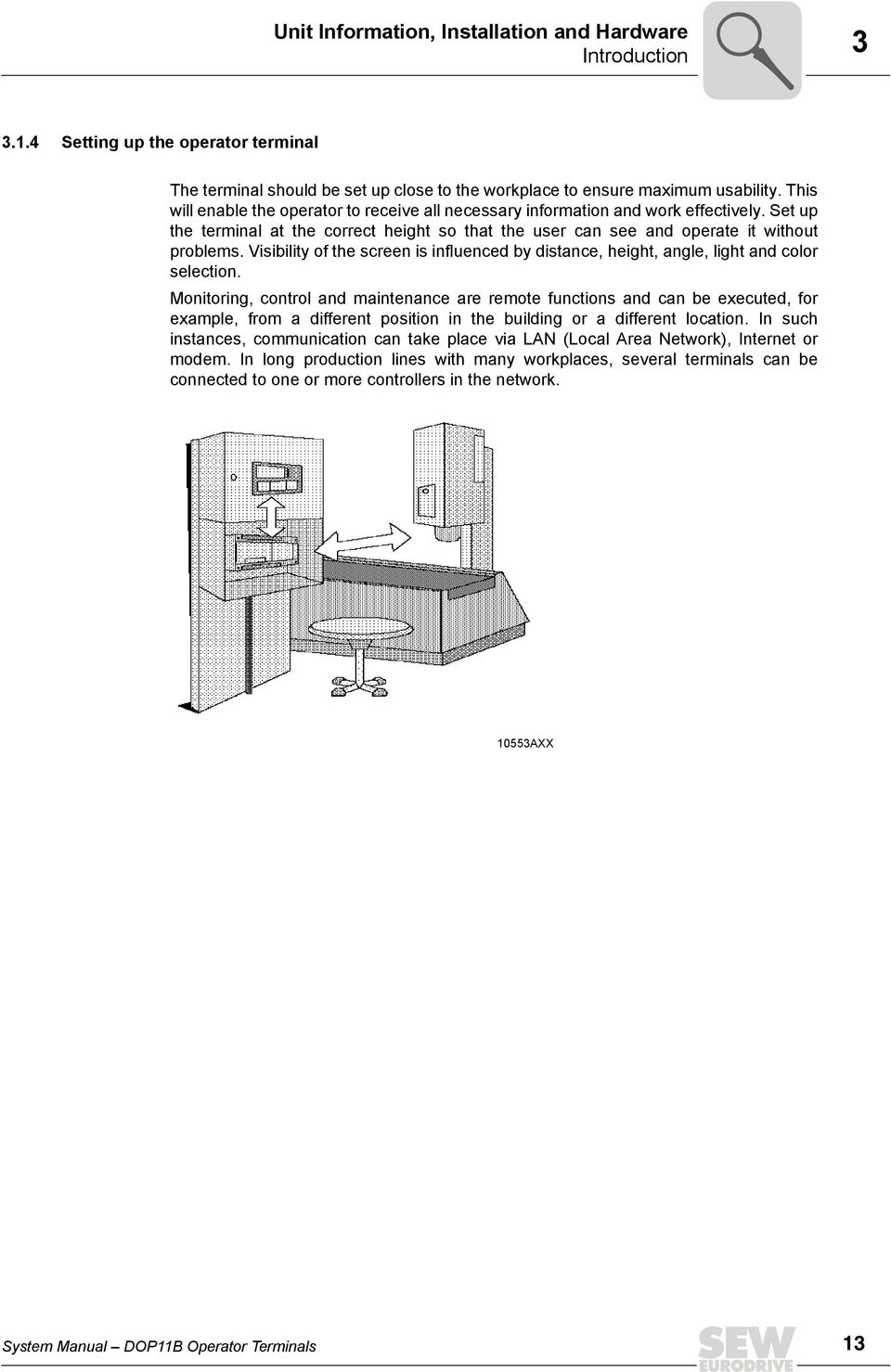
13 Unit Information, Installation and Hardware Introduction Setting up the operator terminal The terminal should be set up close to the workplace to ensure maximum usability. This will enable the operator to receive all necessary information and work effectively. Set up the terminal at the correct height so that the user can see and operate it without problems. Visibility of the screen is influenced by distance, height, angle, light and color selection. Monitoring, control and maintenance are remote functions and can be executed, for example, from a different position in the building or a different location. In such instances, communication can take place via LAN (Local Area Network), Internet or modem. In long production lines with many workplaces, several terminals can be connected to one or more controllers in the network. 1553AXX System Manual DOP11B Operator Terminals 13
14 Unit Information, Installation and Hardware 3 Introduction Compact solutions External units such as barcode scanners, weighing machines, modems, etc. can be connected via the terminal to the controller. The connection only requires an RS-232 interface and an ASCII communication protocol. Data entering the terminal is written directly to registers. It is also possible to connect a unit working in parallel, such as an additional terminal or a PC with the MOVITOOLS programming software for the inverter. As a result, you can simultaneously program the controller and communicate with it via the terminal. When the PLC and inverter are connected to a terminal (two drivers in the terminal), data can be exchanged between the two units (analog and digital signals). PLC protocol RS-485 MOVILINK 69AEN 14 System Manual DOP11B Operator Terminals

15 Unit Information, Installation and Hardware Unit designation, nameplates and scope of delivery Unit designation, nameplates and scope of delivery Sample unit designation DOP 11 B 2 Design 2 = LCD graphic display 24 x 64 pixels 25 = 1 / 4 VGA touchscreen 32 x 24 pixels (16 gray scale) 3 = 1 / 4 VGA touchscreen 32 x 24 pixels (64 k colors) 4 = 1 / 4 VGA graphic display 32 x 24 pixels (64 k colors) 5 = VGA touchscreen 8 x 6 pixels (64 k colors) Version B Generation Type: DOP = Drive Operator Panel Sample nameplate The unit nameplate is attached to the side of the unit AXX Scope of delivery Included in the scope of delivery: DOP11B operator terminal Installation equipment and installation template Quick reference guide with assembly and installation notes Phoenix COMBICON connector for DC 24 V, 5 mm, 3-pin System Manual DOP11B Operator Terminals 15

16 Unit Information, Installation and Hardware 3 DOP11B-1 unit design 3.3 DOP11B-1 unit design Part number: [1] [2] [3] 63944AXX [1] Display [2] Function keys with inscription area [3] Numerical keys 16 x 32 pixel LCD graphic display (monochrome) with backlighting Voltage supply: DC 24 V, 1 ma 2 serial interfaces (RS-232 and RS-485 / RS-422); 2 can be used simultaneously IP66 membrane keypad with navigation keys, numeric keypad and 6 function keys 6 LEDs (two colors red / green) 1 expansion slot 512 KB application memory 16 System Manual DOP11B Operator Terminals

17 Unit Information, Installation and Hardware DOP11B-15 unit design DOP11B-15 unit design Part number: [1] [2] [4] [3] 63945AXX [1] Display [2] Function keys with inscription area [3] Numerical keys [4] Navigation keys 24 x 64 pixel LCD graphic display (monochrome) with backlighting Voltage supply: DC 24 V, 1 ma 2 serial interfaces (RS-232 and RS-485 / RS-422); 2 can be used simultaneously IP66 membrane keypad with navigation keys, numeric keypad and 6 function keys 6 LEDs (two colors red / green) 1 expansion slot 512 KB application memory System Manual DOP11B Operator Terminals 17

18 Unit Information, Installation and Hardware 3 DOP11B-2 unit design 3.5 DOP11B-2 unit design Part number: [5] [1] [2] [3] [6] [4] 691AXX [1] LEDs red / green [2] Display [3] Function keys [4] Navigation keys [5] Inscription areas [6] Numerical keys 24 x 64 pixel LCD graphic display (monochrome) with backlighting Voltage supply: DC 24 V, 35 ma 2 serial interfaces (RS-232 and RS-485 / RS-422); 2 can be used simultaneously 1 ETHERNET interface (RJ45 socket) 1 USB interface IP66 membrane keypad with navigation keys, numeric keypad and 8 function keys 16 LEDs (two colors red / green) 1 expansion slot 12 MB application memory 18 System Manual DOP11B Operator Terminals
![[6] Numerical keys 24 x 64 pixel LCD graphic display (monochrome) with backlighting Voltage supply: DC 24 V, 35 ma 2 serial interfaces (RS-232 and RS-485 / RS-422); 2](/docs-images/41/4347359/images/page_18.jpg "can be used simultaneously 1 ETHERNET interface (RJ45 socket) 1 USB interface IP66 membrane keypad with navigation keys, numeric keypad and 8 function keys 16 LEDs (two")
19 Unit Information, Installation and Hardware DOP11B-25 unit design DOP11B-25 unit design Part number: AXX 32 x 24 pixels, 1 / 4 VGA touchscreen (16 gray scale, STN, 5.7") with backlighting Voltage supply: DC 24 V, 45 ma 2 serial interfaces (RS-232, RS-485 / RS-422); 2 can be used simultaneously 1 ETHERNET interface (RJ45 socket) 1 USB interface IP66 Horizontal or vertical installation 1 expansion slot 12 MB application memory System Manual DOP11B Operator Terminals 19

20 Unit Information, Installation and Hardware 3 DOP11B-3 unit design 3.7 DOP11B-3 unit design Part number: AXX 32 x 24 pixels, 1 / 4 VGA touchscreen (64 k colors, STN, 5.7") with backlighting Voltage supply: DC 24 V, 45 ma 2 serial interfaces (RS-232, RS-485 / RS-422); 2 can be used simultaneously 1 ETHERNET interface (RJ45 socket) 1 USB interface IP66 Horizontal or vertical installation 1 expansion slot 12 MB application memory 2 System Manual DOP11B Operator Terminals

21 Unit Information, Installation and Hardware DOP11B-4 unit design DOP11B-4 unit design Part number: [1] [2] [5] [3] [4] 692AXX [1] Function keys [2] Numerical keys [3] Navigation keys [4] Display [5] Inscription areas 32 x 24 pixels, 1 / 4 VGA graphic display (64 k colors, STN, 5.7") with backlighting Voltage supply: DC 24 V, 5 ma 2 serial interfaces (RS-232 and RS-485 / RS-422); 2 can be used simultaneously 1 ETHERNET interface (RJ45 socket) 1 USB interface IP66 membrane keypad with navigation keys, numeric keypad and 16 function keys 16 LEDs (two colors red / green) 1 expansion slot 12 MB application memory System Manual DOP11B Operator Terminals 21
22 Unit Information, Installation and Hardware 3 DOP11B-5 unit design 3.9 DOP11B-5 unit design Part number: AXX 8 x 6 pixels, VGA touchscreen (64 k colors, 1.4") with backlighting Voltage supply: DC 24 V, 1. A 2 serial interfaces (RS-232 and RS-485 / RS-422); 2 can be used simultaneously 1 ETHERNET interface (RJ45 socket) 1 USB interface IP66 Horizontal or vertical installation 1 expansion slot 12 MB application memory 22 System Manual DOP11B Operator Terminals
23 Unit Information, Installation and Hardware DOP11B-6 unit design DOP11B-6 unit design Part number: AXX 124 x 768 pixels, VGA touchscreen (64 k colors, 15") with backlighting Voltage supply: DC 24 V, 1.2 A 2 serial interfaces (RS-232 and RS-485 / RS-422); 2 can be used simultaneously 1 ETHERNET interface (RJ45 socket) 1 USB interface IP66 Horizontal or vertical installation 1 expansion slot 12 MB application memory System Manual DOP11B Operator Terminals 23
24 Unit Information, Installation and Hardware 3 Accessories and options 3.11 Accessories and options Cables for programming the DOP11B operator terminal and for communication between the operator terminal and MOVIDRIVE. Option Description Part number PCS11B (Panel Cable Serial) Connection cable between operator terminal DOP11B (RS-232, max Kbit/s) and PC (RS-232) for programming the operator terminal. Fixed length of 3 m PCS11A PCS21A (Panel Cable Serial) Communication cable between the operator terminal (RS-485, max Kbit/s) and SEW frequency inverters (RS-485, RJ-1). Fixed length of 5 m PCS22A (Panel Cable Serial) Communication cable from operator terminal (RS-485, max Kbit/s) to open cable end. Fixed length of 5 m Prefabricated cable D-SUB-9 PO Communication cable between operator terminal (RS-232, max Kbit/s) and UWS11A or UWS21A (RS-232) interface converter. For communication with SEW frequency inverters. Fixed length of 1.8 m PCM11A (Panel Cable MPI) Communication cable between the operator terminal (RS-232, max Kbit/s) and SIMATIC S7 via MPI (max. 12 Mbit/s). Fixed length of 3 m System Manual DOP11B Operator Terminals
25 Unit Information, Installation and Hardware Accessories and options 3 Option Description Part number PFE11B (ETHERNET panel fieldbus) Option ETHERNET TCP/IP (1 Mbit/s) To connect operator terminals DOP11B-1 and -15 to the customer s PC network. The ETHERNET option facilitates the following functions: Operation of the HMI-Builder software for programming the operator terminals via ETHERNET (projects can be uploaded and downloaded quickly). Communication with PLC and drive technology via TCP/IP services (only suitable for DOP11B-1 and -15) UWS11A Interface adapter for DIN rail mounting RS-232 RS X X1: RS X2: RS-232 UWU52A UWS Switched-mode power supply Input AC V Output DC 24 V, 2.5 A System Manual DOP11B Operator Terminals 25
26 Installation 4 Installation instructions for the basic unit 4 Installation 4.1 Installation instructions for the basic unit Separate cable ducts Route power cables and electronics cables in separate cable ducts Cross sections Voltage supply: Cross section according to rated input current. Electronics cables: 1 conductor per terminal mm 2 (AWG ) 2 conductors per terminal mm 2 (AWG ) Shielding and grounding Use shielded control cables only. Apply the shield by the shortest possible route and make sure it is grounded over a wide area at both ends. You can ground one end of the shield via a suppression capacitor (22 nf / 5 V) to avoid ground loops. If using double-shielded cables, ground the outer shield on the controller end and the inner shield on the other end. 755BXX Figure 1: Example of correct shield connection with metal clamp (shield clamp) or metal cable gland Shielding can also be achieved by laying the cables in grounded sheet metal ducts or metal pipes. In this case, the power cables and control cables should be routed separately. The unit is grounded via the connector for 24 V voltage supply. 26 System Manual DOP11B Operator Terminals
27 Installation UL-compliant installation UL-compliant installation Note the following points for UL-compliant installation: This unit is designed exclusively for use in class 1, division 2, group A, B, C and D or in non-hazardous areas. Unit combinations in your system must be checked by the official inspection authority responsible at the time of installation. Use only copper conductors with a temperature range of 6 / 75 C as connection cables. For horizontal installation, the maximum ambient temperature is 4 C; for vertical installation the maximum temperature is 5 C. WARNING RISK OF EXPLOSION! Only disconnect the units when voltage is not applied or when it poses no danger to the area. Exchanging components can impair suitability for class 1, division 2. Only connect the following extension devices to the connection labeled "Extension": PFE11B, only for DOP11B-1 and -2. Only replace the extension device when voltage is not applied or when it poses no danger to the area. This device includes a battery that may only be exchanged in a non-hazardous area. Use only the following battery type as a replacement: Lithium battery CR245, 55 mah. The unit must be used on an even surface with protection 4X. Only for indoor use. NOTE Electrical connection must be made in line with the methods described in class 1, paragraph 2 (article 51-4(b) according to the National Electric Code NFPA7). STOP! Use only tested units with a limited output voltage (V max = DC 3 V) and limited output current (I 8 A) as an external DC 24 V voltage source. UL certification does not apply to operation in voltage supply systems with a nongrounded star point (IT systems). System Manual DOP11B Operator Terminals 27
28 Installation 4 Space required for installation 4.3 Space required for installation Thickness of mounting panel: mm ( in) Space required for installing the operator terminal: 1 mm 5 mm 5 mm 1 mm 1 mm 63788AXX STOP The openings in the housing are used for convection cooling and must not be covered. 28 System Manual DOP11B Operator Terminals
29 Installation Installation procedure Installation procedure 1. Unpack the delivery and check it. Inform your supplier immediately if damage is found. STOP Place the operator terminal on a stable base during installation. If the unit falls down, it could be damaged. 2. Position the template where you want to install the operator terminal. Draw around the outer edge of the openings and cut out the markings AXX 3. Use all the retaining bores and the brackets and screws supplied to fix the operator terminal in place Nm 63827AXX 63825AXX System Manual DOP11B Operator Terminals 29
30 Installation 4 Installation procedure 4. Connect the cables in the order indicated. [1] [2] [3] [4] DC 24 V RS-232 RS-422 / RS-485 DC 24 V [5] Ethernet 63822AXX [1] Make sure that the operator terminal and controller have the same electrical grounding (reference voltage value), as otherwise there may be problems with communication. [2] Use an M5 screw and a PE conductor (as short as possible) with a minimum cross section of 2.5 mm 2. [3] Only use shielded communication cables. Route high-voltage cables separately from signal and supply cables. [4] The operator terminal must adjust to the ambient temperature before it is taken into operation. If condensation builds up, you must ensure that the operator terminal is dry before connecting it to the power supply. Ensure that the voltage and polarity of the power source are correct. [5] Control cabinet 5. Carefully remove the protective film from the display of the operator terminal to prevent damage from static electricity. 3 System Manual DOP11B Operator Terminals
31 Installation Connecting basic units DOP11B-1 to DOP11B Connecting basic units DOP11B-1 to DOP11B Voltage supply STOP Ensure correct polarity when connecting the terminal. Incorrect polarity will damage the unit. NOTE Make sure that the operator terminal and the controller system have the same electrical grounding (reference voltage value). Communication errors may occur if this is not the case. 659AXX Figure 2: Voltage supply for DOP11B-1 to DOP11B-6 [1] Ground [2] V [3] +24 V [1] [2] [3] System Manual DOP11B Operator Terminals 31
32 Installation 4 Connection to a PC 4.6 Connection to a PC DOP11B PCS11B RS-232 RS-232 Figure 3: Connection to a PC 66AXX The operator terminal is programmed using the HMI-Builder software. The PCS11B communication cable is required to program the operator terminal. NOTE Alternatively, the operator terminal can also be programmed via ETHERNET. STOP Possible damage to property The power must be switched off when connecting the units. 32 System Manual DOP11B Operator Terminals
33 Installation RS-485 connection RS-485 connection You can connect up to 31 MOVIDRIVE units to one operator terminal with the RS-485 interface. The DOP11B can be connected directly to MOVIDRIVE frequency inverters via the RS-485 interface using a 25-pin Sub-D connector Wiring diagram: RS-485 interface DOP11B-3 RS-485 Figure 4: RS-485 connection 693AXX MOVITRAC S1 S2 ON OFF X44 FSC11B MOVIDRIVE Control unit /Controller inhibit CW/Stop* CCW/Stop* Enable/Rapid stop* n11/n21* n12/n22* Reference X13:DIØØ...DIØ5 +24V output Reference potential binary signals RS RS-485 X13: DIØØ DIØ1 DIØ2 DIØ3 DIØ4 DIØ5 DCOM** VO24 DGND ST11 ST DOP11B Jumper between 6 and 19 to activate bus termination RS-422 / RS pin Sub D socket 14 X45 X46 HL Shield plate / shield clamp Figure 5: Pin assignment for DOP11B NOTE Alternatively, you can use the PCS22A cable. 661AEN System Manual DOP11B Operator Terminals 33
34 Installation 4 RS-485 connection Cable specification Use a 2 x 2-core twisted and shielded copper cable (data transmission cable with braided copper shield). The cable must meet the following specifications: Core cross section mm 2 (AWG ) Cable resistance Ω at 1 MHz Capacitance per unit length 4 pf/m (12 pf/ft) at 1 khz For example, the following cable is suitable: Lappkabel, UNITRONIC BUS CAN, 2 x 2 x.5 mm 2. Shielding Apply the shield at both ends over large area at the controller electronics shield clamp and in the housing of the 25-pin Sub-D connector of the operator terminal. STOP Bus controller may suffer irreparable damage as a result of a short circuit in the EMC decoupling between the electronics and ground. Never connect the shield ends to DGND! Cable length The total permitted cable length is 2 m. Terminating resistor The controller and UWS11A interface adapter are equipped with dynamic terminating resistors. In this case, do not connect any external terminating resistors! If the DOP11B operator terminal is connected to the frequency inverters via RS-485, activate the terminating resistor in the 25-pin Sub-D connector of the DOP11B (jumper between pin 6 and pin 19) if the operator terminal is the first or last station. STOP There must not be any difference of potential between the units connected using the RS-485. Take suitable measures to avoid potential displacement, for example, by connecting the unit grounds (GND) with a separate cable, connecting the voltage supply (24 V) etc. 34 System Manual DOP11B Operator Terminals
35 Installation Connecting RS-485 to PCS21A Connecting RS-485 to PCS21A PCS21A 662AXX Shielding Connect the shield to the electronics shield clamp of the controller and make sure it is connected over a wide area. The shielding is already connected in the housing of the 25-pin Sub-D connector of the PCS21A. STOP The bus controller may suffer irreparable damage as a result of a short circuit in the EMC decoupling between the electronics and ground. Never connect the shield ends to DGND! Terminating resistor The controller comes equipped with dynamic terminating resistors. Do not connect any external terminating resistors! The terminating resistor in the 25-pin sub-d connector of the DOP11B is already activated by a jumper between pin 6 and pin 19. STOP There must not be any difference of potential between the units connected using the RS-485. Take suitable measures to avoid potential displacement, for example, by connecting the unit grounds (GND) with a separate cable, connecting the voltage supply (24 V) etc. System Manual DOP11B Operator Terminals 35
36 Installation 4 RS-232 connection via UWS11A 4.9 RS-232 connection via UWS11A Connecting the DOP11B to a MOVIDRIVE frequency inverter via UWS11A. RS-232 UWS11A RS-485 Figure 6: Connection via serial connection (UWS11A) 63841AXX MOVITRAC S1 S2 ON OFF X44 MOVIDRIVE Control unit /Controller inhibit CW/stop* CCW/stop* Enable/rapid stop* n11/n21* n12/n22* Ref. X13:DIØØ...DIØ5 +24V output Ref. potential binary signals RS RS-485 X13: DIØØ DIØ1 DIØ2 DIØ3 DIØ4 DIØ5 DCOM** VO24 DGND ST11 ST UWS11A X2: RS VDC GND RS + RS GND FSC11B UWS X45 X46 HL Shield plate or shield clamp Figure 7: UWS11A terminal assignments 58787AEN NOTE Alternatively, you can use the D-SUB-9PO cable for the RS-232 connection (see the section "Accessories and options" on page 24) RS-485 connection See the section "RS-485 connection" on page 33 for the cable specification. 36 System Manual DOP11B Operator Terminals
37 Installation ETHERNET connection ETHERNET connection Connecting DOP11B to a PC for programming and remote maintenance via ETHER- NET and TCP/IP. LAN Switch / Hub Uplink DOP11B Figure 8: ETHERNET connection 695AXX Cable specification Use a standard shielded ETHERNET cable with shielded RJ45 connectors and cables according to the CAT5 specification. The maximum cable length is 1 m. For example, the following cable is suitable: Lappkabel, UNITRONIC LAN UTP BS flexible 4 x 2 x 26 AWG NOTE For a description of how to determine the ETHERNET (MAC) address of the option card, see the section "Configuration mode (SETUP)" on page 49. System Manual DOP11B Operator Terminals 37
38 Installation 4 ETHERNET connection ETHERNET interface in DOP11B-2 to -6 The DOP11B-2 to DOP11B-6 units are equipped as standard with an ETHERNET interface. Two LEDs are integrated into the RJ-45 socket. The LEDs have the following functions: Green LED Illuminated The ETHERNET cable is connected correctly. Flashing Data is being sent or received. Yellow LED Illuminated The setting 1 Mbit, full duplex is active. Flashing The setting 1 Mbit, half duplex is active PFE11B ETHERNET interface for DOP11B-1 and -15 Space requirements AXX Installation 1. Unpack the delivery and check the contents for completeness and possible damage. Inform your supplier immediately if damage is found. Scope of delivery: Expansion module 4 x M3x6 4 spacers STOP Place the terminal on a stable base during installation. If the unit falls down, it could be damaged. 2. Disconnect the operator terminal from the voltage supply. 38 System Manual DOP11B Operator Terminals
39 Installation ETHERNET connection 4 3. Remove the plastic cover from the expansion interface AXX 4. Fix the expansion module in place using the screws supplied. 5. Connect the operator terminal to the voltage supply. LEDs on PFE11B [1] [2] 6381AXX [1] Green LED [2] Yellow LED The expansion card has 2 LEDs with the following functions: Green LED Flashing Data is being sent or received. Yellow LED Illuminated The (twisted pair) ETHERNET cable is connected correctly. TxD, YELLOW RxD, YELLOW LINK, GREEN LED is activated by ETHERNET transfer. LED is activated by ETHERNET reception. LED is activated when the (twisted pair) ETHERNET cable is connected correctly. System Manual DOP11B Operator Terminals 39
40 Installation 4 Connection to a Siemens S7 Settings in the configuration tool Double-click on the [Peripherals] directory in the project manger in the configuration tool for the operator terminal. Click the right mouse button on [Expansion interface] and choose [EM-ETHERNET]. Then pull the controller with the corresponding driver or TCP/IP connection to the fieldbus symbol. To change the selected driver, choose [Properties] from the project menu. Additional information can be found in the driver documentation Connection to a Siemens S RS-485 DOP11B SIMATIC S7 Figure 9: Connection to a Siemens S7 via MPI and RS AXX Use the driver "S7 MPI Direct" PCM11A DOP11B PCM11A SIMATIC S7 MPI RS-232 Figure 1: Connection to a Siemens S7 via MPI and PCM11A 696AXX Use the driver "S7 MPI (HMI adapter)". 4 System Manual DOP11B Operator Terminals
41 Installation Connection to a Siemens S ETHERNET LAN Switch / Hub Uplink DOP11B SIMATIC S7 Figure 11: ETHERNET connection 64328AXX System Manual DOP11B Operator Terminals 41
42 I Startup 5 General startup instructions 5 Startup DANGER Danger of electric shock. Severe or fatal injuries! It is essential to comply with the safety notes in section 2 during installation. 5.1 General startup instructions Requirement for successful startup is the correct electrical connection of the operator terminal. The functions described in this section enable users to upload a project to the operator terminal and establish the unit in the necessary communication pathways. WARNING Do not use the DOP11B operator terminals as safety devices for industrial applications. Severe or fatal injuries. Use monitoring systems or mechanical protection devices to ensure the protection of personnel and equipment. 42 System Manual DOP11B Operator Terminals
43 Startup Preliminary work and resources I Preliminary work and resources Check the installation Take suitable measures to prevent the motor from starting up unintentionally via the connected frequency inverter. Disconnect the electronics input X13./controller inhibit in MOVIDRIVE or Disconnect the supply voltage (24 V backup voltage must still be applied) Disconnect the terminals "CW operation" and "Enable" on MOVITRAC Additional safety measures must be taken depending on the application to avoid injury to people and damage to machinery. Connect the operating terminal to MOVIDRIVE or MOVITRAC using an appropriate cable. DOP11B-3 RS-485 Figure 12: Connection between operator terminal and MOVIDRIVE MDX6B/61B 693AXX Connect the operator terminal to the PC using the PCS11B (RS-232) programming cable. Operator terminal and PC must be de-energized when you do this, otherwise undefined states may occur. Switch on the PC. If the HMI-Builder project planning software is not already installed on the PC, install it now and then start the software. DOP11B PCS11B RS-232 RS-232 Figure 13: Connection between PC and operator terminal 66AXX System Manual DOP11B Operator Terminals 43
44 I Startup 5 Initial operation Switch on the supply (24 V) for the operator terminal and connected frequency inverters. NOTE Alternatively, DOP11B can also be programmed via ETHERNET (see page 189) and via USB (see page 19). 5.3 Initial operation NOTE Units are delivered without a loaded project. Once the units are switched on, they will report the following information: Figure 14: DOP11B-2 initial screen in delivery state 11597AXX Figure 15: DOP11B-5 initial screen in delivery state 1276AXX 44 System Manual DOP11B Operator Terminals
45 Startup Terminal functions I Terminal functions This section describes the different modes in the operator terminal, the keyboard and the information page in the terminal Terminal keypad [1] [2] [3] [1] Integrated function keys [2] Arrow keys [3] Alphanumeric keys 697AXX Alphanumeric keys You can use the alphanumeric keyboard to enter the following characters in dynamic text and numerical objects during run mode. -9 A-Z a-z!? < > ( ) + / * = º % # Country-specific characters System Manual DOP11B Operator Terminals 45
46 I Startup 5 Terminal functions To enter numeric values, press the relevant key once. To enter capital letters (A to Z), press the relevant key two to five times. To enter lower case letters (a to z), press the relevant key six to nine times. You can select the time interval between presses. If the key is not pressed within the specified time interval, the cursor moves to the next position. Enter country-specific characters by pressing key <2> (C1C4) two to nine times. This option offers characters that are not included in the standard character set of the alphanumeric terminal keyboard. NOTE You can use all characters of the selected character set in the HMI-Builder except those characters reserved for static text. To enter the required character, keep the key combination <ALT>+<> (zero) pressed on the PC s keyboard, then enter the character code. You select the used character set in the HMI-Builder. Reserved characters The ASCII characters -32 (Hex -1F) and 127 are reserved for internal terminal functions and must not be used in projects or files in the terminal. The characters are used as control characters. Arrow keys Use the arrow keys to move the cursor in a menu or dialog box. Integrated function keys Not all the keys are available on all terminals. Key Description Enter key Use the ENTER key to confirm settings and to switch to the next line or level. <PREV> Use this key to return to the previous block. <NEXT> Use this key to go to the next block. <ALARM> Use this key to display the alarm list. <ACK> Use this key to acknowledge alarms in the alarm list. <HOME> Use this key to jump to block in run mode. < > Use this key to delete characters to the left of the cursor. NOTE If the main block (block number ) has been displayed, the <PREV> key will not work since the block history is deleted when the main block is shown. 46 System Manual DOP11B Operator Terminals
47 ON DIP ON DIP Startup Terminal functions I Switches on the DOP11B terminals Four switches for selecting the operating mode (DIP switches) are located on the back of DOP11B operator terminals. ON DIP V DC COM 2 RS232 EXPANSION 1/1 COM 1 RS422 RS485 CF CARD MODE BUSY 6855AXX DIP switches have the following assignment: 1 = ON, = OFF You have to interrupt the power supply to the terminal to call up individual modes for DOP11B. Turn the DIP switch on the side or back of the terminal to the position shown in the following table. You can now turn on the power supply again. Switch position 1234 Function Run mode (RUN, standard operation) 1 Reset system (delivery status) 1 Sysload 1 Configuration mode (SETUP) 11 No function (RUN) 111 Activate self-test function XXX1 Hard reset System Manual DOP11B Operator Terminals 47
48 I Startup 5 Terminal functions Service menu To call up the service menu, set the operating mode switches on the operator terminal to "1". For information on the operating mode switches, see the section "Switches on the DOP11B terminals" on page 47. The service menu includes the following options: Network settings Choose this option to access the network menu. Network menu The options in the network menu match the selection made in [Settings] / [Network] in the HMI-Builder. It includes the following entries: Menu entry Described in TCP/IP settings Network communication via ETHERNET (see page 263). Accounts Network accounts (see page 32). Services Network services (see page 271). Erase project memory Load project from memory card This option deletes the project memory. An empty operator terminal can be started using an existing information designer project from another terminal. To do so, you must first copy the project to a compact Flash memory card or USB stick using the function "Save project to memory card" (e.g. via a function key). Insert the memory card into the empty operator terminal when it is off. Then choose the command "Load project from memory card" from the service menu and follow the instructions. Enter transfer mode Enables manual access to the transfer mode which is required to download projects via a GSM modem. More information can be found in the section "Transfer via GSM modem" on page 194. Enter run mode Enables manual access to the operating mode. More information can be found in the section "Transfer via GSM modem" on page 194. Update system program from memory card Insert a compact Flash memory card or USB stick loaded with a new system program and follow the instructions. The system program can also be updated using configuration software for the operator terminals. Calibrate touchscreen Follow the instructions on the screen to calibrate the touchscreen. 48 System Manual DOP11B Operator Terminals
49 Startup Terminal functions I Operating modes RUN and SETUP The operator terminal has two operating modes. Configuration mode (SETUP): All basic settings are made in this mode, such as selection of the controller and menu language. Run mode (RUN): This mode is for running the application. Configuration mode (SETUP) This section contains a description of functions that cannot be carried out with the HMI- Builder. Erasing the memory The [setup] menu in the terminal includes the function [Erase Memory]. Use this function to erase the terminal s application memory. All blocks and definitions for alarms, time channels, function keys and system signals are erased. Parameters Enter key <PREV> Description Memory is erased. The configuration menu is shown automatically when the erasure is completed. Returns to previous level without erasing the memory. NOTE When the memory is erased, all the data stored on the terminal will be lost. The language selection parameter is not affected by this function. All other parameters will be erased or reset to their default values. Run mode (RUN) The application is executed in run mode. Block will automatically be displayed on the screen when changing to run mode. The integrated keyboard is used to highlight and change values in run mode. If a communication error occurs between the terminal and controller, an error message will be shown on the screen. The terminal starts automatically once communication is reestablished. If you enter an I/O key combination while a communication error is active, the combination will be stored in the terminal buffer and transferred to the controller once communication resumes. The terminal clock can continuously send data to a register in the controller to activate a monitoring function. The controller can use this monitoring function to detect a communication error. The controller checks whether the register has been updated. If it has not, an alarm indicating a communication error can be activated in the controller. The functional principle of the individual objects and functions in operating mode will be explained in conjunction with the description of the respective objects and functions. System Manual DOP11B Operator Terminals 49
50 I Startup 5 Terminal functions Information page The terminal contains an information page. The information page is activated by pressing the key combination < > and <PREV> simultaneously in run mode. A function or touch key can also be used or configured to call up the information page. The current terminal, system program version and hardware version are shown at the top of the information page. Parameters Description STARTS Number of terminal starts RUN Number of terminal operating hours CFL Number of hours the backlighting has been switched on 32 C MIN: 21 MAX: 38 Current operating temperature, lowest and highest measured temperatures (example) DYNAMIC MEMORY Available RAM memory (working memory) in bytes FLASH MEM PROJ Available Flash memory (project memory) in number of bytes FLASH MEM BACK Reserved FLASH CACHEHITS Percentage of block / allocation cache hits in the file system FLASH ALLOCS Maximum percentage of used or active allocations per block in the file system DRIVER 1 Current driver and driver version DIGITAL I/Os The number of digital signals linked to controller 1 continuously monitored (STATIC) and the number in the current block (MONITOR) ANALOG I/Os The number of analog signals linked to controller 1 continuously monitored (STATIC) and the number in the current block (MONITOR) I/O POLL The time in ms between 2 readings of the same signal in controller 1 PKTS The number of signals in each package transferred between the terminal and controller 1 TOUT1 The number of timeouts in communication with controller 1 CSUM1 The number of checksum errors in communication with controller 1 BYER The number of byte errors in the communication DRIVER 2 Current driver and driver version. The parameters for Driver 2 are only shown if controller 2 is defined in the project. DIGITAL I/Os The number of digital signals linked to controller 2 continuously monitored (STATIC) and the number in the current block (MONITOR). ANALOG I/Os The number of analog signals linked to controller 2 continuously monitored (STATIC) and the number in the current block (MONITOR) I/O POLL The time in ms between 2 readings of the same signal in controller 2 PKTS The number of signals in each package transferred between the terminal and controller 2 TOUT2 The number of timeouts in communication with controller 2 CSUM2 The number of checksum errors in communication with controller 2 1 / 2 / 3 Current port for FRAME, OVERRUN and PARITY. 1 = RS-422 port, 2 = RS-232 port and 3 = RS-485 port. FRAME The number of frame errors in each port OVERRUN The number of overrun errors in each port PARITY The number of parity errors in each port 5 System Manual DOP11B Operator Terminals
51 Startup Terminal functions I Joystick functions Only applies to DOP11B-2 and DOP11B-4. This function makes it possible to use the arrow keys as function keys. Enter the command "AK" and an address in the command line in the [System signals] window. Example: "AKH1" (command AK and memory cell H1). Figure 16: System signals 11486AEN Memory cell H1 acts as the enable signal and the following four memory cells have functions according to the following control block: Memory cell Hn Hn1 Hn2 Hn3 Hn4 Description Active = Joystick function. Disabled = Normal function. LEFT ARROW DOWN ARROW UP ARROW RIGHT ARROW If you press an arrow when the enable signal is active, the memory cell corresponding to the key you press will be activated. When the enable signal is issued, the arrow keys will not perform their normal functions. System Manual DOP11B Operator Terminals 51
52 I Startup 5 Terminal functions Example The following example can be used to switch between the joystick function and normal function. Perform the following steps: Use the SEW-MOVILINK (serial) Driveffectier. Enter the text "AKH1" in [System signals] / [Commands]. Generate a text block. Enter the static text "JOYSTICK." Create an object with the following settings: 52 System Manual DOP11B Operator Terminals
53 Startup Terminal functions I 5 Generate another four objects to monitor the memory content of H2, H3, H4 and H5. Appearance of the text block based on the sample settings: System Manual DOP11B Operator Terminals 53
54 I Operation and Service 6 Transferring projects with PC and HMI-Builder 6 Operation and Service 6.1 Transferring projects with PC and HMI-Builder You need the HMI-Builder software to start up the operator terminal with your PC. 1. Start the HMI-Builder program. 2. Select the language in the [Settings] / [Menu language] selection field AEN 11244AEN 54 System Manual DOP11B Operator Terminals
55 Operation and Service Transferring projects with PC and HMI-Builder I 6 3. Use the [File] / [Open] function to open the project file you would like to transfer to the operator terminal AEN 4. In the selection field [Transfer] / [Communication properties], select the communication connection [Use serial transfer] and enter the necessary parameters: 11489AEN System Manual DOP11B Operator Terminals 55
56 I Operation and Service 6 Transferring projects with PC and HMI-Builder Serial transfer using the PCS11B programming cable. Enter the following information: Communication port of the PC (e.g. Com1) Data transfer rate (default 152) Timeout period (free entry, default 1, ms) Number of retries in case of communication problems (default 3) 1149AEN 5. The project can now be transferred to the terminal by using the selection field [Transfer] / [Project]. The following functions are active as standard and must not be changed. Test project on send Send complete project Automatic terminal RUN/TRANSFER switching Check terminal version 56 System Manual DOP11B Operator Terminals
57 Operation and Service Transferring projects with PC and HMI-Builder I 6 Press the [Send] button to download the data AEN The following steps will be executed one after the other: Switch the terminal to transfer mode (TRANSFER) Transfer the communication driver for inverter and PLC Transfer project data Switch the terminal to RUN mode The individual steps will be displayed in the terminal display during transfer. Once transfer is completed, exit the dialog window using the [Exit] button and close the HMI-Builder. System Manual DOP11B Operator Terminals 57
58 I Operation and Service 6 Operating display at unit start 6.2 Operating display at unit start [1] [2] [3] [4] [5] [6] 11592AXX [1] Firmware version of the operator terminal [2] Status of the boot process e.g.: Initializing hardware Loading comm. drivers Init alarms IP address: [3] Communication driver loaded in Controller 1 e.g.: SEW_MOVILINK_(serial) SEW_SMLP_(TCP/IP) DEMO... [4] Communication driver loaded in Controller 2 e.g.: SEW_MOVILINK_(serial) SEW_SMLP_(TCP/IP) DEMO... [5] Communication status of Controller 1 e.g.: NO CONNECTION MOVIPLC MOVITRAC B MOVIDRIVE B... [6] Communication status of Controller 2 e.g.: NO CONNECTION MOVIPLC MOVITRAC B MOVIDRIVE B System Manual DOP11B Operator Terminals
59 Operation and Service Error messages I Error messages Errors in RUN mode will be displayed in the upper left hand corner of the display as error messages. They are divided into two groups: Boot error (no inverter connected) Operation errors - Comm errors (error list) Boot error (no inverter found) Boot error "1: Comm Error 254" means: no communication with connected inverters. [1] 1: Comm Error 254 [2] [3] 5359AXX [1] Controller in which the communication error occurs. e.g 1 or 2 [2] Error type e.g. operation error - Comm Error [3] With address: e.g (= point to point!) System Manual DOP11B Operator Terminals 59
60 I Operation and Service 6 Error messages Operating errors - Comm errors (error list) Message from operator terminal Error code Description no error No error invalid parameter 1 Illegal parameter index fct. not implement 11 Function / parameter not implemented; Controller does not recognize parameter addressed by the operator terminal. Check selection of MOVILINK driver. Individual parameters of MOVITRAC 7, MOVIDRIVE A and MOVIDRIVE B controllers are slightly different. The error may also be caused by the controller s firmware. Recently added parameters may not be included in older versions of the unit firmware. read only access 12 Read access only No write access to addressed parameter. Deactivate the [Activate input] function in the operator terminal s project. param. lock active 13 Parameter lock is active The [Parameter block] function was activated via parameter P83 in the addressed controller. Set parameter P83 to "OFF" by using the controller keypad or the MOVITOOLS PC software to deactivate the parameter lock. fact. set active 14 Factory setting is active Controller is performing a factory setting. Parameter change option is locked for a few seconds. Communication will be automatically reactivated once factory setting is complete. value too large 15 Value for parameter too large Operator terminal is trying to write a value to a parameter that is not within the permitted value range. Adapt the minimum and maximum input values in the [Access] area in the project of the operator terminal. You will find the respective limit values in the controller s parameter list. value too small 16 Value for parameter too small Operator terminal is trying to write a value to a parameter that is not within the permitted value range. Adapt the minimum and maximum input values in the [Access] area in the project of the operator terminal. You will find the respective limit values in the controller s parameter list. option missing 17 Required option card missing for this function / this parameter. system error 18 Error in system software of controller Contact SEW service. no RS485 access 19 Parameter access via RS-485 process interface on X13 only no RS485 access 1A Parameter access via RS-485 diagnostic interface only access protected 1B Parameter is access-protected No read or write access to this parameter; parameter not suitable for use in operator terminal. inhibit required 1C Controller inhibit required The addressed parameter can only be altered when the controller is inhibited. Activate the controller inhibit status by removing the terminal X13. or via fieldbus (control word 1/2 basic block = 1hex). incorrect value 1D Incorrect value Some parameters can only be programmed to certain values. You will find the respective limit values in the parameter list of the controller. fact. set active 1E Factory setting was activated. not saved in EEPROM 1F Parameter was not saved in EEPROM Power-failure save failed. inhibit required 2 Parameter cannot be changed with enabled output stage The addressed parameter can only be altered with inhibited inverter. Activate the controller inhibit status by removing the terminal X13. or via fieldbus (control word 1/2 basic block = 1hex). 6 System Manual DOP11B Operator Terminals
61 Operation and Service SEW Electronics Service I SEW Electronics Service Send in for repair Contact SEW Electronics Service if a fault cannot be rectified. When contacting the SEW electronics service, always quote the digits of the unit designation so that our service staff can assist you more effectively. Provide the following information when sending the unit in for repair: Serial number ( nameplate) Unit designation Brief description of the application Nature of the error Accompanying circumstances Your own presumptions as to what has happened Any unusual events preceding the problem, etc. System Manual DOP11B Operator Terminals 61
62 I Programming 7 Creating a project 7 Programming 7.1 Creating a project Basics This section describes the system structure of the terminal and its basic functions. There is also an explanation of the general principles, object parameters and joint functions applicable in the terminal. Procedure for programming a project The graphical structure of the application in the terminal makes the monitoring tool easy to use. It is important to organize the application carefully and to consider which functions are necessary. Start with the overall view, and then work down to the detailed level. When programming a project, start with the functions in your application. Depending on the complexity, each function corresponds to one or more blocks. A project can contain both graphic and text blocks, and each block can contain static and dynamic objects. The blocks should be arranged in hierarchies to achieve a structured application, and to simplify procedures for the machine operator. The application can also be organized as a sequence control. The application can be tested in full or in part prior to startup. Block Block Block n Block m Block 1 Block 2 Block 11 Block 12 Block 13 Block 14 Figure 17: Block structure 53375AXX 62 System Manual DOP11B Operator Terminals
63 Programming Creating a project I 7 Effective communication Read the following notes on signal transmission and optimization to ensure fast and effective communication between terminal and controller. Signals that influence the communication time Only signals for objects in the current block are read continuously. These include dynamic object signals. Signals for objects in other blocks will not be read. The number of blocks does not affect the communication time. In addition to signals for objects in the current block, the terminal continuously receives the following signals from the controller: Display signals (block header) Block print signals (block header) LED register Alarm signals External confirmation signals for alarms and alarm groups Login signal (password) Logout signal (password) Trend curve register Register for column objects when min. / max. indicators are used New display register Buzzer register Backlighting signal Cursor control block Recipe control block Library index register Index register Register for PLC clock if it is used in terminal List erase signal (alarm settings) No protocol mode control register No protocol signal Signals that do not influence the communication time The following signals do not affect the communication time: Signals for function keys Time channels Objects in alarm texts System Manual DOP11B Operator Terminals 63
64 I Programming 7 Creating a project Optimize communication Grouping controller signals The signals from the controller (see list on page 63) are read fastest if they are bundled into one group, such as: If you have defined 1 signals you will reach the highest reading speed by grouping them (e. g. H-H99). If the signal transfer takes place in individual steps (e.g. P14, H17, H45, etc.), then the update will take longer. Effective block change You will reach an optimum block change by using the block jump function of the function keys or by using jump objects. The display signal in the block header may only be used if the controller wants to enforce the opening of another block. If the controller is to change the display, you can use the new display register. This option affects the communication less then a larger number of display signals. Signal packages Transfer of signals between terminal and controller does not take place for all data at the same time. Instead, the information is separated into packages that each contain several signals. The number of signals in each package depends on the selected driver. The number of packages must be kept to a minimum to speed up the communication. Grouped signals only require a minimum number of packages. Such programming is not possible in all cases. In such cases, there are spaces between two signals. A space represents the maximum distance between two signals that are part of the same package. The size of the space depends on the selected driver AEN User interface Use graphic blocks for the user interface. Text blocks are mainly for the printout of reports. They are slower and require more memory than graphic blocks. Use 3D effects for an appealing user interface. You can achieve an impressive visual design by combining objects with frames and 3D rectangles. Such a design simulates light incidence from top left. This creates shadow effects at the lower and right sides of raised objects as well as on the upper and left sides of lowered objects. 64 System Manual DOP11B Operator Terminals
65 Programming Creating a project I 7 Menu structure The terminal is divided into two operating modes: configuration mode and run mode. Each mode offers a number of different levels, depending on the function. Each level consists of a menu where you make a selection or enter parameters before going to the next level (menu). An application is made up of blocks, graphic blocks and / or text blocks (primarily for report printouts). Values from the controller are shown and changed in the blocks. The programmer assigns each block a number between and 989. Blocks are reserved for special purposes. These are known as system blocks. The terminal is object oriented, which means that a block can contain all the signals linked to an object for the control and monitoring of, for example, a pump. Figure 18: Configuration mode and run mode 53376AEN System Manual DOP11B Operator Terminals 65
66 I Programming 7 Creating a project Blocks A block header is defined for each block. The header contains the block number, block type, status word, etc. The following functions can also be called as blocks: Alarms Time channels System monitor Contrast settings These are known as system blocks. You can define up to 99 blocks. NOTE The block type cannot be changed for a defined block. Signal formats The following signal formats are available in the dialog for each object, provided that the selected driver supports the signal format. Format type Area Signed 16-bit Unsigned 16-bit Signed 32-bit Unsigned 32-bit Floating-point number with exponent, 32-bit Floating-point number without exponent, 32-bit BCD floating point number BCD 16-bit BCD 32-bit HEX 16-bit HEX 32-bit Seconds 16-bit Seconds 32-bit Character string 16-bit array ±3.4E38, a number larger than 1 is shown with exponent (not with MOVILINK driver). Parameter positions (including decimal point and characters) and decimals indicate the available area. For example, 8 positions and 3 decimals result in ± (not with MOVILINK driver) (not with MOVILINK driver) (not with MOVILINK driver) (not with MOVILINK driver)... FFFF... FFFF FFFF Analog numerical object that can be displayed in the time format. Syntax: <Hours:Minutes:Seconds> (not with MOVILINK driver). Analog numerical object that can be displayed in the time format. Syntax: <Hours:Minutes:Seconds> (not with MOVILINK driver). Character string that can be used in the [Dynamic for graphic objects] function in models DOP11B-2 to DOP11B-5. Example: In the objects Static symbol, Digital symbol and Multiple symbol, the dynamic property Symbol can be linked to a register with the Character string format. Table format that can be used for an event in a dynamic function for graphic objects in models DOP11B-2 to DOP11B-5. Example: A group of registers is to be allocated different values when the value entered is equal to 99. The first value in the Value field will then be entered in register D21 in the field Signal. If the Value field appears as follows <1,2,3,4>, the value 2 will be entered in the next register (D22), etc. 66 System Manual DOP11B Operator Terminals
67 Programming Creating a project I Installing the HMI-Builder Programming software The HMI-Builder programming software can be used to create projects for operator terminals in the DOP11B series. The functions in the HMI-Builder depend on the selected terminal. We recommend using a mouse as the input device for the programming software. Refer to the Windows User s Guide for information on key combinations. In the programming software, a project is created with graphic blocks and text blocks, which are then transferred to the operator terminal. An online help is available for all functions. To call up the help text for each function, press the <F1> key. Information on the function is shown by pressing the help button in the toolbox and then clicking on a function. System prerequisites The configuration software runs on a PC with a minimum of 1 MB free memory and Microsoft Windows 2 / XP Professional. The software can be used with a color or monochrome monitor screen. Microsoft Internet Explorer Version 5. upwards must be installed. Installing HMI- Builder The programming software is supplied on a CD. When you place the CD in your CD ROM drive the installation should start automatically. If it doesn t, select [Run] in the Start menu and enter the command D:/setup.exe (where D stands for the CD ROM drive). Install the programming software by clicking on the name and following the instructions. The installation wizard creates an icon for the programming software in the program group of the programming software. To start the programming software, click on [Start] and select [Programs] / [Drive Operator Panels DOP] / [HMI-Builder]. The manual can be read directly from the CD by clicking on [Manuals]. System Manual DOP11B Operator Terminals 67
68 I Programming 7 Creating a project Menu The menu bar contains a number of drop-down menus. Menu File Edit View Functions Setup Object Layout Block manager Transfer Window Help Description Contains functions that affect the entire project. Includes the following functions: Cut Copy Paste The following menus can be called up: Block manager Alarm management Symbol manager In this menu you can configure the function keys, LEDs, passwords and macros. Alarm texts are entered and alarm groups are defined in this menu as well. Here you set the basic configuration for the terminal. Is only available in the managers and holds all objects. The objects are also included in the toolbox. Is only available in graphic block manager and includes functions for positioning objects in graphic blocks. Settings for visual representation of block manager The functions in the Transfer menu are used to transfer projects between the programming software and the terminal. Contains all general Windows functions. You can also make grid settings and define the search path to external programs, such as Paintbrush. Contains the help functions for the program. Status bar The status bar is located at the bottom of the HMI-Builder program window. In the [View] menu there is a function to show / hide the status bar. The left part of the status bar describes the menu function selected in the menu. A short description of the function the cursor points to is shown for the functions in the toolbox. The right part of the status bar indicates which of the following keys are activated: OVR Overwrite (Paste key) CAP Caps Lock NUM Num Lock Coordinates (line and column) in the block manager are also shown. Figure 19: Status bar 5318AXX 68 System Manual DOP11B Operator Terminals
69 Programming Communication with MOVIDRIVE and MOVITRAC I Communication with MOVIDRIVE and MOVITRAC This section describes the communication between operator terminals and frequency inverters MOVIDRIVE and MOVITRAC. There is also an explanation of how parameters and variables can be addressed and read. Constellations with more than one inverter connected via RS-485 are also described Serial connection between operator terminal and inverter Connect the inverter to the operator terminal as described in section 4. Use the PCS11B cable to connect the PC to the operator terminal. The operator terminal is programmed via this cable. PCS11B programming cable Connection cable between operator terminal and PC for programming the operator terminal. Fixed length of 3 m. DOP11B PCS11B RS-232 RS-232 Figure 2: PCS11B programming cable 66AXX System Manual DOP11B Operator Terminals 69
70 I Programming 7 Communication with MOVIDRIVE and MOVITRAC Communication settings in the HMI-Builder Setting up communication between operator terminal and inverter The settings for communication between the operator terminal and inverter are made in the HMI-Builder under [Setup] / [Peripherals]. Figure 21: Communication settings 1277AEN To change the communication port, select [Controller 1] (or [Controller 2]), press and hold down the left mouse button and drag the controller to the other communication port. To enter communication parameters, press the right mouse button. NOTE The settings must correspond with the physical structure. 7 System Manual DOP11B Operator Terminals
71 Programming Communication with MOVIDRIVE and MOVITRAC I 7 MOVILINK / SMLP driver (serial / ETHERNET) Settings Figure 22: Properties for MOVILINK / SMLP driver, Settings 1268AXX Parameters Communication mode Default station Description Specifies whether there is a serial or ETHERNET connection. This address is always used if no other address is specified when defining the communication objects. Meaning when using the "ETHERNET/SMLP" communication mode: In ETHERNET communication mode, this number refers to the IP addresses defined under "Stations". To avoid communication errors, only use stations that have been defined. Model Data exchange mode Number of process data words Meaning when using the "Serial/MOVILINK" communication mode: 99 Individual inverter addresses Group addresses 254 Peer-to-peer communication This address must not be used when several inverters are connected to the operator terminal. 255 Broadcast address All inverters connected to the RS-485 bus receive data but do not send a response to the operator terminal. Defines which inverter type is connected. Used to select cyclic or acyclic communication for the PDU type. This function is only available in the "Serial/MOVILINK" communication mode. Defines the length of the telegram. 8-byte parameter channel and 3 process data words. This function is only available in the "Serial/MOVILINK" communication mode. System Manual DOP11B Operator Terminals 71
72 I Programming 7 Communication with MOVIDRIVE and MOVITRAC Standard settings for using the "Serial/MOVILINK" communication mode: Parameters Description Port COM1, RS-485 COM2, RS-232 (with UWS11A) Baud 96 Data bits 8 Stop bits 1 Parity Even Stations Figure 23: Properties for MOVILINK / SMLP driver, Stations 1269AXX Parameters Station IP address Sub ch 1 Sub add 1 Description Station number via which the TCP/IP addresses can be addressed conveniently. IP address During startup, the operator terminal establishes a connection to each IP address entered here. Activates the routing to the subordinate bus system specified here, e.g. from fieldbus gateway DFE33B / UOH11B to the SBus. For information on the available subordinate bus systems, refer to the documentation of the respective device (gateway). Address of the inverters in the subordinate bus system. 72 System Manual DOP11B Operator Terminals
73 Programming Communication with MOVIDRIVE and MOVITRAC I 7 Standard settings for using the "Serial/MOVILINK" communication mode: Parameters Description Port COM1, RS-485 COM2, RS-232 (with UWS11A) Baud 96 Data bits 8 Stop bits 1 Parity Even Advanced Figure 24: Properties for MOVILINK / SMLP driver, Advanced 127AXX Parameters Timeout Retries Retry time Command line options Description Time in [ms] for repeat transmission. Number of retries until a communication error is displayed. Wait time in [s] until a communication error is reset. Another attempt will be made to reestablish communication once this time has elapsed. No function. System Manual DOP11B Operator Terminals 73
74 I Programming 7 Communication with MOVIDRIVE and MOVITRAC Standard settings for using the "Serial/MOVILINK" communication mode: Parameters Description Port COM1, RS-485 COM2, RS-232 (with UWS11A) Baud 96 Data bits 8 Stop bits 1 Parity Even Transparent mode Figure 25: Properties for MOVILINK / SMLP driver, Transparent mode 1271AXX The driver supports a special transparent mode exclusive to the SEW driver. If the driver is configured for serial communication and the transparent mode port is configured for the ETHERNET port with TCP and port number 3, special routing behavior is activated. This enables MOVITOOLS MotionStudio to use an ETHERNET query to detect both the DOP11B units and the SEW devices connected via the DOP11B units serial port. These devices can be addressed as an ETHERNET gateway in MOVITOOLS MotionStudio via ETHERNET and the DOP11B units. Transparent mode does not work in any other configuration. 74 System Manual DOP11B Operator Terminals
75 Programming Communication with MOVIDRIVE and MOVITRAC I Addressing parameters and variables Addressing The MOVILINK driver recognizes the following data formats: P NVP X NVX H NVH For parameters (volatile writing) For parameters (non-volatile writing) For index (volatile writing) For index (non-volatile writing) For IPOS variables (volatile writing) For IPOS variables (non-volatile writing) Without the suffix NV, the data is written to the RAM of the inverter and is lost when the inverter is switched off. NOTE The suffix NV is required for non-volatile storage. In this case, the data is written to the EEPROM of the inverter. Note that only a limited number of write services can be executed on the EEPROM. Therefore, you should use the suffix NV carefully. Digital data (bitwise access) Device Minimum address Maximum address Comment P rr. bb P. P Bit bb in register rr NVP rr. bb NVP. NVP Bit bb in register X rr. bb X8192. X Bit bb in register rr NVX rr. bb NVX8192. NVX Bit bb in register rr H rr. bb H. H (H for MOVIDRIVE B / H248 for MOVI- PLC ) Bit bb in register rr NVH rr. bb NVH. NVH (NVH for MOVIDRIVE B / H248 for MOVI- PLC ) Bit bb in register rr Analog signals Device Minimum address Maximum address Comment P rr P P999 Register rr NVP rr NVP NVP999 Register rr X rr X8192 X24575 Register rr NVX rr NVX8192 NVX24575 Register rr H rr H H511 (H123 for Register rr MOVIDRIVE B) NVH rr NVH NVH511 (NVH123 for MOVIDRIVE B) Register rr NOTE All parameters, variables and indices are 32-bit values. System Manual DOP11B Operator Terminals 75
76 I Programming 7 Communication with MOVIDRIVE and MOVITRAC Analog signals (partial access) For a number of the inverter parameters, several pieces of information are stored in one parameter. This means parameters P1, P11 and P12 are coded via index 831. You can use the following notation to partially evaluate these parameters: H Low word of IPOS variable H1 H High word of IPOS variable H1 Device Minimum address Maximum address Comment P rr. a-b NVP rr. a-b P.-1 NVP.-1 P NVP P rr. a-b a = Start bit b = Stop bit X rr. a-b X X NVX rr. a-b NVX NVX H rr. a-b H.-1 H (H for MOVIDRIVE B) NVH rr. a-b NVH.-1 NVH (NVH for MOVIDRIVE B) Example H Data is read from bit 7 up to and including bit 14. Subindex The subindex can only be used in conjunction with the index (X and NVX). The notation is as follows: X8192/1, where 1 indicates access to subindex 1. Other examples: 2:X8192/23.31 Address 2, index 8192, subindex 23, bit 31 7:X8192/9.-15 Address 7, index 8192, subindex 9, bit to bit15 Communication with inverters in the RS-485 network The following notation is used for addressing inverters with a defined RS-485 address: Example Default station RS-485 address 254 (peer-to-peer). Only to be used if only one inverter is connected to the operator terminal. P1 Communication with parameter P1. The address that was entered in the [Default station] input field when configuring the driver is used as communication address. 2:P1 Communication with parameter P1 of the inverter with address 2 4:H12 Communication with IPOS variable H12 of the inverter with address 4 76 System Manual DOP11B Operator Terminals
77 Programming Communication with MOVIDRIVE and MOVITRAC I 7 Communication with inverters connected in the ETHERNET network While the operator terminal is starting up, communication is established with all TCP/IP address entered in the driver configuration. The address in line is also used when no other address is specified. The following notation is used for addressing inverters with a defined TCP/IP address: Example: TCP/IP address in line is , port 3. TCP/IP address in line 1 is , port 3. TCP/IP address in line 2 is , port 3. TCP/IP address in line 3 is , port 3. P1 Communication with parameter P1. The address that was entered in input field [1] when configuring the driver is used as the communication address ( ). 1:P1 Communication with parameter P1 of the inverter with address 2 ( ). 3:H12 Communication with IPOS variable H12 of the inverter with address 4 ( ). System Manual DOP11B Operator Terminals 77
78 I Programming 7 Communication with MOVIDRIVE and MOVITRAC Process data The MOVILINK driver can operate 1 to 3 process data items per inverter depending on the setting. A distinction is made between process output data (PO data from the PLC to the inverter) and process input data (PI data from the inverter to the PLC). The number of process data items is set in the MOVILINK driver Dialog. The inverter parameter P9 PD configuration must have the same value. Bit-wise access to process data Device Minimum address Maximum address Comment PO rr. bb PO1. PO3.15 Bit bb in register rr PI1 rr. bb PI1. PI3.15 Bit bb in register Word-by-word access to process data (16-bit) Device Minimum address Maximum address Comment PO rr PO1 PO3 Register rr PI rr PI1 PI3 Register rr NOTE The "ETHERNET/SMLP" communication mode does not support process data. 78 System Manual DOP11B Operator Terminals
79 Programming Communication with MOVIDRIVE and MOVITRAC I 7 Indexed communication with inverters in the RS-485 network In addition to directly specifying the RS-485 address, communication can also be performed via index. This means the RS-485 address is stored in a variable of the operator terminal and can be set by the operator. This function is also available with the SMLP driver. In this case, the IP station is addressed instead of the RS-485- address. Example A project is created in which the operator can enter the RS-485 address of the inverter. This has the advantage that you do not have to know the actual address of the inverter when creating the DOP project. The user can enter and specify the address during system operation. The actual speed of a drive should be indexed. The actual speed is displayed in parameter P. 1. In the HMI-Builder under [View] / [Name list], define register D496 (internal variables) in which the RS-485 address of the inverter to be addressed will be stored and define Parameter P as the symbolic name for the actual speed: 11494AEN System Manual DOP11B Operator Terminals 79
80 I Programming 7 Communication with MOVIDRIVE and MOVITRAC 2. Under [Setup] / [Index registers], link the pointer index register 1 to the variable D496: 11495AEN 3. Define the analog numeric object to enable the user to enter the RS-485 address. Link this object to variable D496 and select the 'Enable operator input' checkbox on the [Access] tab page AEN 8 System Manual DOP11B Operator Terminals
81 Programming Communication with MOVIDRIVE and MOVITRAC I 7 Note the minimum and maximum input values AEN 4. Define another analog numeric object to display the actual speed. Link this object with parameter P and enter the necessary scaling (.1 in the example). The pointer I1 is now handled as a preset RS-485 address: I1:P. This ensures that the inverter address stored in the target of pointer I1 is the one that is addressed. Enter a gain of.1 to display the actual speed in the unit [1/min] AEN System Manual DOP11B Operator Terminals 81
82 I Programming 7 Internal variables 7.3 Internal variables Internal variables are selected and used just like drivers. A series of volatile and nonvolatile user-defined variables are available for selection. If a value is changed, the nonvolatile variables are stored in the Flash memory. You can import them again the next time you start the unit. System variables cannot be changed. They are used to display query intervals and to switch functions. To access the window below, click in the I/O browser on [Properties & Help] or select [Functions] / [I/O configuration] / [Internal variables] 1165AXX Variable type Address range, bit Address range, memory cell Volatile M... M495 D... D495 Non volatile M M8191 D D8191 System M M8199 D D System Manual DOP11B Operator Terminals
83 Programming Programming with the programming software I 7 The system variables are assigned as follows: Bit M8192 M8193 M8194 M8195 M8196 M8197 M8198 M8199 Description Always ON Switches between OFF and ON every second Switches between OFF and ON every 5 ms Switches between OFF and ON every 2 ms Communication error bit for driver 1. Value "" indicates a communication error. Does not apply to slave drivers. Communication error bit for driver 2. Value "" indicates a communication error. Does not apply to slave drivers. Not assigned. Memory cell D8192 D8193 D D8199 Description Driver query interval 1 (ms) Driver query interval 2 (ms) Not used 7.4 Programming with the programming software Starting the HMI-Builder Click on [Start] / [Programs] / [Drive Operator Panels DOP] / [HMI-Builder] / [HMI-Builder]. The following menus are available to start the HMI-Builder without loading a project: File View Settings Help Once you have created a project, all menus are available for selection AEN Choosing a language Choose the language for the user interface (including menu texts, object names, etc.) under [Settings] / [Menu language]. It is assumed in this manual that you have chosen English. System Manual DOP11B Operator Terminals 83
84 I Programming 7 Programming with the programming software Creating a project To create a new project, select [File] / [New]. In the [Project properties] dialog box, you can select [Operator terminal], [Controller systems] and [Color scheme]. Not all options are available for all terminals. To create a new project, click on [OK]. Figure 26: Project properties 1272AEN Terminal Click on [Change]. 1273AEN Figure 27: Select an operator terminal Select a terminal and the version (system program) of the selected terminal type. 84 System Manual DOP11B Operator Terminals
85 Programming Programming with the programming software I 7 Controller Here you define the controller to which the operator terminal will be connected. Clicking on the [Change] button opens the following dialog. The list shows all installed drivers. Select [Brand name] and [Protocol]. Click [OK] to confirm your selection. To cancel your selection, click [Cancel]. Figure 28: Controller 1274AEN Two drivers can be used in a project (terminal). The driver for the second controller is selected in the same way as the first one. For more detailed information on using two drivers in one terminal, refer to section "Communication with two controllers (two drivers)" on page 25. System Manual DOP11B Operator Terminals 85
86 I Programming 7 Programming with the programming software Updating drivers From the Internet To update available drivers to the latest version or to install a new driver, select [File] / [Update terminal driver] / [Internet]. Close all projects before using this function. The computer must be connected to the Internet. A web browser is not required. After the connection is established, a list with all drivers that can be downloaded from the Internet will be displayed. Figure 29: Downloading a driver from the Internet 1153AXX The list shows the version numbers of available and already installed drivers. Select the driver(s) to be installed in the HMI-Builder. The function [Mark newer] highlights all drivers of a higher version that are not installed. Next, click [Download]. Each driver file size is about 5 kb and is ready to use directly after download. From disk To update existing drivers to the most recent version or install a new driver from a file, use the function [File] / [Update terminal driver] / [From data medium] in the HMI-Builder. Close all projects before you use this function. Open the uncompressed MPD file in the driver directory. A list opens with all drivers that can be installed. The list shows the version numbers of available and already installed drivers. Select the driver(s) to be installed in the HMI-Builder. To continue, click [Install]. Once the installation is complete, click on [Close] to return to the HMI-Builder. 86 System Manual DOP11B Operator Terminals
87 Programming Programming with the programming software I Changing project settings The selected terminal or controller can be changed for a project. To do so, choose [Project] / [Properties...] from the menu and click [Change] next to the parameter Terminal and/or Controller. Changing the terminal When updating the system program in the terminal, the terminal version must be adjusted accordingly in the [Project properties] menu. Otherwise, the scope of functions provided by the new terminal version will not be available. Changing the controller If you exchange the controller in a project for another controller with different signal names, then you also have to make a change for these signals. Use the internal name list for this purpose. See the section "Name list" on page Select [View] / [Name list] from the menu. 2. Click the [Undefined] button to add all I/Os used in the project to the name list. 3. Click [Export] to output the name list as a text file. Enter a name and click on [Save]. Define a separator for the text file. 4. Open the text file with an editor, such as Wordpad. 5. Change all I/Os into signals that will be used in the new controller. Save the file in a text format. 6. In the [Name list] dialog box, click the [Import] button and answer the question whether you are sure you want to delete all invalid I/Os with [No]. 7. Click [Reconnect] to update all new I/Os in the project with the new name. 8. Select [Project] / [Properties...] from the menu and click [Change]. 9. Select the new controller and double-click [OK]. System Manual DOP11B Operator Terminals 87
88 I Programming 7 Programming with the programming software Project manager As soon as you create a project, the project manager is displayed with all the existing blocks and components. Click on the plus signs in the directory nodes to open the directories. Figure 3: Project manager 1275ADE 88 System Manual DOP11B Operator Terminals
89 Programming Programming with the programming software I Creating blocks with the block manager Double-click on the directory [Blocks] to open the block manager. The block manager contains an overview of all the project blocks. Figure 31: Creating blocks 148AEN When the block manager is displayed, the toolbars of the block manager and the zoom function are marked. NOTE The DOP11B-2 model does not have the [System monitor] block. System Manual DOP11B Operator Terminals 89
90 I Programming 7 Programming with the programming software Defining blocks Adding a block opens the following dialog box. The dialog box is a simplified representation of the complete block header. Click [OK] to open and display the created block. Figure 32: Creating a new block 1155AEN Parameters Block name Block no. Block type Block width Description You can enter a name for the block in this field. The block name will be displayed in the block manager and in the block list. The block number is specified in this field. If the number you enter is already assigned to a block, the defined values will appear automatically. Block is automatically created at the start of the program and must exist in every project. Select whether you want the block to be a graphic block or a text block. Define the font size for a text block. The font size cannot be changed for a defined block. 9 System Manual DOP11B Operator Terminals
91 Programming Programming with the programming software I 7 Block properties The [Block properties] menu contains basic parameters that apply to each individual block. The appearance of the block header depends on the selected block type. To define a complete block header, in the project manager or block manager click the right mouse button on a block and choose [Properties]. Figure 33: Block properties 1156AEN In the project manager or the block manager, click the right mouse button on a block and choose [Properties] to enter detailed block information. System Manual DOP11B Operator Terminals 91
92 I Programming 7 Programming with the programming software The terms used for defining the block header are explained below: Tab page Name Description General information Block number The block number is specified in this field. If the number you enter is already assigned to a block, the defined values will appear automatically. Block number is automatically created at the start and must exist in every project. Block name You can enter a name for the block in this field. The block name will be displayed in the block manager, in the project manager and in the block list. Display signal Digital signal that displays the selected block on the terminal screen. Use display signals in series to change blocks as quickly as possible. No entry is made in this field if you use another block changing method. Recipe directory Select a recipe directory where all recipes created in the block will be stored. See the section "Recipe management" on page 21. Background block Applies to graphic blocks only. You can select another block as the background block if, for example, several blocks are to be displayed with the same background color. When the graphic block manager is activated, you can define whether the background block is shown when editing the selected block using the [View] / [Options] / [Show background block] function. Cursor color Applies to graphic blocks only. Determines the color of the cursor in the operator terminal. Cursor thickness Applies to graphic blocks only. Determines the size of the cursor in the operator terminal. Block type The block type is defined when the block is created and cannot be changed here. Status When you click the [Status] button, the [Block options] dialog box is displayed. It shows the following status properties of the operator terminal screen. These properties do not affect the system blocks. Parameters Cursor off Place cursor on first manual object Deactivate <MAIN> key Deactivate <LIST> key Additional notes Automatic data entry Deactivate the <PREV> function key Deactivate the <ENTER> function key Description Applies to text blocks only. Indicates whether the cursor is visible in the block in run mode. Applies to text blocks only. Defines whether the cursor is to be positioned on the first maneuverable object in the block instead of in the top left hand corner. Deactivates the <MAIN> key when the current block is displayed on the screen. Deactivates the <LIST> key when the current block is displayed on the screen. Applies to text blocks only. Defines whether the [+] sign is to appear at the bottom and top right corner of the screen if the block contains more characters than can be displayed on the screen. Moves the cursor to the next maneuverable object after data has been entered. In this mode, the cursor can only point to maneuverable objects. Deactivates the <PREV> key and the function [Return to previous block] when the current block is displayed on the screen. Only applies to digital objects. Deactivates the <ENTER> key when the current block is displayed on the screen. 92 System Manual DOP11B Operator Terminals
93 Programming Programming with the programming software I 7 Tab page Name Description Appearance You can change the color and the color shading on the [Appearance] tab page. Print Print signal Digital signal that sends the block to the connected printer. Display and print signals can be identical. Use print signals in series for fastest possible printing. End signal Digital signal that is output by the terminal when the print process has been completed. The signal is enabled by default. Selecting the [Reset] option resets the signal when the print process has been completed. The [ ] tab page is only available for text blocks. Send signal When the specified digital signal is enabled, the text block will be sent as an . The block name corresponds to the subject of the . Only text blocks can be sent as . end signal Digital signal that is output by the operator terminal after an has been sent. The signal is enabled by default. Selecting the [Reset] option resets the signal when the has been sent. Send to address The address of the recipient is entered in this field. Clicking the [...] button enables you to select up to eight recipients from a list. The address list is defined under [Setup] / [Network] / [Services] / [SMTP client]. See section "STMP client." on page 281. Append file Enter the name of a trend or recipe file you want to attach to your mail. If a trend file and a recipe file have the same name, the trend file will be attached. Access Security level Define the security level (-8) for the block. If you enter a security level higher than "", you will have to logon with a password that corresponds to the defined security level or higher. Local function keys You can define local function keys for the block on the [Local function keys] tab page. For more information, see the section "Function keys" on page 238. System Manual DOP11B Operator Terminals 93
94 I Programming 7 Programming with the programming software Library The library includes a series of catalogs with different symbol objects. You can also define catalogs created by the user. To do so, click the right mouse button on the library and choose [Directory] / [New]. Figure 34: Library 1157AEN Grouped objects and symbols can be saved in the library or in other projects. Objects and symbols stored in the library can be used again with other projects. Click the right mouse button on a grouped object or symbol in the work area, choose [Copy], click the right mouse button on the library and choose [Paste]. Library objects can be dragged from the library to the work area. You can adjust the way the data is displayed by clicking the right mouse button on the library. To close the library catalog, click the right mouse button on the catalog and choose [Directory] / [Close]. You can hide the library by choosing [View] / [Toolbar] / [Library]. Symbol objects used in a project are stored in the project directory. These symbols can also be defined using the [Select symbol] dialog box. Saving symbols in the library Use the cursor to select one or more objects (grouped or ungrouped) in the work area. Click with the right mouse button on the selection and choose [Copy]. Click the right mouse button in the library and choose [Paste]. 94 System Manual DOP11B Operator Terminals
95 Programming Programming with the programming software I Show terminal around the work area The terminals have the menu entry [View] / [Options] / [Show terminal]. Selecting this option shows the current terminal around the work area of the active block. You can click on the function keys, LEDs and text fields of the terminal view. Defining function keys You can select whether you want to define a local or global function key by doubleclicking a function key. The double-click opens the manager for the selected function. For further information on defining function keys, refer to the section "Function keys." on page 238. Defining LEDs Double-click an LED to open the manager for defining LEDs. For further information on defining LEDs, refer to the section "LEDs" on page 238. Creating text strips Double-clicking on a text strip field opens a dialog box where you can enter a text and define the orientation and font of a text. This function enables you to define text strips and print them out. System Manual DOP11B Operator Terminals 95
96 I Programming 7 Programming with the programming software I/O browser When creating a local name list in your project, you can select I/O signals from this list when defining objects. To do so, click on the [I/O] button. The [I/O] button is available in all fields in which an address can be entered. The [I/O browser] has an incremental search algorithm. This means a search is initiated by entering characters into the field for a name or signal. The I/O list is sorted by signals or names. Figure 35: [I/O browser] 1158AEN 96 System Manual DOP11B Operator Terminals
97 Programming Programming with the programming software I Programming blocks Double-click the required block in the block manager. The double-click opens the work area for the block and the toolbox. The work area shows the graphic block or text block manager depending on whether you open a graphic block or a text block. The toolbox contains all objects that can be created in the block. To select an object, click on the object in the toolbox and move the cursor to the position in the work area where you want to place the object. A mouse click activates the dialog box for the selected object. Enter the parameters into the dialog and click [OK]. The object now appears on the work area. Static text or graphics are displayed directly on the work area. General object parameters are described in the section "Basics" on page 62. Graphic and text objects are explained in the sections "Graphic display and control" (page 135) and "Text-based display and control" (page 18). Figure 36: Programming blocks 1159AEN System Manual DOP11B Operator Terminals 97
98 I Programming 7 Programming with the programming software Graphic block manager This section describes the graphic block manager in the HMI-Builder. The method of operation and appearance are based on the Windows standard. In the graphic block manager, graphic blocks are created using static and dynamic graphic elements. Opening the graphic block manager Mouse, keys and cursor To open the [Graphic block manager] menu, double-click on a defined graphic block in the [block manager] or in the [Block list]. The following section explains what you can do with the mouse and keys in the graphic block manager and also explains the different cursor shapes. Use the mouse to perform the following actions: Select objects from the toolbox Select objects by clicking on them Select several objects (by clicking next to the objects, keeping the left mouse button pressed down and drawing a selection rectangle around the required objects.) Move objects (by keeping the left mouse button pressed down while the cursor is positioned over an object and moving the mouse.) Resize object Open the parameter dialog box (by double-clicking on an object) The figure below shows what a selected object looks like. Figure 37: Selected object 1151AEN 98 System Manual DOP11B Operator Terminals
99 Programming Programming with the programming software I 7 Use the keys to perform the following actions: Create objects using the [Object] menu Use the arrow keys to move the cursor Move the cursor pixel-by-pixel (by pressing the key combination <Ctrl> + arrow key). Select or deselect an object (by positioning the cursor over the object and pressing the space bar) Select several objects (by selecting [Object] / [Pointer] from the menu and drawing a frame around the objects using the space bar and arrow keys) Move an object (by positioning the cursor over the object, keeping the space bar pressed down and pressing the arrow keys) Resize an object (by positioning the cursor over an object handle, keeping the space bar pressed down and pressing the arrow keys) Open the dialog box for a selected object (by pressing the Enter key) Cursor The cursor can take four different shapes: Within an object The size of the object can be changed In the graphic work area When selecting a function from the menu or the toolbox System Manual DOP11B Operator Terminals 99
100 I Programming 7 Programming with the programming software Creating objects Click on the required object in the toolbox and move the cursor to the position in the work area where you want to place the object. Click the mouse to position the object. Static graphics are displayed by clicking on the work area. For dynamic objects, a dialog box opens for the current object. Click [OK] in the object dialog box to display the object on the screen. Once the object is displayed it has handles and selection mode is active. Static graphic Static graphic objects comprise Line Curve Polylines Ellipsis Rectangle Symbol Text They are used to draw background graphics. You can change static graphic objects into dynamic objects by linking them to the objects on the [Dynamic signals] tab page. Dynamic objects Dynamic objects are linked with signals to generate control and monitoring functions, etc. For more information on defining objects, refer to the section "Graphic display and control" on page 135. Selecting several objects There are two ways of selecting several objects in the graphic block manager. Press the left mouse button and keep it pressed down while drawing a selection rectangle around the required objects. The last object you have created will be displayed with filled handles. Select the pointer from the toolbox. Hold the shift key pressed while selecting the required objects. The last object you have selected will be displayed with filled handles. 1 System Manual DOP11B Operator Terminals
101 Programming Programming with the programming software I 7 Positioning objects The [Layout] menu offers several functions for positioning objects with ease: Align Make same size Space evenly Tile You can also access these functions from a separate toolbox. You can only access these functions when at least two objects have been selected. The functions perform their positioning calculations based on one or two reference objects. The functions [Align], [Make same size] and [Tile] use the object that was last selected or created as the reference object. See the section "Selecting several objects" on page 1. The function [Space evenly] takes the object furthest to the bottom/top or left/right as the reference object. The functions do not affect the reference object. Figure 38: [Layout] menu 11511AEN System Manual DOP11B Operator Terminals 11
102 I Programming 7 Programming with the programming software Align The [Align] function offers six menu options for aligning objects vertically or horizontally. Left Right Top Bottom Vertical center Horizontal center Aligns the selected objects flush left with the reference object. Aligns the selected objects flush right with the reference object. Aligns the selected objects flush with the top of the reference object. Aligns the selected objects flush with the bottom of the reference object. Centers the selected objects vertically based on the reference object. Centers the selected objects horizontally based on the reference object. Make same size The [Make same size] option offers three functions to make selected objects the same size. Width Height Both Matches the width of the selected objects to that of the reference object. Matches the height of the selected objects to that of the reference object. Matches the size of the selected objects to that of the reference object. Space evenly The [Space evenly] option offers two functions to change the distance between two selected objects. Vertical Horizontal Changes the position of the selected objects to an identical vertical distance. The objects closest to the top and bottom are not moved. At least three objects must have been selected. Changes the position of the selected objects to an identical horizontal distance. The objects closest to the left and right side are not moved. At least three objects must have been selected. Tile The [Tile] option offers two functions that enable you to position two objects next to each other Vertical Horizontal Changes the vertical position of the marked objects so that they are aligned with the reference object. Changes the horizontal position of the marked objects so that they are aligned with the reference object. 12 System Manual DOP11B Operator Terminals
103 Programming Programming with the programming software I 7 Grouping objects The [Layout] menu offers functions for grouping several objects. Select the required objects and choose [Layout] / [Group] from the menu. The group of objects will now be treated like a single object and you can resize the objects all at once. You can still define the color and font individually for each object in the group. Clicking an object in the group opens the edit dialog box for the corresponding object. Figure 39: Grouping objects 11512AEN The [Layout] / [Group] function allows you to separate a group into individual objects. Saving and loading grouped objects You can save or load grouped objects by clicking the [Library] button in the toolbox in the graphic block manager. System Manual DOP11B Operator Terminals 13
104 I Programming 7 Programming with the programming software Creating tables Object tables in a graphic block can be created as follows: 1. First, create two rows or columns with the same object. Figure 4: Object tables 1416AEN 2. Select the objects and choose [Object] / [Create series of] from the menu. 1417AEN This opens a dialog box. 3. If you want to create a table, define the number of rows and columns and the direction into which you want to expand the table. If you click [OK], the programming software creates a table with the defined number of rows or columns. NOTE The object alarm banner cannot be included in a table. 14 System Manual DOP11B Operator Terminals
105 Programming Programming with the programming software I 7 Symbols Symbols can be imported into the project. The bitmap library, which contains numerous buttons, pump symbols, etc., or graphic files on the PC can be used as the source. Image files can be imported from other Windows applications (e.g. Paint) to the symbol library in the following formats: bmp jpg gif wmf Symbol names can comprise a maximum of 3 characters. Umlauts are permitted. Adding a static symbol to a block Click [Symbol] in the toolbox and move the cursor over the block in the work area where you want to place the symbol. Next, make a mouse click. Clicking on the work area opens the [Static symbol] dialog box AEN Enter the name of the symbol you want to add or click on [Select] to open the [Select symbol] dialog box. System Manual DOP11B Operator Terminals 15
106 I Programming 7 Programming with the programming software 11474AEN Click on [Library] to import a static symbol from the bitmap library. Alternatively, click on [Browse] to upload a graphic file from the PC. The chosen symbol is displayed in the [Preview] window. BMP symbols are displayed as thumbnails in the preview window. Click on [Open] and then [OK] to select a symbol. The symbol is now displayed in the [Static symbol] dialog box AEN 16 System Manual DOP11B Operator Terminals
107 Programming Programming with the programming software I 7 [General] tab page Parameters Symbol Select Transparent Stretch Description Symbol of the name of the selected symbol. Button to select library symbols or external image files. Makes the symbol background transparent. The color of the upper left pixel is defined as the transparency color. When this option is enabled, you can change the x or y size of the object. [Dynamics] tab page The functions on the [Dynamics] tab page are described in the section "General parameters" on page 135. Copying a graphic from an application Proceed as follows: 1. Copy an object in another application, e.g. Paint to the clipboard. 2. Open the graphic block manager in the programming software and select the [Paste] command. 3. Enter a name for the symbol. The name must not exceed 3 characters. 4. The symbol will then be saved in the symbol library under the specified name. Graphics and symbols can be copied from one block to another and from one project to another in the HMI-Builder using the [Copy] and [Paste] functions. System Manual DOP11B Operator Terminals 17
108 I Programming 7 Programming with the programming software Text block manager Dialog fields and reports are created in the text block manager. A text block can consist of static text and dynamic objects. Static text is not changed during program execution whereas dynamic objects are linked with controller signals. Eight dynamic object types are available: Digital text Multiple selection Message ASCII Analog numeric Bar chart Digital clock Jump Opening the text block manager To open the text block manager, double click on a defined text block in the block manager or in the block list. Select a defined block from the block list or create a new text block. Mouse and keys Click on the start of the text to be selected and drag the cursor over the text. To select text using keys, hold down the shift key and select the text using the arrow keys. Selected text is deleted using the [Cut] function. To view an object s properties, double-click an object and press the <F4> key. 18 System Manual DOP11B Operator Terminals
109 Programming Programming with the programming software I 7 Toolbox The text block manager provides a toolbox with the following functions. Maximize Minimize OEM mark All functions are also available from the menus. For further information on defining and using the different objects in text blocks, see the section "Text-based display and control" on page 18. Maximize Minimize ASCII selection list. For selecting characters that cannot be entered directly on the keyboard. Defining text blocks Static text The text block manager is a text manager for entering static text. The Windows functions [Copy] and [Paste] can be used to copy and paste text in a block from one block to another or from one program to another (e.g. Microsoft Word). This function can be used to document applications quickly and easily. Dynamic objects Dynamic objects can be defined at any text position. Select the object type from the toolbox or the [Object] menu. This opens a dialog where you can define the object. The dynamic object is marked with a hash key (#) followed by one or more hyphens (-) depending on the position. For more information on defining dynamic objects, see the section "Text-based display and control" on page 18. System Manual DOP11B Operator Terminals 19
110 I Programming 7 Programming with the programming software I/O change The [I/O change] function enables you to change I/Os or move an entire I/O range. I/O changes can be made for the entire project or only for selected objects. The function can be used in the following areas: Blocks in the block list Objects in graphic and text blocks Lines in the alarm list Lines in the function key manager Lines in the LED manager Lines in the cross reference list Select [Edit] / [I/O change] from the menu. Figure 41: I/O change 11269AEN Parameters Change I/Os in Change From I/O, End I/O, To I/O Confirm each change Description Specify whether I/Os should be changed in the entire project or for selected objects. Choose whether an individual I/O is to be changed or an entire I/O area is to be moved. Enter the I/O to be changed and define the I/O area that a move is to be made for/into. Select this checkbox if you want to confirm each I/O change for an object. 11 System Manual DOP11B Operator Terminals
111 Programming Programming with the programming software I BDTP station change This function enables you to change the index numbering for a BDTP client project in a BDTP network, e.g. from station 1 to station 3. Select [Edit] / [BDTP station change] from the menu. Figure 42: BDTP station change 11513AEN Parameters Change station in From station, to station Confirm each change Description Specify whether the index numbering is to be changed in the entire project or for selected objects. Specify the index number to be changed as well as the BDTP station index number in this field. Enable this checkbox if you want to confirm each BDTP station change for an object I/O cross reference The [I/O cross reference] function is used to document I/Os clearly. Select this function via [View] / [I/O cross reference]. Figure 43: [I/O cross reference] 1127AEN Enter [Start I/O] and [End I/O] in the dialog box that opens. If you leave the field [Start I/O] empty, all I/Os up to the value in the field [End I/O] are included. If you leave the field [End I/O] empty, all I/Os up to the value in the field [Start I/O] are included. If you do not enter a value in any field, all I/Os will be included in the list. System Manual DOP11B Operator Terminals 111
112 I Programming 7 Programming with the programming software Display The results output by this function will be displayed in a list with two levels. The first level lists the available I/Os and the number of objects belonging to each IO. To open the second level, click the plus symbol on the left of the I/O. This displays all the objects that are included in the selected I/O. The plus symbol then changes to a minus symbol. Figure 44: [I/O cross reference] display 1425AEN You can select a row in the list and copy it to the clipboard from where you can paste it, for example, into a Microsoft Word document Other managers The HMI-Builder also includes managers for handling: Function keys LEDs Alarms Alarm groups Passwords Time channels Message library Macros Data exchange Name list These managers are called up from the [Functions] menus and are used in the same way. The parameters in the respective manager are described in the corresponding sections. The definitions for function keys, LEDs, alarms, alarm groups, time channels, message library, macros and data exchange are listed in the relevant manager. New definitions can be inserted using the [Append] or [Insert] functions. 112 System Manual DOP11B Operator Terminals
113 Programming Programming with the programming software I 7 To change a definition, select the definition you want to change, make the change and click [Update]. To change several definitions with ease, click [Update] or [Append] only once and then confirm each change with the Enter key. The [Append] and [Update] functions remain active until another function is called. Use the [Delete] function to delete a selected definition. To close the manager, click [Close]. The following example applies to the alarm manager [File] menu The [File] menu includes functions for creating, opening, saving and closing projects. These functions are available in the standard toolbar. The print options can also be accessed using this menu. You can use the [Update driver] function to download new drivers from the Internet or install them from a disk. Figure 45: [File] menu 11514AEN System Manual DOP11B Operator Terminals 113
114 I Programming 7 Programming with the programming software [Edit] menu The [Edit] menu comprises the following functions: Cut Copy Paste Undo Select all The [Find] function is available for editing texts in different languages. The menus also includes the functions [I/O change], [BDTP station change] and the options [Standard controller] and [Font templates] AEN Figure 46: [Edit] menu 114 System Manual DOP11B Operator Terminals
115 Programming Programming with the programming software I [View] menu The [View] menu includes Block manager I/O cross reference Name list Project manager The menu also provides functions for setting various display modes in the program. Some functions appear in Windows applications as standard, others are specific to HMI- Builder. A description of the functions specific to HMI-Builder are given below AEN Block list The [Block list] menu shows the blocks belonging to the application. To create a new block, click on [New] in the block list. To open an existing block, click on [Open]. Clicking the [New] button opens the [Create new block] dialog box. Here you can define basic parameters for the block. To open the [Create new block] dialog box for a selected block in the list, click on the [Properties] button. To delete a selected block, click [Delete] AEN System Manual DOP11B Operator Terminals 115
116 I Programming 7 Programming with the programming software Block manager In the [Block manager] menu, all blocks in an application are presented graphically. Using this menu, you can create new blocks, define the block header and define jumps via toolbox functions. I/O cross reference Name list The [I/O cross reference] menu item can be used to display a list of the I/Os. The [Name list] menu enables you to define a local name list for the signals used. Signals in the project that do not have a name can be added to the name list using the [Undefined] function. You can insert new signals or edit and update existing ones. Use the [Update] function to update the project with the changes you have made in the name list. You can export a name list to a text file. You can also import a text file into a name list. Tab, semicolon, comma or blank can be used as separators for the file contents. You can sort an internal name list. The text file must not contain special country-specific characters, such as Ä, Ö and Ü AEN 116 System Manual DOP11B Operator Terminals
117 Programming Programming with the programming software I 7 Toolbars You can show and hide all the HMI-Builder toolbars using the [Tool bars] menu item. Parameters Standard layout Standard Description Selecting this option resets all the toolbars to their default settings. Status bar The status bar is located at the bottom of the configuration software window. The left area of the status bar includes a description of the selected menu or a brief description of the object that the cursor is pointing to in the toolbar. It also displays the coordinates (lines and column) in the block manager. The right area of the status bar displays the terminal model and driver version of the current project and the available terminal memory once the project has been transferred. OVR indicates that the overwrite button has been pressed. Block manager See the section "[View] menu" on page 115. Object Font To choose objects, select them in the object bar and move them to the work area. Click on an object to display its properties dialog box. Enter the parameters and click [OK]. The object now appears in the work area. Static text or graphics are displayed directly in the work area. The static graphic objects line, curve, ellipsis, rectangle, symbol and text are used to draw background graphics. If you choose the [Dynamic] tab page when creating static graphic objects, you can link signals with the objects, thus transforming them into dynamic objects. Dynamic objects are linked with signals to create, among other things, control and monitoring functions. The general object parameters are described in the section "Basics" (page 62). Graphic and text objects are explained in the sections "Graphic display and control" (page 135) and "Text-based display and control" (page 18). Next to the objects there is a button for selecting symbols and a pointer (far left in the toolbar). See also the section "Static / dynamic graphic objects " (page 144). Controller You can use the font toolbar to select a predefined text style or to create a user-defined style. The text style is defined for the selected object. If you select a different font type, size or style for an object, a new text style is created and displayed in the list field. Language The driver for the current object can be selected using the controller toolbar. Click the internal variables. symbol to select the Alignment Line width The alignment toolbar makes it easier to align objects on the screen. Objects can be aligned vertically and horizontally and changed in size based on the object that was most recently created (reference object). You can use the buttons in the toolbar to distribute objects evenly over the screen or tile them next to one another. When you move the cursor over a button in the toolbar, a brief description of the button is displayed. A more detailed description is given in the status bar (bottom left). Color In this toolbar you can select the line thickness for straight lines, curves, polygons, rectangles and circles. The line thickness can also be specified in the object s properties dialog box. The color toolbar shows the foreground and background color of the current object and the block color. Click on the buttons to select a different color from the palette. System Manual DOP11B Operator Terminals 117
118 I Programming 7 Programming with the programming software Parameters Layout Description Zoom You can use the buttons in the layout toolbar to move objects in front of or behind other objects and to hide or show a grid. Library The buttons in the zoom toolbar are used to increase or decrease the size of the work area or the block manager. Execute See the section "Library" (page 94). You can use the simulator to execute a project on a PC. Save the project and choose [Project] / [Execute]. A window that can be used as a virtual operator terminal is displayed. Press <ESC> to close the simulator and return to the configuration software. Options Parameters Show terminal Show background block Show language index Quick info Use terminal font Choose Unicode font Description Selecting this option displays a terminal around the work area in the graphic manager. You can use the terminal display to call up the managers for LEDs, function keys and text strips. Double-clicking on a function (e.g. a function key) opens the corresponding edit dialog box. Applies to graphic blocks only. With this option, you can display the background block when working in the graphic block manager. For multi-language support only. Shows the index number for the text in the application. Quick info is displayed for a function when the cursor is moved over the corresponding button. Here, you can select whether the text you have entered in the dialog boxes should be displayed by the program in the terminal font. Select a Unicode font from the dialog box. This font will be used in the programming software for multi-language support. 118 System Manual DOP11B Operator Terminals
119 Programming Programming with the programming software I [Functions] menu The [Functions] menu includes managers for: 11518AEN Function Function keys LED Alarm groups Alarms Time channels Passwords Message library Macros Data exchange Data logger I/O configuration Description Here you can define global and local function keys. See the section "Function keys" on page 238. With this option you can define functions for the LEDs. See the section "LEDs" on page 238. With this option, you can group alarms (e. g. by severity levels) to detect and remedy them more efficiently. See the section "Alarm management" on page 21. With this option you can define alarm messages and signals that trigger an alarm. See the section "Alarm management" on page 21. With this option you can define time channels that control events in processes at a certain time. See the section "Time control" on page 229. With this option you can define passwords for the various security levels in the application. See the section "Passwords" on page 222. With this option you can create message tables where values between and are linked with texts. See the section "Message library" on page 199. With this option you can create events that affect all function and touch keys. See the section "Macros" on page 246. With this option you can define the conditions for data exchange between the selected controllers. Data can be logged and saved in a file. The data is saved at defined intervals or when values are changed. To display the properties of the controller driver and internal variables, select [I/O configuration]. System Manual DOP11B Operator Terminals 119
120 I Programming 7 Programming with the programming software [Setup] menu The [Setup] menu includes functions for configuring the terminal AEN System signals With this option you can define handshake signals between the terminal and controller. Register current display Data register in the controller that contains the number of the block (in run mode) to be displayed on the screen. The data register is automatically updated when the block is changed. This register does not affect block selection. Register new display Data register in the controller that defines which block will be displayed on the screen. Buzzer register The value of this register defines the buzzer tone. Tones and scales are given in the table below. When the value is, no sound is issued. All values in the table are given in Hz. C D E F G A H Small One Two Three Four Five System Manual DOP11B Operator Terminals
121 Programming Programming with the programming software I 7 Backlighting signal Digital signal that activates or deactivates the backlighting. Cursor control block The start register for a control block is specified in the terminal. The start register writes the current cursor position in the graphic block to the data register in the controller. Register Description Current graphic cursor position X (in pixels): -239 for DOP11B-2 and -319 for DOP11B-4. Current graphic cursor position Y (in pixels): -63 for DOP11B-2 and -239 for 1 DOP11B-4. 2 Status register Normal 1 The user attempts to move the cursor downward but there is no object at the selected position. 2 The user attempts to move the cursor upward but there is no object at the selected position. 3 The user attempts to move the cursor to the left but there is no object at the selected position. 4 The user attempts to move the cursor to the right but there is no object at the selected position. The following table applies only to models with touchscreen. The cursor control block is the start register in a control block that writes the current pointer position in the graphic block to the controller s data register. Register Description x-coordinate (in pixels): y-coordinate (in pixels): Status register: Not pressed, 1 Pressed Cursor movement register The position of the cursor in a graphic block can be controlled via a register. The meaning of the register values is described below. Value must be assigned to the register between the same command for the movement. We recommend that you also use the [Cursor control block] option to optimize this function. Register value Description 1 Moves the cursor to the first maneuverable object. 2 Moves the cursor to the next maneuverable object. 3 Moves the cursor up one step. 4 Moves the cursor down one step. 5 Moves the cursor left one step. 6 Moves the cursor right one step. System Manual DOP11B Operator Terminals 121
122 I Programming 7 Programming with the programming software Print status register Not relevant for the DOP11B series. Library index register This register is used for indexing the message library. The library number from which the texts are to be retrieved is indicated in the message object. When defining an index register, its contents is added to the number specified in the object. This means a register can control from which library the texts are to be retrieved. Commands One or more of the following commands can be entered in the command line. Commands are separated by spaces. All commands are capitalized. Command Description ABUPx Enables alarms to be saved on an external memory card by specifying the bit device "x". AKx Activates the joystick function. See the section "Joystick function " on page 51. AUCR Register [AlwaysUpdateCurrentRecipe]. Updates the recipe of the current recipe register on saving. The recipe does not have to be loaded again. ALDR Enables 2 alarm lines to be used per alarm. See the section "Operator terminal alarms" on page 28. ALOFx AlarmListOverflow The bit device "x" shows when active alarms are to be deleted from the alarm list. AMBn Enables several alarm backup files to be saved on an external memory card. "n" stands for the number of backup files that can be saved. AUCR Register "AlwaysUpdateCurrentRecipe". Updates the recipe of the current recipe register on saving. The recipe does not have to be loaded again. BCTO Displays the error message "BDTG comm. Error" the first time a BDTP client attempts to reestablish a connection with a BDTP server. BFF Block Form Feed. Adds a page break after each block during printing. BTIMx BDTP response timeout, where "x" stands for the number of seconds. For more information, see the section "BDTP" on page 272. DBAF Deactivates the query for creating a backup file structure when a USB Flash drive is connected. DBKL Unlocks keyboard and touchscreen when the backlighting needs to be replaced. The default locks the keyboard and touchscreen when the backlighting is not active. DD Disable Delete. Deactivates the deletion of alarms from the alarm list. When this command is issued, inactive or acknowledged alarms are not deleted from the alarm list. DGP Removes the alarm group from alarm printouts. DNBW Deactivates the warning "No block x". If this warning is not deactivated, it is issued, for example, when a block jump has not been configured for an existing block number or when the function [New display register] is used in order to use the data registers in the controller to specify which block is to be displayed on the screen. 122 System Manual DOP11B Operator Terminals
123 Programming Programming with the programming software I 7 Command Description FLIP Turns the screen display in portrait or landscape format by 18 to allow reverse assembly. FTNO Deletes the line with the OFF indicators in trend files when using FTP. LOBx Activates the digital signal x when the battery of the real-time clock needs to be replaced. For example, LOBM activates M when the battery needs to be replaced. MCIx MemCardInserted Activates the digital signal x when a memory card is inserted. MCRD# Enables individual recipes to be stored on an external memory card. See the section "Storing individual recipes on an external memory card during operation" on page 221. NHD This command allows for printing graphic blocks without block header (which includes block name, block number, date and time) on a laser printer. NMAN Activates the warning "Not maneuverable" for operator terminals with touchscreen. NTx Timeout in x ms for a message in no protocol mode. Rx Maximum number of transmission attempts, x = number of attempts. Applies to communication with the controller. Example: R5@2 applies to controller 2. Tx Global timeout in x ms. Applies to communication with the controller. Example: T1@1 applies to the timeout for controller 1. PDxxxxxxxx Password protecting access to the [Transfer] menu. More information can be found in the section "Passwords" on page 222. PSxxxxxxxx Password that has priority over all other password levels. Used, for example, for support and maintenance. More information can be found in the section "Passwords" on page 222. PSCE Calculates the size of the project and displays the result on the diagnostics page and in the file info.txt. Using this command in projects with numerous trend curves slows the loading process and the use of FTP functions considerably. See also the section "FTP server" on page 276. PWDF Activates the use of a password for a USB Flash drive. SCRR Limits the number of characters for recipe names and recipe directories that can be stored in the controller to 8. See also the section "Limit the length of recipe names and directories that can be stored in the controller" on page 215. SJAFx Displays the text "Remote access" in the top right corner when a VNC client is connected. x = Character size. TBS A sign must be entered after the command to show which trends or data logs should be copied to the external memory card. On activation of the "TBUP" signal, only the trends or data logs starting with this sign are copied over. See the section "Trends" on page 242. TBUP Used to backup trend files. More information can be found in the section "Creating backup copies for trend data" on page 245. TCFx Value to set the temperature compensation for the terminal contrast. The standard value is determined based on test results. However, in areas with wide and frequent temperature fluctuations, this value may have to be adapted. To lower the temperature compensation, increase the value "x". Enter the value "" to deactivate the temperature compensation. TESOSn Saves a sample trend. See the section "Creating backup copies for trend data" on page 245. TMBx Trend Multi Backup. See the section "Creating backup copies for trend data" on page 245. VNCD VNC Disconnect. Disconnects the current VNC session when the bit device "x" is set. Index register Index addressing of dynamic objects. For more information, see the section "Index addressing" (page 195). System Manual DOP11B Operator Terminals 123
124 I Programming 7 Programming with the programming software Country / Language Character set The selected character set determines which character table will be used in the terminal and which special country-specific characters will be available. System language Menu language selection: British English, German, Swedish or American English. By default, the menu texts in the terminal are set to British English. Multi-lingual functions Menu New language Edit Setup Export Import Display index Cross reference Reuse index Choose Unicode font Description Starts the wizard for creating multi-lingual applications. With this option you can edit or translate texts in the application. This function displays the tree structure for the languages in the application. For more information on possible settings, see the section "Language management" on page 23. This function exports the application languages to a Unicode text file. Choose this function to export user texts. The dialog box [Export multi-lingual texts] is displayed. Enter the destination and the format of the file to be saved. This function imports a language for use in the terminal. Choose this function to import user texts. The dialog box [Import multi-lingual texts] is displayed. Enter the name of the text file to be imported. This function displays the index in objects instead of texts. You can also enter text for the index display. In this way, the new text is assigned a new index. Displays a cross reference list with the indices for the application blocks. If this function is active when copying an object, a new object will be created with the same index. Choose a Unicode font for use in the programming software. 124 System Manual DOP11B Operator Terminals
125 Programming Programming with the programming software I 7 Date / time format Setting the date and time format. Menu Date format Time format Activate clock Clock controller 1/2 Update interval Controller register Daylight saving time Description The following date formats are possible: YY-MM-DD YYMMDD DD.MM.YY DD/MM/YY DD/MM/YY Y=year, M=month, D=day. The following time formats are possible: HH:MM:SS HH:MM H=hours, M=minutes, S=seconds. Select this checkbox to activate the clock in the terminal. When controller 1 or 2 is selected, the clock refers to the clock in controller 1 or 2. Select this option if you want to transfer the data of the terminal clock to a data register in controller 1 or 2. If the controller has an activated real-time clock and the terminal clock sends data to the same data register, the controller clock will have priority. Here you can define how often the terminal sends clock data to the controller. Enter the value in seconds. The recommended value is 6 seconds. Shorter update intervals slow down the communication between terminal and controller. Enter the start address for saving the date and time in the controller. If you use this function, the terminal clock will be written to 7 successive registers (see table below). Controller register CR CR CR+1 CR+2 CR+3 CR+4 CR+5 CR+6 Time segment Seconds Minutes Hours Day Month Year Day of the week (1... 7; 1 = Sunday) Here you can specify dates for the start and end of daylight saving time. Enter the day of week, week of month, month, hour and setting. You can choose between Europe and U.S. standard time. To deactivate daylight saving time, leave both month fields blank. Online properties Enables selected functions to be changed on the operator terminal. System Manual DOP11B Operator Terminals 125
126 I Programming 7 Programming with the programming software Terminal options Figure 47: Terminal options 11987AXX Option Background Foreground Window Screen saver time (min) Key delay (ms) Key beep Key repeat Trend settings Description Defines the background color for the terminal. Defines the text color for the terminal. Defines the window color for the terminal. Enter the screen saver activation time in minutes. The default setting is which means the screen saver is disabled. A screen saver extends the life of your monitor. Time interval in milliseconds between 2 hits of the same key before the cursor automatically moves to the next position. Is used when ASCII characters (A-Z, etc.) are entered. See the section "Alphanumeric keys" on page 45. Defines whether the terminal produces a signal tone when a key is pressed. Specifies whether a function is repeated as long as a key is being pressed. This does not apply to function keys and the entry of alphanumeric characters (A-Z, etc.). General trend settings are made in this field. 126 System Manual DOP11B Operator Terminals
127 Programming Programming with the programming software I 7 Option Save changed samples Save all samples FTP delimiter Description Saves changed samples in trends only if the value has changed since the last measurement. Saves all samples in trends, even if the value has not changed since the last measurement. These parameters affect all defined trends. The terminal can save the transferred files locally. Access is enabled via FTP or external memory card. The content of recipe or trend files, for example, can be delimited using the separators tab, semicolon or comma. When the FTP delimiter is changed, the separators of all internally saved recipes are checked and, if necessary, adapted. For more information, see the section "FTP server" on page 276. Memory card settings Here you can make settings for external memory cards. External Internal You can connect either a compact Flash card (only for DOP11B-5) or a USB Flash drive externally. The external memory can be used to back up projects or store recipe files. This option cannot be used to extend the project memory. DOP11B-5 does not support the use of 2 external storage devices at the same time. If two storage devices are connected, the compact Flash card has priority over the USB drive. Applies only to DOP11B-5. If an internal compact Flash memory card is used to extend the project memory, you must specify its size here. Alarm properties General properties for alarm management. For more information, see the section "Alarm management" on page 21. System Manual DOP11B Operator Terminals 127
128 I Programming 7 Programming with the programming software Peripherals All communication settings are made under [Setup] / [Peripherals] or by double-clicking on the [Peripherals] directory in the project manager. Devices can be moved using the mouse AEN Port properties Click the right mouse button on a connection to display or change the current configuration. COM2:RS-232C Select the [RS-232C] COM2 port and click the right mouse button. The following dialog box opens. Assign the following parameters to the port: Baud rate Parity Data bits Stop bits 1481AEN 128 System Manual DOP11B Operator Terminals
129 Programming Programming with the programming software I 7 COM1:RS-485 / RS-422 Select the [RS-485 / RS-422] COM1 port and click the right mouse button. The following dialog box opens. Assign the following parameters to the port: Baud rate Parity Data bits Stop bits 1482AEN For communication with MOVIDRIVE, choose 96, RS-485, even, 8, 1. USB You can use the USB host connection to connect external devices, such as a USB hub, Flash drive, mouse, or keyboard. ETHERNET The operator terminal has an ETHERNET connection for connection with a TCP/IP network. Printer Right-click on the option [Printer] to open the dialog box for the printer properties. For more information, see the section "Printing reports" on page 225. Parameters No protocol mode Controller 1 and Controller 2 TCP/IP connection 1 and TCP/IP connection 2 Description The no protocol mode is described in the section "Communication" (page 25). Right-click on [Controller 1] or [Controller 2] and choose [Properties] to change the selected protocol. Right-click on [TCP/IP connection 1] or [TCP/IP connection 2] and choose [Properties] to enter the TCP/IP settings. Modem For more information, see the section "Communication" on page 25. Transparent mode For more information, see the section "Transparent mode" on page 252. System Manual DOP11B Operator Terminals 129
130 I Programming 7 Programming with the programming software Network The network properties are explained in the following sections: "Network services" (page 271) "Network accounts" (page 32) "Network communication via ETHERNET (TCP/IP connections)" (page 263) Recipe Here you can enter the properties for recipe management. See the section "Recipe management" (page 21). I/O query groups The I/O query interval groups define the query intervals for signal groups in ms. You can enter values from to ms. If a signal is not assigned an I/O query interval group, the signal is queried continuously. The I/O query interval group for a signal is assigned during the object definition using the I/O button. The I/O button is available in all dialog boxes in which a signal can be entered. See the section "I/O browser" (page 96). Runtime fonts Runtime fonts are font attributes and effects for menus (e.g. system texts) and dialog boxes (virtual keyboard models for touchscreen) on the operator terminal. The DOP11B series cannot process formulas [Block manager] menu The [Block manager] menu comprises functions for programming blocks AEN 13 System Manual DOP11B Operator Terminals
131 Programming Programming with the programming software I 7 Settings for the block manager The block manager display is configured under [Block manager] / [Settings]. 1442AEN Tab page Block Reference Edit Description Define the appearance of data for the block in the block manager. You can set the overview for the block manager here. This tab page includes special functions for the display in the block manager. System Manual DOP11B Operator Terminals 131
132 I Programming 7 Programming with the programming software [Object] menu The [Object] menu lists all objects available in the program. The number of objects depends on the terminal type. For a description of the objects, see the sections "Graphic display and control" (page 135) and "Text-based display and control" (page 18). 1152AEN 132 System Manual DOP11B Operator Terminals
133 Programming Programming with the programming software I [Layout] menu The [Layout] menu provides functions for aligning and adjusting several objects. These functions are described in the section "Positioning objects" on page AEN [Project] menu The [Project] menu includes functions for testing projects, changing project properties and simulating projects. 1161AEN Simulator You can use the simulator to execute a project on a PC. Save the project and choose [Project] / [Execute]. A window that can be used as a virtual operator terminal is displayed. Press <Esc> to close the simulator and return to the configuration software. System Manual DOP11B Operator Terminals 133
134 I Programming 7 Programming with the programming software [Transfer] menu The [Transfer] menu provides functions for transferring projects, selected blocks and communication settings between the PC and terminal. See the section "Transferring projects" on page 185. NOTE 11522AEN The communication settings for the programming software and terminal must be identical [Window] menu Here, you can define the appearance of the program windows in the configuration software AEN [Help] menu The [Help] menu is used to call up the online help for the configuration software or the controller. The menu also includes information on the version number and allows you to activate/deactivate the Tip of the Day AEN 134 System Manual DOP11B Operator Terminals
135 Programming Graphic display and control I Graphic display and control This section lists all the graphic objects in tables and explains each in detail. This section only applies to terminals that support graphic display General parameters To call up the [Properties] dialog box for an object, double-click on the object in the work area. General The properties displayed in the [General] tab page are object-specific. They are described for each object. All dynamic objects can be connected to a digital or analog signal. Figure 48: [General] tab page 11988AEN System Manual DOP11B Operator Terminals 135
136 I Programming 7 Graphic display and control Scaling for technical units The offset and gain parameters are used to scale the register value to a display value according to the following formula. Display value = offset + gain register value If you change a value for an object in run mode using the terminal, the display value will be scaled according to the following formula: Register value = (display value offset) /gain The scaling affects neither the defined maximum/minimum values nor the number of decimal places. NOTE The functions for increasing/decreasing values affect the register value for the maneuverable object but not the display value. Calculating technical units The [offset/gain calculation] function serves as a tool for calculating the parameters offset and gain. Enter the value for the offset and gain of the object on the [General] tab page and click on [Calculate]. The following dialog box opens: 1591AEN Enter the range for the controller and terminal values. The function determines the correct values for the offset and gain parameters. 136 System Manual DOP11B Operator Terminals
137 Programming Graphic display and control I 7 Appearance The properties of the [Appearance] tab page are object-specific. 1162AEN The operator terminals with color display support object and bitmap images with colors. DOP11B-25 supports 16 grayscales. The DOP11B-2 has a black-and-white display. The use of colors facilitates the creation of more realistic objects with 3D effect and shading. You can choose the foreground and background colors for blocks and the color gradient styles for objects. You can also select the colors for scales, curves, etc. in graphic objects. Use the buttons [Start] and [End] to call up the color palette in order to define your own colors. Click the button <-> to reverse the current color gradient. You can click several color gradient style buttons until you have found the style you require. The result is displayed in the [Preview] window. System Manual DOP11B Operator Terminals 137
138 I Programming 7 Graphic display and control Font 11525AEN Parameters Font Style 3D effect Shadow Description Choose a font and font size from the drop-down lists. Click the [...] button to select a font from the Windows dialog box. Text can be displayed in italics, underlined or bold. If you do not select one of the checkboxes, standard text is used. Here you can assign 3D effects to texts. Texts can be displayed with a shadow effect. 138 System Manual DOP11B Operator Terminals
139 Programming Graphic display and control I 7 Access 11526AEN On the [Access] tab page you define whether you want the object to be a maneuverable object. Enter the [Minimum input value] and [Maximum input value] for the object (and the access). You can also specify the security level for the object. You define security levels under [Functions] / [Passwords]. System Manual DOP11B Operator Terminals 139
140 I Programming 7 Graphic display and control Dynamics This section describes the functions on the [Dynamics] tab page. Property 11527AEN On the [Property] tab page, you can specify which signal a property should control. You can choose between digital and analog control. Choose the property to be controlled by the controller from the list. The property can only be used once per object / signal. A property being used is marked red. Enter a signal or click on the [I/O] button to select a signal using the I/O browser. The values "OFF" and "ON" are permitted for digital signals. If you do not specify OFF / ON values, the OFF value is set to and the ON value to 1 by default. You can use the "Character string" format type to define the length of analog signals. NOTE Connect the servomotor only as shown in the following wiring diagram, which is included with the servomotor. If analog control is selected for a property that can only be assigned the values OFF and ON, the property remains ON for as long as the signal is assigned a value other than. The offset / gain of an object can only be changed when the offset / gain for the object is not or 1. The Visible property must not be used simultaneously with the Positions property. Dynamic texts are not converted into Unicode format. Instead, a question mark will appear. 14 System Manual DOP11B Operator Terminals
141 Programming Graphic display and control I 7 Size 11528AEN On the [Size] tab page you can define the values for [Width], [Height] and [Origin]. Define 2 analog signals for which the signal values determine the size of the object relating to the x-axis (width) or the y-axis (height). NOTE If you enter an invalid value, for example a value that does not enable the object to be displayed on the screen, the value will be ignored. Parameters Signal Value min. width / height Value max. width / height Min. width / height Max. width / height Origin Description Enter an analog signal. Enter the minimum value of the analog signal. Enter the maximum value of the analog signal. Enter the minimum value for the width / height of the object in pixels at which the minimum value corresponds to the defined value. Enter the maximum value for the width / height of the object in pixels at which the maximum value corresponds to the defined value. Select the starting position of the object for display on the screen. System Manual DOP11B Operator Terminals 141
142 I Programming 7 Graphic display and control Move 11529AEN On the [Move] tab page, enter two analog signals whose values determine the x (width) and y (height) coordinates of the object. NOTE If you enter an invalid value, for example a value that does not enable the object to be displayed on the screen, the value will be ignored. Parameters Signal Value from Value to From x / y position To x / y position Description Enter an analog signal. Enter the minimum value of the analog signal. Enter the maximum value of the analog signal. Enter the x and y coordinates of the object, i.e. the pixel value on the screen at which the value of the parameter corresponds with the value of the defined value. Enter the x and y coordinates of the object, i.e. the pixel value on the screen at which the value of the parameter corresponds with the value of the defined value. 142 System Manual DOP11B Operator Terminals
143 Programming Graphic display and control I 7 Event 1153AEN On the [Event] tab page you can define the parameters described below. You can update existing events, add new events or delete events by clicking the corresponding buttons in the dialog box. Parameters Event name Condition Action Signal Value Description Enter a name for the event or select an entry from the list. Select a condition from the list. You can choose between four conditions: Equal to Not equal to Greater than Lower than The signal reports an event when the object value matches the parameter value. The value has to be entered by the user. The signal reports an event when the object value does not match the parameter value. The value has to be entered by the user. The signal reports an event when the object value is greater than the parameter value. The value has to be entered by the user. The signal reports an event when the object value is lower than the parameter value. The value has to be entered by the user. Select one of the following options: Digital signal Analog signal Macro Select the signal that should be influenced when the condition is fulfilled. Enter the value that the signal in question should take on if the condition is fulfilled. System Manual DOP11B Operator Terminals 143
144 I Programming 7 Graphic display and control Graphic objects Static / dynamic graphic objects Static graphic objects are used for creating graphics. On the [Dynamics] tab page, you can assign dynamic properties to graphic objects. NOTE In the display, static objects are always placed behind dynamic objects. Symbol Object Line Curve Rectangle Symbol Static text Ellipsis Keypad object Polygon line Touch button 144 System Manual DOP11B Operator Terminals
145 Programming Graphic display and control I 7 Dynamic bitmap management If you activate the [Use dynamic bitmaps] checkbox for a static symbol object, the terminal will call up the specified bitmap file (namn.bmp) from the [IMAGES] library in the terminal file system. The bitmap graphic is displayed on the terminal screen in run mode. The graphic to be displayed must be transferred to the [IMAGES] library in the terminal via FTP. You can add, exchange or delete dynamic bitmap graphics via FTP. This is done by overwriting, saving or deleting BMP files in the [IMAGES] library. The image for a dynamic bitmap graphic object is displayed on the terminal in run mode only. The bitmap graphics in the library are not available in the programming software and can therefore not be displayed. Dynamic digital graphic objects Digital graphic objects are linked to signals in the controller. Symbol Object Description Digital text Toggles between two texts depending on the state of a digital signal. Digital symbol Changes between two symbols depending on the state of the digital signal. Digital fill Used for filling a framed area with one of 2 colors. The color depends on the state of the digital signal. System Manual DOP11B Operator Terminals 145
146 I Programming 7 Graphic display and control Dynamic analog graphic objects Analog graphic objects are linked to registers in the controller. Symbol Object Description Analog numeric Input and display of numerical values. Bar Displays a value in the form of a bar chart. Diagram Used for drawing an x / y diagram that corresponds to the data register content. VU-meter Creates a graphic VU-meter on the screen. ASCII Controls ASCII character strings in graphic blocks. Slider Allows for increasing or decreasing the value for an analog signal. Trend Displays the values retrieved from data registers in the form of a curve. Speedometer Creates a graphic speedometer on the screen. Analog fill Used for filling a framed area with one of 16 colors. The color depends on the register value. Multiple symbol Shows one of up to eight symbols. The symbol depends on the data register value. Allows you to move symbols on the screen. Multiple selection Linked to a data register that can have up to eight different states. A text with up to 3 characters can be assigned to each state. Message Object that displays texts from a message library. Analog numeric table Creates a table with numeric objects. 146 System Manual DOP11B Operator Terminals
147 Programming Graphic display and control I 7 Other objects Symbol Object Description Jump Jump to another block. Alarm banner Used to display a line from the alarm list. Analog clock Object to display an analog clock. Digital clock Object to display a digital clock. TCP/IP command entry Object for transferring a TCP/IP command to other units. Only applies for terminals that are connected to a TCP/IP network. Digital text Text object used for switching between two entered texts depending on the state of a digital signal. The text can have up to 3 characters AEN System Manual DOP11B Operator Terminals 147
148 I Programming 7 Graphic display and control [General] tab page Parameters Description Digital signal Address of the digital signal. Text Off Text that is to be displayed when the signal state is. Text On Text that is to be displayed when the signal state is 1. Alignment Specify whether you want the text left-justified, centered or right-justified. Border style Specify whether you want the object to be displayed with a border. Text Choose a text color for the object. Background Choose a background color for the object. Other tab pages The functions on the [Appearance], [Font], [Access] and [Dynamics] tab pages are described in the section [General parameters] on page 135. Digital symbol Object that is used to change between two selected symbols depending on the state of the digital signal AEN 148 System Manual DOP11B Operator Terminals
149 Programming Graphic display and control I 7 [General] tab page Parameters Description Digital signal Signal address Symbol OFF Select the symbol you want to have displayed when the signal state is. Symbol ON Select the symbol you want to have displayed when the signal state is 1. Transparent If you select this option, the symbol will be transparent. The color of the upper left pixel is defined as the transparency color. Stretch If you select this option, the object s x and y dimensions can be adapted using the x and y fields or by moving the cursor in the work area. Other tab pages The functions on the [Appearance], [Access] and [Dynamics] tab pages are explained in section "General parameters" on page 135. Digital fill Object used for filling a framed area with any color AEN NOTE Filling very irregular areas may lead to system errors during operation. In certain cases, the filling process will slow down the loading time of images. System Manual DOP11B Operator Terminals 149
150 I Programming 7 Graphic display and control [General] tab page Parameter Description Digital signal Address of the digital signal On Defines the object color for signal value 1. Off Defines the object color for signal value. Other tab pages The functions on the [Access] and [Dynamics] tab pages are explained in section "General parameters" on page 135. Object positioning The program calculates which area will be filled. The object must therefore be positioned correctly. Incorrectly positioned objects may cause application errors during operation. The area to be filled is only limited by static objects and static parts of dynamic objects. Filled objects can be replaced by digital symbol objects or multiple symbol objects to increase efficiency within a project. X TEXT X TEXT 53958AXX X = Object positioning Correct: Draw a frame around the text in the area to be filled to speed up image loading. Incorrect: Image loading is slowed down because the program must perform extensive calculations to fill the area between the letters. 15 System Manual DOP11B Operator Terminals
151 Programming Graphic display and control I 7 Jump Object used for jumping to another object. This object enables a menu tree to be created in the project. You can go back to the previous block (up to nine levels back) by pressing the <PREV> button on the terminal. See the section "Function keys" on page 238. Figure 49: Jump to another block 11534AEN [General] tab page Parameters Current block Jump to block Text Positions Alignment Border style Text Background Description The number of the current block is displayed in this field. This number cannot be changed. Enter the number or the name of the block to which you want the program to jump to. Enter any text you want to appear in the object. Number of positions for the text Specify whether you want the text left-justified, centered or right-justified. Specify whether you want the object to be displayed with a border. Choose a color for the text in the object. Choose a background color for the object. NOTE If a jump to a block that does not exist is initiated during operation, an error message will appear. Other tab pages The functions on the [Appearance], [Font] and [Dynamics] tab pages are explained in section "General parameters" on page 135. System Manual DOP11B Operator Terminals 151
152 I Programming 7 Graphic display and control Analog numeric Object for entering and displaying numerical values. This object is used, for example, for creating input fields AEN [General] tab page Parameters Analog signal Positions Zero fill Decimals Alignment Border style Engineering units scaling Text Background Description Signal address Number of positions for displaying the entered value including comma and minus sign. Specify whether you want empty positions to be filled with zeros. Number of decimal places for displaying the entered value. Specify whether you want the input field to be formatted right-justified or centered. Specify whether you want the object to be displayed with a border. These fields are used for scaling the register value. See the section "General parameters" on page 135. Choose a color for the text in the object. Choose a background color for the object. Other tab pages The functions on the [Appearance], [Font], [Access] and [Dynamics] tab pages are described in the section [General parameters] on page System Manual DOP11B Operator Terminals
153 Programming Graphic display and control I 7 Bar chart Object that displays integers or floating point numbers in the form of bar charts AEN [General] tab page Parameters Analog signal Scale division Box Scale ticks Scale Minimum value Maximum value Direction Pattern Border style Indicators Engineering units scaling Scale Fill Background Inner Low High Description Signal address Specify the scale division that should be used. Specify whether a box should be drawn around the bar. Specify the interval between the displayed scale ticks. Select whether a scale should be displayed on the chart. Specify the permitted minimum value for the signal. Specify the permitted maximum value for the signal. Specify whether you want the border to appear on the top, bottom, right, or left. Specify whether you want the graph to be filled completely or dot-wise. Specify whether you want the object to be displayed with a border. Specify whether the highest and/ or lowest signal value should be entered on the axis. The indicators are reset when the operator terminal is started. This reset can also be performed on the operator terminal by selecting the bar chart and pressing the <Enter> key. (Point to the chart if your terminal has a touchscreen.) The indicators support 16-bit characters only (signed). Used for scaling the register value. See the section "General parameters" on page 135. Choose a color for the scale in the object. Choose a fill color. Choose a background color for the object. Specify the color of the bar that is not filled in. Select a color for low. Select a color for high. System Manual DOP11B Operator Terminals 153
154 I Programming 7 Graphic display and control Other tab pages The functions on the [Appearance], [Font], [Access] and [Dynamics] tab pages are described in the section [General parameters] on page 135. Diagram Object used for creating an x / y diagram that corresponds to the register content in the controller. This function is a realtime function. The object is usually used for timeindependent displays. A time-dependent display with an update cycle of < 1 s is possible if the controller records the data. In the following example, the value in register serves as the first x-coordinate and the value in register 1 as the first y-coordinate. There are 4 register pairs. The table and figure are provided to illustrate the example. x-coordinate Register Value y-coordinate Register Value X Y 1 11 X Y X Y X Y AEN 154 System Manual DOP11B Operator Terminals
155 Programming Graphic display and control I 7 [General] tab page Parameters Scale division Scale ticks Minimum value Maximum value Border style Grid (checkbox) Scale Grid Background Inside Description Interval between the numerical scale marks on the x and y axes. Interval between the scale ticks displayed on the x and y axes. Minimum value for the x and y coordinates. Maximum value for the x and y coordinates. Specify whether you want the object to be displayed with a border. Select this checkbox to display a grid in the diagram. Choose a color for the scale in the diagram. Choose a color for the grid in the diagram. Choose a background color for the object. Choose a color for the inside of the object. [Curves] tab page 11538AEN Parameters Graph name X analog signal Y analog signal Register pair count Value form Curve Thickness Description Enter a name for the respective curve in this field. Data register that contains the first x coordinate for the corresponding curve. Data register that contains the first y coordinate for the corresponding curve. Number of register pairs to be drawn (as points or bar). A total of 49 register pairs can be used. Specify whether you want the diagram to appear as a bar chart or line diagram. In a bar chart, a bar is drawn for each register pair. In a line diagram, the x / y coordinates are displayed as points connected with a line. Choose a color for the corresponding curve. Specify the line thickness for the curve. System Manual DOP11B Operator Terminals 155
156 I Programming 7 Graphic display and control Other tab pages The functions on the [Appearance], [Font], [Access] and [Dynamics] tab pages are described in the section [General parameters] on page 135. VU-meter Object used for creating a graphic VU-meter on the screen AEN [General] tab page Parameters Analog signal Scale division Scale ticks Minimum value Maximum value Border style Engineering units scaling Needle Scale Background Inner Description Signal address Specify the scale division that should be used. Specify the interval between the displayed scale ticks. Specify the permitted minimum value for the signal. Specify the permitted maximum value for the signal. Specify whether you want the object to be displayed with a border. Used for scaling the register value. See the section "General parameters" on page 135. Choose a color for the pointer needle in the object. Choose a color for the scale in the object. Choose a background color for the object. Choose a color for the inside of the object. Other tab pages The functions on the [Appearance], [Font], [Access] and [Dynamics] tab pages are described in the section [General parameters] on page System Manual DOP11B Operator Terminals
157 Programming Graphic display and control I 7 ASCII The ASCII object processes ASCII character strings. Text stored in the controller s data register can be displayed. The texts must be available in expanded IBM ASCII format. The texts can be changed in run mode from the operator terminal. To do so, open and close the input field by pressing the Enter key. 1154AEN [General] tab page Parameters Analog signal Positions Alignment Border style Text Background Description Specify the data register where you want to store the text for the first position. Specify the number of positions for the text on the screen. Specify whether you want the text left-justified, centered or right-justified. Specify whether you want the object to be displayed with a border. Choose a color for the text in the object. Choose a background color for the object. Other tab pages The functions on the [Appearance], [Font], [Access] and [Dynamics] tab pages are described in the section [General parameters] on page 135. System Manual DOP11B Operator Terminals 157
158 I Programming 7 Graphic display and control Slider Object that displays the value for an analog signal in a slider and enables the value for the analog signal to be increased and decreased AEN [General] tab page Parameters Analog signal Scale division Scale ticks Minimum value Maximum value Direction Border style Engineering units scaling Scale Button Background Inner Description Signal address Specify the scale division that should be used. Specify the interval between the displayed scale ticks. Specify the permitted minimum value for the object. Specify the permitted maximum value for the object. Specify whether you want the object to be displayed vertically or horizontally. Specify whether you want the object to be displayed with a border. These fields are used for scaling the register value. See the section "General parameters" on page 135. Choose a color for the scale in the object. Choose a color for the display button in the object. Choose a background color for the slider. Choose a color for the inside of the slider. NOTE The file format BCD floating point number without exponent cannot be used for SEW communication drivers. Other tab pages The functions on the [Appearance], [Font], [Access] and [Dynamics] tab pages are described in the section [General parameters] on page System Manual DOP11B Operator Terminals
159 Programming Graphic display and control I 7 Trend Object that displays values recorded by analog signals. You can define the following parameters for the trend object. Under [Setup] / [Terminal options], you can define whether you want to save only changed trends or all of them AEN [General] tab page Parameters Description Name Enter a name for the trend object. Each object must be assigned an unambiguous name. The object name must not exceed eight characters. The characters A... Z,... 9 and _ are permitted. The parameter is mandatory. Sample interval Enter a time interval for recording data. The minimum value is 1 s. Sample count Enter the number of values to be stored. The maximum number of values is Sample full limit Enter the number of samples at which the 'Sample full limit' should be activated. Sample full signal Specify a digital signal that should be activated when the number of samples under 'Sample full limit' has been reached. Enable sample signal Enter the digital signal that, if enabled, should start the process of data acquisition. Acquisition stops when the signal is reset. Parameters need not be specified. Erase sample signal Specify a digital signal that, if enabled, deletes all trend data in the history. System Manual DOP11B Operator Terminals 159
160 I Programming 7 Graphic display and control Parameters y scale Minimum value Maximum value Scale division Scale ticks Time scale Time range Scale division Scale ticks Border style Grid Scale Grid Background Description Specify whether you want the y scale to be hidden, appear left, right, or on both sides. Enter a minimum value for the y axis. This value is called up by the specified register. Enter a maximum value for the y axis. This value is called up by the specified controller register. Specify which scale division should be used on the y axis. Specify the interval between the displayed scale ticks. Enter the time range that should be displayed in the trend diagram. Specify which scale division should be used on the x axis. Specify the interval between the displayed scale ticks. Specify whether you want the object to be displayed with a border. Specify whether you want to display a grid in the object. Choose a color for the scale in the object. Choose an appropriate color for the grid. Choose a background color for the object. [Curves] tab page 11543AEN Parameters Analog signal Color Offset and gain Description Analog signals that the object records and for which the values should be displayed. Only 16-bit numbers may be used. Choose the color for the corresponding curve. For DOP11B-2, you can also choose between Dotted or Continuous curves. Used for scaling the register value. See the section "General parameters" on page System Manual DOP11B Operator Terminals
161 Programming Graphic display and control I 7 Other tab pages The functions on the [Appearance], [Font], [Access] and [Dynamics] tab pages are described in the section [General parameters] on page 135. NOTE If you copy a block with trend data, you will have to rename the trend object. Do not use the same name for two trend objects. Speedometer Object for creating a graphic speedometer on the screen AEN System Manual DOP11B Operator Terminals 161
162 I Programming 7 Graphic display and control [General] tab page Parameters Analog signal Scale division Scale ticks Minimum value Maximum value Angle Scaling for technical units Border style Needle Scale Background Show bar Pointer Arc settings Description Signal address Specify the scale division that should be used. Specify the interval between the displayed scale ticks. Specify the minimum value that the speedometer can display. Specify the maximum value that the speedometer can display. Specify an angle (work area for the object) between 1 and 36 degrees. These fields are used for scaling the register value. See the section "General parameters" on page 135. Specify whether you want the speedometer to be displayed with a border. Choose a color for the pointer needle in the speedometer. Choose a color for the scale. Choose a background color for the speedometer. Select this checkbox to show a bar for the speedometer. Activating this option means the associated configuration options are available. Choose Needle, Arc or Both. Define minimum and maximum values and the colors for the different ranges. Other tab pages The functions on the [Appearance], [Font], [Access] and [Dynamics] tab pages are described in the section [General parameters] on page System Manual DOP11B Operator Terminals
163 Programming Graphic display and control I 7 Alarm banner Object used for displaying a line in the alarm list AEN [General] tab page Parameters Line number Positions Alarm group Show day of the week Show date Show time Show symbol Show active alarms only Sort descending Show repeat count Border style Background Description Enter the line number in the alarm list from which you want to retrieve information (1=first line, 2=second line, etc.) when the specified alarm group is shown in the alarm list. Enter the number of positions to be displayed. The maximum length (date, time and alarm text) is 11 characters. Specify the alarm group you want to display. The object is shown in the color defined for the alarm group. Select whether you want the week day to be displayed. Select whether you want the date to be displayed. Select whether you want the time to be displayed. Select whether you want alarm symbols to be displayed. See the section "Alarm management " on page 21. Choose whether only active alarms should be displayed in the alarm banner. If no active alarm has been triggered, the alarm banner remains empty. An alarm does not have to be acknowledged, just inactive, so that the next alarm can be displayed in the alarm banner. Display the active alarms in descending order, i.e. the most recent active alarm is displayed. Only possible if you have selected Show active alarms only. Select whether you want the repeat counter to be displayed. The repeat counter indicates how often the alarm has been repeated. See the section "Alarm management " on page 21. Specify whether you want the alarm banner to be displayed with a border. Choose a background color for the alarm banner. System Manual DOP11B Operator Terminals 163
164 I Programming 7 Graphic display and control NOTE To acknowledge an alarm in the alarm banner, you must activate the [Enable acknowledge] checkbox on the [Access] tab page. The foreground color for the alarm text is specified by the color defined for the alarm group. Other tab pages The functions on the [Appearance], [Font], [Access] and [Dynamics] tab pages are described in the section [General parameters] on page 135. See also the section "Alarm management" on page 21. Analog fill The analog fill object fills a box with color. The color depends on the register value (see table below) AEN Parameters Analog signal Description Enter the data register whose content controls the object color. See the table below. Register content Color Register content Color Black 8 Gray 1 Blue 9 Light blue 2 Green 1 Light green 3 Cyan 11 Light cyan 4 Red 12 Light red 5 Magenta 13 Light magenta 6 Yellow 14 Light yellow 7 Light gray 15 White For limitations and information on object positioning, see the section "Digital fill" on page System Manual DOP11B Operator Terminals
165 Programming Graphic display and control I 7 Analog clock Time object for displaying an analog clock AEN [General] tab page Parameters Border style Show seconds Background Scale Hand Description Specify whether you want the clock to appear with a border. Select whether you want a second hand to be displayed. Choose a background color for the clock. Choose a color for the scale in the object. Choose a color for the hand in the object. NOTE You have to specify a maneuverable date / time object (digital clock) to set the clock in run mode. Other tab pages The functions on the [Appearance], [Font] and [Dynamics] tab pages are explained in section "General parameters" on page 135. NOTE Further setting options are available under [Setup] / [Date/time format]. System Manual DOP11B Operator Terminals 165
166 I Programming 7 Graphic display and control Digital clock Time object for displaying the digital clock, week day and date AEN [General] tab page Parameters Day of the week Date Time Time format Border style Text Background Description Select whether you want the week day to be displayed. Select whether you want the date to be displayed. Select whether you want the time to be displayed. Choose whether the time should be displayed in 12 or 24 hour mode. Specify whether you want the object to be displayed with a border. Choose a color for the text in the object. Choose a background color. NOTE You have to specify a maneuverable date / time object (digital clock) to set the clock in run mode. 166 System Manual DOP11B Operator Terminals
167 Programming Graphic display and control I 7 Other tab pages The functions on the [Appearance], [Font], [Access] and [Dynamics] tab pages are described in the section [General parameters] on page 135. NOTE Further setting options are available under [Setup] / [Date/time format]. Multiple symbol Object that can display one of up to 16 symbols. The symbol depends on the data register value AEN [General] tab page Parameters Description Analog signal Data register that controls the symbol to be displayed. If the register value is 1, symbol 1 will be displayed, etc. Symbol Select the symbol you want to display. If the register value is, symbol will be displayed, etc. [Dynamics] tab page The functions on this tab page are explained in the section "General parameters" on page 135. System Manual DOP11B Operator Terminals 167
168 I Programming 7 Graphic display and control Multiple selection Object that can exist in several states. The object is linked to a data register that can have up to eight different states. A text with up to 3 characters can be assigned to each state. 1155AEN [General] tab page Parameters Analog signal Text... 7 Activate input... 7 Alignment Border style Text Background Description Data register that controls the text to be displayed. If the register value is 1, text 1 will be displayed, etc. Enter the texts that should be displayed for each object status. Activate the corresponding checkbox to maneuver the object to this status from the terminal in run mode. Specify whether you want the text left-justified, centered or right-justified. Specify whether you want the object to be displayed with a border. Choose a color for the text in the object. Choose a background color for the object. Other tab pages The functions on the [Appearance], [Font], [Access] and [Dynamics] tab pages are described in the section [General parameters] on page 135. Touch key Only applies to DOP11B-25, -3 and -5. See the sections "Using touchscreen" on page 177 and "Function keys" on page 238. This object creates a touch-sensitive surface that corresponds to a function key. It can 168 System Manual DOP11B Operator Terminals
169 Programming Graphic display and control I 7 be used to change the display, control memory cells, etc AEN [General] tab page Parameters I/O Event Description Signal type influenced by the object. For a description of the predefined functions, see the section "Function keys" on page 238. Choose how the object should affect the signal. Use the option Set to activate the signal when the object is triggered. Set Grouped Decrease analog Temporary Reset Specify analog Toggle Increase analog Set analog Press the touch key to set the signal to high. All signals belonging to a touch key with current group number are reset. The group number is specified under Group no. A group comprises a maximum of eight touch keys. In this field, the analog signal linked to the function key is decreased by the value entered under value. The signal is activated as long as the object is pressed. The signal is reset when the object is pressed. In this field, the analog signal linked to the function key is assigned the value defined under value. The signal is activated and reset alternately when the object is pressed. The analog signal linked to the function key is increased by the value defined under value. Can be used to influence an analog object. A screen keyboard appears that can be used to enter a value. System Manual DOP11B Operator Terminals 169
170 I Programming 7 Graphic display and control Parameters Jump to block Other functions Description Jumps to a different block when the object is influenced. Enter the number or name of the block to which you want the program to jump. For a description of the functions, see the section "Function keys" on page 238. Macro For a description of the function, see the section "Macros" on page 246. Button style Choose the required button style: Round, rectangular or invisible. Background Choose a background color for the object. Text You can enter up to 5 lines of text. You can set the position of the text. The font size remains the same, even if the size of the touch key is changed. Symbol You can label the touch key with a symbol. You can set the position of the symbol. If you activate the option Stretch on the [Symbol] tab page, the symbol covers the entire touch key. You can use an invisible touch-sensitive area to define areas that make it possible to jump between blocks in an overview (e. g. for a machine). The detailed views are linked to invisible touch-sensitive areas that are positioned at certain parts of the machine. Pressing one of these areas will display the corresponding detailed view. Other tab pages The functions on the [Appearance], [Font], [Access] and [Dynamics] tab pages are described in the section [General parameters] on page System Manual DOP11B Operator Terminals
171 Programming Graphic display and control I 7 Message Object that displays texts from a message library AEN [General] tab page Parameters Analog signal Description Analog signal that controls which text from the selected message library is displayed. Library Select the number of the required message library. It is defined under [Functions] / [Message library]. Positions Specify the number of positions for displaying text; =automatic length adjustment. Alignment Specify whether you want the text left-justified, centered or right-justified. Border style Specify whether you want the object to be displayed with a border. Text Choose a color for the text. Background Choose a background color for the object. NOTE When using the function for an indexed message library, the number of positions must not be, otherwise automatic length adjustment will not work. For more information, see the section "Message library" on page 199. System Manual DOP11B Operator Terminals 171
172 I Programming 7 Graphic display and control [Access] tab page The required maneuvering range is set on the [Access] tab page. An area with a maximum of 64 texts can be maneuvered in run mode. Enter the number of the first and last texts in the area. Other tab pages The functions on the [Appearance], [Font], [Access] and [Dynamics] tab pages are described in the section [General parameters] on page 135. Analog numeric table Object used for creating a table with analog numeric objects AEN [General] tab page Parameters Analog signal X size Zero fill Y size Positions Decimals Description The first signal that appears in the table. Only 16-bit registers are supported. Specify the number of table columns. Specify whether you want empty positions to be filled with zeros. Specify the number of table rows. Specify the number of positions that should be used to display the entered value. Specify the number of decimal points that should be used to display the entered value. 172 System Manual DOP11B Operator Terminals
173 Programming Graphic display and control I 7 Parameters Alignment Table border style Item border style Text Background Inside Engineering units scaling Description Specify whether you want the input field to be formatted right-justified or centered. Specify whether you want the table to appear with a border. Specify whether you want each table cell to be displayed with a border. Choose a color for the text in the object. Choose a background color for the table. Choose an inside color for the table. These fields are used for scaling the register value. See the section "General parameters" on page 135. [Access] tab page Enter the table orientation in the [Access] tab page. The table signals are calculated according to the chosen orientation. Other tab pages The functions on the [Appearance], [Font] and [Dynamics] tab pages are explained in section "General parameters" on page 135. NOTE Minimum and maximum values are only used when the object is a maneuverable object. System Manual DOP11B Operator Terminals 173
174 I Programming 7 Graphic display and control Operating graphic blocks Not applicable for DOP11B-25, -3 and -5. Press the arrow keys to switch between maneuverable objects. A selected object is identified by a flashing border. Selecting maneuverable objects Press the arrow keys to change between maneuverable objects. The objects are selected according to the following principle: The cursor is positioned in the middle of a cross. Pressing the right arrow key selects the first object located in area "A" (see figure). If the system cannot find an object in the narrow strip on the right, it searches area "a". Press the down arrow key to search for objects in areas "B" and "b". Press the left arrow key to search in areas "C" and "c". Press the up arrow key to search objects in areas "D" and "d". x c C b D B d a A 53964AXX x = cursor position Digital objects Digital objects, text objects, symbol objects and filled objects change their state when the Enter key is pressed. If the functions for increasing and decreasing are linked to function keys, the signal linked to the object with these keys will be enabled or reset. Analog objects ASCII objects Move the cursor over the object and press the Enter key. Enter the required text and confirm the entry by pressing the Enter key. Message objects Move the cursor over the object and press the Enter key. A selection list with all available states opens. Select the required state and press the Enter key. This way, you define the analog signal linked to the object. 174 System Manual DOP11B Operator Terminals
175 Programming Graphic display and control I 7 Multiple selection objects Move the cursor over the object and press the Enter key. A selection list with all available states opens. Select the required state and press the Enter key. This way, you define the analog signal linked to the object. Numeric objects To control a numeric object, enter a value and press the Enter key. If the value entered is too high or too low, the minimum or maximum value for the object will be displayed. This information will also be issued if you press the Enter key while the object is maneuverable. Numeric table objects If a table object is highlighted, press the Enter key to select the first table row. You can now move the cursor over the cells using the arrow keys. Change the value of a selected cell and press the Enter key. Slider objects You control the object using the arrow keys by moving the cursor over the object and pressing the Enter key. You can now increase or decrease the value using the arrow keys. Confirm your entry by pressing the Enter key. The value increases or decreases by the number that corresponds to the object setting under scale ticks. Complete the process by pressing the Enter key. This object can also be increased and decreased using the functions. To do so, the object must be linked to function keys. See the section "Function keys" on page 238. Bar objects To change (reset) the minimum and maximum indicators for a specific value in bar objects, place the cursor on the object and press the Enter key. In terminals with a touchscreen, you can reset the minimum and maximum indicators by touching the bar. System Manual DOP11B Operator Terminals 175
176 I Programming 7 Graphic display and control Trend objects In run mode, trend curves can display ongoing values. Select the required trend object and press the Enter key. This opens a dialog box. Select a time interval and date for the data to be displayed. History is displayed at the bottom of the dialog box. To go back to real-time display, press the Enter key again. The trend data is stored in files. You specify the name when defining the trend object. 1657AXX Other objects Digital clock The digital clock (real-time clock) is set by selecting the object and entering the required time. To complete the process, press the Enter key. NOTE If you use the controller clock, you have to set the time in run mode. Jump objects Select the required object and press the Enter key. 176 System Manual DOP11B Operator Terminals
177 Programming Graphic display and control I Using the touchscreen This section refers only to DOP11B-25, -3 and -5. Terminals with a touchscreen do not have a built-in keyboard. The system is controlled using the touchscreen functions only. You should always touch only one spot on the touch-sensitive screen. If you touch two spots at the same time, the spot between the two spots you have touched will be chosen. NOTE When using terminals with a touchscreen, objects CANNOT be controlled in the text block. If you touch a non-maneuverable object, the message "Not maneuverable" will appear. If you touch a password protected object, the message "Access denied" will appear. Digital objects Digital objects, text objects, symbol objects and filled objects change their state when you touch them with your finger. Analog objects ASCII objects Touch the object with your finger. This displays an alphanumeric keyboard on the screen. Enter the required text by touching the keyboard. Complete your entry by pressing the Enter key. Multiple selection objects Touch the object with your finger to open a selection list. To choose an object from the list, touch it with your finger. Numeric objects Touch the object with your finger The numeric keyboard will be displayed. Enter the required value by touching the keyboard. Complete your entry by pressing the Enter key. Numeric table objects Touch a cell in the table object with your finger. The numeric keyboard will be displayed. Enter the required value by touching the keyboard. Complete your entry by pressing the Enter key. Slider objects Control the object by touching and dragging the buttons. System Manual DOP11B Operator Terminals 177
178 I Programming 7 Graphic display and control Bar chart objects Press the bars to reset the minimum/maximum indicators. Trend objects In run mode, trend curves can display ongoing values. Touch the object with your finger A button toolbar is shown below the trend. Double arrow Scrolls the trend horizontally by one screen Single arrow Scrolls the trend horizontally by half a screen Maximizes the trend display + Minimizes the trend display ^ Returns to the basic setting To go back to real-time display, click on the object again. 1658AXX Other objects Digital clock Touch the object with your finger The numeric keyboard will be displayed. Enter the required time by touching the keyboard. Complete your entry by pressing the Enter key. Jump objects Touch the object with your finger to perform a jump. 178 System Manual DOP11B Operator Terminals
179 Programming Graphic display and control I 7 Alphanumeric keypad The alphanumeric keypad appears, for example, when controlling an ASCII object. 1659AXX Key A-Z ESC CLR DEL Description These keys are used for entering the required text. Hides the keyboard and returns to the previous menu. Deletes one character left of the current position. Clears all characters you entered. Deletes the character where the cursor is currently positioned. Confirms the setting made and hides the Used to type character. >> Moves the cursor to the right. << Moves the cursor to the left. a-z Toggles between upper and lower case. -9 Toggles between letters, numbers, and special characters. SPC Opens a selection list with special characters. MAIL Opens a list with addresses. System Manual DOP11B Operator Terminals 179
180 I Programming 7 Text-based display and control Selection lists Selection lists are displayed in addition to alphanumeric and numeric keyboards. Use the arrows in the selection list to view the top or bottom entry. To close the list without selecting any entry, press [CANCEL]. 166AXX 7.6 Text-based display and control Text blocks are only used for printouts and reports. With the exception of DOP11B-2 (which can display text blocks), they cannot be displayed by operator terminals in the DOP11B series. The text display is used to create different types of report printouts and s e.g. daily reports, status reports, etc. Reports consist of text blocks, which can include both static and dynamic text. The structure of a report is described in the section "Printing reports" (page 225). This section describes the text objects. NOTE Text-based printouts are not supported when using Unicode. 18 System Manual DOP11B Operator Terminals
181 Programming Text-based display and control I General parameters Scaling for technical units The offset and gain parameters are used to scale the register value to a display value according to the following formula. Display value = offset + gain register value If you alter the value for an object via the terminal in run mode, the display value will be scaled according to the following formula. Register value = (display value offset) /gain The scaling affects neither the defined maximum/minimum values nor the number of decimal places. NOTE The functions for increasing/decreasing values affect the register value for the maneuverable object but not the display value. Calculating technical units The [offset/gain calculation] function serves as a tool for calculating the parameters offset and gain. Enter the value for the offset and gain of the object on the [General] tab page and click on [Calculate]. The following dialog box opens. 1591AEN Enter the range for the controller and terminal values. The function determines the correct values for the offset and gain parameters. System Manual DOP11B Operator Terminals 181
182 I Programming 7 Text-based display and control Access 11526AEN Under [Access], define whether the object should be maneuverable. Enter the minimum and maximum values. You can also specify the security level for the object. Security levels are defined under [Functions] / [Passwords]. See the section "Passwords" (page 222). Message The [Message] dialog box looks as follows: 11555AEN Enter the [Input range] for the first and last text in the area. An area with a maximum of 64 texts can be maneuvered in run mode. 182 System Manual DOP11B Operator Terminals
183 Programming Text-based display and control I Text objects Dynamic text objects Symbol Object Description Analog numeric Displays the value in numerical form. Digital clock Set date and time. Digital text Toggles between two texts depending on the state of a digital signal. Multiple selection Linked to a data register that can have up to eight different states. A text with up to 3 characters can be assigned to each state. Jump Jump to another block. Bar chart Displays values in the form of a bar chart. ASCII Controls ASCII character strings. Message Object that displays text from a message library. System Manual DOP11B Operator Terminals 183
184 I Programming 7 Text-based display and control Operating text blocks A text block consists of rows of text with static and dynamic objects. The dynamic objects indicate the current state of signals to which the objects are linked. Certain dynamic objects can be maneuvered. Their status can be changed in run mode. To change a maneuverable object, use the arrow keys and move the cursor over the object you want to change. Text blocks can be scrolled vertically but not horizontally. NOTE Objects in text blocks cannot be controlled when using terminals with a touchscreen. Digital objects Digital objects are operated by selecting the required object. Press the Enter key to change the object status. Analog objects Analog objects and date / time objects To operate these objects, move the cursor over the required object. Enter the new value. Complete your entry by pressing the Enter key. You can reject any changes you make before you press the Enter key. To do so, exit the field using the [ ] or [ ] key. The original value will be retained. Text objects To operate a text object, select it and press the Enter key. This opens an input field. The input field will appear in the first or last line depending on the position of the object on the screen. If the text is longer than the width of your screen, the input field will be scrolled. Press the Enter key to confirm your entry. Message objects To operate a message object, use the arrow keys to move the cursor to the required object and press the Enter key. A selection list with all available states is displayed on the screen. Select the required state and press the Enter key. The analog signal linked to the object will be changed. 184 System Manual DOP11B Operator Terminals
185 Programming Transferring projects I 7 Multiple selection objects To operate a multiple selection object, use the arrow keys to move the cursor to the required object and press the Enter key. A selection list with all available states is displayed on the screen. Select the required state and press the Enter key. The analog signal linked to the object will be changed. Jump objects Select the required object and press the Enter key. Bar objects You can set the indicators for the minimum and maximum values to the current value for the bar object. To do so, select the object and press the Enter key. 7.7 Transferring projects Before a project can be used on the operator terminal, it must be transferred from the PC to the terminal. Connect the PC with the configuration software to the operator terminal via the PCS11B cable (see page 32) or ETHERNET (see page 37) Setting up your terminal You do not usually have to make any settings in the terminal. The project transfer process is controlled by the HMI-Builder. If required, you can set the transfer parameters in the terminal in configuration mode under [Setup] / [Port parameters] / [HMI-Builder]. NOTE The communication settings for the HMI-Builder and terminal must match. System Manual DOP11B Operator Terminals 185
186 I Programming 7 Transferring projects Transfer properties The transfer is controlled from the HMI-Builder. In the HMI-Builder, you can set transfer properties under [Transfer] / [Project] AEN Parameters Percent complete Byte counter (kb) Time elapsed Status Information Retries Terminal version Test project on send Automatic terminal RUN / TRANSFER switching Check terminal version Send complete project Description Progress indicator that displays the upload status in percentage completed. Indicates how many kb have already been uploaded. Indicates how much time has elapsed since the send, receive, or verify functions were performed. Indicates the transfer status and the project section that is currently being transferred, such as properties, individual blocks, alarm groups, individual symbols and function keys. Displays the driver that is to be loaded to the terminal. If problems occur during the upload, the HMI-Builder will retry the upload several times before aborting the process. Displays the current terminal type and version number of the system program after the connection with the terminal is established. Using this option automatically verifies the project before transfer. If this checkbox is enabled, the terminal will automatically switch to transfer mode. The terminal will return to the previous state once the transfer is complete. If this option is enabled, the system program version of the terminal will be compared with the project version set in the HMI-Builder. Specify whether you want to send the complete project. 186 System Manual DOP11B Operator Terminals
187 Programming Transferring projects I 7 Parameters Partial send options Block No All From To Alarms Data logger Symbols Time channels LEDs Macros Fonts Message library Setup Function keys Passwords Data exchange No blocks are transferred to the terminal. All blocks are transferred to the terminal. Specify the block sequence to be transferred to the terminal. Specify whether you want to transfer alarms to the terminal. Specify whether you want to transfer data protocols to the terminal. Specify whether you want to transfer symbols to the terminal. Specify whether you want to transfer time channels to the terminal. Specify whether you want to transfer LEDs to the terminal. Specify whether you want to transfer macros to the terminal. Specify whether you want to transfer fonts to the terminal. Specify whether you want to transfer the message library to the terminal. Specify whether you want to transfer the configuration (under Properties) to the terminal. Specify whether you want to transfer the function keys to the terminal. Specify whether you want to transfer passwords to the terminal. Specify whether you want to transfer data exchange to the terminal. Delete Trend data Choose this option if all the trend data saved on the terminal should be deleted. Recipe data Choose this option if all the recipe data saved on the terminal should be deleted. Download driver No Choose this option when drivers should never be downloaded. Always Choose this option when drivers should always be downloaded. Automatic Choose this option when the driver should be transferred automatically to the terminal, when the drivers in the terminal and in the current project do not match or are the same version. Set terminal clock Choose this option when the PC time setting should be transferred to the terminal. Enforce file deletion in the terminal Send Receive Stop Settings Description Choose this option when all files on the operator terminal should be deleted and overwritten by new files (e.g. a complete new file structure). Click on this button to send the project to the terminal with the specified settings. Click this button to load the project present in the terminal. This means the active project in the HMI-Builder will be overwritten. There must be an active project in the HMI-Builder to be able to load a project from the terminal. Click this button to cancel the transfer. Configure the transfer parameters here. The transfer values must match the values in the terminal. System Manual DOP11B Operator Terminals 187
188 I Programming 7 Transferring projects You can call up the communication parameters under [Transfer] / [Communication properties] or by clicking the [Settings] button in the [Project Transfer] dialog box. 1149AEN Settings in the communication parameters dialog box. Parameters Description TCP/IP transfer Specify whether you want to transfer the project using TCP/IP. See the section "TCP/IP transfer" on page 189. Use serial transfer Specify whether you want to transfer the project using serial transfer. See the section "Serial transfer" on page 19. Use modem transfer Specify whether you want to transfer the project using the modem. See the section "Modem transfer" on page 192. Port Select a communication port for the PC. Baud rate Specify the transfer speed (bps). Timeout (ms) Specify the number of milliseconds between two transfer attempts. Quantity Enter the number of transfer attempts before transfer interrupted. Speed set manually Only required for older terminal versions with modem communication. The transfer speed must be set manually to the same value in the terminal and the HMI-Builder. The terminal must be switched to transfer mode manually. Parity Select the type of parity check. Data bits Number of data bits for the transfer. The value must be 8. Stop bits Select the number of stop bits used for transfer. 188 System Manual DOP11B Operator Terminals
189 Programming Transferring projects I 7 NOTE Communication errors may occur if other Windows applications are running while the project is being transferred. Close all other programs to eliminate this error source. Existing links to symbols are taken into account when blocks are transferred TCP/IP transfer To transfer a project via TCP/IP, select the [Use TCP/IP transfer] option from the [Transfer] / [Communication properties] menu. Clicking the [Send] button in the [Project transfer] dialog box opens the following window: 11566AEN Parameters Host address Terminal control port Transfer port User ID Password Save password in project Description Enter the IP address for the target terminal. Specifies the TCP/IP port number for the changeover from RUN to transfer mode. This value usually need not be changed. The default setting is 61. Specifies the TCP/IP port number for the transfer (project transfer server). This value usually need not be changed. The default setting is 6. Enter the user name that is used to check the changeover from RUN to transfer mode. It is not used when the terminal is already in transfer mode. Enter the password that is used for checking the changeover from RUN to transfer mode. It is not used when the terminal is already in transfer mode. You only have to make this setting when the authorization check under [Setup] / [Network] / [Services] / [Terminal controller] is activated and the users are defined under [Setup] / [Network] / [Accounts]. Select this checkbox if you want to save your password and user ID. You will then not be prompted for them anymore. System Manual DOP11B Operator Terminals 189
190 I Programming 7 Transferring projects Serial transfer For serial transfer, select the [Use serial transfer] option under [Transfer] / [Communication properties]. To transfer the project to the terminal, click the [Send] button in the [Project Transfer] dialog box Update projects with an external memory card To copy a project to a compact Flash memory card or a USB drive, choose [Transfer] / [Export project transfer file] in the HMI-Builder. NOTE The USB drive must support the standard USB Storage Class driver. DOP11B does not support manufacturer-specific USB drivers. The USB storage medium must be formatted in FAT or FAT 32. Compact Flash memory cards are only supported by DOP11B-5. Recommended USB storage medium for DOP11B Our engineers have tested a range of USB storage media. The storage media listed below are recommended for use with the DOP11B operator terminals: Brand and type of USB storage medium Scandisk Cruzer Micro USB 2. Corsair Flash Readout USB 2. Kingston Datatraveler II, Pocket Memory, USB 2. Pendrive, USB 2. Verbatim Store-N-Go, Hi-speed, USB Scandisk Cruzer Mini, USB 2. Beijer Electronics, USB Size 1 GB Flash memory 1 GB 1 GB 256 MB 1 GB 1 GB Flash memory 256 MB Our recommendations refer only to the types and sizes listed here. Load project from memory card Save the project in the "BACKUP/PROJECTS" library on the external memory card. The file structure is created automatically when the card is formatted in the operator terminal. If there is no operator terminal available, the library structure must be created manually. 1168AXX 19 System Manual DOP11B Operator Terminals
191 Programming Transferring projects I 7 Load project automatically on recognition Save the project file in the master directory of the external memory card. There must only be one project in the master directory at a time, otherwise automatic project recognition and automatic loading of the project does not work. Settings for transferring the project to the operator terminal are made under [Setup] / [Terminal options] 1164AEN Memory card settings Setting Confirmation prompt before loading If project on memory card is older Always Never Description Specify whether, and if so, when a confirmation prompt should appear when loading a project to the operator terminal. The confirmation prompt is issued when the project is older than the project already available on the operator terminal. The confirmation prompt is always issued as soon as a project is found in the external memory card. The project on the external memory card is transferred automatically to the operator terminal without a confirmation prompt. System Manual DOP11B Operator Terminals 191
192 I Programming 7 Transferring projects Modem transfer For transfer via modem, select the [Use modem transfer] option under [Transfer] / [Communication properties]. To transfer the project to the terminal, click the [Send] button in the [Project transfer] dialog box. Modem settings Make the following settings for a modem connected to the operator terminal: AT &F &D &K &C1 E Q V1 S=1 &W Use the following settings for a modem connected to the PC: AT &F &D &K &C1 E Q V1 S=1 &W The modem commands are described in the following table. Command AT &F &E Q1 &D &K &W Description Informs the modem about signal input. AT precedes all commands. Resets the modem to factory defaults. Deactivates echo. Result codes are not returned. Modem ignores DTR. No flow control. Saves settings. NOTE The modem must be set to "autoanswer" to enable transfer. 192 System Manual DOP11B Operator Terminals
193 Programming Transferring projects I 7 Communication settings 1. Configure the modem. 2. Make the communication settings in the HMI-Builder under [Transfer] / [Communication properties]. Select [Use modem transfer] AEN 3. Specify a port and set the [Baud rate], [Parity] and [Stop bits]. 4. Use the program [DOP Tools] / [DOP Modem Connect] to establish the connection. 5. Next, select [Transfer] from the HMI-Builder menu AEN 6. Select [Automatic RUN/TRANSFER switching] and press [Send]. System Manual DOP11B Operator Terminals 193
194 I Programming 7 Transferring projects Transfer via GSM modem A special procedure is required for transfer via GSM modem. The operator terminal must be switched to transfer and run mode manually. Select the communication properties for the modem transfer in the Information Designer (see the description in the previous section). In the operator terminal, call up the service menu by setting the operating mode switch on the back of the operator terminal to 1. For information on the operating mode switches, refer to the hardware and installation manual for the operator terminal. NOTE The service menu is also displayed (without changing the operating mode switch) when an empty operator terminal is switched on. Choose 'Enter Transfer Mode' from the service menu. Switch off the operator terminal, set the mode switch to and switch the operator terminal back on again. The operator terminal is now started in transfer mode. Transfer the project to the operator terminal by clicking on [Send] in the Project transfer dialog box in the Information Designer Call up the service menu again by setting the mode switch to "1". Choose "Enter Run Mode" from the service menu. Switch off the operator terminal, set the mode switch to "" and switch the operator terminal back on again. The operator terminal is now started in run mode. The downloaded project is now executed on the operator terminal. 194 System Manual DOP11B Operator Terminals
195 Programming Index addressing I Index addressing Without index addressing, an object is always linked to the same register (IPOS variable or parameter number). Consequently, only the value of this register can be displayed in the object. Index addressing enables you to choose in run mode from which register you want an object to import the display value. For this purpose, the value in the index register can be added to the address for the register that displays an analog signal in the object. The following applies: Display value = content in register (object address + content in index register) If the index register content is 2 and the address of the register specified in the object is 1, the value displayed in the object will be retrieved from register 12. If the value in the index register is changed to 3, the value for the object will be retrieved from register 13 instead. The index register is defined in the individual projects. This setting is made under [Setup] / [Index register]. Up to eight index registers can be used in each project. Each index register can be used for more than one object. The objects used in the project specify whether index addressing is used and which register acts as the index register. To do so, select I1 to I8 in the dialog box for the object to the right of the specified analog signal AEN System Manual DOP11B Operator Terminals 195
196 I Programming 7 Index addressing The following example shows how to control three motors from one block. The motor parameters for torque and speed are stored in six different registers. One of the motors is selected in a block. The current torque and speed for the selected motor are displayed in the block. When selecting another motor, the current torque and speed of the other motor should be displayed instead. Index addressing is used for this purpose. Motor 1 Motor 2 Motor 3 Torque in register D11 Speed in register D21 Torque in register D12 Speed in register D22 Torque in register D13 Speed in register D23 Register D is defined as [Index register 1] under [Setup] / [Index register]. The value in the register is used to determine the motor for which the torque and speed are to be displayed. 1157AEN 196 System Manual DOP11B Operator Terminals
197 Programming Index addressing I 7 If the value in D is 1, then the torque and speed of motor 1 are to be displayed. If the value is 2 or 3, then the parameters for motor 2 or 3 are to be displayed. The value in register D is controlled by a multiple selection object in which the texts motor 1, motor 2, and motor 3 appear. In addition, these three options are created as maneuverable AEN Torque and speed are displayed in the form of two numeric objects. In the object for the torque, "D1" is defined as the analog signal and "I1" as the index register AEN System Manual DOP11B Operator Terminals 197
198 I Programming 7 Index addressing In the object for the speed, D2 is defined as the analog signal and I1 as the index register. The maneuverable multiple selection object enables the options motor 1, motor 2, and motor 3 to be called up in run mode. Depending on the selection, one of the values 1, 2 or 3 is stored in register D. The value in register D is added to the addresses of the objects that display torque and speed. Consequently, these can display the values in register D11, D12 or D13, or register D21, D22 or D23. [1] Multiple selection objects - analog signal D [2] Numeric object - analog signal D1, index register D [3] Numeric object - analog signal D2, index register D 1452AXX NOTE Other suffixes can be specified in addition to index registers. The index register is not counted twice when using 32-bit registers. If you connect the terminal to a BDTP network, you have to specify the same index register both in the server and the client, as indexing takes place in the server driver. 198 System Manual DOP11B Operator Terminals
199 Unit Functions Message library I 8 8 Unit Functions 8.1 Message library The [Message library] function enables you to create text tables where values between and are linked with texts. One of the uses of the [Message library] function is to display each sequence step in a sequence control. The function can also be used to display error codes. An analog signal creates error codes that are linked with texts in a text block. The function is also used for assigning specific values to analog signals depending on the selected text. The message library consists of one or more text tables, each with up to 512 text character strings. Each text string can have up to 4 characters. Activate this option under [Functions] / [Message library]. Parameters Library Name Description Specify a number for the message library. Enter a name for the message library. You can edit a message library by selecting the library and clicking [Edit]. Several edit windows can be opened at the same time. Parameters Description Text no. Enter a number for the text ( ). Text A text that is called up once the current signal assumes the text number for the text. Example A simple example is given below to explain the function. Each sequence step in our sequence control is displayed by a text. D= [1] D=1 [2] D=2 [3] D=3 [4] 54131AXX [1] The object is placed onto the conveyor belt. [2] Mount tool X [3] Mount tool Y [4] Remove object from the conveyor belt System Manual DOP11B Operator Terminals 199
200 I Unit Functions 8 Message library Begin by creating a message library with the name "Maskin2." 1. Select [Functions] / [Message library] from the menu. 2. Assign a number (in this case "2") and a name ("Maskin2") to the library. 3. Click on [Add]. You have now created a message library with the name "Maskin2." Next, you have to define the various texts in the library. 4. Select the library and click [Edit]. Enter the text number and text in this dialog box. The text number represents the value for the analog signal linked to the message object. The [Text] button can be used to display the text in the message object. Once you have completed the message library, you have to create a message object in the application. You can create the message library in the text block or in the graphic block. 5. To do so, select the [Message] object from the toolbox. Move the pointer to where you want to position the object and click the mouse. 6. Define the analog signal that controls the text display. 7. In the [Library] field, you can select the message library from which the text is to be retrieved. 8. Select whether the object should be maneuverable and between which texts it should be able to switch during operation. 2 System Manual DOP11B Operator Terminals
201 Unit Functions Alarm management I Alarm management This section describes the process of alarm management. It makes the user aware of operating states that require an immediate response. Alarms can be divided into groups based on priority. Alarm lines can display texts and dynamic data in alarm management. The Alarm banner object can indicate an alarm in any application block Alarm groups In the operator terminal, alarms can be divided into different groups, e.g. according to priority. Depending on the size of the font, up to 16 groups can be created. Different colors can be assigned to each group. Alarms can be sorted by groups in the alarm block. Alarm groups need not be defined. Defining alarm groups Alarm groups are defined in the project manager in the [Alarm] directory under [Alarm groups]. The properties of the alarm group are defined in following dialog box AEN Parameters Group name Summary notification Colors Description User defined name for the alarm group Active Unacknowledged Remote acknowledge Digital signal that is set to 1 when an alarm is activated in the group. Digital signal that is set to 1 when alarms in the group are not acknowledged. Digital signal that, if enabled, acknowledges all alarms in the group at the same time. Define the colors for active, acknowledged and inactive alarms as well as for alarms in normal state. System Manual DOP11B Operator Terminals 21
202 I Unit Functions 8 Alarm management Alarms Alarm messages are defined in the project manager in the [Alarms] directory under [Alarms] AEN Button Description Import See the section "Alarm import" on page 27. Copy Copy alarm New alarm Define a new alarm Delete Delete an alarm Properties Display the properties of individual alarms 22 System Manual DOP11B Operator Terminals
203 Unit Functions Alarm management I 8 Defining alarms Click on [New alarm] in the [Alarms] dialog box to define a new alarm. A maximum of 3 alarms is recommended AEN Parameters Alarm text Description Additional selectable alarm text that is displayed on the alarm page. You can enter up to 78 characters. It can include the following objects: Digital text Clicking this button adds a digital text object to the alarm text. The text that corresponds to the current value of the digital signal when the alarm is activated is displayed. Analog numeric Clicking this button adds an analog numeric object to the alarm text. The analog value present when the alarm is activated is displayed. ASCII Clicking this button adds an ASCII object to the alarm text. The ASCII text present when the alarm is activated is displayed. Signal Trigger alarm if Specifies the signal (digital or analog) that triggers the alarm when it changes to the defined state. Digital signal is: On / Off Select [On] if an alarm is to be issued when the signal is enabled. Select [Off] if an alarm is to be issued when the signal is disabled. Analog signal is: Equal to An alarm will be issued if the value of the specified analog signal is equal to the value entered in the following field. Not equal to Lower than Greater than An alarm will be issued if the value of the specified analog signal is not equal to the value entered in the following field. An alarm will be issued if the value of the specified analog signal is lower than the value entered in the following field. An alarm will be issued if the value of the specified analog signal is greater than the value entered in the following field. System Manual DOP11B Operator Terminals 23
204 I Unit Functions 8 Alarm management Parameters Acknowledge notify Reset Remote acknowledge Alarm group Info block Mail to address Acknowledgement required History To printer Repeat counter Description Digital signal that is influenced when the alarm is acknowledged. Usually, the signal is set to 1. Selecting the [Reset] checkbox disables the above mentioned signal when an alarm is acknowledged. Digital signal which acknowledges the alarm if enabled. Specifies the alarm group for the definition (alarm). A block number or a block name for a text or graphic block is entered in this field. It displays a help text for the user that contains e.g. information on alarms and relevant remedial measures. If no entries are made in the field, no block will be linked to an alarm. See the sections "Operator terminal alarms" (page 28) and "STMP client" (page 281). Alarms can be sent as an to a predefined recipient. This mail contains the alarm text. See the section "Alarm properties" (page 25) and "STMP client" (page 281). Indicates whether the alarm needs to be acknowledged or not. The alarm must be acknowledged when the checkbox is activated. If the checkbox is deactivated, the alarm will only serve as an event alarm, i.e. information. Indicates when the alarm should be deleted from the alarm list. An activated checkbox means the alarm remains in the alarm list until the list is full. If the checkbox is activated, the alarm is deleted from the list as soon as it has been acknowledged and is no longer active. If the [Acknowledgment required] checkbox is not selected, the alarm will be deleted from the list once it is no longer active. If this checkbox is selected, the alarm message is output on the printer as soon as the alarm status changes. If this checkbox is activated, a counter for the alarm will be displayed in alarm management to record the frequency of an alarm. The alarm must be acknowledged to enable the alarm to appear in the list as a new alarm message. NOTE The value defined for an analog alarm signal cannot be controlled via register. An alarm is logged with a fixed value. Logging in intervals is not possible. Only 16-bit values are supported. 24 System Manual DOP11B Operator Terminals
205 Unit Functions Alarm management I Alarm properties Click the right mouse button in the project manager on the [Alarms] directory and select [Properties] to make general settings for alarms and alarm lists. The space required by alarms in the alarm lists depends on the length of the alarm text and the number of objects. The space required by an alarm can be calculated using the following formula S= 42 + NC S = Number of bytes NC = Number of characters in the alarm text 11576AEN Parameters Active signal Unacknowledged signal List erase signal Reset List size (KB) Description Specifies the digital signal that will be issued by the terminal if the alarm is active. Specifies the digital signal that will be issued by the terminal when the alarm is not acknowledged. Specifies the activated digital signal that deletes deactivated alarms from the alarm list if it is set to 1. If this checkbox is activated, the signal entered in the field [List erase signal] is reset when alarm management is deleted. Provides information on the size of the list in KB. Note: If the system assigns the same amount of memory as is indicated for the list size, the list size will double. If the list size exceeds 1 KB, the performance of the project will be influenced negatively. System Manual DOP11B Operator Terminals 25
206 I Unit Functions 8 Alarm management Parameters Enable alarm signal Default font Alarm symbol Description Digital signal that, if enabled, invokes alarm handling in the terminal. This parameter enables the activation or deactivation of alarm management in the terminal. Do not use this parameter if you want alarm management to be active permanently. Specifies the default font size for the alarm list. The standard font size in the alarm list is always displayed after a start or restart and when switching between operating modes. Specifies when the alarm symbol is to be displayed. "ALARM" is displayed in the text block and a bell is shown in the graphic block at the top right corner of the screen. No The alarm symbol is never displayed. All The alarm symbol is displayed when the alarm list includes unacknowledged alarms. The alarm symbol is displayed when the alarm list includes active alarms. The alarm symbol is displayed when the alarm list includes active and/or unacknowledged alarms. Unacknowledged Active Send Specifies when alarm messages should be sent by . Always An alarm is always sent as an when its status changes. Active An alarm is sent as an when it is activated. Inactive An alarm is sent as an when it is deactivated. Acknowledge An alarm is sent as an when it is acknowledged. Backlight Specify whether the backlighting should change when an alarm is activated. On Means that the lighting will be switched on when the alarm symbol is displayed (default setting). Off The background lighting is not affected by the alarm. Timer The lighting is switched on when a new alarm is activated. The lighting is switched off when the screen saver time has elapsed. Alarm cursor Specify the cursor color in the alarm list. Repeat count time Save first When the alarm is acknowledged, the time that the first alarm was activated is saved in alarm management. Save last When the alarm is acknowledged, the time that the last alarm was activated is saved in alarm management. The alarm list is rewritten when it is full. 25% of the alarms are deleted from the list when it is rewritten. This means 75% of the previous content will be retained. Example: The length of the alarm text is 38 characters. This means each alarm requires 8 bytes in the alarm list. The result is 124 (list size = 1 KB) / 8 = maximum 12 alarms in the alarm list. When the 13th alarm is issued, the alarm list will be rewritten and only includes the last nine alarms. 26 System Manual DOP11B Operator Terminals
207 Unit Functions Alarm management I Importing alarms Alarm texts can be imported from name lists that were created for the controller using the HMI-Builder configuration software. Before importing alarms, the project in HMI- Builder must be linked to a name list. Select the corresponding name file under [View] / [Name list]. Double-click in the project manager on the [Alarms] directory and click the button [Import] to define the alarm import AEN Parameters Start I/O End I/O Alarm properties Description Enter the address for the start I/O when importing alarms from the name file. The start I/O can be either an analog or a digital signal. Enter the address for the end I/O when importing alarms from the name file. The end I/O must match the start I/O. The properties for all alarms (start I/O to end I/O) that can be imported by clicking on the [Import] button are defined in the alarm properties. For a description of the individual parameters, see the section "Alarms" on page 22. The parameters Signal type, Analog/Digital and Alarm group must be entered before the alarm is imported. System Manual DOP11B Operator Terminals 27
208 I Unit Functions 8 Alarm management Alarm banner NOTE Information on the Alarm banner object can be found in the section "Graphic display and control" (page 163) Alarms in the operator terminal In the graphic block, an alarm is indicated by a flashing bell in the top right corner of the screen. This display can be deactivated by right-clicking on the [Alarms] directory and making the appropriate selection from [Properties] in the project manager. Alarms are displayed in an alarm list with predefined alarm texts. The alarm list includes the last triggered alarms and is sorted by the defined alarm groups. The alarm triggered last is displayed first in the list. The list can be sorted in descending order. More information can be found in the section "Alarm banner" on page 28. To define the size of the alarm list, right click in the project manager on the [Alarms] directory and then select [Properties]. Jumping to the alarm block (system block no. 99) will display the alarm management. The following information is displayed for each alarm: Number of times the alarm is triggered (if selected), alarm status, and the time it was triggered, deactivated or acknowledged in the selected display format. The counter for the alarm in alarm management is displayed in accordance with the following table, provided that the checkbox [Repeat counter] has been activated for the alarm in the [Alarms] dialog box. Display format Description (12) Means the alarm was issued twelve times. The alarm must be acknowledged to enable the alarm to appear in the list as a new alarm message. >999) Means the alarm was issued more than 999 times without having been acknowledged. The counter can contain a maximum of 999 alarms. Alarms can assume the following statuses: Symbol Status * Not active, not acknowledged $ Inactive, not acknowledged Active, acknowledged <empty> Not active, acknowledged Alarm times can be displayed in the following formats: Display format S E A Description Time when the alarm was activated. If alarms occur repeatedly, the time when the alarm was activated first will be displayed. Time when the alarm became inactive. If alarms occur repeatedly, the time when the alarm was deactivated last will be displayed. Time when the alarm was acknowledged. 28 System Manual DOP11B Operator Terminals
209 Unit Functions Alarm management I 8 To go to the alarm block, either define a jump to system block 99 in a block, press <LIST> or have the controller retrieve the list for block 99 via the display signal. To acknowledge an alarm, move the cursor over the corresponding alarm line in the list and press <ACK> or use a function key. When a printer is connected, the alarm can be output directly according to the order or status change. This setting can be specified in the alarm definition. The alarm is printed with the following information: Frequency of occurrence Date Time Status Alarm text To delete inactive acknowledged alarms from the history, press < > (back button). To deactivate the function, enter the command "DD" in the command line (in the project manager, double-click on [System signals] in the [Setup] directory) To return to the previous block, press <PREV> on the terminal or <ESC> on the touchscreen. When the print signal is output for block 99, the respective alarm list contents can be printed. Linking blocks with alarms Text or graphic blocks can be linked with alarms. Choose <INFO> for an alarm in the alarm list to display the block with which the alarm is linked. This block can contain information on the alarm and the corresponding handling recommendations. The <INFO> button is only available when the relevant alarm is linked with a block. To return to the alarm list, press <PREV>. System Manual DOP11B Operator Terminals 29
210 I Unit Functions 8 Recipe management Graphic alarm page The page is displayed graphically and can be edited by the user. You can assign functions to function keys or touch keys to maximize or minimize alarm page text and to browse through the pages. You can also select which date and time stamp should be displayed. Alarms can be sorted by groups and the required group can be displayed. The status is indicated by the colors defined when setting the alarm group. NOTE The graphic alarm page (alarm list) is printed in text form. 8.3 Recipe management The [Recipe management] function enables the user to save all the dynamic data of one or more blocks (i.e. signals and their values) in a file in run mode. The user can transfer the file to the controller, where the loaded values are further processed. The recipe management function makes it possible to reuse comprehensive parameter configurations. Consequently, users can set up a recipe directory with files offering different parameter settings. This function makes for an efficient design of production runs with tight schedules that require a fast product change, such as in the production of identical products in different colors. Recipe files can be created on a terminal, controller or PC using the DOP Tools software. The recipe files are stored in the terminal. To use the recipe management function, the functions for saving, loading, deleting and adding recipes have to be linked with function or touch keys. See the section "Function keys" on page 238. You can send recipe files as attachments from terminals using the function. 21 System Manual DOP11B Operator Terminals
211 Unit Functions Recipe management I 8 The following figure illustrates the principle of recipe management. DOP11B [1] [2] M1 1 M12 D 25 D1 1 D12 12 D [3] 63685AXX [1] The PC is used to program the operator terminal. The FTP program makes it possible to use the PC to back up recipes or create new ones. [2] Save the recipe files using the function [Save recipe]. [3] Transfer the recipe to the controller using the function [Load recipe]. System Manual DOP11B Operator Terminals 211
212 I Unit Functions 8 Recipe management Calculating the recipe size The following formula is used to calculate the size of the recipe in the project memory. (The formula does not always provide exact results due to the complexity of the file system). S = Σ (IOW 1) S = Number of bytes. If the calculated value S is less than 36, the value 36 must be set for S. Σ = Number of I/O series IOW = Number of words in each I/O series. A word memory is calculated for values less than 16 bit. NOTE If you use the function [Create and transfer recipes using the controller program], the maximum number of I/Os in a recipe is limited to 1. If you use the function [Create recipes on the terminal], the maximum number of I/Os is only limited by the memory available in the operator terminal. Example Our recipe consists of 3 I/O series H-H19 (=11 double words) and H2-H299 (=1 double words) and H6. to H69. (=1 words). This results in the following calculation: S = ((11 2) 1) + ((1 2) 1) + (1 1) S = 43 bytes (per recipe) 212 System Manual DOP11B Operator Terminals
213 Unit Functions Recipe management I Recipe properties and recipe directories In the project manager, double-click on [Recipe] to define the settings for recipe management and to create, edit and delete recipe directories AEN Parameters Recipe control block Current recipe register Enable directories Current directory register Description Control block for saving, reading, and deleting recipes via the controller. See the section "Creating and transferring recipes using the controller program" on page 218. Enter the first of four or bit registers where the terminal stores the name of the recipe that was last loaded to the controller. This name can then be represented as an ASCII object. The function occupies either 4 registers (8 characters) or 16 registers (32 characters). Selecting this option enables you to create recipe directories in the terminal. See the section "Recipe directory" on page 214. Enter the first of four or bit registers where the terminal stores the name of the recipe directory that was specified for the block. This name can then be represented as an ASCII object. The function occupies either 4 registers (8 characters) or 16 registers (32 characters). System Manual DOP11B Operator Terminals 213
214 I Unit Functions 8 Recipe management Recipe directory You can use the function [Save recipe on memory card], which is called up via a function key or touch key, to save files on a compact Flash card or a USB Flash drive. Using recipe directories makes for a clearer structure and easier recipe management in applications with many recipes. Thirty-two recipe directories can be created for each level. Recipe directories are created in the master directory of the terminal memory in the [RECIPE] directory. A recipe directory is linked with one or more blocks under [Block properties]. All recipes created in a block are stored in the selected recipe directory. See the section "Store individual recipes on an external memory card during operation" on page 221 for information on storing individual recipes on an external memory card. Recipe directories are created, edited and deleted in the project manager. To do so, double-click on [Set up recipe signals]. Defined recipe directories are displayed in a list that corresponds to the library structure. You can add new recipe directories by clicking the [Add directory] button. The name of the recipe directory must comprise between 1 and and 32 characters. The first character must be a letter or a number. The characters A... Z,... 9 and _ (underscore) are permitted. The symbol # can also be entered using the command MCRD#. See the section "Store individual recipes on an external memory card during operation" on page 221. To change a recipe directory, select it and click [Edit]. Choose [Delete] to delete the selected recipe directory. Recipe directory in run mode You can create and delete recipe directories in run mode using the [Create recipe directory] and [Delete recipe directory] functions. The functions are linked with function keys or touch keys. You can change and select recipe directories for the current block in run mode using the [Change recipe settings] function for function keys or touch keys. Pressing the function key or touch key for [Change recipe directory] opens a pick-list with a number of recipe directories. Select a file and press the Enter key. The recipes in the block are then stored in the selected recipe directory. See the section "Function keys" on page 238. NOTE Recipe directories created in HMI-Builder cannot be deleted using the function or touch key linked with the [Delete recipe directory] function. Recipe directories created in the terminal are not included in the terminal project when a project is transferred from the terminal to HMI-Builder (via receive function in the [Project transfer] dialog box). Recipe management between terminal and PC takes place using the applications [DOP Tools] / [DOP File Transfer] and [DOP Tools] / [DOP FTP Transfer]. See the section "Using recipes in the PC" on page System Manual DOP11B Operator Terminals
215 Unit Functions Recipe management I Creating recipes on the terminal When programming the application, you can specify which block(s) can be used to save the recipe. The [Append recipe] function is also available in run mode. All signals to be included in the recipe are defined in the recipe block. All dynamic values of the block are saved in a recipe file. Apart from trend objects, you can use all digital and analog objects as recipe parameters. In run mode, a jump is performed to the block containing the recipe parameters. Enter the required values in the dynamic objects and press the function or touch key that is linked with [Save recipe]. The name may have up to 32 characters. The first character must be a letter or a number. The characters A... Z,... 9 and _ (underscore) are permitted for the name. Otherwise, the same file name conventions apply as for MS-DOS. The recipe file is stored in the terminal; either in the recipe directory specified for the block or in the same recipe directory unless you have created specific recipe directories under [Setup] / [Recipe settings]. Limiting the length of recipe names and directories stored in the controller Some controller programs are configured to support a maximum of 8 characters when saving recipe names and directories in the controller. If names of up to 32 characters are used by mistake, they may overwrite important information in the controller. You can use the command SCRR (SchortCurrentRecipeRegister) to prevent this. To do so, choose [Setup] / [System signals] and enter "SCCR" in the command line. When this command is entered, no more than 8 characters can be entered in the operator terminal for recipe names and directories. System Manual DOP11B Operator Terminals 215
216 I Unit Functions 8 Recipe management Appending recipes You can link the [Append recipe] function to function or touch keys. This function makes it possible to add signals and the associated values of the current block to an existing recipe in run mode. This way, you can store signals and the associated values of different blocks in a common recipe. New signals are appended in this process. Already existing signals are updated when the function is executed. When pressing the function or touch key for [Append recipe], you have to specify the name of the recipe to which you want to add the current block signals and the associated values. If no recipe is stored in the terminal when the function is executed, a new recipe will be created in the terminal. A new recipe will also be created if you have not specified the same recipe directory for the blocks. The same or no recipe directory must be specified to add signals from another block to a recipe. NOTE If a new character string is added to an already existing recipe with character strings, you have to separate the character strings using address separators. Otherwise, the already existing character string will be expanded by the new one Transferring recipes to the controller In run mode, the recipe is transferred to the controller using the [Load recipe] function. This function transfers the signals and values saved in the files to the controller. Pressing the function or touch key for [Load recipe] opens a pick-list with available recipe files. Select a file and press the Enter key. The controller now runs with the loaded values Deleting recipes In run mode, the specified recipe can be deleted from the terminal memory using the [Delete recipe] function. Press the function or touch key linked with [Delete recipe]. Doing so opens a pick-list with available recipe files. Select the file you want to delete and press the Enter key. To confirm that you want to delete the file, press Enter. To cancel the action, press <PREV>. 216 System Manual DOP11B Operator Terminals
217 Unit Functions Recipe management I Using recipes in the PC The [DOP Tools File Transfer] program (icon in the DOP Tools program group) installed on your PC makes it possible to address the terminal like a PC drive. This means the PC can be used to create backup copies of terminal files (e.g. recipe files). This way, new recipes can be created in the PC and transferred to the terminal. The recipe file is saved in SKV format on the PC and can be called up in Excel. The files can be edited in Excel and then used again. Complete the file with the "END" command. Example P1;3 P12; H5;12 END You can also transfer recipe files between the terminal and PC via FTP. Use the [DOP Tools] / [DOP FTP Transfer] (standard FTP client) program for this purpose. NOTE Restrictions apply to recipe files in SKV format when using Unicode. System Manual DOP11B Operator Terminals 217
218 I Unit Functions 8 Recipe management Creating and transferring recipes using the controller program Recipe data can be created, transferred and deleted via a control block in the controller. The files created with the controller program are compatible with the recipe files of the terminal. Consequently, the terminal can receive files created by the controller program and vice versa. The control block looks as follows: 54249AEN NOTE The function only processes 16-bit values. No other formats can be used. Only the low word of each variable is stored when you create a recipe using the control block. 218 System Manual DOP11B Operator Terminals
219 Unit Functions Recipe management I 8 Using recipe names with up to 8 characters Double-click on [Recipe] in the project manager to define the first control register under [Recipe control block]. This register and the seven subsequent registers are used as control registers. The control block is described in the following table. Register Content Description Control register Command The command register is defined by the controller. Available commands:. No command 1. Save recipe in terminal 2. Recipe received by terminal 3. Delete recipe in the terminal 4. Create recipe directory 5. Change recipe directory 6. Delete recipe directory Control register 1 Handshake Handshake register defined by the terminal. Ready for new command 1. OK 2. Write error in the recipe file 3. Recipe file not found Control register 2 File name characters 1-2 Control register 3 File name characters 3-4 Control register 4 File name characters 5-6 Control register 5 File name characters 7-8 Name of the recipe file or recipe directory in the terminal. Control register 6 Start data register First data register that is loaded from the recipe file or is to be saved in the recipe file. Control register 7 Number of registers Number of registers to be loaded from or saved to the recipe file. System Manual DOP11B Operator Terminals 219
220 I Unit Functions 8 Recipe management Using recipe names with up to 32 characters Double-click on [Recipe] in the project manager to define the first control register under [Recipe control block]. This register and the 15 subsequent registers are used as control registers. The control block is described in the following table. Register Content Description Control register Command The command register is defined by the controller. Available commands: 1. No command 11. Save recipe in terminal 12. Recipe received by terminal 13. Delete recipe in the terminal 14. Create recipe directory 15. Change recipe directory 16. Delete recipe directory Control register 1 Handshake Handshake register defined by the terminal. Ready for new command 1. OK 2. Write error in the recipe file 3. Recipe file not found Control register 2 File name characters 1-2 Control register 3 File name characters 3-4 Control register 4 File name characters 5-6 Control register 5 File name characters 7-8 Control register 6 File name characters 9-1 Control register 7 File name characters Control register 8 File name characters Control register 9 File name characters Control register 1 File name characters Control register 11 File name characters 19-2 Control register 12 File name characters Control register 13 File name characters Control register 14 File name characters Control register 15 File name characters Control register 16 File name characters 29-3 Control register 17 File name characters Name of the recipe file or recipe directory in the terminal. Control register 18 Start data register First data register that is loaded from the recipe file or is to be saved in the recipe file. Control register 19 Number of registers Number of registers to be loaded from or saved to the recipe file. 22 System Manual DOP11B Operator Terminals
221 Unit Functions Recipe management I 8 Procedure 1. The result code register must be. If it is not, set the command register to or Set the command in the command register (e.g. 11). 3. Wait for the ready signal or the error code in the result code register. 4. Set the command register to or 1. The terminal will then set the result register to. NOTE Recipe directories that were created in the HMI-Builder programming software cannot be deleted in run mode. Limitations Recipes created in the controller can contain a maximum of 1 registers. Only word units can be saved. The recipe name may contain the characters A... Z,... 9 and _ (underscore). The symbol # can also be entered using the command MCRD# Storing individual recipes on the external memory card during operation You can use the function [Save recipe on memory card], which is called up via a function key or touch key, to save files on a compact Flash card or a USB Flash drive. The whole recipe directory in the operator terminal is transferred to the memory card. In some cases, you may only want to store some of the recipes on an external memory card. To do so, use the command MCRD#. The process of storing individual recipes on an external memory card is described below. Settings in the HMI-Builder 1. Choose [Setup] / [System signals] and enter the command line MCRD#. Click [OK]. 2. In the [Recipe properties] dialog box, select the checkbox [Activate directories]. Click [OK]. Settings in the operator terminal 1. Create a folder using the command [Create recipe directory], e.g. #RECIPES_EXTERNAL. The # symbol must be placed before the directory name. 2. Use the command [Change recipe directory] to go to the new folder. 3. For example, if you press a touch key with the function [Save recipe], the recipes in the RECIPES_EXTERNAL directory will be transferred to the external memory card. System Manual DOP11B Operator Terminals 221
222 I Unit Functions 8 Passwords 8.4 Passwords This function can be used to create a security system for the machine. Users can in this way be easily assigned specific authorizations for the system. A security level can be assigned to the following objects: Blocks Function keys Touch keys Maneuverable objects Each security level is protected by a password. To gain access to the individual levels, the user must register with a password for the current level or a higher security level. This function is optional Defining security levels In the dialog box for the object called up from the [Access] tab page, specify a security level (-8) when the input is active. Security level means all users can access the object. In this case, you will not be prompted for a password. 222 System Manual DOP11B Operator Terminals
223 Unit Functions Passwords I Defining passwords The passwords for security levels 1-8 are defined under [Functions] / [Passwords]. Parameters Description Password 1-8 Enter the password for security levels 1-8. Confirm question 1-8 Enter a security question with a maximum of 2 characters that is to be answered by the user before being able to access an object with a certain security level. This function is not available if you have defined a security level for a function or touch key. Comment 1-8 Enter a comment or description for the password or security level. This parameter is optional. Login signal This parameter specifies the digital signal that creates an input field for login when enabled. You can also link the login input field with a function or touch key. Logout signal This parameter specifies a digital signal that logs out the current user when enabled. This function can also be linked with a function or touch key. See the section "Function keys" on page 238. Login level reg. Here, users can specify a register in the controller that executes the control of the security level. The register controls the security level for all objects to which a security level (password) has been assigned. The register value determines the current security level: Value = no security level, 1 = security level 1, etc. Current level reg. This parameter specifies a register from which the terminal can retrieve data for displaying the corresponding security level (-8). Login timeout This parameter specifies the amount of idle time for a terminal in minutes after which a user is automatically logged out. If the value is entered, the user will not be logged off automatically. Password RUN / PROG Automatic login Here you can enter a password that is mandatory when changing manually from RUN to PROG mode. This function does not apply to the transition from PROG to RUN or when an automatic terminal switchover RUN / TRANSFER is used in the HMI-Builder. This parameter specifies whether the login screen opens automatically when password-protected blocks, objects or keys are accessed. This function only applies to terminals with a touchscreen and to function keys on all other terminals, because the cursor cannot be positioned on password-protected objects without already being logged in with security level access corresponding to the object Login If the [Automatic login] checkbox under [Functions] / [Passwords] is not activated, login takes place either via function key or touch key, or via a digital signal from the controller (login signal). To open the login input field, press the function key that is linked to the [Login to specified security level] function on the defined security level or activate the digital signal. Enter the password here. The password is linked to a security level. See the section "Defining security levels" on page 222. System Manual DOP11B Operator Terminals 223
224 I Unit Functions 8 Passwords Passwords for transferring projects In the command line under [Setup] / [System signals], enter the command "PDxxxxxxxx". This command prompts a password (xxxxxxxx) to enable the user to access the functions in the terminal menu [Transfer]. This password must be entered in the terminal when transferring a project from the HMI-Builder to the terminal Multi-access passwords In the command line under [Setup] / [System signals], enter the command "PSxxxxxxxx". This password (xxxxxxxx) grants access to all terminal functions. This command is used, for example, for support and maintenance. Only capital letters can be entered in the command line Changing passwords during operation The [Change login password] function allows users to change passwords for function or touch keys during operation. Pressing the function or touch key linked to [Change login password] opens a dialog box where you can change the password for the relevant security level. See the section "Function keys" on page 238. NOTE No security level can be entered for block []. After logoff, the <PREV> key and the [Return to previous block] function are disabled for function and touch keys to prevent unauthorized users from accessing passwordprotected blocks. 224 System Manual DOP11B Operator Terminals
225 Unit Functions Printing reports I Printing reports A number of reports (such as daily reports or event reports) can be created with ease for tracking the production process. The figure below shows the principle for creating daily reports Printer connection The printer must have either a serial or USB connection. Serial printers must support the IBM character set (85). USB printers must support the USB printer class and at least PCL 5. For printing via ETHERNET, the network printer must use the Windows network services. You make the printer settings under [Setup] / [Peripherals]. For information on the printer configuration, refer to the printer manual. Possible printers: Serial printer = Panasonic KX-P192 USB printer = HP Laser Inkjet = HP Laser Deskjet Printing projects To print a project, select [File] / [Print] from the menu. Select the corresponding checkboxes to define which parts of the project will be printed. Click [Setup] to configure the printer. Click [Preview] to open a print preview Printing text blocks Reports are created as text block with static and dynamic text. The maximum width of the report is 15 characters. You can enter any text in the text block, e.g. the table header or another static text that should always be printed out. To output process values, dynamic objects have to be defined that represent the value for the signal to which the object is linked. The time when the report is to be printed can be selected, for example, via time channels. NOTE Text blocks cannot be printed with Unicode. System Manual DOP11B Operator Terminals 225
226 I Unit Functions 8 Printing reports Printing graphic blocks Graphic blocks can be printed using a PC server via ETHERNET. It is also possible to connect a printer with a USB connection to the operator terminal. The USB printer must support the following printer languages: HP PCL5, PCL5C, PCL6. Graphic blocks can only be printed when they are displayed on the screen. Commands can be entered in the command line. To do so, in the project manager double-click on [System signals] in the [Setup] folder. If you enter the command NHD in the command line, the laser printer will print the graphic block without a header (with block name, block number, date and time). NOTE The printer buffer must contain at least 5 MB to print graphic blocks. The alarm block, i.e. the graphic block with the alarm list, is printed in text form Defining printouts The printout is defined in the [Block properties] dialog box on the [Printout] tab page. To open the dialog box, right-click on the block and choose [Properties]. The Print signal parameter specifies which digital signal triggers the print process for the block. The digital end signal that is activated by the operator terminal when printing is finished is also entered here. Choose [Reset] to reset the signal. 226 System Manual DOP11B Operator Terminals
227 Unit Functions Printing reports I Printer properties To define printer properties, open the project manager and double-click on the entry [Peripherals]. Then right-click on [Printer] and choose [Properties]. More information on the printer can be found in the printer manual. The printer must support the expanded IMB-ASCII character set. To print graphic blocks, the printer must support the graphic functions HP PCL5, HP PCL5C or HP PCL AEN Parameters Description Printer signals Deactivate Digital signal that cancels printing if enabled. This enables the printer port to be used for another form of data transfer (e.g. transparent mode). Printer type Page length Paper type Graphic orientation Text orientation Network path User name Password Handshake New line character Color / monochrome Page break alarm Signal that sends a page break command to the printer. When the alarm command To printer is used, the page break signal is only sent at the end of a page (i.e. not after each alarm). Only for laser and inkjet printers. Choose a standard text printer or the installed printer (PCL inkjet printer or PCL laser printer). Here, you define the number of lines before a page break. No page break is created when the page length is set to. Choose the paper type matching the installed printer. This parameter specifies whether the graphic is printed in portrait or landscape format. Specify whether you want to print the report on a PCL5 printer in portrait or landscape format. Specifies the search path for the network printer. User name on the print server. Password on the print server. Specify whether the handshake between printer and terminal takes place via XON / OFF or CTS / RTS. Specify the end of line character: CR/LF, CR, LF or none. Specify whether the printout should be in color or black-and-white. System Manual DOP11B Operator Terminals 227
228 I Unit Functions 8 Printing reports NOTE The printer settings apply for parameters such as the character table, font size and borders. More information on printers can be found in the printer manual Setting up a communication port To select the communication port for the connected printer, go to [Setup] / [Peripherals], right-click on [Printer], and choose [Connection]. You can now select the communication port to which the printer is connected. For information on the correct setup for the communication port and the connected printer, refer to the printer manual for the respective printer AEN Parameters Baud rate Parity Data bits Stop bits Description Define the communication speed (in baud). The speed must correspond with the baud rate of the external units. Specify the parity. The parity must correspond with the parity of the external units. Specify the number of data bits. The number of data bits must correspond with that of the external units. Specify the number of stop bits. The number of stop bits must correspond with that of the external units. 228 System Manual DOP11B Operator Terminals
229 Unit Functions Time control I Control codes for the printer Enter the control codes for the printer in a text block. Type "%%" and add a number between 1 and 31. The numbers 1 to 31 represent the control codes for the printer. Type "%%12" for example. This entry refers to the page break. For a description of the control codes, refer to the printer manual. A command must be followed by a space. The page break ("%%12") must be entered at the end of the line. The "%%" character is not permitted in the text. Several commands are permitted in a line Printer status The status of the connected printer can be read using a printer register. This register is specified under [Setup] / [System signals]. 8.6 Time control The [Time control] function allows for enabling and disabling digital signals depending on the realtime clock. You can use this function to control events in the process (e.g. switching motors on and off) at specified times via the terminal. Time channels replace time relays and 7-day time switches Defining time channels Time channels are defined under [Functions] / [Time channels]. 1158AEN Parameters Interval text Signal Interval Description Enter any text for the time channel. Define a digital signal that will be activated at the specified time intervals. Specify days and times for the interval. You can define four different intervals for each time channel. System Manual DOP11B Operator Terminals 229
230 I Unit Functions 8 Language management Run mode display The page with the time channels is displayed when system block 991 is activated. The system block is either activated by a jump object or a digital signal that is linked to the block. Time channel values can be read and changed. The [Time channels] option under [Setup] / [Online properties] must be selected to modify time channel values in run mode. To read or change the values for a time channel, move the cursor to the required line and press the Enter key. You can also touch the required line if the terminal has a touchscreen. Press [OK] to conclude the time channel definition. Close the time channel menu by clicking <PREV> or pressing <Cancel> if the terminal has a touchscreen. Doing so displays the block from which the time channel block was activated. 8.7 Language management The programming software supports multi-language applications for operator terminals in the DOP series. We recommend that you create the entire application in one language using the programming software. Multilingual support enables you to translate all the texts in an application into other languages. The translation can be carried out directly in the programming software. You can also export all texts in the form of a text file and translate them in another software. The translated file can then be reimported into the programming software. A maximum of 1 languages can be created per application. An index is assigned to each text in the application. To optimize the function and minimize the amount of text, you can copy and paste text that is frequently used in the application. These texts are linked to the same index. The application language also contains user texts and is linked with a system language that contains system texts. User texts are texts that are entered when programming the project. System texts are texts that already exist when a new project is created and texts in the system program of the terminal. NOTE Some fonts, particularly Asian fonts, require a lot of space in the memory. This reduces the amount of memory available for the project itself and must be taken into account when projects are to be translated. The entire storage space for a project and accompanying fonts amounts to 12 MB. 23 System Manual DOP11B Operator Terminals
231 Unit Functions Language management I Unicode on the operator terminal Unicode is a global character coding standard that uses 16-bit values for displaying the characters of many languages. The DOP11B operator terminals only support Unicode character sets. Unicode characters can be used in projects and system texts. The Microsoft Windows XP and Windows 2 operating systems support Unicode. HMI-Builder uses a Unicode character set to display Unicode characters in the dialog boxes Creating several application languages Choose [Setup] / [Multi language] / [New language]. This function calls up a wizard for creating several application languages. Follow the instructions in the dialog box and select or enter the required parameter values or names 1199AEN System Manual DOP11B Operator Terminals 231
232 I Unit Functions 8 Language management Specify whether you want to have all texts copied from an existing language (i.e. one that has already been created). Language 1 is the language in which the application was created (basic language) AEN Choose how many languages should be used in the application. Click [Next] to continue AEN The software suggests language names. You can change these names. Under [Character set], select the character set that should be used in the terminal and any special country-specific characters. See the section "Country/language" on page System Manual DOP11B Operator Terminals
233 Unit Functions Language management I 8 Under [System language], you can choose between [Integrated] or [User defined]. Selecting [Integrated] will display the system texts in the terminal in the selected language. Selecting [User defined] enables you to translate an integrated system language and link it with the system language for the application language (terminal needs to be connected to a PC) AEN The language control register is defined here. Its value (... 9) specifies which application language (... 9) should be used for the terminal. Click [End] to exit the wizard. This opens a directory tree with all languages you have created. System Manual DOP11B Operator Terminals 233
234 I Unit Functions 8 Language management Translating and editing texts in the programming software Choose [Setup] / [Multi language] / [Edit] AEN Enter the translation for the respective language in a table cell. Use the arrow keys to move the cursor through rows and columns. Browse the text list via [Edit] / [Find]. You can also export application languages as text files and translate them in another program (e.g. Excel or Notepad). The text file will then be reimported into the application. See the sections "Export" and "Import" on page System Manual DOP11B Operator Terminals
235 Unit Functions Language management I Properties of the application language Choose [Setup] / [Multi language] / [Setup] AEN Right-click on [User language] and choose [Properties] to change the register for controlling the language display. You can make the following settings by right clicking the language name: Parameters New language Character set System language Delete language Rename Properties Description Use selected language Select / change character set Select / change system language Delete current language Rename the current language Define the data registers that determine the value for the language display To change the character set for the language, right-click on [Character set]. Right-click on [System language] to change the selected system language User-defined system language To create a user-defined system language, select [User defined], choose the source language and click [Receive]. The [Language transfer] dialog box opens. Click [Load] to load the integrated system languages from the terminal. In this way, you can also edit system texts under [Setup] / [Multi Language] / [Edit]. You can also export texts as text file and edit the text in another program. All system texts in the terminal (passwords, time channels, etc.) support multilingual applications. You can either use the predefined system languages or create your own (new) languages. All characters in the selected character set are available for the application languages. A text character sequence can be linked to several objects. The maximum number of text character sequences for each language depends on the available project memory in the terminal. The bottom left area of the application language dialog box provides information on the memory size for the selected language (language file). The information is displayed in X/Y format, where X stands for the occupied memory and Y for the free memory available for each language, e. g. size 7/128. System Manual DOP11B Operator Terminals 235
236 I Unit Functions 8 Language management Exporting Languages can be exported, e.g. to Excel, where they can be translated and reimported to the programming software. Choose [Setup] / [Multi language] / [Export]. Choose user texts (or system texts). Enter the name of the export file into the dialog box that opens and select Unicode as the format Importing Choose [Setup] / [Multi language] / [Import] or click on the button [Import] in the language toolbar. Next, select [User texts] (or [System texts]). The dialog box [Import multi-lingual texts] is displayed. Enter the name of the text file to be imported. The project language is in Unicode format Displaying index numbers Each object that represents text in an application with multi-lingual support is linked to an index. An index can be linked to various objects containing the same text. To display the index numbers for the object texts, select [Setup] / [Multi Language] / [Show index] Cross reference Choose [Setup] / [Multi language] / [Cross reference]. In the cross reference list that opens, you can edit objects by right-clicking them. The cross reference list supports the incremental search when entering index numbers Reusing an index Choose [Setup] / [Multi language] / [Reuse index]. If the [Reuse index] function is active while copying an object, the same index will be assigned to the copy. This way, objects with the same index need only be translated once. Changes made to a text affect all texts with the same index number. NOTE If you delete an object that has copies with the same index number, only the selected object will be deleted. 236 System Manual DOP11B Operator Terminals
237 Unit Functions Language management I Choosing Unicode font Here you choose a Unicode font if an expanded character set is required for creating the application language Application languages in run mode The application language can be changed in the terminal in run mode. To do so, change the value (-9) in the specified language control register. Note that the terminal updates the entire block when a new language is selected in run mode. If the terminal has a cursor, it will be positioned on the first maneuverable object in the current block after having performed the change Font templates You can use the font templates to determine which font is assigned to the text objects and languages. Choose [Edit] / [Font templates] to call up a list of the fonts used in the project. If you use a language that contains characters not included in the Windows TrueType fonts such as Arial or Times New Roman, the font must be assigned to the language. Changes made to the font template affect all the text objects linked to the corresponding font. NOTE 11996AEN The size of the font files is taken into account when determining the occupied project memory. System Manual DOP11B Operator Terminals 237
238 I Unit Functions 8 LEDs 8.8 LEDs Only applies to operator terminals with LEDs. The operator terminal has integrated LEDs that are linked to a register. The LEDs are defined under [Functions] / [LED]. The register content determines the color and, if required, the flashing frequency of the LED as shown in the table below. Register value (Hex) Register value (Dec) Flashing frequency (Hz) Color - No Green Red Green Red ,5 Green ,5 Red ,2 Green ,2 Red 41 65,6 Green 42 66,6 Red 8.9 Function keys You link a function key to a signal by entering the signal s address according to the relevant key or by choosing the corresponding function from the selection list. The function key linked to a signal will be activated according to the function you have specified when defining the function key. NOTE Only two function keys linked to signals can be activated at the same time. If more than two function keys are pressed simultaneously, only the two signals that were triggered first will be activated. The number of function keys depends on the terminal type. 238 System Manual DOP11B Operator Terminals
239 Unit Functions Function keys I Defining function keys You can define function keys in two ways: Globally Locally 11997AEN Global definition Global function keys are defined and used in the entire application and apply to all blocks. A global definition is always available in run mode, as long as the block displayed on the screen does not have any local definitions for the current function key. Global definitions are made under [Functions] / [Function keys]. Local definition Local function keys are defined and used for a block. Local definitions have a higher priority than global definitions. Local function keys are defined in the block s 'Properties' dialog box on the [Local function keys] tab page. System Manual DOP11B Operator Terminals 239
240 I Unit Functions 8 Function keys Function IO Event Set analog object to Increase analog object by or set digital object Decrease analog object by or reset digital object Set digital object temporarily Jump to block Other functions Macro Security level Description Signal that is activated by the function key. (The subsequent field is used for specifying possible index registers and signal formats.) The IO event function serves for defining the effect of the function key on the specified signal. The Event function provides the following options: Temporary The signal is active as long as the key is pressed. Toggle The signal is set or reset when the key is pressed. Set The signal is set when the key is pressed and remains in this state. Reset The signal is reset when the key is pressed and remains in this state. Grouped All signals that are linked to a function key with the current group number are reset. The group number is entered in the [Group no.] field. A group comprises a maximum of eight function keys. Set analog In the [Set analog] option, the analog signal linked to the function key is assigned the value defined in the [Value] field. Inc. analog The analog signal linked to the function key is increased by the value defined in the [value] field. Dec. analog The analog signal linked to the function key is decreased by the value defined in the [value] field. Assigns the entered value to the maneuverable analog object selected with the cursor. Increases the value of the selected maneuverable analog object by the value specified or activates a selected maneuverable digital object. Decreases the value of a maneuverable analog object by the value specified or resets a selected maneuverable digital object. Activates a selected digital object as long as the key is pressed. Jumps to the block with the selected name or number. Function or touch keys are linked to the functions in the selection list. See the separate table "Other functions of function keys and touch keys" on page 241. The selected macro is executed. You can change the name of the selected macro or change the macro event for the selected event by clicking the [Edit macro] button. You can define security levels for function keys. The operator must login with a password for this or another security level to being able to use the function key. 24 System Manual DOP11B Operator Terminals
241 Unit Functions Function keys I 8 Other functions of function keys and touch keys Function Description Load recipe Retrieves the recipe from the memory of the operator terminal. Save recipe Saves the recipe in the memory of the operator terminal. Delete recipe Deletes the recipe from the memory of the operator terminal. Append recipe Appends signals and their values from the current block to an existing recipe. See the section "Recipe management" on page 21. Login to specified security level Login. See the section "Passwords" on page 222. Logoff Logoff. Changes login password Changes the password. Scrolls one page up Scrolls one page up in alarm management. Scrolls one page down Scrolls one page down in alarm management. Maximizes text Maximize text size in alarm management. Minimizes text Minimize text size in alarm management. Saves recipe to memory card Saves the recipe to the memory card selected for backup. Loads recipe from memory card Loads the recipe from the memory card selected for backup. Deletes recipe on memory card Deletes the recipe from the memory card selected for backup. Loads project from memory card Loads the project from the memory card selected for backup. Acknowledges alarm Acknowledge alarm in the alarm list. Displays alarm list Display alarm management (block 99). Jumps to info block connected to the alarm List alarm groups Returns to the previous block Displays object info Input Displays the diagnostics page Connect TCP/IP Disconnect TCP/IP Changes recipe directory Creates recipe directory Deletes recipe directory Jumps to the info block connected to the alarm. Refers to the current alarm line or alarm management. Specifies the alarm group from which the alarm is to be displayed in alarm management. Shows the previous block. You can go back up to nine levels. When block is displayed, this function will not execute a jump to the previous block. This function does not perform block jumps if you have to login to a higher security level than the one you have. Shows the minimum and maximum values for analog objects in the text block in run mode. Corresponds to pressing the Enter key. Displays the information window of the operator terminal. Establishes the connection for serial TCP/IP communication. Disconnects the serial TCP/IP connection. Edit recipe directory in the terminal. Create recipe directory in the terminal. Delete recipe directory in the terminal. System Manual DOP11B Operator Terminals 241
242 I Unit Functions 8 Trends Using function keys to jump to block This function enables the user to jump to blocks using function keys without using a display signal. Choose [Jump to block] from the selection list when defining the keys (locally or globally). Changing to a block can be performed easiest using function keys. A digital signal is not assigned in the controller. 8.1 Trends Development trend With this function, the controller constantly acquires analog values and displays them in a trend object during operation. The values are displayed in curves. The recorded values are stored in the operator terminal s project memory. Several independent trend curves can either be displayed in the same block or in different blocks. The number of curves is restricted by the size and capacity of the project memory. The trend object displays, for example, the time interval between the data recordings and the number of values. Calculating the trend data size Use the following formula to calculate the trend data size in the project memory: S = TOG + AK (28 + (645 x ((AS / 1) + 1))) TOG AK AS S Trend object size (If all the parameters are changed for a trend object, the value of the TOG = 32 Bytes.) Number of curves defined in the trend object Number of samples that are rounded off to the next hundredth Number of bytes NOTE The RAM memory can also limit the number of trends in an object. This limitation depends on other objects and functions used in the project. Trend objects can be specified as signed and unsigned 32-bit values. Trend curves in the 32-bit format require more memory space than those in the 16-bit format. 242 System Manual DOP11B Operator Terminals
243 Unit Functions Trends I 8 Display in run mode In run mode, trend curves can display ongoing values. Select the required trend object and press the Enter key. This opens a dialog box. Select a time interval and date for the data to be displayed. "History" is displayed at the bottom of the dialog box. To go back to real-time display, press the Enter key again. The trend data is stored in files. You specify the name when defining the trend object Defining trend objects You can define trend objects in a block exactly like other dynamic objects. The object can be linked with up to 6 analog signals. Unlike other objects, the trend object name must be specified using 1-8 characters. The first character must either be a letter or a number. A-Z, -9 are permitted characters for the trend name. Otherwise, the same file name conventions apply as for MS-DOS. You can define the following parameters for the trend object. Under [Setup] / [Terminal options], you can define whether you want to save only changed trends or all of them. NOTE 1164AEN More information on trend objects can be found in the section "Graphic display and control" (page 159). System Manual DOP11B Operator Terminals 243
244 I Unit Functions 8 Trends Transferring trend data If the [DOP Tools] \ [DOP File Transfer] program is installed on your PC, you will be able to transfer trend data, recipes and alarm lists to and from the PC for statistical calculations, display or for storage purposes. You can also transfer the following data between PC and terminal using FTP: Trend data Recipes Alarm lists HTML files Bitmap graphics An FTP client must be installed on the PC for this purpose. The DOP Tools program group includes the DOP FTP Client application that acts as the standard FTP client. You can directly open trend files for statistical calculations, e.g. in Excel. Trend files The name for each trend file is specified when defining the trend object. The suffix SKV is assigned to the file. Line format of the trend file: DDDD;TTTT;AAAA;BBBB;CCCC;DDDD;EEEE;FFFF: Format Description DDDD Date format defined under Setup. TTTT Time format defined under Setup. AAAA Trend curve 1 BBBB Trend curve 2 (if defined) CCCC Trend curve 3 (if defined) DDDD Trend curve 4 (if defined) EEEE Trend curve 5 (if defined) FFFF Trend curve 6 (if defined) The oldest value is displayed in the first file line, the newest in the last line. The SKV format can be directly exported to Microsoft Excel. The diagram wizard in Excel is used for creating statistical diagrams. You cannot change files and send them to the terminal. 244 System Manual DOP11B Operator Terminals
245 Unit Functions Trends I Backing up trend data Files containing trend data can be copied from the normal project memory in the operator terminal to an external memory card inserted into the terminal. The memory card in the operator terminal must be formatted as a backup card. It can be inserted into any operator terminal. The data on the card can then be transferred via FTP to a PC and processed there. Trend files for which a backup copy has been created are located on the operator terminal in the (library) directory 'Backup'. To transfer trend data files between the terminal and a PC, an FTP client must be installed on the PC (DOP FTP client). The command TBUP and a memory cell specified in the command line of the configuration software are used to create backup copies for trend data from the operator terminal s project memory to the external memory card in the terminal. In the project manager, double-click on [System signals] in the [Setup] directory AEN Parameters TBUP TESOSn TMBx Description Trend backup. Used to create backup copies of trend files on external memory cards. When the [Activate] signal is enabled, only a trend sample is saved. When n=*, the setting applies to all trend objects. When n=t, the setting only applies to trend objects beginning with T. Trend multi backup. Used in conjunction with the system command TBUP to create several backup libraries on one memory card. (x is the number of libraries with backup files on the card. When this number is exceeded, the oldest library is overwritten automatically. The default value is 1.) System Manual DOP11B Operator Terminals 245
246 I Unit Functions 8 Macros Enter the command TBUP followed by a digital signal (e.g. M1). This digital signal can also be linked to a function key or touch key. When the digital signal is activated by the push of a button, all the trend files from the operator terminal s project memory are backed up on the external memory card. Once the backup process is complete, the operator terminal deactivates the digital signal entered in the command line. NOTE On an external memory card, it is possible to save only one version of a trend in each library. When a backup is created for a trend already saved, the earlier version is overwritten. The command TMBx can be used to create several libraries Macros A macro combines several events in the terminal into a single command. If you frequently call up certain commands or settings in the terminal, you can automate these processes by creating a macro. A macro is triggered via local or global function keys or touch keys. You call up the [Macros] function under [Functions] / [Macros] Adding a macro Clicking on the [Add macro] button opens the selection dialog box AEN Enter a name for the macro in the dialog box. The name must be unique. Click [OK] to display the macro in the list under the name you have defined. The number of user-definable macros is unlimited. 246 System Manual DOP11B Operator Terminals
247 Unit Functions Macros I Insert event / Add event Clicking on the [Insert event] or [Add event] button opens the following selection dialog box: 11583AEN Each macro can include a maximum of eight different events (lines). Parameters I/O Jump to block Command Argument Show input panel Allow multiple instances Description With this parameter you define the signal to be linked to an event in the macro. In the [Event] field, select the event to be linked to the signal in the macro. You can choose from the following events: Set The digital signal is activated when the macro key is pressed and remains in this state. Decrease analog Activating the macro by pressing a key will decrease the analog signal by the value defined in the [value] field. Reset The digital signal is deactivated when the macro key is pressed and remains in this state. Set analog Activating the macro by pressing a key will assign the value defined in the [value] field to the analog signal. Toggle The digital signal is activated and deactivated alternately by pressing the macro key. Increase analog Activating the macro by pressing a key will increase the analog signal by the value defined in the [Value] field. Enter the number or name of the block you want to jump to when pressing the macro key. A block jump can only be the last event in a macro because it completes the macro. Command to be activated. You can choose from the following commands: IPCONFIG Retrieves and displays the terminal s current IP address. PING Checks whether a host is available. ROUTE Used to display, add and delete files. Text field with the command parameter, e.g for the command PING. Yes / No (only for touch keys). Determines whether an input area should be displayed when the program is in operation Yes / No Determines whether several instances of the program may run simultaneously. System Manual DOP11B Operator Terminals 247
248 I Unit Functions 8 System monitor Editing Click on [Edit] to change the name of the current macro or the macro event of the current event. Alternatively, double-click directly on the macro or macro event to edit it Activating macros You activate a macro using function or touch keys. Each key (global or local) can be linked to a macro. You select the macro for the corresponding key in the dialog boxes for local and global function keys and touch keys System monitor The system monitor is a block used for displaying and changing control signal values when the operator terminal is switched on. The values are displayed as decimal, hexadecimal and ASCII values. The system monitor is always available on the operator terminal. To use the system monitor when the operator terminal is switched on, create a block jump from another block to the system monitor block. To add control signals, for example, you must call up the edit field. It appears as soon as you press the Enter key or click on the button [NEW] when the system monitor is active. 248 System Manual DOP11B Operator Terminals
249 Unit Functions Data logger I Data logger Data can be logged and, like trend data (but without the terminal display), stored in a file. Data can be logged at different intervals or when values are changed. Each data logger supports 16 signals and can log 16-bit, 32-bit and real (floating point) values. The logging process occupies system power and memory space. In the project manager, double-click on [Data logging]. Then right-click on [Data logging] and choose [Add]. Double-clicking on [Data logger] calls up the following dialog box AEN Parameters Description Name Enter a name (file name) for the data logger. This name, which can only be entered once for each logger, may contain a maximum of 8 characters. Only the characters A - Z, - 9 and _ are permitted. Sample interval Enter an interval for logging the data. The minimum value is 1 s. Sample counter Enter the number of values to be saved. The maximum value is Once the maximum value has been exceeded, the oldest entry is overwritten with each new sample. System Manual DOP11B Operator Terminals 249
250 Network Functions and Communication 9 Communication 9 Network Functions and Communication 9.1 Communication Communication with two controllers (two drivers) You can activate two different drivers in the terminal. This means the terminal is capable of communicating with two different controllers simultaneously. The controllers can be connected with the serial terminal interface or via an ETHERNET connection. Signal addressing to the controller takes place according to the usual procedure for the respective controller (see driver documentation for more details). Choose [Project] / [Properties] from the menu in HMI-Builder. Select the controller by clicking [Change] for controller 1 or controller 2. If the driver selected for controller 1 does not support two drivers, then you cannot select a driver for controller 2. Click [OK]. Choose [Setup] / [Peripherals]. Drag [Controller 1] and [Controller 2] to the connection ports to which the respective controller is connected. The interfaces RS-232C, RS-422 / RS-485 and ETHERNET are available for this purpose. Refer to the driver documentation for more details on how to connect the controller and terminal. Addressing Signal addressing to the controller takes place according to the usual procedure for the respective controller (see driver documentation for more details). To define the controller to which a created object should be linked, click the button for the required controller ([1] or [2]) in the tool bar in HMI-Builder. Controller 1 is set by default when you create or open a project. Clicking the [1] button links the signal of an object to be created with controller 1. Clicking the [2] button links the signal of an object to be created with controller 2. Alternatively, you can click the [I/O] button in the object to be created and use the I/O browser to select the controller to be used for linking to the object. To address a signal in controller 2 when controller 1 is preset, add "@2" to the signal (or vice versa "@1" for controller 1 if controller 2 is preset). Example Controller 1 is preset. Register D in controller 2 is to be linked to a slider. Enter "D@2" under analog signal in the slider dialog box. 25 System Manual DOP11B Operator Terminals
251 Network Functions and Communication Communication 9 I/O cross reference The [I/O cross reference] function for displaying an overview of I/Os can be used both for controller 1 and controller 2. The cross reference displays the preset controller. Name list Controller 1 and controller 2 support the name list with all associated functions. NOTE If communication with one controller is interrupted, the terminal will continue communication with the other controller. The terminal tries to reestablish the interrupted controller connection every 1 seconds. This process can impair communication with the connected system. The interval can be changed in the driver properties in the offline status parameter Data exchange between controllers When a terminal is connected to two controllers (two drivers in the terminal), data can be exchanged between the controllers (analog and digital signals). You can also connect two controllers via separate terminals in a BDTP network. The signal type need not be identical in the two controllers. Data is exchanged between controller 1 and controller 2 via a virtual data channel. You can define eight different data channels. Data exchange can be time-controlled or based on events. You define the conditions for the exchange of data and the signal intervals for each data channel under [Functions] / [Data exchange]. Parameters Description Area Start I/O 1 Start address for the data channel for controller 1. (The subsequent field is used for specifying possible index registers and signal formats.) Start I/O 2 Start address for the data channel for controller 2. (The subsequent field is used for specifying possible index registers and signal formats.) Mode Specify whether the signals for the data channel are analog or digital signals. Size Specify the number of signals to be transferred in the data channel (start address + subsequent). The maximum number of signals for a data channel is 255. Flow 1 2 Trigger signal Digital trigger signal that controls the data exchange for the data channel from controller 1 to controller 2. Meaning of the signal status: Inactive 1 Transfer The terminal deactivates the signal after successful transfer. Interval Shows the time in seconds that elapses between cyclic transfers in the data channel. Set the interval parameter to zero if there is no cyclic transfer. When the value is higher than zero (1), the parameter has priority over the trigger signal. In this case, a trigger signal will not be able to initiate a transfer. The maximum number of seconds is System Manual DOP11B Operator Terminals 251
252 Network Functions and Communication 9 Communication Parameters Description Flow 2 1 Trigger signal Digital trigger signal that controls the data exchange for the data channel from controller 2 to controller 1. Meaning of the signal status: Inactive 1 Transfer The terminal deactivates the signal after successful transfer. Interval Indicates the time in seconds that elapses between cyclic transfers in the data channel. Set the interval parameter to zero if there is no cyclic transfer. When the value is higher than zero (1), the parameter has priority over the trigger signal. In this case, a trigger signal will not be able to initiate a transfer. The maximum number of seconds is When you have completed your data channel settings, click [Add]. NOTE The [Data exchange] function has the same priority as all other terminal functions. Example: If the terminal is working at full capacity (because other functions are being executed), when you request a data exchange, the data transfer time between the controllers will increase Transparent mode In transparent mode, you can use a communication port (programming / printer port) on the terminal that is not connected with the controller to connect other parallel units to the controller. Such units can be terminals, a PC with programming tools for the controller or a higher-level operator system. Refer to the driver manual for information on whether the connected controller supports transparent mode. Connecting PCs or other computer systems PCs with a programming tool or another computer system are connected directly to a communication port (in this case programming/ printer port) of the terminal. The MOVILINK / SMLP driver supports a special transparent mode exclusive to the SEW driver. If the driver is configured for serial communication and the transparent mode port is configured for the ETHERNET port with TCP and port number 3, special routing behavior is activated. This enables MOVITOOLS MotionStudio to use an ETHERNET query to detect both the DOP11B units and the SEW devices connected via the DOP11B units serial port. These devices can be addressed as an ETHERNET gateway in MOVITOOLS MotionStudio via ETHERNET and the DOP11B units. Transparent mode does not work in any other configuration. 252 System Manual DOP11B Operator Terminals
253 Network Functions and Communication Communication 9 Terminal and PC settings Make the following PC and terminal settings to enable transparent mode. Make the communication settings in the terminal project in HMI-Builder under [Setup] / [Peripherals]. Drag the [Transparent mode] element to the required communication port (i.e. the port to which the PC is connected with the terminal). Right-click the element to configure transparent mode (if supported by the driver, see the driver manual for details). The settings for the port to which the PC is connected must be identical with the settings in the PC program (programming software for the controller). Parameters IP properties Controller systems Mode Description This parameter is only used for communication in transparent / pass-through mode via ETHERNET. The transparent mode unit must be connected with a TCP/IP port for this purpose. Port number 64 usually need not be changed. Select the required protocol: UDP or TCP. This parameter is only used for communication in transparent / pass-through mode via ETHERNET. The transparent mode unit must be connected with a TCP/IP port for this purpose. Define whether you want the transparent / pass-through mode to apply to controller 1 or 2. Select transparent or pass-through mode as communication type. Timeout Enter a time interval in seconds after which the terminal will change from pass-through mode back to run mode if no pass-through communication has taken place. Connecting two terminals in transparent mode You can connect several terminals to the same computer in transparent mode. The following section explains how to connect two terminals. Several terminals can be connected in the same way. NOTE The SEW communication drivers do not support transparent mode. Cable connections When connecting two terminals to one controller, the first terminal is connected as described in the installation manual. The two terminals are connected with a cable. The cable connects to the free port of the first terminal and the corresponding port of the second terminal. If the communication distance via RS-232 ports exceeds 15 m, you will require a signal amplifier. Setting up the first terminal Make the communication settings in HMI-Builder under [Setup] / [Peripherals]. Make the settings for the port connected to the controller as usual. The settings for the port connected to the second terminal can be defined by the user. System Manual DOP11B Operator Terminals 253
254 Network Functions and Communication 9 Communication Setting up the second terminal Make the communication settings in HMI-Builder under [Setup] / [Peripherals]. The controller must be connected to the port provided for connecting the second terminal to the first terminal. The settings on this port correspond to those of the port of the first terminal to which the second terminal is connected. Baud rate The baud rate is between 6 and 115,2 baud. We recommend you use the highest baud rate between the terminals for optimum performance. The communication speed decreases as the number of connected terminals increases (see the following table). Access time to the controller Terminals Terminal 1 Terminal 2 Terminal 3 Terminal % 2 5 % 5 % 3 5 % 25 % 25 % 4 5 % 25 % 12.5 % 12.5 % Connecting three terminals in passthrough mode You can connect a third terminal to terminal two in the network using a cable. Setup is the same as for the second terminal Pass-through mode The [pass-through mode] function makes it possible to set the terminal in such a way that communication can take place between the PC programming software (in this case MOVITOOLS ) of the connected controller and the controller itself (MOVIDRIVE or MOVITRAC 7) via the operator terminal. The function is analog to the transparent mode function and also only supports one controller. Consequently, transparent or pass-through mode can only be performed on one communication port of the terminal. If pass-through mode is active and the PC communicates with the controller via the terminal, the communication between the terminal and connected controller will be interrupted. This is the difference between pass-through mode and transparent mode. A terminal on which communication in pass-through mode is taking place will be locked for the operator. An empty screen is displayed with a reference to the pass-through mode. Pass-through mode for one of the connected controllers is activated or deactivated using the [DOP Tools] / [DOP Modem Connect] program. The program is available as an icon in the [DOP Tools] program group. NOTE The MOVILINK driver for MOVIDRIVE and MOVITRAC 7 units only supports pass-through mode. Transparent mode is not supported. 254 System Manual DOP11B Operator Terminals
255 Network Functions and Communication Communication 9 Properties of the operator terminal and PC The following PC and terminal settings are required to enable pass-through mode: Make the communication settings in the terminal project in HMI-Builder under [Setup] / [Peripherals]. Drag the [Transparent mode] element to the required communication port (i.e. the port to which the PC is connected with the terminal). To configure pass-through mode, right-click the element. The settings for the port to which the PC is connected must match the settings in the PC program (programming software for the controller). Parameter IP properties Controller systems Mode Description This parameter is only used for communication in transparent / pass-through mode via ETHERNET. The transparent mode unit must be connected with a TCP/IP port for this purpose. Port number 64 usually need not be changed. Select the required protocol: UDP or TCP. This parameter is only used for communication in transparent / pass-through mode via ETHERNET. The transparent mode unit must be connected with a TCP/IP port for this purpose. Define whether you want the transparent / pass-through mode to apply to controller 1 or 2. Select transparent or pass-through mode as communication type. Timeout Enter a time interval in seconds after which the terminal will change from pass-through mode back to run mode if no pass-through communication has taken place. You can use pass-through mode for serial communication as well as for connection via ETHERNET. System Manual DOP11B Operator Terminals 255
256 Network Functions and Communication 9 Communication Using the terminal as communication interface (no protocol mode) The no protocol mode is used for connecting different controllers or for connecting external devices (e.g. barcode scanners or balances) to the controller. The controller monitors data transfer with the communication port. The data arriving at the communication port is stored in registers. Communication takes place by transferring the data register range that corresponds to the following control block. Click the right mouse button on [No protocol mode] under [Setup] / [Peripherals]. Register Description Control register Start register for send data buffer The first register in the buffer area contains the total number of bytes to be transferred. The subsequent registers contain the transfer data. The maximum buffer size is 127 registers = 254 bytes. Control register 1 Command register for transfer Set to 1 by the controller if transfer is requested. Set to by the terminal after successful transfer. Control register 2 Start register for receive data buffer The first register in the buffer area contains the total number of bytes received. The subsequent registers contain the received data. The maximum buffer size is 127 registers = 254 bytes. Control register 3 Command register for reception Set to by the controller if the controller is ready to receive data. Set to 1 by the terminal when the message is available. Set to -1 (FFFF) if the message is faulty (e.g. too short). Set to 2 by the controller when the connection buffer is to be cleared. Set to 3 by the controller when the connection buffer has been cleared. The connection buffer is automatically cleared when starting the unit and when changing between transparent mode and no protocol mode. The register is assigned the value 3. Control register 4 End code (1 or 2 bytes) in the received message. Control register 5 Length of the received message. The end code is used if the register content is. 256 System Manual DOP11B Operator Terminals
257 Network Functions and Communication Communication 9 No protocol signal Digital signal for switching between no protocol mode and transparent mode, e.g. for selecting a computer and sending a message. Under [Setup] / [Peripherals], drag the unit to the required communication connection. Click the right mouse button on [No protocol mode] and choose [Properties] to determine which register is the first control register in the transfer area. This register and the five subsequent registers will be used as control registers. In run mode, the inverter / PLC can change between no protocol mode and transparent mode. To do so, enter a digital signal in the dialog box in the No protocol signal parameter. 5425AEN System Manual DOP11B Operator Terminals 257
258 Network Functions and Communication 9 Communication Example of using the no protocol mode The following example describes the use of the no protocol mode using a MOVILINK read command. A MOVIDRIVE unit is connected to RS-232 and RS-485 respectively on the DOP11B- 3. The MOVIDRIVE unit connected to the RS-485 interface is controlled as usual using the MOVILINK driver. The MOVIDRIVE unit connected to the RS-232 interface should, for example, simulate a barcode scanner. It has the RS-232 address 2. In this case, the terminal acts as the master for the MOVIDRIVE unit. 611AEN Make the following settings: 1. Under [Setup] / [Peripherals], drag the [No protocol mode] unit to the required communication port. Example: 11584AEN 258 System Manual DOP11B Operator Terminals
259 Network Functions and Communication Communication 9 2. Click the right mouse button on [No protocol mode] / [Properties] to define the first control register. Example No protocol control reg.: H5(controller 1) No protocol at signal: H56.(controller 1) Index 8489 from RS-485 address 2 should be read. The relevant telegram is given as follows in hexadecimal code: BF The control block is defined as H5 to H55 (see above). At bit H56., the program changes to no-protocol mode (see above). The send data buffer should be H6 to H66. The receive data buffer should be H8 to H86. Make the following settings in HEX: Control block Variable Hex Dec Description H5: 3C; H51: ; 6 Send buffer from H6 H52: 5; H53: ; 8 Receive buffer from H8 H54: ; H55: C 12 Telegram length 12 bytes Send data buffer Variable Hex Dec Description H6: C; bytes to be sent H61: 2 2; H62: 86 31; H63: 21; H64: 29 ; H65: H66: BF MOVILINK request: BF (See the "MOVIDRIVE Serial Communication" manual) Set H56. = 1 to activate the no protocol mode. When H51 = 1, the telegram defined from H6 is sent. H53 is set to 3 by the terminal. When it is reset to, the sent telegram is only written from H8 for a parity check, if applicable. H53 is then set to 1 automatically by the terminal. When H53 is set to again, the received response is stored from H8. For confirmation, H53 is reset to 1. System Manual DOP11B Operator Terminals 259
260 Network Functions and Communication 9 Communication The response should look as follows or similar: Variable Hex Dec Description H8: C; bytes to be received H81: 1D 2; H82: 86 31; H83: 21; H84: 29 ; H85: 2 49 H86: F 1B MOVILINK response: 1D F 1B (See the "MOVIDRIVE Serial Communication" manual) In this process, index 8489 was read once. It can be started again by setting H51 to 1. Connecting a modem A modem is used for establishing a connection with a PC. You make the connection settings under [Setup] / [Peripherals]. Call up the dialog box by selecting [Modem] and clicking the right mouse button to select [Properties]. 12AEN 26 System Manual DOP11B Operator Terminals
261 Network Functions and Communication Communication 9 Control block register Communication is established with three control registers from the control block. The first register in the control block is defined in the [Control block register] dialog box. The functions of the control register are described in the following table. Register Control register Control register 1 Control register 2 Description Contains the command that describes how the controller establishes a connection and communication. Wait for command Establish a connection using the phone number entered in the [Phone no. 1-1] field. Maximum 4 characters are permitted. 11 Establish a connection using a phone number stored in the controller. The phone number is stored as an ASCII character string that begins in the third control register and in the subsequent registers. The character string must not exceed 4 characters, i.e. 2 registers are permitted. Not all registers must be used. The last register to be read must contain the ASCII code An initialization character string is transferred to the modem. Enter the Hayes modem command in the [Phone no. 1-1] field. Command 11 sends the character string entered in the [Phone no. 1] field etc. 111 An initialization string stored in the controller is sent to the modem. Enter the Hayes modem command that begins in the third control register. See command 11 for more details. 255 Disconnect connection The second control register is used as the status register. It contains the result of the modem commands. The status register can include the following: Status codes Command was executed correctly 1 A connection is being established 2 Modem has established a connection 3 Modem has received a dial tone Error codes 11 No connection 12 Modem carrier signal lost 13 Unknown modem error 14 Modem does not receive a dial tone 15 Busy while establishing a connection 16 No response while establishing a connection 17 No response from the modem 255 Unknown fault / status The operator terminal can establish a connection using a phone number stored in the controller. The phone number is stored as an ASCII character string that begins in the third control register and in the subsequent registers. The character string must not exceed 4 characters, i.e. 2 registers. Not all registers must be used. The last register to be read must contain the ASCII code. System Manual DOP11B Operator Terminals 261
262 Network Functions and Communication 9 Network communication Init Initialization string for the modem. Timeout (ms) Number of seconds after which an inactive line is interrupted. The predefined value is 3 s. You can enter a time between 5 and 6 s. Dial method Pulse or touch-tone dialing. Phone number 1-1 Complete phone number for establishing a connection. 9.2 Network communication Network communication takes place using TCP/IP (Transmission Control Protocol / Internet Protocol). TCP/IP refers to a group of standard protocols for exchanging data between systems and units. Operator terminals can be integrated into the network via ETHERNET or a serial connection. The ETHERNET connection of the operator terminal supports TCP/IP connections. The connection takes place in line with the ETHERNET standard. The terminal network is a client/server network. Only clients can access data in the network. The data is provided by servers. An operator terminal can function simultaneously as a client and a server, i.e. it can provide data and receive data from other terminals at the same time. Up to 2 clients can retrieve data from the same server. One client can access data from up to 16 different servers. All operator terminals must have an IP address. IP addresses from to are recommended for local networks. Standard Internet tools, such as web browsers, mail servers, FTP clients and VNC clients, can be used for working on the operator terminal. Web pages can be created on the PC and transferred to the operator terminal. The web pages can contain real-time data from the controller or terminal. Browsers and scripts are used to change values, create signals and confirm alarms. The VNC client can be used to enable remote control and remote access to the operator terminal. The operator terminal can also send s when certain events occur (e.g. alarms and status reports). 262 System Manual DOP11B Operator Terminals
263 Network Functions and Communication Network communication Network communication via ETHERNET In the project manager, double click on [Peripherals] to call up the dialog box [Peripheral configuration] AEN System Manual DOP11B Operator Terminals 263
264 Network Functions and Communication 9 Network communication Properties Right-click on [TCP/IP connection 1] and choose [Properties] to define the properties of the TCP/IP network AEN Parameters Connection name Host configuration IP address and subnet mask Gateway Primary DNS and secondary DNS Description Enter a name for the connection. You do not have to enter any parameters. If [Manual] is selected, the settings made in the [TCP/IP properties] dialog box will be used. Choose another setting when the operator terminal receives one or more TCP/IP parameters from the server. Enter the network ID for the node (terminal). The network connection takes place according to ETHERNET standard. For a local terminal network, IP addresses between and are recommended. Specify which network device can identify other networks in the local network. Enter the DNS server(s). 264 System Manual DOP11B Operator Terminals
265 Network Functions and Communication Network communication 9 ETHERNET connections The following section gives two examples of ETHERNET connections. [1] [2] AXX [1] Node 1 [2] Node 2 Connection between two operator terminals with twisted-pair cable (TP) The cables have RJ45 connectors. The cable is a shielded or unshielded twisted pair (crossed) CAT5 cable. The distance between operator terminals must not exceed 1 m. NOTE If data exchange does not function properly and the green LED (Link) is not illuminated, you have probably mixed up connections 3 and 6. System Manual DOP11B Operator Terminals 265
266 Network Functions and Communication 9 Network communication TCP/IP settings in the nodes 54327AEN Connection between more than two operator terminals with twisted-pair cable (TP) HUB AEN The maximum length between operator terminal and hub is 1 m. The maximum number of nodes per hub depends on the number of connections on the hub. The cables have RJ45 connectors. The cable is a shielded or unshielded twisted pair CAT5 cable. 266 System Manual DOP11B Operator Terminals
267 Network Functions and Communication Network communication Serial network communication / PPP Making the connection Choose [Setup] / [Peripherals] from the menu. In the [Peripheral configuration] dialog box, select a TCP/IP connection and keep the left mouse button pressed Drag the mouse to the [COM1] or [COM2] entry and release the mouse button. TCP/IP connection 1 must be used before TCP/IP connection 2 becomes available. NOTE The parity on the port for the TCP/IP connection must be set to "None". Setup Right-click on [TCP/IP connection 2] and choose [Properties] to define the properties of the TCP/IP network. 121AEN Parameter Connection name Serial protocol User name Password Connect signal Connected register Description Enter a name for the connection. You do not have to enter any parameters. The PPP protocol is used for serial communication. User name to log in to the remote network. Password to log in to the remote network. Digital signal to activate (1) or disconnect () the connection. Analog register that can have one of the following states: Register Description Disconnected (PPP client) 1 Wait for connection (PPP server) 2 Connected as PPP client 3 Connected as PPP server 7 Connection error System Manual DOP11B Operator Terminals 267
268 Network Functions and Communication 9 Network communication Parameter Connect at boot PPP login validation method Accounts Act as Modem TCP/IP Description With a PPP connection, the terminal can be connected automatically to another terminal or PC at startup. Choose a method for validating the user ID. This value usually need not be changed. Determines who has access to the services. Determines whether the operator terminal should act as a PPP client and / or a PPP server, i.e. whether it should establish a remote data transmission connection or whether another host should dial into the operator terminal. The parameters under [Modem] are only relevant for modem connections. The modem is connected to a commercially available modem cable. Parameter Enable modem Disconnect if idle (min) Phone number Control code for modem Description The unit checks whether a modem is connected. Interrupts the connection if it has been idle for the specified number of seconds. Entering means the connection will never be interrupted. Enter the remote data transmission number to be dialed. Character string for modem initialization. Refer to the modem manual for more information. TCP/IP connection parameters. When the operator terminal is connected to a remote host, the parameters IP address, Subnet mask and Gateway are overwritten by the settings under [Advanced]. Parameter Host configuration IP address and subnet mask Gateway Primary DNS and secondary DNS Description If [Manual] is selected, the settings made in the [TCP/IP properties] dialog box will be used. Choose another setting when the operator terminal receives one or more TCP/IP parameters from the server. Enter the network ID for the node (terminal). The network connection takes place according to the ETHERNET standard. IP addresses in the range of and are recommended for a local network that only consists of terminals. Enter the network unit in the local network that is capable of identifying the other networks in the Internet. Enter the DNS servers here. 268 System Manual DOP11B Operator Terminals
269 Network Functions and Communication Network communication 9 Parameter Advanced Description Choose [Advanced] to define additional parameters. Parameter Use VJ compression for IP headers Supply / Request remote address Use remote address as gateway Supply / Request local address Description Compression of the IP header. This value usually need not be changed. The local IP address is requested and provided. Should be set to... if the IP address is to be assigned by the remote node. Activate this option if you want to use the IP address of the remote node as gateway (connection port to another network). The option is disabled by default. Note: Data transfer is not possible if the [Use remote address as gateway] checkbox is disabled and you are using a subnetwork. In this case, you cannot send s from the operator terminal either, but other units can log into the operator terminal using an FTP client or browser. The IP address for the remote node is requested and provided. Should be set to... if the IP address is to be assigned by the remote node. System Manual DOP11B Operator Terminals 269
270 Network Functions and Communication 9 Network communication Serial connection PPP connection between operator terminal and PC DOP11B PCS11B RS-232 RS AXX Properties in the operator terminal 121AEN Choose the TCP/IP connection for the serial connection. The properties under TCP/IP (IP address, subnet mask and gateway) are not relevant in this case. The PPP is responsible for changing parameters. NOTE More information can be found in the PC operating system manual. 27 System Manual DOP11B Operator Terminals
271 Network Functions and Communication Network services Network services In the project manager, double-click on the directory [Network connections] and choose [Network services]. Select the services that the operator terminal should provide in the network. Select the checkbox to activate a service. To change the properties of a service, choose [Edit] AEN Project transfer server Projects are transferred using TCP/IP. From the list, choose the option [Project transfer server] and click on [Edit] to enter the number of the port that should be used for the transfer. This value usually need not be changed. System Manual DOP11B Operator Terminals 271
272 Network Functions and Communication 9 Network services BDTP BDTP is a protocol that uses client/server communication. A client requests information and obtains this information from the server. The BDTP server can receive I/O requests from the BDTP clients. The operator terminal can be a server, a client, or both at the same time. A client can request data from a maximum of 16 servers. The IP addresses of the server are specified in the BDTP client. Each server can supply up to 2 clients with information. Network communication via BDTP is used to connect two or more operator terminals with one or two controllers, or several terminals with two or more controllers at the same performance level. Example: Production lines with one operator terminal at each work station. If the BDTP server fails, the client will continue to use the existing system connection. The client does not perform a restart to establish a server connection. When the server is active, BDTP communication takes place as before x BDTP Server x = >X x x x BDTP Client 1>X BDTP Client BDTP Client/ Server X x BDTP Client 63689AXX 272 System Manual DOP11B Operator Terminals
273 Network Functions and Communication Network services BDTP client For the BDTP client network service, IP addresses are defined for the BDTP server in the network from which the client will request information. From the list, choose the option [BDTP client] and click on [Edit] to select the properties AEN BDTP server port Enter the communication port to which the BDTP server or the network is connected. This value usually need not be changed. Standard BDTP server You can specify a standard server which will be used by default. If no other entry is made for I/O, the signals will be requested from this server. System Manual DOP11B Operator Terminals 273
274 Network Functions and Communication 9 Network services Data register The values in the data register can be transferred between a client and various servers in the network. The first register in the register block of the client that is to be transferred to or from the specified server is defined under Data register. The register type must be the same for client and server AEN Control block The control block specifies the first register in the control block of the client, which occupies a total of five registers. Register Content Description Control register 1 Command Command register defined in the client. Available commands: No command 1 Transfers the register values from the client to the server specified in control register 3. 2 Transfers the register values from the server, which is specified in control register 3, to the client. Control register 2 Result code Result code register defined by the client. Available commands: Ready for new command 1 OK 2 Transfer error Control register 3 Server index Number of the server in the network with which data is exchanged. Control register 4 Control register 5 Index register Number of registers The value in the index register is added to the address of the register specified under Data register. When a zero is entered, the register block starts for the address specified in the Data register. Number of registers whose values are to be transferred from or to the specified server. 274 System Manual DOP11B Operator Terminals
275 Network Functions and Communication Network services 9 The following procedure must be followed for transfer: 1. The result code register must be. If it is not, set the command register to. 2. Enter the command in the command register. 3. Wait for the ready signal or the error code in the result code register. 4. Set the command register to. The operator terminal will then set the result code register to. Synchronize clock with server Specify whether you want the clock in the client to be synchronized with a certain server (terminal). To do so, enter the number of the required server in the selection field. If the clock in the client is changed locally, the new data will also be transferred to the server. BDTP server address Enter the IP address for the server from which the client is to request data. The addresses are indexed in the order they are entered. When programming the object, it is essential to specify the server from which the address is to be requested. In the address field of the object dialog boxes, enter the text "Server index>device." For example, if you enter "2>D15" in the address field, the value for the object from register D15 on the server will be retrieved using index 2. You can change the server index in a client project using the [BDTP station change function. NOTE If no controller is connected to the BDTP client (operator terminal), the inverter/plc 1 and inverter/plc 2 units must be dragged from the RS-232C / RS-422 / RS-485 interfaces to "Unused functions" in the [Peripheral configuration] dialog box. Call up this dialog box from [Setup] / [Peripherals]. System Manual DOP11B Operator Terminals 275
276 Network Functions and Communication 9 Network services BDTP server The BDTP server handles queries from clients and supplies clients (terminals) with information after a request from a client (terminal). From the list, choose the option [BDTP server] and click on [Edit] to select the properties. Parameter Server port Max. clients Data register Clock server Description Communication port for the BDTP server. Usually need not be changed. Maximum number of BDTP clients (terminals) in the network. The values in the data register can be transferred between a server and various clients in a network. The first register in the register block of the server that is to be transferred to or from the specified client is defined under [Data register]. The register type must be the same for client and server. Data transfer can only be controlled from the clients. More information on data transfer can be found in the section "BDTP client" on page 273. Specify whether you want all other clients in the network to be synchronized to the current server clock. See also the section "BDTP client" on page FTP server FTP (File Transport Protocol) is a standard Internet protocol and the easiest way of exchanging files between computers on the Internet. FTP is an application protocol using the TCP/IP Internet protocol. FTP is usually used to transfer web sites from the computer where they were created to a server connected to the Internet. FTP can also be used for downloading programs and other files from another server (terminal) to your computer. Files can be transferred from or to the terminal when the terminal acts as FTP server. An FTP client must be installed on the PC for file transfer, such as DOP Tools, Internet Explorer, Windows Commander or another FTP standard software. Files with a length of are displayed in certain libraries. The reason for this is that these files contain dynamic data, which means that their size changes. This means a file of the length is not necessarily empty. The terminal does not work with the file date. Therefore, the date values displayed are not relevant. The terminal can save the contents of all files that can be accessed via FTP using various separators. You can use the following characters as separators for the file contents: Tab ( ), semicolon (;) or colon (:). Make the FTP separator setting in HMI-Builder under [Setup] / [Terminal options]. The file name must not contain national special characters, such as, Ä, Ö and Ü. The FTP server of the terminal can process up to three connected clients simultaneously. 276 System Manual DOP11B Operator Terminals
277 Network Functions and Communication Network services 9 NOTE The files in the individual libraries increase the project memory load. For information on the available project memory, see the file info.txt in the master directory [Root]. This function facilitates data transfer from a PC to and from the terminal. The FTP server in the terminal supports data transfer in passive mode (PASV). The passive mode should be used if the terminal is not connected using PPP connection. This is necessary because it is not possible to determine in advance which components are connected between client and server, e.g. router-based firewalls or gateways. Using passive mode eliminates several errors. Web browsers use this mode as standard. Passive mode can also be used with PPP connections. Special countryspecific characters in file names are not supported. The terminals do not evaluate the dates of files. To make the settings for this function, select the entry [FTP server] from [Setup] / [Network / [Services] and click [Edit]. 122AEN Parameter Control port number Data port number Request login Pre login text Post login text Connection timeout (min) Description The standard value is 21 and should not be changed. The standard value is 2 and should not be changed. Here you specify whether the user has to log in to gain access to the FTP server (terminal). Make the user definition under [Setup] / [Network] / [Accounts]. See the section "Network accounts" on page 32. If you do not activate this option, all users will have unlimited access right to the FTP server. Text that appears before the login prompt: e.g. "You have to log in to the terminal. Enter the login data." Text that appears after the login: e.g. "You are logged in." Permitted idle time for the FTP connection before the FTP server (terminal) will disconnect the connection. The standard value is 1 minutes. System Manual DOP11B Operator Terminals 277
278 Network Functions and Communication 9 Network services Master directory 11593AXX The master directory (current terminal name) comprises the following directories: ALARMS HTML RECIPE TRENDS IMAGES Only directories for which the user has access rights (per account) are shown. The info.txt file containing information on the terminal is also stored here. info.txt file The info.txt file contains the following information on the terminal: DOP11B-4 Firmware version: V1.2 Build number: 89 Driver1: SEW_MDR 4.1. Driver2: MODBUS Master 4..6 Dynamic memory: bytes free (bytes unoccupied) Project memory: byte used (bytes occupied) IP address: No files can be deleted from the master directory even if the user has write access. Deleting the [HTML], [RECIPE] or [IMAGES] directories deletes the contents of the respective directory. The directory itself will not be deleted. 278 System Manual DOP11B Operator Terminals
279 Network Functions and Communication Network services 9 [ALARMS] directory This directory is only shown if alarms have been defined in the terminal and the terminal is in run mode. The alarm groups are displayed as SKV files with a length of. This does not necessarily mean that there are no alarms. They are read-only files. Each alarm is stored in a line ending with a carriage return and a line feed. File format A semicolon (;) is used as separator. Status;Activation date;activation time;deactivation date;deactivation time;acknowledgement date;acknowledgement time;alarm text All fields are always available. The date and time fields of unacknowledged alarms are empty. The file is completed with "END" (carriage return, line feed). [HTML] directory This directory contains files that are managed by the web server. You can create sublibraries. The start file (HTML page shown as the start page in the web browser) must always have the name index.htm. The file format depends on the file type. Standard file formats such as HTML are used. [RECIPE] directory The individual recipes in the respective recipe directories are displayed as SKV files with a length of. This does not mean the recipe is empty. Read and write access is available for files in this library. Each recipe value is stored in a line ending with a carriage return and a line feed. File format A semicolon (;) is used as separator. e.g. signal;value;date type;length The file is completed with "END" (carriage return, line feed). If the file is of the "Array" (AR) type, each line contains a value. The first line looks as described above. All subsequent lines only have the following entry: ;value System Manual DOP11B Operator Terminals 279
280 Network Functions and Communication 9 Network services Data types for analog signals Type Description Unoccupied 16-bit character + No 16-bit character L 32-bit character L+ No 32-bit character RB BCD float format RF Floating point number with exponent SB 16-bit BCD format LB 32-bit BCD format SH 16-bit hexadecimal LH 32-bit hexadecimal RD Floating point number AR 16-bit array (signed) ST Character string BI Bit or 1 [TRENDS] library This directory is only available if trends have been defined in the terminal and the terminal is in run mode. The various trend objects are displayed as SKV files with a length of. They are read-only files. Curve 1 must be used to make sure a trend is valid, Each measured value is stored in a line ending with a carriage return and a line feed. File format A semicolon (;) is used as separator. e.g. Date;time;value1;value2;value3;value4;value5;value6;OFF The file is completed with "END" (carriage return, line feed). Only the number of curves available in the trend (no empty fields) will be transferred. In the following cases, "OFF" is included in the measured values and indicates an interruption in the capture process. When the terminal changes to run mode, a copy of the latest sample will be saved. The copy is marked with "OFF". As soon as the terminal has received the valid value, the new values will be saved without the "OFF" mark. When the signal for trend activation is output, a copy is marked with "OFF." When the signal is output, a new value is saved without the "OFF" mark. When the stored value is transferred using FTP or HMI-Tools, a sample will be saved marked with "OFF". After the transfer is complete, a new value will be saved without the "OFF" mark. 28 System Manual DOP11B Operator Terminals
281 Network Functions and Communication Network services 9 [IMAGES] directory You can save graphics in BMP format in this directory. Bitmap graphics can be displayed in static symbol objects when the terminal is in run mode. Files in this directory can be written, overwritten and deleted. It is not possible to create new sub-libraries. If you activate the [Use dynamic bitmaps] checkbox for a static symbol object, the terminal will call up the specified bitmap file (namn.bmp) from the [IMAGES] directory in the terminal file system. In run mode, the bitmap graphic will be displayed on the terminal screen. The graphic to be displayed must be transferred to the directory via FTP. You can add, exchange or delete dynamic bitmap graphics via FTP. This is done by overwriting, saving or deleting BMP files in the [IMAGES] directory. The image for a dynamic bitmap graphic object is only displayed on the terminal in run mode. The bitmap graphics in the directory are not available in HMI-Builder and can therefore not be displayed. NOTE Use the same X and Y size for the BMP graphic in the library and for the symbol object defined in HMI-Builder. Files cannot be accessed from the [IMAGES] directory. When a BMP file is sent to the [IMAGES] directory, transfer is stopped briefly for the time it takes the terminal to convert the standard BMP format into the terminal s special BMP format STMP client SMTP (Simple Mail Transfer Protocol) is a TCP/IP protocol used for sending and receiving s. SMTP is usually used together with one or two other protocols (POP3 or IM- AP) as SMTP only provides limited functions for saving received messages. These protocols allow the user to save messages in a server mailbox and retrieve them later. This means SMTP is used for sending s and POP3 or IMAP are used for retrieving e- mails from the local server. The terminals can act as SMTP client (send s). A mail server is required for using the SMTP client function. You can use the mail server of your Internet service provider for this purpose. You can also use a local mail server. This function makes it possible to send s from the operator terminal. You need a mail server to use the SMTP client function so that the operator terminal can send mails. The recipient can access the mails from the mail server. You can use the mail server of your Internet service provider or a local mail server. You can attach trend and recipe files to an . The attached files can only be read using DOP Tools. Up to a maximum of 2 messages can be sent simultaneously. System Manual DOP11B Operator Terminals 281
282 Network Functions and Communication 9 Network services Under [Setup] / [Network] / [Services], select the entry [SMTP client] and click [Edit]. Make the following settings here: 123AEN Parameter Server port Mail server Authentication My address Send via connection Predefined recipients Description The default port number 25 usually need not be changed. IP address for the mail server or alias name (DNS server) for the SMTP mail server. If you enter an alias name, you have to enter the IP address for the DNS server under [Setup] / [Network] / [TCP/IP connections]. Used when the mail server requires STMP authentication. With STMP authentication, the user must log on before he can access mails. User name: User names for STMP authentication Password: Password for STMP authentication Enter your address. The recipient will see this name as sender. If possible, enter an address to which the mail server can send back error messages in case of an error. Specify the TCP/IP connection to be used for sending the . Note that TCP/IP connection 1 must be used before TCP/IP connection 2 is available. Predefined list with a maximum of 16 recipients ( addresses) to which the terminal will send messages. The maximum length for a recipient address is 6 characters. 282 System Manual DOP11B Operator Terminals
283 Network Functions and Communication Network services 9 Sending alarms by Alarms can not only be printed but can also be sent by . You can transfer the entire alarm list by sending block 99 (see the section "Sending reports by " on page 284). Each alarm can be linked to one or more addresses in the configuration of the STMP client. You can make a general setting for the status of alarms being sent by under [Setup] / [Alarm settings]. See the section "Alarm management" on page AEN Parameter Info block Send to address Description If an info block (text block) is specified, it will be included in the . See the section "Alarm management" on page 31. Specify the mail recipient. You can choose up to eight recipients from the predefined list in the [Setup STMP client service] dialog box. System Manual DOP11B Operator Terminals 283
284 Network Functions and Communication 9 Network services Sending reports by Text blocks can not only be printed but can also be sent by . Alarm block 99 can also be sent as an . NOTE Only text blocks can be sent. Alarm block 99 is the only system block that can be sent as . Trend and recipe files can be sent as attachment to the message AEN Parameter Send mail signal Mail completion signal Mail to address Attach file Description An will be sent when the specified digital signal is activated. Digital signal that is output by the terminal after an has been sent. The signal is usually activated by the terminal. Selecting the [Reset] option will reset the signal once the has been sent. The address of the recipient is entered in this field. Clicking the [...] button enables you to select up to eight recipients from a list. The list with addresses is created under [Setup] / [Network] / [Services] in the [Set up SMTP Client Service] dialog box. Enter the name of a trend or recipe file you want to attach to your mail. If a trend file and a recipe file have the same name, the trend file will be attached. The file name must not contain national special characters, such as, Ä, Ö and Ü. 284 System Manual DOP11B Operator Terminals
285 Network Functions and Communication Network services 9 Sending s via system block A block jump to the [ ] system block (993) enables you to create and send messages in run mode. 181AEN 1811AEN Parameter Send to Subject Description Enter the recipient in this field. You can type an address or select an entry from the global list. To display the global list, press the <LIST> key on terminals with a keyboard, or the <MAIL> key on terminals with a touchscreen. Enter the subject of your message. The subject length is limited to 5 characters. The message text is limited to 1 lines with 5 characters each. System Manual DOP11B Operator Terminals 285
286 Network Functions and Communication 9 Network services Terminal controller The terminal controller is used to change from RUN to TRANSFER via TCP/IP. Click on [Edit] and enter the port number for the transfer. The port number usually need not be changed. Activate the [Authentication required] option if the user name and password should be specified before transfer. Users are defined under [Setup] / [Network] / [Accounts]. 124ADE Transparent mode Transparent mode is used for communication in transparent / pass-through mode in the terminal network via ETHERNET (see also sections "Communication" on page 25 and "Network services" on page 271). To make the settings for this function, select the entry [Transparent mode] from [Setup] / [Network] / [Services] and click [Edit]. 125ADE Parameter IP properties Control systems Mode Description Port number 64 usually need not be changed. Select the required protocol: UDP or TCP. Define whether you want the transparent / pass-through mode to apply to controller 1 or 2. Select transparent or pass-through mode as communication type. Enter a time interval in seconds under [Timeout] after which the terminal will change from pass-through mode back to run mode if no pass-through communication took place. 286 System Manual DOP11B Operator Terminals
287 Network Functions and Communication Network services Web server A web server prepares files so that they can be displayed in a browser (e.g. Internet Explorer). PCs that provide websites must run as web servers. (WWW server) is a program that uses the client / server model and the Hypertext Transfer Protocol (HTTP) to transfer files that form the web sites of Internet users (with computers with HTTP clients). A web server program must also be installed on all PCs or terminals in the Internet that contain a web site. You can configure the web server in the terminal with this function. A web server is a program based on a client/server model that uses Hypertext Transfer Protocol (HTTP). Web servers process files into websites or web pages that can be displayed by HTTP clients. See also the section "Network services" on page AEN Parameter Port no. Account name Description The standard value 8 does not usually have to be changed. Defining an account name protects HTML pages in the operator terminal with passwords. Accounts are defined under [Setup] / [Network] / [Accounts]. 1159AEN System Manual DOP11B Operator Terminals 287
288 Network Functions and Communication 9 Network services Parameter Account name Password Description The account name that was specified in the previous dialog box is displayed here. Accounts are defined under [Setup] / [Network] / [Accounts]. Enter a password. All HTML pages are protected with this account name and password. To protect an individual page with another account name and password, add the following code to the HTML header: <HTML> <HEAD> <META name="superuser" 1) content="12345"> </HEAD> Contains the remaining HTML code. </HTML> 1) "superuser" stands for the account name and "12345" for the password. NOTE The header must contain the above mentioned code. The Name and Content parameters must have an account name and a password. 288 System Manual DOP11B Operator Terminals
289 Network Functions and Communication Network services 9 SSI script An SSI (Server-Side Include) is a variable value (e.g. a file) that a server can add to an HTML file before sending it. Process as follows to insert an SSI into an HTML file when creating a web site: <!--#echo var="last_modified"--> The following SSI scripts are supported for displaying terminal values in HTML pages: Name Parameter Description Example get_ipaddr.fn None Shows the IP address of the web server. Used in the CGI script. <!--#exec cgi="get_ipaddr.fn"--> get_domainname.fn None Shows the domain name of the web server. get_date.fn Date format Shows the terminal date. e.g. MM/DD/YY or YY-MM-DD. If not specified, the terminal settings will be used. get_time.fn get_device.fn Time format e.g. HH:MM:SS or HH:MM. If not specified, the terminal settings will be used. X, Y, Z X = device Y = display format (see separate table) Z = length (see following table) Shows the terminal time. Shows the device value (signal value) of the controller. get_diag.fn None Shows the diagnostics window of the terminal. get_mode.fn None Shows the operating mode of the terminal: [RUN] / [PROG] / [SETUP] / [TRANSFER] <!--#exe cgi="get_domainname.fn"--> <!--#exec cgi="/get_date.fn MM/DD/YY"--> <!--#exec cgi="/get_time.fn HH:MM"--> <!--#exec cgi="/get_device.fn D5"--> <!--#exec cgi="/get_device.fn D5LH"--> <!--#exec cgi="/get_device.fn M7"--> <!--#exec cgi="/get_device.fn D9ST,3"--> <!--#exec cgi="/get_device.fn DAR,1"--> <!--#exec cgi="/get_diag.fn"--> <!--#exec cgi="/get_mode.fn"--> System Manual DOP11B Operator Terminals 289
290 Network Functions and Communication 9 Network services Display format for get_device.fn Name Length Description Example None None Shows the value in signed 16-bit format. <!--#exec cgi=/get_device.fn D1"--> + None Shows the value in unsigned 16-bit format. <!--#exec cgi=/get_device.fn D3+"--> L None Shows the value in signed 32-bit format. <!--#exec cgi=/get_device.fn D7L"--> L+ None Shows the value in unsigned 32-bit format. <!--#exec cgi=/get_device.fn D2L+"--> RB None Shows the value as 32-bit BCD float (SIMATIC). <!--#exec cgi=/get_device.fn D1RB"--> RF None Shows the value as 32-bit IEEE float. <!--#exec cgi=/get_device.fn D8RF"--> RD None Shows the value as 32-bit IEEE float without <!--#exec cgi=/get_device.fn D1RD"--> exponent. SB None Shows the value in 16-bit BCD format. <!--#exec cgi=/get_device.fn D3SB"--> LB None Shows the value in 32-bit BCD format. <!--#exec cgi=/get_device.fn D7LB"--> SH None Shows the value in 16-bit HEX format. <!--#exec cgi=/get_device.fn D2SH"--> LH None Shows the value in 32-bit HEX format. <!--#exec cgi=/get_device.fn D1LH"--> AR None Shows the number of values in signed 16-bit format. <!--#exec cgi=/get_device.fn D5AR,1"--> ST None Shows the number of registers as a character string. <!--#exec cgi=/get_device.fn D9ST,3"--> Automatic refresh The HTML page is usually not automatically refreshed. Adding the following code to the HTML page will enable automatic refresh. <meta http-equiv="refresh"content="5"> CONTENT specifies how often the page should be refreshed (in seconds). Example of an HTML page with SSI script <HTML> <HEAD> <meta http-equiv="refresh"content="5"> </HEAD> <!--#exec cgi="/get_ipaddr.fn"--><br> <!--#exec cgi="/get_domainname.fn"--><br> <BR> One IO:<BR> <!--#exec cgi="/get_date.fn MM/DD/YY"--><BR> <!--#exec cgi="/get_time.fn HH:MM"--><BR> D5 = <!--#exec cgi="/get_device.fn D5"--><BR> M7=<!--#exec cgi="/get_device.fn M7"--><BR> D9 (string) = <!--#exec cgi="/get_device.fn D9ST,3"--><BR> D-D9 =<!--#exec cgi="/get_device.fn DAR, 1"--><BR> D813 = <!--#exec cgi="/get_device.fn D813"--><BR> </HTML> 29 System Manual DOP11B Operator Terminals
291 Network Functions and Communication Network services 9 CGI script The CGI (Common Gateway Interface) is a standard method for a web server to manage data for and from the user. When the user opens a website (by clicking a link or entering an address in the web browser) the server sends back the required page. If you fill in and send a form on a website, it is usually received by an application program. The server returns a confirmation. The procedure for data transfer between server and application is referred to as CGI and belongs to the HTTP protocol. The following CGI scripts are supported to enable values to be changed in the terminal: Name Parameter Description Example set_date.fn Date format, e. g. MM/DD/YY or YY-MM-DD. If not specified, the terminal settings will be used. set_time.fn set_device.fn set_mode.fn Time format, e. g. HH:MM:SS or HH:MM. If not specified, the terminal settings will be used. XY X = device Y= display format (see separate table) e. g. DL + D5SH RUN PROG SETUP TRANSFER Is used with FORM to set the date in the terminal. Is used with FORM to set the time in the terminal. Is used with FORM to set a device (signal) in the controller. Is used with FORM to change the operating mode of the terminal. push_key.fn (see separate table) Used to simulate the activation of a terminal key. <FORM ACTION=" cgi="/get_ipaddr.fn"-->/ set_date.fn" METHOD="POST"> <INPUT SIZE=1 MAXLENGTH=1 NAME="YY:MM:DD"> <INPUT TYPE="submit" VALUE="Submit"> </FORM> <FORM ACTION=" cgi="/get_ipaddr.fn"-->/ set_time.fn" METHOD="POST"> <INPUT SIZE=1 MAXLENGTH=1 NAME="HH:MM:SS"> <INPUT TYPE="submit" VALUE="Submit"> </FORM> <FORM ACTION=" cgi="/get_ipaddr.fn"-->/ set_device.fn" METHOD="POST"> <INPUT SIZE=1 MAXLENGTH=1 NAME="DL"> <INPUT TYPE="submit" VALUE="Submit"> </FORM> <FORM ACTION=" cgi="/get_ipaddr.fn"-->/ set_mode.fn" METHOD="POST"> <SELECT NAME="MODE"> <OPTION VALUE="RUN">Run <OPTION VALUE="PROG">Prog <OPTION VALUE="SETUP">Setup <OPTION VALUE="TRANSFER">Transfer </SELECT> <INPUT TYPE="submit" VALUE="Submit"> </FORM> <FORM ACTION=" cgi="/get_ipaddr.fn"-->/ push_key.fn" METHOD="POST"> <SELECT NAME="F2"> <OPTION VALUE="SET">Set <OPTION VALUE="RESET">Reset <OPTION VALUE="TOGGLE">Toggle </SELECT> <INPUT TYPE="submit" VALUE="Submit"> </FORM> <FORM ACTION=" cgi="/get_ipaddr.fn"-->/ push_key.fn" METHOD="POST"> <INPUT SIZE=1 MAXLENGTH=1 NAME="Key"> <INPUT TYPE="submit" VALUE="Submit"> </FORM> System Manual DOP11B Operator Terminals 291
292 Network Functions and Communication 9 Network services Display format for set_device.fn Name Description None Shows the value in signed 16-bit format. + Shows the value in unsigned 16-bit format. L Shows the value in signed 32-bit format. L+ Shows the value in unsigned 32-bit format. RB Shows the value as 32-bit BCD float. RF Shows the value as 32-bit IEEE float. RD Shows the value as 32-bit IEEE float without exponent. SB Shows the value in 16-bit BCD format. LB Shows the value in 32-bit BCD format. SH Shows the value in 16-bit HEX format. LH Shows the value in 32-bit HEX format. ST Shows the number of registers as a character string. 292 System Manual DOP11B Operator Terminals
293 Network Functions and Communication Network services 9 Parameters for push_key.fn Parameter Description Example KEY Can assume the following values: A-Z -9 ACK LIST MAIN PREV BACKSPACE ENTER UP DOWN LEFT RIGHT <FORM ACTION=" cgi="/ get_ipaddr.fn"-->/push_key.fn" METHOD="POST"> Key = <SELECT NAME="Key"> <OPTION VALUE="ENTER">Enter <OPTION VALUE="A">A <OPTION VALUE="B">B <OPTION VALUE="1">1 <OPTION VALUE="2">2 <OPTION VALUE="3">3 <OPTION VALUE="UP">Up <OPTION VALUE="DOWN">Down <OPTION VALUE="LEFT">Left <OPTION VALUE="RIGHT">Right <OPTION VALUE="PREV">Prev </SELECT> <INPUT TYPE="submit" VALUE="Submit"> <P> </FORM> F1-F22 Can assume the following values: SET RESET TOGGLE <FORM ACTION=" cgi="/ get_ipaddr.fn"-->/push_key.fn" METHOD="POST"> <SELECT NAME="F2"> <OPTION VALUE="SET">Set <OPTION VALUE="RESET">Reset <OPTION VALUE="TOGGLE">Toggle </SELECT> <INPUT TYPE="submit" VALUE="Submit"> </FORM> Example of an HTML page with SSI and CGI script <HTML> <FORM ACTION=" cgi="/get_ipaddr.fn"-->/ set_date.fn" METHOD="POST"> Set date here (YY:MM:DD): <INPUT SIZE=1 MAXLENGTH=1 NAME="YY:MM:DD" VALUE="<!--#exec cgi="/get_date.fn"-->"> <INPUT TYPE="submit" VALUE="Submit"> <P> </FORM> <FORM ACTION=" cgi="/get_ipaddr.fn"-->/ set_time.fn" METHOD="POST"> Set time here (HH:MM:SS): <INPUT SIZE=1 MAXLENGTH=1 NAME="HH:MM:SS" VALUE="<!--#exec cgi="/get_time.fn"-->"> <INPUT TYPE="submit" VALUE="Submit"> <P> </FORM> <FORM ACTION=" cgi="/get_ipaddr.fn"-->/ set_device.fn" METHOD="POST"> D = <INPUT SIZE=1 MAXLENGTH=1 NAME="D" VALUE="<!--#exec cgi="/get_device.fn D"-->"> <INPUT TYPE="submit" VALUE="Submit"> </FORM> </HTML> System Manual DOP11B Operator Terminals 293
294 Network Functions and Communication 9 Network services Saving HTML files via FTP An FTP standard client, such as [DOP Tools] \ [DOP FTP Client], is used for transferring and saving HTML files to and on the terminal. See the section "FTP server" on page 276. The files are transferred to the HTML directory of the operator terminal. File names must be assigned in DOS format (8.3). The length of the file name is limited to eight characters. HTM is used as the suffix. NOTE The file INDEX.HTM must always be available Remote access This function enables access to and mirroring and control for an operator terminal from a PC using the free VNC client Remote Access Viewer and the VNC server integrated in the operator terminal. Remote Access Viewer is a program for remote access and control of the DOP11B operator terminals. The VNC (Virtual Network Computing) client program Remote Access Viewer in conjunction with the integrated VNC server can be used to access, view and control the remote access function in the operator terminal from a PC. DOP11B INTERNET / NETWORK 668AXX You can use the VNC technology to access an operator terminal connected to a PC via ETHERNET as long as it is connected to the same network. When the PC and operator terminal are connected to the Internet, you can access the operator terminal from any PC with Internet connection from anywhere in the world. The remote access functionality for operator terminals is particularly important for remote customer support, remote control, and troubleshooting. 294 System Manual DOP11B Operator Terminals
295 Network Functions and Communication Network services 9 Settings in the operator terminal The operator terminal has a built-in VNC server. The remote access function must be activated in the project application in the operator terminal. A more detailed description of the configuration tool can be found in the configuration tool manual. Settings in the configuration tool 1. Open the operator terminal project in the configuration tool. 2. Choose [Setup] / [Network] / [Services]. 3. Select [Remote access]and click [Edit]. 126AEN 127AEN Password View only Full access Enter a password for read-only access to the operator terminal in the Remote Access Viewer. A Remote Access Viewer / web browser user that logs on with the view-only password cannot make any changes in the operator terminal. Enter a password for full access to the operator terminal in the Remote Access Viewer. A Remote Access Viewer / web browser user that logs on with the password for full access can operate the terminal as if he were standing in front of it. NOTE If the same password is used for the view-only mode and full access, the Remote Access Viewer / web browser users have full access to the operator terminal. System Manual DOP11B Operator Terminals 295
296 Network Functions and Communication 9 Network services Ports Viewer (59) Full access (58) TCP (Transmission Control Protocol) connection for the Remote Access Viewer; does not usually have to be changed. TCP connection for HTTP (Hypertext Transfer Protocol) connections; does not usually have to be changed. To end the program, choose OK and Exit. Save the project and transfer it to the operator terminal. The VNC server is now running in the operator terminal. Command to show whether the VNC client is connected In the configuration tool, enter the command "SJAFx" in the 'Commands' line under [Setup] / [System signals] to display the text "Remote access" in the top right-hand corner of the operator terminal when a VNC client (Remote Access Viewer or web browser) is connected with the VNC server in the operator terminal. "x" is an index for the font size to be displayed; available font sizes are shown in the field "Menus" in the window [Runtime fonts] ([Setup] / [Runtime fonts]. 128AEN 296 System Manual DOP11B Operator Terminals
297 Network Functions and Communication Network services 9 Connection to the operator terminal The VNC server detects HTTP (Hypertext Transfer Protocol) connections an the TCP (Transmission Control Protocol) port 58 as set in the operator terminal for the remote access function (see page 295). Enter the IP address of the operator terminal followed by a ":" (colon) and the TCP port number 58 in the web browser s address field. If the IP address of the operator terminal were , for example, you would enter AEN Remote Access Viewer displays an image of the operator terminal on the PC screen. The image in the Remote Access Viewer can be updated on request or at regular intervals. The remote access function fulfills the same function as the actual operator terminal AXX System Manual DOP11B Operator Terminals 297
298 Network Functions and Communication 9 Network services The VNC server integrated in the operator terminal also includes a small VNC applet. You can connect an operator terminal to a web browser that supports Java applets, e.g. Microsoft Internet Explorer. If you use a web browser, the image of the operator terminal frame is not displayed. 116AXX VNC authentication The web browser asks for a password as soon as the connection is established. Enter the password set in the operator terminal. The operator terminal should now be displayed in the web browser on your PC. 298 System Manual DOP11B Operator Terminals
299 Network Functions and Communication Network services 9 Controlling the operator terminal An operator terminal with keyboard is controlled using the PC keyboard. The following keys on your PC keyboard match the keys on the operator terminal. PC keyboard Pos1 Shift + F11 Shift + F12 Screen Screen F1 to F12 Shift + F1 to F12 Enter key Arrow keys Operator terminal keyboard MAIN LIST ACK PREV NEXT F1 to F12 F13 to F22 ENTER Arrow keys If the terminal has a touchscreen, you can touch the screen directly. NOTE Connection to the operator terminal via proxy is not recommended Recommendations and limitations for network communication Optimal signal transfer is required for fast and efficient communication between terminals and controller in a terminal network (BDTP network). Read the section "Effective communication" on page 63 and follow the instructions for optimizing network functionality in the terminals. A maximum of 3 signals can be transferred in a terminal network. Example 1 A terminal network consists of three clients and a server. Each client can access 1 signals. This means the server has to transfer 3 signals to the individual clients. This is also the case if the address ranges for the signals in the clients are identical. This ensures that the signal transfer in the network operates to full capacity. Example 2 The server should retrieve the addresses requested by the clients. The server then queries the controller status and sends it to the relevant client. Example A terminal network (BDTP network) consists of a server and five clients. Each terminal contains 5 alarms with the same address. For the server, this means that 5 addresses must be queried by the controller. In addition, the server must send 5 alarms to the respective client (5 x 5). Consequently, the server must distribute 25 alarms in the network. System Manual DOP11B Operator Terminals 299
300 Network Functions and Communication 9 Network services Transparent mode via ETHERNET The following prerequisites must be fulfilled before the [Transparent mode] via ETHER- NET communication (TCP/IP protocol) function can be used: Driver and programming tools must support communication in transparent mode. (For more information, refer to the driver or controller manual.) If the configuration software for the controller does not support TCP/IP project transfer, a program simulating the COM connection in a TCP/IP environment must be installed on the PC. This program communicates with the controller in transparent mode via the TCP/IP network. Pass-through mode via ETHERNET Communication in pass-through mode is only possible if the drivers support this mode. See the section "Communication" on page 25. The following prerequisite must be fulfilled before pass-through mode via ETHERNET communication (TCP/IP protocol) can be used: You will have to use a program for conversion from COM port to TCP/IP if the programming software for the controller does not support project transfer via TCP/IP. This program communicates with the controller in transparent mode via the TCP/IP network. (For more detailed information, refer to the driver or controller manual.) No protocol mode The [No protocol mode] function, which is used when one or more terminals act as the communication interface (see also the section "Communication" on page 25), is not recommended for larger terminal network (BDTP networks). A large network is a BDTP network with a high number of signals between server and clients. Control registers and control signals are transferred when the terminal acts as communication interface. These have a negative influence on communication speed and reduce network performance. See the section "Effective communication" on page 63. Signal packages Optimal signal transfer is key for fast and efficient communication between terminals and controller (e.g. in a network). Read the section "Effective communication" on page 63 and follow the instructions for optimizing network functionality in the terminals. These requirements apply to all stations in the terminal network. The refresh time may increase if signals are not transferred in packages. 3 System Manual DOP11B Operator Terminals
301 Network Functions and Communication Network services 9 Alarm management The terminal network is a client/server network. The server stores data (e.g. alarm signals) that is retrieved by the clients. The simultaneous transfer of different signals has a negative impact on the transfer time between operator terminals and controllers. The number of signals should therefore be limited. For more information, refer to the section "Efficient communication" on page 63. The number of alarm signals in the network must not exceed the number of signals the server is capable of processing in the entire network. A server can process up to 3 alarms depending on the application and the operator terminal. Consequently, a network must not contain more than 3 alarms. Index in the network client In run mode, index addressing helps to specify the register from which an object should retrieve the displayed value. Index addressing cannot be used in terminals that act as BDTP clients. BDTP clients exclusively use the index register of the BDTP server. However, if a terminal that acts as a BDTP client also has a local controller, the normal rules apply when using index addressing. System Manual DOP11B Operator Terminals 31
302 Network Functions and Communication 9 Network accounts 9.4 Network accounts Under [Setup] / [Network] / [Accounts], you can define who may access terminal services that require login. This function creates an authorization check. This means a user name and password are created for various users with access to different services in the network. Special country-specific characters are not permitted in account names and passwords. 1159AEN According to the figure, the account with the name "Superuser" is authorized to access all network functions requiring login. The buttons enable you to update, add and delete accounts in the list. Parameter Account name Password Description Enter an account name. Enter a password for the account Access rights Parameter Serial connection Access terminal controller FTP Access FTP Write Description The user can establish a serial connection (PPP). This option should be activated. The terminal controller is used to change from RUN to TRANSFER via TCP/IP. This option should be activated. The user has read access on the FTP server (terminal). The user has write access on the FTP server. This also requires FTP access. 32 System Manual DOP11B Operator Terminals
303 Network Functions and Communication Accessing the network settings during runtime Accessing the network settings during runtime The operator terminal s unique hardware number - its MAC (Media Access Control) address - can be accessed during runtime using a macro with the command "IP-CONFIG" and the argument "/ALL". The IP configuration is displayed with the MAC address in a Windows CE console. NOTE More information can be found in the section "Insert event / Add event" (page 247). System Manual DOP11B Operator Terminals 33
304 kva 1 f Technical Data and Dimension Drawings General technical data i n P Hz 1 Technical Data and Dimension Drawings 1.1 General technical data Display Graphics resolution (pixels) Line x characters text Active screen size, WxH Backlighting Contrast setting Screen DOP11B-1 DOP11B-15 DOP11B-2 DOP11B x x x x 24 Graphic 89.6 x 17.9 mm 9.2 x 24 mm 127. x 33.8 mm x 86.4 mm LED, can be dimmed >5, h at an ambient temperature of +25 C. FSTN-LCD screen (liquid crystal), monochrome LED, can be dimmed >5, h at an ambient temperature of +25 C. FSTN-LCD screen (liquid crystal), monochrome Via system variable LED, can be dimmed >5, h at an ambient temperature of +25 C. FSTN-LCD screen (liquid crystal), monochrome CCFL, can be dimmed >45, h at an ambient temperature of +25 C. FSTN-LCD screen (liquid crystal), 16 gray scale Graphics resolution (pixels) Line x characters text Active screen size, WxH Backlighting DOP11B-3 DOP11B-4 DOP11B-5 DOP11B-6 32 x x 24 8 x x 768 Graphic x 86.4 mm x 86.4 mm x mm 34.1 x mm CCFL, can be dimmed >6, h at an ambient temperature of +25 C. CCFL, can be dimmed >5, h at an ambient temperature of +25 C. Contrast setting Via system variable Screen CSTN-LCD screen (liquid crystal), 64 k colors TFT-LCD screen (liquid crystal), 64 k colors CCFL, can be dimmed >35, h at an ambient temperature of +25 C. TFT-LCD screen (liquid crystal), 64 k colors 34 System Manual DOP11B Operator Terminals
305 Technical Data and Dimension Drawings General technical data kva i P f n Hz Technical data Keyboard Numeric keypad Navigation keypad 6 function keys 6 LEDs (red / green) Keyboard material / Material for unit front DOP11B-1 DOP11B-15 DOP11B-2 DOP11B-25 Numeric keypad Navigation keypad 6 function keys 6 LEDs (red / green) Membrane keyboard with metal end caps. Overlay autotex F27 with back print, 1 million operations Numeric keypad Navigation keypad 8 function keys 16 LEDs Membrane keyboard with metal caps. Overlay autotex F157 with back print, 1 million operations Touch resistive Additional memory None Via USB memory Graphical objects Yes Real-time clock ±2 PPM + error display through ambient temperature and supply voltage. Max. total error display: 1 minute/month at +25 C = 12 minutes/year. The real-time clock battery has a rating life of 3 years. Temperature coefficient:.4 ppm/ C 2 Supply voltage Current consumption at operating voltage Touchscreen Polymeer (Autotex F25) on glass, 1 million operations DC 24 V (DC V), 3-pin terminal contact CE: The voltage supply must meet requirements for SELV or PELV in line with IEC 95 or IEC 742. UL: Supply voltage in line with guidelines for voltage supply class 2. Normal:.1 A Maximum:.3 A Normal:.15 A Maximum:.35 A Normal:.25 A Maximum:.45 A Fuse Internal DC fuse, 1. A time-lag, 5 x 2 mm Internal DC fuse, 2. A time-lag, 5 x 2 mm Ambient temperature Vertical installation: C C Horizontal installation: C C Storage temperature 2 to +7 C Humidity % (non-condensing) Front dimensions x x 6 mm x x 6 mm 22 x 187 x 6 mm 21 x 152 x 6 mm W x H x D Installation depth 43 mm 44 mm 56.9 mm 56.8 mm Enclosure front IP66 Enclosure back IP2 Protection material back Powder-coated aluminum Weight.4 kg.5 kg.875 kg.87 kg Memory 512 kb (incl. fonts) 512 kb (incl. fonts) 12 MB (incl. fonts) EMC tests on terminal Tested according to: EN (emission) and EN (interference immunity). UL approval UL 164 (Class I, Div 2) / UL 58 / UL 5 4x indoor use only DNV approval In preparation NEMA 4x indoor use only System Manual DOP11B Operator Terminals 35
306 kva 1 f Technical Data and Dimension Drawings General technical data i n P Hz DOP11B-3 DOP11B-4 DOP11B-5 DOP11B-6 Keyboard Touch resistive Numeric keypad Touch resistive Navigation keypad 16 function keys 16 LEDs (red / green) Keyboard material / Material for unit front Touchscreen Polymeer (Autotex) on glass, 1 million operations Membrane keyboard with metal caps. Overlay autotex F157 with back print, 1 million operations Touchscreen Polymeer (Autotex F25) on glass, 1 million operations Additional memory Via USB memory Via USB memory or compact Flash card Graphical objects Yes Real-time clock ±2 PPM + error display through ambient temperature and supply voltage. Max. total error display: 1 minute/month at +25 C = 12 minutes/year. The real-time clock battery has a rating life of 3 years. Temperature coefficient:.4 ppm/ C 2 Supply voltage Current consumption at operating voltage DC 24 V (DC V), 3-pin terminal contact CE: The voltage supply must meet requirements for SELV or PELV in line with IEC 95 or IEC 742. UL: Supply voltage in line with guidelines for voltage supply class 2. Normal:.25 A Maximum:.45 A Normal:.3 A Maximum:.5 A Normal:.5 A Maximum: 1. A Normal: 1.2 A Maximum: 1.7 A Fuse Internal DC fuse, 2. A time-lag, 5 x 2 mm Internal DC fuse, 3.15 A time-lag, 5 x 2 mm Ambient temperature Vertical installation: C C Horizontal installation: C C Storage temperature 2 to +7 C Humidity % (non-condensed) Front dimensions 21 x 152 x 6 mm 275 x 168 x 6 mm 32 x 228 x 6 mm 398 x 34 x 6 mm W x H x D Installation depth 56.8 mm 57.3 mm 58 mm Enclosure front IP66 Enclosure back IP2 Protection material back Powder-coated aluminum Weight.87 kg 1.11 kg 2. kg 3.7 kg Memory 12 MB (incl. fonts) EMC tests on terminal Tested according to: EN (emission) and EN (interference immunity). UL approval UL 164 (Class I, Div 2) / UL 58 / UL 5 4x indoor use only DNV approval In preparation Yes NEMA 4x indoor use only 36 System Manual DOP11B Operator Terminals
307 Technical Data and Dimension Drawings General technical data kva i P f n Hz Functions Network functions Dual driver with data exchange Pass-through mode No protocol mode Multilingual capability Standard Windows fonts Internal variables Trend recording Recipe management Alarm management Time channels I/O poll groups Passwords Message library Macros Printer function DOP11B-1 DOP11B-15 DOP11B-2 DOP11B-25 DOP11B-3 DOP11B-4 DOP11B-5 DOP11B-6 No s / web server / remote access / FTP server Yes Yes (depending on driver) Yes Yes, up to 1 languages in one project No Yes Yes, volatile and non-volatile Yes Yes Yes, up to 16 groups Yes Yes Yes, up to 8 groups Yes Yes Yes Communication DOP11B-1 DOP11B-15 DOP11B-2 DOP11B-25 DOP11B-3 DOP11B-4 DOP11B-5 DOP11B-6 Serial interface 9-pin sub D connector, installed plug with retaining screws 4-4 UNC, can be set up to 1152 Baud. RS-232 Serial interface 25-pin sub D connector, installed socket with retaining screws 4-4 UNC, can be set up to 1152 Baud. RS-422 ETHERNET As an option As an option Shielded RJ45 socket, 1/1 MBit - full duplex USB No Host type A (USB1.1), max. output current 5 ma Host type A (USB1.1), max. output current 5 ma, device type B (USB1.1) System Manual DOP11B Operator Terminals 37
308 kva 1 f Technical Data and Dimension Drawings Pin assignment i n P Hz 1.2 Pin assignment RS-232 D-sub 9-pin connector Terminal no. Designation Signal direction operator terminal XXX 1 DCD 2 RD 3 TD 4 DTR 5 SG 6 DSR 7 RTS 8 CTS 9 RI RS-422 / RS-485 D-sub 25-pin socket Terminal no. RS-422 Designation Signal direction operator terminal XXX Designation RS-485 Signal direction operator terminal XXX 2 TxD+ Tx / Rx+ 15 TxD- Tx / Rx- 3 RxD+ 16 RxD- 4 RTS+ 17 RTS- 5 CTS+ 18 CTS- 2 1) 21 1) 6 Do not assign Bus terminator 2) Connect to pin 19 for the bus terminator 3) 19 Do not assign Bus terminator 4) 7,8 V V V < 1 ma +5 V <1mA 1) Pin 2 connected to pin 21 in the terminal 2) Connected directly to pin 2 internally (Tx / Rx+) 3) Note: Only the first and last bus stations should have a bus terminator. 4) Connected internally to pin 15 (Tx / Rx-) via 12 Ohm 1/4 resistor. 38 System Manual DOP11B Operator Terminals
309 Technical Data and Dimension Drawings Pin assignment kva i P f n Hz ETHERNET RJ45 socket 1 Terminal no. Designation Signal direction operator terminal XXX 1 Tx+ 2 Tx- 3 Rx+ 6 Rx- 4, 5, 7, 8 GND USB USB socket Terminal no. Designation Signal direction operator terminal XXX USB-A 1 VBUS D - 3 D + 4 GND USB-B 1 VBUS D - 3 D + 4 GND PCS21A RJ1 4-pin connector Terminal no. Designation Signal direction operator terminal XXX 1 Do not assign Reserved 2 Tx/Rx+ 3 Tx/Rx- 4 y System Manual DOP11B Operator Terminals 39
310 kva Technical Data and Dimension Drawings 1 f DOP11B-1 i n P Hz 1.3 DOP11B Text strips for DOP11B R1 (4x) [A] 18.5 x 7.5 [A] 15.5 x AXX [A] Maximum area for texts in mm Dimension drawing for DOP11B / thickness of cabinet material COM2 RS-232 DC 24 V COM1 RS-422/ AEN 31 System Manual DOP11B Operator Terminals
311 Technical Data and Dimension Drawings DOP11B-15 kva i P f n Hz DOP11B Text strips for DOP11B R1 (4x) [A] 18.5 x 7.5 [A] 15.5 x AXX [A] Maximum area for texts in mm Dimension drawing for DOP11B / 9. COM RS-232 COM1 RS-422/-485 DC 24 V thickness of cabinet material AEN System Manual DOP11B Operator Terminals 311
312 kva Technical Data and Dimension Drawings 1 f DOP11B-2 i n P Hz 1.5 DOP11B Text strips for DOP11B [A] 18.5 x 8. [A] 17. x AXX [A] Maximum area for texts in mm Dimension drawing for DOP11B-2 Z COM2 RS-232 COM1 RS-422/ max. 7.5 mm thickness of cabinet material DC 24 V Battery DIP swich USB host Ethernet 187 Z 6742AEN 312 System Manual DOP11B Operator Terminals
313 Technical Data and Dimension Drawings DOP11B-25 and -3 kva i P f n Hz DOP11B-25 and Dimension drawing for DOP11B-25 and -3 Z max. 7.5 mm material thickness COM2 RS-232 COM1 RS-422/ CF Battery DIP swich USB host 152 Ethernet DC 24 V Z 6741AEN System Manual DOP11B Operator Terminals 313
314 kva Technical Data and Dimension Drawings 1 f DOP11B-4 i n P Hz 1.7 DOP11B Text strips for DOP11B [A] 17. x 8. [A] 16. x AXX [A] Maximum area for texts in mm Dimension drawing for DOP11B-4 Z max. 7.5 mm material thickness CF Battery DIP switch USB host 168 COM2 RS-232 COM1 RS-422/ Ethernet DC 24 V Z 674AEN 314 System Manual DOP11B Operator Terminals
315 Technical Data and Dimension Drawings DOP11B-5 kva i P f n Hz DOP11B Dimension drawing for DOP11B-5 Z COM2 RS-232 Ethernet max. 9mm material thickness 32 COM1 RS-422/-485 USB Device CF USB Host 228 DC 24 V Z 6739AEN System Manual DOP11B Operator Terminals 315
316 kva Technical Data and Dimension Drawings 1 f DOP11B-6 i n P Hz 1.9 DOP11B Dimension drawing for DOP11B-6 COM2 RS-232 Ethernet COM1 RS-422/-485 USB device thickness of cabinet material 6 66 CF USB host 63781AEN 316 System Manual DOP11B Operator Terminals
317 Technical Data and Dimension Drawings Label for DOP11B-1 to DOP11B-4 kva i P f n Hz Label for DOP11B-1 to DOP11B ± ±.2 R3.75 R AXX 1.11 Label for DOP11B-5 and DOP11B ± ±.2 R3.75 R AXX System Manual DOP11B Operator Terminals 317
318 kva Technical Data and Dimension Drawings 1 f Cable i n P Hz 1.12 Cable PCS11B DCD TXD RXD DTR GND DSR RTS CTS DCD RXD TXD DSR GND DTR CTS RTS UNC 4-4 RS pin D-Sub Female 3 m + 5 mm RS pin D-Sub Female UNC 4-4 max 15 max 33 LIYCY 7 x.25 pmm (AWG24) Label 63833AXX PCS21A DOP TX/RX+ TX/RX- GMD GND MC7 TX/RX+ TX/RX- GMD NC TX/RX-/12 TX/RX ± 1 5 m + 5 mm RJ1 Label Etherline Y Flex 2 x 2 x AWG22/7 UNC AXX 318 System Manual DOP11B Operator Terminals
319 Technical Data and Dimension Drawings Cable kva i P f n Hz PCS22A DOP TX/RX+ TX/RX- GMD GND TX/RX-/12 TX/RX YE GN BN WH Shield Label 1 ± 1 5 m + 5 mm Pins: Tx/Rx+ Yellow Tx/Rx- Green GND Brown GND White Label 2 x 2 x.25 pmm LIYCP-TP UNC AXX RS-232 communication cable (prefabricated cable D-SUB 9PO) UNC 4-4 RS pin D-Sub Female 3 m + 5 mm RS pin D-Sub Male UNC 4-4 max 15 max 33 Non-UL 28 AWG 9C Label 647AXX System Manual DOP11B Operator Terminals 319
320 Appendix 11 Chemical resistance 11 Appendix 11.1 Chemical resistance Metal housing The frame and housing are made of powder-coated aluminum. This powder coating can be exposed to the following substances for more than 24 hours without any visible changes: Alcohol 95% Tap water Aluminum cleaner Ligroin Ammonia Lactic acid Butanol Sodium carbonate 1% Chloric acid 1% Sodium dichromate, saturated Diesel oil Sodium hypochlorite solution De-ionized water Sodium hydroxide Acetic acid Paraffin oil Ethanol 99.5%, denatured Phosphoric acid FAM engine gasoline Nitric acid Glycol Sulfuric acid Urea, saturated Cooking oil Hydroperoxide Turpentine Isoproponal Washing liquid Common salt 2% Citric acid Cooling agent Keyboard and display Solvent resistance for the display surface This surface of the display can be exposed to the following substances for more than 24 hours without any visible changes: 2-ethylene-hexane acid Kerosene Acetone Methanol Ammonia solution (relative density.9) Sodium carbonate <2 % Ammonia solution <1 % Sodium hypochlorite <1 % Cotton seed oil Sodium hydroxide <48 % Benzol Olive oil Hydrochloric acid <35 % Oleic acid Distilled water Nitric acid (specific density 1.42) Dichloromethane Nitric acid <4% Diethyl ether Salt water Diisobutylene Sulfuric acid (specific density 1.84) Dimethylformamide Sulfuric acid <3 % Pure acetic acid (relative density 1.5) Tetrachloromethane Acetic acid Toluene Ethyl acetate Hydrogen peroxide <28 % Ethanol Citric acid Isoproponal 32 System Manual DOP11B Operator Terminals
321 Appendix Chemical resistance 11 Solvent resistance for Autotex F157 Autotex F157 is used to cover the membrane keypad. Compatible substances In accordance with DIN part 2, Autotex F157 can be exposed to the following substances for more than 24 hours without any visible changes: Trichloroethane (Genklene) Isophorone Acetaldehyde Isopropanol Acetone Potassium ferrocyanide / Ferrocyanide Acetonitrile Potassium hydroxide <3 % Aliphatic hydrocarbon Potassium carbonate Alkali carbonate Linseed oil Formic acid <5 % Hydrogen peroxide Ammonia <4 % Methanol Amyl acetate Methyl ethyl ketone Gasoline MIBK Bichromate Sodium bisulphate Butyl cellosolve Sodium carbonate Hydrochloric acid <36 % Sodium hypochlorite <2 % (bleach) Cyclohexanol Sodium hydroxide <4 % Cyclohexanone n-butyl acetate Decontaminated Paraffin oil Diacetone alcohol Phosphoric acid <3 % Dibutyl phthalate Nitric acid <1 % Diesel oil Salt water Diethyl ether Cutting oil Dioctyl phthalate Sulfuric acid <1 % Dioxan Silicone oil Dowanol DRM / PM Teepol Ferric chloride White spirit Ferrous chlorine Test gasoline Acetic acid Toluene Ethanol Triacetin Ether Trichloroacetic acid <5 % Ethyl acetate Universal brake fluid Aviation gasoline Washing powder Formaldehyde 37 % % Water Blown castor oil Fabric softener Glycerin Xylol Glycol Autotex did not show any noticeable changes after being exposed to pure acetic acid for less than one hour in accordance with DIN part 2. System Manual DOP11B Operator Terminals 321
322 Appendix 11 Chemical resistance Harmful substances STOP Autotex is not resistant against high pressure vapor higher than 1 C or against the following substances: Benzyl alcohol Dichloromethane Concentrated alkaline solutions Concentrated mineral acids Substances that do not change colors The following substances do not cause materials to change color during exposure over a 24 hour period at a temperature of 5 C: Ajax Ariel (laundry detergent) Domestos Downey Fantastic Formula 49 Gumption Jet Dry Coffee Lenor Milk Persil (laundry detergent) Top Job Grape juice Vim (cleansing agent) Vortex Windex Wisk Substances that may change colors Closer examination showed slight discolorations due to contact with the following substances: Mustard Ketchup Tomato juice Lemon juice NOTE As with all polyester-based films, Autotex F157 is not suited for use in direct sunlight for longer periods. 322 System Manual DOP11B Operator Terminals
323 Appendix Updating the operator terminal Updating the operator terminal The operator terminal is equipped with a system program (operating system) stored in the terminal memory. This system program can be replaced by a newer version via PC or external memory card. Not available for DOP11B-1 and -15. See also the section "Downloading system programs in DOP11B-1 and -15" on page Downloading the system program via PC HMI-Builder is used to download system programs to the operator terminal via a PC. The transfer can take place via serial interface or ETHERNET. A PCS11B cable should be used as the serial connection. A crossed CAT5 cable can be used as the ETHERNET connection. The following prerequisites must be fulfilled when transferring the system program to the operator terminal via PC: PC with HMI-Builder Connection cable between PC and operator terminal File containing the new system program (OPSys_b*.cab) NOTE Ensure that the power supply is not interrupted during the transfer. Preparation Via serial connection 1. Connect the PCS11B connection cable to the PC and operator terminal. 2. Open a project or create a new one with the required operator terminal type. 3. Choose [Transfer] / [Update operator terminal system program]. No settings are required in the operator terminal. Under [Options] / [Communication properties], enter the port for the data transfer and the transfer speed. Via ETHERNET 1. Connect the PC and operator terminal using the connection cable. 2. Enter a valid IP address for the operator terminal. 3. Open a project or create a new one with the required operator terminal type. 4. Choose [Transfer] / [Update operator terminal system program]. 5. Choose [Settings] / [Use TCP/IP transfer]. System Manual DOP11B Operator Terminals 323
324 Appendix 11 Updating the operator terminal Downloading a system program via an external memory card 1. Save the system program file (OPSys_b*.cab) in the master directory of the external compact Flash memory card or the USB Flash drive. 2. Insert the memory card into the operator terminal or connect the USB Flash drive and start the operator terminal to update the system program automatically. NOTE Compact Flash cards are only supported by DOP11B Downloading system programs in DOP11B-1 und -15 The Software Image Loader is used to download system programs to the operator terminal via a PC. Image Loader is available to download on the website. Transfer takes place via PCS11B cable using the serial interface. The following items are required to update the system program on the operator terminal: A PC with the "Image Loader" software A PCS11B cable Preparation 1. Double-click the EXE file Image Loader to run it. Proceed as follows: 2. Connect the PCS11B connection cable to the PC and operator terminal. 3. Disconnect the power supply to the operator terminal. 4. Set the operator terminal to the image load mode by switching the operating mode switch 2 to ON. 5. Switch the supply voltage back on. 6. All operator terminals connected to the PC with COM connections and in image load mode are displayed in a drop-down list. Choose the operator terminal that you want to update using the MAC address (hex). 7. Click on Upgrade (update). 8. Once the update is complete, disconnect the power supply to the operator terminal again. Return operating mode switch 2 to the OFF position. 9. Switch the power supply to the operator terminal back on. 324 System Manual DOP11B Operator Terminals
325 Appendix Changing the battery Changing the battery NOTE Make sure there is sufficient ESD protection. Make a backup copy of the operator terminal project; see the section "Transfer properties" on page DOP11B-2, -25, -3 and -4 You require: Lithium battery, CR245, 55 mah Procedure 1. Disconnect the operator terminal. 2. Open the battery compartment. [1] [2] 63847AXX [1] Battery compartment [2] Battery 3. Do not use conductive tongs to remove the battery. 4. Insert a new battery. 5. Close the battery compartment. NOTE You should recycle the lithium battery. System Manual DOP11B Operator Terminals 325
326 Appendix 11 Changing the battery DOP11B-5 and -6 You require: Lithium battery, CR245, 55 mah Hot-melt gun: Jet-Melt TCQ, manufacturer: 3M Hot-melt adhesive: 3748 V-O, manufacturer: 3M Procedure 1. Disconnect the operator terminal. 2. Remove the rear cover of the operator terminal by loosening the four Torx screws. [1] [1] [1] [1] 63848AXX [1] Torx screws 3. Turn the cover over (the CPU board and battery are located on the rear). [1] [1] Battery holder 63849AXX 326 System Manual DOP11B Operator Terminals
327 Appendix Troubleshooting If the battery is fixed in place with a hot-melt adhesive, remove it before removing the battery carefully from the battery holder. 5. Carefully insert a new battery into the battery holder. The plus sign on the battery must be aligned with the plus sign on the holder. 6. Fix the battery in place using a hot-melt adhesive. 7. Reassemble the operator terminal in the reverse order. NOTE You should recycle the lithium battery Troubleshooting Scenario The operator terminal is not working properly. The operation LED is not illuminated. No communication between operator terminal and controller. The operator terminal is in operation, but the backlighting does not work. The operator terminal is not working, the backlighting is off, but the operation LED is illuminated. The operator terminal is not equipped with the latest firmware. The operator terminal is in operation, but one or more keys do not work. The touchscreen works either poorly or not at all. Lines on the display panel are the wrong color or the display is displaced. The operator terminal does not start after a component has been replaced. The following error list will help you diagnose errors that occur in the operator terminal. Error diagnosis 1. Check the voltage 2. Is enough current being supplied? 3. Check the fuse 4. Check the power card 5. Is the power card installed correctly? 1. Check the communication cable between the devices. 2. Check whether the operator terminal has downloaded a controller driver. 3. Check whether the right controller driver is being used. 4. Check the communication connections on the CPU board. 1. Check the attenuation of the backlighting. 2. Check whether the backlighting is connected to the power card. 3. Replace the backlighting 4. Check DC / AC on the power card. 1. Check the attenuation of the backlighting. 2. Check the CPU board for scorched components. 3. Download new firmware to the operator terminal. 1. Check the version used by the operator terminal. 2. Save a copy of the project on the computer. 3. Use the Image Loader to download an update and follow the instructions. 1. Check whether the power cable is connected correctly. 2. Replace front section. 1. Reset the touchscreen. 2. Check whether the power cable is connected correctly. 3. Replace the display screen of the operator terminal. 4. Check the touchscreen interface on the power card. 1. Check whether the display panel has a wide vertical or horizontal area. It should be at least 2-3 cm wide and gray or black. 2. Check whether the cable for the display panel is connected correctly. 3. The display panel cable should not be bent or damaged in any way. If it shows signs of damage, it must be replaced. Remove the battery and replace it (applies only to DOP11B-2 to -4). Battery is weak / no battery 1. Check whether the battery is sitting correctly in the battery holder. 2. If the battery is weak / empty, it must be replaced (see the section "Changing the battery" on page 325.) System Manual DOP11B Operator Terminals 327
328 A Access , 182 Accessories Activate Addressing parameters and variables Alarm Alarm banner Management Alarm banner Alarm import Alarm management... 21, 31 Alarm properties ALARMS Alarms Alarm groups Alarms Defining alarm groups Graphic alarm page Import Properties Send by Alphanumeric keypad Alphanumeric keys Analog clock graphic objects Analog fill graphic objects Analog graphic objects Analog numeric object Analog numeric table graphic object Append recipes Application language Application languages in run mode Arrow keys ASCII objects Assembly B Bar chart graphic object Basic unit connection BDTP BDTP client BDTP server , 276 BDTP station change Block Create (using the block manager) Define... 9 Program Properties Block list Block manager , 13 Settings Boot error C Cable PCS11B PCS22A Cable specification ETHERNET RS Calculate recipe size Calculating technical units , 181 Calculating the trend data size CGI script Change project settings Change the controller Change the terminal Changing the battery Choose language Communication with 2 controllers Communication with MOVIDRIVE and MOVITRAC Addressing parameters and variables Communication settings in the HMI-Builder... 7 Communication with inverters in the RS-485 network Indexed communication with inverters in the RS-485 network.79 Serial connection between o perator terminal and inverter Communication, effective Configuration mode (SETUP) Configuration tool Connection to a PC Connection to SEW frequency inverters Connection, ETHERNET Connection, serial Control Control codes for the printer Control, graphic Copyright... 6 Country settings Create a project Create and transfer recipes using the controller program Create recipes on the terminal Creating projects Blocks Effective communication Menu structure Programming a project Signal formats D Data exchange between controllers Data logger Define printouts Define time channels Defining security levels Delete recipes Diagram graphic object Digital clock graphic object Digital fill graphic object System Manual DOP11B Operator Terminals
329 Digital graphic objects Digital symbol graphic object Digital text graphic object Dimension drawing DOP11B DOP11B DOP11B DOP11B DOP11B DOP11B DOP11B DOP11B Directory ALARMS HTML IMAGES TRENDS Display Display, graphic DOP11B-1, unit design DOP11B-15, unit design DOP11B-2, unit design DOP11B-25, unit design DOP11B-3, unit design... 2 DOP11B-4, unit design DOP11B-5, unit design DOP11B-6, unit design Driver update From disk Dynamic text objects Dynamics E Error list... 6 Error messages ETHERNET ETHERNET 1 Base T (option card) ETHERNET connection ETHERNET connections ETHERNET, Network communication Exclusion of liability... 6 F Fault information Font Frequency inverter, connection FTP server Function keys Define... 95, 239 Global Integrated Jump to block Local Functions, terminal G General parameters , 181 Graphic block manager Create objects... 1 Create tables Cursor Group objects Keys Mouse Open Position objects Select several objects... 1 Symbols Graphic display and control Graphic objects Alarm banner Analog clock Analog fill Analog numeric Analog numeric table ASCII Bar chart Diagram Digital clock Digital fill Digital symbol Digital text Dynamic analog Dynamic bitmap management Dynamic digital Jump Message Multiple selection Multiple symbol Slider Speedometer Static / dynamic Touch key Trend VU-meter H HMI-Builder Choose a language Communication settings... 7 Create a project Description Installation Menu Start Status bar System prerequisites Update driver HTML directory I I/O browser I/O change I/O cross reference System Manual DOP11B Operator Terminals 329
330 IMAGES directory Index addressing Index in the network client Initial operation Installation UL-compliant Installation, HMI-Builder Installing drivers Integrated function keys Introduction... 1 Inverter Communication in the RS-485 network Indexed communication in the RS-485 network J Joystick functions Jump object L Label DOP11B-1 to DOP11B DOP11B-5 and DOP11B Language index Language management Application Cross reference Display index Reuse index Unicode LEDs Define Library Master library RECIPE Linking blocks with alarms Login M Macros , 248 Add Edit Maneuverable objects Analog objects Digital objects Select Master library Membrane keyboard Memory card Menu Block list Block manager , 13 Edit File Functions Help I/O cross reference Layout Name list Object Setup Transfer View Window Message graphic object Message library Modem Connect Settings Transfer Multi-lingual functions Multiple selection graphic object Multiple symbol graphic object N Name list Nameplate Network accounts Network communication FTP server Limitations Recommendations Serial SMTP client Via ETHERNET Network services Network settings No protocol mode , 3 O Operate graphic blocks Operate text blocks Operating display at unit start Operating errors... 6 Operating modes (RUN and SETUP) Option card ETHERNET 1 Base T Options Options, Terminal P Pass-through mode Pass-through mode via ETHERNET... 3 Passwords Change during operation Define For transferring projects Multi-access PCM11A... 4 PCS11B PCS22A Peripherals System Manual DOP11B Operator Terminals
331 Pin assignment RS RS RS Ports Printer Connection Control codes Properties Status Printer connection Printer properties Printer status Printing graphic blocks Printing projects Printing text blocks Programming... 12, 62 Programming software Choose language Create a project Description Installation Menu Starting the HMI-Builder Status bar Update driver Project Change settings Create Print Transfer... 54, 185 Projekt erstellen Effektive Kommunikation Properties, block R Recipe directory In run mode Recipe library RECIPE Recipe management Append Calculate recipe size Create Delete Per controller program Transfer Recipe settings Remote access Repair Reserved characters Right to claim under limited warranty... 6 RS-232 connection RS-485 Communication with inverters Indexed communication with inverters RS-485 / MPI... 4 RS-485 connection Run mode (RUN) S Safety functions... 8 Safety notes... 7 Saving HTML files via FTP Scaling for technical units , 181 Scope of delivery Send alarms by Send s via system block Send reports by Serial connection Serial network communication Serial transfer Service Set up a communication port Setting up the operator terminal Show terminal Siemens S7 connection via MPI... 4 Signal formats Signal packages... 3 Slider graphic object SMTP client Speedometer graphic object SSI script Startup Status display Switches Symbols Create System monitor System signals T TCP/IP transfer Technical data Communication Display Functions General Terminal controller Terminal keypad Terminal options Text Digital text object Text block manager Define Keys Mouse Open Toolbox Text objects, dynamic System Manual DOP11B Operator Terminals 331
332 Text strips DOP11B DOP11B DOP11B DOP11B Text-based display and control Time control Toolbox Text block manager Touch key graphic object Touchscreen Transfer project Transfer properties, Projects Transfer recipes to the controller Transfer trend data Transfer, Modem Transfer, Serial Transfer, TCP/IP Transferring projects Transfer properties Transparent mode , 286 Transparent mode via ETHERNET... 3 Trends Calculating the trend data size Development Trend files Trend objects , 243 TRENDS directory Troubleshooting Two drivers U UL-compliant installation Unit designation Update the system program Updating drivers From the Internet User-defined system language Using dynamic bitmaps Using the terminal as a communication interface 256 UWS11A connection V Voltage supply VU-meter graphic object W Waste disposal... 6 Web server System Manual DOP11B Operator Terminals
333 Address List Address List Germany Headquarters Production Sales Service Competence Center Bruchsal Central North East South West SEW-EURODRIVE GmbH & Co KG Ernst-Blickle-Straße 42 D Bruchsal P.O. Box Postfach 323 D Bruchsal SEW-EURODRIVE GmbH & Co KG Ernst-Blickle-Straße 1 D Graben-Neudorf SEW-EURODRIVE GmbH & Co KG Alte Ricklinger Straße 4-42 D-3823 Garbsen (near Hannover) SEW-EURODRIVE GmbH & Co KG Dänkritzer Weg 1 D-8393 Meerane (near Zwickau) SEW-EURODRIVE GmbH & Co KG Domagkstraße 5 D Kirchheim (near München) SEW-EURODRIVE GmbH & Co KG Siemensstraße 1 D-4764 Langenfeld (near Düsseldorf) Electronics SEW-EURODRIVE GmbH & Co KG Ernst-Blickle-Straße 42 D Bruchsal Drive Service Hotline / 24 Hour Service Additional addresses for service in Germany provided on request! Tel Fax [email protected] Tel Fax [email protected] Tel Fax [email protected] Tel Fax [email protected] Tel Fax [email protected] Tel Fax [email protected] Tel Fax [email protected] SEWHELP France Production Sales Service Haguenau SEW-USOCOME 48-54, route de Soufflenheim B. P F-6756 Haguenau Cedex Production Forbach SEW-EUROCOME Zone Industrielle Technopôle Forbach Sud B. P F-5764 Forbach Cedex Assembly Sales Service Bordeaux Lyon Paris SEW-USOCOME Parc d'activités de Magellan 62, avenue de Magellan - B. P. 182 F-3367 Pessac Cedex SEW-USOCOME Parc d'affaires Roosevelt Rue Jacques Tati F-6912 Vaulx en Velin SEW-USOCOME Zone industrielle 2, rue Denis Papin F-7739 Verneuil I'Etang Additional addresses for service in France provided on request! Tel Fax [email protected] Tel Tel Fax Tel Fax Tel Fax /29 333
334 Address List Algeria Sales Alger Réducom 16, rue des Frères Zaghnoun Bellevue El-Harrach 162 Alger Tel Fax Argentina Assembly Sales Service Buenos Aires SEW EURODRIVE ARGENTINA S.A. Centro Industrial Garin, Lote 35 Ruta Panamericana Km 37, Garin Tel Fax Australia Assembly Sales Service Melbourne SEW-EURODRIVE PTY. LTD. 27 Beverage Drive Tullamarine, Victoria 343 Tel Fax [email protected] Sydney SEW-EURODRIVE PTY. LTD. 9, Sleigh Place, Wetherill Park New South Wales, 2164 Tel Fax [email protected] Austria Assembly Sales Service Wien SEW-EURODRIVE Ges.m.b.H. Richard-Strauss-Strasse 24 A-123 Wien Tel Fax [email protected] Belarus Sales Minsk SEW-EURODRIVE BY RybalkoStr. 26 BY-2233 Minsk Tel.+375 (17) Fax +375 (17) [email protected] Belgium Assembly Sales Service Brüssel SEW Caron-Vector Avenue Eiffel 5 B-13 Wavre Tel Fax [email protected] Service Competence Center Industrial Gears SEW Caron-Vector Rue de Parc Industriel, 31 BE-69 Marche-en-Famenne Tel Fax [email protected] Antwerp SEW Caron-Vector Glasstraat, 19 BE-217 Merksem Tel Fax [email protected] Brazil Production Sales Service Sao Paulo SEW-EURODRIVE Brasil Ltda. Avenida Amâncio Gaiolli, Rodovia Presidente Dutra Km 28 Guarulhos SP SAT - SEW ATENDE Additional addresses for service in Brazil provided on request! Tel Fax [email protected] Bulgaria Sales Sofia BEVER-DRIVE GmbH Bogdanovetz Str.1 BG-166 Sofia Tel Fax [email protected] 334 3/29
335 Address List Cameroon Sales Douala Electro-Services Rue Drouot Akwa B.P. 224 Douala Tel Fax Canada Assembly Sales Service Toronto Vancouver SEW-EURODRIVE CO. OF CANADA LTD. 21 Walker Drive Bramalea, Ontario L6T3W1 SEW-EURODRIVE CO. OF CANADA LTD Honeyman Street Delta. B.C. V4G 1 E2 Montreal SEW-EURODRIVE CO. OF CANADA LTD Rue Leger LaSalle, Quebec H8N 2V9 Additional addresses for service in Canada provided on request! Tel Fax [email protected] Tel Fax [email protected] Tel Fax [email protected] Chile Assembly Sales Service Santiago de Chile SEW-EURODRIVE CHILE LTDA. Las Encinas 1295 Parque Industrial Valle Grande LAMPA RCH-Santiago de Chile P.O. Box Casilla 23 Correo Quilicura - Santiago - Chile Tel Fax [email protected] China Production Assembly Sales Service Assembly Sales Service Tianjin Suzhou Guangzhou Shenyang Wuhan SEW-EURODRIVE (Tianjin) Co., Ltd. No. 46, 7th Avenue, TEDA Tianjin 3457 SEW-EURODRIVE (Suzhou) Co., Ltd. 333, Suhong Middle Road Suzhou Industrial Park Jiangsu Province, SEW-EURODRIVE (Guangzhou) Co., Ltd. No. 9, JunDa Road East Section of GETDD Guangzhou 5153 SEW-EURODRIVE (Shenyang) Co., Ltd. 1A-2, 6th Road Shenyang Economic Technological Development Area Shenyang, SEW-EURODRIVE (Wuhan) Co., Ltd. 1A-2, 6th Road No. 59, the 4th Quanli Road, WEDA 4356 Wuhan Additional addresses for service in China provided on request! Tel Fax [email protected] Tel Fax [email protected] Tel Fax [email protected] Tel Fax [email protected] Tel Fax Colombia Assembly Sales Service Bogotá SEW-EURODRIVE COLOMBIA LTDA. Calle 22 No Bodega 6, Manzana B Santafé de Bogotá Tel Fax [email protected] 3/29 335
336 Address List Croatia Sales Service Zagreb KOMPEKS d. o. o. PIT Erdödy 4 II HR 1 Zagreb Tel Fax [email protected] Czech Republic Sales Praha SEW-EURODRIVE CZ S.R.O. Business Centrum Praha Lužná 591 CZ-16 Praha 6 - Vokovice Tel Fax [email protected] Denmark Assembly Sales Service Kopenhagen SEW-EURODRIVEA/S Geminivej 28-3 DK-267 Greve Tel Fax [email protected] Egypt Sales Service Cairo Copam Egypt for Engineering & Agencies 33 EI Hegaz ST, Heliopolis, Cairo Service Sharjah Copam Middle East (FZC) Sharjah Airport International Free Zone P.O. Box 1279 Sharjah United Arabian Emirates Estonia Sales Tallin ALAS-KUUL AS Reti tee 4 EE-7531 Peetri küla, Rae vald, Harjumaa Tel Fax [email protected] Tel Fax [email protected] Tel Fax [email protected] Finland Assembly Sales Service Lahti SEW-EURODRIVE OY Vesimäentie 4 FIN-1586 Hollola 2 Tel Fax [email protected] Production Assembly Service Karkkila SEW Industrial Gears Oy Valurinkatu 6, PL 8 FI-36 Karkkila, 361 Karkkila Tel Fax [email protected] Gabon Sales Libreville ESG Electro Services Gabun Feu Rouge Lalala 1889 Libreville Gabun Tel Fax Great Britain Assembly Sales Service Normanton SEW-EURODRIVE Ltd. Beckbridge Industrial Estate P.O. Box No.1 GB-Normanton, West- Yorkshire WF6 1QR Tel Fax [email protected] Greece Sales Service Athen Christ. Boznos & Son S.A. 12, Mavromichali Street P.O. Box 8136, GR Piraeus Tel Fax [email protected] 336 3/29
337 Address List Hong Kong Assembly Sales Service Hong Kong SEW-EURODRIVE LTD. Unit No , 8th Floor Hong Leong Industrial Complex No. 4, Wang Kwong Road Kowloon, Hong Kong Tel Fax Hungary Sales Service Budapest SEW-EURODRIVE Kft. H-137 Budapest Kunigunda u. 18 Tel Fax [email protected] India Registered Office Assembly Sales Service Vadodara SEW-EURODRIVE India Private Limited Plot No. 4, GIDC POR Ramangamdi Vadodara Gujarat Tel Fax [email protected] [email protected] Assembly Sales Service Chennai SEW-EURODRIVE India Private Limited Plot No. K3/1, Sipcot Industrial Park Phase II Mambakkam Village Sriperumbudur Kancheepuram Dist, Tamil Nadu Tel Fax [email protected] Ireland Sales Service Dublin Alperton Engineering Ltd. 48 Moyle Road Dublin Industrial Estate Glasnevin, Dublin 11 Tel Fax [email protected] Israel Sales Tel-Aviv Liraz Handasa Ltd. Ahofer Str 34B / Holon Tel Fax [email protected] Italy Assembly Sales Service Milano SEW-EURODRIVE di R. Blickle & Co.s.a.s. Via Bernini,14 I-22 Solaro (Milano) Tel Fax [email protected] Ivory Coast Sales Abidjan SICA Ste industrielle et commerciale pour l'afrique 165, Bld de Marseille B.P. 2323, Abidjan 8 Tel Fax Japan Assembly Sales Service Iwata SEW-EURODRIVE JAPAN CO., LTD 25-1, Shimoman-no, Iwata Shizuoka Tel Fax [email protected] Korea Assembly Sales Service Ansan-City SEW-EURODRIVE KOREA CO., LTD. B 61-4, Banweol Industrial Estate 148-4, Shingil-Dong Ansan Tel Fax [email protected] 3/29 337
338 Address List Korea Busan SEW-EURODRIVE KOREA Co., Ltd. No , Songjeong - dong Gangseo-ku Busan Tel Fax [email protected] Latvia Sales Riga SIA Alas-Kuul Katlakalna 11C LV-173 Riga Lebanon Sales Beirut Gabriel Acar & Fils sarl B. P Bourj Hammoud, Beirut Lithuania Sales Alytus UAB Irseva Naujoji 19 LT Alytus Tel Fax [email protected] Tel Fax [email protected] Tel Fax [email protected] Luxembourg Assembly Sales Service Brüssel CARON-VECTOR S.A. Avenue Eiffel 5 B-13 Wavre Tel Fax [email protected] Malaysia Assembly Sales Service Johore SEW-EURODRIVE SDN BHD No. 95, Jalan Seroja 39, Taman Johor Jaya 81 Johor Bahru, Johor West Malaysia Tel Fax [email protected] Mexico Assembly Sales Service Quéretaro SEW-EURODRIVE MEXICO SA DE CV SEM M93 Tequisquiapan No. 12 Parque Industrial Quéretaro C.P Quéretaro, México Tel Fax [email protected] Morocco Sales Casablanca Afit 5, rue Emir Abdelkader MA 23 Casablanca Tel Fax [email protected] Netherlands Assembly Sales Service Rotterdam VECTOR Aandrijftechniek B.V. Industrieweg 175 NL-344 AS Rotterdam Postbus 185 NL-34 AB Rotterdam Tel Fax [email protected] 338 3/29
339 Address List New Zealand Assembly Sales Service Auckland SEW-EURODRIVE NEW ZEALAND LTD. P.O. Box Greenmount drive East Tamaki Auckland Tel Fax [email protected] Christchurch SEW-EURODRIVE NEW ZEALAND LTD. 1 Settlers Crescent, Ferrymead Christchurch Tel Fax [email protected] Norway Assembly Sales Service Moss SEW-EURODRIVE A/S Solgaard skog 71 N-1599 Moss Tel Fax [email protected] Peru Assembly Sales Service Lima SEW DEL PERU MOTORES REDUCTORES S.A.C. Los Calderos, Urbanizacion Industrial Vulcano, ATE, Lima Tel Fax [email protected] Poland Assembly Sales Service Lodz SEW-EURODRIVE Polska Sp.z.o.o. ul. Techniczna 5 PL Łódź Tel Fax [email protected] 24 Hour Service Tel ( SEW SEW) [email protected] Portugal Assembly Sales Service Coimbra SEW-EURODRIVE, LDA. Apartado 15 P Mealhada Tel Fax [email protected] Romania Sales Service Bucureşti Sialco Trading SRL str. Madrid nr Bucuresti Tel Fax [email protected] Russia Assembly Sales Service St. Petersburg ZAO SEW-EURODRIVE P.O. Box St. Petersburg Russia Tel Fax [email protected] Senegal Sales Dakar SENEMECA Mécanique Générale Km 8, Route de Rufisque B.P. 3251, Dakar Serbia Sales Beograd DIPAR d.o.o. Ustanicka 128a PC Košum, IV floor SCG-11 Beograd Tel Fax [email protected] Tel / Fax [email protected] 3/29 339
340 Address List Singapore Assembly Sales Service Singapore SEW-EURODRIVE PTE. LTD. No 9, Tuas Drive 2 Jurong Industrial Estate Singapore Tel Fax [email protected] Slovakia Sales Bratislava SEW-Eurodrive SK s.r.o. Rybničná 4 SK Bratislava Žilina Banská Bystrica Košice SEW-Eurodrive SK s.r.o. Industry Park - PChZ ulica M.R.Štefánika 71 SK-1 1 Žilina SEW-Eurodrive SK s.r.o. Rudlovská cesta 85 SK Banská Bystrica SEW-Eurodrive SK s.r.o. Slovenská ulica 26 SK-4 1 Košice Tel Fax [email protected] Tel Fax [email protected] Tel Fax [email protected] Tel Fax [email protected] Slovenia Sales Service Celje Pakman - Pogonska Tehnika d.o.o. UI. XIV. divizije 14 SLO - 3 Celje Tel Fax [email protected] South Africa Assembly Sales Service Johannesburg SEW-EURODRIVE (PROPRIETARY) LIMITED Eurodrive House Cnr. Adcock Ingram and Aerodrome Roads Aeroton Ext. 2 Johannesburg 213 P.O.Box 94 Bertsham 213 Tel Fax [email protected] Cape Town SEW-EURODRIVE (PROPRIETARY) LIMITED Rainbow Park Cnr. Racecourse & Omuramba Road Montague Gardens Cape Town P.O.Box Chempet 7442 Cape Town Tel Fax Telex [email protected] Durban SEW-EURODRIVE (PROPRIETARY) LIMITED 2 Monaco Place Pinetown Durban P.O. Box 1433, Ashwood 365 Tel Fax [email protected] Spain Assembly Sales Service Bilbao SEW-EURODRIVE ESPAÑA, S.L. Parque Tecnológico, Edificio, 32 E-4817 Zamudio (Vizcaya) Tel Fax [email protected] 34 3/29
341 Address List Sweden Assembly Sales Service Jönköping SEW-EURODRIVE AB Gnejsvägen 6-8 S-5533 Jönköping Box 31 S-553 Jönköping Tel Fax [email protected] Switzerland Assembly Sales Service Basel Alfred lmhof A.G. Jurastrasse 1 CH-4142 Münchenstein bei Basel Tel Fax [email protected] Thailand Assembly Sales Service Chonburi SEW-EURODRIVE (Thailand) Ltd. 7/456, Moo.7, Donhuaroh Muang Chonburi 2 Tel Fax [email protected] Tunisia Sales Tunis T. M.S. Technic Marketing Service Zone Industrielle Mghira 2 Lot No Fouchana Tel Fax [email protected] Turkey Assembly Sales Service Istanbul SEW-EURODRIVE Hareket Sistemleri San. ve Tic. Ltd. Sti. Bagdat Cad. Koruma Cikmazi No. 3 TR Maltepe ISTANBUL Tel , , Fax [email protected] Ukraine Sales Service Dnepropetrovsk SEW-EURODRIVE Str. Rabochaja 23-B, Office Dnepropetrovsk Tel Fax [email protected] USA Production Assembly Sales Service Corporate Offices Assembly Sales Service Southeast Region Northeast Region Midwest Region Southwest Region SEW-EURODRIVE INC Old Spartanburg Highway P.O. Box 518 Lyman, S.C SEW-EURODRIVE INC. Pureland Ind. Complex 217 High Hill Road, P.O. Box 481 Bridgeport, New Jersey 814 SEW-EURODRIVE INC. 21 West Main Street Troy, Ohio SEW-EURODRIVE INC. 395 Platinum Way Dallas, Texas Western Region SEW-EURODRIVE INC San Antonio St. Hayward, CA Additional addresses for service in the USA provided on request! Tel Fax Sales Fax Manufacturing Fax Assembly Fax Confidential/HR [email protected] Tel Fax [email protected] Tel Fax [email protected] Tel Fax [email protected] Tel Fax [email protected] 3/29 341
342 Address List Venezuela Assembly Sales Service Valencia SEW-EURODRIVE Venezuela S.A. Av. Norte Sur No. 3, Galpon Zona Industrial Municipal Norte Valencia, Estado Carabobo Tel Fax /29
343 SEW-EURODRIVE Driving the world
344 Drive Technology \ Drive Automation \ System Integration \ Services How we re driving the world With people who think fast and develop the future with you. With a worldwide service network that is always close at hand. With drives and controls that automatically improve your productivity. With comprehensive knowledge in virtually every branch of industry today. With uncompromising quality that reduces the cost and complexity of daily operations. SEW-EURODRIVE Driving the world With a global presence that offers responsive and reliable solutions. Anywhere. With innovative technology that solves tomorrow s problems today. With online information and software updates, via the Internet, available around the clock. SEW-EURODRIVE GmbH & Co KG P.O. Box 323 D Bruchsal / Germany Phone Fax [email protected]
Manual. Fieldbus Interface DFE33B EtherNet/IP and Modbus/TCP. Edition 10/2008 16725611 / EN
 Drive Technology \ Drive Automation \ System Integration \ Services Fieldbus Interface DFE33B EtherNet/IP and Modbus/TCP Edition 10/2008 16725611 / EN Manual SEW-EURODRIVE Driving the world Contents 1
How To Power A Power Control On An Ip40 (Ipl) With A Power Supply (Iplug) With An Ip20 Controller (Iphones) With Power Control (Power Control) With No Antenna) With The Ip20 (Power)
 MODEL NUMBER: ISC910-1-0-GB-XX ISC911-5-0-GB-XX IXP20 CONTROLLER SPECIFICATIONS Working Environment Plastic Housing... Power ImproX IXP20 Controller INSTALLATION MANUAL Designed to work in an indoor (dry)
Operating instructions. AS-i Profibus gateway AC1411 / AC1412 7390884/00 04/2014
 Operating instructions AS-i Profibus gateway AC1411 / AC1412 7390884/00 04/2014 Contents 1 Preliminary note 4 1.1 Notes on this document 4 1.2 Symbols used 4 2 Safety instructions 4 2.1 General 4 2.2 Installation
Addendum to the Operating Instructions
 Drive Technology \ Drive Automation \ System Integration \ Services Addendum to the Operating Instructions MOVIMOT with AS-Interface and AC Motor DT/DV Unit Replacement MOVIMOT MM..C -> MM..D with MLK3A
MAKING MODERN LIVING POSSIBLE. AK-SC255 On-Site Installation Guide DANFOSS ELECTRONIC CONTROLS & SENSORS
 MAKING MODERN LIVING POSSIBLE AK-SC255 On-Site Installation Guide DANFOSS ELECTRONIC CONTROLS & SENSORS How to Use This Guide Read this Guide completely as you install and start up your new AK-SC 255 controller.
MAC Ope ra tor Terminal
 MITSUBISHI ELECTRIC MAC Ope ra tor Terminal Human-Machine-Interface In stal la tion Manual MAC 40+ MITSUBISHI ELECTRIC EUROPE B.V. FACTORY AUTOMATION Contents Safety precautions...2 Introduction...4 Function
User manual Compact Web PLC WP240 series IEC-line
 User manual Compact Web PLC WP240 series IEC-line update: 09-01-2014 IEC-line by OVERDIGIT overdigit.com 1. General description The WP240 device is a PLC, programmable in IEC61131-3 language using CoDeSys
How to read this guide
 How to read this guide The following shows the symbols used in this Quick start guide with descriptions and examples. Symbol Description Example P oint Reference Caution [ ] This symbol explains information
6AV3617-1JC30-0AX1. Type of voltage. UPS connectable (serial) Backup battery. minimum backup duration Memory. Flash / RAM.
 6AV3617-1JC30-0AX1 Page 1 Product data sheet 6AV3617-1JC30-0AX1 OPERATOR PANEL OP17/DP12 LC DISPLAY, BACKLIT LED 4X20/8X40 LINESXCHARACTERS SIMATIC S5, 505, S7, M7, NATIVE DRIVERS, PROFIBUS-DP 12 MBAUD,
SIMATIC NET. CP 243-2 AS-Interface Master B C. Preface Contents. Technical Description and Installation Instructions Interface to the User Program
 Preface Contents SIMATIC NET CP 243-2 AS-Interface Master Manual Technical Description and Installation Instructions Interface to the User Program 2 in the S7-200 CPU Access to the Data of the AS-i Slaves
R60 USB to CAN interface Manual (1.5 EN)
 R60 USB to CAN interface Manual (1.5 EN) General information R60 USB to CAN interface Manual Version 1.5 EN, 02/2010, DOC01586 Copyright 2010 by ; all rights reserved. Eugen-Adolff-Strasse 134, D-71522
Vibration Monitoring System Adash 3600
 " User's guide Application: Vibration Monitoring System Adash 3600! Vibration diagnostics, monitoring and protective on-line system! On-line vibration monitoring system of engines, fans, pumps, gearboxes,
Application/Connection Examples
 This Quick Start Guide is designed to familiarize the user with the connection and configuration of the DTS-305 DIN rail mounted single / 3 phase power & energy meter with RS-485 or TCP communications.
MIC-BP4 Bi-Phase Converter Card For the MIC400 series camera
 MIC-BP4 Bi-Phase Converter Card for the MIC400 PTZ Camera Series Bosch Security Systems EN Installation and Operation Manual BP4 Bi-phase card Installation and Operation Manual AAAEN 2 MIC-BP4 Bi-Phase
MI4 - Operator Panel : Engineering
 MI4 - Operator Panel : Engineering MI4 - Operator Panel : Engineering Overview MI4 Text Operator Panel MI4 Graphic Operator Panel MI4 Touch Operator Panel Communication modules Accessories MI4-CFG-1 Engineering
ELCOMPONENT LTD. User Manual
 ELCOMPONENT LTD R-DCU - Remote Data a Collection Unit User Manual al CONTENTS Page 1. GENERAL... 1 2. SPECIFICATION... 4 3. INSTALLATION AND INSTRUCTIONS... 6 4. INSTRUMENT SET-UP AND RESET... 11 All rights
ENET-710. ENET-710 - Ethernet Module ENET-710 JAN / 06 FOUNDATION
 ENET-710 ENET-710 - Ethernet Module JAN / 06 ENET-710 FOUNDATION E N E T 7 1 0 ME smar www.smar.com Specifications and information are subject to change without notice. Up-to-date address information is
Daker DK 1, 2, 3 kva. Manuel d installation Installation manual. Part. LE05334AC-07/13-01 GF
 Daker DK 1, 2, 3 kva Manuel d installation Installation manual Part. LE05334AC-07/13-01 GF Daker DK 1, 2, 3 kva Index 1 Introduction 24 2 Conditions of use 24 3 LCD Panel 25 4 Installation 28 5 UPS communicator
Easy! Smooth! GP/ST-3500 Series->GP4000 Series Replacement Guidebook
 Easy! Smooth! GP/ST-3500 Series->GP4000 Series Replacement Guidebook 1/46 The 6th Edition April 2013 Copyright 2013.4 Digital Electronics Corporation. All Rights Reserved. Preface This guidebook introduces
TCP/IP MODULE CA-ETHR-A INSTALLATION MANUAL
 TCP/IP MODULE CA-ETHR-A INSTALLATION MANUAL w w w. c d v g r o u p. c o m CA-ETHR-A: TCP/IP Module Installation Manual Page Table of Contents Introduction...5 Hardware Components... 6 Technical Specifications...
Programmable Terminal. NPSeries. Easy Setup with the Low-cost, Compact NP Series
 Programmable Terminal NPSeries Easy Setup with the Low-cost, Compact NP Series Simpler and More Versatile.OMRON s Compact NP Series Connect! Easier connection to OMRON PLCs and Temperature Controllers,
HMIGTO4310 advanced touchscreen panel 640 x 480 pixels VGA- 7.5" - TFT - 96 MB
 Product datasheet Characteristics HMIGTO4310 advanced touchscreen panel 640 x 480 pixels VGA- 7.5" - TFT - 96 MB Main Range of product Product or component type Display colour Display size Supply Magelis
1 Safety instructions. 2 Device components. Facility Pilot Server. Art. No. : FAPV-SERVER-REG Art. No. : FAPVSERVERREGGB. Operating instructions
 Facility Pilot Server Art. No. : FAPV-SERVER-REG Facility Pilot Server Art. No. : FAPVSERVERREGGB Operating instructions 1 Safety instructions Electrical equipment may only be installed and fitted by electrically
AC-115 Compact Networked Single Door Controller. Installation and User Manual
 AC-115 Compact Networked Single Controller Installation and User Manual December 2007 Table of Contents Table of Contents 1. Introduction...5 1.1 Key Features... 6 1.2 Technical Specifications... 7 2.
HP UPS R1500 Generation 3
 HP UPS R1500 Generation 3 Installation Instructions Part Number 650952-001 NOTE: The rating label on the device provides the class (A or B) of the equipment. Class B devices have a Federal Communications
DVPPF02-H2. PROFIBUS DP Slave Communication Module Application Manual
 DVPPF02-H2 PROFIBUS DP Slave Communication Module Application Manual Warning Please read this instruction carefully before use and follow this instruction to operate the device in order to prevent damages
Drive Technology \ Drive Automation \ System Integration \ Services. DFD11B DeviceNet Fieldbus Interface. Manual. Edition 10/2007 11637013 / EN
 Drive Technology \ Drive Automation \ System Integration \ Services DFD11B DeviceNet Fieldbus Interface Edition 1/27 1163713 / EN Manual SEW-EURODRIVE Driving the world 1 General Notes... 1.1 Structure
5-port / 8-port 10/100BaseTX Industrial Ethernet Switch User Manual
 5-port / 8-port 10/100BaseTX Industrial Ethernet Switch User Manual Content Overview... 1 Introduction... 1 Features... 3 Packing List... 4 Safety Precaution... 4 Hardware Description... 5 Front Panel...
Brake module AX5021. Documentation. Please read this document carefully before installing and commissioning the brake module!
 Documentation Brake module AX5021 Please read this document carefully before installing and commissioning the brake module! Version : 1.2 : 2012.03.05 Date Article-no. : TDmlAX-5021-0000-0200 Page 2/8
Version Date Author Description 1.00 19.07.2010 Jpo First version 1.01 21.12.2010 Jpo FET output descriptions made clearer 1.02 04.02.
 +3 # Version Date Author Description 1.00 19.07.2010 Jpo First version 1.01 21.12.2010 Jpo FET output descriptions made clearer 1.02 04.02.2011 Jpo Reset button added 1. Purpose of this user manual...
Manual. MOVIDRIVE MDX61B MOVI-PLC DHP11B Control Card. Edition 09/2005 FA361510 11350717 / EN
 Gearmotors \ Industrial Gear Units \ Drive Electronics \ Drive Automation \ s MOVIDRIVE MDX61B MOVI-PLC DHP11B Control Card FA36151 Edition 9/25 1135717 / EN Manual 1 Important Notes... 4 2 Introduction...
How To Set Up An Inverter
 MAKING MODERN LIVING POSSIBLE SOLAR INVERTERS Installation Guide GSM Option Kit FLX series www.danfoss.com/solar Safety Safety Safety Message Types WARNING Safety information important for human safety.
VFS24/32HDIP. Public Display IP Monitor User Manual
 VFS24/32HDIP Public Display IP Monitor User Manual 2 Contents Before You Begin...4 Side Panel Control buttons...6 Connections...7 OSD Function...7 LCD monitor Mounting Guide...9 Getting started... 10 Power
Firmware version: 1.10 Issue: 7 AUTODIALER GD30.2. Instruction Manual
 Firmware version: 1.10 Issue: 7 AUTODIALER GD30.2 Instruction Manual Firmware version: 2.0.1 Issue: 0.6 Version of the GPRS transmitters configurator: 1.3.6.3 Date of issue: 07.03.2012 TABLE OF CONTENTS
Modular I/O System Analog and Digital Interface Modules
 OPERATING INSTRUCTIONS Modular I/O System Analog and Digital Interface Modules Installation Operation Maintenance Document Information Document ID Title: Operating Instructions Modular I/O System Part
1ZSC000857-ABH en. Intelligent monitoring system, type TEC Installation and commissioning guide
 1ZSC000857-ABH en Intelligent monitoring system, type TEC Installation and commissioning guide Declaration of conformity The manufacturer ABB AB Components SE-771 80 LUDVIKA Sweden Hereby declares that
EDI Distributor Control Interface Wiring and Setup Instructions
 Universal I/O EDI Distributor Control Interface Wiring and Setup Instructions EDI UNIVERSAL I/O INTERFACE MODULE The only interface needed for EDI-V5 controls Network compatible with all older EDI controls
WEB log. Device connection plans
 WEB log LIGHT+ 20 BASIC 100 PRO unlimited Device connection plans Version 20151210* Copyright Copyright for this manual remains with the manufacturer. No part of this manual may be reproduced or edited,
VENTIsupport Version 1
 Description and Operating Instructions VENTIsupport Version 1 Compliance and titration software Content 1. Description.............................2 1.1 Purpose............................2 1.2 Labelling............................2
SIMATIC S7-300. Getting Started for First Time Users. Order No.: 6ZB5310-0NC02-0BA0 04/2007 A5E01094750-01
 SIMATIC S7-300 Getting Started for First Time Users Order No.: 6ZB5310-0NC02-0BA0 04/2007 A5E01094750-01 Safety Guidelines This manual contains notices you have to observe in order to ensure your personal
ABB Drives. User s Manual. Pulse Encoder Interface Module RTAC-01
 ABB Drives User s Manual Pulse Encoder Interface Module RTAC-0 Pulse Encoder Interface Module RTAC-0 User s Manual 3AFE 64486853 REV A EN EFFECTIVE:.5.00 00 ABB Oy. All Rights Reserved. Safety instructions
xepi 2 Installation Guide Diagnostic Unit and Configuration Interface Doc. Version 4.0 English
 xepi 2 Diagnostic Unit and Configuration Interface Doc. Version 4.0 Installation Guide English Dear Customer, This "Installation Guide" will help you to install the hardware. If you have any further questions,
AC 800M. EtherNet/IP DeviceNet Linking Device LD 800DN. Power and productivity for a better world TM SP1134
 AC 800M EtherNet/IP DeviceNet Linking Device LD 800DN SP1134 Power and productivity for a better world TM AC 800M EtherNet/IP DeviceNet Linking Device LD 800DN NOTICE This document contains information
LDG DTS-4/4R Desktop Coaxial Switch / Remote
 LDG DTS-4/4R Desktop Coaxial Switch / Remote LDG Electronics 1445 Parran Road, PO Box 48 St. Leonard MD 20685-2903 USA Phone: 410-586-2177 Fax: 410-586-8475 [email protected] www.ldgelectronics.com
Orbit PCI Mk 2 Network Card. User Manual. Part No. 502566 Issue 4
 Orbit PCI Mk 2 Network Card User Manual Part No. 502566 Issue 4 Information in this document is subject to change without notice. Companies, names and data used in examples herein are fictitious unless
2100 POS System. 2100 User Guide
 2100 POS System 2100 User Guide Thank you for selecting UTC RETAIL s innovative Model 2100 Point of Sale solution! This guide is designed to acquaint you with the features and functionality of the 2100
User manual Rev 1.3 Contents
 User manual Rev 1.3 Contents 1. Introduction...4 2. System specifications...5 2.1.. General overview...5 2.2. Maximum capacity...6 2.3. Electrical specifications...6 2.4. Mechanical specifications...6
alpha DSL WTM HS Instructions for use ADSL modem alpha DSL WTM HS
 alpha DSL WTM HS Instructions for use ADSL modem alpha DSL WTM HS Safety precautions Safety precautions The DSL modem alpha DSL WTM HS complies with the European norm EN60950 safety of information technology
PD 100A. Printing data system
 PD 100A Printing data system Operating instructions ENGLISH IMPORTANT: Read these instructions carefully before installing and using the device; do not forget following all additional information. Keep
RMM2 Heat-Tracing Remote Monitoring Module for the Raychem NGC Control System Installation Instructions
 Heat-Tracing Remote Monitoring Module for the NGC Control System Installation Instructions Tools Required 3 mm slotted screwdriver 3/8 hex key (for -4X only) Approvals Nonhazardous locations Type NM LISTED
How To Use A Power Supply On A Powerline 2.2 (Ai)
 KNX/EIB Product documentation Issue: 05.08.2010 629x1220 Push button sensor 3 comfort 1-gang Push button sensor 3 comfort 2-gang (1+1) Push button sensor 3 comfort 3-gang Push button sensor 3 comfort 4-gang
OPERATOR PANEL OP7/DP LC DISPLAY, BACKLIT LED 4 LINES, 20 CHARACTERS/LINE, SIMATIC S7, M7, PROFIBUS-DP 1.5 MBAUD UL/CSA-LISTED
 6AV3607-1JC20-0AX1 Page 1 Product data sheet 6AV3607-1JC20-0AX1 OPERATOR PANEL OP7/DP LC DISPLAY, BACKLIT LED 4 LINES, 20 CHARACTERS/LINE, SIMATIC S7, M7, PROFIBUS-DP 1.5 MBAUD UL/CSA-LISTED Supply voltage
TEXT DISPLAY TD17 LC DISPLAY, BACK-LIT LED, 4X20/8X40 LINES X CHARACTERS F0R SIMATIC S5,505,S7,M7 NATIVE DRIVERS, PROFIBUS-DP12
 6AV3017-1NE30-0AX0 Page 1 Product data sheet 6AV3017-1NE30-0AX0 TEXT DISPLAY TD17 LC DISPLAY, BACK-LIT LED, 4X20/8X40 LINES X CHARACTERS F0R SIMATIC S5,505,S7,M7 NATIVE DRIVERS, PROFIBUS-DP12 Supply voltage
MicroTech II McQuay Maverick II Rooftop Unit Controller BACnet Communication Module (MS/TP)
 Installation and Maintenance Manual IM 852 Group: Controls Part Number: IM 852 Date: June 2007 Supercedes: New MicroTech II McQuay Maverick II Rooftop Unit Controller BACnet Communication Module (MS/TP)
Application Note - Connecting an Electricity Meter to SolarEdge Devices (Europe and APAC)
 February 2015 February 2015 Application Note - Connecting an Electricity Meter to SolarEdge Devices (Europe and APAC) This document describes how to connect an electricity meter to a SolarEdge device (inverters,
UniOP epad33 and epad33t
 UniOP epad33 and epad33t The epad33 and epad33t are state-of-the-art HMI devices with a 10.4 graphic display and a complete keypad. The aluminum bezel offers an appealing look in a rugged and convenient
T3 Mux M13 Multiplexer
 T3 Mux M13 Multiplexer User Manual [Type the abstract of the document here. The abstract is typically a short summary of the contents of the document. Type the abstract of the document here. The abstract
Programmable set for Ethernet Modbus/TCP in IP67 TI-BL67-PG-EN-2
 Type code Ident no. 1545065 Number of channels 2 Dimensions (W x L x H) 108 x 145 x 77.5 mm CoDeSys-programmable acc. to IEC 61131-3 Cable max. 50 m between interface and read/write head 10/100 Mbps Male
R&D Access Touch 3.1 User Manual Version 1.00 Public 1 (13) User Manual. Access Touch 3.1
 Public 1 (13) User Manual Access Touch 3.1 Version Date Author Description 1.00 30.09.2011 Pah First version Public 2 (13) 1. Purpose of this user manual... 3 2. Description of Access Touch 3.1... 3 3.
Ingenico. User Guide 5100M. Secure transaction and payment solutions
 User Guide Ingenico 5100M Secure transaction and payment solutions Ingenico 5100 M Contents 1 Presentation... 5 1.1 Overview of Ingenico 5100... 6 1.2 Keyboard details and functionality... 7 2 Use...
MCR1900 Media Converter 19-Slot Chassis
 MCR1900 Media Converter 19-Slot Chassis Installation Guide Part #5500304-11 Copyright Statement This document must not be reproduced in any way whatsoever, either printed or electronically, without the
MAKING MODERN LIVING POSSIBLE. UniLynx Indoor User Manual. ULX 1800i ULX 3000i ULX 3600i ULX 5400i SOLAR INVERTERS
 MAKING MODERN LIVING POSSIBLE UniLynx Indoor User Manual ULX 1800i ULX 3000i ULX 3600i ULX 5400i SOLAR INVERTERS Contents Contents 1. Introduction 2 Introduction 2 2. Function Description 3 Definition
Amcrest 960H DVR Quick Start Guide
 Amcrest 960H DVR Quick Start Guide Welcome Thank you for purchasing our Amcrest 960H DVR! This quick start guide will help you become familiar with our DVR in a very short time. Before installation and
Crow Limited Warranty. Print Version 017
 Crow Limited Warranty (Crow) warrants this product to be free from defects in materials and workmanship under normal use and service for a period of one year from the last day of the week and year whose
INTEGRATED MONITORING RECEIVER WITH MICRO SERVER STAM-IRS. 1. Features. 2. Description
 INTEGRATED MONITORING RECEIVER WITH MICRO SERVER STAM-IRS stam-irs_en 01/11 STAM-IRS is a dedicated server to be used with the STAM-2 monitoring station which enables receiving transmissions sent via telephone
DK40 Datasheet & Hardware manual Version 2
 DK40 Datasheet & Hardware manual Version 2 IPC@CHIP DK40 Evaluation module Beck IPC GmbH http://www.bcl.de page 1 of 11 Table of contents Table of contents... 2 Basic description... 3 Characteristics...
SMART Board 8055i and 8055i-SMP
 SMART Board 8055i and 8055i-SMP Interactive flat panel Installation guide Product registration If you register your SMART product, we ll notify you of new features and software upgrades. Register online
PK5500 v1.1 Installation Instructions
 PK5500 v1.1 Installation Instructions 1 2 3 4 5 6 7 8 9 * 0 # WARNING: Please refer to the System Installation Manual for information on limitations regarding product use and function and information on
Current Monitoring Kit QUICK START GUIDE
 Current Monitoring Kit QUICK START GUIDE Pico Technology EL040 Current Monitoring Kit Quick Start Guide CONTENTS 1 Introduction... 1 2 Kit contents... 3 3 Installation... 3 3.1 Connecting the system together...
Disclaimers. Important Notice
 Disclaimers Disclaimers Important Notice Copyright SolarEdge Inc. All rights reserved. No part of this document may be reproduced, stored in a retrieval system, or transmitted, in any form or by any means,
When any of the following symbols appear, read the associated information carefully. Symbol Meaning Description
 Samba OPLC SM35-J-R20 Installation Guide The Unitronics SM35-J-R20 offers the following onboard I/Os: 12 Digital Inputs, configurable via wiring to include: 1 HSC/Shaft-encoder Input, 2 Analog inputs (only
Alcatel-Lucent OmniPCX Enterprise Communication Server TA-MMK (MMK V2)
 Alcatel-Lucent OmniPCX Enterprise Communication Server TA-MMK (MMK V2) Legal notice: Alcatel, Lucent, Alcatel-Lucent and the Alcatel-Lucent logo are trademarks of Alcatel-Lucent. All other trademarks are
How To Control A Power Supply With A Mini Transmitter And Switch (Power Supply)
 transmitter (2 wire) / switch for continuous or On/Off Control Indication, monitoring, transmitting and continuous or On/Off control in one device Output signal 4...20 ma, 2-wire for continuous control
Vroom Hardware manual ver. 1.00 Code 114VROOHWE00. Vroom CANBUS USER INTERFACE WITH LCD GRAPHIC DISPLAY AND WITH TEMPERATURE AND HUMIDITY SENSOR
 Vroom CANBUS USER INTERFACE WITH LCD GRAPHIC DISPLAY AND WITH TEMPERATURE AND HUMIDITY SENSOR ENGLISH HARDWARE MANUAL ver. 1.00 CODE 114VROOHWE00 page 1 of 22 Important Important Read these instructions
MILLENIUM INSTALLATION MANUAL NTR 735 A. Simple Automation Control Module (MAS)
 MILLENIUM Table of contents 1. INTRODUCTION 1 2. HARDWARE DESCRIPTION 2 3. INSTALLATION 5 4. CONNECTION 6 5. USER SAFETY AND PROTECTION OF EQUIPMENT 8 1. Introduction The MILLENIUM series has been designed
CONTENTS. Section 1 Document Descriptions... 3. 1.1 Purpose of this Document... 3. 1.2 Nomenclature of this Document... 3
 CONTENTS Section 1 Document Descriptions... 3 1.1 Purpose of this Document... 3 1.2 Nomenclature of this Document... 3 Section 2 Solution Overview... 5 2.1 General Description... 5 2.2 Hardware and Software
Current Monitoring Kit
 Current Monitoring Kit QUICK START GUIDE DO090-6 CONTENTS Issues: 1) 2.10.02 WP A4 format 2) 2.10.02 Added safety warning 3) 17.3.06 Word A5 format. S1: Removed relay modules. S2: Added MI010. S4.1: added
Instruction book IQAN-MDM. Publ. no. HY17-8328/UK Edition June, 2007
 Instruction book IQAN-MDM Publ. no. HY17-8328/UK Edition June, 2007 Contents 1 Introduction...............................................................3 Safety symbols................................................................
User manual LCD 240-2xx
 Kapitelbezeichnung Kapitelbezeichnung X.X Unterpunkt User manual 2xx 2VS 2VP 2HS 2HSC 2HP 2HPC Kapitelbezeichnung Kapitelbezeichnung X.X Unterpunkt Memo SCHAEFER GmbH Winterlinger Str. 4 72488 Sigmaringen
HDCVI Series DVR Quick Start Guide
 HDCVI Series DVR Quick Start Guide Version 1.1.0 Welcome Thank you for purchasing our HDCVI DVR! This quick start guide will help you become familiar with our HDCVI DVR in a very short time. Before installation
Teleservice via RS232 interface XC100/XC200
 User Manual 10/10 MN0500005Z-EN replaces 07/04 AWB74-1490GB Teleservice via RS interface XC100/XC00 All brand and product names are trademarks or registered trademarks of the owner concerned. Emergency
T-BOXN12R. First steps with T-BOXN12R. You can make it wireless. Date: 2004-07-16 Version 1.0
 T-BOXN12R You can make it wireless First steps with T-BOXN12R Date: 2004-07-16 Version 1.0 Content 1. Purpose of this document... 3 2. T-BoxN12R overview... 4 3. First step... 5 3.1. Preparing your workshop
BACnet Automation Interface Module (Network Version)
 Sense +V Tx Rx LAN LINK Over ARCNET KBaud BACnet Rx BACnet Tx Archive Valid Port S Tx Port S Rx Low Battery Network- Enhanced Access Default MSTP PTP = Download Required on Rnet and Port S IP Address IP
UniStream CPU-for-Panel
 UniStream CPU-for-Panel Installation Guide USC-P-B10 Unitronics UniStream platform comprises control devices that provide robust, flexible solutions for industrial automation. This guide provides basic
Network Interface Panel User s Guide NPD4747-01 EN
 User s Guide NPD4747-01 EN Contents Contents Copyright and Trademarks Safety Instructions Important Safety Instructions... 4 Cautions and Notes... 4 Getting to Know Your Network Interface Panel Package
Product Manual. ABB i-bus KNX IP Interface IPS/S 2.1. Intelligent Installation Systems ABB
 Product Manual ABB i-bus KNX IP Interface IPS/S 2.1 Intelligent Installation Systems ABB This manual describes the function of the IP Interface IPS/S 2.1 with the application program IP Interface. Subject
PU-USBX. USB over Ethernet Extender OPERATION MANUAL
 PU-USBX USB over Ethernet Extender OPERATION MANUAL Safety Precautions Please read all instructions before attempting to unpack or install or operate this equipment, and before connecting the power supply.
is then retained absolutely without interruption.
 Page 1 of 11 DC UPS uninterruptible power supplies - DC UPS module 15 A Compact design, only 50 mm wide Absolutely interruption-free buffering of power failures through immediate electronic connection
User Manual Revision 1.400 English Converter / Adapter Ethernet to RS232 / RS485 (Order Code: HD67038-2 HD67038-2-M HD67038-25 HD67038-25-M)
 Document code: MN67038-2_ENG Revision 1.400 Page 1 of 25 User Manual Revision 1.400 English Converter / Adapter Ethernet to RS232 / RS485 (Order Code: HD67038-2 HD67038-2-M HD67038-25 HD67038-25-M) for
NEWTECH PRO 1-2-3 KVA ONLINE UNINTERRUPTIBLE POWER SUPPLY USER MANUAL
 NEWTECH PRO 1-2-3 KVA ONLINE UNINTERRUPTIBLE POWER SUPPLY USER MANUAL [email protected] / www.tuncmatik.com Table of Contents 1. Important Safety Warning 2 1-1. Transportation 2 1-2. Preparation 2 1-3.
L5354 ControlNet Communications Interface
 L5354 ControlNet Communications Interface Technical Manual HA470733 Issue 2 Copyright SSD Drives Inc 2005 All rights strictly reserved. No part of this document may be stored in a retrieval system, or
Keysight N4877A Clock Data Recovery and Demultiplexer 1:2
 Keysight N4877A Clock Data Recovery and Demultiplexer 1:2 Getting Started Getting Started with the Keysight N4877A Clock Data Recovery and Demultiplexer 1:2 You only need a few minutes to get started
XPanel V2. Remote Control Panel. User Manual. XILICA Audio Design
 XPanel V2 Remote Control Panel User Manual XILICA Audio Design Important Safety Instructions 1. READ THESE INSTRUCTIONS All the safety and operating instructions should be read before the product is operated.
Quick Installation. A Series of Intelligent Bar Code Reader with NeuroFuzzy Decoding. Quick Installation
 Quick Installation A Series of Intelligent Bar Code Reader with NeuroFuzzy Decoding This chapter intends to get your new FuzzyScan scanner working with your existing system within minutes. General instructions
Provides one channel for Ethernet over existing
 LB304A LBPS301A LBPS304A Hardened Ethernet Extender Quick Start Guide Provides one channel for Ethernet over existing voice-grade copper twisted-pair wire. copper BLACK wire. BOX Customer Support Information
For a complete explanation of all the functions and configurations available please refer to the SC6006: Manual of operation.
 PRELIMINARY TECHNICAL INFORMATION Three-phase Digital SCR Firing Board HIGHLIGHTS - Up to 480 V AC input supply voltage - Up to 700 V AC sync input - DSP controlled - Digital or analog input signaling
Table of Contents. Chapter1. Introduction...1. 1.1 Before Installation... 1 1.2 System Requirements... 1
 Table of Contents Chapter1. Introduction...1 1.1 Before Installation... 1 1.2 System Requirements... 1 Chapter2. IVS-110 1-Channel Internet Video Server...2 2.1 Package Content... 2 2.2 Physical Installation...
EVC40 EMERGENCY VOICE COMMUNICATION SYSTEM
 EVC40 EMERGENCY VOICE COMMUNICATION SYSTEM INSTALLATION MANUAL Protec Fire Detection PLC, Protec House, Churchill Way, Nelson, Lancashire, BB9 6RT. Telephone: +44 (0) 1282 717171 Fax: +44 (0) 1282 717273
DCS Data and communication server
 8 58 PLD.TOWER PLD.RACK VISONIK DCS Data and communication server PLD.TOWER PLD.RACK Data and communication servers (DCS) are used as management stations in building automation and control (BAC). With
Part Number 129777-01 Revision A, January 1996. 3500 Monitoring System Rack Configuration and Utilities Guide
 Part Number 129777-01 Revision A, January 1996 3500 Monitoring System Rack Configuration and Utilities Guide Copyright 1995 Bently Nevada Corporation All Rights Reserved. No part of this publication may