
Manual. Fieldbus Interface DFE33B EtherNet/IP and Modbus/TCP. Edition 10/ / EN
|
|
|
- Hortense Day
- 10 years ago
- Views:
Transcription
1 Drive Technology \ Drive Automation \ System Integration \ Services Fieldbus Interface DFE33B EtherNet/IP and Modbus/TCP Edition 10/ / EN Manual
2 SEW-EURODRIVE Driving the world

3 Contents 1 General Information Using the manual Structure of the safety notes Rights to claim under warranty Exclusion of liability Copyright Safety Notes Other applicable documentation General safety notes for bus systems Safety functions Hoist applications Product names and trademarks Waste disposal Introduction Content of the manual Additional documentation Properties Fieldbus operation with MOVIDRIVE B and MOVITRAC B Access to all information Monitoring functions Diagnostics Fieldbus monitor Assembly and Installation Instructions Installing the DFE33B option card in MOVIDRIVE MDX61B Before you begin Basic procedure for installing/removing an option card (MDX61B, sizes 1 6) Installing the DFE33B option card in MOVITRAC B Connecting the system bus between a MOVITRAC B unit and the DFE33B option Connecting the system bus between several MOVITRAC B units Installing the DFE33B gateway / UOH11B Connection and terminal description of the DFE33B option Status LED of the DFE33B option Gateway LED Pin assignment The integrated Ethernet switch Shielding and routing bus cables Setting the DIP switches TCP/IP addressing and subnetworks Setting the IP address parameters Procedure for replacing the unit Replacing MOVIDRIVE B Replacing MOVITRAC B / gateway Project Planning and Startup (EtherNet/IP) Validity of the EDS file for DFE33B Configuring the master (EtherNet/IP scanner) Configuring the DFE33B as option in MOVIDRIVE MDX61B Configuring the DFE33B as option in MOVITRAC B or in the UOH11B gateway housing Auto Setup for gateway operation Setting the MOVIDRIVE MDX61B inverter Manual Fieldbus Interface DFE33B EtherNet/IP and Modbus/TCP 3

4 Contents 5.4 Setting the MOVITRAC B frequency inverter Project planning examples in RSLogix MOVIDRIVE B with 10 PD data exchange MOVITRAC B via gateway DFE33B / UOH11B Access to the unit parameters of MOVIDRIVE B MOVITRAC B unit parameter access via DFE33B / UOH11B Ethernet Industrial Protocol (EtherNet/IP) Introduction Process data exchange CIP object directory Return codes for parameter setting via explicit messages Project Planning and Startup (Modbus/TCP) Unit description file for Modbus/TCP Configuring the master (Modbus scanner) Configuring the DFE33B as option in MOVIDRIVE MDX61B Configuring the DFE33B as option in MOVITRAC B or in the UOH11B gateway housing Auto Setup for gateway operation Setting the MOVIDRIVE MDX61B inverter Setting the MOVITRAC B frequency inverter Project planning examples in PL7 PRO MOVIDRIVE B with 3 PD data exchange MOVITRAC B via gateway DFE33B / UOH11B Examples for data exchange via Modbus/TCP Writing and reading process data Parameter access Modbus Protocol (Modbus/TCP) Introduction Mapping and addressing Services (function codes) Access Protocol structure Header Service FC3 Read Holding Registers Service FC16 Write Multiple Registers Service FC23 Read/Write Multiple Registers Service FC43 Read Device Identification Connection management Sending process output data (request controlling connection) Closing the connections Timeout monitoring Parameter access via Modbus/TCP Procedure with FC16 and FC Procedure with FC Protocol structure MOVILINK parameter channel Fault codes (exception codes) Integrated Web Server Software requirements Security settings Design of the homepage of the integrated web server Layout of the diagnostics applet Access protection Manual Fieldbus Interface DFE33B EtherNet/IP and Modbus/TCP
5 Contents 10 Operating MOVITOOLS MotionStudio Via Ethernet About MOVITOOLS MotionStudio Tasks Establishing communication with units Executing functions with the units First steps Starting the software and creating the project Establishing communication and scanning the network Communication mode Overview Selecting communication mode (online or offline) Serial communication (RS485) via interface adapters Engineering via interface adapters (serial) Starting up the USB11A interface adapter Configuring serial communication Serial communication parameter (RS485) Communication via Ethernet Connecting the unit with the PC via Ethernet Address Editor Configuring the communication channel via Ethernet Setting the communication parameters for SMLP Communication parameters for SMLP Executing functions with the units Parameter setting for units in the parameter tree Reading/changing unit parameters Starting up the units (online) Special configuration and diagnostics tools Ethernet Configuration Parameters Parameter description Troubleshooting Diagnostic sequence Error list in gateway operation Technical Data DFE33B option for MOVIDRIVE B Dimension drawing of DFE33B option for MOVITRAC B and in the gateway housing Appendix Parameter access to lower-level units via EtherNet/IP Parameter access to lower-level units via Modbus/TCP Parameter access to lower-level units via engineering interfaces Glossary Index Manual Fieldbus Interface DFE33B EtherNet/IP and Modbus/TCP 5

6 1 General Information Using the manual 1 General Information 1.1 Using the manual The manual is part of the product and contains important information on operation and service. The manual is written for all employees who assemble, install, startup, and service the product. The manual must be accessible and legible. Make sure that persons responsible for the system and its operation, as well as persons who work independently on the unit, have read through the manual carefully and understood it. If you are unclear about any of the information in this documentation, or require further information, please contact SEW-EURODRIVE. 1.2 Structure of the safety notes The safety notes in this manual are designed as follows: Symbol SIGNAL WORD Nature and source of danger. Possible consequence(s) if disregarded. Measure(s) to avoid the danger. Symbol Signal word Meaning Example: Consequences if disregarded DANGER Imminent danger Severe or fatal injuries WARNING Possible dangerous situation Severe or fatal injuries General danger CAUTION Possible dangerous situation Minor injuries Specific danger, e.g. electric shock NOTICE Possible damage to property Damage to the drive system or its environment TIP Useful information or tip. Simplifies handling of the drive system. 6 Manual Fieldbus Interface DFE33B EtherNet/IP and Modbus/TCP

7 General Information Rights to claim under warranty Rights to claim under warranty A requirement of fault-free operation and fulfillment of any rights to claim under limited warranty is that you adhere to the information in the manual. Therefore, read the manual before you start operating the device. 1.4 Exclusion of liability You must comply with the information in the manual and MOVIDRIVE B / MOVITRAC B documentation to ensure safe operation and to achieve the specified product characteristics and performance features. SEW-EURODRIVE assumes no liability for injury to persons or damage to equipment or property resulting from non-observance of these operating instructions. In such cases, any liability for defects is excluded. 1.5 Copyright 2008 SEW-EURODRIVE. All rights reserved. Copyright law prohibits the duplication (all or in part), modification, distribution, and use of this document for ulterior purposes. Manual Fieldbus Interface DFE33B EtherNet/IP and Modbus/TCP 7
8 2 Safety Notes Other applicable documentation 2 Safety Notes 2.1 Other applicable documentation Installation and startup only by trained personnel observing the relevant accident prevention regulations and the following documents: "MOVIDRIVE MDX60B/61B" operating instructions "MOVITRAC B" operating instructions Read through these documents carefully before you commence installation and startup of the DFE33B option. As a prerequisite to fault-free operation and fulfillment of warranty claims, you must adhere to the information in the documentation. 2.2 General safety notes for bus systems This communication system allows you to adjust the MOVIDRIVE inverter to your specific application conditions with a high degree of accuracy. As with all bus systems, there is a danger of invisible, external (as far as the inverter is concerned) modifications to the parameters which give rise to changes in the unit behavior. This may result in unexpected (not uncontrolled) system behavior. 2.3 Safety functions The MOVIDRIVE MDX60B/61B and MOVITRAC B inverters may not perform safety functions without higher-level safety systems. Use higher-level safety systems to ensure protection of equipment and personnel. For safety applications, ensure that the information in the publications "Safe Disconnection for MOVIDRIVE B / MOVITRAC B" is observed. 2.4 Hoist applications MOVIDRIVE MDX60B/61B and MOVITRAC B may not be used as safety equipment in hoist applications. Use monitoring systems or mechanical protection devices as safety equipment to avoid possible damage to property or injury to people. 2.5 Product names and trademarks The brands and product names named in this manual are trademarks or registered trademarks of the titleholders. 2.6 Waste disposal Please observe current national regulations. Dispose of the following materials separately in accordance with the country-specific regulations in force, as: Electronics scrap Plastic Sheet metal Copper 8 Manual Fieldbus Interface DFE33B EtherNet/IP and Modbus/TCP

9 Introduction Content of the manual 3 3 Introduction 3.1 Content of the manual This user manual describes Installation of the DFE33B option card in the MOVIDRIVE MDX61B inverter. Using the DFE33B option card in the MOVITRAC B frequency inverter and in the UOH11B gateway housing. Startup of MOVIDRIVE B in the EtherNet/IP and Modbus/TCP fieldbus system. Startup of MOVITRAC B in the EtherNet/IP and Modbus/TCP gateway. Operating MOVITOOLS MotionStudio via Ethernet. Diagnostics via integrated web server. 3.2 Additional documentation For information on how to connect MOVIDRIVE / MOVITRAC B easily and effectively to the EtherNet/IP fieldbus system, you should request the following additional publications about fieldbus technology: MOVIDRIVE Fieldbus Unit Profile manual MOVITRAC B / MOVIDRIVE MDX60B/61B system manual The "MOVIDRIVE Fieldbus Unit Profile" manual and the MOVITRAC B system manual provide a description of the fieldbus parameters and their coding, as well as an explanation of the various control concepts and application options with brief examples. The "MOVIDRIVE Fieldbus Unit Profile" manual contains a list of all parameters of the inverter that can be read or written via the various communication interfaces, such as system bus, RS485 and also via the fieldbus interface. 3.3 Properties With the DFE33B option and its powerful universal fieldbus interface, MOVIDRIVE MDX61B inverters and MOVITRAC B frequency inverters allow for connection to higher-level automation systems via EtherNet/IP or Modbus/TCP Fieldbus operation with MOVIDRIVE B and MOVITRAC B The performance of the inverter (also referred to as the unit profile) that forms the basis for fieldbus operation, is fieldbus-independent and, therefore, uniform. This feature allows the user to develop fieldbus-independent drive applications. This makes it much easier to change to other bus systems, such as DeviceNet (option DFD). Manual Fieldbus Interface DFE33B EtherNet/IP and Modbus/TCP 9

10 3 Introduction Properties Access to all information With the fieldbus interfaces of option DFE33B, all SEW drives allow digital access to all drive parameters and functions. The inverter is controlled via fast, cyclic process data. With this process data channel, you can enter setpoints such as the setpoint speed, ramp generator time for acceleration/deceleration, etc. as well as trigger various drive functions such as enable, control inhibit, normal stop, rapid stop, etc. At the same time, you can use this channel to read back actual values from the inverter, such as the actual speed, current, unit status, fault number and reference signals Monitoring functions Using a fieldbus system requires additional monitoring functions for the drive technology, for example, time monitoring of the fieldbus (fieldbus timeout) or rapid stop concepts. For example, you can adapt MOVIDRIVE /MOVITRAC monitoring functions specifically to your application. You can determine, for example, which of the inverter's error responses should be triggered in the event of a bus error. A rapid stop is a good idea for many applications, although this can also be achieved by "freezing" the last setpoints so the drive continues operating with the most recently valid setpoints (such as with a conveyor belt). As the control terminals also function in fieldbus operation, you can still implement fieldbus-independent emergency stop concepts via the terminals of the inverter Diagnostics The MOVIDRIVE inverter and the MOVITRAC B frequency inverter offer you numerous diagnostic options for startup and service. You can, for instance, use the fieldbus monitor integrated in MOVITOOLS MotionStudio to control setpoint values sent from the higher-level controller as well as the actual values. The integrated web server allows you to access the diagnostic values using a standard browser (such as Internet Explorer) Fieldbus monitor Furthermore, you are supplied with a variety of additional information about the status of the fieldbus interface. The fieldbus monitor function in conjunction with MOVITOOLS MotionStudio PC software offers you an easy-to-use diagnostic tool for setting all drive parameters (including the fieldbus parameters) and for displaying the fieldbus and device status information in detail. 10 Manual Fieldbus Interface DFE33B EtherNet/IP and Modbus/TCP

11 Assembly and Installation Instructions Installing the DFE33B option card in MOVIDRIVE MDX61B 4 4 Assembly and Installation Instructions This section provides information about assembly and installation of the DFE33B option card in MOVIDRIVE MDX61B, MOVITRAC B and UOH11B gateway housing. 4.1 Installing the DFE33B option card in MOVIDRIVE MDX61B TIPS Only SEW-EURODRIVE personnel may install or remove option cards for MOVIDRIVE MDX61B size 0. Users may only install or remove option cards for MOVIDRIVE MDX61B sizes 1 to 6. Plug the DFE33B EtherNet/IP option card into the fieldbus slot [1]. Only use connectors and cables approved for EtherNet/IP when cabling. The DFE33B option is supplied with voltage via MOVIDRIVE B. A separate voltage supply is not required. [1] 62180AXX Manual Fieldbus Interface DFE33B EtherNet/IP and Modbus/TCP 11

12 4 Assembly and Installation Instructions Installing the DFE33B option card in MOVIDRIVE MDX61B Before you begin Observe the following notes before installing or removing an option card: Disconnect the inverter from the power. Switch off the DC 24 V and the supply voltage. Take appropriate measures to protect the option card from electrostatic charge (use discharge strap, conductive shoes, and so on) before touching it. Before installing the option card, remove the keypad and the front cover (see MOVIDRIVE MDX60B/61B operating instructions, section "Installation"). After having installed the option card, replace the keypad and the front cover (see MOVIDRIVE MDX60B/61B operating instructions, section "Installation"). Keep the option card in its original packaging until immediately before you are ready to install it. Hold the option card by its edges only. Do not touch any components. 12 Manual Fieldbus Interface DFE33B EtherNet/IP and Modbus/TCP
13 Assembly and Installation Instructions Installing the DFE33B option card in MOVIDRIVE MDX61B Basic procedure for installing/removing an option card (MDX61B, sizes 1 6) AXX 1. Remove the two retaining screws holding the card retaining bracket. Pull the card retaining bracket out evenly from the slot (do not twist!). 2. Remove the two retaining screws of the black cover plate on the card retaining bracket. Remove the black cover plate. 3. Position the option card onto the retaining bracket so that the three retaining screws fit into the corresponding bores on the card retaining bracket. 4. Insert the retaining bracket with installed option card into the slot, pressing slightly so it is seated properly. Secure the card retaining bracket with the two retaining screws. 5. To remove the option card, follow the instructions in reverse order. Manual Fieldbus Interface DFE33B EtherNet/IP and Modbus/TCP 13

14 4 Assembly and Installation Instructions Installing the DFE33B option card in MOVITRAC B 4.2 Installing the DFE33B option card in MOVITRAC B TIP Only SEW-EURODRIVE engineers are allowed to install or remove option cards for MOVITRAC B Connecting the system bus between a MOVITRAC B unit and the DFE33B option [1] [2] S1 S2 ON OFF X44 FSC11B DFE 33B MODULE STATUS NETWORK STATUS MAC ID: 00-0F B IP: [1] Terminating resistor activated, S1 = ON [2] DIP switch S2 (reserved), S2 = OFF X45 X46 HL X32 X30 Def IP AS 0 1 ETHERNET/IP H1 H2 X24 + DC 24 V = 24V IO GND X X AXX X46 X26 Terminal assignment X46:1 X26:1 SC11 SBus +, CAN high X46:2 X26:2 SC12 SBus, CAN low X46:3 X26:3 GND, CAN GND X26:4 Reserved X26:5 Reserved X46:6 X26:6 GND, CAN GND X46:7 X26:7 DC 24 V X12 Terminal assignment X12:8 DC+24 V input X12:9 GND reference potential for binary inputs To simplify cabling, the DFE33B option can be supplied with DC 24 V from X46.7 of the MOVITRAC B to X26.7. MOVITRAC B must be supplied with DC 24 V at terminals X12.8 and X12.9 when it supplies the DFE33B option. Activate the system bus terminating resistor at the FSC11B option (S1 = ON). 14 Manual Fieldbus Interface DFE33B EtherNet/IP and Modbus/TCP
![unit and the DFE33B option [1] [2] S1 S2 ON OFF X44 FSC11B DFE 33B MODULE STATUS NETWORK STATUS MAC ID: 00-0F-69-00-02-0B IP: [1] Terminating resistor activated, S1 = ON [2] DIP switch S2 (reserved),](/docs-images/40/1241569/images/page_14.jpg "S2 = OFF X45 X46 HL 1 234567 X32 X30 Def IP AS 0 1 ETHERNET/IP H1 H2 X24 + DC 24 V = 24V IO GND X12 1 2 3 4 5 6 7 8 9 X26 1234567 62135AXX X46 X26 Terminal assignment X46:1 X26:1 SC11 SBus +, CAN")
15 Assembly and Installation Instructions Installing the DFE33B option card in MOVITRAC B Connecting the system bus between several MOVITRAC B units [1] [2] MOVITRAC B S1 S2 ON OFF X44 FSC11B X45 X46 H L ^ DFE 33B MODULE STATUS NETWORK STATUS X30 MAC ID: 00-0F B IP: X32 Def IP AS 0 1 ETHERNET/IP H1 H2 X24 MOVITRAC B MOVITRAC B S1 S2 S1 S2 + DC 24 V = - 24V IO GND X X ON OFF X44 FSC11B X45 X46 [1] [2] ON OFF X44 FSC11B X45 X46 [1] [2] HL ^ HL ^ [1] Only the terminating resistor at the last unit is activated, S1 = ON [2] DIP switch S2 (reserved), S2 = OFF 62136AXX MOVITRAC B DFE33B in the UOH11B gateway housing X46 Terminal assignment X26 Terminal assignment X46:1 SC11 (System bus high, incoming) X26:1 SC11 SBus +, CAN high X46:2 SC12 (System bus low, incoming) X26:2 SC12 SBus, CAN low X46:3 GND (System bus reference) X26:3 GND, CAN GND X46:4 SC21 (System bus high, outgoing) X26:4 Reserved X46:5 SC22 (System bus low, outgoing) X26:5 Reserved X46:6 GND (System bus reference) X26:6 GND, CAN GND X46:7 DC 24 V X26:7 DC 24 V X12 Terminal assignment X12:8 DC+24 V input X12:9 GND reference potential for binary inputs Manual Fieldbus Interface DFE33B EtherNet/IP and Modbus/TCP 15
![X32 Def IP AS 0 1 ETHERNET/IP H1 H2 X24 MOVITRAC B MOVITRAC B S1 S2 S1 S2 + DC 24 V = - 24V IO GND X12 1 2 3 4 5 6 7 8 9 X26 1234567 ON OFF X44 FSC11B X45 X46 [1] [2] ON OFF X44 FSC11B X45 X46 [1]](/docs-images/40/1241569/images/page_15.jpg "[2] HL ^ 1 234567 HL ^ 1 234567 [1] Only the terminating resistor at the last unit is activated, S1 = ON [2] DIP switch S2 (reserved), S2 = OFF 62136AXX MOVITRAC B DFE33B in the UOH11B gateway")
16 4 Assembly and Installation Instructions Installing the DFE33B option card in MOVITRAC B Please note: Use a 2x2 core twisted and shielded copper cable (data transmission cable with braided copper shield). Connect the shield flatly on both sides of the electronics shield clamp of MOVITRAC. Also connect the ends of the shield to GND. The cable must meet the following specifications: Core cross section 0.25 mm 2 (AWG18) to 0.75 mm 2 (AWG23) Cable resistance 120 Ê at 1 MHz Capacitance per unit length  40 pf/m at 1 khz Suitable cables are CAN bus or DeviceNet cables. The permitted total cable length is 100 m (328 ft). The SBus baud rate has a fixed setting of 500 kbaud. Connect the system bus terminating resistor (S1 = ON) at the end of the system bus connection. Switch off the terminating resistor on the other units (S1 = OFF). The DFE33B gateway must always be connected either at the beginning or the end of the system bus connection. The terminating resistor is permanently installed. TIPS There must not be any potential displacement between the units connected with the SBus. Take suitable measures to avoid potential displacement, such as connecting the unit ground connectors using a separate cable. Point-to-point SBus wiring is not permitted. 16 Manual Fieldbus Interface DFE33B EtherNet/IP and Modbus/TCP

17 Assembly and Installation Instructions Installing the DFE33B gateway / UOH11B Installing the DFE33B gateway / UOH11B The following figure shows the connection of the DFE33B option via the UOH11B gateway housing. TIP Only SEW-EURODRIVE engineers are allowed to install or remove option cards in/from the UOH11B gateway housing. UOH11B DFE 33B MODULE STATUS NETWORK STATUS X32 X30 MAC ID: 00-0F B IP: Def IP AS 0 1 ETHERNET/IP H1 H2 X24 SEW Drive X SC11 system bus +, CAN high SC12 system bus -, CAN low GND, CAN GND DC+24 V GND 62137AEN UOH11B gateway housing X26 Terminal assignment X26:1 SC11 system bus +, CAN high X26:2 SC12 system bus, CAN low X26:3 GND, CAN GND X26:4 Reserved X26:5 Reserved X26:6 GND, CAN GND X26:7 DC 24 V The gateway housing requires a power supply of DC 24 V that is connected to X26. Connect the system bus terminating resistor at the end of the system bus connection. Manual Fieldbus Interface DFE33B EtherNet/IP and Modbus/TCP 17

18 4 Assembly and Installation Instructions Connection and terminal description of the DFE33B option 4.4 Connection and terminal description of the DFE33B option Part number EtherNet/IP and Modbus/TCP fieldbus interface option type DFE33B: Front view of DFE33B Description DIP switch Function DFE 33B MODULE STATUS MODULE STATUS LED (red/green) Shows the current status of the DFE33B option. NETWORK STATUS NETWORK STATUS LED (red/green) Shows the status of the controlling EtherNet/IP or Modbus/TCP connection. MAC ID: 00-0F-69-xx-xx-xx IP: MAC address IP input field MAC address, e.g. to configure the DHCP server. You can enter the allocated IP address in this field. X30 X30: Ethernet connection Link LED (green) Activity LED (yellow) X32 X32: Ethernet connection Link LED (green) Activity LED (yellow) Def IP AS 0 1 ETHERNET/IP DIP switch DEF IP Resets the address parameters to their default values and deactivates DHCP IP address: Subnetwork mask: Gateway: AS Auto Setup for gateway operation 62138AXX Front view of MOVITRAC B and UOH11B Description Function H1 H2 LED H1 (red) LED H2 (green) System bus error (only for gateway functions) Reserved X24 X24 X terminal RS485 interface for diagnostics via PC and MOVITOOLS MotionStudio (only for MOVITRAC B) 58129AXX 18 Manual Fieldbus Interface DFE33B EtherNet/IP and Modbus/TCP

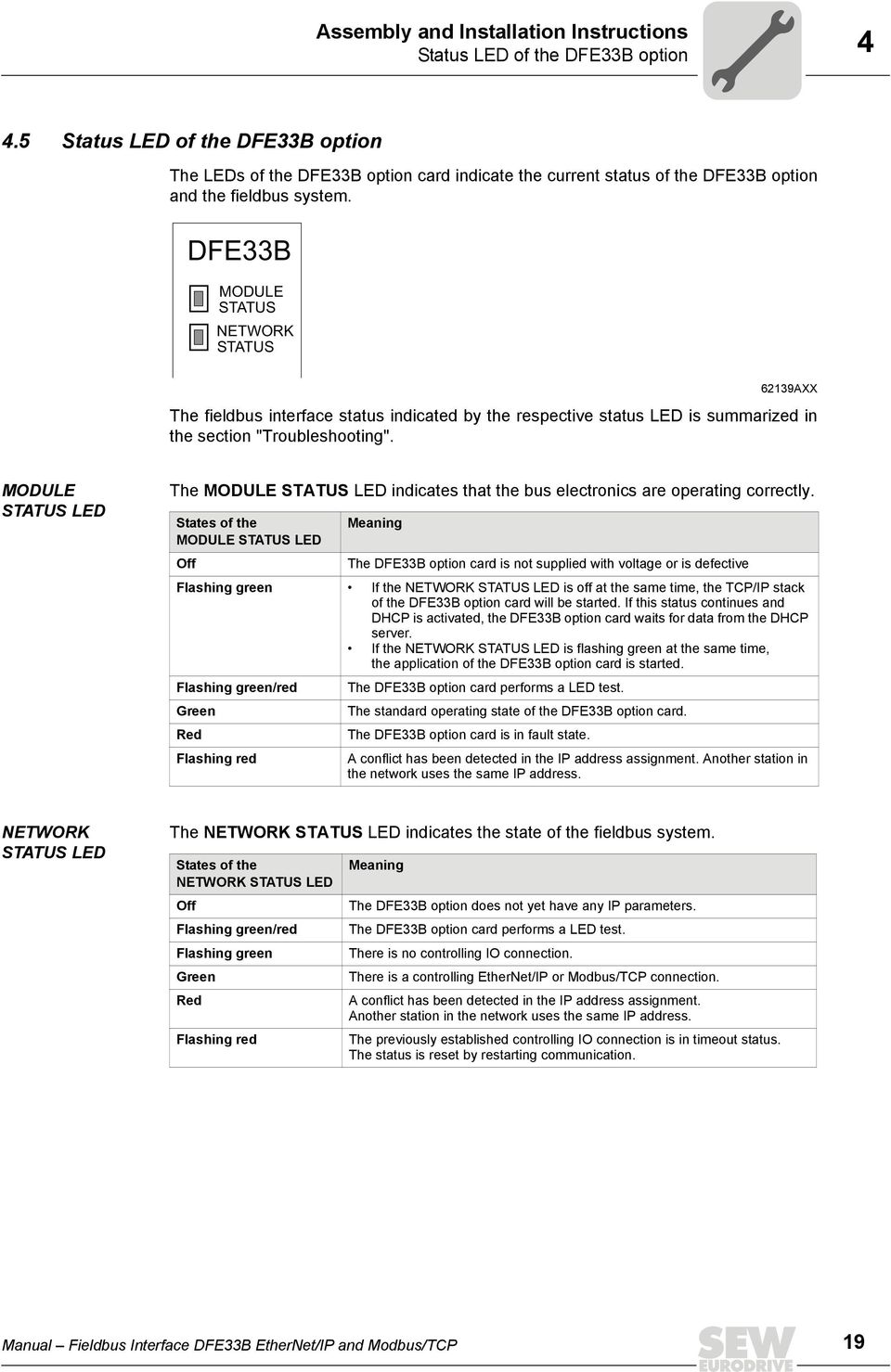
19 Assembly and Installation Instructions Status LED of the DFE33B option Status LED of the DFE33B option The LEDs of the DFE33B option card indicate the current status of the DFE33B option and the fieldbus system. DFE33B MODULE STATUS NETWORK STATUS 62139AXX The fieldbus interface status indicated by the respective status LED is summarized in the section "Troubleshooting". MODULE STATUS LED The MODULE STATUS LED indicates that the bus electronics are operating correctly. States of the Meaning MODULE STATUS LED Off The DFE33B option card is not supplied with voltage or is defective Flashing green If the NETWORK STATUS LED is off at the same time, the TCP/IP stack of the DFE33B option card will be started. If this status continues and DHCP is activated, the DFE33B option card waits for data from the DHCP server. If the NETWORK STATUS LED is flashing green at the same time, the application of the DFE33B option card is started. Flashing green/red Green Red Flashing red The DFE33B option card performs a LED test. The standard operating state of the DFE33B option card. The DFE33B option card is in fault state. A conflict has been detected in the IP address assignment. Another station in the network uses the same IP address. NETWORK STATUS LED The NETWORK STATUS LED indicates the state of the fieldbus system. States of the NETWORK STATUS LED Off Flashing green/red Flashing green Green Red Flashing red Meaning The DFE33B option does not yet have any IP parameters. The DFE33B option card performs a LED test. There is no controlling IO connection. There is a controlling EtherNet/IP or Modbus/TCP connection. A conflict has been detected in the IP address assignment. Another station in the network uses the same IP address. The previously established controlling IO connection is in timeout status. The status is reset by restarting communication. Manual Fieldbus Interface DFE33B EtherNet/IP and Modbus/TCP 19
20 4 Assembly and Installation Instructions Status LED of the DFE33B option Link/Activity LED The two LEDs Link (green) and Activity (yellow), integrated in the RJ45 plug connectors (X30, X32), display the status of the Ethernet connection. LED "Link" X30 LED "Activity" X AXX LED / status Link / green Activity / yellow Link / off Meaning There is an Ethernet connection. Data is currently being exchanged via Ethernet. There is no Ethernet connection. Link (X30) / flashes Locating function of Address Editor (see section 10) TIP As the firmware of the DFE33B option card takes approx. 15 seconds for initialization, the status "0" (inverter not ready) is displayed in the 7-segment display of MOVIDRIVE during this time Gateway LED LEDs H1 and H2 indicate the communication status in gateway operation. H1 H2 X AXX LED H1 Sys-fault (red) Only for gateway operation Status State Description Red System bus error Gateway not configured or one of the drives is inactive Off SBus ok Gateway is configured correctly Flashing Bus scan Bus is being checked by the gateway LED H2 (green) is currently reserved. X-terminal X24 is the RS485 interface for diagnostics via PC and MOVITOOLS MotionStudio. 20 Manual Fieldbus Interface DFE33B EtherNet/IP and Modbus/TCP

21 Assembly and Installation Instructions Pin assignment Pin assignment Use prefabricated, shielded RJ45 plug connectors compliant with IEC edition 2.0, category 5. [6] [3] [2] [1] A Fig. 1: Pin assignment of an RJ45 plug connector A = Front view B = View from back [1] Pin 1 TX+ Transmit Plus [2] Pin 2 TX Transmit Minus [3] Pin 3 RX+ Receive Plus [6] Pin 6 RX Receive Minus B 54174AXX MOVIDRIVE / MOVITRAC B / Ethernet connection To connect DFE33B to the Ethernet, connect the Ethernet interface X30 or X32 (RJ45 plug connector) to the other network stations using a category 5, class D twisted-pair cable in accordance with IEC edition 2.0. The integrated switch provides support for achieving a line topology and offers auto-crossing functions. TIPS According to IEC 802.3, the maximum cable length for 10/100 MBaud Ethernet (10BaseT / 100BaseT), e.g. between two network stations, is 100 m. We recommend that you do not directly connect terminals to the DFE33B option in order to minimize the load on the terminals caused by undesired multicast data traffic in EtherNet/IP networks. Connect non-sew devices via a network component that supports the IGMP snooping functionality (e.g. managed switch). Manual Fieldbus Interface DFE33B EtherNet/IP and Modbus/TCP 21
22 4 Assembly and Installation Instructions The integrated Ethernet switch 4.7 The integrated Ethernet switch You can use the integrated Ethernet switch to achieve line topologies known from the fieldbus technology. Other bus topologies such as star or tree are, of course, also possible. Ring topologies are not supported. TIP The number of industrial Ethernet switches connected in line affects the telegram runtime. If a telegram passes through the units, the telegram runtime is delayed by the Store & Forward function of the Ethernet switch: for a telegram length of 64 bytes by approximately 10 µs (at 100 Mbit/s) for a telegram length of 1500 bytes by approximately 130 µs (at 100 Mbit/s) This means, the more units that the telegram has to run through, the longer the telegram runtime. Auto-crossing The two ports leading out of the Ethernet switch have auto-crossing functionality. This means you can use both patch cables and cross-over cables to connect to the next Ethernet station. Autonegotiation The baud rate and the duplex mode is negotiated by both Ethernet nodes when establishing the connection. The two Ethernet ports of the EtherNet/IP interface support autonegotiation functionality and operate at a baud rate of 100 Mbit or 10 Mbit in full duplex or half duplex mode. Notes on multicast handling The integrated Ethernet switch offers no filter functionality for Ethernet multicast telegrams. Multicast telegrams that are usually sent from the adapters (DFE33B) to the scanners (PLC) are passed on to all switch ports. IGMP snooping (e.g. managed switches) is not supported. SEW-EURODRIVE therefore recommends to connect the DFE33B option only with network components that support IGMP snooping (e.g. managed switch) or that have safety mechanisms integrated against excess multicast load (e.g. units from SEW- EURODRIVE). Units that do not have this integrated function can fail due to high network loads. 4.8 Shielding and routing bus cables Only use shielded cables and connection elements that also meet the requirements of category 5, class 2 in compliance with IEC edition 2.0. Correct shielding of the bus cable attenuates electrical interference that can occur in industrial environments. The following measures ensure the best possible shielding: Manually tighten the mounting screws on the connectors, modules, and equipotential bonding conductors. Use only connectors with a metal housing or a metallic housing. Connect the shielding in the connector over a wide surface area. Apply the shielding of the bus line on both ends. Route signal and bus cables in separate cable ducts. Do not route them parallel to power cables (motor leads). 22 Manual Fieldbus Interface DFE33B EtherNet/IP and Modbus/TCP
23 Assembly and Installation Instructions Setting the DIP switches 4 Use metallic, grounded cable racks in industrial environments. Route the signal cable and the corresponding equipotential bonding close to each other using the shortest possible route. Avoid using plug connectors to extend bus cables. Route the bus cables closely along existing grounding surfaces. STOP! In case of fluctuations in the ground potential, a compensating current may flow via the bilaterally connected shield that is also connected to the protective earth (PE). Make sure you supply adequate equipotential bonding in accordance with relevant VDE regulations in such a case. 4.9 Setting the DIP switches TIP The setting of the "Def IP" DIP switch is only adopted with a power-on reset (switching mains and DC 24 V backup voltage on and off). Def IP When the "Def IP" switch is set to "1" (= ON), the following default IP address parameters are set when activating the DC 24 V backup voltage: IP address: Subnetwork mask: Default gateway: P785 DHCP / Startup configuration: Saved IP parameters (DHCP is deactivated) AS The "AS" DIP switch is used to configure the SBus communication of the gateway (see section "Auto Setup for gateway operation"). The configuration becomes active when the "AS" DIP switch is set from "0" to "1". To continue operation, the "AS" DIP switch must remain in the "1" position (= ON). Manual Fieldbus Interface DFE33B EtherNet/IP and Modbus/TCP 23
24 4 Assembly and Installation Instructions TCP/IP addressing and subnetworks 4.10 TCP/IP addressing and subnetworks Introduction The settings for the address of the IP protocol are made using the following parameters: MAC address IP address Subnetwork mask Standard gateway The addressing mechanisms and subdivision of the IP networks into subnetworks are explained in this chapter to help you set the parameters correctly. MAC address The MAC address (Media Access Controller) is the basis for all address settings. The MAC address is a worldwide unique 6-byte value (48 bits) assigned to the Ethernet device. SEW Ethernet devices have the MAC address 00-0F-69-xx-xx-xx. The MAC address is difficult to handle for larger networks. This is why freely assignable IP addresses are used. IP address The IP address is a 32 bit value that uniquely identifies a station in the network. An IP address is represented by four decimal numbers separated by decimal points. Example: Each decimal number stands for one byte (= 8 bits) of the address and can also be represented using binary code (Æ following table). Byte 1 Byte 2 Byte 3 Byte The IP address comprises a network address and a station address (Æ following table). Network address Station address The part of the IP address that denotes the network and the part that identifies the station is determined by the network class and the subnetwork mask. Station addresses cannot consist of only zeros or ones (binary) because they represent the network itself or a broadcast address. Network classes The first byte of the IP address determines the network class and as such represents the division into network addresses and station addresses. Value range Byte 1 Network class Complete network address (Example) Meaning A = Network address = Station address B = Network address 52.4 = Station address C = Network address 4 = Station address This rough division is not sufficient for a number of networks. They also use an explicit, adjustable subnet mask. 24 Manual Fieldbus Interface DFE33B EtherNet/IP and Modbus/TCP
25 Assembly and Installation Instructions TCP/IP addressing and subnetworks 4 Subnetwork mask A subnetwork mask is used to divide the network classes into even more precisely defined subsections. The subnetwork mask is represented by four decimal numbers separated by decimal points, in the same way as the IP address. Example: Each decimal number stands for one byte (= 8 bits) of the subnetwork mask and can also be represented using binary code (Æ following table). Byte 1 Byte 2 Byte 3 Byte If you compare the IP addresses with the subnetwork masks, you see that in the binary representation of the subnetwork mask all ones (1s) determine the network address and all the zeros (0s) determine the station address (Æ following table). IP address Subnetwork mask Byte 1 Byte 2 Byte 3 Byte 4 Decimal Binary Decimal Binary The class C network with the address is further subdivided into using the subnetwork mask. Two networks are created with the address and The following station addresses are permitted in the two networks: The network stations use a logical AND operation for the IP address and the subnetwork mask to determine whether there is a communication partner in the same network or in a different network. If the communication partner is in a different network, the standard gateway is addressed for passing on the data. Standard gateway The standard gateway is also addressed via a 32-bit address. The 32-bit address is represented by four decimal numbers separated by decimal points. Example: The standard gateway establishes a connection to other networks. In this way, a network station that wants to address another station can use a logical AND operation with the IP address and the subnetwork mask to decide whether the desired station is located in the same network. If this is not the case, the station addresses the standard gateway (router), which must be part of the actual network. The standard gateway then takes on the job of transmitting the data packages. DHCP (Dynamic Host Configuration Protocol) Instead of setting the three parameters IP address, subnetwork mask and standard gateway manually, they can be assigned in an automated manner by a DHCP server in the Ethernet network. This means the IP address is assigned from a table, which contains the allocation of MAC address to IP address. Parameter P785 indicates whether the DFE33B option expects the IP parameters to be assigned manually or via DHCP. Manual Fieldbus Interface DFE33B EtherNet/IP and Modbus/TCP 25
26 4 Assembly and Installation Instructions Setting the IP address parameters 4.11 Setting the IP address parameters Initial startup The "DHCP" protocol (Dynamic Host Configuration Protocol) is activated as the default setting for the DFE33B protocol. This means that the DFE33B option card expects its IP address parameters from a DHCP server. TIP Rockwell Automation provides a DHCP server free-of-charge on their homepage. The tool is known as "BOOTP Utility" and can be downloaded at the link below: Once the DHCP server has been configured and the settings have been made for the subnetwork screen and the standard gateway, the DFE33B must be inserted in the assignment list of the DHCP server. In doing so, the MAC ID of the DFE33B option is allocated a valid IP address. TIP The configured IP address parameters are adopted permanently by the parameter set when DHCP is deactivated after the IP address has been assigned. Changing the IP address parameters after successful initial startup If the DFE33B was started using a valid IP address, you can also access the IP address parameters via the Ethernet interface. The following options are available for changing the IP address parameters via Ethernet: Via the homepage of DFE33B (see section "Integrated Web Server") Using the MOVITOOLS MotionStudio software via Ethernet (see section "MOVITOOLS MotionStudio via Ethernet") Using the EtherNet/IP TCP/IP interface object (see section "EtherNet/IP CIP object directory") You can also change the IP address parameters via the serial interface of the gateway or MOVIDRIVE MDX61B or using the DBG60B keypad (in MOVIDRIVE B). If the IP address parameters are assigned to the option DFE33B via a DHCP server, you can only change the parameters by adjusting the settings of the DHCP server. The options listed above for changing the IP address parameters only come into effect once the supply voltages (mains and DC 24 V) have been switched off and back on again. 26 Manual Fieldbus Interface DFE33B EtherNet/IP and Modbus/TCP
27 Assembly and Installation Instructions Setting the IP address parameters 4 Deactivating / activating the DHCP The type of IP address assignment is determined by the setting of the attribute Configuration Control of the EtherNet/IP TCP/IP interface object. The value is displayed or changed in the parameter P785 DHCP / Startup Configuration. Setting "Saved IP parameters" The saved IP address parameters are used. Setting "DHCP" The IP address parameters are requested by a DHCP server. If you use the DHCP server from Rockwell Automation, you can activate or deactivate the DHCP via a button. In this case, an EtherNet/IP telegram is sent to the TCP/IP interface object of the station that is being addressed. Resetting the IP address parameters If you do not know the IP address parameters and there is no serial interface or DBG60B keypad for reading the IP address, you can reset the IP address parameters to the default values using the DIP switch "Def IP". This action resets the DFE33B option to the following default values: IP address: Subnetwork mask: Default gateway: P785 DHCP / Startup configuration: Saved IP parameters (DHCP is deactivated) Proceed as follows to reset the IP address parameters to the default values: Switch off the DC 24 V supply voltage and the mains voltage. Set the DIP switch "Def IP" on the DFE33B option to "1". Switch the DC 24 V supply voltage and the mains voltage back on. SEW Address Editor To access the IP settings of the DFE33B interfaces without the Ethernet settings of the PC and DFE33B having to match, the SEW Address Editor can be used if firmware version.11 or higher is installed on the DFE33B. The IP settings of all SEW units can be made and displayed in the local subnetwork using Address Editor (see section 10). This allows the required settings for the PC to be determined for an installation which is in operation to enable access with the required diagnostics and engineering tools via Ethernet. When starting up a unit, the IP settings for the DFE33B can be assigned without changing the network connections or PC settings. TIP DHCP remains deactivated when you reset the DIP switch "Def IP" to "0". You can re-activate DHCP via the EtherNet/IP TCP/IP interface object (see section "EtherNet/IP CIP object directory"), via the parameter P785, via the integrated web server or via the DHCP server from Rockwell. DHCP is not activated again when the values are reset to the factory setting (P802 Factory setting). Manual Fieldbus Interface DFE33B EtherNet/IP and Modbus/TCP 27
28 4 Assembly and Installation Instructions Procedure for replacing the unit 4.12 Procedure for replacing the unit If the DIP switch "Def IP" of the DFE33B option is set to "1" (= ON), the DIP switch "Def IP" on the new DFE33B must also be set to "1" (= ON) (after the option card has been replaced or after the MOVIDRIVE B / MOVITRAC B / gateway housing unit have each been replaced with an option card). Other IP parameter settings are not required. If the DIP switch "Def IP" of the DFE33B option is set to "0" (= OFF), it is important that you observe the following section when replacing the option card or a unit with option card: Section "Replacing MOVIDRIVE B" Section "Replacing MOVITRAC B / gateway" Replacing MOVIDRIVE B When the DFE33B fieldbus interface is operated as an option card in MOVIDRIVE B, the procedure for replacement depends on the following factors: Whether DHCP is activated or a saved IP address is used Whether the memory card of the replaced MOVIDRIVE MDX61B is plugged into the new unit or not If DHCP is active, the assignment list of the DHCP server must be updated when the DFE33B option or MOVIDRIVE B with DFE33B option is replaced. The MAC address of the DFE33B option is printed on its front panel for this purpose. If DHCP is not active, the IP parameters saved on the memory card of MOVIDRIVE B will be used. If the memory card of MOVIDRIVE B is not plugged into the new unit when replacing it, you will have to perform complete startup of the new inverter (if DHCP is not active including the IP parameters). As an alternative, you can transfer a data backup created with the MOVITOOLS MotionStudio software or saved in the DBG60B keypad. Enter the IP address, which is set in the DFE33B or defined in the assignment list of the DHCP server, into the field on the front panel of the DFE33B option for future diagnostic or engineering work. 28 Manual Fieldbus Interface DFE33B EtherNet/IP and Modbus/TCP
29 Assembly and Installation Instructions Procedure for replacing the unit Replacing MOVITRAC B / gateway If the DFE33B fieldbus interface is operated as an option card in MOVITRAC B or in the UOH11B gateway housing, the procedure for replacement depends on the following factors: Whether DHCP is activated or a saved IP address is used Whether the DFE33B option is installed in MOVITRAC B or in the gateway housing If DHCP is active, the assignment list of the DHCP server must be updated when the DFE33B option or MOVITRAC B with DFE33B option is replaced. The MAC address of the DFE33B option is printed on its front panel for this purpose. If DHCP is not active, the IP parameters saved non-volatile on the DFE33B option will be used. Set the IP parameters just as for initial startup. As an alternative, you can copy a parameter file saved with MOVITOOLS MotionStudio (from version 5.50, service pack 2) to the DFE33B option or use the Address Editor to set the IP parameters. If a MOVITRAC B with DFE33B was replaced by a new unit, inverter startup will have to be performed in addition to setting the IP parameters. Refer to the MOVITRAC B operating instructions for more information. Enter the IP address, which is set in the DFE33B or defined in the assignment list of the DHCP server, into the field on the front panel of the DFE33B option for future diagnostic or engineering work. Manual Fieldbus Interface DFE33B EtherNet/IP and Modbus/TCP 29
30 5 Project Planning and Startup (EtherNet/IP) Validity of the EDS file for DFE33B 5 Project Planning and Startup (EtherNet/IP) This section provides information on project planning for the EtherNet/IP master and startup of the inverter for fieldbus operation. As a prerequisite, the connection and setting of the IP address parameters of DFE33B must be correct according to the section "Assembly and Installation Instructions". 5.1 Validity of the EDS file for DFE33B TIP Do not change or expand the entries in the EDS file. SEW assumes no liability for inverter malfunctions caused by a modified EDS file! SEW-EURODRIVE provides two different EDS files for configuring the scanner (EtherNet/IP master). If the DFE33B option is installed in MOVIDRIVE B, the file SEW_MOVIDRIVE_ DFE33B.eds is required If the DFE33B option is used as a gateway in MOVITRAC B or in the gateway housing (UOH11B), the file SEW_GATEWAY_DFE33B.eds is required TIP Current versions of the EDS files for the DFE33B option are available on the SEW homepage ( under the heading "Software". 30 Manual Fieldbus Interface DFE33B EtherNet/IP and Modbus/TCP
31 Project Planning and Startup (EtherNet/IP) Configuring the master (EtherNet/IP scanner) Configuring the master (EtherNet/IP scanner) The following example refers to the configuration of the Allen-Bradley CompactLogix 1769-L32E controller with RSLogix 5000 programming software. The EtherNet/IP interface is already integrated in the CPU component of this controller. TIP If a CPU without an EtherNet/IP interface is used, an Ethernet communication interface must first be added to the IO configuration. Process data exchange In the following project planning example, the option DFE33B is added to a project. To do so, go to the "Controller Organizer" screen in the RSLogix 5000 program as shown in the screenshot below (use the tree structure on the left side of the screen) AXX In the "IO Configuration" folder, select the entry "1769-L32E Ethernet Port LocalENB" as the Ethernet communication interface. Click the right mouse button and select "New Module" from the context menu. The selection window "Select Module Type" appears. To add option DFE33B to the project, mark the entry "ETHERNET MODULE" in the "Communications" category. Confirm your selection by clicking <OK>. The "New Module" window appears. Manual Fieldbus Interface DFE33B EtherNet/IP and Modbus/TCP 31
32 5 Project Planning and Startup (EtherNet/IP) Configuring the master (EtherNet/IP scanner) Configuring the DFE33B as option in MOVIDRIVE MDX61B First enter the name under which the data is stored in the controller tags for the newly created module, and then enter the IP address AXX In the "Comm Format" dropdown menu, choose the entry "Data INT" as the data format. Process data for DFE33B always contains 16 bits (INT). In the "Connection Parameters" group area, enter the value "130" in the "Input Assembly Instance" input field. The input data of the PLC must be linked to the output instance of DFE33B. To establish a controlling connection, in the "Connection Parameters" group box, enter the value "120" in the "Output Assembly Instance" input field. The input data of the PLC must be linked to the output instance of DFE33B. In the selection fields "Input Size" and "Output Size", set a maximum value of "10" (16 bit) as the data length. In the "Configuration Size" selection field, enter the value "0". The "Configuration Assembly Instance" input field is not used in this case. Click <OK> to continue. To ensure compatibility with existing DeviceNet configurations, you can also choose the data type "SINT" in the "Comm Format" selection field. In this case, you must ensure that an even number of bytes (2 to 20) is configured and that data consistency is maintained during operation when the IO data is accessed. 32 Manual Fieldbus Interface DFE33B EtherNet/IP and Modbus/TCP
33 Project Planning and Startup (EtherNet/IP) Configuring the master (EtherNet/IP scanner) 5 Other settings On the "Connection" tab page you can set the data rate and, if necessary, the error response of the controller AXX The DFE33B option supports a minimum data rate (input field "Requested Packet Interval (RPI)") of 4 ms. Longer cycle times can be implemented without any problems. Click the <OK> button. You have now configured process data exchange with a DFE33B. Manual Fieldbus Interface DFE33B EtherNet/IP and Modbus/TCP 33
34 5 Project Planning and Startup (EtherNet/IP) Configuring the master (EtherNet/IP scanner) Configuring the DFE33B as option in MOVITRAC B or in the UOH11B gateway housing First enter the name under which the data is stored in the controller tags for the newly created module, and then enter the IP address AXX In the "Comm Format" dropdown menu, choose the entry "Data INT" as the data format. Process data for DFE33B always contains 16 bits (INT). In the "Connection Parameters" group box, enter the value "132" in the "Input Assembly Instance" input field. The input data of the PLC must be linked to the output instance of DFE33B. To establish a controlling connection, in the "Connection Parameters" group box enter the value "122" in the "Output Assembly Instance" input field. The input data of the PLC must be linked to the output instance of DFE33B. In the selection fields "Input Size" and "Output Size", set a maximum value of "24" (16 bit) as the data length. The value depends on the number of lower-level SBus stations (max. 8). Three process data words are exchanged with every lower-level station. Therefore, choose a multiple of 3 as data length. In the "Configuration Size" selection field, enter the value "0". The "Configuration Assembly Instance" input field is not used in this case. Click <OK> to continue. To ensure compatibility with existing DeviceNet configurations, you can also choose the data type "SINT" in the "Comm Format" selection field. In this case, you must ensure that an even number of bytes (6 to 48) is configured and that data consistency is maintained during operation when IO data is accessed. 34 Manual Fieldbus Interface DFE33B EtherNet/IP and Modbus/TCP
35 Project Planning and Startup (EtherNet/IP) Configuring the master (EtherNet/IP scanner) 5 Other settings On the "Connection" tab page you can set the data rate and, where applicable, the error response of the controller AXX The DFE33B option supports a minimum data rate (input field "Requested Packet Interval (RPI)") of 4 ms. Longer cycle times can be implemented without any problems. Click the <OK> button. You have now configured process data exchange with a DFE33B. Manual Fieldbus Interface DFE33B EtherNet/IP and Modbus/TCP 35
36 5 Project Planning and Startup (EtherNet/IP) Configuring the master (EtherNet/IP scanner) Auto Setup for gateway operation The Auto Setup function enables startup of the DFE33B as gateway to be performed without a PC. Activate the function with the Auto Setup DIP switch (see section 4.4 on page 18). TIP Switching on the Auto Setup (AS) DIP switch causes the function to be executed once. The Auto Setup DIP switch must then remain in the ON position. The function can be performed again by switching the DIP switch off and back on again. As a first step, the DFE33B searches for inverters on the lower-level SBus. This process is indicated by the LED H1 (system error) flashing briefly. For this purpose, different SBus addresses must be set for the inverters (P881). We recommend assigning the addresses beginning with address 1 in ascending order based on the arrangement of inverters in the control cabinet. The process image on the fieldbus side is expanded by three words for each detected inverter. LED H1 remains lit if no inverter was located. A total of up to eight inverters is taken into account. After the search is completed, the DFE33B periodically exchanges three process data words with each connected inverter. The process output data is taken from the fieldbus, divided into blocks of three and transmitted. The inverters read the process input data, put it together and send it to the fieldbus master. The cycle time of the SBus communication is 2 ms per station at a baud rate of 500 kbit/s without any additional engineering activities. For an application with 8 inverters on the SBus, the cycle time of the process data update is then 8 x 2 ms = 16 ms. TIP If you change the process data assignment of the inverters connected to the DFE33B, you have to activate Auto Setup again because the DFE33B saves these values only once during Auto Setup. At the same time, the process data assignments of the connected inverters may not be changed dynamically after Auto Setup. 36 Manual Fieldbus Interface DFE33B EtherNet/IP and Modbus/TCP
37 Project Planning and Startup (EtherNet/IP) Setting the MOVIDRIVE MDX61B inverter Setting the MOVIDRIVE MDX61B inverter The following settings must be made for simple fieldbus operation AXX However, to control the MOVIDRIVE B inverter via EtherNet/IP, you must first switch the inverter to control signal source (P101) and setpoint source (P100) = FIELDBUS. The FIELDBUS setting means the inverter parameters are set for control and setpoint entry via EtherNet/IP. The MOVIDRIVE B inverter then responds to the process output data transmitted by the master programmable controller. The parameters of the MOVIDRIVE B inverter can be set straight away via EtherNet/IP without any further settings once the EtherNet/IP option card has been installed. For example, all parameters can be set by the master programmable controller after being switched-on. Activation of the control signal source and setpoint source FIELDBUS is signaled to the higher-level controller using the "Fieldbus mode active" bit in the status word. For safety reasons, you must also enable the MOVIDRIVE B inverter at the terminals for control via the fieldbus system. Therefore, you must wire and program the terminals in such a way that the inverter is enabled via the input terminals. For example, the simplest way of enabling the inverter at the terminals is to connect the DIØØ (function /CONTROL INHIBIT) input terminal to a +24 V signal and to program input terminals DIØ1 to DIØ7 to NO FUNCTION. Manual Fieldbus Interface DFE33B EtherNet/IP and Modbus/TCP 37
38 5 Project Planning and Startup (EtherNet/IP) Setting the MOVITRAC B frequency inverter 5.4 Setting the MOVITRAC B frequency inverter 11639AXX To control the MOVITRAC B frequency inverter via EtherNet/IP, you must first set the inverter to Control signal source (P101) and Setpoint source (P100) = SBus. The SBus setting means the MOVITRAC B parameters are set for control and setpoint entry via gateway. MOVITRAC B then responds to the process output data transmitted by the PLC. It is necessary to set the SBus1 timeout interval (P883) to a value other than 0 ms for the MOVITRAC B inverter to stop if faulty SBus communication occurs. We recommend a value in the range 50 to 200 ms. Activation of the control signal source and setpoint source SBus is signaled to the higher-level controller using the "SBus mode active" bit in the status word. For safety reasons, you must also enable MOVITRAC B at the terminals for control via the fieldbus system. Therefore, you must wire and program the terminals in such a way that MOVITRAC B is enabled via the input terminals. The simplest way of enabling MOVITRAC B at the terminals is, for example, to connect the DIØ1 (function CW/STOP) input terminal to a +24 V signal and to program the remaining input terminals to NO FUNCTION. TIPS Set the parameter P881 SBus address to values of 1 to 8 and upwards in ascending order. The SBus address 0 is used by DFE33B gateway and therefore must not be used. Set P883 SBus timeout to values between 50 and 200 ms. 38 Manual Fieldbus Interface DFE33B EtherNet/IP and Modbus/TCP
39 Project Planning and Startup (EtherNet/IP) Project planning examples in RSLogix Project planning examples in RSLogix MOVIDRIVE B with 10 PD data exchange 1. Set the IP address of the DFE33B (see section "Setting the IP address parameters"). 2. Then follow sections 5.2 and to add MOVIDRIVE B with DFE33B to the EtherNet/IP configuration. 3. Set the communication parameters of MOVIDRIVE B as described in section Integration into the RSLogix project can now begin. To do so, create a controller tag with a user-defined data type to create a simple, data consistent interface to the inverter s process data (see following figure) AXX Manual Fieldbus Interface DFE33B EtherNet/IP and Modbus/TCP 39
40 5 Project Planning and Startup (EtherNet/IP) Project planning examples in RSLogix5000 The description for PI and PO data of the controller tag can match the definition of the process data (PD) in MOVIDRIVE B (see section 5.3) AXX 5. To copy the data from the drive to the new data structure, insert a CPS command at the start of the "MainRoutine" (see following figure) AXX 40 Manual Fieldbus Interface DFE33B EtherNet/IP and Modbus/TCP
41 Project Planning and Startup (EtherNet/IP) Project planning examples in RSLogix To copy the data from the new data structure to the drive, insert a CPS command at the end of the "MainRoutine" (see following figure). 6. Now save the project and transfer it to the PLC. The PLC is set to RUN mode AXX The actual values can now be read from the drive and setpoint values can be written AXX Manual Fieldbus Interface DFE33B EtherNet/IP and Modbus/TCP 41
42 5 Project Planning and Startup (EtherNet/IP) Project planning examples in RSLogix5000 The process data should correspond with the values displayed in the MOVITOOLS MotionStudio parameter tree (see following figure) AXX 42 Manual Fieldbus Interface DFE33B EtherNet/IP and Modbus/TCP
43 Project Planning and Startup (EtherNet/IP) Project planning examples in RSLogix MOVITRAC B via gateway DFE33B / UOH11B 1. Set the IP address of the DFE33B option (see section "Setting the IP address parameters"). 2. Add the DFE33B gateway to the EtherNet/IP configuration as described in sections 5.2 and Execute the Auto Setup function of the DFE33B gateway according to section 5.3 to configure the data mapping to the drives. 4. Set the communication parameters of MOVITRAC B as described in section Integration into the RSLogix project can now begin. To do so, create a controller tag with a user-defined data type to create a simple, data consistent interface to the inverter s process data (see following figure) AXX Manual Fieldbus Interface DFE33B EtherNet/IP and Modbus/TCP 43
44 5 Project Planning and Startup (EtherNet/IP) Project planning examples in RSLogix5000 The description for PI and PO data of the controller tag can match the definition of the process data (PD) in MOVITRAC B (see section 5.4) AXX 6. To copy the data from the drive to the new data structure, insert CPS commands at the start of the "MainRoutine" (see following figure) AXX Note that the structure SEW_Gateway_DFE33B:I.Data contains the process data of all drives at the gateway. This means the three data words of each drive have to be copied from the structure beginning with a certain offset ([0], [3] to [21]). 44 Manual Fieldbus Interface DFE33B EtherNet/IP and Modbus/TCP
45 Project Planning and Startup (EtherNet/IP) Project planning examples in RSLogix To copy the data from the new data structure to the drive, insert CPS commands at the end of the "MainRoutine" (see following figure). Note that the structure SEW_Gateway_DFE33B:O.Data contains the process data to all drives at the gateway. This means the three data words of each drive have to be copied into the structure beginning with a certain offset ([0], [3] to [21]). 7. Now save the project and transfer it to the PLC. The PLC is set to RUN mode AXX Now actual values from the drives can be read and setpoint values can be written AXX Manual Fieldbus Interface DFE33B EtherNet/IP and Modbus/TCP 45
46 5 Project Planning and Startup (EtherNet/IP) Project planning examples in RSLogix5000 The process data should correspond with the values displayed in the gateway configurator for the DFE33B or in the MOVITOOLS MotionStudio parameter tree (see following figure) AXX 12080AXX 46 Manual Fieldbus Interface DFE33B EtherNet/IP and Modbus/TCP
47 Project Planning and Startup (EtherNet/IP) Project planning examples in RSLogix Access to the unit parameters of MOVIDRIVE B Parameter data exchange You can access the MOVIDRIVE unit parameters using a register object. The SEW parameter channel is attached to the service telegrams "Get Attribute Single" and "Set Attribute Single". The SEW parameter channel has the following structure: Index Data Subindex Reserved Subaddress 1 Subchannel 1 Subaddress 2 Subchannel 2 In MOVIDRIVE, a unit parameter can only be addressed using the index and subindex. The subaddress and subchannel are not used. Set these telegram sections as reserved telegram sections to "0". It is easier to access the data elements of the parameter channel when you create a data type that maps the elements of the parameter channel in a structure (e.g. "SEW_PARAMETER_CHANNEL", see figure below). With the RSLogix5000 program, you can create your own data types in the directory structure (see figure below). To do so, go to the "Controller Organizer" view and choose [Data Types] / [User Defined]. The figure below shows that the index is prefixed with a reserved range of 16 bits. This value is not used. However, it is mandatory because the "Data" element has to be allocated to a 32-bit address. 1. Create a user-defined data structure "SEW_Parameter_Channel" (see figure below) AXX 2. Define the following controller tags (see following figure) AXX Manual Fieldbus Interface DFE33B EtherNet/IP and Modbus/TCP 47
48 5 Project Planning and Startup (EtherNet/IP) Project planning examples in RSLogix Create a rung for executing the "ReadParameter" command (see following figure). For the contact, select the "ReadParameterStart" tag For message control, select the "ReadParameter" tag 11766AXX 4. Click in the MSG command to open the "Message Configuration" window (see following figure) AXX Select "CIP Generic" as the "Message Type". Fill the other fields in the following sequence: A. Source Element = ReadParameterRequest.Index B. Source Length = 12 C. Destination = ReadParameterResponse.Index D. Class = 7 hex E. Instance = 1 F. Attribute = 4 hex G. Service code = e hex The Service Type is then set automatically. 48 Manual Fieldbus Interface DFE33B EtherNet/IP and Modbus/TCP
49 Project Planning and Startup (EtherNet/IP) Project planning examples in RSLogix Set the target unit in the "Communication" tab page. Click <Browse>. The "Message Path Browser" window is opened. In the following example, option DFE33B is selected as the recipient AXX Do not select the "Connected" checkbox, as both the controller and the DFE33B option permit only a limited number of connections. 6. Once the changes have been downloaded to the PLC, the index of the parameter to be read can be entered in ReadParameterRequest.Index. Changing the Read ParameterStart control bit to "1" executes the read request once (see following figure). Manual Fieldbus Interface DFE33B EtherNet/IP and Modbus/TCP 49
50 5 Project Planning and Startup (EtherNet/IP) Project planning examples in RSLogix AXX Once the read request has been answered, ReadParameterResponse.Index should name the index that was read and ReadParameterResponse.Data should contain the data that was read. In this example, P160 fixed setpoint n11 (index 8489) has the value 150 rpm (Error response see section "Return codes for parameter setting via explicit messages"). You can check the value in the MOVITOOLS MotionStudio parameter tree (see following figure). The tooltip displays, for example, the index, subindex, scaling, etc. of a parameter AXX 50 Manual Fieldbus Interface DFE33B EtherNet/IP and Modbus/TCP
51 Project Planning and Startup (EtherNet/IP) Project planning examples in RSLogix For a complete list of index numbers and conversion factors, refer to the "MOVIDRIVE Fieldbus Unit Profile" manual. Only a few additions are necessary for activating write access to a parameter. Create the controller tags (see following figure) AXX Create a rung for executing the "WriteParameter" command (see following figure). For the contact, choose the "WriteParameterStart" tag. For message control, choose the "WriteParameter" tag AXX Click in the MSG command to open the "Message Configuration" window (see following figure) AXX Select "CIP Generic" as the "Message Type". Fill in the data in the following order: Source Element = WriteParameterRequest.Index Source Length = 12 Destination = WriteParameterResponse.Index Class = 7 hex Instance = 2 Attribute = 4 hex Service Code = 10 hex Manual Fieldbus Interface DFE33B EtherNet/IP and Modbus/TCP 51
52 5 Project Planning and Startup (EtherNet/IP) Project planning examples in RSLogix5000 After downloading the changes to the PLC, the index and value to be written into the parameter can be entered in the tags WriteParameterRequest.Index and WriteParameterRequest.Data. Changing the WriteParameterStart control bit to "1" executes the write request once (see following figure) AXX Once the write request has been answered, WriteParameterResponse.Index should name the index that was written and WriteParameterResponse.Data should contain the data that was written. In this example, the parameter P160 fixed setpoint n11 (index 8489) has the value 200 rpm (Error response see section "Return codes for parameter setting via explicit messages"). You can check the value in the MOVITOOLS MotionStudio parameter tree. The tooltip of a parameter displays, for example, the index, subindex, scaling, etc. of a parameter. 52 Manual Fieldbus Interface DFE33B EtherNet/IP and Modbus/TCP
53 Project Planning and Startup (EtherNet/IP) Project planning examples in RSLogix MOVITRAC B unit parameter access via DFE33B / UOH11B The access to MOVITRAC B unit parameters via EtherNet/IP SBus gateway DFE33B / UOH11B is identical to the access to MOVIDRIVE B parameter data (see section 5.5.3). The only difference is that Read/WriteParameterRequest.SubChannel1 must be set to 2 and Read/WriteParameterRequest.SubAddress1 must be set to the SBus address of the MOVITRAC B connected to the DFE33B / UOH11B (see following figure) AXX In this example, MOVITRAC B connected to the DFE33B gateway with SBus address 7 read the value 150 rpm from P160 fixed setpoint n11 (index 8489). See the "Appendix" for a schematic representation of the parameter access to lowerlevel units. Manual Fieldbus Interface DFE33B EtherNet/IP and Modbus/TCP 53
54 6 I 0 Ethernet Industrial Protocol (EtherNet/IP) Introduction 6 Ethernet Industrial Protocol (EtherNet/IP) 6.1 Introduction The EtherNet Industrial Protocol (EtherNetIP) is an open communication standard based on the classic EtherNet protocols TCP/IP and UDP/IP. EtherNet/IP has been defined by the Open DeviceNet Vendor Association (ODVA) and ControlNet International (CI). With EtherNet/IP, Ethernet technology has been enhanced to include the CIP (Common Industrial Protocol) application protocol. CIP is known in the field of automation engineering because it is used alongside DeviceNet and ControlNet as an application protocol. 6.2 Process data exchange Depending on how the DFE33B option is used, up to 10 process data words (for operation in MOVIDRIVE B) or up to 24 process data words (in gateway operation) can be exchanged with an EtherNet/IP master (scanner). The EtherNet/IP master (scanner) sets the process data length when opening the connection. In addition to a controlling "Exclusive Owner Connection", up to two additional "Listen Only Connections" are possible. This means stand-by controls or visualization devices can also read out the actual values of the drive. If one controlling connection is already active via Modbus/TCP, an "Exclusive Owner Connection" cannot be activated via EtherNet/IP without a power-on reset. Timeout behavior The timeout status is triggered by the DFE33B option. The timeout interval must be set by the EtherNet/IP master (scanner) while establishing the connection. In the EtherNet/IP specification, a "Requested Packet Interval (RPI)" is referred to rather than a timeout interval. The timeout interval displayed in parameter P819 is calculated by multiplying the Requested Packet Interval (RPI) with the "Timeout Multiplier". This timeout interval is retained in the device when an "Exclusive Owner Connection" is removed, and the device switches to timeout status after the timeout interval has elapsed. The timeout status is displayed on the front of the DFE33B option by the flashing red "NETWORK STATUS" LED. The timeout interval must not be altered using MOVITOOLS or the DBG60B keypad, because it can only be activated via the bus. The timeout status causes the timeout response set in the inverter to be carried out. The timeout status can be reset via EtherNet/IP as follows: Via reset service of the identity object (class 0x01, instance 0x01, undetermined attribute) By establishing the connection again With the reset bit in the control word 54 Manual Fieldbus Interface DFE33B EtherNet/IP and Modbus/TCP
55 Ethernet Industrial Protocol (EtherNet/IP) CIP object directory I CIP object directory In the Common Industrial Protocol, all unit data can be accessed via objects. The objects listed in the following table are integrated in the DFE33B option. Class [hex] Name 01 Identity Object 02 Message Router Object 04 Assembly Object 06 Connection Manager Object 07 Register Object 0F Parameter Object 64 Vardata Object F5 F6 TCP/IP Interface Object EtherNet Link Object The meaning of the objects and a description of how to access them is given in the following section. Identity object The identity object contains general information on the EtherNet/IP device. Class code: 01 hex Class Attribute Access Name Data type Default value [hex] Description 1 Get Revision UINT 0001 Revision 1 2 Get Max Instance UINT 0001 Maximum instance Instance 1 Attribute Access Name Data type Default value [hex] Description 1 Get Vendor ID UINT 013B SEW-EURODRIVE GmbH & Co KG 2 Get Device Type UINT 0065 Manufacturer-specific type 3 Get Product Code 1) UINT Product no. 3: DFE33B for MOVIDRIVE B Product no. 4: DFE33B as gateway 4 Get Revision STRUCT of Revision of the identity object, depends on Major Revision USINT firmware version Minor Revision USINT 5 Get Status WORD Æ Table "Coding of attribute 5 status" 6 Get Serial Number UDINT Unique serial number 7 Get Product Name 1) SHORT_STRING SEW-MOVIDRIVE-DFE33B SEW-GATEWAY-DFE33B Product name 1) The values in the identity object depend on whether the DFE33B option is used in MOVIDRIVE B or as gateway. Manual Fieldbus Interface DFE33B EtherNet/IP and Modbus/TCP 55
56 6 I 0 Ethernet Industrial Protocol (EtherNet/IP) CIP object directory Coding of attribute 5 "Status" Bit Name Description 0 Owned Controlling connection is active 1 Reserved 2 Configured Configuration complete 3 Reserved Extended Device Status Æ Table "Coding of the Extended Device Status" 8 Minor Recoverable Fault Minor fault that can be remedied 9 Minor Unrecoverable Fault Minor fault that cannot be remedied 10 Major Recoverable Fault Major fault that can be remedied 11 Major Unrecoverable Fault Major fault that cannot be remedied Reserved Coding of the "Extended Device Status" (Bit 4 to 7): Value [binary] Description 0000 Unknown 0010 At least one faulty IO connection 0011 No IO connection established 0110 At least one IO connection active Supported services Service code [hex] Service name Class Instance 01 Get_Attributes_All X X 05 Reset X 0E Get_Attribute_Single X X Message router object The message router object provides information on the implemented objects. Class code: 02 hex Class Attribute Access Name Data type Default value Description [hex] 1 Get Revision UINT 0001 Revision 1 Instance 1 Attribute Access Name Data type Default value Description [hex] 1 Get Object_List STRUCT of Object list comprising: Number of objects Number UINT 0009 List of objects Classes ARRAY of UINT F F5 00 F Get Number Available UINT 0009 Maximum number of connections 56 Manual Fieldbus Interface DFE33B EtherNet/IP and Modbus/TCP
57 Ethernet Industrial Protocol (EtherNet/IP) CIP object directory I 0 6 Supported services Service code [hex] Service name Class Instance 01 Get_Attributes_All X 0E Get_Attribute_Single X X Assembly object The assembly object is used to access the DFE33B process data. IO connections can be created for the instances of the assembly object to exchange cyclic process data. Class code: 04 hex Class Attribute Access Name Data type Default value Description [hex] 1 Get Revision UINT 0002 Revision 2 2 Get Max Instance UINT 0082 Maximum instance Instance SEW PO data range Instances for operation as option in MOVIDRIVE B This instance is used to access the DFE33B process output data. MOVIDRIVE can be controlled by only one scanner. Therefore, only one connection can be established with this instance. Attribute Access Name Data type Default value Description [hex] 3 Get Data Array of BYTE OUTPUT assembly Instance "Heartbeat" This instance is accessed when the scanner wants to establish an input only connection. No process output data is sent with this type of connection. It is used only to read process input data. Attribute Access Name Data type Default value [hex] 3 Get Data Array of BYTE Description OUTPUT assembly Data size = 0 Instance SEW PI data range This instance is used to access the DFE33B process input data. Several multicast connections or a point-to-point connection can be established with this instance. Attribute Access Name Data type Default value Description [hex] 3 Get Data Array of BYTE INPUT assembly Manual Fieldbus Interface DFE33B EtherNet/IP and Modbus/TCP 57
58 6 I 0 Ethernet Industrial Protocol (EtherNet/IP) CIP object directory Instance SEW PO data range Instances for operation as gateway This instance is used to access the DFE33B process output data. It can be controlled by only one scanner. Therefore, only one connection can be established with this instance. Attribute Access Name Data type Default value Description [hex] 3 Get Data Array of BYTE OUTPUT assembly Instance "Heartbeat" This instance is accessed when the scanner wants to establish an input only connection. No process output data is sent with this type of connection. It is used only to read process input data. Attribute Access Name Data type Default value [hex] 3 Get Data Array of BYTE Description OUTPUT assembly Data size = 0 Instance SEW PI data range This instance is used to access the DFE33B process input data. Several multicast connections or a point-to-point connection can be established with this instance. Attribute Access Name Data type Default value Description [hex] 3 Get Data Array of BYTE INPUT assembly TIP The designations "INPUT assembly" and "OUTPUT assembly" refer to the processes as seen from the network's point of view. "INPUT assembly" produces data on the network, "OUTPUT assembly" consumes data from the network. Supported services Service code [hex] Service name Class Instance 120 Instance 122 Instance 121 Instance 130 Instance 132 0E Get_Attribute_Single X X X 58 Manual Fieldbus Interface DFE33B EtherNet/IP and Modbus/TCP
59 Ethernet Industrial Protocol (EtherNet/IP) CIP object directory I 0 6 Register object The register object is used to access an SEW parameter index. Class code: 07 hex TIPS For parameter access using the register object, you must wait for a response before sending the next request to the DFE33B. Otherwise, the DFE33B generates an Error response with the General Error Code 0x1E. However, depending on the unit, a timeout may also occur. Class Attribute Access Name Data type Default value Description [hex] 2 Get Max Instance UINT 0009 Maximum instance The MOVILINK parameter services are mapped in the nine instances of the register object. The services "Get_Attribute_Single" and "Set_Attribute_Single" are used for access. As the register object is designed so that INPUT objects can only be read and OUTPUT objects can be read and written, the options listed in the following table are available for addressing the parameter channel. Instance INPUT / OUTPUT Resulting MOVILINK service with Get_Attribute_Single Set_Attribute_Single 1 INPUT READ parameters Invalid 2 OUTPUT READ WRITE parameters 3 OUTPUT READ WRITE VOLATILE parameters 4 INPUT READ MINIMUM Invalid 5 INPUT READ MAXIMUM Invalid 6 INPUT READ DEFAULT Invalid 7 INPUT READ SCALING Invalid 8 INPUT READ ATTRIBUTE Invalid 9 INPUT READ EEPROM Invalid Manual Fieldbus Interface DFE33B EtherNet/IP and Modbus/TCP 59
60 6 I 0 Ethernet Industrial Protocol (EtherNet/IP) CIP object directory Get_Attribute_Single Input (Instance 1) READ Get_Attribute_Single Set_Attribute_Single Output (Instance 2) WRITE Get_Attribute_Single Set_Attribute_Single Output (Instance 3) WRITE VOLATILE Get_Attribute_Single Input (Instance 4) READ MINIMUM DPRAM Get_Attribute_Single Input (Instance 5) READ MAXIMUM Get_Attribute_Single Input (Instance 6) READ DEFAULT Get_Attribute_Single Input (Instance 7) READ SCALING Get_Attribute_Single Input (Instance 8) READ ATTRIBUTE Get_Attribute_Single Input (Instance 9) READ EEPROM EtherNet/IP SEW fieldbus profile Fig. 2: Description of the parameter channel 54185BEN 60 Manual Fieldbus Interface DFE33B EtherNet/IP and Modbus/TCP
61 Ethernet Industrial Protocol (EtherNet/IP) CIP object directory I 0 6 Instance 1 to 9 Attribute Access Name Data type Default Description value [hex] 1 Get Bad Flag BOOL 00 0 = good / 1 = bad 2 Get Direction BOOL Input register Output register 3 Get Size UINT 0060 Data length in bits (96 bits = 12 bytes) 4 Get/Set Data ARRAY of BITS Data in format of the SEW parameter channel TIPS Explanation of the attributes: Attribute 1 indicates whether an error occurred during the previous access to the data field. Attribute 2 shows the direction of the instance. Attribute 3 indicates the data length in bits. Attribute 4 represents the parameter data. When accessing attribute 4, the SEW parameter channel must be attached to the service telegram. The SEW parameter channel consists of the elements listed in the following table. Name Data type Description Index UINT SEW parameter index Data UDINT Data (32 bit) Subindex BYTE SEW unit subindex Reserved BYTE Reserved (must be "0") Subaddress 1 BYTE 0 Parameter of MOVIDRIVE B or gateway itself 1 63 SBus address of units connected to the SBus of the gateway 1) Subchannel 1 BYTE 0 2 SBus (subchannel of the gateway 1) ) Subaddress 2 BYTE Reserved (must be "0") Subchannel 2 BYTE Reserved (must be "0") 1) See the "Appendix" for a schematic representation of the parameter access to lower-level units. Supported services Service code [hex] Service name Class Instance 0E Get_Attribute_Single X X 10 Set_Attribute_Single X Manual Fieldbus Interface DFE33B EtherNet/IP and Modbus/TCP 61
62 6 I 0 Ethernet Industrial Protocol (EtherNet/IP) CIP object directory Parameter object In exceptional cases, you can also use the parameter object to access an SEW parameter channel. Class code: 0F hex Class Attribute Access Name Data type Default value Description [hex] 1 Get Revision UINT 0001 Revision 1 2 Get Max Instance UINT 0005 Maximum instance 8 Get Parameter Class Descriptor 9 Get Configuration Assembly Interface UINT 0009 Bit 0: Supports parameter instances Bit 3: Parameters are saved permanently UINT 0000 Configuration assembly is not supported. The instances of the parameter object should only be used to access SEW parameters when the EtherNet/IP scanner in use does not support the process of attaching own data to the services "Get_Attribute_Single" and "Set_Attribute_Single". When you use the parameter object, it takes a number of steps to address a parameter index. First, the address of the required parameter is set in instances 1 to 4. Next, instance 5 is used to access the parameter that is addressed in instances 1 to 4. Access to an SEW parameter index via the parameter object is complicated and prone to errors. Consequently, this process should only be used when the EtherNet/IP scanner does not support configuration using the mechanisms of the register object. Instance 1 - SEW parameter index Attribute Access Name Data type Default Description value [hex] 1 Set Parameter UINT 207A Index of the parameter Value 2 Get Link Path USINT 00 No link is specified Size 3 Get Link Path Packed 00 Not used here EPATH 4 Get Descriptor WORD 0000 Read/write parameter 5 Get Data Type EPATH 00C7 UINT 6 Get Data Size USINT 02 Data length in bytes 62 Manual Fieldbus Interface DFE33B EtherNet/IP and Modbus/TCP
63 Ethernet Industrial Protocol (EtherNet/IP) CIP object directory I 0 6 Instance 2 - SEW subindex Attribute Access Name Data type Default Description value [hex] 1 Set Parameter UINT 0000 Low byte contains the subindex Value 2 Get Link Path USINT 00 No link is specified Size 3 Get Link Path Packed 00 Not used here EPATH 4 Get Descriptor WORD 0000 Read/write parameter 5 Get Data Type EPATH 00C7 UINT 6 Get Data Size USINT 02 Data length in bytes Instance 3 - SEW subparameter 1 Attribute Access Name Data type Default value [hex] 1 Set Parameter Value 2 Get Link Path Size Description UINT 0000 Low byte contains subaddress 1 High byte contains subchannel 1 USINT 00 No link is specified 3 Get Link Path Packed 00 Not used here EPATH 4 Get Descriptor WORD 0000 Read/write parameter 5 Get Data Type EPATH 00C7 UINT 6 Get Data Size USINT 02 Data length in bytes Instance 4 - SEW subparameter 2 Attribute Access Name Data type Default value [hex] 1 Set Parameter Value 2 Get Link Path Size 3 Get Link Path Packed EPATH Description UINT 0000 Low byte contains subaddress 2 High byte contains subchannel 2 USINT 00 No link is specified 00 Not used here 4 Get Descriptor WORD 0000 Read/write parameter 5 Get Data Type EPATH 00C7 UINT 6 Get Data Size USINT 02 Data length in bytes Manual Fieldbus Interface DFE33B EtherNet/IP and Modbus/TCP 63
64 6 I 0 Ethernet Industrial Protocol (EtherNet/IP) CIP object directory Instance 5 - SEW read/write Attribute Access Name Data type Default value [hex] 1 Set Parameter UDINT Value 2 Get Link Path Size 3 Get Link Path Packed EPATH Description The set service executes write access to the parameters addressed in instances 1 to 4. The get service executes read access to the parameters addressed in instances 1 to 4. USINT 00 No link is specified 00 Not used here 4 Get Descriptor WORD 0000 Read/write parameter 5 Get Data Type EPATH 00C8 UDINT 6 Get Data Size USINT 04 Data length in bytes Supported services Service code [hex] Service name Class Instance 0E Get_Attribute_Single X X 10 Set_Attribute_Single X 64 Manual Fieldbus Interface DFE33B EtherNet/IP and Modbus/TCP
65 Ethernet Industrial Protocol (EtherNet/IP) CIP object directory I 0 6 Vardata object This manufacturer-specific object is required to use the engineering option of some of the software tools provided by SEW-EURODRIVE. Class code: 64 hex Class None of the class attributes are supported. Instance 1 Attribute Access Name Data type Default value Description [hex] 1 Get Data ARRAY OF SINT 2 Get Size UINT 00F2 Maximum data length in bytes Supported services Service code [hex] Service name Instance attribute 1 Instance attribute 2 0E Get_Attribute_Single X X 32 Vardata (custom) X The standardized service "Get_Attribute_Single" (service code 0x0E) returns a data stream with the maximum data length (attribute 2) when instance attribute 1 is accessed. The data content is filled with zeros. If a data stream is added to the request telegram (Service Type Custom), this data is returned in a mirrored form (Vardata test mode). The Vardata service (service code 0x32) is a manufacturer-specific service. With this service, the telegram structure for the request and response is the same. The telegram contains routing information, the data length of the Vardata user data telegram and the actual Vardata layer 7 telegram. The data length of the Vardata layer 7 telegram is variable. The following table shows the complete telegram structure. Name Subaddress 1 Subchannel 1 Subaddress 2 Subchannel 2 Data Len Low Data Len High Reserved Reserved FC Vardata Data type BYTE BYTE BYTE BYTE BYTE BYTE BYTE BYTE BYTE Array of BYTE Manual Fieldbus Interface DFE33B EtherNet/IP and Modbus/TCP 65
66 6 I 0 Ethernet Industrial Protocol (EtherNet/IP) CIP object directory TCP/IP interface object The TCP/IP interface object enables the IP parameters to be configured via EtherNet/IP. Class code: F5 hex Class Attribute Access Name Data type Default Description value [hex] 1 Get Revision UINT 0001 Revision 1 2 Get Max Instance UINT 0002 Maximum instance 3 Get Number of Instances UINT 0002 DFE33B has 2 Ethernet interfaces Instance 1 Attribute Access Name Data type Default Description value [hex] 1 Get Status DWORD Valid configuration 2 Get Configuration Capability 3 Set Configuration Control 4 Get Physical Link Object DWORD The interface configuration attribute (5) is writeable. The DHCP can be used for configuration. DWORD = The unit uses the stored IP parameters at startup. 2 = The unit waits for its IP configuration via DHCP at startup. STRUCT of Reference to the EtherNet link object (class code 0xF6) as sublayer. Path Size UINT 0002 Path Padded 20 F EPATH 5 Set Interface Configuration STRUCT of IP Address UDINT Current IP address Network Mask UDINT Current subnetwork mask Gateway Address UDINT Current standard gateway Name Server UDINT DNS is not supported Name Server 2 UDINT DNS is not supported Domain Name STRING sew.de 6 Get Host Name STRING Not used here Supported services Service code [hex] Service name Class Instance 01 Get_Attributes_All X _ 0E Get_Attribute_Single X X 10 Set_Attribute_Single X 66 Manual Fieldbus Interface DFE33B EtherNet/IP and Modbus/TCP
67 Ethernet Industrial Protocol (EtherNet/IP) CIP object directory I 0 6 Ethernet link object Information on the Ethernet communication interface is stored in the Ethernet link object. Class code: F6 hex Class Attribute Access Name Data type Default Description value [hex] 1 Get Revision UINT 0002 Revision 2 2 Get Max Instance UINT 0001 Maximum instance 3 Get Number of Instances UINT 0001 DFE33B has one TCP/IP interface Instance 1 Ethernet connection X30 Attribute Access Name Data type Default value [hex] 1 Get Interface Speed Description UDINT Default value = 100 Æ transmission speed in MBit/s 2 Get Interface Flags DWORD Bit 0 displays the active link Bit 1 displays full duplex mode Bit 2 to bit 4 signal negotiation status Bit 5 shows whether the manual setting has to be reset Bit 6 indicates a local hardware fault 3 Get Physical Address ARRAY of 6 USINTs 00 0F 69 xx xx xx MAC ID SEW MAC OUI: 00 0F 69 Instance 2 Ethernet connection X32 Attribute Access Name Data type Default value [hex] 1 Get Interface Speed Description UDINT Default value = 100 Æ transmission speed in MBit/s 2 Get Interface Flags DWORD Bit 0 displays the active link Bit 1 displays full duplex mode Bit 2 to bit 4 signal negotiation status Bit 5 shows whether the manual setting has to be reset Bit 6 indicates a local hardware fault 3 Get Physical Address ARRAY of 6 USINTs 00 0F 69 xx xx xx xx MAC ID SEW MAC OUI: 00 0F 69 Supported services Service code [hex] Service name Class Instance 01 Get_Attributes_All X _ 0E Get_Attribute_Single X X Manual Fieldbus Interface DFE33B EtherNet/IP and Modbus/TCP 67
68 6 I 0 Ethernet Industrial Protocol (EtherNet/IP) Return codes for parameter setting via explicit messages 6.4 Return codes for parameter setting via explicit messages If a parameter request via explicit messages fails, a fault code can be used to determine the cause. An error can be generated either by the DFE33B option, by the EtherNet/IP system, or by a timeout. The general error code (ERR) and the additional code (EXERR) can be read out from the status registers of the message tags (see following figure) AXX SEW-specific return codes The return codes that are returned by the DFE33B option or the inverter in the event of incorrectly set parameters are described in the section "MOVILINK -specific return codes". In conjunction with EtherNet/IP, the return codes are returned in the following format. The following table shows the data format for a parameter response telegram. Byte offset Function General error code Additional code length (words) Example 1F hex Vendor specific 01 hex only low word (word 1) Additional code word 1 (low byte) 10 hex MOVILINK additional error code Additional code word 1 (high byte) 08 hex MOVILINK error class In the example above, the high byte of the additional code includes MOVILINK error class 08 (general error). MOVILINK additional error code 10 (invalid index) is located in the additional code low byte. This information shows that the system tried to access a unit index that does not exist. Return codes of EtherNet/IP EtherNet/IP-specific return codes are issued in the error telegram if the data format is not complied with during the transfer or if a service is performed that has not been implemented. The coding of these return codes is described in the EtherNet/IP specification (also see section "General error codes"). 68 Manual Fieldbus Interface DFE33B EtherNet/IP and Modbus/TCP
69 Ethernet Industrial Protocol (EtherNet/IP) Return codes for parameter setting via explicit messages I 0 6 Timeout of explicit messages The timeout is triggered by the DFE33B option. The timeout interval must be set by the master after the connection has been established. The EtherNet/IP specification refers to an "expected packet rate" rather than a timeout interval in this case. The expected packet rate is calculated from the timeout interval as follows: t Timeout_ExplicitMessages = 4 t Expected_Packet_Rate_ExplicitMessages It can be set using connection object class 5, instance 1, attribute 9. The range of values runs from 0 ms to ms in 5 ms steps. If a timeout is triggered for the explicit messages, this connection type for the explicit messages is disconnected automatically. This is the default setting for EtherNet/IP. The connection for these explicit messages must be re-established to communicate with these messages again. The timeout is not forwarded to the inverter. General error code General error Error name Description code (hex) 00 Success Successful 01 Connection failure A connection-specific service has failed. 02 Resource unavailable The source required for performing the service is unavailable. 03 Reserved 04 Path segment error The processing node cannot interpret the "path segment identifier" or the segment syntax. 05 Path destination unknown The "path" refers to an object class, object instance, or a structure element that is not supported by the processing node Reserved 08 Service not supported The service is not supported for the selected class/instance. 09 Invalid attribute value Invalid attribute data have been sent. 0A-0B 0C Object state conflict The selected object cannot perform the service in its current status. 0D Reserved 0E Attribute not settable The selected object can be accessed with write access. 10 Device state conflict The current status of the device makes it impossible to perform the required service Reserved 13 Not enough data The length of the transferred data is too short for the service to be performed. 14 Attribute not supported The selected attribute is not supported. 15 Too much data The length of the transferred data is too long for the service to be performed. 16 Object does not exist The selected object is not implemented in the device. 17-1D Reserved 1E Embedded service error Error during internal processing of unit. 1F Vendor specific error Manufacturer-specific error (see "Fieldbus Unit Profile" manual) 20 Invalid parameter Invalid parameter. This error message is used when a parameter does not meet the requirements of the specification and/or the requirements of the application 21-FF Reserved Manual Fieldbus Interface DFE33B EtherNet/IP and Modbus/TCP 69
70 6 I 0 Ethernet Industrial Protocol (EtherNet/IP) Return codes for parameter setting via explicit messages MOVILINK - specific return codes The following table lists the MOVILINK -specific return codes (MOVILINK "Error Class" and "Additional Code") in the event of incorrectly set parameters. MOVILINK Error class Additional code Description 0x00 Unknown error 0x01 Illegal service 0x02 No response 0x03 Different address 0x04 Different type 0x05 Different index 0x06 Different service 0x07 Different channel 0x08 Different block 0x09 No scope data 0x0A Illegal length 0x0B Illegal address 0x05 0x0C Illegal pointer 0x0D Not enough memory 0x0E System error 0x0F Communication does not exist 0x10 Communication not initialized 0x11 Mouse conflict 0x12 Illegal bus 0x13 FCS error 0x14 PB init 0x15 SBUS illegal fragment count 0x16 SBUS illegal fragment type 0x17 Access denied Not used 70 Manual Fieldbus Interface DFE33B EtherNet/IP and Modbus/TCP
71 Ethernet Industrial Protocol (EtherNet/IP) Return codes for parameter setting via explicit messages I 0 6 MOVILINK Error class Additional code Description 0x00 No error 0x10 Illegal index 0x11 Not yet implemented 0x12 Read only 0x13 Parameter blocking 0x14 Setup runs 0x15 Value too large 0x16 Value too small 0x17 Required hardware does not exist 0x18 Internal error 0x19 Access only via RS485 (via X13) 0x08 0x1A Access only via RS485 (via XT) 0x1B Parameter protected 0x1C "Controller inhibit" required 0x1D Value invalid 0x1E Setup started 0x1F Buffer overflow 0x20 "No enable" required 0x21 End of file 0x22 Communication order 0x23 "IPOS stop" required 0x24 Autosetup 0x25 Encoder nameplate error 0x29 PLC state error Manual Fieldbus Interface DFE33B EtherNet/IP and Modbus/TCP 71
72 7 Project Planning and Startup (Modbus/TCP) Unit description file for Modbus/TCP 7 Project Planning and Startup (Modbus/TCP) This section provides information on project planning for the Modbus/TCP master and startup of the inverter for fieldbus operation. Prerequisite is the correct connection and setting of the IP address parameters of the DFE33B in accordance with the section "Assembly and Installation Instructions". 7.1 Unit description file for Modbus/TCP TIP No unit description files have been specified for Modbus/TCP. 7.2 Configuring the master (Modbus scanner) The first example refers to the configuration and programming of a Schneider Electric control system TSX Premium P57203 using the programming software PL7 PRO. An ETY4103 is used as the Ethernet component. The information and figures are based on the English version of the PL7 PRO software. TIP Enter values in PL7 PRO using the keypad. As the Ethernet, use bus master components from Schneider Electric that support IO scanning. The Modbus/TCP interface module for SEW drives cannot be addressed via "Peer Cop". However, Ethernet bus masters that only support "Peer Cop" can access the drives from the PLC program using read and write commands. Hardware configuration Start PL7 PRO and enter the control type. Enter the hardware configuration for the control system in the application browser under STATION / Configuration / Hardware Configuration. Settings for the Ethernet component 10815AXX Double-click on the Ethernet component to open the configuration window. If you have a non-extendable rack, enter a "1" in the "Network" input field in the 72 Manual Fieldbus Interface DFE33B EtherNet/IP and Modbus/TCP
73 Project Planning and Startup (Modbus/TCP) Configuring the master (Modbus scanner) 7 "XWAY address" section. Enter the number of the slot that the Ethernet component is plugged into (here: 2) in the input field "Station" in the "XWAY address" section. In this case, the XWAY address is 1.2. In the section "IP address configuration" select the checkbox "Configured". Enter the IP address and the network parameters in the input fields "IP address", "Subnetwork mask" and "Gateway address". If the control system is to receive the address parameters via a DHCP server, select the checkbox "Client/Server configuration" in the section "IP address configuration". In the "Ethernet configuration" section, select the checkbox "Ethernet II". In the "Module utilities" section, select the checkbox "IO Scanning" AXX Manual Fieldbus Interface DFE33B EtherNet/IP and Modbus/TCP 73
74 7 Project Planning and Startup (Modbus/TCP) Configuring the master (Modbus scanner) Configuring the DFE33B as option in MOVIDRIVE MDX61B Addressing the drive using IO scanning Select the "IO Scanning" tab page. On this tab page, you specify which of the stations connected to the Modbus are to exchange cyclic data. In the section "Master %MW zones" enter the control memory areas that are to be used to exchange cyclic data with the Modbus stations. You will use the memory addresses later in your PLC program. Enter the following in the "Scanned peripherals" section: In the "IP address" input field, enter the IP address of the SEW drive. In the "Unit ID" input field, enter the value "0". In the "Repetitive rate" dropdown menu, enter the cycle time that is used to address the stations. In the "RD ref. slave" and "WR ref. slave" input fields, enter the value "4" as the cyclic process data is located after offset 4. In the "RD count" and "WR count" input fields, enter the number of words to be exchanged. The values must be the same in both fields. For the DFE33B option, you can enter between 1 and 10 words AXX Click the button "ConfirmË" to confirm rack configuration and global configuration. Once you have transferred your settings and started the program, the color of the DFE33B "NETWORK/STATUS" LEDs changes to green (see section "Status LED of the DFE33B option"). 74 Manual Fieldbus Interface DFE33B EtherNet/IP and Modbus/TCP
75 Project Planning and Startup (Modbus/TCP) Configuring the master (Modbus scanner) Configuring the DFE33B as option in MOVITRAC B or in the UOH11B gateway housing Addressing the drive using IO scanning Select the "IO Scanning" tab page. On this tab page, you specify which of the stations connected to the Modbus are to exchange cyclic data. In the section "Master %MW zones" enter the control memory areas that are to be used to exchange cyclic data with the Modbus stations. You will use the memory addresses later in your PLC program. Enter the following in the "Scanned peripherals" section: In the "IP address" input field, enter the IP address of the SEW drive. In the "Unit ID" input field, enter the value "0". In the "Repetitive rate" dropdown menu, enter the cycle time that is used to address the stations. In the "RD ref. slave" and "WR ref. slave" input fields, enter the value "4" as the cyclic process data is located after offset 4. In the "RD count" and "WR count" input fields, enter the number of words to be exchanged. The values must be the same in both fields. For the DFE33B option you can enter between 3 and 24 words (in steps of 3) in gateway operation AXX Click the button "ConfirmË" to confirm rack configuration and global configuration. Once you have transferred your settings and started the program, the color of the DFE33B "NETWORK/STATUS" LEDs changes to green (see section "Status LED of the DFE33B option"). Manual Fieldbus Interface DFE33B EtherNet/IP and Modbus/TCP 75
76 7 Project Planning and Startup (Modbus/TCP) Configuring the master (Modbus scanner) Auto Setup for gateway operation The Auto Setup function enables startup of the DFE33B as gateway to be performed without a PC. Activate the function via the Auto Setup DIP switch (see section 4.4 on page 18). TIP Switching on the Auto Setup (AS) DIP switch causes the function to be executed once. The Auto Setup DIP switch must then remain in the ON position. The function can be performed again by switching the DIP switch off and back on again. As a first step, the DFE33B searches for inverters on the lower-level SBus. This process is indicated by the LED H1 (system error) flashing briefly. For this purpose, different SBus addresses must be set for the inverters (P881). We recommend assigning the addresses beginning with address 1 in ascending order based on the arrangement of inverters in the control cabinet. The process image on the fieldbus side is expanded by three words for each detected inverter. LED H1 remains lit if no inverter was located. A total of up to eight inverters is taken into account. After the search is completed, the DFE33B periodically exchanges three process data words with each connected inverter. The process output data is taken from the fieldbus, divided into blocks of three and transmitted. The inverters read the process input data, put it together and send it to the fieldbus master. The cycle time of the SBus communication is 2 ms per station at a baud rate of 500 kbit/s without any additional engineering activities. For an application with 8 inverters on the SBus, the cycle time of the process data update is then 8 x 2 ms = 16 ms. TIP If you change the process data assignment of the inverters connected to the DFE33B, you have to activate Auto Setup again because the DFE33B saves these values only once during Auto Setup. At the same time, the process data assignments of the connected inverters may not be changed dynamically after Auto Setup. 76 Manual Fieldbus Interface DFE33B EtherNet/IP and Modbus/TCP
77 Project Planning and Startup (Modbus/TCP) Setting the MOVIDRIVE MDX61B inverter Setting the MOVIDRIVE MDX61B inverter The following settings must be made for simple fieldbus operation AXX However, to control the MOVIDRIVE B inverter via Modbus/TCP, you must first switch the inverter to control signal source (P101) and setpoint source (P100) = FIELDBUS. The FIELDBUS setting means the inverter parameters are set for control and setpoint entry via Modbus/TCP. The MOVIDRIVE B inverter then responds to the process output data transmitted by the master programmable controller. The parameters of the MOVIDRIVE B inverter can be set immediately via Modbus/TCP without any further settings once the Modbus/TCP option card has been installed. For example, all parameters can be set by the master programmable controller after being switched-on. Activation of the control signal source and setpoint source FIELDBUS is signaled to the higher-level controller using the "Fieldbus mode active" bit in the status word. For safety reasons, you must also enable the MOVIDRIVE B inverter at the terminals for control via the fieldbus system. Therefore, you must wire and program the terminals in such a way that the inverter is enabled via the input terminals. For example, the simplest way of enabling the inverter at the terminals is to connect the DIØØ (function /CONTROL INHIBIT) input terminal to a +24 V signal and to program input terminals DIØ1 to DIØ7 to NO FUNCTION. Manual Fieldbus Interface DFE33B EtherNet/IP and Modbus/TCP 77
78 7 Project Planning and Startup (Modbus/TCP) Setting the MOVITRAC B frequency inverter 7.4 Setting the MOVITRAC B frequency inverter 11639AXX To control the MOVITRAC B frequency inverter via Modbus/TCP, you must first set the inverter to Control signal source (P101) and Setpoint source (P100) = SBus. The SBus setting means the MOVITRAC B parameters are set for control and setpoint entry via gateway. MOVITRAC B then responds to the process output data transmitted by the PLC. It is necessary to set the SBus1 timeout interval (P883) to a value other than 0 ms for the MOVITRAC B inverter to stop if faulty SBus communication occurs. We recommend a value in the range 50 to 200 ms. Activation of the control signal source and setpoint source SBus is signaled to the higher-level controller using the "SBus mode active" bit in the status word. For safety reasons, you must also enable MOVITRAC B at the terminals for control via the fieldbus system. Therefore, you must wire and program the terminals in such a way that the MOVITRAC B is enabled via the input terminals. The simplest way of enabling the MOVITRAC B at the terminals is, for example, to connect the DIØ1 (function CW/STOP) input terminal to a +24 V signal and to program the remaining input terminals to NO FUNCTION. TIPS Set the parameter P881 SBus address to values of 1 and upwards in ascending order. The SBus address 0 is used by DFE33B gateway and therefore must not be used. Set P883 SBus timeout to values between 50 and 200 ms. 78 Manual Fieldbus Interface DFE33B EtherNet/IP and Modbus/TCP
79 Project Planning and Startup (Modbus/TCP) Project planning examples in PL7 PRO Project planning examples in PL7 PRO MOVIDRIVE B with 3 PD data exchange 1. Set the IP address of the DFE33B (see section "Setting the IP address parameters"). 2. Then follow sections 7.2 and to add MOVIDRIVE B with DFE33B to the configuration for IO scanning. 3. Set the communication parameters of MOVIDRIVE B as described in section Integration into the PLC project can now begin. 5. Create a new section in PL7 PRO in the application browser under Station / Program / Mast Task / Sections. 6. In this example, the setpoints for the drive start from MW150 (see following figure). Before leaving the factory, the first word is assigned the control word, the second the speed and the third word has no assignment. For the coding of the setpoints and actual values, refer to the fieldbus unit profile and the list of parameters AXX Manual Fieldbus Interface DFE33B EtherNet/IP and Modbus/TCP 79
80 7 Project Planning and Startup (Modbus/TCP) Project planning examples in PL7 PRO 7. The process data should correspond with the values displayed in the MOVITOOLS MotionStudio parameter tree (see following figure) AXX 80 Manual Fieldbus Interface DFE33B EtherNet/IP and Modbus/TCP
81 Project Planning and Startup (Modbus/TCP) Project planning examples in PL7 PRO MOVITRAC B via gateway DFE33B / UOH11B 1. Set the IP address of the DFE33B option (see section "Setting the IP address parameters"). 2. Then follow sections 7.2 and to add the DFE33B gateway to the configuration for IO scanning. 3. Execute the Auto Setup function of the DFE33B gateway according to section 7.3 to configure the data mapping to the drives. 4. Set the communication parameters of MOVITRAC B as described in section Integration into the PLC project can now begin. 6. The setpoints for the drive start from MW150 (see following figure). Before leaving the factory, the first word is assigned the control word, the second the speed and the third word has no assignment. For the coding of the setpoints and actual values, refer to the fieldbus unit profile and the list of parameters AXX Manual Fieldbus Interface DFE33B EtherNet/IP and Modbus/TCP 81
82 7 Project Planning and Startup (Modbus/TCP) Project planning examples in PL7 PRO 7. The process data should correspond with the values displayed in the gateway configurator for the DFE33B or in the MOVITOOLS MotionStudio parameter tree (see following figure) AXX 12080AXX 82 Manual Fieldbus Interface DFE33B EtherNet/IP and Modbus/TCP
83 Project Planning and Startup (Modbus/TCP) Examples for data exchange via Modbus/TCP Examples for data exchange via Modbus/TCP As there is a range of master systems and software solutions for standard PCs available for Modbus/TCP, there is no "reference controller" which is used to create all examples. For this reason, you will find detailed examples for the message structure in this section. You can compare the message structure in your own applications with the message structure in these examples for troubleshooting. Simple tools for recording telegrams via the Ethernet network are e.g. Wireshark (see following figure), Packetizer, or similar. You can obtain these tools from the Internet and install them free of charge. Note that to record (trace) all Ethernet telegrams in a network you must have a tab, hub or switch with the port mirroring function. The telegrams that are sent to and from the PC which is used for recording can, of course, still be written down AXX For example, the figure above shows how setpoints are written (FC16) to the Modbus/TCP slave with IP address The three process data words are located after offset 4 (reference number) and are addressed via the unit ID 255. In all other examples, only the Modbus/TCP part of the telegram is described. The TCP/IP part of the telegram and the establishing and disconnecting of a TCP/IP connection are not examined in detail. Manual Fieldbus Interface DFE33B EtherNet/IP and Modbus/TCP 83
84 7 Project Planning and Startup (Modbus/TCP) Examples for data exchange via Modbus/TCP Writing and reading process data Process data exchange can be carried out either via FC3 (read) and FC16 (write) or via FC23 (write and read). When writing three process data words (setpoints) on a Modbus/TCP slave via FC16, the TCP/IP telegram at port 502 is structured as shown above. Byte Value Meaning Interpretation Help x00 0x00 Transaction identifier Protocol identifier 4 0x00 Number of bytes after byte 5: Length field 5 0x0d 3 (no. of PD) = xFF Unit identifier Must be 0 or 255 For a detailed description 7 0x10 Function code Service = FC16 (write register) see Modbus/TCP specifications and section "Modbus 8 0x00 Offset from where the PD is protocol (Modbus/TCP)" 9 0x04 Write reference number located: Must always be x00 No. of PD (here 3): 11 0x03 Must be PD 1 to 10 for DFE33B Write word count in MOVIDRIVE B 3, 6, 9, for DFE33B as gateway 12 0x06 Write byte count No. of PD 2 = x00 Process output data word 1, 14 0x06 e. g. control word (0x0006 = enable) 15 0x10 Data Process output data word 2, 16 0x00 e. g. setpoint speed 17 0x05 Process output data word 3, 18 0x00 e. g. ramp time For data mapping and definition see unit setting and SEW unit profile Only bytes 0-11 are returned in the response telegram of port 502 of the Modbus/TCP slave, where all values remain unchanged with the exception of byte 5. Byte 5 (low byte length field) is corrected accordingly to the value Manual Fieldbus Interface DFE33B EtherNet/IP and Modbus/TCP
85 Project Planning and Startup (Modbus/TCP) Examples for data exchange via Modbus/TCP 7 During process data exchange via FC23, the telegram that is used to write and read 3 process data words (PD) each is structured as follows. Byte Value Meaning Interpretation Help 0 1 0x00 Transaction identifier 2 3 0x00 Protocol identifier 4 0x00 Number of bytes after byte 5: Length field 3 (no. of PD) = x11 6 0xFF Unit identifier Must be 0 or x10 Function code Service = FC23 (read + write register) 8 0x00 9 0x x x x x04 Read reference number Read word count Write reference number Offset from where the PD is located: Must always be 4 No. of PD (here 3): Must be PD 1 to 10 for DFE33B in MOVIDRIVE B 3, 6, 9, for DFE33B as gateway Offset from where the PD is located: Must always be x00 No. of PD (here 3): Write word count 15 0x03 See Read word count 16 0x06 Write byte count No. of PD 2 = x00 Process output data word 1, e. g. 18 0x06 control word (0x0006 = enable) 19 0x00 Process output data word 2, e. g. Data 20 0x00 setpoint speed 21 0x05 Process output data word 3, e. g. 22 0x00 ramp time For a detailed description see Modbus/TCP specifications and section "Modbus protocol (Modbus/TCP)" For data mapping and definition see unit setting and SEW unit profile The following data bytes are then returned to the response telegram of Modbus/TCP slave. Byte Value Meaning Interpretation Help 0 1 0x00 Transaction identifier 2 3 0x00 Protocol identifier For a detailed description 4 0x00 Number of bytes after byte 5: see Modbus/TCP specifications and section "Modbus Length field 3 (no. of PD) = 9 5 0x09 protocol (Modbus/TCP)" 6 0xFF Unit identifier Must be 0 or x17 Function code Service = FC23 (read + write register) 8 0x06 Write byte count No. of PD 2 = 6 9 0x00 Process input data word 1, e. g. 10 0x07 status word 11 0x10 Process input data word 2, e. g. Data actual speed 12 0x x05 Process input data word 3, e. g. 14 0x00 current actual value For data mapping and definition see unit setting and SEW unit profile Manual Fieldbus Interface DFE33B EtherNet/IP and Modbus/TCP 85
86 7 Project Planning and Startup (Modbus/TCP) Examples for data exchange via Modbus/TCP Parameter access FC23 is suitable for parameter access via the MOVILINK parameter channel as the Modbus/TCP service can be used to send the request to the MOVILINK service and receive the response. The TCP/IP telegram is structured as follows for reading a parameter. Byte Value Meaning Interpretation Help 0 1 0x00 Transaction identifier 2 3 0x00 Protocol identifier 4 0x00 Number of bytes after byte 5: 5 0x13 Length field Must be equal to 19 for MOVILINK 6 0xFF Unit identifier 1) 7 0x17 Function code 8 0x02 9 0x x x x x00 Read reference number Read word count Write reference number Service = FC23 (read + write register) Offset from where the MOVILINK parameter channel is located: Must always be 512 Must always be 4 for the MOVILINK parameter channel. Offset from where the MOVILINK parameter channel is located: Must always be x00 Must always be 4 for the Write word count 15 0x04 MOVILINK parameter channel. 16 0x08 Write byte count 8 byte MOVILINK x31 0x00 Management byte: 0x31 = read Parameter subindex 19 0x20 Parameter index: 20 0x6C 0x206c = 8300 = firmware part Data: MOVILINK number parameter 21 0x00 channel Parameter value. Insignificant for read service For a detailed description see Modbus/TCP specifications and section "Modbus protocol (Modbus/TCP)" For data mapping and definition see unit setting and SEW unit profile 22 0x x x00 1) The unit identifier 0 and 0xFF is used to access the parameters of DFE33B directly. For other values, the request is passed on to a lower-level unit (unit identifier = SBus address). This allows parameter access for inverters that are connected via a DFE33B gateway without any restrictions. See the "Appendix" for a schematic representation of the parameter access to lower-level units. 86 Manual Fieldbus Interface DFE33B EtherNet/IP and Modbus/TCP
87 Project Planning and Startup (Modbus/TCP) Examples for data exchange via Modbus/TCP 7 The response telegram contains the response to the MOVILINK read service. Byte Value Meaning Interpretation Help 0 0x x x00 5 0x11 Transaction identifier Protocol identifier Length field Number of bytes after byte 5: Must be equal to 11 for MOVILINK 6 0xFF Unit identifier 1) 7 0x17 Function code Service = FC23 (read + write register) 8 0x08 Byte count 8 byte MOVILINK 9 0x31 Management byte: 0x31 = read 10 0x00 Parameter subindex 11 0x20 Parameter index: 0x206c = 8300 = firmware part number 12 0x6C Data: MOVILINK parameter 13 0x00 channel The parameter value 14 0x00 0xA82e5b0d corresponds to firmware part number For a detailed description see Modbus/TCP specifications and section "Modbus protocol (Modbus/TCP)" For data mapping and definition see unit setting and SEW unit profile 15 0x x00 1) The unit identifier 0 and 0xFF is used to access the parameters of DFE33B directly. For other values, the request is passed on to a lower-level unit (unit identifier = SBus address). This allows parameter access for inverters that are connected via a DFE33B gateway without any restrictions. See the "Appendix" for a schematic representation of parameter access to lower-level units. Manual Fieldbus Interface DFE33B EtherNet/IP and Modbus/TCP 87
88 8 I 0 Modbus Protocol (Modbus/TCP) Introduction 8 Modbus Protocol (Modbus/TCP) 8.1 Introduction Modbus/TCP is an open protocol based on TCP/IP. It has become established as one of the first standard solutions for industrial Ethernet interface modules for process data transfer. Modbus frames are exchanged via TCP/IP port 502. Every master IP address is accepted. Modbus exclusively uses the coding "BIG ENDIAN" (Motorola data format or high byte first). Access is not possible via "Peer Cop". Ensure that the bus master used supports "IO scanning". Modbus/TCP is integrated into the DFE33B option as of firmware version Mapping and addressing The logical Modbus address range includes 64 k words and is addressed using the reference number (offset). There can be four different tables in the address range: Binary inputs (RO) Binary outputs (RW) Input register (RO) Output register (RW) The tables can be separate or can overlap. The DFE33B option provides the following data areas: A table is created for process data transfer that permits both write access (for setpoints) and read access (for actual values). This table begins at offset 4 and ends at offset 0FF hex. Depending on how the DFE33B is used, there are 10 to 24 cyclically transmitted process data words in it. The process data output words from the controller are also saved in another table. This table allows for the current setpoints to be read on one or several other clients (e. g. visualization). This table begins at offset 104 hex and ends at offset 1FF hex. Parameter access is implemented in a third table. This table begins at offset 200 hex, ends at offset 2FF hex and contains four words of the MOVILINK parameter channel (see "Fieldbus Unit Profile" manual). The other address range of offset 400 hex to FFFF hex is reserved and must not be addressed. The data word at offset 219 hex (8606 dec ) is a special case that allows you to write (and read) the timeout monitoring time. TIP Note the following for control systems from Schneider Electric: The address range frequently begins at hex. This corresponds to the value "0" for the offset. 88 Manual Fieldbus Interface DFE33B EtherNet/IP and Modbus/TCP
89 Modbus Protocol (Modbus/TCP) Introduction I Services (function codes) For process data exchange, parameter data exchange and unit identification, the DFE33B option provides four service FCs (Function Codes). FC 3 Read Holding Registers FC16 Write Multiple Registers FC23 Read/Write Multiple Registers FC43 Read Device Identification The FC3 and FC16 services allow reading or writing of one or more registers. FC23 allows a register block to be read and written simultaneously. You can identify a unit with service FC43 by reading out the identity parameter Access The implemented registers and possible services (function codes) for data exchange are summarized in the following table. Meaning for Offset (hex) Read Write Access Comment 0 3 Reserved 4 FF Process input data (actual values) Process output data (setpoints) FC3, FC16, FC Reserved 104 1FF Process output data (setpoints) 200 2FF Result acyclic parameter channel DFE33B: 0 10 words DFE33B gateway words (in steps of 3) FC3 Used by clients other than the controlling client for reading the setpoints Request acyclic parameter channel FC3, FC16, FC23 4 words 300 FFFF Reserved Special case: 219E (8606 dec ) Fieldbus timeout interval, read value Fieldbus timeout interval, write value FC3, FC16 Parameter P819: 16 bit value, timeout interval in ms Manual Fieldbus Interface DFE33B EtherNet/IP and Modbus/TCP 89
90 8 I 0 Modbus Protocol (Modbus/TCP) Protocol structure 8.2 Protocol structure The Modbus protocol consists of a header and function code data. The header is the same for all request and response telegrams and error messages (exceptions). A varying number of data is added to it depending on the function code (see following figure). MBAP Header Function Code-Data Transaction-ID Protocol-ID Length (1+1+N) UI-D FC N Data 64064AXX Header The protocol bytes of the header are described in the following table: Byte Designation Meaning Transaction identifier Protocol identifier "0" is often simply copied by the server (slave) 0 4 Length field (upper byte) 0 5 Length field (lower byte) Number of function codes data bytes + 1 (unit identifier) 6 Unit identifier (slave address) This is the slave address. It must be set to "0" (0x00) or 255 (0xFF) to access the DFE33B process data. The following address assignments apply when accessing the parameter channel (offset hex ): 0 or 255 for parameters of MOVIDRIVE B, if the DFE33B option is installed in a MOVIDRIVE B. 0 or 255 for parameters of the DFE33B gateway itself 1 63 for parameters of a unit connected to the DFE33B gateway via SBus. Unit identifier = SBus address. 7 Function code Required service 8... Data Data depending on required service The transaction identifier (byte 0 and 1) is simply copied by the slave. It can identify related actions for the master. The protocol identifier (byte 2 and 3) must always be "0". The length bytes (byte 4 and 5) specify the number of bytes occurring in the length field. As the maximum telegram length is 255 bytes, the "upper byte" must be "0". The unit identifier (byte 6) can be used to differentiate between several connected stations (e. g. bridges or gateways). It has the function of a subaddress that is only used for parameter access in SEW units. Process data is always mapped in the unit that is addressed via the unit identifier 0 or FF hex. See the "Appendix" for a schematic representation of the parameter access to lowerlevel units. The seven bytes of the header are followed by function code and data. 90 Manual Fieldbus Interface DFE33B EtherNet/IP and Modbus/TCP
91 Modbus Protocol (Modbus/TCP) Protocol structure I Service FC3 Read Holding Registers A variable number of registers can be read with the service FC3 Read Holding Registers (see following figure). MBAP Header Function Code-Data(FC03) T- ID (0x00) Prot-ID (0x00) Length (1+5) UI-D FC (0x03) Read Address Read WordCount 64065AXX Example Request: Byte Designation Meaning / permitted values 0-6 MBAP header See section "Header" 7 Function code Required service: 3 (Read Holding Registers) 8 Reference number (high) Offset 9 Reference number (low) Offset 10 Word count (high) Number of words (register) 11 Word count (low) Number of words (register) Response: Byte Designation Meaning / permitted values 0-6 MBAP header See section "Header" 7 Function code Service: 3 (Read Holding Register) 8 Byte count Number of following bytes 9... Data 2... data bytes depending on the length Exception: Byte Designation Meaning / permitted values 0-6 MBAP header See section "Header" 7 Function code 83 hex 8 Exception code Fault code Manual Fieldbus Interface DFE33B EtherNet/IP and Modbus/TCP 91
92 8 I 0 Modbus Protocol (Modbus/TCP) Protocol structure Service FC16 Write Multiple Registers A variable number of registers can be written with the service FC16 Write Multiple Registers (see following figure). MBAP Header Function Code-Data(FC16) T- ID (0x00) Prot-ID (0x00) Length (1+6+N) UI-D (0x00) FC (0x10) Write Address Write WordCount Bytes (N) Write Data (1... N) 64066AXX Example Request: Byte Designation Meaning / permitted values 0-6 MBAP header See section "Header" 7 Function code Required service: 16 (Write Multiple Registers) 8 Reference number (high) Offset 9 Reference number (low) Offset 10 Word count (high) Number of words (register) 11 Word count (low) Number of words (register) 12 Byte count 2* word count Register values 2... data bytes depending on the length Response: Byte Designation Meaning / permitted values 0-6 MBAP header See section "Header" 7 Function code Service: 16 (Write Multiple Registers) 8 Reference number (high) Offset 9 Reference number (low) Offset 10 Word count (high) Number of words (register) 11 Word count (low) Number of words (register) Exception: Byte Designation Meaning / permitted values 0-6 MBAP header See section "Header" 7 Function code 90 hex 8 Exception code Fault code 92 Manual Fieldbus Interface DFE33B EtherNet/IP and Modbus/TCP
93 Modbus Protocol (Modbus/TCP) Protocol structure I Service FC23 Read/Write Multiple Registers A variable number of registers can be written and read at the same time with the service FC23 Read/Write Multiple Registers (see following figure). Write access takes place first. This service is primarily used for process data (see following figure). MBAP Header Function Code-Data (FC23) T- ID (0x00) Prot-ID (0x00) Length UI-D (1+10+N) FC (0x17) Read Address ReadWord Write Address Write Word Bytes Write Data Count Count (N) (1...N) 64071AXX Example Request: Byte Designation Meaning / permitted values 0-6 MBAP header See section "Header" 7 Function code Required service: 23 (Read/Write Multiple Registers) 8 Read reference number (high) 9 Read reference number (low) Offset Offset 10 Read word count (high) Number of words (register) always 0 11 Read word count (low) Number of words (register) 12 Write reference number Offset (high) 13 Write reference number (low) Offset 14 Write word count (high) Number of words (register) always 0 15 Write word count (low) Number of words (register) 16 Write byte count 2* word count Write register values 2... data bytes depending on the length Response: Byte Designation Meaning / permitted values 0-6 MBAP header See section "Header" 7 Function code Service: 23 (Read/Write Multiple Registers) 8 Byte count Number of following bytes 9 Data 2... Data bytes depending on the length Exception: Byte Designation Meaning 0-6 MBAP header See section "Header" 7 Function code 97 hex 8 Exception code Fault code Manual Fieldbus Interface DFE33B EtherNet/IP and Modbus/TCP 93
94 8 I 0 Modbus Protocol (Modbus/TCP) Protocol structure Service FC43 Read Device Identification The service FC43 Read Device Identification is also referred to as MEI ("Modbus Encapsulated Interface Transport"). It can tunnel services and method calls. The service Read Device Identification is tunneled with the MEI type 0x0E. In accordance with Modbus specifications, there are 3 blocks (Basic, Regular and Extended) that can be read. The DFE33B option supports the Basic and Regular blocks (conformity level 02). The entire block is always read (streaming). This means that values 01 and 02 are permitted in the Read Device ID Code. The Object ID must be zero. The response is not fragmented. Example Request: Byte Designation Meaning / permitted values 0-6 MBAP header See section "Header" 7 Function code Required service: 43 (Read Device Identification) 8 MEI type 0x0E 9 Read device ID code 01 or Object ID 0 Response: Byte Designation Meaning / permitted values 0-6 MBAP header See section "Header" 7 Function code Service: 43 (Read Device Identification) 8 MEI type 0x0E 9 Read device ID code 01 or Conformity level More follows 0 12 Next object ID 0 13 Number of objects e. g Object ID 15 Object length 16 Object value Exception: Byte Designation Meaning 0-6 MBAP header See section "Header" 7 Function code 43 hex 8 Exception code Fault code 94 Manual Fieldbus Interface DFE33B EtherNet/IP and Modbus/TCP
95 Modbus Protocol (Modbus/TCP) Connection management I 0 8 Objects DFE33B (as option) Object ID Name Type M/O Category Value (example) 0x00 VendorName "SEW-EURODRIVE" 0x01 ProductCode Mandatory Basic "SEW-MOVIDRIVE DFE33B" 0x02 MajorMinorRevisions ASCII " " (e. g.) 0x03 VendorUrl string " 0x04 ProductName Optional Regular "SEW MOVIDRIVE" 0x05 ModelName "DFE33B" DFE33B (as gateway) Object ID Name Type M/O Category Value (example) 0x00 VendorName "SEW-EURODRIVE" 0x01 ProductCode Mandatory Basic "SEW-GATEWAY DFE33B" 0x02 MajorMinorRevisions ASCII " " (e. g.) 0x03 VendorUrl string " 0x04 ProductName Optional Regular "SEW GATEWAY" 0x05 ModelName "DFE33B" 8.3 Connection management Up to 8 Modbus connections are possible at the same time. Max. one of these connections can have write access to the process data range (controlling connection). Any connection that is no longer in use must be closed by the master. If a ninth connection is to be established and the slave detects a connection that is no longer active, it is severed on one side by the slave because it assumes that the associated master is no longer active. If there are 8 active connections, a ninth connection establishment is rejected (the socket is closed on the side of the server). Connections 1 8 operate independently of each other. They all have the same priority. Only one controlling connection that can change process data is permitted. If a controlling connection has already been established via EtherNet/IP, no other controlling connection can be set up via Modbus/TCP. The slave can buffer at least one frame of maximum Modbus length when sending and receiving Sending process output data (request controlling connection) You are only allowed to send process data if the connection is already a controlling connection or if no controlling connection already exists. If the unit accepts the connection, it transfers the process output data to the process data image or transmits the process data to a lower-level station (gateway operation). As long as this connection is active, no other master can change the process output data (PO data). Manual Fieldbus Interface DFE33B EtherNet/IP and Modbus/TCP 95
96 8 I 0 Modbus Protocol (Modbus/TCP) Connection management Closing the connections A connection is deleted from the internal connection list, as soon as the "keep alive" time has elapsed and the server no longer receives a response or as soon as the socket returns an error when the connection to the client has been severed If it was a controlling connection, it means that another controlling connection can be re-established. If no valid PO data has been sent within the timeout interval, a fieldbus timeout is triggered. The "keep alive" time is set to 10 seconds as the default. If there is a controlling connection and if the timeout interval is set to more than 5 seconds, the "keep alive" time is increased to twice the value of the timeout interval. In a controlling connection, the fieldbus timeout is displayed in the unit after the set timeout interval elapses during a break in the cable or an error in the socket. Afterwards, a new controlling connection can be established again Timeout monitoring The timeout monitoring time can be set in the range of 0 to 650 s in steps of 10 ms. 0 s and 650 s means: Timeout monitoring is switched off 10 ms s means: Timeout monitoring is switched on The timeout interval can be set using: Register object 219E hex (8606 dec ) Parameter access via register object 200 hex 203 hex to index 8606 Parameter P819 Fieldbus Timeout in MOVITOOLS MotionStudio Timeout monitoring is triggered when a controlling connection is activated. The fieldbus driver periodically checks whether the last update of PO data has been received within the timeout interval. If the timeout monitoring is deactivated by setting the timeout interval to 0 or 65000, the fieldbus timeout is no longer recognized. This also applies if the controlling connection is severed. In the event of a timeout, the error response set in parameter P831 Response fieldbus timeout is executed. MOVIDRIVE B with DFE33B option also displays error message F28 (= fieldbus timeout) on the 7-segment display. 96 Manual Fieldbus Interface DFE33B EtherNet/IP and Modbus/TCP
97 Modbus Protocol (Modbus/TCP) Parameter access via Modbus/TCP I Parameter access via Modbus/TCP Parameter access via the MOVILINK parameter channel in the registers 200 hex 203 hex via Modbus/TCP require the services FC3, FC16 or FC23 (write and read access). Write access is used to store acyclic requests in the relevant registers. Read services read responses from the same registers. This method corresponds to the alternative concept from the Modbus specification (section Appendix A) "Network Messaging Specification for the MODBUS/TCP Protocol: Version 1.1" Procedure with FC16 and FC3 Master / Modbus client FC16 request with acyclic request Slave / Modbus server FC16 response, write access o.k. FC3 request, to read acyclic result FC3 response with acyclic result 64072AEN The respective fault code is generated if a write access is incorrect (see section "Fault codes (exception codes)"). This variant has the advantage that the write services are processed simply by sending a Write Request (FC16) once and the service confirmation can take place by evaluating the Write Response. The master later sends a Read Request (FC03) to read out the values that have been written in the register in the meantime Procedure with FC23 Master / Modbus client FC23 request with acyclic request Slave / Modbus server FC3 response with acyclic result With FC23, the result is returned directly in the response AEN Manual Fieldbus Interface DFE33B EtherNet/IP and Modbus/TCP 97
98 8 I 0 Modbus Protocol (Modbus/TCP) Parameter access via Modbus/TCP Protocol structure MBAP Header Function Code-Data Write Request: T- ID (0x00) Prot-ID (0x00) Length (1+6+8) UI-D (*) FC (0x10) Write Address (0x200) Write Word Count (0x04) Byte- Count (0x8) MOVILINK Parameter-Data Write Response: T- ID (0x00) Prot-ID (0x00) Length (1+5) UI-D (*) FC (0x10) Write Address (0x200) Write Word Count (0) Read Request: T- ID (0x00) Prot-ID (0x00) Length (1+5) UI-D (*) FC (0x03) Read Address (0x200) Read Word Count (0x04) Read Response: T- ID (0x00) Prot-ID (0x00) or: Length (1+6+8) UI-D (*) FC (0x03) Write Address (0x200) Write Word Count (0x04) Byte- Count (0x8) MOVILINK Parameter-Data 64067AXX Write/Read Request: T- ID (0x00) Prot-ID (0x00) Length (1+10+8) UI-D (*) FC (0x17) Read Address (0x200) ReadWord Count (0x04) Write Address (0x200) Write Word Count (0x04) Byte- Count (0x8) MOVILINK Parameter-Data Write/Read Response: T- ID (0x00) Prot-ID (0x00) Length (1+6+8) UI-D (*) FC (0x17) Read Address (0x200) ReadWord Count (0x04) Byte- Count (0x8) MOVILINK Parameter-Data 64165AXX * The unit identifier (UI-D) is used in gateway operation to map registers 200 hex 203 hex in lower-level stations (see section "Header"). See the section "MOVILINK parameter channel" for a description of the MOVILINK parameter data (8 byte) and how they are mapped in registers 200 hex 203 hex. 98 Manual Fieldbus Interface DFE33B EtherNet/IP and Modbus/TCP
99 Modbus Protocol (Modbus/TCP) Parameter access via Modbus/TCP I MOVILINK parameter channel The following table shows the structure of the MOVILINK acyclic parameter channel. It contains 8 bytes. Offset 200 hex 200 hex 201 hex 201 hex 202 hex 202 hex 203 hex 203 hex Meaning Managemenindex Sub- Index Index MSB Data Data LSB data high low data Comment Management Parameter index + subindex 4-byte data Example: Write fieldbus timeout (index 8606) 32 hex 00 hex 21 hex 9E hex 00 hex 00 hex 01 hex F4 hex You can access the parameter channel with FC3, FC16 and FC23. You can assign a task to the parameter channel in the administration byte when using a write access. The task itself is a MOVILINK service such as, Write, Write Volatile or Read. The result can be read with a read access. Refer to the documentation "MOVIDRIVE Communication and Fieldbus Unit Profile" or "MOVITRAC Communication" for information on the structure of the parameter channel. In the example, a request is made to write 500 ms to the fieldbus timeout interval via the MOVILINK parameter channel: Offset 200 = 3200 hex (management = write 4 bytes / subindex = 0) Offset 201 = 219E hex (index = 8606) Offset 202 = 0(data high) Offset 203 = 01F4 hex (data low = 500) Manual Fieldbus Interface DFE33B EtherNet/IP and Modbus/TCP 99
100 8 I 0 Modbus Protocol (Modbus/TCP) Fault codes (exception codes) 8.5 Fault codes (exception codes) If an error occurs when processing a function code, the Modbus client is informed in an Exception Response. The following Exception Codes can be returned by an SEW unit. Exception Name Meaning code (hex) 01 ILLEGAL FUNCTION The function code transferred to the request is not supported by the slave unit. 02 ILLEGAL DATA ADDRESS An invalid data address was specified for access to the Modbus slave. This may be caused by the following: Invalid start address when accessing the register of the Modbus slave (not available or the function code cannot be used on this address) Invalid combination of the start address and length No symmetrical access for read/write operation Incorrect object ID (during access via FC43) 03 ILLEGAL DATA VALUE Part of the Modbus request data field contains an invalid value for the Modbus slave. This may be caused by the following: The "word count" contains an invalid value (less than 1 or greater than 125) The received PDU length is too short or too long (depending on the specified "word count") Internal error when reading or writing the process data 04 SLAVE DEVICE FAILURE Error when accessing MOVILINK parameter (e. g. internal timeout) 06 SLAVE DEVICE BUSY A controlling connection already exists (either from another Modbus controller or another fieldbus system) 0A GATEWAY PATH UNAVAILABLE The data cannot be transferred to a subsystem. 100 Manual Fieldbus Interface DFE33B EtherNet/IP and Modbus/TCP
101 Integrated Web Server Software requirements 9 9 Integrated Web Server The DFE33B option card has a homepage for simple web diagnostics of MOVIDRIVE and MOVITRAC. To access the start page, start your browser and enter the following IP address of the DFE33B: Example: You can use the web page for read access to information about service and diagnostics. 9.1 Software requirements The website has been tested with Microsoft Internet Explorer 5.0 and Mozilla Firefox 2.0. To display dynamic elements you will need the Java 2 Runtime Environment SE, v1.5.0 or higher. If the Java 2 Runtime environment is not installed on your system, the program will connect to Java and start an automatic download, if you allow it. Should you encounter any problems, you can also download Java 2 Runtime from and install it locally. 9.2 Security settings If you are using a firewall or if you have a personal firewall installed on your system, they could prevent you from accessing the Ethernet units. In this situation, you should allow outgoing TCP/IP and UDP/IP traffic. The applet "sewappletsmovieweb.jappletweb" will prompt you to accept a certificate. Click <Execute>. The certificate will be imported to the certificate list of the Java 2 Runtime environment Select the checkbox "Always trust content from this publisher" in order to avoid this window for future executions. Manual Fieldbus Interface DFE33B EtherNet/IP and Modbus/TCP 101
102 9 Integrated Web Server Design of the homepage of the integrated web server 9.3 Design of the homepage of the integrated web server [1] [2] [3] [4] 62705AXX [1] Navigation bar [2] Main window (Home) Button for starting the diagnostics applet [3] Main window (Home) Button for displaying website help [4] Main window (Home) Link to the MOVIDRIVE B documentation page (Internet access required) 102 Manual Fieldbus Interface DFE33B EtherNet/IP and Modbus/TCP
103 Integrated Web Server Layout of the diagnostics applet Layout of the diagnostics applet [1] [2] 62720AXX [1] Tree view / Overview [2] Popup menu when you right-click on a unit in the tree [3] Toolbar (Quick selection using buttons) The tree displays the MOVIDRIVE B Ethernet unit in the network node "My Network Tree". Individual subsystems of the corresponding unit versions are displayed below that; they may contain additional units. You can navigate to the plugins of an individual unit by right-clicking a unit in the tree. A popup window appears, which leads you to that unit's plugins. You can also adjust the access settings for a MOVIDRIVE B (see section "Access protection"). To detect new units and have them displayed in the tree, right-click on the network node and select "Scan". [a] Rescan unit tree and display it in the tree [b] Open plugin for selected unit in unit tree [c] Overview plugin for selected unit in unit tree, see section "Plugin window (Overview)" [d] Close the selected plugin [e] Settings for Ethernet communication and scanner [f] Change to window mode or applet mode [g] Display information dialog box [4] Plugin window See section "Plugin window" [5] Status table and unit status [a] [b] [c] [d] [e] [f] [g] The table is visible by default. It lists all units and subunits found during a scan. Since the status table sends cyclic parameter requests to the unit, you can also close the table using the status button (bottom right). Manual Fieldbus Interface DFE33B EtherNet/IP and Modbus/TCP 103
104 9 Integrated Web Server Layout of the diagnostics applet Plugin window [1] [2] [3] 62703AXX [1] Tab for opened plugins If several plugins are open (e.g. plugins for various units), they will be listed on the tab. [2] Tab within the plugin (shows parameter displays being implemented) [3] Main window with display values and figures If the selected unit has several display columns, the tab will display those columns. The main window gives a visualization of the parameters. 104 Manual Fieldbus Interface DFE33B EtherNet/IP and Modbus/TCP
105 Integrated Web Server Layout of the diagnostics applet 9 Example: Bus monitor plugin for MOVIDRIVE This plugin is used to display the process data between the controller and the MOVIDRIVE B as well as to diagnose the process data assignment AXX Manual Fieldbus Interface DFE33B EtherNet/IP and Modbus/TCP 105
106 9 Integrated Web Server Layout of the diagnostics applet Example: Bus monitor plugin for MOVITRAC This plugin is used to display the process data between the controller and MOVITRAC B as well as to diagnose the process data assignment AXX 106 Manual Fieldbus Interface DFE33B EtherNet/IP and Modbus/TCP
107 Integrated Web Server Access protection Access protection Access to the drive parameters and diagnostics information can be protected by a password. Access protection is deactivated at the factory. You can activate the access protection function by assigning a password [2]. To deactivate the function again, delete the password (blank password). If access protection is activated, a login dialog [1] will appear to request the saved password. [1] [2] 61662AXX [1] Login [2] Config Login Under "User" in the login dialog, you can select "Observer" or "Maintenance". Observer The drive unit parameters can be read with MOVITOOLS MotionStudio but cannot be not changed. The current parameter settings can be uploaded from the unit to the PC (parameter set upload). It is not possible to download a parameter set or an IPOS plus program. Diagnostics via MOVITOOLS MotionStudio is possible, the scope settings, however, cannot be changed. Maintenance MOVITOOLS MotionStudio can be operated without any limitations. Manual Fieldbus Interface DFE33B EtherNet/IP and Modbus/TCP 107
108 10 Operating MOVITOOLS MotionStudio Via Ethernet About MOVITOOLS MotionStudio 10 Operating MOVITOOLS MotionStudio Via Ethernet 10.1 About MOVITOOLS MotionStudio Tasks The MOVITOOLS MotionStudio software package enables you to perform the following tasks with consistency: Establishing communication with units Executing functions with the units Establishing communication with units The SEW Communication Server is integrated into MOVITOOLS MotionStudio for establishing communication with the units. The SEW Communication Server allows you to create communication channels. Once the channels are established, the units communicate via these communication channels using their communication options. You can operate up to four communication channels at the same time. Depending on the unit and its communication options, the following communication channels are available: Serial (RS485) via interface adapters System bus (SBus) via interface adapters Ethernet EtherCAT Fieldbus PROFIBUS DP/DP-V1 S7-MPI Executing functions with the units MOVITOOLS MotionStudio enables you to perform the following functions with consistency: Setting parameters (e. g. in the parameter tree of the unit) Startup Visualization and diagnostics Programming The following basic components are integrated into MOVITOOLS MotionStudio, allowing you to use the units to execute functions: MotionStudio MOVITOOLS All functions communicate using tools. MOVITOOLS MotionStudio provides the right tools for every unit type. 108 Manual Fieldbus Interface DFE33B EtherNet/IP and Modbus/TCP
109 Operating MOVITOOLS MotionStudio Via Ethernet First steps First steps Starting the software and creating the project To start MOVITOOLS MotionStudio and create a project, proceed as follows: 1. Start MOVITOOLS MotionStudio in the WINDOWS start menu by following the path below: "Start\Program\SEW\MOVITOOLS-MotionStudio\MOVITOOLS-MotionStudio" 2. Create a project with a name and directory Establishing communication and scanning the network To establish communication with MOVITOOLS MotionStudio and to scan the network, proceed as follows: 1. Establish a communication channel to communicate with your units. For detailed information on how to configure a communication channel, see the section regarding communication type. 2. Scan the network (unit scan). To do so, click the [Start network scan] button [1] found in the toolbar. 3. Select the unit you want to configure. 4. Open the context menu by clicking the right mouse button. This will display unit-specific tools used for executing functions with the units AXX Manual Fieldbus Interface DFE33B EtherNet/IP and Modbus/TCP 109
110 10 Operating MOVITOOLS MotionStudio Via Ethernet Communication mode 10.3 Communication mode Overview MOVITOOLS MotionStudio differentiates between the "online" and "offline" communication mode. You determine the communication mode. Depending on the selected communication mode, you can choose offline or online tools specific to your unit. The following figure illustrates the two types of tools: [1] [2] Offline-Tool Online-Tool [3] 64335AXX Tools Offline tools Online tools Description Changes made using offline tools affect "ONLY" the working memory [2]. Save your project so that the changes can be stored on the hard disk [1] of your PC. By downloading, you can transfer the changes to your unit [3]. Changes made using online tools affect "ONLY" the unit [3]. By uploading, you can transfer the changes to the working memory [2]. Save your project so that the changes can be stored on the hard disk [1] of your PC. 110 Manual Fieldbus Interface DFE33B EtherNet/IP and Modbus/TCP
111 Operating MOVITOOLS MotionStudio Via Ethernet Communication mode 10 TIP The online communication mode is NOT a response message which informs you that you are currently connected to the unit or that your unit is ready for communication. If you need this response message, pay attention to the section "Setting up the cyclic availability test" in the online help (or in the manual) of MOVITOOLS Motion- Studio. TIP Project management commands (such as "download" and "upload"), the online unit status, and the "unit scan" operate independently of the set communication mode. MOVITOOLS MotionStudio starts up in the communication mode that you set before you closed down Selecting communication mode (online or offline) Proceed as follows to select a communication mode: 1. Select the communication mode: "Online" [1] for functions (online tools) that should directly influence the unit. "Offline" [2] for functions (offline tools) that should influence your project AXX 2. Select the unit node. 3. Open the context menu by clicking the right mouse button and display the tools for configuring the unit. Manual Fieldbus Interface DFE33B EtherNet/IP and Modbus/TCP 111
112 10 Operating MOVITOOLS MotionStudio Via Ethernet Serial communication (RS485) via interface adapters 10.4 Serial communication (RS485) via interface adapters Engineering via interface adapters (serial) Since your unit supports the "serial" communication option, you can use a suitable interface adapter for engineering. The interface adapter is additional hardware that you can obtain from SEW-EURODRIVE. You can use it to connect your engineering PC with the respective communication option of the unit. The following table shows you the different types of interface adapters available, and for which units they are suitable. Type of interface adapter (option) USB11A (USB to RS485) UWS21B (RS232 to RS485) UWS11A (RS232 to RS485) for mounting rail Purchase order number Scope of delivery Two connection cables: TAE connection cable with two RJ10 connectors USB connection cable with a USB-A and USB-B connector Two connection cables: TAE connection cable with two RJ10 connectors Connection cable with 9-pin sub-d connector X without Units MOVIDRIVE B MOVITRAC 07A MOVITRAC B MOVIFIT MC/FC/SC MOVIGEAR UFx11A fieldbus gateways DFx fieldbus gateways DHx MOVI-PLC control MFx/MQx fieldbus interfaces for MOVIMOT Since most PCs are now equipped with USB interfaces instead of RS232 interfaces, the following chapters only deal with the USB11A interface adapter Starting up the USB11A interface adapter Overview The USB11A interface adapter operates with a COM redirector. This assigns the first free COM port to the interface adapter. The following describes how to connect the USB11A interface adapter to your unit and, if necessary, how to install the driver. 112 Manual Fieldbus Interface DFE33B EtherNet/IP and Modbus/TCP
113 Operating MOVITOOLS MotionStudio Via Ethernet Serial communication (RS485) via interface adapters 10 Connecting the USB11A to the unit The following figure shows how the USB11A interface adapter [2] is connected with the unit [4] and with the PC [1] via the diagnostic slot [3]. [1] [2] [3] [4] [1] PC [2] USB11A with two connection cables (included in the scope of delivery) [3] Diagnostic slot of the unit [4] MOVIDRIVE B or gateway DFE33B / UOH11B 64340AXX To connect the USB11A interface adapter with the PC and your unit, proceed as follows: 1. Connect the USB11A interface adapter [2] with the two connection cables provided. 2. Plug the RJ10 connector of the first connection cable into the diagnostic slot [3] XT (MOVIDRIVE B) or X24 (gateway DFE33B / UOH11B) [4]. 3. Plug the USB-A connector of the second connection cable into the free USB interface on your PC [1]. 4. If you are operating the interface adapter with MOVITOOLS MotionStudio for the first time, install the required driver. Manual Fieldbus Interface DFE33B EtherNet/IP and Modbus/TCP 113
114 10 Operating MOVITOOLS MotionStudio Via Ethernet Serial communication (RS485) via interface adapters The drivers for the USB11A interface adapter are installed during installation of MOVITOOLS MotionStudio. This also applies to the driver for the COM redirector. A prerequisite for this is that the interface adapter must be connected to your PC while installing MOVITOOLS MotionStudio. If you wish to use the USB11A interface adapter afterwards you will find all required driver files in the installation path of MOVITOOLS MotionStudio. To install the driver for the USB11A interface adapter afterwards, proceed as follows: 1. Make sure that you have local administrator rights on your PC. 2. Connect the USB11A interface adapter to a free USB connection on your PC. Your PC will detect the new hardware and launch the hardware wizard. 3. Follow the instructions of the hardware wizard. 4. Click the [Browse] button and change to the installation directory of MOVITOOLS MotionStudio. 5. Enter the following path: "..\Program Files\SEW\MotionStudo\Driver\FTDI_V2" 6. Click the [Next] button to install the driver and assign the first free COM port of the PC to the interface adapter. Check the COM port of the USB11A on the PC To check which virtual COM port of the PC was assigned to the USB11A interface adapter, proceed as follows: 1. Select the following menu item on your PC: [Start] / [Settings] / [Control Panel] / [System] 2. Open the "Hardware" tab page. 3. Click the [Unit manager] button. 4. Expand the directory "Connections (COM and LPT)". This displays which virtual COM port was assigned to the interface adapter, for example: "USB serial port (COM3)". TIP Change the COM port of the USB11A to avoid conflict with other COM ports. It is possible that a different hardware (such as an internal modem) is assigned the same COM port as the USB11A interface adapter. Select the COM port of the USB11A in the unit manager. In the context menu, click the [Properties] button and assign the USB11A a different COM port. Restart the PC so the changed properties are accepted. 114 Manual Fieldbus Interface DFE33B EtherNet/IP and Modbus/TCP
115 Operating MOVITOOLS MotionStudio Via Ethernet Serial communication (RS485) via interface adapters Configuring serial communication You must have a serial connection between your PC and the units you want to configure. You can establish one, for example, using the USB11A interface adapter. Proceed as follows to configure serial communication: 1. Press the button [Configure communication plugs] [1] located in the toolbar. This opens the "Configure communication plugs" window AXX 64342AEN 2. From the list [1], select "Serial" as the communication type. In the example, "Serial" is activated as the communication type for the first communication channel [2]. Manual Fieldbus Interface DFE33B EtherNet/IP and Modbus/TCP 115
116 10 Operating MOVITOOLS MotionStudio Via Ethernet Serial communication (RS485) via interface adapters 3. Press the [Edit] button [3] on the right side of the "Configure communication plugs" window. This will display the settings for the "serial" communication type AEN 4. If necessary, change the preset communication parameters on the tab pages [Basic settings] and [Extended settings]. When doing so, refer to the detailed description of the communication parameters (page 117). 116 Manual Fieldbus Interface DFE33B EtherNet/IP and Modbus/TCP
117 Operating MOVITOOLS MotionStudio Via Ethernet Serial communication (RS485) via interface adapters Serial communication parameter (RS485) The following table describes the [Basic setting] for the serial (RS485) communication channel: Communication parameter Description Tip COM port Serial port connected to the interface adapter If there is no value entered here, the SEW Communication Server uses the first available port. A USB interface adapter is indicated by the addition of "(USB)". Baud rate Transmission speed with which the connected PC communicates with the unit in the network via the communication channel. The following table describes the [Extended setting] for the serial (RS485) communication channel: Communication parameter Description Tip Possible values: 9.6 kbit/s 57.6 kbit/s AUTO (default setting) Find the correct value for the connected unit in the documentation. If you set "AUTO", the units are scanned with both baud rates in succession. Set the starting value for automatic baud rate detection under [Settings] / [Options] / [Communication]. Parameter telegrams Telegram with a single parameter Used to transfer a single parameter of a unit. Multibyte telegrams Telegram with several parameters Used to transfer the complete parameter set of a unit. Timeout Retries Waiting time in [ms] that the master waits for a reply from a slave after it has sent a request Number of request retries after the timeout is exceeded Default setting: 100 ms (parameter telegram) 350 ms (multibyte telegram) Increase the value if all units are not found during a network scan. Default setting: 3 Manual Fieldbus Interface DFE33B EtherNet/IP and Modbus/TCP 117
118 10 Operating MOVITOOLS MotionStudio Via Ethernet Communication via Ethernet 10.5 Communication via Ethernet Connecting the unit with the PC via Ethernet Connecting the Ethernet interface of DFE33B to the PC The following figure shows the connection between the PC/laptop and the DFE33B. DFE 33B MODULE STATUS NETWORK STATUS X32 X30 MAC ID: 00-0F-69-xx-xx-xx IP: Def IP AS 0 1 ETHERNET/IP 64356AXX The DFE33B can be directly connected to the PC or via an Ethernet network. The two Ethernet interfaces (X30, X32) of the DFE33B allow for a linear bus structure. The DFE33B offers auto-crossing and autonegotiation for the baud rate and duplex mode using both interfaces Address Editor Overview Address Editor is a free software tool from SEW-EURODRIVE. It is available once MOVITOOLS MotionStudio has been installed. You can use Address Editor to establish communication with your units via Ethernet and to address the units. If you connect the Ethernet interface of your engineering PC to the Ethernet via a patch cable, Address Editor detects all Ethernet stations in the connected network segment (local power supply). In contrast to "MOVITOOLS MotionStudio", you do not need to set the IP address of the engineering PC to the local network. For this reason, Address Editor is a practical addition to "MOVITOOLS MotionStudio". If you have added other Ethernet stations to an existing network, proceed as follows: Start Address Editor Search for Ethernet stations Once you have located the added Ethernet stations, continue using one of the following options: Set the located Ethernet stations appropriately for the network (addressing) Set the engineering PC appropriately for the network 118 Manual Fieldbus Interface DFE33B EtherNet/IP and Modbus/TCP
119 Operating MOVITOOLS MotionStudio Via Ethernet Communication via Ethernet 10 Start Address Editor You can use Address Editor immediately after installing MOVITOOLS MotionStudio. Proceed as follows to start Address Editor: 1. Close MOVITOOLS MotionStudio. 2. Start Address Editor in the WINDOWS start menu by following the path below: "Start\Program\SEW\MOVITOOLS MotionStudio\Address Editor (Address Tool)" Searching for Ethernet stations You can use Address Editor to search for Ethernet stations in a network. You can also use it to locate newly added Ethernet stations. Address Editor also helps you locate the Ethernet interface of the Ethernet stations that were found. To search for Ethernet stations and locate hardware, proceed as follows: 1. Select "Ethernet" as the interface for the unit and PC. To do so, select the relevant checkbox in the lower section of the window. 2. Click [Next] to confirm your selection and to get to the next dialog. 3. Wait until the network scan starts automatically. The default setting for the waiting time (scan timeout) is 3 seconds [2] You can also start the network scan manually as follows: If you have several network cards installed in your PC, select the desired card. To do so, click the "Select network card" symbol [3] in the toolbar. Click the "Start network scan" symbol [1] in the toolbar. [1] "Start network scan" symbol [2] "Scan timeout" input field [3] "Select network card" symbol [4] "Locate" checkbox 64348AXX This lists the current addressing of all Ethernet stations in the connected network. 4. To locate an Ethernet station, select the "Locate" checkbox [4]. As a result, the Link/Activity LED of the first Ethernet interface of the relevant Ethernet station flashes. Manual Fieldbus Interface DFE33B EtherNet/IP and Modbus/TCP 119
120 10 Operating MOVITOOLS MotionStudio Via Ethernet Communication via Ethernet Set the located Ethernet stations appropriately for the network (addressing) To set the located Ethernet stations appropriately for the network (addressing), proceed as follows: 1. To set the IP parameters of an Ethernet station appropriately for the network, doubleclick "Communication parameters" in the window area of the respective unit [1]. [1] "Communication parameters" window area [2] "Download" button 64349AXX The following fields can then be edited: IP address of the Ethernet station IP address of the subnetwork mask IP address of the standard gateway DHCP startup configuration (if the unit supports it) 2. Transfer the changes in addressing to the Ethernet station. Click the [Download] button [2] to do so. 3. Switch the unit off and back on again so the modified settings become effective. 120 Manual Fieldbus Interface DFE33B EtherNet/IP and Modbus/TCP
121 Operating MOVITOOLS MotionStudio Via Ethernet Communication via Ethernet 10 Set the engineering PC appropriately for the network (addressing) To set the engineering PC appropriately for the network (addressing), proceed as follows: 1. Under [Start] / [Settings] / [Network and Dial-up Connections], select the PC interface you require. 2. Select "Properties" from the context menu. 3. Activate the checkbox by entering "Internet protocol (TCP/IP)". 4. Click the "Properties" button. 5. For the subnetwork mask and standard gateway, enter the same IP addresses that are used for other Ethernet stations in this local network. 6. For the engineering PC, enter an IP address that meets the following conditions: In the blocks that define the network, the address section of the engineering PC must correspond with the address section of the other Ethernet stations. In the blocks that define the station, the address section of the engineering PC must be different from the address section of the other Ethernet stations. Do not assign the values "0", "4", "127" and "225" to the last block. TIP In the IP address of the subnetwork mask (such as ), the values in the blocks have the following meaning: "255" defines the address of the network where the stations are located. "0" defines the address of the actual station to differentiate it from the others. Manual Fieldbus Interface DFE33B EtherNet/IP and Modbus/TCP 121
122 10 Operating MOVITOOLS MotionStudio Via Ethernet Communication via Ethernet Configuring the communication channel via Ethernet To configure a communication channel for the Ethernet, proceed as follows: 1. Press the button [Configure communication plugs] [1] located in the toolbar AXX 2. This opens the "Configure communication plugs" window. From the list [1], select "Ethernet" as the communication type. In the example, "Ethernet" is activated as the communication type for the first communication channel [2]. 3. Press the [Edit] button [3] in the right section of the window. This displays the settings for the communication type "Ethernet". 4. Set up the SMLP protocol. To do so, select the "SMLP settings" tab. 5. Set up the parameters. Follow the instructions described in the section "Setting parameters for SMLP". TIP 64351AEN SMLP stands for Simple MOVILINK Protocol. It is the unit protocol from SEW- EURODRIVE. 122 Manual Fieldbus Interface DFE33B EtherNet/IP and Modbus/TCP
123 Operating MOVITOOLS MotionStudio Via Ethernet Communication via Ethernet Setting the communication parameters for SMLP To set up communication parameters for communicating via Ethernet, proceed as follows: 1. If necessary, change the preset communication parameters. When doing so, refer to the detailed description of the communication parameters for SMLP. TIP During a unit scan, the system recognizes only units that are in the same (local) network segment as the PC that is running MOVITOOLS MotionStudio. If you have units that are OUTSIDE the local network segment, add the IP addresses of these units to the list of SMLP servers. 2. Add an IP address by opening the context menu and selecting [Add IP address] [1]. 3. Add the IP address [2] AEN Manual Fieldbus Interface DFE33B EtherNet/IP and Modbus/TCP 123
124 10 Operating MOVITOOLS MotionStudio Via Ethernet Communication via Ethernet Communication parameters for SMLP The following table describes the communication parameters for SMLP: Communication parameter Description Tip Timeout Broadcast IP address SMLP server IP address Excluded IP address Waiting time in [ms] that the client waits for a reply from the server after it has made a request. IP address of the local network segment within which the unit scan is carried out. IP addresses of the SMLP server or of other units that are to be included in the unit scan but are outside the local network segment. IP addresses of units that are not to be included in the unit scan. Default setting: 1000 ms Increase the value as required if a delay in communication is causing malfunctions. In the default setting, the unit scan retrieves units that are in the local network segment only. Enter the IP address of units that are to be included in the unit scan but are outside the local network segment. Enter the IP address of units that are not to be included in the unit scan. These may be units that are not ready for communication (for example because they have not yet been started up). 124 Manual Fieldbus Interface DFE33B EtherNet/IP and Modbus/TCP
125 Operating MOVITOOLS MotionStudio Via Ethernet Executing functions with the units Executing functions with the units Parameter setting for units in the parameter tree The parameter tree displays all unit parameters, grouped into folders. You can manage unit parameters with the context menu or the toolbar. The following section describes how to read or change unit parameters Reading/changing unit parameters To read or change unit parameters, proceed as follows: 1. Switch to a view (project view or network view). 2. Select the communication mode: Press the [Switch to online mode] button [1] if you would like to read or change parameters directly on the unit. Press the [Switch to offline mode] button [2] if you would like to read or change parameters in the project. 3. Select the unit you want to configure. 4. Open the context menu and select the [Parameter tree] command. This opens the "Parameter tree" view on the right section of the screen. 5. Expand the "Parameter tree" up to the node you require AXX 6. Double-click to display a particular group of unit parameters AEN 7. Press the enter key to finalize any changes you make to numerical values in the input fields. Manual Fieldbus Interface DFE33B EtherNet/IP and Modbus/TCP 125
126 10 Operating MOVITOOLS MotionStudio Via Ethernet Executing functions with the units Starting up the units (online) Proceed as follows to start up the units (online): 1. Switch to the network view. 2. Press the [Switch to online mode] button [1]. 3. Select the unit you want to startup. 4. Open the context menu and select the command [Startup] / [Startup]. This opens the startup wizard. 5. Follow the instructions of the startup wizard and then load the startup data onto your unit. TIP 64354AXX For detailed information about the unit parameters, refer to parameter list for the unit. For detailed information about using the startup wizard, see the MOVITOOLS MotionStudio online help Special configuration and diagnostics tools To configure the DFE33B in gateway operation, you can use the context menu to start both the "DFx gateway configurator" and the parameter tree. In addition to configuration, this function provides information for diagnostics of gateway operation and displays the transferred process data AXX 126 Manual Fieldbus Interface DFE33B EtherNet/IP and Modbus/TCP
127 Ethernet Configuration Parameters Parameter description P6.. P60. P Ethernet Configuration Parameters 11.1 Parameter description The parameter group P78x includes display and setting values that are specific to the DFE33B option. TIPS As the DHCP is activated in the DFE33B option in delivery state, the following parameters are given values assigned by the DHCP server: P780 IP address P781 Subnetwork mask P782 Standard gateway Any changes made to the above parameters are only adopted when the DHCP (P785) is deactivated before the unit is switched off and then on again. If the DIP switch "Def IP" is set to "1" when switching on the DFE33B option, the specified default values of parameters P780 to P782 are active. P780 IP address Setting range: Factory setting: Default value: Use P780 to set the IP address for linking the DFE33B option via Ethernet. If DHCP (P785) is activated, the value specified by the DHCP server will be displayed. P781 Subnetwork mask Setting range: Factory setting: Default value: The subnetwork mask divides the network into subnetworks. The set bits determine which part of the IP address represents the address of the subnetwork. If the DHCP (P785) is activated, the value specified by the DHCP server will be displayed here. P782 Standard gateway Setting range: Factory setting: Default value: The standard gateway is addressed if the desired communication partner is not within the actual network. The standard gateway will have to be part of the actual network. If DHCP (P785) is activated, the value specified by the DHCP server will be displayed. P783 Baud rate Display value that cannot be changed. The value 100 MBaud is displayed after the initialization phase. This is the baud rate between the internal switch and bus electronics, not the baud rate at X30 or X32. P784 MAC ID Display value that cannot be changed. Displays the MAC ID; that is, the unique Ethernet address of the interface module. The MAC ID of Ethernet components from SEW-EURODRIVE has the identification "00-0F-69" in the first three bytes. Manual Fieldbus Interface DFE33B EtherNet/IP and Modbus/TCP 127
128 11 P6.. P60. P600 Ethernet Configuration Parameters Parameter description P785 DHCP / Startup configuration Setting range: 0 (saved IP parameter) / 2 (DHCP) Factory setting: 2 (DHCP) DHCP: The DFE33B option is assigned its IP parameters (P P782) by a DHCP server when the supply voltage is switched on. Saved IP parameters: The DFE33B option is started with the saved IP parameters when the supply voltage is switched on. 128 Manual Fieldbus Interface DFE33B EtherNet/IP and Modbus/TCP
129 Troubleshooting Diagnostic sequence Troubleshooting 12.1 Diagnostic sequence The diagnostic procedures described in the following section demonstrate the integration of the DFE33B option into an Ethernet network and the error analysis method for the following problems: Inverter is not integrated properly in the EtherNet/IP or Modbus/TCP network Inverter cannot be controlled using the master (scanner) For more information dealing specifically with the inverter parameter settings for various fieldbus applications, refer to the Fieldbus Unit Profile manual and the MOVIDRIVE parameter list. For more diagnostic information, refer to the online status display in the EtherNet/IP master (scanner), in the Modbus/TCP master and the associated online help. Step 1: Check the status LEDs of the DFE33B The explanation of the different LEDs can be found in section 4. The following table shows the corresponding unit states and their causes. An "X" indicates that the state of the respective LED is not relevant. MODULE STATUS LED NETWORK STATUS Operating state Cause Off Off Off No power supply via MOVIDRIVE B or X26 if DFE33B is installed in MOVITRAC B or gateway housing. Red Red Reset DFE33B in reset status Red X Fault DFE33B has an internal error Flashing green Flashing red Flashing green/red Flashing green Green Off IP stack starting If DHCP is active, the DFE33B remains in this state until assigned an IP address. Red IP conflict Conflict with the IP address if the same IP address is used by another station in the network. Flashing green/red Flashing green Flashing green LED test Application starting Operational All LED conditions are briefly activated. All functions of the DFE33B (e. g. Auto Setup and connections to the master) are now active. The DFE33B is active on the fieldbus but without a controlling connection to the master. Green Green Connected There is a controlling connection with a master. Green Flashing red Timeout A previous controlling connection is in timeout status. To check and set the IP parameters, follow the instructions in the section "Setting the IP address parameters" or use MOVITOOLS MotionStudio. The PC commands PING and IPCONFIG can also be used to check communication via Ethernet. They can be executed via the command prompt (Dos Box) of the PC. Manual Fieldbus Interface DFE33B EtherNet/IP and Modbus/TCP 129
130 12 Troubleshooting Diagnostic sequence Step 2: Check the status LED and the status display of the master (scanner) To do so, use the documentation of the controller or master module. Step 3: Troubleshooting If DFE33B is in the "Connected" status, data exchange between master (scanner) and slave (DFE33B) is active. If it is still impossible to control the drive via EtherNet/IP or Modbus/TCP, the following questions should help in finding the cause of the error. A. Are the correct values for the process data words displayed in MOVITOOLS MotionStudio? Parameter group 09 (MOVIDRIVE B) or process data (gateway). If yes, proceed with F. B. Do the bus master and controller cyclically exchange data? C. Is the process data written on the correct point of the master (scanner)? Check the tags and mapping. D. Is the PLC in RUN mode or does active forcing overwrite the transfer of the normal process data? E. If the PLC is not sending data to the DFE33B, refer to the documentation of the PLC manufacturer for support. F. Is the DFE33B option installed in MOVITRAC B or in the gateway housing? If yes, proceed with H. G. In MOVIDRIVE B, are P100 control source and P101 setpoint source = FIELDBUS? Proceed with L. H. Can all drives on the SBus of the gateway be addressed by MOVITOOLS MotionStudio via Ethernet or the serial interface X24 of the gateway? Check SBus addresses and SBus baud rate. I. Is LED H1 on the gateway off? J. Has the Auto Setup function (DIP switch AS) been executed with all drives connected to the SBus and supplied with power? K. In MOVITRAC B connected to the gateway, are P100 control source and P101 setpoint source = SBus 1? L. Are the process data words in the drive configured correctly (P P875)? M. Is process output data enabled (P876) = ON? N. Is the wiring of the binary inputs disabling the operation? Check parameter group P03_ and P04_. O. Is an error active? What is the unit status? P. Is an IPOS plus program active, which, for example, affects the inverter status? 130 Manual Fieldbus Interface DFE33B EtherNet/IP and Modbus/TCP
131 Troubleshooting Error list in gateway operation Error list in gateway operation Fault code 25 EEPROM SBus communication stopped Designation Response Cause Measure 28 Fieldbus timeout Default: PO data = 0 Error response adjustable via P Watchdog error SBus communication stopped 38 Internal error SBus communication stopped 45 Initialization fault SBus communication stopped 111 System error device timeout None Fault while accessing EEPROM No communication between master and slave within the projected response monitoring. Error during execution of system software Inverter electronics is faulty, possibly due to EMC influence Error after self-test during reset Check the red system error LED (H1) of the DFE. If this LED is on, one or several stations on the SBus could not be addressed within the timeout interval. If the red system error LED (H1) flashes, the DFE itself is in fault state. In this case, error F111 is reported to the control via fieldbus in status word 1 and 3 of the relevant unit. Activate factory settings, perform reset and reconfigure DFE. Contact SEW service if the error occurs again Check communication routine of the master Extend the fieldbus timeout interval (response monitoring) in the master configuration or deactivate monitoring Contact SEW Service. Check grounding and shielding and improve, if necessary. Consult SEW service if the error occurs again. Perform a reset. Consult SEW service if the error occurs again. Check voltage supply and SBus cabling, check SBus terminating resistors. Check the project planning if the DFE was configured with the PC. Switch DFE off and on again. If the error is still present, query the error via diagnostic interface and perform the action described in this table. Manual Fieldbus Interface DFE33B EtherNet/IP and Modbus/TCP 131
132 13 kva i P f n Hz Technical Data DFE33B option for MOVIDRIVE B 13 Technical Data 13.1 DFE33B option for MOVIDRIVE B DFE33B option Part number Power consumption P = 3 W Application protocol EtherNet/IP (Ethernet Industrial Protocol) or Modbus/TCP to control and set parameters for the inverter. HTTP (Hypertext Transfer Protocol) for diagnostics using a Web browser. SMLP (Simple Movilink Protocol), protocol used by MOVITOOLS. DHCP (Dynamic Host Configuration Protocol) to assign address parameter automatically. Port numbers used EtherNet/IP (TCP) 2222 EtherNet/IP (UDP) 502 Modbus/TCP 300 SMLP (TCP, UDP) 80 HTTP 67 / 68 DHCP Ethernet services ARP ICMP (Ping) ISO / OSI layer 1/2 ISO / OSI layer 4/5 Automatic baud rate detection Connection technology Addressing Manufacturer ID (vendor ID) Ethernet II TCP/IP and UDP/IP 10 MBaud / 100 MBaud 2 x RJ45 with integrated switch and auto-crossing 4 byte IP address or MAC-ID (00-0F-69-xx-xx-xx) 013Bhex (EtherNet/IP) "SEW-EURODRIVE" (Modbus/TCP) Tools for startup MOVITOOLS MotionStudio software package, version 5.40 and higher DBG60B keypad Firmware version of MOVIDRIVE MDX61B Firmware version or higher (Æ Display with P076) 132 Manual Fieldbus Interface DFE33B EtherNet/IP and Modbus/TCP
133 Technical Data Dimension drawing of DFE33B option for MOVITRAC B and in the gateway housing kva i P f n Hz Dimension drawing of DFE33B option for MOVITRAC B and in the gateway housing DFE 33B MODULE STATUS NETWORK STATUS X32 X30 Def IP AS 0 1 ETHERNET/IP AXX DFE33B option (MOVITRAC B gateway) External voltage supply U = DC 24 V ( 15 % / +20 %) I max = DC 200 ma P max = 3.4 W Application protocol EtherNet/IP (Industrial Protocol) or Modbus/TCP to control and set parameters for the inverter. HTTP (Hypertext Transfer Protocol) for diagnostics using a Web browser. SMLP (Simple Movilink Protocol), protocol used by MOVITOOLS. DHCP (Dynamic Host Configuration Protocol) to assign address parameter automatically. Port numbers used EtherNet/IP (TCP) 2222 EtherNet/IP (UDP) 502 Modbus/TCP 300 SMLP (TCP, UDP) 80 HTTP 67 / 68 DHCP Ethernet services ARP ICMP (Ping) ISO / OSI layer 1/2 ISO / OSI layer 4/5 Automatic baud rate detection Connection technology Addressing Ethernet II TCP/IP and UDP/IP 10 MBaud / 100 MBaud 2 x RJ45 with integrated switch and auto-crossing 4 byte IP address or MAC-ID (00-0F-69-xx-xx-xx) Manufacturer ID 013Bhex (EtherNet/IP) "SEW-EURODRIVE" (Modbus/TCP) Tools for startup MOVITOOLS MotionStudio software package, version 5.40 and higher Firmware version of MOVITRAC B No special firmware is required Manual Fieldbus Interface DFE33B EtherNet/IP and Modbus/TCP 133
134 14 Appendix Parameter access to lower-level units via EtherNet/IP 14 Appendix 14.1 Parameter access to lower-level units via EtherNet/IP PLC SPS [1] EtherNet/IP DFE33B/UOH11B DFE33B MODULE STATUS NETWORK STATUS X32 MAC ID: 00-0F B IP: X30 [2] DEF IP AS 0 1 EtherNet/IP Modbus/TCP H1? Subchannel1=0 Subaddress1=0 [5] X24 H2 Subchannel1=2 Subaddress1 SBus Address X SBus (CAN) [4] [5] 64406AXX [1] PLC with EtherNet/IP scanner (master) [2] Industrial Ethernet interface [4] SEW inverter with SBus interface [5] Index and parameter list of the unit 134 Manual Fieldbus Interface DFE33B EtherNet/IP and Modbus/TCP
135 Appendix Parameter access to lower-level units via Modbus/TCP Parameter access to lower-level units via Modbus/TCP PLC SPS [1] Modbus/TCP DFE33B/UOH11B DFE33B MODULE STATUS NETWORK STATUS MAC ID: 00-0F B IP: X30 [2] X32 DEF IP AS 0 1 EtherNet/IP Modbus/TCP H1? Unit-ID = 0/255 [5] X24 H2 Unit-ID = (0/255) Unit-ID SBus Address X SBus (CAN) [4] [5] 64405AXX [1] PLC with Modbus/TCP master [2] Industrial Ethernet interface [4] SEW inverter with SBus interface [5] Index and parameter list of the unit Manual Fieldbus Interface DFE33B EtherNet/IP and Modbus/TCP 135
136 14 Appendix Parameter access to lower-level units via engineering interfaces 14.3 Parameter access to lower-level units via engineering interfaces Drive Operator Panel DOP.. Ethernet TCP/IP (SMLP) DFE33B/UOH11B DFE33B MODULE STATUS NETWORK STATUS [1] MAC ID: 00-0F B X32 X30 IP: [2] DEF IP AS [5] 0 1 EtherNet/IP Modbus/TCP H1 Subchannel1=0 RS485 Subaddress1=0 Address = 0?? Subchannel1=2 Subaddress1 SBus Address RS485 Address = 0 RS485-Address S-Bus Address X24 X26 H2 RS485 [3] SBus (CAN) [4] [5] 64407AXX [1] Engineering PC with Ethernet and/or serial interface [2] Industrial Ethernet interface (for engineering) [3] Engineering interface (RS485) [4] SEW inverter with SBus interface [5] Index and parameter list of the unit 136 Manual Fieldbus Interface DFE33B EtherNet/IP and Modbus/TCP
137 Appendix Glossary Glossary Term DHCP TCP UDP IP IP address Subnetwork mask Standard gateway Client Server Broadcast STP UTP Meaning Dynamic Host Configuration Protocol. Allows you to allocate an IP address and additional configuration parameters for automation components in a network via a server. Transmission Control Protocol. Acknowledged connection-oriented transport protocol. User Datagram Protocol. Non-acknowledged, connectionless transport protocol. Internet Protocol. Protocol for data transport in the Internet. An IP address consists of 32 bits divided into four so called octets containing 8 bits each for the sake of clarity. These values are displayed as four decimal numbers separated by decimal points, for example, " ". An IP address is subdivided into the network section (net ID) and the node address (host ID) The subnetwork mask establishes which part of the IP address is used to address the network and which part is used to address a station (host). All bits set to 1 in the subnetwork mask represent the network part (net ID); all bits set to 0 represent the node address (host ID). In a class B network, for example, the subnetwork mask is ; that is, the first two bytes of the IP address identify the network. IP address of the station in the subnetwork that establishes a connection to other networks. Application that uses the services from another computer. Example: A controller uses a service from the DFE33B option for acyclic data exchange. Application on a computer that offers services to other computers. Example: The DFE33B option offers a controller the service for acyclic process data exchange. A broadcast is a transmission to all stations within a distribution list or network. Shielded Twisted Pair. Unshielded Twisted Pair. Manual Fieldbus Interface DFE33B EtherNet/IP and Modbus/TCP 137
138 15 Index 15 Index A Access protection Additional documentation...9 Assembly and installation instructions...11 Before you begin...12 Installing and removing the option card...13 Installing the DFE33B option card in MOVIDRIVE MDX61B...11 Auto-crossing...22 Autonegotiation...22 B Baud rate...16, 132, 133 Bus cable Shielding and routing...22 C CIP object directory...55 Assembly object...57 Ethernet link object...67 Identity object...55 Message router object...56 Parameter object...62 Register object...59 TCP/IP interface object...66 Vardata object...65 Configuration parameters Configuring the master (EtherNet/IP scanner)...31 Auto Setup for gateway operation...36 Configuring the DFE33B as option in MOVIDRIVE B...32 Configuring the DFE33B as option in MOVITRAC B or in the UOH11B gateway housing...34 Configuring the master (EtherNet/IP) Parameter data exchange...47 Process data exchange...31 Configuring the master (Modbus scanner)...72 Auto Setup for gateway operation...76 Configuring the DFE33B as option in MOVIDRIVE B...74 Configuring the DFE33B as option in MOVITRAC B or in the UOH11B gateway housing...75 Hardware configuration...72 Settings for the Ethernet component...73 Connection DFE33B option...18 Connection management (Modbus/TCP) Closing the connections Sending process output data (request controlling connection) Timeout monitoring Connection technology , 133 Content of the manual... 9 Copyright... 7 D Design of the homepage DFE33B Connection Status LED Terminal description DFE33B status LED Link/Activity MODULE STATUS LED NETWORK STATUS LED E Error list in gateway operation Fault Ethernet Industrial Protocol (EtherNet/IP) CIP object directory Process data exchange Ethernet switch Auto-crossing Autonegotiation Multicast handling Examples for data exchange via Modbus/TCP.. 83 Parameter access Writing and reading process data Exclusion of liability... 7 F Fault G Gateway LED Gateway operation, error list General information... 6 Copyright... 7 Exclusion of liability... 7 Rights to claim under warranty... 7 Structure of the safety notes... 6 Using the manual... 6 General safety notes for bus systems... 8 Glossary , Manual Fieldbus Interface DFE33B EtherNet/IP and Modbus/TCP
139 Index 15 H Hoist applications...8 I Installing the DFE33B gateway / UOH11B...17 Installing the DFE33B option card in MOVIDRIVE MDX61B...11 Installing the DFE33B option card in MOVITRAC B...14 Connecting the system bus (SBus 1) between a MOVITRAC B unit and the DFE33B option...14 Connecting the system bus (SBus 1) between several MOVITRAC B units...15 Introduction...9 Additional documentation...9 Content of the manual...9 IP address...24 L Layout of the diagnostics applet Link/Activity LED...20 M Modbus protocol (Modbus/TCP)...88 Access...89 Connection management...95 Fault codes (exception codes) Fault codes (exception codes) Mapping and addressing...88 Parameter access via Modbus/TCP...97 Protocol structure...90 Services (function codes)...89 MODULE STATUS LED...19 MOVIDRIVE B / MOVITRAC B Ethernet connection...21 MOVIDRIVE MDX61B Setting the inverter... 37, 77 MOVITOOLS MotionStudio via Ethernet MOVITRAC B Setting the frequency inverter... 38, 78 Multicast handling...22 N Network classes...24 NETWORK STATUS LED...19 O Option card Installation and removal...13 Other applicable documentation...8 P Parameter access to lower-level units via engineering interfaces Parameter access to lower-level units via EtherNet/IP Parameter access to lower-level units via Modbus/TCP Parameter access via Modbus/TCP MOVILINK parameter channel Procedure with FC16 and FC Procedure with FC Protocol structure Part number Pin assignment of an RJ45 plug connector Plugin window Sample plugin bus monitor for MOVIDRIVE Sample plugin bus monitor for MOVITRAC Procedure for replacing the unit Replacing MOVIDRIVE B Replacing MOVITRAC B Product names and trademarks... 8 Project planning and startup (EtherNet/IP) Project planning and startup (Modbus/TCP) Configuring the master (Modbus scanner).. 72 Unit description file for Modbus/TCP Project planning examples in PL7 PRO MOVIDRIVE B with 3 PD data exchange MOVITRAC B via gateway DFE33B / UOH11B Project planning examples in RSLogix5000 Access to the unit parameters of MOVIDRIVE B MOVIDRIVE B with 10 PD data exchange 39 MOVITRAC B unit parameter access via DFE33B / UOH11B MOVITRAC B via gateway DFE33B / UOH11B Properties of inverters with the DFE33B option... 9 Access to all information Diagnostics Fieldbus monitor Fieldbus operation with MOVIDRIVE B and MOVITRAC B... 9 Monitoring functions Protocol options , 133 Manual Fieldbus Interface DFE33B EtherNet/IP and Modbus/TCP 139
140 15 Index Protocol structure Modbus/TCP...90 Header...90 Service FC16 - Write Multiple Registers...92 Service FC23 - Read/Write Multiple Registers...93 Service FC3 - Read Holding Registers...91 Service FC43 - Read Device Identification...94 R Replacing units Procedure...28 Return codes for parameter setting via explicit messages...68 General error code...69 MOVILINK -specific return codes...70 Return codes of EtherNet/IP...68 SEW-specific return codes...68 Timeout of explicit messages...69 Right to claim under warranty...7 S Safety functions...8 Safety notes...8 General safety notes for bus systems...8 Hoist applications...8 Other applicable documentation...8 Product names and trademarks...8 Safety functions...8 Waste disposal...8 Setting MOVIDRIVE MDX61B inverter... 37, 77 MOVITRAC B frequency inverter... 38, 78 Setting the DIP switches...23 AS...23 Def IP...23 Setting the IP address parameters...26 Changing the IP address parameters after initial startup...26 Deactivating / activating the DHCP...27 Initial startup...26 Resetting the IP address parameters...27 SEW Address Editor...27 Standard gateway...25 Station address , 133 Subnetwork mask...25 T TCP/IP addressing and subnetworks IP address Standard gateway Subnetwork mask Technical data DFE33B , 133 Terminal description DFE33B option Troubleshooting Diagnostic sequence U Using the manual... 6 V Validity of the EDS file for DFE33B W Web server Access protection Design of the homepage Layout of the diagnostics applet Plugin window Security settings Software requirements Manual Fieldbus Interface DFE33B EtherNet/IP and Modbus/TCP
141
142
143 SEW-EURODRIVE Driving the world
144 Drive Technology \ Drive Automation \ System Integration \ Services How we re driving the world With people who think fast and develop the future with you. With a worldwide service network that is always close at hand. With drives and controls that automatically improve your productivity. With comprehensive knowledge in virtually every branch of industry today. With uncompromising quality that reduces the cost and complexity of daily operations. SEW-EURODRIVE Driving the world With a global presence that offers responsive and reliable solutions. Anywhere. With innovative technology that solves tomorrow s problems today. With online information and software updates, via the Internet, available around the clock. SEW-EURODRIVE GmbH & Co KG P.O. Box 3023 D Bruchsal / Germany Phone Fax [email protected]
Manual. MOVIDRIVE MDX61B Fieldbus Interface DFE13B EtherNet/IP. Edition 06/2006 FA361755 11373415 / EN
 Gearmotors \ Industrial Gear Units \ Drive Electronics \ Drive Automation \ s MOVIDRIVE MDX61B Fieldbus Interface DFE13B EtherNet/IP Edition 06/2006 11373415 / EN FA361755 Manual SEW-EURODRIVE Driving
Drive Technology \ Drive Automation \ System Integration \ Services. DFD11B DeviceNet Fieldbus Interface. Manual. Edition 10/2007 11637013 / EN
 Drive Technology \ Drive Automation \ System Integration \ Services DFD11B DeviceNet Fieldbus Interface Edition 1/27 1163713 / EN Manual SEW-EURODRIVE Driving the world 1 General Notes... 1.1 Structure
Manual. MOVIDRIVE MDX61B Fieldbus Interface DFE11B Ethernet. Edition 10/2004 FA361750 11284110 / EN
 Gearmotors \ Industrial Gear Units \ Drive Electronics \ Drive Automation \ s MOVIDRIVE MDX61B Fieldbus Interface DFE11B Ethernet FA361750 Edition 10/2004 11284110 / EN Manual SEW-EURODRIVE Driving the
Manual. MOVIDRIVE MDX61B Fieldbus Interface DFS22B PROFINET IO with PROFIsafe. Edition 04/2008 11616210 / EN
 Drive Technology \ Drive Automation \ System Integration \ Services MOVIDRIVE MDX61B Fieldbus Interface DFS22B PROFINET IO with PROFIsafe Edition 04/2008 11616210 / EN Manual SEW-EURODRIVE Driving the
Manual. MOVIDRIVE MDX61B MOVI-PLC DHP11B Control Card. Edition 09/2005 FA361510 11350717 / EN
 Gearmotors \ Industrial Gear Units \ Drive Electronics \ Drive Automation \ s MOVIDRIVE MDX61B MOVI-PLC DHP11B Control Card FA36151 Edition 9/25 1135717 / EN Manual 1 Important Notes... 4 2 Introduction...
Manual. Fieldbus Interface DFP21B PROFIBUS DP-V1. Edition 07/2006 FA375100 11479019 / EN
 Gearmotors \ Industrial Gear Units \ Drive Electronics \ Drive Automation \ Services Fieldbus Interface DFP21B PROFIBUS DP-V1 FA3751 Edition 7/26 1147919 / EN Manual SEW-EURODRIVE Driving the world 1 Important
Addendum to the Operating Instructions
 Drive Technology \ Drive Automation \ System Integration \ Services Addendum to the Operating Instructions MOVIMOT with AS-Interface and AC Motor DT/DV Unit Replacement MOVIMOT MM..C -> MM..D with MLK3A
Management Software. Web Browser User s Guide AT-S106. For the AT-GS950/48 Gigabit Ethernet Smart Switch. Version 1.0.0. 613-001339 Rev.
 Management Software AT-S106 Web Browser User s Guide For the AT-GS950/48 Gigabit Ethernet Smart Switch Version 1.0.0 613-001339 Rev. A Copyright 2010 Allied Telesis, Inc. All rights reserved. No part of
ENET-710. ENET-710 - Ethernet Module ENET-710 JAN / 06 FOUNDATION
 ENET-710 ENET-710 - Ethernet Module JAN / 06 ENET-710 FOUNDATION E N E T 7 1 0 ME smar www.smar.com Specifications and information are subject to change without notice. Up-to-date address information is
L5354 ControlNet Communications Interface
 L5354 ControlNet Communications Interface Technical Manual HA470733 Issue 2 Copyright SSD Drives Inc 2005 All rights strictly reserved. No part of this document may be stored in a retrieval system, or
DeviceNet Bus Software Help for Programming an Allen Bradley Control System
 FBP FieldBusPlug V7 DeviceNet Bus Software Help for Programming an Allen Bradley Control System DeviceNet Software Help for Programming an Allen Bradley Control System Contents Page General Purpose...
Phone Adapter. with 2 Ports for Voice-over-IP. Installation and Troubleshooting Guide. Model No. PAP2 Ver. 2. Voice
 Phone Adapter with 2 Ports for Voice-over-IP Voice Installation and Troubleshooting Guide Model No. PAP2 Ver. 2 Copyright and Trademarks Specifications are subject to change without notice. Linksys is
How To Power A Power Control On An Ip40 (Ipl) With A Power Supply (Iplug) With An Ip20 Controller (Iphones) With Power Control (Power Control) With No Antenna) With The Ip20 (Power)
 MODEL NUMBER: ISC910-1-0-GB-XX ISC911-5-0-GB-XX IXP20 CONTROLLER SPECIFICATIONS Working Environment Plastic Housing... Power ImproX IXP20 Controller INSTALLATION MANUAL Designed to work in an indoor (dry)
Programmable set for Ethernet Modbus/TCP in IP20 TI-BL20-PG-EN-8
 CoDeSys-programmable acc. to IEC 61131-3 Cable max. 50 m between interface and read/write head 10/100 Mbps LEDs for display of supply voltage, group and bus errors as well as status and diagnostics Connection
xepi 2 Installation Guide Diagnostic Unit and Configuration Interface Doc. Version 4.0 English
 xepi 2 Diagnostic Unit and Configuration Interface Doc. Version 4.0 Installation Guide English Dear Customer, This "Installation Guide" will help you to install the hardware. If you have any further questions,
Set for PROFINET IO in IP20 TI-BL20-EN-PN-4
 Cable max. 50 m between interface and read/write head Connection of up to 4 read/write heads via BL ident extension cables Mixed operation of HF and UHF read/ write heads Connectors /S2500 Type code Ident
HARTING mcon 1000 Introduction and features
 Introduction and features HARTING mcon 1000 es, managed, for mounting onto top-hat mounting rail in control cabinets General Description Features Supporting Ethernet (10 Mbit/s), Fast Ethernet (100 Mbit/s)
5-port / 8-port 10/100BaseTX Industrial Ethernet Switch User Manual
 5-port / 8-port 10/100BaseTX Industrial Ethernet Switch User Manual Content Overview... 1 Introduction... 1 Features... 3 Packing List... 4 Safety Precaution... 4 Hardware Description... 5 Front Panel...
Manual. MOVI-PLC advanced DHR41B Controller EtherNet/IP, Modbus/TCP and PROFINET IO Fieldbus Interfaces. Edition 03/2009 16730410 / EN
 Drive Technology \ Drive Automation \ System Integration \ Services MOVI-PLC advanced DHR41B Controller EtherNet/IP, Modbus/TCP and PROFINET IO Fieldbus Interfaces Edition 3/29 167341 / EN Manual SEW-EURODRIVE
Drive Technology \ Drive Automation \ System Integration \ Services. Manual. MOVITRAC B Simple Positioning Application Module
 Drive Technology \ Drive Automation \ System Integration \ Services Manual MOVITRAC B Simple Positioning Application Module Edition 10/2010 17030412 / EN SEW-EURODRIVE Driving the world Contents Contents
Operating instructions. AS-i Profibus gateway AC1411 / AC1412 7390884/00 04/2014
 Operating instructions AS-i Profibus gateway AC1411 / AC1412 7390884/00 04/2014 Contents 1 Preliminary note 4 1.1 Notes on this document 4 1.2 Symbols used 4 2 Safety instructions 4 2.1 General 4 2.2 Installation
Network Interface Panel User s Guide NPD4747-01 EN
 User s Guide NPD4747-01 EN Contents Contents Copyright and Trademarks Safety Instructions Important Safety Instructions... 4 Cautions and Notes... 4 Getting to Know Your Network Interface Panel Package
User manual Compact Web PLC WP240 series IEC-line
 User manual Compact Web PLC WP240 series IEC-line update: 09-01-2014 IEC-line by OVERDIGIT overdigit.com 1. General description The WP240 device is a PLC, programmable in IEC61131-3 language using CoDeSys
MicroLogix 1100 Embedded Web Server
 User Manual MicroLogix 1100 Embedded Web Server Bulletin 1763 Controllers Important User Information Solid-state equipment has operational characteristics differing from those of electromechanical equipment.
CAN@net II Intelligent PC/CAN Interface. Manual
 CAN@net II Intelligent PC/CAN Interface Manual IXXAT Automation GmbH Leibnizstr. 15 D-88250 Weingarten Tel.: +49 (0)7 51 / 5 61 46-0 Fax: +49 (0)7 51 / 5 61 46-29 Internet: www.ixxat.de e-mail: [email protected]
Application Note - Connecting an Electricity Meter to SolarEdge Devices (Europe and APAC)
 February 2015 February 2015 Application Note - Connecting an Electricity Meter to SolarEdge Devices (Europe and APAC) This document describes how to connect an electricity meter to a SolarEdge device (inverters,
EtherNet/IP Adapter. 22-COMM-E FRN 1.xxx. User Manual
 EtherNet/IP Adapter 22-COMM-E FRN 1.xxx User Manual Important User Information Solid state equipment has operational characteristics differing from those of electromechanical equipment. Safety Guidelines
SIMATIC S7-300. Getting Started for First Time Users. Order No.: 6ZB5310-0NC02-0BA0 04/2007 A5E01094750-01
 SIMATIC S7-300 Getting Started for First Time Users Order No.: 6ZB5310-0NC02-0BA0 04/2007 A5E01094750-01 Safety Guidelines This manual contains notices you have to observe in order to ensure your personal
Soft-Starter SSW-06 V1.6X - Profibus DP, DeviceNet and EtherNet/IP
 Motors Energy Automation Coatings Soft-Starter SSW-06 V1.6X - Profibus DP, DeviceNet and EtherNet/IP Fieldbus Communication Manual Language: English Document: 0899.5844 / 06 Profibus DP, DeviceNet and
MicroTech II McQuay Maverick II Rooftop Unit Controller BACnet Communication Module (MS/TP)
 Installation and Maintenance Manual IM 852 Group: Controls Part Number: IM 852 Date: June 2007 Supercedes: New MicroTech II McQuay Maverick II Rooftop Unit Controller BACnet Communication Module (MS/TP)
CB15/CB155. PROFIBUS Module
 CB15/CB155 PROFIBUS Module Contents Warning and Caution Notes 1. OVERVIEW 1.1 Description and Features 1.2 Application on a PROFIBUS Link 2. INSTALLATION 2.1 Installing the Module 2.1.1 CB15 Installation
TCP/IP MODULE CA-ETHR-A INSTALLATION MANUAL
 TCP/IP MODULE CA-ETHR-A INSTALLATION MANUAL w w w. c d v g r o u p. c o m CA-ETHR-A: TCP/IP Module Installation Manual Page Table of Contents Introduction...5 Hardware Components... 6 Technical Specifications...
EPSON Network Image Express Card User s Guide
 Network Scan Server English EPSON Network Image Express Card User s Guide All rights reserved. No part of this publication may be reproduced, stored in a retrieval system, or transmitted in any form or
GE Power Controls FIELDBUS APPENDIX PROFIBUS DP. Doc. No.: ASTAT Plus PB_Appendix-v0
 GE Power Controls = FIELDBUS APPENDIX PROFIBUS DP = Doc. No.: ASTAT Plus PB_Appendix-v0 Fieldbus Appendix: PROFIBUS DP 1 Fieldbus Introduction...... 2 1.1 Introduction to Profibus-DP... 2 1.2 Network Overview...
Provides one channel for Ethernet over existing
 LB304A LBPS301A LBPS304A Hardened Ethernet Extender Quick Start Guide Provides one channel for Ethernet over existing voice-grade copper twisted-pair wire. copper BLACK wire. BOX Customer Support Information
Ethernet Interface Manual Thermal / Label Printer. Rev. 1.01 Metapace T-1. Metapace T-2 Metapace L-1 Metapace L-2
 Ethernet Interface Manual Thermal / Label Printer Rev. 1.01 Metapace T-1 Metapace T-2 Metapace L-1 Metapace L-2 Table of contents 1. Interface setting Guiding...3 2. Manual Information...4 3. Interface
SIMATIC NET. CP 243-2 AS-Interface Master B C. Preface Contents. Technical Description and Installation Instructions Interface to the User Program
 Preface Contents SIMATIC NET CP 243-2 AS-Interface Master Manual Technical Description and Installation Instructions Interface to the User Program 2 in the S7-200 CPU Access to the Data of the AS-i Slaves
Stratix 5700 Switch Configuration
 Quick Start Stratix 5700 Switch Configuration Important User Information Read this document and the documents listed in the additional resources section about installation, configuration, and operation
Product Manual. ABB i-bus KNX IP Interface IPS/S 2.1. Intelligent Installation Systems ABB
 Product Manual ABB i-bus KNX IP Interface IPS/S 2.1 Intelligent Installation Systems ABB This manual describes the function of the IP Interface IPS/S 2.1 with the application program IP Interface. Subject
Using IDENT M System T with Modbus/TCP
 Using IDENT M System T with Modbus/TCP Introduction The Pepperl+Fuchs IDENT M System T consists of two models MTT3000-F180-B12- V45-MON, which is a read only unit and the MTT6000-F120-B12-V45 which is
LevelOne IFE-0500 4-Port PoE + 1-Port TP Industrial Fast Ethernet Switch User Manual
 LevelOne IFE-0500 4-Port PoE + 1-Port TP Industrial Fast Ethernet Switch User Manual Ver. 1.0.0-0711 1 FCC Warning This Equipment has been tested and found to comply with the limits for a Class-A digital
H0/H2/H4 -ECOM100 DHCP & HTML Configuration. H0/H2/H4--ECOM100 DHCP Disabling DHCP and Assigning a Static IP Address Using HTML Configuration
 H0/H2/H4 -ECOM100 DHCP & HTML 6 H0/H2/H4--ECOM100 DHCP Disabling DHCP and Assigning a Static IP Address Using HTML 6-2 H0/H2/H4 -ECOM100 DHCP DHCP Issues The H0/H2/H4--ECOM100 is configured at the factory
DeviceNet Communication Manual
 DeviceNet Communication Manual Soft-Starter Series: SSW-07/SSW-08 Language: English Document: 10000046963 / 00 03/2008 Summary ABOUT THIS MANUAL... 5 ABBREVIATIONS AND DEFINITIONS... 5 NUMERICAL REPRESENTATION...
EMG Ethernet Modbus Gateway User Manual
 EMG Ethernet Modbus Gateway User Manual Rev 2.2 07/2010 CONTENTS 1. Introduction 1.1. General Features 1.2 Installing the Drivers 2. Configuration 2.1 Main Device Parameters 2.1.1 RS485 Serial Communication
BIT COMMANDER. Serial RS232 / RS485 to Ethernet Converter
 BIT COMMANDER Serial RS232 / RS485 to Ethernet Converter (Part US2000A) Copyrights U.S. Converters 1 Contents Overview and Features... 3 Functions..5 TCP Server Mode... 5 Httpd Client Mode.5 TCP Auto mode....6
Drive Technology \ Drive Automation \ System Integration \ Services. DOP11B Operator Terminals. System Manual. Edition 11/2008 16666828 EN
 Drive Technology \ Drive Automation \ System Integration \ Services DOP11B Operator Terminals Edition 11/28 System Manual 16666828 EN SEW-EURODRIVE Driving the world Contents 1 General Information... 5
User Manual. PowerFlex 525 Embedded EtherNet/IP Adapter
 User Manual PowerFlex 525 Embedded EtherNet/IP Adapter Important User Information Solid-state equipment has operational characteristics differing from those of electromechanical equipment. Safety Guidelines
PROFINET IO Diagnostics 1
 PROFINET IO is a very cost effective and reliable technology. However, extensive installations can have thousands of PROFINET IO devices operating on many networks. The reliable operation of these networks
BACnet Automation Interface Module (Network Version)
 Sense +V Tx Rx LAN LINK Over ARCNET KBaud BACnet Rx BACnet Tx Archive Valid Port S Tx Port S Rx Low Battery Network- Enhanced Access Default MSTP PTP = Download Required on Rnet and Port S IP Address IP
AC 800M. EtherNet/IP DeviceNet Linking Device LD 800DN. Power and productivity for a better world TM SP1134
 AC 800M EtherNet/IP DeviceNet Linking Device LD 800DN SP1134 Power and productivity for a better world TM AC 800M EtherNet/IP DeviceNet Linking Device LD 800DN NOTICE This document contains information
Technical Information POWER PLANT CONTROLLER
 Technical Information POWER PLANT CONTROLLER Content The Power Plant Controller offers intelligent and flexible solutions for the control of all PV power plants in the megawatt range. It is suitable for
Teleservice via RS232 interface XC100/XC200
 User Manual 10/10 MN0500005Z-EN replaces 07/04 AWB74-1490GB Teleservice via RS interface XC100/XC00 All brand and product names are trademarks or registered trademarks of the owner concerned. Emergency
TSX ETY 110 Module 8
 Module 8 Introduction Subject of this chapter What s in this Chapter? This chapter describes the implementation of a TSX ETY 110 module. This chapter contains the following sections: Section Topic Page
A Division of Cisco Systems, Inc. GHz 2.4 802.11g. Wireless-G. USB Network Adapter with RangeBooster. User Guide WIRELESS WUSB54GR. Model No.
 A Division of Cisco Systems, Inc. GHz 2.4 802.11g WIRELESS Wireless-G USB Network Adapter with RangeBooster User Guide Model No. WUSB54GR Copyright and Trademarks Specifications are subject to change without
HARTING econ 3000 Introduction and features
 HARTING Introduction and features HARTING es, unmanaged, for installation in control cabinets General Description Features The Fast es of the product family HARTING are suitable for industrial applications
R&S AFQ100A, R&S AFQ100B I/Q Modulation Generator Supplement
 I/Q Modulation Generator Supplement The following description relates to the Operating Manuals, version 03 of R&S AFQ100A, and version 01 of R&S AFQ100B. It encloses the following topics: LXI features,
1 Serial RS232 to Ethernet Adapter Installation Guide
 Installation Guide 10/100 Mbps LED (amber color ) Link/Activity LED (green color ) 1. Introduction Thank you for purchasing this 1-port RS232 to Ethernet Adapter (hereinafter referred to as Adapter ).
How To Use A Network Card With A Network Box (Ios) On A Microsoft Powerbook 2.5 (I2) (I3) (Io2) And I2 (Io) (Net) (Ipo) (
 FACTORY AUTOMATION MANUAL BM100 BACKUP MODULE With regard to the supply of products, the current issue of the following document is applicable: The General Terms of Delivery for Products and Services of
How To Set Up A Cep7 Second Generation Ethernet/Ip Module
 CEP7 Second Generation EtherNet/IP Side Mount Module Catalog Number CEP7-ETN Important User Information Solid state equipment has operational characteristics differing from those of electromechanical
T3 Mux M13 Multiplexer
 T3 Mux M13 Multiplexer User Manual [Type the abstract of the document here. The abstract is typically a short summary of the contents of the document. Type the abstract of the document here. The abstract
3.5 EXTERNAL NETWORK HDD. User s Manual
 3.5 EXTERNAL NETWORK HDD User s Manual Table of Content Before You Use Key Features H/W Installation Illustration of Product LED Definition NETWORK HDD Assembly Setup the Network HDD Home Disk Utility
Ethernet/IP Comms between a WAGO 750-841 and a Mettler Toledo JAGXTREME Terminal Application note
 Ethernet/IP Comms between a WAGO 750-841 and a Mettler Toledo JAGXTREME Terminal, English Version 1.0.0 2 General Copyright 2004 by WAGO Kontakttechnik GmbH All rights reserved. WAGO Kontakttechnik GmbH
Manual. MOVIAXIS MX Multi-Axis Servo Inverter XFE24A EtherCAT Fieldbus Interface. Edition 08/2007 11550619 / EN
 Gearmotors \ Industrial Gear Units \ Drive Electronics \ Drive Automation \ Services MOVIAXIS MX Multi-Axis Servo Inverter XFE24A EtherCAT Fieldbus Interface Edition 8/27 1155619 / EN Manual SEW-EURODRIVE
Wireless Router Setup Manual
 Wireless Router Setup Manual NETGEAR, Inc. 4500 Great America Parkway Santa Clara, CA 95054 USA 208-10082-02 2006-04 2006 by NETGEAR, Inc. All rights reserved. Trademarks NETGEAR is a trademark of Netgear,
Crow Limited Warranty. Print Version 017
 Crow Limited Warranty (Crow) warrants this product to be free from defects in materials and workmanship under normal use and service for a period of one year from the last day of the week and year whose
ConneXium Ethernet Switches TCSESU0 F N0 Quick Reference Guide
 31007950 7/2009 ConneXium Ethernet Switches TCSESU0 F N0 Quick Reference Guide 7/2009 31007950.02 www.schneider-electric.com NOTICE Read these instructions carefully, and look at the equipment to become
Installation and start-up guide NETA-21 remote monitoring tool
 Remote monitoring options for ABB drives, converters and inverters Installation and start-up guide NETA-21 remote monitoring tool 3AUA0000096881 REV C Effective: 2013-03-01 2013 ABB Oy. All rights reserved.
CMC-DN01 DeviceNet Slave Communication Card Operation Manual
 CMC-DN01 DeviceNet Slave Communication Card Operation Manual 2011-12-26-A Warning This operation manual provides introduction on the functions, specifications, installation, basic operation and settings
ebus Player Quick Start Guide
 ebus Player Quick Start Guide This guide provides you with the information you need to efficiently set up and start using the ebus Player software application to control your GigE Vision or USB3 Vision
Modular I/O System Analog and Digital Interface Modules
 OPERATING INSTRUCTIONS Modular I/O System Analog and Digital Interface Modules Installation Operation Maintenance Document Information Document ID Title: Operating Instructions Modular I/O System Part
Provides one channel for Ethernet over existing
 LB304A LBPS301A LBPS304A Hardened Ethernet Extender Quick Start Guide Provides one channel for Ethernet over existing voice-grade copper twisted-pair wire. copper BLACK wire. BOX Customer Support Information
ProSafe Plus Switch Utility
 ProSafe Plus Switch Utility User Guide 350 East Plumeria Drive San Jose, CA 95134 USA September 2010 202-10524-03 v1.0 ProSafe Plus Switch Utility User Guide 2010 NETGEAR, Inc. All rights reserved. No
Ha-VIS FTS 3000 Introduction and features
 Ha-VIS Introduction and features Ethernet Switch Ha-VIS FTS 3100s-A 10-port Ethernet Switch with Fast Track Technology configurable via USB General Description Features The Fast Ethernet Switches of the
Table of Contents. Creating a VC1000 Network... 3
 2 Table of Contents Creating a VC1000 Network... 3 Topology... 3 Unit ddressing... 4 Terminating Resistors... 5 Shielding... 5 Interconnecting the common... 6 ias Resistors... 6 VC1000 Hardware Configuration...
Link Link sys E3000 sys RE1000
 User Guide High Performance Extender Wireless-N Router Linksys Linksys RE1000 E3000Wireless-N Table of Contents Contents Chapter 1: Product Overview 1 Front 1 Top 1 Bottom 1 Back 2 Chapter 2: Advanced
Wireless-N. User Guide. PCI Adapter WMP300N (EU) WIRELESS. Model No.
 2,4 GHz WIRELESS Wireless-N PCI Adapter User Guide Model No. WMP300N (EU) Copyright and Trademarks Specifications are subject to change without notice. Linksys is a registered trademark or trademark of
Daikin Magnitude TM Chiller Unit Controller BACnet Communication Module (MS/TP, IP, Ethernet)
 Installation and Maintenance Manual IM 963-1 Group: Controls Part Number: IM 963 Date: July 2010 Supercedes: IM 963 Daikin Magnitude TM Chiller Unit Controller BACnet Communication Module (MS/TP, IP, Ethernet)
ProSAFE 8-Port and 16-Port Gigabit Click Switch
 ProSAFE 8-Port and 16-Port Gigabit Click Switch Model GSS108E and GSS116E User Manual March 2015 202-11520-01 350 East Plumeria Drive San Jose, CA 95134 USA Support Thank you for selecting NETGEAR products.
Artisan Technology Group is your source for quality new and certified-used/pre-owned equipment
 Artisan Technology Group is your source for quality new and certified-used/pre-owned equipment FAST SHIPPING AND DELIVERY TENS OF THOUSANDS OF IN-STOCK ITEMS EQUIPMENT DEMOS HUNDREDS OF MANUFACTURERS SUPPORTED
Energy Communication Unit (ECU)
 Altenergy Power System Energy Communication Unit (ECU) Installation and User Manual (For ECU-3 V3.7) Version:3.0 ALTENERGY POWER SYSTEM INC. All rights reserved TABLE OF CONTENTS 1.0 Introduction... 2
Linksys WAP300N. User Guide
 User Guide Contents Contents Overview Package contents 1 Back view 1 Bottom view 2 How to expand your home network 3 What is a network? 3 How to expand your home network 3 Where to find more help 3 Operating
PROFINET Diagnostics Software and Tools
 PROFINET Diagnostics Software and Tools Dr. Xiu Ji Static wiring test, diagnostics Live system diagnostics Basics of PROFINET Content PROFINET Diagnostics by Dr. Xiu Ji, Page 2 What is PROFINET? PROFINET
Managed Switch Quick Start Guide
 Managed Switch Quick Start Guide Note: The purpose of this guide is to help you get your Hirschmann managed switch up & running as quickly as possible and recommend switch settings that are suitable for
TECHNICAL NOTE TNOI32
 TECHNICAL NOTE TNOI32 Title: G3 to MC Modbus Communication Product(s): G3 and Modular Controller V2 (CSMSTRV2) ABSTRACT This document provides an introduction to connect a G3 HMI to a Modular Controller
Ethernet Radio Configuration Guide
 Ethernet Radio Configuration Guide for Gateway, Endpoint, and Repeater Radio Units April 20, 2015 Customer Service 1-866-294-5847 Baseline Inc. www.baselinesystems.com Phone 208-323-1634 FAX 208-323-1834
ACU-1000 Manual Addendum Replacement of CPM-2 with CPM-4
 ACU-1000 Manual Addendum Replacement of CPM-2 with CPM-4 1 PURPOSE:... 1 2 CPM-4/CPM-2 COMPATIBILITY... 2 2.1 NETWORK CABLES... 2 2.2 FACTORY DEFAULT SETTINGS... 2 2.3 CHANGING THE RS-232 SERIAL PORT BAUD
SIP Proxy Server. Administrator Installation and Configuration Guide. V2.31b. 09SIPXM.SY2.31b.EN3
 SIP Proxy Server Administrator Installation and Configuration Guide V2.31b 09SIPXM.SY2.31b.EN3 DSG, DSG logo, InterPBX, InterServer, Blaze Series, VG5000, VG7000, IP590, IP580, IP500, IP510, InterConsole,
Quick Start Guide. Cisco Small Business. 300 Series Managed Switches
 Quick Start Guide Cisco Small Business 300 Series Managed Switches Welcome Thank you for choosing the Cisco 300 Series Managed Switch, a Cisco Small Business network communications device. This device
8903/CN ControlNet Communications Interface
 8903/CN ControlNet Communications Interface Technical Manual HA469263U001 Issue 2 Compatible with 890 Firmware Version 1.4 onwards Copyright 2005 SSD Drives Limited (formerly Eurotherm Drives Limited)
Quick Start Guide. Cisco Small Business. 200E Series Advanced Smart Switches
 Quick Start Guide Cisco Small Business 200E Series Advanced Smart Switches Welcome Thank you for choosing the Cisco 200E series Advanced Smart Switch, a Cisco Small Business network communications device.
Brake module AX5021. Documentation. Please read this document carefully before installing and commissioning the brake module!
 Documentation Brake module AX5021 Please read this document carefully before installing and commissioning the brake module! Version : 1.2 : 2012.03.05 Date Article-no. : TDmlAX-5021-0000-0200 Page 2/8
Moxa EtherDevice Switch
 Moxa EtherDevice Switch EDS-205 Hardware Installation Guide Third Edition, June 2008 2008 Moxa Inc., all rights reserved. Reproduction without permission is prohibited. P/N: 1802002050000 Overview The
A Division of Cisco Systems, Inc. GHz 2.4 802.11g. Wireless-G. Access Point with SRX. User Guide WIRELESS WAP54GX. Model No.
 A Division of Cisco Systems, Inc. GHz 2.4 802.11g WIRELESS Wireless-G Access Point with SRX User Guide Model No. WAP54GX Copyright and Trademarks Specifications are subject to change without notice. Linksys
HP ProCurve High-Speed Transceivers Installation Guide
 HP ProCurve High-Speed Transceivers Installation Guide Introduction The HP ProCurve High-Speed Transceivers can be installed into a number of HP ProCurve networking devices to provide 100 Mbps and 1000
Quick Installation Guide 24-port PoE switch with 2 copper Gigabit ports and 2 Gigabit SFP ports (af Version 15.4W)
 Quick Installation Guide 24-port PoE switch with 2 copper Gigabit ports and 2 Gigabit SFP ports (af Version 15.4W) Table of Contents Introduction.. Power Over Ethernet (PoE) & Features.... Unpacking and
Hardware Installation and Configuration Guide
 Hardware Installation and Configuration Guide Trademark Notices Comtrol, DeviceMaster, and PortVision are registered trademarks of Comtrol Corporation. Ethernet is a registered trademark of Digital Equipment
3.1 RS-232/422/485 Pinout:PORT1-4(RJ-45) RJ-45 RS-232 RS-422 RS-485 PIN1 TXD PIN2 RXD PIN3 GND PIN4 PIN5 T+ 485+ PIN6 T- 485- PIN7 R+ PIN8 R-
 MODEL ATC-2004 TCP/IP TO RS-232/422/485 CONVERTER User s Manual 1.1 Introduction The ATC-2004 is a 4 Port RS232/RS485 to TCP/IP converter integrated with a robust system and network management features
PCS0100en 02.2008. Persy Control Services B.V. Netherlands
 P-Bus Gateway PBGW2.128 Universal gateway between the P-bus protocol and open standard protocols. The variety of available electrical interfaces on the gateway offers a wide range of possibilities for
EPSON Scan Server & EPSON TWAIN Pro Network
 EPSON Scan Server & EPSON TWAIN Pro Network EPSON Scan Server & EPSON TWAIN Pro Network SCANNER UTILITY PROGRAMS All rights reserved. No part of this publication may be reproduced, stored in a retrieval
FSW-0505TX/0805TX 5/8 Port SOHO 10/100Mbps NWay Switch FSW-0505TX FSW-0805TX. 5/8 Port SOHO 10/100Mbps NWay Switch. User s Manual. (Revision 1.
 FSW-0505TX FSW-0805TX 5/8 Port SOHO 10/100Mbps NWay Switch User s Manual (Revision 1.0) FCC Class A Appliance This equipment generates and uses radio frequency energy. If it is not installed and used