
KODAK ESP 3.2 and 3.2s
|
|
|
- Georgia Moody
- 10 years ago
- Views:
Transcription
1 KODAK ESP 3.2 and 3.2s All-in-One Printers Extended User Guide
2 Eastman Kodak Company Rochester, NY Eastman Kodak Company, 2012 Kodak, EasyShare, ESP, and Perfect Touch are trademarks of Eastman Kodak Company. Specifications subject to change without notice. May 2012

3 Table of contents 1 Printer Overview Components...1 Control panel...2 Using the LCD touch screen...3 Home Screen Menu...3 Home Screen Status Icons...4 Home Center Software...6 Ordering supplies...7 Configuring printer settings Networking Your Printer Connecting to a wireless network...9 Before you connect...9 Connecting to a wireless network using the Wi-Fi Setup Wizard...10 Setting up an IP Address Viewing the network configuration Printing the network configuration Installing your printer on additional computers on the network Connecting to another KODAK All-in-One Printer Adding a wireless network connection to a USB-connected computer Changing from USB to a wireless connection Connecting with Wi-Fi Direct Enabling and Using Wi-Fi Direct Connecting and Using Wi-Fi Direct for a Mobile Device or Computer with WPS Viewing your Wi-Fi Direct Network Configuration Changing Wi-Fi Direct Settings Online Printer Management Tool Accessing the Online Printer Management Tool Using the Online Printer Management Tool...23 Configuring printer settings...23 Changing the printer name Setting up Scan To Setting up Scan To Network Folder Changing printer settings for copying and printing...35 Setting up Cloud Printing Registering your printer with Google Cloud Print and KODAK Print Service Editing a Google Cloud Print Account Editing the settings for KODAK Print Service Handling Paper Paper types Paper sizes Envelope sizes i

4 Loading paper Loading plain paper Loading photo paper Loading envelopes Printing Printing documents Printing two-sided documents Printing forms from the control panel...51 Printing pictures from a memory card...52 Viewing pictures on a memory card...52 Using default settings to print a picture...53 Changing the settings and printing pictures Printing panoramic pictures...56 Printing tagged pictures...57 Zooming and cropping pictures...58 Printing pictures from a wireless device...59 Transferring pictures to a computer...59 Transferring pictures to a computer with WINDOWS OS...59 Transferring pictures to a computer with MAC OS...59 Printing picture collages using KODAK Photo Collage Print App Mobile Printing Printing using Google Cloud Print Printing using KODAK Print Service...62 Printing s, documents, and pictures...62 Printing from a mobile device...63 Printing pictures from an iphone, ipad, or ipod Touch device...63 Printing pictures from a BLACKBERRY Device...63 Printing pictures and documents from an ANDROID OS Device Copying Copying a document...65 Using the default settings to copy a document...65 Adjusting the settings and copying a document Changing the number of copies of a document Enlarging or reducing a document Darkening or lightening a document Copying a photo...71 Using the default settings to copy a photo...71 Adjusting the settings and copying a photo...72 Changing the number of copies of a photo Enlarging or reducing a photo...75 Darkening or lightening a photo...76 ii

5 KODAK ESP 3.2 / 3.2s All-in-One Printers 8 Scanning Before you begin scanning Changing the scan settings for scanning from the printer control panel Scanning from the control panel...80 Scanning to a computer Scanning to a memory card Scanning to Scanning to network folder Scanning from the computer Scanning multiple pictures simultaneously Maintaining Your Printer General care and cleaning Cleaning the scanner glass and document backing...90 Replacing ink cartridges Replacing the printhead Updating the software and printer firmware Updating if your printer is connected to a computer with WINDOWS OS Updating if your printer is connected to a computer with MAC OS Checking ink levels Resetting factory defaults Troubleshooting Basic troubleshooting Getting help on the Web Status lights Power light Wi-Fi connectivity LED Product and Safety Specifications Specifications and features Print performance Photo printing features Copy document features Copy photo features Scanning features Paper input tray features Paper types supported Paper sizes supported Ink cartridges Connectivity Software support Physical specifications Warranty System requirements iii

6 Safety information Regulatory compliance FCC statement Canadian statements European compliance statement German compliance statement REACH Article 33 declarations Waste electrical and electronic equipment labeling ENERGY STAR Qualified All-in-One Printer Warranty Information Declaration of Conformity iv

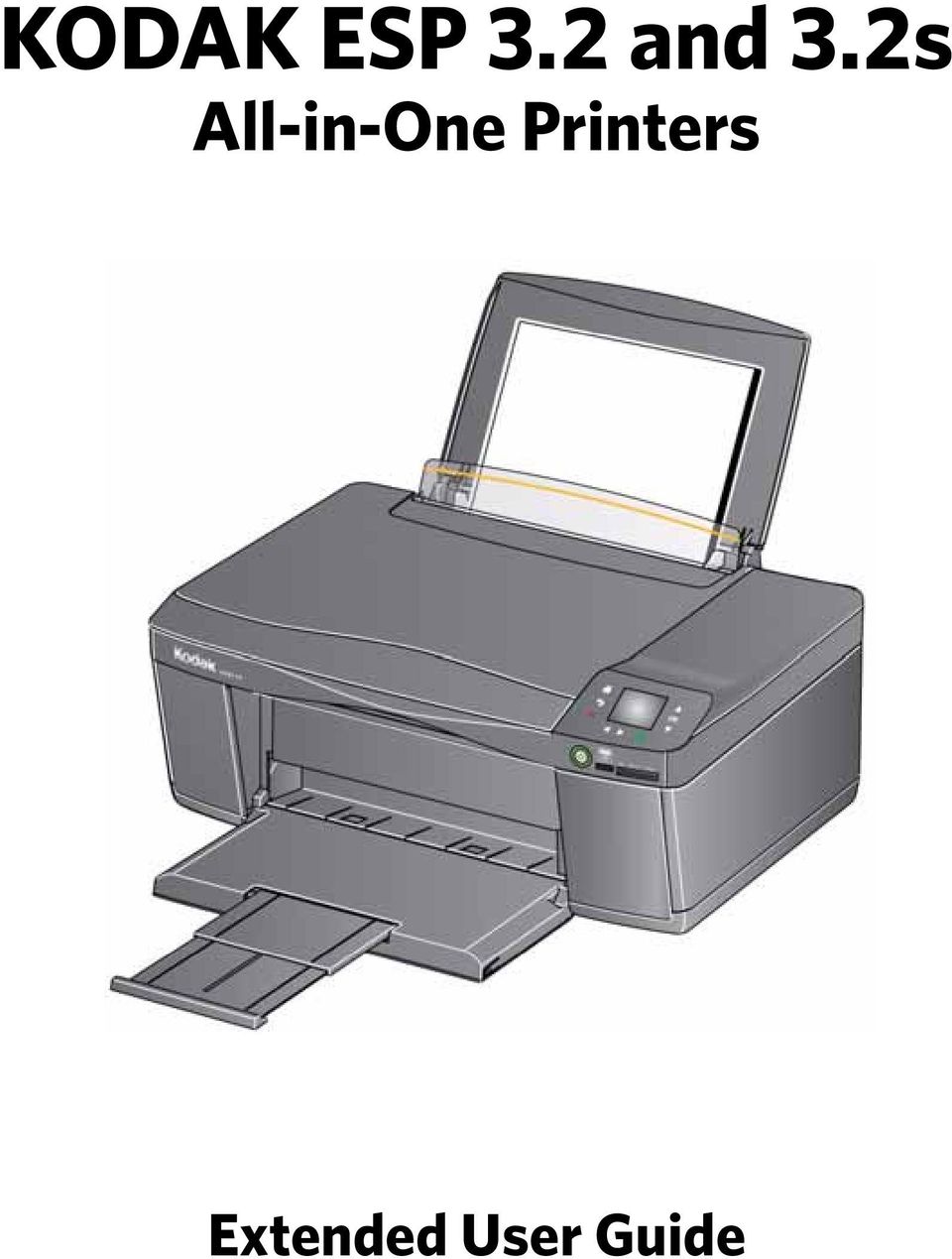
7 1 Printer Overview Components This printer lets you print, copy, and scan pictures and documents. In addition, this printer supports networking, letting you access the printer over a wireless (Wi-Fi) network Left paper-edge guide* 9 Memory card slot 2 Paper guard 10 Access door 3 Paper input tray 11 Printhead with ink cartridges installed 4 Scanner glass 12 USB port 5 Scanner lid 13 Power cord port 6 Control panel 14 Paper output tray extender 7 Power button 15 Paper output tray 8 Wi-Fi connectivity LED *Right paper-edge guide not shown. When you move one guide, both guides move. 1

8 Printer Overview Control panel Feature Description 1 LCD touch screen Displays pictures, messages, and menus 2 Cancel button Stops the current operation and returns to the previous menu, and closes the help screen 3 Start button Begins copying, scanning, printing, maintenance tasks, and file transfer 4 Help button Displays context-sensitive help 5 Back button Displays the previous screen or the next highest screen in the menu 6 Home button Displays the main menu 2

9 KODAK ESP 3.2 / 3.2s All-in-One Printers Using the LCD touch screen Home Screen Menu Feature Icon Displays... Copy Document settings and options Copy Photo settings and options View and Print Photos options and settings List of scan to options: Scan to Computer, Memory, , and Network Folder. Touching a scan-to option displays settings for that option. The list of forms that you can print from the control panel. Network settings Printer settings 3

10 Printer Overview Feature Icon Displays... Cloud Printing options Maintenance options Home Screen Status Icons IMPORTANT: Use only your finger to touch the screen; other objects can damage the surface. To select a feature, touch the icon. To view the features, use the scroll bar: Touch an arrow to scroll in that direction. Touch the scroll bar to move to a different location. Two status icons appear on the Home Screen: Ink Levels Wi-Fi Status Touch the Wi-Fi icon to open the Networking Settings. Touch OK to dismiss the ink levels screen. Press or to dismiss the Network Settings screen. 4

11 KODAK ESP 3.2 / 3.2s All-in-One Printers When ink levels are low and require replacing, the attention graphic appears on the status icon. For example, if the level of black ink is low, the attention graphic appears on the blank ink icon: Touch the icon to display instructions. Touch OK to return to the Home Screen. 5

12 Printer Overview Home Center Software KODAK Home Center Software is installed with your KODAK All-in-One Printer Software, unless you choose otherwise. The Home Center icon will appear on your desktop (WINDOWS OS) or dock (MAC OS). NOTE: You can choose to install the KODAK AiO Printer Software Essentials, which includes the printer drivers and Printer Tools (WINDOWS OS only). On a computer with WINDOWS Operating System (OS), you can use Home Center Software to: browse, crop, enhance, and edit pictures print and scan make 3D pictures (from picture pairs taken to create 3D pictures) print from video send images to or print images from KODAK Gallery send images to or print images from FACEBOOK Social Network, FLICKR, PHOTOBUCKET, PICASA Photo Management Systems, and GOOGLE DOCS Program configure your printer install new network printers upgrade to the latest printer software and firmware order supplies access the KODAK Tips and Projects Center see the status of your printer set up Google Cloud Print and KODAK Print Service access the KODAK Online Printer Management Tool On a computer with MAC OS, you can use Home Center Software to: scan configure your printer upgrade to the latest printer software and firmware order supplies see the status of your printer set up Google Cloud Print and KODAK Print Service access the KODAK Online Printer Management Tool 6

13 Ordering supplies KODAK ESP 3.2 / 3.2s All-in-One Printers You can order ink cartridges, paper, and accessories online. An Internet connection is required. To order supplies directly from Home Center Software: 1. Open Home Center Software. 2. Select Order Supplies (on a computer with WINDOWS OS) or select the Tools tab, then click Order Supplies (on a computer with MAC OS). 3. Select the item(s) you want to buy, then follow the on-screen instructions. To order supplies from the Web: Ink: Paper: 7

14 Printer Overview Configuring printer settings To set or change basic printer settings: 1. Press. 2. Press, then touch Printer Settings. 3. Touch the following settings: Date and Time Touch Year, Month, Day, Hour, or Minute to change the individual settings. Touch when you are done. NOTE: You can also synchronize the printer date and time to your computer using Home Center Software. Button Sounds Touch On or Off to set. Time to Low Power To conserve energy, your printer will enter a low power (sleep) mode after being idle for a default delay time of 1 hour. You can increase the delay time to low power. Increasing the delay time may result in reduced energy savings. Touch the time to low power (select from 1 to 4 hours in 0.5 hour increments). After the time to low power, the printer enters a low-power (sleep) mode. Tagged Images Printing (see Printing tagged pictures, page 57) Touch On or Off to set. Language Touch or to scroll through the languages, then touch a selection. Country/Region Touch or to scroll through the countries, then touch a selection. Reset All Settings (see Resetting factory defaults, page 100) NOTE: Resetting factory defaults does not change the date and time, language, country/region, or network settings. Printer Info Touch to display the version of firmware currently running on the printer. Press OK when you are done. 4. Press to return to the Home Screen. 8

15 2 Networking Your Printer This section explains how to configure your wireless network settings. Connecting to a wireless network Before you connect To connect your printer to an b/g/n wireless (Wi-Fi) network, refer to the following information. You need: a wireless router. to determine whether your wireless router supports Wi-Fi Protected Setup (WPS). NOTE: If you have specific questions about your router, see your router manufacturer s documentation for more information. 9

16 Networking Your Printer Connecting to a wireless network using the Wi-Fi Setup Wizard Connecting to a non-wps wireless router You can use the Wi-Fi Setup Wizard on the printer to connect to your wireless network. Use the procedure that is appropriate for your network setup. To connect your printer to your wireless network, you need to know the network name, also called the Service Set Identifier (SSID). You can obtain your network name from the wireless router. See the manufacturer s documentation for more information. If you have enabled security on your network, you also need to know the security string, which may be a Wired Equivalent Privacy (WEP) or a Wi-Fi Protected Access (WPA/WPA2) passphrase. Record your network information using the correct uppercase and lowercase letters. Network Name (SSID): Security String (case-sensitive): 1. Press. 2. Touch, then touch Network Settings. 3. Touch Wi-Fi Setup Wizard. NOTE: The Wi-Fi radio turns on automatically when you select Wi-Fi Setup Wizard. The Wi-Fi connectivity LED blinks as the printer searches for available wireless networks within range, then displays the list in order of signal strength. For example: If there are additional networks than can be shown on the LCD, touch to view them. or 10

17 KODAK ESP 3.2 / 3.2s All-in-One Printers 4. If the name of your network is: Listed Touch your network name. Not listed Make sure your wireless router is turned on and within range. If your wireless router does not broadcast its SSID (network name): 1. Touch, then touch Unlisted Network. 2. Use the LCD keyboard to enter your network name, then touch OK. 3. Touch WEP or WPA/WPA2 as required for your network's security setup. NOTE: If the name of your network is still not listed, or your want to change your network, touch, then touch Rescan for Wireless Networks. 5. If your network has security enabled, use the LCD keyboard to enter your security string. 6. When the confirmation message appears, touch OK. When the printer is successfully connected, the Wi-Fi connectivity LED stops blinking and remains lit. The printer with a wireless connection is listed as the name of the printer plus a number (for example, KodakESP3.2+xxxx). 7. If you haven t installed the KODAK All-in-One Printer Software: a. Go to (for ESP 3.2 Printers) or (for ESP 3.2s Printers). b. In the search results, click the link for KODAK All-in-One Printer Software for your computer operating system. c. Follow the on-screen instructions. 11

18 Networking Your Printer Connecting to a WPS wireless router If your router supports Wi-Fi Protected Setup (WPS), you can use WPS Connect. WPS lets you configure your printer for a wireless network by pressing buttons or entering a PIN. 1. Press. 2. Touch, then touch Network Settings. 3. Touch Wi-Fi Setup Wizard. NOTE: The Wi-Fi radio turns on automatically when you select Wi-Fi Setup Wizard. 4. Touch WPS Connect. 5. Select one of two methods of connecting: IMPORTANT: Before you make a selection on the printer, make sure you know where the router's push button is, or where to enter the generated PIN. If necessary, consult your Internet service provider or router device manufacturer s documentation for more information. Push Button Configuration NOTE: You will have two minutes to press or select the WPS button. It may be a button on the device or a virtual button in the device s software. a. Touch Push Button Configuration. b. Press or select the WPS button for your wireless router. c. Touch OK on the control panel. Generate WPS PIN a. Touch Generate WPS PIN. b. Record the PIN from the printer LCD. c. In your wireless router s software, locate the PIN screen. d. Enter the PIN you received on the LCD into the PIN screen, then follow the router s instructions. e. Touch OK on the control panel. 6. When the confirmation message appears, touch OK. 12

19 KODAK ESP 3.2 / 3.2s All-in-One Printers Setting up an IP Address When the printer is successfully connected, the Wi-Fi LED will stop blinking and remain lit. 7. If you haven t installed the KODAK All-in-One Printer Software: a. Go to (for ESP 3.2 Printers) or (for ESP 3.2s Printers). b. In the search results, click the link for KODAK All-in-One Printer Software for your operating system. c. Follow the on-screen instructions. IMPORTANT: You should only need to set up an IP Address for your printer if you are having a problem with connecting to your network. Typically, it is not necessary to set up an IP Address. This procedure is for advanced users who know how to obtain the IP Address for the printer. 1. Press. 2. Touch, then touch Network Settings. 3. Touch Advanced IP Address Setup. 4. Touch Yes to continue. 5. Touch one of the following: Dynamic (DHCP) Manual (Static) 6. If you selected Manual (Static), you are prompted to enter an IP Address, a Subnet Mask, a Gateway Address, and a DNS Server address. Touch OK after each entry. Use the navigation buttons to enter each digit. Consult your Internet service provider or network administrator for more information. 13

20 Networking Your Printer Viewing the network configuration To view the network configuration and verify that you are connected to your wireless network: 1. Press. 2. Touch, then touch Network Settings. 3. Touch View Network Configuration. The Network Configuration settings appear on the LCD, including: Printer Hostname Connection Speed IP Address IP Address Type Network Subnet Connected Network SSID Access Point MAC address Security Authentication Channel Region Radio (on/off) Wi-Fi Firmware Version MAC Address If the printer is connected to your network, you will see the network name and the word CONNECTED. 4. To scroll through the information, touch. 5. When you are done, touch OK. Printing the network configuration 1. Load plain paper into the printer. (See Loading plain paper, page 43.) 2. Press. 3. Touch, then touch Network Settings. 4. Touch Print Network Configuration. 14

21 KODAK ESP 3.2 / 3.2s All-in-One Printers Installing your printer on additional computers on the network To add your printer to another computer(s) on your network, install the KODAK All-in-One Printer Software on each computer. 1. Go to (for ESP 3.2 Printers) or (for ESP 3.2s Printers). 2. In the search results, click the link for your operating system. 3. Follow the on-screen instructions. Connecting to another KODAK All-in-One Printer If you are connecting to a newer model printer (for example, you have a HERO 3.1 Printer and now you are adding an ESP 3.2 Printer), you must install the software for the newer model. NOTE: When you install the new software, the printer driver for the HERO 3.1 Printer will be uninstalled, and an upgraded driver for the HERO 3.1 Printer will be installed in addition to the driver for the ESP 3.2 Printer. On a computer with WINDOWS OS: 1. Select Start > All Programs > Kodak > Kodak Printer Setup Utility. If your wireless printer (example: KodakESP3.2+xxxx) is not listed: a. Select No, my printer is not listed, then click Next. b. From the drop-down list, select your printer, then click Next. c. Select Network - Wireless/Wi-Fi, then click Next. When your printer is detected, driver installation begins. If your wireless printer (example: KodakESP3.2+xxxx) is listed: a. Select the printer that is connected to your network, then click Next. b. Select Yes, my printer is listed, then click Next. When your printer is detected, driver installation begins. 2. When driver installation is complete, click Done. On a computer with MAC OS: 1. Select Apple > System Preferences. 2. Under Hardware, select Print & Fax or Print & Scan. 3. Click + in the dialog box. 4. Select your printer from the list. 5. Click Add, if required. 15
22 Networking Your Printer Adding a wireless network connection to a USB-connected computer You can change the way you connect to your printer at any time. Changing from USB to a wireless connection If your printer is connected to a computer with WINDOWS OS: 1. Disconnect the USB cable from your printer and computer. 2. If you have not already done so, connect your printer to your wireless network. See Connecting to a wireless network, page On your computer, disable any firewall you have installed until you have successfully connected your printer. 4. Select Start > All Programs > Kodak > Kodak Printer Setup Utility. If your wireless printer (example: KodakESP3.2+xxxx) is not listed: a. Select No, my printer is not listed, then click Next. b. Select your printer from the list, then click Next. c. Select Network - Wireless/Wi-Fi, then click Next. When your printer is detected, driver installation begins. If your wireless printer (example: KodakESP3.2+xxxx) is listed: a. Select the printer that is connected to your network, then click Next. b. Select Yes, my printer is listed, then click Next. When your printer is detected, driver installation begins. 5. When driver installation is complete, click Done. The printer with a wireless connection is listed as the name of the printer plus a number (for example, KodakESP3.2+xxxx). If your printer is connected to a computer with MAC OS: 1. Disconnect the USB cable from your printer and computer. 2. If you have not already done so, connect your printer to your wireless network. See Connecting to a wireless network, page Select Apple > System Preferences. 4. Under Hardware, select Print & Fax or Print & Scan. 5. Click + in the dialog box. 6. Select your printer from the list. 7. Click Add, if required. The printer with a wireless connection is listed as the name of the printer plus a number (for example, KodakESP3.2+xxxx). 16
23 Connecting with Wi-Fi Direct KODAK ESP 3.2 / 3.2s All-in-One Printers NOTE: Wi-Fi Direct is a feature that is only on the ESP 3.2s All-in-One Printer (printer availability varies by country). Your ESP 3.2s All-in-One Printer can be set up to host a Wi-Fi Direct network so you can connect mobile devices and computers* without using a router. With Wi-Fi Direct, your printer works as an access point so you can: print from your mobile device using KODAK Pic Flick App. print or scan from your computer with WINDOWS OS or MAC OS (with the necessary drivers installed). access the Online Printer Management Tool. IMPORTANT: For best results, use your device within 5 m / 16.4 ft of your printer. Check that there are no obstructions between your device and printer. Wi-Fi Direct does not have Internet access. For full printer functionality, connect your printer to your wireless network (see Connecting to a wireless network, page 9). Your printer can be connected to your wireless network and have Wi-Fi Direct enabled at the same time. *You can connect up to four devices. An Internet connection is required for these features: Google Cloud Print, KODAK Print Service, scan to , and scan to network folder. 17
24 Networking Your Printer Enabling and Using Wi-Fi Direct 1. Press. 2. Touch, then touch Network Settings. 3. Touch, then touch Manage Wi-Fi Direct. 4. Touch Turn on Wi-Fi Direct. 5. Record the Wi-Fi Direct information displayed on the control panel: Network Name (SSID): Security String: 6. Touch OK. 7. Connect your device or computer to the network (SSID), then enter the security string. Use the information that you recorded in step To print from a mobile device, see Mobile Printing, page To print or scan from a computer, select your wireless printer (example: KodakESP3.2s+xxxx). If you do not see +xxxx after your printer name, you must download the printer drivers; follow the instructions below for your operating system. On a computer with WINDOWS OS: a. Select Start > All Programs > Kodak > Kodak Printer Setup Utility. b. Select No, my printer is not listed, then click Next. c. From the drop-down list, select your printer, then click Next. When your printer is detected, driver installation begins. d. When driver installation is complete, click Done. On a computer with MAC OS: a. Select Apple > System Preferences. b. Under Hardware, select Print & Fax or Print & Scan. c. Click + in the dialog box. d. Select your printer from the list. e. Click Add, if required. 10. For more information on printing, see Printing, page 50. For more information on scanning, see Scanning, page
25 KODAK ESP 3.2 / 3.2s All-in-One Printers Connecting and Using Wi-Fi Direct for a Mobile Device or Computer with WPS 1. Press. 2. Touch, then touch Network Settings. 3. Touch, then touch Manage Wi-Fi Direct. 4. Touch Connect a Device Using WPS. IMPORTANT: Before you make a selection on the printer, make sure you know: the location of the push button on your mobile device or computer it will be a button on your device, or a virtual button in the device software. where to generate a WPS Pin on your mobile device or computer. 5. Select one of these methods to connect your device: Push Button Configuration NOTE: You will have two minutes to press or select the WPS button. a. Touch Push Button Configuration. b. On your mobile device or computer, press (or select) the WPS button. c. Touch OK on your printer control panel. Enter a WPS Pin a. Touch Enter WPS Pin. b. On your mobile device or computer, locate the Pin screen and generate a WPS Pin. c. Enter the WPS Pin on your printer control panel, then touch OK. 6. To print from a mobile device, see Mobile Printing, page To print or scan from a computer: a. Go to (for ESP 3.2 Printers) or (for ESP 3.2s Printers). b. Select the All-in-One Printer Software for your operating system. c. Follow the on-screen instructions to install the software. (The printer and scanner drivers are installed when you install the software.) d. To print, see Printing, page 50. To scan, see Scanning, page
26 Networking Your Printer Viewing your Wi-Fi Direct Network Configuration Changing Wi-Fi Direct Settings 1. Press. 2. Touch, then touch Network Settings. 3. Touch, then touch Manage Wi-Fi Direct. 4. Touch View Wi-Fi Direct Configuration. The Wi-Fi Direct settings appear on the LCD. To scroll and review the settings, touch. Wi-Fi Direct SSID Security String IP Address Subnet Mask Channel Region MAC address No. of devices connected 5. When you are done, touch OK. Your printer is assigned a network name (SSID), security string, and IP Address. You can change these settings, but you must reconnect your device to your printer after you make changes. 1. Press. 2. Touch, then touch Network Settings. 3. Touch, then touch Manage Wi-Fi Direct. 4. Touch Advanced Wi-Fi Direct Settings. 5. Touch Yes. 6. Touch the setting you want to change: SSID, Security String, or IP Address. 7. Enter a new value, then touch OK to return to the Advanced Wi-Fi Direct Settings. 8. Reconnect your device or computer to your printer; use your new settings. 20
27 3 Online Printer Management Tool The Online Printer Management Tool lets you access your printer through an Internet browser (such as INTERNET EXPLORER, FIREFOX, SAFARI, or CHROME) on any computer that is on the same network as your printer. IMPORTANT: Your computer and your printer must be on the same wireless network. The Online Printer Management Tool is not available if your printer is connected to a computer with a USB cable. With the Online Printer Management Tool, you can: view printer status configure (or change) printer settings create Scan to and Scan to Network Folder profiles (that you can access from the printer control panel) add entries to the Address book set up accounts for Google Cloud Print and KODAK Print Service 21
28 Online Printer Management Tool Accessing the Online Printer Management Tool Access the Online Printer Management Tool in one of the ways described below. Directly from Home Center Software v7.x or higher: 1. Open Home Center Software. 2. Select Printer Tools on a computer with WINDOWS OS, or Tools on a computer with MAC OS. 3. Make sure that the name of your wirelessly connected printer appears in the bottom of the window (WINDOWS OS only). NOTE: A printer with a wireless connection is listed as the name of the printer plus a number (for example, KodakESP ). If a different printer name appears, click Select, then choose your wirelessly connected printer. 4. Under Tools, select Online Printer Management. The Online Printer Management Tool opens. On any printer-supported computer: 1. Get the IP Address of your wirelessly connected printer: a. On your printer control panel, press. b. Press to select Network Settings, then press OK. c. Press to select View Network Configuration, then press OK. NOTE: If you prefer a printout, press to select Print Network Configuration, then press OK. A Network Configuration Page prints, including the IP Address in the format xxx.xxx.xxx.xxx. d. Press to see the IP Address in the format xxx.xxx.xxx.xxx. (See Viewing the network configuration, page 14). 2. On your computer, open your preferred Internet browser (such as, INTERNET EXPLORER, FIREFOX, SAFARI, CHROME). 3. Type the printer IP Address in the browser address (URL) bar, then press Enter. The Online Printer Management Tool opens. 22
29 KODAK ESP 3.2 / 3.2s All-in-One Printers Using the Online Printer Management Tool Configuring printer settings 1. Open the Online Printer Management Tool (see Accessing the Online Printer Management Tool, page 22). 2. Select the Settings tab. 3. Select Device. 4. Select General or Date & Time, and make any necessary changes. 5. Click Save. NOTE: Select Reset to restore the default settings, if necessary. 23
30 Online Printer Management Tool Changing the printer name 1. Open the Online Printer Management Tool (see Accessing the Online Printer Management Tool, page 22). 2. Select the Network tab. 3. Select General, then Friendly name, if necessary. 4. Highlight the text in the Friendly name field and type the name you want, then click Save. Setting up Scan To When you scan with your printer, you can send the scans directly from the printer to an recipient. To do so, you must first set up a profile for yourself, and define the address(es) to which you want to send scans. Adding an outgoing profile 1. Open the Online Printer Management Tool (see Accessing the Online Printer Management Tool, page 22). 2. Select the Settings tab. 3. Select Scan To > Profile. 24
31 KODAK ESP 3.2 / 3.2s All-in-One Printers 4. Click Add New Outgoing Profile. 25
32 Online Printer Management Tool 5. In the Profile Name field, type a name that has meaning to you; for example, your initials and your provider, such as LR Hotmail or LR Gmail. This name will appear on the printer control panel when you start a scan to be sent through In the From Address field, type your address. Although the will be sent from the printer, any replies will go to this address. 26
33 KODAK ESP 3.2 / 3.2s All-in-One Printers 7. Under Server Settings, enter your service provider. If your service provider is Gmail, Yahoo, AOL, or Hotmail, select your services from the drop-down menu. The Service and Port Number fields fill in automatically. If your service provider is not in the drop-down menu: a. Type the server name or IP Address of your service provider in the Server field. b. Type the port number of your server in the Port Number field. NOTE: Locate this information in the account properties fields in your application. c. If your server supports secure connection mode, select the Always use secure connection check box, or contact your Internet Service Provider. 8. If your server requires authentication for sending s: a. Select the The server requires authentication for outgoing check box. b. Type the User ID and Password for your account. 27
34 Online Printer Management Tool 9. If you want to limit who uses your profile (that appears on the printer LCD) to send scans: a. Select the Enable Access PIN check box. b. Type a 4-digit numeric PIN (your choice). You will need to enter this PIN each time you access your profile when scanning to an address. 10. If you want a copy of all messages, select the Copy sender for all messages sent from the printer check box. 11. Click Test Profile to confirm that the printer can access your account. If the printer can access your account, Test profile: Successful appears. Click OK, then click Save. If the printer cannot access your account, Test Profile: Failed appears. Click OK, then make changes to your profile. Setting up the address book 1. Open the Online Printer Management Tool (see Accessing the Online Printer Management Tool, page 22). 2. Select the Settings tab. 3. Select Scan To > Address Book. 28
35 KODAK ESP 3.2 / 3.2s All-in-One Printers Setting options for scan to 4. For each person: a. Type the person s Name. b. Type the person s Address. c. Click Add. 5. When you are finished adding addresses, click OK. When you send a scan to an address, the printer uses the defaults subject line, body, and scan settings that you set up under options. 1. Open the Online Printer Management Tool (see Accessing the Online Printer Management Tool, page 22). 2. Select the Settings tab. 3. Select Scan To > Option. 4. Select and replace the default subject line and body text, if necessary. This subject line and body text will be included with every scan you send to an address. 29
36 Online Printer Management Tool 5. Select the scan settings that will be used for all scans sent to NOTE: You can enter a Filename Prefix of your choice. 6. Click Save, then click OK. You can now send a scan to an address from the control panel. See Scanning from the control panel, page
37 KODAK ESP 3.2 / 3.2s All-in-One Printers Setting up Scan To Network Folder Before you create a network folder profile You can scan documents or photos directly to a file in a shared folder on your network. You must identify or create a network shared folder on a computer connected to the same network as your printer before you can create a network folder profile. Note the network name of the folder, including the path information, and the name of the computer where it is located. To learn more about sharing folders, see the information in the links below. For computers with WINDOWS XP OS, see For computers with WINDOWS VISTA OS, see technet.microsoft.com/en-us/library/bb aspx For computers with WINDOWS 7 OS, see windows.microsoft.com/en-us/windows7/file-sharing-essentials For computers with MAC OS 10.5 or later, see support.apple.com/kb/ht
38 Online Printer Management Tool Adding a network folder profile 1. Open the Online Printer Management Tool (see Accessing the Online Printer Management Tool, page 22). 2. Select the Settings tab. 3. Select Scan To Network Folder > Network Folder Profile. 4. Click Add New Network Folder Profile. 32
39 KODAK ESP 3.2 / 3.2s All-in-One Printers 5. Type: Profile Name Folder Path 6. If the computer where the folder is located requires authentication to access its shared folders, type the network login User Name and Password. 7. If you want to limit who uses your profile to scan documents to your network folder: a. Select the Enable Access PIN check box. b. Type a 4-digit numeric PIN (your choice). You will need to enter this PIN each time you access your profile when scanning to a network folder. 8. Click Test Profile to confirm that the printer can access the network folder. If the printer can access the network folder, Test profile: Successful appears. Click OK, then click Save. If the printer cannot access the network folder, Test Profile: Failed appears. Click OK, then make changes to the network folder profile. You are now ready to scan a document or photo to your network folder from the control panel. See Scanning from the control panel, page
40 Online Printer Management Tool Setting scan settings for scan to network folder When you send a scan to a network folder, the printer uses the defaults that you set up under scan settings. 1. Select Scan To Network Folder > Scan Settings. 2. Select the scan settings that will be used for all scans sent to a network folder: NOTE: You can enter a Filename Prefix of your choice. 3. Click Save, then click OK. You can now send a scan to a network folder from the printer control panel. See Scanning from the control panel, page
41 KODAK ESP 3.2 / 3.2s All-in-One Printers Changing printer settings for copying and printing You can change the default printer settings for copying documents and photos, and for printing photos. Changing Copy Document and Copy Photo settings 1. Open the Online Printer Management Tool (see Accessing the Online Printer Management Tool, page 22). 2. Select the Settings tab. 3. Select Copy & Print > Copy Document or Copy Photo. 4. Make the changes you want in the appropriate fields, then click Save. 35
42 Online Printer Management Tool Changing Copy Document and Copy Photo settings (continued) 36
43 KODAK ESP 3.2 / 3.2s All-in-One Printers Changing Print Photo settings 1. Open the Online Printer Management Tool (see Accessing the Online Printer Management Tool, page 22). 2. Select the Settings tab. 3. Select Copy & Print > Print Photo. 4. Make the changes you want in the appropriate fields, then click Save. 37
44 Online Printer Management Tool Setting up Cloud Printing Registering your printer with Google Cloud Print and KODAK Print Service Your printer lets you print from anywhere in the world from your smartphone, tablet, or computer that uses Google Cloud Print enabled apps. KODAK Print lets you send s and attachments to your printer using any account. You must register your printer with a GOOGLE Account to enable these features. 1. Make sure your printer and computer are connected to the same network (see Networking Your Printer, page 9). 2. Make sure you have the latest version of Home Center Software and printer firmware (see Updating the software and printer firmware, page 99). 3. Do one of the following: Open Home Center Software, then click Cloud Printing Setup. Depending on your Operating System, use the path below to select Cloud Printing Setup. WINDOWS XP OS: Select Start > (All) Programs > Kodak > KODAK AiO Printer Tools. Click Cloud Printing Setup. WINDOWS VISTA and 7 OS: Select WINDOWS icon > All Programs > Kodak > KODAK AiO Home Center > Printer Tools. Click Cloud Printing Setup. MAC OS: Select KODAK AiO Home Center > Tools. Click Cloud Printing Setup. 4. In the Google Cloud Print Setup window, click Start Now. 5. Follow the on-screen instructions. NOTE: You may need to sign in to your GOOGLE Account during the setup process. 6. When you see the Thanks, you re ready to go! message, close the window and return to the setup wizard (Google Cloud Print Setup). 7. Click Claim Address, then click Accept. NOTE: If you want to change the address of your printer, click Change and follow the on-screen instructions. 8. Make sure you have letter or A4 size paper loaded in the printer. A page will be sent to your printer to indicate that your printer has been successfully set up. This may take a few minutes. The page includes the address of your printer. For information about printing, see Printing using Google Cloud Print, page 61 and Printing using KODAK Print Service, page
45 KODAK ESP 3.2 / 3.2s All-in-One Printers Editing a Google Cloud Print Account Once you have successfully registered your printer with Google, you can make edits to various fields. 1. Open the KODAK Online Printer Management Tool (see Accessing the Online Printer Management Tool, page 22). 2. Select the Settings tab. 3. Select Cloud Printing > Google Cloud Print. 4. Click Edit Settings. 5. Make the changes you want in the appropriate fields, then click Save. Editing the settings for KODAK Print Service Changing the address for your printer 1. Do one of the following:. Go to If the Online Printer Management Tool is open, select the Settings tab, then Cloud Printing > KODAK Print Service. Click to edit options for KODAK Print Service. 2. If necessary, sign in with your GOOGLE Account. 3. Click Settings (next to your printer name). Make sure the check box next to Enabled is selected. When you registered your printer with KODAK Print Service, an address was assigned to your printer. To change the address to a more user-friendly name: 1. Click edit (next to the Printer address). 2. Type the new address you want, then click Check to make sure it is an address you can use. 3. When you have a valid address, click Accept. 4. Make sure you have letter or A4 size paper loaded in the printer. A page that includes the new address of your printer will print. Printer Settings You can make changes to the default settings, as needed. 1. With the Printer Settings tab selected, make any changes. If you clear the check box next to Print Body, only attachments will print. 2. Click Save. 39
46 Online Printer Management Tool Allowed Users History To control who can send s to your KODAK Printer address: 1. Click the Allowed Users tab. Next to Access Control, click Edit. 2. From the drop-down list, select Allowed Users. 3. To add an address to the allowed users, click Add. 4. Type the or domain information, then click the Save icon. NOTE: To delete an or domain, click the Trash Can icon. Click the History tab to see a list of printed s with the time, sender, subject, and status. To delete an item from the list, click the check box next to it, then click the Trash Can icon. 40
47 4 Handling Paper Paper types For the best document printing results, use KODAK Document Papers or a paper with the COLORLOK Technology logo on the package. Use only paper that is designed for inkjet printers. For the best photo printing results, use KODAK Photo Papers, which are optimized to work with KODAK All-in-One Printers, or photo papers designed for use on pigment-based inkjet printers. When handling photo paper: Hold the paper by the edges; avoid transferring fingerprints. Do not touch the glossy side of photo paper. Store paper flat, away from direct sunlight and heat. You can use: Plain paper 16 to 24 lb / 60 to 90 gsm Photo paper up to 12 mils Card stock 110 lb / 200 gsm, max Envelopes most standard types Labels all commercially available inkjet varieties on 8.5 x 11-in. or A4 sheets Iron-on transfers all commercially available inkjet varieties on 8.5 x 11-in. or A4 sheets 41
48 Handling Paper Paper sizes The printer accepts the following paper sizes: 4 x 6 in. / 10 x 15 cm 4 x 7 in. / 10 x 18 cm 4 x 8 in. / 10 x 20 cm 4 x 12 in. / 10 x 31 cm 5 x 7 in. / 13 x 18 cm 7.3 x 8.5 in. / 18 x 22 cm US Executive (7.3 x 10.5 in. / 18 x 27 cm) 8 x 10 in. / 20 x 25 cm US Letter (8.5 x 11 in. / 22 x 28 cm) Legal (8.5 x 14 in. / 22 x 36 cm) A4 (8.3 x 11.7 in. / 21 x 30 cm) A5 (5.8 x 8.3 in. / 15 x 21 cm) A6 (4.1 x 5.8 in. / 11 x 15 cm) B5 (6.9 x 9.8 in. / 18 x 25 cm) NOTE: Do not load paper smaller than 4 x 6 in. / 10 x 15 cm. 42
49 KODAK ESP 3.2 / 3.2s All-in-One Printers Envelope sizes Loading paper Loading plain paper The printer accepts the following envelope sizes: C5 (6.7 x 9 in. / 16 x 23 cm) C6 (4.5 x 6.4 in. / 11 x 16 cm) DL (4.3 x 8.7 in. / 11 x 22 cm) US #7¾ (3.9 x 7.5 in. / 10 x 19 cm) US #9 (3.9 x 8.9 in. / 10 x 23 cm) US #10 (4.1 x 9.5 in. / 11 x 24 cm) IMPORTANT: Do not load envelopes with cutout or clear windows. The paper input tray capacity is 100 sheets of plain paper. 1. Lift the paper input tray. 43
50 Handling Paper 2. Open the paper output tray, then pull the extender until it is fully extended. Paper output tray extender 3. Move the left and right paper-edge guides to the far left and far right positions. 44
51 KODAK ESP 3.2 / 3.2s All-in-One Printers 4. Fan and stack the paper, then insert the paper into the paper input tray. 5. Move the paper-edge guides until they touch the paper. 45
52 Handling Paper Loading photo paper The paper input tray capacity is 20 sheets of photo paper. 1. Lift the paper input tray. 2. Open the paper output tray, then pull the extender until it is fully extended. Paper output tray extender 46
53 KODAK ESP 3.2 / 3.2s All-in-One Printers 3. Move the left and right paper-edge guides for loading photo paper. 4. Insert photo paper (short side first) with the logo side toward the tray and the glossy side toward you. IMPORTANT: Always load the paper short side first. The printer automatically detects the orientation of the picture, whether it s portrait or landscape, and prints accordingly. If the photo paper is loaded incorrectly, the image will be cut off and the paper may jam. If the paper is loaded with the wrong side up, the image quality will be affected. 5. Move the paper-edge guides until they touch the paper. 47
54 Handling Paper Loading envelopes The paper input tray capacity is 20 envelopes. IMPORTANT: Do not load envelopes with cutout or clear windows. 1. Lift the paper input tray. 2. Open the paper output tray, then pull the extender until it is fully extended. Paper output tray extender 48
55 KODAK ESP 3.2 / 3.2s All-in-One Printers 3. Move the left and right paper-edge guides to the far left and far right positions. 4. Insert the envelope(s) with the flap toward the tray and the top of the envelope against the right side of the tray. 5. Move the paper-edge guides until they touch the envelope(s). 49
56 5 Printing Printing documents Printing two-sided documents Print documents and lab-quality pictures on your printer. 1. Open the document on your computer. 2. Select File > Print. 3. In the Print dialog box, select your KODAK Printer. 4. Choose the pages to print, number of copies, etc, then click OK (on a computer with WINDOWS OS) or Print (on a computer with MAC OS). You can print two-sided documents on any size paper that the printer accepts when you rotate the paper manually (see Paper sizes, page 42). IMPORTANT: You can print two-sided documents on media that can absorb ink on both sides, such as plain paper or two-sided photo paper. You cannot print two-sided documents on bar-coded photo paper (the bar code is on the back side). Printing two-sided documents from a computer with WINDOWS OS 1. Load paper into the paper input tray. 2. Open the document you want to print, then select File > Print. 3. In the Print dialog box, make sure that KODAK ESP 3.2 AiO (or for a wireless connection, KodakESP3.2+XXXX, where XXXX is a number) is selected, then click Properties. 4. Select the Layout tab. 5. In the Two-sided printing field, select Manual, then click OK. NOTE: You can also select manual two-sided printing from the two-sided printing shortcut or from the General tab under the Job settings field. 6. Under Flip on:, select Long edge or Short edge, then click OK. 7. When a message appears on your computer and control panel, remove the printed pages from the paper output tray, then follow the instructions on the control panel. 8. Press. 50
57 KODAK ESP 3.2 / 3.2s All-in-One Printers Printing two-sided documents from a computer with MAC OS 1. Load paper into the paper input tray. 2. Open the document you want to print, then select File > Print. 3. In the Print dialog box, make sure that Eastman Kodak Company KODAK ESP 3.2 AiO (or for a wireless connection, KodakESP3.2+XXXX, where XXXX is a number) is selected. 4. In the Print dialog box, select the two-sided check box. 5. Click Print. 6. When the even pages have finished printing, follow the instructions on the control panel to load the printed pages into the paper input tray. 7. Press. Printing forms from the control panel You can print the following forms: Graph paper Wide ruled page Narrow ruled page Grocery list Reminder list Tic-tac-toe Sheet music (portrait) Sheet music (landscape) To print a form: 1. Press. 2. Touch, then touch Forms. 3. Touch a form to select it. 4. Use the LCD keyboard to type a quantity, then touch OK. 5. Press. 51
58 Printing Printing pictures from a memory card Viewing pictures on a memory card You can print pictures from the following memory cards: SD Card SDHC Card MMC Card MEMORY STICK Variations of the memory cards listed above that require and adapter (for example, MEMORY STICK Duo, minisd, and microsd) IMPORTANT: If you use a memory card with an adapter, make sure you insert and remove the adapter and the memory card as a unit; do not remove the memory card while leaving the adapter in the printer. You can also print pictures using Home Center Software from your computer with WINDOWS OS. Home Center Software lets you edit and enhance your pictures quickly. Open Home Center Software, select Edit and Print Pictures, then follow the on-screen instructions. On a computer with either MAC OS or WINDOWS OS, you can print pictures from KODAK EASYSHARE Software or any picture-editing or photo-management software. When you insert a memory card into the card slot on your printer, touch, View and Print Photos, View Photos, then touch or to scroll through the pictures. You can locate pictures on a memory card by the date the picture was taken or last saved. 1. Insert the memory card into the memory card slot. 2. Press, then touch Options, Find Photos. 3. Touch Year, Month, and Day to set the values. The number of photos found for the date you specified appears under the menu name. 4. Touch OK to view the pictures. 52
59 KODAK ESP 3.2 / 3.2s All-in-One Printers Using default settings to print a picture 1. Load photo paper into the printer (see Loading photo paper, page 46). 2. Insert the memory card into the memory card slot. memory card slot 3. Touch or to display the picture you want to print. 4. Press to begin printing. The printer prints one 4 x 6 in. / 10 x 15 cm picture. IMPORTANT: To prevent loss of data from your memory card, do not remove it from the printer while printing or viewing pictures. 53
60 Printing Changing the settings and printing pictures You can change the print photos options for an individual picture or group of pictures, or you can change the settings and save them as the default. 1. Load photo paper into the printer (see Loading photo paper, page 46). 2. Insert the memory card into the memory card slot. memory card slot 3. Touch or to select the picture you want to print, then touch or to change the quantity. 4. Repeat step 3 for each picture you want to print. 5. Press and touch Options. 6. Touch or and touch the setting you want to change. Print Photos Option Settings Description View Photos -- Scroll through the pictures on the memory card; touch or to select a quantity for printing; press to display the View and Print Photos Settings. Find Photos -- Touch Year, Month, and Day to set the values, then touch OK to view photos by the date that they were taken; press to display the View and Print Photos Settings menu. Quantity 1 (default) to 99 The number of copies that print. Color Mode Color (default) Prints full color. Black & White Prints black and white (grayscale). 54
61 KODAK ESP 3.2 / 3.2s All-in-One Printers Print Photos Option Settings Description Print Size 2 x x 5 4 x 6 (default) 4 x 7 4 x 8 5 x 7 4 x 12 8 x x 11 or A4 If the selected copy size is smaller than the paper in the paper input tray, the printer automatically arranges the pictures to best fit the paper size. Quality applies to plain paper only; Best is automatically selected for photo paper Scene Balance Add Date to Prints Normal (default) Best Draft On (default) Off No (default) Yes Good quality output; prints faster than Best. The highest quality, but the slowest print speed. The fastest print speed, but the lowest quality. Adjusts the image brightness to correct for underexposure and reduces the variation in contrast in different areas of the picture. Prints the date of the picture(s) (the date the picture was taken or last edited) in a corner of the print. Transfer to PC -- To transfer all the pictures on the memory card to your computer, press. (Your printer and computer must be connected with a USB cable.) Save as Defaults No / Yes To save the settings as the new defaults, touch Yes. 7. When you have finished changing settings, press. IMPORTANT: To prevent loss of data from your memory card, do not remove it from the printer while printing. 55
62 Printing Printing panoramic pictures To print panoramic pictures, you will need to load 4 x 12 in. / 10 x 31 cm paper, or US letter or A4 paper. 1. Load photo paper into the printer (see Loading photo paper, page 46). 2. Insert the memory card into the memory card slot. memory card slot 3. Touch or to select the panoramic picture you want to print, then touch or to select a quantity. 4. Press and touch Options. 5. Touch, Print Size, then touch, 4 x Press. IMPORTANT: To prevent loss of data from your memory card, do not remove it from the printer while printing or viewing pictures. 56
63 KODAK ESP 3.2 / 3.2s All-in-One Printers Printing tagged pictures Some digital cameras let you tag (or mark ) pictures on the memory card for printing. This creates a tag that is recognized by the printer. If you choose to print tagged pictures, they will be printed according to the default settings on your printer (unless otherwise specified by the tag from the camera). NOTE: Refer to your camera user guide to determine if your camera supports tagged (also marked or DPOF ) functionality. 1. Load photo paper into the printer (see Loading photo paper, page 46). 2. Insert the memory card into the memory card slot. memory card slot 3. When the message Print tagged images? appears, press. 57
64 Printing Zooming and cropping pictures Use the zoom buttons to select a portion of your picture for printing. 1. Insert the memory card into the memory card slot. memory card slot 2. Touch or to select the picture you want to crop, then touch. 3. Press Zoom + to enlarge the picture on the LCD. A red box shows the area that will be printed. NOTE: You can press Zoom + repeatedly to enlarge the picture in increments of 0.25 up to a magnification of 5X. Press Zoom to decrease the magnification in increments of 0.25 down to 1X. 4. Touch to rotate the crop box, if necessary. IMPORTANT: Always load the paper short side first. The printer automatically detects the orientation of the picture, whether it s portrait or landscape, and prints accordingly. If the photo paper is loaded in the wrong direction, the image will be cut off and the paper may jam. If the paper is loaded with the wrong side up, the image quality will be affected. 5. Use the navigation buttons,,, and to move the picture on the LCD up, down, left, or right. Only the part of the picture in the red box will print. The crop window matches the aspect ratio of the selected output print size. NOTE: Zooming and cropping does not change the saved picture on the memory card. 6. When you are satisfied with the picture, touch. The picture appears in the original view with a red box around the portion of the picture that will print. 7. Press to begin printing. 58
65 KODAK ESP 3.2 / 3.2s All-in-One Printers Printing pictures from a wireless device You can print pictures wirelessly at the touch of a button from: iphone (ios 3.0 or later) ipod Touch (2nd generation) ipad BLACKBERRY Device (software v4.5 or later) a device running ANDROID OS v2.0 or later For more information, see Mobile Printing, page 61, or go to Transferring pictures to a computer You can transfer your image files from a memory card in the printer to your computer. To transfer these files, the printer must be connected to your computer with a USB cable. NOTE: If you have large video files or a large number of pictures (400 or more), we recommend that you transfer them using a memory card reader attached directly to your computer. Transferring pictures to a computer with WINDOWS OS 1. Insert the memory card into the memory card slot on the printer. 2. Press. 3. Touch Options. 4. Touch, then Transfer to PC. 5. Press. 6. If your computer is connected to a wireless network and with a USB cable, select the USB printer (no number after the printer name). 7. Follow the on-screen instructions on your computer. Transferring pictures to a computer with MAC OS 1. Insert the memory card into the memory card slot on the printer. 2. Press. 3. Touch Options. 4. Touch, then Transfer to PC. 5. Press. 6. If your computer is connected to a wireless network and with a USB cable, select the USB printer. 7. Use iphoto or Image Capture Software on your computer to complete the transfer. 59
66 Printing Printing picture collages using KODAK Photo Collage Print App KODAK Photo Collage Print App is a FACEBOOK Application that allows you to create and print photo collages from FACEBOOK albums. Adding KODAK Photo Collage Print App to your FACEBOOK Account: 1. Log on to your FACEBOOK Account. 2. Go to apps.facebook.com/kodakcollage. 3. Click Allow. The application opens. Printing from KODAK Photo Collage Print App: 1. Click the Templates button. 2. Select the template you want to use. 3. Select the Select Photos tab. 4. Click the triangles on the left side of the screen to view FACEBOOK photo albums, then select the photo albums you want to use. NOTE: You can use your albums, your friends albums, or both. 5. Click the Template tab to choose a layout design. 6. Hover your mouse over a photo to show the editing tools. The editing tools allow you to: refresh the photo, which swaps the photo with another in your chosen album(s) pan and zoom move a photo from one position to another on the collage 7. When you finish the collage, click Continue. 8. To share your collage, click Share. The collage will be posted to your FACEBOOK wall and will be saved to your FACEBOOK photo albums. 9. To print your collage: Load 8.5 x 11 in. (22 x 28 cm) photo paper into your printer Click Print. 60
67 6 Mobile Printing Mobile printing lets you print to your all-in-one printer from your Web-connected mobile device. When your: printer is registered to Google Cloud Print, you can print from anywhere with your mobile device using Google Cloud Print apps. printer has an address (assigned by KODAK Print Service), you can send s and attachments to your printer from anywhere, from a device capable of sending . mobile device is connected to the same wireless network as your printer, you can print pictures using a KODAK Pic Flick App. When you plan to use mobile printing, make sure that your printer power is on or your printer is in low power mode (for information, see Time to Low Power under Configuring printer settings, page 8). Printing using Google Cloud Print Print on the go from your smartphone, computer, or tablet using Google Cloud Print enabled apps. Before you can use Google Cloud Print, make sure your printer is set up for Google Cloud Print. See Registering your printer with Google Cloud Print and KODAK Print Service, page 38. Printing varies by application. For more information, go to To print from a Chromebook: Click the wrench and select Print to print the Web page you are viewing (you can also use the keyboard shortcut Ctrl+P). To print from an ios mobile device (iphone, ipad, ipod Touch): From GMAIL: body: Select the , then click the menu in the top-right corner and select Print. Attachment: Click the Print button next to the attachment. From GOOGLE DOCS Program: Select the document, then click the menu in the top-right corner and select Print. To print from an ANDROID OS device: Install the Google Cloud Print App from the ANDROID Market. 61
68 Mobile Printing To print from a computer: Install the CHROME Extension (plug in) from the CHROME Web store, then: From GMAIL: body: Select the , then click the Print all using Google Cloud Print link at the top right of the . Attachment: Select Print attachment using Google Cloud Print. From GOOGLE DOCS Program: Select File > Print using Google Cloud Print. Web pages (URL must end with.pdf,.doc, or.txt): Click Print using Google Cloud Print when it appears on the URL address bar. For the latest information on supported formats, go to the CHROME Extension (plug in) Web site. To print from a BLACKBERRY OS device: We recommend using KODAK Print. Printing using KODAK Print Service Printing s, documents, and pictures KODAK Print lets you send s and attachments (documents and pictures) to your printer from anywhere, using any device capable of sending . NOTE: Before you can use KODAK Print, your printer must be registered to Google Cloud Print and KODAK Print (see Registering your printer with Google Cloud Print and KODAK Print Service, page 38). To print using KODAK Print: 1. Make sure that your device or computer is connected to the Internet. 2. Open an application (such as GMAIL, MICROSOFT OUTLOOK, HOTMAIL, YAHOO, ios Mail, or ANDROID OS Mail). 3. Address the to your printer address. Attach the files you want to print; if needed, include any comments in the body of the Send the . The attachments (and any comments) will print to your printer. 62
69 KODAK ESP 3.2 / 3.2s All-in-One Printers Printing from a mobile device When connected to the same Wi-Fi network, you can print pictures wirelessly with your all-in-one printer from: an iphone (ios 3.0 or later), ipod Touch device (2nd generation), ipad (may not be available with all models). a BLACKBERRY Device (software v4.5 or later). a device running ANDROID OS v2.0 or later. Download the KODAK Pic Flick App from the App Store directly from your device, then follow the procedure for your device. For information, go to Printing pictures from an iphone, ipad, or ipod Touch device IMPORTANT: Requires ios 3.0 or later. To print a picture from an iphone, ipad, or ipod Touch device (2nd generation): 1. Make sure your device is connected to the same Wi-Fi network as your printer. 2. Open the KODAK Pic Flick application on your device. 3. Select the picture(s) you want to print, then select Choose Device. 4. Select your KODAK All-in-One Printer from the list of available devices. 5. Select Send. Printing pictures from a BLACKBERRY Device To print a picture from a BLACKBERRY Device (software v4.5 or later): 1. Make sure your BLACKBERRY Device is connected to the same Wi-Fi network as your printer. 2. Open the KODAK Pic Flick application on your device. 3. Select the picture(s) you want to print. 4. Press the Menu key, then select Print. 5. Select your KODAK All-in-One Printer from the list of available devices. NOTE: It may take a few minutes for the printer to appear in the Available Printers list. 6. Select the print size and enter the number of copies. 7. Select Print. 63
70 Mobile Printing Printing pictures and documents from an ANDROID OS Device NOTE: ANDROID OS v2.0 or later required. To print a picture using KODAK Pic Flick App: 1. Make sure your device is connected to the same Wi-Fi network as your printer. 2. Open KODAK Pic Flick application on your device. 3. Select the picture(s) you want to print. 4. Select View/Edit to edit the picture(s), or go to step 5. a. Press and hold the screen to enter the edit mode. b. Rotate, move, pan, zoom, or crop the picture. 5. Press Select Device, then select your KODAK All-in-One Printer. 6. Select the print size. 7. Press Back, then select Send. To print a picture or document using KODAK Document Print App: IMPORTANT: Before you can use KODAK Document Print App, your printer must be registered to Google Cloud Print (see Registering your printer with Google Cloud Print and KODAK Print Service, page 38). 1. Download and install the app from the ANDROID Market. 2. Launch the KODAK Document Print App. 3. Locate the picture or document you want to print. 4. Sign in with your GOOGLE Account, then select OK. 5. Select your printer from the list. 6. Select Print. 64
71 7 Copying Copying a document You can copy documents and pictures with your all-in-one printer. The printer produces high quality color or black-and-white copies on a variety of paper (see Paper types, page 41). You can copy a document using the default settings, or you can adjust the quantity, size, quality, and brightness of your copies. Using the default settings to copy a document The default settings are either the factory default settings (see Resetting factory defaults, page 100), or defaults that you have set on the printer (see the bottom entry in the table under Adjusting the settings and copying a document, page 66). To copy a document using the current default settings: 1. Lift the scanner lid, and place the document face down in the right-front corner of the scanner glass. 2. Close the lid. 3. Press. 4. Touch Copy Document. 5. Press. 65
72 Copying Adjusting the settings and copying a document 1. Lift the scanner lid, and place the document face down in the right-front corner of the scanner glass. 2. Close the lid. 3. Press. 4. Touch Copy Document. 5. Touch Options, then touch or (as needed) and touch the setting you want to change. Copy Document Option Setting Description Quantity 1 (default) to 99 The number of copies that print. Color Mode Color (default) Prints full color. Copy Size Black & White Same Size (default) Fit to Page Prints black and white (grayscale). The copy is the same size as the original. The printer detects the size of the original on the scanner glass and the size of the paper in the paper input tray, and automatically reduces or enlarges the original so that the copy fits on the paper. 20% to 500% Reduces to 20% or enlarges to 500% of the original size. 66
73 KODAK ESP 3.2 / 3.2s All-in-One Printers Copy Document Option Quality (applies to plain paper only; quality is automatically selected for photo paper) Lighter/Darker Normal (default) Best Draft Setting Normal 0 (default) 3 to +3 Description Good quality output; prints faster than Best. The highest quality, but the slowest print speed. The fastest print speed, but the lowest quality. Lightens or darkens the copy. Normal 0 is no change from the original; 3 is the darkest; +3 is the lightest. Save as Defaults No / Yes To save the settings as the new defaults, touch Yes. 6. Press. 67
74 Copying Changing the number of copies of a document 1. Lift the scanner lid, and place the document face down in the right-front corner of the scanner glass. 2. Close the lid. 3. Press. 4. Touch Copy Document, then touch or to select a quantity. 5. Press. 68
75 KODAK ESP 3.2 / 3.2s All-in-One Printers Enlarging or reducing a document 1. Lift the scanner lid, and place the document face down in the right-front corner of the scanner glass. 2. Close the lid. 3. Press. 4. Touch Copy Document. 5. Touch Options, then Copy Size. 6. Touch an enlargement or reduction selection. 7. Press. 69
76 Copying Darkening or lightening a document 1. Lift the scanner lid, and place the document face down in the right-front corner of the scanner glass. 2. Close the lid. 3. Press. 4. Touch Copy Document. 5. Touch Options, then Lighter/Darker. 6. Touch to scroll to a number below zero for a darker copy, or touch to scroll to a number above zero for a lighter copy. 7. Touch the setting you want to apply. 8. Press. 70
77 Copying a photo KODAK ESP 3.2 / 3.2s All-in-One Printers You can copy a photo using the default settings, or you can adjust the quantity, size, quality, and brightness of your copies. Using the default settings to copy a photo The default settings are either the factory default settings (see Resetting factory defaults, page 100), or defaults that you have set on the printer (see the bottom entry in the table under Adjusting the settings and copying a photo, page 72). 1. Load photo paper into the printer (see Loading photo paper, page 46). 2. Lift the scanner lid, and place the photo face down in the right-front corner of the scanner glass. 3. Close the lid. 4. Press. 5. Touch Copy Photo. 6. Press. 71
78 Copying Adjusting the settings and copying a photo 1. Load photo paper into the printer (see Loading photo paper, page 46). 2. Lift the scanner lid, and place the photo face down in the right-front corner of the scanner glass. 3. Close the lid. 4. Press. 5. Touch Copy Photo. 6. Touch Options, then touch or and touch the setting you want to change. Copy Photo Option Setting Description Quantity 1 (default) to 99 The number of copies that print. Color Mode Color (default) Prints full color. Black & White Copy Size 2 x x 5 4 x 6 (default) 4 x 7 4 x 8 5 x 7 4 x 12 8 x x 11 or A4 Prints black and white (grayscale). The printer detects the size of the original on the scanner glass and the size of the paper in the paper input tray, and automatically reduces or enlarges the original so that the copy fits on the paper. Lighter/Darker Normal 0 (default) 3 to +3 Lightens or darkens the copy. Normal 0 is no change from the original; 3 is the darkest; +3 is the lightest. 72
79 KODAK ESP 3.2 / 3.2s All-in-One Printers Copy Photo Option Setting Description Quality (applies to plain paper only; quality is automatically selected for photo paper) Normal (default) Best Draft Good quality output; prints faster than Best. The highest quality, but the slowest print speed. The fastest print speed, but the lowest quality. Save as Defaults No / Yes To save the settings as the new defaults, touch Yes. 7. Press. 73
80 Copying Changing the number of copies of a photo 1. Lift the scanner lid, and place the photo face down in the right-front corner of the scanner glass. 2. Close the lid. 3. Press. 4. Touch Copy Photo. 5. Press or to select a quantity. 6. Press. 74
81 KODAK ESP 3.2 / 3.2s All-in-One Printers Enlarging or reducing a photo 1. Lift the scanner lid, and place the photo face down in the right-front corner of the scanner glass. 2. Close the lid. 3. Press. 4. Touch Copy Photo. 5. Touch Options > Copy Size. NOTE: Make sure that the paper loaded in the paper input tray is at least as wide as the Copy Size selected, or you will get a wrong paper size error. Also, if the loaded paper is not as long as the Copy Size selected, the output picture will be cut off without any warning. 6. Touch a size selection. 7. Press. 75
82 Copying Darkening or lightening a photo 1. Lift the scanner lid, and place the photo face down in the right-front corner of the scanner glass. 2. Close the lid. 3. Press. 4. Touch Copy Photo. 5. Touch Lighter/Darker. 6. Touch to select a number below zero for a darker copy, or touch to select a number above zero for a lighter copy. 7. Press. 76
83 8 Scanning Scanning digitizes documents and pictures, and sends the digital files to your computer or memory card. When you scan, the digital file can: open in Home Center Software (when Home Center Software is loaded and the printer is connected to a computer with WINDOWS OS) open in a third-party scanner software be saved in a format and location that you determine (see Changing the scan settings for scanning from the printer control panel, page 78) Scanning from a software program on the computer (such as Home Center Software) gives you more options, but you can also scan from the printer control panel. Before you begin scanning If you are scanning to a computer, make sure that the printer is connected to a computer using a USB 2.0 cable or wireless network (see Networking Your Printer, page 9). If you plan to scan directly from the printer control panel, you can change the settings as described below. 77
84 Scanning Changing the scan settings for scanning from the printer control panel If you want to adjust the scan settings that the printer uses, do so before you scan from the printer control panel. 1. Open Home Center Software, then open the Printer Tools (WINDOWS OS) or Tools (MAC OS) window. NOTE: To get to Printer Tools without Home Center Software (WINDOWS OS only), select Start > All Programs > Kodak > KODAK AiO Printer Tools. 2. Under the Tools heading, select Printer Scan Settings. 3. Adjust settings for scanning documents and pictures: a. To select a program that scanned images or documents will appear in when you scan from the printer control panel: (1) Select the General tab. (2) Under the Program List heading, click next to the currently selected program. (3) From the drop-down list, select the program in which you want the scanned files to open. b. To adjust settings for scanning documents, select the Document tab, then select an option for each setting: Setting File format Options.pdf.rtf (available only when connected to a computer with WINDOWS OS).tif.jpg.bmp (available only when connected to a computer with MAC OS) Resolution (dpi) File Save Prompt for File Name and Location Automatically Save - specify: Base name; by default, scanned files are named scan1, scan2, and so on. Location (folder) where the scanned files will be saved 78
85 KODAK ESP 3.2 /3.2s All-in-One Printers c. To adjust settings for scanning pictures, select the Picture tab, then select an option for each setting: Setting Scan As File format Options Color Black and white.jpg.bmp.tif Resolution (dpi) Quality Automatically Detect Pictures (when connected to a computer with WINDOWS OS) or Auto Crop (when connected to a computer with MAC OS) File Save When connected to a computer with WINDOWS OS: Best for Normal High Maximum When connected to a computer with MAC OS, a slider bar with: Least Medium Best When selected, multiple pictures placed on the scanner glass are saved as separate files. Prompt for File Name and Location Automatically Save - specify: Base name; by default, scanned files are named scan1, scan2, and so on Location (folder) where the scanned files will be saved NOTE: Before you save a scanned file in Home Center Software, you can preview, crop, and sharpen the image, and adjust the color. On a computer with WINDOWS OS, see the Home Center Software Help (? icon) for instructions. 79
86 Scanning 4. When you are finished making selections, click OK on the bottom right of the Printer Scan Settings window. 5. Close the Printer Tools window. Scanning from the control panel When you scan a document or picture(s) from the control panel, you have the following options: Scan to Computer - scans to a file or to Home Center Software on your computer Scan to Memory Card - scans to a memory card in the memory card slot Scan to * - scans to an address that you select from the Profile you set up in the Online Printer Management Tool Scan to Network Folder * - scans to a shared network folder that you designated in the Online Printer Management Tool * Before you can use these options, you must set up Scan to (see Setting up Scan To , page 24) and Scan to Network Folder (see Setting up Scan To Network Folder, page 31) from the Online Printer Management Tool. 80
87 KODAK ESP 3.2 /3.2s All-in-One Printers Scanning to a computer 1. Lift the scanner lid, and place the original face down in the right-front corner of the scanner glass, then close the lid. 2. Close the lid. 3. Press. 4. Touch Scan. 5. Touch Scan to Computer, then touch the setting/option you want to change. Scan Option Scan To Scan What Settings USB Computer (default) Name of computer (only if a computer is connected by wireless network) Document (default) Photo Description The scanned file is sent to the USB Computer. The scanned file is sent to the computer on the wireless network. Sets the scan settings for scanning a document (see Changing the scan settings for scanning from the printer control panel, page 78). Sets the scan settings for scanning a picture (see Changing the scan settings for scanning from the printer control panel, page 78). 81
88 Scanning Scan Option Scan Action Save as Defaults File (default) Application (available only when Home Center Software is installed on computer) No / Yes Settings Description Sends the scanned file in the format and to the location on your computer that you designate. Sends the scanned file to Home Center Software. To save the settings as the new defaults, touch Yes. 6. Press. 7. When the message Scan complete appears, touch OK. The scanned file appears at the destination you specified. 82
89 KODAK ESP 3.2 /3.2s All-in-One Printers Scanning to a memory card 1. Lift the scanner lid, and place the original face down in the right-front corner of the scanner glass, then close the lid. 2. Close the lid. 3. Press. 4. Touch Scan. 5. Touch Memory Card, then touch the setting/option you want to change. Scan Option Settings Description Scan What Photo (default) Sets the scan settings for scanning a picture (see Changing the scan settings for scanning from the printer control panel, page 78). Document Sets the scan settings for scanning a document (see Changing the scan settings for scanning from the printer control panel, page 78). File Type JPG (default) The scanned file is saved as a JPG. Single-page PDF The scanned file is saved as a single-page PDF. Multi-page PDF The scanned file is saved as a multiple-page PDF. 83
90 Scanning Scan Option Settings Description Scan Size Save as Defaults Auto (default) 2 x x 5 4 x 6 4 x 7 4 x 8 5 x 7 4 x 12 8 x x 11 A4 8.5 x 14 No / Yes Determines the size that is scanned. To save the settings as the new defaults, touch Yes. 6. Press. 7. When the message Scan complete appears, touch OK. The scanned file appears at the destination you specified. 84
91 KODAK ESP 3.2 /3.2s All-in-One Printers Scanning to You can scan your original and immediately send the scanned file by to one or more recipients directly from the printer. NOTE: You must first use the Online Printer Management Tool to set up scanning to options (see Setting up Scan To , page 24). 1. Lift the scanner lid, and place the original face down in the right-front corner of the scanner glass, then close the lid. 2. Close the lid. 3. Press. 4. Touch Scan. 5. Touch Select an outgoing profile (the person from whom the with the scan attachment is sent), then press OK. 7. If necessary, enter the 4-digit PIN number (see Step 9, page 28), select Done, then press OK. 8. Select an recipient, then press OK. 9. Repeat step 8 for each recipient. 10. Press. 11. When the message Scan complete appears, touch OK. The scanned files appears at the destination you specified. 85
92 Scanning Scanning to network folder You can scan your original and immediately send the scanned file to a network folder directly from the printer. NOTE: You must first use the Online Printer Management Tool to set up scanning to network folder options (see Setting up Scan To Network Folder, page 31). 1. Lift the scanner lid, and place the original face down in the right-front corner of the scanner glass, then close the lid. 2. Close the lid. 3. Press. 4. Touch Scan. 5. Touch Scan to Network Folder. 6. Touch Sharing folder. 7. If necessary, enter the 4-digit PIN number (see 9, page 28), then touch OK. 8. Press. 9. When the message Scan complete appears, touch OK. The scanned file appears at the destination you specified. 86
93 Scanning from the computer KODAK ESP 3.2 /3.2s All-in-One Printers 1. Lift the scanner lid, and place the document or picture face down in the right-front corner of the glass. 2. Close the lid. 3. Open Home Center Software. On a computer with WINDOWS OS, select Scan Documents and Pictures, then follow the on-screen instructions. On a computer with MAC OS, select the Tools tab, click Scan Application, then follow the on-screen instructions. NOTE: If you are not using Home Center Software, open a program that allows you to scan, then follow the instructions. 87
94 Scanning Scanning multiple pictures simultaneously Using Home Center Software, you can scan multiple pictures simultaneously and save them as separate files. When scanning multiple pictures, leave space between the pictures so that the printer can detect the separate pictures. Any pictures that overlap are interpreted as a single picture. Scanning multiple pictures when connected to a computer with WINDOWS OS 1. Lift the scanner lid, and place the pictures face down on the glass, leaving space between the pictures. 2. Close the lid. 3. Open Home Center Software, then select Printer Tools. 4. Click Printer Scan Settings, then select the Picture tab. 5. Select Automatically Detect Pictures, if it is not selected, then click X to close the Printer Scan Settings. 6. Select Scan Documents and Pictures on the main screen of Home Center Software. 7. Make sure that Picture is selected and Collage - Combine all pictures is cleared, then follow the on-screen instructions. NOTE: Click the Help (? icon) in Home Center Software for more information. Scanning multiple pictures when connected to a computer with MAC OS 1. Lift the scanner lid, and place the pictures face down on the glass, leaving space between the pictures. 2. Close the lid. 3. Open Home Center Software, then select your printer. 4. Select the Tools tab. 5. Click Scan Application. 6. Select Color Picture or Black and White Picture. 7. Select Automatically detect multiple pictures, if it is not selected. 8. Click Preview or Scan All, then follow the on-screen instructions. NOTE: Click the Help (? icon) for more information. 88
95 9 Maintaining Your Printer General care and cleaning Your printer requires little maintenance. However, Kodak recommends cleaning the scanner glass and lid regularly to remove dust and fingerprints, which affect the quality and accuracy of scanning and copying. Except while cleaning the printer, keep the printer plugged into an AC power outlet. If you use a power strip, don't turn off the power strip. (The printer does not need to be turned on but should be plugged in.) Keep the printhead and ink cartridges in the printer at all times to help prevent damage to the printhead. For recycling and/or disposal information, contact your local authorities. In the US, go to the Electronics Industry Alliance at or go to CAUTION: Always disconnect the power to the printer before cleaning it. Do not use harsh or abrasive cleaners on any part of the printer. To clean the printer, wipe the outside with a clean, dry cloth. Keep the surrounding area vacuumed and litter-free. Protect the printer from tobacco smoke, dust, and liquid spills. Do not place objects on the printer. Keep the paper trays free of dust, dirt, and other foreign objects. Keep the printer supplies away from direct sunlight and out of high-temperature environments. Do not allow chemicals to come into contact with the printer. 89
96 Maintaining Your Printer Cleaning the scanner glass and document backing The scanner glass can get smudged and minor debris can accumulate on the document backing under the scanner lid. Periodically clean the scanner glass and document backing. CAUTION: Do not use harsh or abrasive cleaners on any part of the printer. Do not spray liquid directly on the glass. Do not use paper-based wipes on the document backing as they can scratch it. 1. Turn off the printer and unplug it from the power outlet. 2. Lift the scanner lid. Document backing Scanner glass 90
97 KODAK ESP 3.2 / 3.2s All-in-One Printers 3. Wipe the glass with a soft cloth or sponge, slightly moistened with a nonabrasive glass cleaner. 4. Dry the glass with a lint-free cloth. 5. Gently clean the document backing with a soft cloth or sponge, slightly moistened with mild soap and warm water. 6. Dry the document backing with a chamois or lint-free cloth. NOTE: If the document backing needs further cleaning, use isopropyl (rubbing) alcohol on a soft cloth, then wipe thoroughly with a cloth moistened with water to remove any residual alcohol. 7. When you finish cleaning, plug in the printer. 91
98 Maintaining Your Printer Replacing ink cartridges Your printer uses both black and color ink cartridges. You can check the approximate ink levels on the LCD (see Checking ink levels, page 100) or in Home Center Software. When an ink cartridge is out of ink, the printer LCD displays a message stating that the black or color ink cartridge needs replacing. IMPORTANT: Do not use non-kodak brand or refilled ink cartridges. 1. Make sure your printer is on. 2. Lift the access door, and wait for the carriage to move to the access position. The ink cartridges are located in the printhead. Black ink cartridge Printhead Color ink cartridge 92
99 KODAK ESP 3.2 / 3.2s All-in-One Printers 3. Pinch the tab on the ink cartridge. 4. Lift the ink cartridge out of the printhead. 5. Remove the new ink cartridge from its bag. IMPORTANT: To prevent the printhead from drying out, insert the ink cartridge into the printhead immediately. 93
100 Maintaining Your Printer 6. Remove the cap. 7. Insert the ink cartridge into the printhead. 8. Press down on the ink cartridge tab until you hear a click. 9. Close the access door. 94
101 Replacing the printhead KODAK ESP 3.2 / 3.2s All-in-One Printers IMPORTANT: Replacing the printhead is not a regular maintenance procedure. Replace the printhead only if you receive a new printhead from Kodak. 1. Make sure your printer is on. 2. Lift the access door, and wait for the carriage to move to the access position. 3. Remove both ink cartridges and set them aside. 95
102 Maintaining Your Printer 4. Unlatch the printhead by pushing the button in the center of the carriage. 5. Lift the printhead out of the carriage. 6. Remove the new printhead from its bag. 96
103 KODAK ESP 3.2 / 3.2s All-in-One Printers 7. Remove the protective cap from the new printhead. 8. Install the printhead into the carriage. 9. Push firmly against the target label of the printhead until you hear a loud snap. 97
104 Maintaining Your Printer 10. Insert the black ink cartridge into the printhead. 11. Press down on the ink cartridge until you hear a click. 12. Repeat steps for the color ink cartridge. 13. Close the access door. The printer detects the new printhead. Follow the instructions on the control panel to calibrate your printer. 98
105 Updating the software and printer firmware KODAK ESP 3.2 / 3.2s All-in-One Printers Using the latest software and firmware helps ensure optimal performance of your printer. NOTE: Firmware is the software that runs on your printer. Although there is an automatic background check for software and firmware updates when your computer is connected to the Internet, you can update manually using the following procedure. Updating if your printer is connected to a computer with WINDOWS OS To update the software: 1. Make sure that your computer is connected to the Internet. 2. Open Home Center Software, then select Printer Tools. NOTE: If you do not have Home Center Software, select Start > All Programs > Kodak > KODAK AiO Printer Tools. 3. Under Printer Resources, click Check for Software Updates. 4. If there are updates, click Next and follow the on-screen instructions. To update the firmware: 1. Make sure that your computer is connected to the Internet. 2. Connect the printer to the computer with a USB cable or wirelessly (if not currently connected). 3. Open Home Center Software, then select Printer Tools. 4. Make sure that your printer name appears in the lower left corner of the Printer Tools window followed by Connected. NOTE: If the printer name does not appear, click Select, then click Refresh List and choose your printer from the list; click OK and follow the on-screen instructions. 5. Under Printer Resources, click Check for Printer (Firmware) Updates. 6. If there are updates, click Next and follow the on-screen instructions. IMPORTANT: Do not turn off or disconnect your printer or your computer during the update. Doing so may cause the printer to become inoperable. If the printer is connected wirelessly, make sure you have a stable connection when you perform the update. During the upgrade, your printer will restart. Wait for the message, Update complete! You may now use your Kodak Printer to appear on your computer. 99
106 Maintaining Your Printer Updating if your printer is connected to a computer with MAC OS Checking ink levels Resetting factory defaults To update the software: 1. Make sure that your computer is connected to the Internet. 2. Open Home Center Software. 3. Select the Tools tab. 4. Click Check for Software Updates. 5. If there are updates, follow the on-screen instructions. To update the firmware: 1. Make sure that your computer is connected to the Internet. 2. Connect the printer to the computer with a USB cable or wirelessly (if not currently connected). 3. Open Home Center Software. 4. Select the Tools tab. 5. Click Check for Printer (Firmware) Updates. 6. If there are updates, follow the on-screen instructions. IMPORTANT: Do not turn off or unplug your printer or your computer during the update. Doing so may cause the printer to become inoperable. Your printer will restart during the upgrade. 1. Press. 2. Touch, then Maintenance. 3. With Check Ink Levels selected, press. The LCD shows approximate levels of ink in the cartridges so you know when it s time to order replacement cartridges. NOTE: You can order ink cartridges online. Go to 1. Press. 2. Touch, then Printer Settings. 3. Touch, then Reset All Settings. 4. When you see the message, This will reset printer settings to factory defaults. Continue?, touch Yes. NOTE: Resetting factory defaults does not change the date and time, language, country/region, or network settings
107 10 Troubleshooting Basic troubleshooting If you experience a problem with your printer, restarting it will sometimes fix the issue. Turn off your printer, wait five seconds, then turn on your printer. If you are still experiencing a problem, use the following information to troubleshoot your printer. Problem Printer does not power on Printer not detected Wireless connectivity Carriage jam Possible Solutions Make sure you are using the power cord that came with your printer. Make sure the power cord is connected to the AC adapter, it is plugged into an outlet or power strip, and that the LED on the AC adapter is lit. Make sure that the power cord is securely connected to the power cord port in the back of the printer. Make sure your printer is plugged in and turned on. If you are using a USB cable, make sure that: it is a USB 2.0 high-speed cable. it is connected to both your printer and your computer. you restart the computer if the USB cable was disconnected from the printer then reconnected, or if power to the printer was interrupted. If you are using a wireless connection, make sure that: the Wi-Fi connectivity LED on the printer is glowing steadily. the printer is connected to your wireless network. To check: a. On the printer, press. b. Touch, then Network Settings. c. Touch View Network Configuration. Make sure that the Active Connection Type is Wi-Fi, and that the IP Address is not your router is transmitting data. the firewall (excluding WINDOWS Firewall) is allowing the services needed for your printer. For more information, go to For wireless connectivity issues, go to Open the access door and clear any obstructions. Make sure the printhead and ink cartridges are installed correctly. (The printhead and ink cartridges are installed correctly when you hear them click into place.) 101
108 Troubleshooting Problem Print quality Possible Solutions For best results, use paper with the COLORLOK Technology logo on the package. Make sure the paper is loaded correctly. See Loading paper, page 43. Clean the printhead: Press. Touch, then Maintenance. Touch Clean Printhead. Calibrate the printer: Press. Touch, then Maintenance. Touch Calibrate Printer. For more information, go to (for ESP 3.2 Printers) or (for ESP 3.2s Printers), then type the problem in the search field. Ink cartridge Paper jam Error codes/messages or other problems you cannot resolve Make sure KODAK Ink Cartridge(s) are installed. Do not use non-kodak brand or refilled ink cartridges. Remove, then install the cartridges again. Make sure the cartridges click into place. Open the access door and gently remove any paper from inside the printer. Make sure the paper in the tray is free of tears or creases. Make sure you do not overload the paper input tray. For more information, go to (for ESP 3.2 Printers) or (for ESP 3.2s Printers), then type jam in the search field. Go to (for ESP 3.2 Printers) or (for ESP 3.2s Printers), then type your error code or message. If you need to contact Kodak (see have the following information available: Kodak Service Number (located inside the printer when you open the access door) Printer model number (located on the control panel) Computer model, operating system, and version of Home Center Software Exact wording of any error message(s) and the error code 102
109 KODAK ESP 3.2 /3.2s All-in-One Printers Getting help on the Web For more troubleshooting information: Get help with wireless networking. Search our knowledge base of Questions and Answers. Download the latest firmware and software for optimal printer performance. Get help with problems you cannot resolve. (for ESP 3.2 Printers) (for ESP 3.2s Printers) (for ESP 3.2 Printers) (for ESP 3.2s Printers) Contact Kodak at and have the following information available: Kodak Service Number (located inside the printer when you open the access door) Printer model number (located on the control panel) Computer model, operating system, and version of Home Center Software 103
110 Troubleshooting Status lights The status lights indicate the condition of the printer. There are two status lights on the printer: one on the on/off button that indicates power, the other indicates Wi-Fi status. Power light Power light Off Blinking On What it means The printer is turned off. Press the power button to turn on power. The printer does not have power. Make sure that the power cord is plugged into the back of the printer and into an electrical outlet, and that the electrical outlet has power. The printer is busy. Wait for the printer to finish the task. The printer is ready. Wi-Fi connectivity LED Wi-Fi connectivity LED Off Blinks continuously Blinks intermittently On What it means The Wi-Fi radio is either turned off or is turned on but not connected to a wireless network. The Wi-Fi radio is turned on, and the printer is searching for available wireless networks within range. The Wi-Fi radio is turned on and the printer cannot find any available wireless networks within range, or the Wi-Fi radio connection has been interrupted, or is too weak to send signals to and from the printer. To find and connect to an available wireless network within range, touch OK, turn the Wi-Fi radio off, and run the Wi-Fi Setup Wizard (see Connecting to a wireless network, page 9). The Wi-Fi radio is turned on, and there is a working connection between the printer and a wireless network
111 11 Product and Safety Specifications Specifications and features Print performance The following specifications are subject to change without notice. Black print speed 8 images per minute Color print speed 5.5 images per minute Print technology Continuous-tone, thermal inkjet Print quality modes Draft, Normal, and Best on plain paper Best on photo paper Photo printing features Quantity 1 to 99 Print sizes 2 x 3 in. / 5 x 8 cm 3.5 x 5 in. / 9 x 13 cm 4 x 6 in. / 10 x 15 cm 4 x 7 in. / 10 x 18 cm 4 x 8 in. / 10 x 20 cm 4 x 12 in. / 10 x 30 cm (Panoramic) 5 x 7 in. / 13 x 18 cm 8 x 10 in. / 20 x 25 cm US Letter x 11 in. / 22 x 28 cm A4-8.3 x 11.7 in. / 21 x 30 cm Quality Best, Normal, Draft modes on plain paper Best on photo paper (automatically selected) Auto-detect media Auto-detect plain paper and photo papers Optimize image quality for KODAK Photo Papers with barcode Image enhancement KODAK PERFECT TOUCH Technology with Home Center Software Add date to prints No (default), Yes Color Black and white or color Scene balance On (default), Off Copy document features Color Black and white or color Quantity 1 to 99 copies Copy sizes Same Size, Fit-to-Page, 20 to 500% Plain paper quality Best, Normal, Draft Brightness 3 to
112 Product and Safety Specifications Copy photo features Scanning features Paper input tray features Color Black and white or color Quantity 1 to 99 copies Copy sizes 2 x 3 in. / 5 x 8 cm 3.5 x 5 in. / 9 x 13 cm 4 x 6 in. / 10 x 15 cm 4 x 7 in. / 10 x 18 cm 4 x 8 in. / 10 x 20 cm 4 x 12 in. / 10 x 30 cm (Panoramic) 5 x 7 in. / 13 x 18 cm 8 x 10 in. / 20 x 25 cm US Letter x 11 in. / 22 x 28 cm A4-8.3 x 11.7 in. / 21 x 30 cm Quality Automatic Brightness 3 to + 3 Scanner type Contact Image Sensor (CIS) Maximum scan size 8.5 x 11.7 in. / 22 x 30 cm Resolution and Bit Depth Supports native scan resolution of 2400 dpi Scans at 8 bits per channel, with 3-color scans at 24 bits/pixel Functions Segmentation scanning Auto-destination OCR Auto picture detection Paper capacity 100 sheets of 20 lb plain paper 20 sheets of photo paper, up to 12 mil (290 gsm) 20 envelopes Tray size 4 x 6 in. to 8.5 x 14 in. / 10 x 15 cm to 22 x 36 cm 106
113 KODAK ESP 3.2 /3.2s All-in-One Printers Paper types supported Plain paper Photo paper Card stock Envelopes Labels Iron-on transfers 16 to 24 lb (60 to 90 gsm) Up to 12 mil (290 gsm) 110 lb index max (200 gsm) 20 to 24 lb (75 to 90 gsm) All commercially available inkjet varieties on 8.5 x 11 in. and A4 size sheets All commercially available inkjet varieties on 8.5 x 11 in. and A4 size sheets Paper sizes supported Plain paper Labels Index card stock Iron-on transfers Envelopes A4 (8.3 x 11.7 in. / 21 x 30 cm) A5 (5.8 x 8.3 in. / 15 x 21 cm.) A6 (4.1 x 5.8 in. / 11 x 15 cm) B5 (6.9 x 9.8 in. / 18 x 25 cm) US Executive (7.3 x 10.5 in. / 18 x 27 cm) US Letter (8.5 x 11 in. / 22 x 28 cm) US Legal (8.5 x 14 in. / 22 x 36 cm) Custom sizes from 4 to 8.5 in. / 10 to 22 cm wide and 6 to 14 in. / 15 to 36 cm long A4 (8.3 x 11.7 in. / 21 x 30 cm) US Letter (8.5 x 11 in. / 22 x 28 cm) 4 x 6 in. / 10 x 15 cm cards 5 x 7 in. / 13 x 18 cm index cards A4 (8.3 x 11.7 in. / 21 x 30 cm) US Letter (8.5 x 11 in. / 22 x 28 cm) C5 (6.7 x 9 in. / 16 x 23 cm) C6 (4.5 x 6.4 in. / 11 x 16 cm) DL (designated long) (11 x 22 cm / 4.3 x 8.7 in.) US #7¾ (3.9 x 7.5 in. / 10 x 19 cm) US #9 (3.9 x 8.9 in. / 10 x 23 cm) US #10 (4.1 x 9.5 in / 10.5 x 24 cm) 107
114 Product and Safety Specifications Photos 4 x 6 in. / 10 x 15 cm 4 x 7 in. / 10 x 18 cm 4 x 8 in. / 10 x 20 cm 4 x 12 in. / 10 x 31 cm 5 x 7 in. / 13 x 18 cm 7 x 10 in. / 18 x 25 cm 8 x 10 in. / 20 x 25 cm US Letter (8.5 x 11 in. / 22 x 28 cm) A4 (8.3 x 11.7 in. / 21 x 30 cm) Ink cartridges Ink handling 2-cartridge, 4-ink system Ink life 1-year warranty from date of purchase Connectivity Protocols supported USB 2.0 High Speed; DPOF Devices supported WINDOWS OS-based and MACINTOSH Computers, memory cards (SD, MS/Duo, MMC, SDHC) Image Formats supported Image printing supports JPEG (EXIF v2.2); does not support progressive JPEG format Protocols supported USB 2.0 High Speed (for connection to computer only), DPOF (Tagged image printing) Wi-Fi Technology b/g/n, WPA/WPA2, and WPS supported Software support Application support Third-party image management applications; optical character reader (OCR) support for documents Media support Plain paper, photo paper, envelopes, greeting cards, labels, and iron-on transfers Scanner support TWAIN and WIA, WIA2 (VISTA OS and WINDOWS 7), ICA (MAC OS), including segmentation scanning Update support Software and firmware updates available through Web support 108
115 KODAK ESP 3.2 /3.2s All-in-One Printers Physical specifications Power Input: V AC, Hz The printer should only be used with a switching adapter. Manufacturer and model: Asia Power Devices Inc., Model DA-18A36 Chicony Power Technology Co., Ltd, Model A10-018N3A Operating Dimensions 16.9 in. (43.0 cm) long x 19.8 in. (50.3 cm) wide x 12.0 in. (30.5 cm) Weight 12.7 lb (5.8 kg) with power supply, printhead, and ink cartridges Operating range 41 to 95 F (5 to 35 C), 15 to 85% RH Full image quality environmental range Energy efficiency 59 to 86 F (15 to 30 C), and 20 to 80% RH. ENERGY STAR Qualified All-in-One Printer Warranty Printer One year from purchase (with proof of purchase) Printhead One year from purchase (with proof of purchase) System requirements Computer with WINDOWS OS Minimum Operating system WINDOWS 7, VISTA, or XP (SP2 or later) CPU INTEL CELERON Processor Clock speed 1.2 GHz Memory 512 MB RAM Available hard disk space 500 MB available Interface USB 2.0 High Speed Removable drive CD-ROM 109
116 Product and Safety Specifications Computer with MAC OS Operating system CPU Clock speed Memory Available hard disk space Interface Removable drive Minimum MAC OS X 10.5 or later PowerPC G4, G5, or INTEL-based MAC 1.2 GHz 512 MB RAM 200 MB available USB 2.0 High Speed CD-ROM 110
117 Safety information KODAK ESP 3.2 All-in-One Printers are Class 1 LED Products. KODAK ESP 3.2 /3.2s All-in-One Printers Always follow all warnings and instructions marked on the product. Use only the power source provided with the product. Use only the power cord that comes with the product (or an approved power cord greater or equal to H05W-F, 2G, 0.75mm 2 ). Using another power cord may cause fire and/or shock. Do not use the included power cord with any other equipment. If you do not use this product for a long period of time, unplug it from the electrical outlet. Always turn this product off by using the On/Off button. Wait until the On/Off button stops flashing before removing the power plug from the outlet. Do not allow the power cord to become damaged or frayed. If you need to use an extension cord with this product, make sure that the ampere rating of the product does not exceed the ampere rating of the extension cord. Place the product on a flat, stable surface that extends beyond the product s base in all directions. This product will not operate properly if tilted or at an angle. When storing or transporting this product, do not tilt or stand it on its side. Never turn this product upside down (ink can leak out of the product). Avoid placing this product in an environment that is subject to rapid changes in temperature or humidity, mechanical shocks, vibration, or dust. Do not place near radiators, heating vents, or in direct sunlight. Leave enough room around this product for sufficient ventilation. Do not block this product s covers or openings, or insert any objects through slots. Do not use aerosol products inside or around this product. Do not spill any liquid on this product. Do not attempt to repair or service this product. If the power cord or plug is damaged, if any liquid has been spilled onto the product, if the product has been dropped or the case damaged, if the product does not operate normally or exhibits a major change in performance level, unplug this product and contact Kodak at
118 Product and Safety Specifications LCD screen safety Use only a dry, soft cloth to clean the LCD screen. Do not use any liquid or chemical cleaners. If the LCD screen is damaged, contact Kodak immediately. If any of the solution from the display gets on your hands, wash them thoroughly with soap and water. If the liquid crystal solution gets into your eyes, flush your eyes immediately with water. If any discomfort or change in vision persists after washing, seek medical attention immediately. Ink cartridge safety Keep all ink cartridges out of the reach of children. If ink gets on your skin, wash with soap and water. If ink gets into your eyes, flush immediately with water. If any discomfort or change in vision persists after washing, seek medical attention immediately. For Material Safety Data Sheets (MSDS) information on inks, go to NOTE: You will need the Catalog number from the ink package
119 KODAK ESP 3.2 /3.2s All-in-One Printers Regulatory compliance FCC statement The United States Federal Communications Commission (in CFR 47 Part ) has specified that the following notice be brought to the attention of the users of this product: Note: This equipment has been tested and found to comply with the limits for a Class B digital device, pursuant to part 15 of the FCC Rules. These limits are designed to provide reasonable protection against harmful interference in a residential installation. This equipment generates, uses, and can radiate radio frequency energy and, if not installed and used in accordance with the instructions, may cause harmful interference to radio communications. However, there is no guarantee that interference will not occur in a particular installation. If this equipment does cause harmful interference to radio or television reception, which can be determined by turning the equipment off and on, the user is encouraged to try to correct the interference by one or more of the following measures: Reorient or relocate the receiving antenna. Increase the separation between the equipment and receiver. Connect the product into an outlet on a circuit different from that to which the receiver is connected. Consult the dealer or an experienced radio/tv technician for help. CAUTION: Pursuant to Part of the FCC Rules, any changes or modifications to this product not expressly approved by Eastman Kodak Company might cause harmful interference and void the FCC authorization to operate this product. The radiated energy from this product is well below the FCC radio frequency exposure limits. Nevertheless, the product shall be used in such a manner that the potential for human contact during normal operation is minimized. This product and any attached external antenna, if supported, shall be placed in such a manner to minimize the potential for human contact during normal operation. In order to avoid the possibility of exceeding the FCC exposure limits, human proximity shall not be less than 20 cm (8 inches) during normal operation
120 Product and Safety Specifications Canadian statements European compliance statement This product meets the applicable Industry Canada technical specifications. Operation is subject to the following two conditions: (1) this device may not cause interference, and (2) this device must accept any interference, including interference that may cause undesired operation of the device. This Class B digital apparatus complies with Canadian ICES-003. Industry Canada (IC) Radiation Exposure Statement This equipment complies with IC radiation exposure limits set forth for an uncontrolled environment. This equipment should be installed and operated with a minimum distance of 20 cm between the radiator and your person. German compliance statement Hereby, Kodak declares that this wireless KODAK All-in-One Printer is in compliance with the essential requirements and other relevant provisions of Directive 1999/5/EC. CAUTION: This device is not intended for use in the direct field of view at visual display workplaces. To avoid incommoding reflections at visual display workplaces this device must not be placed in the direct field of view. CAUTION: Das Gerät ist nicht für die Benutzung im unmittelbaren Gesichtsfeld am Bildschirmarbeitsplatz vorgesehen. Um störende Reflexionen am Bildschirmarbeitsplatz zu vermeiden, darf dieses Produkt nicht im unmittelbaren Gesichtsfeld platziert verden. Noise emissions for this equipment do not exceed 70 dba. This equipment is not intended for use in the workplace in accordance with BildscharbV regulations. Das Gerät ist nicht für die Benutzung am Bildschirmarbeitsplatz gemäß BildscharbV vorgesehen
121 KODAK ESP 3.2 /3.2s All-in-One Printers REACH Article 33 declarations Go to for information about the presence of substances included on the candidate list according to article 59(1) of Regulation (EC) No. 1907/2006 (REACH). Waste electrical and electronic equipment labeling In the European Union, do not discard this product as unsorted municipal waste. Contact your local authorities or go to for recycling program information. ENERGY STAR Qualified All-in-One Printer To conserve energy, this printer will enter a reduced power (sleep) mode automatically after 1 hour. You can adjust the delay time (in 0.5 hour increments) up to 4 hours. Increasing the delay time may result in reduced energy savings. ENERGY STAR and the ENERGY STAR mark are registered U.S. service marks. As an ENERGY STAR partner, Kodak has determined that this product meets ENERGY STAR Guidelines for energy efficiency. For more information on the ENERGY STAR program, see
122 Product and Safety Specifications Warranty Information Limited Warranty Kodak warrants Kodak consumer electronic products and accessories ( Products ), excluding batteries, to be free from malfunctions and defects in both materials and workmanship for one year from the date of purchase. Retain the original dated sales receipt. Proof of the date of purchase will be required with any request for warranty repair. Limited Warranty Coverage Warranty service is only available from within the country where the Products were originally purchased. You may be required to send Products, at your expense, to the authorized service facility for the country where the Products were purchased. Kodak will repair or replace Products if they fail to function properly during the warranty period, subject to any conditions and/or limitations stated herein. Warranty service will include all labor as well as any necessary adjustments and/or replacement parts. If Kodak is unable to repair or replace a Product, Kodak will, at its option, refund the purchase price paid for the Product provided the Product has been returned to Kodak together with proof of the purchase price paid. Repair, replacement, or refund of the purchase price are the sole remedies under this warranty. If replacement parts are used in making repairs, those parts may be remanufactured or may contain remanufactured materials. If it is necessary to replace the entire Product, it may be replaced with a remanufactured Product. Remanufactured Products, parts and materials are warranted for the remaining warranty term of the original Product, or 90 days after the date of repair or replacement, whichever is longer. Limitations This warranty does not cover circumstances beyond Kodak s control. This warranty does not apply when failure is due to shipping damage, accident, alteration, modification, unauthorized service, misuse, abuse, use with incompatible accessories or attachments (such as third party ink or ink tanks), failure to follow Kodak s operation, maintenance or repacking instructions, failure to use items supplied by Kodak (such as adapters and cables), or claims made after the duration of this warranty. KODAK MAKES NO OTHER EXPRESS OR IMPLIED WARRANTY FOR THIS PRODUCT, AND DISCLAIMS THE IMPLIED WARRANTIES AND CONDITIONS OF MERCHANTABILITY AND FITNESS FOR A PARTICULAR PURPOSE. In the event that the exclusion of any implied warranty is ineffective under the law, the duration of the implied warranty will be one year from the purchase date or such longer period as required by law. The option of repair, replacement, or refund is Kodak s only obligation. Kodak will not be responsible for any special, consequential or incidental damages resulting from the sale, purchase, or use of this product regardless of the cause. Liability for any special consequential or incidental damages (including but not limited to loss of revenue or profit, downtime costs, loss of the use of the equipment, cost of substitute equipment, facilities or services or claims of your customers for such damages resulting from the purchase, use or failure of the Product), regardless of cause, or for breach of any written or implied warranty is expressly disclaimed. Your Rights Some states or jurisdictions do not allow exclusion or limitation of incidental or consequential damages, so the above limitation or exclusion may not apply to you. Some states or jurisdictions do not allow limitations on how long an implied warranty lasts, so the above limitation may not apply to you. This warranty gives you specific rights, and you may have other rights which vary from state to state or by jurisdiction. Your statutory rights are not affected. Outside the United States and Canada In countries other than the United States and Canada, the terms and conditions of this warranty may be different. Unless a specific Kodak warranty is communicated to the purchaser in writing by a Kodak company, no warranty or liability exists beyond any minimum requirements imposed by law, even though defect, damage, or loss may be by negligence or other act
123 KODAK ESP 3.2 /3.2s All-in-One Printers Declaration of Conformity See
KODAK HERO 7.1 All-in-One Printer. Extended User Guide
 KODAK HERO 7.1 All-in-One Printer Extended User Guide Eastman Kodak Company Rochester, NY 14650 Eastman Kodak Company, 2011 Kodak, EasyShare, Hero, and Perfect Touch are trademarks of Eastman Kodak Company.
KODAK ESP C315. All-in-One Printer. Extended User Guide
 KODAK ESP C315 All-in-One Printer Extended User Guide Eastman Kodak Company Rochester, NY 14650 Eastman Kodak Company, 2011 Kodak, EasyShare, ESP, and Perfect Touch are trademarks of Eastman Kodak Company.
KODAK ESP Office 2100 Series
 KODAK ESP Office 2100 Series All-in-One Printers Extended User Guide Eastman Kodak Company Rochester, NY 14650 Eastman Kodak Company, 2011 Kodak, EasyShare, ESP, and Perfect Touch are trademarks of Eastman
KODAK ESP C310. All-in-One Printer. Extended User Guide
 KODAK ESP C310 All-in-One Printer Extended User Guide Eastman Kodak Company Rochester, NY 14650 Eastman Kodak Company, 2011 Kodak, EasyShare, ESP, and Perfect Touch are trademarks of Eastman Kodak Company
Touch Print All-in-One Printer
 Touch Print All-in-One Printer Extended User Guide DSgi, 2012. Hemel Hempstead Hertfordshire HP2 7TG MC/MR/TM: Advent. September 2012 Table of contents 1 Printer Overview Components...1 Control panel...2
KODAK HERO 4.2 All-in-One Printer. Extended User Guide
 KODAK HERO 4.2 All-in-One Printer Extended User Guide Eastman Kodak Company Rochester, NY 14650 Eastman Kodak Company, 2012 Kodak, Hero, and Perfect Touch are trademarks of Eastman Kodak Company. Specifications
KODAK HERO 4.2 All-in-One Printer
 KODAK HERO 4.2 All-in-One Printer Extended User Guide Eastman Kodak Company Rochester, NY 14650 Eastman Kodak Company, 2012 Kodak, Hero and Perfect Touch are trade marks of Eastman Kodak Company. Specifications
KODAK ESP 5200 Series All-in-One Printer. Extended User Guide
 KODAK ESP 5200 Series All-in-One Printer Extended User Guide Eastman Kodak Company Rochester, NY 14650 Eastman Kodak Company, 2010 Kodak, EasyShare, ESP, and Perfect Touch are trademarks of Eastman Kodak
KODAK ESP 9200 Series All-in-One Printer
 KODAK ESP 9200 Series All-in-One Printer Extended User Guide Eastman Kodak Company Rochester, NY 14650 Eastman Kodak Company, 2010 Kodak, EasyShare, ESP, and Perfect Touch are trademarks of Eastman Kodak
User Guide Guide d'utilisation MS SD/HC MMC. 5200 Series. All-in-One Printers Imprimantes tout-en-un
 MS SD/HC MMC User Guide Guide d'utilisation 5200 Series All-in-One Printers Imprimantes tout-en-un KODAK ESP 5200 Series All-in-One Printers Your KODAK All-in-One Printer combines ease-of-use and affordable
AW10 All-in-One Printer
 START OK All-in-One Printer AW10 User Guide AW10 All-in-One Printer ADVENT AW10 All-in-One Printer Your ADVENT Printer combines ease of use and KODAK Color Technology to print crisp-looking documents and
Kodak ESP 7 All-in-One Printer. All-in-One Printer. print copy scan. User Guide. User Guide
 Kodak ESP 7 All-in-One Printer 7 All-in-One Printer print copy scan User Guide User Guide Eastman Kodak Company Rochester, NY 14650 Eastman Kodak Company, 2010 Kodak is a trademark of Eastman Kodak Company.
Contents XP-410 User's Guide... 11 Product Basics... 12 Wi-Fi Networking... 25
 XP-410 User's Guide Contents XP-410 User's Guide... 11 Product Basics... 12 Setting Up the Control Panel... 12 Control Panel Buttons and Lights... 12 Adjusting Control Panel Position... 13 Changing LCD
Mobility with Eye-Fi Scanning Guide
 Mobility with Eye-Fi Scanning Guide Scan and Transfer Images Wirelessly with Eye-Fi This document is to be used in addition to the scanner s user guide located on the installation disc. The instructions
WF-R5690 User's Guide
 WF-R5690 User's Guide Contents WF-R5690 User's Guide... 15 Product Basics... 16 Using the Control Panel... 16 Control Panel Buttons and Lights... 17 Status Icon Information... 18 Status Button Information...
XP-420/XP-424 User's Guide
 XP-420/XP-424 User's Guide Contents XP-420/XP-424 User's Guide... 13 Product Basics... 14 Using the Control Panel... 14 Control Panel Buttons and Lights... 14 Adjusting Control Panel Position... 15 Changing
Contents XP-310 User's Guide... 11 Product Basics... 12 Wi-Fi Networking... 25
 XP-310 User's Guide Contents XP-310 User's Guide... 11 Product Basics... 12 Using the Control Panel... 12 Control Panel Buttons and Lights... 12 Adjusting Control Panel Position... 13 Changing LCD Screen
N600 WiFi USB Adapter
 Model WNDA3100v3 User Manual December 2014 202-11470-01 350 East Plumeria Drive San Jose, CA 95134 USA Support Thank you for selecting NETGEAR products. After installing your device, locate the serial
Technical Support. Package Contents. CENTRIA WNDR4700/WNDR4720 Installation Guide
 Technical Support After installing your device, locate the serial number on the label of your product and use it to register your product at https://my.netgear.com. You must register your product before
Networking. General networking. Networking overview. Common home network configurations. Wired network example. Wireless network examples
 Networking General networking Networking overview A network is a collection of devices such as computers, printers, Ethernet hubs, wireless access points, and routers connected together for communication
Configuring the wireless security of your Linksys Wireless-N router through the web-based setup page
 Contents Configuring the wireless security of your Linksys Wireless-N router through the web-based setup page.. 2 Checking the Linksys router s wireless settings through the web-based setup page and adding
NETGEAR genie Apps. User Manual. 350 East Plumeria Drive San Jose, CA 95134 USA. August 2012 202-10933-04 v1.0
 User Manual 350 East Plumeria Drive San Jose, CA 95134 USA August 2012 202-10933-04 v1.0 Support Thank you for choosing NETGEAR. To register your product, get the latest product updates, get support online,
English version. LW320/LW321 Sweex Wireless 300N Router. Package Contents. Terminology list
 LW320/LW321 Sweex Wireless 300N Router Do not expose the Sweex Wireless 300N Router to extreme temperatures. Do not place the device in direct sunlight or in the direct vicinity of heating elements. Do
Quick Start Guide. Business Wireless Gateway. WiFi Devices. Model Number: DPC3939B. Business Wireless Gateway
 Business Wireless Gateway Model Number: DPC3939B Quick Start Guide WiFi Devices Business Wireless Gateway Set up your Private and Public WiFi networks About the Business Wireless Gateway Model Number:
HP Deskjet 2540 All-in-One series
 HP Deskjet 2540 All-in-One series Table of contents 1 HP Deskjet 2540 series Help... 1 2 Get to know the HP Deskjet 2540 series... 3 Printer parts... 4 Control panel features... 5 Wireless settings...
Internet and Email Help. Table of Contents:
 Internet and Email Help The following tips are provided to assist you in troubleshooting and managing your Plex Internet and email services. For additional issues or concerns, you may also call our Product
WF-3620/WF-3640 User's Guide
 WF-3620/WF-3640 User's Guide Contents WF-3620/WF-3640 User's Guide... 13 Product Basics... 14 Setting Up the Control Panel... 14 Control Panel Buttons and Lights... 15 Status Icons... 16 Status Button...
KODAK EASYSHARE W820/W1020 Wireless Digital Frames
 KODAK EASYSHARE W820/W1020 Wireless Digital Frames Extended user guide www.kodak.com For help with your digital frame, www.kodak.com/go/digitalframesupport Eastman Kodak Company Rochester, New York 14650
Start Here USB. (802.11) (Ethernet)
 Start Here 1 USB 802.11 Ethernet USB cable users: Do not connect the USB cable until Section A. USB A USB Wireless (802.11) or wired (Ethernet) network users : you must follow the instructions in this
KODAK ESP 3200 Series All-in-One Printer
 MS SD/HC MMC Back Home KODAK ESP 3200 Series All-in-One Printer Includes Information for the: ESP 3250 All-in-One Printer ESP 3260 All-in-One Printer Extended User Guide Eastman Kodak Company Rochester,
Network Installation Guide. WorkForce 610 Series Artisan 710 Series
 Network Installation Guide WorkForce 610 Series Artisan 710 Series Contents Before You Begin.......................................... 3 Choose Your Connection Type................................ 4 Wireless.............................................
USER GUIDE AC2400. DUAL BAND GIGABIT Wi Fi ROUTER. Model# E8350
 USER GUIDE AC2400 DUAL BAND GIGABIT Wi Fi ROUTER Model# E8350 Table of Contents Product overview E8350..................................... 1 Setting Up Your E-Series Router Where to find more help.........................
Contents XP-610 User's Guide... 13 Product Basics... 14 Wi-Fi Networking... 30
 XP-610 User's Guide Contents XP-610 User's Guide... 13 Product Basics... 14 Setting Up the Control Panel... 14 Control Panel Buttons and Lights... 14 Adjusting Control Panel Position... 15 Changing LCD
Introduction. Overview. Contents. Linksys AC1200 Max Wi-Fi Range Extender. Front
 User Guide RE6500 Linksys AC1200 Max Wi-Fi Range Extender Introduction This User Guide can help you connect the extender to your network and solve common setup issues. You can find more help from our award-winning,
Contents XP-860 User's Guide... 15 Product Basics... 16 Wi-Fi or Wired Networking... 37
 XP-860 User's Guide Contents XP-860 User's Guide... 15 Product Basics... 16 Using the Control Panel... 16 Control Panel Buttons and Lights... 16 Using the LCD Screen... 17 Adjusting Control Panel Position...
NOTICE. All brand and product names are the trademarks of their respective owners. Copyright 2011 All rights reserved.
 X7N USER MANUAL NOTICE This document contains proprietary information protected by copyright, and this Manual and all the accompanying hardware, software, and documentation are copyrighted. No part of
Network Installation Guide. Artisan 810 Series
 Network Installation Guide Artisan 810 Series Before You Begin Make sure you installed ink cartridges and loaded paper as described on the Start Here sheet. Then follow the instructions in this guide to
HP Deskjet 3510 e-all-in-one series
 HP Deskjet 3510 e-all-in-one series Contents 1 How Do I?...3 2 Get to know the HP Deskjet 3510 series Printer parts...5 Control panel features...6 Wireless settings...6 Status lights...7 Auto Power-Off...8
WF-2650 User's Guide
 WF-2650 User's Guide Contents WF-2650 User's Guide... 13 Product Basics... 14 Using the Control Panel... 14 Control Panel Buttons and Lights... 14 Status Icons... 15 Entering Characters on the LCD Screen...
HP Photosmart C6300 All-in-One series. Basics Guide
 HP Photosmart C6300 All-in-One series Basics Guide Hewlett-Packard Company notices The information contained in this document is subject to change without notice. All rights reserved. Reproduction, adaptation,
WiFi DSL Modem Router
 Support Thank you for purchasing this NETGEAR product. After installing your device, locate the serial number on the label of your product and use it to register your product at https://my.netgear.com.
User Guide. E-Series Routers
 User Guide E-Series Routers Table of Contents Table of Contents Product overview E900/E1200/E1500/E2500/E3200 1 Back view 1 Bottom view 1 E4200 2 Top view 2 Back view 2 Setting Up Your E-Series Router
Technical Support. Package Contents. D6300 WiFi ADSL Modem Router Installation Guide
 Technical Support Thank you for selecting NETGEAR products. After installing your device, locate the serial number on the label of your product and use it to register your product at NETGEAR.com/register.
Linksys WAP300N. User Guide
 User Guide Contents Contents Overview Package contents 1 Back view 1 Bottom view 2 How to expand your home network 3 What is a network? 3 How to expand your home network 3 Where to find more help 3 Operating
HP ENVY 5530 e-all-in-one series
 HP ENVY 5530 e-all-in-one series Table of contents 1 HP ENVY 5530 e-all-in-one series Help... 1 2 Get to know the HP ENVY 5530 series... 3 Printer parts... 4 Control panel and status lights... 6 Auto-Off...
HP Photosmart 5520 series
 HP Photosmart 5520 series Contents 1 HP Photosmart 5520 series Help...3 2 Get to know the HP Photosmart Printer parts...5 Control panel features...6 Status lights and buttons...6 Contents 3 How do I?...9
Web Connect Guide MFC-J825DW MFC-J835DW. Version 0 USA
 Web Connect Guide MFC-J825DW MFC-J835DW Version 0 USA Definitions of notes We use the following icon throughout this user s guide: s tell you how you should respond to a situation that may arise or give
HP Photosmart Wireless series - B109
 HP Photosmart Wireless series - B109 Apply sticker to printer Important! Do NOT connect the USB cable until prompted by the software (Windows users only) 1 Verify box contents 2 Insert the CD for guided
MobileLite Wireless G2 5-in-1 Mobile Companion User Manual
 MobileLite Wireless G2 5-in-1 Mobile Companion User Manual Document No. 480-MLWG2-021315.A00 Kingston MobileLite Wireless Page 1 of 21 Table of Contents Introduction... 3 What s Included:... 3 Getting
HP ENVY 4500 e-all-in-one series
 HP ENVY 4500 e-all-in-one series Table of contents 1 HP ENVY 4500 e-all-in-one series Help... 1 2 Get to know the HP ENVY 4500 series... 3 Printer parts... 4 Control panel and status lights... 5 Wireless
Link Link sys E3000 sys RE1000
 User Guide High Performance Extender Wireless-N Router Linksys Linksys RE1000 E3000Wireless-N Table of Contents Contents Chapter 1: Product Overview 1 Front 1 Top 1 Bottom 1 Back 2 Chapter 2: Advanced
AC1900, N900, and N450 WiFi Cable Data Gateways
 AC1900, N900, and N450 WiFi Cable Data Gateways Models C6300BD, CG4500BD, and CG3000Dv2 User Manual March 2015 202-11434-03 350 East Plumeria Drive San Jose, CA 95134 USA Support Thank you for selecting
Network Installation Guide. WorkForce 600 Series Artisan 700 Series Artisan 800 Series
 Network Installation Guide WorkForce 600 Series Artisan 700 Series Artisan 800 Series Before You Begin Make sure you installed ink cartridges and loaded paper as described on the Start Here poster. Then
Contents XP-620 User's Guide... 13 Product Basics... 14 Wi-Fi Networking... 32
 XP-620 User's Guide Contents XP-620 User's Guide... 13 Product Basics... 14 Using the Control Panel... 14 Control Panel Buttons and Lights... 14 Using the LCD Screen... 15 Adjusting Control Panel Position...
User Guide Vodafone Mobile Wi-Fi R206-Z. Designed by Vodafone
 User Guide Vodafone Mobile Wi-Fi R206-Z Designed by Vodafone Welcome to the world of mobile communications 1 Welcome 2 Device overview 3 Getting started: Step 1 4 Getting started: Step 2 5 Mobile Wi-Fi
HP Deskjet Ink Advantage 4510 e-all-in- One series
 HP Deskjet Ink Advantage 4510 e-all-in- One series Table of contents 1 HP Deskjet Ink Advantage 4510 e-all-in-one series Help... 1 2 Get to know the HP Deskjet 4510 series... 3 Printer parts... 4 Control
Movie Cube. User s Guide to Wireless Function
 Movie Cube User s Guide to Wireless Function Table of Contents 1. WLAN USB Adapter Connection...3 2. Wireless Setup...4 2.1 Infrastructure (AP)...5 2.2 Peer to Peer (Ad Hoc)...7 2.3 Settings for PC...8
HP Deskjet Ink Advantage 3540 e-all-in- One series
 HP Deskjet Ink Advantage 3540 e-all-in- One series Table of contents 1 HP Deskjet Ink Advantage 3540 e-all-in-one series Help... 1 2 Get to know the HP Deskjet 3540 series... 3 Printer parts... 4 Control
SATO Network Interface Card Configuration Instructions
 SATO Network Interface Card Configuration Instructions Table of Contents 1. Reset of wired/wireless interface card... 3 2. Installing the All-In-One Utility (recommended)... 4 3. Configuring wired/wireless
Quick Installation Guide
 Quick Installation Guide (For Windows & Mac OS) Outdoor Wireless IP Camera Package Contents V1.1 IP Camera Power Adapter Resource CD Ethernet Cable Mounting Bracket(except FI8919) Wi-Fi Antenna Quick Installation
Windows 10.1 Tablet (UB-15MS10 and UB-15MS10SA) FAQ December 2014
 Windows 10.1 Tablet (UB-15MS10 and UB-15MS10SA) FAQ December 2014 Navigation... 2 Question 1: What are charms used for?... 2 Question 2: How do I navigate while using a mouse or trackpad?... 3 Question
3500-4500 Series All-In-One
 3500-4500 Series All-In-One Getting Started March 2007 www.lexmark.com Lexmark and Lexmark with diamond design are trademarks of Lexmark International, Inc., registered in the United States and/or other
HP Photosmart C4700 series
 HP Photosmart C4700 series 1 Unpack Important! Do NOT connect the USB cable until prompted by the software! 2 Set up Insert the software CD to start the software installation. For computers without a CD/DVD
How To Use Senior Systems Cloud Services
 Senior Systems Cloud Services In this guide... Senior Systems Cloud Services 1 Cloud Services User Guide 2 Working In Your Cloud Environment 3 Cloud Profile Management Tool 6 How To Save Files 8 How To
TECHNICAL BULLETIN. Configuring Wireless Settings in an i-stat 1 Wireless Analyzer
 i-stat TECHNICAL BULLETIN Configuring Wireless Settings in an i-stat 1 Wireless Analyzer Before configuring wireless settings, please enable the wireless functionality by referring to the Technical Bulletin
HP Deskjet 3070 B611 All-in-One series
 HP Deskjet 3070 B611 All-in-One series Contents 1 How Do I?...3 2 Get to know the HP All-in-One Printer parts...5 Control panel features...6 Wireless Settings...6 Status Lights...7 Auto Power-Off...8
User Guide Vodafone Mobile Wi-Fi R206-Z. Designed by Vodafone
 User Guide Vodafone Mobile Wi-Fi R206-Z Designed by Vodafone Welcome to the world of mobile communications 1 Welcome 2 Device overview 3 Getting started: Step 1 4 Getting started: Step 2 5 Mobile Wi-Fi
HP Deskjet 3520 e-all-in-one series
 HP Deskjet 3520 e-all-in-one series Contents 1 How Do I?...3 2 Get to know the HP e-all-in-one Printer parts...5 Control panel features...6 Wireless settings...6 Status lights...7 Auto Power-Off...8 3
Mobile Print/Scan Guide for Brother iprint&scan
 Mobile Print/Scan Guide for Brother iprint&scan Version G ENG Definitions of notes We use the following icon throughout this user s guide: Notes tell you how you should respond to a situation that may
A6210 WiFi USB Adapter 802.11ac USB 3.0 Dual Band User Manual
 802.11ac USB 3.0 Dual Band User Manual August 2014 202-11373-01 350 East Plumeria Drive San Jose, CA 95134 USA Support Thank you for selecting NETGEAR products. After installing your device, locate the
Wi-Fi Direct Guide. Version 0 ENG
 Wi-Fi Direct Guide Version 0 ENG Applicable models This User s Guide applies to the following models. HL-5470DW(T)/6180DW(T)/MFC-8710DW/8910DW/8950DW(T) Definitions of notes We use the following icons
Quick Start. Nighthawk X8 AC5300 Tri-Band WiFi Router Model R8500. Package Contents. NETGEAR, Inc. 350 East Plumeria Drive San Jose, CA 95134 USA
 Support Thank you for purchasing this NETGEAR product. You can visit www.netgear.com/support to register your product, get help, access the latest downloads and user manuals, and join our community. We
CRESTRON-APP/CRESTRON-APP-PAD Control App for Apple ios
 1 Introduction The Crestron apps CRESTRON-APP and CRESTRON-APP-PAD provide a Smart Graphics touch screen user interface on Apple devices running the ios operating system. CRESTRON-APP can also provide
Lexmark 1400 Series. Getting Started
 Lexmark 1400 Series Getting Started February 2007 www.lexmark.com Lexmark and Lexmark with diamond design are trademarks of Lexmark International, Inc., registered in the United States and/or other countries.
Epson Stylus CX9475Fax. Start Here
 Epson Stylus CX9475Fax Start Here Unpack Caution: Do not open ink cartridge packages until you are ready to install the ink. Cartridges are vacuum packed to maintain reliability. If anything is missing,
BlackArmor NAS 110 User Guide
 BlackArmor NAS 110 User Guide BlackArmor NAS 110 User Guide 2010 Seagate Technology LLC. All rights reserved. Seagate, Seagate Technology, the Wave logo, and FreeAgent are trademarks or registered trademarks
CRESTRON-APP/CRESTRON-APP-PAD
 1 3 Introduction The free version of the app has limitations on the size and complexity of the project. For complete functionality, upgrade to the Pro version via an in-app purchase. The CRESTRON-APP and
AC750 WiFi Range Extender
 Model EX6100 User Manual April 2014 202-11307-03 350 East Plumeria Drive San Jose, CA 95134 USA Support Thank you for selecting NETGEAR products. After installing your device, locate the serial number
HP Photosmart 6520 series
 HP Photosmart 6520 series Contents 1 HP Photosmart 6520 series Help...3 2 Get to know the HP Photosmart Printer parts...5 Control panel features...7 Wireless status light...7 Memory cards and slots...8
Open Source and License Source Information
 BlackArmor NAS 220 BlackArmor NAS 220 User Guide 2010 Seagate Technology LLC. All rights reserved. Seagate, Seagate Technology, the Wave logo, and FreeAgent are trademarks or registered trademarks of Seagate
N300 WiFi Range Extender
 Model EX2700 User Manual July 2014 202-11395-01 350 East Plumeria Drive San Jose, CA 95134 USA Support Thank you for selecting NETGEAR products. After installing your device, locate the serial number on
Mobile Print/Scan Guide for Brother iprint&scan
 Mobile Print/Scan Guide for Brother iprint&scan Version I ENG Definitions of notes We use the following icon throughout this user s guide: Notes tell you how you should respond to a situation that may
Network User s Guide
 Network User s Guide Multi-Protocol On-board Ethernet Multi-function Print Server and Wireless Multi-function Print Server This Network User s Guide provides useful information of wired and wireless network
HP Officejet 5740 e-all-in-one series
 HP Officejet 5740 e-all-in-one series Table of contents 1 How do I?... 1 2 Get started... 2 Printer parts... 3 Control panel and status lights... 5 Paper basics... 8 Load media... 11 Load original...
User Guide Vodafone Mobile Wi-Fi R210. Designed by Vodafone
 User Guide Vodafone Mobile Wi-Fi R210 Designed by Vodafone Welcome to the world of mobile communications 1 Welcome 2 Device overview 3 Getting started: Step 1 4 Getting started: Step 2 5 Mobile Wi-Fi web
HP Photosmart C4700 series
 HP Photosmart C4700 series Contents 1 HP Photosmart C4700 series Help...3 2 Finish setting up the HP Photosmart Add the HP Photosmart to a network...5 Set up a USB connection...10 3 Get to know the HP
CRESTRON-APP-ANDROID Control App for Android
 1 Introduction The app from Crestron provides a Smart Graphics touch screen user interface on Android devices. Fully integrated with Crestron programming software including Crestron Studio, VT Pro-e, and
BlackArmor NAS 440/420 User Guide
 BlackArmor NAS 440/420 User Guide BlackArmor NAS 440/420 User Guide 2010 Seagate Technology LLC. All rights reserved. Seagate, Seagate Technology, the Wave logo, and FreeAgent are trademarks or registered
Getting Started. Table of Contents. Quick User Guide - English
 Getting Started This Quick User Guide helps you get started with the IRIScan TM Anywhere Wifi. Please read this guide before operating this scanner and its software. All information is subject to change
N300 WiFi Range Extender WN2000RPT User Manual
 N300 WiFi Range Extender WN2000RPT User Manual December 2013 202-11333-01 350 East Plumeria Drive San Jose, CA 95134 USA Support Thank you for selecting NETGEAR products. After installing your device,
Quick Installation Guide
 V48.01 Model: FI8919W Quick Installation Guide Outdoor Pan/Tilt Wireless IP Camera For Windows OS ------- Page 1 For MAC OS ------- Page 15 ShenZhen Foscam Intelligent Technology Co., Ltd Quick Installation
Start Here. All-in-One Printer. Print Copy Scan
 Start Here 7 Print Copy Scan All-in-One Printer Note: For a USB cable connection, a USB 2.0 cable is required to connect your KODAK All-in-One Printer to your WINDOWS or MACINTOSH OS computer. Available
Start Here. 3200 Series. All-in-One Printer. Print Copy Scan. Includes Information on the: ESP 3250 All-in-One Printer ESP 3260 All-in-One Printer
 Start Here All-in-One Printer 3200 Series MS SD/HC MMC Print Copy Scan Includes Information on the: ESP 3250 All-in-One Printer ESP 3260 All-in-One Printer Note: A USB 2.0 cable is required to connect
Gauge Drawing Tool... 8. Slider Drawing Tool... 8. Toggle Button Drawing Tool... 8. One-Way List Drawing Tool... 8
 v. 20120510 Table of Contents RTiPanel Overview and Requirements... 3 Software Requirements:... 3 Hardware Requirements:... 3 Network Requirements:... 3 Licensing Requirements:... 4 Basic Integration Designer
WF-2540 User's Guide
 WF-2540 User's Guide Contents WF-2540 User's Guide... 13 Product Basics... 14 Setting Up the Control Panel... 14 Control Panel Buttons and Lights... 14 Changing LCD Screen Language... 15 Turning Off Control
Network Installation Guide
 Network Installation Guide Before You Begin Make sure you installed ink cartridges and loaded paper as described on the Start Here sheet. Then follow the instructions in this guide to set up the printer
SmartSolutions User's Guide
 SmartSolutions User's Guide 2011 www.lexmark.com Contents About SmartSolutions...4 What are SmartSolutions?...4 Recommended system requirements...5 Understanding the Solution Center...7 Understanding the
HP DeskJet Ink Advantage 3830 All-in-One series
 HP DeskJet Ink Advantage 3830 All-in-One series Table of contents 1 HP DeskJet 3830 series Help... 1 2 Get started... 3 Printer parts... 4 Control panel and status lights... 5 Load media... 7 Load original...
HP DeskJet 3630 All-in-One series
 HP DeskJet 3630 All-in-One series Table of contents 1 HP DeskJet 3630 series Help... 1 2 Get started... 3 Printer parts... 4 Control panel features... 5 Control panel lights and display icons status...