
HHS Remote Access. End User Reference Guide VERSION 2.2
|
|
|
- Amber Ball
- 10 years ago
- Views:
Transcription

1 HHS Remote Access End User Reference Guide VERSION 2.2 5/08/2013

2 Table of Contents INTRODUCTION... 3 Purpose of This Document... 3 Intended Audience... 3 REQUIREMENTS... 3 Supported Devices... 3 Supported Operating Systems... 3 Supported Browsers... 3 Unsupported Configurations... 3 Things You Will Need... 3 OVERVIEW OF REMOTE ACCESS... 4 CITRIX SOFTWARE INSTALLATION... 5 Windows Computer Software Installation... 5 Apple Computers Software Installation... 7 HOW TO SETUP YOUR ACCOUNT & COMPUTER FOR FIRST TIME LOGIN... 8 HOW TO START A REMOTE ACCESS SESSION Things to Note Once Connected TIPS & HINTS HOW TO GET HELP Page 2 of 13

3 INTRODUCTION Purpose of This Document The purpose of this document is to provide detail instructions and guidance on how to use setup and use HHS remote access tools to connect to the HHS internal business applications. Please read this document in its entirety before calling the IS Service Desk for assistance. Intended Audience All HHS employees and designated and approved third-parties vendors who are authorized for remote access to HHS applications. REQUIREMENTS There are several requirements that must be met in order to assure a pleasant and reliable remote access experience: Supported Devices Supported Operating Systems Windows supported Workstations Windows supported Laptops Apple Workstations Apple Laptops Windows XP with Service Pack 3 Windows 7 Windows 8 OS X v (Leopard Mountain Lion) Supported Browsers Windows: o Internet Explorer V8 or higher o Firefox v10 or higher Apple/OS X: o Apple Safari v5 or higher o Firefox v10 or higher Unsupported Configurations ipad devices Google Chrome Browser is not supported. Android Devices or pads Virtualized local desktops, like VBOX or FUSION Smart phones of any type running on Windows or OS X. NOTE: On non-county owned devices, the Information Services department will make a best effort to provide troubleshooting assistance should you require it. On County owned devices we provide full service. Things You Will Need 1. A current active HHS network account (also known as your Active Directory account). 2. You must have completed the necessary remote access permission forms supplied by IS. These are available on Valley Pages, using the Information Services link. Contact the IS Service Desk if you have questions. 3. An approved and supported device as noted above. 4. An approved internet browser as noted above. 5. If a Windows device Citrix Receiver for Windows software. (Available from our Remote Access website.) 6. If an Apple device Online Plug-in for Mac 11.2 (Available from our Remote Access website.) Page 3 of 13

4 OVERVIEW OF REMOTE ACCESS The primary purpose of remote access is to provide off-premise access to our key internal enterprise wide applications for use by Physicians, Nurses, and related clinical and administrative staff. Remote Access to your privately installed desktop applications at work, or departmental installed applications at work is not supported. Remote access may also be used for limited Telework usage by County employees. Remote access may also be granted to third-party vendors on a case-by-case basis, in support of our internal systems and the products they maintain or support under contractual agreement. Remote access is not to be confused with VPN, a well-known industry term. Remote Access differs from VPN in the following key ways: Remote Access is designed to protect our sensitive and protected and confidential information. As such, cut & paste, and printing are disabled at all times. The entire Remote Access user experience will be delivered via a web browser, including running any of our key internal applications. As such our remote access solution is more efficient and faster than standard VPN tunnels. The software installed or required on your local computer is lightweight, easy to install, and won t consume large amounts of your computer resources. Remote access is designed and tuned for good performance, even over slow network connections. Remote Access permits us to present you a consistent, reliable, and familiar interface as near as possible to what you would experience as if you were onsite. Remote access is a more secure than traditional VPN. The technology used to deliver remote access to our staff and employees is based upon Citrix technology and infrastructure. Citrix is a well known industry provider of lightweight remote desktop solutions for large enterprise environments. For more information on Citrix, please visit their website: Page 4 of 13


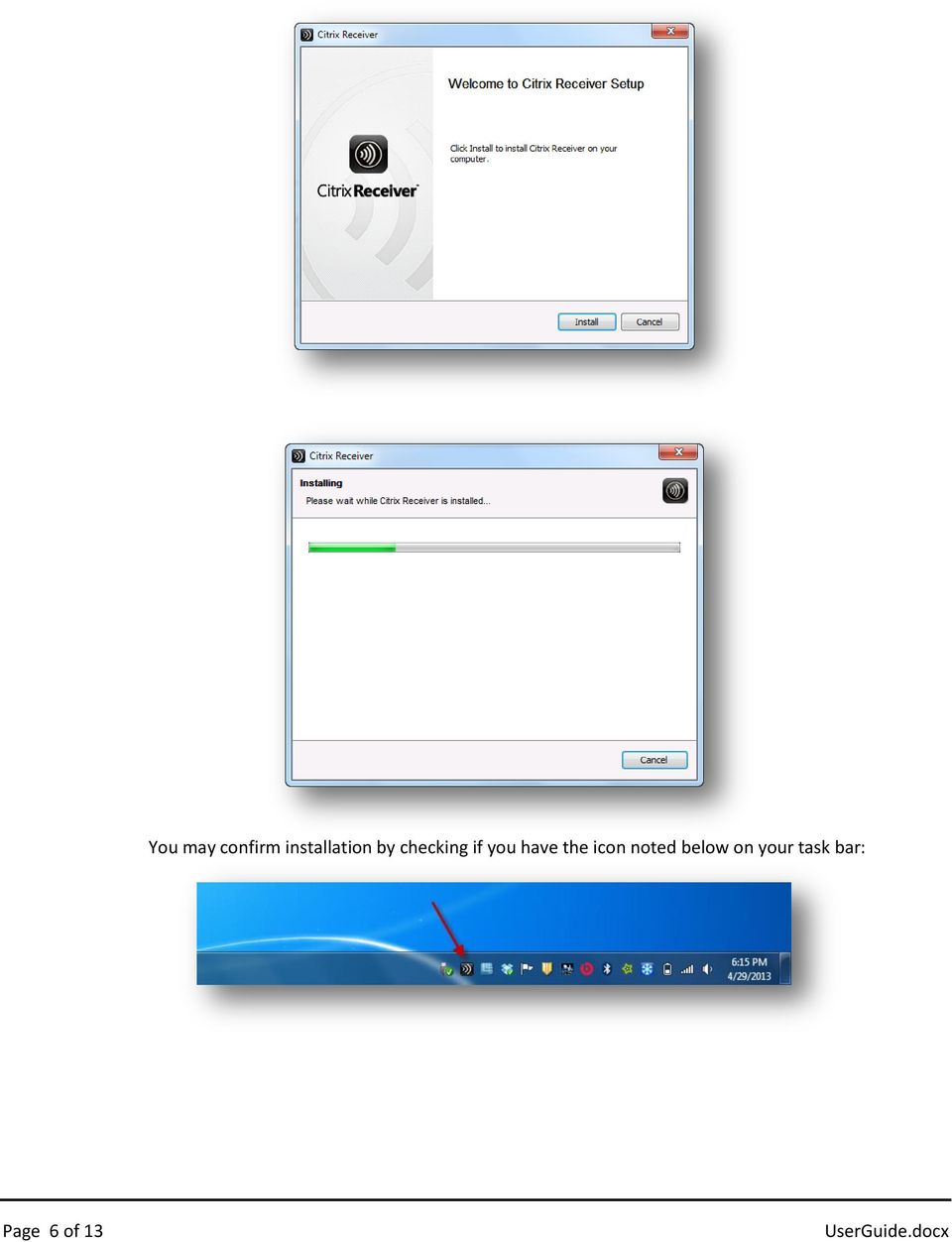
5 CITRIX SOFTWARE INSTALLATION Windows Computer Software Installation NOTE: Please turn off your pop-up blocker on your web browser before proceeding. If you don t have Citrix Receiver installed already, please install the HHS certified version of the Citrix Receiver from our website. Certified means we have validated this version of the Citrix Receiver to work well with our remote access solution. A link to the software download may be found on the main page of our remote access website: (trailing slash is required) From this web page, you can download the Windows Citrix Receiver software as noted below: After you download and save the file (CitrixReceiver.exe), double-click the file to start the installation process. Follow the instructions to install the Citrix Receiver. Sample screen shots follow: Page 5 of 13



6 You may confirm installation by checking if you have the icon noted below on your task bar: Page 6 of 13
7 Apple Computers Software Installation NOTE: Please turn off your pop-up blocker on your web browser before proceeding. Special Note: Google Chrome browser is specifically not supported on devices for purposes of Remote Access. Chrome has shown to be unstable and issue prone. We highly recommend using Safari, or Firefox. Safari is our first recommendation for Macs. Apple computers and laptops have known compatibility issues with our Remote Access solution. This is due primarily to lack of complete support from Citrix. The HHS-IS department has determined that the following setup is the only viable configuration that will consistently work on Mac OS X and yield a reliable user experience: 1. Uninstall all previous installations of Citrix Receiver if any. You can do this by checking to see if Citrix Receiver is available as one of your applications. If it is, please uninstall by dragging the Citrix Receiver to your trash can. 2. Install the Citrix Online Plug-in for Mac version A link to the software download may be found on the main page of our remote access website as noted in the screen shot below: (trailing slash is required) After you download and save the file (CitrixOnlinePlug-in_web11_2.dmg), double-click the file to start the installation process. Follow the instructions to install the plug-in on to your Mac. Page 7 of 13


8 HOW TO SETUP YOUR ACCOUNT & COMPUTER FOR FIRST TIME LOGIN NOTE: Please turn off your pop-up blocker on your web browser before proceeding. Before you begin this task, make sure you have read the Citrix Software Installation section previous, and have already installed the Citrix software necessary for your configuration (Windows or Mac). Otherwise, you will not be able to connect. 1. Navigate to: (Trailing Slash is required) 2. Follow the directions to enter your HHS network Username (aka your Active Directory username). Press Next. 3. Follow the directions to enter your HHS network Password (aka your Active Directory password). Press Next. 4. Follow the directions to setup and create your One Time Password (OTP): Page 8 of 13

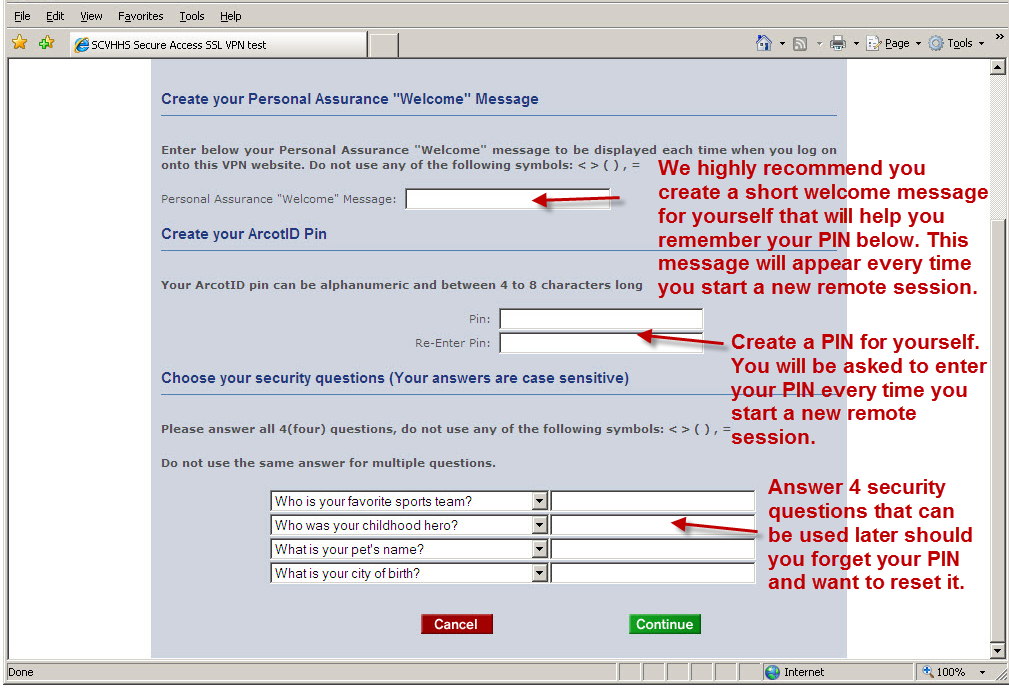
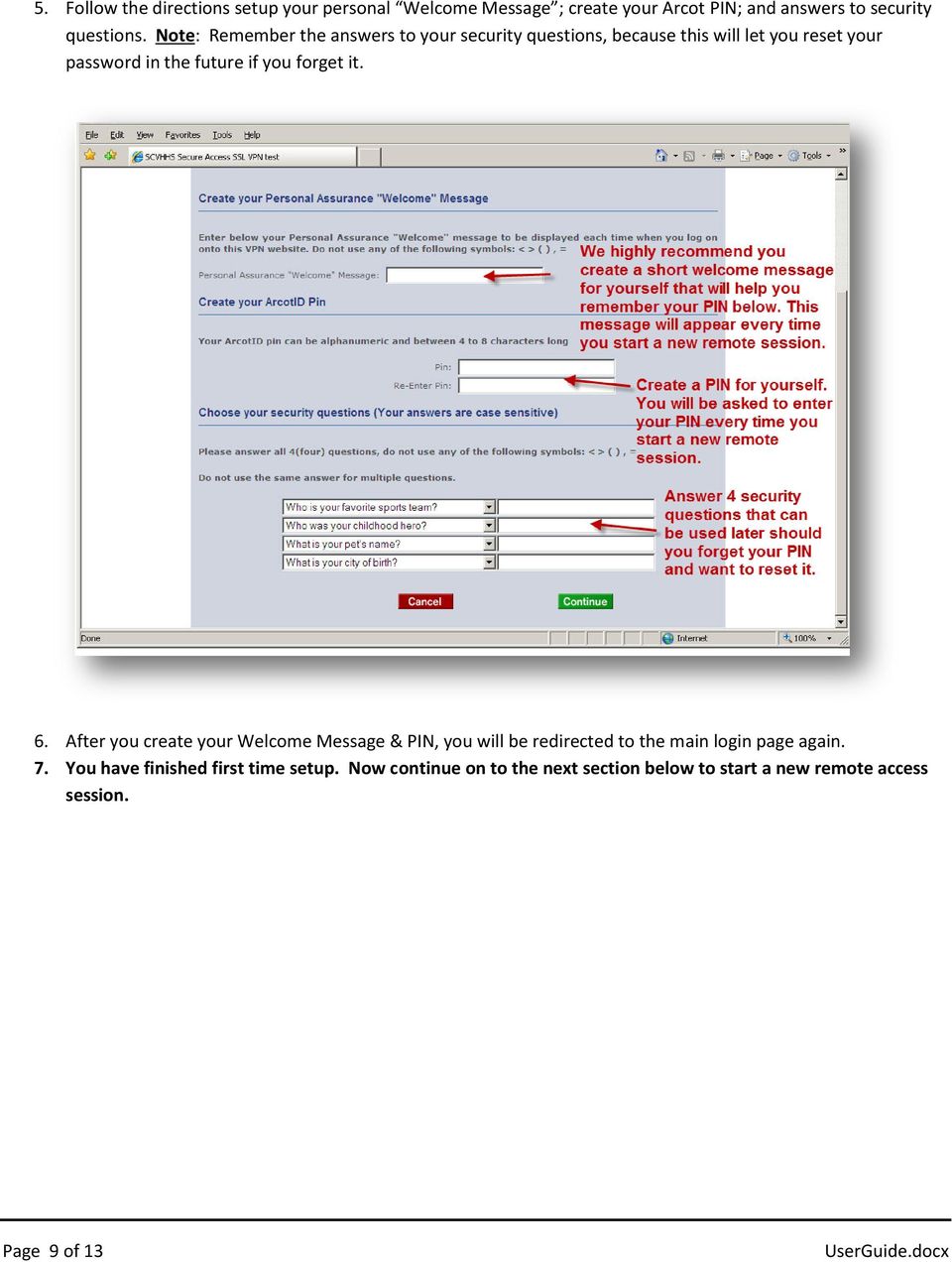
9 5. Follow the directions setup your personal Welcome Message ; create your Arcot PIN; and answers to security questions. Note: Remember the answers to your security questions, because this will let you reset your password in the future if you forget it. 6. After you create your Welcome Message & PIN, you will be redirected to the main login page again. 7. You have finished first time setup. Now continue on to the next section below to start a new remote access session. Page 9 of 13
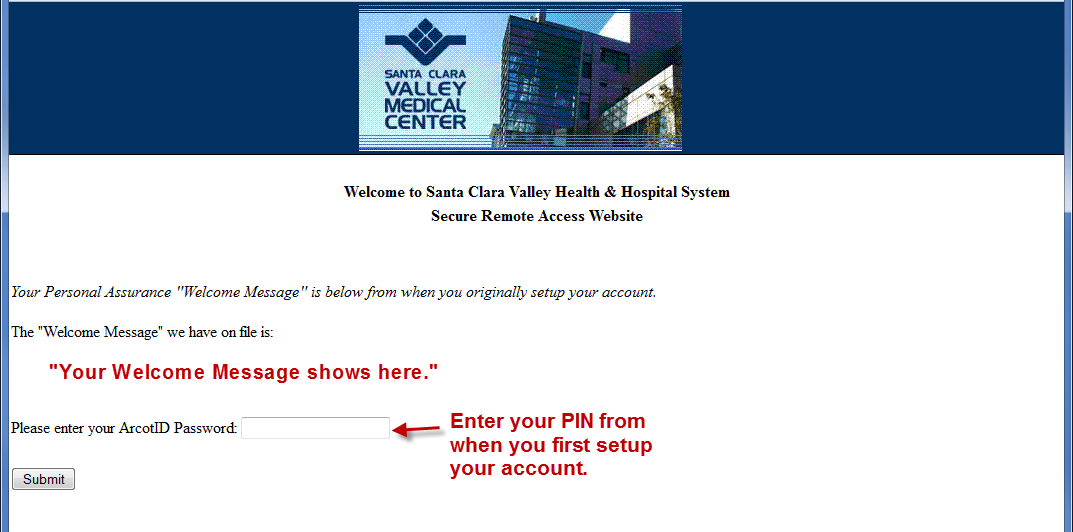
10 HOW TO START A REMOTE ACCESS SESSION NOTE: Please turn off your pop-up blocker on your web browser before proceeding. Before you begin this task, make sure you have completed the prior section on First Time Login. Otherwise, you will not be able to connect. 1. Navigate to: (Trailing Slash is required) 2. Follow the directions to enter your HHS network Username (aka your Active Directory username). Press Next. 3. Enter your PIN you setup in the previous section during First Time Login: Page 10 of 13

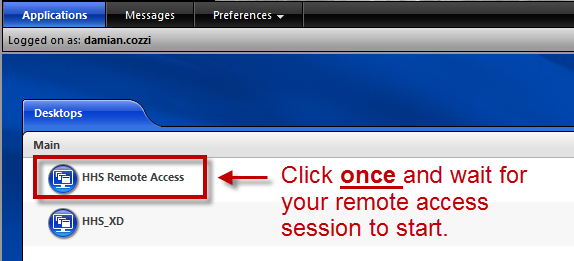

11 4. You will be presented with the Citrix Login page. Use your HHS network Username and HHS network Password: 5. You will be presented the following screen. Click once on the desktop session called HHS Remote Access. It may take a while for the session to launch. Please be patient. Page 11 of 13


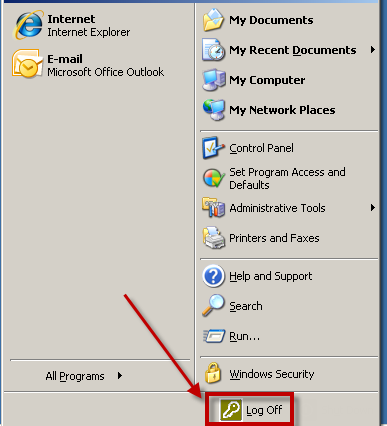
12 6. The next screen to launch will be your Remote Access session: 7. To quit/logoff your remote session, click the START Menu button and click logoff: Things to Note Once Connected You may not cut and paste from your local computer into the remote session, or vice versa. This is a security precaution to protect HHS sensitive information. Printing to your local/home computer is disabled. Again, as a security precaution. Your remote session will not have access to your local/home disk drives, such as your laptop C: drive. This again, is a security precaution. You will see a standard set of icons on the remote session desktop, including ALL personal desktop icons from your HHS work computer. As such, you may see more icons than the picture shown above. Only our standard HHS enterprise wide applications are available on the remote session desktop. For example: Healthlink. Departmental and personal workstation installed applications will not be available on the remote desktop session. It is important to realize you are not remotely connected to your actual work computer. Rather, what you see on the remote access session desktop is a close approximation of your work computer. Page 12 of 13

13 TIPS & HINTS How do I change my Remote Access (ArcotID) password/pin? Follow the directions on the Main Web page. I forgot my password. Same as above. My session keeps disconnecting. o If you are wireless, try to get a better signal. o Make sure you don t have other applications running on your computer while you are connected to Remote Access. o If you have a Mac, make sure you have the Online Plug-in for Mac version 11.2, and make sure you don t also have the Citrix Receiver installed at the same time. The Citrix Receiver should be uninstalled on Mac. The Online Plug-in for Mac version 11.2 is essential for a reliable Mac experience. If you disconnect for any reason you may reconnect within 5 minutes without losing any of your data or changes. If you delete your temporary files or cookies from your browser, you will need to repeat the steps in the section First Time Login. As such we recommend you do not flush your browser history. If you have the Windows or Mac firewall turned on, please make sure you allow all traffic to/from and If that still won t work, then temporarily shut off your firewall. We recommend that you not enable private browsing setting in your browser. This will prevent necessary cookies from being installed as part of the first time login process. HOW TO GET HELP HHS Information Systems maintains a 24x7 Service Desk. If you are experiencing problems that you cannot resolve, please contact our IS Service Desk at: For non-urgent questions, or if you have suggestions or recommendations, please us at: We welcome your suggestions and feedback. [email protected] Page 13 of 13

SHC Client Remote Access User Guide for Citrix & F5 VPN Edge Client
 SHC Client Remote Access User Guide for Citrix & F5 VPN Edge Client Version 1.1 1/15/2013 This remote access end user reference guide provides an overview of how to install Citrix receiver (a required
Carroll Hospital Center
 Carroll Hospital Center Citrix Remote Access What is Citrix? Citrix is a technology that allows you to securely access a published application remotely from any device. Carroll Hospital Center uses this
BT Lancashire Services
 In confidence BT Lancashire Services Remote Access to Corporate Desktop (RACD) Getting Started Guide Working in partnership Confidentiality Statement BT Lancashire Services Certain information given to
Citrix : Remediation - MAC
 Citrix : Remediation - MAC Key Points: 1. 2. 3. 4. 5. 6. 7. Understanding End Point Scan Analysis Supported anti-virus and firewall products Configuring AVAST/SOPHOS and the Mac OS X Firewall Installing
VPN Web Portal Usage Guide
 VPN Web Portal Usage Guide Table of Contents WHAT IS VPN WEB CLIENT 4 SUPPORTED WEB BROWSERS 4 LOGGING INTO VPN WEB CLIENT 5 ESTABLISHING A VPN CONNECTION 6 KNOWN ISSUES WITH MAC COMPUTERS 6 ACCESS INTRANET
Install and End User Reference Guide for Direct Access to Citrix Applications
 Install and End User Reference Guide for Direct Access to Citrix Applications Version 1.0 7/26/2013 This remote access end user reference guide provides an overview of how to install Citrix receiver (a
Remote Access End User Reference Guide for SHC Portal Access
 Remote Access End User Reference Guide for SHC Portal Access Version 2.0 6/7/2012 This remote access end user reference guide provides an overview of how to install Citrix receiver, which is a required
ACCESSING CERNER ON A MAC (October 1, 2012)
 ACCESSING CERNER ON A MAC (October 1, 2012) For any questions regarding these instructions, or for assistance with accessing Cerner from a Mac, iphone or ipad please contact Dr. Behra at [email protected].
Akin Gump Strauss Hauer & Feld LLP Remote Access Resources
 Akin Gump Strauss Hauer & Feld LLP Remote Access Resources Firm Laptop Windows Home PC Mac Computer Apple ipad Android Devices Exit akingump.com 2013 Akin Gump Strauss Hauer & Feld LLP Checkpoint VPN (Firm
isupplygw Site Login Troubleshooting
 Site Login Troubleshooting Tips User name is administrator s email address Password requirements: o Passwords must be at least 8 characters long and can be as long as 30 characters. o Passwords must contain
Remote Access End User Reference Guide for Access to SJLinked Version 1.0 3/11/2014
 Remote Access End User Reference Guide for Access to SJLinked Version 1.0 3/11/2014 Contents Introduction... 2 Installing Citrix Receiver for Windows... 3 Before You Begin... 3 System Requirements... 3
Instructions for installing Citrix Receiver
 Instructions for installing Citrix Receiver Remote Access End User Reference Guide for Access to SJLinked Version 1.0 4/21/2014 Contents Introduction... 2 Installing Citrix Receiver for Windows... 3 Before
mystanwell.com Installing Citrix Client Software Information and Business Systems
 mystanwell.com Installing Citrix Client Software Information and Business Systems Doc No: 020/12 Revision No: Revision Date: Page: 1 of 16 Contents Overview... 3 1. Microsoft Internet Explorer... 3 2.
Remote VPN: Remote access for personal devices
 Remote VPN: Remote access for personal devices Documentation Team. March 2013. About Remote VPN Remote VPN 1 provides staff and students with secure, authenticated remote access to personal and shared
Technology Services Group Procedures. IH Anywhere guide. 0 P a g e
 VDI Pilot Technology Services Group Procedures IH Anywhere guide 0 P a g e Installation Disable Apple Security Table of Contents IH Anywhere for Apple OSX (MAC)... 2 1. Installation... 2 Disable Apple
Access to applications and the network depends on whether or not you are using personal equipment or a Firm-issued laptop or desktop.
 Overview of Help & Tips The new System allows authorized users to log in and access the Firm s network through either Citrix or VPN (also known as Stonegate IPSec VPN). This system incorporates additional
Learning Management System (LMS) Quick Tips. Contents LMS REFERENCE GUIDE
 Learning Management System (LMS) Quick Tips Contents Process Overview... 2 Sign into the LMS... 3 Troubleshooting... 5 Required Software... 5 Mobile devices are not supported... 5 Using the Check System
VPN: Virtual Private Network Setup Instructions
 VPN: Virtual Private Network Setup Instructions Virtual Private Network (VPN): For e-journals and web-based databases, plus applications like EndNote's Online Search (formerly "Connect") and business systems.
Citrix Desktop for Home Computers Apple ios Instructions
 Citrix Desktop for Home Computers Apple ios Instructions You can use Citrix to create and access a virtual work desktop from your home computer. Step 1 Uninstall: To install the newest version of Citrix
Citrix Client Install Instructions
 Citrix Client Install Instructions If you are using Citrix remotely, Information Technology Services recommends updating Citrix client to the newest version available online. You must be an administrator
How to Remotely Access the C&CDHB Network from a Personal Device
 How to Remotely Access the C&CDHB Network from a Personal Device 13/09/2012 Contents Installing the Citrix Receiver for Windows PCs... 2 Installing the Citrix Receiver for Mac OS X... 6 Installing the
Accessing Restricted University Online Resources Using Network Connect. on the Secure Remote Access Service
 Technology Help Desk 412 624-HELP [4357] http://technology.pitt.edu Accessing Restricted University Online Resources Using Network Connect Table of Contents Overview... 1 Connecting to the Secure Remote
Accessing Citrix on a MAC using OS X (Mountain Lion and Newer)
 These instructions are specifically designed for OS X Mountain Lion and Mavericks. Earlier versions of the OS will require a different installation. These instructions assume that there are no Java, Citrix
Using the ScoMIS Remote Access Service (VPN Gateway) to access the ScoMIS SIMS.net Terminal Server Service.
 Using the ScoMIS Remote Access Service (VPN Gateway) to access the ScoMIS SIMS.net Terminal Server Service. The ScoMIS Remote Access Gateway offers a convenient method to connect direct to SIMS.net Terminal
CONNECT-TO-CHOP USER GUIDE
 CONNECT-TO-CHOP USER GUIDE VERSION V8 Table of Contents 1 Overview... 3 2 Requirements... 3 2.1 Security... 3 2.2 Computer... 3 2.3 Application... 3 2.3.1 Web Browser... 3 2.3.2 Prerequisites... 3 3 Logon...
How To Use Senior Systems Cloud Services
 Senior Systems Cloud Services In this guide... Senior Systems Cloud Services 1 Cloud Services User Guide 2 Working In Your Cloud Environment 3 Cloud Profile Management Tool 6 How To Save Files 8 How To
FileZilla: Uploading/Downloading Files to SBI FTP
 FileZilla Download and Installation Instructions FileZilla is a free software that uses SourceForge as an installation provider. SourceForge is bundling the FileZilla software with other products that
Citrix Remote Access Portal U s e r M a n u a l
 Citrix Remote Access Portal U s e r M a n u a l 1 P a g e Table of Contents Table of Contents... 2 Introduction... 3 1. What is Citrix and how does it work?... 4 2. PC Setup/Internet Explorer - Connecting
Using Access.Centegra.Com (Physician Access) Secure Remote Access from the Internet
 System Requirements These are the minimum requirements necessary to ensure the proper operation of Centegra Health System s Access.Centegra.Com. Administrative level access to the PC or other device used
Getting Started with VMware Horizon View (Remote Desktop Access)
 Getting Started with VMware Horizon View (Remote Desktop Access) Use The Links Below To Navigate This Document Using VMware Horizon View with Tablet and Smartphone APP or Mobile Web Browser Walk Through
Instructions for Accessing the Hodges University Virtual Lab
 Instructions for Accessing the Hodges University Virtual Lab Table of Contents Adding the VLAB as a Trusted Site... 3 Accessing the VLAB using Windows 8... 5 Using Internet Explorer and Windows 8 to Access
Installation and Troubleshooting Guide for SSL-VPN CONNECTIONS Access
 Installation and Troubleshooting Guide for SSL-VPN CONNECTIONS Access Version 1 Revised 11/29/2007 Table of Contents Java Installation:...4 Browser Configuration:...4 Citrix Client Installation:...8 Attempting
http://vpn.madeleyacademy.com
 Madeley Academy Remote Access http://vpn.madeleyacademy.com Members of Staff and Sixth form students are able to log into the shared and their user areas from home. System requirements Antivirus Trusted
Quick User Guide. The KLZ Home Page www.klz.org.uk
 Revised June 2014 Secure Online Communication Zone Quick User Guide This quick user guide provides the basic information that is needed for users to get the best experience from using KLZ. It explains
Medstar Health Dell Services
 Medstar Health Dell Services Non Medstar Device Citrix Connectivity Guide October 2012 Sean Kaminski Dell Services System Admin Consultant 1 Table of Contents Overview...3 What is Citrix and why do I need
How to use Mints@Home
 How to use Mints@Home Citrix Remote Access gives Mints users the ability to access University Of Cambridge and MINTS resources from any computer, anywhere in the world,. The service requires a high-speed
Remote Working from a Mac computer
 Remote Working from a Mac computer Prepared by: Bonnie Cheng Version: 1.0 26 th June 2014 Table of Contents Introduction...3 Installing the Citrix Client...3 Working Remotely Via Citrix...5 Printing from
Are you having trouble logging in with a Username that contains special characters or spaces?
 Troubleshooting Guide Forgot your Username or Password? Are you having trouble logging in with a Username that contains special characters or spaces? Can t launch a course in InfoComm University? Can t
Guide: Using Citrix for Home/ Office
 Guide: Using Citrix for Home/ Office Contents Important information about disconnecting from Citrix 1 How to access Citrix Site 2 How to install Citrix Receiver for Home/ Personal Device (ipad, android
Akin Gump Strauss Hauer & Feld LLP Remote Access Resources (DUO)
 Akin Gump Strauss Hauer & Feld LLP Remote Access Resources (DUO) Firm Laptop Windows Home PC Mac Computer Apple ipad Android Devices Exit akingump.com 2015 Akin Gump Strauss Hauer & Feld LLP Check Point
Senior Systems Cloud Services
 Senior Systems Cloud Services In this guide... Senior Systems Cloud Services 1 Cloud Services User Guide 2 Working In Your Cloud Environment 3 Cloud Profile Management Tool 6 How To Save Files 8 How To
Remote Access Services Microsoft Windows - Installation Guide
 Remote Access Services Microsoft Windows - Installation Guide Version 3.1 February 23, 2015 1 P age Contents GETTING STARTED... 3 JAVA VERIFICATION, INSTALLATION, AND CONFIGURATION... 3 Windows XP... 3
How To Sync Google Drive On A Mac Computer With A Gmail Account On A Gcd (For A Student) On A Pc Or Mac Or Mac (For An Older Person) On An Ipad Or Ipad (For Older People) On
 Installation and Setup of Google Drive for Students on Mac OS X Purpose: This guide will lead you through the Google Drive Installation and Configuration. Pre-requisites: 1) ODU Student Gmail account 2)
How To Install A Cisco Vpn Client V4.9.9 On A Mac Or Ipad (For A University)
 Cisco VPN Client v4.9.x for Mac OS X 10.4-10.5.x: Installation and Usage Guide Revised July 2009 by UTHSCSA IMS Departments of Client Support Services and Systems & Network Operations INTRODUCTION If you
VPN User Guide. For Mac
 VPN User Guide For Mac System Requirements Operating System: Mac OSX. Internet Browser: Safari (Firefox and Google Chrome are NOT currently supported). Disclaimer Your computer must have the system requirements
PC Troubleshooting Steps
 PC Troubleshooting Steps This FAQ is designed to help PC users to go through various troubleshooting steps to allow them to view the FerrisConnect Learn/Vista sites appropriately. Compatible Browsers Check
INSTALLING MÜSE UPDATES FOR ISTAN
 INSTALLING MÜSE UPDATES FOR ISTAN System updates are available periodically and can be downloaded using any computer with an Internet connection. CAE Healthcare Instructor Workstations should NOT be connected
Student Access Reference Guide
 Student Access Reference Guide Table of Contents Student Access Overview... 2 Logging on to the Student Portal... 3 Password Security Question Setup... 4 Need Help Signing In... 6 Navigating the Student
VPN User Guide. For Mac
 VPN User Guide For Mac System Requirements Operating System: Mac OSX. Internet Browser: Safari (Firefox and Google Chrome are NOT currently supported). Disclaimer Your computer must have the system requirements
Flexible Identity Federation
 Flexible Identity Federation User guide version 1.0.1 Publication History Date Description Revision 2015.09.25 initial release 1.0.0 2015.12.10 minor corrections 1.0.1 Copyright Orange Business Services
How To Use A Citrix Netscaler Thin Client V1.09.10.1 (Windows) With A Citirix Vpn Desktop (Windows 10) With An Ipad Or Ipad (Windows 8) With Vpn
 Our Mission Statement To ensure that we are providing quality and efficient services and solutions that are consistent with the strategic goals of the Area, and that are closely aligned with the State's
HWS Virtual Private Network Configuration and Setup Mac OS X 12/19/2006
 The VPN connection supports mainly access to the HWS network drives, not streaming audio/video or downloading large amounts of data. Contents Before Connecting via VPN Before setting up a Virtual Private
MRU Secure Remote Access Service (SRAS) External User Guide
 MRU Secure Remote Access Service (SRAS) External User Guide The MRU Secure Remote Access Service (SRAS) allows MRU approved vendor and external clients restricted remote access to MRU internal computing
Student Desktop@ Home
 Student Desktop@ Home Full Off Campus Access to your Programs and Files Full Access to the University from Home You can access the University from any computer with an internet connection. This system
Printing using the wireless network Mac OS X
 Wireless network instructions Printing using the wireless network Note: This guide is for wireless printing on the UoA-WiFi network using built-in Airport card and Safari. Connecting to UoA-WiFi To print
Instructions for Department of Public Health (DPH) WebConnect (Mac)
 Instructions for Department of Public Health (DPH) WebConnect (Mac) UCSF at SFGH Computing and Network Services Hours of Operation: Monday Friday 8 AM to 5PM Pacific Time Website: http://tiny.ucsf.edu/sfghcns
Student Getting Started Guide
 with with Student Getting Started Guide TABLE OF CONTENTS Table of Contents FIRST STEPS TO ENSURE SUCCESS... 3 Ensure System Requirements are met on Your Computer... 3 Find Out Which Operating System Is
Using desktop ANYWHERE
 Using desktop ANYWHERE A facility for students and staff which provides access to University IT facilities from most computers which have a connection to the Internet. Using a web browser you can access:
Verizon Remote Access User Guide
 Version 17.12 Last Updated: August 2012 2012 Verizon. All Rights Reserved. The Verizon names and logos and all other names, logos, and slogans identifying Verizon s products and services are trademarks
MetroHealth Information Services
 METROHEALTH SSLVPN INSTALLATION INSTRUCTIONS REQUIREMENTS:... 2 VPN INSTALLATION... 3 OK, I M CONNECTED NOW WHAT DO I DO?... 5 Set up a connection to the Application Portal:... 5 Logging off the VPN Clinical
Access the TCNJ Palo Alto Networks VPN using the GlobalProtect VPN client
 Access the TCNJ Palo Alto Networks VPN using the GlobalProtect VPN client June 2014 Table of Contents Introduction 1 Determine the Windows Operating System Version 2 Install the GlobalProtect VPN client
GrandView. Web Client Software Requirements and Recommendations. Revision 2012.9.26
 GrandView Web Client Software Requirements and Recommendations Revision 2012.9.26 RoviSys 1455 Danner Drive Aurora, OH 44202 330-562-8600 grandviewbusinesssolutions.com TABLE OF CONTENTS Introduction...
Citrix Introduction and FAQs
 Citrix Introduction and FAQs Introduction to Citrix... 2 Why should I use this?... 2 What about Support?... 2 What browser should I use?... 2 Known Issues... 2 System Requirements for Windows-based computers...
DAY OF TESTING GUIDE. Contact Information. Websites. Please do not bookmark the Proctor Interface or the Student Interface.
 DAY OF TESTING GUIDE Contact Information General Contact [email protected] (212) 217-0700 ITS Technical Support Monday-Friday, 8AM-8PM ET (800) 514-8494 Outside of business and weekends, press 1 to be taken
VPN User Guide. For PC
 VPN User Guide For PC System Requirements Operating System: Windows XP, Windows Vista, or Windows 7. (Windows 8 is not officially supported, but does work for some users.) Internet Browser: Internet Explorer
MRU Secure Remote Access Service (SRAS) External User Guide
 MRU Secure Remote Access Service (SRAS) External User Guide The MRU Secure Remote Access Service (SRAS) allows MRU approved vendors and external clients, restricted remote access to internal computing
Connecting to Pitt s SRemote VPN Using Windows Vista / Windows 7 January 2012
 Connecting to Pitt s SRemote VPN Using Windows Vista / Windows 7 January 2012 In order to access the LRDC file server remotely/off campus, or from Wireless Pittnet, you must first authenticate to LRDC
Windows and MAC User Handbook Remote and Secure Connection Version 1.01 09/19/2013. User Handbook
 Windows and MAC User Handbook How to Connect Your PC or MAC Remotely and Securely to Your U.S. Department of Commerce Account Developed for You by the Office of IT Services (OITS)/IT Service Desk *** For
HDDtoGO. User Guide. User Manual Version 3.4 2004-2010 CoSoSys SRL 2010 A-DATA Technology Co., Ltd. HDDtoGO User Manual
 HDDtoGO User Guide User Manual Version 3.4 2004-2010 CoSoSys SRL 2010 A-DATA Technology Co., Ltd. HDDtoGO User Manual Table of Contents Table of Contents...1 1. Introduction...2 2. System Requirements...3
How to Install the Cisco AnyConnect VPN Client. Installing Cisco AnyConnect VPN Client on Windows with the Chrome Browser (Recommended)
 How to Install the Cisco AnyConnect VPN Client Instructions for Windows (Chrome Browser - Recommended) Instructions for Windows (Internet Explorer with Java) Instructions for Mac OS (Chrome Browser) Installing
Online Backup Client User Manual Mac OS
 Online Backup Client User Manual Mac OS 1. Product Information Product: Online Backup Client for Mac OS X Version: 4.1.7 1.1 System Requirements Operating System Mac OS X Leopard (10.5.0 and higher) (PPC
Online Backup Client User Manual Mac OS
 Online Backup Client User Manual Mac OS 1. Product Information Product: Online Backup Client for Mac OS X Version: 4.1.7 1.1 System Requirements Operating System Mac OS X Leopard (10.5.0 and higher) (PPC
Mariemont City Schools
 Mariemont City Schools Citrix Virtual Desktop Environment Citrix is a virtual desktop system that allows users to access their Mariemont Windows 7 desktop from anywhere with an Internet connection. Once
Portal Instructions for Mac
 Portal Instructions for Mac Table of Contents Introduction... 1 Preparing Safari... 2 Advanced Access Instructions... 3 Installing Java... 3 Setting the Default Browser... 3 Installing the Browser Plug-in...
Internet and Email Help. Table of Contents:
 Internet and Email Help The following tips are provided to assist you in troubleshooting and managing your Plex Internet and email services. For additional issues or concerns, you may also call our Product
Basic Citrix Manual. Apple Computers and Laptops. Version 1.3. Created by Joshua Lindemann
 Basic Citrix Manual Version 1.3 Created by Joshua Lindemann Table of Contents Technology Services Help Desk... 3 Background... 4 Citrix Virtual Environment... 4 Wireless Access... 4 Security... 4 Configuring
This document also includes steps on how to login into HUDMobile with a grid card and launch published applications.
 Office of the Chief Information Officer Information Technology Division COMPUTER SELF-HELP DESK - TRAINING TIPS AND TRICKS HUDMOBILE ON HOME MACS This document is a step-by-step instruction to check or
Remote Access. Remote Access Start-up Guide. Non Cheshire East Council PC s/laptops. Page 0
 Remote Access Remote Access Start-up Guide Non Cheshire East Council PC s/laptops Page 0 Page 1 1. Getting Started NGD provides easy access to all your Cheshire East documents and applications whilst not
Dial-up Installation for CWOPA Users (Windows Operating System)
 Dial-up Installation for CWOPA Users (Windows Operating System) 1 Table of Contents Download and Install Digital Certificates... 3 Internet Explorer 8/9 Certificate Installation.3 Windows XP Instructions
Basic Citrix Manual. Windows Computers and Laptops. Version 1.3. Created by Joshua Lindemann
 Basic Citrix Manual Version 1.3 Created by Joshua Lindemann Table of Contents Technology Services Help Desk... 3 Background... 4 Citrix Virtual Environment... 4 Wireless Access... 4 Security... 4 Configuring
Sale Grammar School Remote Desktop Services User Instructions
 Sale Grammar School Remote Desktop Services User Instructions Sale Grammar School Remote Desktop Services allows Staff and Students access to a virtual school computer while connected to the internet at
Remote Access. Connecting to your computer from home
 Remote Access Connecting to your computer from home IT Desktop Support Client and Research Services October 2009 2 Contents Overview 3 Windows 4 Setup 4 Remote Desktop 4 From work 4 From home 4 Installing
SSL VPN Support Guide
 Page 1 SSL VPN Support Guide Revision date: 4/16/14 Page 2 Table of Contents Before calling the Service Desk..pg 3 What the Service Desk can assist users with. pg 4 Instructions for PC users (Internet
SSL VPN Support Guide
 P a g e 1 SSL VPN Support Guide Revision date: 5/4/10 P a g e 2 Table of Contents Before calling the Support Desk..pg 3 What the Support Desk can assist users with. pg 4 Instructions for PC users (Internet
Preparing your MAC Computer to access QuickBooks Hosted with the Citrix Receiver or Online Plugin
 Please Note: While we try to provide you with the solution you need, we can t promise that the information set out below is totally error free or will necessarily resolve any problem you may have. Preparing
How to connect to the DGL Practice Manager Cloud Server from an Apple Mac
 How to connect to the DGL Practice Manager Cloud Server from an Apple Mac Connecting to the DGL Practice Manager Hosted Servers requires the use of the "Microsoft Remote Desktop Client" application, which
Mac OS X: INSTALLING TUNNELBLICK
 Mac OS X: INSTALLING TUNNELBLICK 1. Download "Tunnelblick" for Mac OS X from the UWG VPN website. Go to http://vpn.westga.edu. You will find a link to the installation file on the right hand side of the
Connecting to the Staff Desktop Service
 Connecting to the Staff Desktop Service Access your programs and files just like you were in the office Get Setup The first step to use our Remote Connection service is to check that you have the free
EURECOM VPN SSL for students User s guide
 EURECOM VPN SSL for students User s guide Table of Contents Introduction... 2 Login process... 2 Portail main page... 2 Prerequisite... 2 RSA SecurId software token... 3 First usage of RSA SecurID token...
Note: Password must be 7-16 characters and contain at least one uppercase letter and at least one number.
 Krowd Technical FAQ TEAM MEMBERS If you need assistance with krowd, please call the TEAM MEMBER Help Desk at 800-832-7336. We want to hear your suggestions and feedback! Please join the krowd Source community
NS Financials. Client Platform Guide for Mac Using Safari Incl Citrix Setup As A Local Client
 NS Financials Client Platform Guide for Mac Using Safari Incl Citrix Setup As A Local Client This document describes how to access the NS Financials system through Safari on an Apple Mac and outlines the
Edith Cowan University Information Technology Services Centre
 Introduction The following guide will provide instructions on how to map a network drive on your laptop/desktop computer. Prerequisites You will need to know your ADS username (and password if you re connecting
SAGE Secure Browser Frequently Asked Questions
 SAGE Secure Browser Frequently Asked Questions How often will there be auto-updates to the secure browser? Our goal is that the secure browser will continue to be updated once a year. However, updates
Computer Science and Engineering MacOS Cisco VPN Client Installation and Setup Guide
 Computer Science and Engineering MacOS Cisco VPN Client Installation and Setup Guide Contents Installation: For users who have no prior Cisco VPN Client Installed... 2 Profile Import:... 4 Usage:... 4
A Guide to the Tufts Network School of Arts and Sciences School of Engineering Fletcher School of Law and Diplomacy
 A Guide to the Tufts Network School of Arts and Sciences School of Engineering Fletcher School of Law and Diplomacy What the Tufts Network has to Offer The Tufts network allows you access to your personal
SURPASS HOSTING SERVICE GETTING STARTED AND OPERATIONS GUIDE
 SURPASS HOSTING SERVICE GETTING STARTED AND OPERATIONS GUIDE Welcome To Surpass Hosting Service. This document contains instructions to help you get up and running with your new service. The instructions
Citrix XenApp 6.5 User Guide. For Windows and OS X
 Citrix XenApp 6.5 User Guide For Windows and OS X Table of Contents Target Audience... 3 Prerequisites... 3 Windows:... 3 OS X:... 3 Installing Client... 4 Downloading the Client:... 4 Launching the Installer...