
unisys Enterprise Server ES7000 Model 7600R G2 Integrated Management Module User s Guide imagine it. done. June
|
|
|
- Cody Caldwell
- 10 years ago
- Views:
Transcription
1 unisys imagine it. done. Enterprise Server ES7000 Model 7600R G2 Integrated Management Module User s Guide June

2 NO WARRANTIES OF ANY NATURE ARE EXTENDED BY THIS DOCUMENT. Any product or related information described herein is only furnished pursuant and subject to the terms and conditions of a duly executed agreement to purchase or lease equipment or to license software. The only warranties made by Unisys, if any, with respect to the products described in this document are set forth in such agreement. Unisys cannot accept any financial or other responsibility that may be the result of your use of the information in this document or software material, including direct, special, or consequential damages. You should be very careful to ensure that the use of this information and/or software material complies with the laws, rules, and regulations of the jurisdictions with respect to which it is used. The information contained herein is subject to change without notice. Revisions may be issued to advise of such changes and/or additions. Notice to U.S. Government End Users: This is commercial computer software or hardware documentation developed at private expense. Use, reproduction, or disclosure by the Government is subject to the terms of Unisys standard commercial license for the products, and where applicable, the restricted/limited rights provisions of the contract data rights clauses. Copyright IBM Corporation Portions copyright Unisys Corporation Unisys is a registered trademark of Unisys Corporation in the United States and other countries. All other brands and products referenced in this document are acknowledged to be the trademarks or registered trademarks of their respective holders.

3 Contents Section 1. Introduction Documentation Updates IMM features Web browser and operating-system requirements Notices used in this book Section 2. Opening and using the IMM Web interface Accessing the IMM Web interface Setting up the IMM network connection through the Setup utility Logging in to the IMM IMM action descriptions Section 3. Configuring the IMM Setting system information Setting server timeouts Setting the IMM date and time Synchronizing clocks in a network Disabling the USB in-band interface Creating a login profile Deleting a login profile Configuring the global login settings Configuring remote alert settings Configuring remote alert recipients Configuring global remote alert settings Configuring SNMP alert settings Configuring serial port settings Serial-to-Telnet or SSH redirection Configuring port assignments Configuring network interfaces Configuring network protocols Configuring SNMP Configuring DNS Configuring Telnet Configuring SMTP iii

4 Contents Configuring LDAP Setting up a client to use the LDAP server Configuring LDAP client authentication Configuring LDAP search attributes Service Location Protocol (SLP) Configuring security Secure Web server and secure LDAP SSL certificate overview SSL server certificate management Enabling SSL for the secure Web server SSL client certificate management SSL client trusted certificate management Enabling SSL for the LDAP client Configuring the Secure Shell server Generating a Secure Shell server key Enabling the Secure Shell server Using the Secure Shell server Using the configuration file Backing up your current configuration Restoring and modifying your IMM configuration Restoring defaults Restarting IMM Logging off Section 4. Monitoring server status Viewing system status Viewing the Virtual Light Path Viewing the event logs Viewing the system-event log from the Web interface Viewing event logs from the Setup utility Viewing event logs without restarting the server Viewing vital product data Section 5. Performing IMM tasks Viewing server power and restart activity Controlling the power status of a server Remote presence Updating your IMM firmware and Java applet Enabling the remote presence function Remote control Remote control screen capture Remote control Video Viewer view modes iv
5 Contents Remote control video color mode Remote control keyboard support International keyboard support Keyboard pass-through mode Remote control mouse support Absolute and relative mouse control Single cursor mode Remote power control Viewing performance statistics Starting Remote Desktop Protocol Remote disk Accessing the Remote Control Mounting Images Using a Remote Desktop Connection Exiting Remote Control Setting up PXE network boot Updating firmware Resetting the IMM with the Setup utility Managing tools and utilities with IMM and Server firmware Using IPMItool Using Advanced Settings Utility (ASU) Other methods for managing the IMM Section 6. LAN over USB Potential conflicts with the LAN over USB interface Resolving conflicts with the IMM LAN over USB interface Configuring the LAN over USB interface manually Installing device drivers Installing the Windows IPMI device driver Installing the LAN over USB Windows device driver Installing the LAN over USB Linux device driver Section 7. Command-line interface Managing the IMM using IPMI Accessing the command line Logging in to the command-line session Command syntax Features and limitations Utility commands exit command help command history command Monitor commands v
6 Contents clearlog command fans command readlog command syshealth command temps command volts command vpd command Server power and restart control commands power command reset command Serial redirect command console command Configuration commands dhcpinfo command ifconfig command ldap command ntp command passwordcfg command portcfg command srcfg command ssl command timeouts command usbeth command users command IMM control commands clearcfg command clock command identify command resetsp command update command Appendix A. Services and Support Unisys eservice Portal A 1 Product Support Knowledge Base A 1 Warranty A 2 Services Overview A 2 Service Tasks and Responsibilities A 2 Hardware Maintenance A 3 Web Resources A 3 Appendix B. Notices Important notes B 1 vi
7 Contents Particulate contamination B 1 German Ordinance for Work gloss statement B 2 Electronic emission notices B 3 Federal Communications Commission (FCC) statement B 3 Industry Canada Class A emission compliance statement B 3 Avis de conformité à la réglementation d Industrie Canada B 3 Australia and New Zealand Class A statement B 3 European Union EMC Directive conformance statement B 3 Germany Class A statement B 4 Japan VCCI Class A statement B 5 Japan Electronics and Information Technology Industries Association (JEITA) statement B 5 Korean Communications Commission (KCC) statement.. B 5 Russia Electromagnetic Interference (EMI) Class A statement B 5 People s Republic of China Class A electronic emission statement B 6 Taiwan Class A compliance statement B 6 Index vii
8 Contents viii

9 Tables 2 1. IMM actions Reserved port numbers Functions on the Advanced Ethernet Setup page IMM SSL connection support Methods for viewing event logs Machine-level vital product data Component-level vital product data Component activity log IMM, UEFI, and DSA firmware vital product data B 1. Limits for particulates and gases B ix

10 Tables x

11 Section 1 Introduction The integrated management module (IMM) consolidates the service processor functionality, Super I/O, video controller, and remote presence capabilities in a single chip on the server system board. The IMM provides the following features: Choice of dedicated or shared Ethernet connection. One IP address for both the Intelligent Platform Management Interface (IPMI) and the service processor interface. Embedded Dynamic System Analysis (DSA). Ability to locally or remotely update other entities without requiring a server restart to initiate the update process. Remote configuration with Advanced Settings Utility (ASU). Capability for applications and tools to access the IMM either in-band or out-of-band. Enhanced remote-presence capabilities. The firmware included with this server is an implementation of Unified Extensible Firmware Interface (UEFI). It offers several features, such as UEFI 2.1 compliance, iscsi compatibility, and enhanced reliability and service capabilities. The Setup utility provides server information, server setup, customization compatibility, and establishes the boot device order. Note: Server firmware is occasionally called UEFI, in this document. Server firmware is fully compatible with non-uefi operating systems. For more information about using Server firmware, refer to the Problem Determination and Service Guide located on the ES7000 Model 7600R G2 Support Web site. This document explains how to use the functions of the IMM in a Unisys server. The IMM works with server firmware to provide systems-management capability for your system. This document does not contain explanations of errors or messages. IMM errors and

12 Introduction messages are described in the Problem Determination and Service Guide. If firmware and documentation updates are available, you can download them from the Unisys Web site. The IMM might have features that are not described in the documentation, and the documentation might be updated occasionally to include information about those features, or technical updates might be available to provide additional information that is not included in the IMM documentation. To check for firmware and documentation updates, go to the ES7000 Model 7600R G2 Support Site. Documentation Updates This document contains all the information that was available at the time of publication. Changes identified after release of this document are included in problem list entry (PLE) To obtain a copy of the PLE, contact your service representative or access the current PLE from the product support Web site: Note: If you are not logged into the product support site, you will be asked to do so. IMM features The IMM provides the following functions: Around-the-clock remote access and management of your server Remote management independent of the status of the managed server Remote control of hardware and operating systems Web-based management with standard Web browsers IMM has the following features. Access to critical server settings Access to server vital product data (VPD) Advanced Predictive Failure Analysis (PFA) support Automatic notification and alerts Continuous health monitoring and control Choice of a dedicated or shared Ethernet connection Domain Name System (DNS) server support Dynamic Host Configuration Protocol (DHCP) support alerts Embedded Dynamic System Analysis (DSA)
13 Introduction Enhanced user authority levels LAN over USB for in-band communications to the IMM Event logs that are time stamped, saved on the IMM, and can be attached to alerts Industry-standard interfaces and protocols OS watchdogs Remote configuration through Advanced Settings Utility (ASU) Remote firmware updating Remote power control Seamless remote accelerated graphics Secure Web server user interface Serial over LAN Server console redirection Simple Network Management Protocol (SNMP) support User authentication using a secure connection to a Lightweight Directory Access Protocol (LDAP) server Remote presence, including the remote control of a server Operating-system failure screen capture and display through the Web interface Remote disk, which enables the attachment of a diskette drive, CD/DVD drive, USB flash drive, or disk image to a server Web browser and operating-system requirements The IMM Web interface requires the Java Plug-in 1.5 or later (for the remote presence feature) and one of the following Web browsers: Microsoft Internet Explorer version 6.0 or later with the latest Service Pack Mozilla Firefox version 1.5 or later The following server operating systems have USB support, which is required for the remote presence feature: Microsoft Windows Server 2008 Microsoft Windows Server 2003 Red Hat Enterprise Linux versions 4.0 and 5.0 SUSE Linux version 10.0 Novell NetWare 6.5 Note: The IMM Web interface does not support the double-byte character set (DBCS) languages

14 Introduction Notices used in this book The following notices are used in the documentation: Note: These notices provide important tips, guidance, or advice. Important: These notices provide information or advice that might help you avoid inconvenient or problem situations. Attention: These notices indicate potential damage to programs, devices, or data. An attention notice is placed just before the instruction or situation in which damage might occur

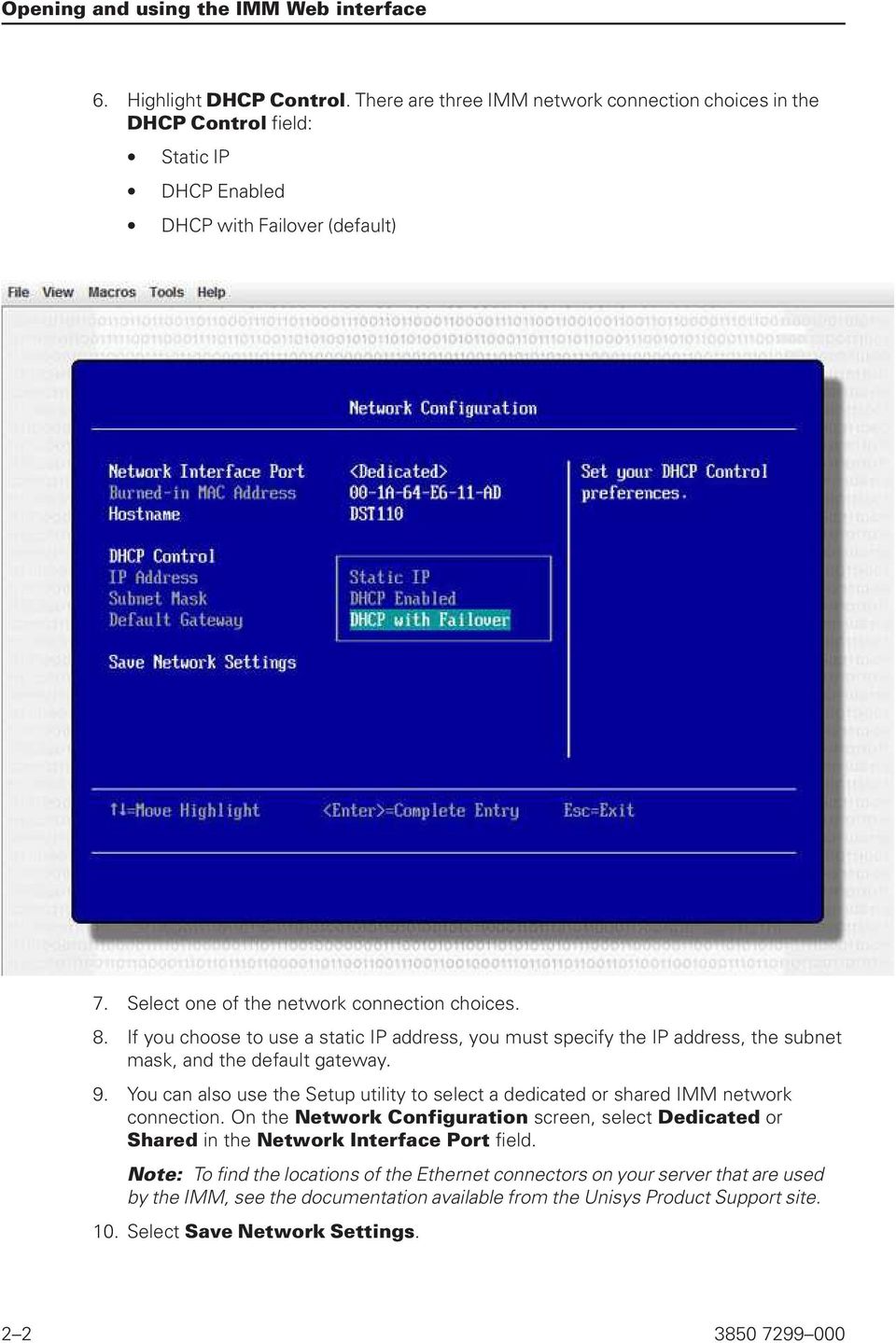
15 Section 2 Opening and using the IMM Web interface The IMM combines service processor functions, a video controller, and remote presence function (when an optional virtual media key is installed) in a single chip. To access the IMM remotely by using the IMM Web interface, you must first log in. This chapter describes the login procedures and the actions that you can perform from the IMM Web interface. Accessing the IMM Web interface The IMM supports both static and Dynamic Host Configuration Protocol (DHCP) IP addressing. The default static IP address assigned to the IMM is The IMM is initially configured to attempt to obtain an address from a DHCP server, and if it cannot, it uses the static IP address. The IMM provides the choice of using a dedicated systems-management network connection or one that is shared with the server. The default connection for rack-mounted and tower servers is to use the dedicated systems-management network connector. Setting up the IMM network connection through the Setup utility After you start the server, you can use the Setup utility to select an IMM network connection. The server with the IMM hardware must be connected to a Dynamic Host Configuration Protocol (DHCP) server, or the server network must be configured to use the IMM static IP address. To set up the IMM network connection through the Setup utility, complete the following steps: 1. Turn on the server. Note: Approximately 2 minutes after the server is connected to ac power, the power-control button becomes active. The welcome screen is displayed. 2. When the prompt <F1> Setup is displayed, press F1. If you have set both a power-on password and an administrator password, you must type the administrator password to access the full Setup utility menu. 3. From the Setup utility main menu, select System Settings. 4. On the next screen, select Integrated Management Module. 5. On the next screen, select Network Configuration

16 Opening and using the IMM Web interface 6. Highlight DHCP Control. There are three IMM network connection choices in the DHCP Control field: Static IP DHCP Enabled DHCP with Failover (default) 7. Select one of the network connection choices. 8. If you choose to use a static IP address, you must specify the IP address, the subnet mask, and the default gateway. 9. You can also use the Setup utility to select a dedicated or shared IMM network connection. On the Network Configuration screen, select Dedicated or Shared in the Network Interface Port field. Note: To find the locations of the Ethernet connectors on your server that are used by the IMM, see the documentation available from the Unisys Product Support site. 10. Select Save Network Settings
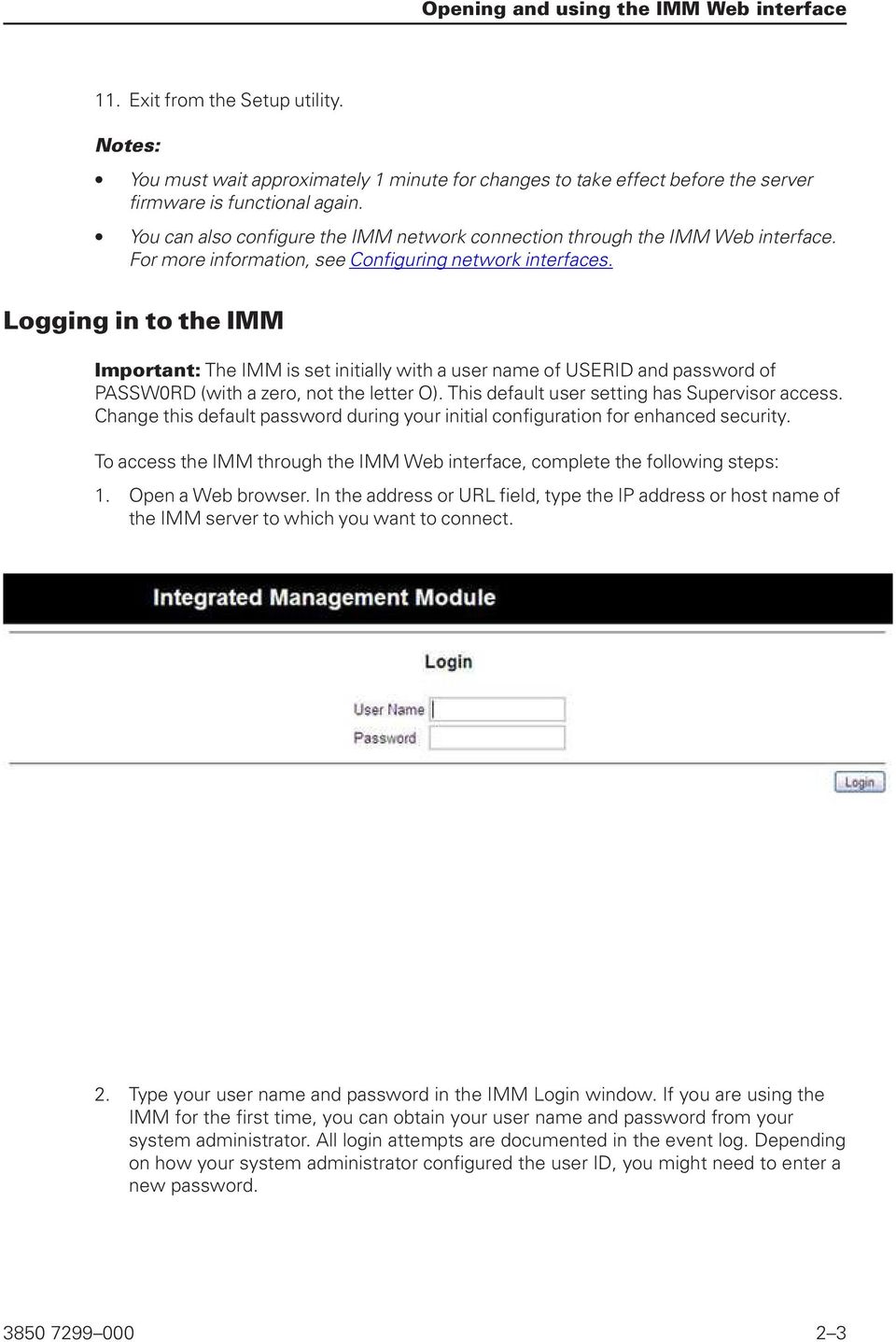
17 Opening and using the IMM Web interface 11. Exit from the Setup utility. Notes: You must wait approximately 1 minute for changes to take effect before the server firmware is functional again. You can also configure the IMM network connection through the IMM Web interface. For more information, see Configuring network interfaces. Logging in to the IMM Important: The IMM is set initially with a user name of USERID and password of PASSW0RD (with a zero, not the letter O). This default user setting has Supervisor access. Change this default password during your initial configuration for enhanced security. To access the IMM through the IMM Web interface, complete the following steps: 1. Open a Web browser. In the address or URL field, type the IP address or host name of the IMM server to which you want to connect. 2. Type your user name and password in the IMM Login window. If you are using the IMM for the first time, you can obtain your user name and password from your system administrator. All login attempts are documented in the event log. Depending on how your system administrator configured the user ID, you might need to enter a new password
18 Opening and using the IMM Web interface 3. On the Welcome Web page, select a timeout value from the drop-down list in the field that is provided. If your browser is inactive for that number of minutes, the IMM logs you off the Web interface. Note: Depending on how your system administrator configured the global login settings, the timeout value might be a fixed value. 4. Click Continue to start the session. The browser opens the System Status page, which gives you a quick view of the server status and the server health summary. For descriptions of the actions that you can perform from the links in the left navigation pane of the IMM Web interface, see IMM action descriptions. Then, go to Section 3, Configuring the IMM

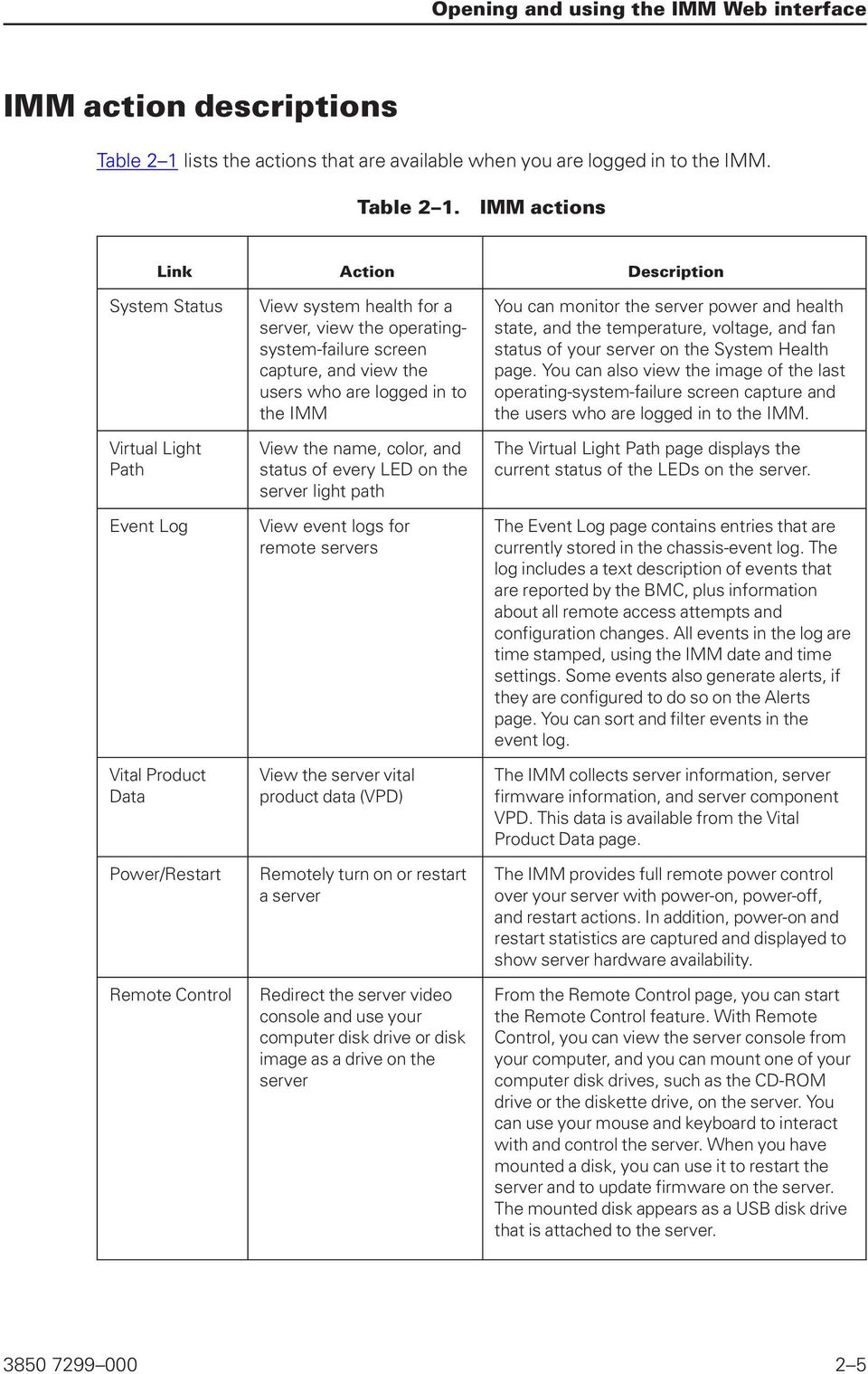
19 Opening and using the IMM Web interface IMM action descriptions Table 2 1 lists the actions that are available when you are logged in to the IMM. Table 2 1. IMM actions Link Action Description System Status Virtual Light Path Event Log Vital Product Data Power/Restart Remote Control View system health for a server, view the operatingsystem-failure screen capture, and view the users who are logged in to the IMM View the name, color, and status of every LED on the server light path View event logs for remote servers View the server vital product data (VPD) Remotely turn on or restart a server Redirect the server video console and use your computer disk drive or disk image as a drive on the server You can monitor the server power and health state, and the temperature, voltage, and fan status of your server on the System Health page. You can also view the image of the last operating-system-failure screen capture and the users who are logged in to the IMM. The Virtual Light Path page displays the current status of the LEDs on the server. The Event Log page contains entries that are currently stored in the chassis-event log. The log includes a text description of events that are reported by the BMC, plus information about all remote access attempts and configuration changes. All events in the log are time stamped, using the IMM date and time settings. Some events also generate alerts, if they are configured to do so on the Alerts page. You can sort and filter events in the event log. The IMM collects server information, server firmware information, and server component VPD. This data is available from the Vital Product Data page. The IMM provides full remote power control over your server with power-on, power-off, and restart actions. In addition, power-on and restart statistics are captured and displayed to show server hardware availability. From the Remote Control page, you can start the Remote Control feature. With Remote Control, you can view the server console from your computer, and you can mount one of your computer disk drives, such as the CD-ROM drive or the diskette drive, on the server. You can use your mouse and keyboard to interact with and control the server. When you have mounted a disk, you can use it to restart the server and to update firmware on the server. The mounted disk appears as a USB disk drive that is attached to the server
20 Opening and using the IMM Web interface Table 2 1. IMM actions (cont.) Link Action Description PXE Network Boot Firmware Update System Settings Login Profiles Alerts Change the host server startup (boot) sequence for the next restart to attempt a Preboot Execution Environment (PXE)/ Dynamic Host Configuration Protocol (DHCP) network startup Update firmware on the IMM View and change the IMM server settings Set the IMM clock Enable or disable the USB in-band interface Configure the IMM login profiles and global login settings Configure remote alerts and remote alert recipients Configure Simple Network Management Protocol (SNMP) events Configure alert settings If your server firmware and PXE boot agent utility are properly defined, from the PXE Network Boot page you can change the host server startup (boot) sequence for the next restart to attempt a PXE/DHCP network startup. The host startup sequence will be altered only if the host is not under Privileged Access Protection (PAP). After the next restart occurs, the check box on the PXE Network Boot page will be cleared. Use the options on the Firmware Update page to update the IMM firmware, server firmware, and DSA firmware. You can configure the server location and general information, such as the name of the IMM, server timeout settings, and contact information for the IMM, from the System Settings page. You can set the IMM clock that is used for time stamping the entries in the event log. You can enable or disable the USB in-band (or LAN over USB) interface. You can define up to 12 login profiles that enable access to the IMM. You can also define global login settings that apply to all login profiles, including enabling Lightweight Directory Access Protocol (LDAP) server authentication and customizing the account security level. You can configure the IMM to generate and forward alerts for different events. On the Alerts page, you can configure the alerts that are monitored and the recipients that are notified. You can set the event categories for which SNMP traps are sent. You can establish global settings that apply to all remote alert recipients, such as the number of alert retries and the delay between the retries

21 Opening and using the IMM Web interface Table 2 1. IMM actions (cont.) Link Action Description Serial Port Port assignments Network Interfaces Network Protocols Security Configuration File Restore Default Settings Configure the IMM serial port settings Change the port numbers of the IMM protocols Configure the network interfaces of the IMM Configure the network protocols of the IMM Configure the Secure Sockets Layer (SSL) Enable Secure Shell (SSH) access Back up and restore the IMM configuration Restore the IMM default settings From the Serial Port page, you can configure the serial port baud rate that is used by the serial redirection function. You can also configure the key sequence that is used to switch between the serial redirection and command-line interface (CLI) modes. From the Port Assignments page, you can view and change the port numbers assigned to the IMM protocols (for example, HTTP, HTTPS, Telnet, and SNMP). From the Network Interfaces page, you can configure network-access settings for the Ethernet connection on the IMM. You can configure Simple Network Management Protocol (SNMP), Domain Name System (DNS), and Simple Mail Transfer Protocol (SMTP) settings that are used by the IMM from the Network Protocols page. You can also configure LDAP parameters. You can enable or disable SSL and manage the SSL certificates that are used. You can also enable or disable whether an SSL connection is used to connect to an LDAP server. You can enable SSH access to the IMM. You can back up, modify, and restore the configuration of the IMM, and view a configuration summary, from the Configuration File page. Attention: When you click Restore Defaults, all of the modifications that you made to the IMM are lost. You can reset the configuration of the IMM to the factory defaults. Restart IMM Restart the IMM You can restart the IMM. Log off Log off the IMM You can log off your connection to the IMM. You can click the View Configuration Summary link, which is in the top-right corner on most pages, to quickly view the configuration of the IMM
22 Opening and using the IMM Web interface
23 Section 3 Configuring the IMM Use the links under IMM Control in the navigation pane to configure the IMM. From the System Settings page, you can: - Set server information - Set server timeouts - Set IMM date and time - Enable or disable commands on the USB interface From the Login Profiles page, you can: - Set login profiles to control access to the IMM - Configure global login settings, such as the lockout period after unsuccessful login attempts - Configure the account security level From the Alerts page, you can: - Configure remote alert recipients - Set the number of remote alert attempts - Select the delay between alerts - Select which alerts are sent and how they are forwarded From the Serial Port page, you can: - Configure the baud rate of serial port 2 (COM2) for serial redirection - Specify the keystroke sequence that is used to switch between the serial redirection and the and the command-line interface (CLI) From the Port Assignments page, you can change the port numbers of IMM services. From the Network Interfaces page, you can set up the Ethernet connection for the IMM. From the Network Protocols page, you can configure: - SNMP setup - DNS setup - Telnet protocol - SMTP setup - LDAP setup
24 Configuring the IMM - Service location protocol From the Security page, you can install and configure the Secure Sockets Layer (SSL) settings. From the Configuration File page, you can back up, modify, and restore the configuration of the IMM. From the Restore Defaults page, you can reset the IMM configuration to the factory defaults. From the Restart IMM page, you can restart the IMM. Setting system information To set the IMM system information, complete the following steps: 1. Log in to the IMM where you want to set the system information. For more information, see Section 2, Opening and using the IMM Web interface. 2. In the navigation pane, click System Settings. A page similar to the one in the following illustration is displayed. 3. In the Name field in the IMM Information area, type the name of the IMM. Use the Name field to specify a name for the IMM in this server. The name is included with and SNMP alert notifications to identify the source of the alert
25 Configuring the IMM Note: Your IMM name (in the Name field) and the IP host name of the IMM (in the Hostname field on the Network Interfaces page) do not automatically share the same name because the Name field is limited to 16 characters. The Hostname field can contain up to 63 characters. To minimize confusion, set the Name field to the nonqualified portion of the IP host name. The nonqualified IP host name consists of up to the first period of a fully qualified IP host name. For example, for the fully qualified IP host name imm1.us.company.com, the nonqualified IP host name is imm1. For information about your host name, see Configuring network interfaces. 4. In the Contact field, type the contact information. For example, you can specify the name and phone number of the person to contact if there is a problem with this server. You can type a maximum of 47 characters in this field. This field is used when you are setting up Unisys Call Home, refer to Installation and User s Guide for more information. 5. In the Location field, type the location of the server. Include in this field sufficient detail to quickly locate the server for maintenance or other purposes. You can type a maximum of 47 characters in this field. This field is used when you are setting up Unisys Call Home, refer to Installation and User s Guide for more information. 6. Scroll to the bottom of the page and click Save. Setting server timeouts Note: Server timeouts require that the in-band USB interface (or LAN over USB) be enabled to allow commands. For more information about the enabling and disabling commands for the USB interface, see Disabling the USB in-band interface. For information regarding the installation of the required device drivers, see Installing device drivers. To set the server timeout values, complete the following steps: 1. Log in to the IMM where you want to set the server timeouts. For more information, see Section 2, Opening and using the IMM Web interface. 2. In the navigation pane, click System Settings and scroll down to the Server Timeouts area. You can set the IMM to respond automatically to the following events: Halted operating system Failure to load operating system
26 Configuring the IMM 3. Enable the server timeouts that correspond to the events that you want the IMM to respond to automatically. OS watchdog Use the OS watchdog field to specify the number of minutes between checks of the operating system by the IMM. If the operating system fails to respond to one of these checks, the IMM generates an OS timeout alert and restarts the server. After the server is restarted, the OS watchdog is disabled until the operating system is shut down and the server is power cycled. To set the OS watchdog value, select a time interval from the menu. To turn off this watchdog, select 0.0 from the menu. To capture operating-system-failure screens, you must enable the watchdog in the OS watchdog field. Loader watchdog Use the Loader watchdog field to specify the number of minutes that the IMM waits between the completion of POST and the starting of the operating system. If this interval is exceeded, the IMM generates a loader timeout alert and automatically restarts the server. After the server is restarted, the loader timeout is automatically disabled until the operating system is shut down and the server is power cycled (or until the operating system starts and the software is successfully loaded). To set the loader timeout value, select the time limit that the IMM waits for the operating-system startup to be completed. To turn off this watchdog, select 0.0 from the menu. Power off delay Use the Power off delay field to specify the number of minutes that the IMM waits for the operating system to shut down before it turns off the server power (if power was not turned off by the operating system itself). Setting the power off delay ensures that the operating system has enough time for an orderly shutdown before the server power is turned off. To determine the power off delay for your server, shut down your server and observe the amount of time it takes to shut down. Add a time buffer to that value and use the resulting number as your power off delay setting. To set the power off delay value, select the desired time value from the menu. A value of 0 means that the operating system, not the IMM, turns the server power off. 4. Scroll to the bottom of the page and click Save. Setting the IMM date and time The IMM uses its own real-time clock to time stamp all events that are logged in the event log. Note: The IMM date and time setting affects only the IMM clock, not the server clock. The IMM real-time clock and the server clock are separate, independent clocks and can be set to different times. To synchronize the IMM clock with the server clock, go to the Network Time Protocol area of the page and set the NTP server host name or IP address to the same server host name or IP address that is used to set the server clock
27 Configuring the IMM See Synchronizing clocks in a network for more information. Alerts that are sent by and SNMP use the real-time clock setting to time stamp the alerts. The clock settings support Greenwich mean time (GMT) offsets and daylight saving time (DST) for added ease-of-use for administrators who are managing systems remotely over different time zones. You can remotely access the event log even if the server is turned off or disabled. To verify the date and time settings of the IMM, complete the following steps: 1. Log in to the IMM where you want to set the IMM date and time values. For more information, see Section 2, Opening and using the IMM Web interface. 2. In the navigation pane, click System Settings and scroll down to the IMM Date and Time area, which shows the date and time when the Web page was generated. 3. To override the date and time settings and to enable daylight saving time (DST) and Greenwich mean time (GMT) offsets, click Set IMM Date and Time. A page similar to the one in the following illustration is displayed. 4. In the Date field, type the numbers of the current month, day, and year. 5. In the Time field, type the numbers that correspond to the current hour, minutes, and seconds in the applicable entry fields. The hour (hh) must be a number from as represented on a 24-hour clock. The minutes (mm) and seconds (ss) must be numbers from In the GMT offset field, select the number that specifies the offset, in hours, from Greenwich mean time (GMT), corresponding to the time zone where the server is located. 7. Select or clear the Automatically adjust for daylight saving changes check box to specify whether the IMM clock automatically adjusts when the local time changes between standard time and daylight saving time. 8. Click Save. Synchronizing clocks in a network The Network Time Protocol (NTP) provides a way to synchronize clocks throughout a computer network, enabling any NTP client to obtain the correct time from an NTP server. The IMM NTP feature provides a way to synchronize the IMM real-time clock with the time that is provided by an NTP server. You can specify the NTP server that is to be used, specify the frequency with which the IMM is synchronized, enable or disable the NTP feature, and request immediate time synchronization
28 Configuring the IMM The NTP feature does not provide the extended security and authentication that are provided through encryption algorithms in NTP Version 3 and NTP Version 4. The IMM NTP feature supports only the Simple Network Time Protocol (SNTP) without authentication. To set up the IMM NTP feature settings, complete the following steps: 1. Log in to the IMM on which you want to synchronize the clocks in the network. For more information, see Section 2, Opening and using the IMM Web interface. 2. In the navigation pane, click System Settings and scroll down to the IMM Date and Time area. 3. Click Set IMM Date and Time. A page similar to the one in the following illustration is displayed. 4. Under Network Time Protocol (NTP), you can select from the following settings: NTP auto-synchronization service Use this selection to enable or disable automatic synchronization of the IMM clock with an NTP server. NTP server host name or IP address Use this field to specify the name of the NTP server to be used for clock synchronization. NTP update frequency Use this field to specify the approximate interval (in minutes) between synchronization requests. Enter a value between minutes. Synchronize Clock Now Click this button to request an immediate synchronization instead of waiting for the interval time to lapse. 5. Click Save. Disabling the USB in-band interface Note: If the USB in-band interface is disabled, use the Firmware Update option on the IMM Web interface to update the firmware. For more information, see Updating firmware. If you disable the USB in-band interface, also disable the watchdog timeouts to prevent the server from restarting unexpectedly. For more information, see Setting server timeouts
29 Configuring the IMM The USB in-band interface, or LAN over USB, is used for in-band communications to the IMM. To prevent any application that is running on the server from requesting the IMM to perform tasks, you must disable the USB in-band interface. For more information about LAN over USB, see Section 6, LAN over USB. To disable the USB in-band interface, complete the following steps: 1. Log in to the IMM on which you want to disable the USB device driver interface. For more information, see Section 2, Opening and using the IMM Web interface. 2. In the navigation pane, click System Settings and scroll down to the Miscellaneous area. A page similar to the one in the following illustration is displayed. 3. Select the Do not allow commands on USB interface check box to disable the USB in-band interface. Selecting this option does not affect the USB remote presence functions (for example, keyboard, mouse, and mass storage). When you disable the USB in-band interface, the in-band systems-management applications such as the Advanced Settings Utility (ASU) and firmware update package utilities might not work. Note: The ASU works with a disabled USB in-band interface if an IPMI device driver is installed. If you try to use systems-management applications while the in-band interface is disabled, they might not work. 4. Click Save. To enable the USB device driver interface after it has been disabled, clear the Do not allow commands on USB interface check box and click Save. Notes: The USB in-band interface is also called LAN over USB and is described in more detail in Section 6, LAN over USB. When you attempt a network installation of some Linux distributions, the installation might fail if the IMM USB in-band interface is enabled. For more information, see If you are performing a network installation that does not contain the update on the Red Hat Web site described in the preceding note Configuring the LAN over USB interface manually, you must disable the USB in-band interface before you perform the installation and enable it after the installation is complete. For information about the configuration of the LAN over USB interface, see Configuring the LAN over USB interface manually
30 Configuring the IMM Creating a login profile Use the Login Profiles table to view, configure, or change individual login profiles. Use the links in the Login ID column to configure individual login profiles. You can define up to 12 unique profiles. Each link in the Login ID column is labeled with the configured login ID of the associated profile. Certain login profiles are shared with the IPMI user IDs, providing a single set of local user accounts (username/password) that work with all of the IMM user interfaces, including IPMI. Rules that pertain to these shared login profiles are described in the following list: IPMI user ID 1 is always the null user. IPMI user ID 2 maps to login ID 1, IPMI user ID 3 maps to login ID 2, and so on. The IMM default user is set to USERID and PASSW0RD (with a zero, not the letter O) for IPMI user ID 2 and login ID 1. For example, if a user is added through IPMI commands, that user information is also available for authentication through the Web, Telnet, SSH, and other interfaces. Conversely, if a user is added on the Web or other interfaces, that user information is available for starting an IPMI session. Because the user accounts are shared with IPMI, certain restrictions are imposed to provide a common ground between the interfaces that use these accounts. The following list describes IMM and IPMI login profile restrictions: IPMI allows a maximum of 64 user IDs. The IMM IPMI implementation allows only 12 user accounts. IPMI allows anonymous logins (null user name and null password), but the IMM does not. IPMI allows multiple user IDs with the same user names, but the IMM does not. IPMI requests to change the user name from the current name to the same current name return an invalid parameter completion code because the requested user name is already in use. The maximum IPMI password length for the IMM is 16 bytes. The following words are restricted and are not available for use as local IMM user names: - immroot - nobody - ldap - lighttpd - sshd - daemon - immftp To configure a login profile, complete the following steps:
31 Configuring the IMM 1. Log in to the IMM where you want to create a login profile. For more information, see Section 2, Opening and using the IMM Web interface. 2. In the navigation pane, click Login Profiles. Note: If you have not configured a profile, it does not appear in the Login Profiles table. The Login Profiles page displays each login ID, the login access level, and the password expiration information, as shown in the following illustration. Note: By default, the IMM is configured with one login profile that enables remote access using a login user ID of USERID and a password of PASSW0RD (the 0 is a zero, not the letter O). To avoid a potential security exposure, change this default login profile during the initial setup of the IMM
32 Configuring the IMM 3. Click Add User. An individual profile page similar to the one in the following illustration is displayed. 4. In the Login ID field, type the name of the profile. You can type a maximum of 16 characters in the Login ID field. Valid characters are uppercase and lowercase letters, numbers, periods, and underscores. Note: This login ID is used to grant remote access to the IMM. 5. In the Password field, assign a password to the login ID. A password must contain a minimum of five characters, one of which must be a nonalphabetic character. Null or empty passwords are accepted. Note: This password is used with the login ID to grant remote access to the IMM. 6. In the Confirm password field, type the password again. 7. In the Authority Level area, select one of the following options to set the access rights for this login ID: Supervisor The user has no restrictions. Read Only The user has read-only access only and cannot perform actions such as file transfers, power and restart actions, or remote presence functions. Custom If you select the Custom option, you must select one or more of the following custom authority levels: - User Account Management Access A user can add, modify, or delete users and change the global login settings in the Login Profiles page. - Remote Console Access: A user can access the remote console
33 Configuring the IMM - Remote Console and Virtual Media Access: A user can access both the remote console and the virtual media feature. - Remote Server Power/Restart Access: A user can access the power-on and restart functions for the remote server. These functions are available in the Power/Restart page. - Ability to Clear Event Logs: A user can clear the event logs. Everyone can look at the event logs, but this particular permission is required to clear the logs. - Adapter Configuration - Basic: A user can modify configuration parameters in the System Settings and Alerts pages. - Adapter Configuration - Networking & Security: A user can modify configuration parameters in the Security, Network Protocols, Network Interface, Port Assignments, and Serial Port pages. - Adapter Configuration - Advanced: A user has no restrictions when configuring the IMM. In addition, the user is said to have administrative access to the IMM, meaning that the user can also perform the following advanced functions: firmware updates, PXE network boot, restore IMM factory defaults, modify and restore IMM configuration from a configuration file, and restart and reset the IMM. When a user sets the authority level of an IMM login ID, the resulting IPMI privilege level of the corresponding IPMI User ID is set according to these priorities: - If the user sets the IMM login ID authority level to Supervisor, the IPMI privilege level is set to Administrator. - If the user sets the IMM login ID authority level to Read Only, the IPMI privilege level is set to User - If the user sets the IMM login ID authority level to have any of the following types of access, the IPMI privilege level is set to Administrator: o o o o o User Account Management Access Remote Console Access Remote Console and Remote Disk Access Adapter Configuration - Networking & Security Adapter Configuration - Advanced - If the user sets the IMM login ID authority level to have Remote Server Power/Restart Access or Ability to Clear Event Logs, the IPMI privilege level is set to Operator. - If the user sets the IMM login ID authority level to have Adapter Configuration (Basic), the IPMI privilege level is set to User. Note: To return the login profiles to the factory defaults, click Clear Login Profiles
34 Configuring the IMM 8. In the Configure SNMPv3 User area, select the check box if the user should have access to the IMM by using the SNMPv3 protocol. After you click the check box, an area of the page similar to the one in the following illustration appears. Use following fields to configure the SNMPv3 settings for the user profile: Authentication Protocol Use this field to specify either HMAC-MD5 or HMAC-SHA as the authentication protocol. These are hash algorithms used by the SNMPv3 security model for the authentication. The password for the Linux account will be used for authentication. If you choose None, authentication protocol is not used. Privacy Protocol Data transfer between the SNMP client and the agent can be protected using encryption. The supported methods are DES and AES. Privacy protocol is valid only if the authentication protocol is set to either HMAC-MD5 or HMAC-SHA. Privacy Password Use this field to specify the encryption password. Confirm Privacy Password Use this field to confirm the encryption password. Access Type Use this field to specify either Get or Set as the access type. SNMPv3 users with the access type Get can perform only query operations. With the access type Set, SNMPv3 users can both perform query operations and modify settings (for example, setting the password for an user). Hostname/IP address for traps Use this field to specify the trap destination for the user. This can be an IP address or hostname. Using traps, the SNMP agent notifies the management station about events (for example, when a processor temperature exceeds the limit). 9. Click Save to save your login ID settings
35 Configuring the IMM Deleting a login profile To delete a login profile, complete the following steps: 1. Log in to the IMM for which you want to create a login profile. For more information, see Section 2, Opening and using the IMM Web interface. 2. In the navigation pane, click Login Profiles. The Login Profiles page displays each login ID, the login access level, and the password expiration information. 3. Click the login profile that you want to delete. The Login Profile page for that user is displayed 4. Click Clear Login Profile. Configuring the global login settings Complete the following steps to set conditions that apply to all login profiles for the IMM: 1. Log in to the IMM for which you want to set the global login settings. For more information, see Section 2, Opening and using the IMM Web interface. 2. In the navigation pane, click Login Profiles. 3. Scroll down to the Global Login Settings area. A page similar to the one in the following illustration is displayed. 4. In the User authentication method field, specify how users who are attempting to log in are authenticated. Select one of the following authentication methods: Local only: Users are authenticated by a search of a table that is local to the IMM. If there is no match on the user ID and password, access is denied. Users who are successfully authenticated are assigned the authority level that is configured in Creating a login profile. LDAP only: The IMM attempts to authenticate the user by using the LDAP server. Local user tables on the IMM are never searched with this authentication method
36 Configuring the IMM Local first, then LDAP: Local authentication is attempted first. If local authentication fails, LDAP authentication is attempted. LDAP first, then Local: LDAP authentication is attempted first. If LDAP authentication fails, local authentication is attempted. Notes: Only locally administered accounts are shared with the IPMI interface because IPMI does not support LDAP authentication. Even if the User authentication method field is set to LDAP only, users can log in to the IPMI interface by using the locally administered accounts. 5. In the Lockout period after 5 login failures field, specify how long, in minutes, the IMM prohibits remote login attempts if more than five sequential failures to log in remotely are detected. The lockout of one user does not prevent other users from logging in. 6. In the Web inactivity session timeout field, specify how long, in minutes, the IMM waits before it disconnects an inactive Web session. Select No timeout to disable this feature. Select User picks timeout if the user will select the timeout period during the login process. 7. (Optional) In the Account security level area, select a password security level. The Legacy security settings and High security settings set the default values as indicated in the requirement list. 8. To customize the security setting, select Custom security settings to view and change the account security management configuration. User login password required Use this field to indicate whether a login ID with no password is allowed. Number of previous passwords that cannot be used Use this field to indicate the number of previous passwords that cannot be reused. Up to five previous passwords can be compared. Select 0 to allow the reuse of all previous passwords. Maximum Password Age Use this field to indicate the maximum password age that is allowed before the password must be changed. Values of days are supported. Select 0 to disable the password expiration checking. 9. Click Save. Configuring remote alert settings You can configure remote alert recipients, the number of alert attempts, incidents that trigger remote alerts, and local alerts from the Alerts link on the navigation pane. After you configure a remote alert recipient, the IMM sends an alert to that recipient through a network connection when any event selected from the Monitored Alerts group occurs. The alert contains information about the nature of the event, the time and date of the event, and the name of the system that generated the alert
37 Configuring the IMM Refer to Installation and User s Guide for information on setting up Unisys Call Home. Note: If the SNMP Agent or SNMP Traps fields are not set to Enabled, no SNMP traps are sent. For information about these fields, see Configuring SNMP. Configuring remote alert recipients You can define up to 12 unique remote alert recipients. Each link for an alert recipient is labeled with the recipient name and alert status. Note: If you have not configured an alert recipient profile, the profile does not appear in the remote alert recipients list. Refer to Installation and User s Guide for information on setting up Unisys Call Home. To configure a remote alert recipient, complete the following steps: 1. Log in to the IMM for which you want to configure remote alert settings. For more information, see Section 2, Opening and using the IMM Web interface. 2. In the navigation pane, click Alerts. The Remote Alert Recipients page is displayed. You can see the notification method and alert status for each recipient, if they are set
38 Configuring the IMM 3. Click one of the remote alert recipient links or click Add Recipient. An individual recipient window similar to the one in the following illustration opens. 4. In the Status field, click Enabled to activate the remote alert recipient. 5. In the Name field, type the name of the recipient or other identifier. The name that you type appears as the link for the recipient on the Alerts page. 6. In the address field, enter the alert recipient s address. 7. Use the check box to include event logs with alerts. 8. In the Monitored Alerts field, select the type of alerts that are sent to the alert recipient. The remote alerts are categorized by the following levels of severity: Critical alerts Critical alerts are generated for events that signal that a server component is no longer functioning. Warning alerts Warning alerts are generated for events that might progress to a critical level. System alerts System alerts are generated for events that occur as a result of system errors or for events that occur as a result of configuration changes. All alerts are stored in the event log and sent to all configured remote alert recipients. 9. Click Save. Configuring global remote alert settings The global remote alert settings apply only to forwarded alerts. Complete the following steps to set the number of times that the IMM attempts to send an alert: 1. Log in to the IMM on which you want to set remote alert attempts. For more information, see Section 2, Opening and using the IMM Web interface
39 Configuring the IMM 2. In the navigation pane, click Alerts and scroll down to the Global Remote Alert Settings area. Use these settings to define the number of remote alert attempts and the length of time between the attempts. The settings apply to all configured remote alert recipients. Remote alert retry limit Use the Remote alert retry limit field to specify the number of additional times that the IMM attempts to send an alert to a recipient. The IMM does not send multiple alerts; additional alert attempts occur only if there is a failure when the IMM attempts to send the initial alert. Note: This alert setting does not apply to SNMP alerts. Delay between entries Use the Delay between entries field to specify the time interval (in minutes) that the IMM waits before sending an alert to the next recipient in the list. Delay between retries Use the Delay between retries field to specify the time interval (in minutes) that the IMM waits between retries to send an alert to a recipient. 3. Scroll to the bottom of the page and click Save. Configuring SNMP alert settings The SNMP agent notifies the IMM about events through SNMP traps. You can configure the SNMP to filter the events based on the event type. Event categories that are available for filtering are Critical, Warning and System. The SNMP alert settings are global for all SNMP traps. Notes: The IMM provides two Management Information Base (MIB) files for use with SNMP applications. The MIB files are included in the IMM firmware update packages. IMM supports the SNMPv1 and SNMPv3 standards. Complete the following steps to select the type or types of alerts that are sent to SNMP: 1. Log in to the IMM on which you want to set remote alert attempts. For more information, see Section 2, Opening and using the IMM Web interface. 2. In the navigation pane, click Alerts and scroll down to the SNMP Alerts Settings area
40 Configuring the IMM 3. Select the type or types of alerts. The remote alerts are categorized by the following levels of severity: Critical Warning System 4. Scroll to the bottom of the page and click Save. Configuring serial port settings The IMM provides two serial ports that are used for serial redirection. Serial port 1 (COM1) is used for IPMI Serial over LAN (SOL). COM1 is configurable only through the IPMI interface. COM2 is used for serial redirection through Telnet or SSH. COM2 is not configurable through the IPMI interface. On rack-mounted and tower servers, COM2 is an internal COM port with no external access. Both serial ports use 8 data bits, null parity, and 1 stop bit. A baud rate choice of 9600, 19200, 38400, 57600, , and is available. You can configure the serial redirection and command-line interface for the COM2 port in the IMM. To configure the serial data-transfer rate and redirection, complete the following steps: 1. Log in to the IMM on which you want to configure the serial port. For more information, see Section 2, Opening and using the IMM Web interface. 2. In the navigation pane, click Serial Port. A page similar to the one in the following illustration is displayed. 3. In the Baud rate field, select the data-transfer rate to match the rate of the server COM port that you want to use for serial redirection. Use the Baud rate field to specify the data-transfer rate of your serial port connection. To set the baud rate, select the data-transfer rate, in bits per second, that corresponds to your serial port connection
41 Configuring the IMM 4. In the CLI mode field in the Serial Redirect/CLI Settings area, select CLI with EMS compatible keystroke sequences if you want to use the Microsoft Windows Server 2003 Emergency Management Services (EMS) compatible key sequence to exit the serial redirection operation, or select CLI with user defined keystroke sequences if you want to use your own key sequence. Note: If you select CLI with user defined keystroke sequences, you must define the key sequence. After the serial redirection starts, it continues until the user types the exit key sequence. When the exit key sequence is typed, serial redirection stops and the user is returned to command mode in the Telnet or SSH session. Use this field to specify the exit key sequence. 5. Click Save. Serial-to-Telnet or SSH redirection Serial-to-Telnet or SSH redirection enables a system administrator to use the IMM as a serial terminal server. A server serial port can be accessed from a Telnet or SSH connection when serial redirection is enabled. Notes: The IMM allows a maximum of two open Telnet sessions. The Telnet sessions can access the serial ports independently so that multiple users can have a concurrent view of a redirected serial port. The command-line interface console 1 command is used to start a serial redirection session with the COM port. Example session telnet (Press Enter.) Connecting to username: USERID (Press Enter.) password: ******** (Press Enter.) system> console 1 (Press Enter.) All traffic from COM2 is now routed to the Telnet session. All traffic from the Telnet or SSH session is routed to COM2. ESC Q Type the exit key sequence to return to the command-line interface. In this example, press Esc and then type q. Back to LegacyCLI console... Configuring port assignments To change the port numbers of IMM services, complete the following steps:
42 Configuring the IMM 1. Log in to the IMM where you want to configure the port assignments. For more information, see Section 2, Opening and using the IMM Web interface. 2. In the navigation pane, click Port Assignments. 3. Use the following information to assign values for the fields: HTTP This is the port number for the HTTP server of the IMM. The default port number is 80. Other valid values are in the range If you change this port number, you must add this port number, preceded by a colon, at the end of the Web address. For example, if the HTTP port is changed to 8500, type to open the IMM Web interface. Note that you must type the prefix before the IP address and port number. HTTPS This is the port number that is used for Web interface HTTPS (SSL) traffic. The default value is 443. Other valid values are in the range Telnet Legacy CLI This is the port number for Legacy CLI to log in through the Telnet service. The default value is 23. Other valid values are in the range SSH Legacy CLI This is the port number that is configured for Legacy CLI to log in through SSH. The default is 22. SNMP Agent This is the port number for the SNMP agent that runs on the IMM. The default value is 161. Other valid values are in the range SNMP Traps This is the port number that is used for SNMP traps. The default value is 162. Other valid values are in the range Remote Presence This is the port number that the remote control feature uses to view and interact with the server console. The default is 3900 for rack-mounted and tower servers. The following port numbers are reserved and can be used only for the corresponding services
43 Configuring the IMM Table 3 1. Reserved port numbers Port number Services used for 427 SLP 7070 through 7077 Partition management 4. Click Save. Configuring network interfaces On the Network Interfaces page, you can set access to the IMM by configuring an Ethernet connection to the IMM. To configure the Ethernet setup for the IMM, complete the following steps: 1. Log in to the IMM where you want to set up the configuration. For more information, see Section 2, Opening and using the IMM Web interface. 2. In the navigation pane, click Network Interfaces. A page similar to the one in the following illustration is displayed. Note: The values in the following illustration are examples. Your settings will be different. 3. If you want to use an Ethernet connection, select Enabled in the Interface field. Ethernet is enabled by default. Note: Disabling the Ethernet interface prevents all access to the IMM from the external network. 4. If you want to use a Dynamic Host Configuration Protocol (DHCP) server connection, enable it by clicking either of the following choices in the DHCP field: Enabled - Obtain IP config from DHCP server Try DHCP server. If it fails, use static IP config. The default setting is Try DHCP server. If it fails, use static IP config
44 Configuring the IMM Note: Do not enable DHCP unless you have an accessible, active, and configured DHCP server on your network. When DHCP is used, the automatic configuration overrides any manual settings. If you want to assign a static IP address to the IMM, select Disabled - Use static IP configuration. If DHCP is enabled, the host name is assigned as follows: If the Hostname field contains an entry, the IMM DHCP support requests that the DHCP server use this host name. If the Hostname field does not contain an entry, the IMM DHCP support requests that the DHCP server assign a unique host name to the IMM. 5. Type the IP host name of the IMM in the Hostname field. You can enter a maximum of 63 characters in this field, which represents the IP host name of the IMM. The host name defaults to IMMA, followed by the IMM burned-in media access control (MAC) address. Note: The IP host name of the IMM (the Hostname field) and IMM name (the Name field on the System page) do not automatically share the same name, because the Name field is limited to 15 characters but the Hostname field can contain up to 63 characters. To minimize confusion, set the Name field to the nonqualified portion of the IP host name. The nonqualified IP host name consists of up to the first period of a fully qualified IP host name. For example, for the fully qualified IP host name imm1.us.company.com, the nonqualified IP host name is imm1. For information about your host name, see Setting system information. If you enabled DHCP, go to step 12. If you have not enabled DHCP, continue with step In the IP address field, type the IP address of the IMM. The IP address must contain four integers from with no spaces and separated by periods. 7. In the Subnet mask field, type the subnet mask that is used by the IMM. The subnet mask must contain four integers from with no spaces or consecutive periods and separated by periods. The default setting is In the Gateway address field, type your network gateway router. The gateway address must contain four integers from with no spaces or consecutive periods and separated by periods. 9. Scroll to the bottom of the page and click Save
45 Configuring the IMM 10. Click Advanced Ethernet Setup if you need to set additional Ethernet settings. The following table describes the functions on the Advanced Ethernet Setup page. Table 3 2. Functions on the Advanced Ethernet Setup page Field Function Auto Negotiate Data rate Duplex Maximum transmission unit Locally administered MAC address Burned-in MAC address The IMM determines the data rate and duplex settings automatically, according to your switch capabilities. Use the Data Rate field to specify the amount of data that is to be transferred per second over your LAN connection. To set the data rate, click the menu and select the data-transfer rate, in Mb1, that corresponds to the capability of your network. To automatically detect the data-transfer rate, set the Auto Negotiate field to Yes, which is the default value. Use the Duplex field to specify the type of communication channel that is used in your network. To set the duplex mode, select one of the following choices: Full enables data to be carried in both directions at once. Half enables data to be carried in either one direction or the other, but not both at the same time. To automatically detect the duplex type, set the Auto Negotiate field to Yes, which is the default value. Use the Maximum transmission unit field to specify the maximum size of a packet (in bytes) for your network interface. For Ethernet, the valid maximum transmission unit (MTU) range is The default value for this field is Enter a physical address for the IMM in the Locally administered MAC address field. If a value is specified, the locally administered address overrides the burned-in MAC address. The locally administered address must be a hexadecimal value from through FFFFFFFFFFFF. This value must be in the form xx:xx:xx:xx:xx:xx where x is a number 0-9. The IMM does not support the use of a multicast address. The first byte of a multicast address is an odd number (the least significant bit is set to 1). Therefore, the first byte must be an even number. The burned-in MAC address is a unique physical address that is assigned to this IMM by the manufacturer. The address is a read-only field
46 Configuring the IMM Table 3 2. Functions on the Advanced Ethernet Setup page (cont.) Field 1Mb equals approximately 1,000,000 bits. Function 11. Modify the advanced Ethernet settings as necessary. 12. Scroll to the bottom of the page and click Save. 13. Click Cancel to return to the Network Interfaces page. If DHCP is enabled, the server automatically assigns the host name, IP address, gateway address, subnet mask, domain name, DHCP server IP address, and up to three DNS server IP addresses. 14. If DHCP is enabled, to view the DHCP server assigned setting, click IP Configuration Assigned by DHCP Server. 15. Click Save. 16. Click View Configuration Summary to see a summary of all current configuration settings. 17. In the navigation pane, click Restart IMM to activate the changes. Note: You can also configure the IMM network connection through the Setup utility. For more information, see Setting up the IMM network connection through the Setup utility. Configuring network protocols On the Network Protocols page, you can perform the following functions: Configure Simple Network Management Protocol (SNMP) Configure Domain Name System (DNS) Configure Telnet Protocol Configure Simple Mail Transfer Protocol (SMTP) Configure Lightweight Directory Access Protocol (LDAP) Configure Service Location Protocol (SLP) Changes to the network protocol settings require that the IMM be restarted for the changes to take effect. If you are changing more than one protocol, you can wait until all of the protocol changes have been made and saved before you restart the IMM. Configuring SNMP You can use the SNMP agent to collect information and to control the server. The IMM can also be configured to send SNMP alerts to the configured host names or IP addresses
47 Configuring the IMM Notes: The IMM provides two Management Information Base (MIB) files for use with SNMP applications. The MIB files are included in the IMM firmware update packages. IMM supports the SNMPv1 and SNMPv3 standards. To configure SNMP, complete the following steps: 1. Log in to the IMM where you want to configure SNMP. For more information, see Section 2, Opening and using the IMM Web interface. 2. In the navigation pane, click Network Protocols. A page similar to the one in the following illustration is displayed. 3. Select Enabled in either the SNMPv1 agent or the SNMPv3 agent field. Note: If you enabled the SNMPv3 agent, you must configure SNMPv3 settings for active login profiles for the interaction between the SNMPv3 manager and SNMPv3 agent to work correctly. You can configure these settings at the bottom of the individual login profile settings on the Login Profiles page (see Creating a login profile for more information). Click the link for the login profile to configure, scroll to the bottom of the page and then click the Configure SNMPv3 User check box. 4. Select Enabled in the SNMP traps field to forward alerts to SNMP communities on your network. To enable the SNMP agent, the following criteria must be met: A system contact must be specified on the System Settings page. For information about the System Settings page settings, see Setting system information
48 Configuring the IMM System location must be specified on the System Settings page. At least one community name must be specified. At least one valid IP address or host name (if DNS is enabled) must be specified for that community. Note: Alert recipients whose notification method is SNMP cannot receive alerts unless the SNMPv1 agent or SNMPv3 agent and the SNMP traps fields are set to Enabled. 5. Set up a community to define the administrative relationship between SNMP agents and SNMP managers. You must define at least one community. Each community definition consists of the following parameters: Community Name Access Type IP address If any of these parameters is not correct, SNMP management access is not granted. Note: If an error message window opens, make the necessary adjustments to the fields that are listed in the error window. Then, scroll to the bottom of the page and click Save to save your corrected information. You must configure at least one community to enable this SNMP agent. 6. In the Community Name field, enter a name or authentication string to specify the community. 7. In the Access Type field, select an access type. Select Trap to allow all hosts in the community to receive traps; select Get to allow all hosts in the community to receive traps and query MIB objects; select Set to allow all hosts in the community to receive traps, query, and set MIB objects. 8. In the corresponding Host Name or IP Address field, enter the host name or IP address of each community manager. 9. Scroll to the bottom of the page and click Save. 10. In the navigation pane, click Restart IMM to activate the changes. Configuring DNS To configure the Domain Name System (DNS), complete the following steps: 1. Log in to the IMM where you want to configure DNS. For more information, see Section 2, Opening and using the IMM Web interface
49 Configuring the IMM 2. In the navigation pane, click Network Protocols and scroll down to the Domain Name System (DNS) area of the page. A section of the page similar to the one in the following illustration is displayed. 3. If a DNS server (or servers) is available on your network, select Enabled in the DNS field. The DNS field specifies whether you use a DNS server on your network to translate host names into IP addresses. 4. If you enabled DNS, in the DNS server IP address fields, specify the IP addresses of up to three DNS servers on your network. Each IP address must contain integers from 0-255, separated by periods. 5. Scroll to the bottom of the page and click Save. 6. In the navigation pane, click Restart IMM to activate the changes. Configuring Telnet To configure Telnet, complete the following steps: 1. Log in to the IMM where you want to configure Telnet. For more information, see Section 2, Opening and using the IMM Web interface. 2. In the navigation pane, click Network Protocols and scroll down to the Telnet Protocol area of the page. You can set the maximum number of concurrent Telnet users, or you can disable Telnet access. 3. Scroll to the bottom of the page and click Save. 4. In the navigation pane, click Restart IMM to activate the changes. Configuring SMTP To specify the IP address or host name of the Simple Mail Transfer Protocol (SMTP) server, complete the following steps. 1. Log in to the IMM where you want to configure SMTP. For more information, see Section 2, Opening and using the IMM Web interface. 2. In the navigation pane, click Network Protocols and scroll down to the SMTP area of the page. 3. In the SMTP Server Host Name or IP address field, type the host name of the SMTP server. Use this field to specify the IP address or, if DNS is enabled and configured, the host name of the SMTP server. 4. Scroll to the bottom of the page and click Save. 5. In the navigation pane, click Restart IMM to activate the changes
50 Configuring the IMM Configuring LDAP Using a Lightweight Directory Access Protocol (LDAP) server, the IMM can authenticate a user by querying or searching an LDAP directory on an LDAP server, instead of going through its local user database. Then, the IMM can remotely authenticate any user access through a central LDAP server. This requires LDAP client support on the IMM. You can also assign authority levels according to information that is found on the LDAP server. You can also use LDAP to assign users and IMMs to groups and perform group authentication, in addition to the normal user (password check) authentication. For example, an IMM can be associated with one or more groups, and a user would pass group authentication only if the user belongs to at least one group that is associated with the IMM. Setting up a client to use the LDAP server To set up a client to use the LDAP server, complete the following steps: 1. Log in to the IMM on which you want to set up the client. For more information, see Section 2, Opening and using the IMM Web interface
51 Configuring the IMM 2. In the navigation pane, click Network protocols and scroll down to the Lightweight Directory Access Protocol (LDAP) Client area of the page. A page similar to the one in the following illustration is displayed. The IMM contains a Version 2.0 LDAP client that you can configure to provide user authentication through one or more LDAP servers. The LDAP server that is to be used for authentication can be discovered dynamically or manually preconfigured
52 Configuring the IMM 3. Choose one of the following methods to configure the LDAP client: To dynamically discover the LDAP server, select Use DNS to Find LDAP Servers. If you choose to discover the LDAP server dynamically, the mechanisms that are described by RFC2782 (a DNS RR for specifying the location of services) are applied to find the server. This is known as DNS SRV. The parameters are described in the following list: Domain Source The DNS SRV request that is sent to the DNS server must specify a domain name. The LDAP client determines where to get this domain name according to which option is selected. There are three options: - Extract search domain from login id. The LDAP client uses the domain name in the login ID. For example, if the login ID is [email protected], the domain name is mycompany.com. If the domain name cannot be extracted, the DNS SRV fails, causing the user authentication to fail automatically. - Use only configured search domain below. The LDAP client uses the domain name that is configured in the Search Domain parameter. - Try login id first, then configured value. The LDAP client first attempts to extract the domain name from the login ID. If this is successful, this domain name is used in the DNS SRV request. If no domain name is present in the login ID, the LDAP client uses the configured Search Domain parameter as the domain name in the DNS SRV request. If nothing is configured, user authentication fails immediately. Search Domain This parameter can be used as the domain name in the DNS SRV request, depending on how the Domain Source parameter is configured. Service Name The DNS SRV request that is sent to the DNS server must also specify a service name. The configured value is used. If this field is left blank, the default value is ldap. The DNS SRV request must also specify a protocol name. The default is tcp and is not configurable. - To use a preconfigured LDAP server, select Use Pre-Configured LDAP Server. Note: The port number for each server is optional. If the field is left blank, the default value of 389 is used for nonsecured LDAP connections. For secured connections, the default is 636. You must configure at least one LDAP server
53 Configuring the IMM You can configure the following parameters: Root DN This is the distinguished name (DN) of the root entry of the directory tree on the LDAP server (for example, dn=mycompany,dc=com). This DN is used as the base object for all searches. UID Search Attribute When the selected binding method is Anonymously or w/ Configured Credentials, the initial bind to the LDAP server is followed by a search request that is aimed at retrieving specific information about the user, including the user s DN, login permissions, and group membership. This search request must specify the attribute name that is used to represent user IDs on that server. This attribute name is configured here. On Active Directory servers, this attribute name is usually samaccountname. On Novell edirectory and OpenLDAP servers, it is usually uid. If this field is left blank, it defaults to uid. Group Filter This field is used for group authentication. Group authentication is attempted after the user s credentials are successfully verified. If group authentication fails, the user s attempt to log on is denied. When the group filter is configured, it is used to specify to which groups the service processor belongs. This means that the user must belong to at least one of the groups that are configured for group authentication to succeed. Group Filter If the Group Filter field is left blank, group authentication automatically succeeds. If the group filter is configured, an attempt is made to match at least one group in the list to a group to which the user belongs. If there is no match, the user fails authentication and is denied access. If there is at least one match, group authentication is successful. The comparisons are case sensitive. The filter is limited to 511 characters and can consist of one or more group names. The colon (:) character must be used to delimit multiple group names. Leading and trailing spaces are ignored, but any other space is treated as part of the group name. A selection to allow or not allow the use of wildcards in the group name is provided. The filter can be a specific group name (for example, IMMWest), a wildcard (*) that matches everything, or a wildcard with a prefix (for example, IMM*). The default filter is IMM*. If security policies in your installation prohibit the use of wildcards, you can choose to not allow the use of wildcards, and the wildcard character (*) is treated as a normal character instead of the wildcard. A group name can be specified as a full DN or using only the cn portion. For example, a group with a DN of cn=admingroup,dc=mycompany,dc=com can be specified using the actual DN or with admingroup. For Active Directory environments only, nested group membership is supported. For example, if a user is a member of GroupA and GroupB and GroupA is a member of GroupC, the user is said to be a member of GroupC also. Nested searches stop if 128 groups have been searched. Groups in one level are searched before groups in a lower level. Loops are not detected
54 Configuring the IMM Binding Method Before the LDAP server can be searched or queried, a bind request must be sent. This parameter controls how this initial bind to the LDAP server is performed. Choose from the following three options: - Anonymously. Bind without a DN or password. This option is strongly discouraged because most servers are configured to not allow search requests on specific user records. - w/ Configured Credentials. Bind with configured client DN and password. - w/ Login Credentials. Bind with the credentials that are supplied during the login process. The user ID can be provided through a Distinguished Name, a fully qualified domain name, or a user ID that matches the UID Search Attribute that is configured on the IMM. If the initial bind is successful, a search is performed to find an entry on the LDAP server that belongs to the user who is logging in. If necessary, a second attempt to bind is attempted, this time with the DN that is retrieved from the user s LDAP record and the password that was entered during the login process. If this fails, the user is denied access. The second bind is performed only when the Anonymous or Configured Credentials binding methods are used. Configuring LDAP client authentication To configure the LDAP client authentication, complete the following steps: 1. In the navigation pane, click Network protocols. 2. Scroll down to the Lightweight Directory Access Protocol (LDAP) Client area of the page and click Set DN and password only if Binding Method used is w/ Configured Credentials. 3. To use client-based authentication, in the Client DN field, type a client distinguished name. Type a password in the Password field or leave it blank. Configuring LDAP search attributes To configure the LDAP search attributes, complete the following steps: 1. In the navigation pane, click Network protocols. 2. Scroll down to the Lightweight Directory Access Protocol (LDAP) Client area and click Set attribute names for LDAP client search algorithm. 3. To configure the search attributes, use the following information. UID Search Attribute When the selected binding method is Anonymously or w/ Configured Credentials, the initial bind to the LDAP server is followed by a search request that is directed at retrieving specific information about the user, including the distinguished name, login permissions, and group membership. To retrieve this information, the search request must specify the attribute name that is used to represent user IDs on
55 Configuring the IMM that server. Specifically, this name is used as a search filter against the login ID that is entered by the user. This attribute name is configured here. For example, on Active Directory servers, the attribute name that is used for user IDs is usually samaccoutname. On Novell edirectory and OpenLDAP servers, it is usually uid. If this field is left blank, a default of UID is used during user authentication. Group Search Attribute In an Active Directory or Novell edirectory environment, this parameter specifies the attribute name that is used to identify the groups to which a user belongs. In Active Directory, this is usually memberof, and with edirectory, this is usually groupmembership. In an OpenLDAP server environment, users are usually assigned to groups whose objectclass equals PosixGroup. In that context, this parameter specifies the attribute name that is used to identify the members of a particular PosixGroup. This is usually memberuid. If this field is left blank, the attribute name in the filter defaults to memberof. Login Permission Attribute When a user is authenticated through an LDAP server successfully, the login permissions for this user must be retrieved. To retrieve these permissions, the search filter that is sent to the server must specify the attribute name that is associated with login permissions. This field specifies this attribute name. If this field is left blank, the user is assigned a default of read-only permissions, assuming that the user passes the user and group authentication. The attribute value that is returned by the LDAP server is searched for the keyword string IBMRBSPermissions=. This keyword must be immediately followed by a bit string that is entered as 12 consecutive 0s or 1s. Each bit represents a set of functions. The bits are numbered according to their positions. The leftmost bit is bit position 0, and the rightmost bit is bit position 11. A value of 1 at a position enables the function that is associated with that position. A value of 0 disables that function. The string IBMRBSPermissions= is a valid example. The IBMRBSPermissions= keyword is used to allow it to be placed anywhere in the attribute field. This enables the LDAP administrator to reuse an existing attribute, therefore preventing an extension to the LDAP schema. This also enables the attribute to be used for its original purpose. You can add the keyword string anywhere in the attribute field. The attribute that you use should allow for a free-formatted string. When the attribute is retrieved successfully, the value that is returned by the LDAP server is interpreted according to the following information: Deny Always (bit position 0): If this bit is set, the user always fails authentication. This function can be used to block a user or users who are associated with a particular group. Supervisor Access (bit position 1): If this bit is set, the user is given administrator privileges. The user has read and write access to every function. When this bit is set, bits 2 through 11 do not have to be set individually. Read Only Access (bit position 2): If this bit is set, the user has read-only access and cannot perform any maintenance procedures (for example, restart, remote actions, and firmware updates) or modify anything (using the save, clear, or restore
56 Configuring the IMM functions). The Read Only Access bit and all other bits are mutually exclusive, with the Read Only Access bit having the lowest precedence. If any other bit is set, the Read Only Access bit is ignored. Networking and Security (bit position 3): If this bit is set, the user can modify the configuration on the Security, Network Protocols, Network Interface, Port Assignments, and Serial Port pages. User Account Management (bit position 4): If this bit is set, the user can add, modify, and delete users and change the Global Login Settings in the Login Profiles page. Remote Console Access (bit position 5): If this bit is set, the user can access the remote server console. Remote Console and Remote Disk (bit position 6): If this bit is set, the user can access the remote server console and the remote disk functions for the remote server. Remote Server Power/Restart Access (bit position 7): If this bit is set, the user can access the power-on and restart functions for the remote server. These functions are available in the Power/Restart page. Basic Adapter Configuration (bit position 8): If this bit is set, the user can modify configuration parameters on the System Settings and Alerts pages. Ability to Clear Event Logs (bit position 9): If this bit is set, the user can clear the event logs. All users can view the event logs, but this particular permission is required to clear the logs. Advanced Adapter Configuration (bit position 10): If this bit is set, the user has no restrictions when configuring the IMM. In addition, the user is said to have administrative access to the IMM, meaning that the user can also perform the following advanced functions: firmware upgrades, PXE network boot, restoring IMM factory defaults, modifying and restoring IMM configuration from a configuration file, and restarting and resetting the IMM. Reserved (bit position 11): This bit is reserved for future use. If none of the bits are set, the user has read-only authority. Priority is given to login permissions that are retrieved directly from the user record. If the login permission attribute is not in the user s record, an attempt is made to retrieve the permissions from the groups to which the user belongs. This is done as part of the group authentication phase. The user is assigned the inclusive OR of all the bits for all of the groups. The Read Only bit is set only if all the other bits are zero. If the Deny Always bit is set for any of the groups, the user is refused access. The Deny Always bit always has precedence over every other bit. Note: If you give a user the ability to modify basic, networking, and security-related IMM configuration parameters, consider giving this same user the ability to restart the IMM (bit position 10). Otherwise, a user might be able to change parameters (for example, the IP address of the IMM) but cannot make them take effect
57 Configuring the IMM Service Location Protocol (SLP) To view the SLP setting, complete the following steps: 1. In the navigation pane, click Network protocols. 2. Scroll down to the Service Location Protocol (SLP) area. The multicast address, which is the IP address that the IMM SLP server listens on, is displayed. Configuring security Use the general procedure in this section to configure security for the IMM Web server and for the connection between the IMM and an LDAP server. If you are not familiar with the use of SSL certificates, read the information in SSL certificate overview. Use the following general tasks list to configure the security for the IMM: 1. Configure the Secure Web server: a. Disable the SSL server. Use the HTTPS Server Configuration for Web Server area on the Security page. b. Generate or import a certificate. Use the HTTPS Server Certificate Management area on the Security page (see SSL server certificate management). c. Enable the SSL server. Use the HTTPS Server Configuration for Web Server area on the Security page (see Enabling SSL for the secure Web server). 2. Configure SSL security for LDAP connections: a. Disable the SSL client. Use the SSL Client Configuration for LDAP Client area on the Security page. b. Generate or import a certificate. Use the SSL Client Certificate Management area on the Security page (see SSL client certificate management). c. Import one or more trusted certificates. Use the SSL Client Trusted Certificate Management area on the Security page (see SSL client trusted certificate management). d. Enable the SSL client. Use the SSL Client Configuration for LDAP Client area on the Security page (see Enabling SSL for the LDAP client). 3. Restart the IMM for SSL server configuration changes to take effect. For more information, see Restarting IMM. Note: Changes to the SSL client configuration take effect immediately and do not require a restart of the IMM. Secure Web server and secure LDAP Secure Sockets Layer (SSL) is a security protocol that provides communication privacy. SSL enables client/server applications to communicate in a way that is designed to prevent eavesdropping, tampering, and message forgery
58 Configuring the IMM You can configure the IMM to use SSL support for two types of connections: secure server (HTTPS) and secure LDAP connection (LDAPS). The IMM takes on the role of SSL client or SSL server depending on the type of connection. The following table shows that the IMM acts as an SSL server for secure Web server connections. The IMM acts as an SSL client for secure LDAP connections. Table 3 3. IMM SSL connection support Connection type SSL client SSL server Secure Web server (HTTPS) Secure LDAP connection (LDAPS) Web browser of the user (For example: Microsoft Internet Explorer) IMM LDAP client IMM Web server An LDAP server You can view or change the SSL settings from the Security page. You can enable or disable SSL and manage the certificates that are required for SSL. SSL certificate overview You can use SSL with either a self-signed certificate or with a certificate that is signed by a third-party certificate authority. Using a self-signed certificate is the simplest method for using SSL, but it does create a small security risk. The risk arises because the SSL client has no way of validating the identity of the SSL server for the first connection that is attempted between the client and server. It is possible that a third party might impersonate the server and intercept data that is flowing between the IMM and the Web browser. If, at the time of the initial connection between the browser and the IMM, the self-signed certificate is imported into the certificate store of the browser, all future communications will be secure for that browser (assuming that the initial connection was not compromised by an attack). For more complete security, you can use a certificate that is signed by a certificate authority. To obtain a signed certificate, use the SSL Certificate Management page to generate a certificate-signing request. You must then send the certificate-signing request to a certificate authority and make arrangements to procure a certificate. When the certificate is received, it is then imported into the IMM through the Import a Signed Certificate link, and you can enable SSL. The function of the certificate authority is to verify the identity of the IMM. A certificate contains digital signatures for the certificate authority and the IMM. If a well-known certificate authority issues the certificate or if the certificate of the certificate authority has already been imported into the Web browser, the browser can validate the certificate and positively identify the IMM Web server. The IMM requires a certificate for the secure Web server and one for the secure LDAP client. Also, the secure LDAP client requires one or more trusted certificates. The trusted certificate is used by the secure LDAP client to positively identify the LDAP server. The trusted certificate is the certificate of the certificate authority that signed the certificate of
59 Configuring the IMM the LDAP server. If the LDAP server uses self-signed certificates, the trusted certificate can be the certificate of the LDAP server itself. Additional trusted certificates must be imported if more than one LDAP server is used in your configuration. SSL server certificate management The SSL server requires that a valid certificate and corresponding private encryption key be installed before SSL is enabled. Two methods are available for generating the private key and required certificate: using a self-signed certificate and using a certificate that is signed by a certificate authority. Generating a self-signed certificate To generate a new private encryption key and self-signed certificate, complete the following steps: 1. In the navigation plane, click Security. 2. In the SSL Server Configuration for Web Server area, ensure sure that the setting is Disabled. If it is not disabled, select Disabled and then click Save. Notes: The IMM must be restarted before the selected value (Enabled or Disabled) takes effect. Before you can enable SSL, a valid SSL certificate must be in place. To use SSL, you must configure a client Web browser to use SSL3 or TLS. Older export-grade browsers with only SSL2 support cannot be used. 3. In the SSL Server Certificate Management area, select Generate a New Key and a Self-signed Certificate. A page similar to the one in the following illustration is displayed. 4. Type the information in the required fields and any optional fields that apply to your configuration. For a description of the fields, see Required certificate data. After you finish typing the information, click Generate Certificate. Your new encryption
60 Configuring the IMM keys and certificate are generated. This process might take several minutes. You see confirmation if a self-signed certificate is installed. Generating a certificate-signing request To generate a new private encryption key and certificate-signing request, complete the following steps: 1. In the navigation pane, click Security. 2. In the SSL Server Configuration for Web Server area, make sure that the SSL server is disabled. If it is not disabled, select Disabled in the SSL Server field and then click Save. 3. In the SSL Server Certificate Management area, select Generate a New Key and a Certificate-Signing Request. A page similar to the one in the following illustration is displayed. 4. Type the information in the required fields and any optional fields that apply to your configuration. The fields are the same as for the self-signed certificate, with some additional fields. Read the information in the following sections for a description of each of the common fields. Required certificate data The following user-input fields are required for generating a self-signed certificate or a certificate-signing request: Country Use this field to indicate the country where the IMM is physically located. This field must contain the 2-character country code. State or Province Use this field to indicate the state or province where the IMM is physically located. This field can contain a maximum of 30 characters. City or Locality
61 Configuring the IMM Use this field to indicate the city or locality where the IMM is physically located. This field can contain a maximum of 50 characters. Organization Name Use this field to indicate the company or organization that owns the IMM. When this is used to generate a certificate-signing request, the issuing certificate authority can verify that the organization that is requesting the certificate is legally entitled to claim ownership of the given company or organization name. This field can contain a maximum of 60 characters. IMM Host Name Use this field to indicate the IMM host name that currently appears in the browser Web address bar. Make sure that the value that you typed in this field exactly matches the host name as it is known by the Web browser. The browser compares the host name in the resolved Web address to the name that appears in the certificate. To prevent certificate warnings from the browser, the value that is used in this field must match the host name that is used by the browser to connect to the IMM. For example, if the address in the Web address bar is the value that is used for the IMM Host Name field must be mm11.xyz.com. If the Web address is the value that is used must be mm11. If the Web address is the value that is used must be This certificate attribute is generally referred to as the common name. This field can contain a maximum of 60 characters. Contact Person Use this field to indicate the name of a contact person who is responsible for the IMM. This field can contain a maximum of 60 characters. Address Use this field to indicate the address of a contact person who is responsible for the IMM. This field can contain a maximum of 60 characters. Optional certificate data The following user-input fields are optional for generating a self-signed certificate or a certificate-signing request: Organizational Unit Use this field to indicate the unit within the company or organization that owns the IMM. This field can contain a maximum of 60 characters. Surname Use this field for additional information, such as the surname of a person who is responsible for the IMM. This field can contain a maximum of 60 characters. Given Name Use this field for additional information, such as the given name of a person who is responsible for the IMM. This field can contain a maximum of 60 characters. Initials
62 Configuring the IMM Use this field for additional information, such as the initials of a person who is responsible for the IMM. This field can contain a maximum of 20 characters. DN Qualifier Use this field for additional information, such as a distinguished name qualifier for the IMM. This field can contain a maximum of 60 characters. Certificate-Signing request attributes The following fields are optional unless they are required by your selected certificate authority: Challenge Password Use this field to assign a password to the certificate-signing request. This field can contain a maximum of 30 characters. Unstructured Name Use this field for additional information, such as an unstructured name that is assigned to the IMM. This field can contain a maximum of 60 characters. 5. After you complete the information, click Generate CSR. The new encryption keys and certificate are generated. This process might take several minutes. 6. Click Download CSR and then click Save to save the file to your workstation. The file that is produced when you create a certificate-signing request is in DER format. If your certificate authority expects the data in some other format, such as PEM, you can convert the file by using a tool such as OpenSSL ( If the certificate authority asks you to copy the contents of the certificate-signing request file into a Web browser window, PEM format is usually expected. The command for converting a certificate-signing request from DER to PEM format using OpenSSL is similar to the following example: openssl req -in csr.der -inform DER -out csr.pem -outform PEM 7. Send the certificate-signing request to your certificate authority. When the certificate authority returns your signed certificate, you might have to convert the certificate to DER format. (If you received the certificate as text in an or a Web page, it is probably in PEM format.) You can change the format using a tool that is provided by your certificate authority or using a tool such as OpenSSL ( The command for converting a certificate from PEM to DER format is similar to the following example: openssl x509 -in cert.pem -inform PEM -out cert.der -outform DER Go to step 8 after the signed certificate is returned from the certificate authority. 8. In the navigation pane, click Security. Scroll to the SSL Server Certificate Management area. 9. Click Import a Signed Certificate. 10. Click Browse. 11. Click the certificate file that you want and then click Open. The file name (including the full path) is displayed in the field next to the Browse button. 12. Click Import Server Certificate to begin the process. A progress indicator is displayed as the file is transferred to storage on the IMM. Continue to display this page until the transfer is completed
63 Configuring the IMM Enabling SSL for the secure Web server Note: To enable SSL, a valid SSL certificate must be installed. Complete the following steps to enable the secure Web server: 1. In the navigation pane, click Security. The page that is displayed shows that a valid SSL server certificate is installed. If the SSL server certificate status does not show that a valid SSL certificate is installed, go to SSL server certificate management. 2. Scroll to the SSL Server Configuration for Web Server area, select Enabled in the SSL Client field, and then click Save. The selected value takes effect the next time the IMM is restarted. SSL client certificate management The SSL client requires that a valid certificate and corresponding private encryption key be installed before SSL is enabled. Two methods are available for generating the private key and required certificate: using a self-signed certificate, or using a certificate signed by a certificate authority. The procedure for generating the private encryption key and certificate for the SSL client is the same as the procedure for the SSL server, except that you use the SSL Client Certificate Management area of the Security Web page instead of the SSL Server Certificate Management area. SSL client trusted certificate management The secure SSL client (LDAP client) uses trusted certificates to positively identify the LDAP server. A trusted certificate can be the certificate of the certificate authority that signed the certificate of the LDAP server, or it can be the actual certificate of the LDAP server. At least one certificate must be imported to the IMM before the SSL client is enabled. You can import up to three trusted certificates. To import a trusted certificate, complete the following steps: 1. In the navigation pane, select Security. 2. In the SSL Client Configuration for LDAP Client area, make sure that the SSL client is disabled. If it is not disabled, select Disabled in the SSL Client field and then click Save. 3. Scroll to the SSL Client Trusted Certificate Management area. 4. Click Import next to one of the Trusted CA Certificate 1 fields. 5. Click Browse. 6. Select the certificate file that you want and click Open. The file name (including the full path) is displayed in the box next to the Browse button. 7. To begin the import process, click Import Certificate. A progress indicator is displayed as the file is transferred to storage on the IMM. Continue displaying this page until the transfer is completed
64 Configuring the IMM The Remove button is now available for the Trusted CA Certificate 1 option. If you want to remove a trusted certificate, click the corresponding Remove button. You can import other trusted certificates by using the Trusted CA Certificate 2 and the Trusted CA Certificate 3 Import buttons. Enabling SSL for the LDAP client Use the SSL Client Configuration for LDAP Client area of the Security page to enable or disable SSL for the LDAP Client. To enable SSL, a valid SSL client certificate and at least one trusted certificate must first be installed. To enable SSL for the client, complete the following steps: 1. In the navigation pane, click Security. The Security page shows an installed SSL client certificate and Trusted CA Certificate On the SSL Client Configuration for LDAP Client page, select Enabled in the SSL Client field. Notes: The selected value (Enabled or Disabled) takes effect immediately. Before you can enable SSL, a valid SSL certificate must be in place. Your LDAP server must support SSL3 or TLS to be compatible with the SSL implementation that the LDAP client uses. 3. Click Save. The selected value takes effect immediately. Configuring the Secure Shell server The Secure Shell (SSH) feature provides secure access to the command-line interface and the serial (text console) redirect features of the IMM. Secure Shell users are authenticated by exchanging user ID and password. The password and user ID are sent after the encryption channel is established. The user ID and password pair can be one of the 12 locally stored user IDs and passwords, or they can be stored on an LDAP server. Public key authentication is not supported. Generating a Secure Shell server key A Secure Shell server key is used to authenticate the identity of the Secure Shell server to the client. Secure shell must be disabled before you create a new Secure Shell server private key. You must create a server key before you enable the Secure Shell server. When you request a new server key, both a Rivest, Shamir, and Adelman key and a DSA key are created to allow access to the IMM from an SSH version 2 client. For security, the Secure Shell server private key is not backed up during a configuration save and restore operation
65 Configuring the IMM To create a new Secure Shell server key, complete the following steps: 1. In the navigation pane, click Security. 2. Scroll to the Secure Shell (SSH) Server area and make sure that the Secure Shell server is disabled. If it is not disabled, select Disabled in the SSH Server field and then click Save. 3. Scroll to the SSH Server Key Management area. 4. Click Generate SSH Server Private Key. A progress window opens. Wait for the operation to be completed. Enabling the Secure Shell server From the Security page you can enable or disable the Secure Shell server. The selection that you make takes effect only after the IMM is restarted. The value that is displayed on the screen (Enabled or Disabled) is the last selected value and is the value that is used when the IMM is restarted. Note: You can enable the Secure Shell server only if a valid Secure Shell server private key is installed. To enable the Secure Shell server, complete the following steps: 1. In the navigation pane, click Security. 2. Scroll to the Secure Shell (SSH) Server area. 3. Click Enabled in the SSH Server field. 4. In the navigation pane, click Restart IMM to restart the IMM. Using the Secure Shell server If you are using the Secure Shell client that is included in Red Hat Linux version 7.3, to start a Secure Shell session to an IMM with network address , type a command similar to the following example: ssh -x -l userid where -x indicates no X Window System forwarding and -l indicates that the session should use the user ID userid. Using the configuration file Select Configuration File in the navigation pane to back up and restore the IMM configuration. Important: Security page settings are not saved with the backup operation and cannot be restored with the restore operation
66 Configuring the IMM Backing up your current configuration You can download a copy of your current IMM configuration to the client computer that is running the IMM Web interface. Use this backup copy to restore your IMM configuration if it is accidentally changed or damaged. Use it as a base that you can modify to configure multiple IMMs with similar configurations. The configuration information that is saved under this procedure does not include ES7000 Model 7600R G2 UEFI configuration settings or any IPMI settings that are not common with the non-impi user interfaces. To back up your current configuration, complete the following steps: 1. Log in to the IMM where you want to back up your current configuration. For more information, see Section 2, Opening and using the IMM Web interface. 2. In the navigation pane, click Configuration File. 3. In the Backup IMM Configuration area, click view the current configuration summary. 4. Verify the settings and then click Close. 5. To back up this configuration, click Backup. 6. Type a name for the backup, select the location where the file will be saved, and then click Save. In Mozilla Firefox, click Save File, then click OK. In Microsoft Internet Explorer, click Save this file to disk, then click OK. Restoring and modifying your IMM configuration You can restore a saved configuration in full, or you can modify key fields in the saved configuration before you restore the configuration to your IMM. By modifying the configuration file before you restore it, you can set up multiple IMMs with similar configurations. You can quickly specify parameters that require unique values such as names and IP addresses, without having to enter common, shared information. To restore or modify your current configuration, complete the following steps: 1. Log in to the IMM where you want to restore the configuration. For more information, see Section 2, Opening and using the IMM Web interface. 2. In the navigation pane, click Configuration File. 3. In the Restore IMM Configuration area, click Browse. 4. Click the configuration file that you want; then, click Open. The file (including the full path) appears in the box next to Browse. 5. If you do not want to make changes to the configuration file, click Restore. A new window opens with the IMM configuration information. Make sure that this is the configuration that you want to restore. If it is not the correct configuration, click Cancel
67 Configuring the IMM If you want to make changes to the configuration file before you restore the configuration, click Modify and Restore to open an editable configuration summary window. Initially, only the fields that allow changes are displayed. To change between this view and the complete configuration summary view, click the Toggle View button at the top or bottom of the window. To modify the contents of a field, click the corresponding text box and enter the data. Note: When you click Restore or Modify and Restore, an alert window might open if the configuration file that you are attempting to restore was created by a different type of service processor or was created by the same type of service processor with older firmware (and therefore, with less functionality). This alert message includes a list of systems-management functions that you must configure after the restoration is complete. Some functions require configurations on more than one window. 6. To continue restoring this file to the IMM, click Restore Configuration. A progress indicator is displayed as the firmware on the IMM is updated. A confirmation window opens to verify whether the update was successful. Note: The security settings on the Security page are not restored by the restore operation. To modify security settings, see Secure Web server and secure LDAP. 7. After you receive a confirmation that the restore process is complete, in the navigation pane, click Restart IMM; then, click Restart. 8. Click OK to confirm that you want to restart the IMM. 9. Click OK to close the current browser window. 10. To log in to the IMM again, start the browser, and follow your regular login process. Restoring defaults Use the Restore Defaults link to restore the default configuration of the IMM, if you have Supervisor access. Caution When you click Restore Defaults, you will lose all the modifications that you made to the IMM. To restore the IMM defaults, complete the following steps: 1. Log in to the IMM. For more information, see Section 2, Opening and using the IMM Web interface. 2. In the navigation pane, click Restore Defaults to restore default settings of the IMM. If this is a local server, your TCP/IP connection will be broken, and you must reconfigure the network interface to restore connectivity. 3. Log in again to use the IMM Web interface
68 Configuring the IMM 4. Reconfigure the network interface to restore connectivity. For information about the network interface, see Configuring network interfaces. Restarting IMM Use the Restart IMM link to restart the IMM. You can perform this function only if you have Supervisor access. Any Ethernet connections are temporarily dropped. You must log in again to use the IMM Web interface. To restart the IMM, complete the following steps: 1. Log in to the IMM. For more information, see Section 2, Opening and using the IMM Web interface. 2. In the navigation pane, click Restart IMM to restart the IMM. Your TCP/IP or modem connections are broken. 3. Log in again to use the IMM Web interface. Logging off To log off the IMM or another remote server, click Log Off in the navigation pane
69 Section 4 Monitoring server status Use the links under the Monitors heading of the navigation pane to view the status of the server that you are accessing. From the System Status pages, you can: Monitor the power status of the server and view the state of the operating system View the server temperature readings, voltage thresholds, and fan speeds View the latest server operating-system-failure screen capture View the list of users who are logged in to the IMM From the Virtual Light Path page, you can view the name, color, and status of any LEDs that are lit on a server. From the Event Log page, you can: View certain events that are recorded in the event log of the IMM View the severity of events From the Vital Product Data (VPD) page, you can view the vital product data. Viewing system status On the System Status page, you can monitor the temperature readings, voltage thresholds, and fan status of your server. You can also view the latest operating-systemfailure screen, the users who are logged in to the IMM, and the system locator LED. To view the system health and environmental information of the server, complete the following steps: 1. Log in to the IMM. For more information, see Section 2, Opening and using the IMM Web interface
70 Monitoring server status 2. In the navigation pane, click System Status to view a dynamically-generated update of the overall health of the server. A page similar to the one in the following illustration is displayed. The status of your server determines the message that is shown at the top of the System Health Summary page. One of the following symbols is displayed: A solid green circle and the phrase Server is operating normally Either a red circle that contains an X or a yellow triangle that contains an exclamation point and the phrase One or more monitored parameters are abnormal If the monitored parameters are operating outside normal ranges, a list of the specific abnormal parameters is displayed on the System Health Summary page. 3. Scroll down to the Temperature area in the Environmentals section of the page, which includes temperature, voltage, and fan speed information. The IMM tracks the current temperature readings and threshold levels for system components such as microprocessors, system board, and hard disk drive backplane. When you click a temperature reading, a new window opens
71 Monitoring server status The Temperature Thresholds page displays the temperature levels at which the IMM reacts. The temperature threshold values are preset on the server and cannot be changed. The reported temperatures are measured against the following threshold ranges: Non-Critical When the temperature reaches a specified value, a temperature alert is sent to the configured remote alert recipients. You must select the Warning Alerts check box in the SNMP Alerts Settings area of the Alerts page or the Warning Alerts check box on the Remote Alert Recipient page for the alert to be sent. For more information about selecting alert options, see the Configuring SNMP alert settings section or the Configuring remote alert recipients section in Configuring remote alert settings. Critical When the temperature reaches a specified value higher than the warning value (the soft shutdown threshold), a second temperature alert is sent to configured remote alert recipients, and the server begins the shutdown process with an orderly operating-system shutdown. The server then turns itself off. You must select the Critical Alerts check box in the SNMP Alerts Settings area of the Alerts page or the Critical Alerts check box on the Remote Alert Recipient page for the alert to be sent. For more information about selecting alert options, see the Configuring SNMP alert settings section or the Configuring remote alert recipients section in Configuring remote alert settings. Fatal When the temperature reaches a specified value higher than the soft shutdown value (the hard shutdown threshold), the server immediately shuts down and sends an alert to configured remote alert recipients. You must select the Critical Alerts check box in the SNMP Alerts Settings area of the Alerts page or the Critical Alerts check box on the Remote Alert Recipient page for the alert to be sent. For more information about selecting alert options, see the Configuring SNMP alert settings section or the Configuring remote alert recipients section in Configuring remote alert settings. The IMM generates a non-critical, critical, or fatal event when the threshold is reached and initiates shutdown actions, if they are required. 4. Scroll down to the Voltages area. The IMM will send an alert if any monitored power source voltage falls outside its specified operational ranges
72 Monitoring server status If you click a voltage reading, a new window opens. The Voltage Thresholds page displays the voltage ranges at which the IMM reacts. The voltage threshold values are preset on the remote server and cannot be changed. The IMM Web interface displays the voltage readings of the system board and the voltage regulator modules (VRM). The system sets a voltage range at which the following actions are taken: Non-Critical When the voltage drops below or exceeds a specified voltage range, a voltage alert is sent to configured remote alert recipients. You must select the Warning Alerts check box in the SNMP Alerts Settings area of the Alerts page for the alert to be sent. For more information about selecting alert options, see the Configuring SNMP alert settings section in Configuring remote alert settings. Critical When the voltage drops below or exceeds a specified voltage range, a voltage alert is sent to configured remote alert recipients, and the server begins the shutdown process with an orderly operating-system shutdown. The server then turns itself off. You must select the Critical Alerts check box in the SNMP Alerts Settings area of the Alerts page for the alert to be sent. For more information about selecting alert options, see the Configuring SNMP alert settings section in Configuring remote alert settings. Fatal When the voltage drops below or exceeds a specified voltage range, the server immediately shuts down and sends an alert to configured remote alert recipients. You must select the Fatal Alerts check box in the SNMP Alerts Settings area of the Alerts page for the alert to be sent. Note: The hard shutdown alert is sent only if a soft shutdown alert has not yet been sent. For more information about selecting alert options, see the Configuring SNMP
73 Monitoring server status alert settings section in Configuring remote alert settings. The IMM generates a non-critical, critical, or fatal event when the threshold is reached, and generates any shutdown actions, if they are required. Non-critical If the IMM indicates that this threshold has been reached, a warning event is generated. Critical If the IMM indicates that this threshold has been reached, a critical event is generated. Fatal If the IMM indicates that this threshold has been reached, a critical event is generated. 5. Scroll down to the Fan Speeds (% of max) area. The IMM Web interface displays the running speed of the server fans (expressed in a percentage of the maximum fan speed). If you click a fan reading, a new window opens. You receive a fan alert when the fan speeds drop to an unacceptable level or when the fans stop. You must select the Critical Alerts check box in the SNMP Alerts Settings area of the Alerts page for the alert to be sent. For more information about selecting alert options, see the Configuring SNMP alert settings section in Configuring remote alert settings. 6. Scroll down to the View Latest OS Failure Screen area. Click View OS Failure Screen to access an image of the operating-system-failure screen that was captured when the server stopped functioning. If an event occurs that causes the operating system to stop running, the operatingsystem watchdog is triggered, which causes the IMM to capture the operatingsystem-failure screen data and store it. The IMM stores only the most recent error event information, overwriting older operating-system-failure screen data when a new error event occurs
74 Monitoring server status To remotely access a server operating-system-failure screen image, complete the following steps: a. Log in to the IMM. For more information, see Section 2, Opening and using the IMM Web interface. b. In the navigation pane, click System Health, and then scroll down to the View Latest OS Failure Screen area. c. Click View OS Failure Screen. The operating-system-failure screen image is displayed on your screen. 7. Scroll down to the Users Currently Logged in area. The IMM Web interface displays the login ID and access method of each user who is logged in to the IMM. 8. Scroll down to the System Locator LED area. The IMM Web interface displays the status of the system locator LED. It also provides buttons to change the state of the LED. For the meaning of the graphics that are displayed in this area, see the online help. Viewing the Virtual Light Path The Virtual Light Path screen displays the name, color, and status of any LEDs that are lit on the server. To access and view the Virtual Light Path, complete the following steps: 1. Log in to the IMM. For more information, see Section 2, Opening and using the IMM Web interface. 2. In the navigation pane, click Virtual Light Path to view the recent history of events on the server. A page similar to the one in the following illustration is displayed
75 Monitoring server status 3. Scroll down to view the complete contents of the Virtual Light Path. Note: If an LED is not lit on the server, the Color column of the Virtual Light Path table indicates that the LED Color is Not Applicable. Viewing the event logs Note: For an explanation of a specific event or message, see the Problem Determination and Service Guide located on the ES7000 Model 7600R G2 Support Web site. Error codes and messages are displayed in the following types of event logs:
76 Monitoring server status System-event log:this log contains POST and system management interrupt (SMI) events and all events that are generated by the BMC that is embedded in the IMM. You can view the system-event log through the Setup utility and through the Dynamic System Analysis (DSA) program (as the IPMI event log). The system-event log is limited in size. When it is full, new entries will not overwrite existing entries; therefore, you must periodically save and then clear the system-event log through the Setup utility. When you are troubleshooting, you might have to save and then clear the system-event log to make the most recent events available for analysis. Messages are listed on the left side of the screen, and details about the selected message are displayed on the right side of the screen. To move from one entry to the next, use the Up Arrow ( ) and Down Arrow ( ) keys. The system-event log indicates an assertion event when an event has occurred. It indicates a deassertion event when the event is no longer occurring. Some IMM sensors cause assertion events to be logged when their setpoints are reached. When a setpoint condition no longer exists, a corresponding deassertion event is logged. However, not all events are assertion-type events. Integrated management module (IMM) event log: This log contains a filtered subset of all IMM, POST, and system management interrupt (SMI) events. You can view the IMM event log through the IMM Web interface and through the Dynamic System Analysis (DSA) program (as the ASM event log). DSA log: This log is generated by the Dynamic System Analysis (DSA) program, and it is a chronologically ordered merge of the system-event log (as the IPMI event log), the IMM chassis-event log (as the ASM event log), and the operating-system event logs. You can view the DSA log through the DSA program. Chassis event log: The IMM generates text messages for the IPMI assertion and deassertion events and creates entries for them in the chassis-event log. The text is generated for these events through the Distributed Management Task Force (DMTF) specifications DSP0244 and DSP8007. This log also contains entries for events other than IPMI sensor assertions and deassertions, For example, the chassis-event log includes entries when a user changes a network setting or when a user logs into the Web interface. This log can be viewed from the IMM Web interface. Viewing the system-event log from the Web interface Note: The system-event log has a limited capacity. When that limit is reached, the older events are deleted in a first-in, first-out order. To access and view the event log, complete the following steps: 1. Log in to the IMM. For more information, see Section 2, Opening and using the IMM Web interface. 2. In the navigation pane, click Event Log to view the recent history of events on the server. A page similar to the one in the following illustration is displayed
77 Monitoring server status 3. Scroll down to view the complete contents of the event log. The events are given the following levels of severity: Informational This severity level is assigned to an event of which you should take note. Warning This severity level is assigned to an event that might affect server performance. Error This severity level is assigned to an event that needs immediate attention. The IMM Web interface distinguishes warning events with the letter W on a yellow background in the severity column and error events with the letter E on a red background. 4. Click Save Log as Text File to save the contents of the event log as a text file. Click Reload Log to refresh the display of the event log. Click Clear Log to delete the contents of the event log
78 Monitoring server status Viewing event logs from the Setup utility For complete information about using the Setup utility, see the documentation that came with your server. To view the POST event log or system-event log, complete the following steps: 1. Turn on the server. Note: Approximately 2 minutes after the server is connected to ac power, the power-control button becomes active. 2. When the prompt <F1> Setup is displayed, press F1. If you have set both a power-on password and an administrator password, you must type the administrator password to view the event logs. 3. Select System Event Logs and use one of the following procedures: To view the POST event log, select POST Event Viewer. To view the system-event log, select System Event Log. Viewing event logs without restarting the server If the server is not hung, methods are available for you to view one or more event logs without having to restart the server. If you have installed Portable or Installable Dynamic System Analysis (DSA), you can use it to view the system-event log (known as the IPMI event log), the IMM event log (known as the ASM event log), the operating-system event logs, or the merged DSA log. You can also use DSA Preboot to view these logs, although you must restart the server to use DSA Preboot. To install Portable DSA, Installable DSA, or DSA Preboot or to download a DSA Preboot CD image, go to ES7000 Model 7600R G2 Support Site or complete the following steps. Note: Changes are made periodically to the Unisys Web site. The actual procedure might vary slightly from what is described in this document. 1. Go to the ES7000 Model 7600R G2 Support Site. 2. Click Drivers and Downloads. 3. Click the applicable link for your server to display the matrix of downloadable files. 4. Scroll to the IMM, UEFI, or DSA area, select the link, and save the update file. If IPMItool is installed in the server, you can use it to view the system-event log. Most recent versions of the Linux operating system come with a current version of IPMItool. You can view the IMM event log through the Event Log link in the IMM Web interface. The following table describes the methods that you can use to view the event logs, depending on the condition of the server. The first two conditions generally do not require that you restart the server
79 Monitoring server status Table 4 1. Methods for viewing event logs Condition Action The server is not hung and is connected to a network. The server is not hung and is not connected to a network. The server is hung. Use any of the following methods: Run Portable or Installable DSA to view the event logs or create an output file that you can send to IBM service and support. Type the IP address of the IMM and go to the Event Log page. Use IPMItool to view the system-event log. Use IPMItool locally to view the system-event log. If DSA Preboot is installed, restart the server and press F2 to start DSA Preboot and view the event logs. If DSA Preboot is not installed, insert the DSA Preboot CD and restart the server to start DSA Preboot and view the event logs. Alternatively, you can restart the server and press F1 to start the Setup utility and view the POST event log or system-event log. For more information, see Viewing event logs from the Setup utility. Viewing vital product data When the server starts, the IMM collects server information, server firmware information, and server component vital product data (VPD) and stores it in nonvolatile memory. You can access this information at any time from almost any computer. The Vital Product Data page contains key information about the remote managed server that the IMM is monitoring. To view the server component vital product data, complete the following steps: 1. Log in to the IMM. For more information, see Section 2, Opening and using the IMM Web interface. 2. In the navigation pane, click Vital Product Data to view the status of the hardware and software components on the server. 3. Scroll down to view the following VPD readings:
80 Monitoring server status Machine level VPD The vital product data for the server appears in this area. For viewing VPD, the machinelevel VPD includes a universal unique identifier (UUID). Note: The machine-level VPD, component-level VPD, and component activity log provide information only when the server is turned on. Table 4 2. Machine-level vital product data Field Machine type and model Serial number UUID Function Identifies the server type and model number that the IMM is monitoring. Identifies the serial number of the server that the IMM is monitoring. Identifies the universal unique identifier (UUID), a 32-digit hexadecimal number, of the server that the IMM is monitoring. Component Level VPD The vital product data for the components of the remote managed server is displayed in this area. Table 4 3. Component-level vital product data Field FRU name Serial number Mfg ID Function Identifies the field replaceable unit (FRU) for each component. Identifies the serial number of each component. Identifies the manufacturer ID for each component. Component Activity Log You can view a record of component activity in this area. Table 4 4. Component activity log Field FRU name Serial number Mfg ID Action Function Identifies the field replaceable unit (FRU) name of the component. Identifies the serial number of the component. Identifies the manufacturer of the component. Identifies the action taken for each component
81 Monitoring server status Table 4 4. Component activity log (cont.) Field Timestamp Function Identifies the date and time of the component action. The date is displayed in the mm/dd/yy format. The time is displayed in the hh:mm:ss format. IMM VPD You can view the IMM firmware, server firmware, and Dynamic System Analysis firmware VPD for the remote-managed server in this area. Table 4 5. IMM, UEFI, and DSA firmware vital product data Field Function Firmware type Version string Release date Indicates the type of firmware code. Indicates the version of the firmware code. Indicates when the firmware was released
82 Monitoring server status
83 Section 5 Performing IMM tasks Use the functions under the Tasks heading in the navigation pane to directly control the actions of the IMM and your server. The tasks that you can perform depend on the server in which the IMM is installed. You can perform the following tasks: View server power and restart activity Remotely control the power status of the server Remotely access the server console Remotely attach a disk or disk image to the server Update the IMM firmware Note: Some features are available only on servers running a supported Microsoft Windows operating system. Viewing server power and restart activity The Server Power/Restart Activity area displays the power status of the server when the Web page was generated
84 Performing IMM tasks Power This field shows the power status of the server when the current Web page was generated. State This field shows the state of the server when the current Web page was generated. The following states are possible: System power off/state unknown System on/starting UEFI System stopped in UEFI (Error detected) System running in UEFI Booting OS or in unsupported OS (might be in the operating system if the operating system is not configured to support the in-band interface to the IMM) OS booted Restart count This field shows the number of times that the server has been restarted
85 Performing IMM tasks Note: The counter is reset to zero each time the IMM subsystem is cleared to factory defaults. Power-on hours This field shows the total number of hours that the server has been turned on. Controlling the power status of a server The IMM provides full power control over your server with power-on, power-off, and restart actions. In addition, power-on and restart statistics are captured and displayed to show server hardware availability. To perform the actions in the Server Power/Restart Control area, you must have Supervisor access to the IMM. To perform server power and restart actions, complete the following steps. Note: Select the following options only in case of an emergency, or if you are offsite and the server is nonresponsive. 1. Log in to the IMM. For more information, see Section 2, Opening and using the IMM Web interface. 2. In the navigation pane, click Power/Restart. Scroll down to the Server Power/Restart Control area. 3. Click one of the following options: Power on server immediately Turn on the server and start the operating system. Power on server at specified time Turn on the server at a specified time and start the operating system. Power off server immediately Turn off the server without shutting down the operating system. Shut down OS and then power off server Shut down the operating system and then turn off the server. Note: If the operating system is in screen saver or locked mode when a Shut down OS and then power off server request is attempted, the IMM might not be able to initiate a graceful shutdown. The IMM will perform a hard reset or shutdown after the power off delay interval expires, while the OS might still be up and running. Shut down OS and then restart server Restart the operating system. Note: If the operating system is in screen saver or locked mode when a Shut down OS and then restart server request is attempted, the IMM might not be
86 Performing IMM tasks able to initiate a graceful shutdown. The IMM will perform a hard reset or shutdown after the power off delay interval expires, while the OS might still be up and running. Restart the server immediately Turn off and then turn on the server immediately without first shutting down the operating system. Schedule daily/weekly power and restart actions Shut down the operating system, turn off the server at a specified daily or weekly time (with or without restarting the server), and turn on the server at a specified daily or weekly time. A confirmation message is displayed if you select any of these options, and you can cancel the operation if it was selected accidentally. Remote presence Note: The remote control feature available only through the IMM Web interface. You must log in to the IMM with a user ID that has Supervisor access to use any of the remote control features. You can use the remote presence function, or remote control feature in the IMM Web interface, to view and interact with the server console. You can also assign to the server a CD or DVD drive, diskette drive, USB flash drive, or disk image that is on your computer. The remote control feature provides the following functions: Remotely viewing video with graphics resolutions up to 1280 x 1024 at 75 Hz, regardless of the server state Remotely accessing the server, using the keyboard and mouse from a remote client Mapping the CD or DVD drive, diskette drive, and USB flash drive on a remote client, and mapping ISO and diskette image files as virtual drives that are available for use by the server Uploading a diskette image to the IMM memory and mapping it to the server as a virtual drive Updating your IMM firmware and Java applet Important: The IMM uses a Java applet to perform the remote presence function. When the IMM is updated to the latest firmware level, the Java applet is also updated to the latest level. By default, Java caches (stores locally) applets that were previously used. After a flash update of the IMM firmware, the Java applet that the server uses might not be at the latest level. To correct this problem, complete the following steps:
87 Performing IMM tasks 1. Click Start Settings Control Panel. 2. Double-click Java Plug-in 1.5. The Java Plug-in Control Panel window opens. 3. Click the Cache tab. 4. Choose one of the following options: Clear the Enable Caching check box so that Java caching is always disabled. Click Clear Caching. If you choose this option, you must click Clear Caching after each IMM firmware update. For more information about updating IMM firmware, see Updating firmware. Enabling the remote presence function To enable the remote presence feature, complete the following steps: 1. Disconnect power from the server by unplugging the power cord. 2. Install the virtual media key into the dedicated slot on the system board. 3. Reconnect power to the server. Note: Approximately 2 minutes after the server is connected to ac power, the power-control button becomes active. 4. Turn on the server. Remote control The remote control feature of IMM consists of two Java applications in two separate windows: Video Viewer The Video Viewer uses a remote console for remote systems management. A remote console is an interactive graphical user interface (GUI) display of the server, viewed on your computer. You see on your monitor exactly what is on the server console, and you have keyboard and mouse control of the console. Virtual Media Session The Virtual Media Session window lists all of the drives on the client that can be mapped as remote drives. It allows you to map ISO and diskette image files as virtual drives. Each mapped drive can be marked as read-only. The CD and DVD drives and ISO images are always read-only. To remotely access a server console, complete the following steps: 1. Log in to the IMM. For more information, see Section 2, Opening and using the IMM Web interface
88 Performing IMM tasks 2. In the navigation pane, click Remote Control. A page similar to the one in the following illustration is displayed. 3. To control the server remotely, use one of the links at the bottom of the Remote Control page. If you want exclusive remote access during your session, click Start Remote Control in Single User Mode. If you want to allow other users remote console (KVM) access during your session, click Start Remote Control in Multiuser Mode. New windows open that provide access to the Remote Disk and Remote Console functionality. If the Encrypt disk and KVM data during transmission check box was selected before the Remote Control window was opened, the disk data is encrypted with 3DES encryption. Close both the Video Viewer window and the Virtual Media Session window when you are finished using the Remote Control feature. Notes: Do not close the Virtual Media Session window if a remote disk is currently mapped. See Remote disk for instructions about closing and unmapping a remote disk. If you have mouse or keyboard problems when you use Remote Control, see the help that is available from the Remote Control page in the Web interface. If you use the remote console to change settings for the IMM in the Setup utility program, the server might restart the IMM and you lose the remote console and the login session. After a short delay, you can log in to the IMM again with a new session, start the remote console again, and exit the Setup utility program. Remote control screen capture The screen capture feature in the Video Viewer window captures the video display contents of the server. To capture and save a screen image, complete the following steps: 1. In the Video Viewer window, click File. 2. Select Capture to File from the menu
89 Performing IMM tasks 3. When you are prompted, name the image file and save it to the location that you choose on the local client. Note: Screen capture images are saved as JPG or JPEG file types. Remote control Video Viewer view modes To change the view of the Video Viewer window, click View. The following menu options are available: Refresh The Video Viewer redraws the video display with the video data from the server. Full Screen The Video Viewer fills the client desktop with the video display. This option is available only when the Video Viewer is not in full screen mode. Windowed
90 Performing IMM tasks Fit The Video Viewer switches out of full screen mode into windowed mode. This option is available only while the Video Viewer is in full screen mode. The Video Viewer resizes to completely display the target desktop without an extra border or scrollbars. This requires that the client desktop be large enough to display the resized window. Remote control video color mode If your connection to the remote server has limited bandwidth, you can reduce the bandwidth demand of the Video Viewer by adjusting the color settings in the Video Viewer window. Note: The IMM has a menu item that allows color depth adjustment to reduce the data that is transmitted in low-bandwidth situations. To change the video color mode, complete the following steps: 1. In the Video Viewer window, click View. 2. When you move the mouse pointer over Color Mode in the menu, two color-mode choices are displayed: Color: 7, 9, 12, and 15-bit Grayscale: 16, 32, 64, 128 shades
91 Performing IMM tasks 3. Select the color or grayscale setting. Remote control keyboard support The operating system on the client server that you are using traps certain key combinations, such as Ctrl+Alt+Del in Microsoft Windows, instead of transmitting them to the server. Other keys, such as F1, might cause an action on your computer as well as on the server. To use key combinations that affect the remote server, and not the local client, complete the following steps: 1. In the Video Viewer window, click Macros
92 Performing IMM tasks 2. Select one of the predefined key combinations from the menu, or select Soft Key to choose or add a user-defined key combinations. Use the Video Viewer Macros menu item to create and edit customized buttons that can be used to send key strokes to the server. To create and edit customized buttons, complete the following steps: 1. In the Video Viewer window, click Macros. 2. Select Soft Key and then Add. A new window opens. 3. Click New to add a new key combination, or select a key combination and click Delete to remove an existing key combination. 4. If you are adding a new combination, type the key combination that you want to define in the pop-up window and then click OK. 5. When you are finished defining or removing key combinations click OK
93 Performing IMM tasks International keyboard support The Video Viewer uses platform-specific native code to intercept key events to access the physical key information directly. The client detects the physical key events and passes them along to the server. The server detects the same physical keystrokes that the client experienced and supports all standard keyboard layouts with the only limitation that the target and client use the same keyboard layout. If a remote user has a different keyboard layout from the server, the user can switch the server layout while it is being accessed remotely and then switch back again. Keyboard pass-through mode The keyboard pass-through feature disables the handling of most special key combinations on the client so that they can be passed directly to the server. This provides an alternative to using the macros. Some operating systems define certain keystrokes to be outside the control of an application, so the behavior of the pass-through mechanism operates independently of the server. For example, in a Linux X session, the Ctrl+Alt+F2 keystroke combination switches to virtual console 2. There is no mechanism to intercept this keystroke sequence and, therefore, no way for the client to pass these keystrokes directly to the target. The only option in this case is to use the keyboard macros defined for this purpose. To enable or disable keyboard pass-through mode, complete the following steps: 1. In the Video Viewer window, click Tools. 2. Select Session Options from the menu. 3. When the Session Options window is displayed, click the General tab. 4. Select the Pass all keystrokes to target check box to enable or disable the feature. 5. Click OK to save the choice. Remote control mouse support The Video Viewer window offers several options for mouse control, including absolute mouse control, relative mouse control, and single cursor mode. Absolute and relative mouse control To access the absolute and relative options for controlling the mouse, complete the following steps: 1. In the Remote Control window, click Tools. 2. Select Session Options from the menu
94 Performing IMM tasks 3. When the Session Options window is displayed, click the Mouse tab. 4. Select one of the following mouse modes: Absolute The client sends mouse location messages to the server that are always relative to the origin (top left) of the viewing area. Relative The client sends the mouse location as an offset from the previous location. Relative (default Linux acceleration) The client applies an acceleration factor to align the mouse better on Linux targets. The acceleration settings have been selected to maximize compatibility with Linux distributions
95 Performing IMM tasks Single cursor mode Some operating systems do not align the local and remote cursors, which results in offsets between the local and remote mouse cursors. Single cursor mode hides the local client cursor while the mouse is within the Video Viewer window. When single cursor mode is activated, the user sees only the remote cursor. To enable single cursor mode, complete the following steps: 1. In the Video Viewer window, click Tools. 2. Select Single Cursor. When the Video Viewer is in single cursor mode, you cannot use the mouse to switch to another window or otherwise click outside the KVM client window, because there is no local cursor. To disable single cursor mode, press the defined termination key. To view the defined termination key, or change the termination key, click Tools > Session Options > Mouse. Remote power control You can send server power and restart commands from the Video Viewer window without returning to the Web browser. To control the server power with the Video Viewer, complete the following steps: 1. In the Video Viewer window, click Tools. 2. When you move the mouse pointer over Power in the menu, these choices are displayed: On Turns on the server power. Off Turns off the server power. Reboot Restarts the server. Cycle Turns the server power off, then back on. Viewing performance statistics To view the Video Viewer performance statistics, complete the following steps: 1. In the Video Viewer window, click Tools. 2. Click Stats. The following information is displayed: Frame Rate A running average of the number of frames, decoded per second by the client
96 Performing IMM tasks Bandwidth A running average of the total number of kilobytes per second received by the client. Compression A running average of the bandwidth reduction due to video compression. This value often is displayed as 100.0%. It is rounded to the tenth of a percent. Packet Rate A running average of the number of video packets received per second. Starting Remote Desktop Protocol If the Windows-based Remote Desktop Protocol (RDP) client is installed, you can switch over to using an RDP client instead of the KVM client. The remote server must be configured to receive RDP connections. Remote disk From the Virtual Media Session window, you can assign to the server a CD or DVD drive, a diskette drive, or a USB flash drive that is on your computer, or you can specify a disk image on your computer for the server to use. You can use the drive for functions such as restarting (booting) the server, updating code, installing new software on the server, and installing or updating the operating system on the server. You can use the Remote Control feature to access the remote disk. Drives and disk images are displayed as USB drives on the server. Notes: The following server operating systems have USB support, which is required for the Remote Disk feature: - Microsoft Windows Server Microsoft Windows Server Red Hat Linux versions 4.0 and SUSE Linux version Novell NetWare 6.5 The client server requires the Java 1.5 Plug-in or later. The client server must have an Pentium III microprocessor or greater, operating at 700 MHz or faster, or equivalent. Accessing the Remote Control To begin a remote control session and access the remote disk, complete the following steps: 1. Log in to the IMM. For more information, see Section 2, Opening and using the IMM Web interface
97 Performing IMM tasks 2. In the navigation pane, click Remote Control. 3. On the Remote Control page, click one of the Start Remote Control options: If you want exclusive remote access during your session, click Start Remote Control in Single User Mode. If you want to allow other users to have remote console (KVM) access during your session, click Start Remote Control in Multi-user Mode. The Video Viewer and Virtual Media Session windows open. Note: If the Encrypt disk and KVM data during transmission check box was selected before the Remote Control window was opened, the disk data is encrypted with 3DES encryption. The Virtual Media Session window is separate from the Video Viewer window. The Virtual Media Session window lists all of the drives on the client that can be mapped as remote drives. The Virtual Media Session window also allows you to map ISO and diskette image files as virtual drives. Each mapped drive can be marked as read-only. The CD and DVD drives and ISO images are always read-only. Mounting Images Using a Remote Desktop Connection To map a drive, select the Select check box next to the drive that you want to map. Note: A CD or DVD drive must contain media before it is mapped. If the drive is empty, you are prompted to insert a CD or DVD into the drive. Click the Mount Selected button to mount and map the selected drive or drives. If you click Add Image, diskette image files and ISO image files can be added to the list of available drives. After the diskette or ISO image file is listed in the Virtual Media Session window, it can be mapped just like the other drives. To unmap the drives, click the Unmount All button. Before the drives are unmapped, you must confirm that you want the drives to be unmapped. Note: After you confirm that you want the drives to be unmapped, all of the drives are unmounted. You cannot unmount drives individually. You can select a diskette image file and save the diskette image in IMM memory. This enables the disk to remain mounted on the server so that you can access the disk later, even after the IMM Web interface session has ended. A maximum of one drive image can be stored on the IMM card. The drive or image contents must be 1.44 MB or smaller. To upload a diskette image file, complete the following steps: 1. Click RDOC. 2. When the new window opens, click Upload. 3. Click Browse to select the image file that you want to use. 4. In the Name field, enter a name for the image and click OK to upload the file
98 Performing IMM tasks Note: To unload the image file from memory, select the name in the RDOC Setup window and click Delete. Exiting Remote Control Close the both Video Viewer window and the Virtual Media Session window when you have finished using the Remote Control feature. Setting up PXE network boot To set up your server to attempt a Preboot Execution Environment (PXE) network boot at the next server restart, complete the following steps: 1. Log in to the IMM. For more information, see Section 2, Opening and using the IMM Web interface. 2. In the navigation pane, click PXE Network Boot. 3. Select the Attempt PXE network boot at next server restart check box. 4. Click Save. Updating firmware To update the firmware, go to the ES7000 Model 7600R G2 Support Site. Use the Firmware Update option on the navigation pane to update the IMM firmware, ES7000 Model 7600R G2 UEFI, and Dynamic System Analysis (DSA) firmware. To update the firmware, complete the following steps. Note: Changes are made periodically to the Unisys Web site. The actual procedure might vary slightly from what is described in this document. 1. Download the latest firmware update applicable for the server in which the IMM is installed: a. Go to the ES7000 Model 7600R G2 Support Site. b. Click Releases. Note: For DSA updates, click Drivers and Downloads. c. Click the applicable link for your server to display the matrix of downloadable files. d. Scroll to the IMM, UEFI, or DSA area, select the link for the firmware update, and save the update file. 2. Log in to the IMM. For more information, see Section 2, Opening and using the IMM Web interface. 3. In the navigation pane, click Firmware Update. 4. Click Browse
99 Performing IMM tasks 5. Navigate to the update package that you want to update. Notes: The UEFI firmware cannot be updated while the server is turned off or while the server is starting. To determine the type of firmware file to use, see the update package readme file. In most cases, the IMM can use either the EXE or BIN file to perform the update. 6. Click Open. The file (including the full path) is displayed in the box next to Browse. 7. To begin the update process, click Update. A progress indicator opens as the file is transferred to temporary storage on the IMM. A confirmation window opens when the file transfer is completed. 8. Verify that the file that is shown on the Confirm Firmware Update window is what you intend to update. If it is not, click Cancel. 9. To complete the update process, click Continue. A progress indicator opens as the firmware is updated. A confirmation window opens to verify that the update was successful. 10. If you are updating the IMM firmware, click Restart IMM in the navigation pane and then click Restart. The UEFI firmware and DSA updates do not require that the IMM be restarted. These updates take effect the next time that the server is started. 11. Click OK to confirm that you want to restart the IMM. 12. Click OK to close the current browser window. 13. After the IMM restarts, log in to the IMM again to access the Web interface. Resetting the IMM with the Setup utility To reset the IMM through the Setup utility, complete the following steps: 1. Turn on the server. Note: Approximately 2 minutes after the server is connected to ac power, the power-control button becomes active. 2. When the prompt F1 Setup is displayed, press F1. If you have set both a power-on password and an administrator password, you must type the administrator password to access the full Setup utility menu. 3. From the Setup utility main menu, select System Settings. 4. On the next screen, select Integrated Management Module
100 Performing IMM tasks 5. Select Reset IMM. Note: After you reset the IMM, IMM reset command has been sent successfully!! Press ENTER to continue. confirmation message is displayed immediately. The IMM reset process is not yet complete. You must wait approximately 4 minutes for the IMM to reset before the IMM is functional again. If you attempt to access sever firmware information while the server is resetting, Unknown is displayed in the fields, and the description is Error retrieving information from IMM. Managing tools and utilities with IMM and Server firmware This section describes the tools and utilities that are supported by IMM and Server firmware. The tools that you use to manage the IMM in-band do not require you to install device drivers. However, if you choose to use certain tools such as IPMItool in-band, you must install the OpenIPMI drivers
101 Performing IMM tasks Updates and downloads for tools and utilities are available on the Unisys Web site. To check for updates to tools and utilities, go to the ES7000 Model 7600R G2 Support Site. Using IPMItool IPMItool provides various tools that you can use to manage and configure an IPMI system. You can use IPMItool in-band or out-of-band to manage and configure the IMM. For more information about IPMItool, or to download IPMItool, go to Using Advanced Settings Utility (ASU) Advanced Settings Utility (ASU) version or later is required to manage IMM. ASU is a tool that you can use to modify firmware settings from the command-line interface on multiple operating-system platforms. It also enables you to issue selected IMM setup commands. You can use ASU in-band or out-of-band to manage and configure the IMM. Note: If the USB in-band interface (LAN over USB) is disabled, ASU requires the installation of IPMI device drivers. For more information about the ASU, see ES7000 Model 7600R G2 Support Site, or complete the following steps: 1. Go to the ES7000 Model 7600R G2 Support Site. 2. Click Drivers and Downloads. 3. Click the applicable link for your server to display the matrix of downloadable files. 4. Scroll to the ASU area, select the link, and save the update file. Other methods for managing the IMM You can use the following user interfaces to manage and configure the IMM: IMM Web interface SNMPv1 SNMPv3 Telnet CLI SSH CLI
102 Performing IMM tasks
103 Section 6 LAN over USB The IMM does not require IPMI device drivers or USB daemons for in-band IMM communication. Instead, a LAN over USB interface enables in-band communications to the IMM; the IMM hardware on the system board presents an internal Ethernet NIC from the IMM to the operating system. Note: LAN over USB is also called the USB in-band interface in the IMM Web interface. Typically, the IMM IP address for the LAN over USB interface is set to a static address of with a subnet mask of In the event of an IP address collision on the network, the IMM might obtain a different IP address in the xxx.xxx range. The IMM first attempts to use the default static address, If that IP address is already in use, the IMM attempts to randomly obtain an address until it finds one that is not in use. Because the IMM might obtain a random IP address for the LAN over USB interface, the ASU and DSA use the Service Location Protocol (SLP) to discover the IMM IP address. These tools perform an SLP multicast discovery on the LAN over USB interface. When they receive a response from the IMM, they obtain the attributes that contain the IP address that the IMM is using for the LAN over USB interface. Potential conflicts with the LAN over USB interface In some situations, the IMM LAN over USB interface can conflict with certain network configurations, applications, or both. For example, Open MPI attempts to use all of the available network interfaces on a server. Open MPI detects the IMM LAN over USB interface and attempts to use it to communicate with other systems in a clustered environment. The LAN over USB interface is an internal interface, so this interface does not work for external communications with other systems in the cluster
104 LAN over USB Resolving conflicts with the IMM LAN over USB interface There are several actions that resolve LAN over USB conflicts with network configurations and applications: For conflicts with Open MPI, configure the application so that it does not attempt to use the interface. Take the interface down (run ifdown under Linux). Remove the device driver (run rmmod under Linux). Disable the USB in-band interface on the IMM using the following method. Important: If the USB in-band interface is disabled, use the Firmware Update option on the IMM Web interface to update the firmware. For more information, see Updating firmware. If you disable the USB in-band interface, also disable the watchdog timeouts to prevent the server from restarting unexpectedly. For more information about disabling the watchdogs, see Setting server timeouts. - To disable the LAN over USB interface from the IMM Web interface, see Disabling the USB in-band interface. Configuring the LAN over USB interface manually For the IMM to use the LAN over USB interface, you might have to complete other configuration tasks if the automatic setup fails or if you prefer to set up the LAN over USB manually. The firmware update package or Advanced Settings Utility attempts to perform the setup automatically. Installing device drivers For the IMM to use the LAN over USB interface, you might have to install operatingsystem drivers. If the automatic setup fails or if you prefer to set up the LAN over USB manually, use one of the following procedures. Installing the Windows IPMI device driver The Microsoft IPMI device driver is not installed by default on Microsoft Windows Server 2003 R2 operating systems. To install the Microsoft IPMI device driver, complete the following steps: 1. From the Windows desktop, click Start> Control Panel > Add or Remove Programs. 2. Click Add/Remove Windows Components
105 LAN over USB 3. From the component list, select Management and Monitoring Tools, and then click Details. 4. Select Hardware Management. 5. Click Next. The installation wizard opens and guides you through the installation. Note: The Windows installation CD might be required. Installing the LAN over USB Windows device driver When you install Windows, an unknown RNDIS device is shown in the Device Manager. You must install a Windows INF file that identifies this device and is required by Windows operating system to detect and use the LAN over USB functionality. The signed version of the INF is included in all of the Windows versions of the IMM, UEFI, and DSA update packages. The file needs to be installed only once. To install the Windows INF file, complete the following steps: 1. Obtain a Windows version of the IMM, server firmware, or DSA update package (see Updating firmware for more information). 2. Extract the ibm_rndis_server_os.inf and device.cat files from the firmware update package and copy them to the \WINDOWS\inf subdirectory. 3. For Windows 2003: Install the ibm_rndis_server_os.inf file by right-clicking on the file and selecting Install. This generates a PNF file of the same name in \WINDOWS\inf. For Windows 2008: Go to Computer Management, then Device Manager and locate the RNDIS Device. Select Properties > Driver > Reinstall driver. Point the server to the \Windows\inf directory, where it can locate the ibm_rndis_server_os.inf file and install the device. 4. Go to Computer Management, then Device Manager, right-click Network adapters, and select Scan for hardware changes. A message confirms that the Ethernet device is found and installed. The New Hardware Wizard starts automatically. 5. When you are prompted, Can Windows connect to Windows Update to search for software?, click No, not this time. Click Next to continue. 6. When you are prompted, What do you want the wizard to do?, clickinstall from a list or specific location (Advanced). Click Next to continue. 7. When you are prompted, Please choose your search and installation options, clickdon t search. I will choose the driver to install. Click Next to continue. 8. When you are prompted, Select a hardware type, and then click Next, click Network adapters. Click Next to continue
106 LAN over USB 9. When you are prompted, Completing the Found New Hardware Wizard, click Finish. Note: A new local area connection is displayed and might state This connection has limited or no connectivity. Ignore this message. 10. Go back to the Device Manager. Verify that USB Remote NDIS Network Device appears under Network Adapters. 11. Open a command prompt, type ipconfig, and press Enter. The local area connection for the USB RNDIS is displayed with an IP address in the range of xxx.xxx with a subnet mask set to Installing the LAN over USB Linux device driver Current versions of Linux, such as RHEL5 Update 2 and SLES10 Service Pack 2, support the LAN over USB interface by default. This interface is detected and displayed during the installation of these operating systems. When you configure the device, use a static IP address of with a subnet mask of Note: Older Linux distributions might not detect the LAN over USB interface and might require manual configuration. The IMM LAN over USB interface requires that the usbnet and cdc_ether device drivers be loaded. If the device drivers have not been installed, use the modprobe command to install them. When these device drivers are installed, the IMM USB network interface is shown as a network device in the operating system. To discover the name that the operating system has assigned to the IMM USB network interface, type: dmesg grep -i cdc ether Use the ifconfig command to configure the interface to have an IP address in the range xxx.xxx. For example: ifconfig IMM_device_name netmask This interface is configured to have an IP address in the xxx.xxx range each time that the operating system is started
107 Section 7 Command-line interface Use the IMM command-line interface (CLI) to access the IMM without having to use the Web interface. It provides a subset of the management functions that are provided by the Web interface. You can access the CLI through a Telnet or SSH session. You must be authenticated by the IMM before you can issue any CLI commands. Managing the IMM using IPMI The IMM comes with User ID 2 set initially to a user name of USERID and password of PASSW0RD (with a zero, not the letter O). This user has Supervisor access. Important: Change this default password during your initial configuration for enhanced security. The IMM also provides the following IPMI remote server management capabilities: Command-line interfaces The command-line interface provides direct access to server-management functions through the IPMI 2.0 protocol. You can use IPMItool to issue commands to control server power, view server information, and identify the server. For more information about IPMItool, see Using IPMItool. Serial over LAN To manage servers from a remote location, use IPMItool to establish a Serial over LAN (SOL) connection. For more information about IPMItool, see Using IPMItool. Accessing the command line To access the command line, start a Telnet or SSH session to the IMM IP address (see Serial-to-Telnet or SSH redirection for more information)
108 Command-line interface Logging in to the command-line session To log in to the command line, complete the following steps: 1. Establish a connection with the IMM. 2. At the user name prompt, type the user ID. 3. At the password prompt, type the password that you use to log in to the IMM. You are logged in to the command line. The command-line prompt is system>. The command-line session continues until you type exit at the command line. Then you are logged off and the session is ended. Command syntax Read the following guidelines before you use the commands: Each command has the following format: command [arguments] [-options] The command syntax is case sensitive. The command name is all lowercase. All arguments must immediately follow the command. The options immediately follow the arguments. Each option is always preceded by a hyphen (-). An option can be a short option (single letter) or a long option (multiple letters). If an option has an argument, the argument is mandatory, for example: ifconfig eth0 -i g s where ifconfig is the command, eth0 is an argument, and -i, -g, and -s are options. In this example, all three options have arguments. Brackets indicate that an argument or option is optional. Brackets are not part of the command that you type. Features and limitations The CLI has the following features and limitations: Multiple concurrent CLI sessions are allowed with different access methods (Telnet or SSH). At most, two Telnet command-line sessions can be active at any time. Note: The number of Telnet sessions is configurable; valid values are 0, 1, and 2. The value 0 means that the Telnet interface is disabled. One command is allowed per line (160-character limit, including spaces). There is no continuation character for long commands. The only editing function is the Backspace key to erase the character that you just typed. The Up Arrow and Down Arrow keys can be used to browse through the last eight
109 Command-line interface commands. The history command displays a list of the last eight commands, which you can then use as a shortcut to execute a command, as in the following example: system> history 0 ifconfig eth0 1 readlog 2 readlog 3 readlog 4 history system>!0 -state enabled -c dthens -i g s n IMMA00096B9E003A -r auto -d auto -m b 00:09:6B:9E:00:3A -l 00:00:00:00:00:00 system> In the command-line interface, the output buffer limit is 2 KB. There is no buffering. The output of an individual command cannot exceed 2048 characters. This limit does not apply in serial redirect mode (the data is buffered during serial redirect). The output of a command is displayed on the screen after the command has completed execution. This makes it impossible for commands to report real-time execution status. For example, in the verbose mode of the flashing command, the flashing progress is not shown in real time. It is shown after the command completes execution. Simple text messages are used to denote command execution status, as in the following example: system> power on ok system> power state Power: On State: System power off/state unknown system> The command syntax is case sensitive. There must be at least one space between an option and its argument. For example, ifconfig eth0 -i is incorrect syntax. The correct syntax is ifconfig eth0 -i All commands have the -h, -help, and? options, which give syntax help. All of the following examples will give the same result: system> power -h system> power -help system> power?
110 Command-line interface Some of the commands that are described in the following sections might not be available. To see a list of the commands that are supported, use the help or? option, as shown in the following examples: system> help system>? Utility commands The utility commands are as follows: exit help history exit command Description Use the exit command to log off and end the command-line interface session. help command Description Use the help command to display a list of all commands with a short description for each. You can also type history command? at the command prompt. Description Use the history command to display an indexed history list of the last eight commands that were issued. The indexes can then be used as shortcuts (preceded by!) to reissue commands from this history list. Example system> history 0 ifconfig eth0 1 readlog 2 readlog 3 readlog 4 history system> ifconfig eth0 -state enabled -c dthens -i
111 Command-line interface -g s n IMMA00096B9E003A -r auto -d auto -m b 00:09:6B:9E:00:3A -l 00:00:00:00:00:00 system> Monitor commands The monitor commands are as follows: clearlog fans readlog syshealth temps volts clearlog command Description Use the clearlog command to clear the event log of the IMM or IMM. You must have the authority to clear event logs to use this command. fans command Description Use the fans command to display the speed for each of the server fans. Example system> fans fan1 75% fan2 80% fan3 90% system>
112 Command-line interface readlog command Syntax readlog [options] option: -f Description Use the readlog command to display the IMM event log entries, five at a time. The entries are displayed from the most recent to the oldest. readlog displays the first five entries in the event log, starting with the most recent, on its first execution, and then the next five for each subsequent call. readlog -f resets the counter and displays the first 5 entries in the event log, starting with the most recent. Example system> readlog -f 1 I SERVPROC 12/18/03 10:18:58 Remote Login Successful. Login ID: USERID CLI authenticated from (Telnet). 2 I SERVPROC 12/18/03 10:12:22 Remote Login successful. Login ID: USERID from web browser at IP@= E SERVPROC 12/18/03 10:10:37 Failure reading I2C device. 4 E SERVPROC 12/18/03 10:10:37 Environmental monitor not responding. 5 E SERVPROC 12/18/03 10:10:37 Failure reading I2C device. system> readlog 6 E SERVPROC 12/18/03 10:09:31 Fan 2 Fault. Multiple fan failures 7 E SERVPROC 12/18/03 10:09:31 Fan 1 Fault. Single fan failure 8 I SERVPROC 12/18/03 10:09:25 Ethernet[0] Link Established at 100Mb, Full Duplex. 9 I SERVPROC 12/18/03 10:09:24 Ethernet[0] configured to do Auto Speed/Auto Duplex. 10 I SERVPROC 12/18/03 10:09:24 Ethernet[0] MAC Address currently being used: 0x B-CA-0C-80 system> syshealth command Description Use the syshealth command to display a summary of the health of the server. The power state, system state, restart count, and IMM software status are displayed. Example system> syshealth Power On State System on/starting UEFI Restarts 71 system>
113 Command-line interface temps command Description Use the temps command to display all the temperatures and temperature thresholds. The same set of temperatures are displayed as in the Web interface. Example system> temps Temperatures are displayed in degrees Fahrenheit/Celsius WR W T SS HS CPU1 65/18 72/22 80/27 85/29 90/32 CPU2 58/14 72/22 80/27 85/29 9/320 DASD1 66/19 73/23 82/28 88/31 9/332 Amb 59/15 70/21 83/28 90/32 9/355 system> Notes The output has the following column headings: - WR: warning reset - W: warning - T: temperature (current value) - SS: soft shutdown - HS: hard shutdown All temperature values are in degrees Fahrenheit/Celsius. volts command Description Use the volts command to display all the voltages and voltage thresholds. The same set of voltages are displayed as in the Web interface. Example system> volts HSL SSL WL WRL V WRH WH SSH HSH v v v v v VRM VRM system>
114 Command-line interface Note: The output has the following column headings: HSL: hard shutdown low SSL: soft shutdown low WL: warning low WRL: warning reset low V: voltage (current value) WRH: warning reset high WH: warning high SSH: soft shutdown high HSH: hard shutdown high vpd command Syntax vpd sys vpd IMM vpd biosvpd dsa Description Use the vpd command to display vital product data for the system (sys), IMM, server firmware (bios), and Dynamic System Analysis Preboot (dsa). The same information is displayed as in the Web interface. Example system> vpd dsa Type Version ReleaseDate dsa D6YT19AUS 02/27/2009 system> Server power and restart control commands The server power and restart commands are as follows: power reset
115 Command-line interface power command Syntax power on power off [-s] power state power cycle [-s] Description Use the power command to control the server power. To issue the power commands, you must have power and restart access authority. power on turns on the server power. power off turns off the server power. The -s option shuts down the operating system before the server is turned off. power state displays the server power state (on or off) and the current state of the server. power cycle turns off the server power and then turns on the power. The -s option shuts down the operating system before the server is turned off. reset command Syntax reset [option] option: -s Description Use the reset command to restart the server. To use this command, you must have power and restart access authority. The -s option shuts down the operating system before the server is restarted. Serial redirect command There is one serial redirect command: console. console command Syntax console 1 Description Use the console command to start a serial redirect console session to the designated serial port of the IMM
116 Command-line interface Configuration commands The configuration commands are as follows: dhcpinfo ifconfig ldap ntp passwordcfg portcfg slp srcfg ssl tcpcmdmode timeouts usbeth users dhcpinfo command Syntax dhcpinfo eth0 Description Use the dhcpinfo command to view the DHCP server-assigned IP configuration for eth0, if the interface is configured automatically by a DHCP server. You can use the ifconfig command to enable or disable DHCP. Example system> dhcpinfo eth0 -server n IMMA00096B9E003A -i g s d linux-sp.raleigh.ibm.com -dns dns dns system>
117 Command-line interface The following table describes the output from the example. Option Description -server DHCP server that assigned the configuration -n Assigned host name -i Assigned IP address -g Assigned gateway address -s Assigned subnet mask -d Assigned domain name -dns1 -dns2 -dns3 Primary DNS server IP address Secondary DNS IP address Tertiary DNS server IP address ifconfig command Syntax ifconfig eth0 [options] options: -state interface_state -c config_method -i static_ip_address -g gateway_address -s subnet_mask -n hostname -r data_rate -d duplex_mode -m max_transmission_unit -l locally_administered_mac Description Use the ifconfig command to configure the Ethernet interface. Type ifconfig eth0 to display the current Ethernet interface configuration. To change the Ethernet interface configuration, type the options, followed by the values. To change the interface configuration, you must have at least Adapter Networking and Security Configuration authority. The following table shows the arguments for the options. Option Description Values -state Interface state disabled, enabled
118 Command-line interface Option Description Values -c Configuration method dhcp, static, dthens (dthens corresponds to the try dhcp server, if it fails use static config option on the Web interface) -g Gateway address Valid IP address format -s Subnet mask Valid IP address format -n Host name String of up to 63 characters. Can include letters, digits, periods, underscores, and hyphens. -r Data rate 10, 100, auto -d Duplex mode full, half, auto -m MTU Numeric between 60 and i Static IP address Valid IP address format -l LAA MAC address format. Multicast addresses are not allowed (the first byte must be even). Example system> ifconfig eth0 -state enabled -c dthens -i g s n IMMA00096B9E003A -r auto -d auto -m b 00:09:6B:9E:00:3A -l 00:00:00:00:00:00 system> ifconfig eth0 -c static -i These configuration changes will become active after the next reset of the IMM. system> ldap command Syntax ldap [options] options: -a loc ldap locid Idloc -b anon client login -c client_dn -d search_domain -f group_filter -g group_search_attr
119 Command-line interface -l string -m login cfg lthenc -n service_name -p client_pw -pc confirm_pw -r root_dn -s1ip host name/ip_addr -s2ip host name/ip_addr -s3ip host name/ip_addr -s1pn port_number -s2pn port_number -s3pn port_number -u search_attrib -v off on -w on off -h Description Use the ldap command to display and configure the LDAP protocol configuration parameters. The following table shows the arguments for the options. Option Description Values -a User authentication method Local only, LDAP only, local first then LDAP, LDAP first then local -b Binding method Anonymous, bind with ClientDN and password, user principal bind (UPN) -c Client distinguished name String of up to 63 characters for client_dn -d Search domain String of up to 31 characters for search_domain -f Group filter String of up to 63 characters for group_filter -g Group search attribute String of up to 63 characters for group_search_attr -l Login permission attribute String of up to 63 characters for string -m Domain source Extract search domain from login ID, use only configured search domain, try login first then configured value -n Service name String of up to 15 characters for service_name -p Client password String of up to 15 characters for client_pw
120 Command-line interface Option Description Values -pc Confirm client password String of up to 15 characters for confirm_pw Command usage is: ldap -p client_pw -pc confirm_pw This option is required when you change the client password. It compares the confirm_pw argument with the client_pw argument, and the command will fail if they do not match. -r Root entry distinguished name (DN) String of up to 63 characters for root_dn s1ip s2ip s3ip Server 1 host name/ip address Server 2 host name/ip address Server 3 host name/ip address String up to 63 characters or an IP address for host name/ip_addr String up to 63 characters or an IP address for host name/ip_addr String up to 63 characters or an IP address for host name/ip_addr s1pn Server 1 port number A numeric port number up to 5 digits for port_number. s2pn Server 2 port number A numeric port number up to 5 digits for port_number. s3pn Server 3 port number A numeric port number up to 5 digits for port_number. -u UID search attribute String of up to 23 characters for search_attrib -v Get LDAP server address through DNS -w Allows wildcards in the group name Off, on Off, on -h Displays the command usage and options ntp command Syntax ntp [options] options: -en state -i hostname -f frequency -synch Description Use the ntp command to display and configure the Network Time Protocol (NTP)
121 Command-line interface The following table shows the arguments for the options. Option Description Values -en Enables or disables the Network Time Protocol Enabled, disabled -i Name or IP address of the Network Time Protocol server -f The frequency (in minutes) that the IMM clock is synchronized with the Network Time Protocol server The name of the NTP server to be used for clock synchronization minutes -synch Requests an immediate synchronization with the Network Time Protocol server No values are used with this parameter. Example system> ntp -en: disabled -f: 3 minutes -i: not set passwordcfg command Syntax passwordcfg [options] options: {-high} {-legacy} {-exp -cnt -nul} -legacy -high -exp: -cnt: -nul: -h Description Use the passwordcfg command to display and configure the password parameters. Option -legacy -high -exp Description Sets account security to a predefined legacy set of defaults Sets account security to a predefined high set of defaults Maximum password age (0-365 days). Set to 0 for no expiration
122 Command-line interface Option Description -cnt Number of previous passwords that cannot be reused (0-5) -nul Allows accounts with no password (yes no) -h Displays the command usage and options Example system> passwordcfg Security Level: Legacy system> passwordcfg -exp 365 ok system> passwordcfg -nul yes ok system> passwordcfg -cnt 5 ok system> passwordcfg Security Level: Customize -exp: 365 -cnt: 5 -nul: allowed portcfg command Syntax portcfg [options] portcfg [options] options: -b baud_rate -climode cli_mode -cliauth cli_auth Description Use the portcfg command to configure the serial port. To change the serial port configuration, type the options, followed by the values. To change the serial port configuration, you must have at least Adapter Networking and Security Configuration authority. The parameters are set in the hardware and cannot be changed: 8 data bits no parity 1 stop bit
123 Command-line interface The following table shows the arguments for the options. Option Description Values -b Baud rate 9600, 19200, 38400, 57600, , climode CLI mode none, cliems, cliuser none: The command-line interface is disabled cliems: The command-line interface is enabled with EMS-compatible keystroke sequences cliuser: The command-line interface is enabled with user-defined keystroke sequences Example srcfg command system> portcfg -b : climode : 2 (CLI with user defined keystroke sequences) system> system> Syntax srcfg [options] options: -exitcliseq exitcli_keyseq Description Use the srcfg command to configure the serial redirection. Type srcfg to display the current configuration. To change the serial redirect configuration, type the options, followed by the values. To change the serial redirect configuration, you must have at least Adapter Networking and Security Configuration authority. The following table shows the arguments for the -exitcliseq option. Option Description Values -exitcliseq Exit a commandline interface keystroke sequence User-defined keystroke sequence to exit the CLI. For details, see the values for the -entercliseq option in this table
124 Command-line interface Example ssl command system> srcfg -exitcliseq ^[Q system> Syntax ssl [options] options: -ce on off -se on off -h Description Note: Before you can enable an SSL client, a client certificate must be installed. Use the ssl command to display and configure the Secure Sockets Layer (SSL) parameters. Option Description -ce -se Enables or disables an SSL client Enables or disables an SSL server -h Lists usage and options Parameters The following parameters are presented in the option status display for the ssl command and are output only from the command-line interface: Server secure transport enable This status display is read-only and cannot be set directly. Server Web/CMD key status This status display is read-only and cannot be set directly. Possible command line output values are as follows: Private Key and Cert/CSR not available Private Key and CA-signed cert installed Private Key and Auto-gen self-signed cert installed Private Key and Self-signed cert installed Private Key stored, CSR available for download
125 Command-line interface SSL server CSR key status This status display is read-only and cannot be set directly. Possible command line output values are as follows: Private Key and Cert/CSR not available Private Key and CA-signed cert installed Private Key and Auto-gen self-signed cert installed Private Key and Self-signed cert installed Private Key stored, CSR available for download SSL client LDAP key status This status display is read-only and cannot be set directly. Possible command line output values are as follows as follows: Private Key and Cert/CSR not available Private Key and CA-signed cert installed Private Key and Auto-gen self-signed cert installed Private Key and Self-signed cert installed Private Key stored, CSR available for download SSL client CSR key status This status display is read-only and cannot be set directly. Possible command line output values are as follows: Private Key and Cert/CSR not available Private Key and CA-signed cert installed Private Key and Auto-gen self-signed cert installed Private Key and Self-signed cert installed Private Key stored, CSR available for download timeouts command Syntax timeouts [options] options: -o OS_watchdog_option -l loader_watchdog_option Description Use the timeouts command to display the timeout values or change them. To display the timeouts, type timeouts. To change timeout values, type the options followed by the values. To change timeout values, you must have at least Adapter Configuration authority
126 Command-line interface The following table shows the arguments for the timeout values. These values match the graduated scale pull-down options for server timeouts on the Web interface. Option Timeout Units Values -o Operating system timeout minutes disabled, 2.5, 3, 3.5, 4 -l Loader timeout minutes disabled, 0.5, 1, 1.5, 2, 2.5, 3, 3.5, 4, 4.5, 5, 7.5, 10, 15, 20, 30, 60, 120 Example system> timeouts -o disabled -l 3.5 system> timeouts -o 2.5 ok system> timeouts -o 2.5 -l 3.5 usbeth command Syntax usbeth [options] options: -en <enabled disabled> Description Use the usbeth command to enable or disable the in-band LAN over USB interface. For more information about enabling or disabling this interface, see Disabling the USB in-band interface. Example system>usbeth -en : disabled system>usbeth -en enabled ok system>usbeth -en : disabled
127 Command-line interface users command Syntax users [options] options: -user number -n username -p password -a authority level Description Use the users command to access all user accounts and their authority levels and to create new user accounts and modify existing accounts. Read the following guidelines about the users command: User numbers must be from 1 to 12, inclusive. User names must be less than 16 characters and can contain only numbers, letters, periods, and underscores. Passwords must be more than 5 and fewer than 16 characters long and must contain at least one alphabetic and one nonalphabetic character. The authority level can be one of the following levels: - super (supervisor) - ro (read only) - Any combination of the following values, separated by : o o o o o o o o Example am (User account management access) rca (Remote console access) rcvma (Remote console and virtual media access) pr (Remote server power/restart access) cel (Ability to clear event logs) bc (Adapter configuration [basic]) nsc (Adapter configuration [network and security]) ac (Adapter configuration [advanced]) system> users 1. USERID Read/Write Password Expires: no expiration 2. manu Read Only Password Expires: no expiration 3. eliflippen Read Only Password Expires: no expiration 4. <not used> 5. jacobyackenovic custom:cel ac
128 Command-line interface Password Expires: no expiration system> users -7 -n sptest -p PASSW0RD -a custom:am rca cel nsc ac ok system> users 1. USERID Read/Write Password Expires: no expiration 2. test Read/Write Password Expires: no expiration 3. test2 Read/Write Password Expires: no expiration 4. <not used> 5. jacobyackenovic custom:cel ac Password Expires: no expiration 6. <not used> 7. sptest custom:am rca cel nsc ac Password Expires: no expiration 8. <not used> 9. <not used> 10. <not used> 11. <not used> 12. <not used> system> IMM control commands The IMM control commands are as follows: clearcfg clock identify resetsp update clearcfg command Description Use the clearcfg command to set the IMM configuration to its factory defaults. You must have at least Advanced Adapter Configuration authority to issue this command. After the configuration of the IMM is cleared, the IMM is restarted
129 Command-line interface clock command Syntax clock [options] options: -d mm/dd/yyyy -t hh:mm:ss -g gmt offset -dst on/off/special case Description Use the clock command to display the current date and time according to the IMM clock and the GMT offset. You can set the date, time, GMT offset, and daylight saving time settings. Note the following information: For a GMT offset of +2 or +10, special daylight saving time settings are required. For +2, the daylight saving time options are as follows: off, ee (Eastern Europe), gtb (Great Britain), egt (Egypt), fle (finland). For +10, the daylight saving time settings are as follows: off, ea (Eastern Australia), tas (Tasmania), vlad (Vladivostok). The year must be from 2000 to 2089, inclusive. The month, date, hours, minutes, and seconds can be single-digit values (for example, 9:50:25 instead of 09:50:25). GMT offset can be in the format of +2:00, +2, or 2 for positive offsets, and -5:00 or -5 for negative offsets. Example system> clock 12/12/ :15:23 GMT-5:00 dst on system> clock -d 12/31/2004 ok system> clock 12/31/ :15:30 GMT-5:00 dst on identify command Syntax identify [options] options: -s on/off/blink -d seconds
130 Command-line interface Description Use the identify command to turn the chassis identify LED on or off, or to have it flash. The -d option can be used with -s on to turn the LED on for only for the number of seconds specified with the -d parameter. The LED then turns off after the number of seconds elapses. Example system> identify -s off system> identify -s on -d 30 ok system> resetsp command Description Use the resetsp command to restart the IMM or IMM. You must have at least Advanced Adapter Configuration authority to be able to issue this command. update command Syntax update -i TFTP_server_IP_address -l filename Description Use the update command to update the firmware on the IMM or IMM. To use this command, you must have at least Advanced Adapter Configuration authority. The firmware file (specified by filename) is first transferred from the TFTP server (specified by its IP address) to the IMM or IMM and then flashed. The -v option specifies verbose mode. Note: Make sure that the TFTP server is running on the server from which the file will be downloaded. Option Description -i TFTP server IP address -l File name (to be flashed) -v Verbose mode Example In the verbose mode, the flashing progress is displayed in real time in the percentage of completion
131 Command-line interface system>update -i l imm_yuoo20a.upd -v Firmware update is in progress. Please wait.. Downloading image - 66% system>update -i l imm_yuoo20a.upd -v Firmware update is in progress. Please wait.. Image Downloaded. system>update -i l imm_yuoo20a.upd -v Firmware update is in progress. Please wait.. Image Downloaded. Flashing image - 45% system>update -i l imm_yuoo20a.upd -v Firmware update is in progress. Please wait.. Image Downloaded. Flash operation completed. system> If the flashing is not in the verbose mode, progress is displayed in consecutive # characters. system>update -i l dsa_d6yt28a_68608_2.upd Firmware update is in progress. Please wait.. Downloading image: ################################################## Flashing image: ################################################### Flash operation completed
132 Command-line interface
133 Appendix A Services and Support This section discusses how you can obtain support and report problems. It also describes the warranty, services, and information resources related to the ES7000 Model 7600R G2 server. Unisys eservice Portal For any questions or concerns about your Unisys products, turn to Unisys eservice, your complete support information source. eservice, the Unisys electronic support service portal, provides technical information through the World Wide Web for Unisys customers who are covered under a Support Service Agreement. You can access the Unisys eservice site at Unisys eservice puts a wealth of technical information on hardware and software product support services at your fingertips. Unisys technical specialists provide updated symptom and solution information, including frequently asked questions. You can also explore the Unisys Web site to learn more about services designed to add value to your information technology operations. Product Support Knowledge Base Support information related to the ES7000 Model 7600R G2 server is maintained on the Unisys Product Support Web site. This Web site includes the following information: Latest interim corrections, patches, and fixes that are available for download Documentation Knowledge base To access the ES7000 Model 7600R G2 product support knowledge base, navigate to the following location: Your Unisys representative can help you get oriented to both the Unisys eservice portal and the Unisys product support knowledge base A 1
134 Services and Support Warranty The Unisys service warranty provides hardware support and software media replacement. To ensure proper levels of support, customers should review the service warranty, which provides coverage on a next-business-day basis. This coverage is offered 8:00 a.m. to 5:00 p.m., Monday through Friday. Coverage includes only those hardware services that are essential in providing basic reactive support. Unisys warrants the software media against defects for 90 days. Services Overview Unisys offers a range of technical support and maintenance services so that customers can select the appropriate support for their systems. In addition, Unisys offers the global support that customers need to greatly minimize downtime and provide for reliable performance for business-critical Unisys system software, applications, and hardware. The following add-on services are available: Same-business-day support and extended hours of coverage for hardware Software support for applications and operating system software Patch updates and management services Remote system health check services Support account manager Contact a Unisys sale representative to obtain information about additional support services. Service Tasks and Responsibilities The following table provides an outline of the service tasks, responsibilities, and billable services for the ES7000 Model 7600R G2. Service Task Responsibility Billable Service Initial system hardware installation Initial system and operating system configuration User User Installation charges apply if a customer wants Unisys to install a customer-installable system package. Optional charge applies if Unisys performs the service. Various offerings are recommended and available. Hardware upgrade Unisys Installation service charge is typically part of an upgrade style. A
135 Services and Support Service Task Responsibility Billable Service Platform firmware User Upgrade service is offered by Unisys. Partition operating system and applicable drivers Unisys Support Center support User Unisys Upgrade service is offered by Unisys. Requires a support contract or time and material billing. Hardware Maintenance There are two types of replaceable units on the ES7000 Model 7600R G2: Customer-replaceable units (CRUs). A CRU is replaced by the customer. Field-replaceable units (FRUs). A FRU is replaced by Unisys. See the Problem Determination and Service Guide for a list of the CRUs and FRUs. Unisys has two levels of service plans, one in which the client replaces the CRU, and one in which Unisys replaces both CRUs and FRUs. If Unisys determines that your issue can be addressed by shipping a replacement part to you for installation in your system (a Customer Replaceable Unit or CRU), Unisys will ship a replacement part to your site ( replacement CRU ). Unisys will use commercially reasonable efforts to send a replacement CRU consistent with the response time set forth in your maintenance agreement. The client is responsible for ensuring that the malfunctioning part being replaced ( malfunctioning hardware ) is returned to Unisys (or the vendor) in accordance with all Unisys shipping or courier instructions. You agree to pay the published list price of any replacement CRU in the event that you fail to return the corresponding malfunctioning hardware. Replacement CRUs will be of new or like-new quality. Replacement CRUs assume the warranty status of the system into which they are installed, or 90 days, whichever is longer. Web Resources Visit the following Web sites for information about your system. Unisys ecommunity (ecommunity.unisys.com) The ecommunity is an interactive electronic forum. It provides online access to a wide range of ES7000 experts, materials, and activities through the collaborative community of customers, partners, employees, and others interested in ES7000 servers. You must register as an ecommunity member to view information A 3
136 Services and Support Clustering Knowledge Base ( The Clustering Knowledge Base provides information about Microsoft Cluster Service (MSCS) and cluster-related products. This site contains information about currently supported and qualified hardware and software. The Clustering Knowledge Base requires access to Entitled Support on the Unisys Support Web site. Customer Education ( Customer education offers classes specifically for ES7000 server family hardware and software, as well as an array of other courses in information technology. Courses are computer-based training, hands-on workshop, or instructor-led, depending on the subject matter. Unisys Direct ( Unisys Direct offers data center design and construction services. It also offers printers, monitors, power supply equipment, cables and commodity supplies for your information technology needs. SharkRack, Inc. SharkRack, Inc. is a supplier of cabinets for ES7000 systems. For information about these cabinets, click T2 Cabinet Installation Manual at the following URL: A
137 Appendix B Notices Important notes Processor speed indicates the internal clock speed of the microprocessor; other factors also affect application performance. CD or DVD drive speed is the variable read rate. Actual speeds vary and are often less than the possible maximum. When referring to processor storage, real and virtual storage, or channel volume, KB stands for 1024 bytes, MB stands for bytes, and GB stands for bytes. When referring to hard disk drive capacity or communications volume, MB stands for bytes, and GB stands for bytes. Total user-accessible capacity can vary depending on operating environments. Maximum internal hard disk drive capacities assume the replacement of any standard hard disk drives and population of all hard disk drive bays with the largest currently supported drives that are available from Unisys. Maximum memory might require replacement of the standard memory with an optional memory module. Particulate contamination Attention: Airborne particulates (including metal flakes or particles) and reactive gases acting alone or in combination with other environmental factors such as humidity or temperature might pose a risk to the server that is described in this document. Risks that are posed by the presence of excessive particulate levels or concentrations of harmful gases include damage that might cause the server to malfunction or cease functioning altogether. This specification sets forth limits for particulates and gases that are intended to avoid such damage. The limits must not be viewed or used as definitive limits, because numerous other factors, such as temperature or moisture content of the air, can influence the impact of particulates or environmental corrosives and gaseous contaminant transfer. In the absence of specific limits that are set forth in this document, you must implement practices that maintain particulate and gas levels that are consistent with the protection of human health and safety. If Unisys determines that the levels of particulates or gases in your environment have caused damage to the server, Unisys may condition provision of B 1
138 Notices repair or replacement of servers or parts on implementation of appropriate remedial measures to mitigate such environmental contamination. Implementation of such remedial measures is a customer responsibility. Table B 1. Limits for particulates and gases Contaminant Particulate Gaseous Limits The room air must be continuously filtered with 40% atmospheric dust spot efficiency (MERV 9) according to ASHRAE Standard Air that enters a data center must be filtered to 99.97% efficiency or greater, using high-efficiency particulate air (HEPA) filters that meet MIL-STD-282. The deliquescent relative humidity of the particulate contamination must be more than 60% 2. The room must be free of conductive contamination such as zinc whiskers. Copper: Class G1 as per ANSI/ISA Silver: Corrosion rate of less than 300 in 30 days 1 ASHRAE Method of Testing General Ventilation Air-Cleaning Devices for Removal Efficiency by Particle Size. Atlanta: American Society of Heating, Refrigerating and Air- Conditioning Engineers, Inc. 2 The deliquescent relative humidity of particulate contamination is the relative humidity at which the dust absorbs enough water to become wet and promote ionic conduction. 3 ANSI/ISA Environmental conditions for process measurement and control systems: Airborne contaminants. Instrument Society of America, Research Triangle Park, North Carolina, U.S.A. German Ordinance for Work gloss statement B
139 Notices Electronic emission notices Federal Communications Commission (FCC) statement Note: This equipment has been tested and found to comply with the limits for a Class A digital device, pursuant to Part 15 of the FCC Rules. These limits are designed to provide reasonable protection against harmful interference when the equipment is operated in a commercial environment. This equipment generates, uses, and can radiate radio frequency energy and, if not installed and used in accordance with the instruction manual, may cause harmful interference to radio communications. Operation of this equipment in a residential area is likely to cause harmful interference, in which case the user will be required to correct the interference at his own expense. Properly shielded and grounded cables and connectors must be used in order to meet FCC emission limits. Unisys is not responsible for any radio or television interference caused by using other than recommended cables and connectors or by unauthorized changes or modifications to this equipment. Unauthorized changes or modifications could void the user s authority to operate the equipment. This device complies with Part 15 of the FCC Rules. Operation is subject to the following two conditions: (1) this device may not cause harmful interference, and (2) this device must accept any interference received, including interference that may cause undesired operation. Industry Canada Class A emission compliance statement This Class A digital apparatus complies with Canadian ICES-003. Avis de conformité à la réglementation d Industrie Canada Cet appareil numérique de la classe A est conforme à la norme NMB-003 du Canada. Australia and New Zealand Class A statement Attention: This is a Class A product. In a domestic environment this product may cause radio interference in which case the user may be required to take adequate measures. European Union EMC Directive conformance statement This product is in conformity with the protection requirements of EU Council Directive 2004/108/EC on the approximation of the laws of the Member States relating to electromagnetic compatibility. Unisys cannot accept responsibility for any failure to satisfy the protection requirements resulting from a nonrecommended modification of the product, including the fitting of non-unisys option cards B 3
140 Notices This product has been tested and found to comply with the limits for Class A Information Technology Equipment according to CISPR 22/European Standard EN The limits for Class A equipment were derived for commercial and industrial environments to provide reasonable protection against interference with licensed communication equipment. Attention: This is a Class A product. In a domestic environment this product may cause radio interference in which case the user may be required to take adequate measures. Further information detailing the European Community contact is available from Unisys upon request. Germany Class A statement B
141 Notices Japan VCCI Class A statement This is a Class A product based on the standard of the Voluntary Control Council for Interference (VCCI). If this equipment is used in a domestic environment, radio interference may occur, in which case the user may be required to take corrective actions. Japan Electronics and Information Technology Industries Association (JEITA) statement Japanese Electronics and Information Technology Industries Association (JEITA) Confirmed Harmonics Guideline (products less than or equal to 20 A per phase) Korean Communications Commission (KCC) statement Please note that this equipment has obtained EMC registration for commercial use. In the event that it has been mistakenly sold or purchased, please exchange it for equipment certified for home use. Russia Electromagnetic Interference (EMI) Class A statement B 5
142 Notices People s Republic of China Class A electronic emission statement Taiwan Class A compliance statement B
143 Index A absolute mouse control, 5 12 component activity log vital product data, viewing, 4 12 Advanced Settings Utility (ASU), 1 1, 5 19, 6 1 IMM event log, 4 8 alerts, 3 14 configuring recipients, 3 15 global settings, 3 16 selecting to send, 3 16 critical, 3 16 system, 3 16 warning, 3 16 setting remote attempts, 3 16, 3 17 SNMP settings, 3 17 logs, types of IMM event log, 4 8 ASM event log, 4 8 assertion event, system-event log, 4 8 authentication method for user at login, 3 13 authority levels, setting in login profile, 3 10 vital product data (VPD) viewing component activity log, 4 12 B backing up IMM configuration, 3 44 blue screen capture, 5 6 browser requirements, 1 3 C cabinets, A 4 certificate signing request, generating, 3 38 chassis-event log, 4 8 Class A electronic emission notice, B 3 clock, synchronizing in a network, 3 5 clustering knowledge base, A 4 command-line interface (CLI) accessing, 7 1 IPMI Shell, 7 1 command syntax, 7 2 description, 7 1 features and limitations, 7 2 logging in, 7 2 commands, types of configuration, 7 10 IMM control, 7 22 monitor, 7 5 serial redirect, 7 9 server power and restart, 7 8 utility, 7 4 component-level VPD, 4 12 configuration commands, 7 10 configuration file, 3 43 configuration summary, viewing, 2 7 configuring DNS, 3 26 Ethernet connection, 3 21 global login settings, 3 13 global remote alert settings, 3 16 LDAP, 3 28, 3 32 network interfaces, 3 21 network protocols, 3 24 port assignments, 3 19 remote alerts, 3 14, 3 15 security, 3 35 serial ports, 3 18 serial-to-ssh redirection, 3 19 serial-to-telnet redirection, 3 19 SMTP, 3 27 SNMP, 3 17, 3 24 SSH, 3 42 Telnet, 3 27 contamination, particulate and gaseous, B 1 creating login profiles, 3 8 critical alerts, 3 16 custom authority levels in login profile, 3 10 D date and time, verifying, 3 5 daylight saving time, adjusting for, 3 5 deassertion event, system-event log, Index 1
144 Index default static IP address, 2 2 defaults, restoring configuration, 3 45 disabling USB in-band interface, 3 6 from IMM, 6 2 disk, remote, 1 3, 5 14 DNS, configuring, 3 26 DSA log, 4 8 Dynamic System Analysis (DSA), 4 13 E ecommunity, A 3 electronic emission Class A notice, B 3 encryption keys, generating, 3 38 ES7000 Model 7600R G2 systems Web resources, A 3 Ethernet connection, configuring, 3 21 event log remote access, 3 5 event logs description, 4 7 severity levels, 4 9 viewing from the Setup utility, 4 10 viewing from the Web interface, 4 8 F factory defaults, restoring, 3 45 fan speed monitoring, 4 5 FCC Class A notice, B 3 features of IMM, 1 2 Firmware Setup utility, 5 17 firmware, updating, 5 16 G gaseous contamination, B 1 global login settings (Web interface), 3 13 global remote alert attempts, setting, 3 16 GMT offset in time setting, 3 5 H host server startup sequence, changing, 2 6 I IMM configuration, 3 43 action descriptions, 2 5 alerts, 3 14 configuring, 3 1 defaults, 3 45 description, 1 1 event logs, 4 7 features, 1 2 LAN over USB, 6 1 logging off, 3 46 login profiles, 3 8 managing tools and utilities, 5 18 monitoring, 4 1 network connection, 2 1 network interfaces, 3 21 network protocols, 3 24 new functions, 1 1 port assignments, 3 19 remote control, 5 5 remote presence, 5 4 restarting, 3 46 serial redirection, 3 19 system information, 3 2 tasks, 5 1 user IDs, 3 8 Virtual Light Path, 4 6 Web interface, 2 1 IMM configuration backing up, 3 44 modifying and restoring, 3 44 IMM control commands, 7 22 IMM defaults, restoring, 3 45 IMM event log viewing, 4 8 installation and support responsibilities, A 2 integrated management module event log, 4 8 international keyboard support in remote control, 5 11 IP address, default static, 2 2 IPMI, 7 1 remote server management, 7 1 user IDs, 3 8 IPMI event log, 4 8 IPMItool, 5 19, 7 1 J Java, 1 3, 5 4, 5 5, 5 14 Index
145 Index K keyboard pass-through mode in remote control, 5 11 keyboard support in remote control, 5 9 L LAN over USB conflicts, 6 1 description, 6 1 Linux driver, 6 4 manual configuration of, 6 2 settings, 6 1 Windows driver, 6 3 Windows IPMI device driver, 6 2 LAN over USB Linux driver, 6 4 LAN over USB Windows driver, 6 3 LDAP configuring authentication order, 3 13 configuring client authentication, 3 32 configuring search attributes, 3 32 description, 3 28 secure, 3 35 setting up client, 3 28 Light Path, 4 6 loader watchdog (server timeout), 3 4 logging in to the IMM, 2 3 logging off Web interface, 3 46 login profiles creating, 3 8, 3 9 custom authority levels, 3 10 deleting, 3 13 setting access rights, 3 10 user ID limitations, 3 8 login settings, global (Web interface), 3 13 logs, types of chassis-event log, 4 8 DSA log, 4 8 system-event log, 4 8 M machine-level VPD, 4 12 maintenance services, A 2 mapping drives, 5 15 modifying IMM configuration, 3 44 monitor commands, 7 5 mouse control absolute, 5 12 relative, 5 12 relative with default Linux acceleration, 5 12 mouse support in remote control, 5 11 N network connection, 2 1 default static IP address, 2 2 IP address, default static, 2 2 static IP address, default, 2 2 network interfaces configuring Ethernet connection, 3 21 network protocols configuring DNS, 3 26 configuring LDAP, 3 28 configuring SMTP, 3 27 configuring SNMP, 3 24 configuring SSL, 3 35 description, 3 24 Network Time Protocol (NTP), 3 5 notes, important, B 1 notices electronic emission, B 3 FCC, Class A, B 3 notices and statements, 1 4 O online publications documentation update information, 1 2 error code information, 1 1 operating system (OS) watchdog (server timeout), 3 4 operating-system requirements, 1 3 operating-system screen capture, 5 6 P particulate contamination, B 1 port assignments, configuring, 3 19 port numbers, reserved, 3 21 power and restart for server activity, 5 1 remote control, 5 3 power off delay (server timeout), 3 4 product support, A 1 profiles, login creating, 3 8, 3 9 deleting, 3 13 setting access rights, Index 3
146 Index protocols DNS, 3 26 LDAP, 3 28 SMTP, 3 27 SNMP, 3 24 SSL, 3 35 Telnet, 3 27 PXE Boot Agent, 2 6 PXE network boot, 5 16 R real-time clock, synchronizing with NTP server, 3 5 relative mouse control, 5 12 relative mouse control for Linux (default Linux acceleration), 5 12 remote alerts configuring recipients, 3 15 configuring settings, 3 14 setting attempts, 3 17 types, 3 16 critical, 3 16 system, 3 16 warning, 3 16 remote boot, 5 14 remote control absolute mouse control, 5 12 description, 5 5 exiting, 5 16 functions, 5 4 international keyboard support, 5 11 Java applet, 5 4, 5 5 keyboard pass-through mode, 5 11 keyboard support, 5 9 mouse support, 5 11 performance statistics, 5 13 power and restart commands, 5 13 relative mouse control, 5 12 relative mouse control for Linux (default Linux acceleration), 5 12 screen capture, 5 6 single cursor mode, 5 13 Video Viewer, 5 5, 5 7, 5 8 Virtual Media Session, 5 5, 5 14 remote control mouse support, 5 11 remote control of server power, 5 3 Remote Desktop Protocol (RDP), launching, 5 14 remote disk, 1 3, 5 14, 5 15 remote power control, 5 13 remote presence description, 5 4 enabling, 5 5 remote servers, monitoring fan speed, 4 5 temperature thresholds, 4 2 voltage thresholds, 4 3 requirements Web browser, operating system, 1 3 reset IMM, 5 17 restarting IMM, 3 46 restoring IMM configuration, 3 44 restoring IMM defaults, 3 45 S Secure Shell server enabling, 3 43 generating private key, 3 42 using, 3 43 Secure Shell server (SSH), 3 42 Secure Sockets Layer (SSL), 3 36 secure Web server and secure LDAP description, 3 35 enabling SSL for LDAP client, 3 42 enabling SSL for secure Web server, 3 41 SSL certificate description, 3 36 SSL client certificate management, 3 41 SSL client trusted certificate management, 3 41 SSL server certificate management, 3 37 security, 3 35 self-signed certificate, generating, 3 37 Serial over LAN, 7 1 serial ports, configuring, 3 18 serial redirect command, 7 9 serial-to-ssh redirection, 3 19 serial-to-telnet redirection, 3 19 server console, 5 4, 5 5 server event log severity levels, 4 9 Server Firmware Setup utility, 2 1, 4 10 Server firmware tools and utilities, 5 18 Server Firmware VPD, 4 13 server power and restart activity, 5 1 commands, 7 8 remote control, 5 3 Index
147 Index server timeouts Loader watchdog, 3 4 OS watchdog, 3 4 Power off delay, 3 4 server timeouts, setting, 3 3 Service Location Protocol, 3 35 services, A 2 services and support, A 1 setting up LDAP client, 3 28 setting up Service Location Protocol, 3 35 settings configuring global login, 3 13 date and time, 3 4 remote alert, 3 14 Secure Sockets Layer (SSL), 3 36 system information, 3 2 single cursor mode, 5 13 SMTP, configuring, 3 27 SNMP, 3 12, 3 15 alert settings, 3 17 configuring, 3 24 SSL certificate description, 3 36 SSL client certificate management, 3 41 SSL client trusted certificate management, 3 41 SSL, enabling for secure Web server, 3 41 for LDAP client, 3 42 SSL security protocol, 3 35 SSL server certificate management, 3 37 certificate-signing request, 3 38 over HTTPS, 3 41 self-signed certificate, 3 37 startup sequence, changing, 2 6 static IP address, default, 2 2 support site, A 1 synchronizing clocks in a network, 3 5 system alerts, 3 16 system health, monitoring fan speed, 4 5 summary page, 4 1 system locator LED, 4 6 temperature thresholds, 4 2 voltage thresholds, 4 3 system information, setting, 3 2 system locator LED, 4 6 system status, 4 1 system-event log, 4 8 T Telnet, 3 27 temperature monitoring, 4 2 timeouts, see server timeouts, 3 3 tools, 5 18 Advanced Settings Utility (ASU), 5 19 IPMItool, 5 19 other IMM management tools, 5 19 U United States electronic emission Class A notice, B 3 United States FCC Class A notice, B 3 updating firmware, 5 16 USB in-band interface, disabling, 3 6, 6 2 user authentication during login, 3 13 user IDs IMM, 3 8 IPMI, 3 8 utilities, 5 18 utility commands, 7 4 V video color mode in remote control, 5 8 Video Viewer, 5 5 absolute mouse control, 5 12 exiting, 5 16 international keyboard support, 5 11 keyboard pass-through mode, 5 11 mouse support, 5 11 performance statistics, 5 13 power and restart commands, 5 13 relative mouse control, 5 12 relative mouse control for Linux (default Linux acceleration), 5 12 screen capture, 5 6 single cursor mode, 5 13 video color mode, 5 8, 5 9 view modes, 5 7 view modes in remote control, 5 7 viewing event logs, 4 10 Virtual Light Path, 2 5, 4 6 Virtual Media Session, 5 5 exiting, 5 16 map drives, 5 15 remote disk, 5 14 unmap drives, 5 15 vital product data (VPD), 4 11 viewing component-level VPD, Index 5
148 Index viewing IMM VPD, 4 13 viewing machine-level VPD, 4 12 voltages monitoring, 4 3 W warning alerts, 3 16 warranty, A 2 watchdog (server timeout) loader, 3 4 operating system (OS), 3 4 Web browser requirements, 1 3 Web interface logging in to Web interface, 2 3 Web interface, opening and using, 2 1 Web server, secure, 3 35 Windows IPMI device driver, 6 2 Index
149 .
150 Portions copyright Unisys Corporation 2010 All rights reserved. * *
and Remote Supervisor Adapter II
 Remote Supervisor Adapter II SlimLine and Remote Supervisor Adapter II User s Guide Remote Supervisor Adapter II SlimLine and Remote Supervisor Adapter II User s Guide Note: Before using this information
Remote Supervisor Adapter II. User s Guide
 Remote Supervisor Adapter II User s Guide Remote Supervisor Adapter II User s Guide Note: Before using this information and the product it supports, read the general information in Appendix B, Notices,
Integrated Management Module I. User's Guide
 Integrated Management Module I User's Guide Integrated Management Module I User's Guide Seenth Edition (Noember 2013) Copyright IBM Corporation 2013. US Goernment Users Restricted Rights Use, duplication
Gigabyte Management Console User s Guide (For ASPEED AST 2400 Chipset)
 Gigabyte Management Console User s Guide (For ASPEED AST 2400 Chipset) Version: 1.4 Table of Contents Using Your Gigabyte Management Console... 3 Gigabyte Management Console Key Features and Functions...
IMM2 Configurations User's Guide Version 1.0 (Jan 2013)
 Integrated Management Module II IMM2 Configurations User's Guide Version 1.0 (Jan 2013) Table of Contents Table of Contents... I 1 Introduction... 1 1.1 Definitions... 1 1.2 Related Documents... 1 2 Help
Gigabyte Content Management System Console User s Guide. Version: 0.1
 Gigabyte Content Management System Console User s Guide Version: 0.1 Table of Contents Using Your Gigabyte Content Management System Console... 2 Gigabyte Content Management System Key Features and Functions...
Flex System Chassis Management Module User's Guide (For Type 7893, 8721, and 8724 chassis only)
 Flex System Chassis Management Module User's Guide (For Type 7893, 8721, and 8724 chassis only) Note Before using this information and the product it supports, read the general information in Appendix
Server Management with Lenovo ThinkServer System Manager
 Server Management with Lenovo ThinkServer System Manager For next-generation Lenovo ThinkServer systems Lenovo Enterprise Product Group Version 1.0 September 2014 2014 Lenovo. All rights reserved. LENOVO
IBM. IBM Flex System Manager Service and Support Manager (Electronic Service Agent) IBM Systems. Version 1.3.2
 IBM IBM Systems IBM Flex System Manager Service and Support Manager (Electronic Service Agent) Version 1.3.2 IBM IBM Systems IBM Flex System Manager Service and Support Manager (Electronic Service Agent)
QuickSpecs. Overview. Compaq Remote Insight Lights-Out Edition
 Overview M ODELS Remote Insight Lights-Out Edition 157866-001 New Remote Insight Lights-Out Edition provides virtual graphical control using any standard browser to your remote or data centre server, giving
Server Management 2.0
 Server Management 2.0 Installation and Configuration Guide Server Management 2.0 and Higher May 2008 . unisys imagine it. done. Server Management 2.0 Installation and Configuration Guide Server Management
Network Management Card. User Manual
 User Manual 1 Contents Contents 2 Chapter 1 Overview 3 1.1 NMC package contents 4 1.2 NMC CD Resources 4 1.3 Features 4 1.4 NMC Applications 5 Chapter 2 NMC parameters setting via serial COM port 6 2.1
Foglight Experience Monitor and Foglight Experience Viewer
 Foglight Experience Monitor and Foglight Experience Viewer Quest Software, Inc. April 2008 Using the Dell Remote Access Controller Copyright Quest Software, Inc. 2008. All rights reserved. This guide contains
Server Sentinel Client Workstation
 Server Sentinel Client Workstation Installation and Reinstallation Guide Server Sentinel 4.4.3 and Higher April 2008 . unisys imagine it. done. Server Sentinel Client Workstation Installation and Reinstallation
Server Sentinel Monitored Server
 Server Sentinel Monitored Server Installation and Reinstallation Guide for Systems Monitoring Third-Party Products Server Sentinel 4.4.3 and Higher April 2007 . unisys imagine it. done. Server Sentinel
Dominion KX II-101-V2
 Dominion KX II-101-V2 Quick Setup Guide Thank you for your purchase of the Dominion KX II-101-V2, the economical, full-featured, single-port digital KVM-over-IP device. For details on using the KX II-101-V2,
McAfee Firewall Enterprise
 Hardware Guide Revision C McAfee Firewall Enterprise S1104, S2008, S3008 The McAfee Firewall Enterprise Hardware Product Guide describes the features and capabilities of appliance models S1104, S2008,
Exploring the Remote Access Configuration Utility
 Exploring the Remote Access Configuration Utility in Ninth-Generation Dell PowerEdge Servers The Remote Access Configuration Utility supports local and remote server management in ninth-generation Dell
Configuration Guide. Websense Web Security Solutions Version 7.8.1
 Websense Web Security Solutions Version 7.8.1 To help you make the transition to Websense Web Security or Web Security Gateway, this guide covers the basic steps involved in setting up your new solution
NEC Express5800 Series NEC ESMPRO AlertManager User's Guide
 NEC Express5800 Series NEC ESMPRO AlertManager User's Guide 7-2006 ONL-4152aN-COMMON-128-99-0606 PROPRIETARY NOTICE AND LIABILITY DISCLAIMER The information disclosed in this document, including all designs
AST2150 IPMI Configuration Guide
 AST2150 IPMI Configuration Guide Version 1.1 Copyright Copyright 2011 MiTAC International Corporation. All rights reserved. No part of this manual may be reproduced or translated without prior written
This chapter explains a preparation for the use of RemoteControlService.
 ServerView User's Guide (For RemoteControlService) Areas Covered Before Reading This Manual This section explains the notes for your safety and conventions used in this manual. Chapter 1 Overview of RemoteControlService
IPMI Coniguration Guide
 IPMI Coniguration Guide 1. Introduction of Megarac SP... 2 2. Megarac SP GUI Overview... 3 1 1. Introduction of Megarac SP Megarac SP allows remote access of computers with BMC (Baseboard Management Controllers)
Command Line Interface User Guide for Intel Server Management Software
 Command Line Interface User Guide for Intel Server Management Software Legal Information Information in this document is provided in connection with Intel products. No license, express or implied, by estoppel
HP IMC Firewall Manager
 HP IMC Firewall Manager Configuration Guide Part number: 5998-2267 Document version: 6PW102-20120420 Legal and notice information Copyright 2012 Hewlett-Packard Development Company, L.P. No part of this
Server Management Agent for Windows User s Guide. Server Management 2.0 and Higher
 Server Management Agent for Windows User s Guide Server Management 2.0 and Higher March 2008 . unisys imagine it. done. Server Management Agent for Windows User s Guide Server Management 2.0 and Higher
F-Secure Messaging Security Gateway. Deployment Guide
 F-Secure Messaging Security Gateway Deployment Guide TOC F-Secure Messaging Security Gateway Contents Chapter 1: Deploying F-Secure Messaging Security Gateway...3 1.1 The typical product deployment model...4
System Area Manager. Remote Management
 System Area Manager Remote Management Remote Management System Area Manager provides remote management functions for its managed systems, including Wake on LAN, Shutdown, Restart, Remote Console and for
Barracuda Link Balancer Administrator s Guide
 Barracuda Link Balancer Administrator s Guide Version 1.0 Barracuda Networks Inc. 3175 S. Winchester Blvd. Campbell, CA 95008 http://www.barracuda.com Copyright Notice Copyright 2008, Barracuda Networks
ReadyNAS Setup Manual
 ReadyNAS Setup Manual NETGEAR, Inc. 4500 Great America Parkway Santa Clara, CA 95054 USA October 2007 208-10163-01 v1.0 2007 by NETGEAR, Inc. All rights reserved. Trademarks NETGEAR, the NETGEAR logo,
READYNAS INSTANT STORAGE. Quick Installation Guide
 READYNAS INSTANT STORAGE Quick Installation Guide Table of Contents Step 1 Connect to FrontView Setup Wizard 3 Installing RAIDar on Windows 3 Installing RAIDar on Mac OS X 3 Installing RAIDar on Linux
HP A-IMC Firewall Manager
 HP A-IMC Firewall Manager Configuration Guide Part number: 5998-2267 Document version: 6PW101-20110805 Legal and notice information Copyright 2011 Hewlett-Packard Development Company, L.P. No part of this
CA Performance Center
 CA Performance Center Single Sign-On User Guide 2.4 This Documentation, which includes embedded help systems and electronically distributed materials, (hereinafter referred to as the Documentation ) is
FileCruiser. VA2600 SR1 Quick Configuration Guide
 FileCruiser VA2600 SR1 Quick Configuration Guide Contents About this guide 1 Setup FileCruiser 2 Get IP address 2 Login to the Administration Portal 3 Basic configuration with Setup Wizard 4 Step 1: Configure
System i and System p. Customer service, support, and troubleshooting
 System i and System p Customer service, support, and troubleshooting System i and System p Customer service, support, and troubleshooting Note Before using this information and the product it supports,
IPMI Configuration User Guide
 IPMI Configuration User Guide Version 1.0 Published November 2013 Copyright 2013 ASRockRack INC. All rights reserved. Contents Introduction... 5 Chapter 1 Remote Control Environment Setup... 5 1.1 Network
Sentinel Management Server
 Sentinel Management Server Installation, Reinstallation, and Upgrade Guide Server Sentinel 4.4.3 and Higher April 2007 . unisys imagine it. done. Sentinel Management Server Installation, Reinstallation,
UNISYS. Server Management 2.0. Software Release Announcement. imagine it. done. Server Management 2.0 and Higher. May 2008 8216 3445 000
 UNISYS imagine it. done. Server Management 2.0 Software Release Announcement Server Management 2.0 and Higher May 2008 8216 3445 000 NO WARRANTIES OF ANY NATURE ARE EXTENDED BY THIS DOCUMENT. Any product
ReadyNAS Duo Setup Manual
 ReadyNAS Duo Setup Manual NETGEAR, Inc. 4500 Great America Parkway Santa Clara, CA 95054 USA February 2008 208-10215-01 v1.0 2008 by NETGEAR, Inc. All rights reserved. Trademarks NETGEAR, the NETGEAR logo,
Ethernet Port Quick Start Manual
 Ethernet Port Quick Start Manual THIS MANUAL CONTAINS TECHNICAL INFORMATION FOR THE ETHERNET PORT OF EDI SIGNAL MONITORS with Ethernet Version 1.5 firmware. DETAILS OF THE ECCOM OPERATION ARE DESCRIBED
Configuring and Using AMT on TS140 and TS440
 Configuring and Using AMT on TS140 and TS440 Lenovo ThinkServer TS Series Servers Lenovo Enterprise Product Group Version 1.0 September 17, 2013 2013 Lenovo. All rights reserved. LENOVO PROVIDES THIS PUBLICATION
Installing the Operating System or Hypervisor
 Installing the Operating System or Hypervisor If you purchased E-Series Server Option 1 (E-Series Server without preinstalled operating system or hypervisor), you must install an operating system or hypervisor.
LifeSize Control Installation Guide
 LifeSize Control Installation Guide April 2005 Part Number 132-00001-001, Version 1.0 Copyright Notice Copyright 2005 LifeSize Communications. All rights reserved. LifeSize Communications has made every
mysensors mysensors Wireless Sensors and Ethernet Gateway Quick Start Guide Information to Users Inside the Box mysensors Ethernet Gateway Quick Start
 mysensors Information to Users mysensors Wireless Sensors and Ethernet Gateway Quick Start Guide This equipment has been tested and found to comply with the limits for a Class B digital devices, pursuant
MN-700 Base Station Configuration Guide
 MN-700 Base Station Configuration Guide Contents pen the Base Station Management Tool...3 Log ff the Base Station Management Tool...3 Navigate the Base Station Management Tool...4 Current Base Station
Symantec Database Security and Audit 3100 Series Appliance. Getting Started Guide
 Symantec Database Security and Audit 3100 Series Appliance Getting Started Guide Symantec Database Security and Audit 3100 Series Getting Started Guide The software described in this book is furnished
Network Storage System with 2 Bays
 USER GUIDE Network Storage System with 2 Bays Model: NAS200 About This Guide About This Guide Icon Descriptions While reading through the User Guide you may see various icons that call attention to specific
Backup & Disaster Recovery Appliance User Guide
 Built on the Intel Hybrid Cloud Platform Backup & Disaster Recovery Appliance User Guide Order Number: G68664-001 Rev 1.0 June 22, 2012 Contents Registering the BDR Appliance... 4 Step 1: Register the
Configuring Basic Settings
 CHAPTER 12 This chapter describes how to configure basic settings on your ASASM that are typically required for a functioning configuration. This chapter includes the following sections: Configuring the
Understanding DRAC/MC Alerts
 Understanding DRAC/MC Alerts The Dell Remote Access Controller/Modular Chassis (DRAC/MC) provides various alerting mechanisms by which administrators can monitor and manage the components within a Dell
HOMEROOM SERVER INSTALLATION & NETWORK CONFIGURATION GUIDE
 HOMEROOM SERVER INSTALLATION & NETWORK CONFIGURATION GUIDE Level 1, 61 Davey St Hobart, TAS 7000 T (03) 6165 1555 www.getbusi.com Table of Contents ABOUT THIS MANUAL! 1 SYSTEM REQUIREMENTS! 2 Hardware
SecureLinx Spider Duo Quick Start Guide
 SecureLinx Spider Duo Quick Start Guide SecureLinx Spider Duo Quick Start Guide SecureLinx Spider Duo QUICK START GUIDE CONTENTS Overview... 2 What s In The Box... 3 Installation and Network Settings...
Addonics T E C H N O L O G I E S. NAS Adapter. Model: NASU2. 1.0 Key Features
 1.0 Key Features Addonics T E C H N O L O G I E S NAS Adapter Model: NASU2 User Manual Convert any USB 2.0 / 1.1 mass storage device into a Network Attached Storage device Great for adding Addonics Storage
ThinkServer RD230 and RD240 Remote Management User Guide
 ThinkServer RD230 and RD240 Remote Management User Guide ThinkServer RD230 and RD240 Remote Management User Guide Note: Before using this information and the product it supports, be sure to read and understand
OnCommand Performance Manager 1.1
 OnCommand Performance Manager 1.1 Installation and Setup Guide For Red Hat Enterprise Linux NetApp, Inc. 495 East Java Drive Sunnyvale, CA 94089 U.S. Telephone: +1 (408) 822-6000 Fax: +1 (408) 822-4501
How To Use 1Bay 1Bay From Awn.Net On A Pc Or Mac Or Ipad (For Pc Or Ipa) With A Network Box (For Mac) With An Ipad Or Ipod (For Ipad) With The
 1-bay NAS User Guide INDEX Index... 1 Log in... 2 Basic - Quick Setup... 3 Wizard... 3 Add User... 6 Add Group... 7 Add Share... 9 Control Panel... 11 Control Panel - User and groups... 12 Group Management...
Integrated Management Module II. User's Guide
 Integrated Management Module II User's Guide Integrated Management Module II User's Guide First Edition (March 2012) Copyright IBM Corporation 2012. US Goernment Users Restricted Rights Use, duplication
Installing and Configuring vcenter Support Assistant
 Installing and Configuring vcenter Support Assistant vcenter Support Assistant 5.5 This document supports the version of each product listed and supports all subsequent versions until the document is replaced
unisys Server Management Agent for Windows User s Guide imagine it. done. Server Management 2.1 and Higher October 2008 3839 6412 003
 unisys imagine it. done. Server Management Agent for Windows User s Guide Server Management 2.1 and Higher October 2008 3839 6412 003 NO WARRANTIES OF ANY NATURE ARE EXTENDED BY THIS DOCUMENT. Any product
idrac7 Version 1.30.30 With Lifecycle Controller 2 Version 1.1 Quick Start Guide
 idrac7 Version 1.30.30 With Lifecycle Controller 2 Version 1.1 Quick Start Guide Notes, Cautions, and Warnings NOTE: A NOTE indicates important information that helps you make better use of your computer.
vcloud Director User's Guide
 vcloud Director 5.5 This document supports the version of each product listed and supports all subsequent versions until the document is replaced by a new edition. To check for more recent editions of
Quadro Configuration Console User's Guide. Table of Contents. Table of Contents
 Epygi Technologies Table of Contents Table of Contents About This User s Guide... 3 Introducing the Quadro Configuration Console... 4 Technical Specification... 6 Requirements... 6 System Requirements...
DEPLOYMENT GUIDE. This document gives a brief overview of deployment preparation, installation and configuration of a Vectra X-series platform.
 This document gives a brief overview of deployment preparation, installation and configuration of a Vectra X-series platform. Traffic Requirements The Vectra X-series platform detects threats and attacks
AlienVault. Unified Security Management (USM) 4.8-5.x Initial Setup Guide
 AlienVault Unified Security Management (USM) 4.8-5.x Initial Setup Guide Contents USM v4.8-5.x Initial Setup Guide Copyright AlienVault, Inc. All rights reserved. The AlienVault Logo, AlienVault, AlienVault
PREFACE http://www.okiprintingsolutions.com 07108001 iss.01 -
 Network Guide PREFACE Every effort has been made to ensure that the information in this document is complete, accurate, and up-to-date. The manufacturer assumes no responsibility for the results of errors
IP Power Stone 4000 User Manual
 IP Power Stone 4000 User Manual Two Outlet Remote AC Power Controller Multi Link, Inc. 122 Dewey Drive Nicholasville, KY 40356 USA Sales and Tech Support 800.535.4651 FAX 859.885.6619 techsupport@multi
Steps for Basic Configuration
 1. This guide describes how to use the Unified Threat Management appliance (UTM) Basic Setup Wizard to configure the UTM for connection to your network. It also describes how to register the UTM with NETGEAR.
8/16-Port IP KVM Switch IKVM-8010 / IKVM-16010. Quick Installation Guide
 8/16-Port IP KVM Switch IKVM-8010 / IKVM-16010 Quick Installation Guide Table Of Contents Chapter 1 Introduction... 3 1.1 Features... 3 1.2 Package Contents... 4 1.3 Technical Specifications... 4 Chapter
Virtual Data Centre. User Guide
 Virtual Data Centre User Guide 2 P age Table of Contents Getting Started with vcloud Director... 8 1. Understanding vcloud Director... 8 2. Log In to the Web Console... 9 3. Using vcloud Director... 10
QNAP SYSTEMS INC. QNAP Digital Signage Player Web Console Manual
 QNAP SYSTEMS INC. QNAP Digital Signage Player Web Console Manual Table of Content 1 Introduction... 3 1.1 Purpose... 3 1.2 Support Browser... 3 2 System Administration... 3 2.1 Login Page... 3 2.2 Overview
Out-of-Band Management Reference
 www.novell.com/documentation Out-of-Band Management Reference ZENworks 11 Support Pack 3 Beta February 2014 Legal Notices Novell, Inc., makes no representations or warranties with respect to the contents
Network-Enabled Devices, AOS v.5.x.x. Content and Purpose of This Guide...1 User Management...2 Types of user accounts2
 Contents Introduction--1 Content and Purpose of This Guide...........................1 User Management.........................................2 Types of user accounts2 Security--3 Security Features.........................................3
User s Manual Network Management Card
 User s Manual Network Management Card RMCARD202 Intelligent Network Management Card allows a UPS system to be managed, monitored, and configured Version 1.0 E-K01-SNMP005-0 TABLE OF CONTENTS Introduction
ACP ThinManager Tech Notes Troubleshooting Guide
 ACP ThinManager Tech Notes Troubleshooting Guide Use the F1 button on any page of a ThinManager wizard to launch Help for that page. Visit www.thinmanager.com/technotes/ to download the manual, manual
The SSL device also supports the 64-bit Internet Explorer with new ActiveX loaders for Assessment, Abolishment, and the Access Client.
 WatchGuard SSL v3.2 Release Notes Supported Devices SSL 100 and 560 WatchGuard SSL OS Build 355419 Revision Date January 28, 2013 Introduction WatchGuard is pleased to announce the release of WatchGuard
Sharp Remote Device Manager (SRDM) Server Software Setup Guide
 Sharp Remote Device Manager (SRDM) Server Software Setup Guide This Guide explains how to install the software which is required in order to use Sharp Remote Device Manager (SRDM). SRDM is a web-based
Operating System Installation Guide
 Operating System Installation Guide This guide provides instructions on the following: Installing the Windows Server 2008 operating systems on page 1 Installing the Windows Small Business Server 2011 operating
Management Software. User s Guide AT-S84. For the AT-9000/24 Layer 2 Gigabit Ethernet Switch. Version 1.1. 613-000368 Rev. B
 Management Software AT-S84 User s Guide For the AT-9000/24 Layer 2 Gigabit Ethernet Switch Version 1.1 613-000368 Rev. B Copyright 2006 Allied Telesyn, Inc. All rights reserved. No part of this publication
SyncThru TM Web Admin Service Administrator Manual
 SyncThru TM Web Admin Service Administrator Manual 2007 Samsung Electronics Co., Ltd. All rights reserved. This administrator's guide is provided for information purposes only. All information included
SSL-VPN 200 Getting Started Guide
 Secure Remote Access Solutions APPLIANCES SonicWALL SSL-VPN Series SSL-VPN 200 Getting Started Guide SonicWALL SSL-VPN 200 Appliance Getting Started Guide Thank you for your purchase of the SonicWALL SSL-VPN
WEB CONFIGURATION. Configuring and monitoring your VIP-101T from web browser. PLANET VIP-101T Web Configuration Guide
 WEB CONFIGURATION Configuring and monitoring your VIP-101T from web browser The VIP-101T integrates a web-based graphical user interface that can cover most configurations and machine status monitoring.
Thank for choosing the Dominion KX III, the industry's highest performance enterprise-class, secure, digital KVM (Keyboard, Video, Mouse) switch.
 QS Rule Dominion KX III Quick Setup Guide Thank for choosing the Dominion KX III, the industry's highest performance enterprise-class, secure, digital KVM (Keyboard, Video, Mouse) switch. This Quick Setup
SteelEye Protection Suite for Windows Microsoft Internet Information Services Recovery Kit. Administration Guide
 SteelEye Protection Suite for Windows Microsoft Internet Information Services Recovery Kit Administration Guide October 2013 This document and the information herein is the property of SIOS Technology
XMS Quick Start Guide
 812-0055-002D XMS Quick Start Guide Overview of Quick Start Steps This guide will quickly get you up and running with the Xirrus Management System (XMS). It includes instructions for setting up the XMS
Dell SupportAssist Version 2.0 for Dell OpenManage Essentials Quick Start Guide
 Dell SupportAssist Version 2.0 for Dell OpenManage Essentials Quick Start Guide Notes, Cautions, and Warnings NOTE: A NOTE indicates important information that helps you make better use of your computer.
How To Set Up An Ipa Ez On A Pc Or Mac Or Macbook Or Ipa Or Ipamorade
 Iomega EZ Media and Backup Center User Guide Table of Contents Setting up Your Device... 1 Setup Overview... 1 Set up My Iomega StorCenter If It's Not Discovered... 2 Discovering with Iomega Storage Manager...
Dell Remote Access Controller 5 Firmware Version 1.60 User s Guide
 Dell Remote Access Controller 5 Firmware Version 1.60 User s Guide Notes and Cautions NOTE: A NOTE indicates important information that helps you make better use of your computer. CAUTION: A CAUTION indicates
Installation Guide for Pulse on Windows Server 2012
 MadCap Software Installation Guide for Pulse on Windows Server 2012 Pulse Copyright 2014 MadCap Software. All rights reserved. Information in this document is subject to change without notice. The software
BlackBerry Enterprise Service 10. Universal Device Service Version: 10.2. Administration Guide
 BlackBerry Enterprise Service 10 Universal Service Version: 10.2 Administration Guide Published: 2015-02-24 SWD-20150223125016631 Contents 1 Introduction...9 About this guide...10 What is BlackBerry
Before Reading This Manual This section explains the notes for your safety and conventions used in this manual.
 Remote Management Controller User's Guide Areas Covered Before Reading This Manual This section explains the notes for your safety and conventions used in this manual. Chapter 1 Overview of Remote Management
FileMaker Server 14. FileMaker Server Help
 FileMaker Server 14 FileMaker Server Help 2007 2015 FileMaker, Inc. All Rights Reserved. FileMaker, Inc. 5201 Patrick Henry Drive Santa Clara, California 95054 FileMaker and FileMaker Go are trademarks
3.1 RS-232/422/485 Pinout:PORT1-4(RJ-45) RJ-45 RS-232 RS-422 RS-485 PIN1 TXD PIN2 RXD PIN3 GND PIN4 PIN5 T+ 485+ PIN6 T- 485- PIN7 R+ PIN8 R-
 MODEL ATC-2004 TCP/IP TO RS-232/422/485 CONVERTER User s Manual 1.1 Introduction The ATC-2004 is a 4 Port RS232/RS485 to TCP/IP converter integrated with a robust system and network management features
DPXR4X1A-16NP, DPXS20A-16AU-M,
 - 1 - Release Notes for Dominion PX Software Version 1.3.5 (firmware version will be displayed as 01.03.05 in the GUI after an upgrade) Version: DPX 1.3.5 Release Notes, Revision 1.1 Date: June 8, 2009
User s Manual UPS SERIES. Network Interface Card UPS-IPCARD. I-00453 Rev B
 User s Manual UPS SERIES Network Interface Card UPS-IPCARD I-00453 Rev B TABLE OF CONTENTS INTRODUCTION............................................................. 3-4 INSTALLATION GUIDE.......................................................
CounterACT 7.0 Single CounterACT Appliance
 CounterACT 7.0 Single CounterACT Appliance Quick Installation Guide Table of Contents Welcome to CounterACT Version 7.0....3 Included in your CounterACT Package....3 Overview...4 1. Create a Deployment
CentreWare Internet Services Setup and User Guide. Version 2.0
 CentreWare Internet Services Setup and User Guide Version 2.0 Xerox Corporation Copyright 1999 by Xerox Corporation. All rights reserved. XEROX, The Document Company, the digital X logo, CentreWare, and
USER GUIDE WEB-BASED SYSTEM CONTROL APPLICATION. www.pesa.com August 2014 Phone: 256.726.9200. Publication: 81-9059-0703-0, Rev. C
 USER GUIDE WEB-BASED SYSTEM CONTROL APPLICATION Publication: 81-9059-0703-0, Rev. C www.pesa.com Phone: 256.726.9200 Thank You for Choosing PESA!! We appreciate your confidence in our products. PESA produces
NMS300 Network Management System
 NMS300 Network Management System User Manual June 2013 202-11289-01 350 East Plumeria Drive San Jose, CA 95134 USA Support Thank you for purchasing this NETGEAR product. After installing your device, locate