
CHAPTER 8: LINES OF ACCOUNTING
|
|
|
- Julianna Evans
- 10 years ago
- Views:
Transcription
1 CHAPTER 8: LINES OF ACCOUNTING The Lines of Accounting (LOA) section of the DTA Maintenance Tool tracks travel funding associated with an organization s budget. DTS is not an official accounting system. The resource management personnel, referred to in DTS as Finance Defense Travel Administrators (FDTAs), reconcile accounts by using the applicable accounting system for their service or agency. FDTAs can do this any time after the organization structure has been established. The user must have a permission level 6 to edit LOAs. The FDTA typically has permission levels 0, 1, 3, 5, and 6; as well as organization access to work with LOAs and Budgets. This chapter covers the following topics: 8.1 LOA Formats LOA Format Maps Format for LOA Elements Format for LOA Labels Upload LOAs Use of the DTA Maintenance Tool with LOAs Access and Use of LOAs Search for an LOA Delete an LOA Roll Over an LOA Default Rules for LOA Rollover Custom Rules for LOA Rollover Update an LOA Copy an LOA Cross-Organization Funding Share a Cross-Organization LOA Designate a Cross-Organization LOA Routing List Create an LOA Update Default LOA LOA Mass Update LOA Mass Copy View LOA(s) List Foreign Military Sales (FMS) in Lines of Accounting LOA Formats Each LOA follows the layout of a particular Format Map in DTS. Additionally, each element in an LOA follows a 10 X 20 format. Finally, each LOA is labeled in a particular way. The format maps available in DTS are discussed below. DTS Release , DTA Manual, Version Page 8-1

2 8.1.1 LOA Format Maps LOA format maps define valid format templates for each LOA type. These format maps will define the subfields of each account field by position, including name, valid content length, and type. LOAs must be associated with an acceptable format map to allow a user to create, update, copy, and roll over LOAs. The DTA Maintenance Tool introduces the concept of LOA format maps to define the valid format template for each LOA type. The following is a list of the LOA format maps defined in DTS: AF 2, 9/29/2003 ARMY 3, 6/6/2003 BSM 1, 2/6/2006 DBMS 1, 8/1/2001 DTRA, 7/03/2006 DWAS 1, 1/1/2004 ebiz 2, 2/20/2003 FACTS, 6/30/2011 MC 1, 8/1/2001 MISIL FMS, 8/18/2011 MSC, 10/13/2005 NAVY 1, 8/1/2001 NAVY ERP1, 9/26/2006 NAVY FMS, 1/3/2005 NRL 1, 6/8/2006 SAP 1, 3/10/2004 SDDC - AF, 5/12/2006 SDDC - ARMY, 5/12/2006 SFIS v3.4 WAAS 1, 8/7/2002 Once an LOA has been created, it cannot be converted to a different format map. LOAs can only be copied or rolled over within the same format map. By default, DTS can create an empty budget shell automatically for every new LOA, whether created, copied, or rolled over. However, the option can be deselected so that a budget shell will not be created for a new LOA. If for some reason the empty budget shell cannot be created (e.g., a budget shell with the same name as the one being generated already exists), the LOA will still be created. See Appendix R for more information on service and agency LOA formats Format for LOA Elements The first field in all LOAs contains the six-digit accountable station number. This number identifies the accounting entity that maintains the records for the funds to be charged. The Defense Information Systems Agency (DISA) Global Exchange (GEX) uses this number to route transactions to the appropriate Defense Accounting and Disbursing System (DADS). Each service places its station number in a different position within the LOA; therefore DTS duplicates the station number in the first six positions of the first field. The GEX can identify the correct accounting station immediately and apply the correct transaction maps, which are unique for each DADS. The remaining fields (2 through 10), contain the organization s fiscal coding structure and various components separated into various elements or parts. The Defense Finance and Accounting Service (DFAS) for DFAS-owned systems have validated the LOA formats developed by the services. See Appendix R for detailed information pertaining what each element represents and how LOA elements differ according to each service and agency LOA format map. Page 8-2 DTS Release , DTA Manual, Version 4.5.1Updated 3/26/12

3 8.1.3 Format for LOA Labels In DTS, the LOA label must be unique within an organization. For example, there can be only one LOA labeled Training in an organization, but each organization can have its own Training LOA label. The LOA label should be a name that is obvious to travelers and Authorizing Officials (AOs) when selecting an LOA to apply to a trip. To ensure that the selected LOA label contains the correct fiscal year, the first two digits of the label must contain the travel execution year. Following the two-digit fiscal year identifier is a space and up to 12 alphanumeric characters (up to 15 characters in total). When creating or editing elements in an LOA, all letters must be entered in uppercase format. If the user attempts to save lowercase letters in the LOA elements, an error message will display until the change is made. This will prevent any mismatched information when interfacing with GEX or DFAS. 8.2 Upload LOAs For the initial upload of the LOAs, DFAS will provide a file of all travel LOAs downloaded from the DFAS accounting systems. This automated download reduces the number of errors that result from manual input, and reduce the work for the DTA. This process allows DTS to process travel transactions against LOAs that have been validated by DADS. There are two methods used to upload LOAs into DTS. Enter LOAs manually using the DTA Maintenance Tool (Section 8.4) Upload using the Deployment Tool (DTS Implementation Guide) 8.3 Use of the DTA Maintenance Tool with LOAs Each organization's DTS financial data will be maintained through the use of the DTA Maintenance Tool. This section will cover the use of the Maintenance Tool to delete, roll over, update, copy, share with a cross-organization, and create LOAs. The FDTA can open the DTA Maintenance Tool by selecting it from the Administrative drop-down list on the DTS User Welcome screen Access and Use of LOAs Access is based on the hierarchical setup of the organization that the user belongs to. LOAs can only be created and edited for organizations that the user has access to. Organizations can use only the LOAs that are associated with it. This controls the budgets for the organization. To use another organization s LOAs, those LOAs must be added manually to the organization along with an associated budget or use the Cross-Organization Funding feature. Each LOA must have a target budget amount created in the Budget module of DTS to track funds charged to that LOA. If no funds exist in this budget, travel cannot be approved (unless the AO has permission level 7, which will allow for budget funding override). DTS Release , DTA Manual, Version Updated 3/26/12 Page 8-3

4 To perform DTA tasks related to LOAs, select Lines of Accounting from the DTA Maintenance Tool drop-down list (Figure 8-1). The Lines of Accounting tool allows users who have the appropriate permission level(s) to create and maintain LOA data. Figure 8-1: DTA Maintenance Tool Home Page Tasks such as: Search LOA(s), Create LOA(s), Update Default LOA(s), Mass Update, Mass Copy, and View LOA(s) List can be accessed from the dark blue navigation bar (Figure 8-2) Search for an LOA Figure 8-2: Search Lines of Accounting Screen To access LOAs, the user must perform a search. When Lines of Accounting is selected from the DTA Tools drop-down list, the Search Lines of Accounting screen opens (Figure 8-2). This screen allows the user to search for existing LOAs. See Table 8-1 for a description of the Search Lines of Accounting screen. Only LOAs within the user s organization-hierarchy can be viewed. Selections available in the Organization Name drop-down list will be limited to organizations within the hierarchical setup. LOAs can be searched within an organization or a selected organization and all of its suborganizations if the user checks the Include Sub-Organizations box. The user can also view unbudgeted LOAs only. Page 8-4 DTS Release , DTA Manual, Version 4.5.1Updated 3/26/12

5 Table 8-1: Search Lines of Accounting Screen Description SEARCH LINES OF ACCOUNTING SCREEN DESCRIPTION FIELD OR OBJECT Label Format Map Organization Name Include Sub-Organization Unbudgeted LOA(s) Only DESCRIPTION Text field in which to enter the name of the LOA that DTS is to search. Drop-down list of all format maps available in DTS. Drop-down list of organizations limited to those in the user s hierarchical setup. Expands search to include selected organization and all suborganizations. Box used to limit the search to unbudgeted LOAs only. Follow the below steps to search LOAs: 1. Complete the Label field with the name of the LOA being searched. To expand the search to include all LOAs for the selected organization, leave this field blank. 2. Select the Format Map drop-down list to select a map type for which to search. To expand the search to include all map types for the selected organization, leave this field blank. 3. Type the organization name in the Organization Name text field. To expand the search to include all suborganizations, check the Include Sub-Organizations box. To limit the search, check the Unbudgeted LOA(s) Only box. 4. Select Search. The Lines of Accounting (Search Results) screen (Figure 8-3) displays the results based on the search criteria. This screen allows an LOA to be selected for updating, copying, sharing with another organization in DTS, deleting, or rolling over. More than one LOA can be selected for deletion by checking the boxes in the appropriate rows before selecting Delete Selected (on this page). Similarly, more than one LOA can be selected to roll over by checking the boxes in the appropriate rows before selecting Rollover Selected (on this page). Only LOAs that appear on the current screen are available to update, copy, share with a cross organization, delete, or roll over. See Table 8-2 for a description of the Lines of Accounting (Search Results) screen. DTS Release , DTA Manual, Version Updated 3/26/12 Page 8-5

6 Figure 8-3: Lines of Accounting (Search Results) Screen Table 8-2: Lines of Accounting (Search Results) Screen Description LINES OF ACCOUNTING (SEARCH RESULTS) SCREEN DESCRIPTION FIELD OR OBJECT Select to Delete or Rollover Edit Organization Name Label Shared Format Map Link To Update Copy X-Org Funding DESCRIPTION Box used to select LOA for deletion or rollover. Column header to identify the buttons used to initiate the update or copy of an individual LOA. Name that identifies the organization with which the LOA is associated. Plain text identifier or name of the LOA. Yes or No text indicates if the organization s LOA is to be used by its lower level organizations. See Section 8.3.6, Step 4 for details. Displays map type for each LOA displayed. Link to budget allows the FDTA to link to the budget tool to create a new budget for the LOA. See Section 8.3.6, Step 8 for details. Button allows the FDTA to edit the LOA elements and option to make the LOA shared. Button allows the FDTA to create a new LOA from an existing LOA. Button allows the FDTA to share an LOA with an external DTS organization or traveler. Page 8-6 DTS Release , DTA Manual, Version 4.5.1Updated 3/26/12


7 8.3.3 Delete an LOA The Delete Line(s) of Accounting button and screens allow the user to select and delete one or more LOA(s) that is available in their organization. Follow the below steps to delete a Line of Accounting: 1. Search for the LOA(s) to be deleted by following the steps in Section The Lines of Accounting (Search Results) screen opens (Figure 8-3). 2. Check the box(es) to select the LOA(s) for deletion. 3. Select Delete Selected (on this page). A confirmation screen opens (Figure 8-4). From here, the user may cancel the process or delete the LOA. 4. Select Delete Line(s) of Accounting. 5. Select OK. Figure 8-4: Delete Line(s) of Accounting Screen The LOA has been deleted. The Lines of Accounting (Search Results) screen refreshes. The deleted LOA no longer displays on the list Roll Over an LOA The Rollover Line of Accounting feature allows one or more LOA(s) to be rolled over so that funds are available for a new fiscal year. Once selected, DTS copies all of the elements of the selected LOA(s) to the new fiscal year using Default Rules or Custom Rules to change fiscal year elements in the newly established LOA(s). DTS will also create an associated budget shell in the Budget module based on a fiscal year entry in the same screen Default Rules for LOA Rollover Default rules automatically update fiscal year and program year account elements in each LOA to a designated fiscal year. Any empty elements in the LOA will remain empty. All other data elements within the LOA will be copied exactly into the new LOA. Follow the below steps to roll over an LOA using Default Rules: 1. Search for the LOA(s) for roll over by following the steps in Section The Lines of Accounting (Search Results) screen opens. DTS Release , DTA Manual, Version Updated 3/26/12 Page 8-7

8 2. Select the box(es) to identify the LOA(s) for roll over or use the Select All link to check all LOAs on the screen. (Figure 8-5) Figure 8-5: Lines of Accounting (Search Results) Screen 3. Select Rollover Selected (on this page). The Rollover Lines(s) of Accounting - Select Rules screen opens (Figure 8-6). It displays the default rules for how DTS will complete the rollover process for the selected LOA(s). Figure 8-6: Rollover Lines of Accounting - Select Rules Screen 4. Select the Use default rule(s) radio button. 5. Select Continue. Page 8-8 DTS Release , DTA Manual, Version 4.5.1Updated 3/26/12


9 The Rollover Line(s) of Accounting-Default Rules screen previews the LOA(s) to be rolled over (Figure 8-7). Figure 8-7: Rollover Lines(s) of Accounting - Default Rules Screen 6. Complete the Rollover LOA(s) to Fiscal Year field. 7. Complete the Empty Budget Shell(s) Fiscal Year field. The Create Budget box is selected by default. 8. Deselect the Create Budget box if a budget shell is not needed for the LOA rollover. 9. Check the box in the Shared column if the LOA is to be shared by the organization s suborganizations. 10. Select Preview. DTS Release , DTA Manual, Version Updated 3/26/12 Page 8-9


10 11. The new LOA Data Elements screen displays how the LOA Data Elements will be formatted (Figure 8-8). This preview screen cannot be edited. Figure 8-8: New LOA Data Elements Preview Screen 12. Select Close Window at the bottom of the LOA screen to return to the Default Rules screen. Page 8-10 DTS Release , DTA Manual, Version 4.5.1Updated 3/26/12

11 13. Select Rollover Lines of Accounting to generate the new fiscal year LOA(s) and empty budget shell(s). The Rollover Line(s) of Accounting-Confirm screen opens (Figure 8-9). The user must confirm or cancel any rollover action up to this point. Figure 8-9: Rollover Lines(s) of Accounting - Confirm Screen 14. Select Continue. The Rollover Line(s) of Accounting Summary screen confirms the number of LOAs rolled over and empty budget shell(s) created. 15. Select OK. Note: If an error was made, the LOA must be deleted and any associated Budget Item(s) inactivated, or the LOA and associated Budget Item(s) must be edited. See Chapter 9 for information on how to update the budget shell with budget targets Custom Rules for LOA Rollover Custom Rules allow the user to modify fiscal year and program year account elements. Custom rules can apply to one or more LOA(s). Once the LOA elements have been selected to be rolled over, DTS will update fiscal year and program year elements in each LOA automatically with a selected fiscal year value. All other data elements within the LOA will be copied exactly into the new LOA. Follow the below steps to roll over an LOA using Custom Rules: 1. Search for the LOA(s) for roll over. The Lines of Accounting (Search Results) screen opens. DTS Release , DTA Manual, Version Updated 3/26/12 Page 8-11

12 2. Select a box for each LOA that will be rolled over or use the Select All link to check all LOAs on the screen (Figure 8-10). Figure 8-10: Lines of Accounting Search Results Screen 3. Select Rollover Selected (on this page). The Rollover Line(s) of Accounting - Select Rules screen displays the default rules for completing the rollover process for the selected LOA(s). 4. Select the Use custom rule(s) defined for each LOA radio button (Figure 8-11). Figure 8-11: Rollover Line(s) of Accounting - Select Rules Screen 5. Select Continue. Page 8-12 DTS Release , DTA Manual, Version 4.5.1Updated 3/26/12

13 The Rollover Line(s) of Accounting - Custom Rules screen opens (Figure 8-12). Figure 8-12: Rollover Line(s) of Accounting - Custom Rules Screen 6. Complete the Rollover LOA(s) to Fiscal Year field. 7. Complete the Empty Budget Shell(s) Fiscal Year field. 8. Select or clear the appropriate Select Rollover Field(s) box(es). If a box under the Select Rollover Field(s) column is checked when the screen opens: The value populated for the LOA account element will roll over into the Rollover LOA(s) to Fiscal Year field for the new LOA. If the box is cleared, the value will not change. If a box is not checked under the Select Rollover Field(s) column when the screen opens: There is no current value for the LOA account element and it will remain empty after the roll over action. If one of the boxes is checked, the account element will roll over with the value that was entered in the Rollover LOA(s) to Fiscal Year field. For example, if 2012 is entered into the Rollover LOA(s) to Fiscal Year field, depending on the LOA format map, either a 2 or 12 is the value that will display in the account element of the new LOA. 9. Select Preview. DTS Release , DTA Manual, Version Updated 3/26/12 Page 8-13

14 The new LOA Data Elements preview screen opens (Figure 8-13). Figure 8-13: New LOA Data Elements Screen Note: The preview screen is not editable. 10. Select Close Window at the bottom of the LOA screen to return to the Custom Rules screen. Page 8-14 DTS Release , DTA Manual, Version 4.5.1Updated 3/26/12

15 The Custom Rules screen opens. 11. Select Rollover Line(s) of Accounting to continue rollover action. The Rollover Line(s) of Accounting - Confirm screen opens (Figure 8-14). The rollover action may continue or the action can be cancelled. If Cancel is selected, the Rollover Line(s) of Accounting - Default Rules screen will open. Figure 8-14: Rollover Lines of Accounting - Confirm Screen Note: The above confirmation message is a reminder that a LOA may be rolled over two times if necessary. DTS does this by appending an X to the end of the second rolled-over LOA label. (This is generally needed only to account for travel across fiscal years.) 12. Select Continue to complete the rollover process The Rollover Lines of Accounting Summary screen opens (Figure 8-15). It indicates the number of successful rollover LOA(s) and empty budget shell(s) created. Figure 8-15: Rollover Line(s) of Accounting Summary Screen Note: If an error was made, the LOA must be deleted and any associated Budget Item(s) inactivated, or the LOA and associated Budget Item(s) must be edited. As previously stated, Chapter 9 provides information on how to update the budget shell with budget targets. DTS Release , DTA Manual, Version Updated 3/26/12 Page 8-15


16 8.3.5 Update an LOA The Update LOA feature allows the user to update existing LOAs within their organizational setup. The Update Lines of Accounting screen is similar to the Create Lines of Accounting screen, with the exception that the Format Map, Organization Name, and Label cannot be changed. All of the data elements of the LOA can be adjusted as needed. Follow the below steps to update an LOA: 1. Search for the LOA(s) to be updated. The Lines of Accounting (Search Results) screen opens (Figure 8-16). Figure 8-16: Lines of Accounting (Search Results) Screen 2. Select Update for the LOA to be updated. 3. The Update Line of Accounting Screen opens (Figure 8-17). Page 8-16 DTS Release , DTA Manual, Version 4.5.1Updated 3/26/12


17 Figure 8-17: Update Line of Accounting Screen 4. Check the Share LOA box if the suborganizations need this LOA to be available for selection in their LOA drop-down lists. Ensure that any LOA shared also has the budget shared. 5. Modify LOA data elements as necessary. 6. Select Save Changes. Note: Modification of the LOA will also require modifying the associated budget item in the Budget module. Failure to do so will result in an UNBUDGETED budget item in the Budget module. DTS Release , DTA Manual, Version Updated 3/26/12 Page 8-17


18 8.3.6 Copy an LOA The Copy Line of Accounting feature allows the user to create a copy of an existing LOA within their organization setup in DTS. The Copy Line of Accounting screen is similar to the Create Line of Accounting screen, with the exception that the format map cannot be changed. The user must change either the organization name or part of the label, because labels must be unique within an organization. One LOA can be copied to multiple organizations (one at a time) without having to reenter all of the elements of the selected LOA. DTS automatically creates an empty budget shell for each copied LOA. Follow the below steps to copy an LOA: 1. Search for the LOA(s) to be copied. The Lines of Accounting (Search Results) screen opens (Figure 8-16). 2. Select Copy next to the LOA to be copied. 3. Type the organization name in the Organization Name text field.(figure 8-18). Figure 8-18: Copy Line of Accounting Screen 4. Place a check in the Share LOA box if the LOA for this organization should be available for selection by any of the suborganizations. A shared LOA can be unshared at any time, only the corresponding budget item cannot be unshared once it has been shared. If a LOA is shared, the DTA should ensure that the corresponding budget is also shared. Table 8-3 shows how LOAs and budgets work together when shared or unshared. See Chapter 9 of the DTA Manual for information on shared budgets. Page 8-18 DTS Release , DTA Manual, Version 4.5.1Updated 3/26/12

19 Table 8-3: How Shared and Unshared Budgets and LOAs Perform Together HOW SHARED AND UNSHARED BUDGETS AND LOAS PERFORM TOGETHER SHARED LOA Yes Yes No No SHARED BUDGET Yes No Yes No FUNCTIONALITY DESCRIPTION Sub-organization user can select the LOA in the Shared LOA drop-down lists and can obligate against the budget. Sub-organization user can select the LOA in the Shared LOA drop-down lists but cannot obligate against it. (The user can sign the document but it cannot be approved by the AO.) Sub-organization user cannot select the LOA in the Shared LOA drop-down lists and therefore cannot obligate against it. However, if a user has organization access and can access the LOA, obligation can occur against the LOA. Sub-organization user cannot select the LOA in the Shared LOA drop-down lists and even a user with organization access who can access the LOA, cannot obligate against it. The Create Budget box is selected by default. DTS automatically creates an empty budget shell for the newly created LOA for the corresponding fiscal year. 5. Deselect the Create Budget box if a budget shell for this LOA is not necessary. 6. Modify the LOA Fiscal Year with a two-digit year, the new LOA Name, and any data necessary. 7. Select Save Copied Line of Accounting. The Lines of Accounting (Search Results) screen opens (Figure 8-19). Figure 8-19: Lines of Accounting (Search Results) Screen DTS Release , DTA Manual, Version Updated 3/26/12 Page 8-19


20 Note: Modification of the LOA will also require a modification to the associated budget item in the Budget module. Failure to do so will result in an UNBUDGETED budget item in the Budget module. 8. Select New Budget link in the Link to column (Figure 8-19). The user is linked to the Budget module and the Select Budget Type screen displays (Figure 8-20). Figure 8-20: Select Budget Type Screen 9. Select the Fiscal Year drop-down list and the correct fiscal year. 10. If necessary, complete the Organization field with the organization name or select the magnifying glass icon to search for organization names. 11. Complete the Budget Label field if desired, or leave blank to display all budgets for the named organization. 12. Check the Sharable box to share the Budget. Once shared, the budget cannot be unshared. The budget must be shared with its suborganizations to obligate funds form a shared LOA. 13. Select Save. The Create Budget screen opens (Figure 8-21). Page 8-20 DTS Release , DTA Manual, Version 4.5.1Updated 3/26/12


21 Figure 8-21: Create Budget Type Screen - Top 14. Complete the fields with the quarterly target amounts. 15. Select Save Cross-Organization Funding The Cross-Organization (X-Org) Funding feature allows any organization to share an LOA with an outside organization or specific traveler in DTS. This feature differs from a Shared LOA in that the cross-organization can be any other organization in DTS, not just a lower level organization. At any time, the funding organization may remove the LOA label from use by any organization or traveler currently using it. The LOA label and the budget remain that of the organization responsible for funds. The organization can run reports to determine if the LOA label was used. The funding organization's FDTA may designate a specific routing list to be used for a crossorganization LOA. Once a LOA is shared using the Cross-Organization Funding feature: 1. An is sent to the organization s DTA stating the organization and LOA label, the name and address of the funding organization s FDTA, and advises that the limitations and guidance for use of the fund cite be strictly adhered to. 2. The LOA label becomes available to the organization(s) or traveler(s) in the Cross Org LOA dropdown list on the Accounting screen. DTS Release , DTA Manual, Version Updated 3/26/12 Page 8-21
22 Share a Cross-Organization LOA Follow the below steps to share an LOA with an outside DTS organization or traveler: 1. Search for the LOA(s) to be shared by following the steps in Section The Lines of Accounting (Search Results) screen opens (Figure 8-22). Figure 8-22: Lines of Accounting (Search Results) Screen 2. Select X-Org Funding next to the LOA label to be used by the cross-organization or traveler. Page 8-22 DTS Release , DTA Manual, Version 4.5.1Updated 3/26/12

23 The Search Cross Org screen opens (Figure 8-23). Figure 8-23: Search Cross Org Screen 3. Search for the organization or traveler that will use the LOA by completing one of the two text fields: Cross Org For Funding: enter the exact DTS organization name that will use the LOA for travel (e.g. TDZDFAS-COLUMBUS). -OR- Search Cross Org By Traveler SSN: enter the social security number of the person who will use the LOA for travel. Selecting Return List displays the previous LOA Search Results screen. Note: The Search Cross Org By Traveler SSN option limits use of this LOA to a specific traveler. The Cross Org For Funding option associates this LOA to all travelers in the selected organization. 4. Select Search. DTS Release , DTA Manual, Version Updated 3/26/12 Page 8-23

24 The Cross Org screen opens (Figure 8-24 and Figure 8-25). Figure 8-24: Cross Org Screen (Cross Organization for Funding) Figure 8-25: Cross Org Screen (Cross Organization Search by Traveler SSN) 5. Select Save Org if the cross-organization is correct. -OR- Select Save Selected SSN if the traveler is correct. Page 8-24 DTS Release , DTA Manual, Version 4.5.1Updated 3/26/12
25 The Search Cross Organization screen displays (Figure 8-26). Figure 8-26: Search Cross Org Screen 6. Repeat Steps 3 through 5 to allow additional travelers or organizations access to the cross-organization LOA. Selected Organizations and Individuals for Funding (Figure 8-26): Organization/Traveler: Once saved, the cross-organization or traveler name displays in the Organization/Traveler box. The organization(s) or traveler(s) listed in this box are currently able to use the LOA label from the organization (shown in the upper part of the screen). Select to Delete: To delete the cross-organization or traveler, select the box(es) next to the correct name. Once Delete Selected is chosen, the name will be removed from the Selected Organizations and Individuals for Funding box. The LOA will no longer be available for use by the deleted names. The Select All link can be used to select all organizations and names in the box. The Clear All link can be used to deselect all of the organizations and names in the box. DTS Release , DTA Manual, Version Updated 3/26/12 Page 8-25
26 Designate a Cross-Organization LOA Routing List If a routing list is designated for a cross-organization LOA, the specified routing list will appear as the traveler's default routing list on the affected document's Digital Signature screen. The traveler cannot select another routing list for the document. If a specific routing list is not designated, then the default routing list from the traveler's permanent profile will display on the Digital Signature screen. The traveler may select an alternate routing list if multiple options exist in the Routing List drop-down list. Follow the below steps to designate a routing list to a cross-organization LOA: 1. Select the Document Type drop-down list to select the document that belongs to the preferred routing list (Figure 8-27). Figure 8-27: Select Routing List Document Type 2. Select the Routing List drop-down list to select the routing list name. 3. Select Save Routing List. Page 8-26 DTS Release , DTA Manual, Version 4.5.1Updated 3/26/12

27 The routing list appears in the Selected Routing List box (Figure 8-28). Selected Routing List (Figure 8-28): Figure 8-28: Selected Routing List Document Type/Routing List: Once saved, the Routing List name displays in the Document Type/Routing List box. Travelers must use the routing list(s) displayed when using the cross-organization LOA. Select to Delete: To delete the routing list, select the box(es) next to the correct name. Once Delete Selected is chosen, the routing list will no longer be designated for use with the cross-organization LOA. The Select All link can be used to select all routing lists in the box. The Clear All link can be used to deselect all routing lists in the box. DTS Release , DTA Manual, Version Updated 3/26/12 Page 8-27
28 8.3.8 Create an LOA The Create Line(s) of Accounting feature allows the user to create a new LOA within their organization setup in DTS. To create an LOA, select Lines of Accounting from the DTA Tools drop-down list. The Search LOA(s) screen opens by default. There are two options on the dark blue navigation bar that enables the user to perform tasks using the LOA tool: Search LOA(s) and Create LOA(s). Use the below steps to create an LOA: 1. Select Create LOA(s). A Create Line of Accounting screen opens, prompting the user to select a format map for the new LOA (Figure 8-29). Figure 8-29: Create Line of Accounting Screen 2. Select the Format Map drop-down list to select the desired format map. 3. Select Continue. A Create Line of Accounting screen opens (Figure 8-30). This screen informs the users a new empty budget shell will be created for the new LOA. Page 8-28 DTS Release , DTA Manual, Version 4.5.1Updated 3/26/12

29 Figure 8-30: Create Line of Accounting Screen 4. Type the organization name in the Organization Name text field. 5. Check the Share LOA Yes box if the LOA is to be used by any of this organization s suborganizations. See Section on sharing LOAs. The Create Budget Yes box is checked by default to create a budget shell for the LOA. 6. Clear the Create Budget Yes box if a budget shell is not desired. 7. Complete the Empty Budget Shell Fiscal Year field with the four-digit fiscal year; this will apply to the empty budget shell that will be created for the new LOA. DTS Release , DTA Manual, Version Updated 3/26/12 Page 8-29

30 Note: The LOA label consists of up to 15 alphanumeric characters made up of a two-digit fiscal year followed by a space and a 12-character identifier. 8. Complete the LOA Fiscal Year field with the two-digit fiscal year. 9. Enter a brief description of the new LOA in the LOA Name field (e.g., Training). The description must not exceed 12 characters. 10. Complete Account fields 1 through 10 as needed. 11. Select Save Line of Accounting. The Lines of Accounting (Search Results) screen refreshes, and the new LOA displays (Figure 8-31) Update Default LOA Figure 8-31: Lines of Accounting (Search Results) Screen When a LOA is assigned to a traveler s profile, DTS automatically assigns it to each travel document that the traveler creates. This is known as a default LOA and may be assigned to any traveler by using the Update Person screen in the DTA Maintenance Tool. The Update Default LOA link is used to assign, change or remove a default LOA for all personnel profiles within an organization at the same time. In addition, it is useful for updating personnel profiles after a reorganization, or for a fiscal year (FY) crossover when a previous FY default LOA needs to be replaced with the current FY default LOA. Before updating a default LOA, the DTA must ensure that the new default LOA has been created in DTS. Note: If a new default LOA is created, ensure that quarterly target amounts are added to the newly created budget shell. Beginning on the DTA Maintenance Tool Home page, follow the below steps to assign a default LOA to all users in an organization: 1. Select Lines of Accounting from the drop-down list. 2. Select Update Default LOA(s) on the DTA Tools bar. Page 8-30 DTS Release , DTA Manual, Version 4.5.1Updated 3/26/12
31 The Default LOA Update screen opens (Figure 8-32). See Table 8-4 for a description of the Default LOA Update screen. Figure 8-32: Default LOA Update Screen FIELD NAME Organization Name Table 8-4: Default LOA Update Screen Field Descriptions DEFAULT LOA UPDATE SCREEN FIELD DESCRIPTIONS DESCRIPTION Drop-down list of organizations. The organizations available are limited to organizations in users hierarchical setup. Existing Default LOA Label New Default LOA Label Include All Users Drop-down list of existing LOAs currently assigned as Default LOAs. Drop-down list of organizations. The organizations available are limited to organizations in users hierarchical setup. Box when checked, returns all personnel assigned to the organization. Leaving the box unchecked displays only those travelers with the default LOA specified in the Existing Default LOA Label field. 3. Type the name of the organization in the Organization Name text field. 4. Select the Existing Default LOA Label drop-down list. Select the default LOA that currently populates the personnel profiles for the selected organization. Note: The first blank item in the Existing Default LOA Label drop-down list can be selected to search for travelers who have no default LOA in their profiles. DTS Release , DTA Manual, Version Updated 3/26/12 Page 8-31
32 5. Select the New Default LOA Label drop-down list. Select the new default LOA label to be used in the organization (Figure 8-33). Figure 8-33: Default LOA Update Screen 6. Select the Include All Users box to display all personnel assigned to the organization. Leaving the box blank displays only travelers with the default LOA specified in the Existing Default LOA Label field. 7. Select Submit. The Default LOA Update Person (Search Results) screen opens (Figure 8-34). The search results display a list of travelers alphabetically. The Select to Include in Update boxes are all preselected to be assigned to the selected default LOA. (If the number of travelers exceeds the list that displays on the screen, a Next button will display at the bottom of the screen for every screen until the last traveler is listed. Figure 8-34: Default LOA Update Person (Search Results) Screen 8. Select Submit to display a list of the new LOA assigned to the travelers. Page 8-32 DTS Release , DTA Manual, Version 4.5.1Updated 3/26/12

33 The Default LOA Update Person Search Results screen opens (Figure 8-35). The new LOA displays in the New Default LOA Label column as well as the Existing Default LOA Label for all selected personnel. Figure 8-35: Default LOA Update Person (Search Results) Screen 9. Deselect any travelers that should not be assigned the new Default LOA. 10. Select Submit to assign the travelers to the selected Default LOA. For an organization that has different groups of personnel assigned to different LOAs, the process can be repeated. DTS Release , DTA Manual, Version Updated 3/26/12 Page 8-33
34 8.4 LOA Mass Update The FDTA can select one or more LOAs for one or more mass data element updates. Shared LOAs are excluded from this feature. It is important to note that there are no budget items created for LOA(s) updated with the Mass Update feature. Therefore, budget items for those LOA labels will also have to be updated. Use the below steps to perform an LOA mass update. 1. Select Mass Update from the navigation bar. 2. Select the Format Map drop-down to select the Format Map of the LOAs for update (Figure 8-36). Figure 8-36: Search LOA Mass Update Screen 3. Type the organization name in the Organization Name text field. 4. Check the Include Sub-Organizations box to include lower-level LOAs of the selected organization. 5. Select Search. The Search Results-Mass Update screen opens (Figure 8-37). Figure 8-37: Mass Update Search Results Screen 6. In the Select to Update column select the LOAs to be included in the update. To automatically place a checkmark in all boxes in the Select to Update column, choose the Select All link at the bottom. The Clear All link deselects all of the boxes. 7. Select Update Select LOA(s) at the bottom of the screen. Page 8-34 DTS Release , DTA Manual, Version 4.5.1Updated 3/26/12

35 The Mass Update Lines of Accounting Update Values screen opens (Figure 8-38). Figure 8-38: Mass Update Lines of Accounting Update Values Screen Note: The user can choose to copy, leave blank, or enter a new value for each current data element of each of the selected LOA(s). The steps below show how to systematically make the changes for each account element of the LOA before moving to the next account. However, these steps may be done in any order desired. 8. In the Select the fields update column, select the appropriate box of the LOA data element to be changed in the newly updated LOA(s). Data elements not checked will not change. 9. In the Old Value column select the drop-down to select the data element value (described below) that must be replaced in the newly updated LOA(s). Current data element When a current data element is selected from the Old Value drop-down list, only this data element in the selected LOA(s) will be replaced with the value entered in the New Value column. Blank When Blank is selected from the drop-down menu, only those data elements in the selected LOA(s) with blank values will be replaced with the value entered into the New Value column. (All Values) When (All Values) is selected from the drop-down list, each data element in the selected LOA(s) will be replaced with the value entered in the New Value column. DTS Release , DTA Manual, Version Updated 3/26/12 Page 8-35

36 10. In the New Value column enter the updated value that should be reflected in the LOA element. The value entered in the new value column will replace the value selected in the Old Value column for all selected LOA(s). If no value is entered into the New Value column, a blank value is entered for each of the data element of the Select the fields update column for the selected LOA(s). 11. Select Update at the bottom of the screen. Cancel returns the user to the Search Results-Mass Update screen. The Confirmation Pop-up window displays (Figure 8-39). Figure 8-39: Budget Items Must Be Updated Pop-up Window Note: The selected changes for update to the LOA cannot be globally undone and each LOA would have to be manually changed. The pop-up message informs the user that there are no budget items created for these newly updated LOA(s). Each budget item that is associated with the LOA will have to be updated to reflect the new LOA data elements. (This can be done using the Mass Budget Update feature in the Budget Module (See Chapter 9, Section 9.3.4). 12. Select OK. -OR- Select Cancel to return to the Update Values screen. Page 8-36 DTS Release , DTA Manual, Version 4.5.1Updated 3/26/12

37 The Mass Update Lines of Accounting Summary screen displays (Figure 8-40). Figure 8-40: Mass Update LOA Summary Screen This screen reflects all of the LOA labels (and the organization) that were updated. 8.5 LOA Mass Copy The Mass Copy feature can be used by the Finance DTA (FDTA) to select multiple LOAs from multiple organizations to copy to a single organization. Shared LOA(s) and FMS LOAs that are not constructed properly cannot be copied. Once LOAs are copied, the FDTA can elect to create the corresponding budget item for the copied LOAs, and designate the budget items as quarterly or annual. Follow the below steps to copy LOAs from one or more organizations to another organization: 1. From the DTA Tools bar select Mass Copy. The Mass Copy Search Lines of Accounting screen opens (Figure 8-41). Figure 8-41: Mass Copy Search LOA Screen 2. (Optional) To narrow the LOA search results, a specific LOA Label may be entered in the Label field, e.g. 11 TRAINING.-AND/OR-Select the Format Map drop-down to select the format map of the LOA(s) being searched. 3. Select Search. DTS Release , DTA Manual, Version Updated 3/26/12 Page 8-37
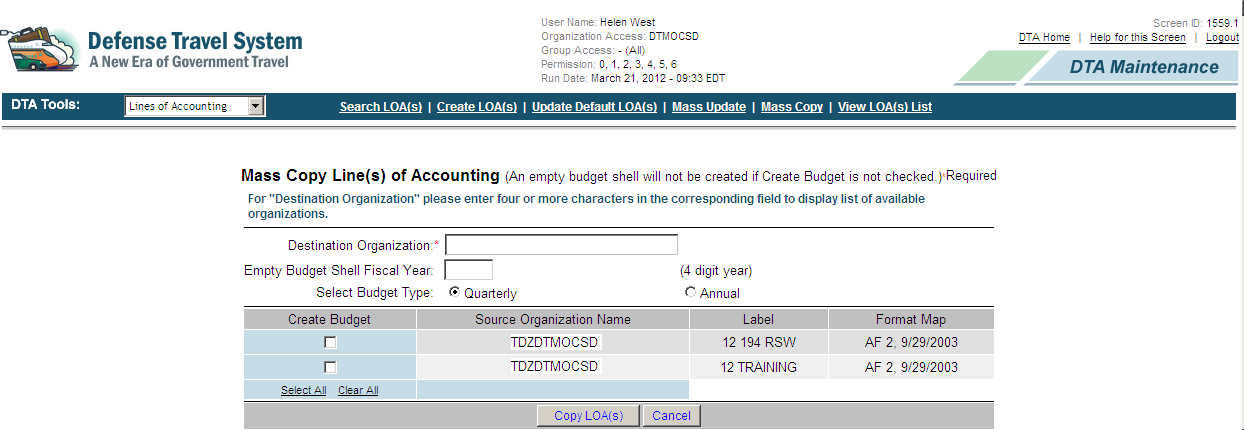
38 The Lines of Accounting Search Results Mass Copy screen opens (Figure 8-42). Figure 8-42: LOA Mass Copy Search Results Screen 4. Select the boxes in the Select to Copy column of the LOA Labels that are to be copied to the new organization. The Select All link places a check in all the boxes. The Clear All link deselects all boxes that are selected. 5. Select Copy Select LOA(s). The Mass Copy Lines(s) of Accounting screen opens (Figure 8-43). Figure 8-43: Mass Copy Lines(s) of Accounting Screen 6. Type the organization name in the Destination Organization text field. If there are multiple suborganizations under your organization, a list of those organizations will appear below the text field. 7. In the Empty Budget Shell Fiscal Year, enter the 4-digit fiscal year the budget shell for this LOA represents. Note: This step (and the next two steps) can be skipped if budget shells for the newly copied LOA(s) are not needed. Page 8-38 DTS Release , DTA Manual, Version 4.5.1Updated 3/26/12

39 8. Budget Type defaults to Quarterly. Select the Annual radio button if target adjustments are to be entered in one lump sum rather than quarterly. 9. If budget shells are needed for the copied LOAs, select the boxes in the Create Budget column. 10. Choose Select All to select all boxes in the Create Budget column. Select Clear All to deselect all boxes. 11. Select Copy LOA(s). Verify the summary information in the Mass Copy Line(s) of Accounting Summary screen (Figure 8-44). 12. Select OK. Figure 8-44: Mass Copy Lines(s) of Accounting Summary Screen The Mass Copy Summary screen displays the number of LOA(s) that have been successfully copied to the new organization and the number of budget shells created for those copied LOA(s). The FDTA must remember to add budget targets to the newly created budget shells or travel cannot be approved using these newly copied LOA(s). If any of the LOAs fail to copy during an attempt to mass copy LOAs, an error message will display on the screen. 8.6 View LOA(s) List The LOA(s) List displays LOA labels and format maps associated with a given organization. Follow the below steps to view the LOA(s) List: 1. Select the DTA Tools drop-down list and select Lines of Accounting. The Search Lines of Accounting screen opens (Figure 8-2). 2. Select View LOA(s) List. DTS Release , DTA Manual, Version Updated 3/26/12 Page 8-39

40 The View Lines of Accounting (LOA) List screen opens (Figure 8-45). Figure 8-45: View Lines of Accounting (LOA) List Screen 3. Type the organization name in the Organization Name text field. If there are multiple sub-organizations under your organization, a list of those organizations will appear below the text field. 4. Select the Include Sub-Organizations box to include suborganizations in the report. 5. Select Run Report. Users are prompted to download the compiled report, which may be downloaded to the computer or viewed in a separate window as an Excel spreadsheet. 6. Select Open to display the report on the screen (Figure 8-46). -OR- Select Save to download the file to the hard drive. -OR- Select Cancel to cancel the action and return to the previous screen.. Figure 8-46: LOA(s) List Screen Page 8-40 DTS Release , DTA Manual, Version 4.5.1Updated 3/26/12
41 8.7 Foreign Military Sales (FMS) in Lines of Accounting The government uses the term Foreign Military Sales (FMS) as an identifier when selling defense items and services to a foreign country or international organization. DTS identifies a LOA as a FMS LOA when specified values are present in the label and account elements. These elements inform the Defense Cash Accounting System (DCAS) which account to draw these funds from. When a FMS LOA is set up for a DTS organization, the FMS LOA label is available for selection in travel documents on the Accounting and Advances screens. A LOA is identified in DTS as a FMS LOA when the following is true: The LOA is labeled with FMS as the first three letters after the two-digit fiscal year (FY) plus one space (e.g., 11 FMSNAVY5) Depending on which format map is used, the characters added to the specified accounts are the exact characters as defined in Table 8-5. DTS validates a LOA as a FMS LOA when the values below exist in the account field positions for the corresponding format maps. DTS Release , DTA Manual, Version Updated 3/26/12 Page 8-41
42 LOA FORMAT MAP AF 2, 9/29/2003 SDDC-AF, 5/12/2006 ARMY 3, 6/6/2003 DTRA, 7/3/2006 SDDC-ARMY, 5/12/ 2006 Table 8-5: Values for FMS LOA Format Maps VALUES FOR FMS LOA FORMAT MAPS LOA FIELD NAME POSI- VALUE I ACCOUNT TION(S) POSITION(S) NUMBER 2 Department Code (DEPT) Transferring Agency (TA) Fiscal Year (FY) 7 X 2 Appropriation Symbol (APPR) Department Code (DEPT) Fiscal Year (FY) 4-7 X X X X 2 Basic Symbol Number (BSN) Transferring Agency (TF) MC, 8/1/ Department Code (DEPT) Fiscal Year (FY) 4-5 X X 2 Appropriation Symbol (APPR) Transfer Agency - FMS (TF) BSM 1, 2/6/ Department Code (DEPT) Fiscal Year (FY) 4-7 X X X X 2 Basic Symbol (BS) Transfer Department (TD) MISIL FMS, 8/18/2011 NAVY FMS, 1/3/ Department Code (DEPT) Transferring Department (TDPT) Beginning Fiscal Year (BFY) 1 X 3 Appropriation Number (APPN) NAVY ERP1, 9/26/ Department Code (DEPT) Transferring Department (TDPT) Beginning Fiscal Year (BFY) 1 X 3 Appropriation Number (APPN) Foreign Military Sales Case (FCN) 6-8 Empty value 8 FMS Location (Country Code) (LOC) Empty value SFIS v3.4 1 Department Regular Code (DEPT RG) Department Transfer Code (DEPT TRS) Main Account Code (MN ACCT) Period of Availability Fiscal Year Date (AFY) 5-12 YYYYXXXX 2 FMS Customer Code (CUST) Empty Value 3 FMS Case Identifier (CASE) 1-3 Empty Value Refer to Appendix R for details for all format maps in DTS. Page 8-42 DTS Release , DTA Manual, Version 4.5.1Updated 3/26/12
43 DTS will not save the character sequence FMS into the first three positions of the LOA label if the designated FMS values are not included or if one of the following format maps is selected: DBMS 1, 8/1/2001 ebiz 2, 2/20/2003 (including CUFS) WAAS 1, 8/7/2002 DWAS, 1/1/2004 SAP1, 3/10/2004 NAVY1, 8/01/2001 MSC, 10/13/2005 NRL1, 6/8/2006 FACTS, 6/30/2011 DTS Release , DTA Manual, Version Updated 3/26/12 Page 8-43
44 This page is left blank intentionally. Page 8-44 DTS Release , DTA Manual, Version Updated 3/26/12
Transitioning from TurningPoint 5 to TurningPoint Cloud - LMS 1
 Transitioning from TurningPoint 5 to TurningPoint Cloud - LMS 1 A Turning Account is a unique identifier that is used to tie together all software accounts and response devices. A Turning Account is required
Introduction to the Document Vault
 Introduction to the Document Vault Table of Contents Introduction to the Document Vault... 3 Key Documents to Maintain in your Document Vault... 3 Document Vault Navigation... 4 Uploading a New Document...
Council of Ontario Universities. COFO Online Reporting System. User Manual
 Council of Ontario Universities COFO Online Reporting System User Manual Updated September 2014 Page 1 Updated September 2014 Page 2 Table of Contents 1. Security... 5 Security Roles Defined in the Application...
CHAPTER 4: VOUCHERS FROM AUTHORIZATIONS
 CHAPTER 4: VOUCHERS FROM AUTHORIZATIONS The Defense Travel System (DTS) uses vouchers from authorizations (vouchers) to record the actual expenses that a traveler incurred during a trip. In order for DTS
A. BACK UP YOUR CURRENT DATA. QuickBooks Business Accounting Software 2006 2009 for Windows Account Conversion Instructions
 QuickBooks Business Accounting Software 2006 2009 for Windows Account Conversion Instructions As your financial institution completes its system conversion, you will need to modify your QuickBooks settings
eopf Release E Administrator Training Manual
 eopf Release E Administrator Training Manual i The United States Office Of Personnel Management eopf Administrator Training Manual for eopf v5 eopf Version 4.1, July 2007, March 2008, March 2009; eopf
As your financial institution completes its system conversion, you
 QuickBooks Business Accounting Software 2007 2009 for Windows Account Conversion Instructions Converting from Direct Connect to Web Connect As your financial institution completes its system conversion,
USER GUIDE. Unit 2: Synergy. Chapter 2: Using Schoolwires Synergy
 USER GUIDE Unit 2: Synergy Chapter 2: Using Schoolwires Synergy Schoolwires Synergy & Assist Version 2.0 TABLE OF CONTENTS Introductions... 1 Audience... 1 Objectives... 1 Before You Begin... 1 Getting
Chapter 15: Forms. User Guide. 1 P a g e
 User Guide Chapter 15 Forms Engine 1 P a g e Table of Contents Introduction... 3 Form Building Basics... 4 1) About Form Templates... 4 2) About Form Instances... 4 Key Information... 4 Accessing the Form
CRMS Quick Training Guide
 CRMS Quick Training Guide What is CRMS? CRMS stands for Corporate Records Management System. It is used to help manage your physical paper folders effectively for in-office use, offsite storage, and destruction.
Myridas Catalogue Based Sales User Guide
 Myridas Catalogue Based Sales User Guide Version 12 for Dynamics GP 2013 Document version: 1.0 Date: 31 st March 2013 CONTENTS Contents CONTENTS... 2 CATALOGUE BASED SALES... 4 Item Attributes... 4 Catalogue
Quick Start Guide. Highly customizable automated trading Automate your trades according to rules and models you create.
 POWER E*TRADE PRO EXCEL MANAGER Quick Start Guide We are pleased to announce the launch of Excel Manager, an exciting new feature in Power E*TRADE Pro that leverages the flexibility of Microsoft Excel
Bank Reconciliation WalkThrough
 Bank Reconciliation WalkThrough Write-Up CS version 2008.x.x TL 18915 (04/25/08) Copyright Information Text copyright 1998-2008 by Thomson Tax & Accounting. All rights reserved. Video display images copyright
ICP Data Entry Module Training document. HHC Data Entry Module Training Document
 HHC Data Entry Module Training Document Contents 1. Introduction... 4 1.1 About this Guide... 4 1.2 Scope... 4 2. Step for testing HHC Data Entry Module.. Error! Bookmark not defined. STEP 1 : ICP HHC
ACHieve Access 4.3 User Guide for Corporate Customers
 ACHieve Access 4.3 User Guide for Corporate Customers January 2015 Citizens Bank 1 February 2015 Table of Contents SECTION 1: OVERVIEW... 4 Chapter 1: Introduction... 5 How to Use This Manual... 5 Overview
Decision Support AITS University Administration. Web Intelligence Rich Client 4.1 User Guide
 Decision Support AITS University Administration Web Intelligence Rich Client 4.1 User Guide 2 P age Web Intelligence 4.1 User Guide Web Intelligence 4.1 User Guide Contents Getting Started in Web Intelligence
How To Use The Amtbro Portal
 Washington Headquarters Services Mass Transportation Benefit Program (MTBP) Web Application Agency Mass Transportation Benefit Program Reviewing Official (AMTBRO) User Guide May 2012 Version 1.7 Final
Payco, Inc. Evolution and Employee Portal. Payco Services, Inc.., 2013. 1 Home
 Payco, Inc. Evolution and Employee Portal Payco Services, Inc.., 2013 1 Table of Contents Payco Services, Inc.., 2013 Table of Contents Installing Evolution... 4 Commonly Used Buttons... 5 Employee Information...
IRA Pivot Table Review and Using Analyze to Modify Reports. For help, email [email protected]
 IRA Pivot Table Review and Using Analyze to Modify Reports 1 What is a Pivot Table? A pivot table takes rows of detailed data (such as the lines in a downloadable table) and summarizes them at a higher
Version 10.3. End User Help Files. GroupLink Corporation 2014 GroupLink Corporation. All rights reserved
 Version 10.3 End User Help Files GroupLink Corporation 2014 GroupLink Corporation. All rights reserved GroupLink and everything HelpDesk are registered trademarks of GroupLink Corporation. The information
Version 11.0.1. End User Help Files. GroupLink Corporation 2015 GroupLink Corporation. All rights reserved
 Version 11.0.1 End User Help Files GroupLink Corporation 2015 GroupLink Corporation. All rights reserved GroupLink and everything HelpDesk are registered trademarks of GroupLink Corporation. The information
Applicant Tracking System Job Aids. Prepared by:
 Applicant Tracking System Job Aids Prepared by: Contents System Navigation and My Setup Information for Users... 1 Creating Requisitions... 4 Duplicating Requisitions... 6 Requesting an Approval... 7 Viewing
Data Tracking System (DTS) User Manual http://dts.fws.net https://dts.fws.gov
 Data Tracking System (DTS) User Manual http://dts.fws.net https://dts.fws.gov Correspondence Control Unit Telephone: 202-208-7535 April 2008 DTS User Manual i TABLE OF CONTENTS ACCESSING THE DTS SYSTEM...1
INTRODUCTION... 4 MODULE 5. TIMESHEET... 5. Overview... 5 5.1 TIMESHEET CALENDAR VIEW... 7 INTRODUCTION... 7. What you will learn in this section...
 Step by Step Guide PSA 2015 Module 5 5.1 calendar view 5.2 by line 5.3 Instant Time Entry PSA 2015 (Release 2.3.0.243) PSA 2015 Step by Step Guide is published by Assistance Software. All rights reserved.
Agency Mass Transportation Benefit Program Reviewing Official (AMTBRO) User Guide
 Washington Headquarters Services Mass Transportation Benefit Program (MTBP) Web Application Agency Mass Transportation Benefit Program Reviewing Official (AMTBRO) User Guide May 2014 Software Release 1.10
Module 7 Invoicing. Step by Step Guide PSA 2015. 7.1 Single project invoicing 7.2 Batch invoicing projects 7.3 Program invoicing 7.
 Step by Step Guide PSA 2015 Module 7 7.1 Single project invoicing 7.2 Batch invoicing projects 7.3 Program invoicing 7.4 Invoice approval PSA 2015 (Release 2.3.0.243) PSA 2015 Step by Step Guide is published
Netigate User Guide. Setup... 2. Introduction... 5. Questions... 6. Text box... 7. Text area... 9. Radio buttons...10. Radio buttons Weighted...
 Netigate User Guide Setup... 2 Introduction... 5 Questions... 6 Text box... 7 Text area... 9 Radio buttons...10 Radio buttons Weighted...12 Check box...13 Drop-down...15 Matrix...17 Matrix Weighted...18
Baylor Secure Messaging. For Non-Baylor Users
 Baylor Secure Messaging For Non-Baylor Users TABLE OF CONTENTS SECTION ONE: GETTING STARTED...4 Receiving a Secure Message for the First Time...4 Password Configuration...5 Logging into Baylor Secure Messaging...7
PowerSchool Parent Portal User Guide. PowerSchool 7.x Student Information System
 PowerSchool 7.x Student Information System Released December 2011 Document Owner: Documentation Services This edition applies to Release 7.1 of the [product name] software and to all subsequent releases
DarwiNet Client Level
 DarwiNet Client Level Table Of Contents Welcome to the Help area for your online payroll system.... 1 Getting Started... 3 Welcome to the Help area for your online payroll system.... 3 Logging In... 4
Updated 08/2015. Wire Transfer User Guide
 Updated 08/2015 Wire Transfer User Guide Wire Transfers The Wire section provides you with the ability to create one-time wires or set up template-based wires for ongoing use. Wiring Funds The tasks you
TOPS PROFESSIONAL ACCOUNTS PAYABLE MANUAL. By TOPS Software, LLC Clearwater, FL
 TOPS PROFESSIONAL ACCOUNTS PAYABLE MANUAL By TOPS Software, LLC Clearwater, FL Document History Version Edition Date Document Software Version 1 10-2011 TOPS-AP 10-10-11 Professional Version 4 Trademark
FAST Travel System. Guide: Creating Expense Reports
 FAST Travel System Guide: Creating Expense Reports Purpose: To provide instructions on how to create an Expense Report (ER) in FAST 9.2 Travel module. Definition: Expense Report submission entered into
CONFIGURING ASCENTIS HR 3 ASCENTIS HR SECURITY 27 CREATING & MAINTAINING BENEFIT PLANS 41 SETTING UP LEAVE & ATTENDANCE POLICIES 71
 Table of Contents CONFIGURING ASCENTIS HR 3 DATA DEPENDENCIES 4 COMPANY INFORMATION 5 KEY TABLES IN SETUP MANAGER 9 REVIEW QUESTIONS: 25 ASCENTIS HR SECURITY 27 DEFINING ROLES 28 CREATING USERS 33 MAINTAINING
TOMS User/Student Management Manual. Badger Exam 3-8: A Smarter Balanced Assessment
 TOMS User/Student Management Manual Badger Exam 3-8: A Smarter Balanced Assessment Updated March 16, 2015 TOMS User/Student Management Manual This publication is available from: Office of Student Assessment
IBM Unica Leads Version 8 Release 6 May 25, 2012. User Guide
 IBM Unica Leads Version 8 Release 6 May 25, 2012 User Guide Note Before using this information and the product it supports, read the information in Notices on page 33. This edition applies to version 8,
Concur Expense Guide: Version 2
 Concur Expense Guide: Version 2 Welcome to Concur Expense...3 Log on to Concur...3 Explore the My Concur Page...4 Update Your Expense Profile...5 Step 1: Change Your Password...5 Step 2: Review Your Expense
384 PastPerfect Museum Software User s Guide THE CONTACTS SCREEN
 20 CONTACTS In this chapter, we will show you how PastPerfect can help you manage your patrons and memberships. PastPerfect s contact management features automate tracking donors, potential donors, current
How To Use Cleanersmate Software On A Pc Or Mac Or Macbook Or Macintosh (For Pc Or Pc) With A Computer Or Mac (For Mac) With An Ipa Or Mac Xp (For A Mac) On A Computer With
 User Guide Installation... 2 Using CleanersMate... 3 Initial Settings... 3 Clients... 3 Clients Summary Screen... 4 Adding a New Client... 4 Deleting an Existing Client... 4 Editing an Existing Client...
Module 2 Settings. PSA 2015 Step by Step Guide. 2.1 Organization & Financials (basic) 2.2 PSA settings 2.3 PSA security roles 2.
 PSA 2015 Step by Step Guide Module 2 2.1 Organization & Financials (basic) 2.2 PSA settings 2.3 PSA security roles 2.4 PSA users PSA 2015 (Release 2.3.0.243) PSA 2015 Step by Step Guide is published by
The Welcome screen displays each time you log on to PaymentNet; it serves as your starting point or home screen.
 PaymentNet Cardholder Quick Reference Card Corporate Card ffwelcome to PaymentNet The Welcome screen displays each time you log on to PaymentNet; it serves as your starting point or home screen. PaymentNet
Transitioning from TurningPoint 5 to TurningPoint Cloud - NO LMS 1
 Transitioning from TurningPoint 5 to TurningPoint Cloud - NO LMS 1 A Turning Account is a unique identifier that is used to tie together all software accounts and response devices. A Turning Account is
Gate City Bank Online Business Banking i
 Gate City Bank Online Business Banking i Table Of Contents Table of Contents Online Business Banking... 5 Online Business Banking Overview... 5 Features and Services... 5 FREE* Online Business Banking...
Access I 2010. Tables, Queries, Forms, Reports. Lourdes Day, Technology Specialist, FDLRS Sunrise
 Access I 2010 Tables, Queries, Forms, Reports Lourdes Day, Technology Specialist, FDLRS Sunrise Objectives Participants will 1. create and edit a table 2. create queries with criteria 3. create and edit
Hosted Fax Service User Guide. Version 3.2 March, 2010 This document is subject to change without notice.
 Hosted Fax Service User Guide Version 3.2 March, 2010 This document is subject to change without notice. Table of Contents 1 Quick Start: Sending a Fax by Email... 3 2 Quick Start: Sending a Fax from Web
Section 4. Mastering Folders
 Section 4 Mastering Folders About This Section Section 3: Working with Receipts introduced you to the Receipts Grid area of the Receipt Organizer window (the lower of the two grids). In the Receipts Grid,
Document Services Online Customer Guide
 Document Services Online Customer Guide Logging in... 3 Registering an Account... 3 Navigating DSO... 4 Basic Orders... 5 Getting Started... 5 Attaching Files & Print Options... 7 Advanced Print Options
DIRECT PAYMENTS (ACH TRANSFER MODULE)
 DIRECT PAYMENTS (ACH TRANSFER MODULE) Direct payments is an add on module to utility billing that allows customers to pay their utility bill by a recur ACH payment. Please note that the term ACH (Automatic
MODULE 2: SMARTLIST, REPORTS AND INQUIRIES
 MODULE 2: SMARTLIST, REPORTS AND INQUIRIES Module Overview SmartLists are used to access accounting data. Information, such as customer and vendor records can be accessed from key tables. The SmartList
Emdeon ecashiering Manual. February 22, 2010
 Emdeon ecashiering Manual February 22, 2010 Purpose... 4 Objectives... 4 Special Symbol... 4 Introduction to Emdeon ecashiering... 5 ecashiering Access... 5 Suggested ecashiering System Roles... 5 ecashiering
End User Training Guide
 End User Training Guide October 2013 2005-2013 ExpenseWire LLC. All rights reserved. 1 expensewire.com Use of this user documentation is subject to the terms and conditions of the applicable End- User
Q: Can I send an ecard? A: Yes, you can find several options of ecards on the ecard Manager, which you ll find on the top navigation bar.
 DBWS Training ecard Manager Q&A Q: Can I send an ecard? A: Yes, you can find several options of ecards on the ecard Manager, which you ll find on the top navigation bar. Q: What types of ecards are available?
Defense Travel Management Office. Defense Travel System. Guide for Managing Travel-Incurred Debt
 Defense Travel Management Office Defense Travel System Guide for Managing Travel-Incurred Debt November 2, 2015 This page is left blank intentionally Guide for Managing Travel-Incurred Debt, Version 1.12
USER MANUAL FOR INTERNET BANKING (IB) SERVICE
 USER MANUAL FOR INTERNET BANKING (IB) SERVICE Content: Introduction and General questions. Accessing and using Internet Banking. 1. Log In, Log Out and Printing screen/transaction information 2. Inquiries
emarketing Manual- Creating a New Email
 emarketing Manual- Creating a New Email Create a new email: You can create a new email by clicking the button labeled Create New Email located at the top of the main page. Once you click this button, a
Creating an Expense Report from a Blank Report Form. These instructions are designed for those who do NOT need a Travel Authorization.
 Creating an Expense Report from a Blank Report Form These instructions are designed for those who do NOT need a Travel Authorization. Expense Reports are required for the following reasons: Document all
Guide to using Cumulus software (a.k.a., the Cumulus "client")
 Guide to using Cumulus software (a.k.a., the Cumulus "client") January 2012 Stanford Law School s images database is in Cumulus a digital asset manager made by Canto Software http://www.canto.com. Stanford
PaymentNet Federal Card Solutions Cardholder FAQs
 PaymentNet Federal Card Solutions It s easy to find the answers to your questions about PaymentNet! June 2014 Frequently Asked Questions First Time Login How do I obtain my login information?... 2 How
TimeValue Software Due Date Tracking and Task Management Software
 User s Guide TM TimeValue Software Due Date Tracking and Task Management Software File In Time Software User s Guide Copyright TimeValue Software, Inc. (a California Corporation) 1992-2010. All rights
Education Solutions Development, Inc. APECS Navigation: Business Systems Getting Started Reference Guide
 Education Solutions Development, Inc. APECS Navigation: Business Systems Getting Started Reference Guide March 2013 Education Solutions Development, Inc. What s Inside The information in this reference
Multicurrency Bank Reconciliation 9.0
 Multicurrency Bank Reconciliation 9.0 An application for Microsoft Dynamics ΤΜ GP 9.0 Furthering your success through innovative business solutions Copyright Manual copyright 2006 Encore Business Solutions,
User Guide to the Budget Process
 User Guide to the Budget Process 2/12/2015 Contents 1. Adaptive Insights... 2 2. Browsers... 2 3. Nomenclature... 3 4. Logging into Adaptive Insights... 3 5. User Security - Roles and Levels... 4 6. What
IFAS Reports. Participant s Manual. Version 1.0
 IFAS Reports Participant s Manual Version 1.0 December, 2010 Table of Contents General Overview... 3 Reports... 4 CDD Reports... 5 Running the CDD Report... 9 Printing CDD Reports... 14 Exporting CDD Reports
Wimba Pronto. Version 3.1. Administrator Guide
 Wimba Pronto Version 3.1 Administrator Guide Wimba Pronto 3.1 Administrator Guide Overview 1 Accessing the Wimba Pronto Administration Interface 2 Managing Multiple Institutions 3 General Features 4 Configuring
User Manual - Sales Lead Tracking Software
 User Manual - Overview The Leads module of MVI SLM allows you to import, create, assign and manage their leads. Leads are early contacts in the sales process. Once they have been evaluated and assessed,
NorthClark Computing, Inc. Bill of Material and Parts Master Maintenance. Administrator s Guide
 ERP Consulting Web Development Custom Programming Solutions Desktop & Web Applications for Manfact NorthClark Computing, Inc. Bill of Material and Parts Master Maintenance Administrator s Guide Web and
Results CRM 2012 User Manual
 Results CRM 2012 User Manual A Guide to Using Results CRM Standard, Results CRM Plus, & Results CRM Business Suite Table of Contents Installation Instructions... 1 Single User & Evaluation Installation
Section 2.5.05 Documents. Contents
 Section 2.5.05 Documents Contents Documents... 2 Practice Documents Tab... 3 Unsigned Documents Tab... 7 Uninitialed Documents Tab... 9 Document Sessions Tab... 10 Print Days Documents Tab... 12 Save Templated
TRAVEL AND EXPENSE CENTER REPORTS
 TRAVEL AND EXPENSE CENTER REPORTS NOTE: This document is designed to be used online and has a number of embedded links to processes and additional information. We discourage the printing of manuals as
Getting Started with Mamut Online Desktop
 // Mamut Business Software Getting Started with Mamut Online Desktop Getting Started with Mamut Online Desktop Contents Welcome to Mamut Online Desktop... 3 Getting Started... 6 Status... 23 Contact...
Table of Contents. Copyright 2010-2015 Symphonic Source, Inc. All rights reserved. Salesforce is a registered trademark of salesforce.
 DupeCatcher is a real-time deduplication app designed specifically for Salesforce. It is a 100% APEX developed and deployed managed package, and is installed via the Salesforce AppExchange, eliminating
Navy Construction / Facilities Management Invoice
 Invoicing Receipt Acceptance Property Transfer Navy Construction / Facilities Management Invoice To learn how to electronically submit and take action on irapt documents through simulations and step-by-step
Self Service Time Entry Time Only
 Self Service Time Entry Time Only Introduction Welcome to this Self Service Time Entry session. This session is intended for employees that report hours worked, leave taken, and other payroll information
Web Mail Classic Web Mail
 April 14 Web Mail Classic Web Mail Version 2.2 Table of Contents 1 Technical Requirements... 4 2 Accessing your Web Mail... 4 3 Web Mail Features... 5 3.1 Home... 5 3.1.1 Mailbox Summary... 5 3.1.2 Announcements...
Overview of Kronos iseries Manager
 REVISED: 10/07/2013 Table of Contents OVERVIEW OF KRONOS ISERIES MANAGER... 3 LOGGING INTO KRONOS... 4 TIME LIMIT... 5 CHANGING YOUR PASSWORD... 6 UNDERSTANDING THE DISPLAY... 7 GENIE VIEWS... 8 Hours
REGISTER OF COMPANIES, ENTERPRISES AND BUSINESS
 RWANDA BUSINESS REGISTRY PROJECT REGISTER OF COMPANIES, ENTERPRISES AND BUSINESS NAMES USER MANUAL Online user Version: 1.0 March 9 th 2010 NORWAY REGISTERS DEVELOPMENT AS TABLE OF CONTENTS 1 INTRODUCTION...
Volunteer Management Information System Army Volunteer Corps Coordinator User Guide
 Volunteer Management Information System Army Volunteer Corps Coordinator User Guide May 2014 Notice This manual and all of the information contained herein are confidential and proprietary to U.S. Army
Billing - Recurring Bills
 Billing - Recurring Bills Table of Contents Steps for Recurring Bills... 3 Process... 3 Creating a Recurring Bill Template and Defining a Schedule... 4 Overview... 4 Steps... 4 Verifying and Generating
Ministry of Education User Guide for the School Facilities Inventory System Application
 Ministry of Education User Guide for the School Facilities Inventory System Application Version 3.0 November 2009 Table of Contents Purpose of this Guide... 1 Overview... 2 Connecting to the SFIS Application...
Quicken for Windows Conversion Instructions [Quicken for Windows 2010-2012 WC to WC]
![Quicken for Windows Conversion Instructions [Quicken for Windows 2010-2012 WC to WC]](/thumbs/28/12872479.jpg "Quicken for Windows Conversion Instructions [Quicken for Windows 2010-2012 WC to WC]") Quicken for Windows Conversion Instructions [Quicken for Windows 2010-2012 WC to WC] As Milford Federal Savings & Loan Association completes its system conversion, you will need to modify your Quicken
Quicken for Windows Conversion Instructions [Quicken for Windows 2010-2012 WC to WC] As Milford Federal Savings & Loan Association completes its system conversion, you will need to modify your Quicken
Profile. 2 On the Expense Settings menu on the left
 Section 1: Getting Started Step 1: Log on to Concur Expense 1 In the User Name field, enter your user name. 2 In the Password field, enter your password. 3 Click Login. If you are not sure how to start
Indiana Campaign Finance System Secure Site
 Indiana Campaign Finance System Secure Site Overview The Indiana Campaign Finance System is provided by the Indiana Election Division to enable campaign committees to manage contributions and expenditures,
National Fire Incident Reporting System (NFIRS 5.0) NFIRS Data Entry/Validation Tool Users Guide
 National Fire Incident Reporting System (NFIRS 5.0) NFIRS Data Entry/Validation Tool Users Guide NFIRS 5.0 Software Version 5.3 Prepared for: Directorate of Preparedness and Response (FEMA) Prepared by:
Navy Drug Screening Program Client Collection Software (NDSP-CCS)
 Navy Drug Screening Program Client Collection Software (NDSP-CCS) NDSP was previously known as the Drug Testing Program (DTP) Users Guide VERSION 5.2 OCTOBER 2002 PREPARED BY: NDSP PROGRAMMING SUPPORT
Appendix A How to create a data-sharing lab
 Appendix A How to create a data-sharing lab Creating a lab involves completing five major steps: creating lists, then graphs, then the page for lab instructions, then adding forms to the lab instructions,
Chapter 3 Claims June 2012
 Chapter 3 Claims This Page Left Blank Intentionally CTAS User Manual 3-1 Claims: Introduction Checks All payments must be supported by an approved claim. Claims should be prepared for every check to be
Add and Change Direct Deposit Elections
 Purpose and Overview The purpose of this quick guide is to help you create, add, update, and delete your payment election (direct deposit information) accounts in Workday. In addition, you can specify
The End of Month Closing process cuts off all sub-journal postings for the month and should be performed at the conclusion of each month.
 End of Month Closing The End of Month Closing process cuts off all sub-journal postings for the month and should be performed at the conclusion of each month. Closing the month involves up to five steps:
E-FILE. Universal Service Administrative Company (USAC) Last Updated: September 2015
 E-FILE USER GUIDE This document providers E-File users with an overview of E-File account management, managing entitlements, and instructions on how to submit forms, such as the FCC Form 498, FCC Form
NYS OCFS CMS Manual CHAPTER 1...1-1 CHAPTER 2...2-1 CHAPTER 3...3-1 CHAPTER 4...4-1. Contract Management System
 NYS OCFS CMS Manual C O N T E N T S CHAPTER 1...1-1 Chapter 1: Introduction to the Contract Management System...1-2 Using the Contract Management System... 1-2 Accessing the Contract Management System...
User Manual. CitiDirect \ CitiDirect EB - Citi Trade Portal. InfoTrade Phone No. 0 801 258 369 [email protected]
 CitiDirect \ CitiDirect EB - Citi Trade Portal User Manual InfoTrade Phone No. 0 801 258 369 [email protected] CitiDirect HelpDesk Phone No. 0 801 343 978, +48 (22) 690 15 21 Monday Friday 8.00 17.00
Client Services. Training Participant Guide
 Human Services Department Client Services Management System (CSMS) Client Services Training Participant Guide May 2013 Table of Contents 1. Course Objectives Course Outcome...1 General Information 2. Getting
Basics Series-4006 Email Basics Version 9.0
 Basics Series-4006 Email Basics Version 9.0 Information in this document is subject to change without notice and does not represent a commitment on the part of Technical Difference, Inc. The software product
Defense Travel System. Financial Field Procedures Guide
 Defense Travel System Financial Field Procedures Guide November 18, 2015 Table of Contents Table of Contents Chapter 1: Introduction... 5 Chapter 2: Funds Control Finance and Budget Defense Travel Administrator
APPENDIX R: Lines of Accounting (LOAs) Formats by Service/Agency and LOA Data Elements For Customer Identification Codes (CICs)
 APPENDIX R: Lines of Accounting (LOAs) Formats by Service/Agency and LOA Data Elements For Customer Identification Codes (CICs) This Appendix shows the Lines of Accounting (LOAs) formats for Service/Agencies