
Religare Securities Limited ODIN DIET - Trading Manual
|
|
|
- Ella Skinner
- 10 years ago
- Views:
Transcription
1 Religare Securities Limited

2 Introduction Religare ODIN DIET is a comprehensive trading tool with a facility to trade in cash, derivatives, mutual funds, IPOs, currencies and commodities all in one screen. With this platform you can conveniently trade on National Exchanges i.e. 1. National Stock Exchange of India Limited (NSE) 2. Bombay Stock Exchange of India Limited (BSE) 3. Multi Commodity Exchange of India Ltd (MCX) 4. National Commodity & Derivatives Exchange Limited (NCDEX) 5. MCX Stock Exchange Limited (MCX SX) Key features of this trading solution are: a) Traders Terminal on your desktop b) Access to all asset class c) Real time streaming quotes d) Technical Charting Intraday & EOD e) Multiple Market Watch f) Online Transfer of funds g) Integrated DP & Backoffice At the end of the manual, you should be able to Login to Religare Diet and Change Password Place Buy and Sell orders View Reports Transfer Funds and withdraw Know about extra tools Minimum System Requirements Operating System-Windows XP/Vista Intel Core~2 Duo Processor E8400(6M Cache, 3.00 GHz, 1333 MHz FSB)Memory-1GB, Storage-80 GB STAT HDD, GB Eth NIC How do I access the trading terminal? Open Downloads page by using below mentioned URL: Click on Odin Diet Application to download installation file (zip file). Open downloaded zip file then double click on the EQ_Diet_ _Full_Setup.exe to run installation

3 Click on NEXT Again click on NEXT Click on I accept the terms to agree the license agreement and click on NEXT

4 Leave the installation folder as default and click on NEXT Click on Install to continue with setup Necessary files will be extracted on the system.

5 Click on Finish to complete the setup

6 Login to ODIN DIET Online Trading Platform For logging to your trading account, follow these steps: Double click on the ODIN Diet icon that is visible on the desktop ODIN Diet Icon The ODIN DIET application is launched. Click on the green colour icon on the extreme left of the application screen (as shown in the following screenshot). Login (Ctrl +L) The application log in window appears
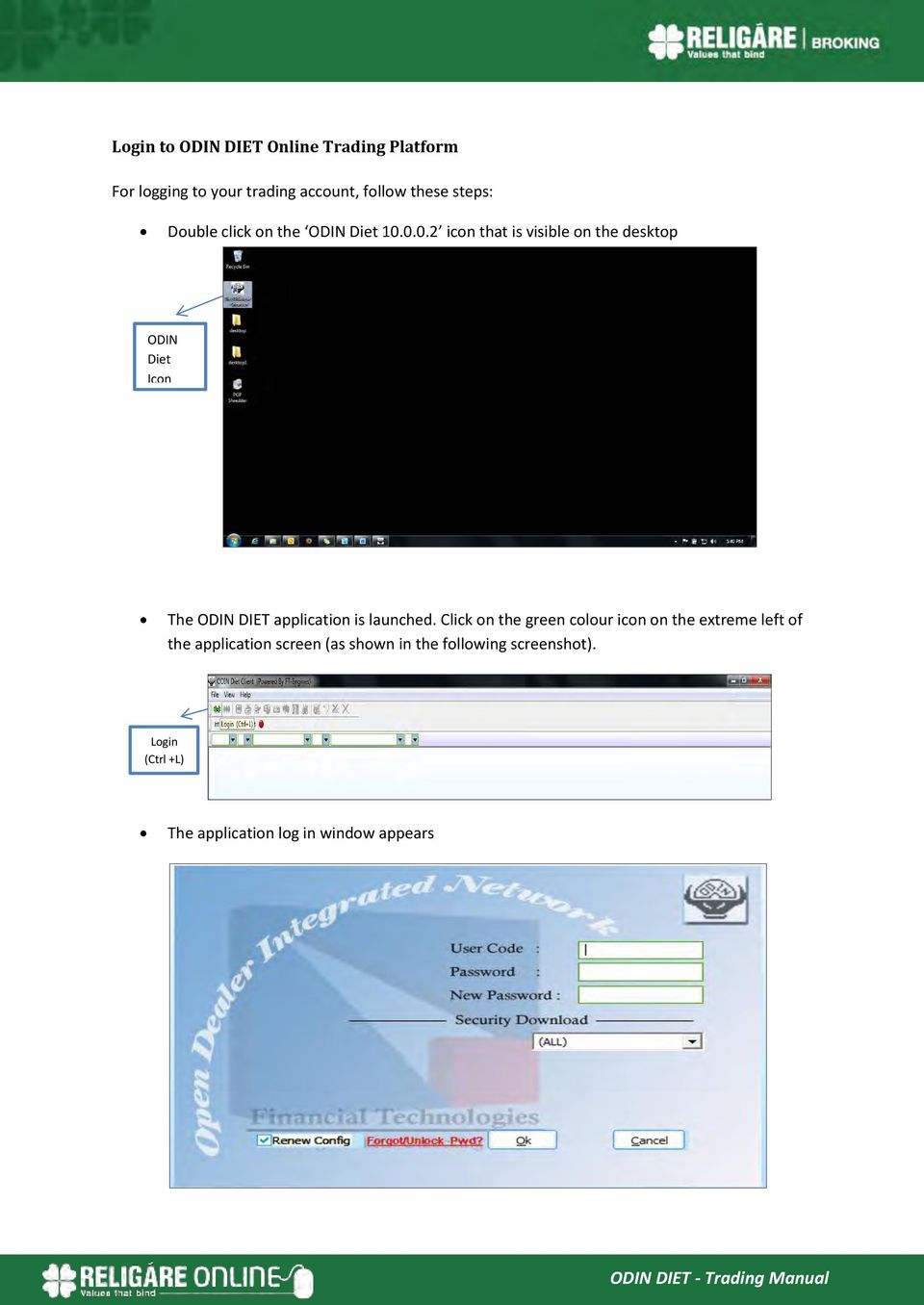
7 Type in the ODIN DIET User Code (i.e. Client Code) assigned to you Enter the password mailed to you Type in a new alphanumeric case sensitive password of your choice. The password needs to be of minimum six characters with a mix of alphabets and numbers. Check all checkboxes for which trading is available under security download. This will enable the auto downloading of the daily scrip master files Click OK. The application would ask you to re-confirm the new password that you have set. Note: New Password is required only on first time login or on forget password request. Enter new password Please type in your new password for re-confirmation. Confirm New Password The following screen will appear for downloading of scrip master for available exchanges

8 Forget Password In case you have forgotten password of the trading application, retrieve it through forget password link available on login screen Type user id and registered mail id in the forget password screen and select password check box. Check on password option Click SUBMIT button. The password will be provided instantly through and SMS on your registered mail id and registered number. This will be one time password and you will be prompted to change it mandatorily on login. Market Watch Shortcut Key: F4 In market watch window, changes in the best price and quantities are highlighted in real time. While Blue colour indicates an increase, the Red colour indicates a decrease in price/quantities. No change in colour indicates that prices / quantities have not changed. Multiple markets watch windows can be opened simultaneously. Click on MARKETWATCH icon or press F4 shortcut key. The following screen appears.

9 Market Watch F4 You can add specific stock or and future contract directly from the drop down combo box. Select exchange from the dropdown combo box. Enter the scrip name. On pressing tab on your keyboard, the scrip description will be displayed Enter Symbol Press enter on your keyboard to add scrip in market watch. For derivative segment select F- Future or O- Option in filter next to exchange in drop down combo box. Select Segment Select FUTIDX/FUTSTK for futures contract or OPTIDX/OPTSTK for options contract Select Contract Type Select the security symbol

10 Enter Symbol Select the expiry date from the drop-down. Select Expiry In case of options contract, select the expiry from the drop down and then select option type Select Option Type After addition of the stock and contract in market watch you will be able to see price and quantities details. Symbol Scrip Name Real time Price (Bid/Ask) & Quantities To view default portfolio provided by Religare, right click on market watch and then click on portfolio.

11 Select default portfolio as BANKEX Click on Apply button You can save portfolio directly from the market watch. Right click on the Market Watch screen window to save the portfolio that you have created.


12 Right click on the market watch screen and select scrip portfolio to change to another saved portfolio. You can also create profiles by saving the columns of market watch as per your choice. Right click on market watch and select save column profile to save profile. Give name to the portfolio like Mid Cap and then click OK to save. For changing profile, right click on market watch and select column profile to choose profile of your choice. Place Order Shortcut Key: F1 (Buy)/ F2 (Sell) For placing an order select the stock on market watch and then select orders in menu bar. Click on Place buy orders or Place sell orders to place buy or sell orders respectively. Alternatively, Press F1 to open buy order entry form or F2 to open sell order entry form. In the order form (showing order form for derivative segment) Derivatives Buy Order Entry Form Derivatives Sell Order Entry Form Enter required quantity to buy or sell Enter required price Select product type and press submit On pressing submit, system will prompt for authorization. Click on Yes to place order.


13 Order Book Shortcut Key: F3 You can check the status of all orders in the order book. The order book reflects pending, rejected and executed order status for buy/sell order for current trading day. To open order book, click on orders and then select order book or alternately press F3 Shortcut key Press order book (F3) The orders can be filtered as pending, executed and all. Pending orders are those orders which are not traded and are pending at exchange Executed orders are those orders which got traded/ executed in the exchange. Rejected orders are those orders which are rejected by exchange or by Religare s Surveillance. Order Modification The orders submitted to exchange can be modified through order book window.


14 Select row of pending order for a stock in order book. Right click and then select modify. Price and the quantity in the pending orders can be modified. Order Cancellation The orders submitted to exchange can be cancelled through order book window. Select row of pending order for a stock in order book. Right click and then select Cancel or Cancel All. (Note: Only pending orders can be cancelled.) Trade Book Shortcut Key: F8 All trades done on a particular day can be viewed in the trade book window. Trade book gives details of order executed at the exchange along with the execution details such as Traded Quantity and Traded Price. Click on view on menu bar and then select trade to open the trade book window or alternatively press F8 Shortcut key Net Position Shortcut Key: ALT+F6 The integrated net position window gives details of net position such as total buy/sell quantity, buy/sell value, buy/sell average price, net quantity, net price, market price and mark to market gain/loss. These details can be viewed for the day and for a settlement. For cash segment this window reflects details for the day and for future and commodities till the end of the contract. Click on View on menu bar and then select net position or alternatively press ALT+F6 Shortcut key


15 Stock Watch Stock watch provides the details of the cash segment delivery based holding available in pool account. Click on Stocks on menu bar and then select stock watch. Stocks can be directly sold through a stock watch. Right click on a particular stock and exchange in which you wish to sell and then click on Sell Today s Stock. In sell order form, quote price & quantity and then click on submit. Transfer Fund Through this functionality you can transfer funds online from your mapped bank account to your trading account. Click on links on menu bar and then select Transfer Funds Select RSL- for Religare Securities or RCL- for Religare Commodities in product drop down


16 Select Bank which is mapped to your account and from which you want to transfer fund online. Select Bank Account number Enter amount that you wish to transfer. Click Submit The page will get redirected to the online banking site of the selected bank Enter your Net Banking User Id & password to proceed further Post logging in; select the account number registered with Religare. Enter the amount and click CONFIRM. System shall prompt for a transaction password. Enter transaction password, click SUBMIT and a reference number will get generated Please note till the time you do not get a reference number, do not close that particular browser window. On successful online fund transfer, a bank reference number is generated. Keep this number for future reference. Once you get the reference number, kindly click on FUNDS VIEW to verify the availability of transferred funds. Fund View Click on links and then select the Fund View. The fund view window gets opened in explorer view. Click on Fund View Through Fund view you can see utilization, available balance for trading and available balance for the allocation to IPO and Mutual funds. Select Periodicity as All Equity Combined+ Equity Derivative+ Curr Combined for Equity & derivative segment and All Commodity Combined + NSEL for commodities segment.


17 Click Submit to view details. Fund Allocation You can allocate fund from trading account to IPO/MF and vice versa. Select Allocate Funds Select product (i.e. RSL/IPO/ MF) under Move From drop down. Select product (i.e. IPO/MF/RSL) under Move To drop down. Enter Amount to be allocated and then click submit to process the allocation. Market Picture Shortcut Key: F5 The market picture window gives detail on best 5 buy and sell price and quantities available at a particular point in time. Other details available are Total Buyer, Total Seller, Last traded quantity (LTQ), Last traded price (LTP), Volume, value, % change in price, Open price, high price, low price and close price. Select the stock on the market watch and Click on Market. Then select Market Picture

18 Alternatively, open this window by pressing F5 shortcut key. Select exchange and segment. Select E for equities, F for future and O for option segment. Type symbol and press tab button on your keypad to retrieve stock specific price/quantity details. Integrated Back Office You can access the back office reports through your trading application. Click on links and then select Backoffice. The page will be redirected to the Client Relationship Number (CRN). Select Equity Trading Account and Commodity Trading Account under subscribed services to see back office report for respective companies. Click on Client Code to open back office reports.


19 Click on client code to open web-back office Customer Service

WELCOME TO SBICAP SECURITIES LTD.
 WELCOME TO SBICAP SECURITIES LTD. Contents Getting Started Download & Install Sun Java Login Change Password Trading Screen Add / Delete Scrip's Funds Transfer Buying Stock Allocation Selling Must Know
Simulation Trading Table of Contents
 Simulation Trading Table of Contents 1. Systems Requirements for Simulation (Mock) Trading 2. Ports to be opened 3. How to Download ODIN DIET software and Installation Process? 4. Log in to SSL 5. Log
Karvy NEST Web (Next Generation Securities Trading System)
 Karvy NEST Web (Next Generation Securities Trading System) Page 1 of 40 Contents NEST WEB... 4 PRODUCT HIGHLIGHTS:... 4 Login...5 MARKET WATCH... 8 Order Entry Dialog... 10 Quote:... 12 Market Picture
Dhan4u - Overview. Benefits of Online Trading / Investment
 Dhan4u - Overview Dhanlaxmi Bank now offers you an Online Trading Account in alliance with Destimoney Securities. You can now have access to the online trading platform of BSE and NSE from your home or
NOW USER MANUAL FOR SOFTWARE BASE TRADING
 NOW USER MANUAL FOR SOFTWARE BASE TRADING Login After installation of NOW, an icon named Launch NOW is placed on the desktop. Double click on the icon to start the application. Login by entering user name
J-TRADER QUICK START USERGUIDE For Version 8.0
 J-TRADER QUICK START USERGUIDE For Version 8.0 Notice Whilst every effort has been made to ensure that the information given in the J Trader Quick Start User Guide is accurate, no legal responsibility
How do I get Login thru Swift trade Web Version?
 SWIFT TRADE Software User s MANUAL How do I get Login thru Swift trade Web Version? LOGIN To start, connect the Web through a dial up connection or through a dedicated line. Open the Microsoft Internet
GEPL Capital Mobile Trading App
 GEPL Capital Mobile Trading App User Manual Version 2.2.0.0 Document Information DOCUMENT CONTROL INFORMATION AUTHOR GULZAR KHOPATKAR DOCUMENT MOBILE APPLICATIONS VERSION 2.2.0.0 www.geplcapital.com Page
Getting started with Active Trader. Take your investing to the next level
 Getting started with Active Trader Take your investing to the next level Getting Started with Active Trader. Downloading and Installing Active Trader Please review the following minimum system requirements
South China Bullion Client Trading Terminal USER MANUAL
 South China Bullion Client Trading Terminal USER MANUAL 1 Contents Download and Install South China Bullion Client Forex/Bullion Trading Platform...2 Installing the platform...2 Downloading South China
Select Ready Reference. Stock View/DP Stock Sell
 Select Ready Reference Login Page 1-2 Profile Page 3-9 Template Page 10-12 Transfer Fund Page 13-15 Fund Withdraw Page 16-17 Stock View/DP Stock Sell Page 18-19 Buy Order Page 20 Sell Order Page 21 Order
INTRODUCTION... 4 GETTING STARTED... 5
 E-Trade User Guide E-Trade User Guide INTRODUCTION... 4 System Overview.... 4 GETTING STARTED... 5 Logging on to Your ETrade.... 5 Resetting Your Password.... 6 Retrieving Your Password.... 7 Changing
Downloading MetaTrader 4 3. First Login to MetaTrader 4 7. Login to MetaTrader 4 7. Changing the language 8. Changing your password 9
 MetaTrader 4 Guide TABLE OF CONTENTS Downloading MetaTrader 4 3 First Login to MetaTrader 4 7 Login to MetaTrader 4 7 Changing the language 8 Changing your password 9 Forgot password 9 Trading with MetaTrader
IndiaNivesh Securities Pvt. Ltd. M-Nivesh Mobile Trading Application
 IndiaNivesh Securities Pvt. Ltd. M-Nivesh Mobile Trading Application 1 st June, 2015 Version 1.1.0.0 1 Introduction M-Nivesh Mobile Application gives the Investor Clients of the Brokerage House the convenience
To download the latest version of TurboTick Pro go to http://www.turnkeybroker.com/download/turbotickpro/publish.html
 TurboTick PRO manual version 1.211 updated 12.7.2011 Getting started in TurboTick Pro TurboTick Pro is an advanced trading platform built for the active trader. With easy-to-use customizable screens, integrated
Table of Contents. Page Home.. 2. Balances & Holdings Balances & Holdings 3-4 Account Profile 5. Activity Account Activity...5
 Table of Contents Page Home.. 2 Balances & Holdings Balances & Holdings 3-4 Account Profile 5 Activity Account Activity.....5 Portfolio Portfolio 6 Realized Gains/Loss..6-7 Trading Equity Order.. 8 Trading
FAQ s. Login. Q. I have downloaded the Flash Player, but after login in the website a green screen is reflected?
 FAQ s Login Q.What is the most appropriate configuration to access www.sbismart.com. A. The application works smoothly with Flash player 10.3,which is compatible with browsers IE8,Mozilla Firefox 4,Chrome
The AmeSecurities application is compatible with all IOS and Android devices. Supported IOS and Android version is 4.0 and above.
 AmeSecurities App is specially designed to make equities stock trading a fast, convenient, reliable and enjoyable experience for you. Features and benefits include: Real-time Bursa Malaysia quotes and
TABLE OF CONTENTS Serial # Page # Introduction to Trade Cast Download Procedure Download Troubleshooting Login Procedure Login Troubleshooting
 1 TABLE OF CONTENTS Serial # Page # 1) Introduction to Trade Cast 5 - AKD Trade Cast Key Live Benefits 5 2) Download Procedure 6 3) Download Troubleshooting 10 - Download Java 10 - Unable to Launch the
SATURN Trader SATURN TRADER USER GUIDE: CFD
 SATURN Trader SATURN TRADER USER GUIDE: CFD Spread Co Ltd, Argyle House, Joel Street, Northwood Hills, London, HA6 1NW, United Kingdom Tel: (44) (0)1923 832 600 Fax: (44) (0)1923 845 308 E-mail: [email protected]
User Guide - Karvy Online Trading
 1 User Guide - Karvy Online Trading Contents Login Introduction... 4 1. Log In... 4 2. Password Reset... 5 3. Log Off... 5 1. Profile... 6 1.1 Home... 6 1.2 Your Profile... 7 1.3 Change Password... 8 1.4
Contents. 1. Initial screen... 5. 2. Market Data... 6. 3. Trade... 7. 4. Exchange Status... 9. 5. Quotes... 10. 5.1. Equity search...
 Version 3.0 DotEx International Limited Exchange Plaza, C-1, Block G, Bandra Kurla Complex, Bandra (East), Mumbai 51, Maharashtra. E-mail support [email protected] Website www.nowonline.in Contact number 1800
mobiletws for ipad Users' Guide September 2011 2011 Interactive Brokers LLC. All rights reserved.
 mobiletws for ipad Users' Guide September 2011 2011 Interactive Brokers LLC. All rights reserved. Apple, the Apple logo, ipod, ipod touch, ipad and itunes are trademarks of Apple Inc., registered in the
How To Trade On Libremanharlal.Com (Indonesia) On A Pc Or Macbook (Usa) On Pc Or Ipa (Usa
 Online Trading with LMSPL Trade Traditionally stock trading is done through telephones or personally. With technology up gradation now we can serve you with a better manner with online stock trading platform.
SOS SO S O n O lin n e lin e Bac Ba kup cku ck p u USER MANUAL
 SOS Online Backup USER MANUAL HOW TO INSTALL THE SOFTWARE 1. Download the software from the website: http://www.sosonlinebackup.com/download_the_software.htm 2. Click Run to install when promoted, or alternatively,
CFD-FX Trading platform Software User Guide. May 2006
 CFD-FX Trading platform Software User Guide May 2006 CONTENTS Introduction........................................................1 Installing the trading platform........................................1
SQ TRADING STATION User Guide & Installation
 SQ TRADING STATION User Guide & Installation Table of content 1. Downloading the SQ Trading Station 2 2. Launching the SQ Trading Station 3 3. The SQ Trading Station User Interface 4 4. How to place a
Web BORSAT User s Manual
 Web BORSAT User s Manual October, 2015 Version 3.0 Securities and Investment Company UAE Important Notice: This manual has been prepared only to assist the client how to interact with the Web BORSAT application
OUTLOOK ANYWHERE CONNECTION GUIDE FOR USERS OF OUTLOOK 2010
 OUTLOOK ANYWHERE CONNECTION GUIDE FOR USERS OF OUTLOOK 2010 CONTENTS What is Outlook Anywhere? Before you begin How do I configure Outlook Anywhere with Outlook 2010? How do I use Outlook Anywhere? I already
Getting Familiar to NEAT Screen
 Chapter 2 Getting Familiar to NEAT Screen Learning Objectives: After reading this chapter, you should be able: 1. To identify the characteristics of trader workstation screen. 2. To understand the various
Table of Contents. Manual
 Table of Contents Sr. Topic Page no. No. 1. Introduction - IIFL Trader Terminal 1 2. How do I access the IIFL Trader Terminal? 2 3. System Requirements 2 4. Login 3 5. Menu Options 4 6. Features you might
SirixWeb 3.0. User guide
 SirixWeb 3.0 User guide Leverate 2014 Copyright This publication, including all photographs, illustrations and software, is protected under international copyright laws, with all rights reserved. Neither
Using Lei Shing Hong Securities Limited (LSHS) Online Trading Services
 Using Lei Shing Hong Securities Limited (LSHS) Online Trading Services Now, you can take advantage of our fast and secure Online Trading Services to place order directly to the market. You may also monitor
HONG KONG ELECTRONIC TRADING PLATFORM USER GUIDE FOR PROFESSIONAL USERS
 HONG KONG ELECTRONIC TRADING PLATFORM USER GUIDE FOR PROFESSIONAL USERS - Table of Contents 1. Introduction 04 2. Our Homepage 05 3. Login 06 4. My Page 4.1 Add Customised Page 4.2 Add Pagelets to Customised
KIM ENG SECURITIES KE TRADE (FOREIGN STOCKS) INTERNET TRADING PLATFORM
 KIM ENG SECURITIES KE TRADE (FOREIGN STOCKS) INTERNET TRADING PLATFORM User Manual (English Version) Dec 2012 Edition Table of Contents Important Notes... 1 Assistance and Feedback... 1 Introduction...
USER MANNUAL. Version 1.9.6
 USER MANNUAL Version 1.9.6 Table of Contents 1. About this Document...3 2. Manuscript Composition...4 3. Getting Started...4 3.1 KASB Direct Login...4 3.1.1 To log on to KASB Direct...5 3.1.2 Server not
UTRADE USER GUIDE. Before attempting to login, please take note of the following :
 1. INTRODUCTION Thank you for choosing UTRADE online trading system, which offers you a hassle-free online trading experience with its reliable features and tools to assist you in capitalizing market opportunities
META QUOTES IPAD USER GUIDE
 META QUOTES IPAD USER GUIDE Client Services DMM FX AUSTRALIA Version 1.0 Contents Downloading Meta Trader 4 Application... 2 Opening the Application and Logging in to the DMM FX Server... 2 Viewing MT4
OVERVIEW TABLE OF CONTENTS. Logging in 1. Main Screen 2. Tool Bar 2. Market Rates 4. Trading Cubes 5. Orders 6. Pending Orders Tab 7.
 WEB TRADER GUIDE OVERVIEW Sirix Web is an Adobe Flash, Web-based platform. Sirix Web is available on all internet browsers which support Flash version 10 and above. Sirix Web will use a Shared Wallet with
Sirix Web 6.0 User Guide. Leverate 2012. Sirix Web 6.0 User Guide 1
 Sirix Web 6.0 User Guide Leverate 2012 Sirix Web 6.0 User Guide 1 Copyright This publication, including all photographs, illustrations and software, is protected under international copyright laws, with
Guide for Al Dhafra E-Trade System
 Guide for Al Dhafra E-Trade System Comprehensive and Detailed guide to use our online service Contact Details: Al Dhafra Financial Broker Abu Dhabi, United Arab Emirates P. O. Box: 107799 Phone: 800-8080
An Associate of the UOB Group A UTRADE FX ELITE QUICK START GUIDE
 An Associate of the UOB Group A UTRADE FX ELITE QUICK START GUIDE Contents UTRADE FX QUICK START GUIDE About The Application... 1 Starting With the Application...1 Getting Started... 2 Logging In...2 Changing
Website Address: www.poems.com.sg/cqtrader
 Version 1.1 1. ACCOUNT SETUP Website Address: www.poems.com.sg/cqtrader 1) Click Reset Password at Login page. 2) Enter User ID and First Company Password (given by the Company). Please note that the password
Virtual Office Remote Installation Guide
 Virtual Office Remote Installation Guide Table of Contents VIRTUAL OFFICE REMOTE INSTALLATION GUIDE... 3 UNIVERSAL PRINTER CONFIGURATION INSTRUCTIONS... 12 CHANGING DEFAULT PRINTERS ON LOCAL SYSTEM...
Online Trading (E-Trade) USER GUIDE English. Version 1.0. Web Link: www.nbadsecurities.com/etrade
 Online Trading (E-Trade) USER GUIDE English Version 1.0 Web Link: www.nbadsecurities.com/etrade 1 Table of Contents Introduction... 3 Purpose of This Document... 3 Target Audience... 3 Logging on to Your
4myaccount! USER GUIDE
 4myaccount! USER GUIDE TABLE OF CONTENTS Logging in for the First Time or After PIN Reset 3 Viewing Account Information in the Account Info Tab 8 Viewing Market Data in the Quotes & Market Data Tab 9 Financial
The Shield, Inc. 2014 www.turnkeybroker.com [email protected]
 TurboTick PRO manual version 2.022 updated 7.7.2014 Table of Contents Contents Table of Contents... 2 Getting started in TurboTick Pro... 3 Level 2... 5 Order Entry... 8 Streamlined Order Entry... 10 Portfolio
GDMFX BINARY OPTIONS ON MT4 TUTORIAL
 GDMFX BINARY OPTIONS ON MT4 TUTORIAL HOW TO SIGN UP FOR A BINARY OPTIONS ACCOUNT 1. You can trade Binary Options and Forex in one and the same trading account, via the MetaTrader 4 platform. Just sign
How To Trade On The Advisor Desktop On A Balance Sheet On A Trading Set On A Long Term Plan
 Initiating Buys, Sells and Exchanges via the Advisor Desktop From your Assets Under Management landing page you can access the Trade Set page from the Account overview page. Search for an account by using
Microsoft Office 365 with MailDefender
 (PC) for Microsoft Office 365 with MailDefender V1.0 Contents 1 Logging in to the Office 365 Portal... 3 1.1 Outlook Web Access Exchange & Lync... 3 1.2 Team Site SharePoint Online... 3 2 Configuring your
UTRADE Online Trading Platform Demo
 UTRADE Online Trading Platform Demo 1 Contents Page 3 Login 8 Input Order 14 Program Trade 16 Update Order 20 Cancel Order 23 Order Information Enquiry 27 Trades 28 Client Portfolio Enquiry 29 Change Password
SHCIL SERVICES LTD. SSL Online Trading - Frequently Asked Questions (FAQ s) - Guidelines.
 SHCIL SERVICES LTD. SSL Online Trading - Frequently Asked Questions (FAQ s) - Guidelines. What is an SSL Online Trading account? An SSL Online Trading account allows you to integrate your Trading account
VALUE LINE INVESTMENT SURVEY ONLINE USER S GUIDE VALUE LINE INVESTMENT SURVEY ONLINE. User s Guide
 VALUE LINE INVESTMENT SURVEY ONLINE User s Guide Welcome to Value Line Investment Survey Online. This user guide will show you everything you need to know to access and utilize the wealth of information
SETTING UP. Download the app from this button. Listed below is the minimum and recommended PC spec for GTS Client & Dealer Application.
 SETTING UP Download the app from this button Listed below is the minimum and recommended PC spec for GTS Client & Dealer Application. Windows Version: XP & above Java: Java 1.7.0 & above Screen Area: 1024
MyTax Illinois Help. General use information... 5. Access and logon information... 12
 MyTax Illinois Help General use information... 5 Install Adobe Reader... 5 Enable Pop-ups in My Browser... 5 Determine Your Current Browser... 6 Change Browser Font Size... 6 Browsers that You Can Use...
Sirix Tablet 6.5 User Guide
 Sirix Tablet 6.5 User Guide Leverate 2014 Table of Contents Overview... 4 Logging into the platform... 5 Home Screen:... 6 Rates Tab... 7 Social... 8 Charts Tab... 8 Order... 9 Pending order... 10 Trader
Online Statements. About this guide. Important information
 Online Statements About this guide This guide shows you how to: View online statements, including CommBiz Activity Statements (Billing summaries) and online statements for Transaction Accounts, Credit
Omnesys Technologies. Basic Trading Features In Nest Trader
 Omnesys Technologies Basic Trading Features In Nest Trader Table of Contents Market Watch...3 How to set market watch window?...3 How to remove market watch group from market watch screen?...4 How to Add
LD DIET USER MANUAL. Screen Resolution. To change your screen resolution
 LD DIET USER MANUAL Screen Resolution To change your screen resolution 1. Open Display in Control Panel. 2. On the Settings tab, under Screen resolution, drag the slider, and then click Apply. 3. When
Make Voice Calls and Share Documents using Skype*
 Make Voice Calls and Share Documents using Skype* Intel Easy Steps 1 2012 Intel Corporation Using Skype for making Voice Calls and Sharing Documents In the previous activity Using Skype to Communicate
Table of Contents. 6. Watchlist 6.1 Edit Watchlist 12. 7. Trade 7.1 Place Order 13. 9. Power Trader II 17
 Table of Contents 1. Introduction 1.1 System Requirements 1.2 Customer Service 04 04 2. Our Homepage 05 3. Login 06 4. Customised Page 4.1 Add Customised Page 4.2 Add Pagelets to Customised Page 4.3 Save
NOW USER MANUAL FOR MOBILE TRADING
 NOW USER MANUAL FOR MOBILE TRADING Initial screen Click on NSEMobile to run the mobile trading application After initializing, the user is asked to select two options o Trade o Market Data Non-NOW or open
Internet Stock Trading Customer Operation Guide
 Internet Stock Trading Customer Operation Guide This Operation Guide provides the instructions of how to use our Internet Stock Trading service. Please visit our web site at http://www.shacomsecurities.com.hk
Trader Platform Guide. How to access Maybank KE CFD website. Web Address: www.kecfd.com
 Trader Platform Guide CFD Hotline : 6536 2000 (ext 6160-6163) CFD Dealing : 6536 0002 Fax : 6226 3682 Email : [email protected] Website : www.kecfd.com How to access Maybank KE CFD website Web Address:
Linking Telemet Orion to a Portfolio Accounting System
 Linking Telemet Orion to a Portfolio Accounting System Telemet Orion v8 can import portfolio data from any portfolio management, order management, or trust accounting system that can export to standard
Global Futures Exchange & Trading Co., Inc. Turbo Trader 2 Quickstart Manual
 Global Futures Exchange & Trading Co., Inc. Turbo Trader 2 Quickstart Manual Turbo Trader 2 Quickstart Step #1 System Requirements Step #2 Installation Instructions Step #3 Overview Step #1 System Requirements
1 Introduction. 2.1 Logging In 1. Visit our website http://www.bocionline.com and click Futures A/C Login button. 2 Login
 1 Introduction BOCI Securities Limited X5 Futures and Options Trading System provides a platform for customers to place orders, review portfolio and acquire market data information. This document demonstrates
AyersGTS (Internet) User Manual. Ayers Solutions Limited
 AyersGTS (Internet) User Manual By Ayers Solutions Limited Amendment History AyersGTS User Manual (Internet) v1.10.0 Version Date Details V1.0 1-Jun-04 Initial Copy V1.1 3-Aug-04 Updated Images V1.2 20-Dec-04
Jamb Online Portfolio Tracker User Guide
 Jamb Online Portfolio Tracker User Guide 1. Introduction Portfolio Tracker is a new generation internet aware application which is capable of tracking performance of stocks within portfolio of any investor.
NetXInvestor TM USER GUIDE. March 2014
 NetXInvestor TM USER GUIDE March 2014 2014 Pershing Advisor Solutions LLC. Pershing Advisor Solutions LLC, member FINRA, SIPC, is a wholly owned subsidiary of The Bank of New York Mellon Corporation (BNY
Trading using Sharekhan. Last updated : 15 Jan 2014. Jasvinder Nagpal and Wealthci.com 2013 2014 All rights reserved
 Trading using Sharekhan Last updated : 15 Jan 2014 Jasvinder Nagpal and Wealthci.com 2013 2014 All rights reserved Trading in India using the broker : Sharekhan To open a new account, What documents you
SYSTEM REQUIREMENTS...
 Contents INTRODUCTION... 1 BillQuick HR Setup Checklist... 2 SYSTEM REQUIREMENTS... 3 HARDWARE REQUIREMENTS... 3 SOFTWARE REQUIREMENTS... 3 Operating System Requirements... 3 Other System Requirements...
HBZefx Online Trading Guide
 HBZefx Online Trading Guide This document outlines standardized operational procedures intended to be used globally across Habib Bank AG Zurich, its Subsidiaries and Affiliates. However, due to varying
Stock Investment Guide Software Manual. By Churr Software. The Stock Investment Guide (manual version 0.8) ------ 1
 Stock Investment Guide Software Manual By Churr Software The Stock Investment Guide (manual version 0.8) ------ 1 This manual may not be duplicated either in whole or in part by any means without the expressed
POEMS Trading Platform (CFD)
 POEMS Trading Platform (CFD) Home User Guide Content Page 1. General Information o 1.1 Introduction o 1.2 Benefit of POEMS Mobile o 1.3 System Overview o 1.4 Help Desk 2. Getting Started o 2.1 Login o
User Reference Guide to Internet Trading
 The New Standard in Internet Stock Trading Overview Thank you for choosing UOB Kay Hian Internet Trading Platform, which offers you a hassle-free online trading experience with a wide range of reliable
MT4 ANDROID USER GUIDE. FASTEST GROWING FX PROVIDER 2012 World Finance Awards. BEST TRADING PLATFORM World Finance Awards
 FASTEST GROWING FX PROVIDER 2012 World Finance Awards BEST TRADING PLATFORM World Finance Awards FASTEST GROWING FX BROKER European CEO Awards BEST FX NEWCOMER 2011 World Finance Awards MT4 ANDROID USER
Any symbols displayed within these pages are for illustrative purposes only, and are not intended to portray any recommendation.
 mobiletws for Android Users' Guide October 2012 mobiletws for Android Version 4.1.360 2012 Interactive Brokers LLC. All Rights Reserved Any symbols displayed within these pages are for illustrative purposes
How to install and use the File Sharing Outlook Plugin
 How to install and use the File Sharing Outlook Plugin Thank you for purchasing Green House Data File Sharing. This guide will show you how to install and configure the Outlook Plugin on your desktop.
A) Setup. 2. For more information about TGS, click on TGS Guide.
 A) Setup 1. To open TradeGuide, login to the OrionLite trading terminal and click on the start button. Click on the TradeGuide Signal (TGS), or simply use the shortcut Ctrl+T. To start receiving signals,
1. Summary 2. 2. Operating Pre-Requisites 2. 3. Getting Started With New i*trade@cimb 3. 4. Views 8. 5. Favourites 12. 6.
 New User Guide Information in this document is deemed accurate at the time of publishing. However, the information and features elaborated in this user guide is subject to change without prior notice.
Contents INDEX...61 ECRM...1
 ecrm Guide 111011 2011 Blackbaud, Inc. This publication, or any part thereof, may not be reproduced or transmitted in any form or by any means, electronic, or mechanical, including photocopying, recording,
Netbank User Guide. 1. Logging in. Users should go to the banks homepage (https://www.loyalbank.com/eng/index) and click on the Login to NetBank link.
 Netbank User Guide 1. Logging in Users should go to the banks homepage (https://www.loyalbank.com/eng/index) and click on the Login to NetBank link. After clicking on the login to NetBank link, a new window
How to download app 3. Getting Started 5. Market: Top 30, Indices, Watchlist 8. Place Order 12. Trades: Order Book, Withdraw Order 15
 How to download app 3 Log In 4 Getting Started 5 Market: Top 30, Indices, Watchlist 8 Place Order 12 Trades: Order Book, Withdraw Order 15 Portfolio 20 Change password, Log Out 23 2 To download the application,
J-Trader Quick Start Demo
 J-Trader Quick Start Demo Step #1: INSTALLATION Type in your browser or click here to enter the J-Trader demo: http://www.tradewithvision.com/jtrader/demo/jtrader.htm. The first time you load this java
Please use the following index links to quickly access the information you are looking for:
 Please use the following index links to quickly access the information you are looking for: Create a new My PHLY account Registration for Agents Auto ID Web Edit Profile Logout instructions Online Bill
MetaTrader 4 for Android TM Guide
 MetaTrader 4 for Android TM Guide Android is a trademark of Google, Inc. Logging in Upon downloading and installing MetaTrader 4 for Android TM from Google Play, you will see the Metatrader 4 icon appear
TABLE OF CONTENTS LOGGING ON, SAVING, & OPENING DESKTOP LAYOUTS
 TABLE OF CONTENTS LOGGING ON, SAVING, & OPENING DESKTOP LAYOUTS 2 PLATFORM FEATURE OVERVIEW (MASTER WINDOW) 3 OVERALL PLATFORM SETTINGS 4-6 LINKING WINDOWS 7 CHARTS WINDOWS 8-9 FUNDAMENTALS & NEWS WINDOWS
GETTING STARTED WITH QUICKEN with Online Bill Pay 2010-2012 for Windows
 GETTING STARTED WITH QUICKEN with Online Bill Pay 2010-2012 for Windows Refer to this guide for instructions on how to use Quicken s online account services to save time and automatically keep your records
INVESTOR360º CLIENT USER GUIDE
 INVESTOR360º CLIENT USER GUIDE TABLE OF CONTENTS 1. About Investor360 3 1.1 What does Investor360 provide? 3 1.2 Security 3 2. Logging in to Investor360 4 3. Welcome to Investor360 7 4. Navigating in Investor360
Remote Desktop Services
 Remote Desktop Services AMERICAN INSTITUTES FOR RESEARCH AIR REMOTE DESKTOP SERVICES (RDS) GUIDE Overview Welcome to AIR Remote Desktop Services! AIR Remote Desktop Services can be accessed from a Windows
LOYEX TRADING STATION
 LOYAL BANK LTD LOYEX TRADING STATION USER GUIDE LOYEX TEAM 1/6/2011 Copyright All rights reserved www.myloyex.com 2 TABLE OF CONTENTS 1 Launching the LOYEX Trading Station page 3 2 The LOYEX Trading Station
Corporate Telephony Toolbar User Guide
 Corporate Telephony Toolbar User Guide 1 Table of Contents 1 Introduction...6 1.1 About Corporate Telephony Toolbar... 6 1.2 About This Guide... 6 1.3 Accessing The Toolbar... 6 1.4 First Time Login...
- Table of Contents 1. Introduction 04
 - Table of Contents 1. Introduction 04 2. Our Homepage 05 3. Login 06 4. View Prices 4.1 Obtain Stock Prices 4.2 Advanced Search 07 07 5. Watchlist 5.1 Edit Watchlist 08 6. Trade 6.1 Place Order 09 7.
Prestige International Bullion Limited. MT4 Operation Manual
 Prestige International Bullion Limited MT4 Operation Manual 2012/1/1 Room C-E 33/F Tower B Billion Centre 1 Wang Kwong Road Kowloon Bay Hong Kong Prestige International Bullion Limited MT4 Operation Manual
HalifaxOnline Platform and Account Setup Guide
 HalifaxOnline Platform and Account Setup Guide CONTENTS BASIC INFORMATION AND INSTALLATION PLATFORM INFORMATION 2 PAPER TRADING ACCOUNT.. 3 INSTALLATION AND SETUP.. 4 USING THE PLATFORM SETTING UP THE
Welcome to the Opus Bank Mobile Banking App User Guide
 Welcome to the Opus Bank Mobile Banking App User Guide 1.855.678.7226 [email protected] www.opusbank.com Table of Contents Enroll in Mobile Banking & Install App... 3 Login to Personal Online
BMO NESBITT BURNS. Gateway User Guide. An Online Standard in Connectivity
 BMO NESBITT BURNS Gateway User Guide An Online Standard in Connectivity Gateway User Guide Table of Contents Introduction................................ Signing into Gateway... Ensuring the Security of
Enhanced NET Securities Trading Platform User Hints
 Enhanced NET Securities Trading Platform User Hints I Securities Trading 1. Buy/Sell 2. Speed Trading 3. Order Type accepted in various Trading Session 4. Order Amendment 5. Order Cancellation II. Account