
How To Use Velux.Io (Vlux) With A Power Control Pad
|
|
|
- Baldric Phillips
- 5 years ago
- Views:
Transcription
1 VELUX INTEGR KLR 00 Version: xxx.xxx Congratulations on your new VELUX INTEGR product! Thank you for buying this VELUX INTEGR product. The control pad has been produced and tested in accordance with the newest methods and strictest requirements and will help you to get the most out of all your VELUX INTEGR products. DIRECTIONS FOR USE FOR VELUX INTEGR KLR 00. 0, 0 VELUX GROUP VELUX, THE VELUX LOGO, INTEGR, io-homecontrol ND THE io-homecontrol LOGO RE REGISTERED TRDEMRKS USED UNDER LICENCE Y THE VELUX GROUP VS

2 VELUX INTEGR KLR 00 Contents Important information Control pad Control pad functions 5 Operation asic operation Operation of windows 6 Operation of sunscreening products 7 Operation of lights 8 Operation of products connected to on/off switch 8 Operation of other types of io-homecontrol products 8 Product position 8 Turn on/home/stop all products 8 Programs Using programs 9 VELUX programs 0- - Using a program 0- - Editing a program - - dding a program to the product navigator - Resetting to default settings Own programs 5- - Creating a program Editing a program dding a program to the product navigator 0 - Renaming a program - Silent mode operation - Deleting a program Smart operation Finding products Keyboard Renaming products Groups Creating a group 5 - Editing a group 6 - Renaming a group 7 - Deleting a group 8 Rooms 9- - Creating a room 9 - Editing a room 0 - Renaming a room - Deleting a room VELUX

3 VELUX INTEGR KLR 00 Contents Favourites - - Editing order of products in the product navigator - Editing favourites Operation without using the control pad Manual operation of centre-pivot windows 5 Closing centre-pivot windows in case of power failure or discharged battery 6 Closing windows if the control pad has been mislaid 7 Start-up of a new VELUX INTEGR system Initial set-up 8 If the initial set-up fails 9 Extension of your VELUX INTEGR system dding products to the control pad 0 dding a control -9 - dding a control to your system already operated with a VELUX INTEGR control pad KLR dding a VELUX INTEGR control pad KLR 00 to your system already operated with another control llowing controls already in use in their separate systems to operate each other s products 69-9 Deleting products in the control pad 9 Joint operation of io-homecontrol products Sending the security key to another io-homecontrol control 96 - Receiving the security key of another io-homecontrol control 97 - Creating a new security key in VELUX INTEGR control pad KLR Settings Time and date Language 00 Silent mode operation of products 00 Resetting the control pad 0 Security Password 0 Changing the security key 0- Installation Fitting the control pad to the wall Repositioning the rain sensor in case of retrofitting 5 Declaration of conformity 6 VELUX

4 VELUX INTEGR KLR 00 Important information Read instructions carefully before installation. Please keep instructions for future reference and hand them over to any new user. Note: These instructions cover products, product features and product offerings that may vary with markets and selected language. Consequently, the display illustrations, the display texts and the available features related to your product may differ from what is shown in these instructions. Contact your VELUX sales company for specific information, see telephone list or Safety The control pad is intended for operation by persons with the relative experience and knowledge or persons who have been given instruction concerning its use by a person responsible for their safety. Children must not be allowed to play with the window and its electrical products, and the control pad should be kept out of their reach. If repair or adjustment work is needed, disconnect from mains or battery supply and ensure that it cannot be reconnected unintentionally. efore operating, ensure that the window and its electrical products can be operated without risk of damage to property or injury to people or animals. For personal safety, never have your hand or body out of the window without first having switched off the mains or battery supply. Function If the rain sensor gets wet, the window operator automatically closes the window; however, the ventilation flap remains open. Disabling the rain sensor implies acceptance of the risk of rain water being able to enter the building while the window is open. To prevent the window from closing because of very fine/ weak rain, fog or dew, the rain sensor is equipped with a heating element to keep the surface dry. If the window has been opened manually, the window operator will not be activated via the rain sensor or other automatic functions. From fully open, it will take up to one minute from the time of activation before the window is completely closed. Therefore, in case of sudden rain, water may enter the room before the window is closed. In case of snow and/or ice, the operation of the window may be blocked. It is recommended to place a control pad in the room where the window and its electrical products have been installed. Product The control pad has been designed for use with genuine VELUX products. Connection to other products may cause damage or malfunction. The control pad is, within each market region, compatible with products with the io-homecontrol logo. Electrical products must be disposed of in conformity with national regulations for electronic waste and not with household waste. Used batteries must not be disposed of together with household waste but have to be disposed of in conformity with the relevant national environmental regulations. atteries contain substances that can be harmful if not handled and recycled correctly. Use local authority battery disposal point where available. The packaging can be disposed of with usual household waste. Sound pressure level: Max 70 d(). Radio frequency band: 868 MHz within Europe and. GHz in most countries outside Europe. Radio frequency range: 00 m free field. Depending on building construction, the indoor range is approx 0 m. However, constructions with reinforced concrete, metal ceilings and plaster walls with steel members may reduce the range. Expected battery lifetime of control pad: Up to year. Expected battery lifetime of solar powered window operator: pprox 0 years. Maintenance and service Disconnect from mains or battery supply before carrying out any maintenance or service work to the window and products connected to it and ensure that it cannot be reconnected unintentionally during this time. Maintenance and installation must be carried out in consideration to Health and Safety at work requirements. If mains cable is damaged, it must be replaced by qualified personnel in accordance with national regulations. Clean the control pad with a soft dry or damp cloth. Dirt on the rain sensor may cause operating problems. Therefore, it is recommended to clean the rain sensor with a soft, wet cloth once or twice a year or when needed. In case of accumulation of dirt, the solar cell should be cleaned with water and ordinary household cleaners. Spare parts are available through your VELUX sales company. Please provide information from the data label. If you have any technical questions, please contact your VELUX sales company, see telephone list or io-homecontrol provides advanced and secure radio technology that is easy to install. io-homecontrol labelled products communicate with each other, improving comfort, security and energy savings. VELUX

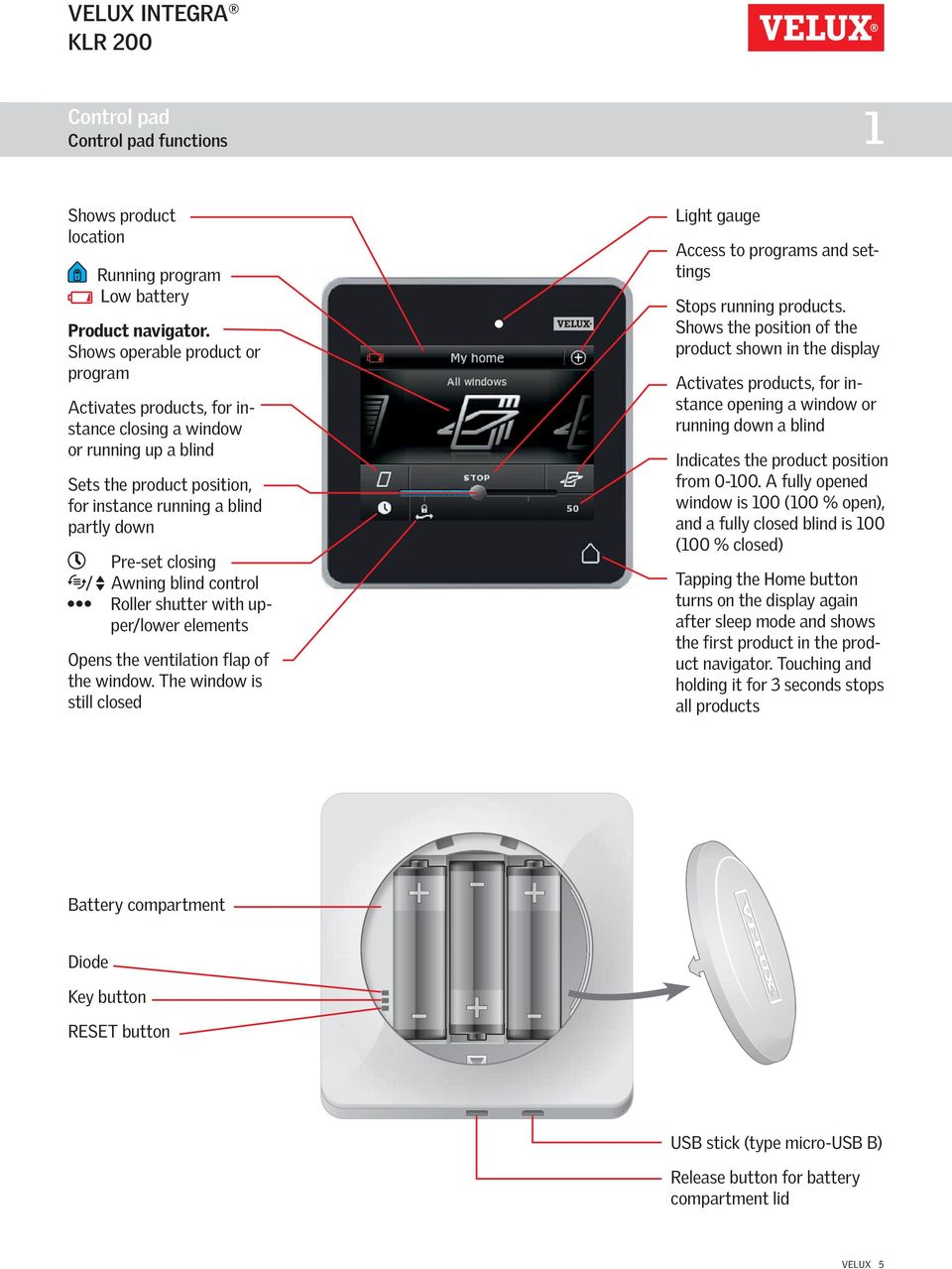
5 VELUX INTEGR KLR 00 Control pad Control pad functions Shows product location Running program Low battery Product navigator. Shows operable product or program ctivates products, for instance closing a window or running up a blind Sets the product position, for instance running a blind partly down Pre-set closing / wning blind control Roller shutter with upper/lower elements Opens the ventilation flap of the window. The window is still closed Light gauge ccess to programs and settings Stops running products. Shows the position of the product shown in the display ctivates products, for instance opening a window or running down a blind Indicates the product position from fully opened window is 00 (00 % open), and a fully closed blind is 00 (00 % closed) Tapping the Home button turns on the display again after sleep mode and shows the first product in the product navigator. Touching and holding it for seconds stops all products attery compartment Diode Key button RESET button US stick (type micro-us ) Release button for battery compartment lid VELUX 5
6 VELUX INTEGR KLR 00 Operation asic operation You can operate all products by tapping icons/buttons or by dragging the slider and tapping the bar in the display. The product to be operated is shown in the middle of the product navigator display. If more products are registered in the control pad, they are shown as shadows in the display sides. Select the product you want to operate by swiping a finger over the display in the directions of the arrows. Operation of windows Close Stop Open Open ventilation flap only. The window is still closed. 5 Drag the slider or tap the bar to open the window to desired position. The position from 0-00 is shown in the bottom right corner. 6 Tap the clock to close the window automatically after a given period of time. 7 Choose for how many minutes the window is to be open and tap "OK". 8 The icon in the bottom left corner shows for how many minutes the window will still be open Note: If you try to open a window while it is raining, only the ventilation flap will be opened. This function prevents the rain from coming in. Tap "OK" to accept. lternatively, tap "Open anyway" if you want to open the window even if it is raining. The window can now be opened up to a maximum of 50 %. fter 5 minutes, the window will close automatically if it is still raining. If you set the automatic closing to less than 5 minutes, the window will close automatically at the end of this time period. VELUX 6

7 VELUX INTEGR KLR 00 Operation asic operation Operation of sunscreening products Roller shutters/wnings blinds/linds Run up Stop Run down Drag the slider or tap the bar to set the position of the sunscreening product. The position from 0-00 is shown in the bottom right corner. Roller shutters with upper/lower elements 5 Tap. 6 Tap the element you want to operate. 7 Tap "OK". You can now operate the element as described above Venetian blinds Run up Stop Run down Drag the slider or tap the bar to set the position of the Venetian blind. The position from 0-00 is shown in the bottom right corner. 5 Tap to set the tilting of the slats. 6 Tap to tilt the slats upwards. 7 Stop 8 Tap to tilt the slats downwards. 9 Drag the slider or tap the bar to set the tilting of the slats. The tilting from 0-00 is shown in the bottom right corner. 0 Tap to return to setting the position of the Venetian blind VELUX 7

8 VELUX INTEGR KLR 00 Operation asic operation Operation of lights Turn off Stop Turn on Drag the slider or tap the bar to set the intensity of the light. The intensity from 0-00 is shown in the bottom right corner. Operation of products connected to on/off switch Turn off Turn on Operation of other types of io-homecontrol products Open Stop Close Note: The example shows a garage door. Product position Tap "STOP" and the position of the product can now be seen in the bottom right hand corner of the product navigator display. For instance, you can see how far a window is open. Turn on/home/stop all products To prolong the lifetime of the control pad batteries, the display goes into sleep mode shortly after the last touch. You turn on the display again by tapping. When the display is on, a tap on takes you home to the first product in the product navigator. Touching and holding for at least seconds stops all products. VELUX 8

9 VELUX INTEGR KLR 00 Operation Programs - Using programs program can help you get a smarter home. It can ensure that your house is ventilated regularly, that internal temperatures are kept down during the day when necessary, and that the heat loss is reduced at night. Tap in the top right corner of the display to get access to the programs. Under "Programs", you will find the VELUX programs available for the products registered in your control pad. The more different products registered, the more VELUX programs available. There are eight VELUX programs. Two programs will run only once when activated. You can edit these programs. Ventilation Leaving home Six programs, when activated, will automatically run repeatedly according to a set schedule until you stop them. You can edit the programs. clock at the bottom right of the program icons indicates that the program will run repeatedly. Good morning Good night Sunscreening On vacation Indoor climate Energy alance In addition, you can make your own programs, see the section Creating a program. Here you can combine the program settings as you wish. When choosing a VELUX program, its contents are shown on the display. Tap to go back. Tap "Start" to activate a program. Tap "Edit" to change the individual actions/settings of the program to make them match your wishes. Tap to go back. VELUX 9

10 VELUX INTEGR KLR 00 Operation Programs - VELUX programs Using a program Two examples of how to use VELUX programs are shown. Example The program "Ventilation" makes it easy to open and close your windows. The example shows how to use it. Tap. Tap "Programs". Tap "Ventilation". Tap "Start". 5 The display asks if you want to add the program to the product navigator for easier access. Tap "No". Note: Tap "Yes" if you want to add the program to the product navigator (see page ). 6 The clock turns blue when the program is running. Tap "Ventilation" to stop the program. Tap "Stop". 7 8 Tap to finish. VELUX 0

11 VELUX INTEGR KLR 00 Operation Programs - VELUX programs Example The program "Leaving home" ensures that all windows are closed and that all registered locks are operated. The example shows how to use it. Tap. Tap "Programs". Tap "Leaving home". Tap "Start". Note: The display notifies you if a window has been opened manually. This window must be closed manually again to enable you to secure your home. 5 Your home is now secured until you tap "Unlock". NOTE! fter starting "Leaving home", you can still operate products ordinarily with another control pad or control. However, if you try to activate a program, the display shows that operation has been blocked. VELUX

12 VELUX INTEGR KLR 00 Operation Programs - VELUX programs Editing a program You can change the settings in a program to make it suit you better. The example shows how to change the settings in the program "Ventilation" into opening just one window and setting its opening position for ventilation purposes. Tap. Tap "Programs". Tap "Ventilation". Tap "Edit". 5 Tap "Program settings". 6 Tap "ll windows". 7 Tap "ll windows". 8 Remove ticks for the windows not to be opened. Note: The individual products can be identified by tapping the icon. See also the section Finding products. Tap. 9 Tap the bar with the blue slider. 0 Drag the slider or tap the bar to open window to desired position. The position from 0-00 is shown in the bottom right corner. Tap. Continue on the next page VELUX

13 VELUX INTEGR KLR 00 Operation Programs - VELUX programs Tap. Tap "ll windows". Tap "ll windows". Remove ticks for the windows not to be closed. Note: The individual products can be identified by tapping the icon. See also the section Finding products. Tap. 5 Tap. 6 Tap. 7 Tap to finish. VELUX

14 VELUX INTEGR KLR 00 Operation Programs - VELUX programs dding a program to the product navigator You can place your program in the product navigator to make it easier to activate. The example shows how to add the program "Ventilation" to the product navigator. Tap "Ventilation". Tap "Start". The display asks whether you want to add the program to the product navigator. Tap "Yes". Now the program has been added to the product navigator where you can access it easier. Resetting to default settings To cancel your settings, you can reset to default settings. Tap "Ventilation". Tap "Edit". Tap "Reset to default settings". Tap "Yes". VELUX

15 VELUX INTEGR KLR 00 Operation Programs - Own programs Creating a program If the VELUX programs do not cover your requirements, you can make your own program. You may for instance need to ventilate a room at a certain time every day. The example shows how to make a program with the name "Night cooling". Tap. Tap "Programs". Tap "My own program". Tap "Create program". 5 Tap "Program with a schedule" if the program is to be repeated on selected days. Note: Tap "Program" only if the program is to run immediately. Tap. 6 Tap "dd products". 7 Tap "Windows". Tap. 8 Scroll down the display and tick the windows to be included in the program. Note: The individual products can be identified by tapping the icon. See also the section Finding products. Tap. 9 Tap "Set position". 0 Drag the slider or tap the bar to set the opening of the windows. The position from 0-00 is shown in the bottom right corner. Tap. Continue on the next page VELUX 5

16 VELUX INTEGR KLR 00 Operation Programs - Own programs Tap "Start step: 00:00". Roll the wheel to set the time to open the windows. Tap "OK". Tap "Repeat: ll days". Scroll down the display and remove tick for the days not to be part of the program. Tap. 5 Tap. 6 Tap "Create new program step" to set the time to close the windows again. 7 Tap "dd products". 8 Tap "Windows". Tap. 9 Scroll down the display and tick the windows to be part of the program. Note: The individual products can be identified by tapping the icon. See also the section Finding products. Tap. 0 Tap "Set position". Drag the slider or tap the bar to set the opening of the windows to 0%. The position from 0-00 is shown in the bottom right corner. Tap. Tap "Start step: 00:00". Continue on the next page VELUX 6

17 VELUX INTEGR KLR 00 Operation Programs - Own programs Roll the wheel to set the time to close the windows. Tap "OK". Tap "Repeat: ll days". 5 6 Scroll down the display and remove tick for the days not to be part of the program. Tap. Tap. 7 Tap. 8 Enter a name for the program, in this case "Night cooling". For use of keyboard, see the section Keyboard. Tap. 9 Tap "Start" to activate the program. 0 Tap "OK". The program "Night cooling" is now in the program overview. From this overview you may start, stop and edit the program at any time. When you start it, the clock turns blue. VELUX 7

18 VELUX INTEGR KLR 00 Operation Programs - Own programs Editing a program You can change the settings in a program to make it better suit your requirements. The example shows how to change the settings so that Window is no longer part of the program "Night cooling". Tap. Tap "Programs". Tap "Night cooling". Tap "Edit". 5 Tap "Program settings". 6 Tap "ll windows". 7 Tap "ll windows". 8 Remove tick for the window not to be opened. Note: The individual products can be identified by tapping the icon. See also the section Finding products. Tap. 9 Tap. 0 Tap "ll windows". Continue on the next page VELUX 8

19 VELUX INTEGR KLR 00 Operation Programs - Own programs Tap "ll windows". Remove tick for the window not to be closed. Note: The individual products can be identified by tapping the icon. See also the section Finding products. Tap. Tap. Tap. 5 Tap to finish. VELUX 9

20 VELUX INTEGR KLR 00 Operation Programs - Own programs dding a program to the product navigator You can place a program in the product navigator to make it easier for you to activate it. The example shows how to add the program "Night cooling" to the product navigator. Tap. Tap "Programs". Tap "Night cooling". Tap "Edit". 5 Tick "Show in product navigator". 6 7 Tap to finish. Now the program has been added to the product navigator where you can start and stop it. VELUX 0

21 VELUX INTEGR KLR 00 Operation Programs - Own programs Renaming a program You can rename your own programs. In the example, the name of the program "Night cooling" is changed into "Night program". Tap "Night cooling". Tap "Edit". Tap "Choose new name". Tap +repeatedly to delete the present name. For use of keyboard, see the section Keyboard. 5 Enter a new name for the program, in this case "Night program". Tap. 6 Tap "OK". 7 Tap to finish. 8 You can find the program with the new name in the product navigator. VELUX
22 VELUX INTEGR KLR 00 Operation Programs - Own programs Silent mode operation Some products have been set to silent mode operation when they are activated by programs running according to a schedule, see also the section Using programs. This may for instance be convenient if the products are activated automatically at night. Please note that products run slower when they have been set to silent mode operation. If you opt out of silent mode operation, the products will run faster. The example shows how to deselect silent mode operation of products operated via the program "Night cooling". Tap "Night cooling". Tap "Edit". Remove the tick for "Silent mode operation of products". Silent mode operation has now been deselected. 5 Tap to finish. Deleting a program If you do not want to use one of your own programs anymore, you can delete it. The example shows how to delete the program "Night cooling". Tap "Night cooling". Tap "Edit". Tap "Delete program". Tap "Yes". VELUX
23 VELUX INTEGR KLR 00 Operation Smart operation Finding products It may be difficult to tell the products from each other in the product navigator. If you are in doubt you can identify the product of interest by tapping the icon for product, for instance at Window. The example shows how to find Window if for instance you are renaming the window. Tap for "Window ". Tap "Show". Window will now run briefly back and forwards so you can see whether you found the right one or not. Tap "Window ". You can now continue renaming the window or finding another product. Keyboard To change the names created automatically, you can enter new names via the keyboard. The keyboard is only visible when it is possible to use it. Keyboard functions: Switching between lower and upper case letters and between figures and special characters. Switching between letters and figures. Deleting the latest entered character. The example shows how to use the keyboard, for instance when you are renaming groups and want to call a group "Group ". Enter "Group". Tap "#" to switch to figures. Tap the space bar. Enter "". Tap to continue. VELUX
24 VELUX INTEGR KLR 00 Operation Smart operation Renaming products You can change the names of products to make it easier to find and operate them. The example shows how to change the names of Window and Window 5 into Left and Right respectively. Tap. Tap "Name product". Tap "Window ". Note: The individual products can be identified by tapping the icon. See also the section Finding products. Tap. Scroll down the display to find a name for the product on the list. Note: You can also enter a name of your own by tapping "Enter name". For use of keyboard, see the section Keyboard. Select "Left". 5 6 Tap. Tap "OK". 7 Tap "Window 5". Tap. 8 Select "Right". Tap. 9 Tap "OK". Tap to finish. 0 The windows are now called "Left" and "Right" in the product navigator. VELUX
25 VELUX INTEGR KLR 00 Operation Smart operation - Groups Creating a group If you have several products of the same type, you can operate them simultaneously by grouping them. For instance, you can open and close all windows facing south or all windows in a room at the tap on a button. The example shows how to create the group "Group " containing Window and Window. N Venetian blind lind lind Window Window 6 Window 7 Light Light Roller shutter Roller shutter Roller shutter Roller shutter Window Window 5 Group Window Window Light Light Tap. Tap "Groups". Tap "Create group". Tap "Windows". Tap. 5 Scroll down the display and tick the windows to be included in the group. Note: The individual products can be identified by tapping the icon. See also the section Finding products. Tap. 6 Enter a name for the group, in this case "Group ". For use of keyboard, see the section Keyboard. Tap. 7 Tap "Operate group" to finish. Note: Tap "Create more" to create more settings. 8 You can find the group "Group " in the product navigator. VELUX 5
26 VELUX INTEGR KLR 00 Operation Smart operation - Groups Editing a group You can change the contents of a group by adding or removing products. The example shows how to add Window and Window 5 to the group "Group " already consisting of Window and Window. N Venetian blind lind lind Window Window 6 Window 7 Light Light Roller shutter Roller shutter Roller shutter Roller shutter Group Window Window 5 Window Window Light Light Tap. Tap "Groups". Tap "Edit group". Tap "Group ". Tap. 5 Scroll down the display to find the relevant windows. Note: The individual products can be identified by tapping the icon. See also the section Finding products. 6 Tick the windows to be added to the group. Note: Products can similarly be removed from a group by removing the tick. Tap. Tap "Operate group" to finish. Note: Tap "Edit more" to create more settings. 7 8 You can find the group "Group " containing the additional products in the product navigator. VELUX 6
27 VELUX INTEGR KLR 00 Operation Smart operation - Groups Renaming a group You can change the name of a group. The example shows how to change the name "Group " into "South windows". Tap. Tap "Groups". Tap "Rename group". Tap "Group ". Tap. 5 Enter a name for the group, in this case "South windows". For use of keyboard, see the section Keyboard. Tap. 6 Tap "Operate group" to finish. Note: Tap "Name more" to create more settings. 7 The group is now called "South windows" in the product navigator. VELUX 7
28 VELUX INTEGR KLR 00 Operation Smart operation - Groups Deleting a group You can delete a group if it is not relevant anymore. The example shows how to delete the group "South windows". Note: Only the group is deleted. You can still operate the products individually via the product navigator. Tap. Tap "Groups". Tap "Delete group". Tap the group to be deleted, in this case "South windows". Tap. 5 Tap "Yes". 6 Tap to finish. 7 The group "South windows" is not in the product navigator anymore. However, you can still operate the products individually via the product navigator. VELUX 8
29 VELUX INTEGR KLR 00 Operation Smart operation - Rooms Creating a room You can create rooms corresponding to the actual rooms in your home, and put your VELUX products in them. This makes it easier to find and operate the right products. The example shows how to create the room "edroom" including Window and Window 5 in it. Roller shutter Roller shutter N Venetian blind lind lind Window Window 5 Window Window Window 6 7 Light Light Roller shutter Roller shutter Roller shutter Roller shutter edroom Window Window 5 Window Window Light Light Tap. Tap "Rooms". Tap "Create room". Scroll down the display to find a name for the room on the list. Note: You can also enter a name of your own by tapping "Enter name". For use of keyboard, see the section Keyboard. 5 Select "edroom". Tap. 6 Scroll down the display and tick the windows in the room. Note: The individual products can be identified by tapping the icon. See also the section Finding products. Tap. 7 Tap "Operate room" to finish. Note: Tap "Create more" to create more settings. 8 You can now find the room "edroom" in the product navigator. VELUX 9
30 VELUX INTEGR KLR 00 Operation Smart operation - Rooms Editing a room You can change the contents of a room by adding or removing products. The example shows how to add Roller shutter and Roller shutter to the room "edroom" already consisting of Window and Window 5. Roller shutter Roller shutter N Venetian blind lind lind Window Window 5 Window Window Window 6 7 Light Light Roller shutter Roller shutter Roller shutter Roller shutter edroom Window Window 5 Window Window Light Light Tap. Tap "Rooms". Tap "Edit room". Tap "edroom". Tap. 5 Scroll down the display to find the roller shutters in the room. Note: The individual products can be identified by tapping the icon. See also the section Finding products. 6 Tick the roller shutters to be added to the room. Note: Products can similarly be removed from a room by removing the tick. Tap. 7 Tap "Operate room" to finish. Note: Tap "Edit more" to create more settings. 8 You can now see the changed contents of the room "ed room" in the product navigator. VELUX 0
31 VELUX INTEGR KLR 00 Operation Smart operation - Rooms Renaming a room You can change the name of a room. The example shows how to change the name "edroom" into "Child's room". Tap. Tap "Rooms". Tap "Rename room". Tap "edroom". Tap. 5 Scroll down the display to find a name for the room on the list. Note: You can also enter a name of your own by tapping "Enter name". For use of keyboard, see the section Keyboard. 6 Select "Child's room". Tap. 7 Tap "Operate room" to finish. Note: Tap "Rename more" to create more settings. 8 The room is now called "Child's room" in the product navigator. VELUX
32 VELUX INTEGR KLR 00 Operation Smart operation - Rooms Deleting a room You can delete a room if it is not relevant anymore. The example shows how to delete the room "Child's room". Note: Only the room is deleted. You can still operate the products individually via the product navigator. Tap. Tap "Rooms". Tap "Delete room". Tap the room to be deleted, in this case "Child's room. Tap. 5 Tap "Yes". 6 Tap to finish. 7 The room "Child's room" is not in the product navigator anymore. However, you can still operate the products individually via the product navigator. VELUX
33 VELUX INTEGR KLR 00 Operation Smart operation - Favourites Editing order of products in the product navigator If you use some products, groups or programs more often than others, it may be convenient to show them in another order in the product navigator. The example shows how to put the products Window and Window 5 first in the product navigator. Tap. Tap "Product navigator". Tap "Order of products". Scroll down the display to find the relevant product, in this case "Window ". Note: The individual products can be identified by tapping the icon. See also the section Finding products. 5 Tap. 6 Tap three consecutive times to put Window in front of Window. 7 Scroll down the display to find the relevant product, in this case "Window 5". Note: The individual products can be identified by tapping the icon. See also the section Finding products. 8 Complete the actions in items 5 and 6 for Window 5 to put it beneath Window. 9 0 Tap. Tap "OK". Tap to finish. Window and Window 5 are now at the top of the product navigator. VELUX
34 VELUX INTEGR KLR 00 Operation Smart operation - Favourites Editing favourites When activating the function "Favourites", the product navigator only shows the products, groups and/or programs you use most often. You can at any time choose to see all your products, groups and/or programs again. The example shows how to choose Window, Roller shutter and Venetian blind as favourites. In consequence, these products will be the only ones shown in the product navigator. This may be convenient if the control pad is only to be used in the room where these products are located. Tap. Tap "Product navigator". Tap "Favourites". Tap "Edit favourites". s default all products have been chosen as favourites. Remove the tick for all products not to be favourites. Note: The individual products can be identified by tapping the icon. See also the section Finding products. 5 6 Tap when only the products to be favourites remain ticked, in this case Window, Roller shutter and Venetian blind. Tap "OK". Tap to finish The product navigator now shows the three chosen products only. To be able to see all products again, you must remove the tick for "Show favourites" in item 8. VELUX
35 VELUX INTEGR KLR 00 Operation Operation without using the control pad Manual operation of centre-pivot windows You can open and close your centre-pivot window manually. If the window is already open, you must close it fully via the control pad first. Open the window by pulling downwards on the control bar of the window. Close the window again by pushing the control bar back again. Note: If you have opened the window manually, you must also close it manually to be able to operate it with the control pad again. This also applies to making the programs run and the window close automatically in case of rain. VELUX 5
36 VELUX INTEGR KLR 00 Operation Operation without using the control pad Closing centre-pivot windows in case of power failure or discharged battery In case of power failure or discharged battery, you can close your centre-pivot window manually by disengaging the chain on the ventilation flap of the window. There are two different ways of doing this, depending on window type, where the ventilation flap can look like or. See below on how to disengage the chain on the ventilation flap according to your window type. The ventilation flap of the window looks like : Disengage the chain by pressing the release clip on the flap bracket. Remove the flap bracket. Fold the chain as shown, and close the ventilation flap of the window to ventilation position. The ventilation flap of the window looks like : Disengage the chain by pressing the release clip on the flap bracket. Fold the chain as shown, and close the window manually. When the power has been reconnected or the battery has been recharged, you must re-engage the chain. Open the window manually and unfold the chain. Replace the flap bracket if the ventilation flap looks like. Run back the chain by pressing the test button on the window operator briefly. Close the window manually. VELUX 6
37 VELUX INTEGR KLR 00 Operation Operation without using the control pad Closing windows if the control pad has been mislaid If your control pad has been mislaid, you can still close your window by carrying out the following actions. Note: This feature is only available for the products shown. Centre-pivot windows Determine window type or as shown on the previous page. Disengage the chain according to window type. Press the test button on the window operator briefly. Wait until the chain stops moving then close the window manually. Flat roof windows Carefully remove the cover cap on the kerb. Press the test button on the window operator behind the cover cap briefly and refit the cover cap. Top-hung windows Remove the cover of the window operator. Press the test button on the window operator briefly and refit the cover. VELUX 7
38 VELUX INTEGR KLR 00 Start-up of a new VELUX INTEGR system Initial set-up efore you can operate your VELUX INTEGR products, they must be registered in the control pad. Remove the battery compartment lid by pressing the release button with a screwdriver as illustrated,. Insert batteries (type /LR6). Replace lid. In the display screen, roll the wheel in the directions of the arrows to choose language. Tap. Follow the instructions in the display, and tap when you are ready. Tap when the control pad has found all products. Note: Tap "Search again" if the control pad did not find all products and follow the instructions in the display. Go to the section If the initial setup fails if the control pad still cannot find all products even if they are connected to power. 5 Tap "OK". VELUX 8
39 VELUX INTEGR KLR 00 Start-up of a new VELUX INTEGR system If the initial set-up fails If the control pad cannot find some of the products, you can make the products ready for registration by manually resetting them to their initial factory settings. Note: Reset products cannot be operated until they have been registered in the control pad. See the section Initial set-up. Products can be reset in different ways, depending on window type. Note: Contact your local VELUX sales company for reset of products not shown. Centre-pivot windows Open window manually (if the window is already open, close it by pressing the test button on the window operator). Press the test button on the window operator for at least 0 seconds. The window operator and other electrical products on the window will run briefly back and forth. Frame lights, if installed, will flash briefly. Flat roof windows Carefully remove the cover cap on the kerb. Press the test button on the window operator behind the cover cap for at least 0 seconds. The window operator and other electrical products on the window will run briefly back and forth. Refit cover cap. Modular skylights Remove bottom flashing section from the modular skylight and unscrew the small, right-hand cover of the control unit. Press the reset button in the control unit for 6-0 seconds. Screw on the cover again and refit bottom flashing section. Note: s registration in the control pad must take place within 0 minutes, you are advised to register the products before refitting bottom flashing section. O INT VELUX 9
40 VELUX INTEGR KLR 00 Extension of your VELUX INTEGR system dding products to the control pad You can operate up to 00 products, for instance windows, roller shutters and blinds, by registering them in your control pad. The example shows how to add more products to the control pad by following the instructions in the display. Tap. Tap "New product". Tap "dd new products". Tap. 5 Tap when the control pad has found the products. You can now operate the new products. VELUX 0
41 VELUX INTEGR KLR 00 Extension of your VELUX INTEGR system - dding a control dding a control to your system already operated with a VELUX INTEGR control pad KLR 00 "Control" is used as a generic term for all devices that can operate VELUX INTEGR products. To operate your VELUX INTEGR products with additional controls, the contents of the control pad KLR 00 already in use can be copied to other controls. Note: If you have edited the standard programs or made your own programs, these are not copied to the additional control. To find the control you want to add to your system, please see the page references below. VELUX INTEGR control pad KLR 00 (LR 0) Pages - VELUX INTEGR controller KRX 00 (LF D0) Pages -6 VELUX INTEGR interface KLF 050 fitted into a wall switch/socket of another make (LF D50) Page 9 VELUX INTEGR interface KLF 00 (LF D0) Pages 50-5 VELUX INTEGR remote control without display (UR 0) Page 7 Other types of io-homecontrol controls Pages # VELUX INTEGR control switch KLI 0 (LI D0) Page 8 VELUX
42 VELUX INTEGR KLR 00 Extension of your VELUX INTEGR system - dding a control dding a VELUX INTEGR control pad KLR 00 to your system already operated with a control pad KLR 00 The instructions below show how to copy the contents of one control pad KLR 00 to another. Control pad KLR 00 to send a copy is called control. Control pad KLR 00 to receive a copy is called control. First execute items - with. Remove the battery compartment lid by pressing the release button with a screwdriver as illustrated,. Insert batteries (type /LR6). Replace lid. In the display screen, roll the wheel in the directions of the arrows to choose language. Tap. Follow the instructions in the display and tap when you are ready. Do not tap "Receive copy" until item 9. Continue on the next page VELUX
43 VELUX INTEGR KLR 00 Extension of your VELUX INTEGR system - dding a control Now execute items 5-8 with. Tap. Tap "New product" Tap "Copy control pad". 8 Tap. You now have two minutes to execute item 9 with. 9 Tap "Receive copy". Follow the instructions in the display and tap when you are ready. 0 Tap "OK". Tap on both control pads to finish. VELUX
44 VELUX INTEGR KLR 00 Extension of your VELUX INTEGR system - dding a control dding a VELUX INTEGR controller KRX 00 to your system already operated with a control pad KLR 00 The instructions below show how to copy the contents of control pad KLR 00 to controller KRX 00. See also the instructions for the controller. Note: Only available for VELUX INTEGR products with radio frequency 868 MHz. Control pad KLR 00 to send a copy is called control. Controller KRX 00 to receive a copy is called control. First execute items - with. RESET Connect to mains supply: Remove the back cover of the controller as shown. Click the adaptor plug into the controller and replace the cover. Connect the adaptor to mains supply. Note: The controller saves the selected settings even if the mains supply is disconnected. Therefore, it is advisable not to fit the controller permanently until the sunscreening products and the sensors have been registered in the controller. However, time and date are only saved for 0 seconds after disconnection of mains supply. LNGUGE Dansk English Français Deutsch Enter Select language: Press to highlight your language. Press "Enter" to confirm your choice. Enter SET TIME :00 ack Set time: Press to set minutes. Press "Enter" to change to hours. Press to set hours. Press "Enter" to confirm your settings. P P P P Continue on the next page VELUX
45 VELUX INTEGR KLR 00 Extension of your VELUX INTEGR system - dding a control Prepare sensors and register them in the controller. Note: You have 0 minutes to execute items -8. reset Prepare sensors for registration: Press the button at the bottom of the sensor with a pointed object for at least 5 seconds until the diode flashes. 5 UTO SET-UP Prepare sensors for registration and press Register within 0 minutes Register ack Register sensors in the controller: Press "Register" to register the two sensors. reset 6 UTO SET-UP Registration is running. This may take several minutes. 7 INFORMTION Sensor registered The display shows "Sensor registered" when the sensors have been registered. Press "Continue" to proceed. Continue 8 VELUX CTIVE not enabled Menu INFORMTION Enable The display shows that the program VELUX CTIVE has not been enabled. Press "Enable" to start registration of sunscreening products in the controller. 9 UTO SET-UP Prepare products for registration and press Register Register ack Do not press "Register" until item. Execute items 0- with. Tap. Tap "New product". 0 Tap "Copy control pad". Tap. Continue on the next page VELUX 5
46 VELUX INTEGR KLR 00 Extension of your VELUX INTEGR system - dding a control You now have two minutes to execute item with. UTO SET-UP Prepare products for registration and press Register Press "Register" in the controller to start registration. 5 UTO SET-UP Registration is running. This may take several minutes. Register ack 6 INFORMTION The display shows that the : program VELUX CTIVE has 7 VELUX CTIVE been enabled. enabled If the display shows that the program VELUX CTIVE has 5 C Menu Details not been enabled, please refer Menu Disable to the section Initial set-up, Interior sunscreening products in the instructions for the controller. The display shows the program mode including current temperature and time. 8 Tap to finish. VELUX 6
47 VELUX INTEGR KLR 00 Extension of your VELUX INTEGR system - dding a control dding a VELUX INTEGR remote control without display to your system already operated with a control pad KLR 00 The instructions below show how to copy the contents of control pad KLR 00 to the remote control without display. See also the instructions for the remote control. Note: Only available for VELUX INTEGR products with radio frequency 868 MHz. Control pad KLR 00 to send a copy is called control. The remote control without display to receive a copy is called control. First execute items -5 with. Tap. Tap "New product". Tap "Prepare one-way control". Tap "Choose products". 5 Scroll down the display and choose the product to be added. Note: individual products can be identified by tapping the icon. See also the section Finding products. Tap. You now have 0 minutes to execute item 6 with. 6 7 Max sec Press briefly the RESET button on the back with a pointed object to register the new product. You can now operate the chosen product with. Tap to finish. Note: To add more products, tap "Choose more" and repeat items 5-7. VELUX 7
48 VELUX INTEGR KLR 00 Extension of your VELUX INTEGR system - dding a control dding a VELUX INTEGR control switch KLI 0 to your system already operated with a control pad KLR 00 The instructions below show how to copy the contents of control pad KLR 00 to control switch KLI 0. See also the instructions for the control switch. Control pad KLR 00 to send a copy is called control. Control switch KLI 0 to receive a copy is called control. First execute items -5 with. Tap. Tap "New product". Tap "Prepare one-way control". Tap "Choose products". 5 Scroll down the display and choose the product to be added. Note: individual products can be identified by tapping the icon. See also section Find products. Tap. You now have 0 minutes to execute item 6 with. Press briefly the RESET button 6 on the back to register the new 7 + product. You can now operate the chosen product with. Max sec + Tap to finish. Note: To add more products, tap "Choose more" and repeat items 5-7. VELUX 8
49 VELUX INTEGR KLR 00 Extension of your VELUX INTEGR system - dding a control dding a VELUX INTEGR interface KLF 050, which is fitted into a wall switch/socket of another make, to your system already operated with a control pad KLR 00 The instructions below show how to copy the contents of control pad KLR 00 to interface KLF 050 fitted into a wall switch/socket of another make. See also the instructions for the interface. Note: Only available for VELUX INTEGR products with radio frequency 868 MHz. Control pad KLR 00 to send a copy is called control. Interface KLF 050 to receive a copy is called control. First execute items -5 with. Tap. Tap "New product". Tap "Prepare one-way control". Tap "Choose products". 5 Scroll down the display and choose the product to be added. Note: The individual products can be identified by tapping the icon. See also the section Finding products. Tap. You now have 0 minutes to execute item 6 with. 6 7 Max sec Press briefly the SET button on the back with a pointed object to register the new product. You can now operate the chosen product with. Tap to finish. Note: To add more products, tap "Choose more" and repeat items 5-7. VELUX 9
50 VELUX INTEGR KLR 00 Extension of your VELUX INTEGR system - dding a control dding a VELUX INTEGR interface KLF 00 to your system already operated with a control pad KLR 00 The instructions below show how to copy the contents of control pad KLR 00 to interface KLF 00. See also the instructions for the interface. Control pad KLR 00 to send a copy is called control. Interface KLF 00 to receive a copy is called control. First execute item with. CDEFGH SYSTEM SETTINGS Register products Select products Security key Enter ack Follow the instructions for the interface until the section where menu item H is highlighted. Now execute items -5 with. Tap. Tap "New product". Tap "Copy control pad". 5 Tap. Continue on the next page VELUX 50
51 VELUX INTEGR KLR 00 Extension of your VELUX INTEGR system - dding a control You now have two minutes to execute item 6 with. 6 CDEFGH SYSTEM SETTINGS Register products Select products Security key Enter ack Press to highlight "Register products". Press "Enter" to confirm your choice. 7 UTO SET-UP ack utomatic registration is running. Please wait. The registration can take up to one minute. 8 INFORMTION New products registered ack The display shows that the new product(s) has/have been registered. 9 CDEFGH SYSTEM SETTINGS Register products Select products Security key Enter ack Press "ack" to finish. 0 Tap to finish. VELUX 5
52 VELUX INTEGR KLR 00 Extension of your VELUX INTEGR system - dding a control dding other types of io-homecontrol controls to your system already operated with a VELUX INTEGR control pad KLR 00 The instructions below show how to copy the contents of control pad KLR 00 to another type of io-homecontrol control. See also the instructions for the control in question. Note: Only available for VELUX INTEGR products with radio frequency 868 MHz. Control pad KLR 00 to send a copy is called control. io-homecontrol control to receive a copy is called control. The instructions are divided into two sections: Instructions for one-way controls marked with this symbol on the product # Instructions for two-way controls marked with this symbol on the product One-way controls First execute items -5 with. Tap. Tap "New product". Tap "Prepare one-way control". Tap "Choose products". 5 Scroll down the display and choose the product to be added. Note: The individual products can be identified by tapping the icon. See also the section Finding products. Tap. You now have 0 minutes to execute item 6 with # See instructions for the io-homecontrol control. Tap to finish. VELUX 5
53 VELUX INTEGR KLR 00 Extension of your VELUX INTEGR system - dding a control Two-way controls First execute items - with. Tap. Tap "New product". Tap "Copy control pad". Tap. You now have two minutes to execute item 5 with # See instructions for the io-homecontrol control. You may also refer to the section Joint operation of io-homecontrol products. Tap to finish. VELUX 5
54 VELUX INTEGR KLR 00 Extension of your VELUX INTEGR system - dding a control dding a VELUX INTEGR control pad KLR 00 to your system already operated with another control "Control" is used as a generic term for all devices that can operate VELUX INTEGR products. To operate your VELUX INTEGR products with additional controls, the contents of the control already in use can be copied to your new control pad KLR 00. Note: If you have edited the standard programs or made your own programs, these are not copied to your new control pad. To find the control already operating your system, please see the page references below. VELUX INTEGR remote control KLR 00 (LR 0) Pages VELUX INTEGR interface KLF 050 fitted into a wall switch/socket of another make (LF D50) Pages 6-6 VELUX INTEGR controller KRX 00 (LF D0) Pages VELUX INTEGR interface KLF 00 (LF D0) Pages Other types of io-homecontrol control Pages # VELUX INTEGR remote control without display (UR 0) Pages VELUX INTEGR control switch KLI 0 (LI D0) Pages 6-6 VELUX 5
55 VELUX INTEGR KLR 00 Extension of your VELUX INTEGR system - dding a control dding a VELUX INTEGR control pad KLR 00 to your system already operated with a remote control KLR 00 The instructions below show how to copy the contents from the remote control KLR 00 already in use to control pad KLR 00. See also the instructions for the remote control. Remote control KLR 00 to send a copy is called control. Control pad KLR 00 to receive a copy is called control. First execute items - with. Remove the battery compartment lid by pressing the release button with a screwdriver as illustrated,. Insert batteries (type /LR6). Replace lid. In the display screen, roll the wheel in the directions of the arrows to choose language. Tap. Follow the instructions in the display and tap when you are ready. Do not tap "Receive copy" until item 8. Continue on the next page VELUX 55
56 VELUX INTEGR KLR 00 Extension of your VELUX INTEGR system - dding a control Now execute items 5-7 with. House Press "Menu". MENU Press to highlight "System 5 6 House settings settings". No. User settings Press "Enter" to confirm Window System settings your choice. Program settings Menu Locate Enter ack P P P P 7 SYSTEM SETTINGS Register product Copy system Security key re Enter ack Press to highlight "Copy system". Press "Enter" to confirm your choice. P P You now have two minutes to execute item 8 with. 8 Tap "Receive copy". Follow the instructions in the display and tap when you are ready. 9 Tap "OK". 0 Tap to finish. SYSTEM SETTINGS Press "ack" to finish. Register product Copy system Security key re Enter ack P P VELUX 56
57 VELUX INTEGR KLR 00 Extension of your VELUX INTEGR system - dding a control dding a VELUX INTEGR control pad KLR 00 to your system already operated with a controller KRX 00 The instructions below show how to copy the contents from the controller KRX 00 already in use to control pad KLR 00. See also the instructions for the controller. Note: Only available for VELUX INTEGR products with radio frequency 868 MHz. Controller KRX 00 to send a copy is called control. Control pad KLR 00 to receive a copy is called control. First execute items - with. Remove the battery compartment lid by pressing the release button with a screwdriver as illustrated,. Insert batteries (type /LR6). Replace lid. In the display screen, roll the wheel in the directions of the arrows to choose language. Tap. Follow the instructions in the display and tap when you are ready. Do not tap "Receive copy" until item 8. Continue on the next page VELUX 57
58 VELUX INTEGR KLR 00 Extension of your VELUX INTEGR system - dding a control Now execute items 5-7 with. : Press "Menu". MENU Press to highlight "System 5 6 settings". User settings Press "Enter" to confirm System settings your choice. 5 C Program settings Menu Disable Enter ack P P P P 7 SYSTEM SETTINGS Register product Copy system Security key Delete sensor Enter ack Press to highlight "Copy system". Press "Enter" to confirm your choice. P P You now have two minutes to execute item 8 with. 8 Tap "Receive copy". Follow the instructions in the display and tap when you are ready. 9 Tap "OK". 0 Tap to finish. SYSTEM SETTINGS Press "ack" to finish. Register product Copy system Security key re Enter ack P P VELUX 58
59 VELUX INTEGR KLR 00 Extension of your VELUX INTEGR system - dding a control dding a VELUX INTEGR control pad KLR 00 to your system already operated with a VELUX INTEGR remote control without display The instructions below show how to copy the contents from the remote control without display already in use to control pad KLR 00. See also the instructions for the remote control. Note: Only available for VELUX INTEGR products with radio frequency 868 MHz. The remote control without display to send a copy is called control. Control pad KLR 00 to receive a copy is called control. First execute item with. Min 0 sec Press the RESET button on the back with a pointed object for at least 0 seconds to prepare the products for copying. You now have two minutes to execute items -7 with. Remove the battery compartment lid by pressing the release button with a screwdriver as illustrated,. Insert batteries (type /LR6). Replace lid. In the display screen, roll the wheel in the directions of the arrows to choose language. Tap. Continue on the next page VELUX 59
60 VELUX INTEGR KLR 00 Extension of your VELUX INTEGR system - dding a control Follow the instructions in the 5 display and tap are ready. when you The control pad shows that it has found the products. Note: Tap "Search again" if the control pad did not find all products and follow the instructions in the display. Go to the section If the initial set-up fails if the control pad still cannot find all products even if they are connected to power. 6 Tap "OK". Tap to finish. 7 VELUX 60
61 VELUX INTEGR KLR 00 Extension of your VELUX INTEGR system - dding a control dding a VELUX INTEGR control pad KLR 00 to your system already operated with a control switch KLI 0 The instructions below show how to copy the contents from the control switch KLI 0 already in use to control pad KLR 00. See also the instructions for the control switch. Control switch KLI 0 to send a copy is called control. Control pad KLR 00 to receive a copy is called control. First execute item with. + Min 0 sec + Press the RESET button on the back for at least 0 seconds to prepare the products for copying. You now have two minutes to execute items -7 with. Remove the battery compartment lid by pressing the release button with a screwdriver as illustrated,. Insert batteries (type /LR6). Replace lid. In the display screen, roll the wheel in the directions of the arrows to choose language. Tap. Continue on the next page VELUX 6
62 VELUX INTEGR KLR 00 Extension of your VELUX INTEGR system - dding a control Follow the instructions in the 5 display and tap are ready. when you The control pad shows that it has found the products. Note: Tap "Search again" if the control pad did not find all products and follow the instructions in the display. Go to the section If the initial set-up fails if the control pad still cannot find all products even if they are connected to power. 6 Tap "OK". Tap to finish. 7 VELUX 6
63 VELUX INTEGR KLR 00 Extension of your VELUX INTEGR system - dding a control dding a VELUX INTEGR control pad KLR 00 to your system already operated with an interface KLF 050 fitted into a wall switch/socket of another make The instructions below show how to copy the contents from interface KLF 050 already in use to control pad KLR 00. See also the instructions for the interface. Note: Only available for VELUX INTEGR products with radio frequency 868 MHz. Interface KLF 050 to send a copy is called control. Control pad KLR 00 to receive a copy is called control. First execute item with. Min 0 sec Press the SET button on the back with a pointed object for at least 0 seconds to prepare the products for copying. You now have two minutes to execute items -7 with. Remove the battery compartment lid by pressing the release button with a screwdriver as illustrated,. Insert batteries (type /LR6). Replace lid. In the display screen, roll the wheel in the directions of the arrows to choose language. Tap. Continue on the next page VELUX 6
64 VELUX INTEGR KLR 00 Extension of your VELUX INTEGR system - dding a control Follow the instructions in the 5 display and tap are ready. when you The control pad shows that it has found the products. Note: Tap "Search again" if the control pad did not find all products and follow the instructions in the display. Go to the section If the initial set-up fails if the control pad still cannot find all products even if they are connected to power. 6 Tap "OK". Tap to finish. 7 VELUX 6
65 VELUX INTEGR KLR 00 Extension of your VELUX INTEGR system - dding a control dding a VELUX INTEGR control pad KLR 00 to your system already operated with an interface KLF 00 The instructions below show how to copy the contents from interface KLF 00 already in use to control pad KLR 00. See also the instructions for the interface. Interface KLF 00 to send a copy is called control. Control pad KLR 00 to receive a copy is called control. First execute item - with. Remove the battery compartment lid by pressing the release button with a screwdriver as illustrated,. Insert batteries (type /LR6). Replace lid. In the display screen, roll the wheel in the directions of the arrows to choose language. Tap. Follow the instructions in the display and tap when you are ready. Do not tap "Receive copy" until item 6. Continue on the next page VELUX 65
66 VELUX INTEGR KLR 00 Extension of your VELUX INTEGR system - dding a control Now execute item 5 with. 5 CDEFGH SYSTEM SETTINGS Select products Security key Copy system Enter ack Follow the instructions for the interface until the section where menu item H is highlighted. Press to highlight "Copy system". Press "Enter" to confirm your choice. You now have two minutes to execute item 6 with. 6 Tap "Receive copy". Follow the instructions in the display and tap when you are ready. 7 Tap "OK". 8 9 Tap to finish. CDEFGH Press "ack" to finish. SYSTEM SETTINGS Select products Security key Copy system Enter ack VELUX 66
67 VELUX INTEGR KLR 00 Extension of your VELUX INTEGR system - dding a control dding a VELUX INTEGR control pad KLR 00 to your system already operated with another type of io-homecontrol control The instructions below show how to copy the contents from the io-homecontrol control already in use to control pad KLR 00. See also the instructions for the control or the section Joint operation of io-homecontrol products # Note: Only available for VELUX INTEGR products with radio frequency 868 MHz. io-homecontrol control to send a copy is called control. Control pad KLR 00 to receive a copy is called control. First execute items - with. Remove the battery compartment lid by pressing the release button with a screwdriver as illustrated,. Insert batteries (type /LR6). Replace lid. In the display screen, roll the wheel in the directions of the arrows to choose language. Tap. Follow the instructions in the display and tap when you are ready. Do not tap "Receive copy" until item 6. Continue on the next page VELUX 67
68 VELUX INTEGR KLR 00 Extension of your VELUX INTEGR system - dding a control Now execute item 5 with # See instructions for the iohomecontrol control. If you have two-way controls, you may also refer to the section Joint operation of io-homecontrol products. You now have two minutes to execute item 6 with. 6 Tap "Receive copy". Follow the instructions in the display and tap when you are ready. 7 Tap "OK". 8 Tap to finish. VELUX 68
69 VELUX INTEGR KLR 00 Extension of your VELUX INTEGR system - dding a control llowing controls already in use in their separate systems to operate each other s products "Control" is used as a generic term for all devices that can operate VELUX INTEGR products. If you have two (or more) controls that are already in use in their separate systems where they operate their separate products, you can make these operate each other s products. To do this, you must register all products already registered in each separate control in both controls so that all products will have the same security key. To find the control with which control pad KLR 00 is to be merged, please see the page references below. VELUX INTEGR control pad KLR 00 (LR 0) Pages 70-7 VELUX INTEGR control switch KLI 0 (LI D0) Page 77 VELUX INTEGR remote control KLR 00 (LR 0) Pages 7-7 VELUX INTEGR interface KLF 050 fitted into a wall switch/socket of another make (LF D50) Page 78 VELUX INTEGR controller KRX 00 (LF D0) Pages 7-75 VELUX INTEGR interface KLF 00 (LF D0) Pages VELUX INTEGR remote control without display (UR 0) Page 76 Other types of io-homecontrol controls Pages # VELUX 69
70 VELUX INTEGR KLR 00 Extension of your VELUX INTEGR system - dding a control llowing two or more VELUX INTEGR control pads KLR 00 in their separate systems to operate each other s products The instructions below show how to make a control pad KLR 00 also operate the products registered in another control pad KLR 00. Control pad KLR 00 to receive products is called control. Control pad KLR 00 to send products is called control. First execute items - with. Tap. Tap "New product". Tap "Merge control pads". Tap "Receive products". You now have two minutes to execute items 5-8 with. 5 Tap. Tap "New product". 6 Tap "Merge control pads". 7 8 Tap "Send products". now transfers products to. Continue on the next page VELUX 70
71 VELUX INTEGR KLR 00 Extension of your VELUX INTEGR system - dding a control Execute items 9- with. 9 Products received product received. Note that the name of the received product has been changed. Tap. The display asks if you want to 0 receive more products. Tap "No". Tap to finish. Execute items - with. Tap "No" if the control pad shall be able to operate its own products only. Note: Tap "Yes" if the opposite is the case. Tap to finish. Now can operate all products. To be able to operate all products with as well, you must follow the section dding products to the control pad. If you have additional controls that prior to the transfer were able to operate the same products as, their security keys must also be synchronised to be able to operate these products again. Please refer to the list on page # VELUX 7
72 VELUX INTEGR KLR 00 Extension of your VELUX INTEGR system - dding a control llowing a VELUX INTEGR control pad KLR 00 and a remote control KLR 00 in their separate systems to operate each other s products The instructions below show how to make a control pad KLR 00 also operate the products registered in a remote control KLR 00. Control pad KLR 00 to receive products is called control. Remote control KLR 00 to send products is called control. First execute items - with. Tap. Tap "New product". Tap "Merge control pads". Tap "Receive products". You now have two minutes to execute items 5-7 with. 5 Menu House No. Window Locate Press "Menu". 6 MENU User settings System settings Program settings Enter ack Press to highlight "System settings". Press "Enter" to confirm your choice. P P P P 7 SYSTEM SETTINGS Register product Copy system Security key Delete sensor Enter ack Press to highlight "Copy system". Press "Enter" to confirm your choice. now transfers products to. P P Continue on the next page VELUX 7
73 VELUX INTEGR KLR 00 Extension of your VELUX INTEGR system - dding a control Execute items 8-0 with. 8 Products received product received. Note that the name of 9 the received product has been changed. Tap. The display asks if you want to receive more products. Tap "No". 0 Tap to finish. Execute item with. SYSTEM SETTINGS Register product Copy system Security key Delete sensor Enter ack Press "ack" to finish. P P Now can operate all products. To be able to operate all products with as well, you must follow the section Registering new products in the directions for use for remote control KLR 00. If you have additional controls that prior to the transfer were able to operate the same products as, their security keys must also be synchronised to be able to operate these products again. Please refer to the list on page # VELUX 7
74 VELUX INTEGR KLR 00 Extension of your VELUX INTEGR system - dding a control llowing a VELUX INTEGR control pad KLR 00 and a controller KRX 00 in their separate systems to operate each other s products The instructions below show how to make a control pad KLR 00 also operate the products registered in a controller KRX 00. Note: Only available for VELUX INTEGR products with radio frequency 868 MHz. Control pad KLR 00 to receive products is called control. Controller KRX 00 to send products is called control. First execute items - with. Tap. Tap "New product". Tap "Merge control pads". Tap "Receive products". You now have two minutes to execute items 5-7 with. 5 : 5 C Menu Disable Press "Menu". MENU Press to highlight 6 "System settings". User settings Press "Enter" to confirm your choice. System settings Program settings Enter ack P P P P 7 SYSTEM SETTINGS Register product Copy system Security key Delete sensor Enter ack Press to highlight "Copy system". Press "Enter" to confirm your choice. now transfers products to. P P Continue on the next page VELUX 7
75 VELUX INTEGR KLR 00 Extension of your VELUX INTEGR system - dding a control Execute items 8-0 with. 8 Products received product received. Note that the name of 9 the received product has been changed. Tap. The display asks if you want to receive more products. Tap "No". 0 Tap to finish. Execute item with. SYSTEM SETTINGS Register product Copy system Security key Delete sensor Press "ack" to finish. Enter ack P P Now can operate all products. To be able to operate all products with as well, you must follow the section Registering sunscreening products in controller in the instructions for controller KRX 00. If you have additional controls that prior to the transfer were able to operate the same products as, their security keys must also be synchronised to be able to operate these products again. Please refer to the list on page # VELUX 75
76 VELUX INTEGR KLR 00 Extension of your VELUX INTEGR system - dding a control llowing a VELUX INTEGR control pad KLR 00 and a VELUX INTEGR remote control without display in their separate systems to operate each other s products The instructions below show how to make a control pad KLR 00 also operate the products registered in a remote control without display. Note: Only available for VELUX INTEGR products with radio frequency 868 MHz. Control pad KLR 00 to receive products is called control. The remote control without display to send products is called control. First execute item with. Min 0 sec Press the RESET button on the back with a pointed object for at least 0 seconds to prepare the products for registration. You now have 0 minutes to execute items -6 with. Tap. Tap "New product". Tap "dd new products". 5 Tap. 6 Tap when the control pad has found the products. You can now operate the new products. Tap to finish. To be able to operate selected products with as well, you must follow the section dditional remote controls in the instructions for control system KUX 00. VELUX 76
77 VELUX INTEGR KLR 00 Extension of your VELUX INTEGR system - dding a control llowing a VELUX INTEGR control pad KLR 00 and a control switch KLI 0 in their separate systems to operate each other s products The instructions below show how to make a control pad KLR 00 also operate the products registered in a control switch KLI 0. Control pad KLR 00 to receive products is called control. Control switch KLI 0 to send products is called control. First execute item with. + Min 0 sec + Press the RESET button on the back for at least 0 seconds to prepare the products for registration. You now have 0 minutes to execute items -6 with. Tap. Tap "New product". Tap "dd new products". 5 Tap. 6 Tap when the control pad has found the products. You can now operate the new products. Tap to finish. To be able to operate selected products with as well, you must follow the section More than one activation control in the instructions for control switch KLI 0. VELUX 77
78 VELUX INTEGR KLR 00 Extension of your VELUX INTEGR system - dding a control llowing a VELUX INTEGR control pad KLR 00 and an interface KLF 050 in their separate systems to operate each other s products The instructions below show how to make a control pad KLR 00 also operate the products registered in an interface KLF 050. Note: Only available for VELUX INTEGR products with radio frequency 868 MHz. Control pad KLR 00 to receive products is called control. Interface KLF 050 to send products is called control. First execute item with. Min 0 sec Press the SET button on the back with a pointed object for at least 0 seconds to prepare the products for registration. You now have 0 minutes to execute items -6 with. Tap. Tap "New product". Tap "dd new products". 5 Tap. 6 Tap when the control pad has found the products. You can now operate the new products. Tap to finish. To be able to operate selected products with as well, you must follow the section Putting into operation in the instructions for interface KLF 050. VELUX 78
79 VELUX INTEGR KLR 00 Extension of your VELUX INTEGR system - dding a control llowing a VELUX INTEGR control pad KLR 00 and an interface KLF 00 in their separate systems to operate each other s products The instructions below show how to make a control pad KLR 00 also operate the products registered in an interface KLF 00. Control pad KLR 00 to receive products is called control. Interface KLF 00 to send products is called control. First execute items - with. Tap. Tap "New product". Tap "Merge control pads". Tap "Receive products". You now have two minutes to execute item 5 with. 5 CDEFGH SYSTEM SETTINGS Select products Security key Copy system Enter ack Follow the instructions for the interface until the section where menu item H is highlighted. Press to highlight "Copy system". Press "Enter" to confirm your choice. now transfers products to. Continue on the next page VELUX 79
80 VELUX INTEGR KLR 00 Extension of your VELUX INTEGR system - dding a control Execute items 6-8 with. 6 Products received product received. Note that the name of 7 the received product has been changed. Tap. The display asks if you want to receive more products. Tap "No". 8 Tap to finish. Execute item 9 with. 9 CDEFGH SYSTEM SETTINGS Select products Security key Copy system Enter ack Press "ack" to finish. Now can operate all products. To be able to operate all products with as well, you must follow the section Register products in the directions for use for interface KLF 00. If you have additional controls that prior to the transfer were able to operate the same products as, their security keys must also be synchronised to be able to operate these products again. Please refer to the list on page # VELUX 80
81 VELUX INTEGR KLR 00 Extension of your VELUX INTEGR system - dding a control llowing a VELUX INTEGR control pad KLR 00 and another type of io-homecontrol control in their separate systems operate each other s products The instructions below show how to make a control pad KLR 00 also operate the products registered in another type of io-homecontrol control. Note: Only available for VELUX INTEGR products with radio frequency 868 MHz. Control pad KLR 00 to receive products is called control. io-homecontrol control to send products is called control # The instructions are divided into two sections: Instructions for one-way controls marked with this symbol on the product Instructions for two-way controls marked with this symbol on the product One-way controls First execute item with # See instructions for the io-homecontrol control. You now have 0 minutes to execute items -6 with. Tap. Tap "New product". Tap "dd new products". 5 Tap. Tap when the control pad 6 has found the products. You can now operate the new products. Tap to finish. To be able to operate selected products with as well, you must follow items -7 in the section dding other types of io-homecontrol controls to your system already operated with a VELUX INTEGR control pad KLR 00. VELUX 8
82 VELUX INTEGR KLR 00 Extension of your VELUX INTEGR system - dding a control Two-way controls First execute items - with. Tap. Tap "New product". Tap "Merge control pads". Tap "Receive products". You now have two minutes to execute item 5 with # See instructions for the io-homecontrol control. You may also refer to the section Joint operation of io-homecontrol products. now transfers products to. Continue on the next page VELUX 8
83 VELUX INTEGR KLR 00 Extension of your VELUX INTEGR system - dding a control Execute items 6-8 with. 6 Products received product received. Note that the name of 7 the received product has been changed. Tap. The display asks if you want to receive more products. Tap "No". 8 Tap to finish. Now can operate all products. To be able to operate all products with as well, you must follow the instructions for the io-homecontrol control. If you have additional controls that prior to the transfer were able to operate the same products as, their security keys must also be synchronised to be able to operate these products again. Please refer to the list on page # VELUX 8
84 VELUX INTEGR KLR 00 Extension of your VELUX INTEGR system - dding a control Synchronise the security keys in controls in the same system so they can operate products again "Control" is used as a generic term for all devices that can operate VELUX INTEGR products. If you have a control that no longer can operate the products because they have been given a new security key, the security key of this control must be synchronised to be able to operate the products again. To find the control that is to have the same security key as control pad KLR 00, please see the page references below. VELUX INTEGR control pad KLR 00 (LR 0) Pages VELUX INTEGR interface KLF 00 (LF D0) Pages 9-9 VELUX INTEGR remote control KLR 00 (LR 0) Pages Other types of io-homecontrol controls Page # VELUX INTEGR controller KRX 00 (LF D0) Pages VELUX 8
85 VELUX INTEGR KLR 00 Extension of your VELUX INTEGR system - dding a control Synchronise the security keys in two VELUX INTEGR control pads KLR 00 in the same system so they both can operate products again The instructions below show how to transfer the security key of a control pad KLR 00 to another control pad KLR 00. Control pad KLR 00 to send the security key is called control. Control pad KLR 00 to receive the security key is called control C. C First execute items - with. Tap. Tap "New product". Tap "Copy control pad". Tap. You now have two minutes to execute items 5-8 with C. 5 C Tap. Tap "Settings". 6 C Tap "Security". 7 8 C C Tap "Receive security key". Continue on the next page VELUX 85
86 VELUX INTEGR KLR 00 Extension of your VELUX INTEGR system - dding a control 9 Tap. 0 Tap "OK". C C C Tap to finish. The security key is now identical in both controls, and C can operate products again. If you have additional controls in the same system, you must also synchronise their security keys to make them operate the products again. Please refer to the list on page 8. To be able to operate all products with C as well, you must follow the section dding products to the control pad. VELUX 86
87 VELUX INTEGR KLR 00 Extension of your VELUX INTEGR system - dding a control Synchronise the security keys in a VELUX INTEGR control pad KLR 00 and a remote control KLR 00 in the same system so they both can operate products again The instructions below show how to transfer the security key of a control pad KLR 00 to a remote control KLR 00. Control pad KLR 00 to send the security key is called control. Remote control KLR 00 to receive the security key is called control C. First execute items - with. C Tap. Tap "New product". Tap "Copy control pad". Tap. You now have two minutes to execute items 5-8 with C. 5 C Menu House No. Window Locate Press "Menu". MENU Press to highlight "System 6 settings". User settings Press "Enter" to confirm C System settings your choice. Program settings Enter ack P P P P 7 C SYSTEM SETTINGS Register product Copy system Security key Delete sensor Enter ack Press to highlight "Security key". Press "Enter" to confirm your choice. 8 C Change Receive Enter SECURITY KEY ack Press to highlight "Receive". Press "Enter" to confirm your choice. The display now indicates that the security key is being transferred. P P P P Continue on the next page VELUX 87
88 VELUX INTEGR KLR 00 Extension of your VELUX INTEGR system - dding a control 9 Tap to finish. SECURITY KEY Press "ack" to finish. 0 C Change Receive Enter ack P P The security key is now identical in both controls, and C can operate products again. If you have additional controls in the same system, you must also synchronise their security keys to make them operate the products again. Please refer to the list on page 8. To be able to operate all products with C as well, you must follow the section Registering new products in the directions for use for remote control KLR 00. VELUX 88
89 VELUX INTEGR KLR 00 Extension of your VELUX INTEGR system - dding a control Synchronise the security keys in a VELUX INTEGR control pad KLR 00 and a controller KRX 00 in the same system so they both can operate products again The instructions below show how to transfer the security key of a control pad KLR 00 to a controller KRX 00. Note: Only available for VELUX INTEGR products with radio frequency 868 MHz. Control pad KLR 00 to send the security key is called control. Controller KRX 00 to receive the security key is called control C. First execute items - with. C Tap. Tap "New product". Tap "Copy control pad". Tap. You now have two minutes to execute items 5-8 with C. 5 C : 5 C Menu Disable Press "Menu". Press to highlight "System 6 MENU settings". User settings Press "Enter" to C System settings confirm your choice. Program settings Enter ack P P P P 7 C SYSTEM SETTINGS Register product Copy system Security key Delete sensor Enter ack Press to highlight "Security key". Press "Enter" to confirm your choice. 8 C Change Receive Enter SECURITY KEY ack Press to highlight "Receive". Press "Enter" to confirm your choice. The display now indicates that the security key is being transferred. P P P P Continue on the next page VELUX 89
90 VELUX INTEGR KLR 00 Extension of your VELUX INTEGR system - dding a control 9 Tap to finish. SECURITY KEY Press "ack" to finish. 0 C Change Receive Enter ack P P The security key is now identical in both controls, and C can operate products again. If you have additional controls in the same system, you must also synchronise their security keys to make them operate the products again. Please refer to the list on page 8. To be able to operate all products with C as well, you must follow the section Registering sunscreening products in controller in the instructions for controller KRX 00. VELUX 90
91 VELUX INTEGR KLR 00 Extension of your VELUX INTEGR system - dding a control Synchronise the security keys in a VELUX INTEGR control pad KLR 00 and an interface KLF 00 in the same system so they both can operate products again The instructions below show how to transfer the security key of a control pad KLR 00 to an interface KLF 00. Control pad KLR 00 to send the security key is called control. Interface KLF 00 to receive the security key is called control C. First execute items - with. C Tap. Tap "New product". Tap "Copy control pad". Tap. You now have two minutes to execute items 5-6 with C. 5 6 C CDEFGH SYSTEM SETTINGS Register products Select products Security key Enter ack Follow the instructions for the interface until the section where menu item H is highlighted. Press to highlight "Security key". Press "Enter" to confirm your choice. C CDEFGH SECURITY KEY Change Receive Enter ack Press to highlight "Receive". Press "Enter" to confirm your choice. Continue on the next page VELUX 9
92 VELUX INTEGR KLR 00 Extension of your VELUX INTEGR system - dding a control 7 Tap to finish. 8 CDEFGH SECURITY KEY Press "ack" to finish. C Change Receive Enter ack The security key is now identical in both controls, and C can operate products again. If you have additional controls in the same system, you must also synchronise their security keys to make them operate the products again. Please refer to the list on page 8. To be able to operate all products with C as well, you must follow the section Registering products in the directions for use for interface KLF 00. VELUX 9
93 VELUX INTEGR KLR 00 Extension of your VELUX INTEGR system - dding a control Synchronise the security keys in a VELUX INTEGR control pad KLR 00 and another type of io-homecontrol controls in the same system so they both can operate products again The instructions below show how to transfer the security key of a control pad KLR 00 to an io-homecontrol control # Note: Only available for VELUX INTEGR products with radio frequency 868 MHz. Control pad KLR 00 to send the security key is called control. io-homecontrol control to receive the security key is called control C. C First execute items - with. Tap. Tap "New product". Tap "Copy control pad". Tap. You now have two minutes to execute item 5 with C. 5 C # See instructions for the io-homecontrol control. You may also refer to the section Joint operation of io-homecontrol products. 6 Tap to finish. The security key is now identical in both controls, and C can operate products again. If you have additional controls in the same system, you must also synchronise their security keys to make them operate the products again. Please refer to the list on page 8. To be able to operate all products with C as well, you must follow the instructions for the io-homecontrol control. VELUX 9
94 VELUX INTEGR KLR 00 Extension of your VELUX INTEGR system Deleting products in the control pad You can delete products from the control pad if you do not want to be able to operate them with the control pad anymore. Tap. Tap "New product". Tap "Delete products". Tap the product to be deleted, in this case "Roller shutter ". Note: The individual products can be identified by tapping the icon. See also the section Finding products. Tap. 5 Tap "Yes". 6 Tap to finish. You cannot find the product 7 "Roller shutter " in the product navigator anymore. VELUX 9
95 VELUX INTEGR KLR 00 Extension of your VELUX INTEGR system - Joint operation of io-homecontrol products To operate other types of io-homecontrol products than VELUX INTEGR products with control pad KLR 00 or operate your VELUX INTEGR products with another type of io-homecontrol control than control pad KLR 00, all products must have the same security key. Please refer to the lists with reference pages in the section Extension of your VELUX INTEGR system to see how control pad KLR 00 can be combined with other specifically described types of io-homecontrol products and systems using the same radio frequency when communicating. elow you can see how to configure io-homecontrol products in general to include them in joint systems and how to create a new security key. In principle, control pad KLR 00 is combinable with other controls without any need for further instructions but please be aware that not all controls offer joint operation of io-homecontrol products. Under the lid on the back of the control pad KLR 00, a key button can be activated by pressing it with a pointed object. Depending on whether you want to receive, send or create a new security key, you must press this key button for a certain period of time. Receive the security key of another control: Press the key button briefly (max seconds) until the diode starts flashing slowly ( flash per sec). Diode Key button RESET button Send the security key to another control: Press the key button a little longer (-7 seconds) until the diode starts flashing a little faster ( flashes per sec). Create a new security key: Press the key button for a long time (7-5 seconds) until the diode starts flashing very fast (7 flashes per sec). IMPORTNT: Prior to creating a new security key, you must check that all products in the control pad are operable. If a product is not operable, this product will not be operable with a new security key either. To cancel receiving, sending or creating a security key, you must press and hold the key button until the diode goes out. The instructions on the following pages show how to transfer the security key depending on which of the three situations is relevant. Continue on the next page VELUX 95
96 VELUX INTEGR KLR 00 Extension of your VELUX INTEGR system - Joint operation of io-homecontrol products Sending the security key to another io-homecontrol control VELUX INTEGR control pad KLR 00 Tap to ensure that the control pad display is on. Press the key button for -7 seconds until the diode starts flashing ( flashes per sec). Note: The transfer can be interrupted by pressing the key button once more. io-homecontrol control Press the key button briefly (max seconds) until the diode starts flashing slowly ( flash per sec). When the diode on your control pad KLR 00 stays green for about seconds and then goes out, the transfer has succeeded. If the diode on your control pad KLR 00 flashes red quickly three consecutive times and then goes out, the transfer has failed. In this case, you must repeat the process with both controls. When the security key has been sent, you have to add the products from control pad KLR 00 to io-homecontrol control. Please refer to the instructions for io-homecontrol control. KEY Continue on the next page VELUX 96
97 VELUX INTEGR KLR 00 Extension of your VELUX INTEGR system - Joint operation of io-homecontrol products Receiving the security key of another io-homecontrol control io-homecontrol control Press the key button for -7 seconds until the diode starts flashing ( flashes per sec). Note: The transfer can be interrupted by pressing the key button once more. KEY VELUX INTEGR control pad KLR 00 Tap to ensure that the control pad display is on. Press the key button briefly (max seconds) until the diode starts flashing slowly ( flash per sec). When the diode on your control pad KLR 00 stays green for about seconds and then goes out, the transfer has succeeded. If the diode on your control pad KLR 00 flashes red quickly three consecutive times and then goes out, the transfer has failed. In this case, you must repeat the process with both controls. When the security key has been received, you have to add the products from io-homecontrol control to control pad KLR 00. Please refer to the section dding products to the control pad. Creating a new security key in VELUX INTEGR control pad KLR 00 Tap to ensure that the control pad display is on. Note: ll products in the control pad must be operable; otherwise they will not be operable with a new security key either. Therefore please make sure that all products are connected to power and within range before continuing. Press the key button for 7-5 seconds until the diode starts flashing very fast (7 flashes per sec). When the diode on your control pad KLR 00 stays green for about seconds and then goes out, the creation has succeeded. If the diode on your control pad flashes red quickly three consecutive times and then turns off, the creation has failed. Some products are now not operable with this control pad anymore. VELUX 97
98 VELUX INTEGR KLR 00 Settings Time and date You can set time and date at any time. Note: You cannot use programs until you have set time and date. Setting time The example shows how to set time. Tap. Tap "Settings". Tap "Time and date". Set hours and minutes Tap "Set time". Roll the wheel in the directions of the arrows to choose hours and minutes. Tap "OK". Switch between hours (am/pm) and hours format Scroll down the display until "Time format" is shown. Tap either or hours format. Tap. djust to summer time Time switches automatically from summer time/daylight saving time to standard time and vice versa. This function can be disabled by removing the tick for "djust to summer time". Continue on the next page VELUX 98
99 VELUX INTEGR KLR 00 Settings Setting date The example shows how to set date. Tap. Tap "Settings". Tap "Time and date". Set date Tap "Set date". Roll the wheel in the directions of the arrows to choose day, month and year. Tap "OK". Set date format Scroll down the display and tap "Date format". Roll the wheel in the directions of the arrows to choose date format. Tap "OK". Tap or when you have finished setting time and/or date. VELUX 99
100 VELUX INTEGR KLR 00 Settings Language You must choose a language the first time the control pad is put into operation. The chosen language can be changed at any time. The example shows how to change language. Tap. Tap "Settings". Tap "Language". Roll the wheel in the directions of the arrows to choose language. Tap. Silent mode operation of products Some products can be set to silent mode when operated. This may be convenient, for instance if the products are automatically activated by a program at night. Note: Products set to silent mode operation run slower. The example shows how to set products to run in silent mode. Tap. Tap "Settings". Tap "Silent mode operation of products". Tick the product(s) to run silently. Tap. VELUX 00
101 VELUX INTEGR KLR 00 Resetting the control pad The control pad can be reset to its initial factory settings if you want to delete all registered products and personal settings and start afresh. Note: If you have one control pad only, all products must be reset before you can register them in the control pad again, see the section If the initial set-up fails. If you have an additional control, you can copy this to the control pad you are resetting instead, see the section dding a control. Tap to ensure that the control pad display is on. Remove the battery compartment lid by pressing the release button with a screwdriver as illustrated,. Press the RESET button on the back of the control pad with a pointed object for at least 5 seconds. Replace lid. Reset control pad You are about to reset the control pad to inital factory settings. This means that products and personal settings will be deleted. Do you want to continue? In the display screen, tap "Yes" to confirm that you want to reset the control pad. The control pad has now been reset. To be able to use it, the products must be registered again. See the section Initial set-up. VELUX 0
102 VELUX INTEGR KLR 00 Security Password To ensure that your settings cannot be changed by anyone except yourself, access to the settings of the control pad can be limited by means of a password. The example shows how to lock the settings by means of a password. Tap. Tap "Settings". Tap "Security". Tap "Lock settings". Tap "Lock settings with password". Tap. 5 6 Enter the password you have chosen (at least characters). For use of keyboard, see the section Keyboard. Tap. 7 Enter the chosen password once more. Tap. 8 9 Tap to finish. ccess to the settings of the control pad has now been restricted. To cancel the password, execute items -5 and tap "Full access, no password" in item 5. VELUX 0
103 VELUX INTEGR KLR 00 Security Changing the security key Controls and products have a security key to ensure that only controls with the authorised security key can operate your products. If you suspect that the security key in your control has been changed without your consent, you can create a new one. If you change the security key, all products in the system must have the new security key. "Control" is used as a generic term for all devices that can operate VELUX INTEGR products. To find the control that operates the same system as your control pad KLR 00 and needs a change of security key, please see the page references below. VELUX INTEGR control pad KLR 00 (LR 0) Pages 0-05 VELUX INTEGR interface KLF 00 (LF D0) Pages 0- VELUX INTEGR remote control KLR 00 (LR 0) Pages Other types of io-homecontrol controls Pages # VELUX INTEGR controller KRX 00 (LF D0) Pages VELUX 0
104 VELUX INTEGR KLR 00 Security - Changing the security key Changing the security key in systems with one or more VELUX INTEGR control pads KLR 00 Control pad KLR 00 to send the security key is called control. Control pad KLR 00 to receive the security key is called control. It does not matter which control pad is called or. First execute items -6 with. Tap. Tap "Settings". Tap "Security". Tap "Lost control pad". 5 Tap. 6 Tap "Send security key". Note: Tap "No" if you have one control pad only. Continue on the next page VELUX 0
105 VELUX INTEGR KLR 00 Security - Changing the security key You now have two minutes to execute items 7- with. Tap. Tap "Settings". 7 8 Tap "Security". 9 0 Tap "Receive security key". Tap. Tap "OK". The security key is now identical in both controls. If you have additional controls, you must execute item 6 with and items 7- or corresponding items for each additional, please see the page references in the section Changing the security key. Tap or corresponding "ack" key on all controls to finish. VELUX 05
106 VELUX INTEGR KLR 00 Security - Changing the security key Changing the security key in systems with one or more VELUX INTEGR control pads KLR 00 and remote controls KLR 00 Control pad KLR 00 to send the security key is called control. Remote control KLR 00 to receive the security key is called control. First execute items -6 with. Tap. Tap "Settings". Tap "Security". Tap "Lost control pad". 5 Tap. 6 Tap "Send security key". Continue on the next page VELUX 06
107 VELUX INTEGR KLR 00 Security - Changing the security key You now have two minutes to execute items 7-0 with. 7 Menu House No. Window Locate Press "Menu". MENU Press to highlight 8 User settings "System settings". Press "Enter" to confirm your choice. System settings Program settings Enter ack P P 9 SYSTEM SETTINGS Register product Copy system Security key Delete sensor Enter ack Press to highlight "Security key". Press "Enter" to confirm your choice. 0 Change Receive Enter SECURITY KEY ack Press to highlight "Receive". Press "Enter" to confirm your choice. The display now indicates that the security key is being transferred. P P P P The security key is now identical in both controls. If you have additional controls, you must execute item 6 with and items 7-0 or corresponding items for each additional, please see the page references in the section Changing the security key. Tap or corresponding "ack" key on all controls to finish. VELUX 07
108 VELUX INTEGR KLR 00 Security - Changing the security key Changing the security key in systems with one or more VELUX INTEGR control pads KLR 00 and controllers KRX 00 Note: Only available for VELUX INTEGR products with radio frequency 868 MHz. Control pad KLR 00 to send the security key is called control. Controller KRX 00 to receive the security key is called control. First execute items -6 with. Tap. Tap "Settings". Tap "Security". Tap "Lost control pad". 5 Tap. 6 Tap "Send security key". Continue on the next page VELUX 08
109 VELUX INTEGR KLR 00 Security - Changing the security key You now have two minutes to execute items 7-0 with. 7 Menu House No. Window Locate Press "Menu". MENU Press to highlight 8 User settings "System settings". Press "Enter" to System settings confirm your choice. Program settings Enter ack P P 9 SYSTEM SETTINGS Register product Copy system Security key Delete sensor Enter ack Press to highlight "Security key". Press "Enter" to confirm your choice. 0 Change Receive Enter SECURITY KEY ack Press to highlight "Receive". Press "Enter" to confirm your choice. The display now indicates that the security key is being transferred. P P P P The security key is now identical in both controls. If you have additional controls, you must execute item 6 with and items 7-0 or corresponding items for each additional, please see the page references in the section Changing the security key. Tap or corresponding "ack" key on all controls to finish. VELUX 09
110 VELUX INTEGR KLR 00 Security - Changing the security key Changing the security key in systems with one or more VELUX INTEGR control pads KLR 00 and interfaces KLF 00 Control pad KLR 00 to send the security key is called control. Interface KLF 00 to receive the security key is called control. First execute items -6 with. Tap. Tap "Settings". Tap "Security". Tap "Lost control pad". 5 Tap. 6 Tap "Send security key". Continue on the next page VELUX 0
111 VELUX INTEGR KLR 00 Security - Changing the security key You now have two minutes to execute items 7-8 with. 7 8 CDEFGH SYSTEM SETTINGS Register products Select products Security key Enter ack Follow the instructions for the interface until the section where menu item H is highlighted. Press to highlight "Security key". Press "Enter" to confirm your choice. CDEFGH SECURITY KEY Change Receive Enter ack Press to highlight "Receive". Press "Enter" to confirm your choice. The display now indicates that the security key is being transferred. The security key is now identical in both controls. If you have additional controls, you must execute item 6 with and items 7-8 or corresponding items for each additional, please see the page references in the section Changing the security key. Tap or corresponding "ack" key on all controls to finish. VELUX
112 VELUX INTEGR KLR 00 Security - Changing the security key Changing the security key in systems with one or more VELUX INTEGR control pads KLR 00 and other types of io-homecontrol controls Note: Only available for VELUX INTEGR products with radio frequency 868 MHz # Control pad KLR 00 to send the security key is called control. io-homecontrol control to receive the security key is called control. First execute items -6 with. Tap. Tap "Settings". Tap "Security". Tap "Lost control pad". 5 Tap. 6 Tap "Send security key". Continue on the next page VELUX
113 VELUX INTEGR KLR 00 Security - Changing the security key You now have two minutes to execute item 7 with # See instructions for the io-homecontrol control. You may also refer to the section Joint operation of io-homecontrol products. The security key is now identical in both controls. If you have additional controls, you must execute item 6 with and item 7 or corresponding items for each additional, please see the page references in the section Changing the security key. Tap on the control pad to finish. VELUX
114 Installation Fitting the control pad to the wall LR K0 W W T pe V d.c max 500 m 509 Made in Denma ark byvelux LR K0 W W T pe V d.c max 500 m 509 Made i n Denma ark byvelux Ty Ty 5 VELUX INTEGR KLR 00 You can secure the control pad directly to the wall without using the holder supplied. The control pad will be almost flush with the wall and you will always know where it is. The control pad can be made movable by fitting the holder supplied to the wall and placing the control pad in the holder. You may also choose not to fit the control pad to the wall. Control pad fitted directly to the wall The holder is not required. Remove the battery compartment lid by pressing the release button with a screwdriver as illustrated. Fit the battery compartment lid to the wall with the two screws supplied. Clip on the control pad to the battery compartment lid. Control pad with holder Press with a pointed object at the bottom of the holder and remove the back section. Fit the back section onto the wall with the two screws supplied. Clip on the holder to the back section. Place the control pad in the holder. The control pad is secured by means of built-in magnets. VELUX
115 VELUX INTEGR KLR 00 Installation Repositioning the rain sensor in case of retrofitting Retrofitting a VELUX INTEGR roller shutter or awning blind onto a VELUX INTEGR centre-pivot window If you want to retrofit a VELUX INTEGR roller shutter or awning blind onto your VELUX INTEGR centre-pivot window, you must reposition the rain sensor to the side channel of the roller shutter or the awning blind. Note: The mains or battery supply must be switched off while repositioning the rain sensor. SML Move the rain sensor from window side cover to roller shutter or awning blind side channel. Important: The surface to which the rain sensor is to be adhered must be clean and dry. Lead the cable under roller shutter or awning blind without pulling it tight. Lead the cable into the window as shown. MML VELUX 5
116 VELUX INTEGR KLR 00 Declaration of Conformity For products offered in Europe In accordance with the Council Directive 006/95/EC We herewith declare that the VELUX INTEGR products roof windows GGL (----) and GGU (----), Solar roof windows GGL (----0) and GGU (----0), flat roof window CVP (MX 0), modular skylight HVC (M 0, M 0, M 0, M 0 and M 05), conversion kit KMX 00 (MG 0, UC 0, L 0 and LR 0) for VELUX roof windows GGL and GGU, conversion kit KMX 00 (MX 0, L 0 and LR 0) for VELUX roof windows GHL, GHU, GPL, GPU, GTL, GTU and VKU, Solar conversion kits KSX 00 (SM 0, SD 0 and LR 0) and KSX 00K (SM K0 and LR 0) for VELUX roof windows GGL and GGU and control pad KLR 00 (LR 0) - are in conformity with the Machinery Directive 006//EC, EMC Directive 00/08/EC, Low Voltage Directive 006/95/EC and R&TTE Directive 999/5/EC and - have been manufactured in accordance with the harmonised standards EN 000-, EN 089-, EN 550- (006-), EN 550-(997-0), EN 550(006-09), EN 550(998-09), EN (006-0), EN (995-0), EN 5066, EN 605-, EN , EN and EN For products offered in ustralia, Canada, Japan, New Zealand and the United States of merica We herewith declare that the VELUX INTEGR products control pad KLR 00 (LR 0 US), Solar skylights VSS and VCS and, skylights VSE and VCE comply with part 5 of the FCC rules, RSS-0 of the IC rules, RI STD T and T66 and S/NZS 68: - Control pad FCC ID: XSG879, IC ID: and Certificate of Radio Equipment in Japan: No. 585, - Window operator (solar powered skylight operator) FCC ID: XSG8876 and IC ID: , - Window operator (electrically powered skylight operator) FCC ID: XSG86765 and IC ID: The above-mentioned VELUX INTEGR products are to be considered as machines, which are not to be put into service until they have been installed according to instructions and requirements. The total system then complies with the essential requirements of the Council Directives 006//EC, 00/08/EC, 006/95/EC and 999/5/EC. VELUX /S:... (Lars Gylstorff, Product Management) --0 Ådalsvej 99, DK-970 Hørsholm... CE DoC VELUX 6
GGL/GGU INTEGRA GGL/GGU Solar CVP KMX 100 / KMX 200 / KSX 100 / KLR 100
 GGL/GGU INTEGRA GGL/GGU Solar CVP KMX 00 / KMX 00 / KSX 00 / KLR 00 Directions for use ENGLISH VAS 55-07 Contents Congratulations on your new VELUX product In order to make the best use of your product
MAKING MODERN LIVING POSSIBLE. living connect. Installation and User Guide. Danfoss Heating Solutions
 MAKING MODERN LIVING POSSIBLE living connect Installation and User Guide Danfoss Heating Solutions 2 living connect Thank you for buying a Danfoss product Danfoss Heating Solutions 3 Contents 1. System
How To Use An Easypad On A Pc Or Macbook Or Ipad (For Pc)
 User Guide Congratulations on your new EasyPad 1000. Please follow the instructions in this manual carefully. Statement: If the final version of this product has any differences from the description of
Nokia Wireless Keyboard (SU-8W) User Guide
 Nokia Wireless Keyboard (SU-8W) User Guide DECLARATION OF CONFORMITY We, NOKIA CORPORATION declare under our sole responsibility that the product SU-8W is in conformity with the provisions of the following
Windows 10.1 Tablet (UB-15MS10 and UB-15MS10SA) FAQ December 2014
 Windows 10.1 Tablet (UB-15MS10 and UB-15MS10SA) FAQ December 2014 Navigation... 2 Question 1: What are charms used for?... 2 Question 2: How do I navigate while using a mouse or trackpad?... 3 Question
How to connect your D200 using Bluetooth. How to connect your D200 using GPRS (SIM Card)
 D200 En User Guide Content 3 Introduction 3 Scope 3 Related Documentation 4 Internet Connectivity 4 Using D200 with Mobile Phone 5 Using D200 with wireless (Wi-Fi) router 6 Using D200 with GPRS (requires
User Manual. NETGEAR, Inc. 350 East Plumeria Drive San Jose, CA 95134, USA. December 2014 202-11380-01
 User Manual December 2014 202-11380-01 NETGEAR, Inc. 350 East Plumeria Drive San Jose, CA 95134, USA Support For product updates and web support, visit http://support.arlo.com. Trademarks NETGEAR, Inc.
AN500T, AN1000, AN1000T, AN1500, AN1500T AN2000, AN2000T
 Product Instruction Manual Accona AN500T, AN1000, AN1000T, AN1500, AN1500T AN2000, AN2000T Panel heater v16.5/5 Version 3.2 Jan 2015 Contents 1. Important safety points 2. Installation 2.1. Wall mounting
Leaf River Outdoor Products Vibrashine, Inc. P.O. Box 557 Taylorsville, MS 39168 (601) 785-9854 FAX (601) 785-9874 www.vibrashine.
 MULTI-CARD PICTURE VIEWER Model PV-2.5 Leaf River Outdoor Products Vibrashine, Inc. P.O. Box 557 Taylorsville, MS 39168 (601) 785-9854 FAX (601) 785-9874 www.vibrashine.com 2 THANKS and WELCOME What does
MAKING MODERN LIVING POSSIBLE. living connect. Installation and User Guide. Danfoss heating
 MAKING MORN LIVING POSSIBLE Danfoss heating living connect Installation and User Guide Contents 1.0 System overview... 3 2.0 Overview of display and control buttons... 3 3.0 Installation - step by step...
EM6625 e-domotica Push Button
 EM6625 e-domotica Push Button EM6625 e-domotica Push Button 2 ENGLISH Table of contents 1.0 Introduction... 2 1.1 Functions and features... 2 1.2 Packing contents... 2 2.0 Inserting or replacing the battery...
INSTRUCTION MANUAL All-In-One GSM Home Alarm System SB-SP7200-GSM
 INSTRUCTION MANUAL All-In-One GSM Home Alarm System SB-SP7200-GSM Revised: August 28, 2014 PRODUCT REFERENCE MOUNTING ACCESSORIES PIR / MOTION DETECTION UNIT MAIN UNIT POWER ADAPTER MOUNTING ACCESSORIES
Table of Contents. Use. Troubleshooting. Setup. Welcome. 11 How to arm/disarm system/camera(s) 19 Sync Module setup issues. 3 Installing the Blink app
 User Guide Table of Contents Welcome Setup Use Troubleshooting 2 What s in the box 2 What you need 3 Installing the Blink app 4 Setting up the Sync Module 5 Connecting the Sync Module to Your Wi-Fi 7 Adding
MAGICAR M871A. Car alarm with two-way remote User s guide
 MAGICAR M871A Car alarm with two-way remote User s guide EN MAGICAR M871A Car alarm with two-way remote User s guide TABLE OF CONTENTS Table of contents...2 1. Important notice...4 2. Introduction...4
evohome Wireless Radiator Zoning Kit Installation & User Guide
 evohome Wireless Radiator Zoning Kit Installation & User Guide Getting the most from your evohome system Installation & User Guide 1 Getting the most from your evohome system Thanks for choosing an evohome
Getting to Know Xsight... 3. Home Screen and Everyday Use... 9. Settings... 11. PC Setup... 17. 2 www.oneforall.com
 User Manual English English Getting to Know Xsight........................................ 3 Unpacking and Setting Up Xsight............................................................. 3 Using Xsight
Nokia Bluetooth Headset BH-607. Issue 2. 1
 Nokia Bluetooth Headset BH-607 2 3 1 4 5 6 7 8 9 11 10 Issue 2. 1 12 13 14 DECLARATION OF CONFORMITY Hereby, NOKIA CORPORATION declares that this BH-607 product is in compliance with the essential requirements
SW10. User Guide. Smart Watch. Please read the manual before use.
 SW10 Smart Watch User Guide www. ScinexUSA.com Please read the manual before use. 1 About this manual You can use this Watch as a companion device to most Android and IOS mobile devices. This user manual
GSM Alarm System User Manual
 GSM Alarm System User Manual For a better understanding of this product, please read this user manual thoroughly before using it. Quick Guider After getting this alarm system, you need to do the following
Part 2. Copyright 1998 Philips Consumer Communications L.P. All rights reserved. Printed in Mexico. Issue 1AT&T 848229506
 2 User's Manual for Two-Line Digital Answering System Telephone with Speakerphone 1872 Fold open this paper for information about this telephone's installation and operation. Please read Part 1 Important
When you switch off your system, or mute the sound, the red indicator light appears immediately, indicating that the subwoofer is not in use.
 BeoLab 11 Guide WARNING: To reduce the risk of fire or electric shock, do not expose this appliance to rain or moisture. Do not expose this equip ment to dripping or splashing and ensure that no objects
Kurzweil KORE 64. ROM Expansion Board for the PC3 and PC3K
 Kurzweil KORE 64 ROM Expansion Board for the PC3 and PC3K Installation Instructions August 1, 2012 2012 Young Chang Co., Ltd. All rights reserved. Kurzweil is a product line of Young Chang Co., Ltd. Kurzweil,
Important Safety Instructions
 PR-D7 GB Revision 1 Important Safety Instructions 1. Read these instructions. 2. Keep these instructions. 3. Heed all warnings. 4. Follow all instructions. 5. Do not use this apparatus near water. 6. Clean
Content Get Started... 3 Insert SIM card and Memory Card...3 Charging the Battery or Connect to a Computer...4 PAD Overview...
 Content Get Started... 3 Insert SIM card and Memory Card...3 Charging the Battery or Connect to a Computer...4 PAD Overview... 5 Locking and Unlocking the Screen...6 Basic Operation... 7 Switch on/off...
Lenovo Miix 2 8. User Guide. Read the safety notices and important tips in the included manuals before using your computer.
 Lenovo Miix 2 8 User Guide Read the safety notices and important tips in the included manuals before using your computer. Notes Before using the product, be sure to read Lenovo Safety and General Information
Portable Air Conditioner
 Portable Air Conditioner Owner's Manual Model:3 in 1 12,000 Btu/h Series 3 Please read this owner s manual carefully before operation and retain it for future reference. CONTENTS 1. SUMMARY...1 2. PORTABLE
www.somfy.com Telis 4 Soliris RTS Operating and installation guide Ref.5054466A
 www.somfy.com Telis 4 Soliris RTS Operating and installation guide Ref.5054466A Contents 1. Brief introduction to the Telis 4 Soliris RTS remote control 3 1.1 What is the Telis 4 Soliris RTS for? 3 1.2
Sensi TM. Wi-Fi Programmable Thermostat SCHEDULING GUIDE. Version: March 2016 2016 Emerson Electric Co. All rights reserved.
 Sensi TM Wi-Fi Programmable Thermostat SCHEDULING GUIDE Version: March 2016 2016 Emerson Electric Co. All rights reserved. Contents SCHEDULING GUIDE Accessing Schedules 3 Creating, Editing and Deleting
H203D 中文 GB Version 1
 H203D 中 GB文 Version 1 Contents Installing batteries... 4 Using the AC adapter (not supplied)... 5 Setting the clock... 6-7 Updating your radio - DAB... 8 Selecting a station - DAB... 9 Secondary services
Installation and Operating Manual p. 23. Radio push button 2 channel: HM-PB-2-WM55-2
 Installation and Operating Manual p. 23 Radio push button 2 channel: HM-PB-2-WM55-2 1. English edition 10/2013 Documentation 2013 eq-3 Ltd., Hong Kong All rights reserved. No parts of this manual may be
VIVA 4G LTE Mini Router. Quick Start Guide
 VIVA 4G LTE Mini Router Quick Start Guide Thank you for choosing the VIVA 4G LTE Mini Router (hereinafter referred to as the E57) The supported functions and actual appearance are subject to the product
BLU Vivo 4.3 User Manual
 BLU Vivo 4.3 User Manual 1 Table of Contents Phone Safety Information... 3 Appearance and Key Functions... 4 Installation and Charging... 5 Phone Operation... 7 Communication... 10 Camera... 11 Gallery...
DAB+ / FM Tuner Model: TU-201
 DAB+ / FM Tuner Model: TU-201 Instruction Manual www.pulse-audio.co.uk 1 Safety Information The lightning bolt within a triangle is intended to alert the user to the presence of dangerous voltage levels
ENGLISH INSTRUCTION & INSTALLATION MANUAL DUCTLESS MINI SPLIT AIR CONDITIONING SYSTEMS
 ENGLISH INSTRUCTION & INSTALLATION MANUAL DUCTLESS MINI SPLIT AIR CONDITIONING SYSTEMS Céliera Corporation. All rights reserved. Unauthorized duplication, reproduction prohibited. CONTENTS SAFETY PRECAUTIONS...
Android Dongle. User Manual TL869
 Android Dongle User Manual TL869 2 User Manual Android TV Dongle Before using the product, please read this manual thoroughly. The specifications and software in this manual are subject to change without
Point of View SmartTV HDMI 210 dongle - Android 4.2. General notices for use... 2 Disclaimer... 2 Box Contents... 2
 Table of Contents General notices for use... 2 Disclaimer... 2 Box Contents... 2 1.0 Product basics... 3 1.1 Connecting your device for the first time... 3 1.2 Connections... 4 1.3 Using the remote control
QUICK START GUIDE Bluetooth Cordless Hand Scanner (CHS)
 QUICK START GUIDE Bluetooth Cordless Hand Scanner (CHS) 1D Imager Models CHS 7Ci, 7Di, 7DiRx LED Trigger button Power button (also for ios Keyboard Pop-up) Model shown: CHS 7Di This document pertains to
ZME_WALLC-S Z-Wave Secure Wall Controller
 ZME_WALLC-S Z-Wave Secure Wall Controller Firmware Version : 1.0 Quick Start S This device operates as Z-Wave sensor in two modes: the normal control mode (daily use) or in management mode for setup. Pushing
Wireless Home Security System Product Manual (Model #80355)
 Wireless Home Security System Product Manual (Model #80355) Installation Instructions During set-up, if no key is pressed for 15 seconds it will come out of the setup mode and you will have to start over.
DR 70 Portable Digital DAB+ and FM Radio Receiver User Manual English Please read carefully before using this product
 DR 70 Portable Digital DAB+ and FM Radio Receiver User Manual Please read carefully before using this product 15 1 Table of Contents 1 Table of Contents... 16 2 Safety Instructions:... 17 3 Specification:...
The Weather Station. Hanging Hole. LCD Display Battery Cover. Function Keys. Detachable Stand
 WIRELESS 433 MHz WEATHER STATION Instructions Manual INTRODUCTION: Congratulations on purchasing this Weather Station with wireless 433 MHz transmission of outdoor temperature and display of indoor temperature
LDG M-7700 External Meter for Icom IC-7700
 M-7700 OPERATIONS MANUAL MANUAL REV A LDG M-7700 External Meter for Icom IC-7700 LDG Electronics 1445 Parran Road St. Leonard MD 20685 Phone: 410-586-2177 Fax: 410-586-8475 [email protected] www.ldgelectronics.com
User Guide. for Card Reader and Payment Application
 User Guide for Card Reader and Payment Application Introduction to Pogo> This document provides detailed information on how best to use the Pogo> application to benefit your business. The intention is
Mobile Android App User Guide
 Mobile Android App User Guide Mobile Android App User Guide Copyright 2012 icontrol Networks, Inc. All rights reserved. No reproduction in whole or in part without prior written approval. icontrol Networks,
DVR GUIDE. Using your DVR/Multi-Room DVR. 1-866-WAVE-123 wavebroadband.com
 DVR GUIDE Using your DVR/Multi-Room DVR 1-866-WAVE-123 wavebroadband.com Table of Contents Control Live TV... 4 Playback Controls... 5 Remote Control Arrow Buttons... 5 Status Bar... 5 Pause... 6 Rewind...
How To Program An Autodialer
 GJD HYL005 GSM Autodialer Instruction Manual Please read these instructions before you start the installation Features: LCD display. Programmable 9 x 32 digit phone numbers for each trigger. 10 second
Discover the home automation difference
 www.io-homecontrol.com io-homecontrol - 11/2009 - BC2-EN / illustrations Orlando Hoetzel Discover the home automation difference Roof window Natural ventilation Light io-homecontrol is wireless, two-way,
User Guide. BLUETOOTH WIRELESS KEYBOARD for ipad
 BLUETOOTH WIRELESS KEYBOARD for ipad 410-2119-001A / AKB32US 1 YEAR LIMITED WARRANTY: We pride ourselves on the quality of our products. For complete warranty details and a list of our worldwide offices,
ecomax Instructions for use Wall hung room sealed fan assisted condensing boilers For the user
 For the user Instructions for use ecomax Wall hung room sealed fan assisted condensing boilers ecomax 63/ E ecomax 68/ E ecomax 6/ E ecomax 635 E ecomax 84/ E ecomax 88/ E ecomax 835 E GB Table of contents
DMSG_0152_0112_V4 Mamas & Papas (Holdings) Ltd. 2012 Dream Swing - 1 -
 DMSG_0152_0112_V4 Mamas & Papas (Holdings) Ltd. 2012 Dream Swing - 1 - DREAM SWING THESE INSTRUCTIONS ARE IMPORTANT. PLEASE READ CAREFULLY AND RETAIN FOR FUTURE REFERENCE. Read the entire instruction before
Home Monitoring and Control service provided by Verizon Online LLC
 Home Monitoring and Control service provided by Verizon Online LLC A separate subscription to Verizon FiOS TV is required for use with FiOS TV service. About This Manual This manual is designed for online
THE NEW GENERATION IN TECHNOLOGY. NI-3103A Alarm Clock w/fm Radio ipod & iphone Docking. Operating Instructions
 THE NEW GENERATION IN TECHNOLOGY NI-3103A Alarm Clock w/fm Radio ipod & iphone Docking Operating Instructions Table of Contents Important Safeguards... 3 Parts... 6 Controls... 6 To Set Up... 7 ipod/iphone
Manual. Safescan TA-655
 Manual Safescan TA-655 English Nederlands Deutsch Français Español Italiano Português 1 Contents In the box 1.0 Installation of the terminal 2.0 Function keys 3.0 Language settings 4.0 Time settings 5.0
Getting started with
 PART NO. CMA113 MADE IN CHINA 1. Measuring CAT II 2. Max. voltage 250V ~ 3. Max. current 71 Amp Getting started with Electricity consumption monitoring single phase for homes and some smaller light commercial
Instruction Booklet. iket2702
 Instruction Booklet iket2702 goodbye waiting hello ikettle Control your ikettle via your smartphone Use your smartphone or tablet with the ikettle. Easy one-touch set up Simple connectivity both quick
Table of Contents. Introduction. Radio Frequency Control. Initial setup Setting the time. Setting the temperature
 LHZ USER GUIDE LHZ User Guide LHZ would like to thank you for purchasing your LHZ radiator. You have purchased a high quality, German designed and manufactured heating device, which will give you soft
Important Safeguards
 Table of Contents Important Safeguards...2 Product Layout...3 Preparing for Use...4 Air-conditioning without installation...4 Air-conditioning with installation...5 Control Panel...6 Operating from the
Single Day Alarm Clock with. Bluetooth and USB Play-through
 Single Day Alarm Clock with Bluetooth and USB Play-through MODEL : BSC 200 READ THIS INSTRUCTION MANUAL BEFORE OPERATING THE APPLIANCE. SAVE THIS MANUAL FOR FUTURE REFERENCE. TABLE OF CONTENTS IMPORTANT
New GSM Alarm System. User s Manual. Profile For a better understanding of this product, please read this user manual thoroughly before using it.
 New GSM Alarm System User s Manual Profile For a better understanding of this product, please read this user manual thoroughly before using it. Chapter 1. Features Chapter 2. Alarm Host Introduction Chapter
User Manual of WT 493
 User Manual of WT 493 Introduction Congratulations on your purchase of this smart unit. This unit can be used as a radio to catch the latest news and enjoy the beautiful music; it can also be used as an
Radio BMR100 INSTRUCTION MANUAL. ENGLISH (Original instructions)
 ENGLISH (Original instructions) INSTRUCTION MANUAL Radio BMR00 WARNING: For your personal safety, READ and UNDERSTAND before using. SAVE THESE INSTRUCTIONS FOR FUTURE REFERENCE. Symbols The following show
EasyStart R + Operating instructions. Comfort radio remote control with integrated timer for parking heaters and more.
 EasyStart R + Operating instructions. Comfort radio remote control with integrated timer for parking heaters and more. 22 1000 32 80 06 03.2009 Contents Introduction Please read first... 3 Purpose... 3
Video Baby Monitor System. User Guide
 Video Baby Monitor System User Guide What s inside Welcome!... 2 Getting started... 3 Tour of the system... 7 Everyday use...13 Cameras... 14 Motion/Alerts... 18 Recording... 21 Playing Back Pictures and
User Guide. Temperature and Humidity Datalogger. Model 42280
 User Guide Temperature and Humidity Datalogger Model 42280 Introduction Congratulations on your purchase of the Extech 42280 Thermometer and Relative Humidity Datalogger. The 42280 is a wall-mount, tripod
Nokia Bluetooth Stereo Headset BH-221
 Nokia Bluetooth Stereo Headset BH-221 Issue 2.0 2 Introduction About your headset With the Nokia Bluetooth Stereo Headset BH-221, you can handle calls hands-free, enjoy your favourite music, and listen
2.4 GHz Dual Handset Cordless Telephone Answering System 2255 with Caller ID/Call Waiting
 USER S MANUAL Part 2 2.4 GHz Dual Handset Cordless Telephone Answering System 2255 with Caller ID/Call Waiting Please also read Part 1 Important Product Information AT&T and the globe symbol are registered
Daily use. Never use alcohol or other solvents to clean any part of the loudspeakers!
 BeoLab 6002 Guide WARNING: To reduce the risk of fire or electric shock, do not expose this appliance to rain or moisture. Do not expose this equip ment to dripping or splashing and ensure that no objects
Back, start, and search key... 3. Lock the keys and screen... 6. Unlock the keys and screen... 7. Set the keys and screen to lock automatically...
 Userguide Nokia Lumia 620 Table of Contents Keys and parts... 3 Back, start, and search key... 3 How to Insert a SIM card... 4 First start-up... 6 Switching Phone ON and OFF... 6 Switch the phone on...
2. Precautions. 1. Introduction. Index
 User Manual 1. Introduction 2. Precautions Thank you for purchasing the Veho K-Series HD camcorder. Its small size, integrated design and easy to use functions mean that you can record and photograph anytime,
Document Number: 13004.25-4.5.2-6/15/2012
 Mobile Android App User Guide Copyright 2012 icontrol Networks, Inc. All rights reserved. No reproduction in whole or in part without prior written approval. icontrol Networks, icontrol, and icontrol logo
Nokia Bluetooth Headset BH-108 9220721/1
 Nokia Bluetooth Headset BH-108 1 2 3 4 5 6 7 8 9 9220721/1 DECLARATION OF CONFORMITY Hereby, NOKIA CORPORATION declares that this BH-108 product is in compliance with the essential requirements and other
Steps for using MagicConnect
 Getting Started Getting Started MagicConnect is a remote access service that allows you safe remote access to a target device from your remote device. What is a remote device? It is a Windows device, iphone/ipad,
Guide to the... Nissan Leaf. Completely harmless fun with. City Car Club 100% electric
 Guide to the... Nissan Leaf Completely harmless fun with City Car Club 100% electric Contents 1. First arrival at the car 2. Starting the car 3. Basic controls 4. Getting the most from the battery 5. Finished
LCD Display. Function keys. Stand. Adapter socket
 433 MHz RADIO CONTROLLED PROJECTION ALARM CLOCK Instructions manual INTRODUCTION: Congratulations on purchasing this innovative 433MHz Projection alarm clock which displays indoor temperature and humidity
Fitbit Zip Product Manual
 Product Manual Fitbit Zip Product Manual Contents 1 2 3 6 7 7 7 9 10 10 10 10 10 11 11 11 12 Getting Started What's Included Setting up your Fitbit Zip Installing the Fitbit Connect software Pairing your
Get started. Issue 1
 Get started Issue 1 2008 Nokia. All rights reserved. Nokia, Nokia Connecting People, Nseries, N85, Navi, and Nokia Care are trademarks or registered trademarks of Nokia Corporation. Other product and company
UniTec-868, UniTec-915 Nr. 28 330 0006, Nr. 28 330 0906
 UniTec-868, UniTec-915 Nr. 28 330 0006, Nr. 28 330 0906 EN Operating instructions (translation) Please take care of the operating instructions! 181006706_EN_0815 Contents Contents Device explanation...3
BUSINESS. Elektronisches Türschloss. Installation and User Manual. www.burg-waechter.de. Ingeniously safe. Ingeniously simple.
 Elektronisches Türschloss BUSINESS Set 5011 PINCODE Set 5012 FINGERSCAN Set 5013 E-KEY Ingeniously safe. Ingeniously simple. BA/MA TSE Set 5000 dp/fsc 04/2012 Installation and User Manual BURG-WÄCHTER
BeoCom 2. Get started
 BeoCom 2 Get started Before you start This Guide contains instructions in how to set up and use the BeoCom 2 handset with a BeoLine base. You can also use the handset with other bases, such as a BeoCom
WIRELESS HOME ALARM SYSTEM (WHA1)
 WIRELESS HOME ALARM SYSTEM (WHA1) IMPORTANT : PLEASE READ THIS MANUAL CAREFULLY BEFORE ATTEMPTING TO INSTALL AND OPERATE THIS ALARM SYSTEM. SAFETY Please note: Before you start to install this alarm, we
Drayton Digistat +2RF
 Drayton Digistat +2RF T Programmable Room Thermostat Wireless 24 Hour Model: RF700/22090 Power Supply: Battery - Thermostat Mains - Digistat SCR Invensys Controls Europe Customer Service Tel: 0845 130
IN-OUT Thermometer with Cable Free Sensor and Clock
 IN-OUT Thermometer with Cable Free Sensor and Clock MODEL: RAR232 USER'S MANUAL INTRODUCTION Congratulations on your purchase of the RAR232 In-Out Thermometer with 433MHz cable free sensor and calendar
PR-2500 Portable Receiver. Owner s Manual
 PR-2500 Portable Receiver Owner s Manual CONTENTS The PR-2500, battery charger, and belt clip. (figure 1) Figure 1 Warning This device complies with Part 15 of the FCC rules, operation of this device is
User Guide for Windows 10
 User Guide for Windows 10 System requirements E10684 First Edition July 2015 To facilitate a smoother transition from your previous operating system, read the system requirements below before upgrading
GSM AD05 Slave GSM Auto Dialer- Instruction Manual
 GSM AD05 Slave GSM Auto Dialer- Instruction Manual Please read these instructions before you start the installation Features LCD display Programmable 9 x 32 digit phone numbers for each trigger. 10 second
MAINTENANCE & TROUBLESHOOTING
 MAINTENANCE & TROUBLESHOOTING This section describes how to: clean the lens clean the fan intake filter replace the projection lamp replace the batteries in the remote control use the Kensington lock feature
Weather Capture Software Guide Version 1.4 Revision: June 10 2008
 Weather Capture Software Guide Version 1.4 Revision: June 10 2008 1 Introduction 2 Menu screen structure and navigation Menu Bar i. File ii. Display iii. Settings Alarm User Download Language iv. Help
UK s best selling phone brand. User Guide. BT Decor 2200 Corded Phone
 UK s best selling phone brand User Guide BT Decor 2200 Corded Phone 2 This User Guide provides you with all the information you need to get the most from your phone. Before you make your first call you
Otium Gear S Smart Watch User Guide Please read the manual before use. * For further information, please visit www.otiumobile.com
 Otium Gear S Smart Watch User Guide Please read the manual before use. * For further information, please visit www.otiumobile.com 1 About this manual You can use this Gear S as a companion device to some
Set Top Box User Guide. Global Reach with a Local Touch
 Set Top Box User Guide Global Reach with a Local Touch Table of Contents REMOTE SET UP 3 SET TOP BOX DIAGRAM 4 SET TOP BOX SETTINGS 5 TURN ON/OFF 5 TV INPUT SETTINGS 5 ADJUSTING THE VOLUME 5 RESETTING
Before you start. How to use this Guide Use this Key to identify what a button or status display looks like in an instruction sequence.
 BeoCom 6000 Guide Before you start 3 This Guide contains instructions in how to use the BeoCom 6000 handset with either a BeoLine ISDN, a BeoLine PSTN or a BeoCom 6000 base. ISDN or PSTN? ISDN and PSTN
SAFEGUARDING THE ENVIRONMENT
 SAFETY PRECAUTIONS Do not install the appliance if it is connected to the power supply. The Installation and service/repair must be performed by a qualified technician, in compliance with the producer's
Multi Client (Integration)
 Multi Client (Integration) Installation and User s Guide Ver 12.10.x *All contents of this document may change without prior notice. INDEX 1. Index 01 2. Introduction 02 3. Installation 03 4. Using Multi
Wireless Indoor/ Outdoor Thermometer
 Wireless Indoor/ Outdoor Thermometer Owner s Manual Please read before using this equipment. ˆ Contents FCC Information... 3 FCC Declaration of Conformity... 5 Preparation... 5 Installing Batteries...
user manual It is important to read this user manual prior to using your new product for the first time.
 user manual Thank you for purchasing an Acoustic Research product. We pride ourselves on the quality and reliability of all our electronic products. For service or repairing, please contact the authorized
NOQ_NQ-9121 Z-Wave Data Logger for Gas Meters Firmware Version : 2.55
 NOQ_NQ-9121 Z-Wave Data Logger for Gas Meters Firmware Version : 2.55 Quick Start S This device is a Z-Wave Sensor. Inclusion and Exclusion are confirmed by triple clicking the Z-Wave button on the device.
Digital Adapter Easy Setup Guide
 Digital dapter Easy Setup Guide HD Digital dapter Easy Setup Guide Installation Operation Troubleshooting Installation Operation Troubleshooting Pace D60Xu What You Need To Know Table Of ontents To bring
Table of Contents Function Keys of Your RF Remote Control Quick Setup Guide Advanced Features Setup Troubleshooting
 Congratulations on your purchase of the AT&T U-verse TV Point Anywhere RF Remote Control. This product has been designed to provide many unique and convenient features to enhance your AT&T U-verse experience.
Jabra CRUISER2. User manual. www.jabra.com MUTE VOL - VOL + jabra
 Jabra CRUISER2 VOL - VOL + MUTE jabra User manual www.jabra.com Contents THANK YOU...2 ABOUT YOUR JABRA CRUISER2...2 WHAT YOUR SPEAKERPHONE CAN DO...3 GETTING STARTED...4 CHARGE YOUR SPEAKERPHONE...4 TURNING
The Parts of the System
 2 The Parts of the System THE RECEIVER THE RECEIVER FRONT PANEL Power Light This green light on the receiver front panel lights up when the receiver is turned ON. This light flashes when the receiver memory