
USA Notice. Any changes or modifications not expressly approved by the grantee of this device could void the user s authority to operate the device.
|
|
|
- Ruth Nelson
- 10 years ago
- Views:
Transcription
1 Safety and Regulatory Information USA Notice FCC Part 15:This equipment has been tested and found to comply with the limits for a class B digital device, pursuant to Part 15 of the FCC Rules. These limits are designed to provide reasonable protection against harmful interference in a residential installation. This equipment generates, uses, and can radiate radio frequency energy and, if not installed and used in accordance with the instructions, may cause harmful interference to radio communications. However, this notice is not a guarantee that interference will not occur in a particular installation. CAUTION: To comply with the limits for the class B device, pursuant to Part 15 of the FCC Rules, this device must be installed in computer equipment certified to comply with the Class B limits. All cables used to connect the computer and peripherals must be shielded and grounded. Operation with non-certified computers or non-shielded cables may result in interference to radio or television reception. Any changes or modifications not expressly approved by the grantee of this device could void the user s authority to operate the device.

2 BIW1M/BIW2M User s Manual COPYRIGHT: This publication, including all photographs, illustrations and software, is protected under international copyright laws, with all rights reserved. Neither this manual, nor any of the material contained herein, may be reproduced without the express written consent of the manufacturer. November 1999 DISCLAIMER: The information in this document is subject to change without notice. The manufacturer makes no representations or warranties with respect to the contents hereof and specifically disclaims any implied warranties of merchantability or fitness for any particular purpose. Document Version: 1.1 II
3 BIW1M/BIW2M User s Manual Table of Contents 1: Motherboard Features...1 Package Contents & Options...2 Main Features...3 Layout & Port Positions...8 2: Configuration & Installation...11 Hardware Configuration...11 Configuring The Jumpers...11 Installing A CPU...15 Installing System Memory...18 Installing Options...20 Installing The Motherboard...21 Installing in a System Housing...21 Checking The Installation...28 Support Software...29 Installing the Support Software...29 Installing Bundled Software : Using The Motherboard...35 System Controls...35 Front Panel Features...35 Keyboard & Pointing Device Features...37 Connecting External Peripherals...39 Installing Expansion Cards...42 Installing PCI Cards...42 Installing A Modem Riser Card...45 Upgrading System Memory : The System BIOS & CMOS Setup Utility...47 The System BIOS...47 The CMOS Setup Utility...48 Using the CMOS Setup Utility : Troubleshooting & Technical Summary...59 Troubleshooting...59 General Troubleshooting...59 Support Software Problems...61 Battery Replacement...61 Technical Summary...62 Jumper Settings...62 CPU Options...63 System Memory Specification...64 III

4 BIW1M/BIW2M User s Manual How This Manual Is Organized This manual is divided in to five sections with the following topics: 1: Motherboard Features Describes the main features of the motherboard and the location of important components on the motherboard. 2: Configuration & Installation Information on changing the motherboard s default hardware configuration, installing a CPU and system memory and installing the motherboard in a system housing. 3: Using The Motherboard Contains pointers and useful information on using the motherboard s features once it is installed. 4: The System BIOS & CMOS Setup Utility Explains how to use the CMOS Setup Utility and notes important points on changing the default configuration. 5: Troubleshooting & Technical Summary Has a brief section on troubleshooting motherboard problems and has a summary of the board setup information for the experienced user. The manual is designed to provide useful explanations where needed while making it easy to find basic information without a lot of searching. IV

5 Motherboard Features 1 Motherboard Features What s In This Chapter: Package Contents & Product Options Main Features Board Layout & Port Positions This chapter lists what you should find in the packing box, introduces your motherboard s features and indicates the position of components you may need to know about. Please review this chapter to familiarize yourself with the basic information about your motherboard. This motherboard comes in two versions, the BIW1M and the BIW2M. The two boards share most features. The BIW1M has enhanced video display capability and two optional features, enhanced audio and TV-Out capability. Where manual content is specific to only one model, you will see a reminder icon which indicates which model is being talked about. These are the icons: 1M This is the icon for the BIW1M 2M This is the icon for the BIW2M 1

6 1 BIW1M/BIW2M User s Manual Package Contents & Options Your motherboard package should include the items listed here. If any thing is missing or damaged, please contact the vendor you bought it from to resolve the problem. If you purchased a board with optional features or equipment, please check the options list. You should find: The motherboard 1 IDE connector cable 1 Floppy disk drive connector cable 1 Serial port bracket with attached cable This User s Manual 1 Support software CD-ROM disk PC-Cillin User s Manual 1M Optional Items: 1 TV Out port bracket 1 Modem Riser card Please Note: Both the BIW1M and the BIW2M can use a Modem Riser card. The card is a separate purchase and is a standard component that fits the MR slot. TV-Out is an optional feature on the BIW1M. If you purchase the TV-Out model, the port bracket is standard equipment. 2

7 Main Features Motherboard Features 1 This motherboard a full set of system features built onto the board. As mentioned, there are two models of this motherboard, the BIW1M and the BIW2M. The two models share most features, and the BIW1M has some additional features as noted below. Micro-ATX Form Factor This motherboard uses the Micro-ATX form factor that integrates system I/O ports onto the board and uses any standard ATX system housing. Since the Intel 810 chipset supports onboard video display, the standard COM2 port position is occupied by a 15-pin VGA port. The COM2 port connector is on the motherboard and a serial port bracket with cable is supplied with the motherboard. Intel i810 Chipset The Intel i810 chipset supports many system features onboard including video display and audio circuitry. It also supports UDMA66 EIDE data transfer mode. There are two versions of the 810 chipset. The BIW2M uses the standard 810 chipset and the BIW1M uses the enhanced DC100 version that supports a display cache for the onboard video display. CPU Support This motherboard has a PGA370 ZIF (Zero Insertion Force) socket that supports any Intel Socket 370 PPGA or FCPGA CPU running at speeds from 300MHz to 550MHz. The CPU operating speed is set in the BIOS firmware based on the external clock speed which is autodetected by default. The clock multiplier for Intel Socket 370 CPUs is fixed in the CPU and can not be altered. 3

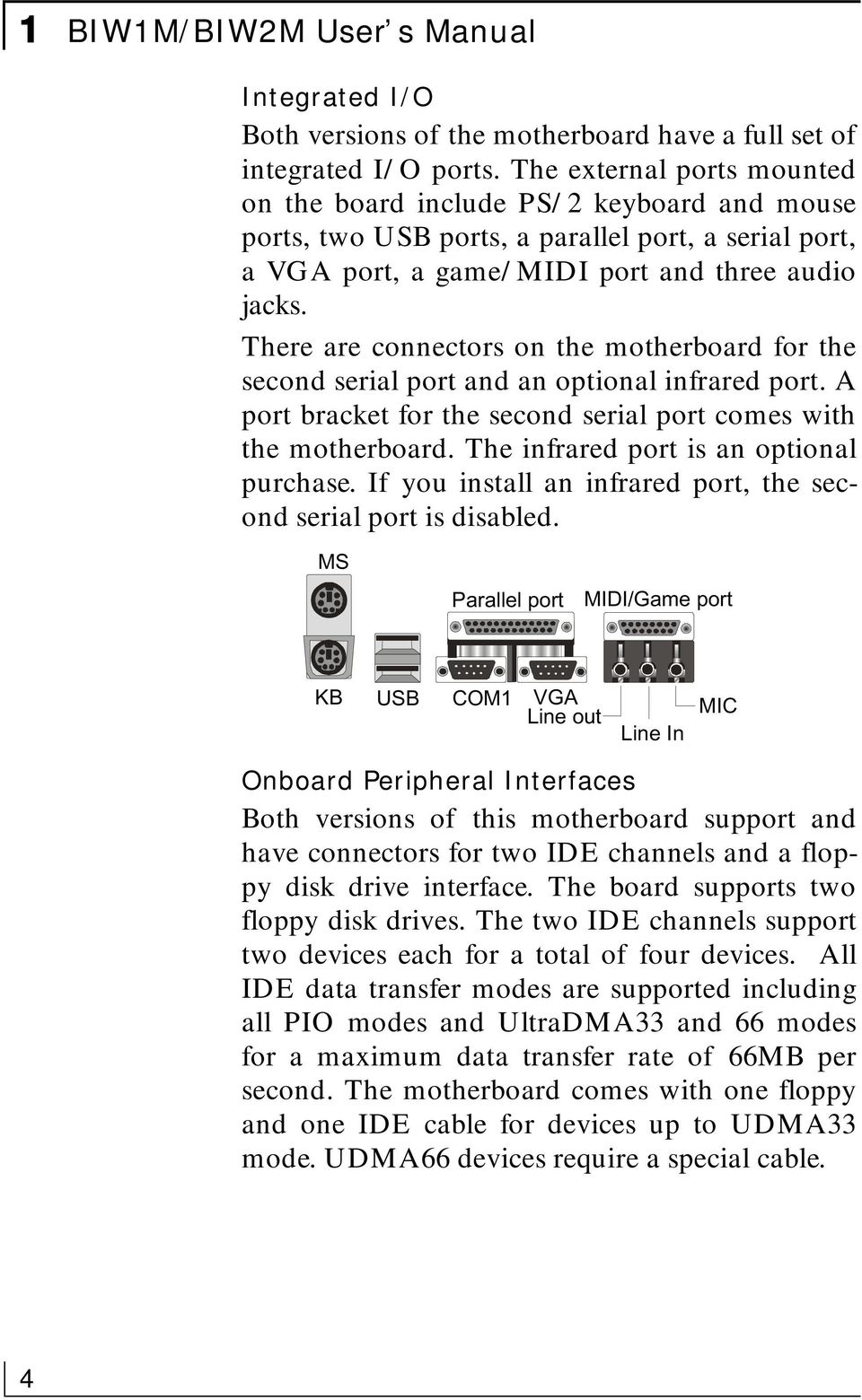
8 1 BIW1M/BIW2M User s Manual Integrated I/O Both versions of the motherboard have a full set of integrated I/O ports. The external ports mounted on the board include PS/2 keyboard and mouse ports, two USB ports, a parallel port, a serial port, a VGA port, a game/midi port and three audio jacks. There are connectors on the motherboard for the second serial port and an optional infrared port. A port bracket for the second serial port comes with the motherboard. The infrared port is an optional purchase. If you install an infrared port, the second serial port is disabled. MS Parallel port MIDI/Game port KB USB COM1 VGA Line out Line In MIC Onboard Peripheral Interfaces Both versions of this motherboard support and have connectors for two IDE channels and a floppy disk drive interface. The board supports two floppy disk drives. The two IDE channels support two devices each for a total of four devices. All IDE data transfer modes are supported including all PIO modes and UltraDMA33 and 66 modes for a maximum data transfer rate of 66MB per second. The motherboard comes with one floppy and one IDE cable for devices up to UDMA33 mode. UDMA66 devices require a special cable. 4
9 Motherboard Features 1 1M 1M System Memory The motherboard has two sockets for 168-pin 3.3V non-buffered SDRAM DIMM memory modules. You must use PC100 or PC133 memory. PC66 memory is not supported. You can install any combination of DIMMs from 16MB to 256MB for a maximum system memory of 512MB. Onboard 2D/3D Video Display The Intel 810 chipset supports both video display and audio onboard. The onboard video display supports both 2D and 3D display graphics. Display drivers are supplied on the Support Disk that comes with the motherboard. The BIW1M also has 4MB of display cache memory mounted on the board to improve display performance. The integrated display feature is DDC2B compliant and supports screen resolutions up to 1600 x 1200, 24-bit color and high refresh rates using a 230MHz DAC. The maximum display supported is 1600 x 1200 resolution with 8-bit color at an 85Hz refresh rate. The enhanced model of the BIW1M also supports TV-Out onboard. TV-Out allows the use of a television set as the display device instead of a conventional computer monitor. The TV-Out feature includes an external port bracket with RCA and S- Video ports for connecting a television set. 5

10 1 BIW1M/BIW2M User s Manual 1M Onboard 32-bit Audio The standard onboard audio is supported by the 810 chipset and comes with audio drivers that are supplied on the Support Disk. The audio subsystem uses the onboard Line-In, Mic-In and Line- Out jacks to connect external devices and also uses any of the three onboard CD-ROM audio-in connectors to process audio from a system CD- ROM drive. The standard audio includes an AC 97 DAC/ADC built into the audio CODEC. This reduces noise to improve audio quality and performance for a signal-to-noise ratio of +90dB, which greatly improves voice synthesis and recognition. The enhanced model of the BIW1M replaces the standard audio with an enhanced Yamaha DS-XG audio chip and codec that use different audio drivers which are also on the Support Disk. Expansion Options This motherboard has three 32-bit Revision 2.2 PCI expansion slots for PCI expansion cards. All slots are Bus Master capable. In addition, there is a slot for an optional Modem Riser card that provides an onboard telephony connection. ACPI Ready ACPI (Advanced Configuration and Power Interface) support provides more energy saving functions for operating systems that support ACPI such as Windows 98. An ACPI-capable system can use the ACPI OnNow feature to turn off system peripherals and wake the system up from Suspend mode via several means including pointing device movement and key commands. 6

11 Motherboard Features 1 Programmable Firmware The motherboard has a 4Mbit firmware hub that includes the PC98-compliant Award PnP BIOS and the CMOS Setup Utility which allows setting of various system hardware parameters. The CMOS Setup Utility has a new easy-to use interface which provides more control over and protection of the motherboard. Virus Protection This motherboard comes with two forms of computer virus protection. When enabled, the antivirus feature in the Award BIOS protects the primary hard disk drive s boot sector and partition table. The motherboard also comes with PC-cillin 98, anti-virus utility software for Microsoft Windows 9x. The software is located on the Support Disk that comes with the motherboard. Options As mentioned above, there are some optional features available for these motherboards. The optional features are of two types, factory-installed and separately purchased. Two factory installed options, Yamaha DS-XG audio and TV-Out are available on the enhanced model of the BIW1M. You must purchase the correct BIW1M model to get them. Both the BIW1M and BIW2M support installing a Modem Riser card to install modem and other telephony features. The Modem Riser card is available separately. Ask your vendor for details. 7

12 1 BIW1M/BIW2M User s Manual Layout & Port Positions The figure at right shows the layout of the enhanced model of the BIW1M motherboard with the optional TV-Out components on the board. The standard BIW1M and the BIW2M do not have these components. Otherwise, the are the same for the purposes of this illustration. Component MR Riser PCI 1,2,3 WOL PGA370 DIMM1,DIMM2 FDC IDE1, IDE2 ATX Power IrDA CPU FAN, SYS- FAN, FAN COM port CD audio Panel JP2 JP3 JP4 JP5 JP9 JP21 JP12* JP17* Description Modem Riser slot 3 32-bit PCI expansion slots Connector for LAN Wake up Socket 370 CPU at 300~550 MHz pin memory sockets Floppy disk drive connector Primary & secondary IDE connectors ATX power supply connector Optional infrared port connector CPU or System cooling fan power connectors 2nd serial port bracket connector CD-ROM drive audio input connectors System housing front panel features connector Keyboard/Mouse Power-on jumper Clear CMOS memory jumper Onboard AC97 audio jumper BIOS Boot Block Protect CPU & Bus external clock selection jumper CPU type selection jumper Onboard Yamaha audio jumper TV-Out jumper 8

13 Motherboard Features 1 JP4 CD audio Game Audio Parallel VGA COM USB MS KB JP12 COM port WOL IR FAN MR riser PGA370 TV-Out JP2 JP17 CPUFAN ATX PCI Slots JP21 JP5 JP3 JP9 DIMM1,2 Panel FDC SYSFAN IDE2 IDE1 MS LPT MIDI/Game port KB USB COM1 VGA Line Out Line In MIC 9

14 1 BIW1M/BIW2M User s Manual 10
15 Configuration & Installation 2 Configuration & Installation What s In This Chapter: Hardware Configuration Installing the Motherboard Installing Support Software This chapter explains how to configure the motherboard, install a CPU and system memory and has basic information on installing the motherboard in a system housing or chassis. We then explain how to install the support software that comes on the Support Disk. If the board is already installed in a system, you may want to review this chapter or you can skip it and go to the next chapter which covers some post-installation topics. Hardware Configuration There are three steps to configure the motherboard hardware before installing it in a system housing: configuring the jumper switches, installing a CPU and installing system memory. Configuring The Jumpers This motherboard has four standard jumper switches and the enhanced BIW1M model with TV-Out has an extra one for that feature. All the jumpers come preset to default settings. You will probably not need to change any of the settings. Please note that once the motherboard is installed, you should always turn your computer off and disconnect the power cord before changing any jumper settings. In all cases, you should always take precautions against static electric damage to sensitive components. The default settings are listed in the following table. 11

16 2 BIW1M/BIW2M User s Manual Default settings are in bold *On BIW1M enhanced model only Jumper Setting Summary JP2 Power On Feature 1-2 Enabled 2-3 Disabled JP3 Clear CMOS 1-2 Normal 2-3 Clear CMOS JP4 Onboard Audio 1-2 Disable 2-3 Enable JP5 BIOS B.B. Protect Short Jumper Unprotected Open Jumper Protected JP9 CPU & Bus Clock Short MHz Short 2-3 Auto Detect Open Jumper 100MHz JP21 CPU Type Open Jumper Reserved Short Jumper Intel JP12* Yamaha Audio Open Jumper Disable Short Jumper Enable JP17* TV System Open Jumper NTSC Short Jumper PAL JP2 JP9 JP17 JP21 JP4 JP12 JP3 JP5 12

17 Configuration & Installation 2 Jumper Functions This is sections explains the functions performed by the jumper switches. JP2: Power On Feature This jumper sets support for the Power On feature under the ACPI power saving specification. When this feature is enabled, a PC98-compliant keyboard or a pointing device can turn on the system in a number of ways. You can configure how the feature operates in the Integrated Peripherals section of the CMOS Setup Utility. See Chapter 3 for more information on this. The default setting is Enabled. JP3: Clear CMOS This jumper is a trouble shooting jumper that allows you to clear the system configuration record that is created by the Award BIOS CMOS Setup Utility and stored in CMOS memory. You only do this if the system has become unbootable due to incorrect settings or a corrupted configuration record and you can t access the CMOS Setup Utility. Please refer to the section on Troubleshooting in Chapter 5 for information on how to do this. The default setting of this jumper is Normal. JP4: Onboard Audio This jumper enables or disables the onboard audio. If you will use either the standard or the enhanced onboard audio, this must be set to Enabled. If you do not want to use the onboard audio, set this jumper to the Disabled setting. The default setting is Enabled. Note: If you will not use the onboard audio, don t install an audio driver from the Support Disk. JP2 JP3 JP4 13

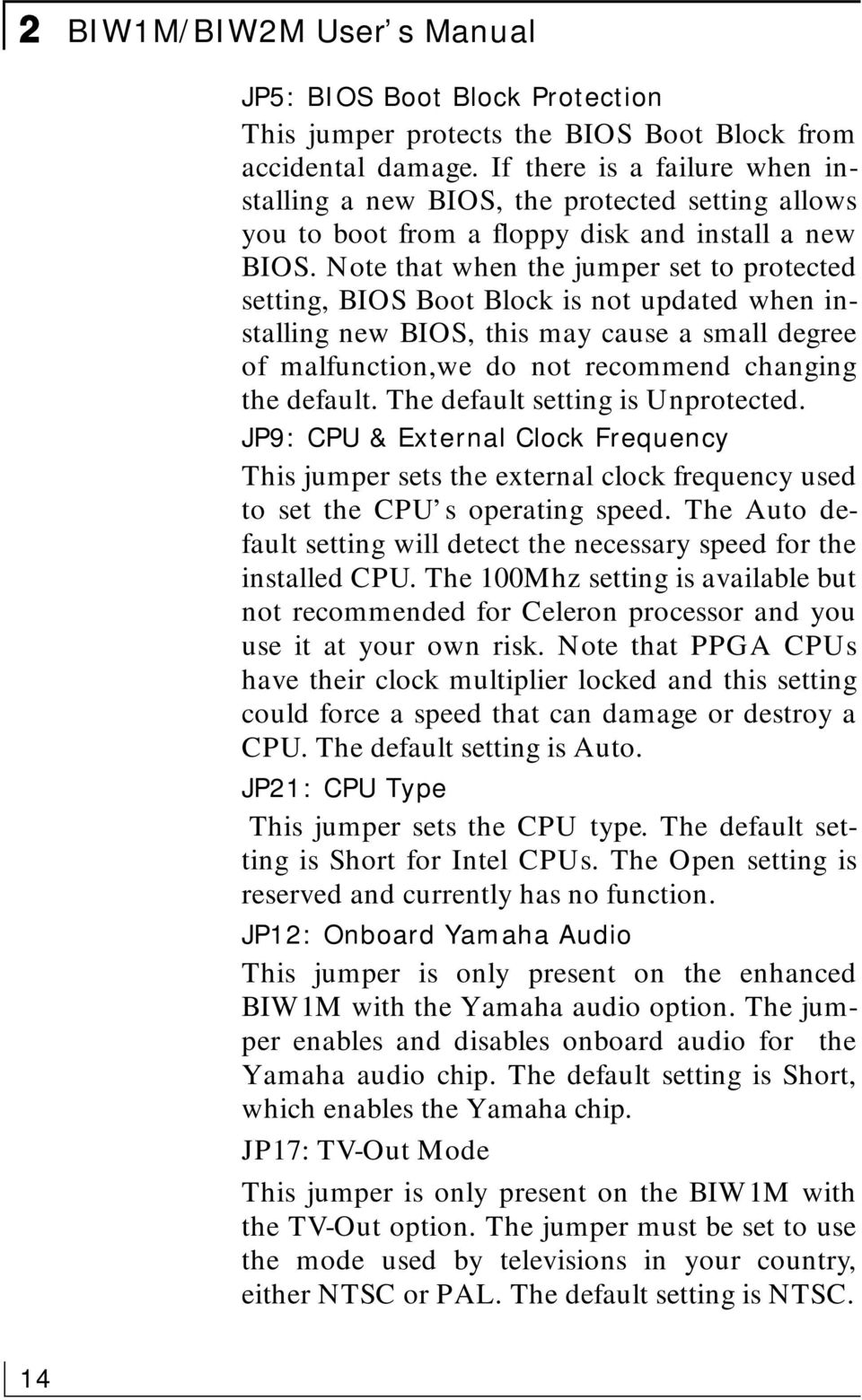
18 2 BIW1M/BIW2M User s Manual JP5 JP5: BIOS Boot Block Protection This jumper protects the BIOS Boot Block from accidental damage. If there is a failure when installing a new BIOS, the protected setting allows you to boot from a floppy disk and install a new BIOS. Note that when the jumper set to protected setting, BIOS Boot Block is not updated when installing new BIOS, this may cause a small degree of malfunction,we do not recommend changing the default. The default setting is Unprotected. JP9: CPU & External Clock Frequency This jumper sets the external clock frequency used to set the CPU s operating speed. The Auto default setting will detect the necessary speed for the installed CPU. The 100Mhz setting is available but not recommended for Celeron processor and you use it at your own risk. Note that PPGA CPUs have their clock multiplier locked and this setting could force a speed that can damage or destroy a CPU. The default setting is Auto. JP21: CPU Type This jumper sets the CPU type. The default setting is Short for Intel CPUs. The Open setting is reserved and currently has no function. JP12: Onboard Yamaha Audio This jumper is only present on the enhanced BIW1M with the Yamaha audio option. The jumper enables and disables onboard audio for the Yamaha audio chip. The default setting is Short, which enables the Yamaha chip. JP17: TV-Out Mode This jumper is only present on the BIW1M with the TV-Out option. The jumper must be set to use the mode used by televisions in your country, either NTSC or PAL. The default setting is NTSC. JP9 JP21 JP12 JP17 14
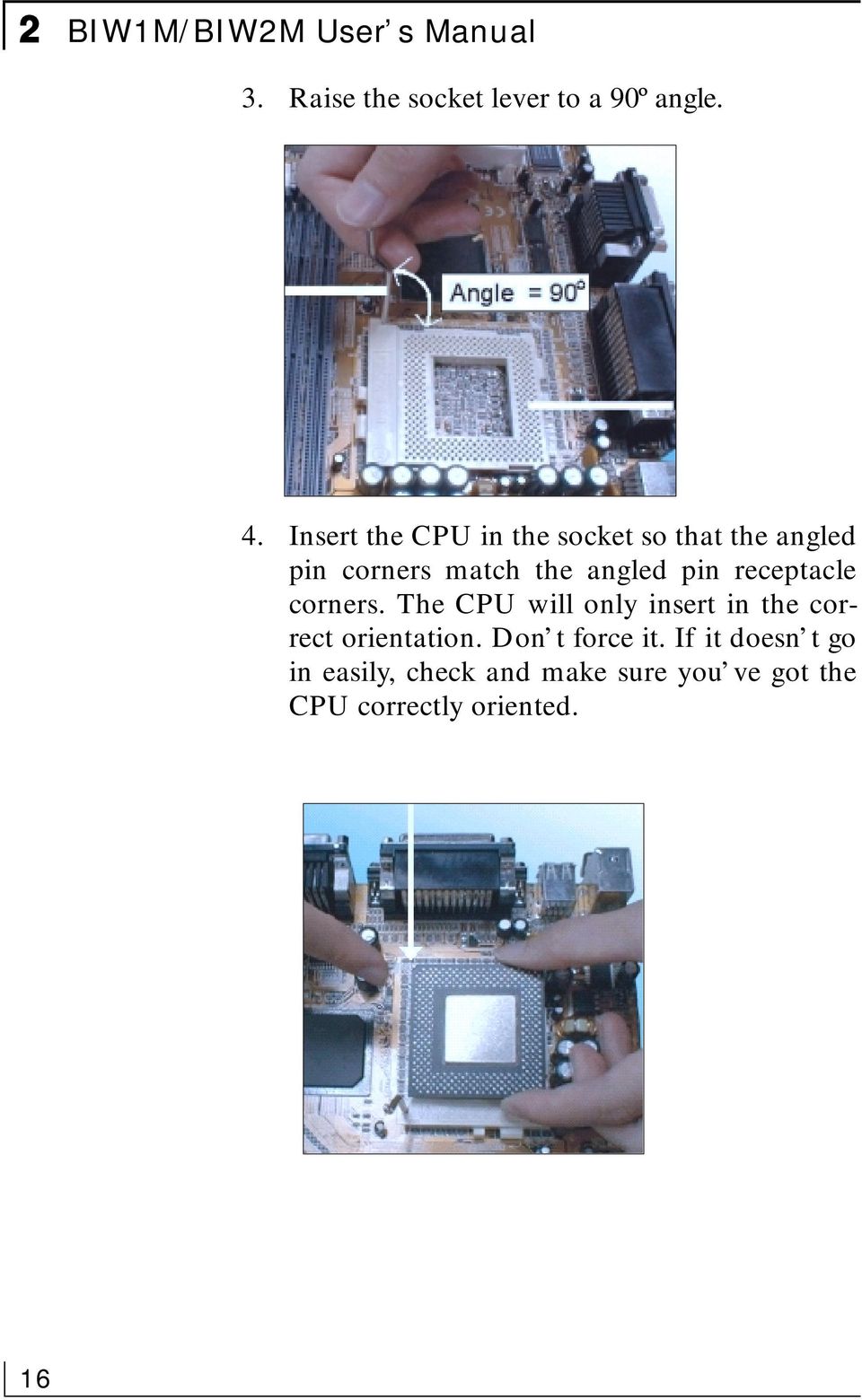
19 Installing A CPU Configuration & Installation 2 Please Note: The pictures in this section are generic and are not of the motherboard this manual is about. This motherboard uses an Intel Socket 370 PPGA or FCPGA CPU. If you purchased a CPU packaged by Intel, follow the installation instructions that come with it. In any case, please review the following generic instructions which are the same for both CPU types. Make sure you take precautions against static electric damage to the CPU. 1. The CPU will only fit into the socket in one orientation. Look at the top of the CPU with and note the two angled corners where some pins are missing. On the other two corners, the pins form a 90º angle. 2. Locate the PGA370 socket on the motherboard and identify the socket s Pin 1 position at the end of the socket actuating lever (or handle ). Note the angled corners of the pin receptacles on that side of the socket. 370 Socket Pin 1 CPU Pin 1 side Pin 1 15

20 2 BIW1M/BIW2M User s Manual 3. Raise the socket lever to a 90º angle. 4. Insert the CPU in the socket so that the angled pin corners match the angled pin receptacle corners. The CPU will only insert in the correct orientation. Don t force it. If it doesn t go in easily, check and make sure you ve got the CPU correctly oriented. 16
21 Configuration & Installation 2 5. Lower the socket lever and press it back into place to lock the CPU in the socket. You will also need to install a heatsink/fan devices on top of the CPU. If you purchased an Intel CPU in retail packaging, use the fan that comes in the package. If you a purchased a CPU that doesn t come with a fan, you will need to purchase one separately. Follow the installation instructions and plug the fan power connector onto the CPU FAN power connector beside the PGA370 socket. 17
22 2 BIW1M/BIW2M User s Manual Installing System Memory There are two system memory sockets on the motherboard. They use 3.3Volt, non-buffered SDRAM DIMMs (Dual In-line Memory Module). This motherboard can uses PC100 and PC133 DIMMs. The motherboard will automatically detect and configure the installed memory. This means you can use PC100 memory even if the external clock frequency used by the CPU is 66MHz. You can install any size DIMM from 8MB to 256MB in either socket in any order for a total of 512MB. Installing DIMMs The DIMM sockets have three edge connector sections divided by spacers with a crossbar. The crossbars match cut-outs in the DIMMs so that only the correct type of module can be installed. The cutouts vary by module type. Make sure you use the correct module type as noted above. When installing memory, you should take precautions against static electric damage to sensitive components on the modules and the motherboard. To install a module do as follows: 1. Press the socket retaining latches down to create full access to the socket. 2. Align the DIMM to the socket so that its edge connector matches the socket s connectors. The three sections are of different lengths to make the correct orientation obvious. 3. Lightly press the DIMM into the socket at a 90º to the motherboard. Make sure the mo d- ule and the socket are lined up correctly. 18
23 Configuration & Installation 2 4. Press the DIMM fully into the socket. The retaining latches will rotate upwards and should fit into the corresponding notches on the DIMM. Press the latches into place if necessary. If the latches won t insert properly into the module notches push them back and try inserting the DIMM again. When the latches are fully in place the DIMM is properly installed. Depending on the module size and the total capacity you want to install, you may install memory in only one or both sockets. For example, to install 128MB of system memory you can install either one 128MB DIMM in one socket or two 64MB modules using both sockets. We recommend that you use the largest module that fits your installation plans so that you can leave the second socket open for later upgrades. If you want to upgrade system memory after the motherboard is installed you can install additional memory in the empty socket. If there is no empty socket, you will need to remove at least one module and replace it with the upgrade module. In some cases, you may need to remove both modules to allow installing your intended configuration. To remove a DIMM do as follows. 19
24 2 BIW1M/BIW2M User s Manual 1. Make sure the computer is turned off and unplugged. 2. Press down on the retaining latches to release the module and push it partially out of the socket. 3. Carefully remove the module from the socket, preferably grasping it by the top corners of the circuit board. Installing Options To install any optional hardware such as the TV- Out port bracket, the Modem Riser card or optional Infrared port you must first install the motherboard in a system housing. Please refer to the Other Connections portion of the next section. 20
25 Configuration & Installation 2 Installing The Motherboard This section is a brief generic explanation of how to install the motherboard in a system housing ( case or chassis ) and connect other internal system components to it. If you are not experienced at installing and assembling computer hardware we recommend you consider having a qualified service technician install and assemble your system for you. If you will do the work yourself, make sure to take precautions against damage from static electric discharge while installing and connecting components. Installing in a System Housing Since housing designs vary considerably the section provides general guidelines and notes the basic requirements. This motherboard is a Micro ATX board that requires an ATX style case and power supply. The case should come with mounting hardware for the motherboard and at least basic instructions on how to install a motherboard. It is advisable to check the case before you by it and confirm that it has adequate hardware and instructions including a port cover panel that matches the port configuration on the motherboard. If you are upgrading the motherboard in a system you already own, you will need to make sure your system case can accommodate this motherboard. This is the basic procedure to install the motherboard: 1. Check over the hardware and instructions that came with the system housing and make sure everything is there and that you understand the instructions. 21
26 2 BIW1M/BIW2M User s Manual 2. Attach whatever mounting hardware is needed to the case. Some cases support more than one motherboard form factor, for example Baby AT, Micro ATX and ATX. Identify the mounting points that match as many of the mounting holes on the motherboard as possible and install hardware at those points. Some cases use both metal nut-headed screws and plastic spacers with a pointed end that inserts in a mounting hole on the motherboard. The spacers fit into slots in the motherboard mounting plate. 3. Install an ATX port cover panel if necessary. Follow the instructions that came with the case and make sure you use a cover panel that matches the port configuration on the motherboard if more than one panel came with the case. 4. Line the motherboard mounting holes up with the appropriate attachment points on the motherboard mounting plate. If you had to install plastic spacers in some holes, make sure they fit into their slots as you align the board. 5. Use the mounting screws and washers that came with the system case to attach the motherboard to the mounting plate. Seat the screws firmly but not to tightly. With the motherboard installed, you can now attach internal system components including wire leads from the system case, any disk drive or other cables and any port brackets. 22
27 Configuration & Installation 2 System Housing Connections You will need to connect several wires from the system housing to the motherboard. These include leads for functions on the housing s front panel and the power connector from the ATX power supply and any system cooling fans. Connecting Front Panel Leads System housings usually have several system controls and indicators mounted on the front panel. This motherboard supports several of these standard features via the J23 Switch & Indicator panel connector. The supported features and the J23 pins they connect to are shown in the following table and figures. P21 SPEAKER ACPI LED PWR LED PWBT P1 P22 P2 K-LOCK PWR LED EXT SMI HDD LED RST Pin Name Description 1 2 PWBT Power Button 3 4 RST Reset switch 5 6 PWR LED Power status light 7 8 HDD LED HDD activity light 9 10 EXT SMI Suspend switch ACPI LED Suspend indicator PWR LED Power LED (3-pin) K-LOCK Key Lock SPEAKER Speaker 23
28 2 BIW1M/BIW2M User s Manual Connecting ATX Power The power connector from the ATX power supply is a rectangular plastic connector with multiple wires running back to the power supply. It plugs onto the ATX power connector on the motherboard. The connector will only plug on one way, so if it won t plug on easily, turn it around and try again. Make sure the power supply is unplugged when you connect the power lead. Connecting Cooling Fans There are two connectors on the motherboard for connecting power leads from system cooling fans mounted in the system housing. The system housing may already have such a fan installed. If so, you should connect it to the nearest connector on the motherboard. Many cases have a space to install a standard cooling fan. The fan power leads will only plug on one way so you can t connect them incorrectly. Fan Out +5V GND Disk Drive Connections This motherboard has three connectors for disk drives, one for up to two floppy disk drives and two EIDE connectors which can connect to two IDE devices each for a total of four. The motherboard comes with two ribbon connector cables, one floppy cable and one IDE cable. 24
29 Configuration & Installation 2 Board end Pin 1 side Drive B: Drive A: Connecting Floppy Disk Drives The motherboard floppy disk drive controller connector uses the narrower (34-pin) of the two supplied cables. There are three connectors on the cable, one at each end and one in the middle, more towards one end. The end with two connectors closer together goes to the disk drives. The other end connects to the motherboard. Always connect the Pin 1 side of the ribbon cable (the colored edge) to the Pin 1 side of the cable connector on the motherboard or device. The Pin 1 corner is marked on the motherboard and drives usually have it marked in some way. The rule of thumb for drives is that the Pin 1 side of the connector is on the drive power connector side. The end drive connector on the ribbon cable is for floppy disk drive Drive A: and the middle connector is for Drive B:. The supplied cable only supports 1.44MB floppy disk drives. Board end Pin 1 side Slave Connecting IDE Devices The motherboard EIDE device controller connector uses the wider (40-pin) of the two supplied cables. There are three connectors on the cable, one at each end and one in the middle, more towards one end. The end with two connectors closer together goes to the IDE devices. The other end connects to the motherboard. Master 25
30 2 BIW1M/BIW2M User s Manual Always connect the Pin 1 side of the ribbon cable (the colored edge) to the Pin 1 side of the cable connector on the motherboard or device. The Pin 1 corner is marked on the motherboard and IDE devices usually have it marked in some way. The rule of thumb for IDE devices is that the Pin 1 side of the connector is on the drive power connector side. The end drive connector on the ribbon cable is for the Master IDE device and the middle connector is for the Slave device. The supplied cable supports IDE devices up to UDMA66 mode. If you want to install devices on the second IDE channel, you will need to purchase an additional IDE ribbon cable. If you want to use IDE devices that use the UDMA66 data transfer mode, you will need to get a cable that specifically supports UDMA66. Other Connections There are several other connection points on the motherboard which you will or may need to use. These include the connector for the second serial port s port bracket, the CD-ROM drive audio input connectors, the IR port connector, Wake-up On LAN (WOL) connector and the connector for the TV-Out port bracket on the enhanced version of the BIW1M. 26
31 Configuration & Installation 2 The Second Serial Port Bracket The port bracket for the second serial port, which is replaced in the ATX port configuration by the VGA port for the onboard video display, plugs onto the COM2 connector on the motherboard. Mount the port bracket in an expansion slot opening below the lowest PCI slot and plug the ribbon cable connector attached to the bracket onto the connector on the motherboard. The cable will only plug on one way so you can t get it wrong. CD-ROM Audio Input There are three connectors for a CD-ROM. Plug the audio cable from a CD-ROM drive into the connector that matches the connector on the end of the cable. If there is more than one CD-ROM drive installed in the system you can connect additional drives to the unused connectors. Note that only one audio source at a time will play through the onboard audio subsystem. The Optional IR Port This connector is for an infrared wireless communications port. Connect a separately purchased port to the IrDA connector. Make sure to orient the Pin 1 side of the port connector to the Pin 1 on the onboard connector. The Pin 1 position is marked on the motherboard. You will also need to configure the port in the CMOS Setup Utility. You do this by setting the UART Mode Select line in the Integrated Peripherals section to the appropriate setting for your device and setting the configuration lines below it if necessary. Follow the directions that come with the IR port to install it. 5 IrDA 1 27
32 2 BIW1M/BIW2M User s Manual The WOL Connector The Wake-Up On LAN connector is for connecting a signal cable from a Local Area Network card that supports the WOL feature. When this is installed, the system can be activated by a remote signal sent over the LAN. You need to install the LAN card before you connect this cable. Follow the instructions that come with card and refer to Chapter 3 if you need to for general information on installing expansion cards. The cable will only plug in one way. Look at the connectors and the orientation will be obvious. Checking The Installation Once you have installed and connected internal peripherals -- most likely at least a hard disk drive, a floppy disk drive and a CD-ROM drive check and make sure everything is correctly and firmly connected or installed. After that, assemble the system housing and connect a monitor, keyboard and mouse or other pointing device. Plug the power cord into the ATX power supply and plug it into a surge-protected power outlet. Turn on the computer. The POST (Power On Self Test) will run and should display the correct memory total. The default BIOS settings should automatically detect and configure any floppy disk drives and IDE devices as well as assign resources for any expansion cards you may have installed. If you encounter a problem, reboot and run the CMOS Setup Utility by pressing the delete key. If you need help using the utility, see Chapter 4. The system should now be ready to install an Operating System on the hard disk drive and the necessary support software from the Support Disk. 28
33 Configuration & Installation 2 Support Software All versions of this motherboard come with a software Support Disk that has both support software and bundled software on it. The Support Disk is for an entire range of motherboards. There is more software on the Support Disk than is used by this motherboard, so don t be confused by the software that doesn t apply. An Operating System must be installed on the primary system hard disk drive before you can install support software. Most of the support software is for Microsoft Windows 95, 98 or NT as these are the operating Systems most likely to be used with this motherboard. Installing the Support Software The Support Disk is set to run automatically. The disk has an installation interface that will appear when you load the disk in the CD-ROM drive. You can then make selections from the menu that appears by clicking on an item with the mouse. You can also use the arrow keys on the keyboard to make a selection and then press the Enter key. The installation interface has a number of nested levels. The top level, which you see when the disk loads looks like this. You can exit the level you are in either by clicking on the Exit bar, selecting it and pressing the Enter key or by pressing the Esc key. The top level Exit bar closes the installation program. You will need to install support software under the Intel and Audio Driver headings. The other software is optional. 29
34 2 BIW1M/BIW2M User s Manual Main screen Main menu 30
35 Configuration & Installation 2 Intel Support Software Under the Intel heading you will need to install a Bus Master driver for the version of Windows you are using and the Intel 810 VGA Driver. To install software, click on or select the appropriate item and press the Enter key. Follow the installation instructions that appear. Bus Master Drivers If you are using Microsoft Windows, install the driver for the version of Windows you are using. You don t need to install a Bus Master driver if you re not using Microsoft Windows. Intel menu 31
36 2 BIW1M/BIW2M User s Manual VGA Display Drivers The VGA Driver section has a submenu for various versions of Windows including 3.1 and has a driver for OS/2. Choose the driver for the OS you are using. VGA menu Audio Driver Software There are two applicable items for this motherboard under the Audio Driver heading. For the BIW2M and the standard version of the BIW1M, you should install the ADI 1881 driver. For the enhanced version of the BIW1M you should install the YAMAHA DS--XG driver. To install software, click on or select the appropriate item and press the Enter key. Follow the installation instructions that appear. You don t need to install an audio driver from here if you will not use the onboard audio feature. 32
37 Configuration & Installation 2 Audio menu Installing Bundled Software The Support Disk also has some utility software on it. The free Adobe Acrobat Reader is supplied for viewing files in the Acrobat PDF format, including online manuals. The PC-cillin 98 antivirus software is bundled with this motherboard to enhance your system s protection from computer virus problems. To install either software utility, click on or select the appropriate item and press the Enter key. Follow the installation instructions that appear. 33
38 2 BIW1M/BIW2M User s Manual 34
39 Using The Motherboard 3 Using The Motherboard What s In This Chapter: System Controls Connecting External Peripherals Installing Expansion Cards Upgrading System Memory This chapter covers a few points on how some of the motherboard features impact use of the computer it is installed in. This includes using system control features, connecting external peripherals, installing expansion cards and upgrading system memory. System Controls There are several system controls that either connect to the motherboard from the front panel of the system housing or work through the keyboard or pointing device. Front Panel Features System housings vary in design, so a particular system case may not support all the features on the motherboard. Most housing do support the majority of these features however. The location and appearance of these features will vary according to the housing design. The Power Button The power switch on an ATX case is likely to be a power button that can do more than function as an on/off switch. You can set how the power button works in the BIOS CMOS Setup Utility. The button can either function as instant on/off or as suspend/off after 4 second delay. You can configure the power button under the Soft-OFF by PWR-BTTN line in the Power Management Setup section of the CMOS Setup Utility. The power button features also work when you enable the Keyboard Power-On feature. 35
40 3 BIW1M/BIW2M User s Manual The Reset Switch A reset switch is standard to almost all PCs. Pushing the switch will cause the computer to do a hard restart. If the computer hangs during operation and becomes unresponsive to other controls, you can restart the computer using this switch. Don t use it if the computer is operating normally. You should always shut down from within the Operating System. Only use reset as a last resort and instead of turning the computer off and then back on. The Suspend Button An external Suspend button appears on some cases. Pushing the button will cause the system to enter whatever power-saving suspend or Sleep mode it is configured to enter. In suspend mode the computer may appear to be turned off, but is in fact just in a low power mode. Don t turn the computer off when it is suspended. Pushing the button while the system is suspended will resume or Wake Up the system and cause it to return to its previous state. Indicator Lights The motherboard supports several indicator lights that may be present on the front panel of the system housing. These include a Power LED, a Hard Disk Drive LED and a Suspend LED. Power LED: Lights when the system is on Hard Disk Drive LED: Flashes when the hard disk drive is being accessed Suspend LED: Lights when the system is in power saving Suspend or ACPI mode 36
41 Using The Motherboard 3 Keyboard & Pointing Device Features This motherboard is PC98 compliant and supports Power On configurable control from the keyboard or pointing device and Sleep/Wake Up. Power On With this feature enabled by default on the motherboard, you can set the Power On feature to turn on the system from the keyboard or the with the pointing device. You can configure this feature using the BIOS CMOS Setup Utility. The POW- ER ON Function line in the Integrated Peripherals section of the utility has numerous options for both the keyboard and mouse. The default setting is BUTTON ONLY which lets the Power Button on the system housing control system power. The options are: Keyboard 98: Pressing the power key on a PC98 keyboard turns on the computer. Any KEY: Pressing any key on the keyboard turns on the computer. Hot KEY: Pressing a hot key combination on the keyboard turns on the computer. You can set the hot key combination from several choices in the Hot Key Power ON line that activates when you select this option. The default hotkey is Ctrl + F1. Password: Pressing any key and then entering a password at the prompt will turn on the computer. You can set the password f-rom the KB Power ON Password line that activates when you select this option. Mouse Right: Clicking the right button twice on the PS/2 mouse turns on the computer. 37
42 3 BIW1M/BIW2M User s Manual Mouse Left: Clicking the left button twice on the PS/2 mouse turns on the computer. You can only use one mode at a time. Sleep/Wake Up If you use a PC98 keyboard with this motherboard you can use the Sleep and Wake Up keys to suspend the system in Sleep mode and wake the system up to resume its former state. 38
43 Using The Motherboard 3 Connecting External Peripherals This section covers information on connecting external peripheral equipment to the computer via the motherboard s onboard ports. This motherboard has a full complement of external ports including all standard ATX ports and the onboard video port. To accommodate the external VGA port the second serial port connects to a connector on the motherboard and the VGA port is located where the second serial port would normally be. Connecting Peripherals to Conventional Ports It is safest to turn the computer off before connecting or disconnecting any external peripherals. The conventional ports on this motherboard are color-coded according to the PC99 standard. This allows for easier system setup when using similarly color-coded peripheral cable connectors. The port colors and functions are as follows: Parallel port [Burgundy]: Generally used for connecting a printer. Usually configured as LPT1. Can also connect to other devices designed to use this port. More than one device can be connected to the port by using a passthrough cable. The port supports multiple modes and is configurable via the BIOS CMOS Setup Utility in the Integrated Peripherals section of the utility. Any device connected will also require Operating System driver support. 39
44 3 BIW1M/BIW2M User s Manual Serial ports [Teal]: Used for connecting modems, printers and other serial devices. The port supports multiple address configurations and is configurable via the BIOS CMOS Setup Utility in the Integrated Peripherals section of the utility. Any device connected will also require Operating System driver support. Keyboard port [Purple]: For a PS/2- compatible keyboard. Mouse port [Green]: For a PS/2-compatible pointing device. Driver support for basic pointing devices such as a standard 2-button mouse is not required under Windows. Enhanced pointing devices require a driver for their added functionality. Audio jacks: Audio Line Out [Lime]: Uses a mini-plug cable connector to output to external audio, either speakers or an amplifier. Audio Line In [Light Blue]: Uses a miniplug cable connector to receive audio input from an external source such as an audio CD or MP3 player. Microphone [Pink]: Uses a mini-plug cable connector to receive audio input from a microphone. Game/MIDI port [Gold]: This port can functions as either a Game port or as a MIDI port. The port is configurable via the BIOS CMOS Setup Utility in the Integrated Peripherals section of the utility. The default configuration for this port is as a Game port. If you configure the port as a MIDI port, it will need to use either IRQ 5 or
45 Using The Motherboard 3 Connecting USB Peripherals The motherboard has two onboard Universal Serial Bus ports. These ports can connect to unpowered downstream devices or to either a buspowered or self-powered USB hub which provide more ports. USB devices are hot swap which means you don t have to turn the computer off before connecting or disconnecting a device. The USB can support up to 127 devices. USB is an interface for peripherals that use a relatively low data transfer speed, such as USB keyboards, pointing devices, scanners, printers, modems and other telephony devices and game devices. USB also supports MPEG-1 and MPEG-2 digital video. It has a maximum transfer rate of 12Mbits per second, which is equivalent to 1.5MB per second. To use USB the computer must use an Operating System that supports it. For example, Windows 95 OSR2 supports USB, as does Windows 98. Earlier versions of Windows do not support USB. 41
46 3 BIW1M/BIW2M User s Manual Installing Expansion Cards This section has some general information on installing expansion cards on the motherboard. This motherboard has three standard PCI expansion slots. The slots are all 32-bit PCI Revision 2.2 compliant and are all Bus master capable. There is a fourth special slot for an optional Modem Riser card. Note that there is no legacy ISA slots on this motherboard. Installing PCI Cards There are several issues that affect your choice and installation of expansion cards on the motherboard. These include Bus Master drivers, Plug and Play and system power and resource considerations. Bus Master Drivers The three PCI expansion slots are all Bus Master capable. The Bus Master feature can substantially improve system performance and also is used by the onboard IDE channels. To make use of this feature you must install the appropriate driver for the Operating System you are using after you install the motherboard. The Bus Master drivers are located on the Support Disk and you can access them via the automatic install interface that runs from the disk. There is information on installing them in Chapter 2. 42
47 Using The Motherboard 3 Plug and Play It is likely that any PCI card you will install on the motherboard will be Plug and Play (PnP) compliant. Plug and Play is a design specification for expansion cards that allows the system to automatically assign and manage resources for installed expansion cards rather than requiring manual configuration as in pre-pnp designs. Any new expansion cards you install are more than likely to be PnP compliant. Some old PCI cards might possibly not be. Where you have the option, we suggest not installing cards that are not PnP compliant as it simplifies the management of system resources. System Resources & Power Limitations Many expansion cards require the use of system resources such IRQ and DMA channels. By design, all PCs have a limited number of these resources and their effective management is fundamental to proper system operation. As noted in the previous section, the PnP feature handles the management of system resources. The problem is that these resources are finite. If you install enough expansion cards, USB devices and peripherals on ports, for example serial ports, that use system resources it is possible to run out of them. While IRQs can be shared, there is a limit to doing this. If you have a lot of cards installed and devices connected it is a good idea to check the system resource status. For example, if you are running Windows 98, you can use the System Information utility to examine system resource assignments. An average configuration is unlikely to encounter this problem so it is not something to be concerned about. 43
48 3 BIW1M/BIW2M User s Manual Power Considerations The system s ATX power supply has a fixed electrical capacity measured in watts. If you install numerous internal peripherals and expansion cards, for example four IDE devices, a SCSI card and internal SCSI peripherals, it is possible to exceed the capacity of the power supply if it has a lower capacity. Be aware of the total wattage capacity of the power supply in the system and make sure that you don t install more devices than it can handle. Installing Cards When the motherboard is installed in a system housing the expansion slots all line up with access openings in the rear of the case. These will be covered with either individual slot covers or metal plates. To install a card you have to remove the slot cover. Refer to the instructions that come with the expansion card you want to install for detailed information on installing the card and any special considerations and instructions. For most new cards, the hardware installation is simple. Always turn off and unplug the computer before you install any expansion card. Driver & Other Software Many cards will require the installation of driver or other software. Follow the software installation instructions that come with the card. It is a good idea to make sure that you have the most recent driver for the card. In some cases, there may be an updated driver on the company s web site. If you have Internet access, it is a good idea to check for an updated driver before installing the card. 44
49 Using The Motherboard 3 Installing A Modem Riser Card The special Modem Riser slot is for a separately purchased Modem Riser telephony card. The card provides a V.90 modem and other telephony features and installs in the same way as a conventional expansion card although the slot is smaller. The card has two external RJ-11 phone jacks on it, one for Line-in and the other to connect out to a telephone set. You should receive driver software for the card. The driver software may only support a limited number of Operating Systems so check that the driver supports your OS before you buy the card. Follow the instructions that come with the card to install it. Upgrading System Memory There is a full explanation of how to install system memory in Chapter 2. Please refer to it if you need information on the installation procedure. This motherboard uses 3.3V unbuffered SDRAM 168-pin DIMMs with SPD. It requires at least PC100 SDRAM modules. It can also use PC133 DIMMs. The system will automatically detect the memory clock speed and the speed can be different from the external clock frequency used by the CPU. If both sockets are occupied, you will need to remove one or both modules to install an upgrade. If you re only removing one module, always remove the one with the smaller capacity. 45
50 3 BIW1M/BIW2M User s Manual 46
51 System BIOS & CMOS Setup Utility 4 What s In This Chapter: System BIOS CMOS Setup Utility The System BIOS & CMOS Setup Utility This section explains what the system BIOS does and has a summary of the CMOS Setup Utility. The System BIOS This motherboard uses the Award system BIOS. The system BIOS (Basic Input Output System) is firmware -- software stored on a chip -- that is permanently stored on the motherboard s firmware hub chip. The BIOS is a set of routines which function as an interface between the Operating System and the system hardware. It supports the installed peripherals and provides internal services such as the realtime clock produces time and date data. When the system is starting up, the BIOS tests the system and prepares the computer for operation by checking the CMOS memory where the system configuration information is stored and retrieving information on the configuration settings. When it is finished it loads the operating system and passes control of the system to it. The system configuration information that the BIOS retrieves from CMOS memory is recorded there by the CMOS Setup Utility. 47
52 4 BIW1M/BIW2M User s Manual The CMOS Setup Utility This section explains the CMOS Setup Utility program. The utility is permanently stored in flash memory in the firmware hub on the motherboard. It creates a record of the motherboard and some system configuration information and stores it in battery-supported CMOS memory. This configuration record must be intact and accurate in order for the motherboard to operate correctly. After an explanation of how to operate the utility there is a summary of the various sections of the utility. Normally, once your system is set up, you should have little or no need to use the utility. Using the CMOS Setup Utility This section explains how to access and use the CMOS Setup Utility interface. Accessing The CMOS Setup Utility When you turn on your computer, a message appears on the screen indicating you can run the Setup program by pressing the Del key -- it s on the keypad and the Delete key performs the same function. The message appears at the end of the POST (Power On Self Test). If you want to run Setup but you don t respond in time before the message disappears, you can reset the system by pressing the Ctrl + Alt + Delete keys at the same time, or by pushing the system Reset button. The message will then reappear. After you press the Del or Delete key the program menu screen will appear, displaying the Setup utility section names and some command instructions. 48
53 System BIOS & CMOS Setup Utility 4 CMOS Setup Utility - Copyright ( C ) Standard CMOS Features Advanced BIOS Features Advanced Chipset Features Integrated Peripherals Power Management Setup PnP/PCI Configurations PC Health Status Frequency/Voltage Control Load Fail-Safe Defaults Load Optimized Defaults Set Supervisor Password Set User Password Save & Exit Setup Exit Without Saving Esc : Quit : Select Item F10 : Save & Exit Setup Time, Date, Hard Disk Type. Menu Commands If you look at the lower portion of the screen illustration, you ll see a section that lists the control commands for this level of the program. You execute a command by pressing the key for that command. The program commands are : Quit: This command will close the Setup program when you press the ESC key. Save & Exit Setup: This will save the current settings and close the Setup program when you press the F10 key. Select Item: You can use the arrow keys on your keyboard to move around the screen and select a menu item. An item is highlighted when it is selected. The section at the bottom of the screen displays a brief explanation of a highlighted menu item s function. 49
54 4 BIW1M/BIW2M User s Manual There are fourteen items on the main screen: Standard CMOS Setup: Date, time, disk drive setup, video display and error handling. Advanced BIOS Features: Boot and drive options and system feature customization Advanced Chipset Features: Advanced cache, system memory and display cache settings. Integrated Peripherals: Settings for the IDE channels and onboard ports and audio Power Management Setup: Sets up the power management features or enables ACPI. PNP/PCI Configurations: PCI bus, system resource settings and SCSI detection. PC Health Status: CPU and cooling fan status monitor readouts and system Shutdown temperature threshold setting. Frequency/Voltage Control: Autodetect and manual settings for CPU, memory and PCI clock settings and the CPU multiplier. Load Fail-Safe Defaults: Loads minimum settings from the BIOS ROM. Load Optimized Settings: Loads optimized settings from the BIOS ROM. Set Supervisor Password: Sets a system password which is configured by the Security Option item in Advanced BIOS Features Setup. Set User Password: Sets a system password which is configured by the Security Option item in Advanced BIOS Features Setup. Save & Exit Setup: Saves the current settings and exits the program. 50
55 System BIOS & CMOS Setup Utility 4 Exit Without Saving: Discards any changes made and exits the program. To enter a section of the Setup program, highlight a menu item by moving to it with the arrow keys and press the Enter key to load that item. The submenu screen for the selected section will appear. All the main screen items that have submenus are marked with an arrowhead at their left. Submenu Commands The CMOS Setup Utility has an additional set of interface commands for the submenus. There is a self-explanatory list of interface commands listed at the bottom of each submenu screen. There are also commands for he help system and the default setting options. General Help Pressing the F1 key brings up context-sensitive help where available to explain many menu items. Default Settings There are two types of default settings, Fail-Safe and Optimized. The system loads the Optimized Defaults the first time the motherboard starts up after it is installed in a system and autodetects system devices to create a system configuration record which it stores in CMOS memory. You can then customize the settings further. The optimized settings are designed to provide better system performance. The Fail-Safe Defaults are minimum settings that will get the board up and running if you are trying to troubleshoot a problem and suspect that the BIOS may be involved. 51
56 4 BIW1M/BIW2M User s Manual Interface Conventions There are several interface conventions that improve the program s ease-of-use. There are also some features of the CMOS Setup Utility s interface that are important to be aware of. Scrollable Menus In several submenus, there are more menu entries than can appear on the screen at the same time. These submenus have a scroll bar in the center of the screen to indicate this. You can scroll down the list by using the down arrow key. Menu Options Pop-up The second convention is that pressing the Enter key when a submenu item is highlighted will cause a window with a list of all available options for that item to appear. This convenience feature adds considerably to the program s ease-of-use. Item-Dependent Settings You will note that some menu items are grayedout. Many of these are dependent on a previous item in the submenu. The appropriate setting in the governing item will activate the grayed-out items below to configure the governing item s selected option. There are also some submenu items that lead to subsections of the submenu. Menu Subsections The Standard CMOS Features and PnP/PCI Configurations both have submenu items with manual configuration subsections. They are marked by Press Enter in the option field. Highlighting them and pressing the Enter key brings up the subsection. Set resource control to Manual to access the one in PnP/PCI Configurations. 52
57 System BIOS & CMOS Setup Utility 4 Main Menu Item Pointers These are a few pointers on the main menu items. Standard CMOS Features Set the system Date and Time here. You can manually configure IDE devices in submenu sections by device position. The floppy Drive A: is set to 1.44MB by default. Advanced BIOS Features Set BIOS-level anti-virus feature. Set the POST to run quickly. Change the boot order and device here. You can set the first, second and third device the system will try to boot from among a selection of nine boot device options. Set the Security Option based on passwords you have entered. BIOS write-protection if this is enabled you can t flash the BIOS but it protects against certain viruses. Advanced Chipset Features We recommend not changing the defaults. Setting On-Chip Video Window Size to Disabled will disable the onboard video display. Integrated Peripherals Change I/O port configurations here. If you need more IRQs, disable unused ports here. Configure the Power On feature as explained in Chapter 3. Power Management Setup Enable ACPI and or customize settings here. You set power management options for any OS that doesn t support OS power management here. You can also configure the Wake-up on LAN feature and set the system to turn on a modem telephone line rings. You can also set the system to wake-up at a specific time and/or date using the Resume by Alarm feature. 53
58 4 BIW1M/BIW2M User s Manual The item options for setting up power management for non-acpi compliant Operating Systems are explained below. ACPI function Default: Enabled When Enabled, an ACPI OS controls power management. Power Management Default: User Defined This allows you to select the type or degree of power management under a non-acpi compliant OS and is directly related to the following modes : Doze; Standby; Suspend; HDD Power Down. Min Saving Minimum power management. Doze= 1hr.; Standby= 1hr.; Suspend= 1hr.; HDD Power Down=15min Max Saving Maximum power management only Doze=lmin.; Standby=lmin.; Suspend=lmin.; HDD Power Down= l min User Define Allows you to set each mode individually. When not disabled, each of the ranges are from 1min. to 1hr. except for HDD Power Down which ranges from 1 to 15min. and Disable Video Off Method Default: DPMS This determines the manner in which the monitor is blanked. 54
59 System BIOS & CMOS Setup Utility 4 V/H SYNC+ Blank: This selection will cause the system to turn off the vertical and horizontal sync. ports and write blanks to the video buffer. Blank: This option only writes blanks to the screen video buffer. DPMS: Initial display power management signaling so that OS can control the display. Video Off In Suspend Default: Yes Turns of display in Suspend mode. Suspend Type Default: Stop Grant Selects the Suspend method. The choice: PWRON Suspend, Stop Grant. MODEM Use IRQ Default: 3 This item tells the system which IRQ n the modem is using. The choice: 3,4,5,7,9, 10,11,N/A. Suspend Mode Default: Disable If you have selected User Define for the Power Management mode, you can set this item to have the system enter Suspend mode after a period of inactivity from 20 seconds to 40 minutes. HDD Power Down Default: Disable When enabled and any hard disk drives will be powered down after the set time of system inactivity, while all other devices remain active. 55
60 4 BIW1M/BIW2M User s Manual Soft-off by PWR-BTTN Default: Instant-off Under ACPI, the system can be turned off mechanically (by the power button) or it can use a software power off. This item allows you to define a software power off using the power button. If the value is set to Instant-Off, the power button will automatically cause a software power off. If the value is set to Delay 4 Sec the power button must be held down for a full four seconds to cause a software power off. If the system has been turned off by software, the system can be resumed by a LAN, Modem or Alarm wake up signal. PowerOn by Ring Default: Disabled When the system is in suspend mode, it will wake up if an installed modem receives a ring signal from the telephone line it is connected to. Wake Up On LAN Default: Enabled Enabled: If you have installed LDCM administrator software, the system will wake-up in repsonse to a signal sent over a LAN it is connected to. In order to function, this feature requires that a signal cable from an installed LAN card be connected to the WOL connector on the motherboard. Resume by Alarm Default: Disabled When this is Enabled, the two lines below it will become active. Date (of Month) Alarm and Time (hh:mm:ss) Alarm allow you to set the date and/or time when the system will wake up. 56
61 System BIOS & CMOS Setup Utility 4 Reload Global Timer Events When enabled, an event occurring on a device in the list restarts the global timer for Standby mode. PnP/PCI Configurations We recommend not changing the defaults. The VGA IRQ item auto-assigns an IRQ for both the onboard and a PCI display card that requires an one (most don t). PC Health Status You can set the CPU warning and shutdown temperatures here or use the defaults. Frequency/Voltage Control Normal use requires no changes to the defaults. You set some options manually, but we don t recommend changing these settings unless you know what you are doing. Some settings could result in shortening the life of or damaging the CPU and could lead to CPU failure. Setting Passwords You can install a Supervisor Password and a User Password. If someone logs on as a Supervisor, they have full access to the system and can restrict access granted to someone who logs on as User. For example, a Supervisor can restrict a User from entering the CMOS Setup Utility. To install a Supervisor or User Password, follow these steps: 1. Highlight the item Supervisor or User password in the main menu and press Enter. 2. The password dialog box will appear. 57
62 4 BIW1M/BIW2M User s Manual 3. If you are entering a new password, carefully type in the password. You cannot use more than 8 characters or numbers. Passwords are casesensitive. Press Enter after you have typed in the password. If you are deleting a password that is already installed just press Enter when the password dialog box appears. 4. The system will ask you to confirm the new password by asking you to type it in a second time. Carefully type the password again and press Enter, or just press Enter if you are deleting a password that is already installed. 5. If you have used the correct format, the password will be installed. If you decide not to set a password after bringing up the password entry window, press the Enter key, not Esc to exit the password entry window. 58
63 Troubleshooting & Technical Summary 5 Troubleshooting & Technical Summary What s In This Chapter: Troubleshooting Technical Summary This chapter has two sections, Troubleshooting and a Technical Summary. The troubleshooting section covers some basic things you can do in the event that you encounter problems using the motherboard in your system. The Technical Summary is a compilation of the motherboard s configuration specifications to serve as a quick reference for experienced Users who just want to look at a summary of the setup information presented in greater detail in the manual. Troubleshooting This section has three parts, General Troubleshooting, Support Software Problems and Battery Replacement. General Troubleshooting Once the motherboard is properly configured and installed in a system, it should work without trouble. If the board does operate properly when you first try to use it in the system, it is likely that it is either incorrectly configured or there are connection problems. You always check the most basic possibilities first to troubleshoot a problem. Check the following: Make sure the computer and monitor are plugged in and turned on. Check all external connections including monitor, keyboard and mouse and ensure they a properly connected. 59
64 5 BIW1M/BIW2M User s Manual If there is still a problem check the following: Run the CMOS Setup Utility, load the Optimized Defaults, save and exit to restart the computer. If there s still a problem: Turn off and unplug the computer. Press the installed DIMMs into the sockets to make sure they re fully seated. Make sure the CPU is correctly installed. Check all hardware configuration settings on the motherboard and ensure they are correct. Make sure you use the right cables to connect internal peripherals and that the peripherals are correctly connected. Pay particular attention to the Master/Slave positions on IDE cables. If you have installed a UDMA66 device, make sure you have connected it to the motherboard with an UDMA66-compliant cable to ensure maximum performance. Make sure any expansion cards are correctly installed and fully seated in the PCI slots. Reassemble the system and try again. If the problem persists after you have done all of the things above, consult your vendor. 60
65 Troubleshooting & Technical Summary 5 Support Software Problems There is a variety of software on the Support Disk. If you install the wrong software, the motherboard and the system may not operate properly. Make sure you check the following: Bus Master driver: You must install the correct driver for the operating System you are using. VGA driver: You must install the correct driver for the operating System you are using. Audio driver: Check that you have installed the correct driver. If the motherboard has the enhanced Yamaha audio chip, you must install the Yamaha DS-XG driver. All other versions of the board use the ADI driver. Battery Replacement This motherboard uses a CR2032 Lithium coin battery to maintain the system configuration record created by the BIOS CMOS Setup Utility. The battery should last for several tears. If the battery fails, the system will not be able to retain the system settings and will not operate properly. If this happens, do as follows: Turn off and unplug the system. Open the system and locate the battery on the motherboard. Remove the old battery and dispose of it properly. Install the replacement battery with the positive side (marked with a + sign) face up. Reassemble the system and reload the Optimized Defaults in the CMOS Setup Utility. 61
66 5 BIW1M/BIW2M User s Manual Technical Summary This section combines the setup specifications in the manual in one place for quick reference. Jumper Settings Default settings are in bold *On BIW1M enhanced model only This is the jumper-setting summary. Jumper Setting Summary JP2 Power On Feature 1-2 Enabled 2-3 Disabled JP3 Clear CMOS 1-2 Normal 2-3 Clear CMOS JP4 Onboard Audio 1-2 Disable 2-3 Enable JP5 BIOS B.B. Protect Short Jumper Unprotected Open Jumper Protected JP9 CPU & Bus Clock Short MHz Short 2-3 Auto Detect Open Jumper 100MHz JP21 CPU Type Open Jumper Reserved Short Jumper Intel JP12* Yamaha Audio Open Jumper Disable Short Jumper Enable JP17* TV System Open Jumper NTSC Short Jumper PAL 62
67 Troubleshooting & Technical Summary 5 JP2 JP3 JP21 JP17 JP4 JP9 JP5 JP12 CPU Options This motherboard can use any Intel PPGA or FCPGA Socket 370 CPU running at speeds from 300MHz to 550MHz. The external clock frequency is automatically detected in the default hardware configuration. Frequency and voltage controls are in the Frequency/Voltage Control Section of the BIOS CMOS Setup Utility. An alternate external clock setting of 100MHz is available by jumper setting. Use it at your own risk and note that not all Socket 370-compatible CPUs support it. Setting the external clock to 100MHz could result in CPU failure. The Autodetect setting is recommended. 63
68 5 BIW1M/BIW2M User s Manual System Memory Specification This motherboard uses 3.3V unbuffered SDRAM 168-pin DIMMs with SPD. It requires at least PC100 SDRAM modules. It can also use PC133 DIMMs. The system will autodetect the DIMM clock. 64
85MIV2 / 85MIV2-L -- Components Locations
 Chapter Specification 85MIV2 / 85MIV2-L -- Components Locations RJ45 LAN Connector for 85MIV2-L only PS/2 Peripheral Mouse (on top) Power PS/2 K/B(underside) RJ45 (on top) +2V Power USB0 (middle) USB(underside)
Electronic Emission Notices
 1 Electronic Emission Notices Federal Communications Commission (FCC) Statement This equipment has been tested and found to comply with the limits for a Class B digital device, pursuant to Part 15 of FCC
Getting Started. Chapter 1
 Chapter 1 Getting Started Thank you for choosing the 7728 v2.x Series Micro-ATX mainboard. The 7728 v2.x Series mainboards are based on Intel H61 chipsets for optimal system efficiency. Designed to fit
Mother Board Component
 Mother Board Component Explain Introduction Mother Board Component 1.Clock Generator 2. CPU socket 3. Memory Socket Memory error checking 4. ROM Bios 5. CMOS Ram 6. Battery 7. Chipset 8. Expansion Slot
Chapter 5 Cubix XP4 Blade Server
 Chapter 5 Cubix XP4 Blade Server Introduction Cubix designed the XP4 Blade Server to fit inside a BladeStation enclosure. The Blade Server features one or two Intel Pentium 4 Xeon processors, the Intel
EVGA Z97 Classified Specs and Initial Installation (Part 1)
 User Guide EVGA Z97 Classified Specs and Initial Installation (Part 1) - 1 - Table of Contents Before you Begin 3 Parts Not in the kit.4 Intentions of the kit 4 Motherboard Specifications 5 Unpacking and
(AOpen reserves the right to revise all the specifications and information contained in this document which is subject to change without notice.
 (AOpen reserves the right to revise all the specifications and information contained in this document which is subject to change without notice.) PS/2 Mouse Connector USB2.0 Ports SPP/EPP/ECP Parallel
Getting Started. Chapter 1
 Chapter 1 Getting Started Thank you for choosing the 7667 v2.2 Series (MS-7667) Micro-ATX mainboard. The series mainboards are based on Intel P67 chipsets for optimal system efficiency. Designed to fit
AwardBIOS Setup Utility
 AwardBIOS Setup Utility Modifications to the BIOS Setup settings should be performed by advanced users only. Setting items to incorrect values may cause your system to malfunction. Introducing BIOS Setup...2
Chapter 6. Inside the System Unit. What You Will Learn... Computers Are Your Future. What You Will Learn... Describing Hardware Performance
 What You Will Learn... Computers Are Your Future Chapter 6 Understand how computers represent data Understand the measurements used to describe data transfer rates and data storage capacity List the components
PTM800Pro MAINBOARD MANUAL
 PTM800Pro MAINBOARD MANUAL DOC No. : M0590040 Rev. : A0 Date : 3, 2006 Part No. : 25-13031-00 Table of Contents Chapter 1. Overview... 1-2 Package Checklist...1-3 The PTM800Pro Mainboard...1-4 Main Features...1-5
SF16-FMD. 16-Bit 3-D Sound Board with FM Radio. User Manual
 SF16-FMD 16-Bit 3-D Sound Board with FM Radio User Manual SF16-FMD 16-Bit 3-D Sound Board with FM Radio User Manual All rights reserved. No part of this publication may be produced, transmitted, transcribed,
PS/2 Keyboard Connector
 PS/2 Mouse Connector SPP/EPP/ECP Parallel Port RJ45 LAN Jack (for AX45F-4DL, AX45F-4DN and AX45F-4D Max) Line-In USB 2.0 Ports Speaker Out MIC-In Realtek Gigabit LAN chip (for AX45F-4D Max and AX45F-4DL)
2100 POS System. 2100 User Guide
 2100 POS System 2100 User Guide Thank you for selecting UTC RETAIL s innovative Model 2100 Point of Sale solution! This guide is designed to acquaint you with the features and functionality of the 2100
Internal Modem Installation with Windows 95
 Internal Modem Installation with Windows 95 You will need these items from your U.S. Robotics modem box: modem phone cord Plus: a screwdriver (not included) Determining Available Resources Your U.S. Robotics
PCI Sound Card Genius Sound Maker Value Series User Manual
 TABLE OF CONTENTS PCI Sound Card Genius Sound Maker Value Series User Manual Overview 2 Installing the sound card..4 Appendix A. Hardware Information 8 FCC and CE Radiation Norm FCC This equipment has
M266A. User Manual. Version 3.0 Published July 2003 Copyright 2003 ASRock INC. All rights reserved.
 M266A User Manual Version 3.0 Published July 2003 Copyright 2003 ASRock INC. All rights reserved. 1 Copyright Notice: No part of this manual may be reproduced, transcribed, transmitted, or translated in
AP480-S Motherboard layout reference Contents
 AP80-S Motherboard layout reference Contents Specifications summary Motherboard layout Rear panel connectors Function selectors Internal connectors JUL 2008 Specifications summary CPU Chipset Front Side
USB 2.0 VGA ADAPTER USER MANUAL
 USB 2.0 VGA ADAPTER USER MANUAL CONTENTS INTRODUCTION... 3 FEATURES... 3 SYSTEM REQUIREMENTS... 3 PACKAGE CONTENTS... 3 SUPPORTED COMMON DISPLAY RESOLUTION... 4 TECHNICAL SPECIFICATIONS... 4 INSTALLATION
EVGA X99 Classified Specs and Initial Installation (Part 1)
 User Guide EVGA X99 Classified Specs and Initial Installation (Part 1) - 1 - Table of Contents Before you Begin 3 Parts Not in the kit.4 Intentions of the kit 4 Motherboard Specifications 5 Unpacking and
Building A Computer: A Beginners Guide
 Building A Computer: A Beginners Guide Mr. Marty Brandl The following was written to help an individual setup a Pentium 133 system using an ASUS P/I- P55T2P4 motherboard. The tutorial includes the installation
System Installation. 3-1 Socket 370 Celeron/Pentium-III Processor. Installing S370 CPU. Removing CPU. Configuring System Bus
 System Installation This chapter provides you with instructions to set up your system. The additional information is enclosed to help you set up onboard PCI device and handle WDT operation in software
SB9011D All-in-one Touch POS Terminal USER MANUAL
 SB9011D All-in-one Touch POS Terminal USER MANUAL Table of Contents 1 Overview... 2 1.1 Safety Information... 2 1.2 Electromagnetic compatibility statement... 3 2 Installation Guide... 4 2.1 Appearances...
If anything is damaged or missing, contact your dealer.
 User Manual CS-62U Read this guide thoroughly and follow the installation and operation procedures carefully in order to prevent any damage to the units and/or any devices that connect to them. This package
Important Information
 Caution! When installing a CPU heatsink and cooling fan make sure that you DO NOT scratch the motherboard or any of the surface-mount resistors with the clip of the cooling fan. If the clip of the cooling
Red: MODEM-CN Connector Green: AUX-IN Connector Black: CD-IN Connector
 PS/2 Mouse RJ-45 LAN Connector Connector (Optional) SPP/EPP/ECP Parallel Port MIDI/Game Port PS/2 Keyboard Connector USB Port COM 1 Port COM 2 Port Red: MODEM-CN Connector Green: AUX-IN Connector Black:
Genesi Pegasos II Setup
 Freescale Semiconductor Application Note AN2666 Rev. 0, 07/2004 Genesi Pegasos II Setup by Maurie Ommerman CPD Applications Freescale Semiconductor, Inc. Austin, TX This application note is the first in
Intel RAID Controller Troubleshooting Guide
 Intel RAID Controller Troubleshooting Guide A Guide for Technically Qualified Assemblers of Intel Identified Subassemblies/Products Intel order number C18781-001 September 2, 2002 Revision History Troubleshooting
Trademarks. IBM, PC/AT, and PC/XT are trademarks of International Business Machines Corporation.
 The information presented in this publication has been carefully checked for reliability; however, no responsibility is assumed for inaccuracies. Specifications are subject to change without notice. Trademarks
Important Information
 Caution! When installing a CPU heatsink and cooling fan make sure that you DO NOT scratch the motherboard or any of the surface-mount resistors with the clip of the cooling fan. If the clip of the cooling
Motherboard Specifications, A8M2N-LA (Naos)
 HP Customer Care > Compaq Presario SR2010NX Desktop PC Motherboard Specifications, A8M2N-LA (Naos) Support details» Motherboard specifications table» Motherboard layout and photos» Clearing the BIOS settings»
A+ Guide to Managing and Maintaining Your PC, 7e. Chapter 1 Introducing Hardware
 A+ Guide to Managing and Maintaining Your PC, 7e Chapter 1 Introducing Hardware Objectives Learn that a computer requires both hardware and software to work Learn about the many different hardware components
Specifications for the Gateway M1300 Tablet PC
 Specifications for the Gateway M1300 Tablet PC Specifications are subject to change without notice or obligation. Processor and Core Logic Processor options Chipset Processor packaging Level 2 cache Core
The Motherboard Chapter #5
 The Motherboard Chapter #5 Amy Hissom Key Terms Advanced Transfer Cache (ATC) A type of L2 cache contained within the Pentium processor housing that is embedded on the same core processor die as the CPU
Computer Setup (F10) Utility Guide Evo Desktop Family Evo Workstation Family
 b Computer Setup (F10) Utility Guide Evo Desktop Family Evo Workstation Family Document Part Number: 215867-004 May 2002 This guide provides instructions on how to use Computer Setup. This tool is used
Getting Started. Chapter 1
 Chapter 1 Getting Started Thank you for choosing the 7681 v3.2 Series (MS7681) ATX mainboard. The series mainboards are based on Intel P67 chipsets for optimal system efficiency. Designed to fit the advanced
Installation Guide. APA-1460 SlimSCSI. PCMCIA-to-SCSI Host Adapter
 R Installation Guide APA-1460 SlimSCSI PCMCIA-to-SCSI Host Adapter Introduction This document explains how to install and use Adaptec s APA -1460 SlimSCSI PCMCIA-to-SCSI adapters. The SlimSCSI adapters
EUCIP IT Administrator - Module 1 PC Hardware Syllabus Version 3.0
 EUCIP IT Administrator - Module 1 PC Hardware Syllabus Version 3.0 Copyright 2011 ECDL Foundation All rights reserved. No part of this publication may be reproduced in any form except as permitted by ECDL
Quick Start Turning on the Tablet PC for the First Time
 User s Manual DL46 Getting Started Congratulations on your purchase of a Tablet PC. The Tablet PC is a fully functional PC with built-in LAN, and wireless connectivity. With your Tablet PC you will be
XTreme Files OS & Data Backup/Restore User Manual Please read the Instruction manual before using the XTreme Files (F Series) 1.
 XTreme Files OS & Data Backup/Restore User Manual Please read the Instruction manual before using the XTreme Files (F Series) 1. The suggested interface for your computer is USB2.0 to have better speed
If anything is damaged or missing, contact your dealer.
 User Manual CS-62 Read this guide thoroughly and follow the installation and operation procedures carefully in order to prevent any damage to the units and/or any devices that connect to them. This package
Computer Components Study Guide. The Case or System Box
 Computer Components Study Guide In this lesson, we will briefly explore the basics of identifying the parts and components inside of a computer. This lesson is used to introduce the students to the inside
Intel Desktop Board D925XECV2 Specification Update
 Intel Desktop Board D925XECV2 Specification Update Release Date: July 2006 Order Number: C94210-005US The Intel Desktop Board D925XECV2 may contain design defects or errors known as errata, which may cause
Home Theater PC Chassis
 Home Theater PC Chassis Model: HTPC 180 BA & SA Color: Black & Silver Quick Installation Guide (U.S. & Canada Only) Version 1.0 DISCLAIMER No warranty or representation, either expressed or implied, is
Getting Started. rp5800, rp5700 and rp3000 Models
 Getting Started rp5800, rp5700 and rp3000 Models Copyright 2011 Hewlett-Packard Development Company, L.P. The information contained herein is subject to change without notice. Microsoft, Windows, and Windows
User Guide USB 2.0 LAPTOP DOCKING STATION WITH VIDEO N2953
 USB 2.0 LAPTOP DOCKING STATION WITH VIDEO 410-1864-001B / ACP51US 1 YEAR LIMITED WARRANTY: We pride ourselves on the quality of our products. For complete warranty details and a list of our worldwide offices,
Ultra ATA 133 RAID PCI Pro
 Ultra ATA 133 RAID PCI Pro 1-1 Introduction Quick Installation Guide This ultra high-speed dual channel Ultra ATA/133 RAID controller is designed to support RAID 0, 1, 0+1 and JBOD. RAID configurations
Ultra Thin Client TC-401 TC-402. Users s Guide
 Ultra Thin Client TC-401 TC-402 Users s Guide CONTENT 1. OVERVIEW... 3 1.1 HARDWARE SPECIFICATION... 3 1.2 SOFTWARE OVERVIEW... 4 1.3 HARDWARE OVERVIEW...5 1.4 NETWORK CONNECTION... 7 2. INSTALLING THE
Trademarks. IBM, PC/AT, and PC/XT are trademarks of International Business Machines Corporation.
 The information presented in this publication has been carefully checked for reliability; however, no responsibility is assumed for inaccuracies. Specifications are subject to change without notice. Trademarks
The UltraATA 133 PCI is an ultra high-speed dual channel Ultra ATA/133 controller board for use in Pentium-class computer.
 UltraATA 133 PCI Quick Installation Guide Introducing the UltraATA 133 PCI The UltraATA 133 PCI is an ultra high-speed dual channel Ultra ATA/133 controller board for use in Pentium-class computer. Features
INTRODUCTION INSTALLING THE SCSI CARD 2940UW PRO
 2940UWPro-ig.qxd 12/21/98 9:55 AM Page 1 INTRODUCTION With the SCSI Card 2940UW Pro, you can connect up to 15 SCSI devices to any IBM-compatible computer with PCI expansion slots. This installation guide
SATA II-150 PCI Quick Installation Guide
 SATA II-150 PCI Quick Installation Guide Introducing the SATA II-150 PCI The SATA II-150 PCI is an ultra high-speed dual channel Serial ATA Generation 2 controller for use in PCI enabled systems. Features
PCI/PXI ETHERNET ADAPTERS
 INSTALLATION GUIDE PCI/PXI ETHERNET ADAPTERS Installing Your PCI Board National Instruments offers several Ethernet adapters based on the Intel 82559-compatible Ethernet controller. This document explains
BIOS Award v6.00pg BIOS setup guidelines
 BIOS The BIOS setup, also called CMOS setup, is a crucial part of the proper setting up of a PC the BIOS (Basic Input Output System) tells the operating system the characteristics of the main basic components
Federal Communications Commission (FCC)
 Safety Compliance Federal Communications Commission (FCC) This equipment has been tested and found to comply with the limits for a Class B digital device, pursuant to Part 15 of the FCC Rules. These limits
Using AORUS Notebook for the First Time
 V2.0 Congratulations on your purchase of the AORUS Notebook! This Manual will help you to get started with setting up your notebook. For more detailed information, please visit our website at http://www.aorus.com.
BIOS Update Release Notes
 PRODUCTS: D975XBX (Standard BIOS) BIOS Update Release Notes BIOS Version 1351 August 21, 2006 BX97510J.86A.1351.2006.0821.1744 Fixed issue where operating system CD installation caused blue screen. Resolved
K7S8XE. User Manual. Version 1.0 Published April 2003 Copyright 2003 ASRock INC. All rights reserved.
 K7S8XE User Manual Version 1.0 Published April 2003 Copyright 2003 ASRock INC. All rights reserved. 1 Copyright Notice: No part of this manual may be reproduced, transcribed, transmitted, or translated
XPC Bios User Guide. For the : SZ77R5
 XPC Bios User Guide For the : SZ77R5 Shuttle XPC Installation Guide 2012 by Shuttle Inc. All Rights Reserved. Copyright No part of this publication may be reproduced, transcribed, stored in a retrieval
Upgrading and Servicing Guide
 Upgrading and Servicing Guide The only warranties for Hewlett-Packard products and services are set forth in the express statements accompanying such products and services. Nothing herein should be construed
M7VIK BIOS Setup BIOS Setup...1
 BIOS Setup...1 1 Main Menu... 3 2 Standard CMOS Features... 6 3 Advanced BIOS Features... 9 4 Advanced Chipset Features... 12 5 Integrated Peripherals... 16 6 Power Management Setup... 21 7 PnP/PCI Configurations...
ZOTAC ZBOX nano User s Manual
 ZOTAC ZBOX nano User s Manual No part of this manual, including the products and software described in it, may be reproduced, transmitted, transcribed, stored in a retrieval system, or translated into
SATA+Ultra ATA RAID CONTROLLER RC212. User Manual
 SATA+Ultra ATA RAID CONTROLLER RC212 Contents Feature and benefits Package contents System requirement Magic Switch introduction and jumper setting Hardware installation Important message for user RAID
Using GIGABYTE Notebook for the First Time
 Congratulations on your purchase of the GIGABYTE Notebook! This Manual will help you to get started with setting up your notebook. For more detailed information, please visit our website at http://www.gigabyte.com.
Tyan Computer. Transport PX22. Service Engineer s Manual
 Tyan Computer Transport PX22 Service Engineer s Manual 1 Precaution To read through the user manual, check all assembly and follow setup process before any operation on this server To keep paper clips,
3.5 EXTERNAL NETWORK HDD. User s Manual
 3.5 EXTERNAL NETWORK HDD User s Manual Table of Content Before You Use Key Features H/W Installation Illustration of Product LED Definition NETWORK HDD Assembly Setup the Network HDD Home Disk Utility
ZOTAC ZBOX User s Manual
 ZOTAC ZBOX User s Manual No part of this manual, including the products and software described in it, may be reproduced, transmitted, transcribed, stored in a retrieval system, or translated into any language
How To Use An Uniden U8768 With A Power Supply (I386) And Power Supply For A Power Card (Amd) (I86) (Amd86) With A Hard Disk Drive (Amd66) (Power Card) (
 FCC Information and Copyright This equipment has been tested and found to comply with the limits of a Class B digital device, pursuant to Part 5 of the FCC Rules. These limits are designed to provide reasonable
Installing MPU-401 Compatible Cards in Windows 95
 MPU-401 May 14, 1996 Compatible Cards Supplemental Notes Installing MPU-401 Compatible Cards in Windows 95 These notes are designed to help you install the following Roland MIDI cards and configure them
Table of Contents. Configuring IDE RAID Hard Drive(s) (Controller GigaRAID (IT8212))... 2
 Table of Contents Configuring IDE RAID Hard Drive(s) (Controller GigaRAID (IT8212))... 2 (1) Installing IDE hard drive(s) in your system... 2 (2) Configuring GigaRAID controller mode and boot sequence
Compaq Presario Desktop Products. Upgrading and Servicing Guide
 Compaq Presario Desktop Products Upgrading and Servicing Guide The information in this document is subject to change without notice. Hewlett-Packard Company makes no warranty of any kind with regard to
ITE RAID Controller USER MANUAL
 ITE RAID Controller USER MANUAL 120410096E1N Copyright Copyright 2004. All rights reserved. No part of this publication may be reproduced, transmitted, transcribed, stored in a retrieval system or translated
Using GIGABYTE Notebook for the First Time
 Congratulations on your purchase of the GIGABYTE Notebook P7! This Manual will help you to get started with setting up your notebook. For more detailed information, please visit our website at http://www.gigabyte.com.
M68EVB908QL4 Development Board for Motorola MC68HC908QL4
 M68EVB908QL4 Development Board for Motorola MC68HC908QL4! Axiom Manufacturing 2813 Industrial Lane Garland, TX 75041 Email: [email protected] Web: http://www.axman.com! CONTENTS CAUTIONARY NOTES...3 TERMINOLOGY...3
User s Manual Release version 2.0
 User s Manual Release version 2.0 About this Manual Preface Thank you for purchasing our ONE-POS Touch Terminal. This terminal offers highly enhanced features, with easy connection to various optional
Dell Inspiron 660s Owner s Manual
 Dell Inspiron 660s Owner s Manual Computer model: Inspiron 660s Regulatory model: D06S Regulatory type: D06S001 Notes, Cautions, and Warnings NOTE: A NOTE indicates important information that helps you
Fujitsu LifeBook S Series
 Fujitsu LifeBook S Series BIOS Guide LifeBook S Series Model: S7220 Document Date: 07/08/2008 Document Part Number: FPC58-1920-01 FUJITSU COMPUTER SYSTEMS CORPORATION 1 LifeBook S Series BIOS S Series
HP Advanced Wireless Docking Station. User Guide
 HP Advanced Wireless Docking Station User Guide Copyright 2014, 2015 Hewlett-Packard Development Company, L.P. Intel is a trademark of Intel Corporation in the U.S. and other countries. Windows and Windows
Executive Series. Intel Desktop Board DB75EN Executive Series MicroATX Form Factor
 Intel Desktop Board DB75EN MicroATX Form Factor product brief Built for Business: Intel Desktop Board DB75EN maximizes employee productivity, PC performance, and data security with Intel Small Business
82341C HPIB Installation and Troubleshooting Windows 95 and Windows NT CE, GC, LC and A/D ChemStation, Version A.05.0x and A.06.0x
 82341C HPIB Installation and Troubleshooting Windows 95 and Windows NT CE, GC, LC and A/D ChemStation, Version A.05.0x and A.06.0x This document will give you the background information that you need in
Motherboard P4SD-LA. ( Oxford ) User Guide
 ( Oxford ) User Guide Motherboard Checklist Contents specifications summary... iii 1. Motherboard layout... 1 2. Central Processing Unit (CPU)... 2 3. System memory... 3 Memory configurations... 3 Installing
P4SD-LA (Yale) User Guide. Motherboard
 (Yale) User Guide Motherboard Checklist Contents specifications summary... iii 1. Motherboard layout... 1 2. Central Processing Unit (CPU)... 2 3. System memory... 3 Memory configurations... 3 Installing
TS500-E5. Configuration Guide
 TS500-E5 Configuration Guide E4631 Second Edition V2 March 2009 Copyright 2009 ASUSTeK COMPUTER INC. All Rights Reserved. No part of this manual, including the products and software described in it, may
XFX Motherboard Series
 User Guide XFX Motherboard Series nforce 630i with Geforce 7150 nforce 630i with Geforce 7100 nforce 610i with Geforce 7050 with Integrated Graphics ii XFX nforce 630i/610i Motherboard Before You Begin
Lenovo Miix 2 8. User Guide. Read the safety notices and important tips in the included manuals before using your computer.
 Lenovo Miix 2 8 User Guide Read the safety notices and important tips in the included manuals before using your computer. Notes Before using the product, be sure to read Lenovo Safety and General Information
Using GIGABYTE Notebook for the First Time
 P55 V3.0 Congratulations on your purchase of the GIGABYTE Notebook. This manual will help you to get started with setting up your notebook. The final product configuration depends on the model at the point
Using GIGABYTE Notebook for the First Time
 P34 V6.0 Congratulations on your purchase of the GIGABYTE Notebook. This manual will help you to get started with setting up your notebook. The final product configuration depends on the model at the point
IEEE 802.11b WLAN PC Card
 IEEE 802.11b WLAN PC Card User s Guide Version: 1.3 August 2001 Please install the Utility/Driver first before inserting the PCMCIA Card. FCC Class B Radio Frequency Interference Statement The manufacturer
Chapter 1. Getting Started Getting Started
 Getting Started Chapter 1. Getting Started Getting Started Thank you for purchasing the MD-8080 M-ATX mainboard. The MD-8080 is based on Intel 865PE & Intel ICH5 chipsets for optimal system efficiency.
H ARDWARE C ONSIDERATIONS
 H ARDWARE C ONSIDERATIONS for Sidewinder 5 firewall software Dell Precision 530 This document provides information on specific system hardware required for running Sidewinder firewall software on a Dell
TL-PS310U Single USB 2.0 Port MFP and Storage Server
 TL-PS310U Single USB 2.0 Port MFP and Storage Server Rev: 2.0.0 1910010313 Contents Chapter 1 Introduction... 1 1.1 Product Overview...1 1.2 Network Management...1 1.3 Components and Features...1 1.4 Hardware
Using GIGABYTE Notebook for the First Time
 Congratulations on your purchase of the GIGABYTE Notebook. This manual will help you to get started with setting up your notebook. The final product configuration depends on the model at the point of your
BIOS Update Release Notes
 BIOS Update Release Notes PRODUCTS: DH55TC, DH55HC, DH55PJ (Standard BIOS) BIOS Version 0040 - TCIBX10H.86A.0040.2010.1018.1100 October 18, 2010 Integrated Graphics Option ROM Revision on HC/TC: 2017 PC
USB 2.0 Peripheral Switch USER MANUAL US221A / US421A
 USB 2.0 Peripheral Switch USER MANUAL US221A / US421A FCC Information This equipment has been tested and found to comply with the limits for a Class B digital device, pursuant to Part 15 of the FCC Rules.
P4I45D. User Manual. Published October 2002 Copyright 2002 ASRock INC. All rights reserved.
 P4I45D User Manual Published October 2002 Copyright 2002 ASRock INC. All rights reserved. 1 Copyright Notice: No part of this manual may be reproduced, transcribed, transmitted, or translated in any language,
SATA PCI Express Adapter PEXSATA22I
 SATA PCI Express Adapter PEXSATA22I FCC Compliance Statement This equipment has been tested and found to comply with the limits for a Class B digital device, pursuant to part 15 of the FCC Rules. These
IDE ATA/133 Controller
 IDE ATA/133 Controller 2 Port PCI ATA-133 IDE Adapter Card PCIIDE2 Actual product may vary from photo FCC Compliance Statement This equipment has been tested and found to comply with the limits for a Class
USB KVM Switch USER MANUAL CS62US / CS64US
 USB KVM Switch USER MANUAL CS62US / CS64US EMC Information FEDERAL COMMUNICATIONS COMMISSION INTERFERENCE STATEMENT: This equipment has been tested and found to comply with the limits for a Class B digital
2.5" XTreme Files OS & Data Backup/Restore User Manual Please read the Instruction manual before using the XTreme Files (X Series) 1.
 2.5" XTreme Files OS & Data Backup/Restore User Manual Please read the Instruction manual before using the XTreme Files (X Series) 1. The suggested interface for your computer is USB2.0 to have better
USB 2.0 DVI KVM Switch USER MANUAL CS682
 USB 2.0 DVI KVM Switch USER MANUAL CS682 FCC Information This equipment has been tested and found to comply with the limits for a Class B digital device, pursuant to Part 15 of the FCC Rules. These limits