
ph 1100/ ph 2100 Bench ph/ion Meter
|
|
|
- Grace Sherman
- 9 years ago
- Views:
Transcription
1 Instruction Manual ph 1100/ ph 2100 Bench ph/ion Meter Technology Made Easy... 68X rev 2.2 Nov 02
2
3 CyberScan ph 1100/ 2100 PREFACE Thank you for selecting the ph 1100/ 2100 benchtop meter. This meter measure ph, millivolts, relative millivolts and temperature. The ph 2100 meter also measures ion concentration. The instruction manual serves to explain the use of the ph 1100/ 2100 bench meter as a step-by-step operational guide to help you familiarize with the meter s features and functions. It is structured sequentially with illustration of diagrams that explains the various functions and setup menus available. This manual is written to cover as many anticipated applications and uses of the ph 1100/ 2100 Bench meter as possible. If there are doubts in the use of the meter, please do not hesitate to contact the nearest Authorized Distributor or Customer Service Dept. for assistance. Eutech Instruments/ Oakton Instruments reserve the rights to change, make improvement and modify specifications without prior notice and cannot accept any responsibility for damage or malfunction to the instrument caused by improper use. Copyright 2002 Eutech Instruments Pte. Ltd. Oakton Instruments All rights reserved. Revision 2.2, Nov 02.
4 TABLE OF CONTENTS 1 INTRODUCTION Introducing the Bench Meter Series Keypad Rear Panel Electrode Holder 9 2 STARTING UP Back Panel Connections Powering up and powering down Powering up Powering down 10 3 PH CALIBRATION & MEASUREMENT ph calibration Automatic Temperature Compensation (ATC) Starting ph calibration Standard ph buffer calibration Custom ph buffer calibration Calibration error messages ph measurement Automatic temperature compensation Adjusting manual temperature compensation Taking ph Measurements 17 4 mv CALIBRATION AND MEASUREMENT mv Calibration mv Calibration error message mv Measurement 19 5 ION CALIBRATION AND MEASUREMENT (ONLY APPLICABLE FOR ph 2100) Ion calibration Ion calibration error messages Ion measurement 22 6 MEMORY FUNCTIONS Memory input Manually storing a reading into memory Memory recall Recalling readings in manual recall mode Recalling readings in automatic recall mode 24 7 STABILITY INDICATOR 25 8 ALARM FUNCTIONS High and Low measurement alarm Calibration due alarm 25 9 TEMPERATURE CALIBRATION Temperature Calibration Temperature Calibration Error Messages SETUP MODE Setup mode overview ph/temperature setup submenus mv setup submenus Ion setup submenus (ph 2100 only) Meter general configuration setup submenus ph/ temperature setup mode Entering ph/temperature setup mode ph buffer setup program P ph resolution setup program P Temperature unit setup program P ph Measurement Alarm Setup Program P ph Calibration Due Alarm Setup program P Stability Setup Program P View ph calibration data setup program P
5 ph calibration data reset setup program P mv setup mode Entering mv setup mode mv measurement alarm setup program P mv calibration due alarm setup program P Stability setup program P View mv calibration data setup program P mv calibration data reset setup program P Ion setup mode (ph 2100 meter only) Entering ion setup mode Ion unit setup mode P Ion measurement alarm setup program P Ion calibration due alarm setup program P Stability setup program P Ion mode setup program P View ion calibration data setup program P Ion calibration data reset setup program P Meter general configuration setup mode Entering meter general setup mode Date/time setup mode P Backlight setup mode P Data log setup mode P Memory recall setup mode P Communication setup mode P Data transfer setup mode P Memory clear setup mode P Meter reset setup mode P ELECTRODE CARE Electrode Activation Electrode Maintenance Storing ph/orp electrodes RS 232 COMMUNICATION Using with printer Sending data to printer Using with computer ADDITIONAL INFORMATION ph and Temperature ph Buffer Calibration Solution Standard ph Buffers SUMMARY OF DEFAULT SETTINGS / OPTIONS TROUBLESHOOTING & ERROR MESSAGES SPECIFICATIONS ACCESSORIES WARRANTY 62 5
6 1 INTRODUCTION 1.1 Introducing the Bench Meter Series The ph 1100/ 2100 bench meter is microprocessor-based which incorporates new ASIC (Application Specific Integrated Circuit). It is designed with convenience in mind and offers many advanced, user-friendly features. The meters are capable of storing and recalling up to 100 data sets in its non-volatile memory. In addition, as a space saver, an optional swivel electrode holder can be attached at the either side of bench meter for resting the electrodes and probes during operation. The ph 1100/ bench meter measures ph, millivolts, relative millivolts and temperature. The ph 2100 meter also measures ion concentration. These meters are equipped with a large customized LCD (Liquid Crystal Display) with simultaneous display of the measured values for easy reading. It is most ideal for routine ph/ion Concentration measurement in indoor applications. 6
7 1.2 Keypad See Figure 1. A large membrane keypad with touch feedback makes the meter easy to use. Names and symbols describe the function button controls. Figure 1: Membrane Keypad ON/OFF ENTER EXIT Power meter On or Off Confirm selection in all modes of operations; Scroll through the sub-menus program in the SETUP modes Exit from current modes of operations; Exit from calibration mode after 3 rd point calibration (for ph/ion) CAL / Enter into calibration modes of the meter; Select or scroll to the next options available MODE HOLD SETUP Select the measurement modes:- ph, Ion Concentration, mv, Relative mv Freeze the displayed value; allow you to print the held reading or store it into memory Enter SETUP mode of the meter for customization of meter functions as well as view some diagnostic functions (refer to the table for details of SETUP menus) / MI Store the displayed value into memory; Increment values or scroll through the next options available / MR Recall stored values from the memory in the Last-In-First-Out (LIFO) sequence; Decrement values or scroll through the next options available PRINT Numeric Keys (0-9 &.) Send measured data being measured or data stored in the memory to a peripheral device via the RS232C port of meter Enter numeric values and decimal point at appropriate places - (Minus) Enter negative sign at appropriate places 7
8 1.3 Rear Panel See Figure 2. The ph 1100/ 2100 meters provide a complete set of input connections for the various accessories commonly used. Listed in the table below are details of the connections that you can make. Figure 2 : Rear View of the Meter Connector ATC INPUT Function For phono jack connection from the temperature probe for Automatic Temperature Compensation. The probe should be a 30KΩ thermistor probe. For connecting sensors with a BNC connector to the meter. The meter accepts any ph, ORP or ISE electrode with a BNC connector. Always make sure that the connector is clean and dry. REF REC GND RS232 DC For connection to the pin tip type reference electrode normally used with half cell (mono) type ph or ISE electrodes. For connection to the strip chart recorder. For connection to the ground earth jack (standard pin tip connectors). For connection to the RS232C serial port. For connection of the AC adapter power supply (included). 8
9 1.4 Electrode Holder The electrode holder is included in the same box as the meter. To attach the electrode holder to the meter: 1. The electrode holder base attached to the bottom of the meter comes in the shipping position. See Figure Use a Phillips screwdriver to remove the screw holding the electrode holder in shipping position. See Figure Slide the electrode base away from the meter until the second screw slot lines up with the original screw hole. Use the screw removed earlier to secure electrode holder base into position. See Figure The electrode holder arm is reversible. If desired, remove screw holding electrode holder base and slide base out of brackets. Slide base into brackets on opposite side and replace screw. 5. To install the electrode arm, turn meter back to the upright position. See Figure Line up the hole on the base of the electrode holder arm with the peg on the electrode holder base. Slide the hole securely onto the electrode holder base. See Figure 4. The electrode arm is now ready to swing into desired position. Figure 3: Bottom of Meter Figure 4: Fix electrode holder arm to holder base 9
10 2 STARTING UP Attention: Do not get water on the BNC connector during operation. Avoid touching the connector with soiled or wet hands. 2.1 Back Panel Connections Refer back to Figure 2. Make the necessary connections as mentioned in Section 1.3 Rear Panel, pg Powering up and powering down Powering up 1. When first connected to the power supply, the meter runs a self test, the display flashes Hardware Testing... Status: Pass. See Figure It then displays current date and time. See Figure 6. This display will also appear when the meter is turned off while still connected to the power supply. See Figure See Figure 7. To turn the meter on press ON/OFF. The upper display flashes Bench ph/ion 2100 for the ph 2100, (Display flashes Bench ph 1100 for the ph 1100 meter.) and then the lower display flashes SW Rev See Figure The display flashes System Initializing, Please wait... See Figure If this is the first power up since the power was connected, you must indicate desired measurement mode. Use >/CAL to select. The mode selected will flash. See Figure 9. Press ENTER to confirm. The meter then enters measurement mode. 6. After initial startup, the meter will automatically return to the measurement mode previously selected as long as power connection is maintained Powering down Hardware Testing.... Status: Pass Figure 5 Date Time Jan :09:30 Figure 6 Bench ph/ion 2100 SW Rev 1.20 Figure 7 System Initializing Please wait... Figure 8 ph/temp mv Ion Select & Press ENTER Figure 9 System Shutting Down Please wait... Figure To turn the meter off press ON/OFF. The display flashes System Shutting Down, Please wait... See Figure 10. Then, the date and time display will appear. See Figure 6. The date and time will continue to display until the power supply is disconnected. 10
11 3 PH CALIBRATION & MEASUREMENT 3.1 ph calibration This meter is capable of up to 5 point calibration with selectable buffer sets (USA, NIST, Bf1, Bf2 or any 5 custom buffers of your choice). The meter retains stored ph calibrations even when turned off. For best accuracy, we recommend that you perform at least a 2-point calibration using buffers that bracket (one above and one below) the expected sample range. You can perform a 1-point calibration, but make sure that the buffer value is close to the sample value you are measuring. For custom buffer sets, you must perform at least a 2 point calibration. Selectable buffer sets: USA: 1.68, 4.01, 7.00, 10.01, NIST: 1.68, 4.01, 6.86, 9.18, Bf1: 1.68, 4.01, 6.86, 10.01, Bf2: 1.68, 4.01, 7.00, 9.18, Any 5 user selected custom buffers To select which buffer sets you wish to use see Section : Program ph Buffer Setup: P1.0 in the ph/temp setup mode (page 30). When you recalibrate your meter, old ph calibration points are replaced on a point by point basis. For example, if you previously calibrated your meter at ph 4.01, 7.00, and 10.01, and you recalibrate at ph 7.00, the meter retains the old calibration data at ph 4.01 and ph To view current calibration points, see Section : Program ph Cal Data P1.6 in the ph/temp setup mode (page 35). If you choose to recalibrate to only 1 or 2 ph values, the older calibration values you do not calibrate to will remain stored. These old stored calibration values may cause accuracy loss when your readings are close to the old values. To clear old calibration data, reset the meter as shown in Section Program ph Cal Reset: P1.7 in the ph/temp setup mode (page 36) Automatic Temperature Compensation (ATC) If you will be taking ph measurement using Automatic Temperature Compensation (ATC), you must perform your ph calibration with ATC temperature probe attached. Attach the temperature probe to the rear of the meter. The ATC mode annunciator shows on the display. See Figure 11. Insert the probe into the ph buffer solution along with your ph electrode. If manual temperature compensation is preferred, do not plug a temperature probe into the meter. The MTC mode annunciator shows on the display. See Figure 12. The default manual temperature compensation is 25.0 C. To change the manual temperature compensation default, see Section 9 Temperature Calibration for instructions (page 26) pH 25.3 C ATC Jan :46:25 Figure pH 25.3 C MTC Jan :46:25 Figure 12 11
12 3.1.2 Starting ph calibration 1. Turn the meter ON. If the meter is not in the ph measurement mode, press EXIT and press >/CAL to select ph/temp. The mode selected will flash. See Figure 13. Press ENTER to confirm selection. The meter is now in ph measurement mode. See Figure Rinse the electrode in deionized water or rinse solution. If using the ATC function with a separate temperature probe, rinse the temperature probe as well. Do not wipe the ph electrode or temperature probe dry. Wiping the probes causes static, and will create calibration and measurement instability. 3. Select ph buffer and pour into a clean container. 4. Dip the electrode and ATC probe into the calibration buffer. The end of the probes must be completely immersed into the sample. Stir probes gently to create a homogeneous sample. 5. Press >/CAL to enter the ph calibration mode. The display flashes Cal Mode Activated, Please wait... See Figure 15. The meter is now in ph calibration mode. ph/temp mv Ion Select & Press ENTER Figure pH 25.3 C ATC Jan :46:25 Figure 14 Cal Mode Activated Please wait... Figure 15 The meter automatically recognizes the buffers in the set you have selected in the SETUP mode. If you wish to change the buffer set selected, see Section , Program ph Buffer Setup: P1.0 in the ph/temp setup mode (page 30). If your meter is set up for standard buffers (USA, NIST, Bf1, Bf2), proceed to Section 3.1.3: Standard ph buffer calibration (page 13). If your meter is set up for custom buffers, proceed to Section 3.1.4: Custom ph buffer calibration (page 14). 12
13 3.1.3 Standard ph buffer calibration 1. When entering the standard calibration mode, the first buffer calibration point for standard ph buffers is or (depending upon which ph buffer set is selected). The upper display shows the current reading, the lower display will show Auto Buf Scan: (or 6.860). The upper display will flash ph until the reading has stabilized. See Figure 16. If the selected buffer value is not within ±1.0 of the measured ph value, the Auto ph Scan will continue to change until the ph buffer is within ± When ph reading has stabilized, press ENTER. The lower display flashes *ph Offset Cal Done. See Figure 17. This calibration point is now stored in the meter. If you are performing a one-point calibration, press EXIT. The screen flashes Sys Updating...Please wait...the meter then returns to the ph measurement mode. You may now start taking ph readings. If you are performing a multi-point calibration, go to step Rinse the probe with deionized water or a rinse solution, and place it in the next ph buffer. The lower display automatically scans to the next ph buffer solution pH 25.4 C ATC Auto Buf Scan: Figure pH 25.4 C ATC * ph Offset Cal Done Figure pH 25.4 C ATC 2 Point Cal Done * Error: Cal Aborted Figure 18 Figure Wait for the measured ph value to stabilize. The upper display will flash ph until the reading has stabilized. 5. When ph reading has stabilized, press ENTER. The lower display flashes 2 Point Cal Done * (3 if you have calibrated 3 points,4 if 4 points, etc.). See Figure 18. This calibration point is now stored in the meter. Repeat steps 3-5 for each point you wish to calibrate. When you are finished calibrating, press EXIT. The screen flashes Sys. Updating... Please wait... The meter then returns to the ph measurement mode. You may now start taking ph readings. 6. If you perform a complete 5-point ph calibration, when you calibrate the fifth point and press ENTER, the meter automatically returns to measurement mode. You may now start taking ph readings. NOTE: To exit from ph calibration mode at any point without confirming calibration, DO NOT press ENTER in steps 2, 5 or 6. Press EXIT instead. If EXIT is press before a 1-point calibration is performed the upper display flashes Error: Cal Aborted. See Figure 19. DO NOT REUSE SOLUTIONS AFTER CALIBRATION. Contaminants in the solution can affect the calibration, and eventually the accuracy of the measurements. 13
14 3.1.4 Custom ph buffer calibration 1. When entering the custom calibration mode, the lower display will show Key In Std:. The upper display shows the ph buffer the electrode is dipped into. The lower display will show the same value as the upper display only if the meter has not been calibrated or if the meter has been reset. See Figure 20. If the meter has previously been calibrated, the lower display will toggle to the stored calibration point that is closest to current buffer value pH 25.3 C Key In Std: ATC ATC Figure Using the numeric keypad (See Figure 21), enter the value of the first custom ph buffer. If you make a mistake, use the /MI or /MR to highlight mistake, then retype. 3. Press ENTER when first custom ph buffer is keyed in. The display will read 1 Point Cal Done *. See Figure 22. NOTE: In the custom ph buffer calibration mode you must perform at least a 2-point calibration, if you press EXIT before you calibrate at 2 points the screen will flash Error: Cal Aborted (See Figure 23) and will return to the ph measurement mode without confirming any calibration points. 4. Rinse the probe with deionized water or a rinse solution, and place it in the next custom ph buffer. The lower display will show Key In Std: The upper and lower displays show the ph buffer value. 5. Enter the value of the next custom ph buffer. Press ENTER when done. The display will read 2 Point Cal Done *. If you are performing a 2-point calibration, press EXIT. The screen flashes Sys Updating...Please wait... The meter then returns to the ph measurement mode. You may now start taking ph readings. If you are performing a 3, 4 or 5-point calibration go to step Repeat steps 4 and 5 for each additional custom buffer. Upon confirmation of ph buffer, the display will read 3 Point Cal Done * (4 if you have calibrated points, etc). When you have finished calibrating desired number of points, press EXIT. The screen flashes Sys. Updating... Please wait... The meter then returns to the ph measurement mode. If you have entered 5 calibration points, the meter will automatically return to ph measurement mode. You may start taking ph readings. Numeric Keypad Error: Cal Aborted Figure pH 25.3 C ATC 11 Cal Point Point Cal Done * * Figure 22 Figure 23 NOTE: To exit from ph calibration mode at any point without confirming calibration, DO NOT press ENTER in steps 3 or 5. Press EXIT. If EXIT is pressed before a 2-point calibration is performed the upper display flashes Error: Cal Aborted. See Figure 23. DO NOT REUSE SOLUTIONS AFTER CALIBRATION. Contaminants in the solution can affect the calibration, and eventually the accuracy of the measurements. 14
15 3.1.5 Calibration error messages Standard ph Buffer Calibration: If the first buffer value of or is off by more than ±1.0, the upper display will flash Error: and the lower display will read ph Offset Error. See Figure 24. Press EXIT to clear error message and return to ph measurement mode. If any other ph buffer point is off by more than ±1.0, the upper display will flash Error: and the lower display will read ph Slope Error. See Figure 25. Press EXIT, to clear error message and return to ph measurement mode. Custom ph Buffer Calibration: If the each custom ph buffer value is not within ±1.0 ph of the keyed in value, the upper display will flash Error: and the lower display will read Too much See Figure 26. Press EXIT to clear error message and return to ph measurement mode. If the slope is not within 75% to 105%, the upper display will flash Error: and the lower display will read Slope out: 75% - 105%. See Figure 27. Press EXIT to clear error message and return to ph measurement mode. If adjacent calibration points are less than ±1.0 ph apart, the upper display will read Error: Pts too close, and the lower display will read OR slope diff. sign. See Figure 28. Press EXIT to clear error message and return to ph measurement mode. /measurement Error : * ph Offset Error Error : * ph Slope Error Figure 24 Figure 25 Error : Too much Figure 26 Error : Slope out:75% - 105% Figure 27 Error :Pts too close Or slope diff. sign Figure 28 15
16 3.2 ph measurement This meter is capable of taking measurements with automatic or manual temperature compensation. Automatic Temperature Compensation (ATC) occurs when a temperature sensor is plugged into the meter. If there is no temperature sensor plugged into the meter, the default setting is automatically 25 C (if the meter has never been manually set for temperature) or the last manually set value. You can manually set the temperature to match your working conditions using a separate thermometer Automatic temperature compensation For automatic temperature compensation, simply plug the temperature probe into the meter (see page 8). The ATC indicator will light on the LCD. See Figure 29. NOTE: If you are using a temperature probe, the probe must be submersed in the liquid you are measuring Adjusting manual temperature compensation IMPORTANT: For manual compensation, you must disconnect the temperature probe. 1. Turn the meter ON. If the meter is NOT in the ph measurement mode, press EXIT and use >/CAL to select ph/temp. The mode selected will flash. See Figure 30. Press ENTER to confirm selection. The meter is now in ph measurement mode. If the temperature probe is disconnected, the upper display will indicate MTC. See Figure Press >/CAL to enter ph/temp calibration mode. The display will flash Cal Mode Activated, Please wait... Press >/CAL key again to enter the temperature calibration mode. The display will flash Temperature Cal Mode. (Please remove this gap. The copy should follow as one.)see Figure 32. The upper display then reads MTC Temp: 25.0 C and the lower display reads Key In Std: 25.0 C. See Figure pH 25.3 C ATC Jan :46:25 Figure 29 ph/temp mv Ion Select & Press ENTER Figure pH 25.3 C MTC Jan :46:25 Figure 31 Temperature Cal Mode Figure 32 MTC Temp : 25.0 C Key In Std: 25.0 C Temp Cal Complete MTC Set Temp: 26.5 Figure 33 C Figure Check the temperature of your sample using an accurate thermometer. 4. Key in the temperature value using the numeric keypad. If you make a mistake, use the /MI or /MR key to highlight mistake, then re-enter. 5. Press ENTER to confirm temperature and to return to the ph measurement mode. Display will flash Temp Cal Complete in the upper display and MTC Set Temp: (temperature that was keyed in). See Figure 34. The display will flash Sys. Updating...Please wait... The meter then returns to ph measurement mode and will now compensate ph reading with the manually set temperature. NOTE: To exit this program without confirming the manual temperature compensation value, do not press ENTER in step 5. Press EXIT instead. The display will flash Error: Cal Aborted and meter will return to ph measurement mode. 16
17 3.2.3 Taking ph Measurements NOTE: Be sure to remove the electrode soaker bottle or protective rubber cap on the electrode before measurement. 1. Rinse the probe with deionized or distilled water before use to remove any impurities adhering to the probe body. If the ph electrode dehydrated, soak it for 30 minutes in electrode storage solution or a 2M to 4M KCl solution. 2. Press ON. The upper display shows current ph reading and temperature, and indicates automatic or manual temperature compensation. The lower display shows month, date, year and time. See Figure pH 25.3 C ATC Jan :46:25 Figure pH 25.4 C ATC Jan :46:30 Figure Dip the probe into the sample. Make sure the sensor or the glass bulb of the electrode is completely immersed into the sample. Stir the probe gently to create a homogenous sample. 4. Allow time for the reading to stabilize. The ph indicator blinks when reading is not stable. See Figure 36. When the readings stabilizes, the ph indicator freezes and no longer blinks. 17
18 4 mv CALIBRATION AND MEASUREMENT 4.1 mv Calibration 1. Turn the meter ON. If the meter is not in the mv measurement mode, press EXIT and use >/CAL to select mv. The mode selected will flash. See Figure 37. Press ENTER to confirm selection. The meter is now in absolute mv measurement mode. See Figure Rinse the electrode in deionized water or rinse solution. Do not wipe the electrode dry. Wiping the probes causes static, and will create calibration and measurement instability. 3. Select your standard and pour into a clean container. 4. Dip the probe into the standard. The end of the probe must be completely immersed into the sample. Stir the probe gently to create a homogeneous sample. 5. Press >/CAL key to enter the mv calibration mode. The display will read Cal Mode Activated, Please wait... See Figure 39. The meter is now in mv calibration mode. The upper display shows Abs. mv: and lower display shows Key in Std: See Figure 40. NOTE: In mv calibration, the value shown in the upper display is the same as the lower display. 6. Key in the mv value to match the standard value using the numeric keypad. If you make a mistake, use the /MI or /MR to highlight mistake, then re-enter. 7. Press ENTER key to confirm the reading. The display flashes mv Cal Completed, mv Offset: (shows the mv offset value). See Figure 41. It then flashes Sys Updating... Please wait... The meter returns to mv measurement mode. The upper display now reads Rel. mv. See Figure 42. NOTE: New mv calibrations will override existing the stored mv calibration data. The meter retains stored mv calibrations even when the meter is turned off. To exit from mv calibration mode at any point without confirming calibration, DO NOT press ENTER in step 7. Press EXIT. The upper display then flashes Error: Cal Aborted. See Figure 43. ph/temp mv Ion Select & Press ENTER Figure 37 Abs. mv : 226.9mV Jan :30:05 Figure 38 Cal Mode Activated Please wait... Figure 39 Abs. mv : 226.9mV Key In Std: mv Figure 40 mv Cal Completed mv Offset: -3.7 mv Figure 41 Rel. mv : 200.0mV Jan :34:45 Error: Cal Aborted Figure 42 Figure 43 Error : mv Offset too large Figure mv Calibration error message If the offset adjustment of your mv calibration is not within ±150.0 mv; the upper display will flash Error: and the lower display will read mv Offset too large. See Figure 44. Press EXIT to clear error message and return to mv measurement mode. 18
19 4.2 mv Measurement 1. Turn the meter ON. If the meter is NOT in the mv measurement mode, press EXIT and use >/CAL to select mv. The mode selected will flash. See Figure 45. Press ENTER to confirm selection. The meter is now in Rel mv measurement mode. See Figure 46. If you have not performed a mv calibration or have reset the meter, the display will read Abs. mv. See Figure Dip the electrode into the sample. The sensor or glass bulb of the electrode must be completely immersed into the sample. Stir the electrode gently to create a homogeneous sample. 3. Allow time for the reading to stabilize. The upper display will show the mv reading, and the lower display will show the current month, day and time. See Figure 46. ph/temp mv Ion Select & Press ENTER Figure 45 Rel. mv : 200.0mV Jan :34:45 Figure 46 Abs. mv : 226.9mV Jan :30:05 Figure 47 19
20 5 ION CALIBRATION AND MEASUREMENT (ONLY APPLICABLE FOR ph 2100) The ph 2100 meter reads ion concentration in ppm, ppt, mg/l, g/l, mmol/l and mol/l units. See Ion setup Program P3.0 (page 43) to select ion concentration units. 5.1 Ion calibration This instrument is capable of up to 5-point custom ion calibration with a minimum of 2-point calibration. Custom calibration values can be any value between and Once the first calibration value is keyed in, all other calibration will automatically be at least one decade apart. For example if your first calibration point is at 0.001, all other calibration points will be at least one decade apart from (0.001, 0.01, 0.1,1.0, 10.0, 100, 1000, 10000). For best accuracy calibrate your meter to points with similar concentrations to the solutions you want to test. 1. Connect an Ion Selective Electrode (ISE) to the BNC input connector on the back of the meter. 2. Turn the meter ON. If the meter is not in the Ion measurement mode, press EXIT and use >/CAL to select Ion. The mode selected will flash. See Figure 48. Press ENTER to confirm selection. The meter is now in Ion measurement mode. 3. If the meter has not been calibrated or has been reset, the display will flash Ion Meas and current mv value. See Figure 49. If the meter has been calibrated previously, the display will show the current concentration value plus the absolute mv produced by the electrode. 4. Dip the electrode into the first calibration standard. Start with the calibration standard that has the lowest concentration and move up to higher concentration standards. ph/temp mv Ion Select & Press ENTER Figure 48 Ion Meas 160.3mV Jan :54:34 Figure 49 Cal Mode Activated Please wait... Figure Press >/CAL to enter the ion calibration mode. The display will flash Cal Mode Activated, Please wait... See Figure 50. The display then shows Ion Conc: ppm (or unit selected in ion setup mode) in the upper display and Abs. mv: in the lower display. See Figure 51. Ion Conc: Abs. mv : ppm 100.7mV Figure The first calibration point must be keyed in by the user. Key in the concentration value of the standard using the numeric keypad. If you make a mistake, use the /MI or /MR keys to highlight mistake, then re-enter. 7. Press ENTER to confirm the first calibration point. The display will flash 1 Cal Point Done *, then the meter proceeds to the next calibration point at least 1 decade apart from the first calibration point. See Figure Use /MI or /MR keys to move the cursor to next calibration point. All points will be a decade apart from the first calibration point. Ion Conc:0.01ppm 1 Point Cal Done * Figure 52 Ion Conc:0.10ppm 2 Point Cal Done * Figure Rinse off the electrode with deionized water before placing it in the next calibration standard. 10. Allow probe to stabilize in calibration standard. Press ENTER to confirm. The display flashes 2 Point Cal Done *. See Figure 53. The meter proceeds to the next calibration point. 20
21 If you are performing a 2-point calibration, press EXIT. The screen flashes Aver. Slope = (the average slope of the electrode) in the upper display and Sys Updating... in the lower display. See Figure 54. The meter returns to the Ion measurement mode. You may now start taking readings. If you are performing a 3, 4 or 5-point calibration go to step Use /MI or /MR keys to move the cursor to next calibration point. Aver. Slope = 49.2mV Sys Updating... Figure 54 Ion Conc: 1.0ppm 3 Point Cal Done * Figure Rinse off the electrode with deionized water before placing it in the next calibration standard. 13. Allow probe to stabilize in calibration standard. Press ENTER to confirm. The display flashes 3 Point Cal Done * (4 for 4 point, etc.). See Figure 55. The meter proceeds to the next calibration point. 14. Repeat steps until you finish calibrating at desired number of points (up to 5 points). Press EXIT. The screen flashes Aver.Slope = (the average slope of the electrode) in the upper display and Sys Updating... in the lower display. See Figure 54. The meter returns to the Ion measurement mode. At the end of a 5-point calibration, the meter automatically flashes Aver. Slope = and Sys Updating, and returns to measurement mode. NOTES: You may compare the average electrode slope value with the expected slope value for your electrode from your electrode manual to verify electrode operation. If you want to leave the calibration mode prior to confirming two calibration points, press EXIT key to exit calibration mode. The meter will revert to back to the earlier calibration curve. If you have calibrated to two points, pressing EXIT will confirm the new calibration. New ion calibrations will over-ride the existing stored ion calibration data. The meter retains stored ion calibrations even when the meter is turned off or if the power cord is unplugged or power is cut off to the AC adapter. 5.2 Ion calibration error messages If you leave the ion calibration mode prior to confirming two calibration points by pressing the EXIT key, the screen will flash Error: Cal Aborted. See Figure 56. The meter will revert to back to the earlier calibration curve and return to the ion measurement mode. If the average ion slope is not within 10 to 75 mv per decade, the upper display will flash Error: and the lower display will read Ion Slope Error. See Figure 57. Error: Cal Aborted Error : Ion Slope Error Figure 56 Figure 57 21
22 5.3 Ion measurement The ph 2100 meter features two different modes of ion measurement: high resolution mode and low resolution mode. These modes are user selectable in the Ion setup program P3.4. (page 47). The default is high resolution mode. Low resolution mode should only be used if your ion solution concentration will produce an absolute mv value of ±500 mv. 1. Turn the meter ON. If the meter is NOT in the Ion measurement mode, press EXIT and use >/CAL to select Ion. The mode selected will flash. See Figure 58. Press ENTER to confirm selection. The meter is now in Ion measurement mode. If the meter has not been calibrated, or has been reset, the display will flash Ion Meas and current mv value. See Figure 59. If the meter has been calibrated, the display will show the current concentration value plus the absolute mv produced by the electrode. See Figure 60. ph/temp mv Ion Select & Press ENTER Figure 58 Ion Meas 160.3mV Jan :54:34 Figure ppm 160.3mV Jan :35:34 Figure Prepare samples as necessary. Sample preparations varies depending on ion type see your electrode manual for details on the specific electrode that you are using. 3. Dip electrode into the sample. The sensor or glass bulb of the electrode must be completely immersed into the sample. 4. Allow time for the reading to stabilize, then record your measurement. NOTE: The display in the ion measurement mode shows mv that correlates to the electrode output. Charge in mv will typically be 59.7 mv for monovalent ions (1+ or 1- charge) and 29.8 mv for divalent ions (2+ or 2- charge). 22
23 6 MEMORY FUNCTIONS 6.1 Memory input This meter can store up to 100 sets of data in several combinations: ph 1100 meter: ph, temperature, date and time mv, temperature, date and time ph 2100 meter: ph, temperature, date and time mv, temperature, date and time ion, mv, date and time For example, you can store 32 ph and 68 mv values for the ph 1100 or 50 ion, 25 mv and 25 ph values for the ph This meter can be setup to log readings automatically or manually. To set the meter to log automatically, see Meter Setup Program P4.2, Data Log Setup (page 52). The meter can log readings at intervals from 10 seconds to 23 hours 59 minutes and 59 seconds Manually storing a reading into memory 1. During any measurement mode function, press /MI key to input data into memory pH 25.3 C ATC Data Log.... Loc: 9 Figure The upper display will read current measurement function and the lower display will flash Data Log... Loc: (the memory storage location). See Figure 61. The meter then returns to measurement mode. NOTE: If the memory is full, the first value stored will be erased to create space for the new value. 23
24 6.2 Memory recall This function recalls the previous readings stored in the memory. You can only access memory recall from the measurement mode. Memory recall is in Last In First Out (LIFO) order. There are two methods of viewing stored data in the memory recall function: manual and automatic. In manual memory recall, the user must manually scroll through the memory points using the /MI and /MR keys. In automatic memory recall, the meter automatically scrolls through the memory points. To choose the method of viewing stored data you wish to use, see Meter Setup mode Program P4.3 MemRecall Setup (page 52) Recalling readings in manual recall mode 1. Press the /MR key once to retrieve the last reading stored. The display flashes Mem Recall Activated, Please wait... See Figure 62. The display then flashes the memory location last stored in the lower display. See Figure 63. Then the display shows the recorded value (ph/temp, mv or Ion/mV) in the upper display and toggles between memory location and date in the lower display. See Figures Use the /MR key to select the next memory location or the /MI key to select the previous memory location. 3. Repeat step 2 to review additional stored data sets. 4. To exit Memory Recall, press EXIT and return to the measurement mode Recalling readings in automatic recall mode 1. Press the /MR key once to retrieve the last reading stored. The display flashes Mem Recall Activated, Please wait... See Figure 62. The display then flashes the memory location last stored in the lower display. See Figure 63. Then the display shows the recorded value (ph/temp, mv or Ion/mV) in the upper display and date and time in the lower display. See Figure After 8 seconds, the meter automatically scrolls to the next to memory location. The display flashes the next memory location stored. See Figure 66. The display then shows the recorded value (ph/temp, mv or Ion/mV) in the upper display and date and time in the lower display. See Figure 67. Mem Recall Activated Please wait... Mem Loc:9 Figure 62 Figure pH 25.3 C ATC Jan :52:35 Figure pH 25.3 C ATC Mem Loc:9 08:52:35 Mem Loc:8 Figure 65 Figure pH 25.4 C ATC Jan :50:35 Figure The meter will continuously scroll through all the memory points stored indefinitely. To exit memory recall, press EXIT and return to the measurement mode. NOTES: If no new readings are stored after memory recall function has been exited, the next time the memory recall function is activated, it will resume at the memory location point where it was last exited. If a new point is stored, the memory recall function will begin with that point. Readings stored in memory are retained even if the unit is turned off. To erase all readings stored in memory, see Meter Setup Program P4.6, Mem Clear Setup (page 54). 24
25 7 STABILITY INDICATOR The stability indicator signals when ph, mv or Ion readings are stable. The ph, mv or Ion annunciator will blink when reading are not stable. See Figure 68. Once the reading becomes stable the annunciator becomes static and no longer blinks. You can turn the stability indicator on and off and set the level of stability in ph Setup Section P1.5 (page 34); mv Setup P2.2 (page 40); and Ion Setup P3.3 (page 46) pH 25.4 C ATC Jan :46:30 Figure 68 8 ALARM FUNCTIONS 8.1 High and Low measurement alarm Your meter has high and low measurement alarms that can be individually set for ph, mv and Ion (ph 2100 only). To set high and low measurement alarms, please refer to the setup sections ph Setup P1.3 (page 32); mv Setup P2.0 (page 38); and Ion Setup P3.1 (page 44). If the measured value exceeds the alarm setting, the meter will beep ; the upper display flashes measured parameter flashes; and the lower displays Hi-Alarm or Lo-Alarm. See Figures 69 and 70. The following conditions are necessary to signal an alarm: ph: The high alarm must be at least 1.0 ph greater than the low alarm mv: The high alarm setting must be at least greater than the low alarm Ion: The high alarm setting must be at least half of the next decade greater than the low alarm 2.852pH 25.3 C ATC Lo-Alarm 08:46:25 Figure pH 28.6 C ATC Hi-Alarm 08:46:25 Figure 70 ph Calibration Due Calibration Abort 8.2 Calibration due alarm Figure 71 You can set this meter to signal an alarm when calibration is due. Individual calibration due alarms can be set for ph, mv and Ion (ph 2100 only) at a period of 1 to 365 days from the last calibration. To set calibration due alarm, please refer to the setup sections ph Setup P1.4 (page 33); mv Setup P2.1 (page 39); and Ion Setup P3.2 (page 45). The meter will beep during power up if calibration is due. The upper display will read ph (mv or Ion) Calibration Due, the lower display will flash Calibration and read Abort. See Figure 71. Use >/CAL to select Calibration or Abort. Select Calibration to enter calibration mode and begin meter calibration. Select Abort to override alarm. Meter reverts to measurement mode. Press ENTER to confirm selection. 25
26 9 TEMPERATURE CALIBRATION 9.1 Temperature Calibration For this calibration procedure, the ATC probe should be attached to the meter. ATC will appear in the upper display. See Figure Dip the temperature probe into a solution of known temperature, such as a temperature bath, for a few minutes until the temperature probe stabilizes. 2. If you are not already in ph/temp measurement mode, press EXIT and use >/CAL to select ph/temp. The mode selected will flash See Figure 73. Press ENTER to confirm selection. The meter is now in ph measurement mode. 3. Press >/CAL to enter ph/temp calibration mode. The display will flash Cal Mode Activated, Please wait... Press >/CAL again to enter the temperature calibration mode. The display will flash Temperature Cal Mode. See Figure 74. Then the upper display will read ATC Temp: (current temperature) and the lower display will read Key In Std: (current temperature). See Figure Key in the known temperature value from step 1 using the numeric keypad. If you make a mistake, use the /MI or /MR keys to highlight mistake, then re-enter. 5. Press ENTER to confirm. The display flashes Temp Cal Complete, ATC Offset: (shows offset value). See Figure 76. The display then flashes Sys Updating, Please wait..., and the meter returns to ph measurement mode. NOTE: The meter will not allow input values that exceed the allowable limit of ±5 C (±9 F) of the original displayed reading pH 25.3 C ATC Jan :46:30 Figure 72 ph/temp mv Ion Select & Press ENTER Figure 73 Temperature Cal Mode Figure 74 ATC Temp : 25.0 C Key In Std: 25.0 C Figure 75 Temp Cal Complete ATC Offset: 2.0 C Figure Temperature Calibration Error Messages If you press EXIT to leave the temperature calibration mode prior to confirming the calibration, the screen will flash Error: Cal Aborted. See Figure 77. The meter then returns to ph measurement mode. If the temperature value keyed in (temperature offset) is not within ±5.0 C (±9.0 F) of the current temperature value, the upper display will flash Error: and the lower display will read ATC offset too large. See Figure 78. The meter returns to temperature calibration mode and a new temperature offset value needs to be entered. Error: Cal Aborted Figure 77 Error : ATC Offset too large Figure 78 26
27 10 SETUP MODE The advanced setup mode lets you customize your meter s preferences and defaults. The ph 2100 benchtop meter features 4 different setup modes (the ph 1100 meter features 3 modes): 1. ph/temperature 2. mv 3. Ion (ph 2100 only) 4. Meter general configuration Each setup mode has submenus to configure specific meter parameters Setup mode overview ph/temperature setup submenus Press SETUP to enter setup mode from the ph measurement mode. Use >/CAL to select ph/temp, and then press ENTER to enter ph/temp setup mode. Use the /MI and /MR keys to scroll through sub menus. There are 8 sub menus (programs) in the ph/temperature setup mode: ph Buffer Setup:P1.0 -Selects calibration buffer sets (USA, NIST, Bf1, Bf2 or custom) ph Buffer Setup: P1.0 see page 30 ph Calibration Due Alarm Setup:P1.4 -Sets calibration reminder alarm, select days from last calibration date phcaldue Alarm: P1.4 see page 33 ph Resolution Setup:P1.1 -Selects ph resolution (0.01 or ph) ph Resol. Setup: P1.1 see page 31 Stability Setup:P1.5 -Sets stability indicator criteria, off or on (high, medium or low) Stability Setup: P1.5 see page 34 Temperature Unit Setup:P1.2 -Selects temperature measurement unit ( C or F) ph Measurement Alarm Setup P1.3 -Sets low and high ph alarm Temp Unit Setup:P1.2 see page 31 ph Meas. Alarm :P1.3 see page 32 View Calibration Data:P1.6 -Last ph calibration date/time -ph buffer set selected -ph calibration temperature and temperature compensation mode -ph offset value -ph slopes (from acid to alkaline) ph Cal Data :P1.6 see page 35 ph Calibration Reset:P1.7 -Clears all ph calibration data ph Cal Reset :P1.7 see page 36 27
28 mv setup submenus Press SETUP to enter setup mode. Use >/CAL to select mv, and then press ENTER. Use the /MI and /MR keys to scroll through submenus There are 5 submenus (programs) in the mv setup mode: Ion setup submenus (ph 2100 only) Press SETUP to enter setup mode from the Ion measurement mode. Use >/CAL to select ion, and then press ENTER. Use the /MI and /MR keys to scroll through submenus. There are 7 submenus (programs) in the ion setup mode: mv Measurement Alarm Setup :P2.0 -Sets low and high mv alarms mv Meas. Alarm : P2.0 see page 38 Ion Unit Setup:P3.0 -Selects Ion measurement unit(ppm, ppt, mg/l, g/l, mmol/l, mol/l) Ion Unit Setup :P3.0 see page 43 mv Calibration Due Alarm Setup: P2.1 -Sets calibration reminder alarm, select days from last calibration date mvcaldue Alarm :P2.1 see page 39 Ion Measurement Alarm Setup:P3.1 -Sets low and high Ion alarms Ion Meas. Alarm:P3.1 see page 44 Stability Setup:P2.2 -Sets stability indicator criteria, off or on (high, medium or low) View mv Calibration Data:P2.3 -Last mv calibration date/time mv offset value mv Calibration Reset:P2.4 -Clears all mv calibration data Stability Setup:P2.2 see page 40 mv Cal Data : P2.3 see page 41 mv Cal Reset : P2.4 see page 42 Ion Calibration Due Alarm Setup:P3.2 -Sets calibration reminder alarm, select days from last calibration date Stability Setup:P3.3 -Sets stability indicator criteria, off or on (high, medium or low) Ion Mode Setup:P3.4 -Selects between high or low Ion resolution mode (high has ±500 mv value, low has ±1850 mv value) IonCalDue Alarm:P3.2 see page 45 Stability Setup:P3.3 see page 46 Ion Mode Setup:P3.4 see page 47 View Calibration Data:P3.5 -Last Ion calibration date/time. Calibration points with absolute mv values Ion slopes (from low to high concentration) Ion Cal Data :P3.5 see page 48 Ion Calibration Reset:P3.6 -Clears all Ion calibration data Ion Cal Reset :P3.6 see page 49 28
29 Meter general configuration setup submenus Press SETUP to enter setup mode. Use >/CAL to select meter, and then press ENTER. Use the /MI and /MR keys to scroll through submenus. There are 8 submenus (programs) in the meter setup mode: Date/Time Setup:P4.0 Sets day, month, year, hour and minute Date/Time Setup:P4.0 see page 50 Memory Clear Setup:P4.6 Clears data from stored memory Mem Clear Setup:P4.6 see page 54 Backlight Setup:P4.1 -Turns backlight on or off and selects amount of time backlight stays on after button press Data Log Setup:P4.2 -Sets automatic or manual memory recall and sets datalogging time interval (10 seconds to 23 hours, 59 minutes, 59 seconds). Memory Recall Setup:P4.3 -Selects automatic or manual memory recall. Rs232 Communication Setup:P4.4 -Sets Baud Rate (4800, 9600 or 19200) -Sets Stop Bit (One or Two) -Sets Parity (None, Odd or Even) Backlight Setup:P4.1 see page 51 Data Log Setup:P4.2 see page 52 MemRecall Setup:P4.3 see page 52 Tx/Rx Parameter: P4.4 see page 53 Meter Reset:P4.7 -Resets meter to factory defaults -Resets baud rate to Resets stop bit to 2 -Resets parity to EVEN -Clears all ph/mv/ion calibration data -Resets manual temperature compensation to 25.0 C -Resets ph/mv/ion measurement alarm to OFF -Resets ph/mv/ion calibration due alarm to OFF -Resets stable indicator to ON with low stability setting -Resets datalogging and memory recall to manual -Resets backlight to ON with 2.0 minute duration -Clears all data from stored memory Meter Reset :P4.7 see page 54 Data Transfer Setup:P4.5 -Selects what data gets sent to computer/printer when PRINT Data Transfer :P4.5 see page 53 29
30 10.2 ph/ temperature setup mode Entering ph/temperature setup mode 1. Turn the meter ON. If the meter is not in the ph measurement mode, press EXIT and use >/CAL to select ph/temp. The mode selected will flash. Press ENTER to confirm. The meter is now in ph measurement mode. 2. Press SETUP to enter the setup mode. The display will flash Setup Mode Activated, Please wait... See Figure The meter then enters the ph/temp Meter Setup screen. Use >/CAL to select ph/temp. The mode selected will flash. See Figure 80. Press ENTER to enter ph/temp setup mode. 4. The first setup program in ph/temp mode is ph Buffer Setup: P1.0. See Figure 81. If you want to skip to another program, use the /MI and /MR keys to scroll to the desired program. Setup Mode Activated Please wait... Figure 79 Setup: ph/temp Meter Select & Press ENTER Figure 80 ph Buffer Setup:P1.0 Figure To exit the setup mode at anytime, press EXIT. The meter returns to the ph/temp measurement mode. NOTE: To exit the setup mode at anytime without confirming changes, press EXIT. If you have made any changes to any programs and press EXIT, these changes will be confirmed. To reset meter to default factory settings, see setup program Meter Reset P4.7 (page 54) ph buffer setup program P1.0 Use this program to select calibration buffer sets: USA, NIST, Bf1, Bf2 or custom. Selectable buffer sets: USA: 1.68, 4.01, 7.00, 10.01, NIST: 1.68, 4.01, 6.86, 9.18, Bf1: 1.68, 4.01, 7.01, 9.18, Bf2: 1.68, 4.01, 6.86, 10.01, Custom: any 5 user selected custom buffers 1. Enter the ph/temperature setup mode as described above ( Entering ph/temperature setup mode). The first setup mode is ph Buffer Setup: P1.0. See Figure Press ENTER to enter program ph Buffer Setup: P1.0. USA NST Bf1 Bf2 Cust Select & Press ENTER Figure Press >/CAL key to toggle between USA NST Bf1 Bf2 Cust. Buffer set selected will flash. See Figure Press ENTER to confirm selection and return to the setup mode. Press /MI key to continue to the next setup program, or press /MR to go to the previous program (P1.7 ph Calibration Reset). Press EXIT to return to the ph measurement mode. 30
31 ph resolution setup program P1.1 Use this program to select ph resolution (0.01 or ph). 1. Enter ph/temperature setup mode as described in steps 1-4 in Entering ph/temperature setup mode (page 30). 2. Use /MI key to scroll to program ph Resol. Setup: P1.1. See Figure Press ENTER to enter program ph Resol. Setup: P Press >/CAL to toggle between 0.01 and The resolution selected will flash. See Figure Press ENTER to confirm selection and return to the setup mode. Press /MI to continue to the next setup program, or press /MR to go to the previous program. Press EXIT to return to the ph measurement mode. ph Resol. Setup: P1.1 Figure Select & Press ENTER Figure 84 Temp Unit Setup:P1.2 Figure Temperature unit setup program P1.2 Use this program to select temperature measurement unit ( C or F). Degree C Degree F Select & Press ENTER Figure Enter ph/temperature setup mode as described in steps 1-4 in Entering ph/temperature setup mode (page 30). 2. Use /MI key to scroll to program Temp Unit Setup: P1.2. See Figure Press ENTER to enter program Temp Unit Setup: P Press >/CAL to toggle between Degree C and Degree F. The unit selected will flash. See Figure Press ENTER to confirm selection and return to the setup mode. Press /MI to continue to the next setup program, or press /MR to go to the previous program. Press EXIT to return to the ph measurement mode. Mode 31
32 ph Measurement Alarm Setup Program P1.3 Use this program to select alarm for low and high ph measurements. 1. Enter ph/temperature setup mode as described in steps 1-4 in Entering ph/temperature setup mode (page 30). 2. Use /MI to scroll to program ph Meas. Alarm: P1.3. See Figure Press ENTER to enter program ph Meas. Alarm: P Press >/CAL to toggle between ph Alarm On and Off. The selection will flash. See Figure 88. ph Meas. Alarm :P1.3 Figure 87 ph Alarm On Off Select & Press ENTER Figure Press ENTER to confirm selection. If you selected On continue to step 6 If you select Off, pressing ENTER returns to the setup mode. Press /MI key to continue to the next setup program, or press /MR to go to the previous program. Press EXIT to return to the ph measurement mode. 6. If you selected On, the display now reads Key in Low Alarm ph Set Point. Key in the low ph alarm set point using the numeric keypad. If you make a mistake, use the /MI or /MR keys to highlight mistake, then re-enter. See Figure 89. Press ENTER to confirm keyed in value. Key In Low Alarm ph Set Point: Figure 89 Key In High Alarm ph Set Point: Figure The display now reads Key in High Alarm ph Set Point. Key in the high ph alarm set point using the numeric keypad. The high alarm must be set at least 1.0 ph greater than the low alarm. If you make a mistake, use the /MI or /MR keys to highlight mistake, then re-enter. See Figure Press ENTER to confirm high ph set point value and return to the setup mode. Press /MI key to continue to the next setup program, or press /MR to go to the previous program. Press EXIT to return to the ph measurement mode. 32
33 ph Calibration Due Alarm Setup program P1.4 Use this program to set a reminder when the next calibration is due. Choose from 1 to 365 days from last calibration. 1. Enter ph/temperature setup mode as described in steps 1-4 in Entering ph/temperature setup mode (page 30). 2. Use /MI to scroll to program phcaldue Alarm: P1.4. See Figure Press ENTER to enter program phcaldue Alarm: P Press >/CAL to toggle between Cal Alarm Due:On and Off. The selection will flash. See Figure Press ENTER to confirm selection. phcaldue Alarm : P1.4 Figure 91 Cal Alarm Due: On Off Select & Press ENTER Figure 92 Keyin Cal Due Period (1-365 days) = 1 Figure 93 If you selected On, continue to step 6 If you select Off, pressing ENTER returns to the setup mode. Press /MI to continue to the next setup program, or press /MR to go to the previous program. Press EXIT to return to the ph measurement mode. 6. If you selected On in step 5, the display reads Key in Cal Due Period (1-365 days) =. Key number of days using the numeric keypad. If you make a mistake, use the /MI or /MR keys to highlight mistake, then re-enter. See Figure Press ENTER to confirm number of days to next calibration, screen flashes Sys Updating, Please wait... and returns to the setup mode. Press /MI key to continue to the next setup program, or press /MR to go to the previous program. Press EXIT to return to the ph measurement mode. 33
34 Stability Setup Program P1.5 Use this program to turn on or off the ph stability indicator and to set level of stability (low, medium or high). Stability definitions High stability: reading is stabilized quickly, but reading is less accurate. Medium stability: reading stability is averaged between high and low stability. Low stability: reading is stabilized slowly, but guarantees high accuracy 1. Enter ph/temperature setup mode as described in steps 1-4 in Entering ph/temperature setup mode (page 30). 2. Use /MI to scroll to program Stability Setup: P1.5. See Figure Press ENTER to enter program Stability Setup: P Press >/CAL key to toggle between ph Stable Criteria: On and Off. The selection will flash. See Figure Press ENTER to confirm selection. If you selected On, continue to step 6. If you select Off, pressing ENTER returns to the setup mode. Stability Setup : P1.5 Figure 94 ph Stable Criteria On Off Figure 95 Degree of Stability Low Medium High Figure 96 Press /MI to continue to the next setup program, or press /MR to go to the previous program. Press EXIT to return to the ph measurement mode. 6. If you selected On in step 5, the display now reads Degree of Stability: Low Medium High. Press >/CAL to toggle between Low, Medium and High. The selection will flash. See Figure Press ENTER to confirm selection and return to the setup mode. Press /MI to continue to the next setup program, or press /MR to go to the previous program. Press EXIT to return to the ph measurement mode. Mode 34
35 View ph calibration data setup program P1.6 Use this program to view the following: Last ph calibration date/time ph buffer set selected ph calibration temperature and temperature compensation ph offset value ph slopes (from acid to alkaline) 1. Enter ph/temperature setup mode as described in steps 1-4 in Entering ph/temperature setup mode (page 30). 2. Use /MI to scroll to program ph Cal Data: P1.6. See Figure Press ENTER to enter program ph Cal Data: P1.6. The first screen in ph Cal Data: P1.6 is the ph Cal Date/Time. See Figure Press ENTER to proceed to the second screen. This screen shows current buffer set and calibration points. See Figure Press ENTER to proceed to the third screen. This screen shows calibration temperature and temperature compensation mode. See Figure Press ENTER to proceed to the fourth screen. This screen shows current ph offset value in mv. See Figure 101. ph Cal Data :P1.6 Figure 97 ph Cal Date / Time Jan :01:46 Figure 98 USA: Figure 99 ph Cal Temp = 25.3 C Compensation = ATC Figure Press ENTER to proceed to the fifth screen. This screen shows current acid slope 1 and 2. See Figure Press ENTER to proceed to the sixth screen. This screen shows current acid slope 2 and alkaline slope 1. See Figure 103. ph Offset = 0.2 mv Figure Press ENTER to proceed to the seventh screen. This screen shows current alkaline slope 1 and 2. See Figure Press ENTER to return to the setup mode. Press /MI to continue to the next setup program, or press /MR to go to the previous program. Press EXIT to return to the ph measurement mode. Note: While viewing calibration data, you may press EXIT at any time to return to the setup mode. Acid Slope1 = % Acid Slope2 = 99.7 % Figure 102 Acid Slope2 = 99.7 % Alk. Slope1 = 99.7 % Figure 103 Alk. Slope1 = 99.7 % Alk. Slope2 = 98.2 % Figure
36 ph Cal Reset :P1.7 ph being Reset Please wait... Reset Aborted Figure 105 ph Reset: Yes No Select & Press ENTER Figure 106 Figure 107 Figure ph calibration data reset setup program P1.7 Use this program to erase all ph calibration data. 1. Enter ph/temperature setup mode as described in steps 1-4 in Section Entering ph/temperature setup mode (page 30). 2. Press /MI to scroll to program ph Cal Reset: P1.7. See Figure Press ENTER to enter program ph Cal Reset: P Press >/CAL to toggle between ph Reset: Yes and No. The selection will flash. See Figure Press ENTER to confirm selection. If you selected Yes, the screen flashes ph being Reset, Please wait... See Figure 107. The meter then returns to setup mode. If you select No, the screen flashes Reset Aborted and then returns to the setup mode. See Figure 108. This is the last ph setup program. Press /MR to go to the previous program. Press /MI to go back to the first ph setup program. Press EXIT to return to the ph measurement mode. 36
37 10.3 mv setup mode Entering mv setup mode 1. Turn the meter ON. If the meter is not in the mv measurement mode, press EXIT and use >/CAL to select mv. The mode selected will flash. Press ENTER to confirm selection. Their meter is now in mv measurement mode. 2. Press SETUP to enter the setup mode. The display will flash Setup Mode Activated, Please wait... See Figure Press >/CAL to select mv. The mode selected will flash. See Figure 110. Press ENTER to enter mv setup mode. You are now in the mv setup mode. 4. The first setup program in mv mode is mv Meas. Alarm: P2.0. See Figure 111. If you want to skip to another program, use the /MI and /MR keys to scroll to the desired program. 5. To exit the setup mode at anytime, press EXIT. The meter returns to the mv measurement mode. Setup Mode Activated Please wait... Figure 109 Setup: mv Meter Select & Press ENTER Figure 110 mv Meas. Alarm :P2.0 Figure 111 NOTE: To exit the setup mode at anytime without confirming changes, press EXIT. If you have made any changes to any programs and press EXIT, these changes will be confirmed. To reset meter to default factory settings, see setup program Meter Reset P4.7 (page 54). 37
38 mv measurement alarm setup program P2.0 Use this program to select alarm for low and high mv measurements. 1. Enter mv setup mode as described in steps 1-4 in Section Entering mv setup mode (page 37). The first setup mode is mv Meas. Alarm: P2.0. See Figure Press ENTER to enter program mv Meas. Alarm: P Press >/CAL to toggle between mv Alarm On and Off. The selection will flash. See Figure Press ENTER to confirm selection. If you selected On, continue to step 5. If you select Off, pressing ENTER returns to the setup mode. To continue to the next setup program, press /MI. To continue to the previous program, press /MR. Press EXIT to return to the mv measurement mode. 5. If you selected On in step 4, the display now reads Key in Low Alarm mv Set Point. Key in the low mv alarm set point using the numeric keypad, using the - key for negative numbers. See Figure 114. If you make a mistake, use the /MI or /MR to highlight mistake, then re-enter. Press ENTER to confirm value. mv Meas. Alarm :P2.0 Figure 112 mv Alarm On Off Select & Press ENTER Figure 113 Key In Low Alarm mv Set Point: Figure 114 Key In High Alarm mv Set Point: Figure The display now reads Key in High Alarm mv Set Point. The high alarm setting must be at least mv greater than low alarm. Key in the high mv alarm set point using the numeric keypad, using the - key for negative numbers. See Figure 115. If you make a mistake, use the /MI or /MR to highlight mistake, then re-enter. Press ENTER to confirm value. 7. Press ENTER to confirm mv set point values. The screens flashes Sys Updating, Please wait... and returns to the setup mode. To continue to the next setup program, press /MI. To continue to the previous program, press /MR. Press EXIT to return to mv measurement mode. 8. Setup 38
39 mv calibration due alarm setup program P2.1 Use this program to set a reminder when the next calibration is due. Choose from 1 to 365 days from last calibration. 1. Enter mv setup mode as described in steps 1-4 in Section Entering mv setup mode (page 37). 2. Use /MI key to scroll to program mvcaldue Alarm: P2.1. See Figure Press ENTER to enter program mvcaldue Alarm: P Press >/CAL to toggle between Cal Alarm Due:On and Off. The selection will flash. See Figure Press ENTER to confirm selection. If you selected On, continue to step 6. If you select Off, pressing ENTER returns to the setup mode. mvcaldue Alarm :P2.1 Press ENT. to Select Figure 116 Cal Alarm Due On Off Select & Press ENTER Figure 117 Keyin Cal Due Period (1-365 days) = 1 Figure 118 Press /MI to continue to the next setup program, or press /MR to go to the previous program. Press EXIT to return to mv measurement mode. 6. If you selected On in step 5, the display reads Key in Cal Due Period (1-365 days) =. Key number of days using the numeric keypad. If you make a mistake, use the /MI or /MR keys to highlight mistake, then re-enter. See Figure Press ENTER to confirm number of days to next calibration, screen flashes Sys Updating, Please wait... and returns to the setup mode. Press /MI to continue to the next setup program, or press /MR to go to the previous program. Press EXIT to return to mv measurement mode. 39
40 Stability setup program P2.2 Use this program to turn on or off the mv stability indicator and to set level of stability (low, medium or high). Stability definitions High stability: reading is stabilized quickly, but reading is less accurate. Medium stability: reading stability is averaged between high and low stability. Low stability: reading is stabilized slowly, but guarantees high accuracy 1. Enter mv setup mode as described in steps 1-4 in Section Entering mv setup mode (page 37). 2. Use /MI key to scroll to program Stability Setup: P2.2. See Figure Press ENTER to enter program Stability Setup: P2.2. Stability Setup : P2.2 Figure 119 mv Stable Criteria On Off Figure 120 Degree of Stability Low Medium High Figure Press >/CAL to toggle between mv Stable Criteria: On and Off. The selection will flash. See Figure Press ENTER to confirm selection. If you selected On, continue to step 6. If you select Off, pressing ENTER returns to the setup mode. Press /MI key to continue to the next setup program, or press /MR to go to the previous program. Press EXIT to return to the mv measurement mode. 6. If you selected On in step 5, the display now reads Degree of Stability: Low Medium High. Press >/CAL to toggle between Low, Medium and High. The selection will flash. See Figure Press ENTER to confirm selection and return to the setup mode. Press /MI to continue to the next setup program, or press /MR to go to the previous program. Press EXIT to return to the ph measurement mode. 40
41 View mv calibration data setup program P2.3 Use this program to view the following: Last mv calibration date/time mv offset value 1. Enter mv setup mode as described in steps 1-4 in Section Entering mv setup mode (page 37). 2. Use /MI to scroll to program mv Cal Data: P2.3. See Figure Press ENTER to enter program mv Cal Data: P2.3. The first screen in mv Cal Data: P2.3. is the mv Cal Date/Time. See Figure 123. mv Cal Data :P2.3 Figure 122 mv Cal Date/ Time Jan :55:08 Figure Press ENTER to proceed to the second screen. This screen shows current mv offset value. See Figure Press ENTER to return to the setup mode. Press /MI to continue to the next setup program, or press /MR to go to the previous program. Press EXIT to return to mv measurement mode. Note: While viewing calibration data, you may press EXIT at any time to return to the setup mode. mv Offset = 3.2 mv Figure
42 mv calibration data reset setup program P2.4 Use this program to erase all mv calibration data. 1. Enter mv setup mode as described in steps 1-4 in Section Entering mv setup mode (page 37). 2. Use /MI key to scroll to program mv Cal Reset: P2.4. See Figure Press ENTER to enter program mv Cal Reset: P Press >/CAL key to toggle between mv Reset: Yes and No. The selection will flash. See Figure Press ENTER to confirm selection. If you selected Yes, the screen flashes mv being Reset, Please wait... See Figure 127. The meter then returns to setup mode. If you select No, the screen flashes Reset Aborted and then returns to the setup mode. See Figure 128. This is the last mv setup program. Press /MR to go to the previous program. Press /MI to go back to the first mv setup program. Press EXIT to return to mv measurement mode. mv Cal Reset :P2.4 Figure 125 mv Reset: Yes No Select & Press ENTER mv being Reset Please wait... Reset Aborted Figure 126 Figure 127 Figure
43 10.4 Ion setup mode (ph 2100 meter only) Entering ion setup mode 1. Turn the meter ON. If the meter is not in ion measurement mode, press EXIT and use >/CAL key to select ion. The mode selected will flash. Press ENTER to confirm selection. The meter is now in Ion measurement mode. 2. Press SETUP to enter the setup mode. The display will flash Setup Mode Activated, Please wait... See Figure Use >/CAL key to select ion. See Figure 130. The mode selected will flash. Press ENTER to enter Ion setup mode. You are now in the Ion setup mode. 4. The first setup program in Ion mode is Ion Unit Setup: P3.0. See Figure 131. If you want to skip to another program, use the /MI and /MR keys to scroll to the desired program. 5. To exit the setup mode at anytime, press EXIT. The meter returns to the ion measurement mode. Setup Mode Activated Please wait... Figure 129 Setup: Ion Meter Select & Press ENTER Figure 130 Ion Unit Setup : P3.0 Figure 131 NOTE: To exit the setup mode at anytime without confirming changes, press EXIT. If you have made any changes to any programs and press EXIT, these changes will be confirmed. To reset meter to default factory settings, see setup program Meter Reset P4.7 (page 54) Ion unit setup mode P3.0 Use this program to select Ion measurement units: ppm, ppt, mg/l, g/l, mmol/l, or mol/l 1. Enter ion setup mode as described in above in Section Entering ion setup mode. The first setup mode is Ion Unit Setup: P3.0 See Figure Press ENTER to enter program Ion Unit Setup: P3.0. Press >/CAL key to toggle between ppm, ppt, mg/l, g/l, mmol/l or mol/l. The unit selected will flash. See Figure 133. Ion Unit Setup :P3.0 Figure 132 ppm ppt mg/1 g/l mmol/l mol/l Figure Press ENTER to confirm selection and return to the setup mode. To continue to the next setup program, press /MI. To continue to the previous program press /MR. Press EXIT to return to the ion measurement mode. 43
44 Ion measurement alarm setup program P3.1 Use this program to select alarm for low and high ion measurements. 1. Enter ion setup mode as described in steps 1-4 in Section Entering ion setup mode (page 43). 2. Use /MI key to scroll to program Ion Meas. Alarm: P3.1. See Figure Press >/CAL key to toggle between ion alarm On and Off. The selection will flash. See Figure Press ENTER to confirm selection. If you selected On, continue to step 5. If you select Off, pressing ENTER returns to the setup mode. To continue to the next setup program, press /MI. To continue to the previous program, press /MR. Press EXIT to return to the ion measurement mode. 5. If you selected On in step 4, the display now reads Key in Low Alarm Ion Set Point. Key in the low ion alarm set point using the numeric keypad. See Figure 136. If you make a mistake, use the /MI or /MR to highlight mistake, then re-enter. Press ENTER to confirm value. Ion Meas. Alarm :P3.1 Figure 134 Ion Alarm On Off Select & Press ENTER Figure 135 Key In Low Alarm Ion Set Point : Figure 136 Key In High Alarm Ion Set Point:19999 Figure The display now reads Key in High Alarm Ion Set Point. The high alarm setting must be at least one-half decade greater than the low alarm. Key in the high ion alarm set point using the numeric keypad. See Figure 137. If you make a mistake, use the /MI or /MR to highlight mistake, then re-enter. Press ENTER to confirm value. 7. Press ENTER to confirm ion set point values. The screens flashes Sys Updating, Please wait... and returns to the setup mode. To continue to the next setup program, press /MI. To continue to the previous program, press /MR. Press EXIT to return to mv measurement mode. 44
45 Ion calibration due alarm setup program P3.2 Use this program to set a reminder when the next calibration is due. Choose from 1 to 365 days from last calibration. 1. Enter ion setup mode as described in steps 1-4 in Section Entering ion setup mode (page 43). 2. Use /MI key to scroll to program IonCalDue Alarm: P3.2. See Figure Press ENTER to enter program IonCalDue Alarm: P Press >/CAL key to toggle between Cal Alarm Due: On and Off. The selection will flash. See Figure Press ENTER to confirm selection. If you selected On, continue to step 6. If you select Off, pressing ENTER returns to the setup mode. Press /MI key to continue to the next setup program, or press /MR to go to the previous program. Press EXIT to return to mv measurement mode. IonCalDue Alarm :P3.2 Figure 138 Cal Alarm Due: On Off Select & Press ENTER Figure 139 Keyin Cal Due Period (1-365 days) = 1 Figure If you selected On in step 5, the display reads Key in Cal Due Period (1-365 days) = 1. Key number of days using the numeric keypad. If you make a mistake, use /MI or /MR keys to highlight mistake, then re-enter. See Figure Press ENTER to confirm number of days to next calibration; screen flashes Sys Updating, Please wait and returns to the setup mode. Press /MI key to continue to the next setup program, or press /MR to go to the previous program. Press EXIT to return to mv measurement mode. 45
46 Stability setup program P3.3 Use this program to turn on or off the ion stability indicator and to set level of stability (low, medium or high). Stability definitions High stability: Reading is stabilized quickly, but reading is less accurate. Medium stability: Reading stability is averaged between high and low stability. Low stability: Reading is stabilized slowly, but guarantees high accuracy. 1. Enter ion setup mode as described in steps 1-4 in Section Entering ion setup mode (page 43). 2. Use /MI key to scroll to program Stability Setup: P3.3 See Figure Press ENTER to enter program Stability Setup: P Press >/CALkey to toggle between Ion Stable Criteria: On and Off. The selection will flash. See Figure 142. Stability Setup : P3.3 Figure 141 Ion Stable Criteria On Off Figure 142 Degree of Stability Low Medium High Figure Press ENTER to confirm selection. If you selected On, continue to step 6. If you select Off, pressing ENTER returns to the setup mode. Press /MI key to continue to the next setup program, or Press /MR to go to the previous program. Press EXIT to return to the ion measurement mode. 6. If you selected On in step 5, the display now reads Degree of Stability: Low Medium High.. Press >/CAL to toggle between Low, Medium and High. The selection will flash. See Figure Press ENTER to confirm selection and return to the setup mode. Press /MI key to continue to the next setup program, or press /MR to go to the previous program. Press EXIT to return to the ion measurement mode. 46
47 Ion mode setup program P3.4 Use this program to select high or low ion resolution mode. High resolution has ±500 mv value, low has ±1850 mv value. 1. Enter ion setup mode as described in steps 1-4 in Section Entering ion setup mode (page 43). 2. Use /MI key to scroll to program Ion Mode Setup: P3.4. See Figure Press ENTER to enter program Ion Mode Setup: P3.4. Ion Mode Setup : P3.4 Figure 144 Resolution: High Low Select & Press ENTER Figure Press >/CAL to toggle between High or Low. The unit selected will flash. See Figure Press ENTER to confirm selection and return to the setup mode. 6. Press /MI key to continue to the next setup program, or press /MR to go to the previous program. Press EXIT to return to the ion measurement mode. 47
48 View ion calibration data setup program P3.5 Use this program to view the following: Last ion calibration date/time Calibration points with absolute mv values Ion slope values 1. Enter ion setup mode as described in steps 1-4 in Section Entering ion setup mode (page 43). 2. Use /MI key to scroll to program Ion Cal Data: P3.5. See Figure 146. Ion Cal Data :P3.5 Figure 146 Ion Cal Date/ Time Jan :55:38 Figure Press ENTER to enter program Ion Cal Data: P3.5. The first screen in Ion Cal Data: P3.5. is the Ion Cal Date/Time. See Figure Press ENTER to proceed to the second screen, showing 1 st and 2 nd ion calibration points and corresponding absolute mv value. See Figure Press ENTER to proceed to the third screen, showing 2 nd and 3 rd ion calibration points and corresponding absolute mv value. See Figure st : nd: nd: rd : mv 50.1 mv Figure mv mv Figure Press ENTER to proceed to the fourth screen, showing 3 rd and 4 th ion calibration points and corresponding absolute mv value. See Figure Press ENTER to proceed to the fifth screen, showing 4 th and 5 th ion calibration points and corresponding absolute mv value. See Figure Press ENTER to proceed to the sixth screen, showing Ion Slope 1 and 2 mv value. See Figure Press ENTER to proceed to the seventh screen, showing Ion Slope 2 and 3 mv value. See Figure Press ENTER to proceed to the eighth screen, showing Ion Slope 3 and 4 mv value. See Figure 154. Press /MI key to continue to the next setup program, or Press /MR to go to the previous program. Press EXIT to return to ion measurement mode. NOTE: While viewing calibration data, you may press EXIT at any time to return to the setup mode. 3rd: mv 4th: mv Figure 150 4th: mv 5th: mv Figure 151 Ion Slope1 = 49.5 mv Ion Slope2 = 50.6 mv Figure 152 Ion Slope2 = 50.6 mv Ion Slope3 = 48.6 mv Figure 153 Ion Slope3 = 48.6 mv Ion Slope4 = 51.5 mv Figure
49 Ion calibration data reset setup program P3.6 Use this program to erase all ion calibration data. 1. Enter ion setup mode as described in steps 1-4 in Section Entering ion setup mode (page 43). 2. Use /MI key to scroll to program Ion Cal Reset: P3.6. See Figure Press ENTER to enter program Ion Cal Reset: P Press >/CAL key to toggle between Ion Reset: Yes and No. The selection will flash. See Figure Press ENTER to confirm selection. If you selected Yes, the screen flashes Ion being Reset, Please wait... See Figure 157. The meter then returns to setup mode. If you select No, the screen flashes Reset Aborted and then returns to the setup mode. See Figure 158. This is the last ion setup program. Press /MR to go to the previous program. Press /MI to go back to the first ion setup program. Press EXIT to return to mv measurement mode. Mode Ion Cal Reset :P3.6 Figure 155 Ion Reset: Yes No Select & Press ENTER Ion being Reset Please wait... Reset Aborted Figure 156 Figure 157 Figure
50 10.5 Meter general configuration setup mode Entering meter general setup mode 1. Turn the meter ON. The meter setup mode can be entered from any measurement mode ph, mv or ion (ph 2100 meter only). 2. Press SETUP to enter the setup mode. The display will flash Setup Mode Activated, Please wait...see Figure Use >/CAL to select "Meter". The mode selected will flash. See Figure 160, 161 and 162. Press ENTER to enter Meter setup mode. You are now in the Meter setup mode. 4. The first setup program in Ion mode is Date/Time Setup: P4.0. See Figure 163. If you want to skip to another program, use the /MI and /MR keys to scroll to the desired program. 5. To exit the setup mode at anytime, press EXIT. The meter returns to the measurement mode that it was in prior to entering meter setup mode. NOTE: To exit the setup mode at anytime without confirming changes, press EXIT. If you have made any changes to any programs and press EXIT, these changes will be confirmed. To reset meter to default factory settings, see setup program Meter Reset P4.7 (page 54). Setup Mode Activated Please wait... Figure 159 Setup:pH/Temp Meter Select & Press ENTER Figure 160 Setup: mv Meter Select & Press ENTER Figure 161 Setup: Ion Meter Select & Press ENTER Figure Date/time setup mode P4.0 Use this program to set the meter date and time. 1. Enter the Meter setup mode as described above in Section Entering meter general setup mode (Pg 50). The first setup mode is Date/Time Setup: P4.0. See Figure Press ENTER to enter program Date/Time Setup: P Key in the Date, Month, Year, Hr and Min using the numeric keypad. Use the >/CAL key or the ENTER key to toggle to each field. If you make a mistake keying the value, use the /MI and /MR keys to highlight mistake, then re-enter. See Figure After keying in a value for the last field (Min), press ENTER to confirm. The screen flashes Clock Updating, Please wait.. See Figure 165. The clock then flashes the date and time. See Figure 166. Press /MI key to continue to the next setup program, or press /MR to go to the previous program. Press EXIT to return to the measurement mode you were in prior to entering meter setup mode. Date/Time Setup:P4.0 Figure 163 Date:23 Month:01 Year:02 Hr:8 Min:07 Clock Updating Please wait... Figure 164 Figure 165 Date Time Jan :31 Figure
51 Backlight setup mode P4.1 Use this program to turn backlight on or off and set duration time (0.1 to 10 minutes). 1. Enter meter setup mode as described in steps 1-4 in Section Entering meter setup mode (page 50). 2. Use /MI key to scroll to program Backlight Setup: P4.1. See Figure Press ENTER to enter program Backlight Setup: P Press >/CAL key to toggle between Backlight On and Off. The selection will flash. See Figure Press ENTER to confirm selection. If you selected On, continue to step 6. If you select Off, pressing ENTER returns to the setup mode. BackLight Setup:P4.1 Figure 167 BackLight On Off Select & Press ENTER Figure 168 Key BL ON Period ( min) = 2.00 Figure 169 Press /MI to continue to the next setup program, or press /MR to go to the previous program. Press EXIT to return to measurement mode. 6. If you selected On in step 5, the display now reads Key BL On Period, ( min) =2.00. See Figure 169. Key in the backlight on period using the numeric keypad. If you make a mistake, use /MI or MR keys to highlight mistake, then reenter. 7. Press ENTER to confirm selection. The screen flashes Sys Updating... Please wait... and then returns to the setup mode. Press /MI key to continue to the next setup program, or press /MR to go to the previous program. Press EXIT to return to measurement mode. 51
52 Data log setup mode P4.2 Use this program select automatic or manual data logging. Automatic data logging can be set at timed intervals from 10 seconds to 23 hours, 59 minutes, 59 seconds. 1. Enter meter setup mode as described in steps 1-4 in Section Entering meter setup mode (page 50). 2. Use /MI key to scroll to program Data Log Setup: P4.2. See Figure Press ENTER to enter program Data Log Setup: P4.2. Data Log Setup :P4.2 Figure 170 Data Log:Auto Manual Select & Press ENTER Figure Press >/CAL key to toggle between Data Log Auto and Manual. The selection will flash. See Figure Press ENTER to confirm selection. If you selected Auto, continue to step 6. If you select Manual, pressing ENTER returns to the setup mode. Press /MI key to continue to the next setup program, or press /MR to go to the previous program. Press EXIT to return to measurement mode. Auto DataLog Period Hr:1 Min:30 Sec:0 Figure If you selected Auto in step 5, the display now reads Auto DataLog Period Hr: Min: Sec : Key in the time period (minimum of 10 seconds to maximum of 23 hours, 59 minutes, 59 seconds) using the numeric keypad. If you make a mistake, use /MI or /MR keys to highlight mistake, then re-enter. See Figure Press ENTER to confirm selection. The screen flashes Sys Updating... Please wait... and then returns to the setup mode. Press /MI key to continue to the next setup program, or press /MR to go to the previous program. Press EXIT to return to measurement mode Memory recall setup mode P4.3 Use this program to select automatic or manual memory recall. See page 24 for more information on memory recall. 1. Enter meter setup mode as described in steps 1-4 in Section Entering meter setup mode (page 50). 2. Use /MI key to scroll to program MemRecall Setup: P4.3. See Figure Press ENTER to enter program MemRecall Setup: P4.3. MemRecall Setup:P4.3 Figure 173 Memory Recall Mode Auto Manual Figure Press >/CAL key to toggle between Memory Recall Mode Auto and Manual. The selection will flash. See Figure Press ENTER to confirm selection and return to the setup mode. Press /MI key to continue to the next setup program, or press /MR to go to the previous program. Press EXIT to return to measurement mode. 52
53 Communication setup mode P4.4 Use this program to set parameters of serial communication. 1. Enter meter setup mode as described in steps 1-4 in Section Entering meter setup mode (page 50). 2. Use /MI key to scroll to program Tx/Rx Parameter: P4.4. See Figure Press ENTER to enter program Tx/Rx Parameter: P Press >/CALkey to toggle between Baud Rate 4800, 9600 and The selection will flash. See Figure 176. Press ENTER to confirm selection and go to the next setup screen. 5. Press >/CALkey to toggle between Stop Bit One and Two. The selection will flash. See Figure 177. Press ENTER to confirm selection and go to the next setup screen. 6. Press >/CALkey to toggle between Parity Bit None, Odd and Even. The selection will flash. See Figure Press ENTER to confirm selection and return to the setup mode. Press /MI key to continue to the next setup program, or press /MR to go to the previous program. Press EXIT to return to measurement mode. Tx/Rx Parameter:P4.4 Figure 175 Baud Rate Figure 176 Stop Bit: One Two Figure 177 Parity Bit: None Odd Even Figure Data transfer setup mode P This program lets you select what data is sent to your printer or computer. 2. Enter meter setup mode as described in steps 1-4 in Section Entering meter setup mode (page 50). 3. Use /MI key to scroll to program Data Transfer: P4.5. See Figure Press ENTER to enter program Data Transfer: P Press >/CALkey to toggle between Data send to printer Current and Memory..The selection will flash. See Figure 180. Data Transfer :P4.5 Figure 179 Data send to printer Current Memory Figure Press ENTER to confirm selection and return to the setup mode. Press /MI key to continue to the next setup program, or press /MR to go to the previous program. Press EXIT to return to measurement mode. 53
54 Memory clear setup mode P4.6 Clears all ph, mv and Ion (ph2100 only) memory points stored in memory. 1. Enter meter setup mode as described in steps 1-4 in Section Entering meter setup mode (page 50). 2. Use /MI key to scroll to program Mem Clear Setup: P4.6. See Figure Press ENTER to enter program Mem Clear Setup: P Press >/CAL key to toggle between Memory Clear Yes and No. The selection will flash. See Figure Press ENTER to confirm selection. If you select Yes, the screen flashes Memory being Cleared, Please wait... See Figure 183. The meter then returns to the setup mode. Mem Clear Setup :P4.6 Figure 181 Memory Clear:Yes No Select & Press ENTER Figure 182 Memory being Cleared Please wait... Figure 183 If you select No, the meter returns to the setup mode. Press /MI to continue to the next setup program, or press /MR to go to the previous program. Press EXIT to return to measurement mode Meter reset setup mode P4.7 Resets the meter to factory default settings: ph/mv/ion* calibration data is erased Manual temperature compensation is set to 25.0 C ph/mv/ion* measurement alarm is off ph/mv/ion* calibration due alarm is off Stability indicator is turned on with low stability setting Data logging and memory recall has manual setting Backlight is on with 2.0 minute duration Memory is cleared *Ion features on the CyberScan ph2100 meter only 1. Enter meter setup mode as described in steps 1-4 in Section Entering meter setup mode (page 50). 2. Use /MI key to scroll to program Meter Reset: P4.7. See Figure Press ENTER to enter program Meter Reset: P Press >/CAL key to toggle between Meter Reset Yes and No. The selection will flash. See Figure Press ENTER to confirm selection. Meter Reset :P4.7 Meter Reset: Yes No Select & Press ENTER Meter being Reset Please wait... Reset Aborted Figure 184 Figure 185 Figure 186 Figure 187 If you selected Yes, the screen flashes Meter being Reset, Please wait...see Figure 186. The meter then returns to measurement mode. If you select No, the screen flashes Reset Aborted. See Figure 187. The meter then returns to the measurement mode. 54
55 11 ELECTRODE CARE 11.1 Electrode Activation DO NOT touch or rub the glass bulb. If you follow the storage and maintenance procedure, you can use your electrode immediately. If the electrode responds sluggishly or drifts, the bulb may be dehydrated. Immerse the electrode in an ideal storage solution such as electrode storage solution or ph 4 buffer solution for 1-2 hours to hydrate it. See Storing ph/orp electrodes below. If this procedure does not hydrate the electrode, reactivate or replace it. Use 2 or 3 point calibration to test your electrode performance. If you do not get good readings, use a different ph electrode to confirm the meter is working properly. If the results are still not satisfactory, consult your distributor/dealer Electrode Maintenance ph electrodes are susceptible to dirt, dehydration and contamination. Clean them regularly depending on the extent and condition of use Storing ph/orp electrodes For best results, always keep the bulb wet, preferably in ph storage solution. Other ph buffers or tap water are also acceptable. Do not store in de-ionized water. Eutech Instruments/ Oakton Instruments offers a complete range of electrode storage and cleaning solutions. After Use 1. After each series of measurements, wash the electrode and reference junction in de-ionized water. 2. If using a refillable electrode, close the refilling hole by placing its rubber sleeve or stopper plug into its position. 3. Store the electrode as mentioned above. Electrode Cleaning Electrodes that are mechanically intact can often be restored to normal performance by one or a combination of the following options. Some suggestions for: a. Salt deposits which are normal on all electrodes Dissolve the deposit by immersing the electrode in tap water for 10 to 15 minutes. Thoroughly rinse with de-ionized water. b. General dirt and protein coatings Soak the electrode for several hours in the general-purpose electrode cleaning solutions. Rinse in de-ionized or tap water. c. Oil/Grease Films Wash the electrode ph bulb in a little dish washing detergent and water. Rinse the electrode tip with de-ionized water. d. Clogged reference junction. Heat a dilute 1% KCl solution or ph 4.01 buffer solution to C. Place the sensing portion of the ph electrode into the heated KCl solution for approximately 30 minutes. Allow the electrode to cool while immersed in some unheated KCl solution or ph 4.01 buffer solution. Rinse with deionized water. 55
56 12 RS 232 COMMUNICATION This meter will send data to a printer and computer through the RS-232 port located on the back panel of the meter. See Figure 193. This meter uses a 9 pin serial connection for RS-232 communication Using with printer If you are going to use your meter to send data to a printer, you must first configure your meter to match the settings for your printer (consult printer manual for proper printer operation). See Meter Setup mode P4.4 Tx/Rx Parameter (page 53) to set baud rate, stop bit and parity for your meter Sending data to printer You can either send current data or data stored in memory to your printer. See Meter Setup mode Program P4.5 Data Transfer (page 53) to select which data is sent to your printer. 1. Connect your meter to printer (consult printer manual for cable connections). Use a 9 pin serial connection for ph 1100 and ph 2100). 2. To send data to your printer, press the PRINT key on the meter Using with computer Use OAKTON RS-232 cable to connect your meter to a computer. Refer to enclosed software disc for instructions on how to use software with your meter. 56
57 13 ADDITIONAL INFORMATION 13.1 ph and Temperature The ph electrode is affected by temperature changes. Automatic Temperature Compensation (ATC) compensates for these temperature changes. Some solutions show an increase while others a decrease in ph with the same temperature change. Record the solution temperature along with the ph value, or the measurement may be meaningless. Temperature changes also affect the signal the ph electrode sends to the meter and causes a loss of accuracy for the reading. To limit the loss of accuracy during calibration, make the temperature of the ph buffer calibrating solutions and the sample solution the same ph Buffer Calibration Solution You can use standard buffer solutions to calibrate a ph meter before you measure the ph of a sample. Calibration solutions serve as basis of comparison between measurements. The most common standard buffers are ph 4.01, ph 7.00 and ph For 1-point calibration, use a standard buffer of ph 7.00 or 6.86, or a standard or custom buffer whose ph value is close to that of the sample. Use 2-point calibration when you know the sample is acidic (low ph) or basic (high ph). For example: in acidic samples, use standard buffers such as ph 7.00 and ph 4.01; in basic samples, use standards such as ph 7.00 and ph Use multi-point calibration when the sample ph is completely unknown or for best accuracy over the entire ph range. Contact your distributor for information on ph buffer and calibration solutions Standard ph Buffers The following table shows the various ph values at different temperature of the solution during calibration. The table also illustrates why a calibration value may be different from the buffer value at 25 C. Temperature ( C) USA Buffer NIST Buffer
58 14 SUMMARY OF DEFAULT SETTINGS / OPTIONS Program Setup Menus Options Factory Defaults ph SETUP Menu P1.0 ph Buffer Setup USA, NIST, Bf1, Bf2, Custom USA P1.1 ph Resolution Setup 0.01, P1.2 Temperature Unit Setup o C, o F P1.3 ph Measurement Alarm On, Off Off P1.4 ph Calibration Due Alarm On, Off Off P1.5 Stability Setup On, Off On (Low) P1.6 ph Cal Data - - P1.7 ph Cal Reset Yes, No No mv SETUP Menu P2.0 mv Measurement Alarm On, Off Off P2.1 mv Calibration Due Alarm On, Off Off P2.2 Stability Setup On, Off On (Low) P2.3 mv Cal Data - - P2.4 mv Cal Reset Yes, No No Ion SETUP Menu P3.0 Ion Unit Setup ppm, ppt, mg/l, g/l, mmol/l, mol/l ppm P3.1 Ion Measurement Alarm On, Off Off P3.2 Ion Calibration Due Alarm On, Off Off P3.3 Stability Setup On, Off On (Low) P3.4 Ion Mode Setup High, Low High P3.5 Ion Cal Data - - P3.6 Ion Cal Reset Yes, No No Meter SETUP Menu P4.0 Date/Time Setup - - P4.1 Backlight Setup On, Off On P4.2 Data Log Setup Auto, Manual Manual P4.3 Memory Recall Setup Auto, Manual Manual P4.4 Tx/Rx Parameter Baud Rate: 4800, 9600, 19200, Stop Bit: 0ne, Two One Parity Bit: None, Odd, Even Even P4.5 Data Transfer Current, Memory Current P4.6 Memory Clear Setup Yes, No No P4.7 Meter Reset Yes, No No o C 58
59 CyberScan ph1100/ TROUBLESHOOTING & ERROR MESSAGES TROUBLESHOOTING Problem Possible Cause Solution Power ON but no display AC adapter not connected properly Connect AC adapter properly Unstable Reading Electrode submersion in sample is insufficient Broken electrode External noise causing instability in reading. Dirty electrode Place electrode deeper into sample Replace electrode Remove or switch off interfering motor Clean Electrode. Reactivate if necessary Slow response Dirty electrode Clean Electrode. Reactivate if necessary ERROR MESSAGES LCD Display Indicates Cause Solution Error: EEPROM Read Error Memory write error Unit is too old (> 10 years) Turn meter off and return to authorized distributor if necessary Error: EEPROM write Error Memory checksum error Hardware failure Turn meter off and return to authorized distributor if necessary Error: DTR is set too high DTR line is disconnected Hardware fault Turn meter off and return to authorized distributor if necessary Error: Communication error Frame/parity errors Turn meter off and return to authorized distributor if necessary Error: Buffer Overflow Received buffer overflowing Turn meter off and return to authorized distributor if necessary Error: ph Offset Error ph offset too much ph offset should not exceed ±1 ph from the display Check electrode condition Make sure buffer is fresh and correct Recalibrate meter Error: ph Slope Error Incorrect ph slope ph slope is out of allowable limit Check electrode condition Make sure buffer is fresh and correct Recalibrate meter Error: Ion Slope Error (ph 2100 meter only) Incorrect ion slope Average ion slope is not within 10mV-75mV/decade Check electrode condition Make sure buffer is fresh and correct Recalibrate meter Error: mv Offset too large Offset too much Value input is not within ±150.0mV from the display Recalibrate meter Error: Out of Range Out of Range Value input exceeds the specified range Re-enter value Error: ATC offset too much Offset of temp. probe too much Temp. calibration offset is not within ±5 o C (or ±9 o F) Re-enter value Error: Too much offset@7ph Offset too much ph offset should not exceed ±1 ph from the display (custom ph buffer) Re-enter value Error: Slope out:75%-105% Incorrect ph slope ph slope is not within 75% to 105% (custom ph buffer) Re-enter value Error: Pts too close Or slope diff. sign Incorrect slope alignment Slope is not negative or cal. Points are not ±1 ph apart (custom ph buffer) Re-enter value 59
60 CyberScan ph1100/ SPECIFICATIONS ph Range Resolution Accuracy Calibration to ph / 0.01 ph (user-selectable) ± / ±0.01 ph 1 to 5 points (standard buffers); first point must be ph 7.000, (offset) Min. 2 points and Max. 5 points for custom entry ph Buffer Set Options 1 - USA: ph 1.68, 4.01, 7.00, 10.01, NIST: ph 1.68, 4.01, 6.86, 9.18, Bf1: ph 1.68, 4.01, 6.86, 10.01, Bf2: ph 1.68, 4.01, 7.00, 9.18, Custom entry buffer calibration mv/ Relative mv Temperature ph 2100 meter only Ion Range Resolution Accuracy Calibration Range Resolution Accuracy Calibration Resolution (High resolution mode: ±500.0 mv) Resolution (Low resolution mode: ± mv) to mv 0.1 mv ± 0.2 mv mv offset up to ± 150 mv -5.0 to o C; 23.0 to o F 0.1 o C / o F ± 0.3 o C / 0.5 o F Manual Temperature compensation: adjust from -0.5 to C/ 23.0 to F Automatic Temperature compensation (ATC) offset ±5.0 C/ ±9.0 F Range to Accuracy Calibration Minimum Average Slope Maximum Average Slope 0.001: from to : from 1.00 to : from 10.0 to : from 100 to : from to : from 0.10 to : from 1.0 to 9.9 1: from 10 to ± 0.5% of full scale for monovalent ions 1% of full scale for divalent ions 2 to 5 points, First point keyed in. the rest are selected using the MI and MR keys 10 mv/ decade 75 mv/ decade Inputs Output Recorder Output Power Requirements Display Dimensions (L x W x H) Weight BNC, Phono (ATC), Reference, Ground RS232C ± 1800 mv, 1 mv/mv unit AC/DC 9V Adapter (110 VAC/220 VAC) Custom Dual LCD (1 x 4 digit, 1 x 3.5 digit, 24 annunicators) 230 x 180 x 63 mm (meter only); 395 x 260 x 90 mm (boxed) 1.4lbs/ 850 gm (unit); 1400 gm (boxed) 60
61 17 ACCESSORIES Consult your Authorized Distributors for these items and other range of specialized ph electrodes or Ion Selective Electrodes. Item Description Eutech Instruments Order Code Oakton Instruments Order Code Glass-body combination ph electrode (refillable) with 1m cable length and BNC connector Epoxy-body combination double junction ph electrode with 1m cable length and BNC connector Epoxy-body combination double junction ORP electrode with 1m cable length and BNC connector EC-FG B EC-FE B EC-FE B Temperature probe (for ATC) EC-PH5-TEMB01P Meter to computer communication 1 m cable length (9-pin male to 25-pin female) Meter to computer communication 1 m cable length (25-pin male to 25- pin male) Serial Impact Dot-matrix Micro-printer; paper-roll portable printer with 25- pin female connector, with a roll of paper and 120VAC power adapter provided Serial Impact Dot-matrix Micro-printer; paper-roll portable printer with 25- pin female connector, with a roll of paper and 220VAC power adapter provided ECCA01M09F ECCA01M09M EC-MICROPRNTR EC-MICROPRNTR /120V AC/DC 9V 500mA power adapter (50/60 Hz) 2 pin type EC-110-ADA /240V AC/DC 9V 500mA power adapter (50/60 Hz) 2 pin type EC-220-ADA ph 4.01 calibration buffer (480 ml) (1 pint) EC-BU-4BT ph 7.01 calibration buffer (480 ml) (1 pint) EC-BU-7BT ph calibration buffer (480 ml) (1 pint) EC-BU-10BT Protein Cleaning Solution for ph electrode (480 ml) (1 pint) EC-DPC-BT Storage Solution for ph electrode (480 ml) (1 pint) EC-RE ph sachet assortment pack; 5 each of ph4.01, 7.00, and deionized water (20 x 20 ml per box) EC-AST-PK ph 4.01 buffer sachets (20 x 20 ml per box) EC-BU-4BS ph 7.00 buffer sachets (20 x 20 ml per box) EC-BU-7BS ph buffer sachets (20 x 20 ml per box) EC-BU-10BS Deionised water rinse sachets (20 x 20 ml per box) EC-RIN-WT
62 18 WARRANTY Eutech Instruments/ Oakton Instruments supplies this bench meter with a 3-year warranty and 6-month warranty for against manufacturing defects from the date of purchase. If repair or adjustment is necessary and has not been the result of abuse or misuse within the warranty period, please return, freight prepaid, and correction will be made without charge. Out of warranty items will be repaired on a charge basis. Exclusions to the Warranty The warranty shall not apply to defects resulting from: Improper or inadequate maintenance by customer; Unauthorized modification or misuse; Operation outside of the environmental specifications of the products. Return of Items Authorization must be obtained from your Authorized Distributor or Customer Service Dept. before returning items for any reason. When applying for authorization, please include data regarding reason the items are to be returned. Packing the item for repair should be done using the original packaging or material, with information about any fault identified. Shipment damage as a result of inadequate packaging is your or your distributor s responsibility, whoever applicable. Note: Eutech Instruments/ Oakton Instruments reserves the rights to make improvements in design, construction, and appearance of products without notice. 62
63 NOTES
64 For more information on Eutech Instruments/ Oakton Instruments products, contact your nearest distributor or visit our website listed below: Oakton Instruments P.O Box 5136, Vernon Hills, IL60061, USA Fax: (1) Eutech Instruments Pte Ltd Blk 55, Ayer Rajah Crescent, #04-16/24 Singapore Tel: (65) Fax: (65) Web-site: Distributed by:
Instruction Manual DO 110. Hand-held Dissolved Oxygen Meter with RS 232C. 68X361305 Rev. 0-11/05. Technology Made Easy...
 Instruction Manual DO 110 Hand-held Dissolved Oxygen Meter with RS 232C Technology Made Easy... 68X361305 Rev. 0-11/05 Preface This manual serves to explain the use of the hand-held series meters. The
Instruction Manual ph 5+ ph 6+ Ion 6+ Technology Made Easy...
 Instruction Manual ph 5+ ph/ C ph 6+ ph/ C/mV Ion 6+ ph/ C/mV/Ion Technology Made Easy... 68X243633 Rev 1-1 3/2011 Part of Thermo Fisher Scientific Preface This instruction manual serves to explain the
Instruction Manual Temp 4/5/6 Temperature Meter Series
 Instruction Manual Temp 4/5/6 Temperature Meter Series 68X243607 Technology Made Easy... Rev. 2 01/03-1 - Preface This instruction manual serves to explain the use of the Temp 4/5/6 temperature meter.
Portable Waterproof ph/dissolved Oxygen Meter
 Notes Write down the name and information of your OKTON distributor here. OPERTING INSTRUTIONS OKTON 35632-Series Portable Waterproof /Dissolved Oxygen Meter WTERPROOF REDY MES % T /Dissolved Oxygen/ /
UltraBasic Benchtop ph Meter Operation Manual
 UltraBasic Benchtop Meter Operation Manual UB-5 Denver Instrument Measuring 4 4 7 10 Meter 22.2 C 4.06 UltraBasic 902388.1 Rev. A UltraBasic Meter Quick Reference 1. Connect a AC adapter to the power connection.
4-Channel Thermometer / Datalogger
 USER GUIDE 4-Channel Thermometer / Datalogger RTD and Thermocouple Inputs Model SDL200 Introduction Congratulations on your purchase of the Extech SDL200 Thermometer, an SD Logger Series meter. This meter
ExStik TM ph Waterproof Meters
 User Guide ExStik TM ph Waterproof Meters Models PH100 & PH110 Patent Pending ExStik TM Description Front Panel Controls 1. Battery compartment cap 2. LCD Display 3. MODE / HOLD button 4. CAL / RECALL
User Guide. Heavy Duty Dissolved Oxygen Meter. Model 407510
 User Guide Heavy Duty Dissolved Oxygen Meter Model 407510 Introduction Congratulations on your purchase of Extech's Heavy Duty Dissolved Oxygen / Temperature Meter which simultaneously displays Dissolved
User Guide. ExStik TM ph (PH100 & PH110) and ORP (RE300) Waterproof Series Pens. Patent Pending
 User Guide ExStik TM ph (PH100 & PH110) and ORP (RE300) Waterproof Series Pens Patent Pending Getting Started Remove the cap from the bottom of the ExStik TM to expose the electrode bulb and reference
User Guide. Temperature and Humidity Datalogger. Model 42280
 User Guide Temperature and Humidity Datalogger Model 42280 Introduction Congratulations on your purchase of the Extech 42280 Thermometer and Relative Humidity Datalogger. The 42280 is a wall-mount, tripod
User's Manual. Heavy Duty Dissolved Oxygen Meter Model 407510
 User's Manual Heavy Duty Dissolved Oxygen Meter Model 407510 Introduction Congratulations on your purchase of Extech's Heavy Duty Dissolved Oxygen / Temperature Meter which simultaneously displays Dissolved
User Manual. Thermo Scientific Orion VERSA STAR
 User Manual Thermo Scientific Orion VERSA STAR Advanced Electrochemistry Benchtop Meter 68X006501 Revision A April 2014 Contents Chapter 1 Meter Introduction... 6 Meter Overview... 6 Packing List... 7
ELECTROCHEMISTRY. BOECO ELECTRODES The electrodes are not included with the ph meters and have to be ordered separately:
 BOECO PORTABLE PH/ORP/TEMP METER MODEL PT-380 A Simultaneous displays ph or mv and temperature. A Convenient calibration with automatic buffer recognition of European and US buffer sets. Calibration data
Resolution selectable from 0.01 and 0.001 ph. Range -2.000 16.000 ph. Accuracy ± 0.002 ph
 ph EC DO ph Resolution selectable from 0.01 and 0.001 ph Range -2.000 16.000 ph Accuracy ± 0.002 ph Data logging Manual log on demand manual log on stability Interval logging Temperature readout ( C or
Model 4510 Conductivity/TDS Meter Operating Manual
 Model 4510 Conductivity/TDS Meter Operating Manual SAFETY Please read this information carefully prior to installing or using this equipment. 1. The unit described in this manual is designed to be operated
OPERATION MANUAL. Pen type, separate electrode SOIL PH METER Model : PH-220S
 Pen type, separate electrode SOIL PH METER Model : PH-220S Your purchase of this SOIL PH METER marks a step forward for you into the field of precision measurement. Although this METER is a complex and
ph 200 ph-/redox-/temperature Meter Operating instructions
 ph 200 ph-/redox-/temperature Meter Operating instructions 2 Table of Contents Page 1. Scope of delivery...4 2. System description...4 3. Connections...5 4. Display...7 5. Keypad...7 6. Start up...8 7.
User Manual. Humidity-Temperature Chart Recorder. Model RH520
 User Manual Humidity-Temperature Chart Recorder Model RH520 Introduction Congratulations on your purchase of the Extech RH520 Temperature + Humidity Chart Recorder. The RH520 measures and displays Temperature,
ph 300 and 310 Portable Waterproof ph/mv/ C Meter
 Notes Write down the name and information of your OKTON distributor here. OPERTING INSTRUTIONS OKTON 35618-Series 300 and 310 Portable Waterproof /mv/ Meter REDY MES WTERPROOF T /mv/ Data Meter 300 Series
Manual Ranging MultiMeter
 Owner s Manual Manual Ranging MultiMeter Model 82345 CAUTION: Read, understand and follow Safety Rules and Operating Instructions in this manual before using this product.! Safety! Operation! Maintenance!
AutoRanging Digital MultiMeter
 Owner's Manual AutoRanging Digital MultiMeter Model No. 82139 CAUTION: Read, understand and follow Safety Rules and Operating Instructions in this manual before using this product. Safety Operation Maintenance
User's Guide. Integrating Sound Level Datalogger. Model 407780. Introduction
 User's Guide 99 Washington Street Melrose, MA 02176 Phone 781-665-1400 Toll Free 1-800-517-8431 Visit us at www.testequipmentdepot.com Back to the Extech 407780 Product Page Integrating Sound Level Datalogger
MODEL 430 PORTABLE ph/conductivity METER OPERATING MANUAL
 MODEL 430 PORTABLE ph/conductivity METER OPERATING MANUAL 430 350/REV A/10-03 MODEL 430 PORTABLE ph/conductivity METER OPERATING MANUAL CONTENTS Introduction 1 Specification 2 Installation 3 Displays 3-4
Operating Instructions Bedienungsanleitung Mode d'emploi Instrucciones de manejo Istruzioni d'uso
 Operating Instructions Bedienungsanleitung Mode d'emploi Instrucciones de manejo Istruzioni d'uso SevenEasy Conductivity Italiano Español Français Deutsch English Contents Contents Page 1. Introduction...
Operating Instructions
 Operating Instructions FiveEasyPlus ph meter FEP20 Contents Contents 1. Introduction 3 2. Safety measures 3 3. Installation 4 3.1 Installing the electrode arm (optional for FEP20) 4 4. Operating the FiveEasyPlus
Care and use guide. Contents. a handy solution made easy. www.getbluelab.com. page
 Care and use guide Contents page Features Quick guide Before use To operate Important - ph pen probe care 4 Cleaning 5 Battery replacement 5 Hydration 6 Calibration 6 Error messages 7 Troubleshooting guide
Milwaukee USER MANUAL
 Milwaukee USER MANUAL PORTABLE DISSOLVED OXYGEN METER MODEL: MW600 Smart DO Meter PROBE PREPARATION: The meter is supplied with a 9V battery. Slide off the battery compartment cover on the back of the
User's Guide. ExStik DO600. Dissolved Oxygen Meter RECALL. Dissolved Oxygen DO600
 User's Guide ExStik DO600 Dissolved Oxygen Meter II RECALL Dissolved Oxygen DO600 Introduction Congratulations on your purchase of the ExStik DO600 dissolved oxygen / temperature meter which simultaneously
ph Measurement and Control
 ph Measurement and Control Tech Tip #14 1997 I. The Need for ph II. ph System Requirements III. ph Electrode Conditioning Procedures IV. How the electrode works V. Identifying the Electrode Components
AIRMoN, ph and Conductivity Field Measurement
 AIRMoN, ph and Conductivity Field Measurement Items needed: Sample to be measured (sample volume 50 ml) Field Observer Form (FOF) for the sample to be measured conductance cell ph vials, 4 conductivity
Introduction 1 The system 1 The meter 2 The display 3 The mode 3 The measurement 4 Coding the meter 4 How to obtain a drop of blood 6 Application of
 Introduction 1 The system 1 The meter 2 The display 3 The mode 3 The measurement 4 Coding the meter 4 How to obtain a drop of blood 6 Application of the blood 7 Procedure to test glucose 7 Procedure to
PROCEDURE COVERSHEET. Document Section: CHEMISTRY Author: JOANNE WONG Date Authored: JAN 2011. In Use Date: 2/1/2011 Discontinued Date:
 PROCEDURE COVERSHEET Procedure Title: ph (Urine, Body Fluid, Platelet Samples) Document Section: CHEMISTRY Author: JOANNE WONG Date Authored: JAN 2011 Laboratory Director: TED KURTZ, MD (PARNASSUS & CHINA
Automatic Phone-Out Home Monitoring Systems
 Automatic Phone-Out Home Monitoring Systems Power Outage and Freeze Alarm Model Number: THP202 Power Outage, Freeze and Flood Alarm Product Description Model Number: THP201 These monitoring systems are
Pro1030 USER MANUAL. English
 Pro1030 USER MANUAL English Contents Warranty...i Introduction...1 Item #605182 Rev A, January 2013 For the latest version of this manual, visit ysi.com 2013 YSI Incorporated. The YSI logo is a registered
Milwaukee USER MANUAL. Milwaukee. Smart DO Meter PORTABLE DISSOLVED OXYGEN METER MODEL: SM600. Authorized Dealer: ISMIL600 11/01
 Milwaukee Milwaukee USER MANUAL PORTABLE DISSOLVED OXYGEN METER MODEL: SM600 Smart DO Meter Authorized Dealer: ISMIL600 11/01 PROBE PREPARATION: The meter is supplied with a 9V battery. Slide off the battery
Wide Range InfraRed (IR) Thermometer with Type K input and Laser Pointer
 User Manual Wide Range InfraRed (IR) Thermometer with Type K input and Laser Pointer MODEL 42515 Introduction Congratulations on your purchase of the Model 42515 IR Thermometer. The Model 42515 IR thermometer
Dash 18X / Dash 18 Data Acquisition Recorder
 75 Dash 18X / Dash 18 Data Acquisition Recorder QUICK START GUIDE Supports Recorder System Software Version 3.1 1. INTRODUCTION 2. GETTING STARTED 3. HARDWARE OVERVIEW 4. MENUS & BUTTONS 5. USING THE DASH
1. SAFETY INFORMATION
 RS-232 Sound Level Meter 72-860A INSTRUCTION MANUAL www.tenma.com 1. SAFETY INFORMATION Read the following safety information carefully before attempting to operate or service the meter. Use the meter
Laboratory Electrochemistry Products. ph Conductivity Dissolved Oxygen
 Laboratory Electrochemistry Products ph Conductivity Dissolved Oxygen Spoilt for choice Small footprint Adjustable viewing angle Wall mountable New style electrode holder Contents page Overview................................3
Hygro-Thermometer + InfraRed Thermometer Model RH101
 User's Guide Hygro-Thermometer + InfraRed Thermometer Model RH101 Introduction Congratulations on your purchase of the Extech Hygro-Thermometer plus InfraRed Thermometer. This device measures relative
User Guide IM/AX4PH Rev. O. AX416, AX436, AX460, AX466 & AX468 Single and dual input analyzers for ph/redox (ORP)
 User Guide IM/AX4PH Rev. O Single and dual input analyzers for ph/redox (ORP) The Company We are an established world force in the design and manufacture of measurement products for industrial process
Eutech 2700 Series. Bench Meters. ph ORP ION Conductivity TDS Salinity Resistivity Dissolved Oxygen Temperature
 Eutech 2700 Series Bench Meters ph ORP ION Conductivity TDS Salinity Resistivity Dissolved Oxygen Temperature Features Comprehensive Backlit Display All Measurements Include Temperature Display Up To 500
Operating manual. ph/cond 3400i. Tref25 nlf C TP CAL. ph/conductivity measuring instrument. ba75687e01 01/2007
 Operating manual ph/cond 3400i 5 3 0 Tref25 nlf 2 5 0 S/ C TP M AR STO CAL O AR ph/conductivity measuring instrument ba75687e01 01/2007 Accuracy when going to press The use of advanced technology and the
www.burntec.com User's Guide Integrating Sound Level Datalogger Model 407780
 User's Guide Integrating Sound Level Datalogger Model 407780 Introduction Congratulations on your purchase of the Extech 407780 Integrating Sound Level Meter. The 407780 with programmable integrating time
User's Guide. Digital Psychrometer. Model RH390. F C WBT Dew Point MAX MIN
 User's Guide Digital Psychrometer Model RH390 MAX MIN F C WBT Dew Point Introduction Congratulations on your purchase of the Extech RH390 Digital Psychrometer. This device measures Humidity, Air Temperature,
Instruction Manual FL
 3. Operation Overview The most common used features (such as displaying force, peak hold, zero and changing of displayed units) can all be done by pressing a single dedicated key identified on the front
Ground Resistance Clamp On Tester
 USER MANUAL Ground Resistance Clamp On Tester MODEL 382357 Introduction Congratulations on your purchase of Extech s 382357 Ground Resistance Tester. This Clamp on device allows the user to measure ground
Measuring ph in Water or CaCl2 Using a ph Meter. Compiled by Darren Murray, June 30, 2011 TABLE OF CONTENTS OVERVIEW 3
 Measuring ph in Water or CaCl2 Using a ph Meter Compiled by Darren Murray, June 30, 2011 TABLE OF CONTENTS OVERVIEW 3 PREPARING THE ph METER FOR USE (Calibration and Buffer Solutions) 4 When is Calibration
Dash 8Xe / Dash 8X Data Acquisition Recorder
 75 Dash 8Xe / Dash 8X Data Acquisition Recorder QUICK START GUIDE Supports Recorder System Software Version 2.0 1. INTRODUCTION 2. GETTING STARTED 3. HARDWARE OVERVIEW 4. MENUS & BUTTONS 5. USING THE DASH
XP Series Balances Operation Manual
 XP Series Balances Operation Manual North and South America: 6542 Fig Street Arvada, Colorado 84 1-8-321-1135 Tel: 33-431-7255 Fax: 33-423-4831 U.K. and Ireland: Denver House, Sovereign Way Trafalgar Business
BROOKFIELD MODEL VTE250 ELECTRIC VISCOSEL PROCESS VISCOMETER. Installation, Operation, and Maintenance Instructions. Manual No.
 BROOKFIELD MODEL VTE250 ELECTRIC VISCOSEL PROCESS VISCOMETER Installation, Operation, and Maintenance Instructions Manual No. M06-512 SPECIALISTS IN THE MEASUREMENT AND CONTROL OF VISCOSITY BROOKFIELD
Programming and Using the Courier V.Everything Modem for Remote Operation of DDF6000
 Programming and Using the Courier V.Everything Modem for Remote Operation of DDF6000 1.0 Introduction A Technical Application Note from Doppler System July 5, 1999 Version 3.x of the DDF6000, running version
Relative Humidity Calibration Kit
 Revised 6.8.12 Relative Humidity Calibration Kit For Calibrating All RH Measuring Kestrel Meters Model Numbers 3000, 3500, 4000, 4200, 4250, 4300, 4400, 4500 2011 Nielsen-Kellerman Co. While the calibration
RS Stock No. 724-4207 Instruction Manual RS-1340 Hot Wire Anemometer
 RS Stock No. 724-4207 Instruction Manual RS-1340 Hot Wire Anemometer EN FR IT DE ES CONTENTS / EN Title CONTENTS Page 1. SAFETY INFORMATION...1 2. INTRODUCTION...2 3. SPECIFICATIONS...3 4. PARTS & CONTROLS...4
Operating manual. ph 7310 ph 7310P. Printermodul. ph 7310P. ph 7310. ph meter
 Operating manual ph 7310 ph 7310P Printermodul ph 7310P ph 7310 ph meter ba75929e02 10/2011 ph 7310 Copyright Weilheim 2011, WTW GmbH Reproduction in whole - or even in part - is prohibited without the
MAINTENANCE & TROUBLESHOOTING
 MAINTENANCE & TROUBLESHOOTING This section describes how to: clean the lens replace the projection lamp replace the batteries in the remote use the security lock feature troubleshoot the projector Cleaning
Multi-Range Programmable DC Power Supplies 9115 Series
 Data Sheet Multi-Range Programmable DC Power Supplies 1200 W / 3000 W Multi-Range DC Power Supplies Features & Benefits Any model can replace several supplies on your bench or in your rack. Unlike conventional
SenTix 950 SenTix 980
 SenTix 950 SenTix 980 ph combination electrodes with refillable liquid reference system Operating manual ba75843e01 08/2009 SenTix The latest version of the present operating manual can be found on the
Care and use guide. Contents. a handy solution made easy. www.getbluelab.com. page
 Care and use guide Contents page Features 2 Quick guide 2 To operate 3 Cleaning 4 Battery replacement 4 Calibration 5 Error messages 5 Troubleshooting guide 6 Technical specifications 6 Information about
Appendix C. Vernier Tutorial
 C-1. Vernier Tutorial Introduction: In this lab course, you will collect, analyze and interpret data. The purpose of this tutorial is to teach you how to use the Vernier System to collect and transfer
The Control of ph and Oxidation Reduction Potential (ORP) in Cooling Tower Applications By Charles T. Johnson, Walchem Corporation
 The Control of ph and Oxidation Reduction Potential (ORP) in Cooling Tower Applications By Charles T. Johnson, Walchem Corporation Introduction The importance of keeping cooling tower water in proper chemical
Digital Radio/DAB+/FM RDS digital clock radio with dual alarm Operating instruction
 381SE1D-A Digital Radio/DAB+/FM RDS digital clock radio with dual alarm Operating instruction GB Contents Controls... 2-3 Using the clock radio for the first time... 4 Operating your clock radio... 5 Selecting
INTELLIGENT CONTROL MODULE SA-2000-II HARDWARE MANUAL. Access Technologies International, Inc.
 SA-2000-II HARDWARE MANUAL Access Technologies International, Inc. 1 Table of Contents 1. Introduction 3 2. Features 3 3. Specification 4 4. Identifying Supplied Parts 4 5. Panel Description 5 6. Connection
EZ DUPE DVD/CD Duplicator
 EZ DUPE DVD/CD Duplicator User s Manual Version 3.0 0 TABLE OF CONTENTS Introduction 2 Setup 11 LCD Front Panel Overview 2 o Auto Start Time 11 Menu Overview 3-5 o Display Mode 12 Functions 6 o Button
Care and use guide. Contents. page
 Care and use guide Contents page Features Bluelab Combo Meter Introduction Preparing for use Calibration Changing nutrient and temperature display units 6 Measuring hydroponic elements 7 Battery replacement
Thermocouple Thermometer Models
 Technology Made Easy... Thermocouple Thermometer Models 60010-00 (Type J) 60010-10 (Type K) 60010-20 (Type T) 68X309905 Rev 1 04/04 TABLE OF CONTENTS 1. INTRODUCTION 4 2. SAFETY PRECAUTIONS 6 3. SPECIFICATIONS
T Sentry 4 Multi-Point Digital Alarm Instruction Manual
 T Sentry 4 Multi-Point Digital Alarm Instruction Manual Introduction The T Sentry4 (TS4) is a microprocessor-based temperature monitoring and alarm device with user programmable high-low alarm setpoints
Nitrogen, Ammonia. Known Addition ISE Method 1 Method 10002 Minimum of 0.8 mg/l NH 3 N. Ammonia ISE. Test preparation. Instrument-specific table
 Nitrogen, Ammonia DOC316.53.01234 Known Addition ISE Method 1 Method 10002 Minimum of 0.8 mg/l NH 3 N Scope and application: For wastewater 2. Ammonia ISE 1 Adapted from the Standard Methods for the Examination
GSM Autodialer Professional GJD700 Speech & Text Autodialer
 Text Edit message GSM Autodialer Professional GJD700 Speech & Text Autodialer Introduction The GSM Autodialer Professional works in conjunction with standard alarm systems and makes use of your preferred
Portable Waterproof Dissolved Oxygen Meter
 Notes Write down the name and information of your OKTON distributor here. OPERTING INSTRUTIONS OKTON 35641-Series Portable Waterproof Dissolved Oxygen Meter WTERPROOF MES T Dissolved Oxygen/ / F Data Meter
PPM Users Manual Signature Software 01-12-00
 PPM Users Manual Signature Software 0-2-00 PPM User Manual /8/02 Software Versions: 0.0.27 Contents. Introduction 2 2. Parameters 3 2. Overload Limit...4 2.2 Relative Upper Limit...4 2.3 Relative Lower
Thermistor Thermometer MODEL NO. 93210-00
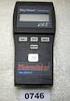 Thermistor Thermometer MODEL NO. 93210-00 Cole-Parmer Instrument Co. 625 East Bunker Court Vernon Hills, Illinois U.S.A. 60061-1844 (847) 549-7600 (847) 247-2929 (Fax) 800-323-4340 www.coleparmer.com e-mail:
HOBO U14 Data Logger User Manual
 HOBO U14 Data Logger User Manual The U family of data loggers offers reliability and convenient monitoring for applications that require higher accuracy, better resolution, more memory, or USB connectivity
PRODUCTIVITY THROUGH INNOVATION 600 CONTROL DIRECT DRIVE TECHNICAL/OPERATION MANUAL
 Rev. D PRODUCTIVITY THROUGH INNOVATION 600 CONTROL DIRECT DRIVE TECHNICAL/OPERATION MANUAL 10 BORIGHT AVENUE, KENILWORTH NEW JERSEY 07033 TELEPHONE: 800-524-0273 FAX: 908-686-9317 TABLE OF CONTENTS Page
Bluelab Soil ph Meter Instruction Manual
 Instruction Manual www.getbluelab.com Table of Contents 1.0 Information about measuring the ph of soils/media. 2 2.0 Introduction to Bluelab Soil ph Meter 4 3.0 Preparing the Bluelab Soil ph Meter for
MAINTENANCE & TROUBLESHOOTING
 MAINTENANCE & TROUBLESHOOTING This section describes how to: clean the lens clean the fan intake filter replace the projection lamp replace the batteries in the remote control use the Kensington lock feature
Professional Thermohygrometer
 User Manual Professional Thermohygrometer with NIST-Traceable Calibration Model 20250-21 THE STANDARD IN PRECISION MEASUREMENT Introduction The Digi-Sense Professional Thermohygrometer (Model 20250-21)
Secure Ethernet Gateway SEG-1 and SEG-M for IEI Access Systems Installation Manual
 Secure Ethernet Gateway SEG-1 and SEG-M for IEI Access Systems Installation Manual Section 1: Introduction SECURITY WARNING: New SEG's shipped after April 2008 will have Telnet setup option enabled by
YSI Meter Protocol: Specific Conductivity, ph, & Dissolved Oxygen
 YSI Meter Protocol: Specific Conductivity, ph, & Dissolved Oxygen 1. Check the log-book to see if somebody else has already checked the meter for accuracy within the timeframes below. If the meter hasn
EV-1000 Series DVR. Quick Operation Guide. Version 1.0.0
 EV-1000 Series DVR Quick Operation Guide Version 1.0.0 Thank you for purchasing our product. If there is any question or request, please do not hesitate to contact dealer. This manual is applicable to
3NNet KVM CP-104S /OSD / 19 KVM CP-108S / OSD / 19 KVM CP-116S / OSD / 19
 3NNet USERS MANUAL KVM CP-104S /OSD / 19 KVM CP-108S / OSD / 19 KVM CP-116S / OSD / 19 RACK MOUNTABLE 4 / 8 / 16 PORT PS2 KVM SWITCH Rev 1.1 TABLE OF CONTENTS INTRODUCTION.. 3 FEATURES... 3 PACKAGE CONTENTS........
510 / 511 Cardiorespiratory Monitor Preventative Maintenance Test Procedure
 CAS MEDICAL SYSTEMS, INC. 510 / 511 Cardiorespiratory Monitor Preventative Maintenance Test Procedure using the 2301Multi-Function Tester 44 East Industrial Road Branford, CT 06405 USA [email protected]
YSI Model 5000 YSI Model 5100. Dissolved Oxygen Temperature. Operations Manual
 YSI Model 5000 YSI Model 5100 Dissolved Oxygen Temperature Operations Manual Table of Contents 1. General Description...1 2. Specifications...3 3. Quick Start...5 4. Controls...6 4.1 Front Panel... 6 4.2
How To Program An Autodialer
 GJD HYL005 GSM Autodialer Instruction Manual Please read these instructions before you start the installation Features: LCD display. Programmable 9 x 32 digit phone numbers for each trigger. 10 second
Setting Up the ZigBee Ethernet Gateway
 Setting Up the ZigBee Ethernet Gateway MAN-01-00030-1.4 This manual describes how to install and set up ZigBee communication between a SolarEdge device (Inverters or Safety and Monitoring Interface) and
HP ProDisplay P19A LED Backlit Monitor. User Guide
 HP ProDisplay P19A LED Backlit Monitor User Guide 2013 Hewlett-Packard Development Company, L.P. The only warranties for HP products and services are set forth in the express warranty statements accompanying
GSM AD05 Slave GSM Auto Dialer- Instruction Manual
 GSM AD05 Slave GSM Auto Dialer- Instruction Manual Please read these instructions before you start the installation Features LCD display Programmable 9 x 32 digit phone numbers for each trigger. 10 second
G-100/200 Operation & Installation
 G-100/200 Operation & Installation 2 Contents 7 Installation 15 Getting Started 16 GPS Mode Setup 18 Wheel Sensor Mode Setup 20 Fuel Calibration 23 Basic Operation 24 Telemetery Screen 27 Entering a Distance
Operating manual. Multi 340i. mg/l. ARng. ph/dissolved Oxygen/Conductivity Measuring Instrument. ba52318e02 03/2004
 Operating manual Multi 340i O 7 9 2 M 1 7 6 ARng C TP mg/l STO CAL O AR ph/dissolved Oxygen/Conductivity Measuring Instrument ba52318e02 03/2004 Accuracy when going to press The use of advanced technology
Integrating Sound Level Meter and Datalogger
 USER GUIDE Integrating Sound Level Meter and Datalogger Model 407780A Introduction Thank you for selecting the Extech Instruments Model 407780A. This device is shipped fully tested and calibrated and,
Hydras 3 LT Quick Start
 Catalog Number 6234218 Hydras 3 LT Quick Start SOFTWARE MANUAL December 2005, Edition 2 Hach Company, 2005. All rights reserved. Printed in the U.S.A. Catalog Number 6234218 Hydras 3 LT SOFTWARE MANUAL
Instruction Manual HI 96800 Refractometer for Refractive Index and Brix Measurements
 Instruction Manual HI 96800 Refractometer for Refractive Index and Brix Measurements www.hannainst.com 1 Dear Customer, Thank you for choosing a Hanna Instruments product. Please read this instruction
SPY-BATT Battery Tutor Device Installation Manual Rev. 1.1-07/04/2016
 SPY-BATT Battery Tutor Device Installation Manual Rev. 1.1-07/04/2016 1. GENERAL DESCRIPTION The SPY-BATT is a device that allows to monitor the state of your battery. The SPY-BATT stores over time the
Firmware version: 1.10 Issue: 7 AUTODIALER GD30.2. Instruction Manual
 Firmware version: 1.10 Issue: 7 AUTODIALER GD30.2 Instruction Manual Firmware version: 2.0.1 Issue: 0.6 Version of the GPRS transmitters configurator: 1.3.6.3 Date of issue: 07.03.2012 TABLE OF CONTENTS
RI-215A Operator s Manual. Part Number: 71-0045RK Revision 0 Released: 10/3/05
 RI-215A Operator s Manual Part Number: 71-0045RK Revision 0 Released: 10/3/05 Warranty RKI Instruments, Inc., warrants gas alarm equipment sold by us to be free from defects in materials and workmanship,
STIM202 Evaluation Kit
 Table of contents: 1 FEATURES... 2 2 GENERAL DESCRIPTIONS AND SYSTEM CONTENTS... 2 3 SYSTEM REQUIREMENTS... 2 4 GETTING STARTED... 3 4.1 INSTALLATION OF NI-SERIAL CABLE ASSEMBLY DRIVER... 3 4.2 INSTALLATION
User Manual. Thermo Scientific Orion
 User Manual Thermo Scientific Orion Orion Star Com Software Program 68X637901 Revision A April 2013 Contents Chapter 1... 4 Introduction... 4 Star Com Functions... 5 Chapter 2... 6 Software Installation
Lenovo Miix 2 8. User Guide. Read the safety notices and important tips in the included manuals before using your computer.
 Lenovo Miix 2 8 User Guide Read the safety notices and important tips in the included manuals before using your computer. Notes Before using the product, be sure to read Lenovo Safety and General Information
User s manual. ML17929 Two-line corded telephone with caller ID/call waiting
 User s manual ML17929 Two-line corded telephone with caller ID/call waiting Congratulations on purchasing your new AT&T product. Before using this AT&T product, please read Important safety information
ISDN 970 Telephone USER MANUAL. Copyright 1999 Lucent Technologies Inc. All rights reserved. Printed in Mexico. Issue L3 847937794
 ISDN 970 Telephone USER MANUAL Copyright 1999 Lucent Technologies Inc. All rights reserved. Printed in Mexico. Issue L3 847937794 Table of Contents ABOUT ISDN... 3 ISDN TERMS... 3 A GUIDE TO THIS MANUAL...