
Owner s Manual. USB 3.0 Dual Head Docking Station. Model: U342-DHG-402
|
|
|
- Shauna Collins
- 9 years ago
- Views:
Transcription
1 Owner s Manual USB 3.0 Dual Head Docking Station Model: U342-DHG-402 PROTECT YOUR INVESTMENT! Register your product for quicker service and ultimate peace of mind. You could also win an ISOBAR6ULTRA surge protector a $50 value! W. 35th Street, Chicago, IL USA Copyright 2014 Tripp Lite. All rights reserved A.indd 1 2/27/ :23:23 AM

2 Product Features USB 3.0 is 10 times faster than USB 2.0 and supports data transfer rates of up to 5 Gbps Backward compatible with USB 2.0 and 1.1 DVI-I and HDMI ports for connection of external monitors A VGA monitor can be connected to the DVI-I port using a DVI-to-VGA adapter, such as a Tripp Lite P556-Series cable A DVI monitor can be connected to the HDMI port using an HDMI-to-DVI adapter, such as a Tripp Lite P566-Series cable Supports video resolutions of up to 2048 x 1152 Automatically resumes operation from hibernation and suspend modes Gigabit Ethernet port supports true 10/100/1000 Mbps network speeds IEEE 802.3az (Energy Efficient Ethernet) compliant Supports full duplex and half duplex operations Supports IPv4 and IPv6 pack Checksum Offload Engine (COE) to reduce CPU loading Supports Wake-on LAN, VLAN tagging and Auto-MDIX Two USB 3.0 and four USB 2.0 hub ports for connection of additional USB peripherals One USB 3.0 port supports USB Battery Charging (BC) specification 1.2, allowing it to provide 1.5 amps of power for faster charging of mobile devices 3.5 mm Mini Stereo jacks for connection of speaker and microphone Compatible with Windows XP, Vista, 7, 8 and A.indd 2 2/27/ :23:23 AM

3 System Requirements Windows XP (32-bit), Vista (32- and 64-bit), 7 (32- and 64-bit), 8 (32- and 64-bit) or 8.1 (32- and 64-bit) Available USB port (USB 3.0 required for USB 3.0 speeds) VGA*, DVI or HDMI monitor 1.6 GHz Single Core processor (DVD playback on the add-on monitor requires a 2.0 GHz Dual Core processor) 1 GB RAM 30 MB of available disk space * Requires a DVI-to-VGA adapter, such as a Tripp Lite P556-Series cable Package Contents U342-DHG-402 External Power Supply (Input: V, 50/60 Hz, 0.8A Output: 5V, 4A) 6 ft. USB 3.0 A/B Cable 3 ft. Driver CD Owner s Manual Optional Accessories P312-Series 3.5 mm Mini Stereo Audio Cables P556-Series DVI-to-VGA Adapter Cables P561-Series DVI-D Single Link Cables P566-Series HDMI-to-DVI Adapter Cables P568-Series High-Speed HDMI Cables U022-Series USB 2.0 A/B Device Cables UR022-Series Reversible USB 2.0 A/B Device Cables U322-Series USB 3.0 A/B Device Cables A.indd 3 2/27/ :23:23 AM

4 Product Overview A.indd 4

5 Product Overview 1 Power LED Illuminates when unit is connected to the external power supply and powered on. 2 USB LED Illuminates when a USB device is connected. 3 USB 3.0 Ports Connect up to two USB 3.0 SuperSpeed devices. The bottom USB 3.0 port supports USB Battery Charging (BC) specification 1.2, allowing it to provide 1.5 amps of power for faster charging of mobile devices. 4 Speaker and Mic Jacks 3.5 mm Mini Stereo audio ports. 5 USB 2.0 Ports Connect up to four USB 2.0 High-Speed devices. 6 RJ45 Port Connect to a 10/100/1000 Mbps network. 7 DVI-I Port Connect a DVI monitor. A VGA monitor can be connected to this port by using an adapter, such as a Tripp Lite P556-Series cable. 8 HDMI Port Connect an HDMI monitor. A DVI monitor can be connected to this port by using an adapter, such as a Tripp Lite P566-Series cable. 9 USB 3.0 Type B Port Connect the unit to a computer using the included USB 3.0 A/B cable. 10 Power Jack Connect the included power supply here and plug it into a Tripp Lite Surge Protector, Power Distribution Unit (PDU) or Uninterruptible Power Supply (UPS) A.indd 5

6 Installation Note: Do not connect the U342-DHG-402 to your computer until you have installed the product driver. 1 Insert the CD that came with the product into your computer s CD drive. If your computer does not have a CD drive, you can download the product drivers at 2 Locate the driver applicable to your computer s operating system and run it. 3 Follow the installation prompts that appear. 4 When finished, connect the U342-DHG-402 to an available USB port on your computer using the included USB 3.0 A/B cable. Upon connecting the unit to your computer, the device driver will finish installing. 5 You may be required to restart your computer to complete the installation. 6 Once installation is complete, you can connect your monitor, 10/100/1000 Mbps network, USB devices and audio devices A.indd 6

7 Display Configuration Below are some additional settings that are available via the display adapter right-click menu. Note: The settings available in this right-click menu may vary depending on your operating system. DisplayLink Opens the About DisplayLink Manager box, which displays the current Manager version number. Check for Connects to the Internet, checks for newer versions of the DisplayLink Updates software and downloads them if available. USB 3.0 Provides a menu with a list of settings for each monitor connected to Dual Video the docking station. Dock Screen Resolution Click this option to bring up a list of available screen resolutions for the add-on monitor. Select the desired resolution from the list. Screen Rotation This setting allows you to rotate the screen according to your desired orientation. Extend Extend the desktop to the corresponding monitor. Extend To This setting allows you to select the direction to which to extend the add-on monitor: Right, Left, Up, Down. Set as Main Monitor This setting allows you to make the add-on monitor the primary display. Notebook Monitor Off This setting appears on laptop computers only and allows you to turn off the laptop monitor, leaving only the add-on monitor displayed. Mirror This setting allows you to mirror the video of the primary display to your add-on monitor so that the same thing is displayed on both screens. Off This setting turns off the add-on monitor. Optimize for Video When playing video content on an add-on monitor, this setting can help to improve playback performance. Note: Text may appear less clear when this is enabled. Fit to TV When using your display adapter to connect a TV to your computer, the desktop may not always completely appear on the screen. This setting can be used to adjust the picture to display properly. Audio Setup Opens your computer s sound settings screen. Video Setup Opens your computer s display settings screen A.indd 7

8 Display Configuration In addition to the display adapter right-click menu, Windows Vista and 7 users can press the Windows key and P key P at the same time to pull up the menu below, which quickly allows you to switch the display settings. Note: Only Mirror mode is supported under Windows Vista Display Driver Model (WDDM) mode. In addition, the Aero Experience (Flip 3D effect) will be disabled under Windows Vista Display Driver Model (WDDM) mode as long as the display adapter is connected. Extending Video to the Add-On Display To extend the video of the primary monitor to the add-on monitor, follow the steps below: 1 Open your computer s Display Settings page. 2 Select the monitor icon that represents the add-on display you wish to change, or choose the add-on display from the drop-down menu. The primary display is always icon 1. 3 Once you ve selected the monitor icon for the add-on display, check the checkbox to extend video onto the monitor, or select the extension option from the drop-down list. 4 Drag the monitor icons in the Display Settings page so that they are positioned to replicate the location of the actual displays. For example, if display 1 is directly to the left of display 2, the monitor icons should be positioned that way. This affects which side of the screen the mouse is allowed to move to the next display from, and is therefore essential to ensure smooth mouse movement between displays A.indd 8

9 Display Configuration 5 Click the Apply button to activate the changes. The computer video will now be extended from the primary display to the add-on display. Note: When playing a DVD, it is recommended that you play the DVD on a monitor connected to the computer via standard cabling and not an add-on monitor connected via the docking station. If you need to play a DVD on an add-on monitor, you must have a 2.0 GHz Dual Core CPU with 1GB of RAM, and the screen resolution must be set to 800 x 600 with 32-bit color. DVD content can only be displayed on one add-on monitor at a time. Mirroring Video on the Add-On Display To display the same thing on both the primary and add-on display, follow the steps below: 1 Open your computer s Display Settings page. 2 Select the monitor icon that represents the add-on display you wish to change, or choose the add-on display from the drop-down menu. The primary display is always icon 1. 3 Uncheck the box next to Extend the desktop onto this monitor, or select the option from the drop-down menu to duplicate the display, and then click the apply button. Note: In Mirror mode, the add-on display settings are limited by those of the primary display. If the primary display only supports a resolution of 1280 x 1024, the add-on monitor will be limited to a resolution of 1280 x 1024 or less A.indd 9

10 Display Configuration Making the Add-On Display the Primary Display To make the add-on display the primary display for the computer, follow the steps below: 1 Open your computer s Display Settings page. 2 Select the monitor icon that represents the add-on display you wish to change, or choose the add-on display from the drop-down menu. The primary display is always icon 1. 3 Check the box next to This is my main monitor and click the Apply button to make the add-on display the primary display for the computer. Note: Some computers require you to unselect the original primary display before setting a new primary display. Once it is set as the primary display, the add-on display will continue to be the primary display as long as it is connected to the computer. Once it is disconnected, the primary display will default back to the monitor connected to the computer via standard cable A.indd 10

11 Troubleshooting Q: Why is the display on the add-on monitor blank? A: If the monitor power LED is Green, wait a moment for the monitor to display the video, as it may take some time for the video to be displayed on the add-on monitor. If after a few minutes the video does not display, restart your computer. Also, make sure the computer is not in standby or hibernation mode, which will cause the add-on monitor to be blank. If the monitor power LED is Red, check if the connection is properly made. If the connection is fine and the problem still exists, uninstall the driver, unplug the adapter and reinstall the driver. Q: Why is the add-on monitor flickering? A: This is usually caused by a low refresh rate. When in Mirror mode, increase the refresh rate of the main monitor. This will in turn increase the refresh rate of the add-on monitor, which should stop the flickering. When in Extended mode, increase the refresh rate of the add-on monitor. Q: When I play an MPEG file by Windows Media Player on the extended monitor, why does the display become abnormal when I switch it to full screen mode? A: If you are operating Windows XP SP1, upgrading to SP2 will solve this problem. Q: Why doesn t the video display properly when in Full-Screen mode? A: Try the following tips to improve the smoothness of the movie playback: Reduce the resolution of the display to 640 x 480 or 800 x 600. Use the adapter in Extended mode. Terminate any other CPU intensive applications running on the computer. As some media players require DirectX hardware support to correctly operate, try a different media player which requires less DirectX support A.indd 11

12 Troubleshooting Drag the media player to the add-on screen and close the player. Restart the player and it should open on the add-on monitor. Now try playing the media file again. Try reducing the hardware acceleration level of the primary display (NOT the add-on monitor) to levels 1, 2 or 3 and restarting the media player. The hardware acceleration can be found by right-clicking on your desktop and clicking Properties > Settings > Advanced > Troubleshoot. The video playback may be unusual when the add-on monitor is mirroring the primary display and there is another extended screen connected to the computer. The extended screen must be disabled before the content will be correctly cloned to the add-on monitor. Q: In Extended mode, why does the add-on monitor have a black border around the desktop? A: This happens when the resolution used by the add-on monitor is larger than the resolution used by the primary monitor. To solve this problem, configure the add-on monitor to use the same resolution as the primary monitor. Q: In Extended mode, why does the cursor disappear? A: If you re in Extended mode but have not yet connected the add-on monitor, the desktop will still pan to the add-on monitor. It s possible that your cursor has moved to the extended desktop and is no longer visible on the primary display. When this occurs, try the following: Connect the add-on monitor to the docking station. You should be able to see the mouse cursor once the computer screen is displayed. Move your mouse to try and drag the cursor back onto the primary monitor. Unplug the docking station from the computer to restore the cursor A.indd 12

13 Specifications Feature Source Connector Display Connector Gigabit Ethernet Connector USB 3.0 Hub Ports USB 2.0 Hub Ports Audio Ports RAM Power Consumption Supported Operating Systems Supported Video Resolutions (Note: Interlaced and reduced blanking modes are not supported) Specification USB A Male (via the included USB cable) DVI-I Female, HDMI Female RJ45 Female 2 x USB A Female 4 x USB A Female 2 x 3.5 mm Mini-Stereo Audio 1 GB RAM Operating Power: 14.43W Suspend Mode Power: 1.95W Windows XP (32-bit), Vista (32- and 64-bit), 7 (32- and 64-bit), 8 (32- and 64-bit) and 8.1 (32- and 64-bit) 16-Bit 32-Bit Resolution Refresh Rate Refresh Rate 640 x , 72, 75, 85 60, 72, 75, x , 60, 72, 75, 85 56, 60, 72, 75, x , 70, 75, 85 60, 70, 75, x 720 (720p) x , 75, 85 60, 75, x x , 75, 85 60, x x , 75, 85 60, 75, x x x (1080p) 1920 x x A.indd 13

14 Warranty and Warranty Registration 1-Year Limited Warranty Tripp Lite warrants its products to be free from defects in materials and workmanship for a 1-year period from the date of retail purchase by end user. Tripp Lite s obligation under this warranty is limited to repairing or replacing (at its sole option) any such defective products.to obtain service under this warranty you must obtain a Returned Material Authorization (RMA) number from Tripp Lite or an authorized Tripp Lite service center. Products must be returned to Tripp Lite or an authorized Tripp Lite service center with transportation charges prepaid and must be accompanied by a brief description of the problem encountered and proof of date and place of purchase. This warranty does not apply to equipment which has been damaged by accident, negligence or misapplication or has been altered or modified in any way, including opening of the unit s casing for any reason. This warranty applies only to the original purchaser who must have properly registered the product within 10 days of retail purchase. EXCEPT AS PROVIDED HEREIN, TRIPP LITE MAKES NO WARRANTIES, EXPRESS OR IMPLIED, INCLUDING WARRANTIES OF MERCHANTABILITY AND FITNESS FOR A PARTICULAR PURPOSE. Some states do not permit limitation or exclusion of implied warranties; therefore, the aforesaid limitation(s) or exclusion(s) may not apply to the purchaser. EXCEPT AS PROVIDED ABOVE, IN NO EVENT WILL TRIPP LITE BE LIABLE FOR DIRECT, INDIRECT, SPECIAL, INCIDENTAL OR CONSEQUENTIAL DAMAGES ARISING OUT OF THE USE OF THIS PRODUCT, EVEN IF ADVISED OF THE POSSIBILITY OF SUCH DAMAGE. Specifically, Tripp Lite is not liable for any costs, such as lost profits or revenue, loss of equipment, loss of use of equipment, loss of software, loss of data, costs of substitutes, claims by third parties, or otherwise. Warranty Registration Visit to register the warranty of your new Tripp Lite product. You ll be automatically entered into a drawing for a chance to win a FREE Tripp Lite product!* * No purchase necessary. Void where prohibited. Some restrictions apply. See website for details. Warning! Use of this equipment in life support applications where failure of this equipment can reasonably be expected to cause the failure of the life support equipment or to significantly affect its safety or effectiveness is not recommended. Do not use this equipment in the presence of a flammable anesthetic mixture with air, oxygen or nitrous oxide A.indd 14

15 Warranty and Warranty Registration FCC Notice, Class B This device complies with part 15 of the FCC Rules. Operation is subject to the following two conditions: (1) This device may not cause harmful interference, and (2) this device must accept any interference received, including interference that may cause undesired operation. Note: This equipment has been tested and found to comply with the limits for a Class B digital device, pursuant to part 15 of the FCC Rules. These limits are designed to provide reasonable protection against harmful interference in a residential installation. This equipment generates, uses and can radiate radio frequency energy and, if not installed and used in accordance with the instructions, may cause harmful interference to radio communications. However, there is no guarantee that interference will not occur in a particular installation. If this equipment does cause harmful interference to radio or television reception, which can be determined by turning the equipment off and on, the user is encouraged to try to correct the interference by one or more of the following measures: Reorient or relocate the receiving antenna. Increase the separation between the equipment and receiver. Connect the equipment into an outlet on a circuit different from that to which the receiver is connected. Consult the dealer or an experienced radio/tv technician for help. Any changes or modifications to this equipment not expressly approved by Tripp Lite could void the user s authority to operate this equipment. WEEE Compliance Information for Tripp Lite Customers and Recyclers (European Union) Under the Waste Electrical and Electronic Equipment (WEEE) Directive and implementing regulations, when customers buy new electrical and electronic equipment from Tripp Lite they are entitled to: Send old equipment for recycling on a one-for-one, like-for-like basis (this varies depending on the country) Send the new equipment back for recycling when this ultimately becomes waste Tripp Lite follows a policy of continuous improvement. Product specifications are subject to change without notice A.indd 15

16 1111 W. 35th Street, Chicago, IL USA A_revA A.indd 16 2/27/ :23:25 AM

USB to DVI-I Graphics Adapter CSV-2300D USER S MANUAL
 USB to DVI-I Graphics Adapter CSV-2300D USER S MANUAL 1 of 40 Table of contents Safety instructions 3 Copyright 4 Trademarks 4 Introduction 4 Features 5 Application 5 Package contents 6 System requirement
User Guide USB 2.0 LAPTOP DOCKING STATION WITH VIDEO N2953
 USB 2.0 LAPTOP DOCKING STATION WITH VIDEO 410-1864-001B / ACP51US 1 YEAR LIMITED WARRANTY: We pride ourselves on the quality of our products. For complete warranty details and a list of our worldwide offices,
USB to DVI Video Adapter
 USB2DVI Instruction Manual USB to DVI Video Adapter USB 2.0 to DVI External Multi Monitor Video Adapter FCC Compliance Statement This equipment has been tested and found to comply with the limits for a
USB2VGA. Instruction Manual. USB to VGA Adapter. USB 2.0 to VGA External Multi Monitor Video Adapter
 USB to VGA Adapter USB2VGA Instruction Manual USB 2.0 to VGA External Multi Monitor Video Adapter FCC Compliance Statement This equipment has been tested and found to comply with the limits for a Class
USB to VGA Adapter USB2VGAE2. Instruction Manual. USB 2.0 to VGA Multi Monitor External Video Adapter
 USB to VGA Adapter USB2VGAE2 Instruction Manual USB 2.0 to VGA Multi Monitor External Video Adapter *Please ensure that the driver installation is complete prior to the physical installation of the USB
USB 3.0 Dual Video Docking Stand for Ultrabooks User Manual
 USB 3.0 Dual Video Docking Stand for Ultrabooks User Manual B2B044-C00 8820by01393 Rev. B00 TABLE OF CONTENTS Table of Contents SECTIONS 1 2 3 4 5 6 7 Introduction... 1 Package Contents... 1 Overview....
USB 2.0 GRAPHIC ADAPTER
 USB 2.0 GRAPHIC ADAPTER User s Manual DA-70833 USB 2.0 to VGA DA-70834 USB 2.0 to DVI-I Table of Contents 1. Introduction... 1 Applications... 2 Features... 2 Package Contents... 3 System Requirements...
USB 3.0 to HDMI/DVI Dual Display Adapter Installation Guide
 USB 3.0 to HDMI/DVI Dual Display Adapter Installation Guide Introduction The USB 3.0 to HDMI/DVI Dual Display Adapter lets you easily and quickly add dual displays to your USB 3.0 enabled system. Key Features
USB 3.0 Mini Dock Adapter with Gigabit Ethernet and HDMI
 USB 3.0 Mini Dock Adapter with Gigabit Ethernet and HDMI USB31GEHD *actual product may vary from photos DE: Bedienungsanleitung - de.startech.com FR: Guide de l'utilisateur - fr.startech.com ES: Guía del
USB 2.0 VGA ADAPTER USER MANUAL
 USB 2.0 VGA ADAPTER USER MANUAL CONTENTS INTRODUCTION... 3 FEATURES... 3 SYSTEM REQUIREMENTS... 3 PACKAGE CONTENTS... 3 SUPPORTED COMMON DISPLAY RESOLUTION... 4 TECHNICAL SPECIFICATIONS... 4 INSTALLATION
USB 2.0 to DVI/VGA Pro Installation Guide
 Introduction USB 2.0 to DVI/VGA Pro Installation Guide The USB 2.0 to DVI/VGA Pro adds DVI or VGA port to your USB enabled system. Key Features and Benefits Quickly adds a monitor, LCD or projector to
Universal Push2TV HD Adapter PTVU1000 Installation Guide
 Universal Push2TV HD Adapter PTVU1000 Installation Guide 2011 NETGEAR, Inc. All rights reserved. No part of this publication may be reproduced, transmitted, transcribed, stored in a retrieval system, or
USB 3.0 Universal Mini Docking Station Adapter
 USB 3.0 Universal Mini Docking Station Adapter User Manual DSH-M100U3 Ver. 1.00 All brand names and trademarks are properties of their respective owners. www.vantecusa.com Copyright 2015 Vantec Thermal
Acer LCD Monitor Driver Installation Guide
 1 Contents 1 Contents... 1 2 Introduction... 2 3 Installation Guide... 2 3.1 PC requirements... 2 3.2 Installing the Acer LCD Monitor Driver on Windows Vista... 3 3.2.1 Hardware first install... 3 3.2.2
USB 3.0 Mini Docking Station Adapter with Gigabit Ethernet and VGA
 USB 3.0 Mini Docking Station Adapter with Gigabit Ethernet and VGA USB31GEVG *actual product may vary from photos DE: Bedienungsanleitung - de.startech.com FR: Guide de l'utilisateur - fr.startech.com
Docking station for two laptops
 Docking station for two laptops USB3DDOCKFT DE: Bedienungsanleitung - de.startech.com FR: Guide de l'utilisateur - fr.startech.com ES: Guía del usuario - es.startech.com IT: Guida per l'uso - it.startech.com
USB to HDMI Dual or Multi Monitor Video Adapter with Audio
 USB to HDMI Dual or Multi Monitor Video Adapter with Audio USB2HDMI *actual product may vary from photos DE: Bedienungsanleitung - de.startech.com FR: Guide de l'utilisateur - fr.startech.com ES: Guía
DS3900 USB 3.0 Dual Display Dock. Quick start guide
 DS3900 USB 3.0 Dual Display Dock Quick start guide ABOUT THIS MANUAL This manual provides a beginner's introduction to installing, configuring and using the USB3.0 Gigabit Ethernet Adapter. Information
USB 2.0 to DVI External Video Adapter USB 2.0 to VGA External Video Adapter
 USB 2.0 to DVI External Video Adapter USB 2.0 to VGA External Video Adapter USB2DVIE2 USB2VGAE2 DE: Bedienungsanleitung - de.startech.com FR: Guide de l'utilisateur - fr.startech.com ES: Guía del usuario
USB 3.0 to HDMI Video Adapter with USB Hub Port
 USB 3.0 to HDMI Video Adapter with USB Hub Port USB32HDEH *actual product may vary from photos DE: Bedienungsanleitung - de.startech.com FR: Guide de l'utilisateur - fr.startech.com ES: Guía del usuario
Regulatory Compliance. IC Certification. FCC Certification. Declaration of Conformity
 VP6495 Regulatory Compliance This device complies with Part 15 of the FCC Rules. Operation is subject to the following two conditions: (1) This device may not cause harmful interference, and (2) This device
Laser Wireless Rechargeable Mouse. User s Manual
 Laser Wireless Rechargeable Mouse Model #: LM8000WR User s Manual Rev. 060801 User s Record: To provide quality customer service and technical support, it is suggested that you keep the following information
ViviCam 25 Digital Camera User s Manual
 ViviCam 25 Digital Camera User s Manual 2010 Sakar International, Inc. All rights reserved. Windows and the Windows logo are registered trademarks of Microsoft Corporation. All other trademarks are the
File Share Cable USER GUIDE. for Mac. www.targus.com/us/formac ONE YEAR LIMITED WARRANTY N2953
 N2953 USER GUIDE ACC9602US / 410-1486-001A www.targus.com/us/formac 2008 Manufactured or imported by Targus Group International, Inc. (for U.S. sales: 1211 North Miller Street, Anaheim, CA 92806 USA, for
HP Advanced Wireless Docking Station. User Guide
 HP Advanced Wireless Docking Station User Guide Copyright 2014, 2015 Hewlett-Packard Development Company, L.P. Intel is a trademark of Intel Corporation in the U.S. and other countries. Windows and Windows
Laptop Docking Station - HDMI
 Laptop Docking Station - HDMI USB3VDOCKH *actual product may vary from photos DE: Bedienungsanleitung - de.startech.com FR: Guide de l'utilisateur - fr.startech.com ES: Guía del usuario - es.startech.com
USB 2.0 4-Port Hub with USB Power Cable. User s Manual
 USB 2.0 4-Port Hub with USB Power Cable Model: UH2500 User s Manual 251104-109159 Rev. 061107 User s Record: To provide quality customer service and technical support, it is suggested that you keep the
USB 3.0 to HDMI Adapter with 3-Port USB 3.0 Hub USB 3.0 to VGA Adapter with 3-Port USB 3.0 Hub
 USB 3.0 to HDMI Adapter with 3-Port USB 3.0 Hub USB 3.0 to VGA Adapter with 3-Port USB 3.0 Hub USB32HDEH3 / USB32VGAEH3 *actual product may vary from photos DE: Bedienungsanleitung - de.startech.com FR:
Universal Docking Station. User s Manual
 Universal Docking Station User s Manual Questions? We re here to help! Visit http://plugable.com/support/ Or email [email protected] More product info & tips at http://plugable.com/products/ud-160-a/
USB-2.0 Mobile Mini Hub USER S GUIDE. Making Your Mobile Life Easier. Making Your Mobile Life Easier.
 USB-2.0 Mobile Mini Hub Making Your Mobile Life Easier. Visit our Web site at: www.targus.com Features and specifications are subject to change without notice. 2002 Targus Corp. 400-0093-001A USER S GUIDE
Targus USB Port Adapter USER S GUIDE. Making Your Mobile Life Easier. Making Your Mobile Life Easier.
 Targus USB Port Adapter Making Your Mobile Life Easier. Visit our Web site at: www.targus.com Features and specifications are subject to change without notice. 2002 Targus Corp. 400-0066-001A USER S GUIDE
Optical Wireless Mouse. User s Manual
 Optical Wireless Mouse Model : OM4000W User s Manual 110935-109154 Rev. 061101 User s Record: To provide quality customer service and technical support, it is suggested that you keep the following information
WUA-0605 300Mbps Wireless USB Network Adapter
 WUA-0605 300Mbps Wireless USB Network Adapter User Manual V1.0 Certification FCC CE FCC Statement This equipment has been tested and found to comply with the limits for a Class B digital device, pursuant
USB 2.0 to VGA Quick Installation Guide
 Introduction USB 2.0 to VGA Quick Installation Guide The USB 2.0 to VGA allows you to connect an additional display to your desktop or notebook PC and use it as an extended desktop or as an additional
EPSON USB/Parallel Adapter User s Guide
 EPSON USB/Parallel Adapter User s Guide EPSON Stylus COLOR 440 EPSON Stylus COLOR 800 EPSON Stylus COLOR 600 EPSON Stylus COLOR 850 EPSON Stylus COLOR 640 EPSON Stylus COLOR 1520 EPSON Stylus Photo EX
High Speed File Share Cable USER GUIDE
 High Speed File Share Cable USER GUIDE Visit our Website at www.targus.com/emea Features and specifications are subject to change without notice. 2008 Targus Group International, Inc. and Targus, Inc.
2GB MP3 Player USER GUIDE
 DO NOT FORMAT UNIT under FAT. 2GB MP3 Player USER GUIDE Jazwares, Inc. 2010 CONTENTS Please read the instructions along with the MP3 Player carefully before you use it, so that you can operate it conveniently.
USB Scrolling Optical Mini Mouse
 USB Scrolling Optical Mini Mouse Owner s Manual Please read before using this equipment. ˆ Contents Features... 3 System Requirements... 4 FCC Declaration of Conformity... 5 The FCC Wants You to Know...
USB 3.0 to Multi Monitor Video Adapter Quick Installation Guide
 USB 3.0 to Multi Monitor Video Adapter Quick Installation Guide Introduction The USB 3.0 to Multi Monitor Video Adapter allows you to connect a monitor, LCD or projector to your desktop or notebook computer
Triple video docking station for laptops
 Triple video docking station for laptops USB3DOCKH2DP DE: Bedienungsanleitung - de.startech.com FR: Guide de l'utilisateur - fr.startech.com ES: Guía del usuario - es.startech.com IT: Guida per l'uso -
Creatix 802.11g Adapter CTX405 V.1/V.2 User Manual
 Creatix 802.11g Adapter CTX405 V.1/V.2 User Manual 1 Safety instructions for Creatix 802.11g Adapter This equipment has been designed and tested in accordance with the requirements of Standard EN60950.
USB 2.0 to 10/100Mbps Ethernet Adapter UE-9521. User Manual
 USB 2.0 to 10/100Mbps Ethernet Adapter UE-9521 User Manual 1 Copyright Copyright 2004 by PLANET Technology Corp. All rights reserved. No part of this publication may be reproduced, transmitted, transcribed,
Quick 1.3MP WebCam with Night Vision
 Quick 1.3MP WebCam with Night Vision Model #: WC1100BLU, WC1200RED WC1300BLK, WC1400YLW User s Manual PID # 031362/3/4/5-109281 Rev. 100524 All brand name and trademarks are the property of their respective
USB 2.0 to Gigabit Ethernet Adapter
 USB 2.0 to Gigabit Ethernet Adapter USB21000S2 *actual product may vary from photos DE: Bedienungsanleitung - de.startech.com FR: Guide de l'utilisateur - fr.startech.com ES: Guía del usuario - es.startech.com
Owner s Manual. Not suitable for mobile applications. Important Safety Instructions 2. Quick Installation 3. Basic Operation 4. Storage & Service 7
 Register online today for a chance to win a FREE Tripp Lite product! www.tripplite.com/warranty Owner s Manual Internet Office & BC Personal UPS Systems Not suitable for mobile applications. Important
2.5/3.5 SATA HDD Docking Station
 SATADOCKU2 SATADOCKU2E SATADOCK22UE 2.5/3.5 SATA HDD Docking Station FCC Compliance Statement This equipment has been tested and found to comply with the limits for a Class B digital device, pursuant to
TG-3468 Gigabit PCI Express Network Adapter
 TG-3468 Rev:2.0.0 1910010580 COPYRIGHT & TRADEMARKS Specifications are subject to change without notice. is a registered trademark of TP-LINK TECHNOLOGIES CO., LTD. Other brands and product names are trademarks
HP Dual Output USB Graphics Adapter. User Guide
 HP Dual Output USB Graphics Adapter User Guide 2012 Hewlett-Packard Development Company, L.P. Microsoft, Windows, and Windows Vista are either trademarks or registered trademarks of Microsoft Corporation
TL-PS310U Single USB 2.0 Port MFP and Storage Server
 TL-PS310U Single USB 2.0 Port MFP and Storage Server Rev: 2.0.0 1910010313 Contents Chapter 1 Introduction... 1 1.1 Product Overview...1 1.2 Network Management...1 1.3 Components and Features...1 1.4 Hardware
1394 CardBus Quick Installation Guide
 1394 CardBus Quick Installation Guide Introducing the 1394 Cardbus The 1394 CardBus is designed to add FireWire (1394) interface to notebook computers for easy connection to DV camcorders, hard disk drives
Verbatim PowerBay Single USB and esata External Hard Drive Version 1.00
 Verbatim PowerBay Single USB and esata External Hard Drive Version 1.00 User Manual Table of Contents Introduction... 2 Controls, Connectors and Indicators... 2 About the Hard Drive... 2 Locating the Drive
Android Dongle. User Manual TL869
 Android Dongle User Manual TL869 2 User Manual Android TV Dongle Before using the product, please read this manual thoroughly. The specifications and software in this manual are subject to change without
PCI USB 2.0 Card. 3 Port PCI USB 2.0 Card PCI330USB2. Instruction Manual. Actual product my vary from photo
 PCI USB 2.0 Card 3 Port PCI USB 2.0 Card PCI330USB2 Instruction Manual Actual product my vary from photo FCC Compliance Statement This equipment has been tested and found to comply with the limits for
IDE ATA/133 Controller
 IDE ATA/133 Controller 2 Port PCI ATA-133 IDE Adapter Card PCIIDE2 Actual product may vary from photo FCC Compliance Statement This equipment has been tested and found to comply with the limits for a Class
Addonics. DVD±R/RW DigiCopier. Users Guide Revision 1.0
 Addonics T E C H N O L O G I E S DVD±R/RW DigiCopier Users Guide Revision 1.0 FCC Warning Statement This equipment has been tested and found to comply with the limits for a class B digital device pursuant
Kinivo 301BN HDMI Switch
 Kinivo 301BN HDMI Switch User Manual 2012 Kinivo LLC. All rights reserved. Kinivo is a trademark of Kinivo LLC. Bluetooth word mark and the Bluetooth logo are registered trademarks of Bluetooth SIG. All
INSTALL GUIDE Making Your Mobile Life Easier.
 Targus USB Bluetooth Adapter Making Your Mobile Life Easier. Visit our Web site at: www.targus.com Features and specifications are subject to change without notice 2005 Targus Group International, Inc.
PCI USB 2.0 Card PCI225USB PCI225USB_LP PCI425USB PCI625USB2I. Instruction Manual. Actual product may vary from photo
 PCI USB 2.0 Card 2 Port High-Speed USB 2.0 PCI Card 2 Port High-Speed USB 2.0 Low-Profile PCI Card 4 Port High-Speed USB 2.0 PCI Card 6 Port High-Speed USB 2.0 PCI Card PCI225USB PCI225USB_LP PCI425USB
DisplayLink USB Graphics User Manual
 DisplayLink USB Graphics User Manual All materials (c) DisplayLink 2014 and may not be used without permission DisplayLink 2013 Issue 3 Page 1 Contents 1. Introduction... 4 2. PC Requirements... 5 2.1.
DisplayLink USB Graphics User Manual Software Version 5.6
 DisplayLink USB Graphics User Manual All materials (c) DisplayLink 2011 and may not be used without permission DisplayLink 2011 Issue 1 Page 1 Contents Introduction...3 PC Requirements...4 Windows 7...4
PCI Express USB Card. PCI Express 4 Port USB 2.0 card PEX400USB2. Instruction Manual. Actual product may vary from photo
 PCI Express USB Card PCI Express 4 Port USB 2.0 card PEX400USB2 Actual product may vary from photo FCC Compliance Statement This equipment has been tested and found to comply with the limits for a Class
IPCam Client User Manual For X10 IP Camera models XX34A, XX36A, XX39A, XX40A
 IPCam Client User Manual For X10 IP Camera models XX34A, XX36A, XX39A, XX40A Contents 1. INSTALLATION... 3 2. SOFTWARE OPERATION... 5 2.1. Login... 5 2.2. For Multi-windows... 6 2.3. System Settings...
Wireless Mouse USER GUIDE. for Mac. www.targus.com/us/formac ONE YEAR LIMITED WARRANTY N2953
 AMW43US / 410-1514-001C N2953 www.targus.com/us/formac 2008 Manufactured or imported by Targus Group International, Inc. (for U.S. sales: 1211 North Miller Street, Anaheim, CA 92806 USA, for Australia
RocketStor SMART RAID
 RocketStor SMART RAID User Guide v1.0 1 Copyright HighPoint Technologies Inc., 1995-2012. All rights reserved. OS X and Macintosh are registered trademarks of Apple Corporation. All other trademarks and
SSDNow For Desktops. Installation Guide
 Installation Guide Your purchase of the SSDNow with Accessory Kit will allow you to enjoy the benefits of increased system performance and reliability. All hardware and software necessary to replace your
AVerMedia AVerKey imicro User s Manual
 FCC NOTICE This device has been tested and found to comply with the limits for a Class B digital device, pursuant to Part 15 of the FCC Rules. These limits are designed to provide reasonable protection
BTX180 Wireless Bluetooth Speaker
 BTX180 Wireless Bluetooth Speaker User Manual 2012 Kinivo LLC. All rights reserved. Kinivo is a trademark of Kinivo LLC. Bluetooth word mark and the Bluetooth logo are registered trademarks of Bluetooth
DisplayLink USB Graphics User Manual
 DisplayLink USB Graphics User Manual All materials (c) DisplayLink 2013 and may not be used without permission DisplayLink 2013 Issue 1 Page 1 1. Contents 2. Introduction... 4 3. PC Requirements... 5 3.1.
DisplayLink USB Graphics User Manual
 DisplayLink USB Graphics User Manual All materials (c) DisplayLink 2014 and may not be used without permission DisplayLink 2014 Issue 1 Page 1 1. Introduction... 4 2. PC Requirements... 5 2.1. Windows
Instruction Guide. 4 Port Laptop-Sized USB 2.0 Mini Hub ST4200MINI. The Professionals Source For Hard-to-Find Computer Parts
 USB 2.0 HUB 4 Port Laptop-Sized USB 2.0 Mini Hub ST4200MINI Instruction Guide * Actual product may vary from photo The Professionals Source For Hard-to-Find Computer Parts FCC COMPLIANCE STATEMENT This
reflecta Super 8 Scanner
 reflecta Super 8 Scanner User Manual 1 FEDERAL COMMUNICATIONS COMMISSION (FCC) STATEMENT This Equipment has been tested and found to comply with the limits for a class B digital device, pursuant to Part
INSTALLATION GUIDE ConnectLine TV Adapter Getting started
 INSTALLATION GUIDE ConnectLine TV Adapter Getting started PURPOSE OF THIS GUIDE READ THIS FIRST Before your hearing instruments can receive sound from the TV, the adapter must be connected to the TV and
DELORME. Getting Started with. Earthmate GPS BT-20. Bluetooth
 DELORME Getting Started with GPS BT-20 Bluetooth Earthmate Table of Contents Overview... 2 Hardware Features... 2 Using the Earthmate GPS BT-20... 3 Charging the Battery... 4 Troubleshooting... 4 Hardware
Installation Guide USB Laptop KVM Switch GCS661U
 Installation Guide USB Laptop KVM Switch 1 GCS661U 2 Table of Contents Table of Contents 3 Package Contents 4 System Requirements 5 Overview 6 Before You Start 7 Software Installation 8 Hardware Installation
User Guide. Soft-Touch TM Bluetooth Laser Mouse N2953
 Soft-Touch TM Bluetooth Laser Mouse 410-XXXXXXXXXXX 1 YEAR LIMITED WARRANTY: We pride ourselves on the quality of our products. For complete warranty details and a list of our worldwide offices, please
P220 DIGITAL GAMEPAD USER MANUAL MANUEL D UTILISATION BEDIENUNGSANLEITUNG MANUALE D USO MANUAL DEL USUARIO
 P220 DIGITAL GAMEPAD USER MANUAL MANUEL D UTILISATION BEDIENUNGSANLEITUNG MANUALE D USO MANUAL DEL USUARIO QUICK-START GUIDE FOR THE P220 DIGITAL GAMEPAD Congratulations on your purchase of the Saitek
1789 Norwood Avenue Itasca, Illinois 60143-1095 630-893-1600 Customer Service: 1-800-945-4545 http://www.fellowes.com
 1789 Norwood Avenue Itasca, Illinois 60143-1095 630-893-1600 Customer Service: 1-800-945-4545 http://www.fellowes.com Australia Tullamarine, Vic. Benelux Vianen, NL Canada Markham, Ont. France Rennes,
Wireless Optical Travel Mouse
 Wireless Optical Travel Mouse User s Manual PLEASE READ THESE INSTRUCTIONS CAREFULLY BEFORE INSTALLING THIS DEVICE. Table of Contents FCC Statement Page 3 Introduction.. Page 6 Package Contents.. Page
EZ-USB 2.0 CardBus Card
 EZ-USB 2.0 CardBus Card User Manual www.apricorn.com Table of Contents Introduction...... 1 Installation....... 2-3 Drivers (Windows XP & Windows 2000).. 4 Drivers (Windows 98, 98SE, ME)... 5 Attaching
2 Port PCI to IDE Controller Card
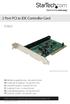 2 Port PCI to IDE Controller Card PCIIDE2 *actual product may vary from photos DE: Bedienungsanleitung - de.startech.com FR: Guide de l'utilisateur - fr.startech.com ES: Guía del usuario - es.startech.com
EPSON USB/Parallel Adapter User s Guide
 EPSON USB/Parallel Adapter User s Guide EPSON Stylus COLOR 440 EPSON Stylus COLOR 1520 EPSON Stylus COLOR 600 EPSON Stylus COLOR 3000 EPSON Stylus COLOR 640 EPSON Stylus Photo 700 EPSON Stylus COLOR 660
HDMI Switch USER MANUAL VS481A
 HDMI Switch USER MANUAL VS481A FCC Information This equipment has been tested and found to comply with the limits for a Class B digital device, pursuant to Part 15 of the FCC Rules. These limits are designed
15 Digital Photo Frame Instructional Manual
 15 Digital Photo Frame Instructional Manual aluratek.com mnl M10054 ADMPF315F Copyright 2011 Aluratek, Inc. All Rights Reserved. Table of Contents Frame Close-up... Remote Control Close-up... Package Contents...
ASUS GX900 Gaming Mouse
 ASUS GX900 Gaming Mouse User Manual 15G06S002000 E5887 First Edition (V1) July 20 Copyright 20 ASUSTeK Computer Inc. All Rights Reserved. No part of this manual, including the products and software described
2 Port USB Keyboard Mouse Switch Cable with File Transfer for PC and Mac
 2 Port USB Keyboard Mouse Switch Cable with File Transfer for PC and Mac SVKMS2 *actual product may vary from photos DE: Bedienungsanleitung - de.startech.com FR: Guide de l'utilisateur - fr.startech.com
PCI Express FireWire & USB 2.0 card
 PCI Express FireWire & USB 2.0 card PCI Express Firewire 800 and USB 2.0 card PEX3U3F800 Actual product may vary from photo FCC Compliance Statement This equipment has been tested and found to comply with
BroadBand PowerShield. User Manual
 BroadBand PowerShield User Manual 990-0375G 12/2006 Chapter 1 General Information The PowerShield provides a power source for broadband telephony and other DC applications. Safety This Safety Guide contains
Dual-Cool Notebook Cooler Pad. User s Manual
 Dual-Cool Notebook Cooler Pad Model #: CF4500U User s Manual Rev. 060801 User s Record: To provide quality customer service and technical support, it is suggested that you keep the following information
User Manual USB Laptop KVM Switch. GCS661U Part No. M1069
 User Manual USB Laptop KVM Switch 1 GCS661U Part No. M1069 2 Table of Contents User Notice 4 A Note About Terminology 5 Overview 6 Features 7 Package Contents 8 Requirements 9 Operating System Support
MANUAL. Go to our website and watch the setup video for set up instructions and to better understand your device: www.streamboxtv.
 MANUAL Go to our website and watch the setup video for set up instructions and to better understand your device: www.streamboxtv.com/setup Table of Contents 1. What s Inside your Shipping box...3 2. Streambox
4 Port PCI Express Gigabit Ethernet PoE PSE Network Card
 4 Port PCI Express Gigabit Ethernet PoE PSE Network Card ST4000PEXPSE *actual product may vary from photos DE: Bedienungsanleitung - de.startech.com FR: Guide de l'utilisateur - fr.startech.com ES: Guía
LabelWriter. Print Server. User Guide
 LabelWriter Print Server User Guide Copyright 2010 Sanford, L.P. All rights reserved. 08/10 No part of this document or the software may be reproduced or transmitted in any form or by any means or translated