
CREATING SCENERY WITH THE PHOENIX RC CREATOR PROGRAM
|
|
|
- Archibald Jennings
- 9 years ago
- Views:
Transcription
1 TUTORIAL 1 CREATING SCENERY WITH THE PHOENIX RC CREATOR PROGRAM This document is copyrighted to the author and may only be reproduced or copied with the author s consent. It is free for distribution on any public forum as long as the author is quoted. I would like to credit the following people for their contribution to some of the information contained in this document: Harald Bendschneider, His numerous Youtube video s proved to be indispensable. The tutorial on creating an alpha mask is effectively how Harald taught me to do it. The Master of scenery in Phoenix RC in my mind; whom I had the privilege of being a student off. Danke, Harald! Detlef Jacobi, His tutorials are what got me started in designing scenery for Phoenix. His website has invaluable information on getting started and one of the best descriptions on how to set up the photographic side of a scenery creation. GIMP is available for free download from PTgui is available as a trial or payware here: Pano2VR is available trial and payware from here: Phoenix RC Creator is available here: Phoenix RC Simulator is available as demo here: This tutorial will take you through some basic steps in using the Creator program of Phoenix RC simulator, to create scenery that can be used in the Phoenix RC simulator. Quick tutorial on the use of Phoenix RC s Creator by Coenie vd Merwe March 2013 Page 1
2 This tutorial is part one of three. You should have worked through at least tutorial one with the option of using two if required. The tutorials cover the following: TUTORIAL 1: Creating scenery with the Phoenix RC Creator program TUTORIAL 2: Creating a cubemap and cube faces for use in Phoenix RC TUTORIAL 3: Creating an alpha mask for use in Phoenix RC scenery design This document should be read in conjunction with the tutorial that comes with Creator. I do not want to repeat everything it contains and this document will hopefully serve to better illustrate what they say and touch on a few points which they missed. So please have that document handy as well. THE BASICS: Select File, New and Flying site Quick tutorial on the use of Phoenix RC s Creator by Coenie vd Merwe March 2013 Page 2
3 Change Images drop box to +X (from -X ) Click on the Auto box and navigate to the folder where you saved your cube faces: Select the first image and click OK Creator will take a while to load the image into the screen as a back ground image. Quick tutorial on the use of Phoenix RC s Creator by Coenie vd Merwe March 2013 Page 3

4 Zoom out with the mouse wheel to its maximum to get a good view of your area: Click on Collision on the left hand side menu. You will now see a grid appear on the floor of your scenery: Note the two icons in the screen on your image. The Distance Helper is used to measure distance from the fixed point it is currently located. I have not yet figures this out well or it were not well Quick tutorial on the use of Phoenix RC s Creator by Coenie vd Merwe March 2013 Page 4
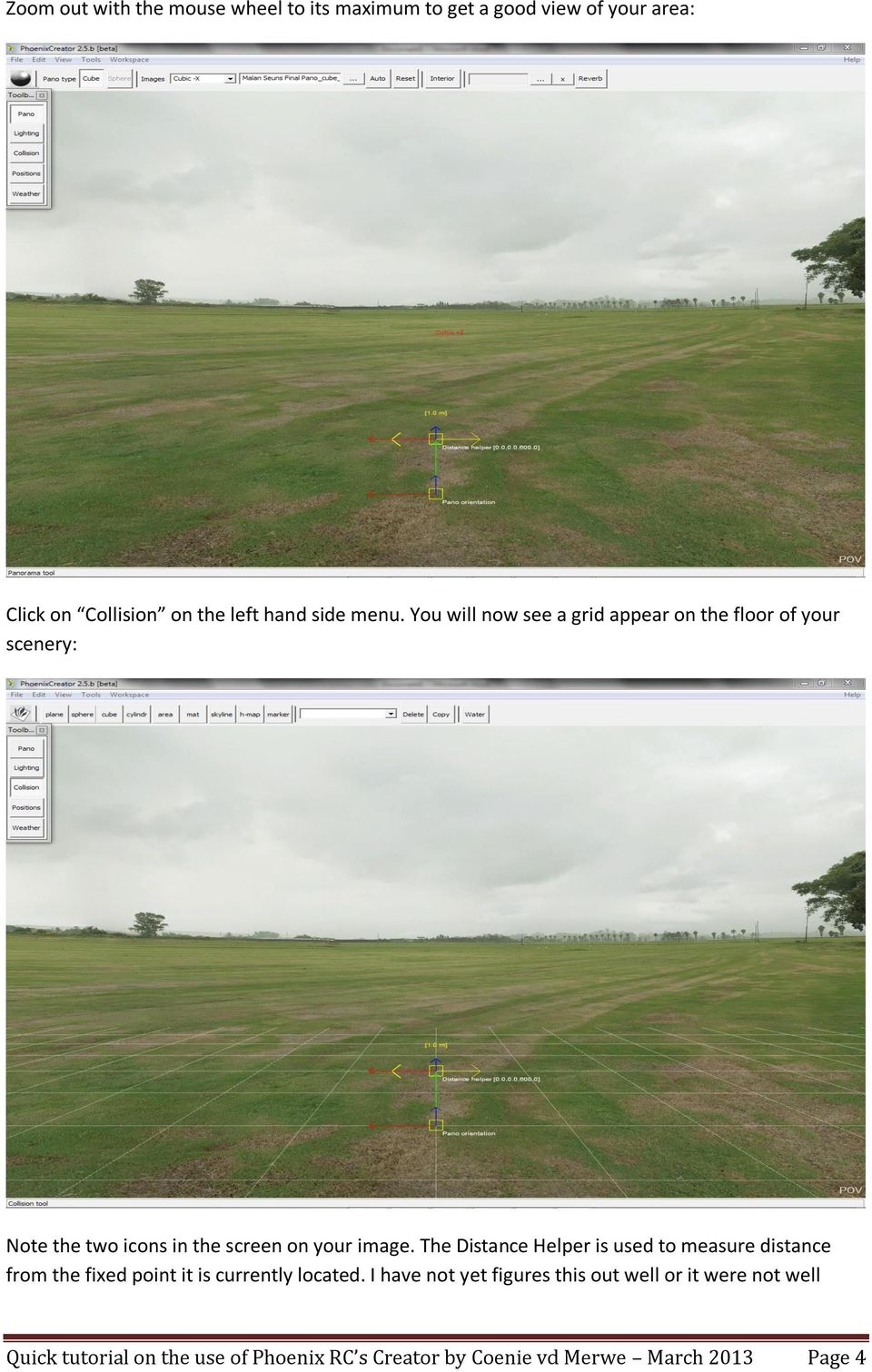

5 designed. You can only move it in two axis and may need to guess a bit when you move it to an off. Axis object since you will change the values on both as you adjust it. The other one is Pano Orientation. Under no circumstance will I advise you use this. The movement of it can seriously affect orientation. Leave it as is. In Creator you will have two main controls to direct scale and orientation. You can use Shift to bring up the controls that direct scale, or ctrl to bring up the orientation tool. The circles will move the object on the axis indicated and the lines with the block will be dragged to increase or decrease scale of an object. Shift will bring up size scaling tool Ctrl will bring up orientation tool Highlight the appropriate axis by placing the mouse over it till it change colour, then left click it and drag the squares or move the circles. When pulling on the squares to change size try to pull equally between red and blue until you can see it. If you place the object off the grid, you may need to also raise it with the green arrow before it will be visible. To begin we need to first define a crash plane. Click on plane button in top menu move you mouse to the grid on your design window. You should see a red cross. Place it where required and press left mouse button to place the first plane. In the top right you will have the object menu where you can define what the material that plane is made off. Quick tutorial on the use of Phoenix RC s Creator by Coenie vd Merwe March 2013 Page 5

6 You will now also see a third icon that is called New plane. I suggest that you give each item you will place a unique name to ensure that you can always get back to it without a problem. My sample contains a pano that is not perfect. So my horizon and the crash plane do not match up. To correct this I need to get the green plane to meet my horizon line. I do this by pressing ctrl and rotating the plane on the desired axis. You do this by moving the mouse to highlight the blue or red or green line in the icon globe, and then dragging it with the mouse to make it move: Quick tutorial on the use of Phoenix RC s Creator by Coenie vd Merwe March 2013 Page 6

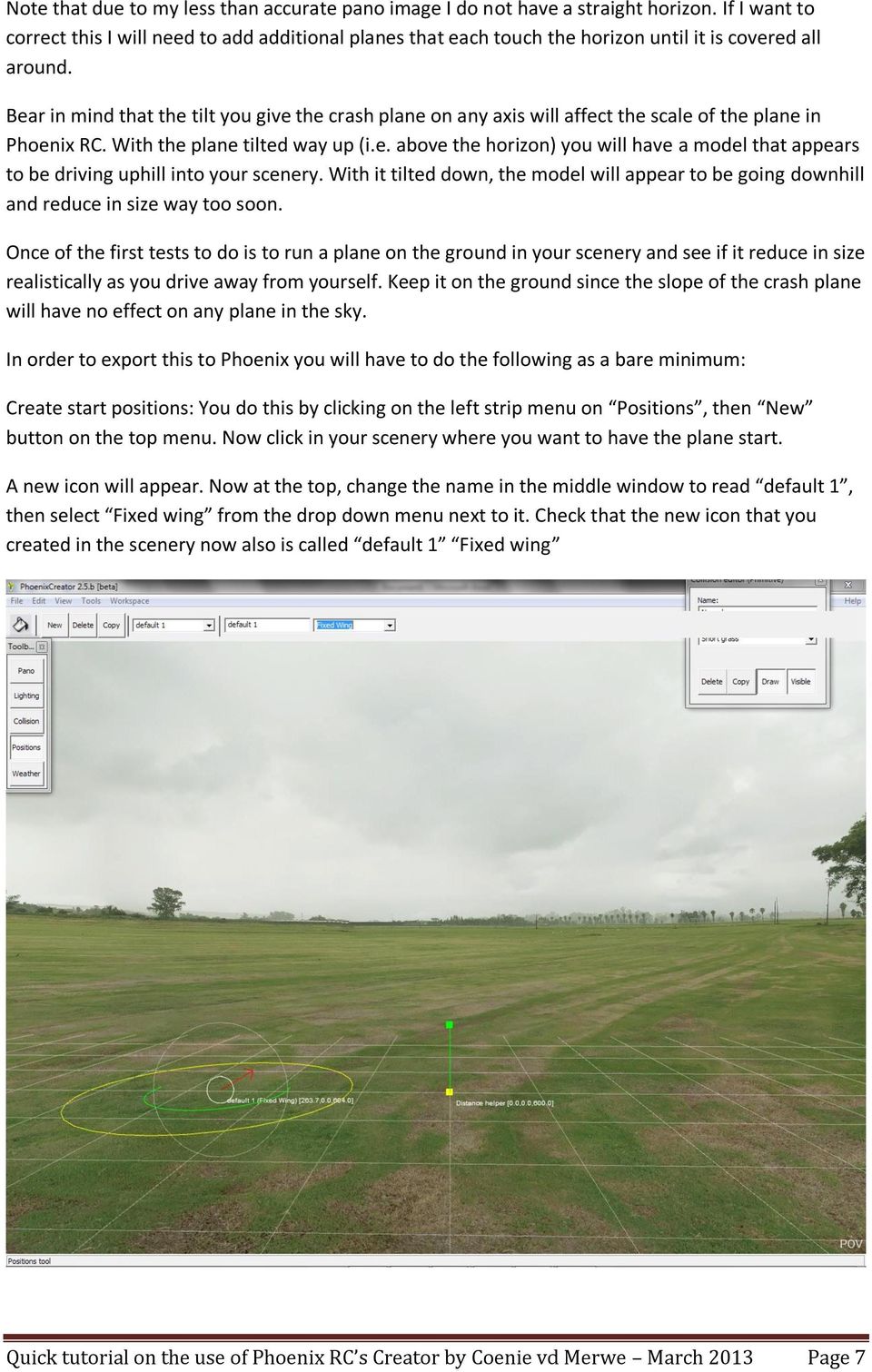
7 Note that due to my less than accurate pano image I do not have a straight horizon. If I want to correct this I will need to add additional planes that each touch the horizon until it is covered all around. Bear in mind that the tilt you give the crash plane on any axis will affect the scale of the plane in Phoenix RC. With the plane tilted way up (i.e. above the horizon) you will have a model that appears to be driving uphill into your scenery. With it tilted down, the model will appear to be going downhill and reduce in size way too soon. Once of the first tests to do is to run a plane on the ground in your scenery and see if it reduce in size realistically as you drive away from yourself. Keep it on the ground since the slope of the crash plane will have no effect on any plane in the sky. In order to export this to Phoenix you will have to do the following as a bare minimum: Create start positions: You do this by clicking on the left strip menu on Positions, then New button on the top menu. Now click in your scenery where you want to have the plane start. A new icon will appear. Now at the top, change the name in the middle window to read default 1, then select Fixed wing from the drop down menu next to it. Check that the new icon that you created in the scenery now also is called default 1 Fixed wing Quick tutorial on the use of Phoenix RC s Creator by Coenie vd Merwe March 2013 Page 7
8 It is important to name these positions default 1 etc. Note the space after default as the scenery will not compile without it. You can add more positions by calling them default 2 etc. For you other positions you can select Helicopter etc., retaining the naming format described. Add lighting by clicking on Lighting on the left menu. If you look down in your scenery (drag down with mouse), you will see a silver ball. This ball does not affect any of the lighting settings. It is used purely to show the effect of the position of the sun and the hue that you select it to cast. You can drag it to where the plane will be in the start position if you want. Now drag upward in the pano view and you will find the sun icon. You move this by pushing on the blue and red arrows. You will also see that in moving these you can cause the sun to appear to move away or closer. Play around with this for effect. The most important thing is to place the sun position where the sun is in your photograph. This will ensure that the shadows appear realistic. You are ready to start testing your crash plane. Select File and Save and call it a unique name. Now click File and Export. Input the name you want in the blocks with a description if required: Quick tutorial on the use of Phoenix RC s Creator by Coenie vd Merwe March 2013 Page 8

9 Press export. If everything to this point were done correctly, it should export scenery and come back to the top screen of Creator. You can now open Phoenix RC and select your scenery from the Flying Site menu. Your cubemap will still cause the display window of the scenery to be just white or black as we still need to adjust the cubemap once we are all done. Test the distance of the aircraft on the ground driving away in all directions. Once satisfied you can proceed to the adding of scenery, if not, you need to go back to Creator and adjust the plane or add more until the display in Phoenix RC is realistic. ADDING CRASH OBJECTS: In Creator you can add various crash objects: Plane: the defining crash plane. This is in effect the ground under your feet that you define in terms of height, slope and material through the plane object Quick tutorial on the use of Phoenix RC s Creator by Coenie vd Merwe March 2013 Page 9

10 Sphere: this is a round (sphere) object that you can use to place against objects casting a roundish silhouette, like a tree against the horizon: You will use these in various sizes to cover up the object where you need to define crash objects. Here is a sample of the same scenery when it was done, showing the use of spheres to create a crash surface on the tree above: Quick tutorial on the use of Phoenix RC s Creator by Coenie vd Merwe March 2013 Page 10
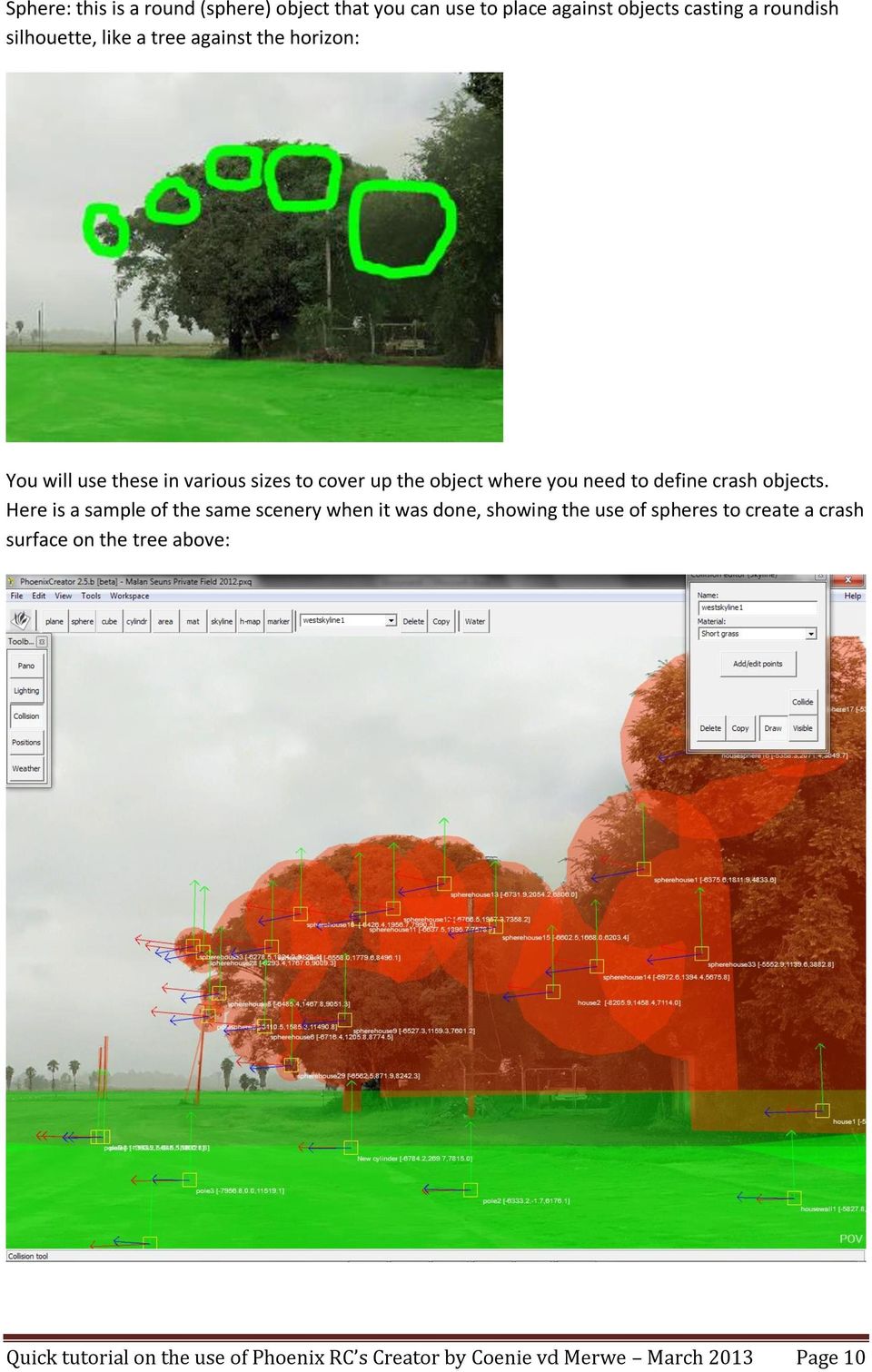
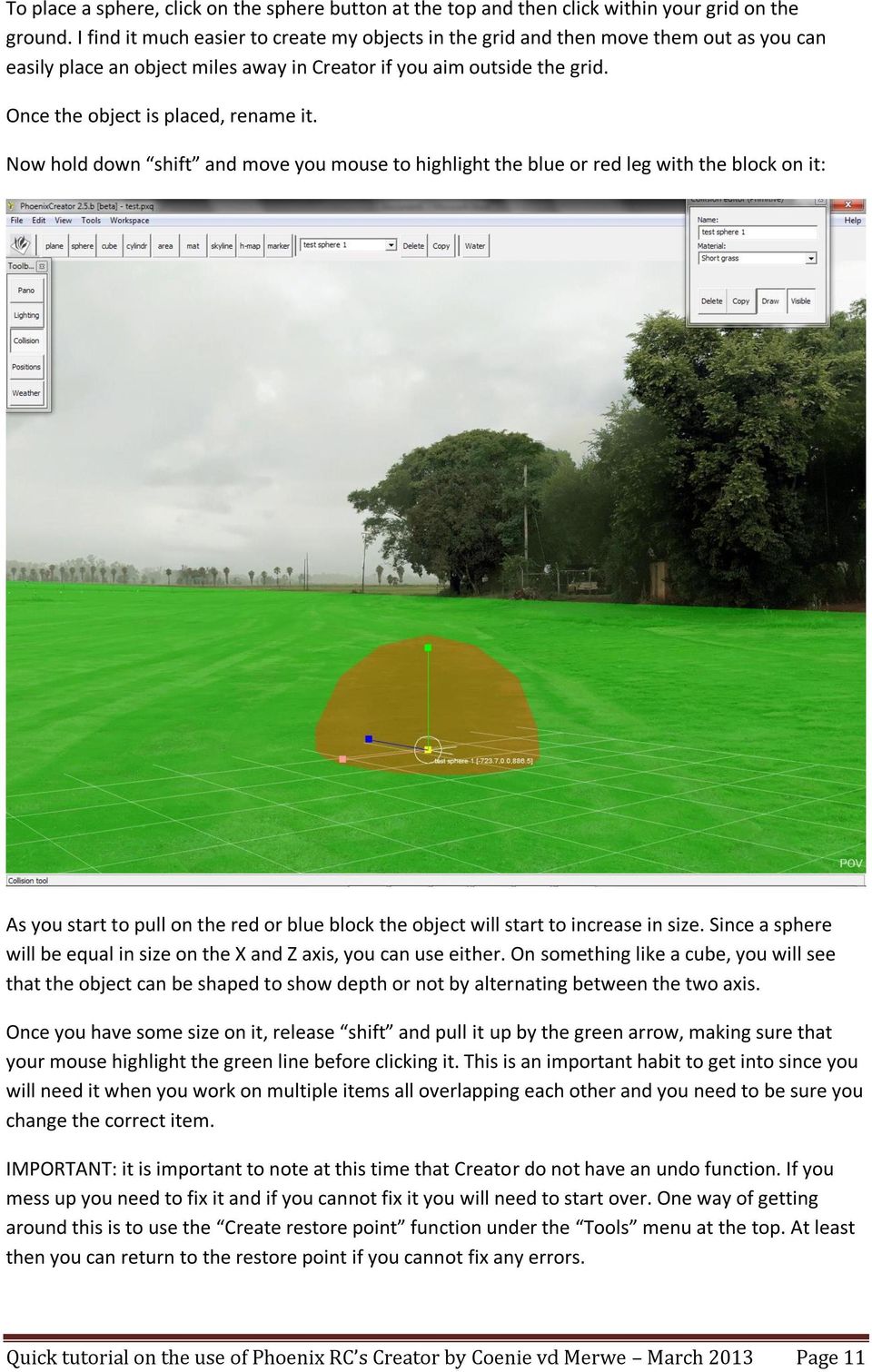
11 To place a sphere, click on the sphere button at the top and then click within your grid on the ground. I find it much easier to create my objects in the grid and then move them out as you can easily place an object miles away in Creator if you aim outside the grid. Once the object is placed, rename it. Now hold down shift and move you mouse to highlight the blue or red leg with the block on it: As you start to pull on the red or blue block the object will start to increase in size. Since a sphere will be equal in size on the X and Z axis, you can use either. On something like a cube, you will see that the object can be shaped to show depth or not by alternating between the two axis. Once you have some size on it, release shift and pull it up by the green arrow, making sure that your mouse highlight the green line before clicking it. This is an important habit to get into since you will need it when you work on multiple items all overlapping each other and you need to be sure you change the correct item. IMPORTANT: it is important to note at this time that Creator do not have an undo function. If you mess up you need to fix it and if you cannot fix it you will need to start over. One way of getting around this is to use the Create restore point function under the Tools menu at the top. At least then you can return to the restore point if you cannot fix any errors. Quick tutorial on the use of Phoenix RC s Creator by Coenie vd Merwe March 2013 Page 11
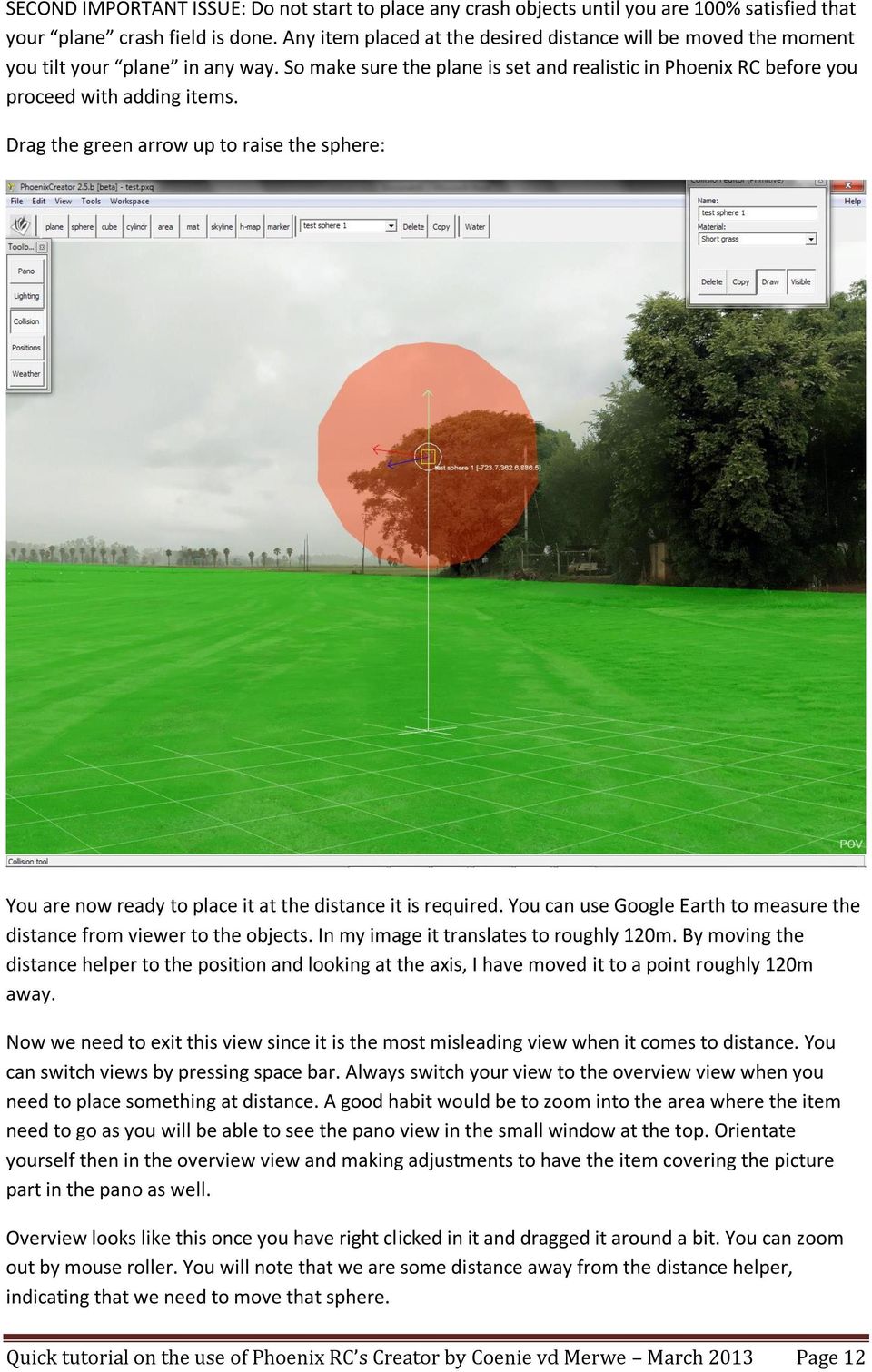
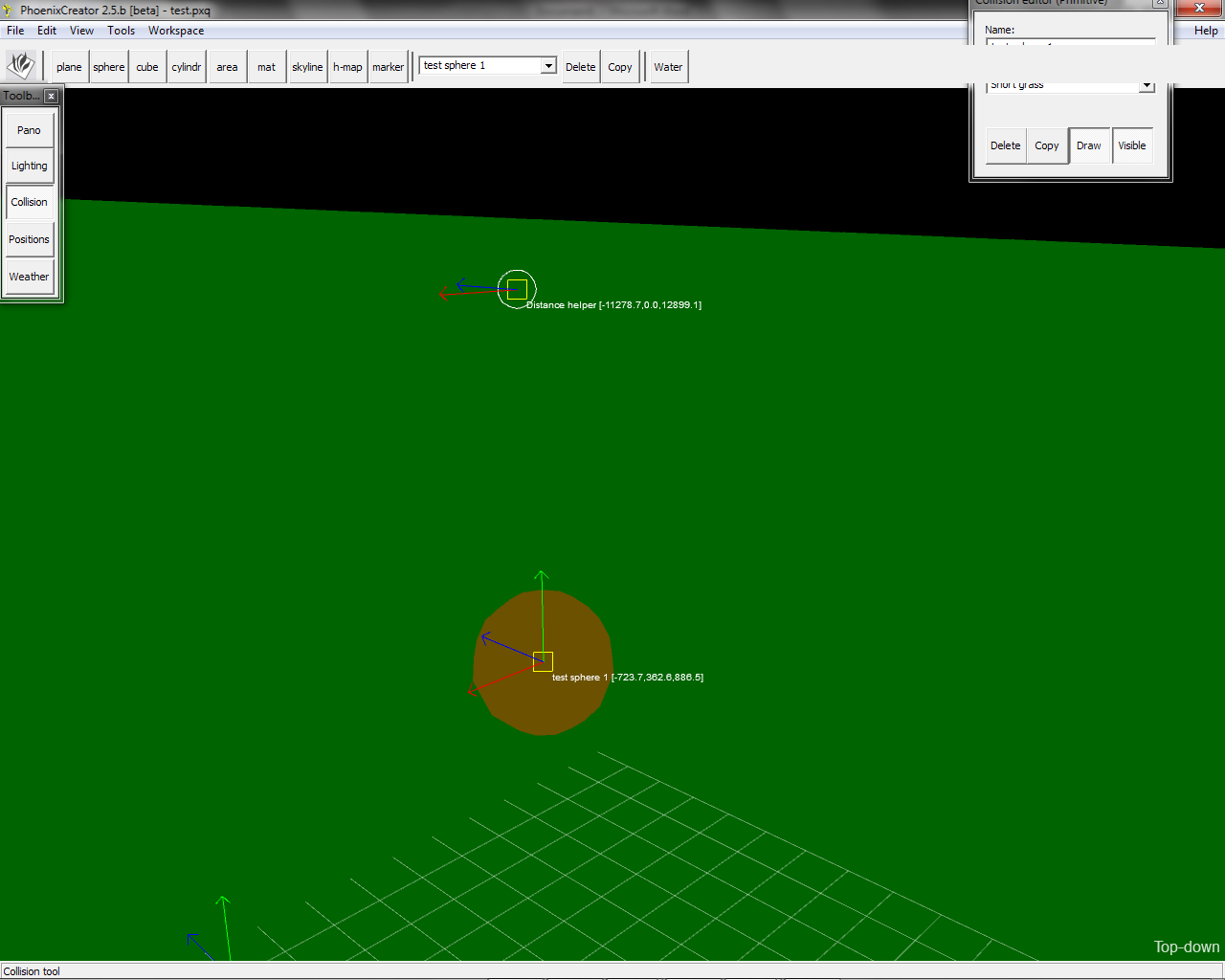
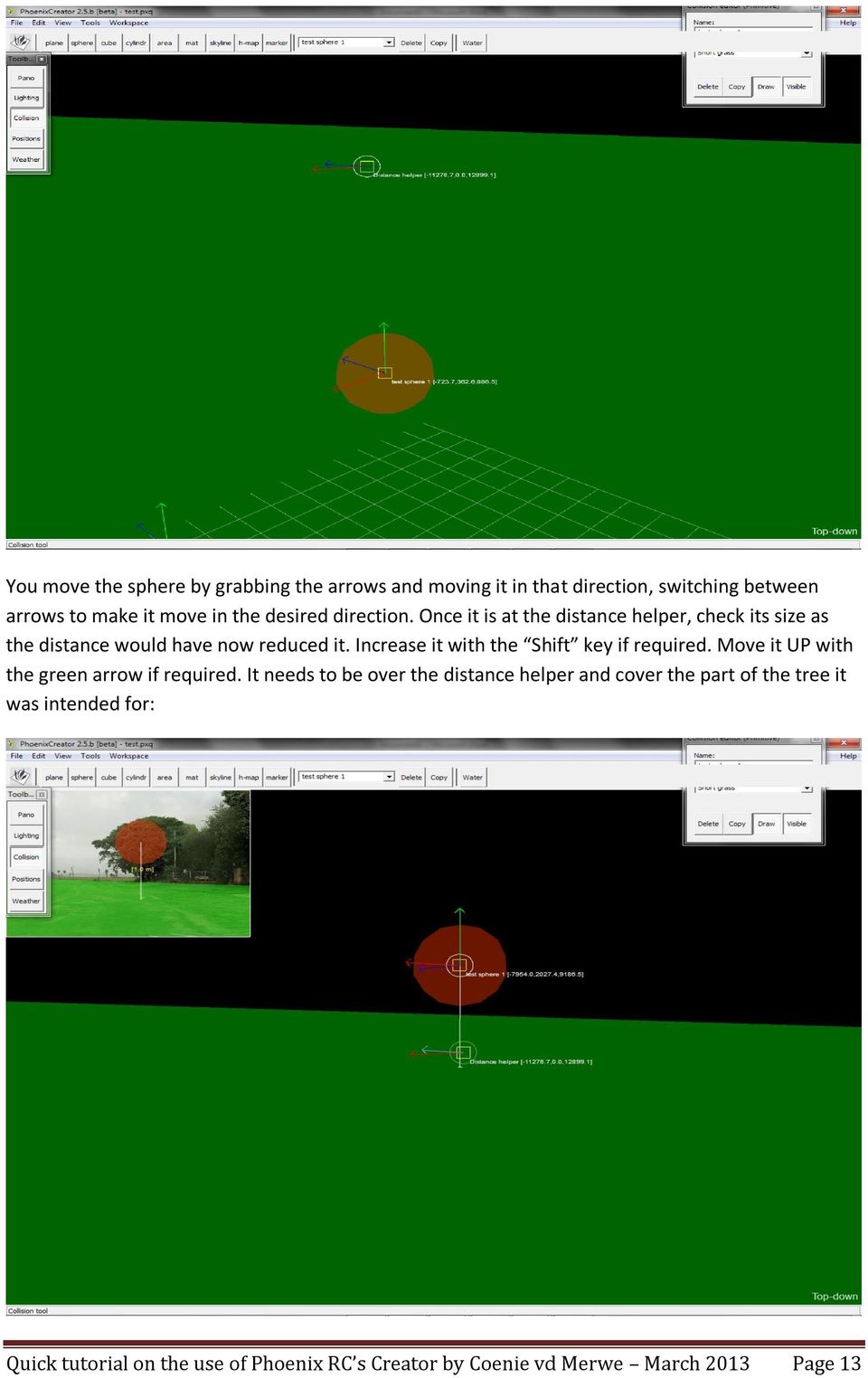
12 SECOND IMPORTANT ISSUE: Do not start to place any crash objects until you are 100% satisfied that your plane crash field is done. Any item placed at the desired distance will be moved the moment you tilt your plane in any way. So make sure the plane is set and realistic in Phoenix RC before you proceed with adding items. Drag the green arrow up to raise the sphere: You are now ready to place it at the distance it is required. You can use Google Earth to measure the distance from viewer to the objects. In my image it translates to roughly 120m. By moving the distance helper to the position and looking at the axis, I have moved it to a point roughly 120m away. Now we need to exit this view since it is the most misleading view when it comes to distance. You can switch views by pressing space bar. Always switch your view to the overview view when you need to place something at distance. A good habit would be to zoom into the area where the item need to go as you will be able to see the pano view in the small window at the top. Orientate yourself then in the overview view and making adjustments to have the item covering the picture part in the pano as well. Overview looks like this once you have right clicked in it and dragged it around a bit. You can zoom out by mouse roller. You will note that we are some distance away from the distance helper, indicating that we need to move that sphere. Quick tutorial on the use of Phoenix RC s Creator by Coenie vd Merwe March 2013 Page 12

13 You move the sphere by grabbing the arrows and moving it in that direction, switching between arrows to make it move in the desired direction. Once it is at the distance helper, check its size as the distance would have now reduced it. Increase it with the Shift key if required. Move it UP with the green arrow if required. It needs to be over the distance helper and cover the part of the tree it was intended for: Quick tutorial on the use of Phoenix RC s Creator by Coenie vd Merwe March 2013 Page 13
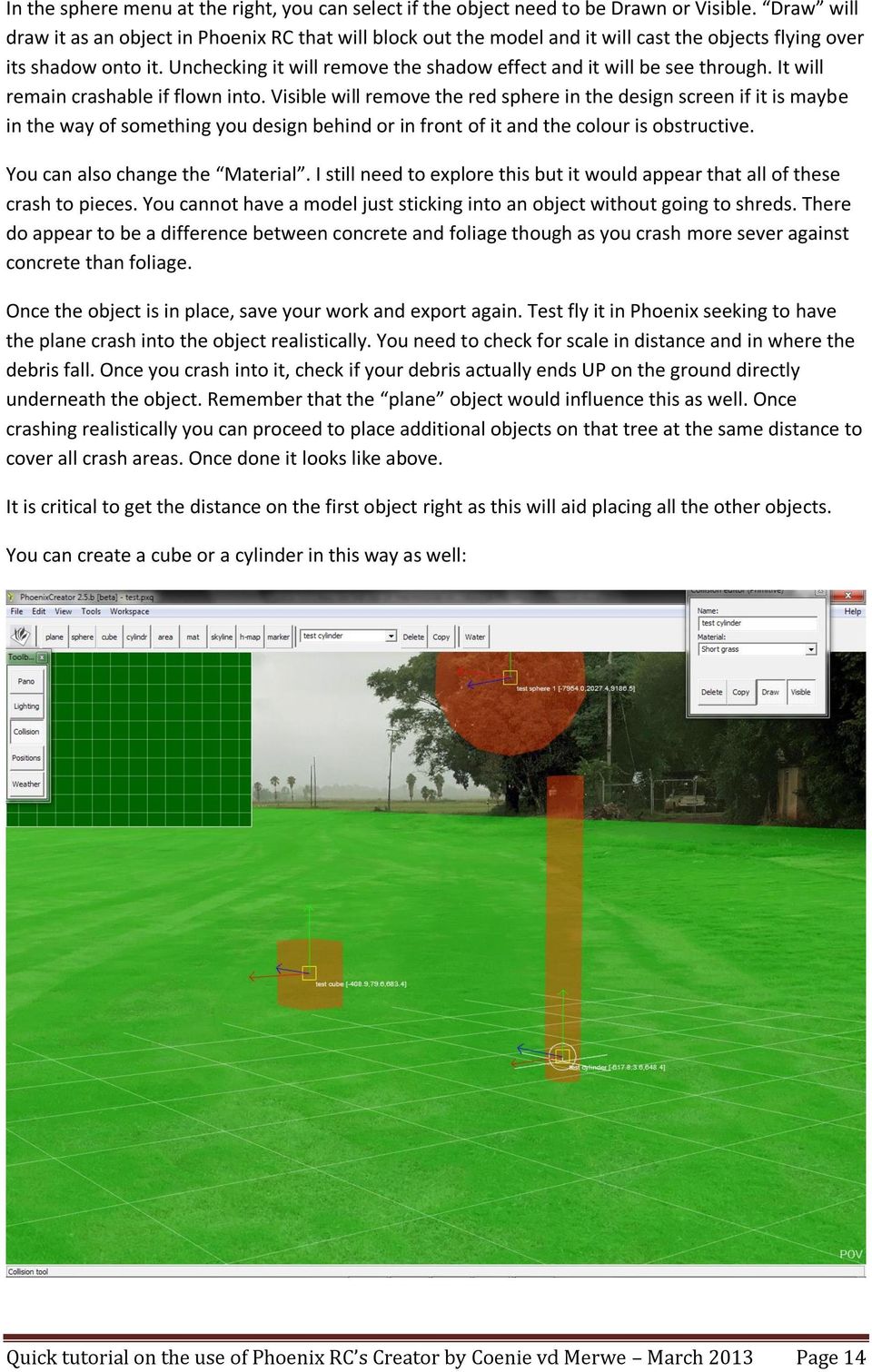
14 In the sphere menu at the right, you can select if the object need to be Drawn or Visible. Draw will draw it as an object in Phoenix RC that will block out the model and it will cast the objects flying over its shadow onto it. Unchecking it will remove the shadow effect and it will be see through. It will remain crashable if flown into. Visible will remove the red sphere in the design screen if it is maybe in the way of something you design behind or in front of it and the colour is obstructive. You can also change the Material. I still need to explore this but it would appear that all of these crash to pieces. You cannot have a model just sticking into an object without going to shreds. There do appear to be a difference between concrete and foliage though as you crash more sever against concrete than foliage. Once the object is in place, save your work and export again. Test fly it in Phoenix seeking to have the plane crash into the object realistically. You need to check for scale in distance and in where the debris fall. Once you crash into it, check if your debris actually ends UP on the ground directly underneath the object. Remember that the plane object would influence this as well. Once crashing realistically you can proceed to place additional objects on that tree at the same distance to cover all crash areas. Once done it looks like above. It is critical to get the distance on the first object right as this will aid placing all the other objects. You can create a cube or a cylinder in this way as well: Quick tutorial on the use of Phoenix RC s Creator by Coenie vd Merwe March 2013 Page 14
15 Note that on the pole and cube you can also use the green block with shift depressed. This will increase its height. A habit to get into is to always switch to the overview look to check distance. You do this by pressing spacebar. This puts you directly over the area like this: Now right click and drag in the screen to activate the navigation function. At the same time, start to zoom out with the mouse wheel. Rotate the view by pressing the right mouse button until you have a good view of what is it that you need to look at: Quick tutorial on the use of Phoenix RC s Creator by Coenie vd Merwe March 2013 Page 15

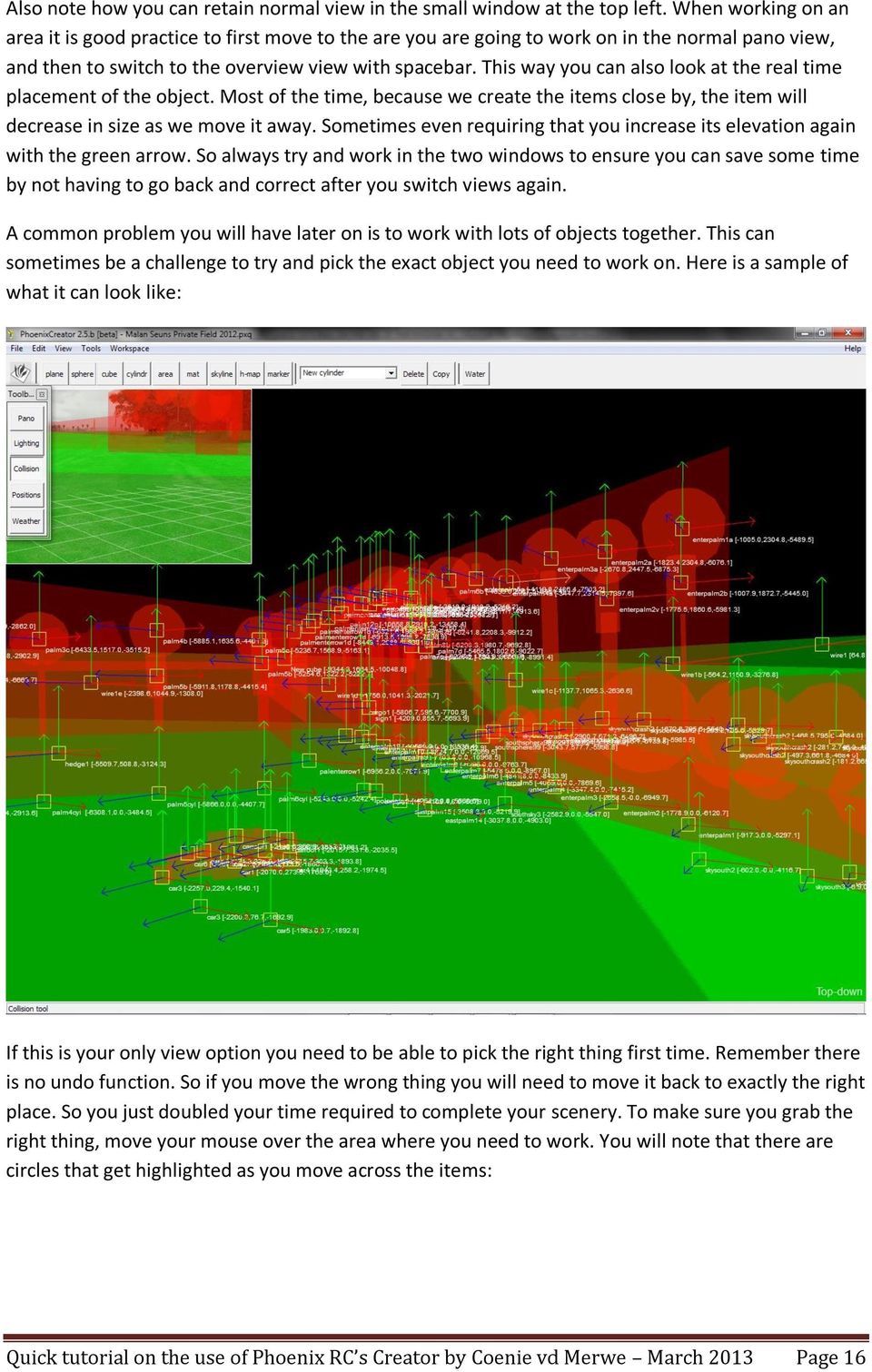
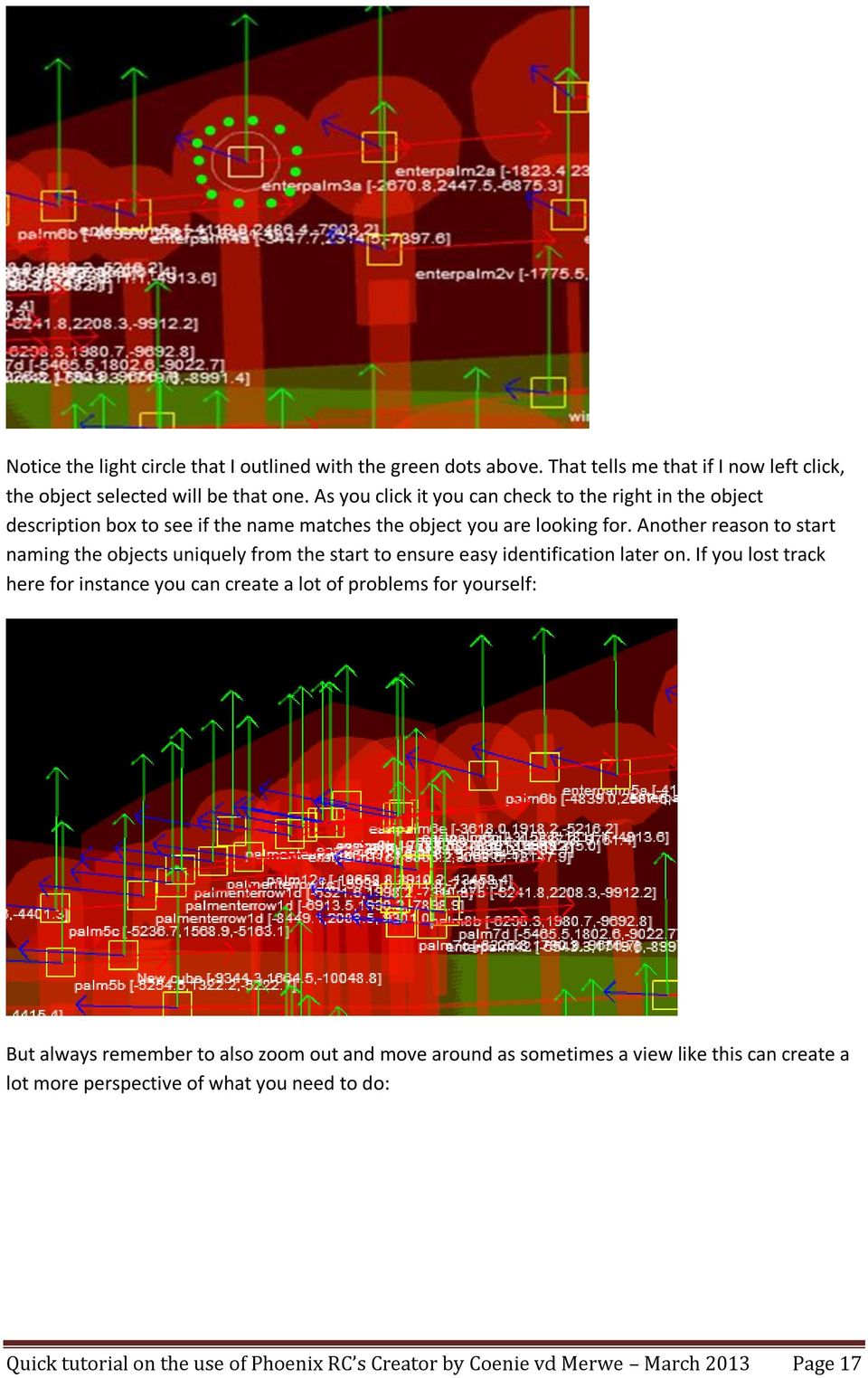
16 Also note how you can retain normal view in the small window at the top left. When working on an area it is good practice to first move to the are you are going to work on in the normal pano view, and then to switch to the overview view with spacebar. This way you can also look at the real time placement of the object. Most of the time, because we create the items close by, the item will decrease in size as we move it away. Sometimes even requiring that you increase its elevation again with the green arrow. So always try and work in the two windows to ensure you can save some time by not having to go back and correct after you switch views again. A common problem you will have later on is to work with lots of objects together. This can sometimes be a challenge to try and pick the exact object you need to work on. Here is a sample of what it can look like: If this is your only view option you need to be able to pick the right thing first time. Remember there is no undo function. So if you move the wrong thing you will need to move it back to exactly the right place. So you just doubled your time required to complete your scenery. To make sure you grab the right thing, move your mouse over the area where you need to work. You will note that there are circles that get highlighted as you move across the items: Quick tutorial on the use of Phoenix RC s Creator by Coenie vd Merwe March 2013 Page 16

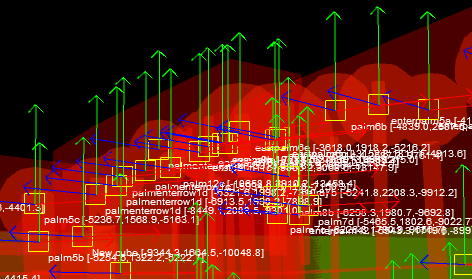
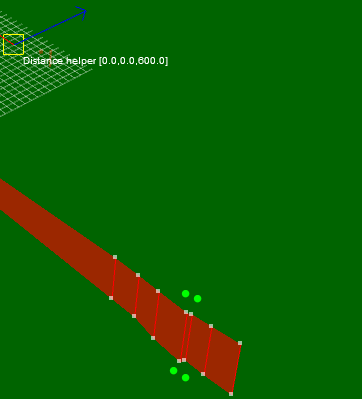
17 Notice the light circle that I outlined with the green dots above. That tells me that if I now left click, the object selected will be that one. As you click it you can check to the right in the object description box to see if the name matches the object you are looking for. Another reason to start naming the objects uniquely from the start to ensure easy identification later on. If you lost track here for instance you can create a lot of problems for yourself: But always remember to also zoom out and move around as sometimes a view like this can create a lot more perspective of what you need to do: Quick tutorial on the use of Phoenix RC s Creator by Coenie vd Merwe March 2013 Page 17
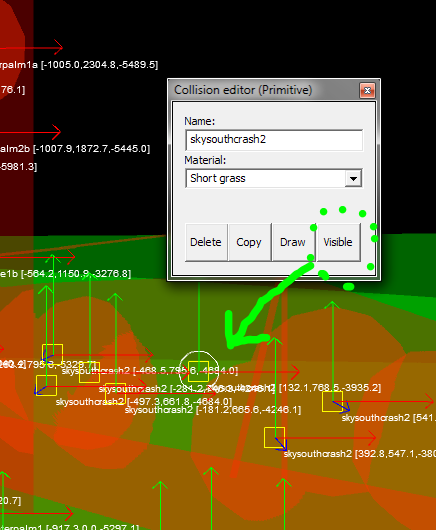
18 Where an object s colour in the screen is detracting from detail, you can switch off. It displaying its shape in the window by unchecking the visible button on the object description box at the right: Quick tutorial on the use of Phoenix RC s Creator by Coenie vd Merwe March 2013 Page 18

19 Skyline objects as described earlier are used to usually outline far off horizon silhouettes: The limitations of these are that you cannot add points to trace an object like the tree that bulges after starting on a slim trunk: Quick tutorial on the use of Phoenix RC s Creator by Coenie vd Merwe March 2013 Page 19
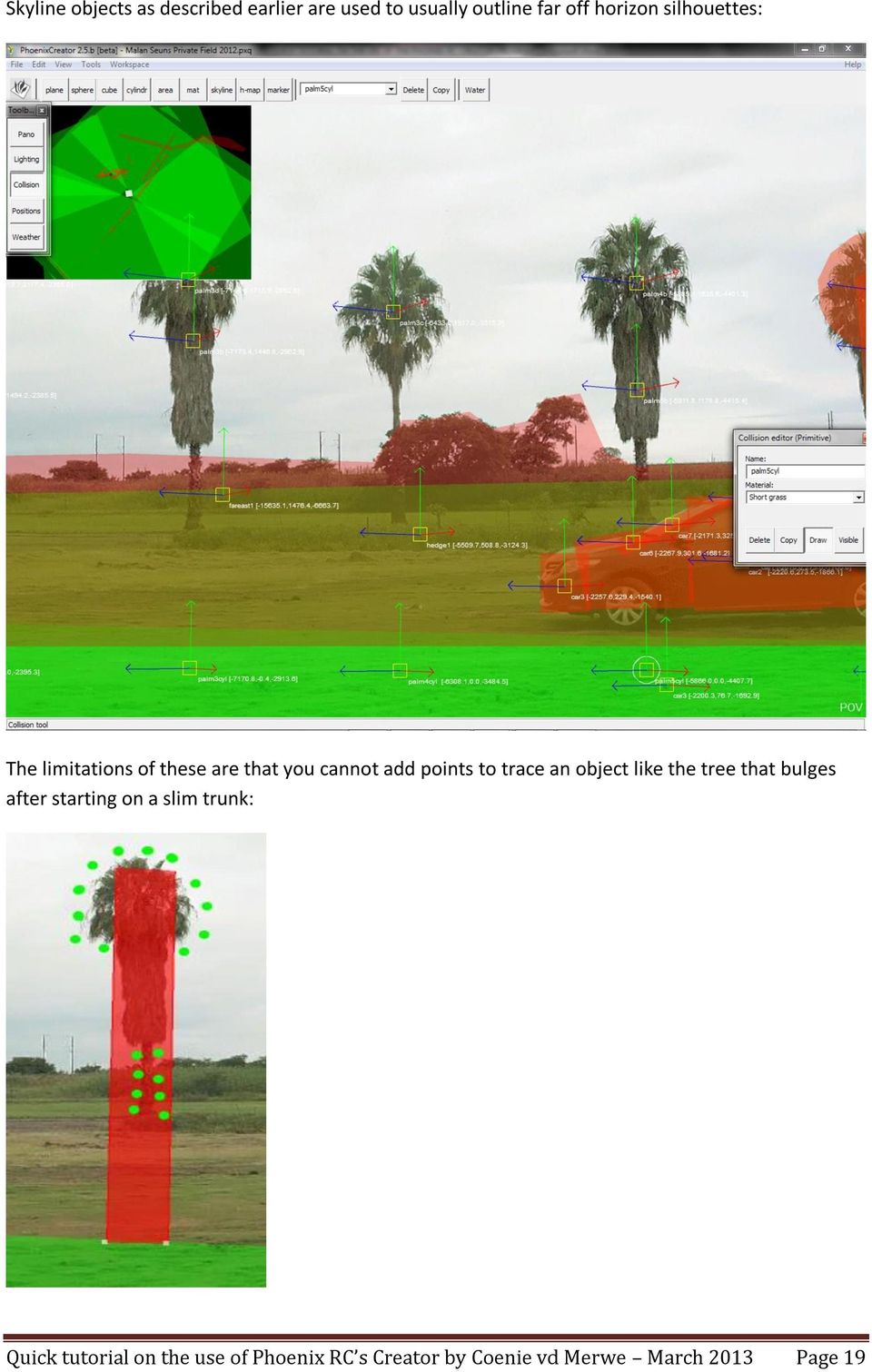
20 You can only apply a skyline to an object like the one above by cover the main part of it, thus extending past the slim part of it, or covering the slim part and having the main part not covered. Since the planes are fixed to the bottom not even twisting them will work. So the best is to build a tree like this from spheres and cylinders and then put a skyline over it if you want to add alpha mask. Here is what you can do to make it reasonably realistic without alpha mask: To start a skyline, move the view to the area where you want to add the skyline. Make sure you start at the left end of the area as you will not be able to add to or move the starting point without affecting all the other points. If you want to start the skyline to the left of the left most tree, do not start tracing to the right of the tree thinking that you will come back and just move it. Now select skyline at the top and place the first left mouse click in the direction of the start point but in the grid. This is to make sure the image display when in the pano view. Now release the mouse button and move the mouse UP to start drawing a straight line UP: Quick tutorial on the use of Phoenix RC s Creator by Coenie vd Merwe March 2013 Page 20
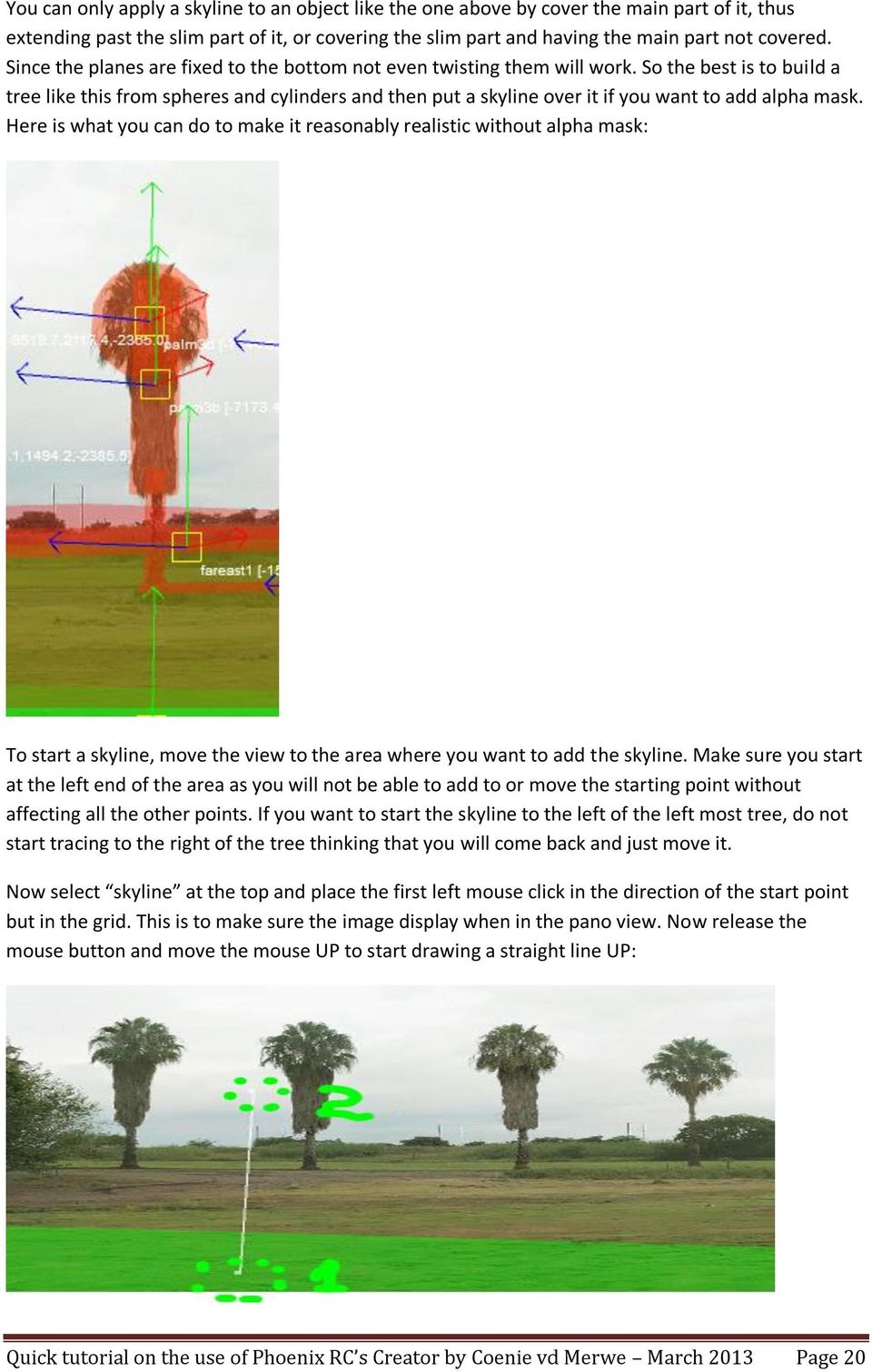
21 This is the left edge of your skyline. The next move is to click the second position on the ground plane again and at exactly the same distance as the first one. This will draw a red line from top to bottom. Now move the mouse UP again after releasing left button and the first square will appear: This is the basic movement for creating the plane. Now since the horizon is not a straight line, we will move our tops to follow it like this: Remember that this is not placed at the right distance yet. As mentioned, it helps when you already placed a crash object that you have confirmed the distance of. If I knew that this skyline was where the crash object was placed, I just need to ensure that this is placed in line with it. To do this you will need to work out what works for you. For me it works well to do the following: - Start the basic shape with one or two points. - Switch to the overview view - While watching you actions in the small window at the top left, start to drag the first point back to the point where you think it should be. - Come back for the second point and do the same - Now switch back to pano view and select each top point. When highlighted, drag it to the desired height - Once the first two points are where you think they should be, export it to Phoenix and fly towards it to check distance. Quick tutorial on the use of Phoenix RC s Creator by Coenie vd Merwe March 2013 Page 21
22 - If distance is realistic (you can also measure it with the distance helper), continue from the right to add the other points From the above you can see how I am taking each point that is too close by and dragging it back. Make sure you select the bottom point before dragging. Also note that things will look quite messed UP in the small window. This should give you an idea why we place skyline with the overview view and not the pano view. You lose distance scale completely in the pano view. Once you have all the bottom points back to the distance, the picture will reappear and you can then just reduce o increase the top points to make it follow the contour again: Quick tutorial on the use of Phoenix RC s Creator by Coenie vd Merwe March 2013 Page 22
23 Only try to move a point if it is highlighted by moving the mouse over it. If you click anywhere else you will create the next point at the right where you ended and a red line will jump at you. If this happen just click delete on the keyboard to delete the last point added. If you do move any point in the pano view mode, ALWAYS go back to the overview view and check if it is still correct. A change like this may look placed correctly, but look like this in overview: Quick tutorial on the use of Phoenix RC s Creator by Coenie vd Merwe March 2013 Page 23
24 Corrected is should display not twisted like above but all in one line. This is easily messed UP if you only view in pano view and move skyline objects. Now test it again in Phoenix to check distance. You can use other objects like cylinders to create poles and tree trunks. Cubes can be used for walls or crates or the like. I have not yet used area or material option. skyline, h-map and marker are used for something else and we will get to them later. A height map (h-map button) is used to create uneven ground effect with rolling hills or valleys. This is apparently a rather tricky thing to do and I have to date luckily only worked on flat areas where I could get away with planes only. After defining the height map plane, you use the mouse to raise the floor. Pressing shift will move the floor down if you mouse over it. Harald has an excellent video on Youtube demonstrating the use of height maps very well. Just search Youtube for harald phoenix rc to reach his excellent video tutorials. Skyline is used to define the objects against the horizon. You can use it to create a crash wall when you hit the horizon object and also to occlude the model when you fly behind it. The skyline will also form the canvas that you will paint your alpha map against when you apply such. Quick tutorial on the use of Phoenix RC s Creator by Coenie vd Merwe March 2013 Page 24
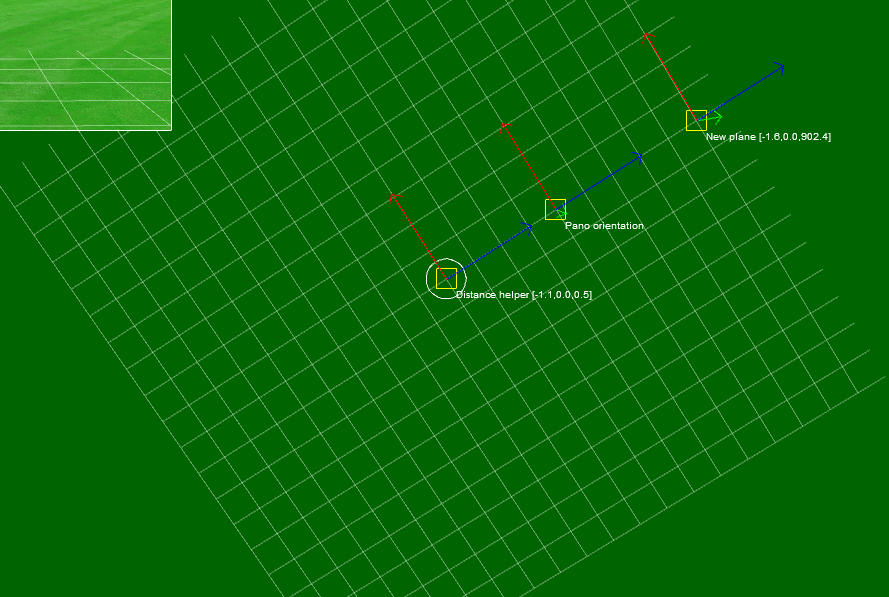
25 ACCURATELY USING THE DISTANCE HELPER: The distance helper work in two axis only in terms of movement and reporting distance. The distance scale of the distance helper is given in centimeters. Here you can see how the Red arrow reports a distance of 23677cm (or m) and the blue arrow 8711cm (or 87.11m). The plus and minus is not too important as we will use the distance irrespective of a negative or positive value. Taking the Red and Blue value to zero we can see that we end up in the middle of the grid which also constitute the eye level point in our scenery. So when you measure any distance in Google Earth (GE), make sure to select the point from where you photo were taken as the start point. Quick tutorial on the use of Phoenix RC s Creator by Coenie vd Merwe March 2013 Page 25
26 I am now going to explain how you can check the distance of any object that you placed. I will use the sphere we placed already. I mentioned that a GE measurement showed the distance to be roughly 120m. For the ease of showing the effect I am leaving the distance helper slightly to the side to show the explanation: We see here that we have a distance of 8757 and If we were to plot these distances on a graph with an X and Y axis we can say that it should look something like this: So we need to determine if a straight line from the blue point to our position (0,0) covers the distance required (120m). For this you use simple Pythagorean trigonometry which states that the square of the X axis plus the square of the Y axis would be our line distance squared. Mathematically we are saying: Quick tutorial on the use of Phoenix RC s Creator by Coenie vd Merwe March 2013 Page 26
27 So we can see that the length of C will give us our answer: Substituting this into our formula gives us: 87* *81 = =14130 Square root of gives us 119 So we are in a straight line 119m away from it, which mean that if we corrected for the slight off to the side position we have above, it is pretty much 120m away. All fine on this one! You can use this to test any object on your design. Quick tutorial on the use of Phoenix RC s Creator by Coenie vd Merwe March 2013 Page 27
CREATING A CUBEMAP AND CUBE FACES FOR USE IN PHOENIX RC SCENERY CREATION
 TUTORIAL 2 CREATING A CUBEMAP AND CUBE FACES FOR USE IN PHOENIX RC SCENERY CREATION This document is copyrighted to the author and may only be reproduced or copied with the author s consent. It is free
GYM PLANNER. User Guide. Copyright Powerzone. All Rights Reserved. Software & User Guide produced by Sharp Horizon. www.sharphorizon.com.
 GYM PLANNER User Guide Copyright Powerzone. All Rights Reserved. Software & User Guide produced by Sharp Horizon. www.sharphorizon.com. Installing the Software The Powerzone gym Planner is a piece of software
5. Tutorial. Starting FlashCut CNC
 FlashCut CNC Section 5 Tutorial 259 5. Tutorial Starting FlashCut CNC To start FlashCut CNC, click on the Start button, select Programs, select FlashCut CNC 4, then select the FlashCut CNC 4 icon. A dialog
SpaceClaim Introduction Training Session. A SpaceClaim Support Document
 SpaceClaim Introduction Training Session A SpaceClaim Support Document In this class we will walk through the basic tools used to create and modify models in SpaceClaim. Introduction We will focus on:
SketchUp Instructions
 SketchUp Instructions Every architect needs to know how to use SketchUp! SketchUp is free from Google just Google it and download to your computer. You can do just about anything with it, but it is especially
Excel -- Creating Charts
 Excel -- Creating Charts The saying goes, A picture is worth a thousand words, and so true. Professional looking charts give visual enhancement to your statistics, fiscal reports or presentation. Excel
Blender Notes. Introduction to Digital Modelling and Animation in Design Blender Tutorial - week 9 The Game Engine
 Blender Notes Introduction to Digital Modelling and Animation in Design Blender Tutorial - week 9 The Game Engine The Blender Game Engine This week we will have an introduction to the Game Engine build
Getting Started in Tinkercad
 Getting Started in Tinkercad By Bonnie Roskes, 3DVinci Tinkercad is a fun, easy to use, web-based 3D design application. You don t need any design experience - Tinkercad can be used by anyone. In fact,
Creating a Guided Tour with Google Earth
 Creating a Guided Tour with Google Earth Before creating a tour, first orient yourself to basic Google Earth functions. To start, download Google Earth to your desktop. This is free through earth.google.com.
Acceleration of Gravity Lab Basic Version
 Acceleration of Gravity Lab Basic Version In this lab you will explore the motion of falling objects. As an object begins to fall, it moves faster and faster (its velocity increases) due to the acceleration
3D-GIS in the Cloud USER MANUAL. August, 2014
 3D-GIS in the Cloud USER MANUAL August, 2014 3D GIS in the Cloud User Manual August, 2014 Table of Contents 1. Quick Reference: Navigating and Exploring in the 3D GIS in the Cloud... 2 1.1 Using the Mouse...
A Beginners Guide to Track Laying.
 A Beginners Guide to Track Laying. I should first say that none of the material below is original. I have made use of many sources of information and have often copied directly from them. All I claim to
Phases of the Moon. Preliminaries:
 Phases of the Moon Sometimes when we look at the Moon in the sky we see a small crescent. At other times it appears as a full circle. Sometimes it appears in the daylight against a bright blue background.
DOING MORE WITH WORD: MICROSOFT OFFICE 2010
 University of North Carolina at Chapel Hill Libraries Carrboro Cybrary Chapel Hill Public Library Durham County Public Library DOING MORE WITH WORD: MICROSOFT OFFICE 2010 GETTING STARTED PAGE 02 Prerequisites
Experiment 5: Magnetic Fields of a Bar Magnet and of the Earth
 MASSACHUSETTS INSTITUTE OF TECHNOLOGY Department of Physics 8.02 Spring 2005 Experiment 5: Magnetic Fields of a Bar Magnet and of the Earth OBJECTIVES 1. To examine the magnetic field associated with a
CATIA Basic Concepts TABLE OF CONTENTS
 TABLE OF CONTENTS Introduction...1 Manual Format...2 Log on/off procedures for Windows...3 To log on...3 To logoff...7 Assembly Design Screen...8 Part Design Screen...9 Pull-down Menus...10 Start...10
Protocol for Microscope Calibration
 Protocol for Microscope Calibration A properly calibrated system is essential for successful and efficient software use. The following are step by step instructions on how to calibrate the hardware using
House Design Tutorial
 Chapter 2: House Design Tutorial This House Design Tutorial shows you how to get started on a design project. The tutorials that follow continue with the same plan. When we are finished, we will have created
This activity will show you how to draw graphs of algebraic functions in Excel.
 This activity will show you how to draw graphs of algebraic functions in Excel. Open a new Excel workbook. This is Excel in Office 2007. You may not have used this version before but it is very much the
DCAD Website Instruction Manual
 DCAD Website Instruction Manual - 1-9/1/2010 INDEX PAGE Search Appraisal ---------------------------- 3-4 Owner Name ------------------------------ 5-6 Account Number ------------------------------ 7 Street
3DVista Virtual Tour Suite
 3DVISTA ESPAÑA S.L. 3DVista Virtual Tour Suite Quick Guide 3dvista 01/08/2014 www.3dvista.com Table of Contents Introduction... 2 Requirements... 3 Before getting started... 3 How to create & publish a
Lesson 26: Reflection & Mirror Diagrams
 Lesson 26: Reflection & Mirror Diagrams The Law of Reflection There is nothing really mysterious about reflection, but some people try to make it more difficult than it really is. All EMR will reflect
Microsoft Excel 2010 Charts and Graphs
 Microsoft Excel 2010 Charts and Graphs Email: [email protected] Web Page: http://training.health.ufl.edu Microsoft Excel 2010: Charts and Graphs 2.0 hours Topics include data groupings; creating
FREE FALL. Introduction. Reference Young and Freedman, University Physics, 12 th Edition: Chapter 2, section 2.5
 Physics 161 FREE FALL Introduction This experiment is designed to study the motion of an object that is accelerated by the force of gravity. It also serves as an introduction to the data analysis capabilities
TABLE OF CONTENTS. INTRODUCTION... 5 Advance Concrete... 5 Where to find information?... 6 INSTALLATION... 7 STARTING ADVANCE CONCRETE...
 Starting Guide TABLE OF CONTENTS INTRODUCTION... 5 Advance Concrete... 5 Where to find information?... 6 INSTALLATION... 7 STARTING ADVANCE CONCRETE... 7 ADVANCE CONCRETE USER INTERFACE... 7 Other important
A Quick Start Guide to Using PowerPoint For Image-based Presentations
 A Quick Start Guide to Using PowerPoint For Image-based Presentations By Susan Jane Williams & William Staffeld, Knight Visual Resources Facility College of Architecture, Art and Planning Cornell University.
Opening, Importing and Saving Images
 Opening, Importing and Saving Images This tutorial will help you to become familiar with how to open, import and save the various file types that the Make The Cut! (MTC!) software supports. You can find
Adobe Illustrator CS5 Part 1: Introduction to Illustrator
 CALIFORNIA STATE UNIVERSITY, LOS ANGELES INFORMATION TECHNOLOGY SERVICES Adobe Illustrator CS5 Part 1: Introduction to Illustrator Summer 2011, Version 1.0 Table of Contents Introduction...2 Downloading
Introduction to SketchUp
 Introduction to SketchUp This guide is handy to read if you need some basic knowledge to get started using SketchUp. You will see how to download and install Sketchup, and learn how to use your mouse (and
SolidWorks Tutorial 4 CANDLESTICK
 SolidWorks Tutorial 4 CANDLESTICK Candlestick In this tutorial you will make a simple container and a candlestick out of sheetmetal. You will learn about working with sheet metal in SolidWorks. We will
Introduction to scripting with Unity
 Introduction to scripting with Unity Scripting is an essential part of Unity as it defines the behaviour of your game. This tutorial will introduce the fundamentals of scripting using Javascript. No prior
Generative Drafting. Page 1 1997 2001 DASSAULT SYSTEMES. IBM Product Lifecycle Management Solutions / Dassault Systemes
 Generative Drafting Page 1 Tutorial Objectives Description This Tutorial is an introduction to Generative Drafting. Message To show how CATIA V5 allows the user to automatically generate associative drafting
MICROSOFT POWERPOINT STEP BY STEP GUIDE
 IGCSE ICT SECTION 16 PRESENTATION AUTHORING MICROSOFT POWERPOINT STEP BY STEP GUIDE Mark Nicholls ICT Lounge Page 1 Contents Importing text to create slides Page 4 Manually creating slides.. Page 5 Removing
Using Image J to Measure the Brightness of Stars (Written by Do H. Kim)
 Using Image J to Measure the Brightness of Stars (Written by Do H. Kim) What is Image J? Image J is Java-based image processing program developed at the National Institutes of Health. Image J runs on everywhere,
Tutorial: Biped Character in 3D Studio Max 7, Easy Animation
 Tutorial: Biped Character in 3D Studio Max 7, Easy Animation Written by: Ricardo Tangali 1. Introduction:... 3 2. Basic control in 3D Studio Max... 3 2.1. Navigating a scene:... 3 2.2. Hide and Unhide
Using Microsoft Word. Working With Objects
 Using Microsoft Word Many Word documents will require elements that were created in programs other than Word, such as the picture to the right. Nontext elements in a document are referred to as Objects
Project Setup and Data Management Tutorial
 Project Setup and Heavy Construction Edition Version 1.20 Corporate Office Trimble Navigation Limited Engineering and Construction Division 5475 Kellenburger Road Dayton, Ohio 45424-1099 U.S.A. Phone:
Introduction to Google SketchUp (Mac Version)
 Introduction to Google SketchUp (Mac Version) This guide is handy to read if you need some basic knowledge to get started using SketchUp. You will see how to download and install Sketchup, and learn how
Producing a realistic drawing with CorelDRAW
 Producing a realistic drawing with CorelDRAW Hugo Hansen In this tutorial, I show you some of the tools I used to create the many effects in the drawing of my son resting on a motorcycle. The idea to make
LESSON 7: IMPORTING AND VECTORIZING A BITMAP IMAGE
 LESSON 7: IMPORTING AND VECTORIZING A BITMAP IMAGE In this lesson we ll learn how to import a bitmap logo, transform it into a vector and perform some editing on the vector to clean it up. The concepts
Create a Poster Using Publisher
 Contents 1. Introduction 1. Starting Publisher 2. Create a Poster Template 5. Aligning your images and text 7. Apply a background 12. Add text to your poster 14. Add pictures to your poster 17. Add graphs
Introduction to CATIA V5
 Introduction to CATIA V5 Release 16 (A Hands-On Tutorial Approach) Kirstie Plantenberg University of Detroit Mercy SDC PUBLICATIONS Schroff Development Corporation www.schroff.com www.schroff-europe.com
Guide To Creating Academic Posters Using Microsoft PowerPoint 2010
 Guide To Creating Academic Posters Using Microsoft PowerPoint 2010 INFORMATION SERVICES Version 3.0 July 2011 Table of Contents Section 1 - Introduction... 1 Section 2 - Initial Preparation... 2 2.1 Overall
Basic Coordinates & Seasons Student Guide
 Name: Basic Coordinates & Seasons Student Guide There are three main sections to this module: terrestrial coordinates, celestial equatorial coordinates, and understanding how the ecliptic is related to
Your Personal Trading Journal
 Your Personal Trading Journal This guide provides instructions for the setup and helps you getting started with your Edgewonk trading journal. It is recommended that you read it thoroughly to fully leverage
Tutorial for Tracker and Supporting Software By David Chandler
 Tutorial for Tracker and Supporting Software By David Chandler I use a number of free, open source programs to do video analysis. 1. Avidemux, to exerpt the video clip, read the video properties, and save
MestRe-C User Guide Megan Bragg 04/14/05
 MestRe-C User Guide Megan Bragg 04/14/05 Some general useful features: 1. You can add Text, Titles, Temperatures, or peak labels (in any font/size/color) to the spectrum. 2. MestRe-C allows you to save
2012 Ward s Natural Science
 2012 Ward s Natural Science Contents Recommended System Requirements...3 Additional Assistance...3 QUICK START GUIDE Installation Instructions...4 How It Works...5 Your First View...6 Navigating the Library...7
Billboard Tutorial. NOTE: The first Image is actually transparent any where you see white. The last picture actually IS white.
 Billboard Tutorial Many people have asked for a Tutorial on how to make Billboards, and since I have played around with them quite a bit I figured I would create one. Billboards are actually very easy
Microsoft Excel 2013 Tutorial
 Microsoft Excel 2013 Tutorial TABLE OF CONTENTS 1. Getting Started Pg. 3 2. Creating A New Document Pg. 3 3. Saving Your Document Pg. 4 4. Toolbars Pg. 4 5. Formatting Pg. 6 Working With Cells Pg. 6 Changing
Interactive Voting System. www.ivsystem.nl. IVS-Basic IVS-Professional 4.4
 Interactive Voting System www.ivsystem.nl IVS-Basic IVS-Professional 4.4 Manual IVS-Basic 4.4 IVS-Professional 4.4 1213 Interactive Voting System The Interactive Voting System (IVS ) is an interactive
Create A Collage Of Warped Photos
 Create A Collage Of Warped Photos In this Adobe Photoshop tutorial, we re going to learn how to create a collage of warped photos. Now, don t go letting your imagination run wild here. When I say warped,
If you know exactly how you want your business forms to look and don t mind
 appendix e Advanced Form Customization If you know exactly how you want your business forms to look and don t mind detail work, you can configure QuickBooks forms however you want. With QuickBooks Layout
Statgraphics Getting started
 Statgraphics Getting started The aim of this exercise is to introduce you to some of the basic features of the Statgraphics software. Starting Statgraphics 1. Log in to your PC, using the usual procedure
WORDPAD TUTORIAL WINDOWS 7
 WORDPAD TUTORIAL WINDOWS 7 Quick Access bar Home Tab Triangles = More Commands Groups on the Home tab Right paragraph margin Left paragraph Margin & Indent Paragraphs Ruler Hover the mouse pointer over
3D Drawing. Single Point Perspective with Diminishing Spaces
 3D Drawing Single Point Perspective with Diminishing Spaces The following document helps describe the basic process for generating a 3D representation of a simple 2D plan. For this exercise we will be
Windows XP Pro: Basics 1
 NORTHWEST MISSOURI STATE UNIVERSITY ONLINE USER S GUIDE 2004 Windows XP Pro: Basics 1 Getting on the Northwest Network Getting on the Northwest network is easy with a university-provided PC, which has
How To Print To Scale With Easy Blue Print
 Exporting and Printing Floor Plans From day one, your end goal has been to eventually get some floor plans (in some format) out of Easy Blue Print, which you can then use someplace else. Sure, Easy Blue
The following is an overview of lessons included in the tutorial.
 Chapter 2 Tutorial Tutorial Introduction This tutorial is designed to introduce you to some of Surfer's basic features. After you have completed the tutorial, you should be able to begin creating your
CREATE A 3D MOVIE IN DIRECTOR
 CREATE A 3D MOVIE IN DIRECTOR 2 Building Your First 3D Movie in Director Welcome to the 3D tutorial for Adobe Director. Director includes the option to create three-dimensional (3D) images, text, and animations.
Microsoft PowerPoint Exercises 4
 Microsoft PowerPoint Exercises 4 In these exercises, you will be working with your Music Presentation file used in part 1 and 2. Open that file if you haven t already done so. Exercise 1. Slide Sorter
Layout Tutorial. Getting Started
 Getting Started Layout Tutorial This tutorial will explain how create a layout template, send views to a layout page, then save the document in PDF format. In this tutorial you will learn about: Creating
Chapter 1. Creating Sketches in. the Sketch Mode-I. Evaluation chapter. Logon to www.cadcim.com for more details. Learning Objectives
 Chapter 1 Creating Sketches in Learning Objectives the Sketch Mode-I After completing this chapter you will be able to: Use various tools to create a geometry. Dimension a sketch. Apply constraints to
CNC Turning Training CNC MILLING / ROUTING TRAINING GUIDE. www.denford.co.uk Page 1
 CNC Turning Training www.denford.co.uk Page 1 Table of contents Introduction... 3 Start the VR Turning Software... 3 Configure the software for the machine... 4 Load your CNC file... 5 Configure the tooling...
Software for Producing Rack Layouts and Purchase Orders
 1 Software for Producing Rack Layouts and Purchase Orders Welcome to RackTools: software that makes it simple and quick to specify Middle Atlantic Products. RackTools has been designed with one purpose
Lesson 7 - Creating Animation II
 Lesson 7 - Creating Animation II A. Motion-Tweened Animation With motion tweening, you can easily create motion effects for the objects in your Flash movies. Kites flying, balls bouncing, rocks rolling
Pushes and Pulls. TCAPS Created June 2010 by J. McCain
 Pushes and Pulls K i n d e r g a r t e n S c i e n c e TCAPS Created June 2010 by J. McCain Table of Contents Science GLCEs incorporated in this Unit............... 2-3 Materials List.......................................
Welcome to The Grid 2
 Welcome to 1 Thanks for choosing! These training cards will help you learn about, providing step-by-step instructions for the key skills you will need and introducing the included resources. What does
HOW TO VIEW AND EDIT PICTURES
 Get started Shutterfly can help you make your pictures look their best. We re going to show you the different ways to view and edit your pictures using our easy-to-use tools. To begin, sign in to your
Grade 7/8 Math Circles November 3/4, 2015. M.C. Escher and Tessellations
 Faculty of Mathematics Waterloo, Ontario N2L 3G1 Centre for Education in Mathematics and Computing Tiling the Plane Grade 7/8 Math Circles November 3/4, 2015 M.C. Escher and Tessellations Do the following
USING WINDOWS MOVIE MAKER TO CREATE THE MOMENT BEHIND THE PHOTO STORY PART 1
 PART 1 Windows Movie Maker lets you assemble a range of video, pictures, and sound elements to create a story. It is an application that comes with most PC computers. This tip sheet was created using Windows
1 CHORD LENGTH OR UNIFORM PARAMETERIZATION
 1 CHORD LENGTH OR UNIFORM PARAMETERIZATION All of the better high end packages that implement Nurbs Modeling tools will offer the choice of constructing curves using either Uniform or Chord Length parameterization.
MAKE YOUR FIRST A-MAZE-ING GAME IN GAME MAKER 7
 MAKE YOUR FIRST A-MAZE-ING GAME IN GAME MAKER 7 In this tutorial, you will learn how to create your first game in Game Maker. The game you will create will be a simple maze game. The object of the game
What s New V 11. Preferences: Parameters: Layout/ Modifications: Reverse mouse scroll wheel zoom direction
 What s New V 11 Preferences: Reverse mouse scroll wheel zoom direction Assign mouse scroll wheel Middle Button as Fine tune Pricing Method (Manufacturing/Design) Display- Display Long Name Parameters:
Laser Cutter User Manual
 Laser Cutter User Manual frequently asked questions... the laser is cutting weird! it s cutting a thick line or not cutting through at all! Table Of Contents Section 1: Materials Guide 1.1 Can I Cut this?
Power Point 2003 Table of Contents
 Power Point 2003 Table of Contents Creating a Presentation... 2 Selecting Background and Format for Slide... 3 Creating the Title Slide... 4 Adding a New Slide... 5 Types of Text for a Slide: Taken from
Eye Tracking Instructions
 Eye Tracking Instructions [1] Check to make sure that the eye tracker is properly connected and plugged in. Plug in the eye tracker power adaptor (the green light should be on. Make sure that the yellow
Getting Started Guide
 3D Architect Home Designer Getting Started Guide Produced and published in the UK by Eleco Software Limited 2014 Eleco plc. All rights reserved. The software and hardware names and labels used in this
LANDWorksCAD for AutoCAD and Bricscad. Professional Landscape Design Software. Reference and User Manual. CAD International
 LANDWorksCAD for AutoCAD and Bricscad Professional Landscape Design Software Reference and User Manual CAD International www.cad.com.au www.cadinternational.com 2006-2012 - All rights reserved This page
3D Drawing. Single Point Perspective with Diminishing Spaces
 3D Drawing Single Point Perspective with Diminishing Spaces The following document helps describe the basic process for generating a 3D representation of a simple 2D plan. For this exercise we will be
Tutorial: Creating Platform Games
 Tutorial: Creating Platform Games Copyright 2003, Mark Overmars Last changed: March 30, 2003 Uses: version 5.0, advanced mode Level: Intermediate Platform games are very common, in particular on devices
Creating 2D Isometric Drawings
 1-(800) 877-2745 www.ashlar-vellum.com Creating 2D Isometric Drawings Using Graphite TM Copyright 2008 Ashlar Incorporated. All rights reserved. C62DISO0806. Ashlar-Vellum Graphite No matter how many Top,
Working With Animation: Introduction to Flash
 Working With Animation: Introduction to Flash With Adobe Flash, you can create artwork and animations that add motion and visual interest to your Web pages. Flash movies can be interactive users can click
X-Trade Brokers Dom Maklerski S.A. XTB Expert Builder. Tutorial. Michał Zabielski 2010-08-05
 X-Trade Brokers Dom Maklerski S.A. XTB Expert Builder Tutorial Michał Zabielski 2010-08-05 Table of Contents Installation...3 Legal notification...7 Initial adjustments / Preferences...8 Language...8 Platform
Task Card #2 SMART Board: Notebook
 Task Card #2 SMART Board: Notebook Objectives: Participants will learn how to utilize the SMART Notebook. Table of Contents: Launching The SMART Notebook Page 1 Entering Text Page 1 Top Toolbar Page 2
A Guide to Microsoft Paint (Windows XP)
 A Guide to Microsoft Paint (Windows XP) Introduction Microsoft Paint allows you to produce your own pictures (or edit existing ones). In Windows XP, you can no longer access Paint directly from the Microsoft
Introduction to Autodesk Inventor for F1 in Schools
 Introduction to Autodesk Inventor for F1 in Schools F1 in Schools Race Car In this course you will be introduced to Autodesk Inventor, which is the centerpiece of Autodesk s digital prototyping strategy
Basic Instructions for Beginning in Second Life and ClevelandPlus (formerly known as OneCleveland)
 Basic Instructions for Beginning in Second Life and ClevelandPlus (formerly known as OneCleveland) Getting Started in Second Life Go to www.secondlife.com. Click on the large button that says Free Membership,
Triggers & Actions 10
 Triggers & Actions 10 CHAPTER Introduction Triggers and actions are the building blocks that you can use to create interactivity and custom features. Once you understand how these building blocks work,
Anamorphic Projection Photographic Techniques for setting up 3D Chalk Paintings
 Anamorphic Projection Photographic Techniques for setting up 3D Chalk Paintings By Wayne and Cheryl Renshaw. Although it is centuries old, the art of street painting has been going through a resurgence.
Earth, Sun and Moon is a set of interactives designed to support the teaching of the QCA primary science scheme of work 5e - 'Earth, Sun and Moon'.
 is a set of interactives designed to support the teaching of the QCA primary science scheme of work 5e - ''. Learning Connections Primary Science Interactives are teaching tools which have been created
Excel 2007 A Beginners Guide
 Excel 2007 A Beginners Guide Beginner Introduction The aim of this document is to introduce some basic techniques for using Excel to enter data, perform calculations and produce simple charts based on
Getting Started Guide
 MadCap Software Getting Started Guide Capture 7 Copyright 2015 MadCap Software. All rights reserved. Information in this document is subject to change without notice. The software described in this document
Google SketchUp Design Exercise 3
 Google SketchUp Design Exercise 3 This advanced design project uses many of SketchUp s drawing tools, and involves paying some attention to the exact sizes of what you re drawing. You ll also make good
Figure 1 - Delta Theta Input Selection
 Creating Cams in Pro/Engineer Wildfire Using DYNACAM Mechanical Engineering Mechanical Design Created by: David E. Yamartino M.S. Mechanical Engineering May 2004 April 12, 2004 Objective: The objective
Kitchen and Bath Design Tutorial
 Adding Cabinets Chapter 5: Kitchen and Bath Design Tutorial This tutorial continues where the Materials Tutorial left off. You should save this tutorial using a new name to archive your previous work.
Blender 3D: Noob to Pro/Die Another Way
 Blender 3D: Noob to Pro/Die Another Way From Wikibooks, the open-content textbooks collection < Blender 3D: Noob to Pro Next Page: Edit Mode HotKeys Review Previous Page: Penguins from spheres This tutorial
Introduction to the TI-Nspire CX
 Introduction to the TI-Nspire CX Activity Overview: In this activity, you will become familiar with the layout of the TI-Nspire CX. Step 1: Locate the Touchpad. The Touchpad is used to navigate the cursor
Guide to Viewing Maps in Google Earth
 Guide to Viewing Maps in Google Earth The BCT made the decision to provide the GIS (Geographic Information System) resources for Bat Groups in the form of Google Earth maps because they do not require