
FINS Gateway For OMRON PLCs
|
|
|
- Moris Hodges
- 9 years ago
- Views:
Transcription
1 1 Purpose This Technical Note describes how to set up a remote collaboration. A remote collaboration consists in configuring, programming or monitoring a PLC from a remote location, without the need of connecting directly the PC to the PLC. A remote collaboration therefore involves a TCP/IP connection and eventually a router, depending on the protocol used by the PLC. In this document, we will configure a complete remote collaboration system with a CS series PLC (CS1G), the CX- Programmer software and, of course, an ewon as a router. The CS1G uses the FINS protocol. Three cases of remote collaboration will be treated: A direct connection to the ewon by Ethernet. A direct connection to the ewon using a phone line. With this topology, the ewon IP address is known since it is established with your own PC at the PPP connection time. A connection to the ewon using Internet and callback. This kind of connection can be used with callback: we call the ewon and let ring a certain amount of time and we hang up. After a specified amount of time, the ewon connects to an ISP using its phone line. In this case, the ewon IP address is not known so that the ewon must publish it's address, by mail for instance. This document will start with the first topology, then, when this configuration is running, the changes needed for the second one will be described. The following graph shows the three network topologies: Figure 1: FINS network topologies This document describes the three topologies. A direct Ethernet connection will be used to describe the global setup. After this configuration is working, the changes for the phone and Internet topologies will be described. In order to follow this application note, you need: An ewon 2001, 4001 or 4002 (1002) with a PSTN or ISDN modem and a firmware release that supports the FINS protocol. A modem connected to your PC for direct phone connection with the ewon. An Internet connection account both for your PC and for the ewon. An OMRON PLC supporting Hostlink FINS protocol on its serial ports (e.g.: the CS-CJ OMRON PLC series). A cable to directly connect the PLC to the PC using the serial port (e.g.: XW2Z-200S-V). A cable to directly connect the PLC to the PC using the peripheral port (e.g.: CS1W-CN226). CX-Programmer (in this example version 5.0 is used). In this document, we use Windows XP but any supported operating system can be used. We also assume the reader has some knowledge of the CX-Programmer software. page 1 of 23

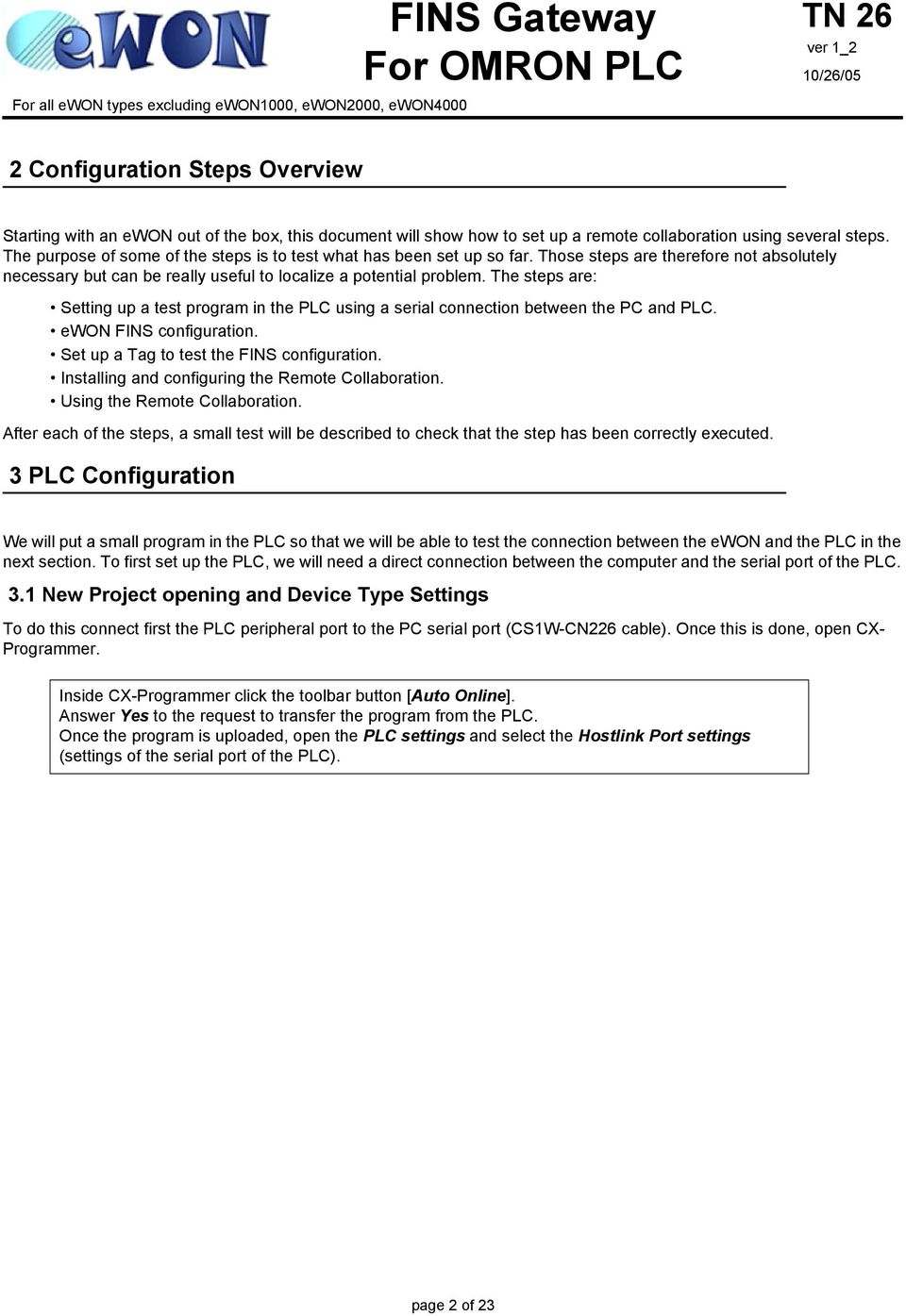
2 For OMRON PLC For all ewon types excluding ewon1000, ewon2000, ewon Configuration Steps Overview Starting with an ewon out of the box, this document will show how to set up a remote collaboration using several steps. The purpose of some of the steps is to test what has been set up so far. Those steps are therefore not absolutely necessary but can be really useful to localize a potential problem. The steps are: Setting up a test program in the PLC using a serial connection between the PC and PLC. ewon FINS configuration. Set up a Tag to test the FINS configuration. Installing and configuring the Remote Collaboration. Using the Remote Collaboration. After each of the steps, a small test will be described to check that the step has been correctly executed. 3 PLC Configuration We will put a small program in the PLC so that we will be able to test the connection between the ewon and the PLC in the next section. To first set up the PLC, we will need a direct connection between the computer and the serial port of the PLC. 3.1 New Project opening and Device Type Settings To do this connect first the PLC peripheral port to the PC serial port (CS1W-CN226 cable). Once this is done, open CX- Programmer. Inside CX-Programmer click the toolbar button [Auto Online]. Answer Yes to the request to transfer the program from the PLC. Once the program is uploaded, open the PLC settings and select the Hostlink Port settings (settings of the serial port of the PLC). page 2 of 23
3 The following window will pop up: Set the Communication Settings and the Hostlink unit to the values defined in the previous picture and download the settings to the PLC. Connect the PLC serial port to the PC serial port (XW2Z-200S-V cable). Inside CX-Programmer close the project and click the toolbar button New. page 3 of 23

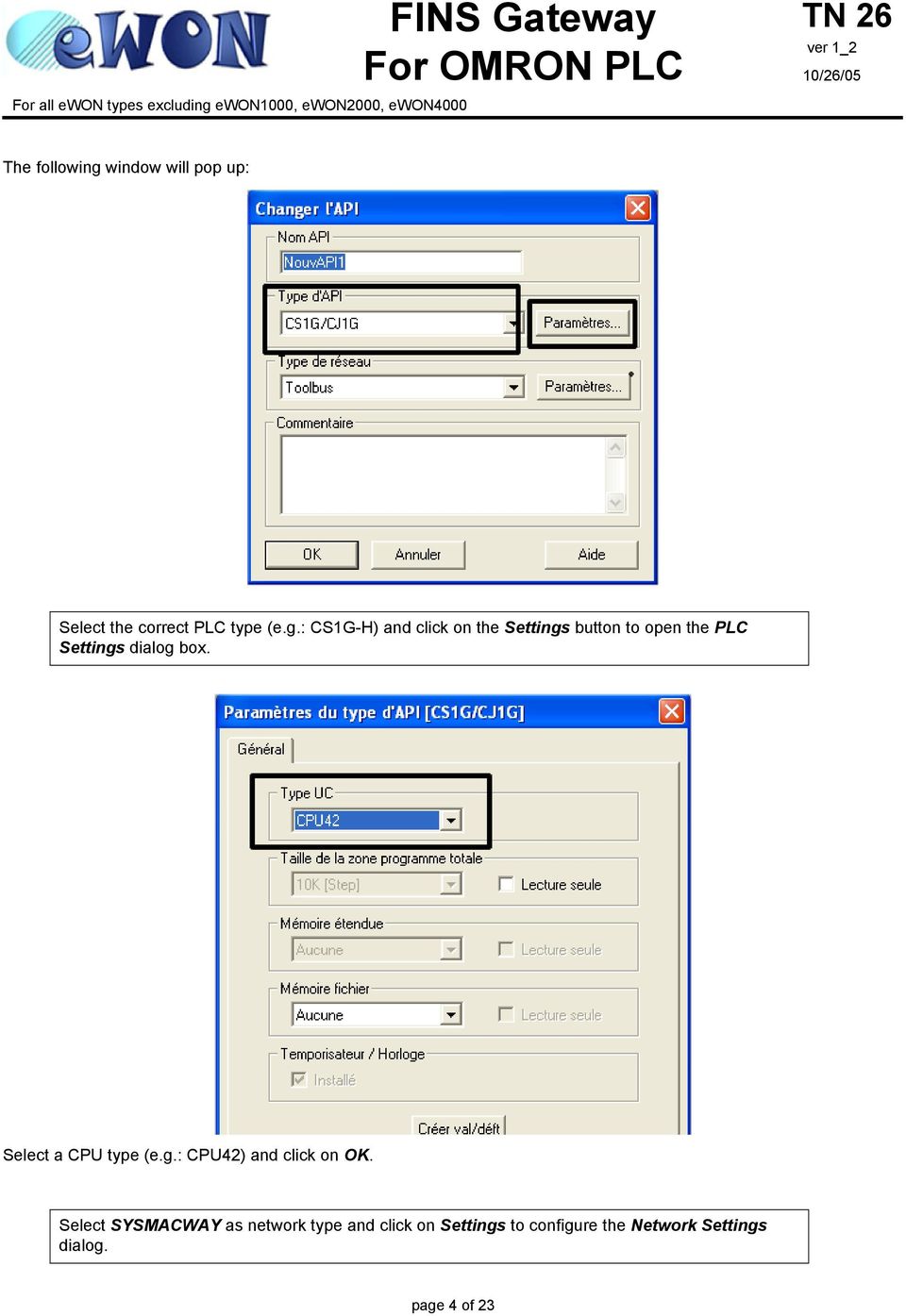
4 For OMRON PLC For all ewon types excluding ewon1000, ewon2000, ewon4000 The following window will pop up: Select the correct PLC type (e.g.: CS1G-H) and click on the Settings button to open the PLC Settings dialog box. Select a CPU type (e.g.: CPU42) and click on OK. Select SYSMACWAY as network type and click on Settings to configure the Network Settings dialog. page 4 of 23
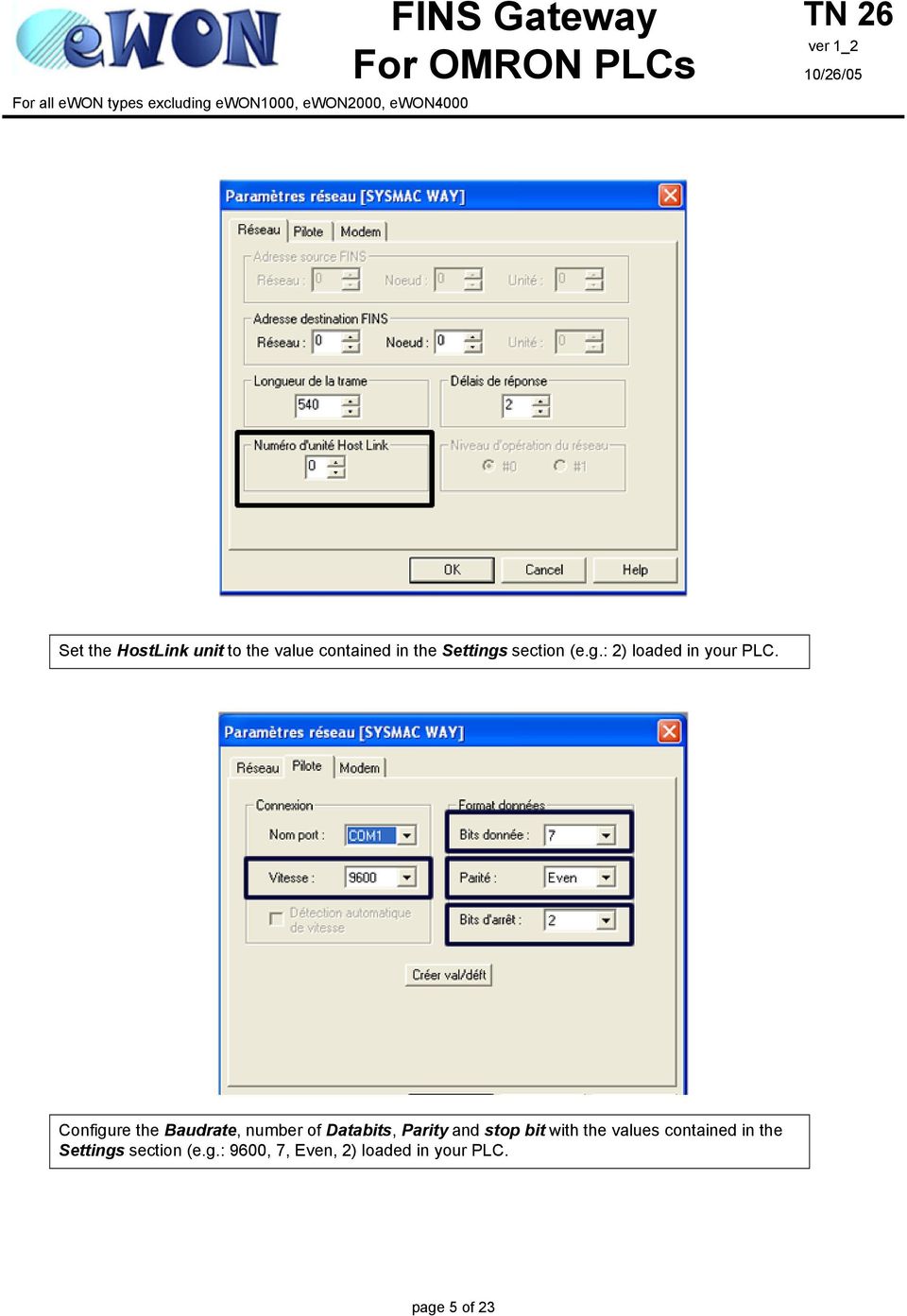
5 Set the HostLink unit to the value contained in the Settings section (e.g.: 2) loaded in your PLC. Configure the Baudrate, number of Databits, Parity and stop bit with the values contained in the Settings section (e.g.: 9600, 7, Even, 2) loaded in your PLC. page 5 of 23
6 For OMRON PLC For all ewon types excluding ewon1000, ewon2000, ewon PLC Test program Click the toolbar button [Work Online]. Once the mode of the PLC appears (e.g.: MONITOR), transfer the current program from the PLC and save it. If you already have a program installed in the PLC, save it. Go offline and create the following program: Transfer the program from the PC to the PLC. page 6 of 23

7 4 ewon Configuration 4.1 ewon IP address configuration In this section, we will show how to configure the ewon to access the PLC registers through an IO server configuration. The forwarding will be treated later. Setting the ewon IP Address The ewon is configured through its web server*. Right out of the box, the ewon has as IP address. You can find the ebuddy utility on the ewon web site ( (Support/Download Software)). This utility allows to find an ewon on the network and to change its IP address to match your LAN IP adresses range. * It is also possible to configure the ewon by dropping into it a file using an FTP client, but this is a more complex process that is explained in the ewon User Guide. Finding an ewon on the network with ebuddy Launch ebuddy.exe and click CTRL+L to switch in list mode if not the case. The list of the ewons that are connected on the network then appears: Setting the IP address from an ewon If the ewon you want to set the IP address is in the list, just right-click on it, and select Set IP Address in the contextual menu (if the ewon is not in the list, then right-click in the blank area under the list): page 7 of 23
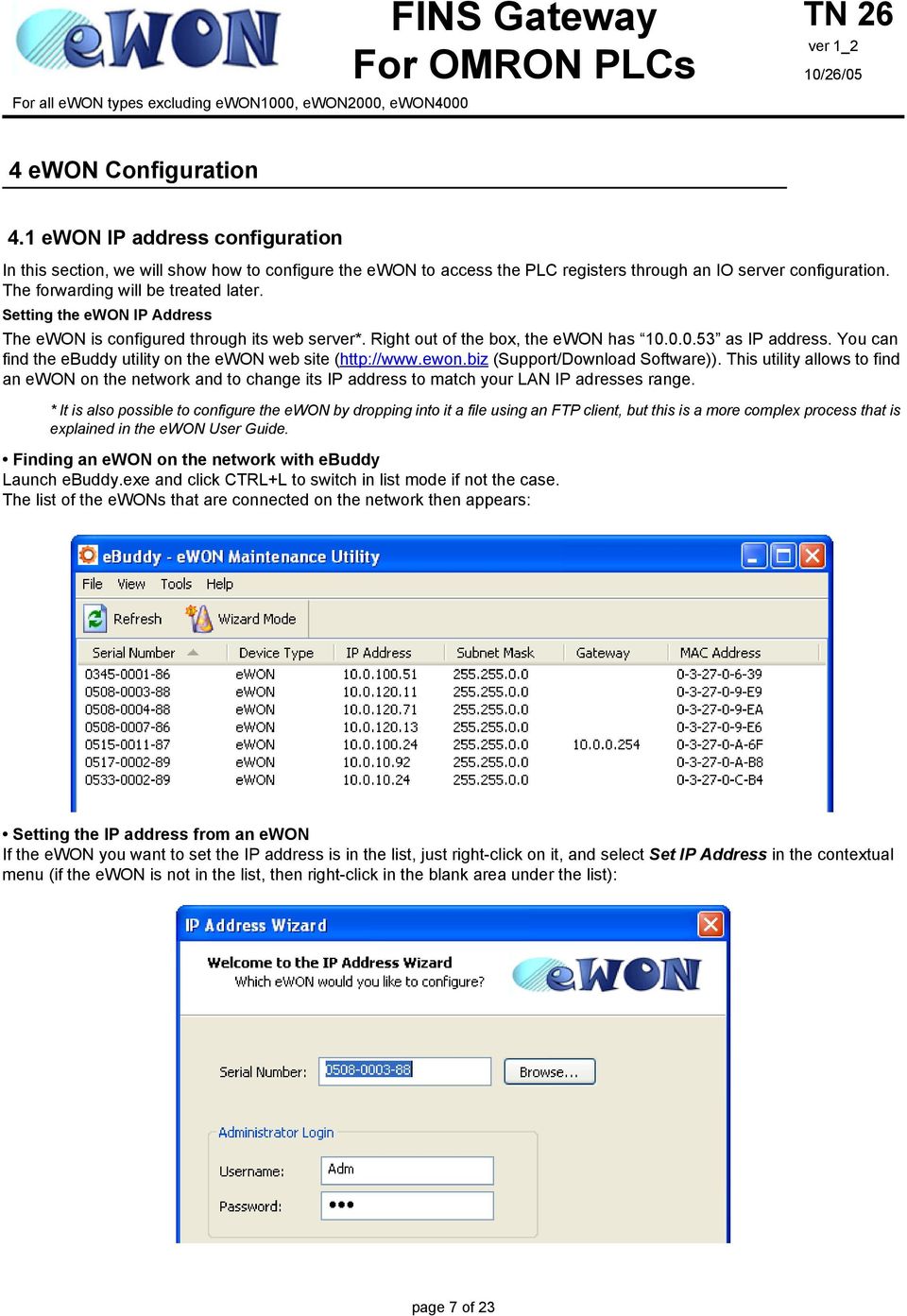
8 For OMRON PLC For all ewon types excluding ewon1000, ewon2000, ewon4000 Enter the ewon serial number in the Serial Number field if not yet done, or click on the Browse button. In this case, the dialog box below then displays: Select the ewon of which IP address you want to modify and click OK. You then come back to the previous wizard page, in which you must then enter the Username and Password fields that are required to connect to the ewon: page 8 of 23

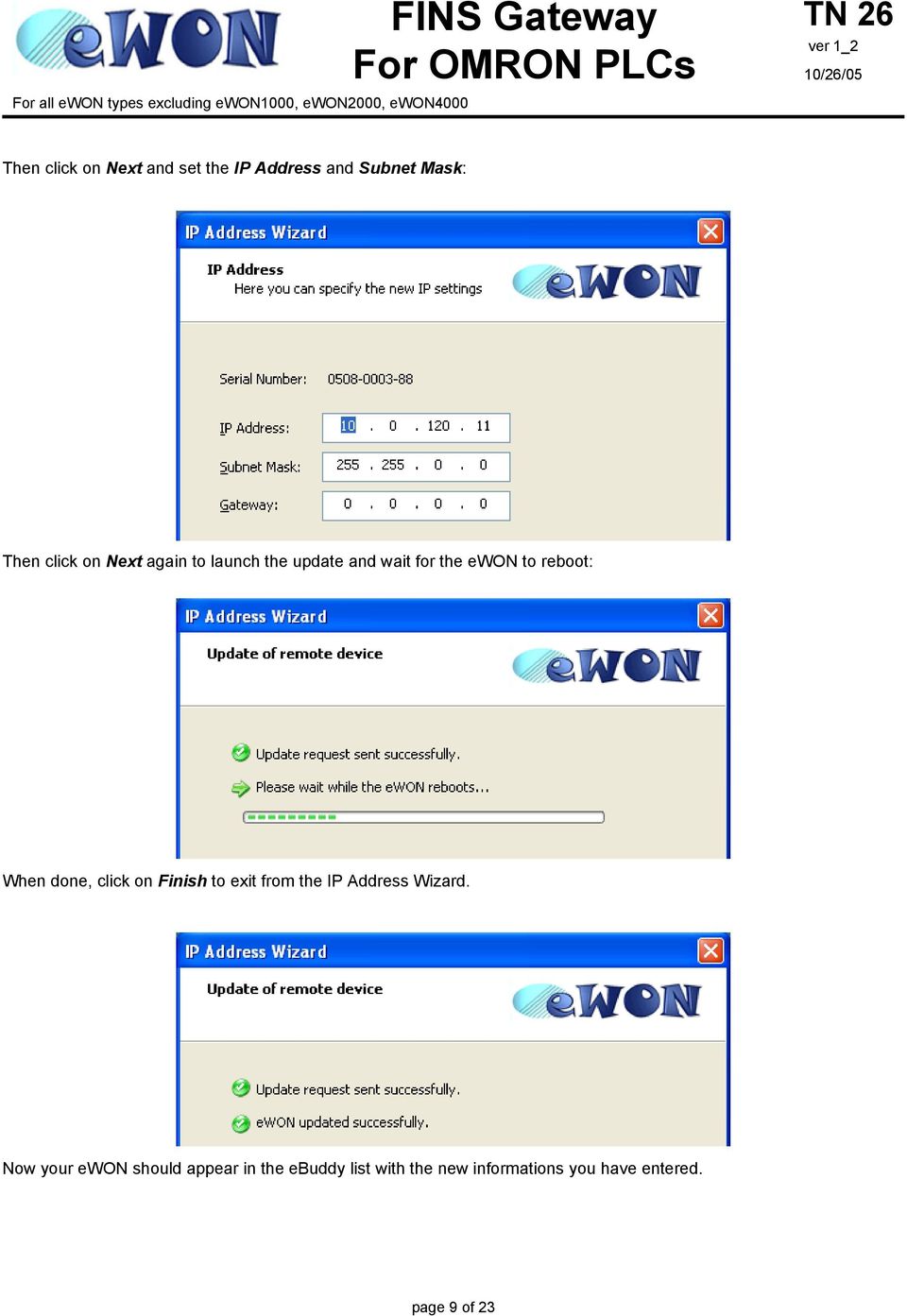
9 Then click on Next and set the IP Address and Subnet Mask: Then click on Next again to launch the update and wait for the ewon to reboot: When done, click on Finish to exit from the IP Address Wizard. Now your ewon should appear in the ebuddy list with the new informations you have entered. page 9 of 23
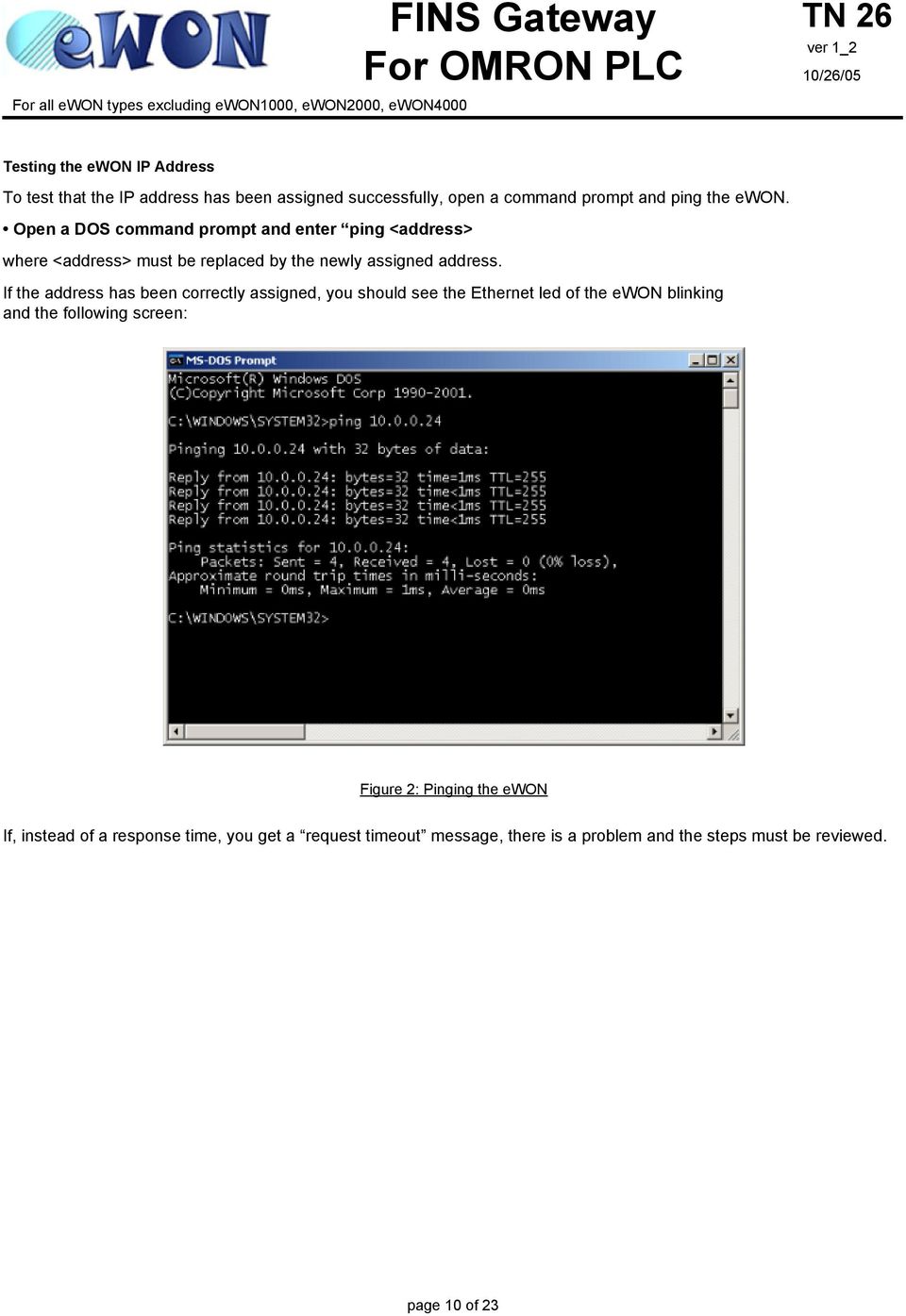
10 For OMRON PLC For all ewon types excluding ewon1000, ewon2000, ewon4000 Testing the ewon IP Address To test that the IP address has been assigned successfully, open a command prompt and ping the ewon. Open a DOS command prompt and enter ping <address> where <address> must be replaced by the newly assigned address. If the address has been correctly assigned, you should see the Ethernet led of the ewon blinking and the following screen: Figure 2: Pinging the ewon If, instead of a response time, you get a request timeout message, there is a problem and the steps must be reviewed. page 10 of 23
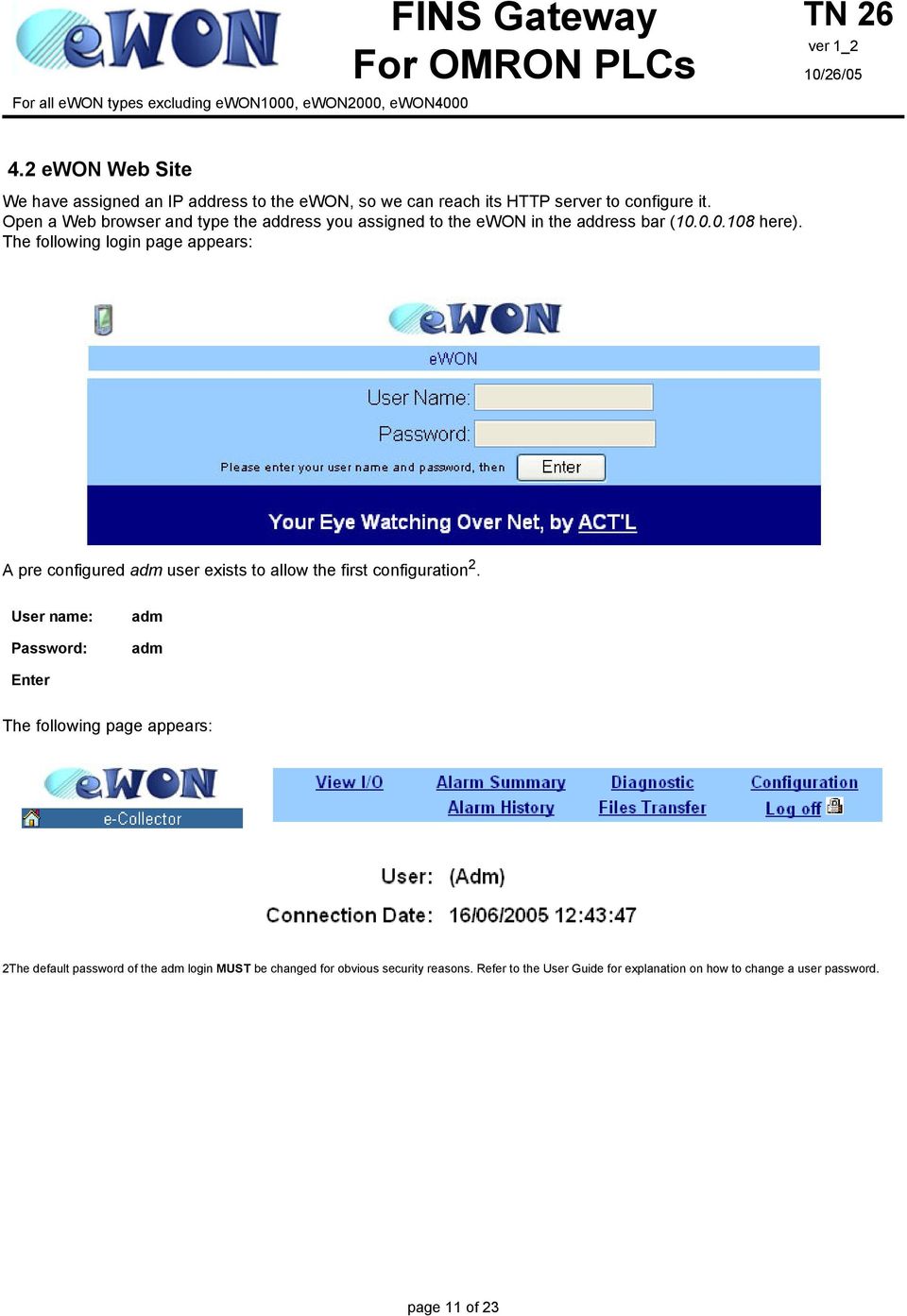
11 4.2 ewon Web Site We have assigned an IP address to the ewon, so we can reach its HTTP server to configure it. Open a Web browser and type the address you assigned to the ewon in the address bar ( here). The following login page appears: A pre configured adm user exists to allow the first configuration 2. User name: Password: adm adm Enter The following page appears: 2The default password of the adm login MUST be changed for obvious security reasons. Refer to the User Guide for explanation on how to change a user password. page 11 of 23
12 For OMRON PLC For all ewon types excluding ewon1000, ewon2000, ewon FINS IO Server Now that we have access to its web site, we will configure the ewon to connect to a FINS PLC. The ewon embeds what is called IO Servers. Those servers are responsible of collecting the data on the PLCs and make them available for further usage. Once the ewon can interact with the PLC, the variables of the PLC will be available as Tags. Connect the PLC serial port to the ewon serial port (by means of the XW2Z-200S-V or XW2Z-S002 cable -see chapter XW2Z-S002 cable between ewon and OMRON PLC - Pinout on page 23). The IO servers are configured by using a specific web page you can reach by following the link: Configuration / IO Server Config The following web page appears: Set FINS in the IO Server drop down box. The following page appears: page 12 of 23
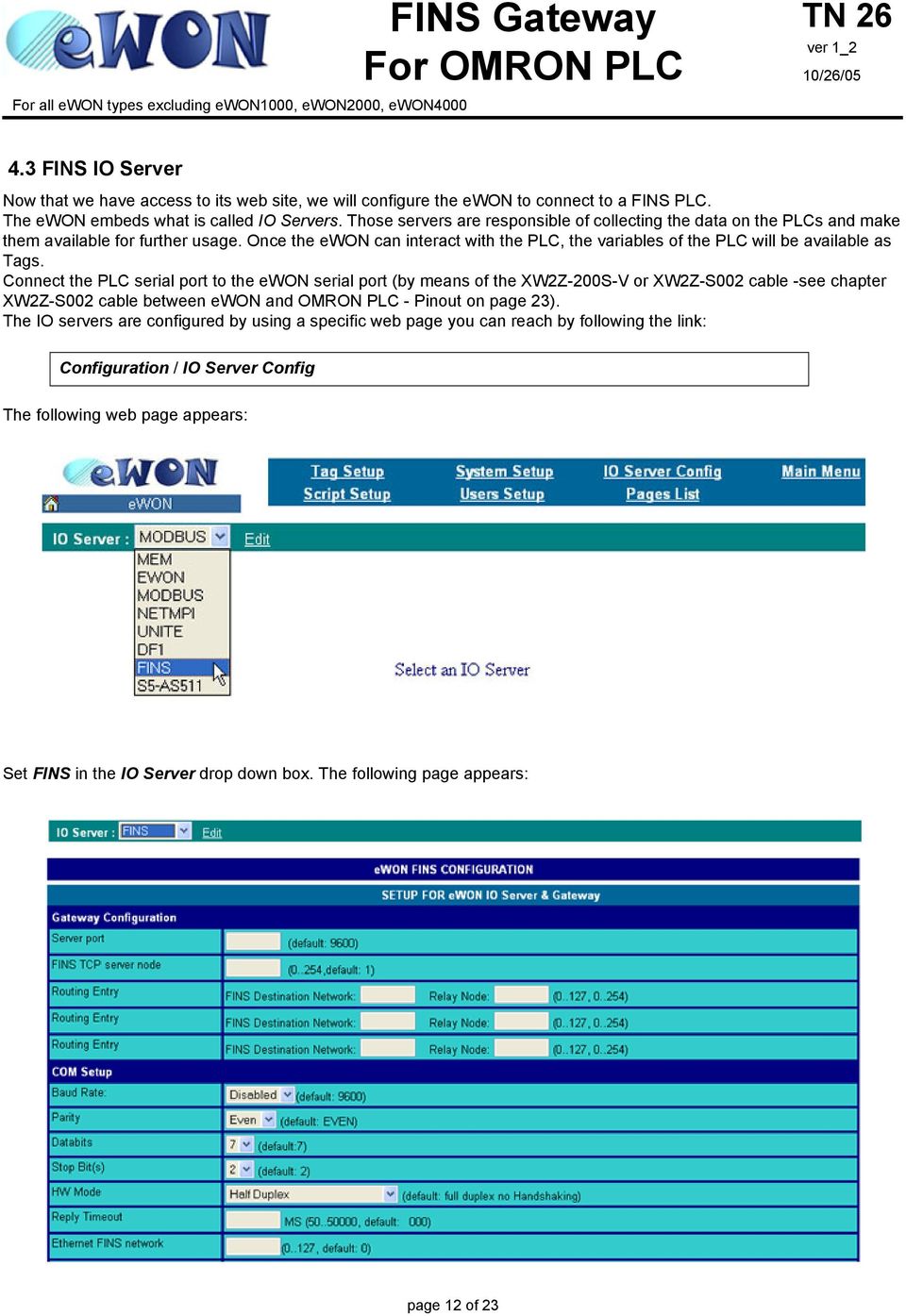
13 Set the Baud Rate, Parity, Databits, Stop Bit(s), and HW Mode to 9600, Even parity, 7 data bits, 2 stop bits, Full Duplex NO Handshaking. Set the Reply Timeout to Check the Enabled box for topic A. Set the Protocol to Fins Serial. Set the Global Device Address to 0,0,2. Set the Polling Rate of topic A at Update Config Checking the FINS connection We will now create a Tag to read a variable on the PLC. The creation of a Tag is done in the Tag Setup page. Configuration / Tag Setup The following page appears: Select Create New Tag The Tag Setup page appears. The page is composed of four or six parts (depending on the ewon type) that allow you to configure the Tag configuration fields (such as the Tag name and Tag Description, The Tag I/O Server Setup, the Tag visibility,...). In this tutorial, we will only care about the Tag name and IO server. page 13 of 23
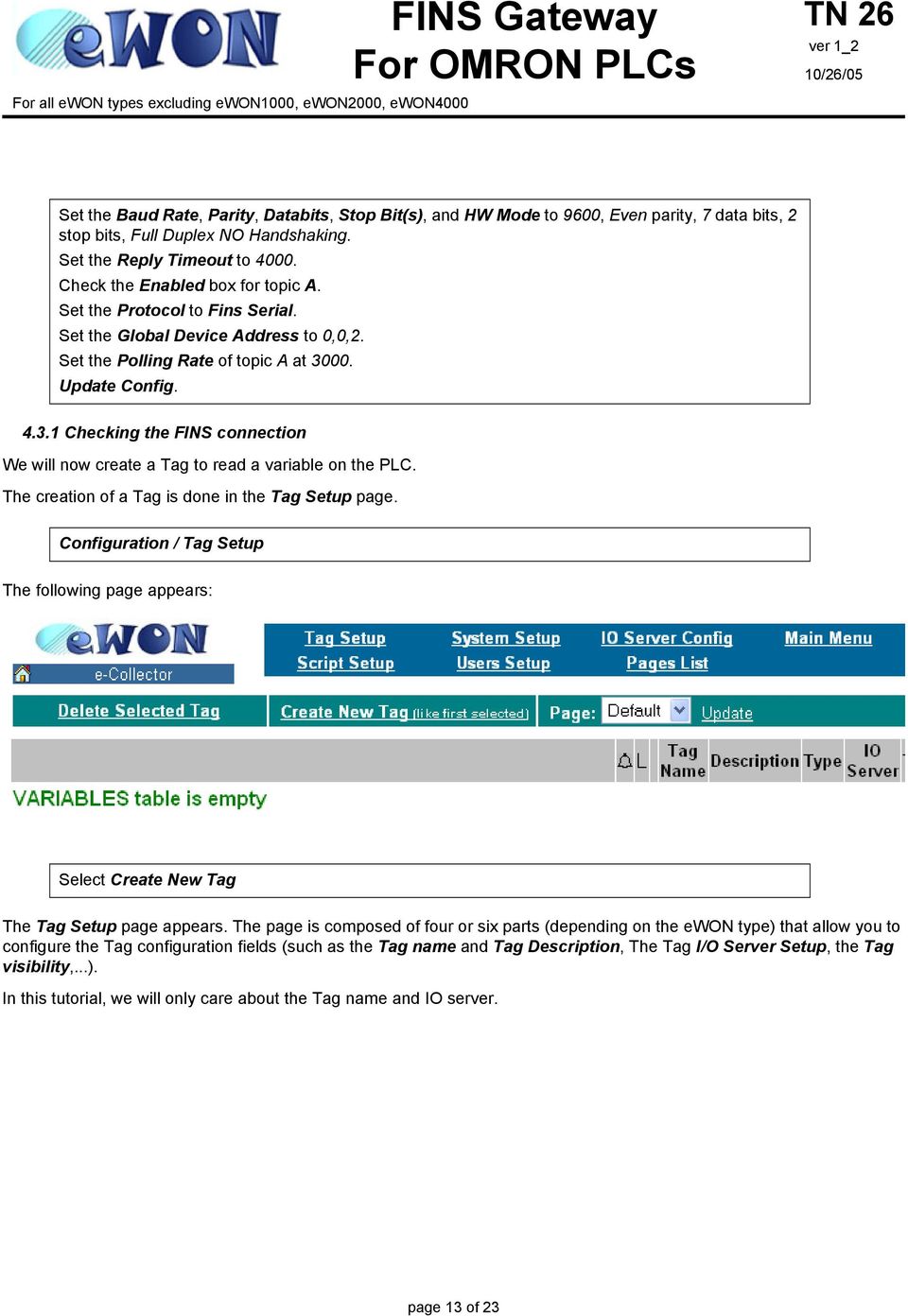
14 For OMRON PLC For all ewon types excluding ewon1000, ewon2000, ewon4000 Set the Tag Name to DM0. Set the Page to Default. Set the Tag Description to "DM0 binary incrementation". Set the Server Name to FINS. Set the Topic Name to A. Set the Address to D0. Set the Type to Analog. Let the ewon value to 1 and 0. Add/Update Only. The following page appears: Now that we have a Tag, we will check it's value: Main Menu / View I/O page 14 of 23

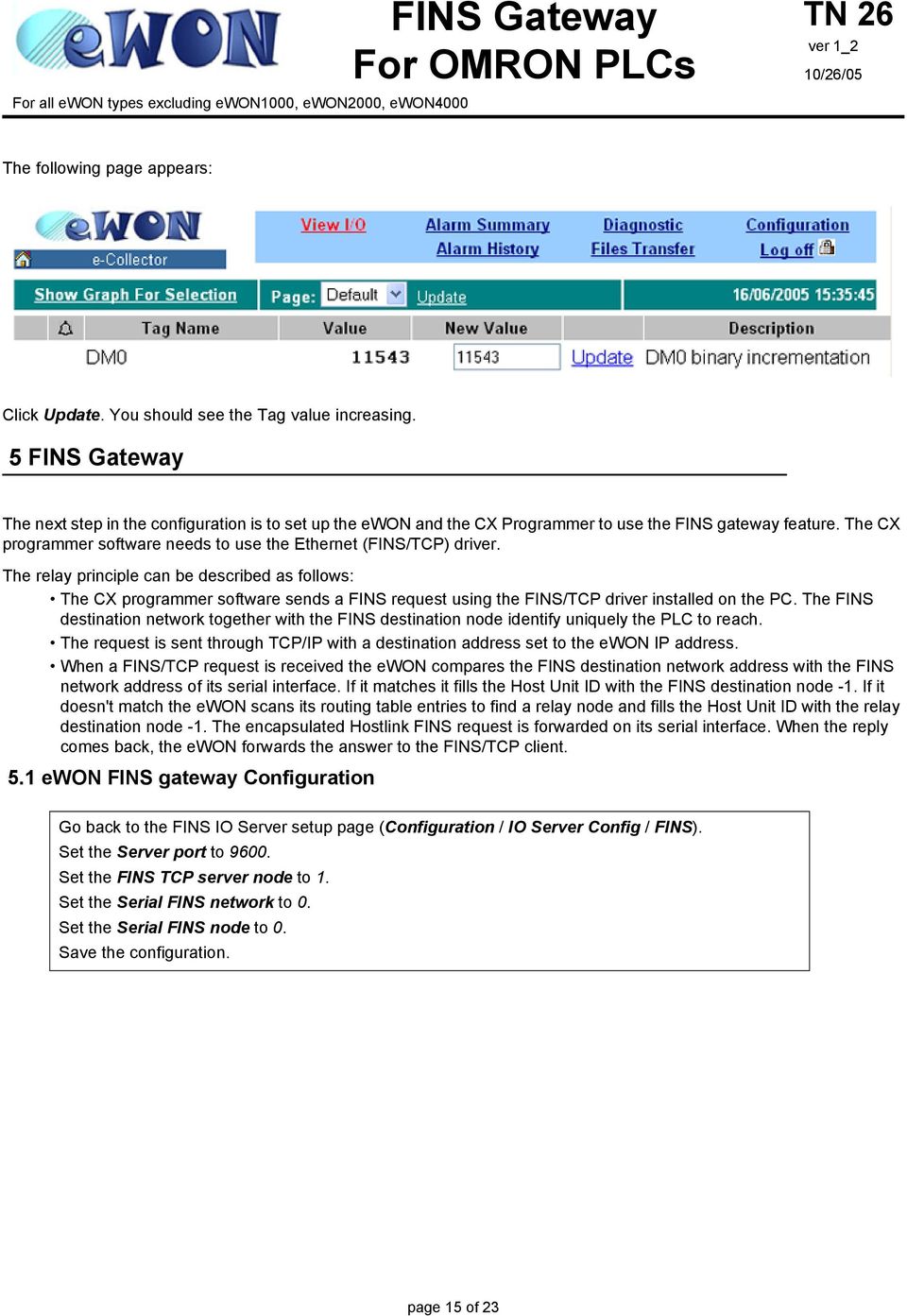
15 The following page appears: Click Update. You should see the Tag value increasing. 5 The next step in the configuration is to set up the ewon and the CX Programmer to use the FINS gateway feature. The CX programmer software needs to use the Ethernet (FINS/TCP) driver. The relay principle can be described as follows: The CX programmer software sends a FINS request using the FINS/TCP driver installed on the PC. The FINS destination network together with the FINS destination node identify uniquely the PLC to reach. The request is sent through TCP/IP with a destination address set to the ewon IP address. When a FINS/TCP request is received the ewon compares the FINS destination network address with the FINS network address of its serial interface. If it matches it fills the Host Unit ID with the FINS destination node -1. If it doesn't match the ewon scans its routing table entries to find a relay node and fills the Host Unit ID with the relay destination node -1. The encapsulated Hostlink FINS request is forwarded on its serial interface. When the reply comes back, the ewon forwards the answer to the FINS/TCP client. 5.1 ewon FINS gateway Configuration Go back to the FINS IO Server setup page (Configuration / IO Server Config / FINS). Set the Server port to Set the FINS TCP server node to 1. Set the Serial FINS network to 0. Set the Serial FINS node to 0. Save the configuration. page 15 of 23
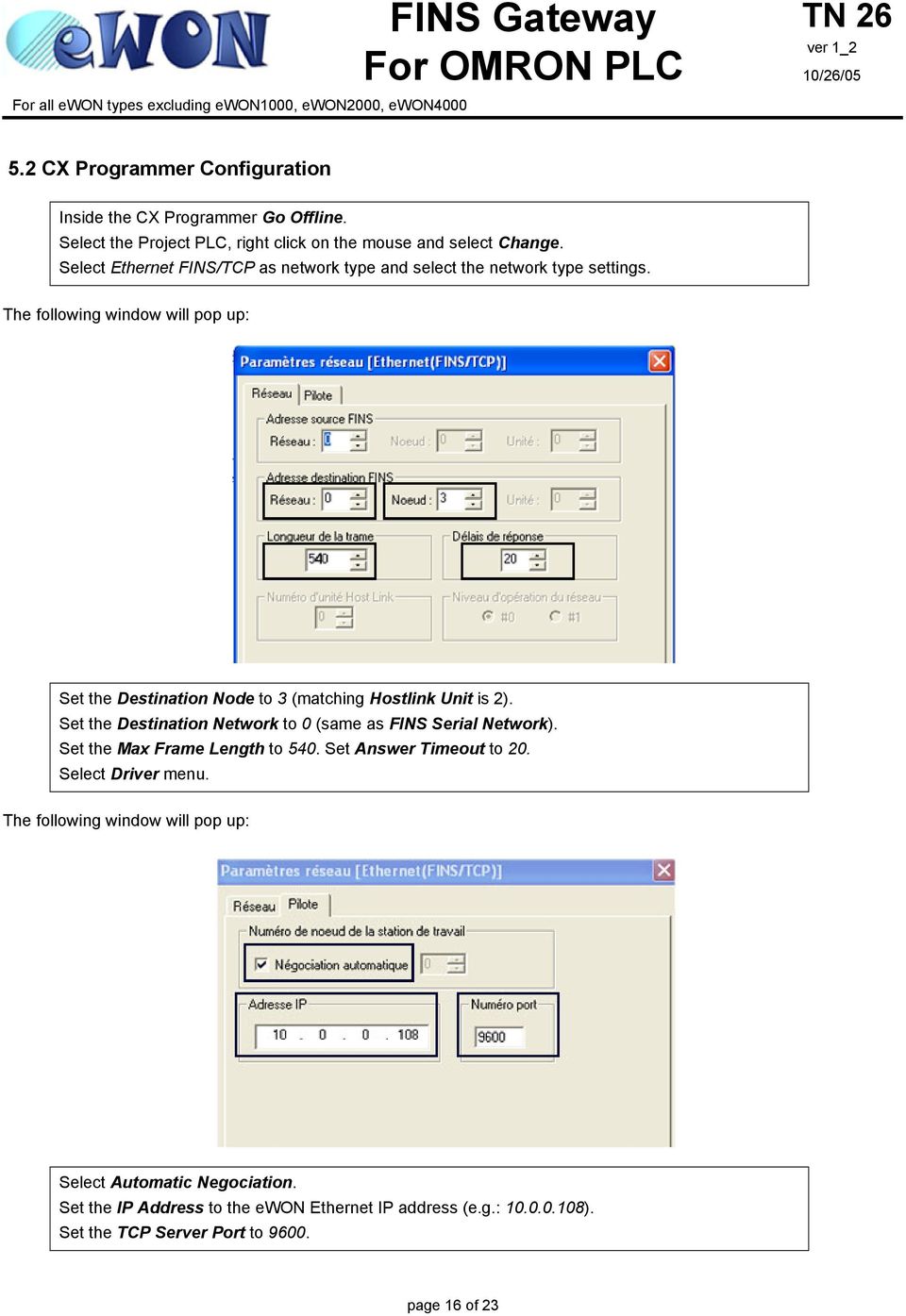
16 For OMRON PLC For all ewon types excluding ewon1000, ewon2000, ewon CX Programmer Configuration Inside the CX Programmer Go Offline. Select the Project PLC, right click on the mouse and select Change. Select Ethernet FINS/TCP as network type and select the network type settings. The following window will pop up: Set the Destination Node to 3 (matching Hostlink Unit is 2). Set the Destination Network to 0 (same as FINS Serial Network). Set the Max Frame Length to 540. Set Answer Timeout to 20. Select Driver menu. The following window will pop up: Select Automatic Negociation. Set the IP Address to the ewon Ethernet IP address (e.g.: ). Set the TCP Server Port to page 16 of 23
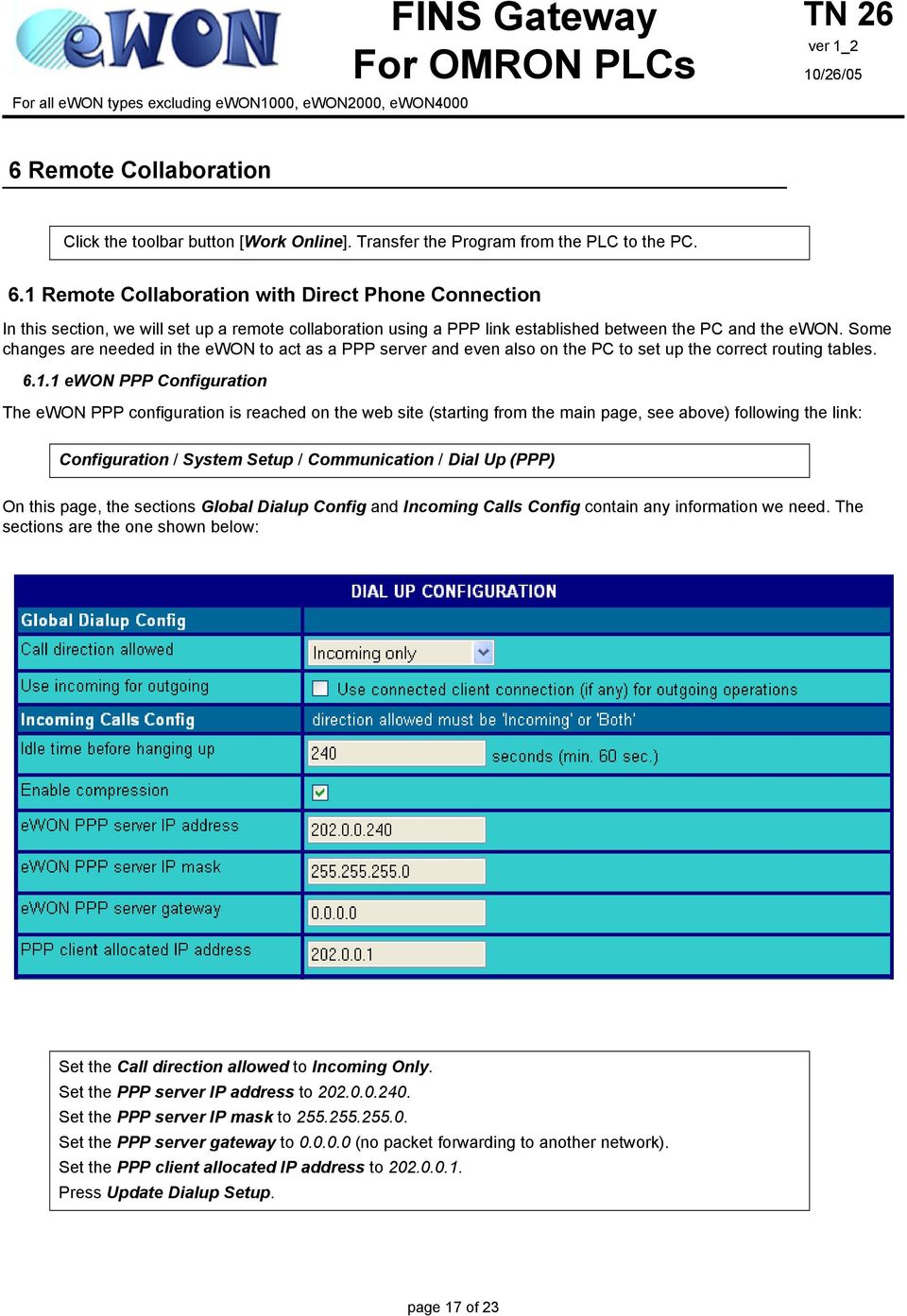
17 6 Remote Collaboration Click the toolbar button [Work Online]. Transfer the Program from the PLC to the PC. 6.1 Remote Collaboration with Direct Phone Connection In this section, we will set up a remote collaboration using a PPP link established between the PC and the ewon. Some changes are needed in the ewon to act as a PPP server and even also on the PC to set up the correct routing tables ewon PPP Configuration The ewon PPP configuration is reached on the web site (starting from the main page, see above) following the link: Configuration / System Setup / Communication / Dial Up (PPP) On this page, the sections Global Dialup Config and Incoming Calls Config contain any information we need. The sections are the one shown below: Set the Call direction allowed to Incoming Only. Set the PPP server IP address to Set the PPP server IP mask to Set the PPP server gateway to (no packet forwarding to another network). Set the PPP client allocated IP address to Press Update Dialup Setup. page 17 of 23
18 For OMRON PLC For all ewon types excluding ewon1000, ewon2000, ewon CX Programmer Driver Configuration The IP address of the remote host must be set to the ewon PPP server IP address (on the previous figure, this is ). Inside the CX Programmer Go Offline. Select the Project PLC, right click on the mouse and select Change. Select the Network Type Settings. Change the IP address on the remote host to Starting the Remote Collaboration Call the ewon with the username adm and the password adm and wait for the connection to be established, this step can take up to a minute. To test the connection, you can ping the ewon at its address Click the toolbar button [Work Online]. Transfer the Program from the PLC to the PC. The PLC is now accessible as if you were directly connected to it. 6.2 Remote Collaboration through Internet In the previous section, the IP address of the ewon was known at connection time. If the ewon is used with callback to connect to Internet, the IP address allocated to the ewon is assigned by the ISP and is usually different at each connection. We must therefore ask the ewon to publish its IP address after it has been assigned by the ISP so that we can configure the CX Programmer Ethernet FINS/TCP driver to use that address ISP Configuration The ISP phone number, login and password must be configured to allow the ewon to connect to Internet. This is done in the Dial up (PPP) section we have already seen before: Set the Call direction allowed to Incoming & Outgoing. page 18 of 23
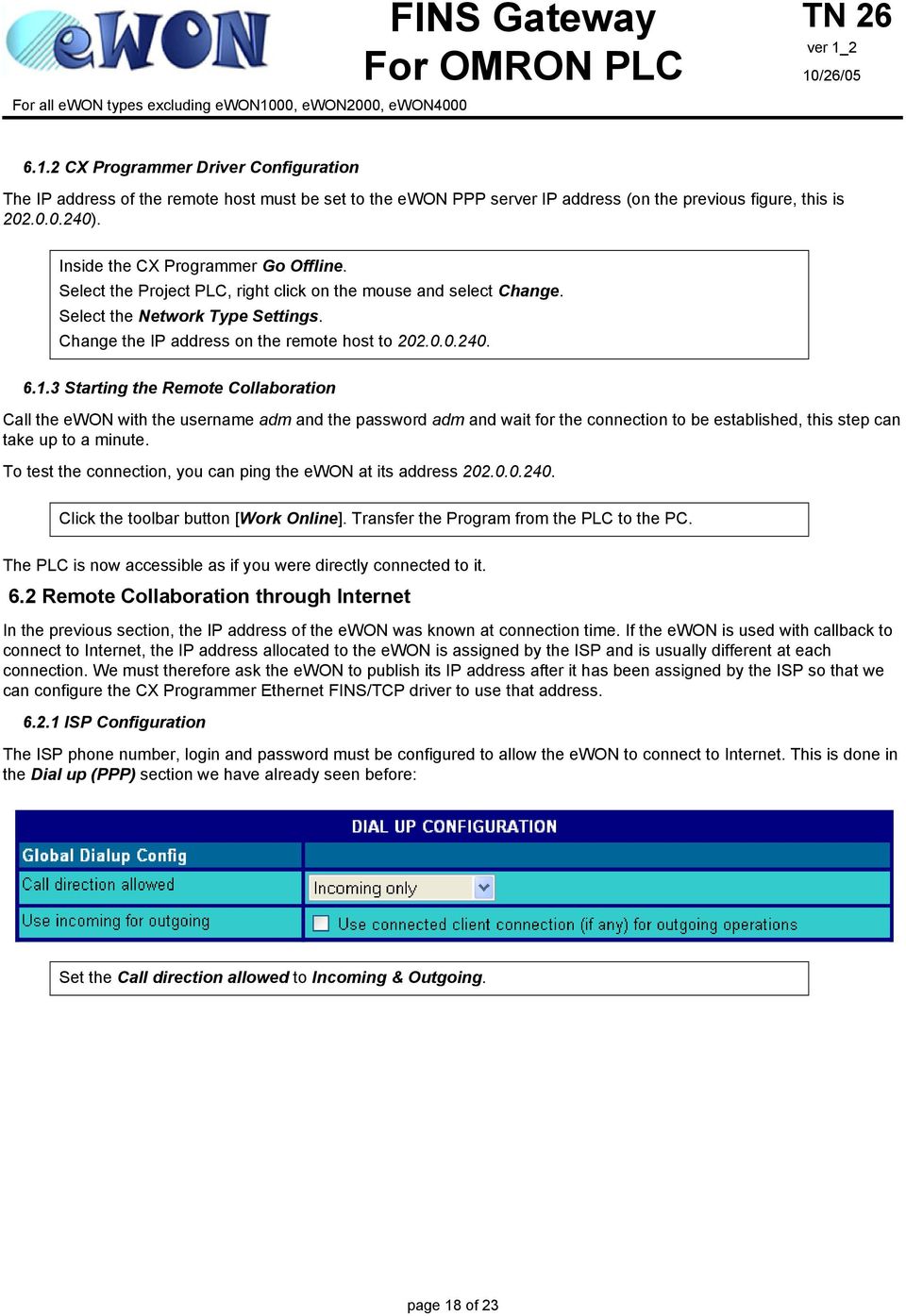
19 Depending on your ISP, other parameters like Compression or CHAP could be necessary. Enter the Server Phone Number, User Name and Password provided by your ISP in the Primary Server. Let the Secondary Server fields empty. page 19 of 23

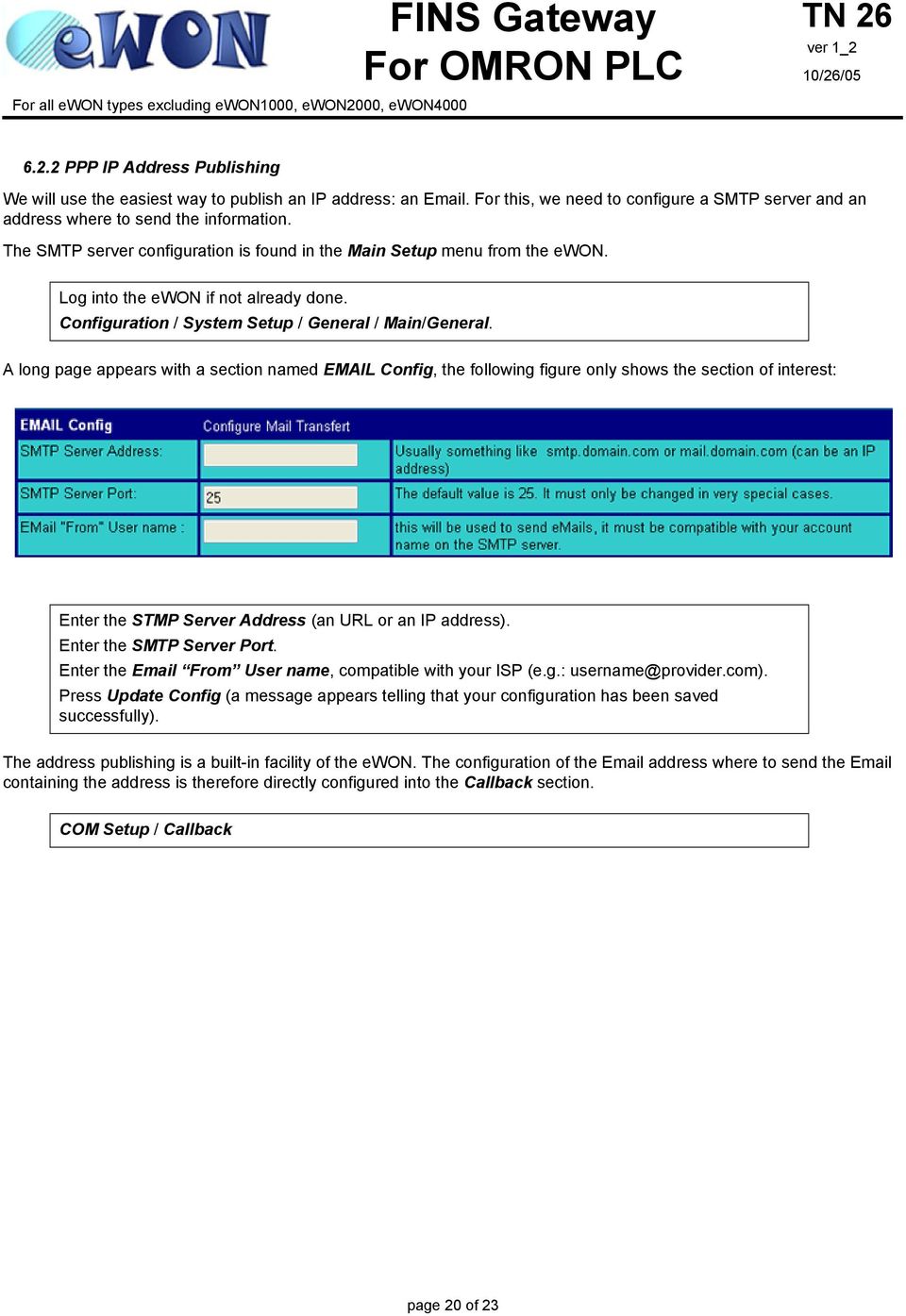
20 For OMRON PLC For all ewon types excluding ewon1000, ewon2000, ewon PPP IP Address Publishing We will use the easiest way to publish an IP address: an . For this, we need to configure a SMTP server and an address where to send the information. The SMTP server configuration is found in the Main Setup menu from the ewon. Log into the ewon if not already done. Configuration / System Setup / General / Main/General. A long page appears with a section named Config, the following figure only shows the section of interest: Enter the STMP Server Address (an URL or an IP address). Enter the SMTP Server Port. Enter the From User name, compatible with your ISP (e.g.: [email protected]). Press Update Config (a message appears telling that your configuration has been saved successfully). The address publishing is a built-in facility of the ewon. The configuration of the address where to send the containing the address is therefore directly configured into the Callback section. COM Setup / Callback page 20 of 23
21 The following page appears: Check the Enabled box. Enter your address in the field Publish IP address . Press Update Callback Setup. page 21 of 23
22 For OMRON PLC For all ewon types excluding ewon1000, ewon2000, ewon Starting the Remote Collaboration Call the ewon and let ring four times, then hang up. The ewon calls back the ISP, connects itself to Internet and sends an with its IP address. You will receive an named ewon callback looking like the following one: We need to configure the OMRON Ethernet TCP FINS driver with the address we received in the Inside the CX Programmer: Select the Project PLC, right click on the mouse and select Change. Select the Network Type Settings. Change the IP address on the remote host to the address that has been mail-published by the ewon. Click the [Work Online] button in the toolbar. page 22 of 23
23 7Appendix 7.1 XW2Z-S002 cable between ewon and OMRON PLC - Pinout 9pin Dsub (Female) 9pin Dsub (Male) 3 SD SD 2 2 RD RD 3 7 RS RS 4 8 CS CS 5 5 SG SG 9 ewon NS-series PT Table 1: XW2Z-S002 cable pinout page 23 of 23
Talk2M ewon Internet Connection How To
 AUG: 003 Rev.: 1.0 How To GPRS Contents: This guide will explain how to set up the Internet connection of your ewon for the Talk2M connection. Table of Contents 1. Hardware and software requirements...
USER GUIDE. Ethernet Configuration Guide (Lantronix) P/N: 2900-300321 Rev 6
 KRAMER ELECTRONICS LTD. USER GUIDE Ethernet Configuration Guide (Lantronix) P/N: 2900-300321 Rev 6 Contents 1 Connecting to the Kramer Device via the Ethernet Port 1 1.1 Connecting the Ethernet Port Directly
Remote Access for Schneider Electric Modicon Micro & Premium Series PLCs
 ewon Application Guide AUG 038 / Rev 1.0 Contents Remote Access for Schneider Electric Modicon Micro & Premium Series PLCs This guide explains in a few steps how to configure your ewon, your Talk2M account
Prestige 202H Plus. Quick Start Guide. ISDN Internet Access Router. Version 3.40 12/2004
 Prestige 202H Plus ISDN Internet Access Router Quick Start Guide Version 3.40 12/2004 Table of Contents 1 Introducing the Prestige...3 2 Hardware Installation...4 2.1 Rear Panel...4 2.2 The Front Panel
SITRANS RD500 Configuring the RD500 with PSTN or GSM modems and Windows-based servers and clients for communication Objective:
 AG041410 SITRANS RD500 Configuring the RD500 with PSTN or GSM modems and Windows-based servers and clients for communication Objective: Determine how to configure the RD500 and your PSTN or GSM modem APPLICATION
P-660R-T1/T3 v2 Quick Start Guide
 P-660R-T1/T3 v2 ADSL2+ Access Router Quick Start Guide Version 3.40 Edition 1 12/2006 0 Overview P-660R-T1/T3 v2 Quick Start Guide This Quick Start Guide shows you how to: 1 Connect the Hardware 2 Set
Prestige 324. Prestige 324. Intelligent Broadband Sharing Gateway. Version 3.60 January 2003 Quick Start Guide
 Prestige 324 Intelligent Broadband Sharing Gateway Version 3.60 January 2003 Quick Start Guide 1 Introducing the Prestige The Prestige is a broadband sharing gateway with a built-in four-port 10/100 Mbps
ETHERNET WEATHER STATION CONNECTIONS Application Note 33
 ETHERNET WEATHER STATION CONNECTIONS Application Note 33 With WeatherLink and a Device Server INTRODUCTION It is possible to substitute an Ethernet connection for the direct USB or serial connection that
Connecting the DG-102S VoIP Gateway to your network
 Contents of Package: DG-102S VoIP Station Gateway Power adapter CD-ROM, including User s Manual Quick Install Guide Requirements: RS-232 Console Cable Two RJ-45 CAT-5 Straight-Through Cables For more information
Prestige 324 Quick Start Guide. Prestige 324. Intelligent Broadband Sharing Gateway. Version V3.61(JF.0) May 2004 Quick Start Guide
 Prestige 324 Intelligent Broadband Sharing Gateway Version V3.61(JF.0) May 2004 Quick Start Guide 1 1 Introducing the Prestige The Prestige is a broadband sharing gateway with a built-in four-port 10/100
Andover Continuum Remote Communication Configuration Guide
 Andover Continuum Remote Communication Configuration Guide 2010, Schneider Electric All Rights Reserved No part of this publication may be reproduced, read or stored in a retrieval system, or transmitted,
Internet Access to a DVR365
 Configuration Details : Internet Access to DVR365 Page : 1 Internet Access to a DVR365 These instructions will show you how to connect your DVR365 to the internet via an ADSL broadband modem/router. The
Technical Note. Configuring an Omron PLC with Omron FINS Ethernet Driver. 1. Introduction
 Technical Note Configuring an Omron PLC with Omron FINS Ethernet Driver 1. Introduction This document describes how to configure an Omron PLC with a FINS-enabled Ethernet module and the Omron FINS Ethernet
Quick Note 32. Using Digi RealPort with a Digi TransPort Router. UK Support September 2012
 Quick Note 32 Using Digi RealPort with a Digi TransPort Router UK Support September 2012 1 Contents 1 Introduction... 3 1.1 Outline... 3 1.2 Assumptions... 3 1.3 Version... 3 2 Configuration & scenario...
ewon-vpn - User Guide Virtual Private Network by ewons
 VPN : what is it? A virtual private network (VPN) is a private communications network usually used within a company, or by several different companies or organizations, to communicate over a public network
Multi-Homing Dual WAN Firewall Router
 Multi-Homing Dual WAN Firewall Router Quick Installation Guide M73-APO09-400 Multi-Homing Dual WAN Firewall Router Overview The Multi-Homing Dual WAN Firewall Router provides three 10/100Mbit Ethernet
Firewall VPN Router. Quick Installation Guide M73-APO09-380
 Firewall VPN Router Quick Installation Guide M73-APO09-380 Firewall VPN Router Overview The Firewall VPN Router provides three 10/100Mbit Ethernet network interface ports which are the Internal/LAN, External/WAN,
P-660R-TxC Series. ADSL2+ Access Router. Quick Start Guide
 P-660R-TxC Series ADSL2+ Access Router Quick Start Guide Version 3.40 Edition 1 2/2006 Overview The P-660R-TxC ADSL2+ access router is the ideal device for small networks connecting to the Internet via
9236245 Issue 2EN. Nokia and Nokia Connecting People are registered trademarks of Nokia Corporation
 9236245 Issue 2EN Nokia and Nokia Connecting People are registered trademarks of Nokia Corporation Nokia 9300 Configuring connection settings Legal Notice Copyright Nokia 2005. All rights reserved. Reproduction,
How to establish a Leased Line Connection
 How to establish a Leased Line Connection 1 Link two sites using ewon Leased Line To be able to link both sites together, the following rules must be fulfilled: ewon client and ewon server IP addresses
3.1 RS-232/422/485 Pinout:PORT1-4(RJ-45) RJ-45 RS-232 RS-422 RS-485 PIN1 TXD PIN2 RXD PIN3 GND PIN4 PIN5 T+ 485+ PIN6 T- 485- PIN7 R+ PIN8 R-
 MODEL ATC-2004 TCP/IP TO RS-232/422/485 CONVERTER User s Manual 1.1 Introduction The ATC-2004 is a 4 Port RS232/RS485 to TCP/IP converter integrated with a robust system and network management features
This techno knowledge paper can help you if: You need to setup a WAN connection between a Patton Router and a NetGuardian.
 Problem: Patton / 240T WAN Setup Platform: NetGuardian 240T This TKP is a guide to setting up a PPP to T1 WAN connection between a Patton Model 2603 Router and a NetGuardian 240T. The example in this guide
User s Manual TCP/IP TO RS-232/422/485 CONVERTER. 1.1 Introduction. 1.2 Main features. Dynamic DNS
 MODEL ATC-2000 TCP/IP TO RS-232/422/485 CONVERTER User s Manual 1.1 Introduction The ATC-2000 is a RS232/RS485 to TCP/IP converter integrated with a robust system and network management features designed
Palomar College Dial-up Remote Access
 Palomar College Dial-up Remote Access Instructions for Windows 95/98 and Windows 2000 Following are instructions to implement dialup access to the Palomar College network, email and Internet. The minimum
Job Aid: Creating Additional Remote Access Logins
 This job aid describes the steps required to add an additional remote access login to the Avaya S8300, S8500, and S8700 Series Media Servers. These logins may be used to establish a Point to Point Protocol
Broadband Router ESG-103. User s Guide
 Broadband Router ESG-103 User s Guide FCC Warning This equipment has been tested and found to comply with the limits for Class A & Class B digital device, pursuant to Part 15 of the FCC rules. These limits
Setting up VPN connection: DI-824VUP+ with Windows PPTP client
 Setting up VPN connection: DI-824VUP+ with Windows PPTP client DI-824VUP+ (firmware 1.03 or higher) LAN IP: 192.168.0.1 Subnet Mask: 255.255.255.0 WAN IP: 203.111.91.1 Subnet Mask: 255.255.255.252 Default
Chapter 2 Preparing Your Network
 Chapter 2 Preparing Your Network This document describes how to prepare your network to connect to the Internet through a router and how to verify the readiness of your broadband Internet service from
Iridium Extreme TM Satellite Phone. Data Services Manual
 Iridium Extreme TM Satellite Phone Data Services Manual Table of Contents 1 OVERVIEW... 1 2 HOW IT WORKS... 1 3 BEFORE INSTALLING... 2 4 USB DRIVER INSTALLATION... 3 5 MODEM INSTALLATION AND CONFIGURATION...
IP Power Stone 4000 User Manual
 IP Power Stone 4000 User Manual Two Outlet Remote AC Power Controller Multi Link, Inc. 122 Dewey Drive Nicholasville, KY 40356 USA Sales and Tech Support 800.535.4651 FAX 859.885.6619 techsupport@multi
PC/POLL SYSTEMS Version 7 Polling SPS2000 Cash Register TCP/IP Communications
 PC/POLL SYSTEMS Version 7 Polling SPS2000 Cash Register TCP/IP Communications PC/POLL SYSTEMS supports native TCP/IP polling for the SPS2000 cash register. It is recommended users have the register updated
MAX T1/E1. Quick Start Guide. VoIP Gateway. Version 1.0
 MAX T1/E1 TM VoIP Gateway Quick Start Guide Version 1.0 Contents INTRODUCTION 1 Hardware Needed Software Needed 1 1 NET2PHONE MAX SET UP Hardware Set Up Software Set Up Set Up Internet Protocol (IP) Address
Step-by-Step Configuration
 Step-by-Step Configuration Kerio Technologies C 2001-2003 Kerio Technologies. All Rights Reserved. Printing Date: December 17, 2003 This guide provides detailed description on configuration of the local
ewon-configuration for Internet Access using the Wizard How to
 ewon Application User Guide Content You Select, We Connect AUG 019 / Rev 1.1 ewon-configuration for Internet Access using the Wizard How to This guide will explain you how to configure your ewon to access
Schneider OS-Loader usage via Ethernet or USB.
 LHC Gas Systems 28 th February, 2007 Schneider OS-Loader usage via Ethernet or USB. Jacques ROCHEZ - IT/CO/FE Abstract This document is a guideline on how to configure correctly a PC for the use of the
Setting up VPN Access for Remote Diagnostics Support
 Setting up VPN Access for Remote Diagnostics Support D. R. Joseph, Inc. supports both dial-up and Internet access for remote support of 3GIBC1 and LF-Sizer control systems. This document describes how
Chapter7 Setting the Receiving PC for Direct Upload. Setting the Receiving PC for Direct Upload... 148 For Windows... 148 For Macintosh...
 Chapter7 Setting the Receiving PC for Direct Upload Setting the Receiving PC for Direct Upload... 148 For Windows... 148 For Macintosh... 153 Setting the Receiving PC for Direct Upload This section explains
Ethernet Interface Manual Thermal / Label Printer. Rev. 1.01 Metapace T-1. Metapace T-2 Metapace L-1 Metapace L-2
 Ethernet Interface Manual Thermal / Label Printer Rev. 1.01 Metapace T-1 Metapace T-2 Metapace L-1 Metapace L-2 Table of contents 1. Interface setting Guiding...3 2. Manual Information...4 3. Interface
Installing the Microsoft Network Driver Interface
 Installing the Microsoft Network Driver Interface Overview This guide explains how to install the PictureTel Live200 Microsoft Network Driver Interface (NDIS) software you have downloaded from PictureTel's
How to setup PPTP VPN connection with DI-804HV or DI-808HV using Windows PPTP client
 How to setup PPTP VPN connection with DI-804HV or DI-808HV using Windows PPTP client Make sure your DI-804HV or DI-808HV is running firmware ver.1.40 August 12 or later. You can check firmware version
How To Connect To An Egrabit With A Vpn On A Pc Or Mac Or Ipad (For Pc Or Ipa) With A Pv (For Mac) Or Ipv (Femalese) With An Ipv Or Ip
 ewon Application User Guide AUG 052 / Rev 1.0 P Contents egrabit - efive Connection Tool This application guide explains how to use the egrabit software to This application guide connection explains how
Prestige 623R-T. Quick Start Guide. ADSL Dual-link Router. Version 3.40
 Prestige 623R-T ADSL Dual-link Router Quick Start Guide Version 3.40 February 2004 Introducing the Prestige The Prestige 623R-T ADSL Dual-link Router is the ideal all-in-one device for small networks connecting
Talk2M Free+ Remote-Access Connectivity Solution for ewon COSY devices. Getting Started Guide
 Talk2M Free+ Remote-Access Connectivity Solution for ewon COSY devices Getting Started Guide Page 1 of 36 mac-solutions.co.uk DSH : v3 OCT 2014 INTRODUCTION... 3 HARDWARE AND SOFTWARE REQUIREMENTS... 5
OUTDOOR IR NETWORK CAMERA Series
 OUTDOOR IR NETWORK CAMERA Series INSTALLATION GUIDE Please read instructions thoroughly before operation and retain it for future reference. 1. OVERVIEW 1.1 Package Content Network camera Installation
Chapter 10 Troubleshooting
 Chapter 10 Troubleshooting This chapter provides troubleshooting tips and information for your ProSafe Dual WAN Gigabit Firewall with SSL & IPsec VPN. After each problem description, instructions are provided
VPN Direct connection How To
 AUG: 002 Rev.: 1.0 How To GPRS Contents: This guide will explain how to configure your ewon to establish a direct VPN connection between your PC and your ewon using ecatcher. Table of Contents 1. Hardware
Guideline for setting up a functional VPN
 Guideline for setting up a functional VPN Why do I want a VPN? VPN by definition creates a private, trusted network across an untrusted medium. It allows you to connect offices and people from around the
C-more Remote Access, Data Log, FTP File Transfer, and Email Tutorial
 C-more Remote Access, Data Log, FTP File Transfer, and Email Tutorial P a g e 2 Introduction: This script will walk you through the basic process of setting up the remote access, data logging, FTP file
F2103 GPRS DTU USER MANUAL
 F2103 GPRS DTU USER MANUAL Add:J1-J2,3rd Floor,No.44,GuanRi Road,SoftWare Park,XiaMen,China 1 Zip Code:361008 Contents Chapter 1 Brief Introduction of Product... 3 1.1 General... 3 1.2 Product Features...
Connecting and Setting Up Your Laptop Computer
 CHAPTER 3 Connecting and Setting Up Your Laptop Computer This chapter explains how to connect your laptop to the Cisco Unified MeetingPlace system and how to set up your laptop so that you can use HyperTerminal.
Prestige 2302R Series
 VoIP Station Gateway Quick Start Guide Version 3.60 6/2005 Overview This Quick Start Guide covers the Prestige (P2302R) and (P2302RL) models. It explains how to use your Prestige to make phone calls through
Windows Dial Up Networking (DUN) for AirLink Modems Application Note - How To
 Windows Dial Up Networking (DUN) for AirLink Modems Application Note - How To Dial-up Networking (DUN) allows a computer or other device to use your AirLink modem to connect to the Internet or private
Communications Instructions for DOOSAN, FANUC Controls
 Communications Instructions for DOOSAN, FANUC Controls Ethernet & RS-232 for; 18i, 21i, 0ib and c 30i Series & 0id - 1 - Table of Contents Section 1... 3 Ethernet Set-up for the PC... 3 Description...
P-2302HWUDL-P1. Quick Start Guide. 802.11g Wireless VoIP Station Gateway. with Built-in DECT Base Station
 P-2302HWUDL-P1 802.11g Wireless VoIP Station Gateway with Built-in DECT Base Station Quick Start Guide Version 3.60 Edition 1 3/2007 Overview The P-2302HWUDL-P1 model is a router with IEEE 802.11g wireless
Prestige 310. Cable/xDSL Modem Sharing Router. User's Guide Supplement
 Prestige 310 Cable/xDSL Modem Sharing Router User's Guide Supplement Domain Name Support Enhanced WAN Setup Remote Node Support PPPoE Support Enhanced Unix Syslog Setup Firmware and Configuration Files
PRILINK PRI Management System
 www.prilink.com PRILINK PRI MANAGEMENT SSTEM INSTALLATION GUIDE PRI Management PRILINK PRI Management System Installation Guide Version 3.0, Rev. 12-01-24 Page 1 Table of Contents 1 HARDWARE INSTALLATION...
Pre-lab and In-class Laboratory Exercise 10 (L10)
 ECE/CS 4984: Wireless Networks and Mobile Systems Pre-lab and In-class Laboratory Exercise 10 (L10) Part I Objectives and Lab Materials Objective The objectives of this lab are to: Familiarize students
USING THE XPERT2 / 9210B ON A TCP/IP NETWORK
 1 USING THE XPERT2 / 9210B ON A TCP/IP NETWORK Prepared by: R&D January, 2009 Sutron Corporation 21300 Ridgetop Circle Sterling, Virginia 20166 TEL: (703) 406-2800 FAX: (703) 406-2801 WEB: http://www.sutron.com/
Technical Notes TN 1 - ETG 3000. FactoryCast Gateway TSX ETG 3021 / 3022 modules. How to Setup a GPRS Connection?
 FactoryCast Gateway TSX ETG 3021 / 3022 modules How to Setup a GPRS Connection? 1 2 Table of Contents 1- GPRS Overview... 4 Introduction... 4 GPRS overview... 4 GPRS communications... 4 GPRS connections...
Remote Access for Siemens S7-300 & 400 PLCs, and their VIPA equivalents S300 SPEED7.
 ewon Application Guide AUG 037 / Rev 2.2 Contents Remote Access for Siemens S7-300 & 400 PLCs, and their VIPA equivalents S300 SPEED7. This guide explains in a few steps how to configure your ewon, your
Steps for Basic Configuration
 1. This guide describes how to use the Unified Threat Management appliance (UTM) Basic Setup Wizard to configure the UTM for connection to your network. It also describes how to register the UTM with NETGEAR.
How to Remotely View Security Cameras Using the Internet
 How to Remotely View Security Cameras Using the Internet Introduction: The ability to remotely view security cameras is one of the most useful features of your EZWatch Pro system. It provides the ability
Computer Networks I Laboratory Exercise 1
 Computer Networks I Laboratory Exercise 1 The lab is divided into two parts where the first part is a basic PC network TCP/IP configuration and connection to the Internet. The second part is building a
ADSL Router Quick Installation Guide Revised, edited and illustrated by Neo
 ADSL Router Quick Installation Guide Revised, edited and illustrated by Neo A typical set up for a router PCs can be connected to the router via USB or Ethernet. If you wish to use a telephone with the
Prestige 2002 Series. VoIP Analog Telephone Adaptor. Quick Start Guide
 VoIP Analog Telephone Adaptor Quick Start Guide Version 3.60 5/2005 Overview The Prestige allows you to use an analog telephone to make phone calls over the Internet (Voice over IP or VoIP). It uses SIP
Application Note: Connecting to a 2500 Series Processor using PLC Workshop
 Application Note: Connecting to a 2500 Series Processor using PLC Workshop This application note will describe a step by step process for the three ways to connect to a 2500-CXXX with PLC Workshop. The
User Manual Network Interface
 User Manual Network Interface Rev. 1.00 SRP-350plusll SRP-352plusll http://www.bixolon.com Table of Contents 1. Manual Information...3 2. Specifications...3 2-1 Hardware version...3 2-2 Configuration Tool...3
Prestige 314 Read Me First
 Prestige 314 Read Me First Console WAN 10M PORT Prestige Rear Panel Connections CONNECTION Use an RS-232 console cable. Use the cable that came with your broadband modem. LAN 10/100M Port Number COMPUTER
How To Remotely View Your Security Cameras Through An Ezwatch Pro Dvr/Camera Server On A Pc Or Ipod (For A Small Charge) On A Network (For An Extra $20) On Your Computer Or Ipo (For Free
 How to Remotely View Security Cameras Using the Internet Introduction: The ability to remotely view security cameras is one of the most useful features of your EZWatch Pro system. It provides the ability
Web Datalogger. Unit RS232C. General-purpose modem RS485. IP address search screen
 Equipment, facilities, and service networks for data collection/logging, data transfer via e-mail/website, and system streamlining can be established without special knowledge. Energy saving system in
BIT COMMANDER. Serial RS232 / RS485 to Ethernet Converter
 BIT COMMANDER Serial RS232 / RS485 to Ethernet Converter (Part US2000A) Copyrights U.S. Converters 1 Contents Overview and Features... 3 Functions..5 TCP Server Mode... 5 Httpd Client Mode.5 TCP Auto mode....6
EMG Ethernet Modbus Gateway User Manual
 EMG Ethernet Modbus Gateway User Manual Rev 2.2 07/2010 CONTENTS 1. Introduction 1.1. General Features 1.2 Installing the Drivers 2. Configuration 2.1 Main Device Parameters 2.1.1 RS485 Serial Communication
ERserver. iseries. Remote Access Services: PPP connections
 ERserver iseries Remote Access Services: PPP connections ERserver iseries Remote Access Services: PPP connections Copyright International Business Machines Corporation 1998, 2002. All rights reserved.
Chapter 1 Configuring Basic Connectivity
 Chapter 1 Configuring Basic Connectivity This chapter describes the settings for your Internet connection and your wireless local area network (LAN) connection. When you perform the initial configuration
Multifunctional Broadband Router User Guide. Copyright Statement
 Copyright Statement is the registered trademark of Shenzhen Tenda Technology Co., Ltd. Other trademark or trade name mentioned herein are the trademark or registered trademark of above company. Copyright
Linksys Gateway SPA2100-SU Manual
 Linksys Gateway SPA2100-SU Manual Manuel de l'utilisateur Table of Contents Looking for Basic Setup Instructions?... 3 Most Recent Version of this Manual... 3 Advanced Setup Instructions... 4 Wiring Your
ACU-1000 Manual Addendum Replacement of CPM-2 with CPM-4
 ACU-1000 Manual Addendum Replacement of CPM-2 with CPM-4 1 PURPOSE:... 1 2 CPM-4/CPM-2 COMPATIBILITY... 2 2.1 NETWORK CABLES... 2 2.2 FACTORY DEFAULT SETTINGS... 2 2.3 CHANGING THE RS-232 SERIAL PORT BAUD
APPLICATION NOTE. CC5MPX Digital Camera and IPn3Gb Cellular Modem 10/14. App. Note Code: 3T-Z
 APPLICATION NOTE App. Note Code: 3T-Z CC5MPX Digital Camera and IPn3Gb Cellular Modem 10/14 C o p y r i g h t 2 0 1 3-2 0 1 4 C a m p b e l l S c i e n t i f i c ( C a n a d a ) C o r p. Table of Contents
Metasys System Direct Connection and Dial-Up Connection Application Note
 Metasys System Direct Connection and Dial-Up Connection Application Note Code No. LIT-1201639 Software Release 5.1 Issued August 27, 2013 Supersedes October 4 2010 Refer to the QuickLIT website for the
Prestige 650R-31/33 Read Me First
 Prestige 650R-31/33 Read Me First Prestige Rear Panel Connections PORT DSL CONSOLE LAN 10/100M POWER Connect to a telephone jack using a telephone wire. CONNECTION Connect to a serial port (COM port) on
Wireless G Broadband quick install
 Wireless G Broadband Router quick install guide Model 503693 INT-503693-QIG-0608-02 Thank you for purchasing the INTELLINET NETWORK SOLUTIONS Wireless G Broadband Router, Model 503693. This quick install
Preparing the Computers for TCP/IP Networking
 Configuration Preparing the Computers for TCP/IP Networking Configuring Windows 98, and ME for TCP/IP Networking Verifying TCP/IP Properties Configuring Windows 2000 or XP for IP Networking Install or
Manual. IP Sensor and Watchdog IPSW2210. I P S W 2 2 1 0 M a n u a l P a g e 1. Relay Output. Power input. 12VDC adapter LED Indicators. 2 Dry.
 IP Sensor and Watchdog IPSW2210 Manual Relay Output Power input 12VDC adapter LED Indicators 1 wire 2 Dry Output Green : Power Yellow: Link temperature & humidity contact inputs LED indicator sensor input
Broadband Phone Gateway BPG510 Technical Users Guide
 Broadband Phone Gateway BPG510 Technical Users Guide (Firmware version 0.14.1 and later) Revision 1.0 2006, 8x8 Inc. Table of Contents About your Broadband Phone Gateway (BPG510)... 4 Opening the BPG510's
Easy Setup Guide for the Sony Network Camera
 -878-191-11 (1) Easy Setup Guide for the Sony Network Camera For setup, a computer running the Microsoft Windows Operating System is required. For monitoring camera images, Microsoft Internet Explorer
DVQ-2, DMR8RT, DMR16RT QUICK-START GUIDE
 DVQ-2, DMR8RT, DMR16RT QUICK-START GUIDE IMPORTANT!!! PLEASE READ BEFORE OPERATING YOUR DVR Ready to go, right out of the box! This digital video recorder is designed to function right out of the box.
32 Transferring Projects and Data
 32 Transferring Projects and Data This Chapter explains how to transfer GP-Pro EX project files to the GP and how to transfer the project files stored on the GP to your PC. Please start by reading 32.1
TW100-BRV204 VPN Firewall Router
 TW100-BRV204 VPN Firewall Router Cable/DSL Internet Access 4-Port Switching Hub User's Guide Table of Contents CHAPTER 1 INTRODUCTION... 1 TW100-BRV204 Features... 1 Package Contents... 3 Physical Details...
3.5 LAN HDD Enclosure User s Manual
 3.5 LAN HDD Enclosure User s Manual NOTE: 1. USB and LAN can t be used at the same time. 2. HDD should be formatted as FAT32. Please check Disk utility section in this manual. 3. For internet FTP usage,
CONTENTS. 1. Outline of how to use.1 2. How to setup each step...1
 CONTENTS 1. Outline of how to use.1 2. How to setup each step...1 2.1 Connect your IP Camera to the LAN..1 2.2 Install the following software before view video.....2 2.3 Basic configuration setting...2
Chapter 6 Using Network Monitoring Tools
 Chapter 6 Using Network Monitoring Tools This chapter describes how to use the maintenance features of your Wireless-G Router Model WGR614v9. You can access these features by selecting the items under
QUICK START GUIDE. Cisco S170 Web Security Appliance. Web Security Appliance
 1 0 0 0 1 1 QUICK START GUIDE Web Security Appliance Web Security Appliance Cisco S170 303417 Cisco S170 Web Security Appliance 1 Welcome 2 Before You Begin 3 Document Network Settings 4 Plan the Installation
Exchange 2010. Outlook Profile/POP/IMAP/SMTP Setup Guide
 Exchange 2010 Outlook Profile/POP/IMAP/SMTP Setup Guide Document Revision Date: Nov. 13, 2013 Exchange 2010 Outlook Profile/POP/IMAP/SMTP Setup Guide i Contents Introduction... 1 Exchange 2010 Outlook
CREATING AN IKE IPSEC TUNNEL BETWEEN AN INTERNET SECURITY ROUTER AND A WINDOWS 2000/XP PC
 CREATING AN IKE IPSEC TUNNEL BETWEEN AN INTERNET SECURITY ROUTER AND A WINDOWS 2000/XP PC 1 Introduction Release date: 11/12/2003 This application note details the steps for creating an IKE IPSec VPN tunnel
Using IDENT M System T with Modbus/TCP
 Using IDENT M System T with Modbus/TCP Introduction The Pepperl+Fuchs IDENT M System T consists of two models MTT3000-F180-B12- V45-MON, which is a read only unit and the MTT6000-F120-B12-V45 which is
Networking Guide Redwood Manager 3.0 August 2013
 Networking Guide Redwood Manager 3.0 August 2013 Table of Contents 1 Introduction... 3 1.1 IP Addresses... 3 1.1.1 Static vs. DHCP... 3 1.2 Required Ports... 4 2 Adding the Redwood Engine to the Network...
Configuring the Network Automation Engine (NAE)
 Technical Bulletin Issue Date March 31, 2003 Configuring the Network Automation Engine (NAE) Configuring the Network Automation Engine (NAE)...3 Introduction... 3 Key Concepts... 5 NAE System Configuration
MFC7840W Windows Network Connection Repair Instructions
 Difficulty printing from your PC can occur for various reasons. The most common reason a networked Brother machine may stop printing, is because the connection between the computer and the Brother machine
Volume. Instruction Manual
 Volume 1 Instruction Manual Networking EVERFOCUS ELECTRONICS CORPORATION Networking Instruction Guide 2004 Everfocus Electronics Corp 2445 Huntington Drive Phone 626.844.8888 Fax 626.844.8838 All rights
Chapter 6 Using Network Monitoring Tools
 Chapter 6 Using Network Monitoring Tools This chapter describes how to use the maintenance features of your RangeMax Wireless-N Gigabit Router WNR3500. You can access these features by selecting the items