
A700 (DECT 6.0) Amplified Cordless Phone User s Guide
|
|
|
- Naomi Russell
- 9 years ago
- Views:
Transcription
1 A700 (DECT 6.0) Amplified Cordless Phone User s Guide Instructions are included for optional additional handsets.

2

3 Welcome! Thank you for purchasing the ClearSounds A700 amplified cordless telephone. If you purchased additional A700E expandable handsets: This guide also applies to your expandable handsets. We hope that you enjoy the robust feature set of your new phone! Large, backlit keys Backlit display of date, time, number of unheard messages, and the name and number being called Handset flashlight Alarm clock with snooze function One-touch calling via three handset memory keys SOS emergency key (programmable) Ten ring tones with selectable, extra-loud volumes Bright strobe-light ringing notification and handset vibration Handset volume amplification and tone adjustment Speakerphones with volume control Mute, call transfer, and conference calling Last number redial Dialed calls list (last ten calls) 1

4 Welcome! Personal phonebook Headset-compatible 11 handset languages Answering machine (with voice prompts and memo) Compatible with hearing aid T-coil feature and audio neckloops If contracted with your service provider: Voic (message waiting indication) Caller ID, talking caller ID and non-viewed calls indication Call waiting icon Contact information Please contact us with any questions that you might have. We are happy to assist you! ClearSounds Communications, Inc Quincy Avenue, Suite 143 Naperville, IL USA (toll-free) 2

5 Safety precautions Carefully read and observe the warnings and cautions in this manual and on the equipment. Warnings Warnings must be observed to prevent bodily injury. WARNING: Use the phone only in the described manner to avoid bodily injury or damage to the equipment. WARNING: Locate and use the phone away from water and damp areas, such as swimming pools, bathtubs, sinks and damp basements, and do not use the phone when you are wet, to avoid electrical shock. If the phone is submerged, unplug the base from AC power before you retrieve the phone. WARNING: Do not overload extension cords or power strips. This can result in electric shock. WARNING: Use this phone only with the supplied AC power adapter assembly. Other types of power adapter assemblies can damage the phone and cause personal injury. WARNING: Avoid using the phone during an electrical storm. There is a slight risk of electrical shock from lightning during a storm. 3

6 Safety precautions WARNING: The phone can emit excessive volume and amplification that can cause hearing loss. For each user to adjust the volume to personal preferences, keep the volume adjusted to low level. Do not place your ear next to a handset ringer or the base ringer. WARNING: Do not spill liquid on the phone or clean the phone while it is plugged in to AC power. This can cause a short circuit, a fire or electric shock. WARNING: Do not push any type of object into the telephone. Contact with dangerous voltage points can occur, resulting in fire, electric shock or parts damage. WARNING: Do not disassemble the phone. Dangerous voltages or other risks can occur. Use after incorrect reassembly can lead to electric shock. WARNING: If you are in the vicinity of a gas leak, do not use the phone. The phone can produce a spark that can lead to fire or explosion. Cautions Cautions indicate practices that could harm the phone or other objects. 4

7 CAUTION: Do not place objects on the cables or cords, and place them away from foot traffic. CAUTION: Locate the phone away from heat sources of any type. Keep slots and openings on the components uncovered to enable ventilation and protection against overheating. CAUTION: Connect the supplied AC power adapter assembly into a surge protector. Power surges can damage the phone. CAUTION: Use only a damp cloth to clean the unit. Do not use liquid or aerosol cleaners. CAUTION: In the following circumstances, unplug the phone from AC power, and refer to qualified service personnel: Liquid spills in the phone, or it is exposed to rain or precipitation. The phone does not operate according to descriptions in this manual, or performance of the phone distinctly changes. The phone is dropped or the casing is damaged. CAUTION: Do not place objects on the line cord that may cause damage. CAUTION: If the handset will not be used for a long period of time, remove the batteries to prevent possible damage. 5

8 6 Contents Setup Unpack Remove the protective films Phone placement Install handset batteries Connect the cords Charge the batteries Important concepts Personalize your phone Choose answering machine or voic Register additional handsets Let's begin! Place a call Answer a call Handset Backlighting Home screen Icons Let s navigate Handset keys A700 base Area settings Language Display Screen contrast Time and date Audio Volume and tone Consistent amplification Keypad tones Paging and alarms Page a lost handset Alarm clock... 44

9 Out-of-range alarm Assistive listening T-Coil Neckloops Call notification Ringtones Ringer volume Lights and vibration One-touch keys Store a one-touch number Replace or edit a one-touch entry Delete a one-touch entry Keypad tips Using the keypads Insert a pause What is a pause? Insert pauses while storing a number Phonebooks Add phonebook entries Edit a phonebook entry Delete one or all phonebook entries View details of phonebook entries View phonebook status Caller ID book View and dial caller ID numbers Add caller ID numbers to phonebook Delete a number in the caller ID book Delete all numbers in the caller ID book Memos Record a memo Calls Auto answering Place, answer or end a call

10 8 Contents Place a one-touch call Call from your phonebook Redial a number Call from the inbound calls list Place an SOS emergency call During calls Use a speakerphone Screen a call Use a headset Mute the microphone Answer a second call (call waiting) Transfer a call Set up a conference call Answering machine Is the answering machine right for you? Answering machine with call waiting Turn on the answering machine Record a personalized message Listen to your recorded message Day of the week settings Restore the default message Record time Voice prompt and language Change the number of rings before pickup.102 Voic & calls Visual indicators of calls and messages View missed calls Listen to voic messages Remote access Button function Machine messages Visual indicators of messages Listen to answering machine messages

11 Delete answering machine messages List maintenance Delete entries from the dialed calls list Delete entries from the inbound calls list Restore defaults Restore handset default settings Additional handsets Register additional handsets to the base vfselect a base Name a handset Troubleshooting Specifications Compliance Warranty Accessories Service

12 Setup Unpack Ensure that your packing box includes all of these parts. If any parts are missing or damaged, please contact your vendor or ClearSounds. Telephone base Handset (Optional) additional A700E handsets are available. Each additional handset comes with an A700E base, a power adapter, batteries, and a Setup Guide. Phone line cord AC power adapter assembly Three rechargeable AAA NiMH batteries Setup Guide and User's Guide 10

13 IMPORTANT: YOUR RECEIPT IS REQUIRED FOR WARRANTY. PLEASE RETAIN YOUR RECEIPT. Remove the protective films Remove the protective films that are attached to handset displays and the base display. Phone placement To enjoy optimal base speakerphone performance, locate the phone away from these areas: Recessed areas, such as corners, under or next to cabinets. Surfaces affected by vibration Areas with high background noise Install handset batteries Follow these warnings to avoid explosive or caustic reactions. WARNING: Insert batteries according to the marked polarity symbols. WARNING: Use only rechargeable AAA NiMH batteries. Other types of batteries can damage the phone and cause personal injury. Do not mix battery brands, battery types (chemistries) or exhausted/full batteries. 11

14 Setup WARNING: Do not attempt to recharge a battery unless it is marked rechargeable. WARNING: Immediately remove exhausted batteries, and dispose of them properly. WARNING: Do not burn exhausted batteries. WARNING: Do not dispose of batteries with household waste. Recycle or dispose of batteries according to regulations of your local municipality. To install handset batteries 1. Slide back the battery cover and remove the cover. 2. Insert the batteries according to the marked polarity symbols. The flat side of each battery presses against a spring. 3. Slide the battery cover until it snaps into place. 12

15 Connect the cords To avoid potential interference, place the phone away from electronic equipment. A700 base To phone jack To AC outlet If you subscribe to DSL service Please attach a noise filter (contact your DSL provider) to the telephone line between the base unit and the telephone line jack in the event of the following: Noise is heard during conversations Caller ID features do not function properly To single-line telephone jack Noise filter 13

16 Setup Charge the batteries Before you use the phone for the first time, fully charge the batteries for approximately 24 hours. Recharge the batteries regularly. Note: If or appears on the screen, the battery charge is low or depleted. If you attempt to fully recharge the batteries and the battery icon does not return to, insert fresh rechargeable Ni- MH batteries. Note: When replacing the batteries, always use good quality Ni-MH rechargeable batteries. Never use other batteries or conventional alkaline batteries. To charge the batteries 1. Place the telephone handset on the base station. A beep occurs and the screen lights and shows Charging... 14

17 Important concepts Personalize your phone The ClearSounds A700 phone is feature-rich. This manual describes all available features and how to personalize your phone. The features are described in unique topics that lend themselves to scanning. If you see an interesting feature, you can take the time to personalize your phone using the instructions for that feature. The default remote access PIN for this phone is

18 Important concepts Choose answering machine or voic Before you set up and personalize your new phone, you must decide how you will store messages. You must choose one method as a primary message retrieval method: answering machine or voic . The phone includes a built-in answering machine. Voic service is purchased through your telephone service provider. Each method has unique features and benefits. When your line is engaged, voic service detects and stores a record of incoming calls and messages, whereas the answering machine does not. If you prefer using an answering machine for easy message access, but you also want to be alerted to incoming calls when you are on the line with another caller, you can primarily use the answering machine and purchase voic with the call waiting feature. For further information, see page 95. By default, the answering machine is turned off. To turn on the answering machine and set it up, see page

19 Register additional handsets Your telephone handset is registered to the base (Base 1). If you purchased additional ClearSounds A700E handsets, you must register each additional handset to the base. For registration instructions, see page

20 Let's begin! All descriptions in this manual assume that the handset is in standby mode. Set the telephone to standby mode by pressing the key for no more than 2 seconds. Place a call To place a call using the handset Tip: Steps one and two can be reversed, but you see large numbers on the screen if you press the alphanumeric keys first. 1. Pick up the handset and press the key. Result: The icon appears on the LCD. 2. Dial a telephone number. 3. To end the call, either press the key or replace the handset on the base. Predialing You can enter the desired number in Standby mode, which allows you to make corrections before dialing to connect the call. Follow these steps: 1. Enter a telephone number (up to 24 digits). Check it. You can also use the Redial key to insert a pause 18

21 2. When the number appears correctly, press the Dial key. Note: If you make a mistake while entering a number, press the Erase soft key to clear the last digit. Answer a call To answer a call using the handset When a call is received, Call information will appear. If the caller can be identified, the caller's phone number is displayed. If the caller cannot be identified, only the Call information displays. 1. To answer the call, press the key. If you have activated the Auto Answer function, when the handset is on the base, simply lift it up to answer. 2. To end the call, either press the key or replace the handset on the base. If you have a voice message, the "MSG WTG ON" and icon will show on the LCD. The phone will not ring in the case of "MSG WTG ON". Notes: You can select the ringer volume by using Up key or Down key when the phone 19
22 Let's begin! rings with an incoming call. If you want to delete the icon, press the Up key in standby mode, then press and hold the key for several seconds. After that, press the key to return to standby mode. (The handset must be registered to the base.) If the polyphonic ring tone is set, the ring tone may continue for 4 seconds after the callers hang-up or after the parallel phone had answered the call. Calling with more than one handset If you have more than one handset registered to the same base, you can make internal calls. Making an internal call 1. Press the key, then enter the handset number you want to call. Enter "9" to call all other handsets registered to the same base. 2. If the handset entered is valid, the called handset will ring. The called party can press the key to answer the internal call. 3. At the end of your conversation, press the key. 20
23 Note: During the internal call, if an external call comes in, the LCD will show the caller's number. You should press the key to end the internal call first then press the key to answer the call 21
24 Handset Flash light Earpiece Left soft key Int key Up/CID key Dial/Speaker key Alphanumeric keypad key Amplify indicator One-touch Memories M1~M2 Display Right soft key Redial key End key Down/Phonebook key key/flashlight function key Microphone Shaker/Visual ringer SOS button Speaker Battery compartment cover Charging contacts 22
25 Backlighting The display and keys light when you lift the handset from the base or when you press handset keys. After 10 seconds, the backlighting turns off. To turn it back on again, press. Home screen The home screen is the phone display that you see when the phone is at rest or when you press. 23
26 Handset Icons Display icons appear here. Signal strength Battery strength Line in Use Speakerphone on Missed calls (caller ID service) Messages (Voic service) Alarm clock set Ringing indicators (handset vibration and light ) are set Messages (answering machine) Blinks if the handset is out of range of the base. Black = fully charged White = depleted. The phone line is engaged. The handsfree speakerphone is on. One or more calls were unanswered. Flashes if the inbound calls list is full. One or more voic messages are waiting. The alarm is set to ring. The handset vibration and flashing light ringing indicators are set. One or more answering machine messages or memos are unheard. 24
27 Let s navigate Take these steps to practice basic navigation through the menus. All instructions in this manual begin from the home screen. To begin steps from the home screen, press. Soft keys When you press beneath a selected command on the screen, you select or implement the command. For example, if you press beneath Back, you return to the previous screen. If you press beneath Select, you select the displayed menu item. 1. To display menu items, press the Menu soft key. 2. To scroll through menu options, press Up f key or Down key repeatedly. 3. To select a menu, press the Select soft key when the desired menu appears on the LCD. 4. Repeat if necessary. 25
28 Handset To return to standby mode If you press the Back soft key from any menu, the phone returns to the previous screen To return to standby mode from any menu, press the j key. Also, the phone will automatically return to standby mode from any menu if no key is pressed in the next 40 seconds. Handset keys Most keys have several functions. Take a few minutes to explore all of the keys. This is a good time to become familiar with the keys. Later, you can refer to these diagrams, as necessary. Flash light Earpiece Left soft key Int key Up/CID key Dial/Speaker key Alphanumeric keypad Amplify indicator One-touch Memories M1~M2 Display Right soft key Redial key End key Down/Phonebook key key key/flashlight function key 26 Microphone Shaker/Visual ringer
29 One-touch memory keys For onetouch calling, you can store one commonly called number in each of the three memory keys. Up/Caller ID key Scroll up through lists and menu options. Increase the earpiece/speakerphone volume during a call. Enter the Caller ID. Down/Phonebook key Scroll down through lists and menu options. Decrease the earpiece/ speakerphone volume during a call. Enter the Phonebook. Dial/Speaker key Make/Answer a call. Activates the speakerphone if pressed during a call. End key End a call. Long press to activate power on/off. Press this key and return to the home screen. Flashlight To turn on the flashlight beam at the top of the handset, press and hold the key. Press and hold again to turn it off. 27
30 Handset key Set up a conference call. Int key Set up an internal call to another handset. Transfer an incoming call to another handset. Set up a conference call with an external line and an internal handset. Redial key Enter the redial book. Insert a pause when pre-dialing a number. Left/Right soft keys Perform the functions indicated by the text immediately over it (on the bottom line of the display) which changes time by time. 28
31 A700 base Speaker Volume up/down Answer Machine on/off Message indicator Repeat/Skip key Play/Stop key Delete key Charge pins Rear and bottom View Phone Line Power Jack Page button 29
32 A700 base Base keys Answer machine on/off key Press to turn on or off the answer-record feature and the phone announces "Answer on" or "Answer off". Play/Stop key Press to start or stop the message or Memo playing. Del key When playing an ICM (incoming message), press and hold to delete the current message. In active mode (all lights on) press and hold the key to delete all the messages. Repeat/Skip key Press to play the current or next message. (Press the Repeat key twice to play the previous message.) Volume up/down key When playing announcement or messages, press to increase or decrease the relevant volume. Page button Press this button to page the handset registered to the base. 30
33 BS Settings Delete Handset This function allows you to delete a handset registration from the base. 1. Press the Menu soft key. 2. Press Up key or Down key to choose BS Settings, then press the Select soft key. 3. Press the Select soft key to choose the Delete HS menu. The display shows "PIN?" to prompt you to enter the PIN Code (The default PIN Code is "0000"). Then press the Select soft key. 4. Use Up key or Down key to select a handset, press the Select soft key to confirm. After that, the deleted handset cannot be used with the base. If you select the current handset, a warning tone will be heard. Flash Time Flash time is used for switching between your current call and the call waiting if you subscribe to call waiting service. You can select to change the Flash time by the following steps: 1. Press the Menu soft key. 31
34 A700 base 2. Press Up key or Down key to choose BS Settings, the press the Select soft key 3. Press Up key or Down key to choose Flash Time menu. Press the Select soft key. 4. The display shows the current setting. Use Up key or Down key to select Flash-1 (100ms) /Flash-2 (300ms) /Flash-3 (600ms), press Select soft key. 32
35 Area settings Language The default language on the phone is English. You can change these language functions: Handset: Displayed language Base: Displayed language Answering machine voice prompt language To change the display language of the handset The handset supports uo to 11 predefined languages: English, German, French, Netherlands, Swedish, Polish, Italian, Turkish, Spanish, Portuguese, and Slovak. You can change the language used to display the menu messages. 1. Press the Menu soft key. 2. Press Up key or Down key repeatedly to choose HS Settings, then press the Select soft key. 3. Press Up key or Down key to choose Language, then press the Select soft key. 4. The languages will be displayed. Use Up key or Down key to scroll through the options. Each language will be displayed in its own native translation. 5. Press Select soft key to select the required language and you will hear a confirm beep. 33
36 Area settings To change the answering machine voice prompt language If you use the answering machine to retrieve your messages, the machine gives you voice prompts as you review. English, French and German prompts are available. 1. Press the TAM soft key. 2. Press Up key or Down key repeatedly to choose TAM Settings, press the Select soft key. 3. Press Up key or Down key repeatedly to choose TAM Language, press the Select soft key. 4. The languages will be displayed. Use Up key or Down key to scroll through the options. Each language will be displayed in its own native translation. 5. Press the Select soft key to choose the required language and you will hear a confirm beep. 34
37 Display Screen contrast You can adjust the contrast of the handset screen to optimize visibility in different environmental conditions. 17 contrast levels are available. To adjust the screen contrast for the handset 1. Press the Menu soft key. 2. Press Up key or Down key repeatedly to choose HS Settings, then press the Select soft key. 3. Press Up key or Down key to choose LCD Contrast, then press the Select soft key. 4. Use Up key or Down key repeatedly to choose among the 17 available contrast levels, then press the Save soft key. 5. Press the key to return to standby mode. 35
38 Display Time and date You can manually set the time and date and the time and date formats that appear on the screen. However, if you subscribe to caller ID service, your phone automatically sets the time and date when the first call arrives after phone setup or after a time change. To set the hour format for the handset You can select the 12-hour format or the 24-hour format. 1. Press the Menu soft key. 2. Press Up key or Down key repeatedly to choose HS Settings, then press the Select soft key. 3. Press Up key or Down key to choose Date & Time menu, press the Select soft key. 4. Use Up key or Down key to choose Time Format, press the Select soft key. 5. You can use Up key or Down key to choose the Time Format (12-Hour/24-Hour), press the Save soft key to save. Notes: If you select 12-Hour, AM/PM will appear on the 36
39 right of the time in standby mode. At step 3 you need to enter the time in 24-Hour format. To set the time for the handset If you do not subscribe to caller ID service, you must set the time and date that your phone displays. 1. Press the Menu soft key. 2. Press Up key or Down key repeatedly to choose HS Settings, then press the Select soft key. 3. Press Up key or Down key to choose Date & Time menu, press the Select soft key. 4. Use Up key or Down key to choose Set Time, press the Select soft key. 5. Enter the current time by numeric keypad and press the Save soft key to save and exit. To set the date format for the handset You can select the MM-DD-YY (month-day-year) format or the DD-MM-YY (day-month-year) format. 1. Press the Menu soft key. 2. Press Up key or Down key repeatedly to choose HS Settings, then press the Select 37
40 Display soft key. 3. Press Up key or Down key to choose Date & Time menu, press the Select soft key. 4. Use Up key or Down key to choose Date Format, press the Select soft key. 5. You can use Up key or Down key to choose the Date Format (DD-MM-YY/MM-DD- YY), press the Save soft key to save. To set the date for the handset If you do not subscribe to caller ID service, you must set the time and date that your phone displays. 1. Press the Menu soft key. 2. Press Up key or Down key repeatedly to choose HS Settings, then press the Select soft key. 3. Press Up key or Down key to choose Date & Time menu, press the Select soft key. 4. Use Up key or Down key to choose Set Date, press the Select soft key. 5. Enter the current date by numeric keypad and press the Save soft key to save and exit. 38
41 Audio Volume and tone Use these controls to adjust handset volume during a call. After you hang up, volume and tone settings remain set for the next call. Amplification resets to off when a call ends. If you prefer amplification always on, see page 41. To adjust the handset's volume and tone Volume Control Vol + Vol - Tone AMP Tone ( Tone) Control Amplify ( AMP) Button Headset Jack Your phone is equipped with a specialized amplification function designed to fit your needs. During a conversation you can adjust the Vol + or Vol - control on the left side of the handset and use the AMP key on the right side. You can also adjust the Tone control to fit the levels to your hearing requirements. The selected volume will be displayed on the LCD. 39
42 Audio When you press the AMP key in receiver mode during a conversation, the Amplify indicator (red light on top of the handset) turns on. If you press the AMP key again, the indicator will go out. Note: When the word "MUTE" appears in the right corner of the screen, the phone is NOT muted. 40
43 Consistent amplification By default, when you end an amplified call, amplification turns off for the next call. If you prefer amplification consistently on, you can set it to automatically turn on each time that a call begins. During conversation, you can still temporarily turn off amplification. WARNING: Consider the hearing levels of other phone users before you set amplification consistently ON. The phone can emit excessive volume and amplification that can cause hearing loss. Your phone is equipped with a specialized amplification function designed to fit yout needs. If you switch this function on, the handset receiver volume adjustment is db. Otherwise the receiver volume adjustment is 0-15 db. 41
44 Audio To turn on or off consistent handset amplification 1. Press the Menu soft key. 2. Press Up or Down key repeatedly to choose HS Settings, then press the Select soft key. 3. Press Up key or Down key to choose Amplified, press the Select soft key. 4. You can use Up key or Down key to choose On or Off to enable or disable the function. 5. Press the Save soft key. 6. Press. During calls, handset illumination at the top indicates that amplification is on. 42
45 Keypad tones When you press a key, a tone sounds. If you prefer silent key presses, you can turn off keypad tones. To turn off or on keypad tones for the handset 1. Press the Menu soft key. 2. Press Up or Down key repeatedly to choose HS Settings, then press the Select soft key. 3. Press Up key or Down key to choose Tone Setup, press the Select soft key. 4. Press the Select soft key again to choose Key Tone. 5. Use Up key or Down key to choose On or Off to enable or disable the function. 6. Press the Select soft key. Note: For normal use, we recommend you leave the key tone enabled. This makes the phone easier to use. 43
46 Paging and alarms Page a lost handset You can page lost handsets that are registered to the ClearSounds A700 base. Rear and bottom View To page a handset Phone Line Power Jack Page button Rear and bottom View Press and hold (located on the bottom of the base) for less than five seconds. All handsets registered to the base beep for about one minute. To Phone stop Line Power paging Jack Page button Press again. Note: On a long key press, more than or equal to 5 seconds, the base will enter registration mode. Alarm clock You can use the handset as an alarm clock. The alarm clock also has a snooze function. To set the handset alarm clock 1. Press the Menu soft key. 44
47 2. Press Up or Down key repeatedly to choose HS Settings, then press the Select soft key. 3. Press the Select soft key to choose Alarm menu. 4. You can use Up key or Down key to choose On or Off to enable or disable the function. 5. Press the Select soft key. 6. Take one of these steps: If you selected Off, press. The alarm clock is off. If you selected On: a. Press numeric keys to enter the alarm time in 24-Hour format (HH:MM), including an initial zero when appropriate. Then press the Select soft key. b. Press the Snooze soft key and use Up key or Down to enable or disable the snooze function. Press the Select soft key. c. Press. The alarm clock is set and v appears on the home screen. 45
48 Paging and alarms To turn off a ringing handset alarm 1. Press any key. The alarming stops. If snooze is set on, the alarm rings again in 4 minutes. 2. To turn off snooze alarming, press Out-of-range alarm When a handset is outside of communication range with the base during a call, the handset beeps to alert you. If you prefer no beeping for out-of-range handsets, you can turn off this function. To turn off or on a handset's out-of-range alarm feature 1. Press the Menu soft key. 2. Press Up or Down key repeatedly to choose HS Settings, then press the Select soft key. 3. Press Up key or Down key to choose Tone Setup, press the Select soft key. 4. Press Up key or Down key to choose Range Alarm, press the Select soft key. 5. You can use Up key or Down key to choose On or Off to enable or disable the function. 46
49 6. Press the Select soft key and you will hear a confirm beep. 7. Press. 47
50 Assistive listening The ClearSounds A700 DECT 6 phone is compatible with these assistive listening devices: Hearing aids that are equipped with telecoil (T-coil) Audio neckloops, with or without built-in microphones. T-Coil To use the phone with T-coil-equipped hearing aids 1. Move your hearing aid T-switch to the T position. 2. Hold the handset close to your hearing aid. Neckloops Neckloops amplify phone sound in T-coil-equipped hearing aids. In order to use a neckloop with a 3.5 mm plug, you will need to purchase a 2.5 mm to 3.5 mm adapter that is sold separately. We recommend the CS- CL004 by ClearSounds. To use an audio-only neckloop Audio-only neckloops do not include microphones, so you must speak through the handset. 48
51 Volume Control Headset Jack 1. Connect an audio neckloop to the 2.5 mm AUDIO NECKLOOP jack on the left side of the handset. 2. Position the neckloop around your neck. 3. Accomplish these tasks as usual: Answer or place calls Adjust handset or speakerphone volume End calls To use a neckloop with a built-in microphone You can speak handsfree through neckloops that include built-in microphones. 1. Before or during a call, connect the neckloop to the 2.5 mm handset jack: Handset jack: on the left side 2. Position the neckloop around your neck. 49
52 Assistive listening jack Answer a call Place a call Engage a connected call Press. Adjust volume, tone, or amplification Left Right Vol + Vol - AMP Tone End a call Vol + Tone Vol - AMP Press. 50
53 Call notification Your phone can notify you of incoming calls in several ways. Ringer (selectable) Handset light and vibration (selectable) Caller ID displays and call waiting When you subscribe to Call Waiting service from your local telephone company, the telephone will display the name and number of the second caller while you are having a conversation. Caller ID info display Caller two's info rmation is displayed Caller Caller 1 4 Caller When you are on the line, the telephone will automatically display the name and number of the second caller. 2. Press the Flash soft key (on the left side) to answer the second caller. 3. When you have finished, press the Flash soft key to continue your conversation with the first caller. Note: If you have transferred an external call to 51
54 Call notification another handset, you cannot use the call waiting function via the second handset. Ringtones Ten ringtones are available for the handset. You can also choose a unique handset tone for internal calls from other handsets that are registered to the ClearSounds A700 base. To select a ringtone for the handset 1. Press the Menu soft key. 2. Press Up or Down key to choose HS Settings, then press the Select soft key. 3. Press Up or Down key to choose Ring Setup, then press the Select soft key. 4. Press the Select soft key to choose INT Ring or press Down key to choose EXT Ring then press the Select soft key. Result: You can select the ring tone from Melody 1 to 10. When you adjust the ring tone, the phone sounds the selected melody. 5. Press the Select soft key to confirm. 52
55 Ringer volume You can adjust the ringer volume or turn off the ringer for the handset and the phone base, separately. There are five volume levels. To temporarily turn off or on the handset's ringer To turn off the ringer: 1. Lift the handset from the base. 2. Press and hold until the screen is blank. The handset turns off. 3. Do not return the handset to the base: place it on an alternate surface. To turn on the ringer: Replace the handset on the base. To adjust or turn off the handset's ringer volume 1. Press the Menu soft key. 2. Press Up or Down key to choose HS Settings, then press the Select soft key. 3. Press Up or Down key to choose Ring Setup, then press the Select soft key. 4. Press Up or Down key to choose 53
56 Call notification Volume, then press the Select soft key. 5. Press Up or Down key to choose Off or the volume that you prefer, then press the Select soft key. Note: If you set the volume to "Off", when a call comes in, only the New Call information appears on the LCD. Lights and vibration You can enable or disable these light and vibration indicators of incoming calls: On the handset, a white flashing light and vibration Handset light and vibration To turn on light and vibration Press and hold until the heandset vibrates. appears on the screen. If the phone rings, the handset vibrates and the light flashes. To turn off light and vibration Press and hold. disappears from the screen. 54
57 Note: If you activate the shaker and visual ringer function, when a call comes in the handset will shake and the visual ringer will also flash with the ringer you have set. Flashlight If you turn this feature on, a steady white light will remain lit and can be used as a flashlight. To turn the flashlight on In standby mode, press the key until the light turns on. To turn the flashlight off Press the key until the light turns off. 55
58 One-touch keys One-touch keys You can store up to 3 frequently called or important numbers and associate them with one-touch keys. All the numbers will be stored in the Phone Book. Handset Two memory keys SOS emergency key To store a handset memory-key or SOS number 1. Press one of the keys or the j key in standby mode. "Number?" appears on the screen. 2. Press numeric keys to enter the telephone 56
59 number that you wish to store (up to 20 digits). Include long distance code and area code if necessary. 3. Check the number. If it needs to be corrected, press the Erase soft key. 4. Press the Save soft key. 5. Press Up or Down key to scroll to a ringtone that you want associated with this caller. Then press the Select soft key. A confirmation tone occurs and the number appears. Note: The memory default names are M1, M2, and SOS. You can add a name after them but cannot delete the default name (e.g. you can modify M1 to M1:home). Replace or edit a one-touch entry To replace or edit a memory-key or SOS entry in the handset 1. Press the Menu soft key. 2. Press Down key to choose Phonebook, press the Select soft key. 3. Press Up key or Down key repeatedly until the entry you want to edit displays, press the Select soft key to confirm. 57
60 One-touch keys 4. The display shows New, use Up key or Down key to move on to Edit. Press the Select soft key. 5. If necessary, press the Erase soft key to clear the digit(s) then enter the desired name and number. Press the Save soft key. 6. Press Up or Down key to scroll to a ringtone that you want associated with this caller. Then press the Select soft key. A confirmation tone occurs and the number appears. Delete a one-touch entry To delete a memory-key entry in the handset 1. Press the Menu soft key. 2. Press Down key to choose Phonebook, press the Select soft key. 3. Press Up key or Down key repeatedly until the entry you want to edit displays, press the Select soft key to confirm. 4. The display shows New, use Up key or Down key to move on to Edit. Press the Select soft key. 5. Press the Erase soft key to clear the digit(s), then press the Save soft key. 58
61 Keypad tips Using the keypads Letter or number: When you press an alphanumeric key on a keypad, the number is selected (for tasks where numbers are appropriate) or a letter is selected (for tasks where letters are appropriate). Which letter?: Each key has more than one letter available, and you find a letter by continuing to press the key until you see it. Case: Press a key repeatedly until you see the letter of your choice. The uppercase letters appear in order, and they are followed by the same letters in lower case. Enter the next character: Press the next key. If the next character resides on the same key, wait until the cursor moves to the next position before you press the key again. Enter spaces: On the handset: Press. Corrections: To erase the last character that you entered, on the handset: Press the Erase 59
62 Keypad tips soft key. Special characters: Press the numeric key repeatedly until you see the special character. 60
63 Insert a pause What is a pause? Do you frequently call an automated service number that includes interactive voice prompts? A service that requests passwords or steps you through menu choices, like your bank or your voic ? If so, you can save a great deal of time by storing the service number and all of the required responses into a one-touch memory key. It takes a little patience to set up, but once it is stored, whenever you press the one-touch key, the phone does all of the work for you! Automated service messages always include a few seconds before each prompt begins. So when you program the one-touch key, you must insert one or more pauses to wait for each prompt to begin. After pauses, you enter the additional numbers that the prompt requires. In the ClearSounds A700 phone, a pause is three seconds long. To insert a pause, first dial the telephone number in standby mode (up to 24 digits). Press the key to insert a pause, then press key. 61
64 Insert a pause Insert pauses while storing a number A pause is 3 seconds long. While storing an automated service number and all of its required responses into a one-touch number, you must enter pauses before each automated prompt. To store an automated service number and responses 1. Jot down the automated service number. 2. Call the number, and jot down the following, until you reach the destination: a. The number of seconds between the last number dialed and the first prompt b. The next required response 3. Using your notes, follow the instructions for storing a one-touch number (for instructions, see page 56). While storing the number and required responses, press one or more times in sequence to equal the number of seconds before each prompt. P appears on the screen for each pause. 62
65 Phonebooks You can build personal phonebooks in each handset so that you can easily make calls with a few key presses. You can store up to 50 entries in the handset. Adding phonebook entries Note: Enter long distance codes and area codes that are required for dialing, so that you can simply select the phonebook entry and pick up the handset to call. You can enter up to 30 digits and pauses. To add a phonebook entry in the handset 1. Press the Menu soft key. 2. Press Down key to choose Phonebook, press the Select soft key. The first entry in the phonebook appears or "Empty" appears. 3. Press the Select soft key and "Name?" appears. 4. Press alphanumeric keys to enter the name. To enter a space, press. To enter another letter on the same key, wait for the cursor to move forward. Press the Save soft key. "Number?" appears. 5. Press alphanumeric keys to enter the number (up to 24 digits), and then press the Save soft key. 63
66 Phonebooks 6. Press Up or Down key to scroll to a ringtone that you want associated with this caller. Then press the Select soft key. Notes: If you make a mistake while entering a number, use the Erase soft key to correct it. Each time you press the key, the last digit is deleted. To clear all digital, press and hold the Erase key. If you want to set a VIP number, you should select a special ring tone for it. The ring tone should be different from the external ring you have set. You can set up to 9 VIP ring tones associated with 9 VIP numbers/groups. 64
67 Edit a phonebook entry To edit a phonebook entry 1. Press the Menu soft key. 2. Press Down key to choose Phonebook, press the Select soft key. 3. Press Up key or Down key repeatedly until the entry you want to edit displays, press the Select soft key to confirm. 4. The display shows New, use Up key or Down key to move on to Edit. Press the Select soft key. 5. If necessary, press the Erase soft key to clear the digit(s) then enter the desired name and number. Press the Save soft key. 6. Press Up or Down key to scroll to a ringtone that you want associated with this caller. Then press the Select soft key. 65
68 Phonebooks Delete one or all phonebook entries To delete phonebook entries 1. Press the Menu soft key. 2. Press Down key to choose Phonebook, press the Select soft key. 3. Press Up key or Down key repeatedly until the entry you want to delete displays, press the Select soft key to confirm. 4. Press Up key or Down key to choose Delete, press the Select soft key to confirm. Then the display shows the next entry. 5. At step 4, if you choose Delete All menu and press the Select soft key, the display will show "Confirm". You can press the Select soft key to delete all the entries or press the Back soft key to cancel and exit. View details of phonebook entries 1. Press the Menu soft key. 2. Press Down key to choose Phonebook, press the Select soft key. 66
69 3. Press Up key or Down key repeatedly until the entry you want to delete displays, press the Select soft key to confirm. 4. The display shows New, use Up key or Down key to move on to View. Press the Select soft key. 5. The display shows the details of the selected entry. View phonebook status The phonebook can hold 50 entries. You can view the number of stored entries. To view the phonebook status 1. Press the Menu soft key. 2. Press Down key to choose Phonebook, press the Select soft key. 3. Press the Select soft key. The display shows New, use Up key or Down key to move on to PB Status. Press the Select soft key. 4. The display shows the current phonebook status, for example, 07/50 Used. It means the phonebook entries can be up to 50, and 7 entries have been stored. 67
70 Phonebooks Caller ID book When you receive a call, if the caller's information is transmitted from the network on which the call was made (and the caller doesn't hide it), the caller's phone number is displayed. Moreover, if you missed one or more calls, the icon will appear on the LCD. If the Caller ID memory is full, the icon will flash on the LCD. Out of area This message will display when someone calls from an area where the telephone company is not offering the caller identification services or is not yet providing number delivery to your area. Private If the caller has exercised the option to prevent his name and number from being sent, the message will show on the LCD. View and dial caller ID numbers 1. Press the Menu soft key. 2. Use the Select soft key to choose the CID Book and, if available, the numbers are displayed. (You can also access the CID book directly by pressing the Up key in standby mode.) 68
71 3. Use the Up key or Down key to view the numbers. You can make a call by pressing the key. You can also add the entry to the phonebook. Note: At step 3, each item of the incoming list is marked with the icon is the call has been reviewed or with the icon if the call hasn't been reviewed yet. Add caller ID number to phonebook The caller ID number is a temporary record of who called and when. The phonebook is permanent until deleted. Adding the caller ID number to the phonebook makes the caller ID information permanent. 1. Press the Menu soft key. 2. Press the Select soft key to choose the CID Book. 3. Use the Up key or Down key to view the numbers. When the desired number displays on the LCD, press the More soft key to enter Add to PB menu. 4. Press the Select soft key, you are prompted to enter the name. 69
72 Phonebooks 5. Enter the name and press the Save soft key. Now you can modify the number you want to store. 6. Press the Save soft key. You are able to select a ring tone from Melody 1 through Melody 10. Press the Select soft key to confim and exit. You will hear a confirmation beep. Delete a number in the caller ID book 1. Press the Menu soft key. 2. Press the Select soft key to choose the CID Book. 3. Scroll to the number you want to delete by using Up key or Down key. 4. When the desired number appears on the display, press the More soft key. 5. Use the Up key or Down key to choose Delete, press the Select soft key. You will hear a beep and the LCD shows the next number. 70
73 Delete all numbers in the caller ID book 1. Press the Menu soft key. 2. Press the Select soft key to choose the CID Book. 3. Press the More soft key and use Up key or Down key to choose Delete All menu. Press the Select soft key. 4. The display shows "Confirm", press the Select soft key. Result: You hear a beep and the phone returns to standby mode after clearing all the caller ID numbers. 71
74 Memos Record a memo You can use your phone to record memo messages (each can be up to 3 minutes) for another user of your phone. This memo can be played back as a message. To record a memo from the handset 1. Press the TAM soft key in standby mode. 2. Press the Select soft key to choose Message. 3. Press Up key or Down key repeatedly to choose Memo, press the Select soft key. 4. You can record your message after a tone. Recording will stop automatically after 3 minutes. You can also confirm and end the recording by pressing the OK soft key. During recording the LCD shows "Recording". Note: If someone leaves you a memo, the vffbv icon will appear on the LCD when in standby mode. 72
75 Calls Auto answering By default, you answer calls by removing the handset from the base and pressing. If you prefer to answer calls by simply removing the handset from the base, you can turn on the auto answer feature for the handset. If the handset rings when it is off of the base, you must still press to answer the call. To turn on or off auto answering 1. Press the Menu soft key. 2. Press Up or Down key to choose HS Settings, then press the Select soft key. 3. Press and scroll to Auto Answer, then press the Select soft key. 4. Press and scroll to On or Off to enable/ disable the function. Press the Select soft key. You will hear a confirmation beep. Note: When the answering machine starts working, this feature will be deactivated. 73
76 Calls Place, answer, or end a call To place, answer, or end a call using the handset Place Answer End 1. Lift. 2. Dial. 3. Press. appears on the screen. 1. Lift. 2. Press. Press. Call duration appears on the screen. Note: If you set the handset to auto answer, simply lift the handset from the base to answer a call. For instructions to set auto answer, see page
77 Making a call 1. Pick up the handset and press the key. The icon appears on the LCD. 2. Dial a telelphone number. 3. To end the call either press the key or replace the handset on the base. Note: To make a call to the last number you dialed, use the Redial feature. For details, see page You can enter the desired telephone number (up to 32 digits) in Standby mode, which allows you to make corrections before dialing. Follow these steps: 1. Enter a telephone number (up to 24 digits). Check it. You cna also use the key to insert a pause. When the number appears correctly, press the key. Note: If you make a mistake while entering a number, press the Erase soft key to clear the last digit. Receiving a call 75
78 Calls When a call is received, Call information will appear. If the caller can be identified, the caller's phone number is displayed. If the caller cannot be identified, only the Call information displays. If you have a voice message, the "MSG WTG ON" and jnfk icon will be shown on the LCD. 1. To answer a call, press the key. If you have activated the Auto Answer function, when the handset is on the base, simply lift it up. 2. You can speak. To end the call, either press the key or replace the handset on the base. After you hang up, the LCD displays the call duration. Notes: You can select the ringer volume by using Up key or Down key when the phone rings with an incoming call. If you want to delete the icon, press the Up key in standby mode, then press and hold the key for several seconds. After that, press the fkey to return to standby mode. (The handset must be registered to the base.) If the polyphonic ring tone is set, the ring tone may continue for 4 seconds after the callers hang-up or after the parallel phone had answered the call. To place, answer or end a call using a headset 76
79 Place Answer End 1. Lift. 2. Dial. 3. Press. 1. Lift. 2. Press. Press. To call other handsets in your home 77
80 Calls If additional handsets are registered to your ClearSounds A700 base, you can place internal calls among the handsets. 1. Lift. 2. Press Available handset numbers appear. 3. Indicate the phone(s) that you wish to call: To call one handset: Press the numeric key that indicates the number of the handset that you wish to call. Call FR HS X appears on the recipient phone. To call all handsets: Press 9. Call All HS appears on the recipient phone. If an external call comes in while you converse on an internal call, press to end the internal call before you answer the external call. 78
81 Place a one-touch call If you have stored numbers for the one-touch memory keys, you can call these numbers with one touch. If you need instructions for storing one-touch numbers, see page 56. To place a one-touch call using the handset 1. Lift. 2. Press the or that you wish to call. The number appears on the screen and the phone dials. 79
82 Calls Call from your phonebook If you have stored a number in your handset or base phonebook, you can call it quickly. If you need instructions for storing phonebook numbers, see page 63. To call a handset phonebook number 1. Lift. 2. Press. The first phonebook entry appears. 3. Press or and scroll to the name. 4. Press. The phone dials. 80
83 Redial a number You can quickly redial any of the last 10 numbers that were dialed from your handset or base. The same list of 10 numbers is available on the handsets and the base. To redial the last-dialed number 1. Press the Redial key in standby mode. The LCD displays the last number you dialed. 2. Press the key to dial the number. To redial a recently dialed number 1. Press the Redial key in standby mode. 2. If you want to scroll through the memory, press Up key or Down key repeatedly until you find the number you want to dial. 3. Once the desired number appears on the display, press the key to dial the number. Notes: If no numbers are found, "Empty" is displayed. When the redial book is full, each time you dial a new number, the oldest number stored in the redial book is automatically erased. 81
84 Calls Use redial book options Using the redial book options, you can add a number to the phonebook or delete a number in the redial book 1. Press the Redial key. 2. Scroll to the desired number by using Up key or Down key. 3. When the desired number appears on the display, press the More soft key to choose the desired option: Add to PB: allows you yo add the number to the phonebook. See page 63. Delete: allows you to delete the selected number Delete All: allows you to delete the entire redial book 4. To return to standby mode, press the key. Note: At step 3, when you select Delete or Delete All options, a message "Confirm?" will ask you to confirm the deletion. To confirm, press the Del or Del All soft key. To escape, press the Cancel soft key. 82
85 Call from the inbound calls list If you subscribe to caller ID service with your telephone service provider, the handsets store the last calls made to your telephone. Handsets store 40 calls each. The inbound calls list includes these entries: Received calls Missed calls Voic messages (voic service required) You can quickly dial any of the numbers stored in the list. To call from the inbound calls list using the handset 1. Lift. 2. Press and scroll to the number that you want to call. Inbound calls appear on the screen, the most recent, first. To add an area code or 1, press the More soft key, and then scroll to the format of your choice. 3. Press. The phone dials. 83
86 Calls Place an SOS emergency call If you have stored an SOS emergency number, you can press the SOS key to dial the number. For instructions to store an SOS number, see page Lift. 2. On the back of the handset, press. The number appears on the screen and the phone dials. 84
87 During calls When the line is engaged: Line in Use appears on the base screen appears on each handset screen The ongoing call length displays on the screen. Use a speakerphone If you remain close to the handset, you can converse handsfree and listen over the base speakerphone or the handset speakerphone. To enjoy optimal speakerphone performance, locate the handset away from areas with high background noise. To turn on the handset speakerphone during a call To turn the speakerphone feature on: Press the key during a call (line engaged). The icon appears on the LCD. To turn the speakerphone feature off: Press the key again. The icon will disappear. Notes: Before putting the handset near your ears, be sure you have turned the speakerphone feature off. To adjust the speakerphone volume, see page 39 85
88 During calls Screen a call If you hear a caller leaving an answering machine message, and you want to speak to the caller, you can intercept and speak to the caller. Note: You must use the handset to intercept a call. To intercept a caller leaving a message Pick up the handset and press. The answering machine stops recording. 86
89 Use a headset You can plug in a headset to the handset and converse handsfree while listening discretely through the headset. To connect a headset to the handset during a call The headset jack is located in the left side of the handset and is a 2.5mm standard plug. Simply plug the headset into this jack and the headset will be activated. Note: When the headset is plugged into the headset jack the microphone on the handset will be deactivated. Headset Jack Vol + Vol - Earphone Microphone Clip 87
90 During calls 1. On the side of the handset, connect the headset to the jack. 2. Place the headset on your head. 3. (Optional): To adjust volume: Press Vol + Vol - Left side Vol +, Vol - To amplify sound: Press. Right side Tone AMP AMP To adjust tone: Press. Right side Tone 4. To end the call, press. AMP Tone 88
91 Mute the microphone You can mute the handset or the base so that the other party cannot hear any noise or conversation on your end of the line. You can still hear the other party. Muting also works when you use a speakerphone or headset. To mute and unmute the handset microphone 1. Press the Mute soft key. "Call Muted" appears on the screen when you have muted the conversation. 2. To unmute the microphone and return to conversation, press the Unmute soft key. Answer a second call (call waiting) If you subscribe to call waiting service with your telephone service provider, and a new call comes in during a phone conversation, the phone notifies you of the incoming call. If you choose to answer the second call, you can switch between callers, and the waiting party remains on hold until he or she disconnects. If you do not answer the call, a record of it is stored in the inbound calls list. Call waiting notification depends on your service 89
92 During calls and your personal phone settings, as follows: Tone sounds on the line Handset displays information Call waiting service Caller ID on call waiting service If caller and local service make it available Caller ID info displayed Caller two's info rmation is displayed Caller Caller 1 4 Caller
93 To answer a second call while using the handset 1. Tell the first caller that you will put him or her on hold. 2. Press the Flash soft key.. 3. To reconnect with the first caller, press the Flash soft key again. Note: If you have transferred an external call to another handset, you cannot use the call waiting function via the second handset. 91
94 During calls Transfer a call If multiple handsets are registered to your ClearSounds A700 base, you can transfer external calls between the handsets. Each handset number shows on its screen. For example, HS 2 is handset two. To transfer a call 1. During an external call. press the key and then the number of the handset you want to transfer the call to. 2. If the called party can answer your call, he'she can press the key to talk with you only. At this time you can inform him/her of the incoming call. 3. When the called handset answers, press the key or replace the handset to the base to complete the transfer. Set up a conference call You can set up a three-party call with an external caller and a person using an A700 handset that is also registered to your base. 92
95 To set up a conference call 1. During an external call, press the key and then dial the number of the handset you want to join the 3-way call. 2. The dialed handset presses the key to answer. 3. The caller can press the key to start the 3-way call. 4. Either of the two internal handsets can press the key to leave the conference call at any time. Note: If one of the handsets drops the conference call, the remaining handsets will continue to conference. To leave a conference call Press. The other parties remain connected until they press. 93
96 Answering machine Is the answering machine right for you? The phone includes a built-in answering machine. You must choose one method as a primary message retrieval method: answering machine or voic . Each method has unique features and benefits. Answering machine Call screening: You can hear the caller leave a message and pick up the handset to speak. One-touch message retrieval ( ) Holds 15 minutes of messages. Voic service Detects and stores a record of incoming calls and messages that come through when your line is engaged Purchased through your telephone service provider 94
97 Answering machine with call waiting If you prefer using an answering machine, but you also want to be alerted to incoming calls when you are on the line with another caller, you can primarily use the answering machine and purchase voic with the call waiting feature from your telephone service provider. If you do not answer the second caller and the caller leaves a message, the message becomes a voic . To set up your phone in this way, you must set the number of rings before pickup for the answering machine to be less than the number of rings before voic pickup. The number of rings before voic pickup is determined when you set up voic with your service provider. For answering machine ring setup instructions, see page
98 Answering machine Turn on the answering machine The answering machine records incoming messages and memos. You must turn on the answering machine to record messages, but you can record memos even if the answering machine is turned off. To turn on or off the telephone answering machine (TAM) using the menu 1. Press the TAM soft key. 2. Press Up key or Down key to choose TAM setup, and then press the Select soft key. 3. Press the Select soft key.tam ON/OFF is selected. 4. Press Up key or Down key to choose ON or OFF, and then press the Select soft key. 5. Press the Back soft key until you arrive at the home screen. To turn on or off the telephone answering machine (TAM) using the base Press key on the base unit to enable or disable this function. The current state will be announced. 96
99 Record a personalized message By default, the answering machine message is "Hello, your call cannot be taken at the moment. To record your message, please speak after the tone." You can replace the default message by recording a personalized message that is as long as 3 minutes. To record a personalized outgoing message 1. Press the TAM soft key in standby mode. 2. Press Down key to choose Announce, press the Select soft key. 3. Press the Select key again to choose ANS & REC. 4. Press Down key to choose Record Mess, press the Select soft key. 5. You can record your announcement after a tone. Recording will stop automatically after 3 minutes. You can also confirm and end the recording by pressing the OK key. During recording, the LCD shows "Recording". 97
100 Answering machine Listen to your recorded message To listen to your recorded message using the handset 1. Press the TAM soft key in standby mode. 2. Press the Select soft key to choose Message. 3. Press the Select soft key to choose MSG Playback. 4. The phone will announce "You have x new message(s)" or "You have x saved message(s)". The relevant messages will be played one by one. You can use the key to delete the current message or the Back soft key to stop playing and exit. To listen to your recorded message using the base unit When you have one or several new messages, press the key to play the message(s). If there are no new messages, press this key to play the saved messages. Press the key once to replay the current message, press it twice to play the previous message. Press the key once to play the next message. Press the key again to finish. 98
101 Note: While playing messages, you can press the keys to adjust the volume. Day of the week setting Before each message is played, the week and time it was received will be announced. You are able to use the base to set the day of the week. 1. Press and hold the key on the base until the current setting is announced. 2. Quickly press the key repeatedly to set the correct day of the week. Every time you press the key, the system will announce the corresponding day of the week. 3. Press the key to save the change. Note: If you remove the battery or pull out the adapter, you need to re-set the day of the week. Restore the default message You can restore the phone's default outgoing message. 99
102 Answering machine To restore the default outgoing message 1. Press the TAM soft key in standby mode. 2. Press Down key to choose Announce, press the Select soft key. 3. Press the Select soft key to choose Playback. 4. The current Announce1 will be played. DURING the playback, press the OK soft key to restore the default Announce1. Record time You are able to select the record time. Of you select Unlimited, the messages can be recorded until the memory is full. 1. Press the TAM soft key in standby mode. 2. Press Up key or Down key repeatedly to choose TAM Setting, and then press the Select soft key. 3. Press Up key or Down key repeatedly to choose Record Time, press the Select soft key. 4. Use Up key or Down key to select between 60s, 120s, 180s, and Unlimited. 5. Press the Select soft key to confirm. 100
103 Voice prompt language You are able to select the language used to play the TAM voice prompt messages. 1. Press the TAM soft key in standby mode. 2. Press Up key or Down key repeatedly to choose TAM Setting, and then press the Select soft key. 3. Press Up key or Down key repeatedly to choose TAM Language, press the Select soft key. 4. The languages will be displayed. Use Up key or Down key to scroll through the options. Each language will be displayed in its own native translation. 5. Press the Select soft key to choose the required language and you will hear a confirmation beep. 101
104 Answering machine Change the number of rings before pickup By default, your answering machine picks up calls after the sixth ring. You can set it to pick up after 2-8 rings. If you use the answering machine together with voic and call waiting service, you must set the number of rings before pickup to be less than the number of rings before pickup for voic service. Voic pickup is determined by your service provider. For more information, see page 95. To change the number of rings before pickup 1. Press the TAM soft key in standby mode. 2. Press Up key or Down key repeatedly to choose TAM Setting, and then press the Select soft key. 3. Press Up key or Down key repeatedly to choose Set Ring, press the Select soft key. 4. Use Up key or Down key to choose the number of rings (2 Rings - 8 Rings or Toll Saver), press the Select key. 102
105 Voic & calls If you subscribe to Voic and Caller ID services with your telephone service provider, the handset(s) and base store the last calls made to your telephone in the inbound calls list. Each handset stores 40 calls. Caller name and number are stored if the caller and telephone service providers make them available. 103
106 Voic & calls Visual indicators of calls and messages The handset provides these visual indicators. Handset call and message indicators Visual indicator Meaning Clear it X New Calls The number of non-viwed calls One or more nonviewed calls. If it flashes, your Caller ID list is full, and the oldest call in the list has been deleted. Scroll on the handset through all Caller ID entries. One or more unheard voic messages Listen to all unheard voicemal messages. 104
107 View missed calls To scroll missed calls on the handset 1. Press. The newest call appears. 2. Press and scroll through the list. Number = Call order = Reviewed call. = Unreviewed call disappears from the home screen after you review the last missed call. 3. Press. Listen to voic messages If you have unheard voic messages, when you open the line to make a call, you hear a stutter dial tone. To listen to voic messages Call your voic access number, as specified by your telephone service provider. If you are interested in storing your voic access number for one-touch calling, see page 56 for instructions. 105
108 Voic & calls Remote access You can access many features of your answering machine remotely from any touch tone telephone. A four digit security code (remote code) is required to access the system and it is To enter remote access: 1. Dial your telephone number from any touch tone telephone. 2. When the Announce1 starts to play, you may enter the remote access mode by inputting the remote code. 3. After you enter the remote code, the system will play the menu of commands. You can then follow the commands to operate. Note: If you enter the remote code incorrectly, the answering machine will prompt you to enter the code again. You are then given two more attempts to enter the correct remote code before the line is disconnected. 106
109 Remote access commands Button Function Play the new message Stop Play the next message Delete the current message Switch the answering machine on/off Record Announce1 When you press key to replay the current message, press to play the next message, press four times to play back the messages, press to stop and exit, press to delete the current message. After you record the Announce1, press the key or the key to finish. The system will play the announcement you have recorded. 107
110 Machine messages Visual indicators of messages When the answering machine is turned on, it holds 15 minutes of messages and indicates unheard messages, as follows. Handset indicators Indicator Meaning Unheard answering machine message(s). Clear it Listen on the base or handset to all unheard messages. 108
111 Listen to answering machine messages You can listen to answering machine messages on the base or on the handset. To listen to answering machine messages on the base Messages play on the base speakerphone. 1. Press. The newest message or memo plays. 2. (Optional) Adjust volume or skip, replay or delete the message: To adjust volume: Press along the side of the base. To skip ahead to the next memo or message: Press. To replay the message: Press To delete the message: Press as the message plays. 3. Press. The announcements stop. 109
112 Machine messages To listen to answering machine messages on the handset Messages play on the handset speakerphone, but you can turn off the speaker if you prefer to listen discretely. 1. Press the TAM soft key. 2. Press the Select soft key to choose Message. 3. Press the Select soft key to choose MSG Playback. The newest message or memo plays. 4. (Optional) Adjust sound or skip, replay or delete the message: To turn off the speaker: Press. To adjust volume: Press or. To skip ahead to the next memo or message: Press. To replay the message: Press. 5. Press. The announcements stop. 110
113 Delete answering machine messages It is important to delete old messages and memos on your answering machine, to make space for new messages. The machine holds 15 minutes of messages. If the machine is full, the caller hears the line disconnect, and the handset shows TAM Full. To delete all answering machine messages Using the menu: 1. Press the TAM soft key 2. Press the Select soft key to choose Message. 3. Press Up key or Down key to choose Delete All, press the Select key to confirm. 4. The LCD will show Confirm. Press the OK key to delete all the messages or press the Back key to exit. Using the base unit: Press and hold the key to delete all the messages. Voice prompting will be heard. If you press and hold this key while a message is playing, the message will be deleted. 111
114 List maintenance The ClearSounds A700 phone stores two lists: Dialed calls list: The last 10 numbers that were called from your handsets and base Inbound calls list (Caller ID service required) The last callers who called you. Each handset stores 40 calls. Delete entries from the dialed calls list The oldest call automatically drops from the list when the list is full. You can remove calls manually if you wish. To delete calls from the handset dialed calls list 1. Press. The last-dialed number appears. 2. Press and scroll to a number that you want to delete. 3. Press the More soft key.. 4. Take one of these steps: To erase the selected number: Press and scroll to Delete, and then press the Select soft key. A confirmation tone occurs and the next number appears. 112
115 To erase all numbers in the list: a. Press and scroll to Delete All, and then press the Select soft key. b. Press the Select soft key again. A confirmation tone occurs and Empty appears. 5. Press. 113
116 List maintenance Delete entries from the inbound calls list When the list becomes full, the oldest call drops from the list. You can remove calls manually if you wish. To delete calls from the handset inbound calls list 1. Press the Menu soft key. 2. Press the Select soft key. The Caller ID Book is selected. 3. Press the More soft key. 4. Take one of these steps: To erase the selected number: Press and scroll to Delete, and then press the Select soft key. A confirmation tone occurs and the next number appears. To erase all numbers in the list: a. Press and scroll to Delete All, and then press the Select soft key. b. Press the Select key again. A confirmation tone occurs and Empty appears. 5. Press. 114
117 Restore defaults Restore handset default settings You can reset your handset to factory default settings. These settings are restored: Alarm clock Audio Ringtones and ring volume Key tone Out of range alarm Language Handset name Auto answer Date and time You must enter the ClearSounds A700 PIN to reset the defaults. The PIN is To restore handset default settings 1. Press the Menu soft key. 2. Press and scroll to Default, and then press the Select soft key. Pin? appears. 3. Press numeric keys and enter 0000, and then press the Select soft key. Confirm? appears. 4. Press the Select soft key. A confirmation tone occurs. The settings are reset. 115
118 Additional handsets Register additional handsets to the base Your telephone handset is registered to the base (Base-1). If you purchased additional ClearSounds A700 handsets, you must register each additional handset to the ClearSounds A700 base. The base can accommodate a total of five handsets. Each handset s registration number appears on the handset s home screen. Before registering a handset to the base, you should press and hold the key (on the bottom of the base) for about 5 seconds. To register an additional handset to the base 1. Press the Menu soft key. 2. Press Up key or Down key repeatedly to choose the Registration menu. Press the Select soft key. 3. Press the Select soft key again to choose Base 1. The handset will search for the requested base and the relevant information will flash on the LCD. 4. If the base is found, you will be prompted to enter the PIN code (0000). Enter the PIN then press the Select soft key. If the PIN is code is correct, the registration tone will sound and then the base 116
119 assigns a number to the handset. Otherwise, a warning tone will sound and the handset returns to the previous registration state. 5. If the base is not found, the handset will behave according to the Out of Range condition. Selecting a base This function allows you to select a base from those already registered to the handset. You can access the options by scrolling the menu. 1. Press the Menu soft key. 2. Press Up key or Down key repeatedly to choose HS Settings, then press the Select soft key. 3. Press Up key or Down key to choose Selected BS menu. Press the Select soft key. 4. You can use Up key or Down key to select the base you want to use, then press the Select soft key. 5. BS Selected appears after Searching. 117
120 Additional handsets Name a handset The default "name" at the top of a handset is "ClearSounds. You can remove ClearSounds and give the handset a personalized name. To name a handset 1. Press the Menu soft key. 2. Press Up key or Down key repeatedly to choose HS Settings, then press the Select soft key. 3. Press Up key or Down key to choose HS Name, then press the Select soft key. 4. Press the Erase soft key until all letters are removed. 5. Press alphanumeric keys and enter the name, and then press the Save soft key. 6. Press : The new name appears on the home screen. 118
121 Troubleshooting General operation Symptom Phone is non-operational. No dial tone Handset batteries seem to have short lives When I lift the handset from the base, the line doesn't open. Solutions Secure the power adapter connection in the wall outlet. Secure the cords and cables. Fully charge the handset batteries and install them properly. Turn on the handset (page 53). Plug in another phone to the same wall jack to ensure that the phone service is operational. Connect the phone line cord. Check that the power adapter is properly connected. Use only AAA NiMH rechargeable batteries. Never use alkaline batteries! Clean the charging contacts. Turn on the auto answer feature (page 73). 119
122 Troubleshooting Symptom There is noise, static or interference. No display Solutions If you subscribe to DSL service, install a DSL filter (page 13). Plug in the power adapter to the wall outlet and securely connect it to the phone. Do not plug in other appliances to the same wall outlet. Move the phone to a location that is free of interference. If you are located near radio towers, install a filter. Check that the handset batteries are installed properly. Check that the handset batteries are in full power. Check that the handset is on. 120
123 Symptom Caller's number is not displayed Solutions Makes sure you have subscribed to a Caller ID service via your network. The caller may have witheld their details. Let the phone ring a couple of times as there may be a delay in receiving the Caller ID information. Voic and call waiting services Symptom Call waiting does not work. Solutions Confirm that you subscribe to call waiting service. If another handset is engaged on the line, call waiting information doesn't show. 121
124 Troubleshooting Symptom New Voice Mail doesn't appear on the handset screen, but I have a voic . There is no caller ID information on the screen. Solutions Conditions: You primarily use the answering machine to retrieve messages, but you also subscribe to voic and call waiting services. A second caller leaves a voic while you are talking to the first caller. You also have unheard answering machine messages. Result New voice mail doesn't appear until you hear all answering machine messages. Confirm that you subscribe to caller ID service and to caller ID on call waiting service. Some callers withhold details. ID information can be delayed: Check after the phone rings a few times. If answering machine is on, set it to answer after at least two rings. 122
125 Call notification Symptom There is no audible ringer. Handset visual ringer indications do not function. Solutions Turn on the ringer and turn up the ringer volume (page 56). Plug in the power adapter to the wall outlet and securely connect it to the phone. Unplug one or more devices that share the phone line. Turn on the handset light and vibration feature (page 54). Dialing Symptom A memory button does not function. Solutions Program the number (page 53). 123
126 Troubleshooting Symptom Area codes or long distance codes are missing from lists. Solutions Some services add them and some do not. Always check the numbers that you enter into your phonebook. When dialing out using a number from the inbound calls list, after you locate the number, press these keys to select a different format before you dial: Press More on the handset. (page 73). Audio Symptom Low earpiece or speakerphone volume or amplification Solutions Plug in the power adapter to the wall outlet and securely connect it to the phone. Turn up the volume and amplification settings (page 39) By default, amplification turns off after each call. If you prefer it on consistently, turn it on (page 39). 124
127 Answering machine Symptom When listening to messages, volume is too low or too high. Solutions Base: Adjust side of the base. on the Handset: Adjust or. Handset Vol + and Vol - does not work in this instance. Incomplete caller The memory is full. Delete messages occur. some or all messages (page 111). I forgot my remote Your PIN is access PIN. When I try to intercept a caller and press. You must lift the handset leaving an answering machine message, I can't break in. 125
128 Specifications Design and specifications are subject to change without notice. Frequency range Frequency stability Modulation Carrier power Channels Amplification Ambient temperature GHz < +/- 50 KHz GFSK < 250 mw 120 duplex channels Up to +40 db Normal: 59 degrees F to 95 degrees F (15 degrees C to 35 degrees C) Extreme: 32 degrees F to 104 degrees F (0 degrees C to 40 degrees C) Humidity 0%-90% Power supply A700 base input: 7.5 V, 1000 ma Charging time Jacks Handset input: Ni-MH 1.2 V x 3, 800 mah 15 hours (Headset) 2.5 mm 126
129 Compliance Hearing Aid Compatibility (HAC) This phone meets the U.S. Federal Communications Commission (FCC) standards for hearing aid compatibility. FCC wants you to know 1. This equipment complies with Part 68 of the FCC rules and the requirements adopted by the ACTA. On the bottom of this equipment is a label that contains, among other information, a product identifier of [US: XXXXXXXX]. If requested, this number must be provided to the phone company. 2. If the ClearSounds A700 DECT 6.0 Amplified Phone causes harm to the phone network, the phone company will notify you in advance that temporary discontinuance of service may be required. But if advance notice isn t practical, the phone company will notify the customer as soon as possible. Also, you will be advised of your right to file a complaint with the FCC if you believe it is necessary. 3. The phone company may make changes in its facilities, equipment, operations or procedures that could affect the operation of the equipment. If this happens, the phone company will provide advance notice in order for you to make necessary modification to maintain uninterrupted service. 127
130 Compliance 4. If you experience trouble with this equipment, you should disconnect it from the network until the problem has been corrected or until you are sure that the equipment is not malfunctioning. 5. Please follow instructions for repairing if any (e.g. battery replacement section); otherwise do not alternate or repair any parts of device except as specified. 6. Connection to party line service is subject to state tariffs. Contact the state public utility commission, public service commission or corporation commission for information. 7. If the phone company requests information on what equipment is connected to their lines, inform them of: a. The phone number that this unit is connected to, b. The ringer equivalence number [1.2b], c. The USOC jack required [RJ11C], and d. The FCC Registration Number [US:]. Items (b) and (d) are indicated on the label. The ringer equivalence number (REN) is used to determine how many devices can be connected to your phone line. In most areas, the sum of the RENs of all devices on any one line should not exceed five (5.0). If too many devices are attached, they may not ring properly. 128
131 Service Requirements In the event of equipment malfunction, all repairs should be performed by our Company or an authorized agent. It is the responsibility of users requiring service to report the need for service to our Company or to one of our authorized agents. Service can be facilitated through our office at: ClearSounds Communications, Inc Quincy Avenue, Suite 143 Naperville, IL Industry Canada CS03 Statement This product meets the applicable Industry Canada technical specification. This is confirmed by the registration number. The abbreviation, IC before the registration number signifies that registration was performed based on a Declaration of Conformity indicating that Industry Canada technical specifications were met. It does not imply that Industry Canada approved the equipment. Before installing this equipment, users should ensure that it is permissible to be connected to the facilities of the local telecommunications company. The equipment must also be installed using an acceptable method of connections. The customer should be aware that compliance with the above conditions may not prevent degradation of service in some situations. 129
132 Compliance Repairs to certified equipment should be made by an authorized Canadian maintenance facility designated by the supplier. Any repairs or alterations made by the user of this equipment, or equipment malfunctions, may give the telecommunication company cause to request the user to disconnect the equipment. 130 WARNING: Users should not attempt to make such connections themselves, but should contact the appropriate electric inspection authority, or an electrician, as appropriate. CAUTION: The Ringer Equivalence Number (REN) assigned to each terminal device provides an indication of the maximum number of terminals allowed to be connected to a phone interface. The termination on an interface may consist of any combination of devices subject only to the requirement that the sum of the Ringer Equivalence Numbers of all the devices does not exceed 5. An alternative indication of the REN is the Load Number (LN); this number should be divided by 20 to approximate the equivalent REN. The REN Number of this unit is indicated on the bottom of your phone. If your home has specially wired alarm equipment connected to the phone line, ensure the installation of the ClearSounds A700 DECT does not disable
133 alarm equipment. If you have questions about what will disable alarm equipment, consult your phone provider or a qualified installer. This Class B digital apparatus complies with Canadian ICES-003. The product is warranted by ClearSounds against manufacturing defects in material and workmanship under normal use for one (1) year from the date of purchase. Should you experience a problem, contact our Customer Service department or visit our website at www. clearsounds.com. Be sure to save your sales receipt as the proof of purchase date should you need warranty service. The serial number for this product is on the underside of the base. 131
134 Warranty Your ClearSounds A700 DECT phone and A700E phone come with a (1) year limited warranty from the date of purchase. These products are warranted by ClearSounds against manufacturing defect in material and workmanship under normal use. In the event that this product fails to function properly due to defects in materials or workmanship within one year of the original purchase, return the unit (freight prepaid) with proof of purchase (sales receipt or packing slip, no exceptions) to ClearSounds Communications. ClearSounds Communications will either repair or replace the unit (with a refurbished unit or unit of equal condition) and return it you (using UPS/USPS ground shipping) at no cost to you. The warranty replacement or repair will be warranted for a period of 90 days or the remainder of the original warranty period (from original purchase date), whichever is longer. The warranty does not cover accidents, negligence or breakage to any parts. This includes shipping damage, failure to follow instructions, misuse, fire, floods, use of incompatible accessories, acts of God or failure in your phone service carrier s line service. The product must not be tampered with or taken apart by anyone who is not an authorized ClearSounds Communications representative. Tampering with the phone will void any written or implied warranties. If a defect covered by this warranty should occur, promptly contact a Customer Service representative by phone, or log on to to 132
135 obtain a Return Merchandise Authorization (RMA) number and shipping instructions before shipping the product to us. Any shipment without an RMA number will not be accepted and will be returned to you at your expense. All authorized returned products must be accompanied with proof of purchase and a brief explanation of the problem. For out-of-warranty repairs and service, please contact our Customer Service department for instructions. The repair shall be warranted for 90 days. IMPORTANT: YOUR RECEIPT IS PART OF YOUR WARRANTY AND MUST BE RETAINED AND PRODUCED IN THE EVENT OF A WARRANTY CLAIM. 133
136 Accessories Please visit the ClearSounds website or call ClearSounds for additional accessories. CS-CLA7V2 neckloop connects to your phone s 2.5 mm jack for hands-free conversation. Requires hearing aid(s) or cochlear implant(s) with t-coil(s). CS-SHK vibrating pad slides nicely beneath a mattress or cushion and notifies you of incoming calls. The CL004 connects your ClearLink and/or CLA7V2 Neckloop to your ipod, MP3 player, CD Players, or any other device that has a 3.5mm audio output. 134
137 Service Service in United States and Canada ClearSounds Communications Attention: Repair Center 1743 Quincy Avenue, Suite 143 Naperville, IL USA (Toll-free) 135
138 2015 ClearSounds CS-A700UG Ver 1
A500 DECT 6.0 Amplified Cordless Phone with Answering Machine User s Guide
 A500 DECT 6.0 Amplified Cordless Phone with Answering Machine User s Guide * *Instructions are included for optional additional handsets. Welcome Thank you for purchasing the ClearSounds A500 amplified
Motorola C12A. Digital Cordless Telephone with Digital Answering Machine. For C1211A, C1212A, C1213A and C1214A
 Digital Cordless Telephone with Digital Answering Machine Motorola C12A For C1211A, C1212A, C1213A and C1214A Warning: Charge the handset for 24 hours before use. Welcome... to your new Motorola C12A Digital
8200/8200a. Cordless telephone User Guide
 8200/8200a Cordless telephone User Guide This telephone has been designed for ease of use. Please read the instructions and keep it handy for future reference. If you have any problems with your phone,
User s Guide. DECT 6.0 Cordless / Corded Phones with Answering System. Warning. For L402C / L403C / L404C / L405C
 User s Guide For L402C / L403C / L404C / L405C DECT 6.0 Cordless / Corded Phones with Answering System Warning Use only the power adapters and telephone line cords provided in the box. Welcome... to your
Digital Cordless Telephone. Motorola S3. For S3001, S3002, S3003 and S3004. Warning: Charge the handset for 24 hours before use.
 Digital Cordless Telephone Motorola S3 For S3001, S3002, S3003 and S3004 Warning: Charge the handset for 24 hours before use. Welcome... to your new Motorola S3000 Digital Cordless Telephone! All handsets
User s Guide. DECT 6.0 Cordless / Corded Phones with Answering System. Warning
 User s Guide L702C / L703C / L704C / L705C / L706C L702CM / L703CM / L704CM / L705CM / L706CM DECT 6.0 Cordless / Corded Phones with Answering System Warning Use only the adapter and telephone line cord
BUSINESS COMMUNICATIONS DIVISION. IP4100 SIP DECT User Guide
 BUSINESS COMMUNICATIONS DIVISION IP4100 SIP DECT User Guide TOSHIBA IP4100 DECT HANDSET END USER GUIDE FEATURES Toshiba IP4100 DECT Handset Features 2.0 inch colour TFT back-lit display Li-ion battery
Model No. KX-TGP500. Model No. KX-TGP550
 User Guide SIP Cordless Phone Model No. KX-TGP500 Model No. KX-TGP550 Model shown is KX-TGP500. Model shown is KX-TGP550. Thank you for purchasing a Panasonic product. You can configure some of the features
User s Guide. DECT 6.0 Cordless Phones with Answering System. Warning. For L401 / L402 / L403 / L404 / L405
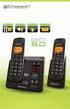 User s Guide For L401 / L402 / L403 / L404 / L405 DECT 6.0 Cordless Phones with Answering System Warning Use only the power adapters and telephone line cord provided in the box. Welcome... to your new
Model No. KX-TGP500. Model No. KX-TGP550
 Panasonic Telephone Systems KX-TGP500/KX-TGP550 KX-TGP500, KXTGP500, TGP500, KX-TGP550, KXTGP550, TGP550 www.voicesonic.com Phone 877-289-2829 User Guide SIP Cordless Phone Model No. KX-TGP500 Model No.
2.4 GHz Dual Handset Cordless Telephone Answering System 2255 with Caller ID/Call Waiting
 USER S MANUAL Part 2 2.4 GHz Dual Handset Cordless Telephone Answering System 2255 with Caller ID/Call Waiting Please also read Part 1 Important Product Information AT&T and the globe symbol are registered
D714 D712. User Guide. Big Button Cordless Phone with Digital Answering Machine
 D714 D712 User Guide Big Button Cordless Phone with Digital Answering Machine Clarity, a Division of Plantronics, Inc. 4289 Bonny Oaks Drive, Chattanooga,TN 37406 Tel: 800-426-3738 Fax: 800-325-8871 E-mail:
Printed in China. Issue 1.2 AT&T 03/07. Advanced American Telephones. AT&T and the AT&T logo are trademarks of AT&T Knowledge Ventures, licensed to
 2007 Advanced American Telephones. All rights reserved. AT&T and the AT&T logo are trademarks of AT&T Knowledge Ventures, licensed to Advanced American Telephones. Printed in China. Issue 1.2 AT&T 03/07
OWNER S INSTRUCTION MANUAL
 OWNER S INSTRUCTION MANUAL 2-LINE PHONE 9225 MODEL IR-9225 THANK YOU FOR PURCHASING THE 2-LINE PHONE 9225 We want you to know all about your new Telephone,how to install it, the features it provides, and
GSM Door Phone System
 GSM Door Phone System System Installation, Setting and Operation Manual User Manual (263-S V1) Please read this user manual completely before operating this system and keep it in a safe place for future
User Guide E814CC Amplified Big Button Cordless Phone with Corded Digital Answering Machine
 User Guide E814CC Amplified Big Button Cordless Phone with Corded Digital Answering Machine important safety instructions Warnings: Privacy of communications may not be ensured when using this phone.
Quick start guide. ML17939/17959 Two-line corded telephone/ answering system with caller ID/call waiting
 Quick start guide ML17939/17959 Two-line corded telephone/ answering system with caller ID/call waiting Installation preparation You must install the power adapter before using the telephone. See pages
User s manual. ML17929 Two-line corded telephone with caller ID/call waiting
 User s manual ML17929 Two-line corded telephone with caller ID/call waiting Congratulations on purchasing your new AT&T product. Before using this AT&T product, please read Important safety information
Part 2. Copyright 1998 Philips Consumer Communications L.P. All rights reserved. Printed in Mexico. Issue 1AT&T 848229506
 2 User's Manual for Two-Line Digital Answering System Telephone with Speakerphone 1872 Fold open this paper for information about this telephone's installation and operation. Please read Part 1 Important
User s manual. 1070 4-Line small business system with caller ID/call waiting and speakerphone
 User s manual 100 4-Line small business system with caller ID/call waiting and speakerphone 1 Congratulations on purchasing your new AT&T product. Before using this AT&T product, please read the Important
Quick start guide. CL4939 Big button big display telephone/answering system with caller ID/ call waiting
 Quick start guide CL4939 Big button big display telephone/answering system with caller ID/ call waiting Introduction This quick start guide provides you basic installation and use instructions A limited
User Guide for Cisco Unified IP Phones 7961G and 7941G
 User Guide for Cisco Unified IP Phones 7961G and 7941G Common Phone Tasks Softkey Definitions View online help on the phone Press. Place a call Redial a number Switch to the handset during a call Switch
Motorola C2. Digital Cordless Telephone with Digital Answering Machine. For C2011, C2012, C2013 and C2014
 Digital Cordless Telephone with Digital Answering Machine Motorola C2 For C2011, C2012, C2013 and C2014 Warning: Charge the handset for 24 hours before use. Welcome... to your new Motorola C2010 Digital
User Guide. BT Concero 1500. Think before you print!
 BT Concero 1500 User Guide This new interactive user guide lets you navigate easily through the pages and allows you to be directed straight to any websites or email addresses that are referenced. Simply
2-Line Intercom Speakerphone DECT6.0 Corded/Cordless Handset Telephone Answering System User s Guide 25255RE2
 2-Line Intercom Speakerphone DECT6.0 Corded/Cordless Handset Telephone Answering System User s Guide 25255RE2 ViSYS Equipment Approval Information Your telephone equipment is approved for connection to
User s manual. w w w. v t e c h p h o n e s. c o m. Models: mi6885/mi6889/mi6890
 User s manual w w w. v t e c h p h o n e s. c o m Models: mi6885/mi6889/mi6890 Table of contents Getting started...................... 5 Parts checklist for mi6885............... 5 Parts checklist for
Quick start guide. CL84109/CL84209/CL84309 DECT 6.0 corded/cordless telephone/answering system with caller ID/call waiting
 Quick start guide CL84109/CL84209/CL84309 DECT 6.0 corded/cordless telephone/answering system with caller ID/call waiting Installation You must install and charge the battery before using the telephone.
How To Use A Ppanasonic Cell Phone With A Cell Phone From A Cellphone From Alexa (Panasonic) For A Long Distance Phone From An Older Model (Panoramos) For An Extra Money (Panamontani
 INTERCOM PLEASE READ BEFORE USE AND SAVE. Integrated Telephone System Operating Instructions Model No. KX-TS8B KX-TS8W Pulse-or-tone dialing capability KX-TS8W LINE Caller ID Compatible Panasonic World
Big Button Plus 20200
 Big Button Plus 20200 Congratulations on your selection of the Big Button Plus 20200 from Northwestern Bell Phones. This quality telephone, like all Genuine BELL products, has been designed to give you
User Guide BT914 Amplified Big Button Cordless Phone with Bluetooth Connectivity
 User Guide BT914 Amplified Big Button Cordless Phone with Bluetooth Connectivity 2 IMPORTANT SAFETY INSTRUCTIONS Congratulations on purchasing your new Clarity product. Before using this telephone, please
D703. User Guide Clarity DECT6.0 Amplified Big Button Cordless Phone
 D703 User Guide Clarity DECT6.0 Amplified Big Button Cordless Phone Clarity, a Division of Plantronics, Inc. 4289 Bonny Oaks Drive, Chattanooga,TN 37406 Tel: 800-426-3738 Fax: 800-325-8871 E-mail: [email protected]
UK s best selling phone brand. User Guide. BT3710 Digital Cordless Phone With Answering Machine
 UK s best selling phone brand User Guide BT3710 Digital Cordless Phone With Answering Machine 2 This User Guide provides you with all the information you need to get the most from your phone You must set
User Guide E713CC Amplified Big Button Cordless Phone with Corded Digital Answering Machine
 User Guide E713CC Amplified Big Button Cordless Phone with Corded Digital Answering Machine 2 IMPORTANT SAFETY INSTRUCTIONS WARNINGS: PRIVACY OF COMMUNICATIONS MAY NOT BE ENSURED WHEN USING THIS PHONE.
User s manual. speakerphone/ answering system and answering system with caller ID/call waiting caller ID/ call waiting
 User s manual 1080 Corded 4-Line small telephone/ business small system business with digital system/ speakerphone/ answering system and answering system with caller ID/call waiting caller ID/ call waiting
Operating Instructions
 5.8 GHz Digital Cordless Phone Operating Instructions Model No. KX-TG5050 Pulse-or-tone dialing capability The unit is Caller ID compatible. To display the Caller s name and phone number, you must subscribe
Operating Instructions
 PLEASE READ BEFORE USE AND SAVE. Integrated Telephone System Model No. KX-T7FXW Pulse-or-tone dialing capability Operating Instructions Preparation Basic Operation Advanced Operation Useful Information
Model 25423/24. 4-Line Intercom Speakerphone User s Guide. Quick Guide on Pgs. 7-14
 4-Line Intercom Speakerphone User s Guide Quick Guide on Pgs. 7-14 Please read this manual before operating product for the first time. Model 25423/24 Important Information Equipment Approval Information
Four-Line Intercom Speakerphone 944
 1 USER S MANUAL Part 2 Four-Line Intercom Speakerphone 944 Please also read Part 1 Important Product Information AT&T and the globe symbol are registered trademarks of AT&T Corp. licensed to Advanced American
UK s best selling phone brand. User Guide. BT Decor 2500 Corded Phone
 UK s best selling phone brand User Guide BT Decor 2500 Corded Phone 2 This User Guide provides you with all the information you need to get the most from your phone. Before you make your first call you
User s manual. ML17939/ML17959 Two-line corded telephone/ answering system with caller ID/call waiting
 User s manual ML17939/ML17959 Two-line corded telephone/ answering system with caller ID/call waiting Congratulations on purchasing your new AT&T product. Before using this AT&T product, please read Important
Operating Instructions
 Integrated Telephone System Model No. KX-TS05HGW PLEASE READ BEFORE USE AND SAVE. Pulse-or-tone dialing capability Operating Instructions Preparation Basic Operation Advanced Operation Useful Information
User Guide. BT Graphite 2500. Think before you print!
 BT Graphite 2500 User Guide This new interactive user guide lets you navigate easily through the pages and allows you to be directed straight to any websites or email addresses that are referenced Simply
NEC SV8100 Telephone System User Guide (for SV8100 12-button and 24-button phones)
 NEC SV8100 Telephone System User Guide (for SV8100 12-button and 24-button phones) KEYS AND BUTTONS ON YOUR PHONE Incoming Call/Message Waiting indicator light Flashes red quickly when a call is ringing
IP Phone System: Cisco 7960G and 7940G
 IP Phone System: Cisco 7960G and 7940G Table of Contents: IP Phone System 7940G and 7960G CISCO IP PHONE ROAD MAP...1 NAVIGATE THE PHONE SYSTEM AND USE THE LCD SCREEN...2 SOFT KEYS... 2 USE THE NAVIGATION
CISCO IP PHONE MODEL 7960 & UNITY VOICEMAIL. Getting Started Manual
 CISCO IP PHONE MODEL 7960 & UNITY VOICEMAIL Getting Started Manual... 3 Getting Started... 3 Using LCD Icons... 3 Using the IP Phone Configuration Utility... 3 Tips... 3 How to Use the Handset, Speakerphone,
BT Freestyle 750. User Guide
 BT Freestyle 750 User Guide Welcome to your BT Freestyle 750 Digital Cordless Telephone Answering Machine Answering machine with up to 15 minutes digital recording time and helpful voice prompts. 50 Name
BT 8528 Digital Phone
 0 BT 8528 Digital Phone 2 3 1 8 4 5 1 Handset 2 Display 3 Ring/Message Indicator 4 Feature Keys 5 Dialpad 6 Navigation Keys 7 Programmable Keys 8 External Speaker 7 6 Handset: The handset is hearing aid
Instruction Manual. CORTELCO 2700 Single-Line / Multi-Feature Set
 1 Instruction Manual CORTELCO 2700 Single-Line / Multi-Feature Set Table of Contents Why VoiceManager SM with Cortelco Phones?... 2 Cortelco 2700 Set Features... 3 Telephone Set Part Identification...
UK s best selling phone brand. User Guide. BT Decor 2200 Corded Phone
 UK s best selling phone brand User Guide BT Decor 2200 Corded Phone 2 This User Guide provides you with all the information you need to get the most from your phone. Before you make your first call you
FUTURE CALL PICTURE CARE PHONE MODEL: FC-1007 USER MANUAL
 FUTURE CALL PICTURE CARE PHONE MODEL: FC-1007 USER MANUAL Please follow instructions for repairing if any otherwise do not alter or repair any parts of device except specified. IMPORTANT SAFETY INSTRUCTIONS
Models: CS6449/CS6449-2/ CS6449-3. User s manual. w w w.v t e c h c a n a d a. c o m
 Models: CS6449/CS6449-2/ CS6449-3 User s manual w w w.v t e c h c a n a d a. c o m Congratulations on purchasing your new VTech product. Before using this telephone, please read Important safety instructions
Before you start. How to use this Guide Use this Key to identify what a button or status display looks like in an instruction sequence.
 BeoCom 6000 Guide Before you start 3 This Guide contains instructions in how to use the BeoCom 6000 handset with either a BeoLine ISDN, a BeoLine PSTN or a BeoCom 6000 base. ISDN or PSTN? ISDN and PSTN
Model No. KX-TS560MX. Model shown is KX-TS580MX
 Operating Instructions Integrated Telephone System Model No. KX-TS560MX KX-TS580MX Model shown is KX-TS580MX This unit is compatible with Caller ID. You must subscribe to the appropriate service offered
MITEL 5330 IP Phone User Guide. Northwestern Michigan College
 MITEL 5330 IP Phone User Guide Northwestern Michigan College The Mitel 5330 IP Phones is a full-featured, dual port, dual mode enterprise-class telephone that provides voice communication over an IP network.
User s manual. CL4939 Big button big display telephone/answering system with caller ID/ call waiting
 User s manual CL4939 Big button big display telephone/answering system with caller ID/ call waiting Congratulations on purchasing your new AT&T product. Before using this AT&T product, please read the
INTRODUCTION TO YOUR BT MICRO... 2 WELCOME... 2 BT MICRO FEATUREPHONE... 2 HOW TO USE YOUR BT MICRO FEATURE PHONE... 3
 Table of Contents INTRODUCTION TO YOUR BT MICRO... 2 WELCOME... 2 BT MICRO FEATUREPHONE... 2 HOW TO USE YOUR BT MICRO FEATURE PHONE... 3 Phone setup... 3 Answering and making calls... 3 Transferring calls...
Operating Instructions
 Integrated Telephone System Model No. KX-TS08HGW PLEASE READ BEFORE USE AND SAVE. Pulse-or-tone dialing capability Operating Instructions Preparation Basic Operation Advanced Operation Useful Information
4 Line Intercom Speakerphone User s Guide. Please read this manual before operating this product for the first time.
 4 Line Intercom Speakerphone User s Guide Please read this manual before operating this product for the first time. Model 25413/14 Important Information Equipment Approval Information Your telephone equipment
DECT 6.0 2-Line Cordless Intercom Speakerphone
 DECT 6.0 2-Line Cordless Intercom Speakerphone with Digital Answering System User s Guide Important Information Equipment Approval Information Your telephone equipment is approved for connection to the
KX-TG5576. Operating Instructions
 Operating Instructions 5.8 GHz Expandable Digital Cordless Answering System Model No. KX-TG5571 KX-TG5576 This unit is compatible with Caller ID. To use this feature, you must subscribe to the appropriate
User s manual. TL86109 DECT 6.0 2-line corded/cordless telephone/ answering system with BLUETOOTH wireless technology
 User s manual TL86109 DECT 6.0 2-line corded/cordless telephone/ answering system with BLUETOOTH wireless technology Congratulations on purchasing your new AT&T product. Before using this AT&T product,
USER GUIDE. Cisco Small Business Pro. SPA 500 Series IP Phones Models 504G, 508G, and 509G. Provided by
 USER GUIDE Cisco Small Business Pro SPA 500 Series IP Phones Models 504G, 508G, and 509G Provided by Understanding Your Phoneʼs Lines and Buttons Use the following graphic and table to identify the parts
D3588 Series User's Guide
 D3588 Series User's Guide What's in the box? You will also find: D3588 base with answering system and corded handset Accessory handset and charger Not pictured: x Rechargeable battery (BT-1031) x Belt
2 Session buttons. 1 Phone Screen
 1 Phone Screen 2 Session buttons Shows information about your phone, including directory number (extension), call information (for example caller ID, icons for an active call or call on hold) and available
Printed in China. Issue 4 AT&T 12/11. Message Guard is a registered trademark of Advanced American Telephones.
 www.telephones.att.com 2011 Advanced American Telephones. All Rights Reserved. AT&T and the AT&T logo are trademarks of AT&T Intellectual Property licensed to Advanced American Telephones, San Antonio,
UK s best selling phone brand. Quick Set-up and User Guide. BT3510 Digital Cordless Phone with Answering Machine
 UK s best selling phone brand Quick Set-up and User Guide BT3510 Digital Cordless Phone with Answering Machine 2 Important please read first Only use the line cord, power supply and rechargeable batteries
Operating Instructions
 Operating Instructions Integrated Telephone Answering System Model No. KX-TS4300 This unit is compatible with Caller ID. To use this feature, you must subscribe to the appropriate service offered by your
Model 25425. 4-Line Intercom Speakerphone with Answering System and Caller ID User s Guide. Quick Guide on Pgs. 7-13
 4-Line Intercom Speakerphone with Answering System and Caller ID User s Guide Quick Guide on Pgs. 7-13 Please read this manual before operating product for the first time. Model 25425 Important Information
User s manual. 993 Two-line speakerphone with caller ID/call waiting
 User s manual 993 Two-line speakerphone with caller ID/call waiting Congratulations on purchasing your new AT&T product Before using this AT&T product, please read the Important product information on
PR-D9W. GB Version 1
 PR-D9W Version 1 Table of contents Important safety instructions... 2-3 Introduction... 4 Controls... 5-8 Using your weather alert radio for the first time... 9 Operating your radio Search tuning AM/FM...
D-Term Series E User Guide
 D-Term Series E User Guide Table of Contents Keys and Lamps... 2 Tones... 3 Making and Receiving Calls... 4 Hold... 5 Transfer... 6 Conference Calls... 6 Soft Keys... 7 Feature Keys... 8 Speed Dial Keys...
User s manual. 1070 4-Line small business system with caller ID/call waiting and speakerphone
 User s manual 1070 4-Line small business system with caller ID/call waiting and speakerphone 7 1 Congratulations on purchasing your new AT&T product. Before using this AT&T product, please read the Important
TABLE: The 2420 Telephone Components
 2420 Telephone TABLE: The 2420 Telephone Components 1. Display, Call Appearance and Feature buttons: Call Appearance Keys allow the user to handle multiple calls and the display shows call information.
NEC SL1100 Telephone System. Quick Reference Guide. For: Certified Customers Only! Notes: IP4WW-12/24 Series Desktop Digital Terminals with Voicemail
 Notes: For Questions or Service Contact: Certified Alarm Co. of Alabama Inc. 2904 Jackson Hwy Sheffield Al. 35660 (256) 383-1225 www.certified-alarm.com www.necsl1100.com NEC SL1100 Telephone System IP4WW-12/24
KX-TD7695. Operating Instructions. DECT 6.0 Portable Station. Model No.
 Operating Instructions DECT 6.0 Portable Station Model No. KX-TD7695 Thank you for purchasing a Panasonic DECT 6.0 Portable Station. Please read this manual carefully before using this product and save
User s manual. EL52100/EL52110 DECT 6.0 cordless telephone/answering system with caller ID/ call waiting
 User s manual EL52100/EL52110 DECT 6.0 cordless telephone/answering system with caller ID/ call waiting Congratulations on purchasing your new AT&T product. Before using this AT&T product, please read
User s Manual. w w w. v t e c h p h o n e s. c o m. Model: ia5874, ia5876, ia5877
 User s Manual w w w. v t e c h p h o n e s. c o m Model: ia5874, ia5876, ia5877 Table of Contents GETTING STARTED................... 4 Before You Begin..................... 4 Parts Check List:...................
User s manual. CL4940 Big button/big display telephone/ answering system with caller ID/ call waiting
 User s manual CL4940 Big button/big display telephone/ answering system with caller ID/ call waiting Congratulations on your purchase of this AT&T product. Before using this AT&T product, please read the
BT Granite User Guide
 BT Granite User Guide Think before you print! This new interactive user guide lets you navigate easily through the pages and allows you to be directed straight to any websites or email addresses that are
Panasonic. Proprietary Telephone for Electronic Modular Switching System MODEL NO. KX-17030. Illustrated Model: White 1
 Panasonic Proprietary Telephone for Electronic Modular Switching System MODEL NO. KX-17030 Illustrated Model: White 1 KX-T7030 is compatible with all of the Panasonic Electronic Modular Switching Systems
EL52200/EL52210/EL52250/ EL52300/EL52350/EL52400/ EL52450/EL52500/EL52510 DECT 6.0 cordless telephone/ answering system with caller ID/call waiting
 User s manual EL52200/EL52210/EL52250/ EL52300/EL52350/EL52400/ EL52450/EL52500/EL52510 DECT 6.0 cordless telephone/ answering system with caller ID/call waiting Congratulations on purchasing your new
BT Synergy 5500 User Guide
 BT Synergy 5500 User Guide Welcome to your BT Synergy 5500 Digital Cordless Telephone Answering Machine Display with blue backlight. 250 Name and number phonebook. Copy phonebook entries between other
CL82109/CL82209/CL82309/ CL82359/CL82409/CL82509/ CL82609/CL82659/CL82859 DECT
 User s manual CL82109/CL82209/CL82309/ CL82359/CL82409/CL82509/ CL82609/CL82659/CL82859 DECT 6.0 corded/cordless telephone/answering system with caller ID/call waiting Congratulations on your purchase
Models: CS6328-2/CS6328-3/ CS6328-4/CS6328-5/ CS6329/CS6329-2/ CS6329-3/CS6329-4/ CS6329-5. User s manual. w w w.v t e c h p h o n e s.
 Models: CS6328-2/CS6328-3/ CS6328-4/CS6328-5/ CS6329/CS6329-2/ CS6329-3/CS6329-4/ CS6329-5 User s manual w w w.v t e c h p h o n e s. c o m Congratulations on purchasing your new VTech product. Before
BT Paragon 550. User Guide
 BT Paragon 550 User Guide Section Welcome to your BT Paragon 550 corded digital telephone and answering machine Directory lets you store up to 100 names and numbers for easy dialling. Send and receive
Operating Instructions
 PQQX04YA-0 0..8 8: AM y[w PLEASE READ BEFORE USE AND SAVE. Integrated Telephone System Model No. KX-T78JXW Pulse-or-tone dialing capability Operating Instructions LINE Preparation Basic Operation Advanced
User Guide. BT Graphite 2100. Think before you print!
 BT Graphite 2100 User Guide This new interactive user guide lets you navigate easily through the pages and allows you to be directed straight to any websites or email addresses that are referenced Simply
User s manual. TL92278/TL92328/TL92378 DECT 6.0 cordless telephone/answering system with BLUETOOTH wireless technology
 User s manual TL92278/TL92328/TL92378 DECT 6.0 cordless telephone/answering system with BLUETOOTH wireless technology Congratulations on your purchase of this AT&T product. Before using this AT&T product,
Meridian 8314 Business Terminal User Guide
 For additional information, Dial Telecommunications Center Centrex Services... - University of Nebraska - Lincoln Telecommunications Center Nebraska Hall Lincoln, NE 6888-0 (0) 7-000 The University of
" (877)MY T4 TEL " " " " " " " (877)698-4835
 Display Features The display on your phone is interactive. As you use the phone the information will change and different features and functions will appear on the display. The 8 buttons above the display
Alcatel Conference 1800
 Alcatel Conference 1800 USER S GUIDE TABLE OF CONTENTS 1 IMPORTANT SAFETY INSTRUCTIONS...4 1.1 Package Contents...5 1.2 Location...6 2 INSTALLING YOUR PHONE...7 2.1 Connecting the Base Unit...7 2.2 Set
Operating Instructions
 TG106xC(e).book Page 1 Wednesday, February 25, 2009 11:13 AM Operating Instructions Expandable Digital Corded/Cordless Answering System Model No. KX-TG1061C KX-TG1062C Model shown is KX-TG1061. Panasonic
Designed to block nuisance calls. Quick Set-up and User Guide. BT6500 Digital Cordless Phone with Answering Machine
 Designed to block nuisance calls Quick Set-up and User Guide BT6500 Digital Cordless Phone with Answering Machine 2 Important please read first Only use the line cord, power supply and rechargeable batteries
User s manual. www.vtech.com DECT
 User s manual www.vtech.com Model: DS6321 DECT Table of contents 1. IMPORTANT SAFETY INSTRUCTIONS...1 2. SETTING UP THE TELEPHONE...2 2.1 Package contents...2 2.2 Location...2 2.3 Connecting the base station...3
Complete user s manual
 Complete user s manual CL82113/CL82213/CL82263/ CL82313/CL82363/CL82413/ CL82463 DECT 6.0 cordless telephone/ answering system with caller ID/call waiting Congratulations on your purchase of this AT&T
User s manual. Corded telephone. w w w.v t e c h c a n a d a. c o m. Big Button Big Display. Model:CD1281 DIR CID
 User s manual w w w.v t e c h c a n a d a. c o m DIR CID Model:CD1281 Corded telephone Big Button Big Display Congratulations on purchasing your new VTech product. Before using this telephone, please read
User s manual. CL4939 Big button big display telephone/answering system with caller ID/call waiting
 User s manual CL4939 Big button big display telephone/answering system with caller ID/call waiting Congratulations on purchasing your new AT&T product. Before using this AT&T product, please read the Important