
GETTING STARTED GUIDE
|
|
|
- Carmel McDaniel
- 10 years ago
- Views:
Transcription
1 GETTING STARTED GUIDE CONTENTS Introduction... 1 Impulse Features... 2 Box Contents... 2 About this Guide... 2 Minimum System Requirements... 2 Connecting the Impulse... 3 Impulse Basic Operation... 3 Top Panel Back Panel... 5 Installation and Setup... 6 Using Impulse with your Music Software... 7 Ableton Live Lite... 8 Registration and Support... 8 Introduction Welcome to the Novation Impulse Professional USB-MIDI Keyboard! Impulse is a MIDI keyboard with a powerful DAW and plug-in control surface. It has a precision semiweighted keyboard with aftertouch as well as pitch and modulation wheels. Fader/s, encoders and buttons provide full mixer and plug-in control over all major DAWs, including clip and scene launch in Ableton Live. The 8 drum pads can be used to trigger notes, perform beat rolls, change the rhythm of arpeggios (in realtime!) and launch clips. Transport control buttons allow you to navigate your music software. Impulse comes with a brand new version of Novation s Automap control software which gives you instant control of your plug-in effects and instruments in most music software. We suggest you take the time to work through the steps in this guide for a simple trouble-free setup. 1

2 Impulse Features 25, 49 or 61 note high quality piano-style semi-weighted keyboards 8 rotary encoders 9 faders (49/61 note versions) 8 large tri-colour backlit trigger pads Custom LCD with direct feedback from DAW Transport controls Arpeggiator with pad-based rhythm editor Brand new Automap software (v4.0) - far easier to install and use - seamless Plug-in and Mixer control Buttons with QWERTY support via Automap (49/61 note versions) Clip Launch mode in Ableton Live Roll mode on drum pads Brand new look and feel Box Contents Novation Impulse USB Cable Getting Started Guide Impulse Installer DVD-ROM Bass Station Registration Card Ableton Live Lite Registration Card About this Guide This guide is designed to help you through the basic steps in setting up your Impulse for the fi rst time and getting started with basic music software control. Minimum System Requirements Impulse and Automap are designed to work with Mac OS X and Windows. At the time of writing the supported operating systems are: MAC - OS X 10.7 Lion and 10.6 Snow Leopard (32 and 64 bit) WINDOWS - Windows 7 (64 & 32 bit), Windows Vista (32 bit only), or Windows XP SP3 (32bit only) USB class compliant (no driver necessary for basic use). Automap installation includes a driver for advanced functionality 2

3 Connecting the Impulse Plug the square end of the supplied USB cable into the port on the back of your Impulse. Plug the fl at end of the USB cable into a free port on your computer. We recommend you plug the Impulse into the computer directly rather than via a USB hub. MAC - On Mac OS X the keyboard will simply connect. WINDOWS - On Windows you may be prompted that new hardware has been found. On XP, Windows will display the Found New Hardware Wizard. For each prompt answer NO to connecting to Windows Update and YeS to install software automatically. This may occur more than once. xp WIN7 Ignore any Windows hardware failure messages as the Automap installer will correct this. Impulse Basic Operation Top Panel Faders LCD Screen Encoders Drum Pads Pitch and Mod Wheels Precision key-bed; semi-weighted with aftertouch Full transport controls Arpeggiator and Beat Roll 3

4 When connected the Impulse will power up and work right away as a MIDI keyboard. The keys will send MIDI note messages and the controls will send MIDI control messages. Pads will send notes when tapped and aftertouch when pressed. Now that you re connected you should see the screen is on along with some of the LEDs on the keyboard. Press the + and - buttons together to enter Help mode. As you press, slide or turn the controls the display will tell you a little about each of them: KEY-BED The Impulse has 25, 49 or 61 keys (2, 4 or 5 octaves). The keys are semi-weighted for a more realistic feel. The Impulse has aftertouch which allows you to apply pressure to keys after pressing them down for additional control over a sound if the sound supports this. PITCH & MODULATION WHEEL The pitch bend wheel allows you to alter the pitch of a sound upwards or downwards. The modulation wheel adds a vibrato or other effect to the sound. FADER/S The fader/s can be used to control the mixer in your music software when used with Automap. They will also send standard MIDI control messages and can be reassigned. ENCODERS The encoders can be used to control plug-in parameters in your music software when used with Automap. They will also send standard MIDI control messages and can be reassigned. TRANSPORT CONTROLS The transport controls will control the transport section in your music software when used with Automap. DRUM PADS The drum pads will send MIDI notes that can be used to trigger drum sounds or samples. They also send a MIDI control message when pressure is applied. Roll and Arpeggiator buttons These buttons control the Pad Roll and Arpeggiator functions on the Impulse. More detail on these can be found in the User Guide on the DVD. 4
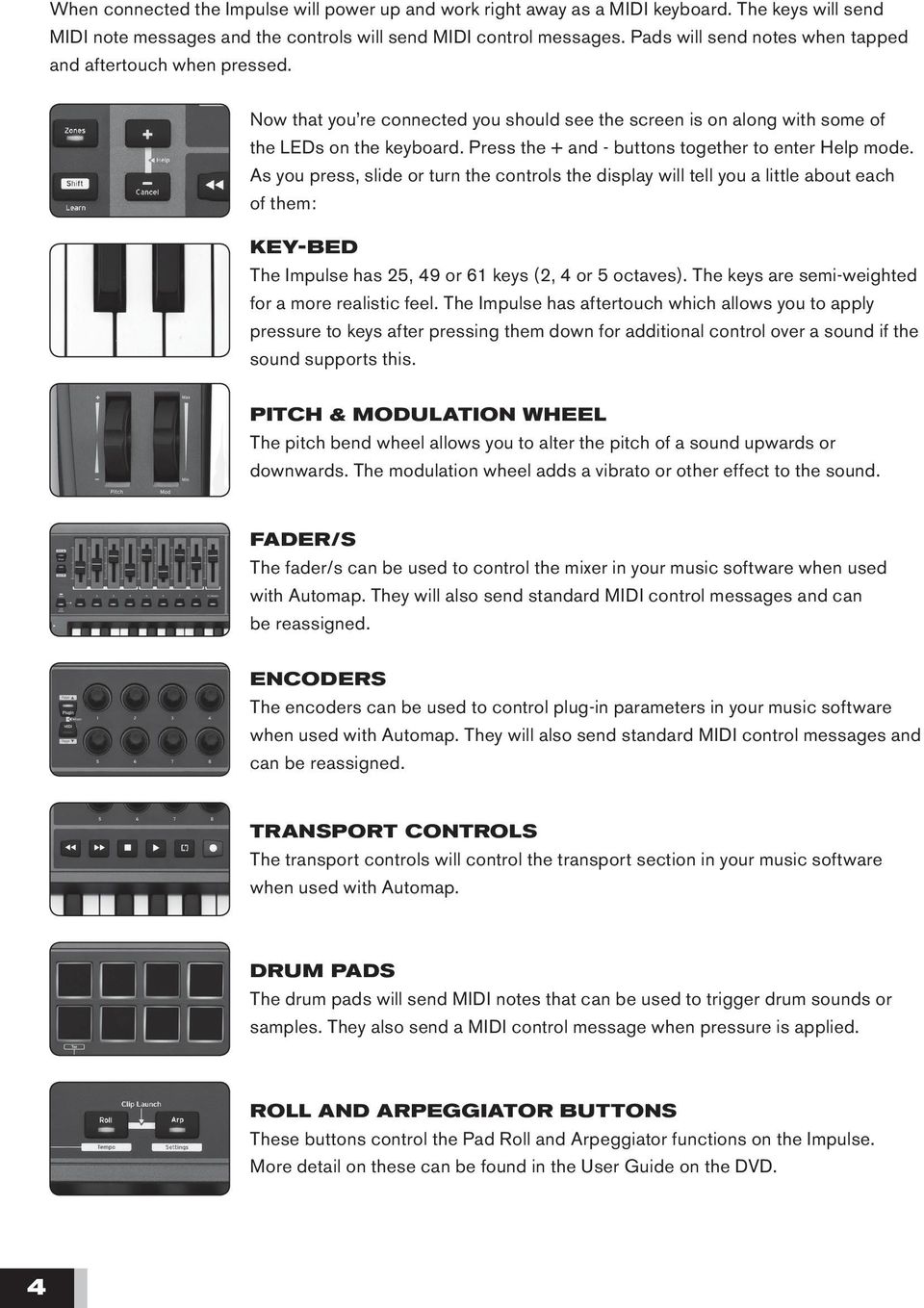
5 Mixer and Plug-in buttons The Mixer and Plug-in buttons are for switching the operation of the Faders/ Encoders between MIDI mode and when working with Automap. These are available when your music software is up and running. FUNCTION BUTTONS These buttons are used to access deeper functionality of the Impulse. More about this is explained in the User Guide on the DVD. Holding down the Shift button will access additional features on certain buttons. The functions are shown by the labels in white boxes. Now press the + and - buttons again to exit from Help mode. Back Panel USB port Expression and sustain pedal inputs MIDI in and out ports Kensington Lock port USB PORT For connection to a computer using the USB cable supplied, or for stand-alone use to connect to a USB power supply (not included). Expression and sustain pedal Standard connections for popular sustain and expression pedals. MIDI In and Out For connecting to equipment with a standard MIDI In and Out. Kensington Lock For connecting a Kensington Lock cable for security purposes. 5
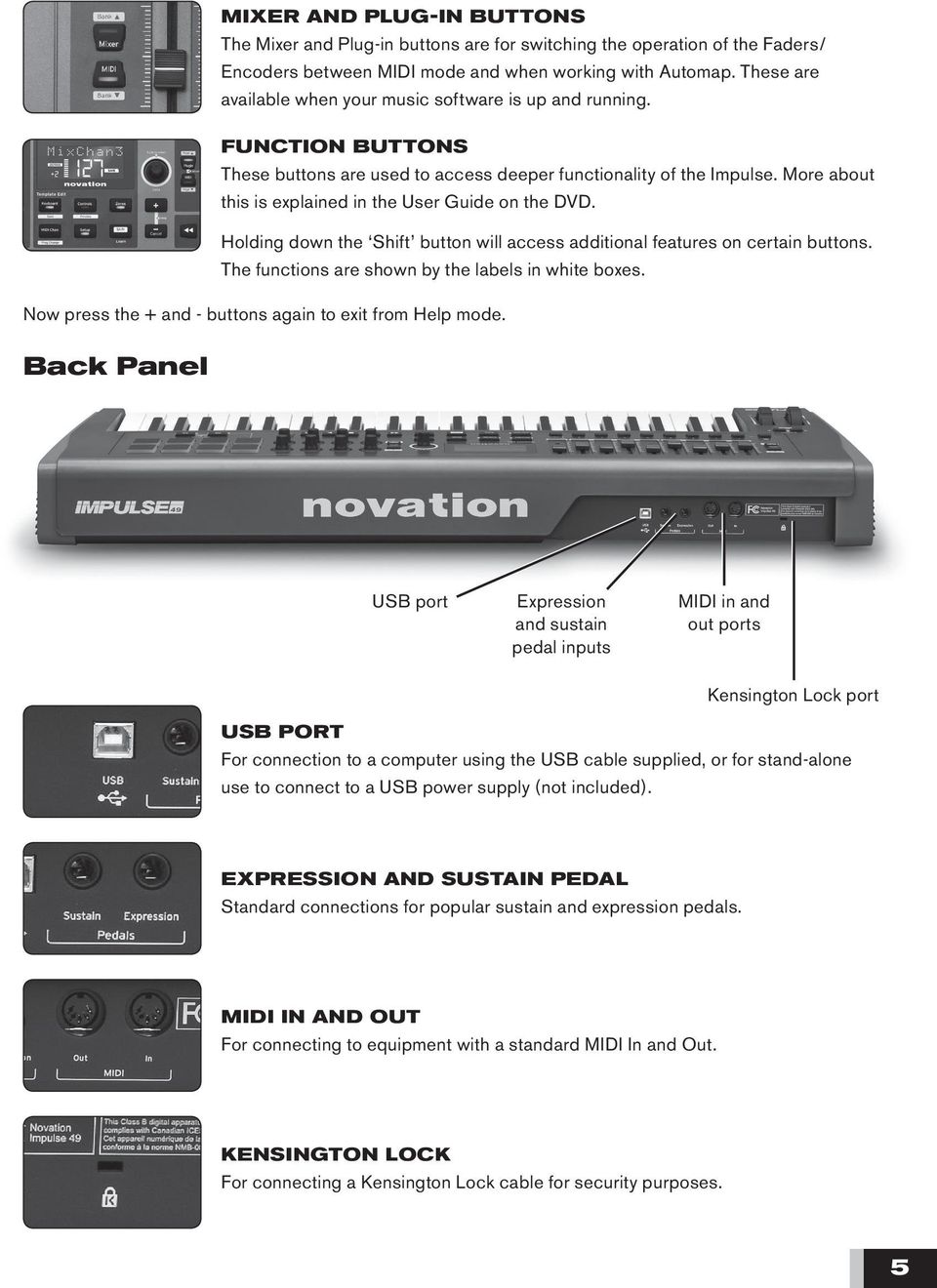
6 Installation and Setup Insert the Impulse Installer DVD-ROM into your computer s DVD drive MAC PC If you wish to use the included Ableton Live Lite software then run the installer and follow the on-screen instructions MAC PC Run the Automap installer and follow the on-screen instructions After installation the Automap Software Setup page will be shown: Step 1 Select your music software from the list on the left hand side STEP 1 STEP 2 STEP 3 Step 2 Select the Impulse from the drop-down menu on the right hand side Step 3 Press the Setup button to begin the setup process Follow the steps in the on-screen setup guide that is specific to your music software. At the end of the setup process the Impulse and Automap will be configured to work with your music software. MAC PC Note, when running, the Automap window can be accessed from the menu bar (Mac) or task bar (Windows) 6
7 Using Impulse with your Music Software After installation and successful setup start your DAW (Digital Audio Workstation). You will see on the Impulse that the fader/s are in mixer mode and the encoders are in plug-in mode. At this point it would be good to create a new song with at least eight tracks. These can be audio, MIDI or instrument tracks. Open the mixer view in your DAW and move the fader/s on the Impulse - you should see the track volumes moving on screen Note, pot-pickup is enabled by default. This means that a fader on screen will not move initially until the physical fader has been moved past the postion of the on-screen fader. This is in order to avoid sudden jumps and can be switched off in Automap preferences if required. Select a track and load a plug-in Note, in some DAWs you will see both the original plug-in names and Automap enabled plug-ins. Be sure to select an Automap enabled plug-in - names have (automap) at the end. Open the plug-in window so you can see the controls. Turn the encoders on the Impulse and you should see controls in the plug-in window move For further information see the User Guide for Impulse and Automap on the included DVD. Congratulations! You now have DAW control working with Impulse 7

8 Ableton Live Lite Ableton Live has additional functionality when used with the Impulse. Pressing the Roll and Arp buttons together engages Clip Launch mode. The pads will change colour to represent the status of the first eight tracks of clips in Live on the currently selected scene: Green is clip playing Amber is clip loaded Red is clip selected for record Tapping an amber or green pad will start playback. When in Session View the FF and REW transport buttons will move scene selection up and down. Pressing the LOOP button will trigger the selected scene. In Arrangement View the buttons revert to transport functions. For further information see the User Guide on the DVD. Registration and Support Thanks for choosing the Novation Impulse. Please register your Impulse online at: For customer support, please contact us online: Novation is a registered trade mark of Focusrite Audio Engineering Limited. Impulse is a trade mark of Focusrite Audio Engineering Limited Focusrite Audio Engineering Limited. All rights reserved. 8 FA

Legal Notices. Guide Part Number 9329-65008-00 REV A 2/10
 Legal Notices This guide is copyrighted 2010 by Avid Technology, Inc., with all rights reserved. Under copyright laws, this guide may not be duplicated in whole or in part without the written consent of
OVERVIEW HARDWARE. Mode buttons. USB Micro socket. Kensington Security Slot. 8x8 playable grid. Mode buttons
 OVERVIEW Launchpad Mini is a compact version of the celebrated Novation Launchpad for the ipad generation. 64 three-colour pads enable you to produce and perform music with your ipad by triggering samples
Getting Started Guide
 Getting Started Guide Overview Launchpad Mini Thank you for buying our most compact Launchpad grid instrument. It may be small, but its 64 pads will let you trigger clips, play drum racks, control your
MIDI CONNECTION Guide
 MIDI CONNECTION Guide What is MIDI... 1 Transmit MIDI data...2 To Choose Cable...2 USB-MIDI adaptor...3 USB A-B cable... 3 To Find out Compatible OS/Driver...3 Using USB-MIDI adaptor, which OS is Compatible/driver
User Guide FFFA001106. www.focusrite.com
 User Guide FFFA001106 www.focusrite.com TABLE OF CONTENTS OVERVIEW.... 3 Introduction...3 Features.................................................................... 3 Box Contents...3 System Requirements....4
Editor / Plug-In Editor Manual
 Editor / Plug-In Editor Manual E 3 Table of Contents Introduction................................................. Main features...................................................................... Please
US-122L/US-144 Release Notes
 US-122L/US-144 Release Notes Updates Always ensure that you are running the latest driver software and US-122L or US-144 firmware by visiting TASCAM s web site (http://www.tascam.com). Important Notice
ATTENTION RISQUE D ÉLECTROCUTION! NE PAS OUVRIR!
 Quick Start Guide ATTENTION RISQUE D ÉLECTROCUTION! NE PAS OUVRIR! CAUTION: TO REDUCE THE RISK OF ELECTRIC SHOCK, DO NOT REMOVE COVER (OR BACK). NO USER-SERVICEABLE PARTS INSIDE. REFER SER- VICING TO QUALIFIED
Focusrite Saffire 6 USB. User Guide
 Focusrite Saffire 6 USB User Guide 1 IMPORTANT SAFETY INSTRUCTIONS 1. Read these instructions. 2. Keep these instructions. 3. Heed all warnings. 4. Follow all instructions. 5. Do not use this apparatus
OMEGA STUDIO SOFTWARE INSTALLATION GUIDE
 OMEGA STUDIO SOFTWARE INSTALLATION GUIDE USB Device Drivers, Cubase LE Setup, and Pantheon Reverb Plug-in for Windows XP Cubase LE Setup and Pantheon Reverb Plug-in for Mac OS X Congratulations on your
OS 4.1 AND AUTOMAP UNIVERSAL 2.0
 OS 4.1 AND AUTOMAP UNIVERSAL 2.0 Rev-02 ReMOTE SL COMPACT USER GUIDE OS 4.1 AND AUTOMAP UNIVERSAL 2.0 CONTENTS 1 INTRO 2 REGISTRATION 3 HARDWARE OVERVIEW 3.1 FRONT PANEL OVERVIEW 3.2 REAR PANEL CONNECTIONS
Nord Stage 2 OS Version 1.30 Release Notes 1
 Nord Stage 2 OS Version 1.30 Release Notes 1 Nord Stage 2 OS Version 1.30 Release Notes The 1.30 Stage 2 OS update contains several bug fixes and some functionality improvements. Internal Instrument levels
GETTING STARTED WITH STUDIO ONE ARTIST
 GETTING STARTED WITH STUDIO ONE ARTIST 2009, PreSonus Audio Electronics, Inc. All Rights Reserved. TABLE OF CONTENTS Studio One Artist Features...3 System Requirements...4 Installation and Authorization...5
MIDI Setup with TonePort UX2 and KB37
 MIDI Setup with TonePort UX2 and KB37 Table of Contents FOOTSWITCH CONNECTIONS... 2 TONEPORT KB37 CONTROLLER LAYOUT... 3 TONEPORT KB37 DEFAULT MESSAGES... 4 Default message map for GearBox 3.0... 4 Default
touchable 3 brings easy plug and play USB connectivity and 42 new templates for Live s Instruments and FX.
 touchable 3 brings easy plug and play USB connectivity and 42 new templates for Live s Instruments and FX. -------------------------------------------------------------------------------------------- touchable
ROCK BAND 3 WIRELESS KEYBOARD:
 Music Systems, Inc. ROCK BAND 3 WIRELESS KEYBOARD: MIDI User Guide HMXHW1023 REVISION: 01 Date: 07/16/10 Introduction... 3 What is MIDI?... 3 Features... 3 Getting Started... 4 Control Surface Functions
Specifications Keyboard System Sounds Maximum Polyphony: PCM Memory: Program: Combination:
 Specifications Keyboard KROME-61 61-key: Natural Touch Semi Weighted keyboard *Standard C2 - C7 (transposable in the range [C1...C6]-[C3...C8]) KROME-73 73-key: Natural Touch Semi Weighted keyboard *Standard
USER GUIDE. Publication AP7080. Allen & Heath 1 XONE:1D User Guide
 USER GUIDE Publication AP7080 Allen & Heath 1 XONE:1D User Guide Limited One Year Warranty This product is warranted to be free from defects in materials or workmanship for period of one year from the
Berkeley Audio Design Alpha USB
 QUICK USER GUIDE v1.2.2 Berkeley Audio Design Alpha USB The Alpha USB is an asynchronous High Speed USB to digital audio interface designed to provide the highest possible audio quality from computer audio
CLEARONE DOCUMENT 801-000-002 (REVISION 1.0) October, 2008. with Converge Pro Units
 APPLICATION NOTES Converge Pro Products CLEARONE DOCUMENT 801-000-002 (REVISION 1.0) October, 2008. Troubleshooting USB Connections with Converge Pro Units Description This document explains how to connect
GV-Keyboard. User's Manual V2.0
 GV-Keyboard User's Manual V2.0 Before attempting to connect or operate this product, please read these instructions carefully and save this manual for future use. 2007 GeoVision, Inc. All rights reserved.
Keystation Pro 88 Advanced Guide. Contents: 1 Getting Started. 2 Terminology. 3 Performance Operations of the Keystation Pro 88
 Keystation Pro 88 Advanced Guide Contents: 1 Getting Started 2 Terminology 3 Performance Operations of the Keystation Pro 88 Sending Program Changes During Performance Sending Bank Changes During Performance
USB-MIDI Setup Guide. Operating requirements
 About the software The most recent versions of the applications contained on the accessory disc can be downloaded from the Korg website (http://www.korg.com). -MIDI Setup Guide Please note before use Copyright
Soundcraft Signature MTK Recording Guide
 Soundcraft Signature MTK Recording Guide S O U N D C R A F T S I G N AT U R E M T K R E C O R D I N G G U I D E 2 Table of Contents USB Overview... 04 Installing the Drivers (PC Only)... 04 Finding the
USER GUIDE. Publication AP8509. Allen & Heath 1 XONE:K2 User Guide
 USER GUIDE Publication AP8509 Allen & Heath 1 XONE:K2 User Guide Limited One Year Warranty This product is warranted to be free from defects in materials or workmanship for period of one year from the
Hi-Speed USB Flash Disk User s Manual Guide
 Hi-Speed USB Flash Disk User s Manual Guide System Requirements Windows 98, ME, 2000, XP, Mac OS 10.1, Linux 2.4 or above AMD or Intel Pentium 133MHz or better based computer USB 1.1, USB 2.0 or higher
Playing Audio through the Zodiac DAC using S/PDIF (electrical or optical input cable) Source. Playing Audio through the Zodiac DAC using USB Sources
 Using the Zodiac DAC with Mac OS X (Screenshots taken using OS X Version 10.6.6) Playing Audio through the Zodiac DAC using S/PDIF (electrical or optical input cable) Source Playing Audio through the Zodiac
Installation (Mac) Contents. Introduction. Installation (Windows) System Requirements
 USER GUIDE V1.0 2004 Focusrite Audio Engineering Ltd. Disclaimer: FOCUSRITE, the FF Logo, LIQUID CHANNEL, LIQUID TECHNOLOGY, LIQUIDCONTROL, EVERYONE NEEDS LIQUID, and the LIQUID CHANNEL Logo are trademarks
MXL 990 Virtual Preamp Installation
 MXL 990 Virtual Preamp Installation The MXL 990 USB will operate without MXL s Virtual Preamp software using the standard drivers included in your computer's operating system. However, the MXL 990 USB
ATTENTION RISQUE D ÉLECTROCUTION! NE PAS OUVRIR!
 Quick Start Guide ATTENTION RISQUE D ÉLECTROCUTION! NE PAS OUVRIR! CAUTION: TO REDUCE THE RISK OF ELECTRIC SHOCK, DO NOT REMOVE COVER (OR BACK). NO USER-SERVICEABLE PARTS INSIDE. REFER SER- VICING TO QUALIFIED
Automap 4.0. User Guide FA0618-02
 Automap 4.0 User Guide FA0618-02 1 TABLE OF CONTENTS Introduction to Automap 4...3 Registration... 3 Automap 4 minimum system requirements... 3 Apple Mac... 3 Windows... 3 Installing Automap 4 software
UMI3 Parametric USB MIDI Foot Controller. User s Manual
 UMI3 Parametric USB MIDI Foot Controller User s Manual Table of Contents Table of Contents...2 Document revisions...3 Introduction...3 1. Hardware...4 1.1. USB Connection...4 1.2. Connecting an expression
Studio One Mackie Control Support
 Studio One Mackie Control Support Table of Contents Introduction... 1 1 Setup... 1 1.1 Main Unit... 1 1.2 Extender... 1 1.3 Grouping Units... 2 2 Function Overview... 3 2.1 Mixer... 3 2.1.1 Layout... 3
OPERATOR'S MANUAL ENGLISH ( 1-28 ) WWW.AKAIPRO.COM
 OPERATOR'S MANUAL ENGLISH ( 1-28 ) WWW.AKAIPRO.COM KEY FEATURES 16 pressure and velocity-sensitive MPC pads with four banks each MPC technologies include Note Repeat, Swing, 16 Level, Full Level, and
NOTE: PLEASE DO NOT ATTEMPT TO INSTALL THE SOFTWARE BEFORE READING THIS DOCUMENT.
 INLINE 5 Software INSTALL BULLETIN Page 2: Installing INLINE 5 Page 6: Removing INLINE 5 NOTE: PLEASE DO NOT ATTEMPT TO INSTALL THE SOFTWARE BEFORE READING THIS DOCUMENT. IMPROPER INSTALLATION OR USE CAN
USB MIDI CONTROLLER OWNER S MANUAL
 USB MIDI CONTROLLER OWNER S MANUAL Copyright 2013 - Samson Technologies V1.4 Samson Technologies 45 Gilpin Avenue Hauppauge, New York 11788-8816 Phone: 1-800-3-SAMSON (1-800-372-6766) Fax: 631-784-2201
HYPERLINK Internet PC setup guide. HYPERLINK Internet support helpdesk at 1-866-302-5525.
 HYPERLINK Internet support helpdesk at 1-866-302-5525. Congratulations on your new residence and welcome to HYPERLINK Internet service. In a few short moments you will be connected to one of the fastest
SETUP GUIDE: MOON USB HD DSD Driver. MOON Nēo 340i D 3 MOON Nēo 350P D 3. MOON Evolution 780D. Musical Ecstasy. Date Code: 20150820
 SETUP GUIDE: MOON USB HD DSD Driver MOON Nēo 230HAD MOON Nēo 280D DSD MOON Nēo 340i D 3 MOON Nēo 350P D 3 MOON Nēo 380D DSD MOON Nēo 430HA MOON Evolution 780D Musical Ecstasy Date Code: 20150820 USB HD
Document authored by: Native Instruments GmbH Software version: 2.6.4 (09/2013)
 Setup Guide Disclaimer The information in this document is subject to change without notice and does not represent a commitment on the part of Native Instruments GmbH. The software described by this document
User s Guide. Creative Prodikeys DM
 User s Guide Creative Prodikeys DM Information in this document is subject to change without notice and does not represent a commitment on the part of Creative Technology Ltd. No part of this manual may
Using Spectra on Mac
 Using Spectra on Mac Last updated 03/22/2013 Please note: Instructions related to all third party software contained in this document are subject to change without notice. Please refer to the appropriate
Quick Start Guide Vodafone Mobile Broadband USB Stick. Designed for Vodafone
 Quick Start Guide Vodafone Mobile Broadband USB Stick Designed for Vodafone Welcome to the world of mobile communications 1 Welcome 2 Set up your USB Stick 3 Start the software 4 Software overview 5 Connect
EASE Scan Tool Customers. SECTION I - Installation
 Please Install Your EASE Scan Tool DVD Before Installing Any Other Software That Came With Your Package. SECTION I - Installation ATTENTION: Do NOT connect an EASE Vehicle Interface Device to your Computer
Getting to Know Your Mobile Internet Key
 Thank you for choosing the Huawei E3276 4G LTE Mobile Internet Key. With your Mobile Internet Key, you can enjoy a full high speed Internet experience on the go. This guide shows you how to set-up and
Multi Player CDJ-850. TRAKTOR PRO/PRO 2 Connection Guide
 Multi Player CDJ-850 TRAKTOR PRO/PRO 2 Connection Guide Introduction The CDJ-850 is equipped with a computer control mode that allows DJ software developed by other companies to be controlled upon connecting
WAVES. MultiRack SETUP GUIDE V9.80
 WAVES MultiRack SETUP GUIDE V9.80 1 Table of Contents 1. Overview... 3 2. Basic Requirements... 3 3. Software... 4 4. Required Waves Licenses... 4 5. Installing MultiRack... 5 6. MultiRack Native... 6
Applicable to Panorama P1, P4 & P6. www.nektartech.com. Using Panorama with Logic
 Using Panorama with Logic Applicable to Panorama P1, P4 & P6 www.nektartech.com www.nektartech.com Using Panorama with Logic Logic Integration Setup and Configuration The Panorama Logic Integration is
istar User Manual for Comsol USB Flash Drive
 istar User Manual for Comsol USB Flash Drive Format Utility Introduction Type of Format Quick: Full: Configure device only: Erase and check blocks at the same time. If there are any Bad blocks, mark them
PCLinq2 Hi-Speed USB Bridge-Network Cable. Quick Network Setup Guide
 PCLinq2 Hi-Speed USB Bridge-Network Cable Congratulations! Quick Network Setup Guide For Windows 98/ME/2000/XP Congratulations for installing the PCLinq2 Hi-Speed USB Bridge-Network Cable. This Quick Network
Music Data Management Software. Data Manager for Windows. User s Guide
 E Music Data Management Software Data Manager for Windows User s Guide Use this manual in combination with the User fs Guide that comes with the Instrument. DATAMANAGERE1C Contents Introduction...3 What
Congratulations on your purchase of a BPM Microsystems device programmer. Your new device programmer was designe d to provid e years of suppor t for
 Congratulations on your purchase of a BPM Microsystems device programmer. Your new device programmer was designe d to provid e years of suppor t for thousand s of devices, with the use of optional socket
ÂØÒňΠMusic Workstation July 9, 1997
 XP-50 ÂØÒňΠMusic Workstation July 9, 1997 Supplemental Notes XP-50 Frequently Asked Questions This document is a compilation of questions and answers commonly asked of the Roland Technical Support department.
Basics. Mbox 2. Version 7.0
 Basics Mbox 2 Version 7.0 Copyright 2005 Digidesign, a division of Avid Technology, Inc. All rights reserved. This guide may not be duplicated in whole or in part without the express written consent of
Document authored by: Native Instruments GmbH Software version: 2.7 (01/2015)
 Setup Guide Disclaimer The information in this document is subject to change without notice and does not represent a commitment on the part of Native Instruments GmbH. The software described by this document
AUDIO INTERFACE MANUAL
 AUDIO INTERFACE MANUAL ZOOM Corporation Reproduction of this manual, in whole or in part, by any means, is prohibited. Contents Contents 2 Audio interface and control surface 4 Cubase LE Installation overview
NEC Versa Installing the NEC SoftDVD Player
 NEC Versa Installing the NEC SoftDVD Player Congratulations on purchasing the NEC Versa DVD-ROM drive with the NEC SoftDVD Player! The DVD-ROM drive features the latest in DVD-ROM technology. It is fully
Tempest Manual Addendum
 Tempest Manual Addendum OS Version 1.1 This document details changes and additions to Tempest s operating system that are not in the Tempest Operation Manual. Manual Errata Assignment of an expression
InventoryControl for use with QuoteWerks Quick Start Guide
 InventoryControl for use with QuoteWerks Quick Start Guide Copyright 2013 Wasp Barcode Technologies 1400 10 th St. Plano, TX 75074 All Rights Reserved STATEMENTS IN THIS DOCUMENT REGARDING THIRD PARTY
User Manual. Windows 7 / Vista / XP. iotablet Driver
 User Manual Windows 7 / Vista / XP iotablet Driver I. General Information 2 1. Overview 2 2. Pen Tablet Function 2 3. System Requirements 2 4. Driver Installation 3 5. Hardware Installation 3 6. Verifying
TPG MOBILE BROADBAND QUICK SETUP GUIDE
 TPG MOBILE BROADBAND QUICK SETUP GUIDE TPG USB E1762 Modem Thank you for choosing TPG Mobile Broadband and USB E1762 modem. This User Guide provides step by step instructions that will take you through
Audio-Technica AT-LP60-USB, AT-LP120-USB, AT-LP240-USB & AT-LP1240-USB Turntables. Software Guide
 Audio-Technica AT-LP60-USB, AT-LP120-USB, AT-LP240-USB & AT-LP1240-USB Turntables Software Guide Audio-Technica USB Turntables Contents A note about software... 2 System requirements... 2 Installing Audacity
Easy VHS to DVD 3 & Easy VHS to DVD 3 Plus. Getting Started Guide
 Easy VHS to DVD 3 & Easy VHS to DVD 3 Plus Getting Started Guide ii Roxio Easy VHS to DVD Getting Started Guide www.roxio.com Get Started with Roxio Easy VHS to DVD 3 In this guide Welcome to Roxio Easy
Lecture 6: Operating Systems and Utility Programs
 Lecture 6: Operating Systems and Utility Programs Chapter 8 Objectives Identify the types of system software Summarize the startup process on a personal computer Summarize the features of several stand-alone
Quick Start Guide Vodafone Mobile Connect USB Stick. Designed for Vodafone
 Quick Start Guide Vodafone Mobile Connect USB Stick Designed for Vodafone Welcome to the world of mobile communications 1 Welcome 2 Set up your USB Stick 3 Start the software 4 Software overview 5 Connect
product. Please read this instruction before setup your VenomXTM.
 Tuact Corp. Ltd. TM Venom X mouse controller combo Setup Software Instruction Thank you for purchasing our VenomXTM product. Please read this instruction before setup your VenomXTM. Introduction Venom
Driver s License Camera Scanner Installation Guide
 Driver s License Camera Scanner Installation Guide Copyright 2008 Evelyn Manufacturing, All Rights Reserved. Distributed under license by COMPanion Corporation. Under the copyright laws, this document
DSG SoftPhone & USB Phone Series User Guide
 DSG SoftPhone & USB Phone Series User Guide Table of Contents Overview Before You Start Installation Step 1. Installing DSG SoftPhone Step 2. Installing USB Phone Step 3. System Check First Time Use Step
PART 1. Using USB Mixer with a Computer
 PART 1. Using USB Mixer with a Computer Universal Serial Bus Mixers The USB mixer is equipped with either one or two USB ports that allow you to play and record audio directly from your computer! Just
Printer Support Guide. FedEx Ship Manager Software
 Printer Support Guide FedEx Ship Manager Software Printer FAQs Installing Printer Drivers How do I download and install the Zebra printer drivers? To download and install the current Zebra printer drivers
OVERVIEW Playbacks: Shortcuts: Memories: Data Entry Wheels: Touchpad: Master and Blackout:
 OVERVIEW The MIDIcon is a USB MIDI control panel designed to work alongside the Elation lighting software packages. The Midicon is USB powered and uses the USB class drivers so that no driver needs to
How To Set Up A Firewall Enterprise, Multi Firewall Edition And Virtual Firewall
 Quick Start Guide McAfee Firewall Enterprise, Multi-Firewall Edition model S7032 This quick start guide provides high-level instructions for setting up McAfee Firewall Enterprise, Multi-Firewall Edition
Quickstart Guide Vodafone Mobile Wi-Fi R209-Z
 Quickstart Guide Vodafone Mobile Wi-Fi R209-Z Welcome to the world of mobile communications 1 Welcome 2 Device overview 3 Getting started 5 Mobile Wi-Fi Web app 6 Web app overview 7 Current network panel
Software Migration Guide
 Software Migration Guide Metrics ICS Version 4.0.0 Copyright 1999-2012, Metrics Technology, Inc. All rights reserved. Software Migration Guide 1 Table of Contents Introduction... 3 Changes to Metrics ICS
OfficeSuite HD Meeting Frequently Asked Questions
 OfficeSuite HD Meeting Frequently Asked Questions Who Is the Host of the Meeting? You will be the host of the meeting if: You started the instant meeting You scheduled the meeting You are given the host
Procedure for updating Firmware of EZ4 W or ICC50 W
 Procedure for updating Firmware of EZ4 W or ICC50 W 1. Download the Firmware file for your camera to your PC 2. Download the Leica Camera Configuration program to your PC 3. Install Leica Camera Configuration
Important. Please read this User s Manual carefully to familiarize yourself with safe and effective usage.
 Important Please read this User s Manual carefully to familiarize yourself with safe and effective usage. About ScreenManager Pro for LCD... 3 1. Setting Up... 4 1-1. System Requirements...4 1-2. Installing
STEELSERIES FREE MOBILE WIRELESS CONTROLLER USER GUIDE
 STEELSERIES FREE MOBILE WIRELESS CONTROLLER USER GUIDE INTRODUCTION Thank you for choosing the SteelSeries Free Mobile Controller! This controller is designed by SteelSeries, a dedicated manufacturer of
MIDIKeyz User Manual (Build 1.0) MIDIKeyz is under the umbrella of MIDIculous. All rights reserved 2009
 MIDIKeyz User Manual (Build 1.0) MIDIKeyz is under the umbrella of MIDIculous. All rights reserved 2009 Overview Thank you for purchasing one of the most dynamic virtual MIDI keyboard programs ever created.
UltraNova Editor and Librarian User Guide
 UltraNova Editor and Librarian User Guide FA0535-01 Trade marks Novation is a registered trade marks of Focusrite Audio Engineering Limited. UltraNova is a trade mark of Focusrite Audio Engineering Limited.
Jabra SPEAK 410. User Manual. www.jabra.com
 Jabra SPEAK 410 User Manual www.jabra.com CONTENTS WELCOME...3 PRODUCT OVERVIEW...3 INSTALLATION...4 CONNECTING...4 SETUP...4 CALL FUNCTIONS...4 GETTING ASSISTANCE...6 www.internetvoipphone.co.uk [email protected]
USER GUIDE ENGLISH ( 3 6 )
 USER GUIDE ENGLISH ( 3 6 ) GUÍA DEL USUARIO ESPAÑOL ( 7 10 ) GUIDE D'UTILISATION FRANÇAIS ( 11 14 ) GUIDA PER L'USO ITALIANO ( 15 18 ) BENUTZERHANDBUCH DEUTSCH ( 19 22 ) USER GUIDE (ENGLISH) Box Contents
================================================================== CONTENTS ==================================================================
 Disney Planes Read Me File ( Disney) Thank you for purchasing Disney Planes. This readme file contains last minute information that did not make it into the manual, more detailed information on various
We will be covering the following topics in this document:
 ÂØÒňΠSupplemental Notes External Sequencing with the MC-505 November 15th, 1998 SN95 v1.0 As you know, the MC-505 Groove Box is a great instrument for creating grooves as well as for realtime control
Editor / Plug-In Editor Manual
 Editor / Plug-In Editor Manual E 4 Table of Contents Introduction................................................. 1 Main features......................................................................
Getting Started with a blank desk...3. Understanding the Rear Panel and Top Connectors...3. Understanding the Front Panel...5
 2nd Edition Table of contents Getting Started with a blank desk...3 Understanding the Rear Panel and Top Connectors...3 Understanding the Front Panel...5 Controlling Channel Faders...6 Changing INPUT PATCH...7
Join & Leave Meetings
 Join & Leave Meetings There are several ways to join a meeting depending on how you receive the meeting invitation. Joining a meeting doesn t require registration, software installation in advance or configuration.
Create Video Lectures with Panopto
 Create Video Lectures with Panopto Table of Contents Adding Panopto to your BeachBoard Course Navigation... 2 Installation & Setup for Windows... 2 Windows Specifications... 2 Windows Install.NET Framework
How to Install and Configure a Sprint Touch Pro
 Get started. All you need to know to get going. 1 Your HTC Touch Pro Camera Back Sliding QWERTY Keyboard Front Touch Screen Camera Light Volume Buttons Home Key Back Key Back Cover Lanyard/Strap Holder
Note: To use the following three applications, first start up Data Manager and then use Data Manager button operations to start them up.
 This software lets you create WK-3000/WK-3200/WK-3500/WK-3700/CTK-691 and CTK-900 (keyboard) data on your computer and exchange such data between the computer and keyboard. Data Manager Transfer keyboard
How To Use A Brother Ql700
 User's Guide QL-700 Be sure to read and understand this guide before using the machine. We recommend that you keep this guide nearby for future reference. www.brother.com US ENG ver.0 Thank you for purchasing
Guide for Remote Control PDA
 030.0051.01.0 Guide for Remote Control PDA For Use with Bluetooth and a PC Running Windows 7 Table of Contents A. Required Parts... 3 B. PC Software Installation... 3 C. Configure PC Software... 4 D. Testing
PA500II Enterprise Mobile Computer
 PA500II Enterprise Mobile Computer - PA500II - Quick Reference Guide 400891G Version 1.0 PA500II Product Introduction & Accessory Kit After opening the box, ensure the following accessories for the PA500II
PN-L702B LCD MONITOR TOUCH PANEL DRIVER OPERATION MANUAL. Version 2.1
 PN-L702B LCD MONITOR TOUCH PANEL DRIVER OPERATION MANUAL Version 2.1 Contents Setting up the PC...3 Installing the touch panel driver...3 Touch Panel Settings...4 How to configure settings...4 Calibration...5
Multi Player CDJ-350. TRAKTOR PRO Connection Guide
 Multi Player CDJ-350 TRAKTOR PRO Connection Guide Introduction The CDJ-350 is equipped with a computer control mode that allows DJ software developed by other companies to be controlled upon connecting
EasyPen i405x. MousePen i608x. User Manual For Windows 7/Vista/XP
 EasyPen i405x MousePen i608x User Manual For Windows 7/Vista/XP *The driver may already be updated to a newer version before/after packaging. If your installation screen does not match the contents of
Before You Begin Installing Your Scanner
 Before You Begin Installing Your Scanner We recommend that you confirm the following before installing your scanner: MINIMUM SYSTEM REQUIREMENTS Review the following system and Internet requirements to