
RS-232 Communications Using BobCAD-CAM. RS-232 Introduction
|
|
|
- Juliana Jacobs
- 9 years ago
- Views:
Transcription
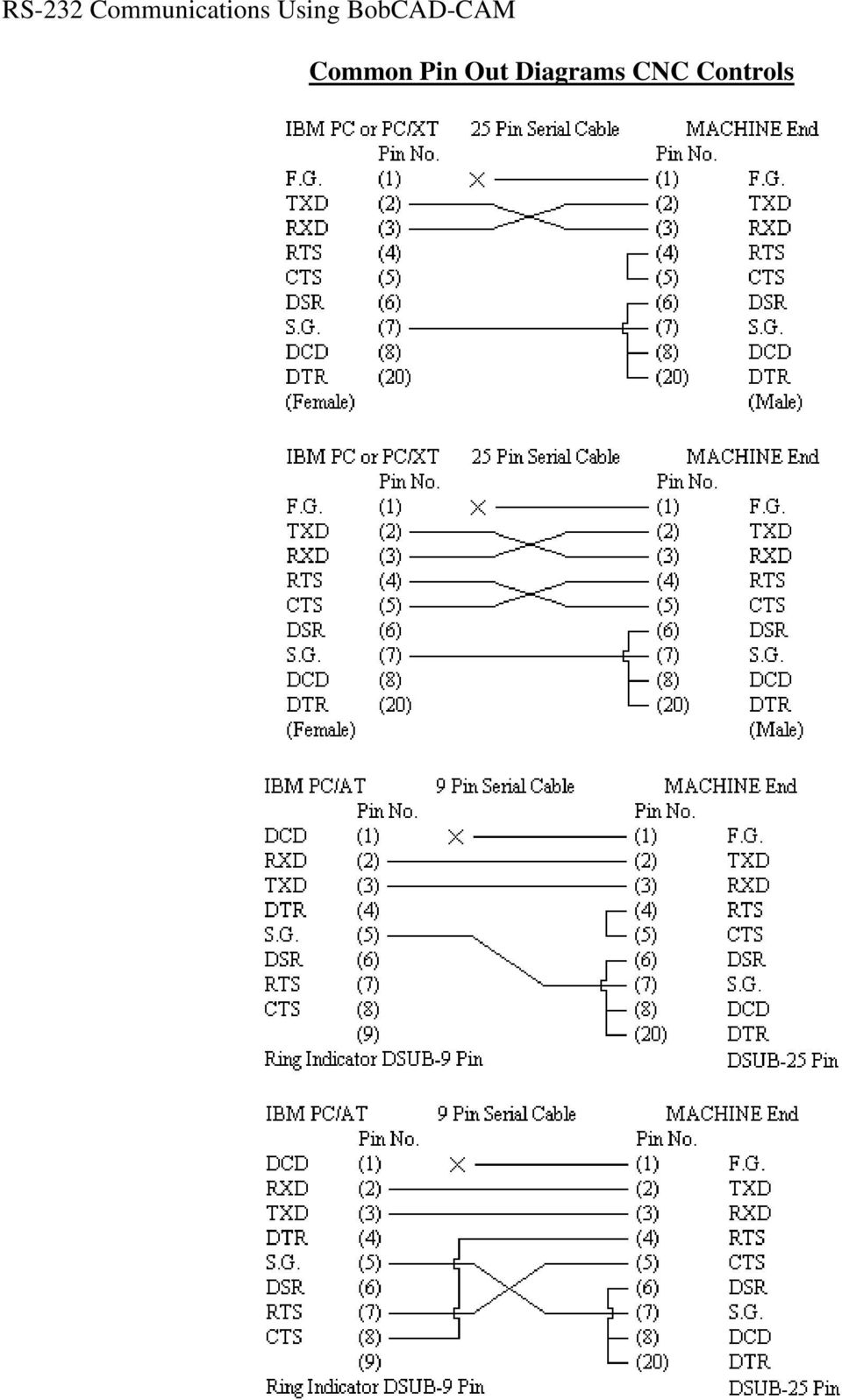
1 RS-232 Introduction Rs-232 is a method used for transferring programs to and from the CNC machine controller using a serial cable. BobCAD-CAM includes software for both sending and receiving and running DNC or a drip feed if the CNC machine is capable. The basics of machine tool communication are sending or receiving an NC program to or from a computer and a machine. This is done from the com port (RS-232) of the computer and the com port (RS-232) of the machine. A cable is used to connect the com port of the computer to the com port of the machine. The cable has a connector at each end. The connector will be 9 or 25 pin depending on the connector port configuration. Each of the pins in a connector port has a different function. The pins are numbered to distinguish one from the other. For example one pin is used for transmission, another is used to receive data, and another is used for a ground. These are the three pins that are needed for machine tool communications. A pin-out description is usually supplied for each machine. This pin-out description will determine the function for each pin. Fortunately the pin-out for most controls is standard for all controls. Typically there will be a 9 pin connector on a computer and a 25 pin connector on a machine s control.

2 DEFINITIONS RS Recommended Standard 232 (RS-232) is a standard for serial communications connecting between a PC and a CNC controller. Port- Serial communications port on PC. A 'port' serves as an interface between the computer and the CNC controller. Baud - A unit used to measure the speed of signaling or data transfer, equal to the number of pulses or bits per second: baud rate. Parity- The condition of the number of items in a set, particularly the number of bits per byte or word, being either even or odd: used as a means for detecting certain errors. Data- The Data rate is the number of bits that are conveyed or processed per unit of time. Stop- The "stop bit" is actually a "stop period" in the transmission of information to the CNC controller. Flow- In computer networking, flow control is the process of managing the rate of data transmission between two nodes to prevent a fast sender from overrunning a slow receiver. Hardware flow control (RTS / CTS) Flow control can be done either by control lines in a data communication interface RTS (Request To Send)/CTS (Clear To Send) and DSR (Data Set Ready)/DTR (Data Terminal Ready), which is usually referred to as "hardware flow control". Software flow control (XON / XOFF) Or by reserving in-band control characters to signal flow start and stop (such as the ASCII codes for XON/XOFF). Common RS 232 control lines are XON/XOFF is usually referred to as "software flow control". Timeout- A period of time after which an error condition is raised if data has not been sent or received. If the software does not acknowledge the message within the preset timeout period, a error is assumed to have occurred. DNC - Direct Numerical Control, also known as Distributed Numerical Control, (both DNC) is a common manufacturing term for networking CNC machine tools. On some CNC machine controllers, the available memory is too small to contain the machining program (for example machining complex surfaces), so in this case the program is stored in a separate computer and sent Direct to the machine, one block at a time. While BobCAD-CAM has the software capability to use DNC the hardware being used must be of the best quality and capabilities.

3 UNDERSTANDING HOW RS-232 COMMUNICATIONS WORK Serial (RS-232) communication describes a serial transmission protocol in which a start signal is sent prior to each byte, character or code word and a stop signal is sent after each code word. The start signal serves to prepare the receiving mechanism for the reception and registration of a symbol and the stop bit serves to bring the receiving mechanism to rest in preparation for the reception of the next symbol. In the diagram, a start bit is sent, followed by eight data bits, no parity bit and one "stop bit", for a 10- bit character frame. The number of data and formatting bits, the order of data bits, and the transmission speed must be pre-agreed by the communicating parties. The "stop bit" is actually a "stop period"; the stop period of the transmitter may be an arbitrary length. It cannot be shorter than a specified amount, usually 1 to 2 bit times. The receiver requires a shorter stop period than the transmitter. At the end of each character, the receiver stops briefly to wait for the next start bit. It is this difference which keeps the transmitter and receiver in synchronism. STEPS TO SET UP RS-232 COMMUNICATIONS WITH BOBCAD-CAM 1. Install the BobCAD-CAM and / or the Predator CNC Editor. 2. Connect a properly configured cable to the PC serial port and then to the CNC machine. 3. Determine first that the Code being sent to the machine is readable, has no errors and bears the correct file extension. 4. Check the Communication settings in the machine the Baud, the Parity and so on. 5. Match the settings in the machine to the settings in the editor. 6. Set the machine to receive. 7. Send the file. ** If there is a failure continue on through the trouble shooting section of this guide. SEE THE GETTING STARTED GUIDE THAT CAME WITH YOUR BOBCAD-CAM FOR A MORE DETAILED EXPLANATION OF HOW TO SEND A PROGRAM USING BOBCAD- CAM THIS GUIDE IS A REFERENCE FOR UNDERSTANDING AND DEBUGGING COMMUNICATION ISSUES ONLY.

4 RS-232 Troubleshooting Making Your Own Cable Pre-wired cables are relatively inexpensive can be ordered though BobCAD-CAM if a custom cable is to be made the following steps should help. Making your own cables are not advised or recommended call your machine dealer or contact BobCAD-CAM to order Pre-wired cables. 1) Determine the connector plugs needed for the machine side and the computer side (9 or 25). 2) Use a pin-out chart to determine which pins need to be connected in the connector plug. 3) Determine the proper jumpers required in each connector plug. 4) The cable being made is called a Null Modem. It is null because the transmit pin from one end is being connected to the receive pin on the other side. And the ground pin from one side is being connected to the ground on the other side. 5) Check for continuity after soldering the wires and jumpers in the plug. 6) Null Modem adapters can be purchased with the appropriate pin-out from local electronic stores. If these are purchased, straight cable needs to be purchased to complete the cable from the computer to the machine tool. Cable notes: 1) Keep the cable as short as possible. The longer the cable the possibility of data corruption is higher. This is because the resistance in the wire increases with the length of the cable and the voltage reduces in this length. The voltage should be between 9 and 12 volts AC between the ground pin and the transmission pin. 2) The voltage in the wire affects the baud rate and data corruption. The higher the voltage the higher the baud rate can be. Data transmission can be corrupted when the baud rate is too high for the amount of voltage in the line. Use low baud rates when the voltage is low. 3) Do not wrap the cable in a coil. This will cause RF (radio frequency) noise which will cause data corruption. 4) Do not attach the cable alone electrical conduit. This will cause RF (radio frequency) noise which will cause data corruption. 5) Do not lay the cable over florescent lights. This will cause RF (radio frequency) noise which will cause data corruption. 6) Confirm that the machine is grounded properly with a single not spliced wire from the machines buss bar to the buildings buss bar in the sub panel. If not done properly, this will cause RF (radio frequency) noise which will cause data corruption. 7) Data corruption can stop transmission, or it can change the data being sent. This is the most dangerous type of data corruption. The position values can change from what was needed.

5 Com Ports While USB to serial adapters can sometimes work, they are not recommended. 1) The transmit circuit is separate from the receive circuit. One or both might be functioning. This result in being able to send to the machine but not receive from the machine. 2) The voltmeter test can be used to determine which device is functioning or not. Place the voltmeter in 0 to 20 volts AC, and put the black lead on the ground pin, and the red lead on the transmit pin. Transmit a file from the device being tested and the reading should be between 9 and 12 volts. If it is lower than 9 volts, this can cause data corruption. One of the ways for a computer builder to save money is to put a 3 volt com port in the computer. Most computer builders are not thinking about machine tool communications when they build the computer. 3) If the voltage is lower than 9 volts and higher quality com port should be installed in the computer. Digi International ( is an example of a com port board manufacturer that can be installed into a computer to get higher voltage in the com line. 4) If the transmit circuit is tested to function on both the computer and machine side, and the cable is good, the receive circuit on either the computer or machine side can be non functional. This would prevent receiving a file.

6 Communication Parameters 1) The communication parameters in both the machine and the computer need to be matched. 2) Usually the parameters can be changed on both sides. They just need to be the same. Do Record the original settings before changing them. 3) The parameters are the baud rate, data bits, parity, and stop bits. The information for communication parameters can be found in the user s or operator s manual of the machine tool. Change or set the communication parameters in BobCad to match the requirements of the machine tool. 4) Sometimes a delay is needed during transmission. This is usually needed when the computer s clock rate is much higher than the machine s clock rate. This usually happens when the computer is of a much newer vintage than the machine. 5) The handshake parameter between a machine and a computer is usually Xon/Xoff. The other handshake options would be used for other devices that require a specialized communications protocol. 6) Beginning and End codes are needed in the program to denote the beginning and end of NC program data. The correct beginning and end code information is given in the user s or operator s manual of the machine tool. For example, commonly the % code is used as the beginning and end code. (Beginning of Program) % N1 O1 (PN 1234) N2 G90 G0 G40 (End of Program) N100 M30 % 7) Some controls have an End of Block (EOB) requirement. This is the block of code that represents the end of each line of program coding. Commonly these would be a carriage return + line feed. These would be an ASCII 10 and 13 codes. Sometimes the code that is displayed on the machines screen is a ; or nothing. The carriage return and the line feed are non displayable codes. The correct EOB information is given in the user s or operator s manual of the machine tool. Ready to transmit Always get the receiving device ready to receive first. For example, set the machine in the receive mode first, then go to the PC and Send. Ready to receive Always get the receiving device ready to receive first. For example, set the PC to receive first then go to the machine and use the send function.

7 The following covers all of the most common RS-232 problems. 1. Check the RS-232 settings. They must agree with what the machine is set to. Make very sure that the correct port is selected. 2. Check for pending errors on the control. Occasionally, incorrect or un-regonized g-gode can cause a failure in the transmission of the program. 3. If these are all correct, check the wiring on the cable. The wiring must match the desired flow control also called handshaking. 4. If everything above is checked and found correct, check the length of the cable. If the cable is more than 50 feet in length, reduce the baud rate on both BobCAD and the control. Occasionally a custom cable that can exceed this length and still get a fast transfer speed. 300 feet is the absolute maximum length that a RS-232 cable can be without a powered signal booster. 5. Check to see if the control in question has a 'terminal' mode. If it does, and it is set to use it for communications. It must be set for file transfer, ASCII mode. 6. RS-232 testing, check the transmit pin (pin 2 on 25-pin connectors, pin 3 on 9-pin connectors) for intermittent voltage when sending. The light on the tester should blink slightly when it is being used. Check the transmit pins on the other end of the cable when it is attached to the computer, and check the pins in the same manner on the control. The pin numbers should agree with the pin out diagram for the CNC machine. 7. Make sure that cable is connecting to a serial port, not a parallel port. All 9-pin ports on the back of the computer are serial. If the port is 25-pin male, it may be serial also. If the port is 25-pin female, it is the parallel port and communication through it should not be attempted, as it cannot be used for transferal of CNC programs. 8. If the machine states in its manual to connect it to a 25-pin parallel port, BobCAD cannot be used for file transfer. It will require special communication software from the control manufacturer.

8 9. Occasionally, having the FIFO buffers active or turned on can be the root of the communications issue to disable them follow the instructions below. Disabling the FIFO Buffer Settings and setting Communication Parameters Go to the Device Manager Click on START / CONTROL PANEL, then double-click on SYSTEM then HARDWARE, and then DEVICE MANAGER. Look for the PORTS (COM & LPT) section and click the plus sign, + to expand the section. Double-click on the communications port entry you are using to bring up the Port Properties Window. You will see some tabs along the top of the window. Select the PORT SETTINGS tab. 10. Select the Port Settings Tab. Here you can set the Baud rate, Parity, Data bits, Stop bits, and Flow control. These settings should be the same as your machine settings. 11. Toward the bottom of the PORT SETTINGS window, select the ADVANCED button. You'll be presented with check boxes that can be unchecked to disable the FIFO buffers. Once disabled, try your transfer again.

9 Common Pin Out Diagrams CNC Controls
10 DNC Solutions Direct Numerical Control (DNC) Direct Numerical Control is a form of machine tool communication not supported in BobCad. DNC is used when the length of the program exceeds the memory capacity of the machine. Another term for DNC is Drip Feed. DNC requires the best communication system consisting of all the subjects discussed above. This is because data integrity is paramount during a DNC session. Any corrupt data can cause the machine to move in a path not expected by the programmer. Specialized software is required for DNC transmission. This software should be able to accomplish mid-program starts. Additionally, this software should be able to insure data integrity by using X-modem or other similar style communications protocol. X-modem style protocol uses a check-sum to insure data transmission. Call BobCad Technical Support for help with DNC solutions. Simple Solutions: CNC Hardware Bundle. These packages include, the Predator CNC editor, 25 feet of custom cable, an RS-232 card for a desktop or a PCMIA card for a laptop computer. Advanced solutions: Bobcad offers advanced DNC solutions. Discuss your DNC needs with your BobCad Service Technician and we will provide your company with a custom quote. Other Solutions: Job Traveler system, Program Verification System, Remote Machine Monitoring, Paperless shop, and Shop organization are some of the things we offer. Use the Behind the Tape Reader board to replace tape reader devices on older machines.

PCMCIA 1 Port RS232 2.1 EDITION OCTOBER 1999
 232 232232 PCMCIA 1 Port RS232 2.1 EDITION OCTOBER 1999 Guarantee. FULL 36 MONTHS GUARANTEE. We guarantee your interface card for a full 36 months from purchase, parts and labour, provided it has been
CENTRONICS interface and Parallel Printer Port LPT
 Course on BASCOM 8051 - (37) Theoretic/Practical course on BASCOM 8051 Programming. Author: DAMINO Salvatore. CENTRONICS interface and Parallel Printer Port LPT The Parallel Port, well known as LPT from
Fanuc 0 M/T Model C Serial (RS232) Connection Guide
 Memex Automation Inc., Burlington, Ontario Canada L7N 1 http://www.memex.ca Fanuc 0 M/T Model C Serial (RS232) Connection Guide The Fanuc 0-C control has two RS-232 interfaces. Interface number 1 (M5)
Appendix A. This Appendix includes the following supplemental material:
 Appendix A This Appendix includes the following supplemental material: Cabling Diagrams and Instructions Connectors (9-pin D-type) Data Transfer Protocols Usage/Handshaking Ultimax Dual Screen Console
RS232C < - > RS485 CONVERTER S MANUAL. Model: LD15U. Phone: 91-79-4002 4896 / 97 / 98 (M) 0-98253-50221 www.interfaceproducts.info
 RS232C < - > RS485 CONVERTER S MANUAL Model: LD15U INTRODUCTION Milestone s model LD-15U is a RS232 to RS 485 converter is designed for highspeed data transmission between computer system and or peripherals
Aquadyne TechTip TITLE: TROUBLESHOOTING PC COM PORT AND MODEM PRODUCTS AFFECTED SYMPTOMS POSSIBLE CAUSES
 Aquadyne TechTip TITLE: TROUBLESHOOTING PC COM PORT AND MODEM COMMUNICATIONS WITH AN OCTOPUS. Article # 072297-1 Last reviewed: 03/25/98 Keywords: Serial Port, Modem, Polling, AquaWeb, Node Not Responding
RS-232 COMMUNICATIONS
 Technical Note D64 0815 RS-232 COMMUNICATIONS RS-232 is an Electronics Industries Association (EIA) standard designed to aid in connecting equipment together for serial communications. The standard specifies
Application Note 83 Fundamentals of RS 232 Serial Communications
 Application Note 83 Fundamentals of Serial Communications Due to it s relative simplicity and low hardware overhead (as compared to parallel interfacing), serial communications is used extensively within
LTM-1338B. Plus Communications Manual
 LTM-1338B Plus Communications Manual 2000. Best Power, Necedah, Wisconsin All rights reserved. Best Power The System Setup option from the Main Menu on the front panel is passwordprotected. The default
Connecting instruments serially to your computer
 Connecting instruments serially to your computer This TechNote will review how to connect instruments (GPS, Sounder, Heading Sensor ) to a computer. Important points such as electrical specification (RS-232
Virtual Integrated Design Getting started with RS232 Hex Com Tool v6.0
 Virtual Integrated Design Getting started with RS232 Hex Com Tool v6.0 Copyright, 1999-2007 Virtual Integrated Design, All rights reserved. 1 Contents: 1. The Main Window. 2. The Port Setup Window. 3.
Cable Guide. Click on the subject to view the information. Digi Cables Building Cables General Cable Information
 Cable Guide Click on the subject to view the information. Digi Cables Building Cables General Cable Information Digi Cables Click on the subject to view the information. Digi Connector Options Digi Connector
Using a Laptop Computer with a USB or Serial Port Adapter to Communicate With the Eagle System
 Using a Laptop Computer with a USB or Serial Port Adapter to Communicate With the Eagle System ECU DB9 USB 20-060_A.DOC Page 1 of 18 9/15/2009 2009 Precision Airmotive LLC This publication may not be copied
Programming and Using the Courier V.Everything Modem for Remote Operation of DDF6000
 Programming and Using the Courier V.Everything Modem for Remote Operation of DDF6000 1.0 Introduction A Technical Application Note from Doppler System July 5, 1999 Version 3.x of the DDF6000, running version
RS-232 Baud Rate Converter CE Model 232BRC Documentation Number 232BRC-3903 (pn5104-r003)
 S-232 Baud ate Converter CE Model 232BC Documentation Number 232BC-3903 (pn5104-r003) International Headquarters B&B Electronics Mfg. Co. Inc. 707 Dayton oad -- P.O. Box 1040 -- Ottawa, IL 61350 USA Phone
Single channel data transceiver module WIZ2-434
 Single channel data transceiver module WIZ2-434 Available models: WIZ2-434-RS: data input by RS232 (±12V) logic, 9-15V supply WIZ2-434-RSB: same as above, but in a plastic shell. The WIZ2-434-x modules
DUKANE Intelligent Assembly Solutions
 PC Configuration Requirements: Configuration Requirements for ipc Operation The hardware and operating system of the PC must comply with a list of minimum requirements for proper operation with the ipc
Using HyperTerminal with Agilent General Purpose Instruments
 Using HyperTerminal with Agilent General Purpose Instruments Windows HyperTerminal can be used to program most General Purpose Instruments (not the 531xx series counters) using the RS-232 Serial Bus. Instrument
CNC File Transfer Box. Connecting the CNC File Transfer. CNC Transfer Program
 CNC File Transfer Box The CNC File Transfer connects a serial CNC device to the network so files can be easily transferred from a computer to the CNC equipment. Any computer on the network can transfer
Connecting to the Internet
 Connecting to the Internet Connecting the Gateway to the Internet Configuration of TCP/IP Protocol Installing the USB Drivers Connecting Ethernet Network Devices Connecting USB Network Devices Connecting
Remote Serial over IP Introduction on serial connections via IP/Ethernet
 Remote Serial over IP Introduction on serial connections via IP/Ethernet TABLE OF CONTENT TABLE OF CONTENT... I TABLE OF IMAGES... I INTRODUCTION... 1 Classic Style of Communication... 1 Ethernet and
To perform Ethernet setup and communication verification, first perform RS232 setup and communication verification:
 PURPOSE Verify that communication is established for the following products programming option (488.2 compliant, SCPI only): DCS - M9C & DCS M130, DLM M9E & DLM-M9G & DLM M130, DHP - M9D, P series, SG,
Modbus Communications for PanelView Terminals
 User Guide Modbus Communications for PanelView Terminals Introduction This document describes how to connect and configure communications for the Modbus versions of the PanelView terminals. This document
Connecting the Console Port to a PC
 This document covers tasks associated with connecting a console port to a PC, and includes the following topics: Console (rollover) Cable and Adapters Making the physical connection Connecting using HyperTerminal
WHQL Certification Approval...2 User Interface...3 SUNIX s COMLab..4
 INDEX WHQL Certification Approval...2 User Interface....3 SUNIX s COMLab..4 1.0 Introduction...5 2.0 Specification..5 2.1 Features 2.2 Universal Serial PCI Card 2.3 RS-232 Specification 2.4 Low Profile
Serial Communications
 April 2014 7 Serial Communications Objectives - To be familiar with the USART (RS-232) protocol. - To be able to transfer data from PIC-PC, PC-PIC and PIC-PIC. - To test serial communications with virtual
PM1122 INT DIGITAL INTERFACE REMOTE
 PM1122 INT DIGITAL INTERFACE REMOTE PM1122 INT front panel description: 1. Clear wireless remotes knob: push this button for more than 2 seconds to clear the list of all assigned wireless remote settings
LDG Electronics External Meter Serial Communications Protocol Specification
 M1000 METER PROTOCOL SPECIFICATION MANUAL REV A LDG Electronics External Meter Serial Communications Protocol Specification LDG Electronics 1445 Parran Road St. Leonard MD 20685-2903 USA Phone: 410-586-2177
Using Xbee 802.15.4 in Serial Communication
 Using Xbee 802.15.4 in Serial Communication Jason Grimes April 2, 2010 Abstract Instances where wireless serial communication is required to connect devices, Xbee RF modules are effective in linking Universal
Troubleshooting and Diagnostics
 Troubleshooting and Diagnostics The troubleshooting and diagnostics guide provides instructions to assist in tracking down the source of many basic controller installation problems. If there is a problem
Advanced Data Capture and Control Systems
 Advanced Data Capture and Control Systems Tronisoft Limited Email: [email protected] Web: www.tronisoft.com RS232 To 3.3V TTL User Guide RS232 to 3.3V TTL Signal Converter Modules P/N: 9651 Document
1 Port FTDI USB to RS232 Null Modem Adapter
 1 Port FTDI USB to RS232 Null Modem Adapter ICUSB232FTN *actual product may vary from photos DE: Bedienungsanleitung - de.startech.com FR: Guide de l'utilisateur - fr.startech.com ES: Guía del usuario
PRODUCTIVITY THROUGH INNOVATION 600 CONTROL DIRECT DRIVE TECHNICAL/OPERATION MANUAL
 Rev. D PRODUCTIVITY THROUGH INNOVATION 600 CONTROL DIRECT DRIVE TECHNICAL/OPERATION MANUAL 10 BORIGHT AVENUE, KENILWORTH NEW JERSEY 07033 TELEPHONE: 800-524-0273 FAX: 908-686-9317 TABLE OF CONTENTS Page
S88XPressNetLI v1.0. Installation, user and reference manual. 2008 KDesign Electronics, PCB design by RoSoft
 S88XPressNetLI v1.0 Installation, user and reference manual 2008 KDesign Electronics, PCB design by RoSoft Table of contents 1 Introduction... 3 2 Specifications... 4 3 Installation... 5 3.1 Connecting
IMMS-CCC. IMMS-CCC Hardwire Central Interface. Installation Instructions
 IMMS-CCC IMMS-CCC Hardwire Central Interface Installation Instructions TABLE OF CONTENTS... Choose a Location... 1 Connections... 2 Operations... 3 Software Configuration... 4 Troubleshooting... 5 Loopback
Dial-Up / Leased-Line Modem. User Manual. AGM Electronics, Inc Dial-Up / Leased-Line Modem, Series ( ) 5019-1 Manual Rev A + - DLM CTS RTS DTR DSR
 AGM Electronics, Inc Dial-Up / Leased-Line Modem, Series ( ) 5019-1 Manual Rev A User Manual + - CD CTS RTS DTR. DSR RI RX TX PHONE LINE DLM Dial-Up / Leased-Line Modem Dial-Up / Leased-Line Modem CONTENTS
Speedlink software will run on Windows NT, Windows 7, and Windows 8; it will run on both 32 byte and 64 byte versions of Windows.
 Guide to the Speedlink software and drivers. Status Instruments has a range of process control equipment that can be configured using the Speedlink software. Some equipment will connect directly to a Windows
Communications Instructions for DOOSAN, FANUC Controls
 Communications Instructions for DOOSAN, FANUC Controls Ethernet & RS-232 for; 18i, 21i, 0ib and c 30i Series & 0id - 1 - Table of Contents Section 1... 3 Ethernet Set-up for the PC... 3 Description...
TCP/IP MODULE CA-ETHR-A INSTALLATION MANUAL
 TCP/IP MODULE CA-ETHR-A INSTALLATION MANUAL w w w. c d v g r o u p. c o m CA-ETHR-A: TCP/IP Module Installation Manual Page Table of Contents Introduction...5 Hardware Components... 6 Technical Specifications...
Technical Manual. For use with Caller ID signaling types: Belcore 202, British Telecom, & ETSI
 Technical Manual For use with Caller ID signaling types: Belcore 202, British Telecom, & ETSI Caller ID.com WHOZZ CALLING? POS 2 Caller ID Monitoring Unit Technical Manual For use with Caller ID signaling
How to setup a serial Bluetooth adapter Master Guide
 How to setup a serial Bluetooth adapter Master Guide Nordfield.com Our serial Bluetooth adapters part UCBT232B and UCBT232EXA can be setup and paired using a Bluetooth management software called BlueSoleil
When we look at the connector pinout of the RS232 port, we see two pins which are certainly used
 1 Null modem - an introduction Serial communications with RS232 1. One of the oldest and most widely spread communication methods in computer world. The way this type of communication can be performed
WUA-0605 300Mbps Wireless USB Network Adapter
 WUA-0605 300Mbps Wireless USB Network Adapter User Manual V1.0 Certification FCC CE FCC Statement This equipment has been tested and found to comply with the limits for a Class B digital device, pursuant
Keep it Simple Timing
 Keep it Simple Timing Support... 1 Introduction... 2 Turn On and Go... 3 Start Clock for Orienteering... 3 Pre Start Clock for Orienteering... 3 Real Time / Finish Clock... 3 Timer Clock... 4 Configuring
Process Control and Automation using Modbus Protocol
 Process Control and Automation using Modbus Protocol Modbus is the fundamental network protocol used in most industrial applications today. It is universal, open and an easy to use protocol. Modbus has
ETHERNET WEATHER STATION CONNECTIONS Application Note 33
 ETHERNET WEATHER STATION CONNECTIONS Application Note 33 With WeatherLink and a Device Server INTRODUCTION It is possible to substitute an Ethernet connection for the direct USB or serial connection that
OFF-LINE COMMUNICATIONS WITH CINCINNATI EQUIPMENT Pg. 1 of 5
 Pg. 1 of MACHINE TYPE BACKGROUND CAPABILITIES SOFTWARE NEEDED* C. I. SOFTWARE AVAILABLE Autoform - VMEI NO Kermit - Off-Line Programming - -D Programming Autoform - VMEII YES Kermit - Same as above - D
RS232 Board datasheet
 RS232 Board datasheet Contents 1. About this document 2. General information 3. Board Layout 4. Getting Started 5. Circuit Description Appendix 1 Circuit Diagram Copyright 2004 Matrix Multimedia Limited
RS485 Adapters. User Manual October 26, 2008 V1.02 Copyright Light O Rama, Inc. 2006, 2007, 2008 SC485 USB485B USB485 USB485-ISO
 SC485 USB485B USB485 USB485-ISO User Manual October 26, 2008 V1.02 Copyright Light O Rama, Inc. 2006, 2007, 2008 This page intentionally blank Table of Contents Introduction... 4 What s in the Box... 5
MS830 / MS833 Barcode Reader v1.0 9-December-2014
 MS830 / MS833 Barcode Reader v1.0 9-December-2014 Publication Information 2014 Imagine Communications Corp. Proprietary and Confidential. Imagine Communications considers this document and its contents
I. DigitalCAT Captioning Software Overview... 1. A. Welcome... 1. B. Acquiring the Captioning Add-On... 1. C. Purpose of this Guide...
 I. DigitalCAT Captioning Software Overview... 1 A. Welcome... 1 B. Acquiring the Captioning Add-On... 1 C. Purpose of this Guide... 1 II. Direct or Dial-Up Connections... 1 A. Direct Connections... 1 B.
SUDT AccessPort TM Advanced Terminal / Monitor / Debugger Version 1.37 User Manual
 SUDT AccessPort TM Advanced Terminal / Monitor / Debugger Version 1.37 User Manual Version 1.0 - January 20, 2015 CHANGE HISTORY Version Date Description of Changes 1.0 January 20, 2015 Initial Publication
By4750. USB Serial Converter (RS232 RS485)
 By4750 USB Serial Converter (RS232 RS485) 1 /29 SUMMARY PRESENTATION... 3 TECHNICAL CHARACTERISTICS... 4 INSTALLATION... 5 COM IDENTIFICATION... 12 OBSERVATIONS... 17 MANUAL PORT ALLOCATION... 19 UNINSTALL...
Application Note: Connecting to a 2500 Series Processor using PLC Workshop
 Application Note: Connecting to a 2500 Series Processor using PLC Workshop This application note will describe a step by step process for the three ways to connect to a 2500-CXXX with PLC Workshop. The
Quick Installation. A Series of Intelligent Bar Code Reader with NeuroFuzzy Decoding. Quick Installation
 Quick Installation A Series of Intelligent Bar Code Reader with NeuroFuzzy Decoding This chapter intends to get your new FuzzyScan scanner working with your existing system within minutes. General instructions
PRT3 Printer Module: ASCII Protocol Programming Instructions
 PRT3 Printer Module: ASCII Protocol Programming Instructions We hope this product performs to your complete satisfaction. Should you have any questions or comments, please visit www.paradox.com and send
Knowledge Base Article. Integrating ISONAS Access Control System with TagMaster LR-series RFID Readers
 Knowledge Base Article Integrating ISONAS Access Control System with TagMaster LR-series RFID Readers Copyright 2009-2012, ISONAS Security Systems All rights reserved Table of Contents 1: INTRODUCTION...
PL-1, Pocket Logger 11-0135B
 PL-1, Pocket Logger 1 PL-1... 2 2 Wiring... 3 2.1.1 Single Innovate Device Relay Wiring Instructions... 3 3 Mounting... 4 4 Connecting the PL-1 to the MTS serial chain... 4 5 Recording... 5 6 LogWorks...
Date Rev. Details Author
 Jtech engineering ltd J - Te c h E n g i n e e ring, L t d. 11080 Bond Boulevard Delta BC V4E 1M7 Canada Tel: 604 543 6272 Fax: 604 543 6476 http://www.jtecheng.com AUTODIALER USER S MANUAL REVISION HISTORY
RS-422/485 Multiport Serial PCI Card. RS-422/485 Multiport Serial PCI Card Installation Guide
 RS-422/485 Multiport Serial PCI Card Installation Guide 21 Contents 1. Introduction...1 2. Package Check List...2 3. Board Layouts and Connectors...3 3.1 2S with DB9 Male Connectors...3 3.1.1 JP5: UART
Bluetooth Serial Adapter
 RN-BT-SRL-UM Bluetooth Serial Adapter 0 Roving Networks. All rights reserved. RN-BT-SRL-UM-.0 Version.0 //0 USER MANUAL RN-BT-SRL-UM-.0 OVERVIEW Roving Networks offers a variety of Bluetooth serial adapters
Communication with BushingGard using computer USB port
 Communication with BushingGard using computer USB port There are two ways of communication with BushingGard through computer USB port: Direct communication between computer USB port and BushingGard USB
Short Range Wireless Switch System Handheld 8 Installation and Operations Guide
 Phone: (866) 701-1146 Fax: (425) 216-7558 www.remotecontroltech.com Short Range Wireless Switch System Handheld 8 Installation and Operations Guide Introduction... 2 Before Installation... 2 Receiver Installation...
LAN / WAN Connection Of Instruments with Serial Interface By Using a Terminal Server
 Products: EFA with EFA Scan, DVRM and DVMD with Realtime Monitor or Stream Explorer DVMD-B1 LAN / WAN Connection Of Instruments with Serial Interface By Using a Terminal Server Remote control of test and
LOW COST GSM MODEM. Description. Part Number
 Dual Band 900 / 1800 MHz Fax, SMS and Data Integral SIM Card holder Siemens TC-35i GSM Engine Rugged Extruded Aluminium Enclosure Compact Form Factor 86 x 54 x 25mm RS232 Interface with Auto baud rate
Connecting your Omega/BetaPAT PLUS to a PC via a USB
 Connecting your Omega/BetaPAT PLUS to a PC via a USB Install software Windows XP and below Insert the disc into your computers disc drive and run through the setup wizard. Windows Vista & 7 1. Insert the
RJ45 Shielded (standard) port pinout. CS9000, Jetstream 4000 + 8500, Lanstream 2000, RTA8/RJX, RRC16, MTA8/RJX & SXDC8/RJX
 Shielded (standard) port pinout Pin Circuit Function 1 DCD Input Data Carrier Detect 2 DSR Output Data Set Ready 3 DTR Input Data Terminal Ready 4 S/GND Signal Ground 5 TXD Output Transmit Data 6 RXD Input
HDMI Switch USER MANUAL VS481A
 HDMI Switch USER MANUAL VS481A FCC Information This equipment has been tested and found to comply with the limits for a Class B digital device, pursuant to Part 15 of the FCC Rules. These limits are designed
Laser Barcode Scanner User s Manual
 Laser Barcode Scanner User s Manual FCC Compliance This equipment has been tested and found to comply with the limits for a Class A digital device, pursuant to Part 15 of the FCC Rules. These limits are
How To Set Up A Modbus Cda On A Pc Or Maca (Powerline) With A Powerline (Powergen) And A Powergen (Powerbee) (Powernet) (Operating System) (Control Microsci
 Firmware Loader User Manual CONTROL MICROSYSTEMS SCADA products... for the distance 48 Steacie Drive Telephone: 613-591-1943 Kanata, Ontario Facsimile: 613-591-1022 K2K 2A9 Technical Support: 888-226-6876
Serial to Bluetooth Adapter
 Serial to Bluetooth Adapter Serial (RS-232) to Bluetooth Class 1 Adapter ICRS232BT1 Actual product may vary from photo FCC Compliance Statement This equipment has been tested and found to comply with the
ELAN DIGITAL SYSTEMS LTD. SL232 PC- CARD USER S GUIDE
 ELAN DIGITAL SYSTEMS LTD. LITTLE PARK FARM ROAD, SEGENSWORTH WEST, FAREHAM, HANTS. PO15 5SJ. TEL: (44) (0)1489 579799 FAX: (44) (0)1489 577516 e-mail: [email protected] website: http://www.pccard.co.uk
USER GUIDE. Ethernet Configuration Guide (Lantronix) P/N: 2900-300321 Rev 6
 KRAMER ELECTRONICS LTD. USER GUIDE Ethernet Configuration Guide (Lantronix) P/N: 2900-300321 Rev 6 Contents 1 Connecting to the Kramer Device via the Ethernet Port 1 1.1 Connecting the Ethernet Port Directly
The Secrets of Flow Control in Serial Communication
 in Serial Communication Casper Yang, Senior Product Manager [email protected] Although RS-232/422/485 serial communication is no longer considered to be high speed, flow control is still an important function
IPX AUTOMATIC IP NETWORK LOSS BACKUP A/B SWITCH INSTRUCTION BOOK IB6444-02
 IPX AUTOMATIC IP NETWORK LOSS BACKUP A/B SWITCH INSTRUCTION BOOK IB6444-02 TABLE OF CONTENTS DESCRIPTION 2 MOUNTING INSTRUCTIONS 2 HOW TO CABLE THE IPX 2/3 POWER SUPPLY INSTALLATION 3 OPERATION 3 CARE
Bluetooth HC-06 with serial port module Easy guide
 1 Bluetooth HC-06 with serial port module Easy guide This manual consists of 3 parts: PART 1. Overview of Bluetooth HC-06 module with serial port. PART 2. Installing Bluetooth HC-06 module with Bolt 18F2550
SDN INSTRUCTIONS 07/10, Ver 1.2. Somfy Digital Network (SDN) Installation and Programming
 Somfy Digital Network (SDN) Installation and Programming SSoomffyy SSyysst teemss IInncc.. 1 Table of Contents 1 General Information and Features... 3 1.1 ILT2 Motor... 3 1.2 SDN Switches... 4 1.3 ILT2
Programming the BetaBrite Classic LED electronic sign
 Programming the BetaBrite Classic LED electronic sign by Gary Peek Written for Nuts & Volts magazine, 2003, published on internet Update 2008 In 2005 Adaptive Microsystems introduced the BetaBrite Prism
LS-101 LAN to Serial Device server. User s Manual
 LS-101 LAN to Serial Device server User s Manual Revision History Revision No Date Author Remarks 0.1 August 29, 2001 IDC Initial document INTRODUCTION Overview Almost all instruments and most industrial
BIT COMMANDER. Serial RS232 / RS485 to Ethernet Converter
 BIT COMMANDER Serial RS232 / RS485 to Ethernet Converter (Part US2000A) Copyrights U.S. Converters 1 Contents Overview and Features... 3 Functions..5 TCP Server Mode... 5 Httpd Client Mode.5 TCP Auto mode....6
"USB Serial Adapter" User Manual
 "USB Serial Adapter" User Manual V1.00 Table of Contents 1. Introduction................................2 2. Device Specifications........................2 2.1. Environmental Conditions......................2
CNC*Dnc. User s Manual. Innovation Driving Quality and Productivity. Copyright CNC Innovations, LLC All Rights Reserved. Version 1.
 CNC*Dnc User s Manual Version 1.4 Release 2013 Innovation Driving Quality and Productivity Copyright CNC Innovations, LLC All Rights Reserved Table of Contents License Agreement...3 CNC*Dnc Features...4
AutoWAVE. Programming Instructions P/N 1-0479-014. Part of Thermo Fisher Scientific. Revision D
 AutoWAVE Programming Instructions P/N 1-0479-014 Revision D Part of Thermo Fisher Scientific AutoWAVE Programming Instructions P/N 1-0479-014 Revision D 2007 Thermo Fisher Scientific Inc. All rights
Software User Guide UG-461
 Software User Guide UG-461 One Technology Way P.O. Box 9106 Norwood, MA 02062-9106, U.S.A. Tel: 781.329.4700 Fax: 781.461.3113 www.analog.com ezlinx icoupler Isolated Interface Development Environment
Six-servo Robot Arm. DAGU Hi-Tech Electronic Co., LTD www.arexx.com.cn. Six-servo Robot Arm
 Six-servo Robot Arm 1 1, Introduction 1.1, Function Briefing Servo robot, as the name suggests, is the six servo motor-driven robot arm. Since the arm has a few joints, we can imagine, our human arm, in
OPERATOR INTERFACE PRODUCTS APPLICATION NOTE. Xycom 4800/2000 OIL (Operator Interface Language)- Series Terminals: Backup and Restore with ProComm
 Page 1 of 9 Xycom 4800/2000 OIL (Operator Interface Language)- Series Terminals: Backup and Restore with ProComm Introduction The Xycom 4800/2000 OIL-series terminals offer you the ability to backup and
enetdnc Take Control of your Manufacturing Process and Improve Your Throughput Quickly, Easily and Cost Effectively with...
 Take Control of your Manufacturing Process and Improve Your Throughput Quickly, Easily and Cost Effectively with... enetdnc DNC Through Your Ethernet Network Ethernet Based DNC Wireless DNC Machine Monitoring
DOEPFER MIDI TO SYNC INTERFACE MSY2. User's Guide (English)
 DOEPFER MIDI TO SYNC INTERFACE MSY2 User's Guide (English) www.doepfer.com INTRODUCTION MSY2 is an interface that converts the MIDI realtime events CLOCK, START and STOP into the corresponding signals
ALL-USB-RS422/485. User Manual. USB to Serial Converter RS422/485. ALLNET GmbH Computersysteme 2015 - Alle Rechte vorbehalten
 ALL-USB-RS422/485 USB to Serial Converter RS422/485 User Manual ALL-USB-RS422/485 USB to RS-422/485 Plugin Adapter This mini ALL-USB-RS422/485 is a surge and static protected USB to RS-422/485 Plugin Adapter.
EMBEDDED ACCESS CONTROL Hardware Installation Guide
 EMBEDDED ACCESS CONTROL Hardware Installation Guide Lenel goentry Hardware Installation Guide, product version 1.00. This guide is item number DOC- ENHW-ENU, revision 1.003, April 2009 Copyright 2009 Lenel
Application Note. Troubleshooting Communications
 ANX Application Note Troubleshooting Communications This document is a guide for basic troubleshooting of UPB communication issues. There are two things that can disturb UPB communications: noise and attenuation.
POS Integration. Prepared by: Binh Nguyen
 POS Integration Prepared by: Binh Nguyen Point of Sale (POS) Compatibility To know whether it is possible to integrate your POS system with our DVR, please check whether the type of printer the POS system
Draper Low Voltage, Remote Control, Serial and Network Wiring Guide
 Draper Low Voltage, Remote Control, Serial and Network Wiring Guide Copyright 2007 Draper Inc. Form LV-RC-Serial-Network_Wiring07 Print ed in U.S.A. Draper Low Voltage, Remote Control, Serial and Network
The Analyst RS422/RS232 Tester. With. VTR, Monitor, and Data Logging Option (LOG2) User Manual
 12843 Foothill Blvd., Suite D Sylmar, CA 91342 818 898 3380 voice 818 898 3360 fax www.dnfcontrolscom The Analyst RS422/RS232 Tester With VTR, Monitor, and Data Logging Option (LOG2) User Manual Manual
Comtrol Cable User Guide
 Comtrol Cable User Guide Trademark Notices Comtrol and DeviceMaster are trademarks of Comtrol Corporation. PortVision is a registered trademark of Comtrol Corporation. Microsoft and Windows are registered
USB TO SERIAL ADAPTER
 USB TO SERIAL ADAPTER (Model: U232-P9V2) SPECIFICATIONS CONTENTS 1. GENERAL SPECIFICATIONS... 1 1.1 PRODUCT SURFACE... 1 1.2 PRODUCT DIMENSION... 2 1.3 PRODUCT FEATURES... 3 1.4 PRODUCT SPECIFICATIONS...
RS232 Programming and Troubleshooting Guide for Turbo Controls
 RS232 Programming and Troubleshooting Guide for Turbo Controls This Troubleshooting guide is intended for the set up and troubleshooting of the control panels onboard RS232 output. Refer to the Installation
MANUAL FOR RX700 LR and NR
 MANUAL FOR RX700 LR and NR 2013, November 11 Revision/ updates Date, updates, and person Revision 1.2 03-12-2013, By Patrick M Affected pages, ETC ALL Content Revision/ updates... 1 Preface... 2 Technical
OSM 2007 MONITORING SOFTWARE
 OSM 2007 MONITORING SOFTWARE Contents Preparation...3 Software Installation...4 Configuring OSM...6 Connecting a Device...16 Connecting to Station Monitoring Software...19 Troubleshooting...23 Installing
A+ Guide to Managing and Maintaining Your PC, 7e. Chapter 1 Introducing Hardware
 A+ Guide to Managing and Maintaining Your PC, 7e Chapter 1 Introducing Hardware Objectives Learn that a computer requires both hardware and software to work Learn about the many different hardware components