
Solutions from SAP. SAP Business One 2005 SP01. User Interface. Standards and Guidelines. January 2006
|
|
|
- Adrian Floyd
- 9 years ago
- Views:
Transcription
1 Solutions from SAP SAP Business One 2005 SP01 User Interface Standards and Guidelines January 2006

2 Table of Contents Icons... 5 Typographic Conventions Overview General Issues About SAP Business One About This Document SAP Business One Structure The Main Window SAP Business One Main Menu GUI Controls Control Overview Basic Data Controls Text Field Basic Selection Controls Check Box Checkbox with Three States Radio Button List Box Choose from List (List of <list type>) Choose From Tree Buttons Command Button Back Arrow Icon Graph Icon Image Browse Icon Link Arrow Icon Complex Data Controls Table Hierarchical Table Row Types Tree Control Tree-Table Control Advanced Selection Controls Account Selector Business Partners Selector Date Range Selector Extended Checkbox Item Selector January

3 4.6.6 Properties Selection Field View Controls Tabstrip Nested Tabstrip Drawers View Selector Window Controls Window Title Bar Menu Bar and Drop-Down Menus Context Menu (Right-Click Menu) Toolbar Window Scroll Bar Tool Tip Status Bar Graphic Design Guidelines Screen Resolution Fonts Colors Window Layout Terminology Labeling Conventions Command Buttons Arranging the Information in a Window Typical Screens Add/Find Window Choose from List Window (List of <List Type>) Choose from Tree Window Filter Table Window Sort Table Window Setup Window (NOE = New Object Entry) Form Settings Row Details Message Window Print Options Messages Property Selection Window Report Window Hierarchical Reports Selection Criteria Window Wizard General Considerations January

4 7.1 Adding a New Feature System Messages January

5 Icons Icon Meaning Caution Example Note Recommendation Syntax Typographic Conventions Type Style Example text Example text EXAMPLE TEXT Example text EXAMPLE TEXT Example text <Example text> Description Words or characters that appear on the screen. These include field names, screen titles, pushbuttons as well as menu names, paths and options. Cross-references to other documentation. Emphasized words or phrases in body text, titles of graphics and tables. Names of elements in the system. These include report names, program names, transaction codes, table names, and individual key words of a programming language, when surrounded by body text, for example, SELECT and INCLUDE. Screen output. This includes file and directory names and their paths, messages, source code, names of variables and parameters as well as names of installation, upgrade and database tools. Keys on the keyboard, for example, function keys (such as F2) or the ENTER key. Exact user entry. These are words or characters that you enter in the system exactly as they appear in the documentation. Variable user entry. Pointed brackets indicate that you replace these words and characters with appropriate entries. January

6 1. Overview The User Interface Standards and Guidelines provide best practices for designing the SAP Business One interface. This document describes the structure and look of the interface and the rules used to execute the actions that affect the system. By following these guidelines, developers, partners and product managers can improve the quality and consistency of the application. The document includes the most updated and advanced GUI design rules and recommendations. It also includes a host of relevant GUI information, including a glossary, case studies, re-usable components, and international support standards. To achieve the desired level of consistency, usability, and functionality, it is necessary that all the relevant aspects described in this document are taken into account to maintain a high level of quality in the product. 2. General Issues 2.1 About SAP Business One SAP Business One application has a default font. The user may select another font size and style. All text, including text controls, will change automatically to the new font selected by the user. If the font selected by the user is larger than the default font, the control s size may change accordingly. Many controls can be accessed via a mnemonic. The mnemonic is implemented by underlying one of the letters in the control s label. Clicking Alt+<mnemonic> is equal to clicking the control. The mnemonic should be unique within the window. There are more functions which need mnemonics than there are keys on the keyboard. Therefore, some of the functions are not implemented in the application. Each control should be assigned with two information types: Description Text displayed in the status bar when the mouse cursor is placed over the control. The Description Text should be informative and describe the meaning of the control shortly. System Information (formerly known as Debug Information) additional internal information that is also displayed in the status bar, if the View System Information option is turned on. 2.2 About This Document This document represents the desirable guidelines. Some of the recommendations are still not fully implemented in the application. All fonts mentioned in this document are the SAP Business One default fonts. The user may change font style and size. All sizes mentioned in this document refer to the default font size. If the user chooses a different font size, all controls will be resized accordingly. Position and direction guidelines in this document refer to left-to-right languages. If a right-to-left language is used, directions are inverted. January

7 3. SAP Business One Structure SAP Business One is structured with three basic types of windows: The main window Primary and subordinate windows (forms) Message Boxes The SAP Business One Main Window contains all main functions of the application. It is the central place from where the user initiates activity for working with SAP Business One. In other primary windows (forms), the user may enter additional data, make choices or perform actions. The user is also informed of errors or consequences of actions. The control elements are placed into the work area of the various windows to perform specific tasks or functions. Some elements serve basic window handling properties, and some of them are specific to SAP Business One. Subordinate windows appear as a result of the user's actions or to supplement a primary window. There may be simultaneous subordinate windows open, but actions can only be performed in one window at any given time. January

8 3.1 The Main Window The Main window opens automatically upon opening SAP Business One. The following components appear exclusively on the SAP Business One Main Window upon opening the application: Main menu Menu bar Toolbar Pull-down menus Status bars The following components appear in the SAP Business One Main Window when working with the application: Main Menu Menu options Submenus Sub windows (Forms) January

9 January
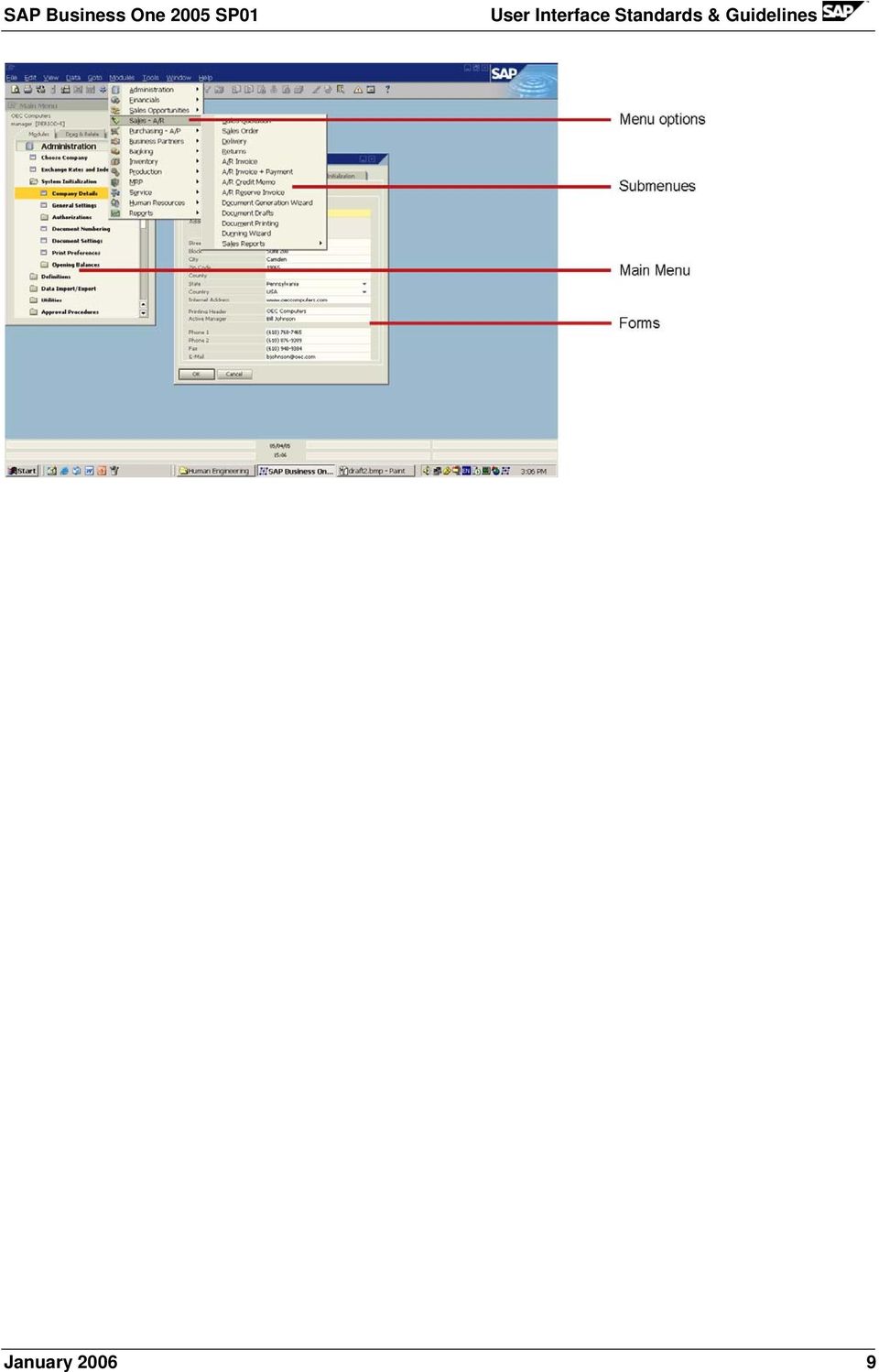
10 3.2 SAP Business One Main Menu The Main Menu, previously referred to as the command center, offers three principal modes to work with the application. Each of these modes is located on its own tab: Modules Drag & Relate User Menu Visual Specifications Main Menu The Main Menu can also be accessed by clicking the window pull-down menu and choosing Main Menu, or by using the shortcut CTRL + O. January

11 Main Module The module items are left aligned. Each module is framed by a gray line (RGB = 173, 173, 140). The frame size is: 326 x 20 pixels. Background color of the module is off-white (RGB = 239, 239, 222). Each module has a related icon. Icons are centered one above the other. The maximum icon s height is 18 pixels. The look of each module depends on its state: State Specification Example Regular Font color black Font & size Arial Bold 10 Rollover Font color black Font & size Arial Bold 10 The strip is colored in dark gray (RGB = 173, 173, 140) January

12 Selected Module Font color black Font & size Arial Bold 10 The frame is colored in dark yellow (RGB = 255, 204, 0) The look of each sub-menu depends on its state: State Specification Example Regular Font color black Font & size Arial Bold 7 Opened Rollover Font color black Font & size Arial Bold 7 Icon is changed to Font color black Font & size Arial Bold 7 The frame is colored in dark yellow (RGB = 173, 173, 140) The look of each menu item depends on its state: State Specification Example Regular Font color black Font & size Arial Bold 7 Rollover Selected Item Font color black Font & size Arial Bold 7 The strip is colored in dark yellow (RGB = 173, 173, 140) Font color black Font & size Arial Bold 7 The strip is colored in dark yellow (RGB = 173, 173, 140) Guidelines for Adding Menu Items Place items according to the hierarchic structure within a respective module. Position the menu item considering its usage: How frequently is it used? Where is it used in the work flow? January

13 Frequently used items should be placed before less frequent items. Items that are logically successive to other items should be placed directly below them. Setup windows are located in the Administration module, in the Setup subfolder of each relevant module. Every module contains its respective reports. In addition, all reports are also located in the Reports module. Note that the Main Menu appears in a closely related form, in the Modules pull-down menu, Authorizations window, Drag and Relate menu and the Manage User Fields window. For details regarding the main window components, see: Toolbar Status Bar Menu Bar and Drop-down menus January

14 4. GUI Controls 4.1 Control Overview The controls in this chapter are organized according to their function: Basic Data Controls Basic Selection Controls Buttons Complex Data Controls Advanced Selection Controls View Controls Window Controls Text Field Check Box Check Box with 3 States Radio Button List Box Choose from List (List of <type>) Choose From Tree Command Button Back Arrow Button Graph Button Image Browse Button Link Arrow Button Table Table Hierarchical Table Row Types Tree Control Tree-Table control Account Selector Business Partners Selector Date Range Selector Extended Checkbox Item Selector Properties Selection Field Tabstrip Nested Tabstrip Drawers View Selector Window Title Bar Window Scroll Bar Menu Bar and Drop-Down Menu Context Menu (Right-Click Menu) Toolbar Tool Tip Status Bar January

15 January

16 4.2 Basic Data Controls Text Field General Description Visual Specifications GUI Attributes Functional Specifications Usage Example: Business Partners > Business Partners Master Data When to use? Text fields are used when a single value is to be displayed or entered by the user. General Description A text field is used for data entry of a single value. The format of the data value may be textual, numeric, currency, and so on. A text field may be in one of two modes: Enabled: Allows the user to type in a value. Disabled: Used to display a value, but with no user entry. When the user moves to the next field, validity checks are performed. The entered value is checked against the required format of the field, in addition to any other specific constraints that may exist for this field. Text field labels are part of the control. Text field must have a label, which helps identify the purpose of the text field and provides a means of indicating when the field is disabled. If the field contains text that is longer than the field s length, a Tool Tip is dynamically added to the field, displaying the full text. Visual Specifications Field Shape: Rectangular box, with a single-row (1-pixel wide) frame. Field size: Height = 14 pixels. Width depends on the field s content and the size of an adjacent field (see more on field sizes in Window Layout). A white row connects the label to the field (see more on labels, in Labeling Conventions). Color Specifications: Mode Normal (Write enabled) Read only Specification Box color: off-white (RGB = 253,253,243), Frame color white. Box color: gray (RGB = 239,235,222), Frame color - white. January

17 Field in focus Box color and frame: yellow (RGB = 255,247,156) The text color is black. When selected, the text color is white, with windows selection color as background. The description text of every field should contain a short description of the field, and any additional information, such as format or constraints. Examples: Discount (Numeric 19.6): Specifies the number of digits, and number of decimal points. Customer Code (15 characters) Document Number (Number between 1 and 1000) Document Date (Date) Text alignment within the field should be adjusted to the field type. Textual data should be left-aligned, while numerical fields should be right-aligned. Note: Numerical fields may contain non-numeric characters (for example, price field contains the currency, such as USD ), but they are still considered as numbers and should be right-aligned. GUI Attributes The following attributes should be considered when creating a Text Field: Label Data format (text, numeric, date, currency, so on) Alignment: left or right Functionality: read or read + write Constraints (optional, for example: numeric, alpha-numeric) Maximal input length Default value (optional) Description text System information ToolTip (added dynamically) Functional Specifications Operation Procedure User Action Rollover (mouse cursor is over the field) Click in field System Response The field s Description Text is displayed in the status bar. If the field is shorter than the text it contains, a ToolTip is displayed to show the full text. The field color changes to yellow. The Description Text is displayed in the Status Bar. If the field is empty, the text cursor is placed at the beginning of the field. If the field already contains text, the text is selected (displayed as white text over dark-blue background). January

18 User Action Double-click in a field Type in field Exit field System Response Selects the word at the mouse position. If the text is selected, typing replaces the selected text. If no text is selected, typed characters are inserted at the cursor position. If the typed-in text is longer than the visual field, the field s text is scrolled to the left, so that the current entry point is visible. In case of a long text, a Tool Tip is dynamically added to the field, displaying the full text of the field. If the text length reaches the maximal input length, no typing is allowed (no response to typed-in keys). In this case, an error message is displayed in the status bar. A validity check is performed, comparing the field data with the required format and constraints. If errors are found, a message is displayed in the Status Bar. The cursor remains in the field. If no errors are found, the field color goes back to normal. Keyboard Shortcuts The field conforms to standard Windows text entry conventions: Backspace and Delete erase one character to the left or to the right of the cursor position. Left/Right Arrow keys move the cursor one position to the left/right. If the text length is longer than the visual field, clicking the left/right arrow at the left/right edge of the field scrolls the text to the required direction. Shift + Left/Right arrow selects the text along the cursor movement. Home/End moves the cursor to the beginning or to the end of the text respectively. January

19 4.3 Basic Selection Controls Check Box General Description Visual Specifications GUI Attributes Functional Specifications Usage Example: Business Partners > Activity When to use? Checkboxes support options that are either ON or OFF. Checkboxes are used only when both states of the choice are clearly opposite and unambiguous. More than one checkbox is used when multiple selections are required. General Description Checkboxes support options that are either ON or OFF. A checkbox may be in one of two modes: Selected (ON): Allows the user to select a value or operation. Deselected (OFF): Used to display a value or operation, but with no user selection. When the checkbox is selected, a check mark appears in the box. When it is not selected, the checkbox is empty. A checkbox appears as a square box with an accompanying label. A group of checkboxes enables the user to select several options. Unlike a radio button, more than one checkbox can be selected at the same time, permitting multiple selections. Visual Specifications Use this shape: - Selected - Deselected Size: 14x14 pixels The label is placed 4 pixels to the right of the box. (For more information about labels, see Labeling Conventions). One of the letters in the label is underlined. This letter is used as a mnemonic for this checkbox. Typing Alt+<mnemonic> is equal to clinking on the checkbox. The mnemonic should be unique within the window. For more information about labels, see Labeling Conventions. Colors: State Specification January

20 State Specification Enabled Text color dark gray (RGB = 74, 77, 74) Disabled GUI Attributes The following attributes should be considered when creating a checkbox: Label Mnemonic Functionality: read or read + write Default value (optional) Description text System information Functional Specifications Operation Procedure User Action Rollover (mouse cursor is over the checkbox) Click the checkbox Click the checkbox s label System Response The checkbox s Description Text is displayed in the status bar. The checkbox toggles its state. The checkbox toggles its state. Keyboard Shortcuts Alt + <underlined letter> toggles the checkbox state, just like clicking the checkbox. January

21 4.3.2 Checkbox with Three States General Description Visual Specifications GUI Attributes Functional Specifications Usage Example: In the Print Layout Designer, when you select multiple fields, the Properties window will show the 3 rd (ambiguous) state, in case not all selected fields have the same value for a specific checkbox. Note: This control is not available in the User Interface API, Version When to use? Check boxes with 3-state support options that are either ON, OFF, or Ambiguous. Use this control instead of a regular checkbox, when you need to support a third, Ambiguous state. An Ambiguous state results when the checkbox represents a collection of objects, some of which are ON, others are OFF. The mutual checkbox is therefore ambiguous. General Description In case a checkbox represents the state of several objects, where some of them are ON and some are OFF, the third state of the checkbox is Ambiguous. This situation defines a third state Ambiguous. When a checkbox in the ambiguous state is clicked, it toggles between two states: ON and OFF. In this situation, we recommend that the checkbox will toggle between the three states: ON, OFF and then back to Ambiguous. Visual Specifications Use this shape: - Selected - Deselected - Ambiguous For all other visual specifications, see Checkbox (pg. 19) GUI Attributes Label Mnemonic Functionality: read or read + write Default value (optional) Description text System information January
22 Functional Specifications Operation Procedure User Action Rollover (mouse cursor is over the checkbox) Click the checkbox in the ON or OFF state Click the checkbox in the Ambiguous state Click the checkbox s label System Response The checkbox s Description Text is displayed in the status bar. The checkbox toggles its state from ON to OFF and vice versa. The checkbox toggles its state from ON to OFF and vice versa. (The checkbox should toggle between the three states: ON, OFF and then back to Ambiguous). Same as clicking the checkbox image Keyboard Shortcuts Alt + <underlined letter> toggles the checkbox state, just like clicking the checkbox. January
23 4.3.3 Radio Button General Description Visual Specifications GUI Attributes Functional Specifications Usage Example: Sales A/R > Sales Reports > Sales Analysis When to use? When representing a set of choices for a particular property, only one of these choices may be selected at any time. Note: To allow selection of multiple options, use a Checkbox instead. General Description A radio button represents a single choice within a group of radio buttons (at least 2 radio buttons). Only one option in the group can be set. Radio buttons appear as a set of small circles. When a radio button is selected, a dot appears in the middle of the circle. When the choice is not the current setting, the circle is empty. The user clicks one of the radio buttons to select it and deselect other radio buttons in the group. A radio button may be in one of two modes: Selected: Shows the selected value or operation. Deselected: Used only to display the deselected value or operation. Note: A List Box may be used as an alternative to Radio Buttons, especially when the space is limited. Visual Specifications Use this shape: Selected Deselected Button size: 14x14 pixels The label is placed 4 pixels to the right of the box. (For more information about labels, see Labeling Conventions). One of the letters in the label is underlined. This letter is used as a mnemonic for this radio button. Typing Alt+<mnemonic> is equal to clinking the radio button. The mnemonic should be unique within the window. Group Label: A group label may be added to the radio buttons to add a general explanation of the purpose of the radio buttons. The group label should be placed to the left of the uppermost radio button: January
24 The radio buttons can be arranged vertically (one below the other) or horizontally (one next to the other). The vertical arrangement is preferred. Use a horizontal arrangement only when there is no room for vertical arrangement, and when only two radio buttons are in the group. GUI Attributes The following attributes should be considered when creating a radio button: Label for each button Mnemonic for each button Group label Default value. Note that one of the buttons in the group should be selected by default. Description text for each button System information for each button Functional Specifications Operation Procedure User Action Rollover (mouse cursor is over the radio button) Click the radio button Click the radio button s label System Response The radio button's description text is displayed in the status bar. The radio button is selected. All other radio buttons in the group are deselected. A dot appears in the circle. The label is displayed in the status bar (see Status Bar). The radio button is selected. All other radio buttons in the group are deselected. A dot appears in the circle. The label is displayed in the status bar (see Status Bar). Keyboard Shortcuts Alt + <underlined letter> selects the radio button and deselects all other radio buttons in its group. January
25 4.3.4 List Box General Description Visual Specifications GUI Attributes Functional Specifications Usage Example: Inventory > Item Master Data When to use? When the user needs to select one value from the list. When the potential value list is short, usually up to 20 items. When the user selection can be based on the item s name alone. See also: Choose from List. General Description A List Box displays large numbers of choices that vary in number or content. It allows the user to select one value from a list of values. When the field is enabled, the user clicks the field to display a drop-down list of values, and then selects one of these values to enter it into the field. Some lists may be defined or extended by the user, to permit the user to add items to the list. Such a list will have a Define New item, allowing the user to define additional items. Entering data is not allowed in this field. If the field contains text that is longer than the field s length, a Tool Tip is dynamically added to the field, displaying the full text. Visual Specifications Field Shape: Same as Text Field, plus a symbol to the right of the field. Field Size: Height = 14 pixels. Width depends on the field s content and the size of adjacent field (see more on field sizes in Window Layout). A white row connects the label to the field. For more information about labels, see Labeling Conventions). Field Color: Mode Normal (enabled) Specification Box color: Off-white (RGB = 253,253,243) Frame color: white. Read Only Box color: gray (RGB = 239,235,222), Frame color: white. The list symbol does not appear when the field is disabled. January
26 Mode Specification Field in focus Box and frame color: Yellow (RGB = 255,247,156) When text is selected, the text color is white over MS Window s selection color. List is open The value list is displayed under the field. The list background color is Off-white (RGB=253,253,243) The list border is black, 1-pixel wide. Each item in the list occupies a strip of 16 pixels high. The strip of a highlighted item is dark yellow (RGB=255, 207, 49). If the list is longer than 10 items, a scrollbar is added at the right side of the list. Text color is black. When selected, the text color is white, with the Windows selection color in the background. If the field does not have a default value, the first item in the list will be an empty row. If the list can be defined by the user, an additional item is added at the end of the list: Define New. Selecting this item opens a window to define the list items. GUI Attributes The following attributes should be considered when creating a list box: Label List of values Alignment (left/right) Functionality: read or read + write Can the list be defined by the user: Yes/No Default value (optional) Description text System information ToolTip text (added dynamically) January
27 Functional Specifications Operation Procedure User Action Rollover (mouse cursor is over the field) Click the field Click the the field when the list is displayed Click an item in the list Click an empty row in the list. Type a letter when the list is open Click Define New in the list Exit field System Response The list box s description text is displayed in the status bar. If the list box is shorter than the text it contains, a ToolTip is displayed to show the full text. The field color changes to yellow. The list is displayed. If the field already contains a value, this value is highlighted; otherwise, the first item is highlighted in the list. The field is closed. The list is closed. The clicked item is entered in the field. The list is closed. The field is cleared. The list is scrolled to the first item starting with this letter. The list is closed. A Setup window is displayed. After adding the new item, the newly added item is written in the field. The field color goes back to normal. Keyboard Shortcuts Down arrow opens the list. Up/Down arrows: When the list is open, highlights the next/previous item in the list. Enter closes the list and copies the highlighted item to the field. January
28 4.3.5 Choose from List (List of <list type>) General Description Visual Specifications GUI Attributes Functional Specifications Usage Example: Sales A/R > Sales Quotation This control is built from multiple controls. When to use? When the user must select one value from a list. When the potential value list is long, more than 20 items. When the user selection requires additional information (other than the item s name). When the potential value list is short, it is recommended to use a List Box. Note: In certain situations it may be preferable to create a combination of a List Box and a Choose from List: Use this combination when the potential number of items in the list may change. For example, a list defined by the user may be small at first, but it grows significantly over time. General Description The control allows the user to select a value from a list of values that appears in a different window. This control is a combination of a text field and the Choose from List icon. The user may also type a value in the field, or click the icon to display the Choose from List window. The caption of the window is List of <list type>, according to the chosen list type (Business Partners, Item, so on). In case you want to avoid free text input by the user, make the field disabled and provide the Choose from List icon to allow only selection from a list of values. Some lists can be defined or extended by the user and the user may add items to the list. For such a list, the user is allowed to add additional items to the list from the Choose from List window. Visual Specifications Field Shape: Same as Text field, plus an icon attached to the right side of the field. Field size: Height = 14 pixels. Width varies, depending on the field s content and the size of adjacent field (see more on field sizes in Window Layout). A white line connects the label to the field (see more on labels, in Labeling Conventions). Colors: Mode Normal (enabled) Specification Box color - Off-white (RGB = 253,253,243), Frame color white. January
29 Select Only Box color gray (RGB = 239,235,222), Frame color - white. Field in focus Box and frame color Yellow (RGB = 255,247,156) List button is selected The button graphics changes to look selected Text color is black. When selected, the text color is white, with Windows selection color in the background. A Tool Tip is attached to the icon (see more on Tool Tip content in Tool Tip). The Tool Tip should display: Row 1 Static Tool Tip: Choose from List Row 2 Target Tool Tip: Name of A list form that will be opened by this button (Dynamic Name) Example: GUI Attributes The following attributes should be considered when creating a Choose from List Control: Label List of values Alignment (left/right) Functionality: read or read + write Is the field editable: Yes/No Can the list be defined by the user: Yes/No Default value (optional) Description text System information Static ToolTip text Target ToolTip text Functional Specifications Operation Procedure User Action System Response January
30 User Action Rollover (mouse cursor is over the field) Icon Rollover (mouse cursor is over the icon) Click the field Click the List icon Move to the next field when the field is empty Move to the next field when the field is being typed in System Response The description text is displayed in the status bar. A ToolTip is displayed. The field color changes to yellow. The icon changes to the chosen display. The Choose from List window is displayed. After the user selects a value in the window, the window closes and the selected value is displayed in the field. The Choose from List window is displayed. After the user selects a value in the window, the window closes and the selected value is displayed in the field. A validity check is performed to check that the value in the field is one of the values in the list. Yes: the field changes back to normal and the focus moves to another field. No: An error message is displayed in the Status Bar, and the Select from List window is displayed. Note: The Tab key is interpreted as an attempt to move to another field. A quick way to display the list is to place the cursor in the field, then press Tab to display the list. Keyboard Shortcuts All keys used to edit a Text Field are valid here too. When Tab is pressed in an empty field, it displays the Choose from List window. January
31 4.3.6 Choose From Tree General Description Visual Specifications GUI Attributes Functional Specifications Usage Example: Business Partners > Business Partners Master Data > Payment System tab. Note: This control is built from multiple controls. Some of these controls are not available in the User Interface API, Version When to use? When a group of fields is related to each other in a hierarchical relation. When the user is allowed to fill each field individually, but a shortcut for selecting the whole group at once is required. General Description This control is implemented by a group of fields. Each field is either a Text Field or a List Box control. The fields are organized from top - down, indicating the hierarchical relations between them (An example of hierarchical fields: Country > Bank > Branch > Account No). Choosing a value for a field narrows down the available options for the field below it, as only values that match the hierarchy may be chosen (For example: after choosing a bank, the branch list box will contain only branches that belong to this bank). The Choose from Tree icon is used to display the Choose from Tree window, in which the user can see the whole hierarchical structure and pick a node. After selecting a node from the tree, the relevant field is filled with the chosen value, and all its ancestors are filled in accordingly (for example, after selecting a branch, the bank and country fields are also filled automatically to match the bank and country to which the branch belongs). Visual Specifications Each field, depending on its type, has the attributes of a Text Field or a List Box control. In addition, the Choose from Tree icon is located to the right of the uppermost field: A Tool Tip appears together with the icon (for more information on Tool Tip, see Tool Tip). The Tool Tip should dispaly: Row 1 Static Tool Tip: Choose From Tree Row 2 Target Tool Tip: Name of form that will be opened by clicking the icon (dynamic name) January
32 GUI Attributes Depending on the field type, it has the attributes of a Text Field or a List Box control. Text Field attributes include: Label Data format (text, numeric, date, currency, and so on) Alignment: left/right Functionality: read or read + write Constraints (optional, for example: numeric, alpha-numeric) Maximal input length Default value (optional) Description text System information ToolTip (added dynamically) List Box attributes include: Label List of values Alignment (left/right) Functionality: read or read + write Can the list be defined by the user: Yes/No Default value (optional) Description text System information Tool Tip text (added dynamically) Additional Attributes: Tool Tip text on the Choose from Tree icon Functional Specifications Operation Procedure In addition to the operational procedure of each individual field (see Text Field or List Box): User Action System Response Selection of a value in a field The list of potential values in lower fields is narrowed down to conform the hierarchical relations. Rollover (mouse cursor is over the Choose from Tree icon) A Tool Tip is displayed January
33 Click the Choose from Tree icon While the left mouse button is pressed, the button changes shape to a selected look. Then the Choose from Tree window is displayed. When a value is chosen in the window, this value defines a path of values, starting from the root of the tree down to the leaf. These values are displayed in the corresponding fields. Keyboard Shortcuts None January
34 4.4 Buttons Command Button General Description Visual Specifications GUI Attributes Functional Specifications When to use? To perform user actions, such as opening a window, closing a window, save data, display additional information, perform a calculation, and so on. General Description A command button is a rectangular control with a label that represents the action the button triggers. The user clicks the button to perform the action. When the user presses the mouse button, the input focus moves to the command button, the button display changes to its selected appearance. If the user moves the mouse pointer off the command button while the mouse button remains pressed, the command button returns to its original display. A command button may be in one of two modes: Enabled: Allows the user to click the button. Disabled: Used to display a non-selected action, with no option to perform it. A command button is disabled when an action in the same screen should activate it (for example: the Next button in a wizard will be disabled until all the actions in the screen are completed). For more information about command buttons usage and placement, see Graphic Design Guidelines Command Buttons. Visual Specifications Shape The button shape is rectangular. The inside of the rectangle is in a shape of a three-dimensional raised cylinder. Button Height: 19 pixels. Button Width: Depends on the length of its label. See more on button widths in Graphic Design Guidelines Command Buttons. One of the buttons in the window may be defined as the default button. This button is activated by choosing Enter. The default button is surrounded by a 1-pixel black frame: When clicked, the button looks selected Label The button should have a short and meaningful label, preferably one word. The label is written in black and its alignment is centered. One of the letters in the label is underlined. This letter is used as a mnemonic for this button. Typing Alt+<mnemonic> is equal to clicking the button. The mnemonic should be unique within the window. January
35 Note: not all buttons have mnemonics. The main buttons of the window, such as OK and Cancel, do not have mnemonics. Tool Tip Usually, a button should not have a Tool Tip. A button may have, however, one or both of the following Tool Tips: Static Tool Tip (optional) - Full button name: If the button label is very long (potentially after translation), the button label is cut and appended with ellipsis. The full button label is dynamically added as Tool Tip. For example: Description (optional): A button may have, in addition to the label, a Description attribute: If the button operation is very complex and cannot be easily explained in a short label, the planner can decide to create a shorter label and add a description which will better explain what the button does. Example: Instead of these long buttons: Use shorter labels, and add the full text as Tool Tip: It is possible that a button s Tool Tip will contain both the button s full name and a description. In this case, the Tool Tip will span 2 lines. GUI Attributes The following attributes should be considered when creating a command button: Label Mnemonic Is it a default button (yes/no) Tool Tip text (optional) Tool Tip Description text (optional) System Information Functional Specifications Operation Procedure User Action Rollover (mouse cursor is over the checkbox) Click the button System Response The button s label/description is displayed in the status bar. The button changes its look momentarily to selected while the mouse is pressed. Then it goes back to its normal state. The button's designated action is performed. January
36 Keyboard Shortcuts Alt + <underlined letter> activates the appropriate button. Enter activates the default button, if one is present. January
37 4.4.2 Back Arrow Icon General Description Visual Specifications GUI Attributes Functional Specifications Usage Example: Reports > Inventory > Items List When to use? When a window opens a subordinate window, the back arrow allows the user to return to the parent window. For example, in a selection criteria window, the parent is the selection criteria window from which the user defines the filters that open a report window. The back arrow is located in the results window and is used to return to the selection criteria window to redefine the selection criteria filters. January
38 General Description A button located on a subordinate window is used to navigate back to the primary parent window. Usage Example: Inventory > Inventory Reports > Items List Visual Specifications Use this icon: Icon Size: 22x20 pixels Locate the icon on the lower-left corner of the subordinate window: January
39 The Back Arrow icon is accompanied by additional OK button. The OK button closes the report and the selection criteria windows and saves any changes to the report. The Back Arrow and OK could be accompanied by additional Cancel button only on editable forms. The Cancel button cancels any changes in the results window, closes the window and puts the selection criteria window in focus. A Tool Tip is attached to the button, saying: Back to Selection Criteria (see more on Tool Tip content in Tool Tip). GUI Attributes The following attributes should be considered when creating the Back Arrow icon: Tool Tip text System information Functional Specifications Operation Procedure User Action Rollover (mouse cursor is over the icon) Click the Back Arrow icon Click OK Click Cancel System Response A Tool Tip is displayed: Back to Selection Criteria" The back arrow moves down. Closes the window. Puts the parent Selection Criteria window in focus. Closes the report and the Selections Criteria window as well. If any changes were made to the report, they are saved. Closes the window. Puts the parent Selection Criteria window in focus. If any changes were made to the form, they are discarded. Keyboard Shortcuts None January
40 4.4.3 Graph Icon General Description Visual Specifications GUI Attributes Functional Specifications Usage Example: Business Partners > Business Partner Master Data. When to use? To display additional data in a graph format. The graph may be related to a field (or field group), or to the whole window. General Description If the graph icon is related to a specific field (or field group), it is placed next to that field. If it is related to the whole window, it is located at the lower-right corner of the window. Clicking the graph icon opens a separate window containing additional information and a graph related to the specific field or to the whole window. January
41 Visual Specifications Use this icon: Icon Size: 12x12 pixels Icon position: o If the graph relates to a field (or field group) it is positioned to the right of the field or field group: o If the graph relates to the whole window, it is located at the bottom-right corner of the window, 8 pixels from the window s edges: January
42 A Tool Tip is attached to the icon (see more on Tool Tip content in Tool Tip). The Tool Tip should say: Row 1 Static Tool Tip: Show Graph Row 2 Target Tool Tip: Name of Graph (Dynamic Name) GUI Attributes Static Tool Tip text Target Tool Tip Text System Information Functional Specifications Operation Procedure User Action Rollover (mouse cursor is over the graph icon) Click the icon System Response A Tool Tip is displayed. When the mouse button is pressed, the graph color changes to. A graph window is displayed. Keyboard Shortcuts None January
43 4.4.4 Image Browse Icon General Description Visual Specifications GUI Attributes Functional Specifications Usage Example: Human Resources > Employee Master Data window. When to use? To let the user load an image into a window, use the Image Browse icon to browse for the image. General Description The Image Browse icon is used to load an image into a designated area in a form. The icon opens a Browse File Open window. The images to be loaded must be placed under a pre-defined folder (this folder is defined by the Picture Folder in the General Settings). After an image is selected, it is loaded and displayed in the designated area. A Clear Image icon is added, to let the user delete the image. Visual Specifications To load an image, use this icon: After image is loaded, a Clear Image icon is added:. This icon does not appear until an image is loaded. Icon Size: 16x16 pixels Icon position: A Tool Tip is attached to each icon (see more on Tool Tip content in Tool Tip). The Tool Tip of the Image Browse icon should say Browse for Image. The Tool Tip of the Clear Image icon should say Clear Image. GUI Attributes Tool Tip text January
44 System information Functional Specifications Operation Procedure User Action Rollover (mouse cursor is over an icon) Click Image Browse icon Image selected in the Browse window Click Clear Image icon System Response A Tool Tip is displayed. A Browse window is displayed, located at the folder defined for pictures in general settings. If no picture folder was defined, an error message is issued. The image is displayed in the designated area. A Clear Image icon is displayed above the Image Browse icon. Image is removed from the window. Keyboard Shortcuts None January
45 4.4.5 Link Arrow Icon General Description Visual Specifications GUI Attributes Functional Specifications Usage Example: Sales A/R > Sales Quotation When to use? When a field contains a reference to an object. Permits drilling down for more information about this object. General Description The Link Arrow icon accompanies a field containing an object reference. The field can be text field, list box, a cell within a table and so on. The link refers to the text displayed in the corresponding field. Upon clicking the dark yellow Link Arrow icon, a subordinate window opens with additional information relevant to the text. In the examples below, after clicking the Link Arrow icon, additional information appears in a new, subordinate window: January
46 Visual Specifications Use this icon: Link Arrow icon size: 12x9 pixels. When the Link Arrow icon is attached to a field: A Tool Tip is attached to the Link Arrow icon (see more on Tool Tip content in Tool Tip).The Tool Tip should say: Row 1 Static Tool Tip: Link to Row 2 Target Tool Tip: Name of Object to be displayed (Dynamic Name) Example: When the Link Arrow icon is attached to a cell in a table: When the Link Arrow icon is pressed, its shape changes to selected arrow: January
47 GUI Attributes Static Tool Tip text Target Tool Tip text System information Functional Specifications Operation Procedure User Action Rollover (mouse cursor is over the Link Arrow icon Click the Link Arrow icon System Response A Tool Tip should be displayed While mouse button is pressed, the Link Arrow icon shape looks selected. An additional window is displayed, showing more information about the object referenced in the field. Keyboard Shortcuts None January
48 4.5 Complex Data Controls Table Table Hierarchical Table Row Types General Description Visual Specifications GUI Attributes Functional Specifications When to use? When there is a limited number of records to be displayed simultaneously. To be able to see the details of the records, or to select one of them for further investigation or operation. When item names and other details of an item are to be displayed. To display a large amount of data in an organized manner in a relatively small space. General Description Tables are used to enter large amounts of data. A table has a layout similar to a spreadsheet table like Excel. A table is made of columns and rows. All cells in a column contain data of the same type, and each row is a data structure of the same type. For example, a row may represent a business partner, and the columns represent fields of the business partners. Each table has the following elements: The Header contains a name of the table (not necessarily header of the form) The column headers define the content of each column and are used for sorting as well. A selection button column selects a whole row. The selection column, if exists, is always the first one to the left. This column can also be used as a row numbering column. Row numbers usually correspond to one of the following: IDs in the database, OR: Sequential row number in the table (1 N) January
49 The actual "table" or data area. Scroll bars vertical or horizontal (if necessary) Note: We highly recommend that the initial width of the table will be such that all columns will be visible without a horizontal scroll bar. For this purpose, you may ignore the requirement to leave extra 30% for each column title. Sorting A table can be sorted by one of its columns. An arrow sign ( or ) appears on the corner of the sorting column, to indicate an ascending or descending sort order. The user can sort the table by double-clicking any of the column headers. When the table is initially displayed, it should have a default sorting. Row numbers are necessary for any table where the sort order can be changed so that if a user sorts by Name, or some other column, then the user can restore the original sort order by sorting a row number. Table Cells Cells in a table may be editable or read-only. Rows can be added, deleted or duplicated. The commands to perform these actions are located in the Data menu, and in the Context menu. Typically, table cells contain numeric or alphanumeric text. However, there are more cell types available: Text: Text cell in an input table - the text can be edited. In an output table or lists the text is in a read-only mode and the user can only sort or filter it. Image: The cell displays an icon or image Link: The cell contains a link Button: The cell contains a button Input: The cell can be edited Dropdown list box: The cell contains a dropdown list box Checkbox: cell contains a checkbox. A table can be associated with the Row Details window, which contains detailed information on a row in a table and allows editing of row fields in a form. The user can customize the structure of each table, using the Form Settings associated with the window containing the table. There are several menu commands which are related to table handling: The Data menu contains row manipulation commands (add, delete, duplicate). The Data>Advanced sub-menu contains commands for specific windows (not all windows have commands in this sub-menu). The Goto menu contains the Row Details command. Cursor Position The cursor position always reflects the place which the user activated. January
50 Context Menu There are specific actions to do with a cell like copy, paste, cut, delete that are available by rightclicking a cell and not a row. All row actions appear in the cell Context menu (right-click), but not vice versa. Resizing a Table Tables may contain large amounts of information and the user may want to resize the table to see more information. When you build a window that contains a table, make sure the window is resizable and contains a maximize button on its title bar. Scroll Bars A scroll bar is used to scroll the contents of a table. A vertical scroll bar is always attached to the right side of a table. If the table does not require scrolling, the scroll bar is not active. When the scroll bar is not active, the scroll thumb (the white rectangle inside the scroll bar) is not shown. A horizontal scroll bar appears only in tables that are too wide. Note that horizontal scroll bars reduce the usability of a table, and should be avoided. Visual Specifications Item Specification Example Headers Column header Row header (optional) Grid Lines Each column header is shaped like a Button. The header label is left aligned. If the column is too narrow to fit the column title, the title is cut and appended with ellipsis. In this case, a Tool Tip should show the full column name. The row header looks like a gray rectangular button. A row number is written on the button, left aligned. Horizontal line: 1-pixel (RGB= 153,153,137) January
51 Item Specification Example Row header - selected Empty space on the side of the table Vertical line: 1 pixel RGB=200,200,200 When selected, the row header looks pushed in. The selected row s background color changes to dark yellow (RGB=255,207,49) If the table columns do not cover the full width of the table, an empty space remains on the right side. This space is colored in gray (RGB=206,203,189) Cells Table Field (general) Text in tables Tool Tip Read-only field in the table Read/Write field in the table Read/Write field in focus Dropdown menu in a table We recommend that the default column width will fill the whole table area so that no empty margins appear. Height: 15 pixels Distance between text and border: 2 pixels Separation line (RGB = 239,235,222) Separation line (width: 1 pixel ) The text in tables is black. Colors may be used for emphasis of special cases. Do not overuse colors. Pick colors that are well distinguished and are readable. If the cell is smaller than the text it contains, a Tool Tip is dynamically added to the cell, showing the full text of the cell. Background color: Grayish (RGB = 239,235,222) Background: Off-white (RGB=253,253,243) Background: Yellow (RGB = 255,247,156) Icon location: 2 pixels from the right edge of the cell. January
52 Item Specification Example Link to object Checkbox in a table Icon location (inside field): 1 pixel from left edge, 4 pixels from text Location: centered Sorting Sorting indicator - down Sorting indicator - up Scroll Bars Scroll bars Image at the top right corner of the column header button. Does not appear when the column is not sorted. Image at the top right corner of the column header button. Does not appear when the column is not sorted. A table has a vertical Scroll Bar on its right side. If the table is too wide, there is also a horizontal scrollbar at the bottom. Tool Tip Summary Fields Sum fields labels Appears when the table is scrolled using the scroll thumb and indicates the current row. The Tool Tip visual specifications: Text Tahoma, 8, black Background color dark yellow (RGB=255,207,49) Frame Color: blue (RGB =0,0,255) The summary fields' labels appear at the bottom of the table, at the left side of the sum field on the very left side. The labels look like button labels and have a 3D look. January
53 Item Specification Example Sum fields The summary fields appear at the bottom of the table, underneath the relevant column. The fields look like buttons and have a 3D look. GUI Attributes A table is usually constructed of the following elements: Header: The name of the table. (not necessarily the header of the window ) Column headers: Define the content of each column. Column Definition: Label Field type GUI Attributes according to field type Alignment (Left/Right/Center) Default width Functionality: read or read + write Sorting: Yes/No Tool Tip (added dynamically) Field (Cell) Definition: Default value (optional) Tool Tip (added dynamically) Functional Specifications Operation Procedure Action Type User Action System Response Sort Operation Sort Table Double-click table header Sort table by the column (if sorting function exists). Ascending / Descending Sort Resize Columns and Table Mouse over the table border Double-click a table header again Rollover the table header between columns Sort table ascending / descending by the column (if sorting function exists). Mouse cursor changes to the Resize shape: January
54 Action Type User Action System Response Resize column Click and drag the mouse when the cursor is in the resize position. Resize column. When resizing the last column and making it smaller than the table size, a gray area is shown at the right side of the table: Resize column Resize table Double-click the mouse when the cursor is in the resize position. Resize a window containing a table. Auto fit the column width according to the largest text width. When the window is resized, the table inside it is resized proportionally. All columns are also resized proportionally. Selection Cell selection Click a cell/read-only field The color of the selected cell changes to light yellow. If there was already another selection, the cell selection will deselect it. Text selection Click a cell/read/write field Focus on the field and text selection within a cell. Row selection Click left num.(#) column Clicking the num (#) button, selects the row and the button will look selected. The color of the selected row changes to yellow. Row information Multiple rows selection Double-click the left num.(#) column Click the left num.(#) column + SHIFT to select a range of rows Second click the same button deselects the row. Clicking a different row or a cell of a different row, will deselect the previous row. Opens the Row Details window to view/edit row in a window (optional, currently is implemented in marketing documents). In some cases, the Detailed Information window is opened instead of the Row Details window. January
55 Action Type User Action System Response + CTRL to select separated rows Menu/Context Menu Manipulate cell values Delete Row Add Row Duplicate Row Select Cut/Copy/Paste/Delete from the cell s context menu Select Delete Row from the Context menu. Select Add Row from the Context menu Select Duplicate Row from the Context menu The cell value is cut, copied, pasted or deleted accordingly. The selected row is deleted. An empty row is added below the selected row. The selected row is duplicated. The duplicated row is added just below it. Keyboard Shortcuts Ctrl+I: Adds a row below the selected row. Tab: Navigates through cells in a table. The cursor jumps to the first column of the selected row. Shift + Tab: Navigating backwards in row on a table. Ctrl+K: Deletes the row which the cursor is in. Ctrl+M: Duplicates the row which the cursor is in. Ctrl+L: Displays the Row Details of the selected row. Ctrl+X: Cuts the selected cell s value to the clipboard. Ctrl+C: Copies the selected cell s value to the clipboard. Ctrl+V: Pastes the selected cell s value from the clipboard. DEL: Deletes the selected cell s value. UP/DOWN arrows: Moves the cursor to the previous/next row. Left/Right arrows: Moves the cursor to the previous/next cell. Sorting and Filtering a Table Filtering and Sorting are two means by which a user can manage large amounts of records more easily. Filtering enables the user to decrease the amount of information displayed in a table, while Sorting allows him to rearrange the information in a more useful way. Two icons are available on the main toolbar when a window containing a table is active: The two commands are also available from the Data menu and from the Context menu. The Context menu appears when you right-click a title of a column in the table: January
56 Filtering Clicking the Filter icon in the toolbar or selecting the Filter Table command from the Context menu, displays the Filter Table window in which the user selects the criteria to filter the table. When a table is filtered, the Filter icon appears on the title of the filtered column, on its top-right corner: The filter icon s size is 8x7 pixels. After filtering and closing the Filter Table window, the Filter icon on the toolbar remains selected: When a table is filtered, clicking the chosen Filter icon clears the filter in the report (and the icon goes back to the normal state. When a table is filtered, choosing the Filter Table command from the Context menu clears the filter. When the Filter Table window is re-opened, it remembers the last filtering criteria used for this type of report. Limitations: You cannot filter a Hierarchical Table. You cannot filter tables in marketing documents. Sorting This option allows you to sort a table by multiple criteria. Clicking the Sort icon on the toolbar or selecting the Sort Table command from the Context menu, displays the Sort Table window, in which the user selects the sorting criteria. When a table is sorted, the Sort icon appears next to the title of the sorted column, on its top-right corner: The sort icon is UP for the ascending sort, or DOWN for the descending sort. The icon size is 8x4 pixels. Limitations: You cannot sort a Hierarchical Table. You cannot sort tables in marketing documents. Combination of Sorting and Filtering You can filter a table after it has been sorted, and vice versa. January
57 When a table is filtered and sorted, both marks appear next to the column titles. They may even appear next to he same title (if the same field is used for both sorting and filtering). January
58 4.5.2 Hierarchical Table General Description Visual Specifications GUI Attributes Functional Specifications Usage Example: Reports > Inventory > Inventory Audit Report Note: This control is built from multiple controls and is available in the User Interface API starting from Version When to use? When the records in a table are part of a hierarchical structure. General Description A hierarchical table contains records nested within their logical parents. The hierarchy may include two or more levels. Typically, there is a parent column, followed by a child column: The parent cell contains an Expand ( ) / Collapse ( ) icon to show/hide the rows of descendant records below the parent record. Two external buttons, Expand All and Collapse All, should be placed below the table to expand/collapse all rows at once. The hierarchy of records in the table is indicated by a color scheme: each row gets a different background color based on its level in the hierarchy. The color scheme uses light blue colors for an editable table and gray colors for a read-only table (see details in Visual Specifications). There are cases of mixed tables: part of the table is editable and part is read-only. In this case, each cell will be colored according to its function (editable or read-only): January
59 Visual Specifications In general, see visual specifications of a Table. Item Specification Example Hierarchy in read-only tables Background color of the first level: RGB = 239, 235, 222 Background color of the second level: RGB = 214,214,206 Background color of inner rows: RGB = 205,205,190 Hierarchy in editable tables Expand icon Collapse icon Background color of the first level: RGB = 253, 253, 243 Background color of the second level: RGB = 231, 237, 249 Background color of inner rows: RGB = 219, 228,246 Indicates a detailed view of related items. Clicking it will expand the list. Indicates a full view of related items. Clicking it will collapse the list. GUI Attributes See Table Functional Specifications Operation Procedure January
60 Action Type User Action System Response Expand User clicks the Expand icon Rows of immediate descendants are exposed below the parent row. The icon changes to Collapse. Collapse External Expand External Collapse User clicks the Collapse icon User clicks the external Expand icon User clicks the external Collapse icon Rows of all descendants are hidden. The icon changes to Expand. All rows are exposed. All rows, except for the top (highest) level are hidden. January
61 4.5.3 Row Types General Description Visual Specifications GUI Attributes Functional Specifications Usage Example: Sales A/R > Sales Quotation. Note: This control is built from multiple controls. Some of these controls are not available in the User Interface API, Version When to use? When you want to allow different types of rows in a table. Note: The Type column is not displayed in all tables by default. In order to display and activate it, go to the Form Settings of the specific form and make the Type field both visible and active. General Description The Type column may be added to a table, typically in item tables of sales documents. The Type column contains a List Box that allows the user to create several row types: Regular row (item) Alternative item: A potential replacement for the regular item preceding it. Text: A row containing free text. Free text may be used to describe the content of the rows following it. Editing a text type row is not performed directly in the row, but in a separate window. Subtotal: A subtotal row sums up all the regular rows preceding it. A second level subtotal row sums up all the preceding first-level subtotals, and so on. Each level of a subtotal has a different color. Visual Specifications In general, see visual specifications of a Table. Item Specification Example January
62 Item Specification Example Type field Regular row Contains a dropdown menu with options for the row type. Row types in marketing documents (in version 2005) are: - Regular (item) - Alternative (item) - Text (free text) - Subtotal The Type field is empty. Alternative item row The symbol appears in the Type field. Text row The symbol appears in the Type field. All cells in the row are merged to one cell, containing free text. Text rows must be edited using the text editor as they are not editable directly in the table. Subtotal row The symbol appears in the Type field. After a row is added, the color of that row changes in relation to the status of the other rows. The last row added has the darkest row and dark gray background. The subtotals rows change their graphic design relative to the other subtotal rows. The row can be in one of three states: Last level subtotal row: Background light gray (RGB=239,239,239) Text black First of two levels or intermediate level subtotal: January
63 Item Specification Example Background light gray (RGB=239,239,239) Text blue (RGB=0,0,255) Final (or only) level subtotal: Background gray (RGB=222,222,222) Text blue (RGB=0,0,255) Black line above the row gives the row a "selected" look GUI Attributes See Table Functional Specifications Operation Procedure User Action Select Text in the Type column Select Alternative in the Type column Select Subtotal in the Type column System Response A window is displayed that allows the user to enter free text. All cells in the row (except for the Type cell) are merged to one cell, showing the text row. The row changes to an alternative item. An alternative item is not calculated in the subtotals and totals. The row color changes to the appropriate color (see Visual Specifications), subtotal is calculated in all relevant cells. January
64 4.5.4 Tree Control General Description Visual Specifications GUI Attributes Functional Specifications Usage Example: Business Partners > Business Partner Master Data > Payment System Choose Bank field Note: This control is not available in the User Interface API, Version When to use? When the data objects are arranged in a hierarchical structure. When the user needs to access these data items according to their hierarchy. General Description A Tree control supports the representation of hierarchical data items. The data items are displayed in a "tree structure. The user may use the Expand and Collapse icons to display or hide nested levels of the tree. The lower level of the tree contains "leaf nodes. The user may select a leaf node. Visual Specifications Each level is indented 15 pixels to the right, relative to its parent. Each root node and intermediate node contain the node s name and an expand/collapse icon on the left. The icon is located 5 pixels to the left of the node s name. The button has two modes: Expand: Clicking the Expand icon displays the next level of the tree, i.e. the immediate children of the node. Collapse: This icon is displayed when the node is already expanded. Clicking the Collapse icon hides all the sub-tree nested under the node. Triangle size: 9 x 6 pixels January
65 Text Color: The color of all nodes is black by default. You may add other colors to highlight special nodes as in the example above. Colors should only be added if you are sure they help the user understand the data in the tree. Limit the number of colors to a maximum of two or three. See more on colors in Colors. The height of each node is 16 pixels. The node s name and icon are placed in the middle of this 16- pixel strip. When a leaf node is highlighted, its "strip is colored in dark yellow (RGB=255,207,49). GUI Attributes For each node: Node type: Root, Intermediate, Leaf Node name Sub nodes. Description text Tool Tip (added dynamically) System information Functional Specifications Operation Procedure User Action Rollover (mouse cursor is over a node) System Response The node s description text is displayed in the status bar. Click the Expand icon While the mouse is pressed, the icon changes its shape to the selected look. The nodes, which are nested under the clicked node, are displayed. Then the icon changes to Collapse Click the Collapse icon While the mouse is down, the icon changes its shape to the selected look. Then, the icon changes to Expand All nodes nested under the node (all the way down to the leaves) are hidden. Click a non-leaf node Click a leaf node Keyboard Shortcuts None Optionally, selects the node and the node is highlighted. The node is highlighted. January
66 4.5.5 Tree-Table Control General Description Visual Specifications GUI Attributes Functional Specifications Usage Example: List of Items window (Go to Form Settings and select grouping by Item No.). Note: This control is available starting from SAP Business One version When to use? When the data records in a table are grouped by one (or more) of the fields, thus creating a hierarchical structure. Typical usages: In List of <objects> windows, when the user selects to arrange the objects by groups. In Report windows, when it makes sense to display data records by hierarchical groups. General Description The tree-table control is based on a Table. The records displayed in the table are grouped by one of the fields (columns). Each value in this field becomes a node in the tree. The leafs in this tree are all the data records that share this field value and these data records are displayed below it as normal table rows. The tree uses the standard mechanism of an Expand/Collapse (Plus/Minus) buttons next to the grouping value, used to expand/collapse the branch. A tree-table may be grouped by several values, thus creating a multi-level tree: The tree-table is always sorted by the grouping fields. In addition, the user can sort the leaf records by double-clicking the column headers. It is currently not possible to use advanced sort and filters in a tree-table. January
67 Visual Specifications The tree nodes are displayed inside the first column of the table. The nodes actually share the column with the first field of the leaf record. The title of the column is that of that first field. (In the picture above, the column title is Item Description which is the first field in the leaf record). The grouping fields do not get a title in the table. Each level is indented 9 pixels to the right, relative to its parent. Each root node and intermediate node contains the node s name and an Expand/Collapse icon to its left. The icon is located 5 pixels to the left of the node s name. The icon has two modes: Expand (Plus): Clicking on the Expand icon displays the next level of the tree, that is the immediate children of the node. Collapse (Minus): This icon is displayed when the node is already expanded. Clicking the Collapse icon hides all the sub-tree nested under the node. Button size: 9 x 9 pixels A dotted black line connects the tree nodes. When a leaf node is highlighted, its "strip is colored in dark yellow (RGB=255,207,49). Two icons Expand All and Collapse All should be placed below the tree-table to expand/collapse all nodes. GUI Attributes For each node: Node type: Root, Intermediate, Leaf Node name Node information (data displayed in columns) Sub nodes. Description text System information January
68 Functional Specifications Operation Procedure User Action Rollover (mouse cursor is placed over a node) System Response Displays the node s description text in the Status Bar. Click the Expand icon The nodes, which are nested under the clicked node, are displayed. The icon changes to Collapse Click the Collapse icon All nodes nested under the node (all the way down to the leaves) are hidden. The icon changes to Expand Click a leaf record The row is highlighted. Keyboard Shortcuts None January
69 4.6 Advanced Selection Controls Account Selector General Description Visual Specifications GUI Attributes Functional Specifications - Usage Example: Financials > Financial Reports > Accounting > Document Journal Note: This control is built from multiple controls. Some of these controls are not available in the User Interface API, Version When to use? This control is used in selection criteria windows, where the user selects accounts for the report. General Description The Account Selector is built from multiple controls. It allows the user to select accounts or group of accounts for a report. It is used in the Selection Criteria window and is usually located at the upper-right corner of the window. The control is built as a table containing all the accounts in hierarchical groups. In order to select an account or group of accounts, the user needs to click the x column and the sign x is displayed near the selection. Visual Specifications The control is built as a Table containing all the accounts in hierarchical groups. The table contains the following columns: # - row number x selection column ( x in this column means the account/group is selected) Account Account/Group name + Link Arrow Button. Text color: Red Level 1, blue level 2, black Level 3 and 4 Column height: 10 pixels (less than normal tables). The table is accompanied by 3 controls: A list box above the table (top-right) selects the number of levels displayed in the table. Originally, when the control is displayed, only one level is displayed: January
70 Find an icon to locate a specific account. The Accounts checkbox enables account selection. When unchecked, the table is hidden. GUI Attributes For each account: Account Name Account Number Account Level Default selection: Yes / No Description Text Tool Tip (added dynamically) System Information Functional Specifications User Action Rollover (Mouse cursor is placed over an account) User selects a value from the Levels list box. Deselect the Accounts checkbox. System Response Displays account s description text in the Status Bar. The required levels are displayed in the tables. All levels higher than the selected one are not displayed. Note that the Account Serial Number (first column) reflects the actual number of the account, therefore if some levels are not displayed, the serial numbers will not be successive. The Accounts table is hidden. Click a cell in the x column If you click in an account row, this account is selected ( x is displayed in the cell). If the click is in a group row, this group and all accounts below it are selected (signed by an x ) January
71 Click the x column header Click the Find button All accounts are selected / deselected (all x signs marked/removed). Displays the Find window to locate a specific account: January
72 4.6.2 Business Partners Selector General Description Visual Specifications Usage Example: Financials > Financial Reports > Accounting > GL Accounts and Business Partners Note: This control is built from multiple controls. When to use? This control is used in selection criteria windows, where the user selects business partners for the report. General Description The Business Partners Selector allows the user to select business partners for a report. It is used in the Selection Criteria window and usually is located at the upper-left corner of the window. The Business Partner Selector is a collection of controls (Fields, List Boxes, and so on). The combination of controls may change; it depends on the needs of the specific report. Visual Specifications The control is usually the main selector in a report; therefore it is located at the upper-left corner of the Selection Criteria window. The control is built of the following fields: Business Partners code - From/To fields. Customer Group (optional) List Box containing customer groups. The default is All. Ignore this field if you want to select only vendors. Vendor Group (optional) List Box containing vendor groups. The default is All. Ignore this field if you want to select only customers. Properties Property Selection control, showing properties of a Business Partners. Additional selection fields may be added, if required. For example, Handled by and Contact Person fields: January
73 4.6.3 Date Range Selector Note: This control is not available in the User Interface API, Version This control was used until SAP Business One, Version Do not use this control anymore! General Description The control allows the user to select a month, several months, or a whole year. The date range selection options are changed according to a specific business case. Two typical date range selectors: 1. One that allows selection of any month range within a year. The control is a supplement of two test fields specifying the From/To dates. 2. One that selects one month and defines the range from the beginning of the year until the selected month. The control is a supplement of the To field. January
74 4.6.4 Extended Checkbox General Description Visual Specifications GUI Attributes Functional Specifications Usage Example: Reports > Sales Opportunities > Stage Analysis Note: This control consists of multiple controls. When to use? When you have a set of options related to each other and you wish to include under one major topic. When these options are minor to place them in the main window. A common use of this control is in the Selection Criteria windows. General Description The control consists of a master checkbox and a button labeled... The master checkbox represents a topic, and has a set of options related to it. When the master checkbox is selected, the system automatically displays the Options window containing multiple selection options. If any of these options (in the Options window) is selected, the master checkbox remains selected. If no option is selected in the Options window, the master checkbox becomes deselected. (Note: this behavior is not implemented in the Usage Example above). When the user deselects the master checkbox, the system remembers the user s options settings in the Options window and uses them as a default next time the window is opened. Visual Specifications The master checkbox has the usual specifications of a Check Box. The... button has the usual specifications of a Button. The... button is located on the right side of the master checkbox label. GUI Attributes Same as Check Box and Button Check Box attributes: Label Mnemonic Functionality: read or read + write Default value (optional) Description text System information January
75 Button Attributes: Label Mnemonic Is it a default button (yes/no) Tool Tip text (optional) Tool Tip description text (optional) System information Functional Specifications Operation Procedure User Action Rollover (mouse cursor is over the field) Click the... button System Response Description text is displayed in the status bar. A window is displayed, in which the user can select several options related to the master checkbox. A typical usage of this control is to group a set of checkboxes in this window: The checkbox may also open a selection criteria window: The selection window is modal. When the window is closed and an option is chosen, the master checkbox is selected. If no option was selected in the window, the master checkbox is January
76 Click the master checkbox while it is deselected. Click the master checkbox while it is selected. Close the options window without any selection Close the options window with at least one selection deselected. The master checkbox is selected. It opens the same window. The master checkbox is deselected. The options in the options window remain checked, and will be used as a default next time the window is opened. The master checkbox is deselected. The master checkbox is selected. Keyboard Shortcuts None January
77 4.6.5 Item Selector General Description Visual Specifications Usage Example: Inventory > Inventory Reports > Inventory Posting List by Item Note: This control consists of multiple controls. When to use? This control is used in the Selection Criteria windows, where the user selects items for the report. General Description The Item Selector allows the user to select items for a report. It is used in the Selection Criteria window and is usually located at the upper-left corner of the window. The Item Selector is a collection of controls (Fields, List Boxes, so on.). The combination of controls may change; it depends on the needs of the specific report. Visual Specifications The control is usually the main selector in a report; therefore it is located in the upper-left corner of the Selection Criteria window. The control is built of the following fields: Item code range - From/To fields. Group List box containing Item groups. The default is All. Properties Property Selection control, showing properties of an Item. Additional selection fields may be added, if required. For example: Vendor Selection fields: January
78 4.6.6 Properties Selection Field General Description Visual Specifications GUI Attributes Functional Specifications Usage Example: Reports > Sales and Purchasing > Sales Analysis Note: This control is built from multiple controls. Some of these controls are not available in the User Interface API, Version When to use? This control is used in the Selection Criteria windows to select objects based on their properties. The query selects objects that have the properties defined by this control. General Description Use this control to select multiple object properties, with the AND/OR relation between them. The control is composed of the Properties button. The field does not enable to enter data, it merely reflects the properties selected by the Properties button. The Properties button displays a window that allows the user to select multiple options by a set of checkboxes. The user can define an AND or OR relationship between the options. The text field contains one of the following: When No properties are selected or: Text Field shows Ignore Ignore Properties is checked in the Properties window. All properties are selected All Properties [<relation>] For example: All properties [OR] Options selected with the deselected Closed Properties Range button The text is: <n> Properties [<relation>] For example: 4 Properties [AND] Options selected with the Closed Properties Range button The text is: <n> Properties [<relation>] For example: 4 Properties [AND] Visual Specifications The Properties button has the usual specifications of a Button. January
79 The field has the usual specifications of a Text Field, when disabled. The Properties button is attached to the left corner of the text field. GUI Attributes Default value (optional) Description text System information Functional Specifications Operation Procedure User Action Rollover (mouse cursor is over the field) Click the Properties button. Click the field System Response Description Text is displayed in the status bar. The Properties Selection window is displayed. For details, see Properties Selection window. The window is displayed as modal. When the window is closed, the text field is updated to reflect the selections made in the window. See the details in the General Description. No response (the field is disabled). Keyboard Shortcuts None January
80 4.7 View Controls Tabstrip General Description Visual Specifications GUI Attributes Functional Specifications When to use? When the window cannot accommodate all required information, or is full. When this information can be logically divided into several views. When the views are to be accessed in any random order (if a specific order is required, use a Wizard). Do not use tabs to select between mutual-exclusive alternatives. If selecting one view disables other views, use a different control to select the view, such as a List Box. General Description A tabstrip control looks like an index card. It consists of two or more tab page elements (tabs), each labeled. Tab pages appear as subordinate windows. At any time one of the tabs is active and the information contained in them is displayed in the page below the tabstrip. The user navigates between the pages by clicking a tab. Each tab has a unique label. It is essential that this label is short, preferably one word, and meaningful. Each tab label has a mnemonic, which is a unique letter used as a shortcut to navigate to this tab. The shortcut letter is underlined. For example, letter G in General is used as a shortcut to the General tab. Typing Alt+<mnemonic> is equal to clicking the tab. Visual Specifications Active tab: Inactive Tab: The tab page has a 1-pixel white border. Note: this border is NOT created automatically when using a Tabstrip control. You should add this border manually. Make sure the border is accurately aligned to the edge of the page and the Tabstrip. Tabstrip height: 19 pixels. The tab label is centered in the tab. The shortcut letter (mnemonic) in the label is underlined. January
81 The tabs in the tabstrip are not necessarily of the same width. Each tab should be wide enough to accommodate the tab caption (including translations). However, if the tabs have similar widths, it is recommended to make them all equally wide to make them look consistent. Do not use scrolling functions inside a tab page. Note that the number of tabs is limited by the space available on the window. The number of tabs should be limited to five or six. If the information does not fit on six tabs, another screen design should be considered, such as dividing the window into several windows. The tabs need not take the full width of the tab page. If there are fewer tabs, do not divide the full page width into tabs. Instead, leave space at the right side of the tabstrip: GUI Attributes For each tab in the tabstrip: Tab label Mnemonic Description text System information Functional Specifications Operation Procedure User Action Rollover (mouse cursor is over a tab) Click a tab System Response Description text is displayed in the status bar. The clicked tab becomes the active one. The page content is replaced by the content of the active tab. Keyboard Shortcuts Clicking Alt+<letter> switches to the tab which mnemonic is this letter. January
82 4.7.2 Nested Tabstrip General Description Visual Specifications GUI Attributes Functional Specifications Usage Example: Sales A/R > Sales Order > Form Settings Window Note: This control is not available in the User Interface API, Version When to use? When a page in a Tabstrip has too much information to be displayed on one page, or it contains several groups of information which are not related. A Nested Tabstrip is not a recommended design and should be used sparingly. No more than one nesting level should be allowed, therefore never nest a tabstrip within another Nested Tabstrip. General Description A Tabstrip control, that is nested within a page of another Tabstrip. A nested tabstrip is like a Tabstrip, except for some visual differences. Visual Specifications All visual specifications are just like the Tabstrip, except that the shape of nested tabs is different. Active tab: Inactive tab: GUI Attributes Same as for Tabstrip: For each tab: Tab label Mnemonic Description text System information Functional Specifications Same as for Tabstrip. Keyboard Shortcuts Same as for Tabstrip. January
83 4.7.3 Drawers General Description Visual Specifications GUI Attributes Functional Specifications Usage Example: Financials > Chart of Accounts. Note: This control is not available in the User Interface API, Version When to use? When the information in a window is divided into several subjects, each subject is represented by one drawer. It is not recommended to use this control. To divide a window, using a Tabstrip is preferable. General Description The control looks like a set of drawers. Each drawer represents a set of information. Any time one drawer is opened and the information contained in it is displayed in the window. The user navigates between the drawers by clicking the drawer he wants to open. Each drawer has a unique label. It is essential that this name is short and meaningful, ideally one word. Visual Specifications At any time, one drawer is open, and all others are closed: Open: Closed: The drawers can be stacked vertically on top of each other, or placed horizontally next to each other. The vertical arrangement is recommended. Vertical drawers should be placed on the left side of the window. Horizontal drawers should be placed at the top-left corner of the window. The drawer label is centered. Font: Tahoma 7. Text color: Dark gray (RGB=74,77,74) GUI Attributes For each drawer: Label Description text January
84 System information Functional Specifications Operation Procedure User Action Rollover (mouse cursor is placed over a drawer) Click a drawer System Response Drawer s description text is displayed in the status bar. The drawer is opened and all other drawers are closed. The information contained in the open drawer is displayed in the window. Keyboard Shortcuts None January
85 4.7.4 View Selector General Description Visual Specifications GUI Attributes Functional Specifications Usage Example: Purchasing-A/R > Purchase Order Note: Note: This control is built from multiple controls. Do not use this control anymore! When to use? This control is used when an area in a window displays one of two alternative views. Do not use this control anymore. Use a Tabstrip, a List Box or a Radio Button instead. General Description The view selector selects between two alternative views. The user selects the view he wants to use and the other view becomes irrelevant. The control is made of a field and a selector that consists of two up/down arrows. The arrows are used to switch to the next/previous view. Clicking the arrow switches the view name in the field and the view itself in the area under the selector. Visual Specifications The control conforms to the visual specifications of a Text Field. The up/down selector arrows may be in two modes: Enabled: Clicking the arrow will scroll one view up/down. Disabled: Unable to click. On the first view the UP arrow is disabled, on the last view the DOWN arrow is disabled. January
86 GUI Attributes Label List of views Default view Description text System information Functional Specifications Operation Procedure User Action Rollover (mouse cursor is over a tab) Click the field System Response Description text is displayed in the status bar. A list of options is displayed, allowing the user to pick the required option. Click an enabled up/down arrow Click a disabled arrow Change the field content to the previous/next view. Change the view below the control accordingly. No action. Keyboard Shortcuts None. January
87 4.8 Window Controls Window Title Bar General Description Visual Specifications GUI Attributes Functional Specifications When to use? The window title bar appears at the top of each window. General Description A bar at the top of each window, conatins the window name and provides standard window management options. The window title bar contains the following elements: Window Name: States the function of the window Window Icon: Standard icon for all windows, displays a menu with standard Windows operations: Minimize button: Minimizes the window. A minimized window appears in the lower-left corner of the Main Window, only with caption visible: When a window is minimized, the Minimize icon on its caption is replaced by a Restore button. Clicking the Restore icon restores the window s original size. Maximize icon: Maximizes the window. The window is enlarged to occupy the whole work area of the Main Window. When the window is maximized, the Maximize icon on its caption is replaced by January
88 a Restore icon. Clicking the Restore icon restores the window s original size. The Maximize icon is optional, and does not appear on all windows. Use the Maximize icons for windows that benefit from enlargement. Windows that contain data tables must have a Maximize icon, because maximizing this window lets the user see more data. Close icon: Closes the window. If any data was modified in the window, the application issues a message Do you want to save? Visual Specifications Note: The visual specification of the title bar may vary on different operating systems. The samples below were taken on Windows Window Mode Specifications Active Inactive Minimized Caption color: blue (RGB = 16,41,115) Light blue triangle at right corner (RGB = 148,173,198) Text color: gray (RGB = 192, 192, 192) Buttons Color: blue (RGB = 90, 107, 165) Caption color: gray (RGB =173,173,156) Gray triangle at right corner: gray (RGB =173,173,156) Text color: Dark gray (RGB = 123,123,115) Buttons Color: Dark gray (RGB = 123,123,115) Same colors as an active window. Font: The font style and size of the window s title is taken from Windows settings (the user may select a font in Windows Control Panel > Display > Appearance > Item=Active Title Bar). Caption height: 23 pixels, by default. If the user selects a larger font, the window title will grow accordingly. Caption width: For normal windows, the caption takes the full width of the window. For a minimized window, the caption width is 160 pixels. The window name is located 6 pixels to the right of the Window button. When the window is minimized, the window name is truncated to the size available on the smaller caption. If the window width is too narrow to show the full window name, the caption automatically gets a Tool Tip. When the mouse cursor is over the title, a Tool Tip is displayed, showing the full window name. Mouse Rollover changes buttons to white: Normal State Highlighted January
89 GUI Attributes Window name Tool Tip (added dynamically) Can be maximized (Yes/No) Window condition (Normal/Minimized/Maximized) Functional Specifications Operation Procedure User Action Rollover (mouse cursor is over a button) Click an icon Click window caption and drag Click anywhere on the window caption Click anywhere on a caption of a minimized window System Response The button changes its color to white. The button performs its function as described in General Description above. Moves the window to another location. Makes the window active. Displays the Windows menu. Keyboard Shortcuts Esc: Closes the window. Alt and - (minus sign): Displays the Windows system menu. Commands in the menu can be accessed by the down/up arrow keys. January
90 4.8.2 Menu Bar and Drop-Down Menus General Description Visual Specifications Functional Specifications When to use? A menu bar always appears on the Main Application window. It does not appear in any sub window. General Description A menu bar includes a set of entries called menu titles. Each menu title provides access to a dropdown menu composed of a collection of menu items, or choices. When the user chooses a menu title, it displays the associated drop-down menu. To display a dropdown menu with the mouse, the user points to the menu title and clicks mouse button. This action opens the menu. Note: Only the SAP Business One Main Window has a menu bar. Guidelines for Adding a New Command to the Menu Bar To add a new command, consider the following: First, consider which menu is most appropriate for the command, based on the content of the existing menus listed below. Position the menu item taking into consideration: How often is it used? Where is it used in the workflow? Frequently used items should be placed before less frequently used items. Items that are logically successive to other items should be placed directly below them. Menu Content The SAP Business One menu bar contains the following horizontally listed pull-down menus. File: Lists primary operations, such as Close, Save, Page Setup, Print Preview, Print, Send, Export to, Launch Application, Lock Screen and Exit. Edit: Lists general editing commands, such as Undo, Paste, Cut, Copy, Delete and Choose All. View: Lists commands that change the view of data in the window, such as User-Defined Fields, Search Field, System Information, Restore Column Width and Legend Data: These menu options are used to manipulate system data. They include Add Data and Find Data, as well as common editing commands that are pertinent for system data. Add commands to this menu that change data in the system. In particular, the Data menu has an Advanced sub-menu. This sub-menu contains commands that are related to a specific window (form). It is recommended that you first consider other alternatives to place your command and only if you fail to find a standard location, use the Advanced sub-menu. January
91 Goto: Lists all the links for the active window. A dynamic menu, it changes according to the currently selected window. Menu options that do not apply to the current window are disabled. The Goto menu is divided into the following sections: Base document and target document (where applicable) Row operations Other windows that are related to the active one, and user operation may require a link between them. Reports that are related to the active window. Jumps within the window itself. Modules: Lists the same items as the main menu; however, the menu in the Modules menu is complete and cannot be customized. (Items in the main menu itself may not be displayed to all users, depending upon customization). Tools: Lists general system tools, and also specific tools and parameters per window or field. Window: Lists commands associated with managing the windows, such as Cascade, Close All, Color, Main Menu, Messages Alert Overview and Calendar. In addition, this menu contains a list of all open windows. Help: Lists commands that enable access to Help information, such as Context Help, Help Settings and About SAP Business One. Menu Operation By clicking the SAP Business One pull-down menu, a list displaying with menu options appears. Menu options are designed with a strip containing icons next to the relevant commands. The list has related commands that are grouped together. The user can select any enabled menu option from the list to perform a specific task or function. An enabled/active menu option has black text, while disabled/unauthorized menu options have gray text. Submenus A submenu is designed with an arrow to the right of its parent menu option, and remains hidden until the cursor hovers over it. Submenus are arranged vertically and may be cascaded hierarchically into even smaller divisions. Note: All system functions must be included in the pull-down menus and/or submenus. Add-ons should be listed within existing pull-down menus. January
92 The following guidelines apply to pull-down menus, submenus and menu options: Menu options: Both pull-down menus and submenus contain menu options. Menu options should appear whether they are enabled or disabled. A menu option can be displayed in the menu, even though it is not applicable when a specific function is active. Pull-down menus: Pull-down menus should be in a fixed position, and not be altered per window. This assists the user navigate and find menu functions easily. Submenus: It is recommended that the maximum nesting depth for submenus not exceed three levels, since it is more difficult for the user to find a command if there are too many hierarchic, cascading levels. Submenus should not contain often used functions that belong in the first pull-down menu. Grouping: Groups should not contain more than seven menu options. Each group should be separated from other groups using submenus or separator lines. Separator lines: Used for clustering the menu options into distinct groups, each group should not contain more than seven options. Text: Menu options can consist of several words. In English, they should be displayed in upper case. In other languages, they should appear according to the linguistic rules for upper/lowercase. Icons: When an icon is available for a menu option, the icon should be placed at the left of the menu option: A check ( ) icon pertains to every enabled function, for example: the Main menu command on the Window menu is used to show/hide the main menu. The icon may also replace the check mark. A selected icon indicates that a function is ON: Shortcut Keys: Shortcut keys (accelerator keys) refer to a combination of keys on the keyboard (such as Ctrl + R) that activate a particular function. A menu option can also have a shortcut key assigned to it. Mnemonics: Menu options should have mnemonics. Mnemonics contain one letter can be underlined that corresponds to a key on the keyboard for each menu option. Wherever possible, use standard and easy-to-remember mnemonic associations, such as P for Printing. January
93 Enabled/Disabled Status: Enabled menu options and submenus, which are opened by clicking on them, have black text. Disabled/unauthorized menu options and submenus, which cannot be opened, have gray text. Submenu Arrows: Following a menu option, an arrow symbol indicates a submenu. The cascading submenu level will display if the menu option is selected. Ellipses: Use three dots (ellipses) following a menu option as an indicator that a subordinate window opens when clicked. Do not use blank spaces between the menu option and the first dot. In addition, do not use ellipses in the Module Menu. January
94 Visual Specifications Menu Bar The SAP Business One menu bar, located on the top of the SAP Business One Main Window, shares the same space as the title bar, which includes the SAP logo, title bar icon and the standard window buttons (maximize, restore down, minimize, close). Background color of the menu bar strip is dark blue (RGB = 16,41,115). Font: The font used for the menu is taken from Setup window: in Control Panel > Display > Appearance > Item=Menu Font Color: State Color Example Regular Light gray (RGB = 196,196,196) Rollover White One of the letters in each menu title is underlined. This letter is used as a mnemonic for this menu title. Visual Specifications Drop-Down Menu The menu items are left aligned. Separator lines are used for clustering the menu options into distinct groups. The Separator strip is used for related icons: Background color is light gray (RGB = 222, 223, 206) Strip width is 22 pixels. A submenu is designed with an arrow to the right of its parent menu item. The arrow is indented 7 pixels to the right. Arrow size is 5 X 8 pixels. Background color of the drop-down menu is off-white (RGB = 245,244,231). The height of each drop-down menu is not fixed. It depends on the number of the menu items: January
95 Each item occupies a strip. The height of each strip is 20 pixels. All the items are indented 15 pixels to the left. The look of the drop-down menu depends on its state: State Specification Example Enabled Font color black Arrow color - black Disabled Font color gray (RGB = 165,165,165) Arrow color (RGB = 165, 165, 165) Rollover Font color black Arrow color - white The strip is colored dark gray with 1 pixel black line on top and bottom of the strip. (RGB = 189, 189, 173) One of the letters in each menu item is underlined. This letter is used as a mnemonic to this menu item. Functional Specifications Operation Procedure - Menu Bar User Action Rollover (when no menu is open) System Response The menu title changes to white. Rollover when a drop-down menu is opened (mouse cursor is over a title menu) Click a title menu (when no menu is open) Click a title menu (when its drop-down menu is already opened) The associated drop-down menu is displayed. Displays the drop-down menu related to this title. Closes the drop-down menu. Operation Procedure Drop-Down Menu User Action Rollover on an item System Response The item background changes to dark gray. If the item has a sub-menu, its arrow color changes to white and January
96 the sub-menu is displayed. Click an item The menu is closed. The operation associated with the item is activated. Keyboard Shortcuts A drop-down menu is displayed when the user presses Alt+<mnemonic> of the menu title. While a drop-down menu is displayed: Down arrow/ Up arrow: Selects the next/previous item in the drop-down menu. Left Arrow: Opens the drop-down menu to the left of the currently open menu. Right Arrow: If the currently selected menu item has sub-menu, clicking the right arrow opens the sub-menu. If it does not have a sub-menu, clicking right arrow opens the drop-down menu to the right of the currently open one. Pressing Alt+<mnemonic> of an item in the open menu activates this item. If a menu item has a keyboard shortcut, clicking this shortcut activates the menu item. The dropdown menu doesn t have to be open in this case. January
97 4.8.3 Context Menu (Right-Click Menu) General Description Visual Specifications Functional Specifications When to use? Use the Context Menu in any window, to provide access to the most commonly used functions in the window. Use the Context Menu in any field, to provide functions related to this field. General Description Context menu (right-click menus) is a shortcut to frequently used functions that can be performed in an easy manner. Context menu is structured like pull-down menus. Context Menu may contain sub-menus. The Context menu is valid in every point in a window or table. The Context menu is built automatically, according to commands in the main menu, as follows: Edit menu: all active entries. Data menu: all active entries, except: Copy from Cell Above, Copy from Cell Below and all functions that appear on the toolbar (Find, Add, Next Record, Previous Record, First Data record, Last Data Record Goto menu: all active entries, except for commands that take you within the active form itself (BP Code, First row, Last row, Remarks). A separator line is added between groups taken from different menus. Visual Specifications Background color: RGB=245,244,231. Fonts: The font style and size is taken from Setup window (Control Panel > Display > Appearance > Item=Menu). The font color is black. Icons: Display the same icons that appear in the toolbar. Separator Lines: Use 2 horizontal lines next to each other (1 pixel height for each line). The upper line is gray (RGB=200,200,200) and the lower line is white, as seen in the example below: January
98 Notes: The Context menu is built automatically, according to items in the main menu, see General Description. Do not add other items to the context menu. Context menus must contain items that are also present in other system locations. Therefore, a function must not appear in a context menu exclusively. Functional Specifications User Action Click right mouse button on a window or on a field Click an item in the menu System Response Display the Context Menu attached to this window or field. Hide menu and perform the required action Keyboard Shortcuts Each command in the menu has a mnemonic. Clicking the mnemonic while the menu is on, activates this command. Menu commands may have keyboard shortcuts associated with them. January
99 4.8.4 Toolbar General Description Visual Specifications GUI Attributes - Functional Specifications When to use? Use toolbar icons only for the most important functions. Each icon on the toolbar is also located in a pulldown menu. Note: The toolbar is used only on the SAP Business One Main Window, not on windows or their subordinate windows. General Description The toolbar consists of several button groups: File, View, Data, Goto, Tools, Windows and Help. Each group contains a set of buttons. The groups are separated by a space from each other. The user can configure the toolbar, by hiding/showing button groups. Some of the icons have a selected view when the action is active. For example, the calendar looks selected when the calendar is displayed. When the Print Layout Designer is active, its toolbar is shown instead of the main toolbar, to the right of the Context Help icon. Visual Specifications Toolbar height: 31 pixels. Background color: gray (RGB = 189,189,189) Icon size: 16x16 pixels Icon frame: 23 x 22 pixels Horizontal space between two icons: 7 pixels. Horizontal space between two icon groups: 16 pixels: The icon graphic styles should be consistent with the icons currently used in SAP Business One. Use simple and clear images, prefer soft colors and make sure you use colors from the SAP Color Palette (See Colors). Each icon should have two color versions: Full-color version, and 16-color (standard MS colors) version. For each of the two color versions there should be two icons: Enabled and Disabled. When an icon is disabled, it is drawn in gray lines (RGB=99, 99, 99) instead of black, and the fills are variations of gray. Example: GUI Attributes For each button: Icon Tool Tip text January
100 Functional Specifications User Action Rollover (mouse cursor is over an enabled icon) System Response A Tool Tip is displayed A raised frame is displayed. Rollover (mouse cursor is over an disabled icon) Click an icon Right-click the toolbar A Tool Tip is displayed The frame is checked The related command is activated The toolbar settings that appear determine which group of icons is displayed. Clicking the "v sign hides/shows the required group. Keyboard Shortcuts None January
101 4.8.5 Window Scroll Bar General Description Visual Specifications Functional Specifications When to use? When the window is too small to show all its contents. General Description A scroll bar is used to scroll the contents of a window. Windows scroll bars are automatically added to a window, when the window is too small to show all its contents. This may happen in the following cases: When the user manually resizes the window. When the user selects a large font, the window is resized accordingly, and may be too large to fully fit on the screen. Visual Specifications Width of vertical scroll bar / Height of horizontal scroll-bar: 17 pixels. Scroll bar fill color: Light Blue (RGB= 156, 186, 206). Functional Specifications Operation Procedure User Action Resize the window, so that it s smaller than its content. User enlarges the window System Response Vertical and/or horizontal scroll bars are automatically added to the window. The scroll bars disappear. Keyboard Shortcuts None January
102 4.8.6 Tool Tip General Description Visual Specifications Functional Specifications When to Use? A Tool Tip is added in the following cases: As a general rule, all icons that appear in the application should get a Tool Tip. Specifically these icons should receive the Tool Tip: All buttons that have no text (Choose from List, Choose From Tree, Back Arrow Button, Graph Button, Image Browse Button, Link Arrow, Extended Checkbox). All Toolbar icons When a control is too short to display its full name (or context), a Tool Tip is dynamically added to it, to show the full text. Controls that get a dynamic Tool Tip include: Text Field, List Box, Table column headers and cells and Window Title Bar. Command Buttons may get a Tool Tip if they are too short to show the full button label. Command Buttons may also get a Tool Tip if the planner added a description to the button. General Description Whenever the user rolls over an icon (/button/column header), the Tool Tip is activated and is displayed next to the icon. There are 4 types of a Tool Tip: Normal (static) Tool Tip a row of text explaining the function of an icon. Dynamically added Tool Tip A Tool Tip displaying the full text of an object that is too small to include long text. Target Tool Tip: A dynamic name added to buttons, to indicate which object or form is targeted by this button. The Target Tool Tip is displayed as a second line, after the static Tool Tip of the button. For Example: "Choose from List" Button: Description: Command buttons may have a description added by the planner, whose purpose is to better clarify the function of a button, in case the button name is not informative enough. A button description accompanys a standard Tool Tip showing the full button name (in case the button is too short). In the later case, the dynamic Tool Tip will enter the first line, while the description will take the second line. January
103 Visual Specifications Background color: Light yellow (RGB = 255,255,221) Frame: 1-pixel wide, black Margin around text: Horizontal 6 pixels, Vertical: 7 pixels Text font: Tahoma 10 Text color: First line: Black, Second Line: Dark Gray (RGB=90,82,82). Functional Specifications User Action Rollover (mouse cursor is over an enabled icon) System Response After about 1.5 seconds - a Tool Tip is displayed Mouse cursor moves on from the icon The Tool Tip disappears January
104 4.8.7 Status Bar General Description Visual Specifications When to use? The status bar is used by many controls to display a description text and system information. For details, see the specific behavior of each control. The Status bar is also used to display system messages. General Description The status bar, which extends the bottom of the SAP Business One Main Window, contains various text fields. The top-left field is used to display the description text of a control, when the mouse cursor rolls over it. The description text should describe shortly the purpose of the control. For input fields, the description text should also include information regarding the input format and length. The bottom-left area is used to display system information (formerly known as Debug Information) of the control. This is detailed internal information that is displayed only if the user enables the System Information option in the View menu. Example: Description Text and System Information: The bottom-left field is also used to display system messages. Three types of messages are displayed in the status bar: o Error Message: Displayed when a procedure cannot continue until a specific action occurs. Information Message: Informs the user about an issue that does not prevent the procedure from continuing. o Confirmation Message: The message has no influence on the user's work. It only informs the successful execution of system functions. For more information about system messages, see System Messages. Note: When the user must acknowledge the message, display information messages in a Message Window instead. Example: Displaying an Error Message: January
105 The middle of status bar contains an area for the date and time. The right side of the status bar displays dragged input field(s). When a window is open certain fields can be dragged to this bar. Visual Specifications Status bar height: 48 pixels. Background color: Beige (RGB = 222,223,206) Field Color: See the specification of read-only fields in Text Field. Text color: black Error Message: White text over Red background + icon. The background color is Red (255,0,0) Information Message: White text over blue background + icon. The background color is Light Blue (159,177,203) Confirmation Message: White text over green background + icon. The background color is Light Green (127,182,123) January
106 5. Graphic Design Guidelines 5.1 Screen Resolution When you build windows, use a screen resolution of 800 X 600. Users can work on this resolution and higher. When you define forms, make sure the window size is not more than 800x460 pixels (so that it fits within a 800x600 screen). 5.2 Fonts The default font in the system is Tahoma. There are several usages of font style and color for different elements. Typical font usage: Element Font style and color Sample Text in fields Font: Tahoma, 7, Regular Color: black Labels (fields, buttons) Font: Tahoma, 7, Regular Color: gray (RGB=74,77,74) Group Label Font: Tahoma, 7, underlined Color: gray (RGB=74,77,74) Main Menu category Font: Tahoma, 9, Bold Color: black Main Menu item Font: Tahoma, 7, Bold Color: black Window Title Font: Tahoma, 9, Regular Color: Light Gray (RGB = 192,192,192) The user may choose another font style and size. Changing the font is performed in: Administration > System Initialization > General Settings > Fonts & Background tab After changing the font size, the whole window is resized automatically to fit the new font. Note: As a result of selecting a larger font, the whole window gets larger. In extreme cases, the resulting window may be too large to fit on screen. Therefore window s scroll bars will be added. The only exceptions are the main menu and drop-down menus and the window s title, for which the system (Windows) font is used. See details in Menu Bar And Drop-Down Menus and Window Title Bar. January
107 5.3 Colors All colors used within the SAP Business One application must be taken from the standard SAP palette, which is specified below. * Entries marked by x are not to be used. Index RGB Color Used For 1 255,255, ,253,243 Background color of a read / write field ,247, ,252, ,244,231 Background color of the drop-down menu ,239,222 Background color of module in the main menu ,234, ,235,222 Read-only list box, Read only field. Background color of the data area in a wizard ,223,206 Window background color. Background color of the icon strip in the drop-down menu. Background color of a status bar ,215, ,222, ,222, ,214, ,203,189 Empty space on the side of the table ,198, ,206, ,206, ,198, ,198, ,197, ,192, ,189, ,189, ,181, ,173,140 Main menu: Module s frame + Module s strip color in rollover mode ,165, ,165, ,156, ,148,107 January
108 30 140,140, ,132, ,123, ,115, ,107, ,99, ,82, ,64, ,74, ,123, ,132, ,132,0 42 0,132, ,137, ,165, ,185, ,182,123 Background color of Confirmation Message in the Status Bar ,198, ,214, ,214, ,196, ,220, ,233, ,249, ,255, ,248, ,247,156 Field in focus (List Box, Choose from List, table, text field ,221, , 227, ,237, , 255, ,222, ,222, ,207,49 Selected cell in a date range selector. Selected item in a list box. Selected row in a table. Background color of a Tool Tip in a table. January
109 Highlighted strip of a leaf node in a tree control ,204,0 Selected Module in the main menu ,197, ,192, ,183, ,181, ,156,0 Border line in the header and footer of a wizard ,138, ,107, ,102, ,99, ,78, ,74, ,0, ,0, ,2, ,0, ,40, ,0, ,2, ,25, ,0, ,58, ,69, ,99, ,106, ,123, ,156, ,157, ,152, ,156, ,178, ,194, ,227, ,214, ,188, ,194, ,189,209 January
110 ,217, ,213, ,189, ,205, ,146, ,0, ,0, ,41,115 Active Window title bar, Menu bar strip ,0, ,57, ,66, ,57, ,89, ,99, ,99, ,107,165 Buttons color in an active window title bar ,0, , 18, ,81, ,131, ,129, ,176, ,206, ,228,246 Background color of inner rows in editable table ,237,249 Background color of 2 nd level in editable tables ,214, ,206, ,222, ,206, ,198, ,189, ,181, ,173, ,173, ,165, ,156, ,156, ,157,170 January
111 ,148, ,158, ,150, ,132, ,128, ,130, ,90, ,177,203 Background color of Information Message in the Status Bar ,181, ,173,198 Background color of a header in a wizard ,168, ,186, ,173, ,181, ,173,198 Light blue triangle in an active window's title bar ,165, ,156, ,247, ,248, ,192, ,163, ,118, ,239,239 Background color of the first and second levels in a subtotal row of a table ,231,231 Title font color of a message window ,231, ,222,222 Background color of the third level subtotal row ,215, ,214, ,214, ,200,200 Upper line (in separator line in dropdown menu) ,192,192 Text color in an active window title bar ,182, ,187, ,189,173 Rollover of a drop-down menu item ,173, ,189,189 Toolbar background ,189,198 January
112 ,184, ,181, ,196,196 Font color in a menu bar (regular state) ,181, ,174, ,160, ,153,137 Grid lines of a table ,156, ,165, ,162, ,156, ,156, ,150, ,140, ,140, ,140, ,132, ,125, ,123,115 Buttons and Text color in an inactive window title bar ,117, ,115, ,115, ,105, ,99,99 Frame of disabled icon in the toolbar ,77,74 Label text color ,82, ,66, ,20, ,0,0 January
113 5.4 Window Layout Definition Forms, usually referred to as windows in SAP Business One, are used to view and manipulate data using GUI controls such as fields, tables, command buttons, so on. Note: there are other window types, such as the Main Window and Message Windows, which are discussed elsewhere in this document. Window Shell Every window consists of the following basic elements: Title Bar Display Area (with the optional default placement of the OK and Cancel buttons) The figure below shows a window shell with the default values for its width and height. The gray display area is provided for the insertion of additional control elements. The background color of the window s display area is Beige (RGB = 222, 223, 206). Title Bar The title bar contains the title of the window and standard window buttons and icons for: Minimizing the window Maximizing the window Closing the window Note: Regular SAP Business One windows do not contain a menu bar. Only the Main Window has a menu bar, from which all application functions can be accessed. In addition, only the Main Window contains a tool bar. January
114 Scroll Bars In case the window size is too small to fit the window s content (as a result of user s selection of large font or resizing the window), Window s scroll bars will be added to the display area. The window s scroll bars look like the table s scroll bars, but they have a different color: Window Size Default horizontal value for a window: 518 pixels Default vertical value for a window: 373 pixels Window proportions: The recommended window proportion is 4 (Width) x 3(Height). The height s measurement is three quarters of the width s measurement. Maximum window sizing parameters: 800 X 460 pixels. It is recommended that windows should be resizable. Allow resizing when the user will benefit from a larger size. When the window contains a data table, resizing is essential, in order to let the user see more information. If the window contains only simple controls, resizing is less important. If the user resizes a window and closes the application, upon subsequent opening, the former sizing parameters and former placement on the main window display automatically as the default. Window Margins Within the display area, buttons and other elements positioned near the border should be places at least 5 pixels from the edge. It is important to create equal margins on all 4 edges of the window. January
115 Positioning of Fields in the Window Fields should be placed in a window in a consistent way. Fields (or labels) should be aligned to a single reference line, whenever possible. The number of reference lines should be minimized. Example: In the following window, the fields and labels are scattered. A red reference line is drawn where the eye meets an edge of an element: Rearranging the elements by slightly moving or resizing them, can significantly reduce the number of reference line, resulting in a much "cleaner window: The number of fields within a window must be limited. There is no golden number of fields, but consideration should be given to maintaining the space rules defined above. If the window is full, it should be divided into tabs, or sub-windows. Tab Order The user should be able to move between fields using the TAB key (or Shift+TAB to move in the opposite order). The field order in the window is from left to right and from top to bottom. If the fields are organized in two columns, the TAB order is first from top-down in the left column, then from top-down in the second column. January
116 Grouping Multiple Fields Related fields should be grouped together. The following picture shows an example of related fields describing the following properties: code, name, foreign name, group, currency and Federal Tax ID. All fields in a group must have the same width, and the width has to show the total length of the field value. Note: A field must be long enough to display the pertinent value in any language. Fields, checkboxes, buttons, fields and other elements can be placed in groups. To emphasize the relationship between fields, the vertical distance between them should be small. For fields within a group use a vertical spacing of 1 pixel. For fields without any logical association, the vertical spacing must be larger. For these fields, define a vertical spacing of at least 3 pixels. Each input field should have a label (static text field) on its left side to describe the corresponding field. This label should be placed as close as possible to the input field. Note: The label must not be too close to the field to leave room for labels in other languages. The label must be long enough to display the pertinent text in any language. If there are more labels underneath, they have to be aligned at the left border. January
117 Separating Field Groups Field groups should be clearly separated. There are two ways to create field groups: 1. Leave Space Between Groups The horizontal space between field groups should be at least 12 pixels. The vertical space between field groups should be at least 16 pixels. 2. Dividing Line A divider is a horizontal or vertical line used to divide the window into logical groups of fields. Note: A dividing line is not recommended. Choose other grouping methods. Visual specifications White line, 1-pixel wide. A horizontal divider goes throughout the width of the window, leaving a space of 6 pixels on each side of the window. January
118 Labeling a Group Adding a label above a group of fields ties them into one logical unit. The label adds an explanation to the purpose of these groups. Visual Specifications The label is written above the fields aligned to the field labels. The label is underlined. Group Box A group box is a rectangle drawn around a group of fields, providing a visual indication that these fields are strongly related. In addition, a group box has a label that explains the general meaning of the fields in the group. Visual Specifications The group box is a rectangle, made of 1-pixel white lines. The group label is located inside the box, above the fields, left aligned with the labels of the fields. The group label is underlined. The horizontal spacing between the box and the edge of the fields is 5-pixels. The vertical spacing between the box and the edge of the fields is 5-pixels. Note: Do not place a single group box alone in a window/tab page. Do not place a single table by itself within a group box. January
119 5.5 Terminology The following are general recommendations in choosing terminology throughout SAP Business One: Use the same term consistently, so that the same item is always referred to in the same manner Buttons and the Goto menu can have verbs, window names are descriptive and contain nouns and adjectives When abbreviations are required, ensure that the abbreviation is correct and that the same abbreviation is used consistently Titles should be correct and contain as few words as possible. Since it is often difficult to shorten a title, ensure that the key words are present. Terms used should be consistent with SAP Terminology wherever possible Note: It is highly recommended that you refer to the SAPTerm site, in order to get familiar with SAP terminology ( January
120 5.6 Labeling Conventions Labeling refers to text names, titles, headings, descriptions, questions and prompts employed in all SAP Business One windows and elements. This section outlines labeling guidelines that should be observed. Each control should have a label that concisely describes the purpose of the control. Some controls (such as Button, Check Box or Radio Button) contain the label within the control itself. Other controls (such as Field and List Box) have a label placed on the left side of the control. In this case, a white line is drawn under the label and connects it to the control: Note: If the window is to be translated, the label length should be extended by 30% (over the English text length). All field labels are written in dark gray (RGB = 74, 77, 74). Capitalization The following capitalization guidelines apply for labeling in English. SAP Business One windows and elements utilize either Title Case or Sentence Case styles of capitalization. Title Case Title Case means that the first letter of each word is capitalized, except for certain small words. The chart below provides specific grammatical guidelines for capitalization usage for title case. Example: Use Title Case for the following: Toolbar Tool Tips Menu option labels Field labels Radio button labels Table column/row headings Window area (without frame) headings Window labels Pull-down menu labels Button labels Checkbox labels Tabstrip labels Group box (framed) headings Titles of reports and lists January
121 List box/drop-down list box labels The following English labeling guidelines apply to windows and elements utilizing the Title Case: Do not use punctuation at the end of a label. Use short, precise, clear wording and terms that can be easily understood by the user. For pull-down menus, use a minimal number of words. As translated text may require more space than the original language, provide extra space (30%) per label. On certain elements, such as menu options and buttons, disabled or unauthorized text has a different font color. Never formulate a label as a question. Use verbs to state actions and nouns to state the object on which the action is performed. Labels should be as self-explanatory as possible, but short. If a heading or title is too long to fit the space, edit it to include only the most important information. Sentence Case When using sentence case, only the first letter of the sentence or phrase is capitalized. All other words are written in low case, except for proper nouns. Example: Use sentence case for the following types of labeling: Messages and prompts (on windows and on the status bar). Short descriptions and instructions on a window. The following English labeling guidelines apply to windows and elements utilizing sentence case: Use punctuation at the end of a label only if the instruction/description is long, for example, more than one sentence. Do not use punctuation at the end of an incomplete sentence. Use short, precise, clear wording and terms that can be easily understood by the user. As translated text may require more space than the original language, provide extra space (30%) per label. Never formulate a label as a question, unless it is a prompt on a Question Message Window (such as, Do you want to Save? ). Labels should be as self-explanatory as possible, but short. If a heading or title is too long to fit, edit it to include only the most important information. January
122 5.7 Command Buttons Button Positioning The main action buttons of a window are placed near the lower-left corner of the screen. This button group usually includes: OK/Cancel/Update/Add so on. Additional action buttons are located next to the bottom-right corner of the screen. The buttons should be placed 5 pixels away from the edges of the window. The distance between two buttons: 5 pixels. Button Size All buttons throughout the system should have the height of 20 pixels. The length of the button should be long enough to leave space around the text. At least 10 pixels should be left on each side of the text. When calculating the button width, calculate 30% above the English text size, to leave room for translations. Button sizes should be consistent within a window. If two buttons are similar in size, make them equal. Inactive buttons When a button is not available, due to a specific situation, this button should be disabled. For example, the Edit button is not available until an object is selected However, if a button is never available because the user is not authorized to use it, the button should be removed from the window. January
123 5.8 Arranging the Information in a Window Windows may contain many field controls. These elements should be arranged in a following manner: Clear Understandable to the user Conform to the typical workflow To achieve these goals: 1. Divide the information into logical groups. There are several ways to create a group, see Grouping of Multiple Fields. 2. Arrange the groups and the fields within the group in a clear manner. Refer to the guidelines in Positioning of Fields in the Window. 3. Arrange the groups and the fields within the group in an order that matches the user s workflow. A typical work order in a window is from top-down and from left to right. Check whether this order matches the way the user works. When the window must contain a lot of information, it is preferable to divide this information into several views, in the following manner: Divide the window (or part of the window) into several tabstrips. Move some of the information into sub-windows. Tabstrip Views: Useful for random access, but not for sequential access. Easy to handle, the user remains within the scope of one window. Allows quick access of all views, therefore suitable for situations where the user needs to move frequently between the views. Usage Example: Administration > System Initialization > General Settings January
124 Other mechanisms, although less recommended, such as Radio Buttons or List Box may be used as a substitute instead of tabstrips. Sub-Windows: Move secondary information into a sub-window. Accessed via a command button that opens the secondary window. Ensure that all the basic data is kept in the main window. Move the more advanced data into the secondary sub-window(s). Usage Example: Sales Opportunities > Sales Opportunity Sub-windows may be used to elaborate a line in a table in multiple rows: Usage example: Administration > Setup> Financials > 1099 table Each line in this table is expanded into multiple lines in the sub-window. Expanding the line can be performed in three ways: January
125 o o o By double-clicking a line By choosing a command (1099 Boxes in the above example) from the Context Menu By clicking the elaboration button (1099 Boxes in the above example) at the bottom of the screen January
126 6. Typical Screens 6.1 Add/Find Window Purpose This type of window is commonly used for viewing, finding and adding records of data. When to use When there are records of data to search, edit or add new records. Screen Layout The Add/Find window contains the following elements: Title bar Fields of various types. One of the top fields is the identifier of the object displayed in the window. In marketing documents the identifier always appears at the upper-right corner of the window: January
127 Usage example: Sales A/R > Sales Quotation In other windows, the identifier is not necessarily at that corner, but it should be located at the top row: Usage example: Business Partners > Business Partner Master Data Buttons at the bottom of the Add/Find window start with the Add/Find/OK/Update button followed by the Cancel button and at the same line justified to the right. The Add/Find Window Modes The window has four working or operation modes: Add: Add a new record. Find: Search for records of data items View: View an existing record. Edit: Modify the data of an existing record. Operational Procedure The Add/Find window appears with the identifying field (item no., code etc.) in focus. The Add/Find window doesn t have a fixed default opening state. It can be opened either in Find mode or in Add mode. The decision regarding the opening state depends on the specific scenario or business case. Changing between the Find/Add/View modes of the window can be done in the following ways: Using the relevant action from the toolbar: Find Mode Add Mode Using the relevant command from the menu. Using the keyboard shortcut: Ctrl+A: change to Add mode Ctrl+F: change to Find mode Changing to the Update (Edit mode) is done from the View mode by changing a data item in any of the field of the Add/Find window. January
128 Mode Main Button Caption Can change to modes... Remark Find Find Add, View Add Add Find, View View OK Edit, Find, Add Edit Update Edit, Find, Add Changes will be lost if not updated. Navigating between the existing records, for viewing and editing: Goto First Record Goto Previous record Goto Next record Goto Last Record Navigation can also be performed via the Goto menu or icons bar. January
129 6.2 Choose from List Window (List of <List Type>) Purpose This window is placed with the Choose from List field. It allows the user to choose an item from a list. When to use When the user needs to pick a value out of a list, and the selection requires additional information about each item. Screen Layout Usage Example: Business Partners > Business Partner Master Data > Shipping Type field > Choose from List Title Bar This is a standard Window Title Bar. The caption is List of <list name>, for example: List of Shipping Types Find Field Purpose The Find field helps the user locate a value in the table. Visual Specifications This is a standard Text Field. It is the only editable field in the window, therefore it is always in focus (meaning the field is yellow, and the insertion cursor is placed at the beginning of the field). January
130 Operational Procedures User Action User types in text in the field. System Response After each character is typed in, the system checks if the content of the field matches the beginning of any item in the list. If a match is found, the first item in the table that has been matched is highlighted. Items Table Purpose The table displays the items from which the user can choose one or more items using the Ctrl or Shift keys. Visual Specifications For visual specifications, see Table. The first column of the table contains the object ID (or key). The table is initially sorted by this ID. The other columns vary according to the type of selected object. The table should contain between 0 to 4 additional columns. The columns should provide information that helps the user decide which item should be chosen. Operational Procedure Standard operational procedure of a Table. In addition, double-clicking a row performs a Choose operation. The highlighted item is chosen and the window is closed. The Ctrl and Shift keys are used for selection of multiple items if relevant. Purpose The user may choose to view the items in a hierarchical format, by defining a group in the Form Settings window. Visual Specifications For visual specifications, see Tree - Table. January
131 Operational Procedure Standard operational procedure of a Tree-Table. In addition, double-clicking a row performs a Choose operation. The highlighted item is chosen and the window is closed. Action Buttons Purpose The window contains two to three buttons: Choose: Chooses the highlighted item in the table and closes the window. This button is the default button of the screen, meaning that hitting Enter activates it. Cancel: This button closes the window, without saving any selection. New: This button exists only when the list can be edited by the user. Clicking the New button opens an "Add Item window, allowing the user to add additional item(s) to the list. If the list is not user editable or active through the specific entry according to the business case, the New button does not appear. When this table view is hierarchical, two buttons are added: Expand All: fully expands the table hierarchy. Collapse All: collapses all levels, so that only the upper level is visible. Visual Specifications For visual specifications of each button, see Command Button. For specification of the buttons positioning, see Command Button. Operational Procedure Clicking each button performs the operation described in Purpose. January
132 6.3 Choose from Tree Window Purpose This window is used with the Choose from Tree field group. It allows the user to choose an item from a tree structure. When to use To provide the user with the ability to insert information that is built in a hierarchical structure into a related group of fields. Screen Layout Usage Example: Business Partners > Business Partner Master Data > Payment Terms > House Bank Title Bar This is a standard Window Title Bar. The caption is: Choose Object Type. Items Tree Purpose The tree displays the items from which the user chooses one. January
133 Visual Specifications For visual specifications of the tree control, see Tree. The tree is displayed in a box colored off-white (RGB=239,235,222) A scroll bar is attached to the right, if required. When the window is displayed, the tree is all collapsed, i.e. only the root node is visible. Operational Procedure Standard operational procedure of a tree, see Tree. In addition, double-clicking on a leaf node performs a "Choose operation. The node is chosen and the window is closed. Action Buttons Purpose The window contains 4 buttons: OK: Chooses the highlighted leaf node in the tree and closes the window. If no leaf node is currently selected, the window is closed without choosing a node. This button is the default button of the screen, meaning that hitting Enter activates it. Cancel: Closes the window without saving a selection. Expand: Expands the whole tree. Collapse: Collapses the whole tree, only the root node remains visible. Visual Specifications For visual specifications of each button, see Button. For specification of the buttons positioning, see Command Buttons. Operational Procedure Clicking each button performs the operation described in Purpose above. January
134 6.4 Filter Table Window Purpose This window is displayed by the Filter Table command available in the menu of most tables. It allows the user to define filtering criteria of a table, that is, to filter the rows of the table by any combination of the table fields. When to use Use the Filter Table command (and window) for any table the user may need to filter. Limitations: You cannot filter a Hierarchical Table. You cannot filter tables in marketing documents. Screen Layout Usage Example: Reports > Business Partners > My Activities > Filter Table (Note: the table currently used in the Filter Table window does not match the SAP Business One standards for tables). Position The Filter Table window is displayed on top of the original window. Title Bar The title of the window is Filter Table. January
135 The Filtering Criteria The window contains a table of filtering criteria, in which each row represents a field in the filtered table. The first column, Field, contains the name of a field (column) in the table. The second column, Rule,contains a list box, by which the user selects how to filter this column. The list box contains (all or some of) the following 11 filtering rules: Equal <value> Not Equal <value> In Range <value> to <value> Out of Range <value> to <value> Greater Than <value> Greater or Equal <value> Smaller Than <value> Smaller of equal <value> Is Empty Is Not Empty No filter or Combo Box The last two columns, Value and To Value become enabled depending on the selected rule. If the rule requires a value (as in Greater Than ), the Value field becomes enabled. If the rule required two values (as in In Range ), both Value and To Value fields become enabled. The user types in the value(s) by which he wishes to filter. The Value and To Value fields contain a special control: It is a List Box but it can also be editable. First you need to select an empty row, then type in a value, and finally, the control functions as a list box. The list contains all values that exist in the relevant column. Here are the rules that should be active for each type of column: Column Type Active Rules List Box Type Number Equal Not Equal In Range Out of Range Greater Than Greater or Equal Is Empty Is Not Empty Select or Edit String All Select or Edit Money/Quantity Equal Not Equal Select or Edit January
136 Column Type Active Rules List Box Type Date/Time User type (like duration field in Activity form) Valid Values (like Activity field in Activity form) Check Box Icon In Range Out of Range Greater Than Greater or Equal Is Empty Is Not Empty Equal Not Equal In Range Out of Range Greater Than Greater or Equal Is Empty Is Not Empty Equal Not Equal In Range Out of Range Greater Than Greater or Equal Is Empty Is Not Empty Equal Not Equal Equal Not Equal Equal Not Equal Select or Edit Select or Edit Select Select (Yes/No) Select (Yes/No) Action Buttons Filter filters the table according to the specified filtering criteria. After filtering, the Filter button changes to OK. Clicking OK closes the Filter Table window. If the user changes any of the filtering criteria, the OK button is changed back to Filter. Clear clears all filtering criteria. Cancel closes the Filter Table window, and cancels the filtering in the table. When the Filter Table window is re-opened, it remembers the last filtering criteria used for this type of table. January
137 6.5 Sort Table Window Purpose This window is displayed by the Sort Table command available in the menu of many tables. It allows the user to define multiple sorting criteria of a table. When to use Use the Sort Table command (and window) for any table the user may need to sort by multiple fields. Limitations: You cannot sort a Hierarchical Table. You cannot sort tables in marketing documents. Screen Layout Position The Sort Table window is displayed on top of the original window. Title Bar The title of the window is Sort Table Sort Criteria The window contains a table of sorting criteria. The first column, Column, contains a List Box. The List Box contains the names of all fields (columns) in the table to be sorted, allowing the user to choose a field to sort by. The second column, Order, contains a List Box with two options: Ascending or Descending. The user selects a field in the first column, then selects its sort order in the second column. In each row a different field can be chosen, there is no limitation on the number of sorting fields. The table is first sorted by the field in the first row, then the second, and so on. Action Buttons Sort Table sort the table according to the specified sorting criteria. January
138 After sorting, the Sort Table button changes to OK. Clicking OK closes the Sort Table window. If the user changes any of the sorting criteria, the OK button is changed back to Sort Table. Cancel closes the Sort Table window. Restore Default Restores the default sorting of the table. January
139 6.6 Setup Window (NOE = New Object Entry) Purpose This window is used to define lists of values, typically used in the Administration module, in the Setup folder. Also used with List Box and Choose from List controls. When to use Create a Setup Window for each list of values that can be defined by the user. Screen Layout Usage Example: Administration > Setup > Business Partners > Countries Title Bar This is a standard Window Title Bar. The caption is: <Object Type> - Setup. Setup Table The table contains at least one column, listing the name of the defined object. Additional columns may be added according to the need for the defined objects. In the example above there are two columns: Name and Description. Operational Procedure The user clicks in a row (either an existing row or the first empty row). The user types in value(s), then clicks the Update button. The user clicks OK to close the window. January
140 Action Buttons The window contains two buttons: OK/Update: When the window is displayed the button label is OK. After the user types in a value in a row, this button is labeled Update. Clicking it saves the newly added value, and the button goes back to OK. Clicking OK saves the table and closes the window. Cancel: Closes the window without saving the data. Elaboration button (optional) see below. Elaborating a line in a setup table: In some Setup forms, a line may be expanded into a multi-line table. In this case, sub-windows are used: Usage example: Administration > Setup> Financials > 1099 table In this case, an additional button is added at the bottom-right corner of the window: o o o This button is used to open a sub-window containing the elaboration of the selected line. The name of the button should clearly state what data it elaborates (1099 Boxes in the above example). The button is enabled when a line is selected in the table, and disabled when no line is selected. Expanding the line can be performed in 3 ways: o o o By double-clicking a line By choosing a command (1099 Boxes in the above example) from the Context Menu By clicking the elaboration button (1099 Boxes in the above example) at the bottom of the screen. January
141 6.7 Form Settings Purpose This window is used to customize the content and behavior of windows in the system. Each window may be associated with a Form Settings window. The Form Settings window is accessed via the Form Settings icon window is open). It can also be accessed from the Tools menu. in the toolbar (while the customized When to use Create the Form Settings window for each window that can be customized by the user. Screen Layout January
142 Title Bar This is a standard Window Title Bar. The caption is: Form Settings - <Name of window>. Definition Area The definition area may vary, depending on the content of the customized window. A typical Form Settings window is divided into three tabs: 1. Table Format (seen in the picture above) In this tab, the user defines which columns will appear in the table (for window that contains a table). The Form Settings table contains all the available fields. Checking the Visible checkbox makes the field appear in the table. Checking the Active checkbox makes the field editable. The Active checkbox is enabled only if Visible is checked for this field. To change the order of columns, the user clicks and drags a row up or down in the table). While dragging, the cursor changes to a rectangular shape. Only visible fields can be dragged. 2. Row Format In this tab, the user defines which fields appear in the Row Details window associated with the table in the customized window. The Form Settings table shows all available fields. Checking the Visible checkbox makes the field appears in the Row Details. Checking the Active checkbox makes the field editable. The Active checkbox is enabled only if Visible is checked for this field. To change the order of fields, the user clicks and drags a row up or down in the table). While dragging, the cursor changes to a rectangular shape. Only visible fields can be dragged. January
143 3. Document This tab is used for general settings of the customized window. It is typically divided into two nested tabstrips: General: For general window settings Table: For general settings related to the table in the customized window. Note: The settings in the Document tab affect only the current document, and not all documents of this type. Action Buttons The window contains three buttons: OK: saves the changes and closes the window. Cancel: Closes the window without saving the changes. Restore Default: restores the original windows settings and discards all user s customization. January
144 6.8 Row Details Purpose A window used to view/edit details of a row in a table. When to use The Row Details window is usually used in marketing documents. A table shows some details of items. The Row Details window extends these details, even when they are not displayed in the table. The window is opened by double-clicking the row header of the required item, or by selecting the Row Details command from the Context Menu or from the Goto menu. Screen Layout Title Bar This is a standard Window Title Bar. Contains: Row Details - <object name>. Row Selector The row displays the information: Row <x> of <y> rows. The UP/DOWN dark yellow arrows change the display to the next/previous row in the table. Row Fields o All fields related to the item are displayed on top of each other. The fields may be editable or read-only. o If the fields are editable, the user may change their value. Once you exit the field, the new value is reflected in the table. All fields are of the same size. January
145 Note: There is no OK/Update button in this window. The new date is automatically updated. January
146 6.9 Message Window Purpose When the system detects an error or information that generates a message to the user, it displays a message either in the status bar or in a window, depending on the type of error or information. The message states the problem and offers a solution so that the user can proceed without external assistance. When to use Use a message box (rather than the Status Bar) when: The message is critical and you want to ensure that the user sees it. The action cannot proceed without the user intervention or decision. In this case a Question Message is displayed. Screen Layout Visual Specifications Standard message window size: 340x160 pixels Use a different size only when no other solution can be found, but try to keep the same proportions. Position the system message window in a fixed place in the middle of the screen; however, the message can be moved by the user. Use a title bar with the text: System Message There are no minimize/maximize buttons on the title bar. Align the title to the left Locate close button (x) on the right of the title bar Fonts: Title Tahoma, size 12, Color: Light Gray (RGB=231,231,231) Message Body Tahoma, size 10, Color: Gray (RGB=74,77,74) January
147 Message Text Specifications Align message text to the left Horizontal position: Locate the text 9 pixels from the left window border. Vertical position: Locate the text vertically at the middle of the window. Terminology The message text included in a message box should be clear, concise and use terms that should be easily understood by the user. This means do not use technical jargon or system-oriented information. Include a problem description and precise instructions for correcting the error. Ensure that the instructions include exact field names and that the required steps are as simple as possible. For each condition provide a specific message. When you ask a user a question in a message, formulate it so he or she can answer with standard Yes, No or Cancel browser buttons. Messages Types The messages can be classified according to different types. The message type determines where the message is issued and how the system responds. Information Message Information messages are displayed in the status bar or as a pop up message When the user must acknowledge the message, display information messages in a modal window. The user can continue the processing by choosing OK or Enter. Question Message Question messages interrupt the processing and allow the user to make a choice. Therefore, display information messages in a popup window. The clearest way to present the choices is to state the message in the form of a question and provide a button for each response. It is recommended to phrase the question so that the answer can be Yes or No. Some situations may require offering the user not only a choice between performing or not performing an action, but an opportunity to cancel the process altogether. In such situations, use the Cancel button. Try to avoid using this situation, in order to prevent mistakes. Example: Do you want to save the changes? Error Message When the system detects an error, use error messages to display significant information for the user. Error messages state the problem and should offer suggestions for removing the error. Error messages are displayed in the status bar or as a pop up message When the user must acknowledge the message, display information messages in a modal window. The user can continue the processing by choosing OK. January
148 Abend Message Abend messages are also of a modal character and are displayed in modal windows. Abend messages do not allow the user to make any further entries. The user can only confirm the message. The task is abruptly terminated and the system returns to a higher-level menu. Issue Abend messages only in extraordinary circumstances, for example, when a system-related error occurs or if the error can no longer be controlled by the task. Icon Icon size: 22x22 pixels Locate the icon in 304x34 (left upper corner) Use different icon for: Message Type Icon Information Message Question Message Error Message Abend message Command Buttons Use only command buttons that are the appropriate response or choices offered to the user. For Information and Error message use the OK button. For question messages with, use the following buttons: Yes: Approves the question No: Gives negative answers to the question. Use the No button as a default button the when the action the user performs is critical. Yes to All (optional) Approve the question for the current object in question, and all the following ones. No to All (optional) Reject the question for the current object in question, and all the following ones. Cancel (optional): Cancels the action. Note: There is sometimes confusion between No to All and Cancel but these two are not the same. Suppose an action is performed on a group of objects. Some of them cause a condition that raises a question to the user. Clicking No to All rejects the action for all those objects that raise the question. But clicking Cancel rejects the action for all objects altogether, whether they generated a question or not. January
149 Examples January
150 6.10 Print Options Messages Purpose To offer the user additional print Options for specific documents. When to Use? The popup Print Options window opens when the user presses the Print button (or Print in the upper menu) and there are options to choose for different printing. Screen Layout Visual Specifications Size: Title Print Option message window can appear in different size according to the number and complexity of the user tasks. Optimal proportions will be - 2h:3w Use title: Print Options. Align the title to the left Locate close button (x) on the right of the title bar. There are no minimize/maximize buttons on the title bar. Command Buttons Use the Print and Cancel buttons Print: Approves the options and sends the document to print Cancel: Cancels the Print Options, closes the Print options window and returns to the state before the message popped up. January
151 6.11 Property Selection Window Purpose This window goes together with the Properties field. It allows the user to select a group of object properties that will be used as selection criteria in a query. When to use In queries that based on the existence of object properties. Screen Layout Title Bar This is a standard Window Title Bar. The caption is: Properties. Options In the options area the user selects how the properties affect the query: Ignore Properties checkbox: If checked, the query does not consider the object properties at all. Closed Properties Range: This checkbox is shown only when Ignore properties is deactivated. If checked, the query will ignore objects that have any property that is not checked in this window. Link Radio Buttons: Offers a choice of an AND or OR relationship between the selected properties. Visual Specifications The Ignore Properties checkbox appears at the top-left corner of the window. The Closed Properties range is just below it. The link radio buttons are at the right-top corner of the window. January
152 Operational Procedures Checking the Ignore properties checkbox makes the rest of the window irrelevant. It also hides the Closed Properties Range checkbox. Items Table Purpose Displays a list of all properties of the queried object, allowing the user to select the required properties. Visual Specifications This is a standard Table. The table contains 3 columns: # : property number Property: Name of the property Selection: This column contains a checkbox next to each property. Operational Procedures The user clicks to select the checkboxes of the required properties. Action Buttons Purpose The window contains 4 buttons: OK: Closes the window and approves the selected properties. The selection is marked in the Properties Field. Cancel: Closes the window without checking the properties selection. Clear Selection: Unchecks all the checkboxes in the Items table. Choose All: Checks all the checkboxes in the Items table. Visual Specifications For visual specifications of each button, see Button. For specification of the buttons positioning, see Command Buttons. Operational Procedure Clicking each button performs the operation described in Purpose, above. Hitting Enter performs the default action, OK. January
153 6.12 Report Window Purpose A window used to display a report. When to use For each report, use this window to display the report results. This window is typically opened from the Selection Criteria window. General Description A repot window consists of a table displaying a collection of records. Usually the Report Window is preceded by a Selection Criteria window, in which the user specifies how to filter the data. Only records that match the selection criteria are displayed in the report. Within the report window, the user can further filter and sort the data (see in more Table). The Go Back button allows the user to go back and re-define the selection criteria for the report. Screen Layout Title Bar This is a standard Window Title Bar. Contains the name of the report. Data Area Contains a table with all records retrieved, based on the selection criteria. January
154 Action Buttons The window has the following action buttons: Go Back: Closes the window and returns to the Selection Criteria window. OK: Closes the report AND the selection criteria window. Cancel: This button is optional. It will appear in reports that can be edited. Cancel will close the report without saving any changes. Clicking the window s X button closes the report and also the Selection Criteria window. Note: Reports can be filtered and sorted. See more Information in Table. January
155 Hierarchical Reports Purpose To display a report that contains hierarchical data records. When to use Use this window for reports that allow the user to group the report records, thus creating a hierarchy within the report records. General Description Some reports offer the user an option to group the resulting report by one or more fields. If the user chooses to do so, a hierarchy is created within the report records. A hierarchical report may be implemented in two ways: a. Using a Hierarchical table b. Using a Tree-Table control Screen Layout Usage Example: Reports > Sales Opportunities > Opportunities Statistics Report The Hierarchical Report window is basically identical to a normal Report window, except for the following: The Expand ( ) / Collapse ( ) button appear within the cell of the parent record. If there are several hierarchy levels, each level will have its own expand/collapse button in its own cell: January
156 If the cell containing the Expand/Collapse button also contains a Link Arrow, the Expand/Collapse button will appear first: Two external buttons, Expand All and Collapse All, should be placed at the lower-right corner of the report window, to expand/collapse all rows at once. January
157 6.13 Selection Criteria Window Purpose This window lets the user select the criteria for a report. In this window the user defines: Data filtering criteria Display Options Print Options When to use For each report, start with the Selection Criteria window, in which the user defines the objects that are to be included in the report. General Description When the user selects a report from the menu, the Section Criteria window is displayed. The Selection criteria window contains fields and controls that allow the user to filter the data displayed in the report. The OK button on the Selection Criteria window brings up the Report window. The report will contain only those records that match the selection criteria: If the user filled a value in a field in the Selection Criteria window, this field becomes a filtering field, only records that match its value will be displayed. If, however, a field is left empty this field has no effect on filtering the report. Note that after the report is displayed, the user can filter it further, using the Filter Table command. Screen Layout Usage Example: Reports > Financial > Accounting > General Ledger January
158 Title Bar This is a standard Window Title Bar. The caption is of the window: <Report Name> - Selection Criteria Object Selection Some reports allow the user to select one of several objects for the report. There are currently reports that offer this option by using a Tabstrip control to choose the desired object type: This method is not recommended! A Tabstrip is a wrong control for this purpose, as it may mislead the users to think that they can select criteria from multiple tabs. An appropriate control to select between objects may be a List Box or a Radio Button. Selection Parameters In this area, the user defines the filtering criteria for the objects displayed in the report. The selection parameters are divided into two groups (not every report needs both): The primary selections, at the top of the window, should include object selection (Customer / vendor / account selection). Secondary selection criteria should appear below. These criteria include date selection, as well as other minor filtering options. Typical selection controls include: Business Partners Selector: This control allows the user to select business partners, according to their code, customer/vendor group, or Business Partners properties: For more details, see Business Partners Selector. Item Selector: This control allows the user to select items, according to their code, group, or properties: For more details, see Item Selector. January
159 Account Selector: This control lists all accounts in a tree format, allowing the user to check accounts (and their sub-account) to be included in the report: For details about the Account Selector, see Account Selector. Properties Selector: This control lets the user specify a set of properties. The report includes only those objects that have the selected properties: For details about the Properties Selector, see Properties Selection Field. Date Selector: Two fields define a range of dates:. Extended Checkbox: This control combined several selection options: The extended checkbox may appear both as a primary selector (to select Business Partners, for example) or as a date selector. For details about the Extended checkbox, see Extended Checkbox. Note: In the current version of SAP Business One you may find other, non standard, ways to implement extended selection (for example, a combination of a checkbox with a named command button). Do not use these methods, they are not according to the standards. The Extended checkbox is the only standard way to extend a selection outside the Selection Criteria window. Display/Print Options In this area, place display and print options. Separate the two into two distinct groups: January
160 This is a modified version of Reports > Financial > Accounting > General Ledger (after rearranging the controls: some options that belong to the Secondary Selection options have been removed, the other options were divided between Display and print options)). Action Buttons The window has three action buttons: OK: Displays the report window. The selection criteria window remains open. Cancel: Closes the window. Choose All: clears all selection criteria that were specified in the window (without any selection criteria, the report will contain all records). No Records message When pressing OK, if the system finds no matching records, the System Message window is displayed: No matching records were found according to the selection criteria. The selection criteria window remains open. January
161 6.14 Wizard Purpose A wizard is used to assist the user in a complex task, by breaking it into several successive steps. When to use When the task is too complex to be contained in one window. When the task involves several steps, which need to be performed in a specific order. When the task is infrequent, therefore users may find it hard to learn. Wizards are slower to operate, therefore do not use them for frequent tasks. Not suited for teaching a user how to do something. It is recommended that a Wizard will not be the only way to perform a task. A regular form should be implemented as well). Screen Layout Usage Example: Sales A/R > Dunning Wizard Screen Size Minimal screen size is: 508*390 In cases that the information exceeds this screen size, resizing is possible only upwards. In that case, the image graphics on left and right sides of screen will be stretched vertically only. The header and footer should remain constant. January
162 Window Title Bar Use a standard Window Title Bar with the name of the Wizard (Specific Name). Align the title to the left Locate close button (x) on the right of the title bar Header Background Color: blue (RGB = 132, 173, 198) Border Line: dark yellow (RGB = 255, 156, 0), 1-pixel wide Header Dimensions (including border line): The header contains: Wizard icon Explanation text for the current step. Data Area Background Color: beige (RGB = 239,235,222) The data area contains text, fields, controls, tables, etc, relevant to the current step. The data area may contain Action Buttons which are relevant to the current stage. Note that these buttons are separate from the Navigation buttons in the Wizard footer. Footer Background Color: gray (RGB = 156,156,156) Border Line: dark yellow (RGB = 255, 156, 0), 1-pixel wide Footer Height (including border line): 39 pixels The Footer contains: Step indication on the left side: Step <step num> of <number of steps> Text color: white, Font: Arial size 10 Location: Horizontal: 28 pixels from left edge, Vertical: center of footer. Navigation Buttons on the right side: Buttons include: Cancel, Back, Next, Finish The "Back button does not appear on the first page. The "Next button does not appear on the last page. The "Finish button starting a certain page, when it is OK for the user to finish the process. The navigation buttons are only active when navigation is possible, according to the data entry and business case. January
163 Fonts For the welcome and name of step, in each screen use Arial, size 12, Color: white-bold For the explanation text for the step, use Tahoma, size 10, black Wizard Icons Use a graphical symbol that is related to the idea of the wizard. Use different icon for each wizard in the system so the user can identify in which wizard he is working right now. On the first page, the wizard icon width is: 100 pixels On successive pages the icon size is 65x50 pixels, located 25x12 pixels from the left upper corner. Screen Types There are two types of screens: 1. Entry/Exit screen 2. Subsequent screen Entry/Exit screen Include on the first page: Wizard Icon: Makes a visual context for the content/subject of the wizard A welcoming paragraph on the right side explains what the wizard does. January
164 Successive screen Include on subsequent pages: Same graphic for consistency. Instructional text. Controls for user input. Make it visually clear that the graphic is not interactive. All wizard screens must be of the same size and position. General Guidelines Whenever possible, give an indication to the user regarding the step in which he is in. Provide a greater number of simple pages with fewer choices, rather than a smaller number of more complex pages with too many options or too much text. Do not require the user to leave a wizard to complete a task. Include a Finish button at the point where the task can be completed. The Next and Back buttons should be enabled only when the user is allowed to advance forward/backward. They should be disabled otherwise. Make certain it is obvious how to proceed when the wizard has completed its process. Present a single window at one time. Do not advance pages automatically. Keep the same order of buttons all over. Terminology The following are general recommendations in choosing terminology in wizards: Do not use technical terms or system-oriented information. January
165 Write simply, concisely, and clearly, following all previously presented guidelines. Don't overdo the explanations, each explanation should not exceed three rows. Don't overdo instructions. Wizards are not suited to teach users how to do something. Clearly identify the wizard's purpose in title bar. Use a conversational, rather than instructional style. Use words like "you" and your. Start most questions with phrases like "Which option do you want..." or "Would you like..." Make certain it is obvious how to begin and complete the process by including proper entering/closing text on the first/ last page. January
166 7. General Considerations 7.1 Adding a New Feature This chapter lists the issues you should take into consideration when developing a new feature. When getting a new requirement for a new feature, before adding it to the application, it is important to clarify the following parameters: The importance of the feature The expected frequency of usage Type and number of users that will use it If you decide to add a new feature, locate it according to above parameters. For example, if the feature is less frequent and is not used by most users, position the feature in a sensible but hidden place, so not to complicate the application to other users. Form Design According to the purpose of the form, decide what the appropriate window type is: To add/edit data records, use an Add/Find window. To define a process, consider a Wizard. To create a report, design a Selection Criteria and a Report window. To define a value list, use a Setup Window (NOE) Choose a name for the form: Choose a name that will reflect the type of data record handled within it. Do not use verbs in for form names, only nouns and adjectives. Design the content of the form: Work Flow: Place the fields and controls in a way that will match the user s work-flow. Start with the most important items at the top-left corner and advance towards the lower-right. Refer to the Graphic Design Guidelines chapter, for general guidelines of window design. Grouping: Arrange the fields and controls in groups. The groups should create a logical connection between fields. In addition, groups create a more pleasant visual arrangement. See more in the Arranging the Information in a Window chapter. Visual Arrangement: make sure fields and controls are spaced and aligned, according to the standards. Refer to the Window Layout chapter. Consider what default values should be assigned to fields. Terminology: use clear and short terms, be consistent with similar terms used in other forms, and avoid abbreviations (unless you are very tight with space). See more in the Terminology chapter. Tables: if the form contains a table, consider the following: Select the appropriate table type (simple table, hierarchical, table with row types). Select the column order, so that the most important columns will appear first. January
167 Consider whether each column is really required too many columns may reduce table usability. Row Details: if the items shown in the table contain more data than appears in the table, consider adding a Row Details form, in which the user will be able to see the full information about this row. Ensure that Filtering and Sorting is enabled (see Tables chapter). Extensions to the Form In addition to the form design, consider how the form is connected to the rest of the system: Menu Location: Select whether the form should be accessed from the main menu. Select the appropriate location in the top menu. Position the new entry close to other relevant forms. The order within the selected menu should reflect the importance/frequency of use. See guidelines in the Menu Bar and Drop-Down Menus chapter. Other links to the form: Consider whether the feature should be accessed from other forms. If so add the new feature as a button on the other form, and add a command in that form s Go To menu. Make sure the command (menu item or button) that leads to the form is labeled the same as the form name. Links from the form: When fields refer to other objects add a Link Arrow button that links to that object. Consider if there are other windows relevant to the current form. Add them into the Go To menu. See more in the Menu Bar and Drop-Down Menus chapter. Consider if any reports are relevant to the current form. Add them into the Go To menu. See more in the Menu Bar and Drop-Down Menus chapter. Form Settings: If you want to let the user customize the window add a Form Settings window. See more in the Form Settings chapter. Print Layout Design: You may plan the print layout. Print Options Messages: There are options to choose different printing. See more in the Print Options Messages chapter. System Messages: Consider if any messages are relevant to the current form. Add them either in the status bar or in a pop up window, depending on the type of the message. See more in the System Messages chapter. January
168 7.2 System Messages When the system detects an error or information that generates a message to the user, or when the system requires user decision in order to proceed, it displays a message either in the Status Bar or in a pop up window, depending on the type of the message. Use the Status Bar messages when you want to inform the user, but user feedback is not required. Types of Messages: Confirmation Message Confirmation messages are displayed in the status bar. The message has no influence on the user's work. It only informs about the successful execution of system functions. Example: Operation completed successfully Information Message Information message informs the user about an issue that does not prevent the procedure from continuing. When the user must acknowledge the message, display information messages in a popup window. The user can continue the processing by choosing OK or ENTER. Example: No matching Records messages (when a report is activated) Question Message Question messages interrupt the processing and allow the user to make a choice. Therefore, display information messages in a popup window. It is recommended to phrase the question so that the answer can be Yes, No or Cancel. Example: Do you want to save the changes? Error Message When the system detects an error, use error messages to display significant information for the user. Error messages state the problem, and if space permits, should offer suggestions for removing the error. Error messages are displayed in the status bar or as a pop up message When the user must acknowledge the message, display information messages in a popup window. The user can continue the processing by choosing OK or ENTER. Example: Field must contain a value. Abend Message Abend messages are also of a modal character and are displayed in popup windows. Abend messages do not allow the user to make any further entries. The user can only confirm the message. The task is abruptly terminated and the system returns to a higher-level menu. January
169 Issue Abend messages only in extraordinary circumstances, for example, when a system-related error occurs or if the error can no longer be controlled by the task. Other Messages: There are other types of message windows (for example: Print Options Message) which are not system messages, and are not covered in this chapter. Status Bar Messages Three types of messages are displayed in the status bar: Error Message: Displayed when a procedure cannot continue until a specific action occurs. Error messages state the problem, and if space permits, should offer suggestions for correcting the error. Information Message: Informs the user about an issue that does not prevent the procedure from continuing. Confirmation Message: The message has no influence on the user's work. It only informs about the successful execution of system functions. For more details, see specifications of Status Bar. Popup Messages Use a popup message (as opposed to status bar) when the message is critical and you want to ensure that the user sees it, or when the action cannot proceed without the user s intervention or decision. Popup message windows should be modal, meaning the user can t access any other window until the popup message is closed. For more details, see specifications of a Message Window. Message Text - Guidelines The message text should be clear, concise and use terms that are easily understood by the user. This means: do not use technical jargon or system-oriented information. Include a problem description and precise instructions for correcting the error. Ensure that the instructions include exact field names and that the required steps are as simple as possible. For each condition provide a specific message. When you ask a user a question in a message, formulate it so he or she can answer with standard Yes, No or Cancel browser buttons. General Guide Ask yourself When creating a message, consider the following: Is the message needed? Is the message type the right type? Is the icon correct for the message type? Does it appear in the correct place (Status bar/ Pop up window?) Is the message terminology correct? Is it written in plain English? January
170 Can the user understand what he should do? Do we see the correct buttons for the options written in the message? January
171 Copyright Copyright 2005 SAP AG. All rights reserved. No part of this publication may be reproduced or transmitted in any form or for any purpose without the express permission of SAP AG. The information contained herein may be changed without prior notice. Some software products marketed by SAP AG and its distributors contain proprietary software components of other software vendors. Microsoft, Windows, Outlook, and PowerPoint are registered trademarks of Microsoft Corporation. IBM, DB2, DB2 Universal Database, OS/2, Parallel Sysplex, MVS/ESA, AIX, S/390, AS/400, OS/390, OS/400, iseries, pseries, xseries, zseries, z/os, AFP, Intelligent Miner, WebSphere, Netfinity, Tivoli, and Informix are trademarks or registered trademarks of IBM Corporation in the United States and/or other countries. ORACLE is a registered trademark of ORACLE Corporation. UNIX, X/Open, OSF/1, and Motif are registered trademarks of the Open Group. Citrix, ICA, Program Neighborhood, MetaFrame, WinFrame, VideoFrame, and MultiWin are trademarks or registered trademarks of Citrix Systems, Inc. HTML, XML, XHTML and W3C are trademarks or registered trademarks of W3C, World Wide Web Consortium, Massachusetts Institute of Technology. JAVA is a registered trademark of Sun Microsystems, Inc. JAVASCRIPT is a registered trademark of Sun Microsystems, Inc., used under license for technology invented and implemented by Netscape. MaxDB is a trademark of MySQL AB, Sweden. SAP, R/3, mysap, mysap.com, xapps, xapp, and other SAP products and services mentioned herein as well as their respective logos are trademarks or registered trademarks of SAP AG in Germany and in several other countries all over the world. All other product and service names mentioned are the trademarks of their respective companies. Data contained in this document serves informational purposes only. National product specifications may vary. These materials are subject to change without notice. These materials are provided by SAP AG and its affiliated companies ("SAP Group") for informational purposes only, without representation or warranty of any kind, and SAP Group shall not be liable for errors or omissions with respect to the materials. The only warranties for SAP Group products and services are those that are set forth in the express warranty statements accompanying such products and services, if any. Nothing herein should be construed as constituting an additional warranty. SQL Server is a registered trademark of Microsoft Corporation. WinFax is a U.S. registered Trademark from Symantec Corporation. Sybase and SYBASE (logo) are trademarks of Sybase, Inc. Intel and Intel JPEG Library are trademarks of Intel, Inc. SEE4C (SMTP/POP3 Engine Library for C/C++) is the copyright of - MarshallSoft Computing, Inc. Victor Image Processing Library and VIC32 are trademarks of Catenary Systems. The Victor Image Processing Library is copyright material. This includes the source code, object code, dlls, examples, and documentation. This material is protected by United States copyright law as well as international copyright treaty provisions. January
172 THE APACHE SOFTWARE LICENSE, VERSION 1.1 Copyright (c) 1999 The Apache Software Foundation. All rights reserved. Redistribution and use in source and binary forms, with or without modification, are permitted provided that the following conditions are met: Redistributions of source code must retain the above copyright notice, this list of conditions and the following disclaimer. Redistributions in binary form must reproduce the above copyright notice, this list of conditions and the following disclaimer in the documentation and/or other materials provided with the distribution. The end-user documentation included with the redistribution, if any, must include the following acknowledgment: "This product includes software developed by the Apache Software Foundation ( Alternately, this acknowledgment may appear in the software itself, if and wherever such third-party acknowledgments normally appear. The names "Xerces" and "Apache Software Foundation" must not be used to endorse or promote products derived from this software without prior written permission. For written permission, please contact Products derived from this software may not be called "Apache", nor may "Apache" appear in their name, without prior written permission of the Apache Software Foundation. THIS SOFTWARE IS PROVIDED ``AS IS'' AND ANY EXPRESSED OR IMPLIED WARRANTIES, INCLUDING, BUT NOT LIMITED TO, THE IMPLIED WARRANTIES OF MERCHANTABILITY AND FITNESS FOR A PARTICULAR PURPOSE ARE DISCLAIMED. IN NO EVENT SHALL THE APACHE SOFTWARE FOUNDATION OR ITS CONTRIBUTORS BE LIABLE FOR ANY DIRECT, INDIRECT, INCIDENTAL, SPECIAL, EXEMPLARY, OR CONSEQUENTIAL DAMAGES (INCLUDING, BUT NOT LIMITED TO, PROCUREMENT OF SUBSTITUTE GOODS OR SERVICES; LOSS OF USE, DATA, OR PROFITS; OR BUSINESS INTERRUPTION) HOWEVER CAUSED AND ON ANY THEORY OF LIABILITY, WHETHER IN CONTRACT, STRICT LIABILITY, OR TORT (INCLUDING NEGLIGENCE OR OTHERWISE) ARISING IN ANY WAY OUT OF THE USE OF THIS SOFTWARE, EVEN IF ADVISED OF THE POSSIBILITY OF SUCH DAMAGE. This product includes software developed by the Apache Software Foundation ( and Info-Zip ( This software consists of voluntary contributions made by many individuals on behalf of the Apache Software Foundation and was originally based on software copyright (c) 1999, International Business Machines, Inc., For more information on the Apache Software Foundation, please see < SAP and/or its distributors may offer, and charge a fee for, warranty, support, indemnity or liability obligations to one or more recipients of the software. However, SAP and/or its distributors may do so only on its/their own behalf, and not on behalf of the Apache Software Foundation or its contributors. UNZIP. This is version 2003-May-08 of the Info-ZIP copyright and license. The definitive version of this document should be available at ftp://ftp.info-zip.org/pub/infozip/license.html indefinitely. Copyright (c) Info-ZIP. All rights reserved. For the purposes of this copyright and license, "Info-ZIP" is defined as the following set of individuals: Mark Adler, John Bush, Karl Davis, Harald Denker, Jean-Michel Dubois, Jean-loup Gailly, Hunter Goatley, Ian Gorman, Chris Herborth, Dirk Haase, Greg Hartwig, Robert Heath, Jonathan Hudson, Paul Kienitz, David Kirschbaum, Johnny Lee, Onno van der Linden, Igor Mandrichenko, Steve P. Miller, Sergio Monesi, Keith Owens, George Petrov, Greg Roelofs, Kai Uwe Rommel, Steve Salisbury, Dave Smith, Christian Spieler, Antoine Verheijen, Paul von Behren, Rich Wales, Mike White This software is provided "as is," without warranty of any kind, express or implied. In no event shall Info-ZIP or its contributors be held liable for any direct, indirect, incidental, special or consequential damages arising out of the use of or inability to use this software. Permission is granted to anyone to use this software for any purpose, including commercial applications, and to alter it and redistribute it freely, subject to the following restrictions: January
173 Redistributions of source code must retain the above copyright notice, definition, disclaimer, and this list of conditions. Redistributions in binary form (compiled executables) must reproduce the above copyright notice, definition, disclaimer, and this list of conditions in documentation and/or other materials provided with the distribution. The sole exception to this condition is redistribution of a standard UnZipSFX binary (including SFXWiz) as part of a self-extracting archive; that is permitted without inclusion of this license, as long as the normal SFX banner has not been removed from the binary or disabled. Altered versions--including, but not limited to, ports to new operating systems, existing ports with new graphical interfaces, and dynamic, shared, or static library versions--must be plainly marked as such and must not be misrepresented as being the original source. Such altered versions also must not be misrepresented as being Info-ZIP releases--including, but not limited to, labeling of the altered versions with the names "Info-ZIP" (or any variation thereof, including, but not limited to, different capitalizations), "Pocket UnZip," "WiZ" or "MacZip" without the explicit permission of Info-ZIP. Such altered versions are further prohibited from misrepresentative use of the Zip-Bugs or Info-ZIP addresses or of the Info-ZIP URL(s). Info-ZIP retains the right to use the names "Info-ZIP," "Zip," "UnZip," "UnZipSFX," "WiZ," "Pocket UnZip," "Pocket Zip," and "MacZip" for its own source and binary releases. MarketSet and Enterprise Buyer are jointly owned trademarks of SAP AG and Commerce One. SAP, SAP Logo, R/2, R/3, mysap, mysap.com, and other SAP products and services mentioned herein as well as their respective logos are trademarks or registered trademarks of SAP AG in Germany and in several other countries all over the world. All other product and service names mentioned are the trademarks of their respective companies. Copyright and Licensing Information for ACE(TM) and TAO(TM) ACE(TM) and TAO(TM) are copyrighted by Douglas C. Schmidt and his research group at Washington University, University of California, Irvine, and Vanderbilt University Copyright (c) , all rights reserved. Since ACE+TAO are open-source, free software, you are free to use, modify, copy, and distribute-- perpetually and irrevocably--the ACE+TAO source code and object code produced from the source, as well as copy and distribute modified versions of this software. You must, however, include this copyright statement along with code built using ACE+TAO. You can use ACE+TAO in proprietary software and are under no obligation to redistribute any of your source code that is built using ACE+TAO. Note, however, that you may not do anything to the ACE+TAO code, such as copyrighting it yourself or claiming authorship of the ACE+TAO code that will prevent ACE+ TAO from being distributed freely using an open-source development model. You needn't inform anyone that you're using ACE+TAO in your software, though we encourage you to let us know so we can promote your project in the ACE+TAO success stories.. ACE+TAO are provided as is with no warranties of any kind, including the warranties of design, merchantability, and fitness for a particular purpose, noninfringement, or arising from a course of dealing, usage or trade practice. Moreover, ACE+TAO are provided with no support and without any obligation on the part of Washington University, UC Irvine, Vanderbilt University, their employees, or students to assist in its use, correction, modification, or enhancement. However, commercial support for ACE is available from Riverace and commercial support for TAO is available from OCI and PrismTech. Both ACE and TAO are Y2K-compliant, as long as the underlying OS platform is Y2K-compliant. Washington University, UC Irvine, Vanderbilt University, their employees, and students shall have no liability with respect to the infringement of copyrights, trade secrets or any patents by ACE+TAO or any part thereof. Moreover, in no event will Washington University, UC Irvine, or Vanderbilt University, their employees, or students be liable for any lost revenue or profits or other special, indirect and consequential damages. The ACE and TAO web sites are maintained by the Center for Distributed Object Computing of Washington University for the development of open-source software as part of the open-source software community. By submitting comments, suggestions, code, code snippets, techniques (including that of usage), and algorithms, submitters acknowledge that they have the right to do so, that any such submissions are given freely and unreservedly, and that they waive any claims to copyright or ownership. In addition, submitters acknowledge that any such submission might become part of the copyright maintained on the overall body of code, which comprises the ACE and TAO software. By making a submission, submitter agrees to these January
174 terms. Furthermore, submitters acknowledge that the incorporation or modification of such submissions is entirely at the discretion of the moderators of the open-source ACE+TAO projects or their designees. The names ACE(TM), TAO(TM), Washington University, UC Irvine, and Vanderbilt University, may not be used to endorse or promote products or services derived from this source without express written permission from Washington University, UC Irvine, or Vanderbilt University. Further, products or services derived from this source may not be called ACE(TM) or TAO(TM), nor may the name Washington University, UC Irvine, or Vanderbilt University appear in their names, without express written permission from Washington University, UC Irvine, and Vanderbilt University. January
Excel 2007 Basic knowledge
 Ribbon menu The Ribbon menu system with tabs for various Excel commands. This Ribbon system replaces the traditional menus used with Excel 2003. Above the Ribbon in the upper-left corner is the Microsoft
Basic Excel Handbook
 2 5 2 7 1 1 0 4 3 9 8 1 Basic Excel Handbook Version 3.6 May 6, 2008 Contents Contents... 1 Part I: Background Information...3 About This Handbook... 4 Excel Terminology... 5 Excel Terminology (cont.)...
MS Word 2007 practical notes
 MS Word 2007 practical notes Contents Opening Microsoft Word 2007 in the practical room... 4 Screen Layout... 4 The Microsoft Office Button... 4 The Ribbon... 5 Quick Access Toolbar... 5 Moving in the
Microsoft Access 2010 Part 1: Introduction to Access
 CALIFORNIA STATE UNIVERSITY, LOS ANGELES INFORMATION TECHNOLOGY SERVICES Microsoft Access 2010 Part 1: Introduction to Access Fall 2014, Version 1.2 Table of Contents Introduction...3 Starting Access...3
Microsoft Excel 2010 Part 3: Advanced Excel
 CALIFORNIA STATE UNIVERSITY, LOS ANGELES INFORMATION TECHNOLOGY SERVICES Microsoft Excel 2010 Part 3: Advanced Excel Winter 2015, Version 1.0 Table of Contents Introduction...2 Sorting Data...2 Sorting
Microsoft Access 2010 Overview of Basics
 Opening Screen Access 2010 launches with a window allowing you to: create a new database from a template; create a new template from scratch; or open an existing database. Open existing Templates Create
Microsoft Excel 2010 Tutorial
 1 Microsoft Excel 2010 Tutorial Excel is a spreadsheet program in the Microsoft Office system. You can use Excel to create and format workbooks (a collection of spreadsheets) in order to analyze data and
Excel 2003 A Beginners Guide
 Excel 2003 A Beginners Guide Beginner Introduction The aim of this document is to introduce some basic techniques for using Excel to enter data, perform calculations and produce simple charts based on
Intro to Excel spreadsheets
 Intro to Excel spreadsheets What are the objectives of this document? The objectives of document are: 1. Familiarize you with what a spreadsheet is, how it works, and what its capabilities are; 2. Using
Microsoft Access 2010 handout
 Microsoft Access 2010 handout Access 2010 is a relational database program you can use to create and manage large quantities of data. You can use Access to manage anything from a home inventory to a giant
In this session, we will explain some of the basics of word processing. 1. Start Microsoft Word 11. Edit the Document cut & move
 WORD PROCESSING In this session, we will explain some of the basics of word processing. The following are the outlines: 1. Start Microsoft Word 11. Edit the Document cut & move 2. Describe the Word Screen
Excel 2007 A Beginners Guide
 Excel 2007 A Beginners Guide Beginner Introduction The aim of this document is to introduce some basic techniques for using Excel to enter data, perform calculations and produce simple charts based on
Excel 2003 Tutorial I
 This tutorial was adapted from a tutorial by see its complete version at http://www.fgcu.edu/support/office2000/excel/index.html Excel 2003 Tutorial I Spreadsheet Basics Screen Layout Title bar Menu bar
Introduction to Microsoft Excel 2010
 Introduction to Microsoft Excel 2010 Screen Elements Quick Access Toolbar The Ribbon Formula Bar Expand Formula Bar Button File Menu Vertical Scroll Worksheet Navigation Tabs Horizontal Scroll Bar Zoom
TUTORIAL 4 Building a Navigation Bar with Fireworks
 TUTORIAL 4 Building a Navigation Bar with Fireworks This tutorial shows you how to build a Macromedia Fireworks MX 2004 navigation bar that you can use on multiple pages of your website. A navigation bar
AFN-FixedAssets-062502
 062502 2002 Blackbaud, Inc. This publication, or any part thereof, may not be reproduced or transmitted in any form or by any means, electronic, or mechanical, including photocopying, recording, storage
PowerPoint 2007 Basics Website: http://etc.usf.edu/te/
 Website: http://etc.usf.edu/te/ PowerPoint is the presentation program included in the Microsoft Office suite. With PowerPoint, you can create engaging presentations that can be presented in person, online,
Excel. Microsoft Office s spreadsheet application can be used to track. and analyze numerical data for display on screen or in printed
 Excel Microsoft Office s spreadsheet application can be used to track and analyze numerical data for display on screen or in printed format. Excel is designed to help you record and calculate data, and
Sample Table. Columns. Column 1 Column 2 Column 3 Row 1 Cell 1 Cell 2 Cell 3 Row 2 Cell 4 Cell 5 Cell 6 Row 3 Cell 7 Cell 8 Cell 9.
 Working with Tables in Microsoft Word The purpose of this document is to lead you through the steps of creating, editing and deleting tables and parts of tables. This document follows a tutorial format
Introduction to MS WINDOWS XP
 Introduction to MS WINDOWS XP Mouse Desktop Windows Applications File handling Introduction to MS Windows XP 2 Table of Contents What is Windows XP?... 3 Windows within Windows... 3 The Desktop... 3 The
Excel 2007: Basics Learning Guide
 Excel 2007: Basics Learning Guide Exploring Excel At first glance, the new Excel 2007 interface may seem a bit unsettling, with fat bands called Ribbons replacing cascading text menus and task bars. This
How to Create User-Defined Fields and Tables
 SAP Business One How-To Guide PUBLIC How to Create User-Defined Fields and Tables Applicable Release: SAP Business One 8.8 All Countries English July 2009 Table of Contents Creating User-Defined Fields
Microsoft Excel 2010. Understanding the Basics
 Microsoft Excel 2010 Understanding the Basics Table of Contents Opening Excel 2010 2 Components of Excel 2 The Ribbon 3 o Contextual Tabs 3 o Dialog Box Launcher 4 o Quick Access Toolbar 4 Key Tips 5 The
Handout: Word 2010 Tips and Shortcuts
 Word 2010: Tips and Shortcuts Table of Contents EXPORT A CUSTOMIZED QUICK ACCESS TOOLBAR... 2 IMPORT A CUSTOMIZED QUICK ACCESS TOOLBAR... 2 USE THE FORMAT PAINTER... 3 REPEAT THE LAST ACTION... 3 SHOW
Data Visualization. Brief Overview of ArcMap
 Data Visualization Prepared by Francisco Olivera, Ph.D., P.E., Srikanth Koka and Lauren Walker Department of Civil Engineering September 13, 2006 Contents: Brief Overview of ArcMap Goals of the Exercise
Excel basics. Before you begin. What you'll learn. Requirements. Estimated time to complete:
 Excel basics Excel is a powerful spreadsheet and data analysis application, but to use it most effectively, you first have to understand the basics. This tutorial introduces some of the tasks and features
6. If you want to enter specific formats, click the Format Tab to auto format the information that is entered into the field.
 Adobe Acrobat Professional X Part 3 - Creating Fillable Forms Preparing the Form Create the form in Word, including underlines, images and any other text you would like showing on the form. Convert the
Creating Custom Crystal Reports Tutorial
 Creating Custom Crystal Reports Tutorial 020812 2012 Blackbaud, Inc. This publication, or any part thereof, may not be reproduced or transmitted in any form or by any means, electronic, or mechanical,
Using Microsoft Word. Working With Objects
 Using Microsoft Word Many Word documents will require elements that were created in programs other than Word, such as the picture to the right. Nontext elements in a document are referred to as Objects
BIGPOND ONLINE STORAGE USER GUIDE Issue 1.1.0-18 August 2005
 BIGPOND ONLINE STORAGE USER GUIDE Issue 1.1.0-18 August 2005 PLEASE NOTE: The contents of this publication, and any associated documentation provided to you, must not be disclosed to any third party without
Writer Guide. Chapter 15 Using Forms in Writer
 Writer Guide Chapter 15 Using Forms in Writer Copyright This document is Copyright 2005 2008 by its contributors as listed in the section titled Authors. You may distribute it and/or modify it under the
Custom Reporting System User Guide
 Citibank Custom Reporting System User Guide April 2012 Version 8.1.1 Transaction Services Citibank Custom Reporting System User Guide Table of Contents Table of Contents User Guide Overview...2 Subscribe
Creating Interactive PDF Forms
 Creating Interactive PDF Forms Using Adobe Acrobat X Pro Information Technology Services Outreach and Distance Learning Technologies Copyright 2012 KSU Department of Information Technology Services This
Macros in Word & Excel
 Macros in Word & Excel Description: If you perform a task repeatedly in Word or Excel, you can automate the task by using a macro. A macro is a series of steps that is grouped together as a single step
TheFinancialEdge. Crystal Reports Tutorial
 TheFinancialEdge Crystal Reports Tutorial 101911 2011 Blackbaud, Inc. This publication, or any part thereof, may not be reproduced or transmitted in any form or by any means, electronic, or mechanical,
Umbraco v4 Editors Manual
 Umbraco v4 Editors Manual Produced by the Umbraco Community Umbraco // The Friendly CMS Contents 1 Introduction... 3 2 Getting Started with Umbraco... 4 2.1 Logging On... 4 2.2 The Edit Mode Interface...
Exercise 4 - Practice Creating Text Documents Using WordPad
 Exercise 4 - Practice Creating Text Documents Using WordPad 1. Open and use WordPad by doing the following: A. Click on the Start button on the left side of the taskbar to open the Start window. B. Click
ACS Version 10.6 - Check Layout Design
 ACS Version 10.6 - Check Layout Design Table Of Contents 1. Check Designer... 1 About the Check Design Feature... 1 Selecting a Check Template... 2 Adding a Check Template... 2 Modify a Check Template...
Chapter 15 Using Forms in Writer
 Writer Guide Chapter 15 Using Forms in Writer OpenOffice.org Copyright This document is Copyright 2005 2006 by its contributors as listed in the section titled Authors. You can distribute it and/or modify
Word Processing. with. OpenOffice Writer
 Word Processing with OpenOffice Writer W o r d P r o c e s s i n g w i t h O p e n O f f i c e W r i t e r P a r t 1 Part I: Introduction to OpenOffice Writer OpenOffice Writer is an open-source free software
Introduction to MS EXCEL 2007 Data entry & formatting Using formulas & functions Presenting data with charts Database features in Excel
 Introduction to MS EXCEL 2007 Data entry & formatting Using formulas & functions Presenting data with charts Database features in Excel Introduction to MS Excel 2007 2 Table of Contents Getting started
2. Building Cross-Tabs in Your Reports Create a Cross-Tab Create a Specified Group Order Filter Cross-Tab by Group Keep Groups Together
 Crystal Reports Level 2 Computer Training Solutions Course Outline 1. Creating Running Totals Create a Running Total Field Modify a Running Total Field Create a Manual Running Total on Either Detail Data
Chapter 1. Creating Sketches in. the Sketch Mode-I. Evaluation chapter. Logon to www.cadcim.com for more details. Learning Objectives
 Chapter 1 Creating Sketches in Learning Objectives the Sketch Mode-I After completing this chapter you will be able to: Use various tools to create a geometry. Dimension a sketch. Apply constraints to
To launch the Microsoft Excel program, locate the Microsoft Excel icon, and double click.
 EDIT202 Spreadsheet Lab Assignment Guidelines Getting Started 1. For this lab you will modify a sample spreadsheet file named Starter- Spreadsheet.xls which is available for download from the Spreadsheet
Microsoft Word 2010. Quick Reference Guide. Union Institute & University
 Microsoft Word 2010 Quick Reference Guide Union Institute & University Contents Using Word Help (F1)... 4 Window Contents:... 4 File tab... 4 Quick Access Toolbar... 5 Backstage View... 5 The Ribbon...
Basic Microsoft Excel 2007
 Basic Microsoft Excel 2007 The biggest difference between Excel 2007 and its predecessors is the new layout. All of the old functions are still there (with some new additions), but they are now located
Access 2007 Creating Forms Table of Contents
 Access 2007 Creating Forms Table of Contents CREATING FORMS IN ACCESS 2007... 3 UNDERSTAND LAYOUT VIEW AND DESIGN VIEW... 3 LAYOUT VIEW... 3 DESIGN VIEW... 3 UNDERSTAND CONTROLS... 4 BOUND CONTROL... 4
FastTrack Schedule 10. Tutorials Manual. Copyright 2010, AEC Software, Inc. All rights reserved.
 FastTrack Schedule 10 Tutorials Manual FastTrack Schedule Documentation Version 10.0.0 by Carol S. Williamson AEC Software, Inc. With FastTrack Schedule 10, the new version of the award-winning project
Welcome to CorelDRAW, a comprehensive vector-based drawing and graphic-design program for the graphics professional.
 Working with layout Welcome to CorelDRAW, a comprehensive vector-based drawing and graphic-design program for the graphics professional. In this tutorial, you will create a poster for an imaginary coffee
WHAT S NEW IN WORD 2010 & HOW TO CUSTOMIZE IT
 WHAT S NEW IN WORD 2010 & HOW TO CUSTOMIZE IT The Ribbon... 2 Default Tabs... 2 Contextual Tabs... 2 Minimizing and Restoring the Ribbon... 3 Customizing the Ribbon... 3 A New Graphic Interface... 5 Live
Getting Started with Excel 2008. Table of Contents
 Table of Contents Elements of An Excel Document... 2 Resizing and Hiding Columns and Rows... 3 Using Panes to Create Spreadsheet Headers... 3 Using the AutoFill Command... 4 Using AutoFill for Sequences...
Asset Track Getting Started Guide. An Introduction to Asset Track
 Asset Track Getting Started Guide An Introduction to Asset Track Contents Introducing Asset Track... 3 Overview... 3 A Quick Start... 6 Quick Start Option 1... 6 Getting to Configuration... 7 Changing
WYSIWYG Editor in Detail
 WYSIWYG Editor in Detail 1. Print prints contents of the Content window 2. Find And Replace opens the Find and Replace dialogue box 3. Cut removes selected content to clipboard (requires a selection) 4.
NiceLabel Designer Standard User Guide
 NiceLabel Designer Standard User Guide English Edition Rev-1112 2012 Euro Plus d.o.o. All rights reserved. Euro Plus d.o.o. Poslovna cona A 2 SI-4208 Šenčur, Slovenia tel.: +386 4 280 50 00 fax: +386 4
Access I 2010. Tables, Queries, Forms, Reports. Lourdes Day, Technology Specialist, FDLRS Sunrise
 Access I 2010 Tables, Queries, Forms, Reports Lourdes Day, Technology Specialist, FDLRS Sunrise Objectives Participants will 1. create and edit a table 2. create queries with criteria 3. create and edit
Acrobat PDF Forms - Part 2
 Acrobat PDF Forms - Part 2 PDF Form Fields In this lesson, you will be given a file named Information Request Form that can be used in either Word 2003 or Word 2007. This lesson will guide you through
Microsoft Excel Basics
 COMMUNITY TECHNICAL SUPPORT Microsoft Excel Basics Introduction to Excel Click on the program icon in Launcher or the Microsoft Office Shortcut Bar. A worksheet is a grid, made up of columns, which are
Microsoft Office 2010: Introductory Q&As PowerPoint Chapter 1
 Microsoft Office 2010: Introductory Q&As PowerPoint Chapter 1 Are the themes displayed in a specific order? (PPT 6) Yes. They are arranged in alphabetical order running from left to right. If you point
MS Access Lab 2. Topic: Tables
 MS Access Lab 2 Topic: Tables Summary Introduction: Tables, Start to build a new database Creating Tables: Datasheet View, Design View Working with Data: Sorting, Filtering Help on Tables Introduction
Ohio University Computer Services Center August, 2002 Crystal Reports Introduction Quick Reference Guide
 Open Crystal Reports From the Windows Start menu choose Programs and then Crystal Reports. Creating a Blank Report Ohio University Computer Services Center August, 2002 Crystal Reports Introduction Quick
Microsoft PowerPoint 2010 Handout
 Microsoft PowerPoint 2010 Handout PowerPoint is a presentation software program that is part of the Microsoft Office package. This program helps you to enhance your oral presentation and keep the audience
KEYBOARD SHORTCUTS. Note: Keyboard shortcuts may be different for the same icon depending upon the SAP screen you are in.
 KEYBOARD SHORTCUTS Instead of an SAP icon button, you can use a keyboard shortcut. A keyboard shortcut is a key or combination of keys that you can use to access icon button functions while you are working
Google Docs Basics Website: http://etc.usf.edu/te/
 Website: http://etc.usf.edu/te/ Google Docs is a free web-based office suite that allows you to store documents online so you can access them from any computer with an internet connection. With Google
OX Spreadsheet Product Guide
 OX Spreadsheet Product Guide Open-Xchange February 2014 2014 Copyright Open-Xchange Inc. OX Spreadsheet Product Guide This document is the intellectual property of Open-Xchange Inc. The document may be
Basic Navigation. User Guide
 Basic Navigation User Guide Campus Management Corporation Web Site http://www.campusmanagement.com/ E-mail Information: Support: E-mail Form on Web Site [email protected] Phone Sales/Support: 561.999.9904
Creating tables in Microsoft Access 2007
 Platform: Windows PC Ref no: USER 164 Date: 25 th October 2007 Version: 1 Authors: D.R.Sheward, C.L.Napier Creating tables in Microsoft Access 2007 The aim of this guide is to provide information on using
Ingeniux 8 CMS Web Management System ICIT Technology Training and Advancement ([email protected])
 Ingeniux 8 CMS Web Management System ICIT Technology Training and Advancement ([email protected]) Updated on 10/17/2014 Table of Contents About... 4 Who Can Use It... 4 Log into Ingeniux... 4 Using Ingeniux
Communicate: In Print
 Communicate: In Print A simple guide Work areas Communicate: In Print has two different modes in which to edit your documents: Create and Adjust modes. These are easily interchangeable and the toolbars
Microsoft PowerPoint 2010
 Microsoft PowerPoint 2010 Starting PowerPoint... 2 PowerPoint Window Properties... 2 The Ribbon... 3 Default Tabs... 3 Contextual Tabs... 3 Minimizing and Restoring the Ribbon... 4 The Backstage View...
Microsoft Excel 2007 Level 2
 Information Technology Services Kennesaw State University Microsoft Excel 2007 Level 2 Copyright 2008 KSU Dept. of Information Technology Services This document may be downloaded, printed or copied for
Introduction To Microsoft Office PowerPoint 2007. Bob Booth July 2008 AP-PPT5
 Introduction To Microsoft Office PowerPoint 2007. Bob Booth July 2008 AP-PPT5 University of Sheffield Contents 1. INTRODUCTION... 3 2. GETTING STARTED... 4 2.1 STARTING POWERPOINT... 4 3. THE USER INTERFACE...
Data Visualization. Prepared by Francisco Olivera, Ph.D., Srikanth Koka Department of Civil Engineering Texas A&M University February 2004
 Data Visualization Prepared by Francisco Olivera, Ph.D., Srikanth Koka Department of Civil Engineering Texas A&M University February 2004 Contents Brief Overview of ArcMap Goals of the Exercise Computer
Merging Labels, Letters, and Envelopes Word 2013
 Merging Labels, Letters, and Envelopes Word 2013 Merging... 1 Types of Merges... 1 The Merging Process... 2 Labels - A Page of the Same... 2 Labels - A Blank Page... 3 Creating Custom Labels... 3 Merged
Paragraph Formatting 4
 Paragraph Formatting 4 LESSON SKILL MATRIX Skill Exam Objective Objective Number Formatting Paragraphs Set indentation. 2.2.7 Setting Line Spacing in Text and Between Paragraphs Creating and Formatting
ArcGIS. Tips and Shortcuts. for Desktop
 ArcGIS Tips and Shortcuts for Desktop Map Navigation Refresh and redraw the display. F5 Suspend the map s drawing. F9 Zoom in and out. Center map. Roll the mouse wheel backward and forward. Hold down Ctrl
Customizing forms and writing QuickBooks Letters
 LESSON 15 Customizing forms and writing QuickBooks Letters 15 Lesson objectives, 398 Supporting materials, 398 Instructor preparation, 398 To start this lesson, 398 About QuickBooks forms, 399 Customizing
EXCEL PIVOT TABLE David Geffen School of Medicine, UCLA Dean s Office Oct 2002
 EXCEL PIVOT TABLE David Geffen School of Medicine, UCLA Dean s Office Oct 2002 Table of Contents Part I Creating a Pivot Table Excel Database......3 What is a Pivot Table...... 3 Creating Pivot Tables
Computer Training Centre University College Cork. Excel 2013 Level 1
 Computer Training Centre University College Cork Excel 2013 Level 1 Table of Contents Introduction... 1 Opening Excel... 1 Using Windows 7... 1 Using Windows 8... 1 Getting Started with Excel 2013... 2
Creating Web Pages with Microsoft FrontPage
 Creating Web Pages with Microsoft FrontPage 1. Page Properties 1.1 Basic page information Choose File Properties. Type the name of the Title of the page, for example Template. And then click OK. Short
Avaya Network Configuration Manager User Guide
 Avaya Network Configuration Manager User Guide May 2004 Avaya Network Configuration Manager User Guide Copyright Avaya Inc. 2004 ALL RIGHTS RESERVED The products, specifications, and other technical information
Creating tables of contents and figures in Word 2013
 Creating tables of contents and figures in Word 2013 Information Services Creating tables of contents and figures in Word 2013 This note shows you how to create a table of contents or a table of figures
Plotting: Customizing the Graph
 Plotting: Customizing the Graph Data Plots: General Tips Making a Data Plot Active Within a graph layer, only one data plot can be active. A data plot must be set active before you can use the Data Selector
Education Solutions Development, Inc. APECS Navigation: Business Systems Getting Started Reference Guide
 Education Solutions Development, Inc. APECS Navigation: Business Systems Getting Started Reference Guide March 2013 Education Solutions Development, Inc. What s Inside The information in this reference
Lab 2: MS ACCESS Tables
 Lab 2: MS ACCESS Tables Summary Introduction to Tables and How to Build a New Database Creating Tables in Datasheet View and Design View Working with Data on Sorting and Filtering 1. Introduction Creating
Word basics. Before you begin. What you'll learn. Requirements. Estimated time to complete:
 Word basics Word is a powerful word processing and layout application, but to use it most effectively, you first have to understand the basics. This tutorial introduces some of the tasks and features that
Excel 2007/2010 for Researchers. Jamie DeCoster Institute for Social Science Research University of Alabama. September 7, 2010
 Excel 2007/2010 for Researchers Jamie DeCoster Institute for Social Science Research University of Alabama September 7, 2010 I d like to thank Joe Chandler for comments made on an earlier version of these
COBOL FormPrint Windows Form Printing for COBOL Version 4.1 User Guide
 COBOL FormPrint Windows Form Printing for COBOL Version 4.1 User Guide Flexus Voice: 610-588-9400 P.O. Box 640 Fax: 610-588-9475 Bangor PA 18013-0640 E-Mail: [email protected] U.S.A. WWW: http://www.flexus.com
Using Adobe Dreamweaver CS4 (10.0)
 Getting Started Before you begin create a folder on your desktop called DreamweaverTraining This is where you will save your pages. Inside of the DreamweaverTraining folder, create another folder called
Working with Tables: How to use tables in OpenOffice.org Writer
 Working with Tables: How to use tables in OpenOffice.org Writer Title: Working with Tables: How to use tables in OpenOffice.org Writer Version: 1.0 First edition: January 2005 First English edition: January
CATIA Basic Concepts TABLE OF CONTENTS
 TABLE OF CONTENTS Introduction...1 Manual Format...2 Log on/off procedures for Windows...3 To log on...3 To logoff...7 Assembly Design Screen...8 Part Design Screen...9 Pull-down Menus...10 Start...10
How to Use Excel 2007
 How to Use Excel 2007 Table of Contents THE EXCEL ENVIRONMENT... 4 MOVE OR SCROLL THROUGH A WORKSHEET... 5 USE THE SCROLL BARS TO MOVE THROUGH A WORKSHEET... 5 USE THE ARROW KEYS TO MOVE THROUGH A WORKSHEET...
Introduction to. Microsoft Access 2000. Practicals
 Introduction to Microsoft Access 2000 Practicals 1 Contents Practical 1..1 Introduction to Access basics. Getting help in Access. Creating databases and tables. Practical 2 13 More on creating, editing
The Basics of Microsoft Excel
 The Basics of Microsoft Excel Theresa A Scott, MS Biostatistician III Department of Biostatistics Vanderbilt University [email protected] Table of Contents 1 Introduction 1 1.1 Spreadsheet Basics..........................................
SiteBuilder 2.1 Manual
 SiteBuilder 2.1 Manual Copyright 2004 Yahoo! Inc. All rights reserved. Yahoo! SiteBuilder About This Guide With Yahoo! SiteBuilder, you can build a great web site without even knowing HTML. If you can
Choose a topic from the left to get help for CmapTools.
 Using CmapTools Create a Cmap Add a Concept Create a Proposition from One Concept Create a Proposition from Existing Concepts Save a Cmap Open a Cmap Create a Folder Drag in Resources Import Resources
How to Customize Printing Layouts with the Print Layout Designer
 SAP Business One How-To Guide PUBLIC How to Customize Printing Layouts with the Print Layout Designer Applicable Release: SAP Business One 8.8 All Countries English August 2009 Table of Contents Introduction...
If you know exactly how you want your business forms to look and don t mind
 appendix e Advanced Form Customization If you know exactly how you want your business forms to look and don t mind detail work, you can configure QuickBooks forms however you want. With QuickBooks Layout