
Paragraph Formatting 4
|
|
|
- Brendan Carr
- 9 years ago
- Views:
Transcription
1 Paragraph Formatting 4 LESSON SKILL MATRIX Skill Exam Objective Objective Number Formatting Paragraphs Set indentation Setting Line Spacing in Text and Between Paragraphs Creating and Formatting a Bulleted List Creating and Formatting a Numbered List Creating and Modifying a Multilevel List Setting and Modifying Tabs Set line spacing. Modify line spacing. Set paragraph spacing. Add numbering or bullets. Create custom bullets. Modify list indentation. Increase and decrease list levels. Add numbering or bullets. Modify numbering K E Y T E R M S alignment first-line indent hanging indent horizontal alignment indent leaders line spacing negative indent vertical alignment mbtphotos/istockphoto 91

2 92 Lesson 4 mbtphotos/istockphoto Y ou are employed at Books and Beyond, an independent used bookstore. Your job responsibilities include receiving and assessing used books, issuing trade credit, stocking the bookshelves, and placing special orders. Because you have good computer skills, you are also responsible for creating and modifying documents as needed. Currently, you are working on the store s employee handbook. In this lesson, you learn how to use Word s formatting features to change the appearance of paragraphs. In particular, you learn to set indents; change alignment and line spacing; create numbered, bulleted, and multilevel lists; and set tabs. SOFTWARE ORIENTATION The Indents and Spacing Tab in the Paragraph Dialog Box The Paragraph dialog box contains Word s commands for changing paragraph alignment, indentation, and spacing. The Indents and Spacing tab of the Paragraph dialog box is shown in Figure 4-1. Use this figure as a reference throughout this lesson as well as the rest of this book. Alignment options Click the arrows to increase or decrease Left or Right indent Select Special Indentations: Default settings (None), First Line, and Hanging Click the drop-down arrow to view Line spacing options Spacing Before and After paragraph Default Line spacing setting. Click arrows to adjust Line spacing Preview area Opens Tabs dialog box Figure 4-1 Indents and Spacing tab of the Paragraph dialog box Option to change settings in dialog box and set as Default

3 Paragraph Formatting 93 The Bottom Line FORMATTING PARAGRAPHS Paragraph formatting is an essential part of creating effective, professional-looking documents in Word. When a document is formatted properly and text is spaced and positioned, the reader can focus on the content. Word s paragraph formatting feature enables you to determine paragraph alignment, indentation, and spacing between paragraphs. Word s formatting features also enable you to remove paragraph formatting altogether. Setting Indents Indents can be used to set paragraphs off from other text in your documents. Word documents can include first-line indents, hanging indents, and negative indents. The commands for indenting paragraphs are available in the Paragraph command group on the Home tab, as well as in the Paragraph command group of the Page Layout tab. Both command groups have dialog box launchers that give you access to additional commands. In this exercise, you learn to set indents using the dialog box and the ruler. An indent is a blank space inserted between text and the left or right margin. A first-line inden t inserts blank space between the left margin and the first line of the paragraph (one-half inch is the default setting for this indent). A hanging indent, common in legal documents and in a bibliography page, begins the first full line of text in a paragraph at the left margin; all the remaining lines in the paragraph are then indented from the left margin. A negative indent extends paragraph text into the left margin. You can indent paragraphs from the left margin, the right margin, or both, and you can set the sizes of indents using Word s paragraph-formatting tools. You can also drag the markers on the ruler to set indents. Table 4-1 shows the various indent markers as they appear on the ruler. Table 4-1 Types of indents on the Ruler Indent Option First-line indent Hanging indent Associated Marker on the Ruler Left indent Right indent Negative indent Set First-Line Indents GET READY. Before you begin these steps, be sure to launch Microsoft Word. 1. Connect your flash drive to one of the USB ports on your computer. 2. Click the File tab, and then click Computer. 3. Click the Browse button. Use the vertical scroll bar to scroll down and locate the data files for this lesson on your flash drive. Double-click the lesson folder to open it. 4. Locate and OPEN the file named Books Beyond. 5. Click the View tab. Then, in the Show group, click the check box that displays the Ruler. 6. Select the four paragraphs under Acknowledgement. 7. On the Home tab, in the Paragraph group, click the dialog box launcher located in the bottom right corner of the group. Verify that the Indents and Spacing tab is the active tab. 8. In the Indentation section of this tab, change the Special selection by clicking the dropdown arrow and selecting First line. The By box lists 0.5 inches by default, as shown in Figure 4-2.
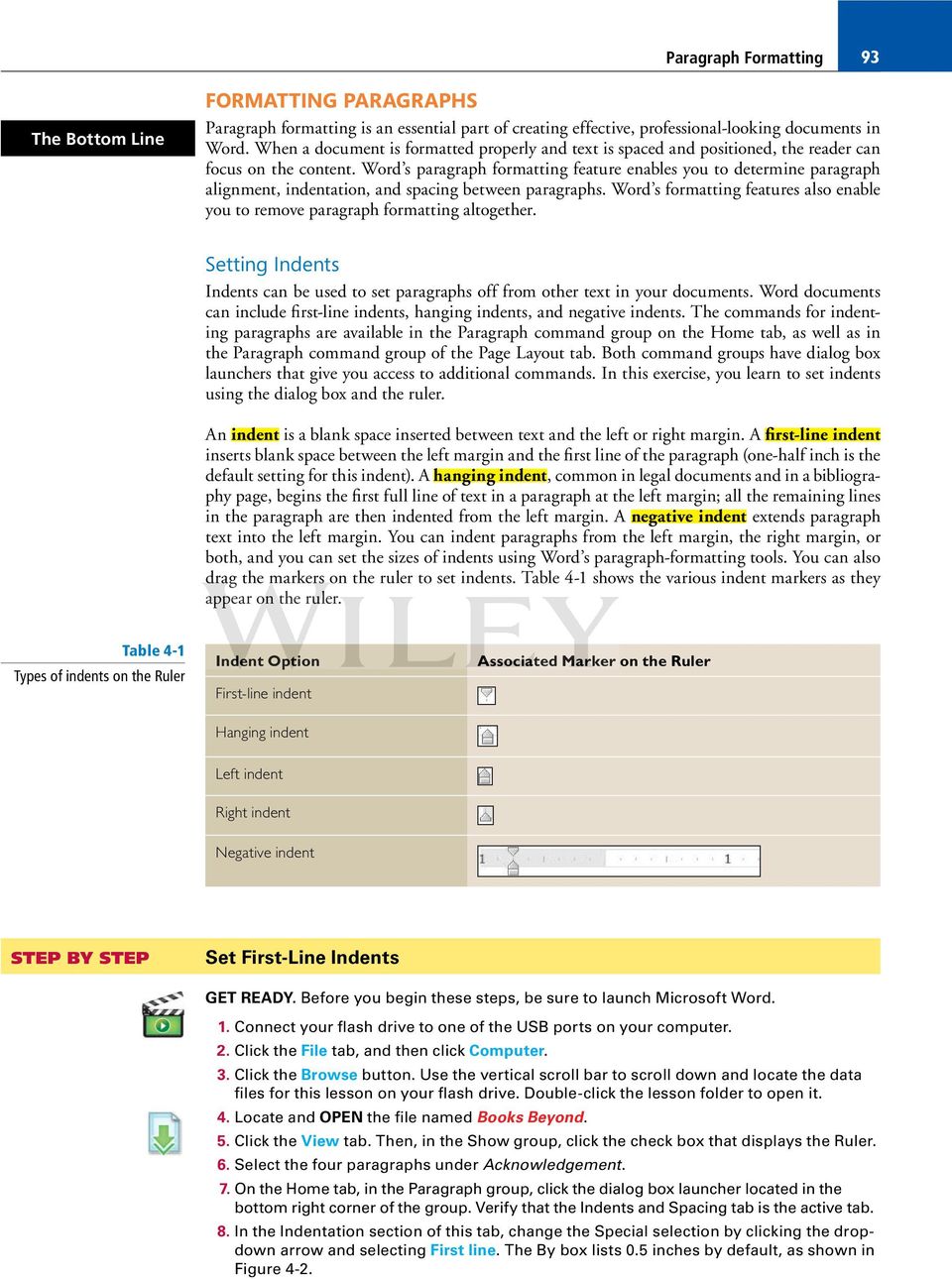
4 94 Lesson 4 Figure 4-2 Paragraph dialog box First-line indent default is.5 The open document is set to Single line spacing Another Way You can also click to place the insertion point anywhere within the paragraph to set the indent, and then drag the first-line indent marker on the ruler (see Figure 4-3) to the place where you want the text to be indented. Preview of paragraph Figure 4-3 Ruler with first-line indent marker on paragraphs First line indent marker on ruler 9. Click OK. The first line of each paragraph is indented 0.5 inches from the left margin. 10. Figure 4-3 displays the ruler and the paragraphs with the first-line indent you just set.
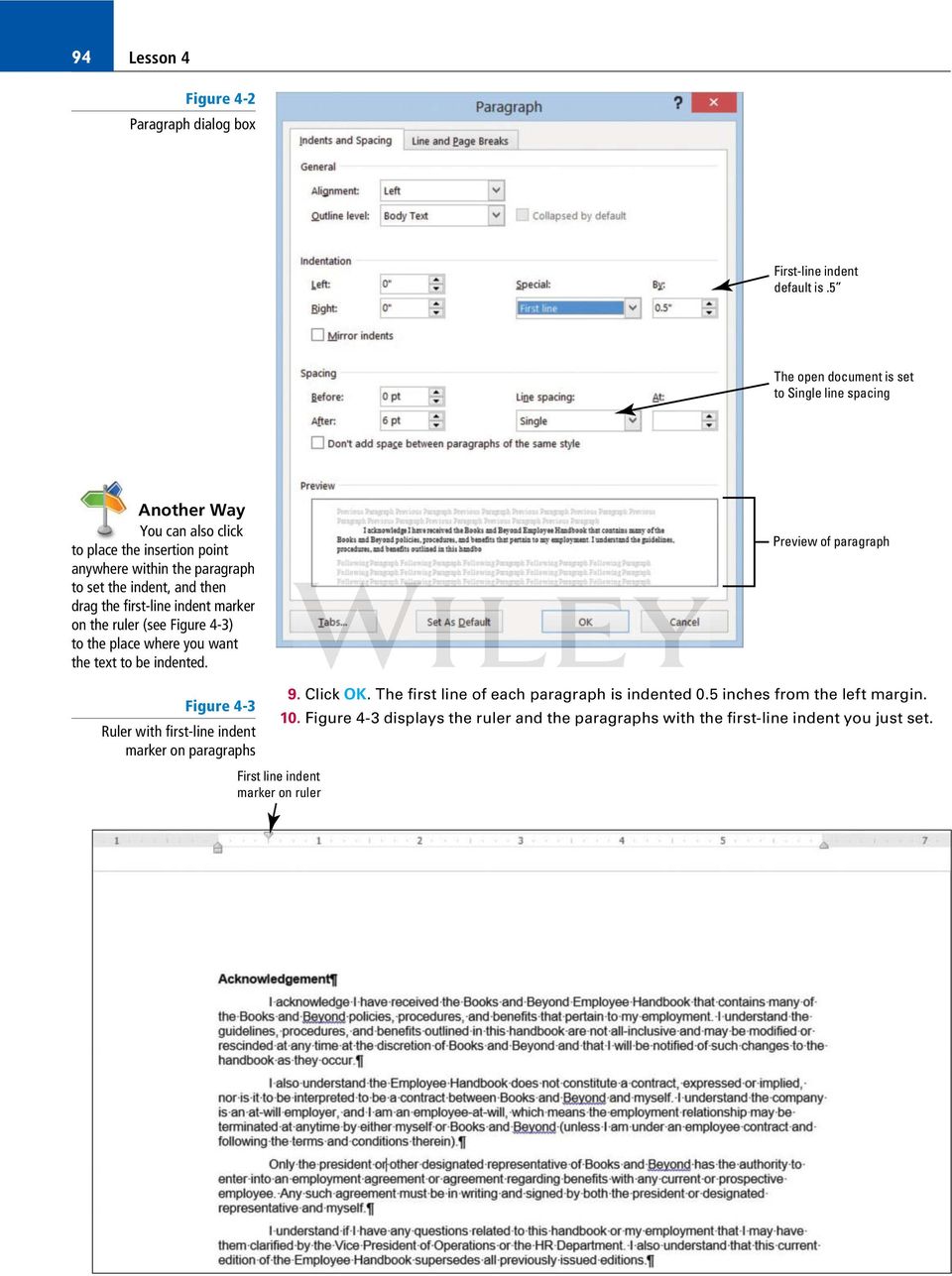
5 11. Select the four paragraphs under Introduction. Paragraph Formatting On the horizontal ruler, press and hold the left mouse button and drag the First-line indent marker to 0.5 inches. Troubleshooting Another Way To indent the first line of a paragraph, click in front of the line and press Tab. To indent an entire paragraph, select the whole paragraph and press Tab Click the View tab and choose Ruler from the Show command group. 13. Select all the paragraphs under the General Performance Expectation Guidelines. 14. On the Page Layout tab, in the Paragraph group, launch the Paragraph dialog box, and change the Special selection to First line by clicking the drop-down arrow. Click OK to accept the default setting of 0.5 inches. 15. Select both paragraphs under the Equal Employment Opportunity and Diversity. 16. Right-click and select Paragraph this is another way to open the Paragraph dialog box. 17. Change the Special selection to First line. Click OK. Using a shortcut method, you can also access the Paragraph dialog box. 18. SAVE the document as B&B First Line Indent in the lesson folder on your flash drive. How would you set indents? Set Hanging Indents Figure 4-4 Markers on ruler aligned 1. Place the insertion point at the beginning of the first paragraph under the heading Acknowledgement, and then select the first two paragraphs. 2. On the Home tab, launch the Paragraph dialog box and change the Special selection from First Line to Hanging. Click OK. The first line of both paragraphs begins at the left of the margin whereas the remaining paragraphs are indented 0.5 inches from the left margin. 3. Under the same heading, select the last two paragraphs. On the horizontal ruler, press and hold the left mouse button and drag the first - line indent marker so that it aligns with the left margin. You need to reposition the first-line indent marker so that it doesn t move when you begin dragging the hanging indent marker. Your markers on the ruler should match Figure 4-4. First line and Hanging indent markers are aligned to the left margin The selected paragraphs are no longer indented

6 96 Lesson 4 4. Press and hold the left mouse button and drag the hanging indent marker to 0.5 inches. You have now repositioned the marker using the ruler, and both paragraphs are indented. Your document should look similar to the one shown in Figure 4-5. Figure 4-5 Sample document with hanging indent First line indent marker is positioned on left margin Hanging indent marker is positioned 0.5 from the left margin 5. SAVE the document as B&B Hanging Indent in the lesson folder on your flash drive. Set Left and Right Indents 1. Select the paragraphs under Introduction. 2. You will move the first-line indent back to the default settings. Launch the Paragraph dialog box from the Home tab. Under the Special group, select (none). Click OK. Notice the paragraphs are left aligned. 3. Select the first two paragraphs under Introduction. 4. Right-click and click Paragraph to open the dialog box. In the Indentation group, change the left and right indents to 1 inch by clicking the up arrow. Click OK. 5. Select the last two paragraphs under the same heading. 6. On the Page Layout tab, in the Paragraph group, click the up arrow next to Indent Left to indent the left side of the paragraph to 1 inch on the ruler. 7. Click the up arrow next to Indent Right to indent the right side of the paragraph to 1 inch on the ruler. Notice that paragraphs are one inch from the left and right margins (see Figure 4-6).
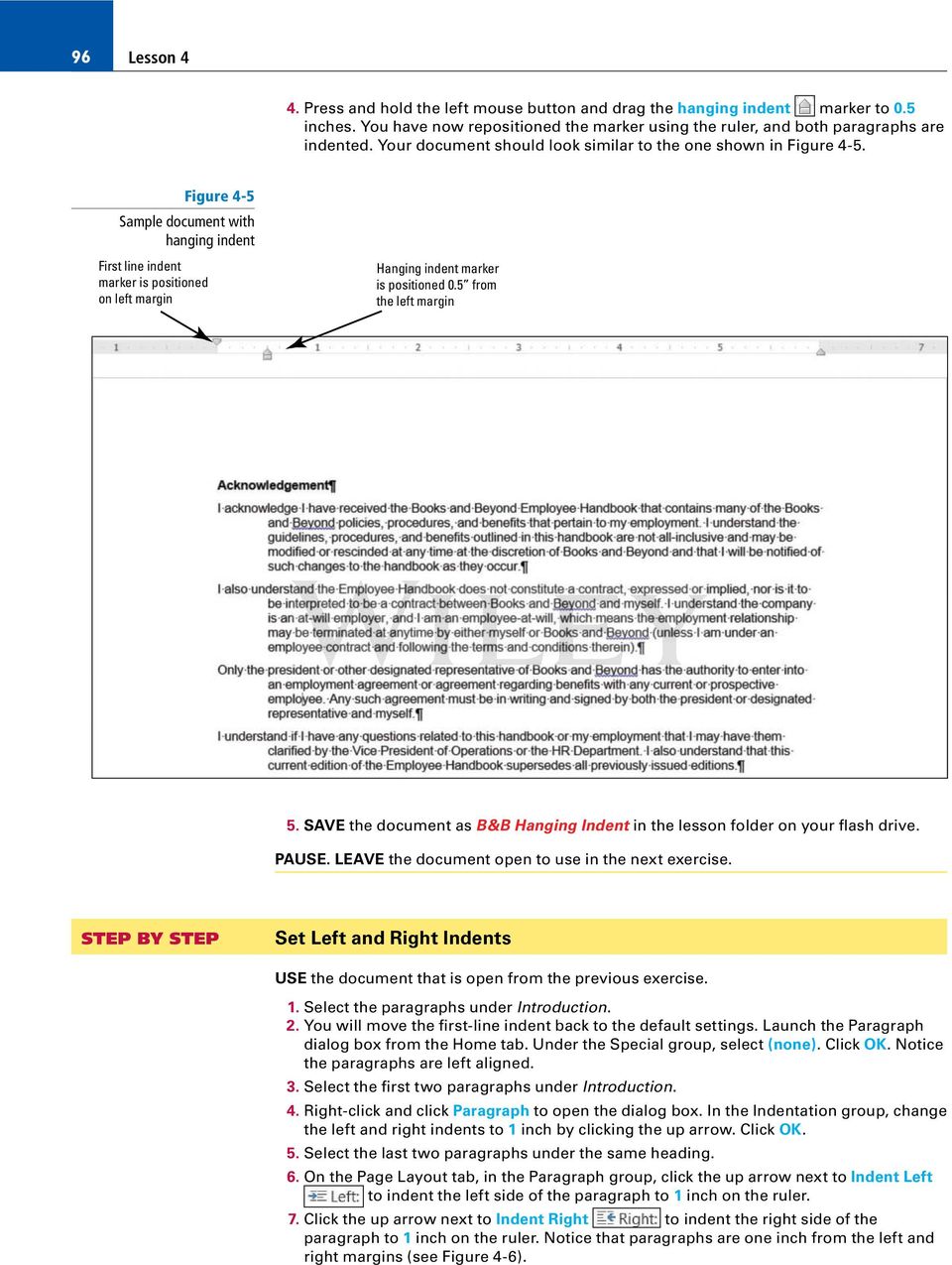
7 Paragraph Formatting 97 Figure 4-6 Sample document displaying left and right indents Left indent marker is one-inch from the margin Right indent marker is one-inch from the right margin 8. SAVE the document as B&B Left&Right Indent in the lesson folder on your flash drive. Set Negative Indents Figure 4-7 Sample document with negative left indent Negative left indent on ruler 1. Under the Equal Employment Opportunity and Diversity heading, select both paragraphs. 2. Launch the Paragraph dialog box from the Home tab. Under the Special group, select (none). Click OK. 3. Select the first paragraph under the heading. 4. Click the Page Layout tab, in the Paragraph group, click the down arrow next to Indent Left to indent the left side of the paragraph to 20.5 inch on the ruler as shown in Figure 4-7. Paragraph extends into left margin 5. Position your insertion point anywhere in the last paragraph, and then launch the Paragraph dialog box from the Page Layout tab.
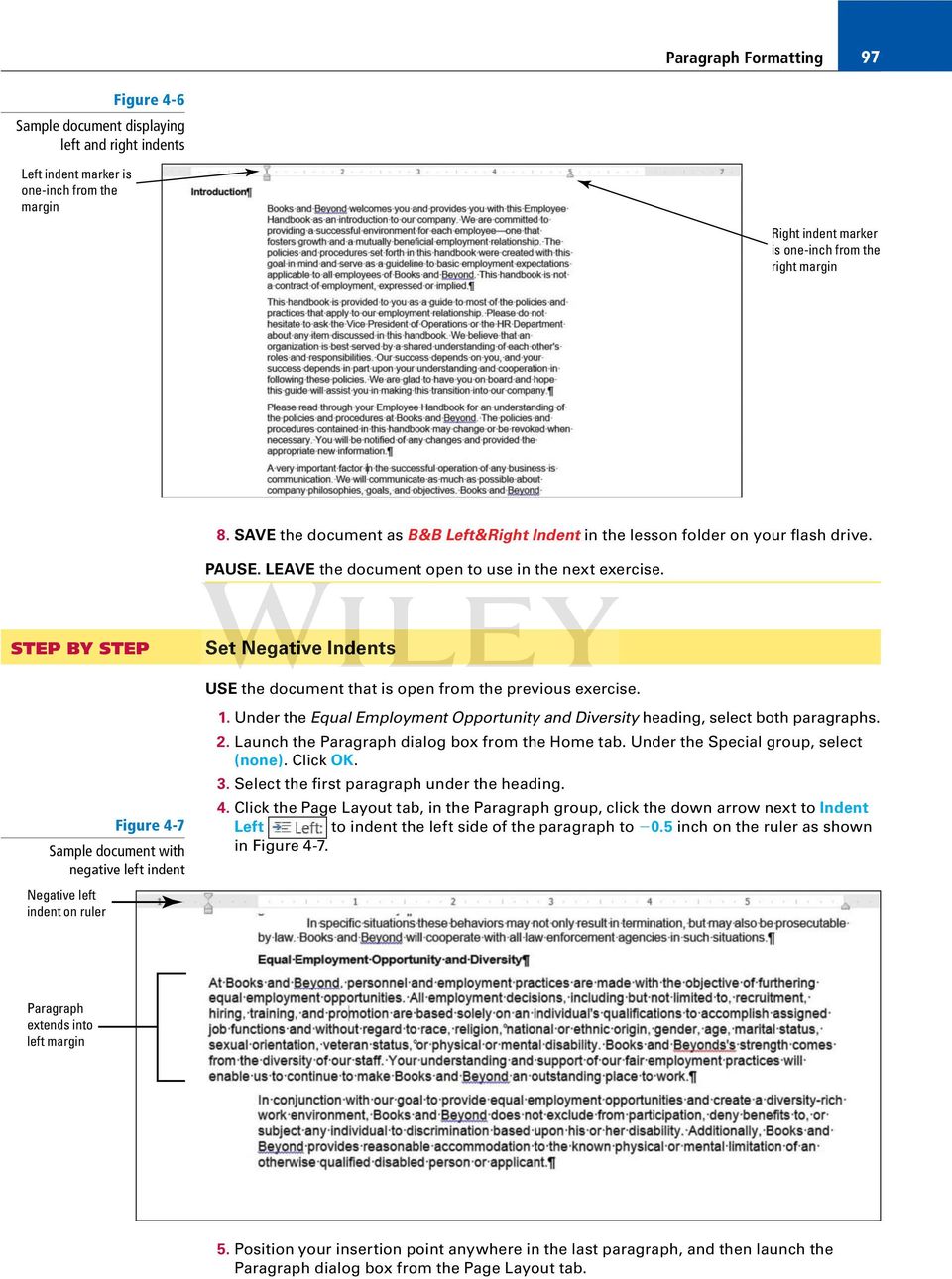
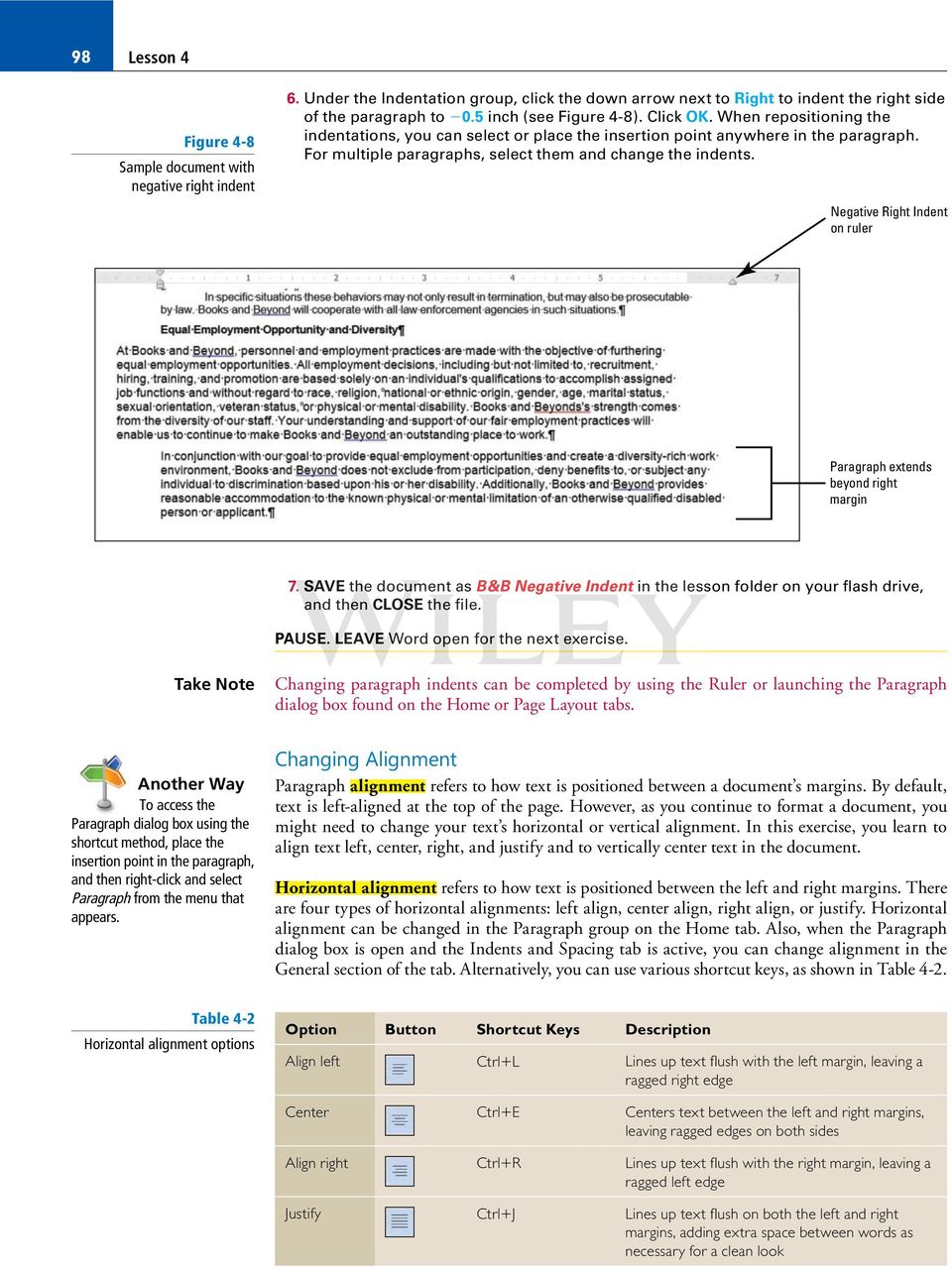
8 98 Lesson 4 Figure 4-8 Sample document with negative right indent 6. Under the Indentation group, click the down arrow next to Right to indent the right side of the paragraph to inch (see Figure 4-8). Click OK. When repositioning the indentations, you can select or place the insertion point anywhere in the paragraph. For multiple paragraphs, select them and change the indents. Negative Right Indent on ruler Paragraph extends beyond right margin 7. SAVE the document as B&B Negative Indent in the lesson folder on your flash drive, and then CLOSE the file. PAUSE. LEAVE Word open for the next exercise. Take Note Changing paragraph indents can be completed by using the Ruler or launching the Paragraph dialog box found on the Home or Page Layout tabs. Another Way To access the Paragraph dialog box using the shortcut method, place the insertion point in the paragraph, and then right-click and select Paragraph from the menu that appears. Changing Alignment Paragraph alignment refers to how text is positioned between a document s margins. By default, text is left-aligned at the top of the page. However, as you continue to format a document, you might need to change your text s horizontal or vertical alignment. In this exercise, you learn to align text left, center, right, and justify and to vertically center text in the document. Horizontal alignment refers to how text is positioned between the left and right margins. There are four types of horizontal alignments: left align, center align, right align, or justify. Horizontal alignment can be changed in the Paragraph group on the Home tab. Also, when the Paragraph dialog box is open and the Indents and Spacing tab is active, you can change alignment in the General section of the tab. Alternatively, you can use various shortcut keys, as shown in Table 4-2. Table 4-2 Horizontal alignment options Option Button Shortcut Keys Description Align left Ctrl1L Lines up text fl ush with the left margin, leaving a ragged right edge Center Ctrl1E Centers text between the left and right margins, leaving ragged edges on both sides Align right Ctrl1R Lines up text fl ush with the right margin, leaving a ragged left edge Justify Ctrl1J Lines up text fl ush on both the left and right margins, adding extra space between words as necessary for a clean look
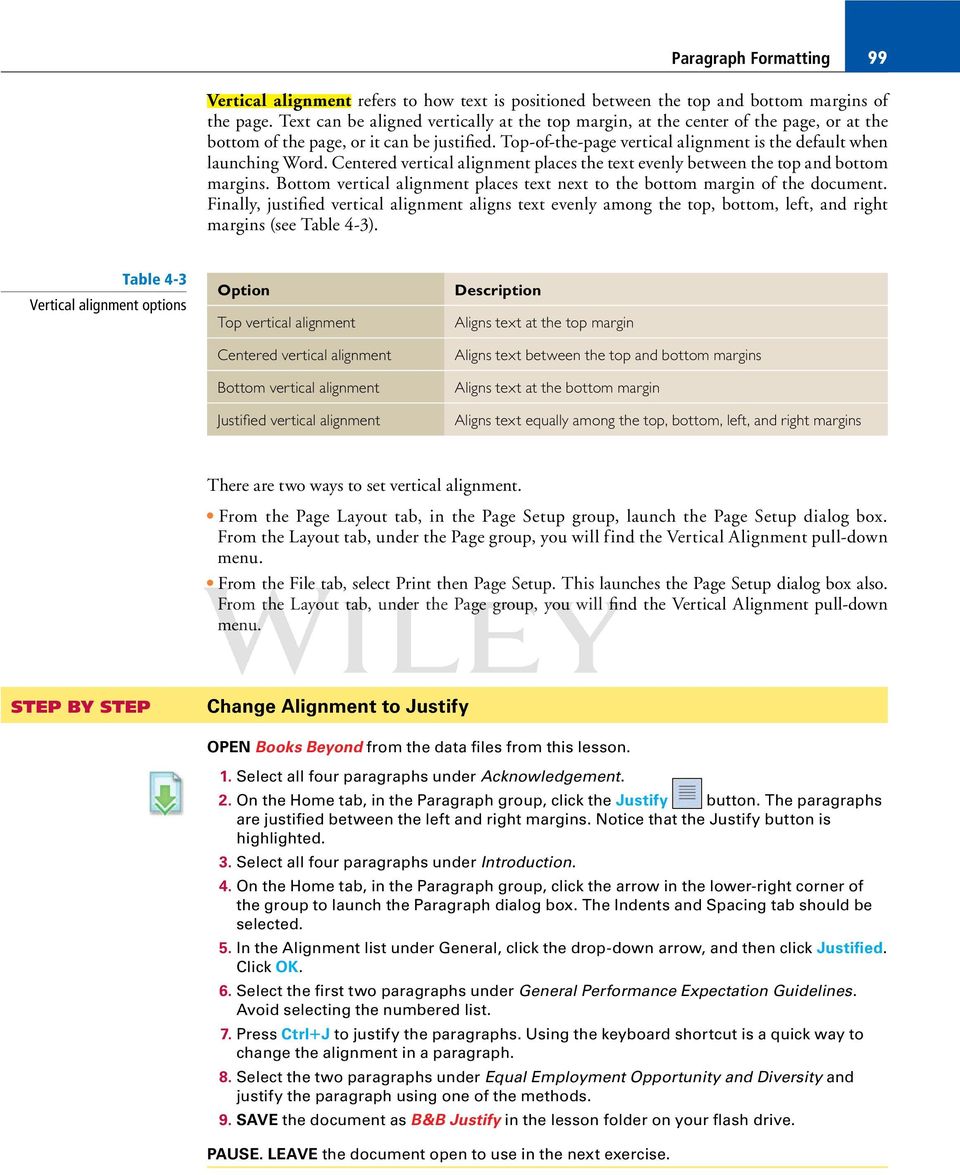
9 Paragraph Formatting 99 Vertical alignment refers to how text is positioned between the top and bottom margins of the page. Text can be aligned vertically at the top margin, at the center of the page, or at the bottom of the page, or it can be justified. Top-of-the-page vertical alignment is the default when launching Word. Centered vertical alignment places the text evenly between the top and bottom margins. Bottom vertical alignment places text next to the bottom margin of the document. Finally, justified vertical alignment aligns text evenly among the top, bottom, left, and right margins (see Table 4-3). Table 4-3 Vertical alignment options Option Top vertical alignment Centered vertical alignment Bottom vertical alignment Justifi ed vertical alignment Description Aligns text at the top margin Aligns text between the top and bottom margins Aligns text at the bottom margin Aligns text equally among the top, bottom, left, and right margins There are two ways to set vertical alignment. From the Page Layout tab, in the Page Setup group, launch the Page Setup dialog box. From the Layout tab, under the Page group, you will find the Vertical Alignment pull-down menu. From the File tab, select Print then Page Setup. This launches the Page Setup dialog box also. From the Layout tab, under the Page group, you will find the Vertical Alignment pull-down menu. Change Alignment to Justify OPEN Books Beyond from the data files from this lesson. 1. Select all four paragraphs under Acknowledgement. 2. On the Home tab, in the Paragraph group, click the Justify button. The paragraphs are justified between the left and right margins. Notice that the Justify button is highlighted. 3. Select all four paragraphs under Introduction. 4. On the Home tab, in the Paragraph group, click the arrow in the lower-right corner of the group to launch the Paragraph dialog box. The Indents and Spacing tab should be selected. 5. In the Alignment list under General, click the drop-down arrow, and then click Justified. Click OK. 6. Select the first two paragraphs under General Performance Expectation Guidelines. Avoid selecting the numbered list. 7. Press Ctrl 1 J to justify the paragraphs. Using the keyboard shortcut is a quick way to change the alignment in a paragraph. 8. Select the two paragraphs under Equal Employment Opportunity and Diversity and justify the paragraph using one of the methods. 9. SAVE the document as B&B Justify in the lesson folder on your flash drive.
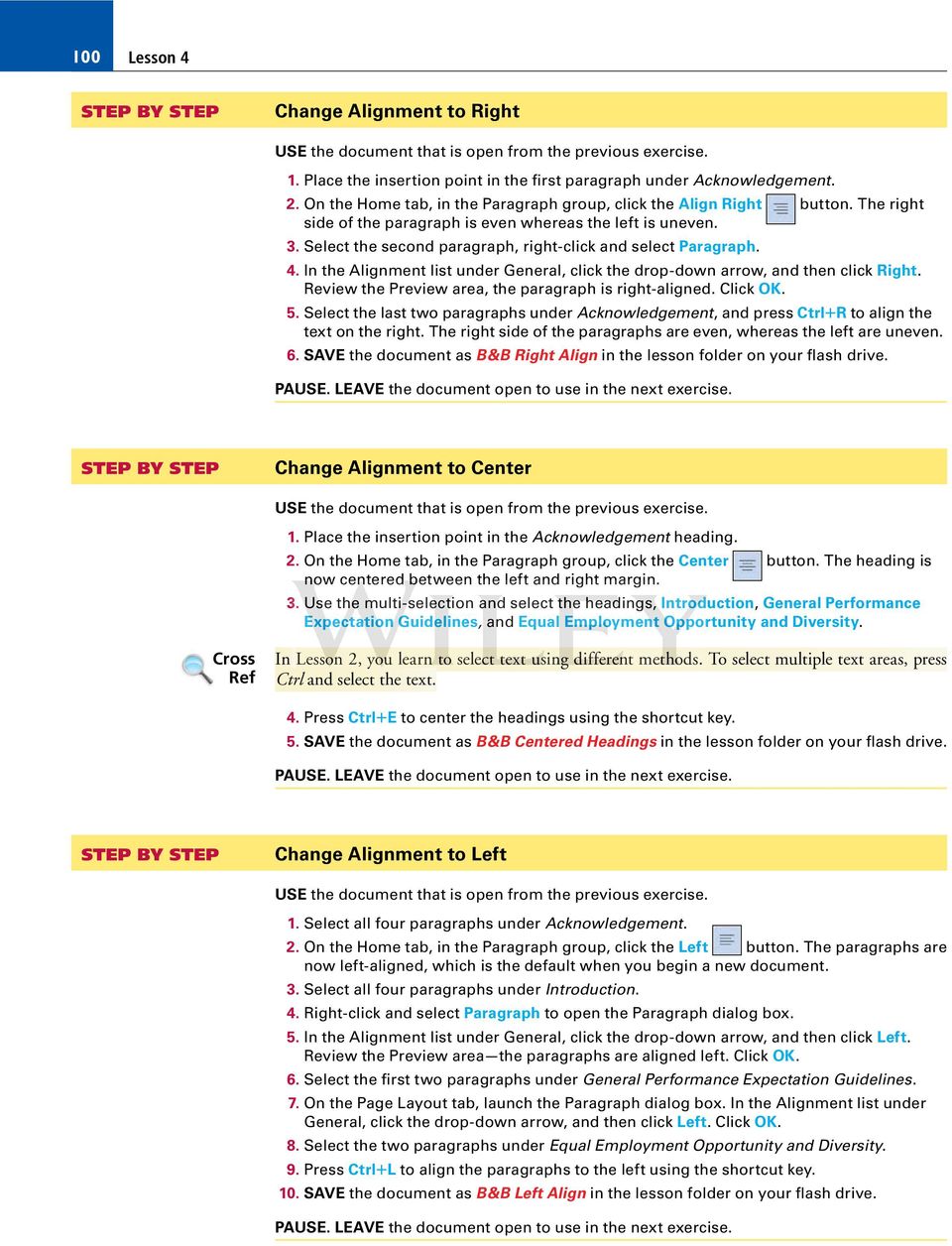
10 100 Lesson 4 Change Alignment to Right 1. Place the insertion point in the first paragraph under Acknowledgement. 2. On the Home tab, in the Paragraph group, click the Align Right button. The right side of the paragraph is even whereas the left is uneven. 3. Select the second paragraph, right-click and select Paragraph. 4. In the Alignment list under General, click the drop-down arrow, and then click Right. Review the Preview area, the paragraph is right-aligned. Click OK. 5. Select the last two paragraphs under Acknowledgement, and press Ctrl1R to align the text on the right. The right side of the paragraphs are even, whereas the left are uneven. 6. SAVE the document as B&B Right Align in the lesson folder on your flash drive. Change Alignment to Center 1. Place the insertion point in the Acknowledgement heading. 2. On the Home tab, in the Paragraph group, click the Center button. The heading is now centered between the left and right margin. 3. Use the multi-selection and select the headings, Introduction, General Performance Expectation Guidelines, and Equal Employment Opportunity and Diversity. Cross Ref In Lesson 2, you learn to select text using different methods. To select multiple text areas, press Ctrl and select the text. 4. Press Ctrl 1 E to center the headings using the shortcut key. 5. SAVE the document as B&B Centered Headings in the lesson folder on your flash drive. Change Alignment to Left 1. Select all four paragraphs under Acknowledgement. 2. On the Home tab, in the Paragraph group, click the Left button. The paragraphs are now left-aligned, which is the default when you begin a new document. 3. Select all four paragraphs under Introduction. 4. Right-click and select Paragraph to open the Paragraph dialog box. 5. In the Alignment list under General, click the drop-down arrow, and then click Left. Review the Preview area the paragraphs are aligned left. Click OK. 6. Select the first two paragraphs under General Performance Expectation Guidelines. 7. On the Page Layout tab, launch the Paragraph dialog box. In the Alignment list under General, click the drop-down arrow, and then click Left. Click OK. 8. Select the two paragraphs under Equal Employment Opportunity and Diversity. 9. Press Ctrl1L to align the paragraphs to the left using the shortcut key. 10. SAVE the document as B&B Left Align in the lesson folder on your flash drive.
11 Paragraph Formatting 101 Change Alignment to Vertical 1. Select the text beginning with the heading Introduction to the end of the document and press Delete. 2. Press Ctrl1Home to position the insertion point at the beginning of the document. 3. On the Page Layout tab, in the Page Setup group, click the arrow in the lower-right corner of the group to open the Page Setup dialog box. 4. Select the Layout tab. 5. In the Vertical alignment list under Page, click the drop-down arrow and select Center. 6. In the Apply to list under Preview, Whole document is selected as the default, as shown in Figure 4-9. Figure 4-9 Page Setup dialog box Default setting

12 102 Lesson 4 7. Click OK. The text is centered between the top and bottom margins, as shown in Figure Figure 4-10 Horizontal and vertical alignments 8. SAVE the document as B&B Vertical Alignment in the lesson folder on your flash drive. Shading a Paragraph In this exercise, you learn to use Word s Shading feature to color the background behind selected text or paragraphs. To apply shading to a paragraph, click the Shading button in the Paragraph group on the Home tab. To choose another color, click the drop-down arrow next to the Shading button, and choose a color in the current theme or a standard color from the Shading menu (place your insertion point over a color to see a ScreenTip with the color s precise name). To remove shading, click No Color.

13 Paragraph Formatting 103 Click More Colors to open the Colors dialog box, where additional options are available. You can choose standard colors on the Standard tab, or you can create a custom color from the Custom tab. Shade a Paragraph 1. Select the first paragraph under the heading. 2. On the Home tab, in the Paragraph group, click the drop-down arrow next to the Shading button to display the menu shown in Figure Figure 4-11 Shading menu 3. In the Theme Colors palette, locate and select Orange, Accent 6, Lighter 40% as shown in Figure Figure 4-12 Selecting the color 4. SAVE the document as B&B Shaded Paragraph in the lesson folder on your flash drive.

14 104 Lesson 4 Placing a Border around a Paragraph or Text Like shading, borders can add interest and emphasis to paragraphs or text. Borders can be formatted with a variety of styles, colors, and widths. In this exercise, you use Word s Borders options to apply a border to a paragraph in your document. You can apply a border to a paragraph by clicking the Borders button in the Paragraph group on the Home tab. To change the border style, click the drop-down arrow next to the Borders button. For additional options, click the Borders and Shading option on the Borders menu to open the Borders tab of the Borders and Shading dialog box. You can choose a number of border colors and styles in this dialog box, or you can remove a border completely. This dialog box also contains tabs for page border options and shading. Place a Border around a Paragraph 1. Place the insertion point in the second paragraph beginning with I also understand 2. On the Home tab, in the Paragraph group, click the drop-down arrow next to the Borders button to display the menu shown in Figure Figure 4-13 Border menu
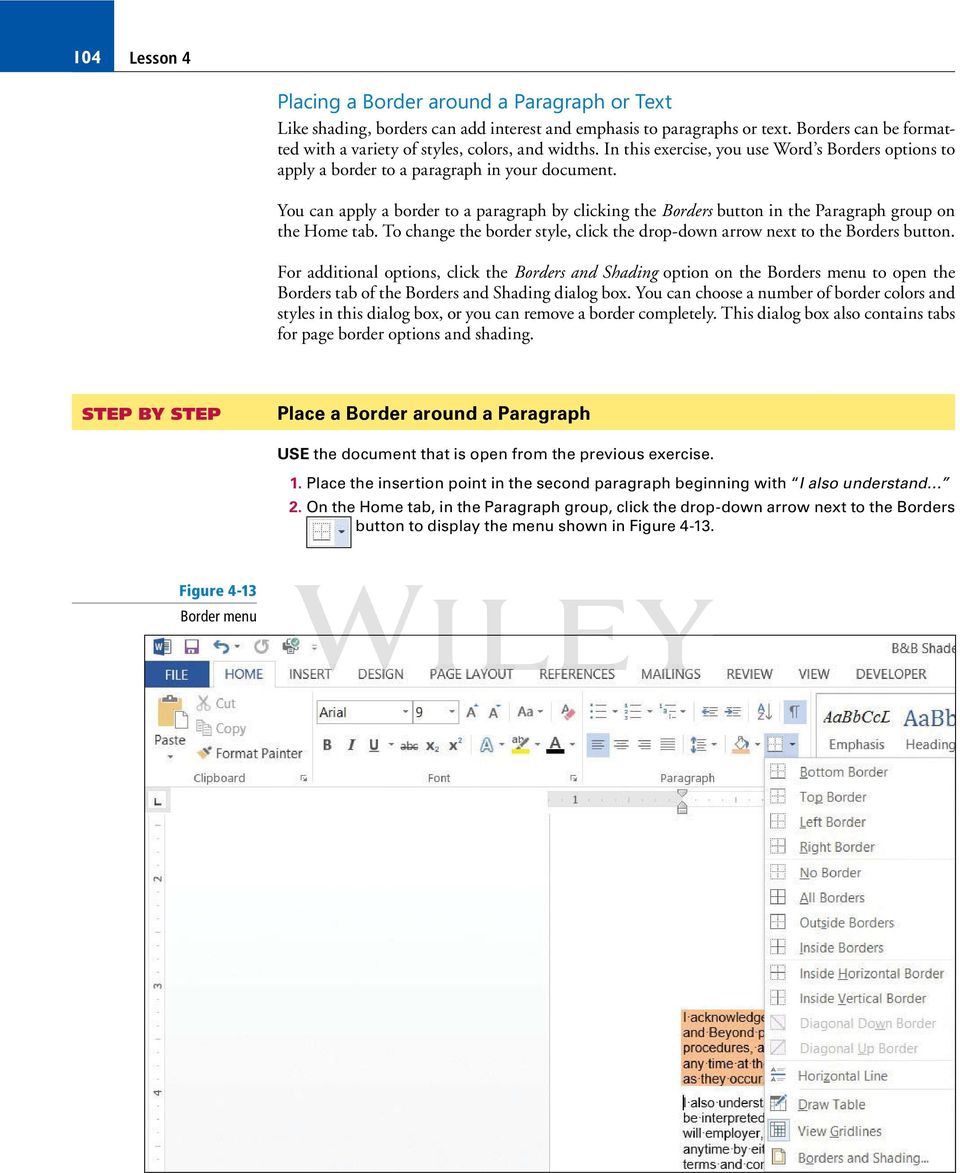
15 Paragraph Formatting Select Outside Borders on the menu. Your document should look similar to Figure Figure 4-14 Shading and border Shaded paragraph Border around paragraph 4. Place the insertion point in the third paragraph. 5. On the Design tab, in the Page Background group, click Page Borders to open the Borders and Shading dialog box, and then click the Borders tab to make it active (see Figure 4-15). The Design tab on the Ribbon is a new tab for Word 2013 and contains many additional features to format a document. In Lesson 7, you learn more about the Design tab. Figure 4-15 Borders and Shading dialog box Options to select a border style Border Settings Preview area Border color Based on your selection, the Apply to will display Paragraph or Text Width selector

16 106 Lesson 4 Another Way The Borders and Shading dialog box can be accessed by clicking the dropdown arrow next to the Borders button, and then selecting Borders and Shading. Take Note 6. Select Shadow under the Settings. 7. Select the ninth option under Style. Select Dark Blue, Text 2 for color, and change the width to 2 ¼ pt. 8. Review the Preview area before you click OK. Note that the border is applied to the paragraph. 9. SAVE the document as B&B with Borders in the lesson folder on your flash drive. Borders can also be added to pages, sections, tables, cells, graphic objects, and pictures. Place a Border around Text 1. On the Home tab, enable the Show/Hide to display the nonprinting characters. Select the title without selecting the paragraph mark ( ). Cross Ref In Lesson 1, you learn to enable Show/Hide, and in Lesson 2 you learn different ways to select text. 2. On the Home tab, in the Paragraph group, click the drop-down arrow next to the Borders button to display the menu and select Borders and Shading to open the dialog box. 3. Click the Borders tab to make it active. Notice the title appears in the Preview area and in the Apply to section, Text is displayed. Not selecting the paragraph mark ( ) allows you to place a border around text only. 4. Select Box under Setting and change the width to 1 ½ pt. Click OK. Notice that the border wraps around the text. 5. SAVE the document with the same filename in the lesson folder on your flash drive. Removing Borders around Text or a Paragraph Another Way Select text or paragraph, click the dropdown arrow by Borders in the Para graph group, and then click No Border. 1. Place the insertion point in the second paragraph under the heading. 2. On the Home tab, in the Paragraph group, click the drop-down arrow next to the Borders button to display the menu and select Borders and Shading. The Borders and Shading dialog box opens. 3. Select the Borders tab, and then select None under Setting. Click OK. 4. Remove the border on the third paragraph by repeating steps 2 and For the title select only the text before repeating steps 2 and SAVE the document as B&B with No Borders in the lesson folder on your flash drive. Clearing the Formats from a Paragraph After formatting your document, you might decide that you no longer want any formatting in a paragraph or that you want to begin again. The Clear Formatting command provides an easy way to change a paragraph back to plain text. When you execute this command, all formatting is removed, and the font and font size revert to the original document settings. In this exercise, you use the Clear Formatting command to clear all formats from selected paragraphs in Word.

17 Paragraph Formatting 107 Clear Paragraph Formats 1. Select the whole document. 2. On the Home tab, in the Font group, click the Clear Formatting button. Cross Ref You can also clear formatting in the Styles group by clicking the More button. For more information, see Lesson SAVE the document as B&B No Formatting in the lesson folder on your flash drive, and then CLOSE the file. PAUSE. LEAVE Word open for the next exercise. The Bottom Line SETTING LINE SPACING IN TEXT AND BETWEEN PARAGRAPHS In Word, you can determine how much space separates lines of text, and you also can set the spacing between paragraphs. By default, Word sets line spacing (the space between each line of text) to Line spacing is paragraph based and can be customized by specifying a point size. Paragraph spacing, which affects the space above and below paragraphs, is set to 8 points after each paragraph by default. The higher the point size is, the greater the space between paragraphs. In this exercise, you learn to set both line and paragraph spacing. Setting Line Spacing Line spacing is the amount of space between the lines of text in a paragraph. In this exercise, you learn to set line spacing using a number of Word paragraph formatting tools. Table 4-4 Line spacing options Line spacing options are available in the Home and Page Layout tabs within the Paragraph group by using the Line and Paragraph Spacing button. The line spacing options can also be accessed through the Indents and Spacing tab of the Paragraph dialog box. New in Word 2013 is the Design tab, which includes Paragraph Spacing settings. Table 4-4 provides additional information regarding line spacing options and descriptions. Option Keyboard Shortcut Description Single Ctrl11 Accommodates the largest letter in a line, plus a small amount of extra space. 1.5 Ctrl15 One-and-one-half times the amount of space used in single spacing. Double Ctrl12 Twice the amount of space used in single spacing. At least Exactly Multiple No Paragraph Spacing Sets the spacing at the minimum amount needed to fi t the largest font on the line. Sets the spacing at a fi xed amount that Word does not adjust. Sets the spacing at an amount that is increased or decreased from single spacing by a percentage that you specify. Setting the line spacing to 1.3, for example, increases the space by 30%. The Built-in Before and After spacing is set to 0 pt. and the line spacing is set to 1. Compact The Built-in Before spacing is set to 0 pt., After is set to 4 pt., and the line space is set to 1. Tight The Built-in Before spacing is set to 0 pt., After to 6 pt., and line spacing Open The Built-in Before spacing is set to 0 pt., After to 10 pt., and line spacing Relaxed The Built-in Before spacing is set to 0 pt., After to 6 pt., and line spacing to 1.5. Double The Built-in Before spacing is set to 0 pt., After 8 pt., and line spacing 2.
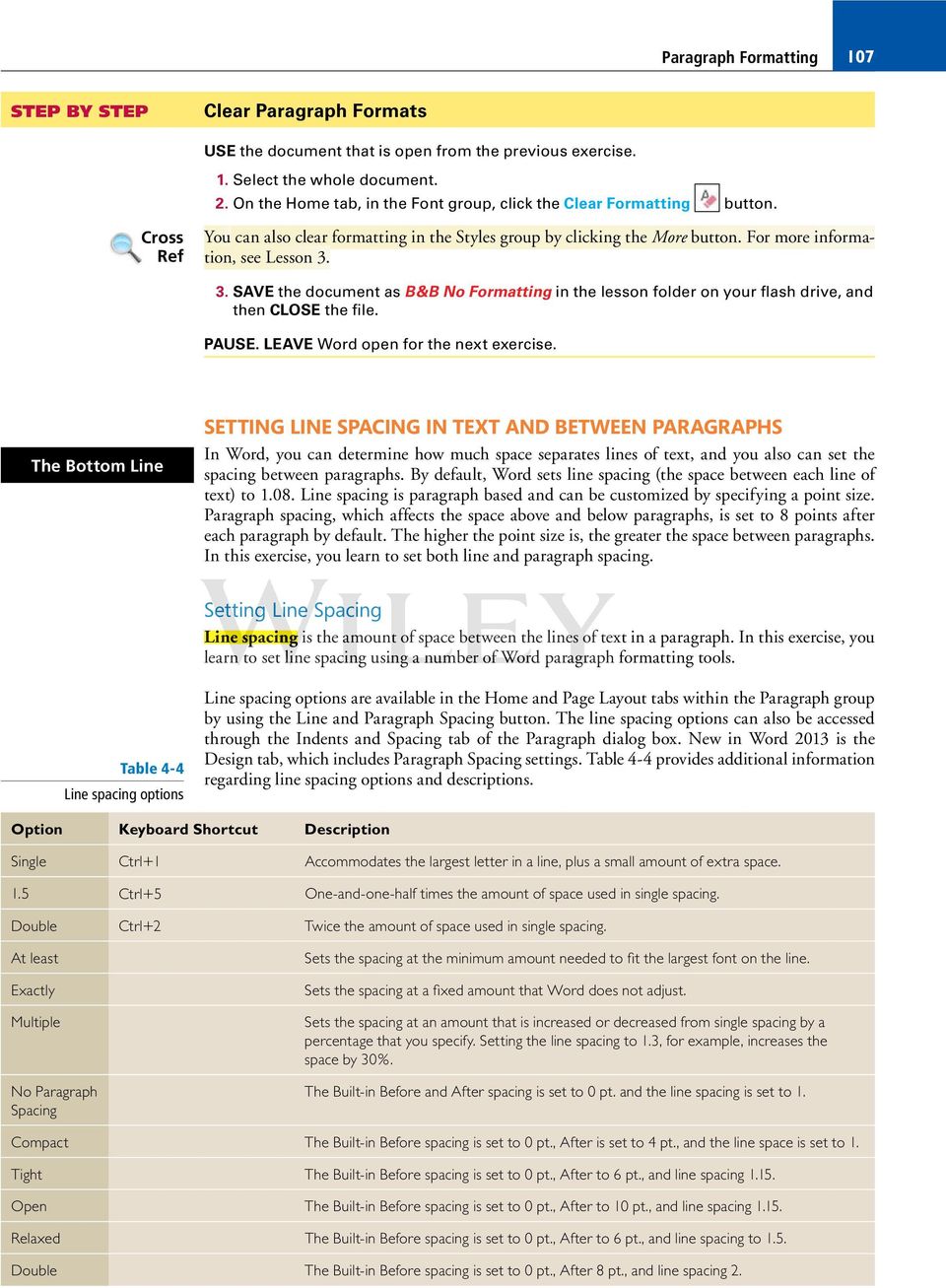
18 108 Lesson 4 Set Line Spacing in a Paragraph OPEN the Books Beyond document from the lesson folder. 1. Place the insertion point in the first paragraph under the Acknowledgement heading. 2. On the Home tab, in the Paragraph group, click the Line and Paragraph Spacing button to display the Line Spacing menu and options to add and remove spacing before and after paragraphs (see Figure 4-16). Figure 4-16 Line Spacing menu Opens a dialog box 3. Select 2.0 to double-space the text. 4. Place the insertion point in the second paragraph. 5. In the Paragraph group, launch the dialog box. 6. In the Spacing group, change the Line spacing by clicking the drop-down arrow and selecting Double. Click OK. The paragraph is now double-spaced. 7. Place the insertion point in the third paragraph. 8. Press Ctrl 1 2 to double-space the paragraph. 9. Click the Design tab and in the Document Formatting group, click the Paragraph Spacing button to display the menu as shown in Figure 4-17.
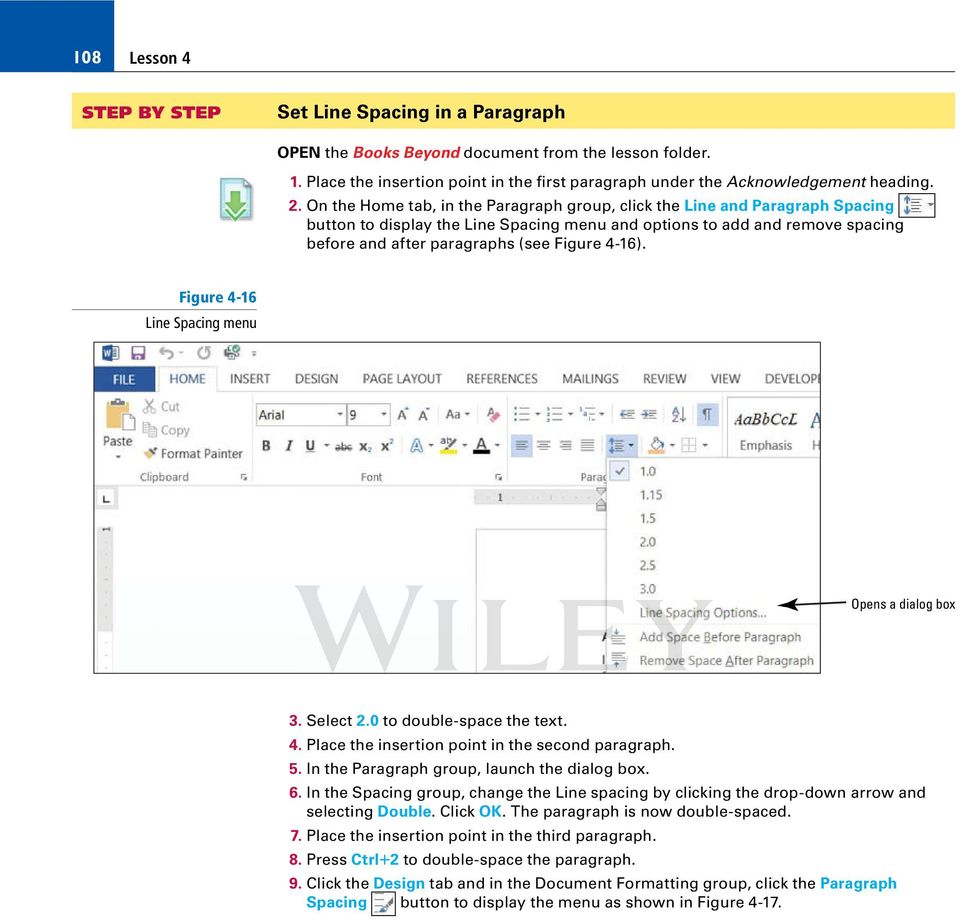
19 Paragraph Formatting 109 Figure 4-17 Paragraph Spacing menu Default settings Built-in paragraph spacing Customize Paragraph Spacing Take Note How would you set line spacing in a paragraph? 10. Select Double. Notice that the remaining document is double-spaced. This new feature in Word 2013 changes spacing for the entire document to include new paragraphs. When using the Document Formatting group to apply paragraph spacing, the document does not need to be selected when using one of the built-in formatting commands. 11. SAVE the document as B&B Double Spacing in the lesson folder on your flash drive. Modify Line Spacing in a Paragraph 1. Select the four paragraphs under Acknowledgement. 2. Return to the Line and Paragraph Spacing drop-down menu in the Paragraph group on the Home tab. To set more precise spacing measurements, click Line S pacing O ptions to display the Indents and Spacing tab of the Paragraph dialog box. 3. In the Spacing section, click the drop-down arrow and select Exactly in the Line spacing list. In the At list, click the up arrow until it reads 22 pt. The line spacing is increased. 4. Click OK. 5. SAVE the document as B&B Exact Spacing in the lesson folder on your flash drive, and then CLOSE the file How would you modify line spacing in a paragraph? PAUSE. LEAVE Word open for the next exercise. Setting Paragraph Spacing Paragraphs are usually separated by a blank line in Word documents. When you press the Enter key at the end of a paragraph, Word adds the designated space above or below the paragraph. By
20 110 Lesson 4 default, the spacing after a paragraph is set to 8 points and the spacing before paragraphs is set to zero, but you can change these settings for a single paragraph or for an entire document. In this exercise, you learn to set paragraph spacing. To increase or decrease paragraph spacing, click the Before and After up or down arrows in the Indents and Spacing tab of the Paragraph dialog box. The Paragraph spacing can also be changed in the Paragraph group on the Home tab by clicking the Line and Paragraph Spacing button to Add Space Before or After Paragraph or Remove Space Before or After Paragraph. Set Spacing around a Paragraph OPEN the Books Beyond document from the lesson folder. How would you apply paragraph spacing? Another Way You also can rightclick to open the Paragraph dialog box. 1. Select the entire document. 2. On the Home tab, in the Paragraph group, click the arrow in the lower-right corner of the group to display the Paragraph dialog box. The Indents and Spacing tab is the active tab. 3. In the Spacing section, click the up arrow next to Before until it reads 24 pt. 4. Click the up arrow next to After until it reads 24 pt. Review the preview area and notice the increase of spacing in the document. 5. Click OK. Notice the spacing between the paragraphs. 6. With the entire document still selected, click the drop-down arrow next to the Line and Paragraph Spacing button in the Paragraph group to display the Line Spacing menu. 7. Click Remove Space Before Paragraph. 8. Repeat step 6, and then click Remove Space After Paragraph. The spacing before and after have been removed from the document. 9. Place the insertion point in the heading, Acknowledgement. 10. Click the Page Layout tab, and then in the Paragraph group, click the up arrow and increase the Spacing After to 12 pt. 11. Use the Format Painter and repeat step 10 for each heading, Introduction, General Performance Expectation Guidelines, and Equal Employment Opportunity and Diversity. 12. Use multi-selection to select the paragraphs under each heading and change the Spacing After to 6 pt. 13. SAVE the document as B&B Spacing Before&After in the lesson folder on your flash drive, and then CLOSE the file. PAUSE. LEAVE Word open for the next exercise. The Bottom Line CREATING AND FORMATTING A BULLETED LIST Bulleted lists are an effective way to format lists of items that don t have to appear in any specific order. (Use numbered lists for items in a set order.) Items in a bulleted list are marked by small icons dots, diamonds, and so on. In Word, you can create bulleted lists from scratch, change existing lines of text into a bulleted list, choose from a number of bullet styles, create levels within a bulleted list, and insert a symbol or picture as a bullet. Creating a Bulleted List By creating and formatting a bulleted list, you can draw attention to major points in a document. In this exercise, you learn to create, format, and modify such a list.
21 Paragraph Formatting 111 Create a Bulleted List OPEN Alarm from the data files for this lesson How do you apply bullets in a document? 1. Select the two paragraphs below the phrase Please keep in mind:. 2. On the Home tab, in the Paragraph group, click the Bullets button. Notice that solid circles appear before the selected paragraphs. 3. Place the insertion point at the end of the second bulleted paragraph. 4. Press Enter. Word automatically continues the bulleted list by supplying the next bulleted line. 5. Beside the new bullet, type If you do not know your four-digit code and password, please get it from the HR department. 6. SAVE the document as B&B Alarm in the lesson folder on your flash drive. Change the Bulleted List 1. Select the entire bulleted list. 2. To change the format of the bulleted list, click the drop-down arrow next to the Bullets button to display the menu shown in Figure The bulleted items might not match your screen. Figure 4-18 Bullet formatting options Recently Used Bullets are shown here Bullet Library Change List Level displays different bullet levels Sample Document Bullets revealed here Create a new bullet using a symbol or picture Take Note To change a bulleted list to a numbered list (or vice versa), select the list and then click either the Bullets button or the Numbering button. To remove one of the bullets from the Library, open the Bullets drop-down menu; then in the Bullet Library, select the bullet and right-click to remove it.
22 112 Lesson 4 3. Click the hollow circle in the Bullet Library. 4. SAVE the document as B&B Alarm with Hollow Bullets in the lesson folder on your flash drive. Change the Bullet List Level Adding an unordered list such as bullets appears with no rank over the others. Changing the bullet list level can change the appearance of the bullet and indentation. 1. Place the insertion point in the second bulleted item. 2. Click the drop-down arrow next to the Bullets button, point to Change List Level, and note the levels that appear (see Figure 4-19). When you point to the list level, a ScreenTip appears displaying the level. Figure 4-19 Change List Level Display of nine levels 3. Click to select Level 2. The bullet item is demoted from Level 1 to Level 2. When levels are increased or decreased, the indentation is changed see the markers on the rulers. 4. Place the insertion point in the third bulleted item. 5. Click the drop-down arrow next to the Bullets button, and then point to Change List Level to produce a menu of list-level options. 6. Click to select Level 3. Your document should look similar to the one shown in Figure 4-20.
23 Paragraph Formatting 113 Figure 4-20 Sample document with bullet levels The indents automatically adjust when changing levels Level 1 Level 2 Level 3 How do you increase or decrease the list level? SAVE the document as B&B Alarm with Bullet Levels in the lesson folder on your flash drive. 8. Select the second and third bulleted items and click the drop-down arrow next to the Bullets button. Point to Change List Level and promote the selected bullets to Level 1. The two selected items now match the first bulleted item. 9. Click Undo to return the bulleted items to second and third level. 10. SAVE the document with the same filename in the lesson folder on your flash drive. Insert Special Character Symbols The Define New Bullet dialog box provides options to change the alignment and add bullet characters, such as a symbol or a picture. When you click on either option, a new dialog box opens. 1. Select the second and third bulleted items and Promote to the first level, and then select all three bulleted items. 2. Click the drop-down arrow next to the Bullets button, and then click Define New Bullet. 3. Click the Symbol button in the Define New Bullet dialog box. The Symbol dialog box opens, as shown in Figure 4-21.
24 114 Lesson 4 Figure 4-21 Symbol dialog box Change the font by clicking the dropdown arrow The Symbol dialog box contains many options to select different characters or symbols How do you create a bullet using special characters? 4. Change the Font by clicking the drop-down arrow. Scroll down and select Wingdings. 5. Select the bell in the first row, sixth column. Click OK to close the Symbol dialog box. 6. Click OK to close the Define New Bullet dialog box. 7. SAVE the document as B&B Alarm Update in the lesson folder on your flash drive. Insert a Picture Bullet 1. The three bulleted items are still selected. Click the drop-down arrow next to the Bullets button, and then click Define New Bullet. 2. Click the Picture button in the Define New Bullet dialog box. The Insert Pictures location box opens, as shown in Figure Microsoft has provided a new insert picture location screen where you have the option to locate a picture from the Office.com location, Bing, SkyDrive, or in your computer or network. Figure 4-22 Insert Pictures location New picture location in Word You have options on where to locate and insert a picture 3. Type alarms in the Office.com Clip Art search box, and then click the magnifier to begin search. 4. Select the Close - up Hand configuring alarm system image as shown in Figure The image is surrounded by a border. Your search results may look different than those shown in the figure.
25 Paragraph Formatting 115 Figure 4-23 Office.com Clip Art Location of your search Search box Return to Insert Pictures main screen Select image then click Insert How do you create a picture bullet? 5. Click Insert to begin downloading the image to your document. 6. Click OK to close the Define New Bullet dialog box. 7. After the image is downloaded, it displays on your document in a small font size. Select the first image notice the other two images are also selected. Increase the font size to 28 pt. 8. SAVE the document as B&B Alarm Update1 in the lesson folder on your flash drive. Change the Alignment in Bullets In the previous exercises, you learn to create bullets using the Bullet Library, create a bullet using symbols, and insert pictures as bullets from the web. You also changed the levels of the bullets by promoting or demoting the list levels. In this exercise, you learn to adjust the alignment to any type of bullet. 1. In the bulleted list, notice the distance between the image and text. Adding a custom bullet allows you to change the alignment. 2. Select the three bullets items. 3. Click the drop-down arrow next to the Bullets button, and then click Define New Bullet. 4. Under the Alignment group, click the drop-down arrow and select Right. Notice the space between the image and text in the Preview area. 5. Click OK.
26 116 Lesson SAVE the document with the same filename in the lesson folder on your flash drive. How do you modify the bulleted list indentation? The Bottom Line CREATING AND FORMATTING A NUMBERED LIST You can quickly add numbers to existing lines of text to create a list, or Word can automatically create a numbered list as you type. Creating a Numbered List In this exercise, you learn how to create and format a numbered list in Word. Figure 4-24 Numbering formatting options appear in the Numbering Library Create a Numbered List 1. Select the four paragraphs under the Set Alarm heading. 2. On the Home tab, in the Paragraph group, click the drop-down arrow next to the Numbering button to display the Numbering Library shown in Figure How do you create a numbered list? Select the option, 1., 2., 3. The paragraphs are now listed as an ordered list. 4. Place the insertion point at the end of item number four and press Enter. Notice that Word automatically numbers the next line sequentially. 5. In the new numbered line, type Leave the premises immediately. 6. Select the four paragraphs under the Deactivate Alarm heading. 7. On the Home tab, in the Paragraph group, click the drop-down arrow next to the Numbering button. 8. Select the option, a., b., c., The four paragraphs are numbered and aligned left. 9. SAVE the document as B&B Numbered Alarm List in the lesson folder on your flash drive.
27 Paragraph Formatting 117 Modify a Numbered List 1. Select the numbered list under the Set Alarm heading. 2. To change the format of the numbered list, click the drop-down arrow next to the Numbering button, and then click Define New Number Format. The Define New Number Format dialog box appears. 3. Click the Number style drop-down arrow and select uppercase roman numerals (see Figure 4-25). The format for the selected text changed to uppercase roman numerals. The default alignment is left and can also be changed to center or right. Figure 4-25 Define New Number Format dialog box Format numbering by clicking the Font button Select style Preview area Take Note 4. Click the Font button and select Arial Black, size 12 pt. Review the preview area to see how the numbering will appear. Click OK to close the Font dialog box. 5. Click OK to close the Define New Number Format dialog box. To change the formatting of list numbers, click any number to select the entire list. If you select the text as well, the formatting of both the text and the numbering change. 6. Select the numbered list under the Deactivate Alarm heading. 7. In this next step you renumber an existing list using the lowercase letters. Click the drop-down arrow next to the Numbering button, and then click Set Numbering Value. The Set Numbering Value dialog box appears as shown in Figure Figure 4-26 Set Numbering Value dialog box You can reset a numbering list to begin a new list or continue from the previous list Set Value to begin a new list or continue from a previous list
28 118 Lesson 4 8. The Start new list option button is already selected. In the Set value to section, click the up-arrow to f. Click OK. Your document should match Figure Figure 4-27 Sample document with different modified numbering list Under Set Alarm, text is not evenly aligned Numbering value reset How do you modify a numbered list? SAVE the document as B&B Numbered Alarm List 1 in the lesson folder on your flash drive. Change the Alignment of a Numbered List 1. Select the numbered list under the Set Alarm heading. 2. To change the alignment format of the numbered list, click the drop-down arrow next to the Numbering button, and then click Define New Number Format. The Define New Number Format dialog box appears. 3. In the Alignment group, click the drop-down arrow and select Right to change the alignment of the numbering list. 4. Click OK. Notice how nicely the list is aligned (see Figure 4-28).
29 Paragraph Formatting 119 Figure 4-28 Sample document with modified alignment Changing the alignment improves the appearance of the document How do you modify the indentation in a numbered list? SAVE the document as B&B Numbered Alarm List Final in the lesson folder on your flash drive, and then CLOSE the file. PAUSE. LEAVE Word open to use in the next exercise. Take Note The same process used in Backstage for turning automatic bulleting on and off in Word s Auto- Format feature is applied the same way for the Automatic Numbered List. In Lesson 14, you learn about using the Advanced Options in Word. The Bottom Line CREATING AND MODIFYING A MULTILEVEL LIST Word provides a multilevel feature that is used for outlines and other documents that require many levels these levels can be a combination of letters and numbers. Creating a Multilevel List M ultilevel lists are typically used in documents where subsets of information are needed within the list, such as preparing an agenda, outline, or exam questions. As an example, you can use the multilevel list for outlining your research paper. In this exercise, you learn how to create and format a multilevel list in Word.
30 120 Lesson 4 Create a Multilevel Outline List OPEN Outline from the data files for this lesson. 1. Position the insertion point on the blank line after the Discussion Outline heading. 2. On the Home tab, in the Paragraph group, click the Multilevel List button. A menu of list formats appears. Notice that when you position the mouse pointer over the formats, they enlarge and expand. 3. Click the format style in the Current List section, as shown in Figure The number 1. is inserted for you. Figure 4-29 Multilevel List menu Multilevel list enlarge when you position the mouse over the format Take Note Use the Tab key or Shift 1Tab to move to different levels. 4. Type Experience, and then press the Enter key. When you press Enter, the number 2. is inserted. 5. Type Communication with Client and press the Enter key. 6. Press the Tab key and type Initial Meeting. Pressing the Tab key advances to the next level with a lowercase a. Press the Enter key. 7. Press the Tab key and type Identify Position. Notice that Word inserts a lowercase roman numeral as the next level. Press the Enter key.
31 Paragraph Formatting Press the Tab key and type Qualifications. Another level is inserted beginning with the number 1. Press the Enter key. 9. Type Compensation Package and press the Enter key. 10. Type Time Frame and press the Enter key. 11. Press Shift 1 Tab once to move back one level. Type Progress Reporting and press the Enter key. 12. Press Shift 1 Tab to move back one more level. Type Methods for Finding Candidates and press the Enter key. 13. Press the Tab key. Type Database and press the Enter key. 14. Type Contacts and press the Enter key. 15. Type Networking. Your document should resemble Figure Figure 4-30 Sample document using multilevel list 16. SAVE the document as Discussion Outline in the lesson folder on your flash drive. PAUSE. LEAVE the document open for use in the next exercise. Sorting a List s Contents You can sort a single-level list in much the same way that you sort a column in a table. Sort a List s Contents 1. Select the bulleted list under the Philosophy section. 2. On the Home tab, in the Paragraph group, click the Sort button. The Sort Text dialog box appears as shown in Figure 4-31.
32 122 Lesson 4 Figure 4-31 Sort Text dialog box 3. Notice the Sort by field is listed by Paragraphs, the Type is listed by Text, and the Ascending order option is selected. Click OK. 4. The bulleted listed is sorted in alphabetical order. 5. SAVE the document as Discussion Outline Sorted in the lesson folder on your flash drive. Cross Ref In Lesson 6, you learn about creating tables. In this exercise, you learn to sort a list. Modifying a Multilevel List Word provides several options for changing the look of a list. Y ou can change a multilevel list by changing the list level, defining a new multilevel list, or defining a new list style. The same methods are used from what you have learned in modifying bullets and numbering lists when increasing or decreasing the levels. Some formats, such as round bullets, work well for most documents. Modify the Multilevel List Level 1. Select the bulleted list. 2. On the Home tab, in the Paragraph group, click the drop-down arrow on the Bullets button. Previously in this lesson, you learned to change bullets the same process is used here. 3. Click the square bullet format in the Bullet Library. 4. Select the multilevel list you typed previously. 5. On the Home tab, in the Paragraph group, click the drop-down arrow on the Multilevel List button. A menu appears. 6. Under List Library, click the third column in the top row. Notice the difference in the numbering and alignment level. 7. SAVE the document as Discussion Outline Modified in the lesson folder on your flash drive, and then CLOSE the file. PAUSE. LEAVE Word open for the next exercise.
33 Paragraph Formatting 123 SOFTWARE ORIENTATION Tab Dialog Box Tabs in Word insert blank spaces before or within text and paragraphs. You use the Tabs dialog box, shown in Figure 4-32, to set and clear tabs in Word. Use this figure as a reference throughout the remainder of this lesson as well as the rest of the book. Tab selector Key number to position tab Tabs on the ruler can be dragged to a new position Default tab stops Click to select Leader For tab settings, click to set tab position Clears all tab settings Clears selected tab at the tab stop position box Figure 4-32 Tabs selector and dialog box The Bottom Line Take Note SETTING AND MODIFYING TABS Tabs are used to align text or numbers nicely in your document. The ruler can be used to set tabs or for a more exact setting, use the Tabs dialog box. As you apply custom tabs to selected text, tabs are applied to paragraphs. When the Enter key is pressed, the tab settings are carried forward into the next paragraph. To view tabs as they are being set, display nonprinting characters, as discussed in Lesson 1. Setting Tabs on the Ruler By default, left-aligned tab stops are set every half-inch on the ruler. To set a tab at a different position on the ruler, you can click the tab selector at the left end of the ruler and a ScreenTip will appear showing the type of tabs at the tab selector. Tabs are part of a paragraph formatting the selected text is affected by the tab setting or when modified. In this exercise, you learn to set tabs on Word s ruler. Table 4-5 lists the types of tabs available in Word and their descriptions. To view tabs on the ruler, place your insertion point in the paragraph. After tabs are set, press the Tab key; the insertion point moves to the position set. To move a tab stop to a different position on the ruler, click and drag the tab left or right to a new position.
34 124 Lesson 4 Table 4-5 Tab stops on the ruler Name Button Description Left tab Left-aligns text at the tab place indicated on the horizontal ruler Center tab Centers text at the place indicated on the horizontal ruler Right tab Right-aligns text at the place indicated on the horizontal ruler Decimal tab Bar tab Aligns numbers around a decimal point at the place indicated on the horizontal ruler Inserts a vertical bar line at the place indicated on the horizontal ruler Set Tabs on the Ruler OPEN Per Diem from the data files for this lesson. 1. On the Home tab in the Paragraph group, click the Show/Hide ( ) button to show nonprinting characters. 2. Place the insertion point on the blank line below the Meals & Incidentals Breakdown heading. 3. Click the tab selector at the left of the ruler until the Center tab appears. The horizontal ruler is shown in Figure 4-33, displaying the different types of tabs. Figure 4-33 The horizontal ruler with tab sets Left tab Center tab Decimal tab Bar tab Right tab Troubleshooting If the horizontal ruler is not visible, click the View tab, and then add a check mark by Ruler. 4. Click the ruler at the 2.5-inch mark to set a Center tab. The Center tab appears as an inverted T. 5. Click the ruler at the 4-inch mark to set a Center tab. The ruler shows two tab settings. 6. Press Tab and type Chicago. 7. Press Tab and type New York. 8. Select the list of words starting with Breakfast and ending with Total s. When setting tabs, tabs are part of the paragraph formatting the selected text will be affected by the tab settings after the Tab key is pressed. 9. Click the tab selector until the Right tab appears displays as an inverted L. 10. Click the ruler at the 1-inch mark to set a Right tab. 11. Deselect the list, and place the insertion point in front of each word in the list, and then press Tab to align it at the Right tab. When setting a Right tab, press the Tab key with existing text or press the Tab key, and then type the new text. The text characters are aligned at the right and move to the left. Your document should look similar to the one shown in Figure 4-34.
35 Paragraph Formatting 125 Figure 4-34 Right tab formatting Right tab setting 12. SAVE the document as Per Die m First Draft in the lesson folder on your flash drive. Using the Tabs Dialog Box The Tabs dialog box is useful for setting tabs at precise locations on the ruler, clearing all tabs, and setting tab leaders. Tab leaders are symbols such as dotted, dashed, or solid lines that fi ll the space before a tab (see Figure 4-35). In this exercise, you practice setting tabs and leaders using the Tabs dialog box. Use the Tabs Dialog Box 1. Select the list of words starting with Breakfast and continuing to the end of the document. 2. On the Home tab, in the Paragraph group, click the dialog box launcher to launch the Paragraph dialog box. 3. Click the Tabs button on the bottom left of the Paragraph dialog box to display the Tabs dialog box. In the Tabs dialog box, you should see the 1" Right tab setting that you set in the previous exercise. 4. In the Tab stop position box, type 2.6. In the Alignment section, select Decimal. In the Leader section, select 2, and then click Set. After setting individuals tabs, you must click Set to position the tab setting. 5. In the Tab stop position box, type 4.1. In the Alignment section, select Decimal. In the Leader section, select 2, and then click Set. Setting a leader provides a guide to the next tab setting. Refer to Figure 4-35 and compare with your screen.
36 126 Lesson 4 Figure 4-35 Tabs dialog box Default tab stops at.5 Key tab position here Alignment Leaders Clears all tab settings Sets tab position Clears one tab setting 6. OK to close the Tabs dialog box. Notice that nothing happens yet. 7. Place the insertion point after the word Breakfast and press Tab. 8. Type $10.98 and press Tab. 9. Type $ Repeat this process for each line, typing the numbers shown in Figure Notice how the decimals align properly. Figure 4-36 Tabs and tab leaders formatting Custom Decimal tab settings with leaders 10. SAVE the document with the same filename in the lesson folder on your flash drive.
37 Paragraph Formatting 127 Cross Ref Another Way To open the Tabs dialog box, double-click any tab stop on the ruler. The Paragraph dialog box can also be accessed in the Page Layout tab. Also, you can right-click on selected text. In Lesson 1, you created the Welcome Memo and aligned text manually by pressing Tab twice. Open the document from your Lesson 2 folder, delete the tabs, and set a left tab at the one-inch marker using the ruler or dialog box. Moving Tabs Tabs can be repositioned using your mouse pointer by dragging to a new position on the ruler or opening the Tabs dialog box. Move Tabs 1. Select the block of text beginning with Breakfast and ending with $ Include the non-printing character ( ) in your selection. 2. Position the mouse pointer at 4.1 " on the ruler until you see the Decimal Tab ScreenTip. 3. Press and hold the left mouse button and drag on the ruler to 5 ". Release the left mouse button. Notice the Decimal Tab setting for the five lines is positioned at 5" on the ruler. 4. With the text still selected, position the mouse pointer at 2.6" on the ruler until you see the Decimal Tab ScreenTip. 5. Press and hold the left mouse button and drag on the ruler to 3 ". Release the left mouse button. Notice the Decimal Tab setting for the five lines is positioned at 3" on the ruler. 6. Select Chicago. Drag the center tab setting and position it at 3" on the ruler. Doubleclick the center tab on the ruler to open the Tabs dialog box check the positioning of the tab. Chicago should align nicely above the amounts. 7. Select New York. Drag the center tab setting and position it at 5 " on the ruler. Doubleclick the center tab on the ruler to open the Tabs dialog box check the positioning of the tab. New York should align nicely above the amounts. 8. SAVE the document as Per Diem Final in the lesson folder on your flash drive. Clearing Tabs Tabs can be removed by dragging them off the ruler, or you can use the Tabs dialog box to clear one or all tabs. To remove a tab stop from the ruler, click and drag it off the ruler. When you release the mouse button, the tab stop disappears. Or, open the Tabs dialog box, where you can choose to clear one tab or all tabs. In this exercise, you practice clearing tabs from your document. Clear Tabs 1. Place the insertion point on the last line ( Totals ). 2. Move your mouse pointer to the tab stop at 5 " on the ruler. Wait for the ScreenTip to appear. 3. Press and hold the mouse button and drag it off the ruler. Release the mouse button to remove the tab stop. The New York amount moves to the left. 4. On the Home tab, in the Paragraph group, click the dialog box launcher to launch the Paragraph dialog box. 5. Click the Tabs button on the bottom left of the dialog box to display the Tabs dialog box. 6. In the Tab stop position list, click 3 ", and then click Clear to clear that tab.
38 128 Lesson 4 7. Click the Clear All button to clear all tabs on that line. 8. Click OK to close the Tabs dialog box. 9. Select all the text on the Totals line and press the Delete button to delete it. 10. SAVE the document with the same filename, and then CLOSE the file. PAUSE. LEAVE Word open for the next exercise. Setting Tab Stops Tab stops can be reset from the default of 0.5 inch. Each time you press the tab key, the tab moves half an inch on the ruler. Thus, by pressing the tab key twice, for example, the insertion point moves to one inch on the ruler. In this exercise, you practice setting default tab stops. Another Way Press Ctrl1N to use the shortcut key to open a new, blank document. Set Tab Stops 1. OPEN a new blank document. 2. Press the Tab key once. 3. Press the Tab key two more times; the insertion point is now positioned at 1½ inches on the ruler. 4. Press the Tab key three times; the insertion point moves to the 3-inch mark on the ruler. Each time you press the Tab key, it advances half an inch on the ruler. By default, the tab stops are set at half an inch. 5. Press Enter. 6. On the Home tab, in the Paragraph group, click the dialog box launcher. 7. In the Paragraph dialog box, click the Tabs button to open the Tabs dialog box. 8. Click the up arrow below Default Tab Stops until it stops at 1 inch. Click OK. 9. Press the Tab key three times and notice the insertion point on the ruler now stops at every 1 inch. STOP. CLOSE Word without saving the changes. Take Note Many of the predesigned document layout options in Word 2013 make it possible to create documents, such as an index or table of contents, without setting any tabs manually. SKILL SUMMARY In This Lesson, You Learned To: Exam Objective Objective Number Format Paragraphs Set indentation Set Line Spacing in Text and Between Paragraphs Create and Format a Bulleted List Create and Format a Numbered List Create and Modify a Multilevel List Set and Modify Tabs Set line spacing. Modify line spacing. Set paragraph spacing. Add numbering or bullets. Create custom bullets. Modify list indentation. Increase and decrease list levels. Add numbering or bullets. Modify numbering
39 Paragraph Formatting 129 Knowledge Assessment Multiple Choice Select the best response for the following statements. 1. Which of the following is NOT a type of indent? a. Hanging b. Negative c. Positive d. First-line 2. Which word(s) refers to how text is positioned between the top and bottom margins of the page? a. Horizontal alignment b. Vertical alignment c. Justified d. Line spacing 3. Which line spacing command sets the spacing at a fixed amount that Word does not adjust? a. Exactly b. Double c. Multiple d. At least 4. Where is the View Ruler button located? a. In the Tabs dialog box b. At the top of the vertical scroll bar c. In the Paragraph group d. It does not exist 5. What does dragging a tab off the ruler do? a. Moves it to another position b. Turns it into a left-aligned tab c. Clears it d. Hides it from view 6. Bullets can be defined by adding a: a. symbol. b. box. c. picture. d. all of the above. 7. Which property of borders can be changed in the Borders tab of the Borders and Shading dialog box? a. Color b. Width c. Style d. All of the above 8. The inverted L sets which tab on the ruler? a. Left b. Right c. Center d. Decimal 9. Which tab setting do you use to align a list of currency values? a. Decimal b. Center c. Right d. Decimal with leaders 10. You can define a New Number format by selecting which of the following styles? a. I, II, III b. 1), 2), 3) c. 1., 2., 3. d. All of the above
40 130 Lesson 4 True/False Circle T if the statement is true or F if the statement is false. T F 1. Pressing the Enter key indents the first line of a paragraph. T F 2. An indent is the space between a paragraph and the document s left and/or right margin. T F 3. You can use the ruler to set tabs. T F 4. A bar tab inserts a vertical bar line at the place indicated on the vertical ruler. T F 5. Tab leaders are dotted, dashed, or solid lines that fill the space before a tab. T F 6. The Clear Formatting command clears only the fonts applied to the selected text. T F 7. Horizontal alignment refers to the position of text with regard to the top and bottom margins of a document. T F 8. Centered vertical alignment aligns text between the top and bottom margin. T F 9. Indents can be changed using the markers on the ruler. T F 10. The shortcut to double-space a paragraph is Ctrl 12. Competency Assessment Project 4-1: Creating an Expense Report for Blue Yonder Airlines You are employed in the financial department at Blue Yonder Airlines and have been asked to create a document to show expenses for fiscal years GET READY. LAUNCH Word if it is not already running. 1. OPEN a blank document. 2. SAVE the document as 4-1 Expense Report in the lesson folder on your flash drive. 3. Type BLUE YONDER AIRLINES, and press Enter. 4. Type Expense Report, and press Enter. 5. Set a center tab using the ruler at the 2 ", 3 ", 4 ", and 5 " marks. Then at the left margin, press the Tab key. 6. Type the following text: at the 2", type 2009, and press Tab ; at the 3", type 2010, and press Tab ; at the 4", type 2011, and press Tab ; and at 5", type 2012, and press Enter. 7. Remove the center tab settings by dragging them off the ruler. 8. Select the paragraph mark, and then change the tab selector to Decimal. Set decimal tabs at the 2 ", 3 ", 4 ", and 5 " marks. 9. Type the following text and values: Corporate Contracts, press Tab $ press Tab $ press Tab $ press Tab $ press Enter Sky Diving, press Tab $17.00 press Tab $17.00 press Tab $16.00 press Tab $65.00 press Enter Charter Flights, press Tab $22.00 press Tab $24.00 press Tab $24.00 press Tab $27.00 press Enter Flight School, press Tab $63.00 press Tab $61.00 press Tab $59.00 press Tab $55.00
41 Paragraph Formatting Center the title, BLUE YONDER AIRLINES. Change the font size for the title to 26 pt., bold, and apply the font color Blue-Gray, Text 2, Darker 50%. 11. Center the subtitle, Expense Report. Change the font size for the subtitle to 18 pt., bold, and apply the font color B lack, Text Select the years beginning with , bold, and underline only words. 13. Use the multi-selection to select Corporate Contracts, Sky Diving, Charter Flights, and Flight School, and bold. 14. Select the Page Setup dialog box launcher from the Page Layout tab, and then click the Layout tab. In the Page group, change the vertical alignment to Center. 15. SAVE the document with the same filename in the lesson folder and CLOSE the file. LEAVE Word open for the next project. Project 4-2: General Performance Expectation Guidelines In your job at Books and Beyond, you continue to work on documents that will be part of the employee handbook. GET READY. LAUNCH Word if it is not already running. 1. OPEN Guidelines from the data files for this lesson. 2. SAVE the document as 4-2 H andbook Guidelines in the lesson folder on your flash drive. 3. In the third paragraph, select the two lines that begin Verbal discussion... and Written warning On the Home tab, in the Paragraph group, click the drop-down arrow next to the Bullets button and select the solid circle. 5. Place the insertion point after the second item in the bulleted list and press Enter. 6. Type Termination as the third bulleted item. 7. Select the five double-spaced paragraphs beginning with abuse, misuse... and ending with falsification, misinterpretation C lick the drop-down arrow next to the Bullets button and click Define New Bullet. 9. Click the Symbol button, and then click the drop-down arrow in the Font box and select Wingdings. 10. Scroll to the top of the Wingdings menu and select the solid diamond (character code 116). 11. Click OK to close the Symbol dialog box, and then click OK to close the Define New Bullet dialog box. 12. Select the remaining paragraphs beginning with insubordination, willful disregard... and ending with engaging in conduct C lick the drop-down arrow next to the Bullets button and click Define New Bullet. 14. Click the Picture button, and then type handbook in the Search box for Office.com. 15. Select the first picture and then click Insert ; click OK to close the Define New Bullet dialog box. 16. Select the image and change the font size to 2 0 pt. 17. Select the first, second, third, and last paragraph in the document. Avoid selecting the bulleted lists. 18. On the Home tab, in the Paragraph group, click the Justify button. 19. With the paragraphs still selected, apply the first-line indent by launching the Paragraph dialog box. 20. Under Special, select the drop-down arrow and select First Line. 21. Click OK to close the Paragraph dialog box. 22. SAVE the document with the same filename in the lesson folder and CLOSE the file. LEAVE Word open for the next project.
42 132 Lesson 4 Proficiency Assessment Project 4-3: Blue Yonder Expense Report You are now ready to format the expense report that you created in Project 4-1. GET READY. LAUNCH Word if it is not already running. 1. OPEN 4-1 Expense Report from the data files for this lesson. 2. SAVE the document as 4-3 Expense Report Updated in the lesson folder on your flash drive. 3. Select the heading Expense Report, and increase the Spacing After to 24 pt. 4. Select the four lines of text beginning with Corporate Contracts and ending with $55.00, and sort text in ascending order. 5. With the text still selected, apply the Blue-Gray, Text 2, Lighter 80% shading. 6. SAVE the document with the same filename in the lesson folder and CLOSE the file. LEAVE Word open for the next project. Project 4-4: Phone List Open a partially completed list of committee members. Your task is to type the phone numbers by the committee members names, sort in ascending order, format using tabs, and save as a Word document. GET READY. LAUNCH Word if it is not already running. 1. OPEN Phone List from the data files for this lesson. 2. SAVE the document as 4-4 Committee P hone List in the lesson folder on your flash drive. 3. Select the whole document and create a Right tab setting at 6.5 " with dot leaders, and then type the phone number beside each name. The phone numbers should align evenly between the left and right margins. Maintain a balanced look for your document. 4. Type the following phone numbers next to each committee member: Ted Bremer Hao Chen Alice Ciccu Josie Camacho Gioff Grisso Jose Lugo Naomi Solis Change the spacing after to 12 pt, font to Times New Roman, and font size to 12 pt to the whole document. 6. Sort on the first column by text. 7. SAVE the document with the same filename in the lesson folder and CLOSE the file. LEAVE Word open for the next project.
43 Paragraph Formatting 133 Mastery Assessment Project 4-5: Developer Job Description You are a content specialist at a software development company. Your supervisor asks you to format the job description for the developer position. GET READY. LAUNCH Word if it is not already running. 1. OPEN Developer from the data files for this lesson. 2. SAVE the document as 4-5 Developer Description in the lesson folder on your flash drive. 3. Use the skills you learned in this lesson such as alignment, line spacing, shading, borders, tabs, and bulleted lists to format the document as shown in Figure Be sure to follow these guidelines: a. Display the Show/Hide. b. Delete all of the paragraph marks ( ) in the document where a blank line appears. c. For the title, apply the shading: Orange, Accent 6, Lighter 40% and set the paragraph Spacing After to 24 pts. d. Select the headings: Position Title, Position Objective, and Reports To and apply the shading Orange, Accent 6, Lighter 80%. e. Select the headings, Principle Accountabilities and Essential Duties of the Job and Qualifications and apply a paragraph border with the Shadow setting ; Width: 2¼ " ; Color: Orange, Accent 6, Darker 50%. f. Set the paragraph Spacing After to 12 pts. after the paragraph headings: Position Title and Position Objective. g. For the Reports To heading, set the paragraph Spacing After to 24 pts. after Director of Development. Figure 4-37 Developer job description
44 134 Lesson 4 h. Under the headings, Principle Accountabilities and Essential Duties of the Job and Qualifications, apply the solid diamond bullets to the paragraphs. i. At the beginning of the first bulleted item under Principle Accountabilities and Essential Duties of the Job and Qualifications, set the paragraph Spacing Before to 12 pts. j. After the last bulleted item under Principle Accountabilities and Essential Duties of the Job, set the Spacing After to 18 pts. 4. SAVE the document with the same filename in the lesson folder and CLOSE the file. LEAVE Word open for the next project. Project 4-6: Rabbit Show You are a volunteer at the annual Falls Village Fair, and you have been assigned to work on a document about one of the exhibits. The person who created the document was not as familiar with line spacing, tabs, and lists as you are, so you need to format the document as shown in Figure Figure 4-38 Rabbit Show GET READY. LAUNCH Word if it is not already running. 1. OPEN Rabbit from the data files for this lesson. 2. SAVE the document as 4-6 Rabbit Show in the lesson folder on your flash drive.
45 Paragraph Formatting Make any adjustments necessary to format the tabs, line spacing, and lists as shown in Figure 4-38, following these guidelines: a. On the title, remove the first-line indent and make sure the alignment is set to center. b. Select the first six lines under the heading, remove the first-line indent, and then remove all existing tab settings and reset the tab settings to a right tab at 2 " and 6 " with leaders. c. Remove extra paragraph marks before and after Call Pat... and center. d. Apply a bullet using a check mark under the heading Special Rules. e. Remove the paragraph mark before the heading RABBIT PREMIUMS. Change the paragraph spacing by setting the Spacing Before/After to 18 pts. f. Select the items under RABBIT PREMIUMS and clear formatting. Beginning with Pre-Junior and ending with Senior Class... apply the numbering list 1., 2., 3., SAVE the document with the same filename in the lesson folder and CLOSE the file. CLOSE Word.
46 136 Circling Back 1 Circling Back 1 The National Association of Professional Consultants is a professional organization that serves a varied membership of consultants. Each year, the association has a three-day professional development conference. The association is now planning the upcoming conference. As the association s membership manager, your job includes a wide variety of tasks related to organizing and communicating information about membership. In addition, you are working with the conference planning committee to help secure speakers for the conference and market the conference to members. Project 1: Formatting a Letter GET READY. LAUNCH Word if it is not already running. 1. OPEN the Conference Speaker letter from the Circling Back data files folder. 2. Customize the margins to 1" all around. 3. SAVE the document as Conference Speaker Letter in the lesson folder on your flash drive. 4. Replace the fields in the document by typing the following information: [Your Name]: Susan Pasha [Street Address]: 5678 Circle Street [City, ST ZIP Code]: Kansas City, MO [Recipient Name]: Daniel Slade [Title]: President, Strategies and Operations [Company Name]: Montgomery, Slade and Parker [Street Address]: 3333 Lakeside Way [City, ST ZIP Code]: Chicago, IL [Recipient Name]: Mr. Slade 5. Change the date of the letter to June 15, 20XX. 6. Select the Susan Pasha heading and change the font size to 28 pt, and then change the font color to Red, Accent 2, Darker 50%. 7. Select the next line and right-align the address and change the font size to 10 pt. 8. In the first sentence of the body of the letter, select travel agents and type consultants. 9. In the second sentence, select Alpine Ski House in Breckenridge, Colorado and type Lakeview Towers in South Lake Tahoe, California. 10. Select the text you just typed and bold. 11. Change the date of the evening to September 16 and bold. 12. In the last sentence of the letter, select convention and type conference. 13. Type Susan Pasha in the signature line, and then type her title, President, press Shift1Enter and type National Association of Professional Consultants. 14. Display the documents to view as One Page. 15. SAVE the document in the lesson folder on your flash drive, and then CLOSE the file. PAUSE. LEAVE Word open for the next project. Project 2: Attachment Create a document that will be sent to the staff and volunteers who are assisting with the National Association of Professional Consultants Conference. Update them on the upcoming events fees. GET READY. LAUNCH Word if it is not already running. 1. OPEN a blank document. 2. SAVE the document as Conference Update in the lesson folder on your flash drive. 3. Type Update on Fees, and press Enter.
47 4. Set center tabs on the second line at 3.88" and 4.88". Circling Back Type the following titles on the second line: Press Tab, Early Bird, and press Tab. Regular, and press Enter. 6. Set two tab settings on the third line with a right tab and with dot leaders at 4" and 5". Remove the previously set tabs. 7. Type the following: Conference Registration, and press Tab. $500, and press Tab. $600, and press Enter. Hotel Accommodations (per night), and press Tab. $195, and press Tab. $250, and press Enter. Exhibitor s Fee, and press Tab. $250, and press Tab. $350, and press Enter. 8. Adjust the tab stops and move them as follows: Move the Center tab for the headings from 3.88" to 4.88" and 4.88" to 6.38". Move the Right tab settings from 4" to 5" and 5" to 6.5". 9. Remove the tab settings in the paragraph below Exhibitor s Fee. 10. Select the title and apply a Heading 1 style and center. 11. Apply a paragraph border with a 3D setting, Blue-Gray, Text 2, Darker 50%, with a width of 3 pt. 12. SAVE the document in the lesson folder in your flash drive, and then CLOSE the file. PAUSE. LEAVE Word open for the next project. Project 3: Finding and Replacing Text You will work on a document and remove all formatting from the whole document, and use the Find and Replace commands. You will apply styles to specific text and apply the paragraph spacing after to the heading. GET READY. LAUNCH Word if it is not already running. 1. OPEN the Group Info document from the lesson folder. 2. SAVE the document as Group Update in the lesson folder on your flash drive. 3. Remove all formatting in the document. 4. Select Lakeville.NET User s Group and paste the phrase into both the Find what and Replace with boxes of the Find and Replace dialog box. 5. In the Replace with box, replace the formatting with the following changes. 6. Select the Format button, select Font, select Bold, size 14, change the font color to Dark Blue, Text 2, Darker 50%, and then select All caps. Click OK and then click Replace All. Three occurrences are replaced. 7. Apply the Heading 2 style to FAQ. Change the font size to 22 pt, and then Bold. 8. Apply the Intense Reference style to How do I join your group?, When is the next meeting?, How do I sponsor a meeting?, How do I receive the newsletter?, and Locations and Directions. 9. Set the spacing after on the first line heading to 6 point. Center the heading. Change the font size to the text About to match the remaining heading. 10. Apply a first line indent to the first paragraph. 11. SAVE the document with the updated changes and close the file. PAUSE. CLOSE Word.
In this session, we will explain some of the basics of word processing. 1. Start Microsoft Word 11. Edit the Document cut & move
 WORD PROCESSING In this session, we will explain some of the basics of word processing. The following are the outlines: 1. Start Microsoft Word 11. Edit the Document cut & move 2. Describe the Word Screen
MS Word 2007 practical notes
 MS Word 2007 practical notes Contents Opening Microsoft Word 2007 in the practical room... 4 Screen Layout... 4 The Microsoft Office Button... 4 The Ribbon... 5 Quick Access Toolbar... 5 Moving in the
Enhanced Formatting and Document Management. Word 2010. Unit 3 Module 3. Diocese of St. Petersburg Office of Training Training@dosp.
 Enhanced Formatting and Document Management Word 2010 Unit 3 Module 3 Diocese of St. Petersburg Office of Training [email protected] This Page Left Intentionally Blank Diocese of St. Petersburg 9/5/2014
Handout: Word 2010 Tips and Shortcuts
 Word 2010: Tips and Shortcuts Table of Contents EXPORT A CUSTOMIZED QUICK ACCESS TOOLBAR... 2 IMPORT A CUSTOMIZED QUICK ACCESS TOOLBAR... 2 USE THE FORMAT PAINTER... 3 REPEAT THE LAST ACTION... 3 SHOW
Microsoft Word 2010. Quick Reference Guide. Union Institute & University
 Microsoft Word 2010 Quick Reference Guide Union Institute & University Contents Using Word Help (F1)... 4 Window Contents:... 4 File tab... 4 Quick Access Toolbar... 5 Backstage View... 5 The Ribbon...
Basic Excel Handbook
 2 5 2 7 1 1 0 4 3 9 8 1 Basic Excel Handbook Version 3.6 May 6, 2008 Contents Contents... 1 Part I: Background Information...3 About This Handbook... 4 Excel Terminology... 5 Excel Terminology (cont.)...
WHAT S NEW IN WORD 2010 & HOW TO CUSTOMIZE IT
 WHAT S NEW IN WORD 2010 & HOW TO CUSTOMIZE IT The Ribbon... 2 Default Tabs... 2 Contextual Tabs... 2 Minimizing and Restoring the Ribbon... 3 Customizing the Ribbon... 3 A New Graphic Interface... 5 Live
Instructions for Formatting APA Style Papers in Microsoft Word 2010
 Instructions for Formatting APA Style Papers in Microsoft Word 2010 To begin a Microsoft Word 2010 project, click on the Start bar in the lower left corner of the screen. Select All Programs and then find
Microsoft Word 2010 Tutorial
 1 Microsoft Word 2010 Tutorial Microsoft Word 2010 is a word-processing program, designed to help you create professional-quality documents. With the finest documentformatting tools, Word helps you organize
DOING MORE WITH WORD: MICROSOFT OFFICE 2010
 University of North Carolina at Chapel Hill Libraries Carrboro Cybrary Chapel Hill Public Library Durham County Public Library DOING MORE WITH WORD: MICROSOFT OFFICE 2010 GETTING STARTED PAGE 02 Prerequisites
Microsoft Office PowerPoint 2013
 Microsoft Office PowerPoint 2013 Navigating the PowerPoint 2013 Environment The Ribbon: The ribbon is where you will access a majority of the commands you will use to create and develop your presentation.
nmqwertyuiopasdfghjklzxcvbnmqwer tyuiopasdfghjklzxcvbnmqwertyuiopas dfghjklzxcvbnmqwertyuiopasdfghjklzx
 qwertyuiopasdfghjklzxcvbnmqwertyui opasdfghjklzxcvbnmqwertyuiopasdfgh jklzxcvbnmqwertyuiopasdfghjklzxcvb Instructions for Formatting a nmqwertyuiopasdfghjklzxcvbnmqwer Turabian Paper tyuiopasdfghjklzxcvbnmqwertyuiopas
Advanced Word for Windows
 Advanced Word for Windows Version: 2002 Academic Computing Support Information Technology Services Tennessee Technological University September 2003 1. Opening Word for Windows In the PC labs, click on
Microsoft Office 2010: Introductory Q&As PowerPoint Chapter 1
 Microsoft Office 2010: Introductory Q&As PowerPoint Chapter 1 Are the themes displayed in a specific order? (PPT 6) Yes. They are arranged in alphabetical order running from left to right. If you point
Handout: How to Use Excel 2010
 How to Use Excel 2010 Table of Contents THE EXCEL ENVIRONMENT... 4 MOVE OR SCROLL THROUGH A WORKSHEET... 5 USE THE SCROLL BARS TO MOVE THROUGH A WORKSHEET... 5 USE THE ARROW KEYS TO MOVE THROUGH A WORKSHEET...
Instructions for Formatting MLA Style Papers in Microsoft Word 2010
 Instructions for Formatting MLA Style Papers in Microsoft Word 2010 To begin a Microsoft Word 2010 project, click on the Start bar in the lower left corner of the screen. Select All Programs and then find
Creating and Editing Workbooks. STUDENT LEARNING OUTCOMES (SLOs) After completing this chapter, you will be able to:
 CHAPTER 1 Creating and Editing Workbooks CHAPTER OVERVIEW Microsoft Excel (Excel) is a spreadsheet program you can use to create electronic workbooks to organize numerical data, perform calculations, and
Publisher 2010 Cheat Sheet
 April 20, 2012 Publisher 2010 Cheat Sheet Toolbar customize click on arrow and then check the ones you want a shortcut for File Tab (has new, open save, print, and shows recent documents, and has choices
PowerPoint 2013: Basic Skills
 PowerPoint 2013: Basic Skills Information Technology September 1, 2014 1 P a g e Getting Started There are a variety of ways to start using PowerPoint software. You can click on a shortcut on your desktop
Introduction to Microsoft Word 2008
 1. Launch Microsoft Word icon in Applications > Microsoft Office 2008 (or on the Dock). 2. When the Project Gallery opens, view some of the available Word templates by clicking to expand the Groups, and
Excel 2010: Create your first spreadsheet
 Excel 2010: Create your first spreadsheet Goals: After completing this course you will be able to: Create a new spreadsheet. Add, subtract, multiply, and divide in a spreadsheet. Enter and format column
Word 2010: The Basics Table of Contents THE WORD 2010 WINDOW... 2 SET UP A DOCUMENT... 3 INTRODUCING BACKSTAGE... 3 CREATE A NEW DOCUMENT...
 Word 2010: The Basics Table of Contents THE WORD 2010 WINDOW... 2 SET UP A DOCUMENT... 3 INTRODUCING BACKSTAGE... 3 CREATE A NEW DOCUMENT... 4 Open a blank document... 4 Start a document from a template...
Contents. Microsoft Office 2010 Tutorial... 1
 Microsoft Office 2010 Tutorial Contents Microsoft Office 2010 Tutorial... 1 Find your way through long documents with the new Document Navigation pane and Search... 4 Adjust the spaces between lines or
Creating APA Style Research Papers (6th Ed.)
 Creating APA Style Research Papers (6th Ed.) All the recommended formatting in this guide was created with Microsoft Word 2010 for Windows and Word 2011 for Mac. If you are going to use another version
Google Docs Basics Website: http://etc.usf.edu/te/
 Website: http://etc.usf.edu/te/ Google Docs is a free web-based office suite that allows you to store documents online so you can access them from any computer with an internet connection. With Google
Microsoft Word 2010 Training
 Microsoft Word 2010 Training Microsoft Word 102 Instructor: Debbie Minnerly Course goals Learn how to work with paragraphs. Set tabs and work with tables. Learn about styles Use the spelling and grammar
Microsoft Excel 2010 Tutorial
 1 Microsoft Excel 2010 Tutorial Excel is a spreadsheet program in the Microsoft Office system. You can use Excel to create and format workbooks (a collection of spreadsheets) in order to analyze data and
How to Use Excel 2007
 How to Use Excel 2007 Table of Contents THE EXCEL ENVIRONMENT... 4 MOVE OR SCROLL THROUGH A WORKSHEET... 5 USE THE SCROLL BARS TO MOVE THROUGH A WORKSHEET... 5 USE THE ARROW KEYS TO MOVE THROUGH A WORKSHEET...
Word 2007: Basics Learning Guide
 Word 2007: Basics Learning Guide Exploring Word At first glance, the new Word 2007 interface may seem a bit unsettling, with fat bands called Ribbons replacing cascading text menus and task bars. This
PowerPoint 2007 Basics Website: http://etc.usf.edu/te/
 Website: http://etc.usf.edu/te/ PowerPoint is the presentation program included in the Microsoft Office suite. With PowerPoint, you can create engaging presentations that can be presented in person, online,
Microsoft Publisher 2010 What s New!
 Microsoft Publisher 2010 What s New! INTRODUCTION Microsoft Publisher 2010 is a desktop publishing program used to create professional looking publications and communication materials for print. A new
Microsoft PowerPoint 2010 Handout
 Microsoft PowerPoint 2010 Handout PowerPoint is a presentation software program that is part of the Microsoft Office package. This program helps you to enhance your oral presentation and keep the audience
Module B. Key Applications Using Microsoft Office 2010
 Module B Key Applications Using Microsoft Office 2010 Unit 3: Common Elements Key Applications The Key Applications exam includes questions covering three applications (word processing, spreadsheet and
Formatting Slides. PERFoRMaNCE objectives CHAPTER. PowerPoint PC3
 CHAPTER Formatting Slides PERFoRMaNCE objectives Upon successful completion of Chapter 3, you will be able to: Apply font and paragraph formatting to text in slides Apply formatting with the Mini toolbar
Microsoft Access 2010 handout
 Microsoft Access 2010 handout Access 2010 is a relational database program you can use to create and manage large quantities of data. You can use Access to manage anything from a home inventory to a giant
NDSU Technology Learning & Media Center
 1 NDSU Technology Learning & Media Center QBB 150C 231-5130 www.ndsu.edu/its/tlmc Creating a Large Format Poster (Plot) Using PowerPoint 2013 Posters should be designed and created in a manner that best
Sample Table. Columns. Column 1 Column 2 Column 3 Row 1 Cell 1 Cell 2 Cell 3 Row 2 Cell 4 Cell 5 Cell 6 Row 3 Cell 7 Cell 8 Cell 9.
 Working with Tables in Microsoft Word The purpose of this document is to lead you through the steps of creating, editing and deleting tables and parts of tables. This document follows a tutorial format
Word 2007 WOWS of Word Office 2007 brings a whole new basket of bells and whistles for our enjoyment. The whistles turn to wows.
 WOWS of Word Office brings a whole new basket of bells and whistles for our enjoyment. The whistles turn to wows. [email protected] Templates Click on the Office Button PDF and select New. You can now change
Excel 2007 Basic knowledge
 Ribbon menu The Ribbon menu system with tabs for various Excel commands. This Ribbon system replaces the traditional menus used with Excel 2003. Above the Ribbon in the upper-left corner is the Microsoft
HIT THE GROUND RUNNING MS WORD INTRODUCTION
 HIT THE GROUND RUNNING MS WORD INTRODUCTION MS Word is a word processing program. MS Word has many features and with it, a person can create reports, letters, faxes, memos, web pages, newsletters, and
Search help. More on Office.com: images templates. Here are some basic tasks that you can do in Microsoft Excel 2010.
 Page 1 of 8 Excel 2010 Home > Excel 2010 Help and How-to > Getting started with Excel Search help More on Office.com: images templates Basic tasks in Excel 2010 Here are some basic tasks that you can do
Module One: Getting Started... 6. Opening Outlook... 6. Setting Up Outlook for the First Time... 7. Understanding the Interface...
 2 CONTENTS Module One: Getting Started... 6 Opening Outlook... 6 Setting Up Outlook for the First Time... 7 Understanding the Interface...12 Using Backstage View...14 Viewing Your Inbox...15 Closing Outlook...17
To reuse a template that you ve recently used, click Recent Templates, click the template that you want, and then click Create.
 What is Excel? Applies to: Excel 2010 Excel is a spreadsheet program in the Microsoft Office system. You can use Excel to create and format workbooks (a collection of spreadsheets) in order to analyze
Microsoft Access 2010 Part 1: Introduction to Access
 CALIFORNIA STATE UNIVERSITY, LOS ANGELES INFORMATION TECHNOLOGY SERVICES Microsoft Access 2010 Part 1: Introduction to Access Fall 2014, Version 1.2 Table of Contents Introduction...3 Starting Access...3
Exercise 4 - Practice Creating Text Documents Using WordPad
 Exercise 4 - Practice Creating Text Documents Using WordPad 1. Open and use WordPad by doing the following: A. Click on the Start button on the left side of the taskbar to open the Start window. B. Click
Microsoft Word 2010 Prepared by Computing Services at the Eastman School of Music July 2010
 Microsoft Word 2010 Prepared by Computing Services at the Eastman School of Music July 2010 Contents Microsoft Office Interface... 4 File Ribbon Tab... 5 Microsoft Office Quick Access Toolbar... 6 Appearance
Excel 2003 Tutorial I
 This tutorial was adapted from a tutorial by see its complete version at http://www.fgcu.edu/support/office2000/excel/index.html Excel 2003 Tutorial I Spreadsheet Basics Screen Layout Title bar Menu bar
paragraph(s). The bottom mark is for all following lines in that paragraph. The rectangle below the marks moves both marks at the same time.
 MS Word, Part 3 & 4 Office 2007 Line Numbering Sometimes it can be helpful to have every line numbered. That way, if someone else is reviewing your document they can tell you exactly which lines they have
Basic Formatting of a Microsoft Word. Document for Word 2003 and 2007. Center for Writing Excellence
 Basic Formatting 1 Basic Formatting of a Microsoft Word Document for Word 2003 and 2007 Center for Writing Excellence Updated April 2009 Basic Formatting 2 Table of Contents GENERAL FORMATTING INFORMATION...
Microsoft Word 2007 Module 1
 Microsoft Word 2007 Module 1 http://pds.hccfl.edu/pds Microsoft Word 2007: Module 1 July, 2007 2007 Hillsborough Community College - Professional Development and Web Services Hillsborough Community College
As in the example given, a Newsletter created on the computer typically has: A title that explains what sort of information is in the newsletter
 Create a How do you let others know about events and activities taking place in your community? Do you want to create a newsletter to share the information? A newsletter is a publication that is distributed
Welcome to CorelDRAW, a comprehensive vector-based drawing and graphic-design program for the graphics professional.
 Working with layout Welcome to CorelDRAW, a comprehensive vector-based drawing and graphic-design program for the graphics professional. In this tutorial, you will create a poster for an imaginary coffee
Introduction To Microsoft Office PowerPoint 2007. Bob Booth July 2008 AP-PPT5
 Introduction To Microsoft Office PowerPoint 2007. Bob Booth July 2008 AP-PPT5 University of Sheffield Contents 1. INTRODUCTION... 3 2. GETTING STARTED... 4 2.1 STARTING POWERPOINT... 4 3. THE USER INTERFACE...
Information Technologies University of Delaware
 Information Technologies University of Delaware Microsoft Word UDThesis Styles For Dissertations, Education Leadership Portfolio (ELP), Master Theses, and Senior Theses Introduction The UDThesis Styles
Guide To Creating Academic Posters Using Microsoft PowerPoint 2010
 Guide To Creating Academic Posters Using Microsoft PowerPoint 2010 INFORMATION SERVICES Version 3.0 July 2011 Table of Contents Section 1 - Introduction... 1 Section 2 - Initial Preparation... 2 2.1 Overall
3. Add and delete a cover page...7 Add a cover page... 7 Delete a cover page... 7
 Microsoft Word: Advanced Features for Publication, Collaboration, and Instruction For your MAC (Word 2011) Presented by: Karen Gray ([email protected]) Word Help: http://mac2.microsoft.com/help/office/14/en-
Formatting & Styles Word 2010
 Formatting & Styles Word 2010 Produced by Flinders University Centre for Educational ICT CONTENTS Layout... 1 Using the Ribbon Bar... 2 Minimising the Ribbon Bar... 2 The File Tab... 3 What the Commands
Excel Unit 4. Data files needed to complete these exercises will be found on the S: drive>410>student>computer Technology>Excel>Unit 4
 Excel Unit 4 Data files needed to complete these exercises will be found on the S: drive>410>student>computer Technology>Excel>Unit 4 Step by Step 4.1 Creating and Positioning Charts GET READY. Before
GUIDELINES FOR PREPARING POSTERS USING POWERPOINT PRESENTATION SOFTWARE
 Society for the Teaching of Psychology (APA Division 2) OFFICE OF TEACHING RESOURCES IN PSYCHOLOGY (OTRP) Department of Psychology, Georgia Southern University, P. O. Box 8041, Statesboro, GA 30460-8041
Microsoft Word 2013 Tutorial
 Microsoft Word 2013 Tutorial GETTING STARTED Microsoft Word is one of the most popular word processing programs supported by both Mac and PC platforms. Microsoft Word can be used to create documents, brochures,
Microsoft Word 2010 Basics
 Microsoft Word 2010 Basics 1. Start Word if the Word 2007 icon is not on the desktop: a. Click Start>Programs>Microsoft Office>Microsoft Word 2007 b. The Ribbon- seen across the top of Microsoft Word.
Plotting: Customizing the Graph
 Plotting: Customizing the Graph Data Plots: General Tips Making a Data Plot Active Within a graph layer, only one data plot can be active. A data plot must be set active before you can use the Data Selector
Using Microsoft Word. Working With Objects
 Using Microsoft Word Many Word documents will require elements that were created in programs other than Word, such as the picture to the right. Nontext elements in a document are referred to as Objects
Microsoft PowerPoint Tutorial
 Microsoft PowerPoint Tutorial Contents Starting MS PowerPoint... 1 The MS PowerPoint Window... 2 Title Bar...2 Office Button...3 Saving Your Work... 3 For the first time... 3 While you work... 3 Backing
Introduction to Word 2007
 Introduction to Word 2007 You will notice some obvious changes immediately after starting Word 2007. For starters, the top bar has a completely new look, consisting of new features, buttons and naming
Microsoft PowerPoint 2010 Templates and Slide Masters (Level 3)
 IT Services Microsoft PowerPoint 2010 Templates and Slide Masters (Level 3) Contents Introduction... 1 Installed Templates and Themes... 2 University of Reading Templates... 3 Further Templates and Presentations...
Microsoft Word 2013 Basics
 Microsoft Word 2013 Basics 1. From Start, look for the Word tile and click it. 2. The Ribbon- seen across the top of Microsoft Word. The ribbon contains Tabs, Groups, and Commands a. Tabs sit across the
Formatting Text in Microsoft Word
 Formatting Text - 1 of 44 Formatting Text in Microsoft Word Page Setup 2 Centering Text 3 Line Spacing 4 Paragraph Spacing 4 Indenting a Paragraph s First Line 5 Hanging Indentation 5 Indenting an Entire
Create a Poster Using Publisher
 Contents 1. Introduction 1. Starting Publisher 2. Create a Poster Template 5. Aligning your images and text 7. Apply a background 12. Add text to your poster 14. Add pictures to your poster 17. Add graphs
MICROSOFT WORD TUTORIAL
 MICROSOFT WORD TUTORIAL G E T T I N G S T A R T E D Microsoft Word is one of the most popular word processing programs supported by both Mac and PC platforms. Microsoft Word can be used to create documents,
How To Use Microsoft Word 2003
 Microsoft Word 2003 Module 2 Microsoft Word 2003: Module 2 August, 2006 2006 Hillsborough Community College - Professional Development Services Hillsborough Community College - Professional Development
Excel Project Creating a Stock Portfolio Simulation
 Background Vocabulary Excel Project Creating a Stock Portfolio Simulation 1. What is a stock? A stock is a share in the ownership of a corporation, a large business organization. A stock, also, represents
Basics of Word Processing
 36 :: Data Entry Operations 3 Basics of Word Processing 3.1 INTRODUCTION Word processing is an application program that allows you to create letters, reports, newsletters, tables, form letters, brochures,
Merging Labels, Letters, and Envelopes Word 2013
 Merging Labels, Letters, and Envelopes Word 2013 Merging... 1 Types of Merges... 1 The Merging Process... 2 Labels - A Page of the Same... 2 Labels - A Blank Page... 3 Creating Custom Labels... 3 Merged
Creating a Newsletter with Microsoft Word
 Creating a Newsletter with Microsoft Word Frank Schneemann In this assignment we are going to use Microsoft Word to create a newsletter that can be used in your classroom instruction. If you already know
Microsoft Word 2010 Tutorial
 Microsoft Word 2010 Tutorial GETTING STARTED Microsoft Word is one of the most popular word processing programs supported by both Mac and PC platforms. Microsoft Word can be used to create documents, brochures,
Publisher 2007: Part 2 Advanced Features. Grouped Objects in Publisher:
 Publisher 2007: Part 2 Advanced Features Grouped Objects in Publisher: Most pre-designed publications in MS Publisher come with objects grouped together. Objects can be either multiple text boxes or an
BCCC Library. 2. Spacing-. Click the Home tab and then click the little arrow in the Paragraph group.
 Using Microsoft Word 2010 to Write a Turabian Paper The best source for writing research papers is the A Manual for Writers of Research Papers, Theses, and Dissertations (Eighth Edition). A copy is available
Microsoft Excel 2010 Part 3: Advanced Excel
 CALIFORNIA STATE UNIVERSITY, LOS ANGELES INFORMATION TECHNOLOGY SERVICES Microsoft Excel 2010 Part 3: Advanced Excel Winter 2015, Version 1.0 Table of Contents Introduction...2 Sorting Data...2 Sorting
Basic Microsoft Excel 2007
 Basic Microsoft Excel 2007 The biggest difference between Excel 2007 and its predecessors is the new layout. All of the old functions are still there (with some new additions), but they are now located
Producing a Thesis Using Word
 Producing a Thesis Using Word Workbook Edition 4 May 2013 Document Reference: 3726-2013 Producing a Thesis Using Word Contents 1. Introduction University regulations... 1 Planning your document... 1 Using
Introduction to MS WORD 2007
 Introduction to MS WORD 2007 Navigation Formatting Tables Graphics Printing Introduction to MS Word 2007 2 Table of Contents Starting up Word: On your marks, get set, Go!... 4 Correct use of the mouse...
Microsoft PowerPoint 2007
 Microsoft PowerPoint 2007 PowerPoint is currently the most common software used for making visual aids for presentations. It has been redesigned for the 2007 release with a much more user-friendly and
How to create pop-up menus
 How to create pop-up menus Pop-up menus are menus that are displayed in a browser when a site visitor moves the pointer over or clicks a trigger image. Items in a pop-up menu can have URL links attached
Intro to Excel spreadsheets
 Intro to Excel spreadsheets What are the objectives of this document? The objectives of document are: 1. Familiarize you with what a spreadsheet is, how it works, and what its capabilities are; 2. Using
Building a Personal Website (Adapted from the Building a Town Website Student Guide 2003 Macromedia, Inc.)
 Building a Personal Website (Adapted from the Building a Town Website Student Guide 2003 Macromedia, Inc.) In this project, you will learn the web publishing skills you need to: Plan a website Define a
Working with sections in Word
 Working with sections in Word Have you have ever wanted to create a Microsoft Word document with some pages numbered in Roman numerals and the rest in Arabic, or include a landscape page to accommodate
Word 2010 Introduction
 Microsoft Application Series Word 2010 Introduction Best STL Courses never cancelled: guaranteed Last minute rescheduling 24 months access to Microsoft trainers 12+ months schedule UK wide delivery www.microsofttraining.net
PA Payroll Exercise for Intermediate Excel
 PA Payroll Exercise for Intermediate Excel Follow the directions below to create a payroll exercise. Read through each individual direction before performing it, like you are following recipe instructions.
USING MICROSOFT WORD 2008(MAC) FOR APA TASKS
 USING MICROSOFT WORD 2008(MAC) FOR APA TASKS MS WORD 2008(MAC), GENERAL TIPS Backspace and Delete The keyboard has two delete keys: Backspace and Delete. What s the difference? The Backspace key deletes
Publication Layout. Master Pages
 Training Creating a Newsletter Using PageMaker California State University, Sacramento October 1997 Publication Layout Master Pages In multi-page publications, the design will be more cohesive if each
Creating tables of contents and figures in Word 2013
 Creating tables of contents and figures in Word 2013 Information Services Creating tables of contents and figures in Word 2013 This note shows you how to create a table of contents or a table of figures
Word basics. Before you begin. What you'll learn. Requirements. Estimated time to complete:
 Word basics Word is a powerful word processing and layout application, but to use it most effectively, you first have to understand the basics. This tutorial introduces some of the tasks and features that
Data Visualization. Brief Overview of ArcMap
 Data Visualization Prepared by Francisco Olivera, Ph.D., P.E., Srikanth Koka and Lauren Walker Department of Civil Engineering September 13, 2006 Contents: Brief Overview of ArcMap Goals of the Exercise
Creating tables in Microsoft Access 2007
 Platform: Windows PC Ref no: USER 164 Date: 25 th October 2007 Version: 1 Authors: D.R.Sheward, C.L.Napier Creating tables in Microsoft Access 2007 The aim of this guide is to provide information on using
Microsoft Word defaults to left justified (aligned) paragraphs. This means that new lines automatically line up with the left margin.
 Microsoft Word Part 2 Office 2007 Microsoft Word 2007 Part 2 Alignment Microsoft Word defaults to left justified (aligned) paragraphs. This means that new lines automatically line up with the left margin.
MICROSOFT OUTLOOK 2010 READ, ORGANIZE, SEND AND RESPONSE E-MAILS
 MICROSOFT OUTLOOK 2010 READ, ORGANIZE, SEND AND RESPONSE E-MAILS Last Edited: 2012-07-09 1 Read Emails... 4 Find the inbox... 4 Change new incoming e-mail notification options... 5 Read email... 6 Change
Advanced Presentation Features and Animation
 There are three features that you should remember as you work within PowerPoint 2007: the Microsoft Office Button, the Quick Access Toolbar, and the Ribbon. The function of these features will be more
Step-by-Step Instructions for Setting Up a Paper in APA Format
 Step-by-Step Instructions for Setting Up a Paper in APA Format These instructions will help you format all three parts of your paper: 1. the title or cover page 2. the paper 3. the reference page 1. TITLE
Creating Custom Crystal Reports Tutorial
 Creating Custom Crystal Reports Tutorial 020812 2012 Blackbaud, Inc. This publication, or any part thereof, may not be reproduced or transmitted in any form or by any means, electronic, or mechanical,