
USER GUIDE. Publication AP7265
|
|
|
- Jasmin Walters
- 9 years ago
- Views:
Transcription

1 USER GUIDE Publication AP7265 Allen & Heath ONE:4D User Guide

2 imited One Year Warranty This product is warranted to be free from defects in materials or workmanship for period of one year from the date of purchase by the original owner. To ensure a high level of performance and reliability for which this equipment has been designed and manufactured, read this User Guide before operating. In the event of a failure, notify and return the defective unit to AEN & HEATH imited or its authorised agent as soon as possible for repair under warranty subject to the following conditions Conditions Of Warranty The equipment has been installed and operated in accordance with the instructions in this User Guide. The equipment has not been subject to misuse either intended or accidental, neglect, or alteration other than as described in the User Guide or Service Manual, or approved by AEN & HEATH. Any necessary adjustment, alteration or repair has been carried out by AEN & HEATH or its authorised agent. This warranty does not cover fader wear and tear. The defective unit is to be returned carriage prepaid to AEN & HEATH or its authorised agent with proof of purchase. Units returned should be packed to avoid transit damage. In certain territories the terms may vary. Check with your AEN & HEATH agent for any additional warranty which may apply. This product complies with the European Electro magnetic Compatibility directives 89/336/EEC & 92/31/EEC and the European ow Voltage Directives 73/23/EEC & 93/68/EEC. This product has been tested to EN55103 Parts 1 & for use in Environments E1, E2, E3, and E4 to demonstrate compliance with the protection requirements in the European EMC directive 89/336/EEC. During some tests the specified performance figures of the product were affected. This is considered permissible and the product has been passed as acceptable for its intended use. Allen & Heath has a strict policy of ensuring all products are tested to the latest safety and EMC standards. Customers requiring more information about EMC and safety issues can contact Allen & Heath. ONE:4D User Guide AP7265 Copyright 2008 Allen & Heath imited. All rights reserved Allen & Heath imited Kernick Industrial Estate, Penryn, Cornwall, TR10 9U, UK Allen & Heath 2 ONE:4D User Guide

3 CONTENTS Congratulations on purchasing the Allen & Heath one:4d performance DJ mixer. To ensure that you get the maximum benefit from the unit please spare a few minutes familiarising yourself with the controls and setup procedures outlined in this user guide. For further information please refer to the additional information available on our web site, or contact our technical support team. Warranty... 2 Packed Items... 4 Software Installation PC... 5 Checking the Windows Driver Installation... 7 Software Installation MAC... 8 Checking the Mac Driver Installation MIDI Channel Setup MIDI Map and ight Pipe Setup Soundcard Architecture Soundcard Software Description Ableton Setup Traktor Setup Panel Drawings Introduction Description Soundcard Input Block Diagram Soundcard Output / MIDI Block Diagram Channel Input Mix and Monitor Filters and FO F Returns and Crossfader Front Controls and Connectors Rear Connectors BPM Counter FO The FO Editor MIDI Control Section MIDI Implementation Chart MIDI Note Chart Filter Reference Operating evels Earthing Cables And Connectors User Options Specifications Product Registration Allen & Heath 3 ONE:4D User Guide

4 PACKED ITEMS Check that you have received the following: one:4d mixer Check that the rear panel optical in/out blank plugs are fitted. Safety Sheet Important! Read this sheet before starting. Retain for future reference. Mains ead Check that the correct mains plug is fitted. Spare knobs and buttons Type A-B USB ead To connect the one:4d to your computer. Rack Ears + fixings. For mounting the 4D in a 19 rack. 6x M4x10mm screws Allen & Heath 4 ONE:4D User Guide


5 SOFTWARE INSTAATION PC STOP! BEFORE YOU DO ANYTHING WITH YOUR ONE:4D, PEASE READ THE FOOWING CAREFUY TO ENSURE YOUR PC IS CORRECTY SET UP TO BE USED WITH THE DEVICE. PEASE DOWNOAD THE ATEST DRIVERS FROM: Software Installation (Windows 2000, P and Vista) Follow the procedure described below to install the USB audio and MIDI drivers: 1 Using the provided power supply, connect the one:4d to your mains electricity supply. Do not connect the 4D to the PC at this time. 2 Open the Drivers folder and run Setup.exe for Windows P and Vista or Setup98.exe for Windows Select your preferred language 4 Select Install the driver 5 When prompted, connect the 4D to the PC with the USB lead. The one:4d will now initialise. Allen & Heath 5 ONE:4D User Guide


6 SOFTWARE INSTAATION PC 6 You will now be asked to unplug your one:4d 7 You will now be asked to plug in your one:4d again. The USB drivers will now initialise. 8 Once the driver installation is complete you will be prompted to reboot your computer. Note: Always use the same USB port with your one:4d. When installing on a MS Windows system, the drivers will be associated with the USB port that you are currently plugged into. If you attempt to use the 4D with another USB port, or without installing the drivers at all, the system may work but with degraded performance (P, Vista), or may not work at all (2000). Allen & Heath 6 ONE:4D User Guide


7 CHECKING THE DRIVER INSTAATION WINDOWS Checking the Driver Installation Once the driver installation is complete, you will need to check that the one:4d is being recognised. To do this, connect the one:4d to your PC/laptop and then right click on My Computer to open the System Properties window. Select the Hardware tab then click on Device Manager Expand the Sound, Video and Game Controllers section to reveal the WDM audio and MIDI drivers for the one:4d. Expand the Universal Serial Bus Controllers section to reveal the one:4d ASIO driver and its release (version) number in this case V Allen & Heath 7 ONE:4D User Guide


8 SOFTWARE INSTAATION APPE MAC STOP! BEFORE YOU DO ANYTHING WITH YOUR ONE:4D, PEASE READ THE FOOWING CAREFUY TO ENSURE YOUR PC IS CORRECTY SET UP TO BE USED WITH THE MIER. Mac OS Open the one_4d_driver_x.x.x.dmg to reveal the window shown. Click on the one:4d mpkg file to launch the driver installation. Click on Continue. Select install location and then click Install. Allen & Heath 8 ONE:4D User Guide

9 SOFTWARE INSTAATION APPE MAC Enter your system password. Click on Continue Installation. Restart your Mac. Allen & Heath 9 ONE:4D User Guide

10 CHECKING THE DRIVER INSTAATION APPE MAC Checking the Driver Installation Once the driver installation is complete, you will need to check that the one:4d is being recognised. To do this, connect the one:4d to your Mac and then select: Mackintosh HD Applications Utilities Audio MIDI Setup Now select the Audio tab and in the Properties For dropdown box select Allen & Heath one:4d. In the Audio Input section, the number of channels should be seen as 10, running at 24 bit. In the Audio Output section, the number of channels should be seen as 10, running at 24 bit. The sample rate is selectable from 44.1 to 96kHz. Now select the MIDI Devices tab and make sure that the one:4d is seen as a MIDI device as shown. Allen & Heath 10 ONE:4D User Guide

11 MIDI CHANNE SETUP Hot Setup MIDI Channel Number The MIDI channel number will default to channel 16, but can be changed to any channel between 1 and 16. To change the MIDI channel number and MIDI map: 1. Hold down the switch on the encoder shown in the diagram 2. Turn on the one:4d 3. At the end of the start up sequence, when the illuminated switches have flashed three times, release the switch on the encoder. The illuminated switches on the one:4d will display the current MIDI channel number in binary format as shown below. You may also enter setup mode by holding down the encoder shown above and then pressing the same encoder on the right hand MIDI pod. This allows the MIDI channel and Map to be changed if the mixer is in a fixed installation. Channel 1 Channel 9 Channel 2 Channel 10 Channel 3 Channel 11 Channel 4 Channel 12 Channel 5 Channel 13 Channel 6 Channel 14 Channel 7 Channel 15 Channel 8 Channel 16 To change the channel number that the MIDI is transmitted on, rotate the encoder above the jog wheel. Once the desired channel has been selected, press and then release the switch on the encoder above the jog wheel. The illuminated switches will flash once indicating that the channel number has been set. Allen & Heath 11 ONE:4D User Guide

12 MIDI MAP AND IGHT PIPE SETUP Changing the MIDI Map Once the MIDI channel number has been stored, the illuminated switch to the far right of the unit will flash indicating that the MIDI map may now be selected. The following examples are in relation to the left-hand MIDI pod on the one:4d. Map 1 (Traktor default) The first switch (far left) is used to select MIDI Map 1. In this map the top row of encoders send Note On messages upon rotation (see MIDI Control Section p39). The third button (centre right) is used to determine the status of the light rings. If the third light ring is illuminated, then during normal operation all four light rings will stay illuminated at all times. If the third light ring is not illuminated then each light ring will toggle on and off on receipt of a specific MIDI Note On message. The Note On message that the light ring responds to is the same Note On message that is sent by the corresponding switch. Therefore, referencing the MIDI Control Section, the first (far left) light pipe will toggle on and off when it receives a Note On message of D1. Map 2 (Ableton default) The second switch (centre left) is used to select MIDI Map 2. In this map the top row of encoders send Control Change messages upon rotation (see MIDI Control Section p39). The third button (centre right) is used to determine the status of the light rings. If the third light ring is illuminated, then during normal operation all four light rings will toggle on and off when their respective switch is pressed. If the third light ring is not illuminated then each light ring will toggle on and off on receipt of a specific MIDI Note On message. The Note On message that the light ring responds to is the same Note On message that is sent by the corresponding switch. Therefore, referencing the MIDI Control Section, the second (middle left) light pipe will toggle on and off when it receives a Note On message of B-1. When the desired MIDI map has been selected, press and release the switch on the encoder above the jog wheel. The illuminated switches will flash three times indicating that the MIDI map has been stored and that the unit is now in its normal operating mode. Allen & Heath 12 ONE:4D User Guide

13 SOUNDCARD ARCHITECTURE ANAOGUE INPUTS: The analogue inputs are sourced from the input channels on the one:4d as follows: Channel Soundcard Input Selectable From 1 1/2 Mic or Channel 1 (Pre or Post Fader) 2 3/4 F2 or Channel 2 (Pre or Post Fader) 3 5/6 F1 or Channel 3 (Pre or Post Fader) 4 7/8 Mix or Channel 4 (Pre or Post Fader) DIGITA INPUTS: The SPDIF digital inputs are sourced directly from the digital input sockets on the rear of the one:4d. The soundcard will internally switch between the COA and Optical inputs, with the COA connection being the default. The digital inputs are sent directly to the soundcard on inputs 9/10. ANAOGUE OUTPUTS: The analogue outputs are sent to the mixer from the PC/Mac and can be sourced as follows: Channel Soundcard Output Routing 1 1/2 Channel SC1-2 switch and rear panel RCA connectors 2 3/4 Channel SC3-4 switch and rear panel RCA connectors 3 5/6 Channel SC5-6 switch and rear panel RCA connectors 4 7/8 Channel SC7-8 switch DIGITA OUTPUTS: The SPDIF digital outputs are sent directly to the digital output sockets on the rear of the one:4d. The digital output will be present on both the COA and Optical output connectors simultaneously. The digital outputs are sent directly from software on soundcard outputs 9/10. SPDIF DIGITA INPUTS AND OUTPUTS SPDIF is a popular digital audio interfacing standard for connecting two channel (stereo) audio using a single COA (RCA phono socket) or optical fibre (Toslink socket) cable. The SPDIF inputs and outputs are available only when your computer is connected via the USB port. The computer provides the clocks needed for the soundcard to function. Sample rates of up to 96kHz are supported. Allen & Heath 13 ONE:4D User Guide

14 SOUNDCARD SOFTWARE DESCRIPTION SOFTWARE DESCRIPTION The inputs and outputs of the soundcard have a description within the software being used. Below are the descriptions used in Ableton and Traktor. Soundcard Input Ableton Descriptor Traktor Descriptor 1-2 1/2 (Stereo) IN 0-Allen&Heath one:4d 1 (Mono) & 2 (Mono) IN 1-Allen&Heath one:4d 3-4 3/4 (Stereo) IN 2-Allen&Heath one:4d 3 (Mono) & 4 (Mono) IN 3-Allen&Heath one:4d 5-6 5/6 (Stereo) IN 4-Allen&Heath one:4d 5 (Mono) & 6 (Mono) IN 5-Allen&Heath one:4d 7-8 7/8 (Stereo) IN 6-Allen&Heath one:4d 7 (Mono) & 8 (Mono) IN 7-Allen&Heath one:4d 9-10 (Digital in 1-2) 9/10 (Stereo) IN 8-Allen&Heath one:4d 9 (Mono) & 10(Mono) IN 9-Allen&Heath one:4d Soundcard Output Ableton Descriptor Traktor Descriptor 1-2 1/2 (Stereo) OUT 0-Allen&Heath one:4d 1 (Mono) & 2 (Mono) OUT 1-Allen&Heath one:4d 3-4 3/4 (Stereo) OUT 2-Allen&Heath one:4d 3 (Mono) & 4 (Mono) OUT 3-Allen&Heath one:4d 5-6 5/6 (Stereo) OUT 4-Allen&Heath one:4d 5 (Mono) & 6 (Mono) OUT 5-Allen&Heath one:4d 7-8 7/8 (Stereo) OUT 6-Allen&Heath one:4d 7 (Mono) & 8 (Mono) OUT 7-Allen&Heath one:4d 9-10 (Digital Out 3-4) 9/10 (Stereo) OUT 8-Allen&Heath one:4d 9 (Mono) & 10 (Mono) OUT 9-Allen&Heath one:4d Supported Buffer Sizes The one:4d supports the following buffer sizes: 64, 96, 128, 192, 256, 384, 512, 768, 1024 etc. Allen & Heath 14 ONE:4D User Guide


15 ABETON SET UP Turn on your one:4d, launch your Ableton software and open the Preferences window. 1 In the Preferences window select the Audio tab. Change the driver type to ASIO and set the Audio Device to one:4d USB ASIO driver In the Settings section click on the Input Config button. 2 Select the Stereo options and de-select the Mono options. You must click OK for the changes to take effect. Now, in the Settings section of the Audio tab, click on the Output Config button. 3 Select the Stereo options and de-select the Mono options. You must click OK for the changes to take effect. Now select the MIDI Sync tab of the Preferences window. 4 Set the Track, Sync and Remote to On for the one:4d MIDI Input and Output. Allen & Heath 15 ONE:4D User Guide


16 TRAKTOR SET UP Turn on your one:4d, launch your Traktor software and open the Preferences window. 1 In the Preferences window, expand the Audio Setup section and select Soundcard. Set the Audio Device to one:4d USB ASIO driver Now select Input Routing. 2 In the Input Routing section, assign the one:4d analogue or digital inputs to the required deck. Now select Output Routing. 3 In the Output Routing section, first make sure that the Mixer Mode is set to External. Now assign the one:4d analogue or digital outputs to the required deck. 4 In the Preferences window expand the Hotkey & MIDI Setup section, select MIDI Interfaces, double click the Active box next the one:4d MIDI and an will appear. This will activate the MIDI from the one:4d. Allen & Heath 16 ONE:4D User Guide

17 PANE DRAWINGS CAUTION WARNING: FOR CONTINUED PROTECTION AGAINST RISK OF FIRE REPACE FUSE WITH SAME TYPE AND RATING. ATTENTION: REMPACER PAR UN FUSIBE STRICTEMENT IDENTIQUE EN VAEURS. WARNING: THIS APPARATUS MUST BE EARTHED. TO REDUCE THE RISK OF FIRE OR EECTRIC SHOCK DO NOT EPOSE APPARATUS TO RAIN OR MOISTURE. AC MAINS IN ~ 0 OFF I ON SERIA No: T500mA 250V 20mm FUSE EFT MI OUT INPUT 4 INPUT 3 INPUT 2 INE R PHONO R PHONO R A INE R INE R INE R B F2 SEND MONITOR F1 SEND (REC OUT) RIGHT R R R INPUT 1 F RETURNS PHONO R F1 R INE R F2 R SOUNDCARD OUTPUTS CH1 CH3 CH5 CH2 CH4 CH6 R R R IN OUT SPDIF DIGITA AUDIO OPTICA IN OUT GAME/MIDI IN MIDI OUT FOOT SWITCH USB TO PC V~ 47-63Hz ~ 30W MA MADE IN THE UK BY AEN & HEATH IMITED PHONES MIC Allen & Heath 17 ONE:4D User Guide

18 INTRODUCTION TO THE ONE:4D Welcome to the Allen & Heath one:4d digital DJ workstation. This system has been designed with the help of some of the world s most cutting edge DJs to provide a seamless integration of traditional and computer-based audio replay systems. The one:4d comprises three main sections: MIER The mixer is based on the award-winning Allen & Heath one:92. It lets you mix a combination of vinyl, CD and other sources through 4 stereo channels to its main mix and monitor outputs. It provides 2 effects send/return loops, 3-band EQ isolators, 2 analogue VCF filters with FO, VCA crossfader and channel faders, DJ mic and cue monitoring system. A BPM counter can be set for tap tempo or automatic beat detection. MIDI CONTROER Two dedicated control strips provide a total of 105 MIDI messages from a combination of switches, rotary and fader controls, multifunction jog wheels, foot pedal and game controllers. A MIDI shift mode allows all of the controls to be mapped for a second time, giving the MIDI surface a second page. A fader pick-up algorithm has been incorporated into the mixer allowing seamless integration of the pages. In addition, several mixer functions generate and respond to MIDI, and the BPM counter provides MIDI start/stop and clock. The one:4d provides full control of external MIDI devices including the most sophisticated DJ performance computer environments. Overlays are available to identify the control function for popular software applications. SOUNDCARD A high performance 20-channel USB2.0 soundcard is built into the mixer. The soundcard features 4 analogue stereo inputs and four analogue stereo outputs, transmitting audio at 96kHz with 24 bit resolution. It uses USB to interface the mixer audio and MIDI to a PC where the sound may be manipulated in real time using one of the several exciting new DJ performance applications. The soundcard also produces SPDIF COA and optical digital inputs and outputs. A low latency ASIO driver is provided for audio streaming between mixer and PC. SOUNDCARD MIDI BPM MIER MIDI F1 F2 MASTER EQ FO MONITOR CUE CH1 CH2 CH3 CH4 CROSSFADER FITER 1 FITER 2 PHONES MIC Allen & Heath 18 ONE:4D User Guide

19 DESCRIPTION MIER Each of the 4 channels can select one of 3 sources: phono, line or soundcard audio as shown. RIAA phono preamps are available on channels 1, 2 and 3. These may be changed to line input by resetting an internal jumper link if required. evel may be adjusted over a +/- 10dB range if the signal reads too high or low on the channel meters. The 3-band EQ provides a safe amount of boost but full cut (kill) for dramatic effect. A mic input with level and 2-band EQ routes direct to the main mix. The DJ cues the mix using headphones. The mix may be added to the cue d channel signal to help the DJ synchronise the beat. FITERS The channel signal may be routed direct to the R mix or through either of the two analogue filters. These provide the characteristic Allen & Heath analogue filter sound with combinations of 3 switched bands, swept frequency, resonance and tap tempo FO control. The VCA crossfader affects the filter path when switched in. F OOPS Two F sends are provided. F1 may be switched pre or post fader, while F2 is pre fader. The send is typically connected to an effects device or sampler, then routed back to the mix via one of the two F return inputs. OUTPUTS The balanced R mix output feeds the house sound system. The monitor output follows the main mix and can provide a booth monitor, alternative zone or recording feed. BPM COUNTER Displays the BPM (beats per minute) of a music track entered manually by tapping a button in time to the music, or automatically by analysing the signal routed to it. The signal may be routed from the main mix or from an individual channel via the pre-fade F2 mix so that the beat may be calculated and checked before the track is routed to the mix. The BPM counter outputs MIDI clock so that a slave device such as a hardware or software sequencer can be synchronized to the timing of a track playing through the one:4d. To aid synchronization the MIDI clock can be momentarily speeded up or slowed down by operating the PUSH/PU lever. UV REACTIVE PAINT The white artwork on the front panel of the one:4d uses a UV reactive layer and will therefore glow under UV light to improve visibility in low level light conditions. Allen & Heath 19 ONE:4D User Guide

20 DESCRIPTION MIDI CONTRO MIDI (musical instrument digital interface) is a standardised protocol for communication between electronic music devices as well as between those devices and computers. Two identical banks of MIDI controls are provided on either side of the mixer section. These bring control of remote performance equipment such as computer-based sound manipulation and sequencing, samplers, effects and even lighting right to the mixer control surface. The function of the controls may be identified using overlay sheets, samples of which are supplied with the one:4d. The control banks comprise both linear and rotary faders, rotary encoders with integrated switches, push button switches with and without light ring indicators, and large dedicated jog wheels with four position switches. A footswitch socket and the 15-pin Game port provide control voltage input, which produce further MIDI output from foot pedal, joystick and custom-wired controllers. Operation of these controls does not affect any audio signals directly, but is automatically translated into MIDI messages according to a pre-configured MIDI map. The MIDI channel number, map and other functions are selected during the start-up configuration procedure. Two MIDI maps are available to suit the various performance software applications currently available. Further details are provided later in this guide. In addition to the dedicated MIDI controls, some of the DJ mixer functions also output MIDI messages when operated. These include all switches with light rings, the filter frequency controls, the crossfader, and BPM start/stop and clock. The MIDI data is sent out of the mixer via the rear panel MIDI out and Game port sockets, and is simultaneously transferred to a connected computer via the USB interface. The MIDI surface has two pages, allowing all of the MIDI controls (with the exception of the crossfader), to be mapped twice. SOUNDCARD The 20-channel USB2.0 soundcard is built into the mixer to ensure the highest performance and lowest noise. 24-bit converters are used at a maximum sampling rate of 96kHz, together with low latency ASIO drivers supplied by Allen & Heath. There are 4 stereo (8 mono) analogue and 1 stereo (2 mono) digital inputs to the PC/Mac from the one:4d, and 4 stereo (8 mono) analogue and 1 stereo (2 mono) digital outputs from the PC/Mac to the one:4d. The soundcard input block diagram is shown overleaf. Allen & Heath 20 ONE:4D User Guide

21 Microphone Input Main Mix F1 Send Ch1 Pre Fade Ch2 Pre Fade F2 Send SOUNDCARD INPUT BOCK DIAGRAM SOUNDCARD Auto-Sense IN 9/10 IN 7/8 IN 5/6 IN 3/4 IN 1/2 USB2.0 ADC ADC ADC ADC Ch3 Pre Fade Ch4 Pre Fade Post-Fade Channel Send Note: The pre-fade channel send is sourced after the phono/ line input switch. From this, the soundcard input can only be routed back to software when the pre/ post switch is set to post. PHONES F HF EVE 0 10 MIC Allen & Heath 21 ONE:4D User Guide
22 SOUNDCARD OUTPUT / MIDI BOCK DIAGRAM SOUNDCARD MODE 1 1 STEREO IN / 3 STEREO OUT SOUNDCARD OUT OUT SPDIF IN OPTICA COA OPTICA COA DAC 5 DAC 3 1 DAC DAC OUT 9/10 OUT 7/8 OUT 5/6 OUT 3/4 SOUNDCARD INE USB2.0 OUT 1/ INE PHONO INE RIAA PHONO INE RIAA PHONO INE RIAA EFFECTS OOP ine Input ine Input SC 1-2 ine SC Input 3-4 SC 5-6 SC ine 1-2 Input AEN&HEATH DAC Phono Input DAC DAC Phono Input F2 RETURN F1 Phono Input SOURCE SEECT ine Input MODE 1 1 STEREO IN / DIGITA 3 STEREO OUT OUT one:4d Channel SOUNDCARD OUT DAC 3 4 DAC 1 2SC 1-2 ADC DAC OUT SPDIF IN OPTICA COA OPTICA COA one:4d MI Channel F1 2 CH3 PHONO INE INE F2 RETURN F1 PHONO one:4d Channel 3 SC F2 OFF INE MI PHONO PHONO RIAA INE RIAA INE RIAA one:4d Channel 4 MIER SC 3-4 SC 5-6 SC 1-2 BPM CH1 CH2 CH3 CH4 SOURCE SEECT EFFECTS OOP AEN&HEATH F1 SEND USB MIDI AUDIO IN/OUT USB MIDI CONTRO AUDIO IN/OUT CONFIGURATION SOUNDCARD IN SC 1-2 DIGITA OUT OPTICA COA ADC ADC SOUNDCARD IN OPTICA COA CONFIGURATION SOUNDCARD ADC MI F1 CH3 PHONO MI F1 CH2 PHONO MI F1 CH2 PHONO F2 OFF MI BPM CH1 CH2 CH3 CH4 MIER F1 SEND F2 SEND MI OUT F2 SEND MI OUT MIDI CONTRO COMPUTER COMPUTER SOUNDCARD MONITOR OUT MONITOR OUT MIDI CONTRO MIDI CONTRO MIDI TO USB MIDI COCK MIDI OUT MIDI OUT MIDI TO USB MIDI COCK GAME/MIDI MIDI OUT MAPPING MIDI IN MIDI OUT MAP1 MAP2 MIDI OUT MIDI IN GAME/MIDI FOOTSWITCH MIDI IN MIDI OUT CV IN CV IN MAP1 MAP2 MAPPING EFT BANK RIGHT BANK MIER PHONES MIC IN MIDI IN EFT BANK Allen & Heath CV IN 22 ONE:4D User Guide RIGHT BANK FOOTSWITCH CV IN MIER
23 MIER SECTION CHANNE INPUT F 1-2 send controls These controls adjust the signal level that is sent from each channel to the two F mix busses. These signals will appear at the RCA sockets on the rear of the unit. F1 PRE switch determines whether the F1 send signal is affected by the channel fader. When pressed the signal is prefader, when released post-fader. F1 can also be sent to the input of the soundcard for processing or recording by the PC (see Soundcard Mode for details). F2 is pre-fader (this can be changed internally - see User Options). F2 can also be selected as the audio source for the Auto Beat detector (See BPM Detector). 2 Input Selection Two switches select one of three possible stereo audio sources; ine A (RIAA phono on CH 1-3), ine B, or output from the computer via the internal soundcard (SC1-6). Switch 2 (SC) overrides switch 1 (phono/line). The ED indicator displays which source is active: Switch1 gn Switch1 red Switch2 red CH1 CH2 CH3 CH4 inea Phono Phono Phono ineb ineb ineb ineb SC1-2 SC3-4 SC5-6 SC1-2 3 Soundcard Input Selection Switches Two switches select one of three possible soundcard input sources. All channels have the option of pre or post channel fader sends as well as the microphone input, F1 bus, F2 bus and main mix. The selector switches are set up as follows: Ch Switch 1 Switch 2 1 Mic / Channel Pre / Post fader 2 F2 / Channel Pre / Post fader 3 F1 / Channel Pre / Post fader 4 Mix / Channel Pre / Post fader Allen & Heath 23 ONE:4D User Guide
24 MIER SECTION CHANNE INPUT 3 Channel evel Control This control has a range of +/- 10dB either side of the 0dB centre position. Use it to adjust the signal level of an audio source to give a nominal 0dB reading on the channel meter, with the peak level at or below +6dB. Turn EVE down if the +10 peak meter starts flashing Channel Equalizer/Isolator The one:4d is equipped with a very powerful 3 band EQ stage providing a controlled +6dB of boost when fully clockwise but full isolation (cut) of each band for dramatic effect when fully anticlockwise. Centre frequencies are set at: HF = 10kHz (high frequency, treble) MF = 1.2kHz (mid frequency) F = 120Hz (low frequency, bass) Filter/Crossfade Assignment The channel signal can be routed directly to the main mix or via either of the two filter/crossfade paths. Note that the crossfade affects the filter path only. Set the 3-position switch to its mid position to route the signal direct to the mix, or to its left or right positions to route the signal to filter-1/crossfade- or filter-2/crossfade-y respectively. To enable the crossfader check that the FADE ON switch above the filter1 controls is pressed. 6 Cue Switch Press the cue switch to listen to the channel pre-fade signal in the headphones and see its level on the main meters. The ED indicator ring around the switch lights up when selected. The big red CUE ACTIVE indicator also lights to warn that you are monitoring the channel signal rather than the main mix. Press the switch to deselect cue. The switches are interlocked; pressing another one turns off the previous selection. Allen & Heath 24 ONE:4D User Guide
25 MIER SECTION CHANNE INPUT 7 8 Channel Meter Displays the channel signal level. It is post- EQ and pre-fader. This means it is not affected by the EQ or fader position. The channel level control should be set so that the meter averages around 0 with loudest peaks no higher than +6. Turn down the level control if the +10 peak indicator lights. Channel Fader A high quality, smooth travel dual-rail fader adjusts the channel signal level from fully off to fully on. 7 8 Allen & Heath 25 ONE:4D User Guide
26 MIER SECTION MI AND MONITOR 1 1 Mix / Monitor Meters The main meters follow the selected monitor source. The meter reads 0 for an R output of +4dBu. The mixer should be operated with these meters averaging around 0 with loudest peaks no higher than Record to F2 Switch Selecting this switch will send the pre-fade mix output to the F2 Send RCA sockets on the rear of the mixer. The mix signal is switched after the internal F2 buss, allowing the F2 Send controls to still be used for software effect loops and a source for the BPM counter Mix Master evel Control A rotary master control adjusts the level of the main mix R outputs feeding the house sound system. This does not affect the monitor output or the meter reading. 6 4 Monitor Master evel Control Adjusts the level of the signal to the stereo monitor RCA output. This does not affect the headphones. The monitor output could be used for a booth monitor, recording or an additional zone feed Cue Active ED A large red ED indicator lights when a channel CUE is active. This indicates that the selected channel CUE signal is heard in the headphones and displayed on the monitor meters. 6 Monitor Select Switches In the normal up position the headphones and meters monitor the pre-level main mix. Press these switches to select either of the stereo F mixes as the headphones and meter source. Note that this does not affect the main mix or monitor outputs. Allen & Heath 26 ONE:4D User Guide
27 MIER SECTION MI AND MONITOR 7 Cue / Add Mix Control Allows the main mix output to be added to the CUE signal. Turned fully anti-clockwise, only the active CUE signal is heard through the headphones when selected. Gradually turning clockwise introduces the main mix output to the headphones, adding to the active CUE. This does not affect the meters. 8 Headphones evel Control Adjusts the level of the headphones signal.! Warning! To avoid damage to your hearing do not operate the headphones or sound system at excessively high volume. Continued exposure to high volume sound can cause frequency selective or wide range hearing loss. 7 8 Allen & Heath 27 ONE:4D User Guide
28 MIER SECTION FITERS and FO 1 FO Tap Tempo button Tap the tap tempo button in time with the beat to set the frequency of the FO FO Depth control When assigned, the FO modulates the filter with a cyclic frequency sweep effect in time to the beat set using the tap tempo button. The depth control adjusts how much effect the FO has on the filter effect from fully off to very deep. For more information, including the FO editor function, see page 37. FO Filter Assign Switch Use this switch to assign the FO to either or both the filters. Resonance Control This produces the classic analogue VCF sound by feeding some of the filter output back to its input. The control ranges from mild producing a very subtle effect, to wild producing a dramatic phase effect with feedback just short of oscillation. HPF Button Turns on the high pass (bass cut) filter slope. The light ring around the button illuminates when selected. BPF Button Turns on the band pass (bell shaped) filter slope. The light ring around the button illuminates when selected. PF Button Turns on the low pass (treble cut) filter slope. The light ring around the button illuminates when selected. Frequency Sweep Control This control sets the 3dB cut-off frequency of the filter. It ranges from very low frequency (20Hz) to very high (20kHz). Filter On Switch Switches the filter on and off. The light ring around the button illuminates when the filter is active. Allen & Heath 28 ONE:4D User Guide
29 FITER 1 MI BUS FITER 2 MI BUS MAIN R MI BUS MIER SECTION F RTN & CROSSFADER FADE ON FADE CURVE CROSSFADER Y FITER 2 MI FITER 1 MI FITER / FADE SEECT FO DEPTH 1 FROM INPUT CHANNE DC 1 2 Y OFF VCA FITER 1 TAP TEMPO FITER 2 VCA 1 F Return Controls These controls route the incoming signal from the stereo F1 and F2 Return RCA connectors on the rear panel to the mix. They adjust how much return signal is added to the mix Crossfader This lets you fade between signals routed to either side, typically to fade smoothly into a new music track or to creatively layer sounds when scratch or cut mixing. The crossfader is a VCA controller, which affects the level of signals routed via the filters. Make sure the toggle switches on the channels you wish to fade are set to or Y as appropriate. Please contact your Allen and Heath approved service centre for crossfader service or replacement. 3 fade on switch Press this switch to activate the crossfader. 4 Fade Curve Control This control adjusts the crossfader curve between dipped response, ideal for seamless beat mixing and fast-attack, suitable for scratch or cut mixing. 2 Allen & Heath 29 ONE:4D User Guide
30 FRONT CONTROS & CONNECTORS F HF EVE PHONES MIC Headphones Outputs Stereo 1/4 TRS jack and 3.5mm mini-jack. Plug in good quality stereo headphones intended for DJ monitoring. Use closed-ear headphones that provide maximum acoustic isolation when cueing your sources. We recommend that you use high quality headphones rated between 30 to 100 ohms impedance. 8 ohm headphones are not recommended. Mic EQ Controls The MIC equaliser provides a tool to adjust the tonal quality of the sound to correct source problems such as microphone response, proximity effect, noise and feedback, to help the voice cut through the mix, or to adjust the overall feel. Start with the EQ controls set to their mid (flat) position, then adjust to achieve the desired sound. Mic Input Balanced R. Plug in a DJ, guest or announcement microphone here. Use a good quality low impedance dynamic mic such as those specifically designed for vocals. Do not use high impedance or unbalanced microphones, or condenser types which require phantom power. Use the best professional grade balanced cables and connectors you can afford, as these are typically subject to intense use and abuse in the club environment. Mic evel Control Adjusts the input sensitivity of the Mic channel to match the connected source to the console s 0dB operating level. When the Mic channel is not in use, always turn the level control fully anti-clockwise to prevent unwanted noise from this sensitive input entering the main Mix. Allen & Heath 30 ONE:4D User Guide
31 REAR CONNECTORS CAUTION WARNING: FOR CONTINUED PROTECTION AGAINST RISK OF FIRE REPACE FUSE WITH SAME TYPE AND RATING. ATTENTION: REMPACER PAR UN FUSIBE STRICTEMENT IDENTIQUE EN VAEURS. WARNING: THIS APPARATUS MUST BE EARTHED. TO REDUCE THE RISK OF FIRE OR EECTRIC SHOCK DO NOT EPOSE APPARATUS TO RAIN OR MOISTURE. AC MAINS IN ~ 0 OFF I ON SERIA No: T500mA 250V 20mm FUSE EFT MI OUT INPUT 4 INPUT 3 INPUT 2 INE R PHONO R PHONO R A INE R INE R INE R B F2 SEND MONITOR F1 SEND (REC OUT) RIGHT R R R INPUT 1 F RETURNS PHONO R F1 R INE R F2 R SOUNDCARD OUTPUTS CH1 CH3 CH5 CH2 CH4 CH6 R R R IN OUT SPDIF DIGITA AUDIO OPTICA IN OUT GAME/MIDI IN MIDI OUT FOOT SWITCH USB TO PC V~ 47-63Hz ~ 30W MA MADE IN THE UK BY AEN & HEATH IMITED AC Mains Input IEC cable with moulded mains plug suitable for your local supply. Important: Read the SAFETY I N S T R U C T I O N S s h e e t included with the one:4d and printed on the rear panel. Check that the correct mains lead with moulded plug has been supplied with your console. The power supply accepts mains voltages within the range V without changing any fuses or settings. Ensure that the IEC mains plug is pressed fully into the rear panel socket before switching on. Note: It is standard practice to turn connected power amplifiers down or off before switching the console on or off. This prevents any audible switch-on thumps. F1-2 ine Return Input RCA phono. Connect stereo line level sources such as the return signal from external effects units. These inputs are routed directly to the main mix as the default setting, but this can be changed internally to send them to the Filters and crossfader (see User Options) CH1-4 Stereo ine Input RCA phono. Connect stereo line level music sources such as CD, MD, DAT, drum machines, keyboards or other instruments. Do not connect turntables which require RIAA equalisation. Alternatively, you can connect to jack sources using a cable with RCA to jack adapters. Avoid using low grade cables such as those often supplied with domestic equipment as these can quickly prove unreliable in use. CH1-3 Stereo Phono Input RCA phono. Plug in turntables with magnetic cartridges requiring RIAA equalisation. For non-riaa turntables plug into the INE input instead. Do not plug in line level sources to the phono inputs as these will overload the preamp and cause severe high level distortion. Chassis Earth Terminal A screw terminal is provided for connecting the earth straps from turntables. This connection earths the metal parts of the turntable to reduce hum, buzz or similar audible noise getting into the system. Allen & Heath 31 ONE:4D User Guide
32 REAR CONNECTORS CAUTION WARNING: FOR CONTINUED PROTECTION AGAINST RISK OF FIRE REPACE FUSE WITH SAME TYPE AND RATING. ATTENTION: REMPACER PAR UN FUSIBE STRICTEMENT IDENTIQUE EN VAEURS. WARNING: THIS APPARATUS MUST BE EARTHED. TO REDUCE THE RISK OF FIRE OR EECTRIC SHOCK DO NOT EPOSE APPARATUS TO RAIN OR MOISTURE. AC MAINS IN ~ 0 OFF I ON SERIA No: T500mA 250V 20mm FUSE EFT MI OUT INPUT 4 INPUT 3 INPUT 2 INE R PHONO R PHONO R A INE R INE R INE R B F2 SEND MONITOR F1 SEND (REC OUT) RIGHT R R R INPUT 1 F RETURNS PHONO R F1 R INE R F2 R SOUNDCARD OUTPUTS CH1 CH3 CH5 CH2 CH4 CH6 R R R IN OUT SPDIF DIGITA AUDIO OPTICA IN OUT GAME/MIDI IN MIDI OUT FOOT SWITCH USB TO PC V~ 47-63Hz ~ 30W MA MADE IN THE UK BY AEN & HEATH IMITED Mix Output Balanced R. This is the main output that feeds the house PA system. Plug into the house processor/amplifier system using balanced cables. Use balanced cables and equipment. Monitor Output RCA phono. Provides a line level stereo feed to the DJ local monitor amplifier system. It is not affected by the master fader or cue system. Can also be used as an alternative zone or record output. F1-2 Send Output RCA phono. Depending on the application of the F mix, these stereo line level outputs can be used to feed samplers and other effects units, an additional monitor, zone or recorder. The F2 Send RCA connectors can also be switched on the front panel to provide a record output (see page 26). 10 SPDIF DIGITA INPUTS AND OUTPUTS SPDIF is a popular digital audio interfacing standard for connecting two channel (stereo) audio using a single COA (RCA phono socket) or optical fibre (Toslink socket) cable. For reliable connection use a 75 ohm COA cable intended for this function. Avoid the use of cheap audio cables. Use purpose made optical fibre cables for connection using the Toslink port. Make sure the blanking plugs provided are fitted to any unused Toslink sockets. The SPDIF inputs and outputs are available only when your computer is connected via the USB port. The computer provides the clocks needed for the soundcard to function. Sample rates ranging from 44.1 to 96kHz are supported. 9 Soundcard Outputs RCA phono. Outputs from the internal soundcard. These are always available irrespective of the source selection on the stereo channels. These outputs could be fed to an additional mixer or processor before being brought back into the mix. Depending on the soundcard operating mode, signals are available on sockets 1-6 or 1-4. Allen & Heath 32 ONE:4D User Guide
33 REAR CONNECTORS CAUTION WARNING: FOR CONTINUED PROTECTION AGAINST RISK OF FIRE REPACE FUSE WITH SAME TYPE AND RATING. ATTENTION: REMPACER PAR UN FUSIBE STRICTEMENT IDENTIQUE EN VAEURS. WARNING: THIS APPARATUS MUST BE EARTHED. TO REDUCE THE RISK OF FIRE OR EECTRIC SHOCK DO NOT EPOSE APPARATUS TO RAIN OR MOISTURE. AC MAINS IN ~ 0 OFF I ON SERIA No: T500mA 250V 20mm FUSE EFT MI OUT INPUT 4 INPUT 3 INPUT 2 INE R PHONO R PHONO R A INE R INE R INE R B F2 SEND MONITOR F1 SEND (REC OUT) RIGHT R R R INPUT 1 F RETURNS PHONO R F1 R INE R F2 R SOUNDCARD OUTPUTS CH1 CH3 CH5 CH2 CH4 CH6 R R R IN OUT SPDIF DIGITA AUDIO OPTICA IN OUT GAME/MIDI IN MIDI OUT FOOT SWITCH USB TO PC V~ 47-63Hz ~ 30W MA MADE IN THE UK BY AEN & HEATH IMITED MIDI Input / Output 5 pin DIN socket. Connect to either a MIDI interface or directly to MIDI compatible equipment using a standard 5 pin DIN (MIDI) lead. The MIDI output socket data duplicates what is sent via the USB connection to the PC, and to the gameport. MIDI in can be used to remotely control the status of all switches that have associated ED light rings (with the exception of the BPM, FO and Stop/Start. You can connect the MIDI OUT of one one:4d to the MIDI IN of another. 13 Gameport Connector The gameport connector (15pin D-type) lets you add additional controllers such as an analogue joystick, or a third MIDI output socket using a standard gameport to MIDI adapter. Note: this port has no MIDI input connection. This interface will convert the movement of a connected joystick into MIDI CC and Note information; it cannot be used to control PC games, so don t try it with your latest flight sim.. It is also possible to build a custom interface using general purpose switches and potentiometers. We recommend 10k or 20k ohm linear law pots. A simple schematic is shown here. 12 USB Connector USB (Universal Serial Bus) V2.0 is an external peripheral interface standard for data transmission. one:4d USB works at 480Mbps and provides up to 20 uncompressed audio channels. The USB connection is used to send/receive audio and MIDI data between the one:4d and the connected computer. Use a standard USB type A to B lead to connect to your computer. This is supplied with the one:4d V + 5V + 5V + 5V MIDI OUT Footswitch Connector This 1/4 TRS socket is used to connect a footswitch or expression pedal as an additional MIDI controller. Most standard foot pedals should be satisfactory, for example, the Roland EV V NC + 5V Allen & Heath 33 ONE:4D User Guide
34 MIER SECTION BPM COUNTER BPM Display Displays the tempo of an analysed piece of music, rounded up to the nearest whole number. On power-up, and when the detector is reset, the display will show a line of three dashes. When an audio source is routed to the auto beat detector, a dot in the bottom right hand corner will flash to indicate that BPM analysis is taking place. The display can also show the BPM to the nearest decimal place by pressing and holding the TAP button. This will shift all digits one place to the left. If the internal MIDI clock has been disabled OFF will be continuously displayed. MIDI Start / Stop Button Sends MIDI start/stop messages to any connected sequencer. Note that these messages are sent on release of the switch. Pressing and holding this switch will reset the auto BPM detector but won t change the current status of the Stop/Start control. Pressing and holding this switch for approximately 5sec will turn off the one:4d s internal MIDI clock and the BPM display will change to OFF. Pressing and holding the STOP/START button again until the three dashes are displayed will reset the BPM and turn the MIDI clock back ON The ED ring associated with this control will glow RED when a Start message is sent, and will also turn ON/OFF when a MIDI STOP/START/PAUSE command is received from an external MIDI device connected to the MIDI IN socket of the one:4d MIDI Clock Push / Pull Switch When attempting to get a sequencer, such as Ableton ive 5, to play in time with another music source, for example a CD or turntable which has been analysed by the auto beat detector, it is not always possible to get it to start exactly at the beginning of a bar. This control lets the DJ speed up or slow down the MIDI clock, rather like pushing or pulling a turntable platter when beat matching. Pulling the lever to the left will slow the clock and the BPM reading will drop, pushing the lever to the right will speed up the clock and the BPM reading will rise. When released, the MIDI clock will revert to the originally displayed BPM. You can manually set the BPM to any speed between 70 and 400 by pulling or pushing the lever; when the desired speed is indicated on the display, press the TAP button to lock the MIDI clock to this speed. To fine tune the BPM to an exact figure, press and hold the TAP button and when the decimal is displayed, the speed can be altered by 0.1BPM again by using the Push/Pull lever. Allen & Heath 34 ONE:4D User Guide
35 MIER SECTION BPM COUNTER BPM Tap Tempo Button This control is used to tap in a beat manually at any speed between 70 and 400 BPM. The taps are averaged, so the greater number of taps the more accurate the result. The tap button can also be used as a guide for the auto beat detector on complex rhythms by helping the analyser lock onto the correct pattern, for instance drum n bass tracks can occasionally be displayed at half the actual BPM. By tapping in the approximate beat the analyser will re-sync to the correct tempo. Pressing and holding the tap tempo button shifts the BPM display one place to the left so that the decimal can be shown. When the BPM is being speeded up or down using the push/pull lever, pressing the tap button will store the currently displayed tempo. The light ring associated with this control will flash in time with the current BPM speed, usually along with the kick drum, though occasionally the detector will synchronize to other rhythmic elements of a track such as a hi-hat line. This will not affect its accuracy. Tapping a few beats in manually will force the detector to re-sync to the beat. Auto BPM Audio Source Switch This selects the audio source for the auto beat detection circuit. If MI is selected, all music played through the main outputs of the one:4d will be analysed. This can be used to ensure that a mix compilation or DJ set is held at a strict tempo. Select F2 if you are using auto BPM detection to synchronize a remote sequencer to an audio source played through the one:4d, and are returning the audio output from the sequencer back into the mix. Ensure that all F2 level pots are turned fully off except on the channel playing the track that you wish to synchronise to. If more than one channel at a time is routed to the F2 mix buss it may confuse the BPM detector and result in an incorrect reading. Switch to the OFF position if you want to enter the BPM manually and do not want any audio source to influence the tempo. Allen & Heath 35 ONE:4D User Guide
36 MIER SECTION FO 6 6 FO Tap Tempo button Tapping this button will set the speed of the FO (low frequency oscillator) within the range of 0.25Hz Hz ( BPM) The FO speed can be displayed on the BPM meter by pressing and holding this button until dots appear after all of the digits the BPM display now shows the tempo of the FO. This will also let you set the FO speed manually using the push/pull lever to raise or lower the speed from its current setting. One very useful feature is the ability to copy the current BPM speed to the FO. To do this, press and hold the FO tap tempo button until the FO speed is displayed on the BPM screen, then press the BPM tap button. The FO speed will now be exactly the same as the BPM. Note: The phase of the FO will be set the moment the BPM tap button is pressed (whilst holding down the FO tap button). This will let you synchronise the FO to a particular sound on any track being fed to the auto beat detector. For example, pressing the BPM tap button on the beat will sync the FO to the kick drum. The light ring associated with this control will flash in time with the current FO speed FO Depth control This control sets the level at which the filters will be modulated by the FO. This works together with the filter frequency control. The maximum FO filter modulation will occur if the FO Depth control is fully clockwise with the filter frequency control fully anti-clockwise. 8 FO Assign switch Selects which filter will be modulated by the FO. In its left position Filter 1 only is modulated, in the right hand position Filter 2 only is modulated. In the centre position both Filter 1 and Filter 2 will be modulated by equal amounts. Allen & Heath 36 ONE:4D User Guide
37 MIER SECTION THE FO EDITOR The FO Editor allows real-time manipulation of the FO waveform using the linear faders on the left and right MIDI pods of the one:4d. The FO tempo can be set using the FO Tap Tempo button or by synchronising the FO tempo to the displayed BPM (see page 36). Enter FO Edit Mode To enter FO Edit Mode, hold down the FO Tap Tempo button until the FO speed is displayed on the BPM screen and then press the MIDI Start/ Stop button. The BPM screen will now display.f.o. to indicate that the surface is in FO Edit Mode and the eight MIDI faders can be used to draw the FO waveform. All other MIDI controls will send their respective MIDI messages while the surface is in FO Edit Mode. Exit FO Edit Mode To exit FO Edit Mode, press the MIDI start/stop button and the BPM display will show the current tapped or analysed BPM. Resetting the FO Waveform To reset the FO to its default (triangular) waveform, hold down the FO Tap Tempo button until the FO speed is displayed in the BPM window, then hold down the Start/Stop button until R.S.T. appears in the BPM window. Allen & Heath 37 ONE:4D User Guide
38 MIDI CONTRO SECTION Rotary Encoders Turning an encoder produces MIDI CC (continuous controller) messages with a unique controller number in two s complement binary encoding. Refer to the MIDI mapping diagram for the differences between Map 1 and 2 for these controls. These encoders feature a built in momentary push switch. Pressing down on the encoder knob activates the switch and sends a note on MIDI message, releasing the switch sends a corresponding note off message. Rotary Potentiometers T h e s e c o n t r o l s a r e s t a n d a r d potentiometers with end stops and a centre detent for easy setting. Turning a pot from left to right will send MIDI messages with a unique CC number and a control value from 0 (fully left) to 127 (fully right). inear Faders Moving a linear fader will send a MIDI message with a unique CC number and a control value from 0 (bottom) to 127 (top). Push Buttons There are 24 momentary action switches coded with letters A through to for easy identification. Pressing a switch will send a unique note on MIDI message. Releasing the switch sends a corresponding note off message. Rotary Encoder A rotary encoder with switch, as above. Jog Wheel The jog wheel features an optical encoder, which produces CC messages in a similar way to the other encoders. Switches are located at the top, bottom, left and right of the wheel. Pushing down on the face of the wheel sends note on / note off messages. 7 Illuminated Push Buttons Momentary action switches with red light ring indicators. Pressing a switch will send a note on MIDI message and turn on the indicator. Pressing the switch again will send another note on message and switch off the indicator. Allen & Heath 38 ONE:4D User Guide
39 MIDI CONTRO SECTION MIDI Messages The diagram below shows which controls are associated with MIDI CC (continuous controller) and note on/off messages. These controls send the MIDI messages shown when operated. The switch light ring indicators (except for start/stop and tap tempo) may be turned on or off by incoming MIDI messages. MIDI Channel Number and Map To change the MIDI map and channel number, please refer to the MIDI CHANNE, MAP AND IGHT PIPE SETUP sections on pages 11 and 12. MIDI Shift Mode All of the controls on the one:4d (with the exception of the crossfader, can be mapped a second time using the MIDI shift mode. To enter MIDI SHIFT MODE, hold down the encoder above the jog wheel on the left MIDI pod for approximately half a second. The BPM display will show SFT when the console is in shift mode. A fader pick up algorithm has been written into the software to ensure seamless integration between the two MIDI layers. In shift mode, the channel MIDI messages are sent on the default MIDI channel minus 1 i.e. if you are transmitting on MIDI channel 16 then shift mode will transmit on channel 15. The only exception is if the default channel is channel 1 then the shift mode will transmit on channel 2. FOOTSWITCH CC4 - DOWN = 127, UP = 0 JOYSTICK = CC3 - EFT = 127, RIGHT = 0 Y = CC1 - UP = 127, DOWN = 0 FINGER BUTTON = C#-1 THUMB BUTTON = D-1 F6 F#6 G6 G#6 A6 Bb6 B6 C7 E1 D0 E0 D1 MAP 1 MAP 2 MAP 1 MAP 2 C#7 D7 Eb7 E7 F7 F#7 G7 G#7 C4 Bb2 C3 Bb3 CC32 CC33 CC34 CC35 CC40 CC41 CC42 CC43 CC9 CC11 CC13 CC15 CC21 CC23 CC25 CC27 CC8 CC10 CC12 CC14 CC20 CC22 CC24 CC26 CC19 CC18 CC17 CC16 CC31 CC30 CC29 CC28 F1 Eb0 F0 Eb1 A B C D C#4 B2 C#3 B3 M N O P C2 A0 F#0 G#1 E F G H C#2 Bb0 G0 A1 I J K C5 C#5 D5 Eb5 G#4 F3 D3 E4 Q R S T A4 F#3 Eb3 F4 U V W Bb-1 C1 F#2 G#3 CC37 CC36 C6 Eb6 CC45 CC44 B-1 B5 A-1 Bb5 D6 C#6 G2 F2 CC6 CC7 C#0 G#5 CC5 A5 A2 D2 B0 G#0 Bb1 Bb4 G3 E3 F#4 Allen & Heath 39 ONE:4D User Guide
40 MIDI IMPEMENTATION CHART Function Transmitted Received Remarks Basis Channel Default Option Selectable with Configuration Utility Mode Default Messages Altered Note Number O O Refer to Diagram. MIDI note messages received as well as transmitted for all push buttons with light rings, except MIDI Start/Stop and BPM/FO Tap Tempo buttons. Velocity Note ON Note OFF After touch Keys Channel Pitch Bend Control Change O O O Joystick Y Joystick Footswitch O O O Crossfader Filter 1 Freq Filter 2 Freq 8-45 O Dedicated Controls Program Change System Exclusive System Common Song Position Song Select Tune Request System Real Time Clock Commands Aux Messages ocal On/Off All Notes Off Active Sensing System Reset O O Allen & Heath 40 ONE:4D User Guide
41 MIDI NOTE CHART Note No. (Hex) Note No. (Decimal) Note Name Note No. (Hex) Note No. (Decimal) Note Name 00 0 C F# C# G D G# D# A E-2 3A 58 A# F-2 3B 59 B F#-2 3C 60 C G-2 3D 61 C# G#-2 3E 62 D A-2 3F 63 D#3 0A 10 A# E3 0B 11 B F3 0C 12 C F#3 0D 13 C# G3 0E 14 D G#3 0F 15 D# A E A# F B F# C G C# G#-1 4A 74 D A1 4B 75 D# A#1 4C 76 E B1 4D 77 F C0 4E 78 F# C#0 4F 79 G4 1A 26 D G#4 1B 27 D# A4 1C 28 E A#4 1D 29 F B4 1E 30 F# C5 1F 31 G C# G# D A D# A# E B F C1 5A 90 F# C#1 5B 91 G D1 5C 92 G# D#1 5D 93 A E1 5E 94 A# F1 5F 95 B5 2A 42 F# C6 2B 43 G C#6 2C 44 G# D6 2D 45 A D#6 2E 46 A# E6 2F 47 B F C F# C# G D G# D# A E2 6A 106 A# F2 6B 107 B6 Allen & Heath 41 ONE:4D User Guide
42 FITER REFERENCE The VCF Filters A voltage controlled filter is an audio filter where the cut-off frequency is altered by a DC control voltage rather than a variable resistor. This produces a much wider operating range and more control over the filter response to create unlimited combinations of tonal effect. Two stereo VCFs are provided, one either side of the crossfader. Each can be switched in or out and has its own frequency sweep control. A ow Frequency Oscillator (FO) provides filter modulation. FO modulation The FO automatically sweeps the cut-off frequency up and down according to the beat entered by tapping the tap tempo button or locking to the analysed BPM. The FO can be applied to Filter 1, Filter 2, or both filters together for additional cyclic filter modulation effects dB -5 O HI-PASS FITER HI Filter Type Select The filters are state variable. This means that they provide three simultaneous filter types, highpass, band-pass and low-pass. Three large illuminated switches select which type is active. You can press any combination together to create different response types such as notch and an interesting all-pass effect. The switches are soft switched for live performance, meaning that the audio signal is ramped between filter states to prevent audible clicks. Note that the last selected type is lost when power is removed from the console. The PF is always selected when power is applied. The graphs below show the effect on the audio frequency response for the three filter types. The range of sweep from low to high frequency is shown together with the effect of adjusting RESONANCE (one frequency with several resonance settings shown). The vertical scale shows the amount of cut or boost around the normal 0dB operating level. The horizontal scale shows the change in frequency from low (bass) to high (treble) kHz 10k 20k BAND-PASS FITER O HI 0dB kHz 10k 20k O-PASS FITER O HI 0dB kHz 10k 20k Allen & Heath 42 ONE:4D User Guide
43 OPERATING EVES It is most important that the system level settings are correctly set. It is well known that many DJs push the level to maximum with meters peaking hard in the belief that they are getting the best from the system. THIS IS NOT THE CASE! The best can only be achieved if the system levels are set within the normal operating range and not allowed to peak. Peaking simply results in signal distortion, not more volume. It is the specification of the amplifier / speaker system that sets the maximum volume that can be achieved, not the console. The human ear too can fool the operator into believing that more volume is needed. Be careful as this is in fact a warning that hearing damage will result if high listening levels are maintained. Remember that it is the QUAITY of the sound that pleases the ear, not the VOUME. This diagram illustrates the operating range of the audio signal. NORMA OPERATING RANGE. For normal music the signal should range between 6 and +6 on the meters with average around 0dB. This allows enough HEADROOM for unexpected peaks before the signal hits its maximum CIPPING voltage and distorts. It also achieves the best SIGNA-TO- NOISE-RATIO by keeping the signal well above the residual NOISE FOOR (system hiss). The DYNAMIC RANGE is the maximum signal swing available between the residual noise floor and clipping.! An important note The human ear is a remarkable organ with the ability to compress or shut down when sound levels become too high. Do not interpret this natural response as a reason to turn the system volume up further! As the session wears on ear fatigue may set in, and the speaker cones may become hot so reducing the effectiveness of the system and listeners to gain any benefit from increased volume. Allen & Heath 43 ONE:4D User Guide
44 EARTHING The connection to earth (ground) in an audio system is important for two reasons: SAFETY - To protect the operator from high voltage electric shock, and AUDIO PERFORMANCE - To minimise the effect of earth (ground) loops which result in audible hum and buzz, and to shield the audio signals from interference. For safety it is important that all equipment earths are connected to mains earth so that exposed metal parts are prevented from carrying high voltage which can injure or even kill the operator. It is recommended that a qualified system engineer check the continuity of the safety earth from all points in the system including microphone bodies, turntable chassis, equipment cases, and so on. The same earth is also used to shield audio cables from external interference such as the hum fields associated with power transformers, lighting dimmer buzz, and computer radiation. Problems arise when the signal sees more than one path to mains earth. An earth loop (ground loop) results causing current to flow between the different earth paths. This condition is usually detected as a mains frequency audible hum or buzz. To ensure safe and trouble-free operation we recommend the following: Have your mains system checked by a qualified electrician. If the supply earthing is solid to start with you are less likely to experience problems. Do not remove the earth connection from the console mains plug. The console chassis is connected to mains earth through the power cable to ensure your safety. Audio 0V is connected to the console chassis internally. If problems are encountered with earth loops operate the audio ground lift switches on connected equipment accordingly, or disconnect the cable screens at one end, usually at the destination. Make sure that turntables are correctly earthed. A chassis earth terminal is provided on the console rear panel to connect to turntable earth straps. Use low impedance sources such as microphones and line level equipment rated at 200 ohms or less to reduce susceptibility to interference. The console outputs are designed to operate at very low impedance to minimise interference problems. Use balanced connections for microphones and mix output as these provide further immunity by cancelling out interference that may be picked up on long cable runs. To connect an unbalanced source to a balanced console input, link the cold input (R pin 3 or jack ring) to 0V earth (R pin 1 or jack sleeve) at the console. To connect a balanced R output to unbalanced equipment, link the cold output to 0V earth at the console. Use good quality cables and connectors and check for correct wiring and reliable solder joints. Allow sufficient cable loop to prevent damage through stretching. If you are not sure... Contact your service agent or local Allen & Heath dealer for advice. Allen & Heath 44 ONE:4D User Guide
45 CABES AND CONNECTIONS adapter CABE A UNBAANCED RCA phono jacks UNBAANCED CABE B UNBAANCED BAANCED CABE C BAANCED Sleeve= ground Ring= cold (-) Tip= hot (+ ) Sleeve= ground Ring= cold (-) Tip= hot (+ ) 2= hot (+ )1= ground BAANCED CABE D BAANCED 1= ground 2= hot (+ ) 3= cold (-) R MAE R FEMAE 3= cold (-) BAANCED CABE E BAANCED 1= ground 2= hot (+ ) Sleeve= ground Ring= cold (-) Tip= hot (+ ) R FEMAE 3= cold (-) 2= hot (+ ) 1= ground BAANCED CABE F BAANCED 3= cold (-) R MAE UNBAANCED CABE G UNBAANCED Sleeve= ground Ring= cold (-) Tip= hot (+ ) R FEMAE UNBAANCED CABE H UNBAANCED R MAE CABE I SPDIF OPTICA - TOSINK CABE J MIDI - 5-pin DIN CABE K SPDIF RCA - 75 ohm coax USB TYPE A MA 2M CABE USB TYPE B Allen & Heath 45 ONE:4D User Guide
46 USER OPTIONS Internal ink Options The one:4d offers several internal option settings: F1 and F2 Return Routing The F1 and F2 Returns are set, by default, to route to the main R Mix. ink options allow the return to be routed through either Filter 1 or Filter 2. Disabling / Enabling RIAA Preamps All channels are fitted with RI- AA preamplifiers. ink options allow the RIAA preamplifier stage to be enabled or disabled. When disabled, the Phono input becomes a ine input. F2 Pre / Post Fade Assignment The F2 channel send is set, by default, to pre-fader. ink options allow the channel F2 send to become post-fader. CAUTION : Refer the above link options to an Allen and Heath approved service centre only. To reduce the risk of electric shock do not perform any servicing other than that described in the operating instructions unless you are qualified to do so. Replacing the Crossfader Replacement crossfader Assembly: Allen & Heath Part No Please contact your Allen and Heath approved service centre to undertake crossfader replacement. Allen & Heath 46 ONE:4D User Guide
47 SPECIFICATIONS Operating levels Main outputs +4dBu R Monitor 0dBu RCA F sends -2dBu RCA Maximum output level +26dBu Mic Sensitivity -45 to -15dBu RIAA input sensitivity 7-100mV 47K/330pF Frequency response ine in to Mix out 20 Hz to 30KHz +0/-2dB Distortion at 1kHz ine in at +0Vu out <0.02% Main Mix noise 22Hz 22KHz unweighted <-80dBu (84dB S/N) Residual Mix noise22hz 22KHz unweighted Equalization Fader Shutoff <-97dBu 3-band +6dB/off (kill), 120Hz, 1.2kHz, 10kHz <-90dB Dimensions and Weights The console is fitted with rubber feet for desktop operation. A screw on rack ear kit is included for 19 rack or plinth mounting. Width Height Depth Weight Desktop 432 mm (17 ) 88 mm (3.5 ) 358 mm (14 ) 5kg (11 lbs) Rack ears fitted 483 mm (19 ) 88 mm (3.5 ) 358 mm (14 ) Packed 575 mm (22.6 ) 195 mm (7.7 ) 490 mm (15.7 ) 6 kg (13.2 lbs) Rack ears allow permanent fixing in a plinth or rack system. They can be fitted two ways; either with the flange flush with the top panel or flush with the underside of the chassis. The rack ears are fixed in place using the 6x M4 screws provided. Ensure that air vents are not obstructed. 465 rack ear fixings M with rack ears fitted Allen & Heath 47 ONE:4D User Guide
48 PRODUCT REGISTRATION Registering your product Please go to and register your product s serial number and your details. By registering with us and becoming an official Registered User, you will ensure that any warranty claim you might make is actioned quickly and with the minimum delay. Alternatively, you may either copy or cut off this section of the page, fill in the details, and return it by mail to: Allen & Heath td, Kernick Industrial Estate, Penryn, Cornwall TR10 9U, UK Allen & Heath 48 ONE:4D User Guide
USER GUIDE. Publication AP7080. Allen & Heath 1 XONE:1D User Guide
 USER GUIDE Publication AP7080 Allen & Heath 1 XONE:1D User Guide Limited One Year Warranty This product is warranted to be free from defects in materials or workmanship for period of one year from the
USER GUIDE. Publication AP8509. Allen & Heath 1 XONE:K2 User Guide
 USER GUIDE Publication AP8509 Allen & Heath 1 XONE:K2 User Guide Limited One Year Warranty This product is warranted to be free from defects in materials or workmanship for period of one year from the
USER GUIDE. Publication AP6908. Allen & Heath 1 XONE:2D User Guide
 USE GUIDE Publication AP6908 Allen & Heath 1 XONE:2D User Guide imited One Year Warranty This product is warranted to be free from defects in materials or workmanship for period of one year from the date
QUALITY AV PRODUCTS INMATE/INMATE USB PROFESSIONAL 19" MIXER. User Guide and Reference Manual
 INMATE/INMATE USB PROFESSIONAL " MIXER User Guide and Reference Manual INTRODUCTION Welcome to the NEWHANK INMATE and INMATE USB professional " mixers series user manual. INMATE and INMATE USB both offer
USER GUIDE. Publication AP9967_1. Allen & Heath 1 XONE:43C User Guide
 USER GUIDE Publication AP9967_1 Allen & Heath 1 XONE:43C User Guide Limited One Year Manufacturer s Warranty Allen & Heath warrants the Allen & Heath - branded hardware product and accessories contained
ZMR 80 STEREO MODULAR ZONER USERS MANUAL
 ZMR 80 STEREO MODULAR ZONER USERS MANUAL Lime Technologies http://limetechnologies.co.uk Tel: 08712 233127 ZMR80 Stereo Modular Zoner Mixer Introduction The modular construction of the ZMR80 allows it
User Guide FFFA001106. www.focusrite.com
 User Guide FFFA001106 www.focusrite.com TABLE OF CONTENTS OVERVIEW.... 3 Introduction...3 Features.................................................................... 3 Box Contents...3 System Requirements....4
Funktional Technologies. Model: Chocolate Box
 Funktional Technologies Model: Chocolate Box November 2013 The Funktional Technologies Chocolate Box is a 2U analog & digital professional audio device. It incorporates two Cadac K type analog input modules.
VirtualDJ 8 Denon MC4000 1
 VirtualDJ 8 Denon MC4000 1 Table of Contents INSTALLATION... 3 Connections... 3 Firmware... 3 Drivers... 3 VirtualDJ 8 Setup... 3 Advanced Setup... 4 A. MIXER... 6 B. BROWSER... 6 C. SAMPLER... 7 D. DECK
Zone Mixer. 6 channels configurable from 24 inputs. 3 zone outputs. Expandable via Sys-Link TM Built-in comp/limiter, ducking and alarm functions
 GR 1 Zone Mixer W H E N Y O U R E M I X I N G W I T H P R O F E S S I O N A L S 6 channels configurable from 24 inputs. 3 zone outputs. Expandable via Sys-Link TM Built-in comp/limiter, ducking and alarm
Mbox Basics Guide. Version 6.7 for LE Systems on Windows XP or Mac OS X. Digidesign
 Mbox Basics Guide Version 6.7 for LE Systems on Windows XP or Mac OS X Digidesign 2001 Junipero Serra Boulevard Daly City, CA 94014-3886 USA tel: 650 731 6300 fax: 650 731 6399 Technical Support (USA)
Focusrite Saffire 6 USB. User Guide
 Focusrite Saffire 6 USB User Guide 1 IMPORTANT SAFETY INSTRUCTIONS 1. Read these instructions. 2. Keep these instructions. 3. Heed all warnings. 4. Follow all instructions. 5. Do not use this apparatus
Soundcraft Signature MTK Recording Guide
 Soundcraft Signature MTK Recording Guide S O U N D C R A F T S I G N AT U R E M T K R E C O R D I N G G U I D E 2 Table of Contents USB Overview... 04 Installing the Drivers (PC Only)... 04 Finding the
Message from the Development Team. Contents. Message from the Development Team..2. Panel Controls and Terminals...3. Using the UR22mkII...
 EN Contents Contents Message from the Development Team..2 Panel Controls and Terminals...3 Front Panel...3 Rear Panel...5 Software...7 Using the UR22mkII...10 Connections...10 Configuring Audio Driver
a reliable choice to go on-air
 DT a reliable choice to go on-air P R O D U C T I O N O N - A I R C O N S O L E 16 module positions Modern D(rop) T(hrough design) Play-out Control Module Program and Sub busses Ideal for production and
1 All safety instructions, warnings and operating instructions must be read first.
 ONYX USER MANUAL 2 Dateq ONYX Manual Safety instructions EN Safety instructions 1 All safety instructions, warnings and operating instructions must be read first. 2 All warnings on the equipment must be
XONE:23C QUICK START GUIDE
 XONE:23C QUICK START GUIDE Download Software Download Device Drivers Mac OS X The XONE:23C is class compliant and will work on a Mac without drivers, but for optimal performance we recommend you install
Chord Limited. Mojo Dac Headphone Amplifier OPERATING INSTRUCTIONS
 Chord Limited Mojo Dac Headphone Amplifier OPERATING INSTRUCTIONS -!1 - Cleaning and care instructions: Mojo requires no special care other than common sense. Spray window cleaner (clear type) may be used
Universal Host. Desktop Digital Hybrid. User Guide. JK Audio
 Universal Host Desktop Digital Hybrid User Guide JK Audio Introduction Universal Host will allow you to send and receive audio through your multi-line PBX, ISDN, VoIP or analog telephone. While this may
Professional 24-bit USB Audio Interface. User s Guide
 Professional 24-bit USB Audio Interface User s Guide - Copyright 2016 Revision 1, January 2016 www.esi-audio.com INDEX 1. Introduction... 4 1.1 Features... 4 2. Installation... 5 2.1 System Recommendation...
miditech Audiolink II
 miditech Audiolink II "Class Compliant" USB Audio Interface (WinXP/Vista/Win7/Mac OSX no drivers necessary) 16 Bit/ 48 khz resolution line stereo interface XLR Mic preamp with 48 V Phantom Power and gain
USER GUIDE ENGLISH ( 3 6 )
 USER GUIDE ENGLISH ( 3 6 ) GUÍA DEL USUARIO ESPAÑOL ( 7 10 ) GUIDE D'UTILISATION FRANÇAIS ( 11 14 ) GUIDA PER L'USO ITALIANO ( 15 18 ) BENUTZERHANDBUCH DEUTSCH ( 19 22 ) USER GUIDE (ENGLISH) Box Contents
Radio for Everyone...
 Radio for Everyone... P R O D U C T I O N O N - A I R C O N S O L E Eight dual inputs Drop through design Budget friendly 4 USB in/out stereo channels Play out USB control section included Ideal for Production,
DCT-16 USB HD Audio Converter
 DCT-16 USB HD Audio Converter Operation Manual DISCLAIMERS The information in this manual has been carefully checked and is believed to be accurate. Cypress Technology assumes no responsibility for any
For HOME and BROADCASTER versions the options are kept simple for quick configuration.
 TABLE OF CONTENTS INTRODUCTION 3 HOME and BROADCASTER VERSION SETUPS 3 CONFIGURATION OPTIONS DEFINED 4 BASIC (QUICK) CONFIGURATIONS 5 HEADPHONES 5 EXTERNAL MIXERS 8 MICROPHONE 11 LINE INPUTS 12 ADVANCED
USER GUIDE. Publication AP7977 Issue 3
 USER GUIDE Publication AP7977 Issue 3 Allen & Heath XONE:DB4 User Guide Limited One Year Manufacturers Warranty This product is warranted to be free from defects in materials or workmanship for period
DDJ-SB. DJ Controller. Operating Instructions
 DJ Controller DDJ-SB http://pioneerdj.com/support/ The Pioneer DJ support site shown above offers FAQs, information on software and various other types of information and services to allow you to use your
Berkeley Audio Design Alpha USB
 QUICK USER GUIDE v1.2.2 Berkeley Audio Design Alpha USB The Alpha USB is an asynchronous High Speed USB to digital audio interface designed to provide the highest possible audio quality from computer audio
KEYBOARD EXTENDED RANGE. Sixty Owner, s Manual P/N 049254
 THE SOUND THAT CREATES LEGENDS KEYBOARD EXTENDED RANGE Sixty Owner, s Manual P/N 049254 INTRODUCTION Your new Fender KXR 60 Keyboard Amplifier is the result of Fender s ongoing dialog with many of today
Contents. Safety Warnings... 1
 Contents Safety Warnings... 1 Unpacking the GQ600... 1 Introduction... 2 GQ600 Filter Characteristics... 2 1/3 Octave Centre Frequencies... 4 Front Panel Functions... 5 Rear Panel Functions... 6 Specifications...
USER GUIDE. Publication AP5345
 USE GUIDE Publication AP5345 imited One Year Warranty This product is warranted to be free from defects in materials or workmanship for period of one year from the date of purchase by the original owner.
Traktor Audio Configuration
 Traktor Audio Configuration 1. Select the S4 CoreAudio (for Mac) or S4 ASIO (for Windows) driver. 2. Select Internal mixing mode and set the Output Monitor and Output Master using the available outputs
Basics. Mbox 2. Version 7.0
 Basics Mbox 2 Version 7.0 Copyright 2005 Digidesign, a division of Avid Technology, Inc. All rights reserved. This guide may not be duplicated in whole or in part without the express written consent of
USER GUIDE. Publication AP6857. Allen & Heath 1 XONE:42 User Guide
 USE GUIDE Publication AP6857 Allen & Heath XONE:42 User Guide imited One Year Warranty This product is warranted to be free from defects in materials or workmanship for period of one year from the date
2.0 AUDIO RECORDING INTERFACE
 24-Bit/96kHz USB 2.0 AUDIO RECORDING INTERFACE USER MANUAL 1 of 13 Contents: 1. Instruction 03 2. Key Features 03 3. Front Panel 03 4. Rear Panel 04 5. Minimum System Requirements 04 6. Installation Process
Radio for Everyone...
 Radio for Everyone... P R O D U C T I O N O N A I R C O N S O L E Eight dual inputs Built in auto Silence detector 4 USB in/out stereo channels Play out USB control section included AES 3 digital program
Radio for Ever yone...
 Radio for Ever yone... P R O D U C T I O N Eight dual inputs Built in auto Silence detector 4 USB in/out stereo channels Play out USB control section included AES 3 digital program output optional Drop
USER GUIDE ENGLISH ( 3 6 )
 USER GUIDE ENGLISH ( 3 6 ) GUÍA DEL USUARIO ESPAÑOL ( 7 10 ) GUIDE D'UTILISATION FRANÇAIS ( 11 14 ) GUIDA PER L'USO ITALIANO ( 15 18 ) BENUTZERHANDBUCH DEUTSCH ( 19 22 ) USER GUIDE (ENGLISH) Box Contents
VirtualDJ 8 Numark IDJLIVE II 1
 VirtualDJ 8 Numark IDJLIVE II 1 Table of Contents Installation... 3 Firmware & Drivers... 3 VirtualDJ 8 Setup... 3 Advanced Setup... 4 Operation... 5 Tailored skin... 7 Advanced Audio Setup... 8 Using
CX Zoner Installation & User Guide
 CX Zoner Installation & User Guide Cloud Electronics Limited 140 Staniforth Road, Sheffield, S9 3HF England Tel +44 (0)114 244 7051 Fax +44 (0)114 242 5462 e-mail [email protected] web site http://www.cloud.co.uk
Congratulations on purchasing Molten MIDI B by Molten Voltage
 OWNER S MANUAL Congratulations on purchasing Molten MIDI B by Molten Voltage Molten MIDI B is designed to control the Digitech Bass Whammy. When configured for Whammy & Clock output, Molten MIDI B also
SYSTEM MIX PLUS. Owner's Manual DIGITAL MUSIC CORPORATION
 SYSTEM MIX PLUS Owner's Manual 1 Table of Contents 1. Introduction.................. 2 1.1 Overview 1.2 Unpacking 2. Operation................... 3 2.1 Front Panel 2.2 Rear Panel 3. Mixer.....................
Co-designed by TASCAM and
 Page 1 of 6 FW-1884 Control Surface and Audio/MIDI Interface Up to 18 simultaneous inputs Comprehensive mixing, automation, editing and navigation tools for DAWs Eight 100mm motorized touchsensitive channel
US-122L/US-144 Release Notes
 US-122L/US-144 Release Notes Updates Always ensure that you are running the latest driver software and US-122L or US-144 firmware by visiting TASCAM s web site (http://www.tascam.com). Important Notice
DAC-R. Digital to Analogue Converter
 DAC-R Digital to Analogue Converter Contents Introduction 1 Technology 2 Front panel indicators & operation 3 Back panel - inputs and outputs 4 In use - Digital output & optical inputs 5 Filter settings
Tone Hammer 500. Owners Manual. Manual Version 1.0
 Tone Hammer 500 Owners Manual Manual Version 1.0 1. Incorporating the preamp from the popular Tone Hammer preamp/di pedal this superlight bass head combines three bands of flexible EQ, a colorful "Drive"
User Guide. VT1708A VIA HD Audio Adeck For Windows 2000, Windows XP & Server 2003. Jun 13 2007 Revision 1.1e
 VT1708A VIA HD Audio Adeck For Windows 2000, Windows XP & Server 2003 Jun 13 2007 Revision 1.1e VT1708A VIA HD Audio Adeck For Windows 2000, Windows XP & Server 2003 Revision History Rev Date Initial Note
Core Mix-4 USB ORDERCODE D2304. Highlite International B.V. Vestastraat 2 6468 EX Kerkrade The Netherlands
 Core Mix-4 USB ORDERCODE D2304 Highlite International B.V. Vestastraat 2 6468 EX Kerkrade The Netherlands Congratulations! You have bought a great, innovative product from DAP Audio. The DAP Audio Core
innkeeper PBX Desktop Digital Hybrid User Guide JK Audio
 innkeeper PBX Desktop Digital Hybrid User Guide JK Audio Introduction Innkeeper PBX will allow you to send and receive audio through your multi-line PBX, ISDN or analog telephone. While this may seem like
innkeeper PBX Desktop Digital Hybrid User Guide JK Audio Warranty
 Warranty Innkeeper PBX is covered by a 2-year warranty to be free from defective workmanship and materials. In the event that the innkeeper PBX needs repair, you must call us to get an authorization, and
How To Use The Gr8A Power Amplifier
 GR8A 8 Channel Amplifier USER GUIDE Publication AP4298 Limited One Year Warranty This product has been manufactured in the UK by ALLEN & HEATH and is warranted to be free from defects in materials or workmanship
User Manual. DXS-1000 Player
 User Manual DXS-1000 Player Table of contents 1. Safety instructions... 3 1.1. FOR SAFE AND EFFICIENT OPERATION... 3 2. Operation... 4 3. Software Display... 8 2 / 9 1. Safety instructions This device
Desktop Headphone amplifier with Advanced DAC
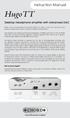 HugoTT Instruction Manual Desktop Headphone amplifier with Advanced DAC Thank you for purchasing the Chord HugoTT. In order to get the most from your product, please take a few moments to read the instructions.
QUICK SETUP GUIDE SETUP FOR ICONNEX SOUNDCARD AND AUDACITY RECORDING SOFTWARE
 QUICK SETUP GUIDE SETUP FOR ICONNEX SOUNDCARD AND AUDACITY RECORDING SOFTWARE SETUP GUIDE Congratulations on your purchase of the ikey Audio iconnex soundcard. This guide will help you setup the iconnex
CONTROL SWITCHER User s Manual (Preliminary)
 CONTROL SWITCHER User s Manual (Preliminary) www.voodoolab.com Copyright 2010 by Digital Music Corporation. This publication is protected by copyright and all rights are reserved. Voodoo Lab, Control Switcher,
INTRODUCTION. Please read this manual carefully for a through explanation of the Decimator ProRackG and its functions.
 INTRODUCTION The Decimator ProRackG guitar noise reduction system defines a new standard for excellence in real time noise reduction performance. The Decimator ProRackG was designed to provide the maximum
GETTING STARTED WITH STUDIO ONE ARTIST
 GETTING STARTED WITH STUDIO ONE ARTIST 2009, PreSonus Audio Electronics, Inc. All Rights Reserved. TABLE OF CONTENTS Studio One Artist Features...3 System Requirements...4 Installation and Authorization...5
LDG DTS-4/4R Desktop Coaxial Switch / Remote
 LDG DTS-4/4R Desktop Coaxial Switch / Remote LDG Electronics 1445 Parran Road, PO Box 48 St. Leonard MD 20685-2903 USA Phone: 410-586-2177 Fax: 410-586-8475 [email protected] www.ldgelectronics.com
PERSONAL MONITOR MIXER/HEADPHONE AMP. S Class Signal Processors
 PERSONAL MONITOR MIXER/HEADPHONE AMP S Class Signal Processors Table Of Contents Features 3 Front and Rear Panel Layout 4 Operating the S monitor 5-7 Specifications 8 Wiring Guide 8 Copyright 2003, Samson
innkeeper PBX Desktop Digital Hybrid User Guide JK Audio Warranty
 Warranty Innkeeper PBX is covered by a 2-year warranty to be free from defective workmanship and materials. In the event that the innkeeper PBX needs repair, you must call us to get an authorization, and
SCD Server. SCD Server Pro
 SCD Server SCD Server Pro SCD Server & SCD Server Pro 9850-000387-01 - Page 1 of 8 SCD Server and SCD Server Pro The SCD Server is a 2U high DMX generator, running the ZerOS Operating System and emulating
Hegel H80 High End Integrated Amplifier. User manual
 Hegel H80 High End Integrated Amplifier User manual USER GUIDE Congratulations on your new HEGEL H80! All Hegel products are based on a simple philosophy: The audio reproduction instrument shall reproduce
VirtualDJ 8 Numark NV 1
 VirtualDJ 8 Numark NV 1 Table of Contents INSTALLATION... 3 Firmware & Drivers... 3 VirtualDJ 8 Setup... 3 Advanced Setup... 4 A. Front Side - Headphones... 5 B. Rear side - Connections... 6 C. MIXER...
USER GUIDE PRO-EQ PLATINUM
 USER GUIDE PRO-EQ PLATINUM Welcome Thank you for making Fishman a part of your acoustic experience. We are proud to offer the finest acoustic amplification products available: high-quality professional-grade
To reduce the risk of electrical shocks, fire, and related hazards:
 Owner s Manual 1 Contents 1. Safety Notes 5 2. Introduction 6 3. Features 7 4. Installation Guide 8 5. Front Panel Explained 9 6. Rear Panel Explained 10 7. Software Control Panel 12 8. Advanced User Tips
Mini Effect Gizmo. User s Manual. RJM Music Technology, Inc.
 Mini Effect Gizmo User s Manual RJM Music Technology, Inc. Mini Effect Gizmo User s Manual Version 1.3 September 26, 2013 RJM Music Technology, Inc. 2525 Pioneer Ave #1 Vista, CA 92081 E-mail: [email protected]
How to Install TRAKTOR KONTROL S8
 Setup Guide Disclaimer The information in this document is subject to change without notice and does not represent a commitment on the part of Native Instruments GmbH. The software described by this document
PBXport. Rackmount PBX Digital Hybrid. User Guide. JK Audio
 PBXport Rackmount PBX Digital Hybrid User Guide JK Audio Introduction PBXport will allow you to send and receive audio through your multiline PBX, ISDN or analog telephone. While this may seem like a simple
PSP3. Stereo M/S preamplifier. User manual
 PSP3 Stereo M/S preamplifier User manual AETA AUDIO 361, avenue du Général de Gaulle 92140 Clamart FRANCE Tél. +33 (0)1 41361212 Fax +33 (0)1 41361213 Telex 631178 Web : http://www.aetausa.com 55 000 020
PRO DI PRO D2. User Guide. Direct Box. Stereo Direct Box
 www.radialeng.com PRO DI Direct Box PRO D2 Stereo Direct Box User Guide 1638 Kebet Way, Port Coquitlam BC V3C 5W9 tel: 604-942-1001 fax: 604-942-1010 email: [email protected] web: www.radialeng.com PRO
Innkeeper PBX. Desktop Digital Hybrid. User Guide. JK Audio
 Innkeeper PBX Desktop Digital Hybrid User Guide JK Audio Introduction Innkeeper PBX will allow you to send and receive audio through your multi-line PBX, ISDN or analog telephone. While this may seem like
USER GUIDE. Publication AP4145
 USE GUIDE Publication AP4145 imited One Year Warranty This product is warranted to be free from defects in materials or workmanship for a period of one year from the date of purchase by the original owner.
User Manual. Please read this manual carefully before using the Phoenix Octopus
 User Manual Please read this manual carefully before using the Phoenix Octopus For additional help and updates, refer to our website To contact Phoenix Audio for support, please send a detailed e-mail
TELIKOU Intercom System. MS-500(4+1 channel) Main Station Instruction Manual
 TELIKOU Intercom System MS-500(4+1 channel) Main Station Instruction Manual TELIKOU Systems All Rights Reserved While TELIKOU makes every attempt to maintain the accuracy of the information contained in
PS 29M DUAL CHANNEL BELTPACK IN METAL CASE
 PS 29M DUAL CHANNEL BELTPACK IN METAL CASE USER MANUAL October 2013 This product is designed and manufactured by: ASL Intercom BV Zonnebaan 42 3542 EG Utrecht The Netherlands Phone: +31 (0)30 2411901 Fax:
MPA SERIES MIXER-AMPLIFIER
 MPA SERIES MIXER-AMPLIFIER Installation and User Guide Contents Safety Information... 4 Safety Notes regarding Installation...4 Conformities... 4 Safety Considerations and Information...4 Caution - High
How To Use A Pump Station 16-R
 Pump Station 16-R Installation & User Guide V2.1 Cloud Electronics Limited 140 Staniforth Road, Sheffield, S9 3HF England Tel +44 (0) 114 244 7051 Fax +44 (0) 114 242 5462 E-mail [email protected] Web site
R S E R I E S M I X E R S R - 2 0 0 R - 1 6 0 4 R - 2 0 0 4
 R SERIES MIXERS R-200 R-1604 R-2004 THE R SERIES MIXERS The R Series of mixers from Wharfedale Professional are designed to offer a superior quality audio performance in an easy to use, great value package.
ECD 2 High Performance Balanced DAC. 24 Bit /192kHz. Owner's Manual
 ECD 2 High Performance Balanced DAC 24 Bit /192kHz Owner's Manual EN Unpacking the ECD 2 Immediately upon receipt of the ECD 2, inspect the carton for possible damage during shipment. If the carton is
Document authored by: Native Instruments GmbH Software version: 2.7 (01/2015)
 Setup Guide Disclaimer The information in this document is subject to change without notice and does not represent a commitment on the part of Native Instruments GmbH. The software described by this document
DS-MP-150 ORDERCODE D1230
 DS-MP-150 ORDERCODE D1230 Congratulations! You have bought a great, innovative product from DAP Audio. The DAP Audio DS-MP-150 brings excitement to any venue. Whether you want simple plug-&-play action
Troubleshooting Tips Lifestyle SA-2 & SA-3 Amplifier. Troubleshooting Tips
 Troubleshooting Tips Lifestyle SA-2 & SA-3 Amplifier Refer to the Lifestyle SA-2 & SA-3 Amplifier service manuals, part number 271720 for schematics, PCB layouts and parts lists. Preventative Repair Measures
User Guide USB 2.0 LAPTOP DOCKING STATION WITH VIDEO N2953
 USB 2.0 LAPTOP DOCKING STATION WITH VIDEO 410-1864-001B / ACP51US 1 YEAR LIMITED WARRANTY: We pride ourselves on the quality of our products. For complete warranty details and a list of our worldwide offices,
GETTING STARTED GUIDE
 GETTING STARTED GUIDE CONTENTS Introduction... 1 Impulse Features... 2 Box Contents... 2 About this Guide... 2 Minimum System Requirements... 2 Connecting the Impulse... 3 Impulse Basic Operation... 3
TELIKOU Intercom System. TM-200 Main Station. Instruction Manual
 Intercom System TM-200 Main Station Instruction Manual TELIKOU Systems All Rights Reserved I. Introduction Thank you for choosing TELIKOU intercom product. TM-200 main station is suitable for television
Features, Benefits, and Operation
 Features, Benefits, and Operation 2014 Decibel Eleven Contents Introduction... 2 Features... 2 Rear Panel... 3 Connections... 3 Power... 3 MIDI... 3 Pedal Loops... 4 Example Connection Diagrams... 5,6
Specifications Keyboard System Sounds Maximum Polyphony: PCM Memory: Program: Combination:
 Specifications Keyboard KROME-61 61-key: Natural Touch Semi Weighted keyboard *Standard C2 - C7 (transposable in the range [C1...C6]-[C3...C8]) KROME-73 73-key: Natural Touch Semi Weighted keyboard *Standard
Transmitter Interface Program
 Transmitter Interface Program Operational Manual Version 3.0.4 1 Overview The transmitter interface software allows you to adjust configuration settings of your Max solid state transmitters. The following
Analogue & Digital Audio Interface Equipment
 Analogue & Digital Audio Interface Equipment Designed and manufactured to the highest specifications, Redbox comprises of a range of analogue and digital audio interfaces for use in a multitude of professional
Brio-Rmanual:Cursamanual.qxd 08/04/2011 09:25 Page1
 - Brio-Rmanual:Cursamanual.qxd 08/04/2011 09:25 Page1 Brio-Rmanual:Cursamanual.qxd 08/04/2011 09:25 Page2 CONTENTS INTRODUCTION, FEATURES AND TECHNOLOGY 1-3 INSTALLATION 3 CONNECTIVITY 4-6 LOUDSPEAKER
BXR. Owner, s Manual. One hundred BASS EXTENDED RANGE P/N 040695
 THE SOUND THAT CREATES LEGENDS BASS EXTENDED RANGE BXR One hundred Owner, s Manual P/N 040695 BXR 100 Owner s Manual Congratulations on your purchase of the Fender BXR 100 Bass amplifier. The Fender BXR
Ivory 2 Series. TLAudio. user manual MONO VALVE PROCESSOR
 TLAudio user manual Ivory 2 Series 5051 MONO VALVE PROCESSOR TL Audio Ltd, Letchworth, Herts, SG6 1AN, UK email: [email protected] web: http://www.tlaudio.co.uk CONTENTS 1 INTRODUCTION 2 PRECAUTIONS 3
HYDRA Z Owner s Manual
 HYDRA Z usb audio bridge Thank you for buying the Audiobyte Technologies Hydra Z digital to digital converter. You have now one of the finest USB audio interfaces available on the market. The Hydra Z was
Ultimate USB & XLR Microphone for Professional Recording
 eti pro Ultimate USB & XLR Microphone for Professional Recording 3 desktop or studio, the possibilities are endless. Congratulations on your purchase of Yeti Pro, the first microphone to combine the exceptional
Document authored by: Native Instruments GmbH TRAKTOR software version: 2.6 (10/2012)
 Setup Guide Disclaimer The information in this document is subject to change without notice and does not represent a commitment on the part of Native Instruments GmbH. The software described by this document
5 CHANNEL MIXER. S Class Signal Processors
 0 10 0 10 0 10 0 10 5 CHANNEL MIXER S Class Signal Processors Table Of Contents Introduction and Features 3 Front and Rear Panel Layout 4 Operating the S mix Setting up the S mix 5 Connecting the Input
VoiceTone T1 USER S MANUAL
 VoiceTone T1 USER S MANUAL Important Safety Instructions 1 Read these instructions. 2 Keep these instructions. 3 Heed all warnings. 4 Follow all instructions. 5 Do not use this apparatus near water. 6
INSTRUCTIONS FOR USE Pro-Ject Phono Box II USB
 INSTRUCTIONS FOR USE Pro-Ject Phono Box II USB Dear music lover, thank you for purchasing a PRO-JECT AUDIO phono amplifier. In order to achieve maximum performance and reliability you should study these
DDJ-SR. DJ Controller. Operating Instructions
 DJ Controller DDJ-SR http://pioneerdj.com/support/ The Pioneer DJ support site shown above offers FAQs, information on software and various other types of information and services to allow you to use your
Smarthome SELECT Bluetooth Wireless Stereo Audio Receiver and Amplifier INTRODUCTION
 Smarthome SELECT Bluetooth Wireless Stereo Audio Receiver and Amplifier INTRODUCTION The Smarthome SELECT Bluetooth Wireless Stereo Audio Receiver and Amplifier is a multi-functional compact device. It