
D2779 BIOS Setup Utility for PRIMERGY TX100 S2
|
|
|
- Alexander Tyler
- 9 years ago
- Views:
Transcription
1 Reference Manual - English D2779 BIOS Setup Utility for PRIMERGY TX100 S2 Reference Manual Edition June 2010

2 Comments Suggestions Corrections The User Documentation Department would like to know your opinion of this manual. Your feedback helps us optimize our documentation to suit your individual needs. Feel free to send us your comments by to Certified documentation according to DIN EN ISO 9001:2000 To ensure a consistently high quality standard and user-friendliness, this documentation was created to meet the regulations of a quality management system which complies with the requirements of the standard DIN EN ISO 9001:2000. cognitas. Gesellschaft für Technik-Dokumentation mbh Copyright and Trademarks Copyright 2010 Fujitsu Technology Solutions GmbH. All rights reserved. Delivery subject to availability; right of technical modifications reserved. All hardware and software names used are trademarks of their respective manufacturers. The contents of this manual may be revised without prior notice. Fujitsu assumes no liability for damages to third party copyrights or other rights arising from the use of any information in this manual. No part of this manual may be reproduced in any form without the prior written permission of Fujitsu. Microsoft, Windows, Windows Server, and Hyper V are trademarks or registered trademarks of Microsoft Corporation in the USA and other countries. Intel and Xeon are trademarks or registered trademarks of Intel Corporation or its subsidiaries in the USA and other countries.

3 Before reading this manual For your safety This manual contains important information for safely and correctly using this product. Carefully read the manual before using this product. Pay particular attention to the accompanying manual "Safety notes and other important information" and ensure these safety notes are understood before using the product. Keep this manual and the manual "Safety notes and other important information" in a safe place for easy reference while using this product. Radio interference This product is a "Class A" ITE (Information Technology Equipment). In a domestic environment this product may cause radio interference, in which case the user may be required to take appropriate measures. VCCI-A Aluminum electrolytic capacitors The aluminum electrolytic capacitors used in the product's printed circuit board assemblies and in the mouse and keyboard are limited-life components. Use of these components beyond their operating life may result in electrolyte leakage or depletion, potentially causing emission of foul odor or smoke. As a guideline, in a normal office environment (25 C) operating life is not expected to be reached within the maintenance support period (5 years). However, operating life may be reached more quickly if, for example, the product is used in a hot environment. The customer shall bear the cost of replacing replaceable components which have exceeded their operating life. Note that these are only guidelines, and do not constitute a guarantee of trouble-free operation during the maintenance support period. High safety use This product has been designed and manufactured for general uses such as general office use, personal use, domestic use and normal industrial use. It has not been designed or manufactured for uses which demand an extremely high level of safety and carry a direct and serious risk to life or body if such safety cannot be ensured. TX100 S2 D BIOS Setup Utility

4 These uses include control of nuclear reactions in nuclear power plants, automatic airplane flight control, air traffic control, traffic control in mass transport systems, medical devices for life support, and missile guidance control in weapons systems (hereafter, "high safety use"). Customers should not use this product for high safety use unless measures are in place for ensuring the level of safety demanded of such use. Please consult the sales staff of Fujitsu if intending to use this product for high safety use. Measures against momentary voltage drop This product may be affected by a momentary voltage drop in the power supply caused by lightning. To prevent a momentary voltage drop, use of an AC uninterruptible power supply is recommended. (This notice follows the guidelines of Voltage Dip Immunity of Personal Computer issued by JEITA, the Japan Electronics and Information Technology Industries Association.) Technology controlled by the Foreign Exchange and Foreign Trade Control Law of Japan Documents produced by Fujitsu may contain technology controlled by the Foreign Exchange and Foreign Trade Control Law of Japan. Documents which contain such technology should not be exported from Japan or transferred to non-residents of Japan without first obtaining authorization in accordance with the above law. Harmonic Current Standards This product conforms to harmonic current standard JIS C Only for the Japanese market: About SATA hard disk drives The SATA version of this server supports hard disk drives with SATA / BC-SATA storage interfaces. Please note that the usage and operation conditions differ depending on the type of hard disk drive used. Please refer to the following internet address for further information on the usage and operation conditions of each available type of hard disk drive: D BIOS Setup Utility TX100 S2

5 Contents 1 Introduction Navigating the BIOS setup Open the BIOS setup Open the Boot menu immediately Screen design BIOS setup with incorrect settings Exiting the BIOS setup Main menu SATA Port Boot Features Advanced menu Peripheral Configuration Advanced System Configuration Advanced Processor Options System Management Console Redirection Security menu TPM (Trusted Platform Module) Settings Power menu TX100 S2 D BIOS Setup Utility

6 Contents 7 Boot menu Exit menu Flash BIOS Update Flash Memory Recovery Mode Index D BIOS Setup Utility TX100 S2

7 1 Introduction BIOS setup provides settings for system functions and the hardware configuration for your system. Any changes you make take effect as soon as you save the settings and quit BIOS setup. The individual menus in BIOS setup provide settings for the following areas: Main System functions Advanced Advanced system configuration Security Security functions Power Power management functions Boot Configuration of the start-up sequence Exit Save and quit The setting options depend on the hardware configuration of your system. Menus or certain setting options may therefore not be available in your system's BIOS setup, or the menus may be in a different place, depending on the BIOS revision. Notational conventions The meanings of fonts and symbols used in this manual are as follows: Italics fixed font semi-bold fixed font [Abc] I Indicates commands, menu items, path names, and file names Indicates system output Indicates text you have to enter via the keyboard Indicates activities that must be performed Indicates a key on the keyboard Indicates supplementary information V CAUTION! Indicates references, during their neglect your health, the operability of your system, or the security of your data is endangered. TX100 S2 D BIOS Setup Utility 7

8 8 D BIOS Setup Utility TX100 S2

9 2 Navigating the BIOS setup 2.1 Open the BIOS setup Start the system and wait until the screen output appears. Press the [F2] function key. If a setup password is assigned, enter this password and confirm with the [Enter] key. The BIOS setup Main menu will be displayed on the screen. Press the [F1] function key. The BIOS release information will be displayed: BIOS release (e.g. Version ) The final digits refer to the number of the system board. This number is necessary to locate the appropriate manual for the system board on the ServerView Suite DVD 2; it is also required for identifying the appropriate BIOS update to download from the Internet (see "Flash BIOS Update" on page 45). When the Main menu does not appear: If the Main menu does not appear by pressing the [F2] function key, press the [Ctrl] + [Alt] + [Delete] keys at the same time to restart the system, then start up BIOS Setup Utility. 2.2 Open the Boot menu immediately Use this function if you do not want to start your system from the first drive that is set in the Boot menu. Start the system and wait until the screen output appears. Press the [F12] function key. The boot menu will be displayed as a popup window. Use the or Ë cursor keys to select the drive from which you want to start the operating system, and confirm your selection by pressing the [Enter] key. The selection options are the same as in the Boot menu. TX100 S2 D BIOS Setup Utility 9

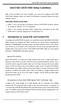
10 Screen design If a drive is marked with an exclamation mark (!), you cannot select it for booting. I The selected option applies to the current system start. The next time you start the system, the settings in the Boot menu will apply again. To start the BIOS setup, select the Setup parameter and confirm your selection with the [Enter] key. 2.3 Screen design Figure 1: Example for a BIOS setup screen The BIOS setup screen is divided into the following areas: 1 Menu bar The menu bar is used to select the different BIOS setup menus. 2 Help area Brief information is displayed in the help area. 3 Working area In the working area the parameters of the selected menu are displayed with their current values. You can modify the parameter values according to your requirements (if the appropriate fields are not greyed out). 10 D BIOS Setup Utility TX100 S2

11 BIOS setup with incorrect settings Indicates parameters containing submenus * Indicates configuration conflicts that must be resolved to ensure that the system functions correctly. 4 Operations area The operations area lists the keys available for use with BIOS setup. 2.4 BIOS setup with incorrect settings If an incorrect setting in BIOS setup prevents the system boot and the system cannot be booted three times in a row, the default BIOS setup settings will be applied once, the next time the system is started. The following error message will appear: Previous boot incomplete - Default configuration used Pressing the [F2] key allows you to check and correct the settings in BIOS setup. After the correction an error free system start is possible again. 2.5 Exiting the BIOS setup In the Exit menu select the required parameter and press the [Enter] key. TX100 S2 D BIOS Setup Utility 11

12 Exiting the BIOS setup 12 D BIOS Setup Utility TX100 S2

13 3 Main menu The following parameters can be set in this menu. Some of them are only available under special preconditions. System Time / System Date Displays the current date/time set on the system. The system time has the format HH:MM:SS, and the system date has the format MM/DD/YYYY. To change the current time/date settings enter the new time/date in the System Time/System Date fields respectively. Use the [Tab] key to move the cursor within the System Time and the System Date fields. I If the system time and date are lost after you switch the system off and back on again, the lithium battery is empty and needs to be replaced. Refer to the system board manual for information on how to replace the lithium battery. SATA Port 1 to 6 Calls a submenu containing the settings for the corresponding SATA device (see "SATA Port" on page 13). Boot Features Calls a submenu used to select system boot settings (see "Boot Features" on page 15). System Memory Displays the size of the available base memory below 1 MByte in KByte units. Extended Memory Displays the size of the main memory above 1 MByte in MByte units. 3.1 SATA Port All parameters in this submenu can only be viewed, no selection is possible. Also no default values are available. The menus show the parameters of the SATA device. TX100 S2 D BIOS Setup Utility 13

14 SATA Port Total Sectors Displays the number of sectors on the hard disk. I Not for optical media. Maximum Capacity Shows the capacity of the hard disk as an LBA value. The LBA (Logical Block Addressing) value is the capacity calculated by the BIOS based on the maximum possible number of sectors reported by the hard disk. I Not for optical media. Multi-Sector Transfers Shows the number of sectors per block which are automatically detected by the BIOS. 2 sectors 4 sectors 8 sectors 16 sectors LBA Mode Control Sets the addressing mode using serial sector numbers (LBA). The BIOS uses the hard disk parameters and consequently supports a storage capacity of up to 528 MB. If the hard disk supports LBA mode and its storage capacity is greater than 528 MB, the BIOS uses converted hard disk parameters. This permits the full storage capacity of the hard disk to be used. 32 Bit I/O Defines the bus width for data transfer between the processor and the hard disk controller. Data transfer takes place with a width of 16 bits. 14 D BIOS Setup Utility TX100 S2

15 Boot Features Data transfer takes place on the PCI bus with a width of 32 bits. This enhances the performance. Transfer Mode Defines the transfer mode for transferring data from the hard disk to the main memory. Standard Fast PIO_1 Fast PIO_2 Fast PIO_3 Fast PIO_4 FPIO 3/DMA 1 FPIO 4/DMA 2 Ultra DMA Mode Defines a high-speed Ultra DMA transfer mode for the hard disk drive. No high-speed Ultra DMA transfer mode is set. Mode 0, 1, 2, 3, 4, 5, 6 A high-speed Ultra DMA transfer mode is set. SMART Monitoring Shows whether SMART (Self Monitoring Analysis Reporting Technology) monitoring is activated for the hard disk drive (Read only). SMART monitoring is deactivated. SMART monitoring is activated. That means the SMART Device Monitoring parameter is set to and the corresponding hard disk drive supports SMART. Firmware Shows the firmware version number of the attached SATA device. 3.2 Boot Features The following parameters can be set in this menu. Some of them are only available under special preconditions. TX100 S2 D BIOS Setup Utility 15

16 Boot Features POST Errors Defines whether the system boot process is aborted and the system is halted when an error is detected. System boot is not aborted. The error is ignored, depending on the severity. If the self-test detects an error, system boot is aborted after the self-test and the system is halted. The system boot can be continued by pressing the [F1] key or the setup utility can be entered by pressing the [F2] key. SM Error Halt Specifies whether the system is halted during self-test if a system monitoring error is ascertained by the System Monitoring Device (e.g. fan failure, sensor failure). The system boot is not halted if the system monitoring device reports a error to BIOS. In this case, only a warning message is displayed. If the system monitoring device reports a fan or a sensor failure to BIOS, the system boot is halted during the self-test. The system boot can be continued by pressing the [F1] key or the setup utility can be entered by pressing the [F2] key. Fast Boot Reduces the scope of the self-test and thus accelerate the boot process. When the system is switched on the complete self-test is performed. When the system is switched on the quick self-test is performed. POST Diagnostic Screen Defines whether the boot logo or the start information will be displayed on the screen. The start information is displayed. 16 D BIOS Setup Utility TX100 S2
![The system boot can be continued by pressing the [F1] key or the setup utility can be entered by pressing the [F2] key.](/docs-images/47/20857667/images/page_16.jpg "SM Error Halt Specifies whether the system is halted during self-test if a system monitoring error is ascertained by the System Monitoring Device (e.g. fan failure, sensor failure).")
17 Boot Features The boot logo is displayed on the screen. The system will switch to displaying the start information if the [ESC] key is pressed or errors occur. Boot Menu Specifies whether the boot menu can be invoked during the POST process by pressing the [F12] key. The Boot menu cannot be invoked. The Boot menu can be invoked. NumLock Defines the functionality of the numeric keypad area on the keyboard at system start-up. Auto The NumLock status remains unchanged. On The numeric keypad area on the keyboard is used for numeral input at system start-up. Off The numeric keypad area on the keyboard is used for the arrow keys at system start-up. I The Num indicator on the keyboard reports the current status. The [Num] key on the keyboard allows to toggle between On and Off. TX100 S2 D BIOS Setup Utility 17

18 Boot Features 18 D BIOS Setup Utility TX100 S2

19 4 Advanced menu V CAUTION! Only change the default settings if required for a special purpose. Incorrect settings in this menu can result in malfunctions on your computer! Peripheral Configuration Calls a submenu used to adjust settings for ports and controllers (see "Peripheral Configuration" on page 20). Advanced System Configuration Calls a submenu used to make additional system settings (see "Advanced System Configuration" on page 22). Advanced Processor Options Calls a submenu used to make additional processor settings (see "Advanced Processor Options" on page 23). The adjustment options available in this submenu depend on the processor being used. PCI SLOTS Configuration Controls if Option ROMs of expansion cards mounted in this slot shall be started. Do not start Option ROMs of expansion cards in this slot. Starts Option ROMs of expansion cards in this slot. System Management Calls up the submenu where fan and temperature sensors can be set and monitored. (see "System Management" on page 28). Console Redirection Calls the submenu in which you make the settings for operating a terminal on the system. The terminal can be connected to the server system via a direct serial connection (zero modem cable). Screen outputs are directed in parallel to the terminal and the system monitor. Keyboard input at the terminal is likewise sent to the system and treated like input at the attached server keyboard. The BIOS Setup of the system, for example, can be called up and modified at the terminal ( see "Console Redirection" on page 29). TX100 S2 D BIOS Setup Utility 19

20 Peripheral Configuration 4.1 Peripheral Configuration The following parameters can be set in this menu. Some of them are only available under special preconditions. Serial 1 Selects the availability of the corresponding serial interface. The serial interface is disabled. The serial interface is enabled. Auto The serial interface will be selected automatically by the BIOS or operating system. Parallel Port Selects the availability of the parallel port. The parallel port is disabled. The parallel port is enabled. If is selected, additional lines are displayed for setting the configuration. Auto The parallel port is automatically set to the next available combination (address, interrupt). If Auto is selected, additional lines are displayed for setting the configuration. Parallel Mode Defines if the parallel port should be used bidirectionally as an input/output port or only as an output port. Printer The port functions as an output port only. Bidirection Data transfer is possible in both directions via the port. EPP Fast transfer mode (up to 2 Mbyte/s), data output and data receipt is possible. The mode requires a peripheral device which supports the EPP (Enhanced Parallel Port) mode. 20 D BIOS Setup Utility TX100 S2

21 Peripheral Configuration ECP Fast transfer mode (up to 2.4 Mbyte/s), data output and data receipt are possible. The mode requires a peripheral device which supports the ECP (Enhanced Capability Port) mode. The required DMA channel is defined by the system via Plug&Play USB Host Controller Specifies whether the USB controller is enabled or disabled. If this function is disabled, the USB controller will not be recognized by any operating system. As a result, no USB devices can be operated. USB host controller is disabled after BIOS POST. It is still possible to use USB keyboard and USB mouse for the BIOS setup utility. USB host controller is enabled. USB Devices Defines the USB devices for which legacy support is available. Legacy support allows you to use a USB keyboard, a USB mouse and USB mass storage devices without any operating system USB driver, by legacy BIOS interfaces. None No USB legacy support is provided. Keyboard And Mouse Only USB legacy support is only enabled for keyboard and mouse. All USB legacy support is enabled for all devices, supported by the BIOS. USB Front Enables or disables the external front USB ports. The external front USB ports are enabled. The external front USB ports are disabled. USB Rear Enables or disables the external rear USB ports. The external rear USB ports are enabled. TX100 S2 D BIOS Setup Utility 21
22 Advanced System Configuration The external rear USB ports are disabled. LAN Controller Specifies whether or not the LAN controller on the system board is available. The LAN remote controller is not available. The LAN remote controller is available. LAN Remote Boot - Load operating system via LAN Enables the operating system to be loaded from a server. This function is used in particular when neither floppy disk nor hard disk drives are installed, or these have been switched off. LAN Remote Boot is deactivated. LAN Remote Boot is activated and enables the operating system to be loaded from a server via a local network connection. 4.2 Advanced System Configuration The following parameters can be set in this menu. Some of them are only available under special preconditions. Onboard Video The graphics controller on the system board can be deactivated if a display card is installed in the system. The graphics controller on the system board is disabled. The graphics controller on the system board is enabled. High Precision Event Timer Provided that it is enabled, the operating system is able to make use of the High Precision Event Timer, which allows it to meet the requirements of time-critical applications. The advanced timer is also known as the Multimedia Timer. 22 D BIOS Setup Utility TX100 S2
23 Advanced Processor Options High Precision Event Timer is disabled. High Precision Event Timer is enabled. SMART Device Monitoring Activates and deactivates SMART (Self Monitoring Analysis Reporting Technology) for all attached SATA devices. SMART can be used in order to predict hard disk malfunctions. SMART is disabled for all SATA devices. SMART is enabled for all SATA devices. SATA Mode Selection Defines in which mode the SATA interface operates. Native SATA interface runs in Native Mode. AHCI SATA interface runs in AHCI Mode. RAID SATA interfaces are used as a RAID. Compatible SATA Interface runs in Compatible Mode. 4.3 Advanced Processor Options The following parameters can be set in this submenu. Some of them are only available under special preconditions. CPU Mismatch Detection Checking of the processor data (processor type and speed) can be enabled or disabled. The check ascertains whether the processor data has changed between two system starts. In multiprocessor systems a check is also made to ascertain whether the processor data of all processors are identical. An error message is displayed if the processor data differs. TX100 S2 D BIOS Setup Utility 23
24 Advanced Processor Options CPU Mismatch Detection is disabled. CPU Mismatch Detection is enabled. Enhanced SpeedStep Defines the processor voltage and frequency. EIST (Enhanced Intel SpeedStep Technology) is an energy saving function. I The processor voltage is adapted to the respective system requirements. A reduction in the clock frequency causes less power to be required by the system. Enhanced SpeedStep functionality is disabled. Enhanced SpeedStep functionality is enabled. Enhanced Idle Power State If supported by the operating system, the CPU is stopped if possible to save energy. Enhanced Idle Power State functionality is disabled. Enhanced Idle Power State functionality is enabled. Turbo Boost Technology Allows the processor to run faster than the marked frequency if the OS requests a higher performance state (P0). Turbo Boost Technology is disabled. Turbo Boost Technology is enabled. Core Multi-Processing Determines the usage of multiple processor cores within a physical processor package. Only a single core per processor package will be configured. All available cores per processor package will be configured. 24 D BIOS Setup Utility TX100 S2
25 Advanced Processor Options Hyper-Threading Hyper-threading technology allows a single physical processor core to appear as several logical processors. With this technology the operating system can better utilize the internal processor resources, which in turn leads to increased performance. The advantages of this technology can only be used by an operating system which supports ACPI. This setting has no effect on operating systems which do not support ACPI. An ACPI operating system can only use the first logical processor of the physical processor. This setting should only be used if hyper-threading technology has not been correctly implemented in the ACPI operating system. An ACPI operating system can use all logical processors within a physical processor. Virtualization Technology (VT-x) Supports the virtualization of platform hardware and several software environments, based on VMX (Virtual Machine Extensions) to support the use of several software environments using virtual computers. Virtualization technology extends the processor support for virtualization purposes with the 16 Bit and 32 Bit protected modes and with the EM64T (Intel Extended Memory 64 Technology) mode. A VMM (Virtual Machine Monitor) cannot use the additional hardware features. A VMM can use the additional hardware features. Virtualization Technology (VT-d) VT-d provides hardware support for sharing I/O devices between multiple virtual machines. VMMs (Virtual Machine Monitors) can use VT-d for managing multiple virtual machines accessing the same physical I/O device. VT-d is disabled and not available for VMMs. VT-d is enabled. TX100 S2 D BIOS Setup Utility 25
26 Advanced Processor Options NX Memory Protection Defines the protection for executable memory areas (anti-virus protection). The function is only effective if it is also supported by the operating system. Enables the operating system to switch on the function Execute Disable. Prevents the operating system from being able to switch on the function Execute Disable. Adjacent Cache Line Prefetch Available if the processor offers a mechanism for loading an additional adjacent 64 Byte cache line during every cache request of the processor. I With this parameter you can change the performance settings for non-standard applications. It is recommended that you should adhere to the default settings for standard applications. The processor loads the requested cache line and the adjacent cache line. The processor loads the requested cache line. Hardware Prefetch Enables a prefetch to the hardware. I With this parameter you can change the performance settings for non-standard applications. It is recommended that you should adhere to the default settings for standard applications. Activates the hardware prefetcher of the CPU. Deactivates the hardware prefetcher of the CPU. DCU Streamer Prefetch If activated data content, that is likely required, is preloaded automatically to the L1 cache when the memory bus is inactive. Fetching content form cache instead of memory reduces the latency especially for applications with linear data access. 26 D BIOS Setup Utility TX100 S2
27 Advanced Processor Options I With this parameter you can change the performance settings for non-standard applications. It is recommended that you should adhere to the default settings for standard applications. Activates the DCU Streamer Prefetch of the CPU. Deactivates the DCU Streamer Prefetch of the CPU. Limit CPUID Functions Defines the number of CPUID functions which can be called by the processor. Some operating systems cannot process new CPUID commands which support more than three functions. This parameter should be enabled for these operating systems. All CPUID functions are supported. For reasons of compatibility with the operating system, only a reduced number of CPUID functions are supported by the processor. CPU MC Status Clear When a processor detects an error, the cause is marked in a status register. Some errors can be dealt with immediately, others can lead to a system failure. Now the processor can retain the MCA (Machine Check Architecture) status until switch-off. Following a reset the BIOS can deal with these CPU MC status markings during the POST phase and log detected run-time errors. The CPU MCA status registers are never cleared by the BIOS. The CPU MCA status registers are cleared by the BIOS on each system start-up. Next Boot The CPU MCA status registers are cleared by the BIOS on the subsequent start-up after the start-up, that has detected an error status. This allows to still analyze MC errors on the next reboot after an error has happened. TX100 S2 D BIOS Setup Utility 27
28 System Management CPU Timeout Counter Internal time monitoring of the processor can be enabled or disabled here.when internal time monitoring is enabled, the processor detects both internal time-outs and time-outs on the CPU bus. The processor signals this with an external signal. In this case, the system is rebooted. If time monitoring is disabled, the system may remain inoperable. Internal time monitoring of the processor is disabled. Internal time monitoring of the processor is enabled. 4.4 System Management The following parameters can be set in this menu. Some of them are only available under special preconditions. Battery State Indicates whether the voltage of the CMOS battery is sufficient. The CMOS battery should be replaced if Fail is displayed. OK Fail The voltage of the CMOS battery is sufficient. The CMOS battery should be replaced. SM Fan Control Controls the speed of the fan. Depending on the system configuration and applications used, you can change the preset mode. If the system is fully configured with all available expansions/upgrades then silent mode is not recommended. Enhanced Cooling The fan speed is automatically increased to a higher range. Auto The fan speed is adjusted automatically. Silent The processor speed is initially temperature-controlled, before the fan speed is automatically adapted. This enables the system to run more quietly. The fan speed is set to maximum. 28 D BIOS Setup Utility TX100 S2
29 Console Redirection Fan State Indicates whether the fans for the processor (CPU), the power supply and the possible additional fans (system, auxiliary) are rotating or not. The fans must support this function. If OK is displayed then the fan supports the function and is running. If None is displayed then the fan is not recognised by the BIOS. If Fail is displayed then the BIOS has detected a faulty fan or the fan has been removed. When you exit the BIOS Setup the Fail status is reset again. None is displayed if the fan does not support the function, even if the fan is running. Power Supply Possible Display: None / OK / Fail Fan 1 Possible Display: None / OK / Fail Fan 3 Possible Display: None / OK / Fail Thermal Sensor State Indicates if the temperature sensors are working or not. If OK is displayed then the temperature sensor supports the function and is running. If None is displayed then the temperature sensor is not recognised by the BIOS. If Fail is displayed, the BIOS has detected a faulty temperature sensor or the temperature sensor has been removed. The Fail status is reset when the BIOS Setup is exited. If the temperature sensor does not support the function, None is displayed even if the temperature sensor is running. CPU Possible Display: None / OK / Fail Inside Possible Display: None / OK / Fail System Possible Display: None / OK / Fail 4.5 Console Redirection The following parameters can be set in this menu. Some of them are only available under special preconditions. Com Port Address Specifies the interface used for communication with the terminal. The setting switches off the terminal functionality. TX100 S2 D BIOS Setup Utility 29
30 Console Redirection The terminal interface is disabled. Serial 1 The terminal uses the first serial interface. Baud Rate Specifies the transfer rate for communication with the terminal. This setting must be identical on both terminal and server. Allowed values are: 300, 1200, 2400, 9600, 19.2 K, 38.4 K, 57.6 K, K The data is transferred to the terminal at the rate set. Console Type Shows the assigned console type. This setting must be identical on both the terminal and the server. Allowed values are: VT100, VT100/ 8bit, PC-ANSI/7bit, PC ANSI, VT100+, VT-UTF8 The assigned console is used to transfer the data to the terminal. Flow Control This setting determines how the transfer via the interface is controlled. The setting must be the same on both terminal and server. None The interface is operated without transfer control. XON/XOFF The interface transfer control is performed by the software. CTS/RTS The transfer control is performed by the hardware. This mode must also be supported by the cable. Continue C.R. after POST Specifies whether or not the Console Redirection function is executed after the BIOS POST (Power-On-Self-Test). Off On The Console Redirection does not continue to run after the POST. The Console Redirection continues to run after the POST. 30 D BIOS Setup Utility TX100 S2
31 5 Security menu The following parameters can be set in this menu. Some of them are only available under special preconditions. The system shuts down after three times password attempts. If this happens, turn off the server, turn it back on, and then enter the correct password. If you forgot your password and cannot start the server, change the jumper setting on the system board to reset the password. For jumper settings, refer to the corresponding technical manual for the system board. Supervisor Password Indicates the current status of the supervisor password. Not Installed No supervisor password is assigned. Installed A supervisor password is assigned. User Password Indicates the current status of the user password. Not Installed No user password is assigned. Installed A user password is assigned. Set Supervisor Password When you press the [Enter] key, a window opens where you can define the supervisor password. Enter a character string to define a password. If you confirm an empty password field, the password will be deleted. I To call up the complete BIOS setup, you need the supervisor password. The user password allows only a very limited access to the BIOS setup. Setup Password Lock If a supervisor password is defined this field establishes the effect of the password. Standard The supervisor password prevents unauthorized opening of the BIOS setup utility. TX100 S2 D BIOS Setup Utility 31
32 Extended The supervisor password prevents unauthorized opening of the BIOS setup utility and locks the keyboard during the system initialization phase. This prevents unauthorized access to settings for installed expansion cards with an own BIOS. Set User Password For assigning the user password, a supervisor password must already be assigned. The user password prevents unauthorized access to your system. When you press the [Enter] key, a window opens where you can assign the user password.enter a character string to define a password. If you confirm an empty password field, the password will be deleted. If you call up the BIOS setup with the user password, you cannot change most menu options. Password On Boot Defines if the supervisor or user password must be entered before the boot process. The system boots without a password having to be entered. First Boot Password has to be entered before OS boot just once after power on. Every Boot Password has to be entered on every boot. System Password Lock Establishes whether the system password is bypassed or must be entered when booting with Wake On LAN. Standard The system password must be entered via the keyboard when booting the operating system. WOL Skip The system password is deactivated when booting with Wake On LAN. 32 D BIOS Setup Utility TX100 S2
33 TPM (Security Chip) Settings Opens the submenu used to activate TPM (Trusted Platform Module) and adjust TPM settings (see "TPM (Trusted Platform Module) Settings" on page 34). If this setup menu is available, then the system board includes a security and encryption chip (TPM) that complies with TCG (Trusted Computing Group) Specification 1.2. The menu is not displayed on systems without a TPM. Similarly to a SmartCard, this chip allows security-relevant data (passwords etc.) to be stored securely. Setup Prompt Specifies whether the message Press <F2> to enter SETUP is displayed during BIOS POST. The message Press <F2> to enter SETUP is not displayed. The message Press <F2> to enter SETUP is displayed. Virus Warning Checks the boot sectors of the hard disk drive to see if any changes have been made since the previous system start-up. If the boot sectors have been changed and the reason for this is unknown, a suitable computer virus detection program should be run. The boot sectors are not checked. Displays a warning if the boot sector has been changed since the previous system start-up (e.g. new operating system or virus attack). The warning will stay on the screen until you acknowledge the changes or deactivate the function. Confirm Confirms a required change to a boot sector (e.g. new operating system). Flash Write Assigns write protection to the system BIOS. TX100 S2 D BIOS Setup Utility 33
34 TPM (Trusted Platform Module) Settings The system BIOS cannot be written. Flash-BIOS update is not possible. The system BIOS can be written if the appropriate switch option (see manual for the system board) is set accordingly. Flash BIOS update is possible. 5.1 TPM (Trusted Platform Module) Settings The TPM is available as a secure memory for secret keys. For example, data can be generated, which can only be read or run on this system. Security protocols such as SSL (Secure Socket Layer) for Internet connections, IPSec (LAN encryption), S-MIME ( encryption), WLAN encryption, etc. can also be supported. The following parameters can be set in this menu. Some of them are only available under special preconditions. Security Chip Activates/deactivates support for the TPM (Trusted Platform Module). This parameter enables or disables the TPM on the hardware level. If the TPM is disabled, it behaves as if it was not there and is neither detectable nor does it not react to any command. TPM support is deactivated. TPM support is activated. Current TPM State Indicates the current state of the TPM. The state can take the following values: and Activated and Deactivated and Activated and Deactivated I If the TPM is disabled by the Security Chip parameter (see above), the TPM state will always be and Deactivated. 34 D BIOS Setup Utility TX100 S2
35 TPM (Trusted Platform Module) Settings Change TPM State Changes the state of the TPM (Security Chip). After changing the TPM state the system will perform the following steps: System Reset The system automatically displays the TPM Physical Presence Operations setup page (see below). System Reset According to the user's selection in the TPM Physical Presence Operations setup page, the change of the TPM state is either executed or discarded. No Change Leaves current security chip state unchanged. Enable & Activate Enables and activates the security chip for use by application. Disable & Deactivate Disables and deactivates the security chip. V CAUTION! Deactivating the TPM may affect other security applications. Clear Clears all user generated keys stored in the security chip. V CAUTION! If Clear is selected all user generated keys stored in the security chip will be deleted. Accessing of encrypted data may not be possible furthermore. TPM Physical Presence Operations I This setup page is only displayed during the process of executing restricted operations requiring the physical presence of an operator. One example of a physical presence operation is changing the TPM state. The TCG security provisions stipulate that physical presence operations must be confirmed by the operator. Physical presence operations can be initiated by the BIOS setup (see Change TPM State parameter) or other software using the TPM (e.g. the operating system). The intention of displaying this setup TX100 S2 D BIOS Setup Utility 35
36 TPM (Trusted Platform Module) Settings Reject page automatically is to prevent malicious software from executing restricted operations "silently" without notifying the user. It allows you to reject unwanted changes of the TPM state. Discards the physical presence operation (for example clearing the TPM). Execute Confirms the execution of the physical presence operation (for example changing the TPM state to Enable & Activate). 36 D BIOS Setup Utility TX100 S2
37 6 Power menu The following parameters can be set in this menu. Some of them are only available under special preconditions. Power-on Source Specifies whether the switch on sources for the system are managed by the BIOS or the ACPI operating system. BIOS Controlled The switch on sources are managed by the BIOS. ACPI Controlled The switch on sources are managed by the ACPI operating system. Power-on Source: LAN Determines whether the system can be switched on via a LAN controller (on the system board or expansion card). The system cannot be switched on via a LAN controller. The system can be switched on via a LAN controller. Power-on Source: Wake Up Timer Specifies whether the system can be set to switch on at a particular time or after a particular period of time. The switch-on date cannot be specified in BIOS Setup. A suitable application is required in order to set the switch-on date. The system can be switched on using timer control. The system cannot be switched on using timer control. V CAUTION! Rebooting after a critical system error is not affected by this setting. Power-on Source: Wake Up Time Specifies the exact point in time at which the system is to be switched on. 00:00:00 TX100 S2 D BIOS Setup Utility 37
38 Power-on Source: Wake Up Mode Specifies the switch-on period. Daily The system is switched on daily. Monthly The system is switched on monthly. Power-on Source: Wake Up Day Specifies the day of month the system is to be switched on. 1, 2, 3, The system is switched on at the day specified. Power Failure Recovery Specifies the system restart behavior after a power failure. Always Off The system performs a status check and then switches off. Always On The system performs a status check and then switches on. For the UPS scheduled operation, set it to Always On. Otherwise, the server may not be turned on at the set time. Previous State The system performs a status check and then returns the mode it was in before the power failure occurred (On or Off). The system does not switch on. I All wake up sources are reconfigured during the short initialization process. The system can be woken up via LAN etc. When is set, the system can only be woken up using the poweron button. 0-Watt PC Feature Used to optimize the reduction of the power consumption and the availability. The reduction of the power consumption is deactivated, and system can be managed remotly anytime. 38 D BIOS Setup Utility TX100 S2
39 The reduction of the power consumption is actived after each shutdown, and remote management is not possible. In addition the Wake Up Timer functionality is not possible. Scheduled The reduction of the power consumption is activated like enabledstate, but an administration window can be specified by the parameters Administration Start and Administration End. For clients: Remote management and the Wake Over LAN (WOL) functionality is possible in the specified time frame. For servers: Operating hours are available and the Wake Up Timer functionality is possible in the specified time frame. Administartion Start Specifies the start time of the administration window. I Selectable only if the 0-Watt PC Feature parameter is set to Scheduled. I Please consider that daylight saving time may change during the management interval. Administartion End Specifies the end time of the administration window. I Selectable only if the 0-Watt PC Feature parameter is set to Scheduled. I Please consider that daylight saving time may change during the management interval. TX100 S2 D BIOS Setup Utility 39
40 40 D BIOS Setup Utility TX100 S2
41 7 Boot menu The following parameters can be set in this menu. Some of them are only available under special preconditions. This menu can be used to define the sequence of the drives from which the system is booted. Up to eight drives (and also, for example, USB interfaces) can be listed. For references to the operation please see the help area in this menu. Boot priority order Displays the current boot order. Press the cursor keys or Ë to select the device for which you want to change the boot order. Press the [+] key to increase the priority and the [- ] key to decrease the priority for the selected device. Press the [x] key to remove the selected device from the boot order. The device removed from the boot order will be added to the Excluded from boot order list. Select between the four different standard boot order settings by pressing the keys [1] to [4]. Excluded from boot order Shows which devices are excluded from the boot order. Devices listed here cannot be used as boot devices. Press the cursor keys or Ë to select the device. Press the [x] key to reinsert the device as the last entry in the Boot priority order list. TX100 S2 D BIOS Setup Utility 41
42 42 D BIOS Setup Utility TX100 S2
43 8 Exit menu The following parameters can be set in this menu. Save Changes & Exit To save the current menu entries and exit the BIOS setup, select Save Changes & Exit and Yes. The system will be rebooted and the new settings will be effective. Discard Changes & Exit To discard the changes you have made, select Discard Changes & Exit and Yes. The settings that were in use when the BIOS setup was opened will remain effective. BIOS setup will be closed and the system rebooted. I On some systems a reset is initiated. Get Default Values To reset all BIOS setup menus to use default values, select Get Default Values and Yes. To exit the BIOS setup with these settings, select Save Changes & Exit and Yes. Load Previous Values To load the values for all menus that were active when BIOS setup was started, select Load Previous Values and Yes. To exit the BIOS setup with these settings, select Save Changes & Exit and Yes. TX100 S2 D BIOS Setup Utility 43
44 44 D BIOS Setup Utility TX100 S2
45 9 Flash BIOS Update To perform a Flash BIOS update you must first download the necessary files from the internet. You can download the files from You need a USB stick on which the BIOS update files will be stored. This USB stick is then called the Flash BIOS media. The data on this media will be fully erased and overwritten. V CAUTION! The BIOS is stored in a flash memory device. If an error occurs during the Flash BIOS update procedure, the BIOS image in the flash memory may be destroyed. You can then only restore the BIOS using the Flash Memory Recovery Mode, see "Flash Memory Recovery Mode" on page 46. If this is also not possible, the flash memory device has to be replaced. Contact your customer support Service Desk. Preventively note down the settings in the BIOS setup. A Flash BIOS update does not normally affect the settings in the BIOS setup. Boot the system with the inserted Flash BIOS media. Proceed with: [y] + [Enter] The BIOFLASH.EXE utility first reads in the BIOS update files. Once the flash memory type has automatically been recognized, programming begins. The previous BIOS revision will be deleted and overwritten with the contents of the BIOS update file. During programming, the progress is displayed on the screen. When the Flash BIOS update is completed, a corresponding message will also be displayed. Switch off the system and remove the Flash BIOS media. The next time the system is switched on, it will be booted with the new BIOS revision. Check the settings in the BIOS setup utility. If necessary, reconfigure the settings again. TX100 S2 D BIOS Setup Utility 45
46 Flash Memory Recovery Mode V CAUTION! The system must not be switched off or reset while programming is still in progress. Do not press the RESET button or the key combination [Ctrl] + [Alt] + [Del] during this operation. Do not switch off the computer or disconnect the power plug. These actions would interrupt the Flash BIOS update and destroy the BIOS image. Error message after a Flash BIOS update Patch for installed CPU not loaded. Please run the BIOS flash update diskette. If this error message is displayed at the next system boot, the microcode update for the populated processor(s) must still be loaded. Boot the system from the inserted Flash BIOS media. Abort the normal Flash BIOS update by answering the question about whether you want to perform the update with: [n] + [Enter] To perform the microcode update, enter: bioflash /p6 + [Enter] 9.1 Flash Memory Recovery Mode V CAUTION! The BIOS is stored in a flash memory device. If an error occurs during the Flash BIOS update procedure, the BIOS image in the flash memory may be destroyed. You can then only restore the BIOS using the Flash Memory Recovery Mode. If this is also not possible, the flash memory device has to be replaced. Contact your customer support Service Desk. Switch off the system and disconnect the power plug. Open the chassis and switch on "Recovery" (RCV) using the jumper / DIP switch on the system board. I Normally no screen outputs are available in recovery mode. 46 D BIOS Setup Utility TX100 S2
47 Flash Memory Recovery Mode On some systems you may also switch on the "PWD Skip" (SKP) jumper / DIP switch on the system board to watch the update progress on screen (refer to the technical manual for the system board). Reconnect the power plug and switch on the system. Boot the system from the inserted Flash BIOS media. Observe the signals issued from the loudspeaker. You have successfully restored the system if you can hear the signal sequence "short-short-longlong" and the media access indicator is off. The recovery update may take several minutes. Switch-off the system and disconnect the power plug. Remove the Flash BIOS media. Return all jumpers / DIP switches which have been changed to the initial position. Reconnect the power plug and switch on the system. The system will be booted with the new BIOS revision. Check the settings in the BIOS setup utility. If necessary, reconfigure the settings again. TX100 S2 D BIOS Setup Utility 47
48 Flash Memory Recovery Mode 48 D BIOS Setup Utility TX100 S2
49 Index 0-Watt PC Feature Bit I/O 14 A Adjacent Cache Line Prefetch 26 Administration End 39 Administration Start 39 Advanced menu 19 Advanced Processor Option 19, 23 Advanced System Configuration 19, 22 B Battery State 28 Baud Rate 30 BIOS setup exiting 11 incorrect settings 11 navigating 9 open 9 screen design 10 Boot Features 13, 15 Boot Menu 17 Boot menu 41 open immediately 9 Boot priority order 41 C Change TPM State 35 Com Port Address 29 Console Redirection 19 Console Type 30 Continue C.R. after POST 30 Core Multi-Processing 24 CPU MC Status Clear 27 CPU Mismatch Detection 23 CPU Timeout Counter 28 Current TPM State 34 D DCU Streamer Prefetch 26 Discard Changes & Exit 43 E Enhanced Idle Power State 24 Enhanced SpeedStep 24 Error message 46 Excluded from Boot Order 41 Exit menu 43 Extended Memory 13 F Fan State 29 Fast Boot 16 Firmware 15 Flash BIOS Update 45 Flash Memory Recovery Mode 46 Flash Write 33 Flow Control 30 G Get Default Values 43 H Hardware Prefetch 26 High Precision Event Timer 22 L LAN Controller 22 LAN Remote Boot 22 LBA Mode Control 14 Limit CPUID Functions 27 Load Previous Values 43 M Main menu 13 Maximum Capacity 14 Multi-Sector Transfers 14 N NumLock 17 TX100 S2 D BIOS Setup Utility 49
50 Index NX Memory Protection 26 O Onboard Video 22 P Parallel Mode 20 Parallel Port 20 Password On Boot 32 PCI SLOTS Configuration 19 Peripheral Configuration 19, 20 POST Diagnostic Screen 16 POST Errors 16 Power Failure Recovery 38 Power menu 37 Power-on Source 37, 38 LAN 37 S SATA Mode Selection 23 SATA Port 13 Save Changes & Exit 43 Security Chip 33, 34 Security menu 31 Serial 1 20 Set Supervisor Password 31 Set User Password 32 Setup Password Lock 31 Setup Prompt 33 Simultaneous Multithreading 25 SM Error Halt 16 SM Fan Control 28 SMART Device Monitoring 23 SMART Monitoring 15 Supervisor Password 31 System Date 13 System Management 19 System Memory 13 System Password Lock 32 System Time 13 TPM Physical Presence Operations 35 TPM Settings 33, 34 Transfer Mode 15 Turbo Boost Technology 24 U Ultra DMA Mode 15 USB Devices 21 USB Front 21 USB Host Controller 21 USB Rear 21 User Password 31 V Virtualization Technology (VT-d) 25 Virtualization Technology (VT-x) 25 Virus Warning 33 W Wake Up Day 38 Wake Up Mode 38 Wake Up Time 37 Wake Up Timer 37 T Thermal Sensor State 29 Total Sectors D BIOS Setup Utility TX100 S2
D2619 BIOS Setup Utility for PRIMERGY RX300 S5 and TX300 S5. Reference Manual
 D2619 BIOS Setup Utility for PRIMERGY RX300 S5 and TX300 S5 Reference Manual Edition April 2009 Comments Suggestions Corrections The User Documentation Department would like to know your opinion of this
D2785 BIOS Setup Utility for PRIMERGY TX120 S2. Reference Manual
 D2785 BIOS Setup Utility for PRIMERGY TX120 S2 Reference Manual Edition April 2009 Comments Suggestions Corrections The User Documentation Department would like to know your opinion of this manual. Your
D3009 BIOS Setup Utility for PRIMERGY TX100 S3
 Reference Manual - English D3009 BIOS Setup Utility for PRIMERGY TX100 S3 Reference Manual Edition February 2014 Comments Suggestions Corrections The User Documentation Department would like to know your
D3229 BIOS Setup Utility for FUJITSU Server PRIMERGY RX1330 M1
 Reference Manual - English D3229 BIOS Setup Utility for FUJITSU Server PRIMERGY RX1330 M1 Reference Manual Edition July 2015 Comments Suggestions Corrections The User Documentation Department would like
AwardBIOS Setup Utility
 AwardBIOS Setup Utility Modifications to the BIOS Setup settings should be performed by advanced users only. Setting items to incorrect values may cause your system to malfunction. Introducing BIOS Setup...2
Computer Setup User Guide
 Computer Setup User Guide Copyright 2008 Hewlett-Packard Development Company, L.P. Bluetooth is a trademark owned by its proprietor and used by Hewlett-Packard Company under license. Intel is a trademark
Phoenix SecureCore TM Setup Utility
 Phoenix SecureCore TM Setup Utility Important information: We continually strive to bring you the latest and proven features and technologies. As part of our drive to continually improve our products modifications
D3079 BIOS Setup Utility for PRIMERGY TX150 S8
 Reference Manual - English D3079 BIOS Setup Utility for PRIMERGY TX150 S8 Reference Manual Edition July 2013 Comments Suggestions Corrections The User Documentation Department would like to know your opinion
Fujitsu LifeBook A Series
 Fujitsu LifeBook A Series BIOS Guide LifeBook A Series Model: A6110 Document Date: 10/05/2007 Document Part Number: FPC58-1808-01 FUJITSU COMPUTER SYSTEMS CORPORATION 1 LifeBook A Series BIOS A Series
D2939 BIOS Setup Utility for PRIMERGY RX300 S7
 Reference Manual - English D2939 BIOS Setup Utility for PRIMERGY RX300 S7 Reference Manual Edition July 2012 Comments Suggestions Corrections The User Documentation Department would like to know your opinion
Fujitsu LifeBook S Series
 Fujitsu LifeBook S Series BIOS Guide LifeBook S Series Model: S7220 Document Date: 07/08/2008 Document Part Number: FPC58-1920-01 FUJITSU COMPUTER SYSTEMS CORPORATION 1 LifeBook S Series BIOS S Series
Q2000 Series BIOS BIOS SETUP UTILITY
 BIOS SECTION Q2010 LifeBook Q2000 Series BIOS Q2000 Series BIOS BIOS SETUP UTILITY The BIOS Setup Utility is a program that sets up the operating environment for your notebook. Your BIOS is set at the
Computer Setup (F10) Utility Guide HP Compaq dx2200 Microtower Business PC
 Guide HP Compaq dx2200 Microtower Business PC Document Part Number: 413759-001 January 2006 This guide provides instructions on how to use Computer Setup. This tool is used to reconfigure and modify computer
XPC BIOS User Guide. For the : DS437T
 XPC BIOS User Guide For the : DS437T Shuttle XPC Installation Guide 2014 by Shuttle Inc. All Rights Reserved. Copyright No part of this publication may be reproduced, transcribed, stored in a retrieval
XPC Bios User Guide. For the : SZ77R5
 XPC Bios User Guide For the : SZ77R5 Shuttle XPC Installation Guide 2012 by Shuttle Inc. All Rights Reserved. Copyright No part of this publication may be reproduced, transcribed, stored in a retrieval
User Guide - English. FUJITSU Software ServerView Suite. Local Service Panels. Local Service Concept (LSC)
 User Guide - English FUJITSU Software ServerView Suite Local Service Panels Local Service Concept (LSC) Edition February 2013 Comments Suggestions Corrections The User Documentation Department would like
User Guide - English. ServerView Suite. DeskView and ServerView Integration Pack for Microsoft SCCM
 User Guide - English ServerView Suite DeskView and ServerView Integration Pack for Microsoft SCCM Edition June 2010 Comments Suggestions Corrections The User Documentation Department would like to know
Fujitsu LIFEBOOK T Series
 Fujitsu LIFEBOOK T Series BIOS Guide LIFEBOOK T Series Model: T731 Document Date: 6/23/2011 Document Part Number: FPC58-2898-01 FUJITSU AMERICA, INC. 1 LIFEBOOK T731 BIOS T Series BIOS BIOS SETUP UTILITY
C Series BIOS BIOS SETUP UTILITY. Navigating through the Setup Utility. Entering the BIOS Setup Utility. Using the TrustedCore Menu
 BIOS SECTION C1410 LifeBook C Series BIOS C Series BIOS BIOS SETUP UTILITY The BIOS Setup Utility is a program that sets up the operating environment for your notebook. Your BIOS is set at the factory
Computer Setup (F10) Utility Guide Evo Desktop Family Evo Workstation Family
 b Computer Setup (F10) Utility Guide Evo Desktop Family Evo Workstation Family Document Part Number: 215867-004 May 2002 This guide provides instructions on how to use Computer Setup. This tool is used
English. Configuring SATA Hard Drive(s)
 Configuring SATA Hard Drive(s) To configure SATA hard drive(s), follow the steps below: (1) Install SATA hard drive(s) in your system. (2) Configure SATA controller mode and boot sequence in BIOS Setup.
Computer Setup (F10) Utility Guide Business PCs
 Computer Setup (F10) Utility Guide Business PCs Copyright 2007 Hewlett-Packard Development Company, L.P. The information contained herein is subject to change without notice. Microsoft, Windows, and Windows
HP BUSINESS NOTEBOOK PC F10 SETUP OVERVIEW
 HP BUSINESS NOTEBOOK PC F10 SETUP OVERVIEW 2011 Business Notebook Models Technical white paper Table of contents Executive summary... 2 System requirements... 2 Supported models... 2 Enhancements... 2
Chapter 6 The BIOS Setup Program
 6 Chapter 6 The BIOS Setup Program 6.1 Introduction The BIOS (Basic Input and Output System) Setup program is a menu driven utility that enables you to make changes to the system configuration and tailor
Intel RAID Controller Troubleshooting Guide
 Intel RAID Controller Troubleshooting Guide A Guide for Technically Qualified Assemblers of Intel Identified Subassemblies/Products Intel order number C18781-001 September 2, 2002 Revision History Troubleshooting
How To Set Up Your Motherboard With A Power Supply And Power Supply On A Microtower 2.2 (Ios) With A Hard Disk Drive On A Mini Usb 2.3 (I386) With An External Hard Disk (I2)
 4-1-4 Configuring SATA Hard Drive(s) To configure SATA hard drive(s), follow the steps below: (1) Install SATA hard drive(s) in your system. (2) Configure SATA controller mode and boot sequence in BIOS
Fujitsu LifeBook A Series
 Fujitsu LifeBook A Series BIOS Guide LifeBook A Series Model: A3210 Document Date: 01/17/2008 Document Part Number: FPC58-1821-02 FUJITSU COMPUTER SYSTEMS CORPORATION 1 LifeBook A Series BIOS A Series
Dell PowerEdge T130 Owner's Manual
 Dell PowerEdge T130 Owner's Manual Regulatory Model: E36S Series Regulatory Type: E36S001 Notes, cautions, and warnings NOTE: A NOTE indicates important information that helps you make better use of your
ServerView System Monitor
 User Guide - English FUJITSU Software ServerView Suite ServerView System Monitor (Part of ServerView Agents for Windows and Linux) Edition May 2015 Comments Suggestions Corrections The User Documentation
Chapter 2 Array Configuration [SATA Setup Utility] This chapter explains array configurations using this array controller.
![Chapter 2 Array Configuration [SATA Setup Utility] This chapter explains array configurations using this array controller.](/thumbs/21/1077848.jpg "Chapter 2 Array Configuration [SATA Setup Utility] This chapter explains array configurations using this array controller.") Embedded MegaRAID SATA User's Guide Areas Covered Before Reading This Manual This section explains the notes for your safety and conventions used in this manual. Chapter 1 Overview This chapter introduces
Embedded MegaRAID SATA User's Guide Areas Covered Before Reading This Manual This section explains the notes for your safety and conventions used in this manual. Chapter 1 Overview This chapter introduces
This chapter explains a preparation for the use of RemoteControlService.
 ServerView User's Guide (For RemoteControlService) Areas Covered Before Reading This Manual This section explains the notes for your safety and conventions used in this manual. Chapter 1 Overview of RemoteControlService
A+ Guide to Managing and Maintaining Your PC, 7e. Chapter 1 Introducing Hardware
 A+ Guide to Managing and Maintaining Your PC, 7e Chapter 1 Introducing Hardware Objectives Learn that a computer requires both hardware and software to work Learn about the many different hardware components
Computer Setup (F10) Utility Guide Business Desktops
 Guide Business Desktops Document Part Number: 361206-002 September 2004 This guide provides instructions on how to use Computer Setup. This tool is used to reconfigure and modify computer default settings
Chapter 5 Cubix XP4 Blade Server
 Chapter 5 Cubix XP4 Blade Server Introduction Cubix designed the XP4 Blade Server to fit inside a BladeStation enclosure. The Blade Server features one or two Intel Pentium 4 Xeon processors, the Intel
Installation ServerView ESXi CIM Provider V6.12
 Installation Guide - English FUJITSU Software ServerView Suite Installation ServerView ESXi CIM Provider V6.12 VMware vsphere Hypervisor server (ESXi) as of version 4.0 Edition February 2013 Comments Suggestions
EZ DUPE DVD/CD Duplicator
 EZ DUPE DVD/CD Duplicator User s Manual Version 3.0 0 TABLE OF CONTENTS Introduction 2 Setup 11 LCD Front Panel Overview 2 o Auto Start Time 11 Menu Overview 3-5 o Display Mode 12 Functions 6 o Button
Cautions When Using BitLocker Drive Encryption on PRIMERGY
 Cautions When Using BitLocker Drive Encryption on PRIMERGY July 2008 Fujitsu Limited Table of Contents Preface...3 1 Recovery mode...4 2 Changes in hardware configurations...5 3 Prior to hardware maintenance
System Utilities. BIOS Setup Utility. Chapter 2. PhoenixBIOS Setup Utility Main Advanced Security Boot Exit. Information
 Chapter 2 System Utilities BIOS Setup Utility The BIOS Setup Utility is a hardware configuration program built into your computer s BIOS (Basic Input/ Output System). Your computer is already properly
BIOS Update Release Notes
 BIOS Update Release Notes PRODUCTS: DH61BE, DH61CR, DH61DL, DH61WW, DH61SA, DH61ZE (Standard BIOS) BIOS Version 0120 - BEH6110H.86A.0120.2013.1112.1412 Date: November 12, 2013 ME Firmware: Ignition SKU
Dell PowerEdge T110 II Systems. Owner s Manual. Regulatory Model E11S Series Regulatory Type E11S002
 Dell PowerEdge T110 II Systems Owner s Manual Regulatory Model E11S Series Regulatory Type E11S002 Notes, Cautions, and Warnings NOTE: A NOTE indicates important information that helps you make better
Getting Started. rp5800, rp5700 and rp3000 Models
 Getting Started rp5800, rp5700 and rp3000 Models Copyright 2011 Hewlett-Packard Development Company, L.P. The information contained herein is subject to change without notice. Microsoft, Windows, and Windows
Foglight Experience Monitor and Foglight Experience Viewer
 Foglight Experience Monitor and Foglight Experience Viewer Quest Software, Inc. April 2008 Using the Dell Remote Access Controller Copyright Quest Software, Inc. 2008. All rights reserved. This guide contains
Computer Setup (F10) Utility Guide HP Compaq 6000 Pro Business PCs
 Computer Setup (F10) Utility Guide HP Compaq 6000 Pro Business PCs Copyright 2009 Hewlett-Packard Development Company, L.P. The information contained herein is subject to change without notice. Microsoft,
ServerView Inventory Manager
 User Guide - English FUJITSU Software ServerView Suite ServerView Inventory Manager ServerView Operations Manager V6.21 Edition October 2013 Comments Suggestions Corrections The User Documentation Department
ITE RAID Controller USER MANUAL
 ITE RAID Controller USER MANUAL 120410096E1N Copyright Copyright 2004. All rights reserved. No part of this publication may be reproduced, transmitted, transcribed, stored in a retrieval system or translated
4-1-4 Serial ATA SATA. A. Intel ICH8R (1) SATA (1) SATA (2) BIOS SATA (3) RAID BIOS RAID (4) SATA (5) SATA
 4-1-4 Serial ATA (1) (2) BIOS (3) RAID BIOS RAID ( ) (4) (5) (a) ( RAID ) (b) (c) Windows XP 2000 (d) A. Intel ICH8R (1) ( ) ( ) RAID - 69 - (2) BIOS BIOS 1 BIOS POST (Power-On Self Test ) BIOS CMOS
Computer Setup (F10) Utility Guide HP Compaq 6005 Pro Business PCs
 Computer Setup (F10) Utility Guide HP Compaq 6005 Pro Business PCs Copyright 2009 Hewlett-Packard Development Company, L.P. The information contained herein is subject to change without notice. Microsoft,
BIOS Update Release Notes
 BIOS Update Release Notes PRODUCTS: DG31PR, DG31PRBR (Standard BIOS) BIOS Version 0070 About This Release: February 8, 2010 Integrated Graphics Option ROM Revision: PXE LAN Option ROM Revision: Improved
Intel Rapid Storage Technology
 Intel Rapid Storage Technology User Guide August 2011 Revision 1.0 1 Document Number: XXXXXX INFORMATION IN THIS DOCUMENT IS PROVIDED IN CONNECTION WITH INTEL PRODUCTS. NO LICENSE, EXPRESS OR IMPLIED,
Remote Supervisor Adapter II. User s Guide
 Remote Supervisor Adapter II User s Guide Remote Supervisor Adapter II User s Guide Note: Before using this information and the product it supports, read the general information in Appendix B, Notices,
How To Connect A Port Replicator With An Ethernet To A Usb Port From A Usb Device
 USB Mobile Port Replicator with Ethernet NOTEBOOK COMPUTER MOBILE PORT REPLICATOR User s Guide INTRODUCTION Congratulations on your purchase of the Targus USB Mobile Port Replicator with Ethernet! It is
VMware Horizon FLEX User Guide
 Horizon FLEX 1.5 This document supports the version of each product listed and supports all subsequent versions until the document is replaced by a new edition. To check for more recent editions of this
User Guide Software Version 2.1.0
 Intel Solid State Drive Firmware Update Tool User Guide Software Version 2.1.0 Order Number: 322570-007US Intel disclaims all express and implied warranties, including without limitation, the implied warranties
System Release Notes Express5800/320LB System Release Notes
 System Release Notes Express5800/320LB System Release Notes PN: 455-01681-004 2 Proprietary Notice and Liability Disclaimer The information disclosed in this document, including all designs and related
Windows 7 XP Mode for HP Business PCs
 Windows 7 XP Mode for HP Business PCs Table of Contents: Introduction...1 Disclaimer...1 Main features and benefits... 2 Hardware Requirements...2 Minimum Hardware Requirements... 3 Recommended Hardware
Ultra Thin Client TC-401 TC-402. Users s Guide
 Ultra Thin Client TC-401 TC-402 Users s Guide CONTENT 1. OVERVIEW... 3 1.1 HARDWARE SPECIFICATION... 3 1.2 SOFTWARE OVERVIEW... 4 1.3 HARDWARE OVERVIEW...5 1.4 NETWORK CONNECTION... 7 2. INSTALLING THE
v1 System Requirements 7/11/07
 v1 System Requirements 7/11/07 Core System Core-001: Windows Home Server must not exceed specified sound pressure level Overall Sound Pressure level (noise emissions) must not exceed 33 db (A) SPL at ambient
OFFICE KEYBOARD (MT1210 & MT1405) OFFICE FEATURES
 OFFICE KEYBOARD (MT1210 & MT1405) OFFICE FEATURES Thank you for purchasing OFFICE KEYBOARD. This User s manual contains all information that helps you to operate your keyboard. Please keep the software
Intel ESB2 SATA RAID Setup Guidelines
 Intel ESB2 SATA RAID Setup Guidelines Intel ESB2 SATA RAID Setup Guidelines After all the hardware has been installed, you must first configure Intel ESB2 SATA RAID Settings before you install the Windows
User Guide for Windows 10
 User Guide for Windows 10 System requirements E10684 First Edition July 2015 To facilitate a smoother transition from your previous operating system, read the system requirements below before upgrading
System Area Manager. Remote Management
 System Area Manager Remote Management Remote Management System Area Manager provides remote management functions for its managed systems, including Wake on LAN, Shutdown, Restart, Remote Console and for
BIOS Award v6.00pg BIOS setup guidelines
 BIOS The BIOS setup, also called CMOS setup, is a crucial part of the proper setting up of a PC the BIOS (Basic Input Output System) tells the operating system the characteristics of the main basic components
Intel Desktop Board D925XECV2 Specification Update
 Intel Desktop Board D925XECV2 Specification Update Release Date: July 2006 Order Number: C94210-005US The Intel Desktop Board D925XECV2 may contain design defects or errors known as errata, which may cause
This user guide describes features that are common to most models. Some features may not be available on your computer.
 RAID User Guide Copyright 2011 Hewlett-Packard Development Company, L.P. Intel is a trademark of Intel Corporation in the U.S. and other countries. Microsoft and Windows are U.S. registered trademarks
Gigabyte Management Console User s Guide (For ASPEED AST 2400 Chipset)
 Gigabyte Management Console User s Guide (For ASPEED AST 2400 Chipset) Version: 1.4 Table of Contents Using Your Gigabyte Management Console... 3 Gigabyte Management Console Key Features and Functions...
BIOS Update Release Notes
 PRODUCTS: D975XBX (Standard BIOS) BIOS Update Release Notes BIOS Version 1351 August 21, 2006 BX97510J.86A.1351.2006.0821.1744 Fixed issue where operating system CD installation caused blue screen. Resolved
WUA-0605 300Mbps Wireless USB Network Adapter
 WUA-0605 300Mbps Wireless USB Network Adapter User Manual V1.0 Certification FCC CE FCC Statement This equipment has been tested and found to comply with the limits for a Class B digital device, pursuant
BIOS Update Release Notes
 BIOS Update Release Notes PRODUCTS: DH55TC, DH55HC, DH55PJ (Standard BIOS) BIOS Version 0040 - TCIBX10H.86A.0040.2010.1018.1100 October 18, 2010 Integrated Graphics Option ROM Revision on HC/TC: 2017 PC
Manual OS Installation
 CA92276-8158 EN-09 ECONEL 100 S2 / TX120 / TX150 S6 / TX300 S4 / RX100 S5 / RX200 S4 / RX300 S4 / RX600 S4 Manual OS Installation Before Reading This Manual Before Reading This Manual Remarks Symbols Symbols
McAfee Firewall Enterprise
 Hardware Guide Revision C McAfee Firewall Enterprise S1104, S2008, S3008 The McAfee Firewall Enterprise Hardware Product Guide describes the features and capabilities of appliance models S1104, S2008,
Promise FastTrak 100-Lite RAID Controller
 Promise FastTrak 100-Lite RAID Controller User s Manual Version 1.3, November 9, 2001 Copyright Copyright by Promise Technology, Inc. ( Promise ), XP. No part of this manual may be reproduced or transmitted
ESATA PCI CARD. User s Manual
 ESATA PCI CARD User s Manual Introduction... 3 System Requirements... 3 RAID Introduction... 3 BIOS Configuration Utility... 5 Configuring Arrays... 5 RAID Mode Definitions... 5 BIOS Configuration Utility...
Intel Rapid Start Technology (FFS) Guide
 Intel Rapid Start Technology (FFS) Guide Technical white paper Table of contents Intel Rapid Start Technology (FFS) Guide... 2 Product Definition... 2 Requirements... 2 Enabling Intel Rapid Start Technology...
Overview of ServerView Windows Agent This chapter explains overview of ServerView Windows Agent, and system requirements.
 ServerView User s Guide (For Windows Agent) Areas Covered - Before Reading This Manual This section explains the notes for your safety and conventions used in this manual. Chapter 1 Overview of ServerView
H ARDWARE C ONSIDERATIONS
 H ARDWARE C ONSIDERATIONS for Sidewinder 5 firewall software Compaq ProLiant ML370 G2 This document provides information on specific system hardware required for running Sidewinder firewall software on
Configuring and Using AMT on TS140 and TS440
 Configuring and Using AMT on TS140 and TS440 Lenovo ThinkServer TS Series Servers Lenovo Enterprise Product Group Version 1.0 September 17, 2013 2013 Lenovo. All rights reserved. LENOVO PROVIDES THIS PUBLICATION
SBI-7125B-T1 Blade Module RAID Setup Procedure
 SBI-7125B-T1 Blade Module RAID Setup Procedure Revison 1.0 SBI-7125B-T1 Blade Module RAID Setup Procedure The information in this User s Manual has been carefully reviewed and is believed to be accurate.
Combi B PC software 8213X. Installation and operating instructions
 Combi B PC software 8213X Installation and operating instructions EN Table of Contents 1 Important notes... 3 2 Glossary of abbreviations and terms... 4 3 Symbols and special font types used... 5 4 Scope
H ARDWARE C ONSIDERATIONS
 H ARDWARE C ONSIDERATIONS for Sidewinder 5 firewall software Dell Precision 530 This document provides information on specific system hardware required for running Sidewinder firewall software on a Dell
Ultra ATA 133 RAID PCI Pro
 Ultra ATA 133 RAID PCI Pro 1-1 Introduction Quick Installation Guide This ultra high-speed dual channel Ultra ATA/133 RAID controller is designed to support RAID 0, 1, 0+1 and JBOD. RAID configurations
Using GIGABYTE Notebook for the First Time
 P34 V6.0 Congratulations on your purchase of the GIGABYTE Notebook. This manual will help you to get started with setting up your notebook. The final product configuration depends on the model at the point
Areas Covered. PRIMERGY BX620 S4 Server Blade User s Guide
 PRIMERGY BX620 S4 Server Blade User s Guide Areas Covered Before Reading This Manual This section explains the notes for your safety and conventions used in this manual. Make sure to read this section.
Apple Server Diagnostics User Guide. For Version 3X10⁶
 Apple Server Diagnostics User Guide For Version 3X10⁶ KKApple Inc. 2009 Apple Inc. All rights reserved. Under the copyright laws, this manual may not be copied, in whole or in part, without the written
1. Requirements for Network Installation on 840D
 Content 1. Requirements for Network Installation on 840D... 1 2. Installing the Network... 2 2.1. Enable IRQ 11 for the 3C509 ISA network card in BIOS... 2 2.2. Configuring the 3COM Etherlink III COMBO
System Board D2779 for PRIMERGY TX100 S2
 Technical Manual - English System Board D2779 for PRIMERGY TX100 S2 Technical Manual Edition June 2010 Comments Suggestions Corrections The User Documentation Department would like to know your opinion
How to read this guide
 How to read this guide The following shows the symbols used in this Quick start guide with descriptions and examples. Symbol Description Example P oint Reference Caution [ ] This symbol explains information
Table of Contents. Configuring IDE RAID Hard Drive(s) (Controller GigaRAID (IT8212))... 2
 Table of Contents Configuring IDE RAID Hard Drive(s) (Controller GigaRAID (IT8212))... 2 (1) Installing IDE hard drive(s) in your system... 2 (2) Configuring GigaRAID controller mode and boot sequence
ViewPower. User s Manual. Management Software for Uninterruptible Power Supply Systems
 ViewPower User s Manual Management Software for Uninterruptible Power Supply Systems Table of Contents 1. ViewPower Overview... 2 1.1. Introduction...2 1.2. Structure...2 1.3. Applications...2 1.4. Features...2
ServerView Integration Pack for Microsoft SCCM
 User Guide - English FUJITSU Software ServerView Suite ServerView Integration Pack for Microsoft SCCM Edition July 2012 Comments Suggestions Corrections The User Documentation Department would like to
CashFlow Programming Module CPM
 CashFlow Programming Module CPM Installation & User Guide GB REV G4 08/08/2006 Table of Content Table of Content... 2 CashFlow Programming Module (CPM)... 4 What is a CPM?... 4 CPM Identification... 4
How to Encrypt your Windows 7 SDS Machine with Bitlocker
 How to Encrypt your Windows 7 SDS Machine with Bitlocker ************************************ IMPORTANT ******************************************* Before encrypting your SDS Windows 7 Machine it is highly
SATA Blu-ray/DVD/CD Duplicator Controller
 SATA Blu-ray/DVD/CD Duplicator Controller TM User Manual Version 1.70 TABLE OF CONTENTS Introduction 1 Setup 13 Image Manager 16 Specifications 1 o Power on Time 13 o Select Image 16 LCD Front Panel Overview
Using AORUS Notebook for the First Time
 V2.0 Congratulations on your purchase of the AORUS Notebook! This Manual will help you to get started with setting up your notebook. For more detailed information, please visit our website at http://www.aorus.com.
HP dx5150 RAID Installation and Setup Guide Version 1.10. Document Part Number: 403571-001
 HP dx5150 RAID Installation and Setup Guide Version 1.10 Document Part Number: 403571-001 July 2005 Copyright 2005 Hewlett-Packard Development Company, L.P. The information contained herein is subject
Installing, upgrading and troubleshooting your CLIO system under the Windows environment.
 Installing, upgrading and troubleshooting your CLIO system under the Windows environment. Audiomatica Srl Rev. 1.1. June 2001. Contents 1 What does this document cover?... 1 2 Windows compatibility...
PRIMERGY BX620 S6 Server Blade
 Options Guide - English PRIMERGY BX620 S6 Server Blade Options Guide August 2010 Comments Suggestions Corrections The User Documentation Department would like to know your opinion of this manual. Your
ReadyNAS OS 6 Desktop Storage Systems
 ReadyNAS OS 6 Desktop Storage Systems Hardware Manual Models: ReadyNAS 102 ReadyNAS 104 ReadyNAS 312 ReadyNAS 314 ReadyNAS 316 ReadyNAS 516 ReadyNAS 716X EDA 500 October 2013 202-11206-04 350 East Plumeria
LCD MONITOR / 8 CHANNEL DVR COMBO
 LCD MONITOR / 8 CHANNEL DVR COMBO Overview - New System Setup SERIES: SG17LD800 & SG19LD800 www.lorexcctv.com Copyright 2007 LOREX Technology Inc. New System Setup - Overview New System Setup - Overview
E2437. Motherboard. Troubleshooting Guide Q & First Edition September 2006 Copyright 2006 ASUSTeK COMPUTER INC. All Rights Reserved.
 E2437 Motherboard Troubleshooting Guide Q & A First Edition September 2006 Copyright 2006 ASUSTeK COMPUTER INC. All Rights Reserved. 15G063644020 Motherboard troubleshooting This guide provides some solutions