
One-Way ANOVA using SPSS SPSS ANOVA procedures found in the Compare Means analyses. Specifically, we demonstrate
|
|
|
- Elfrieda Wilkinson
- 9 years ago
- Views:
Transcription
1 1 One-Way ANOVA using SPSS 11.0 This section covers steps for testing the difference between three or more group means using the SPSS ANOVA procedures found in the Compare Means analyses. Specifically, we demonstrate procedures for running a One-Way Anova, obtaining the LSD post hoc test, and producing a chart that plots the group means. These analyses will allow us to determine which group means are significantly different from one or more other group means. For the following examples, we have recreated the data set based on The Far Side Cartoon presented in Class (Liquids off of a duck s back) found in Table Again, the Independent variable is the type of liquid applied to the duck s back. In our example, one group of ducks had acid applied to their backs, one group had vinegar applied, and one group served as a control group and received no treatment. The dependent variable is the number of feathers lost or gained during the 24 hours following the application of the liquid. Setting Up the Data Figure 12.1 presents the variable view of the SPSS data editor where we have defined two variables; one discrete and on continuous. The first variable represents the three different groups that received the three different liquid application treatments. We have given it the variable name group and given it the variable label Experiment Group. The second variable represents the number of feathers lost or gained. We have given it the variable name feathers and the variable label Number of Feathers Lost (-) or Gained (+). Since the groups variable represents discrete groups, we need to assign numerical values to each group and provide value labels for each of the groups. Again, this is done by clicking on the cell in the
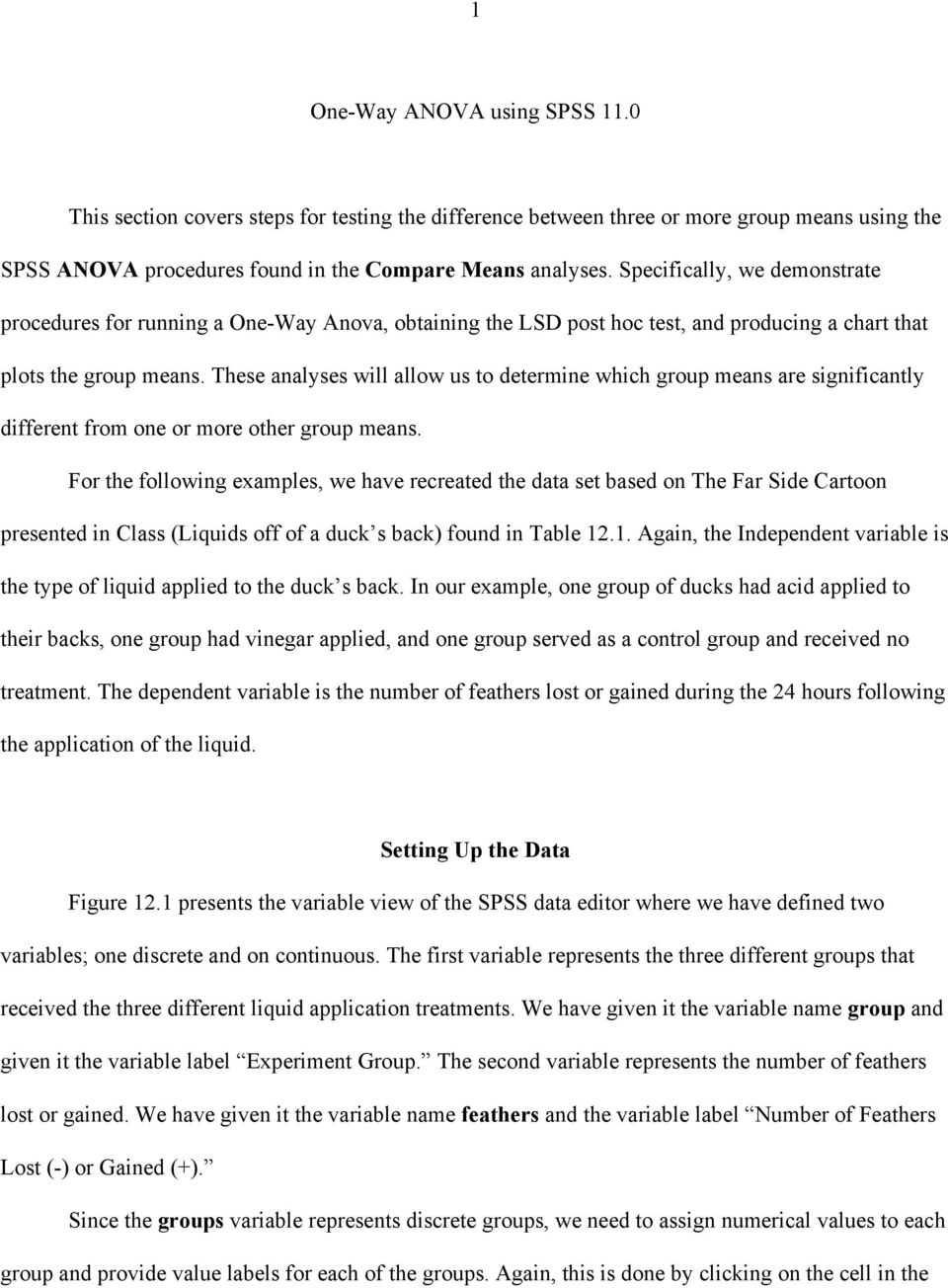
2 2 Table 12.1 Liquids off a Duck s Back Data One-way Analysis of Variance for Feathers Lost (or Gained) Group 1 Group 2 Group 3 s # X.1 X.1 2 s # X.2 X.2 2 s # X.3 X.3 2 X11-8 X12 +2 X13-3 X21-9 X22-6 X23 +2 X31-10 X32-4 X33-3 X41-8 X42-1 X43 +2 X51-11 X52-1 X53 +4 X61-15 X62 +4 X63-1 X71-16 X72-3 X73-3 X81-7 X82-2 X83-2 X91-12 X92-4 X93 +2 X X102-5 X10³-3 GX.1 GX.2 GX.3 GX.1 2 GX.2 2 GX.3 2 (n 1 =10) (n 2 =10) (n 3 =10) Group 1 = One ounce of acid poured off a duck s back. Group 2 = One ounce of vinegar poured off a duck s back. Group 3 = Control group; no treatment given

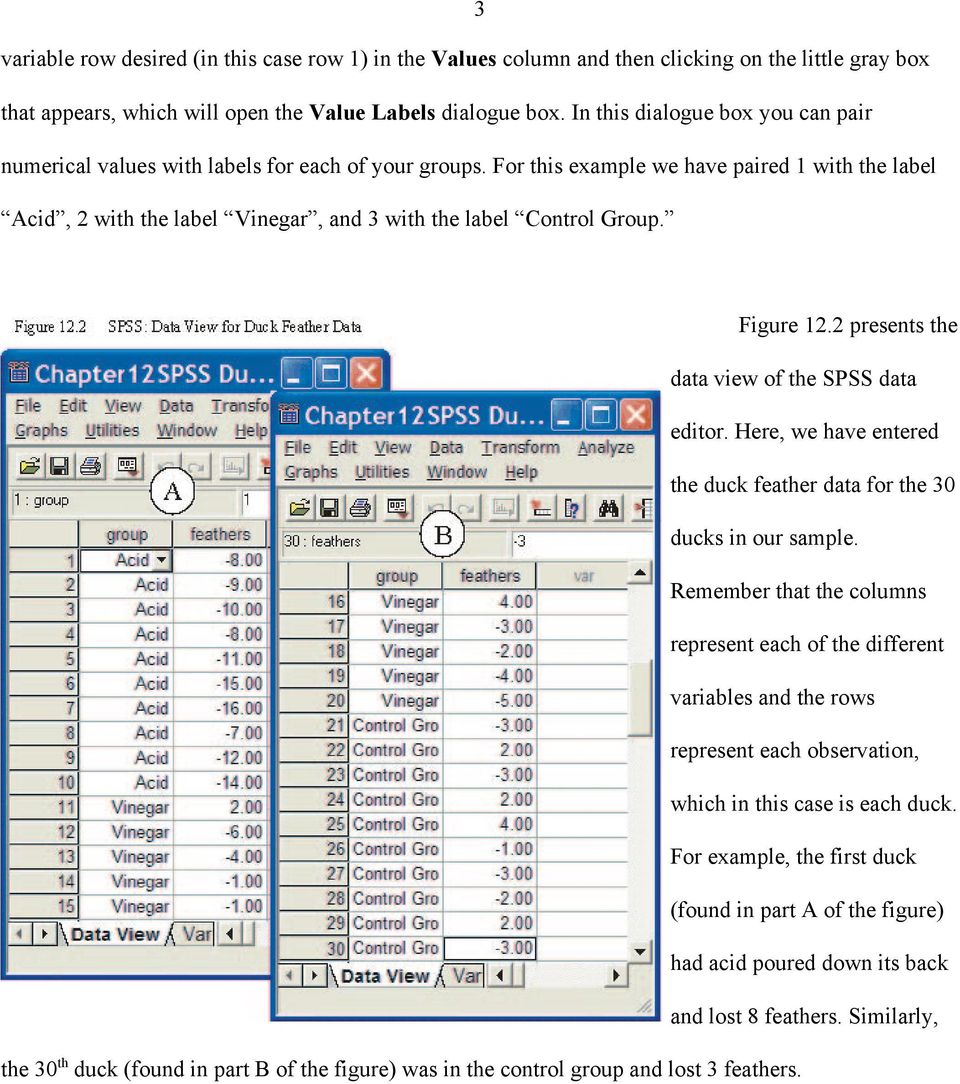
3 3 variable row desired (in this case row 1) in the Values column and then clicking on the little gray box that appears, which will open the Value Labels dialogue box. In this dialogue box you can pair numerical values with labels for each of your groups. For this example we have paired 1 with the label Acid, 2 with the label Vinegar, and 3 with the label Control Group. Figure 12.2 presents the data view of the SPSS data editor. Here, we have entered the duck feather data for the 30 ducks in our sample. Remember that the columns represent each of the different variables and the rows represent each observation, which in this case is each duck. For example, the first duck (found in part A of the figure) had acid poured down its back and lost 8 feathers. Similarly, the 30 th duck (found in part B of the figure) was in the control group and lost 3 feathers.
4 4 Running the Analyses One-Way Anova (See Figure 12.3): From the Analyze (1) pull down menu select Compare Means (2), then select One- Way Anova... (3) from the side menu. In the One-Way Anova dialogue box, enter the variable feathers in the Dependent List: field by left-clicking on the variable and left-clicking on the boxed arrow (4) pointing to the Dependent List: field. Next, enter the variable group in the Factor: field by left-clicking on the variable and left-clicking on the boxed arrow (5) pointing to the Factor: field. Next, request the LSD t-tests by left click the Post Hoc... (6) button. Figure 12.4 presents the One-Way Anova: Post Hoc Multiple Comparisons dialogue box. Here, select the LSD (7) option under the Equal Variances Assumed options. Click Continue (8) to return to the One-Way Anova dialogue box. Next, to request the descriptive statistics for each of the groups and to request a line chart that will plot the
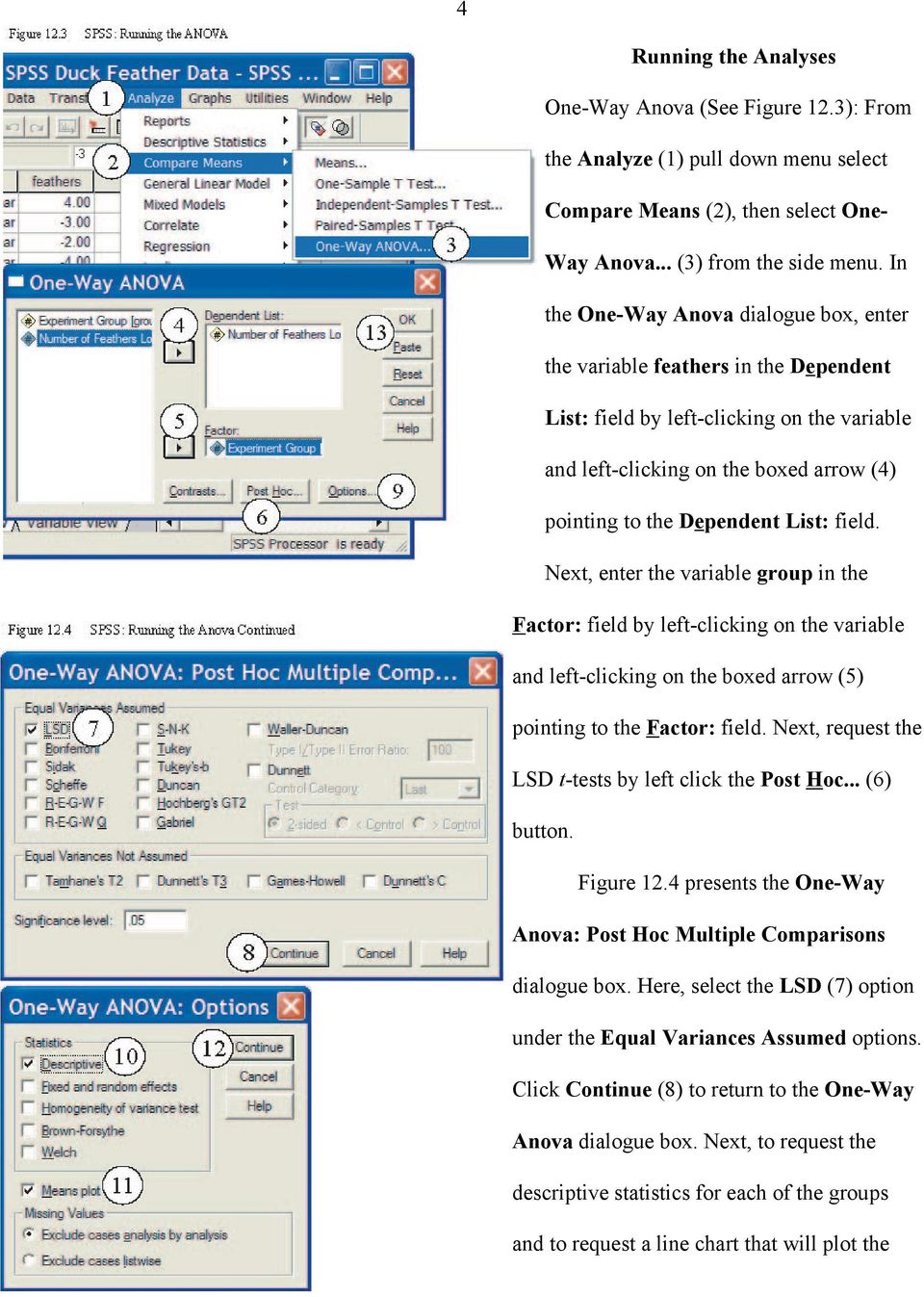
5 5 group means, left click the Options... button (9; found in Figure 12.3). In the One-Way Anova: Options dialogue box (found in Figure 12.4), select the Descriptive option (10) under Statistics. This will provide you with the sample size, mean, standard deviation, standard error of the mean, and range for each group. Also, select the Means Plot option (11). This will provide you with a line chart that graphs the group means. Left click Continue (12) to return to the One-Way Anova dialogue box. Finally, double check your variables and options and either select OK (13) to run, or Paste to create syntax to run at a later time. If you selected the paste option from the procedure above, you should have generated the following syntax: ONEWAY feathers BY group /STATISTICS DESCRIPTIVES /PLOT MEANS /MISSING ANALYSIS /POSTHOC = LSD ALPHA(.05). To run the analyses using the syntax, while in the Syntax Editor, select All from the Run pull-down menu.

6 6 Reading the One-Way Anova Output The One-Way Anova Output is presented in Figures 12.5, 12. 6, and This output consists of four major parts: Descriptives (in Figure 12.5), ANOVA (in Figure 12. 5), Multiple Comparison (in Figure 12.6), and the Means Plots (in Figure 12.7).

7 7 Reading the Descriptives Output The descriptives output provides each group s sample size (N), mean, standard deviation, the standard error of the mean (the standard deviation divided by the square root of N, which estimates the potential for sampling error), and the minimum and maximum scores. Also, this part of the output presents the confidence interval within which we are 95% confident that the true population mean for this group would fall. Like the confidence intervals presented in Chapter 8, this interval is found by adding and subtracting from the mean the 95% confidence limit, which is obtained by multiplying the standard error of the mean by the t critical associated with n-1 degrees of freedom, at the.05 alpha level. For the most part, we will usually only need to concern ourselves with the means and standard deviations for each of our groups. In this case the means and standard deviations (presented in parentheses) for the acid group, the vinegar group and the control group are ( ), ( ), and -.5 ( ), respectively. Thus, eyeballing our data, we can begin to suspect that the acid group lost significantly more feathers than the other two groups. Reading the ANOVA Output Like most ANOVA Summary Tables, the three rows present the Between Group, Within Groups, and Total sample Anova information, respectively. The first column provides us with the between, within, and total sums of squares. In this case we have SS between = , SS within = , and SS total = The second column presents the degrees of freedom between groups (# of groups -1), degrees of freedom within groups (n - # of groups), and total degrees of freedom (n -1). In this case the df between is 2 (# of groups -1), because we have 3 groups; df within is 27 (n - # of groups), because we have 30 subjects and 3 groups; and the df total is 29 (n-1), because we have 30 ducks in our sample. The third column presents the Mean Square (MS) between and within, respectively. Again,
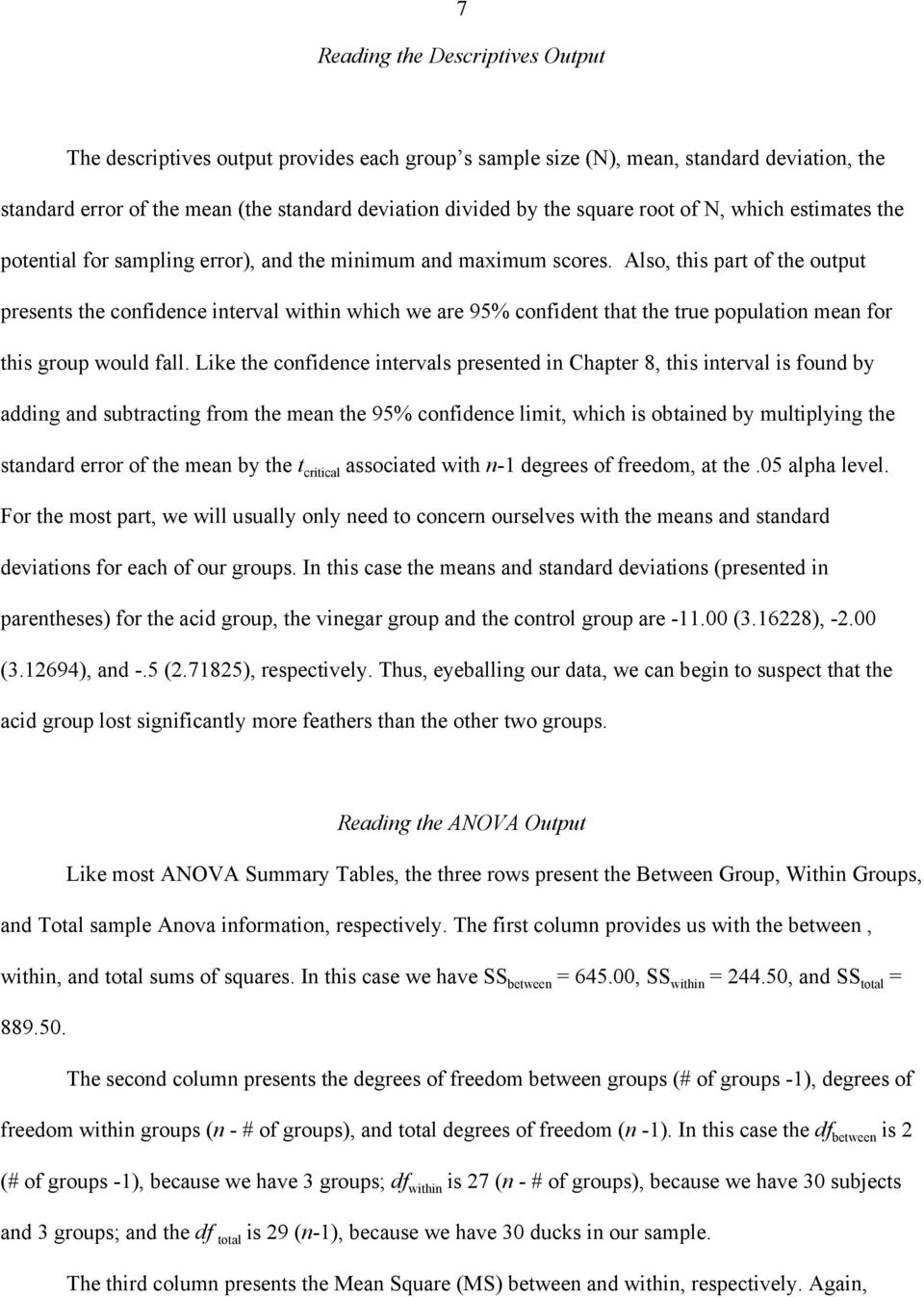
8 8 MS between is obtained by dividing the SS between by the df between. In this case MS between = Similarly, MS within is obtained by dividing the SS within by the df within. In this case MS within = The fourth and fifth columns present the final F statistic and its associated level of significance, respectively. The F is obtained by dividing the MS between by MS within. In this case we have an F obtained of Though this is slightly different from the F we obtained with our hand calculations, this can be attributed to differences in the rounding rules that we use. Looking at the exact significance level that SPSS gives us for the F obtained, the F obtained is significant at an alpha level less than.01, which is consistent with our hand calculations. More specifically, the F obtained is significant at least at the alpha level less than.001, as indicated by the significance level of.000 reported in the last column of the SPSS table, which falls well below the required.05 alpha level. Thus, we can conclude that the differences found between our groups are significant and there is less than 1 in a 1000 chance that the differences we found are the result of sampling error. However, even though we know that at least one of our group means is significantly different from at least one other group mean, we are not sure which groups are different and which are not. To obtain this information, we must turn to the Multiple Comparisons output presented in Figure 12.6 Reading the Multiple Comparisons Output The Multiple Comparisons output presents the results of the LSD t-tests that we requested when running the Anova analyses. In Figure 12.6 we present this part of the output as two blocks. To simplify things we will only discuss the first block of this output. In our example the first block consists of three major rows; labeled Acid, Vinegar, and Control Group, respectively. Within each major row the remaining two variables comprise minor rows of their own. For example, major row 1 (Acid) contain the minor rows labeled Vinegar and Control Group, respectively. Each of these minor rows represents an LSD t-test where the major row variable is the first mean in the equation and the minor row variable
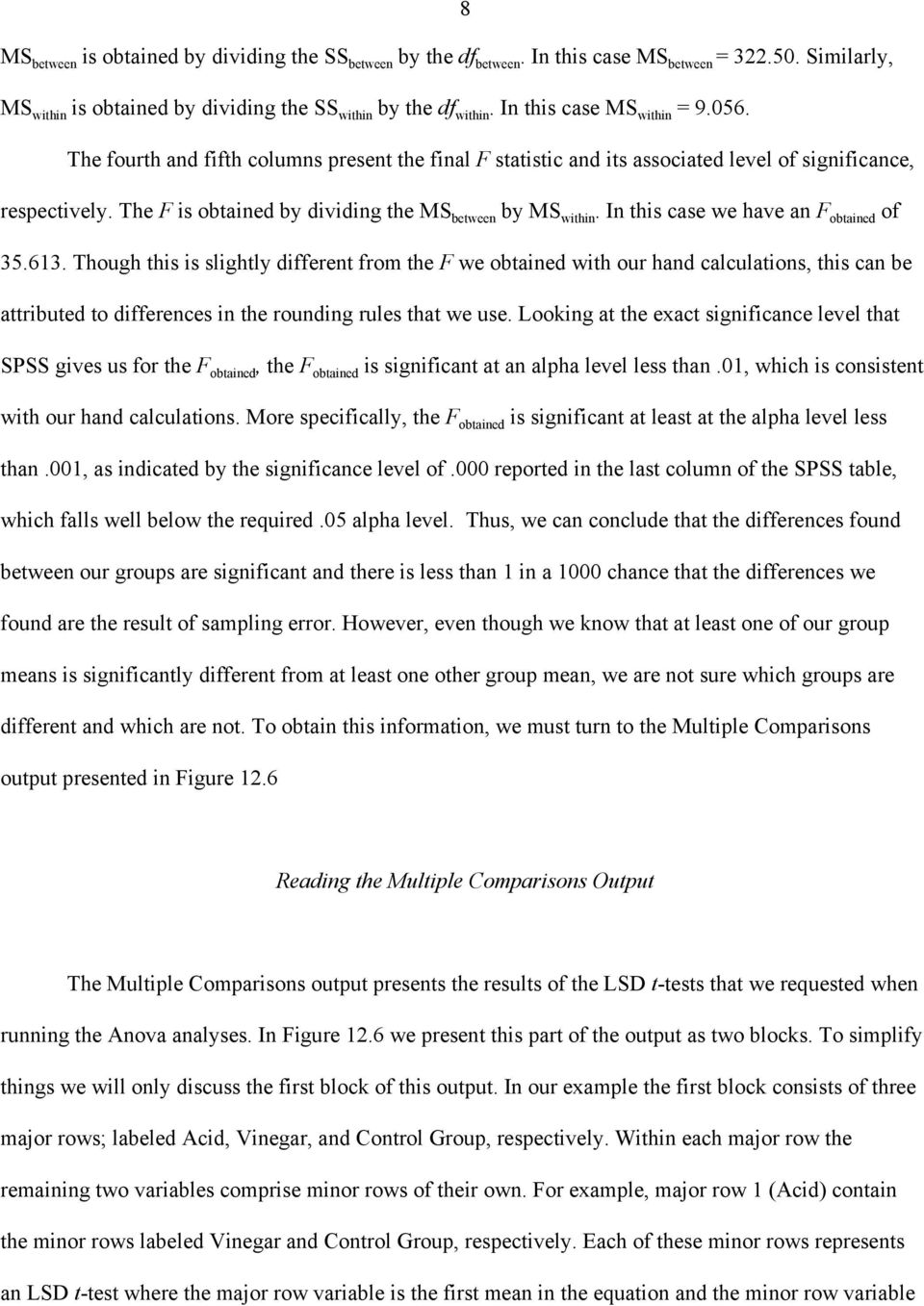
9 9 is the second variable. In major row 1: minor row 1, we are assessing whether the LSD t obtained by subtracting the mean of the Vinegar group (-2.00) from the mean of the Acid group (-11.00) is significant. The first column of data, labeled Mean Difference (I-J), presents the result of subtracting the minor row variable mean from the major row mean, which is the numerator of the LSD t-test. For major
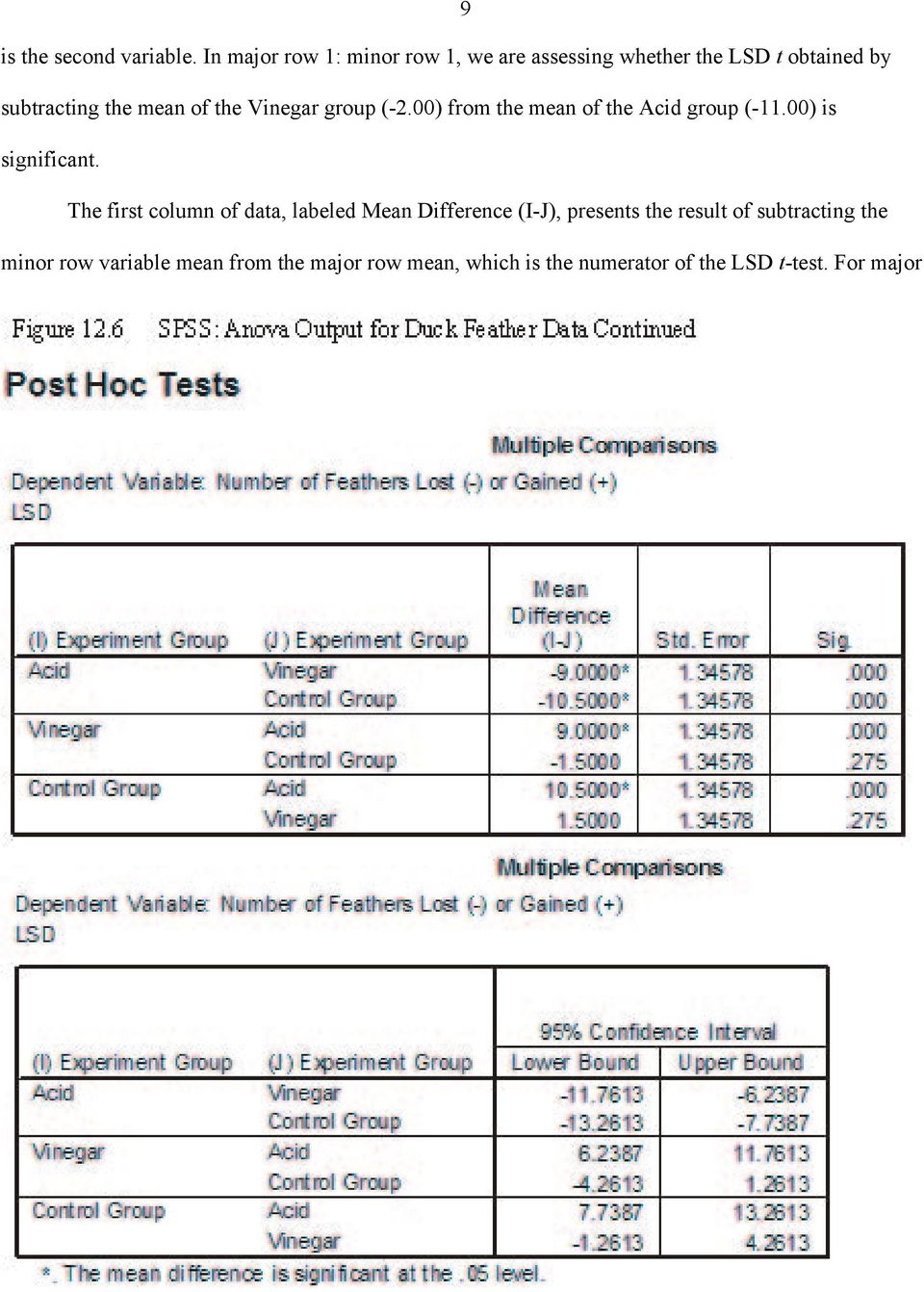
10 10 row 1: minor row 1, the mean difference is (-11.00) - (-2.00) = The second column of data, labeled Stand. Error, presents the denominator of the LSD t-test. For the Acid - Vinegar group comparison the Standard Error is SPSS does not display the resulting LSD t value, but dividing the mean difference (column 1) by the standard error (column 2) will provide you with an LSD t value comparable to the values you obtain in your hand calculations. The third column of data (and the last one we are really concerned with) presents the exact level of significance associated with the obtained LSD t value. In this case the difference between the Acid group and Vinegar group means is significant at least at the.001 alpha level. That is 1 time in a 1,000 two groups that were really the same would have means this different. This falls well below the required.05 alpha level. We can conclude that the ducks exposed to Acid lost significantly more feather than did the duck that had been exposed to Vinegar. In the second row of the Acid major row we are subtracting the Control Group mean (-.5000) from the Acid group mean (-11.00). In this case we have a mean difference, standard error, and significance level of , , and.000 respectively. Thus, we can conclude that the Acid group lost significantly more feathers than did the ducks that were not exposed to any liquids, and this difference is significant at least at the.001 alpha level. In the second major row comparisons are being made between the mean for the Vinegar group and the Acid group (minor row 1) and the Vinegar group mean and the Control Group mean (minor row 2). The first comparison (Vinegar - Acid) is redundant with the comparison made between Acid and Vinegar present in the Acid major row. You may notice that the mean difference of Vinegar - Acid has a different sign than the Acid - Vinegar mean difference (+ 9 instead of -9). Regardless, this comparison answers the same question we asked previously: Are the acid and vinegar means significantly different? Looking at the exact significance level for the Vinegar - Acid comparison, we see that the significance level is the same as we obtained for the Acid - Vinegar comparison. Conversely, the Vinegar - Control Group comparison has not yet been evaluated. Here, we are
11 11 subtracting the Control Group mean (-.5000) from the Vinegar group mean (-2.00). The mean difference, standard error, and significance level are -1.5, , and.257, respectively. Since the significance level is much larger than the required.05 alpha level, we must conclude that difference in feathers lost or gained for the Vinegar group and Control Group is not significant. The final major row in this output (labeled Control Group) presents the Control Group - Acid and Control Group - Vinegar comparisons. These comparisons are redundant with the Acid - Control Group and the Vinegar - Control Group comparisons presented above. There is no need to interpret these results. In summary, in our current example the LSD multiple comparison indicates that the ducks who had acid poured on their back lost more feathers than did ducks who had either vinegar or nothing poured on their back. Further, ducks who had vinegar poured on their backs did not loose any more or gain any more feathers than did ducks that did not have any liquid poured on them. Reading the Means Plots Figure 12.7 graphically displays the means for the three treatment groups. The X axis (abscissa) represents the three different treatment group (Acid, Vinegar, and Control Group). The Y axis (ordinate) represents the number of feathers lost or gained. Because we are working with negative numbers, the top of the Y axis represents 0, and the further you go down the Y axis the more feathers are lost by our groups of ducks. In this case, the Acid group lost the most feathers (-11.00) compared to the Vinegar group (-2.00) and Control Group (-.50).

12 12

13 13

Simple Linear Regression, Scatterplots, and Bivariate Correlation
 1 Simple Linear Regression, Scatterplots, and Bivariate Correlation This section covers procedures for testing the association between two continuous variables using the SPSS Regression and Correlate analyses.
Chapter 13. Chi-Square. Crosstabs and Nonparametric Tests. Specifically, we demonstrate procedures for running two separate
 1 Chapter 13 Chi-Square This section covers the steps for running and interpreting chi-square analyses using the SPSS Crosstabs and Nonparametric Tests. Specifically, we demonstrate procedures for running
Chapter 7. Comparing Means in SPSS (t-tests) Compare Means analyses. Specifically, we demonstrate procedures for running Dependent-Sample (or
 1 Chapter 7 Comparing Means in SPSS (t-tests) This section covers procedures for testing the differences between two means using the SPSS Compare Means analyses. Specifically, we demonstrate procedures
INTERPRETING THE ONE-WAY ANALYSIS OF VARIANCE (ANOVA)
 INTERPRETING THE ONE-WAY ANALYSIS OF VARIANCE (ANOVA) As with other parametric statistics, we begin the one-way ANOVA with a test of the underlying assumptions. Our first assumption is the assumption of
Chapter 5 Analysis of variance SPSS Analysis of variance
 Chapter 5 Analysis of variance SPSS Analysis of variance Data file used: gss.sav How to get there: Analyze Compare Means One-way ANOVA To test the null hypothesis that several population means are equal,
SPSS Tests for Versions 9 to 13
 SPSS Tests for Versions 9 to 13 Chapter 2 Descriptive Statistic (including median) Choose Analyze Descriptive statistics Frequencies... Click on variable(s) then press to move to into Variable(s): list
Mixed 2 x 3 ANOVA. Notes
 Mixed 2 x 3 ANOVA This section explains how to perform an ANOVA when one of the variables takes the form of repeated measures and the other variable is between-subjects that is, independent groups of participants
Two Related Samples t Test
 Two Related Samples t Test In this example 1 students saw five pictures of attractive people and five pictures of unattractive people. For each picture, the students rated the friendliness of the person
A Basic Guide to Analyzing Individual Scores Data with SPSS
 A Basic Guide to Analyzing Individual Scores Data with SPSS Step 1. Clean the data file Open the Excel file with your data. You may get the following message: If you get this message, click yes. Delete
How to Make APA Format Tables Using Microsoft Word
 How to Make APA Format Tables Using Microsoft Word 1 I. Tables vs. Figures - See APA Publication Manual p. 147-175 for additional details - Tables consist of words and numbers where spatial relationships
Data Analysis Tools. Tools for Summarizing Data
 Data Analysis Tools This section of the notes is meant to introduce you to many of the tools that are provided by Excel under the Tools/Data Analysis menu item. If your computer does not have that tool
EXCEL Analysis TookPak [Statistical Analysis] 1. First of all, check to make sure that the Analysis ToolPak is installed. Here is how you do it:
![EXCEL Analysis TookPak [Statistical Analysis] 1. First of all, check to make sure that the Analysis ToolPak is installed. Here is how you do it:](/thumbs/30/14272010.jpg "EXCEL Analysis TookPak [Statistical Analysis] 1. First of all, check to make sure that the Analysis ToolPak is installed. Here is how you do it:") EXCEL Analysis TookPak [Statistical Analysis] 1 First of all, check to make sure that the Analysis ToolPak is installed. Here is how you do it: a. From the Tools menu, choose Add-Ins b. Make sure Analysis
EXCEL Analysis TookPak [Statistical Analysis] 1 First of all, check to make sure that the Analysis ToolPak is installed. Here is how you do it: a. From the Tools menu, choose Add-Ins b. Make sure Analysis
Years after 2000. US Student to Teacher Ratio 0 16.048 1 15.893 2 15.900 3 15.900 4 15.800 5 15.657 6 15.540
 To complete this technology assignment, you should already have created a scatter plot for your data on your calculator and/or in Excel. You could do this with any two columns of data, but for demonstration
Biostatistics: DESCRIPTIVE STATISTICS: 2, VARIABILITY
 Biostatistics: DESCRIPTIVE STATISTICS: 2, VARIABILITY 1. Introduction Besides arriving at an appropriate expression of an average or consensus value for observations of a population, it is important to
SPSS Explore procedure
 SPSS Explore procedure One useful function in SPSS is the Explore procedure, which will produce histograms, boxplots, stem-and-leaf plots and extensive descriptive statistics. To run the Explore procedure,
One-Way Analysis of Variance (ANOVA) Example Problem
 One-Way Analysis of Variance (ANOVA) Example Problem Introduction Analysis of Variance (ANOVA) is a hypothesis-testing technique used to test the equality of two or more population (or treatment) means
Simple Tricks for Using SPSS for Windows
 Simple Tricks for Using SPSS for Windows Chapter 14. Follow-up Tests for the Two-Way Factorial ANOVA The Interaction is Not Significant If you have performed a two-way ANOVA using the General Linear Model,
Using Microsoft Excel to Analyze Data from the Disk Diffusion Assay
 Using Microsoft Excel to Analyze Data from the Disk Diffusion Assay Entering and Formatting Data Open Excel. Set up the spreadsheet page (Sheet 1) so that anyone who reads it will understand the page (Figure
IBM SPSS Statistics 20 Part 4: Chi-Square and ANOVA
 CALIFORNIA STATE UNIVERSITY, LOS ANGELES INFORMATION TECHNOLOGY SERVICES IBM SPSS Statistics 20 Part 4: Chi-Square and ANOVA Summer 2013, Version 2.0 Table of Contents Introduction...2 Downloading the
UNDERSTANDING THE TWO-WAY ANOVA
 UNDERSTANDING THE e have seen how the one-way ANOVA can be used to compare two or more sample means in studies involving a single independent variable. This can be extended to two independent variables
The Dummy s Guide to Data Analysis Using SPSS
 The Dummy s Guide to Data Analysis Using SPSS Mathematics 57 Scripps College Amy Gamble April, 2001 Amy Gamble 4/30/01 All Rights Rerserved TABLE OF CONTENTS PAGE Helpful Hints for All Tests...1 Tests
t Tests in Excel The Excel Statistical Master By Mark Harmon Copyright 2011 Mark Harmon
 t-tests in Excel By Mark Harmon Copyright 2011 Mark Harmon No part of this publication may be reproduced or distributed without the express permission of the author. [email protected] www.excelmasterseries.com
January 26, 2009 The Faculty Center for Teaching and Learning
 THE BASICS OF DATA MANAGEMENT AND ANALYSIS A USER GUIDE January 26, 2009 The Faculty Center for Teaching and Learning THE BASICS OF DATA MANAGEMENT AND ANALYSIS Table of Contents Table of Contents... i
Main Effects and Interactions
 Main Effects & Interactions page 1 Main Effects and Interactions So far, we ve talked about studies in which there is just one independent variable, such as violence of television program. You might randomly
CALCULATIONS & STATISTICS
 CALCULATIONS & STATISTICS CALCULATION OF SCORES Conversion of 1-5 scale to 0-100 scores When you look at your report, you will notice that the scores are reported on a 0-100 scale, even though respondents
One-Way Analysis of Variance
 One-Way Analysis of Variance Note: Much of the math here is tedious but straightforward. We ll skim over it in class but you should be sure to ask questions if you don t understand it. I. Overview A. We
KSTAT MINI-MANUAL. Decision Sciences 434 Kellogg Graduate School of Management
 KSTAT MINI-MANUAL Decision Sciences 434 Kellogg Graduate School of Management Kstat is a set of macros added to Excel and it will enable you to do the statistics required for this course very easily. To
Using SPSS, Chapter 2: Descriptive Statistics
 1 Using SPSS, Chapter 2: Descriptive Statistics Chapters 2.1 & 2.2 Descriptive Statistics 2 Mean, Standard Deviation, Variance, Range, Minimum, Maximum 2 Mean, Median, Mode, Standard Deviation, Variance,
Data Analysis in SPSS. February 21, 2004. If you wish to cite the contents of this document, the APA reference for them would be
 Data Analysis in SPSS Jamie DeCoster Department of Psychology University of Alabama 348 Gordon Palmer Hall Box 870348 Tuscaloosa, AL 35487-0348 Heather Claypool Department of Psychology Miami University
7. Comparing Means Using t-tests.
 7. Comparing Means Using t-tests. Objectives Calculate one sample t-tests Calculate paired samples t-tests Calculate independent samples t-tests Graphically represent mean differences In this chapter,
SCHOOL OF HEALTH AND HUMAN SCIENCES DON T FORGET TO RECODE YOUR MISSING VALUES
 SCHOOL OF HEALTH AND HUMAN SCIENCES Using SPSS Topics addressed today: 1. Differences between groups 2. Graphing Use the s4data.sav file for the first part of this session. DON T FORGET TO RECODE YOUR
Chapter 7. One-way ANOVA
 Chapter 7 One-way ANOVA One-way ANOVA examines equality of population means for a quantitative outcome and a single categorical explanatory variable with any number of levels. The t-test of Chapter 6 looks
Scatter Plots with Error Bars
 Chapter 165 Scatter Plots with Error Bars Introduction The procedure extends the capability of the basic scatter plot by allowing you to plot the variability in Y and X corresponding to each point. Each
Using Microsoft Excel to Analyze Data
 Entering and Formatting Data Using Microsoft Excel to Analyze Data Open Excel. Set up the spreadsheet page (Sheet 1) so that anyone who reads it will understand the page. For the comparison of pipets:
ANOVA ANOVA. Two-Way ANOVA. One-Way ANOVA. When to use ANOVA ANOVA. Analysis of Variance. Chapter 16. A procedure for comparing more than two groups
 ANOVA ANOVA Analysis of Variance Chapter 6 A procedure for comparing more than two groups independent variable: smoking status non-smoking one pack a day > two packs a day dependent variable: number of
There are six different windows that can be opened when using SPSS. The following will give a description of each of them.
 SPSS Basics Tutorial 1: SPSS Windows There are six different windows that can be opened when using SPSS. The following will give a description of each of them. The Data Editor The Data Editor is a spreadsheet
Bill Burton Albert Einstein College of Medicine [email protected] April 28, 2014 EERS: Managing the Tension Between Rigor and Resources 1
 Bill Burton Albert Einstein College of Medicine [email protected] April 28, 2014 EERS: Managing the Tension Between Rigor and Resources 1 Calculate counts, means, and standard deviations Produce
Testing Group Differences using T-tests, ANOVA, and Nonparametric Measures
 Testing Group Differences using T-tests, ANOVA, and Nonparametric Measures Jamie DeCoster Department of Psychology University of Alabama 348 Gordon Palmer Hall Box 870348 Tuscaloosa, AL 35487-0348 Phone:
1.5 Oneway Analysis of Variance
 Statistics: Rosie Cornish. 200. 1.5 Oneway Analysis of Variance 1 Introduction Oneway analysis of variance (ANOVA) is used to compare several means. This method is often used in scientific or medical experiments
Doing Multiple Regression with SPSS. In this case, we are interested in the Analyze options so we choose that menu. If gives us a number of choices:
 Doing Multiple Regression with SPSS Multiple Regression for Data Already in Data Editor Next we want to specify a multiple regression analysis for these data. The menu bar for SPSS offers several options:
1.6 The Order of Operations
 1.6 The Order of Operations Contents: Operations Grouping Symbols The Order of Operations Exponents and Negative Numbers Negative Square Roots Square Root of a Negative Number Order of Operations and Negative
Below is a very brief tutorial on the basic capabilities of Excel. Refer to the Excel help files for more information.
 Excel Tutorial Below is a very brief tutorial on the basic capabilities of Excel. Refer to the Excel help files for more information. Working with Data Entering and Formatting Data Before entering data
8. Comparing Means Using One Way ANOVA
 8. Comparing Means Using One Way ANOVA Objectives Calculate a one-way analysis of variance Run various multiple comparisons Calculate measures of effect size A One Way ANOVA is an analysis of variance
Examining Differences (Comparing Groups) using SPSS Inferential statistics (Part I) Dwayne Devonish
 Examining Differences (Comparing Groups) using SPSS Inferential statistics (Part I) Dwayne Devonish Statistics Statistics are quantitative methods of describing, analysing, and drawing inferences (conclusions)
Psych. Research 1 Guide to SPSS 11.0
 SPSS GUIDE 1 Psych. Research 1 Guide to SPSS 11.0 I. What is SPSS: SPSS (Statistical Package for the Social Sciences) is a data management and analysis program. It allows us to store and analyze very large
An introduction to IBM SPSS Statistics
 An introduction to IBM SPSS Statistics Contents 1 Introduction... 1 2 Entering your data... 2 3 Preparing your data for analysis... 10 4 Exploring your data: univariate analysis... 14 5 Generating descriptive
ABSORBENCY OF PAPER TOWELS
 ABSORBENCY OF PAPER TOWELS 15. Brief Version of the Case Study 15.1 Problem Formulation 15.2 Selection of Factors 15.3 Obtaining Random Samples of Paper Towels 15.4 How will the Absorbency be measured?
10. Comparing Means Using Repeated Measures ANOVA
 10. Comparing Means Using Repeated Measures ANOVA Objectives Calculate repeated measures ANOVAs Calculate effect size Conduct multiple comparisons Graphically illustrate mean differences Repeated measures
Study Guide for the Final Exam
 Study Guide for the Final Exam When studying, remember that the computational portion of the exam will only involve new material (covered after the second midterm), that material from Exam 1 will make
Introduction to Analysis of Variance (ANOVA) Limitations of the t-test
 Introduction to Analysis of Variance (ANOVA) The Structural Model, The Summary Table, and the One- Way ANOVA Limitations of the t-test Although the t-test is commonly used, it has limitations Can only
DDBA 8438: The t Test for Independent Samples Video Podcast Transcript
 DDBA 8438: The t Test for Independent Samples Video Podcast Transcript JENNIFER ANN MORROW: Welcome to The t Test for Independent Samples. My name is Dr. Jennifer Ann Morrow. In today's demonstration,
Using MS Excel to Analyze Data: A Tutorial
 Using MS Excel to Analyze Data: A Tutorial Various data analysis tools are available and some of them are free. Because using data to improve assessment and instruction primarily involves descriptive and
Multiple-Comparison Procedures
 Multiple-Comparison Procedures References A good review of many methods for both parametric and nonparametric multiple comparisons, planned and unplanned, and with some discussion of the philosophical
Chapter 2: Descriptive Statistics
 Chapter 2: Descriptive Statistics **This chapter corresponds to chapters 2 ( Means to an End ) and 3 ( Vive la Difference ) of your book. What it is: Descriptive statistics are values that describe the
An Introduction to SPSS. Workshop Session conducted by: Dr. Cyndi Garvan Grace-Anne Jackman
 An Introduction to SPSS Workshop Session conducted by: Dr. Cyndi Garvan Grace-Anne Jackman Topics to be Covered Starting and Entering SPSS Main Features of SPSS Entering and Saving Data in SPSS Importing
Part 3. Comparing Groups. Chapter 7 Comparing Paired Groups 189. Chapter 8 Comparing Two Independent Groups 217
 Part 3 Comparing Groups Chapter 7 Comparing Paired Groups 189 Chapter 8 Comparing Two Independent Groups 217 Chapter 9 Comparing More Than Two Groups 257 188 Elementary Statistics Using SAS Chapter 7 Comparing
LAB 4 INSTRUCTIONS CONFIDENCE INTERVALS AND HYPOTHESIS TESTING
 LAB 4 INSTRUCTIONS CONFIDENCE INTERVALS AND HYPOTHESIS TESTING In this lab you will explore the concept of a confidence interval and hypothesis testing through a simulation problem in engineering setting.
This chapter will demonstrate how to perform multiple linear regression with IBM SPSS
 CHAPTER 7B Multiple Regression: Statistical Methods Using IBM SPSS This chapter will demonstrate how to perform multiple linear regression with IBM SPSS first using the standard method and then using the
NCSS Statistical Software
 Chapter 06 Introduction This procedure provides several reports for the comparison of two distributions, including confidence intervals for the difference in means, two-sample t-tests, the z-test, the
SPSS (Statistical Package for the Social Sciences)
 SPSS (Statistical Package for the Social Sciences) What is SPSS? SPSS stands for Statistical Package for the Social Sciences The SPSS home-page is: www.spss.com 2 What can you do with SPSS? Run Frequencies
Can SAS Enterprise Guide do all of that, with no programming required? Yes, it can.
 SAS Enterprise Guide for Educational Researchers: Data Import to Publication without Programming AnnMaria De Mars, University of Southern California, Los Angeles, CA ABSTRACT In this workshop, participants
12: Analysis of Variance. Introduction
 1: Analysis of Variance Introduction EDA Hypothesis Test Introduction In Chapter 8 and again in Chapter 11 we compared means from two independent groups. In this chapter we extend the procedure to consider
Using Excel for inferential statistics
 FACT SHEET Using Excel for inferential statistics Introduction When you collect data, you expect a certain amount of variation, just caused by chance. A wide variety of statistical tests can be applied
When to use Excel. When NOT to use Excel 9/24/2014
 Analyzing Quantitative Assessment Data with Excel October 2, 2014 Jeremy Penn, Ph.D. Director When to use Excel You want to quickly summarize or analyze your assessment data You want to create basic visual
Describing Populations Statistically: The Mean, Variance, and Standard Deviation
 Describing Populations Statistically: The Mean, Variance, and Standard Deviation BIOLOGICAL VARIATION One aspect of biology that holds true for almost all species is that not every individual is exactly
CS 147: Computer Systems Performance Analysis
 CS 147: Computer Systems Performance Analysis One-Factor Experiments CS 147: Computer Systems Performance Analysis One-Factor Experiments 1 / 42 Overview Introduction Overview Overview Introduction Finding
Section 13, Part 1 ANOVA. Analysis Of Variance
 Section 13, Part 1 ANOVA Analysis Of Variance Course Overview So far in this course we ve covered: Descriptive statistics Summary statistics Tables and Graphs Probability Probability Rules Probability
Bowerman, O'Connell, Aitken Schermer, & Adcock, Business Statistics in Practice, Canadian edition
 Bowerman, O'Connell, Aitken Schermer, & Adcock, Business Statistics in Practice, Canadian edition Online Learning Centre Technology Step-by-Step - Excel Microsoft Excel is a spreadsheet software application
Drawing a histogram using Excel
 Drawing a histogram using Excel STEP 1: Examine the data to decide how many class intervals you need and what the class boundaries should be. (In an assignment you may be told what class boundaries to
Lesson 1: Comparison of Population Means Part c: Comparison of Two- Means
 Lesson : Comparison of Population Means Part c: Comparison of Two- Means Welcome to lesson c. This third lesson of lesson will discuss hypothesis testing for two independent means. Steps in Hypothesis
Confidence Intervals for Cp
 Chapter 296 Confidence Intervals for Cp Introduction This routine calculates the sample size needed to obtain a specified width of a Cp confidence interval at a stated confidence level. Cp is a process
Linear Models in STATA and ANOVA
 Session 4 Linear Models in STATA and ANOVA Page Strengths of Linear Relationships 4-2 A Note on Non-Linear Relationships 4-4 Multiple Linear Regression 4-5 Removal of Variables 4-8 Independent Samples
Chapter 14: Repeated Measures Analysis of Variance (ANOVA)
 Chapter 14: Repeated Measures Analysis of Variance (ANOVA) First of all, you need to recognize the difference between a repeated measures (or dependent groups) design and the between groups (or independent
University of Southern California Marshall Information Services
 University of Southern California Marshall Information Services Determine Breakeven Price Using Excel - Using Goal Seek, Data Tables, Vlookup & Charts This guide covers how to determine breakeven price
Directions for Frequency Tables, Histograms, and Frequency Bar Charts
 Directions for Frequency Tables, Histograms, and Frequency Bar Charts Frequency Distribution Quantitative Ungrouped Data Dataset: Frequency_Distributions_Graphs-Quantitative.sav 1. Open the dataset containing
EXCEL Tutorial: How to use EXCEL for Graphs and Calculations.
 EXCEL Tutorial: How to use EXCEL for Graphs and Calculations. Excel is powerful tool and can make your life easier if you are proficient in using it. You will need to use Excel to complete most of your
Dealing with Data in Excel 2010
 Dealing with Data in Excel 2010 Excel provides the ability to do computations and graphing of data. Here we provide the basics and some advanced capabilities available in Excel that are useful for dealing
StatCrunch and Nonparametric Statistics
 StatCrunch and Nonparametric Statistics You can use StatCrunch to calculate the values of nonparametric statistics. It may not be obvious how to enter the data in StatCrunch for various data sets that
Lin s Concordance Correlation Coefficient
 NSS Statistical Software NSS.com hapter 30 Lin s oncordance orrelation oefficient Introduction This procedure calculates Lin s concordance correlation coefficient ( ) from a set of bivariate data. The
Recall this chart that showed how most of our course would be organized:
 Chapter 4 One-Way ANOVA Recall this chart that showed how most of our course would be organized: Explanatory Variable(s) Response Variable Methods Categorical Categorical Contingency Tables Categorical
The Kruskal-Wallis test:
 Graham Hole Research Skills Kruskal-Wallis handout, version 1.0, page 1 The Kruskal-Wallis test: This test is appropriate for use under the following circumstances: (a) you have three or more conditions
Chapter 2 Probability Topics SPSS T tests
 Chapter 2 Probability Topics SPSS T tests Data file used: gss.sav In the lecture about chapter 2, only the One-Sample T test has been explained. In this handout, we also give the SPSS methods to perform
Directions for using SPSS
 Directions for using SPSS Table of Contents Connecting and Working with Files 1. Accessing SPSS... 2 2. Transferring Files to N:\drive or your computer... 3 3. Importing Data from Another File Format...
4. Descriptive Statistics: Measures of Variability and Central Tendency
 4. Descriptive Statistics: Measures of Variability and Central Tendency Objectives Calculate descriptive for continuous and categorical data Edit output tables Although measures of central tendency and
IBM SPSS Statistics for Beginners for Windows
 ISS, NEWCASTLE UNIVERSITY IBM SPSS Statistics for Beginners for Windows A Training Manual for Beginners Dr. S. T. Kometa A Training Manual for Beginners Contents 1 Aims and Objectives... 3 1.1 Learning
CHAPTER 11 CHI-SQUARE AND F DISTRIBUTIONS
 CHAPTER 11 CHI-SQUARE AND F DISTRIBUTIONS CHI-SQUARE TESTS OF INDEPENDENCE (SECTION 11.1 OF UNDERSTANDABLE STATISTICS) In chi-square tests of independence we use the hypotheses. H0: The variables are independent
FREE FALL. Introduction. Reference Young and Freedman, University Physics, 12 th Edition: Chapter 2, section 2.5
 Physics 161 FREE FALL Introduction This experiment is designed to study the motion of an object that is accelerated by the force of gravity. It also serves as an introduction to the data analysis capabilities
How To Check For Differences In The One Way Anova
 MINITAB ASSISTANT WHITE PAPER This paper explains the research conducted by Minitab statisticians to develop the methods and data checks used in the Assistant in Minitab 17 Statistical Software. One-Way
Multivariate Analysis of Variance (MANOVA)
 Multivariate Analysis of Variance (MANOVA) Aaron French, Marcelo Macedo, John Poulsen, Tyler Waterson and Angela Yu Keywords: MANCOVA, special cases, assumptions, further reading, computations Introduction
Probability Distributions
 CHAPTER 5 Probability Distributions CHAPTER OUTLINE 5.1 Probability Distribution of a Discrete Random Variable 5.2 Mean and Standard Deviation of a Probability Distribution 5.3 The Binomial Distribution
XPost: Excel Workbooks for the Post-estimation Interpretation of Regression Models for Categorical Dependent Variables
 XPost: Excel Workbooks for the Post-estimation Interpretation of Regression Models for Categorical Dependent Variables Contents Simon Cheng [email protected] php.indiana.edu/~hscheng/ J. Scott Long [email protected]
Testing Research and Statistical Hypotheses
 Testing Research and Statistical Hypotheses Introduction In the last lab we analyzed metric artifact attributes such as thickness or width/thickness ratio. Those were continuous variables, which as you
Definition 8.1 Two inequalities are equivalent if they have the same solution set. Add or Subtract the same value on both sides of the inequality.
 8 Inequalities Concepts: Equivalent Inequalities Linear and Nonlinear Inequalities Absolute Value Inequalities (Sections 4.6 and 1.1) 8.1 Equivalent Inequalities Definition 8.1 Two inequalities are equivalent
How to make a line graph using Excel 2007
 How to make a line graph using Excel 2007 Format your data sheet Make sure you have a title and each column of data has a title. If you are entering data by hand, use time or the independent variable in
Module 3: Correlation and Covariance
 Using Statistical Data to Make Decisions Module 3: Correlation and Covariance Tom Ilvento Dr. Mugdim Pašiƒ University of Delaware Sarajevo Graduate School of Business O ften our interest in data analysis
Describing, Exploring, and Comparing Data
 24 Chapter 2. Describing, Exploring, and Comparing Data Chapter 2. Describing, Exploring, and Comparing Data There are many tools used in Statistics to visualize, summarize, and describe data. This chapter
Coins, Presidents, and Justices: Normal Distributions and z-scores
 activity 17.1 Coins, Presidents, and Justices: Normal Distributions and z-scores In the first part of this activity, you will generate some data that should have an approximately normal (or bell-shaped)
Summary of important mathematical operations and formulas (from first tutorial):
 EXCEL Intermediate Tutorial Summary of important mathematical operations and formulas (from first tutorial): Operation Key Addition + Subtraction - Multiplication * Division / Exponential ^ To enter a