
USER MANUAL. Vantage Connect. Vantage Vue and Weather Envoy. Product numbers 6620 & 6621
|
|
|
- Neil Rodgers
- 9 years ago
- Views:
Transcription
1 USER MANUAL Vantage Connect R For Vantage Pro2, Vantage Pro2 Plus, R Vantage Vue and Weather Envoy Product numbers 6620 & 6621 R Davis Instruments, 3465 Diablo Avenue, Hayward, CA U.S.A

2 EC-Declaration of Conformity Directive 1999/5/EC (R&TTE Directive) Manufacturer / responsible person: Davis Instruments Perry Dillon,Compliance Engineer Address: 3465 Diablo Ave., Hayward, CA USA Declares that the product: Vantage Connect, models 6620OV, 6620CG, 6620SOV, 6620CS and ; 6621, 6621C Complies with the essential requirements of Article 3 of the R&TTE 1999/5/EC Directive, if used for its intended use and that the following standards have been applied: 1. Health (Article 3.1.a of the R&TTE Directive) Applied standard(s)(ec recommendation 1999/519/EC) 2. Safety (Article 3.1.a of the R&TTE Directive) Applied standard(s)(en :2006/A11:2009/A1:2010/A12:2011) 3. Electromagnetic compatibility (Article 3.1.b of the R&TTE Directive) Applied standard(s)en , V1.8.1, EN , V1.3.1, 4. Efficient use of the radio frequency spectrum (Article 3.2 of the R&TTE Directive) Applied standard(s)en301511, V9.0.2 The technical documentation relevant to the above equipment will be held at: Davis Instruments at 3465 Diablo Ave, Hayward CA

3 Welcome to Vantage Connect (6620 and 6621) Vantage Connect allows you to automatically upload data from a Davis Vantage Pro2, Vantage Vue, or other Vantage Pro2-compatible transmitting station to WeatherLink.com through the cellular network. You can view data online or through a smartphone, receive alarm s or texts when preset weather conditions occur, or download data into your PC with WeatherLink software. Vantage Connect comes in two models, 6620 and 6621, and is available in different packages depending on country of use operates on GSM/2G operates on CDMA networks in the United States. In the United States, CDMA offers a larger coverage footprint, making it an excellent choice for rural installations. For both models follow these steps: See Register & Configure Your Vantage Connect on page 3 See Prepare for Installation on page 5 See Install the Vantage Connect on page 6 See Access Data on page 10 Powering up is slightly different for Vantage Connect 6620 and Vantage Connect CDMA. To power up your device follow the appropriate steps: For Vantage Connect model 6620, see Power Up Vantage Connect 6620 (GSM/ 2G) on page 8. For Vantage Connect model 6621, see Power Up Vantage Connect 6621 (CDMA) on page 9. 1

4 Contents of Package (all versions) Main power jack Cell modem antenna Receptacle for cabled ISS or temp probe* Weather station status LED Cell network status LED Cover for cell modem and weather receiver Main power cable Status LED on/off button To solar panel Weather receiver antenna Main power cable (back) Battery power cable (middle) Solar power cable (front) *Use this receptacle if you are using a Cabled Vantage Connect or are adding an external temperature probe (see Appendix A). 6-volt, 12-amp-hr battery Oval split grommet (in cabled versions only) Battery cable tie Battery platform WeatherLink software CD Charging Circuit Board The package contains the following: Vantage Connect in weather-proof shelter with 5-watt solar panel WeatherLink software CD Hardware kit (as shown below) U-Bolts 1/4" Lock Washers 1/4" x 1 1/4" Lag Screws 1/4" Hex Nuts Backing Plates #6 x 3/8 Screws (not needed) 2

5 Requirements A Davis Vantage Pro2 or Vantage Vue integrated sensor suite (ISS) or other Vantage-Pro2 transmitting station (all sold separately) CDMA, GSM/2G cellular network coverage in the area Vantage Connect service plan (sold separately) Register & Configure Your Vantage Connect Purchase a Vantage Connect Service Plan. Vantage Connect requires an annual service plan. Choose #6632, 6634, or 6636 in the version appropriate for your region (A, B, or C). Each plan offers a different update interval (5, 15, or 60 minutes). For more information see your Davis reseller or purchase a plan during your registration process on WeatherLink.com. After purchase, you will receive an with an Activation Code that you will use to register online. Register Online Note: Register your Vantage Connect online and wait 5 to 10 minutes BEFORE you power it up to avoid a delay in uploading data. If you already powered up before registering, remove power from the Vantage Connect, register, then repower. 1. When you receive the with the Activation Code, follow the instructions in the . (Or, go to click on Register. Select the Vantage Connect option.) 2. Read and agree to the Terms of Use. 3. Enter the DID and KEY located on the sticker on the cover of this manual and DID: AAS00 KEY: on the sticker inside the Vantage Connect shelter. 4. Create and enter a user name and password, and enter your address to create a new user account. Note: Your user name will become part of your web page s URL. For example if your user name is JohnSmith, your URL will be 5. Enter your time zone and indicate your Daylight Saving Time preference. 6. Enter the Activation Code received in the Click Continue with Registration. 8. Agree to the Service Agreement. 9. Click Create Account. 3

6 Configure and Set Up Your Vantage Connect You will need to know the transmitter IDs of each transmitting station before you configure your Vantage Connect. Follow the prompts to enter setting and configuration: 1. Reporting Stations & Units of Measure Enter the transmitter ID number of each of the transmitters that will be reporting to your Vantage Connect (up to 8). Choose a station type for each. (For example, Vantage Pro2 ID: 1, Leaf and Soil Moisture Station: ID 2.) If using repeaters, check the Enable Repeaters box and choose the final repeater s ID letter for each transmitter using repeaters. Choose your preferred units. Click Save. 2. Device Settings For accurate barometric pressure data, enter the elevation at which your Vantage Connect will be mounted. Fine tune this sensor by entering the local barometric pressure reading. (Sources of this information include your local airport or radio station) Select your anemometer and rain collector types. For accurate year-to-date rain data, enter the year-to-date rainfall as of today, and when your rain season starts. Station Alarms (Optional): Set alarms for high and low weather conditions. Vantage Connect will send up to 20 (counting both activate and deactivate) or text alarm notifications per day, outside of the plan s intervals, when these conditions exist. If necessary, you may calibrate temperature, humidity, and wind readings. (Be careful when deciding to calibrate; Davis weather stations are factorycalibrated for accuracy and may not match less accurate or less local data such as reported on television or a web page.) Enter the amount of offset you want the temperature or humidity reading to be reported. For example, if you believe your outside temperature data is consistently 2 degrees too low, enter +2. If you believe the outside humidity data is consistently 5% too high, enter -5. You must calibrate the wind direction if your anemometer cannot be mounted so that the arm points true north. Enter the direction the arm points, if not zero, in degrees from 1 to 359. Click Save. 3. My Account. Enter your account information. Enter your City, State, Country, and latitude & longitude Enter a name for your station (this will become your web page title) Choose a station type and usage from the pull-down menus Choose whether to show display 24-hour time Check the Keep My Weather private box if you do not want your current weather to be seen without a password. (No private information appears on this screen.) 4. If any erroneous data has been logged during setup and installation, you should clear highs and lows. (For example, while setting up, the wind cups 4

7 and vane were spun. This false high wind data should be cleared.) To clear, click Manage Stored Data. 5. Click Save. 6. You can edit these settings at any time by logging in to your account and clicking My Account then [edit] (to edit account information or change your password); or, in the My Device box: Edit Configuration, Edit Settings, or Manage Stored Data. Note: These settings and configurations will be pushed to the Vantage Connect at the first update after it is set up and powered. The changes will then be sent to your WeatherLink.com page at the next update. So the changes will not appear on your page after at least 2 update intervals. (Update intervals are 5, 15 or 60 minutes depending on your service plan). With high network traffic, this may take longer. Prepare for Installation Remove all cardboard and packing materials from inside the shelter. Before proceeding with installation, make sure the main power cable is disconnected from the main power jack. Main power jack Main power cable 5

8 Connect the battery The Vantage Connect is shipped with one battery cable (the red, or positive cable) disconnected to prevent battery drain. Connect the red cable to the red terminal. Note: IMPORTANT: When putting your Vantage Connect into cold storage, disconnect the red cable. Install the Vantage Connect If you have not already set up your ISS or additional station, do so first. (See the instruction manual that came with your ISS or additional station.) Mount the Vantage Connect shelter Choose a location for your Vantage Connect. It can be mounted on a pole or a flat surface such as a wall or a wooden post. The shelter should be mounted within transmission range of your ISS. (Maximum of 1000 feet (300 m), line-of-sight, open air.) It is important that the shelter be mounted so that the solar panel gets the greatest amount of sunshine -- the solar shelter should be facing south (in the northern hemisphere) or north (in the southern hemisphere). Tip: Mounting the shelter may be easier if done by two people. 6

9 Mounting on a Flat Surface Attach the shelter to the mounting surface in the desired location using the lag screws and backing plates as shown below. Use a pencil or a center-punch to mark the location of the pilot hole. Mounting On a Pipe Mount the Vantage Connect onto a pipe with an outside diameter of 0.84'' to 1.84'' (21 mm to 27 mm) using the U-bolts, backing plates, washers, and hex nuts provided. Note: For mounting on larger diameter pipes, the housing can accommodate U-bolts with 5/6'' (8 mm) threads for pipes up to 2.40'' (61 mm) outside diameter (not provided). 7

10 Power Up Vantage Connect 6620 (GSM/2G) Note: Register your Vantage Connect online and wait 5 to 10 minutes BEFORE you power it up to avoid a delay in uploading data. If you already powered up before registering, remove power from the Vantage Connect, register, then repower. 1. If using a cabled Vantage Connect (6620C) with a cabled ISS, remove the plug from one of the holes in the bottom of the shelter. Run the ISS cable up through the hole. Outside the shelter, wrap a split grommet around the cable and push the grommet securely into the hole. Plug the cable into the ISS cable jack. 2. For both wireless and cabled versions, plug the main power cable back into the jack. You should hear two beeps. Jack for cabled ISS cable or external temperature probe Main power jack Status LED on/off button Status LEDs: Weather Station Cell Network The Vantage Connect will now begin to acquire both the radio signal from the weather station as well as the cell signal. You will be able to observe this by watching the LED lights. While the Vantage Connect is searching for signals, the LED lights will flash. The weather station status LED (top) will flash green. The cell status LED (bottom) will flash blue. When the signals are acquired, the LEDs will stop flashing and stay on. When the lights are solid green (weather station) and solid blue (cell network), the station has acquired both signals and is connected and operating normally. After several minutes, the solid LED lights will time out and go off. If there is a connection error, the lights will flash quickly. Their behavior will indicate the type of error. See Vantage Connect 6620 (GSM/2G) Status LEDs: on page 14. Note: The LED lights can be reactivated by pressing and releasing the blue status LED on/ off button. After pressing the button, wait for up to 30 seconds for lights to come on. Do not hold the button down. 8

11 Power Up Vantage Connect 6621 (CDMA) Note: It is important to register your Vantage Connect before powering it up to avoid a delay in uploading data. If you accidentally power the unit before registering, it will automatically go to sleep. After 24 hours, it will wake up and check for registration again. If you already powered up before registering, remove power from the Vantage Connect, register, then repower. 1. If using cabled Vantage Connect (6621C) with a cabled ISS, remove the plug from one of the holes in the bottom of the shelter. Run the ISS cable up through the hole. Outside the shelter, wrap a split grommet around the cable and push the grommet securely into the hole. Plug the cable into the ISS cable jack. 2. For both wireless and cabled versions, plug the main power cable back into the jack. You should hear two beeps. Status LEDs Jack for cabled ISS cable or external temperature probe Weather Station Status LED on/off button Cell Status: 1, 2, 3, 4 Vantage Connect will now begin to acquire both the radio signal from the weather station as well as the cell signal. As this is occurring, you may see the lights go on an off or blink, but after about a minute, the lights will begin to indicate the status of your connections. You will be able to use the lights to verify connection or troubleshoot connection problems by watching the LED lights. The lights flash when Vantage Connect is searching for a signal from the weather station (upper LED) or a cell signal (lower LEDs). Once the signal is detected, all four cell status lights will turn solid and stay on for a few minutes, indicating success. It can take several minutes to acquire all signals. See Vantage Connect 6621 (CDMA): Normal and Error LEDs on page 16 to ascertain what error is being indicated and to report to Tech Support. 9

12 Access Data See Current Data Online Once your Vantage Connect is registered on the network, powered up, and connected to both signals, it will begin uploading the latest data to the server. Data is uploaded to your page on WeatherLink.com along with daily highs and lows. The My Weather page shows the weather conditions uploaded at the last upload interval. (5, 15 or 60 minutes, depending on your service plan.) The Summary page will show additional data and data from extra sensors as well as highs and lows. Download Data From WeatherLink Network to PC You can download your data stored online to your PC through the WeatherLink software and use WeatherLink to create graphs and reports. Downloading can be done manually, or you can set up automatic downloads in WeatherLink software. If you choose manual downloads, remember that the amount of data stored on the server depends on the update interval of your service plan. Be sure to download within the time period below for your service plan, otherwise older data will be lost. Data Plan 5-minute plan 15-minute plan 60-minute plan Apprx. Max Data Stored 1 month 3 months 1 year To set up a communication link between WeatherLink software and your WeatherLink.com account, you must first set up the software. 1. Install WeatherLink software from the included CD. 2. Start WeatherLink. In the File pull-down menu, choose New Station... Enter a name for the database that will store this station s data. 3. When prompted, click Yes to start the Walkthrough Setup. 4. Configure weather station: Enter station configuration information. 5. Set Communication Port: select TCP/IP. Click on Web Download and then enter your weatherlink.com user ID and password. 6. Choose units you want your software to display. 7. You may set up optional automatic downloads. In order to use automatic downloads, the PC must always be on with the software running. Click Download At and pick download times (from once a day to once an hour). 10

13 To manually download: In the WeatherLink software, under the File menu, select Download to download data. Tip: See the software s Help files for more information on using the features of WeatherLink software. Configure Alarm You can set up alarm s or texts for console alarm conditions. You will receive an or text when an alarm condition begins, even if it is outside the interval set by your plan, and another when an alarm condition ends. You can receive up to 20 start or stop alarm /texts per day (midnight-to-midnight). The alarm also appears on your WeatherLink.com summary page. 1. Log in to your WeatherLink.com page and click My Account. Note: Set up alarms first, if you have not already done so. In the My Device box, click Edit Settings. Click the + by Station Alarms to expand. Set alarms for high and low conditions. Click Save. 2. Click Settings on the top of the page. 3. Enter the address to which the alarm summaries should be sent. You can add multiple addresses separated by a semi-colon (;). Make sure the Enable box is checked. 4. Click Save Changes. Appendix A: Using an External Temperature Probe with Vantage Connect You may use an external temperature probe (product numbers 6475 or 6477) with your wireless Vantage Connect. This reading will replace the Vantage Connect s inside temperature reading. You will need an oval split grommet available upon request from Davis instruments (part number ). Remove the plug from of the holes in the bottom of the shelter and feed the probe cable up through the hole. Plug the cable into the jack (see illustration on page 2). Attach the grommet to the cable and insert it snugly into the hole. Appendix B: Using AC Power to Charge the Battery If your installation is in a low-light area or an area with prolonged periods of time where temperatures stay below -4 F (-20 C), charging may be inhibited. You may use Davis s Optional AC Charger Kit, product number 6710, to charge the battery. The kit allows you to replace the solar charger with AC power. The adapter has a universal input ( V, Hz) and will work anywhere in the world. (A wall-plug adapter may be necessary for use in some countries.) In a cold environment, you will need to bring the Vantage Connect into a warmer environment (above -4 F/-20 C) to charge the battery with the AC Charger Kit., 11

14 Troubleshooting How can I tell if my battery voltage is getting too low? Our server will monitor your battery voltage and will trigger an warning if it should get critically low (approximately 14 days of power). The will go to both the registered customer s address as well as the alarm address (if one has been set up). My installation is in a low light area. Can I add another solar panel? Yes. You can add an Extra Solar Panel Kit (product number 6616). Can I add another battery? Can I charge the battery on AC power? Yes. You will also need a Universal Shelter (product number 6618) in which to mount the extra battery. Contact Tech Support for parts and instructions on adding batteries. You may also use AC power to charge the battery. See Appendix B: Using AC Power to Charge the Battery on page 11. My status LEDs are not blinking. Make sure the power cord is connected. If power is connected and the LED is still off, press and release the blue Status LED ON/OFF button shown in the diagram. It can take up to 30 seconds for the lights to turn on. If the LEDs are still off, try repowering your Vantage Connect (unplug the main power cable, wait one minute, then plug it in again). If the LEDs still do not come on, contact technical support. Main power cable Status LED on/off button No data is being uploaded. Try these steps: Make sure status LED is showing normal function, otherwise the device has not registered on the network. (See above to test LEDs.) Check power to the weather station. Make sure all cables are securely plugged in. Measure battery power with volt meter. Repower by unplugging the main power cable, waiting one minute, then plugging it in again. If data still is not uploaded, contact Tech Support. 12

15 If I lose cell connectivity, but my Vantage Connect is still powered, how much data will be stored? The amount of data it can store is similar to a standard data logger and dependent on your archive interval or subscription plan interval. When the cell connection resumes, Vantage Connect will send this old data to weatherlink.com in what we call catchup mode. In catchup mode, Vantage Connect will send 15 records about every 2 minutes. Archive Interval Amount of Data Stored Amount of data sent every 2-minutes in Catchup Mode 5-minute 7 days 75 minutes 15-minute 22 days 3.75 hours 60-minute 90 days 15 hours How can I access my data if I am on site but don't have a PC with an internet connection? If you urgently need to access your weather data at your remote site but have no access to a PC with an internet connection, you can connect a laptop (or PC) directly to the Vantage Connect and download all of the archive records in its memory using the supplied WeatherLink software. You will need an interface cable. Please call Technical Support to request a Vantage Connect interface cable. Can I replace my battery? Yes. Your Vantage Connect comes with a battery designed to charge in temperatures as low as -4 F/-20 C. If you need to replace the battery and your installation is in a location with low temperatures, you should replace the battery with a Davis battery, product number If your installation is in a warmer climate, you may replace the battery with a 6- volt, 12 Ah, gel cell battery which will only charge at temperatures above 0 C. See Specifications on page 17. (With either battery, your Vantage Connect can function down to -40 F/C.) 13

16 What do the LED lights indicate? If there is an error in getting a signal, the status LEDs will flash to indicate the type of error. Refer to the table (appropriate for your model) below to ascertain what the LEDs mean so that you can report the problem to Technical Support. Vantage Connect 6620 (GSM/2G) Status LEDs: Vantage Connect 6620 Weather Station Status: Normal Lower LED (Network) LED Behavior Upper LED (Wx Status) Blinks green, on and off Green stays on Indicates Searching for weather station signal Receiving weather station packets, normal function What to do Wait for next step. No action needed. Vantage Connect 6620 Cell Status: Normal LED Behavior Lower LED (Network) Slowly blinks blue on and off Solid blue Upper LED (Wx Status) Indicates Searching for cellular signal Logged on to cellular network, normal function. What to do Wait for next step. No action needed. 14

17 Vantage Connect (6620) Error Messages Lower LED (Network) LED Behavior Upper LED (Wx Status) Blinks red once, pauses and repeats. Indicates No cellular signal found. What to do Move the Vantage Connect to a different location. Rapidly flashes blue on and off, while upper red LED blinks to indicate the error code. Pauses and repeats. Blinks red twice, pauses and repeats. Blinks red a specific number (3 to 10) of times Low cellular signal strength. There is a cell error. The number of red flashes indicates the error code number. Vantage Connect may function in this location, but you may want to move if possible. Contact Tech Support and report the error code. Rapidly flashes blue Alternates flashing green and red The system has encountered a problem and is restarting Wait for restart. Slowly blinks blue Alternates flashing green and yellow Upgrading firmware over the air. Wait; this can take several minutes. Solid red There is an error in receiving weather data from the transmitter(s). Contact Tech Support. 15

18 Vantage Connect 6621 (CDMA): Normal and Error LEDs Vantage Connect 6621 (CDMA) Status LEDs LED Position and What it Indicates Color Indicates Green Yellow Red Upper LED: Weather Station Status Receiving weather station packets, normal function. Searching for weather station signal. No weather station signal. Contact Tech Support. Cell Status 1: Modem Activation Modem activated. Modem is activating. Modem not activated. Contact Tech Support. Cell Status 2: Cellular Signal Strength Strong signal. Low signal. Vantage Connect will function in this location, but move if possible. No signal. Vantage Connect will not function in this location. Cell Status 3: Network Registration Registered. Searching for tower. Registration failed. Contact Tech Support. Cell Status 4: Communication with WeatherLink.com Good. Waiting for connection. Communication error. Contact Tech Support. 16

19 Contacting Davis Technical Support For questions about installing or operating your Vantage Connect, please contact Davis Technical Support. We ll be glad to help. Online See the Weather Support section for copies of user manuals, product specifications, application notes, software updates, and more. Telephone (510) Monday - Friday, 7:00 a.m. - 5:30 p.m. Pacific Time. Specifications General: Cellular Bands GSM (6620, 6620C) , 900, 1800, 1900 MHz CDMA (6621, 6621C) , 1900 MHz Operating Temperature to +140 F (-40 to +60 C) Charging Temperature to +120 F (-20 to +49 C) Storage Temperature to +140 F (-40 to +60 C) Current Draw mA typical, 1A peak GPRS class 10: 146mA typical Transmitter Power /900 MHz (Class 4) 1800/1900 MHZ (Class 1) Housing Material Rugged ASA Plastic Dimensions (width x length x height) X 10 X 4.15 inches (34.9 X 25.4 X 10.5 cm) Weight lbs. (3.69 kg) Battery volt, 12 Ah, gel cell with quick disconnect x (6.35 mm x 0.81 mm) tabs Dimensions without tabs L x 3.70 H x 2.00 D; 151 mm L x 98 mm H x 51 mm D Certifications: FCC PTCRB CE Carrier 17

20 Vantage Connect Product Numbers 6620, 6621 Document Number: Rev. H, May 8, 2015 For use with Vantage Pro, Vantage Pro2, and Vantage Vue Consoles and Weather Envoy. Vantage Connect, Vantage Pro, Vantage Pro2, Vantage Vue, WeatherLink and Weather Envoy are trademarks of Davis Instruments Corp., Hayward, CA. FCC Part 15 Class B Registration Warning This equipment has been tested and found to comply with the limits for a Class B digital device, pursuant to Part 15 of the FCC Rules. These limits are designed to provide reasonable protection against harmful interference in a residential installation. This equipment generates, uses, and can radiate radio frequency energy and, if not installed and used in accordance with the instructions, may cause harmful interference to radio communications However, there is no guarantee that interference will not occur in a particular installation. If this equipment does cause harmful interference to radio or television reception, which can be determined by turning the equipment on and off, the user is encouraged to try to correct the interference by one or more of the following measures: Reorient or relocate the receiving antenna. Increase the separation between the equipment and receiver. Connect the equipment into an outlet on a circuit different from that to which the receiver is connected. Consult the dealer or an experienced radio/tv technician for help. Changes or modification not expressly approved in writing by Davis Instruments may void the warranty and void the user's authority to operate this equipment. FCC ID: RI7GE865 IC: 5131A-GE865 This product complies with the essential protection requirements of the EC EMC Directive 2004/108/EC; Low Voltage Directive 2006/95/EC. Complies with EN , EN , EN , EN Davis Instruments Corp All rights reserved. Information in this document subject to change without notice. Davis Instruments Quality Management System is ISO 9001 certified Diablo Avenue, Hayward, CA U.S.A Fax: [email protected]

Vantage Pro2 Temperature/Humidity Sensor Replacement Kit
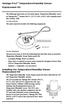 Vantage Pro2 Temperature/Humidity Sensor Replacement Kit The following instructions are for replacing the Temperature/Humidity sensor on Vantage Pro2 stations (# 6152, 6152C, 6162, 6162C, 6382) manufactured
Mounting Tripod Kit Installation Manual
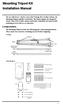 Mounting Tripod Kit Installation Manual For use with Davis s wireless and cabled Vantage Pro2 weather stations, the Mounting Tripod simplifies installation. The tripod supports the Integrated Sensor Suite
GETTING STARTED GUIDE. Envoy8X
 GETTING STARTED GUIDE Envoy8X R FCC Part 15 Class B Registration Warning This equipment has been tested and found to comply with the limits for a Class B digital device, pursuant to Part 15 of the FCC
Replacing a Vantage Vue Transmitter
 Replacing a Vantage Vue Transmitter Included in this replacement transmitter kit: SIM transmitter Cable tray Instructions Tools Required Phillips head screwdriver Small pliers To replace the transmitter
The Fan-Aspirated ISS includes these components: Metric Rain Adapter. The hardware shown here is provided for assembly and mounting:
 Integrated Sensor Suite with Fan-Aspirated Radiation Shield Installation Instructions Addendum For Vantage Pro2 and Vantage Pro2 Plus The Vantage Pro2 Integrated Sensor Suite (ISS) with the Fan-Aspirated
Reference Guide. Vantage PRO2 Quick
 3465 Diablo Avenue, Hayward, CA 94545-2778 U.S.A. 510-732-9229 Fax: 510-732-9188 E-mail: [email protected] www.davisnet.com Vantage PRO2 Quick Reference Guide Part Number: 07395.235 Rev C (1/6/2012) 2012
For more detailed information, see your Vantage Vue Console manual.
 For more detailed information, see your Vantage Vue Console manual. Current Weather Mode Moon phase, alarm & forecast icons Wind Rose Compass Antenna icon shows active transmission Graph of selected variable
mysensors mysensors Wireless Sensors and Ethernet Gateway Quick Start Guide Information to Users Inside the Box mysensors Ethernet Gateway Quick Start
 mysensors Information to Users mysensors Wireless Sensors and Ethernet Gateway Quick Start Guide This equipment has been tested and found to comply with the limits for a Class B digital devices, pursuant
AIRAVE 2.5 User Guide
 AIRAVE 2.5 User Guide 2012 Sprint. Sprint and the logo are trademarks of Sprint. Other marks are trademarks of their respective owners. 911702 Rev. 51.13 Important Messages IMPORTANT: Sprint s policies
Model: 308-1412 Manual DC: 080215 WIRELESS COLOR FORECAST STATION
 Model: 308-1412 Manual DC: 080215 WIRELESS COLOR FORECAST STATION FRONT VIEW SENSOR TX141TH-Bv2 LED TX Sensor Battery Cover Sensor Battery Compartment 2 AA Buttons Battery Compartment 3 AAA BACK VIEW Battery
SmartCard On-Board Reader (# 8105) SmartCard Desktop Reader (# 8108) SmartCards, Pack of 10 (# 8112) Starter Interrupter Kit (# 8116)
 athena Includes: SmartCard On-Board Reader (# 8105) SmartCard Desktop Reader (# 8108) SmartCards, Pack of 10 (# 8112) Starter Interrupter Kit (# 8116) Davis Instruments, 3465 Diablo Avenue, Hayward, CA
Pad. Quick Start Guide
 Pad Quick Start Guide Copyright 2008 Mimio Congratulations on your mimio Pad purchase! mimio Pad is a 4 GHz wireless pad. To configure mimio Pad for use, install the mimio Studio software and plug the
Ethernet Radio Configuration Guide
 Ethernet Radio Configuration Guide for Gateway, Endpoint, and Repeater Radio Units April 20, 2015 Customer Service 1-866-294-5847 Baseline Inc. www.baselinesystems.com Phone 208-323-1634 FAX 208-323-1834
WeatherLink for Alarm Output. Introduction. Hardware Installation and Requirements. Addendum
 WeatherLink for Alarm Output Addendum Introduction This Streaming Data Logger is designed to provide an electrical interface between a Vantage Pro2, Vantage Vue, or Vantage Pro weather station console
Bluetooth Stereo Headphone. User Guide. Hive
 Bluetooth Stereo Headphone User Guide Hive 1. Product Description Avantree Hive is a Bluetooth stereo headphone with MIC from the Avantree family. It delivers clear voice transmission and high quality
Complete System Shelter
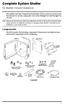 Complete System Shelter For Weather Console Installations The weather resistant Complete System Shelter (CSS) provides protection from the elements for system components such as the Vantage Pro2 and Vantage
RADIO CONTROLLED DIGITAL CLOCK MODELS 88905 / 88906
 RADIO CONTROLLED DIGITAL CLOCK MODELS 88905 / 88906 QUICK SETUP GUIDE IMPORTANT! INSTALL BATTERIES IN THE OUTDOOR TRANSMITTER BEFORE INSTALLING BATTERIES IN THE RADIO-CONTROLLED CLOCK. ALKALINE BATTERIES
USER MANUAL. Rain Collector. with Mountable Base. Product numbers 7857 and 7857M
 USER MANUAL Rain Collector with Mountable Base Product numbers 7857 and 7857M R Davis Instruments, 3465 Diablo Avenue, Hayward, CA 94545-2778 U.S.A. 510-732-9229 www.davisnet.com Rain Collector (#7857
Wireless Travel Mouse with 5-Buttons User Manual
 Wireless Travel Mouse with 5-Buttons User Manual Product Features 1. Radio frequency 27MHz wireless transmission 2. Use of 256 ID codes to prevent interference between several wireless mice being used
Vue. Davis Instruments, 3465 Diablo Avenue, Hayward, CA 94545-2778 U.S.A. 510-732-9229 www.davisnet.com
 Vue Davis Instruments, 3465 Diablo Avenue, Hayward, CA 94545-2778 U.S.A. 510-732-9229 www.davisnet.com Some datalogger models may include code based on version 4.2.0 of the FreeRTOS operating system. Complete
PCS300 Universal IP Reporting Module V1.0
 PCS300 Universal IP Reporting Module V1.0 Reference and Installation Manual Patents: One or more of the following US patents may apply: 7046142, 6215399, 6111256, 6104319, 5920259, 5886632, 5721542, 5287111,
WPR400 Wireless Portable Reader
 P516-098 WPR400 Wireless Portable Reader User guide Para el idioma español, navegue hacia www.schlage.com/support. Pour la portion française, veuillez consulter le site www.schlage.com/support. Contents
Key. ➍ Micro USB Port ➎ Operating System Toggle Keys ➏ Foam Screen Protectors. ➊ On/Off switch ➋ Bluetooth Connect Button (flashes when searching)
 INSTRUCTION MANUAL ➏ ➋ ➊ Product Features ➎ ➍ ➌ Built-in wireless Bluetooth 3.0 keyboard Compatible across ios, Android, and Windows, enabling you to mix and match with devices Ultra-thin, lightweight
IN-OUT Thermometer with Cable Free Sensor and Clock
 IN-OUT Thermometer with Cable Free Sensor and Clock MODEL: RAR232 USER'S MANUAL INTRODUCTION Congratulations on your purchase of the RAR232 In-Out Thermometer with 433MHz cable free sensor and calendar
Skyus 3G. Quick Start Guide Verizon
 Skyus 3G TM Quick Start Guide Verizon Preface Copyright 2016 Feeney Wireless, LLC a Novatel Wireless Company. All rights reserved. This document may not be copied in part or otherwise reproduced without
SP1790JK 900MHz Wireless Indoor/Outdoor Speakers. User Manual INTRODUCTION FEATURES IMPORTANT SAFETY INFORMATION
 SP1790JK 900MHz Wireless Indoor/Outdoor Speakers INTRODUCTION This 900 MHz digital hybrid wireless speaker system uses the latest wireless technology that enables you to enjoy music and TV sound anywhere
QUICK START GUIDE CX-MC200LE-VZ
 QUICK START GUIDE CX-MC200LE-VZ LTE/EV-DO Business-Grade Modem For use with Juniper Networks CX111 3G/4G Bridge with Enhanced Performance and Reliability GETTING READY TO USE YOUR CX-MC200LE-VZ MODEM Thank
ADSL Modem Installation Guide. Model # 36R515 Part # 030-300108 Rev. D Revision Date 12/2000. ADSL Modem Installation Guide
 ADSL Modem Installation Guide Model # 36R515 Part # 030-300108 Rev. D Revision Date 12/2000 ADSL Modem Installation Guide Installation Instructions Westell ADSL Modem 1. Package Inspection and Contents...2
Wireless Mouse USER GUIDE. for Mac. www.targus.com/us/formac ONE YEAR LIMITED WARRANTY N2953
 AMW43US / 410-1514-001C N2953 www.targus.com/us/formac 2008 Manufactured or imported by Targus Group International, Inc. (for U.S. sales: 1211 North Miller Street, Anaheim, CA 92806 USA, for Australia
2008 Davis Instruments Corp. All rights reserved. Information in this document is subject to change without notice.
 FCC Part 15 Class B Registration Warning This equipment has been tested and found to comply with the limits for a Class B digital device, pursuant to Part 15 of the FCC Rules. These limits are designed
ScreenLogic Wireless Connection Kit. Installation Guide. pool/spa control system
 pool/spa control system ScreenLogic Wireless Connection Kit Installation Guide P/N 520663 - Rev B 8 Technical Support Contact Technical Support at: Sanford, North Carolina (8 A.M. to 5 P.M.) Phone: (800)
Model: 616-146v2 Quick Setup Guide DC: 071015 Atomic Projection Alarm with Indoor and Outdoor Temperature
 Model: 616-146v2 Quick Setup Guide DC: 071015 Atomic Projection Alarm with Indoor and Outdoor Temperature Snooze/Backlight BUTTONS Time, Alarm with Snooze, & Calendar Projection Arm Rotates 180 Indoor/Outdoor
Fitbit User's Manual. Last Updated 10/22/2009
 Fitbit User's Manual Last Updated 10/22/2009 Getting Started... 2 Installing the Software... 2 Setting up Your Tracker... 2 Using Your Tracker... 3 The Battery... Error! Bookmark not defined. The Display...
Dialog Telephone Interface Module Installation Sheet
 Dialog Telephone Interface Module Installation Sheet Description The Dialog Telephone Module (DTIM), model number 60-879- 95R, is a battery operated communication link between the security system control
Targus Wireless RF Mouse USER S GUIDE. Making Your Mobile Life Easier.
 Targus Wireless RF Mouse Visit our Web site at: www.targus.com Features and specifications are subject to change without notice. 2004 Targus Group International and Targus, Inc.. 400-0111-001B USER S GUIDE
WUA-0605 300Mbps Wireless USB Network Adapter
 WUA-0605 300Mbps Wireless USB Network Adapter User Manual V1.0 Certification FCC CE FCC Statement This equipment has been tested and found to comply with the limits for a Class B digital device, pursuant
INSTALLATION GUIDE ConnectLine TV Adapter Getting started
 INSTALLATION GUIDE ConnectLine TV Adapter Getting started PURPOSE OF THIS GUIDE READ THIS FIRST Before your hearing instruments can receive sound from the TV, the adapter must be connected to the TV and
SoftRAID 5 QUICK START GUIDE. for OWC ThunderBay
 SoftRAID 5 QUICK START GUIDE for OWC ThunderBay TABLE OF CONTENTS INTRODUCTION...1 1.1 MINIMUM SYSTEM REQUIREMENTS 1.2 FEATURES 1.3 ABOUT THIS MANUAL SYSTEM SETUP...2 2.1 GETTING STARTED 2.2 INITIALIZING,
Cellular Edition TM- CELL400 User Guide. 1 TM- CELL400 Rev 1.2 http://www.temperaturealert.com/ 2012 Temperature@lert
 Cellular Edition TM- CELL400 User Guide 1 TM- CELL400 Rev 1.2 http://www.temperaturealert.com/ 2012 Temperature@lert User Guide Thank you for choosing Temperature@lert to protect your highly valuable belongings
SCREENLOGIC INTERFACE WIRELESS CONNECTION KIT
 SCREENLOGIC INTERFACE WIRELESS CONNECTION KIT FOR INTELLITOUCH AND EASYTOUCH CONTROL SYSTEMS INSTALLATION GUIDE IMPORTANT SAFETY INSTRUCTIONS READ AND FOLLOW ALL INSTRUCTIONS SAVE THESE INSTRUCTIONS Technical
Mobile Emergency Response User Guide
 Mobile Emergency Response User Guide Table of Contents Introduction... 3 What s in the Box... 4 Mobile Emergency Response Features... 5 Connecting Your ADT Mobile Emergency Response System... 6 Using the
BOSE. Link AL8 HOMEWIDE WIRELESS AUDIO LINK
 BOSE Link AL8 HOMEWIDE WIRELESS AUDIO LINK Français English SAFETY INFORMATION Please read this owner s guide Please take the time to follow the instructions in this owner s guide carefully. It will help
Wireless Router Setup Manual
 Wireless Router Setup Manual NETGEAR, Inc. 4500 Great America Parkway Santa Clara, CA 95054 USA 208-10082-02 2006-04 2006 by NETGEAR, Inc. All rights reserved. Trademarks NETGEAR is a trademark of Netgear,
Router Setup Manual. NETGEAR, Inc. 4500 Great America Parkway Santa Clara, CA 95054 USA 208-10060-01 2006-03-17
 NETGEAR, Inc. 4500 Great America Parkway Santa Clara, CA 95054 USA 208-10060-01 2006-03-17 2006 by NETGEAR, Inc. All rights reserved. Trademarks NETGEAR is a trademark of Netgear, Inc. Microsoft, Windows,
User Guide for the Wireless Headset (HS-11W) 9235346 Issue 1
 User Guide for the Wireless Headset (HS-11W) 9235346 Issue 1 DECLARATION OF CONFORMITY We, NOKIA CORPORATION declare under our sole responsibility that the product HS-11W is in conformity with the provisions
User Guide. www.sprint.com
 User Guide www.sprint.com 2010 Sprint. SPRINT and the logo are trademarks of Sprint. Other marks are the property of their respective owners. Airvana and the logo are trademarks of Airvana. 8/12/10 Consejo:
Wireless Alarm System. Window/Door Sensor. User s Manual. Choice ALERT. Control all Sensors & accessories from one location
 45131 Wireless Alarm System Window/Door Sensor User s Manual Choice ALERT Control all Sensors & accessories from one location Table of Contents Important Safeguards 4 Introduction 5 Installation 6 Assigning
Atomic Projection Alarm with Indoor and Outdoor Temperature
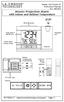 Model: WS-5220U-IT Instruction Manual DC: 082415 Atomic Projection Alarm with Indoor and Outdoor Temperature SNOOZE button Time, Alarm + WWVB Icon Projection arm Indoor Temp., Outdoor Temp. Battery Compartment
Indoor/Outdoor Color Camera with Built-in 2.4 GHz Wireless Transmitter, plus X10 controlled power supply, and Video Receiver.
 Indoor/Outdoor Color Camera with Built-in 2.4 GHz Wireless Transmitter, plus X10 controlled power supply, and Video Receiver. OWNER'S MANUAL VR36A XC18A XM13A MODEL VK69A (INCLUDES XC18A CAMERA, XM13A
Vehicle Monitoring Quick Reference Guide
 Vehicle Monitoring Quick Reference Guide Powered by Delphi Welcome You re about to experience a powerful device that will deliver a new level of convenience and peace of mind with your vehicle. When combined
USER GUIDE. Access to the Server is via the following webpage: www.admin.airgoosignage.co.uk
 USER GUIDE The A+K Airgoo Digital Signage MicroPlayer is a totally new generation of product with wireless capabilities and innovative features. It is designed to operate with our Digital Signage Server
HP-1000E v2. User s Manual. Powerline Ethernet Adapter. HP1000E v2 User s Manual
 HP-1000E v2 Powerline Ethernet Adapter User s Manual HP1000E v2 User s Manual Table of Contents Chapter 1: Introduction...1 Chapter 2: Planning your Powerline Network...1 Network Topology...1 Chapter 3:
StructureScan HD Module. Installation Guide ENGLISH. www.bandg.com www.simrad-yachting.com www.lowrance.com
 StructureScan HD Module Installation Guide ENGLISH www.bandg.com www.simrad-yachting.com www.lowrance.com Disclaimer As Navico is continuously improving this product, we retain the right to make changes
Model 70A00-1. GSM Cellular Communications Center
 Home Automation, Inc. Model 70A00-1 GSM Cellular Communications Center Operation Manual Document Number 70I00-1 Rev A August, 2009 Contents Description... 1 Use with security systems...1 Everyday use...2
RC8021 Indoor Camera Installation Guide
 RC8021 Indoor Camera Installation Guide P/N: 957YL502GJ Document Version: 1.0 Copyright 2011. All Rights Reserved. All trademarks and trade names are the properties of their respective owners i Package
Creatix 802.11g Adapter CTX405 V.1/V.2 User Manual
 Creatix 802.11g Adapter CTX405 V.1/V.2 User Manual 1 Safety instructions for Creatix 802.11g Adapter This equipment has been designed and tested in accordance with the requirements of Standard EN60950.
Personal Assistance System Owner's Guide
 Owner's Guide PSC07 READ THIS FIRST This equipment generates and uses radio frequency energy, and if not installed and used properly, that is, in strict accordance with the manufacturers instructions,
466-1936 Rev E October 2004 ZZZ*(6HFXULW\FRP. Part No: 60-883-95R. CareGard. User Guide
 ) *(6HFXULW\ 466-1936 Rev E October 2004 ZZZ*(6HFXULW\FRP Part No: 60-883-95R CareGard User Guide FCC Notices FCC Part 15 Information to the User Changes or modifications not expressly approved by GE Security
Application and Instruction Manual Motion Activated Solar Powered LED Security Light with Camera MODEL: XP-2H38WC
 Application and Instruction Manual Motion Activated Solar Powered LED Security Light with Camera MODEL: XP-2H38WC Please do not return this item to the store. If you have any questions, please contact
Simon XT/XTi CDMA Module V4 Installation Instructions
 Simon XT/XTi CDMA Module V4 Installation Instructions Content Contact information... 1 Introduction... 1 Compatibility... 1 Account Creation... 1 Installation... 1 Power Up... 3 CDMA Phone Test (Module
DELORME. Getting Started with. Earthmate GPS BT-20. Bluetooth
 DELORME Getting Started with GPS BT-20 Bluetooth Earthmate Table of Contents Overview... 2 Hardware Features... 2 Using the Earthmate GPS BT-20... 3 Charging the Battery... 4 Troubleshooting... 4 Hardware
ES-CAM3A Outdoor IP Camera
 ES-CAM3A Outdoor IP Camera www.etiger.com EN Specifications - Image sensor: 1/3 CMOS, 3.15 MP - Video resolution: 160x90, 320x180, 640x360, 1280x720 (H.264) - Digital zoom: 2x - Focal: 3.6mm, Aperture:
Wireless Alarm System. Alarm Siren. User s Manual. Choice ALERT. Control all Sensors & accessories from one location
 45136 Wireless Alarm System Alarm Siren User s Manual Low Batt On Armed ON/OFF LEARN Choice ALERT Control all Sensors & accessories from one location Table of Contents Important Safeguards 4 Introduction
Laser Wireless Rechargeable Mouse. User s Manual
 Laser Wireless Rechargeable Mouse Model #: LM8000WR User s Manual Rev. 060801 User s Record: To provide quality customer service and technical support, it is suggested that you keep the following information
4.3-inch Back-Up Camera
 TM 4.-inch Back-Up Camera Model No.: PKC0BU4 Owner s Manual and Warranty Information Read these instructions completely before using this product. Retain this Owner s Manual for future reference. INTRODUCTION
BTX180 Wireless Bluetooth Speaker
 BTX180 Wireless Bluetooth Speaker User Manual 2012 Kinivo LLC. All rights reserved. Kinivo is a trademark of Kinivo LLC. Bluetooth word mark and the Bluetooth logo are registered trademarks of Bluetooth
Table of Contents Function Keys of Your RF Remote Control Quick Setup Guide Advanced Features Setup Troubleshooting
 Congratulations on your purchase of the AT&T U-verse TV Point Anywhere RF Remote Control. This product has been designed to provide many unique and convenient features to enhance your AT&T U-verse experience.
Wireless Alarm System. Panic Button. User s Manual. Choice ALERT. Control all sensors, accessories and remote transmitters from one location
 Wireless Alarm System Panic Button User s Manual Choice ALERT Control all sensors, accessories and remote transmitters from one location Table of Contents Important Safeguards 4 Introduction 5 Activating
User Guide. Soft-Touch TM Bluetooth Laser Mouse N2953
 Soft-Touch TM Bluetooth Laser Mouse 410-XXXXXXXXXXX 1 YEAR LIMITED WARRANTY: We pride ourselves on the quality of our products. For complete warranty details and a list of our worldwide offices, please
Congratulations on your HomePortal purchase. To install your HomePortal and configure your home network, follow these steps.
 Notice to Users 2003 2Wire, Inc. All rights reserved. This manual in whole or in part, may not be reproduced, translated, or reduced to any machine-readable form without prior written approval. 2WIRE PROVIDES
USING WIRELESS DIAGNOSTICS Application Note 31
 USING WIRELESS DIAGNOSTICS Application Note 31 in Vantage Pro2 and Vantage Pro systems INTRODUCTION In addition to logging weather data, the Vantage Pro consoles and Weather Envoys continuously monitor
Plantronics.Audio 995 User Guide
 Plantronics.Audio 995 User Guide Welcome Congratulations on purchasing your new Plantronics.Audio 995. This User Guide contains instructions for setting up and using the.audio 995. Please refer to the
Drayton Digistat +2RF/+3RF
 /+3RF Programmable Room Thermostat Wireless Model: RF700/22090 Model: RF701/22092 Power Supply: Battery - Thermostat Mains - Digistat SCR Invensys Controls Europe Customer Service Tel: 0845 130 5522 Customer
How To Use A U.S. Cell Phone At Home
 U.S. Cellular Home Phone 1 Contents Getting to Know Your Device...5 Appearance... 5 LED Indicators... 6 Device Installation...7 Before You Begin... 7 Installing the Battery... 7 Installing the Power Adapter...
56-K61A-15000. Plantronics Calisto Headset with Bluetooth USB Adapter. User Guide
 56-K61A-15000 Plantronics Calisto Headset with Bluetooth USB Adapter User Guide Table of Contents Package Contents... 1 Product Features... 2 Wearing Your Headset... 3 Powering... 4 Charging... 5 Indicator
Wireless Indoor/ Outdoor Thermometer
 Wireless Indoor/ Outdoor Thermometer Owner s Manual Please read before using this equipment. ˆ Contents FCC Information... 3 FCC Declaration of Conformity... 5 Preparation... 5 Installing Batteries...
Installation Guide 1-port USB 2.0 Print Server 1 GPSU21
 Installation Guide 1-port USB 2.0 Print Server 1 GPSU21 2 Welcome Thank you for purchasing this 1-port USB 2.0 Print Server that allows any networked computer to share a USB printer. It complies with USB
mysensors mysensors Wireless Sensors and and Cellular Gateway Quick Start Guide Information to Users Inside the Box
 mysensors mysensors Wireless Sensors and and Cellular Gateway Quick Start Guide Information to Users The mysensors wireless products referenced in this Quick Start Guide have been tested to comply with
EPSON USB/Parallel Adapter User s Guide
 EPSON USB/Parallel Adapter User s Guide EPSON Stylus COLOR 440 EPSON Stylus COLOR 800 EPSON Stylus COLOR 600 EPSON Stylus COLOR 850 EPSON Stylus COLOR 640 EPSON Stylus COLOR 1520 EPSON Stylus Photo EX
2013 VTech Printed in China 91-009656-000 US
 Rechargeable Power Pack User s Manual 2013 VTech Printed in China 91-009656-000 US INTRODUCTION The Rechargeable Power Pack makes it easier than ever to keep the InnoTab 3 or InnoTab 3S charged and ready
User guide. Stereo Bluetooth Headset SBH50
 User guide Stereo Bluetooth Headset SBH50 Contents Stereo Bluetooth Headset User guide...3 Introduction...4 Function overview...4 Hardware overview...4 Status icon overview...5 Basics...6 Charging the
Manual. Simrad StructureScan LSS-1 Sonar Module. English
 Manual Simrad StructureScan LSS-1 Sonar Module English www.simrad-yachting.com A brand by Navico - Leader in Marine Electronics Disclaimer As Navico is continuously improving this product, we retain the
No. S8351. S8351 External Bluetooth module for mz series transmitter OPERATING INSTRUCTION
 No. S8351 S8351 External Bluetooth module for mz series transmitter OPERATING INSTRUCTION Prior to use, please read this manual thoroughly. Keep this manual in a convenient place for quick and easy reference.
User Manual USB Laptop KVM Switch. GCS661U Part No. M1069
 User Manual USB Laptop KVM Switch 1 GCS661U Part No. M1069 2 Table of Contents User Notice 4 A Note About Terminology 5 Overview 6 Features 7 Package Contents 8 Requirements 9 Operating System Support
GETTING TO KNOW YOUR 4G USB
 GETTING TO KNOW YOUR Telstra Pre-paid 4G USB LET S GET THIS SHOW ON THE ROAD WHAT S INSIDE Your Telstra Pre-Paid 4G USB has been tested to the highest standards to deliver you the best possible coverage
InnoMedia ESBC 9580-4B. Quick Install Guide. www.innomedia.com 1
 InnoMedia ESBC 9580-4B Quick Install Guide www.innomedia.com 1 Table of Contents Introduction 2 Package Contents 2 CAUTION 2 Installation 3 Wall-Mounting Instructions 5 Troubleshooting 6 Appendix A. LED
ST815 Illumination Sensor with LCD
 ST815 Illumination Sensor with LCD The Illumination Sensor with LCD (refer to as Illumination Sensor hereafter) is a Z-Wave TM enabled device which is fully compatible with any Z-Wave TM enabled network.
SanDisk Connect Wireless Flash Drive QUICK START GUIDE
 SanDisk Connect Wireless Flash Drive QUICK START GUIDE GET STARTED 1. Charge your Wireless Drive Plug the Drive into a computer or USB-AC adaptor. A full charge can take up to 2 hours. 2) Turn on the
Targus Wireless Remote Presenter USER S GUIDE. Making Your Mobile Life Easier. Making Your Mobile Life Easier.
 Targus Wireless Remote Presenter Making Your Mobile Life Easier. Visit our Web site at: www.targus.com Features and specifications are subject to change without notice. 2003 Targus Corp. 400-0110-001B
Jabra BIZ 2400 USB USER MANUAL
 Jabra BIZ 2400 USB USER MANUAL 1 2011 GN Netcom A/S. All Rights Reserved. This user guide is published by GN Netcom A/S. The information in this user guide is furnished for informational use only, is subject
AXIS 291 1U Video Server Rack Installation Guide
 AXIS 291 1U Video Server Rack Installation Guide About This Document This document describes how to install Axis blade video servers in the AXIS 291 1U Video Server Rack. Updated versions of this document
WeatherLink for Vantage Pro and Vantage Pro2
 WeatherLink for Vantage Pro and Vantage Pro2 6510SER 6544 6510USB 6550 6540 6560 WeatherLink Software and Data Logger WeatherLink for Vantage Pro and Vantage Pro2 consists of our WeatherLink software and
245YDS 3 9:30AM P4 USER GUIDE
 3 P4 USER GUIDE TABLE OF CONTENTS Thank You for Choosing Swami Sport...2 Warranty...2 Registration...2 1. General Description of Hardware...3 1.1 Device Layout...3 1.2 Accessories List...3 1.3 Charging
User manual. Your best protection against theft and loss. (Android) Made for
 User manual Made for Your best protection against theft and loss (Android) Warranty SCOPE OF THE WARRANTY Subject to legal provisions, the responsibility of SECU4 under this warranty is limited to the
Weather Direct Displays show Lost Forecast (blank boxes in the picture icons)
 Weather Direct Displays show Lost Forecast (blank boxes in the picture icons) Many routine events can cause a Lost Forecast situation. Examples include: Power outage Change batteries Internet down in your
Wireless Alarm System. Wireless Keypad. User s Manual. Choice ALERT. Control all sensors, accessories and remote transmitters from one location
 Wireless Alarm System Wireless Keypad User s Manual 1 2 3 4 Choice ALERT Control all sensors, accessories and remote transmitters from one location Table of Contents Important Safeguards 4 Introduction
110244-003. PrintPAD CN3/4/3e/4e. User Guide
 110244-003 PrintPAD CN3/4/3e/4e User Guide TABLE OF CONTENTS PrintPAD CN3/4 & PrintPAD CN3e/4e Printer Views...1 Open View...1 Closed View...1 Using Batteries: General Guidelines...1 Installing and/or
IEEE 802.11b WLAN PC Card
 IEEE 802.11b WLAN PC Card User s Guide Version: 1.3 August 2001 Please install the Utility/Driver first before inserting the PCMCIA Card. FCC Class B Radio Frequency Interference Statement The manufacturer
IN24 IN26. User s Guide
 IN4 IN6 User s Guide Please read the safety instructions booklet before setting up the projector. Unpack the box Here s what s included: Projector Remote CD-ROM Product Registration and Reference Guide
TL-PS310U Single USB 2.0 Port MFP and Storage Server
 TL-PS310U Single USB 2.0 Port MFP and Storage Server Rev: 2.0.0 1910010313 Contents Chapter 1 Introduction... 1 1.1 Product Overview...1 1.2 Network Management...1 1.3 Components and Features...1 1.4 Hardware