
Nortel Business Communications Manager 5.0. Configuration System. Release: 5.0 Document Revision: NN
|
|
|
- Eustace Gaines
- 9 years ago
- Views:
Transcription
1 Release: 5.0 Document Revision: NN
2 Document status: Standard Document issue: Document date: Product release: BCM 5.0 Job function: Configuration Type: Technical Publication Language type: English Copyright 2009 Nortel Networks All Rights Reserved. NORTEL, the globemark design, and the NORTEL corporate logo are trademarks of Nortel Networks.
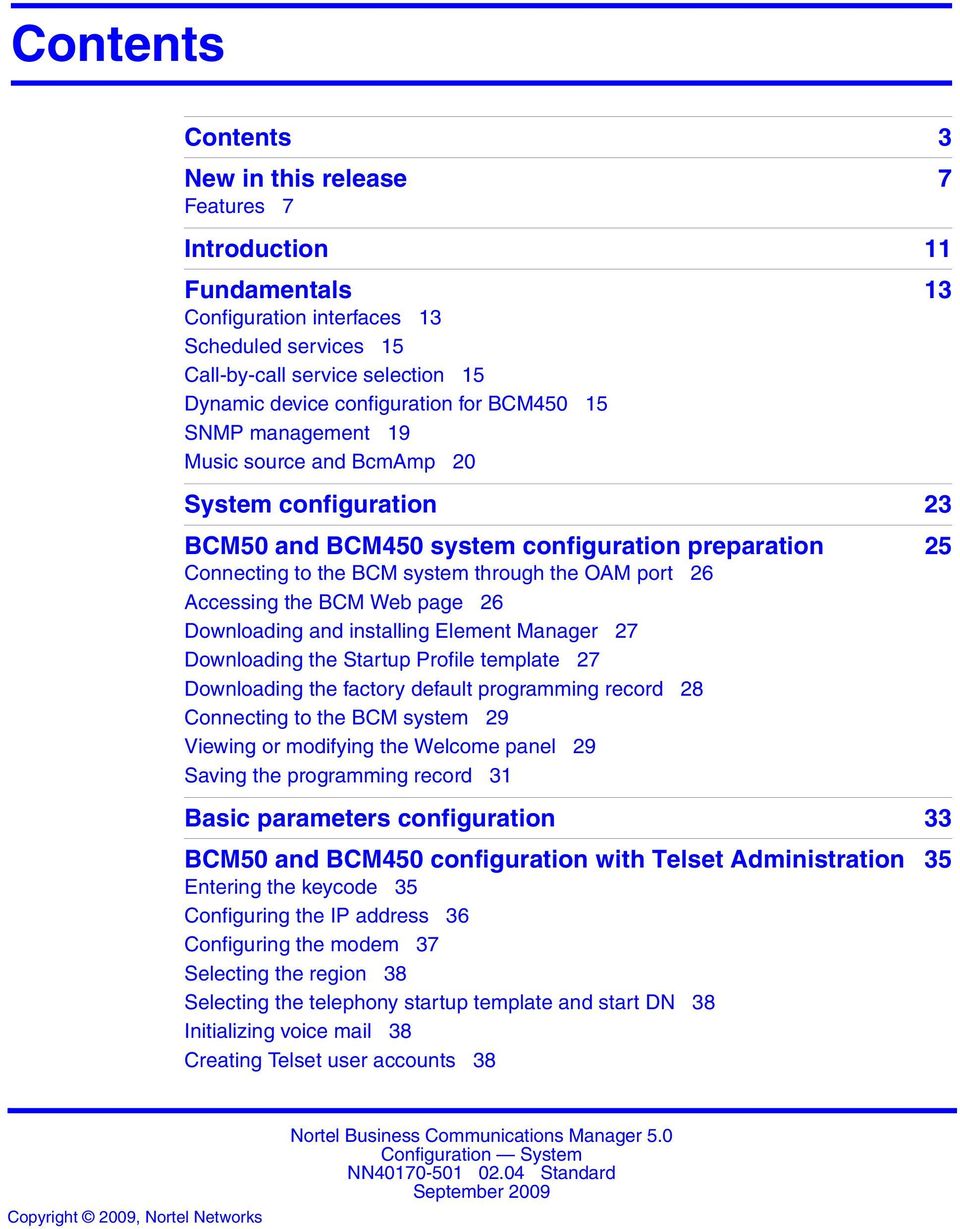
3 Contents Contents 3 New in this release 7 Features 7 Introduction 11 Fundamentals 13 Configuration interfaces 13 Scheduled services 15 Call-by-call service selection 15 Dynamic device configuration for BCM SNMP management 19 Music source and BcmAmp 20 System configuration 23 BCM50 and BCM450 system configuration preparation 25 Connecting to the BCM system through the OAM port 26 Accessing the BCM Web page 26 Downloading and installing Element Manager 27 Downloading the Startup Profile template 27 Downloading the factory default programming record 28 Connecting to the BCM system 29 Viewing or modifying the Welcome panel 29 Saving the programming record 31 Basic parameters configuration 33 BCM50 and BCM450 configuration with Telset Administration 35 Entering the keycode 35 Configuring the IP address 36 Configuring the modem 37 Selecting the region 38 Selecting the telephony startup template and start DN 38 Initializing voice mail 38 Creating Telset user accounts 38
4 4 Contents BCM50 and BCM450 configuration with Element Manager 41 Entering the keycode 41 Configuring the IP address 42 Configuring the modem 43 Configuring the startup template for telephony services 43 Initializing voice mail 44 Entering a name for your system 44 Configuring the date and time settings 45 Configuring DHCP server settings 46 Configuring IP Phones 48 Configuring SNMP settings 50 Configuring the SNMP manager list 51 Deleting an SNMP manager 52 Configuring SNMP community strings 52 Deleting SNMP community strings 53 Configuring service access points 53 Deleting service access points 54 Configuring SNMP trap destinations 55 Viewing and modifying SNMP trap destinations 56 Deleting SNMP Trap Destinations 57 Creating user accounts 57 BCM50 and BCM450 configuration with Startup Profile 59 Setting the Excel macro security level 60 Customizing a Startup Profile for your system 60 Loading the Startup Profile data onto your BCM system 62 BCM50 and BCM450 internal resources configuration 63 Configuring IP trunks 63 Configuring IP sets and applications 64 BCM450 MBM and legacy Norstar configuration 67 Configuring main unit MBMs 68 Configuring legacy Norstar modules 69 Configuring expansion unit MBMs 71 Deconfiguring MBMs and Norstar modules 73 BCM50 and BCM450 trunk module configuration 75 Configuring the trunk module parameters 75 Configuring call-by-call service selection 76 Provisioning module lines and loops 76 Dial-up resources configuration 79 ISDN interface management 79 ISDN interface connection or disconnection 82 ISDN channel parameters configuration 83

5 Contents 5 Modem interface management 85 Modem interface connection or disconnection 87 Modem dial-out link parameters configuration 88 WAN Failover on BCM50 91 ISDN dial-in parameters configuration 93 Automatic dial-out interface configuration 98 Dial-up interfaces as primary connections 100 Static routes for dial-out configuration 102 BCM50 and BCM450 scheduled services 103 Configuring schedule names and timers 103 Configuring scheduled service 104 BCM50 and BCM450 music source configuration 107 Selecting the audio jack as a music source 107 Selecting a network device as a music source 108 Accessing the Music Manager administration Web page 109 Loading music onto the BCM50 and BCM Adding music to the play list 111 Removing music from the play list 111 Deleting music from the BCM50 and BCM Using the BcmAmp Player 112 Basic configuration testing 115 BCM50 and BCM450 main unit testing 117 Testing the main unit 117 Troubleshooting the main unit 118 BCM50 and BCM450 expansion unit testing 119 Testing the expansion unit for BCM50 and BCM Troubleshooting the expansion unit for BCM Troubleshooting the expansion unit for BCM BCM50 and BCM450 media bay modules testing 123 Testing a station MBM 123 Testing a trunk MBM 124 Determining why an MBM does not appear in Element Manager 124 BCM50 and BCM450 analog terminal adapter testing 127 Correcting a non-functioning ATA2 for BCM Correcting no dial tone at the ATA2 on BCM Confirming correct ATA2 wiring for BCM Correcting a non-functioning ATA2 for BCM Correcting no dial tone at the ATA2 on BCM Confirming correct ATA2 wiring for BCM50 129
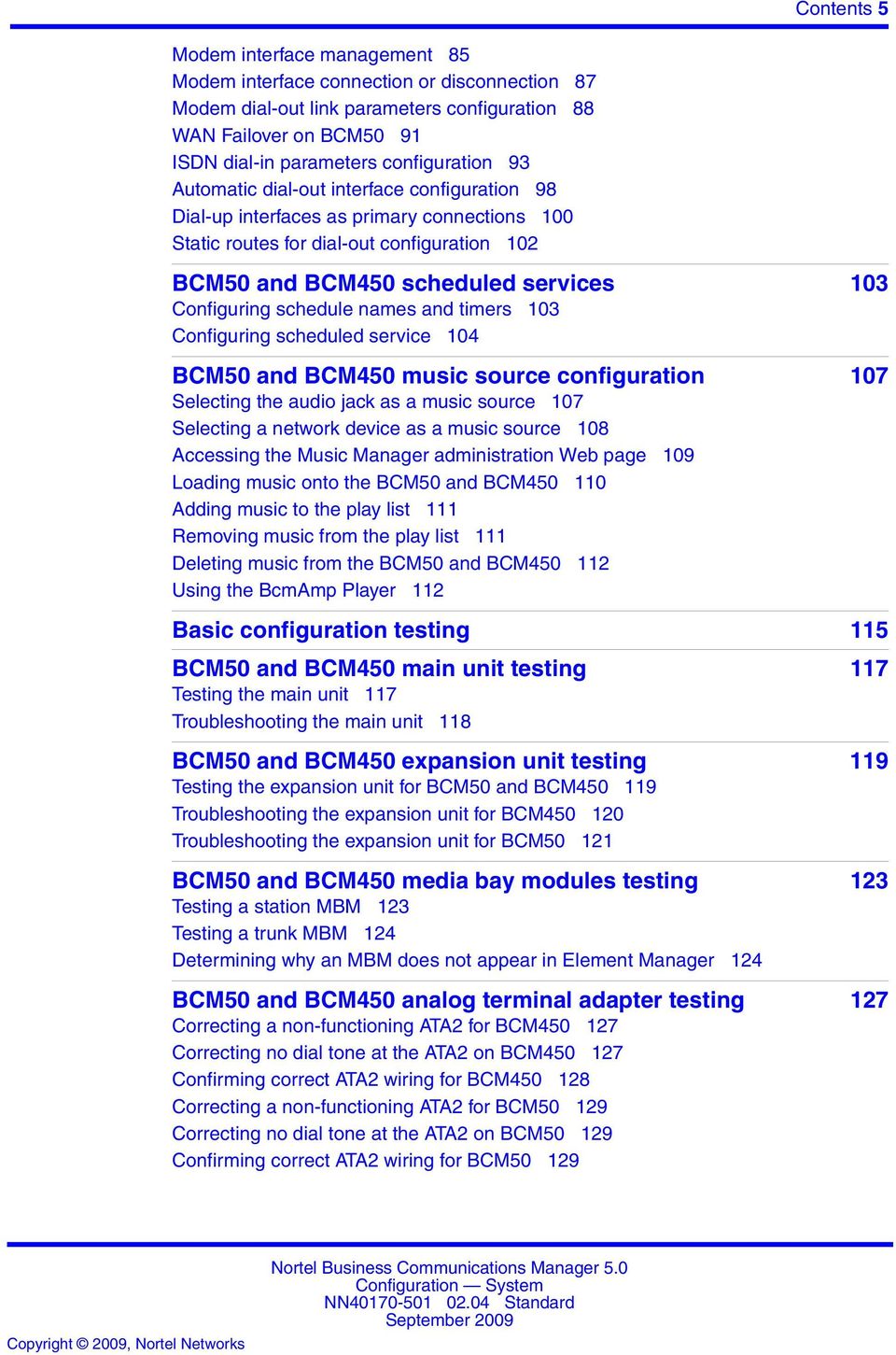
6 6 Contents System parameters reference 131 BCM50 and BCM450 initial parameters 131 BCM50 and BCM450 startup parameters 132 Call-by-call services available 133 Trunk module parameters 134 System capacity reference 143 BCM450 device type capacity 143 Market profile attributes reference 145 Interface availability 145 Tones and cadences 148 Core parameters for market profiles 158 Analog trunk parameters 175 GASM8 parameters 184 GASI parameters 187 ATA2 parameters 189 Voice mail 193 ISDN line services 195 Analog and digital trunk types 196

7 New in this release The information in this chapter applies to both the BCM50 and the BCM450 platforms running BCM 5.0. This is the initial release of the BCM 5.0 platform. This document contains information about configuring the BCM 5.0 system in Release 5.0. Features See the following sections for information found in this document. BCM 5.0 configuration You configure your BCM 5.0 system to provide the required system functionality. A BCM 5.0 system cannot function until it is configured. You can configure basic parameters (initial parameters and startup parameters) through Element Manager, Telset Administration, or the Startup Profile template. For more information about configuring your BCM 5.0 system see, BCM 5.0 system configuration preparation (page 25). Element Manager configuration To configure your BCM 5.0 system most efficiently, you can download and install Element Manager on your computer. You can configure all BCM 5.0 system parameters through Element Manager. For more information see, Business Element Manager (page 13)and BCM 5.0 configuration with Business Element Manager (page 45). Telset Administration configuration You can use Telset Administration through a digital telephone with a two-line display to set the BCM 5.0 configuration parameters. You cannot set all the basic parameters using Telset Administration. Therefore, after configuring the initial parameters, you must use Element Manager to set the startup parameters. For more information see, Telset Administration (page 15) and BCM 5.0 configuration with Telset Administration (page 39).

8 8 New in this release Startup Profile configuration An experienced administrator uses the Startup Profile tool to customize a template with common BCM 5.0 system parameters. The administrator uses this template to configure a single system or multiple systems. For more information see,startup Profile (page 14) and BCM 5.0 configuration with Startup Profile (page 65). Internal resources configuration You can configure the internal resources on your BCM 5.0 main unit. The internal resources include IP trunks, IP sets, and applications resources. For more information see, IP sets and applications configuration (page 17) and BCM 5.0 internal resources configuration (page 71). Media Bay Module configuration You can configure media bay modules (MBMs) for the BCM 5.0. Configuring main unit media bay modules (MBM) is a two-stage process. First, identify the type of installed MBMs to the BCM 5.0 system, and then configure the required variables. The BCM 5.0 system provides default values for your MBM. For more information see, BCM450 MBM and legacy Norstar configuration (page 75). Trunk configuration Configure the trunk module parameters to define the line properties for your BCM 5.0 system. For more information see, IP trunk module configuration (page 16)and BCM450 MBM and legacy Norstar configuration (page 75). Music source configuration The Music on Hold and Background Music features provide music to users. For these features to function properly, you must connect a music source to the BCM 5.0 system and configure the music source. For more information see, BCM 5.0 music source configuration (page 121). Configuration testing Perform basic testing and troubleshooting on BCM main unit, expansion units, media bay modules (MBM), and analog terminal adapter (ATA) For more information see, Basic configuration testing (page 129), BCM 5.0 main unit testing (page 133), BCM 5.0 expansion unit testing (page 137), BCM 5.0 media bay modules testing (page 141), and BCM 5.0 analog terminal adapter testing (page 145).

9 New in this release 9 Dynamic device configuration for BCM450 Attention: Dynamic device configuration is supported only on BCM450 and not on BCM50. With dynamic device configuration, DN and line number allocation and assignment is dynamically performed by the system, as required, until either all hardware administered to a system is populated with the necessary DNs and line numbers, or the system has reached the maximum capacity. For more information about dynamic device configuration, see the following sections: Dynamic device configuration for BCM450 (page 16) BCM 5.0 internal resources configuration (page 71) BCM450 MBM and legacy Norstar configuration (page 75)

10 10 New in this release

11 Introduction The information in this chapter applies to both the BCM50 and the BCM450 platforms running BCM 5.0. This guide describes how to configure the Business Communications Manager (BCM 5.0) systems. Navigation Fundamentals (page 13) System configuration (page 23) BCM 5.0 system configuration preparation (page 25) Basic parameters configuration (page 37) BCM 5.0 internal resources configuration (page 71) BCM450 MBM and legacy Norstar configuration (page 75) BCM 5.0 trunk module configuration (page 85) Dial-up resources configuration (page 91) BCM 5.0 scheduled services (page 115) BCM 5.0 music source configuration (page 121) Basic configuration testing (page 129) System parameters reference (page 151) System capacity reference (page 163) Market profile attributes reference (page 165) Copyright 2009 Nortel Networks

12 12 Introduction Copyright 2009 Nortel Networks

13 Fundamentals The information in this chapter applies to both the BCM50 and the BCM450 platforms running BCM 5.0. This section provides conceptual information about BCM 5.0 configuration. Navigation Configuration interfaces (page 13) Scheduled services (page 15) Call-by-call service selection (page 15) Dynamic device configuration for BCM450 (page 16) SNMP management (page 19) Music source and BcmAmp (page 21) Configuration interfaces This section describes the methods to configure your BCM 5.0 system. While Element Manager is the primary management application, BCM 5.0 also supports the programming of telephony and applications areas through Telset Administration, and through the Startup Profile template. Business Element Manager The primary management application for configuring and administering the BCM 5.0 system is Business Element Manager. Business Element Manager is a client-based management application that runs on a Windows computer, or on a Citrix server. You use Business Element Manager to connect to the BCM 5.0 devices to be managed either through an IP network connection, or through the OAM port on a BCM 5.0 main unit.
14 14 Fundamentals You can download Business Element Manager from the BCM 5.0 web page and install it on your computer at any time. However, you cannot connect to a BCM 5.0 system with Business Element Manager until the BCM 5.0 main unit is installed and running. Installing Business Element Manager in a Citrix environment You can run Business Element Manager in a Citrix environment using Citrix Presentation Server 4.0 on Windows Server 2003 (all editions). When you run Business Element Manager in a Citrix environment, install Business Element Manager on a Citrix server. You can run Citrix Program Neighborhood to connect to the server and launch the Business Element Manager. Business Element Manager is designed for single-user environments. A single installation of Business Element Manager extends the same user preferences to any Citrix user, including the device list and any saved passwords. Citrix administrators can ensure a secure environment by using one of the following approaches: install a copy of Business Element Manager for each user or group of users in different folders, with Windows permissions set for the folder to control access. in cases where a shared device tree is permitted, ensure that users do not save passwords, but instead enter a password each time they connect. Startup Profile The Startup Profile is a template containing the basic configuration parameters that you edit using Microsoft Excel. The Startup Profile is used to accelerate the initial installation programming of system-level parameters. It helps bring the BCM 5.0 system to a basic operational and ready-tocustomize state without using either Business Element Manager or Telset Administration. The administrator must fill out the Startup Profile template, save it onto a USB storage device and insert the storage device into the USB port of the BCM 5.0 main unit before the initial start-up. On start-up the BCM 5.0 system reads the information and starts up with the correct system parameters and feature licensing already in place.

15 Fundamentals 15 Telset Administration Installers who are already familiar with Telset Administration can perform programming from the keypad of any telephone connected to the BCM 5.0 device. This alleviates the need for access to a computer at the customer site. For more information about using Telset programming on the BCM 5.0, see the following documents: Telset Administration Guide (NN ) CallPilot Telephone Administration Guide (NN ) Intelligent Contact Center Telephone Administration Guide (NN ) Scheduled services Use scheduled services to control how calls are answered in off-hours (Ringing Groups), how calls are routed at various times of the day, and how restrictions are applied on lines and telephones at specific times of the day. With Business Element Manager, you can perform the following configuration functions for scheduled services: determine which schedules are active on the system for routing, restriction, and ringing schedules. set the time periods within each schedule for each day of the week. rename schedules. Schedules are activated and deactivated through control telephones. Restriction and Routing services require a service control password before users can change scheduling on a control telephone. You use the Service Control Password field to delete a current entry, and add a new password. Make a note of the password; the panel shows only asterisks. Call-by-call service selection The PRI Call-by-call Service Selection is region-specific to North America for a DTM set to a PRI module type. By default, incoming calls on a PRI are routed based on the Called Party Number information within the call request. The last number of digits of the called party number that match the Received Number Length setting are used as Receive Digits to find a target line. In North American PRI, the Call-by-Call services provides alternate routing maps to be defined in various ways, depending on the protocol defined for this PRI.
16 16 Fundamentals Dynamic device configuration for BCM450 Attention: Dynamic device configuration is supported only on BCM450 and not on BCM50 With dynamic device configuration, DN and line number allocation and assignment is dynamically performed by the system, as required, until either all hardware administered to a system is populated with the necessary DNs and line numbers, or the system has reached the maximum capacity. Dynamic device configuration applies to internal components on the main unit including IP trunks, IP sets, and applications, as well as media bay modules (MBM) and legacy Norstar modules on the main unit and expansion unit. Directory numbers If you configure a set of directory numbers (either IP Sets or MBM DNs) with Assign Target Lines selected, the DNs have Target Lines assigned to them (assuming there are unused Target Lines available). If you deconfigure some of these DNs, the state of the originally assigned Target Lines associated with these DNs are still programmed with the original DNs' Public and Private Configured numbers and they remain assigned to their DN positions. The result of deconfiguring DNs from the set above is a new DN set configured on the same bus on the system (IP Sets, Applications, MBM devices). The first number of the DNs in this new set still have the Target Lines assigned to them that were originally assigned. This is independent of the Assign Target Lines option selection for this new Configured DN set. The net effect is that if an administrator configures DNs with Target Lines and then decides to deconfigure and reconfigure some as different DNs, the original Target Line assignments and Pub/Priv number programming follows the reconfigured DNs. IP trunk module configuration Although IP trunks are not physical devices and you cannot remove them from the system, BCM 5.0 supports modification of IP trunk line numbers. You can assign a larger range of line numbers than what is actually licensed for IP trunks. The effect is to reserve the line numbers beyond the current licensed line count for future additional IP trunk licenses. Lines beyond the licensed count do not boot until the necessary keycodes are provided to enable the additional lines.
17 Fundamentals 17 The list of line numbers for IP trunks must be consecutive. If the available line numbers are segmented and the necessary number of consecutive line numbers does not exist, you receive an error. If this occurs, you must remove other lines in the system and restart line numbering for devices so the lines numbers are not as segmented and consecutive groups can be obtained for all devices. If additional licensing is added later for more IP trunks such that the licensed number of IP trunks is greater than the currently provisioned number, then the system will not automatically request additional line numbers for the new trunks. In this case the administrator must configure the new line numbers to populate the additional IP trunks. If additional licensed IP trunks are added and line numbers are reserved such that these additional trunks are covered, then no additional line numbering configuration operations are necessary. IP sets and applications configuration Main unit telephony resources includes a list of IP set DNs and a range of application DNs. Services assigned to the IP sets or applications device type are the DNs of these sets or DNs that an application can use respectively. Application DNs are the DNs assigned to applications such as the CallPilot DN, the MeetMe DN, or Contact Center skillset DNs. The ability to assign IP set and application DN services is limited by the maximum number of DNs for IP sets and applications respectively, and also by the maximum total number of relocatable DNs on the system. There may be notes or warnings in the Configuration dialog box to notify the administrator of the impact of the configuration action. This may include a recommendation to restart, or that a service may be restarted automatically. Additional configuration options specify whether or not target lines are desired for the DNs, and if so a starting public DN, and starting private DN can be assigned to target lines. An available target line is one that is currently unassigned to any DN (even a Hunt Group DN) and has no programmed private or public receive digits assigned to it. Target line numbers may or may not be consecutive. Conflicts of public or private line DNs, where the DN is used elsewhere, results in a failure of the public or private DN assignment to the set in question, but does not cause the entire request to fail. The sets are configured, but not all are successfully assigned public or private target line numbers if resource limitations prevent it.
18 18 Fundamentals Once a target line is configured with public or private numbers, deconfiguring DNs that have appearances of those target lines does not remove the public or private numbers from those target lines. The DNs assigned to IP sets or applications do not need to be consecutive. If the relevant pool DNs are renumbered or changed, so the consecutive DNs do not exist, then the IP sets or applications have non-consecutive DNs. For this reason the low and high values for IP sets and applications represent the lowest and highest DN value currently in the respective assigned range. The total number of DNs assigned is not all the DN values in between the low and high values. Configuring IP or Application DNs is a cumulative action. Every new successful configuration request adds the relevant count of IP or Application DNs to the existing range. Existing DNs are not affected or changed in any way. The default number of DNs to add is normally zero. This is a protection mechanism. You must change the number of DNs in the Number of DNs to add field to the desired number of additional DNs. When you configure DNs there is an exception to the number of DNs you can add. The BCM 5.0 system requires a minimum of three configured application DNs for applications to function correctly. When you configure application DNs, if there are fewer than three currently configured application DNs, then the minimum number possible to configure is set so that the final configured application DN count is at least three. For example, if through Set-based administration you complete a DN deconfiguration, and only two configured application DN remains, then the next time you configure application DNs the system would permit a minimum of two additional DNs to be configured for a final total of three. Finally, you can partially configure IP sets and applications (but not MBMs) with fewer DNs than the licensed device count. The MBM needs to either read MBM DNs or Digital/Analog station DNs. If there are not sufficient DNs defined in the relevant pools then the number of available DNs are allocated to the services list. Main unit and expansion unit MBM configuration on BCM450 Attention: Main unit and expansion unit MBM configuration is applicable only for BCM450 During media bay module (MBM) configuration, the BCM450 system provides suggested default values for the MBM. These suggestions include DNs or line numbers. If you change configuring data from the defaults provided and the configuration fails, then the configuration reverts back to the suggested values.

19 Fundamentals 19 When configuring a line device, a starting line number is specified. Based on the MBM type and region configuration, the appropriate number of line numbers are allocated and associated with the ports of the MBM. If insufficient resources are available to complete the requested configuration then the device configuration fails. For combination devices, configuration of the individual components is treated separately. It is possible for one part of a combination device to get configured while the other part fails because of insufficient resources. The location of a device is independent of the bus value associated with a device. For example, an MBM in location Main MBM 1 can be assigned Bus 10 in one configuration, but subsequent changes to the configuration can result in Main MBM 1 assigned to Bus 11 (or any other valid bus value). The bus assigned to a device is now one of several resources that a device receives during configuration to become operational. It is possible for a configuring request of a device to fail if sufficient resources are not available. This can be a result of insufficient contiguous line numbers, not enough remaining DNs, or no busses remaining. If sufficient resources are not available for a configuring request, the system presents a dialog box that the device configuration request failed. When a BRI MBM is configured all loops on the MBM are defaulted as T-loops and the administrator must provide a starting line number for a BRI MBM upon configuration. It is important to note that a BRI MBM uses eight consecutive line numbers. This is to ensure a consecutive series of line numbers across a BRI MBM regardless of the loop type setting. You configure the R2MFC MBM as a DTI-PRI MBM with additional configuration to set the attributes of the PRI protocol such that the device operates as an R2MFC. DNs are dynamic and changing a loop on a BRI-ST device from S to T type completely removes those DNs from the system. DSMn16+/32+ MBMs are capable of double density. If you want to maximize TDM sets on a system using an expansion unit, you need to set the dip settings on the DSM32+ MBMs in the chassis to double density mode. SNMP management SNMP (Simple Network Management Protocol) is a set of protocols for managing complex networks. SNMP-compliant devices, called agents, store metadata in Management Information Bases (MIBs) and provide this data to SNMP requesters.
20 20 Fundamentals You can configure general SNMP settings, including enabling and disabling the SNMP agent, enabling and disabling versions of the SNMP agent, defining access permissions, and adding and deleting SNMP management stations. You can create a list of SNMP managers who are permitted to query the BCM 5.0 system by specifying their IP addresses. If you have specified SNMP managers, the BCM 5.0 SNMP agent will respond only to SNMP requests from those IP devices. You can use external SNMP clients, such as HP OpenView, to monitor the BCM 5.0 system by means of read-only SNMP requests. The BCM main unit supports the following versions of SNMP: SNMP v1 the first implementation of SNMP; this version supports such protocols as IP SNMP v2c provides improved efficiency and error handling SNMP v3 provides improvements in security and privacy Using the Business Element Manager, you can select which versions of SNMP you want the BCM agent to support. For more information, see Configuring SNMP settings (page 55). Management Information Bases provide access to the managed objects of a system and specify the format of traps. BCM 5.0 supports the following MIBs: RFC 1213 MIB II RFC 2863 Interface MIB RFC 2737 Entity MIB RFC 2790 Host MIB RFC 2261 SNMP framework SmallSiteEvent MIB for traps The device sysobjectids are defined in the BCM Small Site Common MIB, and are defined for the BCM main unit. The following tabe summarizes the sysobjectid assignments: Table 1 sysobjectid assignments Model Main Unit sysobjectid Integrated Router sysobjectid BCM BCM50 and BCM50b BCM50a and BCM50ba BCM50e and BCM50be

21 Music source and BcmAmp This section describes the music source for your BCM 5.0 system. Fundamentals 21 Music source The Music on Hold and Background Music features provide music to users. For these features to function properly, a music source must be connected to the BCM. There are three ways you can connect the music source to the BCM 5.0 system: You can connect an external music source through an analog input to the BCM. You can use the IP Music feature to connect to Music Manager. Music Manager is an audio player application that resides on the BCM 5.0 system and provides a streaming audio signal to the BCM 5.0 system. You can use the IP Music feature to connect to an external music source on the data network. You must connect the external music source to your network and it must be accessible to the BCM 5.0 system. The external music source must also produce a streaming audio signal that is compatible with the BCM 5.0 system. Select Music Manager if you are using the IP Music feature to connect to the music source available on the BCM. If you select Music Manager, you must configure the BcmAmp application before you can use it. Select Streaming Server if you are using the IP Music feature to connect to a music source on the data network. If you select Streaming Server, you must configure the Network Device before you can use it. For information about connecting external music through and analog input, see Installation System (NN ). BcmAmp application The audio files loaded onto the BCM 5.0 system are loaded into the same disk space that is used for CallPilot messages. Therefore, every minute of audio file loaded onto the BCM 5.0 system reduces the amount of message storage space available to CallPilot by one minute. To ensure the proper operation of both Music Manager and CallPilot, the following restrictions are applied to uploading audio files. The maximum size of any single sound file you load onto the BCM 5.0 system is 150 MB. The maximum amount of disk space available for Music Manager audio files is 1 GB.
22 22 Fundamentals To ensure there is sufficient disk space for CallPilot, Music Manager Administration prevents you from uploading files if there is less than 1 GB of free disk space on the BCM 5.0 system. To minimize the time required to upload audio files, record the audio files as a single channel (mono) using 8-bit samples at a rate of 8 khz.
23 System configuration The information in this chapter applies to both the BCM50 and the BCM450 platforms running BCM 5.0. Configure your BCM 5.0 system to provide the required system functionality. A BCM 5.0 system cannot function until it is configured. Prerequisites to system configuration Ensure your BCM 5.0 system is properly installed. For more information about installing a BCM 5.0 system, see Installation System (NN ). System configuration tasks This work flow shows you the sequence of tasks you perform to configure your BCM450 system. To link to any tasks, go to System configuration navigation (page 24).
24 24 System configuration Figure 1 System configuration tasks System configuration navigation BCM 5.0 system configuration preparation (page 25) Basic parameters configuration (page 37) BCM 5.0 internal resources configuration (page 71) BCM450 MBM and legacy Norstar configuration (page 75) BCM 5.0 trunk module configuration (page 85) BCM 5.0 scheduled services (page 115) BCM 5.0 music source configuration (page 121) Basic configuration testing (page 129)
25 BCM 5.0 system configuration preparation The information in this chapter applies to both the BCM50 and the BCM450 platforms running BCM 5.0. To configure your BCM 5.0 system most efficiently, you can download and install Business Element Manager on your computer. You can download the Startup Profile template, if you want to use it to set the basic parameters for your BCM 5.0 system. A programming record template that provides the default parameters is also available for download. Prerequisites to BCM 5.0 system configuration preparation You can use the latest Business Element Manager version to manage all previous BCM systems that require Business Element Manager. You need only one instance of Business Element Manager on your computer. Business Element Manager supports the following OS systems: Windows Server 2003 Windows Server 2008 Windows XP Windows XP with Service Pack 3 Windows Vista (Business, Ultimate, and Enterprise versions) Windows Vista with Service Pack 2 (Business, Ultimate, and Enterprise versions) Business Element Manager has the following system requirements: RAM: minimum 256 MB, recommended 512 MB free space: 150 MB A Citrix server supports access to Business Element Manager
26 26 BCM 5.0 system configuration preparation BCM450 system configuration preparation procedures This task flow shows you the sequence of procedures you perform to prepare your BCM450 system for configuration. To link to any procedure, go to BCM 5.0 system configuration preparation navigation. Figure 2 BCM450 system configuration preparation procedures
27 BCM 5.0 system configuration preparation 27 BCM 5.0 system configuration preparation navigation Connecting to the BCM system through the OAM port (page 27) Accessing the BCM Web page (page 28) Downloading and installing Business Element Manager (page 29) Downloading the Startup Profile template (page 29) Downloading the factory default programming record (page 30) Connecting to the BCM system (page 30) Viewing or modifying the Welcome panel (page 31) Saving the programming record (page 34) Connecting to the BCM system through the OAM port If you must change the BCM IP address (due to a conflict with your network), you can connect to the BCM system through the OAM port. Prerequisites Before using the default address on your network, check with your system administrator. If this address conflicts with the LAN settings, you can cause network damage if you connect to the network without changing the IP address. Obtain a standard Ethernet cable. Procedure steps Step Action 1 Connect one end of the Ethernet cable to the OAM port on the main unit. 2 Connect the other end of the Ethernet cable to the Ethernet port on your computer. The DHCP-enabled computer is assigned IP address ( ). --End-- Connecting to the BCM system through the LAN port Connect your BCM main unit to the LAN to enable LAN access for your system. Prerequisites Obtain a standard Ethernet cable.
28 28 BCM 5.0 system configuration preparation The DHCP server on the main unit is enabled (IP Phones only) by default. If your network already contains a DHCP server, disable the DHCP server on the main unit. Procedure steps Step Action 1 Connect one end of the Ethernet cable to your LAN. 2 Plug the other end of the Ethernet cable into one of the available two LAN ports on the BCM 5.0 main unit (two right-most ethernet ports). The OAM port does not support VoIP devices. --End-- Accessing the BCM Web page After you connect your computer to the BCM system, you can download Business Element Manager from the Administrator Applications area of the BCM Web page. Prerequisites Ensure you connect your computer to the BCM system, either through the OAM port or through a LAN connection. Procedure steps Step Action 1 Open a Web browser and enter the BCM system IP address: If your BCM 5.0 is installed on a network, type the address on the network in the form, If your BCM 5.0 is installed but not yet configured, connect directly to the BCM 5.0 through the OAM port and type, The Enter Network Password dialog box appears. 2 Enter the user name and password (defaults are shown): User name: nnadmin Password: PlsChgMe! 3 Click OK. The Welcome to BCM Web page appears.
29 BCM 5.0 system configuration preparation 29 --End-- Downloading and installing Business Element Manager Download and install Business Element Manager to configure and set parameters for your BCM system. Prerequisites Access the BCM Web page. For more information, see Accessing the BCM Web page (page 28). Procedure steps Step Action 1 From Application Group, click BCM. The Applications panel appears. 2 From the Applications panel, double-click BCM Element Manager. Business Element Manager downloads, installs, and opens automatically. --End-- Downloading the Startup Profile template Download the Startup Profile template from the BCM Web page for your specific hardware platform, if you do not have a copy of the Startup Profile template on your computer. Prerequisites Access the BCM Web page. For more information, see Accessing the BCM Web page (page 28). Procedure steps Step Action 1 From Application Group, click BCM. The Applications panel appears. 2 From the Applications panel, select Other Administrator Applications. 3 The Administrator Applications page appears. 4 From the Administrator Applications page, click Startup Profile Template. 5 The Startup Profile Template panel appears.
30 30 BCM 5.0 system configuration preparation 6 Read the information on this panel. 7 Click Download Startup Profile Template on the right side of the screen, and follow the instructions to download the template. --End-- Downloading the factory default programming record Download the factory default programming record from the BCM Web page, if you want a record of the default parameter values for the BCM system. Prerequisites Access the BCM Web page. For more information, see Accessing the BCM Web page (page 28). Procedure steps Step Action 1 From Application Group, click BCM. The Applications panel appears. 2 From the Applications panel, select Other Administrator Applications 3 From the Administrator Applications page, click Factory Default Programming Record. 4 The Factory Default Programming Record panel appears. 5 Read the information on this panel. 6 Click Download Factory Default Programming Record on the right side of the screen, and follow the instructions to download the template. --End-- Connecting to the BCM system Connect to your BCM system to configure your system with Business Element Manager. Prerequisites Download and install Business Element Manager. For more information, see Downloading and installing Business Element Manager (page 29).
31 BCM 5.0 system configuration preparation 31 Procedure steps Step Action 1 Launch Business Element Manager. 2 From the Network menu, click New Network Element > Business Communications Manager. 3 In the IP Address box, type the BCM system IP address. 4 In the User ID and Password boxes, type the following information: User ID: nnadmin Password: PlsChgMe! 5 Click OK. 6 From the Network Elements list, select your BCM system IP address. 7 Ensure that the user name and password are entered. 8 Click Connect. You are now connected to the BCM system. --End-- Viewing or modifying the Welcome panel The Welcome panel displays information for the current account logged on the system. The administrator is prompted to change the password before any programming menus are accessible. Figure 3 Initial Welcome panel The initial Welcome panel displays: on the first login to the BCM by nnadmin
32 32 BCM 5.0 system configuration preparation when the administrator has selected the forced password change option on an account if the password has expired Procedure steps Step Action 1 Launch Business Element Manager. 2 From the Network menu, click New Network Element > Business Communications Manager. 3 In the IP Address box, type the BCM system IP address. 4 In the User ID and Password boxes, type the following information: User ID: nnadmin Password: PlsChgMe! 5 Click OK. 6 From the Network Elements list, select your BCM system IP address. 7 Ensure that the user name and password are entered. 8 Click Connect. The Welcome panels appears. 9 If prompted to change the password, in the Change Password box, enter a new password. --End-- Attention: Once the password has been changed the entire navigation tree is accessible.
33 BCM 5.0 system configuration preparation 33 Variable definitions Variable User ID Password Value This read-only value is the user ID you used to log on to the system. To change password, select the field and enter new password. The password must satisfy the password policy requirements for the system. If you are not prompted to change the password the following Welcome panel information displays.
34 34 BCM 5.0 system configuration preparation Figure 4 Welcome panel Variable definitions Variable Account Notifications User ID Telset User ID Last successful login Value This read-only value displays BCM administrative messages or notifications regarding the current user. This read-only value is the user ID you used to log on to the system. This read-only value is the user ID used to logon to the telset configuration interfaces for telephony and CallPilot applications. This read-only value is the date and time that this user account was last logged in the system. Saving the programming record Save the programming record that contains the current settings of all or part of your Business Element Manager data. These files can be saved in either HTML or Excel spreadsheet format. You can access the programming record in the same way you access any other HTML file or by using Excel, version 2002 or later, for the spreadsheet format. Attention: The Save Programming Record task does not take very long because it does not include the DN settings. Saving the DN settings is a separate step and it can take up to 45 minutes. Prerequisites Launch Business Element Manager and connect to your BCM system. For more information, see Connecting to the BCM system (page 30). The Save All Data selection can take up to 45 minutes to complete. Your computer must stay connected to the element during this time, as the Save
35 Procedure steps BCM 5.0 system configuration preparation 35 All Data function is actively writing into the file specified until the function is complete. Step Action 1 In Business Element Manager, select the item on the task navigation panel for which you want to save the data into an HTML report or Excel workbook. An item can be a task item, task bullet, or a folder. 2 Select Session > device IP address > Save Programming Record > Save Selected Data. A warning appears. 3 Read the warning information and click Yes. A Save dialog box appears. 4 In the Save: box choose the path where you want the file stored. 5 In the Files of type: box, choose the format in which you want to save the data (HTML or Microsoft Excel spreadsheet). 6 Enter a File name. Nortel recommends that you make the current date and system name part of the file name. 7 Click Save to save the DN data. This takes approximately 45 minutes to save the DNs. 8 Click Save to save the programming record. --End--
36 36 BCM 5.0 system configuration preparation
37 Basic parameters configuration The information in this chapter applies to both the BCM50 and the BCM450 platforms running BCM 5.0. Configure basic parameters (initial parameters and startup parameters) through Telset Administration, Business Element Manager, or the Startup Profile template. Prerequisites to basic parameters configuration Prepare your BCM 5.0 system for configuration. For more information, see BCM 5.0 system configuration preparation (page 25). For an overview of the initial parameters and startup parameters, see System parameters reference (page 151). Basic parameters configuration tasks This work flow shows you the sequence of tasks you perform to configure the basic parameters of your BCM450 system. To link to any tasks, go to Basic parameters configuration navigation (page 38).
38 38 Basic parameters configuration Figure 5 Basic parameters configuration tasks Basic parameters configuration navigation BCM 5.0 configuration with Telset Administration (page 39) BCM 5.0 configuration with Business Element Manager (page 45) BCM 5.0 configuration with Startup Profile (page 65)
39 BCM 5.0 configuration with Telset Administration The information in this chapter applies to both the BCM50 and the BCM450 platforms running BCM 5.0. You can use Telset Administration through a digital telephone with a two-line display to set the BCM 5.0 configuration parameters. You cannot set all the basic parameters using Telset Administration. For example, you cannot enter a keycode using the Telset Administration interface. You must enter the keycodes using the Business Element Manager interface or the USB interface. For more information and procedures on how to download and apply keycodes on your BCM 5.0 system, see the Keycode Installation Guide. Prerequisites to BCM 5.0 configuration with Telset Administration Connect a digital telephone with a two-line display to your BCM system. For information about using Telset Administration to set parameters, see the Telset Administration Guide (NN ). BCM450 configuration with Telset Administration procedures This task flow shows you the sequence of procedures you perform to configure the initial parameters of your BCM system through Telset Administration. To link to any procedure, go to BCM 5.0 configuration with Telset Administration navigation (page 40).
40 40 BCM 5.0 configuration with Telset Administration Figure 6 BCM450 configuration with Telset Administration procedures BCM 5.0 configuration with Telset Administration navigation Configuring the IP address (page 41) Configuring the modem (page 41) Selecting the region (page 42) Selecting the telephony startup template and start DN (page 42) Initializing voice mail (page 42) Creating Telset user accounts (page 43)
41 BCM 5.0 configuration with Telset Administration 41 Configuring the IP address Configure the BCM IP address for full network connectivity. Prerequisites You must enter the keycode for your BCM 5.0 system to access the features. For more detailed information about retrieving and entering the keycode for your system, see the Keycode Installation Guide (NN ). Procedure steps Step Action 1 Select Feature 9*8 from a two-line display telephone. 2 Enter the following user ID and password: User ID: SETNNA Password: CONFIG The numerical values of the user ID and password are and , respectively. 3 Press OK. 4 Press NEXT to scroll through the menu and select IP Address. 5 Press OK. 6 Press CHNGE to modify the IP settings. The display screen shows whether DHCP is enabled or disabled. 7 Press DIS to disable DHCP or ENL to enable DHCP. The system must reboot to enable DHCP. 8 Press IP to modify the following IP settings: IP Address Subnet Mask Default Gateway These settings have no effect if the DHCP is disabled. 9 Press Back and select System Restart to reboot the system. --End-- Configuring the modem Configure the BCM system modem to provide connection to the system through the modem.
42 42 BCM 5.0 configuration with Telset Administration Prerequisites For more information about modem configuration, see Configuration Telephony (NN ). Procedure steps Step Action 1 Select Feature 9*8 from a two-line display telephone. 2 Enter the following user ID and password: User ID: SETNNA Password: CONFIG The numerical values of the user ID and password are and , respectively. 3 Press OK. 4 Press NEXT to scroll through the menu and select Modem. 5 Press OK. The display screen shows whether the modem is enabled or disabled. 6 If the modem is disabled, press ENL to enable the modem. 7 If the modem is enabled, press DIS to disable the modem. --End-- Selecting the region Set the Region using Feature **PROFILE from a two-line display telephone. For more information about using Telset Administration to set parameters, see the Telset Administration Guide (NN ). Selecting the telephony startup template and start DN Set the DID or PBX template and Start DN using Feature **STARTUP from a two-line display telephone. This is available for only 15 minutes after the system starts. For more information about using Telset Administration to set parameters, see the Telset Administration Guide (NN ). Initializing voice mail Initialize your voic system using Feature 983 from a two-line display telephone.
43 BCM 5.0 configuration with Telset Administration 43 For information about using Telset Administration to initialize your voice mail system, see the CallPilot Telephone Administration Guide (NN ). Creating Telset user accounts You can create Telset user accounts using Telset Administration. Prerequisites You can create only Telset accounts using Telset Administration. To create Business Element Manager accounts, you must use Business Element Manager. Procedure steps Step Action 1 Select Feature 9*8 from a two-line display telephone. 2 Enter the following user ID and password: User ID: SETNNA Password: CONFIG The numerical values of the user ID and password are and , respectively. 3 Press OK 4 Press NEXT to scroll through the menu and select User Accounts. 5 Press OK. The Accounts screen appears. 6 Press CHNGE to create an account. 7 Press NEXT to scroll through the list of available accounts. 8 Press CRT to create the account. If you see the DEL command instead of the CRT command, the account already exists. 9 Press BACK. The Accounts screen appears. 10 Press NEXT. The password screen appears. 11 Press CHNGE to change the password. 12 Press NEXT to scroll through the list of available accounts. 13 Press CHNGE to change the password for the selected account. 14 Enter the new password for the account.
44 44 BCM 5.0 configuration with Telset Administration 15 Enter the new password again to confirm it. --End--
45 BCM 5.0 configuration with Business Element Manager The information in this chapter applies to both the BCM50 and the BCM450 platforms running BCM 5.0. You can configure all BCM system parameters through Business Element Manager. Prerequisites to BCM 5.0 configuration with Business Element Manager Launch Business Element Manager and connect to your BCM system. For more information, see Connecting to the BCM system (page 30). BCM450 configuration with Element Manager procedures This task flow shows you the sequence of procedures you perform to configure the system parameters of your BCM system through Element Manager. To link to any procedure, go to BCM 5.0 configuration with Business Element Manager navigation (page 46).
46 46 BCM 5.0 configuration with Business Element Manager Figure 7 BCM450 configuration with Element Manager procedures BCM 5.0 configuration with Business Element Manager navigation Entering the keycode (page 47) Configuring the IP address (page 47) Configuring the modem (page 48) Configuring the startup template for telephony services (page 49) Initializing voice mail (page 49) Entering a name for your system (page 50)
47 BCM 5.0 configuration with Business Element Manager 47 Configuring the date and time settings (page 50) Configuring DHCP server settings (page 51) Configuring IP Phones (page 54) Configuring SNMP settings (page 55) Configuring the SNMP manager list (page 56) Configuring SNMP community strings (page 57) Configuring service access points (page 58) Configuring SNMP trap destinations (page 60) Creating user accounts (page 62) Entering the keycode Enter the keycode for your BCM 5.0 system to access the features. Prerequisites Ensure you generate the keycode file for your BCM 5.0 system and that the keycode file is stored on your computer. For more detailed information about retrieving and entering the keycode for your system, see the Keycode Installation Guide (NN ). Procedure steps Step Action 1 Select Configuration > System > Keycodes. The Keycodes panel appears. 2 Click Load Keycode File. The Open dialog box appears. 3 Select the keycode file for your system, and then click Open. --End-- Configuring the IP address Configure the BCM IP address for full network connectivity. Prerequisites If you modify any of the attributes, the Business Element Manager session disconnects.
48 48 BCM 5.0 configuration with Business Element Manager Procedure steps Step Action 1 Select Configuration > System > IP Subsystem. 2 Select the LAN Interfaces tab. 3 Select Customer LAN from the LAN Interfaces Summary. The IP Configuration pane appears. 4 Click Modify. 5 Enter the IP address. 6 Enter the IP subnet mask. 7 Enter the Default gateway. 8 Click OK. --End-- Variable Variable definitions Obtain IP address dynamically IP address Value If this is selected, the BCM system attempts to use IP address information from a DHCP server. If this is not selected, you must enter values for static IP address, IP subnet mask, and Default gateway. The IP address of the BCM system. IP subnet mask The subnet mask used by the BCM system. Default gateway The gateway used by the BCM system. Configuring the modem Configure the BCM system modem to connect to the system through the modem. If you have the appropriate platform privilege, you can remotely dial into BCM Voic and enable the analog modem through any traditional PSTN, ISDN, or analog trunk. This feature eliminates the need for support personnel to make site visits to perform management operations. Prerequisites For more information about modem configuration, see Configuration Telephony (NN ).
49 BCM 5.0 configuration with Business Element Manager 49 Procedure steps Step Action 1 Select Configuration > Resources > Dial Up Interfaces. 2 Click the Modem Dial-In Parameters tab. 3 Select the Enable modem dial-in check box to enable the modem. --End-- Configuring the startup template for telephony services Configure the startup telephony services to set or modify the values for the region, template, and start DN. Telephony services restarts with all telephony programming at default values. Performing a cold reset of telephony services erases all telephony programming, as well as all Voice Message mailboxes and messages. Procedure steps Step Action 1 Select Administration > Utilities > Reset. 2 Click Cold Reset Telephony Services. The Cold Reset Telephony dialog box appears. 3 Configure the Cold Reset Telephony attributes. 4 Click OK. --End-- Variable Region Variable definitions DID or PBX template Value Specifies the startup region. Specifies the startup template. Start DN Specifies the startup DN. The default is 221. Initializing voice mail Initialize your voice mail system to enable users access voice mail features.
50 50 BCM 5.0 configuration with Business Element Manager Prerequisites For more information, see the CallPilot Manager Set Up and Operation Guide (NN ). Procedure steps Step Action 1 Select Configuration > Applications > Voice Messaging/Contact Center. 2 Click Launch CallPilot Manager. The Quick Install Wizard form appears. If your voice mail system is already initialized, you do not see the Quick Install Wizard. Instead you see the CallPilot Manager: Main Menu Web page. 3 Configure the attributes on the Quick Install Wizard form. --End-- Entering a name for your system Enter a descriptive name for your system to identify your system on the network. Procedure steps Step Action 1 Select Configuration > System > Identification. 2 In the System name box, enter a name for your system. The system name must be a unique alphanumeric name that cannot begin with a number or hyphen (-), and cannot end with hyphen or period (.) --End-- Configuring the date and time settings Set the date and time settings for your BCM system. Procedure steps Step Action 1 Select Configuration > System > Date and Time.
51 BCM 5.0 configuration with Business Element Manager 51 The Date and Time panel appears. 2 In the Current Date and Time panel, configure the Date and Time attributes. --End-- Variable definitions Variable Date and Time source NTP server address Synch every (s) NTP security mode Raise alarm if clock differs by at least (s) NTP key ID NTP key string Date and time Time zone Value Set to NTP if the system uses a network server to determine the correct time and date. Set to Trunk to receive time and date settings from PSTN (if available). Set to Manual to manually configure the time and date for your system. If Date and Time source is set to NTP, enter an address for the server. The number of seconds specified to elapse between contacts with the NTP server. 1-XXXX: Number of seconds between contacts with the NTP server. Select whether the NTP security mode is secured or unsecured. The number of discrepancy seconds specified that must occur before the system notifies you of a time difference from the NTP server, if the system automatically checks with the NTP server. ID for accessing the NTP. Control key corresponding to ID for accessing the NTP. Use the calendar to select the correct date and time. Select the time zone for this system. Configuring DHCP server settings Configure the DHCP server settings on your BCM main unit or on the integrated router. Prerequisites If you have a main unit with an integrated router, you must first disable the DHCP server on the integrated router to use the DHCP server on the main unit.
52 52 BCM 5.0 configuration with Business Element Manager Procedure steps Step Action 1 Select Configuration > Data Services > DHCP Server. 2 Select the General Settings tab. 3 Configure the attributes. --End--
53 BCM 5.0 configuration with Business Element Manager 53 Variable definitions Variable Use DHCP Server on Integrated Router DHCP server is IP domain name Primary DNS IP address Secondary DNS IP address WINS server address WINS node type Lease time Value This attribute is available only on main units with an integrated router (BCM450a, BCM450e, BCM450ba, BCM450be). Specify whether or not to use the DHCP server on the integrated router. If selected, the DHCP server on the integrated router is used, and the DHCP server on the main unit is disabled. If cleared, the DHCP server on the main unit is active. You must first disable the DHCP server on the integrated router to avoid networking conflicts. Select Enabled - IP Phones Only, Enabled - All Devices, or Disabled from the list. The domain name of the network. Specify the IP addresses of the primary DNS server in a valid dot format. BCM automatically assigns the value for this parameter. If the IP address or subnet mask for the corresponding LAN interface changes, this value is overwritten. Use caution when changing this value. Specify the IP addresses of the secondary DNS server in a valid dot format. BCM automatically assigns the value for this parameter. If the IP address or subnet mask for the corresponding LAN interface changes, this value is overwritten. Use caution when changing this value. Specify the IP address of the WINS server. BCM automatically assigns the value for this parameter. If the IP address or subnet mask for the corresponding LAN interface changes, this value is overwritten. Use caution when changing this value. Specify a client WINS node type. The BCM system automatically sets this value to H-node on all DHCP clients. This setting configures the DHCP client PCs to use P-node name resolution before resorting to B-node name resolution. Use caution if you change this attribute. Specify the time, in seconds, for an address assignment until the client lease expires. The default is seconds (72 hours).
54 54 BCM 5.0 configuration with Business Element Manager Configuring IP Phones Configure the IP Phones for your BCM system to enable their full functionality. Procedure steps Step Action 1 Select Configuration > Resources > Telephony Resources. 2 From the Configured Device column, select IP Sets. The Details for Module area appears in the lower pane with the IP Terminal Global Settings tab as the default. 3 Configure the IP Terminal Global Settings attributes. 4 To automatically configure IP Phones with DNs assigned: Select the Enable registration check box. Select the Enable global registration password check box. Leave the Global password box blank. Select the Auto-assign DNs check box. After the IP Phones are operational, clear the Enable registration check box. --End--
55 BCM 5.0 configuration with Business Element Manager 55 Variable definitions Variable Enable registration Enable global registration password Global password Auto-assign DNs Advertisement/Logo Value Select this check box to allow new IP clients to register with the system. Remember to clear this check box after you finish registering the new telephones. To require the installer to enter a password after IP telephones are configured and registered to the system, select this box. If this box is not selected (disabled), a valid Telset user ID and password is required to register IP phones. If you select the Enable Global Registration Password check box, enter the password the installer enters on the IP telephone to connect to the system. If this check box is empty, no password prompt occurs during registration. If you select this check box, the system assigns an available DN as an IP terminal requests registration. It does not prompt the installer to enter a set DN. If this check box is empty, the installer receives a prompt to enter the assigned DN during the programming session. Any information in this box appears on the display of all IP telephones. For example, your company name or slogan (24 characters in length). Configuring SNMP settings Configure SNMP settings to either enable or disable the SNMP agent, security level, and version. Procedure steps Step Action 1 Select Configuration > Administrator Access > SNMP. 2 Select the General tab. It is normally selected by default. 3 From the SNMP Settings area, click Modify. The Modify SNMP Settings dialog box appears. 4 Configure the attributes for Modify SNMP Settings. 5 Click OK.
56 56 BCM 5.0 configuration with Business Element Manager --End-- Variable definitions Variable Enable SNMP Agent Minimum required security SNMP Version Support Value Choose whether to enable or disable the SNMP agent by selecting (or not selecting) the check box. Select the minimum required security for SNMP from the list.options are: noauthnopriv or authnopriv Select the SMNP version support from the list. Options are: V1-V2-V3 V3 V2-V1 Configuring the SNMP manager list Configure the SNMP manager list by specifying one or more manager IP address. Prerequisites Use the SNMP manager list to specify IP addresses that can connect to the SNMP agent. Procedure steps Step Action 1 Select Configuration > Administrator Access > SNMP. 2 Select the General tab. It is normally selected by default. 3 In the SNMP Manager List area, click Add. The Add Manager dialog box appears. 4 In the Manager IP Address box, enter the IP address. The IP address must correspond to the PC where the SNMP manager software is installed. Do not use the dynamic IP address that the PC receives when the dial-up link activates (when the BCM 5.0 initiates dialing). Using the dynamic IP address causes the removal of the required static route. The format for the IP address is X.X.X.X:P, where P is the port.setting the IP address to authorizes all SNMP managers to query the system. 5 Click OK.
57 BCM 5.0 configuration with Business Element Manager 57 6 Repeat step 3 to step 5 to add another manager IP address. --End-- Deleting an SNMP manager You can delete an SNMP manager if it is no longer required. Procedure steps Step Action 1 Select Configuration > Administrator Access > SNMP. 2 Select the General tab. It is normally selected by default. 3 In the SNMP Manager List area, select a manager in the IP Manager IP address table. Click Delete. A confirmation message appears. 4 Click Yes to confirm the deletion. --End-- Configuring SNMP community strings Configure SNMP community settings to add a community string and specify the type of access. An SNMP community string is a value, similar to a user ID or a password, that allows access to a device's statistics. SNMP managers send a community string along with each SNMP request. If the community string is correct, the BCM 5.0 responds with the requested information. If the community string is incorrect, the BCM 5.0 discards the request and does not respond. Community strings are used for SNMP v1 and v2c only. Procedure steps Step Action 1 Select Configuration > Administrator Access > SNMP. 2 Select the Community Strings tab. 3 Click Add. The Add Community String dialog box appears. 4 Configure the Add Community String attributes. 5 Click OK.
58 58 BCM 5.0 configuration with Business Element Manager 6 Repeat step 3 to step 5 to add more community strings. --End-- Variable definitions Variable Community string Type of access Value Enter the name used as a key to uniquely identify an individual community entry on the SNMP agent. Specify the read and write access for this community. Available options are Read-Only and Read/Write. Deleting SNMP community strings You can delete an SNMP community string if it is no longer required. Procedure steps Step Action 1 Select Configuration > Administrator Access > SNMP. 2 Select the Community Strings tab. 3 In the Community Strings table, select the community string that you want to delete. 4 Click Delete. A confirmation message appears. 5 Click Yes to confirm the deletion. --End-- Configuring service access points Service access points are associated with the enhanced security and privacy features of SNMP v3. The Service Access Point tab is not visible if SNMPv3 is not selected on the SNMP General Settings tab. You can add, modify, and delete service access points. Procedure steps Step Action 1 Select Configuration > Administrator Access > SNMP.
59 BCM 5.0 configuration with Business Element Manager 59 2 Select the Service Access Points tab. The Service Access Points tab appears. 3 Click Add. The Add Service Access points dialog box appears. 4 Configure the Add Service Access Points attributes. 5 Click OK. --End-- Variable definitions Variable User name Authentication Protocol Type of Access Encryption Protocol Engine ID Authentication Pass Phrase Privilege Pass Phrase Value Enter the name of the user associated with the service access point. Select the authentication protocol. Options are: None, MD5, SHA. Select the type of access. Options are: Read Only and Read/ Write. Select the encryption. Options are: None, DES, 3DES, AES. Enter an engine ID when you add a user that will be used for SNMP v3 communications. The engine ID is made up of hexadecimal digits with a colon separating each digit. Leave the engine ID blank when you add a user that will have access to the MIB, or in the case of SNMP v3 MIB queries. Enter the Authentication pass phrase for the service access point. Press the Tab key when you have entered the phrase. Enter the Privilege pass phrase for the service access point. Press the Tab key when you have entered the phrase. Deleting service access points You can delete service access points. Procedure steps Step Action 1 Select Configuration > Administrator Access > SNMP. 2 Select the Service Access Points tab. The Service Access Points tab appears. 3 In the Service Access Points table select a service access point.
60 60 BCM 5.0 configuration with Business Element Manager 4 Click Delete. A confirmation message appears. 5 Click Yes. --End-- Configuring SNMP trap destinations An SNMP trap is a signal that tells the SNMP manager that an event has occurred on the system. The SNMP system enables SNMP traps to be generated based on all or some events and alarms generated on the BCM 5.0 system. Any information that is displayed in the Alarms panel can generate an SNMP trap. BCM 5.0 alarms that meet the SNMP trap criteria are forwarded to the SNMP trap reporting interface according to defined trap community strings. SNMP trap notifications are displayed in your SNMP trap software. SNMP traps are generated by the BCM 5.0 if you have enabled SNMP for specific BCM 5.0 alarms. You configure SNMP settings using the Alarm Settings task in the Business Element Manager. Attention: You can configure and administer SNMP trap destinations in both the Configuration tab and the Administration tab of the Business Element Manager. This allows operators who manage BCM 5.0 faults to configure SNMP trap destinations without having to access the SNMP settings on the Configuration panel. SNMP must be enabled on the SNMP General panel if you want to configure and use SNMP trap destinations from the SNMP Trap Destinations panel on Administration panel. Procedure steps Step Action 1 Select Configuration > Administrator Access > SNMP. 2 Select the SNMP Trap Destinations tab. The SNMP Trap Destinations tab appears. 3 Click Add. The Add Trap Destinations dialog box appears. 4 Configure the Add Trap Destinations attributes. 5 Click OK.
61 BCM 5.0 configuration with Business Element Manager 61 --End-- Variable definitions Variable Name Host Port SNMP version Community String User Name Value Enter a name for the trap. Enter the IP address of the trap destination. Enter the UDP port number from which the trap will be sent. The default value is 162. Select the version of the SNMP Agent for the trap. Options are: v1/v2c, and v3. Enter the community string to use for the SNMP trap. For v3 only, enter the user name for the SNMP trap. Viewing and modifying SNMP trap destinations Once you have configured SNMP settings, you can view and administer SNMP trap destinations. Attention: You can configure and administer SNMP trap destinations in both the Configuration tab and the Administration tab of the Business Element Manager. This allows operators who manage BCM 5.0 faults to configure SNMP trap destinations without having to access the SNMP settings on the Configuration panel. SNMP must be enabled on the SNMP General panel if you want to configure and use SNMP trap destinations from the SNMP Trap Destinations panel on Administration panel. Procedure steps Step Action 1 Select Configuration > Administrator Access > SNMP. 2 Select the SNMP Trap Destinations tab. The SNMP Trap Destinations tab appears. 3 In the Trap Destinations table, select a trap destination. 4 Click Modify. The Add Trap Destinations dialog box appears. 5 Configure the Modify Trap Destinations attributes. 6 Click OK.
62 62 BCM 5.0 configuration with Business Element Manager --End-- Variable definitions Variable Name Host Port SNMP version Community String User Name Value Enter a name for the trap. Enter the IP address of the trap destination. Enter the UDP port number from which the trap will be sent. The default value is 162. Select the version of the SNMP Agent for the trap. Options are: v1/v2c, and v3. Enter the community string to use for the SNMP trap. For v3 only, enter the user name for the SNMP trap. Deleting SNMP Trap Destinations You can delete SNMP Trap Destinations. Procedure steps Step Action 1 Select Configuration > Administrator Access > SNMP. 2 Select the SNMP Trap Destinations tab. The SNMP Trap Destinations tab appears. 3 In the SNMP Trap Destinations table, select a trap destination. 4 Click Delete. A confirmation message appears. 5 Click Yes. --End-- Creating user accounts Create user accounts to allow specific user to access the BCM 5.0 system. Procedure steps Step Action
63 BCM 5.0 configuration with Business Element Manager 63 1 Select Configuration > Administrator Access > Accounts and Privileges. 2 Select the View by Accounts tab. 3 Click Add to add a user account. The Add Account dialog box appears. 4 Configure the Add Account attributes. 5 Click OK. 6 Repeat step 3 to step 5 to create more user accounts. --End-- Variable definitions Variable Description User ID Password Telset user ID (numeric) Telset password (numeric) Modem Callback Number Modem Callback Passcode ISDN Callback Number Change Password On Login Change Password On Login Telset Value Enter a description for this account. Enter a descriptive name for the user or the user function. Enter a password for this account. If the user performs administration through the Telset interface, enter a number for the user ID. Enter a password for the Telset User ID. If Callback is required, enter the number to which the system calls back to verify the dial-up user access. This is the code the system uses to confirm the callback is legitimate. If ISDN Callback is required, enter the number to which the system calls back to verify the dial-up user access. Select this check box to force the user to change the password upon first login. Select this check box to force the user to change the Telset password upon first login.
64 64 BCM 5.0 configuration with Business Element Manager
65 BCM 5.0 configuration with Startup Profile The information in this chapter applies to both the BCM50 and the BCM450 platforms running BCM 5.0. An experienced administrator uses the Startup Profile tool to customize a template with common BCM system parameters. The administrator uses this template to configure a single system or multiple systems. Prerequisites for BCM 5.0 configuration with Startup Profile The Startup Profile works only on a BCM system with no keycodes loaded. After the keycodes are loaded, the Startup Profile does not work. This condition prevents unintentional overwriting of the parameters of a configured system. You require a computer with a USB port and Microsoft Excel 2000 or newer. You require a portable USB storage device compatible with USB 1.1 or USB 2.0 (formatted for FAT32). Loading the Startup Profile adds approximately 5 minutes to the time for the BCM system to boot. After you successfully apply the Startup Profile, the BCM system automatically reboots to complete the BCM system configuration. After the BCM system reboots, the Startup Profile is fully loaded. Make sure you download and install the correct profile template for the BCM50 platform and the BCM450 platform. BCM450 configuration with Startup Profile procedures This task flow shows you the sequence of procedures you perform to configure the basic parameters using the Startup Profile. To link to any procedure, go to BCM 5.0 configuration with Startup Profile navigation (page 66).
66 66 BCM 5.0 configuration with Startup Profile Figure 8 BCM450 configuration with Startup Profile procedures BCM 5.0 configuration with Startup Profile navigation Setting the Excel macro security level (page 66) Customizing a Startup Profile for your system (page 67) Loading the Startup Profile data onto your BCM system (page 68) Setting the Excel macro security level The Startup Profile template uses macros to perform certain functions. You must set your Excel macro security level to medium or low to enable the macros. Prerequisites You require a copy of the Startup Profile template. For more information, see Downloading the Startup Profile template (page 29).
67 BCM 5.0 configuration with Startup Profile 67 Procedure steps Step Action 1 Open Microsoft Excel. 2 From the Tools menu, select Macro. 3 Select Security. 4 Select Medium or Low. 5 Click Ok. 6 Exit from Excel. 7 Open the Startup Profile template (in Excel). 8 Enable macros if you are prompted. --End-- Customizing a Startup Profile for your system Customize a Startup Profile for your BCM system to facilitate the setting of the BCM parameters. Prerequisites You require a copy of the Startup Profile template. For more information, see Downloading the Startup Profile template (page 29). You cannot copy and paste data between cells in the Startup Profile. If you attempt this, the data validation within the spreadsheet becomes corrupt. If corruption occurs, download another copy of the Startup Profile template from the BCM main unit. Never edit the Startup Profile (.sps file) directly; always use the Startup Profile editor to make changes. Procedure steps Step Action 1 Open the Startup Profile template (Microsoft Excel template). For instructions about using the Startup Profile template, see the Usage Instructions tab. 2 Click the StartupProfileTemplate tab to begin entering information in the Startup Profile template. 3 Enter your BCM system ID in the System ID box in the Startup Profile template.
68 68 BCM 5.0 configuration with Startup Profile The system ID is on the box of the main unit and on the main unit itself. If you enter the wrong system ID, the Startup Profile does not work with your system. 4 Click the large button at the top of the Startup Profile template to save a version of the Startup Profile (.sps file) and a version of the Startup Profile editor (Excel spreadsheet) on your computer. The file names for the Startup Profile editor and the Startup Profile consist of the system ID followed by the appropriate extension. 5 Enter the remaining information into the Startup Profile editor that you want loaded onto the BCM main unit. The Startup Profile editor contains explanations of the various parameters. Click the cell where you want to enter information, and the Help text appears. 6 You can specify which parameters to load onto your system by selecting Apply. If you do not want to load certain parameters, select Ignore. 7 After you enter all the information, click the large button at the top of the Startup Profile template to save a version of the Startup Profile (.sps file) and a version of the Startup Profile editor (Excel spreadsheet) on your computer. 8 Exit from Microsoft Excel. 9 Insert the USB storage device into the USB port of the computer. 10 Copy the Startup Profile (.sps file) to the root directory of the USB storage device. 11 To load your keycodes using the Startup Profile, copy the keycode file to the root directory of the USB storage device. The name of the keycode file on the USB storage device must exactly match the file name you entered in the Startup Profile editor. 12 Remove the USB storage device from the USB port of the computer. The Startup Profile is now stored on the USB storage device. --End-- Loading the Startup Profile data onto your BCM system Load the Startup Profile data onto your BCM system to set the selected BCM system parameters. Prerequisites Customize the startup profile template for your system. For more information, see Customizing a Startup Profile for your system (page 67).
69 BCM 5.0 configuration with Startup Profile 69 Loading the Startup Profile adds approximately 5 minutes to the time for the BCM system to boot. Make sure the bootup sequence is complete before removing the USB storage device from the BCM system. Do not use the Startup Profile on a functional BCM system because the parameter values in the Startup Profile replace those on the system. Procedure steps Step Action 1 Disconnect the power supply from the main unit. 2 Insert the USB storage device into the USB port on the main unit. If the BCM system has a UPS, insert the USB storage device into the Linux-compatible USB hub. 3 Connect the power supply to the BCM system. The BCM automatically detects the Startup Profile file and loads the information during the bootup sequence. After the BCM system reboots, the Startup Profile is fully loaded. 4 If the status LED flashes red (error), view the log file (written to the USB storage device) for a description of the Startup Profile errors. If no errors exist, the BCM system automatically reboots to complete the system configuration. After the reboot finishes, the power and status LEDs are solid green. 5 Remove the USB storage device from the USB port on the BCM or the USB hub. --End--
70 70 BCM 5.0 configuration with Startup Profile
71 BCM 5.0 internal resources configuration The information in this chapter applies to both the BCM50 and the BCM450 platforms running BCM 5.0. This section provides information about configuring the internal resources on your BCM main unit. The internal resources include IP trunks, IP sets, and applications resources. Prerequisites to BCM 5.0 internal resources configuration Launch Business Element Manager and connect to your BCM system. For more information, see Connecting to the BCM system (page 30). Ensure the required number of IP trunks, IP sets, and applications resources are part of your keycode. For information about configuring internal resources through Telset Administration, see Telset Administration Guide (NN ). For information about system capacity, see System capacity reference (page 163). BCM450 internal resources configuration procedures This task flow shows you the sequence of procedures you perform to configure IP trunk, IP set, and application resources on your BCM system. To link to any procedure, go to BCM 5.0 internal resources configuration navigation.
72 72 BCM 5.0 internal resources configuration Figure 9 BCM450 internal resources configuration procedures BCM 5.0 internal resources configuration navigation Configuring IP trunks (page 72) Configuring IP sets and applications (page 73) Configuring IP trunks The BCM system automatically configures your IP trunks. You can modify this default configuration to re-organize the line numbers on your system. To configure IP trunk modules through Telset Administration, select **Config > Hardware > Main unit > IP Trunks. Procedure steps Step Action 1 Select Configuration > Resources > Telephony Resources. 2 In the Modules section, select the internal IP Trunks that you want to configure. 3 Click Configure to display the Configure dialog box. The system automatically assigns values that are appropriate for your system. 4 Enter the values for the required variables.
73 BCM 5.0 internal resources configuration 73 5 Click OK. --End-- Variable definitions Variable Module type Note Start Line Total Number of Lines Value This read-only value is the type of module allocated to this resource. In this case the value is IP Trunks. A read-only value that provides information relevant to IP trunk configuration. The first line number in the sequence of consecutive lines assigned to your IP Trunks. The list of line numbers for IP trunks must be consecutive. If the available line numbers are segmented and the necessary number of consecutive line numbers does not exist, you receive an error message and the system does not assign the line numbers. If this occurs, you must remove other lines in the system and restart line numbering for devices so the lines numbers are not segmented and enough consecutive groups are obtained for all devices. The total number of lines that you want to assign to your IP Trunk resource. Configuring IP sets and applications The BCM system automatically configures your IP sets and applications resource DNs. You can modify this default configuration to re-organize the DNs on your system. Author s note: This procedure has not been tested as the functionality is not yet available in the current software. It will be verified when the functionality becomes available. To configure IP sets and applications resources through Telset Administration, select **Config > Hardware > Main unit > IP Sets. Procedure steps Step Action 1 Select Configuration > Resources > Telephony Resources. 2 In the Modules section, select the internal IP sets or Applications that you want to configure.
74 74 BCM 5.0 internal resources configuration 3 Click Configure to display the Configure dialog box. The system automatically assigns values that are appropriate for your system. 4 Enter the values for the required variables. 5 Click OK. --End-- Variable definitions Variable Module type Note Start DN Number of DNs to add Public received digits/oli Private received digits/oli Assign target lines Value This read-only value is the type of module allocated to this resource. In this case the value is IP Sets or Applications. A read-only value that provides information relevant to application resource configuration. This variable is available only when you select applications. The lowest DN in the range of DNs assigned to your resource. The DNs in the range can be consecutive or non-consecutive. The total number of DNs that you want to assign to your IP Set or Applications resource. The public received digits/oli (outgoing line identification) are the digits that display on the telephone called from this DN over the public network. This number is usually the same as the DN. The private received digits/oli (outgoing line identification) are the digits that display on the telephone called from this DN over the private network. This number is usually the same as the DN. Select this checkbox to assign target lines to your DNs.
75 BCM450 MBM and legacy Norstar configuration The information in this chapter applies only to BCM450 platform running BCM 5.0. Attention: Legacy Norstar configuration is not supported on BCM50. This section provides information about configuring and deconfiguring the media bay modules (MBM) and legacy Norstar modules in your BCM main unit. Prerequisites to BCM450 MBM and legacy Norstar configuration Launch Business Element Manager and connect to your BCM system. For more information, see Connecting to the BCM system (page 30). For information about configuring internal resources through Telset Administration, see Telset Administration Guide (NN ). You can add a FEM in the main unit only to connect legacy Norstar modules. A FEM does not function in an expansion unit. There must be enough DNs available in the system to populate the entire MBM being configured, or you cannot configure the MBM and the MBM does not function. There must be enough consecutive line numbers available in the system to populate the entire MBM, or you cannot configure the MBM and the MBM configuration does not change. The target lines assigned to the DNs are auto-selected by the system and do not need to be consecutive. The system attempts to find sufficient free target lines to assign one to each allocated DN. Configure the R2MFC MBM as a DTI-PRI MBM with additional configuration requirements to set the attributes of the PRI protocol such that the device operates as an R2MFC module.
76 76 BCM450 MBM and legacy Norstar configuration BCM450 MBM and legacy Norstar configuration procedures This task flow shows you the sequence of procedures you perform to the configure MBMs and legacy Norstar modules for your BCM system. To link to any procedure, go to BCM450 MBM and legacy Norstar configuration navigation. Figure 10 BCM450 MBM and legacy Norstar configuration procedures
77 BCM450 MBM and legacy Norstar configuration 77 BCM450 MBM and legacy Norstar configuration navigation Configuring main unit MBMs (page 77) Configuring legacy Norstar modules (page 78) Configuring expansion unit MBMs (page 80) Deconfiguring MBMs and Norstar modules (page 82) Configuring main unit MBMs Configure main unit media bay modules (MBM) through a two-stage process. First, identify the type of installed MBMs to the BCM system, and then configure the required variables. The BCM system suggests default values for your MBM. You can modify the default values depending on your system preference. To configure main unit MBMs through Telset Administration, select **Config > Hardware > Main unit > MBMs. Prerequisites If you do not configure the MBM, it cannot function in your system. Set the MBM dip switches to factory default values (all on). In the case of a FEM, the dip switches on the FEM must be defaulted such that all six ports on the FEM are enabled. If you install an MBM in the main unit with a different dip switch configuration, the MBM will not function. For information about installing media bay modules (MBM), see Nortel Business Communications Manager Installation System (NN ). For information about configuring a FEM, see Configuring legacy Norstar modules (page 78). Procedure steps Step Action 1 Select Configuration > Resources > Telephony Resources. 2 In the Modules section, double-click Configured Device in the row of the MBM to configure. 3 From the list, select the type of MBM that you installed in this location in the main unit. 4 Click Configure to display the Configure dialog box. The system suggests values that are appropriate for your system. 5 If required, modify the suggested values to customize your system. 6 Click OK.
78 78 BCM450 MBM and legacy Norstar configuration Even if you are not modifying the default configuration, you must click OK to activate the MBM with the assigned values. --End-- Attention: You must have sufficient resources to configure MBMs. If sufficient resources (DNs available on system, consecutive line numbers) do not exist to configure an MBM, you receive an error message. The MBM and the entry configuration revert back to Empty/None. Variable Module type Start DN Variable definitions Public received digits/oli Private received digits/oli Assign target lines Start Line Value This read-only value is the type of module allocated to this resource. In this case the value is the type of MBM. The lowest DN in the range of DNs assigned to your resource. The DNs in the range can be consecutive or non-consecutive. The public received digits/oli (outgoing line identification) are the digits that display on the telephone called from this DN over the public network. This number is usually the same as the DN. The private received digits/oli (outgoing line identification) are the digits that display on the telephone called from this DN over the private network. This number is usually the same as the DN. Select this checkbox to assign target lines to your DNs. The first line number in the sequence of consecutive lines assigned to your MBM. Attention: The variables that appear in the configure dialog box differ depending upon the type of MBM you choose to configure. Configuring legacy Norstar modules Configure legacy Norstar modules with your FEM to use the functionality of your legacy Norstar modules. The BCM system suggests default values for your modules. You can modify this default configuration depending on your system preference. To configure legacy Norstar modules through Telset Administration, select **Config > Hardware > Main unit > MBMs > FEM. Prerequisites A legacy Norstar module must be connected to your BCM system through a FEM installed in the main unit.
79 BCM450 MBM and legacy Norstar configuration 79 You cannot configure a FEM, instead you must configure the sub-modules (legacy Norstar modules) listed below the FEM. If you do not configure the legacy Norstar module, it cannot function in your system. Procedure steps Step Action 1 Select Configuration > Resources > Telephony Resources. 2 In the Modules section, double-click Configured Device in the location row where you installed your FEM. 3 From the Configured Device list, select FEM. A list of locations for legacy Norstar modules appears below the FEM location. 4 Select the legacy Norstar module location (listed below the FEM) that you want to configure. 5 Double-click Configured Device for the selected Norstar module. 6 From the Configured Device list, select the type of Norstar module connected to this FEM location. If you select Norstar TM, the Configure button appears dimmed. You must select the type of Norstar TM, for example Loop TC, from the Configured Device list before you can configure it. 7 Click Configure to display the Configure dialog box. The system suggests values that are appropriate for your system. 8 If required, modify the suggested values to customize your system. 9 Click OK. Even if you are not modifying the default configuration, you must click OK to activate the module with the assigned values. 10 Repeat step 4 to step 9 for each Norstar module connected to your FEM. Attention: You must have sufficient resources to configure MBMs. If sufficient resources (DNs available on system, consecutive line numbers) do not exist to configure an MBM, you receive an error message. The MBM and the entry configuration revert back to Empty/None. --End--
80 80 BCM450 MBM and legacy Norstar configuration Variable definitions Variable Module type Start DN Public received digits/oli Private received digits/oli Assign target lines Start Line Value This read-only value is the type of module allocated to this resource. In this case the value is the type of MBM. The lowest DN in the range of DNs assigned to your resource. The DNs in the range can be consecutive or non-consecutive. The public received digits/oli (outgoing line identification) are the digits that display on the telephone called from this DN over the public network. This number is usually the same as the DN. The private received digits/oli (outgoing line identification) are the digits that display on the telephone called from this DN over the private network. This number is usually the same as the DN. Select this checkbox to assign target lines to your DNs. The first line number in the sequence of consecutive lines assigned to your MBM. Configuring expansion unit MBMs Configure expansion unit media bay modules (MBM) through a two-stage process. First, you identify the type of installed MBMs to the BCM system, and then you configure the required variables. The BCM system suggests default values for your MBM. You can modify this default configuration depending on your system preference. To configure MBMs in the expansion unit through Telset Administration, select **Config > Hardware > Main Unit > Expansion. Prerequisites If you do not configure the MBM, it cannot function in your system. You can force a specific dip switch setting for your MBMs. Nortel recommends that you leave the dip switches in the default position. The DIP switches in an expansion unit must be set to select a valid module number. A FEM does not function in an expansion unit. A FEM must be installed in the main unit. Procedure steps Step Action 1 Select Configuration > Resources > Telephony Resources. 2 In the Modules section, double-click Configured Device in the row where Expansion 1 is located.
81 BCM450 MBM and legacy Norstar configuration 81 3 Select MBM-6. You will now see a list of slots in the Locations row for the expansion. 4 From the list, select the type of MBM that you installed in this location in the expansion unit. 5 Click Configure to display the Configure dialog box. The system suggests values that are appropriate for your system. 6 If required, modify the suggested values to customize your system. 7 Click OK. Even if you are not modifying the default configuration, you must click OK to activate the MBM with the assigned values. --End-- Attention: You must have sufficient resources to configure MBMs. If sufficient resources (DNs available on system, consecutive line numbers) do not exist to configure an MBM, you receive an error message. The MBM and the entry configuration revert back to Empty/None.
82 82 BCM450 MBM and legacy Norstar configuration Variable definitions Variable Module type Start DN Public received digits/oli Private received digits/oli Assign target lines Start Line DIP Value This read-only value is the type of module allocated to this resource. In this case the value is the type of MBM. The lowest DN in the range of DNs assigned to your resource. The DNs in the range can be consecutive or non-consecutive. The public received digits/oli (outgoing line identification) are the digits that display on the telephone called from this DN over the public network. This number is usually the same as the DN. The private received digits/oli (outgoing line identification) are the digits that display on the telephone called from this DN over the private network. This number is usually the same as the DN. Select this checkbox to assign target lines to your DNs. The first line number in the sequence of consecutive lines assigned to your MBM. The DIP switch configuration for the installed MBM. Nortel recommends that you leave the MBM dip switches in the default position (all set to on). This variable only applies to an MBM installed in the expansion unit.the DIP switches must be set in an expansion unit. Deconfiguring MBMs and Norstar modules Deconfiguring a previously configured device removes assigned resources to that device. However, target lines will remain assigned to the same bus. If that bus is then re-configured with DNs, those target lines will be assigned to those DNs. Refer to Directory numbers on page 16 for more information. Prerequisites If a currently configured MBM is changed to Empty/None or changed to a different MBM type, all associated provisioned resources are freed and that MBM is rendered deconfigured and inoperable. The line numbers against a T-interface loop cannot be deleted. To remove the line numbers assigned to a BRI, you must remove the BRI device. Procedure steps Step Action 1 Select Configuration > Resources > Telephony Resources. 2 In the Modules section, select the MBM or legacy Norstar module to deconfigure.
83 BCM450 MBM and legacy Norstar configuration 83 3 Click Deconfigure. The Deconfigure confirmation box appears. 4 Click OK to confirm deconfiguration of the selected MBM or legacy Norstar module. --End--
84 84 BCM450 MBM and legacy Norstar configuration
85 BCM 5.0 trunk module configuration The information in this chapter applies to both the BCM50 and the BCM450 platforms running BCM 5.0. Configure the trunk module parameters to define the line properties for your BCM system. Prerequisites to BCM 5.0 trunk module configuration Launch Business Element Manager and connect to your BCM system. For more information, see Connecting to the BCM system (page 30). You can access trunk module configuration through Telset Administration using **CONFIG > Hardware. BCM450 trunk module configuration procedures This task flow shows you the sequence of procedures you perform to configure your BCM trunk modules. To link to any procedure, go to BCM 5.0 trunk module configuration navigation.
86 86 BCM 5.0 trunk module configuration Figure 11 BCM450 trunk module configuration procedures BCM 5.0 trunk module configuration navigation Configuring the trunk module parameters (page 86) Configuring call-by-call service selection (page 87) Provisioning module lines and loops (page 88) Configuring the trunk module parameters Configure the trunk module parameters to define the line properties for your BCM system. Prerequisites For more information about the configurable parameters for a trunk module, see Trunk module parameters (page 155).
87 BCM 5.0 trunk module configuration 87 Procedure steps Step Action 1 Select Configuration > Resources > Telephony Resources. 2 On the Modules panel, click the trunk module entry that you want to view. 3 On the Trunk Module Parameters tab, review the settings to ensure they support the type of line function provided from the Central Office (CO). --End-- Configuring call-by-call service selection Configure the PRI Call-by-call Service Selection, which is region-specific to North America, for a DTM set to a PRI Module type. Prerequisites Applies to modules that support T1, PRI, or DASS2. Configure the trunk module parameters. For more information, see Configuring the trunk module parameters (page 86). Procedure steps Step Action 1 Select Configuration > Resources > Telephony Resources. 2 On the Modules panel, click the trunk module entry that you want to view. 3 From the Call-by-Call Service Selection tab, set the attributes. --End--
88 88 BCM 5.0 trunk module configuration Variable definitions Variable Service Type Foreign Exchange Translation Mode Translate All Calls To Value Define the applicable services for the protocol defined on the Module record. Define how the incoming digits get mapped to line numbers (target lines or DISA/AUTO DNs) within the system. Enter the appropriate information for the mode chosen. Provisioning module lines and loops Configure the module lines and loops for your BCM system. Prerequisites Configure the trunk module parameters. For more information, see Configuring the trunk module parameters (page 86). Procedure steps Step Action 1 Select Configuration > Resources > Telephony Resources. 2 On the Modules panel, click the trunk module entry that you want to view. The panel that appears depends on the type of module that is selected. 3 Provision the lines, virtual channels, and loops for your module. The Provision Line tab panel is used for all trunks except DPNSS and BRI loops. The DPNSS module shows the Provision Virtual Channels tab panel. BRI loops require an extra step, so the Provision Loops tab panel appears after a BRI module is selected. --End-- Variable definitions Variable Provision Lines tab Line <line number> Provisioned <check box> Value This is a list of the lines assigned to the module. If the check box is selected beside a line, that line is available for call traffic.
89 BCM 5.0 trunk module configuration 89 Variable Provision Virtual Channels tab Virtual Channel <read-only> Provisioned <check box> Provision Loops tab Loop <loop-number> Provisioned <check box> Value A virtual channel assigned to the DPNSS module. If the check box is selected beside a channel, that channel is available for call traffic. These are the loop numbers assigned to the selected BRI module. Modules have four loops, but only loops designated as T-loops require provisioning. If the check box is selected beside a loop, that loop has lines that can be provisioned.
90 90 BCM 5.0 trunk module configuration
91 Dial-up resources configuration The information in this chapter applies to both the BCM50 and the BCM450 platforms running BCM 5.0. On the Dial-out Interfaces panel you can add, configure, and control the connection status of both ISDN and Modem dial-out interfaces. These interfaces can be used for the Automatic dial-out service. Consider the following guidelines when using remote dial-in: The remote dial-in for administration and the backup WAN link share the same modem. If a remote administration user is connected while the primary link breaks, the automatic backup function does not occur. While using the back-up interface, BCM always calls. BCM does not answer an incoming call from a router on the V.92 interface. Dial-up resources configuration navigation ISDN interface management (page 91) ISDN interface connection or disconnection (page 94) ISDN channel parameters configuration (page 95) Modem interface management (page 97) Modem interface connection and disconnection (page 99) Modem dial-out link parameters configuration (page 100) WAN Failover on BCM50 (page 103) ISDN dial-in parameters configuration (page 105) Automatic dial-out interface configuration (page 110) Dial-up interfaces as primary connections (page 112) Static routes for dial-out configuration (page 114) ISDN interface management This section provides information about managing ISDN interfaces.
92 92 Dial-up resources configuration Prerequisites for ISDN interface management ISDN interfaces can only be configured on a BCM50 with an integrated BRI module, or on a BCM50 with a BRI MBM installed in the expansion unit. A maximum of two BRI-ISDN interfaces are supported on each BCM50. Each of these interfaces supports two ISDN B-channels. ISDN interface management navigation Adding an ISDN interface (page 92) Enabling an ISDN interface (page 92) Disabling an ISDN interface (page 93) Deleting an ISDN interface (page 93) Adding an ISDN interface Use the following procedure to add an ISDN interface to the BCM 5.0 system. Procedure steps Step Action 1 Click Configuration > Resources > Dial Up Interfaces. 2 On the Dial-out Interfaces tab, click Add. The Add Dial up Interface dialog box appears. 3 Select ISDN from the Interface type drop-down list. 4 Enter a logical name in the Interface name field. 5 Select the Automatic Dialout check box to use this interface for scheduled services. 6 Click OK. The interface appears in the Dial-out Interfaces table. --End-- Enabling an ISDN interface An interface must be enabled to function as a backup connection. If the BCM 5.0 experiences a primary connection failure, it will dial-out using the dial-up interface configured as the backup. Use the following procedure to enable and ISDN interface. Procedure steps Step Action
93 Dial-up resources configuration 93 1 Click Configuration > Resources > Dial Up Interfaces. 2 On the Dial-out Interfaces tab, select the ISDN interface. 3 On the Channel Characteristics tab, enter the Dial-out number for the ISDN interface. 4 On the Dial-out Interface tab, select the Enable check box next to the ISDN interface to enable. Attention: BCM 5.0 only allows the configuration of two ISDN auto-dialout interfaces. When both of these interfaces are enabled ISDN dial-in is disabled. --End-- Disabling an ISDN interface Use the following procedure to disable and ISDN interface. Procedure steps Step Action 1 Click Configuration > Resources > Dial Up Interfaces. 2 On the Dial-out Interface tab, clear the Enable check box next to the interface. --End-- Deleting an ISDN interface Use the following procedure to delete an ISDN interface. Procedure steps Step Action 1 Click Configuration > Resources > Dial Up Interfaces > Dial-out interfaces tab. 2 Clear the Enable check box. 3 Click the ISDN interface you want to delete. 4 Click Delete. A confirmation dialog box appears. 5 Click Yes. The interface is deleted.
94 94 Dial-up resources configuration --End-- ISDN interface connection or disconnection Interfaces can be connected manually, or they can be triggered to connect by auto dial-out, see Adding an automatic dial-out interface (page 111). Auto dial-out routes can not be added if the interface is already manually connected, unless the interface is already connected with auto dial-out routes configured. ISDN interface connection or disconnection navigation Connecting an ISDN interface (page 94) Disconnecting an ISDN interface (page 94) Connecting an ISDN interface Use the following procedure to connect an ISDN interface. Procedure steps Step Action 1 Click Configuration > Resources > Dial Up Interfaces. 2 On the Dial-out Interfaces tab, select the interface to connect. 3 Select the Enable check box. 4 In the IP Address Specification tab, specify the remote IP address to which to connect. 5 In the top panel, click Connect. --End-- Disconnecting an ISDN interface Use the following procedure to disconnect an ISDN interface. Procedure steps Step Action 1 Click Configuration > Resources > Dial Up Interfaces. 2 On the Dial-out Interfaces tab select the interface to disconnect. 3 Click Disconnect. A confirmation dialog box appears.
95 Dial-up resources configuration 95 4 Click Yes. --End-- ISDN channel parameters configuration This section provides information about configuring ISDN channel parameters. ISDN channel parameters configuration navigation Configuring parameters for an ISDN channel (page 95) Configuring the ISDN Link Parameters (page 96) Configuring parameters for an ISDN channel Use the following procedure to configure the parameters for an ISDN channel. Procedure steps Step Action 1 Click Configuration > Resources > Dial Up Interfaces. 2 Click the ISDN interface to configure. 3 Select the Channel Characteristics tab. 4 Double-click the field to modify. 5 Make the necessary changes. --End--
96 96 Dial-up resources configuration Variable definitions Variable Channel Dial-out Number Alternate Number Line Type Negotiate Line Type Value There are two ISDN channels available for dial out, ISDN1 and ISDN2. These channels are assigned automatically.<read-only> Enter the primary phone number to use to make an ISDN connection. If needed, include area codes and all necessary digits to dial an external number. The phone number must contain only numerical digits (no alphabetical or other characters are allowed). Default: blank <numeric string> Enter the alternate phone number to use to make an ISDN connection. If needed, include area codes and all necessary digits to dial an external number. The phone number must contain only numerical digits (no alphabetical or other characters are allowed). Default: blank <numeric string> Select either 64K Digital or 56K Digital line. BCM 5.0 ISDN supports two types of Unrestricted Digital Information (UDI) bit streams: UDI, and UDI-56. With UDI, data is transmitted at 64kbps (64K Digital). With UDI-56, a 1 bit is inserted in the eighth bit position of each B-channel time slot while the other 7 bits form the 56kbps channel (56K Digital). Default: 64K Digital Choose whether the system selects a line with a slower speed if unable to connect at the previously set speed. Default: enabled Configuring the ISDN Link Parameters Use the following procedure to configure ISDN link parameters. Procedure steps Step Action 1 Click Configuration > Resources > Dial Up Interfaces. 2 Click the ISDN interface to configure. 3 Click the Link Parameters tab. The Link Parameters panel appears. 4 Configure the ISDN Link Parameters. --End--
97 Dial-up resources configuration 97 Variable definitions Variable PPP Settings IdleTime out (s) Maximum receive unit Maximum transmission unit IP header compression Software compression Access Settings Authentication User Name Value The interval after which the ISDN interface disconnects when there is no traffic. Default: 90 seconds < > Note: A value of 0 makes the connection persistent. The maximum size of the packets that can be received. <128_1500> Default: 1500 The maximum size of the packets that can be received. <128_1500> Default: 1500 Enable or disable IP header compression. Note: This feature must be enabled at both ends of the connection. Default: enabled Enable or disable software compression. When enabled, all dial-up connections use BSD Scheme for compression. Default: disabled Select the authentication type for the link. Default: CHAP Select the user name used for authenticating to the remote end. Modem interface management Attention: Modem interface management is not applicable for BCM50. BCM supports one V.34 modem connection to, and from, the BCM450. Modem interface management navigation Adding a modem interface (page 97) Enabling a modem interface (page 98) Disabling a modem interface (page 98) Deleting a modem interface (page 99) Adding a modem interface Use this procedure to add a modem interface.
98 98 Dial-up resources configuration Procedure steps Step Action 1 Click Configuration > Resources > Dial Up Interfaces > Dial-out Interfaces tab. 2 Click Add. The Add Dial Up Interface dialog box appears. 3 Select Modem from the Interface type drop-down list. 4 Enter a logical name in the Interface name field. 5 Select the Automatic dialout check box to use this interface for scheduled service. 6 Click OK. The interface appears in the Dial-out Interfaces table. --End-- Enabling a modem interface An interface must be enabled to function as a backup connection. If the BCM450 experiences a primary connection failure, it will dial-out using the dial-up interface configured as the backup. Procedure steps Step Action 1 Click Configuration > Resources > Dial Up Interfaces. 2 On the Dial-out Interfaces tab, select the modem. 3 On the Link Parameters tab, enter the Dial-out number for the modem. 4 On the Dial-out Interfaces table, select the Enable check box for the modem. The interface is now enabled. --End-- Disabling a modem interface Use this procedure to disable a modem interface.
99 Dial-up resources configuration 99 Procedure steps Step Action 1 Click Configuration > Resources > Dial Up Interfaces. 2 On the Dial-out Interfaces tab, select the modem to disable. 3 On the Dial-out Interfaces tab, clear the Enable check box next to the modem. --End-- Deleting a modem interface Use this procedure to delete a modem interface. Procedure steps Step Action 1 Click Configuration > Resources > Dial Up Interfaces. 2 Clear the Enable check box. 3 Click the modem interface. 4 Click Delete. A confirmation dialog box appears. 5 Click Yes. The interface is deleted. --End-- Modem interface connection and disconnection This section provides information about how to connect and disconnect a modem interface. Modem interface connection and disconnection navigation Connecting a modem interface (page 99) Disconnecting a modem interface (page 100) Connecting a modem interface Use the following procedure to connect a modem interface.
100 100 Dial-up resources configuration Procedure steps Step Action 1 Click Configuration > Resources > Dial Up Interfaces. 2 On the Dial-out Interfaces tab, select the interface to connect. 3 Select the Enable check box. 4 In the IP Address Specification tab, specify the remote IP address to which to connect. 5 In the top panel, click Connect. --End-- Disconnecting a modem interface Use the following procedure to disconnect a modem interface. Procedure steps Step Action 1 Click Configuration > Resources > Dial Up Interfaces. 2 On the Dial-out Interfaces tab, select the interface to disconnect. 3 Click Disconnect. A confirmation dialog box will appear. 4 Click Yes. --End-- Modem dial-out link parameters configuration This section provides information about configuring dial-out parameters for modem links. Modem dial-out link parameters configuration navigation Configuring modem link parameters (page 100) Configuring the modem IP address specifications (page 102) Configuring modem link parameters Use the following procedure to configure the link parameters for the modem.
101 Dial-up resources configuration 101 Procedure steps Step Action 1 Click Configuration > Resources > Dial Up Interfaces. 2 Click the Modem interface to configure. 3 Click the Link Parameters tab. The Link Parameters panel appears. 4 Configure the Modem Link Parameters. --End--
102 102 Dial-up resources configuration Variable definitions Variable Value Dial-Out Parameters Dial-out number Hardware Compression PPP Settings Idle timeout Telephone number to use to connect using the modem interface. If needed, area codes and all necessary digits to dial an external number are included. <read only> Hardware compression is always enabled. <read-only> The interval after which the modem interface disconnects when there is no traffic. Default: 90 seconds < > Note: Specifying a value of 0 makes the connection persistent. Maximum receive unit The maximum size of the packets that can be received. < > Default: 1500 Maximum transmission unit IP header compression Software compression Access Heading Authentication User name The maximum size of the packets that can be received. < > Default: 1500 IP header compression is always enabled. <read-only> Software compression is always enabled. <read-only> Select the authentication type for the link. PAP CHAP MSCHAP MSCHAPv2 Default: CHAP User name that the link uses to authenticate itself when dialling out to another router. Default: nnadmin Configuring the modem IP address specifications Use the following procedure to configure the IP address specifications for the modem.
103 Dial-up resources configuration 103 Procedure steps Step Action 1 Click Configuration > Resources > Dial Up Interfaces > Dial-out Interfaces tab. 2 Click the Modem interface to configure. 3 Click the IP Address Specifications tab. The IP Address Specification panel appears. 4 Configure the IP Address Parameters. --End-- Variable Local IP Address Specifications Remote Assigned IP Address Variable definitions Value Remote IP Address Specifications Assign IP address to remote IP Address WAN Failover on BCM50 When selected, the BCM450 obtains it s IP address from the remote end. Default: enabled When the Remote Assigned parameter is disabled, a static IP address must be configured in this parameter. When selected, BCM450 assigns the IP Address field of this section to the remote end of the connection. The local IP address used on the BCM450 for the dial-out connection. Default: Attention: WAN Failover applies only to BCM50 The Integrated Router monitors the status of the primary WAN link. When the primary WAN link is detected to have failed, the Integrated Router will route the traffic to the WAN Failover dial-up interface, if one is configured.
104 104 Dial-up resources configuration CAUTION Router Settings The following settings must be configured on the router for WAN failover to function: Port Speed Enable Dial Back-Up check box - selected Do not change any other Basic or Advanced router settings. Attention: The WAN failover feature operates only on BCM50a, BCM50e, BCM50ba, or BCM50be Release 2. Procedure steps Step Action 1 Create, and enable, a modem interface. 2 Click Configuration > Resources > Dial Up Interfaces > Global Settings. 3 From the Failover interface drop-down list, select the interface to configure as a WAN backup. --End--
105 Dial-up resources configuration 105 Procedure steps Step Action 1 Create, and enable, an ISDN interface. 2 Click Configuration > Resources > Dial Up Interfaces > Global Settings. 3 From the Failover interface drop-down list, select the interface to configure as a WAN backup. 4 Click Add on the ISDN Dial-Out Line Pool Access subpanel. The Add Line Pool dialog box appears. 5 Enter a line pool the ISDN interface can use to dial out. 6 Click OK. --End-- ISDN dial-in parameters configuration The ISDN Dial-In Parameters controls Dial-in to the BCM for remote access. This panel is used to configure the ISDN for Dial-in. It also displays the connection status of the ISDN connections if any are in progress. ISDN lines used for ISDN dial-in can be assigned to telephone sets for voice. The ISDN setup message specifies whether the call is data or voice and the BCM handles it accordingly. Attention: ISDN Dial-in will be disabled if both ISDN auto-dialout interfaces are enabled. Prerequisites for ISDN dial-in parameters configuration Callback is configured in User Accounts (see Nortel Business Communications Manager 5.0 Administration and Security (NN ). The Callback settings must be configured in order for callback to occur. ISDN dial-in parameters configuration navigation Configuring ISDN dial-in access (page 105) Configuring the ISDN dial-out IP address (page 109) Configuring ISDN dial-in access Use the following procedure to configure ISDN dial-in access.
106 106 Dial-up resources configuration Procedure steps Step Action 1 Select Configuration > Resources > Dial Up Interfaces. 2 On the ISDN Dial-In Parameters tab, select Enable ISDN dial-in. 3 Configure the parameters for ISDN dial-in access. Refer to the table below for information about each parameter. --End--
107 Dial-up resources configuration 107 Variable Variable definitions Description Enable ISDN dial-in Enable or disable ISDN dial-in. Default: disabled Connection State: This is a table that shows the current dial-in state if connected. Note: There is a maximum of two entries in this table (as there are two ISDN channels). This table will display the ISDN channels that are available for ISDN dial in. If any channels are being used for ISDN dial-out (either Automatic or manual) then this channel will not be available for ISDN dial-in, and will not appear in this table. User Displays the user that is currently dialed in. <read-only> Local IP Address Displays the local IP address assigned to the dial-in connection. <read-only> Remote IP Address Displays the remote IP address of the dial-in connection. <read-only> Callback Displays if callback is enabled for this dial-in connection. <read-only> Status The status of the dial-in connection. <read-only> ISDN Callback Settings Callback retries The number of attempts made by the BCM to dial-out to the remote end during callback. <1-10> Default: 3 Callback retry interval (s) Interval for successive connection attempts for dial-out during callback. <0-360> Default: 60 seconds PPP Configuration. These parameters are passed to PPP stack to manage the PPP connection. Idle timeout (s) Maximum receive unit Idle time period after which PPP will terminate the PPP connection. Default: 1800 seconds The maximum size of the packets that can be received. < > Default: 500
108 108 Dial-up resources configuration Variable Maximum Transmit Unit Description The maximum size of the packets that will be sent. < > Default: 500 Authentication support Supported PPP authentication. PAP CHAP Default: CHAP Dial-In Settings Assigned Lines Line Dial-in Number Assign a line for ISDN dial-in. This field is reserved for future use. The Dial-in number is not required. Actions Add Click Add... on Dial-In Settings to add an assigned line. 2. Enter the line number and press OK. The line is added to the table. Delete 1. Click Delete on Dial-In Settings to delete an entry. Local IP Address Specification 2. Click OK in the confirmation dialog box. The line is deleted from the table. Remote assigned First dial-in IP Address Second dial-in IP Address When selected, BCM obtains its IP address from the remote end. Cleared, the BCM will use the addresses specified below for the first and second dial-in connections. Default: disabled The IP address that will be assigned to the BCM side of the second dial-in connection. This is only assigned if Remote Assigned is disabled. Default: The IP address that will be assigned to the BCM side of the second dial-in connection. This is only assigned if Remote Assigned is disabled. Default: Remote IP Address Specification Assign IP address to remote When enabled, BCM will assign the remote end of the connection one of the IP addresses specified below. When cleared, the remote side will assign it s own IP address. Default: disabled
109 Dial-up resources configuration 109 Variable First dial-in IP Address Second dial-in IP Address Description The IP address that will be assigned to the remote side of the first dialin connection. This is only assigned if Assign IP address to remote is enabled. Default: The IP address that will be assigned to the remote side of the second dial-in connection. This is only assigned if Assign IP address to remote is enabled. Default: Configuring the ISDN dial-out IP address Use the following procedure to configure the ISDN dial-out IP address. Procedure steps Step Action 1 Select Configuration > Resources > Dial Up Interfaces. 2 On the ISDN Dial-In Parameters tab, configure the parameters for ISDN dial-in access. Refer to the table below for information about each parameter. --End--
110 110 Dial-up resources configuration Variable definitions Variable Description Local IP Address Specification Remote assigned When selected, the BCM obtains its IP address from the remote end. Default: selected IP address When the Remote Assigned parameter is disabled, a static IP address must be configured in this parameter. Remote IP Address Specification Assign an IP address to remote IP address When selected, BCM will assign the IP address in the IP Address field of this section to the remote end of the connection. Default: cleared The local IP address used on the BCM for the dial-out connection. Default: Automatic dial-out interface configuration Use the following procedure to create an automatic dial-out interface. Management applications such as SNMP trap dial out, Scheduled Log transfer, Scheduled Backup, and Scheduled CDR records transfer can use automatic dial-out over an ISDN or Modem interface. To configure the automatic data transfer, the administrator must configure a static route with the auto dial-out field selected, and associate it with the application. When data is sent to the destination address, the network recognizes the address of the application, and triggers the dial-out to establish the connection.the packets are then sent over the link to the destination. Prerequisites The dial-out interface must be enabled to configure static routes. The disconnect time for the interface must be greater than 60 seconds. This is configured on the Link Parameters tab of the selected interface under Configuration > Resources > Dial Up Interfaces. Auto dial-out routes cannot be added if the interface is already manually connected, unless the interface is already connected with auto dial-out routes configured. If an interface is enabled and configured for manual dial-out, the interface must be disabled before it can be configured for automatic dial-out.
111 Dial-up resources configuration 111 Attention: Select the Enable Dial Back-Up check box to enable Dial Backup on the router. Do not change the other Basic or Advanced Settings. Dial-up interfaces as primary connections navigation Adding an automatic dial-out interface (page 111) Disconnecting an automatic dial-out interface (page 111) Adding an automatic dial-out interface Use this procedure to add an automatic dial-out interface. Procedure steps Step Action 1 Create a Modem or ISDN interface. See Adding an ISDN interface (page 92) or Adding a modem interface (page 97). 2 Enable the interface under Configuration > Resources > Dial Up Interfaces. 3 Select the Automatic Dialout check-box for the interface. 4 Set the Idle timeout (s) on the Link Parameters tab to a value greater than 60 seconds. 5 Add a static route. 6 Associate the route with an application. --End-- Disconnecting an automatic dial-out interface Use this procedure to a disconnect an automatic dial-out interface. Auto-dialout interfaces are disconnected automatically once data transfer is complete. Procedure steps Step Action 1 Select Configuration > Resources > Dial Up Interfaces. 2 Select the interface to disconnect. 3 Click Disconnect. A confirmation dialog box will appear. 4 Click Yes.
112 112 Dial-up resources configuration --End-- Dial-up interfaces as primary connections The dial-up interfaces on the BCM are used as a Primary or Secondary interfaces. The BCM does not have default dial-up settings, the Administrator must add them. The following tasks can be configured to use dial-up as a primary connection: SNMP auto trap dial-out modem user secure callback CDR records retrieval backup to a remote destination log collection to a remote destination software upgrades The basic steps to set dial-up as the primary connection are: Create or assign an account with remote access privileges. Create a dial-up interface, and enter the username of the account with remote access privileges as the dial-out username. Create a static route for the dial-up interface, or assign a dial-out number, depending on the type of device selected. Tell the application to use the route. Dial-up interfaces as primary connections navigation Assigning remote access privileges to an account (page 112) Configuring a dial-up interface (page 113) Configuring SNMP trap destinations (page 60) Assigning remote access privileges to an account Use the following procedure to assign remote access privileges to an account. If you have the appropriate platform privilege, you can remotely dial into BCM Voic and enable the analog modem through any traditional PSTN, ISDN, or analog trunk. This feature eliminates the need for support personnel to make site visits to perform management operations. For more information about modem configuration, see Configuration Telephony (NN ).
113 Dial-up resources configuration 113 Procedure steps Step Action 1 Click Configuration > Administrator Access > Accounts and Privileges > View by Accounts tab. 2 Click Add. The Add Account dialog box appears. Refer to the Nortel Business Communications Manager 5.0 Administration and Security (NN ) for information on configuring an account. 3 Select the account to which you want to assign remote access privileges. The details panel appears. 4 Select the View by Groups tab 5 Select the Remote Access group. 6 Click the Members tab. 7 Click Add. The Add Account (s) To Group dialog box appears. 8 Select an account. 9 Click OK. --End-- Configuring a dial-up interface Use the following procedure to add a dial-up interface. Procedure steps Step Action 1 Click Configuration > Resources > Dial Up Interfaces. 2 Click Add.The Add Interface dialog box appears. 3 Select Modem from the drop-down menu. 4 Enter a logical name for the interface in the interface name field. 5 Click OK. 6 Select the newly created modem interface. 7 Enter the Dial-out number to use for the back-up. 8 In the Access Settings subpanel, select the Authentication value that is appropriate for your configuration.
114 114 Dial-up resources configuration 9 In the Access Settings subpanel, select the account with remote access privileges from the User Name drop-down menu. --End-- Static routes for dial-out configuration Static routes must be configured for Automatic Dial-out Interfaces. These can be programmed in Business Element Manager. For more information see the Configuration-Telephony Guide. (NN ).
115 BCM 5.0 scheduled services The information in this chapter applies to both the BCM50 and the BCM450 platforms running BCM 5.0. Use scheduled services to control how calls are answered in off-hours (Ringing Groups), how calls are routed at various times of the day, and how restrictions are applied on lines and telephones at specific times of the day. Prerequisites to BCM 5.0 scheduled services Launch Business Element Manager and connect to your BCM system. For more information, see Connecting to the BCM system (page 30). You can access scheduled services through Telset Administration using **CONFIG > Services. BCM450 scheduled services procedures This task flow shows you the sequence of procedures you perform to schedule BCM services. To link to any procedure, go to BCM 5.0 scheduled services navigation (page 116).
116 116 BCM 5.0 scheduled services Figure 12 BCM450 scheduled services procedures BCM 5.0 scheduled services navigation Configuring schedule names and timers (page 116) Configuring scheduled service (page 117) Configuring schedule names and timers Configure schedule names and timers to change the names of the schedules, and to determine when the schedules, which are set to automatically execute, are deployed. Any changes to these settings affect all services that use schedules. Prerequisites You can use a 12-hour or 24-hour format. If the entry is less than 12:00, the system prompts for a day period setting. If you set the time to 00:00, the schedule is off. If the start and stop times are the same, the schedule runs for 24 hours. Procedure steps Step Action 1 Select Configuration > Telephony > Scheduled Services. 2 In the Schedules list, double-click on a schedule, and then enter a descriptive name for the schedule.
117 BCM 5.0 scheduled services In the Schedule Times area, double-click the Start Time, and then enter a start time for each day. 4 Click OK. 5 In the Schedule Times area, double-click the Stop Time, and then enter an end time for each day. 6 Click OK. 7 Repeat step 2 to step 6 for each schedule you want to configure. --End-- Variable definitions Variable Schedules Day Start Time Stop Time Value A descriptive name for the schedule. Any of the seven days. The time when the schedule starts, and any previously-running schedules stop. The time format is 00:00 to 12:00 a.m.-p.m./24:00. The time when the schedule stops. The time format is 0:00 to 12:00 a.m.-p.m./24:00. Configuring scheduled service Configure scheduled service for the schedules used on your system. Procedure steps Step Action 1 Select Configuration > Telephony > Scheduled Services. 2 In the Services area, configure the attributes for your schedules. --End--
118 118 BCM 5.0 scheduled services Variable definitions Variable Service control password Schedule Routing Svc Overflow Ringing Svc Value Restriction and Routing schedules require the user to enter a password on the control telephone before scheduling can be changed. If you forget the password, enter a new password. The schedules that are available on the system. Defines the routing service function (Off, Manual, Auto) Off prevents the service from being activated. Manual turns the service on and off at any time from a control telephone. This setting overrides any automaticallyrunning schedules. Auto programs a stop and start time for a service under the Common Settings heading. These times are automatically executed after the service is active. If all the lines used by a route are busy when a call is made, you can program Routing service to overflow to the route used for normal mode. If the call is routed to use the normal mode, the telephone sounds a warning tone and shows the message Expensive route. The caller can release the call to avoid the toll charges or can continue. A schedule must be active for overflow routing to be in effect. Overflow routing is not available in normal mode. You must create an overflow route to be used with each routing code. In this way, every route used with a scheduled mode that has overflow service must have an alternate route in normal service. Defines the routing service function (Off, Manual, Auto) Off prevents the service from being activated. Manual turns the service on and off at any time from a control telephone. This setting overrides any automatically-running schedules. Auto programs a stop and start time for a service under the Common Settings heading. These times are executed automatically after the service is active.
119 BCM 5.0 scheduled services 119 Variable Trunk Answer Extra Dial Set Restriction Svc Value Allows you to answer, from any telephone, an external call that is ringing at another telephone in your office, if the Ringing Service is active on that line at the time of the call. If the service is not active, you cannot answer the call. Trunk answer is useful if the other telephones are not assigned the same lines as the telephone you are using to answer the call. You can change the Trunk Answer setting only if Ringing service is set to Manual or Auto. Assigns an additional telephone to receive calls for each schedule. The extra dial set is activated during a schedule by entering the Ringing service feature code from the assigned direct dial telephone. This does not activate the Ringing service, unless the direct dial telephone is also a control set. Defines the routing service function (Off, Manual, Auto) Off prevents the service from being activated. Manual turns the service on and off at any time from a control telephone. This setting overrides any automatically-running schedules. Auto programs a stop and start time for a service under the Common Settings heading. These times are executed automatically after the service is active.
120 120 BCM 5.0 scheduled services
121 BCM 5.0 music source configuration The information in this chapter applies to both the BCM50 and the BCM450 platforms running BCM 5.0. The Music on Hold and Background Music features provide music to users. For these features to function properly, you must connect a music source to the BCM system and configure the music source. If you choose Music Manager, you must configure the play list, which is the music available to the BcmAmp audio player. Prerequisites for BCM 5.0 music source configuration Launch Business Element Manager and connect to your BCM system. For more information, see Connecting to the BCM system (page 30). BCM450 music source configuration procedures This task flow shows you the sequence of procedures you perform to configure the music source for your BCM system. To link to any procedure, go to BCM 5.0 music source configuration navigation (page 123).
122 122 BCM 5.0 music source configuration Figure 13 BCM450 music source configuration procedures
123 BCM 5.0 music source configuration 123 BCM 5.0 music source configuration navigation Selecting the audio jack as a music source (page 123) Selecting a network device as a music source (page 123) Accessing the Music Manager administration Web page (page 124) Loading music onto the BCM 5.0 (page 125) Adding music to the play list (page 126) Removing music from the play list (page 127) Deleting music from the BCM 5.0 (page 127) Using the BcmAmp Player (page 128) Selecting the audio jack as a music source After you connect the music source through the audio jack, you must identify the audio jack as the music source. Prerequisites For information about connecting a music source through the audio jack, see Installation System (NN ). Procedure steps Step Action 1 Select Configuration > Applications > Music. The Music panel appears. 2 From the Music Source list, select audio jack. --End-- Selecting a network device as a music source Configure a network device as a music source to use the IP Music feature to connect to a music source on the data network. If you select Streaming Server, you must configure the network device before you can use it. Prerequisites A third party application must support streaming G.711 A-Law, G.711 U- Law, or G.729.
124 124 BCM 5.0 music source configuration Procedure steps Step Action 1 Select Configuration > Applications > Music. The Music panel appears. 2 From the Music Source list, select Streaming Server. 3 Click Modify. The Streaming Server Settings screen appears. 4 Configure the parameters of the Streaming Server section of the Music panel. --End-- Variable definitions Variable Server Server RTP Port Stream Type Frames per packets RTP port on BCM Value The IP address of the music source. The number of the source port used for the music source. This is the port the BCM uses to receive music from the music source. Default port: 2216 The codec that is used for the incoming music source audio stream. The codec you enter here must match the codec used by the IP Music source. Default: G.711 U-Law The number of audio frames per RTP packet. The number of frames you enter must match the number of frames per packet sent from the IP Music source. Default: 3 The number of the destination port used for the music source. This is the port BCM uses to send music to the users. Default: 2218 Accessing the Music Manager administration Web page Select the Music Manager to use the IP Music feature to connect to the music source available on the BCM. If you select Music Manager, you must configure the BcmAmp application before you can use it.
125 BCM 5.0 music source configuration 125 Procedure steps Step Action 1 Select Configuration > Applications > Music. The Music panel appears. 2 From the Music Source list, select Music Manager. 3 Click Launch Music Manager. The Connect to IP Address dialog box appears. 4 In the User Name box, enter the user name you use to log on to Business Element Manager. 5 In the Password box, enter the password you use to log on to Business Element Manager. 6 Click OK. The Music Manager Administration Web page appears. 7 For help with the BcmAmp application, use the BcmAmp Help accessible from the BcmAmp Web page. --End-- Loading music onto the BCM 5.0 Before you can add music to the play list, you must load the music track onto the BCM system. Prerequisites The maximum size of any single sound file you load onto BCM is 150 MB. The maximum amount of disk space for Music Manager audio files is 1 GB. To ensure there is sufficient disk space for CallPilot, Music Manager Administration prevents you from uploading files if there is less than 1 GB of free disk space on BCM. To minimize the time required to upload audio files, record the audio files as a single channel (mono) using 8-bit samples at a rate of 8 khz. Procedure steps Step Action 1 Click File Manager.
126 126 BCM 5.0 music source configuration A list of audio files already on the BCM appears, along with a form for uploading new files. 2 Click Upload. The Upload file dialog box appears. 3 Enter the name of the file to upload or click Browse. 4 Navigate to the folder that contains the sound file you want to upload. 5 Select the sound file, and then click Open. The sound file must be a.wav or.au file format. The path for the sound file appears in the Upload box. 6 Click the Volume list. 7 Select a volume setting. 8 If you want to assign a name to this sound file, enter the name in the As box. This name appears on the File List to help identify the sound file. 9 Click Go. The Upload Completed dialog box appears. 10 Click Close. The file is added to the File List. 11 Repeat step 3 to step 10 for each sound file you want to add. --End-- Adding music to the play list The play list is an ordered list of songs that are heard by users of the Background Music and Music On Hold features. Procedure steps Step Action 1 Click Play List. The current play list appears. 2 From the Add list, select the sound file you want to add. The sound files that appear on the Add list are the sound files loaded on the BCM. 3 From the To list, select the location where you want to add the sound file. 4 Click Go. The sound file is added to the Play list.
127 BCM 5.0 music source configuration End-- Removing music from the play list Remove music from the play list to prevent the system from playing the music file. If the same sound file appears in another location on the play list, the other entry is not removed. The file remains on the BCM system. Prerequisites Removing a sound file from the play list does not delete the file from the BCM system. For information about how to delete a sound file from the BCM system, see Deleting music from the BCM 5.0 (page 127). Procedure steps Step Action 1 Click Play List. The current play list appears. 2 Beside the sound file you want to remove, click Remove. The file is removed from the play list. --End-- Deleting music from the BCM 5.0 Delete music from the BCM to remove music that is no longer needed on your system. Deleting music files creates space on the BCM system to add more files. Procedure steps Step Action 1 Click File Manager. A list of audio files already on the BCM appears. 2 Beside the sound file you want to delete, click Remove. A confirmation dialog box appears. 3 Click OK. The file is permanently removed from the BCM 5.0 system.
128 128 BCM 5.0 music source configuration --End-- Using the BcmAmp Player The BcmAmp Player is a web-based interface. Use the BcmAmp Player to select, play, stop, or pause sound files that appear on the Play List. Prerequisites After a song is stopped, the Stop button changes to the Play button. Procedure steps Step Action 1 Click BcmAmp Player. The BcmAmp Player interface appears. 2 To scroll through the play list, click Next Track or Previous Track, or select a sound file from the list. 3 To play a sound file, click Play. 4 To stop a sound file, click Stop. 5 To pause a sound file, click Pause. --End--
129 Basic configuration testing The information in this chapter applies to both the BCM50 and the BCM450 platforms running BCM 5.0. Perform basic testing and troubleshooting on BCM main unit, expansion units, media bay modules (MBM), and analog terminal adapter (ATA). Prerequisites to basic configuration testing Ensure your BCM system is installed and configured. Basic configuration testing tasks This work flow shows you the sequence of tasks you perform to test your BCM system. To link to any tasks, go to Basic configuration testing navigation (page 131).
130 130 Basic configuration testing Figure 14 Basic configuration testing tasks
131 Basic configuration testing navigation BCM 5.0 main unit testing (page 133) BCM 5.0 expansion unit testing (page 137) BCM 5.0 media bay modules testing (page 141) BCM 5.0 analog terminal adapter testing (page 145) Basic configuration testing 131
132 132 Basic configuration testing
133 BCM 5.0 main unit testing The information in this chapter applies to both the BCM50 and the BCM450 platforms running BCM 5.0. Use the procedures in this section to test and troubleshoot the functionality of your BCM main unit. BCM450 main unit testing procedures This task flow shows you the sequence of procedures you perform to test the BCM main unit. To link to any procedure, go to BCM 5.0 main unit testing navigation (page 134). Figure 15 BCM450 main unit testing procedures
134 134 BCM 5.0 main unit testing BCM 5.0 main unit testing navigation Testing the main unit (page 134) Troubleshooting the main unit (page 134) Testing the main unit If you have the digital station MBM installed in the main unit, use the following test to ensure the BCM main unit is operating properly. Attention: As BCM50 does not have MBM in the core system, it should be added to BCM50 with keycode-enabled expansion cabinet. Procedure steps Step Action 1 Go to an extension that is connected to a digital station MBM on the main unit. 2 Check for a dial tone. 3 Use this extension to make a call to another extension on the system. 4 If this system has an expansion unit with a media bay module (MBM) that supports extensions, repeat step 1 to step 4 for an extension connected to the expansion unit. 5 Go to an extension that has access to one of the lines on the main unit. 6 Select the line or line pool to which the line belongs. 7 Check for a dial tone. 8 Make a call using the line or line pool. 9 If this system has an expansion unit with an MBM that supports lines, repeat step 5 to step 8 with an extension that can access one of the lines connected to the expansion unit. --End-- Troubleshooting the main unit Troubleshoot the BCM main unit if the main unit is not functioning properly. Prerequisites Test the BCM main unit for proper functionality. For more information, see Testing the main unit (page 134).
135 BCM 5.0 main unit testing 135 Procedure steps Step Action 1 Verify that any nonfunctional feature is included in your installed keycode. 2 Check the wiring to the main unit and to the MBMs. Make sure that the cables are properly seated and are connected to the correct ports. 3 Reboot the BCM 5.0 system. 4 Check LEDs. 5 Use Element Manager or the Telset Administration feature to check the programming for the lines or extensions that failed the call test. 6 If the programming is incorrect, use the Backup and Restore Utility to load a recent backup of system programming. If a recent backup is not available, correct the programming using Element Manager or the Telephone Administration feature. --End--
136 136 BCM 5.0 main unit testing
137 BCM 5.0 expansion unit testing The information in this chapter applies to both the BCM50 and the BCM450 platforms running BCM 5.0. Use the procedures in this section to test and troubleshoot the functionality of your BCM expansion unit. BCM450 expansion unit testing procedures This task flow shows you the sequence of procedures you perform to test the BCM expansion unit. To link to any procedure, go to BCM 5.0 expansion unit testing navigation (page 138). Figure 16 BCM450 expansion unit testing procedures
138 138 BCM 5.0 expansion unit testing BCM 5.0 expansion unit testing navigation Testing the expansion unit or expansion cabinet for BCM 5.0 (page 138) Troubleshooting the expansion unit for BCM50 (page 139) Troubleshooting the expansion cabinet for BCM450 (page 138) Testing the expansion unit or expansion cabinet for BCM 5.0 Use the following test to ensure the BCM expansion unit is operating properly. Procedure steps Step Action 1 Make sure that the BCM system is fully booted. 2 Check the power and status LEDs on the MBMs that are inserted in the expansion unit. Both LEDs must be solid green. If either LED is not solid green, a problem exists with the MBM or the expansion unit. 3 If the expansion unit has an MBM that supports extensions, go to an extension that is connected to the MBM. 4 Check for a dial tone. 5 Use this extension to make a call to another extension on the system. 6 If the expansion unit has an MBM that supports lines, go to an extension that accesses to one of the lines on the MBM. 7 Select the line or line pool to which the line belongs. 8 Check for a dial tone. 9 Make a call using the line or line pool. --End-- Troubleshooting the expansion cabinet for BCM450 Troubleshoot the BCM450 expansion cabinet if the expansion unit is not functioning properly. Prerequisites Test the BCM450 expansion cabinet for proper functionality. For more information, see Testing the expansion unit or expansion cabinet for BCM 5.0 (page 138).
139 BCM 5.0 expansion unit testing 139 Procedure steps Step Action 1 Check that the expansion port is connected to the proper connector. 2 Check the wiring to the MBM. Make sure that the cables are properly seated and are connected to the correct ports with proper LED indications. 3 Check that the switches on the MBM are all set to on. If the MBM is a GASM or GATM, all the switches on the right are not on. To check the MBM switches, you must remove the MBM from the expansion unit. 4 Perform a firmware download to ensure that the correct version is loaded on the ASM/GASM or GATM unit. 5 Use Business Element Manager or Telset Administration to check the programming for the lines or extensions connected to the MBM. 6 Reboot the system to ensure that the BCM450 main unit functions correctly. 7 If the programming is incorrect, use the Backup and Restore Utility to load a recent backup of system programming. If a recent backup is not available, correct the programming using Business Element Manager or the Telephone Administration feature. --End-- Troubleshooting the expansion unit for BCM50 Troubleshoot the BCM50 expansion unit if the expansion unit is not functioning properly. Prerequisites Test the BCM50 expansion unit for proper functionality. For more information, see Testing the expansion unit or expansion cabinet for BCM 5.0 (page 138). Procedure steps Step Action 1 Check that the correct keycode has been entered for the expansion unit. 2 Check that the expansion port is connected to the proper connector.
140 140 BCM 5.0 expansion unit testing 3 Check the wiring to the MBM. Make sure that the cables are properly seated and are connected to the correct ports with proper LED indications. 4 Check that the switches on the MBM are all set to on. If the MBM is a GASM or GATM, all the switches on the right are not set to on. To check the MBM switches, you must remove the MBM from the expansion unit. 5 Perform a firmware download to ensure that the correct version is loaded on the ASM/GASM or GATM unit. 6 Use Business Element Manager or Telset Administration to check the programming for the lines or extensions connected to the MBM. 7 Reboot the system to ensure that the BCM50 main unit functions correctly. 8 If the programming is incorrect, use the Backup and Restore Utility to load a recent backup of system programming. If a recent backup is not available, correct the programming using Business Element Manager or the Telephone Administration feature. --End--
141 BCM 5.0 media bay modules testing The information in this chapter applies to both the BCM50 and the BCM450 platforms running BCM 5.0. Use the procedures in this section to test and troubleshoot the functionality of your BCM media bay modules (MBM). BCM450 media bay modules testing procedures This task flow shows you the sequence of procedures you perform to test your BCM MBMs. To link to any procedure, go to BCM 5.0 media bay modules testing navigation (page 142).
142 142 BCM 5.0 media bay modules testing Figure 17 BCM450 media bay modules testing procedures BCM 5.0 media bay modules testing navigation Testing a station MBM (page 142) Testing a trunk MBM (page 143) Determining why an MBM does not appear in Business Element Manager (page 143) Testing a station MBM Test a station media bay module (MBM) to determine if the MBM is functioning properly. Procedure steps Step Action
143 BCM 5.0 media bay modules testing Check the Power and Status LEDs on the MBM. Both LEDs must be solid green. If either LED is not solid green, a problem exists with the MBM. 2 Perform a call test to make sure the new MBM functions correctly. 3 Go to an extension on the MBM. 4 Check for a dial tone. 5 Use this extension to make a call to another extension on the system. 6 Use this extension to make a call to an external telephone number. --End-- Testing a trunk MBM Test a trunk media bay module (MBM) to determine if the MBM is functioning properly. Procedure steps Step Action 1 Check the Power and Status LEDs on the MBM. Both LEDs must be solid green. If either LED is not solid green, a problem exists with the MBM. 2 Perform a call test to make sure the new MBM functions correctly. 3 Go to an extension that accesses to one of the lines on the MBM. 4 Select the line or line pool to which the line belongs. 5 Check for a dial tone. 6 Make a call using the line or line pool. --End-- Determining why an MBM does not appear in Business Element Manager Follow this procedure to define your MBM in Business Element Manager. Procedure steps Step Action 1 Check that both the Power and Status LEDs on the MBM are solid green.
144 144 BCM 5.0 media bay modules testing If the Power LED is off, check that the power supply cable is properly seated in the expansion unit and the power supply is connected to a working power outlet. 2 Check that the MBM is properly seated in the expansion unit. If the Status LED is not solid green, check that the Expansion cable is properly seated in the Expansion port on the expansion unit and on the main unit. 3 Check that the MBM and expansion unit are enabled using either Business Element Manager or Telset Administration. If the units are enabled, disable them, and then re-enable them. 4 Check that all the switches on the MBM are on. 5 If the MBM is a GASM or GATM, all the switches on the right are not set to on. To check the MBM switches, you must remove the MBM from the expansion unit. --End--
145 BCM 5.0 analog terminal adapter testing The information in this chapter applies to both the BCM50 and the BCM450 platforms running BCM 5.0. Use the procedures in this section to test and troubleshoot the functionality of your analog terminal adapter (ATA2). Prerequisites for BCM450 analog terminal adapter testing Ensure your ATA2 is installed and configured. BCM450 analog terminal adapter testing procedures This task flow shows you the sequence of procedures you perform to test your ATA2 in your BCM system. To link to any procedure, go to BCM450 analog terminal adapter testing navigation (page 146).
146 146 BCM 5.0 analog terminal adapter testing Figure 18 BCM450 analog terminal adapter testing procedures BCM450 analog terminal adapter testing navigation Correcting a non-functioning ATA2 for BCM450 (page 146) Correcting no dial tone at the ATA2 on BCM450 (page 147) Confirming correct ATA2 wiring for BCM450 (page 147) Correcting a non-functioning ATA2 for BCM450 Correct your ATA2, if it is not functioning properly. Procedure steps Step Action 1 Check for a dial tone using an analog device. 2 Check that AC power is connected to the ATA2 unit. 3 Verify that the ATA2 is connected to a digital station port.
147 BCM 5.0 analog terminal adapter testing Provide sufficient startup time (30 60 sec). 5 Plug an analog device into the phone port of the ATA2 and check for a dialtone. --End-- Correcting no dial tone at the ATA2 on BCM450 Correct your ATA2 if there is no dial tone. Procedure steps Step Action 1 If you hear no dial tone, replace a single-line telephone for the data communication device. 2 If you hear no dial tone at the ATA2 unit: Disconnect the line side of the ATA2. Connect a digital telephone to the ATA2 port. Check that the connection from the ATA2 to the BCM hardware works correctly. --End-- Confirming correct ATA2 wiring for BCM450 Use an analog phone to test the ATA2 connections. Procedure steps Step Action 1 Check the a ATA2 to the terminal connection. The resistance must be 200 ohms or less for data applications and 1300 ohms or less for voice applications. 2 Check the BCM hardware to the ATA2 connection. The wiring must be equivalent to 800 m of 0.5 mm wire (2600 ft. of 24-AWG) or less. Do not use bridge taps and loading coils between the BCM hardware and ATA2. --End--
148 148 BCM 5.0 analog terminal adapter testing Prerequisites for BCM50 analog terminal adapter testing Ensure your ATA2 is installed and configured. BCM50 analog terminal adapter testing navigation Correcting a non-functioning ATA2 for BCM50 (page 148) Correcting no dial tone at the ATA2 on BCM50 (page 148) Confirming correct ATA2 wiring for BCM50 (page 149) Correcting a non-functioning ATA2 for BCM50 Correct your ATA2, if it is not functioning properly. Procedure steps Step Action 1 Check for a dial tone using an analog device. 2 Check that AC power is connected to the ATA2 unit. 3 Check that the correct keycode has been entered for digital sets. 4 Verify that the ATA2 is connected to a digital station port. 5 Provide sufficient startup time (30 60 sec). 6 Plug an analog device into the phone port of the ATA2 and check for a dialtone. --End-- Correcting no dial tone at the ATA2 on BCM50 Correct your ATA2 if there is no dial tone. Procedure steps Step Action 1 If you hear no dial tone, replace a single-line telephone for the data communication device. 2 If you hear no dial tone at the ATA2 unit: Disconnect the line side of the ATA2. Connect a digital telephone to the ATA2 port. Check that the connection from the ATA2 to the BCM50 hardware works correctly.
149 BCM 5.0 analog terminal adapter testing End-- Confirming correct ATA2 wiring for BCM50 Use an analog phone to test the ATA2 connections. Procedure steps Step Action 1 Use an analog phone to test the ATA2. 2 Check the following connections: ATA2 to the terminal The resistance must be 200 ohms or less for data applications and 1300 ohms or less for voice applications. BCM50 hardware to ATA2 The wiring must be equivalent to 800 m of 0.5 mm wire (2600 ft. of 24 AWG) or less. Do not use bridge taps and loading coils between the BCM50 hardware and ATA2. --End--
150 150 BCM 5.0 analog terminal adapter testing
151 System parameters reference The information in this chapter applies to both the BCM50 and the BCM450 platforms running BCM 5.0. This section provides information about the basic parameters for your BCM system, which are divided into two parts, initial parameters and startup parameters. Navigation BCM 5.0 initial parameters (page 151) BCM 5.0 startup parameters (page 152) Trunk module parameters (page 155) Call-by-call services available (page 154) BCM 5.0 initial parameters The initial parameters are the required parameters that you can configure using Telset Administration, Business Element Manager, or the Startup Profile. Note that voice mail parameters are not available through Startup Profile. Parameters IP address: Obtain dynamically IP address IP subnet mask Default gateway Modem: Enable/disable modem Telset Administration Feature 9*8 > IP Address Business Element Manager Configuration > System > IP Subsystem Feature 9*8 > Modem Configuration > Resources > Dial Up interfaces Startup Profile IP Address Modem
152 152 System parameters reference Parameters System: Region Telephony startup: Template Start DN Voice mail: Attendant DN UI style Language From Line To Line Number of rings User account: Telset user ID (numeric) Telset password (numeric) Telset Administration Feature **PROFILE Administration > Utilities > Reset > Cold Reset Telephony Services Feature **STARTUP Administration > Utilities > Reset > Cold Reset Telephony Services Feature 983 Configuration > Applications > Voice Messaging/Contact Center Feature 9*8 > User Accounts Business Element Manager Configuration > Administrator Access > Accounts and Privileges > View by Accounts tab Startup Profile System Telephony Startup N/A User Account BCM 5.0 startup parameters The startup parameters are the remaining required parameters that you cannot configure using Telset Administration. You must configure these parameters using Business Element Manager or the Startup Profile. Parameters System: System name System: System ID Telset Administration Business Element Manager N/A Configuration > System > Identification N/A Configuration > System > Keycodes (View ID is set automatically and cannot be changed) Startup Profile System System
153 System parameters reference 153 Parameters Time: Date and Time source NTP server address Date and time Time zone DHCP server: Enable/disable server IP domain name Primary DNS Secondary DNS Default gateway IP Phones: Enable registration Enable global pwd Global pwd Auto-assign DNs Advertisement/Logo SNMP Agent: Enable/disable SNMP agent Minimum security SNMP version support SNMP community: Community string Type of access SNMP manager: Manager IP address User account: User ID Group Description Callback number Telset Administration N/A Configuration > System > Date and Time N/A N/A Business Element Manager Configuration > Data Services > DHCP Server > General Settings tab Configuration > Resources > Telephony Resources > IP Sets N/A Configuration > Administrator Access > SNMP > General tab N/A Configuration > Administrator Access > SNMP > Community Strings tab N/A Configuration > Administrator Access > SNMP > General tab N/A Configuration > Administrator Access > View by Accounts tab Startup Profile Time DHCP Server IP Telephones SNMP Agent SNMP Community SNMP Manager User Account
154 154 System parameters reference Parameters Telset Administration Keycode Feature 9*8 > Feature codes SRG Main Office: N/A VoIP Trunk Access Code Test Local Mode Timeout Primary Network Connect Server Address Alternate Network Connect Server Address Network Connect Server Port Heartbeat Protocol Port H.323 ID Numbering Plan ID Type of Number Node ID MO Access Code Length Business Element Manager Configuration > System > Keycodes Configuration > Resources > Survivable Remote Gateway > S1000 Main Office Settings tab Startup Profile Keycode SRG Main Office Call-by-call services available The following table lists the applicable services for the protocol defined on the Module record. Protocol Services Available Foreign Exchg Inwats (800) Intl-800 Switched Digital (SDS) Nine Hundred (900) NI SID or All By number or All N/A N/A N/A DMS-100 SID or All SID, By number, or All N/A N/A N/A DMS-250 SID or All SID, By number, or All N/A N/A SID, or By number, or All
155 System parameters reference 155 Protocol 4ESS N/A By number or All By number or All SL1 Services Available Foreign Exchg Inwats (800) Intl-800 Switched Digital (SDS) By number or All Nine Hundred (900) By number or All Trunk module parameters The trunk module parameters provides information that is unique to the type of trunk module selected. The following table describes the possible fields, trunk module parameters, and an indication of which types of modules use each setting. Attribute Value Module/line type Trunk type Trunk mode Protocol All trunks Indicates the type of trunks. This field is read-only for all modules except DTM modules. DS/CLID, Global, Loo Legacy p DS/CLID: displays for old North American LS/DS or CLID analog trunk modules, the old analog MBM, or the GATM with North American DIP switch settings. Global: displays for the GATM MBM with no regional DIP switches set. Legacy: displays for all other (old) analog trunk modules NI-2, DMS-100, PRI DMS-250, AT&T4ESS, SL-1, Euro, ETSI Q.Sig Choose the trunk protocol used by your service provider. The supported protocols are: PRI-T1: NI (NI-1 and NI-2), DMS-100, DMS-250, AT&T4ESS, SL-1 PRI-E1: ETSI QSIG, Euro, SL-1 Note: SL-1 and ETSI QSIG require an MCDN keycode to display. BRI: Protocol can also be selected on BRI T-loops under Configuration > Telephony > Loops. Note: Always check the line protocol with the central office.
156 156 System parameters reference Attribute Value Module/line type NSF Extension Protocol type B-channel selection sequence Answer timer Disconnect timer None, WATS, ALL PRI The Network Specific Facilities (NSF) information element is used to request a particular service from the network. Settings are based on the type of switch to which the line connects. Suggested settings: DMS-100/250: NONE Siemens ESWD, Lucent 5ESS: WATS GTD5, DMS-10: ALL If you select NONE, the NSF extension bit is not set for any service. If you select WATS, the NSF extension bit is set for unbanded OUTWATS calls. If you select ALL, the NSF extension is always set for all CbC services. Appears only for NI protocol. User, Network PRI If you select SL-1 protocol, an additional setting, Protocol type, appears. SL-1 protocol is a private networking protocol. Use this protocol to designate a BCM 5.0 node as a Network (controller). The default setting is User (client). In public network configurations, the CO is generally considered the Network side or controller. Applies to SL-1 protocol only. Ascending Sequential Descending Sequential None PRI Defines how B-channel resources are selected for call processing. 1, 2, 3, 4, or 5 sec. E& M PRI Set the minimum duration of an answer signal before a call is considered to be answered. 60, 100, 260, 460, or 600 milliseconds Loo p T1 Specify the duration of an Open Switch Interval (OSI) before a call on a supervised external line is considered disconnected. This setting must match the setting for the line at the central office (CO). You must enable disconnect supervision by changing the Line Trunk mode attribute. Under the Telephony Services sub-heading, choose Lines and Line/trunk Data.
157 System parameters reference 157 Attribute Value Module/line type Clock Source Send Name Display Remote Capability MWI Host node Local Number Length Maximum Transits Primary External Secondary External Internal T1 PRI *BRI S/T DASS 2 Designates whether the DTM/BRI acts as a primary or secondary timing component for an external timing source or as the internal timing source. Note: A BRI module can be programmed with primary/secondary clock source, however, it is recommended that a BRI module always be set to Internal if a DTM exists on the system to be the Primary External clock source. Warning: Changing the clock source can disconnect calls. If you change the clock source for your system, you can cause your system DTM interface(s) to reset, resulting in dropped calls. Choose a suitable time to change the clock source and use the Page feature to inform users of possible service disruptions. Select or clear PRI *BRI QSIG If you select this check box, the system sends a specified outgoing name display (OLI) from the calling telephone. Appears only for Protocols: SL-1, NI, DMS-100, DMS-250, or PRI QSIG. Select or clear PRI Use this setting to indicate MWI compatibility on the specific loop(s) that you are using to connect to the central voice mail system on a Meridian 1, that has the MWI package installed, with the RCAP setting set to MWI. Appears only for SL-1 protocol. M1, Embark, IDPX, DSM DNPS S DPNSS cards connected to Embark switches have a different way of handling call diversion, therefore, if you provision a DTM for DPNSS, you must indicate what type of switch the lines are connected to. If you select the Embark switch, calls are diverted using the Call Forwarding feature instead of call diversion. Determines how many digits to read on an incoming call to determine that the call is meant for this system. Default: 31 PRI DPNS S Indicate the maximum number of times that a call transfers within the SL-1 network before the call is dropped. Protocol must be set to SL-1 to display this field.
158 158 System parameters reference Attribute Value Module/line type T1 parameters CO fail T1 PRI Interface levels Specify a carrier failure standard (T1A-5474, TR62411) ISDN, PSTN T1 PRI Define a loss plan setting. Framing ESF, SF T1 PRI Select the framing format used by your T1 or PRI service provider: Extended Superframe (ESF) or Superframe (SF). Contact your T1 or PRI service provider for the proper setting. (SF or Superframe is sometimes known as D4.) Line coding B8ZS, AMI T1 PRI Internal CSU CSU line build Define the encoding signals on a T1 line. Select the standard used by your T1 service provider. Contact your T1 service provider for the proper setting. <check box> T1 PRI Turn the internal T1 channel service unit (CSU) on or off. 0, 7.5, or 15 db T1 PRI Set the gain level of the transmitted signal. This setting appears only if the Internal CSU is Enabled. DSX1 build , , , , , , or feet T1 Configuring digital and analog loop module parameters Module mode: The mode for the type of line being supported (DS/CLID, Global, Legacy). PRI Set the distance between BCM 5.0 and an external channel service unit. This setting appears only if the Internal CSU is Disabled. Contact your service provider for the proper settings. CRC4 <check box> E1 PRI Ensure this is enabled or disabled to match the service provider Cyclic Redundancy Check (CRC4) setting for the trunk. Disconnect Timer: Enter the time delay for disconnect supervision for lines supplying supervised external lines. This setting must match the CO setting.
159 System parameters reference 159 Configuring DTM-T1/E1 module parameters Clock Source: Determine how the module functions for timing on the network. Primary External: The network connection from where the system collects all the clocking information. Secondary External: A backup for the Primary clock source. Internal: Uses the clocking derived from the Primary connection. Attention: Changing the clock source can disconnect calls. If you change the clock source for your system, you can cause your system DTM interface(s) to reset, resulting in dropped calls. Choose a suitable time to change the clock source and use the Page feature to inform users of possible service disruptions. CO fail: Use the carrier failure standard used by the service provider (TIA- 5474, TR62411). Interface levels: Choose the loss plan setting supported on the lines (ISDN, PSTN). Framing: Choose the framing format supported by the service provider (ESF, SF). Internal CSU: Turn the internal channel on or off. Attention: Disable the module before changing the internal CSU setting. CSU line build (Internal CSU set to ON): Set the gain level of the transmitted signal (0, 7.5, 15 db) DSX1 build (Internal CSU set to OFF): Set the distance between the system hardware and the external channel service unit ( , , , , , , or feet) Line coding: Select the encoding signal used by the service provider (B8ZS, AMI) CRC4 (E1 lines only): Set the parameter to match the setting at the other end of the line. Configuring DTM-PRI module parameters Protocol: Set to the protocol used by the CO.
160 160 System parameters reference Attention: Always confirm the line protocol with the head office. Failure to set the correct protocol could result in erratic service or service failure on the lines. PRI-T1 supports: NI-2, DMS-100, DMS-250, 4ESS, SL-1 PRI-E1 supports: ETSI QSIG, Euro, SL-1 Attention: SL-1 requires an MCDN keycode and ETSI QSIG requires a QSIG keycode. Protocol type (for SL-1): Select the setting that applies to the way in which the system is viewed by the network. Default is User (Slave) (the CO or another network node controls the network). If you want this system to control the network protocol, select Network. NSF Extension: None (DMS-100/250 switches); WATS (Siemens, ESWD, Lucent 5ESS switches); ALL (GTD5 and DMS-10 switches). B-channel selection sequence: choose how B-channel resources are selected for call processing. Clock Source: Determine how the module functions for timing on the network (Primary External, Secondary External, Internal) Attention: Changing the clock source can disconnect calls. If you change the clock source for your system, you can cause your system DTM interface(s) to reset, resulting in dropped calls. Choose a suitable time to change the clock source and use the Page feature to inform users of possible service disruptions. Send Name Display: select check box to activate outgoing name display (OLI). Remote Capability MWI (SL-1): Select the check box only if connecting to a Meridian 1, or other compatible endpoint, with the appropriate MWI package and RCAP set to MWI. Maximum transits (SL-1): Default: 31. Set the number of times a call transfers within the private network before being dropped. CO fail: Use the carrier failure standard used by the service provider (TIA- 5474A, TR62411) Interface levels: Choose the loss plan setting supported on the lines (ISDN, PSTN)
161 System parameters reference 161 Framing: Choose the framing format supported by the service provider (ESF, SF) DSX1 build (Internal CSU set to OFF): Set the distance between the system hardware and the external channel service unit ( , , , , , , or feet) Configuring BRI Loop module parameters Clock Source: Determine how the module functions for timing on the network (Primary External, Secondary External, Internal). After the BRI module is configured as a T-loop this parameter is configured under Configuration > Telephony > Loops. Attention: Changing the clock source can disconnect calls. If you change the clock source for your system, you can cause your system BRI S/T interface(s) to reset, resulting in dropped calls. Choose a suitable time to change the clock source and use the Page feature to inform users of possible service disruptions. Send Name Display (BRI-QSIG): select check box to activate outgoing name display (OLI). After the BRI module is configured as a T-loop this parameter is configured under Configuration > Telephony > Loops. Configuring DASS2 module parameters Clock Source: Determine how the module functions for timing on the network (Primary External, Secondary External, Internal). Attention: Changing the clock source can disconnect calls. If you change the clock source for your system, you can cause your system DTM interface(s) to reset, resulting in dropped calls. Choose a suitable time to change the clock source and use the Page feature to inform users of possible service disruptions. Configuring European DTM/DPNSS line parameters Host node: Choose the type of switch the lines connect to, to ensure correct call forwarding (M1, Embark, IDPX, DSM).
162 162 System parameters reference
163 System capacity reference The information in this chapter applies to both the BCM50 and the BCM450 platforms running BCM 5.0. This section provides information about the system capacity for your BCM system. Navigation BCM device type capacity (page 163) BCM device type capacity The following table provides the maximum capacities for your BCM devices. Table 2 BCM device type capacity Device type BCM450 Capacity BCM50 Capacity Maximum TDM Set DNs that can exist in the system (Note: DECT and T7406e wireless handsets are part of the TDM set count). Maximum is affected by IP DN count. (Available DNs = IP DNs allocated) Maximum number of IP Set DNs. Maximum is affected by TDM DN count. (Available DNs = TDM DNs allocated) Maximum number of Application DNs (Call Centre Skillsets, Voic ) Maximum number of Hunt Group DNs Maximum number of Target Lines (target line numbering starts at line 361) Maximum number of TDM Trunks (Analog, Digital physical trunks). Maximum is affected by IP Trunk count. (Available TDM trunks = IP Trunks allocated)
164 164 System capacity reference Table 2 BCM device type capacity Device type BCM450 Capacity BCM50 Capacity Maximum number of IP (H.323/SIP) Trunks. Maximum is affected by TDM Trunk count. (Available IP trunks = TDM Trunks allocated). 130 For G.729 codec configuration the maximum number of IP trunks is 10. For G.711 codec configuration the maximum number of IP trunks is 12. Maximum Conference Parties Attention: The system can be configured to support more than the recommended limits, however; only BCM configurations not exceeding the recommended limits are supported by Nortel.
165 Market profile attributes reference The information in this chapter applies to both the BCM50 and the BCM450 platforms running BCM 5.0. This section provides information about the market profile attributes for your BCM system. Navigation Interface availability (page 165) Tones and cadences (page 168) Core parameters for market profiles (page 178) Analog trunk parameters (page 196) GASM8 parameters (page 205) GASI parameters (page 208) ATA2 parameters (page 210) Voice mail (page 214) ISDN line services (page 216) Analog and digital trunk types (page 217) Programmable analog interface (page 219) Interface availability Some of the BCM 5.0 interfaces are customized for a specific region and are not available to all market profiles. The following sections provide a list of interfaces available within each market profile. Analog interfaces Analog interfaces are not supported in the following market profiles: Denmark, France, Germany, Holland, Italy, Norway, Spain, Sweden, and Switzerland. The symbols in the following table are defined as follows: indicates full support. The interface is available and is localized in the market profile.
166 166 Market profile attributes reference indicates that functionality and support is limited. The interface is available in the market profile, but is not localized. Table 3 Analog interface availability by market profile (Sheet 1 of 2) Market profile ASM/ ASM8 ASM8+ GASM8 GASI CTM4/ CTM8 Legacy GATM4/ GATM8 New GATM4/ GATM8 Legacy 4X16 G4x16 G8x16 (new) Australia GATI ADID Bahrain Brazil CALA Canada Caribbean Global Hong Kong Ireland Italy Malaysia Mexico New Zealand North America Poland PRC Russia Saudi Singapore South Africa Spain
167 Table 3 Analog interface availability by market profile (Sheet 2 of 2) Market profile ASM/ ASM8 ASM8+ GASM8 GASI CTM4/ CTM8 Legacy GATM4/ GATM8 Market profile attributes reference 167 New GATM4/ GATM8 Legacy 4X16 G4x16 G8x16 (new) Taiwan Turkey United Kingdom GATI ADID Digital interfaces The following table lists the digital interfaces supported in each market profile. Note that the Digital Station Interface and the BRI cnic are onboard interfaces. Table 4 Digital interface availability by market profile (Sheet 1 of 2) Market profile DSM16+/ DSM32+ Digital station interface BRI BRI cnic DTM R2MFC Australia Bahrain Brazil CALA Canada Caribbean Denmark France Germany Global Holland Hong Kong Ireland Italy Malaysia Mexico New Zealand North America
168 168 Market profile attributes reference Table 4 Digital interface availability by market profile (Sheet 2 of 2) Market profile DSM16+/ DSM32+ Digital station interface BRI BRI cnic DTM R2MFC Norway Poland PRC Russia Saudi Singapore South Africa Spain Sweden Switzerland Taiwan United Kingdom Tones and cadences The following tables provide region-specific settings for tones and cadences. The sum of two tones is indicated by A+B. The sequence of two tones is indicated by A:B. Localized, Dial, and Quiet Dial Table 5 Localized, Dial, and Quiet Dial (Sheet 1 of 2) Market profile Localized Dial Quiet Dial Tones (Hz) Level per Tone (dbm0) Cadence Tones (Hz) Level per Tone (dbm0) Cadence Australia Yes Continuous Continuous Bahrain Yes Continuous Continuous Brazil Yes Continuous Continuous CALA No (North Continuous Continuous America) Canada Yes Continuous Continuous Caribbean No (North Continuous Continuous America) Denmark Yes Continuous Continuous
169 Market profile attributes reference 169 Table 5 Localized, Dial, and Quiet Dial (Sheet 2 of 2) Market profile Localized Dial Quiet Dial Tones (Hz) Level per Tone (dbm0) Cadence France Yes Continuous Continuous Germany Yes ms on 275 ms off 200 ms on 275 ms off 200 ms on 875 ms off Global No (North America) Tones (Hz) Level per Tone (dbm0) Cadence ms on 275 ms off 200 ms on 275 ms off 200 ms on 875 ms off Continuous Continuous Holland Yes Continuous Continuous Hong Kong Yes Continuous Continuous Ireland Yes Continuous Continuous Italy Yes Continuous Continuous Mexico No (North Continuous Continuous America) New Zealand Yes Continuous Continuous North America Yes Continuous Continuous Norway Yes Continuous Continuous Poland Yes Continuous Continuous PRC Yes Continuous Continuous Russia Yes Continuous Continuous South Africa Yes Continuous Continuous Spain Yes Continuous Continuous Sweden Yes Continuous Continuous Switzerland Yes Continuous Continuous Taiwan Yes Continuous Continuous United Kingdom Yes Continuous Continuous
170 170 Market profile attributes reference Special Dial, Overflow, and Busy Table 6 Special Dial Overflow and busy (Sheet 1 of 3) Market profile Special Dial Overflow Busy Tones (Hz) Level per Tone dbm0 Australia ms on 900 ms off Bahrain ms on 900 ms off Brazil ms on 500 ms off Cadence Tones (Hz) Level per Tone dbm0 Cadence ms on 100 ms off ms on 350 ms off 225 ms on 525 ms off 950: 1400: 1800: silence CALA Silence Canada Silence Caribbean Silence Denmark Silence 950:140 0:1800: silence France Silence 950:140 0:1800: silence ms: 333 ms: 333 ms: 1s off ms on 250 ms off ms on 250 ms off ms on 250 ms off ms: 333 ms: 333 ms: 1s off -25: : -25: silence 333 ms: 333 ms: 333 ms: 1 s off Germany Silence ms on 240 ms off Tones (Hz) Level per Tone dbm0 Cadence ms on 375 ms off ms on 375 ms off ms on 250 ms off ms on 500 ms off ms on 500 ms off ms on 500 ms off ms on 250 ms off ms off ms on 475 ms off
171 Market profile attributes reference 171 Table 6 Special Dial Overflow and busy (Sheet 2 of 3) Market profile Special Dial Overflow Busy Global Silence Holland ms on 50 ms off 950: 1400: 1800: silence Hong Kong Silence Ireland 400: s:0.4 s ms on 250 ms off ms: 333 ms: 333 ms: 1 s off ms on 500 ms off ms on 450 ms off Italy Silence ms on 200 ms off Mexico Silence New Zealand North America 400: silence s:0.1 s Silence Norway Silence 950:140 0:1800: silence Poland Silence 950:140 0:1800: silence ms on 250 ms off ms on 100 ms off 75 ms on 100 ms off 75 ms on 100 ms off 75 ms on 400 ms off ms on 250 ms off ms: 333 ms: 333 ms: 1.0 s ms: 333 ms: 333 ms: 1.0 s ms on 500 ms off ms on 500 ms off ms on 500 ms off ms on 450 ms off ms on 500 ms off ms on 500 ms off ms on 500 ms off ms on 500 ms off ms on 500 ms off ms on 500 ms off
172 172 Market profile attributes reference Table 6 Special Dial Overflow and busy (Sheet 3 of 3) Market profile Special Dial Overflow Busy PRC Silence ms on, 400 ms off Russia Silence ms on, 160 ms off South Africa Silence ms on, 250 ms off Spain Silence 950:140 0:1800: silence Sweden ms on 25 ms off 950: 1400: 1800: silence Switzerland Silence 950: 1400: 1800: silence Taiwan Silence 950: 1400: 1800: silence United Kingdom : s:0.75 s ms: 333 ms: 333 ms: 1.0 s ms: 333 ms: 333 ms: 1.0 s ms: 333 ms: 333 ms: 1.0 s ms: 333 ms: 333 ms: 1.0 s ms on 350 ms off ms on, 350 ms off ms on, 500 ms off ms on 200 ms off ms on 250 ms off ms on 500 ms off ms on 500 ms off Continuous ms on 375 ms off
173 Market profile attributes reference 173 Ring Back, Aux Ring, Async Ring Back Table 7 Ring Back, Aux Ring, Async Ring Back (Sheet 1 of 2) Market profile Ring Back Aux Ring Async Ring Back Tones (Hz) Australia Level per Tone dbm0 Cadence Tones (Hz) ms on 200 ms off 400 ms on 2 s off Bahrain ms on 200 ms off 400 ms on 2s off Brazil s on 4 s off CALA Canada Caribbean s on 4 s off s on 4 s off s on 4 s off Denmark s on 4 s off France s on 3.5 s off Germany s on 4 s off Global s on 4 s off Holland s on 4 s off Tones (Hz) Hong Kong Level per Tone dbm0 Cadence ms on 200 ms off 400 ms on 3 s off Level per Tone dbm0 Cadence Tones (Hz) Level per Tone dbm0 Cadence Silence Continuous Silence Continuous Silence Silence Silence s on 4 s off Silence s on 4 s off Silence s on 4 s off Silence Silence Silence Continuous Silence Silence Silence s on 4 s off Silence Tones (Hz) Silence Level per Tone dbm0 Cadence Silence Tones (Hz) Silence Level per Tone dbm0 Cadence
174 174 Market profile attributes reference Table 7 Ring Back, Aux Ring, Async Ring Back (Sheet 2 of 2) Market profile Ring Back Aux Ring Async Ring Back Ireland ms on 200 ms off 400 ms on 2s off Italy s on 4 s off Mexico New Zealand North America s on 4 s off ms on 200 ms off 400 ms on 2 s off s on 4 s off Norway s on 4 s off Poland s on 4 s off PRC s on 4 s off Russia s on, 4 s off Tones (Hz) South Africa Level per Tone dbm0 Cadence ms on, 200ms off, 400ms on, 2s off Spain s on 3 s off Sweden s on 5 s off Switzerland s on 4 s off Taiwan s on 2 s off Silence Continuous Silence Silence Silence s on 4 s off Silence Continuous Silence s on 4 s off Silence Silence Silence Silence Silence Silence Silence Continuous Tones (Hz) Level per Tone dbm0 Cadence Tones (Hz) Level per Tone dbm0 Cadence Silence Continuous Silence Silence Silence Silence Silence Silence Silence s on 2 s off
175 Market profile attributes reference 175 Hold, Warble, Intrusion Table 8 Hold, Warble, Intrusion (Sheet 1 of 2) Market profile Hold Warble Intrusion Tones (Hz) Level per Tone dbm0 Cadence Tones (Hz) Level per Tone dbm0 Cadence Tones (Hz) Level per Tone dbm0 Cadence Australia Continuous Silence Continuous Bahrain Continuous Silence Continuous Brazil s on 9.5 s off CALA Cadenced by CoreTel Canada Cadenced by CoreTel Caribbean Cadenced by CoreTel Silence Silence Silence Silence Silence Silence Silence Silence Denmark Silence Silence ms on 500 ms off France Continuous Silence Continuous Germany Continuous Silence Continuous Global Cadenced by CoreTel Holland s on 9.5 s off Silence Silence Silence Silence Hong Kong Silence Silence Continuous Ireland Continuous Silence Continuous Italy Silence Silence Continuous Mexico Cadenced by CoreTel New Zealand North America Silence Silence Continuous Silence Continuous Cadenced by CoreTel Norway ms on 600 ms off 200 ms on 10 s off Silence Silence Silence Continuous
176 176 Market profile attributes reference Table 8 Hold, Warble, Intrusion (Sheet 2 of 2) Market profile Poland Continuous Silence Continuous PRC Silence Silence Continuous Russia Continuous Silence Continuous South Africa Continuous Silence Silence Spain Silence Silence Continuous Sweden Silence Silence s on, 15s off Switzerland Silence Silence Continuous Taiwan Continuous Silence Silence United Kingdom Hold Warble Intrusion Continuous Silence Continuous Reorder, 1 khz Table 9 Reorder, 1 khz (Sheet 1 of 3) Market profile Reorder 1 khz Tones (Hz) Level per Tone (dbm0) Australia : off: -23: off Cadence Tones (Hz) Level per Tone (dbm0) 375 ms on 375 ms off Bahrain ms on 100 ms off 75 ms on 400 ms off N/A N/A Cadence Brazil ms on N/A 250 ms off CALA ms on Continuous 250 ms off Canada ms on Continuous 250 ms off Caribbean ms on Continuous 250 ms off Denmark Silence N/A France Silence N/A Germany ms on 240 ms off N/A
177 Market profile attributes reference 177 Table 9 Reorder, 1 khz (Sheet 2 of 3) Market profile Reorder 1 khz Tones (Hz) Level per Tone (dbm0) Global ms on 250 ms off Holland ms on 250 ms off Hong Kong ms on 250 ms off Ireland : Silence: -17.5: Silence 400 ms on 350 ms off 225 ms on 525 ms off Italy ms on 200 ms off Mexico ms on 250 ms off New Zealand : Silence: -17.5: Silence 400 ms on 350 ms off 225 ms on 525 ms off Continuous N/A N/A N/A N/A Continuous North America ms on Continuous 250 ms off Norway ms on N/A 200 ms off Poland ms on N/A 200 ms off PRC ms on N/A 700 ms off Russia Silence N/A South Africa ms on, N/A 250ms off Spain ms on 200 ms off 200 ms on 200 ms off 200 ms on 600 ms off N/A Sweden ms on 750 ms off Cadence Tones (Hz) Level per Tone (dbm0) N/A N/A Cadence
178 178 Market profile attributes reference Table 9 Reorder, 1 khz (Sheet 3 of 3) Market profile Reorder 1 khz Tones (Hz) Level per Tone (dbm0) Switzerland ms on 200 ms off Taiwan ms on 300 ms off United Kingdom : Silence: -17.5: Silence Cadence Tones (Hz) Level per Tone (dbm0) 400 ms on 350 ms off 225 ms on 525 ms off N/A N/A N/A Cadence Core parameters for market profiles The core parameters for the available market profiles are provided in the following tables. Australia, Brazil, CALA, Canada, Caribbean, and Denmark parameters Table 10 Australia, Brazil, CALA, Canada, Caribbean, and Denmark parameters (Sheet 1 of 5) (Sheet 1 of 5) Functionality Attribute Market profile Access codes Direct dial digit Dest code for default route Australia Bahrain Brazil CALA Canada Caribbean Denmark
179 Protocols Digital trunking protocols BRI trunk protocol variants BRI S-loop protocol variant PRI trunk protocol variants ISDN DASS2 DPNSS ETSI-403 ETSI-QSIG ISDN DASS2 DPNSS ETSI-403 ETSI- QSIG ISDN DASS2 DPNSS ETSI-403 ETSI- QSIG ISDN DASS2 DPNSS ETSI-403 ETSI- QSIG Market profile attributes reference 179 Table 10 Australia, Brazil, CALA, Canada, Caribbean, and Denmark parameters (Sheet 2 of 5) (Sheet 2 of 5) Functionality Attribute Market profile Telephony feature settings Global analog trunk versions Conference tone supported Held line reminder Delay ring transfer Transfer callback timeout Network callback Host delay (ms) Link time (ms) Target line if busy setting BRI ISDN Answer Mode Australia Bahrain Brazil CALA Canada Caribbean Denmark ISDN ISDN ISDN DASS2 DPNSS NI-2 NI-2 ETSI-403 ETSI-QSIG ETSI-102 ETSI-102 ETSI-102 ETSI-102 NI-2 NI-2 ETSI-102 ETSI-403 ETSI-QSIG MCDN GATv1 GATv2 ETSI-403 ETSI- QSIG MCDN GATv2 ETSI-403 ETSI- QSIG MCDN GATv1 GATv2 ETSI-403 ETSI- QSIG MCDN GATv1 GATv2 NI-2 DMS100 DMS250 4ESS MCDN GATv1 GATv2 NI-2 DMS100 DMS250 4ESS MCDN GATv1 GATv2 Yes No Yes Yes No Yes No After 30 seconds After 15 rings After 15 rings Off Off Off Off Off Off After 4 rings After 4 rings After 4 rings After 4 rings After 4 rings After 4 rings After 4 rings After 4 rings After 4 rings After 4 rings N/A N/A ETSI-403 ETSI-QSIG MCDN Busy Prime Prime Prime Prime Prime Prime N/A After 4 rings After 4 rings Manual Manual Manual Manual Manual Manual Manual
180 System settings 180 Market profile attributes reference Table 10 Australia, Brazil, CALA, Canada, Caribbean, and Denmark parameters (Sheet 3 of 5) (Sheet 3 of 5) Functionality Attribute Market profile Companding law DTI carrier type Number of rings in a cycle A-law A-law A-law A-law mu-law mu-law A-law E1 E1 E1 E1 T1 T1 E M7000 set Yes Yes Yes Yes No Yes Yes supported Hunt groups Mode Sequential Broadcast Broadcast Broadcast Broadcast Broadcast Broadcast Default delay Queue timeout (sec) 4 ring cycles 4 ring cycles 4 ring cycles 4 ring cycles 4 ring cycles 4 ring cycles ring cycles If busy Busy tone Busy tone Busy tone Busy tone Busy tone Busy tone Busy tone Service times Night Start 17:00 End 08:00 Evening Start 00:00 End 00:00 Lunch Start 00:00 End 00:00 Australia Bahrain Brazil CALA Canada Caribbean Denmark Start 23:00 End 07:00 Start 17:00 End 23:00 Start 12:00 End 13:00 Start 23:00 End 07:00 Start 17:00 End 23:00 Start 12:00 End 13:00 Start 23:00 End 07:00 Start 17:00 End 23:00 Start 12:00 End 13:00 Start 23:00 End 07:00 Start 17:00 End 23:00 Start 12:00 End 13:00 Start 23:00 End 07:00 Start 17:00 End 23:00 Start 12:00 End 13:00 Start 23:00 End 07:00 Start 17:00 End 23:00 Start 12:00 End 13:00
181 Service modes Ringing service mode Ringing service trunk ans Restriction service mode Restriction global overrides Restriction filter 01 Market profile attributes reference 181 Table 10 Australia, Brazil, CALA, Canada, Caribbean, and Denmark parameters (Sheet 4 of 5) (Sheet 4 of 5) Functionality Attribute Market profile Public DN Restriction filter 05 Restriction filter 06 Routing service mode Routing service overflow Public DN lengths Australia Bahrain Brazil CALA Canada Caribbean Denmark Off Off Off Off Off Off Off Yes Yes Yes Yes Yes Yes Yes Off Off Off Off Off Off Off (013), 1(13, 1800) 00, 1(13, 11, 1800) N/A 190 N/A N/A N/A N/A 0, 1(1800, 1866, 1877, 1888), 911(911), 411, 976, 1976, 1***976, 1900, 1***900, , 1(1800, 1866, 1877, 1888), 911(911), 411, 976, 1976, 1***976, 1900, 1***900, , 1(1800, 1866, 1877, 1888), 911(911), 411, 976, 1976, 1***976, 1900, 1***900, , 1(1800, 1866, 1877, 1888), 911(911), 411, 976, 1976, 1***976, 1900, 1***900, , 1(1800, 1866, 1877, 1888), 911(911), 411, 976, 1976, 1***976, 1900, 1***900, N/A N/A N/A N/A N/A N/A N/A * N/A N/A N/A N/A N/A N/A Off Off Off Off Off Off Off No No No No No No No Default(7) Default(7), 0(11), 00(12), 01(17), 011(18), 1(11), 411(3), 911(3) Default(7), 0(11), 00(12), 01(17), 011(18), 1(11), 411(3), 911(3) Default(7), 0(11), 00(12), 01(17), 011(18), 1(11), 411(3), 911(3) Default(7), 0(11), 00(12), 01(17), 011(18), 1(11), 411(3), 911(3) Default(7), 0(11), 00(12), 01(17), 011(18), 1(11), 411(3), 911(3) Default(8), 00(17), 1(3), 16(5), 17(4), 18(4)
182 182 Market profile attributes reference Public OLI Set capabilities Unknown number length Local number length National number length N/A Variable Variable Variable N/A N/A Variable 8 Variable Variable Variable 7 7 Variable 9 Variable Variable Variable Variable Handsfree Auto Auto Auto Auto Auto Auto Auto Pickup 1 None None None None None None group Allow redirect Enabled Disabled Disabled Disabled Disabled Disabled Disabled Call forward delay Disabled (4) Disabled (4) Disabled (4) Disabled (4) Disabled (4) Disabled (4) Disabled (4) Note: The field for number of rings is hidden in default mode (disabled). When you enter a value for call forward delay, the field for number of rings becomes visible with the given default value. Dial tone detection Enabled Enabled Enabled Enabled Enabled Enabled Enabled Set preferences ONN blocking Release reason Table 10 Australia, Brazil, CALA, Canada, Caribbean, and Denmark parameters (Sheet 5 of 5) (Sheet 5 of 5) Functionality Attribute Market profile DTMF parameters Language (first is default) UK English English French Spanish Turkish Portugues e English Spanish Spanish English French English French Spanish English French Spanish Danish English Norwegian Swedish Analog VSC 1831 None None None None None None (tone) Analog VSC 1831 None None None None None None (pulse) BRI VSC None None None None None None None BRI per loop SuprsBit SuprsBit SuprsBit SuprsBit SuprsBit SuprsBit SuprsBit Release text Simple Simple Simple None None None Simple Release On On On Off Off Off On code Tone duration (ms) Pause time (ms) Interdigit time (ms) Australia Bahrain Brazil CALA Canada Caribbean Denmark
183 Market profile attributes reference 183 France, Germany, Global, Holland, Hong Kong, and Ireland parameters Table 11 France, Germany, Global, Holland, Hong Kong, and Ireland parameters (Sheet 1 of 4) (Sheet 1 of 4) Functionality Attribute Market profile France Germany Global Holland Hong Kong Access codes Direct dial digit Dest code for default route Protocols Digital trunking protocols Telephony feature settings BRI trunk protocol variants BRI S-loop protocol variant PRI trunk protocol variants Global analog trunk versions Conference tone supported Held line reminder Delay ring transfer Transfer callback timeout Network callback ISDN DASS2 DPNSS ETSI-403 ETSI-QSIG ISDN DASS2 DPNSS ETSI-403 ETSI-QSIG ISDN DASS2 DPNSS ETSI-403 ETSI-QSIG ISDN DASS2 DPNSS ETSI-403 ETSI-QSIG ISDN DASS2 DPNSS HKTA2015 Ireland ISDN DASS2 DPNSS ETSI-403 ETSI-QSIG ETSI-102 ETSI-102 ETSI-102 ETSI-102 ETSI-102 ETSI BTNR191 ETSI-403 ETSI-QSIG MCDN ETSI-403 ETSI-QSIG MCDN ETSI-403 ETSI-QSIG MCDN N/A N/A GATv1 GATv2 ETSI-403 ETSI-QSIG MCDN N/A HkTA2015 MCDN GATv1 GATv2 ETSI-403 ETSI-QSIG MCDN GATv1 GATv2 No Yes No No No Yes Off Off Off Off Off Immediate After 4 rings After 4 rings After 4 rings After 4 rings After 4 rings After 4 rings After 4 rings After 4 rings After 4 rings After 4 rings N/A 30 After 4 rings After 4 rings Host delay (ms) Link time (ms) N/A N/A N/A Target line if busy setting BRI ISDN Answer Mode PBX > Busy DID > Prime PBX > Busy DID > Prime Prime Prime Prime PBX > Busy DID > Prime Manual Manual Manual Manual Manual Auto
184 184 Market profile attributes reference Table 11 France, Germany, Global, Holland, Hong Kong, and Ireland parameters (Sheet 2 of 4) (Sheet 2 of 4) Functionality Attribute Market profile System settings Companding A-law A-law A-law A-law mu-law A-law law DTI carrier type E1 E1 E1 E1 T1 E1 Number of rings in a cycle M7000 set Yes Yes Yes Yes No Yes supported Hunt groups Mode Sequential Sequential Broadcast Broadcast Broadcast Sequential Default delay 4 ring cycles 4 ring cycles 4 ring cycles 4 ring cycles 4 ring cycles 4 ring cycles Queue timeout (sec) If busy Busy tone Busy tone Busy tone Busy tone Busy tone Busy tone Service times Night Start 23:00 End 07:00 Evening Start 17:00 End 23:00 Lunch Start 12:00 End 13:00 France Germany Global Holland Hong Kong Start 23:00 End 07:00 Start 17:00 End 23:00 Start 12:00 End 13:00 Start 23:00 End 07:00 Start 17:00 End 23:00 Start 12:00 End 13:00 Start 23:00 End 07:00 Start 17:00 End 23:00 Start 12:00 End 13:00 Start 23:00 End 07:00 Start 17:00 End 23:00 Start 12:00 End 13:00 Ireland Start 23:00 End 07:00 Start 17:00 End 23:00 Start 12:00 End 13:00
185 Service modes Ringing service mode Ringing service trunk ans Restriction service mode Restriction global overrides Restriction filter 01 Market profile attributes reference 185 Table 11 France, Germany, Global, Holland, Hong Kong, and Ireland parameters (Sheet 3 of 4) (Sheet 3 of 4) Functionality Attribute Market profile Public DN Public OLI Restriction filter 05 Restriction filter 06 Routing service mode Routing service overflow Public DN lengths Unknown number length Local number length National number length France Germany Global Holland Hong Kong Manual Manual Off Off Off Manual Yes Yes Yes Yes Yes Yes Off Off Off Off Off Off N/A N/A N/A N/A N/A N/A N/A N/A 0, 1(1800, 1866, 1877, 1888), 911(911), 411, 976, 1976, 1***976, 1900, 1***900, N/A 00***, 170, 172, 173, 1747, 1760, 1761, 1766, 1770, 1771, 1772, 1775, 1778, 1783, 1788, 900 0(0800), 1 N/A N/A N/A N/A N/A 010, 1, 00 N/A N/A N/A N/A N/A * Off Off Off Off Off Off No No No No No No Default(25) Default(25) Default(7), 0(11), 00(12), 01(17), 011(18), 1(11), 411(3), 911(3) Default(7) Default(7), 0(11), 00(12), 01(17), 011(18), 1(11), 411(3), 911(3) Ireland Default(8), 0(11) 00(17), 1(3), 118(6), 9(3) Variable Variable Variable Variable Variable Variable Variable Variable Variable Variable Variable Variable Variable Variable Variable Variable Variable Variable
186 186 Market profile attributes reference Table 11 France, Germany, Global, Holland, Hong Kong, and Ireland parameters (Sheet 4 of 4) (Sheet 4 of 4) Functionality Attribute Market profile Set capabilities Handsfree Auto Auto Auto Auto Auto None Pickup group None None None None None None Allow redirect Disabled Disabled Disabled Disabled Disabled Disabled Call forward delay Disabled (4) Disabled (4) Disabled (4) Disabled (4) Disabled (4) Disabled (4) Note: The field for number of rings is hidden in default mode (disabled). When you enter a value for call forward delay, the field for number of rings becomes visible with the given default value. Dial tone detection Enabled Enabled Enabled Enabled Enabled Enabled Set preferences Language (first is default) EuroFrenc h English German English English French Spanish Turkish Dutch English EuroFrench English French Spanish UK English/ ONN blocking Analog VSC None None None None None 141 (tone) Analog VSC None None None None None 141 (pulse) BRI VSC None None None None None 141 BRI per loop SuprsBit SuprsBit SuprsBit SuprsBit SuprsBit SrvcCode Release reason Release text Simple Detailed Simple Simple None Detailed Release code On Off On On Off Off DTMF parameters Tone duration (ms) Pause time (ms) Interdigit time (ms) France Germany Global Holland Hong Kong Ireland Italy, Mexico, New Zealand, North America, Norway, and Poland Table 12 Italy, Mexico, New Zealand, North America, Norway, and Poland (Sheet 1 of 4) (Sheet 1 of 4) Functionality Attribute Market profile Italy Mexico New Zealand North America Norway Access codes Direct dial digit Dest code for default route Poland
187 Protocols Telephony feature settings Digital trunking protocols BRI trunk protocol variants BRI S-loop protocol variant PRI trunk protocol variants Global analog trunk versions Conference tone supported Held line reminder Delay ring transfer Transfer callback timeout Network callback ISDN DASS2 DPNSS ETSI-102 ETSI-QSIG ISDN DASS2 DPNSS ETSI-403 ETSI-QSIG ISDN DASS2 DPNSS ETSI-403 ETSI-QSIG ETSI-102 ETSI-102 ETSI BTNR191 ETSI-102 ETSI-QSIG MCDN N/A ETSI-403 ETSI-QSIG MCDN GATv1 GATv2 ETSI-403 ETSI-QSIG MCDN N/A Market profile attributes reference 187 Table 12 Italy, Mexico, New Zealand, North America, Norway, and Poland (Sheet 2 of 4) (Sheet 2 of 4) Functionality Attribute Market profile System settings ISDN NI-2 ISDN DASS2 DPNSS ETSI-403 ETSI-QSIG ISDN DASS2 DPNSS ETSI-403 ETSI-QSIG NI-2 ETSI-102 ETSI-102 NI-2 DMS100 DMS250 4ESS MCDN GATv1 GATv2 ETSI-403 ETSI-QSIG MCDN N/A ETSI-403 ETSI-QSIG MCDN GATv1 GATv2 Yes No Yes No No Yes Off Off Immediate Off Off After 30 seconds After 4 rings After 4 rings After 4 rings After 4 rings After 4 rings After 4 rings After 4 rings After 4 rings After 4 rings After 4 rings N/A After 15 rings After 15 rings Host delay (ms) Link time (ms) N/A 600 N/A 600 N/A N/A Target line if busy setting Italy Mexico New Zealand PBX > Busy DID > Prime Prime PBX > Busy DID > Prime North America Norway Prime PBX > Busy DID > Prime Poland Busy BRI ISDN Answer Mode Manual Manual Auto Manual Auto Manual Companding A-law A-law A-law mu-law A-law A-law law DTI carrier type E1 E1 E1 T1 E1 E1 Number of rings in a cycle M7000 set Yes Yes Yes No Yes Yes supported
188 188 Market profile attributes reference Table 12 Italy, Mexico, New Zealand, North America, Norway, and Poland (Sheet 3 of 4) (Sheet 3 of 4) Functionality Attribute Market profile Hunt groups Mode Sequential Broadcast Sequential Broadcast Sequential Sequential Default delay 4 ring 4 ring 4 ring 4 ring 4 ring 4 ring cycles cycles cycles cycles cycles cycles Queue timeout (sec) If busy Busy tone Busy tone Busy tone Busy tone Busy tone Busy tone Service times Night Start 23:00 End 07:00 Evening Start 17:00 End 23:00 Lunch Start 12:00 End 13:00 Service modes Ringing service mode Ringing service trunk ans Restriction service mode Restriction global overrides Restriction filter 01 Restriction filter 05 Restriction filter 06 Routing service mode Routing service overflow Italy Mexico New Zealand Start 23:00 End 07:00 Start 17:00 End 23:00 Start 12:00 End 13:00 Start 23:00 End 07:00 Start 17:00 End 23:00 Start 12:00 End 13:00 Start 23:00 End 07:00 Start 17:00 End 23:00 Start 12:00 End 13:00 Start 23:00 End 07:00 Start 17:00 End 23:00 Start 12:00 End 13:00 Manual Off Manual Off Manual Off Yes Yes Yes Yes Yes Yes Off Off Off Off Off Off N/A N/A N/A 0, 1(1800, 1866, 1877, 1888), 911(911), 411, 976, 1976, 1***976, 1900, 1***900, North America 0(0800), 1 0, 1(1800, 1866, 1877, 1888), 911(911), 411, 976, 1976, 1***976, 1900, 1***900, Norway N/A N/A N/A Start 23:00 End 08:00 Start 00:00 End 00:00 Start 00:00 End 00:00 N/A N/A N/A 010, 1, 00 N/A N/A N/A N/A N/A * N/A N/A N/A Off Off Off Off Off Off No No No No No No Poland
189 Public DN Public DN lengths Default(25) Default(7), 0(11), 00(12), 01(17), 011(18), 1(11), 411(3), 911(3) Default(8), 0(11) 00(17), 1(3), 118(6), 9(3) Market profile attributes reference 189 Table 12 Italy, Mexico, New Zealand, North America, Norway, and Poland (Sheet 4 of 4) (Sheet 4 of 4) Functionality Attribute Market profile Default(7), 0(11), 00(12), 01(17), 011(18), 1(11), 411(3), 911(3) Default(25) Default(7) Public OLI Unknown Variable Variable Variable N/A Variable Variable number length Local number Variable Variable Variable 7 Variable Variable length National Variable Variable Variable 10 Variable Variable number length Set capabilities Handsfree Auto Auto None Auto Auto Auto Pickup group None None None None None 0 Allow redirect Disabled Disabled Disabled Disabled Disabled Disabled Call forward delay Disabled (4) Disabled (4) Disabled (4) Disabled (4) Disabled (4) Disabled (4) Note: The field for number of rings is hidden in default mode (disabled). When you enter a value for call forward delay, the field for number of rings becomes visible with the given default value. Dial tone detection Enabled Enabled Enabled Enabled Enabled Enabled Set preferences Language (first is default) Italian English English French Spanish Turkish UK English English French Spanish Norwegian English Swedish Danish Polish EuroFrench English Czech ONN blocking Analog VSC None None 141 None None 1831 (tone) Analog VSC None None 141 None None 1831 (pulse) BRI VSC None None 141 None None None BRI per loop SuprsBit SuprsBit SrvcCode SuprsBit SuprsBit SuprsBit Release reason Release text Simple Simple Detailed None Simple Simple Release code On On Off Off On On DTMF parameters Tone duration (ms) Pause time (ms) Interdigit time (ms) Italy Mexico New Zealand North America Norway Poland
190 190 Market profile attributes reference Russia and South Africa parameters Table 13 Russia and South Africa parameters (Sheet 1 of 3) Functionality Attribute Market profile Russia South Africa Access codes Direct dial digit 0 9 Dest code for 9 0 default route Protocols Digital trunking protocols Telephony feature settings System settings BRI trunk protocol variants BRI S-loop protocol variant PRI trunk protocol variants Global analog trunk versions ISDN DASS2 DPNSS ETSI-403 ETSI-QSIG ETSI-102 ETSI-403 ETSI-QSIG MCDN GATv2 ISDN DASS2 DPNSS ETSI-403 ETSI-QSIG ETSI-102 ETSI-403 ETSI-QSIG MCDN GATv2 Conference tone No Yes supported Held line Off After 30 s reminder Delay ring After 4 rings After 15 rings transfer Transfer After 4 rings After 15 rings callback timeout Network callback Host delay (ms) Link time (ms) 600 N/A Target line if Prime Busy busy setting BRI ISDN Answer Mode Manual Auto Companding A-law A-law law DTI carrier type E1 E1 Number of rings 1 2 in a cycle M7000 set Yes Yes supported
191 Market profile attributes reference 191 Table 13 Russia and South Africa parameters (Sheet 2 of 3) Functionality Attribute Market profile Hunt groups Mode Broadcast Sequential Default delay 4 rings 4 rings Queue timeout 60 sec 60 sec If busy Busy tone Busy tone Service times Night Start 23:00 End 07:00 Evening Start 17:00 End 23:00 Lunch Start 12:00 End 13:00 Service modes Ringing service Off mode Ringing service Yes trunk ans Restriction Off service mode Restriction global overrides Public DN Restriction filter 01 Restriction filter 05 Restriction filter 06 Routing service mode Routing service overflow Public DN lengths Russia Start 17:00 End 08:00 Start 00:00 End 00:00 Start 00:00 End 00:00 Off Yes Off N/A , 1(1800, 1866, 1877, 1888), 911(911), 411, 976, 1976, 1***976, 1900, 1***900, (013), 1(13,1800) N/A 00, 1 (13,11,1800) N/A * Off No Default(7), 0(11), 00(12), 01(17), 011(18), 1(11), 411(3), 911(3) South Africa Off No Default (7)
192 192 Market profile attributes reference Table 13 Russia and South Africa parameters (Sheet 3 of 3) Functionality Attribute Market profile Public OLI Unknown Variable N/A number length Local number Variable 8 length National number Variable 9 length Set capabilities Handsfree Auto Auto Pickup group None 1 Allow redirect Disabled Enabled Call forward Enabled Enabled delay Note: The field for number of rings is hidden in default mode (disabled). When you enter a value for call forward delay, the field for number of rings becomes visible with the given default value. Dial tone detection Enabled Enabled Set preferences Language (first is default) English French Spanish Turkish UK English ONN blocking Analog VSC None 1831 (tone) Analog VSC None 1831 (pulse) BRI VSC None None BRI per loop SuprsBit SuprsBit Release reason Release text Simple Simple Release code On On DTMF parameters Russia Tone duration (ms) Pause time (ms) Interdigit time (ms) South Africa
193 Market profile attributes reference 193 PRC, Spain, Sweden, Switzerland, Taiwan, and United Kingdom parameters Table 14 PRC, Spain, Sweden, Switzerland, Taiwan, and United Kingdom parameters (Sheet 1 of 4) (Sheet 1 of 4) Functionality Attribute Market profile PRC Spain Sweden Switzerland Taiwan United Kingdom Access codes Direct dial digit Dest code for default route Protocols Digital trunking protocols Telephony feature settings BRI trunk protocol variants BRI S-loop protocol variant PRI trunk protocol variants Global analog trunk versions Conference tone supported Held line reminder Delay ring transfer Transfer callback timeout ISDN DASS2 DPNSS ETSI-403 ETSI-QSIG ISDN DASS2 DPNSS ETSI-403 ETSI-QSIG ISDN DASS2 DPNSS ETSI-403 ETSI-QSIG ISDN DASS2 DPNSS ETSI-403 ETSI-QSIG ISDN DASS2 DPNSS ITU-T ISDN DASS2 DPNSS ETSI-403 ETSI-QSIG ETSI-102 ETSI-102 ETSI-102 ETSI-102 ETSI-102 ETSI BTNR191 ETSI-403 ETSI-QSIG MCDN GATv1 GATv2 ETSI-403 ETSI-QSIG MCDN ETSI-403 ETSI-QSIG MCDN ETSI-403 ETSI-QSIG MCDN ITU-T MCDN N/A N/A N/A GATv1 GATv2 ETSI-403 ETSI-QSIG MCDN GATv1 GATv2 No No No No No Yes Off Off Off Off Off Immediate After 4 rings After 4 rings After 4 rings After 4 rings After 4 rings After 4 rings After 4 rings After 4 rings After 4 rings After 4 rings After 4 rings After 4 rings Network N/A 30 callback Host delay (ms) Link time (ms) 600 N/A 600 N/A 600 N/A Target line if busy setting Prime PBX > Busy DID > Prime Prime PBX > Busy DID > Prime Prime PBX > Busy DID > Prime BRI ISDN Answer Mode Manual Auto Manual Auto Manual Auto
194 194 Market profile attributes reference Table 14 PRC, Spain, Sweden, Switzerland, Taiwan, and United Kingdom parameters (Sheet 2 of 4) (Sheet 2 of 4) Functionality Attribute Market profile System settings Companding A-law A-law A-law A-law mu-law A-law law DTI carrier type E1 E1 E1 E1 T1 E1 Number of rings in a cycle M7000 set Yes Yes Yes Yes Yes Yes supported Hunt groups Mode Broadcast Sequential Broadcast Sequential Broadcast Sequential Default delay 4 ring cycles 4 ring cycles 4 ring cycles 4 ring cycles 4 ring cycles 4 ring cycles Queue timeout 60 sec 60 sec 60 sec 60 sec 60 sec 60 sec If busy Busy tone Busy tone Busy tone Busy tone Busy tone Busy tone Service times Night Start 23:00 End 07:00 Evening Start 17:00 End 23:00 Lunch Start 12:00 End 13:00 PRC Spain Sweden Switzerland Taiwan United Kingdom Start 23:00 End 07:00 Start 17:00 End 23:00 Start 12:00 End 13:00 Start 23:00 End 07:00 Start 17:00 End 23:00 Start 12:00 End 13:00 Start 23:00 End 07:00 Start 17:00 End 23:00 Start 12:00 End 13:00 Start 23:00 End 07:00 Start 17:00 End 23:00 Start 12:00 End 13:00 Start 23:00 End 07:00 Start 17:00 End 23:00 Start 12:00 End 13:00
195 Service modes Ringing service mode Ringing service trunk ans Restriction service mode Restriction global overrides Restriction filter 01 Market profile attributes reference 195 Table 14 PRC, Spain, Sweden, Switzerland, Taiwan, and United Kingdom parameters (Sheet 3 of 4) (Sheet 3 of 4) Functionality Attribute Market profile Public DN Restriction filter 05 Restriction filter 06 Routing service mode Routing service overflow Public DN lengths PRC Spain Sweden Switzerland Taiwan United Kingdom Off Manual Off Manual Off Manual Yes Yes Yes Yes Yes Yes Off Off Off Off Off Off N/A N/A N/A N/A N/A , 1(1800, 1866,1877, 1888), 911(911), 411, 976, 1976, 1***976, 1900, 1***900, N/A N/A N/A 0, 1(1800, 1866,1877, 1888), 911(911), 411, 976, 1976, 1***976, 1900, 1***900, (0800), 1 N/A N/A N/A N/A N/A 010, 1, 00 N/A N/A N/A N/A N/A * Off Off Off Off Off Off No No No No No No Default(7), 0(11), 00(12), 01(17), 011(18), 1(11), 411(3), 911(3) Default(25) Default(11), 00(17), 01(10), 02(10), 020(9), 0200(10), 02000(7), (10), 0201(10), 02010(9), 07(10), 071(11), 0718(10), 072(11), 077(11), 09(11), 1(3) Default(25) Default(7), 0(11), 00(12), 01(17), 011(18), 1(11), 411(3), 911(3) Default(8), 0(11) 00(17), 1(3), 118(6), 9(3)
196 196 Market profile attributes reference Table 14 PRC, Spain, Sweden, Switzerland, Taiwan, and United Kingdom parameters (Sheet 4 of 4) (Sheet 4 of 4) Functionality Attribute Market profile Public OLI Unknown Variable Variable Variable Variable Variable Variable number length Local number Variable Variable Variable Variable Variable Variable length National Variable Variable Variable Variable Variable Variable number length Set capabilities Handsfree Auto Auto Auto Auto Auto None Pickup group None None None None None None Allow redirect Disabled Disabled Disabled Disabled Disabled Disabled Call forward delay Disabled (4) Disabled (4) Disabled (4) Disabled (4) Disabled (4) Disabled (4) Note: The field for number of rings is hidden in default mode (disabled). When you enter a value for call forward delay, the field for number of rings becomes visible with the given default value. Dial tone detection Enabled Enabled Enabled Enabled Enabled Enabled Set preferences Language (first is default) English French Spanish Turkish EuroSpanish English Portuguese Swedish English Norwegian Danish German English EuroFrench Italian English French Spanish UK English ONN blocking Analog VSC None None None None None 141 (tone) Analog VSC None None None None None 141 (pulse) BRI VSC None None None None None 141 BRI per loop SuprsBit SuprsBit SuprsBit SuprsBit SuprsBit SrvcCode Release reason Release text Simple Simple Simple Simple Simple Detailed Release code On On On On On Off DTMF parameters Tone duration (ms) Pause time (ms) Interdigit time (ms) PRC Spain Sweden Switzerland Taiwan United Kingdom Analog trunk parameters The following table contains information for the onboard GATI interface, the G4x16/G8x16 MBM (NT5B42AAABE5/NT5B42AAACE5), the new GATM4/8 MBM (NT5B44BAABE5/NT5B44AAABE5), and the legacy GATM4/8 MBM
197 Market profile attributes reference 197 (NT5B44BAAA/NT5B44AAAA) in a BCM 5.0 system. Differences between the interfaces are noted in this table. The 4x16 (NT5B42AAAA) and CTM4/8 MBMs are not covered in this table. Global analog trunks are not supported in the following market profiles: Denmark, France, Germany, Holland, Italy, Norway, Spain, Sweden, and Switzerland. Localization, PSTN standards, and pulse dialing parameters Table 15 Localization, PSTN standards, and pulse dialing parameters (Sheet 1 of 5) Market profile Localized Differences between GATI, G4x16/G8x16, New GATM4/8, and Legacy GATM4/8 PSTN Standards, Specifications Referenced Australia Yes None [1] AS/ACIF S003:2005 (2nd Edition) Customer Access Equipment for Connection to a Telecommunications Network [2] AS/ACIF S002:2001 Analogue interworking and noninterference requirements for Customer Equipment for connection to the Public Switched Telephone Network Bahrain Yes Legacy GATM4/8 NOT supported (will not function) Brazil Yes DTMF CLID NOT supported on GATI or Legacy GATM4/8 [1] Bahrain PSTN Specification [2] Si3050 Global Voice/Data Direct Access Arrangement Specification [3] AN84 Digital Hybrid with the Si305X DAAS Specification [4] ETSI ETS Public Switched Telephone Network (PSTN), Subscriber line protocol over the local loop for display (and related) services. Part 1: On hook data transmission. [1] Identification of the Calling Party for SPC With DTMF, [2] Si3050 Global Voice/Data Direct Access Arrangement Specification. Pulse Dialing (ms) Break time Make time Interdigit time
198 198 Market profile attributes reference Table 15 Localization, PSTN standards, and pulse dialing parameters (Sheet 2 of 5) Market profile Localized Differences between GATI, G4x16/G8x16, New GATM4/8, and Legacy GATM4/8 CALA No (North American based A- law) None N/A Canada Yes None N/A Caribbean Yes None N/A Global No (North American based A- Law) None N/A Hong Kong Yes Line Reversal NOT supported on Legacy GATM4/8 Ireland Yes Legacy GATM4/8 NOT supported (will not function) PSTN Standards, Specifications Referenced [1] General Technical Characteristics of Fixed Telecommunications Networks in Hong Kong, HKTA 2201, Issue 4, April [2] Network Connection Specification for Connection of Customer Premises Equipment (CPE) to Direct-Dial-In (DDI) Line of the Public Switched Telephone Network (PSTN) in Hong Kong, HKTA 2013, Issue 3, February [3] Si3050 Global Voice/Data Direct Access Arrangement Specification. [4] AN84 Digital Hybrid with the Si305X DAAS Specification. [1] Eircom PSTN Interface Specification, Eircom document reference R452 NPD00, Revision: 1.1, 21/7/2000 [2] Si3050 Global Voice/Data Direct Access Arrangement Specification. [3] ETSI ETS Public Switched Telephone Network (PSTN), Subscriber line protocol over the local loop for display (and related) services. Part 1: On hook data transmission. Pulse Dialing (ms) Break time Make time Interdigit time
199 Mexico Yes None [1] Mexico general Specification, June 9, 1993 New Zealand No (UKbased telephony with Australian tones) None Market profile attributes reference 199 Table 15 Localization, PSTN standards, and pulse dialing parameters (Sheet 3 of 5) Market profile Localized Differences between GATI, G4x16/G8x16, New GATM4/8, and Legacy GATM4/8 PSTN Standards, Specifications Referenced [1] PABX External Port Interface Requirements PTC 107: 1989 ISSUE 1. [2] Specification PTC 200 Requirements for Connection of Customer Equipment to Analogue Lines. [3] PTC220 Requirements for Private Voice Networks connected to the PSTN/ISDN DRAFT FOR COMMENT 12 February [4] The document TNA 102: June 1996". [5] The document TNA102 - Amendment to Section 10 and new Section 12.pdf North America Yes None [1] TIA/EIA-716: Telecommunications Telephone Terminal Equipment Type 1 Caller Identity Equipment Performance Requirements. [2] AN84 Digital Hybrid with the Si3050 DAA. [3] si3050.pdf Poland Yes None [1] Polish ASS_1_v1.doc [2] ITU-T Telecommunication Standardization Sector of ITU Supplement2 Series E 01/94 Pulse Dialing (ms) Break time Make time Interdigit time
200 200 Market profile attributes reference Table 15 Localization, PSTN standards, and pulse dialing parameters (Sheet 4 of 5) Market profile Localized Differences between GATI, G4x16/G8x16, New GATM4/8, and Legacy GATM4/8 PRC Yes DTMF CLID NOT supported on GATI or Legacy GATM4/8 PSTN Standards, Specifications Referenced [1] Feature Description and Detailed Design Description documents of the existing GATI firmware [2] AN84 Digital Hybrid with the Si305x DAAs.pdf [3] si3050.pdf [4] Chapter-8-done.doc [5] PRC Fixed Telephone Network Caller Identity Delivery (YDT ).doc [6] PRC Ringing and Tone for Telephone Automatic Switching Network (GB ).doc Pulse Dialing (ms) Break time Make time Interdigit time Russia Yes Legacy GATM4/8 not supported South Africa Yes Legacy GATM4/8 not supported Spain Yes Legacy GATM4/8 not supported [1] OGSTFS Russian PSTN specs [2] si3050.pdf [3]AN84 Digital Hybrid with the Si305x DAAs.pdf [1]S_Africa_Specs.pdf [2]ICASA TE-010.doc [3] si3050.pdf [4]AN84 Digital Hybrid with the Si305x DAAs.pdf [1]M1_Analogue_Trunk_Card_Sp ain.pdf [2]Public Switched Telephone Network Analogue Line interface specification Interfaz_de_telefonica_de_Espa _a-v5_eng.doc [3] si3050.pdf [4]AN84 Digital Hybrid with the Si305x DAAs.pdf Taiwan Yes None [1] Technical Specifications for Terminal Equipment for Connection to Public Switched Telephone Network, PSTN01, September 27,
201 Market profile attributes reference 201 Table 15 Localization, PSTN standards, and pulse dialing parameters (Sheet 5 of 5) Market profile Localized Differences between GATI, G4x16/G8x16, New GATM4/8, and Legacy GATM4/8 United Kingdom PSTN Standards, Specifications Referenced Yes None [1] BT Public Switched Telephone Network (PSTN): SIN352 [2] BT Public Switched Telephone Network (PSTN): SIN227 +AC7 [3] BT Public Switched Telephone Network (PSTN): SIN242 [4] AN84 Digital Hybrid with the Si3050 DAA [5] Si3050/Si3019 Global Voice/ Data Direct Access Arrangement Pulse Dialing (ms) Break time Make time Interdigit time Transmission parameters Table 16 Transmission parameters (Sheet 1 of 2) Market profile Transmission PCM coding scheme AC impedance Loop length adjustment capability Tx CO gain (short, medium, long) Rx CO gain (short, medium, long) Australia A-law 220 W + (820 W No (N/A, 0, N/A) (N/A, 6 db, N/A) 120 nf) Bahrain A-law 900 W uf Yes (0, 3 db, 3 db) (3, 3 db, 6 db) Brazil A-law 600 W/900 W Yes (-3 db, 0, 0) (0, 0, 3 db) CALA A-law 600 W Yes (-3 db, 0, 0) (0, 0, 3 db) Canada mu-law 600 W Yes (-3 db, 0, 0) (0, 0, 3 db) Caribbean mu-law 600 W Yes (-3 db, 0, 0) (0, 0, 3 db) Global A-law 600 W Yes (0, 3 db, 3 db) (3 db, 3 db, 6 db) Hong Kong mu-law 600 W No (N/A, 0, N/A) (N/A, 6 db, N/A) Ireland A-law 270 W + Yes (0, 3 db, 3 db) (3 db, 3 db, 6 db) (750 W 150 nf) Mexico A-law 600 W Yes (0, 3 db, 3 db) (3 db, 3 db, 6 db) New Zealand A-law 320 W + (1050 W 230 nf) No (N/A, 3 db, N/A) (N/A, 3 db, N/A) North America mu-law 600 W Yes (-3 db, 0, 0) (0, 0, 3 db) Poland A-law 600 W No (N/A, 3 db, N/A) (N/A, 3 db, N/A) PRC A-law 600 W Yes (-3 db, 0, 0) (0, 0, 3 db)
202 202 Market profile attributes reference Table 16 Transmission parameters (Sheet 2 of 2) Market profile Transmission PCM coding scheme AC impedance Loop length adjustment capability Tx CO gain (short, medium, long) Rx CO gain (short, medium, long) Russia A-law 600 W Yes South Africa A-law 220 W + (820 W No 115 nf) Spain A-law 270 W + (750 W No 150 nf) Taiwan u-law 600 W Yes (-3 db, 0, 0) (0, 0, 3 db) United Kingdom A-law 320 W + (1050 W 230 nf) No (N/A, 3 db, N/A) (N/A, 3 db, N/A) Call supervision parameters Table 17 Call supervision parameters Market profile Call supervision Link/flash time (ms) OSI time (ms) Force on-hook time (ms) Wetting time (ms) Australia Bahrain N/A 256 Brazil N/A 256 CALA N/A 256 Canada N/A 256 Caribbean N/A 256 Global N/A 256 Hong Kong N/A 256 Ireland N/A 200 Mexico N/A 256 New Zealand North America N/A 256 Poland N/A 256 PRC N/A 256 Russia South Africa Spain Taiwan United Kingdom Ring confirmation count (ms)
203 Market profile attributes reference 203 On-hook caller ID, disconnect supervision, and message waiting parameters Table 18 On-hook caller ID, disconnect supervision, and message waiting parameters (Sheet 1 of 3) Market profile On-hook caller ID Disconnect supervision Message waiting FSK DTMF (Start Digit, Stop Digit) Australia Bellcore Not supported Bahrain ETSI Not supported Brazil Not supporte d Supported (A,C). NOTE: Not Supported on GATI or Legacy GATM4/8 CALA Bellcore Not supported Canada Bellcore Not supported Caribbean Bellcore Not supported Global Bellcore Not supported Hong Kong Bellcore Not supported Ireland ETSI Not supported Mexico ETSI Not supported OSI Busy tone Line reversal No No ROI and ROA No No Supported (425 ±10% Hz, 380 ±10% on/ 380 ±10%off) Supported (425 ± 25 Hz, 250 ms On /250 ms Off ± 10%) FSK Supported Voltage reversal Not supported No Supported Not supported No Supported Not supported Yes No No Supported Not supported Yes No No Supported Not supported Yes No No Supported Not supported Yes No No Supported Not supported No No No Supported (480 ± 10 Hz and 620 ± 10 Hz, 500 ± 100 ms On / 500 ± 80 ms Off) Supported (425 Hz ± 25%, 450 ms On/ 450 ms Off ± 23%) Supported (425 Hz, 250 ms On/ 250 ms Off) Yes (NOT supported on Legacy GATM4/8) Supported Not supported No Supported Not supported No Supported Not supported Stutter dial tone Not supported Not supported Not supported Not supported Not supported Not supported Not supported Not supported Not supported Not supported
204 204 Market profile attributes reference Table 18 On-hook caller ID, disconnect supervision, and message waiting parameters (Sheet 2 of 3) Market profile New Zealand ETSI Not supported North America On-hook caller ID Disconnect supervision Message waiting FSK Bellcore DTMF (Start Digit, Stop Digit) Not supported Poland ETSI Not supported PRC Bellcore Supported (A/C) NOTE: Not Supported on GATI or Legacy GATM4/8 Russia ETSI Not supported South Africa ETSI Not supported Spain ETSI Not supported OSI Busy tone Line reversal Yes (500 ms UK Guarded Clear) No No Supported Not supported Yes No No Supported Not supported No No No No Supported in unsupervise d mode (425 Hz, 500 ms On/ 500 ms Off) Supported (450 ± 25 Hz, 350 ms On/ 350 ms Off ± 10%) Supported (425 ± 50 Hz, 400 ms On/ 400 ms Off ± 100ms) Supported in Supervised Mode (400 ± 25 Hz, 500 ms On/ 500 ms Off ± 100ms) Supported in supervised mode Supported Not supported No Supported Not supported No Supported Not Supported Yes (Supported in Supervised mode) No No Yes (Supported in Supervised mode) FSK Supported Supported Voltage reversal Not Supported Not Supported Stutter dial tone Not supported Not supported Not supported Not supported Not Supported Not Supported Not Supported
205 Market profile attributes reference 205 Table 18 On-hook caller ID, disconnect supervision, and message waiting parameters (Sheet 3 of 3) Market profile Taiwan ETSI Supported (D, C) United Kingdom On-hook caller ID Disconnect supervision Message waiting FSK ETSI DTMF (Start Digit, Stop Digit) Not supported OSI Busy tone Line reversal No Yes (500 ms UK Guarded Clear) Supported ( Hz, 500 ms On/ 500 ms Off) FSK Voltage reversal No Supported Not supported No No Supported Not supported Stutter dial tone Not supported Not supported GASM8 parameters This section contains information for the GASM8 MBM. Global analog stations are not supported in the following market profiles: Brazil, CALA, Denmark, France, Germany, Holland, Italy, Norway, PRC, Spain, Sweden, Switzerland, and Taiwan. Localization, DIP switch settings, specifications, and transmission parameters Table 19 Localization, DIP switch settings, specifications, and transmission parameters (Sheet 1 of 2) Market profile Localized DIP switch setting Specifications Australia Yes Australia TS 003 TCE2 Bahrain No (North American Based A-Law) North America Canada Yes North America Caribbean Yes North America Global No (North American based A-law) North America Standards used Transmission Terminal Input impedance 220 W + (820 W 120 nf) Nominal Network Input Impedance 220 W + (820 W 120 nf) PCM coding scheme A-law N/A 600 W 600 W A-law Refer to North America Specs Refer to North America Specs 600 W 600 W mu-law 600 W 600 W mu-law N/A 600 W 600 W A-law
206 206 Market profile attributes reference Table 19 Localization, DIP switch settings, specifications, and transmission parameters (Sheet 2 of 2) Market profile Localized DIP switch setting Hong Kong No (North American based mu-law) North America N/A 600 W 600 W mu-law Ireland No (UK-Based) UK N/A 370 W + (620 W 310 nf) Mexico New Zealand No (North American based A-law) No (UK-based telephony with Australian tones) North America North America Yes North America 300 W + (1000 W 220 nf) A-Law N/A 600 W 600 W A-law UK N/A 370 W + (620 W 310 nf) EIA/TIA-464A CS-03 Part I T512.1 T512.2 Poland Yes Poland [1] Polish ASS_1_v1.doc 2] Technical Requirements for Private Automatic Branch Exchanges. Reference Analog interfaces11.doc United Kingdom Specifications Standards used Yes UK BS 6450 Part 4 BTNR 1080 EN AnnexD BS 6305 BTNR 315 Transmission Terminal Input impedance 300 W + (1000 W 220 nf) A-law 600 W 600 W mu-law 600 W 600 W A-law 370 W + (620 W 310 nf) Nominal Network Input Impedance 300 W + (1000 W 220 nf) PCM coding scheme A-law
207 Loop interface and call supervision parameters Market profile attributes reference 207 Table 20 Loop interface and call supervision parameters Market profile Loop interface Call supervision Ringing frequency (Hz) Ringing amplitude (Vrms) Loop Current Detect Threshold (ma) Loop current limit (ma) Min. seize duration (ms) Min. answer duration (ms) Min/max recall duration (ms) Min. clear duration (ms) Australia / Bahrain / Canada / Caribbean / Global / Hong Kong / Ireland / Mexico / New Zealand / North America / Poland / United Kingdom / Disconnect Supervision OSI Time (ms) Dial pulse and DTMF parameters Table 21 Dial pulse and DTMF parameters (Sheet 1 of 2) Market profile Dial pulse DTMF Dial pulse coding scheme Min/max break duration (ms) Min/max make duration (ms) Min interdigit pause duration (ms) DTMF coding scheme (digits) Australia N 40/90 20/ Bahrain N 25/120 10/ Canada N 25/120 10/ Caribbean N 25/120 10/ Global N 25/120 10/ Hong Kong N 25/120 10/ Ireland N 15/200 15/ Mexico N 25/120 10/ New Zealand N 15/200 15/ Min DTMF detect level (db)
208 208 Market profile attributes reference Table 21 Dial pulse and DTMF parameters (Sheet 2 of 2) Market profile Dial pulse DTMF Dial pulse coding scheme Min/max break duration (ms) Min/max make duration (ms) Min interdigit pause duration (ms) DTMF coding scheme (digits) North America N 25/120 10/ Poland N 44/88 25/ United Kingdom N 15/200 15/ Min DTMF detect level (db) MWI, On-hook Caller Id, Disconnect Supervision Table 22 MWI, On-hook Caller Id, Disconnect Supervision Market profile MWI On-hook Caller Id Australia Bahrain Canada Caribbean Global Hong Kong Ireland Mexico New Zealand North America Poland United Kingdom High Voltage (HV) Supported 110 V Supported 120 V Supported 120 V Supported 120 V Supported 120 V Supported 120 V Not supported Supported 120 V Not supported Supported 120 V Supported 110 V Not supported Line Reversal (LR) Not supported Not supported Not supported Not supported Not supported Not supported Tone Supported Supported Supported Supported Supported Supported Class MWI Not supported Not supported Not supported Not supported Not supported Not supported Supported Supported Not supported Not supported Supported Not supported Supported Supported Not supported Not supported Not supported Supported Supported Not supported Not supported Supported Supported Not supported FSK support OSI Yes - AUSTEL TS 030 Disconnect Supervision Supported Busy Tone Not supported Yes - Bellcore Supported Not supported Yes - Bellcore Supported Not supported Yes - Bellcore Supported Not supported Yes - Bellcore Supported Not supported Yes - Bellcore Supported Not supported Yes - BT- SIN227 Supported Not supported Yes - Bellcore Supported Not supported Yes - BT- SIN227 Supported Not supported Yes - Bellcore Supported Not supported Yes - ETSI Supported Not supported Yes - BT- SIN227 Supported Not supported Line Reversal Not supported Not supported Not supported Not supported Not supported Not supported Not supported Not supported Not supported Not supported Not supported Not supported GASI parameters This section contains information for the onboard GASI interface.
209 Market profile attributes reference 209 GASI interfaces are not supported in the following market profiles: Australia, Bahrain, Brazil, CALA, Denmark, France, Germany, Holland, Ireland, Italy, Mexico, New Zealand, Norway, Poland, PRC, Spain, Sweden, Switzerland, Taiwan, UK. Note that the GASI currently has not been localized for markets except North America. The GASI will function in some profiles outside of North America; however, the interface will respond with North American characteristics. GASI parameters Table 23 GASI parameters (Sheet 1 of 2) Aspect Parameter Market Profile Market Support Transmission Loop Interface Call Supervision Canada Caribbean Global Hong Kong North America Localized? Yes Yes No (North American Based A-Law) Terminal Input Impedance Nominal Network Input Impedance PCM Coding Scheme Ringing Frequency (Hz) Ringing Amplitude (Vrms) Loop Current Detect Threshold (ma) Loop Current Limit (ma) Minimum Seize Duration (ms) Minimum Answer Duration (ms) Minimum/ Maximum Recall Duration (ms) Minimum Clear Duration (ms) Disconnect Supervision OSI Time (ms) No (North American Based A-Law) Yes 600 W 600 W 600 W 600 W 600 W 600 W 600 W 600 W 600 W 600 W mu-law mu-law A-Law mu-law mu-law / / / / /
210 210 Market profile attributes reference Table 23 GASI parameters (Sheet 2 of 2) Aspect Parameter Market Profile Dial Pulse DTMF Dial Pulse Coding Scheme Minimum/ Maximum Break Duration (ms) Minimum/ Maximum Make Duration (ms) Minimum Interdigit Pause Duration (ms) DTMF Coding Scheme (digits) Min DTMF Detect Level (A) (dbm) MWI HIgh Voltage (HV) Supported - 95V On-hook Caller ID DIsconnect Supervision Line Reversal (LR) N N N N N 25/120 25/120 25/120 25/120 25/120 10/90 10/90 10/90 10/90 10/ Not Supported Supported - 95V Not Supported Supported - 95V Not Supported Supported - 95V Not Supported Supported - 95V Not Supported Tone Supported Supported Supported Supported Supported Class MWI Not Supported Not Supported Not Supported Not Supported Not Supported FSK Support Yes - Bellcore Yes - Yes - Bellcore Yes - Bellcore Yes - Bellcore Bellcore OSI Supported Supported Supported Supported Supported Busy Tone Not Not Not Not Supported Not Supported Supported Supported Supported Line Reversal Specifications Standards used Canada Caribbean Global Hong Kong North America Not Supported Refer to North America Specs Not Supported Refer to North America Specs Not Supported Not Supported Not Supported N/A N/A EIA/TIA-464A CS-03 Part I T512.1 T512.2 ATA2 parameters This section contains information for the ATA2 device. The ATA2 is either DR6 or DR7 mode. The mode is determined by the region in which you are located, and is not a modifiable user preference. Refer to the following tables for a list of parameters in each mode.
211 ATA2 DR6 Market profile attributes reference 211 Table 24 ATA2 DR6 Market Support, Transmission, Loop Interface, Call Supervision, and Dial Pulse parameters (Sheet 1 of 2) Market profile Market Support Localized? Transmission Terminal Input Impedance Australia Yes 220 W + (820 W 120 nf) Bahrain No (North American Based A- Law) Loop Interface Ringing Frequency (Hz) Call Supervision Duration (ms) Min/Max Recall Min Clear Dial Pulse Dial Pulse Coding Scheme Duration (ms) Min/ Max Break Min/ Max Make 25 10/ N 20/125 10/ W / 1010 Canada Yes 600 W / 1010 Caribbean Yes 600 W / 1010 Global Hong Kong Ireland Mexico New Zealand No (North American Based A- Law) No (North American Based mu- Law) No (UK based) No (North American Based A- Law) No (UK Based) 600 W / W / W + (1000 W 220 nf) 1500 N 20/130 15/ N 20/130 15/ N 20/130 15/ N 20/130 15/ N 20/130 15/ / N 20/125 10/ W / W + (1000 W 220 nf) North America Yes 600 W / 1010 PRC No (North American Based A- Law) 1500 N 20/130 15/ / N 20/125 10/ W / N 20/130 15/ N 20/130 15/130
212 212 Market profile attributes reference Table 24 ATA2 DR6 Market Support, Transmission, Loop Interface, Call Supervision, and Dial Pulse parameters (Sheet 2 of 2) Market profile Taiwan Market Support Localized? No (North American Based mu- Law) Transmission Terminal Input Impedance United Kingdom Yes 300 W + (1000 W 220 nf) Loop Interface Ringing Frequency (Hz) 600 W / 1010 Call Supervision Duration (ms) Min/Max Recall Min Clear Dial Pulse Dial Pulse Coding Scheme Duration (ms) Min/ Max Break Min/ Max Make 1500 N 20/130 15/ / N 20/125 10/230 ATA2 DR7 Table 25 ATA2 DR7 Market Support, Transmission and Loop Interface parameters (Sheet 1 of 2) Market profile Market Support Localized? Transmission Terminal Input Impedance PCM Coding Scheme Loop Interface Ringing Frequency (Hz) Ringing Amplitude (Vrms) Loop Current Detect Threshold (ma) Brazil Yes 900 W A-Law CALA Yes 900 W A-Law Denmark Yes 300 W + (1000 W 220 nf) A-Law France Yes 210 W + (1020 W 140 nf) Germany Yes 220 W + (820 W 110 nf) Holland Yes 300 W + (1000 W 220 nf) Italy Yes 180W + (620 W 62 nf) Norway Yes 120 W + (840 W 110 nf) A-Law A-Law A-Law A-Law A-Law Loop Current Limit (ma)
213 Poland Yes 220 W + (820 W 120 nf) Spain Yes 220 W + (820 W 120 nf) Sweden Yes 200 W + (1000 W 200 nf) Switzerland Yes 220 W + (820 W 120 nf) Market profile attributes reference 213 Table 25 ATA2 DR7 Market Support, Transmission and Loop Interface parameters (Sheet 2 of 2) Market profile Market Support Localized? Transmission Terminal Input Impedance PCM Coding Scheme Loop Interface Ringing Frequency (Hz) Ringing Amplitude (Vrms) Loop Current Detect Threshold (ma) A-Law A-Law A-Law A-Law Loop Current Limit (ma) Table 26 ATA2 DR7 Call Supervision, Dial Pulse, and DTMF parameters Market profile Call Supervision Dial Pulse DTMF Duration (ms) Min Seize Min Answer Min/Max Recall Min Clear Dial Pulse Coding Scheme Duration (ms) Min/ Max Break Min/ Max Make Min Interdigit Pause DTMF Coding Scheme (digits) Brazil / N 40/90 15/ CALA / N 40/90 15/ Denmark / N 15/200 15/ France / N 60/75 25/ Germany / N 50/70 30/ Holland / N 30/70 25/ Italy / N 50/70 30/ Norway / N 30/70 25/ Poland / N 40/90 20/ Spain / N 60/75 25/ Sweden / N+1 30/70 25/ Switzerland / N 50/70 30/ Min DTMF Detect Level (A) (dbm0)
214 214 Market profile attributes reference Voice mail The following voic parameter values are the same for all countries: AMIS Address Start Key: # Country Key Language Toggle: 9 Country Key Operator Revert: 0 Maximum CLID Entry: 16 Maximum Network DN Length: 16 Maximum Packet Network DN Length: 8 Broadcast Key Event: 9 Voic parameters, by country Table 27 Voic parameters, by country (Sheet 1 of 3) Market Country Login Mailbox Key Alternate QZ Mapping Default Language Enable Touch Tone Gate Local Number Length Maximum CLID Display Argentina 8 YES Spanish NO Australia 8 YES Australian NO English Austria * YES German NO Bahrain * YES Arabic NO Brazil ** YES North American English NO Cala ** YES Spanish NO Caribbean ** NO North American English NO Chile 8 YES Spanish NO Columbia 8 YES Spanish NO Czech * YES Czech NO Denmark 8 YES Danish NO Finland 8 YES Finnish NO France 8 YES Euro French NO Germany 8 YES German NO Global 8 YES North American English NO Holland 8 YES Dutch NO National Number Length
215 Market profile attributes reference 215 Table 27 Voic parameters, by country (Sheet 2 of 3) Market Hong Kong ** NO North American English India * YES United Kingdom English Indonesia * YES United Kingdom English Ireland * YES United Kingdom English NO NO NO NO Italy 8 YES Italian NO Malaysia * YES United Kingdom English NO Mexico * YES Spanish NO New Zealand North America Country Login Mailbox Key Alternate QZ Mapping Default Language 8 YES Australian English ** NO North American English Enable Touch Tone Gate Local Number Length Maximum CLID Display NO NO Norway 8 YES Norwegian NO Pakistan * YES United Kingdom English NO Panama 8 YES Spanish NO Peru 8 YES Spanish NO Philippines * YES Spanish NO Portugal 8 YES Portuguese NO Poland * YES Polish NO POC ** NO Mandarin NO Qatar * YES Arabic NO Romania 8 YES German NO Russia * YES Russian NO Saudi Arabia * YES Arabic NO Singapore * YES United Kingdom English NO National Number Length
216 216 Market profile attributes reference Table 27 Voic parameters, by country (Sheet 3 of 3) Market Country Login Mailbox Key Alternate QZ Mapping Default Language South Africa * YES United Kingdom English Enable Touch Tone Gate Local Number Length Maximum CLID Display NO South Korea * YES Korean NO Spain 8 YES Euro NO Spanish Sweden 8 YES Swedish NO Switzerland 8 YES German NO Taiwan ** NO Mandarin NO Thailand * YES Thai NO UK 8 YES United Kingdom English YES United Arab * YES Arabic NO Emirate Uruguay 8 YES Spanish NO Venezuela 8 YES Spanish NO National Number Length ISDN line services The following table shows the ISDN private network services that are supported by BCM 5.0. The table shows the network-based ISDN supplementary services and the features available for each.
217 Market profile attributes reference 217 Table 28 ISDN line services MCDN over PRI (SL-1) DPNSS DASS2 ETSI QSIG Basic Call DDI Name display Number display Centralized voice mail Camp-on ISDN Call Connection Limit Network Call Transfer Break-in Trunk Route Optimization (TRO) Trunk Anti-Tromboning Basic Call DDI Diversion Redirection Centralized voice mail Call Offer Loop avoidance Executive Intrusion Three Party Route Optimization Basic Call DDI Originating line identity (OLI) Terminating Line Identity (TLI) Call Charge Indication (CCI) Call Charge Rate Indication (CCRD) Basic Call DDI Name display Number display ISDN services by Protocol Protocol Market profile Available ISDN services NI Caribbean North America Basic Call DID Name display Number display ONN blocking ETSI Euro Australia CALA Denmark Germany Global Holland Italy Norway PRC Spain Sweden Switzerland United Kingdom Basic Call DDI HKTA2015 Hong Kong Taiwan Basic Call DDI CLIP sub addressing (on S- loop) ETSI Call Diversion (partial rerouting) AOC-E (specific changes for Holland and Italy) MCID CLIP COLP CLIR COLP CLIR Analog and digital trunk types The table Analog and digital trunk types and descriptions on page 282 describes the types of analog and digital trunks.
218 218 Market profile attributes reference Some of these trunk types are available only when you select specific market profiles. Table 29 Analog and digital trunk types and descriptions (Sheet 1 of 2) Trunk Types Description Digital Carrier Types: T1/E1 Digital line that carries data on 24 channels at Mbps (North American); 30 channels at 2048 Mbps (Europe) Loop, E&M, DID and ground start lines are also versions of T1 lines. You can program autoanswer T1 loop start, T1 E&M trunks, T1 DID, T1 ground start trunks, PRI and IP trunks to map to target lines to provide for attendant bypass (calling directly to a department or individual) and line concentration (one trunk can map onto several target lines). T1 Digital Trunk Types: DID This is a type of T1 trunk line used by an outside caller to dial directly into a line on the BCM50. Loop This is a type of T1 line. Use this type of line on systems where the service provider supports disconnect supervision for the digital loop start trunks. These trunks provide remote access to the Business Communications Manager from the public network. This trunk must have disconnect supervision so you can set the trunk to autoanswer, which provides the remote access portal. Ground T1-groundstart trunk These lines offer the same features as loop start trunks, but use these lines when the local service provider does not support disconnect supervision for digital loop start trunks. Ground start trunks work with T1 only. By configuring lines as ground start, the system recognizes when a call is released at the far end. E&M T1 and E&M. Use this type of trunk line to create simple network connections to other phone systems. This trunk always operates in a disconnected supervised mode. PRI ISDN interface with 23 B channels and 1 D channel at Mbps. These lines give you incoming and outgoing access to an ISDN network and are autoanswer trunks. E1 Digital Trunk Types: DASS2 (British) Trunk provides multiline IDA interconnection to the British Telecom network.
219 Table 29 Analog and digital trunk types and descriptions (Sheet 2 of 2) Market profile attributes reference 219 Trunk Types DPNSS R2MFC PRI Other Trunk Types: BRI IP Analog Trunk Types: Loop start ADID Description You can use a digital private network signaling system to tie together phone systems from various manufacturers over E1 lines, offering significant enhancements to BCM50 networking capabilities. DPNSS makes it easy to support centralized network functionality within private networks for operators and attendants dealing with large numbers of calls. The routing capabilities provide more larger-network capabilities without the expense of installing a new system, reconfiguring all the nodes or incurring extensive downtime. Most functionality over DPNSS lines is transparent after you program the DPNSS into the system. DPNSS uses a local node, acting as a terminating node, to communicate with other PBXs over the network using E1 lines. For example, you can link corporate offices separated geographically over DPNSS lines to other BCM50 systems, bypassing the restrictions of the PSTNs to which they are connected. BCM50 systems can function like a private network using DPNSS. Provides MFC-R2 (Multi-Frequency Compelled R2) signaling over an E1 trunk. ISDN interface with 30 B channels and 1 D channel at Mbps. These lines give you incoming and outgoing access to an ISDN network and are autoanswer trunks. The BRI loop supports both trunk (T-loop) and terminal equipment (S-loop) configurations. BRI provides two bearer B-channels operating at 64 kbits/s and a data D-channel that operates at 16 kbits/s. BRI uses the D-channel to carry call information. When configured as a trunk (T-loop), the BRI loop supports the following protocol variants: NI-2: Connects to the network s S-reference point and uses regular line pools. These trunks can be manual answer or auto-answer. ETSI Euro: There are two types of connections: The S-T type connects to the network s S reference point and uses regular line pools. These trunks can be manual answer or auto-answer. The T-T type connects to the network s T reference point and uses the Bloc pool type. These trunks are auto-answer. ETSI QSIG: Connects to the network s T reference point and uses the Bloc pool type. These trunks are auto-answer. Provides H.323 and SIP trunking between BCM and PBX nodes. Standard PSTN telephone line. An analog trunk that allows an outside caller to dial directly into a line on the BCM system. This type of trunk provides one way (incoming only) call service. Programmable analog interface You can customize the specified market profile analog parameters using a customizable Analog profile in addition to the Market profile. A customized analog profile does not replace a market profile but provide additional customization to an existing market profile.
220 220 Market profile attributes reference Customization of analog profiles applies to GATI (BCM50 only) and GATM for analog trunk interfaces and GASI (BCM50 only) and GASM for analog stations interfaces. Customizing and localizing an analog profile is a process that you complete with the assistance of a licensed Nortel technician: Contact the local Nortel sales office to request market profile customization for your market. The Nortel prime identifies a licensed Nortel technician, who uses a proprietary BCM data entry tool to customize the analog parameters of the market profile for you. The technician creates a.amp analog profile file and loads it onto your BCM system to test. The Analog Profile is distributed through a permanent software update patch that you can apply to any BCM that requires the modified analog parameters. Activating an analog profile through Business Element Manager You can activate a customized analog profile through the Business Element Manager. After you have worked with an authorized Nortel technician to create and install your customized analog profile, complete the following procedure to activate the profile. Procedure steps Step Action 1 In Business Element Manager, go to Configuration > System > Telephony Regions. The Analog Profiles panel appears. 2 From Profiles, click on the analog profile you want to activate. 3 In the Regions column of the Profiles table, ensure that the correct region is selected. 4 Click Activate. A message indicates that you must reset the core telephony with the region of the active profile to enable settings. 5 Click OK. 6 Click the Reset Telephony button to fully activate the profile. The system undergoes a cold reset and the profile is activated. OR
221 Market profile attributes reference 221 In the Business Element Manager, go to Administration> Utilities > Reboot. 7 Click Reboot. 8 The system undergoes a warm reset and the profile is activated. --End-- Removing a profile The set-based administration interface to the analog profile status can be used to access the profile file status and to optionally remove the profile. Administration telset interfaces are accessible only by a user with an Installer level of telset user privileges. Use the set-based administration interface to access the programmable analog interface status, and optionally remove the current analog profile file if it is determined that the installed analog profile file is inappropriate for your installation. The profile should only be removed under guidance from Nortel Support ( Nortel). Procedure steps Step Action 1 Call Nortel ( ) to reach an authorized Nortel technician. 2 In the handset interface, press ** Option. 3 Log in by following the voice prompts or the display button options. 4 Enter your password and press OK. 5 Press Next to continue through the screens until you reach the Profile File screen. The Profile File screen appears. The Profile status is Y if a profile file exists. If the Profile status is N, then no profile file exists on the BCM system and no further action is required. 6 Press DEL. The file is removed, and the Profile File status changes to N. 7 To remove the parameters from the interface, perform a warm restart of the BCM system. --End--
222 222 Market profile attributes reference Alarms If your system does not have an analog profile, no new alarms appear on your system. If your system has an analog profile, the following new alarms can appear. Table 30 Programmable analog interface alarms Alarm number Alarm text Action 382 Market profile does not match analog profile base market profile The market profile you selected in the BCM does not match the market profile used as a base for the analog profile file. Either change the BCM market profile, or change (or delete) the profile file. 383 Profile is corrupt or invalid. You cannot use the profile file you selected. Delete or replace the profile file.
223
224 Copyright 2009 Nortel Networks All Rights Reserved. Publication: NN Document status: Standard Document issue: Document date: Product release: BCM 5.0 Job function: Configuration Type: Technical Publication Language type: English NORTEL, the globemark design, and the NORTEL corporate logo are trademarks of Nortel Networks. Sourced in Canada To provide feedback or report a problem with this document, go to
BCM450 Troubleshooting Guide. BCM450 Business Communications Manager
 BCM450 Troubleshooting Guide BCM450 Business Communications Manager Document Status:Standard Document Number: NN40160-700 Document Version: 01.01 Date: August 2008 Copyright 2008 Nortel Networks, All Rights
USER GUIDE. Ethernet Configuration Guide (Lantronix) P/N: 2900-300321 Rev 6
 KRAMER ELECTRONICS LTD. USER GUIDE Ethernet Configuration Guide (Lantronix) P/N: 2900-300321 Rev 6 Contents 1 Connecting to the Kramer Device via the Ethernet Port 1 1.1 Connecting the Ethernet Port Directly
Personal Call Manager User Guide. BCM Business Communications Manager
 Personal Call Manager User Guide BCM Business Communications Manager Document Status: Standard Document Version: 04.01 Document Number: NN40010-104 Date: August 2008 Copyright Nortel Networks 2005 2008
Multimedia Contact Center Setup and Operation Guide. BCM 4.0 Business Communications Manager
 Multimedia Contact Center Setup and Operation Guide BCM 4.0 Business Communications Manager Document Status: Standard Document Version: 02 Part Code: N0060626 Date: June 2006 Copyright 2006 Nortel Networks,
Survivable Remote Gateway 50 Configuration Guide
 Survivable Remote Gateway 50 Configuration Guide Part No. N0060720 02 June 2006 2 Copyright Nortel Networks Limited 2005 2006 All rights reserved. The information in this document is subject to change
Planning and Engineering
 Release 5.0 Document Revision 01.03 NN40170-200 Document status: Standard Document issue: 01.03 Document date: Product release: BCM 5.0 Job function: Type: Publication Language type: EN. All Rights Reserved.
Administration. Avaya Business Communications Manager Find Me/Follow Me. Introduction. Find Me/Follow Me Fundamentals
 Avaya Business Communications Manager Find Me/Follow Me Administration Introduction Find Me/Follow Me allows simultaneous ringing on up to five different external destinations. Users and administrators
Check Your Package Contents. CD-ROM containing Manual and Warranty
 This product can be set up using any current web browser, i.e., Internet Explorer 6 or Netscape Navigator 6.2.3. DVA-G3340S Wireless VoIP Router Before You Begin If you purchased this Router to share your
DIRECT INTERNET DATA. User s Guide
 DIRECT INTERNET DATA User s Guide Iridium Satellite LLC Rev. 2; June 15, 2001 DIRECT INTERNET DATA ------------------------------------------------------------------------------------- TABLE OF CONTENTS
Prestige 650R-31/33 Read Me First
 Prestige 650R-31/33 Read Me First Prestige Rear Panel Connections PORT DSL CONSOLE LAN 10/100M POWER Connect to a telephone jack using a telephone wire. CONNECTION Connect to a serial port (COM port) on
Chapter 4 Management. Viewing the Activity Log
 Chapter 4 Management This chapter describes how to use the management features of your NETGEAR WG102 ProSafe 802.11g Wireless Access Point. To get to these features, connect to the WG102 as described in
RouteFinder SOHO. Quick Start Guide. SOHO Security Appliance. EDGE Models RF825-E, RF825-E-AP CDMA Models RF825-C-Nx, RF825-C-Nx-AP
 RouteFinder SOHO SOHO Security Appliance EDGE Models RF825-E, RF825-E-AP CDMA Models RF825-C-Nx, RF825-C-Nx-AP Quick Start Guide RouteFinder RF825 Series Quick Start Guide RouteFinder SOHO Security Appliance
Part No. P0993139 05 March 24, 2004. Business Communications Manager. Call Detail Recording System Administration Guide
 Part No. P0993139 05 March 24, 2004 Business Communications Manager Call Detail Recording System Administration Guide 2 Copyright 2004 Nortel Networks All rights reserved. March 24, 2004. The information
Forcepoint Sidewinder, Virtual Appliance Evaluation for Desktop. Installation Guide 8.x. Revision A
 Forcepoint Sidewinder, Virtual Appliance Evaluation for Desktop Installation Guide 8.x Revision A Table of contents 1 Overview...3 2 Verify system requirements...4 Virtualization requirements...4 Admin
Upgrading from Call Center Reporting to Reporting for Contact Center. BCM Contact Center
 Upgrading from Call Center Reporting to Reporting for Contact Center BCM Contact Center Document Number: NN40010-400 Document Status: Standard Document Version: 02.00 Date: June 2006 Copyright Nortel Networks
Easy Setup Guide for the Sony Network Camera
 -878-191-11 (1) Easy Setup Guide for the Sony Network Camera For setup, a computer running the Microsoft Windows Operating System is required. For monitoring camera images, Microsoft Internet Explorer
Installing the Microsoft Network Driver Interface
 Installing the Microsoft Network Driver Interface Overview This guide explains how to install the PictureTel Live200 Microsoft Network Driver Interface (NDIS) software you have downloaded from PictureTel's
BCM 4.0 Device Configuration Guide. BCM 4.0 Business Communications Manager
 BCM 4.0 Device Configuration Guide BCM 4.0 Business Communications Manager Document Status: Standard Document Version: 01 Part Number: N0060600 Date: June 2006 Copyright 2006 Nortel Networks, All Rights
3.5 EXTERNAL NETWORK HDD. User s Manual
 3.5 EXTERNAL NETWORK HDD User s Manual Table of Content Before You Use Key Features H/W Installation Illustration of Product LED Definition NETWORK HDD Assembly Setup the Network HDD Home Disk Utility
Instructions for installing Microsoft Windows Small Business Server 2003 R2 on HP ProLiant servers
 Instructions for installing Microsoft Windows Small Business Server 2003 R2 on HP ProLiant servers integration note Abstract... 2 Installation requirements checklists... 3 HP ProLiant server checklist...
Chapter 3 Management. Remote Management
 Chapter 3 Management This chapter describes how to use the management features of your ProSafe 802.11a/g Dual Band Wireless Access Point WAG102. To access these features, connect to the WAG102 as described
Allworx Installation Course
 VPN Hello and welcome. In the VPN section we will cover the steps for enabling the VPN feature on the Allworx server and how to set up a VPN connection to the Allworx System from your PC. Page 1 VPN The
PARTNER ACS R4.0 Remote Administration R4.0. Getting Started
 PARTNER ACS R.0 Remote Administration R.0 Getting Started 8-6-66 700080 Issue May 00 Copyright 00, Avaya Inc. Document 8-6-66 All Rights Reserved 700080 Printed in USA Issue May 00 Notice Every effort
FortiVoice. Version 7.00 Start Guide
 FortiVoice Version 7.00 Start Guide FortiVoice Version 7.00 Start Guide Revision 2 18 October 2011 Copyright 2011 Fortinet, Inc. All rights reserved. Contents and terms are subject to change by Fortinet
Quick Start Guide. Cisco SPA232D Mobility Enhanced ATA
 Quick Start Guide Cisco SPA232D Mobility Enhanced ATA Package Contents Analog Telephone Adapter Ethernet Cable Phone Cable Power Adapter Quick Start Guide Product CD-ROM Welcome Thank you for choosing
Prestige 623R-T. Quick Start Guide. ADSL Dual-link Router. Version 3.40
 Prestige 623R-T ADSL Dual-link Router Quick Start Guide Version 3.40 February 2004 Introducing the Prestige The Prestige 623R-T ADSL Dual-link Router is the ideal all-in-one device for small networks connecting
Nortel Networks Symposium Call Center Server
 297-2183-922 Nortel Networks Symposium Call Center Server for M1/Succession 1000 Administrator s Guide Product release 5.0 Standard 1.0 April 2004 Nortel Networks Symposium Call Center Server for M1/Succession
Prestige 202H Plus. Quick Start Guide. ISDN Internet Access Router. Version 3.40 12/2004
 Prestige 202H Plus ISDN Internet Access Router Quick Start Guide Version 3.40 12/2004 Table of Contents 1 Introducing the Prestige...3 2 Hardware Installation...4 2.1 Rear Panel...4 2.2 The Front Panel
Step-by-Step Guide for Creating and Testing Connection Manager Profiles in a Test Lab
 Step-by-Step Guide for Creating and Testing Connection Manager Profiles in a Test Lab Microsoft Corporation Published: May, 2005 Author: Microsoft Corporation Abstract This guide describes how to create
Reporting for Contact Center Setup and Operations Guide. BCM Contact Center
 Reporting for Contact Center Setup and Operations Guide BCM Contact Center Document Number: NN40040-302 Document Status: Standard Document Version: 04.00 Part Code: N0060637 Date: June 2006 Copyright 2005
Cisco - Configure the 1721 Router for VLANs Using a Switch Module (WIC-4ESW)
 Page 1 of 20 Configure the 1721 Router for VLANs Using a Switch Module (WIC-4ESW) Document ID: 50036 Contents Introduction Prerequisites Requirements Components Used Network Diagram The Role of Switched
Management Software. Web Browser User s Guide AT-S106. For the AT-GS950/48 Gigabit Ethernet Smart Switch. Version 1.0.0. 613-001339 Rev.
 Management Software AT-S106 Web Browser User s Guide For the AT-GS950/48 Gigabit Ethernet Smart Switch Version 1.0.0 613-001339 Rev. A Copyright 2010 Allied Telesis, Inc. All rights reserved. No part of
Quick Installation Guide. Overview. GULFSIP ATA-G1S Quick Installation Guide
 Quick Installation Guide Overview This quick installation guide describes the objectives; organization and basic installation of the GULFSIP ATA-G1S VoIP Phone Adapter ( ATA in the following term). The
Welcome. Unleash Your Phone
 User Manual Welcome Unleash Your Phone For assistance with installation or troubleshooting common problems, please refer to this User Manual or Quick Installation Guide. Please visit www.vonage.com/vta
1-Port Wireless USB 2.0 Print Server Model # APSUSB201W. Quick Installation Guide. Ver. 2A
 1-Port Wireless USB 2.0 Print Server Model # APSUSB201W Quick Installation Guide Ver. 2A Section 1 Step 1Connect one end of the Ethernet cable to the RJ-45 port of the Print Server and attach the other
Network Scanner Tool R3.1. User s Guide Version 3.0.04
 Network Scanner Tool R3.1 User s Guide Version 3.0.04 Copyright 2000-2004 by Sharp Corporation. All rights reserved. Reproduction, adaptation or translation without prior written permission is prohibited,
User Manual. Onsight Management Suite Version 5.1. Another Innovation by Librestream
 User Manual Onsight Management Suite Version 5.1 Another Innovation by Librestream Doc #: 400075-06 May 2012 Information in this document is subject to change without notice. Reproduction in any manner
Nortel Call Center Set Up and Operation Guide
 Part No. N0008709 05 March 2008 Nortel Call Center Set Up and Operation Guide 2 Nortel Call Center Set Up and Operation Guide Copyright 2004-2008 Nortel Networks. All Rights Reserved. The information in
Part No. P0935737 02. Multimedia Call Center. Set Up and Operation Guide
 Part No. P0935737 02 Multimedia Call Center Set Up and Operation Guide 2 Multimedia Call Center Set Up and Operation Guide Copyright 2001 Nortel Networks All rights reserved. 2001. The information in this
Kerio Operator. Getting Started Guide
 Kerio Operator Getting Started Guide 2011 Kerio Technologies. All rights reserved. 1 About Kerio Operator Kerio Operator is a PBX software for small and medium business customers. Kerio Operator is based
Chapter 1 Connecting the Router to the Internet
 Chapter 1 Connecting the Router to the Internet This chapter describes how to set up the router on your Local Area Network (LAN) and connect to the Internet. It describes how to set up your wireless ADSL
Business Communication Manager BCM 50 and BCM450 Release 5.0 Configuration Guide for Verizon Business SIP Trunking. Issue 1.1
 Business Communication Manager BCM 50 and BCM450 Release 5.0 Configuration Guide for Verizon Business SIP Trunking Issue 1.1 Abstract This document provides guidelines for configuring a SIP Trunk between
Diamond II v2.3 Service Pack 4 Installation Manual
 Diamond II v2.3 Service Pack 4 Installation Manual P/N 460987001B ISS 26APR11 Copyright Disclaimer Trademarks and patents Intended use Software license agreement FCC compliance Certification and compliance
Nortel Symposium Call Center Server Symposium, M1/Succession 1000, and Voice Processing Guide
 297-2183-909 Nortel Symposium Call Center Server Symposium, M1/Succession 1000, and Voice Processing Guide Product release 5.0 Standard 2.0 February 2007 Nortel Symposium Call Center Server Symposium,
c. Securely insert the Ethernet cable from your cable or DSL modem into the Internet port (B) on the WGT634U. Broadband modem
 Start Here Follow these instructions to set up your router. Verify That Basic Requirements Are Met Assure that the following requirements are met: You have your broadband Internet service settings handy.
Preparing the Computers for TCP/IP Networking
 Configuration Preparing the Computers for TCP/IP Networking Configuring Windows 98, and ME for TCP/IP Networking Verifying TCP/IP Properties Configuring Windows 2000 or XP for IP Networking Install or
IP Office Anywhere Demo Installation
 IP Office Anywhere Demo Installation Release 8.1 FP1 Issue 01.08 Sept 2014 Contents Chapter 1: Introduction... 5 Network specifications... 6 Hardware requirements... 7 Software requirements... 9 Avaya
Prestige 2002 Series. VoIP Analog Telephone Adaptor. Quick Start Guide
 VoIP Analog Telephone Adaptor Quick Start Guide Version 3.60 5/2005 Overview The Prestige allows you to use an analog telephone to make phone calls over the Internet (Voice over IP or VoIP). It uses SIP
Nortel Networks Call Center Reporting Set Up and Operation Guide
 Nortel Networks Call Center Reporting Set Up and Operation Guide www.nortelnetworks.com 2001 Nortel Networks P0919439 Issue 07 (24) Table of contents How to use this guide... 5 Introduction...5 How this
2100-9 Series VoIP Phone
 2100-9 Series VoIP Phone Installation and Operations Manual Made in the USA 3 Year Warranty N56 W24720 N. Corporate Circle Sussex, WI 53089 RP8500SIP 800-451-1460 262-246-4828 (fax) Ver. 3 12/14 Thank
Installation. The product model shown in this QIG is TD-W8961ND, as an example.
 Installation The product model shown in this QIG is TD-W8961ND, as an example. Please use only wired network connections to configure the router. Power down all your network devices, including your computer(s)
Configuration Telephony
 Nortel Business Communications Manager 5.0 Release: 5.0 Document Revision: 01.02 NN40170-502 Document status: Standard Document issue: 01.03 Document date: Product release: Job function: Configuration
Andover Continuum Remote Communication Configuration Guide
 Andover Continuum Remote Communication Configuration Guide 2010, Schneider Electric All Rights Reserved No part of this publication may be reproduced, read or stored in a retrieval system, or transmitted,
Linksys Gateway SPA2100-SU Manual
 Linksys Gateway SPA2100-SU Manual Manuel de l'utilisateur Table of Contents Looking for Basic Setup Instructions?... 3 Most Recent Version of this Manual... 3 Advanced Setup Instructions... 4 Wiring Your
Wireless G Broadband quick install
 Wireless G Broadband Router quick install guide Model 503693 INT-503693-QIG-0608-02 Thank you for purchasing the INTELLINET NETWORK SOLUTIONS Wireless G Broadband Router, Model 503693. This quick install
Positron G-320 Business Phone System Setup Guide
 Positron G-320 Business Phone System Setup Guide 5101 Buchan Street, Suite 200 Montreal, Quebec H4P 2R9 Phone: (514)-345-2220 Support: (514)-664-4719 July 2011 Steps Once your Positron G-320 unit hardware
STATISTICA VERSION 10 STATISTICA ENTERPRISE SERVER INSTALLATION INSTRUCTIONS
 Notes: STATISTICA VERSION 10 STATISTICA ENTERPRISE SERVER INSTALLATION INSTRUCTIONS 1. The installation of the STATISTICA Enterprise Server entails two parts: a) a server installation, and b) workstation
Connecting the DG-102S VoIP Gateway to your network
 Contents of Package: DG-102S VoIP Station Gateway Power adapter CD-ROM, including User s Manual Quick Install Guide Requirements: RS-232 Console Cable Two RJ-45 CAT-5 Straight-Through Cables For more information
Kerio Operator. Administrator s Guide. Kerio Technologies
 Kerio Operator Administrator s Guide Kerio Technologies 2011 Kerio Technologies s.r.o. All rights reserved. This guide provides detailed description on Kerio Operator, version 1.0. All additional modifications
NF1Adv VOIP Setup Guide (for Pennytel)
 NF1Adv VOIP Setup Guide (for Pennytel) Configuring your NF1Adv for VOIP Service The following steps will take you through the process of setting up your VOIP connection. Step 1: Checking Computer Network
2100 Series VoIP Phone
 2100 Series VoIP Phone Installation and Operations Manual Made in the USA 3 Year Warranty N56 W24720 N. Corporate Circle Sussex, WI 53089 RP8500SIP 800-451-1460 262-246-4828 (fax) Ver. 4 www.rathmicrotech.com
Chapter 2 Preparing Your Network
 Chapter 2 Preparing Your Network This document describes how to prepare your network to connect to the Internet through a router and how to verify the readiness of your broadband Internet service from
HP ProLiant DL380 G5 High Availability Storage Server
 HP ProLiant DL380 G5 High Availability Storage Server installation instructions *5697-7748* Part number: 5697 7748 First edition: November 2008 Legal and notice information Copyright 1999, 2008 Hewlett-Packard
Ultra Thin Client TC-401 TC-402. Users s Guide
 Ultra Thin Client TC-401 TC-402 Users s Guide CONTENT 1. OVERVIEW... 3 1.1 HARDWARE SPECIFICATION... 3 1.2 SOFTWARE OVERVIEW... 4 1.3 HARDWARE OVERVIEW...5 1.4 NETWORK CONNECTION... 7 2. INSTALLING THE
ASUS WL-5XX Series Wireless Router Internet Configuration. User s Guide
 ASUS WL-5XX Series Wireless Router Internet Configuration User s Guide Contents Chapter 1 Introduction:...1 Chapter 2 Connecting the wireless router...1 Chapter 3 Getting to know your Internet connection
User Guide for Windows 10
 User Guide for Windows 10 System requirements E10684 First Edition July 2015 To facilitate a smoother transition from your previous operating system, read the system requirements below before upgrading
Load Bulletin ADP, Inc. Dealer Services 1950 Hassell Road Hoffman Estates, IL 60169-6308
 Load Bulletin ADP, Inc. Dealer Services 1950 Hassell Road Hoffman Estates, IL 60169-6308 Make sure the media label contains this number: NP-ASP-AE1.0 ADP Network Phone ASP Assistant Enterprise Loading
Iridium Extreme TM Satellite Phone. Data Services Manual
 Iridium Extreme TM Satellite Phone Data Services Manual Table of Contents 1 OVERVIEW... 1 2 HOW IT WORKS... 1 3 BEFORE INSTALLING... 2 4 USB DRIVER INSTALLATION... 3 5 MODEM INSTALLATION AND CONFIGURATION...
Prestige 660R-6x Read Me First
 Prestige 660R-6x Read Me First Prestige Rear Panel Connections DSL PORT CONNECTION Connect the DSL port on the Prestige to the wall jack using the included DSL cable (telephone wire). Connect the micro
Point to Point Broadband Internet Service Business
 Point to Point Broadband Internet Service Business [Type the company name] USER GUIDE VERSION 1.012010 [Type the document subtitle] Table of Contents Welcome to Point to Point Broadband!... 2 Disclaimer.
Businesses Save Money with Toshiba s New SIP Trunking Feature
 TOSHIBA Strata CIX Product Bulletin PBCIX-0056 Dec. 7, 2007 Businesses Save Money with Toshiba s New SIP Trunking Feature For business trying to save money on telecommunications tariffs, conventional technology
ACU-1000 Manual Addendum Replacement of CPM-2 with CPM-4
 ACU-1000 Manual Addendum Replacement of CPM-2 with CPM-4 1 PURPOSE:... 1 2 CPM-4/CPM-2 COMPATIBILITY... 2 2.1 NETWORK CABLES... 2 2.2 FACTORY DEFAULT SETTINGS... 2 2.3 CHANGING THE RS-232 SERIAL PORT BAUD
WEB CONFIGURATION. Configuring and monitoring your VIP-101T from web browser. PLANET VIP-101T Web Configuration Guide
 WEB CONFIGURATION Configuring and monitoring your VIP-101T from web browser The VIP-101T integrates a web-based graphical user interface that can cover most configurations and machine status monitoring.
The following sections describe the Gateway configuration pages in the SBG1000 Setup Program.
 Configuration Gateway > WAN Page Gateway: LAN nat config Page Gateway: LAN dhcp server config Page Gateway LOG Page Preparing the Network Preparing the Computers for TCP/IP Networking Configuring TCP/IP
Upgrading from Call Center Reporting to Reporting for Call Center
 Upgrading from Call Center Reporting to Reporting for Call Center www.nortelnetworks.com 2003 Nortel Networks i Table of Contents Table of Contents Change History...1 How to use this guide...2 Introduction...
Metasys System Direct Connection and Dial-Up Connection Application Note
 Metasys System Direct Connection and Dial-Up Connection Application Note Code No. LIT-1201639 Software Release 5.1 Issued August 27, 2013 Supersedes October 4 2010 Refer to the QuickLIT website for the
NN40170-502. Avaya Business Communications Manager 6.0 Configuration Telephony
 Avaya Business Communications Manager 6.0 Configuration Telephony NN40170-502 Document status: Standard Document issue: 03.03 Document date: October 2010 Product release: 6.0 Job function: Installation
Using Avaya Flare Experience for Windows
 Using Avaya Flare Experience for Windows Release 9.0 Issue 02.01 September 2013 Contents Chapter 1: About Flare Experience... 5 About Flare Experience... 5 Main window... 6 Button descriptions... 10 Chapter
Allworx OfficeSafe Operations Guide Release 6.0
 Allworx OfficeSafe Operations Guide Release 6.0 No part of this publication may be reproduced, stored in a retrieval system, or transmitted, in any form or by any means, electronic, mechanical, photocopy,
CPEi 800/825 Series. User Manual. * Please see the Introduction Section
 CPEi 800/825 Series User Manual * Please see the Introduction Section Contents Introduction...iii Chapter 1: CPEi 800/825 User Guide Overview... 1-1 Powerful Features in a Single Unit... 1-2 Front of the
Frequently Asked Questions: Cisco Jabber 9.x for Android
 Frequently Asked Questions Frequently Asked Questions: Cisco Jabber 9.x for Android Frequently Asked Questions (FAQs) 2 Setup 2 Basics 4 Connectivity 8 Calls 9 Contacts and Directory Search 14 Voicemail
LifeSize Networker Installation Guide
 LifeSize Networker Installation Guide November 2008 Copyright Notice 2006-2008 LifeSize Communications Inc, and its licensors. All rights reserved. LifeSize Communications has made every effort to ensure
Application Notes for Configuring a SonicWALL Continuous Data Protection (CDP) backup solution with Avaya VoiceMail Pro - Issue 1.
 Avaya Solution & Interoperability Test Lab Application Notes for Configuring a SonicWALL Continuous Data Protection (CDP) backup solution with Avaya VoiceMail Pro - Issue 1.0 Abstract These Application
SOYO G668 VOIP IP PHONE USER MANUAL
 SOYO G668 VOIP IP PHONE USER MANUAL Inglos Networks Industrial Global Solutions Teléfono: +1 (585) 217-9864, Fax: + 1 (585) 872-9627, Email: [email protected] Table of Content SAFETY INFORMATION... 1 INTRODUCTION...
Configuring the CyberData VoIP 4-Port Zone Controller with Audio Out
 NetVanta Unified Communications Technical Note Configuring the CyberData VoIP 4-Port Zone Controller with Audio Out Introduction The CyberData Voice over Internet Protocol (VoIP) zone controller enables
ProSAFE 8-Port and 16-Port Gigabit Click Switch
 ProSAFE 8-Port and 16-Port Gigabit Click Switch Model GSS108E and GSS116E User Manual March 2015 202-11520-01 350 East Plumeria Drive San Jose, CA 95134 USA Support Thank you for selecting NETGEAR products.
Back Office Recorder 4iP Installation Guide Intelligent Recording Limited
 Back Office Recorder 4iP Installation Guide Intelligent Recording Limited Downloads Available at www.usbcallrecord.com UK Office +44 (0) 1909 512148 US Office +1 949.587.1226 Copyright Intelligent Recording
1. Hardware Installation
 4 Port 10/100M Internet Broadband Router with USB Printer server Quick Installation Guide #4824904AXZZ0 1. Hardware Installation A. System Requirement Before you getting started, make sure that you meet
PREMIUM BUSINESS GATEWAY - DEVG2020 DIGITAL BUSINESS USER GUIDE
 PREMIUM BUSINESS GATEWAY - DEVG2020 DIGITAL BUSINESS USER GUIDE NEED MORE SUPPORT? If you have questions beyond this guide, we want to help. To learn more about your Business Broadband or Digital Business
MAX T1/E1. Quick Start Guide. VoIP Gateway. Version 1.0
 MAX T1/E1 TM VoIP Gateway Quick Start Guide Version 1.0 Contents INTRODUCTION 1 Hardware Needed Software Needed 1 1 NET2PHONE MAX SET UP Hardware Set Up Software Set Up Set Up Internet Protocol (IP) Address
genie app and genie mobile app
 genie app and genie mobile app User Manual 350 East Plumeria Drive San Jose, CA 95134 USA June 2012 202-10933-02 v1.0 2012 NETGEAR, Inc. All rights reserved No part of this publication may be reproduced,
COMPLEX SYSTEMS ONE SOLUTION
 Communications Products, Inc. United States Coast Guard Avaya IP Office Training DAY 1 LESSONS 1, 2 & 3 COMPLEX SYSTEMS ONE SOLUTION Lesson 1 Introduction & Familiarization to IP Office Lesson Objective:
SIP Proxy Server. Administrator Installation and Configuration Guide. V2.31b. 09SIPXM.SY2.31b.EN3
 SIP Proxy Server Administrator Installation and Configuration Guide V2.31b 09SIPXM.SY2.31b.EN3 DSG, DSG logo, InterPBX, InterServer, Blaze Series, VG5000, VG7000, IP590, IP580, IP500, IP510, InterConsole,
Setup and Configuration Guide for Pathways Mobile Estimating
 Setup and Configuration Guide for Pathways Mobile Estimating Setup and Configuration Guide for Pathways Mobile Estimating Copyright 2008 by CCC Information Services Inc. All rights reserved. No part of
3.5 LAN HDD Enclosure User s Manual
 3.5 LAN HDD Enclosure User s Manual NOTE: 1. USB and LAN can t be used at the same time. 2. HDD should be formatted as FAT32. Please check Disk utility section in this manual. 3. For internet FTP usage,
SOHO 6 Wireless Installation Procedure Windows 95/98/ME with Internet Explorer 5.x & 6.0
 SOHO 6 Wireless Installation Procedure Windows 95/98/ME with Internet Explorer 5.x & 6.0 Before You Begin Before you install the SOHO 6 Wireless, you must have: A computer with a 10/100BaseT Ethernet card
Computer Networks I Laboratory Exercise 1
 Computer Networks I Laboratory Exercise 1 The lab is divided into two parts where the first part is a basic PC network TCP/IP configuration and connection to the Internet. The second part is building a
NF1Adv VOIP Setup Guide (for Generic VoIP Setup)
 NF1Adv VOIP Setup Guide (for Generic VoIP Setup) Configuring your NF1Adv for VOIP Service The following steps will take you through the process of setting up your VOIP connection. Step 1: Checking Computer
BCM Rls 6.0. Remote Access. Task Based Guide
 BCM Rls 6.0 Remote Access Task Based Guide Copyright 2010 Avaya Inc. All Rights Reserved. Notices While reasonable efforts have been made to ensure that the information in this document is complete and