
Table of Contents. Lorex Monitor Network Setup Manual Lorex Technology Inc. Version 1.0. Using IP Edit...3
|
|
|
- Crystal Hart
- 9 years ago
- Views:
Transcription
1 2007 Lorex Technology Inc. Lorex Monitor Network Setup Manual Version 1.0 Table of Contents Using IP Edit...3 Changing the IP Address and Gateway...4 Changing the port numbers...4 Accessing Video using a Web Browser...5 Configuring the web browser...5 Camera Window...6 View Log...7 Configuration...8 System...8 User...9 Motion Detection...10 Network...11 Audio...12 DDNS...13

2 2007 Lorex Technology Inc Using IP Edit Insert the LOREX Monitor CD into CD-reader of your Windows 2000 or Windows XP computer. Wait for the CD to start automatically. Select the 'LOREX IP Edit' option from the screen. (If it does not start automatically you can run the ipedit.exe program found in the LOREX Utility directory on the CD).

3 2007 Lorex Technology Inc This screen will display the IP address of the LOREX Monitor. Click on the item in the left-hand pane and the details will be displayed to the right. To change any of the parameters, enter in the new values and click 'Submit'. Changing the IP Address and Gateway You must have a valid IP address for the Monitor to work properly. However, if you are not sure which numbers to use and the current configuration appears to be working then leave the configuration as it is. If required, you can set the static IP address and gateway parameters to match your network configuration. If you only have a static IP network (i.e. there is no dhcp server), then you must assign a unique IP address to the unit or contact your network administrator to have one assigned. The gateway address, which is set by the network gateway/router, is used by outgoing messaging features like DDNS and notification, and is required for these features to work. Changing the port numbers The port numbers are defined for web access and video streaming access. It is advisable to leave these unchanged unless you have a very good reason to change them. In that case the numbers should be changed to values above Before you Exit the program, make a note of the IP address and port numbers.

4 2007 Lorex Technology Inc Accessing Video using a Web Browser (Internet Explorer) Configuring the web browser. The following setting in the web browser may be necessary. Temporary Internet Files - Make sure that browser checks the content of web page every time (Tools -> Internet Options -> Temporary Internet Files -> Settings...) Security Level (Internet Explorer): - Set to allow the browser to execute the ActiveX control object; Tools -> Internet Option -> Security -> Setting -> Custom Level

5 2007 Lorex Technology Inc Camera Window Start up your web browser and enter the network IP address of the Lorex Monitor. The following screen will appear; The following settings can be controlled from the Camera window; Quality this sets image quality, from Highest(least compressed) to Lowest (most compressed). Resolution The following resolutions are available; 160 x 120, 176 x 144, 320 x 240, 352 x 288, 640 x 480 Frequency This setting reduces flickering under the following conditions; Outdoors, Indoor(50Hz), Indoor(60Hz) Advanced Control the values of; Brightness, Contrast, Saturation, Hue and Sharpness Display Modes ActiveX mode The browser must be Internet Explorer 5.5 or higher. Java Applet mode Microsoft Internet Explorer, Netscape and other browsers are supported. In ActiveX mode, you can right-click on the image to bring up a menu of options;

6 2007 Lorex Technology Inc View Log Most operations are recorded in the log file. View Log page displays the log data of the selected monitor.

7 2007 Lorex Technology Inc Configuration System Server Name: This is displayed on the monitor window. Server Time: This allows the internal clock to be set and also updated using Network Time Protocol (NTP). Lorex Monitor supports two ports simultaneously. Set the HTTP port-1 to 80 to allow the IPedit application to search for the monitor on intranet. Firmware Update: This enables the user to install firmware in the monitor. Select the update file from the local computer using the 'Browse' button. Click 'Update' to install this file.

8 2007 Lorex Technology Inc User Enable or disable login authorization Administrator can set up user accounts, which permit different users to access the monitor. Default administrator s name: admin Default administrator s password: 1234

9 2007 Lorex Technology Inc Motion Detection When the Monitor detects any movement in a video picture, it sends the image to the administrator by or ftp. There are 3 sensitivity level in motion detect High, Medium, Low. Mail settings: destination address FTP settings: destination ftp upload location

10 2007 Lorex Technology Inc Network IP Assignment : Set up the Monitor's IP address to be static or acquired via DHCP. Mail : Set the mail address and configuration for sending to the administrator.

11 2007 Lorex Technology Inc Audio This screen allows the user to control the use of audio.

12 2007 Lorex Technology Inc DDNS Residential broadband Internet services assign IP addresses that are dynamic, and change from time to time. Therefore, in order to access the Lorex Monitor from the Internet this dynamic IP address must be registered with a Dynamic Domain Name Server (DDNS). In addition, a DDNS account must be set up with the DDNS Service Provider, ddns.strategicvista.net, before configuring DDNS. For information on accessing your LOREX Monitor from a remote location on the Internet, please visit our web site:

Device Log Export ENGLISH
 Figure 14: Topic Selection Page Device Log Export This option allows you to export device logs in three ways: by E-Mail, FTP, or HTTP. Each method is described in the following sections. NOTE: If the E-Mail,
APPLICATION NOTE. CC5MPX Digital Camera and IPn3Gb Cellular Modem 10/14. App. Note Code: 3T-Z
 APPLICATION NOTE App. Note Code: 3T-Z CC5MPX Digital Camera and IPn3Gb Cellular Modem 10/14 C o p y r i g h t 2 0 1 3-2 0 1 4 C a m p b e l l S c i e n t i f i c ( C a n a d a ) C o r p. Table of Contents
IP Kamera 9060(A) User Guide
 IP Kamera 9060(A) User Guide IP Kamera 9060(A) Manual version: xx.xx Date: 2005.6 1 Caution: Any changes or modifications not approved by the party responsible for compliance could void the user s authority
Instruction for IE network monitor
 Instruction for IE network monitor This system features a built-in browser-based software that allows you to access your system remotely over your local area network (LAN) or over the Internet (WAN) using
SkyIPCam 250W Wireless Network Camera. Model # AIC250W. User s Manual
 SkyIPCam 250W Wireless Network Camera Model # AIC250W User s Manual Ver. 1B Table of Contents 1. Introduction... 4 2. Getting Started... 5 3. Installing the Setup Wizard... 6 4. Gathering Information...
Quick-Start Guide. Remote Surveillance & Playback SUPER DVR MONITORING SOFTWARE. For use on Q-See s QSDT series of PC Securitiy Surveillance Cards
 Quick-Start Guide SUPER DVR MONITORING SOFTWARE Remote Surveillance & Playback For use on Q-See s QSDT series of PC Securitiy Surveillance Cards 2 CONFIGURING ROUTER FOR REMOTE ACCESS REMOTE SURVEILLANCE
IIS, FTP Server and Windows
 IIS, FTP Server and Windows The Objective: To setup, configure and test FTP server. Requirement: Any version of the Windows 2000 Server. FTP Windows s component. Internet Information Services, IIS. Steps:
TENVIS Technology Co., Ltd. User Manual. For H.264 Cameras. Version 2.0.0
 TENVIS Technology Co., Ltd User Manual For H.264 Cameras Version 2.0.0 Catalogue Basic Operation... 3 Hardware Installation... 3 Search Camera... 3 Get live video... 5 Camera Settings... 8 System... 8
WIRED/WIRELESS IP CAMERA USER MANUAL V1.0
 WIRED/WIRELESS IP CAMERA USER MANUAL V1.0 CATALOGUE 1.DESCRIPTION OF PRODUCT -------------------------------------------------------------------------1 1.1 Packing ------------------------------------------------------------------------------------------------------2
User Manual of Web Client
 User Manual of Web Client 1 Index Chapter 1 Software Installation... 3 Chapter 2 Begin to Use... 5 2.1 Login and Exit... 5 2.2 Preview Interface Instruction... 6 2.3 Preview Image... 7 Chapter 3 Playback...
Manual Password Depot Server 8
 Manual Password Depot Server 8 Table of Contents Introduction 4 Installation and running 6 Installation as Windows service or as Windows application... 6 Control Panel... 6 Control Panel 8 Control Panel...
This section will focus on basic operation of the interface including pan/tilt, video, audio, etc.
 Catalogue Basic Operation... 2 For Internet Explorer... 2 For Other Non-IE Web Browsers... 5 Camera Settings... 6 System... 6 About... 6 PT Setting... 7 Backup and Restore Setup... 8 NTP Setting... 8 System
Network Setup Guide. 1 Glossary. 2 Operation. 1.1 Static IP. 1.2 Point-to-Point Protocol over Ethernet (PPPoE)
 Network Setup Guide 1 Glossary 1.1 Static IP Computers are communicated and recognized by their own unique IP addresses over the Internet. Static IP provided by your ISP (Internet Service Provider) means
Network Video Recorder. Operation Manual
 Network Video Recorder Operation Manual Content 1 Product Description... 1 1.1 Product Overview... 1 1.2 Specification... 1 2 Product Structure Introduction... 2 2.1 Back Interface... 2 2.2 Front Panel...
LOREX CLIENT 2.2 Integrated Remote Agent Software
 LOREX CLIENT 2.2 Integrated Remote Agent Software Instruction Manual English Version 1.0 MODEL: L15LD420 / L17LD420 Series Copyright 2008 LOREX Technology Inc. www.lorexcctv.com Table of Contents Table
IEI emerge and Milestone Systems Network Video Recorder. Setup and Integration Guide. Milestone Version 6.5 and emerge Version 3.
 IEI emerge and Milestone Systems Network Video Recorder Setup and Integration Guide Milestone Version 6.5 and emerge Version 3.2 and above CONTENTS Requirements for Milestone NVR/IEI emerge Integration...
exacqvision IP Camera Quickstart Guide
 exacqvision IP Camera Quickstart Guide 11955 Exit 5 Pkwy Building 3 Fishers, IN 46037-7939 USA +1.317.845.5710 phone +1.317.845.5720 fax The exacqvision NVR software is full-featured network video surveillance
Easy Setup Guide for the Sony Network Camera
 -878-191-11 (1) Easy Setup Guide for the Sony Network Camera For setup, a computer running the Microsoft Windows Operating System is required. For monitoring camera images, Microsoft Internet Explorer
To install the SMTP service:
 To install the SMTP service: From the Start menu, click Control Panel. 2. Double-click Add or Remove Programs. 3. From the left pane, click Add/Remove Windows Components. 4. From the Components list, click
IEI emerge and On-Net Surveillance Systems (OnSSI) Network Video Recorder Setup and Integration Guide
 IEI emerge and On-Net Surveillance Systems (OnSSI) Network Video Recorder Setup and Integration Guide OnSSI Version 6.5 and IEI emerge Version 3.2 and above CONTENTS Requirements for OnSSI NVR/IEI emerge
Sentral servers provide a wide range of services to school networks.
 Wazza s QuickStart Publishing iweb Sites to a Sentral Server Background Mac OS X, Sentral, iweb 09 Sentral servers provide a wide range of services to school networks. A Sentral server provides a publishing
Trend ScanMail. for Microsoft Exchange. Quick Start Guide
 Trend ScanMail for Microsoft Exchange Quick Start Guide Trend ScanMail for Microsoft Exchange ScanMail for Exchange This Quick Start Guide provides a step-by-step guide to installing ScanMail for Exchange,
Using ProjectWise Explorer for File Transfer
 Using ProjectWise Explorer for File Transfer Use the link below to register for a log in and password for ProjectWise. http://apps.dot.illinois.gov/consultantreg/ To access ProjectWise Web Explorer use
Qvis Security Technical Support Field Manual LX Series
 Table of Contents Page 1: Motion Detection 1.0 Configuring Motion Detection for LX Apollo / LX Zeus DVRs 2 1.1 Motion Playback on LX Apollo / LX Zeus DVRs 3 1.2 Scheduling Motion and Continuous Recording
Step-by-Step Setup Guide Wireless File Transmitter FTP Mode
 EOS Step-by-Step Setup Guide Wireless File Transmitter FTP Mode Ad Hoc Setup Windows XP 2012 Canon U.S.A., Inc. All Rights Reserved. Reproduction in whole or in part without permission is prohibited. 1
BlackHawk for MAC Software User Guide
 BlackHawk for MAC Software User Guide Products: BLK-DH2 Series and BLK-HD Series DVRs Please read this manual before using your software, and always follow the instructions for safety and proper use. Save
Intel Active Management Technology with System Defense Feature Quick Start Guide
 Intel Active Management Technology with System Defense Feature Quick Start Guide Introduction...3 Basic Functions... 3 System Requirements... 3 Configuring the Client System...4 Intel Management Engine
IPCam Client User Manual For X10 IP Camera models XX34A, XX36A, XX39A, XX40A
 IPCam Client User Manual For X10 IP Camera models XX34A, XX36A, XX39A, XX40A Contents 1. INSTALLATION... 3 2. SOFTWARE OPERATION... 5 2.1. Login... 5 2.2. For Multi-windows... 6 2.3. System Settings...
IP Video 9100A User Guide
 IP Video 9100A User Guide IP VIDEO 9100A PLUS USER MANUAL User Guide IP Video 9100A Manual version: 2.1 Date: June. 30, 2004-1 - VER. 2.10, Caution: Any changes or modifications not approved by the party
Quick Installation Guide
 V2.01 Wired Camera Quick Installation Guide (For Windows OS) FI8620 ShenZhen Foscam Intelligent Technology Co., Ltd Packing List Quick Installation Guide FI8620 Quick Installation Guide 1) IP CAMERA X
Network Configuration Settings
 Network Configuration Settings Many small businesses already have an existing firewall device for their local network when they purchase Microsoft Windows Small Business Server 2003. Often, these devices
19 LCD / 8 CHANNEL DVR COMBO WITH 160GB HDD & 4 CAMERAS
 19 LCD / 8 CHANNEL DVR COMBO WITH 160GB HDD & 4 CAMERAS Overview - Remote Viewing MODEL: SG19LD804-161 www.lorexcctv.com Copyright 2007 LOREX Technology Inc. Remote Viewing Overview Remote Viewing Overview
Chapter 1 Configuring Basic Connectivity
 Chapter 1 Configuring Basic Connectivity This chapter describes the settings for your Internet connection and your wireless local area network (LAN) connection. When you perform the initial configuration
Chapter 10 Troubleshooting
 Chapter 10 Troubleshooting This chapter provides troubleshooting tips and information for your ProSafe Dual WAN Gigabit Firewall with SSL & IPsec VPN. After each problem description, instructions are provided
AXIS 70U - Using Scan-to-File
 AXIS 70U - Using Scan-to-File Introduction This document describes the Scan-to-File feature in the AXIS 70U. The step-by-step instructions describe the process of configuring the AXIS 70U and an FTP server.
NETWORK SETUP GLOSSARY
 GLOSSARY NETWORK SETUP Static IP PPPoE DHCP DDNS Static IP Computers are communicated and recognized by their own unique IP addresses over the Internet. Static IP provided by your ISP (Internet Service
Chapter 6 Configuring the SSL VPN Tunnel Client and Port Forwarding
 Chapter 6 Configuring the SSL VPN Tunnel Client and Port Forwarding This chapter describes the configuration for the SSL VPN Tunnel Client and for Port Forwarding. When a remote user accesses the SSL VPN
mydlink DCS-930L/932L Cloud Cam Advanced Settings Setup Guide
 mydlink DCS-930L/932L Cloud Cam Advanced Settings Setup Guide Table of Contents Step 1: Login to the mydlink Web Portal Step 2: Access the mydlink Device Advanced Settings Step 3: Login to the Cloud Cam
Quick Installation Guide
 Wired/Wireless IP Camera Quick Installation Guide Model: AJ-C2WA-C118 0 Step 1: Hardware Installation 1. Install the Wi-Fi antenna. 2. Plug the power adaptor into camera. 3. Plug the network cable into
Configuring.NET based Applications in Internet Information Server to use Virtual Clocks from Time Machine
 Configuring.NET based Applications in Internet Information Server to use Virtual Clocks from Time Machine System Details: The development & deployment for this documentation was performed on the following:
Installation Steps Follow these steps to install the network camera on your local network (LAN):
 1. Description The Network Camera supports the network service for a sensor image with progressive scan, which can be monitored on a real-time screen regardless of distances and locations. By using its
IE Operating Instruction Manual
 IE Operating Instruction Manual June. 5. 2013 1 contents 1. Brief introduction of IE browsing operation... 3 1.1. Installation of plug-ins and login... 3 2. IE menu introduction... 4 2.1 Home... 4 2.2
Quick installation guide for the Vista Quantum QNVR Network Video Recorder
 QNVR range Quick Instalation guide Quick installation guide for the Vista Quantum QNVR Network Video Recorder Full manual found on the CD supplied with the NVR Contents SCOPE OF USE... 3 1. FRONT PANEL
OUTDOOR IR NETWORK CAMERA Series
 OUTDOOR IR NETWORK CAMERA Series INSTALLATION GUIDE Please read instructions thoroughly before operation and retain it for future reference. 1. OVERVIEW 1.1 Package Content Network camera Installation
LOREX CLIENT Remote Software 4.0
 LOREX CLIENT Remote Software 4.0 Instruction Manual English Version 2.0 MODEL: L20WD800 Series www.lorexcctv.com Copyright 2008 LOREX Technology Inc. Table of Contents Table of Contents Software Installation...
exacqvision IP Camera Quickstart Guide
 exacqvision IP Camera Quickstart Guide This document is supplemental to the quick start guide and software user manual software user manual shipped with your system. Both documents can be downloaded at
Mobile Surveillance. User Manual
 Mobile Surveillance User Manual Contents 1 Network Configuration... 1 1.1 Access Device via WLAN... 1 1.2 Access Device via 3G Network... 1 2 By Phones with iphone OS... 2 2.1 Installation Instruction...
Steps for Basic Configuration
 1. This guide describes how to use the Unified Threat Management appliance (UTM) Basic Setup Wizard to configure the UTM for connection to your network. It also describes how to register the UTM with NETGEAR.
Wireless G Broadband quick install
 Wireless G Broadband Router quick install guide Model 503693 INT-503693-QIG-0608-02 Thank you for purchasing the INTELLINET NETWORK SOLUTIONS Wireless G Broadband Router, Model 503693. This quick install
HotelTV2. HotelTV Video Operations REV A0.4 D0258. 2014 October
 D0258 HotelTV2 HotelTV Video Operations 2014 October 1. Revision History Date Owner Version Reason & Change 17 Jul. 2013 Uğur Daltaban A0.1 Initial creation 6 Nov. 2013 Uğur Daltaban A0.2 Minor Changes,
Access the GV-IP Camera through a broadband modem
 Access the GV-IP Camera through a broadband modem Applied to All GV-IP Cameras Article ID: GV15-12-03-26 Release Date: 03/26/2012 Introduction The document introduces how to connect your GV-IP Camera to
LH110 Series DVR: Frequently Asked Questions
 www.lorextechnology.com LH110 Series DVR: Frequently Asked Questions Q: Can I remotely access the DVR using Apple Safari on Mac? A: Remote viewing using Apple Safari on Mac is only available on 4-channel
P-3202H-Bb. G-PON VoIP IAD DEFAULT LOGIN DETAILS. Firmware v1.0 Edition 1, 09/2009. IP Address: http://192.168.1.1. Password: 1234
 P-3202H-Bb G-PON VoIP IAD Firmware v1.0 Edition 1, 09/2009 DEFAULT LOGIN DETAILS IP Address: http://192.168.1.1 User Name admin Password: 1234 Copyright 2009 Device Panels POWER PON ETHERNET 1~4 PHONE
Quick Scan Features Setup Guide. Scan to E-mail Setup. See also: System Administration Guide: Contains details about E-mail setup.
 Quick Scan Features Setup Guide XE3024EN0-2 This guide includes instructions for: Scan to E-mail Setup on page 1 Scan to Mailbox Setup on page 6 Network Scanning Setup on page 9 Scan to PC Setup on page
Configuring Network Load Balancing with Cerberus FTP Server
 Configuring Network Load Balancing with Cerberus FTP Server May 2016 Version 1.0 1 Introduction Purpose This guide will discuss how to install and configure Network Load Balancing on Windows Server 2012
Setting up Sharp MX-Color Imagers for Inbound Fax Routing to Email or Network Folder
 Setting up Sharp MX-Color Imagers for Inbound Fax Routing to Email or Network Folder MX-2300, MX-2600, MX-2700, MX-3100, MX-3501, MX-4501, MX-5500, MX-6200, MX-6201, MX-7000, MX-7001, *MX-M850, *MX-M950,
How to Install a Business Internet Video Camera
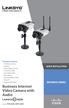 Package Contents 2300 Series Camera Stand Kit Power Supply (12V 1A) 6 Ethernet Cable Lens Adapter Ring Allen Wrench Quick Installation Guide Setup CD Antenna (WVC2300) Business Internet Video Camera with
Foglight Experience Monitor and Foglight Experience Viewer
 Foglight Experience Monitor and Foglight Experience Viewer Quest Software, Inc. April 2008 Using the Dell Remote Access Controller Copyright Quest Software, Inc. 2008. All rights reserved. This guide contains
FileCruiser. VA2600 SR1 Quick Configuration Guide
 FileCruiser VA2600 SR1 Quick Configuration Guide Contents About this guide 1 Setup FileCruiser 2 Get IP address 2 Login to the Administration Portal 3 Basic configuration with Setup Wizard 4 Step 1: Configure
Check Your Package Contents. CD-ROM containing Manual and Warranty
 This product can be set up using any current web browser, i.e., Internet Explorer 6 or Netscape Navigator 6.2.3. DVA-G3340S Wireless VoIP Router Before You Begin If you purchased this Router to share your
USER GUIDE. Ethernet Configuration Guide (Lantronix) P/N: 2900-300321 Rev 6
 KRAMER ELECTRONICS LTD. USER GUIDE Ethernet Configuration Guide (Lantronix) P/N: 2900-300321 Rev 6 Contents 1 Connecting to the Kramer Device via the Ethernet Port 1 1.1 Connecting the Ethernet Port Directly
Connecting EWS using DDNS
 Application Note 013 a Visual Plus Corporation Company Connecting EWS using DDNS ver.1.0 This application note explains how to establish communication between PROS and EWS over internet, in case EWS is
Chapter 2 Preparing Your Network
 Chapter 2 Preparing Your Network This document describes how to prepare your network to connect to the Internet through a router and how to verify the readiness of your broadband Internet service from
F-SECURE MESSAGING SECURITY GATEWAY
 F-SECURE MESSAGING SECURITY GATEWAY DEFAULT SETUP GUIDE This guide describes how to set up and configure the F-Secure Messaging Security Gateway appliance in a basic e-mail server environment. AN EXAMPLE
Version 0.1 June 2010. Xerox WorkCentre 7120 Fax over Internet Protocol (FoIP)
 Version 0.1 June 2010 Xerox WorkCentre 7120 Fax over Internet Protocol (FoIP) Thank you for choosing the Xerox WorkCentre 7120. Table of Contents Introduction.........................................
exacqvision Web Server Quick start Guide
 exacqvision Web Server Quick start Guide 11955 Exit 5 Pkwy Building 3 Fishers, IN 46037-7939 USA +1.317.845.5710 phone +1.317.845.5720 fax 1 Basic Installation The exacqvision Web Server works with browsers
Deploying BitDefender Client Security and BitDefender Windows Server Solutions
 Deploying BitDefender Client Security and BitDefender Windows Server Solutions Quick Install Guide Copyright 2010 BitDefender; 1. Installation Overview Thank you for selecting BitDefender Business Solutions
Quick Installation Guide. Overview. GULFSIP ATA-G1S Quick Installation Guide
 Quick Installation Guide Overview This quick installation guide describes the objectives; organization and basic installation of the GULFSIP ATA-G1S VoIP Phone Adapter ( ATA in the following term). The
NETWORK SETUP INSTRUCTIONS
 NETWORK SETUP INSTRUCTIONS How to Connect AVTECH Product to Internet To connect AVTECH DVR or network camera to Internet, you need to: 1). Figure out your network environment, and have related IP information
IR IP Kamera 9060-O (2 Mega Pixel) User Guide
 IR IP Kamera 9060-O (2 Mega Pixel) User Guide IR IP Kamera 9060-O Manual version: 1.XX Date: 2007.11 1 Caution: Any changes or modifications not approved by the party responsible for compliance could void
HRG Performance Series DVR DDNS Support Application Note (DynDNS)
 HRG Performance Series DVR DDNS Support Application Note (DynDNS) This document describes how to enable and configure Dynamic DNS (DDNS) functionality on the HRG Performance Series digital video recorder
To Install EdiView IP camera utility on iphone, follow the following instructions:
 To Install EdiView IP camera utility on iphone, follow the following instructions: Please download Ediview application from Apple s Appstore. You can launch EdiView by clicking EdiView icon. You ll see
Step-by-Step Setup Guide Wireless File Transmitter FTP Mode
 EOS Step-by-Step Setup Guide Wireless File Transmitter FTP Mode Infrastructure Setup Windows XP 2012 Canon U.S.A., Inc. All Rights Reserved. Reproduction in whole or in part without permission is prohibited.
H.264 HD IP Cameras INSTRUCTION MANUAL
 H.264 HD IP Cameras INSTRUCTION MANUAL Executive Summary The video compression engine of the H.264 HD (high definition) IP camera provides high video quality, 720P resolution, bandwidth efficiency, and
Using Internet or Windows Explorer to Upload Your Site
 Using Internet or Windows Explorer to Upload Your Site This article briefly describes what an FTP client is and how to use Internet Explorer or Windows Explorer to upload your Web site to your hosting
FLIR M-Series and NavNet TZtouch
 FLIR M-Series and NavNet TZtouch Overview The following example illustrates the integration of the FLIR M-Series into a NavNet network. The M- Series and the JCU controller are set with a fix IP address
CHAPTER 2: USING THE CAMERA WITH THE APP
 TABLE OF CONTENTS OVERVIEW... 1 Front of your camera... 1 Back of your camera... 2 ACCESSORIES... 3 CHAPTER 1: Navigating the Mobile Application... 4 Device List: How to Use this Page... 4 My Messages:
Step-by-Step Setup Guide Wireless File Transmitter FTP Mode
 EOS Step-by-Step Setup Guide Wireless File Transmitter FTP Mode Ad Hoc Network Windows 7 2012 Canon U.S.A., Inc. All Rights Reserved. Reproduction in whole or in part without permission is prohibited.
TDP43ME NetPS. Network Printer Server. Control Center. for Ethernet Module
 Panduit Corp. 2010 TDP43ME NetPS PA26306A01 Rev. 01 11-2010 Network Printer Server Control Center for Ethernet Module NOTE: In the interest of higher quality and value, Panduit products are continually
This document details the following four steps in setting up a Web Server (aka Internet Information Services -IIS) on Windows XP:
 Wazza s QuickStart: Setting up a Web Server (IIS) Windows XP This document details the following four steps in setting up a Web Server (aka Internet Information Services -IIS) on Windows XP: Configuring
Setting Up Your FTP Server
 Requirements:! A computer dedicated to FTP server only! Linksys router! TCP/IP internet connection Steps: Getting Started Configure Static IP on the FTP Server Computer: Setting Up Your FTP Server 1. This
ivms-4200 Client Software Quick Start Guide V1.02
 ivms-4200 Client Software Quick Start Guide V1.02 Contents 1 Description... 2 1.1 Running Environment... 2 1.2 Surveillance System Architecture with an Performance of ivms-4200... 3 2 Starting ivms-4200...
MJPEG Camera Client User Manual
 MJPEG Camera Client User Manual CONTENTS User Manual 1 WELCOME... 3 1.1Features... 3 1.2Installation Requirements... 3 1.3 Software Installation... 3 2 Software Operation... 5 2.1 Tab bar... 6 2.2 Device
Digital Video Recorder Client and Network Manual V1.1 Table of Contents
 Table of Contents I. PC Client S/W User s Manual...2 1. Introduction of.avh Files Player...2 1.1 Introduction of Function Keys...3 1.2 Specific Operation...3 2. Introduction of DVR Network Remote Client...5
Contents. Introduction 3. Installation 4
 VMS User Manual Contents Introduction 3 Installation 4 Minimum Recommended Requirements 4 Login 4 Main Window 5 Menu Items 5 Toolbar Items 6 Play Bar Items 7 Configuration 8 Add network cameras/ digital
User Manual V1.0. Remote Software
 User Manual V1.0 Notice: The information in this manual was current when published. The manufacturer reserves the right to revise and improve its products. All specifications are therefore subject to change
Setting up the Swann HD IP cameras
 Setting up the Swann HD IP cameras Connecting the cameras to the network The Swann IP cameras are connected to the network with Category 5/5E/6 cables. The cameras feature Power over Ethernet for ease
c. Securely insert the Ethernet cable from your cable or DSL modem into the Internet port (B) on the WGT634U. Broadband modem
 Start Here Follow these instructions to set up your router. Verify That Basic Requirements Are Met Assure that the following requirements are met: You have your broadband Internet service settings handy.
Chapter 1 Configuring Internet Connectivity
 Chapter 1 Configuring Internet Connectivity This chapter describes the settings for your Internet connection and your wireless local area network (LAN) connection. When you perform the initial configuration
CentreWare Internet Services Setup and User Guide. Version 2.0
 CentreWare Internet Services Setup and User Guide Version 2.0 Xerox Corporation Copyright 1999 by Xerox Corporation. All rights reserved. XEROX, The Document Company, the digital X logo, CentreWare, and
DIGICLIENT 8.0 Remote Agent Software
 DIGICLIENT 8.0 Remote Agent Software MODEL: D17800 Series Instruction Manual English Version 1.0 Copyright 2007 Digimerge Technologies Inc Table of Contents Table of Contents About the DigiClient 8.0...
IP Wireless / Wired Camera NIGHT VISION & REMOTE PAN/TILT ROTATE. User Manual
 IP Wireless / Wired Camera NIGHT VISION & REMOTE PAN/TILT ROTATE User Manual WELCOME This model IP Camera is an integrated wireless IP Camera solution. It combines a high quality digital Video Camera with
HRG Performance Series DVR DDNS Support Application Note (hrgddns)
 HRG Performance Series DVR DDNS Support Application Note (hrgddns) This document describes how to enable and configure Dynamic DNS (DDNS) functionality on the HRG Performance Series digital video recorder
Setting Up Scan to SMB on TaskALFA series MFP s.
 Setting Up Scan to SMB on TaskALFA series MFP s. There are three steps necessary to set up a new Scan to SMB function button on the TaskALFA series color MFP. 1. A folder must be created on the PC and
How to Remotely Access Hikvision Devices User Manual
 HIKVISION EUROPE B.V. How to Remotely Access Hikvision Devices User Manual (Use to remotely access Hikvision DVR s, NVR s and IP Cameras) Name: Remote Access Publisher: HIKVISION EUROPE B.V. Type: Information
IP Camera (L series) User manual 2013-05 V1.1
 Dear users, the configuration for this camera is professional, so please read the user manual carefully before using the camera. IP Camera (L series) User manual 2013-05 V1.1 Statement If the user manual
Chapter 4 Restricting Access From Your Network
 Chapter 4 Restricting Access From Your Network This chapter describes how to use the content filtering and reporting features of the RangeMax NEXT Wireless Router WNR834B to protect your network. You can
EnGenius ERB9250 300M Range Extender. Quick Start Guide
 EnGenius ERB9250 300M Range Extender Quick Start Guide Package Contents One ERB9250 300M Range Extender One 12V/1A power adapter Two 2dBi 2.4GHz SMA antennas One Ethernet cable One CD-ROM with user s manual
Chapter 3 Restricting Access From Your Network
 Chapter 3 Restricting Access From Your Network This chapter describes how to use the content filtering and reporting features of the RangeMax Dual Band Wireless-N Router WNDR3300 to protect your network.
Chapter 3 Management. Remote Management
 Chapter 3 Management This chapter describes how to use the management features of your ProSafe 802.11a/g Dual Band Wireless Access Point WAG102. To access these features, connect to the WAG102 as described