
GUIDE FOR EXPORTERS ONLINE REGISTRATION IN RISK ASSESMENT MONITORING SYSTEM
|
|
|
- Annis Carter
- 9 years ago
- Views:
Transcription
1 GUIDE FOR EXPORTERS ONLINE REGISTRATION IN RISK ASSESMENT MONITORING SYSTEM

2 Context 1. Introduction 2. Access to the system 3. Exporter Registration Form (ERF) 4. Annual Performance Information 5. Activation of the Exporter Company 6. Add or Remove Declared Buyer 7. Validity Time of the Exporter Company 8. The Printing of the Exporter Registry Form 9. Validity Extension / Updating Company Profile 10. Sending / Receiving Messages


3 1. Introduction It is a system that enables the establishment and processing of the basic information of foreign exporter companies through a website. 2. Access to the system Users can access to the system via this link. The introduction screen is as follows: Picture 1: Login Screen The entry to the system is provided through address and the password. Those companies that will register through the website for the first time, can access to exporter registry form application through the links You may register here and register. The link I forgot my password directs the user to the link

4 The user receives the password to his/her registered address by entering his/her registered address and pressing the send button. Through the link Help me to use this web site, the access to the information about how to use the system is provided. The link Contact Us is used to get support via Exporter Registry Form (ERF) This application enables the exporter company to register to the system through the declaration of basic information. During this registration process, the following information is required to be filled out. Picture 2a: The Registry of the Exporter Section I

5 Legal Title: It is the legal name of the exporter company. It is obligatory to fill out. Notice that the importers in Turkey can only have import document with the legal title on it. Business Title: It is the short version of the legal title used by the exporter company on the invoice. The legal title can also be used. Company Representative : This space is for the company representative to fill out the information of her/his Name, Surname and the position within the company. Address Line 1 : The address information of the exporter. It is obligatory to fill out. Address Line 2 : The address information of the exporter. Address Line 3 : The address information of the exporter Zip/Post Code : The zip/post code information of the exporter. Country : The country information of the exporter company, can be selected from the country list. It is obligatory to fill out. City :The city information of the exporter company. It is obligatory to fill out. State/Province/Region : The state, province or region information of the exporter company. Phone Number : The phone number information of the exporter company. It is obligatory to fill out. Fax Number : The fax number information of the exporter company. It is obligatory to fill out. URL : The web site address of the exporter company. It is obligatory that the declared web site address has to include the full legal title of the company in one of its web pages. The context of the declared web site should be related with the company. Those web sites open to public usage (such as alibaba.com) cannot be used for registration and cannot be accepted by the system. It is obligatory to fill out. The registration of those companies that do not have active and working web sites cannot be accepted.


6 The registered and valid address information of the exporter company. The declared address should be originated from the domain name of the web address of the exporter company. If the user register with another to the system, the website of the company has to include this address in one of its web pages. The registration with those addresses open to public usage (hotmail, gmail, yahoo, msn, etc.) cannot be accepted by the monitoring centers during the approval of registration process. It is obligatory to fill out. The e- mail address entered to this space should be in use and accessible by the user. Because, the entry to the system could be made with this e- mail address and various communications will be provided with this address. Also activation link will be send to this address. Enter a password : The password defined by the exporter company that will be used while accessing to the system. The password should be at least 6 and at most 10 characters long. Re-Enter the password : The space for re-typing the password entered above for verification. The two passwords should be the same. Tax Authority : The tax authority information of the company is entered. Tax Registry Number : The tax registry number given by the tax authority in the country in which the headquarters of the company is located. It is obligatory to fill out. Year of Establishment : The establishment year of the exporter company. Legal (Corporate) Status : The legal status information of the exporter company. 1. Annual Performance Information The space for entering the basic performance information of the exporter companies. It is optional to fill in the boxes in this area. Picture 2b: The Registry of the Exporter Section II Number of Employees (Yearly Average) : The average number of employees working in the company annually. If it is not preferred to give this information, then the Commercial Secret box should be marked.

7 Total Sales in USD (last year) : The total amount of sales of the exporter company in USD in the last year. If it is not preferred to give this information, then Commercial Secret box should be marked. International quality certificates & registry number : The quality certificates and the related registry numbers of the exporter company. Importing Countries : The export countries information of the exporter company. It can be accessed to the country list through using the button on the right side of the space. If more than one country is to be selected, the selection is done through the pressing of the Ctrl button. After the country selection is done, the selected countries are included to the list through pressing the button. If it is not preferred to give this information, then Commercial Secret box should be marked. Products (Harmonized System Codes): The list of products that the exporter company exports. I hereby certify that the above statements are correct: This box should certainly be marked for completing the registration process. The user undertakes that the information given by him or her is accurate. 5. Activation of the Exporter Company With the button, the exporter company conveys the exporter registry form to the monitoring centers. Also an activation e- mail is sent to the registered address of the exporter company. To be log in to the system the exporter has to activate its registration with clicking the link in this e- mail. Also the exporter companies can copy and paste this link to their browsers. Please note that the activation link expires in 7 days. Also notice that the 3-days evaluation period starts just after this activation process. Picture 3: The Activation

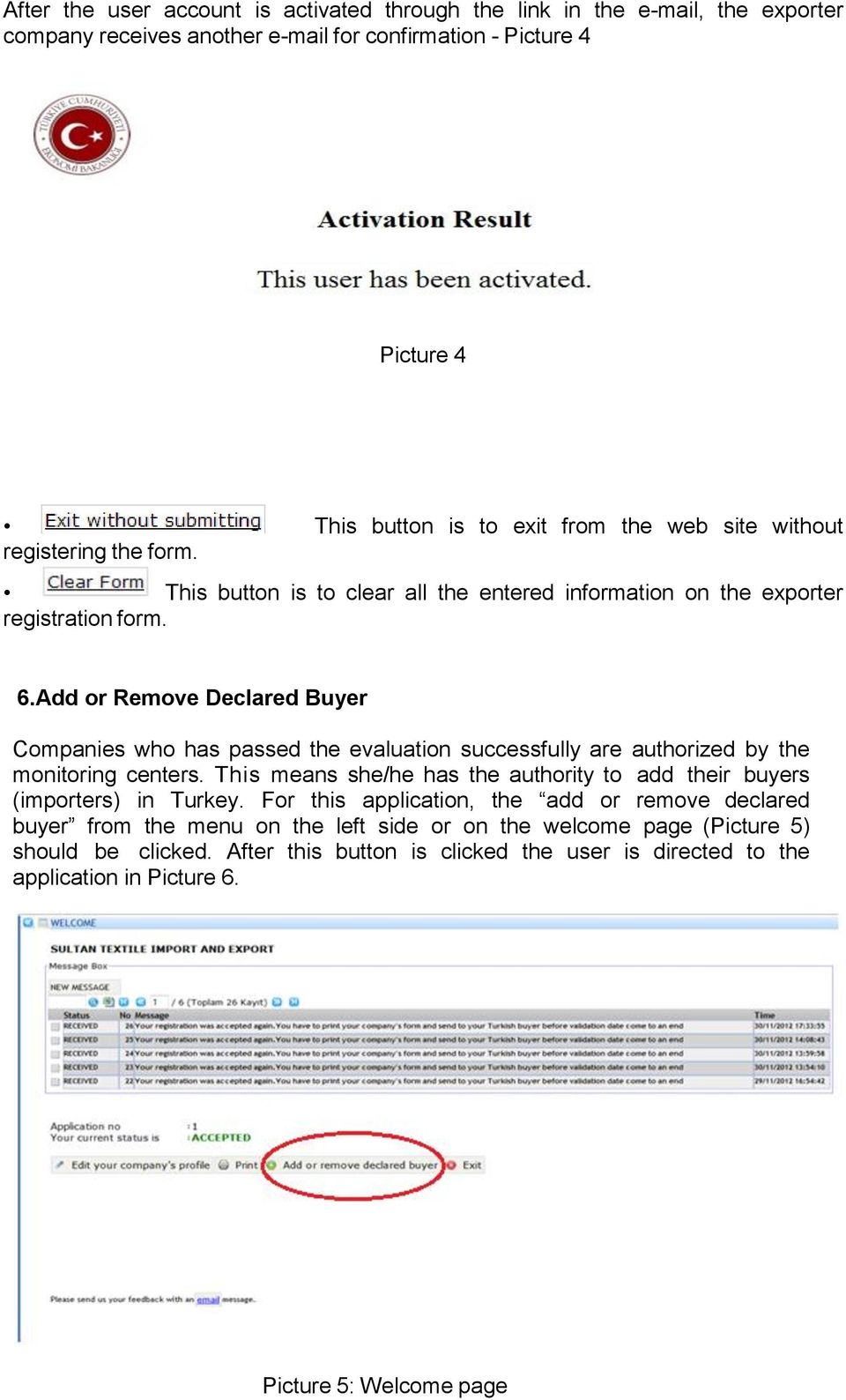
8 After the user account is activated through the link in the , the exporter company receives another for confirmation - Picture 4 Picture 4 This button is to exit from the web site without registering the form. This button is to clear all the entered information on the exporter registration form. 6.Add or Remove Declared Buyer Companies who has passed the evaluation successfully are authorized by the monitoring centers. This means she/he has the authority to add their buyers (importers) in Turkey. For this application, the add or remove declared buyer from the menu on the left side or on the welcome page (Picture 5) should be clicked. After this button is clicked the user is directed to the application in Picture 6. Picture 5: Welcome page
9 Picture 6 A Turkish buyer can be added through following the steps below. 1. button is clicked and a line as below is opened. 2. Through pressing this button, a list of Turkish buyers is opened. (Picture 7) Picture 7 In this list, through entering the tax number or the title of the Turkish buyer to the Criteria spaces, the company can be found in the list. The list is closed upon the selection of the found registration.

10 3. Through pressing this button, the saving process is completed. After this registration process, the Turkish buyer is allowed for importation. 4. In order to remove an exporter added to the system button should be selected as No and Save to activate before exit. 7. Validity Time of The Exporter Company 1. For the companies that has not submitted its exporter registry form with approval of related country s local authorities and one of the Consulates of the Turkish Republic in the exporter country to the monitoring centers before, has 60 days validity time for each different Turkish buyers that it added to the system. Those exporter companies have to send their exporter registry form with approval of related country s local authorities and one of the Consulates of the Turkish Republic in the exporter country, to the monitoring centers with one of their Turkish buyers for only one time. After sending the exporter registry form to monitoring centers, those companies automatically will have 1 year validity time starting from the date of the approval of Turkish Consulate. If those exporter companies add new Turkish buyers, system will give the same validity time with the other Turkish Importers automatically. 2. For the exporter companies that has submitted its exporter registry form with approval of related country s local authorities and one of the Consulates of the Turkish Republic in the exporter country to the monitoring centers before, automatically take one year validity time from the system after passing the evaluation process. Those companies do not need to send their exporter registry form to the monitoring centers. 8. The Printing of the Exporter Registry Form For the companies that will send their exporter registry form to the monitoring centers for the first time can print out their form via using 2 different print buttons. 1. On the welcome page (Picture 8) 2. On the edit your company profile page (Picture 9)


11 Picture 8 PICTURE 9


12 After pressing the print button, the screen in Picture 10 is opened. Picture The suitable format is selected on the opened screen and OK button is clicked.


13 9. Validity Extension / Updating Company Profile Exporter companies who has submitted its form with the related approvals and already took one year validity time can extend their validity time with submitting their form again from the system. After the login, the welcome message in Picture 11 is opened to the user. Picture 11


14 Through edit your company s profile button, editing and updating of the declared exporter registration form could be done. This button opens the exporter registry form. Picture 12 If there are some changes took place, companies should change the values in the boxes and submit the form again to the monitoring centers with the submit this form for evaluation button. Companies can submit this form without any changes if there is not any change in the company informations. After submitting the form again, the company s status changes to reappraisal. Monitoring centers will evaluate this application in three days. Also an activation is sent to the registered address of the exporter company. To be log in to the system the exporter has to re-activate its registration with clicking the link in this . Also the exporter companies can copy and paste this link to their browsers. Please note that the activation link expires in 7 days. Also notice that the 3-days evaluation period starts just after this activation process. 10.Sending / Receiving Messages This is the application where the messages could be sent to the monitoring centers by the user or the messages which are sent by the monitoring centers to the user could be seen.

15 Picture 13 If the box over the message is selected, the message box including the message will appear in detail. Picture 14 : It is used to write a new message.

16 : It is used to send the prepared message. : It is used to clear the prepared message. Picture 15

Partner Portal User Procedures
 Partner Portal User Procedures The help topics below are included in this document: Overview Self-Registration (First Time Users) Enrolling in an Application Accessing an Application (Once Enrolled) Signing
Process: Self Service
 How Do I Login to the Online Vendor Self-Service Application? 1. Using the information provided in the email sent to the primary Contact: Navigate to the URL for the application, the PeopleSoft Sign In
LARS Online Registration Instructions for CNAs (LARS Louisiana Registration System for CNA s)
 LARS Online Registration Instructions for CNAs (LARS Louisiana Registration System for CNA s) Effective 8-15-2010, certified nurse aides working in nursing homes and in hospital based skilled units (SNF)
Table of Contents. Changing Your Password in Windows NT p. 1. Changing Your Password in Alpha Connection.. pp. 1-3
 Table of Contents Changing Your Password in Windows NT p. 1 Changing Your Password in Alpha Connection.. pp. 1-3 Not Able to Get Outlook Express Mail Because Alpha Connection Password Expires... pp. 3-4
Topic: ACE Initial Account Access
 What s Inside: Account Creation Automatic e-mail Page 1 Password Retrieval Page 2 Initial Login Page 3 Creating New Password Page 4 Changing Password Page 6 Login Failure Page 6 Additional ACE Resources
ADP Mobile Solutions: Register to use the ADP Mobile App
 ADP Mobile Solutions: Register to use the ADP Mobile App **NOTE: Registering for an ADP account is only needed if you plan to use the Mobile app. You DO NOT need to register if you DO NOT plan to use the
The Goodyear Tire & Rubber Co. Supplier Registration User Guide
 The Goodyear Tire & Rubber Co. Supplier Registration User Guide Welcome to The Goodyear Tire & Rubber Company supplier registration site. Here you will be able to submit your information to Goodyear quickly
User Guide. Foreign Professor/Researcher
 User Guide Foreign Professor/Researcher 1 Registration and Login In order for you to register as a Foreign Professor/Researcher in the General Registry of the Information System "Apella", you need to create
Document Services Customer Accounts Online
 User Guide Document Services Customer Accounts Online Defense Logistics Agency Version 1, 1 May 2011 Page 1 Registration and Log In In order to begin using Document Services Customer Accounts Online, use
How To Encrypt An Email From A Cell Phone To A Pc Or Ipad (For A Partner) With A Cisco Email Encryption Solution (For Partners)
 New PHI & PII E-mail Encryption Solution (Partner Notification) In a continuing effort to utilize the advantages of email security while at the same time protecting clients private information, the Department
Registering your Business
 Registering your Business with the Publicly Available Database Consumer Product Safety Risk Management System (CPSRMS) Ming Zhu, CPSRMS Phase 1 Project Manager July 15, 2010 2 Information in this presentation
Table of Contents. 1. Software House Website Login. a. Forgot My Password Recovery Feature. 2. Site Registration. a. Creating Your Account
 Welcome to the Software House Website Registration Process Guide. This guide has been assembled to provide an overview of the registration process on the Software House website and can be used to help
Monash Health Self Service
 Monash Health Self Service Table of Contents Monash Health Self Service Password Reset \ Account Unlock via a Non-Monash Workstation... 2 Monash Health Self Service Password Reset \ Account Unlock via
This document is not an offer, commitment, representation or warranty by AT&T and is subject to change.
 To log in to Premier Online Care as a Corporate Responsibility User (CRU), you first need to register for a Premier account. This guide walks you through the steps of registering yourself using a PIN that
The site also provides self-guided product demonstrations, basic service information and support contact information.
 USER GUIDE TCC Online Getting Started TCC Online is a free service that makes it quicker and more convenient for you to access all of your conferencing services. From a single point of entry you ll be
Web Timesheet. New User Registration & Associate Login User Guide
 Web Timesheet New User Registration & Associate Login User Guide Table of Contents 2 Access New User Registration Page... 3 Register New User... 4 Step 1: Company... 4 Step 2: Employee... 4 Step 3: User
How to complete and submit an expert application
 How to complete and submit an expert application General information All applications must be completed and submitted online. The application form can only be completed in English, French or German. When
4H Online Re-Enrollment
 4H Online Re-Enrollment This instruction sheet if for returning 4H members only! 1. Navigate to the site ne.4honline.com. You will see changes have been made to the site since last time you logged in.
MySpam email filtering service Protection against spam, viruses and phishing attacks
 MySpam email filtering service Protection against spam, viruses and phishing attacks 1. Introduction This MySpam guide describes the new service and changes to the University s current spam handling procedures.
Banner Self-Service User Support. Set Up an Automatic Payment Plan
 Set Up an Automatic Payment Plan Banner Self-Service You have three options when paying your fees online in Banner Self-Service. You can use Visa, MasterCard or Discover. Set up an automatic payment plan
User Guide. Delta Controls Single Sign On
 User Guide Delta Controls Single Sign On This document outlines the new, streamlined login process for Delta Partner web applications using the Delta Controls Passport Single Sign On system. Contents 1
Mississippi Educator Licensure Management System. Single Sign On User Guide
 Mississippi Educator Licensure Management System Single Sign On User Guide September 2009 Table of Contents Table of Contents... 2 myelms SSO User Guide... 3 Login Screen... 3 myelms Login Screen Overview...
How To Use Turna 4Europe Online Education And Training Programmes Online (Eu)
 Carries your information globally USER MANUAL v.2.0 2 TABLE OF CONTENTS TABLE OF CONTENTS... 2 LIST OF FIGURES... 3 1. PURPOSE... 4 2. TURNA... 4 3. TURNA USER INTERFACE... 4 3.1 TURNA Login Page... 4
All Colleagues Landing Page
 INTERNAL USE ONLY All Colleagues Landing Page User's Manual Version 5 Table of Contents Login... 2 Password Features... 4 Expired password...4 Password reset...6 Region Selection... 8 Changing Your Region...8
Job Aid: Accessing the VA Talent Management System (TMS)
 Job Aid: Accessing the VA Talent (TMS) Purpose The purpose of this job aid is to guide you through the step-by step process of logging into the VA TMS, retrieving your forgotten password and using the
Setting up an account and logging in using Design & Print Online. Opening a saved project
 Setting up an account and logging in using Design & Print Online Opening a saved project 1 of 7 Account Set-Up & Login 1. On the Design and Print Online home page click on the Click to start Design & Print
@student.chuhai.edu.hk Email Services Users Manual
 @student.chuhai.edu.hk Email Services Users Manual Revised: APR 2014 Contents 1. How to start using student.chuhai.edu.hk email services?... 2 2. How to login to student.chuhai. edu.hk?... 3 3. How to
THIRD PARTY USER GUIDE
 THIRD PARTY USER GUIDE Third Party User Guide Page 1 of 12 CONTENTS 1. INTRODUCTION... 3 2. INTENDED AUDIENCE... 3 3. ABOUT SiD... 3 4. HARDWARE & SOFTWARE REQUIREMENTS... 3 6. HOW TO ACCESS SiD VIA INTERNET...
ireceivables User Guide
 ireceivables User Guide Contents Processing invoices in ireceivables... 2 Create a New Credit Card Account... 7 Partial Payment on Invoice... 12 Multiple Invoice Payment... 14 Changing Passwords in ireceivables...
Account Activation. Guide
 Account Activation Guide Table of Contents Introduction... 3 Activating Your Account... 3 Activation Step 1: Identity Verification... 3 Activation Step 2: User Information... 5 Verify Account Information...
DEBT HELP SYSTEM USER GUIDE
 DEBT HELP SYSTEM USER GUIDE Author: NATIONAL CREDIT REGULATOR Date: 31 July 2011 Version: 2.2.5 CONTENTS 1. WELCOME 3 2. HOW TO LOGIN TO THE DEBT HELP SYSTEM 4 3. HOW TO ADD A DEBT CONSUMER 8 4. HOW TO
PaymentNet Federal Card Solutions Cardholder FAQs
 PaymentNet Federal Card Solutions It s easy to find the answers to your questions about PaymentNet! June 2014 Frequently Asked Questions First Time Login How do I obtain my login information?... 2 How
Helpdesk User Guidelines
 Colby Sawyer College is pleased to announce the introduction of its new Helpdesk from HelpSTAR. To improve our ability to assist users across campus with their technical issues, the Information Resources
Reset Virtual Gateway Password Job Aid
 Summary of Job Aid In order to access a Virtual Gateway s business service, you must first log on to the Virtual Gateway (VG). From the Virtual Gateway s website (www.mass.gov/vg), click Logon to Virtual
FDIC Secure Email Procedures for External Users April 23, 2010
 FDIC Secure Email Procedures for External Users April 23, 2010 This document contains information proprietary to the Federal Deposit Insurance Corporation. Table of Contents 1. Introduction...2 2. Receiving
Secure Email Actions for Email Recipients
 Secure Email Actions for Email Recipients Actions for Email Recipients The recipient cannot forward encrypted email outside the secure system. Each email will only be available to the recipient for 30
Personal Online Banking:
 Personal Online Banking: If you access your account information through CNB Online Banking, our personal banking site, you will be able to import your account transactions directly into Quicken/QuickBooks.
Provider OnLine. Log-In Guide
 Provider OnLine Log-In Guide Table of Contents 1 LOG-IN ACCESS... 3 1.1 ENTERING THE USER ID AND PASSWORD... 4 1.2 OVERVIEW AND PURPOSE OF TRICIPHER... 5 1.2.1 Log-in for Users Who Are Active, But Not
Provider Express Obtaining Login Access. Information for Network Providers
 Provider Express Obtaining Login Access Information for Network Providers November 2013 Objectives This presentation will review the following features: How to Log in to Provider Express Retrieve a forgotten
FAQs: Resident Services Account
 FAQs: Resident Services Account Welcome to Progress Residential and RentProgress.com! This information packet will guide you through the registration process so that you can easily: Pay your rent online
Single Sign-On Instructions (SSO) Registration for the SSO
 Single Sign-On Instructions (SSO) Registration for the SSO Step 1: Registration to Single Sign-On (SSO) Skip this section if you ve already registered for a SSO account. Open your web browser (Internet
USER GUIDE: INTERNET BANKING. Version 2.0
 USER GUIDE: INTERNET BANKING Version 2.0 About Internet Banking (IBank) Guaranty Trust Bank Internet Banking, is a secure online system designed to make our banking service readily available to our customers.
How do I enroll in the password portal?
 The self-serve portal is designed to allow you to change your password and unlock your locked account even if you have forgotten your password. You must enroll for this service to be able to use it. You
NTTCT Mail Hosting Service Account Management
 NTTCT Mail Hosting Service Account Management (Mail Hosting: NTT Communications (Thailand) Co., Ltd.) About This Document This document is intended to be a quick reference guide to follow for administrator
Registration & Payment FAQs
 Registration & Payment FAQs Welcome to Progress Residential and RentProgress.com! This information packet will guide you through the registration process so that you can easily: Pay your rent online (including
P309 - Proofpoint Encryption - Decrypting Secure Messages Business systems
 Procedure P309 - Proofpoint Encryption - Decrypting Secure Messages Business systems P309 - Page: Page 1 of 12 Date of Release: 23 February 2011 Status: Final Document Reference: Title: P309 Release Number:
The Initial Registration Process. During the initial registration process, this guide assumes the user has been provided a login ID.
 eopf Account Guide The following processes are covered in this guide: Initial Registration Process (for new users) Forgotten Password Process Forgotten Login ID Process The Initial Registration Process
Certification Quality Initiative User s Guide
 Certification Quality Initiative User s Guide IPC, inc. 3000 Lakeside Drive, Suite 309S Bannockburn, IL 60015 847.615.7100 Certification Quality Initiative User s Guide Copyright 2014 IPC, Inc Bannockburn,
OLAS Applicant Process
 OLAS Home Page Enter https://olas.wi.gov in the browser location box to display the OLAS Home page. Click on the Create Account tab on the OLAS menu to display the DOA/Wisconsin Logon Management System
BlackBerry Internet Service Using the Browser on Your BlackBerry Smartphone Version: 2.8
 BlackBerry Internet Service Using the Browser on Your BlackBerry Smartphone Version: 2.8 User Guide SWDT653811-793266-0827104650-001 Contents Getting started... 3 About messaging service plans for BlackBerry
7. In the boxed unlabeled field, enter the last 4 digits of your Social Security number.
 CREATE YOUR MYVIEW LOGIN To access myview while ensuring security, you will be given an encrypted access key token. You will use this token the first time you log into myview. Once you have successfully
All mail administration activities can be carried out using the Domain Management Console.
 Mail Administration The Domain Management Console All mail administration activities can be carried out using the Domain Management Console. The Domain Management Console is a web-based facility to allow
Instruction Guide. People First Dependent Certification Process
 People First Dependent Certification Process Each time an employee logs into People First to make an enrollment selection during open enrollment or because of a qualified status change (QSC), he/she must
NEW USER REGISTRATION AND EMAIL VERIFICATION
 NEW USER REGISTRATION AND EMAIL VERIFICATION The Children s Treatment (CT) or Residential Treatment (RT) organization must have an assigned Departmental Vendor Number (DVN), a PIN number issued to the
Department of Defense Travel Card Citibank Electronic Access System. APC Setup Guide
 Department of Defense Travel Card Citibank Electronic Access System APC Setup Guide Version 6.0 18 December 2008 Introduction This guide was developed to allow you to effectively use Citi s EAS. You will
Link / Login / Logout Page 2. Home Page Page 2. Home Page Breakdown by Levels Page 3. Home Page Breakdown by Columns Page 3
 Table of Contents Link / Login / Logout Page 2 Home Page Page 2 Home Page Breakdown by Levels Page 3 Home Page Breakdown by Columns Page 3 Home Page Main Menu Links.. Page 4 Sort by Page.. Page 4 Main
MIDAS Authorization User Guide. Provider Portal
 MIDAS Authorization User Guide Provider Portal Table of Contents Logging On... 2 Change Your Password... 4 Homepage/Welcome Screen... 5 Provider Management.. 5 Provider Demographics... 6 Provider Additional
User Manual 03/12/2014. A collaborative effort by
 User Manual 03/12/2014 A USER GUIDE DESIGNED TO HELP CREATE AND MAINTAIN PERSONAL ACCOUNTS IN mynhdoe, THE NH DEPARTMENT OF EDUCATION SINGLE SIGN-ON SYSTEM FOR ACCESSING SECURE APPLICATIONS A collaborative
Baylor Secure Messaging. For Non-Baylor Users
 Baylor Secure Messaging For Non-Baylor Users TABLE OF CONTENTS SECTION ONE: GETTING STARTED...4 Receiving a Secure Message for the First Time...4 Password Configuration...5 Logging into Baylor Secure Messaging...7
To create User who have already been registered with OCR and have received Registration Number can follow the following steps.
 3 Post Registration 3.1 Create User To create User who have already been registered with OCR and have received Registration Number can follow the following steps. Figure 50: Link for new User Registration
LDAP Migration Avnet Self Care
 LDAP Migration Avnet Self Care Change Password... 2 Change Forgotten Password Information... 6 Retrieving a Forgotten Password... 11 Tips... 14 Support Desk Contacts... 14 Change Password When you need
Guidelines for new users of the Union Registry ECAS account, registration and enrolment
 Guidelines for new users of the Union Registry ECAS account, registration and enrolment An ECAS account and registration are required for a new user to be added as an account representative Before a new
PeopleSoft Employee Self Service User Guide
 PeopleSoft Employee Self Service User Guide Welcome to the NJTA Employee Self Service (ESS) User Guide. This guide is designed to provide you with the information you need to successfully use the NJTA
Certification Quality Initiative User s Guide v.2
 Certification Quality Initiative User s Guide v.2 IPC, i n c. 3000 L a k e s i d e D r i v e, S u i t e 309S B a n n o c k b u r n, I L 6 0 015 847.6 1 5.710 0 Certification Quality Initiative User s Guide
e-z Cert World Web Service
 e-z Cert World Web Service Exporter Users Guide Version: 2.0 2012 i2i (Innovate to Integrate) Ltd. All rights reserved. Copyright in the whole and every part of this document belongs to i2i (Innovate to
Class Outline. Part 1 - Introduction Explaining email Parts of an email address Types of email services Acquiring an email account
 EMAIL Basics Class Outline Part 1 - Introduction Explaining email Parts of an email address Types of email services Acquiring an email account Part 3 Managing Your Messages Deleting messages The Trash
Registration Instructions. Visual Basic 2010 Express Software
 Registration Instructions for Visual Basic 2010 Express Software Updated January, 2011 Registration of the Visual Basic 2010 Express software is required by Microsoft within 30 days of installation. Registration
Georgia Department of Revenue. georgia tax center. Quick Reference Guide
 georgia tax center Quick Reference Guide 1 Table of Contents 1. Forgot Password or Username.. 3 2. Create a New GTC Profile.. 4 3. Register a New GA Business.. 5 4. Add Accounts to my GTC Profile. 6 5.
Preparing your Domain to transfer from Go Daddy
 Preparing your Domain to transfer from Go Daddy Before you can transfer a domain: Getting Started Disable domain privacy. If the privacy service forwards incoming email, check the ʻforward toʼ contact
Logging into LTC Instant Access the First Time
 Logging into LTC Instant Access the First Time Access the Instant Access website at: https://mycampus.gotoltc.edu Enter your LTC network username and password. These are the credentials you use to initially
Ariba Sourcing Getting Started Guide for Suppliers
 What is the Ariba Commerce Cloud? The Ariba Commerce Cloud is your entry point to all of your seller solutions with Ariba. Rather than managing multiple login IDs for multiple customers sites, you will
GRS Advantage Website User Reference Guide
 GRS Advantage Website User Reference Guide This document describes how to use the GRS Advantage Website. Table of Contents GRS Advantage Website... 2 Accessing the Website... 2 Requesting Access to the
Please use the following index links to quickly access the information you are looking for:
 Please use the following index links to quickly access the information you are looking for: Create a new My PHLY account Registration for Agents Auto ID Web Edit Profile Logout instructions Online Bill
Harris Teeter Job Application Assistance
 Harris Teeter Job Application Assistance Contents Application site... 2 Basic Job Search Page... 3 Job Titles... 3 Browsers... 4 Applying to a Requisition... 5 Forgot User Name and Forgot Password... 6
How to obtain tax return transcripts from the IRS website
 How to obtain tax return transcripts from the IRS website Step One: In your browser, type in www.irs.gov and click on the link that says Get Transcript for My Tax Records Step Two: Click on the Get Transcript
FORWARDING EMAIL (directed to a non-gcccd email account) Revised 3/22/13
 FORWARDING EMAIL (directed to a non-gcccd email account) Revised 3/22/13 FORWARDING FROM OUTLOOK WEB ACCESS (easiest method) You can setup your email to auto forward to a non-gcccd account such as Yahoo,
Offline Payment Methods
 Offline Payment Methods STRONGVON Tournament Management System 1 Overview The STRONGVON Tournament Management System allows you to collect online registration, while arranging for offline payment methods
eproc strategic procurement Supplier - Quick Reference Guide Version 3.0
 eproc strategic procurement Supplier - Quick Reference Guide Version 3.0 1 Overview of eproc 2 How to register in eproc 3 First Connection 4 How to perform the main activities 5 Contact and Help 2 1 Overview
Online Banking User Guide
 Online Banking User Guide Page 1 of 14 Set Up and Access to Online Banking How do I set up Online Banking? To enroll in Online Banking, complete the following: 1. Go to https://www.cobnks.com. 2. Under
SEPTA eps FREQUENTLY ASKED QUESTIONS
 SEPTA eps FREQUENTLY ASKED QUESTIONS Can more than one person from my company register for the SEPTA eps? No. The Vendor Registration Form will register you under your Company Name so all employees should
U.S. Bank Secure Mail
 U.S. Bank Secure Mail @ Table of Contents Getting Started 3 Logging into Secure Mail 5 Opening Your Messages 7 Replying to a Message 8 Composing a New Message 8 1750-All Introduction: The use of email
Verizon Enterprise Center
 Verizon Enterprise Center ONLINE ACCOUNT MANAGEMENT FROM VIRTUALLY ANYWHERE, AT ANY TIME. Manage your business wireless account online through Verizon Enterprise Center. Verizon Enterprise Center offers
EASTPOINTE SECURE E MAIL SYSTEM SETUP INSTRUCTIONS
 EASTPOINTE SECURE E MAIL SYSTEM SETUP INSTRUCTIONS In order to send and receive protected health information (PHI) on consumers between Eastpointe and your provider agency you will need to do the following.
Prepared by Mythtech Limited OFFICE 365 EMAIL MIGRATION MANUAL GUIDELINE
 Prepared by Mythtech Limited OFFICE 365 EMAIL MIGRATION MANUAL GUIDELINE Table of Contents Change Password... 1 Send New Email... 2 Forward E-mail... 3 Reply E-mail... 4 Archive old emails... 5 Office
User Manual. Firm Bank Manager (includes instructions for employees and firms) U.S Network of Virtual Enterprises Bank. for
 U.S Network of Virtual Enterprises Bank User Manual for Firm Bank Manager (includes instructions for employees and firms) US Network Bank User Manual Bank Manager Page 1 of 8 FOR FIRM BANK MANAGER LOGIN
Nessus Cloud User Registration
 Nessus Cloud User Registration Create Your Tenable Nessus Cloud Account 1. Click on the provided URL to create your account. If the link does not work, please cut and paste the entire URL into your browser.
goaml PILOT STAKEHOLDER USER GUIDE REGISTRATION
 goaml PILOT STAKEHOLDER USER GUIDE REGISTRATION FINANCIAL INTELLIGENCE CENTRE REPUBLIC OF SOUTH AFRICA Private Bag X177, Centurion, 0046 https://gostage.fic.gov.za/goamlweb_uat www.fic.gov.za/secure/queries.aspx
CERTIFY EDUCATE ACE CERTIFICATION PROCESS
 ACHIEVE CERTIFY EDUCATE ACE CERTIFICATION PROCESS ACE LOGIN The first step in taking your ACE certification is to log in at RegisterASA.com You can use the Need help logging in? link to reset your login
Secure E-Mail Management Guide. June 2008
 Secure E-Mail Management Guide June 2008 What are Paychex Secure Messages? To enhance the security of client and vendor data, Paychex created the Paychex Secure E-mail Message Center, a Web site hosted
U.S. Bank Secure Email Quick Start Guide
 Welcome to U.S. Bank s Secure Email Service! US Bank has partnered with Cisco to leverage their secure email solution, Cisco Registered Envelope Service (CRES). This guide will show you the steps for opening
How to Use Google Cloud Print
 1 The machine is compatible with Google Cloud Print (Google Cloud Print is a service provided by Google Inc.). By using Google Cloud Print, you can print from anywhere with applications or services supporting