
ireceivables User Guide
|
|
|
- Liliana Martin
- 10 years ago
- Views:
Transcription
1 ireceivables User Guide Contents Processing invoices in ireceivables... 2 Create a New Credit Card Account... 7 Partial Payment on Invoice Multiple Invoice Payment Changing Passwords in ireceivables Exporting invoice into EXCEL, HTML, PDF or RTF formats Converting exports into different formats other than EXCEL, HTML, PDF, RTF Querying items by Organization or Currency Type Querying items by Transaction Amount, Transaction Date or Due Date Changing your preferences Set up Notifications Need Help? Page 1 of 26


2 Processing invoices in ireceivables 1. Log into ireceivables using log-in details provided to you in ireceivables welcome . (If you no longer have that information please 2. Your account summary will be displayed. 3. Click the hyperlink for the Total Open Receivable to see the Account Details. Page 2 of 26


3 4. Click an invoice number hyperlink in the Transaction column, to see more details on that invoice. 5. The invoice page is displayed. You have the options to see Print Preview, see Activities, or Pay. Page 3 of 26

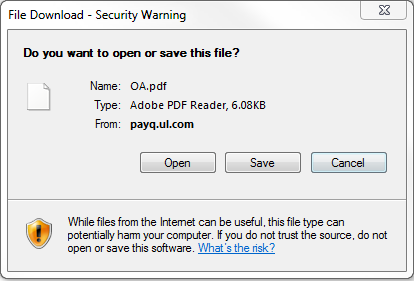
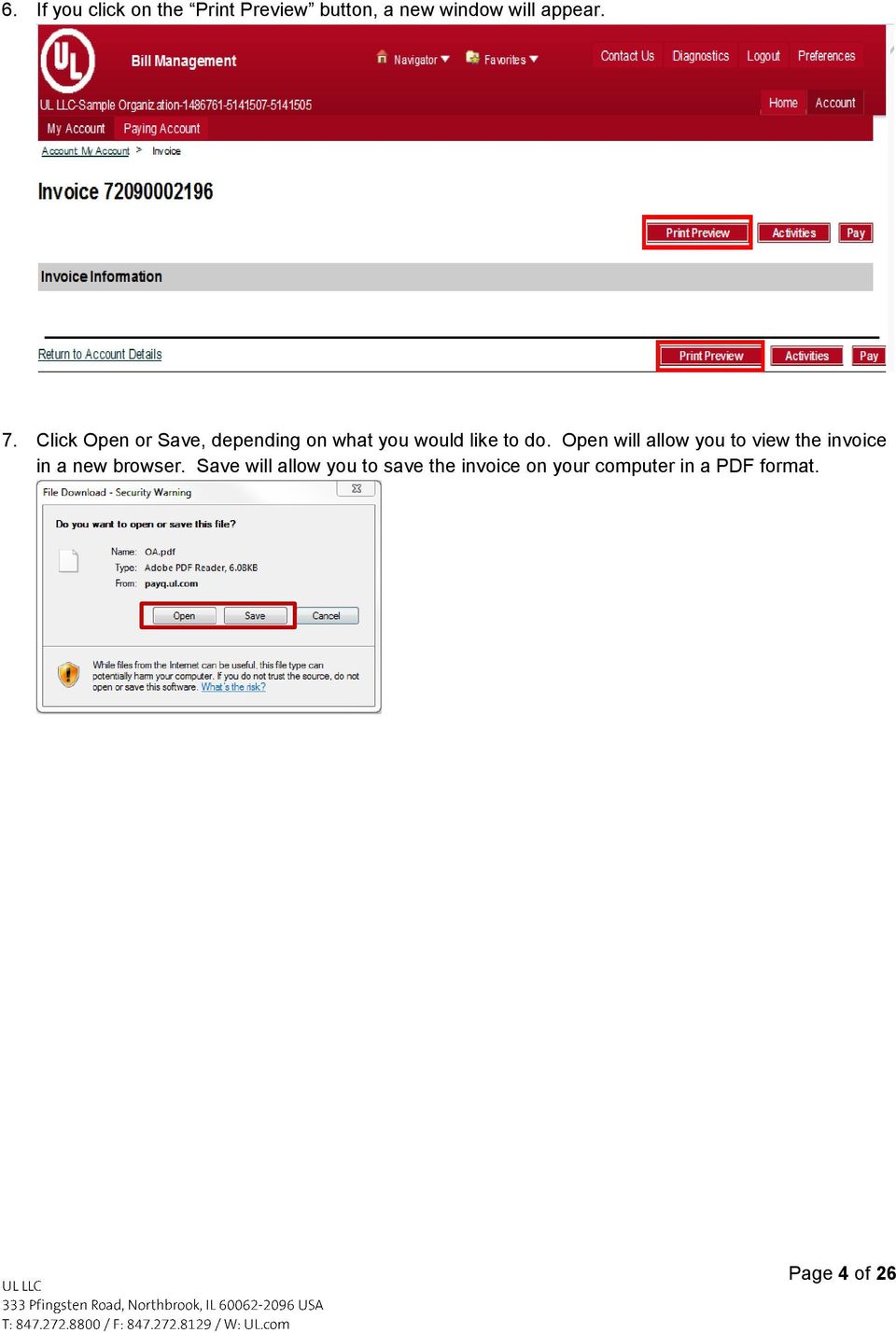
4 6. If you click on the Print Preview button, a new window will appear. 7. Click Open or Save, depending on what you would like to do. Open will allow you to view the invoice in a new browser. Save will allow you to save the invoice on your computer in a PDF format. Page 4 of 26
5 8. A copy of the invoice will appear, if you click Open. Page 5 of 26


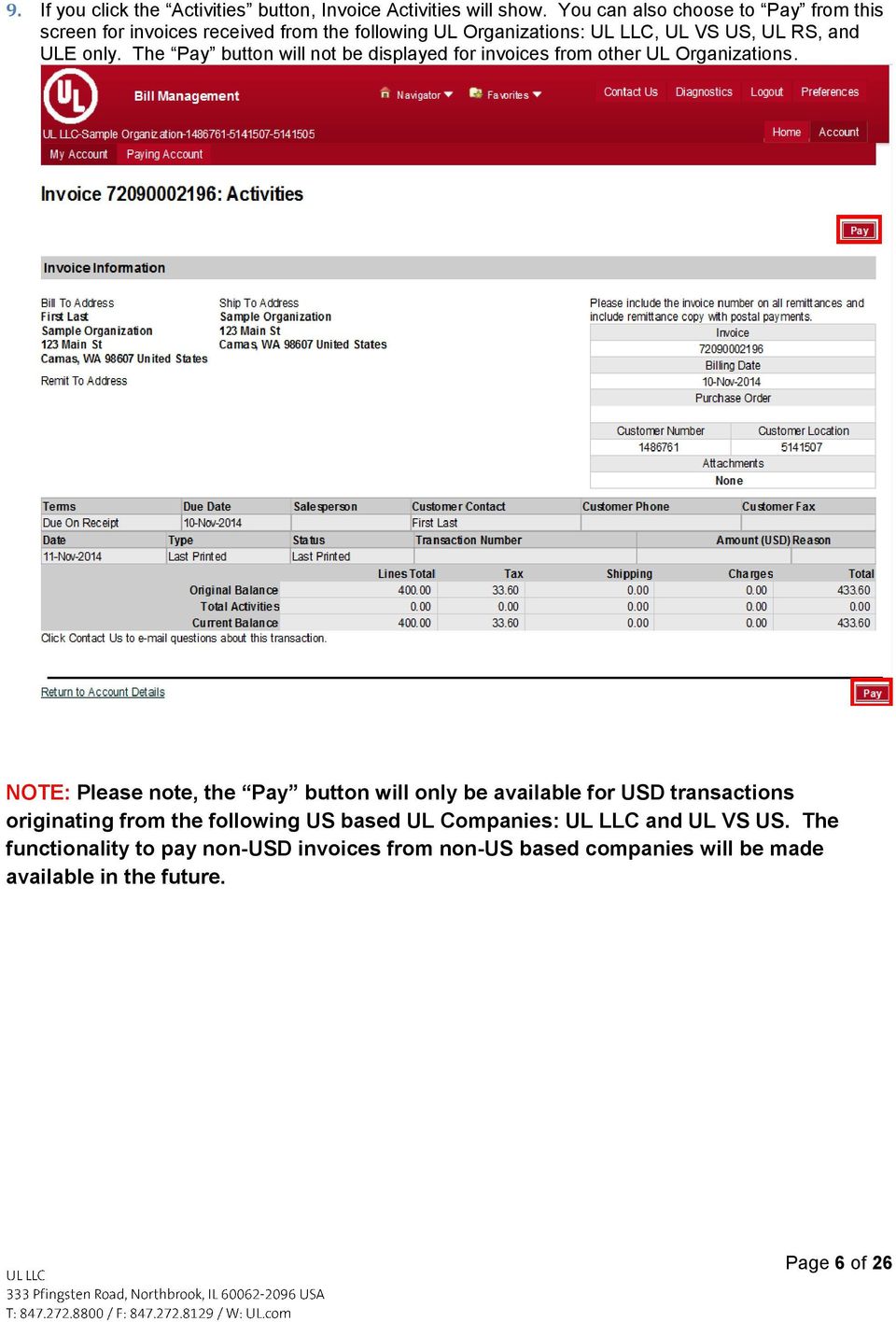
6 9. If you click the Activities button, Invoice Activities will show. You can also choose to Pay from this screen for invoices received from the following UL Organizations: UL LLC, UL VS US, UL RS, and ULE only. The Pay button will not be displayed for invoices from other UL Organizations. NOTE: Please note, the Pay button will only be available for USD transactions originating from the following US based UL Companies: UL LLC and UL VS US. The functionality to pay non-usd invoices from non-us based companies will be made available in the future. Page 6 of 26
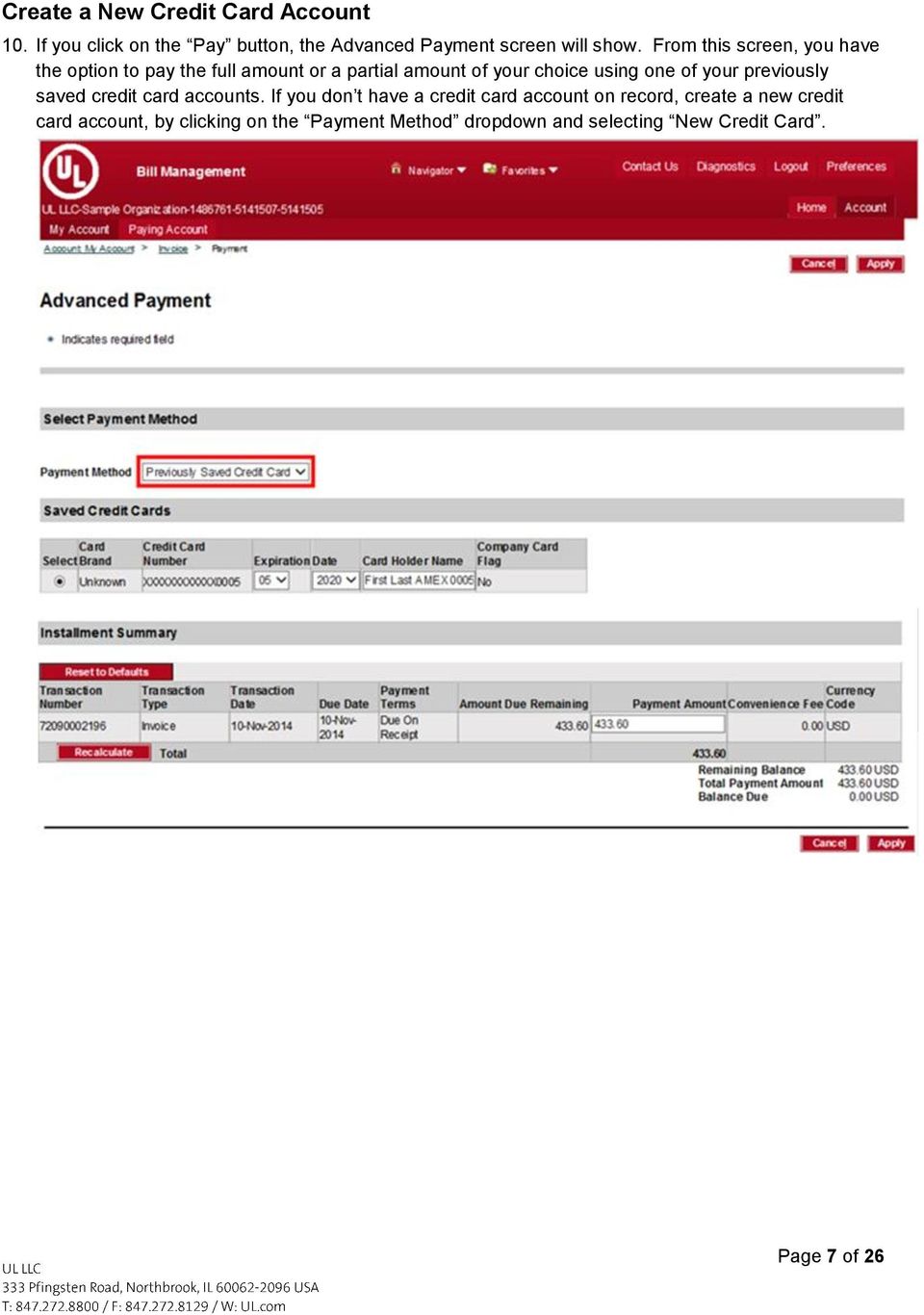
7 Create a New Credit Card Account 10. If you click on the Pay button, the Advanced Payment screen will show. From this screen, you have the option to pay the full amount or a partial amount of your choice using one of your previously saved credit card accounts. If you don t have a credit card account on record, create a new credit card account, by clicking on the Payment Method dropdown and selecting New Credit Card. Page 7 of 26
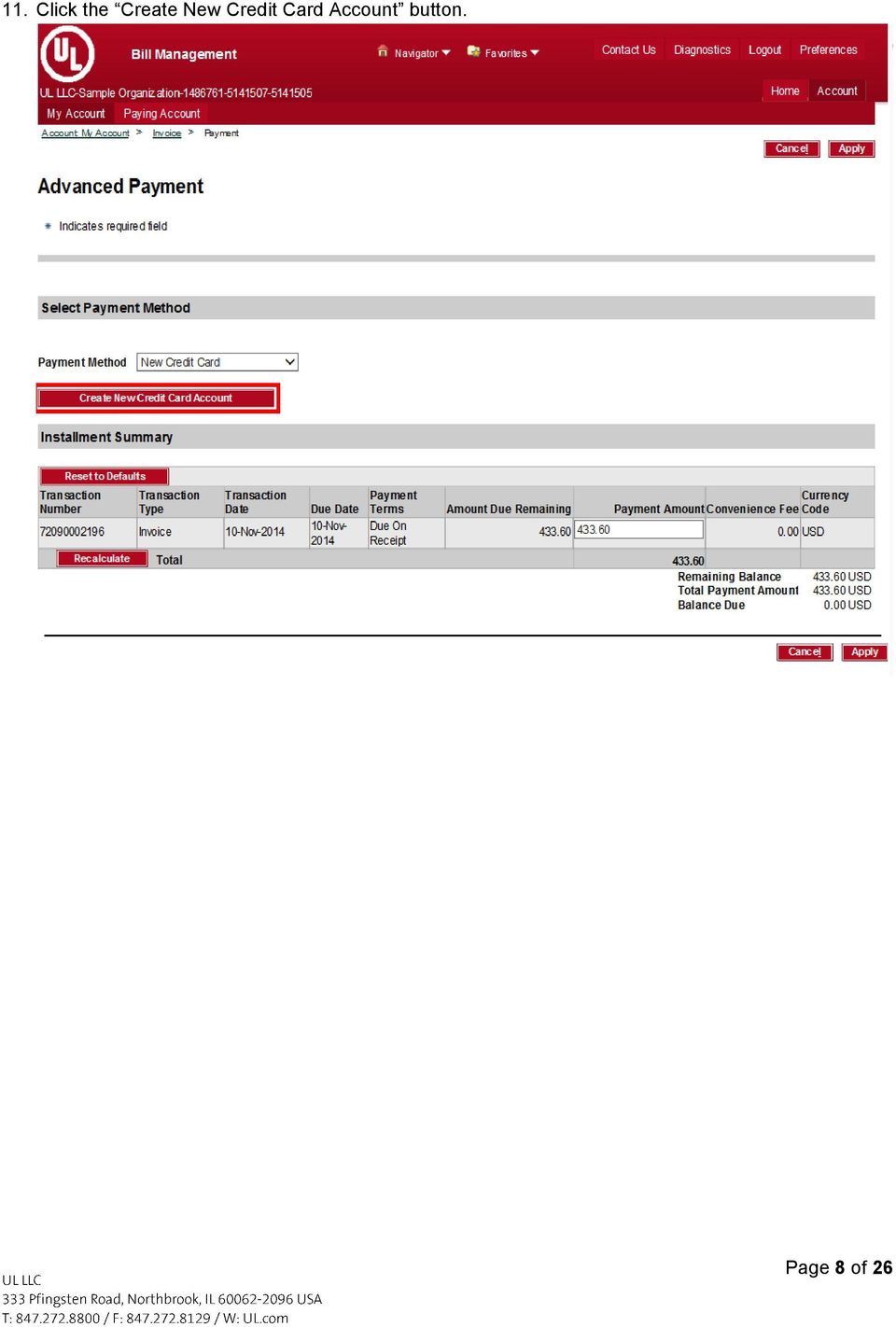
8 11. Click the Create New Credit Card Account button. Page 8 of 26
9 12. A new browser will open. Fill in your information in the required fields. For credit card number, exclude (-) symbol and just enter the number, for example ( ). Fill in your credit card details, then click Finish. The Name and Address fields are for credit card verification purposes and are not necessarily linked to the Bill To Address on the account. (Note: is also a required field.) Page 9 of 26

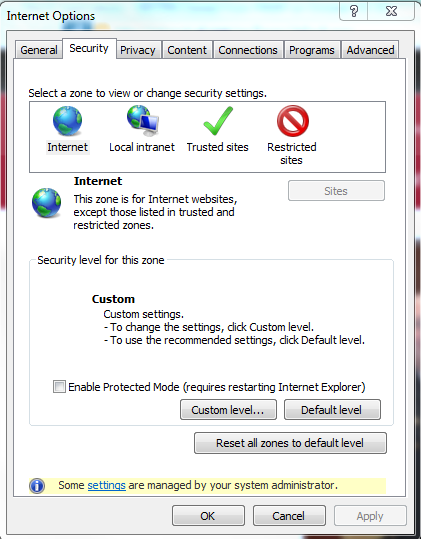
10 13. Your credit card will be created and the screen below will be displayed. Click the Close Window button. Do not click X to exit out of the screen in the upper right corner. Allow a couple of minutes for the credit card to be created on the Advanced Payment screen. Note: If you wish to delete a credit card from your account at any time, please send an to the ireceivables inbox by following the instructions in the Need Help section of this document (pg. 25). Note: On clicking of the Close Window button if the page does not close please ensure Enable Protected Mode is unchecked in Internet Options Security Internet If the window still does not close, you may need to click the X button in the upper right corner and reselect your invoice for payment. Your credit card was created and will be available for future payments. Page 10 of 26


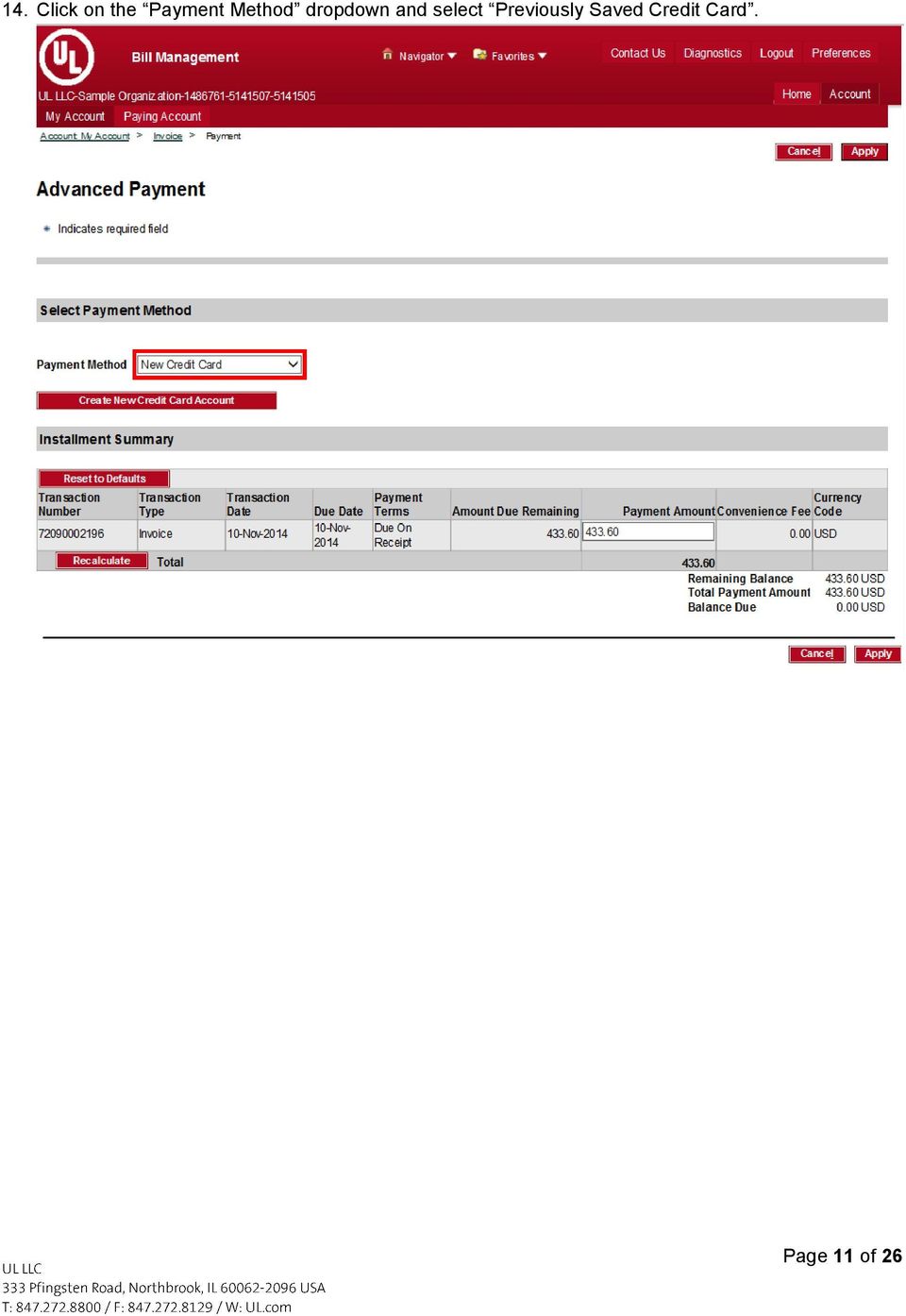
11 14. Click on the Payment Method dropdown and select Previously Saved Credit Card. Page 11 of 26
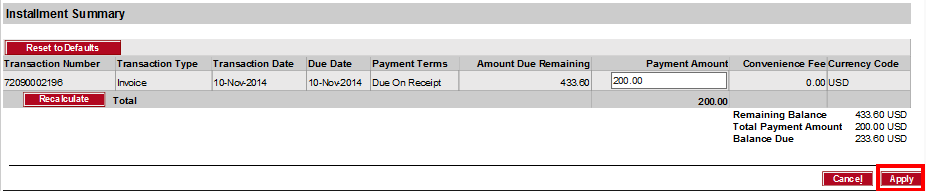

12 Partial Payment on Invoice 15. Your recently created Credit Card Account will be selected. From this screen, you have the option to pay the full amount or a partial amount. Enter the amount you wish to pay in the Payment Amount field and then click the Recalculate button. 16. Click the Apply button to pay. Page 12 of 26

13 17. Confirmation Screen will be displayed. To see your payment, click on the View Payment button. 18. The Customer Payment screen will be displayed. Click on Print ereceipt to print your payment details. 19. A new window will open your ereceipt in a pdf version. Page 13 of 26
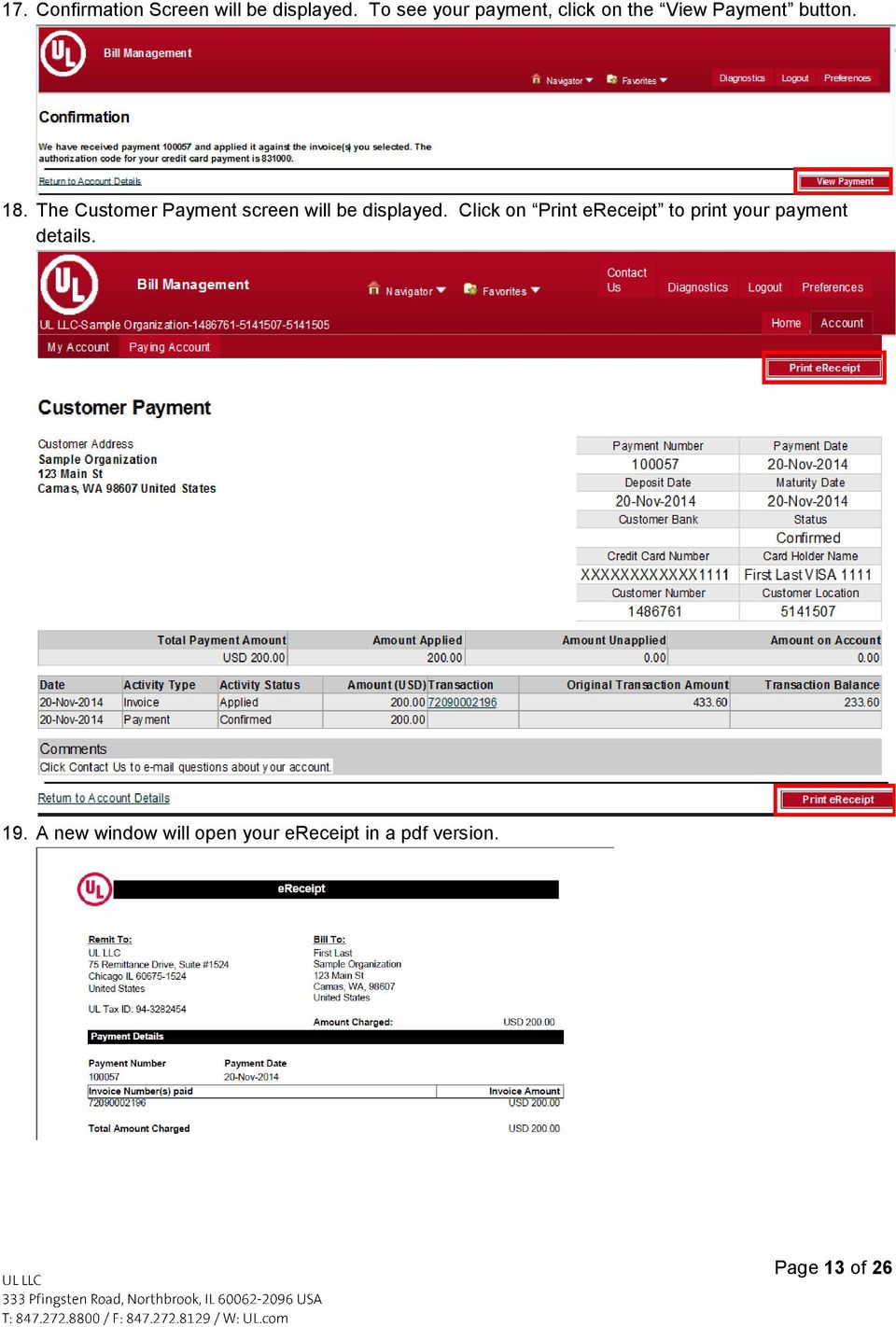

14 Multiple Invoice Payment 1. From the Account Details screen, select multiple invoices you would like to pay by checking the boxes next to each record and click the Pay button. 2. Select the credit card account you wish to pay from or create a new credit card account. Enter the full amount or partial invoice amount you wish to pay in the Payment Amount field and click on the Recalculate button. Page 14 of 26
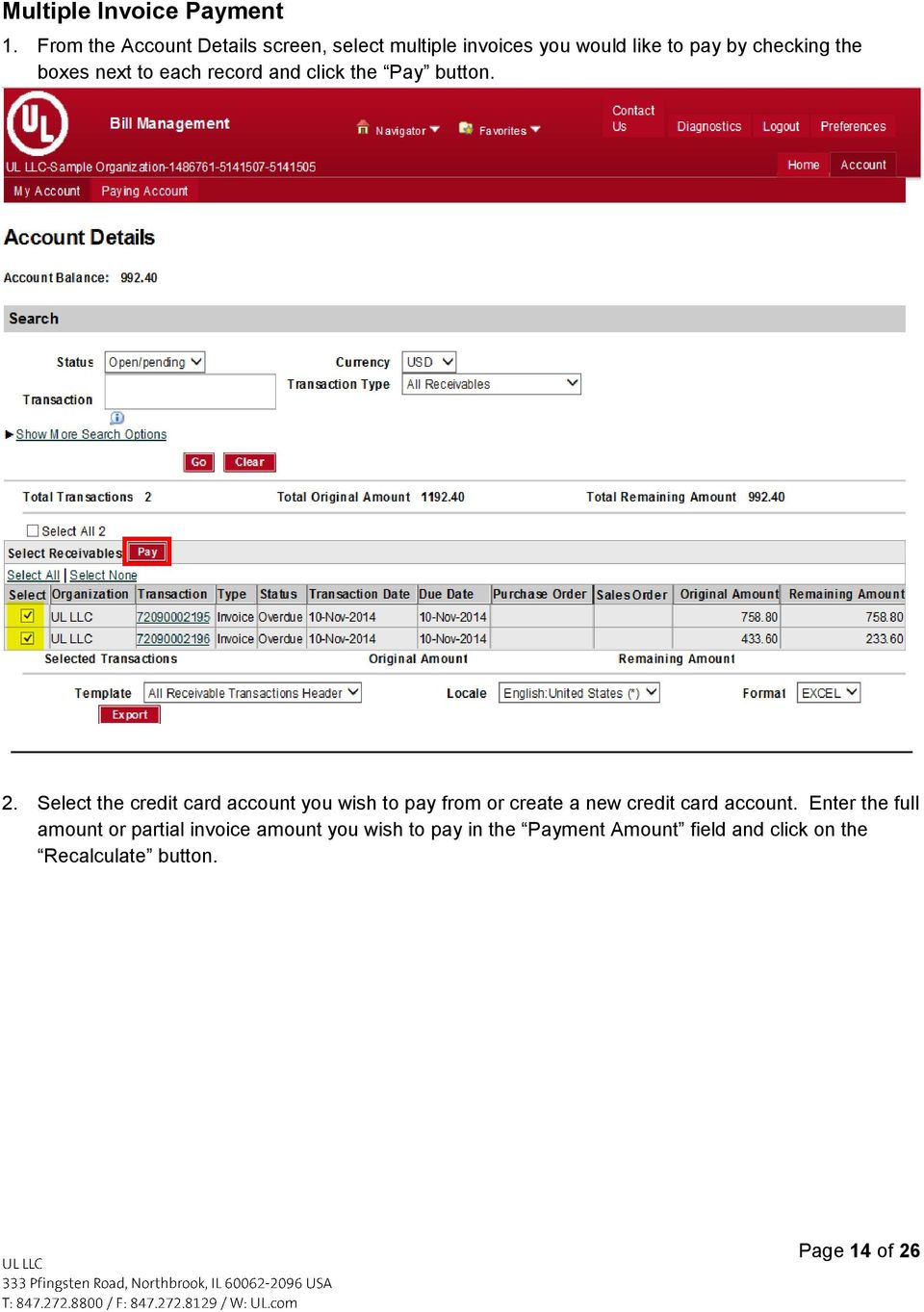

15 3. Then click the Apply button, to apply payments to these invoices. Changing Passwords in ireceivables 1. Log into ireceivables: 2. Click Preferences, located in the top right. Page 15 of 26

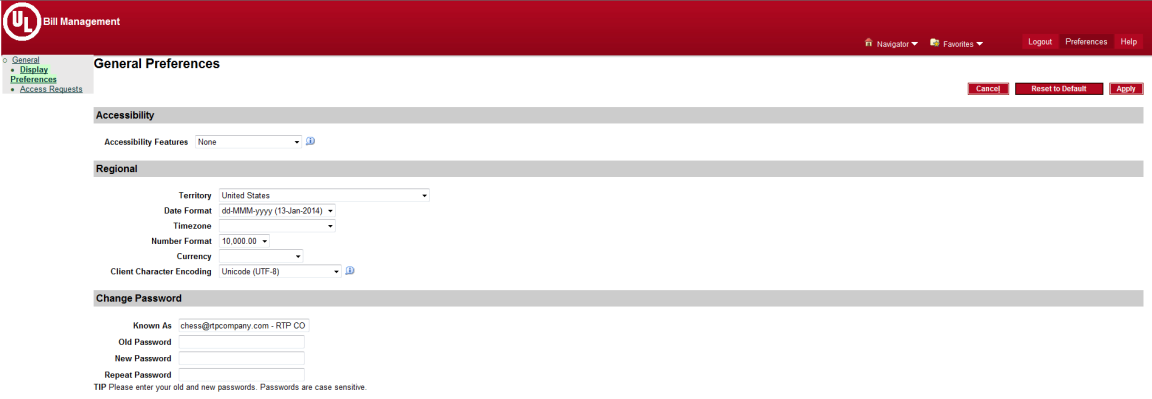
16 3. Enter alphanumeric password into indicated fields (old password, new password, repeat password) 4. Click Apply button and await confirmation (shown at top of window). Page 16 of 26

17 Exporting invoice into EXCEL, HTML, PDF or RTF formats 1. Log into ireceivables: 2. Click 3. Click (located under account summary) associated with correct organization. 4. Click hyperlink for Total Open Receivables amount. Page 17 of 26

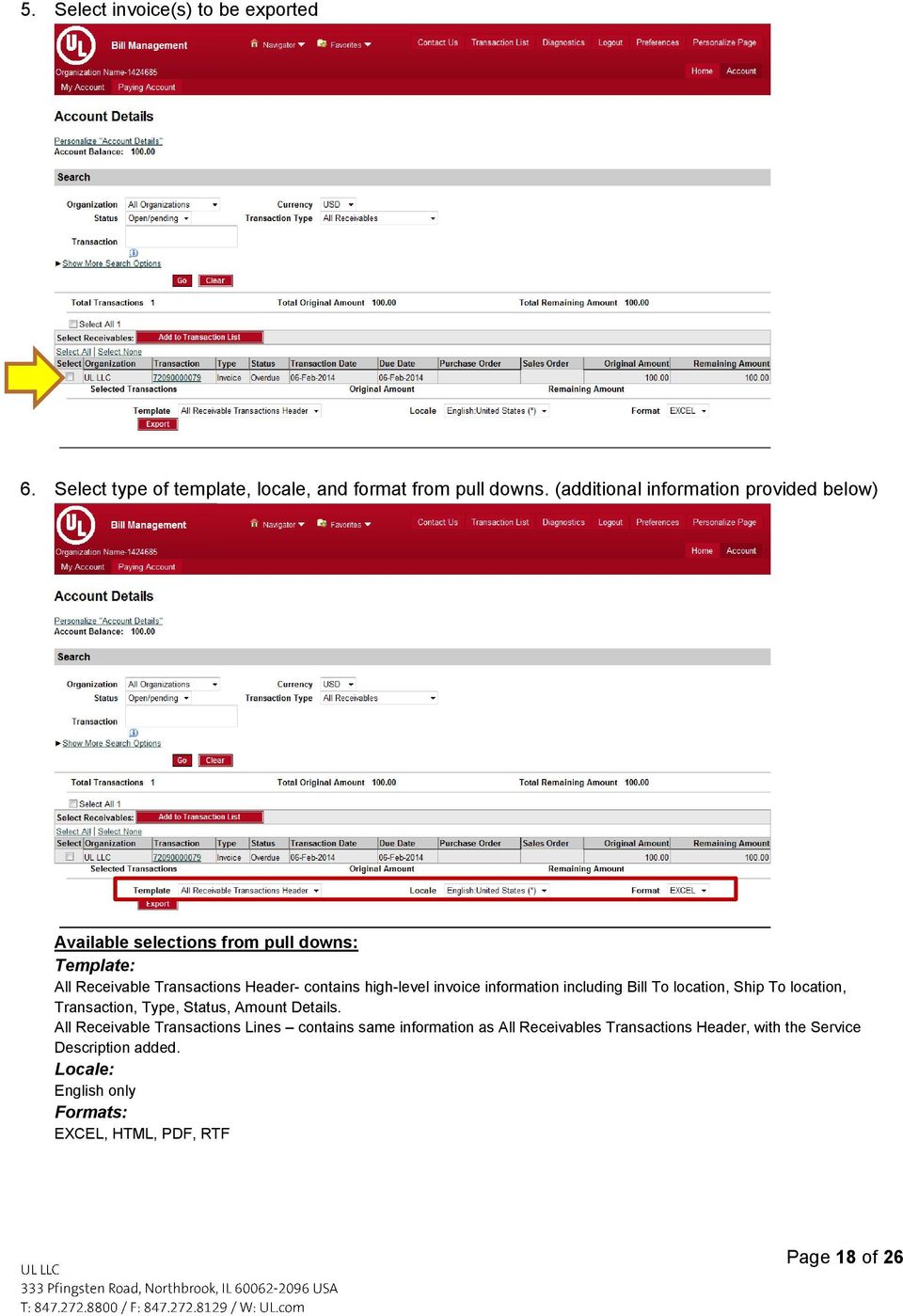
18 5. Select invoice(s) to be exported 6. Select type of template, locale, and format from pull downs. (additional information provided below) Available selections from pull downs: Template: All Receivable Transactions Header- contains high-level invoice information including Bill To location, Ship To location, Transaction, Type, Status, Amount Details. All Receivable Transactions Lines contains same information as All Receivables Transactions Header, with the Service Description added. Locale: English only Formats: EXCEL, HTML, PDF, RTF Page 18 of 26

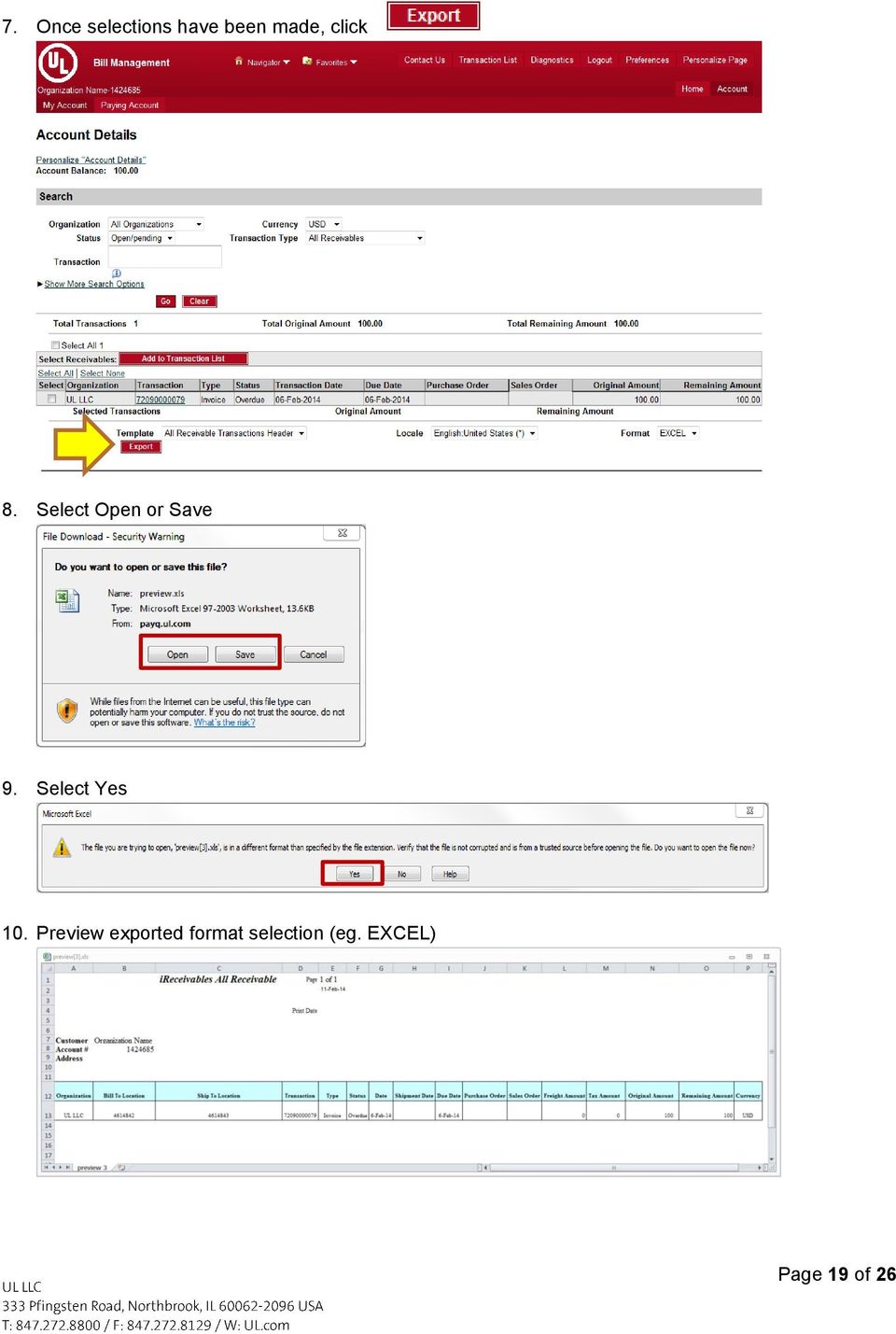
19 7. Once selections have been made, click 8. Select Open or Save 9. Select Yes 10. Preview exported format selection (eg. EXCEL) Page 19 of 26
20 Converting exports into different formats other than EXCEL, HTML, PDF, RTF 1. Export desired selections into either EXCEL or RTF format. (please reference Exporting invoice into a different format (EXCEL, HTML, PDF, RTF), page 6) 2. Open downloaded EXCEL or RTF file 3. Select File, Save As 4. Select pull down from (Save as type:) and make selection of desired format. 5. Click Save 6. Open saved file and preview Page 20 of 26

21 Querying items by Organization or Currency Type 1. Click 2. Click (located under account summary) associated with correct organization. 3. Click pull down bar located next to Organization or Currency and make selection. Page 21 of 26
22 Querying items by Transaction Amount, Transaction Date or Due Date 1. Click 2. Click (located under account summary) associated with correct organization. 3. Click hyperlink for Total Open Receivables amount. Page 22 of 26
23 4. Select the status pull down and change to desired status type 5. Click Show More Search Options, apply any criteria to refine search Page 23 of 26

24 Changing your preferences 1. Paste into URL bar. 2. Locate and click on preferences, located in top right corner of page 3. Select pull down bar or fill in information you would like to update, click apply when complete Page 24 of 26
25 Set up Notifications 1. Locate and click on preferences, located in top right corner of page 2. Select Style from drop down 3. Select Do Not Send Me Mail if you do not want to receive notifications. Select HTML Mail if you would like to receive an when a new UL invoice is loaded in ireceivables. There is no difference in formats. 4. Click Apply to save any changes made Page 25 of 26
26 Need Help? 1. Paste into URL bar. 2. Locate and click on contact us in upper right corner 3. Click allow if pop up window appears 4. Provide any concerns or comments you may need addressed in body of . Page 26 of 26
GUIDEWIRE. Introduction to Using WebMail. macrobatix. Learn how to: august 2008
 macrobatix GUIDEWIRE august 2008 Introduction to Using WebMail Learn how to: Manage Your Inbox Compose a Message Activate Spam Filter Modify Spam Settings Check Held Messages *To download the complete
CONNECT MANAGER SUPPLY ORDER MANAGEMENT TOOL 3.5 MANUAL
 CONNECT MANAGER SUPPLY ORDER MANAGEMENT TOOL 3.5 MANUAL Table of Contents Open Supplier Network SM Table of Contents 1 How to Get Started..3 Viewing Orders....6 Processing Orders. 12 Exporting Orders...16
Terminal Four. Content Management System. Moderator Access
 Terminal Four Content Management System Moderator Access Terminal Four is a content management system that will easily allow users to manage their college web pages at anytime, anywhere. The system is
emarketing Manual- Creating a New Email
 emarketing Manual- Creating a New Email Create a new email: You can create a new email by clicking the button labeled Create New Email located at the top of the main page. Once you click this button, a
Self Service Banner (SSB) Finance
 Self Service Banner (SSB) Finance I. Self Service Banner Finance Introduction Self Service Banner is a user friendly Banner interface used to research and extract information from the Banner Finance module.
Baylor Secure Messaging. For Non-Baylor Users
 Baylor Secure Messaging For Non-Baylor Users TABLE OF CONTENTS SECTION ONE: GETTING STARTED...4 Receiving a Secure Message for the First Time...4 Password Configuration...5 Logging into Baylor Secure Messaging...7
TriCore Secure Web Email Gateway User Guide 1
 TriCore Secure Web Email Gateway User Guide This document provides information about TriCore Secure Web Email Gateway. This document is for users who are authorized to send and receive encrypted email
ONLINE MERCHANT PORTAL USER GUIDE
 ONLINE MERCHANT PORTAL USER GUIDE MARCH 2015 Content 1. Introduction... 3 1.1. Payments History... 3 2. Getting Started... 4 2.1. Registration... 4 2.2. Logging into Your Account... 6 3. Home Page... 7
Webmail Instruction Guide
 Webmail Instruction Guide This document is setup to guide your through the use of the many features of our Webmail system. You may either visit www.safeaccess.com or webmail.safeaccess.com to login with
How to Use Your New Online Client Vault
 How to Use Your New Online Client Vault Table of Contents I. Getting Into Your Vault 3 How to Sign In 3 First Time Setup 4 II. Finding Your Way Around the Vault 5 Managing Your Vault s Contents 6 Creating
ClicktoFax Service Usage Manual
 ClicktoFax Service Usage Manual 1. Log in to Fax Service 2. Configure your account 3. Send a fax 4. Receive a fax/search for Faxes/View Faxes 5. Logout 6. Additional Support 1. Log into fax service: a.
SEC External Guide for Using Accellion
 Securities and Exchange Commission Office of Information Technology SEC External Guide for Using Accellion The Securities and Exchange Commission National Exam Program Hotline (202) 551-3925 Washington,
Virtual Communities Operations Manual
 Virtual Communities Operations Manual The Chapter Virtual Communities (VC) have been developed to improve communication among chapter leaders and members, to facilitate networking and communication among
Sending Email on Blue Hornet
 Sending Email on Blue Hornet STEP 1 Gathering Your Data A. For existing data from Advance or Outlook, pull email address, first name, last name, and any other variable data you would like to use in the
Bulk E-mailing With gravitymail
 Bulk E-mailing With gravitymail Preamble: Information & Technology Services blocks all outgoing e-mail with 40 or more recipients. This is being done so Humber does not get blacklisted as an Internet spammer.
User Manual. CitiDirect \ CitiDirect EB - Citi Trade Portal. InfoTrade Phone No. 0 801 258 369 [email protected]
 CitiDirect \ CitiDirect EB - Citi Trade Portal User Manual InfoTrade Phone No. 0 801 258 369 [email protected] CitiDirect HelpDesk Phone No. 0 801 343 978, +48 (22) 690 15 21 Monday Friday 8.00 17.00
PubMed My NCBI: Saving Searches & Creating Email Alerts
 PubMed My NCBI: Saving Searches & Creating Email Alerts My NCBI feature of PubMed allows you to: Save and rerun your search strategies Create an automatic e-mail notification of new articles Build a bibliography
NJCU WEBSITE TRAINING MANUAL
 NJCU WEBSITE TRAINING MANUAL Submit Support Requests to: http://web.njcu.edu/its/websupport/ (Login with your GothicNet Username and Password.) Table of Contents NJCU WEBSITE TRAINING: Content Contributors...
AdventNet ManageEngine SupportCenter Plus :: User Guide. Table Of Contents INTRODUCTION... 3 REQUEST... 4. Creating a New Request...
 Table Of Contents INTRODUCTION... 3 REQUEST... 4 Creating a New Request... 5 Quick Create...5 Contact Details...5 Classifying Request Category...5 Prioritizing Request...6 Describe Request...6 Add Attachments
WTI Email Marketing Tool
 WTI Email Marketing Tool Procedure Guide September 24, 2010 WTI Email Marketing Tool Table of Contents Table of Contents... 1 Purpose of the Tool... 2 Subscribing to Receive WTI Emails... 2 Figure 1: Training
End User Training Guide
 End User Training Guide October 2013 2005-2013 ExpenseWire LLC. All rights reserved. 1 expensewire.com Use of this user documentation is subject to the terms and conditions of the applicable End- User
U.S. Bank Secure Mail
 U.S. Bank Secure Mail @ Table of Contents Getting Started 3 Logging into Secure Mail 5 Opening Your Messages 7 Replying to a Message 8 Composing a New Message 8 1750-All Introduction: The use of email
SURVEYMONKEY USER MANUAL
 SURVEYMONKEY USER MANUAL 5/14/2008 User Guide for Managing Accounts, Creating, Distributing, & Analyzing Surveys within SurveyMonkey. Copyright 1999-2007 SurveyMonkey.com. All Rights Reserved. No portion
M+ Guardian Email Firewall. 1. Introduction
 M+ Guardian Email Firewall 1. Introduction This information is designed to help you efficiently and effectively manage unsolicited e mail sent to your e mail account, otherwise known as spam. MCCC now
Are you a broker or carrier and have registered? Click the Log In link from the top of the page and enter your User Name and Password.
 Welcome to DAT Onboarding Are you a broker or carrier and have registered? Click the Log In link from the top of the page and enter your User Name and Password. Are you a carrier and need to create a profile?
How To Access A Secure Email From The State Of Iceland
 STATE OF IOWA External User's Guide to State of Iowa Secure Email System This guide contains step by step instructions for setting up and using the State of Iowa Secure Email system. Contents Secure Email...
How To Log On To The Help Desk On Manageengine Service Desk Plus On Pc Or Mac Or Macbook Or Ipad (For Pc Or Ipa) On Pc/ Mac Or Ipo (For Mac) On A Pc Or Pc Or Mp
 Service Desk Plus: User Guide Introduction ManageEngine ServiceDesk Plus is comprehensive help desk and asset management software that provides help desk agents and IT managers, an integrated console to
Editing your Website User Guide
 User Guide Adding content to your Website To add or replace content on your website you will need to log in to your Content Management System (Joomla) using your username and password. If you do not already
HELPDESK SYSTEM (HDS) USER MANUAL
 HELPDESK SYSTEM (HDS) USER MANUAL Release No.: 2.0 prepared by OMESTI Berhad. TABLE OF CONTENTS 1.0 HOW TO ACCESS THE HELPDESK SYSTEM (HDS)... 1 2.0 HOW TO REGISTER NEW USER... 2 3.0 HOW TO RECOVER PASSWORD...
PDF Bookmarks Help Page: When clicking on a Bookmark and Nothing Happens (or sometimes 'File Not Found' Error)
 PDF Bookmarks Help Page: When clicking on a Bookmark and Nothing Happens (or sometimes 'File Not Found' Error) Causes: Part 1: Acrobat or Adobe Reader has not been enabled to display PDFs in your Browser.
Creating a Participants Mailing and/or Contact List:
 Creating a Participants Mailing and/or Contact List: The Limited Query function allows a staff member to retrieve (query) certain information from the Mediated Services system. This information is from
1. Right click using your mouse on the desktop and select New Shortcut.
 offers 3 login page styles: Standard Login, List Login or Quick Time Punch. Each login page can be saved as a shortcut to your desktop or as a bookmark for easy fast login access. For quicker access to
Forefront Online Protection for Exchange (FOPE) User documentation
 Forefront Online Protection for Exchange (FOPE) User documentation About Your FOPE Quarantine Mailbox Applies To: Forefront Online Protection for Exchange This document will help you get started with the
Big Lots Vendor Compliance Web Portal User Guide - Vendor
 Big Lots Vendor Compliance Web Portal User Guide - Vendor https://visibility.inovis.com/dataquality/xclient/biglots 1. To login to the system for the first time: Open the New User Notification Invite e-mail
PCRecruiter Internal Email Client
 PCRecruiter Internal Email Client The standard email buttons on contact record screens and lists allow PCRecruiter users to send email out to any contact in the database. However, if you are using PCRecruiter
https://mail.wheelock.edu
 The Wheelock College Guide to Understanding Microsoft Outlook Web Access Maintained by: Wheelock College Department of Information Technology Version 1.1 June 2006 https://mail.wheelock.edu This document
User Guide Create and View Credit Memos
 OVERVIEW This User Guide aims to describe how isupplier Users can create Credit Memos. HOW TO USE THIS USER GUIDE If familiar with the isupplier Portal Functionalities and the Oxy process, refer to the
Student Manager s Guide to the Talent Management System
 Department of Human Resources 50 Student Manager s Guide to the Talent Management System 1 Table of Contents Topic Page SYSTEM INTRODUCTION... 3 GETTING STARTED... 4 NAVIGATION WITHIN THE TALENT MANAGEMENT
Alert Solutions Email by WebLaunch User Guide
 Alert Solutions Email by WebLaunch User Guide Support: Phone: 800-929-1643 Email: [email protected] Welcome to Alert Solutions: The one-stop solution for all your messaging needs. Thank you for
How to Use Boston Private Bank s Secure Mail Service
 1. ONE-TIME REGISTRATION PROCESS Prior to using the Secure Mail service for the first time, a user must initially register with the service by completing steps A thru E below: A. When a Secure Mail encrypted
Ships & Offshore Structures
 Ships & Offshore Structures And Tutorial for Reviewers Table of Contents Registering 3 Logging In 3 4 Changing your password 4 Software requirements 5 New Reviewer Invitations 5 Submitting your review
Monster India Home Page
 MI User Manual Monster India Home Page Log on to the Monster India home page at www.monsterindia.com. Click on Login here link. Employer Home Page Please enter your username and password here. Click on
HertSFX. User Guide V2.04. Hertfordshire s Secure File Exchange Portal. (Jan 2014) HertSFX User Guide V2.04 Jan 2014 Page 1 of 17
 Hertfordshire s Secure File Exchange Portal User Guide V2.04 (Jan 2014) HertSFX User Guide V2.04 Jan 2014 Page 1 of 17 CONTENTS 1. About HertSFX... 3 2. HertSFX Limitations... 3 3. Getting Started... 3
Using Webmail. Document Updated: 11/10. Technical Manual: User Guide. The Webmail Window. Logging In to Webmail. Displaying and Hiding the Full Header
 Using Webmail Technical Manual: User Guide Webmail is supported in the following browsers: Windows Internet Explorer 6, Internet Explorer 7, Firefox 2, and Firefox 3 Mac OSX Safari 2, Safari 3, Firefox
Research Electronic Data Capture Prepared by Angela Juan
 REDCAP OVERVIEW Research Electronic Data Capture Prepared by Angela Juan What is REDCap? REDCap (Research Electronic Data Capture) is a browser-based, data-driven software solution for designing and building
Login Instructions. 1. Type web URL https://www.getrave.com/login/wmichmed into your browser s address bar.
 Rave Alert System WMed has partnered with Rave Mobile Safety to provide an emergency alert system to inform you of emergency situations, closures, and other important notifications. The system allows for
Prepare and Submit your Planar Expense Report in 10 Easy Steps
 Prepare and Submit your Planar Expense Report in 10 Easy Steps Step 1: Update Internet Browser Settings Your browser should already be set up to use Concur, but the following steps will ensure that your
Departmental User Dashboard
 WEBFOCUS Departmental User Dashboard Contents Dashboard Login... 2 Tab Selection... 4 Run Report... 4 Saving output in Excel 2000 format... 6 Excel 2007 Formatting Tips... 7 Dashboard Logoff... 9 Academic
Dues & Billing. Dues & Billing. I. Dues and Billing Overview. Welcome to Dues and Billing!
 Dues & Billing I. Dues and Billing Overview Welcome to Dues and Billing! This feature allows you to create batches of invoices and specify members as recipients. The current functionality allows you to
Using Webmail. Technical Manual: User Guide. Document Updated: 1/07. The Webmail Window. Displaying and Hiding the Full Header.
 Using Webmail Technical Manual: User Guide The Webmail Window To save an attachment: 1. Click once on the attachment name. Or, if there are multiple attachments, click the Save icon to save all attachments
7. In the boxed unlabeled field, enter the last 4 digits of your Social Security number.
 CREATE YOUR MYVIEW LOGIN To access myview while ensuring security, you will be given an encrypted access key token. You will use this token the first time you log into myview. Once you have successfully
Oracle Business Intelligence Publisher: Create Reports and Data Models. Part 1 - Layout Editor
 Oracle Business Intelligence Publisher: Create Reports and Data Models Part 1 - Layout Editor Pradeep Kumar Sharma Senior Principal Product Manager, Oracle Business Intelligence Kasturi Shekhar Director,
First Time Users/ Users Misplaced Login and Password Please follow the steps outlined under To Obtain Password on page 2
 COOKIE ORDERER Make sure that you read these instructions prior to ordering cookies for your Unit: Notes Regarding Login Please Read Very Important First Time Users/ Users Misplaced Login and Password
High Impact email & Alpha Five: A Mail Merge Guide.
 High Impact email & Alpha Five: A Mail Merge Guide. Performing a Mail Merge that utilizes your Alpha Five database takes just a few moments and allows you to easily send HTML messages to your contacts.
TABLE OF CONTENTS BACKGROUND: HIGH IMPACT EMAIL 4.0 PROFESSIONAL AND ACT!. 3 SELECT MAIL MERGE OPTION ON THE MAIN SCREEN.0 TEMPLATE.
 TABLE OF CONTENTS BACKGROUND: HIGH IMPACT EMAIL 4.0 PROFESSIONAL AND ACT!... 3 SELECT MAIL MERGE OPTION ON THE MAIN SCREEN... 4 SELECT A HIGH IMPACT EMAIL 4.0 TEMPLATE... 5 SELECT A PROFILE TO BE USED
Order Tracking Tips and Techniques
 You can track the status of your orders on the Customer Care Online Service Center website at: http://customercare.hmhco.com/. You can search for orders by: Order Number Invoice Number PO Number Product
Using Remote Web Workplace Version 1.01
 Using Remote Web Workplace Version 1.01 Remote web workplace allows you to access your Windows XP desktop through Small Business Server 2003 from a web browser. 1. Connect to the Internet in your remote
Texas Woman s University RedDot Webspinner s Manual Revised 7/23/2015. [email protected]
 Texas Woman s University RedDot Webspinner s Manual Revised 7/23/2015 [email protected] 1 Contents CONNECTING TO YOUR SITE... 3 MAIN MENU... 4 REPEATED CONTENT AREAS... 4 OPENING PAGE LAYOUTS AND EXISTING
How to Add Users 1. 2.
 Administrator Guide Contents How to Add Users... 2 How to Delete a User... 9 How to Create Sub-groups... 12 How to Edit the Email Sent Out to New Users... 14 How to Edit and Add a Logo to Your Group's
Fax User Guide 07/31/2014 USER GUIDE
 Fax User Guide 07/31/2014 USER GUIDE Contents: Access Fusion Fax Service 3 Search Tab 3 View Tab 5 To E-mail From View Page 5 Send Tab 7 Recipient Info Section 7 Attachments Section 7 Preview Fax Section
Edwin Analytics Getting Started Guide
 Edwin Analytics Getting Started Guide This guide provides assistance for accessing and using Edwin Analytics, the Department of Elementary and Secondary Education s (ESE) online tool for expanding data
NYC Common Online Charter School Application
 NYC Common Online Charter School Application Admin Guide In this guide, you will find information about the following features: How to log in How to view or export basic data 1. Application index How to
Cash Management 5.0 User Guide
 Cash Management 5.0 User Guide Accessing Cash Management Online Banking Access Cash Management using www.busey.com as you always have. 1. Enter your company ID as assigned by your financial institution
Creating Online Surveys with Qualtrics Survey Tool
 Creating Online Surveys with Qualtrics Survey Tool Copyright 2015, Faculty and Staff Training, West Chester University. A member of the Pennsylvania State System of Higher Education. No portion of this
Table of Contents. I. Approver Setup Process... 3. II. Client Login and Password Functions... 4. III. Setup Email Notification and Alternates...
 Table of Contents I. Approver Setup Process... 3 II. Client Login and Password Functions... 4 III. Setup Email Notification and Alternates... 6 IV. Email Notification for Approval... 9 V. Viewing/Approving
e-invoicing your guide to using with TNT
 e-invoicing your guide to using with TNT A For any technical assistance please email [email protected] or call 01827 711 611 Contents welcome to e-invoicing with TNT 03 registering for e-invoicing
Charter Email. Email Addresses Create / Manage
 Charter Email Email Addresses Create / Manage You can create and manage your email addresses from your My Account. If you have not already done so as the primary account holder, you will need to create
Meredith Mass Transit Web Client User Guide For Ad Hoc Accounts
 Meredith Mass Transit Web Client User Guide For Ad Hoc Accounts Mass Transit is an easy to use, flexible Web based file transfer program. A temporary (Ad Hoc) account has been created for you on the Meredith
CMS Training. Prepared for the Nature Conservancy. March 2012
 CMS Training Prepared for the Nature Conservancy March 2012 Session Objectives... 3 Structure and General Functionality... 4 Section Objectives... 4 Six Advantages of using CMS... 4 Basic navigation...
Recruiter s Resource Guide
 Recruiter s Resource Guide First Edition 1.29.2015 Contents Section One Recruiting... 3 Accessing Team Georgia Careers... 4 My Setup Preferences... 5 Creating a Requisition... 6 Approving a Requisition...
Ariba Sourcing Getting Started Guide for Suppliers
 What is the Ariba Commerce Cloud? The Ariba Commerce Cloud is your entry point to all of your seller solutions with Ariba. Rather than managing multiple login IDs for multiple customers sites, you will
College Faculty Salary & Credentialing System User Document 1
 WELCOME! The College Faculty Salary and Credentialing System has been developed to streamline the process of Salary Placement and Credentialing submission, review, and approval. Features include: Secure
HOW TO USE OIT EMAIL VIA THE WEB
 HOW TO USE OIT EMAIL VIA THE WEB A) Logging into your MyOIT account which includes your email account 1) Open a browser such as Firefox, Chrome or Safari. Please do not use Internet Explorer. 2) In the
Discoverer Training Guide
 Discoverer Training Guide Learning objectives Understand what Discoverer is Login and Log out procedures Run a report Select parameters for reports Change report formats Export a report and choose different
Virtual Exhibit 5.0 requires that you have PastPerfect version 5.0 or higher with the MultiMedia and Virtual Exhibit Upgrades.
 28 VIRTUAL EXHIBIT Virtual Exhibit (VE) is the instant Web exhibit creation tool for PastPerfect Museum Software. Virtual Exhibit converts selected collection records and images from PastPerfect to HTML
Gateway Instructions Introduction to Warp 8 Personal Invoice Portal
 Gateway Instructions Introduction to Warp 8 Personal Invoice Portal Log in to the Warp 8 Connect Booster ( https://warp8.connectboosteronline.com ) portal. This introduction covers the following: Viewing
Grapevine Mail User Guide
 Grapevine Mail User Guide Table of Contents Accessing Grapevine Mail...2 How to access the Mail portal... 2 How to login... 2 Grapevine Mail user guide... 5 Copying your contacts to the new Grapevine Mail
Sugar CRM 5.0 6.0 Addin Guide
 Add in Guide for Sugar CRM May 2012 Sugar CRM 5.0 6.0 Addin Guide This document will guide you through configuration and basic use of HIPIN s Sugar CRM addin. It is expected that you are already familiar
Add Title. Single Sign-On Registration
 Add Title Single Sign-On Registration Registration Instructions for Single Sign-On (SSO) Create SSO User ID Create SSO Password Subscribing to CHAMPS Accessing CHAMPS Step 1: Open your web browser (e.g.
Version 10.3. End User Help Files. GroupLink Corporation 2014 GroupLink Corporation. All rights reserved
 Version 10.3 End User Help Files GroupLink Corporation 2014 GroupLink Corporation. All rights reserved GroupLink and everything HelpDesk are registered trademarks of GroupLink Corporation. The information
Version 11.0.1. End User Help Files. GroupLink Corporation 2015 GroupLink Corporation. All rights reserved
 Version 11.0.1 End User Help Files GroupLink Corporation 2015 GroupLink Corporation. All rights reserved GroupLink and everything HelpDesk are registered trademarks of GroupLink Corporation. The information
CoventryOne Agent Portal User Guide
 CoventryOne Agent Portal User Guide CoventryOne is an Individual Product underwritten by PersonalCare Insurance of Illinois, Inc. Welcome to the CoventryOne Agent Portal bringing the convenience of the
HDAccess Administrators User Manual. Help Desk Authority 9.0
 HDAccess Administrators User Manual Help Desk Authority 9.0 2011ScriptLogic Corporation ALL RIGHTS RESERVED. ScriptLogic, the ScriptLogic logo and Point,Click,Done! are trademarks and registered trademarks
Academic Senate Data Management System
 Academic Senate Data Management System User s Guide for Committee Members 9/22/2015 The Academic Senate uses the Data Management System (DMS) for managing, sharing, and archiving council and committee
Welcome to Collage (Draft v0.1)
 Welcome to Collage (Draft v0.1) Table of Contents Welcome to Collage (Draft v0.1)... 1 Table of Contents... 1 Overview... 2 What is Collage?... 3 Getting started... 4 Searching for Images in Collage...
Quick Start Guide: How to create your own online shop
 Quick Start Guide: How to create your own online shop Do you want to start your own online shop? It s now easier than ever. Just follow this quick start guide and you ll be good to go. What you should
Concur Expense Guide: Version 2
 Concur Expense Guide: Version 2 Welcome to Concur Expense...3 Log on to Concur...3 Explore the My Concur Page...4 Update Your Expense Profile...5 Step 1: Change Your Password...5 Step 2: Review Your Expense
SWAN Website Manual. Members. support.swanlibraries.net
 SWAN Website Manual Members support.swanlibraries.net 1 Table of Contents Contents SWAN vs. RAILS... 3 L2 Library Learning Accounts... 4 Website Login... 5 Search Box... 6 Critical Announcements... 7 Help
Vodafone Business Product Management Group. Hosted Services Announcer Pro V4.6 User Guide
 Vodafone Business Product Management Group Hosted Services Announcer Pro V4.6 User Guide Vodafone Group 2010 Other than as permitted by law, no part of this document may be reproduced, adapted, or distributed,
Upon Installation, Soda
 Upon Installation, Soda Prompts you to create your user profile to register for a new profile Note: Asks your for your particulars Prompts you to select a password. You would need to provide this password
WatchGuard QMS End User Guide
 WatchGuard QMS End User Guide WatchGuard QMS Overview The WatchGuard QMS device enables spam messages from the WatchGuard XCS to be directed to a local quarantine area that provides spam storage for each
Welcome to PowerClaim Net Services!
 Welcome to PowerClaim Net Services! PowerClaim Net Services provides a convenient means to manage your claims over the internet and provides detailed reporting services. You can access PowerClaim Net Services
Your Archiving Service
 It s as simple as 1, 2, 3 This email archiving setup guide provides you with easy to follow instructions on how to setup your new archiving service as well as how to create archiving users and assign archiving
E-FILE. Universal Service Administrative Company (USAC) Last Updated: September 2015
 E-FILE USER GUIDE This document providers E-File users with an overview of E-File account management, managing entitlements, and instructions on how to submit forms, such as the FCC Form 498, FCC Form
MyFaxCentral User Administration Guide
 faxing simplified. anytime. anywhere. MyFaxCentral User Administration Guide www.myfax.com MyFaxCentral Common Controls...1 Navigation Controls...1 Customize View...1 MyFaxCentral User Administration...2
Learning Management System (LMS) User Guide for Network Learners
 Learning Management System (LMS) User Guide for Network Learners Table of Contents 1) Create an Account... 1 2) Log In... 3 3) Find Courses... 4 4) Register for Courses... 5 5) Complete Presentation Activity...
Link / Login / Logout Page 2. Home Page Page 2. Home Page Breakdown by Levels Page 3. Home Page Breakdown by Columns Page 3
 Table of Contents Link / Login / Logout Page 2 Home Page Page 2 Home Page Breakdown by Levels Page 3 Home Page Breakdown by Columns Page 3 Home Page Main Menu Links.. Page 4 Sort by Page.. Page 4 Main