
Text Analytics Illustrated with a Simple Data Set
|
|
|
- Andra Loraine Brown
- 9 years ago
- Views:
Transcription
1 CSC 594 Text Mining More on SAS Enterprise Miner Text Analytics Illustrated with a Simple Data Set This demonstration illustrates some text analytic results using a simple data set that is designed to be easy to interpret. You can learn a lot about many features of the major Text Mining nodes by working through this example. You also use a SAS Code node to show you how to get under the hood and examine some results. In this class, the project that you use and the diagrams are already set up, at least partially. However, for each demonstration, you should rebuild your own version of each diagram. In some cases, you can make additions to an existing diagram. You start by opening the project called DMTXT13_1. Then, select the diagram WeatherAnimalsSports. Set up the flow for this diagram as it is shown below. 1. Insert a File Import node in the diagram. This is the first node on the left that you see in the diagram above. In this demo, you use a data set that is completely stored in a single Excel spreadsheet. This is one way of getting relatively small text mining data sets into SAS Enterprise Miner. (In another chapter, how to use the Text Import node is discussed. It is run in a different way than the File Import node.) On the Property Sheet for the File Import node, specify the import file as the data set D:\workshop\winsas\DMTXT13_1\WeatherAnimalsSports.xls. Then run this node. Run the File Import node. 2. To see the data set after the File Import node is run, go to the Exported Data line of the Property Sheet. Click the ellipsis button ( ). Then select the Train data and click Browse near the bottom of the window. You see the rows of the data set. The first seven rows are shown in the display below. The data set has two fields: Target_Subject (with values A, S, W) and TextField, which consists of short sentences. The sentences are about with one of three subjects: Animals (A), Sports (S), a Weather (W).

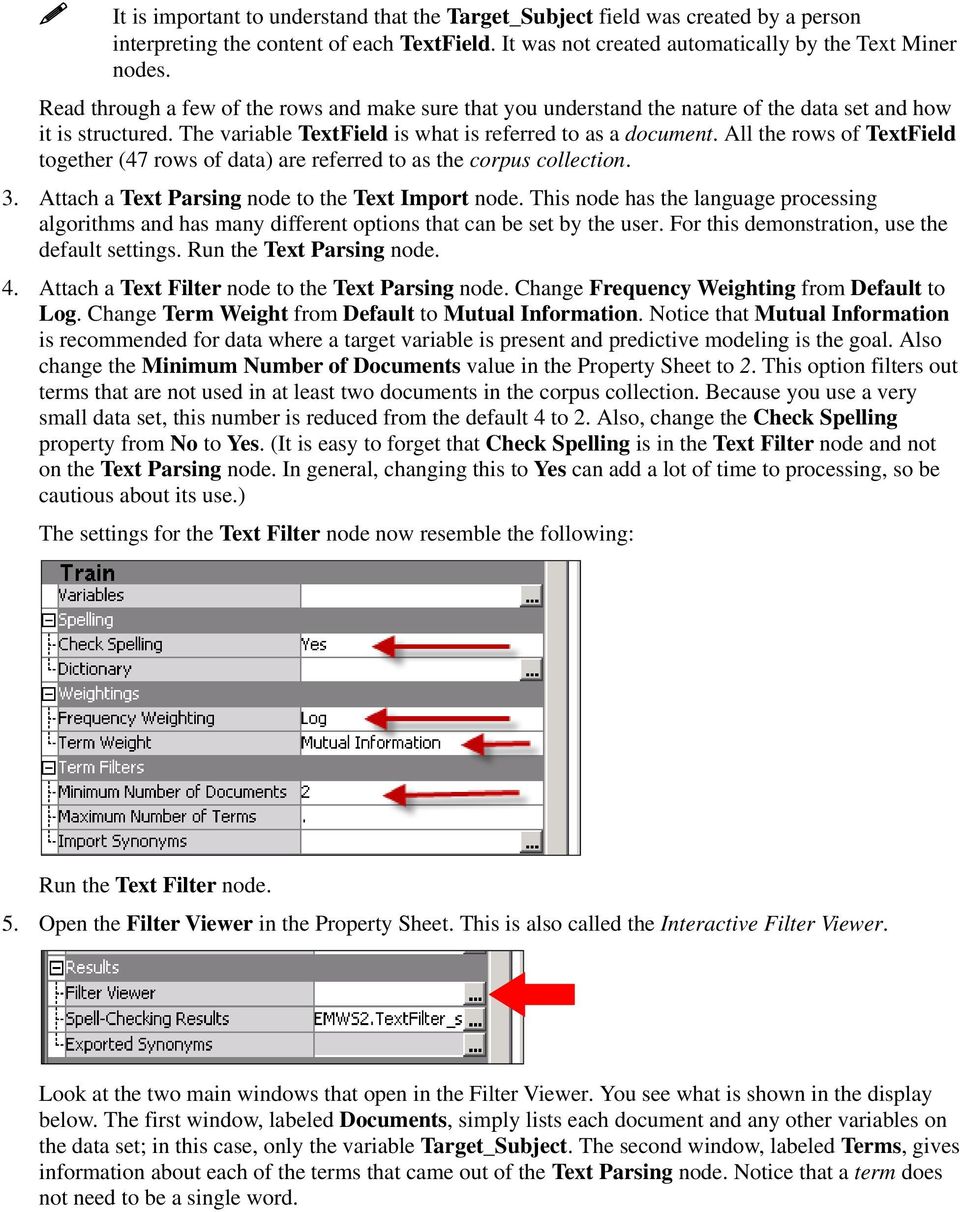
2 It is important to understand that the Target_Subject field was created by a person interpreting the content of each TextField. It was not created automatically by the Text Miner nodes. Read through a few of the rows and make sure that you understand the nature of the data set and how it is structured. The variable TextField is what is referred to as a document. All the rows of TextField together (47 rows of data) are referred to as the corpus collection. 3. Attach a Text Parsing node to the Text Import node. This node has the language processing algorithms and has many different options that can be set by the user. For this demonstration, use the default settings. Run the Text Parsing node. 4. Attach a Text Filter node to the Text Parsing node. Change Frequency Weighting from Default to Log. Change Term Weight from Default to Mutual Information. Notice that Mutual Information is recommended for data where a target variable is present and predictive modeling is the goal. Also change the Minimum Number of Documents value in the Property Sheet to 2. This option filters out terms that are not used in at least two documents in the corpus collection. Because you use a very small data set, this number is reduced from the default 4 to 2. Also, change the Check Spelling property from No to Yes. (It is easy to forget that Check Spelling is in the Text Filter node and not on the Text Parsing node. In general, changing this to Yes can add a lot of time to processing, so be cautious about its use.) The settings for the Text Filter node now resemble the following: Run the Text Filter node. 5. Open the Filter Viewer in the Property Sheet. This is also called the Interactive Filter Viewer. Look at the two main windows that open in the Filter Viewer. You see what is shown in the display below. The first window, labeled Documents, simply lists each document and any other variables on the data set; in this case, only the variable Target_Subject. The second window, labeled Terms, gives information about each of the terms that came out of the Text Parsing node. Notice that a term does not need to be a single word.
3 The information shown in the Terms window is the following: FREQ = number of times the term appeared in the entire corpus #DOCS = total number of documents in which the term appeared KEEP = whether the term is kept for calculations WEIGHT = a term weight (in this case, Mutual Information, which is discussed in a later chapter) because you specified entropy as the term weight to use in the Property Sheet ROLE = part of speech of the term ATTRIBUTE = the different categories are listed at the end of this chapter

4 Go to the Terms window and confirm that the is not listed. (If the column of Terms is not already in alphabetical order, you can sort a column by clicking on the heading.) Why does the most common word in the English language not appear on the list? To understand why, click the Text Parsing node so that the Property Sheet for that node is visible. Look at the properties near the bottom. You can see that there is an Ignore Parts of Speech property. By default, this excludes certain terms that are very common. In particular, Det represents Determiner, which is a class of common words and phrases such as the, that, an, and so on. These are eliminated unless you modify this property. On the Text Parsing node Property Sheet Go back to the Text Filter node. Why are some of the terms kept (KEEP is checked), but others are not kept (KEEP is unchecked)? There are several reasons why a word is not kept, and these can depend on settings in both the Text Parsing node and the Text Filter node. One reason, such as for the word antelope, is that it does not appear in enough documents. You previously set the Minimum Number of Documents property to 2 for the Text Filter node. Because antelope occurs only in one document, it is not kept. Another reason a term is not kept is if it appears on a Stop List used in the Text Parsing node. The default Stop List is SASHELP.ENGSTOP. If you open and look at it, you see a list of many terms that are excluded from further computations. Default Stop List on the Text Parsing node Property Sheet If you open SASHELP.ENGSTOP from the Text Parsing node, you see that all is listed as a term not to be used, as in the display below. Therefore, all is not selected as KEEP in the Text Filter node.

5 The term all is on the default Stop List SASHELP.ENGSTOP. 6. You now use the two main analytic text mining tools, the Text Clustering node and the Text Topic node. Attach a Text Clustering node to the Text Filter node as in the first diagram of this section. The Text Clustering node takes the 47 documents in the example data set and separates them into mutually exclusive and exhaustive groups (that is, clusters). The number of clusters to be used is under user control. You modify four of the default settings. a. Change SVD Resolution from Low to High. b. Change Max SVD Dimensions from 100 to 3. c. Change Exact or Maximum Number (of clusters) to Exact. d. Change Number of Clusters from 40 to 3. The settings resemble the ones below. Use these indicated settings for the Text Cluster node.

6 Regarding the Text Cluster properties, remember that you are using a very small and simple data set. You know that there are basically three types of documents (animals, sports, weather). It is most reasonable to think in terms of creating a small number of clusters (for example, three to five). Use three. In practice, with real and complex text data, you want to experiment with these parameters. You might want to start with the default property settings. Run the node. 7. Open the Text Cluster node results and examine the left side of the Clusters window as shown. Exactly three clusters were created, as requested in the Property Sheet. The Descriptive Terms column shows up to 15 terms that are given to help the user interpret the types of documents that are put into each cluster. (The number can be changed.) These terms are selected by the underlying algorithm as being the most important for characterizing the documents placed into a given cluster. Reading these, you can see that Cluster 1, which has 16 documents, has terms such as favorite zoo, big cat, and so on. These documents are likely about animals. The + indicates a stemmed term. Cluster 2 has 14 documents that are likely related to sports. Cluster 3 has 17 documents that likely deal with weather. 8. To see the new variables that were generated by the Text Cluster node, close out of the results. Select Exported Data from the Property Sheet. Then select the Train data set and click Explore. The upper right window (Sample Statistics) shows a list of variables that were exported from the Text Cluster node.

7 Several new variables have been added to the original variables Target_Subject and TextField: TextCluster_SVD1-TextCluster_SVD3 These are numeric variables calculated from a singular value decomposition of the (usually weighted) document-term frequency matrix. Each document is represented by its values on these three new variables. The values are also normalized so that for each document all the squared SVD values sum to 1.0. These are the variables that are used to cluster the documents. (Discussion of the calculation of the SVD values is in Chapter 3.) TextCluster_cluster_ This is the Cluster ID, a categorical variable. In this example, it is simply a number from 1 to 3 because three clusters were created. The clusters were generated by performing a cluster analysis on the three TextCluster_SVD variables. The interpretation of the clusters begins with looking at the descriptive terms given for each cluster, as you did earlier. TextCluster_prob1 - TextCluster_prob3 These variables are the probabilities of membership in each cluster for a given document. The sum of these probabilities is 1. A document is assigned to the cluster where it has the highest membership probability. _document_ This is a document ID. 9. Many ways to do further explorations with these results can be helpful for learning about what the text mining nodes are doing and for looking more deeply at certain aspects of the analysis. SAS Enterprise Miner provides a SAS Code utility node that is especially good for this. Attach a SAS Code node to the Text Cluster node and go into the Code Editor on the Property Sheet. Enter the following code: The macro variable &em_import_data refers to the Training data set after it is processed by the Text Cluster node and imported into the SAS Code node. Because there is a target variable (Target_Subject) created by a person who read the documents, it is interesting to see how the clusters automatically created by the Text Cluster node align with how the documents were labeled by the person. The PROC FREQ step does this by cross-tabulating the cluster variable (TextCluster_cluster_) with the target. Run this code and look at the results.

8 This crosstabulation shows that Cluster 1 (which was seen previously to have descriptive terms such as favorite zoo, big cat, and so on) consists of 16 documents defined that have to do with animals (A) as labeled by the human reader. Cluster 2 (basketball team, play, and so on) consists of 14 documents with a target value always equal to S. Cluster 3 (hot weather, winter day, and so on) consists of 17 documents, and 16 of them were defined as weather-related. The three clusters line up almost perfectly with the labels given to the documents. It would be wonderful if real data worked out this well, but do not expect that! 10. Set up and run the Text Topic node. Look at some results to see how they compare with the Text Cluster node results. Although a cluster is a mutually exclusive category (that is, each document can belong to one and only one cluster), a document can have more than one topic or it can have none of the topics. Attach a Text Topic node directly to the Text Cluster node. Make one change to the default properties by specifying 3 as the number of multi-term topics to create. Just as the number of clusters created is a parameter with which you want to experiment when you use the Text Cluster node, this parameter for the number of topics to create is typically something that you might try with different values. In this example, the artificial data set was purposely created with three different topics, so a reasonable value to start with would be 3 to 5 and not the default value of 25. You use 3.

9 Run the node. Then click on the ellipsis for the Topic Viewer on the Property Sheet. The Topic Viewer is an interactive group of windows. The Topics window shows the topics created by the node. The three topics created by the algorithm also have key descriptive terms to guide interpretation. The five most descriptive terms for each topic are shown. By default, the first topic is selected when you open the viewer. In this example, its descriptive terms start with snow, cold,. This is evidently a topic related to weather. The second topic has descriptive terms starting with baseball, team, and relating to sports. The descriptive terms for the third topic (lion, tiger, ) are interpretable as having to do with animals. With this simple data set, the algorithm did very well in identifying what are known to be the three underlying topics in the documents. In the Topics window, there is a column labeled Term Cutoff. For each created topic, the algorithm computes a topic weight for every term in the corpus. This measures how strongly the term represents or is associated with the given topic. Terms that are above a certain value, called the Term Cutoff, appear in yellow in the Terms window shown below. Look at the Terms window. You can see all the terms above the cutoff value. You should know, however, that all terms have a topic weight for each topic, although it might be a very small value. Part of the Documents window at the bottom of the Interactive Viewer is show below. Every document receives a topic weight for each topic. (This is discussed in Chapter 3.)

10 Notice that in the Documents window, the documents with topic weight values above the document cutoff for this topic (.469) are shown in yellow. However, it is important to observe that there are several documents below this cutoff value that are nevertheless related to a weather topic. For example, the first document below the cutoff ( If there is rain or snow... ) has a topic weight equal to.446 and is not highlighted in yellow. However, this document certainly involves weather. Although a cutoff value for a document can be useful in helping to understand what the topic represents, for some purposes, it is the topic weight itself that is used, such as in predictive modeling. It is also possible to change the cutoff. To see what variables were generated by the Text Topic node, as was done previously with the Text Cluster node, go to Exported Data in the Property Sheet. Select the Train data set and click Explore. The list of all the variables shows what was previously created by the Text Cluster node and the new TextTopic and TextTopic_raw variables created by the Text Topic node.

11 TextTopic_raw1 - TextTopic_raw3 These are numeric variables that indicate the strength a particular topic has within a given document. Three topics were generated because this was specified on the Property Sheet. These variables are the same as the topic weight values for the documents that were previously looked at in the Documents window of the interactive Topic Viewer. Each of these variables (topics) has a label (the five most descriptive terms) to identify it and help the user interpret the topic. TextTopic_1 - TextTopic_3 These are binary variables defined for each document and constructed from the TextTopic_raw1 - TextTopic_raw3 values based on the document cutoff values described earlier. For example, TextTopic_1 is set to 1 if a document has a TextTopic_raw1 value greater than the cutoff value for this particular topic. Otherwise, it is set to 0. The labels for the TextTopic variables are the same as for the TextTopic_raw raw variables, except that they have _1_0_ as prefixes. This indicates that they are binary variables. Each label shows the five most descriptive terms that are identified with that topic. 11. The emphasis in this class is on text mining for prediction (including supervised classification). To that end, continue this demonstration by attaching a Decision Tree node to the output of the Text Topic node. This node is found on the Model tab at the top. Among all model types, decision tree models are especially good for interpretation. After you attach the Decision Tree node but before running it with the default settings, go to the Variables ellipsis button in the Property Sheet to view the following window: By default, the only text mining variables that are considered as candidate prediction variables are those that have a role of Input. These are TextCluster_SVD and TextTopic_raw variables. Others, such as the TextCluster_cluster_ or the TextTopic variables, which some analysts would consider using for prediction or classification, must be redefined as Input variables using the Metadata node.

12 12. Run the default Decision Tree node. Open the results and maximize the Tree window. The decision tree resulted in three leaves. They are 100% accurate in classifying the documents as either A, S, or W. The variables used for this prediction or classification are the TextTopic_1 and TextTopic_2 text mining variables because the labels for these variables are displayed in the tree. The rules for the tree are obvious. The leaf with Node Id=3 comprises all documents where TextTopic_1 (+snow, +cold, + winter ) is quite high, that is, >= Then Node 4 consists of documents where TextTopic_1 is less than.2875 and TextTopic_2 (baseball,+team, ) is less than.121. That is, Node 4, which has 100% animal documents, consists of documents that do not contain much information about either weather or sports. Finally, Node 5 is defined as consisting of documents that have TextTopic_1 less than.2875 and TextTopic_2 greater than.121. In other words, these are documents relatively high on the sports topic and low on the weather topic. There are many approaches that an analyst can use to interpret the results of text mining. In this demonstration, the situation is easy to understand. In most realistic applications, you might need to do some creative analytic work to dig more deeply. (Some ideas for this are presented in later chapters.) 13. The final part of this demonstration is to use the Score node to score new data set. Following the top part of the diagram shown at the beginning of this demonstration, bring in a new File Import node. Rename it File Import Score Data. The import file for scoring is D:\workshop\winsas\dmtxt13_1\Score_WeatherAnimalsSports.xls. In the Property Sheet, change the role of the data set to Score.

13 Run the node and look at the Exported Data window. This Score data set has 16 documents. They are related to the three subjects (animals, sports, or weather). (As is usually the case with a data set to be scored, there is no target field on this data set.) The object now is to classify these documents using the Decision Tree model that was previously obtained on the training data, WeatherAnimalsSports.xls. To do that, bring in a Score node and connect it to the output of the File Import Score Data node and also to the output of the Decision Tree node. Run the Score node. Then go to the Exported Data window through the Property Sheet. Select the SCORE data to view and click Browse. 14. When the Browse window appears, move. the column headings so that TextField is the first column heading and Into: Target_Subject is the second heading (See the display below.) Into: Target_Subject is the label for the variable I_Target_Subject. This variable is the predicted classification (A,S, or W) of Target_Subject based on the TextTopic_1 and TextTopic_2 variables used in the decision tree. Read through the 16 rows and check to see whether any of the classifications looks incorrect to you. Generally, all of them should look right except observation #14, which is about seasons and therefore is really a document about weather. However, it was incorrectly classified as A, an animal document. (Also, observation #16 is probably a better fit in A, but does fit in W, as it was used here.)

14 There is an endless number of reasons why the underlying text mining and modeling algorithms make mistakes. One possibility in this case is the very small number of training examples that were used.

C o p yr i g ht 2015, S A S I nstitute Inc. A l l r i g hts r eser v ed. INTRODUCTION TO SAS TEXT MINER
 INTRODUCTION TO SAS TEXT MINER TODAY S AGENDA INTRODUCTION TO SAS TEXT MINER Define data mining Overview of SAS Enterprise Miner Describe text analytics and define text data mining Text Mining Process
After you complete the survey, compare what you saw on the survey to the actual questions listed below:
 Creating a Basic Survey Using Qualtrics Clayton State University has purchased a campus license to Qualtrics. Both faculty and students can use Qualtrics to create surveys that contain many different types
Setting Up Outlook on Workstation to Capture Emails
 Setting Up Outlook on Workstation to Capture Emails Setting up Outlook to allow email to pass directly to M-Files requires a number of steps to assure that all of the data required is sent to the correct
UCINET Quick Start Guide
 UCINET Quick Start Guide This guide provides a quick introduction to UCINET. It assumes that the software has been installed with the data in the folder C:\Program Files\Analytic Technologies\Ucinet 6\DataFiles
PowerWorld Simulator
 PowerWorld Simulator Quick Start Guide 2001 South First Street Champaign, Illinois 61820 +1 (217) 384.6330 [email protected] http://www.powerworld.com Purpose This quick start guide is intended to
GUIDE FOR SORTING RX HISTORY REPORTS IN MICROSOFT EXCEL
 GUIDE FOR SORTING RX HISTORY REPORTS IN MICROSOFT EXCEL 1. Log in to your INSPECT WebCenter Account. 2. Go to the Requests tab on the left, and select New Request. 3. Select Practitioner from the drop-down
CHAPTER 6: ANALYZE MICROSOFT DYNAMICS NAV 5.0 DATA IN MICROSOFT EXCEL
 Chapter 6: Analyze Microsoft Dynamics NAV 5.0 Data in Microsoft Excel CHAPTER 6: ANALYZE MICROSOFT DYNAMICS NAV 5.0 DATA IN MICROSOFT EXCEL Objectives The objectives are: Explain the process of exporting
User Documentation. Administrator Manual. www.proposalsoftware.com
 User Documentation Administrator Manual Proposal Software 1140 US Highway 287, Suite 400-102 Broomfield, CO 80020 USA Tel: 203.604.6597 www.proposalsoftware.com Table of Contents Open the WebPro Viewer...
ECDL. European Computer Driving Licence. Spreadsheet Software BCS ITQ Level 2. Syllabus Version 5.0
 European Computer Driving Licence Spreadsheet Software BCS ITQ Level 2 Using Microsoft Excel 2010 Syllabus Version 5.0 This training, which has been approved by BCS, The Chartered Institute for IT, includes
Budget Process using PeopleSoft Financial 9.1
 Section 14 Budget 14.1 Budget Overview Each council must prepare a yearly operating budget and, in many cases, multiple budgets to respond to the needs of the council and the legal requirement to expend
SPSS INSTRUCTION CHAPTER 1
 SPSS INSTRUCTION CHAPTER 1 Performing the data manipulations described in Section 1.4 of the chapter require minimal computations, easily handled with a pencil, sheet of paper, and a calculator. However,
Microsoft Excel 2013 Step-by-Step Exercises: PivotTables and PivotCharts: Exercise 1
 Microsoft Excel 2013 Step-by-Step Exercises: PivotTables and PivotCharts: Exercise 1 In this exercise you will learn how to: Create a new PivotTable Add fields to a PivotTable Format and rename PivotTable
Sample Table. Columns. Column 1 Column 2 Column 3 Row 1 Cell 1 Cell 2 Cell 3 Row 2 Cell 4 Cell 5 Cell 6 Row 3 Cell 7 Cell 8 Cell 9.
 Working with Tables in Microsoft Word The purpose of this document is to lead you through the steps of creating, editing and deleting tables and parts of tables. This document follows a tutorial format
Building Qualtrics Surveys for EFS & ALC Course Evaluations: Step by Step Instructions
 Building Qualtrics Surveys for EFS & ALC Course Evaluations: Step by Step Instructions Jennifer DeSantis August 28, 2013 A relatively quick guide with detailed explanations of each step. It s recommended
Mail Merge Microsoft Word and Excel Queries Scott Kern Senior Consultant
 Mail Merge Microsoft Word and Excel Queries Scott Kern Senior Consultant What We ll Cover 1. Enabling database connections through Microsoft Excel 2. Accessing the data stored in the SQL Database via the
Drawing a histogram using Excel
 Drawing a histogram using Excel STEP 1: Examine the data to decide how many class intervals you need and what the class boundaries should be. (In an assignment you may be told what class boundaries to
How to Filter and Sort Excel Spreadsheets (Patient-Level Detail Report)
 How to Filter and Sort Excel Spreadsheets (Patient-Level Detail Report) When you use the filter and sort option on an excel spreadsheet, it allows you to narrow down a large spreadsheet to show just the
Microsoft Excel 2010 Part 3: Advanced Excel
 CALIFORNIA STATE UNIVERSITY, LOS ANGELES INFORMATION TECHNOLOGY SERVICES Microsoft Excel 2010 Part 3: Advanced Excel Winter 2015, Version 1.0 Table of Contents Introduction...2 Sorting Data...2 Sorting
Visualizing Relationships and Connections in Complex Data Using Network Diagrams in SAS Visual Analytics
 Paper 3323-2015 Visualizing Relationships and Connections in Complex Data Using Network Diagrams in SAS Visual Analytics ABSTRACT Stephen Overton, Ben Zenick, Zencos Consulting Network diagrams in SAS
Company Setup 401k Tab
 Reference Sheet Company Setup 401k Tab Use this page to define company level 401(k) information, including employee status codes, 401(k) sources, and 401(k) funds. The definitions you create here become
Advanced Excel Charts : Tables : Pivots : Macros
 Advanced Excel Charts : Tables : Pivots : Macros Charts In Excel, charts are a great way to visualize your data. However, it is always good to remember some charts are not meant to display particular types
Setting Up Custom Items and Catalogs
 Setting Up Custom Items and Catalogs Updated August 2015 Contents About Setting Up Custom Items and Catalogs...3 Prepare to Use Custom Items and Catalogs...3 Plan Ahead for Customer Demos or Web Account
Access Online. Transaction Approval Process User Guide. Approver. Version 1.4
 Access Online Transaction Approval Process User Guide Approver Version 1.4 Contents Introduction...3 TAP Overview...4 View-Only Access... 5 Approve Your Own Transactions...6 View Transactions... 7 Validation
Government of Saskatchewan Executive Council. Oracle Sourcing isupplier User Guide
 Executive Council Oracle Sourcing isupplier User Guide Contents 1 Introduction to Oracle Sourcing and isupplier...6 1.0 Oracle isupplier...6 1.1 Oracle Sourcing...6 2 Customer Support...8 2.0 Communications
Setting up a basic database in Access 2003
 Setting up a basic database in Access 2003 1. Open Access 2. Choose either File new or Blank database 3. Save it to a folder called customer mailing list. Click create 4. Double click on create table in
Merging Labels, Letters, and Envelopes Word 2013
 Merging Labels, Letters, and Envelopes Word 2013 Merging... 1 Types of Merges... 1 The Merging Process... 2 Labels - A Page of the Same... 2 Labels - A Blank Page... 3 Creating Custom Labels... 3 Merged
Using Mail Merge in Microsoft Word 2003
 Using Mail Merge in Microsoft Word 2003 Mail Merge Created: 12 April 2005 Note: You should be competent in Microsoft Word before you attempt this Tutorial. Open Microsoft Word 2003 Beginning the Merge
Chapter 2 The Data Table. Chapter Table of Contents
 Chapter 2 The Data Table Chapter Table of Contents Introduction... 21 Bringing in Data... 22 OpeningLocalFiles... 22 OpeningSASFiles... 27 UsingtheQueryWindow... 28 Modifying Tables... 31 Viewing and Editing
Successful Mailings in The Raiser s Edge
 Bill Connors 2010 Bill Connors, CFRE November 18, 2008 Agenda Introduction Preparation Query Mail Export Follow-up Q&A Blackbaud s Conference for Nonprofits Charleston Bill Connors, CFRE Page #2 Introduction
Favorite Book, Movie, and TV Show Survey
 and TV Show Survey Objectives Each student will utilize the Google Docs form application to create a simple survey to gather information about his or her classmates favorite books, movies, and TV shows.
Using Word 2007 For Mail Merge
 Using Word 2007 For Mail Merge Introduction This document assumes that you are familiar with using Word for word processing, with the use of a computer keyboard and mouse and you have a working knowledge
Universal Tracking Application Reference and Training Guide
 Universal Tracking Application Reference and Training Guide Software Version: 4.21 Guide Version: 2.7 Universal Tracking Application Reference and Training Guide Reference and Training Guide All Trademarks
SPSS: Getting Started. For Windows
 For Windows Updated: August 2012 Table of Contents Section 1: Overview... 3 1.1 Introduction to SPSS Tutorials... 3 1.2 Introduction to SPSS... 3 1.3 Overview of SPSS for Windows... 3 Section 2: Entering
USING MYWEBSQL FIGURE 1: FIRST AUTHENTICATION LAYER (ENTER YOUR REGULAR SIMMONS USERNAME AND PASSWORD)
 USING MYWEBSQL MyWebSQL is a database web administration tool that will be used during LIS 458 & CS 333. This document will provide the basic steps for you to become familiar with the application. 1. To
Formatting Report Output to MS Excel
 Digital Innovation Users Conference 2013 Formatting Report Output to MS Excel Kansas City, MO October 2-4 Copyright 2013 Digital Innovation, Inc. All Rights Reserved Proprietary Rights Notice Revision
TM SysAid Chat Guide Document Updated: 10 November 2009
 SysAidTM Chat Guide Document Updated: 10 November 2009 Introduction 2 Quick Access to SysAid Chat 3 Enable / Disable the SysAid Chat from the End User Portal. 4 Edit the Chat Settings 5 Chat Automatic
Text Analytics using High Performance SAS Text Miner
 Text Analytics using High Performance SAS Text Miner Edward R. Jones, Ph.D. Exec. Vice Pres.; Texas A&M Statistical Services Abstract: The latest release of SAS Enterprise Miner, version 13.1, contains
Getting Started with SAS Text Miner 12.1
 Getting Started with SAS Text Miner 12.1 SAS Documentation The correct bibliographic citation for this manual is as follows: SAS Institute Inc 2012. Getting Started with SAS Text Miner 12.1. Cary, NC:
Toad for Data Analysts, Tips n Tricks
 Toad for Data Analysts, Tips n Tricks or Things Everyone Should Know about TDA Just what is Toad for Data Analysts? Toad is a brand at Quest. We have several tools that have been built explicitly for developers
This web-based report provides information for single funds centers. The report can be run for one funds center or multiple single funds centers.
 Budget Status Report This web-based report provides information for single funds centers. The report can be run for one funds center or multiple single funds centers. The report includes the following
4. Are you satisfied with the outcome? Why or why not? Offer a solution and make a new graph (Figure 2).
 Assignment 1 Introduction to Excel and SPSS Graphing and Data Manipulation Part 1 Graphing (worksheet 1) 1. Download the BHM excel data file from the course website. 2. Save it to the desktop as an excel
Extend Table Lens for High-Dimensional Data Visualization and Classification Mining
 Extend Table Lens for High-Dimensional Data Visualization and Classification Mining CPSC 533c, Information Visualization Course Project, Term 2 2003 Fengdong Du [email protected] University of British Columbia
CNPS Chapter Monthly Membership Report FAQ and Excel Tips. 1. The design and purpose of this report.
 CNPS Chapter Monthly Membership Report FAQ and Excel Tips Index: 1. The design and purpose of this report. Pg 1 2. How to alphabetize the roster by last name/how to sort by any column in Excel. Pg 2 3.
The VB development environment
 2 The VB development environment This chapter explains: l how to create a VB project; l how to manipulate controls and their properties at design-time; l how to run a program; l how to handle a button-click
Read Naturally, Inc. Version: 05 February 2016. Saint Paul, Minnesota
 USER GUIDE Version: 05 February 2016 Read Naturally, Inc. Saint Paul, Minnesota Phone: 800.788.4085/651.452.4085 Website: www.readnaturally.com Email: [email protected] Copyright 2011 2016 Read Naturally,
JustClust User Manual
 JustClust User Manual Contents 1. Installing JustClust 2. Running JustClust 3. Basic Usage of JustClust 3.1. Creating a Network 3.2. Clustering a Network 3.3. Applying a Layout 3.4. Saving and Loading
UOFL SHAREPOINT ADMINISTRATORS GUIDE
 UOFL SHAREPOINT ADMINISTRATORS GUIDE WOW What Power! Learn how to administer a SharePoint site. [Type text] SharePoint Administrator Training Table of Contents Basics... 3 Definitions... 3 The Ribbon...
To launch the Microsoft Excel program, locate the Microsoft Excel icon, and double click.
 EDIT202 Spreadsheet Lab Assignment Guidelines Getting Started 1. For this lab you will modify a sample spreadsheet file named Starter- Spreadsheet.xls which is available for download from the Spreadsheet
Microsoft Excel 2010 Charts and Graphs
 Microsoft Excel 2010 Charts and Graphs Email: [email protected] Web Page: http://training.health.ufl.edu Microsoft Excel 2010: Charts and Graphs 2.0 hours Topics include data groupings; creating
Mail Merge Creating Mailing Labels 3/23/2011
 Creating Mailing Labels in Microsoft Word Address data in a Microsoft Excel file can be turned into mailing labels in Microsoft Word through a mail merge process. First, obtain or create an Excel spreadsheet
CONTENTS MANUFACTURERS GUIDE FOR PUBLIC USERS
 OPA DATABASE GUIDE FOR PUBLIC USERS - MARCH 2013 VERSION 5.0 CONTENTS Manufacturers 1 Manufacturers 1 Registering a Manufacturer 2 Search Manufacturers 3 Advanced Search Options 3 Searching for Manufacturers
Data Mining. SPSS Clementine 12.0. 1. Clementine Overview. Spring 2010 Instructor: Dr. Masoud Yaghini. Clementine
 Data Mining SPSS 12.0 1. Overview Spring 2010 Instructor: Dr. Masoud Yaghini Introduction Types of Models Interface Projects References Outline Introduction Introduction Three of the common data mining
EPM Performance Suite Profitability Administration & Security Guide
 BusinessObjects XI R2 11.20 EPM Performance Suite Profitability Administration & Security Guide BusinessObjects XI R2 11.20 Windows Patents Trademarks Copyright Third-party Contributors Business Objects
Affiliation Security
 Affiliation Security Access to more student information: View student information with majors/minors* View student information under your advisement View students who have signed up for courses* View student
Business Objects InfoView Quick-start Guide
 Business Objects InfoView Quick-start Guide Last Modified: 10/28/2015 The latest PDF version of this document can be found at: http://www.calpolycorporation.com/docs/finance/boeinfoviewquickstart.pdf What
How To Create A Powerpoint Intelligence Report In A Pivot Table In A Powerpoints.Com
 Sage 500 ERP Intelligence Reporting Getting Started Guide 27.11.2012 Table of Contents 1.0 Getting started 3 2.0 Managing your reports 10 3.0 Defining report properties 18 4.0 Creating a simple PivotTable
BulkSMS Text Messenger Product Manual
 BulkSMS Text Messenger Product Manual 1. Installing the software 1.1. Download the BulkSMS Text Messenger Go to www.bulksms.com and choose your country. process. Click on products on the top menu and select
Chapter 1: The Cochrane Library Search Tour
 Chapter : The Cochrane Library Search Tour Chapter : The Cochrane Library Search Tour This chapter will provide an overview of The Cochrane Library Search: Learn how The Cochrane Library new search feature
Using Excel s PivotTable to Analyze Learning Assessment Data
 Using Excel s PivotTable to Analyze Learning Assessment Data Assessment Office University of Hawaiʻiat Mānoa Feb 13, 2013 1 Mission: Improve student learning through program assessment 2 1 Learning Outcomes
Microsoft Access Rollup Procedure for Microsoft Office 2007. 2. Click on Blank Database and name it something appropriate.
 Microsoft Access Rollup Procedure for Microsoft Office 2007 Note: You will need tax form information in an existing Excel spreadsheet prior to beginning this tutorial. 1. Start Microsoft access 2007. 2.
Universal Simple Control, USC-1
 Universal Simple Control, USC-1 Data and Event Logging with the USB Flash Drive DATA-PAK The USC-1 universal simple voltage regulator control uses a flash drive to store data. Then a propriety Data and
Oracle Data Miner (Extension of SQL Developer 4.0)
 An Oracle White Paper September 2013 Oracle Data Miner (Extension of SQL Developer 4.0) Integrate Oracle R Enterprise Mining Algorithms into a workflow using the SQL Query node Denny Wong Oracle Data Mining
Spotfire v6 New Features. TIBCO Spotfire Delta Training Jumpstart
 Spotfire v6 New Features TIBCO Spotfire Delta Training Jumpstart Map charts New map chart Layers control Navigation control Interaction mode control Scale Web map Creating a map chart Layers are added
Test Generator. Creating Tests
 Test Generator Creating Tests Table of Contents# Cognero Overview... 1 Cognero Basic Terminology... 2 Logging On to Cognero... 3 Test Generator Organization... 4 Question Sets Versus Tests... 4 Editing
Integrated Accounting System for Mac OS X
 Integrated Accounting System for Mac OS X Program version: 6.3 110401 2011 HansaWorld Ireland Limited, Dublin, Ireland Preface Standard Accounts is a powerful accounting system for Mac OS X. Text in square
What Do You Think? for Instructors
 Accessing course reports and analysis views What Do You Think? for Instructors Introduction As an instructor, you can use the What Do You Think? Course Evaluation System to see student course evaluation
A Demonstration of Hierarchical Clustering
 Recitation Supplement: Hierarchical Clustering and Principal Component Analysis in SAS November 18, 2002 The Methods In addition to K-means clustering, SAS provides several other types of unsupervised
Marketing Operations Cookbook
 Marketing Operations Cookbook Rev: 2012-02-02 Sitecore CMS 6.5 Marketing Operations Cookbook A marketer's guide to managing how your website engages with your visitors Table of Contents Chapter 1 Introduction...
PeopleSoft Query Training
 PeopleSoft Query Training Overview Guide Tanya Harris & Alfred Karam Publish Date - 3/16/2011 Chapter: Introduction Table of Contents Introduction... 4 Navigation of Queries... 4 Query Manager... 6 Query
Chapter 2: Descriptive Statistics
 Chapter 2: Descriptive Statistics **This chapter corresponds to chapters 2 ( Means to an End ) and 3 ( Vive la Difference ) of your book. What it is: Descriptive statistics are values that describe the
Managing Agile Projects in TestTrack GUIDE
 Managing Agile Projects in TestTrack GUIDE Table of Contents Introduction...1 Automatic Traceability...2 Setting Up TestTrack for Agile...6 Plan Your Folder Structure... 10 Building Your Product Backlog...
Education Solutions Development, Inc. APECS Navigation: Business Systems Getting Started Reference Guide
 Education Solutions Development, Inc. APECS Navigation: Business Systems Getting Started Reference Guide March 2013 Education Solutions Development, Inc. What s Inside The information in this reference
ECDL. European Computer Driving Licence. Word Processing Software BCS ITQ Level 2. Syllabus Version 5.0
 European Computer Driving Licence Word Processing Software BCS ITQ Level 2 Using Microsoft Word 2010 Syllabus Version 5.0 This training, which has been approved by BCS, The Chartered Institute for IT,
Integrated Invoicing and Debt Management System for Mac OS X
 Integrated Invoicing and Debt Management System for Mac OS X Program version: 6.3 110401 2011 HansaWorld Ireland Limited, Dublin, Ireland Preface Standard Invoicing is a powerful invoicing and debt management
An Introduction to Excel Pivot Tables
 An Introduction to Excel Pivot Tables EXCEL REVIEW 2001-2002 This brief introduction to Excel Pivot Tables addresses the English version of MS Excel 2000. Microsoft revised the Pivot Tables feature with
COC131 Data Mining - Clustering
 COC131 Data Mining - Clustering Martin D. Sykora [email protected] Tutorial 05, Friday 20th March 2009 1. Fire up Weka (Waikako Environment for Knowledge Analysis) software, launch the explorer window
The Microsoft Access 2007 Screen
 1 of 1 Office Button The Microsoft Access 2007 Screen Title Bar Help Ribbon Quick Access Toolbar Database Components Active Component NOTE: THIS HELP DOCUMENT EXPLAINS THE LAYOUT OF ACCESS. FOR MORE INFORMATION
About PivotTable reports
 Page 1 of 8 Excel Home > PivotTable reports and PivotChart reports > Basics Overview of PivotTable and PivotChart reports Show All Use a PivotTable report to summarize, analyze, explore, and present summary
Printing with Calc Title: Printing with Calc Version: 1.0 First edition: December 2004 First English edition: December 2004
 Printing with Calc Title: Printing with Calc Version: 1.0 First edition: December 2004 First English edition: December 2004 Contents Overview...ii Copyright and trademark information...ii Feedback...ii
Directions to Print from WorkFlows:
 Directions to Print from WorkFlows: I. Getting Started: Adding the Finished Report Wizard to your toolbar Note: When working with reports you want to use the same WorkFlows login that you used to view
Maple T.A. Beginner's Guide for Instructors
 Maple T.A. Beginner's Guide for Instructors Copyright Maplesoft, a division of Waterloo Maple Inc. 2013 Maple T.A. Beginner's Guide for Instructors Contents Preface... v 1 Maple T.A. Quick Start for Instructors...
Q&As: Microsoft Excel 2013: Chapter 2
 Q&As: Microsoft Excel 2013: Chapter 2 In Step 5, why did the date that was entered change from 4/5/10 to 4/5/2010? When Excel recognizes that you entered a date in mm/dd/yy format, it automatically formats
Welcome to the topic on Master Data and Documents.
 Welcome to the topic on Master Data and Documents. In this topic, we will look at master data in SAP Business One. After this session you will be able to view a customer record to explain the concept of
WHO STEPS Surveillance Support Materials. STEPS Epi Info Training Guide
 STEPS Epi Info Training Guide Department of Chronic Diseases and Health Promotion World Health Organization 20 Avenue Appia, 1211 Geneva 27, Switzerland For further information: www.who.int/chp/steps WHO
Asset Track Getting Started Guide. An Introduction to Asset Track
 Asset Track Getting Started Guide An Introduction to Asset Track Contents Introducing Asset Track... 3 Overview... 3 A Quick Start... 6 Quick Start Option 1... 6 Getting to Configuration... 7 Changing
Workplace Giving Guide
 Workplace Giving Guide 042612 2012 Blackbaud, Inc. This publication, or any part thereof, may not be reproduced or transmitted in any form or by any means, electronic, or mechanical, including photocopying,
Excel Pivot Tables. Blue Pecan Computer Training Ltd - Onsite Training Provider www.bluepecantraining.com :: 0800 6124105 :: [email protected].
 Excel Pivot Tables 1 Table of Contents Pivot Tables... 3 Preparing Data for a Pivot Table... 3 Creating a Dynamic Range for a Pivot Table... 3 Creating a Pivot Table... 4 Removing a Field... 5 Change the
MILWAUKEE COUNTY APPLICANT TRACKING SYSTEM USER GUIDE
 MILWAUKEE COUNTY APPLICANT TRACKING SYSTEM USER GUIDE Page 1 of 17 SEARCH OPEN POSITIONS Enter to see current postings. Search for specific titles, locations, divisions, employment type, and/or compensation
PharmaSUG 2015 - Paper QT26
 PharmaSUG 2015 - Paper QT26 Keyboard Macros - The most magical tool you may have never heard of - You will never program the same again (It's that amazing!) Steven Black, Agility-Clinical Inc., Carlsbad,
1. Introduction. P2O is automatically loaded when you open Ms Project (2010 or 2013). The add-in can be found under the M5 Tools menu. 2.
 1. Introduction Project 2 Outlook (P2O) will help Microsoft Project users to improve project communication by exporting MS Project tasks and information to MS Outlook Task or Appointments. Users don t
Improving the Performance of Data Mining Models with Data Preparation Using SAS Enterprise Miner Ricardo Galante, SAS Institute Brasil, São Paulo, SP
 Improving the Performance of Data Mining Models with Data Preparation Using SAS Enterprise Miner Ricardo Galante, SAS Institute Brasil, São Paulo, SP ABSTRACT In data mining modelling, data preparation
SMART NOTEBOOK 10. Instructional Technology Enhancing ACHievement
 SMART NOTEBOOK 10 Instructional Technology Enhancing ACHievement TABLE OF CONTENTS SMART Notebook 10 Themes... 3 Page Groups... 4 Magic Pen... 5 Shape Pen... 6 Tables... 7 Object Animation... 8 Aligning
TRIAL SOFTWARE GUIDE 1. PURPOSE OF THIS GUIDE 2. DOWNLOAD THE TRIALSOFTWARE 3. START WIDS 4. OPEN A SAMPLE COURSE, PROGRAM
 TRIAL SOFTWARE GUIDE Thank you for trying the WIDS software! We appreciate your interest and look forward to hearing from you. Please contact us at (800) 677-9437 if you have any questions about your trial
Google Apps for Sharing Folders and Collecting Assignments
 Google Apps for Sharing Folders and Collecting Assignments The Google Drive is cloud (online) storage space, and it is also where you create and work with Google Docs, Sheets, Slides, etc. Create a Folder
REP200 Using Query Manager to Create Ad Hoc Queries
 Using Query Manager to Create Ad Hoc Queries June 2013 Table of Contents USING QUERY MANAGER TO CREATE AD HOC QUERIES... 1 COURSE AUDIENCES AND PREREQUISITES...ERROR! BOOKMARK NOT DEFINED. LESSON 1: BASIC
Help. F-Secure Online Backup
 Help F-Secure Online Backup F-Secure Online Backup Help... 3 Introduction... 3 What is F-Secure Online Backup?... 3 How does the program work?... 3 Using the service for the first time... 3 Activating
Chapter 4 Displaying and Describing Categorical Data
 Chapter 4 Displaying and Describing Categorical Data Chapter Goals Learning Objectives This chapter presents three basic techniques for summarizing categorical data. After completing this chapter you should
Intellect Platform - Tables and Templates Basic Document Management System - A101
 Intellect Platform - Tables and Templates Basic Document Management System - A101 Interneer, Inc. 4/12/2010 Created by Erika Keresztyen 2 Tables and Templates - A101 - Basic Document Management System
A Property and Casualty Insurance Predictive Modeling Process in SAS
 Paper 11422-2016 A Property and Casualty Insurance Predictive Modeling Process in SAS Mei Najim, Sedgwick Claim Management Services ABSTRACT Predictive analytics is an area that has been developing rapidly