
OSForensics PassMark Software
|
|
|
- Vivien Lloyd
- 9 years ago
- Views:
Transcription
1 OSForensics

2 OSForensics All rights reserved. No parts of this work may be reproduced in any form or by any means - graphic, electronic, or mechanical, including photocopying, recording, taping, or information storage and retrieval systems - without the written permission of the publisher. Products that are referred to in this document may be either trademarks and/or registered trademarks of the respective owners. The publisher and the author make no claim to these trademarks. While every precaution has been taken in the preparation of this document, the publisher and the author assume no responsibility for errors or omissions, or for damages resulting from the use of information contained in this document or from the use of programs and source code that may accompany it. In no event shall the publisher and the author be liable for any loss of profit or any other commercial damage caused or alleged to have been caused directly or indirectly by this document. Printed: May 215

3 Contents 3 Table of Contents Foreword Part I Introduction and Overview 6 Part II How to Purchase OSForensics 6 Part III Navigating OSForensics 7 Part IV Features 8 1 Case... Management 1 Custom izing Report... Appearances 12 Add Device Supported... Image Formats 16 Supported... File Systems 17 Supported... Partitioning Schemes 17 Support for... Volume Shadow Copy 17 2 File Name... Search 18 File Nam e Search... Configuration 21 File Nam e Search... Results View 24 3 Indexing Create Index Indexing Problems... and Solutions 33 Indexing Templates Advanced Indexing... Options 34 Search Index Advanced... Search Index Options 38 Index Search... Results View 39 Brow se Index Recent... Activity 48 Recent Activity... Configuration 52 Recent Activity... Filters 55 Web Brow ser... Activity 56 Registry Activity Window s Event... Log 58 Window s Jum... p Lists 58 Window s Search Chat Logs Deleted... Files Search 59 Deleted Files... Search Configuration 62 Deleted Files... Search Results View _2 64 Deleted File Cluster... View 68 Deleted Files... Techincal Details 68 6 Mismatch... File Search 7 Mism atch Filter... Configuration 72 Mism atch File... Search Results View 74 Advanced

4 4 OSForensics 7 Memory... Viewer 78 Generating a Raw... Mem ory Dum p 81 Generating a Com... plete Microsoft Crash Dum p 82 8 Prefetch... Viewer 1 9 Raw... Disk Viewer 13 Search Window Regular Expressions Decode Window Bookm ark Window File... System Browser 119 File Metadata File Brow ser... View s 126 Shadow Copies Deleted Files SQLite... Database Browser Web... Browser Password... Recovery 141 Find Brow ser... Passw ords 141 Window s Login... Hashes & Passw ords 142 Recovering... Window s Passw ords With Rainbow Tables 143 Rainbow Tables Generating... Rainbow Tables 146 Recovering... Passw ords Using Rainbow Tables 149 Compatible... File Formats 151 File Naming... Convention 152 How Chains... are Generated 152 Character... Sets 154 File Decryption... & Passw ord Recovery 154 Adding Dictionaries Ispell Copyright... Notice System... Information 159 External Tools Verify... / Create Hash Hash... Sets 163 New Hash Set View Hash Set Hash Set Lookup Installing Hash... Sets 169 NSRL Im port Hash DB Im port/export... Form at Signatures Create Signature Create Signature... Configuration 172 Com pare Signature Signature... Info 175 Signature Notes Removable... Drive Preparation Drive... Imaging 18 Create Im age

5 Contents 5 Restore Im age Hidden Areas... - HPA/DCO 184 RAID Rebuild Supported... RAID Metadata Formats Forensic... Copy Registry... Viewer Internal... Viewer 196 File View er Hex/String View... er 2 Hex/String... View er Settings 23 Text View er Text View... er Settings 25 File Info Metadata Viewer Thumbnail... Cache Viewer ESE... Database Viewer 215 ESE Database... Advanced Search Installing... to a USB Drive or an Optical Disk 219 Part V Advanced Topics Free... OSF Helper Tools Examining... System Page File OSForensics... Code Signing Dates... and Times Regular... Expressions 223 Part VI Support System... Requirements License... Keys Contacting... PassMark Software Free... Version Limitations 226 Part VII Copyright and License 226 Part VIII Credits 229 Index 231 5

6 6 1 OSForensics Introduction and Overview PassMark OSForensics is a computer forensics application for locating and analyzing digital evidence that are found in computer systems and digital storage devices. A suite of modules are provided for effectively reducing the task of analyzing the vast amounts of data on live systems and storage media with a simple, easy-to-use modular interface. OSForensics includes tools that can identify evidence material in seconds (such as a search for a particular file name) up to more sophisticated tools (such as locating incriminating data in deleted files) for identifying harder to locate digital evidence artifacts. For a summary of the included modules and functionality, see the Features page. 2 How to Purchase OSForensics Price US Dollars: $499 (single user) Purchase Online Here Discounts apply when ordering 5 or more copies at once. What happens when you order After the order is processed, a License Key will be returned (via ). This Key is then entered with the User Name into the initial window. At this point the program then changes permanently into the full licensed version. What you get when you license the software 12 Months Free and Phone Support in addition to normal forum support. Free minor upgrades & bug fixes as they become available

7 How to Purchase OSForensics 7 The removal of the initial startup window. Unlocked advanced features; Search for alternate file streams. Sort found files by image color. Use multiple processor cores to speed up decryption. Customize system information gathering. Import / Export Hash Sets Manage more than 3 cases at once. Index more than 2, files and s at once. Undelete multiple files at once. Confidentiality All personal details supplied when placing an order will be strictly confidential. Online orders will only be accepted over a secure, encrypted connection. Multi-user & Site Licenses Please contact us for details if you require multi-user or site licensing for your organization. Questions & more information If you have any questions we would be happy to hear about them. Contact [email protected] 3 Navigating OSForensics OSForensics is split into multiple feature windows performing different actions. The primary mode of navigation between these windows is using the buttons placed on the bar at the left of the main window. Additionally many features can be accessed via the Start Window that is displayed when OSForensics is launched.


8 8 OSForensics The start window contains a brief description of each feature as you mouse over it, clicking once will take you to that feature. Additionally, you can also click the buttons on the left. If a button has a green pulsating light next to it this means that the feature is currently performing a task. A blue light means that a task has been completed but you have not yet navigated back to that window to view the result. 4 Features OSForensics contains a collection of modules for searching, collecting, analyzing and recovering digital artifacts that can be used as legal evidence in court. The main features of OSForensics are outlined as follows. Case Management This module is used to aggregate results from all the other modules into a single location, a Case, allowing for later analysis of the findings as a whole and reporting on findings. File Name Search This module allows for searching for files/directories via its filename. Indexing Indexing allows for full text searching within the contents of a file. Also capable of searching within

9 Features 9 archives and pulling text out of unallocated disk sectors. Recent Activity This module allows an investigator to scan the system for evidence of recent activity, such as accessed websites, USB drives, wireless networks, and recent downloads. Deleted Files Search Search for and recover files that have been recently deleted from the hard drive. Mismatch Search Finds files that have a file extension that is different from what the contents of the file suggests. Eg. A. jpeg file renamed to a.txt file. Memory Viewer The memory viewer allows an investigator to collect and analyze digital evidence in volatile memory storage. Due to the non-persistent nature of memory, some digital evidence may only be available on a live system. Prefetch Viewer The Prefetch viewer displays the information stored by the operating system's Prefetcher, which includes when and how often an application is run. Raw Disk Viewer The raw disk viewer displays the raw sector-by-sector contents of a disk. Data hidden in the sectors outside the file system can be identified and analyzed with this module. File System Browser The file system browser displays all devices added to a case in a hierarchical fashion, similar to Windows Explorer. Unlike Explorer, additional information specific to forensics analysis are displayed. SQLite Database Browser The SQLite database browser displays the contents of SQLite database files in an organized manner, allowing for ease of navigation and searching. Web Browser The web browser provides a basic web viewer with forensics capabilities. This includes the ability to save screen captures of web pages and add them to the currently opened case. Password Recovery Recover passwords from various sources. System Information The detailed information about the system's core components can be viewed and exported. Verify/Create Hash Create hashes (SHA1, MD5, CRC32) of files or entire hard disk. Hash Sets A hash set is a tool to quickly identify known safe or known suspected files to reduce the need for further time-consuming analysis.

10 1 OSForensics Signatures Signatures are snapshots of a system's directory structure at different points in time. Signatures can be compared in order to identify files that have been added, deleted and changed. Removable Drive Preparation OSForensics provides a tool for performing tests on removable drives. Drive Imaging Save a bit-by-bit copy of a disk into an image file. Restore an image file back to the disk. Forensic Copy Copy a single folder while maintaining timestamps. Registry Viewer The registry viewer allows Windows Registry Hives, including the live system where files can be locked / in use, to be opened and viewed within OSForensics. Internal Viewer The internal file viewer allows previewing of most common file formats from within OSForensics without needing to open an external application. Viewer The viewer provides a simple interface for browsing and analyzing messages with forensics capabilities. Thumbnail Cache Viewer The thumbnail cache viewer extracts the thumbnail images stored in Windows' thumbnail cache files for viewing. Thumbnail cache files may contain evidence of images that have been deleted on the system. ESE Database Viewer The ESE database viewer displays the tables and records contained within ESE database files. Various Microsoft applications including Windows Search and Microsoft Exchange Server store data with potential forensics value in the ESE database file format. 4.1 Case Management In the case management window can be used to create and manage cases. Cases are used to group together findings from other functions into a single location that can be exported or saved for later analysis. A new case must be created, or a previous case loaded, before it is possible to add items to a case from the other functions.


11 Features 11 New Case Clicking the new case button will allow you to generate a new empty case in which to collect data into. A case must have a name, and may have an associated investigator although this is not required. By default a case is created as in the OSForensics folder situated in the user's My Documents folder. On creation a sub folder will be created in the target location that will contain the case, there is no need to select an empty folder. Import Case Add a case to the list that is not in the default case folder and load it. Load Case Loads the currently selected case from the list. You can also simply double click in the list to perform the same action. Delete Case Deletes the currently selected case. The user is given the option to backup the case data to a specified location before deleting. Case Manager Once a case is created/opened the contents of the case can also be managed from this window. Case items can be opened, deleted or have additional properties viewed. The property viewer also allows for editing of the items user defined properties.


12 12 OSForensics Edit Case Details Edit the name and investigator of the case. Generate Report Creates a HTML report of the contents of the case. The report is styled using a template, OSForensics has a number of built in templates to choose from, however you can also create your own custom template. Selecting the "Extra information" option will output more columns in the report (SHA1 and SHA256 hashes, associated dates for files and s). Add Attachment Adds a generic file to the case as an attachment. Add Note Add a note to a case as a text file. Add Device Add a storage device to a case for analysis. Open Opens the currently selected case item. Delete Deletes the currently selected case item. Properties Show the properties for the currently selected case item, properties window also allows editing the comments for this item. Verify Calculates the SHA1, SHA256 and MD5 hashes for the file and compares them to the stored values Customizing Report Appearances OSForensics generates reports as HTML web pages. This means their appearances can be modified with any web authoring application of your choice (or you can directly edit the HTML and CSS). You can change everything from the fonts, colors, and layout.


13 Features 13 The report templates can be found in the following program data folder: Vista / Win7: C:\ProgramData\PassMark\OSForensics\ReportTemplates\ XP: C:\Documents and Settings\All Users\Application Data\PassMark\OSForensics\ReportTemplates\ Each report type comprises of a folder (the report name) and a set of files for the report. At the very minimum, a single HTML file "report.html" must exist as OSForensics will create the report based on this file. You can include images (for company logos, headers or footers), CSS files, or JS files. All files in the folder will be copied across and included with the generated report. Exam ple report styles for the Case Report Multiple styles can exist for each report and each CSS file discovered in the report's folder will be listed as an available style. In the example above there are 4 CSS files that can be chosen from, "Default.css", "Minimal.css", "Terminal.css" and "Typewriter.css", each with different display settings. When creating the report OSForensics will replace the HTML comment tag "<!--OSF_CSS_NAME-->" with the selected style name. NOTE: All HTML template files must be saved in UTF-8 encoding (character set). The following are HTML comment tags are needed to specify the location for the different elements of the report to be displayed. <!--OSF_CSS_NAME--> This will be replaced with a reference to the selected style sheet. <!--OSF_CASE_TITLE--> This is the Case Name. <!--OSF_CASE_INVESTIGATOR--> This is the Investigator of the case. <!--OSF_CASE_ORGANISATION--> This is the Organization details from the case. <!--OSF_CASE_CONTACTDETAILS--> This is the Contact details from the case. <!--OSF_CASE_TIMEZONE--> This is the Timezone from the case. <!--OSF_CASE_DEFAULTDRIVE--> This is the default drive selected in the case <!--OSF_CASE_CASEFOLDER--> This is the where the OSForensics case file is saved <!--OSF_CASE_REPORTDATE--> This is the date that the report was generated. <!-This is the date the report was generated without timezone OSF_CASE_REPORTSHORTDATE--> information. <!--OSF_CASE_EXPORTSTABLE--> This will display the table of items added to the case. <!--OSF_CASE_FILESTABLE--> This will display the table of files added to the case. <!-This table contains all attachments added to the case. OSF_CASE_ATTACHMENTSTABLE--> <!--OSF_CASE_UNDELETETABLE--> This table contains all undeleted files added to the case. <!-This table contains all green bookmarks added to the case. OSF_CASE_BOOKMARKSGREEN--> <!-This table contains all yellow bookmarks added to the case.


14 14 OSForensics OSF_CASE_BOOKMARKSYELLOW-> <!--OSF_CASE_BOOKMARKSRED--> This table contains all red bookmarks added to the case. CSS (Cascading Style Sheets) The fonts, colors and general appearance of the page, and in particular the tables in the report, are defined by CSS. If you are not familiar with CSS, you can take a look at the default templates supplied with OSForensics as reference (or simply make a copy of it, and modify it as you see fit). Most of the CSS would be depending on the template file used and the markup of the HTML you place in the template. However, the table for the items and the files are hard-coded but you can style them by their multiple class names. Below is a reference example of the report table with the corresponding CSS class names in red and the {} braces indicate the sections of the table that they span. Lists table Files table The other tables follow a similar naming convention Add Device An investigator can specify storage devices to associate with a case. Once the device is added to the case, it can be accessed across all OSForensics functionality via a user-defined display name (similar


15 Features 15 to a drive letter in Windows). Data Source The user chooses from the following types of devices to add to the case. Drive Letter Add a device associated with a Windows drive letter to the case. The 'Mount Image' link opens OSFMount for mounting image files to a drive letter. Forensics mode - The file system is accessed via OSForensic's own file system layer, bypassing normal Window file management mechanisms. This allows for deeper analysis of file system objects (eg. NTFS metafiles), bypassing permissions, and ability to see files not visible in Windows (eg. rootkit files). However, operations on the drive are slower. Standard mode - The file system is accessed via Windows file system layer (ie. explorer-like access to files). This mode is quicker but does not have the same depth of access as in Forensics mode. Physical Disk Add a physical disk partition attached to the system containing a valid file system to the case. This allows access to partitions that are normally inaccessible in Windows such as hidden, unnamed or unsupported (Linux/Mac) partitions. Physical disk partitions are accessed in Forensics mode since they are not normally accessible in Windows.

16 16 OSForensics Image File Add an image file containing a valid file system to the case. The image file can contain a single volume or multiple partitions under a supported partition scheme. Only a single partition can be added as a device at one time via 'Select Partition'. Image files are accessed in Forensics mode since they are not normally accessible in Windows. See Supported Image Formats for a list of image file formats that are supported. Network Path (UNC) Add a network path to the case. UNC paths are accessed in Standard mode since the physical medium of UNC paths are not accessible. Volume Shadow Copy Add a Volume Shadow Copy for a supported NTFS volume. Shadow copies are backup copies of data on a specific volume at a specific point in time. Shadow Copies are accessed in Forensic mode since they are not normally accessible in Windows. See Support for Volume Shadow Copy for more information. Display Name The user specifies a unique display name to assign to the device. The name must be 2-32 characters long, and must not contain any special characters. Once the device has successfully been added, its display name can be used to reference the device using the following syntax: <display_name>: Eg. dell-pc-vista: Make this the case default device When checked, the mounted device is set to the case's default device when successfully mounted Supported Image Formats The following is a list of image formats supported by OSForensics when adding an image file to a case: Raw Image (.IMG,.DD) Raw CD Image (.ISO,.BIN) Split Raw Image (.n) Advanced Forensics Format* (.AFF,.AFD,.AFM) VMWare Image (.VMDK) EnCase Image (.E1) SMART Image (.S1) VHD Image (.VHD) *The supported version of Advanced Forensics Format is AFFv3 with zlib compression support. Encryption and signatures are not supported.

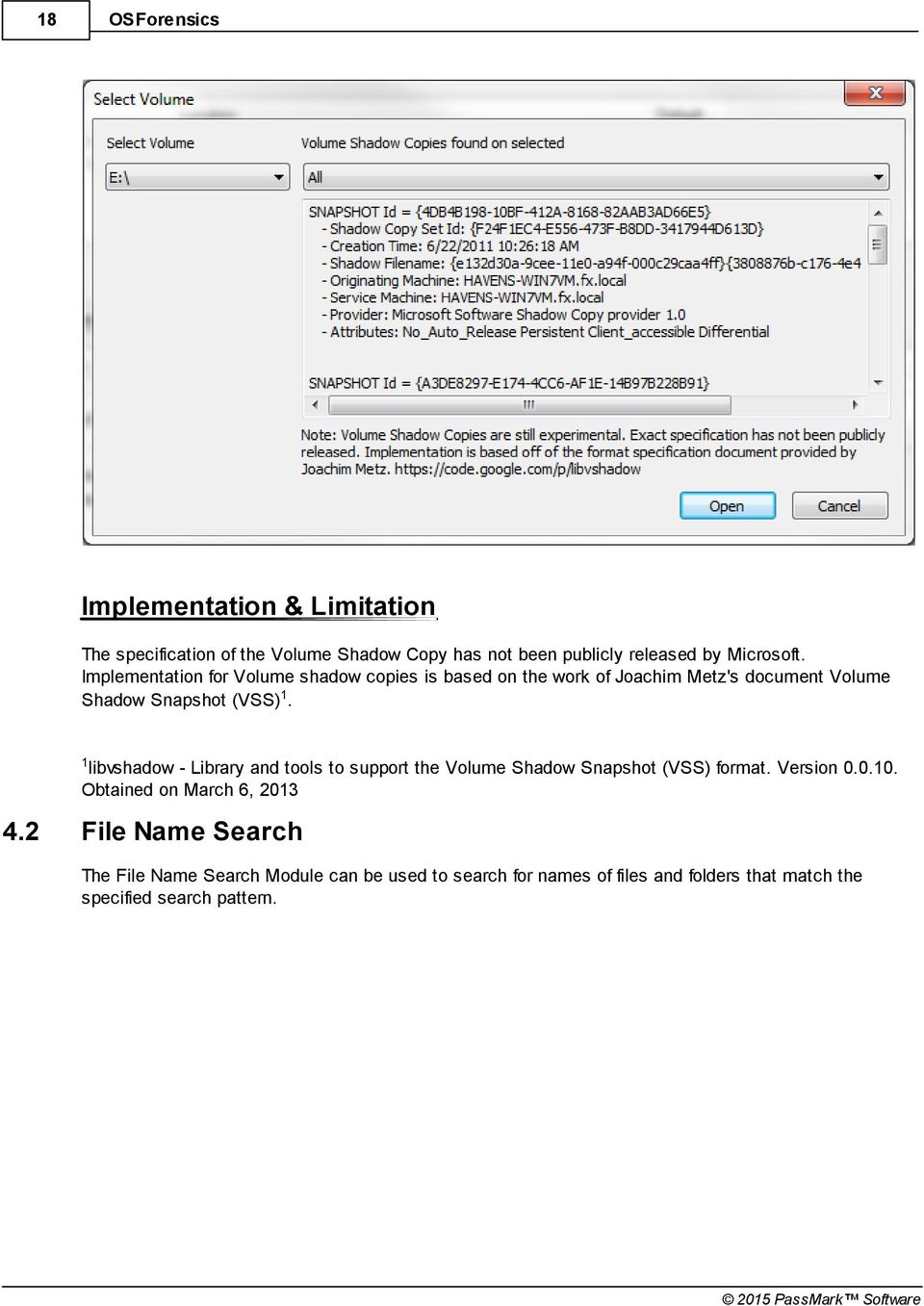
17 Features Supported File Systems The following is a list of file systems supported by OSForensics when adding a device to the case in Forensics mode: NTFS (Windows) FAT16/FAT32 (DOS/Windows) Ext2/Ext3/Ext4 (Linux/Android)* HFS+/HFSX (Mac/iPhone/iPad) *In some of the more popular Linux distributions (eg. Fedora, Gentoo, Ubuntu), the Logical Volume Manager (LVM) manages the volumes in the system. This allows for a single, continuous volume to be backed by one or more physical disk partitions for ease of management. However, when the physical disks are imaged, the partitions appear as an 'LVM partitions' containing metadata regarding how the partitions are arranged into the single volume. OSForensics is unable to rearrange the partitions back into the single volume. To resolve this issue, an image of the volume must be created under Linux so that the operating system handles the complexity of the LVM layer. This resulting image can then be added to the case as it appears to OSForensics as a standard Linux volume Supported Partitioning Schemes The following is a list of partitioning schemes supported by OSForensics when adding a device to the case: Master Boot Record (MBR) GUID Partition Table (GPT) Apple Partition Map (APM) Support for Volume Shadow Copy Background The Volume Shadow Copy Service is a backup technology from Microsoft used in Windows XP and later operating systems. It is a mechanism for creating consistent point in time copies of data know as shadow copies. Shadow copy technology requires the file system to be NTFS. Shadow copies are stored on the volume and can be used to reconstruct the volume to a previous point in time. Usage Shadow Copies can be added to the case and used in various OSForensics modules. Shadow copies are loaded on first use. The time to load a shadow copy is dependent on the number of shadow copies existing on the volume and the size of the copies themselves. This means for larger drives, the time to load can be quite substantial. Shadow copies changes are stacked, in the sense to access the oldest shadow copy, the more recent shadow copies must first be applied to the volume. To decrease the time needed to access shadow copies, OSForensics can cache up to 1 volume's set of shadow data in memory (i.e. if drive E:\ has 4 shadow copies, the entire set will count as one toward the 1 limit).


18 18 OSForensics Implementation & Limitation The specification of the Volume Shadow Copy has not been publicly released by Microsoft. Implementation for Volume shadow copies is based on the work of Joachim Metz's document Volume Shadow Snapshot (VSS)1. 1 libvshadow - Library and tools to support the Volume Shadow Snapshot (VSS) format. Version..1. Obtained on March 6, File Name Search The File Name Search Module can be used to search for names of files and folders that match the specified search pattern.

19 Features 19 Basic Usage A basic search simply involves entering a search string and location. Any files or folders that contain the search string within their name will be displayed in the search results. For instance, searching for "File" will match "file.txt", "test.file" or "MyFile.doc". The basic search is case insensitive. Presets You can select one of the preset search options to quickly locate image files or office documents. Multiple Searches To run multiple different searches at once by separating the terms with the ';' character. Wildcards You can use '*' or '?' as wildcards within the search string. '*' represents any number of characters '?' represents a single character If a wildcard is entered anywhere in the search field, wildcard matching is enabled on all search terms. When wildcard matching is enabled, you will need to explicitly add '*' to the start and end of the search term if you are trying match a word that may appear in the middle of a filename.


20 2 OSForensics More Advanced Options By clicking the "Config..." button you will be taken to the File Name Search Configuration window where more advanced options can be selected. Results The results of the search are displayed in one of three views, along with a summary of the number of items searched/found. Right-clicking a file opens the following context menu. Open Open the file with the default program Open With... Allows the user to select the program to open the file Open Containing Folder Opens the folder than contains the file View with Interval Viewer Opens the file with OSForensics Viewer to perform a more thorough analysis Show File Properties Opens the file with OSForensics Viewer in File Info mode. Copy Files(s) to Clipboard Once copied to the clipboard a file can then be pasted in to any other application that supports it, most notably Windows Explorer. Note: In some cases copying the files via a paste to an explorer window will fail without error message at

21 Features 21 the start when "preparing to copy". This can happen in several different situations including if the file has already been deleted (eg a temp file) or if Windows Explorer does not have permissions to access the files (eg restricted system files and folders). In these cases it is better to use the "Add to case" function. Look up in Hash Set Verify whether the file is contained in a hash set in the active database. See Hash Set Lookup. Print... Print the file (if applicable) Bookmark Green Add/remove selected path from the list of Green bookmarks. Keyboard shortcut: Ctrl+G Yellow Add/remove selected path from the list of Yellow bookmarks. Keyboard shortcut: Ctrl+Y Red Add/remove selected path from the list of Red bookmarks. Keyboard shortcut: Ctrl+R Add to Case Add the selected file(s) to the case Export List of Selected Items to Export the selected file(s) and associated attributes to a TXT, CSV or HTML file Export List of All Items to Export all files and associated attributes to a TXT, CSV or HTML file Select All selects all the items in the list. Delete Delete the file File Name Search Configuration The File Name Search Configuration Window allows for setting advanced options for the File Name Search. This window can be accessed by clicking on the "Config..." button in the main File Name Search window.

22 22 OSForensics Case Sensitive If checked, searches will be case sensitive. This option is disabled by default. Search for Folder Names If checked, folder names will also be included in searches, not just filenames. This option is enabled by default. Search in Sub Folders If checked, sub folders will also be included in searches, not just the files in the start directory. This option is enabled by default Match Whole Word Only If checked, results only include whether the search string is matched as a discreet word in the file name. In addition to spaces, the following characters are used as breaking characters around a word "_-.()[] ". For instance, searching for "Test" with this option enabled would return files like "_Test.txt", "A(Test). jpg", "This is a Test.docx" and "file.test". But it would not return "testing.txt", "testimony.pdf" or "contest.zip". This option is disabled by default. This option has no effect on wildcard searches.
23 Features 23 File Size Limits Allows the user to specify file size limits for search results. The user may enter either a minimum, maximum, both or neither. The only restriction is that the maximum must be larger than the minimum. File Attributes Filters the search results based on the file system attributes that are checked. Archive A file or directory that is an archive file or directory, which is typically marked for the purpose of backup or removal. Compressed For a file, the data is compressed. For a directory, newly created files and subdirectories shall also be compressed. Encrypted For a file, the data is encrypted. For a directory, newly created files and subdirectories shall also be encrypted. Hidden A file or directory that is hidden, and are typically not shown in a directory listing. Read-only A file that cannot be written on or deleted. This attribute does not have any meaning for directories. System A file or directory that is used by the operating system. Reparse Point A file or directory that has a reparse point, which is typically used as a symbolic link. Sparse file A file that is a sparse file (eg. data is mostly zeros) Creation Date Range Allows the user to specify the creation date range for the search results. Modify Date Range Allows the user to specify the modify date range for the search results. Gather alternate stream info Selecting this option will gather information about alternate NTFS data streams within a file. Turning this on will slow down the search slightly. Minimum number of alternate stream A file must have at least this many alternate data streams to be included. Minimum size of alternate streams The total combined size of all alternate data streams must be at least this much for the file to be included.

24 OSForensics File Name Search Results View The user may view the file name search results in one of three views. File List View The File List View displays the search result as a list of file names, along with the corresponding metadata and icon. The results are sorted according to the criteria selected in the Sorting combo box. Thumbnails View

25 Features 25 The Thumbnails View displays the search result as a list of thumbnails as well as with its file path. This view is useful when searching for media files, allowing the user to quickly browse through the thumbnail images. Similar to the File List View, the results can be sorted via the Sorting combo box. The size of the thumbnails can be adjusted using the Thumbnail Size slider bar. Timeline View
26 26 OSForensics The Timeline View displays an interactive bar graph providing the user with a visual view of the distribution of files with respect to the date of the files. This view is useful for identifying date ranges where significant file activity has occurred. The granularity of the scale can be adjusted by clicking on the bar graphs to zoom in or the '-' button on the top-right corner to zoom out. Each bar is colour-coded by file type. Right-clicking a bar section brings up the following menu: Show these files Filter the results to show only those that belong to the selected time bar Export to HTML Export the results contained in the highlighted bar to HTML Export to Text Export the results contained in the highlighted bar to text
27 Features 27 Export to CSV Export the results contained in the highlighted bar to CSV 4.3 Indexing Indexing allows you to search within the content of many files at once. Unlike the other search modules which only inspect filenames and other surface criteria, indexing allows you to perform deep searches inside the content of PDF documents, Word files, s, image meta data and much more. In order to do this, you must first create an index for the set of files you wish to examine. This is a thorough process which scans and analyzes the files and builds an index (consider it to be a more sophisticated version of what you would find in the back of a book), which can then be used to perform searches on. The following modules are used to perform index-based searches. Create Index Module that performs the initial index generation required for an index-based search Search Index Module that performs an index-based search using the index files created via the Create Index module Create Index Creating an index allows the investigator to perform lighting fast, content-based searches across the entire drive or section of the drive. This process involves scanning the content of files and s on the hard drive, and then constructing an index of the words found. TIP: 64-bit OSForensics is highly recommended when indexing large sets of data. If you are having problems with the indexing not completing properly or having a lot of errors see this page for common causes and solutions. The indexing process is presented as a wizard. Step 1: Select File Types to Index

28 28 OSForensics In this step you must select what kind of files you wish to index. You can select between a predefined set of file types or you can specify more advanced indexing options via templates. In general, the more file types that are selected, the longer and more resource consuming the indexing process will take. s Scan files found on the disk. Supports pst, msg, eml, mbox and dbx files. Attachments Scan all attachment documents found in messages. Office + PDF Documents Scan Microsoft Office documents, OpenOffice documents and PDF files. Zip Files Scan zip archives for files that match the other selected types. As such you should select other file types along with this option as zip files are merely containers and don't contain much interesting information in and of themselves. Images Scan image files for metadata information. Supported types are jpeg, gif, tiff, png and bmp. Plain Text Files Scan plain text files and rich text documents. Web Files + XML Scan HTML web pages and documents including PHP, Perl, JavaScript, CGI, ASP/ASPX, and Shockwave Flash files. All Other Supported File Types

29 Features 29 Scan all other supported types of files supported by the indexing process. This includes the following file types:.nfo,.dat,.wpd,.mp3,.dwf,.torrent,.mht,.avi,.wmv,.mpg,.mpeg,.rmv,.rmvb,.flv,.mov,.qt,. exe,.dgn,.wma,.tar,.gz,.cab,.rar,.psd Unknown Files Scan files whose type cannot be determined by their extension or have no extension at all. The indexing process will attempt to identify what kind of file it is dealing with. This option can somewhat increase indexing time as a far greater number of files will be scanned. Step 2: Location and Advanced Options In this step, you will specify start directories where OSForensics will scan for files to index. Click the 'Add' button to specify the start location you want to add to the list: You may specify an entire drive, or a specific directory (eg. "My Documents" folder) to index. For Whole

30 3 OSForensics Drives, you have the option to scan the drive's unallocated clusters as well. However, this will greatly increase the indexing time and resource requirements If you choose to index unallocated clusters, then the file types you have selected are ignored for the data found in the unallocated clusters. In a sense there are no files in unallocated clusters. Any data found in unallocated clusters is treated the same. The strings are extracted and added to the index. Even if, for example, a fragment of data in unallocated clusters was once part of an.doc file, it still isn't processed like an Word document. Only string extraction is done. Step 3: Case Details In this step, you will need to enter details for this index to be added to the case. If you do not have a case open, you will be prompted to create/open one before moving to the next step. This step allows you to specify a title and notes for your index that will be stored in the case. Step 4: Pre Scan

31 Features During this stage, OSForensics will conduct a preliminary scan of the location and files you have specified in order to set limits for the indexing process. If you have manually set these limits in the advanced indexing options, then this step will be skipped. Barring any errors in this step, it will immediately move on to the final stage where indexing begins. Step 5: Indexing 31

32 32 OSForensics The index is now being created. This process can take quite a long time depending on the options selected. To view the log in real-time while indexing is being performed, click on 'Open Log...' to bring up a log window as shown below.
33 Features 33 The log entries can be filtered according to the message type. At the end of the indexing process, if no critical errors occurred, you will now be able to search against the index via the search index module. Additional Information: See the following pages for more detailed information about the specifics of some of the data gathering. Advanced Indexer Options Indexing Problems and Solutions Indexing Problems and Solutions The indexing process fails due to not enough memory Indexing uses a lot a memory, especially for large file sets. If indexing a large number of files it is highly recommended to use the 64-bit version of OSForensics if possible which has far higher memory capacity (also a machine with lots of physical memory will help). If this is not possible, or you are still encountering errors even with this, there are a few other things you can try. Don't index unallocated sectors, this is a highly intensive operation. Breaking up the index into several smaller indexes. For example, one for s, one for office documents or an index for the "Program Files" directory and an index for the "Users" directory. This will mean that each index will need to be searched separately however it will allow you to overcome the limitations of the indexing process. Reducing the maximum file size indexed in the advanced indexing options can also greatly reduce the amount of memory needed. 99% of files indexed will probably be less then 1MB, however if the pre-scan detects a single 1GB file the indexing process will use that much extra memory. By excluding a few very big files you can greatly reduce the memory requirements. The log file shows a lot of errors about files being locked If you are indexing an active system drive (the drive windows is running from) this is quite common as many programs and windows itself will be using the files on the drive making them inaccessable. Usually these files are system files without much interesting text in them and this should not be a problem. The log file says the max number of pages was reached During the pre-scan step OSForensics tries to detect the number of files that will be included in the index and sets this as the maximum the indexing process will scan. Because the pre-scan is a rough and fast scan it may sometimes get this wrong. If this is the case you should try indexing again by setting the maximum pages manually in the advanced options. Limits on recursive indexing When indexing archive files like ZIP, there is a limit to the number of recursions that can take place. For example, when a ZIP file contains a ZIP file, this requires a recursive indexing. OSF is currently designed to index up to 16 levels of recursion in archive files. For s containing attachments (which may themselves be another containing yet another attachment), OSF will successfully index recursively until the URL is too long to return meaningfully as a search result. There is no fixed depth limit for recursively indexing attachments.

34 OSForensics Indexing Templates Templates allow the user to specify advanced indexing options in cases where the predefined options are insufficient for an investigator's analysis needs. To use templates, select the 'Use Custom Template' button from Step 1 of the index creation procedure. Create Template To create a new template, click the 'Create Template' button or right-click menu option. You will be prompted to specify a set of file types to be scanned as part of the indexing process via the Advanced Indexing Options window. Once the settings have been finalized, you will be prompted to specify a name for the template file. Import Template A template can be imported from an existing.zcfg file, which can be an existing template or a Zoom configuration file. Once the file is selected, the settings are propagated to the Advanced Indexing Options window where the template can be further refined. Delete Template Deletes the template file from OSForensics Edit Template Opens the Advanced Indexing Options window where the existing template can be modified Advanced Indexing Options The Indexer Advanced Options allows users to configure various indexing parameters. This window can be accessed when Creating or Editing a template.

35 Features 35 Scan Extensions The list of file types whose contents will be scanned are configured here. Typical file extensions are added to the list by default. To add a new file extension, click the 'Add' button. The user must specify the file extension and the associated file type to include the new file extension in the indexing process. To remove a file extension, click the 'Remove' button Scan files with no extension If checked, files without an extension are included in the indexing process
36 36 OSForensics Scan files with unknown extension If checked, files not included in the list are included in the indexing process Page and folder skip list Pages and folders containing particular words can be excluded from the scan by adding the words to the list. Note that the folder the created index files are written to is also automatically added so that the indexing process does not index the files it is creating. This folder is a sub folder of the currently active case folder. Skip files or directories that begin with an underscore when indexing offline If checked, files or directories that begin with an underscore will be excluded from the scan when indexing offline Limits Limits allow users to manually configure indexing limits, which may need to be done in special cases. To enable custom limits, check the 'Enable Custom Limits' checkbox. Max. files to index Maximum number of files to scan and include in the index Max. file size indexed Maximum file size that can be indexed, This limit does not apply directly to containers such are zip and mail files (but does apply to the files extracted from within them). Stemming Stemming refers to similar words that derived from search terms. For example, searches for "fish" would return results for "fishing", "fishes", and "fished". To enable stemming, check the 'Enable stemming for:' checkbox and select a language. Accent/diacritic insensitivity This will map all occurrences of accented characters to their non-accented equivalent (eg. ó, ò, ô, etc. will all be treated as o ). With this enabled, a user can enter the search word cliché and it will find all occurrences of the word on your website spelt as either cliché or cliche". Unallocated Allows for indexing of text found in unallocated sectors of the hard disk. Binary String Extraction Level When trying to get words out of binary data the indexing process has to make a decision as to what is a word and what is just random data. Changing this option will determine how lenient/strict the indexer is when making this decision. Generally leaving this on default, the most strict option, is recommended as this will aggressively remove nonsense data a keep the index to a more manageable size. The Code Words setting is useful if you are trying to find things like passwords missed by the default option. The Extreme option will pull out a lot of data, much of which will be nonsense, in most cases this option will not be needed.

37 Features Search Index The Search Index module performs the actual search using the index generated via the Create Index module. Unlike the File Name Search, the contents of the file are searched (as opposed to just the filename) for the user-specified search words. Usage To perform a search, first select an index or multiple indices to search. Multiple indices can be specified by clicking the '...more...' link under the drop-down box. Next, simply enter one or several words and click search. More advanced searching criteria is detailed below. Search Criteria Any or All Search Words You can select to search for either any or all of the entered words from the Advanced Search Options (accessed by clicking on the 'Advanced' button). Wildcards You can use wildcard characters '*' and '?' in your search terms to search for multiple words and return larger set of results. An asterisk character ('*') in a search term represents any number of characters, while a question mark ('?') represents any single character. This allows you to perform advanced searches such as "zoom*" which would return all pages containing words beginning with "zoom". Similarly, "z??m" would return all pages containing four letter words beginning with 'z' and ending with 'm'. Also, "*car*" would be a search for any words containing the word "car".
38 38 OSForensics Exact phrase An exact phrase search returns results where the phrase of words are found, in the same order that they are specified. For example, an exact phrase search for the words "green tea" would only return results where the phrase 'green tea' appears. It would not return pages where the words 'green' and 'tea' are found separately, or in a different order such as, 'tea green'. To specify an exact phrase search term, you need to enclose the words that form the phrase using double quotation marks. You can also combine the use of exact phrase searches with normal search terms and wildcard search terms within a single search query (eg. "green tea" japan*). Note however, that wildcards within exact phrases (eg. "green te*") are not supported. Exclusion/negative searches You can precede a search term with a hyphen character to exclude that search term from being included in your search results. For example, a search for "cat -dog" would return all pages containing the word "cat" but not the word "dog". Use Word List File A Word List File allows the user to specify a file containing a list of terms to search for in the currently selected index. This effectively performs a bulk search on the list of terms automatically. Results from the bulk search will appear in the History View from where they can be opened and viewed. The word list file should place each search on a new line. Lines starting with # are comment lines and will not be searched. A double # at the beginning of a line can be used if you actually need the search term to start with a #. Example search word lists have been provided and will appear in the default directory when selecting a file. For easy access it is recommended you put your own search word list files in this same directory. Results The results of the index search are displayed in the tabbed view, organized into file types. See Index Search Results View for more details Advanced Search Index Options The Advanced Search Options Window allows users to configure various search parameters. This window can be accessed by clicking on the "Advanced" button in the main Search Index window.

39 Features 39 Match The user can select whether the results will match any of the words or all of the words in the search string Date Range If 'Use Date Range' is checked, allows the user to filter the results to include only files within the specified date range. Search Options Allows the user to filter the search results to those matching the 'From', 'To' and 'CC' fields Index Search Results View After an index search is performed, the results are displayed in the Results View. The results are organized into several views, depending on the file type. Types of Views Files View

40 4 OSForensics The File View displays the search results as a list of file names, along with its corresponding metadata, icon, score and the number matched. The score ranks the relevancy of the search string with the file.the results are sorted according to the criteria selected in the Sorting combo box. Right-clicking a file opens the following context menu. Certain actions may or may not be available depending on the current results tab. Open Open the file with the default program, or with the internal viewer in the case of s. Open With... Allows the user to select the program to open the file
41 Features 41 Open Containing Folder Opens the folder than contains the file View With Internal Viewer Open the file using OSForensics internal file viewer. Copy Files(s) to Clipboard Once copied to the clipboard a file can then be pasted in to any other application that supports it, most notably Windows Explorer. Note: In some cases copying the files via a paste to an explorer window will fail without error message at the start when "preparing to copy". This can happen in several different situations including if the file has already been deleted (eg a temp file) or if Windows Explorer does not have permissions to access the files (eg restricted system files and folders). In these cases it is better to use the "Add to case" function. Copy Title Copy the title to clipboard Print... Print the file (if applicable) Bookmark Green Add/remove selected path from the list of Green bookmarks. Keyboard shortcut: Ctrl+G Yellow Add/remove selected path from the list of Yellow bookmarks. Keyboard shortcut: Ctrl+Y Red Add/remove selected path from the list of Red bookmarks. Keyboard shortcut: Ctrl+R Add to Case Add the selected file(s) to the case Export List of Selected Items to Export the selected file(s) and associated attributes to a TXT, CSV or HTML file Export List of All Items to Export all files and associated attributes to a TXT, CSV or HTML file Images View

42 42 OSForensics The Images View displays only the search results that contain images as a list of thumbnails. This view is useful when the search results contain media files, allowing the user to quickly browse through the thumbnail images. Similar to the File View, the results can be sorted via the Sorting combo box. The size of the thumbnails can be adjusted using the Thumbnail Size slider bar. View

43 Features 43 The View displays a list of results. This view displays results containing specific metadata, such as a preview of the message body, and various header fields (eg. From, To, CC). Double clicking on an opens the Viewer window. Right-clicking an opens the following context menu: Copy To / From / CC Address For s you can copy any of the addresses associated with it. Attachments View The Attachments View displays a list of attachment files that were found within s. Double clicking on an opens the Viewer window.

44 44 OSForensics Unallocated View The Unallocated View displays a list of unallocated cluster (free clusters not allocated to any file) results. The results contain the LCN range, along with any contained text if applicable. Double clicking on a cluster range opens the Internal Viewer. Timeline View The Timeline View displays an interactive bar graph providing the user with a visual view of the distribution of the search results with respect to the modified dates of the files. The granularity of the scale can be adjusted by clicking on the bar graphs to zoom in or the '-' button on the top-right corner to zoom out. Right-clicking a bar section brings up the following menu:
45 Features 45 Show these files Filter the search results to show only those that belong to the selected time bar Export to HTML Export the results contained in the highlighted bar to HTML Export to Text Export the results contained in the highlighted bar to text Export to CSV Export the results contained in the highlighted bar to CSV Browse Index View The Browse Index View shows the list of words, text and strings found when the index was created. For more information, see Browse Index. History View The History View keeps a history of all index searches performed for the case. This allows previous searches to be logged so that they can be repeated if necessary. Loading previous search results from

46 46 OSForensics history is much faster than doing the searches again. Additionally, when the user performs a search using a Word List, the results are displayed in the History View. Right-clicking a previous search brings up the following menu: Display Search Results Display the results of the selected previous search Search For Selected Items & Add To Case Display the results of the selected previous search(es), and add all files contained in the results to case Export Selected Items... Export the list of selected history items to a CSV file. Export All Items... Export the entire list of history items to a CSV file. Delete Delete the selected history item(s) Delete All Delete all history items in the list Browse Index The "Browse Index" tab allows the investigator to examine the actual index itself, which is a list of words, text and strings found when the index was created. It will list all the words in alphabetically ascending order. The main purpose of analyzing the index contents is to look for recognizable strings such as addresses, phone numbers, credit card numbers, IP addresses and more.

47 Features 47 Usage Right-click Menu Right-clicking an index word opens the following context menu. Certain actions may or may not be available depending on the current results tab. Search For Selected Items Performs the search on the selected item(s) and save the results in History View. Search For Selected Items & Add To Case Performs the search on the selected item(s), save the results in History View and add the results to case.

48 48 OSForensics Export Selected Items... Export the list of selected items to a CSV file. Export All Items... Export the entire list of words to a CSV file. Index properties... Shows the details of the index including number of files indexed, total size and number of unique words. Filtering Index Strings Regular expressions are used to filter the list of strings. There are several pre-configured regular expressions that can be selected in the Filter drop-down box. The user may also specify their own regular expressions in the search box. Predefined Regular Expressions Predefined regular expressions can be selected using the drop-down box. The source of the actual regular expressions used can be found in the "RegularExpressions.txt" file in the OSForensics program data directory (ProgramData\PassMark\OSForensics). These have been collected from various sources and are kept as simple as possible while still returning fairly accurate results, please note these will not be 1% accurate in all situations. User-Specified Regular Expressions The investigator can specify their own regular expression pattern to filter the list of strings. For example, to search for any entry containing the word "test", select the Custom option from the drop down list, type "test" and then click the search button. To find only entries that begin with the word "test" use "^test", the "^" character is used to indicate the pattern match must start at the beginning of the found word. For a basic overview of regular expressions, see Regular Expressions. 4.4 Recent Activity The Recent Activity module scans the system for evidence of recent activity, such as accessed websites, installed programs, USB drives, wireless networks, and recent downloads. This is especially useful for identifying trends and patterns of the user, and any material that had been accessed recently.

49 Features 49 A scan for recent activity can be initiated by simply pressing the Scan button. The following settings are available to the user: Live Acquisition of Current Machine Recent activity is gathered from the currently running operating system. Scan Drive Gather the recent activity from a particular drive, useful when live acquisition are not possible and a drive image is being dealt with. This particular scan may not be able to gather as much information as a live acquisition. By default, OSForensics will search for known Windows directories to scan registry files.

50 5 OSForensics However, if you have some standalone registry files you can place them in the root directory of a drive (eg a USB thumb drive) and select this drive to be scanned. More Scan Options By clicking the "Config..." button you will be taken to the Recent Activity Configuration window where more advanced options can be selected. Activity Filters By clicking the "Filter" button you will be taken to the Recent Activity Filters window where you can further refine what activity types are displayed. File Details View The File Details View displays the same recent activity of the system as the File List View except presented in a table format. This view is useful for quickly identifying, locating and sorting activities of interest. Each entry is coded by the type of activity and can be identified by the icon displayed at the beginning of the row. Timeline View

51 Features 51 The Timeline View displays an interactive bar graph providing the user with a time-based view of recent activity on the system. This view is useful for identifying trends where significant activity has occurred. Each bar is colour-coded by the type of activity. Right-clicking a bar sections brings up the following menu: Show these files Filter the results according to the corresponding activity type and date/time Export to HTML Export the results contained in the highlighted bar to HTML Export to Text Export the results contained in the highlighted bar to text Export to CSV Export the results contained in the highlighted bar to CSV
52 52 OSForensics Additional Information See the following pages for more detailed information about the specifics of some of the data gathering. Web Browser Activity Registry Activity Windows Event Log Windows Jump Lists Windows Search Chat Logs Recent Activity Configuration The Recent Activity Configuration Window allows the user to configure the Recent Activity scan options. This window can be accessed by clicking on the "Config..." button in the main Recent Activity window.

53 Features 53 Most Recently Used (MRU) If checked, enables scanning for Most Recently Used (MRU) items. See Registry Activity for details about MRU. Events If checked, enables scanning for event logs from the operating system. See Windows Event Log for details about Windows events. UserAssist If checked, enables scanning for UserAssist items. See Registry Activity for details about UserAssist.
54 54 OSForensics Jump List If checked, enables scanning for Jump List items. See Windows Jump List for more details. Installed Programs If checked, enables scanning for programs installed on the operating system. See Registry Activity for details about installed programs. Autorun Commands If checked, enables scanning for Autorun commands. See Registry Activity for details about Autorun commands. Windows Search If checked, enables scanning for items in the Windows Search database. See Windows Search for more details Application Prefetch If checked, enables scanning for Prefetch information. See Prefetch Viewer for details about information stored by the Prefetcher. USB If checked, enables scanning for USB devices that have been connected to the system. See Registry Activity for details about connected USB devices. WLAN If checked, enables scanning for wireless networks that the computed has connected to. See Registry Activity for details about wireless connections. Mounted Volumes If checked, enables scanning for volumes that have been mounted by the operating system. See Registry Activity for details about mounted volumes. Browser History If checked, enables scanning for browser URL history. See Web Browser Activity for details about supported web browsers. Browser Bookmarks If checked, enables scanning for browser bookmarks. See Web Browser Activity for details about supported web browsers. Form History If checked, enables scanning for browser form history. See Web Browser Activity for details about supported web browsers. Downloads If checked, enables scanning for files downloaded via the browser. See Web Browser Activity for details about supported web browsers. Cookies If checked, enables scanning for cookies stored by the browser. See Web Browser Activity for details about supported web browsers. Chat Logs If checked, enables scanning for chat logs from MSN Messenger, AIM, Yahoo Messenger, ICQ, Skype,

55 Features 55 Miranda IM, and Pidgin. Search all items Searches all items for recent activity. Search date ranges only Allows the user to specify a particular access date range for the search results. Include dateless items If checked, will include items without an access date Recent Activity Filters The Recent Activity Filters Window allows the user to add filters to narrow down the results from a Recent Activity scan. This window can be accessed by clicking on the "Filters" button in the main Recent Activity window. The top list will show which filters have been added and which are enabled. Filters with the check mark will be enabled. To temporarily disable a filter you can uncheck the item in the list. To no longer have the filter available, you can use the Remove Filter button.
56 56 OSForensics About Filters There are two types of filters: one that affects all activity types and ones that are activity type specific. If the "Activity Type" is set to "All", it will be applied to all activities. If the filter is set to a specific type, e. g. "Browser History", then the filter will only be used to filter those activity types. Match: If set to "All Checked", then for the activity to be displayed in the list it must match every enabled "All" filters and every enabled activity specific filters for its type. If set to "Any Checked" then for the activity to be displayed in the list it must match at least one of the enabled "All" filters or one of the enabled activity specific filters for its type. Import & Export These buttons let you save and load existing filters for future use. Adding Filters There are three drop down boxes.the top dropdown box is for the Activity Type and will contain the available activity type filters and an All type. The second dropdown box is the Parameter to filter for that activity. The third dropdown is the condition upon which to match. Depending on your selection, the Parameter and Condition dropdowns will be auto-populated to aid you in adding filter. Depending on the Parameter type you will be given different conditions to use. Parameter types are: Text Numbe r Date User Choice Filesiz e Equal (=) Not Equal (!=) Less Less Than or Greater Than Equal Than (<) (<=) (>) Greater Than or Equal (>=) Contai Regular ns Expression Date Range Yes Yes Yes Yes No Yes No Yes No Yes No Yes Yes No Yes Yes No No Yes Yes Yes No Yes Yes Yes No No No No Yes No No No Yes No No No Yes No No No Yes No No No No No Yes No No Yes No No No Equal - For text, the string must match exactly (case insensitive). For Number the number must match exactly. For Date, the day must match. For Choice the selected choice must equal. Not Equal - See "Equal" above, except in this case it must not match. Less Than - For number and file size, must be less than this number or size. Less Than or Equal - For number and file size, must be less than or equal to this number or size. Greater Than - For number and file size, must be greater than this number or size. Greater Than or Equal - For number and file size, must be greater than or equal to this number or size. Contains - For text only. The text must contain this string (case insensitive). Regular Expression - Case insensitive. See Regular Expressions for more details. Date Range - Date must be within these dates. If "Include dateless items" is checked, then any activity without a proper date will be a match Web Browser Activity OSForensics scans known locations for web browser profiles and their related history and cache files to detect cookies, bookmarks, visited URL history, downloads, form history and saved login and password form fields where available.
57 Features 57 Below is a table that shows which features are supported for web browsers and their different versions. Browser Chrome Internet Explorer Internet Explorer FireFox FireFox Safari Opera Opera Opera Versions ,8,9,1+ 2 3, URL History Yes Yes Yes Yes Yes Yes Yes Yes Yes Cookies Yes Yes Yes Yes Yes Yes Yes Yes Yes Downloads Form History Yes Yes No No No No No Yes Yes Yes No Yes Yes Yes No No No No Registry Activity By default OSForensics will search for known Windows directories to scan for registry files, however if you have some standalone registry files you can place them in the root directory of a drive (eg a USB thumb drive at G:) and select this drive to be scanned. OSForensics will scan the following registry files for recent activity: SOFTWARE SYSTEM NTUSER.dat Most Recently Used Lists (MRU) OSForensics checks several known registry locations that store MRU data, this includes locations for Microsoft Office, Microsoft Wordpad, Microsoft Paint, Microsoft Media Player, Windows search, recent documents, connected network drives and the Windows Run command. In addition, OSF will also check the user's Recent Items directory. The Recent Items access is very useful to view the recently opened files from a local computer or network location. 1 AutoRun Entrires Programs that are run automatically when Windows starts or a user log in are retrieved from the registry, Mounted Volumes Volume IDs are collected from the system registry and matched to the and drive letters they were associated with. Installed Programs Programs that have been installed are retrieved from the system and user registry files Connected USB devices USB devices that have been connected to the computer, this includes USB memory sticks, portable hard drives and other external USB devices like CD-Rom drives. A manufacturer name, product ID, serial number and the last connection date should be displayed for each device. Wireless Network Connections
58 58 OSForensics The MAC address of any wireless networks connected to using the Windows Zero Config service (default Windows wireless connection manager) (Windows XP only). UserAssist Entrys The UserAssist key from the regsitry contains programs and links that are opened frequently. 1 The Recent Items folder (previously called Recent Documents in Windows XP) is used by Windows to record what documents have been opened (the default location is typically is "C:\Users\%UserName% \AppData\Roaming\Microsoft\Windows\Recent"). The files in this directory are actually shortcut (.lnk) files. As these are shortcuts, they may no longer work if the file have been moved or deleted since it was originally created. Also of note, is when using "Scan Drive" option and choosing an added OSForensics' device, links may point to local and network locations that may not be available on the current machine Windows Event Log OsForensics will scan the Windows logs for the following events; Security Log Events Account login Failed login attempt Account logoff Password change attempted Password reset attempted User account locked User account unlocked System Log Events 19 - Windows update success 2 - Windows update failure Shutdown 69 - System boot 21 - Driver installed Application Log Events Product installed Product install failed The feature can only be used when running Windows Vista or Windows Windows Jump Lists Jumps lists are a feature introduced to Windows 7 that allow fast access to programs and favorites as well as functioning as a most recently used list for some programs (see the Micorosoft page on jump lists for more information on how they function. Jump lists come in two formats, automatic which are created by Windows and custom which are created when a user interacts with the program such as pinning an item to the list. OSForensics is
59 Features 59 currently retrieving information from the "Destlist" section of the automatic jump lists and all the entries from the custom jump lists. The information presented by OSForensics is the name (where available), system name (where available), the underlying base path saved in each entry plus any command line arguments stored and the associated date Windows Search Windows Search is a desktop indexer that has been integrated and enabled by default in Windows operating systems since Vista. Windows (Desktop) Search can also be optionally installed on Windows XP and Windows 23. During its normal operating, Window Search runs in the background, creating a full-text index of the files on the computer. This index allows for fast searching of filenames and file contents matching the specified search term. In a forensics point of view, the index database can contain valuable artifacts that an be useful for mapping user activity during any given time frame. In particular, a forensics investigator can obtain valuable forensics information from the analysis of the index database, such as: File activity at any given point in time (such as installed programs and modified documents) Files contained in disks that are damaged or no longer exist (such as external disks) Plain text data from indexed files such as documents and s Plain text data from encrypted files Because Windows Search is enabled by default, the index database acts as a digital footprint of the system activity. The typical user is likely to be unaware of the indexing operation taking place in the background Chat Logs OSForensics will search for chat logs from these programs; Microsoft Chat AIM Yahoo ICQ Skype Miranda Pidgin 4.5 Deleted Files Search The Deleted Files Search Module can be used to recover files deleted from the file system (ie. deleted file no longer in recycling bin). This is especially useful for recovering files that the user may have attempted to destroy.

60 6 OSForensics Basic Usage A basic deleted file search simply involves entering a search string and selecting a physical disk. OSForensics will scan through the selected disk for traces of deleted files that contain the search string within their name. The basic search is case insensitive. Presets You can select one of the preset search options to quickly locate image files or office documents. Multiple Searches To run multiple different searches at once by separating the terms with the ';' character. Wildcards You can use '*' or '?' as wildcards within the search string. '*' represents any number of characters '?' represents a single character If a wildcard is entered anywhere in the search field, wildcard matching is enabled on all search terms. When wildcard matching is enabled, you will need to explicitly add '*' to the start and end of the search

61 Features 61 term if you are trying match a word that may appear in the middle of a filename. '*' to the start and end of the term if you are trying match a word that may appear in the middle of a filename. More Advanced Options By clicking the "Config..." button you will be taken to the Deleted Files Search Configuration window where more advanced options can be selected. Results The results of the search are displayed in one of three views, along with a summary of the number of items searched/found. The list view contains a list of file names, along with the corresponding metadata and a quality indicator between -1. A value close to 1 means that the deleted file is largely in tact, with only a few missing clusters of data. The results are sorted according to the criteria selected in the Sorting combo box. Right-clicking a deleted file opens the following context menu. File Location Information Opens a graphical display of the location of the file clusters on the physical disk. View with Internal Viewer Opens the deleted file with OSForensics Viewer to perform a more thorough analysis Save Deleted File Attempt to recover the deleted file by saving on disk. Save All Selected Deleted Files Attempt to recover all selected deleted files Save and Open Recover the deleted file and open with the default program Save and Open With Recover the deleted file and allow the user to select the program to open with
62 62 OSForensics Save Deleted File (include allocated clusters) Save the deleted file clusters along with clusters that have been allocated to another file to disk Look up in Hash Set Verify whether the deleted file is contained in a hash set in the active database. See Hash Set Lookup. Jump to disk offset... Opens the Raw Disk Viewer tab and jumps to the first cluster of the selected deleted file Add to Case Add the selected deleted file(s) to the case Export List of Selected Items to Export the selected deleted file(s) and associated attributes to a TXT, CSV or HTML file Export List of All Items to Export all deleted files and associated attributes to a TXT, CSV or HTML file For best results For best results in recovering a deleted file, it is important that as little file activity occurs on the disk in question (like creating or changing files) as possible. Ideally no changes would be made. These changes could overwrite file information or file content. Consider taking an image of the disk in question as soon as possible Recovered files should be saved to a different drive as recovery to the same drive may overwrite some file information. Consider running OSForensics from a USB drive. This allows the use of the software without installation on the system hence reducing the likelihood of file system changes. Consider switching off power to your system after file deletion occurs, mounting the drive on a second system and then recovering files using the second system. This approach will minimize the likelihood of files being written to the disk you are recovering from. Disk image files and physical disks should be mounted in read only mode, where possible, to avoid any overwriting of data by the operating system or other applications Deleted Files Search Configuration The Deleted Files Search Configuration Window allows users to configure the search settings for deleted files. This window can be accessed by clicking on the "Config..." button in the main Deleted Files Search window.

63 Features 63 Quality Determines the minimum quality level of the deleted file to include in the search results. Case Sensitive If checked, searches will be case sensitive. This option is disabled by default. Include Folders If checked, folder names will also be included in searches, not just filenames. This option is disabled by default. Match Whole Word Only If checked, results only include whether the search string is matched as a discreet word in the file name. In addition to spaces, the following characters are used as breaking characters around a word "_-.()[] ". For instance, searching for "Test" with this option enabled would return files like "_Test.txt", "A(Test). jpg", "This is a Test.docx" and "file.test". But it would not return "testing.txt", "testimony.pdf" or "contest.zip". This option is disabled by default. This option has no effect on wildcard searches. Multiple streams only File Carving Instead of finding files from the master file tables, file carving looks at the raw physical disk data for file
64 64 OSForensics headers and attempts to recover files in this manner. This rquires reading all data on the disk and as such is much slower than the standard method. Also it can only find a limited number of file types with known headers. Currently supported file types are; gif, png, bmp, tif, asf, wmv, wma, mov, mpg, mp4, swf, flv, ole, doc, xls, ppt, msi, mst, msp, gra, zip, docx, xlsx, pptx, htm, pdf, wav, mp3, rar, eml and rtf. When selecting a physical drive the entire contents of that drive will be searched, which may return files that are not actually deleted if there are working partitions on that drive. When selecting a single partition only unallocated space on that partition will be searched. Image Verification Applies extra level of checking to carved image files by trying to open the whole file with an image parser. Slows down the file carving process but provides better feedback on the file quality. If the image parser is successful in opening the image, the overall score is boosted by 25%. Similarly, if the image parser files to open the image, the overall score is decreased by 25%. EXT2 Carving In standard Linux file system such as EXT2, the contents of the files are stored in a series of data blocks. Each file on the system has a index node (inode) that contains pointers to these data blocks. Only the first 12 data blocks are directly pointed to within the inode. If a file is larger than the size of 12 data blocks, the file system will allocate a "indirect block" that holds the additional pointers to the file contents. The first indirect block is usually located directly after the first 12 content data blocks. If Linux EXT2 carving is enabled, then during file carving, OSForensics will try to detect the indirect block for every file and carve around it. OSForensics only supports the detection and removal of the first indirect block. Double and Triply indirect blocks are not supported. File Size Limits Allows the user to specify file size limits for search results. The user may enter either a minimum, maximum, both or neither. The only restriction is that the maximum must be larger than the minimum. When "File Carving" is enabled, OSForensics uses built-in values for maximum file size limits. The file size limit is dependent on the type of file, however, the overall file size limit for all files during carving is limited to 5MB Deleted Files Search Results View_2 The user may view the deleted file search results in one of three views. Deleted File List View

65 Features 65 The Deleted File List View displays the search result as a list of file names, along with the corresponding metadata and icon. The results are sorted according to the criteria selected in the Sorting combo box. Thumbnails View

66 66 OSForensics The Thumbnails View displays the search results as a list of thumbnails as well as with its file path. This view is useful when searching for media files, allowing the user to quickly browse through the thumbnail images. Similar to the Deleted File List View, the results can be sorted via the Sorting combo box. The size of the thumbnails can be adjusted using the Thumbnail Size slider bar. Timeline View
67 Features 67 The Timeline View displays an interactive bar graph providing the user with a visual view of the distribution of files with respect to the date of the files. This view is useful for identifying date ranges where significant deleted file activity has occurred. The granularity of the scale can be adjusted by clicking on the bar graphs to zoom in or the '-' button on the top-right corner to zoom out. Right-clicking a bar section brings up the following menu: Show these files Filter the deleted files to show only those that belong to the selected time bar Export to HTML Export the deleted files contained in the highlighted bar to HTML Export to Text Export the deleted files contained in the highlighted bar to text

68 68 OSForensics Export to CSV Export the deleted files contained in the highlighted bar to CSV Deleted File Cluster View The Deleted File Cluster View window provides a graphical view of the allocation of the deleted file clusters on the physical disk. This window can be accessed by right-clicking a deleted file in the Deleted Files Search and selecting File Location Information. The table displays the fragmentation information of the deleted file. For smaller files, the deleted file may be resident in the MFT (NTFS only). The map provides a graphical representation of the location of the fragments with respect to the physical disk it resides on Deleted Files Techincal Details Background A physical disk has a partition table that describes the partitions on the disk, such as where the partitions are located on the disk and the format of the partitions (e.g. NTFS, FAT32, FAT16). An NTFS (NT File System) partition contains a boot sector, which contains information like the partition sector size, cluster size and boot code. An important concept for NTFS is the Master File Table (MFT), which is like an index for all files on the system. The Master File Table contains information like the Filename, size, attributes, and location of file data fragments on the disk. Very small files can be contained in the Master File Table record (called resident). When a file is deleted from an NTFS volume, the Master File Table entry for the file is marked as deleted. The file information such as name, size and location on the disk is not deleted and the data is not deleted. After deleting a file, the file system is free to re-allocate the MFT record and the data clusters to another file. FAT (File Allocation Table) is a generally used on external drives, like USB drives. FAT32 is newer than
69 Features 69 FAT16, and allows for larger files and disks. A FAT partition contains a boot sector, a FAT and a data area. The boot sector contains information like the partition sector size, cluster size and boot code. The FAT contains a map of cluster allocation for the data area; with file data described as a set of linked clusters. The Data area contains both information about files and the actual file data. When a file is deleted from a FAT volume, all clusters in the FAT table related to the file are set to unallocated and the file information in the data area is marked as deleted (by changing the first character of the filename). The file data is not deleted. After a file is deleted we potentially have the first cluster the file used, but do not know which subsequent clusters were used, as this (chain link) information was removed from the FAT. As such, to recover a file, assumptions based on file system behavior and current cluster allocation, are needed to estimate the most likely clusters that were in the file. There are some cases were this will not work well for any FAT recovery tool. After deleting a file, the file system is free to reallocate the FAT cluster map and the data area used for file information and file data. Recovering files deleted from the recycling bin Moving a file to the recycling bin in NTFS moves the file to the hidden system directory $RECYCLE.BIN and renames the file (e.g. file1.txt to $RH7IJX4.txt). It also creates a new file (e.g. $IH7IJX4.txt). This file contains recycle bin file restore data, such as the directory and the original filename (e.g. C:\dir1\file1. txt). When you delete the file from the recycling bin (such as emptying the recycling bin), both files are deleted by marking the MFT records as not in use. Both of these files are potentially recoverable, but with the new filenames. OS Forensics checks whether both files are available, and if they are, then the original filename is retrieved from the recycling bin metadata file and is shown as well as the recycling bin filename. On searching for deleted files, when the original filename can be recovered from the recycling bin metadata file content, the search string specified is matched with the original deleted filename (e.g. file1. txt). When the recycling bin Meta data file content is not recoverable, a search for the recycle bin filename is required (e.g. on *.txt to match $RH7IJX4.txt ). Examples: (1) Where the information about the deleted files and metadata can be recovered, a search for file1 will return the result file1.txt (Recycle bin name: $RH7IJX4.txt). If the recycling bin metadata file content cannot be recovered, then the original file will only be known as $RH7IJX4.txt, and no match will occur. (2) Where the information about the deleted files and metadata can be recovered, a search for *.txt would return the original filename file1.txt (Recycle bin name: $RH7IJX4.txt) and the recycling bin metadata file $IH7IJX4.txt. If the recycling bin metadata file content cannot be recovered, then the recycling bin name $RH7IJX4.txt and metadata file $IH7IJX4.txt will be returned. Further, if the recycling bin metadata file information cannot be recovered, then the recycling bin filename $RH7IJX4.txt will be returned. If the file content is recoverable, then the original content for file1.txt will be in the $RH7IJX4. txt.

70 7 4.6 OSForensics Mismatch File Search The Mismatch File Search Module can be used to locate files whose contents do not match its file extension. This module can uncover attempts to hide files under a false file name and extension by verifying whether the actual file format matches its intended file format based on the file extension. Basic Usage A basic mismatch file search simply involves entering a search location and a filter. OSForensics will locate any files whose raw bytes are not consistent with the format that the file extension specifies. For instance, an image file (test.jpg) that has been renamed to a document file (test.doc) will appear in the results since the raw bytes of an image file do not correspond to the file format of a document file. Filter The user can choose one of the following built-in filters or a user-defined filter.

71 Features 71 All - The search results are filtered using all built-in filters Inaccessible - Only files that could not be accessed are displayed Mismatch - Only files whose file extension/contents that are mismatched are displayed To create a new filter, click the Config button. Results The results of the search are displayed in one of two views, along with a summary of the number of items searched/found. Right-clicking a file opens the following context menu. Open Open the file with the default program Open With... Allows the user to select the program to open the file Open Containing Folder Opens the folder than contains the file View with Interval Viewer Opens the file with OSForensics Viewer to perform a more thorough analysis Show File Properties Opens the file with OSForensics Viewer in File Info mode. Copy Files(s) to Clipboard Once copied to the clipboard a file can then be pasted in to any other application that supports it, most notably Windows Explorer. Note: In some cases copying the files via a paste to an explorer window will fail without error message at
72 72 OSForensics the start when "preparing to copy". This can happen in several different situations including if the file has already been deleted (eg a temp file) or if Windows Explorer does not have permissions to access the files (eg restricted system files and folders). In these cases it is better to use the "Add to case" function. Print... Print the file (if applicable) Bookmark Green Add/remove selected path from the list of Green bookmarks. Keyboard shortcut: Ctrl+G Yellow Add/remove selected path from the list of Yellow bookmarks. Keyboard shortcut: Ctrl+Y Red Add/remove selected path from the list of Red bookmarks. Keyboard shortcut: Ctrl+R Add to Case Add the selected file(s) to the case Export List of Selected Items to Export the selected file(s) and associated attributes to a TXT, CSV or HTML file Export List of All Items to Export all files and associated attributes to a TXT, CSV or HTML file Filter Folder Exclude the folder of the selected file from the search results Advanced Usage There are some files that can be edited in OSForensics that allow you to modify/improve the mismatch lookup process. See this page for details Mismatch Filter Configuration The Mismatch Filter Configuration Window allows users to define new search filters. This window can be accessed by clicking on the "Config..." button in the main Mismatch File Search window.

73 Features 73 Filter The selected filter to configure New Click this button to create a new filter Delete Click this button to delete the selected filter Filter Types If checked, allows the user to input filter types to include/exclude in the search results Filter Extensions If checked, allows the user to input filter extensions to include/exclude in the search results. To include/ exclude files with no extension, check the No Extension checkbox. Exclude Folders If checked, allows the user to add folders to exclude from the search results. Click 'Add' to add a folder, 'Delete' to remove a folder. Only Include Date Range If checked, allows the user to specify the date ranges to include in the search results. Exclude Empty Files If checked, files that are bytes in file size are excluded from the search results
74 74 OSForensics Exclude Recycling Bin Meta Files If checked, files that are bytes in file size are excluded from the search results Filter by size If checked, allows the user to specify file size limits for search results. The user may enter either a minimum, maximum, both or neither. The only restriction is that the maximum must be larger than the minimum. Show only file extension/contents If checked, the search results will only contain files whose contents and file extension are mismatched. Show only inaccessible If checked, the search results will only contain files that cannot be accessed. Exclude Chrome Cache Image Files If checked, the search results will not include Chrome Cache image files Exclude Firefox Cache Image Files If checked, the search results will not include Firefox Cache image files Exclude c:\windows\installer icon/zip files If checked, the search results will not include icon/zip files under c:\windows\installer Mismatch File Search Results View The user may view the mismatch file search results in one of two views. File List View

75 Features 75 The File List View displays the search result as a list of file names, along with the supposed file type, corresponding metadata and icon. The results are sorted according to the criteria selected in the Sorting combo box. Thumbnails View

76 76 OSForensics The Thumbnails View displays the search result as a list of thumbnails as well as with its file path. This view is useful when the search results contain media files, allowing the user to quickly browse through the thumbnail images. Similar to the File List View, the results can be sorted via the Sorting combo box. The size of the thumbnails can be adjusted using the Thumbnail Size slider bar Advanced There are two files that can be modified to change the behaviour of the Mismatch File search. Editing these files should only be done by advanced users. The files can be found in your common application data folder (ie. 'C:\ProgramData' or 'C:\Documents and Settings\All Users\') under 'Passmark\OSForensics'. OSF.mg This file contains the definitions used to identify file types, essentially containing templates showing what different types of files look like. The file contains lines describing magic numbers which identify particular types of files. Lines beginning with a > or & character represent continuation lines to a preceding main entry: > If file finds a match on the main entry line, these additional patterns are checked. Any pattern which matches is used. This may generate additional output; a single blank separates each matching line's output (if any output exists for that line). & If file finds a match on the main entry line, and a following continuation line begins with this character,
77 Features 77 that continuation line's pattern must also match, or neither line is used. Output text associated with any line beginning with the & character is ignored. Each line consists of four fields, separated by one or more tabs: Field 1 The first field is a byte offset in the file, consisting of an optional offset operator and a value. In continuation lines, the offset immediately follows a continuation character. If no offset operator is specified, then the offset value indicates an offset from the beginning of the file. The * offset operator specifies that the value located at the memory location following the operator be used as the offset. Thus, *x3c indicates that the value contained in x3c should be used as the offset. The + offset operator specifies an incremental offset, based upon the value of the last offset. Thus, +15 indicates that the offset value is 15 bytes from the last specified offset. An offset operator of the form (l+r) specifies an offset that is the total of the value of memory location specified by l and the value R. An offset operator of the form (l-r) specifies an offset that is calculated by subtracting the value R from the value of memory location specified by l. Field 2 The next field is a type: byte, short, long, string, Ustring (Unicode string). byte, short, long, beshort (big endian short), leshort (little endian short), belong (big endian long), lelong (little endian long). This can be followed by an optional mask which is bitwise ANDed to the value prior to comparison, for example, byte &x8 looks at the high bit. Note: The types beshort and belong are equivalent to short and long, respectively. Instead of a type, this field can contain the string search/n which indicates to search for the string indicated in the next field up to N byes from the offset. Field 3 The next field is a value, preceded by an optional operator. Operators only apply to non-string types: byte, short, long, leshort, beshort lelong, and belong. The default operator is = (exact match). The other operators are: = equal! not equal > greater than < less than & all bits in pattern must match ^ any bits in pattern may match x or? any value matches (must be the only character in the field) (? is an extension to traditional implementations of magic) string or Ustring values to be matched may contain any valid ANSI C backslash sequence. Thus, to
78 78 OSForensics match a single backslash, \\ must be entered in the magic file. Note: Due to its format, the magic file must use a \t to match a tab character. Field 4 The rest of the line is a string to be printed if the particular file matches the template. Note that the contents of this field are ignored, if the line begins with the & continuation character. The fourth field may contain a printf-type format indicator to output the magic number (See printf for more details on format indicators). External Links Above documentation taken from Wikipedia entry on Magic Numbers Database of additional magic definitions MagicLookup.csv This file defines the list of extensions 'known' by OSForensics. This file is a comma separated table with three columns, each line defines a new known file type. The first column defines a substring of the data type returned by the lookup. The second column defines the extension associated with this file description. The third column is contains additional flags defining this record. Currently the only supported flag is 1, which specifies that this type of file does not only belong to this extension. Examples: RAR archive data,rar, The first line specifies if the type contains the text 'Rar archive' then the extension should be 'rar'. The flag is meaning that any file with an extension that isn't 'rar' is mis-labeled. Text,htm,1 Text,txt,1 These two lines specify that files that have been identified as with 'Text' in their description can be either 'htm' or 'txt'. The '1' specifies files with other extensions that are text files are not necessarily mislabeled. 4.7 Memory Viewer The Memory Viewer module allows the user to view the memory details of all processes currently running on the system. Unlike non-volatile hard disks which can be analyzed statically, memory contents (RAM) can only be analyzed while the system is live. Furthermore, it is possible that potentially implicating evidence exists only in the system's physical memory, without any traces on the hard disk. This matter is complicated further if the data only exists in memory for a brief period of time.

79 Features 79 By selecting a process, the user may view the process information, virtual memory space and memory layout. Right-clicking the process list view allows the user to save the list of processes to a CSV file. Refresh Refreshes the list of active processes in the system. Select Window Allows the user to select a process by clicking on its window. Dump Physical Memory Dump the entire physical memory into a raw format. See Generating a Raw Memory Dump. Save Crash Dump Dump the entire physical memory into the Microsoft crash dump format. See Generating a Complete Microsoft Crash Dump. Process Info

80 8 OSForensics This view shows the process information, as well as its current physical and virtual memory usage. Memory Space This view shows the process' memory allocation within its virtual address space. Double clicking on a memory section opens the Internal Viewer. Right-clicking a memory section allows the user to dump the memory contents into a file (See Generating a Raw Memory Dump). The memory sections can also be filtered based on the following criteria: None - The entire process (user) memory space is displayed Work ing Set - Only the memory sections that are in physical RAM are displayed Private - Only the memory sections that are private are displayed Mapped - Only the memory sections that are mapped are displayed Module - Only the memory sections that are part of an image are displayed Non-module - All memory sections that are not part of an image are displayed Committed - Only the memory sections that are in a commit state are displayed Executable code - Only the memory sections that have execute permissions are displayed Memory Layout

81 Features 81 This view shows a graphical layout of the allocated memory sections within the process virtual address space Generating a Raw Memory Dump Using the OSForensics Memory Viewer, the user may perform a raw memory dump of a particular process' virtual memory space or the entire system's physical memory space. Performing a process memory dump saves the contents of a process' virtual memory space (both in physical memory or paged out to hard disk) into a file. This is useful especially if there is a specific process that the user has identified to potentially contain information of interest. Generating a raw physical memory dump takes a snapshot of the system's physical RAM contents, allowing the user to perform a static analysis of the raw memory contents. Since the contents of physical RAM are valid only when the system is live, performing a physical memory dump saves the RAM contents in a persistent state allowing for a more thorough analysis at a later time. Information that can be extracted from a raw physical memory dump includes the following: Printable strings (such as passwords, addresses, phone numbers, addresses) Kernel data structures (such as process list, thread list, module list) There are a variety of commercial and free 3rd party tools that scans raw physical memory dump files and extracts information that could be useful for forensic investigations. A physical memory dump, however, will unlikely contain the collective memory space of all processes running on the system. This is due to the fact that only a portion of a process' memory space resides in physical memory; the remaining portions reside in a page file on the hard disk. Password Retrieval Example To demonstrate a simple case of retrieving a password string from memory, we use a popular FTP client as an example. We configure a connection to a dummy FTP server using these parameters: Host: ftp.testftpserver.com Port 1331 User testuser Password testpassword After inputting these parameters, we attempt to connect to the dummy FTP server. While the FTP client is trying to connect to the non-existent server, we generate a raw memory dump of the FTP process using OSForensics. Using the OSForensics internal viewer (or any hex viewer/editor), we perform a simple search for our password string 'testpassword'. The screenshot below reveals the result of the string search.

82 82 OSForensics We can see that the password is stored as plain text in the process' memory. Using this information, a forensics investigator may gain access to a remote machine containing evidence files that could implicate the suspected criminal Generating a Complete Microsoft Crash Dump Generating a physical memory dump in the Microsoft Crash Dump format allows the user to perform a deeper analysis of the system state at the time the snapshot was taken. When the dump file is opened using WinDbg, a powerful and extensible debugger for Windows, a multi-level view of the system state is provided, giving the user the ability to perform a sophisticated analysis of the RAM contents in order to identify potentially implicating material in the system. This includes access to the following information: processes and threads (executing and terminated) raw strings (passwords, account numbers, phone numbers) stored in a process' memory memory mapped files loaded modules (DLLs and drivers) open handles code fragments active connections (raw sockets, TCP/UDP connections) A system suspected of being a victim of a malicious attack can also be analyzed to obtain clues of the attacker's methods and/or whereabouts. The following example demonstrates how a forensics investigator can use WinDbg to obtain valuable information from a machine's crash dump. WinDbg Analysis Example Show Target Computer Version : kd> vertarget
83 Features Windows 7 Kernel Version 76 MP (4 procs) Free x86 compatible Product: WinNt, suite: TerminalServer SingleUserTS Personal Built by: x86fre.win7_gdr Machine Name: Kernel base = x82ac PsLoadedModuleList = x82b5481 Debug session time: Wed May 26 11:5: (GMT+1) System Uptime: days 1:37:2.875 Show Machine ID Information : kd>!sysinfo machineid Machine ID Information [From Smbios 2.4, DMIVersion 36, Size=1194] BiosVendor = Award Software International, Inc. BiosVersion = F3 BiosReleaseDate = 7/31/29 SystemManufacturer = Gigabyte Technology Co., Ltd. SystemProductName = P55-UD3 SystemFamily = SystemVersion = SystemSKU = BaseBoardManufacturer = Gigabyte Technology Co., Ltd. BaseBoardProduct = P55-UD3 BaseBoardVersion = x.x Show Processor Information : kd>!sysinfo cpuinfo [CPU Information] ~MHz = REG_DWORD 2664 Component Information = REG_BINARY,,,,,,,,,,,,,,, Configuration Data = REG_FULL_RESOURCE_DESCRIPTOR ff,ff,ff,ff,ff,ff,ff, ff,,,,,,,, Identifier = REG_SZ x86 Family 6 Model 3 Stepping 5 ProcessorNameString = REG_SZ Intel(R) Core(TM) i5 CPU 2.67GHz Update Signature = REG_BINARY,,,,3,,, Update Status = REG_DWORD 2 VendorIdentifier = REG_SZ GenuineIntel MSR8B = REG_QWORD 3 Show Summary of Physical Memory Usage : kd>!memusage loading PFN database loading (1% complete) Compiling memory usage data (99% Complete). Zeroed: ( kb) Free: ( kb) Standby: ( kb) Modified: 179 ( 716 kb) ModifiedNoWrite: 1 ( 4 kb) Active/Valid: ( kb) Transition: 2 ( 8 kb) Bad: 16 ( 64 kb) Unknown: ( kb) TOTAL: ( kb) Building kernel map Finished building kernel map Invalid PTE frame ffffffff83c54 1fffffd 83
84 84 OSForensics PFN 3 at address 83C54 flink 82B3F54 blink / share count 1 pteaddress C2 reference count 1 Cached color Priority restore pte 8 containing page 1FFFFFD Active RW ReadInProgress WriteInProgress PFN 1FFFFFD at address BBBFFFAC flink blink / share count pteaddress reference count NonCached color Priority restore pte containing page Zeroed Invalid PTE frame ffffffff84adff2 1fffffd PFN 87FF8 at address 84ADFF2 flink 85C9FD4 blink / share count 1 pteaddress C2 reference count 1 WriteComb color Priority restore pte 8 containing page 1FFFFFD Active RW ReadInProgress WriteInProgress PFN 1FFFFFD at address BBBFFFAC flink blink / share count pteaddress reference count NonCached color Priority restore pte containing page Zeroed Invalid PTE frame ffffffff84ae1b4 1fffffd PFN 88F7 at address 84AE1B4 flink 85C9FD4 blink / share count 1 pteaddress C2 reference count 1 WriteComb color Priority restore pte 8 containing page 1FFFFFD Active RW ReadInProgress WriteInProgress PFN 1FFFFFD at address BBBFFFAC flink blink / share count pteaddress reference count NonCached color Priority restore pte containing page Zeroed Invalid PTE frame ffffffff84ae1b58 1fffffd PFN 88FA at address 84AE1B58 flink 85C9FD4 blink / share count 1 pteaddress C2 reference count 1 Cached color Priority restore pte 8 containing page 1FFFFFD Active RW ReadInProgress WriteInProgress PFN 1FFFFFD at address BBBFFFAC flink blink / share count pteaddress reference count NonCached color Priority restore pte containing page Zeroed Invalid PTE frame ffffffff84ae1b9 1fffffd PFN 88FC at address 84AE1B9 flink 85C9FD4 blink / share count 1 pteaddress C2 reference count 1 Cached color Priority restore pte 8 containing page 1FFFFFD Active RW ReadInProgress WriteInProgress PFN 1FFFFFD at address BBBFFFAC flink blink / share count pteaddress reference count NonCached color Priority restore pte containing page Zeroed Invalid PTE frame ffffffff84ae1bac 1fffffd PFN 88FD at address 84AE1BAC flink 85C9FD4 blink / share count 1 pteaddress C2 reference count 1 WriteComb color Priority restore pte 8 containing page 1FFFFFD Active RW ReadInProgress WriteInProgress PFN 1FFFFFD at address BBBFFFAC
85 Features flink reference count restore pte 85 blink / share count pteaddress NonCached color Priority containing page Zeroed Scanning PFN database - (1% complete) Usage Summary (in Kb): Control Valid Standby Dirty Shared Locked PageTables name 85c2bf mapped_file( $Mft ) 867a64b mapped_file( AudioEng.dll ) 858bd mapped_file( WWLIB.DLL ) 86d9d mapped_file( msenv.dll ) 858bc2f 4 mapped_file( Paint.lnk ) 8677ee8 8 mapped_file( dnsext.dll ) 8677a mapped_file( dnsrslvr.dll ) 86842a 4 mapped_file( Run.lnk ) 867be58 4 mapped_file ( $$_system32_driverstore_th-th_133598eaaf533dd4.cdf-ms ) a 4 mapped_file( GetNHHttpTransferCA24KQ36. aspx ) 8666ef mapped_file( nsisvc.dll ) 85673b68 4 mapped_file( Uninstall.lnk ) 86835f78 12 mapped_file( wmiinst.dll ) d8 4 mapped_file ( $$_help_mui_41e_c794296fabea654.cdf-ms ) 86b6b698 4 mapped_file( ADSAdClient31CA66BIGN. txt ) 86d6b8d8 4 mapped_file( VaultCredProvider.dll ) 857ebb7 4 mapped_file ( $$_system32_ime_shared_res_791e643814acf8.cdf-ms ) 86cb8 4 mapped_file( ildasm.exe.config ) 864b8b8 4 mapped_file ( $$_media_raga_dfd3c9acf8ab1b.cdf-ms ) 86745d mapped_file( IPHLPAPI.DLL ) 8676f8 12 mapped_file( nrpsrv.dll ) 4f34b 224 Page File Section 18a 4 4 Page File Section 4b Page File Section 19b65 8 Page File Section 9ba Page File Section cba Page File Section 7cd5c Page File Section 4bc Page File Section 9bbd2 224 Page File Section 4fc4d 248 Page File Section 4fc4e 24 Page File Section aeac Page File Section 85d1ab88 4 Page File Section 245f7 12 Page File Section 9168b 68 Page File Section Page File Section 7d Page File Section 21d7 4 Page File Section d Page File Section Page File Section 55c8 4 Page File Section 88bc4 4 Page File Section Page File Section dabe 4 Page File Section 1cbf 4 Page File Section
86 86 OSForensics d3f8d Summary 4 Page File Section session 1 ffffffff924c session ffffffff8e process not found () process ( dwm.exe ) 865e process ( MsMpEng.exe ) 8665a process ( iexplore.exe ) 86da process ( explorer.exe ) 85f9c process ( wlmail.exe ) 86cc process ( windbg.exe ) 857df5c process ( SearchIndexer. ) 86bc99b driver ( npf.sys ) driver ( peauth.sys ) driver ( secdrv.sys ) driver ( srvnet.sys ) driver ( tcpipreg.sys ) driver ( srv2.sys ) driver ( srv.sys ) driver ( MpNWMon.sys ) driver ( asyncmac.sys ) ( Paged Pool ) ( Kernel Stacks ) ( NonPaged Pool ) Total Show Summary of Virtual Memory Usage : kd>!vm *** Virtual Memory Usage *** Physical Memory: ( Kb) Page File: \??\C:\pagefile.sys Current: Kb Free Space: Kb Minimum: Kb Maximum: Kb unable to get nt!mmsystemlockpagescount Available Pages: ( Kb) ResAvail Pages: ( Kb) Locked IO Pages: ( Kb) Free System PTEs: ( Kb) Modified Pages: ( Kb) Modified PF Pages: ( 674 Kb) NonPagedPool Usage: 618 ( 2472 Kb) NonPagedPool Max: ( Kb) PagedPool Usage: 3957 ( Kb) PagedPool 1 Usage: 4387 ( Kb) PagedPool 2 Usage: 915 ( 366 Kb) PagedPool 3 Usage: 856 ( 3424 Kb) PagedPool 4 Usage: 881 ( 3524 Kb) PagedPool Usage: ( Kb) PagedPool Maximum: ( Kb) Session Commit: 1523 ( 4292 Kb) Shared Commit: ( Kb) Special Pool: ( Kb) Shared Process: 321 ( 1284 Kb) PagedPool Commit: 386 ( Kb) Driver Commit: 3837 ( Kb)
87 Features Committed pages: Commit limit: ( ( Total Private: ( 328 MsMpEng.exe 3535 ( e8 firefox.exe ( 7fc iexplore.exe ( bc8 explorer.exe ( 128 devenv.exe ( e58 MemViewer.exe ( 2f4 MemViewer.exe 1213 ( db4 SearchIndexer ( 6a8 sqlservr.exe 1554 ( b9 dwm.exe 8331 ( 6d sqlservr.exe 8156 ( f9 wlmail.exe 7988 ( bdc WINWORD.EXE 6118 ( 3f svchost.exe 5388 ( 674 AsiServer.exe 5118 ( 39c svchost.exe 3969 ( bc audiodg.exe 382 ( 94c wlcomm.exe 3389 ( 4f4 svchost.exe 335 ( a6c mshta.exe 2965 ( 6 svchost.exe 2761 ( a iexplore.exe 2225 ( b98 taskhost.exe 1942 ( cdc soffice.bin 1859 ( 5bc spoolsv.exe 163 ( 48 svchost.exe 1583 ( e8c svchost.exe 189 ( 1e4 lsass.exe 967 ( 1d4 services.exe 956 ( 75 SeaPort.exe 93 ( 3d svchost.exe 9 ( 2dc svchost.exe 833 ( c84 DTLite.exe 824 ( c9 sqlmangr.exe 793 ( e2c wmpnetwk.exe 788 ( c5 msseces.exe 784 ( 288 svchost.exe 775 ( b38 wltuser.exe 769 ( c34 GrooveMonitor. 767 ( 874 oacrmonitor.ex 693 ( 23 winlogon.exe 63 ( bc cmd.exe 531 ( 1ac csrss.exe 529 ( dc FlashUtil1e.e 444 ( 98 svchost.exe 418 ( c7c wuauclt.exe 385 ( 7ac sqlwriter.exe 367 ( 56 atieclxx.exe 359 ( c68 conhost.exe 35 ( 1ec lsm.exe 323 ( 15c csrss.exe 321 ( 778 sqlbrowser.exe 289 ( c4 jusched.exe 254 ( 1a4 wininit.exe 236 ( 374 atiesrxx.exe 218 ( cc4 soffice.exe 25 ( Kb) Kb) Kb) 1414 Kb) Kb) Kb) Kb) Kb) 4864 Kb) Kb) Kb) Kb) Kb) Kb) Kb) Kb) Kb) 2472 Kb) Kb) 1528 Kb) Kb) 1214 Kb) 1186 Kb) 1144 Kb) 89 Kb) 7768 Kb) 7436 Kb) 6412 Kb) 6332 Kb) 4356 Kb) 3868 Kb) 3824 Kb) 3612 Kb) 36 Kb) 3332 Kb) 3296 Kb) 3172 Kb) 3152 Kb) 3136 Kb) 31 Kb) 376 Kb) 368 Kb) 2772 Kb) 252 Kb) 2124 Kb) 2116 Kb) 1776 Kb) 1672 Kb) 154 Kb) 1468 Kb) 1436 Kb) 14 Kb) 1292 Kb) 1284 Kb) 1156 Kb) 116 Kb) 944 Kb) 872 Kb) 82 Kb) 87
88 88 OSForensics f8 smss.exe 4 System 79 ( 12 ( 316 Kb) 48 Kb) Show List of Loaded Modules : kd> lm start end module name 8b9c 8ba4 kdcom (deferred) 82ac 82e1c nt (pdb symbols) c:\symbols\ntkrpamp. pdb\ad85b412d774c83b8ef4ae749a8b582\ntkrpamp.pdb 82e1c 82e53 hal (deferred) 8c17 8c8f mcupdate_genuineintel (deferred) 8c8f 8ca PSHED (deferred) 8ca 8ca8 BOOTVID (deferred) 8ca8 8cea CLFS (deferred) 9ba29 9bac peauth (deferred) 9bac 9baca secdrv (deferred) 9baca 9baeb srvnet (deferred) 9baeb 9baf8 tcpipreg (deferred) 9baf8 9bb47 srv2 (deferred) 9bb47 9bb98 srv (deferred) 9bb98 9bbae MpNWMon (deferred) a9472 a947b asyncmac (deferred) a9483 a948b DirectIO (deferred) Unloaded a947b a948 8cab5 8cac2 8cacd 8cad6 modules: a9483 a9472 8cac2 8cacd 8cad6 8cae7 DirectIO.sys spsys.sys crashdmp.sys dump_ataport.sys dump_atapi.sys dump_dumpfve.sys Show List of Kernel Stacks : kd>!stacks Proc.Thread.Thread Ticks ThreadState Blocker [854c3b7 System] c3898 fffffffb Blocked +x16 4.1c 8552c4f8 fffffffb Blocked d4 Blocked nt!mimodifiedpagewriter+x aa8 fffffff8 Blocked nt!migathermappedpages+x6b d 2 Blocked nt!ccqueuelazywritescanthread+x4a cc1 1d2 Blocked nt!alpcpreceivemessageport+x Blocked nt!etwplogger+xd 4.b c8 fffff148 Blocked nt!wdipsemchecktimeout+x21d *** ERROR: Module load completed but symbols could not be loaded for spdo.sys 4.bc 854f62 5aee7 Blocked spdo+x2b95c 4.c8 854f8d48 5af18 Blocked ACPI!ACPIWorkerThread+x47 4.cc b16d Blocked ACPI! PciRootBusBiosMethodDispatcherOnResume+x3 4.d 85a bbb Blocked ndis!ndisthreadpooltimerhandler+x18 4.d8 85ac688 ffffefe7 Blocked ndis!ndiscmwaitthread+x5b 4.e 85cd976 fffff22 Blocked MpFilter!MpAsyncpWorkerThread+x16f 4.e4 85ce192 5b82 Blocked watchdog!smgrgdicalloutthread+x35 4.e8 85cfcd48 5b7e Blocked vpcvmm!synicpollingthread+x3a 4.f 85d611 5b7c Blocked blbdrive!blbioworkerthread+x1e d3388 5b75 Blocked dxgkrnl!dpipdopollingthread+x d4d648 5b74 Blocked dxgkrnl!dpipowerarbiterthread+x41
89 Features d538 5b9 Blocked Wdf1!FxSystemThread::Thread+xea *** ERROR: Module load completed but symbols could not be loaded for atikmdag.sys e8 5af58 Blocked atikmdag+x4d3d b4 5ac62 Blocked mpsdrv!auditsuccessevent+x19b 4.2ec 867e2 5ae37 Blocked srv2!srvprocworkerthread+x c3288 5ae33 Blocked srv2!srvprocworkerthread+x ffd48 5ae32 Blocked srv2!srvprocworkerthread+x ae2 ffffecae Blocked HTTP!UlpTimedWaitOnEvent+x18 4.d94 867f Blocked nt!etwplogger+xd 6d.71c 6d.7c4 6d.7d 6d.7e 6d.14 6d.19c 6d.618 6d.634 6d.65c 6d.e6c 6d.62 6d.f d ca d2f 86895d48 867d d48 867d9a88 86c a c [ sqlservr.exe] fffffc62 Blocked nt!ioremoveiocompletion+x23 ffffec63 Blocked nt!kifastcallentry+x12a ffffecf9 Blocked nt!kifastcallentry+x12a ffffeda5 Blocked nt!kifastcallentry+x12a fffff81c Blocked nt!kifastcallentry+x12a ffffec65 Blocked nt!obpwaitformultipleobjects+x262 ffffecd3 Blocked nt!kifastcallentry+x12a fffff318 Blocked nt!kifastcallentry+x12a ffffec7d Blocked nt!kifastcallentry+x12a fffffa9e Blocked nt!kifastcallentry+x12a ffffecf9 Blocked nt!kifastcallentry+x12a ffffeca4 Blocked nt!kifastcallentry+x12a 7fc.a2c 7fc.ad4 7fc.b6 7fc.398 7fc.9f 7fc.938 7fc.1 86dab3 86dac7b8 86dd93 86e a3a58 866a c1 [86da778 iexplore.exe] ffffec46 Blocked nt!obpwaitformultipleobjects+x262 ffffec47 Blocked win32k!xxxrealsleepthread+x1d7 ffffec46 Blocked nt!ioremoveiocompletion+x23 ffffec4d Blocked nt!kifastcallentry+x12a ffffec46 Blocked nt!ioremoveiocompletion+x23 fffff7bb Blocked nt!ioremoveiocompletion+x23 fffff569 Blocked nt!ioremoveiocompletion+x23 b38.fcc [86dc7538 wltuser.exe] fffffa4d Blocked nt!ioremoveiocompletion+x23 dc.9cc [86e65768 FlashUtil1e.e] 86612af ffffed56 Blocked nt!ioremoveiocompletion+x23 e8.e54 e8.e2 e8.e48 e8.ec4 e8.e18 e8.ec8 e8.8d e8.8a4 e8.418 e8.fd e8.55 e8.284 e8.8d4 86e9a778 86eb eb53 86eb63 86eb6d48 86ec49e8 85d38a6 8692d e d bd48 856bfaa 858c288 [86e5ea2 firefox.exe] ffffec4d Blocked win32k!xxxrealsleepthread+x1d7 ffffee2b Blocked nt!kifastcallentry+x12a fffff76e Blocked nt!obpwaitformultipleobjects+x262 fffffd3 Blocked nt!kifastcallentry+x12a ffffec6 Blocked nt!kifastcallentry+x12a ffffec4e Blocked nt!kifastcallentry+x12a ffffec2e Blocked nt!obpwaitformultipleobjects+x262 1d Blocked nt!etwpreceivenotification+xf4 fffffc1e Blocked nt!kifastcallentry+x12a fffffc1e Blocked nt!kifastcallentry+x12a fffffc1e Blocked nt!kifastcallentry+x12a fffff76e Blocked nt!ioremoveiocompletion+x23 fffff76e Blocked nt!ioremoveiocompletion+x23 e58.38c e58.c6c e58.9f4 e58.64c e d bd c [8597c3 MemViewer.exe] fffff858 Blocked win32k!xxxrealsleepthread+x1d7 fffff21a Blocked nt!obpwaitformultipleobjects+x262 fffff21a Blocked nt!ioremoveiocompletion+x23 fffff1bd Blocked nt!kifastcallentry+x12a fffff21a Blocked nt!ioremoveiocompletion+x23 89
90 9 OSForensics e58.2a8 e58.d7 86d311c fffff1b2 Blocked 858ca9 ffffec2d???? win32k!xxxrealsleepthread+x1d7 Threads Processed: 764 Show All Locks Currently Held : kd>!locks **** DUMP OF ALL RESOURCE OBJECTS **** KD: Scanning for held locks... x c Shared 2 owning threads Contention Count = 69 Threads: 8552c4f8-1<*> 8552c4f8-1<*> KD: Scanning for held locks total locks, 1 locks currently held Show the Processor Control Region (PCR) Information : kd>!pcr KPCR for Processor at 82b35c: Major 1 Minor 1 NtTib.ExceptionList: ffffffff NtTib.StackBase: NtTib.StackLimit: NtTib.SubSystemTib: 81dc NtTib.Version: 2c6bfe NtTib.UserPointer: 1 NtTib.SelfTib: SelfPcr: Prcb: Irql: IRR: IDR: InterruptMode: IDT: GDT: TSS: 82b35c 82b35d2 2 ffffffff 8b954 8b95 81dc CurrentThread: 82b3f28 NextThread: IdleThread: 82b3f28 DpcQueue: Dump Memory Contents at (Virtual) Offset : kd> dq 82b35c 82b35c 82b35c1 82b35c2 82b35c3 82b35c4 `87182cf8 1`11c4539 `82b35d2 82b34bc`ffffffff 11`81dc 81dc` 82b35c`7ffd9 ` 8b95`8b954 a68`1
91 Features 82b35c5 82b35c6 82b35c7 ` ` ` ` ` ` Locate an ASCII String : kd> s -a 17ff 17ffffff "password" 17ffe5 17ffd668 17ffd684 17ffd8c f 6f 6f 6f a 64-3a d 3c d bc passwordz... password: %s... password - %s... password <img sr Locate a Unicode String : kd> s -u 17f 17ffffff "password" 17fe fe7ab2 17fe7b7a f f f Dump ASCII Strings at (Virtual) Offset : kd> s -sa 17ff 17ffffff 17ff188 17ff1b8 17ff254 17ff755 17ff76d 17ff789 17ff7a5 17ff7c1 17ff7dd 17ff7f9 17ff811 17ff829 17ff846 17ff85e 17ff876 17ff88d 17ff8a9 17ff8d9 17ff8ed 17ff9d 17ff931 17ff961 17ff979 17ff98c 17ff991 17ffa51 17ffa9d 17ffacc 17ffaf8 17ffb18 17ffb2c 17ffb54 17ffb7c 17ffba4 17ffbc4 17ffbe4 17ffbfc "tfj" "7o@'" "V1n" "!Bagle.ABT" "!Stration.RW" "!Stration.RX" "!Stration.RY" "!Stration.RZ" "!Stration.SA" "!Nuwar.IP" "!Nuwar.IR" "!Stration.SB" "Delarm.A" "Delarm.B" "Delarm.C" "!Flux.X" "!Flux.Y" "!Flux.Z" "!Flux.AA" "!Flux.AB" "!Flux.AC" "!Agent.GM" "!Pakes.PQ" "]zl" "!Hackdef.SA" "!Hackdef.SB" "!Hackdef.gen!B" "\\.\mailslot\loper-la1s" "\\.\mailslot\loper-la1s5b9cfb" "4" "\\.\mailslot\loper-lac" "\\.\mailslot\loper-lab" "\\.\mailslot\loper-las" "\\.\loperdriver" "prefetch\*.pf" " -:bd:- z" "u#ht,i" p.a.s.s.w.o.r.d. p.a.s.s.w.o.r.d. p.a.s.s.w.o.r.d. 91
92 92 OSForensics 17ffc14 17ffc2c 17ffc44 17ffc6 17ffc78 17ffc9 17ffca8 17ffcc 17ffcd8 17ffcf8 17ffd14 17ffd3 17ffd4c 17ffd64 17ffd84 17ffda8 17ffdc8 17ffdec 17ffec 17ffe3 17ffe5 17ffe68 17ffe88 17ffea4 17ffec8 17ffeec 17fff8 17fff28 17fff48 17fff74 17fff94 17fffc 17fffec 17ff11c 17ff13c 17ff167 17ff1b 17ff1d 17ff1ec 17ff116 17ff ff ff117d 17ff11b 17ff11d 17ff11f 17ff121 17ff123 17ff124 17ff126c 17ff12fc "loperer" "-:lopin" "-:lopfresh" "-:lopno" "-:lopun" "-:bd:-" "^^[_]" " -+bd:- z" "-+installonly" "-+refresh" "-+noservice" "-+uninstall" "-+bd:-" "[hidden table]" "[hidden processes]" "[root processes]z" "[hidden services]" "[hidden regkeys]z" "[hidden regvalues]" "[hidden ports]" "passwordz" "backdoorshell" "servicename" "servicedisplayname" "servicedescription" "drivername" "driverfilename" "filemappingname" "_.-=[hacker defender]=-._" "lopersbloperslopz" "\\.\mailslot\directxdriverc" "\\.\mailslot\directxdriverb" "\\.\mailslot\directxdriver1s" "\\.\mailslot\directxdriver1s5b" "9cfb" "vppu" "openscmanagera" "ntloaddriverz" "NtQuerySystemInformation" "Ply.336" "Ply.3759" "{k " "!Startpage.gen!dll" "action=" ".php" method=get{" "class=rightbutton><input type=bu" "tton onclick="bx();return null;"" "{" "formweb.ww.value=text; bx();{" "s=escape(formweb.ww.value);" "<script language=javascript>" Dump Unicode Strings at (Virtual) Offset : kd> s -su 17ff9d 17ffafff 17f f 9d8 17ff9d14 17f f 9d38 17ff9d44 17f f 9d5 " " " " " 老듼 " " 老쟋 " " 老덞즣耀"
93 Features 17ff9d68 17ff9d8 17ff9d9 17ff9dac 17ff9dd 17ff9dec 17ff9ec 17ff9e2c 17ff9e48 17ff9e64 17ff9e7c 17ff9e94 17ff9eb8 17ff9ee 17ff9f4 17ff9f24 17ff9f44 17ff9f7 17ff9f94 17ff9fc 17ff9fe4 17ffa18 17ffa3c 17ffa64 17ffa8c 17ffab8 17ffac4 17f f ad8 17ffa18 17ffa12c 17f f a158 17ffa17 17ffa19 17ffa1b 17ffa1d4 17ffa1f4 17ffa214 17ffa234 17ffa25 17ffa26c 17ffa29 17ffa2b 17ffa2c8 17ffa2e4 17ffa34 17ffa34 17ffa358 17ffa3bc 17ffa3f8 17ffa41c 17ffa46 17ffa48c 17ffa4d4 17ffa4f 17ffa514 17ffa534 17ffa56 17ffa57c 17ffa5a 17ffa5c4 17ffa5f4 " " " y" " " "escritoriož" "svhostž" "bardiel" "proyectož" "conectž" "cerro" "nickž" "userž" "terra.com" "hotmail.com" "zonav.org" "aol.com" "msn.com" "latinmail.com" "yahoo.com" "startmedia.comž" "prodigy.mxž" "users.undernet.orgž" "crack.exe" "exploit.exe" "cracker.exe" "generator.exe" " " " ž" " 앸 整湲瑥 湯 e" " ž" " l" " 뼏 涍" "ossw=((" "thaspfubž" "jnduhthas" "pnichpt" "druubis" "whkndnbtž" "~shhktž" "t~tsbjž" "cntfekbub" "ricbuibsž" "[es6)e " " " " 5" "javier\apolo5" " t" ".ao.br.cv.mo.mz.pt.st" ".am.at.de.dk.ee.li.lu.?" "?" ".com.net.org.edu.gov.mil?" " \?" "software\microsoft\records\" " " "filetokill?" " d" "regfilekilled" " " "adresslist?" " " "mime-version: 1." " " 93
94 94 OSForensics 17ffa6 17ffa61 17ffa624 17ffa664 17ffa678 17ffa698 17ffa6b 17ffa6f 17ffa714 17ffa73 17ffa756 17ffa774 17ffa7a2 17ffa7cc 17ffa816 17ffa85 17ffa89 17ffa8b8 17ffa8d4 17ffa8f8 17ffa9 17ffa916 17ffa938 17ffa978 17ffa9a4 17ffa9ac 17ffa9d 17ffaa14 17ffaa24 17ffaa3c 17ffaa7c 17ffaa84 17ffaaac 17ffaafc 17ffab4 17ffab1c 17ffab34 17ffab74 17ffab94 17ffab9c 17ffabc4 17ffac4 17ffac14 17ffac1c 17ffac48 17ffac88 17ffaca8 17ffacbc 17ffacf2 17ffacfa 17ffad18 17ffad5c 17ffad78 17ffadc4 17ffadea 17ffae2 17ffae1c 17ffae5c 17ffae86 17ffaea2 17ffaeae " " " " " content-type: multipart/mixed;" "?" " " " " "----=_nextpart 2_1bd22ee" ".c1291da" " " "boundary="?" " 3" "x-priority: 3" " l?" "x-msmail - priority: normal" " x?" "x-mimeole: xxxxxxxxxxxxxxxxxxxxx" "xxxxxxxxxxx" " " "filename="?" " " " " " e" "esto es un mensaje multiparte en" " formato mime" " " " ;" "content-type: text/plain;" " " " " "charset="x-user-defined"?" " " " t?" "content-transfer-encoding: 8bit" " " " " " ;?" "content-type: application/octet-" "stream;" " " "?" "content-disposition: attachment;" "?" " " " 4" "content-transfer-encoding: base6" "4" " 5?" " " " " " " "error setting linger info:?" "?" " c:\windows\games?" "*shar*?" " " " d?" "net share games=c:\windows\games" " /unlimited" " " " " " p?"
95 Features 17ffaed4 17ffaf14 17ffaf66 17ffaf82 17ffaf9c 17ffafdc "c$\documents and settings\all us" "ers\start menu\programs\startup" " " " n?" "c$\documents and settings\all us" "ers\men" Display the Definition of an Exported Type : kd> dt nt!_kpcr +x +x +x4 +x8 +xc +x1 +x14 +x18 +x1c +x2 +x24 +x28 +x2c +x3 +x34 +x38 +x3c +x4 +x44 +x46 +x48 +x4c +x5 +x51 +x52 +x53 +x54 +x58 +x9 +x94 +xd4 +xd8 +xdc +x12 NtTib : _NT_TIB Used_ExceptionList : Ptr32 _EXCEPTION_REGISTRATION_RECORD Used_StackBase : Ptr32 Void Spare2 : Ptr32 Void TssCopy : Ptr32 Void ContextSwitches : Uint4B SetMemberCopy : Uint4B Used_Self : Ptr32 Void SelfPcr : Ptr32 _KPCR Prcb : Ptr32 _KPRCB Irql : UChar IRR : Uint4B IrrActive : Uint4B IDR : Uint4B KdVersionBlock : Ptr32 Void IDT : Ptr32 _KIDTENTRY GDT : Ptr32 _KGDTENTRY TSS : Ptr32 _KTSS MajorVersion : Uint2B MinorVersion : Uint2B SetMember : Uint4B StallScaleFactor : Uint4B SpareUnused : UChar Number : UChar Spare : UChar SecondLevelCacheAssociativity : UChar VdmAlert : Uint4B KernelReserved : [14] Uint4B SecondLevelCacheSize : Uint4B HalReserved : [16] Uint4B InterruptMode : Uint4B Spare1 : UChar KernelReserved2 : [17] Uint4B PrcbData : _KPRCB Map a Specific Memory Offset to an Exported Type Definition : kd> dt nt!_kpcr 82b35c +x +x +x4 +x8 +xc +x1 +x14 +x18 +x1c +x2 +x24 NtTib : Used_ExceptionList Used_StackBase : Spare2 : TssCopy : ContextSwitches : SetMemberCopy : Used_Self : SelfPcr : Prcb : Irql : _NT_TIB : xffffffff _EXCEPTION_REGISTRATION_RECORD (null) (null) x81dc x2c6bfe 1 (null) x82b35c _KPCR x82b35d2 _KPRCB x2 '' 95
96 96 OSForensics +x28 +x2c +x3 +x34 +x38 +x3c +x4 +x44 +x46 +x48 +x4c +x5 +x51 +x52 +x53 +x54 +x58 +x9 +x94 +xd4 +xd8 +xdc +x12 IRR : IrrActive : IDR : xffffffff KdVersionBlock : x82b34bc IDT : x8b954 GDT : x8b95 TSS : x81dc MajorVersion : 1 MinorVersion : 1 SetMember : 1 StallScaleFactor : xa68 SpareUnused : '' Number : '' Spare : '' SecondLevelCacheAssociativity VdmAlert : KernelReserved : [14] SecondLevelCacheSize : HalReserved : [16] InterruptMode : Spare1 : '' KernelReserved2 : [17] PrcbData : _KPRCB _KIDTENTRY _KGDTENTRY _KTSS : '' Show a List of Active Processes : kd>!process **** NT ACTIVE PROCESS DUMP **** PROCESS 854c3b7 SessionId: none Cid: 4 DirBase: 185 ObjectTable: 8d41dd Image: System PROCESS 85d12 SessionId: none Cid: f8 DirBase: df3242 ObjectTable: 8d58f6c8 Image: smss.exe Peb: ParentCid: HandleCount: 646. Peb: 7ffd6 ParentCid: 4 HandleCount: 33. PROCESS 85c9fd4 SessionId: Cid: 15c Peb: 7ffdc ParentCid: 14 DirBase: df3246 ObjectTable: 9d46e19 HandleCount: 528. Image: csrss.exe PROCESS 865afd4 SessionId: Cid: 1a4 Peb: 7ffdf DirBase: df324a ObjectTable: 81fce88 HandleCount: Image: wininit.exe ParentCid: PROCESS 85fafd4 SessionId: 1 Cid: b98 Peb: 7ffdf ParentCid: 1d4 DirBase: df32444 ObjectTable: 9c2ec648 HandleCount: 29. Image: taskhost.exe PROCESS 85f9c3 SessionId: 1 Cid: bc8 Peb: 7ffd8 ParentCid: b88 DirBase: df32446 ObjectTable: 9df42c18 HandleCount: 126. Image: explorer.exe PROCESS SessionId: 1 Cid: c34 Peb: 7ffd5 ParentCid: bc8 DirBase: df32448 ObjectTable: 9e95e1c HandleCount: 15. Image: GrooveMonitor.exe PROCESS 86152e8 SessionId: 1 Cid: c4 Peb: 7ffd9 DirBase: df3244a ObjectTable: 9e984c8 HandleCount: Image: jusched.exe ParentCid: bc8 4.
97 Features PROCESS 86e5ea2 SessionId: 1 Cid: e8 Peb: 7ffdf ParentCid: bc8 DirBase: df3243c ObjectTable: a7495b38 HandleCount: 378. Image: firefox.exe PROCESS SessionId: 1 Cid: 128 Peb: 7ffd3 ParentCid: bc8 DirBase: df3246c ObjectTable: a9334db HandleCount: 64. Image: devenv.exe PROCESS 8597c3 SessionId: 1 Cid: e58 Peb: 7ffd6 ParentCid: bc8 DirBase: df3247c ObjectTable: ab4cb7 HandleCount: 334. Image: MemViewer.exe Show Detailed Information of a Specific Process : kd>!process 85953d4 PROCESS 85953d4 SessionId: 1 Cid: 2f4 Peb: 7ffdf ParentCid: bc8 DirBase: df32478 ObjectTable: a4e36f6 HandleCount: 295. Image: MemViewer.exe VadRoot 85926f78 Vads 27 Clone Private Modified Locked. DeviceMap 9b17a3a Token aba8d458 ElapsedTime :5:3.765 UserTime ::.93 KernelTime ::2.467 QuotaPoolUsage[PagedPool] QuotaPoolUsage[NonPagedPool] Working Set Sizes (now,min,max) (1547, 5, 345) (6188KB, 2KB, 138KB) PeakWorkingSetSize VirtualSize 189 Mb PeakVirtualSize 229 Mb PageFaultCount 1942 MemoryPriority BACKGROUND BasePriority 8 CommitCharge 1213 Job THREAD 858e23 Cid 2f4.e5c Teb: 7ffde Win32Thread: fe174dd8 WAIT: (WrUserRequest) UserMode Non-Alertable 8598ff SynchronizationEvent Impersonation token: b4258d (Level Impersonation) DeviceMap 9b17a3a Owning Process 85953d4 Image: MemViewer.exe Attached Process N/A Image: N/A Wait Start TickCount Context Switch Count 925 UserTime ::.249 KernelTime ::.72 Win32 Start Address xc93ba Stack Init 9db4cfd Current 9db4caf8 Base 9db4d Limit 9db4a Call Priority 11 BasePriority 8 UnusualBoost ForegroundBoost 2 IoPriority 2 PagePriority 5 ChildEBP RetAddr 9db4cb1 82a7ab25 nt!kiswapcontext+x26 (FPO: [Uses EBP] [,,4]) 9db4cb48 82a79423 nt!kiswapthread+x266 9db4cb7 82a732cf nt!kicommitthreadwait+x1df 9db4cbe8 9915d75 nt!kewaitforsingleobject+x393 9db4cc e1 win32k!xxxrealsleepthread+x1d7 (FPO: [SEH]) 9db4cc a86 win32k!xxxsleepthread+x2d (FPO: [3,,]) 97
98 98 OSForensics 9db4ccb8 9915e6b win32k!xxxrealinternalgetmessage+x4b2 (FPO: [SEH]) 9db4cd1c 82a4f44a win32k!ntusergetmessage+x3f (FPO: [SEH]) 9db4cd1c 771a64f4 nt!kifastcallentry+x12a (FPO: [,3] 9db4cd34) WARNING: Frame IP not in any known module. Following frames may be wrong. 12fa24 x771a64f4 Show the Stack Trace of a Particular Thread : kd>.thread /p /r 858e23 Implicit thread is now 858e23 Implicit process is now 85953d4 Loading User Symbols : kd> k *** Stack trace for last set context -.thread/.cxr resets it ChildEBP RetAddr 9db4cb1 82a7ab25 nt!kiswapcontext+x26 9db4cb48 82a79423 nt!kiswapthread+x266 9db4cb7 82a732cf nt!kicommitthreadwait+x1df 9db4cbe8 9915d75 nt!kewaitforsingleobject+x393 9db4cc e1 win32k!xxxrealsleepthread+x1d7 9db4cc a86 win32k!xxxsleepthread+x2d 9db4ccb8 9915e6b win32k!xxxrealinternalgetmessage+x4b2 9db4cd1c 82a4f44a win32k!ntusergetmessage+x3f 9db4cd1c 771a64f4 nt!kifastcallentry+x12a 12fa4 77a8f8f ntdll!kifastsystemcallret 12fa8 77a8fc2 USER32!NtUserGetMessage+xc *** WARNING: Unable to verify checksum for MemViewer.exe 12fa24 cae9cc USER32!GetMessageW+x33 12fb5 d872f5 MemViewer!wWinMain+x8c [c: 2778] 12fbf4 d8717f MemViewer! tmaincrtstartup+x165 [f:\dd\vctools\crt_bld\self_x86 263] 12fbfc MemViewer!wWinMainCRTStartup+xf [f:\dd\vctools\crt_bld\self_x86 182] 12fc8 771bb3f5 kernel32!basethreadinitthunk+xe 12fc48 771bb3c8 ntdll! RtlUserThreadStart+x7 12fc6 ntdll!_rtluserthreadstart+x1b Show the Register Context of a Particular Thread : kd> r Last set context: eax= ebx= ecx= edx= esi= edi= eip=82a73966 esp=9db4cb4 ebp=9db4cb48 iopl= nv up di pl nz na po nc cs=8 ss=1 ds= es= fs= gs= efl= nt!kiswapcontext+x26: 82a b2c24 mov ebp,dword ptr [esp] ss:1:9db4cb4=9db4cb48 Show the Processor Environment Block : kd>!peb PEB at 7ffdf InheritedAddressSpace: No ReadImageFileExecOptions: No BeingDebugged: No
99 Features 99 ImageBaseAddress: bb Ldr Ldr.Initialized: Yes Ldr.InInitializationOrderModuleList: 1d1e8. 7a738 Ldr.InLoadOrderModuleList: 1d1d78. 7a737 Ldr.InMemoryOrderModuleList: 1d1d8. 7a7378 Base TimeStamp Module bb 4bfb97e May 17 13:35:26 21 C: \Users\passmark\Desktop\MemViewer\Debug\MemViewer.exe a5bdadb Jul 14 11:9:47 29 C:\Windows\SYSTEM32\ntdll.dll 76fb 4b1e3897 Dec 8 22:29:27 29 C:\Windows\system32\kernel32.dll a5bdaae Jul 14 11:9:2 29 C:\Windows\system32\KERNELBASE.dll a5bd976 Jul 14 11:3:5 29 C:\Windows\WinSxS\x86_microsoft. windows.commoncontrols_6595b64144ccf1df_ _none_421189da2b7fabfc\comctl32.dll 757d 4a5bda6f Jul 14 11:7:59 29 C:\Windows\system32\msvcrt.dll 75b8 4a5bd9dd Jul 14 11:5:33 29 C:\Windows\system32\GDI32.dll 6c9 4a5bdac Jul 14 11:6:2 29 C:\Windows\system32\LINKINFO.dll 6f4e 4a5bda36 Jul 14 11:7:2 29 C:\Windows\system32\MPR.dll a5bd9f3 Jul 14 11:5:55 29 C:\Windows\System32\drprov.dll 74a9 4a5bdb4e Jul 14 11:11:42 29 C:\Windows\System32\WINSTA.dll 5dea 4a5bdae8 Jul 14 11:1: 29 C:\Windows\System32\ntlanman.dll 72b3 4a5bd9b Jul 14 11:4:48 29 C:\Windows\System32\davclnt.dll 72b2 4a5bbfc9 Jul 14 9:14:17 29 C:\Windows\System32\DAVHLPR.dll 73a 4a5bc541 Jul 14 9:37:37 29 C:\Windows\system32\wkscli.dll 73b 4a5bc538 Jul 14 9:37:28 29 C:\Windows\system32\netutils.dll 732d 4a5bdb42 Jul 14 11:11:3 29 C:\Windows\system32\WINMM.dll 6da8 4a5bdb2 Jul 14 11:1:26 29 C:\Windows\system32\PortableDeviceApi. dll 6e6b 4a5bda78 Jul 14 11:8:8 29 C:\Windows\System32\msxml3.dll SubSystemData: ProcessHeap: 1d ProcessParameters: 1d1348 WindowTitle: 'C:\Users\passmark\Desktop\MemViewer\Debug\MemViewer.exe' ImageFile: 'C:\Users\passmark\Desktop\MemViewer\Debug\MemViewer.exe' CommandLine: '"C:\Users\passmark\Desktop\MemViewer\Debug\MemViewer.exe" ' DllPath: 'C:\Users\passmark\Desktop\MemViewer\Debug;C:\Windows\system32;C: \Windows\system;C:\Windows;.;C:\Perl\site\bin;C:\Perl\bin;C:\Windows\system32;C: \Windows;C:\Windows\System32\Wbem;C:\Windows\System32\WindowsPowerShell\v1.\;c: \Program Files\Microsoft SQL Server\9\Tools\binn\;C:\Program Files\Microsoft SQL Server\8\Tools\Binn\;C:\Program Files\Microsoft Driver Test Manager\Controller\;C: \Program Files\Microsoft Windows Performance Toolkit\;C:\Python25\' Environment: 1d7f ALLUSERSPROFILE=C:\ProgramData APPDATA=C:\Users\passmark\AppData\Roaming CommonProgramFiles=C:\Program Files\Common Files COMPUTERNAME=I5 ComSpec=C:\Windows\system32\cmd.exe DXSDK_DIR=C:\Program Files\Microsoft DirectX SDK (March 29)\ FP_NO_HOST_CHECK=NO HOMEDRIVE=C: HOMEPATH=\Users\passmark LOCALAPPDATA=C:\Users\passmark\AppData\Local LOGONSERVER=\\I5 NUMBER_OF_PROCESSORS=4 OS=Windows_NT Path=C:\Perl\site\bin;C:\Perl\bin;C:\Windows\system32;C:\Windows;C: \Windows\System32\Wbem;C:\Windows\System32\WindowsPowerShell\v1.\;c:\Program Files\Microsoft SQL Server\9\Tools\binn\;C:\Program Files\Microsoft SQL Server\8 \Tools\Binn\;C:\Program Files\Microsoft Driver Test Manager\Controller\;C:\Program Files\Microsoft Windows Performance Toolkit\;C:\Python25\
100 1 OSForensics PATHEXT=.COM;.EXE;.BAT;.CMD;.VBS;.VBE;.JS;.JSE;.WSF;.WSH;.MSC PROCESSOR_ARCHITECTURE=x86 PROCESSOR_IDENTIFIER=x86 Family 6 Model 3 Stepping 5, GenuineIntel PROCESSOR_LEVEL=6 PROCESSOR_REVISION=1e5 ProgramData=C:\ProgramData ProgramFiles=C:\Program Files PSModulePath=C:\Windows\system32\WindowsPowerShell\v1.\Modules\ PUBLIC=C:\Users\Public SystemDrive=C: SystemRoot=C:\Windows TEMP=C:\Users\passmark\AppData\Local\Temp TMP=C:\Users\passmark\AppData\Local\Temp USERDOMAIN=I5 USERNAME=passmark USERPROFILE=C:\Users\passmark VS9COMNTOOLS=c:\Program Files\Microsoft Visual Studio 9.\Common7\Tools\ windir=c:\windows WTTBIN=C:\Program Files\Microsoft Driver Test Manager\Controller\ Show the Thread Environment Block : kd>!teb TEB at 7ffde ExceptionList: StackBase: StackLimit: SubSystemTib: FiberData: ArbitraryUserPointer: Self: EnvironmentPointer: ClientId: RpcHandle: Tls Storage: PEB Address: LastErrorValue: LastStatusValue: Count Owned Locks: HardErrorMode: fbe e 7ffde 2f4. e5c 7ffde2c 7ffdf c8 Prefetch Viewer The Prefetch Viewer module allows the user to view the potentially valuable forensic information stored by the operating system's Prefetcher. The Prefetcher is a component that improves the performance of the system by pre-caching applications and its associated files into RAM, reducing disk access. To facilitate this, the Prefetcher collects application usage details such as the number of times the application has been executed, the last run time, and any files that the application uses when it is running. Using this information, forensics investigators can suspect's application usage patterns (eg. "Cleaner" software used recently) and files that have been opened (eg. documents).

101 Features Right-clicking an application entry brings up the following menu: Copy row Copies the selected prefetch item details to clipboard Export List to CSV... Export the list of prefetch items to a CSV file After selecting an application, the list of mapped files and directories used by the application is displayed. Mapped Files 11

102 12 OSForensics This list view contains a ten-second snapshot of the list of files that were used by the application while executing. This includes the binary itself, associated system DLL files and files opened by the user using the application (such as document files for Microsoft Word). Forensically, this can reveal files of interest that were opened by the application (eg. document, image, files) and file paths that may have been hidden or no longer exists. Right-clicking a file entry brings up the following menu: Open with Internal Viewer Attempts to locate the file on the drive and open it using the Internal Viewer. Open Containing Folder Attempts to open the parent folder of the selected file Copy row Copy the file entry details to clipboard Export List to CSV... Export the list of mapped file entries to a CSV file Mapped Directories

103 Features 13 This list view contains a list of directories and corresponding volumes that were accessed by the application while executing. This can be used to identify volumes and directory paths that may have been hidden or belonged to a removable disk. 4.9 Raw Disk Viewer The Raw Disk Viewer module allows the user to analyze the raw sectors of all devices added to the case, along with all physical disks and partitions (including mounted images) attached to the system. This module provides the ability to perform a deeper inspection of a drive, looking beyond the data stored in the file system's files and directories. Performing this level of analysis may be required if information of interest is suspected to be hidden within the raw sectors of the drive, which are not normally accessible via normal operating system mechanisms (eg. free clusters, file slack space).

104 14 OSForensics To view the raw sectors of a drive, the user selects the device from the Disk drop-down box. Config... Opens a dialog to configure the display settings of the viewer.

105 Features 15 Arrange by - Adjust how bytes are grouped on the viewer (1, 2, 4, 8 bytes respectively). Range limits - Configure the minimum and maximum sectors viewable on the currently selected drive Auto-highlighting - Toggle auto-highlighting of bytes of interest File headers Graphic files - gif, jpg, png, bmp Archive files - zip Document files - pdf, rtf Web documents - html File system objects Free space - unallocated clusters of a partition System files - bytes internal to the disk/partition for bookkeeping/management purposes (eg. MBR, MFT) Slack space - allocated space unused by the file or volume Files - bytes occupied by files Directories - bytes used by directories to store indexing information Alternate streams - bytes occupied by files' alternate stream(s) (NTFS only) Jump to... Allows the user to jump to a particular location on the raw disk.

106 16 OSForensics Offset - Jump to the specified byte, sector, or LCN offset. Partition - (Physical disk s only) Jump to the start of the specified partition File - (Valid file systems only) Jump to the starting cluster of the specified file on the partition Search... Opens a search window for locating hexadecimal/text patterns on the drive Bookmarks... Opens the bookmark window for managing the bookmarks on the drive Decode... Opens a separate decode window for displaying information about the current position in the viewer Right Click Menu Carve selection... Save the selected bytes into a file. If no selection is made, the current cluster is saved. Carve selection to Case... Save the selected bytes into a file, then add to case. View Selection with Internal Viewer... View the selected bytes in the OSForensics Viewer. If no selection is made, the current cluster is viewed. Add selection to bookmarks... Create a bookmark with the selected offset range. If no selection is made, a dialog prompting the user to create a bookmark is displayed. Copy Hex Copy the selected bytes as hex characters to clipboard

107 Features 17 Copy ASCII Copy the selected bytes as ASCII to clipboard Select Range... Prompts the user to enter a start and end offset to select Select Sector Select the sector that cursor is currently within Select Cluster Select the cluster that cursor is currently within Select All Select all bytes on the disk Search Window The Raw Disk Viewer search window allows the user to perform searches on the raw sectors of the current device. The search is performed sequentially from the first viewable sector of the device, with the results being updated instantaneously in the search results table. Search pattern The search string to locate on the drive Search Options
108 18 OSForensics Hex Search for a particular hex pattern on the drive. The hex pattern must be in byte increments, and must contain only valid hexadecimal characters (-9, a-f). Text Search for the specified text string on the drive ASCII - If checked, search for the text pattern in ASCII UTF-8 - If checked, search for the text pattern in UTF-8 Unicode - If checked, search for the text pattern in Unicode Match case - If checked, the search will be case sensitive Wildcard character (?) - If checked, a '?' in the search pattern will match any single character. Wildcards cannot be used in conjunction with regular expressions. Regular expressions - If checked, the search pattern shall be interpreted as a regular expression. Regular expressions cannot be used in conjunction with wildcards. See Regular Expressions for syntax information and examples. Result Options Max results The maximum number of results to display in the search results Search Results Displays (in real-time) all instances of the search pattern found on the drive. Double clicking on a result will highlight the matching bytes in the Raw Disk Viewer. The maximum length of matching strings is 256 characters. Byte offset - the starting byte offset Context - the context (1 characters before and after) of where the pattern is found Encoding - one of Hex, ASCII, UTF8, or Unicode Sector - the starting logical sector Partition - the partition number on the selected drive LCN - the starting logical cluster number File - (Partition only) the file which the found pattern belongs to. Note that this information is not available for physical disks. Object Type - any particular property of the allocated space containing the found pattern. (Eg. File, directory, free space, slack space) Regular Expressions The Raw Disk Viewer regular expression search is a powerful tool for identifying patterns that match a particular search specification on the raw device. The syntax and semantics of the search specifications are similar to Perl 5 (but not completely compatible), as the PCRE library is used for regular expression parsing and matching. The following is a quick reference of the supported regular expression syntax (as
109 Features 19 taken from the PCRE man pages), as well as several examples of forensics-related regular expressions. Basic Syntax QUOTING \x \Q...\E where x is non-alphanumeric is a literal x treat enclosed characters as literal CHARACTERS \a \cx \e \f \n \r \t \ddd \xhh \x{hhh..} alarm, that is, the BEL character (hex 7) "control-x", where x is any ASCII character escape (hex 1B) formfeed (hex C) newline (hex A) carriage return (hex D) tab (hex 9) character with octal code ddd, or backreference character with hex code hh character with hex code hhh.. CHARACTER TYPES. \C \d \D \h \H \N \p{xx} \P{xx} \R \s \S \v \V \w \W \X any character except newline one byte, even in UTF-8 mode (best avoided) a decimal digit a character that is not a decimal digit a horizontal whitespace character a character that is not a horizontal whitespace character a character that is not a newline a character with the xx property a character without the xx property a newline sequence a whitespace character a character that is not a whitespace character a vertical whitespace character a character that is not a vertical whitespace character a "word" character a "non-word" character an extended Unicode sequence GENERAL CATEGORY PROPERTIES FOR \p and \P C Cc Cf Cn Co Cs Other Control Format Unassigned Private use Surrogate L Ll Lm Lo Lt Letter Lower case letter Modifier letter Other letter Title case letter
110 11 OSForensics Lu L& Upper case letter Ll, Lu, or Lt M Mc Me Mn Mark Spacing mark Enclosing mark Non-spacing mark N Nd Nl No Number Decimal number Letter number Other number P Pc Pd Pe Pf Pi Po Ps Punctuation Connector punctuation Dash punctuation Close punctuation Final punctuation Initial punctuation Other punctuation Open punctuation S Sc Sk Sm So Symbol Currency symbol Modifier symbol Mathematical symbol Other symbol Z Zl Zp Zs Separator Line separator Paragraph separator Space separator Xan Xps Xsp Xwd Alphanumeric: union of properties L and N POSIX space: property Z or tab, NL, VT, FF, CR Perl space: property Z or tab, NL, FF, CR Perl word: property Xan or underscore CHARACTER CLASSES [...] [^...] [x-y] [[:xxx:]] [[:^xxx:]] positive character class negative character class range (can be used for hex characters) positive POSIX named set negative POSIX named set alnum alpha ascii blank cntrl digit graph lower print punct space upper alphanumeric alphabetic -127 space or tab control character decimal digit printing, excluding space lower case letter printing, including space printing, excluding alphanumeric whitespace upper case letter
111 Features word xdigit 111 same as \w hexadecimal digit QUANTIFIERS??+?? * *+ *? ? {n} {n,m} {n,m}+ {n,m}? {n,} {n,}+ {n,}? or 1, greedy or 1, possessive or 1, lazy or more, greedy or more, possessive or more, lazy 1 or more, greedy 1 or more, possessive 1 or more, lazy exactly n at least n, no more than m, greedy at least n, no more than m, possessive at least n, no more than m, lazy n or more, greedy n or more, possessive n or more, lazy ANCHORS AND SIMPLE ASSERTIONS \b \B ^ \A $ \Z \z \G word boundary not a word boundary start of subject start of subject end of subject; also before newline at end of subject end of subject; also before newline at end of subject end of subject first matching position in subject ALTERNATION expr expr expr... Forensics Regular Expression Examples URL http\://[a-za-z-9\-\.]+\.[a-za-z]{2,3}(/[a-za-z-9_\-\.]*) * Matches: Non-matches ftp://intel.com
112 112 OSForensics Matches: Non-Matches: Credit Cards (AMEX, VISA, MasterCard) ((4\d{3}) (5[1-5]\d{2}))(-? \4?)(\d{4}(-? \4?)){3} ^(3 [4,7]\d{2})(-? \4?)\d{6}(-? \4?)\d{5} Matches: Non-Matches IP addresses (( 1[-9]{,2} 2[-9]{,1} 2[-4][-9] 25[-5] [3-9][-9] {,1})\.){3}( 1[-9]{,2} 2[-9]{,1} 2[-4][-9] 25[-5] [3-9][-9]{,1}) Matches Non-Matches US Phone numbers (Optional area code) \(?[\d]{3}\)?[\s-]?[\d]{3}[\s-]?[\d]{4} Matches (61) Non-Matches (61)(415)9898
113 Features Zipcodes \d{5}(-\d{4})? Matches Non-Matches US dates (mm/dd/yyyy or m/d/yy or m.d.yyyy) ([]?[1-9] [1][-2])[./-]([]?[1-9] [1 2][-9] [3][ 1]) [./-]([-9]{4} [-9]{2}) Matches /3/24 1/1/211 Non-Matches /12/ Decode Window The Raw Disk Viewer decode windows provide detailed information about the current offset on the selected device. This information is updated in real time as the cursor is moved in the raw disk viewer. Main Window

114 114 OSForensics Disk Information Disk No The physical disk number of the selected device. Note that this information is not available for mounted images Sector Size The size of each sector in bytes Total Sectors The total number of sectors on the physical device. For mounted images, this is the number of sectors on the volume. Size The size of the physical device. For mounted images, this is the size of the volume. Partition Information
115 Features 115 Partition No The partition number on the physical device. For mounted images, this is always zero. Starting Sector The physical sector offset of the partition on the physical device. For mounted images, this is always zero. Total Sectors The total number of sectors on the partition Size The size of the partition. File System Type The file system type (eg. NTFS, FAT32) Label The volume label Serial Number The volume serial number Cluster Size The size of each cluster in bytes Total Clusters The total number of clusters in the volume Current Position Physical Sector The sector number on the physical device of the current offset Logical Sector The sector number on the partition of the current offset Cluster The LCN (logical cluster number) on the volume of the current offset File The file path of the file that owns the current cluster. Clicking on the file path will open Windows Explorer to the location of the file. Note that this information is not available if the selected drive is a physical disk. Object Type Any particular property of the allocated space that contains the current offset. (Eg. File, directory, free space, slack space) Data Interpreter

116 116 OSForensics The Data Interpreter window parses the raw bytes into a human-readable format. Currently, there are two views available: Data type interpreter and MBR interpreter. Data Type Interpreter This is the default mode of the Data Interpreter window. Unsigned (LE) The selected bytes interpreted as unsigned, little-endian encoded. Note that this information is available only if 1-8 bytes are selected. Signed (LE) The selected bytes interpreted as signed, little-endian encoded. Note that this information is available only if 1-8 bytes are selected. Unsigned (BE) The selected bytes interpreted as unsigned, big-endian encoded. Note that this information is available only if 1-8 bytes are selected. Signed (BE) The selected bytes interpreted as signed, big-endian encoded. Note that this information is available only if 1-8 bytes are selected. NTFS Filetime (BE) The selected bytes interpreted as a 64-bit, big-endian encoded NTFS file time. Note that this information is available only if exactly 8 bytes are selected. FAT Timestamp (LE) The selected bytes interpreted as 32-bit, little-endian encoded FAT timestamp. Note that this information is available only if 4 bytes are selected. HFS+ Timestamp (BE) The selected bytes interpreted as 32-bit, big-endian encoded HFS+ timestamp. Note that this information is available only if 4 bytes are selected. ASCII The selected bytes interpreted as ASCII-encoded text. Note that this information is available only if 1-32 bytes are selected. Unicode The selected bytes interpreted as Unicode-encoded text. Note that this information is available only if 2-32 bytes are selected.

117 Features 117 Partition Table Interpreter This mode is automatically enabled when the current offset is within the first sector of a physical disk (ie. MBR). The partition table (MBR or GPT) is displayed in a human-readable format. Double-clicking on a LBA field will jump to the appropriate offset in the disk viewer Bookmark Window The Raw Disk Viewer bookmark window allows the user to manage the bookmarks on the selected device.

118 118 OSForensics The details of all bookmarks visible on the raw disk viewer is displayed in the list. To filter the displayed bookmarks by type, select one of the bookmark types from the drop down list. Bookmarks are useful for marking offset ranges of interest on the drive so that it is readily accessible at any time. Bookmarks are indicated by a flag icon, and square brackets to mark the beginning and end of the bookmark. New Bookmark Opens a dialog for specifying the properties of a new bookmark.

119 Features 119 Book mark title - The name of the bookmark Book mark type - The category which the bookmark belongs to Start offset - The starting offset of the bookmark End offset - The ending offset of the bookmark Delete Delete the selected bookmark. Edit... Change an existing bookmark's title and/or type. 4.1 File System Browser The File System Browser provides an explorer-like view of all devices that have been added to the case. Unlike Windows Explorer, the File System Browser is able to display additional forensic-specific information, as well as allow analysis to be performed using OSForensics' integrated tools. OSForensics File System Brow ser The left pane provides a hierarchical view of all devices added to the case. Clicking on a node shall load its contents into the right pane. Understanding the File System Browser The table below summarizes the main components of the File System Browser. Component Description Hierarchical Tree organization of all devices added to the case View File List List view of the file entries contained in the current path. User may choose from several views.

120 12 OSForensics Metadata (Details view only) Contains metadata information for each file Columns entry in the list Navigation Bar Shows the current path. Entering a new path shall navigate to the specified location. Navigation Navigate to the previous/parent path, or refresh the current Buttons path Opening the File System Browser The File System Browser is accessible via the "File System Browser" icon in the "Viewers" group under the Start tab, as well as the right-side navigation "File System Browser" button. Once opened, all devices added to the case are listed in the left hierarchical view. Usage Navigation Bar/Buttons The navigation bar shows the current path that is being displayed in the File List view. The current path

121 Features 121 can be changed by typing the new path into the navigation bar. To navigate to the previous or parent path, use the Back/Forward/Up buttons. To refresh the current path, use the Refresh button. Right-click Menu The right-click menu allows the user to perform forensic analysis on the file entries using OSForensics' integrated tools. File List Menu Open Opens the file with the default program. Keyboard shortcut: Shift+Enter Open With... Allows the user to select the program to open the file Open Containing Folder Opens the folder than contains the file
122 122 OSForensics View with Interval Viewer... Opens the file with OSForensics Viewer to perform a more thorough analysis. Keyboard shortcut: Enter Show File Properties... Opens the file with OSForensics Viewer in File Info mode. Keyboard shortcut: Ctrl+I Hash Calculate Hash... Opens the Verify/Create Hash tab with the file path set to the selected file. Keyboard shortcut: Ctrl+L Look up in Hash Set... Verify whether the selected file(s) and files contained in selected folder(s) are in a hash set in the active database. See Hash Set Lookup. Keyboard shortcut: Ctrl+H Jump to disk offset... Opens the Raw Disk Viewer tab and jumps to the disk offset of the selected file. Keyboard shortcut: Ctrl+J Bookmark Green Add/remove selected path(s) from the list of Green bookmarks. Keyboard shortcut: Ctrl+G Yellow Add/remove selected path(s) from the list of Yellow bookmarks. Keyboard shortcut: Ctrl+Y Red Add/remove selected path(s) from the list of Red bookmarks. Keyboard shortcut: Ctrl+R Add Selected File(s) to Case... Prompts the user to enter case details for the selected file(s) to add to the case. Keyboard Shortcut: Ctrl+S Attach file(s) to Case... Prompts the user to enter case details for the selected file(s) to attach to the case. Save file(s) as... Saves the selected file(s) to a location on disk Copy Copies the selected file(s) to the clipboard. Once copied, the file(s) can be pasted to any other application that supports it, most notably Windows Explorer. Keyboard shortcut: Ctrl+C Note: In some cases copying the files via a paste to an explorer window will fail without error message at the start when "preparing to copy". This can happen in several different situations including if the file has already been deleted (eg a temp file) or if Windows Explorer does not have permissions to access the files (eg restricted system files and folders). In these cases it is better to use the "Add to case" function. Print...

123 Features 123 Prints the file (if applicable) Hierarchical View Menu Expand/Collapse Expand/collapse the selected folder Refresh Refresh the contents of the selected folder in the Object List pane. Keyboard shortcut: F5 Remove device from case Remove the selected device from case (Devices only) Look up in Hash Set... Recursively determine whether the contents of the selected folder is contained in a hash set in the active database. See Hash Set Lookup. Keyboard shortcut: Ctrl+H Search folder File Name Search... Opens the File Name Search tab with the file path set to the selected folder path. Keyboard shortcut: Ctrl+F Mismatch File Search... Opens the Mismatch File Search tab with the file path set to the selected folder path. Keyboard shortcut: Ctrl+M Search folder Opens the Create Signature tab with the file path set to the selected folder path. Bookmark Green Add/remove selected path from the list of Green bookmarks. Keyboard shortcut: Ctrl+G
124 124 OSForensics Yellow Add/remove selected path from the list of Yellow bookmarks. Keyboard shortcut: Ctrl+Y Red Add/remove selected path from the list of Red bookmarks. Keyboard shortcut: Ctrl+R Copy Copies the selected folder to the clipboard. Keyboard shortcut: Ctrl+C Advanced Options The File System Browser includes several advanced options that can be accessed under Tools>Options... Calculate Folder Sizes When enabled, the total size of all contained files/folders are calculated Shadow Copies When enabled, previous shadow copies of files are shown alongside current files Deleted Files When enabled, deleted file entries contained in the current path are displayed File Metadata The following is a description of the File System Browser columns in Details view: Name The name of the item (eg. file/directory) Type A short description of the item (eg. file type) Date modified The date the item was last modified Date created The date the item was first created Date accessed The date the item was last accessed MFT/Attribute Modify Date (NTFS/HFS+ only) The date the file system record for this item was last modified Size The size of the item (eg. file size) Size on Disk The size allocated to the item on disk storage. For normal files, this is a multiple of the cluster size.
125 Features 125 For NTFS files resident in the MFT, this is the same as the file size For NTFS compressed/sparse files, this is the amount of physical disk space allocated to the file (usually smaller than the file size) Attributes The attributes of the item (eg. file attributes). Attributes are represented as single characters if present (eg. 'A') or a hyphen (eg. '-') if not present. ACDEHRPFSU A - Archived C - Compressed D - Directory E - Encrypted H - Hidden R - Read-only L - Symbolic link F - Sparse file S - System file U - Partially initialized file (ie. only part of the file is valid; the remaining part may contain remnants from a file it was previously allocated to) # Streams The number of alternative streams contained in the file, if applicable. This value does not include the default stream. Total stream size The total size of alternative streams contained in the file, if applicable. This value does not include the default stream. # Fragments The number of fragments of consecutive allocation units that the file is divided into. Clusters/Fragments The average number of clusters per fragment of the file Starting LCN The cluster number of the first cluster of the file Flags The flags assigned to the item by OSForensics. Each flag is represented by a single character if present (eg. 'H'), or a hyphen (eg. '-') if not present. HGRYCV H N - in Hash set/not in hash set G - Green book mark R - Red book mark Y - Yellow book mark C - Item was added to the Case V - Item was Viewed in the internal viewer

126 126 OSForensics File Browser Views The user can choose from one of the following views in the File System Browser: Icon view List view Details view Small Thumbnails view Large Thumbnails view The view can be changed via the toolbar icon, under 'View' in the system menu, or right-click context menu. Icon View Icon view displays the object's name and associated icon.
127 Features List View List view displays the object's name and associated icon in a compact fashion. Details View Details view displays the metadata associated with the object. 127

128 128 OSForensics Small Thumbnails View Small Thumbnails view is similar to Icon view, but a small thumbnail is displayed for image files. Large Thumbnails View Large Thumbnails view is similar to Icon view, but a large thumbnail is displayed for image files..
129 Features Shadow Copies Previous shadow copies can be shown alongside current files within the File System Browser. Shadow copies are supported for certain devices that have been added to case. Supported devices are: Drive in Forensic Mode Physical Disks Volume Images Enabling shadow copies in File System Browser: 1. Add the supported device(s) to the current case. 2. Add the shadow copies for the volume added in step From the File System Browser window, select the "Tools->Options..." menu. Check the 'Show volume shadow copies" check box. 4. From the File System Browser window, select the "Tools->Options..." menu. heck the 'Show volume shadow copies" check box. 5. Shadow copies of files will now appear along side the current files. A file will be consider a previous

130 13 OSForensics copy if the modified date differs from the current copy and other Shadow copies.shadow copies will appear in Grey. 6. A new meta data column will be added to the end to indicate in which Volume Shadow Copy the file is from.

131 Features Deleted Files When enabled, the File System Browser is capable of displaying a list of deleted files in the current directory. Deleted file entries are displayed in red text, with a small, red 'X' overlaying its icon.
132 132 OSForensics Enabling deleted files in File System Browser: From the File System Browser window, select the "Tools->Options..." menu. Check the 'Show deleted files" check box. Note: Enabling deleted files will cause the file entries to tak e longer to load SQLite Database Browser The SQLite Database (DB) Browser module allows the user to analyze the contents of SQLite database files. This module provides the ability to perform a deeper inspection of the contents and the ability to open BLOBs (binary data) with the Internal Viewer.

133 Features Load DB Load a SQLite database file. Config... Opens a dialog to configure the display settings of the module. 133

134 134 OSForensics Column Sort Adjust how the columns are sorted when clicking on the column header. Entire Table Sort the table using the entire contents of the table. Loaded Rows Only Sort the table using the rows currently loaded. Number of Rows to Display - Configure the number of rows that are displayed in the table at one time. Table Data Text: Max length (in chars) of string loaded into Cell - Specify the maximum number of characters that are displayed into each cell for Text data types. BLOB: BLOBs less than X (bytes) displayed as string- Blobs under the number of bytes specified will have its contents displayed. Works in conjunction with next option. Display BLOB data as: - BLOBs less than the bytes specified in the previous option will display its contents as String data or as Hex representation. Scan Folder Scans a folder for possible SQLite database files. Selecting a file on the file list will open the database in the viewer.

135 Features 135 Table List Section Shows the available tables in the loaded SQLite DB file. Selecting a table will load the contents in the adjacent Table Contents section. Right clicking on a table will allow the user to Add selected table to case. Add DB to Case Allows the user to add the current SQLite file to the current case. Table Contents Section The view will show the contents of the current loaded table or the output from a custom search query. Right clicking a cell will bring up a menu that will allow you to accomplish various tasks. Right click menu:

136 136 OSForensics Copy Selected Row(s) as CSV Copy the selected rows to the clipboard in CSV format. Copy Cell Contents Copy the cell contents to the clipboard. View Cell with Internal Viewer Available only on binary/blob cells. The cell will be open with the OSForensics Internal Viewer. Save Cell to File Available only on binary/blob cells. Allows saving the contents to a file. Add Selected Row(s) to Case Allows the user to add the current selected rows to the current open case. Search Table Opens a search window that allows users to perform custom queries on the current loaded table. The results will be updated in the result table. Query Generator The first drop down box will be pre-populated with the column names for the loaded
137 Features 137 table. The second drop down box sets the criteria to be used on the chosen column. The text field allows further customization of the search criteria. The Add button will add the constraint to the query list. Criteria: Shows a list of currently selected query constraints. To remove a constraint, select the criteria and click the Remove button. Custom Output Query: Will show the query that will be performed on the SQLite table. Clear Search This button will be enabled when a custom search has been preformed. Selecting this will clear the custom query and reload the selected table. Navigation Buttons << Jump to the beginning (i.e. start with row 1) of the table. < Previous page. X to Y of Z Shows that rows from X to Y are loaded. Z is the total number of rows. > Next page. >> Jump to the end of the table. Table Information Section Shows the table structure of the currently loaded table Web Browser The Web Browser module provides a basic web viewer from within OSForensics. This module add the ability to load web pages from the web and save screen captures of web pages to the current opened case.

138 138 OSForensics Address Bar Allows you to enter an URL to navigate to or shows the current URL of the loaded web page. Navigation Buttons Not all buttons will be enabled at all times. Buttons (starting from left): Back - Load the previous page. Stop - Active when the page is being downloading. Stop the current page from loading. Refresh - Reload the current page. Forward - Active when the "Back" button has been used. Goes Forward to the recently viewed page. Screen Capture Pressing the screen capture button will capture the current page. Different capture options (Visible,

139 Features 139 Region, Page) allow you to choose what is captured. The image will been prefaced with capture date and the current URL. The captured screen will then be added to the case under "Files". Window - Captures what is current visible in the browser. Region - Will bring up on screen prompts to allow you to capture only a certain region of the visible browser. (If the region width selected is too small, the info text added to the top of picture may not be shown completely). Page - The whole page will be saved as an image. Screen Capture show ing capture info text and OSForensics w aterm ark. (Note: The Free version of OSForensics will have OSForensics logo watermark ed throughout the image. The Pro version will not show the watermark.) Save/Export Page Pressing the following button will launch the export page dialog. The dialog will allow you to capture all the pages currently linked from the Current Page. Or load a site list file to capture.

140 14 OSForensics Export Settings Use Current Page - Use the current page that is loaded in the web browser. Selecting the "Follow & export links" checkbox will also export the pages linked on the current page. Further filtering can be done if not all pages are to be exported. Use Webpage List File - Load a text file containing URLs to export. The list file should place each site on a new line. Lines starting with # are comment lines and will not be loaded.
141 Features 141 Export As - Currently all pages will be saved as.pngs images. Pages to Export If using Current Page as the export option, in addition to the current URL, you can select additional linked pages to be captured. The list will show pages that are linked from the current page. The column Link Count shows how many times the link is found on the current page. If using the Webpage List option, then the list shows what sites were found in the file. Match base domain only - Allow you to filter the list to match certain base domains. Domains should start with or You can specify multiple domains separated by a semicolon ";" character. The filter is case insensitive. Export - This will start the export process of saving the page to your current case. OSForensics will pop up a web browser window during capture process. It is best to leave the capture process alone while it is in progress Password Recovery Find Browser Passwords Retrieve passwords that have been remembered by web browsers on the system. Windows Login Passwords Retrieve login passwords and hashes for the users of the system. Retrieved hashes can be used in conjunction with rainbow tables to find passwords. Rainbow Tables Use rainbow tables to do a reverse lookup on a password hash. File Decryption & Password Recovery Access encrypted files Find Browser Passwords This feature can recover passwords that been saved by users into their web browsers. It can also find sites where a user has chosen not to remember a password. Below is a table that shows which features are supported for web browsers and their different versions. "Current user only" means information can only be retrieved for the currently logged in Windows user (the decryption requires using the same login credentials as the user). OSForensics will still return any entries found in this case with the password/username set to "N/A". Browser Chrome Internet Explorer FireFox FireFox Safari Opera Opera Opera Versions 8 6,7,8 2 3,4,5, , Login & Passwords Current user only* Current user only* Current user only* Yes No Current user only* Yes Yes
142 142 OSForensics To recover FireFox password you must have FireFox installed on either the system that is running OSForensics or on the drive that OSForensics is currently scanning Windows Login Hashes & Passwords This will attempt to retrieve the LM and NT hashes from the Windows registry and save them to a file so Rainbow Tables can be used to match the hash values to a password. In some cases the password may be retrieved by OSForensics without the use of Rainbow Tables, for example where the password is the same as the username or it exists in the common passwords dictionary. Any cached domain user names and passwords hashes will also be retrieved and displayed separately. Test Common Passwords Selecting this option will test the found local user hashes against the common passwords dictionary file that is included in the OSForensics install. Save Local Users to File Saves the local user hashes in PWDUMP format (username:userid:lm hash:nt hash:comment:blank) so they can be used in conjunction with Rainbow Tables in OSForensics to find the passwords. Save Domain Users to File Saves the cached domain hashes so they can be used with external tools to find the passwords. Once the registry files have been read the information will be displayed like the example below; Local Users User: The user name LM Password: The password that matched the LM hash, if found, otherwise will contain "(unknown)" or "(disabled)". If blank then there is no password (an empty password). NT Password: The password that matched the NT hash, if found, otherwise will contain "(unknown)" or "(disabled)". If blank then there is no password (an empty password). LM-Hash: The LM hash that was retrieved from the registry or "(disabled)" if there was no hash. NT-Hash: The NT hash that was retrieved from the registry or "(disabled)" if there was no hash. Registry Key: The registry key location the data was retrieved from. Domain Users User: The user name. Domain: The domain logged into. Password hash: The stored password hash. Registry Key: The registry key location the data was retrieved from.

143 Features 143 In this example the passwords for the users "David" and "User1" have been retrieved by using the common passwords dictionary. There were no cached domain users discovered on this system Recovering Windows Passwords With Rainbow Tables Once the hashes have been recovered Rainbow Tables can be used to try to find the password that matches the hash value. For this example we're using a rainbow table that was generated in OSForensics using "lm" as the hash setting, minimum 1 to maximum 7 characters and a character set of uppercase alpha-numeric (A-Z -9). This table is available for download from the OSForensics website. First we need to retrieve the hash values from the registry and save them to a file, we are using a hard drive that had Windows XP installed on it. Opening the file in a text editor will let us select individual hashes to use with the Rainbow Tables if we were only trying to find a single value. If looking for multiple passwords then we can import the entire file on the Rainbow Table tab. Once we have selected the file we need to choose the table to use and then start the process with "Recover Password/s". If the values for the LM hash are all "(disabled)" this would indicate that either the LM hash has been disabled as part of a security policy for that Windows install or a password that is tool long for a LM hash has been used (15 or more characters). For more information on LM and NT hashes see these Wikipedia articles Rainbow Tables What are rainbow tables Rainbow tables are tables of plain text passwords and hashes. They allow a password to be
144 144 OSForensics quickly looked up if a hash for that password is known. What is a hash? Passwords are generally not stored as plain text. Instead, passwords are stored as the output of a cryptographic hash function and the plain text password is discarded. Hashes are one-way mathematical operation, so the hash can be verified from a login page but can t be reversed in theory. A password in plain text is given as input and a hash is created as output. Plain text password input: TopSecret$89 MD5 Hash: FB34E BBA8AC2F34F Even if an attacker gained access to the hashed version of a password, it's not possible to directly reconstitute the password from the hash value alone. Common hashing algorithms have names like MD5, SHA1, SHA256. Methods to recover the password? Assuming the hashed password is known, or can be found on the system then there are 2 methods to recover the password. One is a brute force attack where every possible password is attempted until a match is found. This can be extremely slow, especially if it needs to be repeated for multiple hashes. The second method is to use a pre-computed table of hashes to speed up the process, known as rainbow tables. Password space With even short passwords there can be a lot of possible combinations, depending on the character set used. For example Character set: A-Z Password length: 1 to 7 character Number of possible passwords: 8,353,82,582 Character set: A-Z and a-z and to 9 Password length: 1 to 12 character Number of possible passwords: 1,,816,264,331,497,152 Rainbow table format If every password and hash were stored in a file, the file would be enormous. Too large to be practical in fact. So instead of storing all possible hashes the data is divided up into hash chains. A hash chain is a sequence of hashes where each hash in the chain is generated from the prior hash. Only the beginning and end of the chain are then stored in the rainbow table. Dramatically reducing the size of the file, but also increasing the time required to look up the file (as the chains need to be regenerated during the lookup process). So there trade off to be made in terms
145 Features 145 of file size, completeness of the table, lookup time and generation time. Despite the optimisation of the table format, rainbow tables can still be very large. 5MB to several GB per table are common. For each combination of hash algorithm, password lengths and character set a different rainbow table is required. So a MD5 table will only work on passwords encrypted with the MD5 algorithm. The smaller the password space, the smaller the table can be. Also not all possible hashes are generally stored in a table, so there is also a concept of success rate. A table with a 9% success rate can be expected to decrypt 9 out of 1 hashes. The higher the required success rate, the larger the table. When rainbow tables won t work Rainbow tables won t work, or are not practical, in the following situations. 1) The Password was encrypted with an unknown algorithm 2) The possible password length is long e.g. 12 characters or more 3) An unknown or random salt is added to the password before hashing It is also worth noting that no modern properly implemented password scheme is vulnerable. But there are still older, not so well implemented schemes, that are subject to attack. Some common applications that use hashes LM hash, an older hash algorithm used by Microsoft. LM hash is particularly vulnerable because passwords longer than 7 characters are broken into two sections, each of which is hashed separately. MySQL user accounts are listed in the user table of the mysql database. Each MySQL account is assigned a password, although what is stored in the Password column of the user table is not the plaintext version of the password, but a hash value computed from it. Password hash values are computed by the SQL PASSWORD() function. Prior to MySQL 4.1, password hashes computed by the PASSWORD() function are 16 bytes long. Such hashes look like this: mysql> SELECT PASSWORD('mypass'); PASSWORD('mypass') *6f8c114b58f2ce9e
146 146 OSForensics As of MySQL 4.1, the PASSWORD() function has been modified to produce a longer 41-byte hash value: mysql> SELECT PASSWORD('mypass'); PASSWORD('mypass') *6C EAF75BB67AD8EA7A7FC1176A95CEF The Microsoft Windows NT/2 family uses the LAN Manager and NT LAN Manager hashing method and is also unsalted, which makes it one of the more popularly generated tables. Additional Information Generating Rainbow Tables Recovering Passwords Using Rainbow Tables.RT Naming Convention Generating Rainbow Tables This window is used for generating Rainbow Tables. These tables can then be used in the Rainbow Table Password Recovery Window. Figure 1. Autom atic Input Mode

147 Features Figure 1.1 Manual Mode 147

148 148 OSForensics To generate a Rainbow Table, fill in the input fields with the appropriate values under the Password Parameters box.. Under the Hash Routine field, select the hash routine that was used to encrypt the password into a hash. Currently, there are three hash routines to choose from, md5, lm and sha1. Under the Password Length fields, select the suspected minimum and maximum length of the password. Under the Character Set field, select the character set that contains the characters that the password is most likely to contain. The elements of the character set are listed in line following the name of that character set. For example, the character set "loweralpha" contains the lowercase letters of the alphabet. Note: The size of the character set (i.e. the number of characters in that character set) will effect the efficiency of the recovery process. To decrease generation time, try to pick the smallest character set that also covers the possible characters of the password. Before proceeding, use the Automatic and Manual radio buttons to select the input mode you would like to use in the Table Dimensions box. If you wish to input a success rate and have the dimensions calculated automatically, then select Automatic mode. Otherwise, if you wish to input the table dimensions (chain length and chain count) then select Manual mode. Automatic mode (Figure 1.)
149 Features 149 Under the Minimum Success Rate field, input the minimum success rate of recovering the password that you are willing to tolerate. A higher success rate will result in tables that are increasingly longer to generate, so the value should be as conservative as possible. The dimensions of the Rainbow Table, i. e. the Chain Count and Chain Length fields, will be filled out automatically. You can continue to adjust the Chain Count and Chain Length by using the Slider Control bar to achieve a desired balance between minimizing the decryption time and minimizing the file size. To begin generation, click the "Create Rainbow Table" button. Once generation has commenced, the process can be terminated by clicking "Cancel". Manual mode (Figure 1.1) Fill in the Chain Count and Chain Length fields. If you are unsure about what these values mean, then it is recommended that you use Automatic mode. The Rainbow Table statistics will be calculated and displayed automatically. Increasing the size of the Rainbow Table will increase the generation time proportionately. Increasing the size also increases the success rate, but at a decreasing rate. Increasing the Chain Count will increase the Rainbow Table file size proportionately, while Increasing the Chain length will have no effect on the file size, but will increase the expected decryption time. To begin generation, click the "Create Rainbow Table" button. Once generation has commenced, the process can be terminated by clicking "Cancel". File Naming By default, a file name is given that denotes all the parameters of the Rainbow Table and generated Rainbow Tables will be saved in the OSForensics working folder under a folder named "RainbowTables". The default file name contains the parameters necessary to use the Rainbow Table for password recovery, and the default folder is also the folder used to populate the list of Rainbow Tables in the Recover Password feature. The save folder can be changed by clicking the "Save to folder..." button, but it is not possible to change the file name from the interface, as this is discouraged. If it is necessary to alter the filename, this can be done from explorer. If any parameter except the suffix is altered, the table will no longer be compatible with OSForensics. For more information on the file name convention used. please see File Naming Convention. Note that if a Rainbow table of the same parameters is generated multiple times and saved in the same folder, OSForensics will assign a unique Rainbow table Index to the rainbow table so that the rainbow table is different from those previously generated. RTC Format RTC stands for Rainbow Table Compact. They are the result of.rt (raw rainbow table) files that have been compressed to save space. Since the raw data has been altered, they generally take a slightly longer time to extract passwords from. By default, OSForensics compresses rainbow tables to RTC format. This feature can be turned on/off simply by switching the "Compress to RTC format" checkbox Recovering Passwords Using Rainbow Tables Passwords may be recovered using a suitable Rainbow Table and the hash of that password. Using this feature, hash can be searched for within the Rainbow Table, and may successfully return the password in plaintext. Before using this feature, generate an appropriate Rainbow Table (see Generating Rainbow Tables).

150 15 OSForensics Rainbow tables in.rt,.rtc and.rti format can be placed in the "RainbowTables" folder within the OSForensics working folder (Try C:\ProgramData\PassMark \OSForensics\RainbowTables). By default, tables generated by OSForensics will be saved in this folder. The refresh button can be clicked to update the list of Rainbow Tables if a table has just been created or moved to the RainbowTables folder in the same run of OSForensics. Tables in a folder can by added by clicking "Add Folder..." and then selecting a directory. Tables added in RTI format will be shown as a single entry in the Select Rainbow Tables list box. Note that for OSForensics to recognize a Rainbow Table file it's file name must follow the File Naming Convention used by OSForensics. Select the Rainbow Tables to search through by ticking the check box corresponding to that Rainbow Table. Note that selecting more rainbow tables can make the decryption process slower. To recover a password using a Raw Hash, simply input the hash under the Raw Hash Field. Decrypting a Hash List file A hash list file contains one hash per line. To create a hash file, simply open a text file and write one hash per line. For example: B3A34319A12864F8EBBD4FA5799B41 D253B68A C8397D52C3A13E 3E861DD481552E23DCC193FB8C47E7
151 Features 151 Then save the file with a.hash extension. To recover passwords from a Hash List file, select the "Select File" radio button and then click the "..." button and select the file. To start the decryption process click "Recover Password/s". To stop the process click "Cancel". Decrypting a PWDUMP file Either use an existing PWDUMP text file, or extract the LM hashes from a machine, use the Windows Login Passwords function in OSForensics, then save the extracted data to file. "Select File" radio button and then click the "..." button and select the file. To start the decryption process click "Recover Password/s". To stop the process click "Cancel" Compatible File Formats OSForensics is fully compatible with.rt and.rtc, and partially compatible with.rti file formats as long as the file name follows the correct naming convention. OSForensics can generate and extract passwords from.rt and.rtc files. OSForensics can extract passwords from.rti files. OSForensics. RTI tables are available for download online at RT Format.RT files contain the raw values of the start and end points of each chain in a rainbow table. Each start and endpoint is an unsigned 64-bit integer value, and are also referred to as indexes. Chains are stored in ascending order with respect to their end point value. Below is an example of a few rainbow chains in little endian.the start indexes are in purple and the end indexes are in blue. h: 1h: 2h: 3h: D2 FA CE AB B 2D 6 3 E E D AD AE RTC Format (Rainbow Table Compact) RTC Format is a compact version of RT format. It aims to save space by approximating the sorted end point values to a linear function, storing the parameters to this function in the header, and storing the error of each value to the linear function in place of the raw value. The number of bytes allocated to the start and end values of each chain is minimized and is stored in the header. The advantage of RTC format over RT format is that it can potentially save a considerable amount of space. However, it is a generally slightly slower than RT format, due to the overhead of inverting the stored values back to the raw values.
152 152 OSForensics RTI Format (Rainbow Table Indexed) RTI Format is essentially and indexed version of RT format. RTI Format aims to saves space and increase search speed by indexing chains for every increase 2^16 (2 byte) increase in the end point values. The prefix (5 bytes) of each index entry, along with an additional 6 bytes is stored in the.rti.index file. For each chain, 6 bytes is given to the start point value, while 2 bytes are given for the suffix values of the end points. It is implied that start points values will lie within the 6 byte range and end points will lie within the 7 byte range File Naming Convention Rainbow Table files in.rt,.rtc and.rti format should follow a specific naming convention in order to be compatible with OSForensics. When Rainbow Tables are generated in OSForensics they will be given a default name (unless otherwise specified) that will follow this naming convention: hashalgorithmname_charactersetname_#minimumpasswordlength-maximumpasswordlength_ RainbowTableIndex_ChainLength_ChainCount_OSF.rt* For example: "md5_alpha-numeric# x182592_OSF.rt" How Chains are Generated Rainbow tables are made up of chains of plaintext - hash pairs which we will refer to as 'rainbow chains'. Generating the Chain A rainbow chain is generated by producing a series of plaintext-hash pairs. plaintext -> hash -> plaintext -> hash ->... -> hash -> plaintext The start of the rainbow chain, a plaintext needs to be generated randomly. To obtain a hash from a plaintext, the hash algorithm being used is applied to the plaintext. What isn't so obvious, is how to obtain the next plaintext. A mathematical function called a reduction function is applied to the hash to obtain the subsequent plaintext in the chain. The reduction function is essentially arbitrary, and can be defined in any way, as long as the same reduction function/s is used for the cracking process. In a rainbow table, a different reduction function is used for each column, to avoid Rainbow Chains containing the same information. This implementation uses a reduction function based on RainbowCrack 1.2. The reduction function is defined as follows: f(hash) = (hash + i) % plaintext_space where i = the column number of the hash plaintext_space = the plaintext space which is the total number of possible plaintexts/passwords given by the character set and the minimum and maximum plaintext lengths This reduction function is suitable, because it is linear and can be computed fast.
153 Features 153 A hash is usually represented by a hexadecimal number, is therefore essentially an integer, making it a suitable input for the reduction function. However the output will not immediately produce a plaintext. Thus there is an intermediate value, called an index that is produced by the reduction function. An index is simply an integer that corresponds to a plaintext/password. So in reality, a rainbow chain looks something like this: index->plaintext->hash->index->plaintext->hash->...->hash->index An index can be thought of, as an integer representation of a plaintext, in which the value of each plaintext depends on the character set and the plaintext space. For example, suppose we had a character set given by [abc] and a min/max plaintext length of 1. This would give us 3 possible passwords {a,b,c}. Then the indexes,1,2 would correspond to a, b, and c respectively. The reduction function ensures that when the index produced, will always be within the appropriate range, which is [,2] in this case, regardless of what the input hash is, by taking mod of the plaintext space, hence the name "reduction function". This means that there is a space advantage in storing the indexes instead of storing either the hashes or plaintexts. The advantage of storing indexes over storing hashes is that the range of indexes stored will always be smaller than the range of hashes, which means there is more potential to save space should the file be compressed. Similarly, it is more space conservative to store an index than to store the plaintext which would mean we would have to encode each individual ASCII character, which is inefficient since only a small portion of characters are used in a typical rainbow table. Storing the Chain The advantage of Rainbow tables, is that we do not need to retain every link in the chain in order to store all the information represented by the Rainbow Table. In fact, we only need to store the first and the last links in each chain to use the information effectively. index->plaintext->hash->index->plaintext->hash->...->hash->index All but the start and end index of the chain is discarded, and the indexes are written to file in binary, with the end indexes being sorted in ascending order, to allow for a binary search during decryption. In a.rt file, both the raw values of the start and end index are stored as 64-bit integers. Below is an example of a few rainbow chains in little endian.the start indexes are in purple and the end indexes are in blue. h: 1h: 2h: 3h: D2 FA CE AB B 2D 6 3 E E D AD AE There are various ways to store and compress rainbow tables. Please see Compatible File Formats for more information on this. The parameters of the rainbow table file (including the hash algorithm, the number of chains, the chain length etc.) are kept in the filename. Please refer to.rt Naming Convention for details on how the
154 154 OSForensics parameters are stored Character Sets Rainbow tables contain passwords belonging to a specific character set. OSForensics uses a default list of character set definitions for both Rainbow Table generation and decryption. Specifying a Character Set Users can specify a list of character set definitions by adding a configuration file named charset.txt to the RainbowTables folder in the OSForensics working path folder. Inside charset.txt, there should be one character set definition per line. each character set definition should specify a character set name, and the contents of the character set inside square brackets assigned with an '='. For example: alpha alpha-space alpha-numeric alpha-numeric-space alpha-numeric-symbol14 = = = = = [ABCDEFGHIJKLMNOPQRSTUVWXYZ] [ABCDEFGHIJKLMNOPQRSTUVWXYZ ] [ABCDEFGHIJKLMNOPQRSTUVWXYZ ] [ABCDEFGHIJKLMNOPQRSTUVWXYZ ] [ABCDEFGHIJKLMNOPQRSTUVWXYZ !@#$%^&*()-_+=] File Decryption & Password Recovery This function will allow you to decrypt files that use 4 bit encryption or run a dictionary based attack on files using different encryption methods to recover the password. OSForensics will display different options depending on the encryption method detected. When OSForensics detects 4 bit encryption the following options will be displayed; Encrypted File: File name of a file encrypted using 4 bit keys. This can be a PDF, XLS or DOC file. To check if a PDF file uses 4 bit encryption you can open it in the OSForensics file and hex viewer, go to the meta data tab and check the "Encryption" entry, a version of 1.x can indicate 4bit encryption. For XLS and DOC files those encrypted in 97 and 2 editions should use 4bit encryption. Output Location: Working directory for temporary files and where decrypted output file is created. 4 bit decryption is guaranteed but can take several days, for example when running on an Intel Core 2 Duo E84 it can take approximately 1.8 days to test all the available 4bit keys. When OSForensics detects other encryption methods the following options will be displayed;

155 Features 155 Encrypted File: File name of an encrypted Microsoft Office (doc, docx, docm, xls, xlsx, xlsb, ppt, pps, pptx, pptm, ppsm), PDF or archive (zip, 7z, rar) file. Select Dictionaries for Brute Force Attack: Clicking on the checkbox for a dictionary will select it for use with a brute force attack. If you have created a search index for the current case the dictionaries from these indexes will be available to use here. OSForensics provides several different dictionary options; Common Passwords: This is a list of common used passwords created from statistical lists and published passwords lists. English words - US and UK: an English based dictionary. This dictionary contains lowercase words in a combination of UK and US spelling. After testing all lowercase words the first letter of each is capitalized and tested again. This word list was combined from several Ispell word lists. Names: This is a list of common first names and surnames from the US, UK, Europe and Asia (55 in total). Each name is tried separately and then as various combinations which results in approximately 165, combinations. Random: Depending on the settings chosen (see the Edit Random section) will generate different random passwords based on a combination of letters, symbols and numbers. The rest of the entries in the list are the available search indexes from the currently select case. See the "Adding Dictionaries" section for information on how to add your own custom dictionaries. Edit Random

156 156 OSForensics Min: Minimum password length Max: Maximum password length Character 1-12: For each character in the password the type of character it can be needs to be selected from the options; All sets - all available characters a-z - all lower case letters from a - z A-Z - all uppercase letters from A - Z a-z & A-Z - both cases of letters a - z -9 - all numbers from - 9 a-z & A-Z & -9 - all alphanumeric characters ~@#$% - special characters {}:"<>?[];\',./~!@#$^&*()_+`-= Known - a known character, must be typed in the edit box for the character The number of combinations will be displayed when the password parameters are changed. The image above will test password from 3-6 characters long, starting with "A", followed by up to 3 letters, symbols or numbers, and ending in up to 2 digits (For example, "A##", "A12z", "Abc#12" would all be generated by this option) and results in over 92 million passwords.
157 Features 157 When the "Start Decrypting" button is clicked a number of threads will be launched, one for each available logical processor. For example on a machine with a quad core CPU 4 threads will be launched. Clicking the "Stop Decrypting" button will stop the threads. When decrypting a 4 bit file, if the temporary files have not been deleted when "Start Decryption" is clicked again decryption will resume from where it was last stopped Adding Dictionaries The dictionary and password definition file used by OSForensics are located in the "OSForensics\PasswordRecovery\PDF" folder (in Win7/Vista this will default to C: \ProgramData\PassMark\OSForensics\PasswordRecovery\PDF).To add your own custom dictionary you will need to create 2 files in this directory - a dictionary file (.dic) and a definition file (.def). The dictionary file is a list of words, one word per line, for example; aardvark aardvark's aardvarks aaron The definition file is a structured file that is used to set which dictionary is being used and can be used to make alterations to the words in the dictionary. To define a dictionary use $w = "dictionary name", and $u = "dictionary name" if you want to combine two dictionaries. "##" is a required section of the file and marks the end of the dictionary setup. After this you can use $w and $u to refer to a word from each dictionary, and use modifiers to alter the words. The simplest definition file, that loads a dictionary and then tests each word in the dictionary is; $w = "dictionary_name.dic" ## $w To use a modifier to capitalize the first letter of each word in the dictionary, effectively doubling the number of passwords, you can use "$w.u(1)". $w = "english-us-uk-combined.dic" ## $w $w.u(1) The other modifiers available are;.u (upper) to upper-case.l (lower) to lower-case.t (truncate) to truncate up to the given length.j (joke) to upper-case some letters.r (reverse) to reverse the word.s(shrink) to shrink the word.d (duplicate) to duplicate the word
158 158 OSForensics Each modifier will accept a parameter in after itself,.u or.u() to upper-case the whole word (PASSWORD).u(1),.u(2) to upper-case only the first (the second) letter (Password, password).u(-),.u(-1) to upper-case the last (the next to last) letter (password, password).t(-1) to truncate the last letter in the word (passwor).j() or.j to upper-case odd letters (PaSsWoRd).j(1) to upper-case even letters (password).j(2) to upper-case vowels (password).j(3) to upper-case consonants (PaSSWoRD).r() or.r to reverse the word (drowssap).s() or.s to reduce the word by discarding vowels unless the first one is a vowel (password -> psswrd, offset -> offst).d() or.d to duplicate the word (passwordpassword).d(1) to add reversed word (passworddrowssap) Ispell Copyright Notice Copyright 1993, Geoff Kuenning, Granada Hills, CA All rights reserved. Redistribution and use in source and binary forms, with or without modification, are permitted provided that the following conditions are met: 1. Redistributions of source code must retain the above copyright notice, this list of conditions and the following disclaimer. 2. Redistributions in binary form must reproduce the above copyright notice, this list of conditions and the following disclaimer in the documentation and/or other materials provided with the distribution. 3. All modifications to the source code must be clearly marked as such. Binary redistributions based on modified source code must be clearly marked as modified versions in the documentation and/or other materials provided with the distribution. 4. All advertising materials mentioning features or use of this software must display the following acknowledgment: This product includes software developed by Geoff Kuenning and other unpaid contributors. 5. The name of Geoff Kuenning may not be used to endorse or promote products derived from this software without specific prior written permission. THIS SOFTWARE IS PROVIDED BY GEOFF KUENNING AND CONTRIBUTORS ``AS IS'' AND ANY EXPRESS OR IMPLIED WARRANTIES, INCLUDING, BUT NOT LIMITED TO, THE IMPLIED WARRANTIES OF MERCHANTABILITY AND FITNESS FOR A PARTICULAR PURPOSE ARE DISCLAIMED. IN NO EVENT SHALL GEOFF KUENNING OR CONTRIBUTORS BE LIABLE FOR ANY DIRECT, INDIRECT, INCIDENTAL, SPECIAL, EXEMPLARY, OR CONSEQUENTIAL DAMAGES (INCLUDING, BUT NOT LIMITED TO, PROCUREMENT OF SUBSTITUTE GOODS OR SERVICES; LOSS OF USE, DATA, OR PROFITS; OR BUSINESS INTERRUPTION) HOWEVER CAUSED AND ON ANY THEORY OF LIABILITY, WHETHER IN CONTRACT, STRICT

159 Features 159 LIABILITY, OR TORT (INCLUDING NEGLIGENCE OR OTHERWISE) ARISING IN ANY WAY OUT OF THE USE OF THIS SOFTWARE, EVEN IF ADVISED OF THE POSSIBILITY OF SUCH DAMAGE System Information The System Information module allows retrieval of detailed information about the core components of the system. This module comes with built-in test test lists that can retrieve the core details about the system such as; CPU, Motherboard and Memory BIOS Video card/display devices USB controllers and devices Ports (Serial/Parallel) Network adapters Physical and Optical Drives

160 16 OSForensics Once the commands have executed the output will appear on the results tab and can then be saved to a file or to case. The "System Information From Registry" list can be run on either the local system or on a specified drive letter or device. Currently these are the only commands that make use of the "Live acquisition of current machine" and "Scan drive" options. The other internal commands only run on the live system and external tools that have been added by a user will run on either the live system or a drive letter specified in the command itself. These commands, "Get Computer Name (Registry)", "Get Timezone Info (Registry)", "Get Network Info (Registry)" and "Get User Info (Registry)" will search for registry files available on the drive selected or the live system depending on the option selected. If you have a number of different commands selected and choose the "Scan drive" option then only the commands that support changing their target location (the registry command mentioned above) will run on this drive letter while the others will execute at their default locations. While OSForensics comes with four default command lists that can gather a fair bit of useful information you may want to customize or add to these lists. By clicking the edit button you can go to the list management window. New external tools can be added using the Add button below the list of all commands supported. Also note that some of the default supported commands require external tools to be installed. See the External Tools page for more information.

161 Features External Tools New third party tools can be easily added to the test suite. There are many applications which can be helpful in retrieving system information. These tools must first be installed if these commands will run correctly. To install a new external tool simply place it in one of the following folders depending on your operating system; Vista / Win7: C:\ProgramData\PassMark\OSForensics\SysInfoTools\ XP: C:\Documents and Settings\All Users\Application Data\PassMark\OSForensics\SysInfoTools\ To use one a new tool you added to this folder you need to add a command from the list management window using the add button below the list of all commands supported. The command should be the executable with any command line parameters needed. By default OSForensics gathers data from the command line output of the tool. There are also wildcards that can be used to have OSForensics fill in the details at run time. %d: Places a drive letter in the form "c:", the drive letter is the current cases default drive or c if no case is open %t: Inserts a path to a temp file, when this command is specified OSForensics will gather data from this file rather than from the command line output of the command. Architecture specifies whether this command should be restricted to 32 or 64 bit systems. Live system capable specifies wether this command is safe to run during a live acquisition. While none of the default test lists use any external tools, a number of commands are pre-configured to be added. These tools are listed here. Autorunsc: This tool gives comprehensive knowledge of auto-starting locations of any startup monitor. handle.exe: This is command line version of process explorer. PSTools: Its a very useful set of tools which include the following individual tools: PsExec - execute processes remotely PsFile - shows files opened remotely PsGetSid - display the SID of a computer or a user
162 162 OSForensics PsInfo - list information about a system PsKill - kill processes by name or process ID PsList - list detailed information about processes PsLoggedOn - see who's logged on locally and via resource sharing (full source is included) PsLogList - dump event log records PsPasswd - changes account passwords PsService - view and control services PsShutdown - shuts down and optionally reboots a computer PsSuspend - suspends processes PsUptime - shows you how long a system has been running since its showgrps.exe: This command-line tool shows the groups to which a user belongs within a given network domain. srvcheck.exe: SrvCheck is a simple ping-like program, which can check the availability of a given server. Part of Windows Server 23 Resource Kit Tools package. Supports Windows Server 23 and Windows XP. Not supported on 64 bit platform. The above tools are maintained and distributed freely. These tools can be downloaded from following locations: Autorunsc: handle.exe: PSTools: showgrps.exe: srvcheck.exe: Verify / Create Hash The Verify / Create Hash module is used for verifying the integrity of files by calculating its hash value. It can also be used to create a hash of a whole partition or physical disk drive or a simple text string.

163 Features 163 To calculate a hash for a file, simply input the file path, select one of the available hash functions and press Calculate. To verify the calculated hash with a known hash value, copy the known hash value into the Comparison Hash field. To create a hash for a partition or drive, select the "Volume" radio button and then use the drop down to select from the available drives and partition. Note that administrator privileges are required for this feature. To create a hash of a line of text select the text option and type or paste the text you want to hash into the text field. Upper case output If checked, the calculated hash will be in upper case Hash Sets Hash Sets allow an investigator to quickly identify known safe files (such as Operating System and program files) or known suspected files (such as viruses, trojans, hacker scripts) to reduce the need for further time-consuming analysis. Hash Sets are used in a data analysis technique called Hash Analysis, which uses the MD5, SHA1 and SHA256 hash of files to verify the files on a storage device. A hash uniquely identifies the contents of a file, regardless of filename. In other words, any two files with the same hash are said to be the same. A collection of these hash values form a hash set, which can be used to reduce the time required to search a storage media for particular files of interest. In particular, files that are known to be safe or trusted can be eliminated from file searches. Hash sets can also be used to identify the presence of malicious, contraband, or incriminating files such as bootleg software, pornography, viruses and evidence files. It is recommended when creating hash databases that safe files be kept in a sperate database to files that are illegal/incriminating. Once the hash sets are created, they shall be used throughout OSF where applicable (such as File Searching).

164 164 OSForensics Included as part of OSForensics are sample hash sets from NSRL, a US government project that provides a repository for hash sets of known files. Additional sample hash sets can be downloaded from the Passmark website. Hash Set Management New DB Creates a new empty database. Clicking this button will prompt the user to provide a name for the database. After a valid name is entered, the database will appear in the list ready for use. New Set Creates a new hash set in the currently active database. Clicking this button will open the New Hash Set window where you can specify the creation options. Export Exports the currently selected item to csv format. If a single hash set is selected, then just the selected hash set is exported. If any other item is selected (eg. origin, DB) then all hash sets contained are exported.w Import Imports a hash set that was previously exported from OSF in csv format back into the currently active database. Make Active Makes the currently selected database active. The active database is the database that shall be used for all operations in OSF requiring hash sets. You can also make a DB active via right-click and selecting "Make Active". The currently active database is highlighted in yellow. NSRL Import Imports the NSRL ( dataset into an OSForensics database. See this page for detailed instructions. Search Hash Sets This search box allows the user to search for a hash set by name. The search applies to all databases in the list. Enter all or part of the hash set name and use the ">>" and "<<" to move forwards and backwards through the list. The search is case insensitive.
165 Features 165 Hash Set List The hash set list displays a list of all hash sets under the following hierarchy: Database -- Origin -- Product Type -- Hash Set Double clicking on a hash set will allow you to view its contents. Items (excluding databases) may be dragged and dropped to copy hash set(s) within/across databases. Right clicking on items in the list allows you to perform actions such as renaming and deleting. Due to the relational nature of the database, be aware that all Product Types appear under all Origins, regardless of whether they have any content. Other Information: Installing Hash sets Hash Set Lookup New Hash Set The New Hash Set window allows the user to enter the attributes for generating a new hash set. This window can be accessed by clicking on the "New Set" button in the main Hash Sets window.

166 166 OSForensics Current DB The name of the database that the hash set will belong to. Origin The origin of the files belonging to the hash set. Depending on the scope of the database this could be as specific as "Bob's PC" or as broad as an entire organization. Product Type The product type the files are associated with. Eg. Word Processor, Image Editor, Operating System. Manufacturer The original creator of the files in the hash set. Eg. Apple, Microsoft, Google Set Type A classification for the set of files. Eg. Safe, malware, bootleg, trusted

167 Features 167 OS The Operating System the files are associated with. Set Name The name for the hash set. Hash set names should briefly describe the contents of the hash set. Eg. Windows XP system files, viruses, blueprints. Version The version of the product the files are associate with. Eg. Microsoft Word 27, Adobe Reader 9. Language The language of the files in the set. Folder The directory to be scanned for files to be added to the hash set. All files and subdirectories in this folder shall be added to the hash set. Current File The file that is currently being processed View Hash Set The Hash Set Viewer window allows the user to view the details about an existing hash set. This window can be accessed by double clicking on a hash set or via the right click context menu in the main Hash Sets window. The table contains a list of files in the hash set and corresponding hash values.

168 168 OSForensics Hash Set Lookup In either the file name search or the mismatch search it is possible to do a lookup on the files found to see if they exist within the current hash database. This is accomplished by right clicking in the list and choosing "Look up in Hash Set". Depending on wether you do this for a single file or multiple files you will get a different interface. In both cases however the file will be marked in the original list as to wether a match was found. Single File Hash Lookup The results of the lookup are displayed in the table, listing any matches that were found in a hash set in the active database. Elements colored green indicate matches. Multi File Hash Lookup When hash comparing multiple files at once, the files that matched the entries contained in the hash set are displayed in the list view.

169 Features 169 The list of matching files can be exported to a text file by selecting 'Export list to text...' in the right-click menu Installing Hash Sets To install the hash sets from external sources, you must move them into the OSForensics program data folder. On Vista, Windows 7 (aka Win7), and Server 28, this would typically be the following folder (you may need to enable viewing of hidden directories to see it or enter it directly into the Explorer address bar): C:\ProgramData\PassMark\OSForensics\hashSets On XP and Server 2/23, it is typically something like this: C:\Documents and Settings\All Users\Application Data\PassMark\OSForensics\hashSets For a USB install %OSF_Usb_Directory"%\AppData\hashSets Note that while most files are automatically copied when installing to USB, hash sets are not as they can often be quite large. You will then need to restart OSForensics if you have it currently open. When you next start OSForensics, you should now find additional sets listed in the tree view under the "Hash Sets" panel.
170 17 OSForensics Some additional hash sets you can install can be found on the OSForensics download page osforensics.com/download.html NSRL Import The National Software Reference Library data set can be obtained from this site To import the data set into OSForensics you will need to follow these steps. 1. Download the dataset from Currently the dataset is distributed as a set of four.iso files. To access the contents of these files you will either need to burn them to DVD or mount them using a virtual disk manager such as OSFMount. 2. On each of the disks is a zip file, each of these zip files must be unzipped into a sperate folder in the same location. For example, you create a folder named "NSRLData" and then under that folder you create folders named "Disk1", "Disk2" etc. in which you extract the zip files from each disk. 3. Create a new empty database in OSForensics, you may import to a non empty database but this is not recommended. 4. Make the new database active. 5. Select the "NSRL Import.." button on the hash management window and then select the root folder for all the unzipped sub folders. (the "NSRLData" folder in the example from step 2). Note this process can take a very long time to complete, up to several days on some systems. One way to make the process more manageable is to only import a disk at a time. This would mean in step 2 above you would only extract one of the zips, then remove it and extract the next and repeat the process importing into the same database. This is one scenario where importing to a non-empty database is recommended. This will actually take more time total but breaks the task up into shorter steps. You can also back-up the database in between each import in case an error occurs this way. Another way to speed up the process is to make sure the database is on a solid state hard drive of a RAM drive. Import time is highly dependant on the random seek read/write performance of the drive. On an average system with a normal hard drive the process takes about 5 hours. On a RAM drive the process has been seen to take as little as A solid state drive will likely have a import time somewhere between these two figures Hash DB Import/Export Format The import / export format for the hash database is a flat CSV file with the following fields. Origin The origin of the file hash Product The product the hashed file belongs to. Product A description of the what type of product the product is. Type Hash Set The name of the hash set the file hash belongs to. Name Hash Set A Unique ID for this hash set. ID Version The version of the product. Manufactu The manufacturer of the product. rer Language The language of the product. Type What type of hash set this is (known good files, known bad files, etc) OS What operating system this hash set is associated with. Filename The name of the file this hash was taken from. MD5 The MD5 hash for this file. SHA1 The SHA1 hash for this file.
171 Features 171 SHA256 The SHA256 hash for this file. LastUpdat When this hash was last updated e Size The size of the file that was hashed. Example output: Origin,Product Type,Hash NSRL,Web Browser,Mozilla NSRL,Web Browser,Mozilla NSRL,Web Browser,Mozilla 4.17 Set Name,Hash Set ID,Version,Manufacturer,Language,Type,OS,Filename,MD5,S Firefox 2,5,2,Mozilla Foundation,English,Good,Linux,about.xul,73148BD6D79 Firefox 2,5,2,Mozilla Foundation,English,Good,Linux,actionbuttons.png,8A6 Firefox 2,5,2,Mozilla Foundation,English,Good,Linux,all.js,5FDD321D9A4C23 Signatures Signatures allow users to identify changes in a directory structure between two points in time. Generating a signature creates a snapshot of the directory structure, which includes information about the contained files' path, size and attributes. Changes to a directory structure such as files that were created, modified and deleted can be identified by comparing two signatures. These differences can quickly identify potential files of interest on a suspected machine, such as newly installed software or deleted evidence files. Signatures differ from Hash Sets in the following ways: The signature is not required to contain any file hashes The file path, size and attributes of the files on the hard drive are included in the signature. OSForensics provides the following File Signature Analysis functionality: Create Signature Module that handles all aspects of generating a signature. Compare Signature Module that allows the user to compare previously generated signatures. A summary of any changes between the signatures are displayed to the user. Other Uses In addition to finding any suspicious changes to a system signature comparisons can also be used to find the details of intentional changes. It is also possible to create a hash set based off a signature comparison. For instance it can find all the files the an application's installer package makes to a system, including the total file size of those changes. Once these changes are found they can then be turned into a hash set that defines all the files related to that application. Another use for the signtaure functionality is to simply make a list of all files on a drive Create Signature The Create Signature module is used for creating a signature file. This is used for creating a snapshot of a system's directory structure at a particular point in time.

172 172 OSForensics A signature can be created using the default options by simply specifying a starting directory and clicking the "Start" button. Advanced options for signature generation can be found by clicking the "Config..." button to open the Create Signature Configuration Window. After the signature has been created, the user will be prompted to save the file signature. Saving should only take a couple of seconds, even for very large signatures. The signature creation process can be canceled at any time by clicking the Stop button Create Signature Configuration The Signature File Creation Configuration windows allows for more advanced configuration of the signature creation process. This window can be accessed by clicking on the "Config..." button in the main Create Signature window.

173 Features 173 Directory List Management Directories to be included/excluded from the signature can be configured here. When a signature is being created, each include directory shall be recursively scanned and included in the signature file. Excluded directories will be skipped during the recursion. Note that if an include directory in the list contains another include directory in the list, the common files will be included twice in the signature file. You can include paths from the registry, the directory selection drop list has the registry root keys that can be added. Registry sub paths can be included/excluded the same as file system paths. Other Settings Calculate SHA1 Hashes Check this box to calculate an SHA1 hash for every file in the signature. This will add a second step to the signature creation process that takes a significantly larger amount of time than a simple scan as
174 174 OSForensics every file in the signature needs to be read in its entirety off the hard drive. This option is disabled by default. When creating a signature of registry paths this will hash the data stored in the registry values. Hashing of the registry has a far smaller performance penalty than the file system as there is a lot less data. Ignore Reparse Points Check this box to ignore reparse points. Reparse points exist on NTFS drives and appear as normal folders. However, they act as links between different parts of the file system. Windows creates a number of these reparse points in its initial install. This option is enabled by default. It is recommended that this option is checked. Otherwise the scan process may end up including the same file multiple times. Ignore Windows Temp Folders Ignores a hard coded list of the following known Windows temporary folders. This option is enabled by default. "\AppData\Local\Microsoft\Windows\Temporary Internet Files" "\AppData\Local\Temp" "\AppData\Roaming\Microsoft\Windows\Cookies" "\Users\All Users\Microsoft\Search\Data\Temp" "\Users\All Users\Microsoft\Search\Data\Applications\Windows\Projects\SystemIndex\Index er" "\ProgramData\Microsoft\Search\Data\Applications\Windows\Projects\SystemInd ex\indexer" "\ProgramData\Microsoft\Search\Data\Temp" "\Windows\Temp" "\Windows\Prefetch" "\Windows\System32\WDI" "\Windows\System32\LogFiles" "\Windows\System32\spool" "\Windows\System32\config" "\Windows\System32\winevt\Logs" Include Files inside Zips / Include s from Mail Archives Selecting these options will have the signature creation function examine the contents of zip files or archives. In the case of s extra meta data (ie. to and from addresses) will be stored. Attachments of s will also be added as separate entries Note that these options are recursive, if there is a zip file inside a zip file or an archive within an they will also be examined. If both options are selecting zips attached to s will be examined as well as archives inside zips. There is no fixed limit as to how deep the recursion will go Compare Signature The Compare Signature module is used for comparing two previously created signatures, in order to identify differences in the directory structure between two points in time. Differences include new files, modified files and deleted files.

175 Features 175 Old / New Signature The file path of the signature files to compare. The chronologically older of the two signatures should be the "Old Signature" so that the terminology of the differences are correct. Info Click this button to open the Signature Info window showing details of the corresponding signature file. Ignore device name Check this option to compare the signature files without regards to the the device name in file paths. Compare Click this button to perform the comparison between the signature files. Hashset Click this button to create a Hash Set using the list of differences from the comparison. Export Click this button to save the results of the signature comparison to a CSV file Signature Info The Signature Info Window shows the details about the signature file. This window can be accessed by clicking on the "Info" button on a signature file in the main Compare Signature window.

176 176 OSForensics File The file path of the signature file. Creation Date The date and time of when the signature file was created. SHA1 The internal SHA1 hash of the signature. Note that due to the fact that the SHA1 hash is stored within the signature itself, running the hash function over the signature file will not generate the same hash. The hash is however recalculated and checked upon loading the signature and an error will appear if the signature has been modified. Directories included in signature The list of directories included/excluded in the creation of the signature file. Hashes This field will specify what type, if any, hashes were calculated for the entries in this signature. Total Files Total number of entries in this signature.
177 Features 177 Total File Size Cumulative size of all entries in this signature. Ignore Reparse Points If checked, reparse points were ignored in the creation of the signature file. Ignore Windows Temp Folders If checked, known Windows temporary folders were ignored in the creation of the signature file. Include Files Inside Zips Whether or not the signature creation process included files inside zip files. Total s from Mail Archives Whether or not the signature creation process included s and attachments from inside mail archives Signature Notes The following is a list of notes about how signatures and file listings handle certain special cases. Date/Times In the case of s the Create Date is the Sent Date and the Modify Date is the Receive Date. Single Containers Files that only contain a single (ie. eml, msg) still get two entries in the signature. One for the file itself, and one for the . This is due to the fact that some shared data can be different. There is date/ times for both the file itself and when the message was sent and received. Also the file size and hash will differ, see below. File Sizes of s The file size is calculated as; Message header + Message HTML content + Message plain text content + message RTF content + size of any attachments (where supported). All fields except RTF are treated as double byte unicode for size purposes. RTF is left in its original single byte formatting. The total size of all s in a container will differ from the size of the file, in some cases total will be bigger. This is an artifact of the message HTML and plain text content always being treated as double byte, whereas internally it may have been stored as UTF-8 or some other compressed format. Attachment Limitations MBOX Attachments are limited to 5MB. If an attachment is large than this it is not included in the signature/file listing nor counted as part of the message hash / file size. DBX attachments are not supported in any way. Hashes When generating hashes there are two separate hashes generated for s. The first, which exists in the same field as normal hashes, is a hash of the content that makes up the message file size as described above in the file size above.
178 178 OSForensics The second hash is a hash of just the message content. The has is calculated on one of the three possible content fields. If more than one content type exists they are chosen in the following order of priority. Plain text has the highest priority, it is treated as double byte unicode and all spaces, newlines, tabs and carriage returns are removed before hashing. HTML has the second highest priority, it is treated as double byte hashed without modification. RTF is the lowest priority, it is hashed as a single byte character string. Large Zip Files Zip archives greater than 4GB are not supported. Only the top level zip will be added to the signature, not any of the files within the zip Removable Drive Preparation This module provides two different features. Firstly it can test a removable drive for reliability, potentially identifying any faulty drives before they are put into active use in an investigation. Secondly it can set all bytes of a drive to a specified byte pattern (and verify the byte pattern has been written to the entire drive), making sure there is no chance of data contamination between investigations.

179 Features 179 Drive List The Drive list shows 3 columns: Drive: Shows the disk volume and/or physical drive number. May also show the volume name, type of disk, size and file system type. Progress: Progress of the test, zeroing or verification as a percentage. Status: A brief summary of the current activity or the result. Multiple disks (up to 1 disks) can be acted on at once by selecting the multiple rows in the drive list. An action may be stopped at any time with the Stop button. If additional drives have been added to the system since OS Forensics has been started, you can refresh the list of drives that can be tested with the Refresh drive list button. Drive test options
180 18 OSForensics Very quick drive test: When selected, the testing is kept to about 3 minutes. Otherwise, the random samples stage of the test will continue until about 1% of the disk is tested. The "Start drive test " button starts the drive testing. This test does not test the entire drive, as in most cases this would take very many hours. Rather, to provide the fastest possible test, while providing the greatest test coverage of the drive, the test writes and reads test data to the drive directly and not via the File System e.g. NTFS. The test will test the start of the drive, the end of the drive and random samples in between. As such, the drive test WILL DELETE the file system information (e.g. NTFS) and data on the drive. Administrator privileges are required for this test. The drives that can be tested are shown in the Test removable drives list. The only drives allowed to be tested are removable drives and drives that do not contain a Windows paging file (pagefile.sys). The test also explicitly disallows the test of floppy drives, the C: drive and physical drive. Write a data pattern to the entire drive This action makes sets every byte on the hard drive to the specified value (default zero). Effectively blanking out a disk and removing any possibility of data cross-contamination when using the drive in a new investigation. After the write pattern process is complete the "Verify pattern" action can ensure the process was successful by reading back all data from the disk and checking each byte value is the specified byte value, As this function acts on the entirety of a drive it may take some time, depending on the size of the drive. Open Disk Manager After the drive is tested or a data pattern written and verified, the drive will need to be formatted. The Open disk manager option opens Windows disk manager to allow the drive(s) to be partitioned and formatted as required. Stop Stops a drive test, writing a data pattern or verifying a data pattern Drive Imaging The disk imaging functionality allows the investigator to create and restore disk image files, which are bit-by-bit copies of a partition, physical disk or volume. Disk imaging is essential in securing an exact copy of a storage device, so it can be used for forensics analysis without risking the integrity of the original data. Conversely, an image file can be restored back to a disk on the system. A forensics investigator may need to deal with physical disks that are part of a RAID configuration. Without having access to the RAID controller needed to recreate the RAID array, it may be difficult to reconstruct the logical disk for forensics analysis. Given a set of disk images, OSForensics can rebuild the logical image based on the specified RAID parameters. RAID parameters from software RAID created under Linux and Windows can be automatically detected. A hard disk may also contain hidden areas that are normally inaccessible to users, namely Host Protected Area (HPA) and Device Configuration Overlay (DCO). The disk imaging module can detect for
181 Features 181 the presence of an HPA and/or DCO, and optionally create images of these hidden areas. Create Image Module that performs imaging on any disk attached to the system Restore Image Module that restores images to any disk attached to the system Hidden Areas - HPA/DCO Module that detects for the presence of HPA and DCO hidden areas on a disk. If present, these areas can be imaged or removed. RAID Rebuild Module that can rebuild a RAID array from a set of disk images and specified RAID parameters Create Image OSForensics allows the user to take exact copies of partitions, disks and volumes of an active system, or any device added to the case. This is particularly useful for live acquisitions while running OSForensics from USB. However, if you want to make a copy of a drive from a non live system, see OSFClone. Creating a disk image makes use of the Volume Shadow Copy service built in to Windows. This allows OSForensics to make copies of drives that are in use without resulting in data corruption from reading files that are currently being written to. This is especially important for imaging system drives which Windows is constantly modifying. Once a shadow copy has started, a snapshot state of the drive is frozen at that point in time, so even if important evidence is being removed by another process in the background it will still appear in the resulting image file. If the shadow copy service is not available, OSForensics tries to lock the drive to prevent any other programs from writing to it. If this is not possible, a warning will appear. Drives copied without a shadow volume or a lock are prone to creating corrupt images on completion. Once the drive image has been created it can later be analyzed by adding it to the case or mounting it with OSFMount.

182 182 OSForensics Source Disk The partition, disk, volume or device to create an image of. Note that only partitions with drive letters can be shadow copied. Image File The location to save the image file to. An.info file with the same name will also be created at this location. After specifying the image file path to save to, the image file format shall be displayed below depending on the file extension used. Compression Level If the image file format supports compression, one of the following level of compression of the image file can be specified: None, Fast, or Best. Description A simple description of the image that will be stored in the accompanying.info file. Location / Place A description of where the disk was obtained. This will be stored in the info file. Verify Image File After Completion
183 Features 183 Check this to verify the image file hash against the source disk hash. This can take as long as the initial imaging, thereby doubling the time for the entire process. Disable Shadow Copy The imaging process will not attempt to use the windows Volume Shadow Service to perform the copy. Status The current status of the imaging process. Also shows a duration where available. Note that the duration is only for that particular step or the process. Copy Method The method being used to create the disk image (either a shadow copy or a direct sector copy). Also whether OSF managed to lock the volume or not. Unreadable Data If a sector was unreadable, it will fill that sector with 's and continue on. This field lets you know how much data was unreadable, due to restricted access or a damaged disk Restore Image Restoring an image to a disk returns the disk contents back to a previous state, allowing an investigator to observe the changes that occur on the disk while being attached to the live system. This may be useful if an investigator wishes to boot an image of a system disk on a live machine in order view the state of system from the user's perspective. OSForensics can only restore an image file if a lock to the disk is obtained. This is to prevent any other programs from writing to the disk while the restoration is in progress. For OSForensics to successfully obtain a lock, no programs can be accessing the disk at the time (eg. files on the disk being opened).

184 184 OSForensics Source Image File The image file containing the disk contents to restore the disk to. Target Disk The disk to write the contents of the image file to. Verify Disk After Completion Check this to verify the target disk hash with the source image file hash. This can take as long as the restoring process, thereby doubling the time for the entire process. Status The current status of the restoring process. Also shows a duration where available. Note that the duration is only for that particular step or the process. Copy Method The method being used to restore the disk image. This will always be 'Direct Sector Copy' Hidden Areas - HPA/DCO The Host Protected Area (HPA) and Device Configuration Overlay (DCO) are features for hiding sectors of a hard disk from being accessible to the end user. A typical usage for an HPA is to store boot sector code or diagnostic utilities of the manufacturer. However, the HPA can also be used for malicious intent including hiding illegal data, which may be of interest to forensics investigators.

185 Features 185 The DCO feature was proposed to allow system vendors to purchase hard disks of different sizes, but setting the hard disk capacity of each disk to the same size. Again, the hidden sectors can be used for hiding data of forensic interest. Note: If the HPA and/or DCO is removed, you will need to detach/re-attach the hard disk before the system is able to access the previously hidden sectors. Ie. You will be unable to view the previously hidden sectors in the Raw Disk Viewer until you detach/re-attach the hard disk. However, you can still view the contents of the hidden areas without detaching your hard disk by imaging the HPA and/or DCO to a file, and opening the image file in the internal viewer. Max User LBA The maximum addressable sector by the user. This determines the capacity reported by the disk to the system. Max Native LBA The maximum addressable sector allowed by the disk. Max Disk LBA The maximum addressable sector of the physical disk. HPA Size The size of the area between the Max User LBA and Max Native LBA

186 186 OSForensics Remove HPA If present, the HPA on the specified disk is removed. The sectors that were previously hidden in the HPA are now accessible. Image HPA If present, an image of the HPA is created and saved to disk. The HPA is restored back to its original state after imaging. DCO Size The size of the area between the Max Native LBA and Max Disk LBA Remove DCO If present, the DCO on the specified disk is removed. The sectors that were previously hidden in the DCO are now accessible. Image DCO If present, an image of the DCO is created and saved to disk. The DCO is restored back to its original state after imaging. Note: DCO can only be removed if no HPA exists on the disk. Ie. The HPA needs to be removed first before the DCO can be removed and/or imaged. Depending on the hard disk, the HPA/DCO areas may be locked and therefore cannot be removed or imaged. This is indicated by "N/A" for the size of the area. Accessing the HPA/DCO Once a hidden area has been detected use the "Image" button that corresponds to the particular hidden area, this will allow you the save the contents of the area as an image file, in the example shown below clicking the "Image HPA..." button will allows us to save the contents of the detected HPA. Now that an image of the HPA has been created you can view it using the File System Browser and

187 Features 187 Internal Viewer. Navigate to the location where the HP image was saved, right click on the image file and choose the "View with Internal Viewer" options. Now you will able to see the HEX contents of the area and use the other internal viewer functions like "Extract Strings" as shown in the example below RAID Rebuild RAID configurations are becoming more commonly found in consumer machines, not just in server machines. As such, being able to properly image systems with RAID configurations for forensics analysis is critical and sometimes challenging. This is due to the fact that having access to the controllers that manages the RAID array may not be possible. The forensics investigator may only have access to a set of disk images without knowing which RAID controller was used, and the RAID parameters used in the configuration. OSForensics can rebuild a logical disk image from a set of physical disk images from a RAID array, given a set of RAID parameters. Depending on the controller used (software or hardware), some of the RAID parameters can be automatically detected. See Supported RAID Metadata Formats for a list of metadata formats that can be automatically detected.

188 188 OSForensics RAID Image Files List of source image files from disks to rebuild from, in the listed order. Add... Adds an image file to the list Remove Removes the selected image file(s) from the list Edit... Modify the offset and size of the selected image file Info... Displays any metadata information associated with the image file. Configuration Describes how the disks are arranged to achieve a particular level of redundancy and performance
189 Features 189 RAID Arranges the disks to provide increased performance and capacity. Blocks of data are striped consecutively on consecutive disks RAID 1 Arranges the disks to provide increased reliability. Blocks of data are copied on the same physical block of all disks, resulting in all disks being mirror images of each other. Disk images configured in RAID 1 do not need to be reassembled (as all disks contain all blocks from the original image), but can be checked for integrity. RAID +1 A nested RAID that combines RAID and RAID 1, providing redundancy and performance. Two or more disks are arranged in RAID, which are then mirrored onto another set of disks. This creates a mirror of stripes. RAID 1+ Like RAID +1, RAID 1+ is a hybrid of RAID and RAID 1 configurations. In this case, a set of RAID 1 mirrors are arranged into RAID configuration, creating a stripe of mirrors. RAID 3 Arranges the disk to provide a balance between performance, capacity and reliability. Consecutive bytes are striped onto consecutive disks, with the last disk being used exclusively for parity bytes. As such, the last disk is not directly used in rebuilding the logical image but for verifying the integrity of the data. RAID 4 Like RAID 3, this configuration provides a balance between performance, capacity and reliability. In this case, blocks of data (rather than single bytes) are striped consecutively on consecutive disks, with the last disk being used exclusively for parity blocks. Again, the last disk is not directly used in rebuilding the logical image but for verifying the integrity of the data. RAID 5 Similar to RAID 4, the disk is arranged to provide a balance between performance, capacity and reliability. However, instead of having a disk exclusively for parity blocks, the parity blocks are distributed amongst all disks. This reduces the risk of losing data when a single disk fails. Forward Parity (a.k.a. right asymmetric) The parity block is rotated from the first disk to the last disk. For each stripe, the ordering of the data blocks start at the first disk, from left to right. Forward Dynamic Parity (a.k.a. right symmetric) The parity block is rotated from the first disk to the last disk. For each stripe, the ordering of the data blocks start at the parity block, from left to right. Backward Parity (a.k.a. left asymmetric) The parity block is rotated from the last disk to the first disk. For each stripe, the ordering of the data blocks start at the first disk, from left to right. Backward Dynamic Parity (a.k.a. left symmetric) The parity block is rotated from the last disk to the first disk. For each stripe, the ordering of the data blocks start at the parity block, from left to right.
190 19 OSForensics Backward Delayed Parity Similar to Backward Parity, the parity block is rotated from the last disk to the first disk. However, instead of the parity block rotating to the next disk on the next stripe, it is written on the same disk for a set number of stripes (called the delay). If the delay is 1, then this will be the same as Backward Parity. Spanned This configuration is not a RAID level but is a simple concatenation of two or more disks to provide increased capacity. Mapping Provides the mapping pattern between a a physical disk/stripe pair to a logical block number, depending on the selected configuration. For example, the mapping for a RAID 5 (Backward dynamic) configuration is as follows: 1 2 Disk 1 3 P Disk 2 1 P 4 Disk 3 P 2 5 The numbers represent the logical block number and 'P' represents a parity block. Each row represents a stripe. The mapping pattern would be the following 1-D array:, 1, P, 3, P, 2, P, 4, 5 Stripe Size The size of the smallest unit of contiguous data addressable in a RAID array. In order to rebuild the logical image, the stripe size along with the disk ordering specified by the RAID configuration determines how the source disk images are striped to form the logical image. Check parity/redundancy If checked, the parity blocks (if present) are checked to verify the integrity of the RAID array Target Image File The location to save the rebuilt RAID image file to. After specifying the image file path to save to, the image file format shall be displayed below depending on the file extension used. Compression Level If the image file format supports compression, one of the following level of compression of the image file can be specified: None, Fast, or Best. Status The current status of the rebuilding process. Also shows a duration where available. Note that the duration is only for that particular step or the process. Unreadable Data If a sector was unreadable, it will fill that sector with 's and continue on. This field lets you know how much data was unreadable, due to restricted access or a damaged disk.
191 Features Supported RAID Metadata Formats Typically when a RAID array is managed by a RAID controller, metadata describing the specific RAID parameters (eg. stripe size, RAID level, etc.) is written to the beginning or end of each member disk. This allows the controller to properly assemble the RAID array each time on power-up. However, the format of the metadata is different depending on the manufacturer of the RAID controller. The following table summarizes the metadata format that can be automatically detected by OSForensics when rebuilding a RAID array: Metadata Format 4.2 Tested Intel Matrix RAID Yes Linux mdadm RAID Yes SNIA DDFv1 Yes Highpoint v2 RocketRAID No Highpoint v3 RocketRAID No Adaptec HostRAID No Integrated Technology Express RAID No JMIcron RAID No LSILogic V2 MegaRAID No LSILogic V3 MegaRAID No nvidia MediaShield No Promise FastTrak No Silicon Image Medley RAID No Silicon Integrated Systems RAID No VIA Tech V-RAID No Forensic Copy Copies the contents of one directory to another maintaining the timestamps the same as the original. This is useful for cases where you may not want to make a complete drive image. The log, in addition to general status messages will also output error messages about any files that failed to copy. The most common reason for failure is that they are locked by another process or the current user does not have permissions to access them.

192 OSForensics Registry Viewer OSForensics includes a built in registry viewer to display the contents of registry hive files and has options to copy value names, data and to export registry keys and their sub keys to a text file.

193 Features 193 OSForensics Registry View er Right clicking on an item in the list view will allow you to copy the value's location (full key name and the value name), value data and to add the item to a save as a HTML os CSV formatted document. Opening a Registry File Clicking the "Registry Viewer" icon on the Start tab of OSForensics will open a dialog that will allow you to pick a registry file to open. When a drive is selected, the known locations of registry files as well as the root directory are scanned. Any registry files found will be displayed. If you have a collection of registry files in another location you can use the "Browse" button to navigate to their location and open them.

194 194 OSForensics Selecting a file to open Usage Right-click Menu Right-clicking a registry key brings up the following menu: Add to Case Save all values of the current key as a CSV/HTML list and add to the case Copy Value Location Copy the selected registry value location to clipboard Copy Data Copy the selected registry value data to clipboard Search To search for a string pattern in the registry, open the 'Search' menu and select 'Find...'. In the dialog (as shown below), you can specify a search term, whether keys, values and/or data are matched, and whether the whole search string must be matched.

195 Features 195 Once the search parameters are specified, click 'Find' to locate the next registry item that matches these parameters. You can also repeat the previous search by selecting 'Find Next' under the 'Search' menu Go to Key To jump to a particular key in the registry, open the 'Search' menu and select 'Go to Key...'. Enter the desired key, then click 'Find' to select and highlight the key in the Registry Viewer. Exporting To export a registry key, or entire file, open the "File" menu and select the "Export to text..." option.

196 196 OSForensics Exporting a registry key 4.22 Internal Viewer OSForensics includes a built-in stream viewer for viewing the contents of files, deleted files, memory sections and raw sectors. The stream viewer consists of several viewing modes that aid specifically in forensic data analysis File Viewer Previews the data stream as a common file format (ie. image, video, document) Hex/String Viewer Views the data stream as raw bytes (in hex) and extracts any strings contained in the stream Text Viewer Views the data stream as text File Info Displays the attributes of the data stream Metadata Display the file format specific metadata of the file

197 Features 197 To scroll between the items, use the left/right buttons. Optionally, you can double click the previous/next thumbnails or press the left/right keys. Keyboard shortcuts Left/Numpad 4 k ey - Scroll to previous item Right/Numpad 6 k ey- Scroll to next item Home k ey - Scroll to first item End k ey - Scroll to last item Esc k ey - Close the internal viewer Ctrl-A - Add file to case Minus k ey - Reduce the scale of the image Plus k ey - Increase the scale of the image Back slash/numpad 5 key - Fit image to screen File Viewer The file viewer attempts to view the data stream as a common file format. The following file formats are supported: Image formats (BMP, JPG, GIF, PNG, Exif, and TIFF) Video formats Audio formats Document formats (PDF, DOC, DOCX, XLS, XLSX, PPT, PPTX, RTF, WPD) Image Formats

198 198 OSForensics Zoom To zoom on the image, use the buttons on the top left wheel on the mouse or +/- keys. or alternatively, the scroll Pan To pan the image, use the mouse to drag the image in any direction. Video/Audio Formats

199 Features Play/Pause To play/pause the media file, press the 'Play/Pause' button or click on the image (video only). Seek To seek within the media file, drag the slider bar to the desired position. Rewind To seek back to the beginning, press the 'Rewind' button. Volume increase/decrease To adjust the volume of the audio, use the 'Volume Increase' or 'Volume Decrease' buttons. Document Formats 199

200 2 OSForensics Only the text component of the document file is displayed. Formatting is not preserved Hex/String Viewer The hex/string viewer displays the data stream as raw data bytes in hex. This mode also allows the user to extract ASCII/Unicode strings from the raw data bytes.

201 Features 21 Hex View The hex view displays the raw data bytes in hex. The starting offset of each line is identified by hex offset on the left margin. The byte groupings can be configured via the Settings window. Right-clicking opens a context menu as shown below: Carve Selection... Carve the selected bytes to file

202 22 OSForensics Carve Selection to Case... Carve the selected bytes to file and add to the case Copy Hex Copy the selected bytes as hex characters to clipboard Copy ASCII Copy the selected bytes as ASCII to clipboard Select All Select all bytes in the hex viewer Hex View Search Clicking on 'Search...' opens a search window (similar to the Raw Disk Viewer search window) for locating hexadecimal/text patterns. String Extraction Click this button to locate ASCII/Unicode strings in the data stream. Note that for large files, this process may take some time. Advanced string extraction settings can be configured via the Settings window. The extracted strings are displayed in this list. To filter the results, enter a search string to narrow the results in the string list. This search is case insensitive and is a substring match. Alternatively, the list of strings may be filtered based on a particular string format: Filename - shows all strings that appear to be in a valid filename format URL - shows all strings that appear to be in a valid URL address format GUID - shows all strings that appear to be in a valid GUID identifier format Right-clicking opens a context menu as shown below: Jump to Offset Jump to the location of the string in the hex view Copy Copy the word into the clipboard Export List To Disk... Export the entire string list to a text file

203 Features Add List to Case... Save the entire string list to a text file, then add to the case Hex/String Viewer Settings The Hex/String Viewer Settings window contains configuration options for the Hex/String Viewer. Hex Viewer Settings Arrange By Change the hex groupings in the hex view String Extraction Settings Min. String Length The minimum length of the string to be included in the extracted string list Max. String Length The maximum length of the string to be included in the extracted string list 23

204 24 OSForensics Repeating Character Limit The maximum number of repeating characters a string may contain to be included in the extracted string list Case Change Limit The maximum number of case changes for a string to be included in the extracted string list Max. Results The maximum number of strings in the extracted string list Include Special Characters If checked, strings containing the following special characters are included in the extracted string list: ~!@#$%^&*()-_=+[{]}\ ;:,'.>/? Text Viewer The text viewer displays the data stream as text.

205 Features 25 Text View The htext view displays the data stream as text. Right-clicking opens a context menu that allows the user to copy the text into the clipboard. The font settings can be configured via the Settings window. Text View Search The user may enter a string pattern to search for in the text view. Use the left/right buttons to search for the previous/next match Text Viewer Settings The Text Viewer Settings window contains configuration options for the Text Viewer. Font The font to use when displaying the text in the text view Bold If checked, all text will be bolded Size

206 26 OSForensics The font size of the text Font smoothing The quality of the font to display the text in Encoding The character encoding to view the text in. Choose Auto-detect to automatically determine the character encoding or a specific encoding to force the viewer to use. Line spacing before The spacing before each line Line spacing after The spacing after each line File Info The file info view displays attributes of the data stream Metadata The metadata view displays file format specific metadata of the current item. Files For files, file format specific metadata obtained using the ExifTool 3rd party tool is displayed. This is only available for files and not memory sections or raw sectors.

207 Features 27 The metadata can be copied to clipboard, or exported to a text file from the right-click menu. NTFS Directories In particular for NTFS directories, the metadata view displays the $I3 entries of the folder, which includes entries that have been deleted. This is useful for identifying files or folders that used to belong to the directory (which may or may not be found in a deleted files search)

208 28 OSForensics The $I3 entries can be copied to clipboard, or exported to a text file from the right-click menu Viewer The Viewer provides a simple yet powerful interface for browsing and analyzing messages across multiple files.

209 Features 29 OSForensics Em ail View er The left pane provides a hierarchical view of all devices added to the case. Clicking on a node shall load its contents into the right pane. Understanding the Viewer The table below summarizes the main components of the Viewer Component Description Hierarchical Tree organization of all files currently being View browsed. Selecting a folder will display the list of it contains. List List view of the contained in the current folder. Selecting an will display the contents in the Preview Pane. Preview Displays the contents of the currently selected e- Pane mail Filter Filters the list of to those that match the specified criteria Opening the Viewer The Viewer is accessible via the " Viewer" icon in the "Viewers" group under the Start tab. Once opened, the user is prompted to select an file to view.

210 21 OSForensics Usage Search To search for messages that contain a particular text, enter a search term in the search bar, specify any additional search parameters and click 'Search'. By default, the 'From' and 'Subject' fields of messages shall be searched. To search for matching text in the message body as well, check the 'Search message body' checkbox. Additionally, messages can be filtered by when they were sent/received. To remove the search results, click 'Clear Search'. Right-click Menu The right-click menu integrates the Viewer with OSForensics' analysis tools. List Menu Open Opens the message in a separate window. Bookmark Green Add/remove selected from the list of Green bookmarks. Keyboard shortcut: Ctrl+G

211 Features Yellow Add/remove selected from the list of Yellow bookmarks. Keyboard shortcut: Ctrl+Y Red Add/remove selected from the list of Red bookmarks. Keyboard shortcut: Ctrl+R Add to Case... Opens a dialog prompting the user to enter details for the selected to add to the case. Keyboard Shortcut: Ctrl+S Export to disk... Exports the selected to HTML and saves to disk. Export List of Selected to txt Saves the list of selected to a text file html Saves the list of selected to an html file CSV Saves the list of selected to a CSV file Print... Prints the Attachment Menu Open Opens the file with the default program. Keyboard shortcut: Shift+Enter Open With
212 212 OSForensics Allows the user to select the program to open the file View with Interval Viewer... Opens the file with OSForensics Viewer to perform a more thorough analysis. Keyboard shortcut: Enter Show File Properties... Opens the file with OSForensics Viewer in File Info mode. Keyboard shortcut: Ctrl+I Look up in Hash Set... Verify whether the selected attachments are in a hash set in the active database. See Hash Set Lookup. Keyboard shortcut: Ctrl+H Bookmark Green Add/remove selected attachment(s) from the list of Green bookmarks. Keyboard shortcut: Ctrl+G Yellow Add/remove selected attachment(s) from the list of Yellow bookmarks. Keyboard shortcut: Ctrl+Y Red Add/remove selected attachment(s) from the list of Red bookmarks. Keyboard shortcut: Ctrl+R Add Attachment(s) to Case... Opens a dialog prompting the user to enter details for the selected attachment(s) to add to the case. Keyboard Shortcut: Ctrl+S Save to disk... Saves the selected attachment(s) to a location on disk Print... Prints the attachment (if applicable) 4.24 Thumbnail Cache Viewer The Thumbnail Cache Viewer is another valuable tool in OSForensics' suite of viewers for locating artifacts of files that may have been deleted on the system. In particular, the Thumbnail Cache Viewer allows the investigator to browse image thumbnails stored in the Window's thumbnail cache database. When a user opens Windows Explorer to browse the contents of folders, Windows automatically saves a thumbnail of the files in the thumbnail cache database for quick viewing at a later time. This can be useful for forensics purposes especially for cases where even though the user has deleted the original image file, the thumbnail of the image still remains in the thumbnail cache.

213 Features 213 Understanding the Thumbnail Cache Viewer The table below summarizes the main components of the Thumbnail Cache Viewer Component Description File Info Displays the details of the thumbnail cache database List View Displays a list of thumbnail entries contained in the thumbnail cache database Thumbnail View Displays a thumbnail view of the images contained in the thumbnail cache database Preview Pane Displays the image of the currently selected thumbnail Opening the Thumbnail Cache Viewer The Thumbnail Cache Viewer is accessible via the "ThumbCache Viewer" icon in the "Viewers" group under the Start tab.

214 214 OSForensics Once opened, a list of detected thumbnail cache files are displayed for the selected device. Alternatively, the thumbnail cache file can be manually selected by clicking the 'Browse' button and locating the file itself. When attempting to open a recognized thumbnail cache file using the internal viewer, the user may be given the option to open the file using the Thumbnail Cache Viewer instead. Recognized thumbnail cache files include the following: Thumbs.db ehthumbs_vista.db ehthumbs.db thumbcache_idx.db thumbcache_124.db thumbcache_256.db thumbcache_96.db thumbcache_32.db Usage Double-clicking or pressing 'Enter' on a thumbnail opens the internal viewer. Right-click Menu View with Internal Viewer...
215 Features 215 Opens the thumbnail with OSForensics Viewer to perform a more thorough analysis. Keyboard shortcut: Enter Add Thumbnail(s) to Case... Opens a dialog prompting the user to enter details for the selected thumbnail(s) to add to the case Save Thumbnail(s) to Disk... Prompts the user to enter a location on disk to save the selected thumbnail(s) on disk Look-up filepath... Attempt to look-up the filepath of the select thumbnail(s) from a Windows Search database. Copy filename Copies the filename as text to the clipboard Select All Select all of the thumbnails in the thumbnail cache file Additional Info Filepath Look-up Thumbnail caches, by itself, do not contain any filepath information about the individual thumbnail entries. However, it does include a hash for each thumbnail entry that can be mapped to its corresponding filepath. This filepath mapping can be found in the Windows Search database. By performing a filepath look-up, the Thumbnail Cache Viewer can automatically try to find the matching filepath in the Windows Search database. The corresponding filepath is then displayed beside the thumbnail entry in the table ESE Database Viewer The ESE Database Viewer provides visibility into databases stored in the Extensible Storage Engine (ESE) file format. The ESEDB format, in particular, is used by several Microsoft applications that store data with potential forensics value, including the following: Windows (Desktop) Search Windows (Vista) Mail Microsoft Exchange Server

216 216 OSForensics Understanding the ESE Database Viewer The table below summarizes the main components of the ESE Database Viewer Component Description File Info Displays the details of the ESE database Tables List Displays a list of table contained in the database Records List Displays a list of records contained in the selected table Opening the ESE Database Viewer The ESE Database Viewer can be accessed via the "ESEDB Viewer" icon in the "Viewers" group under the Start tab.

217 Features 217 Once opened, a list of known database files are displayed for the selected device. Alternatively, the database file can be manually selected by clicking the 'Browse' button and locating the file itself. When attempting to open a file with a known ESE database file extension using the internal viewer, the user may be given the option to open the file using the ESE Database Viewer instead. Usage Once the database file is opened, the Tables list is populated with the tables contained in the database. To view the records contained in a particular table, select a table from the Tables list. Known tables with useful data are highlighted in red. Note: For some known tables, only a subset of the most common columns are displayed (due to having a large number of columns). This message is shown on the bottom of the viewer. Clicking on the message allows for selecting the columns to display. Search To perform a simple text search of all records in the table, enter a search term and click 'Search'. This will locate records that contain the specified text as it is displayed on the table. A more comprehensive search can be performed based on the data type (eg. number, boolean, dates) of the fields by clicking on Advanced Search... Right-click Menu

218 218 OSForensics Copy row Copies the entire row as text to the clipboard Export selected records to txt Saves the list of selected records to a text file html Saves the list of selected records to an html file CSV Saves the list of selected records to a CSV file Add selected records to case... Adds the list of selected records to the case as a CSV file Select All Select all of the records in the thumbnail cache file Select Columns... Select a subset of the columns to display Selecting Columns By selecting a subset of the columns to display, the user can focus on viewing the important fields of a a database record and ignoring the less relevant ones. To specify the list of columns to display, move the appropriate columns to the 'Selected Columns' list, while leaving the columns to be excluded in the 'All Columns' list.

219 Features ESE Database Advanced Search The ESE Database Advanced Search dialog allows the user to perform a more powerful search of database records based on one or more data type specific criteria. To add a criterion, first select a column from the list. Based on the selected column's data type (eg. integer, date, boolean, text), a condition that must be satisfied by the record value can be specified. Once the condition has been specified, click 'Add' to add to the search criteria. To perform the search using the specified criteria, click 'Search' to perform the search. Once the search has been completed, the results are displayed in the ESE Database Viewer Installing to a USB Drive or an Optical Disk It is possible to install OSForensics onto a USB drive or CD/DVD/BD such that no installation is required on the test system. This can be useful in a number of scenarios, such as field analysis without installing OSForensics on the test system. When OSForensics is ran from a removable drive when installed this way, the default directory for users files is the OSForensics directory, rather than the normal default directory of the users Document directory.
220 22 OSForensics Installing OSForensics to a USB drive This installation process can be performed for a USB drive installation (any writable drive) using the menu option "Install to USB". From the "Install OSForensics to a USB drive" Window, you need to specify: 1. The USB drive and directory you want to install OSForensics to. For example, "F:\OSForensics". OSForensics will create the directory if it does not exist. 2. The type of installation. If you have a license key, then select Licensed, otherwise select Evaluation for a trial period. 3. If you selected a "Licensed" installation type, then enter the Username/Key; Select the entire key, including the -----START_OF_KEY----- and -----END_OF_KEY----- flags. Copy and paste this key into the username and key field. When you select install, OSForensics will create the directory on the USB drive (e.g. F:\OSForensics), copy all of the files from the OSForensics directory (e.g. C:\Program Files\OSForensics) to the USB drive (e.g. F:\OSForensics) and install the license information onto the USB drive. Installing OSForensics to an optical disk To install OSForensics on an optical disk (CD/DVD/BD) follow the process above, but specify a writable temporary directory in step 1 (e.g. C:\OSForensics). On completing the installation to the temporary directory, burn the created directory to the optical disk. Creating a bootable copy of OSForensics OSForensics can be configured to start directly from a bootable CD/DVD or USB Flash Drive (UFD), rather than being started from within a machine's operating system. This can be useful when the machine you need to run OSForensics on has an invalid, incompatible or otherwise non-working operating system. To run OSForensics on a machine without a valid operating system, you will need to set up a Pre-install environment that allows Microsoft Windows to be booted from a CD/DVD or UFD. PassMark Software has written a document, Building a Bootable Version of OSForensics using WinPE, to help guide you through setting up a Microsoft Window Pre-install 3. environment (WinPE) environment which includes both Windows and OSForensics on a bootable CD/DVD or UFD. The document also explains how to inject new device drivers into the Windows image for system specific hardware (where required).
221 Features 221 Alternatively, on the "Install OSForensics to a USB drive" Window, you can check the "Launch PassMark WinPE Builder to Create Bootable Solution" checkbox and follow the following tutorial, Creating a self bootable OSForensics with PassMark WinPE Builder. 5 Advanced Topics Free OSF Helper Tools Examining System Page File OSForensics Code Signing Dates and Times Regular Expressions 5.1 Free OSF Helper Tools OSForensics has a number of free helper tools for performing tasks outside the scope of the main application. These can be found at this page. OSFClone OSFClone is a free, self-booting solution which enables you to create or clone exact raw disk images quickly and independent of the installed operating system. After creating or cloning a disk image, you can mount the image with PassMark OSFMount before conducting analysis with PassMark OSForensics. OSFClone creates a forensic image of a disk, preserving any unused sectors, slack space, file fragmentation and undeleted file records from the original hard disk. Boot into OSFClone and create disk clones of FAT, NTFS and USB-connected drives! OSFClone can be booted from CD/DVD drives, or from USB flash drives. Verify that a disk clone is identical to the source drive, by using OSFClone to compare the MD5 or SHA1 hash between the clone and the source drive. After image creation, you can choose to compress the newly created image, saving disk space. OSFMount OSFMount is bundled with OSForensics so there is no need to download this seperately. It can be launched from the side menu withing OSF. OSFMount allows you to mount local disk image files (bit-for-bit copies of a disk partition) in Windows with a drive letter. You can then analyze the disk image file with PassMark OSForensics by using the mounted volume's drive letter. By default, the image files are mounted as read only so that the original image files are not altered. OSFMount also supports the creation of RAM disks, basically a disk mounted into RAM. This generally
222 222 OSForensics has a large speed benefit over using a hard disk. As such this is useful with applications requiring high speed disk access, such a database applications, games (such as game cache files) and browsers (cache files). A second benefit is security, as the disk contents are not stored on a physical hard disk (but rather in RAM) and on system shutdown the disk contents are not persistent. ImageUSB ImageUSB is a free utility which lets you write an image concurrently to multiple USB Flash Drives. Capable of creating exact bit-level copies of USB Flash Drive (UFDs), ImageUSB is an extremely effective tool for the mass duplication of UFDs. ImageUSB can also be used to install OSFClone to a USB Drive for use with PassMark OSForensics. Unlike other USB duplication tools, ImageUSB can preserve all unused and slack space during the cloning process, including the Master Boot Record (MBR). ImageUSB can perform flawless mass duplications of all UFD images, including bootable UFDs. 5.2 Examining System Page File The page file is a special system file Windows uses to temporarily offload data out of main memory from time to time. This file can contain portions of volatile data even after the system has been shut down. Using OSForensics built in file viewer this file can be examined and searched for data strings of interest. It is however not possible to view the page file of an active system to do this the target drive must be mounted in an inactive state. (ie. Windows is not currently running from this drive) To view the page file. Select "Internal File Viewer" from the OSF start page and browse to the location of pagefile.sys, which is usually located in the root of the drive Windows was installed to. It is possible the page file was moved to another drive or removed entirely by the user however so this will not always be true. 5.3 OSForensics Code Signing OSForensics is protected by a signature across the whole executable to prevent tampering. Any modifications to the executable will remove this signature. This is useful to ensure that no malicious applications on a target machine in a live acquisition can modify OSForensics in order to hide things. This signature can be viewed by right clicking osf.exe in the OSForensics install directory, selecting properties and going to the "Digital Signature" tab. If this tab is not there, or the signature is not from "PassMark Software Pty Ltd", the executable has been tampered with. 5.4 Dates and Times All date and time information in OSForensics is stored internally as UTC. Any date time information read in from external sources that is not already UTC is converted. When displaying this information the time is converted to the time zone specified in the currently open case. By default this is the local time zone, if no case is open then the local time zone is also used. The case time zone can be modified when creating a new case or changing the properties of the existing case. The format that the time is displayed in is specified by the current system's regional settings. If you wish
223 Advanced Topics 223 to change the date/time display format you can go the the "Region and Language" settings in the Windows control panel. 5.5 Regular Expressions Perl compatible regular expressions (PCRE) are used when filtering the results displayed when browsing the search index. Several regular expression have been pre defined for quick use but you can also type your own regular expressions in the edit below the list. Currently the search is case insensitive, so "TEST" will return the same results as "test". For example to search for any entry containing the word "test" select the Custom option from the filter drop down list, type "test" and then click the search button. To find only entries that begin with the word "test" use "^test", the "^" character is used to indicate the pattern match must start at the beginning of the found word. To search for one of the special characters (eg $ ^.) you will need to escape the character with "\", eg "\.com". For more information on the format and special characters used see the Perl regular expressions help page. There are several pre-configured regular expressions available from the drop down list, these are found in the the "RegularExpressions.txt" file in the OSForensics program data directory (ProgramData\PassMark\OSForensics). These have been collected from various sources and are kept as simple as possible while still returning fairly accurate results, please note these will not be 1% accurate in all situations. The RegularExpressions.txt expect 2 lines per regular expression, the first being a name for the expression (that is used for displaying in drop down selection fields) and then the PCRE expression on the next line, for example the first two lines of the default file are; American Express 3\d{3}(\s -)?\d{6}(\s -)?\d{5} 6 Support System Requirements License Keys Contacting PassMark Software Free Version Limitations 6.1 System Requirements Windows XP, Vista & Win 7 Windows Server 2, 23, 28 32bit and 64bit support, (64bit recommended) Minimum 1GB of RAM. (4GB+ recommended) 3MB of free disk space, or can be run from USB drive

224 OSForensics License Keys After purchasing the software a license key is sent out via . This license key needs to be entered into the OSForensics software. The registration window can either be accessed form the welcome window by clicking "Upgrade to Professional Version" or using the "Register" button on the navigation side bar. When entering a license key, copy and paste the license key from the . Doing a copy and paste will avoid the possibility of a typing mistake. Find your license key After you have placed an order you will receive an that contains details about your order, your user name and your license key. It should look something like this: Note that the keys may vary in length and be shorter or longer than the examples above. Step 1 - Make sure you have the right software Make sure that the product that you have downloaded and installed, matches the version of the product you have purchased. Note that the key should be entered in the Free Edition of the software to transform it to the registered edition you purchased. Download and install the latest version of the software, if required. Step 2 - Copy your user name and key from the Select the entire key, including the -----START_OF_KEY----- and -----END_OF_KEY----- flags: Copy your key to the clipboard. This can be done by using the Edit / Copy menu item in most

225 Support 225 programs. Alternatively you can use the CTRL-C key combination on the keyboard. Step 3 - Paste your user name and key into the software Start OSF and go to the registration window either by clicking "Upgrade to Professional Version" on the welcome window or using the "Register" button on the navigation side bar. Paste the key in the window provided by right clicking and selecting "Paste" or by using the CTRL-V key combination on the keyboard. Click on "Register". If the user name and key was accepted, the program will restart and identify itself as the registered edition of the software in the title bar of the window. Remember to keep your key safe The containing the license key should be kept in a safe place in case the software ever needs to be reinstalled. Your User Name and Key will also be required to be re-entered when software upgrades are released. Still have a problem? If you still have a problem, check the following. No extra characters were included, be especially careful about not copying extra space characters or new line characters. Your user name is exactly as it appears in the , using a different user name will not work. If you typed in your user name or key, rather than copying and pasting, check that you have not made a typing mistake and check that upper and lower case characters are correct. Upper and lower case are important. Contact us If the above doesn't fix your problem, contact us and describe the problem you have encountered and include your order number and key. 6.3 Contacting PassMark Software On the Web You can contact PassMark on the web at
226 226 OSForensics For technical support questions, suggestions For any other issues 6.4 Free Version Limitations The following is a list of limitations found in the free version of OSForensics. Number of cases limited to 3 at a time. Cannot undelete multiple files at once. Cannot search hard disk for files with multiple streams. Cannot create an index of more than 2, files. Cannot edit system information gathering lists. Cannot export hash sets. Cannot import the NSRL database into a hash set. Password cracking is limited to a single core. Cannot sort images by color. To remove these restriction please Purchase OSForensics. 7 Copyright and License SOFTWARE COVERED BY THIS LICENCE This license agreement ( Agreement ) applies only to the version of the software package OSForensics V2. with which this Agreement is included. Different license terms may apply to other software packages from PassMark and license terms for later versions of OSForensics may also be changed. TITLE PassMark or its licensors own the OSForensics software package, including all materials included with the package. PassMark owns the names and marks of PassMark, OSForensics under copyright, trademark and intellectual property laws and all other applicable laws. TERMINATION This license will terminate automatically if you fail to comply with any of the terms and conditions, limitations and obligations described herein. On termination you must destroy all copies of the PassMark package and all other materials downloaded as part of the package. Trial Version If you are using a trial version of OSForensics, then you must uninstall the software after the trial period of thirty (3) days has elapsed. DISCLAIMER OF WARRANTY
227 Copyright and License 227 PassMark disclaims any and all warranties express or implied, including any implied warranties as to merchantability or fitness for a particular purpose. You acknowledge and agree that you had full opportunity to test OSForensics before any live, public or production use, that you assume full responsibility for selecting and using OSForensics and any files that may created through the use of OSForensics and that if you use OSForensics improperly or against instructions you can cause damage to your files, software, data or business. The entire risk as to quality and performance of OSForensics is borne by you. This disclaimer of warranty constitutes an essential part of the agreement. Some jurisdictions do allow exclusions of an implied warranty, so this disclaimer may not apply to you and you may have other legal rights that vary by jurisdiction. LIMITATION OF LIABILITY In no event shall PassMark, its officers, employees, affiliates, contractors, subsidiaries or parent organizations be liable for any incidental, consequential, or punitive damages whatsoever relating to the use of OSForensics, files created by OSForensics or your relationship with PassMark. Some jurisdictions do not allow exclusion or limitation of liability for incidental or consequential damages, therefore the above limitation may not apply to you. HIGH RISK ACTIVITIES OSForensics is not fault-tolerant and is not designed or intended for use or resale as on-line control equipment in hazardous environments requiring fail-safe performance, such as in the operation of nuclear facilities, aircraft navigation or communication systems, air traffic control, direct life support machines, or weapons systems, in which failure of OSForensics could lead directly to death, personal injury, or severe physical or environmental damage ( High Risk Activities ). PassMark and its suppliers specifically disclaim any express or implied warranty of fitness for High Risk Activities. LINKS TO THIRD-PARTY SITES PassMark is not responsible for the contents of any third-party sites or services, any links contained in third-party sites or services, or any changes or updates to third-party sites or services. In the case where PassMark is providing those links and access to third-party sites and services to you only as a convenience, and the inclusion of any link of access does not imply an endorsement by PassMark of the third-party site of service. ADDITIONAL SOFTWARE This EULA applies to updates, supplements, add-on components or internet based services components of the software that PassMark may provide to you or make available after the date you obtain your initial copy of the software, unless they are accompanied by separate terms. UPGRADES To use software identified as an upgrade, you must first be licensed for the software identified by PassMark as eligible for the upgrade. After installing the upgrade, you may no longer use the original software that formed the basis of your upgrade eligibility, except as part of the upgraded software. EXPORT RESTRICTIONS You acknowledge that the software is subject to Australian export jurisdiction. You agree to comply with all applicable international and nationals laws that apply to the software including destination restrictions issued by Australia and other governments. SOFTWARE TRANSFER You may transfer your copy of the software to a different device. After the transfer, you must completely remove the software from the former device.
228 228 OSForensics Transfer to Third Party This license is granted exclusively to you, the original licensee, and therefore no right to resell, transfer, or re-assign the license is granted. An exception may exist for manufacturers, distributors and dealers/ resellers of computer systems or computer software who have specifically negotiated for such an exception with PassMark to resell a particular license key as part of an installed system or as an authorized reseller of the software on its own. SITE LICENSES If this software is being installed as part of a Site License purchase, then following conditions apply: The software may installed on an unlimited number of computer systems provided that: 1) The computers on which the software is installed belong to the one legal entity. Subsidiaries, parent companies, brother/sister companies, affiliates and/or agents are not considered to be the same legal entity and are therefore not entitled to have the software installed on their computer systems unless specific permission is granted by PassMark. 2) The computer systems must all be situated in the one country. It is permissible that the computers be located in different cities or states within the one country. 3) All such computers are the property of, or are being leased or borrowed by the licensee and are on the premises of the licensee. 4) In the event that the computers are leased or borrowed, the software must be removed prior to the computer being returned to its legal owner. NO RENTAL/COMMERCIAL HOSTING You many not rent, lease or lend the software. LIMITATIONS ON REVERSE ENGINEERING, DECOMPILATION AND DISASSEMBLY You may not reverse engineer, decompile, or disassemble the software, except and only to the extent that such activity is expressly permitted by applicable law notwithstanding this limitation. APPLICABLE LAW This Agreement and any dispute relating to the Software or to this Agreement shall be governed by the laws of the state of New South Wales and the Commonwealth of Australia, without regard to any other country or state choice of law rules. You agree and consent that jurisdiction and proper venue for all claims, actions and proceedings of any kind relating to PassMark or the matters in this Agreement shall be exclusively in courts located in NSW, Australia. If any part or provision of this Agreement is held to be unenforceable for any purpose, including but not limited to public policy grounds, then you agree that they remainder of the Agreement shall be fully enforceable as if the unenforced part or provision never existed. There are no third party beneficiaries or any promises, obligations or representations made by PassMark herein. ENTIRE AGREEMENT This Agreement (including any addendum or amendment to this EULA which is included with the software) constitutes the entire Agreement between the parties with respect to the subject matter herein and supersedes all previous and contemporaneous agreements, proposals and communications, written or oral between you and PassMark. Waiver by PassMark of any violation of any provision of this Agreement shall not be deemed to waive any further or future violation of the same or any other provision. This software contains some GNU LGPLv3 licensed code: - Parts related to EnCase/SMART images by Joachim Metz - Parts related to VHD images by Joachim Metz - Parts related to ESEDB by Joachim Metz
229 Copyright and License Copyright (C) Free Software Foundation, Inc. Read for the full GNU LGPLv3 license. 8 Credits The following is a list of people and organizations that have provided assistance in the creation of OSForensics. Center For Digital Forensic Research, Inc. Pittsburgh, Samuel Norris 229
230
231 Index drive imaging 18 create image 181 hidden areas - HPA/DCO RAID rebuild 187 restore image 183 Index -BBrowse index Button 7 -E- 46 Viewer 28 ESE database viewer 215 advanced search 219 ESEDB Viewer 215 Event log 58 -CCase management 1 add device 14 customizing report appearances Compare signature create hash 174 export 174 ignore drive 174 old new signature 174 Copyright and license 226 create index 27 indexing problems and solutions indexing templates 34 Create signature config Directory list 172 ignore reparse 172 ignore temp folder 172 SHA1 hashes 172 -DDeleted file search cluster view 68 tech details 68 Deleted files search 59 config 62 result view 64 Deleted files search config case sensitive 62 file size 62 include folders 62 match whole word 62 quality 62 Deleted files search result view list view 64 thumbnail 64 timeline FFeatures 8 case management 1 drive imaging 18 viewer 28 ESE database viewer 215 file system browser 119 forensic copy 191 hash sets 163 hashing 162 internal viewer 196 memory viewer 78 password recovery 141 prefetch viewer 1 raw disk viewer 13 recent activity 48 registry viewer 192 removable drive test 178 signature 171 SQLite database browser 132 system information 159 thumbnail cache viewer 212 web browser 137 File name search 18 config 21 result view 24 File name search config case sensitive 21 creation date 21 folder name 21 modify date 21 size limit
232 232 OSForensics File name search config subfolder 21 whole word 21 File Search deleted files 59 indexing 27 mismatch 7 name 18 File Search - Name config 21 result view 24 File search result view list view 24 thumbnail 24 timeline 24 timeline view 25, 66 file system browser 119 deleted files 131 metadata 124 shadow copies 129 views 126 Forensic Copy 191 indexing problems and solutions Indexing templates 34 Internal Viewer 196 file info 26 file viewer 197 hex/string viewer 2 metadata 26 text viewer 24 Introduction 6 -JJump Lists 58 -LLED Light limit M- -HHash set management export 163 import 163 make active 163 new db 163 new set 163 search IImrpove 76 Index search result view 39 Indexer advance config Limits 36 Stemming 36 Indexer advance options scan extensions 34 skip list 34 Indexing 27 create index 27 search index 37 magiclookup.csv 76 Memory viewer 78 generate complete microsoft crash dump generate raw mem dump 81 Menu 7 Mismatch 76 Mismatch file search 7 config 72 result view 74 Mismatch file search result view list view 74 thumbnail view 74 Mismatch filter configuration by size 72 data range 72 exclude cache 72 exclude empty files 72 exclude folders 72 exclude recycling bin meta files 72 filter extentions 72 show inaccessible 72 Modify 76 82
233 Index browse index 46 result view 39 Search index config any all 38 date range 38 search 38 index location 38 Signature info date 175 directories included 175 ignore reparse 175 ignore temp folders 175 SHA1 175 Signatures 171 compare 174 configuration 172 create 171 info window 175 SQLite Database Browser 132 Support contact 225 license 224 system requirements 223 supported file systems 17 supported image formats 16 supported partitioning schemes 17 System info 175 System Information 159 -NNavigate 7 -OOrdering info 6 OSF.mg 76 -PPassword Recovery 141 Prefetch viewer 1 -RRaw Disk Viewer 13 Recent activity 48 config 52 Recent activity config autorun 52 bookmarks 52 cookies 52 downloads 52 events 52 forms 52 history 52 installed programs 52 jump lists 52 MRU 52 prefetch 52 USB 52 UserAssist 52 volumes 52 windows search 52 WLAN 52 Registry activity 57 Registry Viewer 192 Removable drive test 178 Results 76 -TThumbnail Cache Viewer -VVerify/create hash 162 Viewer Settings hex/string settings 23 text viewer settings 25 -WWeb Browser 137 Web browser activity 56 Windows search 59 -SSearch index 37 advanced search options
ACE STUDY GUIDE. 3. Which Imager pane shows information specific to file systems such as HFS+, NTFS, and Ext2? - Properties Pane
 ACE STUDY GUIDE *Note* All of the actual exam questions are in multiple choice format. This Study Guide is designed to cover all of the material on the exam, 1. FTK Imager supports the encryption of forensic
DISK DEFRAG Professional
 auslogics DISK DEFRAG Professional Help Manual www.auslogics.com / Contents Introduction... 5 Installing the Program... 7 System Requirements... 7 Installation... 7 Registering the Program... 9 Uninstalling
DiskPulse DISK CHANGE MONITOR
 DiskPulse DISK CHANGE MONITOR User Manual Version 7.9 Oct 2015 www.diskpulse.com [email protected] 1 1 DiskPulse Overview...3 2 DiskPulse Product Versions...5 3 Using Desktop Product Version...6 3.1 Product
BackupAssist v6 quickstart guide
 Using the new features in BackupAssist v6... 2 VSS application backup (Exchange, SQL, SharePoint)... 2 Backing up VSS applications... 2 Restoring VSS applications... 3 System State backup and restore...
Active @ UNDELETE Users Guide
 Active @ UNDELETE Users Guide Contents 2 Contents Legal Statement...5 Active@ UNDELETE Overview... 6 Getting Started with Active@ UNDELETE... 7 Active@ UNDELETE Views And Windows... 7 Recovery Explorer
BackupAssist v6 quickstart guide
 New features in BackupAssist v6... 2 VSS application backup (Exchange, SQL, SharePoint)... 3 System State backup... 3 Restore files, applications, System State and mailboxes... 4 Fully cloud ready Internet
Active @ UNDELETE Users Guide
 Active @ UNDELETE Users Guide Contents 2 Contents Legal Statement...5 Active@ UNDELETE Overview... 6 Getting Started with Active@ UNDELETE... 7 Active@ UNDELETE Views And Windows... 7 Recovery Explorer
VX Search File Search Solution. VX Search FILE SEARCH SOLUTION. User Manual. Version 8.2. Jan 2016. www.vxsearch.com [email protected]. Flexense Ltd.
 VX Search FILE SEARCH SOLUTION User Manual Version 8.2 Jan 2016 www.vxsearch.com [email protected] 1 1 Product Overview...4 2 VX Search Product Versions...8 3 Using Desktop Product Versions...9 3.1 Product
NETWRIX FILE SERVER CHANGE REPORTER
 NETWRIX FILE SERVER CHANGE REPORTER ADMINISTRATOR S GUIDE Product Version: 3.3 April/2012. Legal Notice The information in this publication is furnished for information use only, and does not constitute
Xtreeme Search Engine Studio Help. 2007 Xtreeme
 Xtreeme Search Engine Studio Help 2007 Xtreeme I Search Engine Studio Help Table of Contents Part I Introduction 2 Part II Requirements 4 Part III Features 7 Part IV Quick Start Tutorials 9 1 Steps to
ACTIVE@ UNDELETE 7.0 USER GUIDE
 ACTIVE@ UNDELETE 7.0 USER GUIDE COPYRIGHT Copyright 27, LSOFT TECHNOLOGIES INC. All rights reserved. No part of this documentation may be reproduced in any form or by any means or used to make any derivative
Advanced Event Viewer Manual
 Advanced Event Viewer Manual Document version: 2.2944.01 Download Advanced Event Viewer at: http://www.advancedeventviewer.com Page 1 Introduction Advanced Event Viewer is an award winning application
EMC Documentum Webtop
 EMC Documentum Webtop Version 6.5 User Guide P/N 300 007 239 A01 EMC Corporation Corporate Headquarters: Hopkinton, MA 01748 9103 1 508 435 1000 www.emc.com Copyright 1994 2008 EMC Corporation. All rights
Password Memory 6 User s Guide
 C O D E : A E R O T E C H N O L O G I E S Password Memory 6 User s Guide 2007-2015 by code:aero technologies Phone: +1 (321) 285.7447 E-mail: [email protected] Table of Contents Password Memory 6... 1
Attix5 Pro Server Edition
 Attix5 Pro Server Edition V7.0.3 User Manual for Linux and Unix operating systems Your guide to protecting data with Attix5 Pro Server Edition. Copyright notice and proprietary information All rights reserved.
Lenovo Online Data Backup User Guide Version 1.8.14
 Lenovo Online Data Backup User Guide Version 1.8.14 Contents Chapter 1: Installing Lenovo Online Data Backup...5 Downloading the Lenovo Online Data Backup Client...5 Installing the Lenovo Online Data
Sophos for Microsoft SharePoint Help. Product version: 2.0
 Sophos for Microsoft SharePoint Help Product version: 2.0 Document date: September 2015 Contents 1 About Sophos for Microsoft SharePoint...3 2 Dashboard...4 3 Configuration...5 3.1 On-access scan...5 3.2
Attix5 Pro. Your guide to protecting data with Attix5 Pro Desktop & Laptop Edition. V6.0 User Manual for Mac OS X
 Attix5 Pro Your guide to protecting data with Attix5 Pro Desktop & Laptop Edition V6.0 User Manual for Mac OS X Copyright Notice and Proprietary Information All rights reserved. Attix5, 2011 Trademarks
BIGPOND ONLINE STORAGE USER GUIDE Issue 1.1.0-18 August 2005
 BIGPOND ONLINE STORAGE USER GUIDE Issue 1.1.0-18 August 2005 PLEASE NOTE: The contents of this publication, and any associated documentation provided to you, must not be disclosed to any third party without
Attix5 Pro Server Edition
 Attix5 Pro Server Edition V7.0.2 User Manual for Mac OS X Your guide to protecting data with Attix5 Pro Server Edition. Copyright notice and proprietary information All rights reserved. Attix5, 2013 Trademarks
Sophos for Microsoft SharePoint Help
 Sophos for Microsoft SharePoint Help Product version: 2.0 Document date: March 2011 Contents 1 About Sophos for Microsoft SharePoint...3 2 Dashboard...4 3 Configuration...5 4 Reports...27 5 Search...28
User Manual. Onsight Management Suite Version 5.1. Another Innovation by Librestream
 User Manual Onsight Management Suite Version 5.1 Another Innovation by Librestream Doc #: 400075-06 May 2012 Information in this document is subject to change without notice. Reproduction in any manner
Kaseya 2. User Guide. Version 7.0. English
 Kaseya 2 Backup User Guide Version 7.0 English September 3, 2014 Agreement The purchase and use of all Software and Services is subject to the Agreement as defined in Kaseya s Click-Accept EULATOS as updated
Gladinet Cloud Backup V3.0 User Guide
 Gladinet Cloud Backup V3.0 User Guide Foreword The Gladinet User Guide gives step-by-step instructions for end users. Revision History Gladinet User Guide Date Description Version 8/20/2010 Draft Gladinet
ediscovery 5.3 and 5.3.1 Release Notes
 ediscovery 5.3 and 5.3.1 Release Notes Document Date: 4/7/2014 2014 AccessData Group, Inc. All rights reserved Introduction This document lists the new features, fixed issues, and known issues for this
NovaBACKUP. User Manual. NovaStor / November 2011
 NovaBACKUP User Manual NovaStor / November 2011 2011 NovaStor, all rights reserved. All trademarks are the property of their respective owners. Features and specifications are subject to change without
Hyperoo 2 User Guide. Hyperoo 2 User Guide
 1 Hyperoo 2 User Guide 1 2 Contents How Hyperoo Works... 3 Installing Hyperoo... 3 Hyperoo 2 Management Console... 4 The Hyperoo 2 Server... 5 Creating a Backup Array... 5 Array Security... 7 Previous
Webmail Instruction Guide
 Webmail Instruction Guide This document is setup to guide your through the use of the many features of our Webmail system. You may either visit www.safeaccess.com or webmail.safeaccess.com to login with
Richmond SupportDesk Web Reports Module For Richmond SupportDesk v6.72. User Guide
 Richmond SupportDesk Web Reports Module For Richmond SupportDesk v6.72 User Guide Contents 1 Introduction... 4 2 Requirements... 5 3 Important Note for Customers Upgrading... 5 4 Installing the Web Reports
Using SQL Reporting Services with Amicus
 Using SQL Reporting Services with Amicus Applies to: Amicus Attorney Premium Edition 2011 SP1 Amicus Premium Billing 2011 Contents About SQL Server Reporting Services...2 What you need 2 Setting up SQL
ithenticate User Manual
 ithenticate User Manual Updated November 20, 2009 Contents Introduction 4 New Users 4 Logging In 4 Resetting Your Password 5 Changing Your Password or Username 6 The ithenticate Account Homepage 7 Main
Invoice Quotation and Purchase Orders Maker
 Invoice Quotation and Purchase Orders Maker Professional Edition Version 2.0.0.0 Help File By: Khaled Aljundi Software developer 1 P a g e Table of Contents 1.0 License Agreement... 3 2.0 About This Software...
The following features have been added to FTK with this release:
 FTK 2.0.2 Readme The following sections present information on the new features, resolved issues, and known issues with the FTK 2.0.2 release. NEW FEATURES The following features have been added to FTK
Backup Manager Configuration and Deployment Guide. Version 9.1
 Backup Manager Configuration and Deployment Guide Version 9.1 Contents Backup Manager 3 Backup Manager Support 9 Backup Manager Configuration and Deployment 14 Defining a Backup Manager Profile 14 Configuring
DocuShare User Guide
 DocuShare User Guide Publication date: April 2011 This document supports DocuShare Release 6.6.1 Prepared by: erox Corporation DocuShare Business Unit 3400 Hillview Avenue Palo Alto, California 94304 USA
Legal Notes. Regarding Trademarks. 2012 KYOCERA Document Solutions Inc.
 Legal Notes Unauthorized reproduction of all or part of this guide is prohibited. The information in this guide is subject to change without notice. We cannot be held liable for any problems arising from
Colligo Contributor File Manager 4.6. User Guide
 Colligo Contributor File Manager 4.6 User Guide Contents Colligo Contributor File Manager Introduction... 2 Benefits... 2 Features... 2 Platforms Supported... 2 Installing and Activating Contributor File
Backup Assistant. User Guide. NEC NEC Unified Solutions, Inc. March 2008 NDA-30282, Revision 6
 Backup Assistant User Guide NEC NEC Unified Solutions, Inc. March 2008 NDA-30282, Revision 6 Liability Disclaimer NEC Unified Solutions, Inc. reserves the right to change the specifications, functions,
Novell ZENworks 10 Configuration Management SP3
 AUTHORIZED DOCUMENTATION Software Distribution Reference Novell ZENworks 10 Configuration Management SP3 10.3 November 17, 2011 www.novell.com Legal Notices Novell, Inc., makes no representations or warranties
OpenIMS 4.2. Document Management Server. User manual
 OpenIMS 4.2 Document Management Server User manual OpenSesame ICT BV Index 1 INTRODUCTION...4 1.1 Client specifications...4 2 INTRODUCTION OPENIMS DMS...5 2.1 Login...5 2.2 Language choice...5 3 OPENIMS
Creating Online Surveys with Qualtrics Survey Tool
 Creating Online Surveys with Qualtrics Survey Tool Copyright 2015, Faculty and Staff Training, West Chester University. A member of the Pennsylvania State System of Higher Education. No portion of this
Personal Cloud. Support Guide for Mac Computers. Storing and sharing your content 2
 Personal Cloud Support Guide for Mac Computers Storing and sharing your content 2 Getting started 2 How to use the application 2 Managing your content 2 Adding content manually 3 Renaming files 3 Moving
Just EnCase. Presented By Larry Russell CalCPA State Technology Committee May 18, 2012
 Just EnCase Presented By Larry Russell CalCPA State Technology Committee May 18, 2012 What is e-discovery Electronically Stored Information (ESI) Discover or Monitor for Fraudulent Activity Tools used
Administration GUIDE. Exchange Database idataagent. Published On: 11/19/2013 V10 Service Pack 4A Page 1 of 233
 Administration GUIDE Exchange Database idataagent Published On: 11/19/2013 V10 Service Pack 4A Page 1 of 233 User Guide - Exchange Database idataagent Table of Contents Overview Introduction Key Features
Wakanda Studio Features
 Wakanda Studio Features Discover the many features in Wakanda Studio. The main features each have their own chapters and other features are documented elsewhere: Wakanda Server Administration Data Browser
Timeless Time and Expense Version 3.0. Copyright 1997-2009 MAG Softwrx, Inc.
 Timeless Time and Expense Version 3.0 Timeless Time and Expense All rights reserved. No parts of this work may be reproduced in any form or by any means - graphic, electronic, or mechanical, including
NETWORK PRINT MONITOR User Guide
 NETWORK PRINT MONITOR User Guide Legal Notes Unauthorized reproduction of all or part of this guide is prohibited. The information in this guide is subject to change without notice. We cannot be held liable
Auditing UML Models. This booklet explains the Auditing feature of Enterprise Architect. Copyright 1998-2010 Sparx Systems Pty Ltd
 Auditing UML Models Enterprise Architect is an intuitive, flexible and powerful UML analysis and design tool for building robust and maintainable software. This booklet explains the Auditing feature of
ithenticate User Manual
 ithenticate User Manual Version: 2.0.2 Updated March 16, 2012 Contents Introduction 4 New Users 4 Logging In 4 Resetting Your Password 5 Changing Your Password or Username 6 The ithenticate Account Homepage
Web Portal User Guide. Version 6.0
 Web Portal User Guide Version 6.0 2013 Pitney Bowes Software Inc. All rights reserved. This document may contain confidential and proprietary information belonging to Pitney Bowes Inc. and/or its subsidiaries
Utilities. 2003... ComCash
 Utilities ComCash Utilities All rights reserved. No parts of this work may be reproduced in any form or by any means - graphic, electronic, or mechanical, including photocopying, recording, taping, or
Trend Micro Incorporated reserves the right to make changes to this document and to the products described herein without notice.
 Trend Micro Incorporated reserves the right to make changes to this document and to the products described herein without notice. Before installing and using the software, please review the readme files,
User Guide Online Backup
 User Guide Online Backup Table of contents Table of contents... 1 Introduction... 2 Adding the Online Backup Service to your Account... 2 Getting Started with the Online Backup Software... 4 Downloading
Trend Micro Incorporated reserves the right to make changes to this document and to the products described herein without notice.
 Trend Micro Incorporated reserves the right to make changes to this document and to the products described herein without notice. Before installing and using the software, please review the readme files,
Cloud Services. Mozy Backup. User Guide
 Cloud Services Mozy Backup User Guide 10/21/2014 CONTENTS Overview... 2 Installing Mozy... 3 Using the Settings Window... 4 Select Files to Back Up with the File System Tab... 10 Seeing How Much of Your
with the ArchiveSync Add-On Evaluator s Guide 2015 Software Pursuits, Inc.
 with the ArchiveSync Add-On Evaluator s Guide 2015 Table of Contents Introduction... 2 System Requirements... 2 Contact Information... 3 Required Add-Ons for ArchiveSync in Real-Time... 3 Communications
NETWRIX EVENT LOG MANAGER
 NETWRIX EVENT LOG MANAGER ADMINISTRATOR S GUIDE Product Version: 4.0 July/2012. Legal Notice The information in this publication is furnished for information use only, and does not constitute a commitment
Stellar Phoenix. SQL Database Repair 6.0. Installation Guide
 Stellar Phoenix SQL Database Repair 6.0 Installation Guide Overview Stellar Phoenix SQL Database Repair software is an easy to use application designed to repair corrupt or damaged Microsoft SQL Server
SA-9600 Surface Area Software Manual
 SA-9600 Surface Area Software Manual Version 4.0 Introduction The operation and data Presentation of the SA-9600 Surface Area analyzer is performed using a Microsoft Windows based software package. The
Fleet Manager II. Operator Manual
 Fleet Manager II Operator Manual Table of Contents Table of Contents Table of Contents 2 About this Publication 4 Trademarks 5 About Fleet Manager II 6 Contact BW Technologies by Honeywell 7 Getting Started
TOSHIBA GA-1310. Printing from Windows
 TOSHIBA GA-1310 Printing from Windows 2009 Electronics for Imaging, Inc. The information in this publication is covered under Legal Notices for this product. 45081979 04 February 2009 CONTENTS 3 CONTENTS
Tips and Tricks SAGE ACCPAC INTELLIGENCE
 Tips and Tricks SAGE ACCPAC INTELLIGENCE 1 Table of Contents Auto e-mailing reports... 4 Automatically Running Macros... 7 Creating new Macros from Excel... 8 Compact Metadata Functionality... 9 Copying,
StarWind iscsi SAN Software: Implementation of Enhanced Data Protection Using StarWind Continuous Data Protection
 StarWind iscsi SAN Software: Implementation of Enhanced Data Protection Using StarWind Continuous Data Protection www.starwindsoftware.com Copyright 2008-2011. All rights reserved. COPYRIGHT Copyright
GFI LANguard 9.0 ReportPack. Manual. By GFI Software Ltd.
 GFI LANguard 9.0 ReportPack Manual By GFI Software Ltd. http://www.gfi.com E-mail: [email protected] Information in this document is subject to change without notice. Companies, names, and data used in examples
SC-T35/SC-T45/SC-T46/SC-T47 ViewSonic Device Manager User Guide
 SC-T35/SC-T45/SC-T46/SC-T47 ViewSonic Device Manager User Guide Copyright and Trademark Statements 2014 ViewSonic Computer Corp. All rights reserved. This document contains proprietary information that
StrikeRisk v6.0 IEC/EN 62305-2 Risk Management Software Getting Started
 StrikeRisk v6.0 IEC/EN 62305-2 Risk Management Software Getting Started Contents StrikeRisk v6.0 Introduction 1/1 1 Installing StrikeRisk System requirements Installing StrikeRisk Installation troubleshooting
GFI LANguard 9.0 ReportPack. Manual. By GFI Software Ltd.
 GFI LANguard 9.0 ReportPack Manual By GFI Software Ltd. http://www.gfi.com E-mail: [email protected] Information in this document is subject to change without notice. Companies, names, and data used in examples
email-lead Grabber Business 2010 User Guide
 email-lead Grabber Business 2010 User Guide Copyright and Trademark Information in this documentation is subject to change without notice. The software described in this manual is furnished under a license
Using Webmail. Technical Manual: User Guide. Document Updated: 1/07. The Webmail Window. Displaying and Hiding the Full Header.
 Using Webmail Technical Manual: User Guide The Webmail Window To save an attachment: 1. Click once on the attachment name. Or, if there are multiple attachments, click the Save icon to save all attachments
1. Digital Asset Management User Guide... 2 1.1 Digital Asset Management Concepts... 2 1.2 Working with digital assets... 4 1.2.1 Importing assets in
 1. Digital Asset Management User Guide....................................................... 2 1.1 Digital Asset Management Concepts.................................................... 2 1.2 Working with
SafeGuard Enterprise Web Helpdesk. Product version: 6 Document date: February 2012
 SafeGuard Enterprise Web Helpdesk Product version: 6 Document date: February 2012 Contents 1 SafeGuard web-based Challenge/Response...3 2 Installation...5 3 Authentication...8 4 Select the Web Helpdesk
Turnitin Blackboard 9.0 Integration Instructor User Manual
 Turnitin Blackboard 9.0 Integration Instructor User Manual Version: 2.1.3 Updated December 16, 2011 Copyright 1998 2011 iparadigms, LLC. All rights reserved. Turnitin Blackboard Learn Integration Manual:
ithenticate User Manual
 ithenticate User Manual Version: 2.0.8 Updated February 4, 2014 Contents Introduction 4 New Users 4 Logging In 4 Resetting Your Password 5 Changing Your Password or Username 6 The ithenticate Account Homepage
User Guide. Version 3.2. Copyright 2002-2009 Snow Software AB. All rights reserved.
 Version 3.2 User Guide Copyright 2002-2009 Snow Software AB. All rights reserved. This manual and computer program is protected by copyright law and international treaties. Unauthorized reproduction or
NearPoint for Microsoft Exchange Server
 Information Immediacy, Discovery, & Continuity 4.2 NearPoint for Microsoft Exchange Server Archive Self-Service Retrieve (SSR) Client User s Guide 4.2 Copyright 2003-2010, Mimosa Systems, Inc. All Rights
Anoto pendocuments. User s Guide
 Anoto pendocuments User s Guide Copyright 1997 2009 Anoto AB. All rights reserved. Anoto, Magic Box and the Anoto logotype are trademarks owned by Anoto AB. All other trademarks are the property of their
Decision Support AITS University Administration. Web Intelligence Rich Client 4.1 User Guide
 Decision Support AITS University Administration Web Intelligence Rich Client 4.1 User Guide 2 P age Web Intelligence 4.1 User Guide Web Intelligence 4.1 User Guide Contents Getting Started in Web Intelligence
SSD Guru. Installation and User Guide. Software Version 1.4
 SSD Guru Installation and User Guide Software Version 1.4 Contents Welcome!............................................................................. 1 Key features.........................................................................
NVMS-1200. User Manual
 NVMS-1200 User Manual Contents 1 Software Introduction... 1 1.1 Summary... 1 1.2 Install and Uninstall... 1 1.2.1 Install the Software... 1 2 Login Software... 3 2.1 Login... 3 2.2 Control Panel Instruction...
Administration GUIDE. SharePoint Server idataagent. Published On: 11/19/2013 V10 Service Pack 4A Page 1 of 201
 Administration GUIDE SharePoint Server idataagent Published On: 11/19/2013 V10 Service Pack 4A Page 1 of 201 Getting Started - SharePoint Server idataagent Overview Deployment Configuration Decision Table
How To Restore Your Data On A Backup By Mozy (Windows) On A Pc Or Macbook Or Macintosh (Windows 2) On Your Computer Or Mac) On An Pc Or Ipad (Windows 3) On Pc Or Pc Or Micro
 Online Backup by Mozy Restore Common Questions Document Revision Date: June 29, 2012 Online Backup by Mozy Common Questions 1 How do I restore my data? There are five ways of restoring your data: 1) Performing
Kaseya 2. User Guide. Version R8. English
 Kaseya 2 Remote Control Tools User Guide Version R8 English December 22, 2014 Agreement The purchase and use of all Software and Services is subject to the Agreement as defined in Kaseya s Click-Accept
Results CRM 2012 User Manual
 Results CRM 2012 User Manual A Guide to Using Results CRM Standard, Results CRM Plus, & Results CRM Business Suite Table of Contents Installation Instructions... 1 Single User & Evaluation Installation
Perfect PDF 8 Premium
 Perfect PDF 8 Premium Test results ( gut Good, sehr gut very good) refer to versions 7, 6 and 5 of Perfect PDF. Professionally create, convert, edit and view PDF, PDF/A and XPS files Perfect PDF 8 Premium
Velaro End User Guide. 2011 Velaro, Inc.
 I Table of Contents Part I Introduction 1 1 Copyrights... and Trademarks 1 2 System... Requirements 1 3 Customer... Support 2 Part II Getting Started 2 1 Installation... 3 2 The Quick... Start Wizard 3
Practice Fusion API Client Installation Guide for Windows
 Practice Fusion API Client Installation Guide for Windows Quickly and easily connect your Results Information System with Practice Fusion s Electronic Health Record (EHR) System Table of Contents Introduction
User Guide. Version 3.0
 Kaseya Backup and Disaster Recovery User Guide Version 3.0 October 12, 2009 About Kaseya Kaseya is a global provider of IT automation software for IT Solution Providers and Public and Private Sector IT
Zen Internet. Online Data Backup. Zen Vault Express for Windows. Issue: 2.0.08
 Zen Internet Online Data Backup Zen Vault Express for Windows Issue: 2.0.08 Contents 1 Introduction... 3 1.1 System Requirements... 3 2 Installation... 5 2.1 The Setup WIzard... 5 3 The Backup Service...
User guide. Tax & Accounting. Version 4.1. Last updated April 16, 2010. Copyright 2010 Thomson Reuters/ONESOURCE. All Rights Reserved
 Onesource Fileroom User guide Version 4.1 Last updated April 16, 2010 Tax & Accounting Copyright 2010 Thomson Reuters/ONESOURCE. Proprietary Materials No use of these Proprietary materials is permitted
2/24/2010 ClassApps.com
 SelectSurvey.NET Training Manual This document is intended to be a simple visual guide for non technical users to help with basic survey creation, management and deployment. 2/24/2010 ClassApps.com Getting
Getting Started with Vision 6
 Getting Started with Vision 6 Version 6.9 Notice Copyright 1981-2009 Netop Business Solutions A/S. All Rights Reserved. Portions used under license from third parties. Please send any comments to: Netop
Kaseya 2. User Guide. Version 7.0. English
 Kaseya 2 Remote Control Tools User Guide Version 7.0 English December 22, 2014 Agreement The purchase and use of all Software and Services is subject to the Agreement as defined in Kaseya s Click-Accept
Avigilon Control Center Web Client User Guide
 Avigilon Control Center Web Client User Guide Version: 4.12 Enterprise OLH-WEBCLIENT-E-E-Rev2 Copyright 2013 Avigilon. All rights reserved. The information presented is subject to change without notice.
System Protection for Hyper-V Whitepaper
 Whitepaper Contents 1. Introduction... 2 Documentation... 2 Licensing... 2 Hyper-V requirements... 2 Definitions... 3 Considerations... 3 2. About the BackupAssist Hyper-V solution... 4 Advantages... 4
SafeGuard Enterprise Web Helpdesk
 SafeGuard Enterprise Web Helpdesk Product version: 5.60 Document date: April 2011 Contents 1 SafeGuard web-based Challenge/Response...3 2 Installation...5 3 Authentication...8 4 Select the Web Help Desk
NETWRIX USER ACTIVITY VIDEO REPORTER
 NETWRIX USER ACTIVITY VIDEO REPORTER ADMINISTRATOR S GUIDE Product Version: 1.0 January 2013. Legal Notice The information in this publication is furnished for information use only, and does not constitute
ScriptLogic Enterprise Security Reporter. VERSION 3 Installation Guide
 ScriptLogic Enterprise Security Reporter VERSION 3 Installation Guide ENTERPRISE SECURITY REPORTER 3 INSTALLATION GUIDE II Copyright 2011 by ScriptLogic Corporation All rights reserved. This publication
Acronis Backup & Recovery 10 Advanced Server Virtual Edition. Quick Start Guide
 Acronis Backup & Recovery 10 Advanced Server Virtual Edition Quick Start Guide Table of contents 1 Main components...3 2 License server...3 3 Supported operating systems...3 3.1 Agents... 3 3.2 License