
Sophos for Microsoft SharePoint Help. Product version: 2.0
|
|
|
- Tracy Hood
- 10 years ago
- Views:
Transcription
1 Sophos for Microsoft SharePoint Help Product version: 2.0 Document date: September 2015
2 Contents 1 About Sophos for Microsoft SharePoint Dashboard Configuration On-access scan On-demand scan Scheduled scan Scan control Anti-virus policy Anti-virus settings Content filtering policy Content filtering settings Scan target settings Schedule settings Authorization System Reports Generate Reports Search Quarantine Logs System status Technical support Legal notices

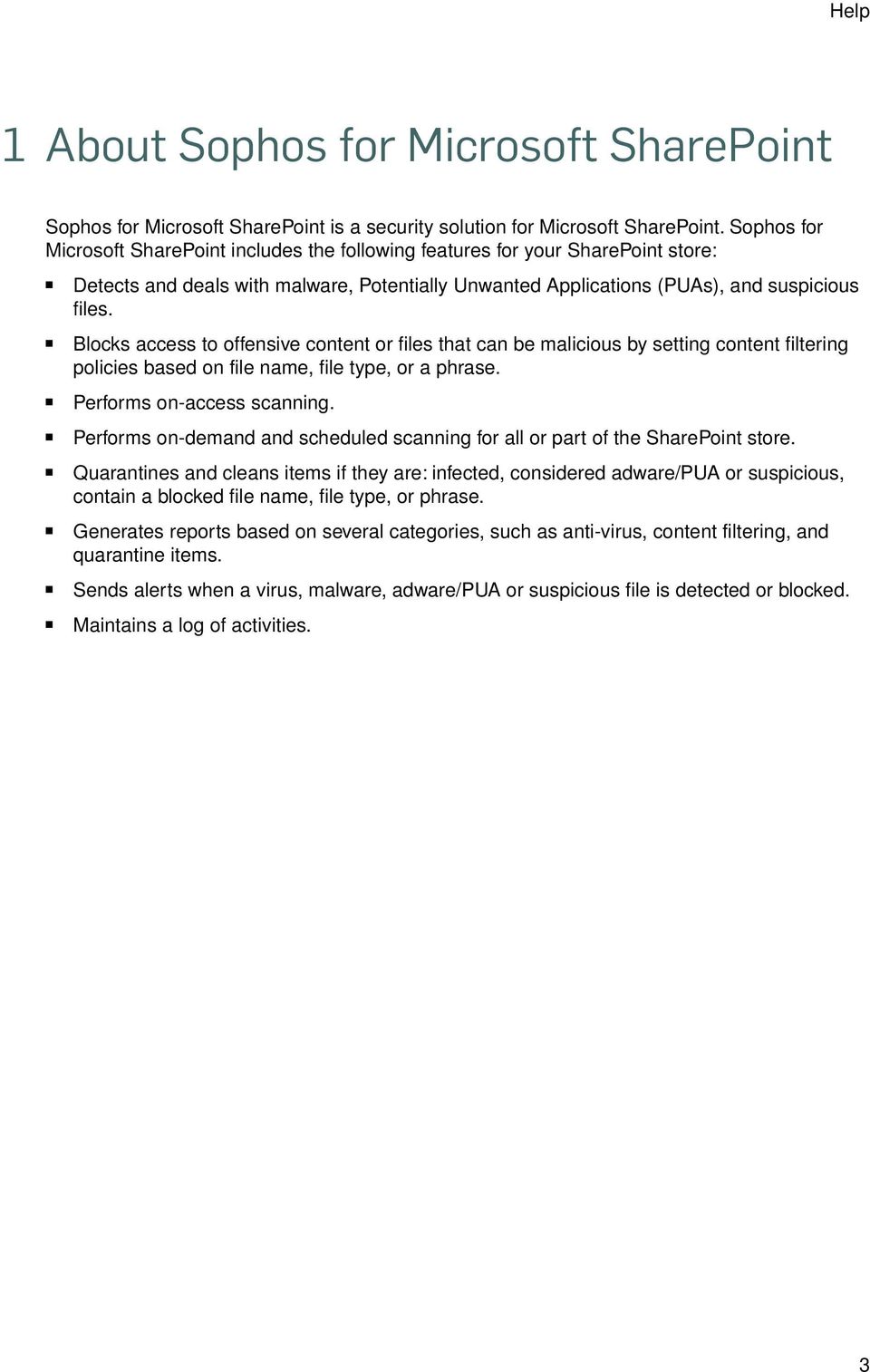
3 Help 1 About Sophos for Microsoft SharePoint Sophos for Microsoft SharePoint is a security solution for Microsoft SharePoint. Sophos for Microsoft SharePoint includes the following features for your SharePoint store: Detects and deals with malware, Potentially Unwanted Applications (PUAs), and suspicious files. Blocks access to offensive content or files that can be malicious by setting content filtering policies based on file name, file type, or a phrase. Performs on-access scanning. Performs on-demand and scheduled scanning for all or part of the SharePoint store. Quarantines and cleans items if they are: infected, considered adware/pua or suspicious, contain a blocked file name, file type, or phrase. Generates reports based on several categories, such as anti-virus, content filtering, and quarantine items. Sends alerts when a virus, malware, adware/pua or suspicious file is detected or blocked. Maintains a log of activities. 3
4 Sophos for Microsoft SharePoint 2 Dashboard The Dashboard tab displays the status of the scans and statistics that provide information about the SharePoint store. It has four sections: Select server The Select server section has a drop-down list of available servers in the configuration group. Based on the server that is selected information is displayed in the other sections of the Dashboard tab. Summary statistics today The Summary statistics today section displays threat statistics for the current day. The information displayed is for the selected server. Quarantine The Quarantine section provides the following information for the selected server: Items in quarantine Displays the number of files stored in quarantine. Quarantine folder size Displays the actual size of quarantined items. System console The System console section displays the status of each server in the group. A green icon indicates the system is healthy. A red icon is displayed when an error occurs, such as failure to download updates. This section also displays the time of the last update and the status of scans for the selected server. The status is always displayed for an on-access scan, but for an on-demand or scheduled scan the status is only displayed when it is running. 4

5 Help 3 Configuration The Configuration tab lets you manage and configure Sophos for Microsoft SharePoint. In a farm, in order to manage several Sophos for Microsoft SharePoint servers together, you should have selected the same SQL Server instance and Sophos for Microsoft SharePoint configuration group during the installation. Configuration changes made to any of the servers in a configuration group will be applied to all the servers in that configuration group. By default, the on-access scan control page is displayed. The left pane of the tab displays options to configure Sophos for Microsoft SharePoint. You can click on any of the items to expand the menu. The Configuration tab lets you: View and control the current state of a scan. Configure each scan individually. Authorize files to exclude from scanning. Manage system settings such as, alert, quarantine, report, log, and backup and restore configuration. 3.1 On-access scan The on-access scan lets you intercept files as they are accessed, and grants access to only those files that do not pose a threat to your computer or are authorized for use. You can configure the following settings for an on-access scan: Scan control (page 6) Anti-virus policy (page 8) Anti-virus settings (page 10) Content filtering policy (page 12) Content filtering settings (page 19) 3.2 On-demand scan The on-demand scan lets you perform a scan of the SharePoint store, or parts of the SharePoint store, that you can run immediately. You can scan whole or only a part of the SharePoint store during an on-demand scan by editing Scan target settings in the On-demand scan menu. You can configure the following settings for an on-demand scan: Scan control (page 6) Anti-virus policy (page 8) Anti-virus settings (page 10) 5

6 Sophos for Microsoft SharePoint Content filtering policy (page 12) Content filtering settings (page 19) Scan target settings (page 19) 3.3 Scheduled scan The scheduled scan lets you perform a scan of the SharePoint store, or parts of the SharePoint store, that runs at a set time. You can scan whole or only a part of the SharePoint store during a scheduled scan by editing Scan target settings in the Scheduled scan menu. You can configure the following settings for a scheduled scan: Scan control (page 6) Anti-virus policy (page 8) Anti-virus settings (page 10) Content filtering policy (page 12) Content filtering settings (page 19) Scan target settings (page 19) Schedule settings (page 21) 3.4 Scan control The Scan control page lets you start or stop a scan. The page displays information about the items that have been scanned based on their categories, and the actions that have been taken during the scan. Scan control page varies depending upon the scan: Scan control: on-access scan (page 6) Scan control: on-demand scan (page 7) Scan control: scheduled scan (page 7) The information in Scan control page is refreshed automatically every 2 minutes. Alternatively, you can click Refresh to update the information immediately Scan control: on-access scan For on-access scan, the Scan control page displays the status for all servers. The scan status will change only when the scan is started/stopped. A green icon and the text Running is displayed when the on-access scan is running on all servers. A yellow status icon and the text Stopped is displayed when the on-access scan is not running on any one of the servers. 6

7 Help The Activity for drop-down list lets you view information about other servers in the group. Click Reset to reset the counters to zero in the Category and Actions sections of the page Scan control: on-demand scan For an on-demand scan, the Scan control page displays a link Configured to run on server indicating which server the scan is configured to run on. You can click on this link to change the server on which the scan will run. In a farm, the data in the SharePoint store is stored by SQL Server and is accessible by each server in the farm. For on-demand scan you can select any one of the servers in a configuration group that performs the scan. The configured server can scan all or configured parts of the SharePoint store. A green icon and the text Running is displayed when the on-demand scan is running. A yellow status icon and the text Stopped is displayed when the on-demand scan is not running. The Summary for drop-down list lets you view information about other servers in the group. Click Reset to reset the counters to zero in the Category and Actions sections of the page Scan control: scheduled scan For scheduled scan, the Scan control page displays a link Configured to run on server indicating which server the scan is configured to run on. You can click on this link to change the server on which the scan will run. In a farm, the data in the SharePoint store is stored by SQL Server and is accessible by each server in the farm. For scheduled scan you can select any one of the servers in a configuration group that performs the scan. The configured server can scan all or configured parts of the SharePoint store. Note: You must configure a scheduled scan to ensure that all the existing items in the SharePoint store are scanned based on your configuration and new identities that are downloaded from Sophos. The scan status automatically changes based on the schedule. A green icon and the text Running is displayed when the scheduled scan is running. A yellow status icon and the text Stopped is displayed when the scan is waiting for the scheduled time. The Summary for drop-down list lets you view information about other servers in the group. Click Reset to reset the counters to zero in the Category and Actions sections of the page. For information on how to schedule a scan, see Schedule settings (page 21). 7

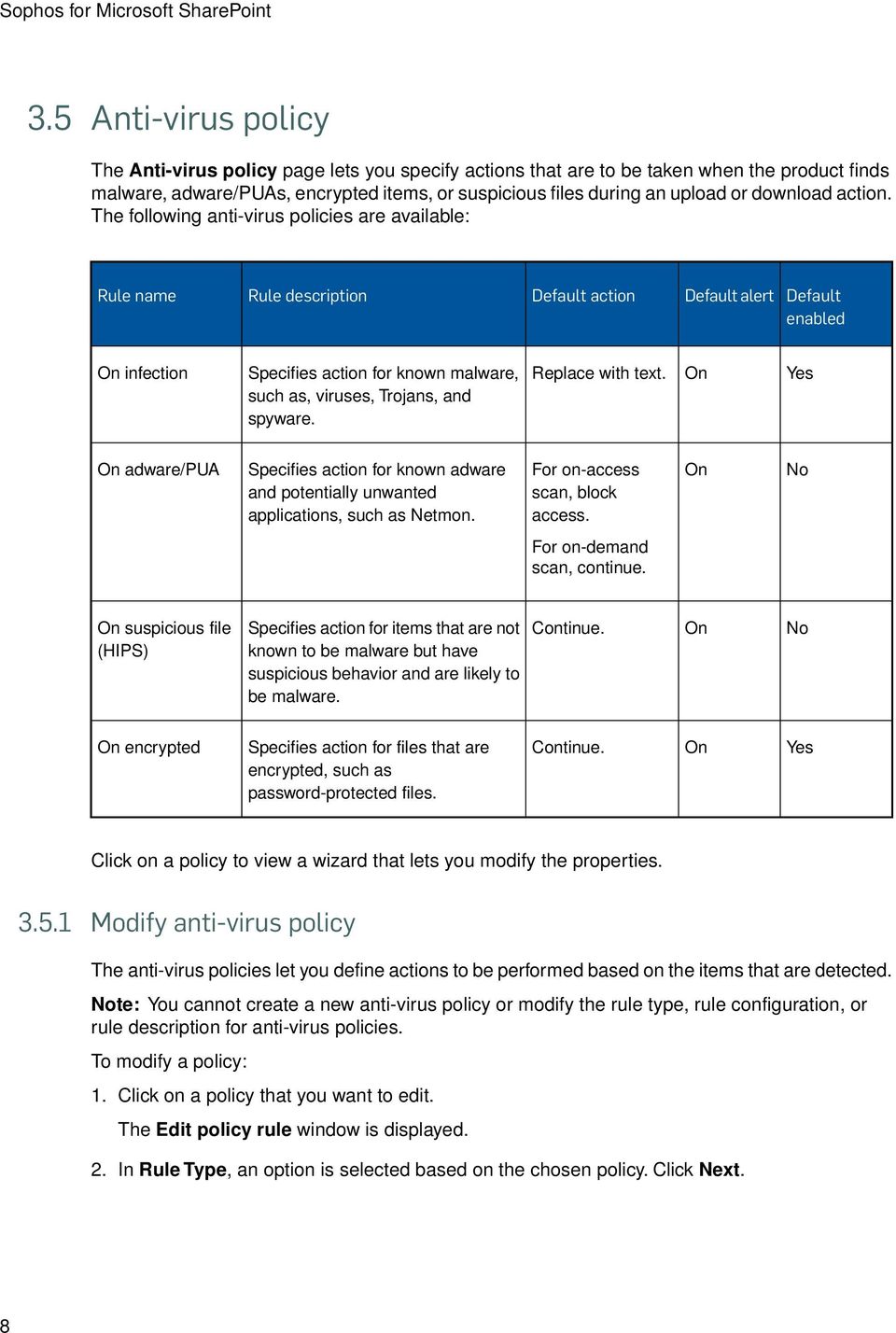
8 Sophos for Microsoft SharePoint 3.5 Anti-virus policy The Anti-virus policy page lets you specify actions that are to be taken when the product finds malware, adware/puas, encrypted items, or suspicious files during an upload or download action. The following anti-virus policies are available: Rule name Rule description Default action Default alert Default enabled On infection Specifies action for known malware, such as, viruses, Trojans, and spyware. Replace with text. On Yes On adware/pua Specifies action for known adware and potentially unwanted applications, such as Netmon. For on-access scan, block access. On No For on-demand scan, continue. On suspicious file (HIPS) Specifies action for items that are not known to be malware but have suspicious behavior and are likely to be malware. Continue. On No On encrypted Specifies action for files that are encrypted, such as password-protected files. Continue. On Yes Click on a policy to view a wizard that lets you modify the properties Modify anti-virus policy The anti-virus policies let you define actions to be performed based on the items that are detected. Note: You cannot create a new anti-virus policy or modify the rule type, rule configuration, or rule description for anti-virus policies. To modify a policy: 1. Click on a policy that you want to edit. The Edit policy rule window is displayed. 2. In Rule Type, an option is selected based on the chosen policy. Click Next. 8
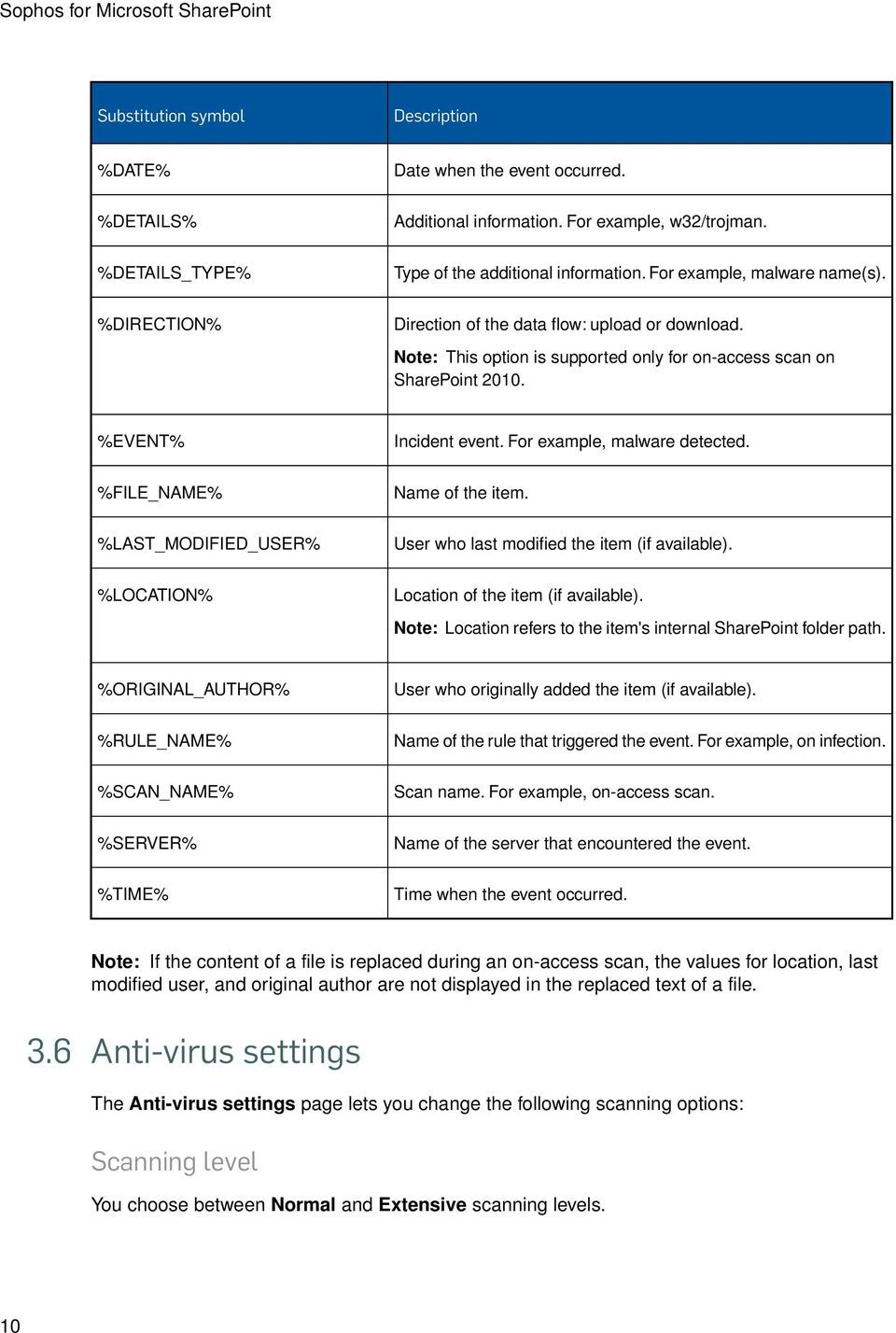
9 Help 3. In Rule Action, set a desired action: Note: You can choose a different option for the Upload and Download actions for an on-access scan if you are using a SharePoint 2010 server. Ensure that the upload action is the same or more restrictive than the download action. Option Description Continue Quarantine and continue Replace with text Quarantine and replace with text Block Indicates no action will be taken on the files but the event is logged and alerts will be sent if configured. Quarantines the file and but lets you continue to use it. Replaces the file in SharePoint store with a text file using the same file name and extension. The text to be replaced is configurable. Quarantines the original file and replaces the file in the SharePoint store with a text file using the same file name and extension. Blocks access to files categorized under the event, this option is only available for on-access scan. Note: This option is only available for the anti-virus policy of on-access scans. Quarantine and block Quarantines the file and blocks it from being accessed. Note: This option is only available for the anti-virus policy of on-access scans. Select Enable to enable the rule and select Alert if you want to be notified via every time an action is performed. For information on how to set alerts, see Alert and settings (page 22). 4. If you had chosen Replace with text as an option, in Replacement Text, configure the content that should be in the text file that will be replaced in the SharePoint store using the same file name and extension. For information, see Configure replacement text for anti-virus policy (page 9). Click Finish. Note: SharePoint caches the scan result, hence a file might not be scanned if it is downloaded soon after upload Configure replacement text for anti-virus policy You can customize the text file that a detected file is to be replaced with when you choose the Replace with text or Quarantine and replace with text option for a policy. The following substitution symbols are supported for replacement text: 9

10 Sophos for Microsoft SharePoint Substitution symbol Description %DATE% Date when the event occurred. %DETAILS% Additional information. For example, w32/trojman. %DETAILS_TYPE% Type of the additional information. For example, malware name(s). %DIRECTION% Direction of the data flow: upload or download. Note: This option is supported only for on-access scan on SharePoint %EVENT% Incident event. For example, malware detected. %FILE_NAME% Name of the item. %LAST_MODIFIED_USER% User who last modified the item (if available). %LOCATION% Location of the item (if available). Note: Location refers to the item's internal SharePoint folder path. %ORIGINAL_AUTHOR% User who originally added the item (if available). %RULE_NAME% Name of the rule that triggered the event. For example, on infection. %SCAN_NAME% Scan name. For example, on-access scan. %SERVER% Name of the server that encountered the event. %TIME% Time when the event occurred. Note: If the content of a file is replaced during an on-access scan, the values for location, last modified user, and original author are not displayed in the replaced text of a file. 3.6 Anti-virus settings The Anti-virus settings page lets you change the following scanning options: Scanning level You choose between Normal and Extensive scanning levels. 10
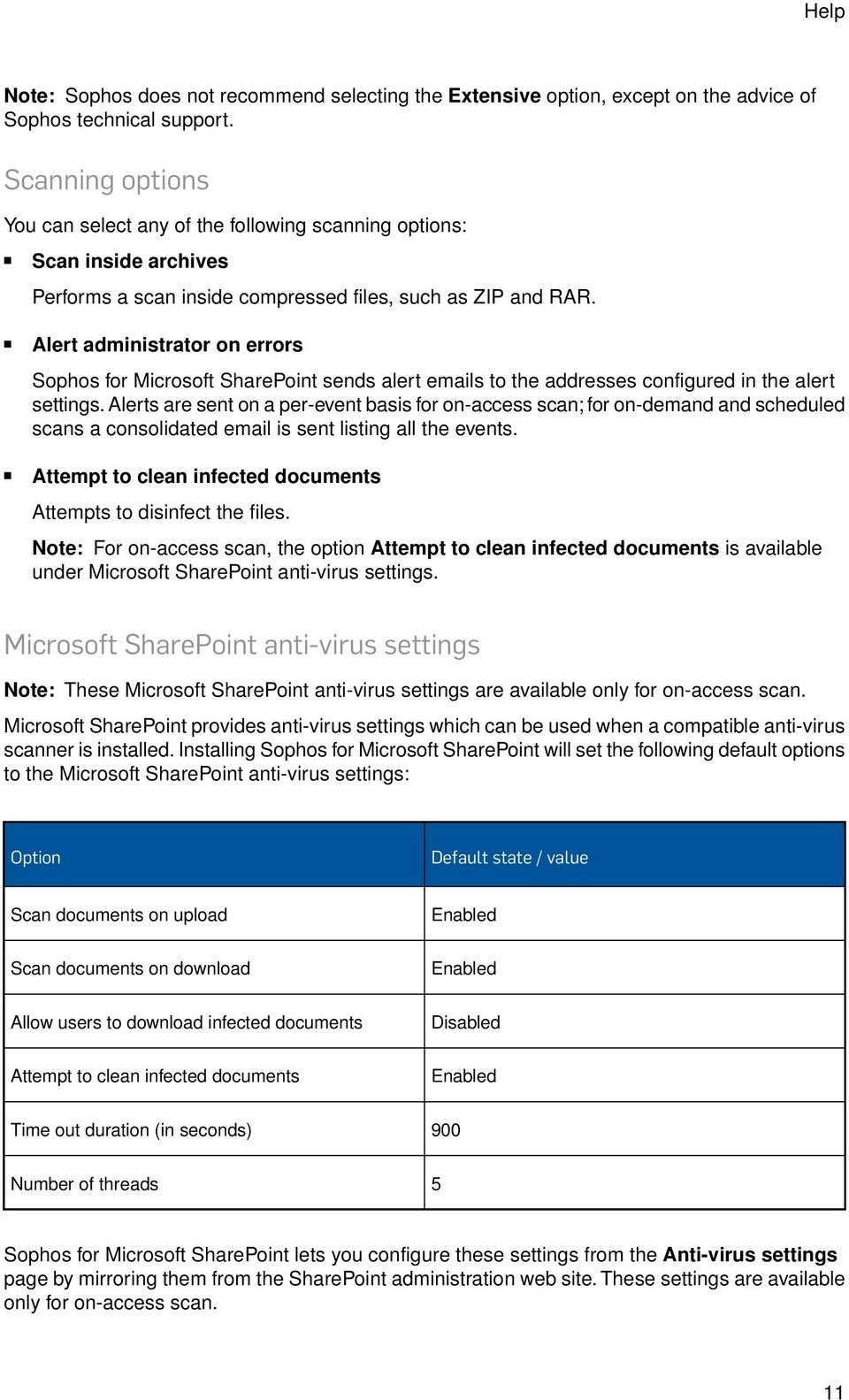
11 Help Note: Sophos does not recommend selecting the Extensive option, except on the advice of Sophos technical support. Scanning options You can select any of the following scanning options: Scan inside archives Performs a scan inside compressed files, such as ZIP and RAR. Alert administrator on errors Sophos for Microsoft SharePoint sends alert s to the addresses configured in the alert settings. Alerts are sent on a per-event basis for on-access scan; for on-demand and scheduled scans a consolidated is sent listing all the events. Attempt to clean infected documents Attempts to disinfect the files. Note: For on-access scan, the option Attempt to clean infected documents is available under Microsoft SharePoint anti-virus settings. Microsoft SharePoint anti-virus settings Note: These Microsoft SharePoint anti-virus settings are available only for on-access scan. Microsoft SharePoint provides anti-virus settings which can be used when a compatible anti-virus scanner is installed. Installing Sophos for Microsoft SharePoint will set the following default options to the Microsoft SharePoint anti-virus settings: Option Default state / value Scan documents on upload Enabled Scan documents on download Enabled Allow users to download infected documents Disabled Attempt to clean infected documents Enabled Time out duration (in seconds) 900 Number of threads 5 Sophos for Microsoft SharePoint lets you configure these settings from the Anti-virus settings page by mirroring them from the SharePoint administration web site. These settings are available only for on-access scan. 11
12 Sophos for Microsoft SharePoint Note: For on-access scan, the options Replace with text and Quarantine and replace with text will work only if the option Attempt to clean infected documents is selected in the scanning options. It is recommended that changes to the Microsoft SharePoint anti-virus settings are made from the Sophos for Microsoft SharePoint anti-virus settings page rather than the Microsoft SharePoint administration web site. 3.7 Content filtering policy The Content filtering policy page lets you block access to offensive content and to unwanted file types. You can create, modify, and delete content filtering rules. Important: We strongly recommend that the content filtering rules are tested on a sample of files before applying to the complete SharePoint store. If you set a rule with replacement action for a common file name, file type, or phrase (for example, Replace with text or Quarantine and replace with text) all or many of the files in the SharePoint store will be replaced and cannot be restored. Alternatively, for a new rule you can initially set the action to Continue and run it. You can view the logs later to check the files that are affected by the rule and then change the action as desired. By default, the following rules are available: Rule name Rule description Default action Default alert Default enabled On restricted file types Blocks access to common virus carrier file types. For on-access scan, block access. On No For on-demand and scheduled scan, continue. On offensive language Blocks access to common offensive phrases using regular expressions. For on-access scan, block access. For on-demand and scheduled scan, continue. On No You can choose to enable or disable any of these policies. Click on a policy to view a wizard that lets you modify the properties Modify content filtering policy Content filtering policies let you view and create and content filtering rules. Content filtering rules are not enabled by default. To modify a policy: 1. Click on a policy that you want to edit. The Edit policy rule window is displayed. 12

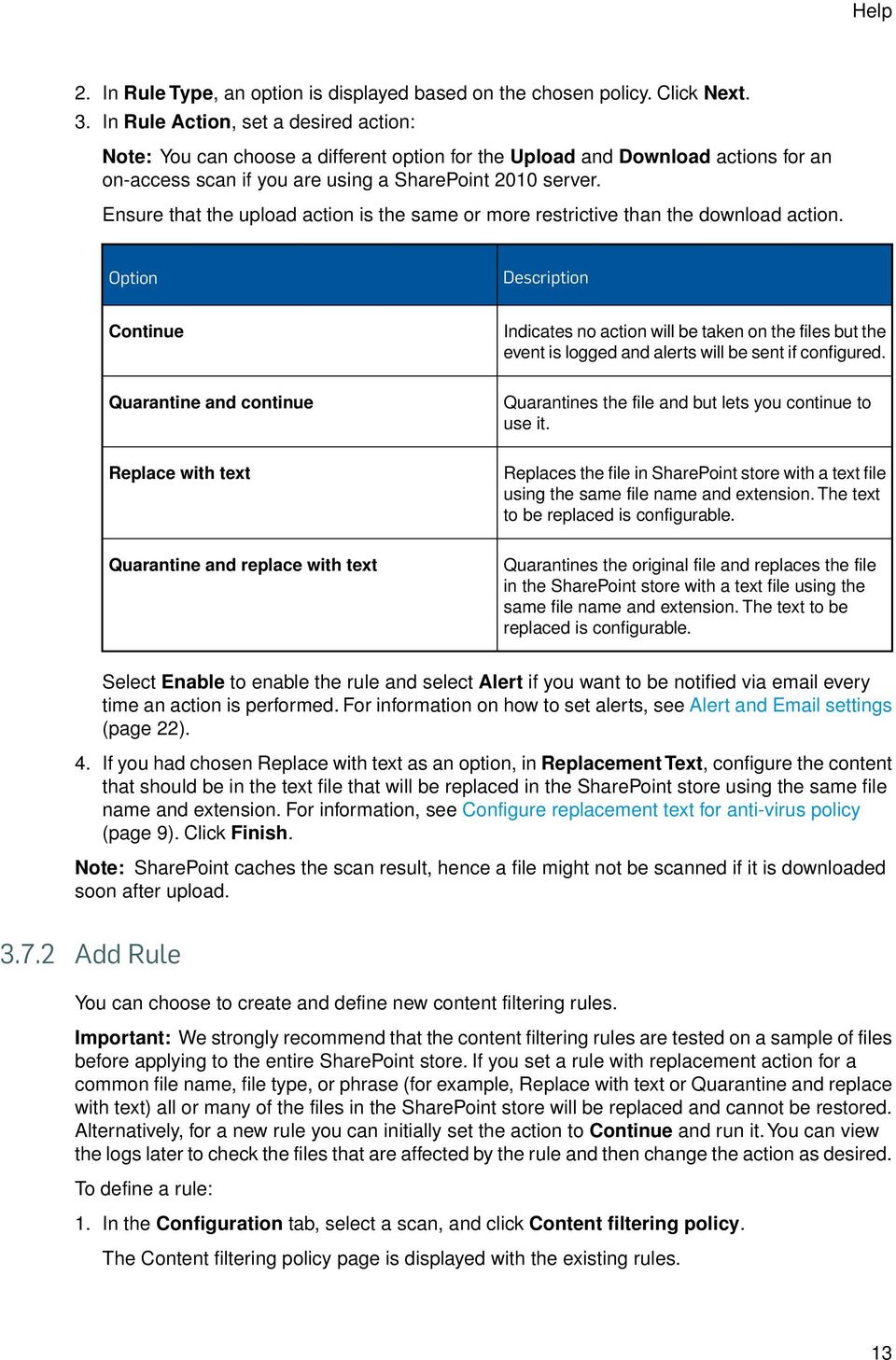
13 Help 2. In Rule Type, an option is displayed based on the chosen policy. Click Next. 3. In Rule Action, set a desired action: Note: You can choose a different option for the Upload and Download actions for an on-access scan if you are using a SharePoint 2010 server. Ensure that the upload action is the same or more restrictive than the download action. Option Description Continue Indicates no action will be taken on the files but the event is logged and alerts will be sent if configured. Quarantine and continue Quarantines the file and but lets you continue to use it. Replace with text Replaces the file in SharePoint store with a text file using the same file name and extension. The text to be replaced is configurable. Quarantine and replace with text Quarantines the original file and replaces the file in the SharePoint store with a text file using the same file name and extension. The text to be replaced is configurable. Select Enable to enable the rule and select Alert if you want to be notified via every time an action is performed. For information on how to set alerts, see Alert and settings (page 22). 4. If you had chosen Replace with text as an option, in Replacement Text, configure the content that should be in the text file that will be replaced in the SharePoint store using the same file name and extension. For information, see Configure replacement text for anti-virus policy (page 9). Click Finish. Note: SharePoint caches the scan result, hence a file might not be scanned if it is downloaded soon after upload Add Rule You can choose to create and define new content filtering rules. Important: We strongly recommend that the content filtering rules are tested on a sample of files before applying to the entire SharePoint store. If you set a rule with replacement action for a common file name, file type, or phrase (for example, Replace with text or Quarantine and replace with text) all or many of the files in the SharePoint store will be replaced and cannot be restored. Alternatively, for a new rule you can initially set the action to Continue and run it. You can view the logs later to check the files that are affected by the rule and then change the action as desired. To define a rule: 1. In the Configuration tab, select a scan, and click Content filtering policy. The Content filtering policy page is displayed with the existing rules. 13
14 Sophos for Microsoft SharePoint 2. On the upper-right corner of the page, click Add Rule. The Add policy rule window is displayed. 3. You can choose from the following options and then click Next. Block file names, for more information, see Configure file name blocking (page 14). Block file types, for more information, see Configure file type blocking (page 15). Block phrases, for more information, see Configure phrase blocking (page 17). Based on the rule type, a configuration dialog is displayed to configure settings related to the rule type Configure file name blocking You can choose to block files with a particular file name. Important: We strongly recommend that you test the content filtering rules on a sample of files before applying to the complete SharePoint store. For example, if you set a rule that quarantines a common file name (like a*), all the files that start with 'a' in the SharePoint store will be quarantined and cannot be restored. 1. In Rule Type, select Blocked file name and click Next. 2. In Rule Configuration, under the File name tab, specify file names that must be blocked (one per line). 3. In the Exceptions tab, specify file names that must be excluded from blocking (one per line). 4. Set the Take action only if file size exceeds (in MB) to set a value for file size, if required. Click Next. 14

15 Help 5. In Rule Action, set a desired action: Note: You can choose a different option for the Upload and Download actions for an on-access scan if you are using a SharePoint 2010 server. Ensure that the upload action is the same or more restrictive than the download action. Option Description Continue Indicates no action will be taken on the files but the event is logged and alerts will be sent if configured. Quarantine and continue Quarantines the file and but lets you continue to use it. Replace with text Replaces the file in SharePoint store with a text file using the same file name and extension. The text to be replaced is configurable. Quarantine and replace with text Quarantines the original file and replaces the file in the SharePoint store with a text file using the same file name and extension. The text to be replaced is configurable. Select Enable to enable the rule and select Alert if you want to be notified via every time an action is performed. For information on how to set alerts, see Alert and settings (page 22). 6. If you had chosen Replace with text as an option, in Replacement Text, configure the content that should be in the text file that will be replaced in the SharePoint store using the same file name and extension. For information, see Configure replacement text for anti-virus policy (page 9). Click Next. 7. In Rule Name, enter a rule name and click Finish. Note: SharePoint caches the scan result, hence a file might not be scanned if it is downloaded soon after upload Configure file type blocking You can choose to block specific files types. Important: We strongly recommend that you test the content filtering rules on a sample of files before applying to the complete SharePoint store. For example, if you create a rule that quarantines a common file type (like PDF), all the PDF files in the SharePoint store will be quarantined and cannot be restored. 1. In Rule Type, select Blocked file type and click Next. 2. In Rule Configuration, under the File types tab, select from Choose the file types to block drop-down list. 15
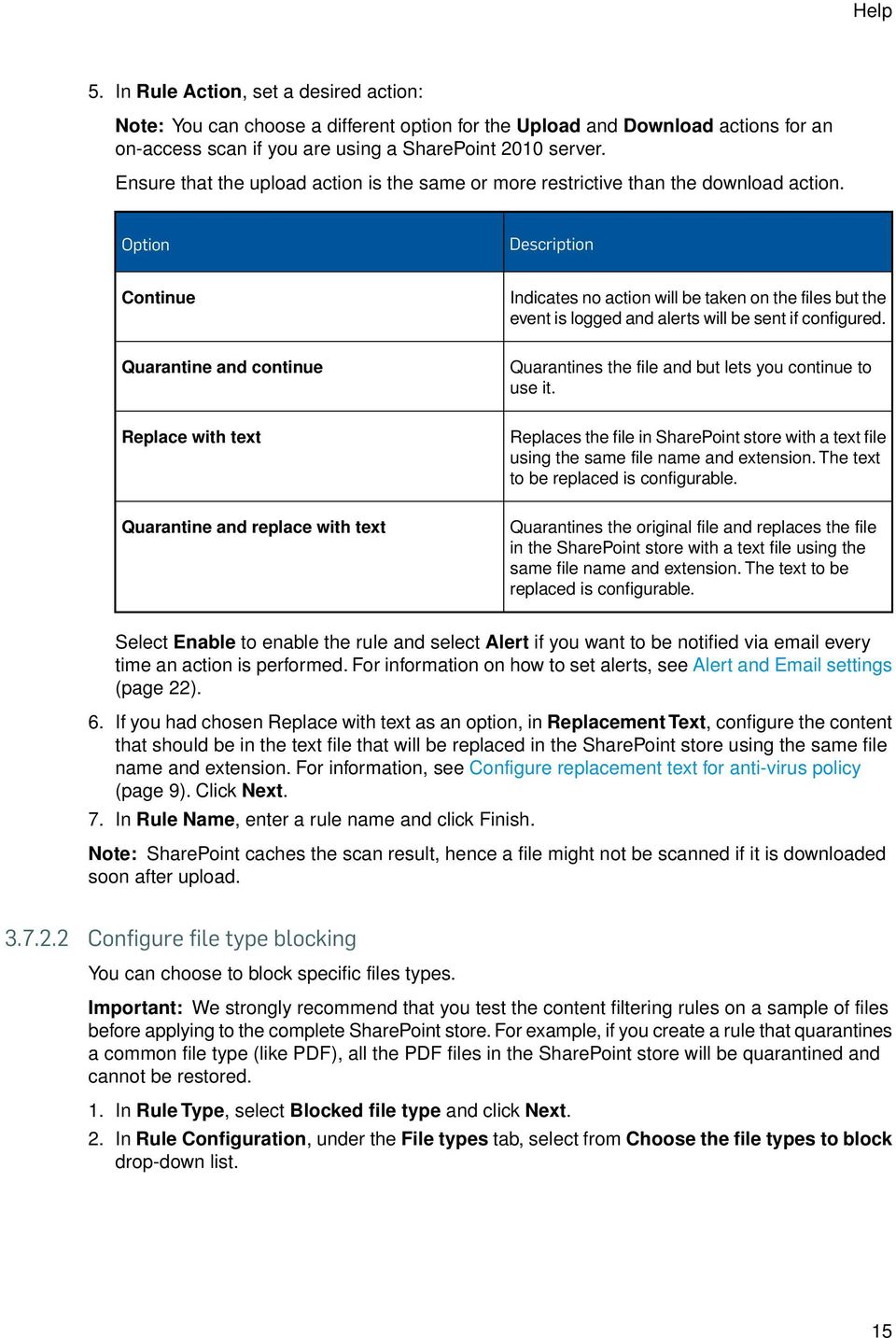
16 Sophos for Microsoft SharePoint A full list of the applications included in that group is displayed. To block a file type, select it and click "Add". To remove a file type, select it and click "Remove". To remove all existing file types from blocked list, click "Remove all". 3. In the Exceptions tab, specify file types that must be excluded from blocking (one per line) and click Next. Set Take action only if file size exceeds (in MB) to set a value for file size, if required. 4. In Rule Action, set a desired action: Note: You can choose a different option for the Upload and Download actions for an on-access scan if you are using a SharePoint 2010 server. Ensure that the upload action is the same or more restrictive than the download action. Option Description Continue Indicates no action will be taken on the files but the event is logged and alerts will be sent if configured. Quarantine and continue Quarantines the file and but lets you continue to use it. Replace with text Replaces the file in SharePoint store with a text file using the same file name and extension. The text to be replaced is configurable. Quarantine and replace with text Quarantines the original file and replaces the file in the SharePoint store with a text file using the same file name and extension. Select Enable to enable the rule and select Alert if you want to be notified via every time an action is performed. For information on how to set alerts, see Alert and settings (page 22). 5. If you had chosen Replace with text as an action, in Replacement Text, configure the content that should be in the text file that will be replaced in the SharePoint store using the same file name and extension. For information, see Configure replacement text for anti-virus policy (page 9). Click Next. 6. In Rule Name, enter a rule name and click Finish. 16
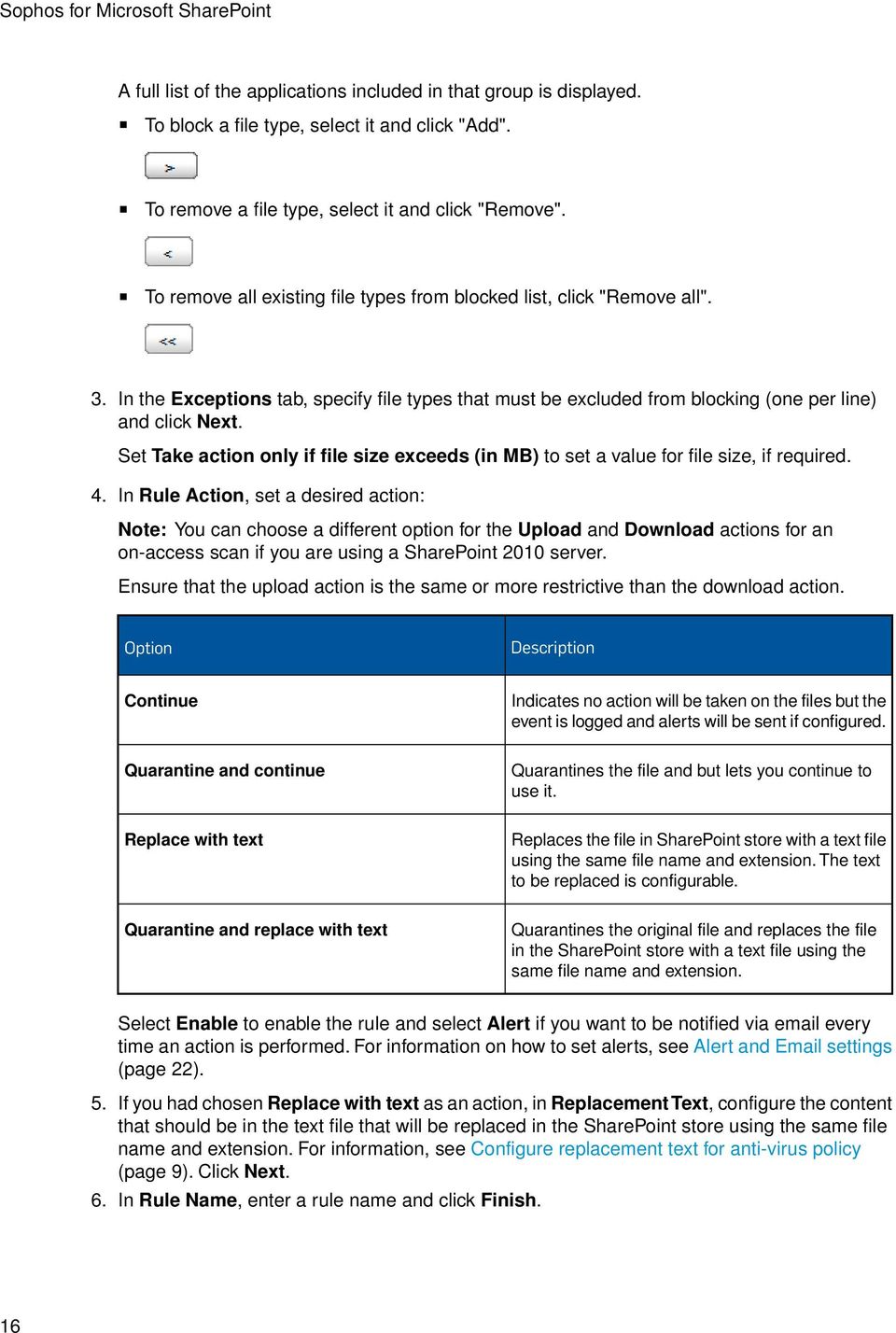
17 Help Note: SharePoint caches the scan result, hence a file might not be scanned if it is downloaded soon after upload Configure phrase blocking You can choose to block files with specific phrases. You can use wildcards '*' and '?' to specify phrases. Phrases are not case sensitive. Important: We strongly recommend that you test the content filtering rules on a sample of files before applying to the complete SharePoint store. For example, if you set a rule that quarantines a common phrase (like 'the'), all files containing the word 'the' in the SharePoint store will be quarantined and cannot be restored. 1. In Rule Type, select Blocked phrase and then click Next. 2. In Rule Configuration, in the Strings tab, enter a phrase that you want to block (one per line). 3. In the Regular expressions tab, enter a regular expression phrase that you want to block (one per line). 4. In the Exceptions tab, specify the file names that must be excluded from phrase blocking (one per line). 5. Optionally, select Take action only when a minimum number of phrases are detected. The value entered must be between 2 and 10 occurrences. 6. In Rule Action, set a desired action: Note: You can choose a different option for the Upload and Download actions for an on-access scan if you are using a SharePoint 2010 server. Ensure that the upload action is the same or more restrictive than the download action. Option Description Continue Indicates no action will be taken on the files but the event is logged and alerts will be sent if configured. Quarantine and continue Quarantines the file and but lets you continue to use it. Replace with text Replaces the file in SharePoint store with a text file using the same file name and extension. The text to be replaced is configurable. Quarantine and replace with text Quarantines the original file and replaces the file in the SharePoint store with a text file using the same file name and extension. The text to be replaced is configurable. Select Enable to enable the rule and select Alert if you want to be notified via every time an action is performed. For information on how to set alerts, see Alert and settings (page 22). 17

18 Sophos for Microsoft SharePoint 7. If you had chosen Replace with text as an action, in Replacement Text, configure the content that should be in the text file that will be replaced in the SharePoint store using the same file name and extension. For information, see Configure replacement text for anti-virus policy (page 9). Click Next. 8. In Rule Name, enter a rule name and click Finish. For information on the file types that are blocked, see File types supported for blocking phrases (page 18). Note: SharePoint caches the scan result, hence a file might not be scanned if it is downloaded soon after upload File types supported for blocking phrases Sophos for Microsoft SharePoint can analyse content within common document types. This enables you to search for phrases within those documents. By default, Sophos for Microsoft SharePoint scans content from the following files based on a combination of file type and extension: Sophos for Microsoft SharePoint can extract content from the following common file types, such as: Plain text (TXT) HTML Rich text (RTF) PDF Microsoft Office documents (DOC, DOCX, PPT, PPTX, XLS, XLSX, etc) Microsoft Project Microsoft Visio OpenOffice The list of common file types that are supported will be updated by Sophos during an update Configure replacement text for content filtering policy You can customize the text file that a detected file is to be replaced with when you choose the Replace with text or Quarantine and replace with text option for a policy. Note: You cannot configure the replacement text when you choose to block by file names. The following substitution symbols are supported for replacement text: Substitution symbol Description %DATE% Date when the event occurred. %DETAILS% Additional information. For example, w32/trojman. %DETAILS_TYPE% Type of the additional information. For example, malware name(s). 18

19 Help Substitution symbol Description %DIRECTION% Direction of the data flow: upload or download. Note: This option is supported only for on-access scan on SharePoint %EVENT% Incident event. For example, malware detected. %FILE_NAME% Name of the item. %LAST_MODIFIED_USER% User who last modified the item (if available). %LOCATION% Location of the item (if available). Note: Location refers to the item's internal SharePoint folder path. %ORIGINAL_AUTHOR% User who originally added the item (if available). %RULE_NAME% Name of the rule that triggered the event. For example, on infection. %SCAN_NAME% Scan name. For example, on-access scan. %SERVER% Name of the server that encountered the event. %TIME% Time when the event occurred. Note: If the content of a file is replaced during an on-access scan, the values for location, last modified user, and original author are not displayed in the replaced text of a file. 3.8 Content filtering settings The Content filtering settings page lets you configure scanning inside archive files. By default, the Search for phrases within archive files option is not enabled. 3.9 Scan target settings The Scan target settings page lets you choose areas and files within the SharePoint store that must be scanned when an on-demand or scheduled scan becomes active. The page has two tabs: Scan locations (page 20) Scan files (page 20) 19

20 Sophos for Microsoft SharePoint Scan locations The Scan locations tab lets you specify the parts of the data store you want to scan during an on-demand scan or scheduled scan. Note: The list displaying the SharePoint data store structure displays only folders and not individual files. To set a scan location: 1. In the Configuration tab, select a scan, and click Scan target settings. The scan target settings page is displayed. 2. Click the Scan Location tab and choose a location from the drop-down menu: Scan all locations (selected by default) Scan all locations selected below Scan all locations except those selected below 3. Select the locations that you want to scan from the SharePoint data store structure displayed. To add a location, select it and click "Add". To remove a location, select it and click "Remove". To remove all location, click "Remove all". 4. Click Apply to save the settings. If you modify and save settings when an on-demand or scheduled scan is active, the changes will take effect the next time the scan is started Scan files The Scan files tab lets you choose the files that you want to scan during an on-demand or scheduled scan. 1. In the Configuration tab, select a scan, and click Scan target settings. The scan target settings page is displayed. 2. Click the Scan files tab and choose a filter to scan the files: Scan all files Scan all files that match the filter selected below Scan all files except that match the filter below 20
21 Help 3. If you select a filter, in the text box, enter the files names one per line. The file names are not case sensitive and can contain wildcards '*' and '?'. 4. Click Apply to save the settings. If you modify and save settings when an on-demand or scheduled scan is active, the changes will take effect the next time the scan is started Schedule settings The Schedule settings page lets you schedule a scan at a particular day and time. Note: You must configure a scheduled scan to ensure that all the existing items in the SharePoint store are scanned based on your configuration and new identities that are downloaded from Sophos. To schedule a scan, select Schedule this scan, set the Days when the scan will run, and Scan start time fields to specify when you want to perform the scan. You can set the Number of minutes after which scan should be aborted, if the scan is not yet complete Authorization The Authorization menu lets you exclude files from checking while performing a scan. The exceptions will apply to all scans. Adware/PUAs The Adware/PUAs page lets you add adware/pua names, one per line, which must be excluded from the check. Note: The adware/pua name is the identity name but not the file name. You can locate the identity name for an adware/pua from the logs. Alternatively, if you authorize an adware/pua from the quarantine list, the file will be included in the authorization list. Suspicious Files The Suspicious files page lets you add files that must be excluded from the "On suspicious file (HIPS)" check. You can use wildcards '?' and '*' and the file names are not case sensitive System The System menu of the configuration tab lets you configure the following settings for Sophos for Microsoft SharePoint: Alert and settings (page 22) Quarantine settings (page 24) Report settings (page 24) 21
22 Sophos for Microsoft SharePoint Log settings (page 25) Backup and restore (page 25) Note: If you are using SharePoint 2007 or earlier, the location, direction and username fields will not be available for on-access scan in Logs, Quarantine, Alerts, and Reporting sections Alert and settings The Alert and settings page lets you configure the content for alerts, and the addresses to which alert messages are sent. If alerting is enabled for an event, messages are sent as follows: On-access scanning sends a message for each incident. Note: If you are using SharePoint 2007 or earlier, the following information is not available for on-access scan in logs, quarantine, and alerts and reporting: Location, Direction and Username. On-demand or scheduled scanning sends a single consolidated message for all events at the end of the scan. This page has two sections: Template (page 22) Address (page 24) Template You can modify the content by customizing the template for alerts. 1. In the Configuration tab, click System, and then click Alert settings. The Alert Settings page is displayed. 2. Under the Template section, in the Alert subject field, enter the subject line of the alert. Click Insert substitution symbols to insert desired information. The following options are available for the alert subject: Substitution symbol Description %SCAN_NAME% Name of the scan. For example, on-access scan. %SERVER% Name of the server that encountered the event. 22
23 Help 3. In the Alert body text panel, create the main content of your alert. Click Insert substitution symbols to insert desired information. The following options are available for the alert body: Substitution symbol Description %ACTION% %DATE% %EVENTS% %FILE_NAME% %LAST_MODIFIED_USER% %LOCATION% Action that has been carried out on the item. For example, Replace with text. Date when event occurred. Events that were encountered while processing the item. For example, malware detected. Name of the item. User who last modified the item (if available). Location of the item (if available). Note: Location refers to the item's internal SharePoint folder path. %ORIGINAL_AUTHOR% %SCAN_NAME% %SERVER% %TIME% User who originally added the item (if available). Name of scan name. For example, on-access scan. Name of the server that encountered the event. Time when event occurred. 4. In the Text for each incident panel, enter any unique per-incident text you want to display. Click Insert substitution symbols to insert desired information. The following options are available: Substitution symbol Description %DETAILS% %DETAILS_TYPE% %EVENT% %RULE_NAME% Additional information. For example, w32/trojman. Type of the additional information. For example, malware name(s). Incident event. For example, malware detected. Name of the rule that triggered the event. For example, on infection. 5. Click Apply to save the changes. 23
24 Sophos for Microsoft SharePoint Address You can add or modify recipients to whom the alerts are sent provided their SMTP server accepts the In the Configuration tab, click System, and then click Alert settings. The Alert Settings page is displayed. 2. Under the Address section, enter the addresses that will receive administrator alert messages, one per line. The list can be empty in which case no alert messages are sent. 3. Enter the Sender address. This will appear as the sender of the alert messages. Note: The sender address cannot be empty. 4. Enter the SMTP mail server address. 5. Enter the SMTP port, this field cannot be empty and should be a number between 1 and Default: Click Apply to save the settings. Make sure that the SMTP mail server accepts anonymous (non-authenticated) s sent from the Sophos for Microsoft SharePoint computer. It should also accept, and be able to relay, s sent to [email protected] and any recipients specified under the Address section Quarantine settings The Quarantine settings page lets you configure quarantine housekeeping settings. You can choose to purge the quarantine data immediately, or specify the number of days to keep the quarantine data before deleting it. Click Purge now to immediately delete quarantine data that is older than the specified number of days Report settings The Report settings page lets you configure reporting settings. Data collection By default, data collection for reports is enabled. If Enable data collection for reports is not selected, no data is collected from the database for reports. You may disable data collection for reports while troubleshooting database performance problems. Housekeeping You can choose to purge report data immediately, or specify the number of days to keep quarantine data before deleting. Click Purge now to immediately delete report data that is older than the specified number of days. 24
25 Help Log settings The Log settings page lets you specify the kind of messages to be logged. The logging options can be set individually for each of the following categories: Windows event logging Logs application events in Windows Event Viewer for Sophos for Microsoft SharePoint based on the specified logging level. File logging Logs events in the 'Logs' folder located in the Sophos for Microsoft SharePoint install location. Logs are recorded based on the specified logging level. You can limit the log file size by setting a value. Note: If the log file reaches its maximum size, as specified in the Log Settings, the file is renamed by adding a time-stamp onto its name, and a new log-file is created. Database logging Logs events in the database to enable search for logs based on the specified logging level. Click Purge now to immediately delete logs that are older than the specified number of days. Note: You will not be able to search for logs from Sophos for Microsoft SharePoint, if you set the database logging level to None. You can specify the kind of messages to be logged for each category using the following logging options: None indicates logging is off. Errors only logs application errors like failing to quarantine, initialization failures, unexpected errors. Error and warnings log includes error messages and application warnings along with warnings about malware detection and disinfection, content policy rules infringement, actions taken, encrypted and unscannable items. Errors, warnings and information log includes error and warnings along with informational messages related to general product status Backup and restore The Backup and restore page lets you make a back up of the Sophos for Microsoft SharePoint configuration to a specific location. You can then store, move, or restore it on a later date. Note: During installation, Sophos for Microsoft SharePoint creates a backup of the default configuration (SophosSharepointDefaultConfig.xml) in the installation directory. The configuration file can be used to restore Sophos for Microsoft SharePoint to factory defaults. 25
26 Sophos for Microsoft SharePoint Backup Lets you download the product configuration as an XML file. Restore Lets you restore the product configuration from an XML file that has been backed up. 26
27 Help 4 Reports The Reports tab lets you generate and export reporting data from the database. If an error occurs while inserting the data into the database then an error is logged and the data is stored on disk. Later when the database is available, the data is inserted. 4.1 Generate Reports You can generate and export reports based on categories. To generate a report: 1. Click the Reports tab. The Generate report pane is displayed on the left-hand side of the page. 2. Select a Category of the scan from the drop-down menu. You can choose from Anti-virus, Content filtering, and Quarantine. 3. Based on the category of the scan, select a Report from the drop-down menu. 4. Enter a value for the number of entries that you want to be displayed in the Top field. Note: You can specify a value up to Select a Server for which the report is to be generated from the drop-down list. 6. Select a Scan name from the drop-down list. You can choose from on-access, on-demand, or scheduled. 7. Select a Reporting Period for which the report must be generated, or set the From and To fields to filter messages within a particular date range. 8. Click Generate. A report is generated based on the selection criteria. You can click Export to save the report as a CSV file. 27
28 Sophos for Microsoft SharePoint 5 Search The Search tab lets you manage quarantine items and search logs. The search pane on the left hand side of the search page has the following options: Quarantine (page 28) Logs (page 29) Note: If you are using SharePoint 2007 or earlier, the location, direction and username fields will not be available for on-access scan in Logs, Quarantine, Alerts, and Reporting sections. 5.1 Quarantine Sophos for Microsoft SharePoint can be configured to quarantine an item that: is infected. is adware/pua. is suspicious (HIPS). is encrypted. contains a blocked file name, file type, or phrase. Quarantined items are isolated in a secured format on the disk. You can choose to disinfect or delete any files that are quarantined. You can also authorize items that are classified as PUA or suspicious Search quarantine You can search for items that are quarantined based on a particular date range, server, file characteristic such as file name, location, author, last modified user, reason for quarantine, or any combination of these parameters. The text fields support use of wildcards "*" and "?". By default, items from the server you are connected to are displayed for the current day, and are sorted according to time (latest first). Click Reset to clear the options and modify. To search quarantined items: 1. Click the Search tab. The Search pane is displayed on the left-hand side of the page. 2. In search parameters, select Quarantine from the drop-down menu. 3. Enter dates in the From and To fields to filter items within a particular date range. If you only enter a date in the From field, items are displayed from the selected date onwards. 4. Enter the File name, Location, Original Author, and Last modified user to include any of these options in the search. 28
29 Help 5. Select a Reason, Server, Scan name, and Sort by from the drop-down lists and then click Search. A list of items is displayed based on the criteria Actions for quarantine Sophos for Microsoft SharePoint lets you perform specific actions on the quarantine items after the search results are displayed. To take action on quarantined items: 1. Search for quarantined items. For information on how to search for quarantine items, see Search quarantine (page 28). 2. Select an item and click on the sign to view details about the item such as, malware names, content policy. You can click on a malware name to view its description from the Sophos website in a new browser window. 3. Select the files and choose any of the following actions: Delete Deletes the selected item from the database. Disinfect Disinfects the selected item. A summary is displayed if disinfection fails for any item when multiple files are selected. Authorize Authorizes the item so that it is not quarantined by subsequent scans by adding it to the appropriate authorized list. Note: The Authorize button is enabled only if a selected file is categorized as an adware/pua or suspicious file. 4. You can retrieve a file and save it to disk by clicking the disk icon, or it by clicking on the icon. For information on settings, see Alert and settings (page 22). 5.2 Logs Sophos for Microsoft SharePoint lets you search and review log messages Search logs You can search for messages that are logged based on a date range, server, scan name, log string, log type, or any combination of these parameters. The text fields support use of wildcards such as *,? and are not case sensitive. 29
30 Sophos for Microsoft SharePoint By default when you open the panel, logs from all servers are displayed for the current day and are sorted according to time (latest first). Click Reset to clear the options and modify as required. To search for logs: 1. Click the Search tab. A list of available options is displayed in the left hand pane. 2. Under Search parameters, select Logs from the drop-down menu. 3. Enter dates in the From and To fields to filter messages within a particular date range. If you only enter a date in the From field, messages are displayed from the selected date onwards. 4. Select a Server and Scan name from the drop-down lists. 5. Enter text or a value in the Contains String to search for a particular value. 6. Choose Log Types.You can choose from Errors, Warnings, Information, or any combination. 7. Select a Sort by option from the drop-down list and then click Search. Logs are displayed based on the search criteria. You can click Export to save the search results as a CSV file. 30
31 Help 6 System status The System status tab displays information about the product version, threat detection engine version and other details related to all the servers in the configuration group. You can click on a server name to view additional information. Click Export on the lower-right corner of the page to save the system information that is displayed. 31
32 Sophos for Microsoft SharePoint 7 Technical support You can find technical support for Sophos products in any of these ways: Visit the SophosTalk community at community.sophos.com/ and search for other users who are experiencing the same problem. Visit the Sophos support knowledgebase at Download the product documentation at Open a ticket with our support team at 32
33 Help 8 Legal notices Copyright Sophos Limited. All rights reserved. No part of this publication may be reproduced, stored in a retrieval system, or transmitted, in any form or by any means, electronic, mechanical, photocopying, recording or otherwise unless you are either a valid licensee where the documentation can be reproduced in accordance with the license terms or you otherwise have the prior permission in writing of the copyright owner. Sophos and Sophos Anti-Virus are registered trademarks of Sophos Limited and Sophos Group. All other product and company names mentioned are trademarks or registered trademarks of their respective owners. Boost C++ Libraries Boost Software License - Version August 17th, 2003 Permission is hereby granted, free of charge, to any person or organization obtaining a copy of the software and accompanying documentation covered by this license (the Software ) to use, reproduce, display, distribute, execute, and transmit the Software, and to prepare derivative works of the Software, and to permit third-parties to whom the Software is furnished to do so, all subject to the following: The copyright notices in the Software and this entire statement, including the above license grant, this restriction and the following disclaimer, must be included in all copies of the Software, in whole or in part, and all derivative works of the Software, unless such copies or derivative works are solely in the form of machine-executable object code generated by a source language processor. THE SOFTWARE IS PROVIDED AS IS, WITHOUT WARRANTY OF ANY KIND, EXPRESS OR IMPLIED, INCLUDING BUT NOT LIMITED TO THE WARRANTIES OF MERCHANTABILITY, FITNESS FOR A PARTICULAR PURPOSE, TITLE AND NON-INFRINGEMENT. IN NO EVENT SHALL THE COPYRIGHT HOLDERS OR ANYONE DISTRIBUTING THE SOFTWARE BE LIABLE FOR ANY DAMAGES OR OTHER LIABILITY, WHETHER IN CONTRACT, TORT OR OTHERWISE, ARISING FROM, OUT OF OR IN CONNECTION WITH THE SOFTWARE OR THE USE OR OTHER DEALINGS IN THE SOFTWARE. Common Public License The Sophos software that is referenced in this document includes or may include some software programs that are licensed (or sublicensed) to the user under the Common Public License (CPL), which, among other rights, permits the user to have access to the source code. The CPL requires for any software licensed under the terms of the CPL, which is distributed in object code form, that the source code for such software also be made available to the users of the object code form. For any such software covered under the CPL, the source code is available via mail order by submitting a request to Sophos; via to [email protected] or via the web at A copy of the license agreement for any such included software can be found at 33
34 Sophos for Microsoft SharePoint ConvertUTF Copyright Unicode, Inc. This source code is provided as is by Unicode, Inc. No claims are made as to fitness for any particular purpose. No warranties of any kind are expressed or implied. The recipient agrees to determine applicability of information provided. If this file has been purchased on magnetic or optical media from Unicode, Inc., the sole remedy for any claim will be exchange of defective media within 90 days of receipt. Unicode, Inc. hereby grants the right to freely use the information supplied in this file in the creation of products supporting the Unicode Standard, and to make copies of this file in any form for internal or external distribution as long as this notice remains attached. crt # $FreeBSD$ 8.2 (Berkeley) 3/21/94 The compilation of software known as FreeBSD is distributed under the following terms: Copyright (c) The FreeBSD Project. All rights reserved. Redistribution and use in source and binary forms, with or without modification, are permitted provided that the following conditions are met: 1. Redistributions of source code must retain the above copyright notice, this list of conditions and the following disclaimer. 2. Redistributions in binary form must reproduce the above copyright notice, this list of conditions and the following disclaimer in the DOCUMENTATION and/or other materials provided with the distribution. THIS SOFTWARE IS PROVIDED BY THE AUTHOR AND CONTRIBUTORS "AS IS" AND ANY EXPRESS OR IMPLIED WARRANTIES, INCLUDING, BUT NOT LIMITED TO, THE IMPLIED WARRANTIES OF MERCHANTABILITY AND FITNESS FOR A PARTICULAR PURPOSE ARE DISCLAIMED. IN NO EVENT SHALL THE AUTHOR OR CONTRIBUTORS BE LIABLE FOR ANY DIRECT, INDIRECT, INCIDENTAL, SPECIAL, EXEMPLARY, OR CONSEQUENTIAL DAMAGES (INCLUDING, BUT NOT LIMITED TO, PROCUREMENT OF SUBSTITUTE GOODS OR SERVICES; LOSS OF USE, DATA, OR PROFITS; OR BUSINESS INTERRUPTION) HOWEVER CAUSED AND ON ANY THEORY OF LIABILITY, WHETHER IN CONTRACT, STRICT LIABILITY, OR TORT (INCLUDING NEGLIGENCE OR OTHERWISE) ARISING IN ANY WAY OUT OF THE USE OF THIS SOFTWARE, EVEN IF ADVISED OF THE POSSIBILITY OF SUCH DAMAGE. The 4.4BSD and 4.4BSD-Lite software is distributed under the following terms: All of the documentation and software included in the 4.4BSD and 4.4BSD-Lite Releases is copyrighted by The Regents of the University of California. Copyright 1979, 1980, 1983, 1986, 1988, 1989, 1991, 1992, 1993, 1994 The Regents of the University of California. All rights reserved. Redistribution and use in source and binary forms, with or without modification, are permitted provided that the following conditions are met: 34
35 Help 1. Redistributions of source code must retain the above copyright notice, this list of conditions and the following disclaimer. 2. Redistributions in binary form must reproduce the above copyright notice, this list of conditions and the following disclaimer in the documentation and/or other materials provided with the distribution. 3. All advertising materials mentioning features or use of this software must display the following acknowledgement: This product includes software developed by the University of California, Berkeley and its contributors. 4. Neither the name of the University nor the names of its contributors may be used to endorse or promote products derived from this software without specific prior written permission. THIS SOFTWARE IS PROVIDED BY THE REGENTS AND CONTRIBUTORS "AS IS" AND ANY EXPRESS OR IMPLIED WARRANTIES, INCLUDING, BUT NOT LIMITED TO, THE IMPLIED WARRANTIES OF MERCHANTABILITY AND FITNESS FOR A PARTICULAR PURPOSE ARE DISCLAIMED. IN NO EVENT SHALL THE REGENTS OR CONTRIBUTORS BE LIABLE FOR ANY DIRECT, INDIRECT, INCIDENTAL, SPECIAL, EXEMPLARY, OR CONSEQUENTIAL DAMAGES (INCLUDING, BUT NOT LIMITED TO, PROCUREMENT OF SUBSTITUTE GOODS OR SERVICES; LOSS OF USE, DATA, OR PROFITS; OR BUSINESS INTERRUPTION) HOWEVER CAUSED AND ON ANY THEORY OF LIABILITY, WHETHER IN CONTRACT, STRICT LIABILITY, OR TORT (INCLUDING NEGLIGENCE OR OTHERWISE) ARISING IN ANY WAY OUT OF THE USE OF THIS SOFTWARE, EVEN IF ADVISED OF THE POSSIBILITY OF SUCH DAMAGE. The Institute of Electrical and Electronics Engineers and the American National Standards Committee X3, on Information Processing Systems have given us permission to reprint portions of their documentation. In the following statement, the phrase "this text" refers to portions of the system documentation. Portions of this text are reprinted and reproduced in electronic form in the second BSD Networking Software Release, from IEEE Std , IEEE Standard Portable Operating System Interface for Computer Environments (POSIX), copyright C 1988 by the Institute of Electrical and Electronics Engineers, Inc. In the event of any discrepancy between these versions and the original IEEE Standard, the original IEEE Standard is the referee document. In the following statement, the phrase "This material" refers to portions of the system documentation. This material is reproduced with permission from American National Standards Committee X3, on Information Processing Systems. Computer and Business Equipment Manufacturers Association (CBEMA), 311 First St., NW, Suite 500, Washington, DC The developmental work of Programming Language C was completed by the X3J11 Technical Committee. The views and conclusions contained in the software and documentation are those of the authors and should not be interpreted as representing official policies, either expressed or implied, of the Regents of the University of California. NOTE: The copyright of UC Berkeley's Berkeley Software Distribution ("BSD") source has been updated. The copyright addendum may be found at fttp://ftp.cs.berkeley.edu/pub/4bsd/readme.impt.license. Change and is included below. July 22, 1999 To All Licensees, Distributors of Any Version of BSD: As you know, certain of the Berkeley Software Distribution ("BSD") source code files require that further distributions of products containing all or portions of the software, acknowledge within their 35
36 Sophos for Microsoft SharePoint advertising materials that such products contain software developed by UC Berkeley and its contributors. Specifically, the provision reads: "3. All advertising materials mentioning features or use of this software must display the following acknowledgement: This product includes software developed by the University of California, Berkeley and its contributors." Effective immediately, licensees and distributors are no longer required to include the acknowledgement within advertising materials. Accordingly, the foregoing paragraph of those BSD Unix files containing it is hereby deleted in its entirety. William Hoskins Director, Office of Technology Licensing University of California, Berkeley curl COPYRIGHT AND PERMISSION NOTICE Copyright (c) , Daniel Stenberg, All rights reserved. Permission to use, copy, modify, and distribute this software for any purpose with or without fee is hereby granted, provided that the above copyright notice and this permission notice appear in all copies. THE SOFTWARE IS PROVIDED "AS IS", WITHOUT WARRANTY OF ANY KIND, EXPRESS OR IMPLIED, INCLUDING BUT NOT LIMITED TO THE WARRANTIES OF MERCHANTABILITY, FITNESS FOR A PARTICULAR PURPOSE AND NONINFRINGEMENT OF THIRD PARTY RIGHTS. IN NO EVENT SHALL THE AUTHORS OR COPYRIGHT HOLDERS BE LIABLE FOR ANY CLAIM, DAMAGES OR OTHER LIABILITY, WHETHER IN AN ACTION OF CONTRACT, TORT OR OTHERWISE, ARISING FROM, OUT OF OR IN CONNECTION WITH THE SOFTWARE OR THE USE OR OTHER DEALINGS IN THE SOFTWARE. Except as contained in this notice, the name of a copyright holder shall not be used in advertising or otherwise to promote the sale, use or other dealings in this Software without prior written authorization of the copyright holder. dtoa.c The author of this software is David M. Gay. Copyright 1991, 2000 by Lucent Technologies. Permission to use, copy, modify, and distribute this software for any purpose without fee is hereby granted, provided that this entire notice is included in all copies of any software which is or includes a copy or modification of this software and in all copies of the supporting documentation for such software. THIS SOFTWARE IS BEING PROVIDED "AS IS", WITHOUT ANY EXPRESS OR IMPLIED WARRANTY. IN PARTICULAR, NEITHER THE AUTHOR NOR LUCENT MAKES ANY REPRESENTATION OR WARRANTY OF ANY KIND CONCERNING THE MERCHANTABILITY OF THIS SOFTWARE OR ITS FITNESS FOR ANY PARTICULAR PURPOSE. 36
37 Help expat Copyright (c) 1998, 1999, 2000 Thai Open Source Software Center Ltd Permission is hereby granted, free of charge, to any person obtaining a copy of this software and associated documentation files (the "Software"), to deal in the Software without restriction, including without limitation the rights to use, copy, modify, merge, publish, distribute, sublicense, and/or sell copies of the Software, and to permit persons to whom the Software is furnished to do so, subject to the following conditions: THE SOFTWARE IS PROVIDED "AS IS", WITHOUT WARRANTY OF ANY KIND, EXPRESS OR IMPLIED, INCLUDING BUT NOT LIMITED TO THE WAR ECRANTIES OF MERCHANTABILITY, FITNESS FOR A PARTICULAR PURPOSE AND NONINFRINGEMENT. IN NO EVENT SHALL THE AUTHORS OR COPYRIGHT HOLDERS BE LIABLE FOR ANY CLAIM, DAMAGES OR OTHER LIABILITY, WHETHER IN AN ACTION OF CONTRACT, TORT OR OTHERWISE, ARISING FROM, OUT OF OR IN CONNECTION WITH THE SOFTWARE OR THE USE OR OTHER DEALINGS IN THE SOFTWARE. IEEE Software Taggant Library This software was developed by The Institute of Electrical and Electronics Engineers, Incorporated (IEEE), through the Industry Connections Security Group (ICSG) of its Standards Association. Portions of it include software developed by the OpenSSL Project for use in the OpenSSL Toolkit ( and those portions are governed by the OpenSSL Toolkit License. IEEE License Copyright (c) 2012 IEEE. All rights reserved. Redistribution and use in source and binary forms, with or without modification, are permitted provided that the following conditions are met: 1. Redistributions of source code must retain the above copyright notice, this list of conditions and the following disclaimer. 2. Redistributions in binary form must reproduce the above copyright notice, this list of conditions and the following disclaimer in the documentation and/or other materials provided with the distribution. 3. All advertising materials mentioning features or use of this software must display the following acknowledgment: "This product includes software developed by the IEEE Industry Connections Security Group (ICSG)". 4. The name "IEEE" must not be used to endorse or promote products derived from this software without prior written permission from the IEEE Standards Association ([email protected]). 5. Products derived from this software may not contain "IEEE" in their names without prior written permission from the IEEE Standards Association ([email protected]). 6. Redistributions of any form whatsoever must retain the following acknowledgment: "This product includes software developed by the IEEE Industry Connections Security Group (ICSG)". THIS SOFTWARE IS PROVIDED "AS IS" AND "WITH ALL FAULTS." IEEE AND ITS CONTRIBUTORS EXPRESSLY DISCLAIM ALL WARRANTIES AND REPRESENTATIONS, 37
38 Sophos for Microsoft SharePoint EXPRESS OR IMPLIED, INCLUDING, WITHOUT LIMITATION: (A) THE IMPLIED WARRANTIES OF MERCHANTABILITY AND FITNESS FOR A PARTICULAR PURPOSE; (B) ANY WARRANTY OF NON-INFRINGEMENT; AND (C) ANY WARRANTY WITH RESPECT TO THE QUALITY, ACCURACY, EFFECTIVENESS, CURRENCY OR COMPLETENESS OF THE SOFTWARE. IN NO EVENT SHALL IEEE OR ITS CONTRIBUTORS BE LIABLE FOR ANY DIRECT, INDIRECT, INCIDENTAL, SPECIAL, EXEMPLARY, OR CONSEQUENTIAL DAMAGES, (INCLUDING, BUT NOT LIMITED TO, PROCUREMENT OF SUBSTITUTE GOODS OR SERVICES; LOSS OF USE, DATA, OR PROFITS; OR BUSINESS INTERRUPTION) HOWEVER CAUSED AND ON ANY THEORY OF LIABILITY, WHETHER IN CONTRACT, STRICT LIABILITY, OR TORT (INCLUDING NEGLIGENCE OR OTHERWISE) ARISING IN ANY WAY OUT OF THE USE OF THIS SOFTWARE, EVEN IF ADVISED OF THE POSSIBILITY OF SUCH DAMAGE AND REGARDLESS OF WHETHER SUCH DAMAGE WAS FORESEEABLE. THIS SOFTWARE USES STRONG CRYPTOGRAPHY, WHICH MAY BE SUBJECT TO LAWS AND REGULATIONS GOVERNING ITS USE, EXPORTATION OR IMPORTATION. YOU ARE SOLELY RESPONSIBLE FOR COMPLYING WITH ALL APPLICABLE LAWS AND REGULATIONS, INCLUDING, BUT NOT LIMITED TO, ANY THAT GOVERN YOUR USE, EXPORTATION OR IMPORTATION OF THIS SOFTWARE. IEEE AND ITS CONTRIBUTORS DISCLAIM ALL LIABILITY ARISING FROM YOUR USE OF THE SOFTWARE IN VIOLATION OF ANY APPLICABLE LAWS OR REGULATIONS. Info-ZIP Copyright Info-ZIP. All rights reserved. For the purposes of this copyright and license, Info-ZIP is defined as the following set of individuals: Mark Adler, John Bush, Karl Davis, Harald Denker, Jean-Michel Dubois, Jean-loup Gailly, Hunter Goatley, Ed Gordon, Ian Gorman, Chris Herborth, Dirk Haase, Greg Hartwig, Robert Heath, Jonathan Hudson, Paul Kienitz, David Kirschbaum, Johnny Lee, Onno van der Linden, Igor Mandrichenko, Steve P. Miller, Sergio Monesi, Keith Owens, George Petrov, Greg Roelofs, Kai Uwe Rommel, Steve Salisbury, Dave Smith, Steven M. Schweda, Christian Spieler, Cosmin Truta, Antoine Verheijen, Paul von Behren, Rich Wales, Mike White This software is provided as is, without warranty of any kind, express or implied. In no event shall Info-ZIP or its contributors be held liable for any direct, indirect, incidental, special or consequential damages arising out of the use of or inability to use this software. Permission is granted to anyone to use this software for any purpose, including commercial applications, and to alter it and redistribute it freely, subject to the following restrictions: 1. Redistributions of source code must retain the above copyright notice, definition, disclaimer, and this list of conditions. 2. Redistributions in binary form (compiled executables and libraries) must reproduce the above copyright notice, definition, disclaimer, and this list of conditions in documentation and/or other materials provided with the distribution. The sole exception to this condition is redistribution of a standard UnZipSFX binary (including SFXWiz) as part of a self-extracting archive; that is permitted without inclusion of this license, as long as the normal SFX banner has not been removed from the binary or disabled. 3. Altered versions including, but not limited to, ports to new operating systems, existing ports with new graphical interfaces, versions with modified or added functionality, and dynamic, shared, or static library versions not from Info-ZIP must be plainly marked as such and must not be misrepresented as being the original source or, if binaries, compiled from the original 38
39 Help source. Such altered versions also must not be misrepresented as being Info-ZIP releases--including, but not limited to, labeling of the altered versions with the names "Info-ZIP" (or any variation thereof, including, but not limited to, different capitalizations), "Pocket UnZip," "WiZ" or "MacZip" without the explicit permission of Info-ZIP. Such altered versions are further prohibited from misrepresentative use of the Zip-Bugs or Info-ZIP addresses or the Info-ZIP URL(s), such as to imply Info-ZIP will provide support for the altered versions. 4. Info-ZIP retains the right to use the names Info-ZIP, Zip, UnZip, UnZipSFX, WiZ, Pocket UnZip, Pocket Zip, and MacZip for its own source and binary releases. Lua The Sophos software that is described in this document may include some software programs that are licensed (or sublicensed) to the user under the Lua License. A copy of the license agreement for any such included software can be found at Mersenne Twister (mt19937ar.c) Copyright (c) Makoto Matsumoto and Takuji Nishimura. All rights reserved. Redistribution and use in source and binary forms, with or without modification, are permitted provided that the following conditions are met: 1. Redistributions of source code must retain the above copyright notice, this list of conditions and the following disclaimer. 2. Redistributions in binary form must reproduce the above copyright notice, this list of conditions and the following disclaimer in the documentation and/or other materials provided with the distribution. 3. The names of its contributors may not be used to endorse or promote products derived from this software without specific prior written permission. THIS SOFTWARE IS PROVIDED BY THE COPYRIGHT HOLDERS AND CONTRIBUTORS "AS IS" AND ANY EXPRESS OR IMPLIED WARRANTIES, INCLUDING, BUT NOT LIMITED TO, THE IMPLIED WARRANTIES OF MERCHANTABILITY AND FITNESS FOR A PARTICULAR PURPOSE ARE DISCLAIMED. IN NO EVENT SHALL THE COPYRIGHT OWNER OR CONTRIBUTORS BE LIABLE FOR ANY DIRECT, INDIRECT, INCIDENTAL, SPECIAL, EXEMPLARY, OR CONSEQUENTIAL DAMAGES (INCLUDING, BUT NOT LIMITED TO, PROCUREMENT OF SUBSTITUTE GOODS OR SERVICES; LOSS OF USE, DATA, OR PROFITS; OR BUSINESS INTERRUPTION) HOWEVER CAUSED AND ON ANY THEORY OF LIABILITY, WHETHER IN CONTRACT, STRICT LIABILITY, OR TORT (INCLUDING NEGLIGENCE OR OTHERWISE) ARISING IN ANY WAY OUT OF THE USE OF THIS SOFTWARE, EVEN IF ADVISED OF THE POSSIBILITY OF SUCH DAMAGE. Microsoft software This Sophos product may include certain Microsoft software, licensed to Sophos for inclusion and use herein. 39
40 Sophos for Microsoft SharePoint MIT licensed files The following files were originally licensed under the MIT License (reproduced below): jquery Copyright 2010, John Resig jquery Cookie Copyright 2006 Klaus Hartl jquery bgiframe Copyright 2007 Brandon Aaron jquery New Wave Tabs Copyright 2007 Klaus Hartl The MIT License (MIT) Permission is hereby granted, free of charge, to any person obtaining a copy of this software and associated documentation files (the "Software"), to deal in the Software without restriction, including without limitation the rights to use, copy, modify, merge, publish, distribute, sublicense, and/or sell copies of the Software, and to permit persons to whom the Software is furnished to do so, subject to the following conditions: The above copyright notice and this permission notice shall be included in all copies or substantial portions of the Software. THE SOFTWARE IS PROVIDED "AS IS", WITHOUT WARRANTY OF ANY KIND, EXPRESS OR IMPLIED, INCLUDING BUT NOT LIMITED TO THE WARRANTIES OF MERCHANTABILITY, FITNESS FOR A PARTICULAR PURPOSE AND NONINFRINGEMENT. IN NO EVENT SHALL THE AUTHORS OR COPYRIGHT HOLDERS BE LIABLE FOR ANY CLAIM, DAMAGES OR OTHER LIABILITY, WHETHER IN AN ACTION OF CONTRACT, TORT OR OTHERWISE, ARISING FROM, OUT OF OR IN CONNECTION WITH THE SOFTWARE OR THE USE OR OTHER DEALINGS IN THE SOFTWARE. OpenSSL Cryptography and SSL/TLS Toolkit The OpenSSL toolkit stays under a dual license, i.e. both the conditions of the OpenSSL License and the original SSLeay license apply to the toolkit. See below for the actual license texts. Actually both licenses are BSD-style Open Source licenses. In case of any license issues related to OpenSSL please contact [email protected]. OpenSSL license Copyright The OpenSSL Project. All rights reserved. Redistribution and use in source and binary forms, with or without modification, are permitted provided that the following conditions are met: 1. Redistributions of source code must retain the above copyright notice, this list of conditions and the following disclaimer. 40
41 Help 2. Redistributions in binary form must reproduce the above copyright notice, this list of conditions and the following disclaimer in the documentation and/or other materials provided with the distribution. 3. All advertising materials mentioning features or use of this software must display the following acknowledgment: This product includes software developed by the OpenSSL Project for use in the OpenSSL Toolkit. ( 4. The names OpenSSL Toolkit and OpenSSL Project must not be used to endorse or promote products derived from this software without prior written permission. For written permission, please contact 5. Products derived from this software may not be called OpenSSL nor may OpenSSL appear in their names without prior written permission of the OpenSSL Project. 6. Redistributions of any form whatsoever must retain the following acknowledgment: This product includes software developed by the OpenSSL Project for use in the OpenSSL Toolkit ( THIS SOFTWARE IS PROVIDED BY THE OpenSSL PROJECT AS IS AND ANY EXPRESSED OR IMPLIED WARRANTIES, INCLUDING, BUT NOT LIMITED TO, THE IMPLIED WARRANTIES OF MERCHANTABILITY AND FITNESS FOR A PARTICULAR PURPOSE ARE DISCLAIMED. IN NO EVENT SHALL THE OpenSSL PROJECT OR ITS CONTRIBUTORS BE LIABLE FOR ANY DIRECT, INDIRECT, INCIDENTAL, SPECIAL, EXEMPLARY, OR CONSEQUENTIAL DAMAGES (INCLUDING, BUT NOT LIMITED TO, PROCUREMENT OF SUBSTITUTE GOODS OR SERVICES; LOSS OF USE, DATA, OR PROFITS; OR BUSINESS INTERRUPTION) HOWEVER CAUSED AND ON ANY THEORY OF LIABILITY, WHETHER IN CONTRACT, STRICT LIABILITY, OR TORT (INCLUDING NEGLIGENCE OR OTHERWISE) ARISING IN ANY WAY OUT OF THE USE OF THIS SOFTWARE, EVEN IF ADVISED OF THE POSSIBILITY OF SUCH DAMAGE. This product includes cryptographic software written by Eric Young ([email protected]). This product includes software written by Tim Hudson ([email protected]). Original SSLeay license Copyright Eric Young ([email protected]) All rights reserved. This package is an SSL implementation written by Eric Young ([email protected]). The implementation was written so as to conform with Netscape s SSL. This library is free for commercial and non-commercial use as long as the following conditions are adhered to. The following conditions apply to all code found in this distribution, be it the RC4, RSA, lhash, DES, etc., code; not just the SSL code. The SSL documentation included with this distribution is covered by the same copyright terms except that the holder is Tim Hudson ([email protected]). Copyright remains Eric Young s, and as such any Copyright notices in the code are not to be removed. If this package is used in a product, Eric Young should be given attribution as the author of the parts of the library used. This can be in the form of a textual message at program startup or in documentation (online or textual) provided with the package. Redistribution and use in source and binary forms, with or without modification, are permitted provided that the following conditions are met: 1. Redistributions of source code must retain the copyright notice, this list of conditions and the following disclaimer. 41
42 Sophos for Microsoft SharePoint 2. Redistributions in binary form must reproduce the above copyright notice, this list of conditions and the following disclaimer in the documentation and/or other materials provided with the distribution. 3. All advertising materials mentioning features or use of this software must display the following acknowledgement: This product includes cryptographic software written by Eric Young The word cryptographic can be left out if the routines from the library being used are not cryptographic related :-). 4. If you include any Windows specific code (or a derivative thereof) from the apps directory (application code) you must include an acknowledgement: This product includes software written by Tim Hudson ([email protected]) THIS SOFTWARE IS PROVIDED BY ERIC YOUNG AS IS AND ANY EXPRESS OR IMPLIED WARRANTIES, INCLUDING, BUT NOT LIMITED TO, THE IMPLIED WARRANTIES OF MERCHANTABILITY AND FITNESS FOR A PARTICULAR PURPOSE ARE DISCLAIMED. IN NO EVENT SHALL THE AUTHOR OR CONTRIBUTORS BE LIABLE FOR ANY DIRECT, INDIRECT, INCIDENTAL, SPECIAL, EXEMPLARY, OR CONSEQUENTIAL DAMAGES (INCLUDING, BUT NOT LIMITED TO, PROCUREMENT OF SUBSTITUTE GOODS OR SERVICES; LOSS OF USE, DATA, OR PROFITS; OR BUSINESS INTERRUPTION) HOWEVER CAUSED AND ON ANY THEORY OF LIABILITY, WHETHER IN CONTRACT, STRICT LIABILITY, OR TORT (INCLUDING NEGLIGENCE OR OTHERWISE) ARISING IN ANY WAY OUT OF THE USE OF THIS SOFTWARE, EVEN IF ADVISED OF THE POSSIBILITY OF SUCH DAMAGE. The license and distribution terms for any publically available version or derivative of this code cannot be changed. i.e. this code cannot simply be copied and put under another distribution license [including the GNU Public License.] Protocol Buffers (libprotobuf) Copyright 2008, Google Inc. All rights reserved. Redistribution and use in source and binary forms, with or without modification, are permitted provided that the following conditions are met: Redistributions of source code must retain the above copyright notice, this list of conditions and the following disclaimer. Redistributions in binary form must reproduce the above copyright notice, this list of conditions and the following disclaimer in the documentation and/or other materials provided with the distribution. Neither the name of Google Inc. nor the names of its contributors may be used to endorse or promote products derived from this software without specific prior written permission. THIS SOFTWARE IS PROVIDED BY THE COPYRIGHT HOLDERS AND CONTRIBUTORS "AS IS" AND ANY EXPRESS OR IMPLIED WARRANTIES, INCLUDING, BUT NOT LIMITED TO, THE IMPLIED WARRANTIES OF MERCHANTABILITY AND FITNESS FOR A PARTICULAR PURPOSE ARE DISCLAIMED. IN NO EVENT SHALL THE COPYRIGHT OWNER OR CONTRIBUTORS BE LIABLE FOR ANY DIRECT, INDIRECT, INCIDENTAL, SPECIAL, EXEMPLARY, OR CONSEQUENTIAL DAMAGES (INCLUDING, BUT NOT LIMITED TO, PROCUREMENT OF SUBSTITUTE GOODS OR SERVICES; LOSS OF USE, DATA, OR 42
43 Help PROFITS; OR BUSINESS INTERRUPTION) HOWEVER CAUSED AND ON ANY THEORY OF LIABILITY, WHETHER IN CONTRACT, STRICT LIABILITY, OR TORT (INCLUDING NEGLIGENCE OR OTHERWISE) ARISING IN ANY WAY OUT OF THE USE OF THIS SOFTWARE, EVEN IF ADVISED OF THE POSSIBILITY OF SUCH DAMAGE. Code generated by the Protocol Buffer compiler is owned by the owner of the input file used when generating it. This code is not standalone and requires a support library to be linked with it. This support library is itself covered by the above license. pstdint Copyright (c) Paul Hsieh All rights reserved. Redistribution and use in source and binary forms, with or without modification, are permitted provided that the following conditions are met: 1. Redistributions of source code must retain the above copyright notice, this list of conditions and the following disclaimer. 2. Redistributions in binary form must reproduce the above copyright notice, this list of conditions and the following disclaimer in the DOCUMENTATION and/or other materials provided with the distribution. 3. The name of the author may not be used to endorse or promote products derived from this software without specific prior written permission. THIS SOFTWARE IS PROVIDED BY THE AUTHOR "AS IS" AND ANY EXPRESS OR IMPLIED WARRANTIES, INCLUDING, BUT NOT LIMITED TO, THE IMPLIED WARRANTIES OF MERCHANTABILITY AND FITNESS FOR A PARTICULAR PURPOSE ARE DISCLAIMED. IN NO EVENT SHALL THE AUTHOR BE LIABLE FOR ANY DIRECT, INDIRECT, INCIDENTAL, SPECIAL, EXEMPLARY, OR CONSEQUENTIAL DAMAGES (INCLUDING, BUT NOT LIMITED TO, PROCUREMENT OF SUBSTITUTE GOODS OR SERVICES; LOSS OF USE, DATA, OR PROFITS; OR BUSINESS INTERRUPTION) HOWEVER CAUSED AND ON ANY THEORY OF LIABILITY, WHETHER IN CONTRACT, STRICT LIABILITY, OR TORT (INCLUDING NEGLIGENCE OR OTHERWISE) ARISING IN ANY WAY OUT OF THE USE OF THIS SOFTWARE, EVEN IF ADVISED OF THE POSSIBILITY OF SUCH DAMAGE. Simple ECMAScript Engine (SEE) Copyright 2003, 2004, 2005, 2006, 2007 David Leonard. All rights reserved. Redistribution and use in source and binary forms, with or without modification, are permitted provided that the following conditions are met: 1. Redistributions of source code must retain the above copyright notice, this list of conditions and the following disclaimer. 2. Redistributions in binary form must reproduce the above copyright notice, this list of conditions and the following disclaimer in the documentation and/or other materials provided with the distribution. 3. Neither the name of David Leonard nor the names of its contributors may be used to endorse or promote products derived from this software without specific prior written permission. THIS SOFTWARE IS PROVIDED BY THE COPYRIGHT HOLDERS AND CONTRIBUTORS AS IS AND ANY EXPRESS OR IMPLIED WARRANTIES, INCLUDING, BUT NOT LIMITED TO, THE IMPLIED WARRANTIES OF MERCHANTABILITY AND FITNESS FOR A PARTICULAR 43
44 Sophos for Microsoft SharePoint PURPOSE ARE DISCLAIMED. IN NO EVENT SHALL THE COPYRIGHT OWNER OR CONTRIBUTORS BE LIABLE FOR ANY DIRECT, INDIRECT, INCIDENTAL, SPECIAL, EXEMPLARY, OR CONSEQUENTIAL DAMAGES (INCLUDING, BUT NOT LIMITED TO, PROCUREMENT OF SUBSTITUTE GOODS OR SERVICES; LOSS OF USE, DATA, OR PROFITS; OR BUSINESS INTERRUPTION) HOWEVER CAUSED AND ON ANY THEORY OF LIABILITY, WHETHER IN CONTRACT, STRICT LIABILITY, OR TORT (INCLUDING NEGLIGENCE OR OTHERWISE) ARISING IN ANY WAY OUT OF THE USE OF THIS SOFTWARE, EVEN IF ADVISED OF THE POSSIBILITY OF SUCH DAMAGE. SQLCipher Copyright Zetetic LLC All rights reserved. Redistribution and use in source and binary forms, with or without modification, are permitted provided that the following conditions are met: Redistributions of source code must retain the above copyright notice, this list of conditions and the following disclaimer. Redistributions in binary form must reproduce the above copyright notice, this list of conditions and the following disclaimer in the documentation and/or other materials provided with the distribution. Neither the name of the ZETETIC LLC nor the names of its contributors may be used to endorse or promote products derived from this software without specific prior written permission. THIS SOFTWARE IS PROVIDED BY ZETETIC LLC ''AS IS'' AND ANY EXPRESS OR IMPLIED WARRANTIES, INCLUDING, BUT NOT LIMITED TO, THE IMPLIED WARRANTIES OF MERCHANTABILITY AND FITNESS FOR A PARTICULAR PURPOSE ARE DISCLAIMED. IN NO EVENT SHALL ZETETIC LLC BE LIABLE FOR ANY DIRECT, INDIRECT, INCIDENTAL, SPECIAL, EXEMPLARY, OR CONSEQUENTIAL DAMAGES (INCLUDING, BUT NOT LIMITED TO, PROCUREMENT OF SUBSTITUTE GOODS OR SERVICES; LOSS OF USE, DATA, OR PROFITS; OR BUSINESS INTERRUPTION) HOWEVER CAUSED AND ON ANY THEORY OF LIABILITY, WHETHER IN CONTRACT, STRICT LIABILITY, OR TORT (INCLUDING NEGLIGENCE OR OTHERWISE) ARISING IN ANY WAY OUT OF THE USE OF THIS SOFTWARE, EVEN IF ADVISED OF THE POSSIBILITY OF SUCH DAMAGE. strcasestr.c Copyright 1990, 1993 The Regents of the University of California. All rights reserved. This code is derived from software contributed to Berkeley by Chris Torek. Redistribution and use in source and binary forms, with or without modification, are permitted provided that the following conditions are met: 1. Redistributions of source code must retain the above copyright notice, this list of conditions and the following disclaimer. 2. Redistributions in binary form must reproduce the above copyright notice, this list of conditions and the following disclaimer in the documentation and/or other materials provided with the distribution. 3. Neither the name of the University nor the names of its contributors may be used to endorse or promote products derived from this software without specific prior written permission. 44
45 Help THIS SOFTWARE IS PROVIDED BY THE REGENTS AND CONTRIBUTORS AS IS AND ANY EXPRESS OR IMPLIED WARRANTIES, INCLUDING, BUT NOT LIMITED TO, THE IMPLIED WARRANTIES OF MERCHANTABILITY AND FITNESS FOR A PARTICULAR PURPOSE ARE DISCLAIMED. IN NO EVENT SHALL THE REGENTS OR CONTRIBUTORS BE LIABLE FOR ANY DIRECT, INDIRECT, INCIDENTAL, SPECIAL, EXEMPLARY, OR CONSEQUENTIAL DAMAGES (INCLUDING, BUT NOT LIMITED TO, PROCUREMENT OF SUBSTITUTE GOODS OR SERVICES; LOSS OF USE, DATA, OR PROFITS; OR BUSINESS INTERRUPTION) HOWEVER CAUSED AND ON ANY THEORY OF LIABILITY, WHETHER IN CONTRACT, STRICT LIABILITY, OR TORT (INCLUDING NEGLIGENCE OR OTHERWISE) ARISING IN ANY WAY OUT OF THE USE OF THIS SOFTWARE, EVEN IF ADVISED OF THE POSSIBILITY OF SUCH DAMAGE. Udis86 Copyright (c) Vivek Thampi All rights reserved. Redistribution and use in source and binary forms, with or without modification, are permitted provided that the following conditions are met: 1. Redistributions of source code must retain the above copyright notice, this list of conditions and the following disclaimer. 2. Redistributions in binary form must reproduce the above copyright notice, this list of conditions and the following disclaimer in the documentation and/or other materials provided with the distribution. THIS SOFTWARE IS PROVIDED BY THE COPYRIGHT HOLDERS AND CONTRIBUTORS "AS IS" AND ANY EXPRESS OR IMPLIED WARRANTIES, INCLUDING, BUT NOT LIMITED TO, THE IMPLIED WARRANTIES OF MERCHANTABILITY AND FITNESS FOR A PARTICULAR PURPOSE ARE DISCLAIMED. IN NO EVENT SHALL THE COPYRIGHT OWNER OR CONTRIBUTORS BE LIABLE FOR ANY DIRECT, INDIRECT, INCIDENTAL, SPECIAL, EXEMPLARY, OR CONSEQUENTIAL DAMAGES (INCLUDING, BUT NOT LIMITED TO, PROCUREMENT OF SUBSTITUTE GOODS OR SERVICES; LOSS OF USE, DATA, OR PROFITS; OR BUSINESS INTERRUPTION) HOWEVER CAUSED AND ON ANY THEORY OF LIABILITY, WHETHER IN CONTRACT, STRICT LIABILITY, OR TORT (INCLUDING NEGLIGENCE OR OTHERWISE) ARISING IN ANY WAY OUT OF THE USE OF THIS SOFTWARE, EVEN IF ADVISED OF THE POSSIBILITY OF SUCH DAMAGE. The views and conclusions contained in the software and documentation are those of the authors and should not be interpreted as representing official policies, either expressed or implied, of the FreeBSD Project. UnRAR The source code of UnRAR utility is freeware. This means: 1. All copyrights to RAR and the utility UnRAR are exclusively owned by the author - Alexander Roshal. 2. The UnRAR sources may be used in any software to handle RAR archives without limitations free of charge, but cannot be used to re-create the RAR compression algorithm, which is proprietary. Distribution of modified UnRAR sources in separate form or as a part of other software is permitted, provided that it is clearly stated in the documentation and source comments that the code may not be used to develop a RAR (WinRAR) compatible archiver. 45
46 Sophos for Microsoft SharePoint 3. The UnRAR utility may be freely distributed. It is allowed to distribute UnRAR inside of other software packages. 4. THE RAR ARCHIVER AND THE UnRAR UTILITY ARE DISTRIBUTED AS IS. NO WARRANTY OF ANY KIND IS EXPRESSED OR IMPLIED. YOU USE AT YOUR OWN RISK. THE AUTHOR WILL NOT BE LIABLE FOR DATA LOSS, DAMAGES, LOSS OF PROFITS OR ANY OTHER KIND OF LOSS WHILE USING OR MISUSING THIS SOFTWARE. 5. Installing and using the UnRAR utility signifies acceptance of these terms and conditions of the license. 6. If you don t agree with terms of the license you must remove UnRAR files from your storage devices and cease to use the utility. Thank you for your interest in RAR and UnRAR. Alexander L. Roshal 46
Sophos for Microsoft SharePoint Help
 Sophos for Microsoft SharePoint Help Product version: 2.0 Document date: March 2011 Contents 1 About Sophos for Microsoft SharePoint...3 2 Dashboard...4 3 Configuration...5 4 Reports...27 5 Search...28
Sophos for Microsoft SharePoint startup guide
 Sophos for Microsoft SharePoint startup guide Product version: 2.0 Document date: March 2011 Contents 1 About this guide...3 2 About Sophos for Microsoft SharePoint...3 3 System requirements...3 4 Planning
PureMessage for Microsoft Exchange Help. Product version: 4.0
 PureMessage for Microsoft Exchange Help Product version: 4.0 Document date: July 2013 Contents 1 About PureMessage for Microsoft Exchange...3 2 Key concepts...4 3 Administration console...7 4 Monitoring...9
PureMessage for Microsoft Exchange Help. Product version: 3.1
 PureMessage for Microsoft Exchange Help Product version: 3.1 Document date: June 2015 Contents 1 About PureMessage for Microsoft Exchange...4 2 Key concepts...5 2.1 Key concepts overview...5 2.2 Inbound,
PureMessage for Microsoft Exchange 2013 startup guide. Product version: 4.0
 PureMessage for Microsoft Exchange 2013 startup guide Product version: 4.0 Document date: June 2015 Contents 1 About this guide...4 2 Planning your PureMessage deployment...5 2.1 Deploying PureMessage
Sophos Enterprise Console Help
 Sophos Enterprise Console Help Product version: 5.2.1, 5.2.2 Document date: September 2014 Contents 1 About Enterprise Console...6 2 Guide to the Enterprise Console interface...7 2.1 User interface layout...7
Sophos Enterprise Console Help. Product version: 5.1 Document date: June 2012
 Sophos Enterprise Console Help Product version: 5.1 Document date: June 2012 Contents 1 About Enterprise Console...3 2 Guide to the Enterprise Console interface...4 3 Getting started with Sophos Enterprise
Sophos Anti-Virus for NetApp Storage Systems startup guide
 Sophos Anti-Virus for NetApp Storage Systems startup guide Runs on Windows 2000 and later Product version: 1 Document date: April 2012 Contents 1 About this guide...3 2 About Sophos Anti-Virus for NetApp
Sophos Anti-Virus for Windows, version 7 user manual. For Windows 2000 and later
 Sophos Anti-Virus for Windows, version 7 user manual For Windows 2000 and later Document date: August 2008 Contents 1 About Sophos Anti-Virus...3 2 Introduction to Sophos Anti-Virus...5 3 Checking the
Sophos Endpoint Security and Control How to deploy through Citrix Receiver 2.0
 Sophos Endpoint Security and Control How to deploy through Citrix Receiver 2.0 Product version: 9.5 Document date: November 2010 Contents 1 About this guide...3 2 Overview...4 3 System requirements...5
ESET Mobile Security Business Edition for Windows Mobile
 ESET Mobile Security Business Edition for Windows Mobile Installation Manual and User Guide Click here to download the most recent version of this document Contents 1. Installation...3 of ESET Mobile Security
SMALL BUSINESS EDITION. Sophos Control Center startup guide
 SMALL BUSINESS EDITION Sophos Control Center startup guide Product version: 4.0 Document date: September 2009 Contents 1 About this guide...3 2 System requirements...4 3 Installation...5 4 Protecting networked
Sophos Anti-Virus for Mac OS X Help. For networked and single computers running Mac OS X version 10.4 or later
 Sophos Anti-Virus for Mac OS X Help For networked and single computers running Mac OS X version 10.4 or later Product version: 7 Document date: October 2009 Contents 1 About Sophos Anti-Virus...3 2 On-access
GFI Product Manual. Administration and Configuration Manual
 GFI Product Manual Administration and Configuration Manual http://www.gfi.com [email protected] The information and content in this document is provided for informational purposes only and is provided "as is"
Sophos Anti-Virus for NetApp Storage Systems startup guide. Runs on Windows 2000 and later
 Sophos Anti-Virus for NetApp Storage Systems startup guide Runs on Windows 2000 and later Document date: July 2007 Contents About this guide...4 About Sophos Anti-Virus for NetApp Storage Systems...5
PureMessage for Microsoft Exchange startup guide. Product version: 3.1
 PureMessage for Microsoft Exchange startup guide Product version: 3.1 Document date: June 2015 Contents 1 About this guide...4 2 Planning your PureMessage deployment...5 2.1 Deploying PureMessage to Exchange
PureMessage for Microsoft Exchange startup guide
 PureMessage for Microsoft Exchange startup guide Product version: 3.1 Document date: May 2010 Contents 1 About this guide...3 2 Planning your PureMessage deployment...4 3 Installing PureMessage...6 4 Starting
Sophos Computer Security Scan startup guide
 Sophos Computer Security Scan startup guide Product version: 1.0 Document date: February 2010 Contents 1 About the software...3 2 What do I need to do?...3 3 Prepare for scanning...3 4 Install the software...4
Sophos Anti-Virus for NetApp Storage Systems user guide. Product version: 3.0
 Sophos Anti-Virus for NetApp Storage Systems user guide Product version: 3.0 Document date: May 2014 Contents 1 About this guide...3 2 About Sophos Anti-Virus for NetApp Storage Systems...4 3 System requirements...5
Sophos Enterprise Console server to server migration guide. Product version: 5.2
 Sophos Enterprise Console server to server migration guide Product : 5.2 Document date: December 2014 Contents 1 About this guide...3 2 Terminology...4 3 Assumptions...5 4 Prerequisite...6 5 What are the
Sophos Endpoint Security and Control Help
 Sophos Endpoint Security and Control Help Product version: 10.3 Document date: June 2014 Contents 1 About Sophos Endpoint Security and Control...3 2 About the Home page...4 3 Sophos groups...5 4 Sophos
Sophos Endpoint Security and Control Help. Product version: 11
 Sophos Endpoint Security and Control Help Product version: 11 Document date: October 2015 Contents 1 About Sophos Endpoint Security and Control...5 2 About the Home page...6 3 Sophos groups...7 3.1 About
Monitoring Replication
 Monitoring Replication Article 1130112-02 Contents Summary... 3 Monitor Replicator Page... 3 Summary... 3 Status... 3 System Health... 4 Replicator Configuration... 5 Replicator Health... 6 Local Package
Sophos Anti-Virus for Mac OS X Help
 Sophos Anti-Virus for Mac OS X Help For networked and standalone Macs running Mac OS X Product version: 9 Document date: June 2013 Sophos TOC 3 Contents About Sophos Anti-Virus...5 About the Scans window...5
Copyright 2011 Sophos Ltd. Copyright strictly reserved. These materials are not to be reproduced, either in whole or in part, without permissions.
 PureMessage for Microsoft Exchange protects Microsoft Exchange servers and Windows gateways against email borne threats such as from spam, phishing, viruses, spyware. In addition, it controls information
Sophos Enterprise Console server to server migration guide. Product version: 5.1 Document date: June 2012
 Sophos Enterprise Console server to server migration guide Product : 5.1 Document date: June 2012 Contents 1 About this guide...3 2 Terminology...4 3 Assumptions...5 4 Prerequisite...6 5 What are the key
GFI Product Manual. ReportPack Manual
 GFI Product Manual ReportPack Manual http://www.gfi.com [email protected] The information and content in this document is provided for informational purposes only and is provided "as is" with no warranty of
8.7. Resource Kit User Guide
 8.7 Resource Kit User Guide 2011 Quest Software, Inc. ALL RIGHTS RESERVED. This document contains proprietary information protected by copyright. The software described in this document is furnished under
Sophos Anti-Virus for Mac OS X Help
 Sophos Anti-Virus for Mac OS X Help For networked and standalone Macs running Mac OS X version 10.4 or later Product version: 8 Document date: April 2012 Contents 1 About Sophos Anti-Virus...3 2 Scanning
Email Data Protection. Administrator Guide
 Email Data Protection Administrator Guide Email Data Protection Administrator Guide Documentation version: 1.0 Legal Notice Legal Notice Copyright 2015 Symantec Corporation. All rights reserved. Symantec,
Sophos Anti-Virus for Mac OS X: Home Edition Help
 Sophos Anti-Virus for Mac OS X: Home Edition Help For standalone Macs running Mac OS X Product version: 9C Document date: June 2013 Sophos TOC 3 Contents About Sophos Anti-Virus...5 About the Scans window...5
Kaspersky Security 9.0 for Microsoft SharePoint Server Administrator's Guide
 Kaspersky Security 9.0 for Microsoft SharePoint Server Administrator's Guide APPLICATION VERSION: 9.0 Dear User! Thank you for choosing our product. We hope that this document will help you in your work
Sophos Anti-Virus standalone startup guide. For Windows and Mac OS X
 Sophos Anti-Virus standalone startup guide For Windows and Mac OS X Document date: June 2007 Contents 1 What you need for installation...4 2 Installing Sophos Anti-Virus for Windows...5 3 Installing Sophos
How to Configure Sophos Anti-Virus for Home Systems
 How to Configure Sophos Anti-Virus for Home Systems When you download and install Sophos on your home computer, on-access scanning is enabled. However, the settings for scheduled scans and scanning for
F-Secure E-mail and Server Security. Administrator's Guide
 F-Secure E-mail and Server Security Administrator's Guide TOC F-Secure E-mail and Server Security Contents Preface: Disclaimer...vi Chapter 1: About This Guide...7 1.1 Introduction...8 1.1.1 Product contents...8
NETWRIX EVENT LOG MANAGER
 NETWRIX EVENT LOG MANAGER ADMINISTRATOR S GUIDE Product Version: 4.0 July/2012. Legal Notice The information in this publication is furnished for information use only, and does not constitute a commitment
System Administrator Guide
 System Administrator Guide Webroot Software, Inc. PO Box 19816 Boulder, CO 80308 www.webroot.com Version 3.5 Webroot AntiSpyware Corporate Edition System Administrator Guide Version 3.5 2007 Webroot Software,
ViRobot Desktop 5.5. User s Guide
 ViRobot Desktop 5.5 User s Guide ViRobot Desktop 5.5 User s Guide Copyright Notice Copyright 2007 by HAURI Inc. All rights reserved worldwide. No part of this publication or software may be reproduced,
AVG File Server 2012. User Manual. Document revision 2012.03 (8/19/2011)
 AVG File Server 2012 User Manual Document revision 2012.03 (8/19/2011) Copyright AVG Technologies CZ, s.r.o. All rights reserved. All other trademarks are the property of their respective owners. This
FOR WINDOWS FILE SERVERS
 Quest ChangeAuditor FOR WINDOWS FILE SERVERS 5.1 User Guide Copyright Quest Software, Inc. 2010. All rights reserved. This guide contains proprietary information protected by copyright. The software described
Symantec Protection for SharePoint Servers 6.0.4 Implementation Guide
 Symantec Protection for SharePoint Servers 6.0.4 Implementation Guide for Microsoft SharePoint 2003/2007 Symantec Protection for SharePoint Servers Implementation Guide The software described in this book
Symantec Mail Security for Domino
 Getting Started Symantec Mail Security for Domino About Symantec Mail Security for Domino Symantec Mail Security for Domino is a complete, customizable, and scalable solution that scans Lotus Notes database
AVG File Server. User Manual. Document revision 2015.08 (23.3.2015)
 AVG File Server User Manual Document revision 2015.08 (23.3.2015) C opyright AVG Technologies C Z, s.r.o. All rights reserved. All other trademarks are the property of their respective owners. Contents
Sophos Cloud Migration Tool Help. Product version: 1.0
 Sophos Cloud Migration Tool Help Product version: 1.0 Document date: June 2015 Contents 1 About the Sophos Cloud Migration Tool...4 2 How does Sophos Cloud differ from on-premise management?...5 3 How
GREEN HOUSE DATA. E-Mail Services Guide. Built right. Just for you. greenhousedata.com. Green House Data 340 Progress Circle Cheyenne, WY 82007
 GREEN HOUSE DATA Built right. Just for you. E-Mail Services Guide greenhousedata.com 1 Green House Data 340 Progress Circle Cheyenne, WY 82007 Table of Contents Getting Started on Business Class Email
ES Exchange Server - How to Remove XMON
 w e p r o t e c t d i g i t a l w o r l d s NOD32 Server Edition for MS Exchange Server Installation Copyright Eset, spol. s r. o. All rights reserved. No part of this document may be reproduced or transmitted
User Guide. DocAve Lotus Notes Migrator for Microsoft Exchange 1.1. Using the DocAve Notes Migrator for Exchange to Perform a Basic Migration
 User Guide DocAve Lotus Notes Migrator for Microsoft Exchange 1.1 Using the DocAve Notes Migrator for Exchange to Perform a Basic Migration This document is intended for anyone wishing to familiarize themselves
Sophos SafeGuard Native Device Encryption for Mac quick startup guide. Product version: 7
 Sophos SafeGuard Native Device Encryption for Mac quick startup guide Product version: 7 Document date: December 2014 Contents 1 About SafeGuard Native Device Encryption for Mac...3 2 Working with SafeGuard
Sophos Enterprise Console Auditing user guide. Product version: 5.2
 Sophos Enterprise Console Auditing user guide Product version: 5.2 Document date: January 2013 Contents 1 About this guide...3 2 About Sophos Auditing...4 3 Key steps in using Sophos Auditing...5 4 Ensure
SSL Management Reference
 www.novell.com/documentation SSL Management Reference ZENworks 11 Support Pack 4 July 2015 Legal Notices Novell, Inc., makes no representations or warranties with respect to the contents or use of this
Sophos Endpoint Security and Control standalone startup guide
 Sophos Endpoint Security and Control standalone startup guide Sophos Endpoint Security and Control version 9 Sophos Anti-Virus for Mac OS X, version 7 Document date: October 2009 Contents 1 Before you
Configuring, Customizing, and Troubleshooting Outlook Express
 3 Configuring, Customizing, and Troubleshooting Outlook Express............................................... Terms you ll need to understand: Outlook Express Newsgroups Address book Email Preview pane
NETWRIX FILE SERVER CHANGE REPORTER
 NETWRIX FILE SERVER CHANGE REPORTER ADMINISTRATOR S GUIDE Product Version: 3.3 April/2012. Legal Notice The information in this publication is furnished for information use only, and does not constitute
AVG File Server 2013. User Manual. Document revision 2013.03 (11/13/2012)
 AVG File Server 2013 User Manual Document revision 2013.03 (11/13/2012) Copyright AVG Technologies CZ, s.r.o. All rights reserved. All other trademarks are the property of their respective owners. This
User Guide Online Backup
 User Guide Online Backup Table of contents Table of contents... 1 Introduction... 2 Adding the Online Backup Service to your Account... 2 Getting Started with the Online Backup Software... 4 Downloading
2. Installation and System requirements
 RELEASE NOTES F-Secure Anti-Virus for Windows Servers Version 9.00 build 333 Copyright 1993-2010 F-Secure Corporation. All Rights Reserved. Portions Copyright 2004 BackWeb Technologies Inc. This product
A Presentation of TeachUcomp Incorporated. Copyright TeachUcomp, Inc. 2013. Mastering Outlook Made Easy for Lawyers CPE Edition v.2.
 A Presentation of TeachUcomp Incorporated. Copyright TeachUcomp, Inc. 2013 Mastering Outlook Made Easy for Lawyers CPE Edition v.2.0 TeachUcomp, Inc. it s all about you Copyright: Copyright 2013 by TeachUcomp,
Sophos Anti-virus Basic Level Handout
 Sophos Anti-virus Basic Level Handout Sophos Anti-Virus provides cross-platform protection against: Computer viruses Potentially Unwanted Applications (PUA s) such as spyware and adware Host intrusions
TIBCO Spotfire Automation Services 6.5. Installation and Deployment Manual
 TIBCO Spotfire Automation Services 6.5 Installation and Deployment Manual Revision date: 17 April 2014 Important Information SOME TIBCO SOFTWARE EMBEDS OR BUNDLES OTHER TIBCO SOFTWARE. USE OF SUCH EMBEDDED
Trend Micro Incorporated reserves the right to make changes to this document and to the products described herein without notice.
 Trend Micro Incorporated reserves the right to make changes to this document and to the products described herein without notice. Before using this service, please review the latest version of the applicable
Sophos SafeGuard File Encryption for Mac Quick startup guide. Product version: 6.1
 Sophos SafeGuard File Encryption for Mac Quick startup guide Product version: 6.1 Document date: January 2014 Contents 1 About SafeGuard File Encryption for Mac...3 2 First use...4 3 Working with SafeGuard
Sophos Mobile Control Startup guide. Product version: 3
 Sophos Mobile Control Startup guide Product version: 3 Document date: January 2013 Contents 1 About this guide...3 2 What are the key steps?...5 3 Log in as a super administrator...6 4 Activate Sophos
Sophos Mobile Control Startup guide. Product version: 3.5
 Sophos Mobile Control Startup guide Product version: 3.5 Document date: July 2013 Contents 1 About this guide...3 2 What are the key steps?...5 3 Log in as a super administrator...6 4 Activate Sophos Mobile
F-Secure Anti-Virus for Windows Servers. Administrator's Guide
 F-Secure Anti-Virus for Windows Servers Administrator's Guide F-Secure Anti-Virus for Windows Servers TOC 3 Contents Chapter 1: Introduction...5 Product license...6 Disclaimer...6 Installation...7 System
Configuration Information
 This chapter describes some basic Email Security Gateway configuration settings, some of which can be set in the first-time Configuration Wizard. Other topics covered include Email Security interface navigation,
Configuration Information
 Configuration Information Email Security Gateway Version 7.7 This chapter describes some basic Email Security Gateway configuration settings, some of which can be set in the first-time Configuration Wizard.
Symantec Mail Security for Microsoft Exchange Management Pack Integration Guide
 Symantec Mail Security for Microsoft Exchange Management Pack Integration Guide Symantec Mail Security for Microsoft Exchange Management Pack Integration Guide The software described in this book is furnished
Using SQL Reporting Services with Amicus
 Using SQL Reporting Services with Amicus Applies to: Amicus Attorney Premium Edition 2011 SP1 Amicus Premium Billing 2011 Contents About SQL Server Reporting Services...2 What you need 2 Setting up SQL
Lepide Software. LepideAuditor for File Server [CONFIGURATION GUIDE] This guide informs How to configure settings for first time usage of the software
![Lepide Software. LepideAuditor for File Server [CONFIGURATION GUIDE] This guide informs How to configure settings for first time usage of the software](/thumbs/33/16328811.jpg "Lepide Software. LepideAuditor for File Server [CONFIGURATION GUIDE] This guide informs How to configure settings for first time usage of the software") Lepide Software LepideAuditor for File Server [CONFIGURATION GUIDE] This guide informs How to configure settings for first time usage of the software Lepide Software Private Limited, All Rights Reserved
Lepide Software LepideAuditor for File Server [CONFIGURATION GUIDE] This guide informs How to configure settings for first time usage of the software Lepide Software Private Limited, All Rights Reserved
Symantec AntiVirus Corporate Edition Patch Update
 Symantec AntiVirus Corporate Edition Patch Update Symantec AntiVirus Corporate Edition Update Documentation version 10.0.1.1007 Copyright 2005 Symantec Corporation. All rights reserved. Symantec, the Symantec
Sophos Anti-Virus for Linux user manual
 Sophos Anti-Virus for Linux user manual Product version: 7 Document date: January 2011 Contents 1 About this manual...3 2 About Sophos Anti-Virus for Linux...4 3 On-access scanning...7 4 On-demand scanning...10
Sophos Enterprise Console quick startup guide. Product version: 5.1 Document date: June 2012
 Sophos Enterprise Console quick startup guide Product version: 5.1 Document date: June 2012 Contents 1 About this guide...3 2 What do I install?...3 3 What are the key steps?...3 4 Check the system requirements...4
Lepide Event Log Manager. Users Help Manual. Lepide Event Log Manager. Lepide Software Private Limited. Page 1
 Users Help Manual Lepide Event Log Manager Lepide Software Private Limited. Page 1 Users Help Manual for Lepide Event Log Manager Lepide Software Private Limited, All Rights Reserved This User Guide and
Enterprise Vault Installing and Configuring
 Enterprise Vault Installing and Configuring Enterprise Vault 6.0 Legal Notice Copyright 2005 Symantec Corporation. All rights reserved. Symantec, the Symantec Logo, VERITAS, the VERITAS Logo, and Enterprise
McAfee VirusScan Enterprise for Linux 1.7.0 Software
 Configuration Guide McAfee VirusScan Enterprise for Linux 1.7.0 Software For use with epolicy Orchestrator 4.5.0 and 4.6.0 COPYRIGHT Copyright 2011 McAfee, Inc. All Rights Reserved. No part of this publication
BITDEFENDER SECURITY FOR AMAZON WEB SERVICES
 BITDEFENDER SECURITY FOR AMAZON WEB SERVICES Beta Version Testing Guide Bitdefender Security for Amazon Web Services Beta Version Testing Guide Publication date 2015.03.04 Copyright 2015 Bitdefender Legal
Audit Management Reference
 www.novell.com/documentation Audit Management Reference ZENworks 11 Support Pack 3 February 2014 Legal Notices Novell, Inc., makes no representations or warranties with respect to the contents or use of
NetBak Replicator 4.0 User Manual Version 1.0
 NetBak Replicator 4.0 User Manual Version 1.0 Copyright 2012. QNAP Systems, Inc. All Rights Reserved. 1 NetBak Replicator 1. Notice... 3 2. Install NetBak Replicator Software... 4 2.1 System Requirements...
TIBCO Spotfire Automation Services 6.5. User s Manual
 TIBCO Spotfire Automation Services 6.5 User s Manual Revision date: 17 April 2014 Important Information SOME TIBCO SOFTWARE EMBEDS OR BUNDLES OTHER TIBCO SOFTWARE. USE OF SUCH EMBEDDED OR BUNDLED TIBCO
NetBackup Backup, Archive, and Restore Getting Started Guide
 NetBackup Backup, Archive, and Restore Getting Started Guide UNIX, Windows, and Linux Release 6.5 Veritas NetBackup Backup, Archive, and Restore Getting Started Guide Copyright 2007 Symantec Corporation.
Managed Antivirus Quick Start Guide
 Quick Start Guide Managed Antivirus In 2010, GFI Software enhanced its security product offering with the acquisition of Sunbelt Software and specifically its VIPRE product suite. Like GFI Software, Sunbelt
AV Management Dashboard
 LabTech AV Management Dashboard AV MANAGEMENT DASHBOARD... 1 Overview... 1 Requirements... 1 Dashboard Overview... 2 Clients/Groups... 2 Offline AV Agents... 3 Threats... 3 AV Product... 4 Sync Agent Data
ESET Mobile Security Windows Mobile
 ESET Mobile Security Windows Mobile Installation Manual and User Guide Click here to download the most recent version of this document Contents 1. Installation...3 of ESET Mobile Security 1.1 Minimum...3
F-Secure Internet Security 2012
 F-Secure Internet Security 2012 F-Secure Internet Security 2012 TOC 3 Contents Chapter 1: Getting started...7 How to use automatic updates...8 Check the update status...8 Change the Internet connection
NETWRIX EVENT LOG MANAGER
 NETWRIX EVENT LOG MANAGER QUICK-START GUIDE FOR THE ENTERPRISE EDITION Product Version: 4.0 July/2012. Legal Notice The information in this publication is furnished for information use only, and does not
[The BSD License] Copyright (c) 2004-2011 Jaroslaw Kowalski [email protected]
![[The BSD License] Copyright (c) 2004-2011 Jaroslaw Kowalski jaak@jkowalski.net](/thumbs/20/970627.jpg "[The BSD License] Copyright (c) 2004-2011 Jaroslaw Kowalski jaak@jkowalski.net") Software used by portions of this application require the following license statement: [The BSD License] Copyright (c) 2004-2011 Jaroslaw Kowalski [email protected] All rights reserved. Redistribution
Software used by portions of this application require the following license statement: [The BSD License] Copyright (c) 2004-2011 Jaroslaw Kowalski [email protected] All rights reserved. Redistribution
Sophos Anti-Virus for Linux configuration guide. Product version: 9
 Sophos Anti-Virus for Linux configuration guide Product version: 9 Document date: September 2014 Contents 1 About this guide...8 2 About Sophos Anti-Virus for Linux...9 2.1 What Sophos Anti-Virus does...9
Sample- for evaluation purposes only! Advanced Outlook. TeachUcomp, Inc. A Presentation of TeachUcomp Incorporated. Copyright TeachUcomp, Inc.
 A Presentation of TeachUcomp Incorporated. Copyright TeachUcomp, Inc. 2012 Advanced Outlook TeachUcomp, Inc. it s all about you Copyright: TeachUcomp, Inc. Phone: (877) 925-8080 Web: http://www.teachucomp.com
Attix5 Pro Server Edition
 Attix5 Pro Server Edition V7.0.2 User Manual for Mac OS X Your guide to protecting data with Attix5 Pro Server Edition. Copyright notice and proprietary information All rights reserved. Attix5, 2013 Trademarks
ESET MOBILE SECURITY FOR ANDROID
 ESET MOBILE SECURITY FOR ANDROID Installation Manual and User Guide Click here to download the most recent version of this document Contents 1. Installation...3 of ESET Mobile Security 1.1 Installation...3
IceWarp Unified Communications. AntiVirus Reference. Version 10.4
 IceWarp Unified Communications AntiVirus Reference Version 10.4 Printed on 13 January, 2012 Contents AntiVirus 1 Anti-Virus... 2 Latest Avast! Engine... 2 Kaspersky Anti-Virus Support... 2 Support for
AVG Email Server Edition
 AVG Email Server Edition User Manual Document revision 2015.11 (23.3.2015) C opyright AVG Technologies C Z, s.r.o. All rights reserved. All other trademarks are the property of their respective owners.
TSM Studio Server User Guide 2.9.0.0
 TSM Studio Server User Guide 2.9.0.0 1 Table of Contents Disclaimer... 4 What is TSM Studio Server?... 5 System Requirements... 6 Database Requirements... 6 Installing TSM Studio Server... 7 TSM Studio
Advanced Event Viewer Manual
 Advanced Event Viewer Manual Document version: 2.2944.01 Download Advanced Event Viewer at: http://www.advancedeventviewer.com Page 1 Introduction Advanced Event Viewer is an award winning application
GETTING STARTED GUIDE 4.5. FileAudit VERSION. www.isdecisions.com
 GETTING STARTED GUIDE FileAudit 4.5 VERSION www.isdecisions.com Introduction FileAudit monitors access or access attempts to sensitive files and folders on Microsoft Windows servers. FileAudit allows you
Trustwave SEG Cloud Customer Guide
 Trustwave SEG Cloud Customer Guide Legal Notice Copyright 2015 Trustwave Holdings, Inc. All rights reserved. This document is protected by copyright and any distribution, reproduction, copying, or decompilation
Asset Inventory Reference
 www.novell.com/documentation Asset Inventory Reference ZENworks 11 Support Pack 3 July 2014 Legal Notices Novell, Inc., makes no representations or warranties with respect to the contents or use of this
How To Manage Your Quarantine Email On A Blackberry.Com
 Barracuda Spam Firewall User s Guide 1 Copyright Copyright 2005, Barracuda Networks www.barracudanetworks.com v3.2.22 All rights reserved. Use of this product and this manual is subject to license. Information
http://docs.trendmicro.com/en-us/smb/hosted-email-security.aspx
 Trend Micro Incorporated reserves the right to make changes to this document and to the product described herein without notice. Before installing and using the product, review the readme files, release
SMS Database System Quick Start. [Version 1.0.3]
![SMS Database System Quick Start. [Version 1.0.3]](/thumbs/27/10030198.jpg "SMS Database System Quick Start. [Version 1.0.3]") SMS Database System Quick Start [Version 1.0.3] Warning ICP DAS Inc., LTD. assumes no liability for damages consequent to the use of this product. ICP DAS Inc., LTD. reserves the right to change this manual
SMS Database System Quick Start [Version 1.0.3] Warning ICP DAS Inc., LTD. assumes no liability for damages consequent to the use of this product. ICP DAS Inc., LTD. reserves the right to change this manual