
VX Search File Search Solution. VX Search FILE SEARCH SOLUTION. User Manual. Version 8.2. Jan Flexense Ltd.
|
|
|
- Erik Weaver
- 10 years ago
- Views:
Transcription
1 VX Search FILE SEARCH SOLUTION User Manual Version 8.2 Jan
2 1 Product Overview VX Search Product Versions Using Desktop Product Versions Product Installation Procedure Searching Files in Disks or Directories Searching Files by Category Searching Files by Name Searching Files by Size Searching Files by Date Searching Files by Text Patterns Searching Files by Binary Patterns Searching Files by File Attributes Searching Files by User Searching JPEG images by EXIF tags Searching Files Using Regular Expressions Searching Directories Using Multi-Level File Search Rules Showing Categories and Statistics Charts Categorizing and Filtering File Search Results Showing File Search Results User Names Categorizing and Filtering File Search Results by User Name Performing File Management Operations Saving File Search Reports Exporting PDF Reports Exporting File Search Results to Excel Datasheets Customizing File Search Reports Exporting File Search Results to an SQL Database Searching Network Shares Using UNC Path Names Searching Files in One or More Servers Searching Files in All Servers on the Network Multi-Threaded File Search and Performance Options Windows Shell Integration Using the System Tray Icon Using VX Search Desktop Shortcuts Advanced File Search Options Excluding Subdirectories from File Search Excluding Specific Files from File Search Automatic Report Generation Sending Notifications Sound Notifications VX Search Configuration Options Using VX Search Command Line Utility Product Update Procedure Product Registration Procedure Using Server Product Version VX Search Server Overview Product Installation Procedure Using VX Search Client GUI application Batch File Search Operations Using Web Based Management Interface Quick File Search Operations Managing File Search Commands Searching Files by Category Searching Files by Name Searching Files by Size Searching Files by Date Searching Files by Text Strings Searching Files by Binary Patterns Searching Files by File Attributes Searching Files by User

3 4.16 Searching JPEG images by EXIF tags Searching Files Using Regular Expressions Using Multi-Level File Search Rules Excluding Directories from the File Search Process Reviewing File Search Results File Search Reports Automatic File Search Actions Periodic File Search Operations Searching Files in Network Shares Configuring VX Search Server Configuring Custom User Name and Password Configuring Custom Server Ports Configuring Notifications Configuring SQL Database Integration VX Search Server Command Line Utility Updating VX Search Server Registering VX Search Server VX Search Enterprise OEM Version Appendix Installing MySQL Database Configuring MySQL Database Configuring MySQL ODBC Data Source Configuring VX Search Database Connection Supported Operating Systems System Requirements

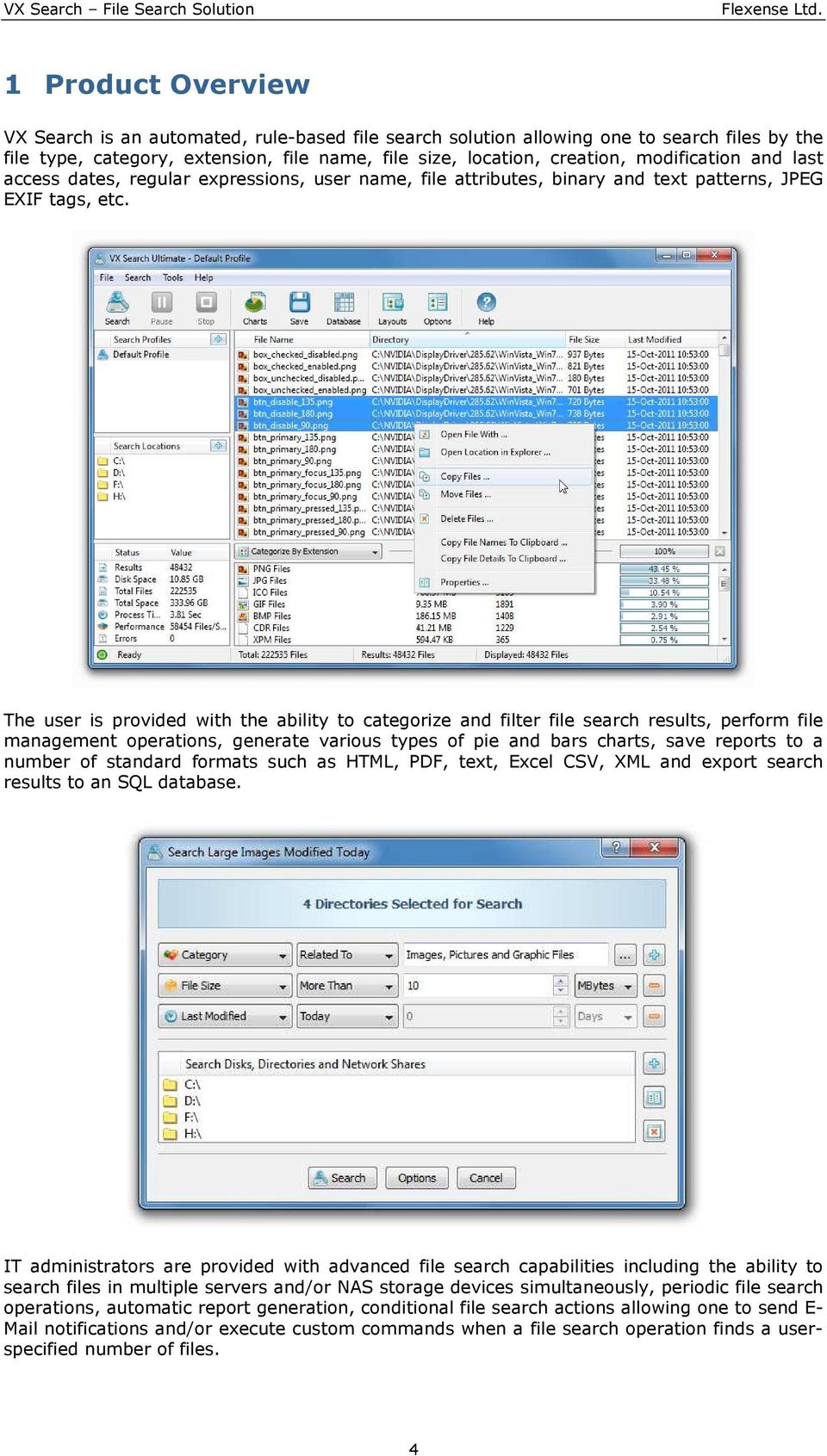
4 1 Product Overview VX Search is an automated, rule-based file search solution allowing one to search files by the file type, category, extension, file name, file size, location, creation, modification and last access dates, regular expressions, user name, file attributes, binary and text patterns, JPEG EXIF tags, etc. The user is provided with the ability to categorize and filter file search results, perform file management operations, generate various types of pie and bars charts, save reports to a number of standard formats such as HTML, PDF, text, Excel CSV, XML and export search results to an SQL database. IT administrators are provided with advanced file search capabilities including the ability to search files in multiple servers and/or NAS storage devices simultaneously, periodic file search operations, automatic report generation, conditional file search actions allowing one to send E- Mail notifications and/or execute custom commands when a file search operation finds a userspecified number of files. 4
5 VX Search allows one to scan the network, discover network servers and NAS storage devices, automatically detect all accessible network shares and search files in hundreds of network servers and NAS storage devices. In addition, the user is provided with the ability to export the list of detected servers and NAS storage devices (including lists of network shares for each server) into HTML, PDF, text and Excel CSV reports. In order to search files in one or more servers or NAS storage devices, press the 'Network' button located on the main toolbar and wait while VX Search will scan the network and show a list of detected network servers and NAS storage devices. On the network servers and NAS storage devices dialog, select the required servers and press the 'Search' button. VX Search will show all network shares hosted on the selected servers and NAS storage devices allowing one to search files and save various types of file search reports and charts. In addition, VX Search provides a large number of advanced file search options allowing one to tune and customize file search operations for user specific needs and hardware configurations. 5

6 In addition to the VX Search GUI application, the user is provided with a command line utility, which can be used to execute pre-configured file search operations and integrated into usercustom shell scripts and batch files. The VX Search command line utility may be used to execute file search operations locally or control file search operations in one or more VX Search Servers via the network. IT and storage administrators are provided with the server product version, which runs in the background as a service and provides the ability to perform fully-automated, periodic file search operations, generate various types of file search reports, analyze file search results and execute conditional actions based on user-defined rules and policies. VX Search Server may be controlled using a full-scale client GUI application and the command line utility, which provides the ability to perform file search operations, review results and save reports locally and through the network. Finally, enterprise customers are provided with VX Search Enterprise - a server-based product version allowing one to perform search operations, review results and save reports using a regular web browser locally or through the network. 6

7 VX Search Server and VX Search Enterprise provide the ability to scan the network, detect all network servers and NAS storage devices, execute one or more pre-configured file search commands on hundreds of network servers and NAS storage devices and generate an individual file search report for each network server, NAS storage device or network share. In the simplest case, just press the 'Network' button located on the main toolbar, search all network servers and NAS storage devices on the network, select one or more servers, press the right mouse button and select the 'Batch File Search' menu item. VX Search will show a list of pre-configured file search commands allowing one to select one or more commands to be executed on all selected network servers and NAS storage devices. Depending on the selected configuration, VX Search Server will save in the built-in reports database an individual file search report for each network server, NAS storage device or network share. Once the batch file search operation is completed, the user will be provided with the ability to open saved file search reports, review file search results, generate various types of pie charts and export reports to a number of standard formats including HTML, PDF, text, Excel CSV and XML. 7

8 2 VX Search Product Versions Features Pro Ultimate Server Enterprise Maximum Amount of Disk Space 10 TB 50 TB 100 TB Unlimited Maximum Number of Files 10 M 50 M 100 M Unlimited Maximum Number of Input Directories Unlimited Maximum Number of Search Profiles Unlimited Support for Unicode File Names Yes Yes Yes Yes Support for Long File Names Yes Yes Yes Yes Support for UNC Network Path Names Yes Yes Yes Yes File Management Operations on Results Yes Yes Yes Yes HTML, PDF, Text, CSV and XML Reports Yes Yes Yes Yes Support for ACLs and Security Attributes Yes Yes Yes Yes Support for System Tray Icon Yes Yes Yes Yes Multiple Types of File Search Rules Yes Yes Yes Yes Multi-Threaded File Search Yes Yes Yes Yes Multi-Level File Search Rules No Yes Yes Yes SQL Database Integration No Yes Yes Yes Automatic Report Generation No Yes Yes Yes Conditional Notifications No Yes Yes Yes Command Line Utility No Yes Yes Yes Runs in the Background as a Service No No Yes Yes Periodic File Search Operations No No Yes Yes VX Search Client GUI Application No No Yes Yes Batch File Search Operations No No No Yes Web-Based Management Interface No No No Yes OEM Product Version No No No Yes License $25 $50 $125 $375 * Prices, product features and license terms are subject to change without notice. 8

9 3 Using Desktop Product Versions 3.1 Product Installation Procedure All versions of VX Search may be freely downloaded from the web site. The free product version does not contain any malware, spyware or any other harmful software components, but the free product version can be used for personal purposes only. Commercial product versions are available for a free 30-days trial. The product installation procedure is very simple and does not require any third party software components. Just run the setup program, accept the end-user license, select the destination directory and wait about 10 seconds for the installation procedure to complete. Product updates are released almost every month and if the computer where the product is installed on is connected to the Internet, select the 'Help - Check For Updates' menu item to update the installed product version. If the computer is not connected to the Internet, download the regular setup program for a new product version and just install it on the top of the currently installed product version and it will perform a proper update procedure. 9

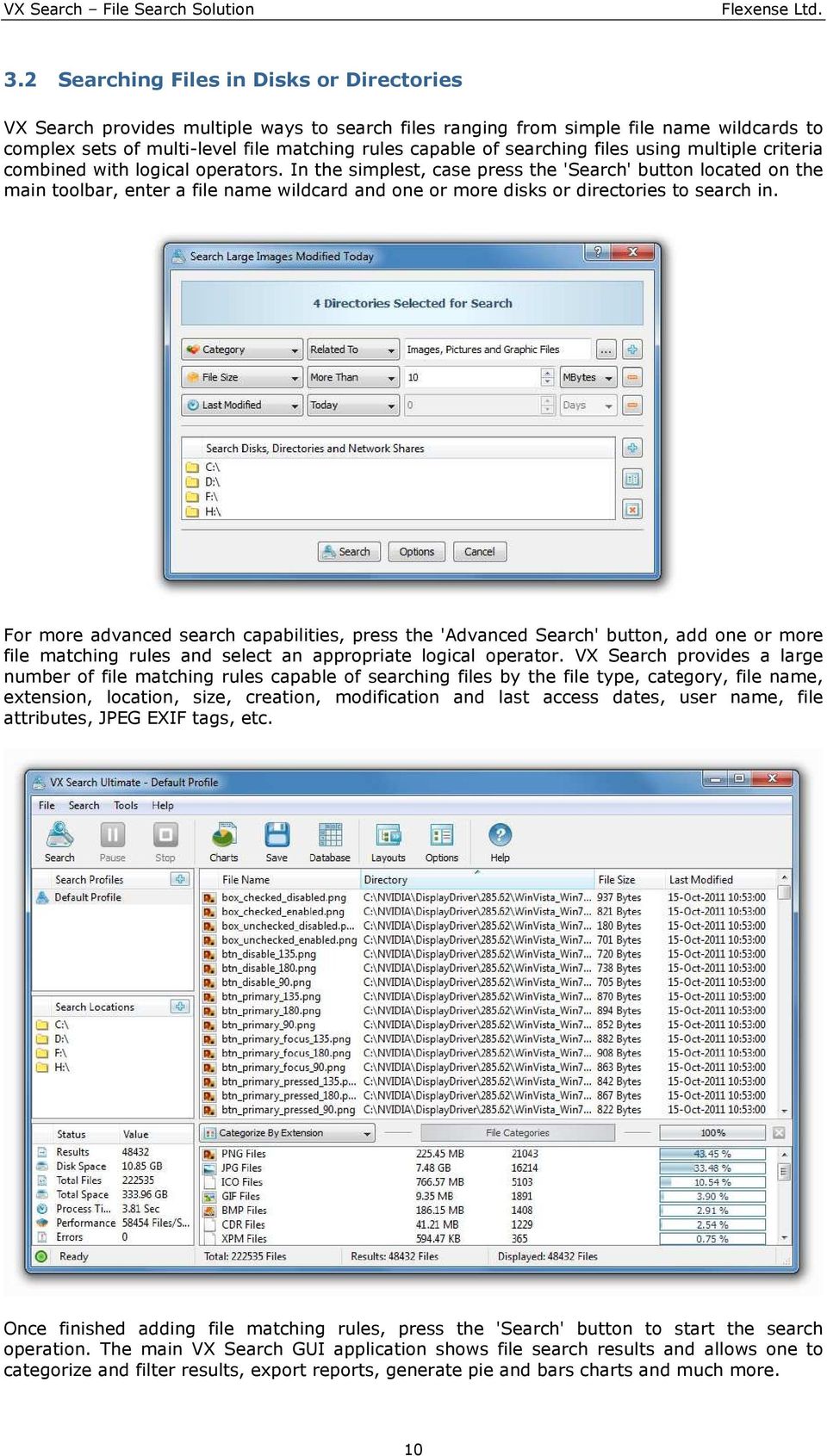
10 3.2 Searching Files in Disks or Directories VX Search provides multiple ways to search files ranging from simple file name wildcards to complex sets of multi-level file matching rules capable of searching files using multiple criteria combined with logical operators. In the simplest, case press the 'Search' button located on the main toolbar, enter a file name wildcard and one or more disks or directories to search in. For more advanced search capabilities, press the 'Advanced Search' button, add one or more file matching rules and select an appropriate logical operator. VX Search provides a large number of file matching rules capable of searching files by the file type, category, file name, extension, location, size, creation, modification and last access dates, user name, file attributes, JPEG EXIF tags, etc. Once finished adding file matching rules, press the 'Search' button to start the search operation. The main VX Search GUI application shows file search results and allows one to categorize and filter results, export reports, generate pie and bars charts and much more. 10
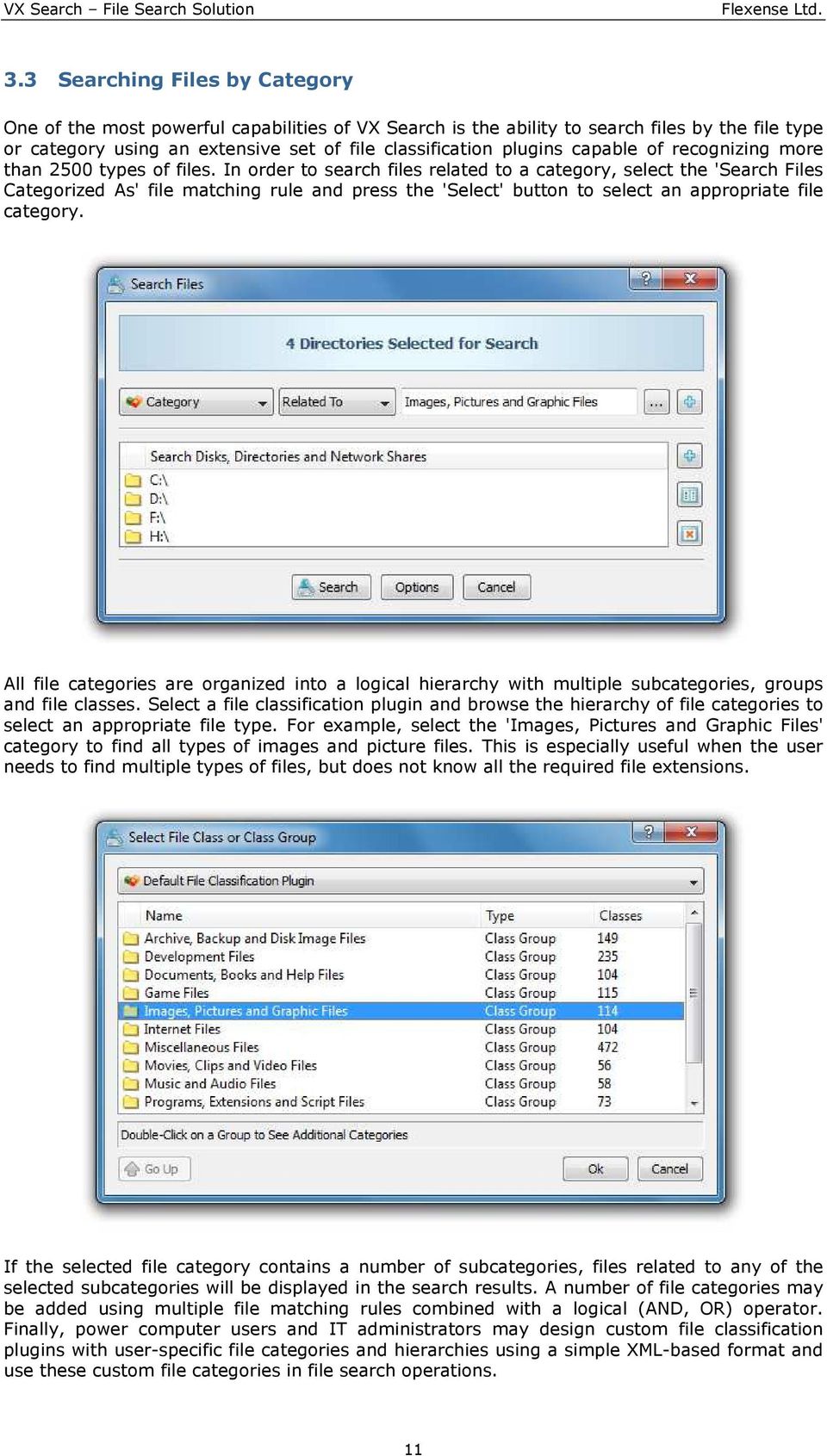
11 3.3 Searching Files by Category One of the most powerful capabilities of VX Search is the ability to search files by the file type or category using an extensive set of file classification plugins capable of recognizing more than 2500 types of files. In order to search files related to a category, select the 'Search Files Categorized As' file matching rule and press the 'Select' button to select an appropriate file category. All file categories are organized into a logical hierarchy with multiple subcategories, groups and file classes. Select a file classification plugin and browse the hierarchy of file categories to select an appropriate file type. For example, select the 'Images, Pictures and Graphic Files' category to find all types of images and picture files. This is especially useful when the user needs to find multiple types of files, but does not know all the required file extensions. If the selected file category contains a number of subcategories, files related to any of the selected subcategories will be displayed in the search results. A number of file categories may be added using multiple file matching rules combined with a logical (AND, OR) operator. Finally, power computer users and IT administrators may design custom file classification plugins with user-specific file categories and hierarchies using a simple XML-based format and use these custom file categories in file search operations. 11
12 3.4 Searching Files by Name VX Search allows one to search files by the file name, location, extension, full file name including the full path, the name of the directory without the path and file name and the file name without extension. There are a number of positive and negative pattern matching operators providing the user with the ability to match text patterns located at different places of the file name and allowing one to define precise file matching rules. 3.5 Searching Files by Size The user is provided with the ability to search files by the file size using multiple comparison operators and size units. This file matching rule is very useful when combined with file categories to search files matching multiple different criteria. For example, VX Search allows one to find all pictures and images with the file size greater than X MB. The size-based file matching rule may be combined with other types of file matching rules allowing one to find files exactly matching user needs and requirements. 12

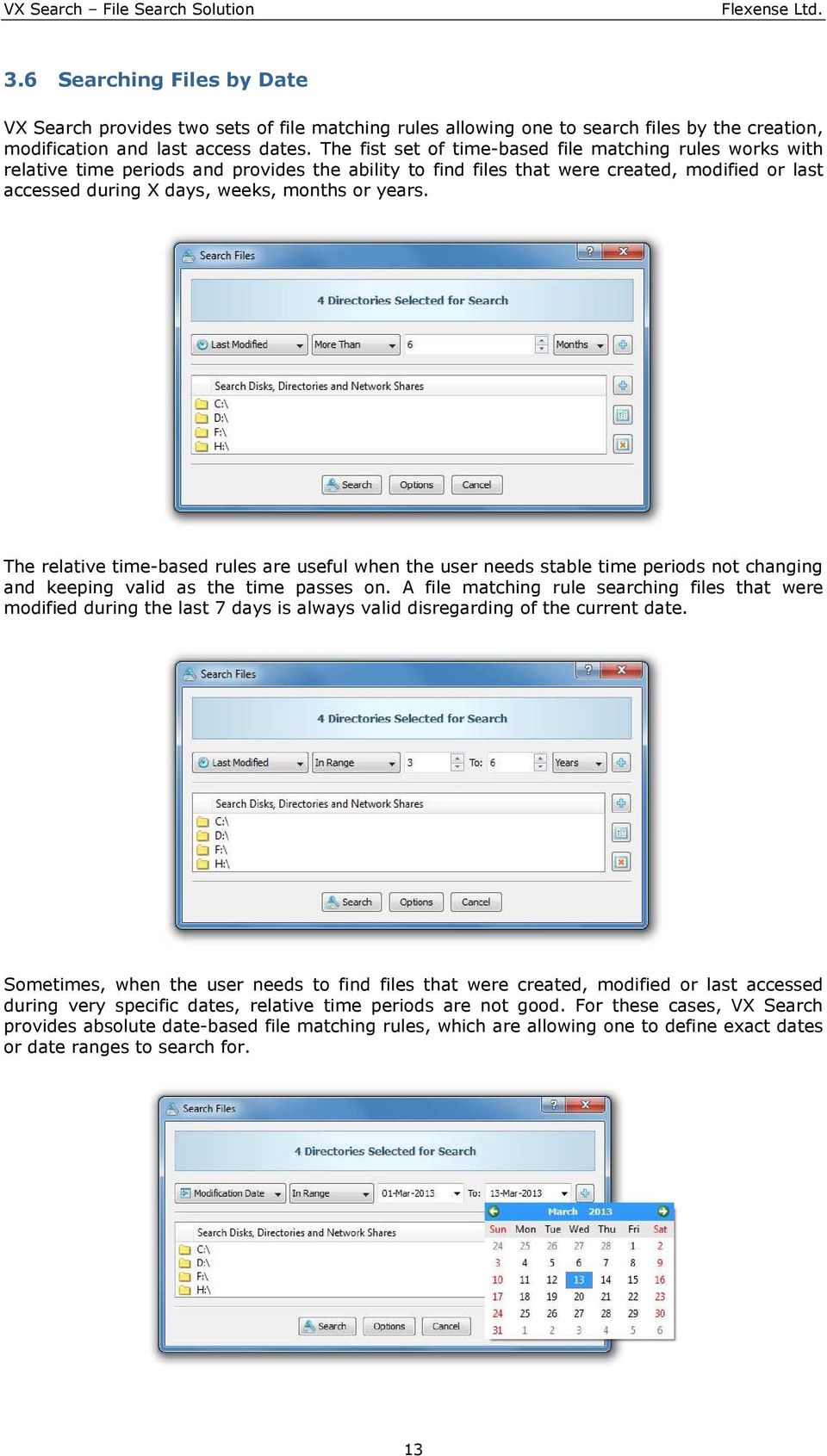
13 3.6 Searching Files by Date VX Search provides two sets of file matching rules allowing one to search files by the creation, modification and last access dates. The fist set of time-based file matching rules works with relative time periods and provides the ability to find files that were created, modified or last accessed during X days, weeks, months or years. The relative time-based rules are useful when the user needs stable time periods not changing and keeping valid as the time passes on. A file matching rule searching files that were modified during the last 7 days is always valid disregarding of the current date. Sometimes, when the user needs to find files that were created, modified or last accessed during very specific dates, relative time periods are not good. For these cases, VX Search provides absolute date-based file matching rules, which are allowing one to define exact dates or date ranges to search for. 13
14 3.7 Searching Files by Text Patterns VX Search provides a file matching rule capable of searching files containing or not containing a user-specified text pattern. In order to match files by a text pattern, select the 'Search Files Containing Text' file matching rule, select an appropriate text matching operator and enter a text pattern to search for. 3.8 Searching Files by Binary Patterns Power computer users and IT administrators are provided with a binary pattern file matching rule, which is capable of searching files by binary patterns located at specific places inside of files. In order to add a binary file matching rule, select the 'Search Files Containing HEX Pattern' rule, select an appropriate pattern matching operator, enter the HEX pattern to search for and enter the position inside of the file where the binary pattern should be found at. The binary pattern file matching rule is very useful when the user needs to detect specific file formats containing format-specific signature patterns at designated positions. Multiple binary pattern rules may be combined with logical operators to detect files containing multiple patterns at different positions. The pattern should be specified as a string of HEX characters with two characters per byte delimited with the space character. The position should be specified as an absolute offset from the beginning of the file. 14

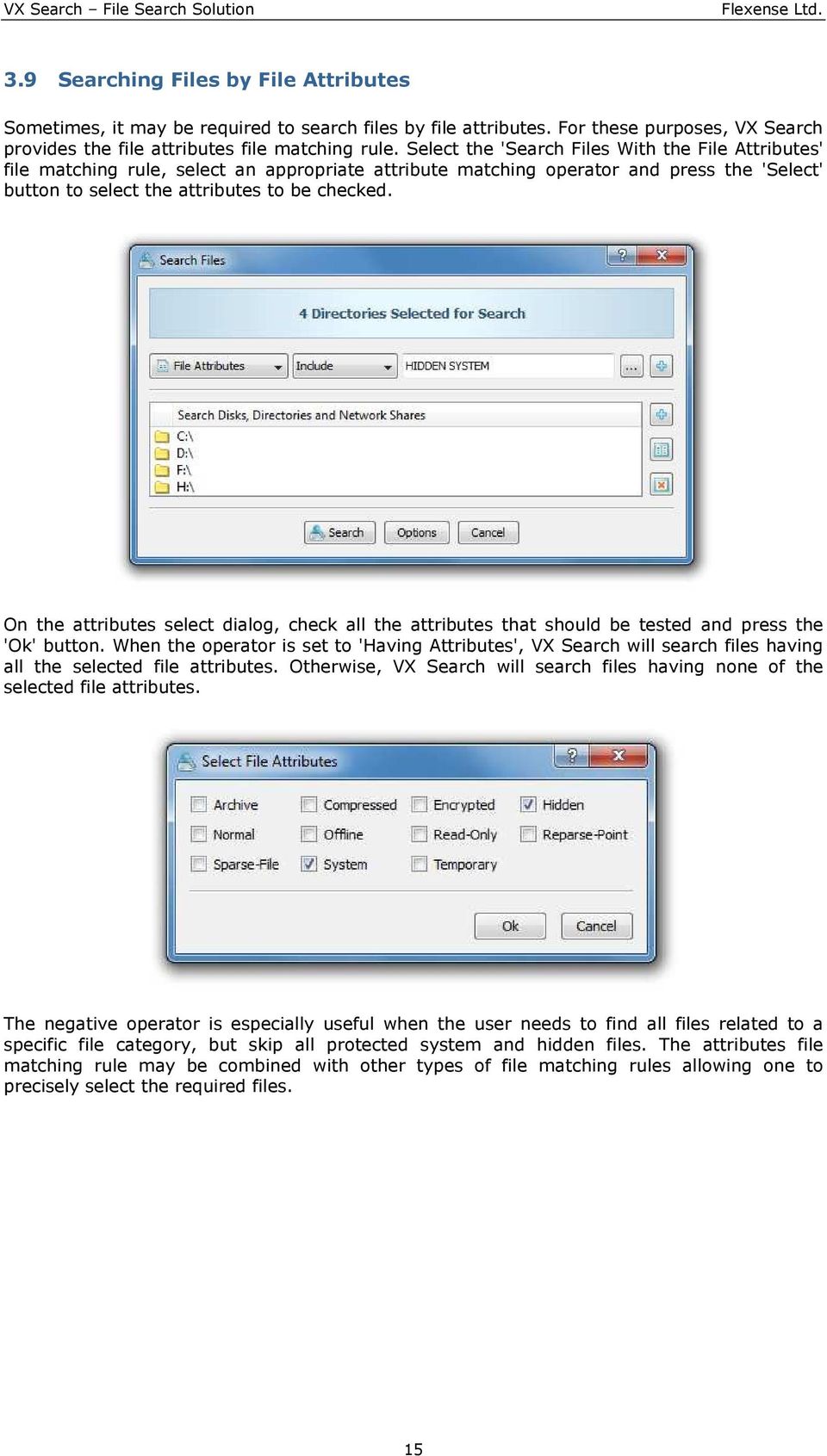
15 3.9 Searching Files by File Attributes Sometimes, it may be required to search files by file attributes. For these purposes, VX Search provides the file attributes file matching rule. Select the 'Search Files With the File Attributes' file matching rule, select an appropriate attribute matching operator and press the 'Select' button to select the attributes to be checked. On the attributes select dialog, check all the attributes that should be tested and press the 'Ok' button. When the operator is set to 'Having Attributes', VX Search will search files having all the selected file attributes. Otherwise, VX Search will search files having none of the selected file attributes. The negative operator is especially useful when the user needs to find all files related to a specific file category, but skip all protected system and hidden files. The attributes file matching rule may be combined with other types of file matching rules allowing one to precisely select the required files. 15
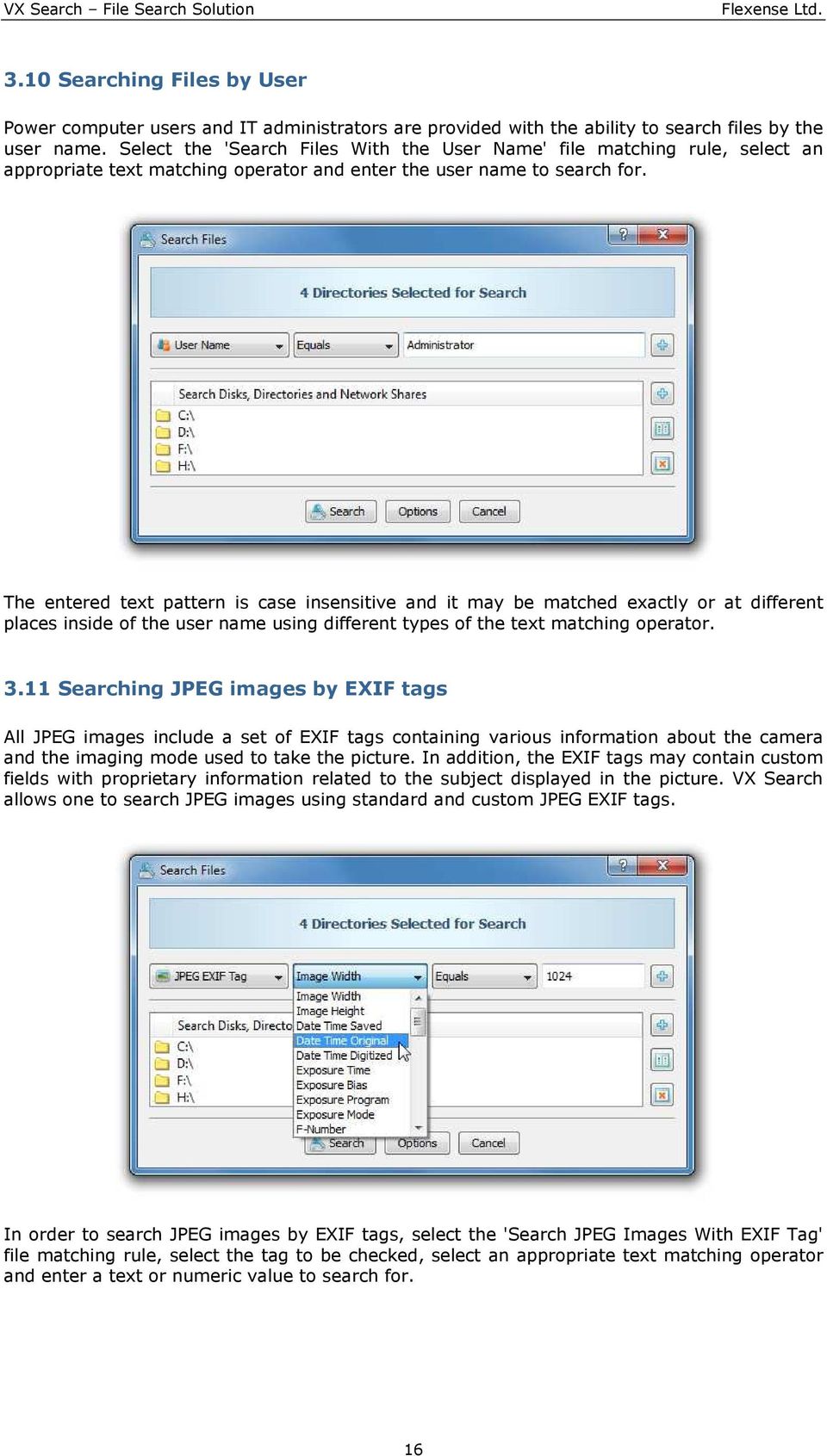
16 3.10 Searching Files by User Power computer users and IT administrators are provided with the ability to search files by the user name. Select the 'Search Files With the User Name' file matching rule, select an appropriate text matching operator and enter the user name to search for. The entered text pattern is case insensitive and it may be matched exactly or at different places inside of the user name using different types of the text matching operator Searching JPEG images by EXIF tags All JPEG images include a set of EXIF tags containing various information about the camera and the imaging mode used to take the picture. In addition, the EXIF tags may contain custom fields with proprietary information related to the subject displayed in the picture. VX Search allows one to search JPEG images using standard and custom JPEG EXIF tags. In order to search JPEG images by EXIF tags, select the 'Search JPEG Images With EXIF Tag' file matching rule, select the tag to be checked, select an appropriate text matching operator and enter a text or numeric value to search for. 16
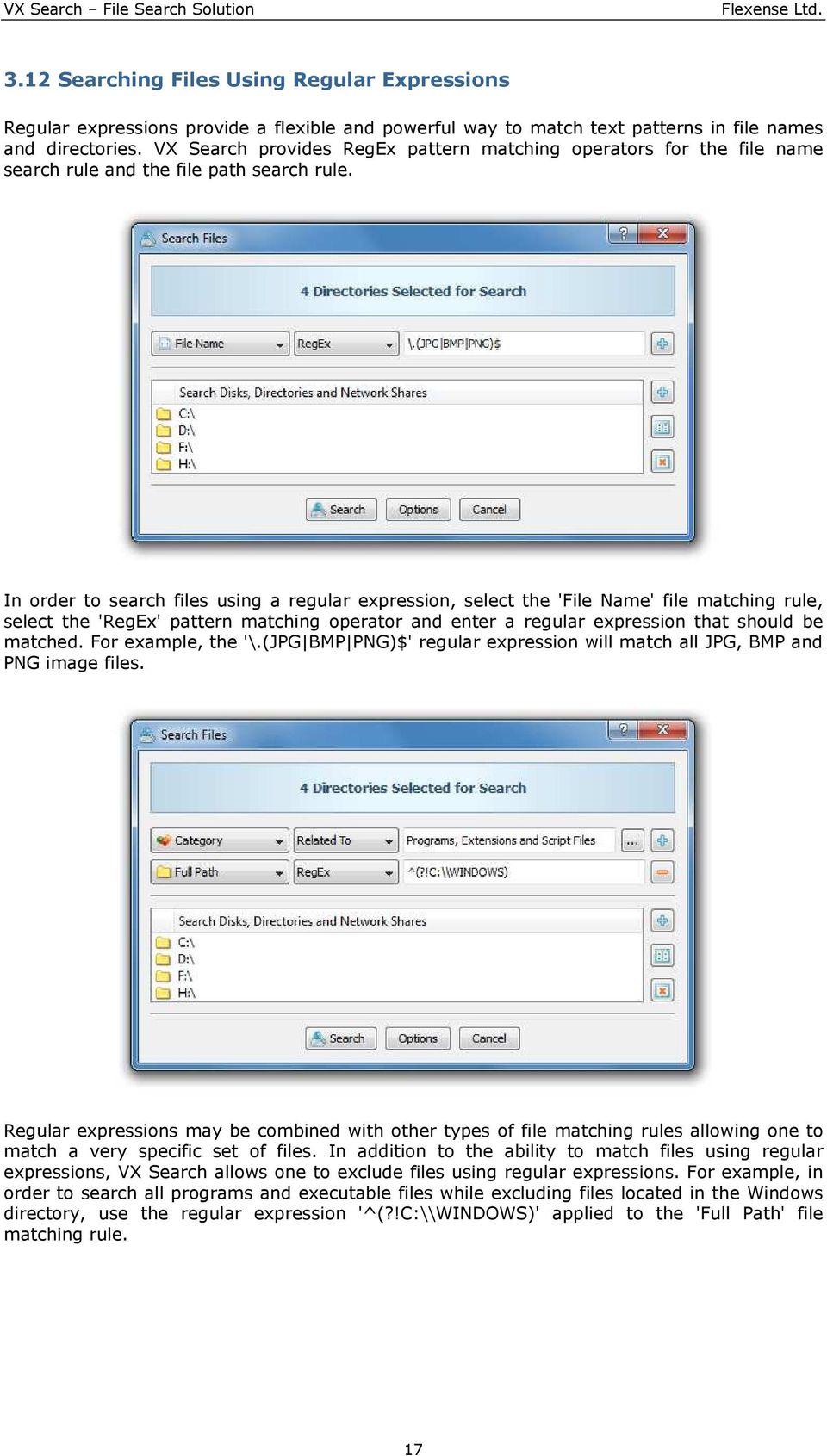
17 3.12 Searching Files Using Regular Expressions Regular expressions provide a flexible and powerful way to match text patterns in file names and directories. VX Search provides RegEx pattern matching operators for the file name search rule and the file path search rule. In order to search files using a regular expression, select the 'File Name' file matching rule, select the 'RegEx' pattern matching operator and enter a regular expression that should be matched. For example, the '\.(JPG BMP PNG)$' regular expression will match all JPG, BMP and PNG image files. Regular expressions may be combined with other types of file matching rules allowing one to match a very specific set of files. In addition to the ability to match files using regular expressions, VX Search allows one to exclude files using regular expressions. For example, in order to search all programs and executable files while excluding files located in the Windows directory, use the regular expression '^(?!C:\\WINDOWS)' applied to the 'Full Path' file matching rule. 17
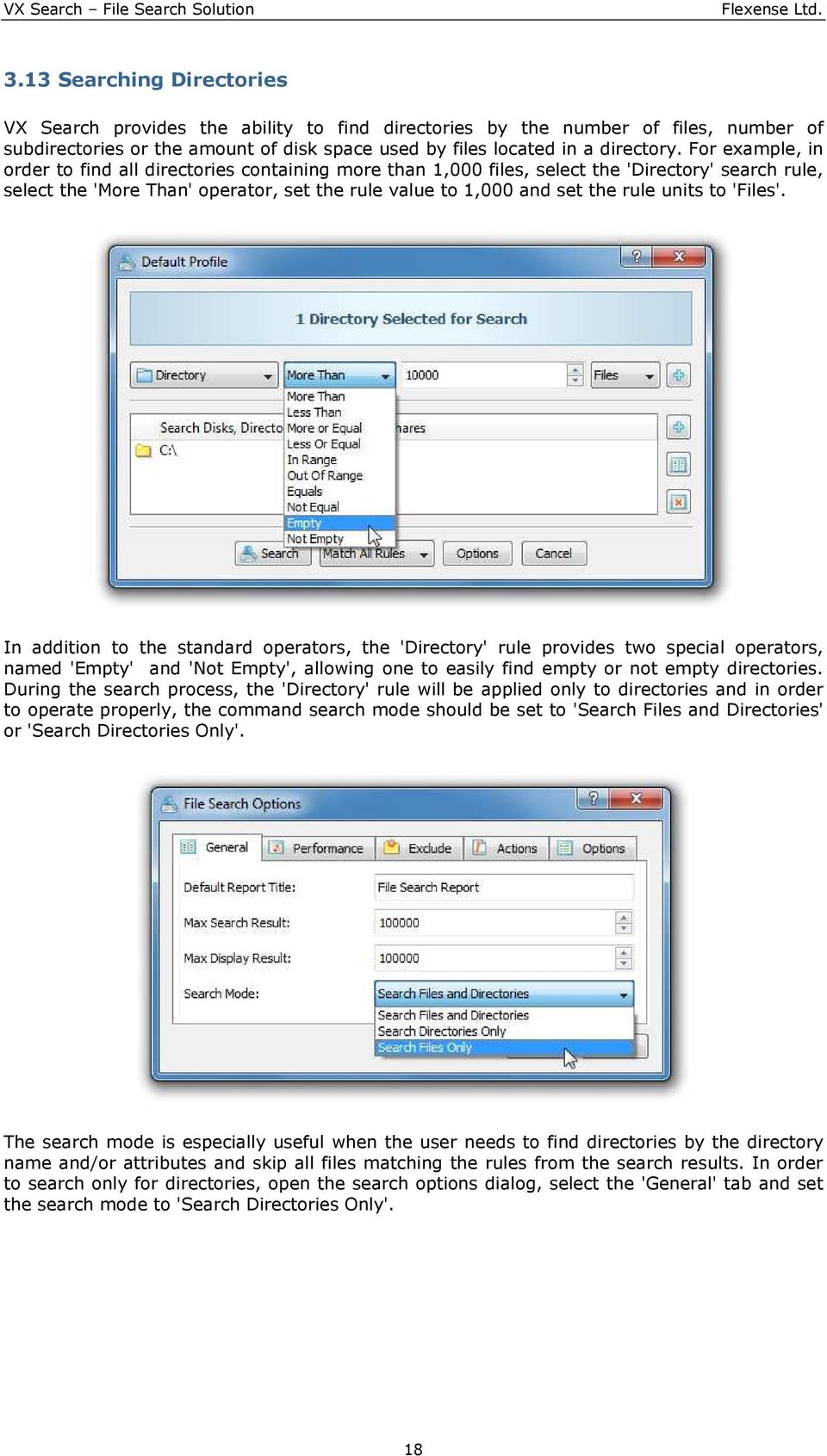
18 3.13 Searching Directories VX Search provides the ability to find directories by the number of files, number of subdirectories or the amount of disk space used by files located in a directory. For example, in order to find all directories containing more than 1,000 files, select the 'Directory' search rule, select the 'More Than' operator, set the rule value to 1,000 and set the rule units to 'Files'. In addition to the standard operators, the 'Directory' rule provides two special operators, named 'Empty' and 'Not Empty', allowing one to easily find empty or not empty directories. During the search process, the 'Directory' rule will be applied only to directories and in order to operate properly, the command search mode should be set to 'Search Files and Directories' or 'Search Directories Only'. The search mode is especially useful when the user needs to find directories by the directory name and/or attributes and skip all files matching the rules from the search results. In order to search only for directories, open the search options dialog, select the 'General' tab and set the search mode to 'Search Directories Only'. 18
19 3.14 Using Multi-Level File Search Rules Sometimes, it may be required to define multi-level, hierarchical file matching rules. For example, let's assume that we need to find files related to multiple file categories that were modified today. In order to define such a rule, open the advanced search options dialog, press the right mouse button over the list of file matching rules and select the 'Add Nested Rule List' menu item. On the nested rules dialog, add all the required file categories, select the 'OR' logical operator and press the 'OK' button. On the advanced search dialog, press the 'Add' button, add the time-based file matching rule to find files that were modified today and select the 'AND' logical operator. The nested rule list will match all the required file categories, while the time-based top level file matching rule will select files that were modified today. VX Search provides a fully scalable rule-based model with an unlimited number of nested levels allowing one to define sophisticated multi-level file matching rules capable of precisely searching the required files. In addition, power computer users and IT administrators are provided with an XML-Based format allowing one to define custom file classifications plugins and complex search queries, which may executed using the VX Search command line utility. Finally, the command line utility may be used to execute automated periodic file search operations, generate reports, submit search results to an SQL database or issue notifications when a search operation finds a user-specified number of files. 19

20 3.15 Showing Categories and Statistics Charts The bottom part of the main VX Search GUI application shows file categories and allows one to filter search results by one or more file categories. The user is provided with the ability to categorize search results by the file extension, size, creation, modification and last access time, file type and the user name. Use the categories combo box to select an appropriate categorization mode. In addition to the statistics displayed in the file categories pane, VX Search allows one to generate various types of pie and bars charts. In order to show a chart for the currently displayed file categories, press the 'Charts' button located on the main toolbar. The charts dialog shows the currently selected file categories and allows one to change the chart's title and footer, copy the chart's image to the clipboard or print the chart making it very simple to integrate VX Search charts into user's custom reports and documents. 20

21 3.16 Categorizing and Filtering File Search Results Another advanced feature provided by VX Search is the ability to categorize and filter search results by one or more of second-level file categories. For example, let's assume that we have searched for all pictures and image files in a computer. The top pane of the VX Search main GUI application shows the file search results and the bottom pane shows file categories. Select one or more file categories in the bottom pane, press the right mouse button and select the 'Apply Filters' menu item. VX Search will filter the search results and show files matching the selected file categories. Now, the user can export reports and/or perform file management operations, such as file copy, move or delete, on files matching the selected file categories. In order to clear the selected file categories press the 'Clear' button located on the right side of the categories progress bar. 21
22 3.17 Showing File Search Results User Names VX Search provides the ability to show files user names in the file search results view. In order to enable processing and display of files user names, open the file search profile dialog, press the 'Options' button, select the 'General' tab and select the 'Process and Show Files User Names' option. With this option enabled, the VX Search GUI application will show the user name for each file search result in the search results view. In addition, PDF and XML reports will include user names for all file search results. The option to process and display files user names significantly reduces the performance of file search operations and it should be enabled only when required. The potential performance impact may be especially significant when searching files in network shares or NAS storage devices over a high-latency network and in such situations it is recommended to configure the file search operation to use multiple parallel file search threads. 22
23 3.18 Categorizing and Filtering File Search Results by User Name VX Search allows one to categorize and filter file search results by the user name. In order to categorize file search results by the user name, open the file search options dialog, select the 'General' tab, select the option to 'Process and Show Files User Names' and start the file search operation. When the file search operation will be completed, set the 'Categorize by User Name' file categorization mode. The file categories view will show all user names, the number of file search results per user and the amount of disk space per user. In order to export user names and displayed statistics to a pie chart or bars chart, press the 'Charts' button, select an appropriate chart type and press the 'Copy To Clipboard' button. In order to export user names and statistics to a report file, press the 'Save' button and select an appropriate report format. Sometimes, it may be required to generate multiple reports with each one listing files related to a specific user or perform a file management operation on files related to a specific user. In this case, select the required user name in the file categories view, press the right mouse button and select the 'Apply Filters' menu item. VX Search will filter files related to the selected user and all reports and file management operations will be performed on files related to the selected user. 23
24 3.19 Performing File Management Operations VX Search allows one to perform file management operations, such as file copy, move or delete, on file search results. For example, in order to copy one or more files displayed in the search results view, select the files in the results view, press the right mouse button and select the 'Copy Files' menu item. On the file copy dialog, enter a destination directory and press the 'Start' button. The destination directory should be specified as an absolute location with a full path. The UNC notation for network shares is also supported. In order to delete one or more files, select the required files in the search results view, press the right mouse button and select the 'Delete Files' menu item. For advanced delete options, such as data wiping capabilities, press the 'Advanced Options' button. 24
25 3.20 Saving File Search Reports Power computer users and IT administrators are provided with the ability to save file search results to a number of standard formats such as HTML, text, Excel CSV and XML. In order to save a report file, press the 'Save' button located on the main toolbar, select an appropriate file format, enter the report file name and press the 'Save' button. The amount of information exported per file depends on the selected file format. HTML, Text and Excel CSV reports provide basic information about each file, while the XML format and the VX Search native format export full information about all search results including the full file name, size, user name, creation, modification and last access times. In addition, the VX Search native report format allows one to save search results for future analysis, load report files into the VX Search GUI application on another computer or export search results to a centralized SQL database. 25
26 3.21 Exporting PDF Reports VX Search Pro, VX Search Ultimate and VX Search Server allow one to export file search results to PDF reports. In addition to the information available in other report formats, VX Search PDF reports include pie charts showing the number of search results and the amount of disk space per file category according to the currently selected file categorization mode. If one or more file filters are selected, the file categories pie charts are followed with the list of selected file filters and then finished with the list of filtered file search results. In order to export a PDF report, search files in one or more disks, directories or network shares and press the 'Save' button located on the main toolbar. On the save report dialog, select the PDF report format, enter a report title, enter the name of the file to save the report to. By default, VX Search exports the top 10,000 search results. In order to export a full report, which may result in a very long PDF document, just enter an appropriate number of search results to export. 26
27 3.22 Exporting File Search Results to Excel Datasheets The simplest way to export file search results to an Excel datasheet is to copy selected results to the clipboard and than paste copied file search results in Microsoft Excel. In order to copy file search results to the clipboard, select one or more results in the file search results view, press the right mouse button and select the 'Copy File Details to Clipboard' menu item. Selected file search results will be copied to the clipboard according to the current sorting and filtering modes and will be available in the Excel datasheet exactly in the same way as displayed in the file search results view. In order to export files user names to an Excel datasheet, the option to show files user names should be enabled during the file search operation. In order to be able to sort file search results by the last modification date, the user needs to open the 'Options' dialog, select the 'Reports' tab and set an appropriate date format, which can be properly sorted in Excel datasheets. Another option to export file search results to Microsoft Excel, is to save an Excel CSV report file. Press the 'Save' button located on the main toolbar, select the 'CSV Report' format, enter a file name to save the report to and press the 'Save' button. Now, in order to open the saved CSV report file in Microsoft Excel, just click on the CSV report file in Windows file explorer. When exporting file search results to Excel datasheets, the user needs to take into account that the comma (,) character used as the data field delimiter in CSV reports is also a valid file name character and file names containing the comma (,) character will span across multiple data fields in Excel datasheets. In order to properly export such file names to an Excel datasheet, open the 'Options' dialog, select the 'Reports' tab and change the CSV reports delimiter to the 'Tab' character, which cannot be used in file names. 27
28 3.23 Customizing File Search Reports By default, VX Search exports file search reports including the last modification date for each file search result. The date format used in file search reports is easily readable, but not good for sorting file search results by the last modification date in external programs such as Microsoft Excel, etc. In addition to the default date format, VX Search provides a number of alternative date formats allowing one to customize file search reports. In order to change the date format used in file search reports, open the 'Options' dialog, select the 'Reports' tab and set the 'Report Files Date Format' to an appropriate date format. When exporting Excel CSV reports, the user may encounter problems with directories and files having the comma (,) character in the file or directory name. The comma (,) character is a valid character for file names, but this character is normally used in Excel CSV reports as the delimiter character causing file names containing the comma character to span multiple data fields in Microsoft Excel data sheets. In order to change the CSV reports delimiter character used by VX Search in file search reports, open the 'Options' dialog, select the 'Reports' tab and set the CSV reports delimiter to the 'Tab' character, which cannot be used in file names and therefore will not conflict with file names exported in file search reports. In order to import a tab-delimited file search report to an Excel data sheet, open Microsoft Excel, select the menu 'Data - Import External Data - Import Data', select the file search report file and select the 'Tab' character as the data field delimiter. 28
29 3.24 Exporting File Search Results to an SQL Database VX Search Ultimate and VX Search Server provide the ability to export search results into an SQL database allowing one to save reports from multiple servers and/or desktop computers in a centralized SQL database for future analysis and reference. Before exporting search results to an SQL database, the user needs to open the options dialog and configure an ODBC data source to use to connect to the database. Once the database connection is configured and tested, press the 'Save' button located on the main toolbar, enter a report title, select the 'SQL Database' report format and press the 'Save' button. For each report in the database, VX Search shows the date and time of the search operation, the host name, the directories that were searched, the number of files and disk space and the report title. To load a previously saved report, just click on the report item. 29
30 3.25 Searching Network Shares Using UNC Path Names VX Search fully supports the UNC notation and allows one to search files in network shares by specifying one or more UNC network locations in the file search dialog. In order to search files in one or more network shares, press the 'Add' button located on the right side of the list of search locations, enter a UNC network location and press the 'Ok' button. In order to be able to search files in network shares, the user needs to have directory access permissions. In addition, in order to perform file management operations on file search results, such as file copy, move or delete, the user needs to have file write permissions. In addition to the ability to search files using UNC network locations, VX Search allows one to copy or move file search results to UNC network locations. For example, in order to copy one or more files to an UNC network location, select the required files in the file search results view, press the right mouse button, select the 'Copy Files To' menu item, enter the UNC network location to copy the selected files to and press the 'Start' button. 30
31 3.26 Searching Files in One or More Servers VX Search allows one to search files in all network shares of one or more servers or NAS storage devices on the network. In order to search files in one or more servers, open the search dialog, press the 'Add' button located on the right side of the list of search locations, select the 'Search Servers or NAS Devices' mode and enter one or more host names or IP addresses separated by the semicolon (;) character. VX Search will scan the network and show a list of network shares detected in the specified servers and NAS storage devices allowing one to select one or more network shares that should be processed. In order to be able to use this feature, the user needs to have permissions to access network shares. The network shares scanning operation may be performed multiple times for different servers and NAS storage devices and an unlimited number of network shares from different servers may be added to the file search operation. During runtime, VX Search will process all the specified network shares in parallel using all CPUs and/or CPU-cores available in the host computer VX Search is running on. 31
32 3.27 Searching Files in All Servers on the Network Another option is to search files in all servers and/or NAS storage devices available on the network. In order to search files in all servers on the network, open the search dialog, press the 'Add' button located on the right side of the list of search locations, select the 'All Servers on the Network' mode and press the 'Ok' button. VX Search will scan the network and show a list of servers and NAS storage devices detected on the network. Select one or more servers to search in and press the 'Ok' button. VX Search will scan the selected servers and show a list of network shares detected in the servers and NAS storage devices allowing one to select one or more network shares that should be processed. During runtime, VX Search will process the selected network shares in parallel using all CPUs available in the host computer VX Search is running on. In order to be able to use this feature, the user needs to have permissions to access network shares. 32

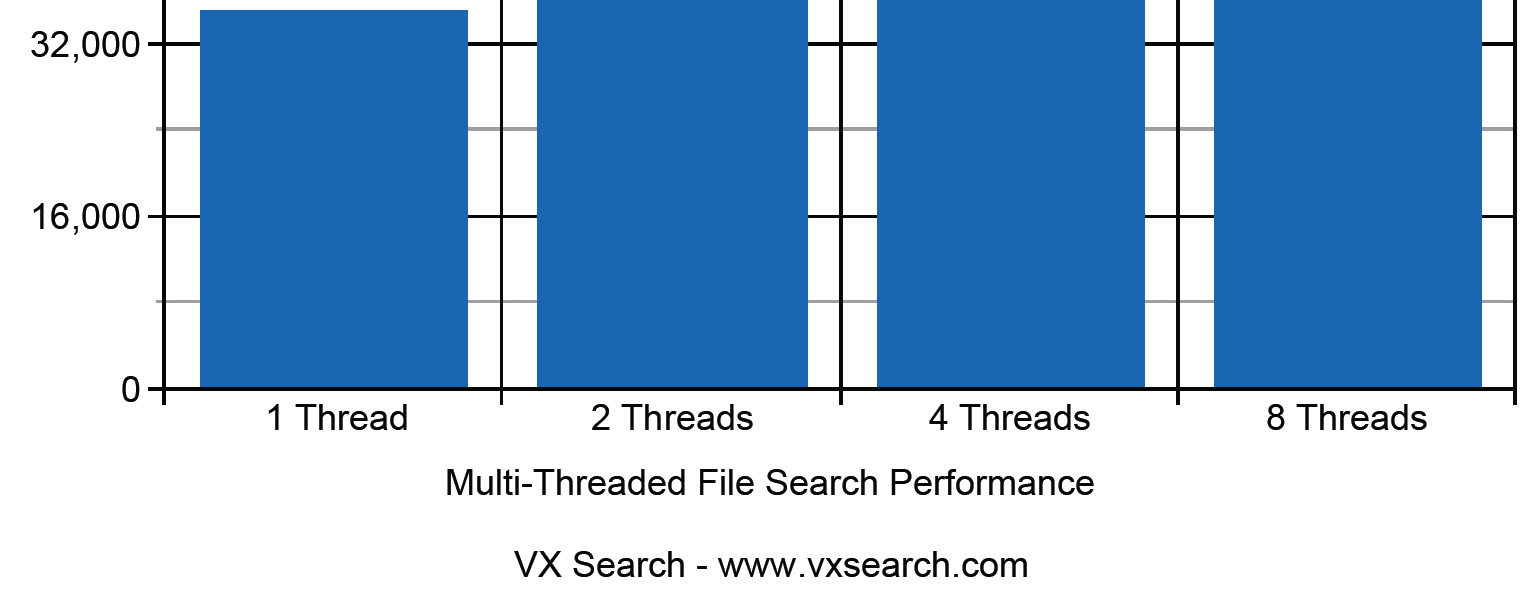
33 3.28 Multi-Threaded File Search and Performance Options VX Search is optimized for modern multi-core/multi-cpu systems and powerful disk RAID arrays and is capable of performing file search operations using a number of processing threads. In order to enable parallel scanning of input disks and directories, select the 'Performance' tab on the file search options dialog and specify how many directory scanning and file search threads and to use. If the search operation is performed on a multi-core/multi-cpu system, set the total number of processing threads to the number of physical CPUs or CPU cores available in the computer system. The performance improvement may be especially significant when searching files in multiple physical disks or network shares using complex search queries. For example, on a quad-core server with a test data set stored on SSD disks, file search performance reaches up to 35,000 Files/Sec when searching files using 1 processing thread, 58,000 Files/Sec when searching files in the same data set using 2 parallel processing threads and 72,000 Files/Sec when performing the same file search operation using 4 parallel processing threads. 33
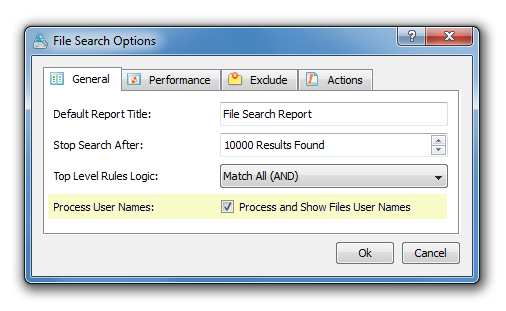
34 When searching files over the network, the network latency significantly impacts the file search performance and using multiple parallel directory scanning threads and multiple file search threads is even more important. For example, the performance of a file search operation over the network reaches up to 5,000 Files/Sec when searching files using one processing thread, up to 9,800 Files/Sec when performing the same file search operation using 2 parallel processing threads and up to 19,600 when performing the same file search operation using 4 parallel processing threads. Searching Files With the Option to Show User Names Enabled VX Search provides the ability show files user names in file search results, but this option significantly reduces the file search performance and it should be used only when required. The operation of obtaining a user name for a file is a relatively slow operation, which causes VX Search to delay processing files while waiting for the operating system to return user names for file search results. In order to mitigate the performance degradation, it is highly recommended to configure the file search operation to use a number of parallel file search threads, which will be inquiring user names for multiple files simultaneously. 34
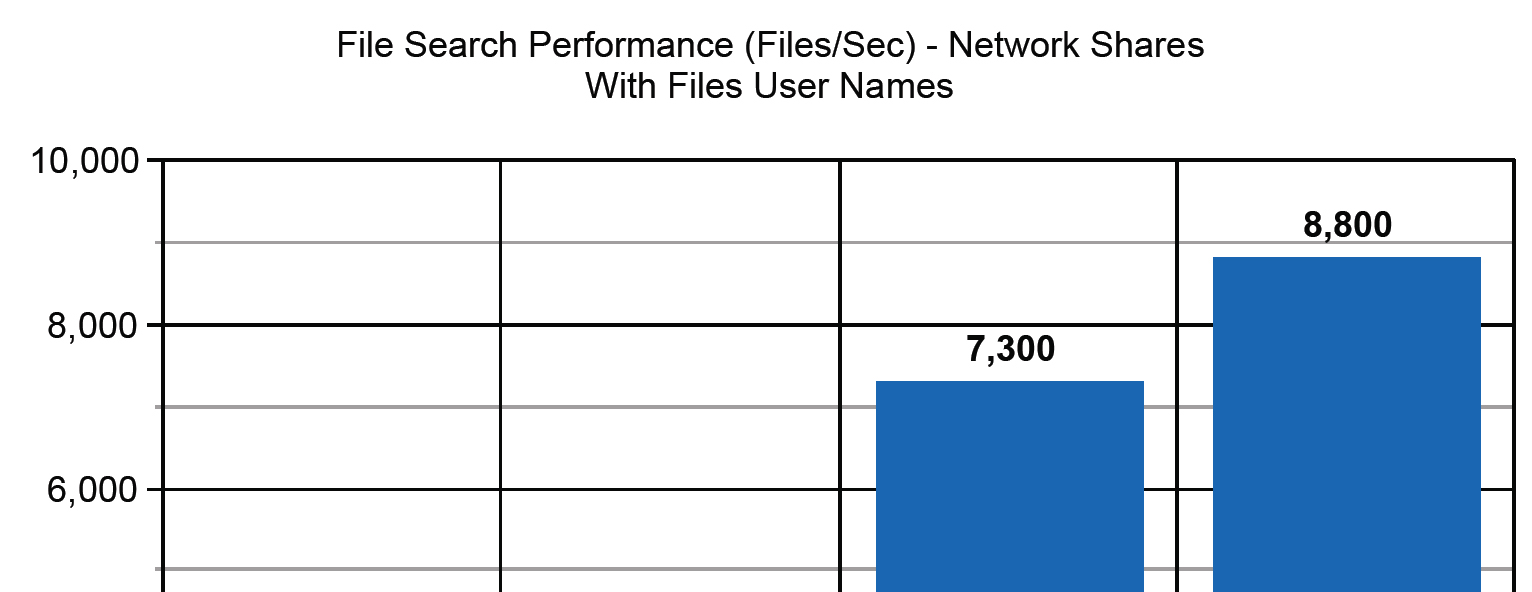
35 For example, when searching files stored on SSD disks with the option to show files user names enabled, the file search operation reaches up to 18,000 Files/Sec with 1 file search thread, up to 33,200 Files/Sec with 2 parallel file search threads, up to 46,000 Files/Sec with 4 parallel file search threads and up to 52,000 Files/Sec with 8 parallel file search threads. In order to reach a high file search performance when searching files over the network with the option to show files user names enabled, the file search operation should be configured to use 4-8 parallel file search threads. For example, a file search operation over the network with the option to show file user names enabled reaches up to 2,000 Files/Sec when using 1 file search threads and scales very well up to 8,800 Files/Sec when performing the same file search operating using 8 parallel file search threads. 35
36 3.29 Windows Shell Integration In order to simplify execution of search operations, VX Search provides Windows shell integration capabilities allowing one to search files directly from the Windows Explorer application. Select one or more disks or directories in the Windows Explorer application, press the right mouse button and select the 'VX Search - Search Files' menu item to search files in the selected disks and directories. On the search dialog, enter a file search wildcard and press the 'Search' button to start the search operation. Alternatively, press the 'Advanced Search' button and specify one or more file matching rules on the advanced search options dialog. The last 10 file search operations performed through the Windows Explorer application are remembered in the locations and file wildcards history and the user is provided with the ability to select one of the previously entered locations or file wildcards using the history selection buttons located on the right side of the search dialog. 36
37 3.30 Using the System Tray Icon Power computer users and IT administrators may use the VX Search system tray icon to start frequently performed file search operations directly from the system tray status area. The VX Search system tray icon menu shows all the user-defined search profiles and allows one to start any file search operation in a single mouse click. In order to enable the system tray icon, open the 'Options' dialog, select the 'General' tab and check the 'Minimize To System Tray' option. When this option is enabled, the VX Search main GUI application will be minimized to the system tray icon. To open the VX Search system tray menu, click the right mouse button over the system tray icon. When a search operation is launched from the system tray menu, the VX Search GUI application will be restored from the system tray area and shown as the top level window displaying search results that were found. 37
38 3.31 Using VX Search Desktop Shortcuts One of the most useful capabilities of VX Search is the ability to create desktop shortcuts for frequently used file search operations allowing one to execute these file search operations in a single mouse click. In order to create a desktop shortcut for a user-defined search profile, select the required search profile, press the right mouse button and select the 'Create Desktop Shortcut' menu item. VX Search will create a desktop shortcut, which will be displayed on the Windows desktop with the VX Search icon and the selected search profile name. Click on a VX Search desktop shortcut to execute the associated search operation and display search results Advanced File Search Options The advanced search options tab allows one to set the default report title, which is used for automated report generations, the maximum number of search results, the file scanning mode, the speed of the search operation and the number of processing threads to use. In addition, VX Search Ultimate and VX Search Server provide the user with the ability to automatically generate reports, export results to an SQL database or send notifications when the search operation finds a user-specified number of files. 38
39 3.33 Excluding Subdirectories from File Search Sometimes, it may be required to exclude one or more subdirectories from the file search process. In order to add one or more directories to the exclude list, open the search profile dialog, select the 'Exclude' tab and press the 'Add' button located on the right side of the dialog. Directories added to the exclude list will be excluded recursively including all files and subdirectories. In order to remove a directory from the exclude list, select the required directory and press the 'Delete' button. In addition, advanced users are provided with a number of exclude directories macro commands allowing one to exclude multiple directories using a single macro command. VX Search provides the following exclude directories macro commands: $BEGINS <Text String> - this macro command excludes all directories beginning with the specified text string. $CONTAINS <Text String> - this macro command excludes all directories containing the specified text string. $ENDS <Text String> - this macro command excludes all directories ending with the specified text string. $REGEX <Regular Expression> - this macro command excludes directories matching the specified regular expression. For example, the exclude macro command '$CONTAINS Temporary Files' will exclude all directories with 'Temporary Files' at any place in the full directory path and the exclude macro command '$REGEX \.(TMP TEMP)$' will exclude directories ending with '.TMP' or '.TEMP'. 39
40 3.34 Excluding Specific Files from File Search Advanced users are provided with the ability to exclude specific files or file categories from the file search process. In general, all types of file matching rules provide positive operators, intended to positively match files, and negative operators, intended to exclude specific files or categories of files from file search results. For example, let's assume that the user needs to search files by name, but exclude all pictures and image files from search results. In this case, the user needs to add a file name rule and a file category rule with the 'Not Related To' operator, which will exclude all types of images and pictures from search results. Similarly, in order to exclude all system and hidden files from search results, add a rule to match files by file attributes, select the 'Exclude' operator and select the file attributes that should be excluded. 40
41 3.35 Automatic Report Generation In order to enable automatic report generation, open the search options dialog, select the 'Advanced' tab, enable execution of conditional actions, specify the number of search results to trigger the action, select an appropriate report format and optionally specify the name of the directory or file to save reports in. If the report file name is empty, VX Search will save report to the user's home directory with automatically generated file names containing the date and time of each report. If the specified action value is an existing directory, VX Search will save reports to the directory. Otherwise, the specified value will be used as the name of the report file and all reports will be saved to the same file overwriting the file with each new report. 41
42 3.36 Sending Notifications VX Search Ultimate and VX Search Server provide the ability to send notifications when a search operation finds a user-specified number of files. This feature is especially useful for periodic search operations performed automatically at specific time intervals and intended to detect specific types or categories of files in enterprise storage systems. In order to enable notifications for a search operation, open the search profile dialog, select the 'Advanced' tab, enable conditional actions, set the number of file search results to trigger the action, select the ' Notification' action type and enter an address to send notifications to. notifications will be send using the SMTP account configured in the options dialog. In order to configure the SMTP account, open the options dialog, select the ' ' tab, enter the host name or the IP address of the SMTP server, enter the TCP/IP port number, enter the name of the user account, password and the source address that should be used by VX Search in notifications. 42
43 3.37 Sound Notifications VX Search provides the ability to play notification sounds when a file search operation is started, completed or failed. In addition, the user is provided with the ability to enable, disable or customize all types of sound notifications. In order to open the 'Notification Sounds' dialog, select the 'Tools - Notification Sounds' menu item. The 'Notifications Sounds' dialog shows all the available sound notifications and allows one to enable or disable specific sound notifications. In order to select a custom notification sound file, click on a notification sound item in the sounds list and select a custom WAV file. In order to play a notification sound, select the required notification sound in the sounds list and press the 'Play' button. 43
44 3.38 VX Search Configuration Options VX Search provides a large number of configuration options allowing one to tune file search operations and the VX Search GUI application for user-specific needs and requirements. In order to open the 'Options' dialog, select the 'Tools - Advanced Options' menu item. Show Main Toolbar - Use this option to enable/disable the toolbar in the main VX Search GUI application. Automatically Check For Product Updates - Use this option to enable automatic check for product updates. If this option is enabled, VX Search will check for new product updates on each start and display the 'Update' link in the bottom-right corner of the status bar when a new product version will be available. Disable Failed Periodic Commands - This option applicable to VX Search Server only and it may be used to disable failed periodic search operations. Show Error Messages in System Tray - Use this option to enable/disable display of error messages in the system tray status area when the VX Search GUI application is minimized to the system tray icon. Show Scanning Access Denied Errors - Use this option to enable/disable display of access denied errors issued when VX Search is unable to search files in a disk or directory due to insufficient permissions. Abort Operation On Critical Errors - By default, VX Search tries to process as many disks and directories as possible while logging errors in the process log. Select this option to abort search and file management operations on the first critical error. Enable Manual Product Registration - Use this option to enable/disable manual product registration. Process System Files - Use this option to enable/disable processing of protected system files and directories. Process Directory Links and Junctions - Use this option to enable/disable processing of directory links and junctions. Minimize To System Tray - Enable this option to minimize the VX Search GUI application to the system tray icon. Start Minimized - Enable this option to start the VX Search GUI application minimized to the system tray icon. 44
45 The 'Shortcuts' tab allows one to customize keyboard shortcuts. In order to change a keyboard shortcut, click on the shortcut item in the list to open the keyboard shortcut dialog and press a new key sequence. The 'Proxy' tab provides the ability to configure Internet access through an HTTP proxy. VX Search checks for product updates through the Internet and if the computer where the product is installed on is connected to the Internet through an HTTP proxy, the user may configure a custom HTTP proxy configuration. By default, VX Search uses the host's default proxy configuration and the user needs to change these settings only if VX Search is unable to receive product updates. 45
46 The ' ' tab allows one to configure an SMTP account to use to send user-defined notifications. These features are available in VX Search Ultimate and VX Search Server only. The SMTP account settings configured on this tab are applicable to both the VX Search GUI application and the VX Search command line utility. The 'Database' tab provides the user with the ability to configure the ODBC database interface, which may be used to save file search reports to an SQL database. In order to configure the ODBC database interface, enter the ODBC data source name, user name and password to use to connect to the database. The ODBC database interface configured on this tab is applicable to both the VX Search GUI application and the VX Search command line utility. SQL database export capabilities are available in VX Search Ultimate and VX Search Server only. 46
47 3.39 Using VX Search Command Line Utility In addition to the VX Search GUI application, VX Search Ultimate and VX Search Server provide a command line utility allowing one to execute file search operations from an OS shell window. The VX Search command line utility is located in <ProductDir>/bin directory. Command Line Syntax: vxsearch -search <FileFilter> -dir <Directory 1> [... Directory X ] This command searches files in the specified directories, disks or network shares. vxsearch -search -regex <Regular Expression> -dir <Directory 1> [... Directory X ] This command searches files using a regular expression. vxsearch -search <FileFilter> -server <hostname1;hostname2;hostnamex> This command searches files in all network shares of the specified servers and/or NAS devices. vxsearch -search <FileFilter> -network This command searches files in all detected servers and/or NAS devices on the network. vxsearch -search <XML Search Rules File> -dir <Directory 1> [... Directory X ] This command searches files in the specified directories, disks or network shares. vxsearch -execute <Profile Name> This command executes the specified file search profile. vxsearch -execute <XML Command File Name> This command executes the specified XML search command file. Parameters: -dir <Directory> This parameter specifies an input directory, disk or a network share for the file search operation. In order to ensure proper parsing of command line arguments, directories containing space characters should be double quoted. -server <hostname1;hostname2;hostnamex> This parameters specifies one or more servers or NAS storage devices to search files in. The list of servers may be specified as a list of host name or IP addresses delimited by the semicolon (;) character. 47
48 Command Line Options: -save_html_report [ File Name ] This option saves an HTML file search report to the specified file. -save_text_report [ File Name ] This option saves a plain text file search report to the specified file. -save_csv_report [ File Name ] This option saves an Excel CSV file search report to the specified file. -save_xml_report [ File Name ] This option saves an XML file search report to the specified file. -save_pdf_report [ File Name ] This option saves a PDF file search report to the specified file. -save_report [ File Name ] This option saves a report in the VX Search native report format. -save_to_database This option saves file search results to an SQL database. -title <Report Title> This option sets the report title. -compress This option instructs to export a compressed report. -show_users This option enables processing and display of files user names. -scanners <Max Dir Scan Threads> This option sets the maximum number of parallel directory scanning threads. -streams <File Search Threads> This option sets the number of parallel file search threads. -perf <FULL MEDIUM LOW> This parameter controls the speed of the file search operation. FULL - Full-speed file search MEDIUM - Medium-speed file search LOW - Low-speed file search -v - Shows the product major version, minor version, revision and build date. -help This command shows the command line usage information. 48
49 3.40 Product Update Procedure Almost every month, Flexense releases bug-fixes and product updates for VX Search. These product updates are uploaded to our web site and may be applied to any installed product version. Each time VX Search is started, the update manager checks if there is a new product version available. If there is a new product update available, the user will see an 'Update' link in the right-most corner of the status bar. In order to manually check that the currently installed product version is up-to-date, select menu 'Help - Check For Updates' on the main menu bar. The update manager will connect to the update server and check if there is a newer version of the product available for download. If there is a new product version available, the update dialog will show the version of the new product update and two buttons: the 'Release Notes' button and the 'Install' button. Press the 'Release Notes' button to see more information about what new features and bug-fixes contains this specific product version. Press the 'Install' button to download and install the new product version. After pressing the 'Install' button, please wait while the update manager will download the new product version to the local disk. The update package will be downloaded to a temporary directory on the system drive and automatically deleted after the update manager will finish updating the product. After download is completed, close all open VX Search applications and press the 'Ok' button when ready. If one or more VX Search applications will be open during the update, the operation will fail and the whole update process will need to be restarted from the beginning. After finishing the update process, VX Search will show a message box informing about the successfully completed operation. 49
50 3.41 Product Registration Procedure Licenses for commercial product versions and discounted license packs may be purchased on the following page: After finishing the purchase process, wait for the following two messages: the first one with a receipt for your payment and the second one with an unlock key. If you will not receive your unlock key within 24 hours, please check your spam box for messages originating from [email protected] and if it is nor here contact our support team. After you will receive your unlock key, start the VX Search GUI application and press the 'Register' button located in the top-right corner of the window. On the register dialog, enter your name and the received unlock key and press the 'Register' button to finish the registration procedure. 50
51 4 Using Server Product Version 4.1 VX Search Server Overview VX Search Server is a rule-based file search server, which runs in the background as a service and provides the ability to search files in one or more directories, disks, network shares or NAS storage devices by the file name, directory, regular expressions, file size, file type, file attributes, user name, creation, last modification or last access dates, text and binary patterns, JPEG EXIF tags, etc. VX Search Server allows one to setup an unlimited number of files search operations, with each one capable of searching files using an extensive set of file matching rules combined with logical operators. Power users are provided with the ability to combine multiple types of rules into hierarchical file search queries capable of precisely searching required types or groups of files. For example, VX Search Server allows one to search for all types of documents with the file size more than X MB that were modified during the last Y months. VX Search Server may be controlled using a full-scale client GUI application and a command line utility locally or via the network. The user is provided with the ability to review file search results, generate HTML, PDF, text, CSV, XML reports or export file search results from multiple servers to a centralized SQL database for future review and analysis. In addition, VX Search Server provides the ability to schedule periodic file search operations according to userdefined time intervals, automatically generate reports and/or send notifications when a file search operation finds a user-specified number of file search results. 51
52 4.2 Product Installation Procedure VX Search Server is especially designed to be as simple as possible. The product does not require any third-party software applications and may be installed and configured within a couple of minutes. A fully functional 30-days trial version of VX Search Server may be downloaded from the following page: The installation package is very small, 5MB - 6MB depending on the target operating system, and the product requires just 20MB of the free disk space on the target server. In order to install VX Search Server, start the setup program, select a destination directory and press the 'Next' button. Optionally, enter custom server control and/or web access ports. The server control port is used by the VX Search command line utility and the web access port is the port for the webbased management interface allowing one to control VX Search Server using a standard web browser. If VX Search Server should be controlled remotely through the network, make sure one or both of these ports are open in the server's firewall. 52
53 4.3 Using VX Search Client GUI application VX Search Server provides a full-scale client GUI application, which can be used to control one or more VX Search servers locally or via the network. The client GUI application allows one to perform file search operations, review file search results, schedule periodic file search operations, save file search reports and export file search results to an SQL database. In order to perform a simple file search operation, press the 'Search' button located on the main toolbar, add one or more file matching rules and specify disks, directories and/or network shares to search in. For advanced file search options, press the 'Options' button located on the file search command dialog. VX Search Server allows one to pre-configure sophisticated file search operations as userdefined file search commands and then execute these search commands in a single mouse click or schedule periodic file search operations, automatically generate various types of file search reports and/or setup conditional notifications or custom file search actions executed when a user-defined search command finds a user-specified number of results. 53
54 4.4 Batch File Search Operations VX Search Server and VX Search Enterprise provide the ability to search the network, detect all network servers and NAS storage devices available on the network, execute one or more pre-configured file search commands on hundreds of network servers and NAS storage devices and generate an individual file search report for each network server, NAS storage device or network share. In the simplest case, open the VX Search client GUI application, press the 'Network' button located on the main toolbar, search all network servers and NAS storage devices on the network, select one or more servers, press the right mouse button and select the 'Batch File Search' menu item. VX Search will show a list of pre-configured file search commands allowing one to select one or more commands to be executed on all selected network servers and NAS storage devices. Depending on the selected batch file search mode, VX Search Server will save in the built-in reports database an individual file search report for each network server, NAS storage device or network share. Once the batch file search operation is completed, the user will be provided with the ability to open saved file search reports, review file search results, generate various types of pie charts and export reports to a number of standard formats including HTML, PDF, text, Excel CSV and XML. 54
55 4.5 Using Web Based Management Interface In addition to the VX Search client GUI application, VX Search Enterprise provides a webbased management interface, which can be used to control one or more VX Search Servers using a regular web browser. In order to enable the web-based management interface, connect to the server using the VX Search client GUI application, open the 'Options' dialog, select the 'Server' tab and select the 'Enable Web Server' option. Now, open a regular web browser and type in the address bar the host name or an IP address of the server to connect to and login to the VX Search Enterprise web-based management interface using the default (admin/admin) user name and password. The VX Search Enterprise home page shows the user-defined file search commands and allows one to perform file search operations, review file search results, generate various types of reports and schedule periodic file search operations. 55
56 4.6 Quick File Search Operations VX Search Server provides the following two file search modes: the quick file search mode, which is an easy to use mode for simple search operations, and the search commands mode, which provides the ability to pre-configure a number of file search commands based on one or more file matching rules and allowing one to control an extensive set of file search options. In order to simple search files using the quick file search mode, press the 'Search' button located on the VX Search Server home page, specify disks, directories or network shares to search in and add one or more file search rules. In the quick file search mode, VX Search Server will automatically create a file search command according to the selected file search rules, search files in the specified disks and directories and display search results. Each quick file search command is saved in the product configuration file, displayed on the VX Search Server home page and may be later executed again or customized to search different sets of files. 56
57 4.7 Managing File Search Commands VX Search Server allows one to configure multiple file search operations with each one capable of searching files in a number of disks, directories, network shares or NAS storage devices. In order to add a new command, press the 'Add Command' button located on the VX Search Server home page, specify a unique command name, enter one or more disks, directories or network shares to search in, add one or more file search rules and press the 'Save' button. Each file search operation may be configured to search files using an extensive set of file search rules combined with logical operators. Advanced users are provided with the ability to define multi-level, hierarchical file search queries capable of precisely selecting required files by the file name, regular expressions, file type, file size, user name, attributes, creation, last modification or last access dates, text or binary patterns, JPEG EXIF tags, etc. In addition, the user is provided with the ability to exclude one or more directories from the files search process, set a custom report title, control the maximum number of search results for each file search operation, set the number of history reports to save for each file search operation and configure file search operations to intentionally slow down the file search process in order to minimize the performance impact on running production servers. 57
58 4.8 Searching Files by Category One of the most powerful capabilities of VX Search Server is the ability to search files by the file type or category using an extensive set of file classification plugins capable of recognizing more than 2500 types of files. In order to search files related to a category, select the 'Search Files Categorized As' file matching rule and press the 'Select' button to select an appropriate file category. All file categories are organized into a logical hierarchy with multiple subcategories, groups and file classes. Select a file classification plugin and browse the hierarchy of file categories to select an appropriate file type. For example, select the 'Images, Pictures and Graphic Files' category to find all types of images and picture files. This is especially useful when the user needs to find multiple types of files, but does not know all the required file extensions. If the selected file category contains a number of subcategories, files related to any of the selected subcategories will be displayed in the search results. A number of file categories may be added using multiple file matching rules combined with a logical (AND, OR) operator. Finally, power computer users and IT administrators may design custom file classification plugins with user-specific file categories and hierarchies using a simple XML-based format and use these custom file categories in file search operations. 58
59 4.9 Searching Files by Name VX Search allows one to search files by the file name, location, extension, full file name including the full path, the name of the directory without the path and file name and the file name without extension. There are a number of positive and negative pattern matching operators providing the user with the ability to match text patterns located at different places of the file name and allowing one to define precise file matching rules Searching Files by Size The user is provided with the ability to search files by the file size using multiple comparison operators and size units. This file matching rule is very useful when combined with file categories to search files matching multiple different criteria. For example, VX Search allows one to find all pictures and images with the file size greater than X MB. The size-based file matching rule may be combined with other types of file matching rules allowing one to find files exactly matching user needs and requirements. 59
60 4.11 Searching Files by Date VX Search provides two sets of file matching rules allowing one to search files by the creation, modification and last access dates. The fist set of time-based file matching rules works with relative time periods and provides the ability to find files that were created, modified or last accessed during X days, weeks, months or years. The relative time-based rules are useful when the user needs stable time periods not changing and keeping valid as the time passes on. For example, a file matching rule searching files that were modified during the last 7 days is always valid disregarding of the current date. Sometimes, when the user needs to find files that were created, modified or last accessed during very specific dates, relative time periods are not good. For these cases, VX Search provides absolute date-based file matching rules, which are allowing one to define exact dates or date ranges to search for. 60
61 4.12 Searching Files by Text Strings VX Search Server provides a file matching rule capable of searching files containing or not containing user-specified text strings. In order to match files by a text pattern, select the 'Search Files by Text String' file matching rule, select an appropriate text matching operator and enter a text string to search for Searching Files by Binary Patterns Power computer users and IT administrators are provided with a binary pattern file matching rule, which is capable of searching files by binary patterns located at specific locations inside of files. In order to add a binary file matching rule, select the 'Binary HEX pattern' rule, select an appropriate pattern matching operator, enter the HEX pattern to search for and enter the position inside of files where the binary pattern should be located. The binary pattern file matching rule is very useful when the user needs to detect specific file formats containing format-specific signature patterns at designated positions. Multiple binary pattern rules may be combined with logical operators to detect files containing multiple patterns at different positions. The pattern should be specified as a string of HEX characters with two characters per byte delimited by the space character. The position should be specified as an absolute offset from the beginning of the file. 61
62 4.14 Searching Files by File Attributes Sometimes, it may be required to search files by file attributes. For these purposes, VX Search Server provides the file attributes file matching rule. Select the 'File Attributes' file matching rule, select an appropriate attribute matching operator and press the 'Select' button to select the attributes to be checked. On the attributes select page, check all the attributes that should be tested and press the 'Save' button. When the operator is set to 'Having Attributes', VX Search Server will search files having all the selected file attributes. Otherwise, VX Search Server will search files having none of the selected file attributes. The negative operator is especially useful when the user needs to find all files related to a specific file category, but skip all protected system and hidden files. The attributes file matching rule may be combined with other types of file matching rules allowing one to precisely select the required files. 62
63 4.15 Searching Files by User Power computer users and IT administrators are provided with the ability to search files by the user name. Select the 'User Name' file matching rule, select an appropriate text matching operator and enter the user name to search for. The entered text pattern is case insensitive and it may be matched exactly or at different places inside of the user name using different types of the text matching operator Searching JPEG images by EXIF tags All JPEG images include a set of EXIF tags containing various information about the camera and the imaging mode used to take the picture. In addition, the EXIF tags may contain custom fields with proprietary information related to the subject displayed in the picture. VX Search Server allows one to search JPEG images using standard and custom JPEG EXIF tags. In order to search JPEG images by EXIF tags, select the 'Search JPEG Images With EXIF Tag' file matching rule, select the tag to be checked, select an appropriate text matching operator and enter a text or numeric value to search for. 63
64 4.17 Searching Files Using Regular Expressions Regular expressions provide a flexible and powerful way to match text patterns in file names and directories. VX Search Server provides the RegEx pattern matching operator for the file name search rule and the file path search rule. In order to search files using a regular expression, select the 'File Name' file matching rule, select the 'RegEx' pattern matching operator and enter a regular expression that should be matched. For example, the '\.(JPG BMP PNG)$' regular expression will match all JPG, BMP and PNG image files. Regular expressions may be combined with other types of file matching rules allowing one to match a very specific set of files. In addition to the ability to match files using regular expressions, VX Search Server allows one to exclude files using regular expressions. For example, in order to search all programs and executable files while excluding files located in the Windows directory, use the regular expression '^(?!C:\\WINDOWS)' applied to the 'Full Path' file matching rule. 64
65 4.18 Using Multi-Level File Search Rules Sometimes, it may be required to define multi-level, hierarchical file matching rules. For example, let's assume that we need to find files related to multiple file categories with the file size more that 10 MB that were last accessed more than 3 years ago. In order to add a nested rule list, open the search command page, press the 'Add Rule' button and select the 'Nested Rule List' file matching rule. On the nested rules dialog, add all the required file categories, select the 'OR' logical operator and press the 'Ok' button. On the search command page, press the 'Add Rule' button, add the time-based file matching rule to find files that were last accessed more than 3 years ago, add a rule to match files with the file size more than 10 MB and select the 'AND' logical operator. The nested rule list will match all the required file categories, while the time-based top level file matching rule will select files that were last accessed more than 3 years ago. VX Search Server provides a fully scalable rule-based model with an unlimited number of nested levels allowing one to define sophisticated, multi-level file matching rules capable of precisely searching the required files. 65
66 4.19 Excluding Directories from the File Search Process Sometimes, it may be required to exclude one or more subdirectories from the file search process. In order to add one or more directories to the exclude list, open the search command configuration page, press the 'Options' button and add one or more directories to the exclude directories list. Directories added to the exclude list will be excluded recursively including all files and subdirectories. In addition, advanced users are provided with a number of exclude directories macro commands allowing one to exclude multiple directories using a single macro command. VX Search Server provides the following exclude directories macro commands: $BEGINS <Text String> - this macro command excludes all directories beginning with the specified text string. $CONTAINS <Text String> - this macro command excludes all directories containing the specified text string. $ENDS <Text String> - this macro command excludes all directories ending with the specified text string. $REGEX <Regular Expression> - this macro command excludes directories matching the specified regular expression. For example, the exclude macro command '$CONTAINS Temporary Files' will exclude all directories with 'Temporary Files' at any place in the full directory path and the exclude macro command '$REGEX \.(TMP TEMP)$' will exclude directories ending with '.TMP' or '.TEMP'. 66
67 4.20 Reviewing File Search Results In order to review results for a finished file search operation, just click on the command name on the VX Search Server home page. The results page shows the number file search results, the amount of disk space and the list of search results. For each result, VX Search Server shows the file name, the name of the directory, the user name, the file size and the last modification date. One of the most powerful capabilities of VX Search Server is the ability to categorize file search results by the file extension, file type, size, user name, creation, last modification or last access dates and filter displayed file search results by one or more file categories. 67
68 In order to filter search results, select one or more file filters and press the 'Set Filter' button. When one or more file filters are selected, saved file search reports will include search results matching the selected file filters. In order to reset the selected file filters, press the 'Clear Filter' button. In order to see extended information for a search result, click on the result name located on the left side of the results page. VX Search Server allows one to save HTML, PDF, text, Excel CSV or XML reports. In order to export a report, press the 'Save' button located in the topright corner of the results page and select an appropriate report format. In addition, file search reports may be generated automatically using one or more file search actions allowing one to automatically save reports when a file search operation finds a userspecified number of search results. Finally, VX Search Server provides the ability to send HTML, text and PDF reports as notifications when a file search operation finds a userspecified number of search results. 68
69 4.21 File Search Reports For each file search operation, VX Search Server saves an individual file search report. In order to open the last report, just click on the required file search command link displayed on the VX Search Server home page. In order to browse all reports, press the 'View Reports' button located on the VX Search Server home page. VX Search Server allows one to filter file search reports by the search command name, host name, date and input directories. In order to filter search reports, select an appropriate filter located on the bottom side of the reports page and then select a filter value. 69
70 When a report filter is active, VX Search Server displays the number of filtered reports in the reports page caption and shows reports matching the selected report filter in the reports view. In order to reset the currently selected report filter, select the 'Show All' filter value in the report filer located on the bottom side of the reports page. By default, VX Search Server keeps a history of 10 last reports for each file search command. In order to open a file search report listed in the reports view, click on the required report ID link. Reports are saved in the reports directory, which may be configured on the 'Advanced Server Options' page. In addition, the user is provided with the ability to control the number of history reports saved in the reports directory. Finally, if VX Search Server is configured to save reports to an SQL database, the user can set the number of history reports to keep in the SQL database. 70
71 4.22 Automatic File Search Actions VX Search Server provides the ability to automatically save reports or send notifications when a file search command finds a user-specified number of search results. This feature is especially useful in conjunction with periodic file search operations allowing one to schedule file search operations at user-specific time intervals. In order to configure automatic file search actions, open a file search command and press the 'Actions' button. In order to add a new action, press the 'Add Action' button, enter the number of search results to trigger the action, select an appropriate action type and press the 'Save' button. For notification actions, the action value should be set to an address to send the notification to. In addition, the user needs open the 'Settings' page and configure an SMTP server to use to send notifications. For report generation actions, the action value should be set to a file name or a directory name where to save file search reports. If the action value is set to an existing directory, VX Search Server will automatically generate file names with the report date and time added to each report file name. For the custom command action, the action value should be set to the command (including all command line arguments) to be executed. 71
72 4.23 Periodic File Search Operations VX Search Server allows one to setup a number of periodic jobs with each one configured to perform one or more file search commands at specific time intervals. This feature is especially useful in conjunction with automatic file search actions allowing one to save reports and/or send notifications when a file search operation finds a user-specified number of search results. In order to add a periodic file search job, press the 'Periodic Jobs' button located on the VX Search Server home page and press the 'Add' button. On the periodic job page, enter a unique periodic job name, specify the time interval and select one or more file search commands to execute. In order to reduce the CPU load and memory usage on the host, VX Server performs selected file search operations sequentially, one after one while saving reports and executing automatic file search actions if required. In addition, the user is provided with the ability to intentionally slow down file search operations, in order to completely eliminate performance impact on production servers. In order to slow down a file search command, open the command page, press the 'Options' button, select the 'Low Speed' performance mode and press the 'Save' button. 72
73 4.24 Searching Files in Network Shares By default, the VX Search service is configured to run under the local system account, which is good to search files in local disks and directories. On the other hand, the local system account does not have permissions to access network shares and NAS storage devices. In order to enable VX Search Server to search files in network shares and NAS storage devices, the VX Search service should be configured to run under a user account, which has permissions to access files and directories located on the required network shares. The configuration is very simple and may be performed within a couple of seconds using the following step-by-step guide: 1. Open the Windows control panel and click on the 'Administrative Tools' utility. 2. Open the Services control center and find here the ' VX Search Server' service. 3. Open the ' VX Search Server' service, select the 'General' tab and stop the service. 4. Select the 'Log On' tab and specify a user account to use for the service. 5. Select the 'General' tab and start the ' VX Search Server' service. Now, the VX Search service will run under the specified user account and will have exactly the same permissions as the specified user account when accessing network shares and NAS storage devices. 73
74 4.25 Configuring VX Search Server VX Search Server provides a variety of configuration options allowing one to easily integrate the product into a user-specific network environment. In order to open the main settings page, click on the 'Settings' link located on the top menu bar Configuring Custom User Name and Password The VX Search Server web-based management console, requires users to login with a VX Search user name and password. The default user name and password is set to admin/admin. In addition, VX Search Server provides the ability to set a custom user name and/or password for the VX Search web-based management interface and the command line utility, which may be used to automate configuration and management tasks. In order to set a custom user name and password, click on the 'Configure Server Login' link located on the main settings page, enter a new user name and password and press the 'Save' button. 74
75 4.27 Configuring Custom Server Ports VX Search Server uses the TCP/IP port 9123 as the default server control port and the TCP/IP port 80 as the default web access port. Sometimes, these ports may be in use by some other software products or system services. If one or both of these ports are in use, VX Search Server will be unable to operate properly and the user will need to change the VX Search server control port and/or web access port. In order to set a custom server control port and/or web access port, click on the 'Setup Server Ports' link located on the main settings page, select the 'Use Custom Port' option and enter a custom port number to use. If the VX Search server should be controlled through the network, make sure the custom ports are open in the server's firewall Configuring Notifications VX Search Server provides the ability to send notifications when a file search command finds a user-specified number of search results. In order to configure an SMTP server to use to send notifications, click on the 'Configure Server' link located on the main settings page, enter the SMTP server host name, SMTP server port, SMTP user name, password and the source address to use to send notifications. 75
76 4.29 Configuring SQL Database Integration VX Search Server provides the ability to save file search reports to an SQL database allowing one to keep a history of reports for future review and analysis. In order to enable SQL database export, open a file search command, press the 'Actions' button and add a file search action to save file search reports to an SQL database. VX Search Server exports SQL database reports through the ODBC database interface, which should be configured to operate properly. In order to configure the ODBC database interface, click on the 'Configure SQL Database' link located on the main settings page, enable the ODBC database interface, specify the ODBC data source, ODBC user name and password to use to save reports to the SQL database. 76
77 4.30 VX Search Server Command Line Utility In addition to the web-based management interface, VX Search Server provides a command line utility allowing one to control one or more VX Search Servers locally or via the network. The VX Search command line utility is located in <ProductDir>/bin directory. VX Search Server Command Line Syntax: vxsearch -server_show_commands Shows file search commands configured in VX Search Server. vxsearch -server_start_command <Command Name> Starts the specified file search command. vxsearch -server_stop_command <Command Name> Stops the specified file search command. vxsearch -server_command_status <Command Name> Shows the current status of a file search command. vxsearch -server_command_errors <Command Name> Shows process errors for a file search command. vxsearch -server_delete_command <Command Name> Deletes the specified file search command. vxsearch -server_export_reports -reports_dir <Directory> Exports file search reports to the specified directory. vxsearch -server_import_reports -reports_dir <Directory> Imports file search reports from the specified directory. vxsearch -server_status Shows the current VX Search Server status. vxsearch -server_debug_log Shows the VX Search Server debug log. 77
78 Miscellaneous Commands: vxsearch -v Shows the product major version, minor version, revision and build date. vxsearch -help This command shows the command line usage information. Command Line Options: -host <Host Name> Specifies the host name or an IP address of VX Search Server to connect to. If not specified, the command line utility will connect to the local host. -port <Port Number> Specifies the TCP/IP port to connect to. If not specified, the command line utility will connect to the default VX Search Server TCP/IP port user <User Name> Specifies a user name to login to VX Search Server. If not specified, the command line utility will login using the default "admin" user name. -password <Password> Specifies a password to login to VX Search Server. If not specified, the command line utility will login using the default "admin" password. 78
79 4.31 Updating VX Search Server Flexense develops VX Search Server using a fast release cycle with minor product versions, updates and bug fixes released almost every month and major product versions released every year. New product versions and product updates are published on the product web site and may be downloaded from the following page: Due to the fact that the product is especially designed for servers running in production environments where stability is a major decision factor, VX Search Server updates should be manually installed by the user. In order to update an existing product installation, download the latest product version and just start the setup program. The VX Search Server setup program will properly shutdown the running VX Search service, update the product and restart the VX Search service after finishing the update procedure. All product configuration files, configured file search commands, file search reports and product registration will remain valid and there is nothing to reconfigure or manage after the update. 79
80 4.32 Registering VX Search Server Within a couple of hours after purchasing a product license, the customer will receive two e- mail messages: the first one confirming the payment and the second one containing an unlock key, which should be used to register the product. If you will not receive your unlock key within 24 hours, please check your spam box and if the unlock key is not in the spam box contact our support team: [email protected]. If the computer where VX Search Server is installed on is connected to the Internet, login to the VX Search server (default user name and password: admin/admin) using a standard web browser, click on the 'About' link located on the top menu bar, press the 'Register' button, enter your name or your company name, enter the received unlock key and press the 'Register' button. If the computer is not connected to the Internet, press the 'Manual Registration' button, export the product ID file and send the product ID file to [email protected] as an attachment. Within a couple of hours, you will receive an unlock file, which should be imported in order to finish the registration procedure. 80
81 4.33 VX Search Enterprise OEM Version Flexense provides system integrators, value-added distributors and IT service providers with the ability to resell VX Search Enterprise and/or provide services based on the product under third-party brand names. Resellers and integrators are provided with the ability to change the product name, the product web site address, the product vendor name and the product vendor web site address. In order to be able to set custom OEM product and vendor information, the user needs to register the product using a special OEM-Enabled unlock key, which may be purchased on the product purchase page. Once the product is registered using an OEM unlock key, open the 'About' page, press the 'Set OEM Info' button, specify your custom OEM product and vendor information and press the 'Save' button. Custom OEM product and vendor information will be displayed on all pages of the VX Search web-based management interface, in all types of reports generated by the product and all notification messages sent by VX Search Enterprise. 81
82 5 Appendix 5.1 Installing MySQL Database VX Search Server is capable of saving reports in an SQL database. Reports may be saved manually or automatically using one or more file search actions and periodic file search jobs. In order to configure VX Search to use the MySQL database, the user needs to install the following two components: the MySQL Server and the MySQL ODBC connector. First of all, let s install the MySQL Server. Download the latest version of the MySQL server from the MySQL web site and execute the setup program to start the installation procedure. On the setup type page, select the Typical setup type and press the Next button. By default, the setup will install the MySQL server and a command line utility, which will be used to configure the MySQL server. On the next setup page, select the Configure the MySQL Server now option and press the Finish button. The setup program will open a MySQL configuration wizard allowing one to configure basic server settings. 82
83 On the next setup page, select the Detailed Configuration option and press the Next button. The detailed configuration mode is required to configure the MySQL server for maximum database performance. On the next page, select the Server Machine option, which is the most balanced configuration for typical VX Search Server workloads. If the server is intended to process large volumes of reports and is dedicated for VX Search, select the Dedicated Server configuration option. 83
84 On the next page, select the Non-Transactional Database option. VX Search does not perform concurrent insert or modify operations on the database and a transactional database is not required. Moreover, configuring the MySQL server as a non-transactional database will significantly improve the performance of database import operations. On the next page, select the Manual Setting option and set the number of concurrent database connections to 5, which is the optimal number for typical VX Search installations. 84
85 On the next page, enable TCP/IP networking and if the server will be accessed from other computers on the network, add a firewall exception for the MySQL server port. In general, a single MySQL server may be used to collect reports from multiple VX Search installations using remote ODBC connections. On the next page select an appropriate character set. By default, VX Search uses the UTF-8 character set to store names of files and directories, but if there is no need to process Unicode file names, this option may be set to the standard Latin1 character set. 85
86 On the next page, select the Install as Windows Service option and select the Include Bin Directory in Windows PATH option. The PATH option will enable execution of the MySQL command line utility from any location. On the next page, select the Modify Security Settings option and specify a root password for the MySQL server, which later will be used to configure regular MySQL users. That s all. Press the Next button to finish the installation procedure. 86
87 5.2 Configuring MySQL Database The MySQL database provides the mysql command line utility, which may be used to configure the database and the user account to be used by VX Search. In order to configure the MySQL database, open the command prompt window and type the following command: mysql u root p This command will start the mysql command line utility and login to the MySQL server with root permissions. The user will be asked to provide the root password, which was specified during the MySQL server installation procedure. Once logged in, the user needs to create a database that will be used by VX Search to store reports. In order to do that, type the following command: create database vxsearch; Now, add a user account that will be used by VX Search to submit reports to the database. Single quotes are required and should be specified exactly as displayed. create user localhost identified by password ; Now, grant permissions to the user account using the following command: grant all privileges on *.* to localhost ; Finally, flush user privileges using the following command. flush privileges; That s all. Now the MySQL server is fully configured. In order to disconnect from the MySQL database, just type quit in the command window. 87
88 5.3 Configuring MySQL ODBC Data Source VX Search connects to the MySQL database through the ODBC interface. Download an appropriate version of the MySQL ODBC connector from the MySQL web site and execute the setup program. There are no critical configuration options in the MySQL ODBC connector installation procedure and the user can just press the Next button until the last page keeping the default configuration options. After finished installing MySQL ODBC Connector, open the Windows control panel and select Administrative Tools Data Sources (ODBC). On the ODBC Administrator window, select the System DSN tab and press the Add button. On the next page, select the MySQL ODBC Driver and press the Finish button. 88
89 On the next page, enter a new data source name, which will be used by VX Search to connect to the database. Specify the name of the host where the MySQL server is running on and enter the MySQL user name and password that should be used by VX Search to connect to the database. Finally, select the name of the database that should be used to store reports. After finished specifying all the required information, press the Test button to check the database connection. 5.4 Configuring VX Search Database Connection In order to configure VX Search to use the installed MySQL database, open the main settings page and click the 'Database' link. Enable the ODBC interface and enter the name of the ODBC data source, the database user name and password that were specified for the ODBC data source. Finally, press the Save button to check the VX Search database connection. 89
90 5.5 Supported Operating Systems 32-Bit Operating Systems Windows 2000 Windows XP Windows Vista Windows 7 Windows 8 Windows 8.1 Windows 10 Windows Server 2003 Windows Server 2008 Windows Server 2012 Windows Server 2012 R2 64-Bit Operating Systems Windows XP 64-Bit Windows Vista 64-Bit Windows 7 64-Bit Windows 8 64-Bit Windows Bit Windows Bit Windows Server Bit Windows Server Bit Windows Server Bit Windows Server 2012 R2 64-Bit 5.6 System Requirements Minimal System Configuration Supported Operating System 1 GHz or better CPU 1 GB of system memory 25 MB of free disk space Recommended System Configuration Supported Operating System 2+ GHz dual-core or quad-core CPU 2 GB of system memory 25 MB of free disk space 90
DiskPulse DISK CHANGE MONITOR
 DiskPulse DISK CHANGE MONITOR User Manual Version 7.9 Oct 2015 www.diskpulse.com [email protected] 1 1 DiskPulse Overview...3 2 DiskPulse Product Versions...5 3 Using Desktop Product Version...6 3.1 Product
DiskBoss. File & Disk Manager. Version 2.0. Dec 2011. Flexense Ltd. www.flexense.com [email protected]. File Integrity Monitor
 DiskBoss File & Disk Manager File Integrity Monitor Version 2.0 Dec 2011 www.flexense.com [email protected] 1 Product Overview DiskBoss is an automated, rule-based file and disk manager allowing one to
Analyzing Network Servers. Disk Space Utilization Analysis. DiskBoss - Data Management Solution
 DiskBoss - Data Management Solution DiskBoss provides a large number of advanced data management and analysis operations including disk space usage analysis, file search, file classification and policy-based
SyncBreeze FILE SYNCHRONIZATION. User Manual. Version 7.7. Aug 2015. www.syncbreeze.com [email protected]. Flexense Ltd.
 SyncBreeze FILE SYNCHRONIZATION User Manual Version 7.7 Aug 2015 www.syncbreeze.com [email protected] 1 1 SyncBreeze Overview...3 2 SyncBreeze Product Versions...5 3 Product Installation Procedure...6
SysPatrol - Server Security Monitor
 SysPatrol Server Security Monitor User Manual Version 2.2 Sep 2013 www.flexense.com www.syspatrol.com 1 Product Overview SysPatrol is a server security monitoring solution allowing one to monitor one or
Network Event Viewer now supports real-time monitoring enabling system administrators to be notified immediately when critical events are logged.
 About Network Event Viewer is a network wide event log monitoring, consolidation, auditing and reporting tool enabling System Administrators to satisfy Sarbanes-Oxley auditing requirements while proactively
Attix5 Pro Server Edition
 Attix5 Pro Server Edition V7.0.2 User Manual for Mac OS X Your guide to protecting data with Attix5 Pro Server Edition. Copyright notice and proprietary information All rights reserved. Attix5, 2013 Trademarks
Novell ZENworks Asset Management 7.5
 Novell ZENworks Asset Management 7.5 w w w. n o v e l l. c o m October 2006 USING THE WEB CONSOLE Table Of Contents Getting Started with ZENworks Asset Management Web Console... 1 How to Get Started...
SourceAnywhere Service Configurator can be launched from Start -> All Programs -> Dynamsoft SourceAnywhere Server.
 Contents For Administrators... 3 Set up SourceAnywhere... 3 SourceAnywhere Service Configurator... 3 Start Service... 3 IP & Port... 3 SQL Connection... 4 SourceAnywhere Server Manager... 4 Add User...
User Guide Online Backup
 User Guide Online Backup Table of contents Table of contents... 1 Introduction... 2 Adding the Online Backup Service to your Account... 2 Getting Started with the Online Backup Software... 4 Downloading
NETWRIX FILE SERVER CHANGE REPORTER
 NETWRIX FILE SERVER CHANGE REPORTER ADMINISTRATOR S GUIDE Product Version: 3.3 April/2012. Legal Notice The information in this publication is furnished for information use only, and does not constitute
MFPConnect Monitoring. Monitoring with IPCheck Server Monitor. Integration Manual Version 2.05.00 Edition 1
 MFPConnect Monitoring Monitoring with IPCheck Server Monitor Integration Manual Version 2.05.00 Edition 1 TABLE OF CONTENTS 1. INTRODUCTION...3 2. REQUIREMENTS...4 3. RESTRICTIONS...5 4. INSTALLATION...6
Attix5 Pro. Your guide to protecting data with Attix5 Pro Desktop & Laptop Edition. V6.0 User Manual for Mac OS X
 Attix5 Pro Your guide to protecting data with Attix5 Pro Desktop & Laptop Edition V6.0 User Manual for Mac OS X Copyright Notice and Proprietary Information All rights reserved. Attix5, 2011 Trademarks
Integrating with BarTender Integration Builder
 Integrating with BarTender Integration Builder WHITE PAPER Contents Overview 3 Understanding BarTender's Native Integration Platform 4 Integration Builder 4 Administration Console 5 BarTender Integration
File Management Utility User Guide
 File Management Utility User Guide Legal Notes Unauthorized reproduction of all or part of this guide is prohibited. The information in this guide is subject to change without notice. We cannot be held
with the ArchiveSync Add-On Evaluator s Guide 2015 Software Pursuits, Inc.
 with the ArchiveSync Add-On Evaluator s Guide 2015 Table of Contents Introduction... 2 System Requirements... 2 Contact Information... 3 Required Add-Ons for ArchiveSync in Real-Time... 3 Communications
Legal Notes. Regarding Trademarks. 2012 KYOCERA Document Solutions Inc.
 Legal Notes Unauthorized reproduction of all or part of this guide is prohibited. The information in this guide is subject to change without notice. We cannot be held liable for any problems arising from
F9 Integration Manager
 F9 Integration Manager User Guide for use with QuickBooks This guide outlines the integration steps and processes supported for the purposes of financial reporting with F9 Professional and F9 Integration
Pcounter Web Report 3.x Installation Guide - v2014-11-30. Pcounter Web Report Installation Guide Version 3.4
 Pcounter Web Report 3.x Installation Guide - v2014-11-30 Pcounter Web Report Installation Guide Version 3.4 Table of Contents Table of Contents... 2 Installation Overview... 3 Installation Prerequisites
Tracking Network Changes Using Change Audit
 CHAPTER 14 Change Audit tracks and reports changes made in the network. Change Audit allows other RME applications to log change information to a central repository. Device Configuration, Inventory, and
Webmail Instruction Guide
 Webmail Instruction Guide This document is setup to guide your through the use of the many features of our Webmail system. You may either visit www.safeaccess.com or webmail.safeaccess.com to login with
User Guide. Version 3.2. Copyright 2002-2009 Snow Software AB. All rights reserved.
 Version 3.2 User Guide Copyright 2002-2009 Snow Software AB. All rights reserved. This manual and computer program is protected by copyright law and international treaties. Unauthorized reproduction or
Attix5 Pro Server Edition
 Attix5 Pro Server Edition V7.0.3 User Manual for Linux and Unix operating systems Your guide to protecting data with Attix5 Pro Server Edition. Copyright notice and proprietary information All rights reserved.
Pro Bundle Evaluator s Guide. 2015 Software Pursuits, Inc.
 Pro Bundle Evaluator s Guide 2015 Table of Contents Introduction... 2 System Requirements... 2 Contact Information... 3 About the Communications Agent Add-On... 3 Other SureSync Add-Ons... 4 File Locking
Exclaimer Mail Archiver User Manual
 User Manual www.exclaimer.com Contents GETTING STARTED... 8 Mail Archiver Overview... 9 Exchange Journaling... 9 Archive Stores... 9 Archiving Policies... 10 Search... 10 Managing Archived Messages...
IsItUp Quick Start Manual
 IsItUp - When you need to know the status of your network Taro Software Inc. Website: www.tarosoft.com Telephone: 703-405-4697 Postal address: 8829 110th Lane, Seminole Fl, 33772 Electronic mail: [email protected]
Advanced Event Viewer Manual
 Advanced Event Viewer Manual Document version: 2.2944.01 Download Advanced Event Viewer at: http://www.advancedeventviewer.com Page 1 Introduction Advanced Event Viewer is an award winning application
Novell ZENworks 10 Configuration Management SP3
 AUTHORIZED DOCUMENTATION Software Distribution Reference Novell ZENworks 10 Configuration Management SP3 10.3 November 17, 2011 www.novell.com Legal Notices Novell, Inc., makes no representations or warranties
Bitrix Site Manager ASP.NET. Installation Guide
 Bitrix Site Manager ASP.NET Installation Guide Contents Introduction... 4 Chapter 1. Checking for IIS Installation... 5 Chapter 2. Using An Archive File to Install Bitrix Site Manager ASP.NET... 7 Preliminary
Lenovo Online Data Backup User Guide Version 1.8.14
 Lenovo Online Data Backup User Guide Version 1.8.14 Contents Chapter 1: Installing Lenovo Online Data Backup...5 Downloading the Lenovo Online Data Backup Client...5 Installing the Lenovo Online Data
Backing up IMail Server using Altaro Backup FS
 Backing up IMail Server using Altaro Backup FS Purpose The purpose of this document is to provide guidelines and procedures for backing up IMail server system data and user data in case of a hardware or
Kaspersky Password Manager USER GUIDE
 Kaspersky Password Manager USER GUIDE Dear User! Thank you for choosing our product. We hope that this documentation helps you in your work and provides answers you may need. Any type of reproduction or
Decision Support AITS University Administration. Web Intelligence Rich Client 4.1 User Guide
 Decision Support AITS University Administration Web Intelligence Rich Client 4.1 User Guide 2 P age Web Intelligence 4.1 User Guide Web Intelligence 4.1 User Guide Contents Getting Started in Web Intelligence
DISK DEFRAG Professional
 auslogics DISK DEFRAG Professional Help Manual www.auslogics.com / Contents Introduction... 5 Installing the Program... 7 System Requirements... 7 Installation... 7 Registering the Program... 9 Uninstalling
DataLogger. 2015 Kepware, Inc.
 2015 Kepware, Inc. 2 DataLogger Table of Contents Table of Contents 2 DataLogger Help 4 Overview 4 Initial Setup Considerations 5 System Requirements 5 External Dependencies 5 SQL Authentication 6 Windows
MAS 500 Intelligence Tips and Tricks Booklet Vol. 1
 MAS 500 Intelligence Tips and Tricks Booklet Vol. 1 1 Contents Accessing the Sage MAS Intelligence Reports... 3 Copying, Pasting and Renaming Reports... 4 To create a new report from an existing report...
ServerView Inventory Manager
 User Guide - English FUJITSU Software ServerView Suite ServerView Inventory Manager ServerView Operations Manager V6.21 Edition October 2013 Comments Suggestions Corrections The User Documentation Department
Administrator Operations Guide
 Administrator Operations Guide 1 What You Can Do with Remote Communication Gate S 2 Login and Logout 3 Settings 4 Printer Management 5 Log Management 6 Firmware Management 7 Installation Support 8 Maintenance
Application Performance Monitoring for WhatsUp Gold v16.1 User Guide
 Application Performance Monitoring for WhatsUp Gold v16.1 User Guide Contents Table of Contents Introduction APM Overview... 1 Learning about APM terminology... 2 Getting Started with APM... 3 Application
Legal Notes. Regarding Trademarks. 2011 KYOCERA MITA Corporation
 Legal Notes Unauthorized reproduction of all or part of this guide is prohibited. The information in this guide is subject to change without notice. We cannot be held liable for any problems arising from
SecuraLive ULTIMATE SECURITY
 SecuraLive ULTIMATE SECURITY Home Edition for Windows USER GUIDE SecuraLive ULTIMATE SECURITY USER MANUAL Introduction: Welcome to SecuraLive Ultimate Security Home Edition. SecuraLive Ultimate Security
GFI LANguard 9.0 ReportPack. Manual. By GFI Software Ltd.
 GFI LANguard 9.0 ReportPack Manual By GFI Software Ltd. http://www.gfi.com E-mail: [email protected] Information in this document is subject to change without notice. Companies, names, and data used in examples
Sophos for Microsoft SharePoint startup guide
 Sophos for Microsoft SharePoint startup guide Product version: 2.0 Document date: March 2011 Contents 1 About this guide...3 2 About Sophos for Microsoft SharePoint...3 3 System requirements...3 4 Planning
Sage Abra Timesheet. Quick Start Guide
 Sage Abra Timesheet Quick Start Guide 2010 Sage Software, Inc. All rights reserved. Sage, the Sage logos, and the Sage product and service names mentioned herein are registered trademarks or trademarks
Installing LearningBay Enterprise Part 2
 Installing LearningBay Enterprise Part 2 Support Document Copyright 2012 Axiom. All Rights Reserved. Page 1 Please note that this document is one of three that details the process for installing LearningBay
Simply Accounting Intelligence Tips and Tricks Booklet Vol. 1
 Simply Accounting Intelligence Tips and Tricks Booklet Vol. 1 1 Contents Accessing the SAI reports... 3 Running, Copying and Pasting reports... 4 Creating and linking a report... 5 Auto e-mailing reports...
Sophos for Microsoft SharePoint Help
 Sophos for Microsoft SharePoint Help Product version: 2.0 Document date: March 2011 Contents 1 About Sophos for Microsoft SharePoint...3 2 Dashboard...4 3 Configuration...5 4 Reports...27 5 Search...28
Insight Video Net. LLC. CMS 2.0. Quick Installation Guide
 Insight Video Net. LLC. CMS 2.0 Quick Installation Guide Table of Contents 1. CMS 2.0 Installation 1.1. Software Required 1.2. Create Default Directories 1.3. Create Upload User Account 1.4. Installing
WatchDox Administrator's Guide. Application Version 3.7.5
 Application Version 3.7.5 Confidentiality This document contains confidential material that is proprietary WatchDox. The information and ideas herein may not be disclosed to any unauthorized individuals
Charter Business Desktop Security Administrator's Guide
 Charter Business Desktop Security Administrator's Guide Table of Contents Chapter 1: Introduction... 4 Chapter 2: Getting Started... 5 Creating a new user... 6 Recovering and changing your password...
NETWORK PRINT MONITOR User Guide
 NETWORK PRINT MONITOR User Guide Legal Notes Unauthorized reproduction of all or part of this guide is prohibited. The information in this guide is subject to change without notice. We cannot be held liable
GFI LANguard 9.0 ReportPack. Manual. By GFI Software Ltd.
 GFI LANguard 9.0 ReportPack Manual By GFI Software Ltd. http://www.gfi.com E-mail: [email protected] Information in this document is subject to change without notice. Companies, names, and data used in examples
SpectorSoft Disk Monitor Help
 SpectorSoft Disk Monitor Help 5/3/2013 i SpectorSoft Disk Monitor Table of Contents Getting Started... 1 SpectorSoft Disk Monitor Help... 1 How it Works... 2 Tutorials... 3 Free Disk Space and SMART Status
User manual of the Work Examiner Contents
 User manual of the Work Examiner Contents About this document... 4 Overview... 4 What is Work Examiner?... 4 Standard vs Professional Comparison Chart... 5 FAQ... 6 Install... 7 WE Standard Edition...
Citrix EdgeSight for Load Testing User s Guide. Citrx EdgeSight for Load Testing 2.7
 Citrix EdgeSight for Load Testing User s Guide Citrx EdgeSight for Load Testing 2.7 Copyright Use of the product documented in this guide is subject to your prior acceptance of the End User License Agreement.
Symantec Mail Security for Domino
 Getting Started Symantec Mail Security for Domino About Symantec Mail Security for Domino Symantec Mail Security for Domino is a complete, customizable, and scalable solution that scans Lotus Notes database
Desktop Surveillance Help
 Desktop Surveillance Help Table of Contents About... 9 What s New... 10 System Requirements... 11 Updating from Desktop Surveillance 2.6 to Desktop Surveillance 3.2... 13 Program Structure... 14 Getting
NetWrix File Server Change Reporter. Quick Start Guide
 NetWrix File Server Change Reporter Quick Start Guide Introduction... 3 Product Features... 3 Licensing... 3 How It Works... 4 Getting Started... 5 System Requirements... 5 Setup... 5 Additional Considerations...
TSM Studio Server User Guide 2.9.0.0
 TSM Studio Server User Guide 2.9.0.0 1 Table of Contents Disclaimer... 4 What is TSM Studio Server?... 5 System Requirements... 6 Database Requirements... 6 Installing TSM Studio Server... 7 TSM Studio
Password Memory 6 User s Guide
 C O D E : A E R O T E C H N O L O G I E S Password Memory 6 User s Guide 2007-2015 by code:aero technologies Phone: +1 (321) 285.7447 E-mail: [email protected] Table of Contents Password Memory 6... 1
NovaBACKUP. Storage Server. NovaStor / May 2011
 NovaBACKUP Storage Server NovaStor / May 2011 2011 NovaStor, all rights reserved. All trademarks are the property of their respective owners. Features and specifications are subject to change without notice.
NTI Backup Now EZ v2 User s Guide
 NTI Backup Now EZ v2 User s Guide GMAA00423010 11/12 2 Copyright statement This guide is copyrighted by Toshiba Corporation with all rights reserved. Under the copyright laws, this guide cannot be reproduced
PCRecruiter Resume Inhaler
 PCRecruiter Resume Inhaler The PCRecruiter Resume Inhaler is a stand-alone application that can be pointed to a folder and/or to an email inbox containing resumes, and will automatically extract contact
Quick Start SAP Sybase IQ 16.0
 Quick Start SAP Sybase IQ 16.0 UNIX/Linux DOCUMENT ID: DC01687-01-1600-01 LAST REVISED: February 2013 Copyright 2013 by Sybase, Inc. All rights reserved. This publication pertains to Sybase software and
DocuShare User Guide
 DocuShare User Guide Publication date: April 2011 This document supports DocuShare Release 6.6.1 Prepared by: erox Corporation DocuShare Business Unit 3400 Hillview Avenue Palo Alto, California 94304 USA
Hyperoo 2 User Guide. Hyperoo 2 User Guide
 1 Hyperoo 2 User Guide 1 2 Contents How Hyperoo Works... 3 Installing Hyperoo... 3 Hyperoo 2 Management Console... 4 The Hyperoo 2 Server... 5 Creating a Backup Array... 5 Array Security... 7 Previous
Finance Reporting. Millennium FAST. User Guide Version 4.0. Memorial University of Newfoundland. September 2013
 Millennium FAST Finance Reporting Memorial University of Newfoundland September 2013 User Guide Version 4.0 FAST Finance User Guide Page i Contents Introducing FAST Finance Reporting 4.0... 2 What is FAST
NETWRIX USER ACTIVITY VIDEO REPORTER
 NETWRIX USER ACTIVITY VIDEO REPORTER ADMINISTRATOR S GUIDE Product Version: 1.0 January 2013. Legal Notice The information in this publication is furnished for information use only, and does not constitute
NAS 253 Introduction to Backup Plan
 NAS 253 Introduction to Backup Plan Create backup jobs using Backup Plan in Windows A S U S T O R C O L L E G E COURSE OBJECTIVES Upon completion of this course you should be able to: 1. Create backup
Citrix EdgeSight for Load Testing User s Guide. Citrix EdgeSight for Load Testing 3.8
 Citrix EdgeSight for Load Testing User s Guide Citrix EdgeSight for Load Testing 3.8 Copyright Use of the product documented in this guide is subject to your prior acceptance of the End User License Agreement.
You may have been given a download link on your trial software email. Use this link to download the software.
 BackupVault / Attix5 Server Quickstart Guide This document takes about 5 minutes to read and will show you how to: Download the software Install the Attix5 Professional Backup software Backup your files
email-lead Grabber Business 2010 User Guide
 email-lead Grabber Business 2010 User Guide Copyright and Trademark Information in this documentation is subject to change without notice. The software described in this manual is furnished under a license
Laptop Backup - User Guide (Windows)
 Laptop Backup - User Guide (Windows) Page 1 of 14 Page 2 of 14 Laptop Backup - User Guide - (Windows) TABLE OF CONTENTS INSTALLATION MONITOR RESTORE ADVANCED OPTIONS Adding Backup Content Filtering Contents
Specify the location of an HTML control stored in the application repository. See Using the XPath search method, page 2.
 Testing Dynamic Web Applications How To You can use XML Path Language (XPath) queries and URL format rules to test web sites or applications that contain dynamic content that changes on a regular basis.
Application Performance Monitoring for WhatsUp Gold v16.2 User Guide
 Application Performance Monitoring for WhatsUp Gold v16.2 User Guide C o n t e n t s CHAPTER 1 Introduction APM Overview... 1 Learning about APM terminology... 2 Getting Started with APM... 3 Application
User Guide Win7Zilla
 User Guide Win7Zilla Table of contents Section 1: Installation... 3 1.1 System Requirements... 3 1.2 Software Installation... 3 1.3 Uninstalling Win7Zilla software... 3 Section 2: Navigation... 4 2.1 Main
NTI CORPORATION. NTI Backup Now EZ v3. User's Guide
 NTI CORPORATION NTI Backup Now EZ v3 NTI Backup Now EZ v3 User's Guide Backup Now EZ v3 User's Guide 2013 NTI Corporation i Table of Contents INTRODUCTION... 3 WELCOME TO NTI BACKUP NOW EZ... 5 OVERVIEW
IceWarp Server Windows Installation Guide
 IceWarp Unified Communications IceWarp Server Windows Installation Guide Version 11.3 Published on 2/6/2015 Contents IceWarp Server Windows... 4 Pre-requisites... 5 Launch Installer Wizard... 6 Select
Log Analyzer Reference
 IceWarp Unified Communications Log Analyzer Reference Version 10.4 Printed on 27 February, 2012 Contents Log Analyzer 1 Quick Start... 2 Required Steps... 2 Optional Steps... 3 Advanced Configuration...
Vodafone PC Backup User Guide Version 1.16
 Vodafone PC Backup User Guide Version 1.16 Contents Preface: Preface...v Chapter 1: Overview...7 Chapter 2: Installing Vodafone PC Backup...9 Downloading the Vodafone PC Backup Client...9 Installing the
DCA. Document Control & Archiving USER S GUIDE
 DCA Document Control & Archiving USER S GUIDE Decision Management International, Inc. 1111 Third Street West Suite 250 Bradenton, FL 34205 Phone 800-530-0803 FAX 941-744-0314 www.dmius.com Copyright 2002,
SOFTWARE INSTALLATION INSTRUCTIONS CLIENT/SERVER EDITION AND WEB COMPONENT VERSION 10
 3245 University Avenue, Suite 1122 San Diego, California 92104 USA SOFTWARE INSTALLATION INSTRUCTIONS CLIENT/SERVER EDITION AND WEB COMPONENT VERSION 10 Document Number: SII-TT-002 Date Issued: July 8,
UC Express Quick Start Guide
 UC Express Quick Start Guide Programming IP Phone Keys Guide for Installation, Registration, Configuring & Programming Keys Carleton University 0 Unified Communicator Express Quick Start Guide The Unified
Centran Version 4 Getting Started Guide KABA MAS. Table Of Contents
 Page 1 Centran Version 4 Getting Started Guide KABA MAS Kaba Mas Welcome Kaba Mas, part of the world-wide Kaba group, is the world's leading manufacturer and supplier of high security, electronic safe
CD-ROM Image Viewer SM
 CD-ROM Image Viewer SM User Guide 2014 JPMorgan Chase & Co. All Rights Reserved. JPMorgan Chase Bank, N.A. Member FDIC. Contents OVERVIEW... 4 INSTALLATION REQUIREMENTS... 5 SUPPORTED PLATFORMS... 5 UNSUPPORTED
NEC Express5800 Series NEC ESMPRO AlertManager User's Guide
 NEC Express5800 Series NEC ESMPRO AlertManager User's Guide 7-2006 ONL-4152aN-COMMON-128-99-0606 PROPRIETARY NOTICE AND LIABILITY DISCLAIMER The information disclosed in this document, including all designs
EMC Documentum Webtop
 EMC Documentum Webtop Version 6.5 User Guide P/N 300 007 239 A01 EMC Corporation Corporate Headquarters: Hopkinton, MA 01748 9103 1 508 435 1000 www.emc.com Copyright 1994 2008 EMC Corporation. All rights
PageR Enterprise Monitored Objects - AS/400-5
 PageR Enterprise Monitored Objects - AS/400-5 The AS/400 server is widely used by organizations around the world. It is well known for its stability and around the clock availability. PageR can help users
ImagineWorldClient Client Management Software. User s Manual. (Revision-2)
 ImagineWorldClient Client Management Software User s Manual (Revision-2) (888) 379-2666 US Toll Free (905) 336-9665 Phone (905) 336-9662 Fax www.videotransmitters.com 1 Contents 1. CMS SOFTWARE FEATURES...4
WS_FTP Professional 12
 WS_FTP Professional 12 Tools Guide Contents CHAPTER 1 Introduction Ways to Automate Regular File Transfers...5 Check Transfer Status and Logs...6 Building a List of Files for Transfer...6 Transfer Files
Remote Backup Software User Manual V 2.0
 Remote Backup Software User Manual V 2.0 Table of Contents Chapter 1 Welcome to Remote Backup Software... 2 1.1 Overview... 2 1.2 Computer Disposition Request... 2 1.3 Convention... 2 Chapter 2 Installing
Xythos on Demand Quick Start Guide For Xythos Drive
 Xythos on Demand Quick Start Guide For Xythos Drive What is Xythos on Demand? Xythos on Demand is not your ordinary online storage or file sharing web site. Instead, it is an enterprise-class document
Net Services: File System Monitor
 Net Services: File System Monitor Settings for ExtremeZ-IP file server volumes...1 Setup of the Net Services server...2 Configuring and testing the Net Services server...3 Installing File System Monitor...4
MULTIFUNCTIONAL DIGITAL SYSTEMS. Network Fax Guide
 MULTIFUNCTIONAL DIGITAL SYSTEMS Network Fax Guide 2009 KYOCERA MITA Corporation All rights reserved Preface Thank you for purchasing Multifunctional Digital Color Systems. This manual explains the instructions
Table of Contents. Welcome... 2. Login... 3. Password Assistance... 4. Self Registration... 5. Secure Mail... 7. Compose... 8. Drafts...
 Table of Contents Welcome... 2 Login... 3 Password Assistance... 4 Self Registration... 5 Secure Mail... 7 Compose... 8 Drafts... 10 Outbox... 11 Sent Items... 12 View Package Details... 12 File Manager...
Deploying the BIG-IP LTM system and Microsoft Windows Server 2003 Terminal Services
 Deployment Guide Deploying the BIG-IP System with Microsoft Windows Server 2003 Terminal Services Deploying the BIG-IP LTM system and Microsoft Windows Server 2003 Terminal Services Welcome to the BIG-IP
NETWRIX EVENT LOG MANAGER
 NETWRIX EVENT LOG MANAGER ADMINISTRATOR S GUIDE Product Version: 4.0 July/2012. Legal Notice The information in this publication is furnished for information use only, and does not constitute a commitment
Liebert Nform Infrastructure Monitoring Software. User Manual - Version 4
 Liebert Nform Infrastructure Monitoring Software User Manual - Version 4 TABLE OF CONTENTS 1.0 ABOUT LIEBERT NFORM................................................1 1.1 How Do You Contact Emerson Network
Fleet Manager Quick Guide (Non Maintenance Mode)
 Fleet Manager Quick Guide (Non Maintenance Mode) Launch Fleet Manager: Open the Fleet Manager Application by: 1. Double clicking the icon located on the desktop - or 2. Via Start > Programs > MobileView