
Yale Real Living Touchscreen Deadbolt Installation and Programming Instructions
|
|
|
- Gregory Ellis
- 9 years ago
- Views:
Transcription
1 Yale Real Living Touchscreen Deadbolt Installation and Programming Instructions NOTE TO INSTALLER FAILURE TO FOLLOW THESE INSTRUCTIONS COULD RESULT IN DAMAGE TO THE PRODUCT AND VOID THE FACTORY WARRANTY For Technical Assistance call Yale at WIRE (9473) This document is available on our website in printed Spanish and French. Go to Click Product Information & Documentation and then Installation Instructions. Este documento está disponible en español en nuestra página de internet. Vaya a Presione Información del Producto y Documentación y luego Instrucciones de Instalación. Ce document est disponible sur notre site Web dans le français imprimé. Allez à Cliquez sur le ; Information sur le produit et Documentation et puis Installation Instructions.
2 Warnings...2 Reset Lock to Factory Default...3 Introduction...4 Installation Components and Tools...5 Prepare Lock for Installation...6 Install Lock Programming Programming Features-Menu Keys-Definitions Operation Miscellaneous Information Hardware Troubleshooting...14 Programming Troubleshooting...15 Installing the Network Module...16 Replace/Install Cylinder...17 Sample Pin Code Management Sheets TABLE OF CONTENTS WARNINGS Warning: Changes or modifications to this device not expressly approved by Yale Security, Inc. could void the user's authority to operate the equipment. IMPORTANT: The accuracy of the door preparation is critical for the proper functioning and security of this product. Misalignment can cause performance degradation and a lessening of security. Finish Care: This lockset is designed to provide the highest standard of product quality and performance. Care should be taken to ensure a long-lasting finish. When cleaning is required use a soft, damp cloth. Using lacquer thinner, caustic soaps, abrasive cleaners or polishes could damage the coating and result in tarnishing. FCC: FCC ID: U4A-YRHCPZW0 (Z-Wave); U4A-YRHCPZB0 (Zigbee) Model(s): YRDZW, YRDZB This equipment has been tested and found to comply with the limits for a Class B digital device, pursuant to Part 15 of the FCC Rules. These limits are designed to provide reasonable protection against harmful interference in a residential installation. This equipment generates, uses, and can radiate radio frequency energy and, if not installed and used in accordance with the instructions, may cause harmful interference to radio communications. However, there is no guarantee that interference will not occur in a particular installation. If this equipment does cause harmful Interference to radio or television reception, which can be determined by turning the equipment off and on, the user is encouraged to try to correct the interference by one or more of the following measures: Reorient or relocate the receiving antenna. Increase the separation between the equipment and receiver. Connect the equipment into an outlet on a circuit different from that to which the receiver is connected. Consult the dealer or an experienced radio/tv technician for help. 2

3 To Ensure Proper Lock Handing and for an explanation of how to determine your lock handing, please read this important note. IMPORTANT: Do not install batteries until the lock is completely installed on door. For your convenience, the Yale Real Living lock will automatically determine whether it will function as a right or left-handed lock. (The "hand" or "handing" of the lock, is determined by the side of the entry door that the hinges are on when standing outside the door) When the batteries are properly inserted for the first time, the lock will attempt to determine its handing - whether the lock is installed on the door or not. If the lock is not completely installed on the door, it could hand itself incorrectly. Should this occur, the lock must be installed on the door and then reset to its factory defaults, allowing the lock to "hand" itself correctly. To reset the lock to factory default, see the following: Reset Lock to Factory Default The following procedure clears the automatic handing of the lock and returns the lock to programming default - deleting all user codes and setting the Master PIN code* back to the default (" "). 1. Remove the batteries and then remove the inside escutcheon to access the reset button. 2. The reset button (see image at right) is located above the PCB cable connector. 3. Hold down the reset button for a minimum of 3 seconds and then reinstall the batteries; once the batteries are properly installed, release the reset button. 4. Reassemble the lock by reversing the same steps on page 6. All features should now be returned to factory default. *The default Master PIN code must be changed prior to programming of the lock. Reset Button Inside Escutcheon Cable 3
4 Industry Canada: Canadian ID: 6982A-YRHCPZW0 (Z-Wave); 6982A-YRHCPZB0 (Zigbee) Model(s): YRDZW, YRDZB This Class B digital apparatus meets all requirements of the Canadian Interference Causing Equipment Regulations. Operation is subject to the following two conditions: (1) this device may not cause harmful interference, and (2) this device must accept any interference received, including interference that may cause undesired operation. Cet appareillage numérique de la classe B répond à toutes les exigences de l interférence canadienne causant des règlements d équipement. L opération est sujette aux deux conditions suivantes: (1) ce dispositif peut ne pas causer l interférence nocive, et (2) ce dispositif doit accepter n importe quelle interférence reçue, y compris l interférence qui peut causer l opération peu désirée. For the U4A-YRHCPZB0 and 6982A-YRHCPZB0, the following statement applies: This equipment complies with FCC/IC radiation exposure limits set forth for an uncontrolled environment. This equipment should be installed and operated with minimum distance 20cm between the radiator and your body. This transmitter must not be co-located or operating in conjunction with any other antenna or transmitter. Section of RSS-GEN Under Industry Canada regulations, this radio transmitter may only operate using an antenna of a type and maximum (or lesser) gain approved for the transmitter by Industry Canada. To reduce potential radio interference to other users, the antenna type and its gain should be so chosen that the equivalent isotropically radiated power (e.i.r.p.) is not more than that necessary for successful communication. En vertu des règlements d'industrie Canada, cet émetteur radio ne peut fonctionner avec une antenne d'un type et un maximum (ou moins) approuvés pour gagner de l'émetteur par Industrie Canada. Pour réduire le risque d'interférence aux autres utilisateurs, le type d'antenne et son gain doivent être choisies de façon que la puissance isotrope rayonnée équivalente (PIRE) ne dépasse pas ce qui est nécessaire pour une communication réussie. Section of RSS-GEN This Device complies with Industry Canada License-exempt RSS standard(s). Operation is subject to the following two conditions: 1) this device may not cause interference, and 2) this device must accept any interference, including interference that may cause undesired operation of the device. Cet appareil est conforme avec Industrie Canada RSS standard exemptes de licence(s). Son fonctionnement est soumis aux deux conditions suivantes: 1) ce dispositif ne peut causer des interférences, et 2) cet appareil doit accepter toute interférence, y compris les interférences qui peuvent causer un mauvais fonctionnement du dispositif. INTRODUCTION The Yale Real Living Stand-alone Touchscreen Deadbolt Lock combines a robust lockset with a contemporary electronic aesthetic. Users benefit from an interactive touchscreen that makes day-to-day access effortless, as well as offering voice-guided programming for simple updates to user information in the event of staffing changes or security breaches. Yale Real Living is engineered for quick and easy installation and fits in place of a standard deadbolt lock door prep (ANSI/BHMA A ). If this is an RF-enabled network lock, it needs to be located within feet of another network controller. That distance is influenced by objects between the lock and the controller and may be expanded depending on proximity to other RF network devices. Also, if the lock is connected to a network controller, it is recommended that it is programmed through the centralized user interface (PC or hand-held device) to ensure communication between the lock and the controller unit. 4
5 INSTALLATION COMPONENTS AND TOOLS Included in the box... Quick Start Guide Installation Instructions Door Marker Outside Escutcheon Inside Escutcheon Inside Mounting Plate Battery Cover 4 AA Alkaline Batteries Bolt Strike Plate Screw Pack (see below) Keys Parts Illustrations Battery Cover Bolt Outside Escutcheon Inside Escutcheon Inside Mounting Plate 4 AA Alkaline Batteries Strike Plate (2) Through bolts (3) Inside Escutcheon Mounting screws Keys Network Module (Optional) (4) Bolt & Strike Plate Mounting Screws Tools Needed Door Prep 2-1/8" (54mm) hole saw 1" (26mm) boring bit 7/64" (2.5mm) drill bit Chisel & hammer Lock Installation #2 Phillips screwdriver 5
6 PREPARE LOCK FOR INSTALLATION Unpack the Lock The lock is packed representative of how it will install on the door. Before installing the lock on the door: A. Inside escutcheon 1. Loosen the screw (Phillips #2) holding the battery cover. (The screw remains attached to battery cover) 2. Slide the battery cover up and out (note the two tabs at bottom of battery cover). 3. Remove the inside mounting plate (with gasket) from the back (door side) of the inside escutcheon. Inside Escutcheon 1 Battery Cover 2 a. Ensure that gasket on inside mounting plate is properly fitted. Note the positioning of the gasket's five rubber nubs (Figure 3A). Inside Escutcheon & Mounting Plate (with gasket) 3 Figure 3A B. Bolt Note: Bolt ships with backset in 2-3/8" position. If required, press small black button on underside of bolt and pull to extend to 2-3/4" backset position. Image (Fig. 3B) shows proper orientation when installing the bolt. Figure 3B Detail 3B1 C. The outside escutcheon (with gasket) remains assembled. Outside Escutcheon 6
7 INSTALL LOCK 1. Install bolt in door. NOTE: The bolt must be in a retracted (unlocked) position when installing the lockset. Attach with two (2) M4 x 25.4mm [8-32 x 1"] screws supplied. 2. Install strike on the door frame, making sure to allow for the bolt to be centered in the strike. 1 (2) M4 x 25.4mm [8-32 x 1"] Flat Head Combination Screws 2 (2) M4 x 25.4mm [8-32 x 1"] Flat Head Combination Screws 3. Install outside escutcheon. As you position the outside escutcheon, route the cable through 2-1/8" diameter hole (Figure 3A). NOTE: Cable goes under bolt (Fig. 3B). Figure 3A 4. Holding the outside escutcheon flush to the door, position the inside mounting plate by first routing the cable and connector through the mounting plate's 1/2" hole (Fig. 4A) and then inserting the mounting plate tongue into the bottom slot of the outside escutcheon (Fig. 4B). UP Figure 3B Figure 4A Tongue Figure 4B 7
8 5. Secure both assemblies using (2) M6 x 59.5mm pan head machine screws, making sure that outside escutcheon is vertically aligned. Tighten securely with a #2 Phillips screwdriver. Do not over-tighten. 6. Attach cable assembly to the inside escutcheon printed circuit board (PCB) by lining up notches on top of cable connector to slots on PCB connector (Fig. 6B). Press connector in firmly using thumbs until completely seated (proper position indicated by arrows on PCB as in Figures 6A and 6B). CAUTION: Use care when assembling to ensure that the cable lies against the back recessed area of the inside escutcheon (Fig. 6A). Position and bend cable, using the harness clip as shown in Fig. 6A to prevent binding when installing the escutcheon over the mounting plate. Harness clip Route cable as indicated - do not cover hole Figure 6A Figure 6B 7. Install inside escutcheon on inside mounting plate. Note in Fig. 7A the horizontal orientation of the tail piece as you insert the inside escutcheon (thumb turn should be vertical). 8. Install and secure using (3) M4 x 8mm [8-32 x 5/16"] pan head screws through the inside escutcheon into the mounting plate. IMPORTANT: Before installing the batteries, test the mechanical operation of the lock by using both thumb turn and the key. The movement of the bolt should be smooth and unobstructed. If operation is not smooth, review the previous steps to ensure proper installation. 9. Insert four (4) AA alkaline batteries. The lock responds, Welcome to Yale Real Living. When activating the lock for the first time, the lock will adjust for proper handing. Note: Refer to programming instructions prior to completion of step Install battery cover and tighten Phillips head screw. Figure 7A 8
9 PROGRAMMING Programming Features-Menus-Keys-Definitions Operation PROGRAMMING FEATURES - MENU KEYS - DEFINITIONS Outside Inside Touchscreen P Key (Return to Previous) Phillips Screw Battery Cover Network Module Slot Low Battery Indicator Numbers Lockout Mode Cylinder Thumb Turn Alkaline Batteries 4 AA Type Status Indicator Privacy Mode Button Speaker Hole Menu Keys and Icons Used in This Guide ~ Touch the screen with back of hand or fingers to begin and end actions. Repeat operation using settings indicated. Enter Value 1-10 (times or seconds). Press the indicated number. M Enter Master PIN code* (4-8 digits in length). Factory default: Press the Star key on the touchscreen to Enter or Accept entry. Press the Pound key on the touchscreen to enter Menu mode. Press this key to return to the previous step or menu setting. U Enter User PIN code. Can be 4-8 digits in length. User Number (1-25); RF Network-Controlled (1-250). *The default Master PIN code must be changed prior to programming of the lock. 9
10 Status Indicators 1 Low Battery Warning 2 Lock-out Mode 3 Return to previous step Definitions Lockout Mode: This feature is enabled by the Master PIN code. When enabled, it restricts all user PIN code access. When the unit is in Lockout Mode, the red locked padlock will appear on the screen when attempting to enter a PIN code. Low Battery: When battery power is low, the low battery icon will begin blinking. If battery power is completely lost, use the key override. Master PIN code: The Master PIN code is used for programming and for feature settings. NOTE: The default Master Pin Code must be changed prior to any further programming of the lock. The Master PIN code will also operate the lock. Privacy Mode : This button located under the thumb turn on the inside escutcheon, activates/deactivates the voice response and keypad and is indicated by a blue LED flash every ten (10) seconds. It is also overridden by mechanically operating the thumb turn or key. Auto Re-lock: After successful PIN code entry and the unit unlocks, it will automatically re-lock after a default of thirty (30) seconds. Re-lock time is adjustable from five (5) to thirty (30) seconds. OneTouch Re-Lock: When the bolt is retracted, activating the keypad will extend the bolt (during Auto Re-Lock duration or when Auto Re-Lock is disabled). Shutdown Time: The unit will shutdown for a default of sixty (60) seconds and not allow operation after the wrong code entry limit has been met. When the unit is in Shutdown, the red locked padlock icon will flash every ten (10) seconds. Silent Mode: Enabling Silent mode shuts off the code confirmation tone playback for use in quiet areas. Silent mode is selected in the Volume feature (4) of Menu Mode. There are three levels (High/Low/Silent). Status LED: Located on inside escutcheon. User PIN code: The User PIN code operates the lock. Maximum number of user PIN codes is 250 with Network Module; without Network Module, maximum is 25 user PIN codes. Wrong Code Entry Limit: After a specified number of unsuccessful attempts at entering a valid PIN code the unit will shut down and not allow operation. Wrong code entry limit is adjustable from three (3) to ten (10) times through feature settings (up to 5 times with no RF network enabled - default is 5; 10 with RF network enabled). Factory Defaults Settings Factory Defaults Master Code Auto Re-lock Volume Auto Re-lock Time Wrong Code Entry Limit Shutdown Time Enabled High *30 Seconds *5 Times *60 Seconds Language ENGLISH *Adjustable only when using Network Module 10
11 OPERATION Lock Activation The touchscreen can be activated in several ways: Touch lock with back of hand or fingers to activate. Touch lock with fingers spread to activate. Press the activate. key to Lock Operation Change Default Master Code Before Programming* 1. Touch the screen with the back of your hand or fingers to activate. 2. Enter the 8-digit default Master PIN code ( ) followed by the key. Lock Response: Menu mode, enter number, press the key to continue. 3. Enter 1 followed by the key. 4. Enter new 4-8 digit Master PIN code followed by the key. *This step is required prior to programming of the lock. 1 Enter default Master PIN code, followed by the key. Enter '1' to change Master PIN code followed by the key. Enter the new Master PIN code (4~8 digits), followed by the key. 11
12 PIN code structure Maximum number of user codes is 250 with Network Module; without Network Module, maximum is 25 user codes Set Up User PIN Codes User PIN Codes can only be programmed through the Master PIN Code*. 1. Touch the screen with the back of your hand or fingers to activate. 2. Enter the 4-8 digit Master PIN code followed by the key. Lock Response: Menu mode, enter number, press the 3. Enter 2 followed by the key. 4. Enter 1 followed by the key. key to continue. 5. Enter the User Number to be registered (1-25) followed by the key. 6. Enter a 4-8 digit PIN code for the User number followed by the key. 7. To continue adding users press the key. 8. Press the key to complete the process and conclude the programming session. Note: When registering User codes, the code must be entered within 20 seconds or time expires, Lock Response: Time expired, no codes are registered and the process must be re-started. *Master PIN code must be changed from the default before User codes can be added. Open Door with PIN Code 1 Touch lock with back of hand or fingers to activate. 2 Enter PIN code. 3 Press the key to confirm the selection. Privacy Mode vs. Lockout Mode Lockout is a Menu feature (6) that restricts Pin code access (except Master). Privacy mode is set by pressing and holding the button (found below thumb turn) for a duration of four beeps. This deactivates the keypad and sound, and because it is set from the inside, provides a secure and silent lock for the convenience of the occupant(s). 12
13 Feature Programming Through Menu Mode Using Master PIN code* 1. Touch the screen with the back of your hand or fingers to acitivate. 2. Enter the 4-8 digit Master PIN code* followed by the key. Lock Response: Menu mode, enter number, press the key to continue. 3. Enter digit corresponding to the function to be performed followed by the key. Follow the voice commands. Note: If the lock is connected to a network controller, it is recommended that it is programmed through the centralized user interface (PC or hand-held device) to ensure communication between the lock and the controller unit. *The default Master PIN code must be changed prior to programming of the lock M Master PIN Code Setting M User PIN Code Registration Register User Number (UN) 1~25: without network module 1~250: with network module U Continue Complete Delete Continue Complete Auto Re-lock Setting Enable Disable Volume Setting High Low Silent Language Setting mode English Spanish French Lockout Mode Enable Disable *Network Module Setting *This function appears only with RF network module installed. Register Delete CAUTION: When joining a network your controller may or may not be aware of any previously saved user codes stored in the lock. It is recommended that all user codes be deleted from the lock prior to joining a network. 13
14 MISCELLANEOUS Hardware Troubleshooting...14 Programming Troubleshooting...15 Installing the Network Module...16 Replace/Install Cylinder...17 Sample Pin Code Management Sheets TROUBLESHOOTING Hardware Troubleshooting Cycle the lock in both the locked and the unlocked positions. If problems are found: Symptom Door is binding Bolt will not deadlock Bolt does not extend or retract smoothly Suggested Action a. Check that door and frame are properly aligned and door is free swinging. b. Check hinges: They should not be loose or have excessive wear on knuckles. a. Check for sufficient clearance of the bolt within the strike-side jamb. Correct this by increasing the depth of the pocket for the bolt. b. Check for misalignment of bolt and/or strike which may be preventing bolt from properly entering the strike. With the door open, extend and retract the bolt; if it is smooth, check the strike alignment. a. Bolt and strike are misaligned, see above. b. Check the backset of door relative to adjustments already made to bolt. c. Verify proper door preparation and re-bore holes that are too small or misaligned. d. Verifykeypad cable/connector is routed under the bolt (see Fig. A). e. Verify bolt is nstalled with correct side up (Fig. A). Figure A 14
15 Programming Troubleshooting Symptom Lock does not respond door is open and accessible. Lock does not respond door is locked and inaccessible. The unit is on for a while, and then shows no reaction. Lights dim. Unit chimes to indicate code acceptance, but the door will not open. Unit operates to allow access, but will not automatically re-lock. PIN codes will not register. Upon entering a PIN code and pressing the star (*) key, the unit displays an invalid code error or the lock times out without responding. Upon entering a PIN code and pressing the (*) key, the red padlock icon appears and there are different tones. Suggested Action The touchscreen will become active when pressed with the back of hand or fingers in at least 3 areas simultaneously. Use a larger area of the hand or fingers and verify contact with at least 3 areas. If touchscreen numbers are visible, check to see if they respond when pressed. Check batteries are installed and oriented correctly in the battery case. Check batteries are in good condition; replace batteries* if discharged. Check to see if touchscreen cable is fully connected and not pinched. Lock may be in Privacy mode (set from inside room). Mechanical key will grant access. Batteries may be completely discharged. Use mechanical key to gain entry and replace batteries*. The batteries do not have enough power. Replace the batteries*. Check to see if there is an existing lock device on the door. Check the door gaps for any foreign objects between door and frame. Check that the cable is firmly connected to the PCB. Check to see if Passage Mode** is enabled (Network module units only). If the Passage Mode icon on the touchscreen and the status indicator on the interior escutcheon flicker for several seconds, it is set at Passage Mode. Disable Passage Mode to lock the door. If low battery indicator is lit, replace batteries*. PIN codes must consist of 4 to 8 digits to register. The same PIN code cannot be used for multiple users. Registration/management of PIN codes is set by the authority of Master Code. The default Master PIN code ( ) must be changed prior to adding any users. Contact the Master user. User codes must be entered within 20 seconds (while the touchscreen is active) or the process will have to be restarted. The star (*) or pound (#) can not be used as part of the PIN code. Lockout Mode is enabled. Only the Master Code can enable Lockout Mode. Contact the Master user. Check to see if lock is set** at Lockout Mode. Setting/managing Lockout Mode is done through Master Code only. Contact the Master user. The unit operates, but it makes no sound. Check to see if Silent Mode is enabled (pages 8, 11). The unit responds Low Battery This is the voice alarm alerting that it is time to replace the batteries. Replace all four (4) batteries with new AA Alkaline batteries*. Upon entering a PIN code and pressing the star (*) key, the unit responds Wrong number of digits. The digits entered were incorrect or incomplete. Re-enter the correct code. * When batteries are replaced, Network Module locks have a real time clock that will be set through the User Interface; it is recommended to verify correct date and time particularly those locks operating under Daylight Saving Time (DST). ** Network module units only 15
16 Installing the Network Module IMPORTANT: The batteries must be removed prior to removing and/or inserting the network module: Remove batteries Remove and/or insert network module Reinstall batteries Use feature programming step 7 (page 13) for enrollment of the Network Module. 16
17 A How to Replace or Install Cylinder 1. Remove cylinder: A. Remove outside escutcheon from door. B. Remove rubber gasket. C. Insert small flathead screw driver under spring; (gently) lift spring. D. Note: notch on top of cylinder engages spring E. Remove cylinder by pulling (outward) towards outside of door. Before installing cylinder, please be sure tailpiece is correct length (see below). 2. Install new cylinder: A. Reverse previous steps for removing cylinder. B D C E Cylinder tailpiece information: L 1-3/8"* to 2" thick doors, L = 3-1/2" (88.8mm) 2" to 2-1/4" thick doors, L = 3-3/4" (95.3mm) Tailpiece *Requires addition of Thin Door Kit. w T =.098" (2.5mm) W =.2" (5.2mm) T 17
18 PIN CODE MANAGEMENT SAMPLE SHEETS PIN Code Management (No Network Module - Up to 25 Users) Location: Door Number: User User Name User # PIN Code User Type User Name User # PIN Code Master User 13 User 01 User 14 User 02 User 15 User 03 User 16 User 04 User 17 User 05 User 18 User 06 User 19 User 07 User 20 User 08 User 21 User 09 User 22 User 10 User 23 User 11 User 24 User 12 User 25 18
19 PIN Code Management (With Network Module - Up to 250 Users) - Duplicate Sheet to record entries User Type User Name User # PIN Code User User Name User # PIN Code Master 19
20 ONLINE LITERATURE AND TEMPLATES For the latest information on Yale products visit our website at Click on the Literature button to find the most up-to-date catalogs, parts manuals, templates, specifications and installation instructions. Yale Locks & Hardware 100 Yale Avenue, Lenoir City, TN Product Support Tel WIRE (9473) Yale Locks & Hardware is a division of Yale Security Inc., an ASSA ABLOY Group company. Yale is a registered trademark of Yale Security Inc., an ASSA ABLOY Group company. All rights reserved. Yale Real Living is a trademark of Copyright 2011, Yale Security Inc., an ASSA ABLOY Group company. All rights reserved. Reproduction in whole or in part without express written permission of Yale Security Inc., an ASSA ABLOY Group company is prohibited. YALE, with its unique global reach and range of products, is the world s favorite lock the preferred solution for securing your home, family and personal belongings. ASSA ABLOY is the global leader in door opening solutions, dedicated to satisfying end-user needs for security, safety and convenience.
YALE DIGITAL DEADBOLT
 YALE DIGITAL DEADBOLT Installation and Programming Guide For Technical Assistance call ASSA ABLOY at 1300 LOCK UP This document is available on our website. Go to yalelock.com.au NOTE TO INSTALLER: Failure
Lockwood Digital Deadbolt
 Digital Deadbolt USER GUIDE Lockwood Digital Deadbolt Table of Contents Warnings 4 Introduction 4 Installation Components and Tools 5 Prepare Lock for Installation 6 Install Lock 7 Programming Programming
WIRELESS DIGITAL DEADBOLT USER GUIDE
 WIRELESS DIGITAL DEADBOLT USER GUIDE Lockwood Wireless Digital Deadbolt Table of Contents Warnings 4 Introduction 4 Installation Components and Tools 5 Prepare Lock for Installation 6 Install Lock 7 Programming
GSM-EXT Cable Assembly Installation Guide
 GSM-EXT Cable Assembly Installation Guide For Documentation and Online Support: http://www.security.honeywell.com/hsc/resources/mywebtech General Information The GSM-EXT cable assembly is used to connect
Regulatory Compliance Statement
 Regulatory Compliance Statement 0560 EU Declaration of Conformity The declaration of conformity may be consulted at www.kobo.com/userguides SAR Limits The exposure standard for wireless devices employs
User guide. Stereo Bluetooth Headset SBH70
 User guide Stereo Bluetooth Headset SBH70 Contents Introduction...3 Function overview...3 Hardware overview...3 Basics...5 Charging the battery...5 Battery and power management...5 Turning the headset
Schlage Control Smart Locks
 Schlage Control Smart Locks with Engage technology User guide Schlage Control Smart Locks with Engage technology User Guide Contents 3 Warranty 4 Standard Operation 4 Operation from the Inside 4 Operation
AD511 Active Iridium Antenna User Manual Mar 12 V4.0
 AD511 Active Iridium Antenna User Manual Mar 12 V4.0 AD511 Active Iridium Transmitter/Receiver Antenna with up to 160 metres of coaxial down-lead and DC Power Break-In Box for Iridium Satellite Systems
FortiFone QuickStart Guide for FON-370i
 FortiFone QuickStart Guide for FON-370i FortiFone QuickStart Guide for FON-370i Revision 2 August 17, 2015 Copyright 2015 Fortinet, Inc. All rights reserved. Fortinet, FortiGate, FortiCare and FortiGuard,
Bounce & Spin ZebraTM
 K0317 Bounce & Spin ZebraTM Please keep this instruction sheet for future reference, as it contains important information. Requires three AAA (LR03) alkaline batteries (not included). Adult assembly is
ZigBee Extender 3. Features. Supported Models and Requirements. Important Safety Instructions. What Is Included: Specifications
 ZigBee Extender 3 Features The Card Access ZigBee Extender 3 operates as a ZigBee (IEEE 802.15.4) router and mesh extender. The Extender is designed to improve ZigBee signal latency that can occur when
alkaline fisher-price.com
 Y6965 BMD91 Please keep this instruction sheet for future reference, as it contains important information. Requires three AA (LR6) alkaline batteries (not included) for operation. Adult assembly is required.
Mini Speaker. Printed in China Part No. 480-919-P Version D. CWA BT300 Product Information Guide
 Mini Speaker Printed in China Part No. 480-919-P Version D CWA BT300 Product Information Guide IMPORTANT To get the full capability of your new Cobra Airwave Mini, please read this manual. It's more than
ASUS Miracast Dongle E-MANUAL E8741
 E-MANUAL E8741 E8741 First Edition November 2013 COPYRIGHT INFORMATION No part of this manual, including the products and software described in it, may be reproduced, transmitted, transcribed, stored in
www.fisher-price.com
 M9523 Please keep this instruction sheet for future reference, as it contains important information. Requires three LR44 button cell alkaline batteries (included) for bear toy operation. Adult assembly
User s Manual. 2014 VTech Printed in China 91-009683-001 US
 User s Manual TM Fire Command Rescue Center 2014 VTech Printed in China 91-009683-001 US INTRODUCTION Thank you for purchasing the VTech Go! Go! Smart Wheels Fire Command Rescue Center playset learning
Installer Guide smart connect
 Installer Guide smart connect TM 7330 Wireless Remote Humidity Sensor Please read all instructions before proceeding. The wireless remote humidity sensor monitors the humidity passing through the return
FortiFone QuickStart Guide for FON-670i and FON-675i
 FortiFone QuickStart Guide for FON-670i and FON-675i FortiFone QuickStart Guide for FON-670i and FON-675i Revision 2 September 25, 2015 Copyright 2015 Fortinet, Inc. All rights reserved. Fortinet, FortiGate,
Master Code 2. Troubleshooting: Installation 7. Troubleshooting: Door Jamming and Door Handing 8. Troubleshooting: Keypad 12
 Programming and Troubleshooting Guide 1 2 3 4 5 6 Master Code 2 Troubleshooting: Installation 7 Troubleshooting: Door Jamming and Door Handing 8 Troubleshooting: Keypad 12 Troubleshooting: Battery 13 Battery
Direct AC Wiring Option Installation Guide
 Revision A Direct AC Wiring Option Installation Guide The direct AC wiring option enables you to wire AC power directly in to the ADP InTouch. The option kit contains the following parts. 25mm 12mm Caution:
In-Site Motion Webcam
 In-Site Motion Webcam User s Manual Model IC825C FCC STATEMENT IC825C This device complies with part 15 of FCC Rules. Operation is subject to the following two conditions: (1) this device may not cause
KP Series Keypad Mortise Lock
 KP KP Series Installation & Programming Instructions A7373C 03/14 Copyright 2014, Sargent Manufacturing Company, an ASSA ABLOY Group company. All rights reserved. Reproduction in whole or in part without
56-K61A-15000. Plantronics Calisto Headset with Bluetooth USB Adapter. User Guide
 56-K61A-15000 Plantronics Calisto Headset with Bluetooth USB Adapter User Guide Table of Contents Package Contents... 1 Product Features... 2 Wearing Your Headset... 3 Powering... 4 Charging... 5 Indicator
56-A11A-10511. Plantronics Calisto Headset with Bluetooth USB Adapter. User Guide
 56-A11A-10511 Plantronics Calisto Headset with Bluetooth USB Adapter User Guide Table of Contents Package Contents... 1 Product Features... 2 Wearing Your Headset... 3 Powering... 4 Charging... 5 Indicator
Energy Smart Electric Water Heater Controller
 Installation, Operation and Troubleshooting Instructions Energy Smart Electric Water Heater Controller Table of Contents Installation and Setup, 2 Operation, 5 Troubleshooting, 7 Regulatory Notices, 11
WPR400 Wireless Portable Reader
 P516-098 WPR400 Wireless Portable Reader User guide Para el idioma español, navegue hacia www.schlage.com/support. Pour la portion française, veuillez consulter le site www.schlage.com/support. Contents
Hands-free phone system features (for cellular phone)
 Hands-free phone system features (for cellular phone) This system supports Bluetooth, which allows you to make or receive calls without using cables to connect a cellular phone and the system, and without
User guide. Stereo Bluetooth Headset SBH80
 User guide Stereo Bluetooth Headset SBH80 Contents Introduction...3 Function overview...3 Hardware overview...3 Basics...5 Charging the battery...5 Battery status...5 Turning the headset on and off...5
Wireless Optical Mouse
 Wireless Optical Mouse User s Manual Model PD950P FCC STATEMENT PD950P This device complies with part 15 of FCC Rules. Operation is subject to the following two conditions: (1) this device may not cause
WF720 Wireless Home Phone User Manual
 WF720 Wireless Home Phone User Manual Content Getting to Know Your Device... 3 Appearance...3 LED Indicator...4 Device Installation... 5 Before You Begin...5 Installing the SIM Card and the Battery...5
Intelli-Time Alarm Clock model 13027
 Instruction Manual Intelli-Time Alarm Clock model 13027 CONTENTS Unpacking Instructions... 2 Package Contents... 2 Product Registration... 2 Features & Benefits... 3 Clock Setup... 4 Intelli-Time Clock...
Gateway Port Replicator User Guide
 Gateway Port Replicator User Guide Using the Port Replicator Identifying features Connecting and disconnecting the port replicator 1 Using the Port Replicator Top Power button Component Icon Description
OPERATOR S Manual All specifications are subject to change without notice
 OPERATOR S Manual All specifications are subject to change without notice Warning - U.S. This equipment has been tested and founded to comply with the limits for a Class A digital device pursuant to Part
Quick-Start Guide. Arrival Sensor
 Quick-Start Guide Arrival Sensor Meet your Arrival Sensor The Arrival Sensor lets you stay connected to people, pets, and cars by sending you a push notification when they arrive and leave home. How to
Open Networking Adapter 1101GT Quick Install Guide
 Open Networking Adapter 1101GT Quick Install Guide 2016 Avaya Inc. 1 NN48800-300 01-07 2016 Avaya Inc. All Rights Reserved. Notice While reasonable efforts have been made to ensure that the information
RADIO CONTROLLED DIGITAL CLOCK MODELS 88905 / 88906
 RADIO CONTROLLED DIGITAL CLOCK MODELS 88905 / 88906 QUICK SETUP GUIDE IMPORTANT! INSTALL BATTERIES IN THE OUTDOOR TRANSMITTER BEFORE INSTALLING BATTERIES IN THE RADIO-CONTROLLED CLOCK. ALKALINE BATTERIES
Wireless Travel Mouse with 5-Buttons User Manual
 Wireless Travel Mouse with 5-Buttons User Manual Product Features 1. Radio frequency 27MHz wireless transmission 2. Use of 256 ID codes to prevent interference between several wireless mice being used
InnoMedia ESBC 9380-4B. Quick Install Guide. www.innomedia.com 1
 InnoMedia ESBC 9380-4B Quick Install Guide www.innomedia.com 1 Table of Contents Introduction 2 Package Contents 2 CAUTION 2 Installation 3 Wall-Mounting Instructions 5 Troubleshooting 6 Appendix A. LED
25 Code GTO Digital Keypad
 2 Code GTO Digital Keypad Instructions for Wired and Wireless Installations (FM1-G only) Thank you for purchasing the GTO Digital Keypad. Be sure to read the directions carefully and completely. Before
mysensors mysensors Wireless Sensors and Ethernet Gateway Quick Start Guide Information to Users Inside the Box mysensors Ethernet Gateway Quick Start
 mysensors Information to Users mysensors Wireless Sensors and Ethernet Gateway Quick Start Guide This equipment has been tested and found to comply with the limits for a Class B digital devices, pursuant
Table of Contents Function Keys of Your RF Remote Control Quick Setup Guide Advanced Features Setup Troubleshooting
 Congratulations on your purchase of the AT&T U-verse TV Point Anywhere RF Remote Control. This product has been designed to provide many unique and convenient features to enhance your AT&T U-verse experience.
Wireless Security System
 Wireless Security System 2GIG-CNTRL2 Z-Wave Home Services Operation & User s Guide The Go!Control Security System Congratulations on your ownership of an Go!Control Security System! This wireless system
User s Manual. 2010 VTECH Printed in China 91-002395-025-000
 User s Manual 2010 VTECH Printed in China 91-002395-025-000 INTRODUCTION When Skipper overhears King Julien insulting the penguins, a contest is proposed. Who is more popular, the penguins or the lemurs?
User s Manual. Kidiminiz. 2012 VTech Printed in China 91-002544-031 US
 User s Manual Kidiminiz 2012 VTech Printed in China 91-002544-031 US Dear Parent, At VTech, we know how important the first day of school is for your child. To help prepare preschoolers for this important
INVENTEK SYSTEMS ISM34x-USB Embedded Serial-to-WiFi Module es-wifi 802.11 a/b/g/n, Bluetooth 4.0, NFC
 INVENTEK SYSTEMS ISM34x-USB Embedded Serial-to-WiFi Module es-wifi 802.11 a/b/g/n, Bluetooth 4.0, NFC Preliminary Data Sheet Page 1 Table of Contents 1 GENERAL DESCRIPTION... 3 2 PART NUMBER DETAIL DESCRIPTION...
WIRELESS WATER LEAK DETECTOR
 ITEM #0422362 WIRELESS WTER LEK DETECTOR MODEL #ST812-2 Español p. XX REQUIRES: IRIS Smart Hub FOR FUTURE REFERENCE TTCH YOUR RECEIPT HERE ND SVE THIS MNUL Z-Wave is a registered trademark of Sigma Designs
QUICK START GUIDE CX-MC200LE-VZ
 QUICK START GUIDE CX-MC200LE-VZ LTE/EV-DO Business-Grade Modem For use with Juniper Networks CX111 3G/4G Bridge with Enhanced Performance and Reliability GETTING READY TO USE YOUR CX-MC200LE-VZ MODEM Thank
HLWLAN 802.11b/g/n Transceiver Kit
 092524 RevB HLWLAN 802.11b/g/n Transceiver Kit Wireless Communications for OmniLogic Owner s Manual Contents Introduction...1 Installation...2 Configuration...6 Operation...8 Troubleshooting...9 HLWLAN
Wireless Mouse USER GUIDE. for Mac. www.targus.com/us/formac ONE YEAR LIMITED WARRANTY N2953
 AMW43US / 410-1514-001C N2953 www.targus.com/us/formac 2008 Manufactured or imported by Targus Group International, Inc. (for U.S. sales: 1211 North Miller Street, Anaheim, CA 92806 USA, for Australia
Wireless Alarm System. Wireless Keypad. User s Manual. Choice ALERT. Control all sensors, accessories and remote transmitters from one location
 Wireless Alarm System Wireless Keypad User s Manual 1 2 3 4 Choice ALERT Control all sensors, accessories and remote transmitters from one location Table of Contents Important Safeguards 4 Introduction
C24-CAMANL Video Server/Encoder
 C24-CAMANL Video Server/Encoder User s Guide Table of Contents CHAPTER 1 INTRODUCTION... 1 Overview... 1 Physical Details - Video Server... 2 Package Contents... 3 CHAPTER 2 BASIC SETUP... 4 System Requirements...
Troubleshooting: Door Jamming and Door Handing 6. Troubleshooting: Keypad 11. Troubleshooting: Battery 12. Battery FAQ 13
 Programming and Troubleshooting Guide 1 2 3 4 5 Mastercode 2 Troubleshooting: Door Jamming and Door Handing 6 Troubleshooting: Keypad 11 Troubleshooting: Battery 12 Battery FAQ 13 1 / 13 1 Mastercode 62543
ST815 Illumination Sensor with LCD
 ST815 Illumination Sensor with LCD The Illumination Sensor with LCD (refer to as Illumination Sensor hereafter) is a Z-Wave TM enabled device which is fully compatible with any Z-Wave TM enabled network.
Atomic Alarm Clock model 13131W2
 Instruction Manual Atomic Alarm Clock model 13131W2 CONTENTS Unpacking Instructions... 2 Package Contents... 2 Product Registration... 2 Features & Benefits... 3 Clock Setup... 4 Atomic Clock... 5 Set
FTP-1000 Touchpad/Display. Installation Manual. Stay. Away. Disarm. Quick Exit
 FTP-1000 Touchpad/Display Installation Manual A B 1 2 3 4 5 6 7 8 9 0 * # Stay Away Disarm Quick Exit C D Copyright Disclaimer Trademarks and patents Intended use FCC compliance Copyright 2005, GE Security
Wireless Internet Keyboard and Laser Mouse
 Wireless Internet Keyboard and Laser Mouse User s Manual Model KB1045LSR FCC STATEMENT KB1045LSR This device complies with part 15 of FCC Rules. Operation is subject to the following two conditions: (1)
Power Supply Guide Version 1.0 for D-Show
 Power Supply Guide Version 1.0 for D-Show Digidesign 2001 Junipero Serra Boulevard Daly City, CA 94014-3886 USA tel: 650 731 6300 fax: 650 731 6399 Technical Support (USA) tel: 650 731 6100 fax: 650 731
Conference Phone UserÕs Manual. Part No. 54-2070-01R1 Printed in Korea. 2002 Bogen Communications, Inc.
 Part No. 54-2070-01R1 Printed in Korea. 2002 Bogen Communications, Inc. UserÕs Manual Notice Every effort was made to ensure that the information in this guide was complete and accurate at the time of
WLAN600 Wireless IP Phone Administrator s Guide
 WLAN600 Wireless IP Phone Administrator s Guide Trademark Acknowledgement All brand names are trademarks or registered trademarks of their respective companies. Disclaimer This document is supplied by
Programming and Installation Instructions. Passed ISO9001-2000 international system ratification
 Programming and Installation Instructions TM Passed ISO9001-2000 international system ratification ACCESS CODE INSTRUCTIONS FEATURES Waterproof seals protecting electronic components Backlit keypad for
InnoMedia ESBC 9580-4B. Quick Install Guide. www.innomedia.com 1
 InnoMedia ESBC 9580-4B Quick Install Guide www.innomedia.com 1 Table of Contents Introduction 2 Package Contents 2 CAUTION 2 Installation 3 Wall-Mounting Instructions 5 Troubleshooting 6 Appendix A. LED
RC8021 Indoor Camera Installation Guide
 RC8021 Indoor Camera Installation Guide P/N: 957YL502GJ Document Version: 1.0 Copyright 2011. All Rights Reserved. All trademarks and trade names are the properties of their respective owners i Package
Plantronics Calisto Headset with Bluetooth USB Adapter User Guide 56-K61A-23010
 56-K61A-23010 Plantronics Calisto Headset with Bluetooth USB Adapter User Guide Contents Package Contents... 1 Product Features... 2 Wearing Your Headset... 3 Powering Your Headset and USB Bluetooth Adapter...
SmartCard On-Board Reader (# 8105) SmartCard Desktop Reader (# 8108) SmartCards, Pack of 10 (# 8112) Starter Interrupter Kit (# 8116)
 athena Includes: SmartCard On-Board Reader (# 8105) SmartCard Desktop Reader (# 8108) SmartCards, Pack of 10 (# 8112) Starter Interrupter Kit (# 8116) Davis Instruments, 3465 Diablo Avenue, Hayward, CA
SCREENLOGIC INTERFACE WIRELESS CONNECTION KIT
 SCREENLOGIC INTERFACE WIRELESS CONNECTION KIT FOR INTELLITOUCH AND EASYTOUCH CONTROL SYSTEMS INSTALLATION GUIDE IMPORTANT SAFETY INSTRUCTIONS READ AND FOLLOW ALL INSTRUCTIONS SAVE THESE INSTRUCTIONS Technical
Simon XT/XTi GSM Module V4 Installation Instructions
 Simon XT/XTi GSM Module V4 Installation Instructions Content Contact information#1 Introduction#1 Compatibility#1 Account creation#1 Installation#2 Power up#3 GSM phone test (module registration)#3 Control
SIMPLEX UNICAN LOCKS CHANGING THE CODE / COMBINATION 900 Series 1000 Series L1000 Series LP1000 Series EE1000 Series 2000 Series 2015 Series
 SIMPLEX UNICAN LOCKS CHANGING THE CODE / COMBINATION 900 Series 1000 Series L1000 Series LP1000 Series EE1000 Series 2000 Series 2015 Series 2400/2500 Series 3000 Series 3100 Series Simplex 5000 Series
Wireless Indoor/ Outdoor Thermometer
 Wireless Indoor/ Outdoor Thermometer Owner s Manual Please read before using this equipment. ˆ Contents FCC Information... 3 FCC Declaration of Conformity... 5 Preparation... 5 Installing Batteries...
USB Dual Handset Adapter for Nortel 1100-Series IP Phones
 1021 USB Dual Handset Adapter for Nortel 1100-Series IP Phones User Guide Document#: 90-00039 [email protected] [email protected] www.algosolutions.com Table of Contents Algo 1021 USB Dual
Alarm Clock USER GUIDE
 Alarm Clock USER GUIDE Jazwares, Inc. 2012 CONTENTS Please read the instructions along with the Alarm Clock carefully before you use it, so that you can operate it conveniently. WELCOME & Warnings Page
User guide. Miracast Wireless Display IM10
 User guide Miracast Wireless Display IM10 Contents Miracast Wireless Display User guide...3 Setting up the Miracast Wireless Display...4 Hardware overview...4 Turning on and connecting the Miracast Wireless
Plantronics.Audio 995 User Guide
 Plantronics.Audio 995 User Guide Welcome Congratulations on purchasing your new Plantronics.Audio 995. This User Guide contains instructions for setting up and using the.audio 995. Please refer to the
Wireless Alarm System. Panic Button. User s Manual. Choice ALERT. Control all sensors, accessories and remote transmitters from one location
 Wireless Alarm System Panic Button User s Manual Choice ALERT Control all sensors, accessories and remote transmitters from one location Table of Contents Important Safeguards 4 Introduction 5 Activating
4.3-inch Back-Up Camera
 TM 4.-inch Back-Up Camera Model No.: PKC0BU4 Owner s Manual and Warranty Information Read these instructions completely before using this product. Retain this Owner s Manual for future reference. INTRODUCTION
User Reference Guide. Tractor Interface Module PeopleNet Interface. STEMCO Part #821-7000
 User Reference Guide Tractor Interface Module PeopleNet Interface STEMCO Part #821-7000 System Overview The AirBAT Tractor Interface Module (TIM) is a state of the art wireless receiver designed to keep
Key. ➍ Micro USB Port ➎ Operating System Toggle Keys ➏ Foam Screen Protectors. ➊ On/Off switch ➋ Bluetooth Connect Button (flashes when searching)
 INSTRUCTION MANUAL ➏ ➋ ➊ Product Features ➎ ➍ ➌ Built-in wireless Bluetooth 3.0 keyboard Compatible across ios, Android, and Windows, enabling you to mix and match with devices Ultra-thin, lightweight
OC810 Outdoor Camera Setup Guide
 OC810 Outdoor Camera Setup Guide P/N: 957YU60001 Document Version: 1.0 Copyright 2010. All Rights Reserved. All trademarks and trade names are the properties of their respective owner i Package Contents
Fitbit User's Manual. Last Updated 10/22/2009
 Fitbit User's Manual Last Updated 10/22/2009 Getting Started... 2 Installing the Software... 2 Setting up Your Tracker... 2 Using Your Tracker... 3 The Battery... Error! Bookmark not defined. The Display...
Engine immobilizer system
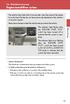 Engine immobilizer system The vehicle's keys have built-in transponder chips that prevent the engine from starting if the key has not been previously registered in the vehicle's on-board computer. Never
Model: 616-146v2 Quick Setup Guide DC: 071015 Atomic Projection Alarm with Indoor and Outdoor Temperature
 Model: 616-146v2 Quick Setup Guide DC: 071015 Atomic Projection Alarm with Indoor and Outdoor Temperature Snooze/Backlight BUTTONS Time, Alarm with Snooze, & Calendar Projection Arm Rotates 180 Indoor/Outdoor
TK400 WIRELESS TEST KIT
 P516-226 TK400 WIRELESS TEST KIT INSTRUCTIONS FOR TK400 TEST KIT Para el idioma español, navegue hacia www.schlage.com/support. Pour la portion française, veuillez consulter le site www.schlage.com/support.
User s Manual Model KB990W
 Wireless Internet Keyboard & Optical Mouse User s Manual Model KB990W FCC Statement This device complies with part 15 of FCC Rules. Operation is subject to the following two conditions: (1) this device
ScreenLogic Wireless Connection Kit. Installation Guide. pool/spa control system
 pool/spa control system ScreenLogic Wireless Connection Kit Installation Guide P/N 520663 - Rev B 8 Technical Support Contact Technical Support at: Sanford, North Carolina (8 A.M. to 5 P.M.) Phone: (800)
FCC COMPLIANCE STATEMENT FOR AMERICAN USERS
 FCC COMPLIANCE STATEMENT FOR AMERICAN USERS This equipment has been tested and found to comply with the limits for a CLASS A digital device, pursuant to Part 15 of the FCC Rules. These limits are designed
WIRELESS STATUS MONITOR
 INSTALLATION INSTRUCTIONS WIRELESS STATUS MONITOR (WSM or AUWSM) The most current version of this document is available for download at: http://www.ir-swa.com P/N: M053-032-D Schlage 245 W. Roosevelt Road,
Installation Guide. Wyse VX0L and VX0LE Thin Clients 1-GB RAM Upgrade Option Kit. Issue: 022808 PN: 883884-07L Rev. A
 Installation Guide Wyse VX0L and VX0LE Thin Clients 1-GB RAM Upgrade Option Kit Issue: 022808 PN: 883884-07L Rev. A ii Copyright Notice 2008, Wyse Technology Inc. All rights reserved. This manual and the
WARNING CANADIAN D.O.C. WARNING
 Each product and program carries a respective written warranty, the only warranty on which the customer can rely. Avery Dennison Corp. reserves the right to make changes in the product, the programs, and
CINEMATE 1 SR DIGITAL HOME THEATER SPEAKER SYSTEM. Operating Guide Guía del usuario Guide d utilisation
 CINEMATE 1 SR DIGITAL HOME THEATER SPEAKER SYSTEM Operating Guide Guía del usuario Guide d utilisation Notice This equipment has been tested and found to comply with the limits for a Class B digital device,
Creatix 802.11g Adapter CTX405 V.1/V.2 User Manual
 Creatix 802.11g Adapter CTX405 V.1/V.2 User Manual 1 Safety instructions for Creatix 802.11g Adapter This equipment has been designed and tested in accordance with the requirements of Standard EN60950.
OC810 Outdoor Camera Installation Guide
 OC810 Outdoor Camera Installation Guide P/N: 957YU601GJ Document Version: 1.0 Copyright 2011. All Rights Reserved. All trademarks and trade names are the properties of their respective owner i Package
musical auto mirror day & night light Control Panel Features Mirror Features Front View Mirror Features Rear View B C Remote Receiver C
 Control Panel Features A Power, Low/High Volume Switch Note: The dual-mode night light and music can only be activated by pressing the buttons on the remote. A Mirror Features Front View B Dual-Mode Night
HP Pavilion All-in-One MS200 series PC. Upgrading and Servicing Guide. Printed in
 HP Pavilion All-in-One MS200 series PC *579907-001* *579907-001* Printed in Upgrading and Servicing Guide Replacing a Wireless Keyboard or Mouse...2 Before You Begin... 2 Replacing the Keyboard or Mouse...
Mercury Helios 2 ASSEMBLY MANUAL & USER GUIDE
 Mercury Helios 2 ASSEMBLY MANUAL & USER GUIDE TABLE OF CONTENTS INTRODUCTION...1 1.1 MINIMUM SYSTEM REQUIREMENTS 1.1.1 Apple Mac Requirements 1.1.2 PC Requirements 1.1.3 Supported PCIe Cards 1.2 PACKAGE
Jabra BIZ 2400 USB USER MANUAL
 Jabra BIZ 2400 USB USER MANUAL 1 2011 GN Netcom A/S. All Rights Reserved. This user guide is published by GN Netcom A/S. The information in this user guide is furnished for informational use only, is subject
Wiser Panel Meter, Model Number WISERCTPM200 Installer s Guide
 Instruction Bulletin EAV85226 08/2014 Wiser Panel Meter, Model Number WISERCTPM200 Installer s Guide Retain for future use. Product Description Kit Contents The Wiser Panel Meter is for use in energy management
Docking station for two laptops
 Docking station for two laptops USB3DDOCKFT DE: Bedienungsanleitung - de.startech.com FR: Guide de l'utilisateur - fr.startech.com ES: Guía del usuario - es.startech.com IT: Guida per l'uso - it.startech.com
Atomic Projection Alarm with Indoor and Outdoor Temperature
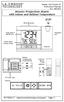 Model: WS-5220U-IT Instruction Manual DC: 082415 Atomic Projection Alarm with Indoor and Outdoor Temperature SNOOZE button Time, Alarm + WWVB Icon Projection arm Indoor Temp., Outdoor Temp. Battery Compartment
USER GUIDE. BLUETOOTH HEADSET system
 USER GUIDE Plantronics VOYAGER 510-USB BLUETOOTH HEADSET system 0 0 0 TABLE OF CONTENTS PACKAGE CONTENTS Package Contents 3 Features 4 Charging 5 Powering 6 Pairing 7 Installing PerSono Suite Software
Wireless Alarm System. Silent Alert. User s Manual. Choice ALERT. Control all Sensors & accessories from one location
 45137 Wireless Alarm System Silent Alert User s Manual Choice ALERT Control all Sensors & accessories from one location Table of Contents Important Safeguards 4 Introduction 4 Adding a Silent Alert to