
FM Solutions for Cochlear Implants. Including Dynamic FM!
|
|
|
- Raymond Melton
- 9 years ago
- Views:
Transcription
1 FM Solutions for Cochlear Implants Including Dynamic FM!
2 2 Table of Contents 4 Dynamic FM 30 FAQ 5 Dynamic FM Transmitters 31 Programming a receiver with FM SuccessWare 6 FM receivers 6 MLxi/MLxi Baha 7 MicroMLxS 8 9 MicroLink CI S 9 MicroLink Freedom 10 MyLink+ 11 MyLink 12 Choose the right FM receiver for your cochlear implant or Baha sound processor 12 Miscellaneous 32 Programming options 32 Programming interfaces 32 Programming MLxi 33 Changing the default channel 33 Changing the FM gain or other settings Notes 13 Fitting guidelines Introduction 15 Cochlear Nucleus Freedom BTE 16 Cochlear Nucleus Freedom Bodyworn 17 Cochlear ESPrit 3G 18 Cochlear ESPrit / ESPrit Cochlear SPrint / Spectra Advanced Bionics Auria / Harmony 21 Advanced Bionics Platinium BTE / CII BTE 22 Advanced Bionics PSP / Clarion S-Series / Clarion MED-EL OPUS2 24 MED-EL DUET1 / DUET2 / OPUS1 / TEMPO+ 25 MED-EL OPUS1 / OPUS2 / TEMPO+ 26 Neurelec Digi SP and Digisonic BTE 27 Neurelec Digi SP K 28 Cochlear Baha BP Cochlear Baha Divino / Baha Intenso / Baha Compact
3 3 FM: a must for every cochlear implant Phonak s FM systems improve the signal to-noise ratio and thus the user s ability to understand speech in noise. Three major factors that influence the signal-to-noise ratio and the quality of the speech signal are: background noise, reverberation, and distance. By delivering the signal of interest via FM (radio waves), the strength and quality of the sound remains constant across the distance from the speaker to the hearing impaired individual. FM systems consist of a transmitter with a microphone, and a receiver, which picks up the signal via radio waves directly from the transmitter. Cochlear implant recipients experience similar difficulties to hearing instrument users in challenging environments. It is well documented that improving the signal-to-noise ratio (SNR) for cochlear implant recipients through the use of an FM system significantly improves speech recognition in the presence of background noise. In recent years Phonak has developed the most extensive FM product portfolio on the market. Phonak s Dynamic FM products boost speech intelligibility to levels never seen before. Recent scientific research clearly indicates that Dynamic FM also brings these benefits to CI recipients. 1 Well over 60 % of all children with a cochlear implant use an FM system. A rapidly increasing number of adults also benefit from an FM system used in combination with their cochlear implant. This practical fitting guide helps you set-up the FM system for speech processors of the various brands of cochlear implants and Baha s. A very useful online tool is the FM Configurator ( where you will also find the latest set-up tips. FM is not a luxury for CI recipients, but increasingly a necessity. At a fraction of the cost of the CI, an FM system offers an incredible performance enhancement. We encou rage you to systematically fit FM systems to all children and adults with cochlear implants. Candidates should ideally be informed about FM systems prior to implantation. We would also love to hear about your experiences. At Phonak we continue to strive to offer cochlear implant recipients the best FM systems possible, including their full service and support throughout the world. 1 Evaluation of Speech Recognition in Noise with Cochlear Implants and Dynamic FM. Jace Wolfe, Erin C. Schafer, Benjamin Heldner, Hans E. Mülder, Emily Ward, Brandon Vincent. JAAA, Volume 20, Number 7, 2009.
4 4 Dynamic FM Dynamic FM is Phonak s latest and most advanced FM platform. It has completely reshaped the face of FM technology. Dynamic FM systems are not merely pieces of hardware transmitting sound from one place to another. They are masterpieces of wireless technology, capable of adapting themselves continuously to the actual surroundings. The most important feature of Dynamic FM is its adaptive FM advantage. It adjusts the gain of the FM receiver, depending on the ambient noise. The result is an incredible improvement in speech understanding, which in noisy conditions reaches of dozens percentage points (see picture below). Other features are equally impressive, such as MultiTalker Network, which allows up to 10 transmitters (inspiro or DynaMic) to form an ad hoc network in a classroom, ensuring that everybody can speak and everybody can hear. DataLogging FM meanwhile provides audiologists with a comprehensive insight into the daily usage patterns of a Dynamic FM system in school, which can lead to better counseling of teachers and parents. Today Phonak offers 5 different Dynamic FM transmitters: inspiro, DynaMic, SmartLink+, ZoomLink+ and EasyLink+. inspiro and DynaMic are the optimal transmitters for school environment. On the one hand these products are full of cutting edge technology; on the other they are also very easy to use and robust enough to withstand heavy school use. Individual customization is child s play, while customers also benefit from ongoing developments at Phonak as new features can be obtained free of charge via optional firmware upgrades over the internet. The SmartLink+, ZoomLink+ and EasyLink+ are Phonak s trans mitters of choice for teenagers and adults. SmartLink+ with Bluetooth connectivity for cellphone usage and three different microphone modes, is our flagship adult transmitter. The versatile ZoomLink+ and simple, effective EasyLink+ complete this comprehensive product portfolio. 100 Average speech recognition at quiet and in noise at four different noise level using Classic FM and Dynamic FM Correct speech recognition [%] Dynamic FM Classic FM 10 0 DSE On Quiet DSE On DSE Off DSE On DSE Off DSE On DSE Off DSE On DSE Off 55 db Noise 65 db Noise 70 db Noise 75 db Noise Noise level [db SPL] Speech recognition in noise for recipients of Advanced Bionics Corporation implants, Cochlear implants and MED-EL implants, at four different noise levels using Classic FM and Dynamic FM (combined results from Wolfe et al and Goldbeck et al 2009)
5 5 Dynamic FM Transmitters inspiro is the Dynamic FM transmitter that is ideally suited to the needs of both regular and special school teachers. inspiro s award-winning design, comfortable form factor and easy-to-read color display make using this transmitter a cinch, plus it features programmable soft keys, an alarm clock, a wide range of housing options and many more features designed to help teachers enjoy the performance benefits of Dynamic FM without technical know-how. inspiro is fully backward compatible with Phonak s Classic FM receivers. SmartLink+ This sleek and easy-to-use Dynamic FM transmitter is the ultimate wireless microphone. Designed for users who demand nothing but the best, SmartLink+ features Bluetooth connectivity for effective mobile phone and MP3 player use, a hearing instrument remote control, three intelligent microphone beam settings (SuperZoom, Zoom and Omni) and Phonak s SoftLanding technology, ensuring that the user doesn t hear a distracting bang when the transmitter is placed on a hard surface. A useful audio input also allows users to plug in and enjoy TV, PC and other media devices wirelessly. ZoomLink+ This versatile Dynamic FM wireless microphone enables better hearing and understanding across a wide range of situations from family gatherings and parties to restaurants, shopping malls and classrooms. It features adaptive FM advantage (AFMA) technology for listening in noisy environments, three microphone beam settings, Phonak s exclusive SoftLanding technology, an audio input for wireless multimedia use, and a quick-charging battery. DynaMic Designed to enable receiver wearers to enjoy any classroom discussion, DynaMic is a durable handheld microphone that incorporates Dynamic FM transmitter technology. It is supplied with a sturdy desk stand. DynaMic has been designed exclusively for MultiTalker Network use with inspiro. EasyLink+ Ultra-simple to understand and use, the EasyLink+ is an effective, single-button Dynamic FM microphone that is suitable for users of every age. With just one press for On/Off switching and a fixed microphone beam setting, EasyLink+ offers the crystal-clear performance benefits of Dynamic FM such as adaptive FM advantage (AFMA) technology, in addition to Phonak s protective SoftLanding technology, the ability to plug into a multimedia system for effective wireless listening, and super-quick battery charging.
6 6 FM receivers MLxi / MLxi Baha The MLxi / MLxi Baha is a universal Dynamic FM receiver. Overview Connector If no FM SuccessWare is available for programming the MLxi you may experience: Hearing a strong tone burst on startup Freedom BW and 3G speech processor having incorrect FM levels Harmony / Auria and Freedom Bodyworn showing incorrect Monitoring results On the following processors AutoConnect works fine: MED-El OPUS2 All speech processor using MicroLink CI S. MLxi Push Button MLxi Baha Frequency Management MLxi/MLxi Baha is a multichannel receiver and can be synchronized to any desired channel by the synchronization feature of the transmitter or by the WallPilot. As default, MLxi comes with a pre-programmed default channel. Every time the system is turned On, it will come on to this default channel. The default channel can be changed by FM SuccessWare if required. It is also possible to change the startup behavior of MLxi / MLxi Baha to use last used channel. If this option is chosen, MLxi / MLxi Baha will start up on the last channel used. AutoConnect and Fitting with FM SuccessWare AutoConnect is a feature of MLxi. This feature measures very precisely the impedance of the audio input and automatically sets the output to match that of the input. Due to the higher input impedance range of cochlear implants, AutoConnect may not find the correct matching parameters. Because of this, it is recommended to program the MLxi. Programming of the MLxi for the specific processor will disable the AutoConnect feature and the output parameters of MLxi match the impedance of the selected processor and no additional FM gain is required. Please refer to page 32 to learn how to program the MLxi for a specific processor. Monitoring MLxi / MLxi Baha is able to communicate with the inspiro Dynamic FM transmitter. When running the Monitoring option of inspiro, data from the receiver such as battery status and actual channel can be obtained. Range of the communication link is usually 20 cm. Due to the strong magnetic field of the cochlear implant coil, the distance may be lower. Connector MLxi features a universal euro connector which ensures compatibility to virtually all behind the ear (BTE) hearing instruments and CI systems. MLxi Baha features a smaller 3-Pin connector which is compatible to most Baha sound processors. Push Button The push button of MLxi is by default disabled and has no function. Activation of the push button can be carried out by FM SuccessWare or by an inspiro Dynamic FM transmitter. The enabled push button then operates as an On / Off switch. For some speech processors, enabling the push button may have further functions. Please read the corresponding notes in the Fitting Guidelines section.
7 7 MicroMLxS The MicroMLxS is an universal Classic FM receiver. Overview Connector Connector MLxi features an universal euro connector, which ensures compatibility with virtually all behind the ear (BTE) hearing instruments and CI systems. Switch Three positions can be selected On the switch: MicroMLxS Switch OFF Low impedance output High impedance output The switch can be set to the two green dot position for most processors. Please refer to the detailed Fitting Guidelines to find out the recommended switch position for your speech processor. Frequency Management MicroMLxS is a multichannel receiver and can be synchronized to any desired channel by the synchronization feature of the transmitter or by the WallPilot. MicroMLxS comes with a pre-programmed default channel. Every time the system is turned On, it will come on to this default channel. The default channel can be changed by the FM SuccessWare if necessary. FM advantage The MicroMLxS comes with an internal gain setting of 10 db. With most hearing systems, this provides an optimal loudness, or FM advantage for the FM signal over environmental inputs. In some cases, with hearing instruments and cochlear implants, this internal gain needs to be adjusted. This change can be made with the FM SuccessWare.
8 8 MicroLink CI S The MicroLink CI S is an interface to connect a universal FM receiver, such as MLxi or MicroMLxS, to a variety of speech processors Overview Audio output Battery compartment (size 13 battery must be inserted + side down) Off patch cable Gain control Gain Control The MicroLink CI S interface has a screw-set or wheel gain control. It is recommended that the gain is set to the minimum position for the initial system hookup. Gain can be increased by rotating the control in the clockwise direction. Once the receiver is plugged into the speech processor, some adjustment of the MicroLink CI S gain and/or the cochlear implant speech processor may be required. Speech testing in quiet using the FM transmitter only should yield similar results as the same test presented through the CI processor microphone. If results are poorer through the FM systems, it may be necessary to increase FM level with the gain control on the side of the MicroLink CI S interface. Retest until the input level of the FM signal is optimized for speech discrimination. If this level is exceeded the patient may begin to experience some distortion and performance will deteriorate. MLxi receiver On/Off Switch (1=On, 0=Off) Connection to CI Speech Processor For children the screw-set may be preferred, so that gain can be set without concern that the control will be changed inadvertently. Adults may prefer to have the volume control wheel for adjustment in different environments. max. min. max. min. MicroLink CI S with gain wheel MicroLink CI S with screw set volume control (childproof)
9 1: shield 2: white 3: black 4: red 9 Patch Cables To achieve the predicted performance with your MicroLink CI S and cochlear implant, the correct patch cable must be connected. Please use the following list to select the correct cable. MicroLink Freedom The MicroLink Freedom is a design-integrated Classic FM receiver for the Cochlear Nucleus Freedom BTE speech processor Blue long Cochlear ESPrit BTE Overview White MED-EL TEMPO+/ OPUS1 (remote battery pack) 56k Battery rack Red MED-EL TEMPO+/ OPUS1/ DUET1/ DUET2 (angled battery pack) 22k MICROTRONIC CS44-plug Connector Blue-Red Long Advanced Bionics Platinum BTE Advanced Bionics CII BTE 22k Orange Blue-Red Short Cochlear SPrint Cochlear Spectra 22 (SN > ) Advanced Bionics PSP (Platinum bodyworn) 220k 1nF 22k Frequency Management The MicroLink Freedom is a multichannel receiver and can be synchronized to any desired channel by the synchronization feature of the transmitter or by the WallPilot. The MicroLink Freedom comes with a preprogrammed default channel. Every time the system is turned On, it will come on to this default channel. The default channel can be changed by the FM SuccessWare if necessary. Black Blue Short Advanced Bionics Clarion 1.2 Cochlear Spectra 22 (SN < ) Advanced Bionics Clarion S-Series FM advantage The MicroLink comes with an internal gain setting of 16 db. For most users, this provides an optimal signal quality for the FM signal over environmental inputs. In exeptional cases, this internal gain needs to be adjusted. This gain change can be made with the FM SuccsessWare. The FM advantage is not affected by this gain setting of the MicroLink Freedom but can be adjusted in the speech processor by changing the audio mixing ratio.
10 10 MyLink+ The MyLink+ is a Dynamic FM receiver and can be used with cochlear implants featuring a T-coil Overview Neck loop Volume control On/Off switch Status LED Charger plug Frequency Management MyLink+ is a multichannel Dynamic FM and can be synchronized to any desired channel by the synchronization feature of the transmitter or by the WallPilot. MyLink+ comes with a pre-programmed default channel. Every time the system is turned On, it will come on to this default channel. The default channel can be changed by FM SuccessWare if required. It is also possible to change the startup behavior of MyLink+ to use last used channel. If this option is chosen, MyLink+ will start up on the channel used before switching Off. Volume control The up/down volume control makes it easy to adjust the FM level to the most comfortable level. It is recommended to set the volume to the minimum the first time the system is switched On. After activating the whole system, the volume can be increased gradually with the + button until the right FM volume is achieved. Any change in volume setting is stored and the MyLink+ resumes at the latest used volume setting when switching Off and On again. Monitoring The MyLink+ is able to communicate with the inspiro Dynamic FM transmitter. When running the Monitoring option of inspiro, data from the receiver such as its serial number and actual channel can be obtained. The range of the communication link is about 20 cm. Special note The orientation of the T-coil in the speech processor, and interferences from electrical appliances nearby, may compromise the excellent sound quality of MyLink+. Using T-coil Activate your T-coil program in your processor to receive the FM signal from MyLink+. Some speech processors offer a T only program. In that case no environmental cues are passed on by the speech processor microphones.
11 11 MyLink The MyLink is a Classic FM receiver and can be used with cochlear implants featuring a T-coil Overview Neck loop Volume control Status LED Volume control The up / down volume control makes it easy to adjust the FM level to the most comfortable level. It is recommended to set the volume to the minimum the first time the system is switched On. After activating the whole system, the volume can be increased gradually with the + button until the right FM volume is achieved. Any change in volume setting is stored and the MyLink resumes at the latest used volume setting when switching Off and On again. Special note The orientation of the T-coil in the speech processor, and interferences from electrical appliances nearby may compromise the excellent sound quality of MyLink. On/Off switch Charger plug Frequency Management MyLink is a multichannel FM receiver and can be synchronized to any desired channel by the synchronization feature of the transmitter or by the WallPilot. MyLink comes with a pre-programmed default channel. Every time the system is turned On, it will come on to this default channel. The default channel can be changed by FM SuccessWare if required. Using T-coil Activate your T-coil program in your processor to receive the FM signal from MyLink. Some speech processors offer a T only program. In that case no environmental cues are passed on by the speech processor microphones.
12 12 Choose the right FM receiver for your cochlear implant or Baha sound processor Cochlear Implant / Baha Model MLxi MicroMLxS MicroLink Freedom MicroLink CI S with MLxi or MicroMLxS MyLink+ MyLink MLxi Baha Advanced Bionics Cochlear Harmony Auria Clarion CII BTE Platinum BTE Platinum (PSP) bodyworn Clarion S-Serie Clarion 1.2 Nucleus Freedom TM BTE Nucleus Freedom TM bodyworn controller ESPrit 3G BTE ESPrit / SPrint / Spectra Cochlear Baha Baha BP100 ( )* ( )* Baha Divino Baha Intenso Baha Compact MED-EL OPUS2 DUET2 TEMPO+/ OPUS1 / DUET1 Neurelec digisonic Digi SP K, bodyworn digisonic Digi SP BTE * With external Telecoil Miscellaneous Headset checker Headset with a Euro plug to plug in any universal receiver MicroLink Freedom test adaptor Adaptor for MicroLink Freedom with Euro jack MLxi Baha test adaptor Adaptor for MLxi Baha with Euro jack
13 13 Fitting guidelines Introduction Successful application of an FM system with cochlear implants depends on several clinical-adjustable parameters. In the receiver, the FM gain may influence speech recognition. Within the speech processor, the input dynamic range (IDR), microphone sensitivity and audio mixing ratio may affect performance. Recent studies have evaluated the best settings for optimal FM performance. With Dynamic FM, the need for adjusting processor parameters in noise should be negligible. Even in very noisy situations, there should be no need for a different mixing ratio since the FM gain is up to 14 db higher than in quiet. If, however, in some special situations FM only is required, please follow the guidelines below. Using Dynamic FM (MLxi receiver and Dynamic FM transmitter) Since the Dynamic FM system adjusts the FM gain according to the surrounding noise, one setting can be applied which is beneficial in both calm and noisy situations. It is recommended that the MLxi is pre-programmed for the specific processor type in order to be sure FM levels are appropriate. Please refer to the section AutoConnect on page 6 for more information. On most speech processors no special steps have to be taken to achieve maximum Dynamic FM benefit! The only exceptions are speech processors from Cochlear Corp. For Cochlear speech processors it is strongly recommended to activate the auto sensitivity control (ASC) in the FM specific program. Please see the overall recommended processor setting in the table below: Brand Cochlear 1:1 Cochlear Baha Advanced Bionics MED-EL Neurelec Audio mixing ratio 50/50 Additional remarks Employ mapping from normal listening program without FM. Enable ASC for the FM program. Divino, Intenso, Compact: Turn AGCO as high as it is tolerable for the patient. A maximum AGCO is to be preferred. Employ mapping from normal listening program without FM. Employ mapping from normal listening program without FM. Employ mapping from normal listening program without FM. Using Classic FM When using a Classic FM system, speech understanding in noise may be poorer than with Dynamic FM since the receiver does not automatically adjust the gain. Programming a high gain value in the MicroMLxS is not the solution, as it may be perceived as too loud and distorted in quiet environments. As a solution, a different audio mixing ratio for the FM program may be selected or the microphone sensitivity may need to be altered depending on the listening situation and the processor type. The next table shows what can be done to improve listening in noise. Cochlear Advanced Bionics MED-EL Neurelec Enabling ASC will already show significant better speech understand in noise. If this is not enough, an audio mixing ratio of 2:1 or 3:1 may be considered. Program the FM gain of the receiver as high as it is tolerable by the CI user. The +14 gain setting is recommended (Schafer et al, 2008). If listening performance in noise is still poor, an audio mixing ratio of 30/70 may be considered. DUET1/ OPUS1/ TEMPO+: Reduce microphone sensitivity May change the mixing ratio. For Digi SP and Digisonic BTE, the sensitivity potentiometer remains accessible to optimize hearing performance while using the FM system. Note that when a 30/70 or 1:3 audio mixing ratio is employed, input to the processor microphone is attenuated by 10 db. Therefore, when FM is not in use, the listener should return to an equivalent (e. g. 1:1 or 50/50) audio mixing ratio to avoid listening with an attenuated processor microphone.
14 14 Achieving FM only In some cases, adults prefer an FM only setting to focus on the primary signal delivered over the FM channel. The table below shows how to achieve FM only. Cochlear Corp Cochlear Baha Advanced Bionics MED-EL Neurelec Select the highest possible mixing ratio or reduce the microphone sensitivity to 1. BP100: Select the optional DAI program Divino, Intenso, Compact: move switch of MicroMLxS to one dot. Select AUX only audio mixing setting MED-EL processors are DPAI no hearing instruments. MIX or EXT mode is controlled by the impedance of the connected device or cable. OPUS2: the switch of MicroMLxS shall be moved to one green dot. TEMPO+, OPUS1, DUET1: turn sensitivity control to Off (turned Counter-clockwise past 11:00 position until click is felt). DUET2: Use the MicroLink CI S patch cable for EXT use only. When using remote battery back, set the EXT/MIX switch to EXT. Digi SP and Digisonic BTE: reduce microphone sensitivity Digi SP K: change audio mixing ratio. Evaluating an individual setting In any case, the ideal parameter setting varies from user to user. As a starting point, the recommended settings should be used. The FM benefit should then be evaluated through speech-recognition assessment in the clinic, as well as questionnaires filled out by the recipient, family members and teachers.
15 15 Cochlear Nucleus Freedom BTE List of required parts 1 Nucleus Freedom speech processor 2 Nucleus Freedom standard size controller 3 MicroLink Freedom Pre-Fitting Enable the auto sensitivity control (ASC) and use an audio mixing ratio of 1:1 for the dedicated FM program. Keep the same pre-processing strategies (e. g. ADRO or BEAM) as used in the default program. Fitting with the user 1. Turn all equipment Off. 2. Remove the Freedom battery rack by pulling it out of the controller. 3. Insert three 675 batteries designed for use with cochlear implants into the MicroLink Freedom battery rack. 4. Plug the MicroLink Freedom into the controller. 5. Press the select button to power up the speech processor. 6. The Freedom processor will automatically detect the presence of the MicroLink Freedom. The recipient will hear the environment through the processor microphone and the FM combined. 7. Test the patient s speech recognition in quiet at normal sensitivity with the CI alone and then through the wireless FM system only (out of range of the processor microphone). Performance should be similar between these two conditions When FM is not in use, press both sides of the increase/ decrease button to toggle back to M only. This will resume normal processor microphone function. To re-engage the FM, toggle with the button until EA flashes on the display and the M remains active. 9. Evaluate FM benefit as well as the appropriateness of FM settings through speech-recognition assessment in the clinic and standardized questionnaires completed by the recipient, family members and teachers. Recommendations To avoid interference, the following channels are recommended to be used with the MicroLink Freedom N Band: N09, N12, N13, N16, N17, N18, N52, N57, N61, N62, N64, N65, N68, N73, N76 H Band: H06, H07, H16, H17, H18, H19, H20, H47, H48, H57, H59, H77, H78, H79, H85, H86, H87, H88, H89, H90 The MicroLink Freedom can be programmed with the FM SuccessWare. Insert the Freedom BTE processor with the MicroLink Freedom attached into the FM programming interface. Make sure the processor has good batteries and an FM (EA) program is selected. Instead of inserting the MicroLink Freedom into the BTE speech processor, programming can also be carried out with the MicroLink Freedom test adaptor. Listening check Attach the Cochlear monitoring headphones to the receptacle in the bottom of the MicroLink Freedom. Turn the system On by pressing the select button on the Nucleus Freedom. Ensure that the MicroLink Freedom is plugged into the speech processor and EA is displayed. Now you can listen for about one minute to both, the processor microphone and the FM signal when speaking into the FM transmitter. The signal quality of the monitoring phones or through the test adaptor does not reflect the sound experienced by the implant user. Insert three batteries into the MicroLink Freedom and plug it into the MicroLink Freedom test adaptor. Plug the test adaptor into the headset checker (see page 12). Turn On the headset checker and FM transmitter and you should hear the FM signal. The audio frequency response experienced this way is different for the MicroLink Freedom compared to e.g. MLxi. This is perfectly normal and does not interfere with proper functioning. The microphone input through the socket at the bottom of MicroLink Freedom is disabled.
16 16 Cochlear Nucleus Freedom Bodyworn and down button at the same time until EA flashes and an X appears in the display. 5. Test the patient s speech recognition in quiet at normal sensitivity with the CI alone and then through the wireless FM system only (out of range of the processor microphone). Performance should be similar between these two conditions. If the FM is too loud or too soft, the FM programming software from Phonak may be required to optimize the FM volume level. 6. Evaluate FM benefit as well as the appropriateness of FM settings through speech-recognition assessment in the clinic and standardized questionnaires completed by the recipient, family members and teachers. List of required parts 1 Nucleus Freedom speech processor 2 MLxi or MicroMLxS 3 Bodyworn controller 4 Bodyworn FM cable Pre-Fitting Enable auto sensitivity control (ASC) and use an audio mixing ratio of 1:1 for the dedicated FM program. Keep the pre-processing e.g. ADRO strategy when used in the default program. When using MLxi, it should be programmed for the Cochlear Freedom Bodyworn (see page 32). Fitting with the user 1. Turn all equipment Off. 2. If you haven t already done so, remove the ear level controller by twisting it from the processor. 3. Twist on the body worn FM cable. Plug the cable into the proper receptacle on the body worn controller. Attach the FM receiver to the ear level end of the FM cable. If you are using MicroMLxS, move the switch to the double green dot position. 4. Turn the body worn controller On by pressing and holding the select button. Ensure that an X appears in the upper right corner of the display. If not, press and hold the up Recommendations To avoid interference, the following channels are recommended to be used with the MicroLink Freedom N Band: N09, N12, N13, N16, N17, N18, N52, N57, N61, N62, N64, N65, N68, N73, N76 H Band: H06, H07, H16, H17, H18, H19, H20, H47, H48, H57, H59, H77, H78, H79, H85, H86, H87, H88, H89, H90 Listening check Attach the Cochlear monitoring headphones to the receptacle next to the FM receiver. Turn the system On by pressing on the select button. Ensure that X is displayed on the body worn controller. Now you can listen to both, the processor microphone and the FM signal when speaking into the FM transmitter. After about one minute the headphones disable themselves. Note that the signal quality of the monitoring phones or through the test adaptor does not necessarily reflect the sound experienced by the implant user. Plug the MLxi or MicroMLxS into the headset checker (see page 12). Turn On the headset checker and FM transmitter. Plug the MLxi or MicroMLxS into an audioshoe attached to a hearing instrument. Turn On the hearing instrument and switch it to the FM program if required.
17 17 Cochlear ESPrit 3G List of required parts 1 ESPrit 3G speech processor 2 FM 3G adapter 3 MLxi or MicroMLxS Pre-Fitting Enable auto sensitivity control (ASC) and use an audio mixing ratio of 1:1 for the dedicated FM program. Keep the pre-processing e.g. ADRO strategy when used in the default program. It is recommended that the monitoring earphones are disabled in P1 to conserve power for the FM system. Failure to do this may result in intermittency for CI of FM. The headphones may still be used in P2. When using MLxi, it should be programmed for the Cochlear ESPrit 3G (see page 32). Fitting with the user 1. Turn all equipment Off. 2. Set the switch at the bottom of the 3G to the M position. 3. Plug in the FM 3G adaptor into the socket at the bottom of the 3G. 4. Move the switch On the FM 3G adaptor to position FM+M. 5. Attach the receiver to the FM 3G adaptor. If MicroMLxS is used, move the switch to the double green dot position Switch the speech processor into program 1 (P1 on the dial). a. For children: disable sensitivity control b. For adults: enable sensitivity control to achieve FM only 7. Now turn the FM transmitter On. 8. Test the patient s speech recognition in quiet at normal sensitivity with the CI alone and then through the wireless FM system only (out of range of the processor microphone). Performance should be similar between these two conditions. If the FM is too loud or too soft, the FM programming software from Phonak may be required to optimize the FM volume level. 9. Evaluate FM benefit as well as the appropriateness of FM settings through speech-recognition assessment in the clinic and standardized questionnaires completed by the recipient, family members and teachers. Listening check Attach the Cochlear monitoring headphones to the receptacle at the side of the FM 3G adaptor. Typically P2 is designated for the monitoring headphones and allows you to listen to both, the processor microphones and the FM signal. If you do not hear anything when using the monitoring phones turn the processor Off and On to P2 and try again. Note that the headphone cable may pick up some interference and therefore may be noisier than the actual input to the recipient. Plug the MLxi or MicroMLxS into the headset checker (see page 12). Turn On the headset checker and FM transmitter and you should hear the FM signal. Plug the MLxi or MicroMLxS into an audioshoe attached to a hearing instrument. Turn On the hearing instrument and switch it to the FM program if required.
18 18 Cochlear ESPrit / ESPrit Gradually increase the gain of the MicroLink CI S to a comfortable level. 9. Determine speech recognition ability in quiet at normal sensitivity with the FM signal. Ensure that results are similar to implant alone condition. MicroLink CI S gain may need further adjustments. 10. Evaluate FM benefit as well as the appropriateness of FM settings trough speech-recognition assessment in the clinic and standardized questionnaires completed by the recipient, family members and teachers. 2 List of required parts 1 ESPrit speech processor 2 ESPrit audio cover 3 Accessory adaptor cable 4 Blue long cable 5 MicroLink CI S 6 MLxi or MicroMLxS 6 Listening check The best way to listen to the FM signal is to plug the MicroLink CI S with the blue, blue red, black or white patch cable into a loudspeaker. Make sure there is a good battery inside the MicroLink CI S. Then turn On the MicroLink CI S and FM transmitter. By speaking into the transmitter s microphone you should hear your voice through the speaker. Pre-Fitting Enable auto sensitivity control (ASC) and use an audio mixing ratio of 1:1 for the dedicated FM program. Keep the pre-processing e.g. ADRO strategy when used in the default program. Fitting with the user 1. Turn all equipment Off. 2. Attach the ESPrit audio cover to the processor. 3. Attach the accessories adaptor cable to the audio cover. 4. Connect the blue long cable to the accessories adaptor cable and to the MicroLink CI S. 5. Plug the FM receiver into the MicroLink CI S. If MicroMLxS is used, move the switch to the double green dot position. 6. Turn the volume of the MicroLink CI S to the minimum. 7. To avoid transient sounds, turn On the FM transmitter, then MicroLink CI S, then speech processor in that order.
19 19 Cochlear SPrint / Spectra 22 List of required parts Note: Picture shows SPrint 6. Gradually increase the gain of the MicroLink CI S to a comfortable level. 7. Determine speech recognition ability in quiet at normal sensitivity with the FM signal. Ensure that results are similar to implant alone condition. MicroLink CI S gain may need further adjustments. 8. Evaluate FM benefit as well as the appropriateness of FM settings trough speech-recognition assessment in the clinic and standardized questionnaires completed by the recipient, family members and teachers. Notes For the Spectra 22 with serial number < , the CI microphone will be MUTED when an external device such as the MicroLink CI S is plugged in. SPrint Spectra 22, SN > Spectra 22, SN < MLxi or MicroMLxS MLxi or MicroMLxS MLxi or MicroMLxS 2 Orange cable Orange cable Blue short cable 3 MicroLink CI S MicroLink CI S MicroLink CI S 4 SPrint processor Spectra 22 processor Spectra 22 processor Pre-Fitting Enable auto sensitivity control (ASC) and use an audio mixing ratio of 1:1 for the dedicated FM program. Keep the pre-processing e.g. ADRO strategy when used in the default program. Listening check The best way to listen to the FM signal is to plug the MicroLink CI S with the blue, blue red, black or white patch cable into a loudspeaker. Make sure there is a good battery inside the MicroLink CI S. Then turn On the MicroLink CI S and FM transmitter On. By speaking into the transmitter s microphone you should hear your voice through the speaker. SPrint has a headphone output. Attach the monitoring headphones to this output to listen to the processor microphone and FM signal in parallel. Fitting with the user 1. Turn all equipment Off. 2. Connect the specific patch cable into the speech processor and the MicroLink CI S. 3. Plug the FM receiver into the MicroLink CI S. If MicroMLxS is used, move the switch to the double green dot position. 4. Turn the volume of the MicroLink CI S to the minimum. 5. To avoid transient sounds, turn On the FM transmitter, then MicroLink CI S, then speech processor in that order.
20 20 Advanced Bionics Auria/ Harmony List of required parts 1 MLxi or MicroMLxS 2 iconnect Adaptor, available in two sizes 3 Auria/ Harmony speech processor Pre-Fitting Set audio mixing ratio to 50/50. When using MLxi, it should be programmed for the Advanced Bionics Auria/ Harmony speech processor (see page 32). Fitting with the user 1. Turn all equipment Off. 2. Remove the standard earhook by twisting it Off. 3. Hold the iconnect at the base and firmly press until it clicks onto the speech processor. 4. Insert a size 10 zinc air battery into the iconnect. 6. Switch the speech processor to the dedicated FM program with audio mixing ratio 50/ Plug the MLxi or MicroMLxS into the iconnect. If MicroMLxS is used, move the switch to the single green dot position. 8. Gradually turn the volume On the speech processor up to the normal level (usually 12:00). 9. Test the patient s speech recognition in quiet with the CI alone and then through the wireless FM system only (out of range of the processor microphone). Performance should be similar between these two conditions. If the FM is too loud or too soft, the FM programming software from Phonak may be required to optimize the FM volume level. 10. Evaluate FM benefit as well as the appropriateness of FM settings through speech-recognition assessment in the clinic and standardized questionnaires completed by the recipient, family members and teachers. Listening check Plug the MLxi or MicroMLxS into the headset checker (See page 12). Turn On the headset checker and FM transmitter and you should hear the FM signal. Plug the MLxi or MicroMLxS into an audioshoe attached to a hearing instrument. Turn On the hearing instrument and switch it to the FM program if required. Note: Only ZeniPower batteries, available for purchase through Advanced Bionics are certified for use with the standard-sized iconnect. 5. Turn the volume down On the speech processor to avoid transient sounds.
21 21 Advanced Bionics Platinum BTE / CII BTE List of required parts 1 MLxi or MicroMLxS 2 MicroLink CI S 3 Auxiliary audio earhook with cable, available in two earhook sizes 4 Platinum BTE / CII BTE speech processor 5 Blue-red long cable 9. Determine speech recognition ability in quiet with the FM signal. Ensure that results are similar to implant alone condition. MicroLink CI S gain may need further adjustments. 10. Evaluate FM benefit as well as the appropriateness of FM settings through speech-recognition assessment in the clinic and standardized questionnaires completed by the recipient, family members and teachers. Listening check The best way to listen to the FM signal is to plug the MicroLink CI S with the blue patch cable into a loudspeaker. Make sure there is a good battery inside the MicroLink CI S. Then turn On the MicroLink CI S and FM transmitter. By speaking into the transmitter s microphone you should hear your voice through the speaker. Pre-Fitting Set audio mixing ratio to 50/50. Fitting with the user 1. Turn all equipment Off. 2. Attach the auxiliary audio earhook to the speech pro cessor. 3. Connect the blue-red long cable to the auxiliary audio earhook cable and to the MicroLink CI S. 4. Plug the FM receiver into the MicroLink CI S. If MicroMLxS is used, move the switch to the double green dot position. 5. Turn the volume of the MicroLink CI S to the minimum. 6. To avoid transient sounds, turn On the FM transmitter, then MicroLink CI S, then speech processor in that order. 8. Gradually increase the gain of the MicroLink CI S to a comfortable level.
22 22 Advanced Bionics PSP / Clarion S-Series / Clarion Gradually increase the gain of the MicroLink CI S to a comfortable level. 7. Determine speech recognition ability in quiet with the FM signal. Ensure that results are similar to implant alone condition. MicroLink CI S gain may need further adjustments. 8. Evaluate FM benefit as well as the appropriateness of FM settings through speech-recognition assessment in the clinic and standardized questionnaires completed by the recipient, family members and teachers. List of required parts Picture shows PSP Note For the Clarion S-Series and Clarion 1.2 processors, the processor microphone will be MUTED when an external device such as the MicroLink CI S is plugged in Platinum Sound Processor (PSP) Clarion S-Series Clarion MLxi or MicroMLxS MLxi or MicroMLxS MLxi or MicroMLxS 2 Blue-red short cable Blue short cable Black short cable 3 MicroLink CI S MicroLink CI S MicroLink CI S 4 PSP Clarion S-Series SP Clarion 1.2 SP Listening check The best way to listen to the FM signal is to plug the MicroLink CI S with the blue patch cable into a loud speaker. Make sure there is a good battery inside the MicroLink CI S. Then turn On the MicroLink CI S and FM transmitter. By speaking into the transmitter s microphone you should hear your voice through the speaker. Pre-Fitting Set audio mixing ratio to 50/50 Note: the audio mixing feature is not available for Clarion S-Series and Clarion 1.2 processors. Fitting with the user 1. Turn all equipment Off. 2. Connect the specific patch cable into the speech processor and the MicroLink CI S. 3. Plug the FM receiver into the MicroLink CI S. If MicroMLxS is used, move the switch to the double green dot position. 4. Turn the volume of the MicroLink CI S to the minimum. 5. To avoid transient sounds, turn On the FM transmitter, then MicroLink CI S, then speech processor in that order.
23 23 MED-EL OPUS List of required parts 1 Opus2 speech processor 2 FM Battery Pack Cover 3 MLxi or MicroMLxS Additional information When MicroMLxS is used, the switch acts as following: a. Two green dots: FM + M b. One green dot: FM only (processor microphones attenuated) When MLxi is used and the push button is enabled, the push button acts as following: a. Long press: switch MLxi On or Off respectively b. Short press: switch between FM + M and FM only in case a non Dynamic FM transmitter is being used. Listening check Plug the MLxi or MicroMLxS into the headset checker (See page 12). Turn On the headset checker and FM transmitter and you should hear the FM signal. Plug the MLxi or MicroMLxS into an audioshoe attached to a hearing instrument. Turn On the hearing instrument and switch it to the FM program if required. Fitting with the user 1. Turn all equipment Off. 2. Replace the standard battery cover by the FM Battery Pack Cover. 3. Plug the FM receiver into the bottom of the FM Battery Pack Cover. The MicroMLxS is usually used in the two green dot position. 4. Switch the speech processor and FM transmitter On. 5. Test the patient s speech recognition in quiet with the CI alone and then through the wireless FM system only (out of range of the processor microphone). Performance should be similar between these two conditions. If the FM is too loud or too soft, the FM programming software from Phonak may be required to optimize the FM volume level. 6. Evaluate FM benefit as well as the appropriateness of FM settings trough speech-recognition assessment in the clinic and standardized questionnaires completed by the recipient, family members and teachers.
24 24 MED-EL DUET1 / DUET2 / OPUS1 / TEMPO+ with angled battery pack 2 3 Picture shows OPUS1 8. Evaluate FM benefit as well as the appropriateness of FM settings, through speech-recognition assessment in the clinic and standardized questionnaires completed by the recipient, family members and teachers. 1 4 Listening check The best way to listen to the FM signal is to plug the MicroLink CI S with the blue patch cable into a loudspeaker. Make sure there is a good battery inside the MicroLink CI S. Then turn On the MicroLink CI S and FM transmitter. By speaking into the transmitter s microphone you should hear your voice through the speaker. List of required parts 1 Speech processor with Angled Battery Pack 2 MLxi or MicroMLxS 3 MicroLink CI S 4 Red cable Fitting with the user 1. Turn all equipment Off. 2. Connect the red cable to the MicroLink CI S and to the back of speech processor. Make sure the cable is attached correctly to the processor. Please check the processor user guide. 3. Plug the FM receiver into the MicroLink CI S. When using MicroMLxS, switch it to the double green dot position. 4. Turn the volume of the MicroLink CI S to the minimum. 5. Turn On the MicroLink CI S, speech processor and FM transmitter. 6. Gradually increase the gain of the MicroLink CI S to a comfortable level. 7. Determine speech recognition ability in quiet with the FM signal. Ensure that results are similar to implant alone condition. MicroLink CI S gain may need further adjustments.
25 25 MED-EL OPUS1 / OPUS2 / TEMPO+ with remote battery pack Listening check The best way to listen to the FM signal is to plug the MicroLink CI S with the blue patch cable into a loudspeaker. Make sure there is a good battery inside the MicroLink CI S. Then turn On the MicroLink CI S and FM transmitter. By speaking into the transmitter s microphone you should hear your voice through the speaker. Picture shows OPUS2 with remote battery pack List of required parts 1 MLxi or MicroMLxS 2 Remote Battery Pack 3 White cable 4 MicroLink CI S 5 Speech processor Fitting with the user 1. Turn all equipment Off. 2. Connect the white cable to the MicroLink CI S and to the Remote Battery Pack. 3. Plug in the FM receiver into the MicroLink CI S. When using MicroMLxS, switch it to the double green dot position. 4. Turn the volume of the MicroLink CI S to the minimum. 5. Turn On the Remote Battery Pack and switch it into MIX-Mode. 6. Turn On the MicroLink CI S and FM transmitter. 7. Gradually increase the gain of the MicroLink CI S to a comfortable level. 8. Determine speech recognition ability in quiet with the FM signal. Ensure that results are similar to implant alone condition. MicroLink CI S gain may need further adjustments. 9. Evaluate FM benefit as well as the appropriateness of FM settings through speech-recognition assessment in the clinic and standardized questionnaires completed by the recipient, family members and teachers.
26 26 Neurelec Digi SP and Digisonic BTE Test the patient s speech recognition in quiet with the CI alone and then through the wireless FM system only (out of range of the processor microphone). Performance should be similar between these two conditions. If the FM is too loud or too soft, it may be necessary to modify the input gain (microphone and/or FM) until comparable performance is achieved. 6. Evaluate FM benefit as well as the appropriateness of FM settings through speech-recognition assessment in the clinic and standardized questionnaires completed by the recipient, family members and teachers. List of required parts 1 Digi SP/ Digisonic BTE speech processor 2 MLxi or MicroMLxS Pre-Fitting When using MLxi, it should be programmed for the specific speech processor using FM SuccessWare (see page 32). The Digi SP and Digisonic BTE processors provide two additional programs (P3/P4) dedicated to an auxiliary input connection. These two programs need to be adapted to different sound environments according to the procedure below. Listening check The environmental and FM signals can be checked using the dedicated function in the implant programming software. Plug the MLxi or MicroMLxS into the headset checker (See page 12). Turn On the headset checker and FM transmitter and you should hear the FM signal. Plug the MLxi or MicroMLxS into an audioshoe attached to a hearing instrument. Turn On the hearing instrument and switch it to the FM program if required. Fitting with the user 1. Switch Off all equipment. 2. Plug the FM receiver directly into the auxiliary ( AUX ) input of the processor. When MicroMLxS is used, move the switch to the single green dot position. 3. Switch the processor On in P1 or P2. The processor automatically detects the presence of the receiver and switches to the specific P3/P4 to be set for the first use. 4. Use the implant programming software to adapt these specific programs (copy P1/P2 into P3/P4 and authorize the auxiliary input). Adapt the appropriate audio mixing ratio of the FM and processor microphone.
27 27 Neurelec Digi SP K Test the patient s speech recognition in quiet with the CI alone and then through the wireless FM system only (out of range of the processor microphone). Performance should be similar between these two conditions. If the FM is too loud or too soft, it may be necessary to modify the input gain (microphone and/or FM) until comparable performance is achieved. 6. Evaluate FM benefit as well as the appropriateness of FM settings through speech-recognition assessment in the clinic and standardized questionnaires completed by the recipient, family members and teachers. List of required parts 1 Digi SP K speech processor 2 MLxi or MicroMLxS Pre-Fitting When using MLxi, it should be programmed for the specific speech processor using FM SuccessWare (see page 32). The Digi SP K processor provides different programs that can be configured for use by any auxiliary system. These programs need to be adapted to different sound environments following the procedure below. Listening check The environmental and FM signals can be checked using the dedicated function in the implant programming software. Plug the MLxi or MicroMLxS into the headset checker (See page 12). Turn On the headset checker and FM transmitter and you should hear the FM signal. Plug the MLxi or MicroMLxS into an audioshoe attached to a hearing instrument. Turn On the hearing instrument and switch it to the FM program if required. Fitting with the user 1. Switch Off all equipment. 2. Plug the FM receiver directly into the auxiliary ( AUX ) input of the processor. When MicroMLxS is used, move the switch to the single green dot position. 3. Switch the processor On in the position defined for the use of the auxiliary system. The processor automatically detects the presence of the receiver. 4. Use the implant programming software to adapt thes specific programs (copy the programs and authorize the auxiliary input). Adapt the appropriate audio mixing ratio of the FM and processor microphone.
28 28 Cochlear Baha BP100 1 List of required parts 1 Cochlear Baha BP100 2 MLxi or MicroMLxS 2 MLxi Fitting with the user 1. Turn all equipment Off. 2. Plug the MLxi into the Baha sound processor. 3. Switch On the Baha sound processor. 4. In all programs, the output of the FM receiver is mixed with the signal of the Baha microphones. 5. Test the patient s speech recognition in quiet at normal sensitivity with the Baha alone and then through the wireless FM system only (out of range of the processor microphone). Performance should be similar between these two conditions. If the FM is too loud or too soft, the FM programming software from Phonak may be required to optimize the FM volume level. Listening check Plug the MLxi or MicroMLxS into the headset checker (See page 12). Turn On the headset checker and FM transmitter and you should hear the FM signal.
29 29 Cochlear Baha Divino / Baha Intenso / Baha Compact 1 2 Listening check Use the MLxi Baha adaptor to connect the MLxi Baha to the headset checker (see page 12). Turn On the headset checker and FM transmitter and you should hear the FM signal. Use the MLxi Baha adaptor to connect the MLxi Baha to an audioshoe attached to a hearing instrument. Turn On the hearing instrument and switch it to the FM program if required. MLxi Baha List of required parts 1 Cochlear Baha sound processor 2 MLxi Baha Fitting with the user 1. Plug the MLxi Baha into the Baha sound processor. Make sure that the white circled pin of MLxi Baha lines up to the red circle On the hearing instrument. 2. Switch On the Baha sound processor and FM transmitter. 3. For optimum dynamic FM benefit, turn the AGCO potentiometer on the Baha sound processor as high as it is tolerable for the patient. 4. Test the patient s speech recognition in quiet at normal sensitivity with the Baha alone and then through the wireless FM system only (out of range of the processor microphone). Performance should be similar between these two conditions. If the FM is too loud or too soft, the FM programming software from Phonak may be required to optimize the FM volume level. Additional information Enabling the push button will have following effects: a. Long press: switch MLxi Baha On or Off respectively b. Short press: switch between FM+M and FM only in case a non Dynamic FM transmitter is being used.
30 30 FAQ Speaker for listening test, e.g. Radio Shack Mini Amplifier Speaker. How do I perform a system check? Some manufactures offer monitoring headphones, which can be connected to the processors. The headphones usually allow listening to the processor microphones and FM signal in parallel. Phonak offers a headset checker which has a euro plug. Here you can plug in all universal FM receivers or another receiver over the dedicated adaptor. The universal FM receivers can also be plugged into an audioshoe connected to a hearing instrument. Make sure there is a battery inside the hearing instrument and that the hearing instrument is in the FM program. You can check the MyLink+/ MyLink using headphones connected to the headphone output or via a hearing instrument which is in T-coil mode. MicroLink CI S can be tested by plugging it into a desktop speaker using the blue, blue-red, black or white cable. See the picture at the top of this page. Make sure there is a good battery inside the MicroLink CI S. I performed the listening test but am still not able to hear the FM signal. What should I do? Make sure all equipment has a battery and that batteries are not exhausted. When using MLxi, it may be possible that the push button is enabled. If so, to activate the MLxi, you must press the push button for two seconds. Make sure transmitter and receiver are on the same channel. Synchronize the receiver if required. What do I do if there is static or a poor operating range? Make sure the external antenna is attached to SmartLink+ or the microphone cable of inspiro is un-wrapped to have a operating range of about 50 feet (15 meters). Try another FM channel. Change the FM channel on the transmitter. After changing the channel, you need to synchronize the receiver to the new channel. If required, test all available channels of the transmitter for an interference free channel. In some rare cases, the strong magnetic field of the CI coil may interfere with the radio frequency used for the FM transmission. If changing the channel does not help to eliminate the static, you may consider a body worn solution with MicroLink CI S or the MyLink+/MyLink. The FM level is too soft or too loud Check if the MLxi has been programmed for the specific speech processor. If not, program the MLxi as explained in the section programming a receiver with FM SuccessWare. When you are using MicroMLxS, check if the switch is on the recommended position. As a second step check the mixing ratio of the speech processor. As a third step, you can adjust the internal gain of the receiver which can be done by the programming software FM SuccessWare. There is a tone every time I switch MLxi On. This is a normal tone generated by MLxi at every startup. This tone can be deactivated when you program the MLxi for the specific processor as described in the section programming MLxi/MicroMLxS. When Monitoring a receiver, I get replace audio boot. What shall I do? This only happens when the MLxi has not been programmed for the specific processor. Then, the feature AutoConnect is enabled and due to the broader range of input impedance of CI processors, the MLxi may detect an impedance which is out of its range. If this message is displayed after Monitoring it can be ignored. If you want to avoid this message, please program the MLxi for the specific processor by FM SuccessWare. Can I monitor a MicroMLxS, MicroLink Freedom or MyLink? No. they are Classic FM receivers and do not feature Monitoring. What can I do in the case of static when using MyLink+ or MyLink? The transmission from MyLink+/MyLink to the speech processor is based on magnetic fields. Any electrical appliance can generate magnetic fields which are picked up by the T-coil of the hearing instrument. To eliminate such interferences the client should avoid these sources of interference or consider an FM receiver that is directly connected to the speech processor. For more FAQs please visit:
31 31 Programming a receiver with FM SuccessWare MicroMLxS, MyLink+, MyLink and MicroLink Freedom are pre-programmed and ready to be used. However even when the fitting instructions in this brochure are followed closely it might be necessary to change the default channel, adjust the FM Advantage (FM gain) and/or the Confirmation Beep level. For MLxi it is recommended to program this with FM SuccessWare prior to use with a CI speech processor, in order to achieve optimum interface matching characteristics. The following CI models can be chosen from the drop-down list in the FM SuccessWare in order to facilitate the adjustments: Advanced Bionics Clarion Advanced Bionics Harmony / Auria Advanced Bionics Platinum Cochlear ESPrit 3G Cochlear Esprit / Spectra / SPrint Cochlear Freedom body worn Med El DUET2 Med El OPUS1 / DUET1 / Tempo+ Med El OPUS2 Med El OPUS2 remote batt. pac Neurelec digisonicbte / Digi For most CIs with a body worn speech processor, FM can be used in combination with the MicroLink CI S and the designated Patch Cables (see chart on page 9). In the print screens from the FM SuccessWare on the following two pages we show the MicroLink CI S representing all the CI models above.
32 32 Programming options Programming interfaces Programming MLxi Via the FM programming interface 1. Click Express Fitting. 2. Select MLxi and click Next. 3. Choose Detect receiver channel or manually select the desired channels and define the default channel, then click Next. 4. Select the specific processor from the drop-down list in the upper right corner. All receivers can be programmed by the FM programming interface: 1. Make sure all equipment has a battery and switch everything On. 2. Connect the universal receiver to the processor or MicroLink CI S and put it in the programming interface. 3. Select the option via the programming interface when FM SuccessWare asks for communication with the receiver. Via inspiro 5. Prepare the receivers as described in the section: programming interfaces and press Save to MLxi. MLxi, MLxi Baha and MyLink+ can be programmed through inspiro: 1. Make sure all equipment has a battery and switch everything On. 2. Connect the universal receiver to the processor or MicroLink CI S and place it in front of inspiro. 3. Select the option via inspiro when FM SuccessWare asks for communication with the receiver.
33 33 Changing the default channel Choose Detect receiver channel, or manually select channels as well as a default channel. Then click Next. 6. Select the specific processor from the drop-down list. Do not choose UNKNOWN. Adjust the FM Advantage as required. Other options can also be changed (e. g. the beep type). The screen may be different depending on the receiver you use. Click on Next. 3 1 Click on the flag icon at the top of the screen. 2 Select the new channel that you would like the FM receiver to start up with. 3 Prepare the receivers as described in the section: programming interfaces and press Go. Changing the FM gain or other settings 7. Prepare the receivers as described in the section: Programming interfaces and press Save Now 1. Please note that altering the FM gain of an FM receiver may not have the same effect as it would if the receiver were connected to a hearing instrument. 2. Click on the menu Extended Fitting. 3. Enter the client s name and additional information and click on Add, then Next. 4. On the next screen, click Assign device on the right and choose your receiver, or click on the Detect receiver button (make sure you have prepared the receivers as described in the chapter Programming Options ). Then click on Next. For more information about using the Phonak FM SuccessWare, please contact your local Phonak FM specialist.
34 34 Notes
35 Notes 35
36 Online resources Phonak s professional hompage: Your online comprehensive FM support tool for schools: The latest set-up tips for FM systems in combination with cochlear implants and hearing instruments: Check quickly if your C.I. or hearing instrument is FM compatible: Cochlear Advanced Bionics MED-EL Neurelec (MXM) /V /visu l/printed in Switzerland Phonak AG All rights reserved Mix Cert. no. SQS-COC FSC
Manufacturer: Phonak AG Laubisrütistrasse 28 CH-8712 Stäfa Switzerland. www.phonak.com. 029-1004-02/V1.00/2009-12/A+W Printed in Switzerland
 Manufacturer: Phonak AG Laubisrütistrasse 28 CH-8712 Stäfa Switzerland www.phonak.com! 029-1004-02/V1.00/2009-12/A+W Printed in Switzerland Phonak AG All rights reserved User Guide Contents 1. Welcome
Harmony Sound Processor Product Guide
 Tools for Schools Harmony Sound Processor Product Guide For Educators, Therapists, and Families Harmony Sound Processor The Harmony Sound Processor is uniquely designed to provide the latest in sound-processing
USER GROUP MEETING. April 2015
 USER GROUP MEETING April 2015 EQUIPMENT YOU NEED TO BRING WITH YOU TO EVERY APPOINTMENT: REMOTE CONTROL(S) ALL PROCESSORS N5 Processor Parts Correct Terminology Magnet Telecoil Coil Ear Hook Cable Processing
Nucleus CP810 Sound Processor and Nucleus CR110 Remote Assistant Troubleshooting Guide
 Nucleus CP810 Sound Processor and Nucleus CR110 Remote Assistant Troubleshooting Guide Symbols Contents Note Important information or advice. Can save inconvenience. Tip Time saving hint or saves inconvenience.
Children Hear Better with FM. A starter guide for parents and teachers
 Children Hear Better with FM A starter guide for parents and teachers 2 Children hear better with FM This guide explains how and when FM can help Many children who wear hearing aids still have difficulty
Evaluation of Digital Remote Microphone Wireless Systems. Jace Wolfe
 Evaluation of Digital Remote Microphone Wireless Systems Jace Wolfe The Hearts for Hearing Team Audiologists Additional Team Members Jace Wolfe, Ph.D., CCC-A Kris Hopper Kerri Brumley Pati Burns Krystal
Radio Aid Systems. 12 School &
 Radio Aid Systems Radio Aid Systems from Connevans For children and young people with a hearing loss, listening in noisy and poor acoustic environments is particularly challenging. It is difficult, tiring
Life is on. Interact freely. Communicate with confidence. Live without limit. Life is on. www.phonak.com www.dynamicsoundfield.com
 Life is on We are sensitive to the needs of everyone who depends on our knowledge, ideas and care. And by creatively challenging the limits of technology, we develop innovations that help people hear,
TV & Assistive Listening Devices
 10 TV & Assistive Listening Devices TV & Assistive Listening Devices l Relaxing at the end of the day watching TV l Enjoying listening to music l Catching up with family & friends at a restaurant l Developing
What you need to know about student s hearing technology for classroom listening
 What you need to know about student s hearing technology for classroom listening? Presentation developed by: Gwen Severance, AuD & Patty Klein, AuD September, 2012 There s A LOT to cover! Types of Equipment
CONTENTS. Zulu User Guide 3
 Copyright Lightspeed Aviation, Inc., 2008. All rights reserved. Lightspeed Aviation is a trademark and Zulu and FRC are registered trademarks of Lightspeed Aviation, Inc. Bluetooth is a registered trademark
I N T R O D U C I N G
 INTRODUCING Meetings Cell Phone Television Noisy Places Music Lectures The one device that does it all Introducing the industry s most unique and versatile cell phone device SurfLink Mobile. Combined with
Boost the performance of your hearing aids. Phonak wireless add-ons
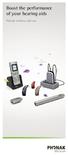 Boost the performance of your hearing aids Phonak wireless add-ons Modern hearing aid technology makes hearing and understanding in most situations enjoyable. But when you re on the phone, watching TV
TecEar s Top Ten ALD Picks
 Assistive listening devices compliment the capabilities of digital hearing aids and cochlear implants, significantly enhancing the user's ability to use phones, cell phones, TV/DVD, and audio devices such
Phonak Wireless Communication Portfolio
 Phonak Wireless Communication Portfolio Product information The accessories of the Phonak Wireless Communication Portfolio offer great benefits in difficult listening situations and unparalleled speech
Hear Better With FM. Get more from everyday situations. Life is on. www.phonak.com
 Hear Better With FM Get more from everyday situations Life is on We are sensitive to the needs of everyone who depends on our knowledge, ideas and care. And by creatively challenging the limits of technology,
Using FM. A guide for children and their families on how to use an FM solution with hearing aids
 Using FM A guide for children and their families on how to use an FM solution with hearing aids Congratulations on your new FM solution!! This booklet tells you how to use your FM solution, where to use
ReSound Unite TV FREQUENTLY ASKED QUESTIONS. Setup & Configuration. Use & Operation. Troubleshooting
 Tip for use of FAQ: Click on questions to go to answer. Setup & Configuration How do I pair the hearing aids to the Unite TV?... 2 What is the latency of the streamed signal?... 2 Does the Unite TV use
Using Your Fitting Software This guide provides comprehensive, task-based information about all the fitting software features.
 Gravity Fitting Software User's Manual part #: S0273-01 Rev A Using Your Fitting Software This guide provides comprehensive, task-based information about all the fitting software features. You may access
DSB-100 Portable Premium Bluetooth Speaker Owner s Manual
 . DSB-100 Portable Premium Bluetooth Speaker Owner s Manual You can print more than one page of a PDF onto a single sheet of paper. 1 Index Preparation Unpacking 3 Overview 4 Sound Quality 4 Design 4 Operation
Boost the performance of your hearing aids. Phonak wireless accessories
 Boost the performance of your hearing aids Phonak wireless accessories Phonak hearing aids are high performance solutions aimed at reconnecting people to the beauty of sound. Although new technologies
Jabra MOTION OFFICE. User Manual. jabra.com/motionoffice
 Jabra MOTION OFFICE User Manual jabra.com/motionoffice 1. WELCOME... 4 2. PRODUCT OVERVIEW... 6 2.1 TOUCHSCREEN BASE 2.2 HEADSET 2.3 BLUETOOTH ADAPTER (JABRA LINK 360 TM ) 2.4 OPTIONAL ACCESSORIES 3. HOW
Evaluation of Wireless, Digital, Audio-Streaming Accessories Designed for the Cochlear Nucleus 6 Sound Processor
 Evaluation of Wireless, Digital, Audio-Streaming Accessories Designed for the Cochlear Nucleus 6 Sound Processor Jace Wolfe, Mila Morais Duke, and Erin Schafer Cochlear Ltd. and the GN Resound hearing
1. What is the main difference between the X3 micro and other Bluetooth headsets? 3. How does the X3 micro use the Bluetooth technology?
 X3 Micro FAQ X3 Micro General 1. What is the main difference between the X3 micro and other Bluetooth headsets? 2. What is included in the X3 micro package? 3. How does the X3 micro use the Bluetooth technology?
CS540. Wireless Headset System. User Guide
 CS540 Wireless Headset System User Guide Contents Welcome 3 What s in the Box 4 Base and Headset Basics 5 Accessories 6 Customize Your Headset 7 Change Headset Configuration 7 Left Earloop Assembly 7 Headband
Peace of mind & help is only a button press away.
 Peace of mind & help is only a button press away. National Broadband Network COMPATIBLE PENDANT TECHNOLOGY Visual & Hearing Impaired DIGITAL CORDLESS PHONE & EMERGENCY PENDANT EMERGENCY ALERT PENDANT Peace
Guide: Technologies for people who are Deaf or hard of hearing
 Guide: Technologies for people who are Deaf or hard of hearing The following are examples of how technology can aid communication if you are Deaf or hard of hearing. These options may not suit all situations.
Expanding Performance Leadership in Cochlear Implants. Hansjuerg Emch President, Advanced Bionics AG GVP, Sonova Medical
 Expanding Performance Leadership in Cochlear Implants Hansjuerg Emch President, Advanced Bionics AG GVP, Sonova Medical Normal Acoustic Hearing High Freq Low Freq Acoustic Input via External Ear Canal
Welcome to the GreatCall Family.
 pms2603 pms1235 pms226 pms298 How-To Guide Welcome to the GreatCall Family. Thank you for choosing the Jitterbug. At GreatCall, we ve made it easy for you to stay Orange - pms 143 connected to friends
A Hearing Aid Primer
 A Hearing Aid Primer Includes: Definitions Photographs Hearing Aid Styles, Types, and Arrangements WROCC Outreach Site at Western Oregon University This hearing aid primer is designed to define the differences
Hi, let s get started. Sound Rise Wireless Speaker & Alarm Clock
 Hi, let s get started. Sound Rise Wireless Speaker & Alarm Clock Welcome to your new Sound Rise! We created Sound Rise for music lovers like you. Start the day with your favorite tunes, rock out while
CS530. Wireless Headset System. User Guide
 CS530 Wireless Headset System User Guide Contents Welcome 3 What s in the Box 4 Base and Headset Basics 5 Accessories 6 Customize Your Headset 7 Change the Eartip 7 Position Your Headset 7 Connect Your
PS 29M DUAL CHANNEL BELTPACK IN METAL CASE
 PS 29M DUAL CHANNEL BELTPACK IN METAL CASE USER MANUAL October 2013 This product is designed and manufactured by: ASL Intercom BV Zonnebaan 42 3542 EG Utrecht The Netherlands Phone: +31 (0)30 2411901 Fax:
Bluetooth Module Car Kits
 Bluetooth Module Car Kits YT-BTM User Manual English I Product Introduction YATOUR Bluetooth Module Car Kits (hereinafter referred to as YT- BTM ) should be used with YATOUR Digital Music Changer or YATOUR
Owner s Manual AWM910 JENSEN AWM910 COMPACT DISC PLAYER RADIO CD COMPACT MUSIC SYSTEM MUTE AUX BAND AUX IN PUSH PUSH PWR VOL ALARM T/F AUD SPK A SPK B
 AWM910 Owner s Manual COMPACT DISC PLAYER PUSH 1 2 3 4 5 6 RPT SCAN RDM H M PUSH PWR VOL ALARM SET ON/OFF EQ T/F AUD RADIO CD COMPACT MUSIC SYSTEM MUTE AUX BAND CD AUX IN A B A+B JENSEN AWM910 Thank You!
inspiro Premium User Guide
 inspiro Premium User Guide! Contents 1. Welcome 6 2. inspiro and accessoires 8 3. Important inspiro figures 9 3.1 Operating time and charging 9 3.2 Operating range (FM transmission) 9 4. Controls 10 5.
Brief Introduction... 2. Thump Bluetooth Wireless Headphones features... 2. What s in the package?... 2. Bluetooth Wireless technology...
 Thump User Guide Thank you for choosing the Thump Bluetooth Wireless Headphones. Please read this guide carefully to ensure your ease in using your Thump features fully. Reproduction, transfer, distribution
Savia ArtTM. Product Line. Product information
 Product information avia ArtTM Product Line avia Art is a complete new product line with a broad spectrum of innovations. The authentic sound quality is possible due to an intelligent combination of two
V0910 SENNSIS. Making Your Tour. State of the Art. TourGuide 2020-D
 V0910 SENNSIS Making Your Tour State of the Art TourGuide 2020-D Liquid Crystal Display shows the channel number, volume level, battery status and RF reception strength Volume control Channel selector
CS510 /CS520. Wireless Headset System. User Guide
 CS510 /CS520 Wireless Headset System User Guide Contents Welcome 3 What s in the Box 4 Base and Headset Basics 5 Accessories 6 Headset Set Up 7 Connect Your Desk Phone 8 Connect the Power 8 Charge the
SP1790JK 900MHz Wireless Indoor/Outdoor Speakers. User Manual INTRODUCTION FEATURES IMPORTANT SAFETY INFORMATION
 SP1790JK 900MHz Wireless Indoor/Outdoor Speakers INTRODUCTION This 900 MHz digital hybrid wireless speaker system uses the latest wireless technology that enables you to enjoy music and TV sound anywhere
Audiological Equipment and Services Bid # 2014-052
 Bid Request Number Title Close Date 2014-052 Audiological Equipment and Services 8/12/2014 Award Info Line Items Line 1 Phonak Roger Inspiro FM transmitter, includes ilapel or EasyBoom mic, power supply,
Testing FM Systems on the FP35 Hearing Aid Analyzer -1-
 Testing FM Systems on the FP35 Hearing Aid Analyzer -1- Testing FM Systems on the FP35 Hearing Aid Analyzer Introduction This workbook describes how to test FM systems with the FP35 Hearing Aid Analyzer
Streamer and remote control. User Guide
 Streamer and remote control User Guide Manufacturer: Phonak AG Laubisrütistrasse 28 CH-8712 Stäfa Switzerland EU Representative: Phonak GmbH Max-Eyth-Strasse 20 D-70736 Fellbach-Oeffingen Germany www.phonak.com
Wireless. with Personal Mix Control and EP3 Dynamic Earphones
 Wireless In-Ear Monitor Systems with Personal Mix Control and EP3 Dynamic Earphones Why In-Ear Monitors? Clarity is first among the many reasons to make the switch from traditional floor monitors to wireless
This Document Contains:
 Instructional Documents Video Conference >> PolyCom >> VSX 7000 Extension Computing Technology Unit This Document Contains: A Device Description An Installation Guide Instructions for Use Best Practices
Nucleus Fitting Software 1.2. User Guide
 Nucleus Fitting Software 1.2 User Guide Contents Get started... 4 Symbols used in this guide... 4 Introduction... 5 System requirements... 6 Connect a sound processor... 6 Connect a remote assistant...
Learning Objective. To learn about current technological interventions that allow children with hearing loss to access auditory information
 Learning Objective To learn about current technological interventions that allow children with hearing loss to access auditory information in the educational environment. Module Outline Goal: To improve
TV hearing aid BL-8008A BL-8008B. Manual
 TV hearing aid BL-8008A BL-8008B Manual A. Product instruction 1. What is TV hearing aid 2. Theory 3. Features 4. Functions 4.1 TV hearing aid function 4.2 Normal hearing aid function 4.3 Wired hearing
User Manual. Please read this manual carefully before using the Phoenix Octopus
 User Manual Please read this manual carefully before using the Phoenix Octopus For additional help and updates, refer to our website To contact Phoenix Audio for support, please send a detailed e-mail
Setting Up the Cisco Unified IP Phone
 CHAPTER 3 This chapter includes the following topics, which help you install the Cisco Unified IP Phone on an IP telephony network: Before You Begin, page 3-1 Understanding the Cisco Unified IP Phone 7962G
Equipment Guide Human Resources Training Room Suite 205, Building 3377
 Equipment Guide Human Resources Training Room Suite 205, Building 3377 Equipment For technical help with running the equipment please contact HR Training at 4-8534. The room is equipped with: 1. A ceiling-mounted
FM-CI Cochlear Implant Adaptor Instructions for Use
 FM-CI Cochlear Implant Adaptor Instructions for Use Contents FM-CI adaptor features 4 Amigo receiver features 5 Adaptor cords 6-7 System setup 8-9 Inserting batteries 10 Wearing instructions 11-14 FM system
Pediatric Fitting Guide
 Pediatric Fitting Guide October 2013 / Phonak Target 3.2 This guide aims to provide a detailed introduction to Phonak Target Junior Mode for hearing care professionals who fit children of all ages. Introduction...
ER102. Emergency Crank Weather Radio Owner s Manual. www.midlandradio.com
 ER102 Emergency Crank Weather Radio Owner s Manual Table of Contents Welcome to the World of Midland Electronics Major ER102 Features ER102 Controls and Functions ER102 Power Sources - Built-in Rechargeble
Hear The Future...Now! SIEM-2T/SIEM-2R
 Hear The Future...Now! SIEM-2T/SIEM-2R UHF PLL Mono In Ear Monitoring System 856 59508-03 ATTENTION Please pay high attention to the following information. The guideline published by Occupational Safety
Search keywords: Connect, Meeting, Collaboration, Voice over IP, VoIP, Acoustic Magic, audio, web conferencing, microphone, best practices
 Title: Acoustic Magic Voice Tracker II array microphone improves operation with VoIP based Adobe Connect Meeting URL: www.acousticmagic.com By: Bob Feingold, President, Acoustic Magic Inc. Search keywords:
Troubleshooting Guide
 Poor or Distorted Picture Troubleshooting Guide Poor picture quality compared to what was seen in the store. Picture is distorted. (Macroblock, small block, dots, pixelization.) Wrong or missing color
JABRA EXTREME2. Jabra USER MANUAL
 JABRA EXTREME2 Jabra USER MANUAL Contents THANK YOU...2 ABOUT YOUR JABRA EXTREME2...2 WHAT YOUR HEADSET DOES...3 JABRA VOICE GUIDANCE...4 GETTING STARTED............................................. 5
Everybody has the right to
 Everybody has the right to good hearing The Guide TO Hearing satisfaction for more people Beltone was founded on the act of helping a friend to enjoy life more. Since 19, we have provided knowledge, tools,
Contents. 1. Welcome 4
 1.1 User Guide Contents 1. Welcome 4 2. Getting to know your Roger Pen 6 2.1 In the box 6 2.2 How your Roger Pen works 7 2.3 Device descriptions 8 2.4 Indicator lights (LED status) 9 3. Getting started
Comfort Digisystem User Manual. Access DA20. English
 Comfort Digisystem User Manual Access DA20 English User Manual Table of Contents Page Introduction to the Comfort Digisystem 3 Presentation of Access DA20 4 Functions Access DA20 7 Assembly wall bracket/fitting
Jabra SUPREME. User manual. www.jabra.com
 Jabra SUPREME User manual www.jabra.com Contents THANK YOU...2 ABOUT YOUR JABRA SUPREME...2 WHAT YOUR headset CAN DO...3 GETTING STARTED...4 CHARGE YOUR...4 TURNING YOUR headset ON AND OFF...5 PAIRING
Thank you for purchasing the ButtKicker Gamer. This guide will help you to quickly set up your new ButtKicker system with your PC or gaming console.
 BK-GR2 ButtKicker Gamer Thank you for purchasing the ButtKicker Gamer. This guide will help you to quickly set up your new ButtKicker system with your PC or gaming console. Contents: a. ButtKicker Gamer
TABLE OF CONTENTS. TABLE OF CONTENTS... 1 Package content... 1. INTRODUCTION Dear customer... 2 Features... 2 Caution... 2
 Headset Englisch 19.07.2001 14:26 Uhr Seite 1 TABLE OF CONTENTS 1 TABLE OF CONTENTS............................................................... 1 Package content..................................................................
Safe Listening! How I Enjoy My Music and Avoid a Silent Future (ITU and WHO) Brian Copsey
 Safe Listening! How I Enjoy My Music and Avoid a Silent Future (ITU and WHO) Brian Copsey Safe Listening! How I Enjoy My Music and Avoid a Silent Future (ITU and WHO) This presentation focuses on those
Jabra BIZ 2400 USB USER MANUAL
 Jabra BIZ 2400 USB USER MANUAL 1 2011 GN Netcom A/S. All Rights Reserved. This user guide is published by GN Netcom A/S. The information in this user guide is furnished for informational use only, is subject
BLINC Bluetooth Compatible Helmet Generation II Headset Manual (User Guide)
 BLINC Bluetooth Compatible Helmet Generation II Headset Manual (User Guide) Bluetooth Introduction This BLINC headset is a portable headset solution based on Bluetooth wireless technology. Bluetooth wireless
User Manual. For additional help please send a detailed e-mail to [email protected]. - 1 Phoenix Audio Technologies www.phnxaudio.
 User Manual Please read the instructions in this manual before using the Duet Please refer to our website www.phnxaudio.com for more information, specifically to our Q&A section in our Support page. For
1. Welcome 5. 2. Getting to know your Roger MyLink 6 2.1 Compatibility 7 2.2 Device description 7 2.3 Indicator light 9
 User Guide Contents 1. Welcome 5 2. Getting to know your Roger MyLink 6 2.1 Compatibility 7 2.2 Device description 7 2.3 Indicator light 9 3. Getting started 14 Step 1. Charge your Roger MyLink 14 Step
G.A.L. HANDS FREE EMERGENCY TELEPHONE MODEL GAL-6400
 I. GENERAL G.A.L. HANDS FREE EMERGENCY TELEPHONE MODEL GAL-6400 The GAL-6400 Hands Free Emergency Telephone permits a pre-programmed number to be dialed when the "push to call" button is depressed on the
FMT600BT Transmitter
 Technaxx FMT600BT Transmitter User Manual Transfer of music and calls directly from your Bluetooth device to your car radio This device complies with the requirements of the standards referred to the Directive
BTH360-S Bluetooth Stereo Headset Specifications & User's Guide
 BTH360-S Bluetooth Stereo Headset Specifications & User's Guide www.kinivo.com Email: [email protected] Warranty BTH360-S is covered under 1 year limited hardware warranty. Please contact Kinivo technical
Operation Manual for Users
 Operation Manual for Users Model No.: FLTAMFMRCD!!!!!!!!!! ATTENTION!!!!!!!!!! THE RESET BUTTON MUST BE PRESSED TO ENSURE PROPER OPERATION. SEE INSTRUCTION MANUAL Table of Contents Table of Contents ---------------------------------------------------------------------------------------------
Blackwire C710 /C720 Corded USB headset with Bluetooth. User guide
 Blackwire C710 /C720 Corded USB headset with Bluetooth User guide Contents Welcome 3 What s in the package 4 Headset features 5 Accessories/Spares 6 Using your headset 7 Inline controls 7 Wearing the headset
H203D 中文 GB Version 1
 H203D 中 GB文 Version 1 Contents Installing batteries... 4 Using the AC adapter (not supplied)... 5 Setting the clock... 6-7 Updating your radio - DAB... 8 Selecting a station - DAB... 9 Secondary services
BlueGate. Your easy to use reference for getting the most out of your product USER GUIDE. Enjoy FREE REGISTRATION
 TM BlueGate Your easy to use reference for getting the most out of your product USER GUIDE Enjoy FREE REGISTRATION Thank you for purchasing the Accessory Power GOgroove BlueGate Bluetooth audio receiver.
JABRA STYLE. User Manual. jabra.com/style
 User Manual jabra.com/style CONTENTS 1. WELCOME... 3 2. HEADSET OVERVIEW... 4 3. HOW TO WEAR... 5 3.1 CHANGE EARGELS 4. HOW TO CHARGE THE BATTERY... 6 5. HOW TO CONNECT... 7 5.1 CONNECT WITH A BLUETOOTH
VoIP Audio Setup - PC Users
 VoIP Audio Setup - PC Users To select and test your Mic & Speakers settings 1. Right-click the icon in the PC system tray and select Preferences. 2. Select Audio. Microphone Setup - It is recommended that
BEFORE YOU BEGIN CHARGE YOUR HEADSET
 motorola Bluetooth Handsfree Headset BEFORE YOU BEGIN Before using this product, read the Important Safety and Legal Information pamphlet and follow its instructions. Take a moment before you get started
Bluetooth FM transmitter User Manual
 Bluetooth FM transmitter User Manual Thank you in earnest that you choose and buy Bluetooth FM transmitter from us! Please browse all details of this manual before using it to get best playing effect.
Contents Contents Contents Overview Charging your headset Wearing the headset Powering on the headset Connecting your headset for dictation
 1 Contents Contents Contents 2 Overview 3 Charging your headset 4 Wearing the headset 4 Powering on the headset 4 Connecting your headset for dictation 5 The adapter 5 Adjusting your computer's audio settings
Phonak Naída Q. Product information
 Phonak Naída Q Product information Phonak Naída Q is the most complete, water resistant power portfolio covering moderate to profound hearing losses. It includes three models, available in four performance
innkeeper PBX Desktop Digital Hybrid User Guide JK Audio
 innkeeper PBX Desktop Digital Hybrid User Guide JK Audio Introduction Innkeeper PBX will allow you to send and receive audio through your multi-line PBX, ISDN or analog telephone. While this may seem like
innkeeper PBX Desktop Digital Hybrid User Guide JK Audio Warranty
 Warranty Innkeeper PBX is covered by a 2-year warranty to be free from defective workmanship and materials. In the event that the innkeeper PBX needs repair, you must call us to get an authorization, and
KEEP YOUR GROUP FOCUSED
 KEEP YOUR GROUP FOCUSED WITH A SYSTEM V0415 Tourtalk is a portable wireless audio tour guide system that helps tour groups overcome background noise and distance from the guide. Tourtalk is designed to
Contents. Product Code -------------------------------------------------------15. Page 1
 Contents Important Safety Instructions -------------------------------------2 BT HP01 --------------------------------------------------------------4 BT HP01 Anatomy ---------------------------------------------------5
User Manual. BluLink. Wireless Cell Phone and Music Adapter. www.pilot-usa.com www.pilotblulink.com
 User Manual BluLink Wireless Cell Phone and Music Adapter www.pilot-usa.com www.pilotblulink.com Thank you for purchasing BluLink At Pilot Communications USA we have been instrumental in bringing cutting
USB Dual Handset Adapter for Nortel 1100-Series IP Phones
 1021 USB Dual Handset Adapter for Nortel 1100-Series IP Phones User Guide Document#: 90-00039 [email protected] [email protected] www.algosolutions.com Table of Contents Algo 1021 USB Dual
Setting Up the Cisco Unified IP Phones
 CHAPTER 3 This chapter includes the following topics, which help you install the Cisco Unified IP Phones on an IP telephony network: Before You Begin, page 3-1 Understanding the Cisco Unified IP Phone
Getting Started V500 Economy conferencing for small rooms
 Getting Started V500 Economy conferencing for small rooms Table of Contents Table of Contents... 1 Verify the Contents of Your Shipment... 2 Set Up and Connect the Equipment... 3 Follow System Setup Screens...
CS530. Wireless Headset System. User Guide
 CS530 Wireless Headset System User Guide Contents Welcome 3 What s in the Box 4 Base and Headset Basics 5 Accessories 6 Customize Your Headset 7 Change the Eartip 7 Position Your Headset 7 Connect Your
User Manual I1010Q16DCZ
 User Manual I1010Q16DCZ Explanation, Note and Warning *Explanation: important information, which can help you better use your tablet PC. *Note: indicates that not observing the content may result in hardware
1. Product Description
 1. Product Description Avantree Jogger Pro (AS6P) is a lightweight Bluetooth stereo headphone with integral microphone. It is great for use during active pursuits, such as jogging and exercising. It has
PT2508/3508 VHF/UHF HANDHELD TRANSCEIVER INSTRUCTION MANUAL
 PT2508/3508 VHF/UHF HANDHELD TRANSCEIVER INSTRUCTION MANUAL 0681 0681 TO THE USER THANK YOU! We are grateful you have chosen application. for your land mobile We believe this easy to use transceiver will
Register your product and get support at. www.philips.com/welcome AS111. User manual
 Register your product and get support at www.philips.com/welcome AS111 User manual Contents 1 Important 4 Safety 4 English 2 Your docking speaker for AndroidTM 5 Introduction 5 What's in the box 5 Overview