
SnapManager 6.1 for Microsoft Exchange Server
|
|
|
- Maximilian Williams
- 9 years ago
- Views:
Transcription
1 SnapManager 6.1 for Microsoft Exchange Server Installation and Administration Guide NetApp, Inc. 495 East Java Drive Sunnyvale, CA U.S. Telephone: +1 (408) Fax: +1 (408) Support telephone: +1 (888) Web: Feedback: Part number: _A0 February 2014

2

3 Table of Contents 3 Contents What SnapManager for Exchange Server is Where you install and run SnapManager How SnapManager works with other system components How Snapshot technology is used by SnapManager How SnapManager and SnapDrive work together How SnapManager uses VSS Management of Snapshot copies created with VSS Data ONTAP VSS Hardware Provider requirement Comparison of methods for creating restorable backups SnapManager and conventional backup processes Types of external backup to use with SnapManager SnapManager snap-in SnapManager graphical user interface The SnapManager command-line interface Requirements for installing or upgrading SnapManager Where to install SnapManager and SnapDrive for Windows Windows host system requirements Storage system requirements Remote administration server requirements Remote verification configuration requirements Exchange Server 2007 files to back up with a Windows backup utility Exchange permission level required for SnapManager SnapManager for Exchange Service identity account requirements Account permissions for the report directory share Configuring the Windows firewall Backing up system resources and data SnapManager licensing options Applying Per Server license to the Exchange server Applying Per Storage System license to the storage system If your storage system has multiple IP addresses Installing and upgrading SnapManager Downloading the SnapManager installation package... 32
4 4 Installation and Administration Guide Install SnapManager Compatibility of SnapManager builds with Windows Server versions Comparison of installation modes for a stand-alone Windows host system Installing SnapManager in interactive mode Installing SnapManager using the CLI SnapManager installation in a Windows cluster Requirements for installing SnapManager in a Windows cluster Installing SnapManager after creating a new Windows cluster Installing SnapManager in an existing Windows cluster Preparing to upgrade SnapManager Comparison of interactive and unattended upgrade modes SnapManager upgrade paths Upgrading SnapManager in interactive mode Upgrading SnapManager using the CLI Example of SnapManager upgrade using the CLI Uninstall SnapManager Comparison of interactive versus unattended uninstallation Moving Exchange data to a local disk Uninstalling SnapManager in interactive mode Uninstalling SnapManager using the CLI Reinstall SnapManager Comparison of interactive and unattended reinstallation Reinstalling SnapManager in interactive mode Reinstalling SnapManager using the CLI Displaying the SnapManager software license agreement Starting SnapManager for the first time What SnapManager verifies at startup Starting SnapManager and connecting to the default server Starting SnapManager and adding a CCR-enabled server Starting SnapManager and connecting to a DAG Database Availability Group SnapManager Dashboard view Scheduled jobs Database migration considerations Exchange configuration requirements... 57

5 Table of Contents 5 Deletion of storage groups from clustered systems Rules for Exchange Server storage groups and databases enforced by Configuration wizard Recommended Exchange Server storage groups and databases configurations Exchange Server storage groups and database configurations to avoid NTFS volume mount points Limitations of NTFS volume mount points SnapManager support for volume mount points Drive letter limitations and individual database restoration Mounted volume restrictions with SnapManager Mounted volume naming conventions with SnapManager How mounted volumes are shown in SnapManager Transaction log archiving NTFS hard links Why SnapManager uses NTFS hard links for transaction log archiving Support for multiple SnapInfo directories Sample Exchange configurations supported with SnapManager Example: single storage group and individual database restoration not required Example: single storage group and individual database restoration required Example: multiple storage groups and individual database restoration not required Example for multiple storage groups and individual database restoration required Creation of LUNs on qtrees Storage system volume and LUN planning Configuration and migration of Exchange data using SnapManager The SnapManager Configuration wizard What the SnapManager Configuration wizard does When to use the SnapManager Configuration wizard Settings configurable using only the SnapManager Configuration wizard Placement of Exchange and SnapManager components Viewing the placement of Exchange and SnapManager components Exchange Server database migration and configuration considerations... 75
6 6 Installation and Administration Guide Migrating and configuring Exchange Server storage groups and databases using the SnapManager Configuration wizard How to move transaction logs using the SnapManager Configuration wizard Configuration using the SnapManager control file Configuration of SnapManager in a DAG using a control file Importing Exchange Server configuration information using the control file Exporting Exchange Server configuration information using the control file Migration of LCR-enabled databases Prerequisites for configuring an LCR-enabled Exchange server Database seeding in an LCR Migration of CCR-enabled databases Prerequisites for configuring a CCR-enabled storage group Considerations for configuring SnapManager in a CCR-enabled storage group Configuring SnapManager in a CCR-enabled storage group Migrating Exchange Server 2010 mailbox databases on a DAG Prerequisites for migrating Exchange Server mailbox databases Migrating Exchange Server 2010 mailbox databases Guidelines for migrating from using drive letters to using mount points for LUN mapping in Exchange Scenario: migrating an existing configuration from using drive letters to using mount points for LUN mapping SnapManager Backup overview How SnapManager Backup works Copy backup support The SnapInfo directory SnapManager backup sets Exchange storage group/database sets Backup management groups SnapManager minimum unit of backup SnapManager backup naming convention options Backing up volumes in a Windows Server 2008 or Windows Server 2012 environment... 99
7 Table of Contents 7 Typical VSS backup process Why a transaction log backup might contain two Snapshot copies SnapManager Snapshot copy naming conventions When to run a SnapManager backup How SnapManager checks database integrity in backup sets LUN requirements for verifying databases in a backup set Database verification load management Backup verification status reporting Where to run database and transaction log integrity verification When to verify the databases in a backup set Managing backup sets Maximum number of Snapshot copies per volume Ways to delete Snapshot copies Requirements for automatic deletion of Snapshot copies Transaction log management Backup options Triggering UTM retention Option to back up transaction logs that Exchange will truncate Exchange Admin Center in a SnapManager environment Displaying the time of the last full backup Exchange page zeroing and deleted item retention features in Exchange Database backup using SnapManager Exchange storage groups and databases display Exchange databases display in a DAG Decisions to make before performing a SnapManager backup Backup planning for databases in DAGs Backing up using the Backup wizard Creating backup copies using the Backup and Verify window Using Database Filter to display databases to back up in a DAG What the Activation Preference Number of a mailbox database is LCR-enabled database backups CCR-enabled database backups Reasons that a SnapManager backup might fail Problem: cluster failover during backup Problem: Snapshot copy limit reached

8 8 Installation and Administration Guide Problem: SnapInfo directory being accessed Problem: SnapInfo directory out of space Problem: data does not match Problem: busy Snapshot copy Problem: Snapshot copy already exists Problem: out of disk space Problem: SnapManager server initialization failed Database back up verification Decisions to make before database verification Starting or scheduling database verification Frequent Recovery Point backup and restore operations How the Frequent Recovery Point feature works Frequent Recovery Point backup operations Frequent Recovery Point backup operation on clustered configurations Frequent Recovery Point backup operation in a DAG Verification of Frequent Recovery Point backup copies Deletion of Frequent Recovery Point backup copies Frequent Recovery Point backup reports Performing a Frequent Recovery Point backup operation Advantages of using the remote additional copy backup feature Configuring gapless DAG backups using remote additional copy Managing backups using Remote Additional Copy Backup control.xml file settings for remote additional copy backup Types of database restore operations using SnapManager When to choose SnapManager Restore to recover Exchange mailbox databases How SnapManager Restore works Types of SnapManager Restore operations Snapshot copies created during a restore process Methods that can decrease restore process time Transaction log sequence verification options LUN Clone Split Restore method SnapManager Restore in a Windows cluster SnapManager Restore in a DAG environment Guidelines for using SnapManager Restore How to choose the type of restore operation to perform Guidelines for restoring from a SnapManager backup copy

9 Table of Contents 9 Restore from a SnapManager backup copy Decisions to make before restoring from a SnapManager backup copy Restoring databases using the Restore wizard Restoring databases using the Restore window Restoring Exchange databases in a DAG Backups available for restore in a DAG Restoring a backup copy created on different server Accelerating database reseeding using a PowerShell script Restore from an LCR-enabled storage group Restoring a backup copy from an LCR replica storage group What to do if corruption occurs in an LCR-enabled storage group Restore from a CCR-enabled storage group Recovery Database Limitations of using a Recovery Database Restoring a mailbox database to the Recovery Database in Exchange Server When to delete a Recovery Database Restoring mailboxes from unmanaged media Recovery Storage Groups Limitations of using a Recovery storage group Restoring a database to a Recovery Storage Group in Exchange Server Restoring multiple databases to a Recovery storage group Restoring an unverified backup copy to a Recovery storage group Restore of backups created at different Exchange server locations Restoring backup copies that were created on other Exchange servers in Exchange Up-to-the-minute restore from an archive backup Troubleshooting restore operations Mailbox restore using Single Mailbox Recovery Recovering mailbox data Cleaning up after Single Mailbox Recovery Deletion of Snapshot copies Criteria for deleting backups Requirements for automatic deletion of Snapshot copies Explicit deletion of Snapshot copies

10 10 Installation and Administration Guide Option to retain up-to-the-minute restore ability Explicitly deleting individual backup copies Explicitly deleting backup sets or SnapInfo Snapshot copies Explicitly deleting Snapshot copies created by SnapManager Restore Problem deleting backups due to busy Snapshot copy error How SnapManager uses SnapMirror Volume replication using SnapMirror Where to find more information about configuring and using SnapMirror Requirements for using SnapMirror with SnapManager How SnapManager uses SnapMirror and SnapDrive How SnapMirror replication works Integrity verification on SnapMirror destination volumes Selecting the SnapMirror destination volumes for verification Requirements to run destination volume integrity verification Troubleshooting integrity verification failure on SnapMirror destination volumes Types of destination volume integrity verification Backup with verification Integrity verification for test restore operations Integrity verification for a restore process Remote destination volume integrity verification Deferred integrity verification Concurrent backup verification Managing integrity verification jobs SnapManager backup archiving Why organizations archive data Guidelines for archiving SnapManager backups Methods of archiving SnapManager backups Archives created with NDMP or the dump command Evaluation of the NDMP and dump command method of archiving Example using Run Command After Operation feature to archive SnapManager backups Archives created using an industry-standard backup utility Evaluation of an industry-standard backup utility method of archiving Example: Using an industry-standard backup utility to archive SnapManager backups

11 Table of Contents 11 How to use the Exchange Backup Agent to archive Exchange backups Evaluation of the Exchange Backup Agent method of archiving Example: Using Exchange Backup Agent to archive Exchange backup copies If you use a centralized backup model Automatic backup archiving using the Run Command After Operation feature Command arguments supported by the Run Command After Operation feature Specifying the command to be run by the Run Command After Operation feature Enabling the launch of SnapManager scripts from a UNC path SnapManager reports and the report directory SnapManager reports in a DAG Reasons to change the report directory location Changing the SnapManager report directory Locating the report directory in a Windows cluster Viewing SnapManager reports Printing SnapManager reports Deleting SnapManager reports Control of report auto-archiving Dataset and SnapVault integration Dataset concepts Using dataset and SnapVault integration with SnapManager Dataset and SnapVault integration with SnapManager Prerequisites for dataset and SnapVault integration with SnapManager Limitations of dataset and SnapVault integration with SnapManager Dataset configuration Creating a dataset using SnapManager Editing a dataset using Protection Manager SnapVault relationships Local backup protection using dataset and SnapVault integration Information used to create remote backups Remote backup retention Deferred database integrity verification with SnapVault SnapManager application settings configuration Where to access SnapManager application settings

12 12 Installation and Administration Guide Adding Exchange servers to be managed Enabling database migration back to local disks Disabling database migration back to local disks Considerations for selecting the database verification server Configuring the verification server Remote verification prerequisites Selecting the Snapshot copy access method for database verification Database verification throttling Database verification throttling options How database verification throttling works Calculating the verification throttling sleep interval Configuring database verification throttling Throttling entries in the SnapManager backup and verification report Impact of database verification on performance Database verification override during restore operation Configuring the database verification override option Verification override entry in the SnapManager restore report Configuring default settings for the Run Command After Operation option Fractional space reservation What can happen with a fractional-space-reserved volume Fractional space reservation policies Fractional space reservation policies to manage Exchange data Viewing current fractional space reservation data for a LUN Event notification options Configuring automatic event notification settings SnapManager control file XML schema Storage layout settings XML schema Notification settings XML schema Verification settings XML schema Report directory settings XML schema Backup settings XML schema SnapMirror relationship settings XML schema SnapManager command-line reference Guidelines for using the SnapManager for Exchange PowerShell command-line interface Launching SnapManager for Exchange PowerShell
13 Table of Contents 13 new-backup verify-backup delete-backup get-backup restore-backup Get-JobStatus Change-JobPriority Cancel-Job Export-config Import-config Copyright information Trademark information How to send your comments Index
14 14 Installation and Administration Guide What SnapManager for Exchange Server is SnapManager provides you an integrated data management solution for Microsoft Exchange that enhances the availability, scalability, and reliability of Exchange databases. SnapManager provides local or remote backup, rapid online backup, and restoration of databases. SnapManager uses online Snapshot technology that is part of Data ONTAP and integrates Exchange backup and restore APIs and Volume Shadow Copy Service (VSS). SnapManager uses SnapMirror to support disaster recovery. SnapManager provides the following data management capabilities: Migrating Exchange databases and transaction logs to LUNs on storage systems Backing up Exchange databases and transaction logs from LUNs on storage systems Verifying the backed-up Exchange databases and transaction logs Managing backup sets Archiving backup sets Restoring Exchange databases and transaction logs from previously created backup sets Where you install and run SnapManager You can use SnapManager with configurations having multiple servers. You can perform local administration, remote administration, and remote verification. SnapManager provides the following capabilities: Local administration You can install SnapManager on the same Windows host system as your Exchange server. Remote administration You can install and run SnapManager on a remote computer and perform any task that you can perform on a locally installed SnapManager system. Remote verification You can perform remote database verification from a remote administration server that is configured with SnapDrive and Exchange server. Remote verification offloads the CPU-intensive database verification operations that can affect the performance of your production Exchange server.
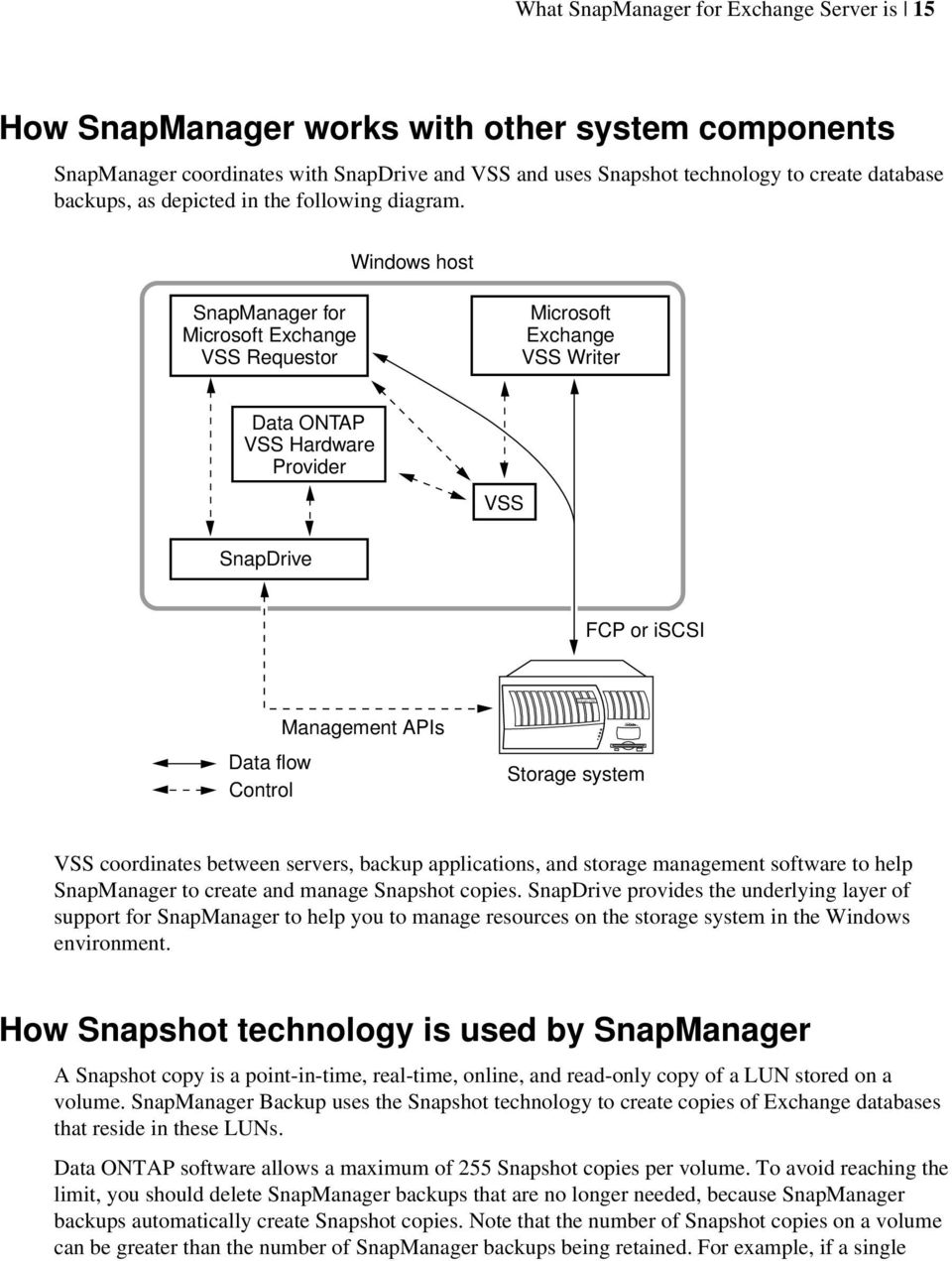
15 NetCache C760 What SnapManager for Exchange Server is 15 How SnapManager works with other system components SnapManager coordinates with SnapDrive and VSS and uses Snapshot technology to create database backups, as depicted in the following diagram. Windows host SnapManager for Microsoft Exchange VSS Requestor Microsoft Exchange VSS Writer Data ONTAP VSS Hardware Provider VSS SnapDrive FCP or iscsi Data flow Control Management APIs Storage system VSS coordinates between servers, backup applications, and storage management software to help SnapManager to create and manage Snapshot copies. SnapDrive provides the underlying layer of support for SnapManager to help you to manage resources on the storage system in the Windows environment. How Snapshot technology is used by SnapManager A Snapshot copy is a point-in-time, real-time, online, and read-only copy of a LUN stored on a volume. SnapManager Backup uses the Snapshot technology to create copies of Exchange databases that reside in these LUNs. Data ONTAP software allows a maximum of 255 Snapshot copies per volume. To avoid reaching the limit, you should delete SnapManager backups that are no longer needed, because SnapManager backups automatically create Snapshot copies. Note that the number of Snapshot copies on a volume can be greater than the number of SnapManager backups being retained. For example, if a single
16 16 Installation and Administration Guide volume contains both the SnapInfo directory and the Exchange databases, each SnapManager backup generates two Snapshot copies on that volume. Therefore, the number of Snapshot copies is double the number of backups on the same volume. For more information about Snapshot technology, see the Data ONTAP Data Protection Online Backup and Recovery Guide. How SnapManager and SnapDrive work together SnapDrive provides the underlying layer of support for SnapManager by working with the NTFS Windows file system, Windows Volume Manager, and LUNs to help you to manage resources on the storage system in the Windows environment. Note: Use SnapManager for all backup-related operations. Use SnapDrive only to create and manage the LUNs and storage system volumes that contain your Exchange data. How SnapManager uses VSS SnapManager is a Microsoft Volume Shadow Copy Service (VSS) requestor, which means that it uses the VSS subsystem to initiate backups. The Data ONTAP VSS Hardware Provider integrates the SnapDrive service and storage systems running Data ONTAP into the VSS framework. For more information about VSS, see your SnapDrive documentation. Management of Snapshot copies created with VSS You must manage the Snapshot copies that SnapManager creates using SnapManager or SnapDrive. Do not use the VSS administration tool vssadmin to manage Snapshot copies that are created by SnapManager using VSS. Data ONTAP VSS Hardware Provider requirement You must have the Data ONTAP VSS Hardware Provider installed for SnapManager to function properly. Data ONTAP VSS Hardware Provider integrates the SnapDrive service and storage systems running Data ONTAP into the VSS framework. This is required for VMs running on SAN storage. The Data ONTAP VSS Hardware Provider, included with SnapDrive, does not need to be installed separately. Comparison of methods for creating restorable backups You can create Snapshot copy backups in a variety of ways. It is important to understand when each of these methods can produce a restorable image and when each cannot. For example, the
17 SnapManager backup method might create several Snapshot copies, depending on how you configure your Exchange database. Note: Always use SnapManager to manage SnapManager backups. Do not use the storage system console, OnCommand System Manager, FilerView, SnapDrive, a Windows backup utility that is not Exchange aware, or VSS to manage SnapManager backups, to avoid an inconsistent image of the database that is unusable for a restore process. For some system states, other Snapshot copy backup tools can create restorable backups. The following table illustrates when each of the Snapshot copy backup tools can create restorable backups. Tool used to create Snapshot copy or backup Exchange online System state All Exchange databases unmounted SnapManager Backup OK NA NA SnapDrive Invalid OK NA Exchange-aware Windows backup utility Non-Exchange-aware backup utility OK (copy backup only) NA Invalid All LUNs disconnected NA OK (copy backup only) NA Storage system tools Invalid Invalid OK SnapManager and conventional backup processes What SnapManager for Exchange Server is 17 SnapManager complements conventional backup processes. However, some backup processes interfere with SnapManager s ability to back up and restore correctly. It is important that you understand which of your current backup tools and processes you need to modify or eliminate when you implement SnapManager. SnapManager backups reside on disks. To archive SnapManager backups to another storage medium, such as tape, you can use the same tools and processes you currently employ. Note: SnapManager backups cannot replace periodic disaster recovery measures, such as archiving to tape or other offline media.

18 18 Installation and Administration Guide Types of external backup to use with SnapManager SnapManager backups replace the backups that are created by Exchange-aware backup tools. If you need to create a backup using an Exchange-aware backup tool on a system with SnapManager installed, you must use only copy or differential backup. Attention: If you create a backup of a type other than copy or differential backup using an Exchange-aware backup tool, your previous backups become unusable for up-to-the-minute restore operations. The following table describes the backup types. Backup type Description Result Copy Normal (full) Differential Incremental Backs up all selected files; does not clear archive bit Backs up all selected files and clears archive bit Backs up all selected files with archive bit set Backs up all selected files with archive bit set and clears archive bit OK. SnapManager backups unaffected Do not use. Truncates transaction logs; disables SnapManager up-tothe-minute restores OK. SnapManager backups unaffected Do not use. Truncates transaction logs; disables SnapManager up-tothe-minute restores SnapManager snap-in The SnapManager snap-in is based on the Microsoft Management Console (MMC). The SnapManager snap-in enables you to manage the SnapManager application from the MMC. The following components of SnapManager snap-in help you to perform all operations: Scope pane This is the left pane, and lists SnapManager for Exchange instances. Actions pane This is the right pane, and displays all of the actions that you can perform based on the instance selected in the Scope pane. Results pane This is the center pane, and displays details of the type of instance selected in the Scope pane. The Dashboard view appears in the center pane when you select any server or server instance. The Dashboard view enables you to: View the Exchange server configuration Add new Exchange servers

19 What SnapManager for Exchange Server is 19 SnapManager graphical user interface SnapManager for Microsoft Exchange has a graphical user interface (GUI) based on the MMC. You can use it with other MMC snap-ins to create a single console for managing Exchange and storage system components. The graphical interface enables you to perform the following tasks: Manage and administer multiple instances of SnapManager for Exchange successfully. Manage backup and restore operations of Exchange database files and transaction log files on LUNs. Schedule backups and verify the integrity of databases in SnapManager backup sets. Administer SnapManager for Exchange on another Exchange server computer on the network. Configure Exchange database and transaction logs locations for SnapManager backup and restore operations. The SnapManager command-line interface SnapManager Microsoft Exchange supports a SnapManager command-line functionality called cmdlet, through SnapManager for Exchange PowerShell. Cmdlets enable you to perform almost all of the jobs that you can perform using the GUI.

20 20 Installation and Administration Guide Requirements for installing or upgrading SnapManager Before you install or upgrade SnapManager for Exchange, you might need to configure Windows host systems, hardware, and software components; back up your databases; and check licensing and account requirements. Before you install or upgrade SnapManager, you might need to install, upgrade, or configure the following components: Data ONTAP iscsi (Internet Small Computer System Interface) and Fiber Channel (FC) protocols SnapManager license SnapRestore license SnapMirror license FlexClone license Microsoft Windows operating system Microsoft Windows hotfixes Microsoft Exchange SnapDrive SnapDrive preferred IP address (if your storage system has multiple IP addresses) Note: If you do not configure a SnapDrive preferred IP address for a storage system that has multiple IP addresses, SnapDrive times out when attempting to create Snapshot copies simultaneously for more than one LUN on a storage system. For details, see the SnapDrive for Windows Installation and Administration Guide for your version of SnapDrive. See the Interoperability Matrix, which is online at support.netapp.com/matrix, for details regarding the most current system requirements and supported software. Before you install or upgrade SnapManager, you need to perform the following tasks: 1. Back up your system resources and databases. 2. Determine whether you want to use per-server SnapManager licensing or per-storage system SnapManager licensing. 3. Verify that the SnapManager COM server identity account on each Exchange server to be used by SnapManager has Exchange Administrator or higher permissions. 4. If you are upgrading SnapManager and SnapDrive or Microsoft iscsi initiator versions, remove the iscsi dependency with respect to SnapManager. 5. Determine whether your storage system has multiple IP addresses. 6. Verify that the TCP port 810 is open and the firewall is correctly configured.
21 Requirements for installing or upgrading SnapManager Configure or upgrade your Windows host systems to meet the requirements for SnapDrive and SnapManager. 8. Configure or upgrade your storage system according to the requirements of SnapManager and SnapDrive. Related information NetApp Support Site on the Web Interoperability Matrix: support.netapp.com/matrix Where to install SnapManager and SnapDrive for Windows In a basic configuration, SnapManager is installed on the same Windows host system as Exchange. You can also install SnapManager on one or more remote Windows hosts for remote administration of the Exchange computer or for remote verification of the databases in backup sets. Additionally, you must install SnapManager and SnapDrive for Windows on all member servers of the DAG. Note: Use the same drive letters or mount points for the Exchange data LUNs on all the nodes of a DAG. You should install SnapDrive for Windows on all nodes, and note that if you do not install SnapManager for Exchange on all nodes, you are not able to use it to migrate databases using the configuration wizard. You can use SnapManager for Exchange only on the Exchange server that has it installed. You can also install SnapManager in a mixed-vendor storage environment that contains both NetApp and non-netapp storage. Within this environment, the following requirements must be met: DAG-level backups - All nodes in a Microsoft Failover Cluster must have SnapDrive installed, even if connected to non-netapp storage. For solutions with more than four nodes, this can possibly introduce long latencies into the backup process, which can be resolved by performing server-level backups. Server-level backups - If SnapManager is configured to back up at the server level, SnapDrive must be installed on every node; SnapManager does not need to be installed on every node. In this configuration, the backup must be made at the server level. If SnapManager is transitioned to a DAG-level backup, the DAG-level backup criteria must be met. Note: In a mixed-vendor environment, you should perform server-level backups. In either configuration (DAG-level or server-level backups), SnapManager must be configured to run backups from the nodes connected to NetApp storage. Jobs cannot be configured from nodes connected to non-netapp storage.
22 22 Installation and Administration Guide Windows host system requirements Your system must meet the operating system, hotfix, Exchange Server, hardware, protocol, and licensing requirements to run SnapManager. The most current system requirements can be found using the Interoperability Matrix. Operating system version Microsoft Exchange Server version FCP and iscsi Multipath I/O for Windows SnapDrive version One of the following operating system versions is required: Windows Server 2008 Standard Edition with SP2 Windows Server 2008 Enterprise Edition with SP2 Windows Server 2008 R2 SP1 Windows Server 2012 One of the following versions of Microsoft Exchange (Standard or Enterprise Edition) is required: Exchange Server 2010 with SP2 Exchange Server 2007 with SP3 This requirement does not apply to a remote administration server. By default, Exchange Server 2007 uses ChkSgFiles for the integrity verification of databases and transaction logs. The option to throttle Eseutil.exe database checksum verification requires Exchange Server 2007 or later. Database verification is not a support requirement for databases with at least two copies in an Exchange 2010 DAG. See the following SnapDrive requirements. One of the following versions of SnapDrive is required: SnapDrive SnapDrive SnapDrive 6.5 If you need to install or upgrade SnapDrive, see the SnapDrive installation guide for your version of SnapDrive for detailed instructions. For a remote administration server, SnapDrive is optional unless you intend to use the remote administration server to remotely administer SnapDrive. For a remote verification server, SnapDrive is required.
23 Requirements for installing or upgrading SnapManager 23 SnapDrive preferred IP address If your storage system has multiple IP addresses, configure the SnapDrive preferred IP address. See the SnapDrive installation guide for your version of SnapDrive. If you do not configure a SnapDrive preferred IP address for a storage system that has multiple IP addresses, SnapDrive times out when attempting to create Snapshot copies simultaneously for more than one LUN on a storage system. iscsi protocol and FC protocol The appropriate LUN access protocol software must be installed on the Windows host that runs the Exchange Server. See your SnapDrive documentation for complete details about the system requirements. This requirement does not apply to a remote administration server. SnapManager license If SnapManager is licensed per server, a SnapManager license is required on the Windows host system. Microsoft.NET 3.5 framework Microsoft Management Console (MMC) version Windows PowerShell version Note: For per-server SnapManager licensing, you can install SnapManager without specifying a server-side license; after SnapManager is installed, you can apply the license from the License Settings dialog box. SnapManager installation package installs Microsoft.NET framework if it is not present in the host system. You need MMC 3.0 x64 Edition (required for Exchange 2007) to launch the SnapManager snap-in console. This is a prerequisite to starting the SnapManager installation. PowerShell 1.0 RTM x64 Edition (required for Exchange 2007) or PowerShell 2.0 (required for Exchange 2010) are required. This is a prerequisite to running the SnapManager installation. Storage system requirements Your storage system must meet some hardware, protocol, and licensing requirements before you use it with SnapManager. See the Interoperability Matrix, which is online at support.netapp.com/matrix, for details regarding the most currently supported software. Data ONTAP versions You must have one of the following versions of Data ONTAP installed: (Data ONTAP operating in 7-Mode only)
24 24 Installation and Administration Guide SnapManager licenses SnapDrive version requirements If SnapManager is licensed per storage system, you need a SnapManager license on the storage system. With storage system SnapManager licensing, if you use SnapMirror with SnapManager, SnapManager must be licensed on both the source and target storage systems. Note: If you need to perform activities related to SnapMirror, you must enter your cluster server administration credentials in SnapDrive. However, if using Data ONTAP 8.2, this limitation is removed. The version of SnapDrive used can impose the following additional requirements: iscsi protocol or FC protocol You must install the appropriate LUN access protocol software on the storage system that stores the Exchange databases. SnapRestore license For restore operations to succeed, the SnapRestore feature of SnapDrive must be licensed on the storage system that stores the Exchange databases. FlexClone license If you plan to use the integrity verification feature on the destination volume, you must have a FlexClone license on that volume. SnapMirror license If you plan to use the SnapMirror software with SnapManager, you require a SnapMirror license on both the source and target storage systems. For more information, see the SnapDrive installation guide for your version of SnapDrive. Remote administration server requirements You can remotely administer an Exchange server running SnapManager from another Windows system that is configured as a remote administration server. Your remote administration server must meet some installation requirements. If you want to use the remote administration server to remotely administer SnapDrive, you need to install SnapDrive. You must install SnapManager. If you will be running SnapManager Services, you must install Microsoft Exchange System Management Tools. For more information about the installation of Exchange System Management Tools, see your Microsoft documentation. You do not need to install an iscsi driver or a Host Bus Adapter (HBA) driver on this system.
25 Requirements for installing or upgrading SnapManager 25 Remote verification configuration requirements To effectively manage verification of the databases in backup sets, you can choose to run remote verification. To do so, your remote system must meet certain configuration requirements. Verification of database backup sets is important to ensure that backups can be restored, however verification, including remote verification, is not required. You perform remote verification using the same mechanisms that you use for verification on the primary Windows host, except that the verification is performed on a host that is different from the Exchange server that initiated the backup set. Note: Unlike the primary Windows host, the remote verification Windows server can use different protocols (iscsi or FC protocol) to connect to the storage system. The software and hardware configuration requirements to run remote verification are the following: SnapDrive must be installed. Do not try to connect the Exchange server s LUNs to the remote verification server. SnapManager must be installed, and the version should match the version on the primary host. SnapManager does not need to be configured on the remote host. You must specify the user account that you use for the production Exchange server. The appropriate LUN driver (iscsi or FC protocol) must be installed. The remote Windows system must have connectivity (iscsi or FC protocol) to the storage system. If you are using iscsi to connect to the storage system on the remote verification server, you must create an iscsi connection. If verification is performed on a remote Windows server on a SnapMirror or SnapVault destination, the remote Windows server must have SCSI connectivity (iscsi or FC protocol) to this storage system, and should have appropriate privileges and permissions to perform this operation. Exchange System Management Tools must be installed on the server (whether remote or local) for SnapManager to perform integrity verification. For more information about the installation of Exchange System Management Tools, see your Microsoft documentation. The connectivity required to perform remote verification is shown in the following illustration:
26 NetCache C Installation and Administration Guide Volume LUN 1 Exchange server Snapshot copy LUN backed by Snapshot copy Remote verification server FCP or iscsi Storage system FCP or iscsi Exchange Server 2007 files to back up with a Windows backup utility SnapManager does not back up all the files commonly used by Exchange Server You should use a standard Windows backup utility, such as Windows NTBackup. Back up the following files using Windows NTBackup: File systems on hard disks connected to the Exchange server Windows registry Windows Active Directory Internet Information Service (IIS) metabase System state Note: Instead of using tape, you can use Windows NTBackup to back up to a file and write or store that file directly on a storage system. Mailbox server data Offline Address Book that uses Web distribution Hub Transport server data message tracking and protocol logs Edge Transport data ADAM (Config Clone for backup and restore) Content Filter ESE database (Config Clone for backup and restore) Message tracking and protocol logs Client Access server data Microsoft Office Outlook Web Access web site, and Web.config file IMAP4 and POP3 protocol settings IIS metabase Exchange ActiveSync Outlook Web Access virtual directories
27 Requirements for installing or upgrading SnapManager 27 Unified Messaging server data Custom audio prompts Incoming calls Exchange permission level required for SnapManager If you need a granular control for the SnapManager for Exchange Service, you can apply Exchangespecific permissions to the object. The minimum Exchange-specific permissions required for SnapManager are as follows: Read Execute Read Permissions List Contents Read Properties Administer Information Store View Information Store Status To launch or access the SnapManager for Exchange Service from a different domain the user account, or the group that you are configuring must also be a member of the Exchange server s local administrators group. The local administrator group permissions enable you to launch the SnapManager for Exchange Service account that needs to be part of the Exchange server administrator group. Ensure that there are no firewall restrictions between the remote and local servers. SnapManager for Exchange Service identity account requirements The SnapManager for Exchange Service identity account must have proper Exchange permissions for SnapManager to function. SnapManager uses a Windows NT Service (SnapManagerService) that hosts a number of services, such as SMEService and FSRService. There are three predetermined permission levels for Exchange: Exchange Server View Only Exchange Server Administrator Exchange Server Full Administrator The minimum level required for SnapManager is Exchange Administrator. Use one of these methods to meet the requirement: Assign Exchange Administrator permissions to the organization object. Create an Exchange administrative group and assign the correct permissions to that group.
28 28 Installation and Administration Guide In Exchange Server 2007, select Organization node in the Exchange Management Console and then click Add Exchange Administrator wizard in the Actions pane to change the object s permissions. Exchange Server 2010 uses the Role-Based Access Control (RBAC) permissions model. You can add users or members to a role group through the Exchange Admin Console (EAC). From the Toolbox of the EAC, open the Role Based Access Control (RBAC) User Editor and add users to management role groups. Add accounts to Organization Management. Account permissions for the report directory share The first time SnapManager is launched, it creates a shared report directory, SMEReportFolder, to enable remote administration. It grants the logged-on user on the local computer, and the administrators group on the local computer, full control over the shared directory. If you recently upgraded to SnapManager 6.1, other accounts might already have permissions on the share. If only the group Everyone has permissions, SnapManager removes the full control permissions to the report directory for that group. If multiple accounts (including Everyone) have permissions, SnapManager does not modify those accounts. Configuring the Windows firewall If you are using the Windows firewall and Exchange DAG, you must adjust the configuration of the Windows firewall on all nodes in the DAG. Steps 1. Open the Windows Control Panel and choose Firewall. 2. Click Advanced Settings and then select Inbound Rules. 3. Select New Rule. 4. Select Program and click Next. 5. Navigate to %ProgramFiles%\NetApp\SnapManager for Exchange \SnapMgrService.exe and click Next. 6. Select Allow the connection and click Next. 7. Select Domain only and click Next. 8. Enter a value for Name for rule (for example, SME Inbound connection) and click Finish. 9. After you are back in Inbound rules, click New Rule. 10. Select Port and click Next. 11. Select TCP and enter 810 for Specific Port; click Next. 12. Select Allow the Connection and click Next.
29 Requirements for installing or upgrading SnapManager Select Domain only and click Next. 14. Enter Name for rule (for example, SME DAG Port) and click Finish. 15. Repeat Steps 1 through 14 on all of the nodes in the Exchange DAG. Backing up system resources and data Before you install SnapManager, back up your system resources and data using an industry-standard backup utility to prevent any data loss during configuration. Steps 1. Back up the operating system installation on the Exchange server. This includes backing up all of the server system elements, which consist of the registry, the boot files, and the COM+ class registry. 2. Back up the data on the local drives on the Exchange server. 3. Back up the boot and system drives. 4. Use the backup utility to create and maintain a current emergency repair disk (ERD). SnapManager licensing options SnapManager supports two licensing options: Per Server and Per Storage system licensing. A Per Server SnapManager license is a 14-character license code for a specific Exchange server. When you use Per Server licensing, you do not require a SnapManager license on the storage system. Instead, you apply a SnapManager server-side license on every Exchange server. You can specify a server-side license while you are installing SnapManager, or you can defer this activity until you have completed SnapManager installation. After you install SnapManager, you can apply the license from Help > About SnapManager. If a SnapManager license is not enabled on the Exchange server, you must enable a 7-character SnapManager Per Storage system license code directly on the storage system, using the license add command. If no server license is detected, SnapManager checks the storage system for a SnapManager license whenever a SnapManager operation starts. If the SnapManager license is not enabled on the storage system either, the SnapManager operation fails and logs an error in the Windows event log. Note: With storage system SnapManager licensing, if you use SnapMirror with SnapManager, both SnapMirror and SnapManager must be licensed on both the source and target storage systems.
30 30 Installation and Administration Guide Applying Per Server license to the Exchange server You can add a Per Server license to your Exchange server. When you use Per Server licensing, you do not require a SnapManager license on the storage system. Instead, you apply a SnapManager server-side license to the Exchange server. Before you begin You must have a SnapManager Per Server license key. Steps 1. Run the SnapManager.exe file. The SnapManager InstallShield wizard appears. 2. In the Welcome window, click Next. The License Agreement window appears. 3. Select I accept the terms in the license agreement; then click Next. The Customer Information window appears. 4. Type the user name and the name of the organization in the appropriate fields. 5. Under License Type, select Per Server. 6. In the License Key box, enter the license key for your server-side license; then click Next. Note: If you do not provide a license key and click Next, you will receive an error message (Invalid License key) and will not be able to proceed with the installation. 7. Continue with the instructions in the InstallShield wizard to apply the license. Applying Per Storage System license to the storage system You can add a Per Storage System license to your storage system. If a SnapManager operation starts and no server license is detected, SnapManager checks the storage system for a SnapManager license. If the SnapManager license is not enabled on the storage system either, the SnapManager operation fails and logs an error in the Windows event log. Before you begin You must have a SnapManager Per Storage System license key before you can perform any SnapManager operations. If you use SnapMirror with SnapManager, both SnapMirror and SnapManager must be licensed on both the source and target storage systems.
31 Requirements for installing or upgrading SnapManager 31 Steps 1. Run the SnapManager.exe file. The SnapManager InstallShield wizard appears. 2. In the Welcome window, click Next. The License Agreement window appears. 3. Select I accept the terms in the license agreement; then click Next. The Customer Information window appears. 4. Type the user name and the name of the organization in the appropriate fields. 5. Under License Type, select Per Storage System. 6. In the License Key box, enter the license key; then click Next. If you do not have a license key, you can leave the License Key box empty for now; you can enter the server-side license key later from the SnapManager GUI. 7. Continue with the instructions in the InstallShield wizard to apply the license. After you finish If you did not enter a license key, the server-side license key can be entered later from the SnapManager for Exchange GUI: 1. Select the desired server. 2. In the Actions pane, click License settings. 3. Type the license key in the Server Side License field. 4. Click OK. If your storage system has multiple IP addresses If your storage system has multiple IP addresses, you must configure a SnapDrive preferred IP address; otherwise, SnapDrive times out when attempting to create Snapshot copies simultaneously for more than one LUN on a storage system. See the documentation for your version of SnapDrive.
32 32 Installation and Administration Guide Installing and upgrading SnapManager You can install SnapManager for Exchange on a stand-alone Windows host system or a Windows cluster using either interactive or unattended installation mode. SnapManager also enables you to upgrade an older version and to reinstall SnapManager. Unless it is specified for a particular path or for a particular troubleshooting situation, you do not need to uninstall SnapManager before reinstalling or upgrading it. Note: If you plan to reinstall SnapManager later, you should record the drive letter and path of your current SnapInfo directories. After you reinstall SnapManager, you must reconfigure SnapManager to use those same SnapInfo directory locations. The reconfiguration preserves SnapManager records of backups created before you uninstalled and reinstalled SnapManager. Downloading the SnapManager installation package Before installing SnapManager, you must download the installation package and copy it to every system on which you want to install SnapManager. Steps 1. Download the software from the NetApp Support Site at support.netapp.com. 2. Copy the software to every system on which you want to install SnapManager. Install SnapManager You can install SnapManager either in the interactive mode by using the installation wizard or the unattended mode by using the command-line interface. Compatibility of SnapManager builds with Windows Server versions SnapManager 6.1 for Microsoft Exchange is available in x86 and x64 builds. The build that you use depends on your Windows Server version. Build Compatibility WOW64 (Windows 32-bit on Windows 64-bit) x86 Windows Server 2008 x86 edition Not supported x64 Windows Server 2008 x64 edition Supported Note: Ensure that you install MMC 3.0 and Windows PowerShell 1.0 (x86 or x64) on the Windows system before installing SnapManager.
33 This information should be prerequisite to the Installing task, not part of the reference topic about server compatibility. Comparison of installation modes for a stand-alone Windows host system You can run the software installation utility for SnapManager in either the interactive mode or the unattended mode. SnapManager guides you through the interactive mode; the unattended mode requires that you type certain commands and then installation takes place on its own. The minimum required input for both modes is as follows: Acceptance of the terms of the license agreement SnapManager server account User name and password The optional input for both modes is as follows: User name Organization name SnapManager server-side license key SnapManager installation directory Installing and upgrading SnapManager 33 The following table lists and describes the differences between interactive mode and unattended mode: Installation activity Interactive mode Unattended mode Access SnapManager software license agreement After the installation finishes Requires user interaction and access to the graphical user interface Is displayed in the installation utility If a system reboot is required to activate new software, a dialog box appears and prompts you to select whether you want to reboot the target system. Allows automated installation by executing a script or command-line command Is displayed in the command-line interface if you pass a specific parameter to the installation utility If a system reboot is required to activate new software, a dialog box appears and prompts you to select whether you want to reboot the target system. You can override this default behavior by including an optional command-line parameter.
34 34 Installation and Administration Guide Installing SnapManager in interactive mode You can install SnapManager in interactive mode using the InstallShield wizard interface to the software installation utility. The InstallShield wizard guides you through the installation. Before you begin The SnapManager Server Identity account must meet the requirements outlined in Preparation for installing or upgrading SnapManager on page 20. The software installation package is downloaded and placed on the desired systems. About this task You do not need to stop Exchange services while you install SnapManager. Exchange can continue to run while you install SnapManager and afterward. The SnapManager software installation program does not allow you to continue with the installation process if Microsoft.NET 3.5 is not installed. If.NET is not installed on a 32-bit system, the installation setup automatically installs it; on a 64-bit system, SnapManager prompts you to install it. The default directory for the SnapManager for Microsoft Exchange installation is C:\Program Files\NetApp\SnapManager for Exchange\. Steps 1. Browse to the SnapManager installation package, and double-click the installation package.exe file. 2. In the License Agreement window, accept the license agreement. 3. In the Customer Information window, specify the user name, the organization name, and the SnapManager license type. 4. Optional: If desired, in the Destination Folder page, you change the default download directory by clicking Change and entering the new location. 5. Take note of the full path of the folder in which SnapManager will be installed. 6. In the SnapManager Server Identity window, specify the user account you want to use to run SnapManager. If SnapDrive is installed and configured, the text box is prepopulated with the account that SnapDrive is configured for. Otherwise, browse to locate and select the account name. The user account name is specified in either of the following formats: DomainName\UserName UserName@DomainName 7. Type and confirm the password. 8. Click Install.
35 Installing and upgrading SnapManager Wait until the InstallShield Wizard Completed window appears; then click Finish to exit the software installation utility. Installing SnapManager using the CLI You do not need to install SnapManager interactively. Instead you can install SnapManager by entering a single command from the command-line interface (CLI), or by using a script to provide unattended installation. Before you begin The software installation package is downloaded and placed on desired systems. About this task When installing SnapManager for Exchange, you do not need to stop the Exchange service. Exchange can continue to run while you install SnapManager and afterward. Step 1. Access the command line of the target host system and enter the following command either directly at the command line or through a script: CommandName /v [[USERNAME=UserName] [COMPANYNAME=CompanyName] [ISX_SERIALNUM=LicenseKey] [INSTALLDIR=InstallationDirectory] SVCUSERNAME=Domain\UserName SVCUSERPASSWORD=Password SVCCONFIRMUSERPASSWORD=PassWord [/L*V DirPath\LogFileName] /qb Command or parameter CommandName USERNAME=UserName COMPANYNAME=CompanyName Description Either setup.exe or <install-packagename>.exe, depending on the SnapManager installation media that you use. Optional. If you do not specify a user name, the default value is retrieved from the registry. Optional. If you do not specify a company name, the default value is retrieved from the registry.
36 36 Installation and Administration Guide Command or parameter ISX_SERIALNUM=LicenseKey INSTALLDIR=InstallationDirectory SVCUSERNAME=Domain\UserName SVCUSERPASSWORD=Password Description Optional. Used only to specify an Exchange server-side license for SnapManager. Optional. If you do not specify a directory, the default installation directory is used: C:\Program Files\NetApp\SnapManager for Exchange\ The account from which SnapManager is to be run. SVCCONFIRMUSERPASSWORD=Password /L*V DirPath\LogFileName Optional. If you specify this option, detailed information about the installation is written to the specified log file. This information can be used to investigate details about how a particular instance of SnapManager for Microsoft Exchange is installed. The asterisk (*) is a wildcard character that specifies that all the installation information (such as status messages, nonfatal warnings, and error messages) is to be logged. DirPath is the fully qualified name of the directory in which the installation log is to be created or overwritten. LogFileName is the name of the file to which the installation information is to be written. For example: /L*V C:\SME_Install.log The software installation utility installs the SnapManager for Exchange software in the specified directory. If the INSTALLDIR parameter is not specified, the utility installs the software in the default directory C:\Program Files\NetApp\SnapManager for Exchange\.
37 Installing and upgrading SnapManager 37 Example of SnapManager installation using the CLI You can perform an installation using the CLI by using a downloaded installation package. Enter the following at the command line or through a script: "SME6.1_x64.exe" /v" /l*v C:\SME_Install.log SVCUSERNAME=mva\Administrator SVCUSERPASSWORD=examplepwd1! SVCCONFIRMUSERPASSWORD=examplepwd! /qb" SnapManager installation in a Windows cluster You can install and configure SnapManager for Microsoft Exchange either in an existing Windows cluster, or on a new Windows cluster. Requirements for installing SnapManager in a Windows cluster SnapManager with Exchange Server 2007 can be used to manage two types of Windows clusters: SCC and CCR. Each type can have a maximum of eight nodes. The differences between the two configurations are described in the following list: The SCC configuration uses LUN resources that are shared among all nodes in the cluster. The CCR configuration uses LUN resources that are dedicated to each of the two cluster nodes and are not shared among the nodes. For more information, see Microsoft Exchange server documentation. Installing SnapManager after creating a new Windows cluster To use SnapManager in a Windows cluster, you can create a new cluster and then install and configure SnapManager for Microsoft Exchange as part of the cluster. Before you begin You must have installed Microsoft Management Console 3.0, Windows PowerShell 1.0 (x86 or x64), and Microsoft.NET 3.5 framework. Steps 1. Install SnapManager on all nodes, starting with the node that currently owns the cluster resources. You can install SnapManager either in interactive mode or in unattended mode. 2. Start SnapManager.
38 38 Installation and Administration Guide Installing SnapManager in an existing Windows cluster To use SnapManager in an existing Windows cluster, you can install and configure SnapManager for Microsoft Exchange on the cluster. Before you begin The shared LUNs must be physical disk resources in the cluster group that contains the Exchange resources that use them. Shared LUNs are specific to SCC-enabled configurations only. You have installed Microsoft Management Console 3.0, Windows PowerShell 1.0 (x64 or x86), and Microsoft.NET 3.5 Framework (x64) on 64-bit operating system. You have prepared your SnapManager data configuration plan. About this task SnapManager adds the dependencies automatically for all the LUNs that Exchange uses, if the Configuration wizard detects that it is being run on a cluster. There are no dependencies set on the LUN physical disk resource in a Continuous Cluster Replication (CCR) configuration. Steps 1. Verify that the Exchange cluster groups and the cluster services are functioning by moving the Exchange cluster groups from one cluster node to the other, and back. If any errors occur, or if any of the cluster resources do not start correctly, resolve the issue before continuing. 2. Install or upgrade SnapDrive as required. For details, see the SnapDrive documentation. 3. Create the shared LUNs to hold the Exchange databases and transaction log files, according to your SnapManager data configuration plan. Create the shared LUNs from the node that owns the cluster group, which contains the Exchange cluster mailbox server. For details, see your SnapDrive documentation. 4. Verify that dependencies for the System Attendant Resource are set correctly. The System Attendant Resource depends on all the LUN physical disk resources, and the Network Name resource in this cluster group, for an Exchange Server 2007 single-copy cluster. 5. Verify that the Exchange cluster group and the cluster services are functioning correctly by moving the cluster group containing the newly created Exchange cluster group to the other node and back. 6. Install SnapManager on all nodes, starting with the node that currently owns the cluster resources.
39 Use either the interactive installation procedure or the unattended installation procedure for a stand-alone Windows host system. 7. Start SnapManager. Installing and upgrading SnapManager 39 Preparing to upgrade SnapManager Because a SnapManager upgrade is performed by installing the new version of SnapManager, the preparation for an initial SnapManager install (preparing the target system, the environment, and the existing SnapManager application) is the same as that for the upgrade. Before you begin If you must interrupt connectivity to the Exchange data when upgrading other components, such as storage systems or connection protocols, Exchange must be offline. SnapManager versions earlier than 6.0 must be uninstalled before you install SnapManager 6.1. About this task When you upgrade SnapManager on a 32-bit system, set the SnapMgrService account to a Windows domain account that has the required rights to manage Exchange databases. Ensure that you use the same account as the one used by the SnapManager server. The SnapManager installation program prompts for this account during installation. You do not need to stop Exchange services while you upgrade SnapManager; Exchange can continue to run while you upgrade. Steps 1. Prepare your target system and environment. 2. If you have upgraded the underlying SnapDrive or Microsoft iscsi initiator versions to prepare your storage system for upgrading SnapManager, remove the iscsi dependency with respect to SnapManager during the SnapManager upgrade process. There are two ways to do this: Run the Configuration wizard and use the Add Microsoft iscsi Service Dependency page to remove this dependency. Stop the Microsoft Exchange System Attendant resource service. After you finish upgrading the SnapManager application, you can restore the dependency. 3. Prepare the existing SnapManager application.
40 40 Installation and Administration Guide Comparison of interactive and unattended upgrade modes You can run the software upgrade utility for SnapManager in either interactive mode or unattended mode. SnapManager guides you through interactive mode; in unattended mode, you type certain commands and then the upgrade occurs without you doing anything else. Upgrade activity Interactive mode Unattended mode Access SnapManager software license agreement Requires user interaction and access to the graphical user interface Is displayed in the software installation utility Enables automated uninstallation by executing a script or command-line command Is displayed at the command-line interface if you pass a specific parameter to the installation utility SnapManager upgrade paths Unless specified for a particular upgrade path or for a particular troubleshooting situation, you do not need to uninstall SnapManager before reinstalling it or upgrading to a newer version. You can upgrade to SnapManager 6.1 for Microsoft Exchange Server from the following versions of SnapManager. SnapManager 5.0 SnapManager Upgrading SnapManager in interactive mode To upgrade SnapManager on a Windows host system, you reinstall SnapManager using one of the installation procedures. You might use these procedures to repair missing or corrupt files, shortcuts, and registry entries. SnapManager guides you through the interactive installation process. About this task When you run the SnapManager installation utility as part of an upgrade, you are asked whether you want to retain your current installation directory. Because changing your installation directory might cause existing scripts that rely on the SnapManager installation directory path to fail, you should probably keep what you have. Steps 1. Upgrade to SnapManager 6.1 for Microsoft Exchange by installing the new product. 2. After upgrading SnapManager by following one of the installation procedures, re-start SnapManager.
41 Installing and upgrading SnapManager 41 Note: Upgrading to SnapManager 6.1 removes all of the previously managed servers. You need to select the servers that you want to manage, using the Add Servers to be Managed dialog box. Upgrading SnapManager using the CLI To upgrade SnapManager using the CLI, you run the software installation utility from the CLI or from a script. You might use these procedures to repair missing or corrupt files, shortcuts, and registry entries. SnapManager guides you through the interactive installation process. Before you begin SnapManager operations must be stopped. About this task The command that you specify to do the upgrade depends on the SnapManager installation media that you want to access. If you are using a SnapManager software package downloaded from the network, run SME6.1.exe. You do not need to stop Exchange services before or during the SnapManager software upgrade process. Steps 1. From the command line of the target host system or from a script, enter the command that executes the upgrade: Example CommandName /v REINSTALLMODE=vomus REINSTALL=ALL [/L* TempDirPath \LogFileName] /qb Command or parameter CommandName REINSTALLMODE=vomus REINSTALL=ALL Description Either setup.exe or SME6.1.exe, depending on the SnapManager installation media being used Causes the software installation utility to re-cache the new software package Causes the software installation utility to update all the software components
42 42 Installation and Administration Guide Command or parameter /L*TempDirPath \LogFileName Description Optional If you specify this option, detailed information about the installation is written to the specified log file. This information can be used to investigate details about how a particular instance of SnapManager for Microsoft Exchange is installed. The asterisk (*) is a wildcard character that specifies that all the installation information (such as status messages, nonfatal warnings, and error messages) should be logged. TempDirPath is the fully qualified name of the directory in which the installation log is created or overwritten. LogFileName is the name of the file to which the installation information is written. The software installation utility installs the SnapManager for Microsoft Exchange software. 2. Start SnapManager. Example of SnapManager upgrade using the CLI You can perform an unattended upgrade using the CLI from a downloaded installation package. The example shows how to upgrade to the latest SnapManager release. Assume that you are upgrading from the installation package downloaded to C:\NetApp \downloads\. Enter the following at the command-line interface: C:\NetApp\downloads\SME6.1.exe /v"reinstallmode=vomus REINSTALL=ALL /qb" Uninstall SnapManager Before you uninstall SnapManager, there are several issues you should consider if you plan to reinstall SnapManager. If you used SnapManager to manage your Exchange databases and plan to reinstall SnapManager later, ensure that you record the drive letter and the path of the SnapInfo directory locations before proceeding. If you have set up a single SnapInfo directory for all databases on your host, then record the drive letter and the path of the LUN that contains a single SnapInfo directory for all Exchange servers, and their associated databases.
43 If you have set up multiple SnapInfo directories, then record the drive letter and path of each LUN that contains a SnapInfo directory. SnapManager reports record the current SnapInfo directory locations in the most recent logs contained in the Backup folder and in the Config folder. After you reinstall SnapManager, ensure that you reconfigure SnapManager with the same SnapInfo directory locations that SnapManager had used earlier. Attention: If you configure SnapManager with different SnapInfo directory locations than used previously, then SnapManager no longer has records of any backups made before the reinstallation of SnapManager occurred. As a result, your prior backup sets could be invalidated or deleted the next time you perform a backup. Comparison of interactive versus unattended uninstallation You can run the software uninstallation utility for SnapManager in either the interactive mode or the unattended mode. SnapManager guides you through the interactive mode; the unattended mode requires that you type certain commands and then uninstallation takes place on its own. Uninstall activity Interactive mode Unattended mode Installing and upgrading SnapManager 43 Access Method used Requires user interaction and access to the graphical user interface Can be implemented by using Add or Remove Programs in the Control Panel Allows automated uninstallation by executing a script or command-line command Can be implemented by using the software installation utility for SnapManager You can remove the report directory using both the modes. Moving Exchange data to a local disk Before uninstalling SnapManager, move your Exchange data store from the storage system to a local disk to ensure there is no data loss in case you encounter an issue during the uninstallation operation. Before you begin Ensure there is enough space on your local disk before moving your database back to it. Steps 1. Use Exchange Management Console or Exchange Management Shell to move your databases, transaction logs, and system files from the LUNs onto a local disk. 2. Confirm that the data was moved correctly and that your Exchange server is functioning normally. 3. Disconnect or delete your LUNs from your SnapManager host.
44 44 Installation and Administration Guide For information about disconnecting or deleting LUNs, see the SnapDrive documentation. Uninstalling SnapManager in interactive mode You can uninstall SnapManager and all its components by using the Windows Add or Remove Programs utility. You can also remove the SnapManager report directory. Unless it is specified for a particular upgrade path, or for a particular troubleshooting situation, you do not need to uninstall SnapManager before reinstalling it or upgrading to a newer version. About this task Do not attempt to remove a currently installed version of SnapManager using an interactive method other than the approach described here. By doing so, you might cause system problems that result from unknown remaining files. Ensure that you uninstall SnapManager from all the nodes of the cluster in a clustered configuration. You do not need to stop the Exchange service or remove the Exchange databases from the LUNs before you uninstall SnapManager. Note: You might need to reboot after you uninstall. The installer will inform you if this is the case. Steps 1. Close SnapManager. 2. In the Control Panel, select Add or Remove Programs, and then select the entry for SnapManager. 3. Click the following buttons, depending to what you want to remove: If you want to... Remove only the SnapManager software and leave the report directory Then... Click Remove. Remove both the SnapManager software and the report directory a. Click Change. 4. Click Yes. Uninstalling SnapManager using the CLI b. Click Remove Reports. c. Click Remove. You can uninstall SnapManager by running the software installation utility from the command-line interface. You can also uninstall the SnapManager software under the control of a script for an unattended uninstallation. Unless it is specified for a particular upgrade path or for a particular
45 Installing and upgrading SnapManager 45 troubleshooting situation, you do not need to uninstall SnapManager before reinstalling it or upgrading to a newer version. About this task Do not attempt to remove a currently installed version of SnapManager using an unattended method other than the one described here. Doing so might cause system problems that result from unknown remaining files. Ensure that you uninstall SnapManager from all the nodes of the cluster in the clustered configuration. Note: You might need to reboot after you uninstall. The installer will inform you if this is the case. Step 1. Access the command line of the target host system, and enter the following command either directly at the command line or through a script: CommandName /v REMOVE=ALL[REMOVEREPORTFOLDER=1][/L*V DirPath \LogFileName] /qb Command or parameter CommandName REMOVE=ALL REMOVEREPORTFOLDER=1 Description The name of the SnapManager installation package originally used to install SnapManager Causes the software installation utility to remove SnapManager (performs the same function as the Remove option in the Program Maintenance window) Optional Causes the software installation utility to remove the Report directory (performs the same function as the Remove Report Folder option in the Remove the Program window)
46 46 Installation and Administration Guide Command or parameter /L*V DirPath\LogFileName Description Optional If you specify this option, detailed information about the installation is written to the specified log file. You can use this information to investigate details about how a particular instance of SnapManager is installed The asterisk (*) is a wildcard character that specifies that all the installation information (such as status messages, nonfatal warnings, and error messages) should be logged DirPath is the fully qualified name of the directory in which the installation logs are created or overwritten LogFileName is the name of the file to which the installation information is written For example: /L*V C:\SME_Uninstall.log Example of SnapManager uninstall using the CLI You can perform an unattended uninstall of SnapManager by entering a CLI command, or by using the same command in a script. You can enter the following at the command line or include it in a script: "SME6.1_x64.exe" /v"remove=all REMOVEREPORTFOLDER=1 /qb" Reinstall SnapManager You can reinstall the version of SnapManager that you are currently using to repair missing or corrupt files, shortcuts, and registry entries. Unless it is specified for a particular upgrade path or for a particular troubleshooting situation, you do not need to uninstall SnapManager before reinstalling it. You do not need to stop Exchange services before or during the SnapManager software reinstallation process.
47 If you have already uninstalled SnapManager If you have uninstalled SnapManager, then the reinstallation procedure is identical to a new installation of the software. If you used SnapManager to manage your Exchange databases before you uninstalled the SnapManager application, then ensure that you configure SnapManager with the same SnapInfo directory locations that SnapManager used before the reinstallation. If you configure SnapManager with different SnapInfo directory locations than used previously, then SnapManager no longer has records of any backups made before the reinstallation of SnapManager occurred. If you did not uninstall SnapManager You can reinstall this version of SnapManager. Comparison of interactive and unattended reinstallation Installing and upgrading SnapManager 47 You can run the software reinstallation utility for SnapManager in either the interactive mode or the unattended mode. SnapManager guides you through the interactive mode; the unattended mode requires that you type certain preliminary commands, after which reinstallation takes place independently. Reinstallation activity Access SnapManager software license agreement Interactive mode Requires user interaction and access to the graphical user interface Is displayed in the installation utility Unattended mode Allows automated uninstallation by executing a script or command-line command Is displayed in the command-line interface if you pass a specific parameter to the installation utility Reinstalling SnapManager in interactive mode You can reinstall the same version of SnapManager on a Windows host system. This option repairs missing or corrupt files, shortcuts, and registry entries. SnapManager guides you through this process in the interactive mode. Before you begin Exit SnapManager. Back up system resources using an industry-standard backup utility. Back up the operating system, including the system state, the boot and system drives, and the registry. Back up your Exchange databases and transaction log files. Use a backup utility that is part of Windows to create and maintain a current emergency repair disk (ERD).
48 48 Installation and Administration Guide Verify that your host system meets the minimum requirements. Verify that your storage system meets the minimum requirements. About this task You do not need to stop Exchange services before or during the SnapManager software reinstallation process. Steps 1. Browse to the SnapManager installation package, and double-click the installation package.exe file. 2. In the InstallShield Wizard Welcome page, click Next. 3. In the Program Maintenance page, select Repair; then click Next. 4. Click Install. 5. In the InstallShield Wizard Completed window, click Finish. Reinstalling SnapManager using the CLI You can reinstall SnapManager by running the software installation utility from the command-line interface. You can also reinstall the SnapManager software under the control of a script for an unattended reinstallation. Before you begin SnapManager must not be running. System resources must be backed up using an industry-standard backup utility. The operating system must be backed up, including the system state, the boot and system drives, and the registry. Your Exchange databases and transaction log files must be backed up. A current ERD must be created and maintained using a backup utility that is part of Windows. Your host system needs to meet the minimum requirements. Your storage system needs to meet the minimum requirements. About this task To reinstall SnapManager, use the same installation package originally used to install SnapManager. Step 1. Access the command line of the target host system, and then enter the following command either directly at the command line or by using a script: CommandName /v REINSTALLMODE=vomus REINSTALL=ALL [/L*V DirPath \LogFileName] /qb
49 Installing and upgrading SnapManager 49 Command or parameter CommandName REINSTALLMODE=vomus REINSTALL=ALL SVCUSERNAME=Domain\UserName SVCUSERPASSWORD SVCCONFIRMUSERPASSWORD /L*V DirPath\LogFileName Description The name of the installation package originally used to install SnapManager. Causes the software installation utility to recache the new software package. Causes the software installation utility to update all the software components. Optional. The account from which SnapManager is to be run. Optional. If you specify this option, detailed information about the installation is written to the specified log file. This information can be used to investigate details about how a particular instance of SnapManager is installed. The asterisk * is a wildcard character that specifies that all of the installation information (such as status messages, nonfatal warnings, and error messages) should be logged. DirPath is the fully qualified name of the directory in which the installation log will be created or overwritten. LogFileName is the name of the file to which the installation information will be written: for example: /L*V C:\SME_Reinstall.log For example, to reinstall SnapManager, you could enter the following at the command line or through a script: "SME6.1_x64.exe" /v"reinstallmode=vomus REINSTALL=ALL /qb"
50 50 Installation and Administration Guide Displaying the SnapManager software license agreement You can view the SnapManager software license agreement by running a command from the command line or a script. Step 1. Enter the following command, either directly at the command line or indirectly by using a script: CommandName/v SHOWEULA=Yes /qb CommandName is the name of the SnapManager installation package. Note: The SHOWEULA=Yes command argument cannot be used in combination with other command-line arguments.
51 51 Starting SnapManager for the first time After you install or reinstall SnapManager and start the application for the first time, SnapManager verifies the Exchange server, SnapDrive version, and databases for compatibility. What SnapManager verifies at startup When SnapManager starts for the first time, it verifies the Exchange server first, checks the SnapDrive version, and then checks for database configuration, ensuring that the basic prerequisites to run the Configuration wizard have been met. 1. SnapManager checks if there is a supported version of Microsoft Exchange installed and tells you if there is not. SnapManager does not check the Service Pack level. If you have another available Exchange server that has the minimum Service Pack required by SnapManager, you can connect to that server instance instead. Otherwise, you must close the SnapManager application, upgrade Microsoft Exchange as needed, and then restart SnapManager. 2. SnapManager checks the SnapDrive version. If SnapManager detects that SnapDrive is installed, but that it is a version not supported with this version of SnapManager, a warning appears. Close the SnapManager application, upgrade SnapDrive as needed, and then restart SnapManager. 3. If SnapManager detects that no databases have been configured for use with SnapManager, a message appears prompting you to run the Configuration wizard. Starting SnapManager and connecting to the default server You use SnapManager to manage one or more Exchange servers. When you start SnapManager for the first time after an installation or upgrade, you must select the Exchange servers that you want to manage. Before you begin You must know the name of the Exchange server that you want to manage, the computer that you want to use for database integrity verification, and the default mount point path for integrity verification. You must also have decided whether you want to enable verification throttling and to override the existing database verification. Database verification is not a support requirement for databases with at least two copies in a DAG. By default, when performing a DAG backup with SnapManager for Exchange, verification is off.
52 52 Installation and Administration Guide Steps 1. Open the SnapManager user interface. Depending on your Windows operating system, perform one of the following: For Win2008: Select Start > Program Files > NetApp > SnapManager for Exchange Management Console. For Win2012: Click Start > SnapManager for Exchange. SnapManager prompts you to specify an Exchange server that you want to manage. 2. Click OK. The Add Exchange Servers to be Managed window appears. 3. Select an Exchange server from the displayed list, or click Browse to select an Exchange server from the network. 4. Click Add. SnapManager prompts you to specify the computer that you want to use for database integrity verification. 5. Click OK. The Database Verification Settings window appears. 6. Specify the verification server that you want to use for integrity verification. SnapManager prompts you to specify the default mount point directory. 7. In the Access LUN in Snapshot window, specify the default mountpoint directory. Note: You can also select Automatically assign available drive letter. 8. Click the Override Verification tab if you want to override the existing database verification, and then click Override database verification requirement for restore. 9. If you want to enable verification throttling, in the Verification Throttling tab, click Throttle database checksum verification. 10. Click OK. After you finish You can run the Configuration wizard to start SnapManager configuration.
53 Starting SnapManager for the first time 53 Starting SnapManager and adding a CCR-enabled server After connecting to the default server, you can add, and connect to, a CCR-enabled server to be managed by SnapManager. You must add the CCR-enabled server if you are using a clustered configuration. Before you begin You must know the name of the CCR-enabled Exchange server that you want to manage. Steps 1. To start SnapManager, go to the Start menu and select Program Files > NetApp > SnapManager for Exchange Management Console. The SnapManager for Microsoft Exchange console appears. 2. Click Add Servers to be managed in the Actions pane. 3. Select a CCR-enabled Exchange server from the displayed list. Note: You can use the Browse button to select a different CCR-enabled Exchange server from the network. 4. Click Add. SnapManager connects to the CCR-enabled Exchange server. After you finish You can run the Configuration wizard to start SnapManager configuration. Starting SnapManager and connecting to a DAG After starting and connecting to the default server, you can connect to a Database Availability Group (DAG) by using SnapManager for Exchange. You will need to add the DAG. Before you begin You must know the name of the DAG that you want to manage. Steps 1. Open the SnapManager user interface. Depending on your Windows operating system, perform one of the following: For Win2008:
54 54 Installation and Administration Guide Select Start > Program Files > NetApp > SnapManager for Exchange Management Console. For Win2012: Click Start > SnapManager for Exchange. The SnapManager for Microsoft Exchange console appears. 2. Click Add Servers to be managed in the Actions pane. 3. Select a DAG from the displayed list. Note: You can use the Browse button to select a different DAG from the network. 4. Click Add. SnapManager connects to the DAG. After you finish You can run the Configuration wizard to start SnapManager configuration. Database Availability Group The Database Availability Group (DAG), a high-availability feature of Exchange Server 2010, provides database-level recovery from failures and data corruption. The DAG is a group of up to 16 servers in which some or all of the mailbox databases are replicated to one or more servers within the DAG. Accordingly, there can be up to 16 copies of a database in the DAG. A database is not associated with any server. The current active database and its copies use the same path on each server. All database names in a DAG have to be unique. The DAG is for mailbox databases, including the public folder mailboxes. SnapManager Dashboard view You can view the status of different SnapManager servers connected to the SnapManager for Exchange network. This is a dynamic view that is refreshed frequently. You can view your Exchange server configuration and add new Exchange servers. Exchange server configuration You can select any Exchange server in the Scope pane to view the server configuration details. The following details are displayed in the Results pane: Name of the Exchange server Name of the host Exchange server version SnapManager version Exchange server configuration
55 Starting SnapManager for the first time 55 This value can be one of the following: Standalone or Database Availability Group. Verification server Next job that is scheduled Last backup operation, including a timestamp and a hyperlink to the corresponding report Last restore operation, including a timestamp and a hyperlink to the corresponding report Last configuration operation, including a timestamp and a hyperlink to the corresponding report Current Job Status view This view displays the jobs that are running and those in queue, for local as well as remote verification. The following list describes the elements of the pane: View Status Priority Job ID State Job Type Specifies a link to the SnapManager report associated with the running job. Specifies the queue position of the job. Displays the Job ID of the job. Displays whether the job is running, cancelling, or in queue. Displays whether the job is a backup job or backup with verification job. This element can have any one of the following values: Full Backup Frequent Recovery Point Backup Backup Verification Restore Test Restore Backup Source Displays the name of the server that creates the backup. Submission time Displays the time the job was submitted. Start time Displays the time the backup job started. Add new Exchange servers You can add a new Exchange server from the Actions pane and manage it through SnapManager. Scheduled jobs Using Scheduled Jobs in the Scope pane, you can view the details of, edit, and delete all scheduled jobs, including backup and integrity verification jobs. When you select Scheduled Jobs in the Scope pane, the details of each scheduled job, such as job name, host name, last runtime of the job, last return code, next runtime of the job, and so on, are displayed in the Results pane.
56 56 Installation and Administration Guide You can view and edit the settings for a job such as its schedule, password, and so on. You can also delete scheduled jobs.
57 57 Database migration considerations You must migrate and store your database in correctly sized and appropriately configured LUNs. You should separate Exchange database and transaction log files onto separate LUNs and separate volumes. This allows greater flexibility for backup and recovery procedures and data protection strategies. For example: /vol/db1_vol/db1_lun.lun ----> db1.edb /vol/log1_vol/log1_lun.lun ----> e00xxxx.log /vol/db2_vol/db2_lun.lun ----> db2.edb /vol/log2_vol/log2_lun.lun ----> e01xxxx.log and so on. As with databases, you should put the transaction logs and SnapInfo for each database into separate volumes. Although the logs and SnapInfo for the same Exchange database should be put into the same volume, the logs and SnapInfo for separate Exchange databases should be put into different volumes. This layout results in the best combination of storage capacity use, performance, and restore options. When you create the LUNs to hold your Exchange data, you should use mount points rather than drive letters. For failover purposes in a DAG configuration, the path for every database copy (the active database and all passive copies) must be the same on each of the DAG member servers. But although each copy of the database should be the same across the servers in the DAG, each database path and transaction log path must be unique per database. Because a finite number of drive letters are available, you should use mount points instead. This approach enables you to use many more unique paths than if you use one of the 26 letters of the alphabet. Another best practice is to put databases (and transaction logs) from different servers into separate volumes. If databases from multiple servers are stored in the same volume, then while a Snapshot copy is being created based on the backup schedule for one server, a successful Snapshot copy cannot be created based on the backup schedule of another server. In this scenario, Snapshot copy schedules can overlap for different servers whose databases share a volume. Using a separate volume for databases from each server reduces complexity and eliminates the possibility of copy schedules overlapping. Determine how many LUNs you need for your SnapManager configuration and what data those LUNs hold. Then create your data configuration plan by calculating the required sizes for each LUN and the volume that contains it. Exchange configuration requirements Microsoft Exchange Server 2010 and Exchange Server 2007 have data configuration requirements with respect to the number of storage groups per server, the number of databases per storage group,
58 58 Installation and Administration Guide the number of databases per server, and the number of Recovery Storage Groups, Recovery Databases, and storage groups. Recovery Database Recovery Storage Group Member servers in a DAG Storage groups per server Databases per storage group Databases per Exchange Server 2010 Storage groups per cluster A Recovery Database enables you to restore, recover, and mount your database to a different Exchange server. It is a feature available with Exchange Server Each Exchange server can have only one Recovery Database mounted at any time. A Recovery Storage Group enables you to mount a copy of a mailbox store on a production server, and recover the data within the restored mailbox store when the current mailbox store is still running. If you are using Exchange 2007, SnapManager creates a Recovery Storage Group automatically when you restore a backup to a Recovery Storage Group. You can also create and manage Recovery Storage Groups by using the Exchange Management Shell. There can be only one Recovery Storage Group per Exchange Server. A Database Availability Group can have a maximum of 16 Exchange member servers. If you use Exchange Server 2007, each server can have 1 to 50 storage groups per server. storage groups are not present in Exchange Server Exchange Server 2007 Standard Edition, supports a total of five storage groups and five databases. Exchange Server 2007 Enterprise Edition supports up to 50 storage groups and a maximum of 50 databases per server. Exchange 2007 permits up to five databases in each storage group, but best practice is to put only one database in a storage group The maximum number of databases that can be associated with each Exchange Server 2010 is 100. In a two-node cluster, you can have a maximum of four storage groups on the complete cluster. In active/passive failover clusters, the number of clustered mailbox server instances is always less than the number of physical nodes in the cluster. A Single Copy Cluster (SCC) can contain up to eight physical nodes. Therefore, the maximum number of clustered mailbox servers that can exist in one SCC is seven. A passive node may serve one or more active nodes, but we recommend that you deploy at least one passive node for every active node in the cluster. Refer to Installing a Single Copy Cluster on Windows Server 2008 for more details.
59 Database migration considerations 59 Maximum configurations supported by Exchange servers The following table shows the maximum number of storage groups (including the Recovery Storage Group) and databases that Exchange Server 2007 supports: Exchange Server Exchange Server 2007 Configurations supported for Standard Edition storage group support Number of databases per storage group Configurations supported for Enterprise Edition storage group support Number of databases per storage group The following table shows the maximum number of databases (including the Recovery Database) that Exchange Server 2010 supports: Exchange Server 2010 Standard Edition Enterprise Edition Maximum number of databases Deletion of storage groups from clustered systems You can delete a storage group from a clustered system by deleting it from the Exchange Management Console and the Cluster Administrator. If you do not delete the storage group from the Exchange Management Console, the Configuration wizard and the Backup wizard detect the storage group even after you delete it. Rules for Exchange Server storage groups and databases enforced by Configuration wizard When you configure your Exchange Server storage groups and databases for SnapManager, the Configuration wizard creates several rules for databases, transaction logs, SnapInfo directories, for sharing of LUNs or occupation of a SAN boot LUN, and storage group or database system files. Follow these rules when using the Configuration wizard to configure the Exchange server storage groups or databases: Databases Databases from different storage groups cannot share a single LUN. Also, databases cannot share a single LUN with transaction logs, even if both belong to the same storage group. Databases from different storage groups cannot share a single LUN. Also, databases cannot share a single LUN with transaction logs, even if both belong to the same storage group.
60 60 Installation and Administration Guide Note: In a Database Availability Group configuration, if you have a drive or LUN existing on all of the nodes and this drive is used by a database only on some nodes, then other databases cannot use this drive on other nodes of the DAG. SnapManager restores one database at a time. Note: On Exchange 2010, SnapManager restores 1 database per LUN. Transaction logs Transaction logs from different storage groups can share a single LUN. SnapInfo directory A SnapInfo directory can have its own LUN, or it can share a LUN with transaction logs if you use NTFS hard links. The SnapInfo directory cannot share the LUN with databases. SAN boot LUN You cannot place databases, transaction logs, or a SnapInfo directory on a SAN boot LUN (a LUN configured as a boot device for a SAN host). storage group system files storage group system files must be on a LUN that contains the transaction logs for that storage group. If you modify the database or move the transaction logs for a storage group, the Configuration wizard automatically moves the storage group system files to the same LUN as the transaction logs. Recommended Exchange Server storage groups and databases configurations For fast and successful backup and restore operations, ensure that you place your Exchange Server storage groups and databases on dedicated volumes, place your LUNs correctly, and use the minimum number of LUNs possible. Use dedicated volumes for your data. Always group your databases unless you need to perform an individual database restore operation. You should ensure that for a Continuous Cluster Replication (CCR) configuration, all Exchange servers hosting a mailbox database and its copies have same storage level configuration layout. For example, if two LUNs share the same storage volume (vol1) on host A, the same two LUNs on host B should share same storage volume (vol2). For more information about configuring Exchange database and transaction log files onto LUNs and volumes, see the topic Database migration considerations.
61 Database migration considerations 61 Exchange Server storage groups and database configurations to avoid Before you migrate your Exchange database and transaction logs to LUNs during configuration, ensure that you do not manually store any files or directories on the LUNs that contain databases, SnapInfo directories, or host mount points. Note: After adding or moving Exchange Server storage groups and databases, always run the Configuration wizard. If you add more databases or move databases to different LUNs without using the Configuration wizard, you create an invalid configuration that causes backup or restore operations to fail. Before migrating database and transaction logs to LUNs, ensure that you comply with the following guidance about constraints: Do not manually store any directories or files (including system paging files) on the LUNs that are used by databases and transaction logs. Do not manually store any directories or files on the LUNs that are used by the SnapInfo directory. Do not manually store databases on a LUN that hosts NTFS volume mount points. Do not place LUNs containing data from different Exchange servers in the same volume, for the following reasons: If you create backups for a different server on a volume that contains data from your current server, SnapManager uses all the Snapshot copies for the restore operation, but you can restore only the backups of the other server and not the backups of your current server. Conflicting backup schedules between two Exchange servers can lead to busy Snapshot copies. Do not place LUNs in the storage system s root volume, which is reserved for use by Data ONTAP. NTFS volume mount points A volume mount point is a drive or volume in Windows that is mounted to a folder in the NTFS file system. A mounted drive is assigned a drive path instead of a drive letter. Volume mount points enable you to exceed the limitation imposed by naming drives using one of the 26 letters of the alphabet. By using volume mount points, you can mount a target partition into a folder on another physical disk. For more information about volume mount points, see the Microsoft Web site. Limitations of NTFS volume mount points Volume mount points in an NTFS environment or on a server cluster have limitations with their creation, the supported clustered configuration, and their placement with respect to the Quorum disk. The NTFS volume mount points feature imposes the following limitations:
62 62 Installation and Administration Guide A volume mount point cannot be created between clustered and non-clustered disks You cannot create a volume mount point on the witness disk or on the disk that is used for the "No Majority: Disk only" quorum type. Volume mount points are transparent to programs. You cannot use volume mount points as storage locations for the Exchange Server binaries. Using Microsoft Failover Cluster mount points entails working with the following limitations: The mounted volume must be of the same type as its root; if the root volume is a shared cluster resource, the mounted volume must also be shared, and if the root volume is dedicated, the mounted volume must also be dedicated. You cannot create mount points to the Quorum disk. Make a dependency in the mounted volume disk resource that specifies the disk that is hosting the mount point folder. This makes the mounted volume dependent on the host volume, and it makes sure that the host volume comes online first. If you move a mount point from one shared disk to another shared disk, make sure that the shared disks are located in the same group. Try to use the root (host) volume exclusively for mount points. The root volume is the volume that hosts the mount points. This practice greatly reduces the time that is required to restore access to the mounted volumes if you have to run the Chkdsk.exe tool. This also reduces the time that is required to restore from backup on the host volume. If you use the root (host) volume exclusively for mount points, the size of the host volume must be at least 5 megabytes (MB). This reduces the probability that the volume will be used for anything other than the mount points. For more details, see the full text of Microsoft TechNet article SnapManager support for volume mount points SnapManager supports volumes mounted on Data ONTAP LUNs in certain environments. You must accommodate particular drive letter limitations, restrictions, naming conventions, and procedures for using volume mount points. Drive letter limitations and individual database restoration By using NTFS volume mountpoint support, SnapManager can manage databases that are stored on mounted volumes, in addition to those stored on standard Windows volumes. With SnapManager, your configuration is not limited to the 26 letters of the alphabet to name drives in Windows. SnapManager needs one LUN and one available drive letter to perform backup, verification, or restore operations. The following SnapManager operations require additional drive letters: Individually restored databases require their own LUN and drive letter. If you need to restore many databases individually, you likely need more than the total limit of 26 drives.
63 Performing a remote verification of more than one backup set requires a second LUN and therefore another available drive letter or mountpoint. Windows supports up to 26 drives, and you can allocate a maximum of 25 drive letters with releases of SnapManager prior to 5.0. You can avoid running out of available drive letters by determining which databases must be restored individually and which can be combined on a LUN with one or two other databases and all restored together. With this approach, you must still reserve at least one free drive letter for SnapManager. Mounted volume restrictions with SnapManager In addition to the limitations inherent in the NTFS volume mount point feature of Windows, SnapManager does not allow you either to store files or to back up databases on an NTFS volume that has mount points. You cannot put databases or transaction logs on a mount point root volume. Consider the following points: The SnapManager Configuration wizard does not allow you to place Exchange databases on an NTFS volume that has mount points. SnapManager Backup does not allow you to back up a database on an NTFS volume that has mount points. Note: If databases reside on a LUN, do not add mount points to that LUN, even after you finish a backup operation. A subsequent LUN-level restore operation removes those volume mount points. This disrupts access to the data on the mounted volumes, to which the volume mount points refer. Mounted volume naming conventions with SnapManager You can refer to a mounted volume by the path of a volume mount point that is created in an empty directory. The SnapManager user interface represents a mounted volume based on the path of a volume mount point that references that mounted volume, as follows: DriveLetter: \MountPointName. Here DriveLetter represents the drive letter to which the mounted volume is assigned and MountPointName represents the mount point name assigned to the empty directory used to reference the mounted volume. An example of a path name is as follows: F:\ My_Mount_Point How mounted volumes are shown in SnapManager Database migration considerations 63 A mounted volume is a volume that is mapped to a folder and referenced by a mount point that is created in an empty directory. You can access the mounted volumes in the SnapManager user interface either from the Configuration wizard or from the Backup and Verification window. The path-style representation of a mounted volume can appear in any part of the SnapManager user interface that refers to LUNs accessed by SnapManager.
64 64 Installation and Administration Guide Path-style representation in the Configuration wizard The Configuration wizard displays disk list selection in the following different ways: Select a storage group/database to move to a LUN. Select a set of logs from one or more storage groups/databases to move to a LUN. Configure the SnapInfo directory to store the backup information. The representation depends upon the following types of LUNs: LUNs that are referenced more than once If the storage system is configured with multiple references to the same LUN, each such LUN reference that has a label that includes any other references to the same LUN. For example, suppose the drive letter H: and the mount point G: \DB\ reference the same LUN. In this case, the Disk List selection contains two entries for the one LUN: LUN H: <G:\DB\> LUN G:\DB\ <H> LUNs that have mounted volumes If SnapManager accesses a LUN with an NTFS volume that is referenced by a mount point, that LUN has a label that indicates that it was accessed by SnapManager. For example, suppose the drive letter F: references a LUN that hosts a mount point. In this case, the Disk List selection shows that LUN as follows: LUN F: (MPRoot) The Configuration wizard does not allow you to store Exchange database files on LUNs that host NTFS volume mount points. Path-style representation in the Backup wizard and the Backup and Verify window The left navigation pane of the Backup and Verify window and the Backup wizard lists the location of the storage group/database components as follows: SnapInfo directory Exchange Database (EDB) path storage group/database log path Path-style representation in the Restore wizard and Restore window The right display pane of the Restore window and the Restore wizard displays the location of the storage group/database components as follows: SnapInfo directory EDB path storage group/database log path
65 Access to Snapshot copies during database integrity verification To specify the method to be used to access Snapshot copies during database integrity verification, use the Access LUN in Snapshot tab to assign either a drive letter or directory path to the Snapshot copy as a mounted LUN. You can access this setting from the following locations within the SnapManager user interface: Configuration wizard Actions pane Backup wizard Restore wizard Database migration considerations 65 Transaction log archiving SnapManager archives transaction log files using NTFS hard links, which enables conservation of disk space in storage systems and improves the system performance. During a backup operation, SnapManager archives transaction logs on the live file system to the SnapInfo directory. To optimize backup operations in which the storage group/database transaction logs and the SnapInfo directory are on the same NTFS volume, SnapManager archives transaction logs to the SnapInfo directory by creating NTFS hard links instead of performing a file copy operation. This conserves the disk space of the storage system and improves system performance during the transaction log archival phase of the backup operation. NTFS hard links A hard link is a directory entry for a file, and it serves as a file system-level shortcut to the file. Unlike an application-level link, any updates to the file contents are seen by all applications that access the file using a hard link. Unlike a symbolic link, a hard link created on one NTFS volume cannot point to a file in a different NTFS volume. You can consider every file to have at least one hard link. Within a particular NTFS volume, a single file can have multiple hard links. Having multiple hard links enables a single file to appear in multiple directories or to appear multiple times (under different names) within the same directory. Because all the links reference the same file, multiple applications can open any of the hard links and modify the same file. Note: The NTFS file system does not delete a file until all hard links to the file are deleted. When you create a hard link for a file on an NTFS volume, NTFS adds hard link information and a reference count to the file s directory entry at the NTFS level. Creating the hard link does not create a duplicate original file or duplicate file-based reference (the application-level link). While the physical file remains intact in its original location, you can access the same content by two or more names. Because the file system is responsible for managing the various path names to a single physical content, using a hard link can conserve system resources and storage system disk space compared to performing a standard file copy operation.
66 66 Installation and Administration Guide Why SnapManager uses NTFS hard links for transaction log archiving By creating NTFS hard links, SnapManager archives transaction log files without physically copying the log file. During a backup operation, SnapManager archives transaction log files on the live file system to the SnapInfo directory, from which the files later can be retrieved during a restore operation. When SnapManager uses a file copy operation to copy the transaction log files from the live file system to the SnapInfo directory, the following resources are consumed: Management of path names and the copy operation incurs file system overhead and storage system overhead, resulting in slower host and storage system performance. Each additional copy of a transaction log file not only consumes storage system disk space but also increases the use of overwrite reserve for the LUN. SnapManager supports an optimization feature for cases in which the backup operation archives transaction logs to a SnapInfo directory that resides on the same volume as the transaction logs. To achieve this optimization, SnapManager archives transaction logs to the SnapInfo directory by creating NTFS hard links to the live transaction log files, without physically copying the log file. After the backup operation completes, Exchange truncates the transaction logs. However, the physical log files on the original location are not deleted, because the NTFS file system detects that other hard links to the files still exist. Instead, the original NTFS hard links to the live transaction log files are removed, and the links to the SnapInfo directory remain intact and available for access during SnapManager restore operations. SnapManager automatically uses NTFS hard links to archive transaction logs if they reside on the same LUN as the SnapInfo directory. The entries that are logged in the backup report depend on the archival method that you use. If a transaction log file is archived by performing a file copy operation, for example, the backup report entry is similar to the following: Log file copying from: L:\Program Files\Exchsrvr\mdbdata\E000000A.log Log file copying to: S:\SME_SnapInfo\EXCH CLPUBS-WINSRVR3\SG First Storage Group\CLPUBS- WINSRVR3 recent\logs\e000000a.log If the same transaction log file is archived by creating an NTFS hard link instead of performing a file copy operation, the backup report entry is similar to the following: Log file: L:\Program Files\Exchsrvr\mdbdata\E000000A.log Archived to:
67 Database migration considerations 67 S:\SME_SnapInfo\EXCH CLPUBS-WINSRVR3\SG First Storage Group\CLPUBS- WINSRVR3 recent\logs\e000000a.log Support for multiple SnapInfo directories The main advantage of having multiple SnapInfo directories is the support of NTFS hard links for archiving transaction logs, which helps to free the system resources and disk space. The use of multiple SnapInfo directories also minimizes your exposure to the loss of backups if a SnapInfo directory is lost. Multiple SnapInfo directories enable copy-less transaction log archiving with the use of NTFS hard links. The transaction logs must reside on the same NTFS volume as the SnapInfo directory. If you configure an environment with a single SnapInfo directory for all storage groups/databases, SnapManager can still use NTFS hard links to archive transaction logs. In most SnapManager environments, however, the transaction log files are stored on multiple LUNs in multiple volumes. In this configuration, the use of NTFS hard links to archive transaction logs requires a separate SnapInfo directory for each storage group/database. Each SnapInfo directory should be placed on the same NTFS volume as the transaction logs for that storage group/database. Sample Exchange configurations supported with SnapManager During the initial layout planning phase, there are several sample configurations that you can use as guidelines to help ensure that the restore operations will be satisfied by the configuration rules in SnapManager. Example: single storage group and individual database restoration not required When you do not need to restore each database in your configuration individually, you can configure your system to contain a storage group; a LUN to contain all of your databases; another LUN to contain transaction logs and SnapInfo directory; and an Exchange host. A LUN can contain more than one database. The following illustrated example configuration has one storage group containing up to five databases. You require two LUNs for this configuration, as shown in the following diagram:
68 NetCache C760 NetCache C Installation and Administration Guide Vol 1 Databases LUN 1 Exchange host Logs and SnapInfo directory Vol 2 LUN 1 Storage system Example: single storage group and individual database restoration required When you need to restore each database in your configuration individually, you can configure your system to contain a storage group; a LUN for each of the individual databases; another LUN to contain transaction logs and SnapInfo directory; and an Exchange host. The following illustrated example configuration has one storage group with two databases. Because you require the ability to restore either of the databases individually, place each database on its own LUN. Therefore, you require three LUNs for this configuration, as shown in the following diagram. Vol 1 Exchange host Database 1 Database 2 LUN 1 LUN 2 Logs and SnapInfo directory Vol 2 LUN 1 Storage system Example: multiple storage groups and individual database restoration not required When you do not need to restore an individual database in a configuration having multiple storage groups, you can configure your system to contain multiple storage groups, LUNs for all of your
69 NetCache C760 Database migration considerations 69 databases, another LUN to contain transaction logs and the SnapInfo directory, and an Exchange host. The following example configuration has three storage groups with up to five databases each. Four LUNs are required for this configuration. Vol 1 Exchange host Storage group 1 databases Storage group 2 databases Storage group 3 databases LUN 1 LUN 3 LUN 2 Logs and SnapInfo directory Vol 2 LUN 1 Storage system Example for multiple storage groups and individual database restoration required When you need to restore individual databases in a configuration having multiple storage groups, you can configure your system to contain LUNs for several of your databases; separate LUNs for any databases that you need to restore individually; another LUN to contain transaction logs and SnapInfo directory; and an Exchange host. The following illustrated example configuration has two storage groups with three databases each. In this configuration, you can restore Database C in Storage Group 1 without restoring Databases A or B, because Database C has its own LUN. However, you have to restore Databases A and B at the same time, because they share a LUN. You require a total of five LUNs for this configuration, as shown in the following diagram.
70 NetCache C Installation and Administration Guide Exchange host Storage group 1, databases A and B Storage group 1, database C Storage group 2, databases D, E, F Vol 1 LUN 1 LUN 2 LUN 3 Vol 2 SnapInfo directory Logs LUN 1 LUN 2 Storage system Creation of LUNs on qtrees To avoid performance setbacks, you should create your LUNs only on the qtrees that contain volumes that have UNIX as the default security type. You can verify whether your qtree is a UNIX qtree by using the Data ONTAP command qtree status. For more information, see the Data ONTAP documentation. Storage system volume and LUN planning After you determine the number of LUNs you need for your SnapManager configuration and the data that those LUNs will hold, you can develop your SnapManager data configuration plan and prepare storage system volumes and LUNs for use with SnapManager. For the most current information about storage system volume and LUN planning, see the Microsoft Exchange Server 2010 and SnapManager for Exchange Best Practices Guide
71 71 Configuration and migration of Exchange data using SnapManager The SnapManager Configuration wizard enables you to select database verification servers, move Exchange databases and transaction logs to Data ONTAP LUNs, and configure automatic event notification. You must run SnapManager from the system console. You can perform the following configuration and migration tasks using SnapManager for Exchange: Migrate Exchange 2007 LCR-enabled Exchange data Migrate Exchange 2007 CCR-enabled Exchange data Migrate Exchange databases from local disks The SnapManager Configuration wizard You can use the Configuration wizard to migrate Exchange databases from your local disk to Data ONTAP LUNs, so that you can make a backup copy and restore the databases by using SnapManager. When moving Exchange databases, transaction logs, or system files for a storage group/database, use the SnapManager Configuration wizard. SnapManager ensures that these files are placed in locations that meet SnapManager configuration requirements. Incorrectly located Exchange databases, transaction logs, or system files for a storage group/database impair SnapManager operation. If Exchange Admin Center (EAC) or Exchange Management Shell is used to move Exchange databases, transaction logs, or system files for a database, run the SnapManager Configuration wizard after the operation, to ensure that these files are in correct locations. Note: Protection Manager integration can be enabled without reinstalling SnapManager for Exchange anytime by rerunning the Configuration wizard. You must first ensure that you have configured SnapDrive for Protection Manager integration. If you have not already done so, you can set up SnapDrive Protection Manager integration via the sdcli command, and then restart the SnapDrive service, or you can rerun the SnapDrive setup. For more information on Protection Manager integration, see the SnapDrive help. What the SnapManager Configuration wizard does You might need to move Exchange data from a LUN to a local disk because the data is no longer managed or you might need to move Exchange databases from a local disk to a LUN. Resource
72 72 Installation and Administration Guide management issues might require LUN-to-LUN transfer of Exchange data. In these cases, you can use the SnapManager Configuration wizard to move your Exchange data. From local disk to LUN If you want to move Exchange databases, you can use the wizard to unmount the Exchange databases in a storage group, move the Exchange databases and transaction log files to the selected LUN, and remount the databases. Note: SnapManager takes Exchange databases offline during the transfer operation. The wizard creates a SnapInfo directory that SnapManager uses to store information about the backup sets and the backed up transaction logs. The wizard disables circular logging for all storage groups and databases that are moved to a LUN, to enable up-to-the-minute restoring of those databases and storage groups. The wizard also guides you through several application settings. These settings include enabling notification of SnapManager events using , Syslog, or the AutoSupport feature. From LUN to LUN Resource management issues might require LUN-to-LUN transfer of Exchange data. An example of a situation that requires a LUN-to-LUN transfer is when you want to consolidate the Exchange data on another storage system. From LUN to local disk You need to move Exchange data from a LUN to a local disk if the data is no longer managed by using SnapManager. Note: Protection Manager integration can be enabled without reinstalling SnapManager for Exchange anytime by rerunning the Configuration wizard. You must first ensure that you have configured SnapDrive for Protection Manager integration. If you have not already done so, you can set up SnapDrive Protection Manager integration via the sdcli command, and then restart the SnapDrive service, or you can rerun the SnapDrive setup. For more information on Protection Manager integration, see the SnapDrive help. Note: Ensure that all databases in a storage group are migrated to LUNs from a local disk. SnapManager does not support heterogeneous configuration. An example of a heterogeneous configuration is storage groups with some databases that reside on LUNs, and some on a local disk. Exchange databases must reside on NetApp LUNs to enable SnapManager to back up. On Exchange Server 2010, use the same drive letters or mount points for the Exchange data LUNs on all the nodes of a DAG. Install SnapManager and SnapDrive for Windows on all member servers of the DAG in Exchange Server If you plan to use NetApp storage on a couple of nodes and non-netapp storage for remaining nodes, SnapDrive for Windows is required on all the nodes; however, SnapManager for
73 Exchange is not required. SnapManager can be installed on the node where you plan to run the backup, which is connected to NetApp storage. You need to install SnapDrive for Windows on all nodes. Also, make sure there is proper network connectivity to the storage system from all of the nodes. You will not be able to use SnapManager to migrate databases (using the Configuration wizard) if SnapManager is not installed on all of the nodes. You will not be able to use the SnapManager DAG functionality if you do not install SnapManager on all nodes; you use SnapManager only on an Exchange server which has SnapManager installed. When to use the SnapManager Configuration wizard You can use the Configuration wizard to move the databases and transaction logs to the newly configured LUN, to modify data configuration settings, or to validate the databases that you moved or added. You must re-run Configuration wizard if you change the Exchange configuration manually. For initial configuration Before using SnapManager to create a backup and to restore an Exchange database, you must use the SnapManager Configuration wizard to migrate the databases and transaction logs from your Exchange servers to the LUNs you configured on your storage system with SnapDrive. To view or change the database configuration After the initial configuration, you can re-run the Configuration wizard at any time to review or make changes to your Exchange database configuration. To validate the database configuration Configuration and migration of Exchange data using SnapManager 73 If you add databases, or move databases to different LUNs without using SnapManager, run the Configuration wizard to ensure that the databases are stored in valid locations and to map those databases to their respective SnapInfo subdirectories. If you changed the Exchange configuration manually Whenever you change the Exchange configuration manually using SnapDrive or the Exchange Admin Center (EAC), you need to re-run the Configuration wizard to inform SnapManager that the Exchange configuration has been modified. For example, when you manually change the SnapManager configuration from using volume mount points to using drive letters, or from using drive letters to using volume mount points, you need to re-run the Configuration wizard before the changes take effect. Another reason to re-run the Configuration wizard is when a new database is added by using the EAC.
74 74 Installation and Administration Guide Settings configurable using only the SnapManager Configuration wizard You can configure certain settings of LUN mappings, SnapInfo directory, iscsi service, and automatic event notification by using only the SnapManager Configuration wizard, and no other wizards or windows. SnapManager setting Mapping your database to LUNs Mapping your transaction log files to LUNs SMTP file-lun mappings Configuration wizard page Select a storage group/database to move to a LUN Select a set of logs from one or more storage groups/databases to move to a LUN Configure SMTP Services Note: The Hub Transport server role in Exchange Server 2007 and Exchange Server 2010 uses the SMTP system file alone. Note: This setting is skipped when you connect to Exchange Server Specifying the SnapInfo directory location Adding Microsoft iscsi Service as a dependency Configuring SnapManager event notification enabling for SMTP , storage system Syslog, and AutoSupport Configure the SnapInfo directory to store the backup information specifying the SnapInfo directory location Add Microsoft iscsi Service Dependency Configure Automatic Event Notification (Recommended) Placement of Exchange and SnapManager components When you use the Configuration wizard, you have to specify the placement of several components of Exchange and SnapManager like databases, transaction logs, and SnapInfo directories. Storage group system path The path to the directory that contains the Exchange system files for the storage group or database SnapManager places system files for a storage group on the same LUN that stores the transaction logs for that storage group. The system files for a storage group must remain where the Configuration wizard places them.
75 Configuration and migration of Exchange data using SnapManager 75 Storage group databases The databases in a storage group or data store Transaction log files The location of the Exchange transaction logs The transaction logs contain changes made to the Exchange databases since the last backup, enabling an up-to-the-minute restore operation. SMTP queue path SnapInfo directory The directories that are used by the Simple Mail Transfer Protocol (SMTP) queue Contains SnapManager Backup information, copies of transaction log files, and other data critical to the backup set. Viewing the placement of Exchange and SnapManager components Viewing the placement of Exchange and SnapManager components helps you in your configuration planning. About this task You can also see database placement information from within the Configuration wizard if you highlight a database displayed in a wizard page, and click Details. Exchange Server 2007 and Exchange Server 2010 support only SMTP data files. Steps 1. In the Scope pane, click Backup. 2. Select the component in the Results pane. SnapManager displays the component properties in the Results pane. Exchange Server database migration and configuration considerations Before you migrate your database using the Configuration wizard, consider how the different requirements for a stand-alone mailbox server, a CCR, an SCC, or on-member servers in a DAG environment can impact where the report directories should reside. In a Windows cluster (CCR or SCC) you might want to have one set of report directories, no matter which node SnapManager runs on. You should move your report directory to a shared disk resource that does not contain Exchange data or SnapManager data.
76 76 Installation and Administration Guide Migrating and configuring Exchange Server storage groups and databases using the SnapManager Configuration wizard To manage your database using SnapManager, you need to migrate it from your local disk and configure it on the storage systems assigned for use by SnapManager Before you begin If the computer that you want to use for database verification does not have Exchange installed, you must configure the necessary files on it according to Windows host system requirements. Ensure that you go through documentation on automatic notification settings before you start the configuration. About this task For configuring archived database by using Protection Manager with SnapManager, SnapManager currently allows only the Backup and Remote backups only policies to be implemented. Back up is selected as the default option. You can change the policy by using the NetApp Management Console. You can configure the following automatic notification settings using the Configuration wizard: Automatic SMTP notification for event notification Enable Syslog (storage system event log) support Enable AutoSupport for SnapManager Limit event logging to failure events After you complete the Configuration wizard, you can also view or change these settings by selecting Notification Settings from the Actions pane to access the Auto Notification Settings dialog box. You should enable all of the automatic event notification options; this ensures that if any problems with your SnapManager backups occur, you are alerted and can take corrective action in a timely manner. The list of available drives changes as you make choices that rule out other options. Any time you use the Configuration wizard to move data from one drive to another, backups performed before the migration become invalid. After you migrate your databases to a new LUN, always perform an immediate backup. Steps 1. In the Actions pane, click Configuration wizard. 2. If you want to use a control file for your configuration, click Use Control File, and then specify the path to the control file that you want to use. 3. In the Database Verification Server page, specify the Exchange server to be used to perform Exchange database verification, or select the option Select a verification server later using the Options menu.
77 If you select the option Select a verification server later using the Options menu, SnapManager for Exchange will use the existing verification server if you have already specified one. 4. In the Select a storage group/database to move to a LUN page, associate your CCR-enabled Exchange storage groups or databases with the correct LUNs, according to your SnapManager data configuration plan. 5. In the Select a set of logs from one or more storage groups/databases to move to a LUN page, associate your transaction logs with the correct LUNs, according to your SnapManager data configuration plan. 6. In the Configure the SnapInfo directory to store the backup information page, select the SnapInfo files, and the LUN to which you want to move them and click <=>. 7. If you have datasets configured on your system, in the Configure Dataset for Backup Archival page, select the storage groups that you want to add to your dataset, and click Next. 8. Choose the default protection policy as Back up or Remote backups only as per your requirement. 9. In the Add Microsoft iscsi Service Dependency window, select Yes, add the.. if you want to add iscsi service as a dependency for the MSExchangeSA service. 10. Use the Configure Automatic Event Notification (Recommended) page to configure the automatic event notification options for SnapManager. 11. Review the configuration summary in the Completing the Configuration Wizard page, and click Finish. 12. Click Start Now to migrate your databases and their transaction logs and SnapInfo files to the LUNs you specified. Note: If you are moving the location of Exchange databases in this step, it could take some time to complete. 13. Click OK. Configuration and migration of Exchange data using SnapManager 77 After you finish Create a SnapManager backup immediately. Moving a storage group to a LUN The Configuration wizard enables you to select the LUNs in which you want to store your Exchange databases when you complete the wizard. You use the Select a storage group/database to move to a LUN window to select the LUNs. About this task The list of available drives changes as you make choices that rule out other choices.
78 78 Installation and Administration Guide Steps 1. In the Actions pane, click Configuration wizard. 2. In the Select a storage group/database to move to a LUN page, select the storage group or database that you want to move. 3. In the Disk list, select the drive letter for the LUN, or the local disk that you want to move the storage group or database to. 4. Click <=>. The selected storage group or database and disk are associated, and the storage group files or database are then moved to that disk when the Configuration wizard moves your data. 5. Step through the wizard, and review the configuration summary in the Completing the Configuration Wizard page, and click Finish. 6. Click Start Now. Note: If you are moving the location of Exchange databases in this step, it could take some time to complete. 7. Click OK. Moving an individual database to a LUN The Configuration wizard enables you to move an individual database to a LUN. You use the Select a Database to move to a LUN page to move an individual database to a LUN. About this task The list of available drives changes as you make choices that rule out other choices. Steps 1. In the Actions pane, click Configuration wizard. 2. In the Disk list, select the drive letter for the disk to which you want to move the database. 3. Click <=>. The selected database and the disk gets associated, and the database files are then moved to that disk, when the Configuration wizard moves your data. 4. Step through the wizard, and review the configuration summary in the Completing the Configuration Wizard page, and click Finish. 5. Click Start Now. Note: If you are moving the location of Exchange databases in this step, it could take some time to complete. 6. Click OK.
79 Configuration and migration of Exchange data using SnapManager 79 Changing the location of a storage group or database The Configuration wizard enables you to change the location of a storage group or database that you had associated with a LUN or local disk, if you want to change your configuration plan. About this task The list of available drives changes as you make choices that rule out other choices. If the Exchange system file path for a storage group is on the database LUN (placed for a previous version of SnapManager), and you use the Configuration wizard to reconfigure the path of the transaction log, then the Configuration wizard automatically moves the system file path to the same LUN as the file path of the transaction log. Steps 1. In the Actions pane, click Configuration wizard. 2. Under Database Location Results, highlight the name of the database that you want to move, and click Reconfigure. The selected storage group or database is returned to the list of unconfigured databases, and you can re-associate it with any available disk. 3. Proceed through the wizard, review the configuration summary in the Completing the Configuration Wizard page, and click Finish. 4. Click Start Now. Note: If you are moving the location of Exchange databases in this step, it could take some time to complete. 5. Click OK. Viewing the full path for database files To migrate a database, you must verify that the database location is correct. The Configuration wizard enables you to view the full path for your database files. Steps 1. In the Actions pane, click Configuration wizard. 2. In the Configuration wizard, select a storage group or database under Database Location Results, and click Details. The Storage Group/Database Settings window appears for the selected storage group or database. 3. Click Details. The current path and file name for the selected storage group or database are displayed, along with the new path and file name if the location of the selected database has changed.
80 80 Installation and Administration Guide 4. Step through the wizard, review the configuration summary in the Completing the Configuration Wizard page, and click Finish. 5. A dialog box will appear. Click Start Now. Note: If you are moving the location of Exchange databases in this step, it could take some time to complete. 6. Click OK. Dataset protection policy You have to specify the protection policy for your datasets using the Configuration wizard. The protection policy assigned to a dataset determines how replications are done. It also determines how long backups are retained on the secondary storage SnapVault target. You can assign any these protection policies to the dataset: Back up Remote backups only Any customized policy based on the above two policy templates Both the Back up policy and the Remote backups only policy have scheduled SnapVault replication that happens in the background along with "on demand" SnapVault replication that happens when you do a backup or verify operation with SnapManager. The "backup retention" type determines the duration for which the archived backups are retained, and which backups are verified during a "verification only" operation. Migration of transport database paths for Exchange Server 2010 The Configuration wizard cannot be used to migrate transport database paths for Exchange Server The Configuration wizard does not support migration of transport database paths of Exchange transport server role. When SnapManager runs on Exchange Server 2010, the option to Configure Queue Database is skipped on the Configuration wizard. You cannot access this option when you connect to the Exchange 2010 server. To change the location of the queue database and the queue database transaction logs, you can modify the following keys in the %ExchangeInstallPath%Bin\EdgeTransport.exe.config file: QueueDatabasePath <path> QueueDatabaseLoggingPath <path>
81 Configuration and migration of Exchange data using SnapManager 81 How to move transaction logs using the SnapManager Configuration wizard You can use the Configuration wizard to move transaction logs to a LUN, to change the location of the transaction logs, and to view their full path. You use the Where to Move Transaction Logs window to perform the tasks. Note: The list of available drives changes as you make choices that rule out other choices. Moving transaction logs to a LUN You can move the transaction logs to a LUN by using the Configuration wizard. Steps 1. In the Actions pane, click Configuration wizard. 2. From the storage group/database list in the Configuration wizard, select the storage group or database whose transaction logs you want to move. 3. From the Disk List, select the drive letter for the LUN or local disk to which you want to move the transaction logs. 4. Click <=>. The transaction logs for the selected storage group or database and LUN gets associated, and the transaction log files are then moved to that LUN when the Configuration wizard moves your data. 5. Step through the wizard, review the configuration summary in the Completing the Configuration Wizard page, and click Finish. 6. Click Start Now. Note: If you are moving the location of Exchange databases in this step, it could take some time to complete. 7. Click OK. Changing the location of transaction log files To effectively manage your transaction log files, you can reconfigure their location using the Configuration wizard. Steps 1. In the Actions pane, click Configuration wizard. 2. In the Configuration wizard, go to Transaction Logs Location Results, select the storage group or database for the transaction files that you want to move, and click Reconfigure.
82 82 Installation and Administration Guide The selected storage group or database is returned to the list of unconfigured transaction logs, and you can re-associate it with any available LUN or local disk. 3. Proceed through the wizard, review the configuration summary in the Completing the Configuration Wizard page, and click Finish. 4. Click Start Now. Note: If you are moving the location of Exchange databases in this step, it could take some time to complete. 5. Click OK. Viewing the full path for transaction log files You can view the full path of the transaction log files from the Configuration wizard. Steps 1. In the Actions pane, click Configuration wizard. 2. In the Configuration wizard, select a storage group or database in Transaction Logs Location Results, and then click Details. The Transaction Logs Path window appears for the selected storage group or database. If the location of the transaction log files has changed, the current paths and file names for the transaction logs, for the selected database are displayed, along with the new paths and file names. 3. Step through the wizard, and review the configuration summary in the Completing the Configuration Wizard page, and click Finish. 4. Click Start Now. Note: If you are moving the location of Exchange databases in this step, it could take some time to complete. 5. Click OK. Configuration using the SnapManager control file SnapManager creates a control file that contains configuration information about the Exchange server. You can use the control file either to import or to export the Exchange server configuration. The configuration data in the control file is represented in XML format. You can edit the file manually using an XML editor. The configuration data in the control file is grouped into the following sections, so that you can manage it more easily: Storage layout settings Notification settings
83 Verification settings Report directory settings Backup settings Scheduled jobs SnapMirror relationship settings Instead of running the Configuration wizard every time you want to migrate databases and transaction logs to LUNs, you should use the control file in the following scenarios: Large configurations Mass deployment Configuration and migration of Exchange data using SnapManager 83 Configuration of SnapManager in a DAG using a control file You can use a control file instead of the Configuration wizard to configure SnapManager. The control file support for Exchange Server 2010 mailbox databases is based at the Database Availability Group (DAG) level, and not at a member server level. You can export the configuration settings of a DAG to another DAG or import the configuration settings from another DAG. This can be done by using either a SnapManager snap-in or a SnapManager for Exchange PowerShell cmdlet. Because all database instances in all member servers of a DAG have to be migrated at the same time to keep database replication operating properly, the control file support for Exchange Server 2010 mailbox databases is DAG-based, not member server-based. It is not possible to export the configuration of a member server in a DAG to a control file and then import that control file to another member server in the same DAG. Importing Exchange Server configuration information using the control file You can configure an Exchange server by using a control file containing configuration settings exported from another Exchange server. You can import configuration details and specific sections of the Exchange configuration from a control file. Steps 1. In the Actions pane, click Configuration wizard. 2. Select Use Control File. 3. To import configuration details for the server, click Next. The Import or Export Selection window appears. 4. Select Import. 5. You can review your configuration settings by selecting Review current settings in the Configuration wizard. 6. In Use control file, either type the complete path of the control file or use the Browse feature to locate and select the file path.
84 84 Installation and Administration Guide 7. Click Advanced. 8. In the Configuration Import/Export Advanced Options window, specify the configuration settings that need to be imported, or exported. 9. Select OK. 10. Click Next and then, to load the control file and validate the imported configuration and settings, click Apply. If you do not want to apply the new configuration, click Cancel. If you click Apply, SnapManager loads the control file, and validates the imported configuration and settings. Exporting Exchange Server configuration information using the control file You can export specific settings of an Exchange server configuration to a control file that you can use to configure other Exchange servers. You can export the current configuration details to a control file, and export a specific section of the current configuration to a control file. Steps 1. In the Actions pane, click Configuration wizard. 2. Select Use Control File. 3. To export configuration details for the server, click Next. The Import or Export Selection window appears. 4. Select Export. 5. In Use control file, either type the complete path of the control file or use the Browse feature to locate and select the file path. 6. Click Advanced. 7. In the Configuration Import/Export Advanced Options window, specify the configuration settings that need to be exported. 8. Select OK. 9. Click Next and then, to load the control file and validate the imported configuration and settings, click Apply. If you do not want to apply the new configuration, click Cancel. If you click Apply, SnapManager loads the control file, and validates the imported configuration and settings.
85 Configuration and migration of Exchange data using SnapManager 85 Migration of LCR-enabled databases You can move the databases, transaction logs, and system files with Local Continuous Replication (LCR) replicas to LUNs. You can follow the same procedure as you use for the production storage group for migrating the databases, transaction logs, and system files. Note: The main difference between the production storage group and a Local Continuous Replication (LCR) replica storage group is the way that it is represented on the SnapManager user interface. A storage group with an LCR replica appears as storage group (LCR). In an LCR-enabled database, you can perform the following actions by using SnapManager: Move storage groups to a LUN Move databases to a LUN Change the location of a storage group or database View the full path of the database files Change the location of a transaction log file View the full path of transaction log files Seed the databases in an LCR copy For more information, see the Microsoft Exchange Server 2007 Installation Guide. Prerequisites for configuring an LCR-enabled Exchange server Before you use SnapManager to enable Local Continuous Replication (LCR) on Exchange, ensure that the Exchange server is LCR-enabled, the databases in the storage group are seeded, and that you put the database, transaction logs and replica database on a different volume from the LCR environment. Ensure that you meet the following criteria before you enable the LCR feature on an Exchange server: The Exchange server on which you want to perform SnapManager configuration is LCR enabled. Use the Microsoft Exchange cmdlet or the Exchange Management Console to enable LCR on a storage group. SnapManager does not automatically enable LCR on a storage group if it is not enabled already. The databases in the storage groups are seeded. If the replica database in an LCR is not seeded or broken, SnapManager seeds it during migration. In an LCR environment, you should put the database, transaction log files of the production database, and replica database on a different volume than that which contains the LCR relationship.
86 86 Installation and Administration Guide Database seeding in an LCR A database (either blank, or a copy of a production database) is added to the storage group copy by seeding. SnapManager performs database seeding in an LCR copy during a SnapManager migration operation, if a storage group is configured for LCR, and if a replica database is not seeded. The added database becomes the baseline database for the copy. In Exchange Server 2007, after an LCR replica is enabled on the storage group, the LCR replica is automatically seeded. When seeding is complete, the copy is given a status of good health. To reduce the I/O burden on the active storage group volumes, seed the database during an off-peak time. The existing database needs to be deleted before the seeding process. SnapManager uses the Exchange cmdlet Update-StorageGroupCopy to seed the LCR replica. The Update-StorageGroupCopy cmdlet initiates or re-synchronizes the copying for a specified Exchange Server 2007 LCR. Migration of CCR-enabled databases You can migrate Cluster Continuous Replication (CCR) databases and transaction logs to a specified location to enable SnapManager to manage it. The configuration is similar to that of the production storage group; SnapManager internally migrates databases to the specified location on both the nodes. CCR uses three computers or nodes combined in a single cluster. Two nodes host a clustered mailbox server. CCR uses the third node, referred as "voter," to avoid an occurrence of network partition within the cluster. A node that is currently running a clustered mailbox server is an active node, and a node that is not running a clustered mailbox server is a passive node. You can connect to both the CCR active node and passive node at the same time. You can also migrate storage groups from either node. When you connect to a CCR-enabled Exchange server, SnapManager connects to both the active and the passive nodes by default. Note: The storage groups must be in a healthy state before you can run the Configuration wizard to migrate the CCR-enabled database. Prerequisites for configuring a CCR-enabled storage group Ensure that you enable the Continuous Cluster Replica (CCR) feature on the Exchange server, the cluster continuous replication storage group copy is seeded and is healthy, SnapManager is installed on both nodes of the CCR, and the CCR active and passive nodes have identical dedicated LUNs before configuring a CCR-enabled storage group. Before you plan to configure and migrate the CCR enabled storage group, ensure that you meet the following system requirements:
87 Configuration and migration of Exchange data using SnapManager 87 The CCR feature is enabled on Exchange Server For more information about how to enable CCR on your version of Exchange Server 2007, see the Microsoft documentation for Exchange Server SnapManager is installed on both nodes of the CCR. The cluster continuous replication storage group copy is seeded, and it is in a healthy state. For more information about how to seed the databases in a CCR environment, see the Microsoft documentation for Exchange Server The CCR active and passive nodes have identical dedicated LUNs, with the same drive letter or mountpoint path. If a LUN exists only on one node, it cannot be used by CCR databases. Note: Try to give the same LUN on each node the identical volume layout for the storage system. If LUNs E, F, and G on Node A are sharing a volume, LUNs E, F, and G on Node B also must share an identical volume. Considerations for configuring SnapManager in a CCR-enabled storage group Before configuring SnapManager in a CCR-enabled storage group, ensure that database verification server is configured and enable all of the automatic event notification options. If the computer used for database verification does not have Exchange installed, you must put the necessary files on it. You need to set up the database verification server on both active and passive nodes by performing the Backup Verification Settings action from both Cluster Continuous Replication (CCR) nodes, or by rerunning the Configuration wizard on both the nodes. The Configuration wizard does not set up the verification server on the remote CCR node. Enable all of the automatic event notification options. Enabling automatic event notification ensures that if any problems occur with your SnapManager backups, you are alerted and can take immediate corrective action. Configuring SnapManager in a CCR-enabled storage group You can configure SnapManager in a storage group that has Cluster Continuous Replication (CCR) enabled. Before you begin Keep the name of the verification server ready. About this task SnapManager migrates a storage group or database from one location to another on both CCR nodes, because both nodes use the same database path.
88 88 Installation and Administration Guide SnapManager migrates transaction logs from one location to another on both CCR nodes. The transaction log path is same for both the active and the passive nodes. The SnapInfo directory path is similar for both active and passive nodes. You should configure your Microsoft iscsi service as a dependency for the Microsoft Exchange System Attendant so that Microsoft Exchange cannot start before the Microsoft iscsi service is ready to accept connections. After you complete the Configuration wizard, you can also view or change the Notification settings using the Auto Notification Settings in the Actions pane. You should enable all of the automatic event notification options. When you enable automatic event notification, if any problems occur with the SnapManager backups, you are alerted and can take immediate corrective action. If you are moving the location of Exchange databases, it could take some time to complete. Steps 1. In the Scope pane, double-click SnapManager for Exchange. 2. Click the Exchange server that is CCR-enabled, and for which the database seeding is complete. 3. In the Actions pane, click Configuration Wizard. 4. In the Database Verification Server window, specify the Exchange server to be used to perform Exchange database verification. a) If you want to specify the database verification server now, type the name of the Exchange server or browse to an Exchange server in the Verification Server window, or select Select a verification server later. 5. In the Select a storage group/database to move to a LUN window, associate your CCRenabled Exchange storage groups or databases with the correct LUNs, according to your SnapManager data configuration plan. 6. In the Select a set of logs from one or more storage groups/databases to move to a LUN window, associate your transaction logs with the correct LUNs, according to your SnapManager data configuration plan. 7. In the Configure the SnapInfo directory to store the backup information window, select the SnapInfo files, and the LUN to which you want to move them and click <=>. 8. If you are installing SnapManager on a system that has the Microsoft iscsi initiator installed, select whether you want to configure your Microsoft iscsi service as a dependency for the Microsoft Exchange System Attendant. 9. In the Configure Automatic Event Notification (Recommended) window, configure the automatic Simple Mail Transfer Protocol (SMTP) notification for event notification, enable Syslog (storage system event log) support, enable AutoSupport for SnapManager, and limit event logging to failure events. 10. Review the configuration summary in the Completing the Configuration Wizard window, and click Finish.
89 11. To migrate your databases, and their transaction logs and SnapInfo files to the LUNs you specified, click Start Now. 12. Click OK. Configuration and migration of Exchange data using SnapManager 89 After you finish Create a SnapManager Backup immediately. Migrating Exchange Server 2010 mailbox databases on a DAG You can migrate the Exchange Server 2010 mailbox databases and transaction logs on a DAG to a specified location to enable SnapManager to manage them. When the SnapManager MMC snap-in connects to a DAG, the following conditions exist: All mailbox databases in the DAG are available for migration. The available disks include all LUNs from all member servers of the DAG. When the SnapManager MMC snap-in connects to a DAG member server, only the mailbox databases in that server are available for migration. Prerequisites for migrating Exchange Server mailbox databases Before you migrate the Exchange Server 2010 mailbox databases on a DAG, you must ensure that an active database and its copy databases use the same path in all servers. You must have SnapManager installed on all member servers of the DAG before migrating the mailbox databases. If SnapManager is not installed on a member server of the DAG, all databases hosted by that member server, including both the active and passive databases, are not migrated by SnapManager, and SnapManager is not able to back up databases on that server. Migrating Exchange Server 2010 mailbox databases To manage your database using SnapManager, you must migrate it from your local disk and configure it on the storage systems assigned for use by SnapManager. You can migrate Exchange Server 2010 mailbox databases on a DAG by using the SnapManager Configuration wizard. About this task SnapManager enables you to migrate the mailbox databases and transaction logs to LUNs, specify the database verification server, and configure automatic event notification. Steps 1. In the Scope pane, select the DAG or a member server of the DAG. 2. In the Actions pane, click Configuration Wizard.
90 90 Installation and Administration Guide 3. In the Database Verification Server window, either type or browse to the name of the Exchange server that you want to be the database verification server, or select Select a verification server later using the Options menu. 4. In the Select a Database to move to a LUN window, associate your databases with the correct LUNs, according to your SnapManager data configuration plan. 5. In the Select a set of logs from one or more Databases to move to a LUN window, associate your transaction logs with the correct LUNs, according to your SnapManager data configuration plan. 6. In the Configure the SnapInfo directory to store the backup information window, select the SnapInfo files, and the LUN to which you want to move them, and click <=>. 7. If you have datasets configured in your system, in the Configure Dataset for Backup Archival window of the Configuration wizard, select the databases that you want to add to your dataset. Note: Dataset configuration is not available when you connect to the DAG. 8. Choose the default protection policy as Back up or Remote backups only, according to your SnapManager data configuration plan. 9. If you are installing SnapManager on a system that has the Microsoft iscsi initiator installed, select whether you want to configure your Microsoft iscsi service as a dependency for Microsoft Exchange System Attendant. 10. In the Configure Automatic Event Notification (Recommended) window, configure the automatic Simple Mail Transfer Protocol (SMTP) notification for event notification, enable Syslog (storage system event log) support, enable AutoSupport for SnapManager, and limit event logging to failure events. 11. Review the configuration summary in the Completing the Configuration Wizard window, and click Finish. Guidelines for migrating from using drive letters to using mount points for LUN mapping in Exchange 2007 In an Exchange environment, each database path and transaction log path must be unique per database. Because a finite number of drive letters is available, you should migrate an existing configuration that uses drive letters to map to LUNs to a new configuration that uses volume mount points instead. The mount point root can be any of the following: The local C:\ drive The LUN that stores the transaction log files A separate dedicated LUN
91 Configuration and migration of Exchange data using SnapManager 91 The best practice is to use the LUN that stores the transaction log files. Using a separate LUN as the mount point root adds an additional potential point of failure. In clustered configurations, the mount point root must reside on a shared storage device, such as the transaction logs LUN. For configurations using more than one storage group, use one LUN with a drive letter for the transaction logs of each storage group. Because System Attendant cluster resources depend on the physical disk cluster resources in clustered configurations, the entire Exchange cluster mailbox server is brought offline during a migration, even if only a single storage group is migrated. Taking the physical disk resource for the transaction logs offline for one storage group takes the System Attendant resource offline for all other storage groups. Scenario: migrating an existing configuration from using drive letters to using mount points for LUN mapping You can migrate an existing configuration that uses drive letters to map to Data ONTAP LUNs, to a new configuration that uses volume mount points instead. In this scenario, the migration process is described using a sample configuration. About this task The sample configuration contains the following components: A single storage group A single database located on LUN I:\ This scenario assumes the following points: The Exchange transaction logs, MTA and SMTP system files, and the SnapManager SnapInfo directory are collocated on LUN L:\. The mount point root LUN requires a drive letter, and the LUN containing the transaction logs is used as the mount point root. Double-clicking the mount point (directory) name takes you to the root of the mounted LUN rather than to an empty directory on the mount point root LUN. The original drive letter mapping, I:\, should not be removed until after you verify that the LUN mappings have been created successfully. For the Configuration wizard to function properly, SnapManager requires that the original drive letter mappings be in place along with the newly added mount points. Unneeded mappings are removed later. Changing from drive-letter mapping to mount point mapping briefly takes the affected storage groups offline as their paths are changed. This migration eliminates the need to copy the databases themselves, and therefore reduces the time storage groups need to be offline. Note: A drive letter is still used for the mount point root volume.
92 92 Installation and Administration Guide Steps 1. Launch Windows Explorer, and then browse to the root of the transaction logs, LUN L:\. 2. For example, create a directory named database under L:\. 3. Launch the SnapDrive MMC, right-click the database LUN I:\, and then select Change Drive Letter and Paths. 4. In Change Drive Letter and Paths, click Add. 5. When prompted, enter the path to the appropriate directory on your mount point root LUN, L: \database 6. Verify that the additional LUN mappings are successfully created and reflected in the SnapDrive MMC. In this example, the LUNs show drive letters of L:\ and L:\database\. You can also browse to the root of the mount point root LUN, drive L:\. The icon for the folder database changes from the standard Windows folder icon to the Windows icon representing a mount point. 7. Launch SnapManager, and then run the Configuration wizard. 8. In the Welcome window, click Next. 9. In the Database Verification Server window, click Next. Although changes can be made here if desired, doing so is not part of this example. 10. In the Exchange Server to Configure window, verify that you are about to configure the correct server, and then click Next. 11. In the Select a storage group/database to move to a LUN window, do the following: a) Select a storage group listed in the Database Location Results field, and then click Reconfigure. The storage group appears in the list of unconfigured databases, and you can reassociate it with any available disk. b) Select LUN L:\database\, and then click <=> to associate the database with the new path. The storage group appears in the Database Location Results field again. The old drive letter LUN I appears under the From column. The new mount point path L:\database\:appears under the To column. c) Click Next. 12. Keep clicking Next to proceed through the next few windows, making additional configuration changes if desired. At the final window, click Finish. The Configurator Status window appears.
93 13. Click Start Now. Configuration and migration of Exchange data using SnapManager 93 The databases are taken offline, and the migration proceeds. 14. After the SnapManager Configuration wizard completes, return to the SnapDrive MMC. 15. Using the SnapDrive MMC, right-click the database LUN I:\, and then select Change Drive Letter and Paths. 16. In Change Drive Letter and Paths, highlight the original drive letter for the database LUN (I:\) and click Remove. The SnapDrive MMC displays the two LUNs L:\ and L:\database.
94 94 Installation and Administration Guide SnapManager Backup overview SnapManager creates backups of your databases that can later be used to restore and recover your databases. Your database is stored as a backup set that also contains transaction logs and metadata for your database. SnapManager also performs integrity verification of your database to ensure that backups can later be restored. Note: When performing a backup, do not move the cluster group to another node in the DAG while a backup is running. You can create or schedule a SnapManager backup by using the SnapManager Backup wizard or the Backup and Verify window. You can also manage the transaction logs and the number of backups you need to retain for your database. Note: If Protection Manager integration is required, you must place the LUNs for your database, logs, and SnapInfo in a qtree. Each mailbox database in Exchange Server 2010 requires a dedicated LUN to be a valid target for SnapManager Backup. How SnapManager Backup works SnapManager Backup uses the Snapshot technology to create online, read-only copies of databases. After the backup of the database is complete, Exchange will truncate its transaction logs files that were committed to the database. Copy backup support SnapManager for Microsoft Exchange contains backup features available as advanced options of the backup dialog box and Backup wizard. You can perform the following two types of backup: Full backup Choosing this backup type produces a backup of the selected databases and truncates their transaction logs. Copy backup Choosing this backup type produces a backup of the selected databases, but does not truncate their transaction logs. Copy backup information is not logged into AutoSupport and EMS. You can back up truncated logs with a copy backup, but it is not necessary to do so, because these logs are not required for a restore operation.
95 SnapManager Backup overview 95 The same backup operations as full backup also apply to copy backup: for example, backup verification SnapMirror updates, and archive backup using SnapVault with a dataset. The SnapInfo directory SnapInfo is the directory storing backup metadata. A snapshot will not be a backup if there is no backup metadata associated with it. The SnapInfo directory is the location storing transaction log backups. SnapManager for Exchange uses Snapshot copies to protect the SnapInfo directory. SnapManager uses NTFS hard link for log backups in SnapInfo. You can change the default name of the SnapInfo directory (SME_SnapInfo), as well as its default location using the Configuration wizard. If you rename the directory or its Snapshot copies, you must follow strict naming standards. Specify the location of this directory when you run the Configuration wizard. By default, the directory name is SME_SnapInfo. However, you can specify a different directory name. By default, the SnapInfo directory is on the LUN that stores the transaction log files, but this is not a requirement. The SnapInfo directory cannot reside on the same LUN that stores the database files. The SnapInfo directory name is EXCH followed by the Exchange server host name as EXCH ExchServerName. For example, you would name the subdirectory for databases that belong to the Exchange server on the Windows host system CLPUBS-WINSRVR3 as EXCH CLPUBS-WINSRVR3. For SnapInfo directory backups, Snapshot copy names begin with the string eloginfo. Backup management group Standard Weekly or Daily Format of the SnapInfo directory Snapshot copy name Depending on unique or generic naming convention: eloginfo ExchServerName_date_time eloginfo ExchServerName recent Depending on unique or generic naming convention: eloginfo ExchServerName_date_time BkpMgmtGrp eloginfo ExchServerName recent Every time a backup set is created, SnapManager creates a new backup set subdirectory under the SnapInfo directory. The contents of this subdirectory are the backed-up transaction logs, and the Snapshot copy recovery information. A complete backup set consists of this SnapInfo subdirectory and the corresponding Snapshot copies of the LUNs that store the databases and transaction logs.
96 96 Installation and Administration Guide SnapManager backup sets SnapManager stores backup data in backup sets. A backup set consists of all data that you need to be able to perform a restore process. A backup set contains the following items: Exchange databases Exchange transaction logs SnapInfo directory A backup set contains these components regardless of whether the data exists on the same LUNs and volumes or not. SnapManager backup set names are displayed in the SnapManager Restore window and in the SnapManager Restore wizard. Backup set names include the name of the server and management group, as well as a timestamp. Exchange storage group/database sets A set of storage groups on a single volume that belong to the same server is known as a storage group/database set. When you select a storage group for backup, SnapManager backs up the complete storage group set to which the storage group belongs. All storage groups of a storage group/database set share the same backup name and timestamp. Storage groups do not exist in Exchange Server Note: You can restore any storage group of a storage group set individually. You can also restore a single database. Backup management groups Creating backup management groups enables you to designate various levels of backup retention, which facilitates your database backup strategy. The backup management group neither depends on nor enforces how often backups are performed. Backup management groups are only a backup labeling convention that you can assign to a backup set. You can identify and group backups according to the operations to be performed on them: manual deletion, automatic deletion, and database verification. When you explicitly delete multiple backups, you can specify that only backups belonging to a certain backup management group be deleted. When you run or schedule a backup, you can specify how many of the most recent backups in a group you want to retain. Only backups of the specified backup management group are deleted. When you run or schedule a database verification separate from the database backup operation, you can limit the number of backups you want to verify by specifying a particular backup management group.
97 The database Snapshot copy names and SnapInfo directory Snapshot copy names reflect the management group to which you assigned the backup. Assigning Snapshot copies to backup management groups SnapManager Backup overview 97 You can assign a Snapshot copy to a specific group so that backup copies are managed in a particular way. Backup copies can be assigned to Standard, Daily, or Weekly backup management groups. These assignments can help simplify and clarify your backup processes. Snapshot copies in the Standard backup management group are performed at any time of the day. Snapshot copies in the Daily backup management group are performed at the end of the day. Snapshot copies in the Weekly backup management group are performed once a week. When you start or schedule a database backup operation, the Backup wizard and the Backup and Verify window use the Standard management group by default. The choice of backup management group and the backup Snapshot copy naming convention affect the name that is assigned to the Snapshot copy. The name of each Snapshot copy created during a SnapManager backup operation includes information that identifies the Snapshot copy contents. Related concepts Example using backup management groups on page 97 Related references SnapManager Snapshot copy naming conventions on page 102 Example using backup management groups You can use backup management groups to perform simultaneous backups, on a schedule that you can customize. You can schedule backups on a Standard, Weekly, or Daily basis using the backup management groups. Suppose you want to make backups at regular intervals between 7:30 a.m. and 7:30 p.m. You want to keep the last backup of the day and retain it for a few weeks, and you want to keep one backup per week for several months for archiving. To achieve this using backup management groups, you can use the Standard backup management group for the backups during the day. Use a separate backup job to create one backup in the Daily management group at the end of the day. Then, once a week, you can use another job to create a backup in the Weekly backup management group. You can then decide how many backup copies to retain independently for each backup management group. For example, you can keep ten standard backups, seven daily backup copies (one week s worth), and four weekly backup copies (one month s worth). If your daily or weekly backup job fails for any reason, you can replace it with the most recent successful standard backup by changing its backup management group.
98 98 Installation and Administration Guide Assigning a backup set to a different backup management group You can use the Change Backup Management Group dialog box to change the backup management group to which a backup set belongs. About this task The backup management group for all these backup sets is changed if you complete this operation. The change occurs because the backup management group and the backup set share a common Snapshot copy. When you change a backup set s backup management group, you also change that backup set s name, because the name includes the backup management group. The report for the backup management group change is in the Miscellaneous report directory. Steps 1. Click Restore in the Scope pane. SnapManager displays the list of databases in the Result pane. 2. In the Result pane, expand the database that contains the backup set whose management group you want to change. 3. Double-click the backup set whose management group you want to change. 4. Click Change Management Group in the Actions pane. Note: If you have datasets configured in your system, and archiving of the primary database to the secondary database is in process, you can change the backup management group only after the database transfer for archiving completes. 5. Review the backups listed in the Backups sharing this Snapshot list. Note: The backup management group for all of these backup sets is changed if you complete this operation. The change occurs because the backup management group members share a common Snapshot copy. 6. In the New Management Group list, select the backup management group to which you want to move the backup set. 7. Click OK. The backup management group for this backup set and all backup sets listed in the Backups sharing this Snapshot list is changed.
99 SnapManager Backup overview 99 SnapManager minimum unit of backup The smallest object you can back up is a storage group. In Exchange 2010, the smallest object you can back up is a database. For better administration, back up all the storage groups in the same Exchange server at the same time. SnapManager backup naming convention options SnapManager offers both unique and generic naming conventions for naming Snapshot copies. The unique naming convention contains the variable date_time in the name, and the generic naming convention includes the string recent in the name of the most recent Snapshot copy. When you use the unique naming convention, the most recent Snapshot copy is identified by the most recent date and time. SnapManager does not rename this Snapshot copy when the next Snapshot copy is created. When you use the generic backup naming convention, the most recent Snapshot copy is identified by the Snapshot copy name that includes the string recent. This is the naming convention older versions of SnapManager use and is the default setting to enable backward compatibility. When you have datasets configured in your system and you choose the generic naming convention, no archives are created. To create archives, apply the unique naming convention with the archival process enabled. If you archive the backups using PowerShell, SnapManager changes the generic naming convention to the unique naming convention. In the GUI, you can select the backup naming convention in the Backup Settings dialog box. Note: Select the unique naming convention unless you have legacy scripts that need a Snapshot copy with recent in its name. Backing up volumes in a Windows Server 2008 or Windows Server 2012 environment SnapManager performs backup individually for each volume you choose to back up, using a particular sequence. For example, if two separate volumes are involved, SnapManager performs the sequence of steps once for the first volume, and then again for the second volume. To create a backup, SnapManager performs the following sequence of steps: 1. Checks the SnapManager license 2. Renames the most recent SnapInfo directory, if required 3. Renames the most recent Snapshot copy, if you choose the generic naming convention 4. Creates a SnapInfo directory for the backup 5. Initiates a VSS backup operation When you back up data from an LCR or a CCR location, SnapManager uses VSS replication writer to back up the database. 6. Gathers Exchange metadata and activates the VSS Snapshot copy set
100 100 Installation and Administration Guide 7. Adds all required volumes to the VSS Snapshot copy set 8. Creates a volume shadow copy The transaction logs are backed up and truncated during this step. 9. Verifies the physical integrity of the database 10. Creates a SnapInfo Snapshot copy 11. Deletes the SnapInfo Snapshot copies for the deleted backups 12. Deletes any specified older backup copies Typical VSS backup process A typical backup using SnapManager for Microsoft Exchange, Microsoft Exchange Server, and the Data ONTAP VSS Hardware Provider is outlined in the following process. 1. SnapManager determines which LUNs it wants to capture and verifies that Exchange Server is present as a valid writer. 2. SnapManager initiates the shadow copy process. 3. VSS informs Exchange Server and the Data ONTAP VSS Hardware Provider that a shadow copy is starting. Exchange Server stops writing to disk. 4. VSS ensures that NTFS is in a consistent state. 5. VSS requests the Data ONTAP VSS Hardware Provider to create a shadow copy. 6. The Data ONTAP VSS Hardware Provider requests SnapDrive to create a Snapshot copy of the storage system volume that contains the specified LUN. 7. SnapDrive requests that the storage system create a Snapshot copy of the specified volume. 8. When the shadow copy is complete, VSS returns NTFS to a normal state and informs Exchange that it can resume disk writes. 9. VSS manages the shadow copy of the LUN based on the attributes specified by the requestor. For example, VSS could mount the LUN in a Snapshot copy. In a case, however, in which SnapManager is the requestor, SnapManager tells VSS to forget about the shadow copy it just created. This enables SnapManager to have complete control of the Snapshot copy. Why a transaction log backup might contain two Snapshot copies When you use SnapManager with Exchange Server in the supported Windows environment, a single backup creates two Snapshot copies instead of one if the SnapInfo directory is configured on the same volume as the transaction log. The following Snapshot copies are created: A VSS Snapshot copy in the transaction log The exchsnap * Snapshot copy is created at the same time as the corresponding database Snapshot copy of the same name.
101 SnapManager Backup overview 101 The SnapInfo backup Snapshot copy for protecting the SnapInfo directory The eloginfo * Snapshot copy is created at the end of the backup operation. It is used for transaction log verification and for backup protection. If the backup set is archived, the eloginfo * Snapshot copy, along with the Exchange Snapshot copy, can be used for a SnapManager restore operation. Note: For VSS backups, the transaction log LUN Snapshot copy is used instead of the SnapInfo directory LUN Snapshot copy to verify the integrity of the transaction logs during remote database verification. When SnapManager uses VSS to back up and restore data, the SnapInfo directory and transaction log are on the same volume. For example, the SnapInfo directory is on the same LUN as the transaction log in an Exchange Server with a supported Windows environment. The console output shows that the transaction log volume contains Snapshot copies with the same name as that of the Exchange database Snapshot copy. Volume netappnj1_logs working... date name Jan 30 01:04 eloginfo mailnj1 recent Jan 30 01:00 exchsnap mailnj1 recent Jan 29 13:03 eloginfo mailnj1_ _ daily Jan 29 13:00 exchsnap mailnj1_ _ daily Jan 29 01:04 eloginfo mailnj1_ _ Jan 29 01:00 exchsnap mailnj1_ _ Jan 28 13:03 eloginfo mailnj1_ _ daily Jan 28 13:00 exchsnap mailnj1_ _ daily Jan 28 01:04 eloginfo mailnj1_ _ Jan 28 01:00 exchsnap mailnj1_ _ Jan 27 15:36 eloginfo mailnj1_ _ Jan 27 15:30 exchsnap mailnj1_ _ Jan 20 15:35 eloginfo mailnj1_ _ Jan 20 15:27 exchsnap mailnj1_ _ If you are not aware of the configuration details, you might expect to see only the eloginfo Snapshot copies and not the exchsnap Snapshot copies. Note: Volume size is unchanged, because the backup set still captures the same total number of changed blocks on the storage system, even though two Snapshot copies are used instead of one.
102 102 Installation and Administration Guide SnapManager Snapshot copy naming conventions Data ONTAP automatically names SnapManager Snapshot copies. The name of each Snapshot copy created during a SnapManager backup operation includes information like the server name, the backup management group, and whether the backup is the most recent backup. SnapManager Snapshot copy names and SnapInfo directory Snapshot copy names include the name of the server for which the backup was taken. SnapManager Snapshot copy names and SnapInfo directory Snapshot copy names also include the backup management group to which you assigned the full database backup. SnapManager provides backup management groups for designating various levels of backup retention: Standard, Daily, and Weekly. If you assign a full database backup to the Standard backup management group, the Snapshot copy names for the databases and SnapInfo directory do not include a backup management group name. If you assign a full database backup to the Daily or Weekly management groups, the Snapshot copy names for the databases and SnapInfo directory include the name of the backup management group. For database backups, Snapshot copy names begin with the string exchsnap. Backup management group Standard Daily or Weekly Format of the database Snapshot copy name Depending on unique or generic naming convention: exchsnap ExchServerName_date_time exchsnap ExchServerName recent Depending on unique or generic naming convention: exchsnap ExchServerName_date_time BkpMgmtGrp exchsnap ExchServerName recent When to run a SnapManager backup You must balance the frequency of backups against any overhead incurred by the database verification process. In addition, you must ensure that no SnapManager operations overlap each other. Observe the following recommendations for scheduling backups and verifications: Do not schedule verifications on the Exchange server during peak usage hours.
103 SnapManager Backup overview 103 Note: Exchange 2010 database verification is not a support requirement for databases with at least two copies in a DAG. Microsoft recommends verification of the transaction logs. By default, when performing a DAG backup with SnapManager for Exchange, verification is off. The verification process is CPU-intensive and can degrade Exchange performance if you run it on the Exchange server during peak usage hours. To minimize the impact of backups on the client response time, run integrity verification during off-peak Exchange usage hours, or from a remote computer. Typical off-peak times are between 6:00 PM and 7:00 AM. Balance the frequency of backups against any process of verification. Do not schedule a backup when SnapManager performs database verification, even if you perform the verification on a remote verification computer. This can result in a backup that you cannot delete easily. You must schedule your backup operations such that they cannot be deleted before their SnapVault transfer to the secondary storage is complete. For example, you configure a backup operation such that only two backup copies can be retained on the primary storage. You schedule them at 12 PM, 1 PM, 2 PM, and 3 PM. The backup operations take 3 hours before their SnapVault transfer to the secondary storage is complete. When the 3 PM backup operation is running, the 12 PM backup operation is still transferring. Hence SnapManager deletes the 1 PM backup, and the Protection Manager job fails as it fails to find the deleted 1 PM backup to transfer. You can avoid this by using number of days for local backup retention instead of using number of backup copies for local backup retention. To upgrade the performance of your production server, run your database verification operations on a remote server. More backup operations cause fewer transaction logs to be played forward during a restore operation. Perform a minimum of one SnapManager full database backup every 24 hours. Do not schedule any operation to overlap any other operation. Only one SnapManager operation can be running on the same computer at the same time. Back up the databases at the end of a migration process. Any previous non-snapmanager backups are no longer valid after the migration process. If you schedule backups in a cluster, schedule them on only one node. If a clustered mailbox server fails over to another node, that node performs the scheduled backup. If the entire node fails, reschedule the backups. Be sure to reschedule the scheduled jobs that are affected by any changes you make in the configuration. Update the cmdlet parameters manually because they are hard coded in the scheduler. How SnapManager checks database integrity in backup sets SnapManager uses ChkSgFiles, a Microsoft Exchange utility, to verify the Exchange Server database files. It uses ChkSgFiles.dll, an integrity verification library, to verify the Exchange
104 104 Installation and Administration Guide Server databases and transaction logs. ChkSgFiles also verifies the page-level integrity of the databases. The ChkSgFiles.dll library checks the databases and transaction log files for physical and logical corruption, by using checksum verification. You must install Exchange Server Management Tools on the server that performs integrity verification. Note: By default, SnapManager Restore requires that you restore only from verified backups, but you can override this requirement. If there are at least two database copies in a DAG, database integrity checking is not required. Microsoft recommends verification of the transaction logs. By default, when performing a DAG backup with SnapManager for Exchange, verification is off. You can monitor both locally running and remote verification jobs through the main SnapManager for Exchange Admin Center. Note the following with regard to verification servers and verification jobs: A single Exchange mailbox server can run only one verification process at a time on a particular verification server. A verification server can simultaneously run one verification job from each Exchange mailbox server. More than one verification server can be used to simultaneously verify more than one backup job on a single Exchange mailbox server. A verification server can utilize a virtual machine to off-load the verification. Optionally, you can use the Eseutil command-line tool to check the database and the transaction logs for physical-level corruption. Eseutil is installed automatically as part of Exchange Server. For more information about physical-level corruption, see your Microsoft Exchange documentation. For more information about using Eseutil, see the following: How to: Validate backup integrity by using the Eseutil tool in Exchange 2010 LUN requirements for verifying databases in a backup set SnapManager requires that all databases be mounted before verification. The SnapManager verification server must have enough drive letters or mount points to mount the LUNs that store the backup sets that you verify, depending on your verification scenario. SnapManager mounts the LUNs that contain the backup sets that you select for verification with SnapDrive commands. Each mounted LUN requires one available drive letter or mount point. To verify backups that are stored on a single LUN or across multiple LUNs, the verification server must have at least one drive letter or mount point available. If you are using a remote verification server, you need two unassigned drive letters or mount points to verify multiple backup sets in a single job. In other situations, you need one unassigned drive letter or mount point.
105 The one unassigned drive letter or mount point is to mount the LUN in a Snapshot copy. The Snapshot copy stores the transaction log directory for multiple storage groups for transaction log verification. When SnapManager verifies the transaction logs for the first backup set, it does not unmount the LUN or release the assigned drive letter. SnapManager reuses the same LUN for the transaction log verification for the second backup set. If a second drive letter or mount point is not available, schedule the backup or verification jobs to verify one backup set at a time. Note: If you verify the destination volumes that contain more than one database sharing the same LUN for the transaction logs, ensure that a second drive letter or mount point is available for the Exchange server. Database verification load management Because running database verification on a production server can place a significant load on both the server and the storage systems, you must manage this workload to avoid degraded Exchange response, particularly during peak work hours. You can use any of the following methods to manage your database verification workload: Deferred database verification Remote database verification Remote verification on a SnapVault destination (Data ONTAP operating in 7-Mode only) Verification throttling Integrity verification on destination SnapMirror volume Deferred database verification You can distribute your system workload by disabling automatic integrity verification, which takes place immediate after your backup is created, and then performing a separate verification later. Remote database verification You can distribute your system workload by disabling automatic integrity verification, which takes place immediate after your backup is created, and then run verification from another Exchange server. Remote verification on a SnapVault destination SnapManager Backup overview 105 You can distribute your system workload by offloading the verification process to the SnapVault destination.
106 106 Installation and Administration Guide Verification throttling You can slow down the integrity verification to decrease the load on the Windows host and the storage systems by using verification throttling when using Microsoft Exchange Server. Note: Database verification is not a support requirement for databases with at least two copies in a Database Availability Group. By default, when performing a DAG backup with SnapManager for Exchange, verification will be off. SnapManager can throttle integrity verification (the Microsoft Exchange consistency checker utility) in checksum verification mode to reduce the load on the host CPU, and on the storage subsystem. This.dll file checks the databases and transaction log files for integrity verification. Integrity verification on the destination SnapMirror volume SnapManager supports integrity verification on the destination SnapMirror volume. SnapDrive uses FlexClone to access data in the Snapshot copy on destination SnapMirror volumes. Integrity verification on the destination SnapMirror volume is available through the following: Backup and Verification window Backup wizard Deferred verification Test Restore button and Restore wizard Note: When you perform a restore operation from the Restore window, SnapManager prompts for integrity verification on the source or destination volume, if there are any SnapMirror volume relationships associated with it. The Choose SnapMirror Destination Volumes for Integrity Verification window displays each SnapMirror volume as a tree showing the relationship among the volume, the LUN, and the databases contained in it. For each source volume, there is a list of destination volumes, and each destination volume displays a SnapMirror state and a FlexClone state. You can select a SnapMirror destination volume for each SnapMirror source volume for which you want verification. Backup verification status reporting You can use SnapManager Restore to determine the verification status of each backup and of the transaction logs for each backup. SnapManager Restore shows you a list of the backups that have been created and indicates the verification status of each backup. For each listed backup, the date and time of the backup operation is displayed, as well as an icon that indicates the verification status of the backup. You can also determine whether the transaction logs for a specific backup have been verified by selecting the backup in the Restore window. The transaction log verification status is included with the backup information shown in the Result pane.
107 SnapManager Backup overview 107 Backup verification status icons The following verification status icons represent the verification status of the databases. Verification status icon Database verification status Verified databases. Unverified databases. Databases failed verification and cannot be restored. Verified databases, but unverified transaction logs. If you need to restore from backups with this symbol, contact technical support. Where to run database and transaction log integrity verification Regardless of when you verify the databases in a backup set, you can perform the verification either on the production server or on a remote verification system. In the simplest SnapManager configuration, verification is run from your production server; however, this type of verification is CPU and disk I/O intensive, so you might want to avoid performing verification on the production server during peak usage as it can affect Exchange performance. Performing integrity verification on a remote system minimizes the negative performance impact on Exchange system resources and the backup schedule. When to verify the databases in a backup set You can verify the databases in your SnapManager backup sets immediately after creation, at a scheduled time later, or when you restore them. By default, SnapManager automatically verifies full backup sets at the time the backup is created. You can start an operation to verify the databases contained in one or more backup sets that have already been created. You can start the verification immediately, or you can schedule the verification to occur later, when it does not affect performance or delay later backups. If you attempt to restore from a backup set on which a database consistency check has not been run successfully, SnapManager prompts (but does not require) you to first verify the databases in that backup set. Note: When you perform verification on a LUN clone, and you make a Snapshot copy of the volume while a LUN clone exists, a busy Snapshot copy is created, which might cause problems when you attempt to delete Snapshot copies. To avoid this, do not schedule backups while a verification is in progress, to enable the use of FlexClone for Snapshot copy access. If the FlexClone volume is licensed on the storage system, it is used without SnapMirror verification.
108 108 Installation and Administration Guide Managing backup sets When you plan your SnapManager backup schedules, you also need to manage the number of Snapshot copy-based backup sets that are retained online. You can perform the following to manage the number of backup sets kept online: Regulate the number of Snapshot copies per volume. Delete old and unnecessary backups. Specify a backup deletion criteria that deletes the oldest backups for each storage group and backup management group. Explicitly delete any backup copies or Snapshot copies of LUNs created during a restore operation. Maximum number of Snapshot copies per volume The Data ONTAP software used with SnapManager supports a maximum of 255 Snapshot copies per volume, including copies not created by SnapManager. Because each SnapManager backup operation creates Snapshot copies, a SnapManager backup operation fails if the volume that contains the database LUN exceeds the 255 Snapshot copy capacity. Note: The total number of Snapshot copies on a volume might exceed the number of retained backups. For example, if a single volume contains both the SnapInfo directory and the databases, each backup operation generates two Snapshot copies on the volume. Ways to delete Snapshot copies To avoid reaching the limit of 255 Snapshot copies per volume, delete your old SnapManager backups when they are no longer needed. SnapManager provides two ways to delete backups: Automatic deletion of older backups in the management group Explicit deletion of backups or SnapInfo Snapshot copies only Note: If a storage group is no longer available in the Exchange server, then backups associated with it cannot be removed by the delete backup module. Attention: Do not use SnapDrive or the storage system administration tools to delete Snapshot copies created by SnapManager. Doing so will leave behind unwanted data that cannot be removed.
109 SnapManager Backup overview 109 Requirements for automatic deletion of Snapshot copies You can manage the number of Snapshot copies you store by configuring SnapManager to delete backup copies automatically, based on how old the backup copies are or how many of them are stored. Automatic deletion deletes a backup copy only if the backup copy has the following characteristics: The backup copy is in the same management group as the management group of the backup copies that you just created. The backup copy is the oldest backup copy of the storage group. The number of backup copies exceeds the backup retention level that you specified in the Delete backups older than option or the Delete backups in excess of option. Note: If a storage group is no longer available in the Exchange server, then backup copies associated with it cannot be removed by the delete backup module. If you do not select automatic backup deletion, backup copies that are created after the current backup job are retained. This requires manual removal of backup copies, or enough storage capacity for all backup copies and transaction logs. You can delete the retained backup copies by selecting automatic backup deletion in the next backup job. Transaction log management SnapManager provides advanced options to manage the transaction logs that belong to a backup management group. You can choose not to back up transaction logs that Exchange truncates after the backup operation finishes. If deleting Snapshot copies of LUNs that contain transaction logs related to the selected backup management group breaks the continuity of transaction logs between the previous backup and the present time, you can skip the deletion. The retention management algorithm limits the number of saved transaction logs based on administrator-specified options: the number of days or number of backups to keep to ensure up-tothe-minute restore ability. Backup options There are several options when backing up transaction logs. The following are the backup choices for the Retain up-to-minute restore ability for older backups option: Backups generated in the last (days) The most recent (number of backups)
110 110 Installation and Administration Guide All the older backups (do not delete any logs) Where to specify the backup options You can specify the backup options in one of the following locations: Backup wizard, Retain up-to-the-minute restore ability for older backups Backup and Verify, Up-to-minute Restore Options Delete Backup, Advanced Options After you set the options, other backups outside the specified backups in the same management group become point-in-time only. PowerShell continues to support the NoUtmRestore switch; however, the switch is disabled as soon as you specify values for RetainUtmBackups or RetainUtmDays. Triggering UTM retention To reduce disk space issues with backups, up-to-the-minute (UTM) retention is triggered independently of overall backup retention. Prior to SnapManager 6.1 for Microsoft Exchange, UTM retention was dependent on Backup Retention, and did not run if there were no backups or Snapshot copies to delete per the Backup Retention settings. The UTM Restore Retention did not enforce the retention policy until the Backup Retention policy was triggered. For example, if there is a retention of 30 days for SnapManager for Exchange backups and a period of 4 days of UTM Restore Retention, UTM restore policy does not delete backed up transaction logs and mark the older backup sets Point in Time until the Backup Retention policy starts deleting the excess backup sets because its specified threshold is reached (when more than 30 days of backups are created). This situation has the potential to create disk space issues. To address this concern, UTM retention is now separate from the backup retention, and can be triggered independently after the backup. Those two types of retention coexist within SnapManager for Exchange. Valid input for UTM-related switches The following switches can have the following values: RetainUtmBackups Values: an integer between 0 and 255 RetainUtmDays Values: a float value >= 0 A negative number generates an error message. If you specify values for both RetainUtmBackups and RetainUtmDays, an error message is generated. However, there is one exception: in PowerShell, if you specify -1 for either RetainUtmBackups or RetainUtmDays, then SnapManager ignores the switch and does not
111 SnapManager Backup overview 111 generate an error. Instead, it uses the prior backup retention method and takes the default value (0) for NoUtmRestore. If none of the three UTM-related switches is specified, the prior backup retention method is used with the NoUtmRestore default value (0). Registry keys The following registry keys are added under HKEY_LOCAL_MACHINE->Software->Network Appliance->SnapManager for Exchange->Client: KeepLastNSnapshotUtm REG_DWORD KeepLastNSnapshotOlderDayUtm REG_SZ KeepLastNSnapshotOptUtm REG_DWORD When both KeepLastNSnapshotUtm and KeepLastNSnapshotOlderDayUtm have a valid value, SnapManager uses the following values of KeepLastNSnapshotOptUtm to determine if the operation is either number-based or day-based: 0: Number-based 1: Day-based 2: Retain up-to-the-minute restore ability for all the older backups There are three new entries added to the control file under <BACKUP_CLIENT_SETTING>: <BACKUP_SET_TO_KEEP_UTM> <BACKUP_SET_TO_KEEP_IN_DAYS_UTM> <DELETE_BACKUPS_OPTION_UTM> When both BACKUP_SET_TO_KEEP_UTM and BACKUP_SET_TO_KEEP_IN_DAYS_UTM have a valid value, SnapManager uses the following values of DELETE_BACKUPS_OPTION_UTM to determine if the operation is either number-based or day-based: 0: Number-based 1: Day-based 2: Retain up-to-the-minute restore ability for all the older backups UTM retention scenario 1: backups in a stand-alone system This scenario assumes four backups exist in the stand-alone system with backup retention set to 8 and UTM to 3. The result of this scenario is after the backup is complete, there will be 5 backups with the first 3 of backup with UTM restorability and the last 2 with PIT restorability. Before: N1 <- old N2 <- => UTM => UTM
112 112 Installation and Administration Guide N3 <- N4 <- => UTM => UTM After: N1 <- old N2 <- N3 <- N4 <- N5 <- new => PIT => PIT => UTM => UTM => UTM UTM retention scenario 2: days of backup in a stand-alone system This scenario assumes 4 days of backup exist in the stand-alone system with backup retention as 8 days and UTM as 3 days. The result of this scenario is after the backup is complete, there will be 5 backups with the first 3 days of the backup with UTM restorability and the last 2 days with PIT restorability. Although backup retention is set to 8, UTM is still enforced and deletes the extra transaction logs from specified management group. Before: D1 <- old D2 <- D3 <- D4 <- => UTM => UTM => UTM => UTM After: D1 <- old D2 <- D3 <- D4 <- D5 <- new => PIT => PIT => UTM => UTM => UTM
113 SnapManager Backup overview 113 UTM retention scenario 3: backups on a DAG Active node system This scenario assumes 4 backups exist on a DAG Active node system with backup retention set to 8 and remote backup retention is also set to 8 and UTM to 3. Although backup retention is set to 8, UTM still gets enforced and deletes the extra transaction logs from specified management group. The result of this scenario after backup is complete is as follows: Active node: There will be 5 backups with the first 3 of the backups with UTM restorability and the last 2 with PIT restorability. N1 <- old N2 <- N3 <- N4 <- N5 <- new => PIT => PIT => UTM => UTM => UTM Passive node: There will be 5 backups with the first 3 of the backups with UTM restorability and the last 2 with PIT restorability. N1 <- old N2 <- N3 <- N4 <- N5 <- new => PIT => PIT => UTM => UTM => UTM UTM retention scenario 4: days of backup on a DAG Active node system This scenario assumes 4 days of backups exist on a DAG Active node system with backup retention set to 8 days and remote backup retention is also set to 8 days and UTM to 3 days. Although backup retention is set to 8, UTM is still enforced and deletes the extra transaction logs from the specified management group. The result of this scenario after backup is complete is as follows: Active node: There will be 5 days of backups with the first 3 days of backup with UTM restorability and the last 2 days with PIT restorability.
114 114 Installation and Administration Guide D1 <- old D2 <- D3 <- D4 <- D5 <- new => PIT => PIT => UTM => UTM => UTM Passive node: There will be 5 days of backups with the first 3 days of backup with UTM restorability and the last 2 days with PIT restorability. D1 <- old D2 <- D3 <- D4 <- D5 <- new => PIT => PIT => UTM => UTM => UTM Option to back up transaction logs that Exchange will truncate If you do not need to retain up-to-the-minute restore ability from a backup that is not the most recent, you can reduce the amount of disk space required by omitting the backup of transaction logs that Exchange truncates after the SnapManager Backup operation finishes. By default, SnapManager backs up database and the transaction logs. SnapManager creates a database Snapshot copy and a SnapInfo Snapshot copy, and truncates transaction logs by removing any entries already committed to the database. Manage this feature using the Back up transaction logs that will be truncated by Exchange at the end of the backup option in the Advanced Options dialog box. The option to back up all transaction logs (including those that Exchange truncates after the backup operation finishes) is selected by default. When you clear the option to back up all transaction logs, the database and transaction log verification cannot be deferred, and the option to back up all transaction logs is automatically enabled the next time you start SnapManager. Exchange Admin Center in a SnapManager environment Exchange Admin Center (EAC) is an Exchange Server 2010 component that includes a timestamp that tells you the last time that a full backup of a database took place. The timestamp is displayed on the database Properties page. For an Exchange Server 2010 database, EAC displays a date and timestamp, and whether you made the backup with SnapManager using VSS Snapshot copy or using an industry-standard backup utility.
115 Attention: Do not use the EAC to move databases or transaction logs for a system that you configure using SnapManager. Doing so prevents SnapManager from functioning correctly. Displaying the time of the last full backup SnapManager Backup overview 115 To display the time of the last full backup of a database, use the SnapManager Restore window rather than EAC. About this task To display the time of the last full backup of a given database, use the SnapManager Configuration wizard rather than EAC. Steps 1. In the SnapManager console, double-click Restore in the Scope pane. SnapManager displays the backup sets in the Result pane. 2. In the Result pane, click the storage group name to get the available backup sets. 3. Double-click the name of the backup set whose properties you want to view. Note the timestamp information included in the Result pane. Name displays the backup set name. If you configure SnapManager to use unique backup naming (the default setting) as opposed to generic naming, the backup name includes the date and timestamp. Backup Date and Time displays the date and time at which the backup was made. Exchange page zeroing and deleted item retention features in Exchange 2007 The page zeroing feature of Exchange increases your database security by enabling you to find deleted database pages, which is important to high-security installations. The deleted item retention feature of Exchange enables you to mark items and mailboxes to delete after they are backed up. A SnapManager backup does not read every page of data. Hence, the page zeroing and deleted item retention features of Exchange are not triggered when you perform SnapManager backups. This issue only applies to SnapManager backups for Exchange release 2007 and earlier. Attention: SnapManager archives items before you select them for deletion. To ensure that deleted items are archived into at least one backup set, select the Do not permanently delete mailboxes and items until the store has been backed up option. However, this option overrides the Deleted item retention intervals for items and mailboxes. Therefore, to recover deleted items without restoring and extracting Exchange data from a tape, do not permanently delete mailboxes and items until you back up the store. You can cause these Exchange features to be triggered by scheduling a periodic Exchange database backup using an industry standard backup utility.
116 116 Installation and Administration Guide Ensure that the backup that you use for this purpose is a copy or differential backup. Performing any other type of backup causes the existing SnapManager backups to become unusable for up-to-theminute restore operations. Also ensure that you perform no extra backup operation at the same time as a SnapManager backup.
117 117 Database backup using SnapManager You can back up Exchange database storage sets using SnapManager. You can also back up LCR, CCR and DAG configurations using SnapManager. Exchange storage groups and databases display The Result pane in the SnapManager console lists the Exchange Server databases that are managed from the current Exchange server. storage groups or databases that reside on the same volume are shown with disk icons of the same color. storage groups or databases that span multiple volumes are shown with disk icons of three colors. storage groups or databases that cannot be backed up by SnapManager are shown with the label "Invalid" next to the LUN drive letter or mount point. For a CCR-enabled Exchange Server storage groups and databases, the server s navigation tree in the Scope pane lists the Backup, Restore, Scheduled jobs, and the Reports directories for both the active and the passive nodes. Exchange databases display in a DAG When the SnapManager MMC snap-in connects to a Database Availability Group (DAG), all mailbox databases in the DAG, including both the active and passive databases, are displayed. If the SnapManager MMC snap-in connects to a member server of the DAG, only the mailbox databases on that server are displayed. When you connect to the DAG in the Scope pane, you can view all the databases in the DAG that are available for backup. When you connect to a member server of the DAG, you can view and back up the databases on that server only. Decisions to make before performing a SnapManager backup Before you perform a SnapManager backup, you need to gather the information required to complete the backup operation. Feature used for backup Do you want to use the Backup and Verify window or the Backup wizard? You can create a backup more quickly using the Backup and Verify window on your own. The SnapManager Backup wizard helps you create and schedule your backups using default settings.
118 118 Installation and Administration Guide Databases in a Stand-alone system Which databases do you want to back up to? The type of database you can back up is: Production databases Storage group Which storage groups do you want to back up to? The types of storage groups you can back up are: Production storage groups LCR replica storage groups Continuous Cluster Replica (CCR) storage groups Databases in a DAG Which databases do you want to back up? The types of databases you can back up are: Active databases Passive or copy databases Type of backup What type of backup do you want to perform? You can do a full backup or a copy backup. Note: Copy backup is available only for CCR configurations created along with full backups on the remote CCR node. Backup management group Which backup management group you want to assign to this backup? You can assign your backup to a standard, daily, or weekly management group. Integrity verification Do you want to verify databases and transaction logs on the SnapMirror destination volume? Do you want to verify the backup databases and transaction logs after the backup is created for a restore operation? Although it is possible to restore from an unverified backup, it is advisable to restore only from verified backups. Backup retention Do you want to automatically delete the oldest backups of this backup management group?
119 If you do not select automatic backup deletion, backups that are created after the current backup are retained. Do you want to back up transaction logs that Exchange truncates at the end of the backup? If you do not need to retain up-to-the-minute restore ability from a backup that is not the most recent, you can reduce the amount of disk space required by omitting the backup of transaction logs that Exchange truncates after the SnapManager Backup operation finishes. Up-to-the-minute restore ability Do you want to retain up-to-the-minute restore ability for any backups from other backup management groups that are older than backups you would delete? By default, automatic deletion of older backups within a backup management group is done selectively, in such a way that it does not cause a break in the continuity of transaction logs between the previous backup and the present time. However, if you do not need to retain up-to-the-minute restore ability from a backup that is not the most recent, you can allow the automatic deletion feature to delete all older backups within the backup management group. This will reduce storage system space consumption. If you choose not to retain up-to-the-minute restore ability, it reduces the amount of disk space consumed by transaction log backups that Exchange truncates after the backup finishes. If all backups have the same backup management group designation, not retaining up-to-the-minute restore ability has no effect. Naming convention Do you want to use the unique naming convention or the generic naming convention? When you use the unique naming convention (by default), the most recent Snapshot copy is identified by the most recent date and time. When you use the generic backup naming convention, the most recent Snapshot copy is identified by the Snapshot copy name that includes the string recent. Do you want to rename a storage group? When you rename a storage group, all the databases in that storage group need to be unmounted. After you unmount all the databases, you can remount the databases. At this point Exchange recognizes the new storage group name, and you can create new SnapManager backups of this storage group. Refresh the backup window before the backup operation. Backup schedule Do you want to run the backup now or schedule it for later? If you want to schedule the backup to run later, you must have the job scheduling information. Do you want to run a command after the backup is complete? SnapMirror Database backup using SnapManager 119 Do you want to update the SnapMirror destination volume after the backup? You have the option to update SnapMirror after the backup or Verify on available SnapMirror destination volumes.
120 120 Installation and Administration Guide Backup planning for databases in DAGs By planning the backup strategy for your Exchange databases, you can minimize the chances of losing data if a restore operation is necessary, while still controlling the resources needed to create and maintain the backups. The strategy you choose depends, in part, on the number of Database Availability Group nodes, the number of databases, the size of the databases, the network links between the DAG nodes, the service level agreements, and how quickly you must be able to reseed a database: If your DAG resides on nine nodes, you can choose a gapless backup strategy based on the SnapManager for Exchange remote additional copy backup feature, which greatly simplifies backup administration. If the DAG is larger than nine nodes, choose a server-oriented backup strategy; depending on your recovery requirements, you might add frequent recovery point (FRP) backups to the serveroriented backups. Planning backups for nine-node DAGs For a DAG consisting of nine nodes, you can use SnapManager remote additional copy backup to simplify backup planning. These plans still permit up-to-the-minute database restore and reseed operations for any database in the DAG, independent of the availability of any specific node in the group. However, the database layout plays a major role in the backup completion time. Make sure that the databases are placed in an optimal fashion to achieve the best results while using gapless backup. The following table provides an example of an optimal layout: DAG1
121 Database backup using SnapManager 121 Server1 Server2 Server3 Server4 Server5 Server6 Server7 Server8 Server9 Active Passive DB1 DB10 DB19 DB28 DB37 DB46 DB1 DB19 DB37 DB2 DB11 DB20 DB29 DB38 DB47 DB2 DB20 DB38 DB3 DB12 DB21 DB30 DB39 DB48 DB3 DB21 DB39 DB4 DB13 DB22 DB31 DB40 DB49 DB4 DB22 DB40 DB5 DB14 DB23 DB32 DB41 DB50 DB5 DB23 DB41 DB6 DB15 DB24 DB33 DB42 DB51 DB6 DB24 DB42 DB7 DB16 DB25 DB34 DB43 DB52 DB7 DB25 DB43 DB8 DB17 DB26 DB35 DB44 DB53 DB8 DB26 DB44 DB9 DB18 DB27 DB36 DB45 DB54 DB9 DB27 DB45 Passive Passive DB10 DB1 DB28 DB19 DB46 DB37 DB10 DB28 DB46 DB11 DB2 DB29 DB20 DB47 DB38 DB11 DB29 DB47 DB12 DB3 DB30 DB21 DB48 DB39 DB12 DB30 DB48 DB13 DB4 DB31 DB22 DB49 DB40 DB13 DB31 DB49 DB14 DB5 DB32 DB23 DB50 DB41 DB14 DB32 DB50 DB15 DB6 DB33 DB24 DB51 DB42 DB15 DB33 DB51 DB16 DB7 DB34 DB25 DB52 DB43 DB16 DB34 DB52 DB17 DB8 DB35 DB26 DB53 DB44 DB17 DB35 DB53 DB18 DB9 DB36 DB27 DB54 DB45 DB18 DB36 DB54 For more information about using remote additional copy backup for a DAG, see Remote additional backup copy on page 139. If cluster group failover happens and if DAG-level gapless backup was started before failover, then backup can possibly hang and time out after 18 hours (default). Best practice is to not start cluster failover when backups are running, but only after or before the backup is completed. Planning backups for DAGs with more than nine nodes Alternatively, you can take a node level approach, as follows: 1. 00:30 to 02:00 full backup of Copy 4
122 122 Installation and Administration Guide 2. 02:00 to 03:00 copy backup of Copy :00 to 04:00 copy backup of Copy 1 and, simultaneously, copy backup of Copy 2 Depending on your service level requirements, this schedule might be sufficient. If it is not, rather than repeat this schedule, you can add FRP backups. FRP backups are very quick, because they are Snapshot copies of the transaction logs. Adding the FRP backups, the modified schedule might be something like the following: 1. 00:30 to 02:00 full backup of Copy :00 to 03:00 copy backup of Copy :00 to 04:00 copy backup of Copy 1 and copy backup of Copy :00 to 04:00 FRP backup of Copy 3 and FRP backup of Copy :00 to 00:00 FRP backups of all copies every 30 minutes For more information about configuring frequent recovery point backups, see Frequent Recovery backup operations on page 136. Backing up using the Backup wizard You can back up databases by using the SnapManager Backup wizard. Creating a backup enables you to store and recover your database. Steps 1. In the Scope pane, select the Exchange server node that you want to back up. 2. Click Backup. SnapManager displays the list of storage groups or databases in the Backup view in the Result pane, and the corresponding actions that you can perform for SnapManager backup in the Actions pane. Note: If the SnapManager MMC snap-in is connected to a DAG, you must use the Database Filter to specify the criteria to display the Exchange 2010 databases for backup. 3. Select the storage groups or databases that you want to back up. The Result pane shows whether the storage group or database is dataset-enabled, the name of the enabled dataset, the SnapMirror status, the SnapVault status, and other details about the storage group or database. 4. Click Backup Wizard in the Actions pane. The Welcome window appears. 5. Follow the instructions in the Backup wizard to initiate a backup process.
123 6. In the Completing the Backup wizard dialog box, click Finish after you verify that all the settings in the window are what you want. The Backup Status window appears. 7. Click Start Now to start the backup. Database backup using SnapManager 123 The backup is performed and the Snapshot copy is written to the volume. SnapManager Backup completes each task and checks it off on the list shown in the Backup Task List view. You can alternate between the task check-off list and the progress report. If the backup operation is successful, the Task view shows the check-off list with the tasks completed. Note: If you enable the Notification option, an message is sent and the event is posted to the Windows event log. Creating backup copies using the Backup and Verify window Use the Backup and Verify window to create a backup copy more quickly than by using the Backup wizard. About this task You can choose to archive your database to a secondary storage system and when to verify the archived backup. Steps 1. In the Actions pane, select Backup. 2. In the Backup and Verify window, select the storage groups or databases that you want to back up. Note: If you decide to back up a storage group with an invalid status, SnapManager does not allow you to proceed with the backup operation. 3. In the Backup Management Group list, select a management group for the backup copy that you want to create. 4. If you have datasets configured in your system, select a backup archiving option under Backup archiving options to archive the database at the secondary storage system. 5. If you have datasets configured in your system, select a backup retention group under Backup archiving options to determine the retention time of the dataset on the archived secondary storage system. 6. If you want to delete older backup copies of this backup management group automatically, select one of the Delete Backups options.
124 124 Installation and Administration Guide Note: Ensure to select one of the Delete Backups options to manage your current Snapshot copies. 7. To view or change the setting to retain up-to-the-minute restore capability, click Advanced. If you want to... Avoid creating a break in the continuity of transaction logs (between the previous backup and the present time) Reduce the space consumption of the storage system by transaction logs (by allowing more transaction logs to be deleted) Then do this... Select the Retain up-to-the-minute restore ability for older backups in other management groups option. Snapshot copies of LUNs that contain transaction logs related to any management group that is not selected are not deleted from the SnapInfo directory. Clear the Retain up-to-the-minute restore ability for older backups in other management groups option. 8. To view or change backup transaction log settings, do the following. If you want to... Retain up-to-the-minute restore ability from a backup that is not the most recent Reduce the amount of disk space consumed by transaction log backups that Exchange truncates after the backup finishes Then do this... Select Back up transaction logs that will be truncated by Exchange at the end of the backup. This option is automatically selected each time you launch SnapManager. Clear the Back up transaction logs that will be truncated by Exchange at the end of the backup option. The option remains disabled only until you exit SnapManager. Note: Clearing this option causes SnapManager Backup to also remove the option to defer database verification. 9. To verify the backup immediately after the backup is complete, select Verify Backed Up Databases and Transaction Logs. Note: Although it is possible to restore from an unverified backup, you should not do so. 10. If you want to run a command after the backup process is complete, select the Run Command After Operation check box. Selecting the option Run Command After Operation archives backups after the SnapVault process finishes. 11. Depending on your requirements for SnapMirror updates, do either of the following:
125 Database backup using SnapManager 125 If... Your volume is a SnapMirror source volume and you do not want the destination volume to be updated after the backup process is complete Then do this... Clear the Update SnapMirror After Operation check box. Your volume is a SnapMirror destination volume and you want the destination volume to be updated after the backup process is complete Select the Update SnapMirror After Operation check box. 12. To run integrity verification on the Exchange databases and transaction logs that are stored on the destination volume, select Verify on available SnapMirror destination volumes. The Verify on available SnapMirror destination volumes is available and checked by default, only when the selected storage groups or databases have at least one SnapMirror relationship. The Verify on available SnapMirror destination volumes option is grayed out if the FlexClone license is not installed on the destination volume. 13. Depending on when you want to run the backup process, perform one of the following: If you want to... Run your backup process immediately Defer your backup process Then do this... Click Backup Now, and then proceed to step to back up the selected storage groups or databases. The Backup Status window appears, showing the Task list. Click Schedule to use the Windows Task Manager to schedule your backup process, and then proceed to the next step. 14. In the Schedule Jobs window, name your backup job, provide the user ID and password for the job, and then click OK. Note: If this name already exists as a Windows scheduled task and you want to replace it with a new job, select the Replace if it Exists check box, and then click OK. The Schedule jobs window appears. 15. In the Schedule Jobs window, use the Schedule tab to specify when the job is to run and, if you want the job to repeat, at what frequency. 16. After you schedule your job, click OK. You can use Control Panel to modify the schedule or cancel the scheduled job. The backup job runs at the times you specified in the Schedule Task view. 17. In the Backup Status window, click Start Now to back up the selected storage groups or databases. The backup operation finishes and the Snapshot copy is written to the volume. SnapManager Backup completes each task and checks it off on the list shown in the Backup Task List view. You can alternate between the task check-off list and the progress report.
126 126 Installation and Administration Guide If the backup process is successful, the Task view shows the check off list with the tasks completed. Note: If you enable Notification, an message is sent and the event is posted to the Windows Application event log. Using Database Filter to display databases to back up in a DAG You can use Database Filter to specify the criteria to display the Exchange Server 2010 databases to be backed up in a DAG. Databases that satisfy the filter criteria are displayed, enabling you to select them for backup and verification. The Database Filter also affects how the backup job is scheduled. About this task A DAG is a group of up to 16 servers, each with many databases. Database Filter enables you to narrow the number of databases that are displayed. You can access Database Filter when you connect to the DAG from the following locations within the SnapManager user interface: Backup wizard Actions pane for backup The SnapManager for Exchange Backup wizard does not prepopulate the names of the DAG database copies and names of the servers when scheduling a backup. However, the wizard prepopulates the server names along with the DAG database names when a backup filter is applied. When a database failover occurs, a passive copy becomes active and the schedule fails. You can change the SnapManager job backup command to remove the server names from the backup command, as in the following example: new-backup -Server 'DAGEXCH' -ClusterAware -ManagementGroup 'Standard' - RetainDays 15 -RetainUtmDays 15 -Database 'MDB01','MDB25','MDB02','MDB26','MDB27' -UseMountPoint -ActiveDatabaseOnly -RemoteAdditionalCopyBackup $True - RetainRemoteAdditionalCopyBackupDays 15 When you specify criteria that is different from the default criteria any, the word Filtered is displayed in italics in the Results pane of the Backup window. Steps 1. Depending on the databases that you want to display, select one of the following: If you want to... Display databases on a member server of the DAG Then do this... Select the server from the Show databases located on an Exchange member server list.
127 Database backup using SnapManager 127 If you want to... Display all databases in the DAG Then do this... Select Any from the Show databases owned by a particular server list. 2. To display the databases based on database activation attributes, select one of the following from the Show databases based on the copy specified box: If you want to... Narrow the display to active primary databases on the member server selected in Step 1 or in the DAG Narrow the display to passive copy databases on the member server selected in Step 1 or in the DAG Display both active and passive databases on the member server selected in Step 1 or in the DAG Then do this... Select the Active Primary Database option from the Copy list. Select the Passive Copy Database option from the Copy list. Select the Any option from the Copy list. 3. To narrow the display of databases based on their Exchange activation order, select one of the following from Show databases by their Exchange activation order box: If you want to... Display the databases irrespective of their Activation Preference numbers Display the databases based on their Activation Preference number Then do this... Select Any from the Activation Preference list. Select the Activation Preference number from the Activation Preference list. What the Activation Preference Number of a mailbox database is The Activation Preference Number of a mailbox database in Exchange Server 2010 is a number specifying the preference value of that database copy. You can select a particular database to back up by specifying its Activation Preference Number through the Database Filter. The original database in a DAG always has an Activation Preference Number of 1. During database activation, when multiple database copies satisfy the criteria for activating, the Activation Preference Number is used to decide which database copy is to be activated. LCR-enabled database backups SnapManager allows you to back up and schedule a database from either its Local Continuous Replication (LCR) copy location or its original location. Ensure that you do not create a backup on the replica database and its production database at the same time. Using either the SnapManager Backup and Verify window or the Backup wizard, you can view the replica storage group simultaneously with its production storage group. The replica storage group is represented as an LCR storage group on the SnapManager graphical user interface. Note: You must use different volumes to store the database files, the transaction log files of the replica storage group, and the production storage group.
128 128 Installation and Administration Guide When SnapManager creates a backup on the production database and its replica database at the same time, SnapManager creates two successive sets of timestamps, one for each backup operation. Only one of the backups has the recent backup name, if you select the generic naming convention in Backup Settings. Two copies of the backup set are created that consume extra storage space in the LUN. Note: SnapManager does not perform any special operation to delete the transaction log files on a replica database after making the backup on the production database. When you create a backup on an LCR-enabled database, Exchange Writer handles the truncation of the log files automatically, on both the production and the replica databases. CCR-enabled database backups You can back up both the active and the passive nodes in a Continuous Cluster Replica (CCR) environment in Exchange Server Before starting the backup operation, ensure that SnapManager is installed on both nodes of the CCR configuration. Considerations before backing up a CCR replica database and production database Before you back up a CCR replica database and production database, you need to make some considerations about the use of active and passive nodes in your CCR configuration. When you perform an operation such as adding, reconnecting, or removing a CCR-enabled Exchange server, the operation applies to both the active and passive nodes together. You can back up your storage group from either the active node or the passive node. You cannot connect to the active nodes and passive nodes at the same time and perform backup operations on both the nodes simultaneously. If you do not select the option Create a copy database on another CCR node along with current backup, then you only back up the CCR node that you are connected to, which is either an active node or a passive node. When you rename a storage group, you must unmount all of the databases in that storage group. After you unmount all of the databases, you can remount them. At this point Exchange recognizes the new storage group name, and you can create new SnapManager backups of this storage group. When you back up a CCR configuration, SnapManager creates full database backups either on a CCR active node, using Exchange Store Writer, or on a CCR passive node, using Exchange Replication Writer. Note: SnapManager does not perform any special operation to delete the log files on a replica database after the production database backup in a CCR environment. When a backup is created on a CCR replica database, Exchange Writer handles the truncation of the log files automatically, on both the production and the replica databases.
129 Database backup using SnapManager 129 Backing up and verifying a CCR replica database and production database You can back up and verify a CCR replica database and production database using SnapManager Backup. Steps 1. In the SnapManager console, select the Continuous Cluster Replica (CCR) node on which you want to create the primary backup. 2. Click Backup either in the CCR Active node or passive node in the Scope pane. 3. Click Backup Wizard in the Actions pane. 4. Select the storage group that you want to back up or verify. 5. In the Backup or Verify Databases and Transaction Logs window, do either of the following: If you want to... Back up databases and transaction logs in the selected Storage Group Verify the databases and transaction logs in an unverified backup Then do this... Select Back up databases and transaction logs. Select Verify databases and transaction logs in the most unverified backups. 6. In the Backup Management Group window, select the management group for this backup operation. 7. In the Select the naming convention for the newest backup window, select Use generic ( _recent ) or Use unique ( time stamp ) according to your requirement. 8. To delete older backups, enter the number of backups to be retained or the number of days to retain the backups in the Delete Older Backups window. 9. In the Retain Up-to-The-Minute Restore ability for Older backups window, do either of the following: If you want to... You do not want to delete the transaction logs that are saved in the SnapInfo directory You want to delete the transaction logs that are saved in the SnapInfo directory Then do this... Select Yes, the retain up-to-the-minute restore capability for older backups. Select No, allow older backups to become point-in-time only. 10. To back up the truncated logs, select Yes, backup truncated transaction logs in the Truncated log backup window. 11. In the Verify the Databases and Transaction Logs in this Backup window, do either of the following:
130 130 Installation and Administration Guide If you want to... Then do this... Verify the physical integrity of the databases and transaction logs Verify the physical integrity of the databases and transaction logs later Select Yes, I want to verify the databases and transaction logs after this backup is complete. Note: Click Verification Settings button to launch the Databases Verification Settings dialog box to select the SnapMirror relationship for the integrity verification. Select No, I want to verify the databases and transaction logs in this backup later. 12. In the Update SnapMirror After Operation window, do either of the following: If you want to... You want to request a SnapMirror update You do not want to request a SnapMirror update You want to run integrity verification on the Exchange databases and transaction logs that are stored on the destination volume You do not want to run integrity verification on the Exchange databases and transaction logs that are stored on the destination volume Then do this... Select Yes, request a SnapMirror update after operation. Select No at this time. Select Verify on available SnapMirror destination volumes. Clear Verify on available SnapMirror destination volumes. 13. To run a command after the backup is complete, select Yes, run a command after this operation in the Run Command After Operation window. 14. In the Complete the Backup wizard window, verify the backup settings and click Finish. 15. You can also schedule a backup process by selecting the Schedule button in the Complete the Backup wizard screen. 16. In the Backup Status window, click the Start Now button to initiate a backup process. Creating a secondary backup on a remote CCR node using the Backup wizard You can create a copy of the database backup and verify it on another CCR node before the full database backup is created on the target node. This backup is called a secondary backup. You can use the Backup wizard to create secondary backup copies. This option is enabled by default in the wizard. About this task Create the primary backup considering whether the remote node is an active node or a passive node. Steps 1. In the Scope pane, click Backup.
131 SnapManager displays the list of storage groups in the Result pane and corresponding backup actions in the Actions pane. 2. Click Backup wizard in the Actions pane. 3. Select the storage groups that you want to back up or verify. 4. In the Select an operation panel, select the type of operation. Database backup using SnapManager 131 If you want to... Back up databases and transaction logs Create a database backup copy on another CCR node Verify transaction logs and databases Then do this... Select the Back up databases and transaction logs option. Select the Create a copy database backup on another CCR node along with current backup check box below the Backup databases and transaction logs option. Select the Verify databases and transaction logs in the most unverified backups option. 5. Click Next to continue and follow the instructions in the Backup wizard to initiate a SnapManager Backup. Creating a secondary backup on a remote CCR node using the Backup and Verify window You can use the Backup and Verify window to create secondary backup copies more quickly than using the Backup wizard. Steps 1. In the SnapManager console, select the Continuous Cluster Replica (CCR) node on which you want to create the backup. 2. Click Backup either in the CCR active node or passive node in the Scope pane. 3. Select the storage groups you want to back up and verify. 4. Click Backup and Verify. 5. Click Advanced Options. 6. Select Create a copy database backup on another CCR node along with current backup. You have created a secondary backup on a remote CCR node. How SnapManager creates a secondary backup on a remote CCR node When you create a copy of the secondary backup on a remote CCR node, SnapManager performs a particular sequence of steps. 1. Connects to another CCR node to rename backups and updates the backup timestamp if there is a more recent backup. 2. Creates a copy of database backup on the remote CCR node and deletes the older backups.
132 132 Installation and Administration Guide Note: SnapManager does not regroup the backups on the remote CCR node based on the CCR node volume that is used by the databases. 3. Creates a full database backup on the CCR node on which the full backup was initialized and performs verification of the backup sets, if you select the Run Verification option. 4. Connects to the remote CCR node and copies the extra log files, which might be truncated from the primary node to the remote node. Note: The secondary backup created on the remote is always standard. The secondary backup created on the remote node is not verified even if the primary backup is verified. Reasons that a SnapManager backup might fail If your SnapManager backup fails, check the backup report to determine the cause of the failure. Problem: cluster failover during backup If a cluster failover or a Windows cluster move group happens during a backup operation, the backup fails, and you need to restart the backup operation. Problem: Snapshot copy limit reached You get an error message if you try to back up a LUN that contains more than 255 Snapshot copies. The backup operation fails irrespective of whether SnapManager created the Snapshot copies or not. Note: Automatic backup deletion is performed only after a successful backup process is complete. Therefore, you must be able to create new Snapshot copies before you begin a new backup procedure. Problem: SnapInfo directory being accessed You get an error message if you access the SnapInfo directory while performing a backup operation. A SnapManager backup operation might include renaming a SnapInfo subdirectory, and Windows does not allow you to change a directory name while it is being accessed. Accessing the SnapInfo directory with Windows Explorer might cause the backup to fail. Ensure that you do not hold exclusive access to the SnapInfo directory on the Exchange host when a backup process is performed.
133 Database backup using SnapManager 133 Problem: SnapInfo directory out of space You get an error message if your SnapInfo directory runs out of space. Expand the LUN that contains the SnapInfo directory and ensure that enough space remains in the volume for Snapshot copy creation. Problem: data does not match You get an error message if you make changes to your Exchange Server storage groups and databases after SnapManager started if you do not refresh your view. You can refresh your view by pressing F5, or you can restart SnapManager. Problem: busy Snapshot copy You get an error message if you back up a LUN when a Snapshot copy of the LUN already exists and then you try to delete a Snapshot copy of the LUN. Event 249 is logged by SnapDrive and SnapManager backups fail. Problem: Snapshot copy already exists You get an error message either if the system clock on the SnapManager host is not synchronized with the storage system clock or if SnapMirror replication is running when you try to start a backup operation. Synchronize the system clock on the SnapManager host and the storage system clock so that SnapDrive functions properly. Also, ensure that any SnapMirror replications have enough time to complete before you initiate another SnapManager backup process. Problem: out of disk space You get an error message when the database or the transaction logs use all of the available disk space in a volume. Resize the volume or expand the LUN. Problem: SnapManager server initialization failed You get an error message either if the SnapManager server account or the server account permissions have changed; or if you exit SnapManager when the smesrvr.exe process is running. Ensure that you use the correct server account and the correct server account permissions and that you terminate any orphaned SnapManager processes that run when you exit SnapManager.
134 134 Installation and Administration Guide Database back up verification Because backup verification causes a great deal of network traffic, you might choose not to have the database verified automatically when you back it up. If you back up a database without automatically verifying it, you can verify it later. Decisions to make before database verification Before you start or schedule verification, you need to gather the information required by the Backup Wizard or the Backup and Verify window. Job-specific parameters Which are the databases for which you want to verify unverified Snapshot copies? Which are the backup management groups within the databases that you selected? What is the number of unverified backup Snapshot copies that you want to verify? You can verify more unverified Snapshot copies than you specified earlier in your database and backup management group selections. Do you want to run a command after the backup is complete? This is usually done to archive backups. Do you want to run the verification now or schedule it for later? If you want to schedule the verification to run later, you also need to know the job scheduling information. Verification settings Which Exchange server do you want to use to perform database verification? Only Exchange Server 2010 can be used to verify Exchange Server 2010 mailbox databases. An Exchange Server 2010 mailbox database cannot be verified on Exchange Server 2007, while Exchange Server 2007 mailbox databases cannot be verified on Exchange Server You can configure the server by using the Verification Server tab of the Database Verification Settings dialog box. If you specify a remote verification server, ensure that you correctly set up the server. Note: Whether you perform a remote or local verification, SnapManager performs the verification on a LUN that is backed up by a Snapshot copy. If you make a Snapshot copy of the same volume on which a LUN that is backed up by a Snapshot copy exists, you create a busy Snapshot copy. This might cause problems when you attempt to delete some Snapshot copies. For this reason, you must be careful not to schedule backups while a verification operation is in progress. Which method do you want to use to access database Snapshot copies during database integrity verification? Do you want to configure throttling of the database checksum verification rate? Throttling is available only if SnapManager is installed with Exchange Server 2007.
135 When you restore from an unverified backup, do you want to override the verification requirement for restoring databases from backups? Starting or scheduling database verification Database backup using SnapManager 135 You can run or schedule database verification from the production Exchange server. You cannot use the remote verification server. Steps 1. On the production Exchange server, click Backup and Verify in the Actions pane. 2. Select the storage group on which you want to run the verification. 3. Select Verify Databases and Transaction Logs in the Most Recent Unverified Backups. 4. Select the required, and most recent unverified backups you want to verify. Note: Only unverified backups are eligible for verification. For example, if you select to verify the two most recent unverified backups, but the most recent backup s databases have already been verified, then the previous two unverified backups are verified. 5. In the Backup Management Group field, select the backup management group of the backups that you want to verify. If you want to verify the most recent backups regardless of their backup management group, select All. 6. If you want to run a command after the verification is complete, select the Run Command After Operation check box. The command that you enter in the Run Command After Operation option archives backups. 7. If your volume is a SnapMirror source volume and you do not want the destination volume to be updated after this verification is complete, clear the Update SnapMirror After Operation check box. 8. If your volume is a SnapMirror destination volume and you want to run integrity verification on the available destination volume, select the Verify databases and transaction logs on the SnapMirror destination check box. 9. Click Verify Now, and in the Backup Status window, click Start Now. Note: To schedule the verification for later, click Schedule instead and follow the prompts in the dialog boxes. Verification is run on the databases in the backup that you selected. After you finish If any backup database fails in the verification operation, delete that backup and create another backup.
136 136 Installation and Administration Guide Frequent Recovery Point backup and restore operations A Frequent Recovery Point (FRP) backup operation backs up new transaction logs and is performed after a full backup operation. You can restore data up to a recovery point that you select. SnapManager combines the restore operation of a full backup copy and the required transaction logs to restore to the selected recovery point. How the Frequent Recovery Point feature works FRP backs up transaction logs at a frequency that you determine to meet the Recovery Point Objective (RPO), and backs up the most recent transaction logs created after the last full backup copy or the previous FRP backup copy. Note: If FRP backup is started at the same time the full backup is in progress, the FRP backup will wait for the full backup to finish. The same is true in reverse; if full backup is started at the same time FRP backup is in progress, the full backup will wait until the FRP backup is complete. The Frequent Recovery Point feature creates backup copies at a specific frequency and names them using a unique naming convention. The lowest value for the interval between any two Frequent Recovery Point backup copies is 10 minutes. The default value is 15 minutes. You can create a Frequent Recovery Point backup copy after you create a full backup copy. You can trigger a SnapMirror update of the SnapInfo volume after the Frequent Recovery Point backup is complete. A Frequent Recovery Point backup operation creates a Snapshot copy on the SnapInfo volume and names it using the following convention: efrpinfo <exchserver name>_date_time SnapManager retains only one Snapshot copy with this name. You can use "Run command after operation" with the Frequent Recovery Point feature. Frequent Recovery Point backup operations There are various operations that you can perform with Frequent Recovery Point backups. Create a Frequent Recovery Point backup Schedule a new Frequent Recovery Point backup job with the name FRPBackup Modify an existing scheduled Frequent Recovery Point backup job Delete an existing Frequent Recovery Point backup job
137 Database backup using SnapManager 137 Frequent Recovery Point backup operation on clustered configurations The Frequent Recovery Point backup operation that SnapManager performs on clustered configurations depends on the type of clustered configuration you use: Exchange 2007 LCR, Exchange 2007 CCR, or Exchange Configuration Exchange 2007 LCR Exchange 2007 CCR Exchange 2010 Frequent Recovery Point operation If you select a database for Frequent Recovery Point backup operation, SnapManager backs up the transaction logs of the replica database also. If you select the copy-based backup option when performing a Frequent Recovery Point backup operation, SnapManager backs up the transaction logs on the remote node also. If you select the copy-based backup option when performing a Frequent Recovery Point backup operation, SnapManager backs up the transaction logs on the remote node also. Frequent Recovery Point backup operation in a DAG You can perform a Frequent Recovery Point (FRP) backup operation in a Database Availability Group (DAG) by connecting either to the DAG or to a member server. When you connect to the DAG, the Frequent Recovery Point backup operation creates FRP backups on all member servers in the DAG. You can create FRP backup for either active or passive databases, or for all databases on a specified member server, or on all member servers in the DAG. Each server has its own FRP backup, independent of other member servers in the DAG.
138 138 Installation and Administration Guide Verification of Frequent Recovery Point backup copies SnapManager does not perform transaction log verification when it creates Frequent Recovery Point backup copies. When you verify a full backup copy, SnapManager verifies all its previous Frequent Recovery Point backup copies. Deletion of Frequent Recovery Point backup copies When you delete a full backup without enabling up-to-the-minute restore functionality, SnapManager deletes all the subsequent Frequent Recovery Point (FRP) backup copies up to the next full backup. You cannot delete FRP backup copies independent of full backups. Frequent Recovery Point backup reports SnapManager creates a separate folder in which to save Frequent Recovery Point backup reports and names it using the naming convention "FRP Backup [server]". The naming convention for the file names of reports does not change. Performing a Frequent Recovery Point backup operation You can either create a Frequent Recovery Point backup or schedule Frequent Recovery Point backups. Steps 1. In the Scope pane, select an Exchange server. 2. In the Actions pane, click Frequent Recovery Point Backup. If... You have not scheduled the backup job of Frequent Recovery Point You have scheduled the backup job of Frequent Recovery Point Then... SnapManager does not display any job details. You can use the Create Job button to create a new job specification. SnapManager displays the job details. Use Update Job to update the job specifications. Note: You can disable the current job by selecting the Disable scheduled job check box. 3. Under Selected for backup, click Select All to select all the databases at one time, or click Unselect All to clear all your selections. 4. Under Backup Frequency, specify the maximum frequency at which the recovery point backup needs to be made: a) In the Every list, select a number of minutes or hours from the list box to specify the interval between the Frequent Recovery Point backups. b) In the Start at list, select the time to run the Frequent Recovery Point backup.
139 5. Under Operation options, select Run command after operation if you want to run a command or script of your choice after the backup operation completes. 6. Do one of the following: Database backup using SnapManager 139 If you want to... Create one Frequent Recovery Point backup Run Frequent Recovery Point backups at a specific interval Then do this... Click Create Recovery Point. The Backup Status window is displayed with the list of tasks. Click Create Job. A scheduled job named FRPBackup is created under Windows Scheduled Tasks. 7. When you click Create Recovery Point and the backup status is displayed, click Start Now to create one new recovery point backup. 8. In the Backup Status window, click Close when the backup operation completes. SnapManager displays a message with the result of the Frequent Recovery Point backup. Advantages of using the remote additional copy backup feature For DAGs, you can create a simpler, easier backup strategy than is needed for larger systems by using the SnapManager for Exchange remote additional copy backup feature. The simplified plan still permits up-to-the-minute restore operations, even if a node is unavailable. With remote additional copy backup enabled, you can do the following: Set up gapless Database Availability Group backups by requesting a copy of the databases to be backed up using the full backup procedure. You should not select duplicated copies of the same database for gapless backups. Although duplicate gapless backups work, typically they take longer than necessary to create several redundant gapless backups. You can select a single copy of each database for the gapless backup using one of the following methods: Using the tree view, select a single copy of each database. Name each single database copy using a PowerShell -database parameter. Alternatively, you can optimize the list of copies with the following database filter options: Only active databases Only passive databases With specific activation preference for backup Enable gapless DAG backup by selecting Create a copy database backup on other DAG nodes along with current backup. Select on which nodes the copy-only backups are to be performed.
140 140 Installation and Administration Guide For a copy-only backup on other nodes, select the backup retention policy and request that the policy be executed after the copy backup is created. Advantages of using gapless DAG backup include: If you perform a gapless DAG backup, do not also perform a primary backup of each copy of the database; otherwise, redundant and unnecessary backups are created. You can perform a copy backup on active as well as passive databases. SnapManager performs a remote additional copy backup by performing the following: 1. Creates copy-only backups on those nodes selected for copy backup 2. Creates a full backup on the selected databases 3. Backs up the logs on the selected nodes 4. Requests that Microsoft Exchange truncate the log on the primary backup node 5. Replicates the truncation to the remote copies of the database Configuring gapless DAG backups using remote additional copy On DAGs, you can use a simplified procedure to back up the databases while preserving your ability to perform up-to-the-minute restore operations, even if a node becomes unavailable. Steps 1. Connect directly to the DAG server. You cannot use remote additional backup copy if you directly connect to a member server. 2. Select the databases for which you want to create a backup. Do not select multiple copies of the same database for backup. 3. Using the Advanced Options window, click the Remote Additional Copy Backup tab. 4. Select the Create additional backup (copy based) on CCR (Cluster Continuous Replication or DAG remote server(s)check box. 5. (Optional) Select either one or both of following options: Delete backups during additional backups on remote servers If the dataset is enabled, archive backups created on remote servers to secondary storage 6. Using the Advanced Backup Options dialog box, select on which server you want to run copybased additional remote copy backups. For best results, select all DAG nodes (this is the default). Note: Delete backups during additional backups on remote servers can be achieved by using either of the following methods: Using In Excess of numbers
141 Using Older than days With SnapManager 6.1, remote backup inherits the same Management Group that was selected in the Backup wizard for local backups. For example, in a gapless backup at DAG level, if you select Daily as the Management Group, then this setting applies to all of the remote additional copy backup databases (passive databases) available on the other nodes. Management Group N1 Active database N2 Passive database - Additional copy backup Backup with Daily selected Backup with Weekly selected Backup with Standard selected Backup grouping (sub-jobs) Daily Daily Daily Weekly Weekly Weekly Standard Standard Standard N3 Passive database - Additional copy backup When gapless backup is scheduled from the GUI and before the backup runs, the databases are grouped before arriving at the number of backup groups created based on the following criteria: How many databases are existing per node based on the database type and in what order (either Active or Passive copy, but not both)? How many Passive database copies are selected for the remote additional copy backup feature? How many backup target servers are selected for the remote additional copy backup feature? Only limited set of LUNs can be added to take VSS-based snapshot. For example, for the following database layout, the number of Backup groups created for gapless backup = 9 (Backup sub-jobs). DAG Nodes N1 N2 N3 DB1 (Active) DB1* DB1* DB2* DB2 (Active) DB2* DB3* DB3* DB3 (Active) * = Passive Database backup using SnapManager 141
142 142 Installation and Administration Guide Managing backups using Remote Additional Copy Backup You can use the PowerShell new-backup cmdlet with various parameters to create and manage backups, using the remote additional copy backup feature. For example, you can specify the number of backup copies to keep on remote nodes, how long backup copies are kept, and whether they are archived. For details of the new-backup command and the following parameters associated the remote additional backup feature, see the topic new-backup in the SnapManager command-line reference section: RemoteAdditionalCopyBackup AdditionalCopyBackupDAGNode RetainRemoteAdditionalCopyBackup RetainRemoteAdditionalCopyBackupDays ArchiveRemoteAdditionalCopyBackup control.xml file settings for remote additional copy backup You can control various aspects of remote additional copy backup by including certain settings in the control.xml file. For example, you can control the number of backup copies kept on a remote node, and how long they are kept. If you want to do this... Then use this setting... Control the deletion of backups on remote nodes <DELETE_BACKUPS_OPTION_REMCOPYBACKUP>XXXX</ DELETE_BACKUPS_OPTION_REMCOPYBACKUP> integer 0=no backups are deleted on the remote nodes, 1=backups are deleted on the remote nodes Control the number of backups to keep on the remote node after a gapless backup is done <DELETE_BACKUPS_OPTION_REMCOPYBACKUP> XXXX</ DELETE_BACKUPS_OPTION_REMCOPYBACKUP> integer 0=no backups are deleted on the remote nodes, 1=backups are deleted on the remote nodes
143 Database backup using SnapManager 143 If you want to do this... Control how long (days or part days) to keep backups after a gapless backup is done Define the member servers on which remote copy backups can be done Control whether additional remote additional copy backups are done Then use this setting... <BACKUP_SET_TO_KEEP_IN_DAYS_REMCOPYBACKUP> XXXXX.XXXX </ BACKUP_SET_TO_KEEP_IN_DAYS_REMCOPYBACKUP> real-float Equals days or partial days to keep backups after a gapless backup is done <HOSTS_REMCOPYBACKUP> SERVERNAME1, SERVERNAME2,...</ HOSTS_REMCOPYBACKUP> string Comma-delimited list of member servers on which to perform remote copy backup; if none is specified, all cluster nodes are processed <REQUEST_REMCOPYBACKUP>xxxx</REQUEST_REMCOPYBACKUP> integer 0=no remote additional copy backup is done, 1=remote additional copy backup is done Example control.xml fragment for remote additional copy backup control <BACKUP> <BACKUP_CLIENT_SETTING> <DELETE_BACKUPS_OPTION_REMCOPYBACKUP>1</ DELETE_BACKUPS_OPTION_REMCOPYBACKUP> <BACKUP_SET_TO_KEEP_REMCOPYBACKUP>8</ BACKUP_SET_TO_KEEP_REMCOPYBACKUP> <BACKUP_SET_TO_KEEP_IN_DAYS_REMCOPYBACKUP> </BACKUP_SET_TO_KEEP_IN_DAYS_REMCOPYBACKUP> <HOSTS_REMCOPYBACKUP>SNAPMGR-11-VM30,SNAPMGR-11-VM31</ HOSTS_REMCOPYBACKUP> <REQUEST_REMCOPYBACKUP>1</REQUEST_REMCOPYBACKUP></ BACKUP_CLIENT_SETTING> </BACKUP>
144 144 Installation and Administration Guide Types of database restore operations using SnapManager Using SnapManager, you can restore a Local Copy Replication (LCR) copy, a Cluster Copy Replication (CCR) copy, a DAG copy, an archived backup set, or databases created on different Exchange servers. You can also restore a database to a Recovery Storage Group or Recovery Database. You can restore your databases either from a backup copy that you created previously or from an archive. You can then optionally restore the databases up to their current state by replaying the transaction logs. Replaying the transaction logs is necessary if your Exchange data becomes corrupted or unavailable. You can restore the production backup copies to either of the following locations: The same storage group The Recovery Storage Group Additionally, you can also restore database copies to member servers in the DAG. SnapManager supports restoring an entire storage group or an individual database. When to choose SnapManager Restore to recover Exchange mailbox databases You should know when to use SnapManager to recover an Exchange 2010 mailbox from database failure or data corruption. The database switchover to a different server in the Database Availability Group (DAG) can be done using the EAC or the Exchange management shell. Use SnapManager in the following situations: When using Exchange Server 2010 and DAG cannot recover the failed database. When using Exchange Server 2010 and DAG to recover database will cause data loss. When using Exchange Server 2010 and DAG cannot recover the database to a particular point in time: for example, when a virus has spread to all copies of databases. When using Exchange Server 2010 and DAG is confusing to the administrator, and using SnapManager Restore is simple, fast and reliable.
145 Types of database restore operations using SnapManager 145 How SnapManager Restore works SnapManager Restore performs a sequence of steps when it restores a backup copy. If you are restoring in a DAG, do not attempt to manage any cluster resources while the restore operation is running. 1. Checks that the backup copy is verified. If not, SnapManager checks if you have enabled the Database Verification Override option and continues. Attention: You must restore only from verified backup copies to ensure a successful restore operation. 2. Creates a Snapshot copy of the volume to be restored, so that the state before the restore operation is preserved. 3. Restores the data from the Snapshot copy of the LUN to be restored. 4. Restores the transaction logs that you need to replay to restore the data. 5. Uses the Exchange recovery process to play these transaction logs to the restored databases. On Windows, the soft recovery process is used, which is a transaction log replay process that occurs when a database is re-mounted after an unexpected stop, or when transaction logs are replayed into an offline backup of a database. Types of SnapManager Restore operations There are two types of SnapManager Restore operations. In a point-in-time restore operation, the transaction logs in the active file system not committed to the databases at the time of backup operation are replayed. In an up-to-the-minute restore operation, all uncommitted transaction logs are replayed and are applied to the databases. This option is selected by default. Point-in-time restore operation Up-to-theminute restore operation In this case, only the uncommitted transaction logs that existed in the active file system at the time the backup copy was created are replayed. All the transaction logs beyond the point-in-time (after the backup copy was created) that exist in the transaction log directory and that belong to the restored storage group are removed. You can use this method to restore a database or storage group back to a time before a corruption occurred. There are some transaction logs that are not committed to the databases. In an upto-the-minute restore operation, all uncommitted transaction logs, from the time the backup set was created up to the most current time, are played forward and applied to the databases. This includes transaction logs from the backup sets, in addition to the transaction logs in the transaction log directory. A contiguous set of transaction logs is required for an up-to-the-minute restore operation to succeed.
146 146 Installation and Administration Guide Example: Up-to-the-minute restore operation Suppose you run SnapManager Backup every day at noon, and on Wednesday at 4 p.m. you decide to restore from a previous backup set. For some reason, the backup set from Wednesday noon failed verification, so you decide to restore from the Tuesday noon backup set. After that backup set is restored, all the transaction logs are played forward and applied to the restored databases. This starts with those that were not committed when you created Tuesday s backup set and continues through the latest transaction log written on Wednesday at 4 p.m. Snapshot copies created during a restore process Every time you perform a restore process, a Snapshot copy is created on the volume that contains the transaction logs. The name of the Snapshot copy that is created during a restore operation contains the prefix rstrsnap. After you verify that a restore process is completed successfully and you are satisfied with the results, you can delete the restored Snapshot copy using the Delete option in the Actions pane. Methods that can decrease restore process time You can decrease the time that SnapManager requires to complete a restore operation by making more backup copies and ensuring that any LUN clone split operations in progress are complete. The more backup operations you perform, the fewer Exchange transaction logs need to be played forward at restore time. At a minimum, you should perform one SnapManager full database backup operation every 24 hours. Before proceeding with failback to the production site, ensure that any LUN clone split operations that are in progress are complete. The LUN clone split functionality supports significantly faster online Snapshot copy restore operation when using SnapManager or SnapDrive to restore databases. By default, this functionality is enabled. Transaction log sequence verification options You can make a restore operation faster by omitting the pre-restore transaction log sequence and database metadata checks. However, if you omit these checks, and a problem exists with your transaction log sequencing or your database metadata, the restore operation fails. To perform an exhaustive check of the metadata, select the Verify Transaction Log Sequence... and the Exhaustive Verification check boxes in Restore > Advanced Options. For backward compatibility among SnapManager versions, the exhaustive check of metadata is selected by default. To perform a quicker, less comprehensive check of the transaction logs, select Verify Transaction Log Sequence... and clear Exhaustive Verification in Restore > Advanced Options.
147 To omit metadata verification, clear the Verify Transaction Log Sequence... and the Exhaustive Verification check boxes in Restore > Advanced Options. You have the following pre-restore transaction log sequence options available: Exhaustive transaction log sequence checks Non-exhaustive transaction log sequence checks Exhaustive transaction log sequence The exhaustive transaction log sequence checks the transaction log headers and mounts the Snapshot copies for further verification. SnapManager follows this sequence of steps: 1. Analyzes the transaction log headers. 2. Verifies the following conditions: The transaction logs are all present and sequenced correctly. The signatures of all the transaction logs match. Each transaction log's create time matches the next log s previous time. 3. Mounts a Snapshot copy of the databases in this backup copy and analyzes the database headers. 4. Checks if the database signature matches the log database signature. Non-exhaustive transaction log sequence The non-exhaustive transaction log sequence uses only the file names of the transaction log for verification. SnapManager verifies that the transaction log sequence is correct and that all log files are present. This option is enabled if you clear the Exhaustive Verification check box in Restore > Advanced Options. LUN Clone Split Restore method SnapDrive uses the LUN Clone Split Restore method. This feature enables you to perform a restore operation quickly, because the only data blocks that are duplicated during the restore operation are those currently in use in the active file system. Note: The restore destination must exist in the active file system. SnapManager follows these steps to restore a LUN to its LUN clone that exists in the active file system: 1. SnapManager creates a LUN clone. The LUN clone is unavailable for data I/O. The LUN clone inherits the presentation of the LUN in the active file system. 2. SnapManager renames the LUN clone with the name of the original clone. 3. LUN Clone Split starts in the background. Types of database restore operations using SnapManager 147
148 148 Installation and Administration Guide The LUN becomes available for data I/O after LUN Clone Split completes. Verifying the LUN Clone Split status You can determine the LUN Clone Split status of your LUNs during a restore operation using the storage system console or SnapDrive. Step 1. Use the Data ONTAP lun clone split status command on the storage system console. Additionally, SnapDrive displays the LUN Clone Split status in the Operation Status column of the SnapDrive user interface. For more information, see the relevant SnapDrive and Data ONTAP documentation. SnapManager Restore in a Windows cluster In a Windows cluster, SnapManager Restore does not take the entire Exchange clustered mailbox server offline. It takes only the storage group that is to be restored offline, if it is online, before performing a restore operation. If a cluster move group operation occurs during the restore process, you must restart SnapManager and the restore process. SnapManager Restore in a DAG environment In a DAG, SnapManager does not take the entire Exchange DAG instance offline; instead, it takes the online database that is to be restored offline before performing a restore operation for the Active copy of the database. For the passive database copy, the following steps are performed: 1. Select a snapshot (the most recent) of the passive database and do not select the Mount after restore option. (Select this option only if you want the database copy of Passive to be mounted, which results in the Passive becoming Active copy.) 2. SnapManager for Exchange suspends the replication of Passive copy before starting restore using the suspend-database PowerShell command. 3. Restore the selected snapshot just like in a normal restore. 4. Resume replication of Passive copy after restore is completed using the restore-database PowerShell command. 5. Restore completes with Passive database copy in healthy state. Note: The Active copy of the database is not dismounted during the restore of Passive database copy. The purpose of Passive database restore without dismounting database option is to reseed the database in a quicker way using Snapshot based on the following reasoning:
149 Types of database restore operations using SnapManager 149 Passive copy is corrupt, exchange re-synchronization fails and it is unrecoverable without a reseed. Some environments with a slow WAN link across DAG nodes might require a long time to reseed a database copy. Restoring from a backup of this currently passive copy will recover the passive copy without changing the (newer) content of the Active copy. Guidelines for using SnapManager Restore You must follow some guidelines for choosing if you want to use an up-to-the-minute restore operation or a point-in-time restore operation; guidelines also apply to the restore destination and the naming of the storage groups. How to choose the type of restore operation to perform You should consider your reasons for performing a restore operation so that you can decide what type of restore operation to perform: point-in-time restore operation or up-to-the-minute restore operation. When to use an up-to-the-minute restore operation You want to play forward all the transactions up to the most current time. You want to restore individual databases. You want to restore backup copies after a point-in-time restore operation of a backup copy that is not the most recent. You want to perform an up-to-the-minute restore operation from any backup copy, including the most recent backup copy after a point-in-time restore operation of the most recent backup operation. You might lose all transactions that occurred between the time when you created the last backup copy and when you performed the point-in-time restore operation. Note: For to an up-to-the-minute restore operation to succeed, a contiguous set of all required transaction logs must be in the SnapInfo folder and the transaction log directory of the storage group. When to use a point-in-time restore operation You want to recover the databases as they were at a particular point in time: example, when the most recent backup copy was created. You want to restore databases to a Recovery Database or to a Recovery storage group. You want to restore all existing backup copies after a point-in-time restoration of a backup that is not the most recent one.
150 150 Installation and Administration Guide Guidelines for restoring from a SnapManager backup copy You must follow some guidelines about the type of restore operation, the restore destination, and naming of storage groups before you begin to restore from a backup. Use the most recent backup copy for an up-to-the-minute restore process; otherwise, more transaction logs need to be replayed, and the restore process takes more time. The most recent backup copy's name contains recent if you did not use the unique naming convention; otherwise, it uses the most recent timestamp. You can restore an entire storage group or, if you configured your Exchange Server databases appropriately, individual databases. If you need to restore more than one storage group, run SnapManager Restore more than once. If you rename a storage group after backing it up, you cannot recover it from that backup copy. If you must recover a storage group from a backup copy made before the storage group was renamed, return the storage group to its former name, then recover it from the backup copy by the same name. If you rename a storage group, make sure that you back it up as soon as possible. Note: When you rename a storage group, unmount all of the databases in that storage group. After they are all unmounted, you can remount the databases. At this point, Exchange recognizes the new storage group name, and SnapManager can make new backup copies. If you restore the storage group to the Recovery storage group, you can perform only a point-intime restore process. Store all databases that reside on the same LUN together. Restore from a SnapManager backup copy You can access SnapManager Restore to restore storage groups from a backup copy in two ways. SnapManager Restore wizard Restore window accessed from the Actions pane Decisions to make before restoring from a SnapManager backup copy When you perform a restore operation, SnapManager prompts you to provide some information like the restore object and destination, type of restore operation, and verification options that you need to keep ready with you before you make decisions during the operation. Restore object and destination What items do you want to restore? You can select the production databases and LCR copies that you want to restore. Which database do you want to restore?
151 Which storage group do you want to restore, or which storage group contains the databases that you want to restore? To what location do you want to restore the backup sets? You can restore the backup sets to either one of the following locations: To the same storage group or same server To the Recovery storage group or Recovery Database Type of restore operation Do you want to perform an up-to-the-minute restore operation (the default) or a point-in-time restore operation? Do you want to perform an actual restore operation or only a test restore operation? A test restore operation gives you a preview of the actual restore process to help you decide if you want to go ahead with your current settings. If you want to perform an actual restore operation, do you want to mount your databases after the restore operation is complete? Verification options Do you want to verify the transaction log sequence and database metadata before the restore operation? SnapManager recovers the databases if you select Recover and mount databases after restore. If you clear this option, SnapManager recovers only the databases, but does not mount them. If you want to perform a test up-to-the-minute restore operation, do you want to verify the current transaction logs? The option to verify the current transaction logs confirms that all the required transaction logs are present. If the backup copy is unverified, do you want to verify it before the restore operation? Which verification settings do you want to apply for restoring backup sets? Do you want to select SnapMirror destination volumes for integrity verification? If yes, click the Verification Server tab in the Database Verification Settings dialog box to select SnapMirror destination volumes. Mount options Types of database restore operations using SnapManager 151 When you perform a restore operation, you can specify the mount options after restore. You can select the option to enable SnapManager to mount the databases immediately after completing the restore operation or you can mount the databases manually at a later time. When you are restoring backups that were created on other Exchange servers or restoring backup sets from an archive, you have the additional option to associate all mailboxes in the newly restored databases to the currently connected Exchange server.
152 152 Installation and Administration Guide Restoring databases using the Restore wizard You can restore a storage group from a backup set by using the SnapManager Restore wizard that guides you through the restore process. Before you begin Close all windows on the Exchange server that runs SnapManager. Disable any SnapManager operations that are scheduled to run against the Exchange data that you want to restore, including any jobs scheduled on the remote administration server or the remote verification server. About this task You can restore only one database or only one storage group or any one of the databases in a storage group at a time. You can optionally perform a SnapManager backup and verification operation after restoration to verify that your restored database is free of physical-level corruption. Do not perform a restore operation while a backup operation is in progress. If you cancel a current backup operation in progress, SnapManager pauses all the active scheduled backup jobs on the Exchange server, or on all nodes in the DAG environment, and cancels the current backup copy before performing the restore operation. On completing the restore operation, SnapManager reenables the paused scheduled backup jobs. All the other inactive jobs are not changed. If you want to restore after the current backup operation completes, SnapManager pauses all the active scheduled backup jobs on the current Exchange server (on all nodes in the DAG environment) but waits for the completion of the current backup operation before performing the restore operation. On completing the restore operation, SnapManager reenables the paused scheduled backup jobs. All the other inactive jobs are not changed. If you select a backup that is or has any archived backups, the Results pane displays the following details about them: EDB primary storage EDB primary LUN path EDB secondary storage EDB secondary qtree path EDB secondary Snapshot copy name The EDB secondary storage, EDB secondary qtree path, and EDB secondary Snapshot copy name are used to mount the Snapshot copies using the SnapDrive CLI. To recover a mailbox from the archived backup, use the Single Mailbox Recovery tool. Steps 1. In the Scope pane, select the Exchange server node; then click Restore.
153 SnapManager displays the Exchange Server storage groups and databases. When the SnapManager connects to the DAG, all backups in the DAG are displayed and when it connects to a member server of the DAG, only the backups on that server are displayed. 2. Double-click the storage group that you want to restore. 3. In the Actions pane, click Restore wizard. 4. Follow the instructions in the Restore wizard and go to the Restore Status window. 5. After the restore process is complete, click OK. Your Exchange server comes back online. Restoring databases using the Restore window Types of database restore operations using SnapManager 153 Unlike using the Restore wizard to restore your databases, using the Restore window enables you to configure the restore process on your own. Before you begin Close all windows on the Exchange server that runs SnapManager. Disable any SnapManager operations that are scheduled to run against the Exchange data that you want to restore, including any jobs scheduled on remote management or remote verification servers. About this task Do not perform a restore operation while a backup operation is in progress. If you cancel a current backup operation in progress, SnapManager pauses all the active scheduled backup jobs on the Exchange server, or on all nodes in the Database Availability Group environment, and cancels the current backup copy before performing the restore operation. After completing the restore operation, SnapManager re-enables the paused scheduled backup jobs. All the other inactive jobs are not changed. If you want to restore after the current backup operation completes, SnapManager pauses all the active scheduled backup jobs on the current Exchange server (on all nodes in the DAG environment) but waits for the completion of the current backup operation before performing the restore operation. On completing the restore operation, SnapManager re-enables the paused scheduled backup jobs. All the other inactive jobs are not changed. After an actual restore process, you can optionally perform a backup and verification operation to verify that your restored database is free of physical-level corruption. Steps 1. In the Scope pane, click Restore. 2. Select the storage group or database that you want to restore.
154 154 Installation and Administration Guide If you want to restore from an archived backup copy and have datasets configured in your system, select the SnapVault and SnapMirror-enabled storage systems from the listed archived backup copies. 3. Double-click the backup copy under the storage group or database that you want to restore. 4. In the Actions pane, select Restore. 5. In the Choose databases to restore pane, select the storage group or databases that you want to restore. 6. Under Type of Restore, select if you want an up-to-the-minute restore or a point-in-time restore operation. 7. If you do not want to perform exhaustive verification of the transaction log sequence and database metadata before the restore process, click Advanced Options. 8. Under Operation Options, clear the Verify Transaction Log Sequence and Database Metadata Before Restore and Exhaustive Verification check boxes. 9. Coordinate the backup and restore processes using the Job Control Options pane: If you want to... Cancel the current backup operation in progress Restore after the current backup operation is complete End the restore operation Then do this... Select Cancel conflicting backup that is in progress. Select Wait for running backup to complete. Select Abort restore if conflicting operation is running. 10. If the restore server does not have access to the archived backup storage, click Advanced options, and then under Archived Backup Access, select Restore server does not have access to the archived backup storage. 11. If you are performing a test restore operation, click Test Restore. a) To check the current logs (for up-to-the-minute restore operations only) and run database verification, in the Select Test Restore Options window, select Check current Logs. b) To verify databases and transaction logs on available destination volumes, select Run Verification on Computer. SnapManager displays the Restore Status window, showing the tasks that are performed for the restore process. 12. Click Start Now. Restoring databases to a specified FRP You can use the Restore window to restore a point-in-time Frequent Recovery Point (FRP) database backup that is created after a full backup or copy backup operation using the Restore window. SnapManager combines the restore operation of a full database backup or copy backup and the
155 Types of database restore operations using SnapManager 155 required transaction logs to restore to the selected recovery point. You can also do a test restore to check the current logs (for up-to-the-minute restore operations only) and run database verification. Before you begin You must know the FRPs of the backup copies that you want to restore. No backup operations can be running. About this task Do not perform a restore operation while a backup operation is in progress. If you cancel a current backup operation in progress, SnapManager pauses all the active scheduled backup jobs on the Exchange server, or on all nodes in the DAG environment, and cancels the current backup operation before performing the restore operation. On completing the restore operation, SnapManager reenables the paused scheduled backup jobs. All the other inactive jobs are not changed. If you want to restore after the current backup operation finishes, SnapManager pauses all the active scheduled backup jobs on the current Exchange server (on all nodes in the DAG environment) but waits for the completion of the current backup operation before performing the restore operation. On completing the restore operation, SnapManager reenables the paused scheduled backup jobs. All the other inactive jobs are not changed. After a restore process, you can optionally perform a backup and verification operation to verify that your restored database is free of physical-level corruption. Steps 1. In the Scope pane, click Restore. 2. Select the storage groups that you want to restore, and then double-click the backup sets that you want to restore. 3. In the Actions pane, select Restore. 4. In the Choose databases to restore pane, select the databases that you want to restore. 5. Under Type of Restore, select Point in time. 6. Click Select Recovery Point. 7. In the Scope area of the Recovery Point Selection list, select the date, start time, and end time. 8. Click Refresh. 9. Select a recovery point from the Available Recovery Points list. SnapManager restores the transaction logs up to the selected recovery point. These logs are later rolled forward by Exchange during recovery. 10. Click OK. 11. To coordinate the backup and restore processes, click Advanced Options.
156 156 Installation and Administration Guide If you want to... Cancel the current backup operation in progress Restore after the current backup operation is complete End the restore operation Then do this... Select Cancel conflicting backup that is in progress. Select Wait for running backup to complete. Select Abort restore if conflicting operation is running. 12. In the Operation Options pane, select one of the following to configure exhaustive verification and mount settings: If you want... To perform exhaustive verification of the transaction log sequence and database metadata before the restore process SnapManager to automatically remount your restored databases immediately after the restore operation Then do this... Select Verify Transaction Log Sequence and Database Metadata Before Restore and Exhaustive Verification. Select Recover and mount database after restore. 13. If you are performing a test restore operation, click Test Restore. a) To check the current logs (for up-to-the-minute restore operations only) and run database verification, in the Select Test Restore Options window, select Check current Logs. b) To verify databases and transaction logs on available destination volumes, select Run Verification on Computer. SnapManager displays the Restore Status window, showing the tasks that are performed for the restore process. 14. Click Start Now. Recovery of a database to an FRP When you restore a full or copy backup, you can specify the recovery point from the subsequent FRP backups. SnapManager performs a point-in-time restore operation and recovers the database up to the specified recovery point. Restoring Exchange databases in a DAG You can restore Exchange Server 2010 databases in the DAG using SnapManager Restore operation. You can restore a database in a DAG from the following restore sources: SnapManager backup copies created on the same Exchange server Backup sets created on multiple Exchange servers in the DAG You can restore data to a specified FRP. You can also restore a database to the Recovery Database.
157 Types of database restore operations using SnapManager 157 Backups available for restore in a DAG When the SnapManager MMC snap-in connects to a Database Availability Group (DAG), you get a consolidated view of all backups in the DAG. You can then select a backup copy to restore. Backups are created on the server where the database is located. When the SnapManager MMC snapin connects to a member server of the DAG, you can view backups specific to that server. For each database that is backed up, its backups are grouped under two headings: Local Backups and Archived Backups. Because the backup name includes the name of the Exchange server, it indicates where the backup is located. Note: The database restore takes place on the server where the backup is located. Restoring a backup copy created on different server You can use the SnapManager Restore wizard to restore backup copies that were created on Exchange 2010 to another Exchange 2010 mailbox server in the same organization. Before you begin If an Exchange Server (mailbox server) was down due to physical server crash, disconnect the LUNs, remap the LUNs to another standalone Exchange Server, then run the restore operation from the Restore Wizard to recover the database. Note: This is applicable only for standalone mailbox servers. About this task If the backup set is not verified, SnapManager gives you the option to verify the backup set before the restore operation. After a restore process, you can optionally perform a backup and verification operation to verify that your restored database is free of physical-level corruption. Steps 1. In the Scope pane, select an Exchange server. 2. In the Actions pane, click Restore wizard. 3. In the Which Exchange Server Created the Backups window, select the Restore backup created on a different server option. 4. In the Exchange Server Where Backups were Created window, specify the Exchange server where the databases were backed up and the SnapInfo Directory Path. 5. Select a backup set that you want to restore. 6. In the Where to restore panel, select a restore option. 7. Follow the instructions in the Restore wizard, and go to the Mount Options page.
158 158 Installation and Administration Guide 8. To recover and mount database after the restore process, select Recover and mount database after restore. 9. Do not select Update user accounts associated with mailboxes in restored databases to point to mailbox server with the new name. Note: If you restore the backup created on a different server and select the Update user accounts associated with mailboxes in restored databases to point to mailbox server with a new name check box, SnapManager uses the Exchange cmdlet Mov box- ConfigureOnly internally to connect all of the mailboxes in the newly restored databases to the currently connected Exchange server. Accelerating database reseeding using a PowerShell script The standard Exchange reseed function can be slow with large databases. SnapManager normally uses a faster method to reseed restored databases, but if that fails, or if for some other reason you want to reseed a restored database as quickly as possible, you can use a PowerShell script. The reseeding PowerShell script requires one of the following: a healthy database copy, a Snapshot copy, or a SnapManager for Exchange backup of the database. If you use a PowerShell script to restore the database first, when Exchange reseeds the database, much less data is copied and the process finishes sooner. A summary of the steps follows: 1. Suspend the failed database copy. 2. Remove the failed database copy. 3. Add the database copy with seeding postponed. 4. Restore the database LUN from a recent Snapshot copy using SnapDrive or the PowerShell Toolkit. 5. Resume the database copy. These steps are most easily performed using a script that runs on the node with the failed database, and that leverages Windows OS, Exchange PowerShell, and SnapDrive commands. A template you can customize for your environment follows: cls #This script requires that the SnapManager for Exchange PS.snapin #and Exchange powershell cmdlets are loaded prior in the session #prior to use #Modify your powershell profile to add them with the following: #Add-PSSnapin NetApp.SnapManager.Exchange.PS.Admin #$Session = New-PSSession -ConfigurationName Microsoft.Exchange #-ConnectionUri #-Authentication Kerberos #import-pssession $session out-null
159 Types of database restore operations using SnapManager 159 #remove the broken one Write-Host "Suspend-MailboxDatabaseCopy" -foreground "magenta" Suspend-mailboxdatabasecopy Identity Exch_01\MST-EXCH-03 -Confirm: $False Write-Host "Remov boxDatabaseCopy" -foreground "magenta" Remov boxdatabasecopy Identity "Exch_01\MST-EXCH-03" -Confirm: $False Write-Host "The database replica on MST-EXCH-03 is now removed" - foreground "magenta" Get-MailboxDatabaseCopyStatus -Identity "Exch_01" # add the new one, but don t start seeding yet Write-Host "We now re-add the database on MST-EXCH-03 but with seeding postponed" -foreground "magenta" Add-mailboxdatabasecopy Identity Exch_01 Mailboxserver MST-EXCH-03 seedingpostponed -Confirm:$False Write-Host "Get-MailboxDatabaseCopyStatus" -foreground "magenta" Get-MailboxDatabaseCopyStatus -Identity "Exch_01" Write-Host "" Write-Host "It's now Failed and Suspended, as expected. We'll now leverage NetApp Snapshot Copies to quickly restore the LUNs and then perform an incremental reseed" Write-Host "Press a Key to Continue" -foreground "magenta" $x = $host.ui.rawui.readkey("noecho,includekeydown") $backuparray = get-backup -server mst-exch-03 -storagegroup Exch_01 sort Backup -descending $targetset = $backuparray[0].backup.tolower() Write-Host "Determine latest backup set with SnapManager PowerShell..." write-host Most Recent Backup Set : $targetset # restore the last snapshot of the logs and database with snapdrive # restore_volume = restore : restore = lun_clone_split Write-Host "Restore the Database LUN" -foreground "magenta" sdcli snap restore -m mst-exch-03 -d E -s $targetset Write-Host "Restore the Transaction Log LUN" -foreground "magenta" sdcli snap restore -m mst-exch-03 -d F -s $targetset Write-Host "Press a Key to Continue" -foreground "magenta" $x = $host.ui.rawui.readkey("noecho,includekeydown") # resume replication to play it up to current and get healthy Write-Host "Resum boxDatabaseCopy" -foreground "magenta" Resum boxdatabasecopy Identity Exch_01\MST-EXCH-03 -Confirm: $False Write-Host "Get-MailboxDatabaseCopyStatus" -foreground "magenta" Get-MailboxDatabaseCopyStatus -Identity "Exch_01" Write-Host "Wait 5 seconds for incremental log reseed, then press any
160 160 Installation and Administration Guide key" -foreground "magenta" $x = $host.ui.rawui.readkey("noecho,includekeydown") Get-MailboxDatabaseCopyStatus -Identity "Exch_01" Write-Host "Wait 5 seconds replay queue to drain, then press any key" - foreground "magenta" $x = $host.ui.rawui.readkey("noecho,includekeydown") Get-MailboxDatabaseCopyStatus -Identity "Exch_01" Write-Host "Rapid Reseed complete" -foreground "magenta" # now it s fixed # In the unlikely event that the reseeding fails, check the Application Event Log on the server where the database copy is being restored. The event log shows which database logs are needed to complete the reseed. You could also run eseutil /mh on the restored database to see which log files are needed. Use xcopy to copy the missing logs from the SnapInfo directory from a good copy of the database to the transaction log directory for the database copy being reseeded. Restore from an LCR-enabled storage group You can restore Exchange databases from a backup set created from an LCR-enabled storage group. Restoring a backup copy from an LCR replica storage group You can use the Restore wizard to restore Exchange databases from a backup set that was created from either an LCR location or in its original location using the Restore wizard. Before you begin Ensure that you close all Windows Explorer windows on the Exchange server running SnapManager. Disable any SnapManager operations that are scheduled to run against the Exchange data you are restoring, including any jobs scheduled on remote management or remote verification servers. About this task SnapManager uses a special naming convention to indicate the backup sets created in an LCR location. For example, the backup copy created from the LCR copy in Storage Group1 is represented as Storage Group1(LCR). If you select a backup copy from Storage Group1(LCR), SnapManager uses the backup copy created on the LCR replica. If the backup copy is not verified, SnapManager displays an option in the message box to verify the backup copies before restore operation. All databases that reside in the same LUN must be restored together.
161 Types of database restore operations using SnapManager 161 A database restore operation from an LCR replica storage group replaces the database and log file paths but retains the SnapInfo directory path of original storage group. Steps 1. In the Scope pane, click Restore. 2. In the Actions pane, click Restore Wizard. 3. In the Which Exchange Server Created the Backups window, select Restore SnapManager backups that were created on the same Exchange Server. 4. In the Choose the backup that you want to restore window, select the storage group tree and the storage group that you want to restore. 5. Double-click the backup set under the storage group that you want to restore. 6. In the Choose the target for back up restoration window, select the location to which you want to restore the SnapManager backup copy. 7. In the Choose the items to be restored window, select the check boxes corresponding to the production databases and the LCR replica databases that you want to restore. 8. In the Type of Restore window, select the type of restore operation. 9. If you are performing a test restore operation, click Yes, this is a test restore. If you choose to perform an actual restore operation, select No, this is an actual restore. 10. Configure the verification settings in the Verify options window: a) To check the current logs (for up-to-the-minute restore operations only) and run database verification, in the Select Test Restore Options window, select Check current Logs. b) If you do not want to perform exhaustive verification of the transaction log sequence and database metadata before the restore process, clear the Exhaustive verification check box. c) If the restore server does not have access to the archived backup storage, click Advanced options, and then under Archived Backup Access, select Restore server does not have access to the archived backup storage. d) To coordinate the backup and restore processes, do the following in the Job Control Options pane: If you want to... Cancel the current backup operation in progress Restore after the current backup operation is complete End the restore operation Then do this... Select Cancel conflicting backup that is in progress. Select Wait for running backup to complete. Select Abort restore if conflicting operation is running.
162 162 Installation and Administration Guide 11. For an actual restore process, if you want SnapManager to automatically recover and remount your restored databases immediately after the restore process, select Mount Database Automatically After Restore in the Mount Options window. 12. Verify the restore settings and then click Finish. 13. To start the restore process, click Start Now. What to do if corruption occurs in an LCR-enabled storage group When corruption occurs in an LCR enabled storage group, see Microsoft Exchange server documentation and use a Microsoft recommended method to recover a storage group. If an LCR recovery fails, use a backup set to restore the storage group. SnapManager restores the database from a backup set that was created from another LCR location to its own LCR location. After the restore operation, SnapManager changes the location of the production database to the previous LCR location and disables the LCR process. Restore from a CCR-enabled storage group You can restore Exchange databases from a backup set created from a CCR location. CCR backup requirements and operation A CCR backup set has certain requirements regarding on which node it resides and the port sharing service needed when you restore it in a CCR configuration. A backup set always resides on the node on which it is created. When you select the backup set from either an active or a passive node, SnapManager performs the restore operation on the node on which backup set was created. You need the Net.Tcp Port Sharing Service for remote server-to-server communication. By default, this service is enabled when you install SnapManager. You must verify that the Net.Tcp Port Sharing Service is enabled before you create a CCR backup set. CCR restore rules for reseeding The processes of up-to-the-minute restore operation and point-in-time restore operation of the primary database and CCR replicas have different reseeding requirements. Type of restore operation Type of database Reseeding requirement Up-to-the-minute restore operation Primary database Not required Point-in-time restore operation Primary database Required Up-to-the-minute restore operation CCR replica database Not required Point-in-time restore operation CCR replica database Required
163 Point-in-time or up-to-the-minute restore operation of a CCR replica makes the entire cluster group fail over to the passive node. Restoring databases from a CCR location Types of database restore operations using SnapManager 163 You can use the SnapManager Restore wizard to restore all the Exchange databases from a backup set created in the CCR location. Before you begin All Windows Explorer windows are closed on the Exchange server running SnapManager. Any SnapManager operations that are scheduled to run against the Exchange data you are restoring, including any jobs scheduled on remote management or remote verification servers, are disabled. SnapManager is installed on both nodes of the CCR configuration. About this task The SnapManager backup sets created from a CCR location do not follow any special naming convention. All backup sets created on both active and passive nodes appear in the Scope pane, below the storage group tree. All databases that reside in the same LUN must be restored together. You can choose to restore from the following restore sources: SnapManager backup copies that were created on the same Exchange server Backup sets created on a different server (available only with Exchange Server 2007) If the backup set is not verified, SnapManager gives you an option to verify the backup set before the restore operation. Steps 1. Select an Exchange server node in the Scope pane. 2. In the Actions pane, click Restore wizard. 3. In the Which Exchange Server Created the Backup window, select the restore source. 4. In the Choose the backup that you want to restore window, double-click the backup set present in a storage group. 5. In the Choose the target for backup restoration window, select Restore back to the same Storage Group/Database. 6. In the Choose the items to be restored window, select the check boxes corresponding to the production databases and the replica databases that you want to restore. 7. In the Type of Restore window, select the type of restore operation. 8. If you are performing a test restore operation, click Yes, this is a test restore.
164 164 Installation and Administration Guide If you choose to perform an actual restore operation, select No, this is an actual restore. 9. Configure the verification settings in the Verify options window: a) To check the current logs (for up-to-the-minute restore operations only) and run database verification, in the Select Test Restore Options window, select Check current Logs. b) If you do not want to perform exhaustive verification of the transaction log sequence and database metadata before the restore process, clear the Exhaustive verification check box. c) If the restore server does not have access to the archived backup storage, click Advanced options, and then under Archived Backup Access, select Restore server does not have access to the archived backup storage. d) If there is a backup job running or scheduled to run during the restore, do the following in the Job Control Options pane: If you want to... Cancel the current backup operation in progress Restore after the current backup operation is complete End the restore operation Then do this... Select Cancel conflicting backup that is in progress. Select Wait for running backup to complete. Select Abort restore if conflicting operation is running. 10. For an actual restore process, if you want SnapManager to automatically recover and remount your restored databases immediately after the restore process, select Mount Database Automatically After Restore in the Mount Options window. 11. Verify the restore settings and then click Finish. 12. To start the restore process, click Start Now. What to do if corruption occurs in a CCR-enabled storage group When corruption occurs in a storage group that is CCR-enabled, see Microsoft Exchange Server documentation and use a Microsoft recommended method to recover a storage group. Use a backup set located on CCR active node or passive node to restore the storage group. If you use the backup set located on a CCR active node, the normal recovery procedure is applicable. If you use the backup set located on a CCR passive node, SnapManager performs the following tasks: 1. Manually fails over to the CCR passive node on which the backup set is located The Exchange store writer becomes available on the previous passive node. SnapManager runs the Restore-StorageGroupCopy cmdlet to make an extra copy of the log file on the previous passive node before restore. 2. Performs a normal restore operation When the server comes online, the previous active node becomes a CCR passive node. The previous production database becomes the CCR copy location. To replicate, Reseeding the
165 Types of database restore operations using SnapManager 165 databases (which were the primary databases before the restore operation) again can enable replication of the data. Recovery Database A Recovery Database is a special type of mailbox database that allows you to restore, recover, and mount your database to an Exchange server, while the original database is still serving the user. It is a feature available with Exchange Server It is not bound to any server or database, and each Exchange Server can have only one such Recovery Database. A Recovery Database is useful in the disaster recovery process. SnapManager automates the mailbox store recovery process. You can add the Exchange mailbox store through management shell cmdlets on Exchange Server 2010, then you can restore the mailbox from the backup copy created and stored in the Recovery Database. You can restore a database to a Recovery Database by using the restore-backup cmdlet with the appropriate parameter in the SnapManager command-line interface. Limitations of using a Recovery Database A Recovery Database enables you to restore, recover, and mount your database to an Exchange server to retrieve mail while the original database is still serving users. These abilities are limited in terms of the number of databases that you can restore, the type of restore operation that you can perform, and the configuration of the restore operation. You can use the Recovery Database for Exchange 2010 mailbox databases. You can use the Recovery Database as a target for restore operations but not for backup operations. You can mount only one Recovery Database at any time on an Exchange Server You cannot use the Recovery Database to recover mailbox databases of Exchange Server You cannot restore public folder data to the Recovery Database. Restoring a mailbox database to the Recovery Database in Exchange Server 2010 You can use the Restore wizard to restore an Exchange 2010 database to the Recovery Database. About this task If the backup set is not verified, SnapManager gives you the option to verify the backup set before the restore operation. You can restore from the following restore sources: Backup that was created on the same Exchange server Backup that was created on a different Exchange server
166 166 Installation and Administration Guide After an actual restore process, you can optionally perform a verification operation to verify that your restored database is not corrupted. Steps 1. Either select an Exchange server node in the Scope pane or connect to the DAG. 2. In the Actions pane, click Restore Wizard. 3. In the Which Exchange Server Created the Backups window, select the restore source. 4. In the Choose the backup that you want to restore window, double-click the backup set listed under the database. 5. In the Select the target for backup restoration window, select Restore to the Recovery Database. 6. In the Choose the items to be restored window, select the check boxes corresponding to the production databases that you want to restore. 7. In the Choose Recovery Database window, select the destination Exchange server to which you want to restore the backup set. Note: You cannot specify a DAG name as a destination Exchange server. 8. Specify the name of the new Recovery Database to which you want to restore the selected backup set. 9. In the Type of Restore window, select a recovery point for your database. 10. Configure the verification settings in the Verify options window: a) To check the current logs (for up-to-the-minute restore operations only) and run database verification, in the Select Test Restore Options window, select Check current Logs. b) If you do not want to perform exhaustive verification of the transaction log sequence and database metadata before the restore process, clear the Exhaustive verification check box. c) If the restore server does not have access to the archived backup storage, click Advanced options, and then under Archived Backup Access, select Restore server does not have access to the archived backup storage. d) To coordinate the backup and restore processes, make the following selections in the Job Control Options pane: If you want to... Cancel the current backup operation in progress Restore after the current backup operation is complete End the restore operation Then do this... Select Cancel conflicting backup that is in progress. Select Wait for running backup to complete. Select Abort restore if conflicting operation is running.
167 11. For an actual restore process, if you want SnapManager to automatically recover and remount your restored databases immediately after the restore process, select Mount Database Automatically After Restore in the Mount Options window. 12. Verify the restore settings and then click Finish. 13. To start the restore process, click Start Now. Types of database restore operations using SnapManager 167 After you finish After restoring the mailbox database to the Recovery Database, SnapManager will restart the Exchange Information Store and Replication services to make the newly restored mailbox database visible to you. When to delete a Recovery Database Because each Exchange Server 2010 can have only one Recovery Database mounted at any given time, after you recover the mailbox from the Recovery Database, you must delete the Recovery Database. You can then recover other mailbox databases. You can delete the Recovery Database using the SnapManager MMC. Restoring mailboxes from unmanaged media If you archived a SnapManager backup to a Disaster Recovery site, you can still restore from this unmanaged media. About this task This archived backup might be on tape or another type of cold storage, and no longer tracked by SnapManager. However, you can restore a mailbox or a group of mailboxes and mount this backup back into the Exchange Recovery Database. Use the following general process as a guideline for restoring a backup from unmanaged media. Steps 1. Create temporary LUNs using SnapDrive. Note: For detailed information, refer to your SnapDrive documentation. 2. Restore the database and log LUNs to the temporary LUNs. This might involve restoring from tape. 3. Run the Exchange utility (eseutil.exe) with the /r option to roll the logs into the database. Note: For detailed information about eseutil.exe, refer to your Microsoft Exchange documentation or enter ESEUTIL /?. 4. Use the Exchange admin tool or Powershell to mount this Store to the Recovery Database. 5. Recover the data.
168 168 Installation and Administration Guide This involves using Exchange tools or Powershell to recover mailboxes or mailbox items. 6. Dismount the Recovery Database. 7. Delete the temporary LUNs. Recovery Storage Groups A Recovery Storage Group enables you to restore databases, to extract mailbox data, and to merge that data into the original storage group on the production server. With a Recovery Storage Group, you can mount a second copy of an Exchange mailbox store on a production Exchange server when the original store is still running. A Recovery Storage Group is useful in the disaster recovery process. SnapManager for Exchange automates the mailbox store recovery process. For the mailbox recovery process, you must manually create the Recovery Storage Group. Then, you add the Exchange mailbox store to the Recovery Storage Group through management shell cmdlets on Exchange Server You can then restore the mailbox from the backup copies created and stored in the Recovery Storage Group. You can restore databases to a Recovery Storage Group by using the restorebackup cmdlet with the appropriate parameter in the SnapManager command-line interface. Limitations of using a Recovery storage group Although you can benefit from using Recovery storage groups in SnapManager, there are some limitations with the restore source, the type of restore operation, configuration of the restore operation, and the creation of a Recovery storage group. You cannot restore a public folder store to the Recovery storage group. You cannot perform up-to-the-minute database recovery to a Recovery storage group. You cannot restore databases to a Recovery storage group from the backups that are created by other backup utilities. You cannot change the configuration settings of a Recovery storage group, such as renaming it and changing the database paths. Restoring a database to a Recovery Storage Group in Exchange Server 2007 You can use the Restore wizard to restore databases to the Recovery Storage Group. You create a Recovery Storage Group using the Exchange Server Disaster Recovery Analyzer Tool (ExDRA) in Exchange Server SnapManager performs only a point-in-time restore process to the Recovery Storage Group during a restore operation. About this task By default, the Delete the existing storage group check box is selected during the restore process, resulting in the deletion of the group as part of the restore operation. SnapManager does not allow you to restore to an existing Recovery Storage Group.
169 SnapManager does not display the public folder database in the Restore wizard. You cannot restore public folder databases to the Recovery Storage Group. As part of the restore to the Recovery Storage Group operation, SnapManager performs the following operations: 1. Destroys the existing Recovery Storage Group 2. Creates a new Recovery Storage Group 3. Adds databases to the new Recovery Storage Group 4. Mounts databases on the new Recovery Storage Group If the backup set is not verified, SnapManager gives you an option to verify the backup set before the restore operation. You can restore from the following restore sources: Backup sets that were created on the same Exchange server Backup sets created on a different server Types of database restore operations using SnapManager 169 After an actual restore process, you can optionally perform a backup and verification operation to verify that your restored database is free of physical-level corruption. Steps 1. Select an Exchange server node in the Scope pane. 2. In the Actions pane, click Restore Wizard. 3. In the Which Exchange Server Created the Backups window, select the restore source. 4. In the Choose the backup that you want to restore window, double-click the backup set present in a storage group. 5. In the Select the target for backup restoration window, select Restore to Recovery Storage Group/Database. 6. In the Choose the items to be restored window, select the check boxes corresponding to the production databases and LCR replica databases that you want to restore. 7. In the Choose Recovery Storage Group/Database window, select the destination Exchange server to which you want to restore the backup set. 8. Specify the name of the new Recovery Storage Group to which you want to restore the selected backup sets. 9. In the Type of Restore window, select a Recovery point for your database. 10. Configure the verification settings in the Verify options window: a) To check the current logs (for up-to-the-minute restore operations only) and run database verification, in the Select Test Restore Options window, select Check current Logs.
170 170 Installation and Administration Guide b) If you do not want to perform exhaustive verification of the transaction log sequence and database metadata before the restore process, clear the Exhaustive verification check box. c) If the restore server does not have access to the archived backup storage, click Advanced options and then, under Archived Backup Access, select Restore server does not have access to the archived backup storage. d) To coordinate the backup and restore processes, do the following in the Job Control Options pane: If you want to... Cancel the current backup operation in progress Restore after the current backup operation is complete End the restore operation Then do this... Select Cancel conflicting backup that is in progress. Select Wait for running backup to complete. Select Abort restore if conflicting operation is running. 11. For an actual restore process, if you want SnapManager to automatically recover and remount your restored databases immediately after the restore process, select Mount Database Automatically After Restore in the Mount Options window. 12. Verify the restore settings and then click Finish. 13. To start the restore process, click Start Now. How Recovery storage groups are created in Exchange Server 2007 A Recovery storage group is created as part of the SnapManager restore operation. By default, SnapManager provides this group with a default Recovery storage group name that has the same name as the original storage group name, with -RSG appended to it. For example, if the original storage group name is SG2, the Recovery storage group name is SG2- RSG. You can change the default Recovery storage group name either in the user interface or by specifying the name in the command-line interface. Adding Exchange Server 2007 databases to a Recovery Storage Group You can add Exchange 2007 databases to the Recovery Storage Group by using the Restore wizard during the SnapManager restore operation. Steps 1. Select an Exchange server node in the Scope pane. 2. In the Actions pane, click Restore wizard. 3. In the Which Exchange Server Created the Backup window, select either of the following options: Restore SnapManager backups that were created on the same Exchange server
171 Restore backup created on a different server 4. In the Choose the backup that you want to restore window, double-click the backup set present in a storage group. If the backup set is not verified, SnapManager gives you the option to verify the backup set before the restore operation. 5. In the Select the target for backup restoration window, select Restore to Recovery Storage Group. 6. In the Choose the items to be restored window, select the check boxes corresponding to the production databases and LCR replica databases that you want to restore. 7. Proceed with the steps as directed by the Restore wizard. Types of database restore operations using SnapManager 171 Mounting databases on a Recovery storage group in Exchange Server 2007 When the Exchange Information Store service restarts, the databases in the Recovery storage group are not mounted automatically. Use the Restore wizard to mount databases on a Recovery storage group. Steps 1. Select an Exchange server node in the Scope pane. 2. In the Actions pane, click Restore wizard. 3. In the Which Exchange Server Created the Backup window, select any of the following options: Restore SnapManager backups that were created on the same Exchange server Restore backup created on a different server 4. In the Choose the backup that you want to restore window, double-click the backup set present in a storage group. If the backup set is not verified, SnapManager gives you an option to verify the backup set before the restore operation. 5. In the Select the target for backup restoration window, select Restore to Recovery Storage Group. 6. In the Choose the items to be restored window, select the check boxes corresponding to the production databases and LCR replica databases that you want to restore. 7. In the Choose Recovery Storage Group window, select the destination Exchange server to which you want to restore the backup set. 8. Specify the name of the new Recovery storage group to which you want to restore the selected backup sets. 9. In the Type of Restore window, select a Recovery point for your database.
172 172 Installation and Administration Guide 10. Configure the verification settings in the Verify options window: a) To check the current logs (for up-to-the-minute restore operations only) and run database verification, in the Select Test Restore Options window, select Check current Logs. b) If you do not want to perform exhaustive verification of the transaction log sequence and database metadata before the restore process, clear the Exhaustive verification check box. c) If the restore server does not have access to the archived backup storage, click Advanced options, and then under Archived Backup Access, select Restore server does not have access to the archived backup storage. d) To coordinate the backup and restore processes, do the following in the Job Control Options pane: If you want to... Cancel the current backup operation in progress Restore after the current backup operation is complete End the restore operation Then do this... Select Cancel conflicting backup that is in progress. Select Wait for running backup to complete. Select Abort restore if conflicting operation is running. 11. For an actual restore process, if you want SnapManager to automatically recover and remount your restored databases immediately after the restore process, select Mount Database Automatically After Restore in the Mount Options window. 12. Proceed with the steps as directed by the Restore wizard. Deleting a Recovery Storage Group in Exchange Server 2007 SnapManager 6.1 enables you to delete the Recovery Storage Group, because you cannot restore to an existing Recovery Storage Group. About this task SnapManager performs the following actions when you delete the Recovery Storage Group: 1. SnapManager unmounts the Recovery Storage Group from Exchange Server SnapManager disconnects all of the database LUNs in the Snapshot copy. 3. SnapManager deletes the Recovery Storage Group from the target Exchange Server If your configuration is an MSCS cluster, SnapManager removes the physical disk resource from the Exchange cluster group. Steps 1. In the Scope pane, click Backup. 2. In the Backup window, select the Recovery Storage Group that you want to delete.
173 3. In the Actions pane, select Delete Storage Group. Types of database restore operations using SnapManager 173 Restoring multiple databases to a Recovery storage group You can use SnapManager to restore multiple databases to a Recovery storage group. This option saves you from performing repeated restore operations. About this task You cannot add more than one database from the same storage group to the existing Recovery storage group. If you attempt to perform this operation in an Exchange Server 2007 environment, after you select all of the databases that you want to recover, SnapManager deletes the existing Recovery storage group and creates a new Recovery storage group, into which it then adds all the databases that you chose to recover. Steps 1. In the Actions pane, click Restore wizard. 2. In the Choose the target for back up restoration window, select the Restore to the Recovery Storage Group option. 3. In the Choose the items to be restored, select the check boxes corresponding to the production databases and the LCR replica databases that you want to restore. 4. Follow the instructions in the Restore wizard to complete the restoration of multiple databases to a Recovery storage group. Restoring an unverified backup copy to a Recovery storage group As a part of a normal restore process, SnapManager verifies the backup Snapshot copies before the actual restore operation. If you need to perform a quick restore operation of a backup copy, you can override the database verification requirement. In such cases, SnapManager restores the unverified backup copy directly to the Recovery storage group. About this task You should restore only from verified backup copies to ensure a successful restore operation. Steps 1. In the Actions pane, select Backup Verification Settings. 2. In the Database Verification Settings dialog box, click the Override Verification tab. 3. Select the Override database verification requirement for restore check box. 4. Click OK.
174 174 Installation and Administration Guide Restore of backups created at different Exchange server locations The SnapManager Restore wizard enables you to select the Exchange 2007 locations on which the databases were backed up, and then restore the databases to the current Exchange server. You can restore those backups to either the same storage group or to a Recovery storage group. To restore backups that were created on different servers, specify the details in the Exchange Servers where backups were created window during the restore operation. Restoring backup copies that were created on other Exchange servers in Exchange 2007 You can restore SnapManager backup copies that were created on other Exchange servers to either the same storage group or the Recovery storage group. By default, SnapManager restores the backup sets to the Exchange server on which the restore operation is initiated. Before you begin To restore the backup copies from a different Exchange server to the Exchange server where the restore operation is initiated, you must first remap the source LUNs to the Exchange server by using either the same drive letters, or volume mountpoints (both drive letters and volume mountpoints) that were assigned for the original Exchange server. To use the restored backup set created on another Exchange server for a particular storage group, all database LUNs, transaction log LUNs, and SnapInfo LUNs must be remapped to the destination. Steps 1. In the Scope pane, click Restore. 2. In the Actions pane, click Restore wizard. 3. Go through wizard to the Which Exchange Server Created the Backups page and select the Restore backup created on a different server option. 4. From the Exchange Server where the databases were backed up list, select the Exchange server to which the databases were backed up. 5. Under Enter the SnapInfo directory path of the backups, type the SnapInfo directory path. 6. Select a backup set that you want to restore. 7. In the Where to restore panel, select a restore option. 8. Follow the instructions in the Restore wizard, and go to the Mount Options page. 9. To recover and mount database after the restore process, select Recover and mount database after restore. 10. To associate all mailboxes in the newly restored databases to the currently connected Exchange server, Select Update user accounts associated with mailboxes in restored databases to point to mailbox server with the new name.
175 Note: If you restore the backup created on a different server, and select the Update user accounts associated with mailboxes in restored databases to point to mailbox server with the new name check box, SnapManager uses the Exchange cmdlet Mov box - ConfigureOnly internally to connect all the mailboxes in the newly restored database to the currently connected Exchange server. Up-to-the-minute restore from an archive backup Types of database restore operations using SnapManager 175 As newer backups are made, older backups and logs for older backups get deleted. Because an up-tothe-minute restore operation is possible only if the logs are present, you can perform an up-to-theminute restore operation from archive backup only if local log backup exists. Therefore, restoring from an archive backup is usually a point-in-time restore operation, and not an up-to-the-minute restore operation. Troubleshooting restore operations If a restore operation fails with an error message similar to Error: 0xC00413CA, SnapManager detected the following Exchange writer error. Please retry SnapManager operation. VSS_E_WRITERERROR_RETRYABLE: (and additional information), you might be able to fix the problem and try to restore again. About this task A restore.env log file is created during a restore operation. If you later restore the same data and that log file is still present, the operation fails. Steps 1. Check the transaction log LUN for the database for a restore.env file: for example, E01restore.env. 2. If such a file is present, delete it and retry the restore operation.
176 176 Installation and Administration Guide Mailbox restore using Single Mailbox Recovery You can use SnapManager for Microsoft Exchange to launch the Single Mailbox Recovery application to restore your mailbox data. Single Mailbox Recovery works in conjunction with SnapManager for Exchange. You can use SnapManager for Exchange to perform online backups of Exchange databases. When you need to restore individual Exchange mailbox items that were previously deleted, you can launch Single Mailbox Recovery through SnapManager for Exchange to locate and then restore items at any level of granularity, directly to an existing mailbox on your Exchange server. For more information, see the Single Mailbox Recovery User Guide for your system. Recovering mailbox data When you need to restore mailbox items to your Exchange server, you can launch the Single Mailbox Recovery application using SnapManager for Exchange to locate and restore these items. Before you begin Ensure that the supported version of Single Mailbox Recovery is installed on the server that is running the SnapManager for Microsoft Exchange user interface, MMC Snap-in. Also, if you are using Protection Manager, ensure that both the source and destination Single Mailbox Recovery servers are configured for Protection Manager access. See the sdcli dfm_config command for help on how to configure SnapDrive to access a Protection Manager server. Steps 1. Select the Exchange server node in the Scope pane, and then click Restore. SnapManager for Microsoft Exchange displays the Exchange server storage groups and databases. 2. Click the name of the backup that you want to restore. You can select both local backups and archive backups. 3. In the Actions pane, click Run SMBR. The Start SMBR dialog box opens. 4. Provide the information required by the Single Mailbox Recovery software, such as the database name and optionally usage of the transaction logs. If the Usage of transaction logs check box is selected, clear it. (The transaction logs require the software mount the log LUN, but because this is a point-in-time restore, the log LUN has already been deleted, and so the mount fails.) For more information about using Single Mailbox Recovery software, see the Single Mailbox Recovery User Guide.
177 Mailbox restore using Single Mailbox Recovery Click Start SMBR to launch the Single Mailbox Recovery software and start the mailbox recovery. After you finish After the Single Mailbox Recovery application restores your mailbox items, you must unmount the snapshots you restored. Cleaning up after Single Mailbox Recovery To recover mailbox data, Single Mailbox Recovery needs to mount the mailbox backup copy that contains the appropriate data. After your mailbox data is recovered, you need to unmount the backup copy. Mounted backup copies use resources and cannot be deleted. About this task Unmounting the backup copies actually renames the backup copy of the resource group by appending the backup copy name with a timestamp. Steps 1. In the Scope pane, select the Exchange server node; then click Restore. SnapManager displays the Exchange server data store and the databases. 2. In the Actions pane, click SMBR Cleanup. 3. Select the LUNs that you want to unmount, and then click Dismount. To select all of the LUNs that were mounted during the restore process, click Select All. 4. Close the window when the progress bar indicates that the cleanup process is complete.
178 178 Installation and Administration Guide Deletion of Snapshot copies You can use the Delete Backup dialog box to explicitly delete multiple Snapshot copies from one or more storage groups or databases. You can delete either entire backup sets, or only the SnapInfo Snapshot copies related to the selected backup sets, and you can delete Snapshot copies created during previous restore operations. You can use the Delete Backup dialog box to delete backups when the SnapManager MMC snap-in connects to a member server of the Database Availability Group (DAG), but this box is not available when the snap-in connects to the DAG itself. You should not use SnapDrive or storage system administration tools to delete Snapshot copies created by SnapManager. Doing so leaves behind unwanted data that cannot be removed. Criteria for deleting backups To avoid reaching the limit of 255 Snapshot copies per volume, you should delete the backups that you no longer need. You can delete backups by using either the age-based criteria or the quantitybased criteria. Age-based Snapshot copy deletion Quantitybased Snapshot copy deletion You can delete backups that are assigned to a particular backup management group and that are older than a specified number of days. You can specify the deletion criteria by selecting the Delete backups older than option. Enter the number of days for which you want to keep the most recent backups for the backup management group. You can delete backups that are assigned to a particular backup management group so that only a specified number of backups remain for that backup management group. Specify the deletion criteria by selecting the Delete backups in excess of option, which will delete the oldest backups. Enter the number of the most recent backups that you want to keep for the backup management group. Note: Automatic deletion of older backups in a management group is the recommended method for managing the number of Snapshot copies stored on your system. When SnapManager counts the number of stored backups, it also counts the backups that are shared by multiple storage groups.. Therefore, more backups than you specify in the Delete backups older than or Delete backups in excess of box are retained. For example, assume that you back up storage groups A and B. Both reside on the same volume and contain the following backup sets.
179 Deletion of Snapshot copies 179 Backup set Storage Group A exchsnap orbit3_ _ exchsnap orbit3 recent Description Old backup good Recent backup good Storage Group B exchsnap orbit3_ _ exchsnap orbit3 recent Old backup good Recent backup inconsistent You set the Delete backups in excess of box to 2 to preserve the most recent two backup sets. To preserve two good backups for Storage Group B, SnapManager does not delete the Snapshot copy exchsnap orbit3_ _ , which is old and good. Therefore, because both storage groups reside on the same volume, three backups for Storage Group A remain instead of two. Requirements for automatic deletion of Snapshot copies You can manage the number of Snapshot copies you store by configuring SnapManager to delete backup copies automatically, based on how old the backup copies are or how many of them are stored. Automatic deletion deletes a backup copy only if the backup copy has the following characteristics: The backup copy is in the same management group as the management group of the backup copies that you just created. The backup copy is the oldest backup copy of the storage group. The number of backup copies exceeds the backup retention level that you specified in the Delete backups older than option or the Delete backups in excess of option. Note: If a storage group is no longer available in the Exchange server, then backup copies associated with it cannot be removed by the delete backup module. If you do not select automatic backup deletion, backup copies that are created after the current backup job are retained. This requires manual removal of backup copies, or enough storage capacity for all backup copies and transaction logs. You can delete the retained backup copies by selecting automatic backup deletion in the next backup job.
180 180 Installation and Administration Guide Explicit deletion of Snapshot copies You can explicitly delete any backups or Snapshot copies of LUNs created during a restore operation by selecting them. You can delete either an individual backup or multiple backups. When you explicitly delete backups, you can also ensure that the deletion is limited so as not to create a break in the continuity of the transaction logs between the previous backup and the present time. Doing so allows you to retain up-to-the-minute restore ability for older backups from other management groups. Attention: Do not use SnapDrive or the storage system administration tools to delete Snapshot copies created by SnapManager. Doing so leaves unwanted data that you cannot remove. You can delete individual selected Snapshot copies for either full database backups or transaction logs. You can also select a database to be deleted, the types of backup set components to be deleted (full database backups or SnapInfo directory backups), and the type of backup management group to be deleted for multiple backups. When you explicitly delete backup sets (or related SnapInfo Snapshot copies) that contain selected storage groups, you can expand the scope of the deletion to include backups that contain only some of the selected storage groups (in addition to backups that contain all the selected storage groups). Option to retain up-to-the-minute restore ability If you delete backups and transaction logs that are not the oldest backups in your backup list, the oldest backups are no longer available for up-to-the-minute restore. Ensure that you do not break the continuity of transaction logs between the previous backup and the present time. When you delete backups of a particular backup management group, limiting the backup deletion allows you retain the ability to use the older backups in an up-to-the-minute restore operation. To limit the backup deletion, use the Retain up-to-the-minute restore ability for older backups in other backup management groups option in the Advanced Options dialog box. Selecting this option consumes more space on your storage system for the transaction logs that are not deleted, and it is selected by default. If all backups have the same management group designation, there is no effect if you clear the option. SnapManager deletes the SnapInfo directory transaction logs according to the Delete backups setting, and ignores the Retain up-to-the-minute restore ability option. By default, SnapManager backs up selected database files and all associated transaction logs, so that up-to-the-minute restores are possible from all backups. If you do not need to perform an up-to-theminute restore operation from the older backups, delete the transaction logs to free space on the storage system that contains the backups. The Retain up-to-the-minute restore ability for older backups in other backup management groups option is automatically selected the next time you start SnapManager.
181 Deletion of Snapshot copies 181 As an example, assume that you have the following backups stored: exchsnap_winsrv3_01_05_2004_ _daily (Oldest) exchsnap_winsrv3_01_06_2004_ exchsnap_winsrv3_01_06_2004_ exchsnap_winsrv3_01_06_2004_ exchsnap_winsrv3_01_06_2004_ (Newest) If you perform a Standard backup, and specify that you want to retain only the four most recent Standard backups the oldest Standard backup is deleted, and the daily backup becomes point-in-time only: exchsnap_winsrv3_01_05_2004_ _daily (Oldest) (Daily backup becomes point-in-time only) exchsnap_winsrv3_01_06_2004_ (Oldest Standard backup deleted) exchsnap_winsrv3_01_06_2004_ exchsnap_winsrv3_01_06_2004_ exchsnap_winsrv3_01_06_2004_ exchsnap_winsrv3_01_06_2004_ (Newest) (New Standard backup created) To avoid breaking the continuity of transaction logs, you can enable the Retain up-tothe-minute restore ability for older backups in other backup management groups option. Explicitly deleting individual backup copies You can delete an individual backup copy. About this task If you select the Retain up-to-the-minute restore ability for older backups in other backup management groups option, transaction logs are deleted only from this backup management group; transaction logs are not deleted from other backup management groups. If you clear this option, transaction logs are deleted from other backup management groups as well. Steps 1. In the Scope pane, select Restore. 2. Select the storage group in which the backup copy resides. 3. Click Delete in the Actions pane. 4. In the Delete Single Backup window, select the backup copies that you want to delete.
182 182 Installation and Administration Guide 5. Review the list of backup copies that share the Snapshot copy you want to delete, because all of these backup copies are deleted simultaneously. 6. If you want to retain up-to-the-minute restore ability for older backups in other backup management groups, select Retain up-to-the-minute restore ability for older backups in other backup management groups. 7. Click OK. Explicitly deleting backup sets or SnapInfo Snapshot copies You can delete backup sets (or only the SnapInfo Snapshot copies related to those backup sets) that contain one or more selected storage groups or databases. If you need to free some space or reduce your Snapshot copy count without deleting a SnapManager Backup, you can delete the SnapInfo Snapshot copies without affecting the associated backup. About this task The Backup Component selection is set to Backup Data Sets by default, so that you delete the entire backup set, including related transaction logs and SnapInfo directories. You can narrow this selection further by selecting SnapInfo Snapshot Copies Only. The Management Group selection further narrows the scope of the deletion by specifying the backup management group of the backups that you want to delete. If you select the Retain up-to-the-minute restore ability for older backups in other backup management groups option, transaction logs are deleted only from the specified backup management group; transaction logs are not deleted from other backup management groups. On the other hand, if you clear this option, transaction logs are deleted from other backup management groups as well. Steps 1. In the Actions pane, click Delete Backup. Note: You can access Delete Backup when you connect to a member server, but not when you connect through the DAG. 2. If you want to display a list of the backup components on your SnapManager system, select Backup Component. Note: You cannot select an individual backup component for deletion by using this list. 3. Select one or more databases whose backups are to be deleted. 4. To delete backups that contain some of the selected databases (in addition to the backups that contain all the selected databases), click Advanced > Delete backups that contain databases belonging to one or more storage groups.
183 Note: This option is useful only if you created backups that did not contain all storage groups in a storage group set. For this backup deletion operation only, multiple backup deletions delete backups that contain any one or more of the selected databases. 5. Select the Backup Component. 6. Select the Management Group. Deletion of Snapshot copies 183 Note: By default, this is set to Standard; this can be changed to either Daily or Weekly. 7. If you want to retain up-to-the-minute restore ability for older backups in other backup management groups, click Advanced > Retain up-to-the-minute restore ability for older backups in other backup management groups. Note: If you selected All for the backup management group, this option has no effect and is disabled. 8. In the specified storage groups and backup management groups, specify those that you want to delete. If you want to delete... The oldest backups All the backups in the specified backup management group Only the backups that are older than a specified number of days Then... In the Delete oldest backups in excess of box, specify how many of the newest backups in the specified backup management group you want to preserve. Select the Delete all backups in the specified management group option. In the Delete backups older than box, specify the number of days for which you want to keep the most recent backups. 9. Perform one of the following actions: Review the backup components that would be deleted with the parameters entered without deleting them. a. Click Delete Preview. The Delete Backup Data Set Preview window is displayed. A list of the backup components identified for deletion are displayed. b. After previewing the deletion, if you want to delete the backup components listed in the preview, click Delete. The backup components listed in the preview window are deleted. Delete the backup components without previewing the deletion. Click Delete. When the deletion is complete, a status pop-up window is displayed.
184 184 Installation and Administration Guide Explicitly deleting Snapshot copies created by SnapManager Restore You can delete Snapshot copies created during previous restore operations. Steps 1. In the Actions pane, click Delete Backup. 2. Select Delete snapshot of LUNs created during restore. 3. If you want to display a list of the backup components on your SnapManager system, select Backup Component. Note: You cannot select an individual backup component for deletion by using this list. 4. Specify the restore Snapshot copies that you want to delete. If you want to delete... The oldest restore Snapshot copies All the restore Snapshot copies Only the restore Snapshot copies that are older than a specified number of days Then... In the Delete oldest snapshots in excess of box, specify how many of the newest restore Snapshot copies you want to preserve. Select the Delete all snapshots created during restore option. In the Delete backups older than box, specify the number of days for which you want to keep the most recent restore Snapshot copies. 5. Perform one of the following actions: Review the restore Snapshot copies that would be deleted, without deleting those copies. a. Click Delete Preview. The Delete Backup Data Set Preview window is displayed. A list of the restore Snapshot copies identified for deletion are displayed. b. After previewing the deletion, if you want to delete the restore Snapshot copies listed in the preview, click Delete. The restore Snapshot copies listed in the preview window are deleted. Delete the restore Snapshot copies without previewing the deletion. Click Delete. When the deletion is complete, a status pop-up window is displayed.
185 Deletion of Snapshot copies 185 Problem deleting backups due to busy Snapshot copy error If you delete a backup copy of a LUN that was already backed up by another Snapshot copy, you get an error message saying that the Snapshot copy is busy and cannot be deleted. In this case, you must delete the most recent backup copy before the older backup can be deleted. You can view Snapshot copy status in OnCommand System Manager or use the storage system snap list command. For more information about deleting busy Snapshot copies, see the System Administration Guide for your version of Data ONTAP. Note: To avoid this situation, ensure that you do not make backup copies of LUNs that are already backed up by Snapshot copies (for example, during a verification or while archiving from a LUN backed by a Snapshot copy).
186 186 Installation and Administration Guide How SnapManager uses SnapMirror SnapManager enables you to verify databases that are stored on the LUNs of the destination SnapMirror volumes. Volume replication using SnapMirror SnapMirror creates replicas of volumes. SnapMirror mirrors a Snapshot copy of data on a source volume to one or more destination volumes. SnapMirror automatically reflects incremental changes of the source volume on the destination volume. SnapMirror can replicate a source volume to a destination volume on the same storage system or on a different storage system. The destination storage system can be in a different geographical location. This ability to duplicate data in different locations is a key component of a sound disaster recovery plan. Data stored in a destination volume can be accessed through SnapDrive. Because the duplication is volume wide, Snapshot copies of other datasets on the source volume are also mirrored. And because SnapMirror updates the destination volumes to reflect incremental changes on the source volume, the result is an online, read-only destination volume that contains the same data as the source at the time of the most recent update. Attention: SnapManager uses SnapMirror in asynchronous mode. Any disk writes on the source volume after the most recent SnapMirror replication update are not available if a catastrophic failure occurs before the next SnapMirror update. Where to find more information about configuring and using SnapMirror You can obtain more information about configuring and using SnapMirror in Data ONTAP documentation. See the Data ONTAP Data Protection Online Backup and Recovery Guide for your version of Data ONTAP for the following SnapMirror information: What SnapMirror volumes are How SnapMirror volumes work When to use or access data stored on a SnapMirror destination volume How to set up and configure SnapMirror on a storage system
187 How SnapManager uses SnapMirror 187 Requirements for using SnapMirror with SnapManager To use SnapMirror with SnapManager, you should ensure that your configuration satisfies some requirements regarding the source and destination volumes, licenses, and configuration, as well as the replication schedule. Ensure that there is at least one or more SnapMirror source volume. Ensure that there is at least one or more SnapMirror destination volume for each source volume. Ensure that the size of the destination volumes is equal to or greater than the size of source volumes. Configure SnapMirror first on the source volume and then its destination volume. See the relevant SnapDrive documentation for more information. Enable SnapMirror licenses on both the source and destination storage systems. Manually configure and initialize SnapMirror replication between source and destination volumes. Configure SnapMirror replication to be asynchronous. Disable the SnapMirror replication schedule on your storage system. How SnapManager uses SnapMirror and SnapDrive SnapManager uses SnapMirror to enable you to replicate backups to mirrored volumes. You can also perform concurrent backup verification. SnapManager coordinates with SnapDrive to perform asynchronous replication using SnapMirror. The changes reflected in a restore operation depend upon your backup schedule. If a backup resides in a volume that is configured as a SnapMirror source volume, SnapDrive requests a SnapMirror update for that volume. SnapMirror replication is asynchronous, and SnapManager does not support SnapMirror qtree replication. The schedule you define for backups sets the schedule for mirror replication. The changes made between consecutive backups are not reflected in the SnapMirror destination volume. Any restore operation from the destination volume restores the databases to their state at the time of the last backup. You can use SnapDrive to minimize the time between two SnapMirror replications. How SnapMirror replication works You can configure a SnapMirror relationship and request a mirror update. SnapMirror then coordinates with SnapDrive to reflect the incremental changes of the source volume on the destination volume. After the SnapManager backup is complete, the mirror update request is delayed until SnapManager explicitly requests it. If you do not want to update the SnapMirror destination volume after a backup, you can override the update by using the Backup wizard or the Backup and Verify window.
188 188 Installation and Administration Guide The following process describes SnapMirror destination replication: 1. You configure a SnapMirror relationship between source volumes and destination volumes. Create a Custom schedule with schedule parameters ( ). Initialize the mirror to perform initial transfer of contents from a source volume to a destination volume. 2. You select the Update SnapMirror after operation option for the operation. 3. If any volume whose data is captured in the backup is a SnapMirror source volume, SnapDrive requests information about all SnapMirror destination volumes for the source volume. 4. SnapDrive sends a SnapMirror destination update request to all the related destination volumes. 5. SnapMirror updates the destination volumes to reflect incremental changes on the source volume. Integrity verification on SnapMirror destination volumes SnapManager enables you to verify the Exchange databases that are stored on the LUNs of the destination SnapMirror volumes. When you verify the integrity of a destination volume, SnapManager automatically detects the SnapMirror relationships with the appropriate source volume in the volumes and selects the available SnapMirror relationship for the selected destination volume. If you have changed the volume SnapMirror relationship by mirroring data to a new destination storage system, you can set the new path as the volume SnapMirror destination for verification purposes. To change the volume SnapMirror destination, perform the following steps: 1. Click the SnapManager for Exchange Backup verification settings. 2. Select the Verification Server tab. 3. Click the Verification on destination volumes button. Selecting the SnapMirror destination volumes for verification You must select a destination volume when you establish a SnapMirror relationship. SnapManager automatically detects and selects the available SnapMirror relationships between the SnapMirror source and SnapMirror destination volumes. Steps 1. Click Backup Verification Settings in the Actions pane. 2. Click Verification Server. 3. In the Verification Server tab, click Verification on destination volumes. Note: If the SnapMirrored volume is not available, SnapManager displays an appropriate error message.
189 You cannot configure SnapMirror for deferred verification through the Database Availability Group (DAG). You can configure SnapMirror for deferred verification only when you connect to a member server of the DAG. SnapManager displays the Choose SnapMirror Destination Volumes for Integrity Verification window. 4. Select the destination volume for each SnapMirrored volume. Note: By default, SnapManager displays the Number of Relationships field. You cannot edit this value. If the destination volume is not in the SnapMirrored state or does not have FlexClone license installed, SnapManager displays an error message when you click Apply, and the integrity verification fails for that volume. 5. Click Apply. 6. Click OK. How SnapManager uses SnapMirror 189 Requirements to run destination volume integrity verification You must ensure that your system meets the system requirements for the SnapMirror and FlexClone licenses before you start integrity verification. Before beginning integrity verification, ensure that a SnapMirror license is enabled on the source volume and a FlexClone license is enabled on the destination volume. SnapManager uses SnapDrive to verify that the required licenses are enabled on the source and destination storage system. If SnapDrive is using RPC to communicate with the destination storage system, the destination storage system must have CIFS service started and configured correctly, to be accessible by SnapDrive (note that only a limited CIFS license is needed for this; it is sufficient that the storage system can be a member of the Active Directory domain). SnapDrive provides access to the Exchange databases that are stored on the destination volume, and SnapManager performs the integrity verification on the backups of those databases. Troubleshooting integrity verification failure on SnapMirror destination volumes If you have changed the volume SnapMirror relationship by mirroring data to a new destination storage system, SnapManager is not able to find the destination storage system and issues an error. You can set the new path as the volume SnapMirror destination for verification purposes. About this task SnapManager for Exchange integrity verification on volume SnapMirror destination fails when the destination storage system is no longer available or it has changed. If the volume SnapMirror destination storage system is no longer available, SnapManager for Exchange provides the following error message:
190 190 Installation and Administration Guide The destination volume Filer2:Vol1 of the source Logical Disk E does not have valid FlexClone state or SnapMirrored state. FlexClone State is Unknown and SnapMirror State is Unknown. Please check the SnapMirror relationship Filer1:Vol1 Filer2:Vol1_dest. Unable to mount snapshot, abort verification. If you changed the volume SnapMirror relationship by mirroring data to a new destination storage system (for example, Filer3), SnapManager for Exchange might still try to contact Filer2 which might not necessarily exist. This is very likely to happen when you perform a storage system hardware upgrade and replace an old storage system head with a new one. When you run the SnapMirror update command on new destination storage system it will work, but SnapManager for Exchange might not be up-to-date with the new destination storage system. To resolve this problem, ensure that the following requirements are met: SnapMirror status on both the volume SnapMirror source and the volume SnapMirror destination storage system is updated with the new destination and that you have run at least one successful manual update (from storage system console) after the volume SnapMirror destination has changed. The new destination storage system holds the SnapManager for Exchange user in its built in Administrators group. Complete the following steps to set the new path as a volume SnapMirror destination for verification purposes. Steps 1. Click SnapManager for Exchange Backup verification settings. 2. Click the Verification server tab. 3. Click the Verification on destination volumes button. Types of destination volume integrity verification You can run different types of SnapMirror destination volume integrity verifications for different SnapManager operations. Backup with verification Deferred integrity verification Test restore operation Restore operation Remote verification
191 How SnapManager uses SnapMirror 191 Backup with verification To ensure you have a backup copy that can be restored, run integrity verification on the SnapMirror destination volume. Integrity verification causes SnapManager to request SnapMirror updates using SnapDrive, to verify the backup, and to monitor the SnapMirror update activity through SnapDrive. When you run integrity verification on the SnapMirror destination volume, SnapManager performs the following operations: 1. Backs up the databases 2. Requests a SnapMirror update through SnapDrive to replicate the data across destination volumes Note: If the SnapMirror update does not progress within a defined interval, SnapManager aborts monitoring it and leaves the backup unverified. 3. Verifies the integrity of databases and transaction logs from LUNs that are located in the selected destination volumes 4. Updates verification results to the SnapInfo directory 5. Updates the SnapMirror instance after the operation, to replicate verification results to the SnapInfo volume 6. When the SnapMirror update replicates the backup to the selected destination, SnapManager continuously monitors the SnapMirror update activity through SnapDrive, as follows: SnapDrive provides the SnapMirror update progress information continuously to SnapManager during the update. SnapManager logs the SnapMirror update activity to the Windows Application event log and to the backup report at every defined interval. Note: If you have pass-through LUNs on a Hyper-V client, you must either run the verification operation on a separate host that has direct connection to the destination storage system, or you must create a direct connection on the local machine for verification. Integrity verification for test restore operations When you run an integrity verification for the test restore operation, SnapManager performs integrity verification and updates the verification results to the source SnapInfo volumes. SnapManager performs the following tasks for integrity verification for a test restore operation: 1. Runs the metadata verification and integrity verification on the backups that are stored on the destination volumes 2. Verifies the transaction log signature and sequence in the source SnapInfo directory 3. Verifies the database metadata 4. Updates the verification results to the source SnapInfo volumes
192 192 Installation and Administration Guide Note: SnapManager does not verify the backup on the source volume, if an unverified SnapManager backup is not available on the destination volume. If you try to run integrity verification in such a case, SnapManager displays an error message. Integrity verification for a restore process When you run an integrity verification for a restore process, SnapManager performs integrity verification, updates source SnapInfo volumes, and logs additional steps to event logs and restore reports. 1. SnapManager performs integrity verification on the destination SnapMirror volumes, if a backup is available on the destination volume. 2. SnapManager displays an appropriate error message, if a backup is not available on the destination volume. 3. SnapManager updates the verification results to the source SnapInfo volumes. 4. SnapManager logs the additional steps to the Windows Application event log and to the SnapManager restore report. Remote destination volume integrity verification When you run integrity verification on a remote destination volume, SnapManager performs integrity verification and updates source SnapInfo volumes. SnapManager performs the following actions: 1. Runs database metadata verification on the backups that are stored on the source volumes 2. Verifies the transaction log signature and sequence in the source SnapInfo directory 3. Runs integrity verification on the backups that are stored on the destination volumes 4. Updates the verification results to the source SnapInfo volumes Deferred integrity verification In deferred integrity verification, SnapManager checks if a backup copy exists and then updates SnapMirror if you select to update SnapMirror after the backup operation. If a backup Snapshot copy does not exist, SnapManager displays an appropriate error message. If you do not select the SnapMirror update after operation option, SnapManager updates the verification results only on the source SnapInfo volumes. If you select the SnapMirror update after operation option, the following actions occur: 1. SnapManager verifies the backup copy on the selected destination. 2. SnapManager updates the verification results on the source SnapInfo volumes. 3. SnapMirror replicates the verification results on the source SnapInfo volumes and sends them to all the destination SnapInfo volumes.
193 How SnapManager uses SnapMirror 193 If you select the SnapMirror update after operation option but the backup Snapshot copy is not available on the destination volume, the mount operation fails for integrity verification and leaves the backup copy unverified. In this case, SnapManager does not request for the SnapMirror update. Concurrent backup verification You can run multiple backup verification jobs concurrently on the verification server when the verification requests originate on different servers from the server where the backup is created. Note: SnapManager executes multiple verification requests from the same host serially. SnapManager workflow for concurrent backup verification The workflow for concurrent backup verification is as follows: 1. After you create a new backup copy at the source backup server, SnapManager immediately sends it for verification to the remote verification server. The remote server uses the same Job ID as the source server. 2. The backup job sent to the remote server is displayed as running on the source server. The remote server shows the active job as running or queued, depending on its position in the queue. 3. After SnapManager verifies the first backup set at the remote server, the job runs until all the backup sets are created and verified. Note: There is a maximum of four backup jobs from different servers that SnapManager can verify simultaneously. SnapManager places the subsequent jobs in the queue. The job can be a full backup job that includes backup verification, a deferred backup verification job, or a backup verification job that is initiated as part of a restore job. You can create a new full backup when the deferred integrity verification job is running if all production volumes are FlexClone-enabled. Concurrent backup verification during a restore operation You can restore a backup copy when the verification job is running. When you submit a restore job with verification, SnapManager performs one of the following tasks: Aborts the restore job if any backup or deferred integrity verification jobs are running Cancels all the running jobs and then starts the restore operation Note: The status of the storage group of all the canceled verification jobs remains unverified. Waits for all the currently running jobs to finish and then starts the restore operation When you select to have the restore operation cancel all the currently running jobs, the restore operation performs the following tasks: 1. Stops processing new jobs that are in the queue
194 194 Installation and Administration Guide 2. Disables all SnapManager scheduled tasks in the Windows scheduler 3. If SnapManager is creating a full backup, cancels the full backup operation 4. If SnapManager is running a Frequent Recovery Point operation, cancels the Frequent Recovery Point operation 5. If one or more verification jobs are running, cancels all running jobs 6. Waits for the full backup operation to stop 7. Runs the restore operation Concurrent backup verification and Frequent Recovery Point backup Concurrent backup verification involves Frequent Recovery Point backup running in parallel with full backup. If SnapManager is waiting for VSS Snapshot copy to start, then Frequent Recovery Point backup is running. If SnapManager is running backup verification for the new VSS Snapshot copy backup, then Frequent Recovery Point backup starts. If SnapManager is creating a new VSS Snapshot copy backup, then Frequent Recovery Point backup fails to start. You can select restore options for such backups from among the Job Control Options in the Restore window. Managing integrity verification jobs You can view, move, and cancel queued and running integrity verification jobs. You can perform all the tasks from the Current Job Status pane. By default, job management is enabled in SnapManager. Steps 1. In the Scope pane, select an Exchange server. SnapManager displays the queued and running jobs for that server in the Current Job Status pane. 2. Select the job you want to manage. 3. Position your mouse over the job. A floating menu appears. 4. Manage the jobs as described in the following table. If you want to... Retrieve job information Then do this... Select the job. SnapManager displays the job information in the Results pane.
195 How SnapManager uses SnapMirror 195 If you want to... Move a job up within a queue Move a job down within a queue Cancel a queued or running job Then do this... Select Move Up in the floating menu. Select Move Down in the floating menu. Select Cancel Job in the floating menu.
196 196 Installation and Administration Guide SnapManager backup archiving You can use SnapManager to create offline archives of Snapshot copies containing SnapManager backup sets. Archiving data enables you to create a complete, self-consistent replica of your data, should you have to recover it. You can use several methods to archive your data. Why organizations archive data The main reason for archiving data is disaster recovery. Archiving helps you to recover data damaged or accidentally deleted due to human error, due to accidental deletion, hardware failure, or natural calamity. Space constraints, historical analysis, and litigation often require the older data to be archived. Guidelines for archiving SnapManager backups Before you start archiving your data, consider the guidelines for choosing the type of data to be archived, naming, and using the appropriate protocols. Archive only verified backups. If you are not sure whether a backup copy is verified, use the SnapManager Restore window to check. Archive a complete backup set. Archive the most recent backup copy. Archive all storage groups together. Do not archive individual storage groups or databases unless you know which Snapshot copies contain the appropriate storage groups and transaction logs for a specific time. Keep in mind that single backup version is used during backup archiving when multiple storage groups or databases are selected to create a backup. This means that a backup version in Protection Manager includes backups from multiple storage groups or databases. When deleting a remote backup, all backups in that backup version will be deleted. If you use the unique naming convention, look for the Snapshot copy with the most recent date and time. If you did not use the unique name option when you created the backup, look for the most recent Snapshot copy in the storage system s LUN drive volume named / exchsnap_servername_recent or /exchsnap_servername_recent_backupmgmtgroup. This is for backward compat_recent_ibility with earlier versions of SnapManager, which did not include the Run Command After Operation feature. Do not use the CIFS or NFS protocols to archive LUNs. Use the storage system s dump command or an NDMP backup application to archive LUNs.
197 Note: If the system is busy, the network is slow, or the load is primarily on the DataFabric Manager server or the storage system, there is a time lag between the creation of a backup and the appearance of the archive in the Restore view. Consider the following factors: The archive method you use Service Level Agreements for disaster recovery The number of SnapManager backups performed per day Exchange client activity schedules Backup verification time SnapManager backup archiving 197 Methods of archiving SnapManager backups You can use different methods for selecting the components of your backup to archive. Use Network Data Management Protocol (NDMP) or the storage system s dump command to archive LUNs directly from the storage system to the archive medium. Mount the LUNs in a SnapManager backup Snapshot copy and share it; then use an industrystandard backup utility to copy the LUNs contents to the archive medium. Create an Exchange copy-type backup directly on the archive medium using an Exchange-aware backup application. Archives created with NDMP or the dump command You can use Network Data Management Protocol (NDMP) or the Data ONTAP dump command to archive each of the LUNs that contain data for the backup set that you want to archive directly from the storage system to the archive medium, without involving Exchange or the Exchange server at all. NDMP and the dump command are the most efficient ways to archive LUN drive files. LUN Snapshot copies are made, copied to the archive medium, and deleted. For more information about backing up storage system data to tape, see the Data Protection Guide for your version of Data ONTAP. When using NDMP or the dump command to archive your SnapManager backups, specify the database LUN by using its absolute path name, in which the three variables represent the following text strings: /vol/volume_name/.snapshot/snapshot_name/lun_name volume_name snapshot_name LUN_name Name of the volume containing the data to be archived Name of the Snapshot copy containing the LUNs to be archived Name of the LUN containing the data to be archived
198 198 Installation and Administration Guide For example, the absolute path name of the LUN exch1db.lun in the Snapshot copy exchsnap SRVR3_ _ _Daily on the volume ExchVoln is represented as follows: /vol/exchvol/.snapshot/exchsnap SRVR3_ _ Daily/ exch1db.lun Evaluation of the NDMP and dump command method of archiving The NDMP and the dump command are the most efficient methods of creating archives of the LUN drive files, you archive more data than you need. Advantages Because the NDMP and the dump command methods do not rely on mounting a Snapshot copy, you do not risk creating busy Snapshot copies. Because the NDMP and the dump command methods archive the entire raw LUN, restoring involves replacing the LUNs. If your archive procedure does not send the data over the network, the NDMP and the dump command methods can be significantly faster than other methods. Disadvantages Because you are archiving raw LUNs, the entire LUN containing the Exchange data is archived, so you archive more data than you need. If archiving extra data is undesirable, you can use an industry-standard backup utility to back up the corresponding SnapInfo directory. Coordinate this so that the two pieces of the archive are kept together for later retrieval. If you archive the SnapInfo directory separately, you must ensure that you get the SnapInfo directory backed up directly from the Exchange server and the Exchange data extracted from the LUN backed by Snapshot copy from different locations into the same archive. Example using Run Command After Operation feature to archive SnapManager backups After creating SnapManager backups, you can run a script to archive your backups to tape for longterm data security. You can accomplish this either by using the Run Command After Operation feature or by hard-coding the Snapshot copy names into the script. Assume that you want to run a script in the following environment: Run the script on the computer running Exchange and SnapManager. The name of the Exchange server is SRVR3. The name of the storage system is storagesystem1. The name of the LUN containing the Exchange databases is exch1db.lun.
199 The name of the LUN containing the Exchange transaction logs and the SnapInfo directory is exch1logs.lun. The name of the volume that contains the Exchange database LUN is ExchDBvol. The name of the volume that contains the Exchange transaction log LUN is ExchLogvol. The NetApp Data ONTAP PowerShell Toolkit is installed on the Exchange server. To run a script using the SnapManager Run Command After Operation feature, use the following value with the -RunCommand parameter: C:\scripts\archive.bat $ExchSnapshot $InfoSnapShot The values passed into the script provide values similar to the following, respectively: exchsnap SRVR3_ _ Daily exchloginfo SRVR3_ _ Daily The archive.bat script calls a Windows PowerShell script that passes the values into the PowerShell script: powershell.exe C:\Scripts\archive.ps1 %1 %2 SnapManager backup archiving 199 If you do not use the Run Command After Operation feature and you do not use the unique naming convention for your backups, you can hard code the Snapshot copy names into the script. For example, the dump command for the database might look like this PowerShell command, for an Exchange server named SRVR3: invoke -nassh -command "dump 0f nrst0a" /vol/exchdbvol/.snapshot/ exchsnap SRVR3 recent Daily/exch1db.lun In the following script, the archive.ps1 script performs the archive of the SnapManager backup to tape via ndmp: #Backup up the LUN in the snapshot containing the Exchange database. #For this example, a level 0 backup is performed #to the tape storage device named nrst0a. import-module dataontap $ExchSnapshot = $args[0] $InfoSnapshot = $args[1] $ExchDBPath = /vol/exchdbvol/.snapshot/ + $ExchSnapShot + / exch1db.lun $ExchLogPath = /vol/exchlogvol/.snapshot/ + $ExchSnapShot + / exch1db.lun $ndmpdbcmd = dump 0f nrst0a + $ExchDBPath $ndmplogcmd = dump 0f nrst0a + $ExchLogPath Connect-NaController -Name storagesystem1 -Transient
200 200 Installation and Administration Guide invoke-nassh command $ndmpdbcmd invoke-nassh command $ndmplogcmd Archives created using an industry-standard backup utility If you want to use an industry-standard backup utility to archive your SnapManager backups, you can mount the LUNs backed up by the Snapshot copy that you want to archive, and then use the backup utility to copy the archive data to your archive medium. In this case, the NTFS data is backed up, rather than the raw LUNs, as shown in the following diagram: Note: You do not need to mount the LUN on the Exchange server; you can use another computer for archiving. Your archive must include the following components: The SnapInfo directory backed up directly from the Exchange server The Exchange data extracted from the LUN backed up by a Snapshot copy
201 SnapManager backup archiving 201 Evaluation of an industry-standard backup utility method of archiving Using an industry-standard backup utility to archive your SnapManager backups enables you to select exactly which data you archive; however, you must be careful to avoid scheduling any backups while the archiving is performed. Advantages Because you are archiving NTFS data rather than raw LUNs, you can archive exactly the data that you need, and no more. The procedures and tools used for this method are familiar and available to you. Disadvantages Because this method relies on mounting a Snapshot copy, you must be careful to avoid scheduling any backups during the archive process, because creating a Snapshot copy of a mounted Snapshot copy results in a Snapshot copy that cannot be deleted. You must make sure that you get the SnapInfo directory backed up directly from the Exchange server and the Exchange data extracted from the LUN backed by a Snapshot copy from different locations into the same archive. Example: Using an industry-standard backup utility to archive SnapManager backups You can use a script to mount a Snapshot copy of the LUNs that contain the Exchange databases; then back up the databases using an industry-standard backup utility, unmount the LUNs, and back up the SnapInfo directory. Assume that you use a script in the following environment: The script is run on the computer running Exchange and SnapManager. The drive letter for the Exchange database is S. The Snapshot copy is mounted as drive V. The drive letter used for the LUN mount must be available when you run the script. The following script mounts a Snapshot copy of the LUNs that contain the Exchange databases, and it backs them up using an industry-standard backup utility. It then unmounts the LUNs and backs up the SnapInfo directory. The /N and /D options are used to show the name of the tape and the description options. REM Mount a LUN backed by the Snapshot copy of the Exchange REM database as drive letter V:\. sdcli snap mount -k s -s %1 -d v REM Use Windows Backup to back up the database files. The path REM to the databases in your environment might be different. ntbackup backup "V:\Program Files\Exchsrvr\mdbdata" /N %1 /D %2 REM Dismount the Snapshot copy mounted as drive letter V:\.
202 202 Installation and Administration Guide REM The below example is shown with an optional parameter (-f) REM to forcefully disconnect the drive letter. sdcli snap unmount -d v -f REM Use Windows Backup to back up the snapinfo directory. REM This backup appends the media so as not to REM overwrite the database backup. The path to the REM snapinfo directory is passed as the third REM parameter on the command line used to launch REM this script. ntbackup backup %3 /T%1 /A To run this script using the SnapManager Run Command After Operation feature, use the following command: C:\SnapManager Scripts\scriptname.txt $ExchSnapshot $InfoSnapshot The command-line parameters %1 and %2 might provide values similar to the following, respectively: exchsnap SRVR3_ _ Daily eloginfo SRVR3_ _ Daily If you prefer not to use the Run Command After Operation feature and you are not using the unique naming convention for your backups, you can hard-code (manually enter) the Snapshot copy names into the script. For example, the dump command for the database might look like this, for an Exchange server named SRVR3: rsh storagesystem1 dump 0f nrst0a /vol/exch/.snapshot/exchsnap SRVR3 recent Daily/exch1db.lun How to use the Exchange Backup Agent to archive Exchange backups You can use Exchange backup copies to archive your SnapManager backup copies. You use Windows Backup (which, in turn, uses the Exchange Backup Agent) to create a backup copies of your Exchange databases. In this case, the Exchange data itself is captured and archived. Because you do not use SnapManager to create the backup copy, you also do not use SnapManager to perform the restore process, so the SnapInfo directory does not need to be archived. Note: Use a copy or differential backup for this method. Performing any other type of backup operation causes your existing SnapManager backup copies to become unusable for an up-to-theminute restore operation.
203 SnapManager backup archiving 203 Evaluation of the Exchange Backup Agent method of archiving When you use Exchange Backup Agent to archive Exchange backup copies, you do not need to archive the SnapInfo directory using the Exchange Backup Agent method, and Exchange data itself is captured and archived. Advantage The advantage of this approach is that the procedures and tools used for this method are familiar and available to you. Disadvantage The disadvantage of this approach is that no SnapManager backup operation can be initiated while this method is in use. Example: Using Exchange Backup Agent to archive Exchange backup copies You can run a script to archive your SnapManager backup copies to tape using Exchange Backup Agent. The script launches Windows Backup and tells it to perform a copy-type backup operation through the Exchange Backup Agent. Example script Before you can use this script, you need to use the Windows Backup GUI to create a.bks file that contains the databases you want to back up. This script assumes that it is run on the computer running Exchange and SnapManager. REM Launch Windows Backup ntbackup backup "@c:\myconfig.bks" /M copy Note: Although this method does not use SnapManager backup copies, it can be run using the Run Command After Operation feature. If you use a centralized backup model When you use a centralized backup model, you can initiate a backup job by running a command on a centralized backup server, or by running a command on the Exchange server through the third-party agent that came with your backup software. Use your centralized backup software documentation to determine which command to run and which server to run it on. Then, you can use the Run Command After Operation feature to trigger the backup.
204 204 Installation and Administration Guide If you plan to run the command on the Exchange server, then you need take no extra steps. If you plan to run the command on a centralized backup server, install SnapManager on it. Configure the SnapManager application on the Exchange server to run the command on a remote machine (the centralized backup server). Note: To run the command remotely, you need to install SnapManager on the remote server even if it does not have Exchange server installed. Although you need to install SnapManager, you do not need to completely configure it. You can run a command remotely in many ways, but this document only covers doing it through SnapManager. Automatic backup archiving using the Run Command After Operation feature SnapManager enables you to automatically run your own program or script after a backup or database verification operation, but only after the operation finishes successfully. This feature, called Run Command After Operation, is typically used to automatically archive a backup copy. Make sure that you archive all components of a backup set together. If any one of the databases is offline and you initiate a backup process using the Run Command After Operation, the backup operation fails for that particular job. Command arguments supported by the Run Command After Operation feature The Run Command After Operation feature supports some predefined variables that can pass operation-specific information to your program or script. $ExchSnapshot Expands to the name of an Exchange database Snapshot copy, as shown in the following examples: exchsnap winsrvr _ exchsnap winsrvr3 recent The number of database Snapshot copies in a SnapManager backup set depends on the number of volumes used to store the databases included in the backup operation. $InfoSnapshot Expands to the name of a SnapInfo directory Snapshot copy, as shown in the following examples: eloginfo winsrvr _ eloginfo winsrvr2 recent
205 SnapManager backup archiving 205 $SnapInfoName Expands to the name of the SnapInfo directory, as shown in the following examples: WINSRVR _ Daily WINSRVR3 recent If you use this variable, you must also provide the correct path to the directory. $SnapInfoPath Expands to the name of the SnapInfo subdirectory, as shown in the following examples: I:\SME_SnapInfo\EXCH WINSRVR3\SG storage group name \WINSRVR5_ _ The $SnapInfoPath variable is automatically enclosed within double quotation marks so that the actual path name can contain spaces without affecting the script invocation on the Windows command line. If you do not want the double quotes to appear in your command line, remove them from the Command Arguments field in the Run Command After Operation dialog box. Specifying the command to be run by the Run Command After Operation feature While specifying a backup or verification operation, you can use Run Command After Operation to specify the details of the command that you want to run after the operation finishes. Using default values for the command arguments frees you from entering the command information each time you initiate a backup or verification operation. Before you begin You must install SnapManager on a computer that you specify, but you do not need to configure it. If your script is stored on a network share, use the UNC path rather than the network drive letter to specify the script s location. Add the network location to Internet Explorer's list of trusted sites; otherwise, your command might fail. About this task If more than one Snapshot copy of the same type exists for your command, include that Snapshot copy s variable name once for every Snapshot copy. If you do not, you cannot create a complete archive. For example, if you enter myscript $exchsnap $exchsnap, the command that is generated is myscript snap1 snap2.
206 206 Installation and Administration Guide Steps 1. Use the Backup wizard or the Backup and Verify window to specify a full database backup, a transaction log only backup, or a database verification. 2. Select Yes, Run a command after this operation in the Backup wizard or Run Command After Operation in the Backup and Verify window. 3. Under Specify a computer where..., select the host on which your program or script resides. 4. Under Specify the full path..., select your program or script. 5. Type the command input string in Command Arguments. You can directly enter text or select the variable you want to enter from the SnapManager Variables list. 6. Repeat Steps 4 and 5 as needed until the Command Arguments box contains all of the arguments that you want to pass to your program or script. 7. Click OK and return to the backup or verification setup process. After the backup or verification finishes successfully, the command that you specified, with the Snapshot copy and SnapInfo information for this backup operation inserted, runs automatically. Example: script and the required parameters Suppose that you want to run the following script: C:\SnapManager Scripts\scriptname.bat You need the following parameters: Name of the database Snapshot copy Name of the specific SnapInfo directory NTFS path to the SnapInfo directory Enabling the launch of SnapManager scripts from a UNC path If SnapManager is installed on a Windows Server system and you want to launch a script from a Uniform Naming Convention (UNC) path, you need to add the host where the script is located to the Internet Explorer list of trusted sites. About this task If SnapManager is installed on a Windows Server system and you attempt to launch a script from a UNC path, SnapManager might hang. When this happens, the log file shows no indication of
207 SnapManager backup archiving 207 the failure and the last line of the log text The specified command has been launched successfully. does not appear. The supported Windows Server ships with Internet Explorer's Enhanced Internet Explorer Security Configuration enabled. This setting is restrictive and prevents batch files located on a network share from running. The network location needs to be added to Internet Explorer's list of trusted sites. The system you log on to can be the same system that is running SnapManager, or it can be a different server. Log on using the same user account that SnapManager is configured to use. The security settings are specific to each user account on each machine. You need to repeat this procedure for on all machines that are used to run scripts and for all users who might launch the script on each machine. You will also need to repeat these steps if you start using a different user account to run SnapManager. Steps 1. Log in to the Windows Server system that will be running the script. 2. Launch Internet Explorer. 3. In the menu bar, select Tools > Internet Options. 4. In the Internet Options dialog box, select Security > Local intranet > Sites. 5. In Add this Web site to the zone, enter the host name of the machine from which the script will be launched and click Add. 6. Click OK. 7. To verify your changes, browse to the network on which the script resides and launch the script. The script should now run normally without security prompts. The script might fail to complete properly because the SnapManager variables are not passed to the script in this test.
208 208 Installation and Administration Guide SnapManager reports and the report directory SnapManager reports list step-by-step details of every SnapManager operation that you perform, their final statuses, and any error messages that you encounter during the operation. The SnapManager Report Directory provides folders that group the reports for each of these operation types: Backup Config Debug Frequent Recovery Point Delete Snapshot Restore Miscellaneous Note: There might be other folders in the directory if you are running SnapManager in a Windows cluster. SnapManager reports in a DAG When the SnapManager MMC snap-in is connecting to the Database Availability Group (DAG), you can view all the reports from all the member servers of the DAG. The report folders reside on each member server of the DAG. The report folders for the DAG reside on the "owner node" of the DAG. Whenever configuration, backup, or restore operations are performed, the reports generated for the DAG are stored in the report folders of the server which is the owner node of the DAG at the time these operations were performed. Reasons to change the report directory location You might need to change the report directory location, either because of limited space or because you want to share the directory between SnapManager and the Exchange server running in a Microsoft Cluster Services (MSCS) cluster. If you find you have limited space in the current report directory, you can move it to a different location that has more available disk space.
209 SnapManager reports and the report directory 209 Changing the SnapManager report directory If you have limited space in your original report directory, you can change the report directory in which to store your reports. About this task If you change the directory, you can no longer see the reports that were created before you changed the path. To view any such reports, change the report directory path back to the original path and refresh the view. Steps 1. In the Actions pane, click Report Directory Settings. 2. Enter or browse to the path name for your new Report Directory. Note: The directory cannot be located on a CIFS share. 3. In the Actions pane, click Refresh. Locating the report directory in a Windows cluster By default, the SnapManager Report Directory is on the disk on which SnapManager is installed. In a Windows cluster, the report directory is not shared among the nodes in the cluster, and you cannot see the same reports from different nodes. About this task Change the directory from every SnapManager node. Use a disk that does not contain Exchange or SnapManager data for the report directory. The report directory is restored from its Snapshot copy when you perform a restore operation. Steps 1. In the Actions pane, click Report Directory Settings. 2. Enter or browse to the new report directory path. 3. In the Actions pane, click Refresh.
210 210 Installation and Administration Guide Viewing SnapManager reports You can view SnapManager reports from the SnapManager GUI. Steps 1. In the Scope pane, click Reports. SnapManager displays the report folders in the Results pane. 2. In the report folders, double-click the database for which you want to view a report. SnapManager displays the report in the Results pane. Note: The reports display in descending order (the latest report displays first). Printing SnapManager reports You can print SnapManager reports either from within the displayed report, or you can open the report in Notepad and print it. Steps 1. In the Scope pane, click Reports. 2. Click the directory that contains the report you want to print. If you want to... Print the displayed report directly Then... a. Select the report that you want to print. b. Right-click anywhere within the displayed report in the Result pane, and select Print. Print from Notepad a. Right-click the report name in the Result pane and select Open with Notepad. b. From Notepad, select Print in the File menu. Deleting SnapManager reports You can delete reports from the Report Directory to increase the space available in the directory. Steps 1. Click the reports in the Scope pane.
211 2. Select the report you want in the SnapManager Report Directory. 3. Right-click the report directory or the individual report that you want to delete and select Delete All or Delete. 4. Click Yes in the dialog box that appears. The report is deleted. SnapManager reports and the report directory 211 Control of report auto-archiving SnapManager can reduce the amount of space reports require by archiving the reports based on their age or number. You can control this process to tune the amount of space used. The SnapManager Report Directory Setting options window also includes controls for the report auto-archive function. You can set how often the reports directory is checked, and whether reports are archived based on either age or number of reports. Auto archiving does not start until you set the auto-archiving options. Frequency Older than (days) In excess of controls when the reports directory is checked for reports to archive. You can set the frequency to between 0 and 60 minutes, or 0 to 60 hours. when set, specifies after how many days a report is archived. The available range is from 0 to 30 days. when set, specifies how many reports remain unarchived. If there are more reports than this value, reports are added to the archive, oldest first, until the set number of reports remain. There is a single archive file, and it is stored in the reports directory. The name of the file is the name of the report directory plus.zip.
212 212 Installation and Administration Guide Dataset and SnapVault integration Dataset and SnapVault integration with SnapManager provides an integrated, rapid way to create, restore, and manage remote backup sets and archives. SnapManager coordinates with Protection Manager for the integration. The functionality for dataset and SnapVault integration is available only if you are using Data ONTAP or later, along with Protection Manager 3.7 or later. SnapManager uses Data ONTAP Snapshot technology to create and restore local backup copies. Note: Protection Manager integration can be enabled without reinstalling SnapManager for Exchange anytime by re-running the Configuration wizard. You must first ensure that you have configured SnapDrive for Protection Manager integration. If you have not already done so, you can set up SnapDrive Protection Manager integration via the sdcli command, and then restart the SnapDrive service, or you can rerun the SnapDrive setup. For more information on Protection Manager integration, see the SnapDrive help. Dataset concepts Associating data protection, disaster recovery, a provisioning policy, or a storage service with a dataset enables storage administrators to automate tasks, such as assigning consistent policies to primary data, propagating policy changes, and provisioning new volumes, qtrees, or LUNs on primary and secondary dataset nodes. Configuring a dataset combines the following objects: Dataset of physical storage objects For protection purposes, a collection of physical resources on a primary node, such as volumes, FlexVol volumes, and qtrees, and the physical resources for copies of backed-up data on secondary and tertiary nodes. For provisioning purposes, a collection of physical resources, such as volumes, FlexVol volumes, qtrees, and LUNs, that are assigned to a dataset node. If the protection policy establishes a primary and one or more nonprimary nodes, each node of the dataset is a collection of physical resources that might or might not be provisioned from the same resource pool. Dataset of virtual objects Resource pool A collection of supported VMware virtual objects that reside on storage systems. These virtual objects can also be backed up locally and backed up or mirrored on secondary and tertiary nodes. A collection of physical resources from which storage is provisioned. Resource pools can be used to group storage systems and aggregates by attributes, such as performance, cost, physical location, or availability. Resource pools can be
213 Dataset and SnapVault integration 213 assigned directly to the primary, secondary, or tertiary nodes of datasets of physical storage objects. They can be assigned indirectly both to datasets of virtual objects and to datasets of physical storage objects through a storage service. Data protection policy Provisioning policy Storage service A set of rules that define how to protect primary data on primary, secondary or tertiary storage, as well as when to create copies of data and how many copies to keep. Protection policies can be assigned directly to datasets of physical storage objects. They can be assigned indirectly to both datasets of virtual objects and to datasets of physical storage objects through a storage service. A set of rules that define how to provision storage for the primary or secondary dataset nodes, and provides rules for monitoring and managing storage space and for allocating storage space from available resource pools. Provisioning policies can be assigned directly to the primary, secondary, or tertiary nodes of datasets of physical storage objects. They can be assigned indirectly to both datasets of virtual objects and datasets of physical storage objects through a storage service. A single dataset configuration package that consists of a protection policy, provisioning policies, resource pools, and an optional vfiler template (for vfiler unit creation). You can assign a single uniform storage service to datasets with common configuration requirements as an alternative to separately assigning the same protection policy, provisioning policies, and resource pools, and to setting up similar vfiler unit attachments to each of them. The only way to configure a dataset of virtual objects with secondary or tertiary backup and mirror protection and provisioning is by assignment of a storage service. You cannot configure secondary storage vfiler attachments for datasets of virtual objects. Protection or provisioning related objects Snapshot copies, primary volumes, secondary volumes, or secondary qtrees that are generated as a result of protection jobs or provisioning jobs. Naming settings Character strings and naming formats that are applied when naming related objects that are generated as a result of protection jobs or provisioning jobs.
214 214 Installation and Administration Guide Using dataset and SnapVault integration with SnapManager By using dataset and SnapVault integration with SnapManager, you can create, manage, verify, and restore remote backup copies. You can select dataset policies, manage remote backup copies, and perform temporary restore operations and remote backup integrity verification operations. Dataset and SnapVault integration with SnapManager enable you to do the following: You can create and restore remote backup copies. You can select policies related to the dataset created by Protection Manager. You can protect created datasets, by doing the following: Creating remote backup copy on the SnapVault secondary Using topologies supported by SnapManager and Protection Manager You can delete individual remote backup copies based on the backup version. You can display remote backup copies that are available to restore. You can perform a restore operation to a Recovery Storage Group using SnapVault remote backup technology. You can perform remote backup integrity verification. Dataset and SnapVault integration with SnapManager A dataset is a collection of storage sets. SnapManager integrates with datasets and SnapVault to archive these storage sets to secondary storage. By replicating Snapshot copies of the storage sets to secondary storage, SnapVault provides you with a centralized disk-based backup solution. The dataset, a data management concept introduced in Protection Manager, includes the backup copies and replicas of the primary data and configuration information, along with data protection policies that determine how the data is protected. Datasets enable you to keep backup online for faster restores. The following capabilities of Protection Manager make it a good option for integration with SnapManager: Automatic setting up of SnapVault relationships and complex replication topologies with resource pools Monitoring of data transfer Management of remote backup retentions If Protection Manager is available and SnapDrive is configured for DataFabric Manager, SnapManager automatically becomes aware of the dataset. If Protection Manager is not available, SnapDrive informs SnapManager of its unavailability. SnapManager continues in normal mode, and does not support remote backup operations. Protection Manager integration can be enabled without reinstalling SnapManager for Exchange anytime by rerunning the SnapManager Configuration Wizard. However, you must first ensure that
215 you have configured Snapdrive for Protection Manager integration. If you have not already done so, you can set up Snapdrive Protection Manager integration with the sdcli command, and then restart the SnapDrive service, or by rerunning the SnapDrive setup. (Refer to the SnapDrive Help for more information on Protection Manager integration.) Dataset policies Dataset policies control the protection of data in datasets. A policy defines characteristics such as the replication topology, backup retention, replication lag, and throttle settings. Remote backup retention policies control the backup copies that are created at the remote site. The remote backup retention policies are controlled by Protection Manager, not SnapManager. Datasets associate the LUNs that are used by an Exchange server to the related set of protection policies. The LUN association with the policies enables the administrator to protect the data through remote backup copy and to relate to the corresponding resource pool. Prerequisites for dataset and SnapVault integration with SnapManager Before you integrate datasets and SnapVault with SnapManager, you must ensure that you have all required software installed. You must also ensure that you meet the storage system, license, SnapVault, and LUN placement requirements. You must have the following software installed: Protection Manager 3.7 or later NetApp Management Console 3.7 or later SnapDrive for Windows 6.0 or later Data ONTAP 7.3 or later Note: You can upgrade SnapManager from an earlier version that did not support datasets to a later version that supports datasets. You can also revert to the older version without any adverse effects on the system. See the Interoperability Matrix, which is online at support.netapp.com/matrix, for details regarding the supported software. The following configuration requirements must also be met: Dataset and SnapVault integration 215 There are two storage systems. The primary storage system is the archiving source; the secondary storage system is the archiving destination. Both storage systems should have the supported Data ONTAP version installed. One system should have the SnapVault primary license, and the other should have the SnapVault secondary license. All LUNs are on qtrees. Each LUN is on its own qtree and contains only a single LUN. Protection Manager and NetApp Management Console are installed on a dedicated server other than the Exchange server that you are working with. SnapDrive for Windows must be installed.
216 216 Installation and Administration Guide Related information Interoperability Matrix: support.netapp.com/matrix Limitations of dataset and SnapVault integration with SnapManager When you integrate SnapManager with datasets and SnapVault, you must understand the limitations regarding dataset configuration, retention policies, and verification. You cannot perform remote backup and archiving operations without dataset configuration. You cannot control the archived backup retention policy by using SnapManager. SnapManager does not support multiple LUNs residing on one qtree. SnapManager does not support LUNs that do not reside on a qtree. After you apply a dataset policy, you cannot change it using SnapManager. Dataset policies can be changed only through Protection Manager, where they automatically update the policies in SnapManager. Dataset configuration A storage set grouped with its configuration information makes a dataset. Datasets associate the LUNs used by an Exchange server to the related set of protection policies. This enables the administrator to protect the data through remote backup and to view resource pool information related to SnapManager. One dataset is created for each Exchange server on the server host. You can create and configure datasets when you run the SnapManager Configuration wizard for the first time on a system with Protection Manager installed. If you upgrade SnapManager from an earlier version, re-run the Configuration wizard to configure a dataset. You cannot configure datasets through the DAG. You can configure datasets on all member servers of the DAG. You must enable the dataset option on a member server during SnapDrive for Windows installation to create a dataset on that server. You cannot change the names of the datasets. The following is the example for the naming convention for a dataset: SnapMgr_Exchange_exchange1 In the case of Continuous Cluster Replica (CCR) configuration, the Exchange server name is used along with the name of the node. Dataset member information is a list of drive letters and mount points related to SnapManager. The information is stored and tracked by Protection Manager, and its information is retained even after SnapDrive is uninstalled. The member information is retained on all cluster nodes. If you are using Microsoft Exchange 2007, you can view the current dataset status for your server by selecting the server and then selecting Backup in the Scope pane. SnapManager gives you the dataset description and status, the protection policy description, the protection status, the conformance status, and lists the dataset members in the Results pane.
217 You can also view the dataset status from the Microsoft Management Console. When you click SnapManager for Exchange, you can see a list of servers. If datasets are configured for a server, MMC displays the dataset status. If datasets are not configured, the message Dataset not configured is displayed. Creating a dataset using SnapManager Dataset and SnapVault integration 217 When you run the Configuration wizard for the first time with Protection Manager configured, SnapManager creates a dataset for each server internally that you configure with SnapManager using the Configuration wizard. Before you begin Ensure that you are assigned an administrator role that enables you to create a dataset. Ensure that you read the documentation about automatic notification settings before you start the configuration. About this task For configuring archived database by using Protection Manager with SnapManager, SnapManager currently allows only the Backup and Remote backups only policies to be implemented. Back up is selected as the default option. You can change the policy by using the NetApp Management Console. For a CCR configuration you can create two datasets, one for each CCR node. Steps 1. If you have datasets configured in your system, in the Configure Dataset for Backup Archival page of the Configuration wizard, select the storage groups that you want to add to your dataset. 2. Choose the default protection policy as Back up or Remote backups only as per your requirement. 3. In the Add Microsoft iscsi Service Dependency window, select Yes, add the.. if you want to add iscsi service as a dependency for the MSExchangeSA service. 4. Use the Configure Automatic Event Notification page to configure the automatic event notification options for SnapManager. 5. Review the configuration summary in the Completing the Configuration Wizard page, and click Finish. 6. Click Start Now to migrate your databases and their transaction logs and SnapInfo files to the LUNs you specified. Note: If you are moving the location of Exchange databases in this step, it could take some time to complete. 7. Click OK.
218 218 Installation and Administration Guide After you finish Edit the dataset that you have created. Editing a dataset using Protection Manager It is mandatory that you use Protection Manager to add individual physical resources to the dataset (that you created with Protection Manager) after you run the SnapManager Configuration wizard. Only after adding resources you can start archiving the database. SnapManager cannot associate a resource pool to the dataset. Before you begin After the dataset is created, use Protection Manager to check the Protection status and the Conformance status of the dataset. Steps 1. In the Scope pane, click Dataset. 2. Select the dataset. 3. In the Dataset window, click Edit. 4. In the Edit Dataset window, click Physical Resources under Backup. 5. From the list of available resources, add the resources you want in the dataset. 6. Click Next. 7. Click Finish. 8. In the Edit Dataset window, click Provisioning/Resource Pools under Backup. 9. From the list of available resource pools, assign the resource pools for the archive backup. 10. Click Next. 11. Click Finish. SnapVault relationships After you create a dataset, determine its policies, and add secondary resource pools to it, Protection Manager creates SnapVault archiving relationships. These relationships are necessary to support remote backup. You cannot restore a remote backup if you change or modify its SnapVault relationship. If you upgrade from earlier versions of SnapManager to SnapManager 6.1, and have an archived database that was created using SnapVault, you can import the SnapVault dataset relationship from the archived database. If you do not import the SnapVault relationship, a new one is created. For more information, see the relevant Protection Manager documentation.
219 Dataset and SnapVault integration 219 Related information Using SnapVault to Archive SnapManager for Exchange Backups Sets Local backup protection using dataset and SnapVault integration SnapManager uses datasets to create remote backup copies of local data residing in the primary storage group. You must schedule your backup operations so that backup copy transfer to SnapVault secondary storage is not adversely affected. Ensure that you meet the following conditions before SnapManager starts creating remote backup copies: 1. A dataset exists. 2. The Archive local backup using SnapVault option is enabled. 3. The dataset protection status is Protected and conformance status as Conformant. If the configuration contains non-exchange LUNs, the qtrees containing the non-exchange database are not updated during archiving. This changes the dataset protection status to Lag Warning or Lag Error. For more information, see the relevant Protection Manager documentation. Scheduling backup operations according to SnapVault transfers You must schedule your backup operations so that they cannot be deleted before their SnapVault transfer to the secondary storage is complete. You configure a backup operation so that only two backup copies can be retained on the primary storage. You schedule the backup operations at 12 PM, 1 PM, 2 PM, and 3 PM. The backup operations take three hours before their SnapVault transfer to the secondary storage is complete. When the 3 PM backup operation is running, the 12 PM backup operation is still transferring. Accordingly, SnapManager deletes the 1 PM backup, and the Protection Manager job fails when it fails to find the deleted 1 PM backup to transfer. You can avoid this by using number of days for local backup retention instead of using number of backup copies for local backup retention. Information used to create remote backups When configured for archiving, SnapManager creates remote backups after it creates local backups. SnapManager sends certain information like the local backup version, the local backup management group, and the list of backup LUNs to SnapDrive before the remote backup operation can take place. The version number of the backup
220 220 Installation and Administration Guide The version number acts as both the timestamp and locator for the backup copy during a restore operation. The type of backup management group Local management group The local management groups can be standard, daily, and weekly. Remote management group The remote management groups can be hourly, daily, weekly, monthly, and unlimited. The default management group is daily. If you select the hourly management group for remote backup, SnapManager shows a message that conveys that hourly archived backups are deleted the next time the Protection Manager monitoring service runs. A list of LUNs with their corresponding Snapshot names You can defer remote backup to a time after the local backup is created. SnapManager uses the unique backup naming convention for archives created on secondary storage. In the Backup wizard, if you configure a dataset and the archival process starts, SnapManager does not change the generic backup naming convention to the unique backup naming convention. If you select to keep generic naming, no archives are created. If the backup naming convention is generic and you archive the backup, SnapManager provides options to either continue to archive to secondary storage with the unique naming convention, or to disable archiving and continue the local backup operations with generic naming convention. Remote backup retention Remote backup retention refers to the duration of time that the remote backups that are retained at a secondary storage group. SnapManager and Protection Manager work together to retain or delete your backups, based on the protection policy that you select for a dataset. You can specify the number of local backups to retain by using the backup management groups. Protection Manager controls remote backup retention. When SnapManager deletes a backup, it deletes the metadata only, after confirming with Protection Manager that the archive backup has also been deleted. New backups are continuously created. If the number of backups or the duration of retention exceeds the management group setup, the policy deletes the oldest backup on the secondary storage. Deferred database integrity verification with SnapVault You can defer integrity verification of either the local or the remote backup copies. Deferred integrity verification runs on the management group that you selected when you created the backup. You cannot change the remote backup management group after you create the remote
221 Dataset and SnapVault integration 221 backup copy. You can perform deferred verification on the SnapVault secondary storage group from either the local application server or the remote verification server. Note: For deferred verification of the remote backup copies, verification is based only on the Remote retention type. The number of backups that you select with the specified retention type is verified.
222 222 Installation and Administration Guide SnapManager application settings configuration You can configure or change SnapManager application settings at any time after you install SnapManager, as long as you run SnapManager from the system console and not from a Terminal Services client. Where to access SnapManager application settings Using the SnapManager user interface, you can easily configure and change SnapManager application settings at any time after you install SnapManager. There are multiple ways with which you can access your application settings. From the Configuration wizard, you can access settings for only the verification server. To access other verification settings (Override Verification, Throttling, and Access LUN in Snapshot copy), you must open the Verification Settings dialog box. When you open the Run Command After Operation dialog box from the Actions pane, you can view or configure only the default settings. However, from within the context of a specific operation, the default settings are presented and then can be modified for this operation only. As an option, the default settings can be updated. The following table shows the GUI components that you can use to configure SnapManager application settings. Application settings Add servers to be managed Exchange user account Migrate databases to local disk Database verification settings Verification server Override for restore operations Verification throttling Mount point Where the setting can be accessed Actions pane Configuration wizard Actions pane Actions pane Actions pane Backup wizard Restore wizard Configuration wizard
223 SnapManager application settings configuration 223 Application settings Backup settings Run Command After Operation default settings Fractional space reservation policy settings Where the setting can be accessed Actions pane Backup wizard Backup and Verification Actions pane Within the context of a backup or database verification operation: Backup wizard, or Backup and Verify window Actions pane Current status Policy settings Report directory settings Event notification settings notification Logging Actions pane Configuration wizard Actions pane Adding Exchange servers to be managed You can manage one Exchange server or multiple Exchange servers with SnapManager using the Add Servers to be Managed option. You cannot run SnapManager until you successfully add an Exchange server. You can also manage multiple servers. Steps 1. In the Actions pane, select Add Servers to be Managed. 2. Type the name of or browse to the Exchange server that you want to manage. This setting remains in effect, specifying the default Exchange server, until, or unless you change it. Result Whenever the SnapManager program starts, SnapManager automatically connects to the default Exchange server by using the default security authentication method. Note: If you want to manage a different Exchange server later, use the Add Servers to be Managed option to connect and manage an Exchange server.
224 224 Installation and Administration Guide Enabling database migration back to local disks After you have migrated your database for SnapManager configuration, you can enable migration back to local disks. About this task If you enable the Enable databases and transaction logs to be migrated back to local disk option, SnapManager disables it the next time you start SnapManager. Steps 1. In the Actions pane, click Configuration Wizard Option Settings. 2. Select the Enable databases and transaction logs to be migrated back to local disk check box to enable the migrate-back-to-local-disk feature. 3. Click OK. Disabling database migration back to local disks You can disable the migration of your database back to local disks after you have configured SnapManager. Steps 1. In the Actions pane, click Configuration Wizard Option Settings. 2. Clear the Enable databases and transaction logs to be migrated back to local disk check box to disable the migrate-back-to-local-disk feature. 3. Click OK. Considerations for selecting the database verification server You can manage verification your backup sets on either your production Exchange server or on a remote verification server, and you can use any of deferred verification, remote verification, and verification throttling to do so. Verification of databases in a backup set can be done on the production Exchange server (the Windows host system running the Exchange server used to service the users) or on a remote verification system (a different Exchange server with Exchange management tools installed). Running database verification on a production Exchange server is CPU-intensive for the Windows host and also involves a substantial amount of activity on the storage system.
225 Note: When you change the database verification server, this change does not affect any database backup (with verification) or database verification-only jobs that are already scheduled. You must re-create the scheduled backup jobs for the change to apply. SnapManager offers three methods for managing database verification load that you can use separately or in any combination: Deferred verification Remote verification Verification throttling Both the deferred verification and remote verification manage database verification load by separating database verification from the backup operation. Verification throttling manages database verification load by slowing down the verification throughput rate. Configuring the verification server SnapManager application settings configuration 225 After you have configured SnapManager, you can configure your verification server to be the same as your host server or a remote server. Configuring a remote server as the verification server reduces the load on the host server. You can optionally configure the verification server after you have completed SnapManager configuration. Before you begin You must have SnapDrive, SnapManager, and Exchange installed on your verification server. If you configure a remote server as your verification server, the versions of SnapManager and SnapDrive must be the same on both the host and the remote server. You can also use the following path to configure the verification server: Actions > Backup Verification Settings > Verification Server. About this task You can omit the configuration of the verification server during configuration by selecting the Select the verification server later... check box in the Configuration wizard. If Exchange is not installed on the computer that you select, specify the eseutil.exe filepath and copy the necessary files to the computer before proceeding. Steps 1. In the Actions pane, click Configuration wizard. 2. In the Database Verification Server window, enter or browse to the name of the server that you want to use as the verification server.
226 226 Installation and Administration Guide Remote verification prerequisites Before you use a remote verification server, ensure that you establish the Windows host requirements, LUN requirements, and verification server designation. Remote verification uses the same mechanisms as local verification, except that the verification occurs on a different host than the one that initiated the backup operation. This is why you need SnapDrive and SnapManager installed on your remote verification server, in addition to FC or iscsi connectivity to the storage system. If you use a remote verification server to verify the databases in multiple databases in a single job, you need an additional LUN. You can designate your verification server from the production Exchange server. How remote verification works SnapManager initiates a backup operation at the primary host, which then contacts the remote verification server. The remote verification server then uses SnapDrive for verification and sends the results back to the primary host. The basic steps of this process are as follows: 1. The SnapManager backup with verification (or verification only) is initiated on the primary SnapManager host, which is configured to run verifications on the remote verification server. 2. The primary SnapManager host contacts the remote verification server and initiates the verification job. 3. The remote verification server uses SnapDrive to connect to a LUN backed by a Snapshot copy containing the databases to be verified. 4. The remote verification server performs the database verification on the LUN backed by Snapshot copy. 5. When the remote verification server completes the verification, it sends the results back to the primary SnapManager host. Note: You must be careful not to schedule backup operations while a verification operation is in progress. Verification is always performed on a LUN that is backed by a Snapshot copy. If you make a Snapshot copy of the same volume while a LUN backed by Snapshot copy exists, you create a busy Snapshot copy, which might cause problems when you attempt to delete some Snapshot copies. Viewing or changing the verification server You can view or change your verification server for verification load management. Before you begin You need to connect to the production Exchange server to view or to change the verification server.
227 SnapManager application settings configuration 227 About this task Until you specify verification settings, database verification is run from the Exchange server you selected. Verification does not necessarily run on the system from which you opened the Database Verification Settings dialog box. A change in the verification server does not affect any database verification jobs that are already scheduled. Steps 1. Click Backup Verification Settings in the Actions pane. You can also use these paths: Backup wizard > Verification Settings Restore wizard > Verification Settings The Verification Server tab is active by default and displays the host name of the current verification server. 2. In the Verification Server box, type or browse to the Exchange server you want to use as the database verification server. Note: If you plan to specify a remote verification server, ensure that the server is set up correctly. 3. To make the database verification server verify backups from both Windows Exchange Server 2003 and Windows Exchange Server 2007, select the Verification server will verify both Exchange Server 2003 and 2007 backups check box. 4. Click OK. Selecting the Snapshot copy access method for database verification Use the Access LUN in Snapshot tab to specify how SnapManager should access database backup Snapshot copies during database integrity verification. Assign either a drive letter or directory path to access the backup Snapshot copy as a mounted LUN. Steps 1. Click the Access LUN in Snapshot tab. You can access the Access LUN in Snapshot tab from the Verification Settings window of the Configuration wizard, the Backup Verification Settings window, the Backup wizard or the Restore wizard. 2. Assign either a drive letter or directory path to access the backup Snapshot copy as a mounted LUN.
228 228 Installation and Administration Guide If you want to... Mount the Snapshot copy on the next available drive letter Mount the Snapshot copy on a specific NTFS mount point Then do this... Select Automatically assign available drive letter. Do the following: a. Select the Mount in an empty NTFS directory option. b. Enter or browse to the directory path of an NTFS mount point. Note: This mount point is used if SnapManager is configured to use drive letters but runs out of available drive letters. 3. Click OK. Database verification throttling SnapManager allows you to throttle the database checksum verification rate with Exchange Server. Database verification throttling enables you to manage your verification load. Note: Database verification is not a support requirement for databases with at least two copies in a DAG. By default, when performing a DAG backup with SnapManager for Exchange, verification is off. Database verification throttling options By default, SnapManager uses ChkSgFiles, the Microsoft Exchange integrity verification library, for throttling options. However, this can be changed through the registry to use Eseutil, the Microsoft Exchange consistency checker utility. How database verification throttling works ChkSgFiles inserts a one-second pause after a given number of I/O operations during the database physical consistency verification. Optionally, the Eseutil.exe can be used (through changing the registry) to insert a one-second pause after a given number of input output (I/O) operations during the database physical consistency verification. ChkSgFiles (or Eseutil.exe) reads 512 KB for each database checksum verification I/O operation. Therefore, when configuring the throttling value, the maximum throughput rate for database checksum verification is decreased to the following: 512 KB per I/O x I/Os per second = 512 x KBps You can decrease the maximum throughput rate by decreasing the number of input output operations (x) that elapse between one-second pauses.
229 SnapManager application settings configuration 229 Number of I/O operations (x) between one-second pauses Maximum possible database verification speed Calculation Maximum speed KB/IO 100 IO/sec = 51,200 KBps KB/IO 150 IO/sec = 76,800 KBps KB/IO 200 IO/sec = 102,400 KBps KB/IO 250 IO/sec = 128,000 KBps 50 MBps 75 MBps 100 MBps 125 MBps Note: Decreasing the ChkSgFiles (or Eseutil.exe) database verification throughput causes the database checksum verification to take longer to complete. This also means that a backup job that is configured with verification also takes longer to complete. However, decreasing verification throughput does not cause a backup job without verification configured to take any longer to complete. Calculating the verification throttling sleep interval You must calculate the appropriate sleep interval value to use for each server. Monitor the read and write performance of the LUNs on which the databases reside, and then calculate the verification throttle setting so that the average and peak physical disk performance is below the maximum values determined by Microsoft. About this task To monitor the SnapManager progress, watch the Backup Status window that is displayed during a manually launched backup job. Monitor the counters during the busiest time of day that a verification or backup with verification job might occur. Steps 1. Launch the Windows Performance Monitor utility (also known as Perfmon ) on the machine that is the Exchange server. 2. Add the Perfmon counters PhysicalDisk\Average Disk sec/read, and PhysicalDisk\Average Disk sec/write for each LUN that contains a database. 3. Monitor the pairs of values, Physical Disk\Average Disk sec/read and PhysicalDisk\Average Disk sec/write, while a SnapManager verification job or a backup job with verification is in progress.
230 230 Installation and Administration Guide If monitoring a backup with verification job, be sure to monitor the counters during the verification portion of the job. Multiple databases on the same Exchange server are verified sequentially, so be sure to monitor the counters for all of the database verifications. 4. The throttle setting is global, so select the reading from the database that exhibits the worst performance (highest readings). 5. Compare the measured values to the maximum read and write values recommended by Microsoft. Physical Disk\Average Disk sec/read: Average read time should be below 20 ms, Maximum peak read time should be below 50 ms. Physical Disk\Average Disk sec/write: The maximum physical disk performance times determined by Microsoft are as follows: Average write time should be below 20 ms, Maximum peak write time should be below 50 ms. Compare the measured values to the maximum read and write values recommended by Microsoft: less than 20 ms. average time and less than 50 ms. peak time. 6. If the measured values exceed the maximum values recommended by Microsoft, adjust the throttle setting to decrease the verification throughput rate. Configuring database verification throttling You have to configure database verification throttling on all of the Windows host systems that are to perform database verification and running Exchange Server. Before you begin Throttling is accessible only if the verification server is installed with Microsoft Exchange Server. Steps 1. From the SnapManager console, click Backup Verification Settings in the Actions pane. You can also use these paths: Backup Wizard > Backup or Verify Databases and Transaction Logs > Verify databases and transaction Logs > Backup management group > Database Verification Server > Verification Settings Restore wizard > Mount options > Verification Settings 2. Click the Verification Throttling tab. 3. Select or clear the Throttle database checksum verification check box to enable or disable the throttling feature. 4. If you enabled the throttling feature, enter a positive integer value in the Pause for 1 second after x I/O operations box. The default value is 150. Enter the number of Input Output (I/O) operations to complete before pausing for one second during checking of the database physical consistency.
231 Using a value in the range of 100 to 250 suits most environments. 5. Click OK. Throttling entries in the SnapManager backup and verification report If you enable either Eseutil throttling or ChkSgFiles throttling, the SnapManager Backup and verification report logs messages indicating that the throttling feature is enabled before each database verification operation. If you use Eseutil throttling, before each database verification, the SnapManager backup and verification report includes the following entry: ESEUTIL throttling feature is enabled. If you use ChkSgFiles throttling, before each database verification, the SnapManager and verification report includes the following entry: Running Integrity Verification using ChkSgFiles API Throttle (Pause): 1000 ms per X I/O's Impact of database verification on performance SnapManager application settings configuration 231 Database verification can impact the performance of both the Exchange server and the storage system. To overcome the performance impact, you can separate the database verification process and database backup operations. Verification can degrade Exchange Server response, particularly during peak work hours. There are two options for distributing this load by separating database verification and database backup operations: deferred database verification and remote database verification. To reduce the load even further, you can use database verification throttling, which can be combined with either or both of the existing options. This feature supports the ability to throttle Eseutil (the Microsoft Exchange consistency checker utility) in database checksum verification mode. Another option for managing database verification uses the same database checksum algorithm as Eseutil throttling. This feature supports the ability to throttle ChkSgFiles (the Microsoft Exchange integrity verification library) in database checksum verification mode.
232 232 Installation and Administration Guide Database verification override during restore operation You must not select an unverified backup copy as the source of the restore operation. If a verified backup copy is not available when you need to restore and you cannot wait for a verification to complete before restoring, you can override verification and restore from an unverified backup copy. Configuring the database verification override option You can configure SnapManager to override the verification requirement and restore directly from an unverified backup copy. Steps 1. In the Actions pane, click Backup Verification Settings > Verification Settings. Other ways to open Verification Settings are as follows: From the Backup Wizard, go to the Verify the Databases and Transaction Logs in this Backup window and click Verification Settings. From the Restore Wizard, go to the Verify the Database Integrity in this Backup window (displayed only if you select to restore from an unverified backup copy) and click Verification Settings. 2. Select the Override Verification tab. 3. Configure the Override Database Verification Requirement for Restore option. Note: If you enable this option, it is reset the next time you start the SnapManager application. 4. A message appears that says "An unverified backup may contain an image of an Exchange database that is physically corrupt. If the backup copy contains physical database corruption, this corruption will persist in the restored database." If you want to enable the Override Database Verification Requirement for Restore option, click OK; otherwise, click No. 5. Click OK to close the dialog box and apply your change. Note: If you are using the Restore wizard, by selecting the Override Database Verification Requirement for Restore option causes the Verify the database integrity of this backup prior to restoring it option to become accessible so that you can disable it. If... The override option is disabled (the default and recommended setting) Then... You cannot select an unverified backup copy as the source of the restore operation.
233 SnapManager application settings configuration 233 If... The override option is enabled (not recommended) Then... If you select an unverified backup copy as the source of the restore operation, you are asked to proceed with the restore operation. Note: This option is reset when you exit SnapManager. Verification override entry in the SnapManager restore report You must restore only from a verified database to ensure a successful restore operation. Before each database verification, the SnapManager restore report indicates if verification override is enabled. If the feature is enabled, the report includes the warning Database verification before restore was overridden. Configuring default settings for the Run Command After Operation option You can configure default values to populate the Run Command After Operation dialog box when you open it from the Actions pane, or the Backup and Verify window, or the Backup wizard, to run a command or a script after a backup or verification operation. Steps 1. In the Actions pane, click Run Command After Operation. 2. In the Specify a computer where... box, enter or browse to the name of the host on which your program or script resides. 3. In the Specify the full path... box, browse to your program or script. 4. Enter the command input string in the Command Arguments box. You can do this using any combination of the following methods: To enter text directly into the Command Arguments box, click the box and type the desired text. To enter a SnapManager variable into the Command Arguments box, do the following: a. Click the Command Arguments box to position the cursor. b. In the SnapManager Variables list, select the variable you want to enter. c. Click Select. Note: The $SnapInfoPath variable is enclosed within double quotes so that the path name can contain spaces without affecting the script invocation on the Windows command line. If you do not want the double quotes to appear in your command line, remove them from the Command Arguments box.
234 234 Installation and Administration Guide 5. Repeat steps 1 to 4 as required, until the Command Arguments box contains the arguments you want to pass to your program or script. 6. Click OK. Note: SnapManager verifies that the specified program exists on your system. SnapManager does not run the command until the backup or verification operation is complete. Whenever the Run Command After Operation dialog box is opened from either the Backup and Verify window or the Backup wizard, the boxes are populated with the values you specified as default settings. Fractional space reservation When you create a LUN, Data ONTAP reserves space in the volume containing that LUN so that write operations to that LUN do not fail due to lack of disk space. With fractional reserve, this space is set to less than 100 percent of the total size of the LUNs. SnapDrive creates and manages LUNs with space reservation enabled. Operations such as creating a Snapshot copy or creating new LUNs can occur only if there is enough available unreserved space. These operations are restricted from using reserved space. While space reservation is enabled at the LUN level, fractional overwrite reserve amounts are configured at the volume level; that is, fractional space reservation does not control how the total amount of space reserved for overwrites in a volume is applied to individual LUNs in that volume. The volume has the guarantee option set to volume rather than file. Fractional reserve is supported by Data ONTAP 7.1 or later. For more detailed information, see the Data ONTAP 7-Mode Block Access Management Guide for iscsi and FC for your version of Data ONTAP. Additional space that is not space-reservation-enabled on the volume is automatically reserved for overwriting blocks that belong to a LUN. By default this additional space is equal to 100 percent of the total size of all space-reserved LUNs in the volume. If space reservation is disabled, write operations to a LUN might fail due to insufficient disk space in the volume and the host application might terminate, report I/O errors, or experience unexpected behavior. With fractional reserve, the space reserved for overwrites is set to less than 100 percent and the space that is preallocated for space reservation is reduced to that percentage. Fractional reserve is generally used for volumes with LUNs that store data with a low rate of change. What can happen with a fractional-space-reserved volume If a fractional-space-reserved volume runs out of overwrite reserve space, write operations to a LUN fail and the host application might terminate, report I/O errors, or exhibit unexpected behavior. Data
235 ONTAP uses automatic expansion of flexible volumes and automatic deletion of Snapshot copies from flexible volumes to avoid this situation. When a LUN is fully space reserved, write operations cannot fail due to an out-of-space condition. When the overwrite reserve for a volume is set to less than 100 percent, write operations to the LUNs on that volume might fail when the volume runs low in free disk space. The automatic expansion of flexible volumes and the automatic deletion of Snapshot copies from flexible volumes monitor the reserved space and take action if the free space becomes scarce. For more detailed information, see the Data ONTAP 7-Mode Block Access Management Guide for iscsi and FC for your version of Data ONTAP. Automatic expansion of flexible volumes Data ONTAP automatically expands a nearly full volume into the space preallocated for it in the aggregate. The volume must be a flexible volume with the guarantee option set to Volume. You can enable automatic deletion of Snapshot copies and FlexVol expansion features separately or together, with one policy to be applied before the other. When fractional-space-reserved volumes hold LUNs that store Exchange database files, however, you can only use only the automatic FlexVol expansion feature. Automatic deletion of Snapshot copies from flexible volumes Data ONTAP automatically deletes one or more Snapshot copies on a nearly full volume, when you enable the Snapshot copy automatic deletion policy. If the trigger condition is detected, the oldest or newest Snapshot copies are deleted until a configured percentage of the volume is free space. If you do not want to automatically delete Snapshot copies on the volume, you can set the overwrite reserve to 100 percent, by setting the fractional space reserve to 100 percent on the storage system. This Data ONTAP feature is not designed specifically to support backup and restore operations on Exchange databases. The options for selecting Snapshot copies to be deleted do not have visibility to the automatic backup Snapshot copy deletion criteria configured in SnapManager. You must always retain at least one online backup copy for each database. Fractional space reservation policies SnapManager application settings configuration 235 Fractional space reservation policies include specific thresholds that determine when SnapManager must delete Exchange backup sets or unmount Exchange databases (or both), because the overwrite reserve utilization for the volume is running low. If overwrite reserve space runs low for a fractional space-reserved volume, SnapManager prevents the overwrite reserve from becoming fully depleted.
236 236 Installation and Administration Guide The default fractional space reservation policy SnapManager sets a default policy for fractional space reservation. You can use the default values, or change the values that would apply to all storage system volumes. The default fractional space reservation policy is automatically enabled for any traditional or flexible volume that has an overwrite reserve that is set to less than 100 percent. The volume must also contain LUNs that store Exchange database files, Exchange transaction log files, or SnapManager SnapInfo directories. Default policy Default policy with customized settings Volume-specific policies You can use the default policy as-is, allowing the factory default values to be applied to all volumes that contain fractional space-reserved LUNs. Optionally, you can customize the default policy that is applied to all storage system volume that contains fractional space-reserved LUNs. Optionally, you can override the default policy for any particular volume that contains fractional-space-reserved LUNs, by applying a custom policy. Fractional space reservation policy settings The fractional space reservation policy settings enable you to indicate when SnapManager should begin automatically deleting Snapshot copies and unmounting Exchange databases due to overwrite reserve utilization. You can also specify how many Snapshot copies to retain. Enabling automatic deletion of Exchange backup Snapshot copies does not necessarily prevent an out-of-space condition on the volume. Therefore, database unmounting is always enabled. If Snapshot copy deletion is enabled, you must configure it to trigger before unmounting the database. Deletion of Exchange backup Snapshot copies SnapManager fractional space reservation policy setting Factory default value Configurable values Status: enabled Status: enabled or disabled Trigger on overwrite reserve utilization 70% 1% through 99% Number of Snapshot copies to retain 5 1 through 256 Unmounting of Exchange databases SnapManager fractional space reservation policy setting Factory default value Configurable values Status: enabled Status: enabled Trigger on overwrite reserve utilization 90% 1% through 99%
237 SnapManager application settings configuration 237 Configuring fractional space reservation policies You can enable fractional space reservation and also set the value of the fractional space reservation. With fractional reserve, the space reserved for overwrites is set to less than 100 percent of the total size of the space-reserved LUNs in a traditional volume or a flexible volume. About this task Although automatic deletion of Exchange backup Snapshot copies does not necessarily prevent an out-of-space condition on the volume, it is recommended that the automatic deletion of backups be enabled for every volume that contains fractional-space-reserved LUNs that store Exchange data. Data ONTAP includes a separate Snapshot copy autodelete feature. The SnapManager autodelete feature can be used in place of or along with the Data ONTAP autodelete feature. Note: You cannot configure fractional space reservation policies through the Database Availability Group (DAG). You can configure them only when you connect to a member server of the DAG. Steps 1. In the Actions pane, select Fractional Space Reservation Settings. 2. Click the Policy Settings tab. 3. Specify which policy you want to view or change. If you want to access this... The default policy A volume-specific policy Then do this... In the navigation tree, select Default Policy. In the navigation tree, select the storage system and then the volume. 4. To enable fractional space reservation monitoring, select the Enable Fractional Space Reservation Monitoring check box. 5. Use Automatically delete backup sets to enable or disable automatic deletion of Exchange backup Snapshot copies in fractional-space-reserved LUNs on the volume. If you want to... Enable automatic deletion of Exchange backup Snapshot copies Disable automatic deletion of Exchange backup Snapshot copies Then... Select Delete backups that include LUNs which have less than 100% overwrite reservation, and then skip ahead to Step 8. Clear Delete backups that include LUNs which have less than 100% overwrite reservation, and then proceed to Step In the Trigger point for overwrite reserve utilization field, type the level of overwrite reserve utilization (in percentage of total reserve) that is to trigger deletion of Exchange backup Snapshot copies.
238 238 Installation and Administration Guide The value must not be a negative integer that is less than the Trigger point for overwrite reserve utilization value in the Automatic dismount of databases panel. 7. In the Number of most recent backup sets to retain field, type the number of backup sets to be retained if automatic backup set deletion is triggered. The value must be an integer from 1 through 256 and should be based on the backup creation and verification schedule. 8. Use the Automatically dismount databases panel to configure automatic unmounting of Exchange databases in fraction-space-reserved LUNs on the volume. Note: Because automatic deletion of Exchange backup Snapshot copies does not necessarily prevent an out-of-space condition on the volume, SnapManager does not allow you to disable unmounting of databases for any fractional space reservation policy. 9. In the Trigger point for overwrite reserve utilization field, type the level of overwrite reserve utilization (in percentage of total reserve) that is to trigger unmounting of Exchange databases. The value must be an integer from 0 through 99. Note: If Snapshot copy autodelete is enabled, SnapManager requires that this threshold be set to a higher level than the threshold that triggers automatic Snapshot copy deletion. Setting the threshold at a higher value ensures that Snapshot copy autodelete is triggered first. 10. Click OK. Fractional space reservation policies to manage Exchange data Fractional space reservation policies enable you to monitor overwrite reserve utilization on fractional space-reserved volumes that contain your Exchange data. If you store Exchange data on LUNs in a fractional space-reserved volume in a SnapManager environment, you need to avoid an out-of-space condition on the volume such that you have explicit or implicit Exchange-aware control over the deletion of Exchange backup set components. To address this need, SnapManager provides its own space management tool for monitoring overwrite reserve utilization on the volumes. If overwrite reserve space runs low for a fractional space-reserved volume, SnapManager can take action to prevent the overwrite reserve from becoming fully depleted. Fractional space reservation policies include specific thresholds that act as trigger points. SnapManager can delete Exchange backup sets or unmount Exchange databases (or both) when the overwrite reserve utilization for the volume reaches the trigger point. Note: If you enable SnapManager notification, SnapManager sends SMTP message after an event of SnapManager fractional space reservation policy is complete.
239 SnapManager application settings configuration 239 Automatic unmounting of Exchange databases Automatic unmounting is triggered if overwrite reserve utilization on the volume reaches the threshold specified by the fractional space reservation policy. SnapManager automatically unmounts the databases and stops the write operations to LUNs in that volume. The threshold for overwrite reserve is specified by the policy for fractional space reservation. Another component of the fractional space reservation policy is the last-resort action that prevents further consumption of overwrite reserve; hence, automatic unmounting is always enabled. SnapManager first uses backup set deletion to free some overwrite reserve. If this is not enough, unmounting the affected database prevents further consumption of overwrite reserve. This happens when both components of a fractional space reservation policy are enabled; and the unmounting of databases is triggered at a later level of overwrite reserve utilization than the level that is used to trigger the deletion of Exchange backup Snapshot copies. Attention: If another host or client continues to write data to the affected volume, the overwrite reserve space might still run out and the volume goes offline. For this reason, you must use dedicated volumes for Exchange data. Automatic deletion of Exchange backup copies You can enable automatic deletion of LUN backup copies that store Exchange data. SnapManager checks for the level of overwrite utilization on the volume and triggers automatic deletion of backups if the level of overwrite utilization reaches the threshold. Automatic deletion of LUN backup copies serves as the Exchange-aware replacement for or adjunct to the feature of Data ONTAP Snapshot copy deletion. SnapManager follows the following sequence of steps: 1. Deletes the oldest Snapshot copies. 2. Retains the specified number of total Snapshot copies on the volume. 3. Retains the most recent backup of any database (if it resides on the volume). 4. Retains any backup copies of databases no longer in existence. You must select the backup retention level based on your backup copy creation and verification schedule. It is important that at least one verified backup copy remains on the volume if Snapshot copy deletion is triggered. Due to its Exchange-aware features, the automatic deletion of Snapshot copies does not necessarily prevent an out-of-space condition on the volume. You must set the same number of backup sets to be deleted on database LUNs and transaction log LUNs. If there is a mismatch in this number, SnapManager attempts to delete backup sets based on the fractional reserve policy settings.
240 240 Installation and Administration Guide Example: automatic deletion of backup sets that span multiple volumes If you have a backup copy that spans multiple volumes, with a different automatic deletion threshold configured on each volume, then for a specific volume, SnapManager deletes Snapshot copies based on the policy for that volume. In this example, the automatic deletion settings for each volume are configured to take the following actions: Volume 1: Delete all but 2 Snapshot copies if 20 percent overwrite reserve utilization is exceeded. Volume 2: Delete all but 5 Snapshot copies if 20 percent overwrite reserve utilization is exceeded. Volume 3: Delete all but 10 Snapshot copies if 20 percent overwrite reserve utilization is exceeded. If the 20 percent overwrite reserve utilization threshold for Volume 1 is exceeded, SnapManager deletes all but two Snapshot copies, regardless of the policies for Volumes 2 and 3. If the 20 percent overwrite reserve utilization threshold for Volume 2 is exceeded, SnapManager deletes all but five Snapshot copies, regardless of the policies for Volumes 1 and 3. Viewing current fractional space reservation data for a LUN You can view current fractional space reservation settings to ensure that the policy in force for each LUN is configured appropriately. About this task Only the Drive Letter or Mount Point column displays LUN-specific information. All other columns in the Current Settings tab display information that applies across the volume that contains the LUN. The SnapManager fractional space reservation policy includes a separate Exchange-aware automatic deletion feature. The SnapManager automatic deletion feature can be used in place of or along with the Data ONTAP automatic deletion feature; you can also select to disable the SnapManager automatic deletion feature. Steps 1. In the Actions pane, click Fractional Space Reservation Settings. 2. In the Current Settings tab, note the space consumption status for each LUN that stores database or SnapInfo directories. The information displayed in this tab automatically refreshes every 60 seconds. 3. If the Snapshot Autodelete column is enabled, investigate the cause of it being enabled and take one of the following preventive actions:
241 Disable the Data ONTAP Automatic deletion of Snapshot copies feature. Ensure that the Data ONTAP Automatic deletion of Snapshot copies feature is configured in such a way that it does not delete Exchange backup set components. For details about the snap automatic delete storage system command, see the man page. 4. Click OK to close the dialog box. Fractional space reservation status data You can view data about your current space-reservation status in the Current Settings tab of the Fractional Space Reservation Settings dialog box If the Storage Snapshot Autodelete option is enabled, the LUN is contained in a FlexVol volume that has overwrite reserve set to less than 100 percent and that also has the Data ONTAP automatic Snapshot copy deletion feature enabled and configured to trigger when the overwrite reserve is nearly full. If Exchange data or SnapManager SnapInfo directories are stored on LUNs contained in a volume with these characteristics, the Data ONTAP Snapshot copy automatic deletion policy might delete Exchange backup set components. The following columns display SnapManager configuration information: SnapManager application settings configuration 241 Drive Letter or Mountpoint Backup Autodelete Trigger (percentage) Disable Database Trigger (percentage) A SnapManager configuration setting. The drive letter or NTFS mountpoint on which the LUN is mounted. A SnapManager fractional space reservation policy setting. The percentage of overwrite reserve utilization that triggers automatic deletion of Exchange backup sets for the volume that contains the LUN. A SnapManager fractional space reservation policy setting. The percentage of overwrite reserve utilization that triggers automatic disabling of Exchange databases for the volume that contains the LUN. The following columns display the fractional overwrite reserve settings and status: Fractional Reserve (percentage) Used Reserve (percentage) Available Reserve (MB) Snapshot Autodelete The amount of space reserved for overwrites on the volume that contains this LUN, expressed as a percentage of the total size of all space-reserved LUNs in the volume For the volume that contains this LUN, the amount of overwrite reserve in use, expressed in two ways: as a percentage of the total size of all space-reserved LUNs in the volume, and in megabytes For the volume that contains this LUN, the amount of overwrite reserve available For the volume that contains this LUN, the state of the Data ONTAP Snapshot copy automatic deletion feature: enabled or disabled
242 242 Installation and Administration Guide If this LUN stores Exchange data files and is contained in a volume for which the Data ONTAP Snapshot copy automatic deletion feature is enabled, disable this feature on that volume or ensure that it is configured so that it does not delete SnapManager backup set components. Note: The SnapManager fractional space reservation policy triggers are not applicable to fully space-reserved LUNs. If Fractional Overwrite Reserve (percentage) is 100, the LUN is contained in a fully space-reserved volume rather than a fractionally space-reserved volume. Event notification options You can use either the Configuration wizard or the Auto Notification Settings dialog box to configure notifications, syslog event logging, and AutoSupport notifications. Operations with notification support SnapManager can notify you through messages (using SMTP) about the success or failure of the following types of events: SnapManager backup operation Database integrity verification SnapManager restore operation SnapManager configuration SnapManager fractional space reservation policy event execution You can select one of these body messages to include in the body of the Send operation results summary or Send verbose operation results. You must enable the notifications option, which is disabled by default. SnapManager syslog event logging When there is a failure, SnapManager events are posted to the storage system syslog by default. You can disable this option to reduce the load on the network or when you are troubleshooting your system. AutoSupport notification If AutoSupport is enabled on both the storage system and SnapManager, technical support receives automatic notification about any SnapManager events or storage system problems that might occur. This option is enabled by default. You can disable this option to reduce the load on the network or when you are troubleshooting your system. The AutoSupport daemon monitors the storage system s operations and sends automatic messages to technical support to alert them to potential storage system problems. If necessary, technical support contacts you by to help resolve a potential system problem. The AutoSupport daemon is
243 SnapManager application settings configuration 243 enabled by default on the storage system. For more information, see the Data ONTAP System Administration Guide for 7-Mode for your version of Data ONTAP. Limitation of AutoSupport notification to failure events only If AutoSupport is enabled, you can limit the SnapManager events that are posted to the storage system syslog and AutoSupport (if allowed for SnapManager) to failure events only. The option is enabled by default. Configuring automatic event notification settings You can configure automatic event notification settings for SnapManager. You can enable and configure notification, advanced event notification settings, advanced notification settings, storage system syslog settings, and AutoSupport notification settings. Before you begin You must have the following ready before you configure automatic event notification settings: IP address of the SMTP server or gateway address of each recipient to whom the notification is to be sent. address of the sender of the notification that you want to use By default, SMEAutoSender is the name of the notification sender. To specify a sender other than the default, use one of the following formats: SenderAlias<SenderName@SenderDomain> SenderAlias SenderName@SenderDomain The text to be appended to the standard subject line, which is included in all notification messages: Backup status at mm_dd_yyyy-hh.mm.ss from MachineName By default, the string SnapManager for Exchange is appended. If you select to send the operational results in summary format rather than in verbose format, you can also select the Include SnapManager Operation Report as an Attachment option. About this task By default, the automatic notification feature is disabled. SnapManager relies on and requires an external host at your site to send . The host is a host that runs a mail server that listens on the SMTP port (25). You can configure the SMTP mail notification settings by selecting either or both of the following two options: Only send notification when operation fails Specifies that you want notification sent only when a backup process or a verification process fails (cleared by default).
244 244 Installation and Administration Guide Include SnapManager operation report as attachment Specifies that you want the status report to be attached to the e- mail notification (cleared by default). Steps 1. In the Actions pane (or the Configure Automatic Event Notification screen of the Configuration wizard), select Notification Settings. The Auto Notification Settings dialog box opens. 2. To enable notification, select the Send Notification option. 3. In the relevant text boxes, type the following information. a) In the SMTP Server text box, type the host name or the IP address of the SMTP server or gateway to be used. b) In the From text box, type the address of the sender of the notification. c) In the To text box, type the address of each recipient. To send to more than one recipient, use a semicolon (;) to separate the addresses. d) In the Subject text box, type the text to be appended to the standard subject line. 4. Click Advanced. The Advanced Event Notification Settings dialog box opens. 5. In the Message Content pane, select the types of body messages to include in the If you choose the summary format rather than the verbose format, you can also select the Include SnapManager Operation Report as an Attachment option. 7. Click Apply to commit your settings. 8. To configure the SMTP mail notification settings, select either or both of the following two options: Only send notification when operation fails check box Include SnapManager operation report as attachment check box 9. Click OK to apply your settings and close the Advanced Notifications Settings dialog box. 10. Click Send a Test . SnapManager sends a test notification that uses the settings you specified and displays what that message looks like. 11. If you want to post SnapManager events to the storage system syslog, select Log SnapManager Events to Storage System Syslog.
245 12. If you want to enable automatic notification of syslog entries to technical support, and if SnapManager is configured to log events to the storage system syslog, select Send AutoSupport Notification. 13. If you want to limit SnapManager event logging to failure events, select On failure only. 14. Click OK (or Next, if you are using the Configuration wizard). SnapManager application settings configuration 245
246 246 Installation and Administration Guide SnapManager control file XML schema You can set and edit storage layout, notification, verification, report directory, backup, and SnapMirror settings through the control file using an XML schema. Storage layout settings XML schema Use the storage layout settings XML schema to set and edit storage layout settings. <?xml version="1.0" encoding="utf-8"?> <xsd:schema xmlns:xsi=" xmlns:xs=" xmlns:xsd=" attributeformdefault="unqualified" elementformdefault="qualified"> <xs:element name="smeconfig"> <xs:complextype> <xs:sequence> <xs:element name="host_name" type="xs:string" /> <xs:element name="server_name" type="xs:string" /> <xs:element name="storage_layout"> <xs:complextype> <xs:sequence> <xs:element name="mta_system_files"> <xs:complextype> <xs:sequence> <xs:element name="mta_db_dir" type="xs:string" /> <xs:element name="mta_run_dir" type="xs:string" /> </xs:sequence> </xs:complextype> </xs:element> <xs:element name="smtp_system_files_vs"> <xs:complextype> <xs:sequence> <xs:element name="smtp_svc_path"> <xs:complextype> <xs:sequence> <xs:element name="stmp_disk" type="xs:string" /> </xs:sequence> </xs:complextype> </xs:element> </xs:sequence> </xs:complextype> </xs:element> <xs:element name="add_msiscsi_dependency" type="xs:boolean" />
247 SnapManager control file XML schema 247 <xs:element name="storage_groups"> <xs:complextype> <xs:sequence> <xs:element maxoccurs="unbounded" name="storage_group"> <xs:complextype> <xs:sequence> <xs:element name="sg_name" type="xs:string" /> <xs:element name="sg_sys_path" type="xs:string" /> <xs:element name="sg_log_path" type="xs:string" /> <xs:element name="sg_snapinfo" type="xs:string" /> <xs:element name="databases"> <xs:complextype> <xs:sequence> <xs:element maxoccurs="unbounded" name="database"> <xs:complextype> <xs:sequence> <xs:element name="db_name" type="xs:string" /> <xs:element name="edb_path" type="xs:string" /> <xs:element name="stm_path" type="xs:string" /> </xs:sequence> </xs:complextype> xs:element> xs:sequence> xs:complextype> </xs:element> </xs:sequence> </xs:complextype> </xs:element> </xs:sequence> </xs:complextype> </xs:element> </xs:sequence> </xs:complextype> </xs:element> </ </ </ When you have datasets configured in the host, and the storage group is configured with the dataset policy, the exported control file contains the following information in the storage layout settings:
248 248 Installation and Administration Guide <STORAGE_GROUPS> <STORAGE GROUP> <SG_NAME>First Storage Group</SG_NAME> <SG_SYS_PATH>Q:\Program Files\Exchsrvr\mdbdata\</SG_SYS_PATH> <SG_LOG_PATH>Q:\Program Files\Exchsrvr\mdbdata\</SG_LOG_PATH> <SG_SNAPINFO_PATH>Q:\SIF\SME_SnapInfo\</SG_SNAPINFO_PATH> <SG_DATASET_POLICY>Backup up</sg_dataset_policy>... </STORAGE_GROUP> </STORAGE_GROUPS> Notification settings XML schema Use the notification settings XML schema to specify notification settings. <xs:element name="common_settings"> <xs:complextype> <xs:sequence> <xs:element name="notification"> <xs:complextype> <xs:sequence> <xs:element name="send_ _notification"> <xs:complextype> <xs:sequence> <xs:element name="smtpserver" type="xs:string" /> <xs:element name="from" type="xs:string" /> <xs:element name="to" type="xs:string" /> <xs:element name="subject" type="xs:string" /> <xs:element name="notify_auto" type="xs:boolean" /> <xs:element name="long_msg" type="xs:boolean" /> <xs:element name="as_attachment" type="xs:boolean" /> <xs:element name="send_on_failure" type="xs:boolean" /> </xs:sequence> </xs:complextype> </xs:element> <xs:element name="ems_enabled" type="xs:boolean" /> <xs:element name="asup_enabled" type="xs:boolean" /> <xs:element name="asup_on_fail" type="xs:boolean" /> </xs:sequence> </xs:complextype> </xs:element>
249 SnapManager control file XML schema 249 Verification settings XML schema Use the verification settings XML schema to specify the verification settings. <xs:element name="verification"> <xs:complextype> <xs:sequence> <xs:element name="verification_client_setting"> <xs:complextype> <xs:sequence> <xs:element name="ver_server" type="xs:string" /> </xs:sequence> </xs:complextype> </xs:element> <xs:element name="verification_server_setting"> <xs:complextype> <xs:sequence> <xs:element name="eseutil_path" type="xs:string" /> <xs:element name="auto_driveletter" type="xs:boolean" /> <xs:element name="mp_dir" type="xs:string" /> <xs:element name="throttle" type="xs:boolean" /> <xs:element name="io_pause" type="xs:unsignedbyte" /> </xs:sequence> </xs:complextype> </xs:element> </xs:sequence> </xs:complextype> </xs:element> Report directory settings XML schema Use the report directory settings XML schema to specify report directory settings. <xs:element name="report_directory" type="xs:string" /> <xs:element name="backup"> <xs:complextype> <xs:sequence> <xs:element name="backup_client_setting"> <xs:complextype> <xs:sequence> <xs:element name="naming_convention"> <xs:complextype>
250 250 Installation and Administration Guide <xs:attribute name="generic" type="xs:boolean" use="required" /> <xs:attribute name="unique" type="xs:boolean" use="required" /> </xs:complextype> </xs:element> <xs:element name="backup_set_to_keep" type="xs:unsignedbyte" /> <xs:element name="backup_set_to_keep_in_days" type="xs:unsignedbyte" /> <xs:element name="backup_set_to_verify" type="xs:unsignedbyte" /> </ xs:sequence> </ xs:complextype> </ xs:element> Backup settings XML schema Use the backup settings XML schema to specify backup settings. <xs:element name="backup_server_setting"> <xs:complextype> <xs:sequence> <xs:element name="run_cmd_path" type="xs:string" /> <xs:element name="run_cmd_argument" type="xs:string" /> </xs:sequence> </xs:complextype> </xs:element> </xs:sequence> </xs:complextype> </xs:element> SnapMirror relationship settings XML schema Use the SnapMirror relationship settings XML schema to specify SnapMirror relationship settings. <xs:element name="verification_on_destination"> <xs:complextype> <xs:element name="selected_destinations"> <xs:complextype> <xs:sequence> <xs:element maxoccurs="unbounded" name="selected_destination"> <xs:complextype> <xs:sequence>
251 <xs:element name="source_filer" type="xs:string" /> <xs:element name="source_volume" type="xs:string" /> <xs:element name="destination_filer" type="xs:string" /> <xs:element name="destination_volume" type="xs:string" /> </xs:sequence> </xs:complextype> </xs:element> </xs:sequence> </xs:complextype> </xs:element> <xs:element name="other_available_destinations"> <xs:complextype> <xs:sequence> <xs:element maxoccurs="unbounded" name="available_destination"> <xs:complextype> <xs:sequence> <xs:element name="source_filer" type="xs:string"/> <xs:element name="source_volume" type="xs:string"/> SnapManager control file XML schema 251 <xs:element name="destination_filer" type="xs:string"/> <xs:element name="destination_volume" type="xs:string"/> </ xs:sequence> </xs:complextype> </xs:element> </xs:sequence> </xs:complextype> </xs:element> </xs:sequence> </xs:complextype> </xs:element> </xs:sequence> </xs:complextype> </xs:element> </xs:sequence> </xs:complextype> </xs:element> </xsd:schema>
252 252 Installation and Administration Guide SnapManager command-line reference SnapManager 6.1 for Microsoft Exchange provides SnapManager command-line functionality, enabling you to create scripts to run SnapManager without using the graphical user interface (GUI). Guidelines for using the SnapManager for Exchange PowerShell command-line interface Before you start using the SnapManager for Exchange PowerShell command-line interface, you must be aware of parameter and option presentation requirements. To run the Microsoft Exchange cmdlets, use the Microsoft Exchange Management Shell. Observe the following guidelines when using the SnapManager command-line interface: All parameters and options are case-insensitive; for example, using the option -Daily gives the same results as using -daily. Some of the options must be invoked in a particular order. For best results, use the order given in the syntax for all options. When a parameter value string contains spaces, be sure to enclose it in single quote; for example, use 'database 1' rather than database 1. Launching SnapManager for Exchange PowerShell You can launch the SnapManager for Exchange PowerShell from the Windows Start menu to use the command-line interface to perform various SnapManager operations. Step 1. Open the SnapManager for Exchange PowerShell interface. Depending on your Windows operating system, perform one of the following: For Win2008: Select Start > Programs > NetApp > SnapManager for Exchange PowerShell. For Win2012: Click Start > SnapManager for Exchange PowerShell. The SnapManager for Exchange PowerShell command-line interface is displayed.
253 SnapManager command-line reference 253 After you finish On the Windows Server system with User Access Control enabled, use the menu option Run As Administrator to prevent any access errors related to the Windows Registry, or any other Windows server resources. new-backup The new-backup command enables you to initiate a backup or verification job, with all of the options available through the SnapManager GUI. new-backup -ClusterAware True False -lcr True False -VerifyOnDestVolumes src_storage_system_list:src_vol: dest_storage_system:dest_vol -Verify -Server server_name -Storagegroup 'storage_grp1', 'storage_grp2',... -Database 'database1', 'database2',... -ManagementGroup Standard Weekly Daily -ActiveDatabaseOnly True False -PassiveDatabaseOnly True False -BackupTargetServer server_name -ActivationPreference ActivationPreferenceNum -UpdateMirror True False -VerDestVolume True False -NoUTMRestore True False -NoTruncateLogs False -Throttle throttle_val -VerificationServer server_name -UseMountPoint True False -CCRActiveNode True False -MountPointDir mountpoint_dir -RetainBackups no_of_days_to_retain_backup -RetainDays no_of_days_delete_backup -Command True False -RunCommand win_path_and_script_name -GenericNaming True False -BackupCopyRemoteCCRNode True False -RecoveryPoint win_path_and_script_name -ReportProgress True False -ArchiveBackup True False -ArchiveBackupCopyRemoteCCRNode True False -ArchivedBackupRetention Hourly Monthly Daily Weekly Unlimited -RetainUtmBackups no_of_log_backups_to_retain -RemoteAdditionalCopyBackup [Boolean] -AdditionalCopyBackupDAGNode [String] -RetainRemoteAdditionalCopyBackup [Integer] -RetainRemoteAdditionalCopyBackupDays [Float] -ArchiveRemoteAdditionalCopyBackup [SwitchParameter]
254 254 Installation and Administration Guide common parameters Description The new-backup command enables you to back up Exchange databases. This command also supports the following common parameters: -Debug (-db) -ErrorAction (-ea) -ErrorVariable (-ev) -OutBuffer (-ob) -OutVariable (-ov) -Verbose (-vb) -Confirm To learn more about common parameters, see Help about_ubiquitous_parameters. Parameters -ClusterAware True False -lcr True False Short name: cl Assumes significance only when scheduling jobs in cluster configurations, by facilitating scheduling the same job in multiple cluster nodes to improve fault tolerance. In the case of Single Copy Cluster (SCC), if a job is scheduled with - Clusteraware, the job runs only if the host in which it is scheduled is the active node of the cluster. In the case of Cluster Continuous Replica (CCR), the processing of - Clusteraware depends on whether the host in which it is scheduled is an active or passive node and the value of -CCRActiveNode. The job runs if the host is a CCR active node and the job targets it with -CCRActiveNode. as true. If the host is a CCR passive node, the job runs if the job targets the host with - CCRActiveNode. as false. In the case of DAG, if a job is scheduled with -ClusterAware, the job runs only if the host in which it is scheduled is the active node of the DAG. Processed only if the storage groups are not specified explicitly using - StorageGroup. In Exchange Server 2007, -lcr is false by default and in such cases only the production storage groups are backed up. Note the following points: In Exchange Server 2007, set -lcr as true, if you want to back up only the replica storage groups.
255 If you specify the list of storage groups explicitly, the -lcr storage group is ignored. -VerifyOnDestVolumes src_storage_system_list:src_vol:dest_storage_system:dest_vol -Verify Short name: vermirror Overrides the existing SnapMirror relationships. Verify is a switch parameter that can be specified when the command is run. If the parameter is specified, the Windows PowerShell runtime resolves its value as true. If the parameter is not specified, which is typically the default, the parameter value is resolved as false. Short name: ver Verifies the backed up SnapManager databases and transaction logs. -Server Exchange_server_name Short name: svr Specifies the target Exchange server name. You can also specify the DAG name. In a cluster configuration, you must specify -Server explicitly in all of the cmdlets to perform all operations. If -Server is not specified explicitly in a stand-alone server, SnapManager uses the local machine as the default to run the following cmdlets: new-backup, verify-backup, restore-backup, get-backup, and delete-backup. -StorageGroup 'storage_grp1', 'storage_grp2',... Short name: sg Specifies the list of storage groups to be backed up. If invalid storage groups are specified in new-backup during backup operation, PowerShell cancels the new-backup operation. SnapManager displays an appropriate error message and does not selectively backup any valid storage groups. Scheduled jobs and backup scripts also fail when there is an invalid storage group configuration. -Database 'database1', 'database2',... Short name: dbs Lists the databases in the following format: -Database 'DBName1', 'DBName2' SnapManager command-line reference 255 If you do not specify Database, the cmdlet backs up all the databases on the server specified with the -server parameter. You can back up all mailbox databases in the DAG without specifying each member server of the DAG by using the following command:
256 256 Installation and Administration Guide new-backup -Server DAG1 If a database (for example, DB1) is replicated on three member servers in the DAG, you can back up this database by using the following command: new-backup -Server DAG1 -Database 'DB1' This backs up all three copies of the database on all three member servers. Note: If the server name specified is a DAG name, and if the - ActiveDatabaseOnly or the -PassiveDatabaseOnly option is not specified, to select a database for backup you have to specify both the database and the server on which the database resides. For example, specify the databases by using the following command: -Database 'db1\server1, db1\server2' -ActiveDatabaseOnly True False Short name: activedb Backs up the active databases. This is a switch parameter. Note: If neither the -ActiveDatabaseOnly nor the -PassiveDatabaseOnly option is specified, all passive and active databases in the DAG are included in the backup. -PassiveDatabaseOnly True False Short name: passivedb Backs up the passive databases. This is a switch parameter. Note: If neither the -ActiveDatabaseOnly nor the -PassiveDatabaseOnly option is specified, all passive and active databases in the DAG are included in the backup. -BackupTargetServer server name Short name: bkupsvr Backs up the databases on the specified server. If you do not specify BackupTargetServer, mailbox databases on all member servers in the DAG are backed up. For example, the command new-backup -server DAG1 backs up all databases on all member servers in the DAG. -ActivationPreference ActivationPreferenceNum Short name: actpref Back up the databases with the specified ActivationPreference number. Note: You can use the following cmdlet from the Microsoft Exchange 2010 PowerShell to get the list of ActivationPreference numbers on the member servers for a database: Get-MailboxDatabase -Identity databasename fl -ManagementGroup Standard Weekly Daily
257 SnapManager command-line reference 257 Short name: mgmt Specifies the frequency of a backup or verify operation that is scheduled to be performed on a daily, weekly, or standard basis. -UpdateMirror True False Short name: updmir Starts a SnapMirror synchronization after the backup operation. SnapMirror updates the specified volume to reflect incremental updates to a source volume. If a SnapManager volume is enabled for SnapMirror use, the SnapMirror destination is updated from the source volume. -VerDestVolume True False Short name: verdest Verifies the SnapMirror destination volume. -NoUTMRestore True False Short name: noutm Denies the retention of up-to-the-minute restore ability. The logs are also deleted for any backup copies that you delete as part of this backup operation. This does not retain the up-to-the-minute restore ability for older backup copies that remain after the delete phase of a backup operation. -NoTruncateLogs False Short name: notrunc Denies the backup of truncated transaction logs. This option can be used to conserve space on the LUN containing the backed up Exchange transaction logs. -Throttle throttle_val Short name: throt throttle_var is an integer value that defines the throttling value to be used during the verification operation. -VerificationServer server_name Short name: versvr Overrides the preconfigured SnapManager verification settings. It denotes the host to be used as the verification server for the verification phase of a backup operation. This is a switch parameter. -UseMountPoint True False Short name: mp Mounts the Snapshot copy to a NTFS directory. During a SnapManager verification operation, the Snapshot copies are mounted in a default NTFS directory for database verification. This option is effective when there are no drives
258 258 Installation and Administration Guide available to mount the Snapshot copies during database verification. The value of this parameter overrides the preconfigured SnapManager verification settings. -CCRActiveNode True False Short form: ccrmode Specifies whether the connection is to an active node or a passive node, respectively. This is a Boolean parameter. -MountPointDir mountpoint_dir Short name: mpdir Specifies which mount-point directory a Snapshot copy is to be mounted to, during database verification. -RetainBackups no_of_days_to_retain_backup Short name: rtbackups Specifies the number of backup copies to retain after the delete phase of a SnapManager backup operation. -RetainDays no_of_days_to_delete_backup Short name: rtdays Specifies the number of days after which a backup copy is to be deleted. Specifies that the deletion of backup copies is to be based on an "older than number of days" policy. Use this option in conjunction with RetainBackups. Absence of this option denotes a deletion policy based on retained backup count. -Command True False Short name: cmd Indicates that RunCommand is to be used after the current operation. This is a switch parameter. -RunCommand win_path_and_script_name Short name: runcmd Specifies the complete path name of and runs the specified command after the SnapManager backup or verification operation is complete. Note: You must specify this command explicitly; the preconfigured command does not run after the backup or verification operation. -GenericNaming True False Short name: gen Specifies the generic naming convention to be used for the SnapManager backup sets. -BackupCopyRemoteCCRNode True False Creates a secondary backup on a remote node.
259 SnapManager command-line reference 259 -RecoveryPoint win_path_and_script_name Indicates a Frequent Recovery Point backup. Note: If you specify the parameter new-backup, all the other parameters except -Server, StorageGroup-UpdateMirror, - ClusterAwarelcrBackupCopyRemoteCCRNode are ignored. -ReportProgress True False Short name: repprog Displays the operation status and progress information in the PowerShell output. If you do not use this switch parameter, the progress information is logged only to the report file, and not to the PowerShell output. Note: Avoid using this switch for scheduled backup and verification jobs. -ArchiveBackup True False Short name: arch Creates an archive of the backup copy created on the primary node. The primary node is the node on which the backup operation is initiated. Include this parameter if you have datasets configured on your primary node and want to archive the backup copy to the SnapVault secondary storage system. -ArchiveBackupCopyRemoteCCRNode True False Short form: archremcopybk Creates an archive of the copy backup created on the secondary node. The secondary node is the remote node of the primary node. Include this parameter if you have datasets configured on the secondary node and want to archive the copy backup to the SnapVault secondary storage system. -ArchivedBackupRetention Hourly Monthly Daily Weekly Unlimited Short name: archret Determines the retention time for the archives that were created using the ArchiveBackup parameter. The retention can be hourly, monthly, daily, weekly, or unlimited. Note: Do not use ArchivedBackupRetention without using the parameter ArchiveBackup. If you use the parameter ArchiveBackup only, the daily retention type is used by default. -RetainUtmBackups no_of_log_backups_to_retain Defines the number of log backups to retain. -RemoteAdditionalCopyBackup [Boolean] Short name: remcopybk Specifies any backups that also have a remote additional backup copy.
260 260 Installation and Administration Guide Default value: true = DAG If this parameter is specified, if databases are replicated to other member servers, a remote additional backup (copy based without log truncation) of the selected databases of the remote nodes is created. This applies only to DAG connections. -AdditionalCopyBackupDAGNode [String] Short name: remcopybknode Specifies DAG nodes allowed to have remote additional (copy-based) backups. All DAG member nodes are allowed. -RetainRemoteAdditionalCopyBackup [Integer] Short name: rtremcopybk Specifies the number of remote additional (copy-based) backups to keep on remote nodes. There is no default value. This is used when the backup completes to determine which previous backups to retain. -RetainRemoteAdditionalCopyBackupDays [Float] Short name: rtremcopybkdays Specifies the number of days to keep backups when doing a remote additional (copy-based) backup on a remote node. Using this parameter indicates that deletion is based on an older than number of days policy. If this parameter is not used, the deletion policy is based on the number of retained additional backups. -ArchiveRemoteAdditionalCopyBackup [SwitchParameter] Short name: archremcopybk Creates an archive of the remote additional (copy-based) backup created on the remote cluster member nodes. Default value: false Include this parameter if you have datasets configured on those nodes and want to archive the remote additional copy-based backup to another secondary SnapVault storage system. Example: Creating a new backup copy of two storage groups in standard backup management group, and deleting older backup copies This command creates a new backup copy of two storage groups on EXCHSRVR in the Standard backup management group (the default), using the unique naming convention (the backup copy is named using the date-time stamp). RunCommand is performed, and all older backup copies are deleted except for the eight most recent.
261 SnapManager command-line reference 261 new-backup -Server 'EXCHSRVR' -ManagementGroup 'Standard' - NoTruncateLogs $False -RetainBackups 8 -Command -RunCommand 'C: \WINDOWS\system32\svript1.bat'-CommandServer 'SNAPMGR-48' - StorageGroup 'alaska','3' -Verify -VerificationServer 'Snapmgr-48' - Throttle 150 -UseMountPoint -MountPointDir 'C:\ProgramFiles\NetApp \SnapManager for Exchange\SnapMgrMountPoint' Example: Creating a new backup of two storage groups in standard backup management group, and retaining older backup copies This command creates a new backup of two storage groups on EXCHSRVR3 in the Standard backup management group (the default), using the unique naming convention (the backup are named using the date-time stamp). No verification or other command is performed after this operation, and no older backup copies are deleted. new-backup -Server 'EXCHSRVR3' -StorageGroup SG1, SG2 Example: Creating a new backup in Daily backup management group, verifying backup copies, and deleting older backup copies This command creates a new backup in the Daily backup management group. The backup is verified on SRVR7, and all older Daily backup copies are deleted except for the three most recent. No SnapMirror replication is initiated after the backup, even if the volume is a SnapMirror source volume. new-backup -Server 'EXCHSRVR3' -StorageGroup SG1, SG2 - VerificationServer -SRVR7 -retainbackups 3 -ManagementGroup daily Example: Creating a new backup and verifying destination volume This command creates a backup and performs verification on the destination volumes: new-backup -Server SNAPMGR-55 -ManagementGroup Standard - NoTruncateLogs $False -StorageGroup 'First Storage Group' -Verify - VerificationServer SNAPMGR-55 -VerDestVolume -UpdateMirror $False - BackupCopyRemoeCCRNode $False Example: Creating a backup of an LCR database This command creates a backup of the LCR database: new-backup -Server SNAPMGR-55 -ManagementGroup Standard - NoTruncateLogs $False -StorageGroup First Storage Group\LCR - BackupCopyRemoteCCRNode $False
262 262 Installation and Administration Guide Example: Creating a frequent recovery backup This command creates a frequent recovery backup from the specified storage group in "SNAPMGR-50": new-backup -Server SNAPMGR-50 -StorageGroup FirstStorageGroup, SG2, SG3 -UpdateMirror -RecoveryPoint Example: Creating archive of primary backup at the secondary storage group This command creates an archive of the primary backup at the secondary storage group location: new-backup -Server exchange1 -CCRActiveNode $False -GenericNaming - ManagementGroup Standard -NoTruncateLogs $False -RetainBackups 8 - StorageGroup sg1,sg2 -Verify -VerificationServer exchange2-throttle 200 -UseMountPoint - MountPointDir 'C:\Program Files\NetApp \SnapManager for Exchange\SnapMgrMountPoint' $False -ArchiveBackup - ArchivedBackupRetention Monthly Example: Creating a backup of the specified databases This command creates a backup of the specified databases on the server "SNAPMGR-DAG1": new-backup -Server SNAPMGR-DAG1 -Database 'Mailbox Database \SNAPMGR-06-VM2', 'Mailbox Database \SNAPMGR-06', 'Mailbox Database \SNAPMGR-06-VM2' Example: Backing up databases on the specified server in the DAG This command creates a backup of the specified databases on the server "SNAPMGR06": new-backup -Server 'SNAPMGR06-DAG1' -ClusterAware -ManagementGroup 'Standard' -NoTruncateLogs $False -RetainBackups 3 -dbs 'Mailbox Database ','Mailbox Database ','DB1' -Verify - UseMountPoint -BackupTargetServer snapmgr-06 Example: Backing up the databases with the specified ActivationPreference number on the specified server in the DAG This command creates a backup of the databases with the ActivationPreference number 2 on the server "SNAPMGR06":
263 SnapManager command-line reference 263 new-backup -Server 'SNAPMGR06-DAG1' -ClusterAware -ManagementGroup 'Standard' -NoTruncateLogs $False -RetainBackups 3 -Verify - UseMountPoint -ActivationPreference 2 -BackupTargetServer snapmgr-06 Example: Creating a backup of active DAG databases and performing remote additional backups This command creates a backup of the active DAG databases and also performs a remote additional (copy-based) backup of the databases that are replicated to member servers DAG1- NODE1 and DAG1-NODE2. If datasets are configured on DAG1-NODE1 or DAG1-NODE2 member servers, then SnapVault creates additional backups on the secondary storage system. new-backup -Server SM-DAG1 -ClusterAware -ActiveDatabaseOnly - RemoteAdditionalCopyBackup $true -ArchiveRemoteAdditionalCopyBackup - AdditionalCopyBackupDAGNode DAG1-NODE1, DAG1-NODE2 - RetainRemoteAdditionalCopyBackup 4 -BackupTypeFullBackup verify-backup The verify-backup command enables you to verify the backup sets using the SnapManager for Exchange PowerShell command-line interface. verify-backup -ClusterAware True False -VerifyOnDestVolumes src_storage_system_list:src_vol: dest_storage_system:dest_vol -Server Exchange_server_name -Storagegroup 'storage_grp1', 'storage_grp2',... -CCRActiveNode True False -lcr True False -ManagementGroup Standard Weekly Daily -Database 'database1', 'database1',... -ActiveDatabaseOnly True False -PassiveDatabaseOnly True False -BackupTargetServer server_name -ActivationPreference ActivationPreferenceNum -UpdateMirror True False -VerDestVolume True False -Throttle throttle_val -VerificationServer server_name -UseMountPoint True False -MountPointDir mountpoint_dir -VerifyBackups no_of_backups_to_verify -ReportProgress True False -ArchiveBackup True False -ArchivedBackupRetention Hourly Monthly Daily Weekly Unlimited -VerifyArchiveBackup True False common parameters
264 264 Installation and Administration Guide Description This command enables you to verify the SnapManager backup sets with all of the options available through the SnapManager GUI. This command also supports the following common parameters: -Debug (-db) -ErrorAction (-ea) -ErrorVariable (-ev) -OutBuffer (-ob) -OutVariable (-ov) -Verbose (-vb) -Confirm To learn more about common parameters, see help about_ubiquitous_parameters. Parameters -ClusterAware True False -lcr True False Short name: cl Assumes significance only when scheduling jobs in cluster configurations, by facilitating scheduling the same job in multiple cluster nodes to improve fault tolerance. In the case of Single Copy Cluster (SCC), if a job is scheduled with - Clusteraware, the job runs only if the host in which it is scheduled is the active node of the cluster. In the case of Cluster Continuous Replica (CCR), the processing of - Clusteraware depends on whether the host in which it is scheduled is an active or passive node and the value of -CCRActiveNode. The job runs if the host is a CCR active node and the job targets it with -CCRActiveNode. as true. If the host is a CCR passive node, the job runs if the job targets the host with - CCRActiveNode. as false. In the case of DAG, if a job is scheduled with -ClusterAware, the job runs only if the host in which it is scheduled is the active node of the DAG. Processed only if the storage groups are not specified explicitly using - StorageGroup. In Exchange Server 2007, -lcr is false by default and in such cases only the production storage groups are backed up. Note the following points:
265 In Exchange Server 2007, set -lcr as true, if you want to back up only the replica storage groups. If you specify the list of storage groups explicitly, the -lcr storage group is ignored. -VerifyOnDestVolumes src_storage_system_list:src_vol:dest_storage_system:dest_vol Short name: vermirror Overrides the existing SnapMirror relationships. -Server Exchange_server_name Short name: svr Specifies the target Exchange server name. In a cluster configuration, you need to specify -Server explicitly in all of the cmdlets to perform all operations. If -Server is not specified explicitly in a standalone server, SnapManager uses the local machine as the default to run the following cmdlets: new-backup, verify-backup, restore-backup, getbackup, and delete-backup. -StorageGroup 'storage_grp1', 'storage_grp2',... Short name: sg Specifies the list of storage groups to be verified. -Database 'database1', 'database2',... Short name: dbs Lists the databases in the following format: -Database 'DatabaseName1', 'DatabaseName2' If you do not specify Database, the cmdlet verifies backups of all the databases on the server specified with the Server parameter. You can verify backups of all mailbox databases in the DAG without specifying each member server of the DAG in the following way: verify-backup -server DAG1 Note: If the server name specified is a DAG name, and if the - ActiveDatabaseOnly or the -PassiveDatabaseOnly option is not specified, to select a database for backup you have to specify both the database and the server on which the database resides. For example, specify the databases in the following way: -Database 'db1\server1', 'db1\server2' SnapManager command-line reference 265 -ActiveDatabaseOnly True False Short name: activedb
266 266 Installation and Administration Guide Verifies the active databases. This is a switch parameter. Note: If neither the -ActiveDatabaseOnly nor the -PassiveDatabaseOnly option is specified, backups of all active and passive databases in the DAG are included in the verify-backup operation. -PassiveDatabaseOnly True False Short name: passivedb Verifies the passive databases. This is a switch parameter. Note: If neither the -ActiveDatabaseOnly nor the -PassiveDatabaseOnly option is specified, backups of all active and passive databases in the DAG are included in the verify-backup operation. -BackupTargetServer server name Short name: bkupsvr Verifies the databases on the specified server. If you do not specify BackupTargetServer, backups of mailbox databases on all member servers in the DAG are verified. For example, the command verifybackup -server DAG1 will verify the backups of databases on all member servers in the DAG. -ActivationPreference ActivationPreferenceNum Short name: actpref Verifies the backups of databases with the specified ActivationPreference number on each member server. Note: You can use the following cmdlet from the Microsoft Exchange 2013 PowerShell to get the list of ActivationPreference numbers on the member servers for a database: Get-MailboxDatabase -Identity databasename fl -ManagementGroup Standard Weekly Daily Short name: mgmt Specifies the backup or verify operation that is scheduled to be performed on a daily, weekly, or standard basis. -UpdateMirror True False Short name: updmir Starts a SnapMirror synchronization after the backup operation. SnapMirror updates the specified volume to reflect incremental updates to a source volume. If a SnapManager volume is enabled for SnapMirror use, the SnapMirror destination is updated from the source volume. -VerDestVolume True False
267 SnapManager command-line reference 267 Short name: verdest Verifies the SnapMirror destination volume. -Throttle throttle_val Short name: throt Defines the throttling value to be used during the verification operation. -VerificationServer server_name Short name: versvr Overrides the pre-configured SnapManager verification settings. It denotes the host to be used as the verification server for the verification phase of a backup operation. This is a switch parameter. -UseMountPoint True False Short name: mp Mounts the Snapshot copy to a NTFS directory. During a SnapManager verification operation the Snapshot copies are mounted in a default NTFS directory for database verification. This option is effective when there are no drives available to mount the Snapshot copies during database verification. The value of this parameter overrides the pre-configured SnapManager verification settings. -MountPointDir mountpoint_dir Short name: mpdir Specifies which mount point directory a Snapshot copy is to be mounted to, during database verification. -CCRActiveNode True False Short form: ccrmode Specifies whether the connection is to an active node or to a passive node, respectively. This is a Boolean parameter. -VerifyBackups no_of_backups_to_verify Short form: verbkups Verifies the unverified SnapManager backup sets. The default value is one, but you can specify the number of backup copies that you want to verify. -ReportProgress True False Short form: reppro Gets the operation status and progress information in the PowerShell output. If this switch is not used, the progress information is logged on only to the report file and not to the PowerShell output. Note: Avoid using this switch for scheduled backup and verification jobs.
268 268 Installation and Administration Guide -ArchiveBackup True False Short name: arch Creates an archive of the backup copy created on the primary node. Primary node is the node where backup operation is initiated. Include this parameter if you have datasets configured on your primary node and want to archive the backup copy to the SnapVault secondary storage system. -ArchivedBackupRetention Hourly Monthly Daily Weekly Unlimited Short name: archret Determines the retention time for the archives that were created using the ArchiveBackup parameter. The retention can be hourly, monthly, daily, weekly, or unlimited. Note: Do not use ArchivedBackupRetention without using ArchiveBackup. If you use the parameter ArchiveBackup only, the daily retention type is used by default. -VerifyArchiveBackup True False Short name: verarch Specifies that the backup copy that has to be verified is an archived backup copy. If you do not specify VerifyArchiveBackup, and one local and one archived backup copy exist with the same name, SnapManager verifies the local backup copy. Example: Verifying a backup copy This command verifies the backup copies in a specified storage group. verify-backup -Server SNAPMGR-48 -ManagementGroup Standard - StorageGroup alaska,3 -VerifyBackups 1 - VerificationServer Snapmgr-48 -Throttle 150 -UseMountPoint - MountPointDir 'C:\Program Files\NetApp \SnapManager for Exchange\SnapMgrMountPoint' Example: Verifying backup copies using another verification server This command verifies the backup copies using SNAPMGR-48 as the verification server. verify-backup -Server SNAPMGR-55 -ManagementGroup Standard - StorageGroup 'Second Storage Group','First Storage Group' - VerifyBackups 5 -VerificationServer SNAPMGR-48 - UseMountPoint - MountPointDir 'C:\Program Files\NetApp\SnapManager for Exchange \SnapMgrMountPoint' Example: Verifying the backups of active databases This command verifies the backups of active databases.
269 SnapManager command-line reference 269 verify-backup -Server 'SNAPMGR06-DAG1' -ManagementGroup 'Standard' - dbs 'Mailbox Database ','Mailbox Database ','DB1' -VerifyBackups 1 -VerificationServer 'SNAPMGR-06' -UseMountPoint - MountPointDir 'C:\Program Files\NetApp\SnapManager for Exchange \SnapMgrMountPoint' -ActiveDatabaseOnly delete-backup The delete-backup command enables you to delete backup sets. delete-backup -Server server_name -backup backup_name -NoUTMRestore True False -Storagegroup 'storage_grp1', 'storage_grp2',... -CCRActiveNode True False -Database 'database1', 'database2',... -RemoteBackup True False -ArchiveBackup True False common parameters Description Use this command to delete backup sets. This command also supports the following common parameters: -Debug (-db) -ErrorAction (-ea) -ErrorVariable (-ev) -OutBuffer (-ob) -OutVariable (-ov) -Verbose (-vb) -Confirm To learn more about common parameters, see help about_ubiquitous_parameters. Parameter -Server Exchange_server_name Short form: svr Use this parameter to specify the name of the backup server.
270 270 Installation and Administration Guide -backup backup_name Note: In a cluster configuration, specify Server explicitly in all of the cmdlets to perform an operation. If you do not specify Server explicitly in a stand-alone server, SnapManager uses the local machine, as default, to run the following cmdlets: new-backup, verify-backup, restore-backup, get-backup, and delete-backup. Note: For Exchange Server 2010, you cannot specify the DAG name in this parameter, because it is not supported. Specifies the name of the backup set. -NoUTMRestore True False Short name: noutm Denies the retention of up-to-the-minute restore ability. The logs are also deleted for any backups that you delete as part of this backup operation. This does not retain the up-to-the-minute restore ability for older backups that remain after the delete phase of a backup operation. -StorageGroup 'storage_grp1', 'storage_grp2',... Short name: sg Specifies the backup sets to be deleted. -CCRActiveNode True False Short form: ccrmode Specifies whether the connection is to an active node or a passive node, respectively. This is a Boolean parameter. -Database 'database1', 'database2',... Short name: dbs Specifies the name of the database to be deleted. This is a mandatory parameter if the cmdlet is deleting a database of Exchange Server RemoteBackup True False Deletes the archived backup copies. If RemoteBackup is not specified, the local backup copies get deleted. Example: Deleting a specific backup set of a specified storage group This command deletes the backup set exchsnap SNAPMGR-55_ _ delete-backup -backup exchsnap SNAPMGR-55_ _
271 SnapManager command-line reference 271 Example: Deleting the Snapshot copy of a specified LCR backup set This command deletes the Snapshot copy of the backup set exchsnap KRISHNA-SVR18 _ _ that belongs to the LCR-enabled storage group sg4 (LCR). delete-backup -storagegroup sg4 (LCR) -backup exchsnap KRISHNA-SVR18 _ _ verbose -confirm Example: Deleting a specific backup set that belongs to a specified storage group without up-to-the-minute restore ability This command deletes the backup set exchsnap KRISHNA-SVR _ without up-to-the-minute restore ability. delete-backup -storagegroup sg1 -backup exchsnap KRISHNA- SVR _ NoutmRestore -verbose -confirm get-backup The get-backup command enables you to retrieve backup sets that meet specified criteria. get-backup -Server Exchange_server_name -ManagementGroup Standard Weekly Daily -Storagegroup 'storage_grp1', 'storage_grp2',... -CCRActiveNode True False -Database 'database1', 'database2',... -Backup name_of_the_backup -RecoveryPoint True False -Details True False common parameters Description This cmdlet enables you to retrieve backup sets that meet the input criteria specified in the PowerShell command-line interface. This command also supports the following common parameters: -Debug (-db) -ErrorAction (-ea) -ErrorVariable (-ev) -OutBuffer (-ob) -OutVariable (-ov)
272 272 Installation and Administration Guide -Verbose (-vb) -Confirm To learn more about common parameters, see help about_ubiquitous_parameters. Parameter -Server Exchange_server_name Short name: svr Specifies the target Exchange server name. In a cluster configuration, you need to specify -Server explicitly in all of the cmdlets to perform all operations. If -Server is not specified explicitly in a standalone server, SnapManager uses the local machine as the default to run the following cmdlets: new-backup, verify-backup, restore-backup, getbackup, and delete-backup. -ManagementGroup Standard Weekly Daily Short name: mgmt Specifies the backup copy or verify operation that is scheduled to be performed on a daily, weekly, or standard basis. -StorageGroup 'storage_grp1', 'storage_grp2',... Short name: sg Specifies the list of storage groups to be retrieved during the get-backup operation. -Database 'database1', 'database2',... Short name: dbs Lists the databases in the following format: -Database 'DBName1', 'DBName2' If you do not specify Database, the cmdlet retrieves all databases. -CCRActiveNode True False Short form: ccrmode Specifies whether the connection is to an active, or a passive node, respectively. This is a Boolean parameter. -Backup name_of_the_backup Shows the specified full backup details. If you do not specify Backup, get-backup displays all of the full backup copies. -RecoveryPoint True False Shows the recovery point.
273 SnapManager command-line reference 273 -Details True False Shows the details of the full backup copy and the recovery point. Example: Showing the backup copies of a management group This command shows the backup copies of the standard management group in the storage group alaska. get-backup -Server SNAPMGR-48 -ManagementGroup Standard StorageGroup alaska,3 Example: Showing all full backup copies This command shows all of the backup copies of the storage group First Storage Group. get-backup -Server SNAPMGR-48 -StorageGroup 'First Storage Group' Example: Showing all of the full backup copies with recovery points This command shows all of the backup copies of the storage group First Storage Group. get-backup -Server SNAPMGR-48 -StorageGroup 'First Storage Group' - RecoveryPoint Example: Showing a specific full backup copy with recovery points This command shows a specific backup copy of the backup set exchsnap_snapmgr-50_ _ in the storage group First Storage Group. get-backup -Server SNAPMGR-48 -StorageGroup 'First Storage Group' - Backup exchsnap_snapmgr-50_ _ RecoveryPoint Example: Showing a specific full backup copy with complete details This command shows the backup set exchsnap_snapmgr-50_ _ with complete details. get-backup -Server SNAPMGR-48 -StorageGroup 'First Storage Group' - Backup exchsnap_snapmgr-50_ _ Details
274 274 Installation and Administration Guide Example: Showing both full backup copy and recovery points in detail This command shows the backup set exchsnap_snapmgr-50_ _ with the recovery points in detail. get-backup -Server SNAPMGR-48 -StorageGroup 'First Storage Group' - Backup exchsnap_snapmgr-50_ _ RecoveryPoint - Details restore-backup The restore-backup command enables you to restore the storage groups and databases. restore-backup -Backup name_of_the_backup -RestoreLastBackup restore_last_backup -VerifyOnDestVolumes src_storage_system_list:src_vol: dest_storage_system:dest_vol: -Verify -VerifyMetadata True False -ExhaustiveVerification True False -Server Exchange_server_name -DestinationServer dest_server_name -AutoMount True False -TestRestore True False -Storagegroup 'storage_grp1', 'storage_grp2',... -Targetstoragegroup dest_storage_grp -Database 'database1', 'database2',... -Rehom box True False -BkUpServer backup_server_name -SnapInfoDirectory snapinfo_dir_path -PointInTime True False -VerDestVolume True False -VerificationServer verf_server_name -CCRActiveNode True False -OverrideVer True False -CheckLog True False -Destination database_name -DestinationServer dest_server_name -RecoveryPointTime recvry_pt_time_stamp -CancelBackup True False -WaitForBackupComplete True False -RecoveryPoint True False -RestoreArchivedBackup True False -NoAccessToRemoteBackup True False -VerifyArchiveBackup True False common parameters
275 SnapManager command-line reference 275 Description This command enables you to restore backup sets with all of the options available through the GUI. This command also supports the following common parameters: -Debug (-db) -ErrorAction (-ea) -ErrorVariable (-ev) -OutBuffer (-ob) -OutVariable (-ov) -Verbose (-vb) -Confirm To learn more about common parameters, see help about_ubiquitous_parameters. Parameters -Backup name_of_the_backup Short form: bkup The name of the backup set that you want to restore. -RestoreLastBackup restore_last_backup Short form: rstlast Restores backup copies without specifying the name. If you try to use Backup and RestoreLastBackup together, SnapManager ignores RestoreLastBackup and uses Backup during the restore operation. A typical usage example of the RestoreLastBackup parameter is as follows: restore-backup -restorelastbackup = 1 -backup = backup name If the value of RestoreLastBackup is 1, SnapManager ignores this parameter and uses the Backup during the restore operation. Note: The default value of this parameter is 0, which means that SnapManager restores the latest backup. If the value is 1, SnapManager restores the second-tolatest backup. -VerifyOnDestVolumes src_storage_system_list:src_vol:dest_storage_system:dest_vol -Verify Short form: vermirror Overrides the existing SnapMirror relationships. Verify is a switch parameter that can be specified when the command is run. If the parameter is specified, the Windows PowerShell runtime resolves its value as true. If the parameter is not specified, which is typically the default, the parameter value is resolved as false.
276 276 Installation and Administration Guide Short name: ver Verifies the backed up SnapManager databases and transaction logs. -Verify is a switch parameter. -VerifyMetadata True False Short form: vermetadata Verifies the metadata and transaction logs. -ExhaustiveVerification True False Short form: exhver Performs exhaustive database verification. -Server Exchange_server_name Short name: svr Specifies the target Exchange server name. In a cluster configuration, you need to specify -Server explicitly in all of the cmdlets to perform all operations. If -Server is not specified explicitly in a standalone server, SnapManager uses the local machine as the default to run the following cmdlets: new-backup, verify-backup, restore-backup, getbackup, and delete-backup. -DestinationServer dest_server_name The name of the target server where the Recovery storage group is to be created. DestinationServer is specified to restore to a Recovery storage group during the restore operation. -AutoMount True False Short form: mt Mounts the databases automatically after the restore operation. -TestRestore True False Short form: test Performs a test restore operation. Default value: False -StorageGroup 'storage_grp1', 'storage_grp2',... Short name: sg Specifies the list of storage groups to be restored. -Targetstoragegroup dest_storage_grp Short form: tarsg Specifies the destination storage group.
277 SnapManager command-line reference 277 -Database 'database1', 'database2',... Short name: dbs Lists the databases in the following format: -Database 'DBName1', 'DBName2' If you do not specify Database, the cmdlet restores all databases. -Rehom box True False Updates the user accounts associated with mailboxes in restored databases to point to the mailbox server with the new name. This is an optional parameter with the restore-backup cmdlet of another server. -BkUpServer backup_server_name Short form: bksvr Specifies the name of the server on which the backup copy was created. Use this parameter only with RestoreFromServer where the backup copy was originally created. -SnapInfoDirectory snapinfo_dir_path Short form: sifdir Specifies the SnapInfo directory path for the archived backup set during the restore operation. Use this parameter only with RestoreFromServer. -PointInTime <True False>> Short form: pit Performs a point-in-time restore operation. -VerDestVolume True False Short form: verdest Verifies the SnapMirror destination volume. -VerificationServer verf_server_name Short form: versvr Overrides the preconfigured SnapManager verification settings. It specifies the host to be used as the verification server for the verification phase of a backup operation. -CCRActiveNode True False Short form: ccrmode Specifies whether the connection is to an active, or a passive node, respectively. This is a Boolean parameter. -OverrideVer True False Short form: ovr
278 278 Installation and Administration Guide Overrides the verification of the databases. -CheckLog True False Short form: chklog Specifies the transaction logs to be restored. -Destination database_name Specifies where the backup copy need to be restored. You can restore to the same storage group or to the Recovery storage group. The default value is tosamesg. To restore the backup copy to the Recovery storage group, enter torsg. -DestinationServer dest_server_name Short form: dstsvr Specifies the name of the destination Exchange server. -RecoveryPointTime recvry_pt_time_stamp Specifies the recovery point timestamp. The timestamp for each recovery point can be seen from the output of the getbackup cmdlet. If the specified timestamp does not match any of the recovery points shown in the backup copies, the restore-backup cmdlet returns an error message showing the available recovery points before and after the timestamp. Note: -RecoveryPointTime option overrides PointInTime if you specify both. -CancelBackup True False Pauses all the active scheduled backup jobs on the current Exchange Server, or on all nodes in the cluster environment, and cancels the current backup copy before performing the restore operation. When the restore operation completes, SnapManager enables the paused scheduled backup jobs only. All the other inactive jobs do not change. -WaitForBackupComplete True False Pauses all the active scheduled backup jobs on the current Exchange Server, or on all nodes in the DAG environment, and waits for the current backup operation to complete before performing the restore operation. When the restore operation completes, SnapManager enables only the paused scheduled backup jobs. All the other inactive jobs do not change. -RecoveryPoint True False Specifies if the backup set is a Frequent Recovery Point backup. -RestoreArchivedBackup True False Short form: rstarchbkup
279 Restores database from an archived backup. -NoAccessToRemoteBackup True False Short form: noaccessarchivebkup Specifies that there is no direct access to the secondary storage system. SnapManager uses the proxy server to access the secondary storage system. -VerifyArchiveBackup True False Short name: verarch Specifies that the backup copy that has to be verified is an archived backup copy. If you do not specify VerifyArchiveBackup, and one local and one archived backup copy exist with the same name, SnapManager verifies the local backup copy. Example: Restoring database SnapManager command-line reference 279 This command restores exchsnap SNAPMGR-55_ _ to the specified storage group First Storage Group. restore-backup -server SNAPMGR-48 -storagegroup 'First Storage Group' -backup exchsnap SNAPMGR-55_ _ Example: Restoring from an archive This command restores exchsnap SNAPMGR-54_ _ that was created on the archived server SNAPMGR-54: restore-backup -server SNAPMGR-48 -Storagegroup 'First Storage Group' -BkUpServer SNAPMGR-54 -backup exchsnap SNAPMGR-54_ _ SnapInfoDirectory 'K: \SME_Snap\InfoEXCH SNAPMGR-48A\SG WZ00\ _ ' Example: Restoring backup sets created on different Exchange Server This command restores exchsnap SNAPMGR-54_ _ that was created on the server SNAPMGR-54: restore-backup -server 'SNAPMGR-48' -Storagegroup 'First Storage Group' -BkUpServer SNAPMGR-54 -backup exchsnap SNAPMGR-54_ _ SnapInfoDirectory 'K: \SME_SnapInfo'
280 280 Installation and Administration Guide Example: Restoring backup sets to a Recovery storage group This command restores exchsnap SNAPMGR-55_ _ to the Recovery storage group Test_rsg: Restore-backup -Server snapmgr-48 -Storagegroup 'First Storage Group' -backup exchsnap snapmgr-55_ _ destination torsg - TargetStorageGroup Test_rsg Example: Restoring a specified recovery point time backup This command restores exchsnap snapmgr-50_ _ at the recovery point time _08:55:00: Restore-backup -Server snapmgr-50 -Storagegroup 'First Storage Group' -backup exchsnap snapmgr-50_ _ RecoveryPointTime : _08:55:00 Get-JobStatus The Get-JobStatus command enables you to view the status of the queued, running, and finished jobs. Get-JobStatus -Server Exchange_server_name -ShowChildJobs True False common parameters Description Specify the server name to view a particular job status. This command also supports the following common parameters: -Debug (-db) -ErrorAction (-ea) -ErrorVariable (-ev) -OutBuffer (-ob) -OutVariable (-ov) -Verbose (-vb) -Confirm To learn more about common parameters, see help about_ubiquitous_parameters.
281 SnapManager command-line reference 281 Parameters -Server Exchange_server_name Short name: svr Specifies the name of the Exchange server for which you monitor the job status. This is an optional parameter. If you do not specify this parameter, the name of the server that runs this cmdlet becomes the default host name. -ShowChildJobs True False Short name: cj Displays all the child jobs of the running and the finished jobs. This is an optional parameter. Example: Displaying all jobs This command displays all the jobs that are handled by the Exchange server Exchange1. Get-JobStatus -Server Exchange1 Example: Displaying child jobs This command displays all the child jobs of the running jobs, the finished jobs, and the parentlevel jobs that are managed by the Exchange server Exchange1. Get-JobStatus -Server Exchange1 -ShowChildJobs Change-JobPriority If a job is queued, Change-JobPriority enables you to move a SnapManager job to a different priority in the queue. Change-JobPriority -Server Exchange_server_name -JobID numeric_job_id -Priority position_of_the_job -SourceBackupServer name_of_server_that_creates_the_backup Description Change-JobPriority enables you to move a job into a different priority in the queue. You can view the current queue with the Get-JobStatus command. This command also supports the following common parameters: -Debug (-db)
282 282 Installation and Administration Guide -ErrorAction (-ea) -ErrorVariable (-ev) -OutBuffer (-ob) -OutVariable (-ov) -Verbose (-vb) -Confirm To learn more about common parameters, see help about_ubiquitous_parameters. Parameters -Server Exchange_server_name Short name: svr Specifies the target Exchange server name. In a DAG configuration, you need to specify Server explicitly in all of the cmdlets to perform all operations. If Server is not specified explicitly in a standalone server, SnapManager uses the local machine as the default to run the following cmdlets: new-backup, verify-backup, restore-backup, get-backup, and delete-backup. -JobID numeric_job_id Short name: id Used to identify a particular job that is being handled by the SnapManager server. This is a required parameter if you do not specify AllJobs. -Priority position_of_the_job Short name: p Specifies the position to which you want to move it. This is a required parameter. -SourceBackupServer name_of_server_that_creates_the_backup Short name: bksvr Specifies the name of the Exchange server that creates the backup. This is an optional parameter. If you do not specify this parameter, the name of the source backup server specified by the parameter Server becomes the default name for the server. Example: Changing job priority This command changes the priority of the deferred integrity verification job that is queued in the remote verification server VerificationServer1 (with Job ID 123) to priority 1. Change-JobPriority -Server VerificationServer1 -SourceBackupServer Exchange1 -JobID 123 Priority 1
283 SnapManager command-line reference 283 Cancel-Job The Cancel-Job command enables you to cancel the jobs that are in queued or in running state. Cancel-Job -Server Exchange_server_name -JobID numerical_job_id -AllJobs True False common parameters Description If the job is in the queue, SnapManager removes the job from the queue. If the job is running, this cmdlet cancels the running job. This command also supports the following common parameters: -Debug (-db) -ErrorAction (-ea) -ErrorVariable (-ev) -OutBuffer (-ob) -OutVariable (-ov) -Verbose (-vb) -Confirm To learn more about common parameters, see help about_ubiquitous_parameters. Parameters -Server Exchange_server_name Short name: svr Specifies the name of the Exchange server. If you do not specify this parameter, the default host is the name of the server that runs this cmdlet. This is an optional parameter. -JobID numerical_job_id Short name: id Identifies a particular job that is handled by the SnapManager server. This is a required parameter if you did not specify AllJobs. -AllJobs True False Short name: all If this parameter is set to true, all the jobs including those in running and in queued states are cancelled.
284 284 Installation and Administration Guide This is a required parameter if you did not specify JobID. Example: Cancelling a job This command cancels the job running in the Exchange server Exchange1 with Job ID 123. Cancel-Job -Server Exchange1 -JobID 123 Example: Cancelling a job managed by a remote integrity verification server This command cancels all the queued and running jobs managed by the remote integrity verification server. Cancel-Job -Server VerificationServer1 -AllJobs Export-config This cmdlet enables you to export the SnapManager configuration control file. Export-config -Server Exchange_server_name -ControlFilePath name_of_control_file_and_path -Section comma_separated_list_of_section_names common_parameters Description The Export-config cmdlet enables you to export the SnapManager control file that contains the configuration information which you can later use to configure SnapManager on other systems by using the import-config command. Parameters -Server Exchange_server_name Short name: svr Specifies the name of the Exchange server whose configuration you want to export as an XML control file. -ControlFilePath name_of_control_file_and_path Short name: config Specifies the output XML file name and path. -Section comma_separated_list_of_section_names Short name: sect
285 Specifies the list of section names separated by comma to export. You can export the following sections of the control file: storage, notification, verification, report, backup, scheduledjob, snapmirrorvolume. If you do not specify Section, SnapManager assumes that all sections should be exported. Example: Exporting a control file This command exports the specified configuration to the SMEConfig_12_18_2007_ xml control file. SnapManager command-line reference 285 export-config -Server Exchange1 -ControlFilePath "C:\Program Files \NetApp\SnapManager for Exchange\SMEConfig_12_18_2007_ xml" Import-config The Import-config cmdlet enables you to import the SnapManager configuration control file. Import-config -Server Exchange_server_name -ControlFilePath name_of_control-file_and_path -Section comma_separated_list_of_section_names_to_import -AllowLocal True False -ValidateAndApply True False -Username username -Password password -ClusterAware True False Description This command enables you to import the SnapManager control file that contains the server configuration information. You can import either a section of the control file, or the complete control file. This command also supports the following common parameters: -Debug (-db) -ErrorAction (-ea) -ErrorVariable (-ev) -OutBuffer (-ob) -OutVariable (-ov) -Verbose (-vb) -Confirm To learn more about common parameters, see help about_ubiquitous_parameters.
286 286 Installation and Administration Guide Parameters -Server Exchange_server_name Short name: svr Specifies the name of the Exchange server to which you want to import the control file. -ControlFilePathname_of_control-file_and_path Short name: config Specifies the location of the control file to import. Specify -ControlFilePath with the control file name. If the control file is not in the current directory, the full file name path must be given. -Section comma_separated_list_of_section_names_to_import Short name: sect Specifies the comma-separated list of names of sections to import. You can import the following sections from the control file: storage, notification, verification, report, backup, scheduledjob, snapmirrorvolume. If you do not specify particular sections, SnapManager imports all sections in the control file. -AllowLocal True False Short name: tolocal Migrates the databases to the local disk. -ValidateAndApply True False Short name: apply -Username username This is an optional parameter. By default, the value is false, that indicates to perform only validation. If the value is set to true, this parameter indicates to perform validation and apply if the validation is successful. Short name: usr -Password password Verifies the user name before creating a scheduled job. Short name: pwd Verifies the user credentials before creating a scheduled job. -ClusterAware True False Short form: cl
287 Assumes significance only when scheduling jobs in cluster configurations, by facilitating scheduling the same job in multiple cluster nodes to improve fault tolerance. In the case of Single Copy Cluster (SCC), if a job is scheduled with - Clusteraware, the job runs only if the host in which it is scheduled is the active node of the cluster. In the case of Cluster Continuous Replica (CCR), the processing of - Clusteraware depends on whether the host in which it is scheduled is an active or passive node and the value of -CCRActiveNode. The job runs if the host is a CCR active node and the job targets it with -CCRActiveNode as true. If the host is a CCR passive node, the job runs if the job targets the host with -CCRActiveNode false. Example: Importing sections of the control file SnapManager command-line reference 287 This command imports the specified sections from the control file sme_config.xml to Exchange server Exchange1. import-config -Server Exchange1 -ControlFilePath "C:\Program Files \NetApp\SnapManager for Exchange\sme_config.xml" -Section storage,notification,verification,report,backup,scheduledjob,snapmirro rvolume -ValidateAndApply
288 288 Installation and Administration Guide Copyright information Copyright NetApp, Inc. All rights reserved. Printed in the U.S. No part of this document covered by copyright may be reproduced in any form or by any means graphic, electronic, or mechanical, including photocopying, recording, taping, or storage in an electronic retrieval system without prior written permission of the copyright owner. Software derived from copyrighted NetApp material is subject to the following license and disclaimer: THIS SOFTWARE IS PROVIDED BY NETAPP "AS IS" AND WITHOUT ANY EXPRESS OR IMPLIED WARRANTIES, INCLUDING, BUT NOT LIMITED TO, THE IMPLIED WARRANTIES OF MERCHANTABILITY AND FITNESS FOR A PARTICULAR PURPOSE, WHICH ARE HEREBY DISCLAIMED. IN NO EVENT SHALL NETAPP BE LIABLE FOR ANY DIRECT, INDIRECT, INCIDENTAL, SPECIAL, EXEMPLARY, OR CONSEQUENTIAL DAMAGES (INCLUDING, BUT NOT LIMITED TO, PROCUREMENT OF SUBSTITUTE GOODS OR SERVICES; LOSS OF USE, DATA, OR PROFITS; OR BUSINESS INTERRUPTION) HOWEVER CAUSED AND ON ANY THEORY OF LIABILITY, WHETHER IN CONTRACT, STRICT LIABILITY, OR TORT (INCLUDING NEGLIGENCE OR OTHERWISE) ARISING IN ANY WAY OUT OF THE USE OF THIS SOFTWARE, EVEN IF ADVISED OF THE POSSIBILITY OF SUCH DAMAGE. NetApp reserves the right to change any products described herein at any time, and without notice. NetApp assumes no responsibility or liability arising from the use of products described herein, except as expressly agreed to in writing by NetApp. The use or purchase of this product does not convey a license under any patent rights, trademark rights, or any other intellectual property rights of NetApp. The product described in this manual may be protected by one or more U.S. patents, foreign patents, or pending applications. RESTRICTED RIGHTS LEGEND: Use, duplication, or disclosure by the government is subject to restrictions as set forth in subparagraph (c)(1)(ii) of the Rights in Technical Data and Computer Software clause at DFARS (October 1988) and FAR (June 1987).
289 289 Trademark information NetApp, the NetApp logo, Network Appliance, the Network Appliance logo, Akorri, ApplianceWatch, ASUP, AutoSupport, BalancePoint, BalancePoint Predictor, Bycast, Campaign Express, ComplianceClock, Cryptainer, CryptoShred, CyberSnap, Data Center Fitness, Data ONTAP, DataFabric, DataFort, Decru, Decru DataFort, DenseStak, Engenio, Engenio logo, E-Stack, ExpressPod, FAServer, FastStak, FilerView, Flash Accel, Flash Cache, Flash Pool, FlashRay, FlexCache, FlexClone, FlexPod, FlexScale, FlexShare, FlexSuite, FlexVol, FPolicy, GetSuccessful, gfiler, Go further, faster, Imagine Virtually Anything, Lifetime Key Management, LockVault, Manage ONTAP, Mars, MetroCluster, MultiStore, NearStore, NetCache, NOW (NetApp on the Web), Onaro, OnCommand, ONTAPI, OpenKey, PerformanceStak, RAID-DP, ReplicatorX, SANscreen, SANshare, SANtricity, SecureAdmin, SecureShare, Select, Service Builder, Shadow Tape, Simplicity, Simulate ONTAP, SnapCopy, Snap Creator, SnapDirector, SnapDrive, SnapFilter, SnapIntegrator, SnapLock, SnapManager, SnapMigrator, SnapMirror, SnapMover, SnapProtect, SnapRestore, Snapshot, SnapSuite, SnapValidator, SnapVault, StorageGRID, StoreVault, the StoreVault logo, SyncMirror, Tech OnTap, The evolution of storage, Topio, VelocityStak, vfiler, VFM, Virtual File Manager, VPolicy, WAFL, Web Filer, and XBB are trademarks or registered trademarks of NetApp, Inc. in the United States, other countries, or both. IBM, the IBM logo, and ibm.com are trademarks or registered trademarks of International Business Machines Corporation in the United States, other countries, or both. A complete and current list of other IBM trademarks is available on the web at Apple is a registered trademark and QuickTime is a trademark of Apple, Inc. in the United States and/or other countries. Microsoft is a registered trademark and Windows Media is a trademark of Microsoft Corporation in the United States and/or other countries. RealAudio, RealNetworks, RealPlayer, RealSystem, RealText, and RealVideo are registered trademarks and RealMedia, RealProxy, and SureStream are trademarks of RealNetworks, Inc. in the United States and/or other countries. All other brands or products are trademarks or registered trademarks of their respective holders and should be treated as such. NetApp, Inc. is a licensee of the CompactFlash and CF Logo trademarks. NetApp, Inc. NetCache is certified RealSystem compatible.
290 290 Installation and Administration Guide How to send your comments You can help us to improve the quality of our documentation by sending us your feedback. Your feedback is important in helping us to provide the most accurate and high-quality information. If you have suggestions for improving this document, send us your comments by to To help us direct your comments to the correct division, include in the subject line the product name, version, and operating system. You can also contact us in the following ways: NetApp, Inc., 495 East Java Drive, Sunnyvale, CA U.S. Telephone: +1 (408) Fax: +1 (408) Support telephone: +1 (888)
291 Index 291 Index A account permissions for the report directory share 28 Actions pane 18 Activation Preference number displayed by Database Filter display 126 Activation Preference Number mailbox database 127 original DAG database 127 active databases displayed by Database Filter 126 administration, remote enabled using a shared report directory 28 age-based Snapshot copy deletion 178 application settings 222 application settings accessing 222 archives creating with an industry-standard backup utility 200 archiving automatic 204 Exchange Backup Agent example 203 guidelines 196 industry-standard backup utility evaluation 201 example 201 methods 197 NDMP and dump evaluation 198 archiving SnapManager backups using the Run Command After Operation feature 198 Auto Notification event settings 242 automatic deletion of Snapshot copies, requirements for 109, 179 automatic event notification configuring 243 configuring in SnapManager 89 AutoSupport configuring 243 AutoSupport notification for events 242 B limiting to failure events 242 back up storage group/database sets 96 backing up databases using the Backup wizard 122 backup frequency of running 102 scheduling 102 using remote additional copy backup 139 when to run SnapManager backup 102 Backup Windows Server 2008 or Windows Server 2012 environment 99 Backup and Verify window using to create backup copies 123 backup archives creating with an industry-standard backup utility 200 creating with Exchange Backup Agent 202 backup copies archiving 202 problem deleting 185 restoring from different servers 174 backup copy unmounting 177 backup grouping gapless DAG example 140 backup jobs and integrity verification 191 planning for databases in DAGs 120 using the Backup and Verify window 123 using the new-backup command 253 verification by SnapManager 191 backup management group changing backup set assignment to 98 backup management groups assigning Snapshot copies to 97 backup model centralized 203 backup naming conventions 99 options for 99 backup naming conventions for Snapshot copies 99
292 292 Installation and Administration Guide backup operations on clustered configurations 137 using Frequent Recovery Points 136 backup options fro transaction logs 109 backup set assigning to a different backup management group 98 backup sets deleting 178 managing the number retrained online 108 names 96 retaining 108 backup settings XML schema 250 backup verification concurrent jobs 193 Backup wizard how to set up and use 122 backups how to create and schedule SnapManager 94 SnapManager, purpose 94 typical process using VSS 100 verification of 134 busy Snapshot copy 107, 185 C Cancel-Job command 283 CCR report directories in a 75 CCR backup set behavior 162 Net.Tcp port sharing 162 node residence 162 CCR location restoring databases from 163 CCR replica database 128 CCR-enabled configurations Frequent Recovery Point backup operations 137 CCR-enabled database restoring using SnapManager 144 CCR-enabled databases backups 128 CCR-enabled server adding 53 connecting to 53 CCR-enabled storage group corruption 164 centralized backup model 203 Change-JobPriority command 281 ChkSgFiles 228 ChkSgFiles integrity verification library 231 ChkSgFiles utility used to verify database files 103 cleaning up after mailbox data 177 CLI install example 37 CLI upgrade examples 42 cluster configuration adding a CCR-enabled server 53 cluster continuous replication databases migration of 86 clustered configurations Frequent Recovery Point backup operations 137 cmdlets managing remote additional backups 142 Microsoft Exchange usage guidelines 252 command specifying 205 command-line interface SnapManager for Exchange PowerShell usage guidelines 252 SnapManager,usage guidelines 252 command-line reference SnapManager commands 252 commands Cancel-Job 283 Change-JobPriority 281 delete-backup 269 Export-config 284 get-backup 271 Get-JobStatus 280 Import-config 285 new-backup 253 restore-backup 274 verify-backup 263 concurrent backup verification during a restore operation 193 with Frequent Recovery Point backup 193 workflow 193 configurable settings using SnapManager Configuration wizard 74 configuration of Exchange data 71 of gapless DAG backups 140 configuration and version check 51 configuration requirements Exchange Server 57
293 Index 293 Configuration wizard changing transaction log path 79 migrating Exchange databases 71 used to move Exchange databases 71 using to change the location of log files 81 when to use 73 Configuration Wizard 59 configuring datasets using SnapManager Configuration wizard 216 conformance status 219 control file exporting 83 XML schema 246 controlling report auto-archiving 211 controlling space used for reports 211 conventional backup processes 17 copies, Snapshot automatic deletion of, requirements for 109, 179 creating backup volumes steps SnapManager takes 99 creating LUNs on qtrees requirements 70 D DAG Activation Preference Number 127 adjusting the Windows firewall for 28 backups using remote additional copy backup 139 connecting 53 gapless backup 139 member servers configuration limitation 57 migrating databases on a 89 remote additional copy backup feature 139 report directories in a 75 DAG backup jobs planning 120 DAG backups configuring using remote additional copy 140 DAG member servers restoring database copies to 144 dashboard view 54 Dashboard view 18 data store configurations avoid 61 recommended 60 data store rules 59 database automatic unmounting 239 changing the location using the Configuration wizard 79 migration for use by SnapManager 89 migration of 76 restoring Restore window 153 Restore Wizard 152 restoring LCR replica storage group 160 restoring to a Frequent Recovery Point 154 restoring to a Recovery Storage Group 168 testing a restore,for up-to-the-minute restore operations 154 verification server 224 throttling 228 verification process tradeoffs 102 within a multiple storage group configuration 68 Database Availability Group See DAG Database Availability Group (DAG) 54, 80, 83, 117, 137, 156, 157, 165, 188 Database Availability Groups planning backups for more than nine nodes 120 planning backups for nine nodes 120 database backup frequency of running 102 scheduling 102 using the Backup wizard 122 database backup jobs planning for in DAGs 120 database backups verification of 134 database corruption identifying with utility programs 103 database files viewing the full path to 79 Database Filter using to display active databases 126 using to display databases to back up in a DAG 126 using to display passive databases 126 database integrity verifying with utility programs 103 database integrity checks in backup sets 103 utilities used to provide 103 database LUN mapping using SnapManager Configuration wizard 74 database migration disabling 224 enabling 224
294 294 Installation and Administration Guide for use by SnapManager 89 on a DAG, prerequisites for 89 database path viewing 79 database reseeding methods 158 using a PowerShell script 158 database restoration individual within multiple storage groups 69 database restoration not required example configuration 68 database restore to a Recovery Storage Group 168 using a Recovery Storage Group 168 database restore operation to a Frequent Recovery Point 154 database restore operations using SnapManager 144 database security increased by using the page zeroing feature 115 database seeding LCR (Local Continuous Replication ) 86 Local Continuous Replication (LCR) 86 database sets description of 96 database verification deferred 105 load management 105 overriding 51 scheduling 135 settings 134 tradeoffs 102 weighing overhead against backup frequency 102 databases adding to a Recovery Storage Group 170 deleting 178 maximum supported 57 reseeding large 158 restoring multiple 173 databases per Exchange Server maximum supported 57 databases per storage group maximum supported 57 dataset configuring 216 creating 217 description of 216 functionality 214 naming 217 dataset and SnapVault integration with SnapManager configuration requirements 215 prerequisites 215 dataset configuration limitations in SnapManager 216 dataset integration with SnapVault 212 dataset protection policy 80 dataset relationship with SnapVault 218 datasets editing 218 general concepts 212 datasets concepts 214 default Exchange server connecting 51 deferred database integrity verification 220 Deferred database verification 105 delete backup dialog box 178 delete-backup command purpose 269 deleted item retention feature of Exchange 115 deleting a Recovery Storage Group process for 172 deletion, automatic of Snapshot copies, requirements for 109, 179 disaster recovery using a Recovery Storage Group 168 Drive letter limitations 62 drive letters 104 dump command using to archive LUNs 197 E notification configuring 243 notification support for events 242 error 0xC00413CA during a restore operation 175 errors busy Snapshot copy 185 during restore operations 175 Eseutil command-line tool to find physical-level corruption 103 Eseutil consistency checker 231 Eseutil utility 228 event notification Auto Notification Settings 242
295 Index 295 configuring automatic notification 74 configuring in SnapManager 89 options for 242 events configuring notification 243 examples CLI upgrade 42 unattended upgrade 42 Exchange permission level 27 Service identity account 27 Exchange 2010 clustered configurations Frequent Recovery Point backup operations 137 Exchange Admin Center 114, 115 Exchange and SnapManager components placement of 74 viewing placement of 75 Exchange Backup Agent using to archive Exchange backup copies 202 Exchange backup copies archiving 202 Exchange backups automatic deletion 239 Exchange configurations 67 Exchange data configuration of 71 moving back to local disk 43 Exchange database migration Using the Configuration wizard to perform 71 Exchange databases backing up using the new-backup command 253 display in Result pane 117 moving 71 Exchange server configuring the control file 83, 84 default server 223 LCR (Local Continuous Replication) configuration prerequisites 85 Local Continuous Replication (LCR) configuration prerequisites 85 Exchange Server configuration requirements 57 Exchange Server Exchange Server database configuration 75 migration 75 Exchange Server requirements to run SnapManager 22 Exchange Service identity account 27 permissions 27 Exchange Service identity account requirements 27 Exchange System Manager 73 Exchange Writer 127 Exhaustive transaction log sequence checks 147 explicit deletion 180 Export-config command 284 external backups 18 F FlexClone license requirements for integrity verification 189 flexible volumes automatic expansion 234 FlexVol volumes automatic expansion 234 fractional reserve to prevent write operations from failing 234 fractional space reservation configuring policy 236 monitoring 241 policies configuring 237 status data 241 to prevent failure of write operations 234 viewing current data 240 fractional space reservation policies managing Exchange data 238 fractional space reservation policy default 236 settings 236 Fractional space reservation policy settings 236 fractional space reserve 234 Frequent Recovery Point backup 137 backup operations, clustered configurations 137 clustered configuration backups 137 description of 136 operations 136 reports 138 restoration 138 restoring data to a 136 restoring databases to a 154 verification 138 working 136
296 296 Installation and Administration Guide G gapless backup DAG 139 gapless DAG backups configuring using remote additional copy 140 grouping 140 get-backup command purpose 271 Get-JobStatus command 280 graphical user interface (GUI) 19 H hardware requirements to run SnapManager 22 host system requirements to run SnapManager 22 I Import-config command 285 individual backup explicit deletion 181 individual database move to LUN 78 individual database restoration within multiple storage groups 69 installation example of unattended 37 example using the CLI 37 interactive 33 interactive install for SnapManager 34 modes 32 overview 32 SnapManager, interactive mode 34 unattended 33, 35 using a script 35 installation package downloading 32 installing SnapManager after creating a Windows cluster 37 downloading the installation package 32 in a Windows cluster 37 in an existing Windows cluster 38 preparation for 20 integration limitations dataset and SnapVault 216 with SnapManager 216 integrity verification destination SnapMirror volume 105, 106 of backup jobs 191 remote 192 requirements 189 troubleshooting 189 interactive upgrade compared with unattended upgrade 40 reinstalling SnapManager 40 IP addresses multiple for storage system 31 iscsi service adding as a dependency 74 J job-specific parameters 134 JobID parameter 281 L LCR replica storage group comparison to a production storage group 85 LCR replicas restore operation 160 LCR-enabled configurations Frequent Recovery Point backup operations 137 LCR-enabled database migration of 85 restoring using SnapManager 144 LCR-enabled database backups 127 LCR-enabled storage group corruption 162 license requirements to run SnapManager 22 licenses applying Per Server 30 applying Per Storage System 30 licensing Per Server 29 Per Storage system 29 limitations Recovery storage group 168 local backup protection 219 local continuous replication database seeding 86 Local Continuous Replication -enabled database See LCR-enabled database log database signature 147 log files changing locations 81
297 Index 297 LUN moving a storage group to 77 LUN Clone Split Restore method 147 LUN clone split status verifying 148 LUN creation on qtrees with UNIX secure volumes 70 LUN mapping using SnapManager Configuration wizard 74 LUN mappings migration from drive letters to mount points 90 LUN migration mapping from drive letters to mount points 90 LUN requirements 104 LUN resources in a CCR configuration 37 in an SCC configuration 37 LUNs migrating mailbox databases to 89 write operations stopped 234 M mailbox data cleaning up after 177 restoring 176 mailbox databases migrating 89 migrating for use by SnapManager 89 migrating prerequisites for 89 mailbox recovery process using a Recovery Storage Group 168 mailboxes restoring from archive 152 managing backup sets using Snapshot backup sets 108 Microsoft Exchange cmdlets usage guidelines 252 migrating Exchange Server mailbox databases 89 migrating Exchange Server mailbox databases prerequisites for 89 migrating LUN mapping from drive letters to mount points 91 migration of Exchange data 71 of Exchange Server mailbox databases 89 of mailbox databases, prerequisites for 89 migration from drive letters to mount points guidelines for 90 mount options 151 mount points 104 mounted volume 63 mounted volume restrictions 63 moving Exchange databases local disk to LUN 71 LUN-to-LUN 71 multiple SnapInfo directories 67 multiple Snapshot copies deleting 178 multiple storage groups restoring individual databases within 69 N naming backup naming conventions 99 naming conventions for Snapshot backup copies 99 naming settings definition of 212 NDMP using to archive LUNs 197 Net.Tcp port sharing service with CCR backup 162 new-backup command for specifying Remote Additional Copy Backup 142 purpose 253 Non-exhaustive transaction log sequence checks 147 notification XML schema 248 NTFS data back up example 200 NTFS hard links 65, 66 NTFS volume mount points 61 O OnCommand Unified Manager integration 212 operating system requirements, to run SnapManager 22 override database verification setting up 51 P page zeroing feature of Exchange 115 passive database copies displayed by Database Filter 126 paths, upgrade
298 298 Installation and Administration Guide list of supported 40 Per Server license 30 Per Storage System license 30 permissions, account for the report directory share 28 point-in-time restore 145 policies fractional space reservation 235 PowerShell used to reseed a database 158 PowerShell command-line interface SnapManager for Exchange,usage guidelines 252 Priority parameter 281 problem launching scripts 206 production database 128 production Exchange server 107 production storage group comparison to an LCR replica storage group 85 Protection Manager 214, 217 Protection Manager integration 212 protection or provisioning related objects definition of 212 protection policies overview 212 protocol requirements to run SnapManager 22 provisioning policies overview 212 Q qtrees requirement for creating LUNs on 70 quantity-based Snapshot copy deletion 178 R recovering mailbox data 176 Recovery Database configuration restrictions 57 delete 167 limitations of 165 restoring databases to 144 use of 165 Recovery storage group Exchange Server limitations 168 mounting databases Exchange Server restoring multiple databases 173 unverified backup copy 173 Recovery Storage Group adding databases to 170 configuration limits 57 description of 168 process for deleting 172 restoring a database to 168 restoring databases to 144, 168 registry keys used for UTM retention 110 reinstallation considerations 46 interactive 47 starting SnapManager for the first time after 51 unattended 47 reinstalling SnapManager in unattended mode 48 using the CLI 48 remote additional backup control.xml example 142 remote additional backups controlling retention 142 defining servers 142 deleting 142 managing 142 new-backup parameters for specifying 142 number retained 142 remote additional copy using to configure gapless DAG backups 140 remote administration enabled using a shared report directory 28 server requirements 24 remote backup retention 220 remote backup retention, modify 140 remote backups 219 remote database verification requirements for 25 remote verification prerequisites 226 server requirements for 25 working 226 remote verification on SnapVault destination 105 remote verification server 107 report auto-archiving controlling 211 report directories in a CCR 75 in a DAG 75
299 Index 299 in an SCC 75 report directory account permissions 28 changing 208, 209 locating in a DAG 209 locating in a Windows cluster 209 sharing 28 XML schema 249 reports DAG 208 deleting 210 printing 210 viewing 210 requirements Exchange Service identity account 27 for installing or upgrading SnapManager 20 integrity verification 189 remote administration server 24 reseeding a database using a PowerShell script 158 restore backup copies different server 174 decisions 150 destination 150 in a DAG environment 148 mailbox data 176 point-in-time 145 Snapshot copies 146 type 150 up-to-the-minute 145 verification options 150 working 145 restore backup copy from different server 157 restore data to a Frequent Recovery Point 136 restore database to a Recovery Storage Group 168 types of restore operations using SnapManager 144 restore error 0xC00413CA troubleshooting 175 restore operation guidelines 150 in a Windows cluster 148 LCR replicas 160 multiple databases 173 Restore window method 153 Restore wizard method 152 testing of up-to-the-minute restore operations 154 to a Frequent Recovery Point 154 unverified copies 173 using a Recovery Database 165 restore operations failures 175 troubleshooting 175 restore process CCR replicas reseeding requirements 162 primary database reseeding requirements 162 restore report verification override entry 233 restore Snapshot copies explicit deletion 184 restore time decreasing 146 restore-backup command purpose 274 restoring 176 restoring databases from a CCR location 163 restoring from unmanaged media 167 restoring SnapManager from backup copy 150 restrictions mounted volume 63 Results pane 18 retention of deleted items 115 retention policies limitations in SnapManager 216 rstrsnap files deleting 146 Run Command After Operation feature command arguments 204 predefined variables 204 using to archive SnapManager backups 198 Run Command After Operation option configuring 233 S SCC report directories in an 75 scenario migrating an existing configuration from drive letters to mount points 91 scheduled jobs deleting 55 editing 55
300 300 Installation and Administration Guide viewing 55 Scope pane 18 scripts launching from UNC paths 206 to run SnapManager 252 server cluster mount points 61 Server parameter 281 settings application 222 SFSR (Single-File SnapRestore) method 148 Single Mailbox Recovery 176, 177 Single-File SnapRestore (SFSR) method 148 SnapDrive version verification 51 working with SnapManager 15, 16 SnapDrive for Windows installation in a DAG environment 21 where to install 21 SnapInfo directory specifying the location of 74 SnapInfo directory Snapshot copy names location 95 name 95 subdirectory 95 SnapInfo files migration of 76 SnapInfo Snapshot copies explicit deletion 182 SnapInfo Snapshot copies 182 SnapManager adding managed servers 51 command-line reference 252 coordination with Protection Manager 217 data management capabilities 14 dataset and SnapVault integration 214 description of 14 features of 14 functionality of 14 GUI 19 installation 32 starting 51, 53 starting for the first time after installation or upgrade 51 Windows host system requirements 22 workflow diagram 15 working with VSS, SnapDrive 15 SnapManager backup storage group/database sets 96 when to run 102 SnapManager Backup 94 SnapManager backups purpose 94 SnapManager builds compatibility with Windows Server editions 32 SnapManager Configuration wizard used for moving Exchange data 71 used to configure datasets 216 SnapManager control file import or export 82 SnapManager for Exchange PowerShell launching 252 SnapManager for Exchange PowerShell command-line interface usage guidelines 252 SnapManager installation after creating a Windows cluster 37 downloading the installation package 32 interactive mode 34 on an existing Windows cluster 38 using the InstallShield wizard 34 SnapManager installation package downloading 32 SnapManager MMC snap-in used to migrate mailbox databases 89 SnapManager reinstallation interactive 47 SnapManager Restore in a Windows cluster 148 SnapManager scripts to run SnapManager without using the GUI 252 SnapManager snap-in 18, 83, 208 SnapManager upgrade from the CLI 41 from the command line 41 interactive mode 40 preparing to 39 unattended mode 41 SnapManager upgrade paths listed 40 SnapMirror destination volumes 188 documentation 186 SnapMirror license requirements for integrity verification 189 SnapMirror relationship XML schema 250 Snapshot copies assigning to backup management groups 97 automatic deletion 234 automatic deletion of, requirements for 109, 179
301 Index 301 managing 109, 179 managing the number retained online 108 naming conventions 99 Snapshot copies per volume 108 Snapshot copy access method 227 Snapshot copy busy 185 Snapshot copy names hard coding 198 Snapshot copy naming conventions 102 Snapshot technology within SnapManager 15 SnapVault archiving relationships 218 integration with SnapManager 214 SnapVault integration 212 SnapVault integration with SnapManager prerequisites 215 software license agreement displaying 50 SourceBackupServer parameter 281 space reservation fractional reserves 234 space used by reports controlling 211 starting SnapManager for the first time after installation or upgrade 51 storage group CCR (Continuous Cluster Replica) configuration prerequisites 86 changing the location using the Configuration wizard 79 cluster continuous replication configure 87 considerations 87 Continuous Cluster Replica (CCR) configuration prerequisites 86 move to LUN 77 storage group/database sets description of 96 storage groups example of multiple storage groups configuration 68 maximum per cluster 57 maximum supported 57 restoration within multiple 69 storage layout XML schema 246 storage services overview 212 storage system multiple IP addresses 31 storage system, hardware requirements for use with SnapManager 23 storage system, licensing requirements for use with SnapManager 23 storage system, software requirements for use with SnapManager 23 syslog entries for events 242 syslog event logging configuring 243 system files migration of 85 system requirements for remote verification 25 system resources back up 29 T test restore verifying current logs and verifying the database 154 throttling report entries 231 transaction log changing log path 79 transaction log archiving 65 transaction log backup used by Frequent Recovery Point restore 136 transaction log files managing with the Configuration wizard 81 transaction log mapping using SnapManager Configuration wizard 74 Transaction log sequence verification 146 transaction logs backup options 109 change configuration 81 changing locations 81 deleting 109 management of 94 managing with the Configuration wizard 81 migration of 76, 85 moving to LUN 81 truncate 94 truncated 114 viewing full path 82 transport database 80 troubleshooting busy Snapshot copy 185 integrity verification 189 problem deleting backup copies 185
302 302 Installation and Administration Guide restore operations 175 type of restore guidelines 149 U unattended install example 37 unattended installation 35 unattended reinstallation CLI used to reinstall SnapManager 48 SnapManager 48 unattended uninstall example 46 unattended upgrade compared with interactive upgrade 40 examples 42 UNC path 206 uninstallation example of unattended 46 interactive 43, 44 prerequisites 42 unattended 43, 44 unmanaged media restoring from 167 unmounting back up copy 177 up-to-the-minute restore 145 Up-to-the-minute restore 175 up-to-the-minute restore ability 180 up-to-the-minute retention policies 110 upgrade examples of unattended 42 examples using the CLI 42 from the CLI 41 from the command line 41 interactive installation of SnapManager 40 unattended mode 41 upgrade modes interactive 40 unattended 40 upgrade, SnapManager preparing to 39 upgrades list of paths supported 40 upgrading SnapManager preparation for 20 UTM retention policies 110 registry keys for 110 scenario scenario scenario scenario triggering 110 UTM-related switches valid input for 110 V verification accessing Snapshot copies 227 deferred 192 limitations in SnapManager 216 overhead incurred by the process 102 override 232 performance impact 231 selecting the server 226 sleep interval calculating 229 throttling configuring 230 options 228 sleep interval 229 working 228 XML schema 249 verification of database backups without automatic verification 134 verification override report entry 233 verification server configuring 225 setting up 51 verification status reporting 106 verification throttling setting up 51 Verification throttling 106 verify-backup command purpose 263 verifying multiple backup sets 104 Verifying multiple backup sets 104 version verification SnapDrive 51 volume mount points used instead of drive letters to map LUNs 90 volumes fractional reserve 234
303 Index 303 volumes, backing up steps SnapManager takes 99 VSS hardware provider 16 hardware requirement 16 typical backup process 100 working with SnapManager 15 VSS Snapshot copy 100 W Windows cluster CCR support 37 installing SnapManager in a 37 installing SnapManager on 38 installing SnapManager on a 37 restore operation on 148 SCC support 37 Windows firewall adjusting the configuration for DAGs 28 settings for DAG 28 Windows host system requirements to run SnapManager 22 Windows Server 2008 x64 edition compatibility with SnapManager builds 32 Windows Server 2008 x86 edition compatibility with SnapManager builds 32
SnapManager 7.0 for Microsoft Exchange Server
 SnapManager 7.0 for Microsoft Exchange Server Installation and Administration Guide NetApp, Inc. 495 East Java Drive Sunnyvale, CA 94089 U.S. Telephone: +1 (408) 822-6000 Fax: +1 (408) 822-4501 Support
SnapManager 7.1 for Microsoft Exchange Server
 SnapManager 7.1 for Microsoft Exchange Server Administration Guide NetApp, Inc. 495 East Java Drive Sunnyvale, CA 94089 U.S. Telephone: +1 (408) 822-6000 Fax: +1 (408) 822-4501 Support telephone: +1 (888)
SnapManager 5.0 for Microsoft Exchange Installation and Administration Guide
 SnapManager 5.0 for Microsoft Exchange Installation and Administration Guide NetApp, Inc. 495 East Java Drive Sunnyvale, CA 94089 USA Telephone: +1 (408) 822-6000 Fax: +1 (408) 822-4501 Support telephone:
SnapManager 7.0 for Microsoft SQL Server
 SnapManager 7.0 for Microsoft SQL Server Installation and Administration Guide NetApp, Inc. 495 East Java Drive Sunnyvale, CA 94089 U.S. Telephone: +1 (408) 822-6000 Fax: +1 (408) 822-4501 Support telephone:
SnapManager 7.1 for Microsoft Exchange Server
 SnapManager 7.1 for Microsoft Exchange Server Installation and Setup Guide For Data ONTAP Operating in 7-Mode NetApp, Inc. 495 East Java Drive Sunnyvale, CA 94089 U.S. Telephone: +1 (408) 822-6000 Fax:
Direct Storage Access Using NetApp SnapDrive. Installation & Administration Guide
 Direct Storage Access Using NetApp SnapDrive Installation & Administration Guide SnapDrive overview... 3 What SnapDrive does... 3 What SnapDrive does not do... 3 Recommendations for using SnapDrive...
SnapManager 7.1 for Microsoft Exchange Server
 SnapManager 7.1 for Microsoft Exchange Server Installation and Setup Guide For Clustered Data ONTAP NetApp, Inc. 495 East Java Drive Sunnyvale, CA 94089 U.S. Telephone: +1 (408) 822-6000 Fax: +1 (408)
SnapManager 7.1 for Microsoft SQL Server
 SnapManager 7.1 for Microsoft SQL Server Installation and Administration Guide NetApp, Inc. 495 East Java Drive Sunnyvale, CA 94089 U.S. Telephone: +1 (408) 822-6000 Fax: +1 (408) 822-4501 Support telephone:
OnCommand Unified Manager
 OnCommand Unified Manager Operations Manager Administration Guide For Use with Core Package 5.2 NetApp, Inc. 495 East Java Drive Sunnyvale, CA 94089 U.S. Telephone: +1(408) 822-6000 Fax: +1(408) 822-4501
SnapManager 7.1 for Microsoft SQL Server
 SnapManager 7.1 for Microsoft SQL Server Installation and Setup Guide For Data ONTAP Operating in 7-Mode NetApp, Inc. 495 East Java Drive Sunnyvale, CA 94089 U.S. Telephone: +1 (408) 822-6000 Fax: +1 (408)
SnapManager 4.0 for Microsoft Exchange
 SnapManager 4.0 for Microsoft Exchange Best Practice Guide Shannon Flynn, NetApp January, 2007 TR-3541 Table of Contents 1. Executive Summary... 4 1.1 Purpose and Scope... 4 1.2 Intended Audience... 4
SnapDrive 7.1 for Windows Installation Guide
 SnapDrive 7.1 for Windows Installation Guide March 2016 215-08796_B0 [email protected] Table of Contents 3 Contents SnapDrive for Windows installation and setup workflow... 5 Understanding SnapDrive
SnapManager 5.0 for Microsoft Exchange Best Practices Guide
 NETAPP TECHNICAL REPORT SnapManager 5.0 for Microsoft Exchange s Guide Shannon Flynn, NetApp November 2008 TR-3730 Table of Contents 1 EXECUTIVE SUMMARY... 3 1.1 PURPOSE AND SCOPE... 3 1.2 INTENDED AUDIENCE...
Virtual Storage Console 4.0 for VMware vsphere Installation and Administration Guide
 Virtual Storage Console 4.0 for VMware vsphere Installation and Administration Guide NetApp, Inc. 495 East Java Drive Sunnyvale, CA 94089 U.S.A. Telephone: +1 (408) 822-6000 Fax: +1 (408) 822-4501 Support
SnapDrive 7.0.1 for Windows
 SnapDrive 7.0.1 for Windows Installation Guide NetApp, Inc. 495 East Java Drive Sunnyvale, CA 94089 U.S. Telephone: +1 (408) 822-6000 Fax: +1 (408) 822-4501 Support telephone: +1 (888) 463-8277 Web: www.netapp.com
Windows Host Utilities 6.0.2 Installation and Setup Guide
 Windows Host Utilities 6.0.2 Installation and Setup Guide NetApp, Inc. 495 East Java Drive Sunnyvale, CA 94089 U.S.A. Telephone: +1 (408) 822-6000 Fax: +1 (408) 822-4501 Support telephone: +1 (888) 463-8277
VSS Backup Solution for Exchange Server 2007 and Symantec Backup Exec 12.5 using ETERNUS VSS Hardware Provider
 VSS Backup Solution for Exchange Server 2007 and Symantec Backup Exec 12.5 using ETERNUS VSS Hardware Provider System Configuration Guide November 2009 Fujitsu Limited Table of Contents 1. Executive Summary...
NetApp OnCommand Plug-in for VMware Backup and Recovery Administration Guide. For Use with Host Package 1.0
 NetApp OnCommand Plug-in for VMware Backup and Recovery Administration Guide For Use with Host Package 1.0 NetApp, Inc. 495 East Java Drive Sunnyvale, CA 94089 USA Telephone: +1 (408) 822-6000 Fax: +1
SnapManager for Oracle 2.2. Anand Ranganathan Product & Partner Engineer (PPE)
 SnapManager for Oracle 2.2 Anand Ranganathan Product & Partner Engineer (PPE) Agenda Introduction Key Features Concepts Platform & Protocol Support Installation & Configuration New in Version 2.2 Coming
Administration GUIDE. Exchange Database idataagent. Published On: 11/19/2013 V10 Service Pack 4A Page 1 of 233
 Administration GUIDE Exchange Database idataagent Published On: 11/19/2013 V10 Service Pack 4A Page 1 of 233 User Guide - Exchange Database idataagent Table of Contents Overview Introduction Key Features
SnapManager 7.1 for Microsoft SharePoint Platform Backup and Restore User s Guide
 SnapManager 7.1 for Microsoft SharePoint Platform Backup and Restore User s Guide NetApp, Inc. 495 East Java Drive Sunnyvale, CA 94089 USA Telephone: +1 (408) 822-6000 Fax: +1 (408) 822-4501 Support telephone:
How To Install The Exchange Idataagent On A Windows 7.5.1 (Windows 7) (Windows 8) (Powerpoint) (For Windows 7) And Windows 7 (Windows) (Netware) (Operations) (X
 Page 1 of 208 User Guide - Exchange Database idataagent TABLE OF CONTENTS OVERVIEW Introduction Key Features Add-On Components Customized Features for Your Exchange Version Terminology SYSTEM REQUIREMENTS
OnCommand Report 1.2. OnCommand Report User Guide. NetApp, Inc. 495 East Java Drive Sunnyvale, CA 94089 U.S.
 OnCommand Report 1.2 OnCommand Report User Guide NetApp, Inc. 495 East Java Drive Sunnyvale, CA 94089 U.S. Telephone: +1(408) 822-6000 Fax: +1(408) 822-4501 Support telephone: +1 (888) 463-8277 Web: www.netapp.com
Windows Host Utilities 6.0 Installation and Setup Guide
 Windows Host Utilities 6.0 Installation and Setup Guide NetApp, Inc. 495 East Java Drive Sunnyvale, CA 94089 U.S.A. Telephone: +1 (408) 822-6000 Fax: +1 (408) 822-4501 Support telephone: +1 (888) 4-NETAPP
Acronis Backup & Recovery 11.5. Backing Up Microsoft Exchange Server Data
 Acronis Backup & Recovery 11.5 Backing Up Microsoft Exchange Server Data Copyright Statement Copyright Acronis International GmbH, 2002-2012. All rights reserved. Acronis and Acronis Secure Zone are registered
BackupAssist v6 quickstart guide
 Using the new features in BackupAssist v6... 2 VSS application backup (Exchange, SQL, SharePoint)... 2 Backing up VSS applications... 2 Restoring VSS applications... 3 System State backup and restore...
BackupAssist v6 quickstart guide
 New features in BackupAssist v6... 2 VSS application backup (Exchange, SQL, SharePoint)... 3 System State backup... 3 Restore files, applications, System State and mailboxes... 4 Fully cloud ready Internet
Administration Guide - Virtual Server idataagent (Microsoft Hyper-V)
 Page 1 of 83 Administration Guide - Virtual Server idataagent (Microsoft Hyper-V) TABLE OF CONTENTS OVERVIEW Introduction Key Features Complete Virtual Machine Protection Granular Recovery of Virtual Machine
SAN Implementation Course SANIW; 3 Days, Instructor-led
 SAN Implementation Course SANIW; 3 Days, Instructor-led Course Description In this workshop course, you learn how to connect Windows, vsphere, and Linux hosts via Fibre Channel (FC) and iscsi protocols
Acronis Backup & Recovery 11.5
 Acronis Backup & Recovery 11.5 Update 2 Backing Up Microsoft Exchange Server Data Copyright Statement Copyright Acronis International GmbH, 2002-2013. All rights reserved. Acronis and Acronis Secure Zone
User Guide. CTERA Agent. August 2011 Version 3.0
 User Guide CTERA Agent August 2011 Version 3.0 Copyright 2009-2011 CTERA Networks Ltd. All rights reserved. No part of this document may be reproduced in any form or by any means without written permission
NetApp SnapManager for Microsoft Exchange
 Tag line, tag line NetApp SnapManager for Microsoft Exchange November 2009 Agenda Customer challenges Exchange 2010 The NetApp data manageability approach NetApp SnapManager for Exchange Product overview
CA ARCserve and CA XOsoft r12.5 Best Practices for protecting Microsoft Exchange
 CA RECOVERY MANAGEMENT R12.5 BEST PRACTICES CA ARCserve and CA XOsoft r12.5 Best Practices for protecting Microsoft Exchange Overview Benefits The CA Advantage The CA ARCserve Backup Support and Engineering
Modular Messaging. Release 4.0 Service Pack 4. Whitepaper: Support for Active Directory and Exchange 2007 running on Windows Server 2008 platforms.
 Modular Messaging Release 4.0 Service Pack 4 Whitepaper: Support for Active Directory and Exchange 2007 running on Windows Server 2008 platforms. April 2009 2006-2009 Avaya Inc. All Rights Reserved. Notice
HP Data Protector. Granular Recovery Extension User Guide for Microsoft Exchange Server. Software Version: 9.00. Document Release Date: June 2014
 HP Data Protector Software Version: 9.00 Granular Recovery Extension User Guide for Microsoft Exchange Server Document Release Date: June 2014 Software Release Date: June 2014 Legal Notices Warranty The
SnapManager 3.2 for Microsoft Exchange
 SnapManager 3.2 for Microsoft Exchange s Guide Shannon Flynn, Network Appliance, Inc. August, 2006, TR3233 Table of Contents 1. Executive Summary... 3 1.1 Purpose and Scope... 3 1.2 Intended Audience...
How To Install Powerpoint 6 On A Windows Server With A Powerpoint 2.5 (Powerpoint) And Powerpoint 3.5.5 On A Microsoft Powerpoint 4.5 Powerpoint (Powerpoints) And A Powerpoints 2
 DocAve 6 Service Pack 1 Installation Guide Revision C Issued September 2012 1 Table of Contents About the Installation Guide... 4 Submitting Documentation Feedback to AvePoint... 4 Before You Begin...
IBM Tivoli Storage Manager for Virtual Environments Version 7.1.3. Data Protection for Microsoft Hyper-V Installation and User's Guide IBM
 IBM Tivoli Storage Manager for Virtual Environments Version 7.1.3 Data Protection for Microsoft Hyper-V Installation and User's Guide IBM IBM Tivoli Storage Manager for Virtual Environments Version 7.1.3
SnapManager 1.0 for Virtual Infrastructure Best Practices
 NETAPP TECHNICAL REPORT SnapManager 1.0 for Virtual Infrastructure Best Practices John Lockyer, NetApp January 2009 TR-3737 LEVERAGING NETAPP DATA ONTAP FOR VMWARE BACKUP, RESTORE, AND DISASTER RECOVERY
Lesson Plans Configuring Exchange Server 2007
 Lesson Plans Configuring Exchange Server 2007 (Exam 70-236) Version 2.1 Table of Contents Course Overview... 2 Section 1.1: Server-based Messaging... 4 Section 1.2: Exchange Versions... 5 Section 1.3:
70-662: Deploying Microsoft Exchange Server 2010
 70-662: Deploying Microsoft Exchange Server 2010 Course Introduction Course Introduction Chapter 01 - Active Directory and Supporting Infrastructure Active Directory and Supporting Infrastructure Network
SnapCenter Software 1.1 Installation and Setup Guide
 SnapCenter Software 1.1 Installation and Setup Guide March 2016 215-10969_A0 [email protected] Table of Contents 3 Contents SnapCenter overview... 6 SnapCenter features... 6 SnapCenter components...
How To Manage Your Email On A Microsoft Powerbook 2.5 (For Microsoft) On A Macbook 2 (For A Mac) On An Iphone Or Ipad (For An Ipad) On Your Pc Or Macbook
 Page 1 of 285 User Guide - Exchange Mailbox idataagent TABLE OF CONTENTS OVERVIEW Introduction Key Features Add-On Components Terminology SYSTEM REQUIREMENTS - EXCHANGE MAILBOX IDATAAGENT DEPLOYMENT -
Virtual Storage Console 6.0 for VMware vsphere
 Virtual Storage Console 6.0 for VMware vsphere Installation and Administration Guide NetApp, Inc. 495 East Java Drive Sunnyvale, CA 94089 U.S. Telephone: +1 (408) 822-6000 Fax: +1 (408) 822-4501 Support
How To Use A Microsoft Networker Module For Windows 8.2.2 (Windows) And Windows 8 (Windows 8) (Windows 7) (For Windows) (Powerbook) (Msa) (Program) (Network
 EMC NetWorker Module for Microsoft Applications Release 2.3 Application Guide P/N 300-011-105 REV A03 EMC Corporation Corporate Headquarters: Hopkinton, MA 01748-9103 1-508-435-1000 www.emc.com Copyright
WhatsUp Gold v16.1 Installation and Configuration Guide
 WhatsUp Gold v16.1 Installation and Configuration Guide Contents Installing and Configuring Ipswitch WhatsUp Gold v16.1 using WhatsUp Setup Installing WhatsUp Gold using WhatsUp Setup... 1 Security guidelines
WHITE PAPER VSS BACKUP SOLUTION FOR EXCHANGE SERVER 2007
 WHITE PAPER [VSS BACKUP SOLUTION FOR EXCHANGE SERVER 2007] WHITE PAPER VSS BACKUP SOLUTION FOR EXCHANGE SERVER 2007 VSS BACKUP SOLUTION FOR EXCHANGE SERVER 2007 AND SYMANTEC BACKUP EXEC 12.5 USING ETERNUS
User Guide - Exchange Public Folder idataagent
 Page 1 of 191 User Guide - Exchange Public Folder idataagent TABLE OF CONTENTS OVERVIEW Introduction Key Features Add-On Components Terminology SYSTEM REQUIREMENTS - EXCHANGE PUBLIC FOLDER IDATAAGENT DEPLOYMENT
CTERA Agent for Windows
 User Guide CTERA Agent for Windows May 2012 Version 3.1 Copyright 2009-2012 CTERA Networks Ltd. All rights reserved. No part of this document may be reproduced in any form or by any means without written
Veritas Cluster Server Database Agent for Microsoft SQL Configuration Guide
 Veritas Cluster Server Database Agent for Microsoft SQL Configuration Guide Windows 2000, Windows Server 2003 5.0 11293743 Veritas Cluster Server Database Agent for Microsoft SQL Configuration Guide Copyright
Metalogix SharePoint Backup. Advanced Installation Guide. Publication Date: August 24, 2015
 Metalogix SharePoint Backup Publication Date: August 24, 2015 All Rights Reserved. This software is protected by copyright law and international treaties. Unauthorized reproduction or distribution of this
IBM Tivoli Storage Manager for Mail Version 7.1.4. Data Protection for Microsoft Exchange Server Installation and User's Guide IBM
 IBM Tivoli Storage Manager for Mail Version 7.1.4 Data Protection for Microsoft Exchange Server Installation and User's Guide IBM IBM Tivoli Storage Manager for Mail Version 7.1.4 Data Protection for
WhatsUp Gold v16.3 Installation and Configuration Guide
 WhatsUp Gold v16.3 Installation and Configuration Guide Contents Installing and Configuring WhatsUp Gold using WhatsUp Setup Installation Overview... 1 Overview... 1 Security considerations... 2 Standard
Microsoft Exchange 2003 Disaster Recovery Operations Guide
 Microsoft Exchange 2003 Disaster Recovery Operations Guide Microsoft Corporation Published: December 12, 2006 Author: Exchange Server Documentation Team Abstract This guide provides installation and deployment
System Protection for Hyper-V Whitepaper
 Whitepaper Contents 1. Introduction... 2 Documentation... 2 Licensing... 2 Hyper-V requirements... 2 Definitions... 3 Considerations... 3 2. About the BackupAssist Hyper-V solution... 4 Advantages... 4
Virtual Storage Console 4.2.2 for VMware vsphere
 Virtual Storage Console 4.2.2 for VMware vsphere Installation and Administration Guide NetApp, Inc. 495 East Java Drive Sunnyvale, CA 94089 U.S. Telephone: +1 (408) 822-6000 Fax: +1 (408) 822-4501 Support
CA ARCserve Replication and High Availability
 CA ARCserve Replication and High Availability Installation Guide r16 This documentation, which includes embedded help systems and electronically distributed materials, (hereinafter referred to as the Documentation
MOC 5047B: Intro to Installing & Managing Microsoft Exchange Server 2007 SP1
 MOC 5047B: Intro to Installing & Managing Microsoft Exchange Server 2007 SP1 Course Number: 5047B Course Length: 3 Days Certification Exam This course will help you prepare for the following Microsoft
EMC NetWorker Module for Microsoft Applications Release 2.3. Application Guide P/N 300-011-105 REV A02
 EMC NetWorker Module for Microsoft Applications Release 2.3 Application Guide P/N 300-011-105 REV A02 EMC Corporation Corporate Headquarters: Hopkinton, MA 01748-9103 1-508-435-1000 www.emc.com Copyright
Exchange Server Backup and Restore
 WHITEPAPER BackupAssist Version 6 www.backupassist.com Cortex I.T. 2001-2007 2 Contents 1. Introduction... 3 1.1 Overview... 3 1.2 Requirements... 3 1.3 Requirements for remote backup of Exchange 2007...
Hyper-V Protection. User guide
 Hyper-V Protection User guide Contents 1. Hyper-V overview... 2 Documentation... 2 Licensing... 2 Hyper-V requirements... 2 Windows Server 2012 Hyper-V support... 3 2. Hyper-V protection features... 3
Virtual Storage Console 5.0 for VMware vsphere
 Virtual Storage Console 5.0 for VMware vsphere Installation and Administration Guide NetApp, Inc. 495 East Java Drive Sunnyvale, CA 94089 U.S. Telephone: +1 (408) 822-6000 Fax: +1 (408) 822-4501 Support
IBM Tivoli Storage Manager for Databases Version 7.1.4. Data Protection for Microsoft SQL Server Installation and User's Guide IBM
 IBM Tivoli Storage Manager for Databases Version 7.1.4 Data Protection for Microsoft SQL Server Installation and User's Guide IBM IBM Tivoli Storage Manager for Databases Version 7.1.4 Data Protection
EMC NetWorker Module for Microsoft for Exchange Server VSS
 EMC NetWorker Module for Microsoft for Exchange Server VSS Version 9.0 User Guide 302-001-753 REV 02 Copyright 2007-2015 EMC Corporation. All rights reserved. Published in USA. Published October, 2015
Symantec NetBackup for Microsoft Exchange Server Administrator s Guide
 Symantec NetBackup for Microsoft Exchange Server Administrator s Guide for Windows Release 7.6 Symantec NetBackup for Microsoft Exchange Server Administrator's Guide The software described in this book
10135A: Configuring, Managing, and Troubleshooting Microsoft Exchange Server 2010
 10135A: Configuring, Managing, and Troubleshooting Microsoft Exchange Server 2010 Course Number: 10135A Course Length: 5 Day Course Overview This instructor-led course will provide you with the knowledge
Clustered Data ONTAP 8.3 Administration and Data Protection Training
 Clustered Data ONTAP 8.3 Administration and Data Protection Training Format: Duration: Classroom, Online 5 days Description This course uses lecture and hands-on exercises to teach basic administration
HP LeftHand SAN Solutions
 HP LeftHand SAN Solutions Support Document Application Notes Backup Exec 11D VSS Snapshots and Transportable Offhost Backup Legal Notices Warranty The only warranties for HP products and services are set
How to protect, restore and recover SQL 2005 and SQL 2008 Databases
 How to protect, restore and recover SQL 2005 and SQL 2008 Databases Introduction This document discusses steps to set up SQL Server Protection Plans and restore protected databases using our software.
Exchange 2010 Data Protection with Auto- Snapshot Manager / Microsoft Edition Dell EqualLogic PS Series
 TECHNICAL REPORT Exchange 2010 Data Protection with Auto- Snapshot Manager / Microsoft Edition Dell EqualLogic PS Series ABSTRACT This Technical Report describes using Dell EqualLogic Auto-Snapshot Manager
IBM Tivoli Storage Manager for Databases Version 7.1.3. Data Protection for Microsoft SQL Server Installation and User's Guide IBM
 IBM Tivoli Storage Manager for Databases Version 7.1.3 Data Protection for Microsoft SQL Server Installation and User's Guide IBM IBM Tivoli Storage Manager for Databases Version 7.1.3 Data Protection
Technical Notes. EMC NetWorker Performing Backup and Recovery of SharePoint Server by using NetWorker Module for Microsoft SQL VDI Solution
 EMC NetWorker Performing Backup and Recovery of SharePoint Server by using NetWorker Module for Microsoft SQL VDI Solution Release number 9.0 TECHNICAL NOTES 302-001-760 REV 01 September, 2015 These technical
vsphere Replication for Disaster Recovery to Cloud
 vsphere Replication for Disaster Recovery to Cloud vsphere Replication 5.8 This document supports the version of each product listed and supports all subsequent versions until the document is replaced
How To Use Gfi Mailarchiver On A Pc Or Macbook With Gfi Email From A Windows 7.5 (Windows 7) On A Microsoft Mail Server On A Gfi Server On An Ipod Or Gfi.Org (
 GFI MailArchiver for Exchange 4 Manual By GFI Software http://www.gfi.com Email: [email protected] Information in this document is subject to change without notice. Companies, names, and data used in examples
Acronis Backup Advanced for Exchange. Version 11.5 Update 3. Backing Up Microsoft Exchange Server Data
 Acronis Backup Advanced for Exchange Version 11.5 Update 3 Backing Up Microsoft Exchange Server Data Copyright Statement Copyright Acronis International GmbH, 2002-2014. All rights reserved. Acronis and
Acronis Backup Advanced Version 11.5 Update 6
 Acronis Backup Advanced Version 11.5 Update 6 APPLIES TO THE FOLLOWING PRODUCTS Advanced for Exchange BACKING UP MICROSOFT EXCHANGE SERVER DATA Copyright Statement Copyright Acronis International GmbH,
CTERA Agent for Windows
 User Guide CTERA Agent for Windows September 2013 Version 4.0 Copyright 2009-2013 CTERA Networks Ltd. All rights reserved. No part of this document may be reproduced in any form or by any means without
OnCommand Performance Manager 1.1
 OnCommand Performance Manager 1.1 Installation and Setup Guide For Red Hat Enterprise Linux NetApp, Inc. 495 East Java Drive Sunnyvale, CA 94089 U.S. Telephone: +1 (408) 822-6000 Fax: +1 (408) 822-4501
Backup Manager Configuration and Deployment Guide. Version 9.1
 Backup Manager Configuration and Deployment Guide Version 9.1 Contents Backup Manager 3 Backup Manager Support 9 Backup Manager Configuration and Deployment 14 Defining a Backup Manager Profile 14 Configuring
CA ARCserve Replication and High Availability
 CA ARCserve Replication and High Availability Installation Guide r16 This Documentation, which includes embedded help systems and electronically distributed materials, (hereinafter referred to as the Documentation
LifeSize Control Installation Guide
 LifeSize Control Installation Guide April 2005 Part Number 132-00001-001, Version 1.0 Copyright Notice Copyright 2005 LifeSize Communications. All rights reserved. LifeSize Communications has made every
SnapManager for Microsoft Office SharePoint Server: Backup and Recovery Guide
 NETAPP TECHNICAL REPORT SnapManager for Microsoft Office SharePoint Server: Backup and Recovery Guide Sourav Chakraborty, NetApp October 2008 TR-3715 EXECUTIVE SUMMARY Innovative NetApp technologies enable
Release Notes. LiveVault. Contents. Version 7.65. Revision 0
 R E L E A S E N O T E S LiveVault Version 7.65 Release Notes Revision 0 This document describes new features and resolved issues for LiveVault 7.65. You can retrieve the latest available product documentation
WhatsUp Gold v16.2 Installation and Configuration Guide
 WhatsUp Gold v16.2 Installation and Configuration Guide Contents Installing and Configuring Ipswitch WhatsUp Gold v16.2 using WhatsUp Setup Installing WhatsUp Gold using WhatsUp Setup... 1 Security guidelines
Support Document: Microsoft SQL Server - LiveVault 7.6X
 Contents Preparing to create a Microsoft SQL backup policy... 2 Adjusting the SQL max worker threads option... 2 Preparing for Log truncation... 3 Best Practices... 3 Microsoft SQL Server 2005, 2008, or
Exchange Mailbox Protection Whitepaper
 Exchange Mailbox Protection Contents 1. Introduction... 2 Documentation... 2 Licensing... 2 Exchange add-on comparison... 2 Advantages and disadvantages of the different PST formats... 3 2. How Exchange
EMC NetWorker VSS Client for Microsoft Windows Server 2003 First Edition
 EMC NetWorker VSS Client for Microsoft Windows Server 2003 First Edition Installation Guide P/N 300-003-994 REV A01 EMC Corporation Corporate Headquarters: Hopkinton, MA 01748-9103 1-508-435-1000 www.emc.com
OnCommand System Manager 3.1
 OnCommand System Manager 3.1 Installation and Setup Guide NetApp, Inc. 495 East Java Drive Sunnyvale, CA 94089 U.S. Telephone: +1 (408) 822-6000 Fax: +1 (408) 822-4501 Support telephone: +1 (888) 463-8277
SnapManager 3.4 for Oracle
 SnapManager 3.4 for Oracle Installation and Setup Guide for UNIX For Clustered Data ONTAP NetApp, Inc. 495 East Java Drive Sunnyvale, CA 94089 U.S. Telephone: +1 (408) 822-6000 Fax: +1 (408) 822-4501 Support
Acronis Backup & Recovery 11.5. Update 2. Backing Up Microsoft Exchange Server Data
 Acronis Backup & Recovery 11.5 Update 2 Backing Up Microsoft Exchange Server Data Copyright Statement Copyright Acronis International GmbH, 2002-2013. All rights reserved. Acronis and Acronis Secure Zone
Technical Notes TECHNICAL NOTES. Release number 8.2 Service Pack 1 302-001-239 REV 01. January, 2015
 EMC NetWorker Module for Microsoft: Exchange Server Granular Level Recovery (GLR) using EMC NetWorker Module for Microsoft with Ontrack PowerControls Release number 8.2 Service Pack 1 TECHNICAL NOTES 302-001-239
OnCommand Unified Manager 6.3
 OnCommand Unified Manager 6.3 Installation and Setup Guide For Microsoft Windows NetApp, Inc. 495 East Java Drive Sunnyvale, CA 94089 U.S. Telephone: +1 (408) 822-6000 Fax: +1 (408) 822-4501 Support telephone:
SnapManager 7.2 for Microsoft SQL Server
 SnapManager 7.2 for Microsoft SQL Server Administration Guide NetApp, Inc. 495 East Java Drive Sunnyvale, CA 94089 U.S. Telephone: +1 (408) 822-6000 Fax: +1 (408) 822-4501 Support telephone: +1 (888) 463-8277
Acronis Backup & Recovery 11. Backing Up Microsoft Exchange Server Data
 Acronis Backup & Recovery 11 Backing Up Microsoft Exchange Server Data Copyright Acronis, Inc., 2000-2012. All rights reserved. Acronis and Acronis Secure Zone are registered trademarks of Acronis, Inc.
Installation Guide. . All right reserved. For more information about Specops Deploy and other Specops products, visit www.specopssoft.
 . All right reserved. For more information about Specops Deploy and other Specops products, visit www.specopssoft.com Copyright and Trademarks Specops Deploy is a trademark owned by Specops Software. All
Backing Up and Recovering Your Server
 8 Backing Up and Recovering Your Server In this chapter, you will learn to: Understand Backup and Recovery (Pages 254 262) 33n Understand Backup and Recovery Terminology (Page 255) n Use Backup and Recovery
Clustered Data ONTAP 8.3
 Clustered Data ONTAP 8.3 SAN Administration Guide NetApp, Inc. 495 East Java Drive Sunnyvale, CA 94089 U.S. Telephone: +1 (408) 822-6000 Fax: +1 (408) 822-4501 Support telephone: +1 (888) 463-8277 Web:
Formation NetApp Accelerated NCDA
 La Pédagogie au service de la Technologie TECHNOLOGIE Formation NetApp Accelerated NCDA Objectif >> A la fin de ce cours, les stagiaires seront à même d effectuer les tâches suivantes : Configure and administer
vsphere Replication for Disaster Recovery to Cloud
 vsphere Replication for Disaster Recovery to Cloud vsphere Replication 6.0 This document supports the version of each product listed and supports all subsequent versions until the document is replaced